32LEE6900 - TV SCHAUB LORENZ - Free user manual and instructions
Find the device manual for free 32LEE6900 SCHAUB LORENZ in PDF.



User questions about 32LEE6900 SCHAUB LORENZ
0 question about this device. Answer the ones you know or ask your own.
Ask a new question about this device
Download the instructions for your TV in PDF format for free! Find your manual 32LEE6900 - SCHAUB LORENZ and take your electronic device back in hand. On this page are published all the documents necessary for the use of your device. 32LEE6900 by SCHAUB LORENZ.
USER MANUAL 32LEE6900 SCHAUB LORENZ
natural_image
Line drawing of a modern flat-screen monitor with 'Schaus Lorenz' branding on the front panel (no other text or symbols)Vorwort
text_image
Safety warning symbol showing a faucet above a monitor with crossed-out lines indicating prohibition or exclusion.text_image
Weather and household climate diagram showing solar, rain, and heating elements with corresponding iconstext_image
Stand-By LED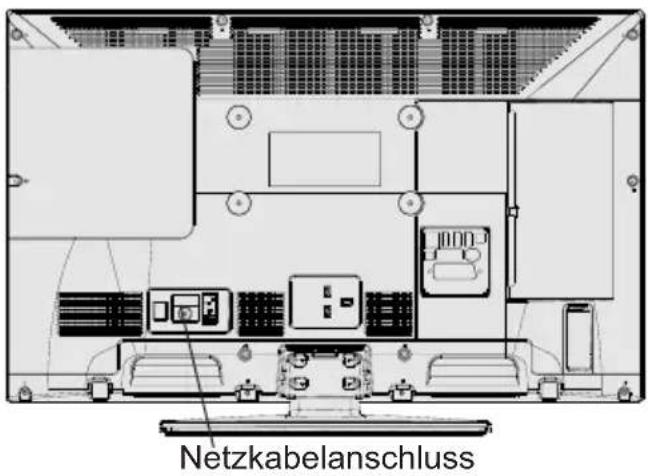
text_image
Diagram showing a device interior with labeled components and directional arrows, including numbered annotations ①, ②, and ③.text_image
Diagram of a remote control with labeled buttons, function keys, and navigation controls in Chinese.natural_image
Close-up of two batteries with visible charging wires and polarity signs (no readable text or symbols)text_image
SatcoDX SatcoDX Upload SatcoDX DownloadPAL/SECAM B/G D/K K' I/I' L/L'
DIGITALEMPFANG
DVB-T MPEG2
DVB-T MPEG4 HD
HB Austria electronic products Vertiebs GmbH
Pfarrgasse 52
1230 Wien
AUSTRIA
www.hb-europe.com
thanks for purchasing this product.
During development of this product we especially take care of the quality and the usability of the product.
Please read this instruction book carefully since you could learn a lot about he handling and the usage of this product.
Apart of that it is important due to security reasons and to prevent injuries.
In case of further questions or in case that any help is needed please visit our webpage: www.schaub-lorenz.com
Enjoy your new Schaub Lorenz product
Sincerely,
your SCHAUB LORENZ Team
Contents
Safety Precautions 36
Preparation 36
Intended Use 36
Power source....36
Positioning the TV....36
Power cord and plug....37
Moisture and Water 37
Ventilation 37
Heat sources and Flames....37
Headphone Volume 37
Wall Mounting (optional) 37
LCD Screen 37
Cleaning.... 37
Accessories included....38
Environmental Information 38
TV - Features 38
Viewing the TV 39
TV Control button & Operation 39
Remote control button functions - Normal remote (TV)....40
Using a Conditional Access Module 42
Standby Notifications.... 42
Installing the Batteries to the Remote.... 43
Connect Power & Antenna/Cable/Satellite ..... 43
Switching On/Off....43
First Time Installation.... 43
Media Playback via USB Input 45
Media Browser Menu....45
Using MENU button in Media Browser Mode ... 45
Changing Image Size: Picture Formats......45
Using the Channel List 46
Quick Menu 46
Menu Features and Functions....47-48-49-50
Electronic Programme Guide (EPG) 51
Recording a Programme 51
Timeshift Recording ....52
Instant Recording 52
Watching Recorded Programmes 52
Recordings Library.... 52
Recording Configuration....52
Teletext 53
Using SatcoDX Feature....53
Software Upgrade.... 53
Troubleshooting & Tips....54
PC Typical Display Modes ....55
Specifications ....56
Licence Notifications.... 56
Supported File Formats for USB Media Browser . 57
Supported DVI Resolutions 58
Safety Precautions

Please read these instructions fully before installing or operating.
Preparation
Place the device on a solid even surface. For ventilation, leave a free space of at least 10 cm all around the set. To prevent any fault and unsafe situations, do not place any objects on top of the set. Use this device in moderate climates. Operation temperature and operation humidity: 5°C up to 45°C, 85% rel. humidity max. (not blocking ventilation openings).
Intended Use
This device is used to receive and display TV programmes. The different connection options make an additional expansion of the reception and display sources possible (various external devices). This device is only suitable for the operation in dry interiors. This appliance is intended solely for private domestic use and may not be used for industrial and commercial purposes. We exclude liability in principle, if the device is not used as intended, or unauthorized modifications have been made. To operate your LED TV in extreme ambient conditions may cause the damage of the device.

WARNING: Never let people (including children) with physical, sensory or mentalities or lack of experience and/or knowledge supervised use electrical device!
Children may not recognize dangers right! The swallowing of batteries can be fatal. Keep batteries always out of reach of small children. If a battery is swallowed, immediately seek medical attention. Keep the packaging films out of reach of children. Risk of suffocation.
Power source
- The TV should be operated only from a 220-240 V AC, 50 Hz outlet.

Warning: Do not leave your TV in standby or rating mode when you leave your house.
Positioning the TV
- For ventilation, please leave a clear space of at least 10cm all around the TV.
- Do not block the ventilation openings.
- Do not place the TV on sloping or unstable surfaces, the TV may tip over.
- To prevent damage to the TV, do not place any objects on top of the TV.
- Only use the TV in moderate climates.
Power cord and plug
- The power cord plug should be easily accessible. In case of storms and lightning, when going on holiday, or when the TV is not used for a long period of time disconnect the power cord from the mains power socket.
- The mains plug is used to disconnect TV set from the mains and therefore it must remain readily operable.
- Do not place the TV, furniture, etc. on the power cord or pinch the cord.
- Handle the power cord by the plug, do not unplug the TV by pulling the power cord.
- Never touch the power cord/plug with wet hands as this could cause a short circuit or electric shock.
- Never make a knot in the power cord or tie it with other cords.
- Power cords should be placed in such a way that they are not likely to be stepped on or driven over.
- A damaged power cord/plug can cause fire or give you an electric shock. When damaged it must be replaced, this should only be done by qualified personnel.
Moisture and Water
- Do not use this TV in a humid or damp place (avoid bathrooms, the sink in the kitchen, and near the washing machine).
- Do not expose this TV to rain or water, as this may be dangerous.
- Do not place objects filled with liquids, such as flower vases, on top of the TV. Avoid from dripping or splashing.
- If any solid object or liquid falls into the cabinet, unplug the TV and have it checked by qualified personnel before operating it any further.
Ventilation
- The slots and openings on the TV set are intended for ventilation and to ensure reliable operation.
- To prevent overheating, these openings must not be blocked or covered in anyway.
Heat sources and Flames
- Do not expose the TV to direct sunlight or other heat sources.
- The TV should not be placed near to open flames and sources of intense heat such as an electric heater.
- Ensure that no open flame sources, such as lighted candles, are placed on top of the TV.

Headphone Volume
- Excessive sound pressure from earphones and headphones can cause hearing loss, please take care.

Wall Mounting (optional)
- To prevent injury, this TV must be securely attached to the wall in accordance with the installation instructions (if the option is available).
LCD Screen
- Occasionally, a few non-active pixels may appear on the screen as a fixed blue, green or red point. Please note that this does not affect the performance of your product.
- Take care not to scratch the screen with fingernails or other hard objects.
Cleaning
- Before cleaning, unplug the TV from the wall socket.
- Do not use liquid or aerosol cleaners. Only use a soft, dry cloth.
Environmental Information
This television is designed to consume less energy to save environment. You not only help to save the environment but also you can save money by reducing electricity bills thanks to the energy efficiency feature of this TV. To reduce energy consumption, you should take the following steps:
You can use Power Save Mode setting, located in the Picture Settings menu. If you set Power Save Mode as Eco, the TV will switch to energy-saving mode and luminance level of TV set will be decreased to optimum level. Note that some picture settings will be unavailable to be changed when the TV is in Power Save Mode.
Power Save Mode
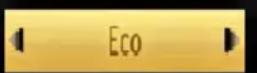
If Picture Off is selected, "Screen will be off in 15 seconds." message will be displayed on the screen. Select PROCEED and press OK to continue. The screen will be off in 15 seconds. If you disable Power Save Mode, Picture mode will be automatically set to Dynamic.
When the TV is not in use, please switch off or disconnect the TV from the mains plug. This will also reduce energy consumption.
Disconnect power when going away for longer time.
It is highly recommended to activate Power Save Mode setting to reduce your annual power consumption. And also it is recommended to disconnect the TV from the mains plug to save energy more when you do not use.
Please helps us to save environment by following these steps.
Repair Information
Please refer all servicing to qualified personnel. Only qualified personnel must repair the TV. Please contact your local dealer, where you have purchased this TV for further information.
Accessories included
Remote Control
Batteries: 2 x AAA
Instruction Book
Side AV Connection Cable
TV - Features
- Remote controlled colour LED TV.
- Fully integrated digital/cable/satellite TV (DVB-T2/C/S2).
- HDMI connectors for digital video and audio. This connection is also designed to accept high definition signals.
- USB input.
- Programme recording.
- Programme timeshifting.
• 10000 programmes. - OSD menu system.
- Scart socket for external devices (such as video, video games, audio set, etc.).
- Stereo sound system.
- Teletext, fastext, TOP text.
• Headphone connection.
• Automatic programming system. - Forward or backward manual tuning.
• Automatic power down after up to six hours. - Sleep timer.
- Child lock.
• Automatic sound mute when no transmission. - NTSC playback.
• AVL (Automatic Volume Limiting). - PLL (Frequency Search).
- PC input.
- Plug&Play for Windows 98, ME, 2000, XP, Vista, Windows 7.
- Game Mode (optional).
- Picture off function.
Viewing the TV TV Control button & Operation
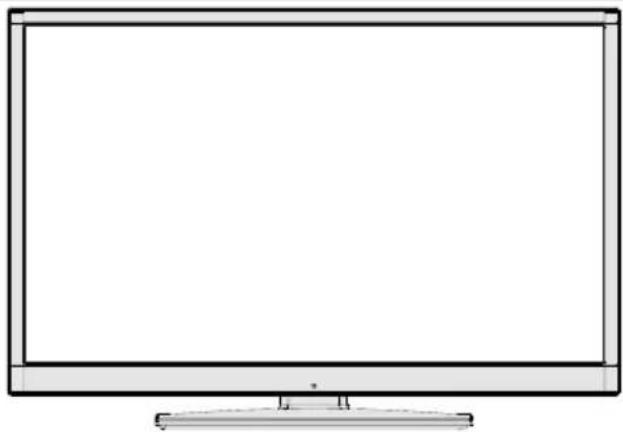
natural_image
Front view of a flat-screen computer monitor with blank screen area (no text or symbols)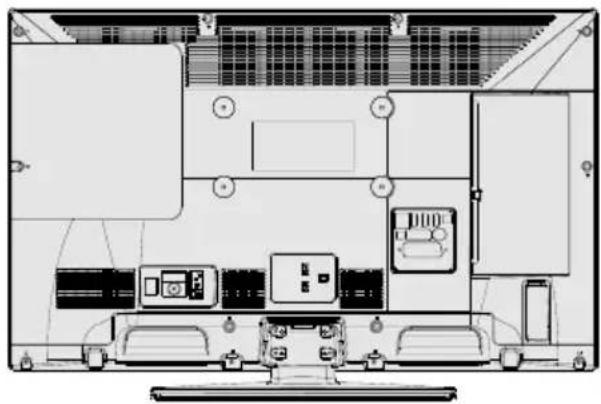
natural_image
Top-down schematic of a computer setup with monitor, keyboard, and drive unit (no text or labels)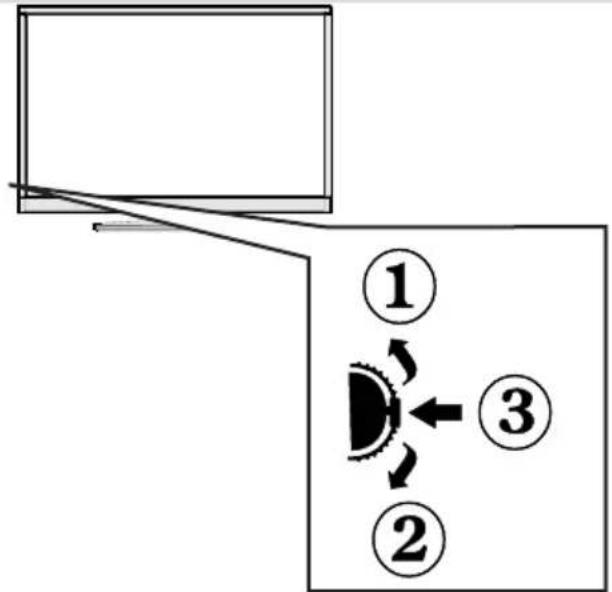
flowchart
graph TD
    A[" "] --> B["①"]
    B --> C["②"]
    C --> D["③"]
    D --> E[" "]
    style A fill:#fff,stroke:#000
    style B fill:#fff,stroke:#000
    style C fill:#fff,stroke:#000
    style D fill:#fff,stroke:#000
    style E fill:#fff,stroke:#000
- Up direction
- Down direction
- Programme/Volume / AV / Standby-On selection switch
The Control switch allows you to control the Volume/Programme/Source and Standby-On functions of the TV.
To change volume: Increase the volume by pushing the button up. Decrease the volume by pushing the button down.
To change channel: Press the middle of the button, the channel information banner will appear on screen. Scroll through the stored channels by pushing the button up or down
To change source: Press the middle of the button twice, the source list will appear on screen. Scroll through the available sources by pushing the button up or down.
To turn the TV off: Press the middle of the button down and hold it down for a few seconds, the TV will turn into standby mode.

NOTE: You can move the switch, upward or downward to change the volume. If you want to change the channel, press the middle of the switch once (Position 3) and then move upward or downward. If you press the middle of the switch once more, the source OSD will be displayed. To select desired source, move the switch upward or downward and release. If you press the middle of the switch and hold for a few seconds, the TV will switch to standby mode. The Main menu OSD cannot be displayed via the control buttons on the TV.
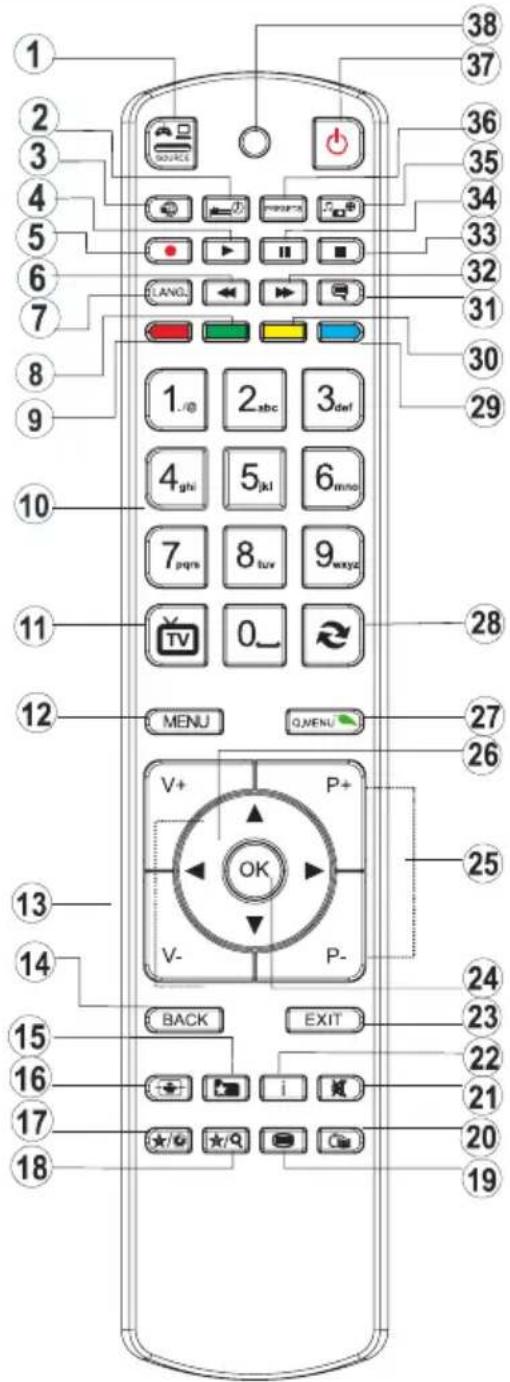
Remote control button functions - Normal remote (TV)
- Source
- Sleep Timer
- No function
- Play
- Programme recording
- Rapid reverse ( in media browser mode )
- Mono/Stereo - Dual I-II / Current language (in DVB channels)
- Green button
- Red button
- Numeric buttons
- Channel List/TV source
- Menu
- Volume up / down
- Back button
- Favourite channel list
- Image size
- My button 1 (*)
- My button 2 (**)
- Teletext
- Electronic programme guide
- Mute
- Info
- Exit (return)
- Ok (confirm)
- Programme up / down
- Navigational buttons
- Q.menu
- Channel swap
- Blue button
- Yellow button
- Subtitle on / off
- Rapid advance
- Stop
- Pause (in media browser mode) / Timeshift recording
- Multimedia browser
- Picture mode selection
- Standby button
- Function LED

NOTE: The Remote Control range is approximately
7m / 23ft.
text_image
Diagram of a remote control with numbered keys and function buttons for navigation and exit functions.Using My button 1 (\*)
Press MY BUTTON 1 for five seconds when on a desired source, channel or link, until the "MY BUTTON IS SET" message is displayed on the screen. This confirms that the selected MY BUTTON is now associated with the selected function.
Using My Button 2 (\*\*)
This button's main function is to switch between DVB-T, DVB-C and DVB-S broadcasts. However, if you press MY BUTTON 2 for five seconds, you can set a function to it as described in My Button 1. Note that if you perform first time installation, MY BUTTON 2 will return to its default function, switching between DVB-T, DVB-C and DVB-S broadcasts.
Viewing the Connections
| Connector Type | Cables Device | ||
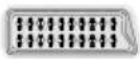 | ScartConnection(back) |  |  |
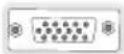 | VGAConnection(back) |  |  |
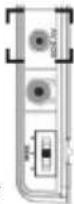 SIDE AV SIDE AV | PC/YPbPrAudioConnection(side) | 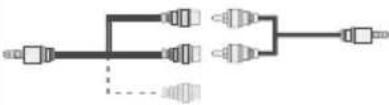 Side Audio/VideoConnection Cable (Supplied) PC Audio Cable (Not supplied) Side Audio/VideoConnection Cable (Supplied) PC Audio Cable (Not supplied) | 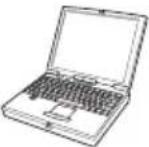 |
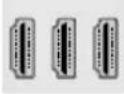 | HDMIConnection(back) | 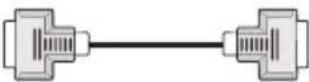 | 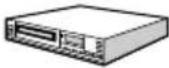 |
 SPDIF SPDIF | SPDIFFConnection(back) |  | 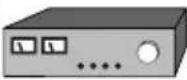 |
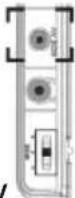 SIDE A\ SIDE A\ | Side AVConnection(side) | 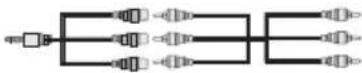 AV Connection Cable(supplied) AV Connection Cable(supplied) | 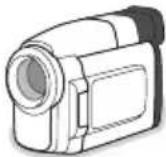 |
HEADPHONE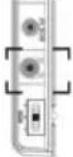 | HeadphoneConnection(side) |  | |
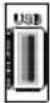 | USBConnection(side) |  | 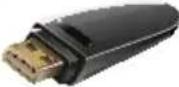 |
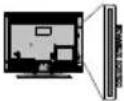 | CIConnection(side) |  | 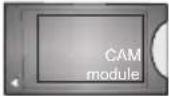 |
NOTE: When connecting a device via the Side AV input, you must use the supplied connection cables to enable connection. See the illustrations above. | YPbPr can be used only when you connect a device that has a YPbPr output through the PC input with YPbPr to PC cable (YPbPr to PC cable is not supplied). When the connection is made, switch to YPbPr source. To enable PC audio, you will need to use PC/YPBPR AUDIO CONNECTION WHITE & RED inputs. | If an external device is connected via the SCART socket, the TV will automatically switch to AV mode. | When receiving DTV channels (Mpeg4 H.264) or while in Media Browser mode, output will not be available via the scart socket. | When using the wall mounting kit (optional), we recommend that you plug all your cables into the back of the TV before mounting on the wall. | Insert or remove the CI module only when the TV is SWITCHED OFF. You should refer to the module instruction manual for details of the settings. Insert the CAM and then the viewing card to the slot that is located in the terminal cover at the rear side of the TV. The module should be correctly inserted, it is impossible to insert fully if reversed. The CAM or the TV terminal may be damaged if the CAM is forcefully inserted. Each USB input of your TV supports devices up to 500mA. Connecting devices that have current value above 500mA may damage your TV.
Using a Conditional Access Module

IMPORTANT: Insert or remove the CI module only in the TV is SWITCHED OFF.
In order to watch certain digital channels, a conditional access module (CAM) can be necessary. This module must be inserted in the CI slot of your TV.
- Obtain the Conditional Access Module (CAM) and the viewing card by subscribing to a pay channel company, then insert those to the TV using the following procedure.
- Insert the CAM and then the viewing card to the slot that is located in the terminal cover at the rear side of the TV.
- The CAM should be correctly inserted, it is impossible to insert fully if reversed. The CAM or the TV terminal may be damaged if the CAM is forcefully inserted.
- Connect the TV to the mains supply, switch on and then wait for few moments until the card is activated.
- When no module is inserted, "No Common Interface module detected" message appears on the screen.
You can refer to the module instruction manual for details of the settings.
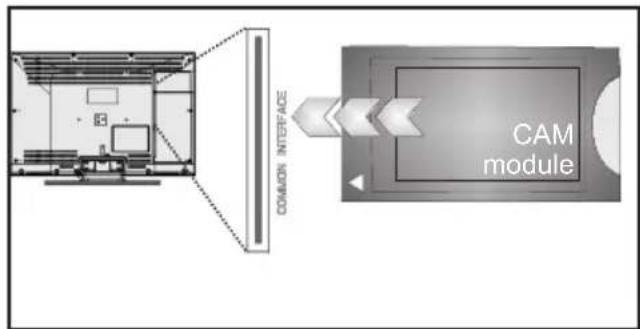
flowchart
graph TD
    A["Room Layout"] --> B["Common Interface"]
    B --> C["CAM module"]
    style A fill:#f9f,stroke:#333
    style C fill:#bbf,stroke:#333
Standby Notifications
If the TV does not receive any input signal (e.g. From an aerial or HDMI source) for 5 minutes, the TV will go into standby. When you next switch-on the TV, the following message will be displayed:
Standby Cause No Signal
OK
When the Auto Tv Off timeout is reached, the following message will be displayed on the screen. Select YES to shut down the TV. Select NO to cancel. The TV will switch off as well, if you do not make a selection on this screen.
There was no operation performed for a long time. Shut down?
Yes
No
If the TV has been left on and not been operated for 4 hours, the TV will go into standby. When you next switch-on, the following message will be displayed:
Standby Cause No Operation
OK
Installing the Batteries to the Remote
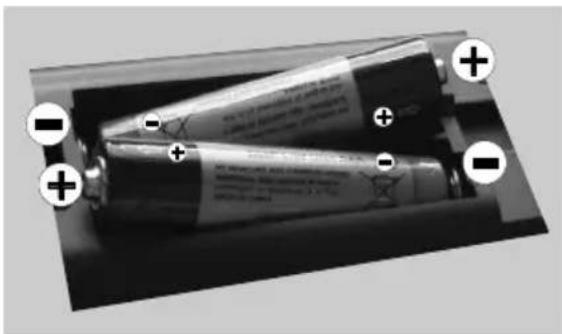
- Lift the cover on the back of the remote upward gently.
- Install two AAA batteries. Make sure to match the + and - ends of the batteries in the battery compartment (observe the correct polarity.
- Replace the cover.
natural_image
Two batteries with charging caps and labeled terminals, no visible text or symbols on the body.Connect Power & Antenna/Cable/Satellite
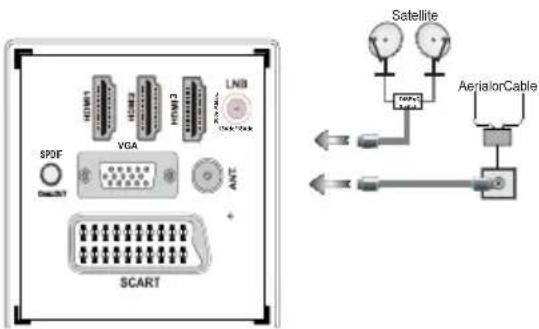
IMPORTANT: The TV set is designed to operate on 220-240V AC, 50 Hz socket. After unpacking, allow the TV set to reach the ambient room temperature before you connect the set to the mains. Plug the power cable to the mains socket outlet.
text_image
SPDF VGA LNB ANTC SCART Satellite AerialorCableSwitching On/Off
To Switch the TV On
Connect the power cord to the 220-240V AC, 50 Hz. Then the standby LED lights up.
To switch on the TV from standby mode either:
Press the “☐” button, P+ / P- or a numeric button on the remote control.
Press the control switch located on the left side of the TV. The TV will then switch on.
To Switch the TV Off
Press the "button" on the remote control or press and hold the control switch on the TV, so the TV will switch to standby mode.
To power down the TV completely, unplug the power cord from the mains socket.
Note: When the TV is switched to standby mode, standby LED can blink to indicate that features such as Standby Search, Over Air Download or Timer is active. The LED can also blink when you switch on the TV from standby mode.
First Time Installation
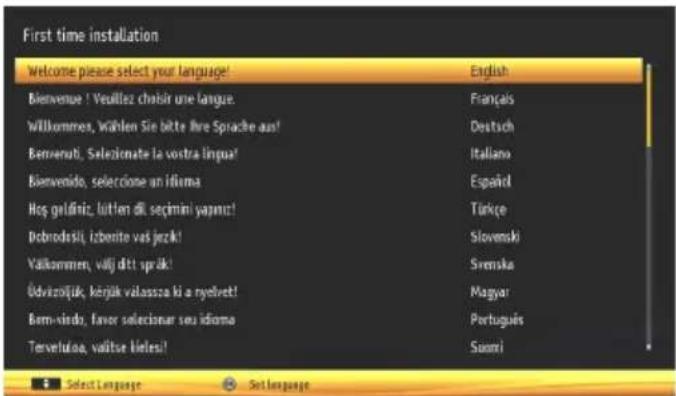
When turned on for the first time, the "language selection" menu appears. The message "Welcome please select your language!" is displayed in all language options listed alphabetically.
text_image
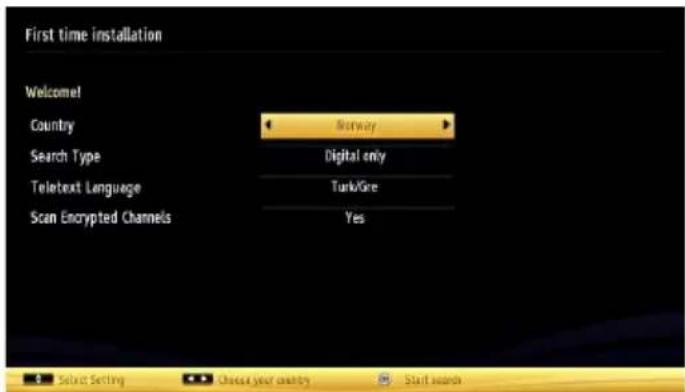
First time installation Welcome please select your language! Bienvenue ! Veuillez choisir une langue! Wilkommes, Wählen Sie bitte Ihre Sprache aus! Bervenut, Seleziemate la vostra lingua! Bienvenido, selezione an idiema Hoş geldiniz, lütlen di, seçmini yapınic! Debrodesli, izbenite vas jezik! Välkommen, välj ditt sprük! Üdvizolük, körök valassza ki a nyelvet! Bern-vindo, favor seleccionar seu idioma Tervefuloa, valtse bilies! English Français Deutsch Italiano Españd Türkçe Slovenski Svenska Magyar Portugues SonniPress the “▲or” button to highlight the required language, press OK button to select. “First Time Installation” appears. Use “◀” or “▶” button to set the required country, and press “▼” button to select Search Type. Use “◀” or “▶” to set the desired search type. Available search types are Digital and analog, digital only and analog only. When set, press “▼to select Teletext Language. Use “◀” or “▶” button to set the “Teletext Language” and select “Scan Encrypted” using “▲or” button. You can set Scan Encrypted as Yes if you want to scan coded stations
text_image
First time installation Welcome! Country Norway Search Type Digital only Teletext Language Turk/Gre Scan Encrypted Channels Yes Select Setting Cancel your country Start searchesDeafult PIN code can change depending on the selected country.
If you are asked to enter a PIN code for viewing a menu option, use one of the following codes: 4725, 0000 or 1234.
Press OK button on the remote control to continue and the following message will be displayed on the screen.
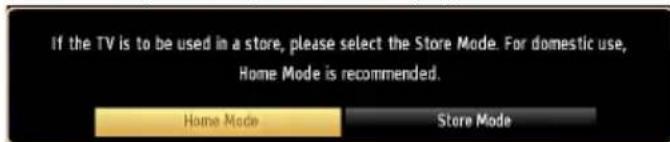
text_image
If the TV is to be used in a store, please select the Store Mode. For domestic use, Home Mode is recommended. Home Mode Store ModeYou can activate Store mode (optional) option by using “◀” or “▶” button. If Store Mode (optional) is selected, Store mode option will be available in
other settings menu and your TV's settings will be optimized for best display quality. A confirmation screen will be displayed after selecting the Store Mode (optional). Select YES to proceed.

text_image
Store Mode Selected. Are You Sure? Yes NoIf Home Mode is selected, Store mode (optional) will not be available after the First Time Installation. Press OK button on the remote control to continue and the following message will be displayed on the screen.
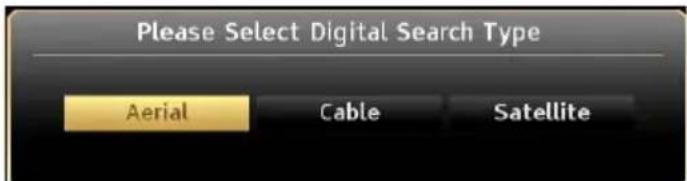
text_image
Please Select Digital Search Type Aerial Cable SatelliteYou must select a search type to search and store broadcasts from the desired source.
Aerial Installation
If you select AERIAL option from the Search Type screen, the television will search for digital terrestrial TV broadcasts.
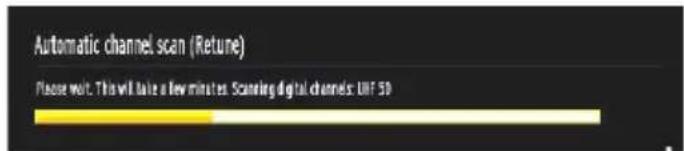
text_image
Automatic channel scan (Return) Please wait. This will take a few minutes. Scanning digital channels: UIF 50
NOTE: You can press MENU button to cancel.
After all the available stations are stored, Channel List will be displayed on the screen. If you like the sort channels, according to the LCN(*), please select "Yes" and then press OK.
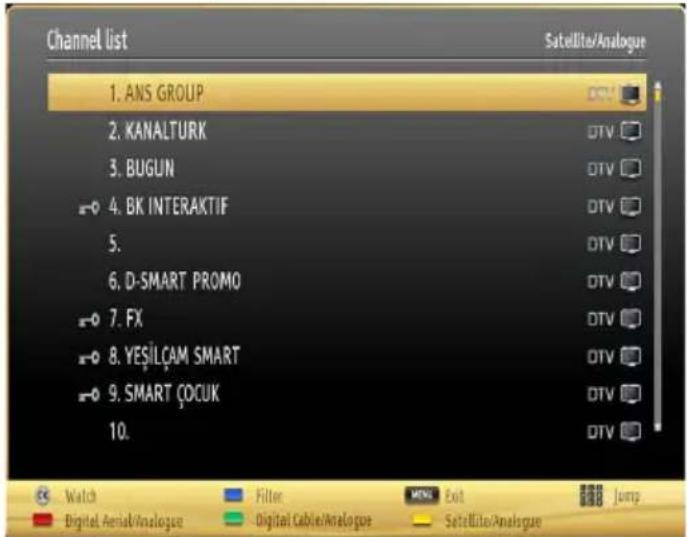
text_image
Channel list 1. ANS GROUP 2. KANALTURK 3. BUGUN 4. BK INTERAKTIF 5. 6. D-SMART PROMO 7. FX 8. YESILCAM SMART 9. SMART ÇOCUK 10. Satellite/Analogun Watch Digital Aerial/Analogue Filter Digital Cable/Analogue Menu Exit Satellite/Analogue JumpPress OK button to quit channel list and watch TV.
(*) LCN is the Logical Channel Number system that organizes available broadcasts in accordance with a recognizable channel sequence.
Cable Installation
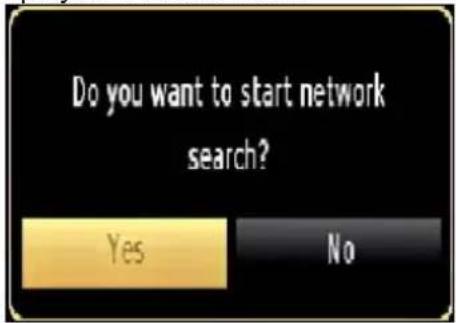
If you select CABLE option and press OK button on the remote control to continue, the following message will be displayed on the screen:
text_image
Do you want to start network search? Yes NoTo continue please select YES and press OK. To cancel operation, select NO and press OK.
text_image
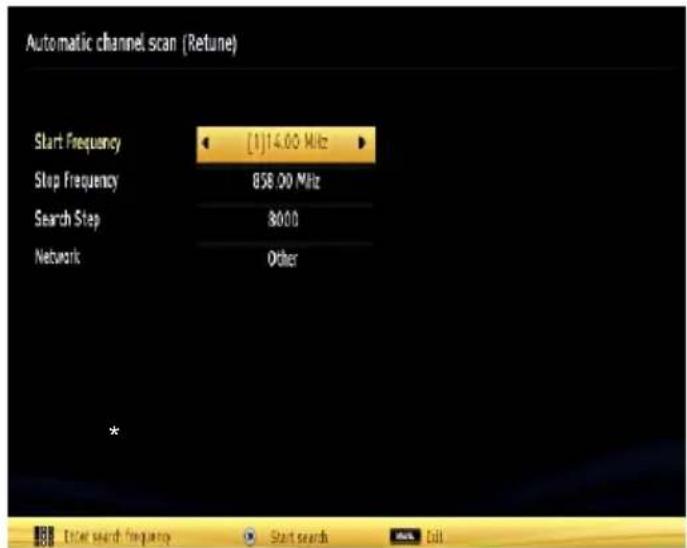
Automatic channel scan (Retune) Start Frequency [1]14.00 MHz Stop Frequency 858.00 MHz Search Step 8000 Network Other * Enter search frequency Start search CallYou can select frequency ranges from this screen. For highlighting lines you see, use “▲” or “▼button.”
You can enter the frequency range manually by using the numeric buttons on the remote control.
Set Start and Stop Frequency as desired by using numeric buttons on the remote control.
After this operation, you can set Search Step as 8000 KHz or 1000 KHz.
If you select 1000 KHz, the TV will perform search process in a detailed way. Searching duration will thus increase accordingly. When finished, press OK button to start automatic search. The TV will search and store available broadcasts.
(*) Network option will not be available for UK.
Satellite Installation
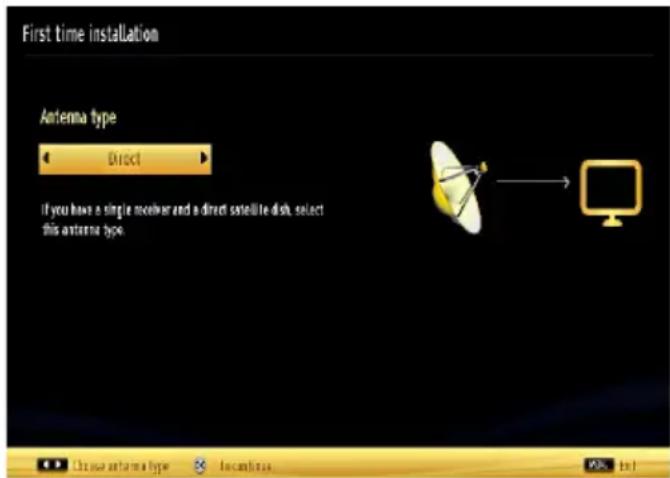
If you select Normal, satellite configuration screen will be displayed. There are three types of antenna selection. You can select Antenna type as Direct, Unicable or DiSEqC switch by using “◀” or “▶” buttons.
text_image
First time installation Antenna type Direct If you have a single monitor and a direct satellite dish, select this antenna type.Direct: If you have a single receiver and a direct satellite dish, select this antenna type. After selecting Direct, another menu screen will be displayed. Select an available satellite and press OK to scan for services.
Unicable: If you have multiple receivers and a unicable system, select this antenna type. Press OK to continue. Configure settings by following instructions on the screen. Press OK to scan for services.
DiSEqC switch: If you have multiple satellite dishes and a DiSEqC switch, select this antenna type. After selecting DiSEqC switch, another menu screen will be displayed. You can set four DiSEqC options (if available). Press GREEN button to scan all satellites or press YELLOW button to scan only the highlighted satellite. If you select a DiSEqC option, Search Type screen will be displayed. Select an option and continue.
The following options will be available:
Start Regular Search: Performs a full-band search.
Search Astra Service List: Performs the search in accordance with the Astra Service List.
Pre-Programmed List: Performs the search in accordance with the preset channel list. To save and exit press OK button.
Media Playback via USB Input
You can connect a USB hard disk drive or USB memory stick to your TV by using the USB inputs of the TV. This feature allows you to play files stored in a USB drive. 2.5" and 3.5" inch (hdd with external power supply) external hard disk drives are supported.
IMPORTANT! You should back up your files before making any connections to the TV set in order to avoid any possible data loss. Manufacturer will not be responsible for any file damage or data loss. It is possible that certain types of USB devices (e.g. MP3 Players) or USB hard disk drives/memory sticks may not be compatible with this TV. The TV supports FAT32 and NTFS disk formatting but recording will not be available with NTFS formatted disks. Note: While formatting a USB hard disk that has 1TB (Tera Byte) or more file capacity, you can experience problems with the formatting process.
Quickly plugging and unplugging USB devices, is a very hazardous operation. Do not repeatedly quickly plug and unplug the drive. This may cause physical damage to the USB player and USB device itself. Do not pull out USB module while playing a file.
You can use USB hubs with your TV's USB inputs. External power supplied USB hubs are recommended in such a case.
It is recommended to use the TV's USB input(s) directly, if you are going to connect a USB hard disk.
Media Browser Menu
You can play photo, music, and movie files stored on a USB disk by connecting it to your TV and using the Media Browser screen. To do this, perform the following: Connect a USB disk to one of the USB inputs located on the side of the TV.
You can connect two USB devices to your TV. If both USB devices include music, picture or video files, USB selection OSD will be displayed on the screen. The first USB device connected to the TV will be named as USB Drive1. Select a device by using “▲” or “▼” button and press OK.
Press MENU button and select Media Browser tab by using Left/Right and OK buttons. Main media browser screen will be displayed. You can display the related content by selecting the Video, Music or Picture tab. Follow the button indications under each on screen menu for media playback features.
You can set your Media Browser preferences by using the Settings dialog.
Using MENU button in Media Browser Mode
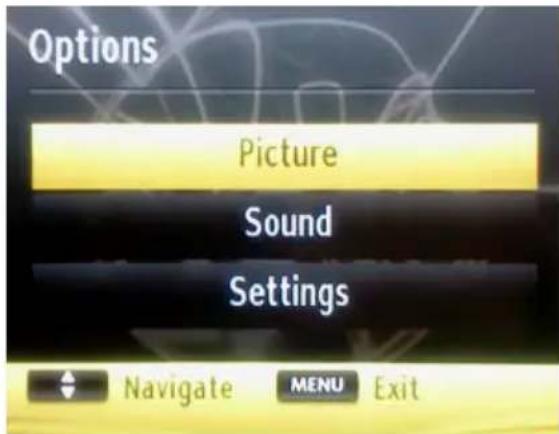
Pressing MENU button in Media Browser mode displays the following menu screen:
text_image
Options Picture Sound Settings Navigate MENU ExitYou can access Picture, Sound and Settings menu options using this screen. Press MENU again to exit from this screen.
Changing Image Size: Picture Formats
Programmes can be watched in different picture formats, depending on the transmission received. You can change the aspect ratio (image size) of the TV for viewing the picture in different zoom modes. Press " [icon] " button repeatedly to change the image size. You can shift the screen up or down by using " ▲ " or " ▼ " buttons while in, 14:9 Zoom, Cinema or Subtitle.
Using the Channel List
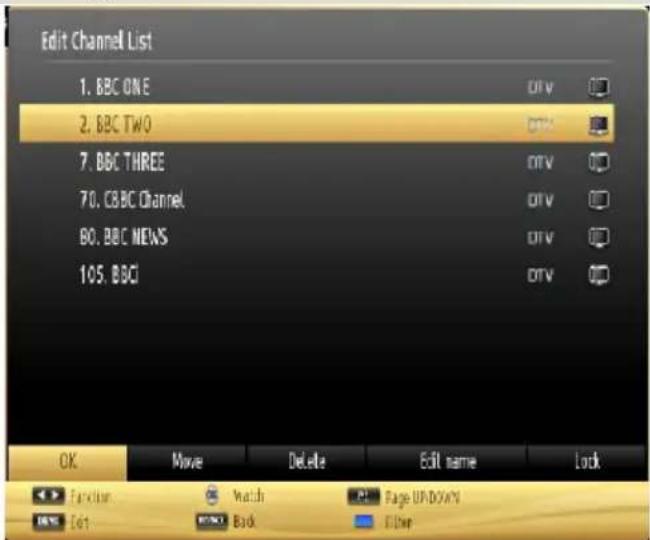
text_image
Edit Channel List 1. BBC ONE 2. BBC TWO 7. BBC THREE 70. CBC Channel 80. BBC NEWS 105. BBCI OK Move Delete Edit name Lock Function Watch Bank Fpage UP/DOWN Edit Back EditThe TV sorts all stored stations in the Channel List. You can edit this channel list, set favourites or set active stations to be listed by using the Channel List options. Press MENU button to view main menu. Select Channel List item by using Left or Right button. Press OK to view menu contents. Select Edit Channel List to manage all stored channels. Use Up or Down and OK buttons to select Edit Channel List. Press Up or Down button to select the channel that will be processed. Press Left or Right button to select a function on Channel List menu. Use P+/P- buttons to move page up or down. Press MENU button to exit.
Sorting Channel List
You can select broadcasts to be listed in the channel list. To display specific types of broadcast, you should use Active channel list setting. Select Active channel list from the Channel list menu by using “▲or “” button. Press OK button to continue. You can select a network type option from the list by using “◀” or “▶” and OK buttons.
Quick Menu
Quick Settings menu allows you to access some options quickly. This menu includes Power Save Mode, Picture Mode, Equalizer Settings, Favourites and Sleep Timer options. Press Q.MENU button on the remote control to view quick menu. See the following chapters for the details of the listed features.
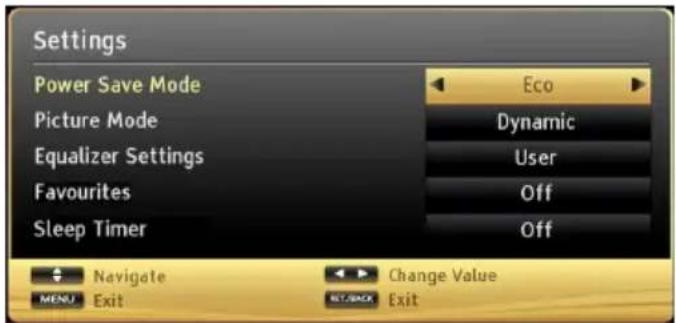
text_image
Settings Power Save Mode Picture Mode Equalizer Settings Favourites Sleep Timer Eco Dynamic User Off Off Navigate Change Value MENU Exit RET/BACK ExitMenu Features and Functions
| Picture Menu Contents | |
| Mode | For your viewing requirements, you can set the related mode option. Picture mode can be set to one of these options: Cinema,Game,Sport,Dynamic and Natural. |
| Contrast | Sets the lightness and darkness values of the screen. |
| Brightness | Sets the brightness value for the screen. |
| Sharpness | Sets the sharpness value for the objects displayed on the screen. |
| Colour | Sets the colour value, adjusting the colors. |
| Power Save Mode | To set Power Save Mode as Eco, Picture Off and Disabled. See the section, “Environmental Information” in this manual for further information on Power Save Mode. |
| Backlight (optional) | This setting controls the backlight level and it can be set to Auto, Maximum, Minimum and Eco Mode. Backlight function will be inactive if Power Save Mode is set to On. Backlight cannot be activated in VGA, Media Browser mode or while the picture mode is set to Game. |
| Noise Reduction | If the broadcast signal is weak and the picture is noisy, use Noise Reduction setting to reduce the noise amount. Noise Reduction can be set to one of these options: Low, Medium, High or Off. |
| Advanced Settings | |
| Dynamic Contrast | You can change contrast rate by using dynamic contrast function. Dynamic contrast can be set to one of these options: Low, Medium, High or Off. |
| Colour Temp | Sets the desired colour tone. |
| Picture Zoom | Sets the picture size to Auto,16:9, Subtitle,14:9, 14:9 Zoom, 4:3 or Cinema. Auto (Only available in Scart mode with SCART PIN8 high voltage/low voltage switching). |
| HDMI True Black (optional) | While watching from HDMI source, this feature will be visible in the Picture Settings menu. You can use this feature to enhance blackness in the picture. |
| Film Mode (optional) | Films are recorded at a different number of frames per second to normal television programmes. Turn this feature on when you are watching films to see the fast motion scenes clearly. |
| Skin Tone | Adjust the desired skin tone. |
| Colour Shift | Adjust the desired colour tone. |
| RGB Gain | Press OK button to edit RGB gain. You can configure the colour temperature values using the RGB Gain feature. |
| Reset | Resets the picture settings to factory default settings. |
| Autoposition (in PC mode) | Automatically optimizes the display. Press OK to optimize. |
| H Position (in PC mode) | This item shifts the image horizontally to right hand side or left hand side of the screen. |
| V Position (in PC mode) | This item shifts the image vertically towards the top or bottom of the screen. |
| Dot Clock (in PC mode) | Dot Clock adjustments correct the interference that appear as vertical banding in dot intensive presentations like spreadsheets or paragraphs or text in smaller fonts. |
| Phase (in PC mode) | Depending on the resolution and scan frequency that you input to the TV set, you may see a hazy or noisy picture on the screen. In such a case you can use this item to get a clear picture by trial and error method. |
| While in VGA (PC) mode, some items in Picture menu will be unavailable. Instead, VGA mode settings will be added to the Picture Settings while in PC mode. | |
Menu Features and Functions
| Sound Menu Contents | |
| Volume | Adjusts volume level. |
| Equalizer: | In equalizer menu, the preset can be changed to Music, Movie, Speech, Flat, Classic and User. Press the MENU button to return to the previous menu. Equalizer menu settings can be changed manually only when the Equalizer Mode is in User. |
| Balance This setting is | used for emphasizing left or right speaker balance. |
| Headphone | Sets headphone volume. |
| Sound Mode | You can select Mono, Stereo, Dual I or Dual II mode, only if the selected channel supports that mode. |
| AVL | Automatic Volume Limiting (AVL) function sets the sound to obtain fixed output level between programmes (For instance, volume level of advertisements tend to be louder than programmes). |
| Headphone/Lineout (Optional) | When you connect an external amplifier to your TV using the headphone jack, you can select this option as Lineout. If you have connected headphones to the TV, set this option as Headphone. |
| Dynamic Bass (Optional) | Enables or disables the Dynamic Bass. |
| Surround Sound (Optional) | Surround sound mode can be changed as On or Off. |
| Digital Out | Sets digital out audio type. |
| Install and Retune Menu Contents | |
| Automatic Channel Scan (Retune) | Displays automatic tuning options.Digital Aerial: Searches and stores aerial DVB stations.Digital Cable: Searches and stores cable DVB stations.Analogue: Searches and stores analogue stations.Digital Aerial & Analogue: Searches and stores aerial DVB and analogue stations.Digital Cable & Analogue: Searches and stores cable DVB and analogue stations.Satellite: Searches and stores satellite channels. |
| Manual Channel Scan | This feature can be used for direct broadcast entry. |
| Network Channel Scan (Optional) | Searches for the linked channels in the broadcast system. |
| Analogue Fine Tune | You can use this setting for fine tuning analogue channels. This feature is not available if no analogue channels are stored. |
| First Time Installation | Deletes all stored channels and settings, resets TV to factory settings and starts first time installation. You can follow the instructions in the Initial Installation section for more information on this process. |
| Clear Service List (Optional) | (*) This setting is visible only when the Country option is set to Denmark, Sweden, Norway or Finland. Use this setting to clear channels stored. |
Menu Features and Functions
| Settings Menu Contents | |
| Conditional Access | Controls conditional access modules when available. |
| Language Configures language settings. | |
| Parental | Configures parental settings.Deafult PIN code can change depending on the selected country.If you are asked to enter a PIN code for viewing a menu option, use one of the following codes: 4725, 0000 or 1234. |
| Timers | Sets timers for selected programmes. |
| Recording Configuration | Displays recording configuration menu. |
| Date/Time | Sets date and time.Note:* The TV takes the time info via the broadcast. Correct time will be available on Date/ Time Settings, if the time info is provided in the broadcast.If the TV is in no channel mode, Date/Time settings can be changed. However, if there is a channel preset, only “Time Settings Mode” can be changed and if this is set to Manual, Time Zone will be enabled.* If the TV is switched to standby mode and switched on later and there is no broadcast available, time information will not be updated. If there is a present broadcast; however, time information will be taken via the broadcast. In other words, time information will be available according to these priorities: The TV first looks for the time info in the broadcast then to the user preference, and lastly to the teletext time information. |
| Sources | Enables or disables selected source options. |
| Satellite Settings | Displays satellite settings. |
| Network Settings (Optional) | Displays network settings. |
| Other Settings: Displays other setting options of the TV set: | |
| Menu Timeout | Changes timeout duration for menu screens. |
| Scan Encrypted | When this setting is on, search process will locate the encrypted channels as well. If it is set as Off, encrypted channels will not be located in automatic search or manual search. |
| Blue Background | Activates or deactivates blue background system when the signal is weak or absent. |
| Software Upgrade | To ensure that your TV always has the most update information, you can use this setting. In order for the proper operation, please ensure that the TV is set to standby mode. |
| Application Version | Displays application version. |
| Hard of Hearing | If the broadcaster enables any special signal concerning the audio, you can set this setting as On to receive such signals. |
| Audio Description | Audio description refers to an additional narration track for blind and visually impaired viewers of visual media, including television and movies. You can use this feature, only if the broadcaster supports that additional narration track. |
| Auto TV Off | You can set the timeout value of auto off feature. After the timeout value is reached and the Tv is not operated for selected time , the TV will go off. |
| Standby Search (optional) | If you change Standby Search to Off, this function will be unavailable. To use Standby search please make sure that you select Standby Search as On. If the Standby Search is set to On, when the TV is in standby mode, available broadcasts will be searched. If the TV locates any new or missing broadcasts, a menu screen will be displayed, asking you whether or not to execute these changes. Channel list will be updated and changed after this process. Please activate Standby Search setting in order to enable your TV for automatically updating the broadcast frequency of the broadcaster, broadcast definition and similar changes. |
| Menu Features and Functions | |
| Other Settings: Displays other setting options of the TV set: | |
| Store Mode (optional) | If you are displaying the TV in a store, you can activate this mode. While Store Mode is enabled, some items in the TV menu may not be available to be set. |
| Power Up Mode | This setting configures the power up mode preference. Always On: The TV always switches on when main on/off button is pressed. / Standby: The TV always powers up in Standby mode. / Last State: The TV always switches on with the last selected channel/source. |
| Biss Key | Biss is a satellite signal scrambling system that is used for some broadcasts. If you need to enter BISS key on a broadcast, you can use Biss Key setting located in the Other Settings menu. Highlight Biss Key and press OK to enter keys on the desired broadcast. |
| Virtual Remote (optional) | Enables or disables the virtual remote feature. |
Electronic Programme Guide (EPG)
Some, but not all channels send information about the current and next programmes. Press the “☐” button to view the EPG menu.
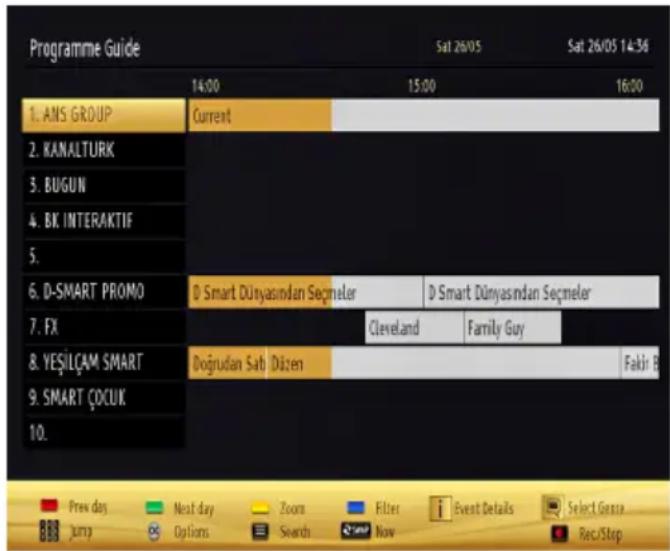
text_image
Programme Guide Sat 26/05 Sat 26/05 14:36 14:00 15:00 16:00 1. ANS GROUP Current 2. KANALTURK 3. BUGUN 4. BK INTERAKTIF 5. 6. D-SMART PROMO D Smart Dünyasından Seçmeler D Smart Dünyasından Seçmeler 7. FX Cleveland Family Guy 8. YEŞILÇAM SMART Doğrudan Sab Düzen Fakır B 9. SMART ÇOÇUK 10. Prev day Next day Zoom Filter Event Details Select Group jump Options Search Now Rec/StopUp/Down/Left/Right: Navigate EPG.
OK: Displays programme options.
(i) INFO: Displays, in detail information on programme selected.
GREEN: Switches to List Schedule EPG.
YELLOW: Switches to Timeline Schedule EPG.
BLUE: displays filtering options.
(RECORD): the TV will start to record the selected programme. You can press again to stop the recording.
IMPORTANT: To record a programme, you should first connect a USB disk to your TV while the TV is switched off. You should then switch on the TV to enable recording feature. Otherwise, recording feature will not be available.
Note: Switching to a different broadcast or source is not available during the recording.
Programme Options
In EPG menu, press the OK button to enter the Event Options menu.
Select Channel
In EPG menu, using this option, you can switch to the selected channel.
Record / Delete Record Timer
After you have selected a programme in EPG menu, press the OK button and and Options screen will be displayed. Select "Record" option and press the OK button. After this operation, a recording becomes set to the selected programme.
To cancel an already set recording, highlight that programme and press the OK button and select the option "Delete Rec. Timer". The recording will be cancelled.
Set Timer / Delete Timer
After you have selected a programme in EPG menu, press the OK button and and Options screen will be displayed. Select "Set Timer on Event" option and press OK button. You can set a timer for future programmes. To cancel an already set timer, highlight that programme and press the OK button. Then select "Delete Timer" option. The timer will be cancelled.
Note: It is not possible to record or set timer for two or more individual events at the same time interval.
Recording a Programme
IMPORTANT: When using a new USB hard disk drive, it is recommended that you first format the disk using your TV's "Format Disk" option.
To record a programme, you should first connect a USB disk to your TV while the TV is switched off. You should then switch on the TV to enable recording feature.
For using recording function, you should connect a USB disk or an external hard disk drive to the TV and connected USB disk should have at least 1 GB capacity and should have 2.0 speed compatibility. If the connected USB device does not support 2.0 speed, an error message will be displayed.
Note: Recorded programmes are saved into the connected USB disk. If desired, you can store/copy recordings on a computer; however, these files will not be available to be played on a computer. You can play the recordings only via your TV.
Note: Lip Sync delay may occur during the timeshifting. Radio record is not supported. The TV can record programmes up to ten hours.
Recorded programmes are split into 4GB partitions. If the writing speed of the connected USB disk is not sufficient, recording may fail and timeshifting feaute may not be available.
Recordings of HD programmes can occupy bigger size on the USB disk depending on the broadcast's resolution. For this reason it is recommended to use USB hard disk drives for recording HD programmes.
Do not plug out the USB/HDD during the recording. This may harm the connected USB/HDD.
Multipartiton support is available. Maximum two different partitions are supported. If the disk have more than two partitions, crash may occur. First partition of the usb disk is used for PVR ready features. It also must be formatted as primary partition to be used for PVR ready features.
Some stream packets may not be recorded because of signal problems, so sometimes video may freezes during playback.
Record, Play, Pause, Display (for PlayListDialog) keys could not be used when teletext is ON. If a recording starts from timer when teletext is ON, teletext is automatically turned off. Also teletext usage is disabled when there is ongoing recording or playback.
Timeshift Recording
Press ▪ (PAUSE) button while watching a broadcast for switching to timeshifting mode. In timeshifting mode, the programme is paused and simultaneously recorded to the connected USB disk. Press ▶ (PLAY) button again to watch the paused programme from the stopped moment. You will see the timeshift gap between the real and the timeshifted programme in the info bar.
Instant Recording
Press (RECORD) button to start recording an event instantly while watching a programme. You can press (RECORD) button on the remote control again to record the next event on the EPG. In this case, OSD will display the programmed events for recording. Press (STOP) button to cancel instant recording. Switching to a different broadcast or source; and viewing Media Browser are not available during the recording.
Watching Recorded Programmes
In the main menu, use “◀” or “▶” buttons to select Media Browser. Highlight Recordings Library item by using “◀” or “▶” button and press OK button to enter. Recordings Library will then be displayed. Select a recorded item from the list (if previously recorded) by using “▲”/“▶” button. Press OK button to view Play Options. Select an option by using “▲”/“▼” or OK buttons.
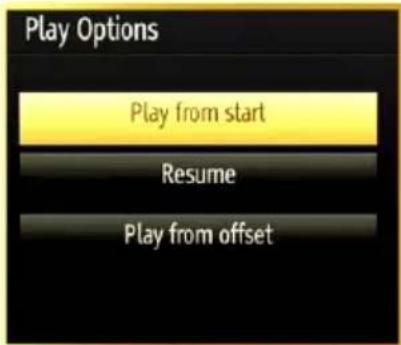
text_image
Play Options Play from start Resume Play from offsetAvailable playback options:
- Play from start: Plays the recording from the beginning.
- Resume: Recommences the recordings.
- Play from offset: Specifies a playing point.
Note: Viewing main menu and menu items will not be available during the playback.
Press ■(STOP) button to stop a playback and return to return to Recordings Library.
Slow Forward
If you press || (PAUSE) button while watching recorded programmes, slow forward feature will be available. You can use ▶ button to slow forward. Pressing ▶ button consecutively will change slow forwarding speed.
Recordings Library
To view the list of recordings, select "Recordings Library" and press the OK button. Recordings Library will then be displayed with available recordings. All the recordings are kept in a list in the recordings library.
“▶” (Resume): Recommences the recordings.
RED button (Delete) : Erases the selected recording.
GREEN button (Edit): Makes changes on the selected recording.
BLUE button (Sort): Changes the order of the recordings. You can select from a wide range of sorting options.
OK button: Activates play options menu:
(i) INFO: Displays the short extended programmes in detail.
Recording Configuration
Select Recording Configuration item in the Settings menu to configure recording settings.
Format Disk: You can use Format Disk feature for formatting the connected USB disk.
IMPORTANT: Note that ALL the data stored on the USB disk will be lost and then the disk format will be converted to FAT32 if you activate this feature. If your USB disk malfunctions, you can try formatting the USB disk. In most cases formatting the USB disk will restore normal operation; however, ALL the data stored on the USB disk will be lost in such a case.
Note: If "USB is too slow" message is displayed on the screen while starting a recording, try restarting the recording. If you still get the same error, it is possible that your USB disk does not meet the speed requirements. Try connecting another USB disk.
Teletext
“teletext / Mix: Activates teletext mode when pressed once. Press again to place the teletext screen over the programme (mix). Pressing again will quit the teletext mode.
"BACK" Index: Selects the teletext index page.
(i)“INFO”Reveal: Shows hidden information (e.g. solutions of games).
"OK" Hold: Holds a text page when convenient. Press again to resume.
“◀” / “▶ Subcode Pages: Selects subcode pages if available when the teletext is activated.
P+ / P- and numbers (0-9): Press to select a page.
Note: Most TV stations use code 100 for their index pages.
Your TV supports both FASTEXT and TOP text systems. When these systems are available, the pages are divided into groups or topics. When FASTEXT system is available, sections in a teletext page will become colour-coded and can be selected by pressing the coloured buttons. Press a coloured button that corresponds to with your needs. The coloured writings will appear, showing you which coloured buttons to use when TOP text transmission is present. Pressing “▲” or “ ” commands will request the next or previous page respectively.
Using SatcoDX Feature
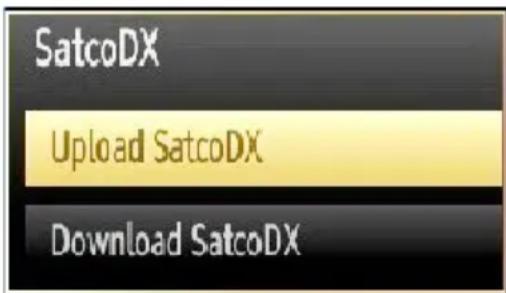
You can perform SatcoDX operations using the Satellite Settings. On SatcoDX menu, there are two options regarding to satcodx feature as in the following:
text_image
SatcoDX Upload SatcoDX Download SatcoDXYou can download or upload satcoDX data. In order to perform these functions supported for satcodx feature, a USB device must be connected to the TV in the first place
You will be able to upload current services and related satellites & transponders in TV, to a USB device.
In addition to the uploading feature you will be able to download one of the satcodx files stored in USB device, to the TV.
When you select one of these satcodx files, all services and related satellites and transponders in the selected file will be stored in TV. If there are any installed terrestrial, cable and/or analog services, they will be kept and only satellite services will be removed.
Afterwards, check your antenna settings and make changes if necessary. An error message stating "No Signal" may be displayed if antenna settings are not configured properly.
Software Upgrade
Your TV is capable of finding and updating new software upgrades over broadcast channels. For broadcast channels search, TV looks the available channels stored in your settings. So before software upgrade search, it is advised to auto search and update all available channels.
1) Software upgrade search via user interface
- It is possible manually to check if there is a new software upgrade for your TV set.
- Simply navigate on your main menu. Choose Settings and select Other Settings menu. In Other Settings menu navigate on to the Software Upgrade item and press OK button to open Upgrade Options menu.
- In Upgrade Options menu select Scan for upgrade and press OK button.
- If a new upgrade is found, it starts to download the upgrade. A progress bar indicates the remaining download progress. When download completes with success a message is displayed for reboot to activate new software. Press OK to continue with the reboot operation.
2) 3.AM search and upgrade mode
- If Automatic scanning in Upgrade Options menu is enabled, TV wakes up at 03:00 and searches broadcast channels for new software upgrade. If new software is found and downloaded successfully, with next power up TV opens with new software version.
Note on reboot operation: Reboot is the last step in software upgrade operation if download of new software is finished successfully. During reboot TV makes final initialization. In reboot sequence panel power is closed and front led indicates the activity with blinking. Around 5 minutes later TV restarts with new software activated.
- If your TV fails to restart in 10 minutes, unplug power for 10 minutes and re-plug again. TV should open with new software safely. If you still can not get TV working, please kindly repeat unplug and plug sequence a few times more. If your set still can not operate, please call the service personnel to fix the problem for you.
Caution: While led is blinking during reboot do not unplug your TV's power. Doing this may cause your TV not to re-open again and can only be fixed by service personnel.
Manual Software Update
Ensure that the ethernet cable is connected to your TV. If the ethernet cable is connected to the TV, ensure that the TV is receiving. Check that the Good is present in the following menu path:
Menu -> Settings -> Network Settings -> Configuration Status -> Connected
Go to Settings tab from the main menu and select Other Settings. Highlight Software Upgrade and press OK.
Select Scan for Upgrade and press OK button.
An OSD screen including the progress bar will be visible under the Software upgrade" title.
A warning screen will be displayed on the screen, stating that the TV will be rebooted. Press OK button to finalize upgrade process and reboot TV.
Troubleshooting & Tips
Image persistence - ghosting
Please note that ghosting may occur while displaying a persistent image (still or paused image). LED TVs' image persistence may disappear after a short time. Try turning off the TV for a while. To avoid this, do not leave the screen in still picture mode for extended periods.
No power
If your TV has no power, please check the power cord plug is connect to the mains power socket.
Poor picture
- Have you selected the correct TV system?
- Is your TV or house aerial located too close to a non-earthed audio equipment or neon lights, etc.?
- Mountains or high buildings can cause double pictures or ghost images. Sometimes you can improve the picture quality by changing the direction of the aerial. Is the picture or teletext unrecognisable?
- Check if you have entered the correct frequency.
- Please retune the channels.
- The picture quality may degrade when two devices are connected to the TV at the same time. In such a case, disconnect one of the devices.
No picture
- No Picture means that your TV is not receiving a transmission. Have you selected the correct button on the remote control? Try once more. Also make sure the correct input source has been selected.
- Is the aerial connected properly?
- Are the plugs connected tightly to the aerial socket?
- Is the aerial cable damaged?
- Are suitable plugs used to connect the aerial?
- If you are in doubt, consult your dealer.
No sound
-
Has the TV been set to mute? To cancel mute, press the "OK" button, or increase the volume level.
-
Sound is coming from only one speaker. Is the balance set to one extreme? See Sound Menu section.
Remote control - does not operate
Your TV no longer responds to the remote control. The batteries may be exhausted, if so you can still use the control buttons on the TV. (* Is only possible if they are not blocked by parental control.)
Input sources - can not be selected
- If you cannot select an input source, it is possible that no device is connected.
- Check the AV cables and connections if you have tried to connect a device.
Recording Unavailable
To record a programme, you should first connect a USB disk to your TV while the TV is switched off. You should then switch on the TV to enable recording feature. Otherwise, recording feature will not be available. If you cannot perform recording, try switching off the TV and then re-inserting the USB device while the TV is switched off.
USB Is too Slow
If "USB is too slow" message is displayed on the screen while starting a recording, try restarting the recording. If you still get the same error, it is possible that your USB disk does not meet the speed requirements. Try connecting another USB disk.
Information for Users on Disposal of Old Equipment and Batteries
[European Union only]
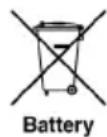
These symbols indicate that equipment with these symbols should not be disposed of as general household waste. If you want to dispose of the product or battery, please consider the collection systems or facilities for appropriate recycling.
Notice: The sign Pb below the symbol for batteries indicates that this battery contains lead.

PC Typical Display Modes
The following table is an illustration of some of the typical video display modes. Your TV may not support all resolutions. Your TV supports up to 1920x1200.
| Index Resolution Frequency | ||
| 1 | x400 70Hz | |
| 2 | x350 85Hz | |
| 3 | x400 85Hz | |
| 4 | x480 60Hz | |
| 5 | x480 66Hz | |
| 6 | x480 72Hz | |
| 7 | x480 75Hz | |
| 8 | x480 85Hz | |
| 9 | x600 56Hz | |
| 10 | 0x600 60Hz | |
| 11 | 0x600 70Hz | |
| 12 | 0x600 72Hz | |
| 13 | 0x600 75Hz | |
| 14 | 0x600 85Hz | |
| 15 | 2x624 75Hz | |
| 16 | 24x768 60Hz | |
| 17 | 24x768 66Hz | |
| 18 | 24x768 70Hz | |
| 19 | 24x768 72Hz | |
| 20 | 24x768 75Hz | |
| 21 | 24x768 85Hz | |
| 22 | 52x864 60Hz | |
| 23 | 52x864 70Hz | |
| 24 | 52x864 75Hz | |
| 25 | 52x864 85Hz | |
| 26 | 52x870 75Hz | |
| 27 | 80x768 60Hz | |
| 28 | 60x768 60Hz | |
| 29 | 80x768 75Hz | |
| 30 | 80x768 85Hz | |
| 31 | 80x960 60Hz | |
| 32 | 80x960 75Hz | |
| 33 | 80x960 85Hz | |
| 34 | 80x1024 60Hz | |
| 35 | 80x1024 75Hz | |
| 36 | 80x1024 85Hz | |
| 37 | 00x1050 60Hz | |
| 38 | 00x1050 75Hz | |
| 39 | 00x1050 85Hz | |
| 40 | 40x900 60Hz | |
| 41 | 40x900 75Hz | |
| 42 | 00x1200 60Hz | |
| 43 | 80x1050 60Hz | |
| 44 | 20x1080 60Hz | |
| 45 | 20x1200 60Hz |
Specifications
TV BROADCASTING
PAL/SECAM B/G D/K K' I/I' L/L'
DIGITAL RECEPTION
DVB-T MPEG2
DVB-T MPEG4 HD
DVB-T MHEG-5 Engine (for UK only)
DVB-T2 MPEG2
DVB-T2 MPEG4 HD
DVB-C MPEG2
DVB-C MPEG4 HD
DVB-S / S2 MPEG2
DVB-S / S2 MPEG4 HD
RECEIVING CHANNELS
VHF (BAND I/III)
UHF (BAND U)
HYPERBAND
NUMBER OF PRESET CHANNELS
10000
CHANNEL INDICATOR
On Screen Display
RF AERIAL INPUT
75 Ohm (unbalanced)
OPERATING VOLTAGE
220-240V AC, 50 Hz.
AUDIO
German + Nicam Stereo
AUDIO OUTPUT POWER (W _RMS. ) (10% THD) 2x6
POWER CONSUMPTION (W) 65 W (max)
PANEL
16:9 display
Default energy efficiency:
A (41W)
Licence Notifications
Manufactured under license from Dolby Laboratories.
TRADEMARK ACKNOWLEDGMENT
DOLBY. DIGITAL PLUS
trademarks of Dolby Laboratories.
"HDMI, the HDMI logo and High-Definition Multimedia Interface are trademarks or registered trademarks of HDMI Licensing LLC."

HIGH-DEFINITION MULTIMEDIA INTERFACE
Supported File Formats for USB Media Browser
| Media Extension Format Notes | ||||
| Movie | mpg, mpeg | Mpeg1,2 MPEG1/2 Layer 1/2/3, AAC/HEAAC, AC3/EAC3, LPCM/ADPCM | 1080P@ 30fps 50Mbit/sec | |
| dat, mpg, mpeg | MPEG2 ,H.264, VC1, AVS, MVC | MPEG1/2 Layer 1/2/3, AAC/HEAAC, AC3/EAC3, LPCM/ADPCM | H.264:1080Px2@25fps 1080P@ 50fps MVC: 1080P@ 24fps Other: 1080P@ 30fps" 50Mbit/sec | |
| .vob MPEG2 | MPEG1/2 Layer 1/2/3, AC3, | PCM 1080P@ 30fps 50Mbit/ | sec | |
| .mkv MPEG | 1,2,4, XviD, H.264, VC1,WMV3, Motion JPEG | MPEG1/2 Layer 1/2/3, AAC/HEAAC, AC3/EAC3, LPCM | H.264:1080Px2@25fps 1080P@ 50fps Other:1080P@ 30fps 50Mbit/sec | |
| .mp4 .mov M | MPEG1/2 Layer 3, AAC/HEAAC, Motion JPEG | AC3/EAC3, LPCM/ADPCM | H.264: 1080Px2@25fps 1080P@ 50fps Other: 1080P@ 30fps 50Mbit/sec | |
| .avi MPEG1 | 2,4 Xvid H.264, VC1,WMV3, Sorenson H.263 Motion JPEG | MPEG1/2 Layer 1/2/3, AAC/HEAAC, AC3/EAC3, LPCM/ADPCM, WMA | H.264: 1080Px2@25fps 1080P@ 50fps Other: 1080P@ 30fps" 50Mbit/sec | |
| flv H.264, | Sorenson H.263 | MPEG1/2 Layer 3, AAC/HEAAC, LPCM/ADPCM | H.264: 1080Px2@25fps 1080P@ 50fps Other: 1080P@ 30fps" 50Mbit/sec | |
| 3gp,3g2 MPEG4, H.264 1920x1080 @ 30P | 20Mbit/sec | |||
| asf, wmv MPEG2,4, XviD, H.264, VC1,WMV3 | MPEG1/2 Layer 1/2/3, AAC/HEAAC, AC3/EAC3, LPCM, WMA | 1080P@ 30fps 50Mbit/sec | ||
| Music | 3 | - WMA, WMA Pro AC, HEAAC | MPEG1 Layer 1/2/3 (MP3) | |
| .wav LPCM | ||||
| WMA/ASF | ||||
| .m4a/.aac A | ||||
| Photo | .jpg .jpeg | Baseline JPEG | MAX WxH = 14592x12288 Up to 8 MegaByte | |
| .png | Progressive JPEG | |||
| .bmp | non-interlace | |||
| .png | interlace | |||
| Subtitle | sub | - | - | |
| srt | - | - | ||
Supported DVI Resolutions
When connecting devices to your TV's connectors by using DVI converter cables (not supplied), you can refer to the following resolution information.
| 56Hz 60Hz | 66Hz 70Hz | 72Hz 75Hz | ||||
| 640x400 | ☑ | |||||
| 640x480 | ☑ ☑ | ☑ ☑ | ||||
| 800x600 | ☑ ☑ | ☑ ☑ ☑ | ||||
| 832x624 | ☑ | |||||
| 1024x768 | ☑ ☑ | ☑ ☑ ☑ | ||||
| 1152x864 | ☑ ☑ | ☑ | ||||
| 1152x870 | ☑ | |||||
| 1280x768 | ☑ | |||||
| 1360x768 | ☑ | ☑ | ||||
| 1280x960 | ☑ | ☑ | ||||
| 1280x1024 | ☑ | ☑ | ||||
| 1400x1050 | ☑ | ☑ | ||||
| 1440x900 | ☑ | ☑ | ||||
| 1600x1200 | ☑ | |||||
| 1680x1050 | ☑ | |||||
| 1920x1080 | ☑ | |||||
| 1920x1200 | ☑ | |||||
Instructions
Safety Warnings
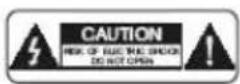
Attention: In order to prevent fire or electrical shock, do not open the casing or rear panel.

A lightning bolt with an arrowhead in an equilateral triangle should indicate to the user that dangerous voltage inside the product is strong enough to give a person an electrical shock.

CE Certification Symbol: We have conducted tests and demonstrated our compliance with all relevant EU guidelines and requirements.

An exclamation mark in an equilateral triangle should indicate to the user that important usage, maintenance and service instructions are located in the manual accompanying the device.
CLASS 1 LASER PRODUCT
A laser product symbol on the back of the device indicates that this device is a certified laser product. The laser is weak outside of the device and only emits innocuous radiation.

Keep Electrical Devices Out of the Hands of Children
Never allow children to use electronic devices unsupervised. Batteries can be deadly if swallowed.
Therefore, keep the device and batteries where children cannot reach them. If a battery is swallowed, medical help must be sought immediately.

Moisture and Cleaning
This product is not waterproof! Do not immerse this device in water and do not let it come in contact with water. Water can cause serious damage inside the device. Do not use any cleaning products which contain alcohol, ammonia, benzene or abrasives, as these can damage the unit. Use a soft, damp cloth for cleaning.

Heat and Warmth
Do not place this device in direct sunlight. Ensure that the device is not exposed to a direct
heat source such as a radiator or an open fire. Make sure that the device's ventilation openings are not covered.

Important Notice About Hearing Protection, Caution!
Your hearing is important to you and to us.
Therefore, please be careful when using this device.
We recommend that you: avoid loud volumes!
If this device is to be used by children, ensure that the device is not set too loud.
Too high a volume can cause irreparable damage in children.
SET A SAFE VOLUME LEVEL
• After repeated listening to loud music, your hearing gradually becomes adjusted to this and gives you the impression that the volume is lower.
- What seems normal to you can in fact be harmful in reality.
- To protect yourself from this, set the volume to a low level.
- Increase the volume slowly, until you can hear clearly and without difficulty.
- There are many kinds of auditory damage and they cannot be reversed.
- If you notice disturbances with your ears, please contact a doctor.
Interference with Other Devices
If interference with radio or television reception occurs during use, place the device in another place in the room or building.
Disposal

Batteries and packaging material do not belong in domestic waste. The batteries must be delivered to a collection center for old batteries. The separate disposal of packaging materials protects the environment.
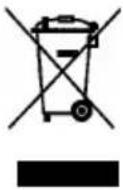
This product may not be disposed of as regular household waste at the end of its lifetime, but instead must be delivered to a collection center for the recycling of electrical and electronic devices. The symbol to the left located on the product, the user's manual or the packaging indicates this.
The materials are, as per their designation, recyclable. By recycling, material recycling or other forms of reutilizing old devices, you are making an important contribution to the protection of the environment. Please ask your local authorities about the appropriate recycling collection center.
Copyright
The copyrights and other property rights to the contents are held by Schaub Lorenz International GmbH
All rights to the contents remain with Schaub Lorenz International GmbH.
Insofar as this is not expressly prohibited, contents released from this manual in an unchanged form may be used for private use.
Another usage without the approval of Schaub Lorenz International GmbH is strictly prohibited.
All copyright information and property indicators must be retained in the case of reproduction.
Table des matières
natural_image
Line drawing of a flat-screen monitor with a blank screen and a stand (no text or symbols)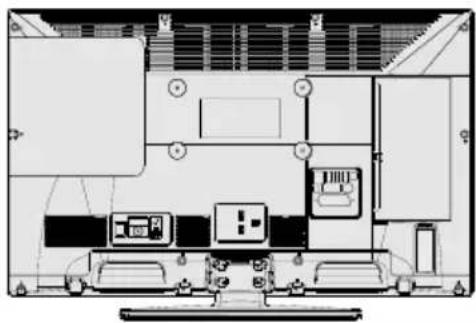
natural_image
Top-down schematic of a vehicle or electronic device layout with no visible text, numbers, or symbols.text_image
Diagram of a remote control with numbered keys and function buttons for navigation and exit functions.natural_image
Close-up of a cylindrical battery with two charging leads and three negative charges, no visible text or symbolsPAL/SECAM B/G D/K K' I/I' L/L'
RECEPTION NUMERIQUE
DVB-T MPEG2
DVB-T MPEG4 HD
German + Nicam Stéréo
APUISSANCE DE SORTIE (W _RMS. ) (10% THD)
2 × 6
CONSOMMATION ÉLECTRIQUE (W)
65 W (max)
natural_image
Line drawing of a flat-screen monitor with blank screen (no text or symbols)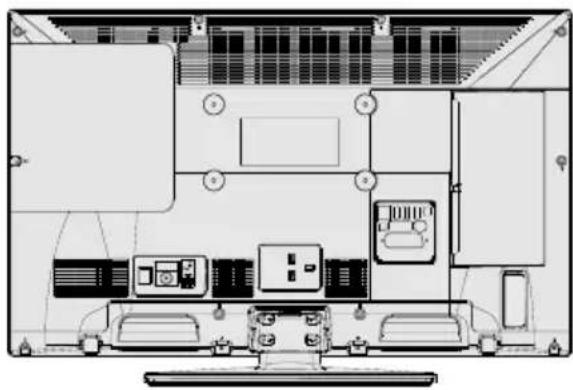
text_image
Technical diagram of an electronic device rear panel with labeled components and connectorstext_image
Diagram of a remote control with numbered keys and function buttons for navigation and exit functions.natural_image
Close-up of two cylindrical batteries with positive and negative charge indicators (no text or symbols visible)PAL/SECAM B/G D/K K' I/I' L/L'
RICEZIONE DIGITALE
DVB-T MPEG2
DVB-T MPEG4 HD
German + Nicam Stereo
POTENZA USCITA AUDIO (W _RMS. ) (%10 THD) 2 x 6
CONSUMO ELETTRICO (W) 65W (max.)
PANNELLO 16:9
Efficienza energetica predefinita:
A (41W)
Notifica di licenza
| A | Product Fiche | ||
| B | Comercial Brand: SCHAUB LORENZ | ||
| C | Product No. 10083706 | ||
| D | Model No. 32LE-E6900 | ||
| E | Energy efficiency class A | ||
| F | Visible screen size (diagonal, approx.) (inch/cm) | 32 inches 81 cm | |
| G | On mode average power consumption (Watt) | 41 | |
| H | Annual energy consumption (kWh/annum) | 59 | |
| I | Standby power consumption (Watt) | 0,5 | |
| J | Off mode power consumption (Watt) | 0 | |
| K | Display resolution (px) 1920 x 1080 | ||
| A | B | C | D | E | F | ||
| English | Product Fiche Commercial Brand Product No. | Model No. Energy efficiency class | Visible screen size (diagonal, approx.) (inch/cm) | ||||
| Deutsch | Produkt-Datenblatt | Markenzeichen | Produkt-Nr. | Modell-Nr. | Energieeffizienzklasse | Sichtbare Bildschirmgroße (diagonal,ca.) (Zoll /cm) | |
| عربي | قابس المنتج | العلامة التجارية تبويكن | رقم ASENT | الموديل | قابس قامباة الطاقة | الجيم الشاشة المربئي (قطري) (يوص/بسم) | |
| Български | Справочен лист с техническите данни | Търговска марка | Продукт No | Модел No | Клас на енергийна ефективност | Видим размер на екрана (диагонал,прибл.) (инча /см ) | |
| čeština | Produktový list | Značka výrobce | Číslo produktu | Model č. | Energetická třída | Viditelná velikost obrazovky (ühlopříčka,pœbl.)(palcù /cm) | |
| Dansk | Produktoplysningsskema | Varemærke | Produktnr. | Model nr. | Energieffektivitetsklasse | Synlig skærmstørrelse (diagonalt,ca.) (HK/cm) | |
| Suomi | Tuote fiche | Kaupalinen merkki | Tuote nro. | Mali nro. | Virran tehokkuusluokka | Näkyván kuvaruudun koko (diagonaalinen,n.) (tuumaa/cm) | |
| Français | Fiche du produit | Marque commerciale | Produit N° | Modèle N° | Classe d'efficacité énergétique | Ialie d'ecran visibie (diagonale,approx (pouces/cm) | |
| Hrvatski | SAŽETAK PROIZVODA | Trgovačka marka | Br. proizvoda | Br. modela | Klasa energetske učinkovitosti | Vidljva veličina ekran (diagonalna,pribilžno) (inča/cm) | |
| Nederlands | Productfiche | Commercieel merk. | Productnr. | Modelnr. | Energie efficiëntie klasse | Zichtbare schermgrootle (diagonaal,ca.) (inches/cm) | |
| Español | Ficha del Producto | Marca Comercial | No de Producto | No de Modeb | Clasificación Energética | Tamaño de pantalla visible (diagonal,aprox.) (pulgadas/cm) | |
| Svenska | Produktspecifikation | Varumárke | Produktnr. | Modelnr. | Energiklass | Synlig skårmstorlek (diagonal,ungefärlig) (tum/cm) | |
| Italiano | Scheda prodotto | Marchio commerciale | Numero prodotto | Numero modello | Classe di efficienza energetica | Dimensioni visioii deio schermo (diagonale,circa)(pollici/cm) | |
| Polski | KARTA PRODUKTU | Marka produktu | Nr produktu | Nr modelu | Klasa efektywności energetycznej | Widoczny obraz ekranu (przekątna,okolo)(cali/cm) | |
| Magyar | Termékismertető adatlap | Kereskedelmi marka | Termékszám | Modellszám | Energiahatékonysági osztály | Látható képtartomány (diagonális,kb.) (inches/cm) | |
| Norsk | Produktinformasjon | Kommersiell merkevare | Produkt nr. | Modell nr. | Energieffektivitet klasse | Synlig skjermstørrelse (diagonal, ca.) (tommer/cm) | |
| Português | Ficha do produto | Marca Comercial | Produto No | Modelo No | Classificação eficiência energética | Tamanho ecrà visivel (diagonal, aprox.) (polegadas/cm) | |
| Română | Fişă produs | Marcă comercială | Nr. Produs | Nr. Model | Clasa de eficiență energetică | Dimensiunea ecranului vizibil (diagonală, aprox.) (inch/cm) | |
| Русский | Справочный листок технических данных изделия | Торговая марка | Номер изделия | Номер модели | Класс энергопотребления | Видимый размер экрана (по диагонали, Около) (дюймов/см) | |
| беларуская | Справочный листок технических данных изделия | Торговая марка | Номер изделия | Номер модели | Класс энергопотребления | Видимый размер экрана (по диагонали,Около)(дюймов/см) | |
| македонски | Технички податоци | Комерцијална марка | Производ бр. | Модел бр. | Класа на енергетска ефикасност | Големина на видлив екран (дијагонала, околу) (инчи/см) | |
| український | Технічнідані | Кормеційна марка | Артикул | Модель | Клас енергоспоживання | Видимий розмір екрана (диагональ, Приблизно) (дюймів/см) | |
| Srpski | Tehničke odlike | Komercijahna marka | Proizvod br. | Model br. | Klasa energetske efikasnosti | Veličina vidljivog ekran (diagonala tokom) (inča/cm) | |
| Slovenčina | Produktový list | Značka výrobcu | Číslo produktu | Model č. | Energetická trieda | Viditelná velikost'obrazovky (uhlopriečka, zhruba) (palcov/cm) | |
| Slovenščina | Opis izdelka | Komercialna znamka | Št. Izdelka | Št. Modela | Razred energetske učinkovitosti | Vidna velikost zaslona (diagonala pribl.) (palcev/cm) | |
| Еллянік | Делтіо проϊόντος | Емторико оńμα | Ap. Проϊόντος | Ap. Movtélou | Катнγория ενεργειακής απόδοσης | Орato μεγενος ονονης (ойαγωνιος, περ.) (ιντσες/cm) | |
| Bosanski | Tehnički podaci | Komercijahna marka | Produkt br. | Model br. | Klasa energetske efikasnosti | Vidljiva veličina ekran (diagonala, približno.) (inča/cm) | |
| ن脫 | الزمن عُمْدُ | الزمن عُمْدُ | الزمن عُمْدُ | الزمن عُمْدُ | الزمن عُمْدُ | (دُمْدُ)الزمن عُمْدُ | |
| Türkçe | Ürün fisì | Ticari Marka | Ürün No. | Model No. | Enerji verimliliği sinifi | Görülen ekran boyutu (çapraz, yakışk.) (inç/cm) | |
| Shqip | Tê dhēnat e produktit | Marka tregtare | Nr. i produktit. | Nr. i modelit. | Klasa e eficiencês sê energjisê | Magnesia e ekranit te ouksnem (diagonal, afërsisht) (inç/cm) | |
| Lietuvių | Gaminio etiketė | Gamintojas | Gaminio Nr. | Modelio Nr. | Energetinio efektyvumo klasė | Matomas ekran o dydis (įstrizainė, approx.) (colių/cm) | |
| Latviešu | Produkta apraksts | Marka | Produkta nr. | Modela nr. | Energoefektivitätes klase | Ekrána izměrs (pa diognāli, apmçram) (collas/cm) | |
| Eesti | TOOTEKIRJELDUS Tootja firma | Toote nr. | Mudeli nr. Energiaklass | Vaadatava ekraani suurus (diagonaal, umbes) (tolli/cm) | |||
| فارسی | مشخصات محصول | مرک تجاري | 朦اهه محصول | 朦اهه مدل | گروه کارابی اترزی | انذاء صفحه قابل مشاهده (اهندسي، تقریا) (لتر) | |
| GHIJ | K | ||||
| English | On mode average power consumption (Watt) | Annual energy consumption (kWh/annum) | Standby power consumption (Watt) | Off mode power consumption (Watt) | Display resolution (px) |
| Deutsch | Durchschnittlicher Stromverbrauch im eingeschaltetem Zustand (Watt) | Jährlicher Energieverbrauch (kWh/Jahr) Standby-Stromverbrauch | (Watt) | Stromverbrauch im ausgeschaltetem Zustand (Watt) Display-Auflösung (px) | |
| عربية | متوسط استهلاك الطاقة عند التrolling (فول) | (الاستهلاك السدي للطاقه/كيل واتب Alphaطقة) | (ستهلاك الطاقة في ضيع الاستعداد/فول) | (استهلاك الطاقة في ضيع الإيPFق-فول) | (وضوح الشاشز/کنسل) |
| Български | Средна консумация на електроенергия вьев включено състояние(Watt) | Годишна консумация на електроенергия (kWh/Годишна) | Консумация на електроенергия в режим на готовност (Watt) | Консумация на електроенергия в изключено състояние (Watt) | Разделтелна способност на дисплея(пиксела) |
| čeština | Prüměrná spotřeba elektrické energie v zaprutém režimu (Wattü) | Roční spotřeba energie (kWh/Roční) | Spotřeba elektrické energie v pohotovostním režimu (Wattü) | Spotřeba elektrické energie ve vypnutém režimu (Wattü) Rozlišení dispelje (px) | Разделтелна способност на дисплея(пиксела) |
| Dansk | Gennemsnitligt stromforbrug i tændt tilstand (Watt) | Ärligt energiforbrug (kWh/Ärligt) | Stromforbrug (standbyj)(Watt) | Stromforbrug i slukket tilstand (Watt) | Skæmopløsning (px) |
| Suomi | Păällă-tilan keskimăäräinen virrankulutus (Wattia) | Vuosittainen sähkönkulutu (kWh/Vuosittainen) | Vakiovirran kulutus (Wattia) | Pois-tilan virrankulutus (Wattia) | Năytôn erottelukyy (pikselia) |
| Français | Consommation énergétique moyenne en mode "marche" (Watt) | Consommation énergétique annuelle (kWh/annuel) | Consommation d'énergie en veille (Watt) | Consommation d'énergie en mode "arrêt" (Watt) | Résolution de l'écran (px) |
| Hrvatski | Prosječna potrošnja el. energije kada je proizvod uključen (Watta) | Godišnja potrošnja el. Energije (kWh/Godišnja) | Potrošnja el. energije u modu pripravnosti (Watta) | Potrošnja el. energije kada je proizvod isključen (Watta) | Rezolucija zaslona (piksela) |
| Nederlands | Aan-modus gemiddeld stroomverbruik (Watt) | Jaarlijks energieverbruik(kWh/Jaarlijks) | Stand-by stroomverbruik (Watt) | Uit-modus stroomverbruik (Watt) | Schermresolutie (px) |
| Español | Consumo eléctrico medio, en funcionamiento (Vatio) | Consumo eléctrico anual (kWh/anual) | Consumo en modo en espera (Vatio) | Consumo eléctrico modo apagado (Vatio) | Resolución de pantalla (px) |
| Svenska | Strömkonsumtion i PĂ-läge (Watt) | Energiokonsumtion per år (kWh/Ärlig) | Strömkonsumtion i viloläge (Watt) | Strömkonsumtion i AV-läge (Watt) | Skărmupplösning (pixlar) |
| Italiano | Consumo di corrente medio da accesa (Watt) | Consumo annuale di energia (kWh/annuo) | Consumo di corrente in modalità standby (Watt) | Consumo di corrente da spenta (Watt) | Risoluzione del display (px) |
| Polski | Średnie zużycie energii w trybie wtączonym (Watów) | Roczne zużycie energii (kWh/Roczne) | Średnie zużycie energii w trybie oczekiwania (Watów) | Zużycie energii w trybie wyłączonym (Watów) | Rozdzielczość obrazu (pikseli) |
| Magyar | Energiafogyasztás bekapcsolva hagyott üzemmódban (Watt) Éves energiafogyasztás | (kWh/Éves) | Energiafogyasztás standby üzemmódban (Watt) | Energiafogyasztás kikapcsolt üzemmódban (Watt) | Képernyőfelbontás (px) |
| Norsk | Pàmodus gjennomsnittlig stromforbruk (Watt) | Ärlig stromforbruk (kWh/Ärlig) | Hvilernodus stromforbruk (Watt) | Av-modus stromforbruk (Watt) | Skjermopplösning (piksel) |
| Português | Consumo energia em modo médio (Watt) | Consumo annual energia (kWh/anual) | Consumo energia em stand-by (Watt) | Consumo energia em modo alimentação (Watt) | Resolução do visor (pixel) |
| Română | Consum electric mediu in modul pornit (Watj) | Consum anual de energie (kWh/anual) | Consum electric in stare de repaus (Watj) | Consum electric in modul oprit (Watj) | Rezolujia ecranului (pixeli) |
| Русский | Средний расход энергии в режиме включения (ватт) | Ежегодный расход энергии (кВтч/Годовое) | Расход энергии в режиме ожидания (ватт) | Расход энергии в режиме выключения (ватт) | Разрешение экрана (пикселей) |
| беларуская | Средний расход энергии в режиме включения (ватт) | Ежегодный расход энергии (kWh/гадавое) | Расход энергии в режиме ожидания (ватт) | Расход энергии в режиме выключения (ватт) | Разрешение экрана (пикселей) |
| македонски | Просечна потрошувачка кога е включен | Годишна потрошувачка на енергија (kWh/Годишна) | Потрошувачка во мирување (вати) | Потрошувачка кога е исклучен (вати) | Резолуција на екран (пиксели) |
| український | Середна споживана потужність у робочому режимі (Вт) | Середньорична споживана потужність (kWh/Pıчне) | Споживана потужність у режимі рчікування (Вт) | Споживана потужність у вимкненому стані (Вт) | Роздільна здатність екрана (пикселів) |
| Srpski | Prosečna potrošnja kada je uključení (Vati) | Godišnja potrošnja energije (kWh/Godišnja) | Potrošnja tokom mirovanja (Vati) | Potrošnja kada je isključení (Vati) | Rezolucija displeja (piks.) |
| Slovenčina | Priemerná spotreba elektrickej energie v zaprutom režime (Wattov) | Ročná spotreba energie (kWh/Ročná) | Spotreba elektrickej energie v pohotovostnom režime (Wattov) | Spotreba elektrickej energie vo vypnutom režime (Wattov) | Rezlišenie displeja (pixl.) |
| Slovenščina | Poraba električne energije v povprečnem načinu (Wattov) | Letna poraba energije (kWh/Letna) | Poraba energije v stanju pripravljenosti (Wattov) | Poraba energije načinu izklopa (Wattov) | Resolucija zaslona (piks.) |
| Еллэнк | Меон катовálloon peújatos keiroupyías (Watt) | Етёюка катовálloon evépyeios (kWh/Eтёюка) | Катовálloon peújatos ottn ovavouvi (Watt) | Катовálloon peújatos σε απενσργοτοιοη (Watt) | Avóluon obóvnç (Пікел) |
| Bosanski | Prosječna potrošnja kada je uključení (Watt) | Godišnja potrošnja energije (kWh/Godišnja) | Potrošnja tokom mirovanja (Watt) | Potrošnja kada je isključení (Watt) | Rezolucija ekrana (piks.) |
| لاوي | (оки) (укиз и якиз и якиз и якиз и якиз и якиз и якиз и якиз и якиз и якиз и якиз и якиз и якиз и якиз и якиз и якиз и якиз и якиз и якиз и якиз и якиз и якиз и якиз и якиз и якиз и якиз иякиз и якиз и якиз и якиз и якиз и якиз и якиз и якиз и якиз и якиз и якиз и якиз и якиз и якиз и якиз и якиз и якиз и якиз и якиз и якиз и якиз и якиз и якиз и якиз и якиз и акиз и якиз и якиз и якиз и якиз и якиз и якиз и якиз и якиз и якиз и якиз и якиз и якиз и якиз и якиз и якиз и якиз и якиз и якиз и якиз и якиз и якиз и якиз и якиз и якиз и |
CE