
32LE-5900CT - Television SCHAUB LORENZ - Free user manual and instructions
Find the device manual for free 32LE-5900CT SCHAUB LORENZ in PDF.


| Brand | Schaub Lorenz |
| Model | 32LE-5900CT |
| Product Type | Full HD LCD TV |
| Screen Size | 32 inches (16:9 widescreen) |
| Display Resolution | 1920 x 1080 pixels (Full HD) |
| TV System | PAL/SECAM B/G D/K K' I/I' L/L' |
| Digital Tuner | DVB-T/C/S (MPEG2/MPEG4) |
| Number of Channels | 10,000 |
| RF Input | 75 Ohm unbalanced |
| Power Supply | 220-240V AC, 50 Hz |
| Audio Output Power | 2 x 8 W RMS (10% THD) |
| Power Consumption | 135 W (max) |
| Dimensions (with stand) | 770 x 520 x 203 mm (W x H x D) |
| Weight (with stand) | 10.10 kg |
| Dimensions (without stand) | 770 x 480 x 40 mm |
| Weight (without stand) | 9.70 kg |
| HDMI Inputs | 4 (rear and side) |
| USB Inputs | 2 (side) |
| SCART Sockets | 2 (rear) |
| CI Slot | 1 (side) |
| Headphone Jack | Yes (side) |
| PC Input (VGA) | Yes (rear) |
| Ethernet (LAN) | Yes (rear) |
| Remote Control | Included (2x AAA batteries) |
| Special Features | Teletext, Sleep Timer, Child Lock, Picture Off, EPG, Media Browser |
Frequently Asked Questions - 32LE-5900CT SCHAUB LORENZ
User questions about 32LE-5900CT SCHAUB LORENZ
0 question about this device. Answer the ones you know or ask your own.
Ask a new question about this device
Download the instructions for your Television in PDF format for free! Find your manual 32LE-5900CT - SCHAUB LORENZ and take your electronic device back in hand. On this page are published all the documents necessary for the use of your device. 32LE-5900CT by SCHAUB LORENZ.
USER MANUAL 32LE-5900CT SCHAUB LORENZ
natural_image
Line drawing of a modern flat-screen monitor with 'Schaus Lorenz' branding on the front panel (no other text or symbols)Vorwort
natural_image
Line drawing of a flat-screen monitor with blank screen (no text or symbols)LCD TV
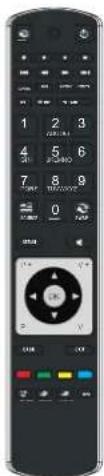
Fernbedienung
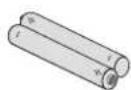
Batterien : 2 X AAA

Bedienungsanleitung
natural_image
Technical line drawing of a flat-screen monitor and its rear view showing internal components (no text or symbols)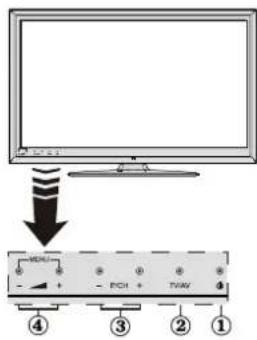
Netzanschluss
natural_image
Two black electronic devices with internal components, no visible text or symbols


PAL/SECAM B/G D/K K' I/I' L/L'
EMPFANGSKANÄLE
VHF (BAND I/III)
UHF (BAND U)
HYPERBAND
HB Austria electronic products Vertiebs GmbH
Pfarrgasse 52
1230 Wien
AUSTRIA
www.hb-europe.com
thanks for purchasing this product.
During development of this product we especially take care of the quality and the usability of the product.
Please read this instruction book carefully since you could learn a lot about he handling and the usage of this product.
Apart of that it is important due to security reasons and to prevent injuries.
In case of further questions or in case that any help is needed please visit our webpage: www.schaub-lorenz.com
Enjoy your new Schaub Lorenz product
Sincerely,
your SCHAUB LORENZ Team

Simplify life
www.schaub-lorenz.com
Contents
Features 52
Introduction....52
Preparation 52
Safety Precautions 53
Package Contents 54
Environmental Information 55
Repair Information 55
Remote Control Buttons 56
LCD TV and Operating Buttons 57
Viewing the Back side Connections 57
Viewing the Connections - Side Connectors ..... 58
Antenna Connection 59
Aerial/Cable Connection 59
Satellite Connection 59
Power Connection 59
Using Digital Multimedia Connectors.... 59
USB Memory Connection 59
Side HDMI Connection 59
Connecting the LCD TV to a PC 59
Connecting to a DVD Player.... 60
Using Side AV Connectors 60
Using Other Connectors 60
Connecting to a Wired Network (optional) 61
Remote Control Handset 62
Inserting Batteries 62
Switching On/Off 62
To Switch the TV On 62
To Switch the TV Off 62
Digital Teletext ( ^** for UK only) 62
Analogue Teletext 62
Input Selection 62
Operation with the Buttons on the TV 63
Volume Setting 63
Programme Selection 63
Viewing Main Menu 63
AV Mode 63
Operation with the Remote Control 63
Volume Setting 63
Programme Selection
(Previous or Next Programme) 63
Programme Selection (Direct Access) ...... 63
Viewing Electronic Programme Guide (EPG) ..... 63
First Time Installation....64
Auto Channel Scan Menu Operation 66
Manual Tuning 67
Network Channel Scan 68
Analog Fine Tune....68
First Time Installation 68
Clear Service List (*) 68
Managing Stations: Channel List 68
Channel List Types 68
Moving a Channel 69
Deleting a Channel 69
Renaming a Channel 69
Locking a Channel 69
Channel List Filter 69
Managing Stations: Favourites 70
Button Functions 70
Managing Stations: Sorting Channel List 70
On-Screen Information 70
Media Playback Using Media Browser 71
Viewing Videos via USB 71
Viewing Photos via USB 72
Slideshow Options 72
Playing Music via USB 72
Media Browser Settings 72
Changing Image Size: Picture Formats 73
Configuring Picture Settings 74
Operating Picture Settings Menu Items 74
Picture Settings Menu Items 74
PC Picture Settings....75
Confi guring Sound Settings 75
Operating Sound Settings Menu Items 75
Sound Settings Menu Items....75
Configuring Your TV's Settings 76
Operating Settings Menu Items 76
Settings Menu Items 76
Using a Conditional Access Module 76
Viewing Conditional Access Menu (*) 76
Configuring Language Preferences 77
Parental Control....77
Parental Settings Menu Operation (*) 78
Timers....78
Setting Sleep Timer 78
Setting Programme Timers 78
Adding a Timer 78
Editing a Timer 78
Deleting a Timer 78
Configuring Date/Time Settings 79
Confi guring Source Settings 79
Configuring Satellite Settings 79
Configuring Network Settings 80
Configuring Wired Device Settings 80
Setting Network Type 80
Setting Configuration Status 80
IP Address 80
Configuring Wired Network Settings in Advanced
Mode 80
Configuring Other Settings 80
Operation....80
Other Features 81
Teletext....82
Tips 82
Appendix A: PC Input Typical Display Modes ..... 83
Appendix B: AV and HDMI Signal Compatibility
(Input Signal Types) 83
Appendix C: Supported DVI Resolutions...... 84
Appendix D: Supported File Formats for USB
Mode....84
Appendix E: Software Upgrade 85
Manual Software Update 85
Specifications 86
Digital Reception (DVB-T) 86
Digital Reception (DVB-C) 86
Digital Reception (DVB-S) 86
Features
Remote controlled colour LCD TV.
Fully integrated Terrestrial digital-cable TV (DVB-T C- MPEG2) (DVB-T-C MPEG4) DVB-Satellite.
- DVBS/S2 compliant
4 HDMI connectors for digital video and audio. This connection is also designed to accept high definition signals.
2 USB inputs.
10.000 programmes.
OSD menu system.*
Integrated tuner DVB-T-C HD, MPEG 2 / MPEG 4 • compatible.
2 Scart sockets for external devices (such as video, video games, audio set, etc.).
Teletext, Fastext, TOP text.
Headphone connection.
Automatic programming system.
Forward or backward manual tuning.
Sleep timer / Child lock.
Automatic sound mute when no transmission.
- NTSC playback.
• AVL (Automatic Volume Limiting). - Auto power down.
- PLL (Frequency Search).
- PC input.
- Plug&Play for Windows 98, ME, 2000, XP, Vista, Windows 7.
• Active Antenna Power. - Ethernet (LAN) for Internet connectivity and service
- Picture Off function
Introduction
Please read the corresponding instructions of this handbook prior to the first usage of the device, even when the usage of electronic devices is familiar to you. Notice especially the chapter SAFETY PRECAUTIONS. Carefully keep the handbook as future reference. When selling the device or giving it away, absolutely give these directions for use.
Thank you for choosing this product. This manual will guide you for the proper operation of your TV. Before operating the TV, please read this manual thoroughly. Please do keep this manual in a safe place for future references.

This device is intended to receive and display TV programs. The different connection options make an additional expansion of the reception and display sources possible (receiver, DVD player, DVD recorder, VCR, PC etc.). This device is only suitable for the operation in dry interiors. This appliance is intended solely for private domestic use and may not be used for industrial and commercial purposes. We exclude liability in principle, if the device is not used as intended, or unauthorized modifications have been made. Operating your LCD TV in extreme ambient conditions may damage the device.
Preparation
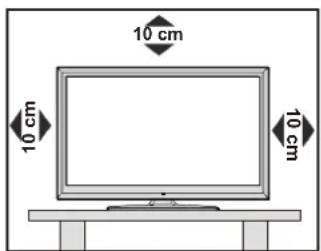
For ventilation, leave a free space of at least 10 cm all around the set. To prevent any fault and unsafe situations, please do not place any objects on top of the set. Use this device in moderate climates.
Safety Precautions
Read the following recommended safety precautions carefully for your safety.
Power Source
The TV set should be operated only from a 220-240V AC, 50 Hz outlet. Ensure that you select the correct voltage setting for your convenience.
Power Cord
Do not place the set, a piece of furniture, etc. on the power cord (mains lead) or pinch the cord. Handle the power cord by the plug. Do not unplug the appliance by pulling from the power cord and never touch the power cord with wet hands as this could cause a short circuit or electric shock. Never make a knot in the cord or tie it with other cords. The power cords should be placed in such a way that they are not likely to be stepped on. A damaged power cord can cause fire or give you an electric shock. When it is damaged and needs to be replaced, it should be done by qualified personnel.
Moisture and Water
Do not use this device in a humid and damp place (avoid the bathroom, the sink in the kitchen, and near the washing machine). Do not expose this device to rain or water, as this may be dangerous and do not place objects filled with liquids, such as flower vases, on top Avoid from dripping or splashing.
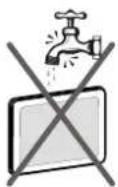
If any solid object or liquid falls into the cabinet, unplug the TV and have it checked by qualified personnel before operating it any further.
Cleaning
Before cleaning, unplug the TV set from the wall outlet. Do not use liquid or aerosol cleaners. Use soft and dry cloth.
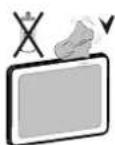
Ventilation
The slots and openings on the TV set are intended for ventilation and to ensure reliable operation. To prevent overheating, these openings must not be blocked or covered in anyway.
Heat and Flames
The set should not be placed near to open fl ames and sources of intense heat such as an electric heater. Ensure that no open fl ame sources, such as lighted candles, are placed on top of the TV. Batteries should not be exposed to excessive heat such as sunshine, fi re or the like.

Lightning
In case of storm and lightning or when going on holiday, disconnect the power cord from the wall outlet.
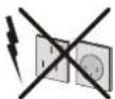
Replacement Parts
When replacement parts are required, make sure that the service technician has used replacement parts, which are specified by the manufacturer or have the same specifications as the original one. Unauthorized substitutions may result in fire, electrical shock or other hazards.
Servicing
Please refer all servicing to qualified personnel. Do not remove the cover yourself as this may result in an electric shock.
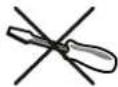
Waste Disposal
Instructions for waste disposal:
Packaging and packaging aids are recyclable and should principally be recycled. Packaging materials, such as foil bag, must be kept away from children. Batteries, including those which are heavy metal-free, should not be disposed of with household waste. Please dispose of used battery in an environment friendly manner. Find out about the legal regulations which apply in your area.
- Don't try to recharge batteries. Danger of explosion. Replace batteries only with the same or equivalent type.
This symbol on the product or on its packaging means that your electrical and electronic device should be disposed at the end of its service life separately from your household wastes.
There are separate collection systems for recycling in EU. For more information, please contact the local authority or the dealer where you purchased the product.

Disconnecting the Device
The mains plug is used to disconnect TV set from the mains and therefore it must remain readily operable.
Headphone Volume
Excessive sound pressure from earphones and headphones can cause hearing loss.

Installation
To prevent injury, this device must be securely attached to the wall in accordance with the installation instructions when mounted to the wall (if the option is available).
NOTE: While installing the TV to the wall with the supplied wall mounting kit, you must use the screws which are supplied in the package (if the kit is supplied). For using with a mounting kit that you purchase from stores, you should use max. M 4X16 mm screws while installing the TV to the wall.
LCD Screen
The LCD panel is a very high technology product with about a million thin film transistors, giving you fine picture details. Occasionally, a few non-active pixels may appear on the screen as a fixed blue, green or red point. Please note that this does not affect the performance of your product.
Warning! Do not leave your TV in standby or operating mode when you leave your house.
Connection to a Television Distribution System (Cable TV etc.) from Tuner
Device connected to the protective earthing of the building installation through the mains connection or through other apparatus with a connection to protective earthing-and to a television distribution system using coaxial cable, may in some circumstances create a fi re hazard.
Connection to a cable distribution system has therefore to be provided through a device providing electrical isolation below a certain frequency range (galvanic isolator, see EN 60728-11).
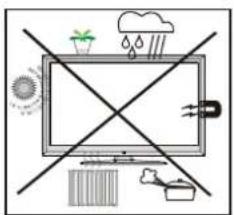
Electrical device not in the hands of children
Never let children use electrical device unsupervised. Children can't always recognize properly the possible dangers. Batteries / accumulators can be life threatening when swallowed. Store batteries unreachable for small children. In case of swallowing a battery medical aid has to be sought immediately. Also keep the packaging foils away from children. There is danger of suffocation.
Package Contents
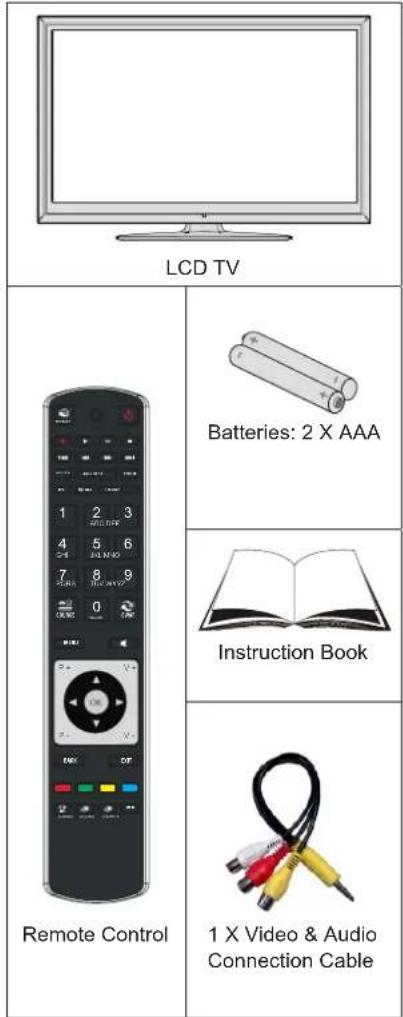
Note: You should check the accessories after purchasing. Make sure that each accessory is included.
Environmental Information
- This television is designed to consume less energy to save environment. You not only help to save the environment but also you can save money by reducing electricity bills thanks to the energy efficiency feature of this TV. To reduce energy consumption, you should take the following steps:
You can use Power Save Mode setting, located in the Picture Settings menu. If you set Power Save Mode as Eco, the TV will switch to energy-saving mode and luminance level of TV set will be decreased to optimum level. Note that some picture settings will be unavailable to be changed when the TV is in Power Save Mode.
Power Save Mode
Off
- If you set power save mode as Picture off, a message will appear on the screen and backlight will be off within three seconds. Press any button on the remote controller to activate the picture again.
- When the TV is not in use, please switch off or disconnect the TV from the mains plug. This will also reduce energy consumption.
Disconnect power when going away for longer time.
- It is highly recommended to activate Power Save Mode setting to reduce your annual power consumption. Also it is recommended to disconnect the TV from the mains plug to save energy more when you do not use.
Please help us to save environment by following these steps.
Repair Information
Please refer all servicing to qualified personnel. Only qualified personnel must repair the TV. Please contact your local dealer, where you have purchased this TV for further information.
Remote Control Buttons
No function1.
Play (in Media Browser mode) 2.
No function3.
Fast rewind (in Media Browser mode)4.
No function5.
Mono/Stereo - Dual I-II / Current Language (*) / 6.
Play preview (in Media Browser mode)
Image size 7.
Teletext / Mix8.
Electronic Programme Guide9.
Numeric buttons10.
AV / Source11.
Menu on/off 12.
Programme Down - Page up / Programme Up - 13. Page down
Back to previous menu 14.
Green button15.
Red button16.
Media Browser17.
My Button 1(**)18.
-
My Button 2: Switches between digital, satellite and cable broadcasts (*** )
-
Info / Reveal (in TXT mode)
Blue button21.
-
Yellow button
-
Exit (in DTV mode) / Return / Index page (in TXT mode)
-
OK / Select / Hold (in TXT mode) / Channel List
-
Volume up / down
-
Navigation buttons
-
Mute
-
Previous programme / Now (in EPG mode) Sleep timer29.
-
Favourite mode selection
-
Picture mode selection / Changes picture mode (in Media Browser video mode)
-
Subtitle on-off / TXT subtitle (analogue TV mode) / Subtitle (in Media Browser mode). No function33.
-
Fast forward (in Media Browser mode)
-
Stop (in Media Browser mode)
-
Pause
-
Standby
-
Operation LED light
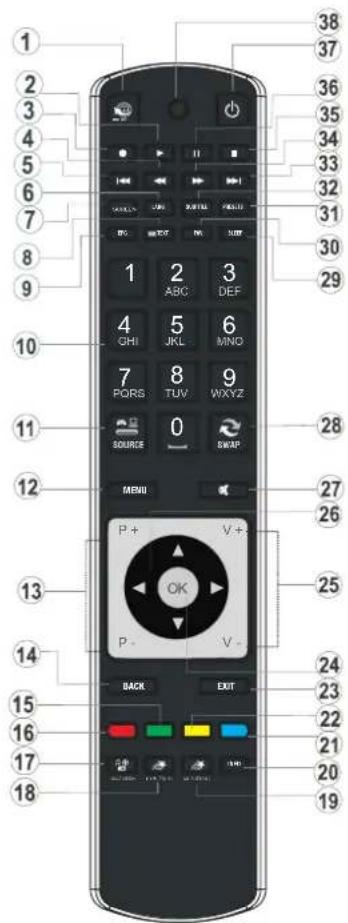
(**) MY BUTTON 1: When on a desired source, channel or link, press MY BUTTON 1 for five seconds, until the "MY BUTTON IS SET" message is displayed on the screen. This confirms that the selected MY BUTTON is now associated with the selected function.
(***) MY BUTTON 2: This button's main function is to switch between DVB-T, DVB-C and DVB-S broadcasts. However, if you press MY BUTTON 2 for five seconds, you can set a function to it as described in My Button 1.
Note that if you perform first time installation, MY BUTTON 2 will return to its default function, switching between DVB-T, DVB-C and DVB-S broadcasts.
LCD TV and Operating Buttons
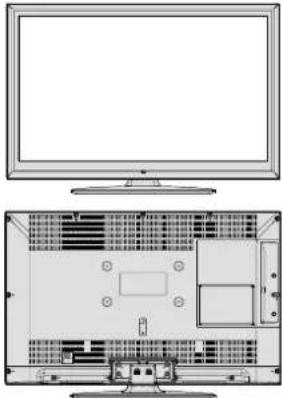
FRONT and REAR VIEW Control buttons VIEW Control Buttons
natural_image
Technical line drawing of a flat-screen monitor and its rear open view showing internal circuitry (no text or symbols)
- Standby/On button
- TV/AV button
- Programme Up/Down buttons
- Volume Up/Down buttons
Note: Press “-” and + buttons at the same time to view main menu.
Viewing the Back side Connections
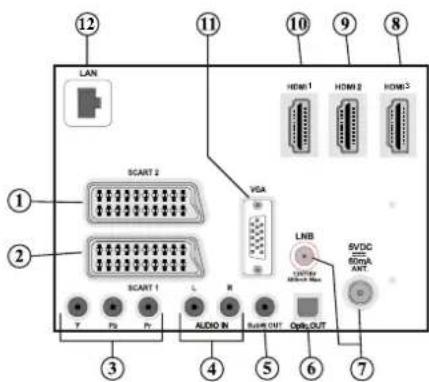
SCART 21. inputs or outputs for external devices.
- SCART 1 inputs or outputs for external devices. Connect the SCART cable between SCART socket on the TV and SCART socket on your external device (such as a decoder, a VCR or a DVD player).
Note: If an external device is connected via the SCART socket, the TV will automatically switch to AV mode.
Component Video Inputs (YPbPr)3. are used for connecting component video.
You can connect the component video and audio sockets with a device that has component output.
Connect the component video cables between the COMPONENT VIDEO INPUTS on on the TV and the component video outputs of your device. While connecting, be sure that the letters on your TV, "Y",
"Pb", "Pr" correspond with your device's connectors.
- PC/YPbPr Audio Inputs are used for connecting audio signals of a PC or a device that connects to the TV via YPbPr. Connect the PC audio cable between the AUDIO INPUTS on the TV and audio output of your PC to enable PC audio. Connect the audio cable between AUDIO INPUTS on the TV and audio outputs of your device to enable component audio.
- Subwoofer Out is for connecting an external, active subwoofer to the set to give a much deeper bass effect. Use an appropriate RCA cable to connect the set to a subwoofer unit.
S/PDIF Digital Out6. outputs digital audio signals of the currently watched source. Use a digital optic cable to transfer audio signals to a device that has S/PDIF input.
RF Input/SAT. input7. connects to an aerial, cable and satellite antenna system. Note that if you use a decoder or a media recorder, you should connect the aerial cable through the device to the television with an appropriate antenna cable, as shown in the illustration in the following pages.
HDMI 3: HDMI Input8.
HDMI 2: HDMI Input9.
HDMI 1: HDMI Input10.
HDMI Inputs are for connecting a device that has an HDMI socket. Your LCD TV is capable of displaying High Definition pictures from devices such as a High Definition Satellite Receiver or DVD Player. These devices must be connected via the HDMI sockets or Component Socket. These sockets can accept either 720p or 1080p (optional) signals. No sound connection is needed for an HDMI to HDMI connection.
PC Input11. is for connecting a personal computer to the TV set. Connect the PC cable between the PC INPUT on the TV and the PC output on your PC Ethernet input (for service and Internet connectivity)12.
Viewing the Connections - Side Connectors
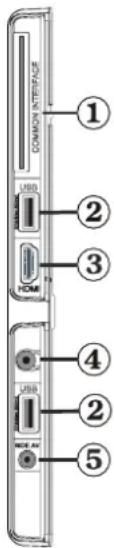
- CI Slot is used for inserting a CI card. A CI card allows you to view all the channels that you subscribe to. For more information, see "Conditional Access" section.
Side USBs2.
Side HDMI Input is for connecting a device that has an HDMI socket.3.
Headphone jack is used for connecting an external headphone to the system. Connect 4. to the HEADPHONE jack to listen to the TV from headphones (optional).
- Side audio-video connection input is used for connecting video and audio signals of external devices. To make a video connection, you must use the supplied AV connection cable for enabling connection. First, plug singular jack of the cable to the TV's Side AV socket. Afterwards, insert your video cable's (not supplied) connector into the YELLOW input (located on the plural side) of the supplied AV connection cable. Colours of the connected jacks should match.
To enable audio connection, you must use RED and WHITE inputs of the side AV connection cable. Afterwards, insert your device's audio cable's connectors into the RED and WHITE jack of the supplied side AV connection cable. Colours of the connected jacks should match.
Note: You should use audio inputs of side AV connection cable (RED & WHITE) to enable sound connection when connecting a device to your TV by using PC or COMPONENT VIDEO input.
Antenna Connection
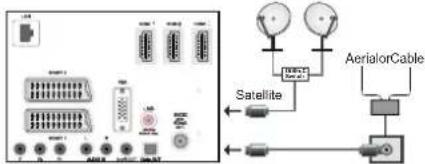
Aerial/Cable Connection
Connect the aerial or cable TV plug to the AERIAL INPUT socket located at the rear of the TV.
Satellite Connection
Connect the satellite TV plug to the SATELLITE INPUT socket located at the rear of the TV.
Power Connection
IMPORTANT: The TV set is designed to operate on 220-240V AC, 50 Hz socket.
After unpacking, allow the TV set to reach the ambient room temperature before you connect the set to the mains. Plug the power cable to the mains socket outlet.
Using Digital Multimedia Connectors
You can connect USB devices to your TV by using the USB inputs of the TV. This feature allows you to display/play JPG, MP3 and video files stored in a USB stick.
It is possible that certain types of USB devices (e.g. MP3 Players) may not be compatible with this TV.
- You may back up your files before making any connections to the TV set in order to avoid any possible data loss. Note that manufacturer will not be responsible for any file damage or data loss.
- Do not pull out USB module while playing a file. CAUTION: Quickly plugging and unplugging USB devices, is a very hazardous operation. Especially, do not quickly plug and unplug the drive repeatedly. This may cause physical damage to the USB player and especially the USB device itself.
USB Memory Connection
IMPORTANT: The TV should be switched off while plugging or unplugging a USB device. Plug your USB device to the USB inputs of the TV. You can connect two USB device to your TV by using the USB inputs of the TV at the same time.
Note: It is possible that certain types of hard disk drives are not supported.
With some contents desired to be played via USB media browser, some functions of media
browser may not function properly and this might happen due to the content being played.
Side HDMI Connection
You can use side HDMI input to connect a device that has an HDMI connector to your TV. Use an appropriate HDMI cable to make such a connection. Note that you should switch to the HDMI source to view the content from the connected device. Power off both the TV and the device before making any connections. Side HDMI Input supports connections between HDMI devices such as DVD players. You can use side HDMI input of the TV to connect to an external HDMI device. Use an HDMI cable to connect.
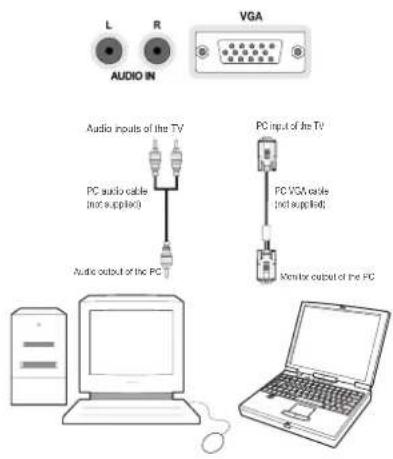
Connecting the LCD TV to a PC
For displaying your computer's screen image on your LCD TV, you can connect your computer to the TV set. Power off both computer and display before making any connections. Use 15-pin D-sub display cable to connect a PC to the LCD TV. When the connection is made, switch to PC source. See "Input selection" section. Set the resolution that suits your viewing requirements. Resolution information can be found in the appendix parts.
Connecting to a DVD Player
If you want to connect a DVD player to your LCD TV, you can use connectors of the TV set. DVD players may have different connectors. Please refer to your DVD player's instruction book for additional information. Power off both the TV and the device before making any connections.
Note: Cables shown in the illustration are not supplied.
If your DVD player has an HDMI socket, you can connect via HDMI. When you connect to DVD player as illustrated below, switch to HDMI source. See, "Input Selection" section.
Most DVD players are connected through COMPONENT SOCKETS. Use a component video cable to connect video input. For enabling audio, use a component audio cable as illustrated below. When the connection is made, switch to YPbPr source. See, "Input selection" section.
You may also connect through the SCART 1 or SCART 2. Use a SCART cable as shown below.
Note: These three methods of connection perform the same function but in different levels of quality. It is not necessary to connect by all three methods.
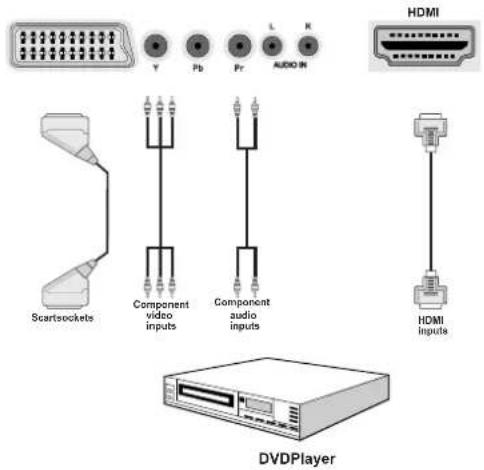
Using Side AV Connectors
You can connect a range of optional equipment to your LCD TV using side connectors of the TV.
For connecting a camcorder or camera, you should use SIDE AV socket (side). To do this, you must use the supplied video/audio connection cable. First, plug single jack of the cable to the TV's AVIN socket (side). Afterwards, insert your camera cable's (not supplied) connectors into the plural part of the video/audio connection cable. Colours of the connected jacks should match. See illustration below.
• Afterwards, you should switch to Side AV source. See the section Input selection in the following sections for more information.
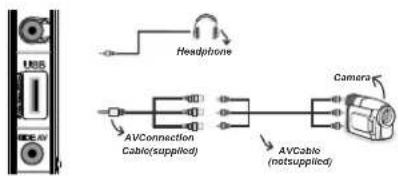
To listen the TV sound from headphones, you should connect headphones to your TV by using the HEADPHONE jack as illustrated above.
Using Other Connectors
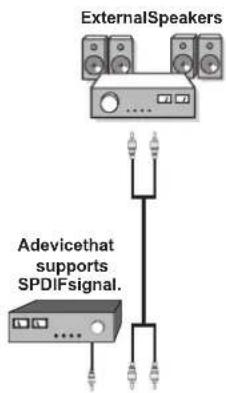
You can connect a range of optional equipment to your LCD TV. Possible connections are shown below. Note that cables shown in the illustration are not supplied.
For connecting a to a device that has SPDIF support, use an appropriate SPDIF cable to enable sound connection.
flowchart
graph TD
    A["ExternalSpeakers"] --> B["Adevicethat supports SPDIFsignal."]
    B --> C["..."]
    B --> D["..."]
    B --> E["..."]
    B --> F["..."]
    B --> G["..."]
Connecting to a Wired Network (optional)
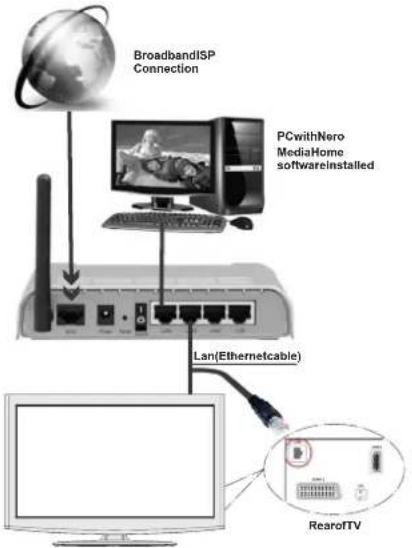
For connecting to a wired LAN network, you should perform the following steps:
Connect broadband ISP connection ethernet cable to the ETHERNET INPUT of your modem.
- Afterwards, you should connect your PC to the one of your modem's LAN connectors (e.g. LAN 1) by using a proper LAN cable.
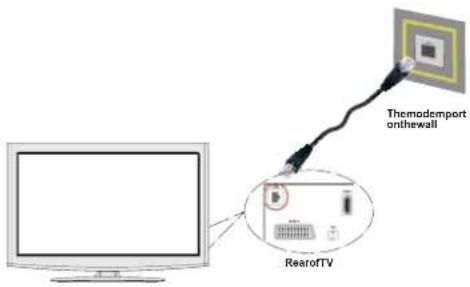
- Use another LAN output of your modem (e.g. LAN 2) to enable the connection to your TV. You can add your TV to your LAN by connecting the LAN port at the rear of your TV to your modem's LAN connector as illustrated below.
- To access and play shared files, you must Select Media Browser. Press Menu button and select Media Browser by using Left or Right button. Press OK to continue. Select the desired file type and press OK. You must always use the Media Browser screen to access and play shared network files.
To configure wired settings please refer Network Settings section in Settings menu.
flowchart
graph TD
    A["BroadbandISP Connection"] --> B["PCwithNero MediaHome software installed"]
    B --> C["Lan(Ethernetcable)"]
    C --> D["Computer"]
    E["RearofTV"] --> D
    F["Internet"] --> A
- You might be able to connect your TV to your LAN network depending on your network's configuration. In such a case, use an ethernet cable to connect your TV directly to the network wall outlet.
Remote Control Handset
Inserting Batteries
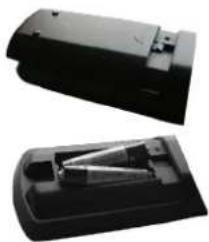
Remove the battery cover located on the back of the handset by gently pulling backwards from the indicated part.
- Insert two AAA/R3 or equivalent type batteries inside. Insert two AAA/R3 or equivalent type batteries inside. Observe the correct polarity (+/-) when inserting batteries and replace the battery cover.
natural_image
Two black electronic devices with internal components, no visible text or symbolsNote: Remove the battery from remote control handset when it is not to be used for a long period. Otherwise it can be damaged due to any leakage of batteries. Remote range is approximately 7m/23ft.
Switching On/Off
To Switch the TV On
Connect the power cord to the 220-240V AC, 50 Hz socket.
Press STANDBY touch button. Then the standby LED lights up.
To switch on the TV from standby mode either:
Press the "☐" button, P+ / P- or a numeric button on the remote control.
- Press the -P/CH or P/CH+ touch button on the TV. The TV will then switch on.
Note: If you switch on your TV via standby button on the remote control, the programme/source that you were watching last will be reselected. The TV will switch on with the last selected channel number, regardless of the channel number that you select from the remote control to switch on the TV. By either method the TV will switch on.
To Switch the TV Off
Press the "button" button on the remote control or press the STANDBY touch button on the TV, so the TV will switch to standby mode.
To power down the TV completely, unplug the power cord from the mains socket.
Note: When the TV is switched to standby mode, standby LED can blink to indicate that features such as Standby Search, Over Air Download or Timer is active. The LED can also blink when you switch on the TV from standby mode.
Digital Teletext ( ^** for UK only)
- Press the "button.
The digital teletext information appears.
Operate it with the coloured buttons, cursor buttons and OK button.
The operation method may differ depending on the contents of the digital teletext.
Follow the instructions displayed on digital teletext screen.
- When Press "OK" button or similar message appears on the screen, press the OK button.
When the "☐" button is pressed, the TV returns to television broadcasting.
With digital broadcasting (DVB), in addition to digital teletext broadcasting together with the normal broadcasting, there are also channels with just digital teletext broadcasting.
The aspect ratio (picture shape) when watching a channel with just digital teletext broadcasting is the same as the aspect ratio of the picture viewed previously.
- When you press the "☐" button again, the digital teletext screen will be displayed.
Analogue Teletext
Use of teletext and its functions are identical to the analogue text system. Please do refer to the "TELETEXT" explanations.
Input Selection
Once you have connected external systems to your TV, you can switch to different input sources. Press "SOURCE" button on your remote control consecutively for directly changing sources.
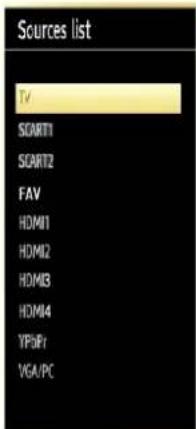
You can operate your TV using both the remote control and onset buttons.
Operation with the Buttons on the TV Volume Setting
Press "→" button to decrease volume or button to increase volume, so a volume level scale (slider) will be displayed on the screen.
Programme Selection
- Press "P/CH+" button to select the next programme or "P/CH -" button to select the previous programme.
Viewing Main Menu
- Press the "V+"/"V-" button at the same time to view main menu. In the Main menu select the sub-menu using "AV" button and set the sub-menu using "—" or " " buttons. To learn the usage of the menus, refer to the menu system sections.
AV Mode
- Press the "AV" button in the control panel on the TV to switch between AV modes.
Operation with the Remote Control
The remote control of your TV is designed to control all the functions of the model you selected. The functions will be described in accordance with the menu system of your TV.
Volume Setting
- Press "V+" button to increase the volume. Press "V-" button to decrease the volume. A volume level scale (slider) will be displayed on the screen.
Programme Selection (Previous or Next Programme)
- Press "P -" button to select the previous programme.
- Press "P+" button to select the next programme.
Programme Selection (Direct Access)
- Press numeric buttons on the remote control to select programmes between 0 and 9. The TV will switch to the selected programme. To select programmes between, press the numeric buttons consecutively. When the pressing time is due for the second numeric button, only the first digit programme will be displayed. Press directly the programme number to reselect single digit programmes.
Note: If the background is transparent, on screen texts will be slightly transparent as well.
Viewing Electronic Programme Guide (EPG)
You can view the electronic programme guide (EPG) to view information about available programmes. To view the EPG menu please press EPG button on the remote control.
- Press "▼"/"▲" buttons to navigate through channels.
- Press “◀”/“▶” buttons to navigate through the programme list.
- EPG menu displays available information on all channels.
- Please note that event information is updated automatically. If there are no event information data available for channels, EPG will be displayed with blanks.
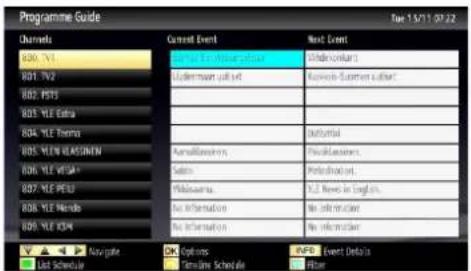
OK (Options): Displays programme options including "Select Channel" option.
INFO (Event Details): Displays the programmes in detail.
Green button: Programme schedule will be listed
Yellow button: Display EPG data in accordance with timeline schedule
Blue button (Filter): Views filtering options.
—EPG List schedule—
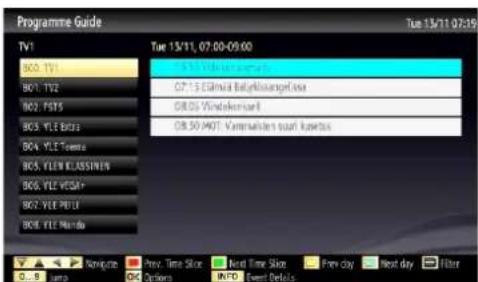
Red button (Prev Time Slice): Displays the programmes of previous time slice.
Green button (Next Time Slice): Displays the programmes of the next time slice.
Yellow button (Prev Day): Displays the programmes of previous day.
Blue button (Next day): Displays the programmes of the next day.
Text button (Filter): Views filtering options.
Numeric buttons (Jump): Jumps to the preferred channel directly via numeric buttons.
OK (Options): Displays programme options including "Select Channel" option.
INFO (Event Details): Displays the programmes in detail.
—Timeline schedule—
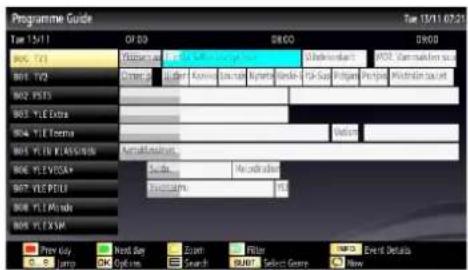
Red button (Prev Day): Displays the programmes of previous day.
Green button (Next day): Displays the programmes of the next day.
Yellow button (Zoom): Expands programme information.
Blue button (Filter): Views filtering options.
INFO (Event Details): Displays the programmes in detail.
Numeric buttons (Jump): Jumps to the preferred channel directly via numeric buttons.
OK (Options): Displays programme options including "Select Channel" option.
Text (Search): Displays "Guide Search" menu.
SUBTTL: Press SUBTITLE button to view Select Genre menu. Using this feature, you can search the programme guide database in accordance with the genre. Info available in the programme guide will be searched and results matching your criteria will be listed.
© (Now) : Shows the current programme.
First Time Installation
IMPORTANT: Ensure that the aerial, cable or satellite is connected and a Common Interface module is not inserted before switching on the TV for the first time installation.
Do not insert a common interface module during the search process.
- When the TV is operated for the first time, installation wizard will guide you through the process. First, language selection screen will be displayed:
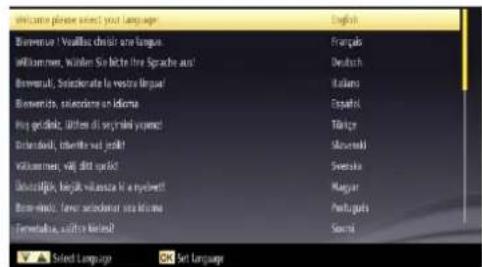
Use "▼" or "▲" buttons to select your language and press OK button to set selected language and continue.
- After selecting the language, "Welcome!" screen will be displayed, requiring you to set Country, Teletext Language, Scan Encrypted and Active antenna options.
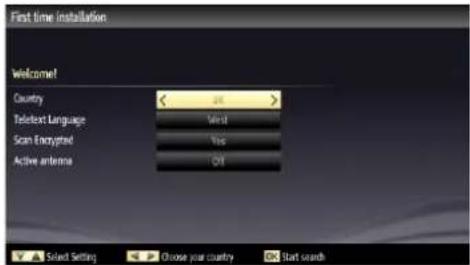
- By pressing “◀” or “▶” button, select the Country you want to set and press “▼” button to highlight Teletext Language option. Use “▼” or “▲” button to select desired Teletext Language.
Press "▼" button after setting Teletext Language option. Scan Encrypted will be then highlighted. You can set Scan Encrypted as Yes if you want to scan coded stations. After selecting the Scan Encrypted, select Active antenna feature by pressing "▼or " ▲" button. Use "◀or " "button to set active antenna mode as on or off. If an active antenna is connected to your TV, you can select this option as On (5V). Antenna power should be Off when standard antenna is used instead of the active antenna.
- Press OK button on the remote control to continue and the following message will be displayed on the screen:
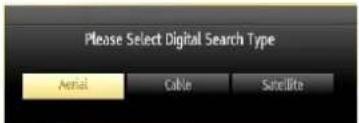
If you select CABLE option and press OK button on the remote control to continue, the following message will be displayed on the screen:
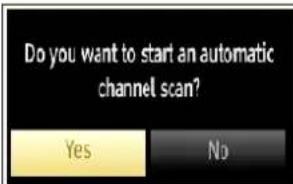
To continue please select YES and press OK. To cancel operation, select NO and press OK.
![Automatic channel scan (Resume) Start Frequency < [1] 14000 > kHz Stop Frequency 858000 kHz Search Step 8000 kHz Enter search frequency On Start search EDITLL Exit](/content/2026/05/779757/images/e00095348f5bf71eea0ba5bf7a50b0677574c67e3525e5419bf201c6a8a57640.jpg)
You can select frequency ranges from this screen. For highlighting lines you see, use "▼" or "▲button. You can enter the frequency range manually by using the numeric buttons on the remote control. Set Start and Stop Frequency as desired by using numeric buttons on the remote control. After this operation, you can set Search Step as 8000 KHz or 1000 KHz. If you select 1000 KHz, the TV will perform search process in a detailed way. Searching duration will thus increase accordingly. When fi nished, press OK button to start automatic search.
If you select AERIAL option from the Search Type screen, the television will search for digital terrestrial TV broadcasts.
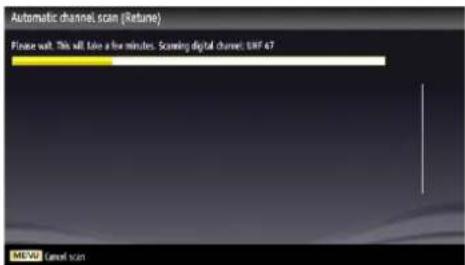
Note: You can press "MENU" button to cancel.
After all the available stations are stored, Channel List will be displayed on the screen. If you like the sort channels, according to the LCN, please select "Yes" and then press "OK".
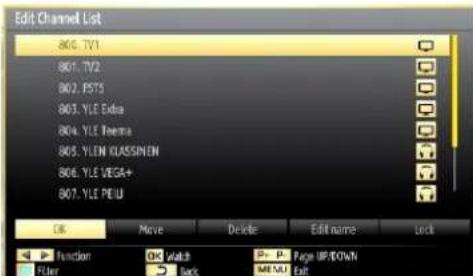
Press • OK button to quit channel list and watch TV. If you select Satellite option from the Search Type screen, you can set a satellite and watch satellite channels.
There are three types of antenna selection. You can select Antenna type as Direct, Unicable or DiSEqC switch by using "◀" or "▶" buttons.
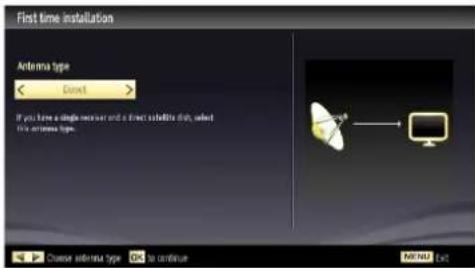
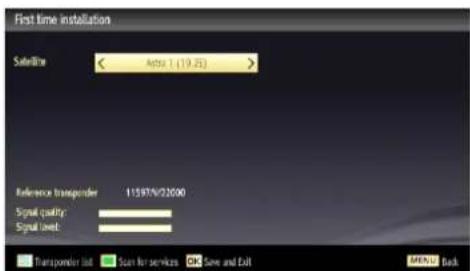
Direct: If you have a single receiver and a direct satellite dish, select this antenna type. After selecting Direct, another menu screen will be displayed. Select an available satellite and press OK to scan for services.

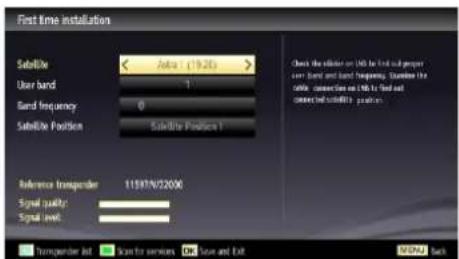
Unicable: If you have multiple receivers and a unicable system, select this antenna type. Press OK to continue. Configure settings by following instructions on the screen. Press OK to scan for services.
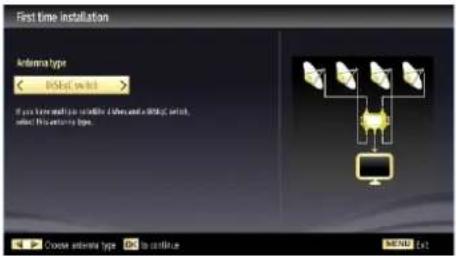
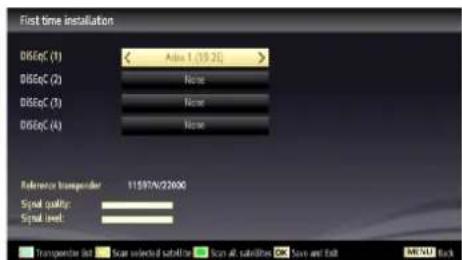
DiSEqC switch: If you have multiple satellite dishes and a DiSEqC switch, select this antenna type. After selecting DiSEqC switch, another menu screen will be displayed. You can set four DiSEqC options (if available). Press GREEN button to scan all satellites or press YELLOW button to scan only the highlighted satellite. To save and exit press OK button.
When there is a short circuit in LNB, "Tuner Overload" message is displayed on the screen, in that case, please remove your satellite cable immediately from your TV set.
Auto Tuning
HINT: Auto tuning feature will help you to retune the TV set in order to store new services or stations.
Press "MENU" button on the remote control and select Installation by using "◀" or "▶" button. Press OK button and the following menu screen will be displayed.
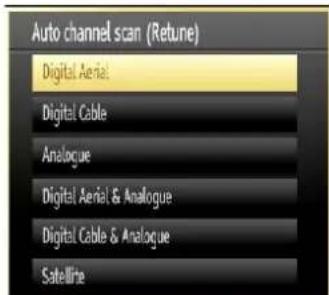
Select Automatic Channel Scan (Retune) by using "▼"/"▲" button and press OK button. Automatic Channel Scan (Retune) options will be displayed. You can select options by using "▼" ▲nd OK buttons.
Auto Channel Scan Menu Operation
Digital Aerial: Searches and stores aerial DVB stations.
Digital Cable: Searches and stores cable DVB stations.
Analogue: Searches and stores analogue stations.
Digital Aerial & Analogue: Searches and stores both analogue and aerial DVB stations.
Digital Cable & Analogue: Searches and stores both analogue and cable DVB stations.
Satellite: Searches and stores satellite channels.
Whenever you select an automatic search type and press OK button, a confirmation screen will appear on the screen. To start installation process, select Yes, to cancel select No by using .◀ or ▶ and OK button.
After auto channel scan type is set and selected and confirmed, installation process will start and progress bar will move along. Press "MENU" button to cancel process. In such a case, located channels are not stored.
Manual Tuning
HINT: This feature can be used for direct broadcast entry. You should select satellite before starting manual search. Satellite settings menu is located in the settings menu.
Select • Manual Channel Scan from the Installation menu by using "▼/” ▲ and OK buttons. Manual Scan options screen will be displayed.
- Select the desired Search Type using “◀” or “▶” button. Manual search options will change accordingly. Use “▼” “▲” button to highlight an item and then press “◀” or “▶” button to set an option. You can press “MENU” button to cancel.
Digital Aerial Manual Search
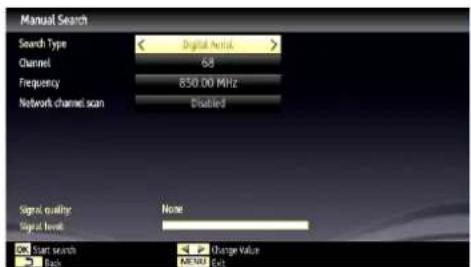
In manual channel scan, the number of the multiplex or frequency are entered manually and only that multiplex or frequency are searched for the channels. After selecting search type as Digital Aerial, you can enter the multiplex or frequency number using the numeric buttons and press OK button to search.
Digital Cable Manual Search
In cable manual scan, you can enter frequency, modulation, symbol rate and network channel scan options. After selecting search type as Digital Cable, you can set the desired options and press OK button to search.
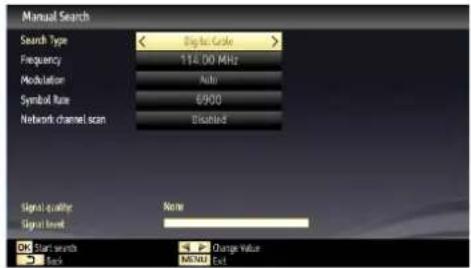
Satellite Manual Search
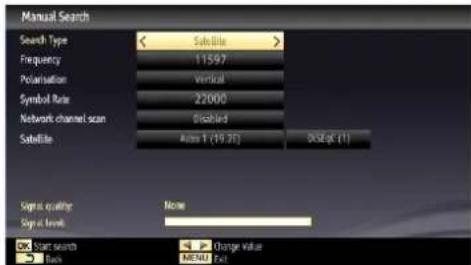
In satellite manual scan, you can enter frequency, polarization, symbol rate, network channel scan and satellite options. You can then press OK button to search. When the channel is located, any new channels that are not on the list will be stored.
Note: Frequency, polarization and symbol rate may change in accordance with the selected channels.
Analogue Manual Search
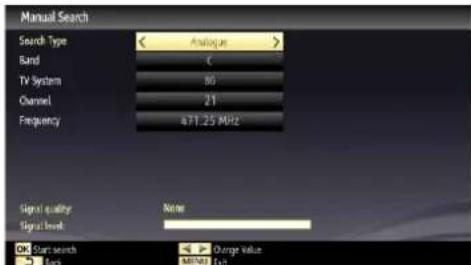
After selecting search type as analogue, you can use "▼" "▲ button to highlight an item and then press "◀" or "▶" button to set an option.
Enter the channel number or frequency using the numeric buttons. You can then press OK button to search. When the channel is located, any new channels that are not on the list will be stored.
Network Channel Scan
Select Network Channel Scan from the installation menu by using "◀ or " ▶ and OK buttons. Network Channel Scan selection screen will be displayed. Select Digital Aerial or Digital Cable and press OK button to continue. The following message will be asked. Select Yes to continue or select No to cancel.
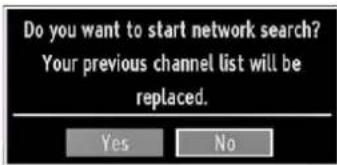
If you start Digital Aerial scan process, automatic scanning will start. You can press "MENU" button to cancel.
If you start Digital Cable scan process, the following screen will be displayed.
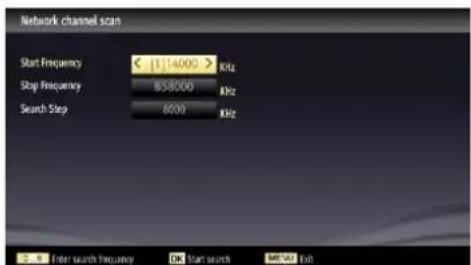
You can select frequency ranges from this screen. For highlighting lines you see, use "▼or " " Button. You can enter the frequency range manually by using the numeric buttons on the remote control. Set Start and Stop Frequency as desired by using numeric buttons on the remote control. After this operation, you can set Search Step as 8000 KHz or 1000 KHz. If you select 1000 KHz, the TV will perform search process in a detailed way. Searching duration will thus increase accordingly. When fi nished, press OK button to start automatic search. Automatic searching screen will be displayed during the process.
Note: If you select an extended gap between Start and Stop frequency rate, automatic search duration will take a longer time.
Analog Fine Tune
- Select Analog Fine Tune from the Installation menu by using "▼ or " " and OK buttons. Analog Fine Tune screen will be displayed. Analog Fine Tune feature will not be available if there are no analog channels, digital channels and external sources stored.
Press • OK button to proceed. Use◀" or ▶" button to set Fine Tune. When finished, press OK button again.
First Time Installation
If you want to delete all channels and settings please select First Time Installation and press OK. The TV's memory will be deleted and installation progress starts.
Clear Service List (\*)
(*) This setting is visible only when the Country option is set to Denmark, Sweden, Norway or Finland.
Use this setting to clear channels stored. Press "▼" or "▲button to select Clear Service List and then press OK. The following OSD will be displayed on the screen:
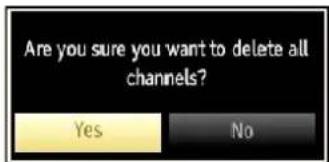
Select YES and press OK to continue or select NO and press OK button to cancel.
Managing Stations: Channel List
The TV sorts all stored stations in the Channel List. You can edit this channel list, set favourites or set active stations to be listed by using the Channel List options.
- Press "MENU" button to view main menu. Select Channel List item by using "◀" or "▶" button. Press OK to view menu contents.
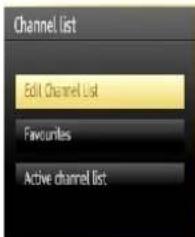
Select Edit Channel List to manage all stored channels. Use "▼or " ▲nd OK buttons to select Edit Channel List.
Channel List Types
You can set channel list type function to display desired types of available channels.
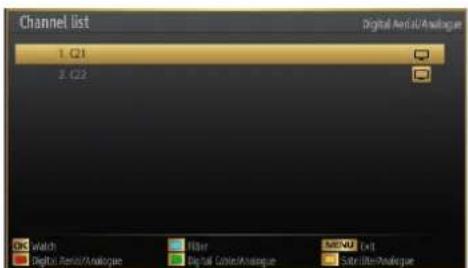
RED: Lists only digital aerial and analogue broadcasts.
GREEN: Lists only digital cable and analogue broadcasts.
YELLOW: Lists only satellite and analogue broadcasts.
OK: Watch selected.
MENU: Exits.
BLUE: Displays fi Itering options.
Operating the Channel List
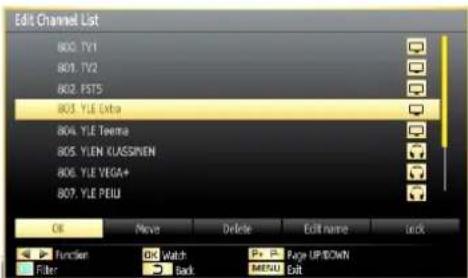
Press "▼" or "▲button to select the channel that will be processed. Press "◀or " " button to select a function on Channel List menu.
Use • P+/P- buttons to move page up or down.
- Press BLUE button to view filtering options.
Press “• MENU” button to exit.
Moving a Channel
First select the desired channel. Select Move option • in the channel list and press OK button.
Edit Number screen will be displayed. Enter the desired channel number by using the numeric buttons on the remote control. If there is a previously stored channel on that number, a warning screen will be displayed. Select Yes if you want to move the channel and press OK.
- Press OK button to process. Selected channel is now moved.
Deleting a Channel
You can press GREEN button to tag/untag all channels; YELLOW button to tag/untag channel.
Select the channel that you want to delete and select • Delete option. Press OK button to continue.
- A warning screen will appear. Select YES to delete, select No to cancel. Press OK button to continue.
Renaming a Channel
Select the channel that you want to rename and select Edit Name option. Press OK button to continue.
- Pressing “◀” or “▶” button moves to the previous/next character. Pressing “▼” or “▲” button toggles the current character, i.e., ‘b’ character becomes ‘a’ by “▼” and ‘c’ by “▲”. Pressing the numeric buttons ‘0...9’ replaces the highlighted character with the characters printed above the button one by one as the button is pressed.
- When finished, press OK button to save. Press "MENU" to cancel.
Locking a Channel
You can press GREEN button to tag/untag all channels; YELLOW button to tag/untag a single channel.
- Select the channel that you want to lock and select Lock option. Press OK button to continue.
You will be asked to enter parental control PIN. - Default PIN is set as 0000. Enter the PIN number.

- Press OK button when the desired channel is highlighted to lock/unlock the channel. Lock symbol will be displayed next to the selected channel.
Channel List Filter
Channel list filtering option can be set as desired. You can list only satellite or analogue channels. Use fi iter to set channels as TV only, Radio only and Text only. If encrypted channel are not listed, you can as set free by using CAS/free feature. You can jump to the related channels by using A-Z options. You can sort channels alphabetically by using Sort option. You can customize channel list by using all this feature.
Managing Stations: Favourites
You can create a list of favourite programmes.
- Press "MENU" button to view main menu. Select Channel List item by using "◀" or "▶" button. Press OK to view menu contents.
Select • Favourites to manage favourite list. Use "/" and OK buttons to select Favourites.
You can set various channels as favourites so that only the favourite channels are navigated.
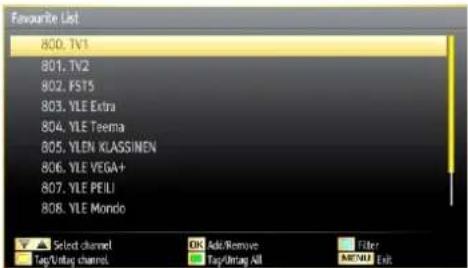
Select a channel by using "▼" or "▲button. Press OK button to add selected channel to favourites list. Press OK button again to remove.
Button Functions
OK• : Add/remove a station.
YELLOW• : Tag/untag a channel.
• GREEN: Tag/untag all channels.
• BLUE: Displays filtering options.
Managing Stations: Sorting Channel List
You can select broadcasts to be listed in the channel list. To display specific types of broadcast, you should use Active Channel List setting.
Select Active Channel List from the Channel list menu by using "◀" or "▶" button. Press OK button to continue.
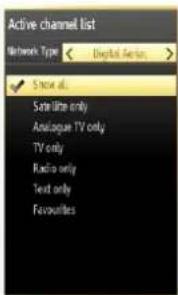
You can choose an active channel list from the list by using "▼/" ▲nd OK buttons.
Broadcast Type (optional): When you set the desired broadcast type by using "or" button, the TV will display the related channel list. If the related source has does not include any stored channels, "No channels for this type have been found." message will be displayed on the screen.
On-Screen Information
You can press "INFO" button to display on-screen information. Details of the station and current programme will be displayed on the information banner.
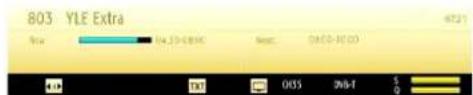
The information banner gives information on the channel selected and the programmes on it. The name of the channel is displayed, along with its channel list number.
Hint: Not all channels broadcast the programme data. If the name and time of the programme are not available, then information banner will be displayed with blanks.
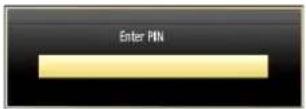
If the selected channel is locked, you must enter the correct four-digit numeric code to view the channel (default code is 0000). "Enter PIN" will be displayed on the screen in such a case:
Media Playback Using Media Browser
If the USB stick is not recognized after power off/on or First Time Installation, first, plug the USB device out and power off/on the TV set. Plug the USB device in again.
To display Media Browser window, press either "MENU" button on the remote control and then select Media Browser by pressing "◀" or "▶" button. Press OK button to continue. Media Browser menu options will be displayed.
Also, when you plug USB devices, media browser screen will be displayed automatically:
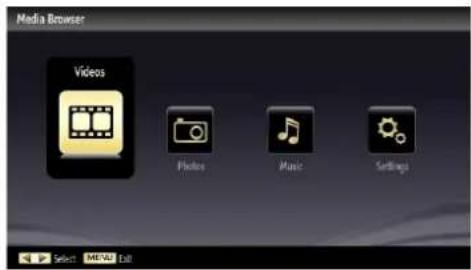
You can play music, picture and video files from the connected USB memory stick. Use "◀or" "▶button to select Videos, Photos, Music or Settings.
You can connect two USB devices to your TV. If both USB devices include music, picture or video files, USB selection OSD will be displayed on the screen. The first USB device connected to the TV will be named as USB Drive1.
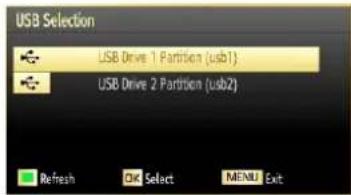
Select a device by using "▼or" "▲button and press OK.
Viewing Videos via USB
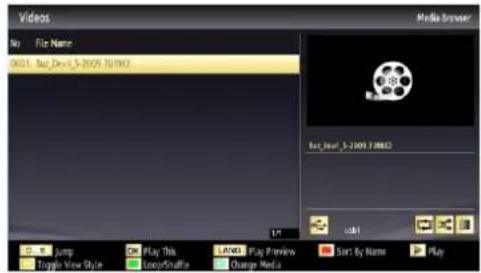
When you select Videos from the main options, available video files will be filtered and listed on this screen. You can use "▼" or "▲" button to select a video fi le and press OK button to play a video. If you select a subtitle file and press OK button, you can select or deselect that subtitle fi le. The following menu will be displayed while playing a video fi le:
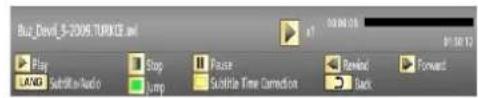
Play (▶ button): Starts the video playback.
Stop (■ button): Stops the video playback.
Pause (■ button): Pause the video playback.
Rewind (◀ button): Goes backward.
Forward (▶▶ button): Goes forward.
Subtitle/Audio (LANG. button): Sets subtitle/Audio.
Yellow: Opens subtitle time correction menu
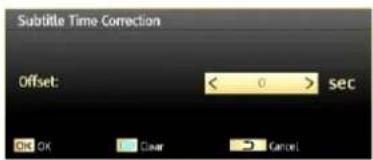
Press RETURN button to switch back to previous menu.
Viewing Photos via USB
When you select Photos from the main options, available image files will be filtered and listed on this screen.
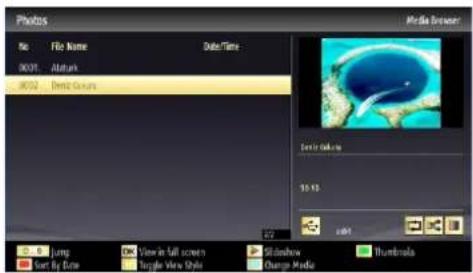
Jump (Numeric buttons): Jump to selected file using the numeric buttons.
OK: Views the selected picture in full screen.
Slideshow (▶ button): Starts the slideshow using all images.
RED: Sorts files by date.
GREEN: Views images in thumbnails.
BLUE: Switch between music, photo, video and all
YELLOW: Change view style
Slideshow Options

Pause (Button) : Pauses the slideshow.
Continue (▶ button) : Continues the slideshow.
Previous/Next (Left/Right buttons): Jumps to previous or next file on slideshow.
Rotate (Up/Down buttons): Rotates the image using up/down buttons.
Loop/Shuffle (GREEN button): Press once to disable Loop. Press again to disable both Loop and Shuffl e. Press once more to enable only Shuffl e. Press again to enable all. You can follow the disabled functions with the change of the icons.
RETURN (Exit): Back to fi le list.
INFO: Displays help screen.
Playing Music via USB
When you select Music from the main options, available audio files will be filtered and listed on this screen.
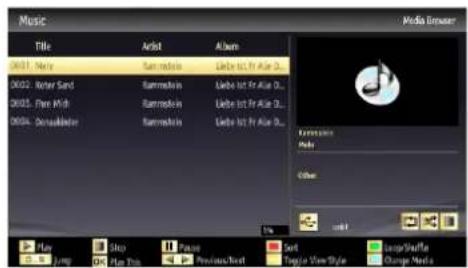
0..9 (Jump): When you press a digit button displays textual file search.
Play This (OK button) : Plays the selected file.
Play (▶ button) : Plays all media files starting with the selected one.
Stop (■ button): Stops playback.
Pause (|| button): Pauses the selected playback.
Previous/Next (Left/Right buttons): Jumps to previous or next file to play.
FAV: Sorts files by Title, Artist or Album.
INFO: Changes filter options.
Loop/Shuffle (BLUE button): Press once to disable Loop. Press again to disable both Loop and Shuffle e. Press once more to enable only Shuffle e. Press again to enable all. You can follow the disabled functions with the change of the icons.
Media Browser Settings
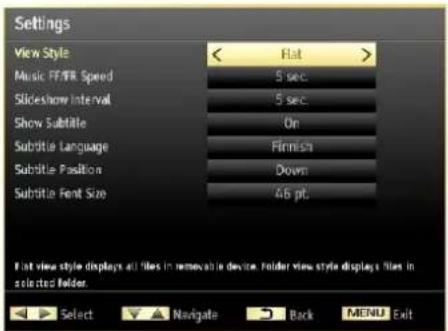
You can set your Media Browser preferences by using the Settings dialog. Press "▼or " " button to highlight an item and use "◀or " " button to set.
View Style: Sets default browsing mode.
Slide Show Interval: Sets slide show interval time.
Show Subtitle: Sets subtitle enabling preference.
Subtitle Language: Sets supported subtitle language.
Subtitle Position: Sets subtitle position as up or down.
Subtitle Font Size: Sets subtitle font size (max. 54pt).
Changing Image Size: Picture Formats
Programmes can be watched in different picture formats, depending on the transmission received.
You can change the aspect ratio (image size) of the TV for viewing the picture in different zoom modes.
- Press "SCREEN" button repeatedly to change the image size. Available zoom modes are listed below.
Auto
When AUTO is selected, the aspect ratio of the screen is adjusted by the information provided by the selected source(if available)
The format being displayed in AUTO mode is completely independent of WSS information which could be included in the broadcast signal or the signal from an external device.
Note: Auto mode only will be available in HDMI, YPbPr and DTV sources.
16:9
This uniformly stretches the left and right sides of a normal picture (4:3 aspect ratio) to fill the wide TV screen.
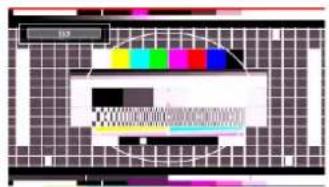
For 16:9 aspect ratio pictures that have been squeezed into a normal picture (4:3 aspect ratio), use the 16:9 mode to restore the picture to its original shape.
Subtitle
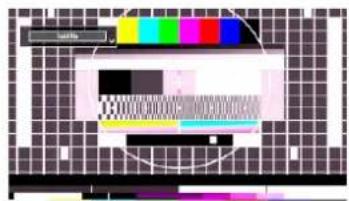
This zooms up the wide picture (16:9 aspect ratio) with subtitles to the full screen.
natural_image
Pure electrical circuit lines without any symbolsNote: You can shift the screen up or down by pressing "▼" / "▲buttons while picture zoom is selected as Panoromic, 14:9 Zoom, Cinema or Subtitle.
14:9
This zooms up the wide picture (14:9 aspect ratio) to the upper and lower limits of the screen.
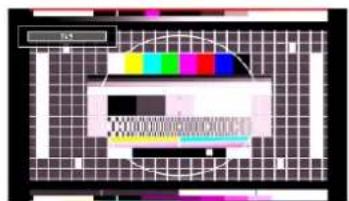
14:9 Zoom
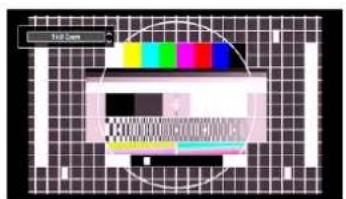
This option zooms to the 14:9 picture.
4:3
Use to view a normal picture (4:3 aspect ratio) as this is its original size.
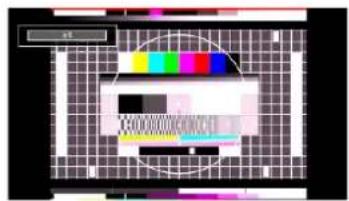
Panoramic
This stretches the left and right sides of a normal picture (4:3 aspect ratio) to fill the screen, without making the picture appear unnatural.
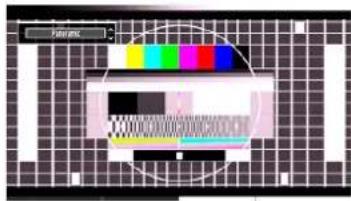
The top and bottom of the picture are slightly cut off.
Cinema
This zooms up the wide picture (16:9 aspect ratio) to the full screen.

natural_image
Pixelated image of a computer monitor with a colorful checkered pattern and a circular overlay (no readable text or symbols)Configuring Picture Settings
You can use different picture settings in detail.
Press "MENU" button and select the Picture icon by using "◀" or "▶" button. Press OK button to view Picture Settings menu.
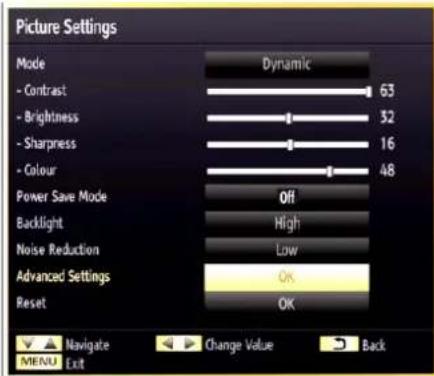
Operating Picture Settings Menu Items
Press “▼” or “▲button to highlight a menu item.
Use "◀" or "▶" button to set an item.
Press "• MENU" button to exit.
Picture Settings Menu Items
Mode: For your viewing requirements, you can set the related mode option. Picture mode can be set to one of these options: Cinema, Game, Dynamic and Natural.
Contrast: Sets the lightness and darkness values of the screen.
Brightness: Sets the brightness value for the screen.
Sharpness: Sets the sharpness value for the objects displayed on the screen.
Colour: Sets the colour value, adjusting the colors.
Power Save Mode: Use "▼" or "▲" button to select Power Save Mode. Press "◀" or "▶" button to set Power Save Mode as Eco, Picture Off and Disabled. See the section, "Environmental Information" in this manual for further information on Power Save Mode.
Backlight: This setting controls the backlight level and it can be set to Low, Medium, High and Auto.
Noise Reduction: If the broadcast signal is weak and the picture is noisy, use Noise Reduction setting to reduce the noise amount. Noise Reduction can be set to one of these options: Low, Medium, High or Off.
Advanced Settings
Use "▼" or "▲button to select advanced settings.
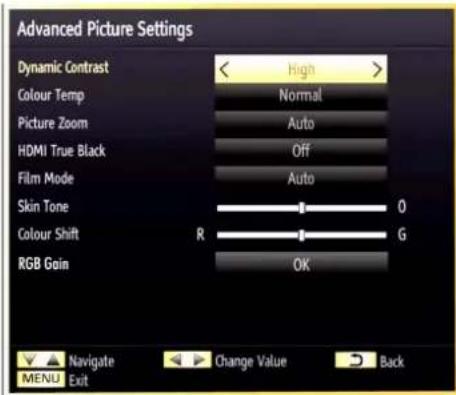
Dynamic Contrast: You can change contrast rate by using dynamic contrast function. Dynamic contrast can be set to one of these options: Low, Medium, High or Off.
Colour Temp: Sets the desired colour tone.
Picture Zoom: Sets the picture size to Auto, 16:9, Subtitle, 14:9, 14:9 Zoom, 4:3, Panoramic or Cinema.
HDMI True Black(optional): While watching from HDMI source, this feature will be visible in the Picture Settings menu. You can use this feature to enhance blackness in the picture. You can set this feature as "On" for activating HDMI True Black mode.
Note: HDMI True Black On/Off feature functions only when the HDMI device output is set to RGB.
Film mode: Films are recorded at a different number of frames per second to normal television programmes.
Press "▼" or "▲button to select Film Mode. Press "◀" or "▶button to set this feature On or Off. Turn this feature on when you are watching films to see the fast motion scenes clearly.
Skin tone: Adjust the desired skin tone
Colour Shift: Adjust the desired colour tone.
RGB Gain: You can configure the colour temperature values using the RGB Gain feature.
Reset: Resets the picture settings to factory default settings.
While in VGA (PC) mode, some items in Picture menu will be unavailable. Instead, VGA mode settings will be added to the Picture Settings while in PC mode.
PC Picture Settings
For adjusting PC picture items, do the following:
Press "◀or▼" button to select Picture icon. Picture menu appears on the screen.
Contrast, Brightness, Colour, Colour Temp and Picture Zoom and other settings in this menu are identical to settings defined in TV picture menu under "Main Menu System".
Sound, Settings and Source settings are identical to the settings explained in main menu system.
PC Position: Select this to display PC position menu items.
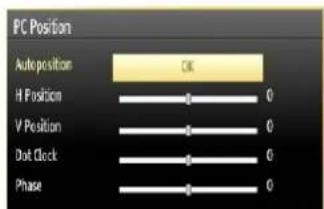
Autoposition: Automatically optimizes the display. Press OK to optimize.
H Position: This item shifts the image horizontally to right hand side or left hand side of the screen.
V Position: This item shifts the image vertically towards the top or bottom of the screen.
Dot Clock: Dot Clock adjustments correct the interference that appear as vertical banding in dot intensive presentations like spreadsheets or paragraphs or text in smaller fonts.
Phase: Depending on the resolution and scan frequency that you input to the TV set, you may see a hazy or noisy picture on the screen. In such a case you can use this item to get a clear picture by trial and error method.
Configuring Sound Settings
Sound settings can be configured according to your personal preferences.
Press "MENU" button and select the Sound icon by using "◀" or "▶" button. Press OK button to view Sound Settings menu.
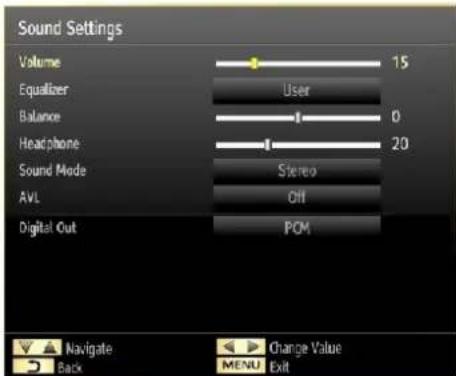
Operating Sound Settings Menu Items
Press "▼" or "▲button to highlight a menu item.
Use "◀" or "▶" button to set an item.
Press “• MENU” button to exit.
Sound Settings Menu Items
Volume: Adjusts volume level.
Equalizer: Press OK button to view equalizer submenu.
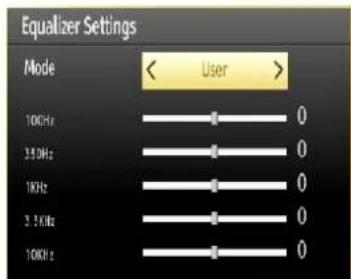
In Equalizer menu, the preset can be changed to Music, Movie, Speech, Flat, Classic and User. Press the "MENU" button to return to the previous menu.
Note: Equalizer menu settings can be changed manually only when the Equalizer Mode is in User. Balance: This setting is used for emphasizing left or right speaker balance.
Headphone: Sets headphone volume.
Sound Mode: You can select Mono, Stereo, Dual I or Dual II mode, only if the selected channel supports that mode.
AVL: Automatic Volume Limiting (AVL) function sets the sound to obtain fixed output level between programmes (For instance, volume level of advertisements tend to be louder than programmes).
Digital Out: Sets digital out audio type.
Configuring Your TV's Settings
Detailed settings can be configured to suit your personal preferences.
Press "MENU" button and select Settings icon by using "◀" or "▶" button. Press OK button to view Settings menu.
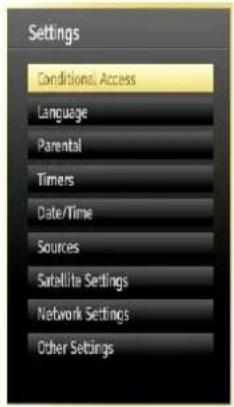
Operating Settings Menu Items
Press "▼" or "▲button to highlight a menu item.
Press • OK button to select an item.
Press "• MENU" button to exit.
Settings Menu Items
Conditional Access: Controls conditional access modules when available.
Language: Configures language settings.
Parental: Configures parental settings.
Timers: Sets timers for selected programmes.
Date/Time: Sets date and time.
Sources: Enables or disables selected source options.
Satellite settings: Configures satellite settings.
Network Settings: In Network Settings window you can set network type of the TV set.
Other Settings: Displays other setting options of the TV set.
Using a Conditional Access Module
IMPORTANT: Insert or remove the CI module only when the TV is SWITCHED OFF.
In order to watch certain digital channels, a • conditional access module (CAM) can be necessary. This module must be inserted in the CI slot of your TV.
Obtain the Conditional Access Module (CAM) and the viewing card by subscribing to a pay channel company, then insert those to the TV using the following procedure.
Insert the CAM and then the viewing card to the slot that is located in the terminal cover at the rear side of the TV.
The CAM should be correctly inserted, it is impossible to insert fully if reversed. The CAM or the TV terminal may be damaged if the CAM is forcefully inserted.
Connect the TV to the mains supply, switch on and then wait for few moments until the card is activated.
- When no module is inserted, "No Common Interface module detected" message appears on the screen.
Refer to the module instruction manual for details of the settings.
Viewing Conditional Access Menu (\*)
(*) These menu settings may change depending on the service provider.
Press "MENU" button and select the icon by using "
◀ or “▶ button. Press OK button to view Settings menu. Use “▼or” ” button to highlight Conditional
Access and press OK to view menu items.
Confi guring Language Preferences
You can operate the TV's language settings using this menu.
Press "MENU" button and select the Settings icon by using "◀" or "▶" button. Press OK button to view Settings menu. Use "◀" or "▶" button to highlight Language and press OK to continue:
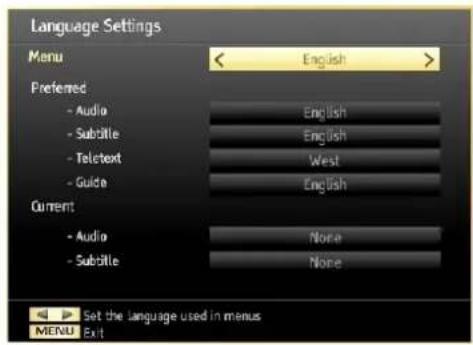
Use "▼" or "▲" button to set an item. Settings are stored automatically.
Menu: displays the system language.
Preferred
These settings will be used if available. Otherwise the current settings will be used.
Audio• : Sets the preferred audio language.
Subtitle• : Sets the subtitle language. Selected language will be seen in subtitles.
Teletext• : Sets teletext language.
Guide• : Sets the preferred Guide language.
Current (\*)
(*) These settings can be changed if only the broadcaster supports. Otherwise, settings will not be available to be changed.
Audio·: Changes the audio language for the current channel.
Subtitle• : Sets the subtitle language for the current channel.
Note: If the Country option is set to Denmark, Sweden, Norway or Finland, the Language Settings menu will function as described below:
Language Settings
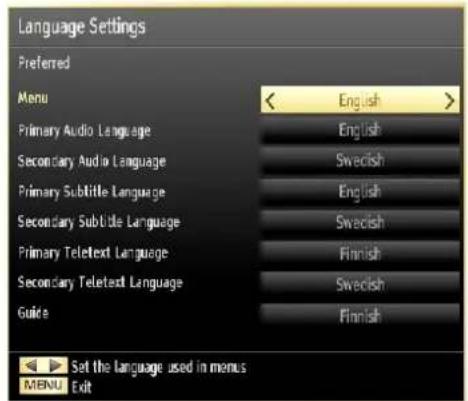
In the Settings menu, highlight the Language Settings item by pressing "▼" or "▲buttons. Press OK and Language Settings submenu will be displayed on the screen:
Use "▼" or "▲" buttons to highlight the menu item that will be adjusted and then press "◀or " " button to set.
Notes:
System Language determines the on-screen menu language.
- Audio Language is used for selecting the soundtrack of a channels.
- Primary settings are the first priority when multiple choices are available on a broadcast. Secondary settings are the alternatives when the first options are not available.
Parental Control
To prohibit viewing of certain programmes, channels and menus can be locked by using the parental control system.
This function enables or disables the menu protection system and allows the PIN code to be changed.
Press "MENU" button and select the Settings by using "◀" or "▶" button. Press OK button to view Settings menu. Use "▼" or "▲" button to highlight Parental and press OK to continue:
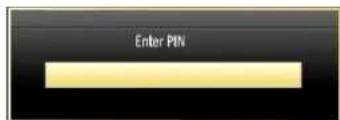
To display parental lock menu options, PIN number should be entered. Factory default PIN number is 0000. After coding the correct PIN number, parental settings menu will be displayed:
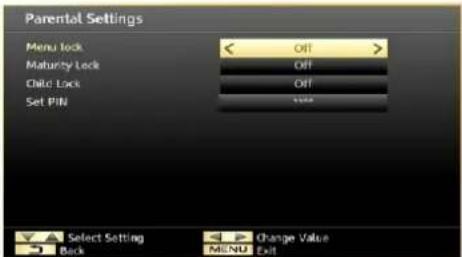
Parental Settings Menu Operation (\*)
Select an item by using "▼" or "▲button.
Use "◀" or "▶" button to set an item.
Press• OK button to view more options.
(*) If you set Country option as UK in the first time installation, Maturity Lock and Child Lock options will not be visible. This setting is available only for EU countries.
Menu Lock: Menu lock setting enables or disables the menu access. You can disable access to the installation menu or the whole menu system.
Maturity Lock: When set, this option gets the maturity information from the broadcast and if this maturity level is disabled, disables access to the broadcast.
Child Lock: When Child Lock is set, the TV can only be controlled by the remote control. In this case the control panel buttons will not work, except for the Standby/On button. When Child Lock is activated you are able to switch the TV into Standby mode with the Standby/On button. To switch the TV on again, you need the remote control. Hence, if one of those buttons is pressed, Child Lock Is On will be displayed on the screen when the menu screen is not visible.
Set PIN: Defines a new PIN number. Use numeric buttons to enter a new pin number. You will need to code your new PIN a second time for verification purposes.
IMPORTANT: The factory default PIN number is 0000, if you change the PIN number make sure you write it down and keep it safe.
Timers
To view Timers menu, press MENU button and select Settings icon by using "◀ or " ▶button. Press OK button to view Settings menu. Use "▼" or "▲button to highlight Timers and press OK to continue:
Setting Sleep Timer
This setting is used for setting the TV to turn off after a certain time.
Highlight Sleep Timer by using "▼" or "▲button.
Use "◀" or "▶" button to set. The timer can be programmed between Off and 2.00 hours (120 minutes) in steps of 30 minutes.
Setting Programme Timers
You can set programme timers for a particular programme using this feature.
Press "▼" button to set timers on an event. Programme timer function buttons will be displayed on the screen.
Adding a Timer
- Press YELLOW button on the remote control to add a timer.
Channel: Changes channel by using "◀" or "▶".
Timer Type: This feature is unavailable to be set.
Date: Enter a date using the numeric buttons.
Start: Enter a starting time using the numeric buttons.
End: Enter an ending time using the numeric buttons.
Duration: Displays duration between the starting and ending time.
Repeat: Sets a timer to be repeated as Once, Daily or Weekly. Use "◀or" "▶buttons to select an option."
Change/Delete: Controls parental settings on timers.
- Press GREEN button to save the timer. Press RED button to cancel.
Editing a Timer
- Select the timer you want to edit by pressing "▼" or "▲button.
- Press GREEN button. Edit Timer menu screen will be displayed.
- When finished with editing, press GREEN button to save. You can press "MENU" button to cancel.
Deleting a Timer
- Select the timer you want to delete by pressing "▼" or "▲button.
Press • RED button.
- Select YES by using "◀" or "▶" buttons to delete the timer. Select NO to cancel.
Configuring Date/Time Settings
Select Date/Time in the Settings menu to configure Date/Time settings. Press OK button.
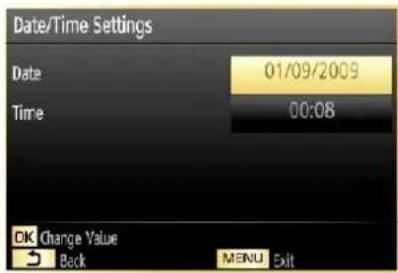
Use "▼" or "▲buttons to highlight Date/Time.
Date, Time, Time Settings Mode and Time Zone Setting will be available.
Use "▲" or "▼buttons to highlight the Time Settings Mode. Time Settings Mode is set using "◀ or "▶ buttons. It can be set to AUTO or MANUAL.
When AUTO is selected, Date/Time and Time Zone options will not be available to be set. If MANUAL option is selected as the Time Zone can be altered:
- By pressing "▲" or "▼buttons select Time Zone.
Use "◀" or "▶" buttons to change the Time Zone between GMT-12 or GMT+12. Date/Time on the top of the menu list will then change according to the selected Time Zone.
Changes are automatically stored. Press “• MENU” to exit.
Configuring Source Settings
You can enable or disable selected source options. The TV will not switch to the disabled source options when "SOURCE" button is pressed.
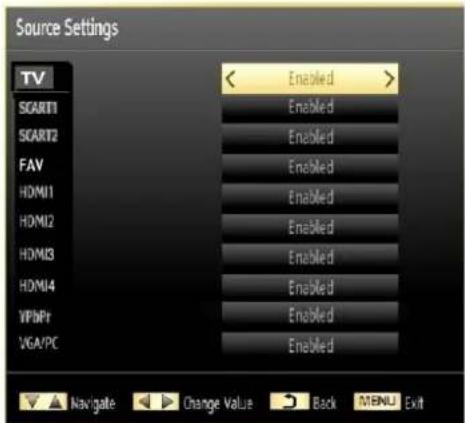
- Select Sources in the Settings menu and press OK button.
Press▼" or "▲buttons to select a source.
Use "◀" or "▶" button to enable or disable the selected source. Changes are automatically stored.
Configuring Satellite Settings
Select Satellite settings in the Settings menu to configure satellite settings. Press OK button.
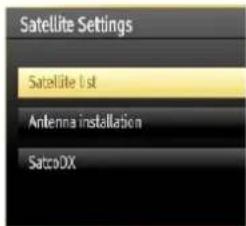
Satellite List: To view available satellite list, please select Satellite list option from satellite settings menu. If you want to add new satellite information, please press YELLOW button. If you want to change satellite name, please use the navigation buttons. To delete a satellite from list, press BLUE button or press OK to edit.
Antenna Installation: In this section, you can change antenna settings and scan satellite for new channels.
SatcoDX (optional): You can perform SatcoDX operations using the Satellite Settings. On SatcoDX menu, there are two options regarding to satcodx feature as in the following:
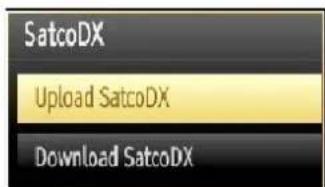
You can download or upload satcoDX data. In order to perform these functions supported for satcodx feature, a USB device must be connected to the TV in the first place.
You will be able to upload current services and related satellites & transponders in TV, to a USB device with a file named "mb70_sdx.sdx".
In addition to the uploading feature you will be able to download one of the satcodx files stored in USB device, to the TV. When download option is selected, a list of satcodx files stored in USB device will be displayed.
When you select one of these satcodx files, all services and related satellites and transponders in the selected fi le will be stored in TV. If there are any installed terrestrial, cable and/or analog services, they will be kept and only satellite services will be removed.
Afterwards, check your antenna settings and make changes if necessary. An error message stating "No Signal" may be displayed if antenna settings are not configured properly.
Configuring Network Settings
Note: Your TV's Network Settings include Wired and Wireless Connection options. However, if your TV does not have USB Wi-Fi dongle, you should use Wired Connection type. If you try to connect via Wireless Connection when your TV does not have a USB Wi-Fi dongle, a warning screen will appear and the TV will not get an IP address. Try connecting the LAN cable after this and then the TV will be able to get an IP address.
Configuring Wired Device Settings
On • Network Settings window you can set network type of the TV set, which connects the TV to the Internet. If you are connecting the TV via ETHERNET INPUT, select Network Type as Wired Device to configure.
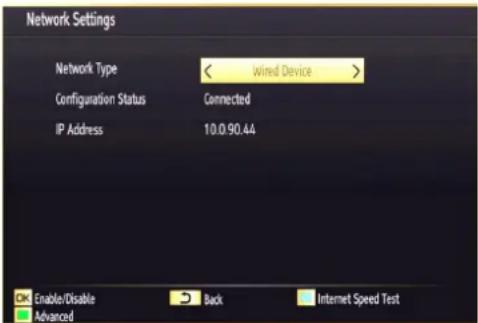
Setting Network Type
- Network type can be selected as Wired or Wireless device, in accordance with the active connection to the TV set. Select this as Wired if you have connected to the TV a LAN cable. Select as Wireless if you connect via the wireless USB dongle.
Setting Configuration Status
This section displays the status of the connection. Select Connected if you want to activate Wired or Wireless connection. Select as Not Connected to quit an active connection.
IP Address
If an active connection is available, the IP address will be displayed on this section. If you want to configure IP address preferences, press YELLOW button and switch to the advanced mode.
Confi guring Wired Network Settings in Advanced Mode
After pressing YELLOW button, Advanced mode will be available. Press OK button to edit settings.
Configuring Other Settings
To view general configuration preferences, select Other Settings in the Settings menu and press OK button.
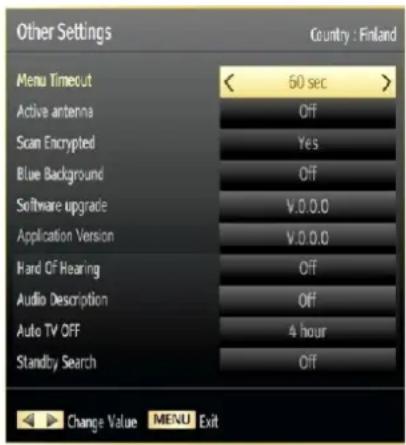
Operation
Press “▼” or “▲buttons to select an item.
Use “◀” or “▶” button to set an option.
- Press OK button to view a sub-menu.
Menu Timeout: Changes timeout duration for menu screens.
Active Antenna: This feature enables or disables the use of active antennas. When antenna power option is set as On, +5V will be transmitted to the antenna output.
IMPORTANT: Antenna power should be Off when standard antenna is used instead of the active antenna.
Scan Encrypted: When this setting is on, search process will locate the encrypted channels as well. If it is set as Off, encrypted channels will not be located in automatic search or manual search.
Blue Background: Activates or deactivates blue background system when the signal is weak or absent.
Software Upgrade: To ensure that your TV always has the most update information, you can use this setting. In order for the proper operation, please ensure that the TV is set to standby mode.
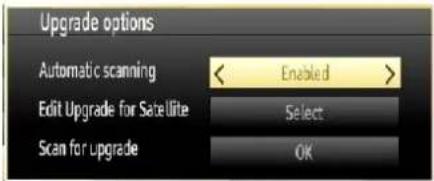
You can enable or disable automatic upgrade by setting Automatic Scanning option.
You can select the satellite, which is used for updating process by setting Edit Upgrade for Satellite option.
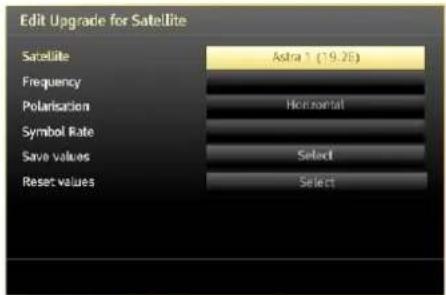
You can manually search for new software by selecting Scan for upgrade.
Application version: Displays the current application version.
Hard of Hearing: If the broadcaster enables any special signal concerning the audio, you can set this setting as On to receive such signals.
Audio Description: Audio description refers to an additional narration track for blind and visually impaired viewers of visual media, including television and movies. The description narrator talks through the presentation, describing what is happening on the screen during the natural pauses in the audio (and sometimes during dialogue, if deemed necessary). You can use this feature, only if the broadcaster supports that additional narration track.
Auto TV Off: You can set the timeout value of auto off feature. After the timeout value is reached and the TV is not operated for selected time, the TV will go off.
Standby Search (optional): Use "▼" or "▲button to select Standby Search and then press "◀ or "
▶" button to set this setting as On or Off. If you change Standby Search to Off, this function will be unavailable. To use Standby Search please make sure that you select Standby Search as On.
Biss Key: Biss is a satellite signal scrambling system that is used for some broadcasts. If you need to enter BISS key on a broadcast, you can use Biss Key setting located in the Other Settings menu. Highlight Biss Key and press OK to enter keys on the desired broadcast.
Other Features
Displaying TV Information: Programme Number, Programme Name, Sound Indicator, time, teletext, channel type and resolution information is displayed on the screen when a new programme is entered or "INFO" button is pressed.
Mute Function: Press "X" button to disable sound. Mute indicator will be displayed in the upper side of the screen. To cancel mute, there are two alternatives; the first one is pressing the button and the second one is increasing the volume level.
Picture Mode Selection: By pressing PRESETS button, you can change Picture Mode settings in accordance with your viewing requirements. Available options are Dynamic, Natural, Cinema and Game.
Displaying Subtitles: You can enable subtitles by pressing the SUBTITLE button of the remote control. Press SUBTITLE button again to disable subtitle function.
If "Subtitle" is On, pressing the "☐" button causes the following warning message to be displayed on the screen (** for UK only)
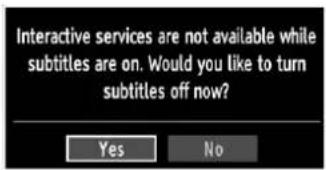
Teletext
Teletext system transmits information such as news, sports and weather on your TV. Note that is the signal degrades, for example in poor/adverse weather conditions, some text errors may occur or the teletext mode may be aborted.
Teletext function buttons are listed below:
“” Teletext / Mix : Activates teletext mode when pressed once. Press again to place the teletext screen over the programme (mix). Pressing again will quit the teletext mode.
"RETURN" Index: Selects the teletext index page.
"INFO"Reveal: Shows hidden information (e.g. solutions of games).
"OK" Hold: Holds a text page when convenient. Press again to resume.
“◀”/“▶ Subcode Pages: Selects subcode pages if available when the teletext is activated.
P+ / P- and numbers (0-9): Press to select a page.
Note: Most TV stations use code 100 for their index pages.
Coloured Buttons (RED/GREEN/YELLOW/BLUE)
Your TV supports both FASTEXT and TOP text systems. When these systems are available, the pages are divided into groups or topics. When FASTEXT system is available, sections in a teletext page will become colour-coded and can be selected by pressing the coloured buttons. Press a coloured button that corresponds to with your needs. The coloured writings will appear, showing you which coloured buttons to use when TOP text transmission is present. Pressing "▼or" commands will request the next or previous page respec tively.
Tips
Screen Care: Clean the screen with a dry, soft cloth. Do not use abrasive solvents as they may damage the coating layer of the TV screen. For your safety, unplug the mains plug when cleaning the set. When moving the TV, hold it properly from the bottom part.
Image Persistence: Please note that ghosting may occur while displaying a persistent image. LCD TVs' image persistence may disappear after a short time. Try turning off the TV for a while.
To avoid this, do not leave the screen in still picture for extended periods.
No Power: If your TV system has no power, please check the main power cable and connection to the mains socket outlet.
Poor Picture: Have you selected the correct TV system? Is your TV set or house aerial located too close to a non-earthed audio equipment or neon lights, etc.? Mountains or high buildings can cause double pictures or ghost images. Sometimes you can improve the picture quality by changing the direction of the aerial. Is the picture or teletext unrecognisable? Check if you have entered the correct frequency. Please retune the channels. The picture quality may degrade when two peripherals are connected to the TV at the same time. In such a case, disconnect one of the peripherals.
No Picture: Is the aerial connected properly? Are the plugs connected tightly to the aerial socket? Is the aerial cable damaged? Are suitable plugs used to connect the aerial? If you are in doubt, consult your dealer. No Picture means that your TV is not receiving a transmission. Have you selected the correct button on the remote control? Try once more. Also make sure the correct input source has been selected.
Sound: You can not hear any sound. Did you perhaps interrupt the sound, pressing the ✗ button? Sound is coming from only one of the speakers. Is the balance set to one extreme? See Sound Menu.
Remote Control: Your TV no longer responds to the remote control. Perhaps the batteries are exhausted. If so you can still use the local buttons on the TV.
Input Sources: If you cannot select an input source, it is possible that no device is connected. Check the AV cables and connections if you have tried to connect a device
Appendix A: PC Input Typical Display Modes
The display has a maximum resolution of 1920 x 1080. The following table is an illustration of some of the typical video display modes. Your TV may not support different resolutions. Supported resolution modes are listed below. If you switch your PC to an unsupported mode, a warning OSD will appear on the screen.
| Index | Resolution Frequency | |
| 1 | 640x480p - VGA | 59 |
| 2 | 640x480p - VGA | 72 |
| 3 | 640x480p - VGA | 75 |
| 4 | 640x480p - VGA | 85 |
| 5 | 800x600p - SVGA 56 | |
| 6 | 800x600p - SVGA 60 | |
| 7 | 800x600p - SVGA 72 | |
| 8 | 800x600p - SVGA 75 | |
| 9 | 800x600p - SVGA 85 | |
| 10 | 1024x768p - XGA | 60 |
| 11 | 1024x768p - XGA | 60 |
| 12 | 1024x768p - XGA | 66 |
| 13 | 1024x768p - XGA | 70 |
| 14 | 1024x768p - XGA | 75 |
| 15 | 1024x768p - XGA | 84 |
| 16 | 1152x864p | 75 |
| 17 | 1280x1024p - SXGA | 75 |
| 18 | 1280x1024p - SXGA | 85 |
| 19 | 1280x1024p - SXGA | 60 |
| 20 | 1280x768p - WXGA | 59 |
| 21 | 1280x768p - WXGA | 59 |
| 22 | 1280x768p - WXGA | 74 |
| 23 | 1280x768p - WXGA | 84 |
| 24 | 1280x960 - WXGA | 60 |
| 25 | 1280x960p - WXGA | 85 |
| 26 | 1360x768p - WXGA | 60 |
| 27 | 1360x768p - WXGA | 60 |
| 28 | 1400x1050p - SXGA+ | 74 |
| 29 | 1600x1200p - UXGA | 60 |
| 30 | 1920x1080p | 59 |
Appendix B: AV and HDMI Signal Compatibility (Input Signal Types)
| Source Supported Signals Available | ||
| EXT-1(SCART 1) | PAL 50/60 O | |
| NTSC 60 O | ||
| RGB 50 O | ||
| RGB 60 O | ||
| EXT-2(SCART-2) | PAL 50/60 O | |
| NTSC 60 O | ||
| RGB 50 X | ||
| RGB 60 X | ||
| FAV(SIDE AV) | PAL 50/60 O | |
| NTSC 60 O | ||
| YPbPr | 480I 60Hz O | |
| 480P 60Hz O | ||
| 576I 50Hz O | ||
| 576P 50Hz O | ||
| 720P 50Hz O | ||
| 720P 60Hz O | ||
| 1080I 50Hz O | ||
| 1080I 60Hz O | ||
| 1080P 50Hz O | ||
| 1080P 60Hz O | ||
| HDMI1HDMI2HDMI3HDMI4 | 480I 60Hz O | |
| 480P 60Hz O | ||
| 576I 50Hz O | ||
| 576P 50Hz O | ||
| 720P 50Hz O | ||
| 720P 60Hz O | ||
| 1080I 50Hz O | ||
| 1080I 60Hz O | ||
| 1080P 50Hz O | ||
| 1080P 60Hz O | ||
| 1080P 24Hz O | ||
(X: Not Available, O: Available)
In some cases a signal on the LCD TV may not be displayed properly. The problem may be an inconsistency with standards from the source equipment (DVD, Set-top box, etc.). If you do experience such a problem please contact your dealer and also the manufacturer of the source equipment.
Appendix C: Supported DVI Resolutions
When connecting devices to your TV's connectors by using DVI converter cables (not supplied), you can refer to the following resolution information.
| 24Hz 25 | Hz 30Hz 50 | Hz 60Hz | |||
| 480i | ☑ | ||||
| 480p | ☑ | ||||
| 576i | ☑ | ||||
| 576p | ☑ | ||||
| 720p | ☑ | ☑ | |||
| 1080i | ☑ | ☑ | |||
| 1080p | ☑ | ☑ | ☑ | ☑ |
Appendix D: Supported File Formats for USB Mode
| Supported Players | |||
| Player Stream | Video Decoder (MSVD) | Audio Decoder (MSAD) | |
| Audio MP3 None MP3 | |||
| Audio WAV / AIFF None-- LPCM | |||
| Windows Media (optional) | WMA / ASF VC1 | WMA | |
| MPEG1 Program Stream | MPEG-1 MPEG1 | MP3, AC-3 and PCM | |
| MPEG2 Program Stream | MPEG-2 MPEG2 | MP3, AC-3 and PCM | |
| MPEG4 | MPEG-4 / H264 in MP4 container | H264 and MPEG4 | AAC |
| AVI | XVID | MPEG4vbn | MP3, AC-3 and PCM |
| MKV | MKV | H264 and VC-1 | MP3-AC-3,AAC |
| Player Stream | Audio - Video Decoder (MSAD - MSVD) | Max. resolution | |
| PHOTO | JPG | Baseline JPEG Progressive JPEG | WxH = 14592x12288 Up to 4 megapixel |
Appendix E: Software Upgrade
- Your TV is capable of finding and updating new software upgrades over broadcast channels.
- For broadcast channels search, TV looks the available channels stored in your settings. So before software upgrade search, it is advised to auto search and update all available channels.
1) Software upgrade search via user interface
- It is possible manually to check if there is a new software upgrade for your TV set.
- Simply navigate on your main menu. Choose Settings and select Other Settings menu. In Other Settings menu navigate on to the Software Upgrade item and press OK button to open Upgrade Options menu.
- In Upgrade Options menu select Scan for upgrade and press OK button.
- If a new upgrade is found, it starts to download the upgrade. A progress bar indicates the remaining download progress. When download completes with success a message is displayed for reboot to activate new software. Press OK to continue with the reboot operation.
2) Background search and upgrade mode
- While TV is connected to Internet, in background it searches for critical software upgrades. If a critical software upgrade is found it downloads the upgrade silently. When download completes with success a message is displayed for reboot operation to activate new software. Press OK to continue with the reboot operation.
3) 3.AM search and upgrade mode
- If Automatic scanning in Upgrade Options menu is enabled, TV wakes up at 03:00 and searches broadcast channels for new software upgrade. If new software is found and downloaded successfully, with next power up TV opens with new software version.
Note on reboot operation: Reboot is the last step in software upgrade operation if download of new software is finished successfully. During reboot TV makes final initializations. In reboot sequence panel power is closed and front led indicates the activity with blinking. Around 5 minutes later TV restarts with new software activated.
- If your TV fails to restart in 10 minutes, unplug power for 10 minutes and re-plug again. TV should open with new software safely. If you still can not get TV working, please kindly repeat unplug and plug sequence a few times more. If your set still can not operate, please call the service personnel to fix the problem for you.
Caution: While led is blinking during reboot do not unplug your TV's power. Doing this may cause your TV not to re-open again and can only be fixed by service personnel.
Manual Software Update
Ensure that the ethernet cable is connected to your TV. If the ethernet cable is connected to the TV, ensure that the TV is receiving.
Menu -> Settings -> Network Settings -> Link Status -> Good
Go to Settings tab from the main menu and select Other Settings. Highlight Software Upgrade and press OK. Select Scan for Upgrade and press OK button.
An OSD screen including the progress bar will be visible under the Software upgrade" title.
A warning screen will be displayed on the screen, stating that the TV will be rebooted. Press OK button to fi nalize upgrade process and reboot TV.
Specifications
TV BROADCASTING
PAL/SECAM B/G D/K K' I/I' L/L'
RECEIVING CHANNELS
VHF (BAND I/III)
UHF (BAND U)
HYPERBAND
NUMBER OF PRESET CHANNELS
10.000
CHANNEL INDICATOR
On Screen Display
RF AERIAL INPUT
75 Ohm (unbalanced)
OPERATING VOLTAGE
220-240V AC, 50 Hz.
AUDIO OUTPUT POWER ( W_RMS ) (10% THD)
2×8
POWER CONSUMPTION (W)
135 W (max)
PANEL
32" Wide Screen
DIMENSIONS (mm)
DxLxH (With foot): 203 x 770 x 520
Weight (Kg): 10,10
DxLxH (Without foot): 40 x 770 x 480
Weight (Kg): 9,70
Digital Reception (DVB-T)
Transmission Standards:
DVB-T, MPEG2,DVB-T, MPEG4 HD
i. DEMODULATION
-Symbol rate: COFDM with 2K/8K FFT mode.
-Modulation: 16-QAM - 64-QAM FEC for all DVB modes (automatically found)
MHEG-5 ENGINE compliant with ISO/IEC 13522-5 • UK engine Profi le (UK only)
Object carousel support compliant with ISO/IEC 135818-6 and UK DTT profi le(UK only)
Frequency range: 474-850 MHz for UK models•
ii. VIDEO
- -H.264 (MPEG-4 part 10) main and high profile level 4.1/MPEG-2 MP@HL video decoder.
-HD display multi format capable (1080i, 720p, 576p)
-CVBS analogue output.(In HD channels, this will not be available
iii. AUDIO
-MPEG-1 layer I/II, MPEG-2 layer II, AAC, HEAAC, AC3, E-AC3
-Sampling frequencies supported are 32, 44.1 & • 48 kHz
Digital Reception (DVB-C)
Transmission Standards:
DVB-C, MPEG2, DVB-C, MPEG4
i. DEMODULATION
-Symbolrate: 4.0 Msymbols/s to 7.2 Msymbols/s
- Modulation: 16-QAM, 32-QAM, 64-QAM, 128-QAM and 256-QAM
ii. VIDEO
- All MPEG2 MP@ML formats with up-conversion and fi Itering to CCIR601 format.
-CVBS analogue output
iii. AUDIO
-All MPEG1 Layer 1 and 2 modes
-Sampling frequencies supported are 32, 44.1 & 48 kHz.
Digital Reception (DVB-S)
Transmission Standards:
• DVB-S / S2, MPEG2 • DVB-S / S2, MPEG4
Demodulation:
• Supports DVB-S2 Broadcast Services profi le
• QPSK rates 1/2, 3/5, 2/3, 3/4, 4/5, 5/6, 8/9, 9/10
• 8PSK rates 3/5, 2/3, 3/4, 5/6, 8/9, 9/10
• Legacy QPSK demodulator/decoder
• 1–45 MBaud DVB-S
• 5–30 MBaud DVB-S2
Video:
• Video: MP @ ML, PAL, 4:3/16:9
• MPEG-4 AVC/H.264 HP@L4 Video Decoder
Audio:
Audio: MPEG-1 layer I / II / III (MP3), MPEG-2 AAC, • MPEG-4 AAC
Sampling frequencies supported are 32 kHz, 44.1 • kHz or 48 kHz.
Instructions
Safety Warnings

Attention: In order to prevent fire or electrical shock, do not open the casing or rear panel.

A lightning bolt with an arrowhead in an equilateral triangle should indicate to the user that dangerous voltage inside the product is strong enough to give a person an electrical shock.

CE Certification Symbol: We have conducted tests and demonstrated our compliance with all relevant EU guidelines and requirements.

An exclamation mark in an equilateral triangle should indicate to the user that important usage, maintenance and service instructions are located in the manual accompanying the device.
CLASS 1 LASER PRODUCT
A laser product symbol on the back of the device indicates that this device is a certified laser product. The laser is weak outside of the device and only emits innocuous radiation.

Keep Electrical Devices Out of the Hands of Children
Never allow children to use electronic devices unsupervised. Batteries can be deadly if swallowed.
Therefore, keep the device and batteries where children cannot reach them. If a battery is swallowed, medical help must be sought immediately.

Moisture and Cleaning
This product is not waterproof! Do not immerse this device in water and do not let it come in contact with water. Water can cause serious damage inside the device. Do not use any cleaning products which contain alcohol, ammonia, benzene or abrasives, as these can damage the unit. Use a soft, damp cloth for cleaning.

Heat and Warmth
Do not place this device in direct sunlight. Ensure that the device is not exposed to a direct heat source such as a radiator or an open fire. Make sure that the device's ventilation openings are not covered.

Important Notice About Hearing Protection, Caution!
Your hearing is important to you and to us.
Therefore, please be careful when using this device.
We recommend that you: avoid loud volumes!
If this device is to be used by children, ensure that the device is not set too loud.

Attention!
Too high a volume can cause irreparable damage in children.
SET A SAFE VOLUME LEVEL
• After repeated listening to loud music, your hearing gradually becomes adjusted to this and gives you the impression that the volume is lower.
• What seems normal to you can in fact be harmful in reality.
- To protect yourself from this, set the volume to a low level.
- Increase the volume slowly, until you can hear clearly and without difficulty.
- There are many kinds of auditory damage and they cannot be reversed.
- If you notice disturbances with your ears, please contact a doctor.
Interference with Other Devices
If interference with radio or television reception occurs during use, place the device in another place in the room or building.
Disposal

Batteries and packaging material do not belong in domestic waste. The batteries must be delivered to a collection center for old batteries. The separate disposal of packaging materials protects the environment.

This product may not be disposed of as regular household waste at the end of its lifetime, but instead must be delivered to a collection center for the recycling of electrical and electronic devices. The symbol to the left located on the product, the user's manual or the packaging indicates this.
The materials are, as per their designation, recyclable. By recycling, material recycling or other forms of reutilizing old devices, you are making an important contribution to the protection of the environment. Please ask your local authorities about the appropriate recycling collection center.
Copyright
The copyrights and other property rights to the contents are held by Schaub Lorenz International GmbH
All rights to the contents remain with Schaub Lorenz International GmbH.
Insofar as this is not expressly prohibited, contents released from this manual in an unchanged form may be used for private use.
Another usage without the approval of Schaub Lorenz International GmbH is strictly prohibited.
All copyright information and property indicators must be retained in the case of reproduction.
CE



- Vorwort
- Netzanschluss
- EMPFANGSKANÄLE
- Contents
- Features
- Introduction
- Preparation
- Safety Precautions
- Power Source
- Power Cord
- Moisture and Water
- Cleaning
- Ventilation
- Heat and Flames
- Lightning
- Replacement Parts
- Servicing
- Waste Disposal
- Disconnecting the Device
- Headphone Volume
- Installation
- LCD Screen
- Connection to a Television Distribution System (Cable TV etc.) from Tuner
- Electrical device not in the hands of children
- Package Contents
- Environmental Information
- Power Save Mode
- Repair Information
- Remote Control Buttons
- LCD TV and Operating Buttons
- FRONT and REAR VIEW Control buttons VIEW Control Buttons
- Viewing the Back side Connections
- Viewing the Connections - Side Connectors
- Antenna Connection
- Aerial/Cable Connection
- Satellite Connection
- Power Connection
- Using Digital Multimedia Connectors
- USB Memory Connection
- Side HDMI Connection
- Connecting the LCD TV to a PC
- Connecting to a DVD Player
- Using Side AV Connectors
- Using Other Connectors
- Connecting to a Wired Network (optional)
- Remote Control Handset
- Inserting Batteries
- Switching On/Off
- To Switch the TV On
- To Switch the TV Off
- Digital Teletext ( ** for UK only)
- Analogue Teletext
- Input Selection
- Operation with the Buttons on the TV Volume Setting
- Programme Selection
- Viewing Main Menu
- AV Mode
- Operation with the Remote Control
- Volume Setting
- Programme Selection (Previous or Next Programme)
- Programme Selection (Direct Access)
- Viewing Electronic Programme Guide (EPG)
- First Time Installation
- Auto Tuning
- Auto Channel Scan Menu Operation
- Manual Tuning
- Digital Cable Manual Search
- Network Channel Scan
- Analog Fine Tune
- Clear Service List (\*)
- Managing Stations: Channel List
- Channel List Types
- Operating the Channel List
- Moving a Channel
- Deleting a Channel
- Renaming a Channel
- Locking a Channel
- Channel List Filter
- Managing Stations: Favourites
- Button Functions
- Managing Stations: Sorting Channel List
- On-Screen Information
- Media Playback Using Media Browser
- Viewing Videos via USB
- Viewing Photos via USB
- Slideshow Options
- Playing Music via USB
- Media Browser Settings
- Changing Image Size: Picture Formats
- Auto
- 16:9
- Subtitle
- 14:9
- 14:9 Zoom
- 4:3
- Panoramic
- Cinema
- Configuring Picture Settings
- Operating Picture Settings Menu Items
- Picture Settings Menu Items
- Advanced Settings
- PC Picture Settings
- Configuring Sound Settings
- Operating Sound Settings Menu Items
- Sound Settings Menu Items
- Configuring Your TV's Settings
- Operating Settings Menu Items
- Settings Menu Items
- Using a Conditional Access Module
- Viewing Conditional Access Menu (\*)
- Confi guring Language Preferences
- Preferred
- Current (\*)
- Language Settings
- Parental Control
- Parental Settings Menu Operation (\*)
- Timers
- Setting Sleep Timer
- Setting Programme Timers
- Adding a Timer
- Editing a Timer
- Deleting a Timer
- Configuring Date/Time Settings
- Configuring Source Settings
- Configuring Satellite Settings
- Configuring Network Settings
- Configuring Wired Device Settings
- Setting Network Type
- Setting Configuration Status
- IP Address
- Confi guring Wired Network Settings in Advanced Mode
- Configuring Other Settings
- Operation
- Other Features
- Teletext
- Coloured Buttons (RED/GREEN/YELLOW/BLUE)
- Tips
- Appendix A: PC Input Typical Display Modes
- (X: Not Available, O: Available)
- Appendix C: Supported DVI Resolutions
- Appendix D: Supported File Formats for USB Mode
- Appendix E: Software Upgrade
- 1) Software upgrade search via user interface
- 2) Background search and upgrade mode
- 3) 3.AM search and upgrade mode
- Manual Software Update
- Specifications
- Digital Reception (DVB-T)
- Digital Reception (DVB-C)
- Digital Reception (DVB-S)
- Instructions
- Keep Electrical Devices Out of the Hands of Children
- Moisture and Cleaning
- Heat and Warmth
- Important Notice About Hearing Protection, Caution!
- We recommend that you: avoid loud volumes!
- Attention!
- SET A SAFE VOLUME LEVEL
- Interference with Other Devices
- Disposal
- Copyright
- CE
Brand : SCHAUB LORENZ
Model : 32LE-5900CT
Category : Television