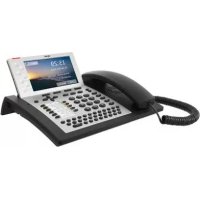
3130 - Phone TIPTEL - Free user manual and instructions
Find the device manual for free 3130 TIPTEL in PDF.


| Product type | VoIP desk phone with display and handset |
| Power supply | PoE (Power over Ethernet) via LAN connector; optional power adapter (ref. 3054051) on PWR jack |
| Main functions | Display, selection keys, programmable keys, speaker, directory, automatic callback, three-way conference, call transfer, hold, Do Not Disturb, keypad lock, autoprovisioning, web interface |
| Connectors | LAN (PoE), PC (integrated switch), AUX (KM 37 expansion module), USB (DECT dongle), headset (DHSG), handset |
| Configuration | Initial installation wizard, web interface (access admin/admin or user/user) |
| Maintenance and cleaning | Soft, damp cloth; do not use chemical or abrasive products |
| Safety | Do not install outdoors, damp rooms, explosive environments, temperatures <0°C or >40°C, dusty areas; use only original power adapter; disconnect during thunderstorms |
| Spare parts and repairability | Power adapter (ref. 3054051), KM 37 expansion module, DECT dongle, DHSG-compatible headset |
| General information | Warranty from dealer; CE compliant; recycling via collection points; partially GPL software (http://wiki.tiptel-info.de/en/) |
Frequently Asked Questions - 3130 TIPTEL
User questions about 3130 TIPTEL
0 question about this device. Answer the ones you know or ask your own.
Ask a new question about this device
Download the instructions for your Phone in PDF format for free! Find your manual 3130 - TIPTEL and take your electronic device back in hand. On this page are published all the documents necessary for the use of your device. 3130 by TIPTEL.
USER MANUAL 3130 TIPTEL
Assembling the Phone
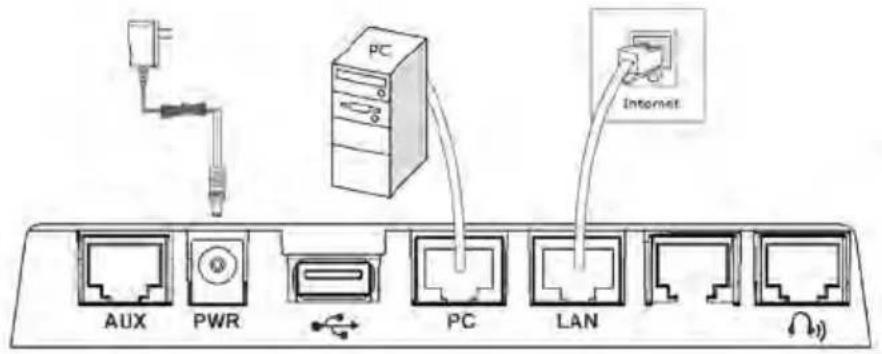
The "LAN" jack connects the phone with the network and serves as power source. If your network does not support "Power over Ethernet" (PoE) the phone needs to be connected to the "PWR" jack for power supply. For this you have to acquire an optional AC adapter (article-No. 3054051, not in the scope of supply).
With the integrated switch you can connect a computer on the "PC" jack to the phone. The jack "AUX" connects the optional keypad extension tiptel KM 37. The USB port can be connected to a DECT dongle and the headset port can be connected to an active headset which supports the DHSG interface.
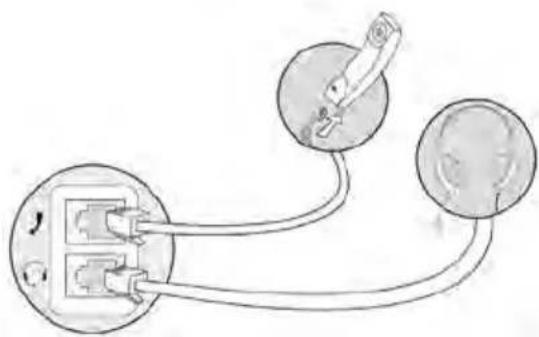
The handset as well as an optional passive headset can be connected to the jacks on the bottom of the phone.
Initial Configuration with the Installation Assistant
When the phone is switched on for the first time the installation assistant requests all the necessary settings for the operation of the phone.
Please select your preferred language from the select language list and store it.
If the phone recognizes a DHCP server in the network, it will automatically obtain an IP address. If your phone cannot contact a DHCP server for any reason, your installation assistant will configure the IP settings.
Please specify next whether the SIP account settings shall be entered manually or by the server with auto-provisioning. If you chose the server configuration you will be requested to enter the URL of the server and (if necessary) user name and password. In case of a manual configuration you can enter the data for the SIP account via the phone keys.
Note: If you decide to enter the account specifications via web configuration, you can select "Skip".
Configuration by Web Browser
Please press the key "Menu" and then select "Status" → "Information" or press the "OK" key when the phone is in idle state. Please enter the shown IP address in the address bar of your browser.
To access your configuration you need user name and password. In the default setting, they are admin/admin for the administrator (full access to all configurations) and user/user for the user access (limited access to configurations).
These user names and passwords can be changed in the web configuration.
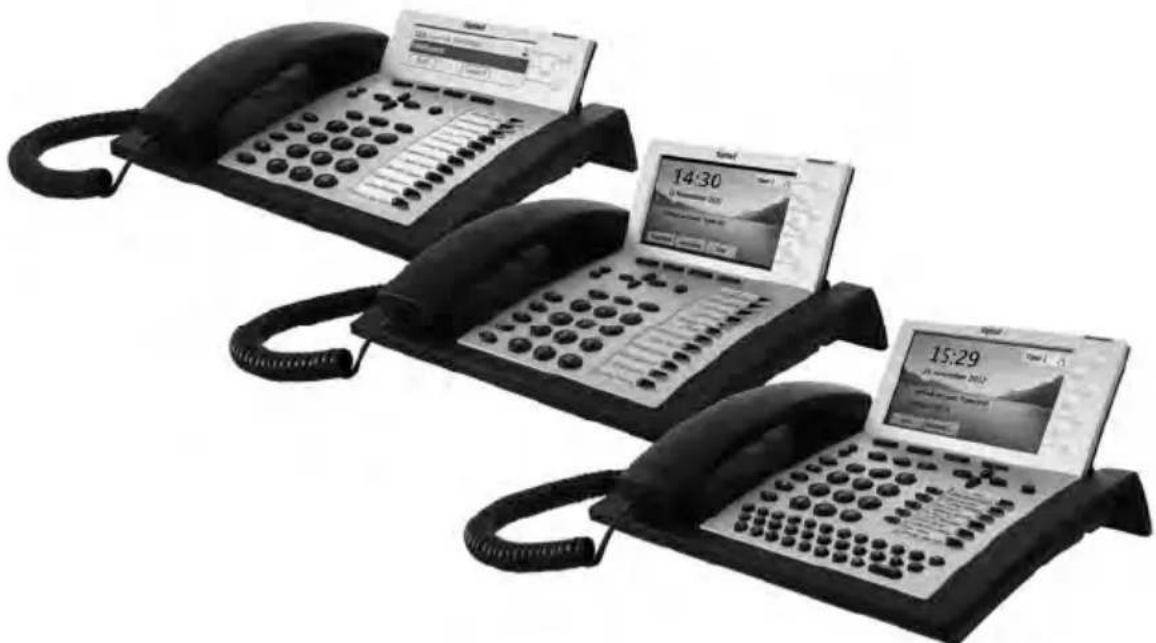
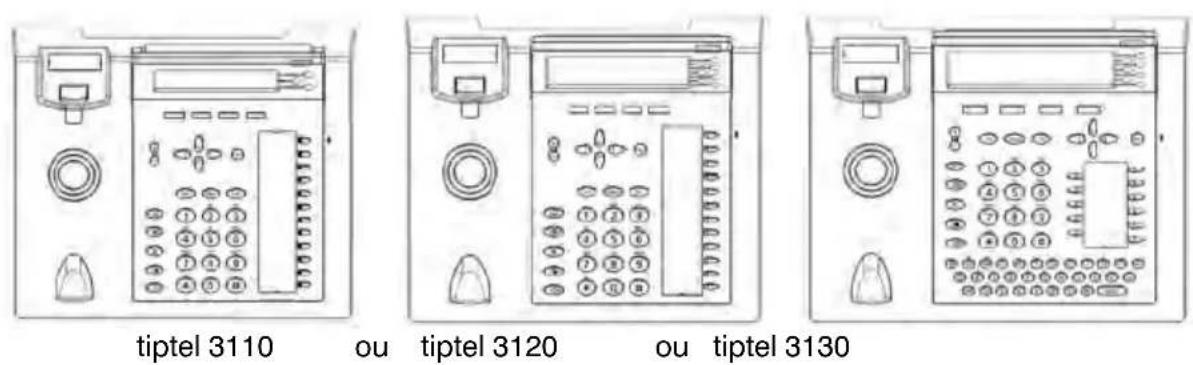
tiptel 3110
tiptel 3120
tiptel 3130
Key Functions
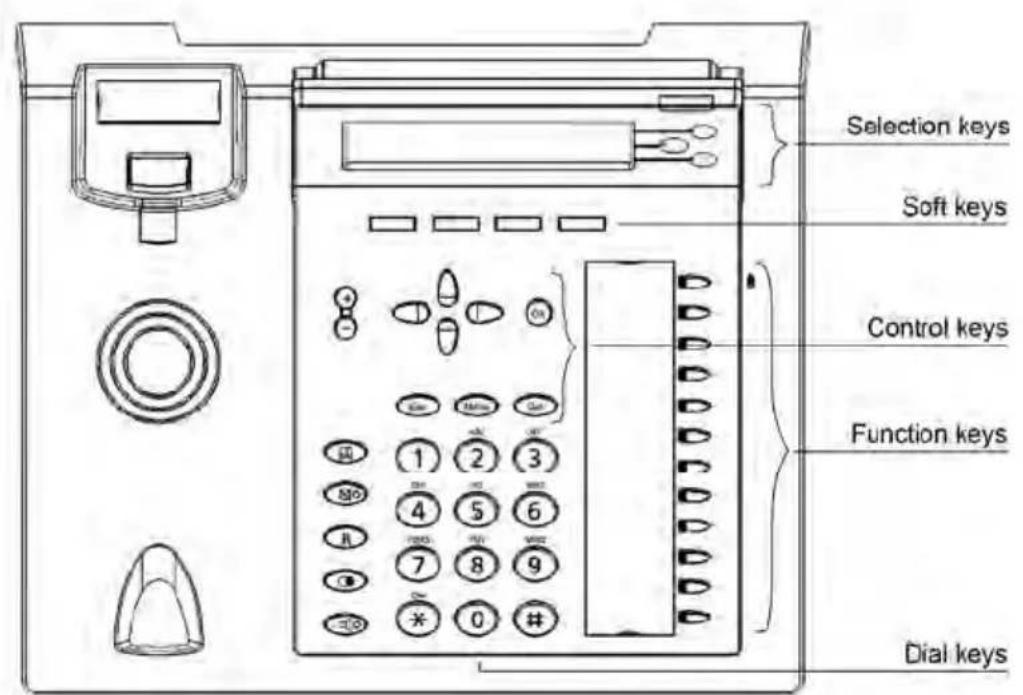
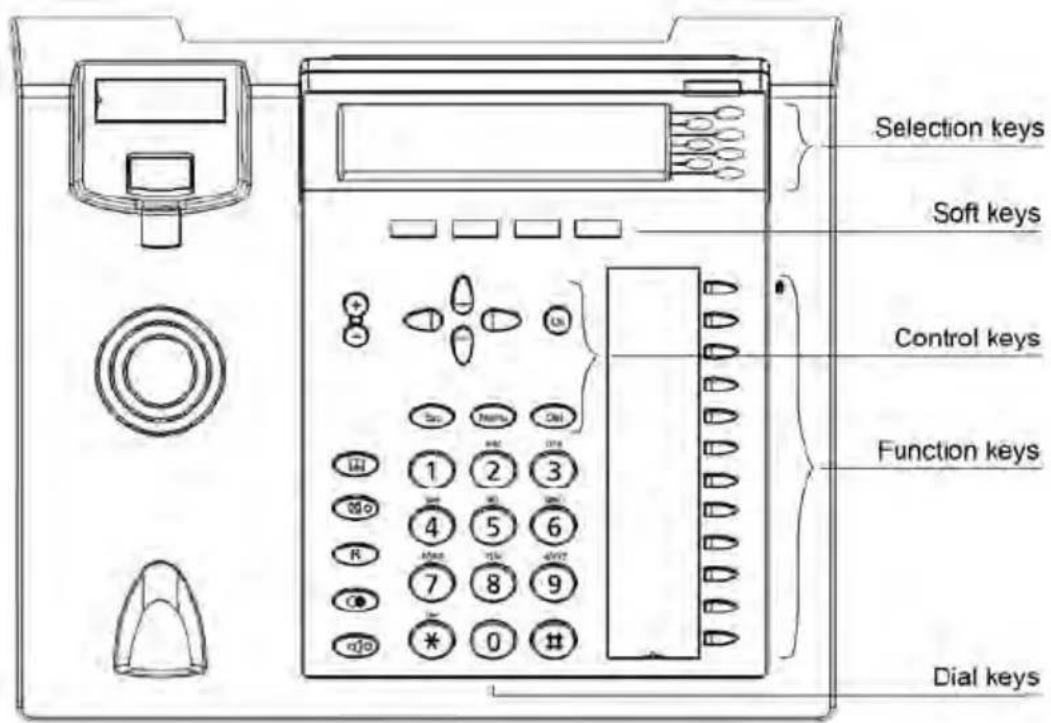
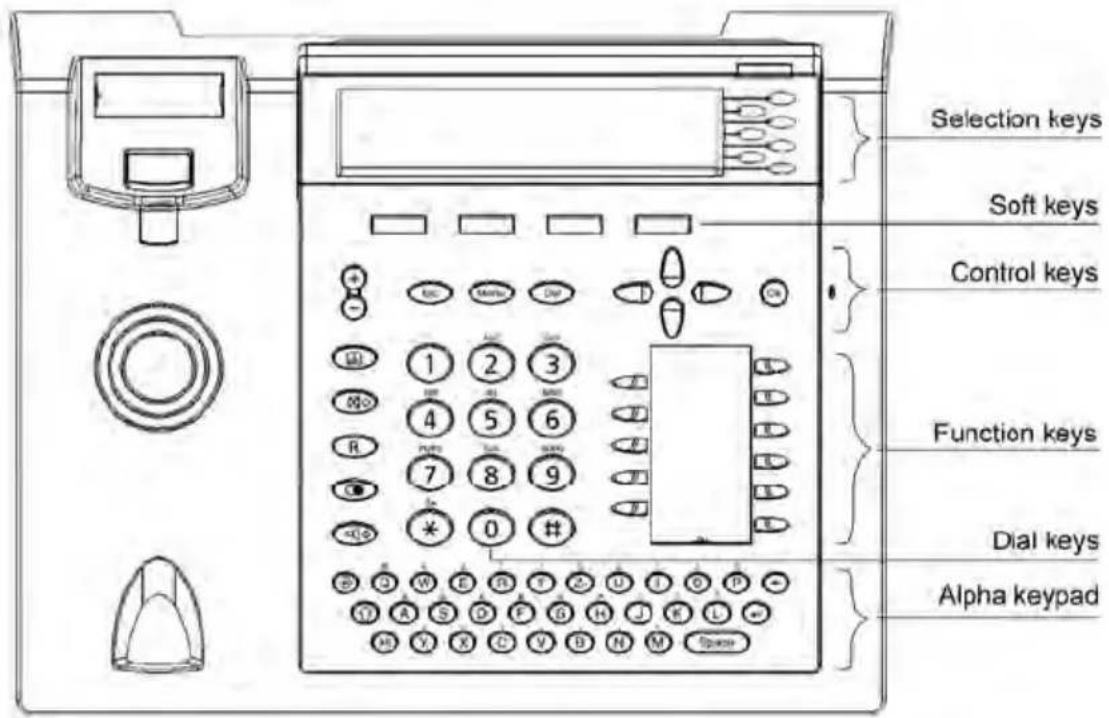
| Selection Keys: The “Selection Keys” are located on the right hand side of the display. The functions in idle state are defined by the web configuration “Keys/Line Keys”. You can switch between several busy lines during a call. When you are in a menu, these keys are used to select individual menu items. | |
| Soft Keys: These keys are beneath the display and provide context related functions. | |
| Control Key (left): Opens the call logs in idle state. Directs into the next higher menu level. Changes the position of the cursor in an input field. | |
| Control key (right): Opens menu for the voicemail retrieval in idle state. Directs into the next lower menu level. Changes the cursor position of the cursor in an input field. | |
| Control Keys (upward/downward): Serve for navigation and marking of desired functions or menu items. | |
| OK key: Selects the marked function or the menu item. Serves to verify new settings. Starts dialing a selected or entered number. Switches on the status display in idle state. By pressing the “OK” key for 5 seconds at least, the phone will be set back to the default setting. | |
| Esc | ESC: Terminates a current function, closes an open menu item and switches back to the initial status. Stops a new setting, the status remains unchanged. By pressing the key for 5 seconds at least the phone will be reset. |
| Menu | Menu: Opens and closes the setup menu. |
| Del | DEL: Deletes the characters to the left of the cursor. |
| + - | Plus/Minus: Adjust the contrast of the display in idle state. Regulate the volume in the talk state, regulate the curtain control in the menus. |
| # | Phone register: Opens the phone register. |
| ⊗ | Mute key: Activates the “do-not-disturb” function (in the DND mode calls will not be signaled). Turns the microphone on and off in the talk state. |
| R | R key: Places a call on hold or initiates a call. |
| O | Redialing: Opens the call list. By pressing the key twice the last called number will be dialed. |
| Loudspeaker: Connects with the speakerphone. During a phone call the loudspeaker respectively the speakerphone can be activated by replacing the headset. | |
| 3 sec. | Press asterisk key for three seconds: Activates and deactivates the key lock. |
| 0...9 | Dial keys: To type in numbers and to enter numbers or letters into the input field. |
| Function keys: Via web configuration you define the functionality of the function keys "Keys/Function keys". | |
Key Functions of the Alphanumeric Keyboard (only tiptel 3130)
| Enter key: Allows entering a new phone register contact. | |
| Shift: Changes (as long as the key is being pressed) to capital letters. | |
| Alt: Switches (as long as the key is being pressed) to the alternative characters on the keypad. | |
| Return: Makes a line break in the text enter mode. | |
| Backspace: Deletes the characters to the left of the cursor in input fields. | |
| Letters: Opens the phone book at the appropriate place. Serve for the input of names and texts. | |
| Space | Space key: Adds a space between characters. |
Basic Functions of the Phone
A detailed description of the phone's features you will find on the Internet at http://wiki.tiptel-info.de/en/.
Taking a Call
You can take a call by picking up the receiver or by pressing the speakerphone key, or the "OK" key or the soft key "Answer" or one of the function keys (if engaged with the function "Headset" to control a passive headset).
During a phone conversation additional calls (call waiting) can be taken up if the function "Call Waiting" has been activated in the web configuration. After the first signaling the phone switches to several calls in the display. The call waiting has been already selected and is signaled by the symbol "Bell". The call waiting can be taken, rejected or diverted. To take the call you can also press the "Select Key" next to the call waiting.
Making an Outgoing Call
Enter the number to be dialed by using the number keys and press the key "Phone Register". Then select an entry from the phone register or press the key "Redialing" and chose an entry from the call lists.
Then lift the handset and press the key "Speakerphone" or press the soft key "Answer" or press the "OK" key or press one of the function keys (if engaged with an account or the function "Headset" to control a passive headset).
Putting a Call on Hold
Press the soft key "Call Hold" or the R-key to put an active call on hold.
Enquiry Call
To place an enquiry call while having a phone conversation press the soft key "enquiry" or the "R-key". You can now use the digit keys to dial and the moment you have entered the phone number completely you can press the "dial" soft key which will initiate the enquiry call. As an alternative you may also use the function keys. By pressing the soft key "Connect" your previous conversation partner will be connected to the enquiry target..
If set up in the configuration, the phone can also connect calls by hanging up, respectively by pressing the hands-free key or the functio key, which has been assigned with the headset function.
Transfer
For transferring a call without placing an enquiry call first while having your call, press the soft key "Transfer" and the use the digit keys, the phone book, or the function keys (when phones number have been assigned) for direct transfer. Then the call will be transferred to the target number.
You can initiate a conference call between two lines on hold or one active line and one line on hold by means of the soft key "Conference".
Note: It is not possible to make a conference call with more than two lines. A call waiting can be taken during the conference. The conference participants will be set on hold.
You may not set-up and use this device in the following surroundings:
Outdoors
In damp or wet spaces (bath, shower, swimming pool, etc.)
In hazardous environments
In locations exposed to direct sunlight
O At ambient temperatures below 0^ or above 40^
In case of strong vibrations or shocks
In dusty environments
- Only use a soft, damp cloth to clean the device. Do not use chemicals or abrasive cleaners.
- During a thunder storm you should neither phone nor connect or disconnect any lines (electrical shock hazard in case of a lightning strike)
- Opening the device and conducting improper repairs may hazard the user.
- Disposal of this device must be carried out according to local regulations.
Please note that in case of mains outage emergency calls cannot be placed. - Only such devices may be connected to the phone, which deliver safety extra low voltage (SELV).
- Only headsets with integrated volume limiter for hearing protection according to EN 60950 may be used.
- Make sure that the connecting lines are installed carefully so that no one can trip over the cable. Connected cables must not be bent excessively or subjected to mechanical strain.
- Connecting cables must be wired inside buildings only (Danger of electrical shock due to transients).
In case of malfunctions disconnect power cord and all communication lines. - Before opening the device, unplug any communication lines.
In case of operating the device with external AC adapter:
- Only the original AC adapter (Article-No. 3054051) may be used (Danger of electrical shock and/or fire)
The AC adapter must be easily accessible so that it can be removed from the wall outlet any time in case of danger.
In case of malfunction remove the AC adapter from the wall outlet and disconnect any communication lines. - Before opening the device remove the AC adapter from the wall outlet and disconnect any communication lines.
The device, AC adapter (Article-No. 3054051) inclusive, has been developed and manufactured in compliance with Standard EN 60950 "Safety of information technology equipment". - Any changes or modifications not expressly approved by the manufacturer can void the user's authority to operate the equipment.
This equipment has been tested and found to comply with the limits for a Class B digital device, pursuant to part 15 of the FCC Rules. These limits are designed to provide reasonable protection against harmful interference in a residential installation. This equipment generates, uses and can radiate radio frequency energy and, if not installed and used in accordance with the instructions, may cause harmful interference to radio communications. However, there is no guarantee that interference will not occur in a particular installation. If this equipment does cause harmful interference to radio or television reception, which can be determined by turning the equipment off and on, the user is encouraged to try to correct the interference by one or more of the following measures:
- Reorient or relocate the receiving antenna.
- Increase the separation between the equipment and receiver.
- Connect the equipment into an outlet on a circuit different from that to which the receiver is connected.
- Consult the dealer or an experienced radio/TV technician for help.
GNU General Public License
The firmware of this device includes some source code that may be used and modified by anyone and everyone under the GNU Public License (GPL), provided they, in turn, make it available to everyone else with the same licensing agreement. Please go to http://wiki.tiptel-info.de/en/ for the original GPL license and the source code of components licensed under GPL.
Warranty
Your point of contact for warranty obligation benefits is the specialist retailer where you acquired your device.
Warranty conditions are based upon the legal regulations of the country in which the device was purchased. Your specialist retailer will be glad to provide more information.
Guarantee
Tiptel provides a voluntary guarantee on the device, the conditions of which are published on http://www.tiptel.com. The guarantee conditions applicable at the time of purchase apply. The original sales slip (receipt, bill) with serial number and/or IMEI number is used as proof of purchase. Please keep these documents in a safe place.
Declaration of conformity
This device satisfies the requirements of the EU directive on radio and telecommunication terminal equipment and the mutual recognition of their conformity. The CE mark on the device confirms conformity with the above directive.
We hereby declare that the device satisfies all fundamental requirements of European directives 1999/5/EC and 2002/95/EC. For details on the declaration of conformity please visit http://www.tiptel.com.
Disposal
Packaging Dispos of card and cardboard boxes in the used paper container and throw plastic parts into a recycling container.
Device disposal: Used electrical devices may not be disposed of in the household waste. Dispose of the device at your local collection points (scrap or recycling yards). Please contact your local authorities for information on disposal sites.
(Rechargeable) batteries: (Rechargeable) batteries may not be disposed of in the household waste. As a consumer, you have a legal obligation to return (rechargeable) batteries. Please contact your local authorities, or the specialist retailer from where you purchased the device, for information on disposal sites.
Guide abrégé (fr)
tiptel 3110
tiptel 3120
tiptel 3130
tiptel
Contenu de la boîte
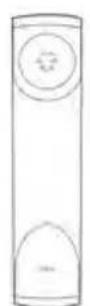
Combé
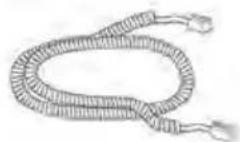
Cable du combiné