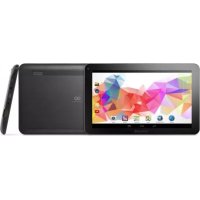
Quantum 700N - Tablet GOCLEVER - Free user manual and instructions
Find the device manual for free Quantum 700N GOCLEVER in PDF.

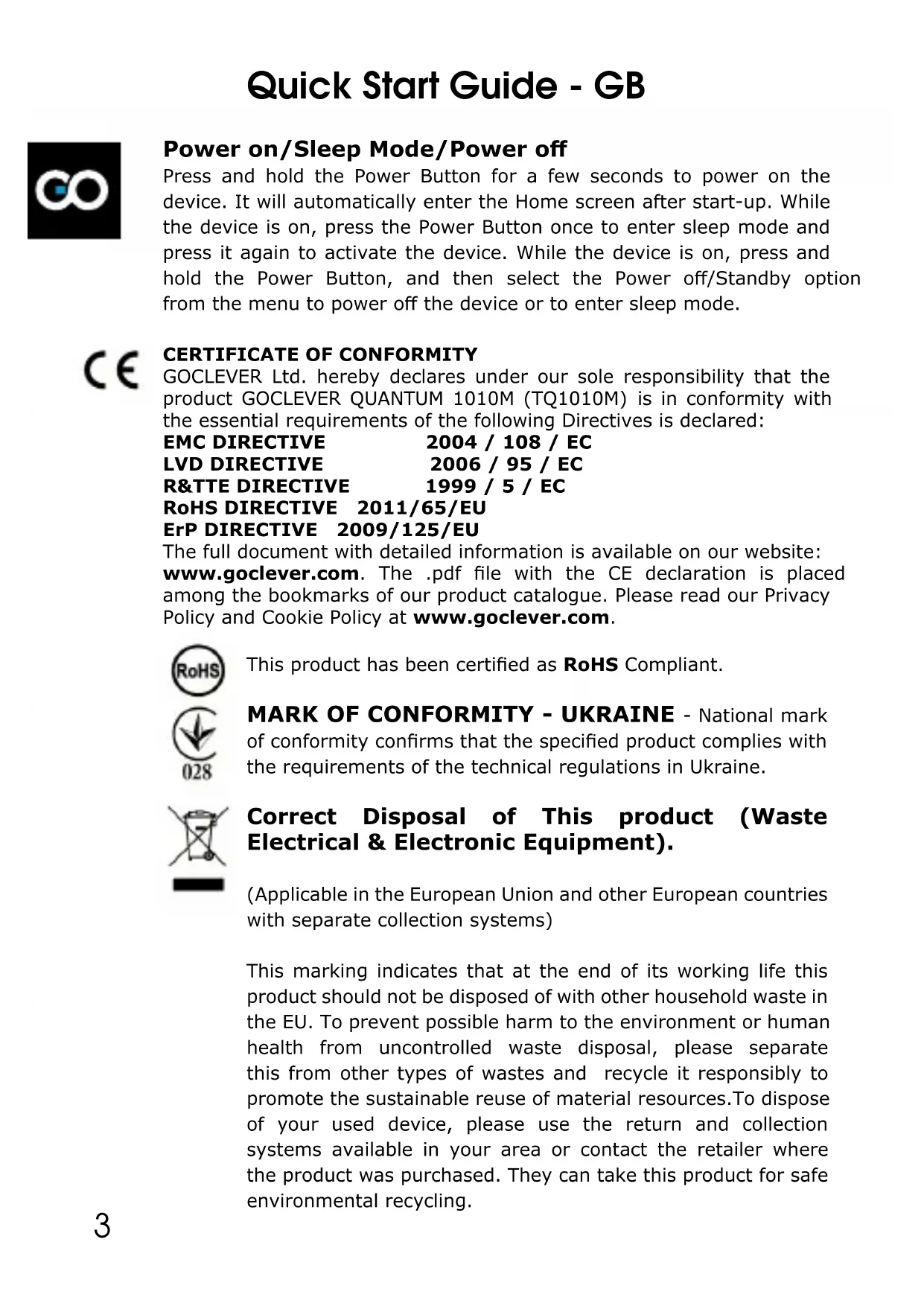


| Product type | Tablet |
| Brand | GoClever |
| Model | Quantum 700N |
| Screen | 7 inches (diagonal) |
| Screen resolution | 1024 x 600 pixels |
| Processor | Quad-core 1.2 GHz |
| RAM | 1 GB |
| Internal storage | 8 GB (expandable via microSD) |
| Battery | Lithium-ion 3000 mAh |
| Battery life | Up to 6 hours |
| Connectivity | Wi-Fi 802.11 b/g/n, Bluetooth |
| Ports | Micro USB, 3.5 mm headphone jack |
| Operating system | Android |
| Front camera | 0.3 MP |
| Rear camera | 2.0 MP |
| Sensors | Accelerometer |
| Dimensions | Approximately 190 x 110 x 10 mm |
| Weight | Approximately 320 g |
| Power supply | 5V/2A power adapter |
| Main functions | Web browsing, multimedia playback, Android apps |
| Care and cleaning | Clean with a soft dry cloth |
| Safety | Use only approved accessories |
| Spare parts and reparability | Contact customer service via www.goclever.com |
Frequently Asked Questions - Quantum 700N GOCLEVER
User questions about Quantum 700N GOCLEVER
0 question about this device. Answer the ones you know or ask your own.
Ask a new question about this device
Download the instructions for your Tablet in PDF format for free! Find your manual Quantum 700N - GOCLEVER and take your electronic device back in hand. On this page are published all the documents necessary for the use of your device. Quantum 700N by GOCLEVER.
USER MANUAL Quantum 700N GOCLEVER
natural_image
Abstract logo design with a blue square inside an infinity symbol (no text or symbols)GOCLEVER
INFINITE INVENTION
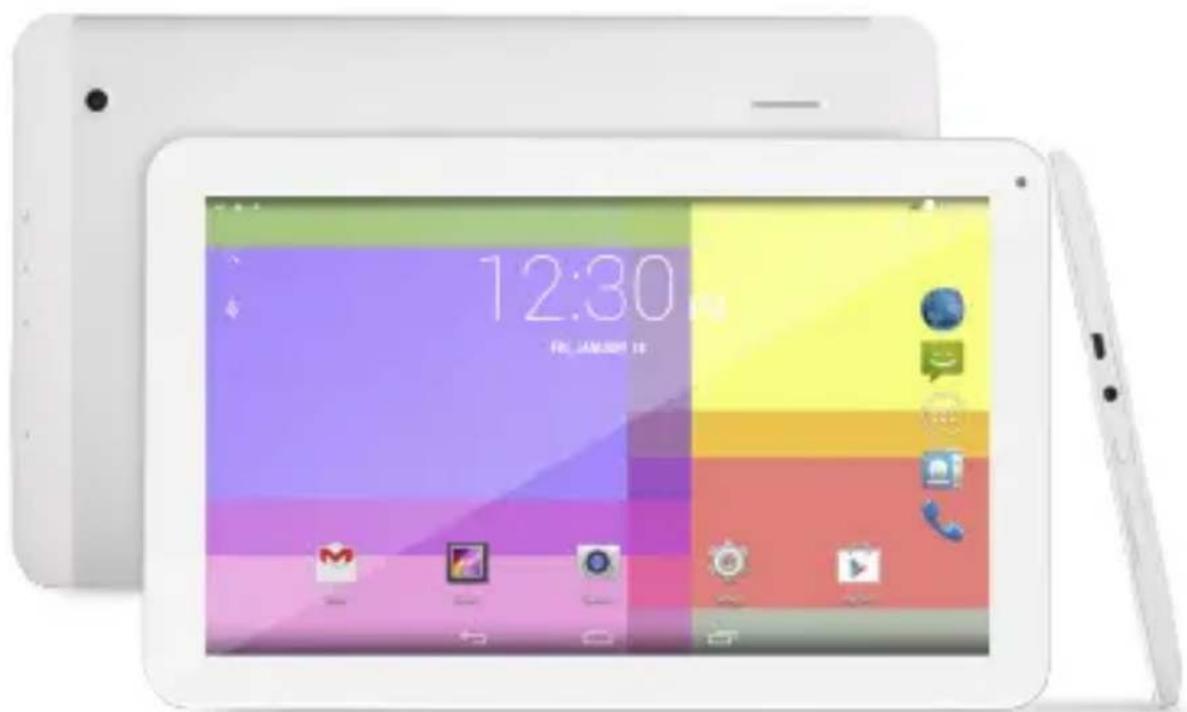
QUANTUM 1010M
natural_image
White tablet with colorful app icons displayed on its screen, showing time and date (no readable text or symbols beyond device branding)QUICK START QUIDE
Quick Start Guide

2 | English | GB
7 Polish | PL
14 Bulgarian BG
19 | Croatian | HR
24 | Czech | CZ
29 | Estonian | EST
34 | French | FR
39 | German | DE
46 | Greek | GR
51 Hungarian | HU
56 | Italian | IT
61 | Latvian | LV
66 Lithuanian | LT
71 | Portuguese | PT
76 | Romanian | RO
82 | Russian | RU
87 | Serbian | SRB
92 | Slovak | SK
97 | Slovenian | SI
102 Spanish | ES
107 Ukrainian | UA
114 Service center information
Quick Start Guide - GB
BRAND NAME: QUANTUM 1010M
MODEL NUMBER : TQ1010M
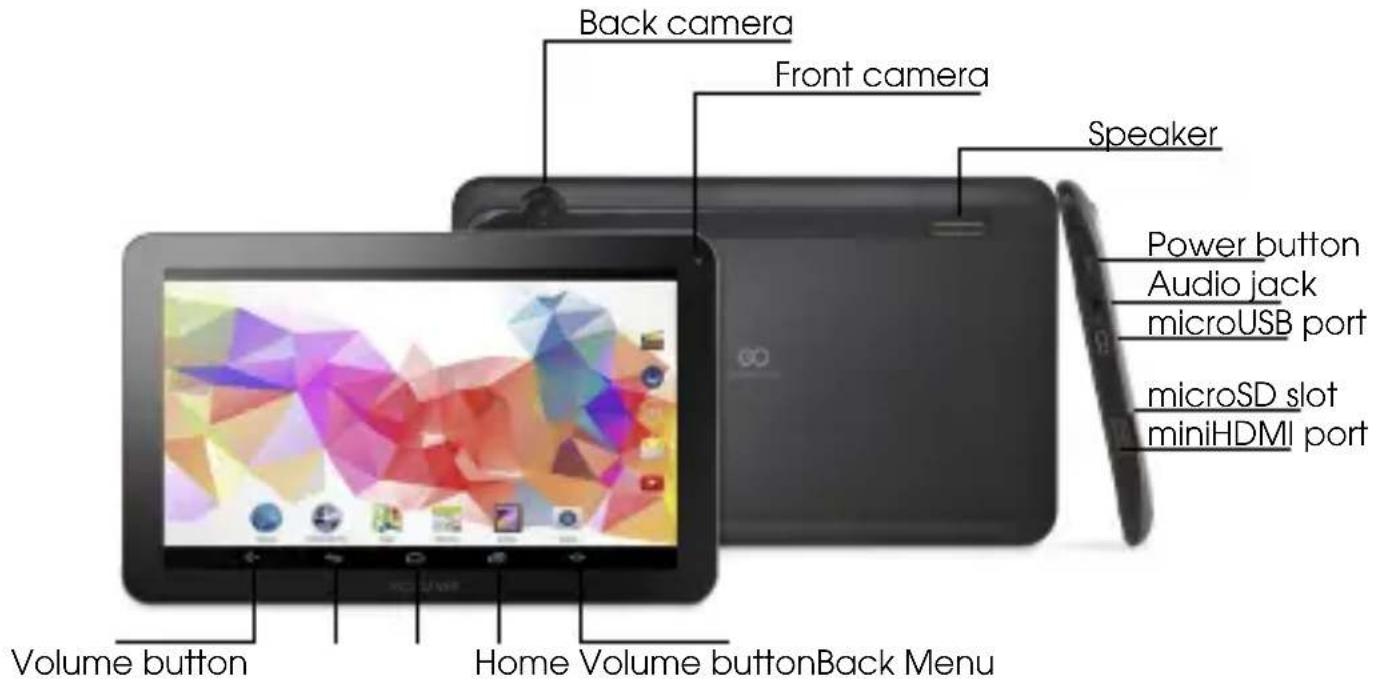
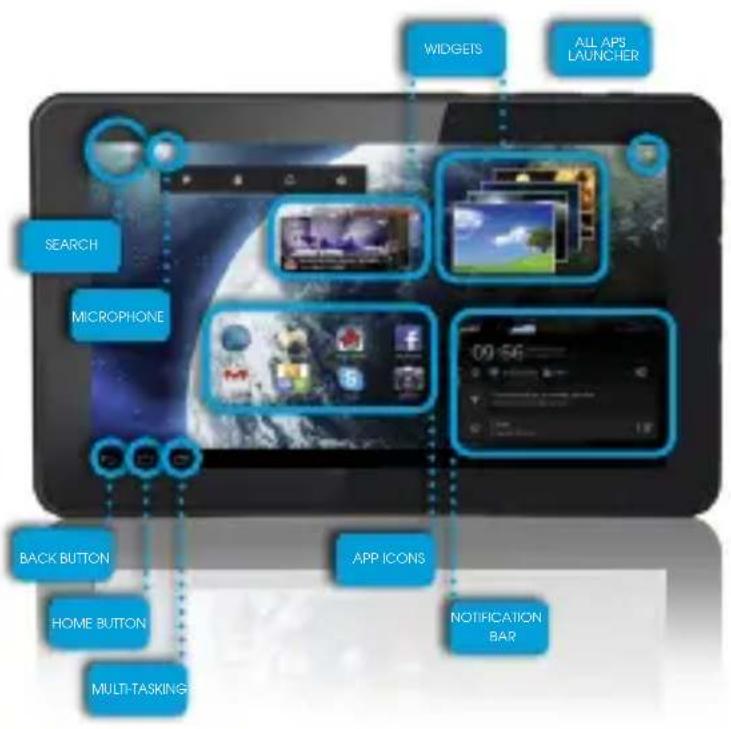
DEVICE OVERVIEW:
BACK BUTTON – tap to go back to the previous screen
HOME BUTTON - tap to return to your Home Screen
MULTI-TASKING - tap to view the recent apps list; tap to open an app, or swipe to close it
ALL APPS LAUNCHER – tap to view all your apps and widgets
SEARCH – tap to open an online search engine
MICROPHONE – tap to search using speech recognition
APP ICONS - tap to open the selected application

SETTING MENU - tap to view all available options
NOTIFICATION BAR - tap and swipe the top left of your screen to view the notification bar, informing you of updates, emails etc. Tap and swipe the top right of your screen to view the battery, Wi-Fi status etc.
WIDGETS - tap the 'All apps' button, then select Widgets. These are small 'apps' that run on your home screen for instance showing live weather, photo gallery, new emails, youtube videos.
PERSONALISE - to change your wallpaper to a pre-loaded or down-loaded wallpaper or a photo you've taken. Tap some blank space on your home screen and follow the on-screen instructions.
flowchart
graph TD
    A["SEARCH"] --> B["MICROPHONE"]
    B --> C["BACK BUTTON"]
    C --> D["HOME BUTTON"]
    D --> E["MULTI-TASKING"]
    F["APP ICONS"] --> G["NOTIFICATION BAR"]
    H[" All APS LAUNCHER "] --> I[" WIDGETS "]
    I --> A
Quick Start Guide - GB

Power on/Sleep Mode/Power off
Press and hold the Power Button for a few seconds to power on the device. It will automatically enter the Home screen after start-up. While the device is on, press the Power Button once to enter sleep mode and press it again to activate the device. While the device is on, press and hold the Power Button, and then select the Power off/Standby option from the menu to power off the device or to enter sleep mode.
CERTIFICATE OF CONFORMITY
GOCLEVER Ltd. hereby declares under our sole responsibility that the product GOCLEVER QUANTUM 1010M (TQ1010M) is in conformity with the essential requirements of the following Directives is declared:
EMC DIRECTIVE 2004 / 108 / EC
LVD DIRECTIVE 2006 / 95 / EC
R&TTE DIRECTIVE 1999 / 5 / EC
RoHS DIRECTIVE 2011/65/EU
ErP DIRECTIVE 2009/125/EU
The full document with detailed information is available on our website: www.goclever.com. The .pdf file with the CE declaration is placed among the bookmarks of our product catalogue. Please read our Privacy Policy and Cookie Policy at www.goclever.com.

This product has been certified as RoHS Compliant.

MARK OF CONFORMITY - UKRAINE - National mark of conformity confirms that the specified product complies with the requirements of the technical regulations in Ukraine.
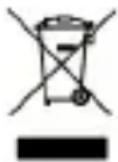
Correct Disposal of This product (Waste Electrical & Electronic Equipment).
(Applicable in the European Union and other European countries with separate collection systems)
This marking indicates that at the end of its working life this product should not be disposed of with other household waste in the EU. To prevent possible harm to the environment or human health from uncontrolled waste disposal, please separate this from other types of wastes and recycle it responsibly to promote the sustainable reuse of material resources. To dispose of your used device, please use the return and collection systems available in your area or contact the retailer where the product was purchased. They can take this product for safe environmental recycling.
Quick Start Guide - GB
Disposal of waste batteries (applicable in the European Union and other European countries with separate collection systems)
The symbol may appear on the battery or on the packaging to indicate that the battery provided with this product shall not be treated as household waste. On certain batteries this symbol might be used in combination with a chemical symbol. The chemical symbols for mercury (Hg) or lead (Pb) are added if the battery contains more than 0.0005% mercury or 0.004% lead. By ensuring these batteries are disposed of correctly, you will help prevent potentially negative consequences for the environment and human health which could otherwise be caused by inappropriate waste handling of the battery. The recycling of the materials will help to conserve natural resources. In case of products that for safety, performance or data integrity reasons require a permanent connection with an incorporated battery, this battery should be replaced by qualified service staff only. To ensure that the battery will be treated properly, hand over the product at end-of-life to the applicable collection point for the recycling of electrical and electronic equipment. Hand the battery over to the applicable collection point for the recycling of waste batteries. For more detailed information about recycling of this product or battery, please contact your local government Office, your household waste disposal service or the shop where you purchased the product.
CONDITIONS OF WI-FI USAGE
When using the IEEE 802.11b/g/n Wireless LAN standard, channels 1 to 13 (2.4 GHz...2.4835 GHz) are selectable for both indoor and outdoor use, however with restrictive conditions applying in France, Italy and Norway, as follows: France: When using this product indoors, all channels can be used without restrictions. Outdoors only channels 1 to 6 are allowed. This means that in Peer-to-Peer mode, the WLAN feature can only be used outside if the peer sets up the communication on an authorized channel (i.e., between 1 & 6).
Please make sure the access point is configured properly to a channel ranging from 1 to 6 before setting up the connection.
Italy: Use of the RLAN network is governed: Disposal of Old Electrical & Electronic - with respect to private use, by the Legislative Decree of 1.8.2003, no. 259 ("Code of Electronic Communications"). In particular Article 104 indicates when the prior obtainment of a general authorization is required and Art. 105 indicates when free use is permitted - with respect



Quick Start Guide - GB

to the supply to the public of the WLAN access to telecom networks and services, by the Ministerial Decree 28.5.2003, as amended, and Art. 25 (general authorization for electronic communications networks and services) of the Code of electronic communications.
Norway: Use of this equipment is not allowed within 20 km of the center of Ny-Ålesund, Svalbard.
REGISTER A PRODUCT
Register your GOCLEVER product to get more!
Thank you for choosing GOCLEVER! We want you to enjoy your purchase to the fullest. So that You can enjoy Your purchase to the fullest please register Your device. Registration will take you a few minutes. Go to www.goclever.com and get more! Do not miss the chance to enjoy these benefits:
- 12 months of door-to-door warranty (for selected countries and products),
- Handy tips and rapid technical support,
- Reminders about firmware updates that will keep your product up to date
- Exclusive previews of new products,
- Special offers and promotions – up to 30% discount (for selected countries and products),
- Free map updates (for selected countries and products).
TECHNICAL SUPPORT
WEBSITE: www.goclever.com/support
- USER GUIDES (have a look on online user's manual, download and share with).
- SOFTWARE AND UPDATE MANUALS (be up to date with the latest OS software or use the backup files to solve your software problems).
- FREQUENTLY ASKED QUESTIONS
- SERVICE CENTRE LOCATIONS (we recommend to use GOCLEVER Central Service and local partner services directly than make a complaint or technical inquiries to stores).
- WARRANTY INFORMATION (your GOCLEVER TAB includes 24 month guarantee. The optional for selected countries is 12 month "door2door" guarantee. See our website for details).
- SERVICE PROCEDURE
- RMA APPLICATION (depends on country).
Quick Start Guide - GB
The full manual is available at www.goclever.com

WARRANTY CARD
DATE OF SALE: :
DATE OF MANUFACTURE:
PRODUCT NAME:
SERIAL NUMBER:
| DEALER'S NAME / STAMP | SIGNATURE |
Date and customer's signature
Repairs history
| Date | Confirmed defect | Made repairs | Servive sign and stamp |
Quick Start Guide - PL
NAZWA HANDLOWA : QUANTUM 1010M
NUMER PRODUKTU : TQ1010M
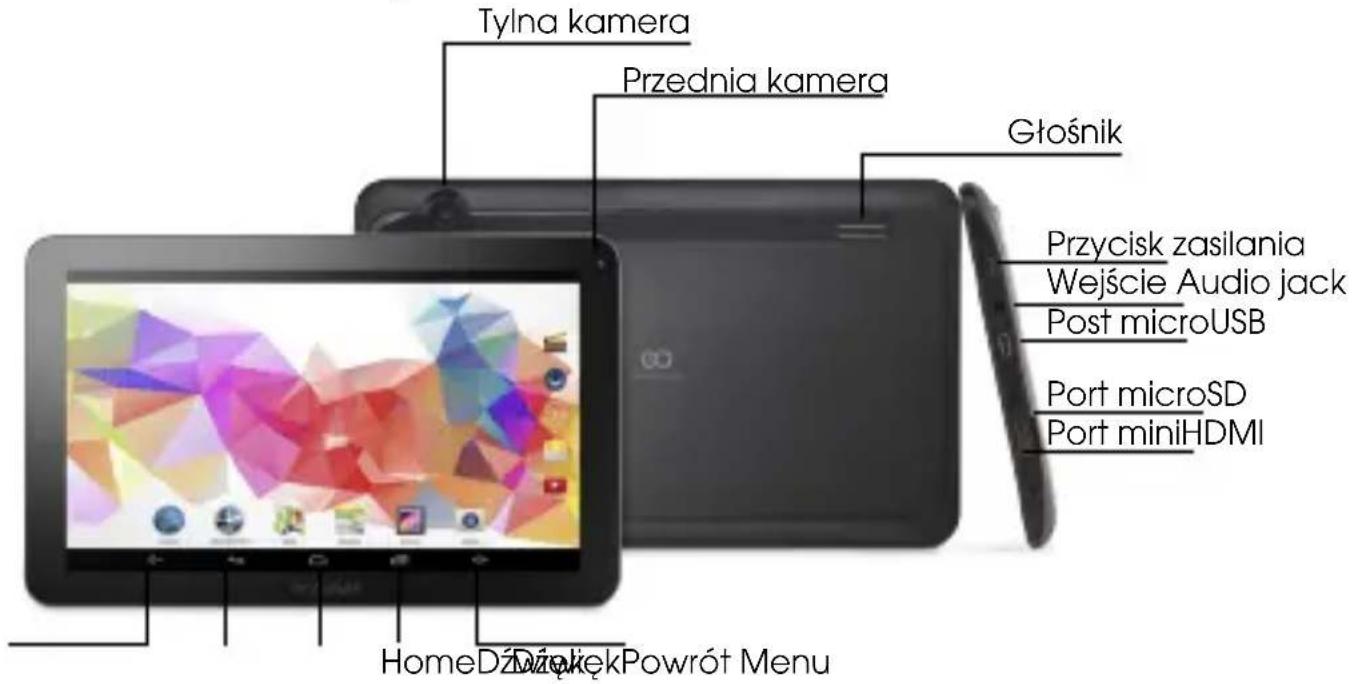
PULPIT WSZYSTKICH APLIKACJI (ALL APPS
STRONA: www.goclever.com/support
САЙТ: www.goclever.com/support
STRANICA: www.goclever.com/support
- KORISNIČKI PRIRUČNIK (pogledajte Vodič za brzi početak, preuz majte datoteka te ih podijelite).
- SOFTVER I AŽURIRANJE UPUTSTVA (budite u tijeku s najnovijim softverom, iskoristite sigurnosnu kopiju datoteke, da se brzo riješi softverski problem).
- ČESTO POSTAVLJANA PITANJA(tehnička pitanja i svi odgovori po temi).
- LOKALITETI SERVISA (preporučujemo ovlaštene servise GOCLEVER, kako bi ubrzati Vaš zahtjev).
- INFORMACIJE O JAMSTVU (obezbjeđujemo 24-mesečno jamstvo proizvođaća. Za izabrane zemlje nudimo godišnji sustav "od vrata do vrata". Detalji se mogu naći na našoj web stranici.
- POSTUPCI ZA USLUGE (pročitajte prije nego što se uređaj servisira).
- OBRAZAC PRIJAVLJIVANJA REKLAMACIJE (za izabrane zemlje).

Quick Start Guide - HR

JAMSTVENA KARTICA
DATUM PRODAJE:
DATUM PROIZVODNJE: ....
NAZIV PROIZVODA:
SERIJSKI BROJ:
PODMÍNKY POUŽÍVÁNÍ WI-FI
www.goclever.com/support
- KASUTUSJUHENDID (online ja allalaaditavad).
PRESENTATION DU PRODUIT
BOUTONS DE NAVIGATION
SITE: www.goclever.com/support
www.goclever.com/support
WWW oldal: www.goclever.com/support
SITO WEB: http://www.goclever.com/it/it/pages/Service_Center_Locations.html
www.goclever.com/support
www.goclever.com/support
PÁGINA: www.goclever.com/support
WEBSITE: www.goclever.com/support
natural_image
Abstract black and white graphic symbol resembling the number 'GO' or infinity sign (no text or symbols present)GOCLEVER
INFINITE INVENTION
Quick Start Guide - RO

CERTIFICAT DE GARANTIE
DATA VANZARII:
DATA PRODUCTIEI:
NUME PRODUS:
NUMAR SERIAL:
| NUME DEALER /STAMPILA | SEMNATURA |
SAJT: www.goclever.com/support
- KORISNIČKI VODIĆ (pregledajte skračeno uputstvo za rukovanje, preuzmite fajlove i podelite ih).
- SOFTVER I UPUTSTVA ZA UPDATOVANJE (budite u toku sa najnovijim softverom, iskoristite rezervne kopije datoteke, da se brzo reši softverski problem).
- NAJČEŠĆA PITANJA (tehnička pitanja i odgovori na bilo koju temu).
- LAKACIJA SERVISA (preporučujemo ovlašćeni servis GOCLEVER, da se ubrza Vaš zahtev).
- INFORMACIJE O GARANCIJI (obezbeđujemo 24-mesečnu garanciju proizvođaća. Za odabrane zemlje nudimo godišnji sistem "od vrata do vrata". Detalji se mogu naći na našem sajtu).
- SERVISNE PROCEDURE (pročitajte pre nego što predate uređaj na servis).
- OBRAZAC PRIJAVE REKLAMACIJE (za odabrane zemlje).

Quick Start Guide - SRB

GARANCIJSKA KNIŽICA
DATUM PRODAJE: ....
DATUM PROIZVODNJE: ....
NAZIV PROIZVODA:
SERIJSKI BROJ: ....
NOTRANJE: www.goclever.com/support
PÁGINA: www.goclever.com/support
www.goclever.com/support
Service Center information

GB: Service center available at www.goclever.com