
W757 - Smartphone HAIER - Free user manual and instructions
Find the device manual for free W757 HAIER in PDF.
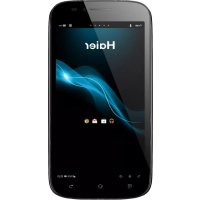


| Product type | Smartphone |
| Brand | Haier |
| Model | W757 |
| Operating system | Android 4.2 (Jelly Bean) |
| Processor | Dual-core 1.3 GHz |
| Internal memory (eMMC) | 4 GB |
| RAM | 512 MB |
| Available user memory | 1.32 GB |
| Display | Capacitive touch |
| Network | Dual SIM (GSM/WCDMA) |
| Connectivity | Wi-Fi, Bluetooth |
| Connector | microUSB, 3.5 mm headphone jack |
| Rear camera | Yes |
| Front camera | Yes |
| Battery | Removable rechargeable |
| External storage | microSD card |
| Sensors | Accelerometer, proximity (estimated) |
| SAR (head) | 0.382 W/kg (GSM), 0.391 W/kg (WCDMA) |
| SAR (body) | 0.391 W/kg (GSM), 0.664 W/kg (WCDMA) |
| Operating temperature | 0 °C to 40 °C |
| Safety instructions | Do not disassemble, avoid humidity, use original accessories |
Frequently Asked Questions - W757 HAIER
User questions about W757 HAIER
0 question about this device. Answer the ones you know or ask your own.
Ask a new question about this device
Download the instructions for your Smartphone in PDF format for free! Find your manual W757 - HAIER and take your electronic device back in hand. On this page are published all the documents necessary for the use of your device. W757 by HAIER.
USER MANUAL W757 HAIER
Lock & Unlock screen
Lock the screen
Precautions
 | Please carefully read and observe the terms below: Safe power on.Do not use your mobile phone where it is forbidden to use or you might cause a disturbance or danger. |
 | Safe transportation first Please observe all related local laws and regulations. Do not use your mobile phone while driving. Safe transportation should be considered first when |
 | Turn off when in the hospital Please follow related limitations.Please switch your mobile phone off when near a medical instrument. |
 | Turn off on an airplanePlease follow related limitations.Do not use your mobile phone on an airplane. |
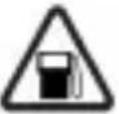 | Turn off when at a gasoline station.Do not use your mobile phone at a filling station or around fuels or chemicals. |
 | Turn off around exposure Area.Please observe related limitations and do not use your mobile phone near an area where explosions can occur. |
 | Backup.Remember to make a backup or keep a written record of all important information saved in your mobile phone. |
 | Use qualified after sales service.Only a qualified technician can install or repair your mobile phone. Please contact the authorized service center in case of phone failure. |
 | Accessories and batteries.Only use the authorized accessories and batteries and do not connect to incompatible manufacturers or products. |
Your phone
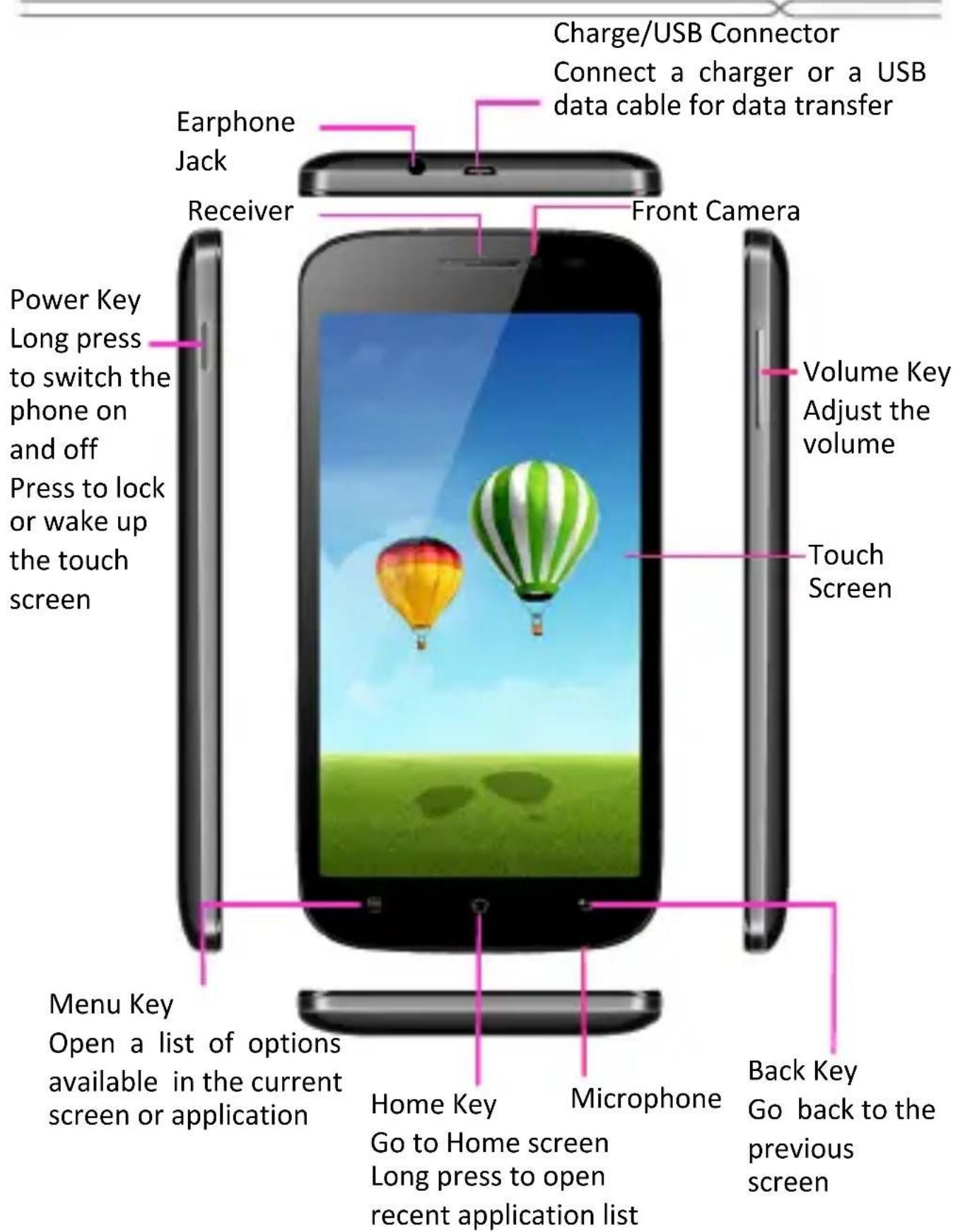
Your phone
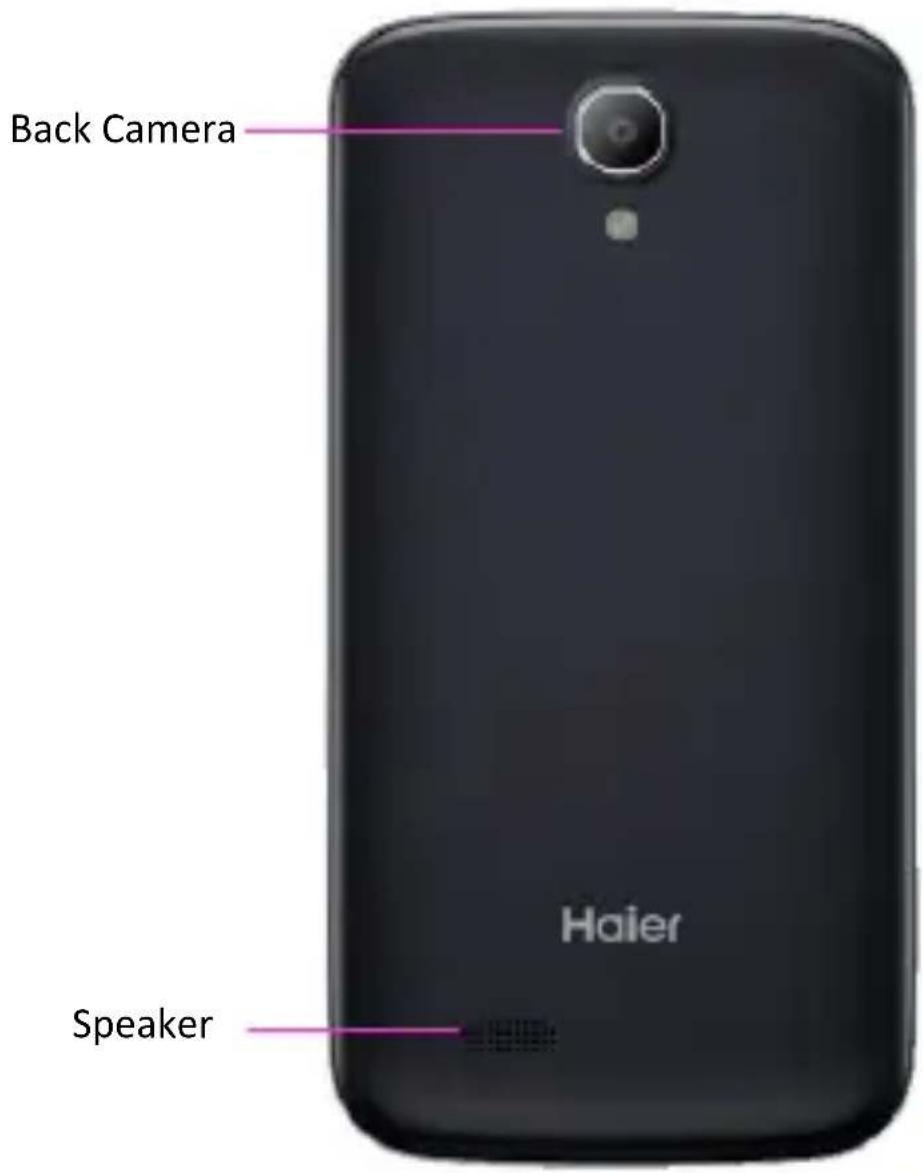
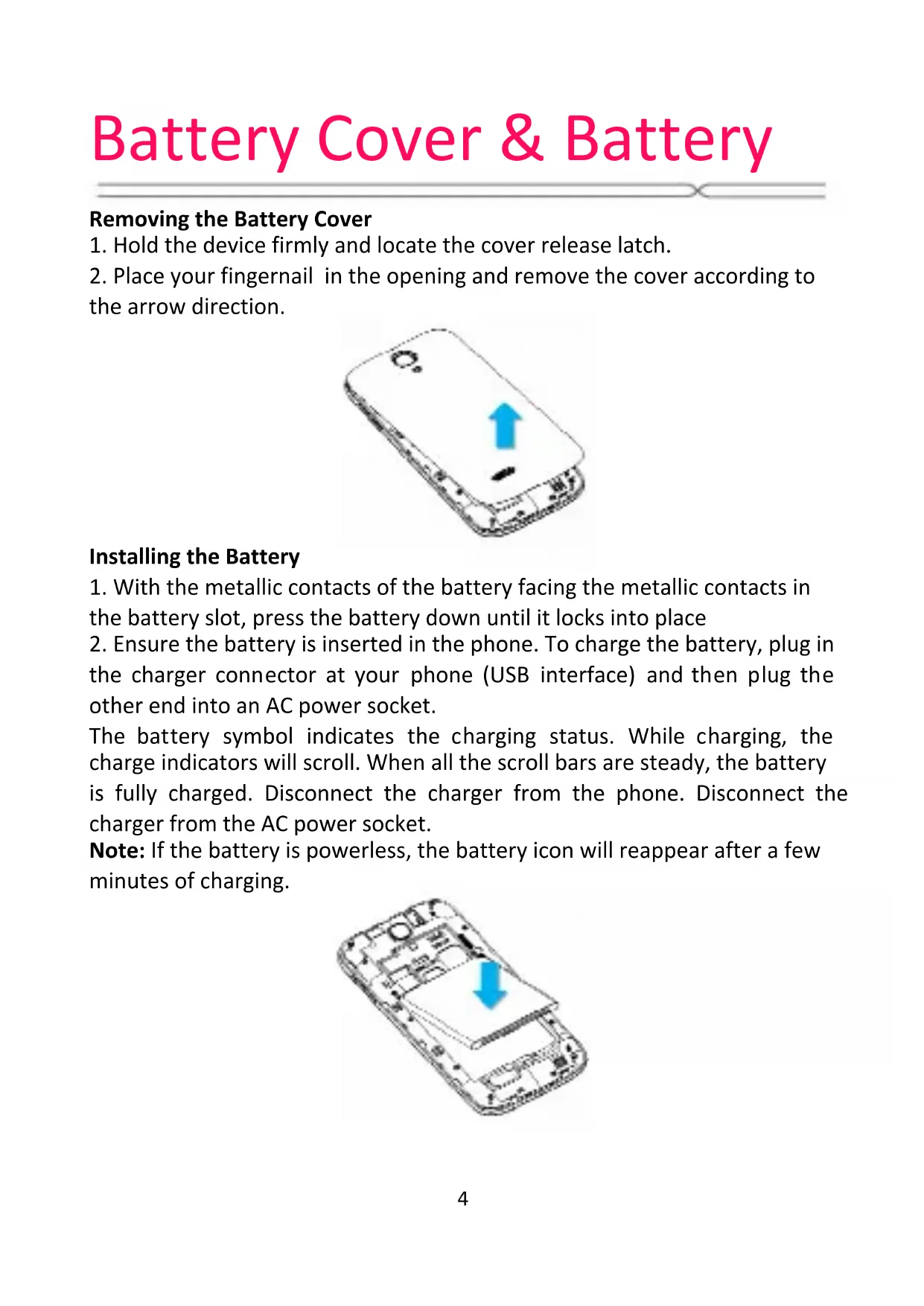
Battery Cover & Battery
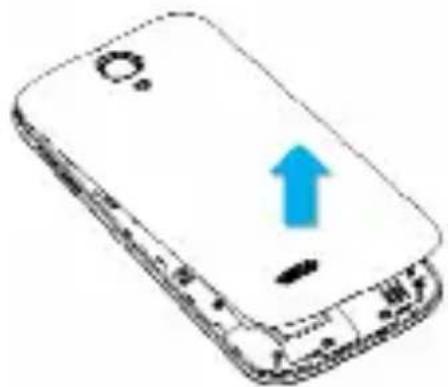
Removing the Battery Cover
- Hold the device firmly and locate the cover release latch.
- Place your fingernail in the opening and remove the cover according to the arrow direction.
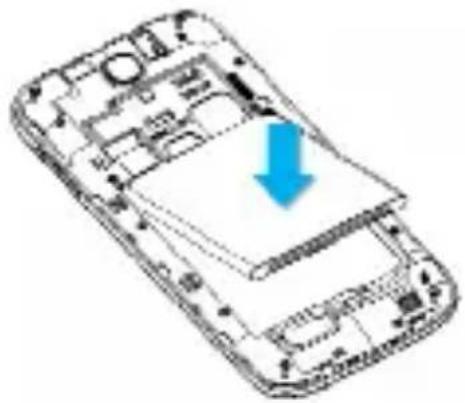
Installing the Battery
- With the metallic contacts of the battery facing the metallic contacts in the battery slot, press the battery down until it locks into place.
- Ensure the battery is inserted in the phone. To charge the battery, plug in the charger connector at your phone (USB interface) and then plug the other end into an AC power socket.
The battery symbol indicates the charging status. While charging, the charge indicators will scroll. When all the scroll bars are steady, the battery is fully charged. Disconnect the charger from the phone. Disconnect the charger from the AC power socket.
Note: If the battery is powerless, the battery icon will reappear after a few minutes of charging.
SIM Card & microSD
Installing the SIM Card
Make sure that the clipped corner of the SIM card is facing the correct direction and the metallic contacts are facing the correct direction. Slide the SIM card into the card slot until it stops.
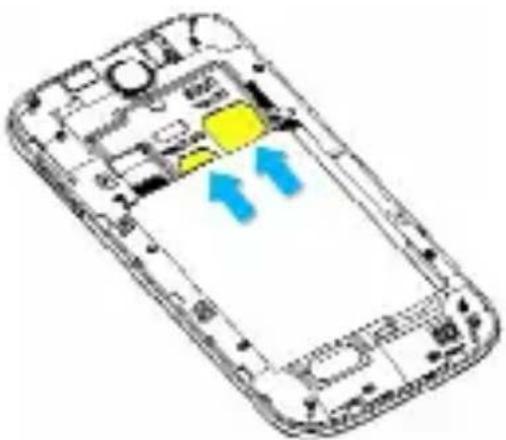
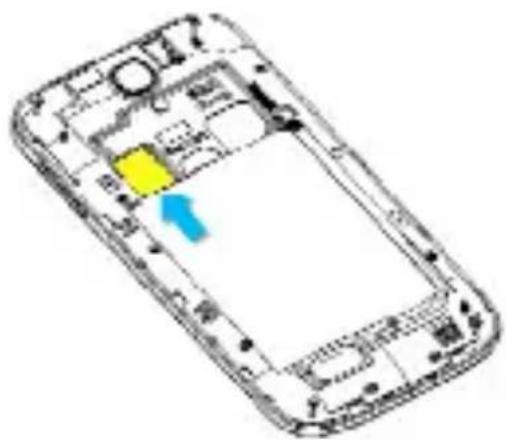
Installing the microSD Memory Card
Slide microSD card into the SD card slot with the metallic pins facing downwards. Push the card until it locks into place.
Lock & Unlock Screen
Locking the Screen
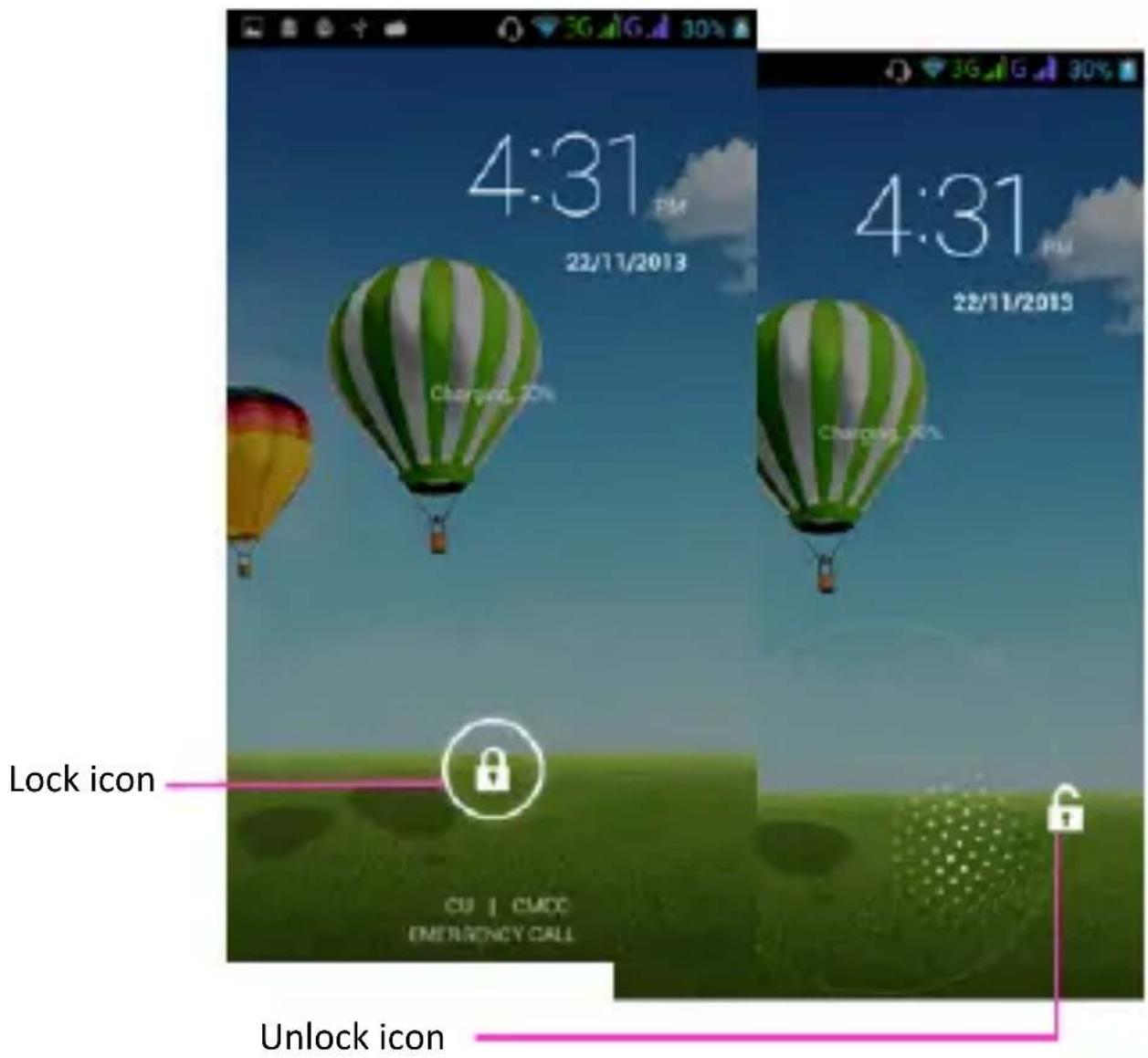
To save your battery, prevent accidental touches or when you want to wipe smudges off your touch screen, put the touch screen to sleep by pressing the Power Key
Unlocking the Screen
To wake up the touch screen, just press the Power Key again, and then drag the lock icon to the right on the screen to unlock according to the clue on the screen.
Home Screen
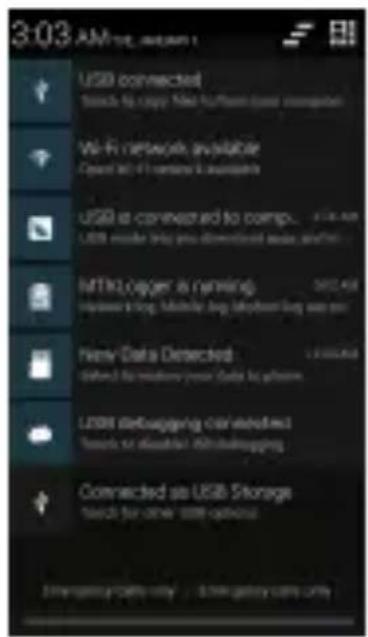
Status Bar and Notifications
The status bar at the top of the screen contains icons that tell you about messages and phone status and shows what's going on in your phone. You can drag down the status bar to open the Notification panel and get more information.
Touch to open the toolkits panel
Toolkits
In the toolkits you can quickly start the common applications such as Bluetooth, WLAN and so on.
![4:02 PM - BROADP 3M AUTO AND MODE CYBRING ETR PLAN CALL ON GPS DATA ORDER BY: DATA PAGE: AUDIO PRINTS: GREEN RED [IMAGE] AUTO CHECKUP](/content/2026/02/365043/images/7c6a45248a64d49df3d4f5475b902c78ff252723a26fee948c85ad194d773a24.jpg)
Touch to open the Notification panel
Touch to open the system settings
Home Screen
The Home screen is your gateway to the main features in your phone.
Notifications: drag down to open the Notification panel
Status bar
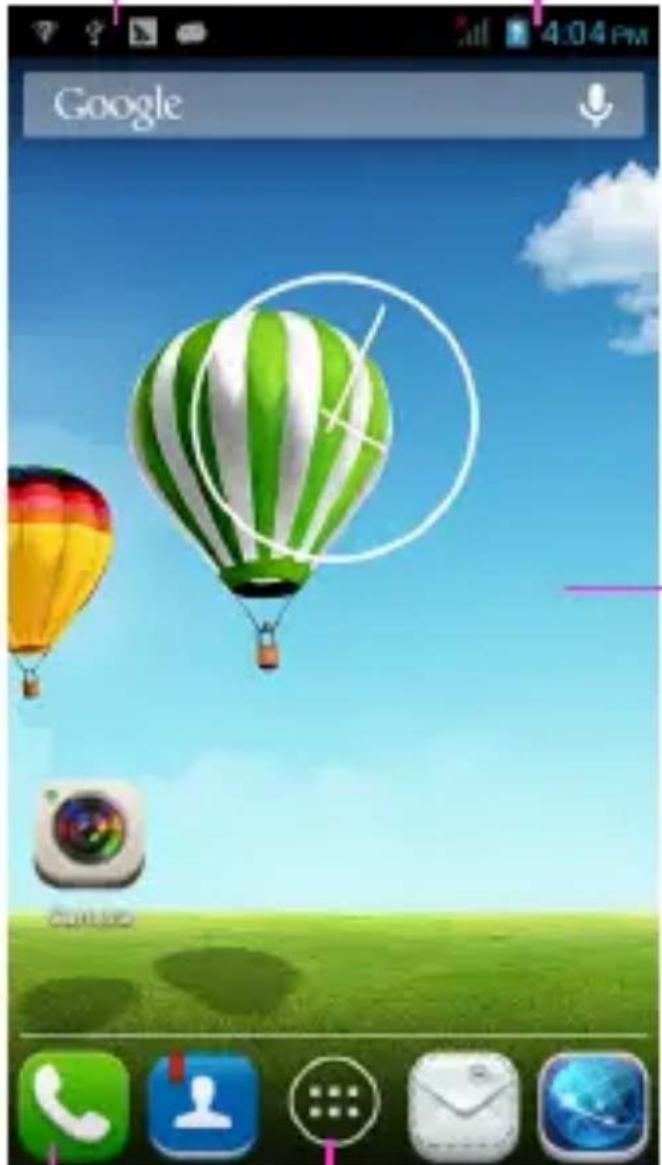
Slide the Home screen left or right to view more content in other panels on the Home screen
The favorite tray
Touch the applications in the tray to enter applications
Touch and hold the applications to drag them in or out from the tray
Launcher
Touch to enter Main menu. Browse all the installed applications.
Customizing
The phone provides you with Options menus. Touch the Menu Key to enter customizing:
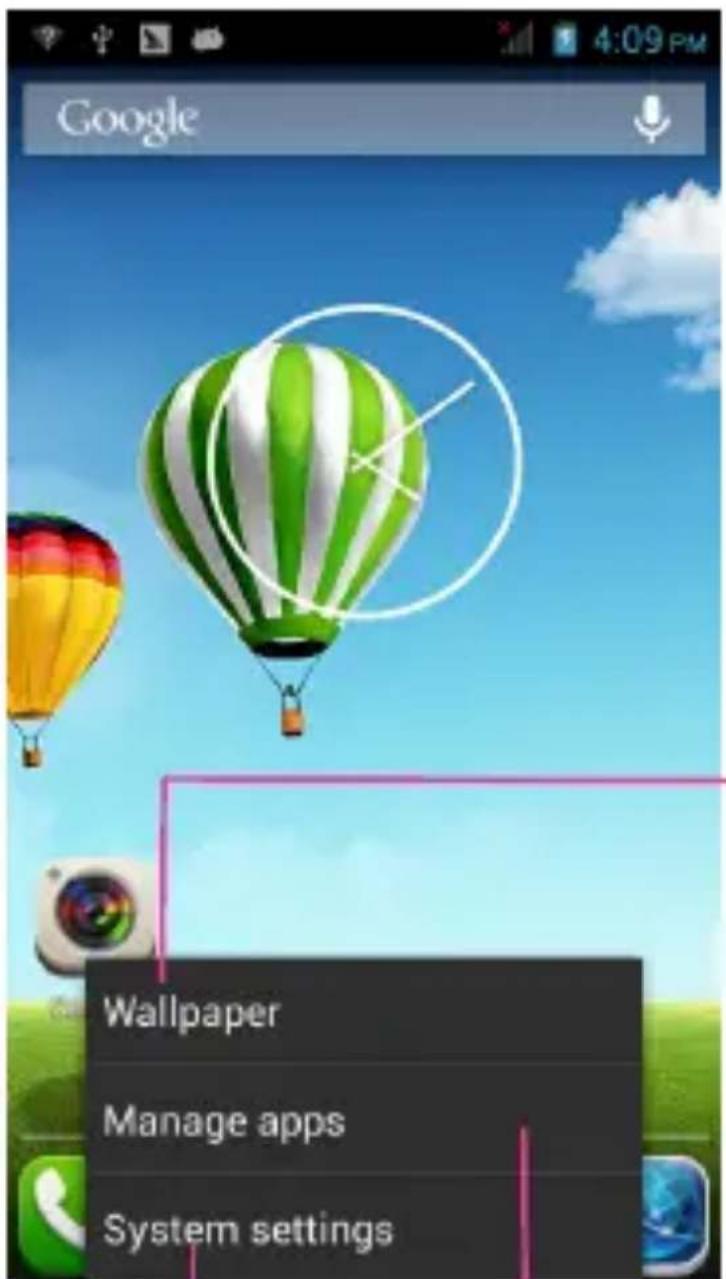
Touch to select a wallpaper, and set it as the wallpaper of Home screen
Touch to enter the Settings, and set the system preferences.
Touch to enter the Apps, and manage applications.
Phone Function
Making a Call

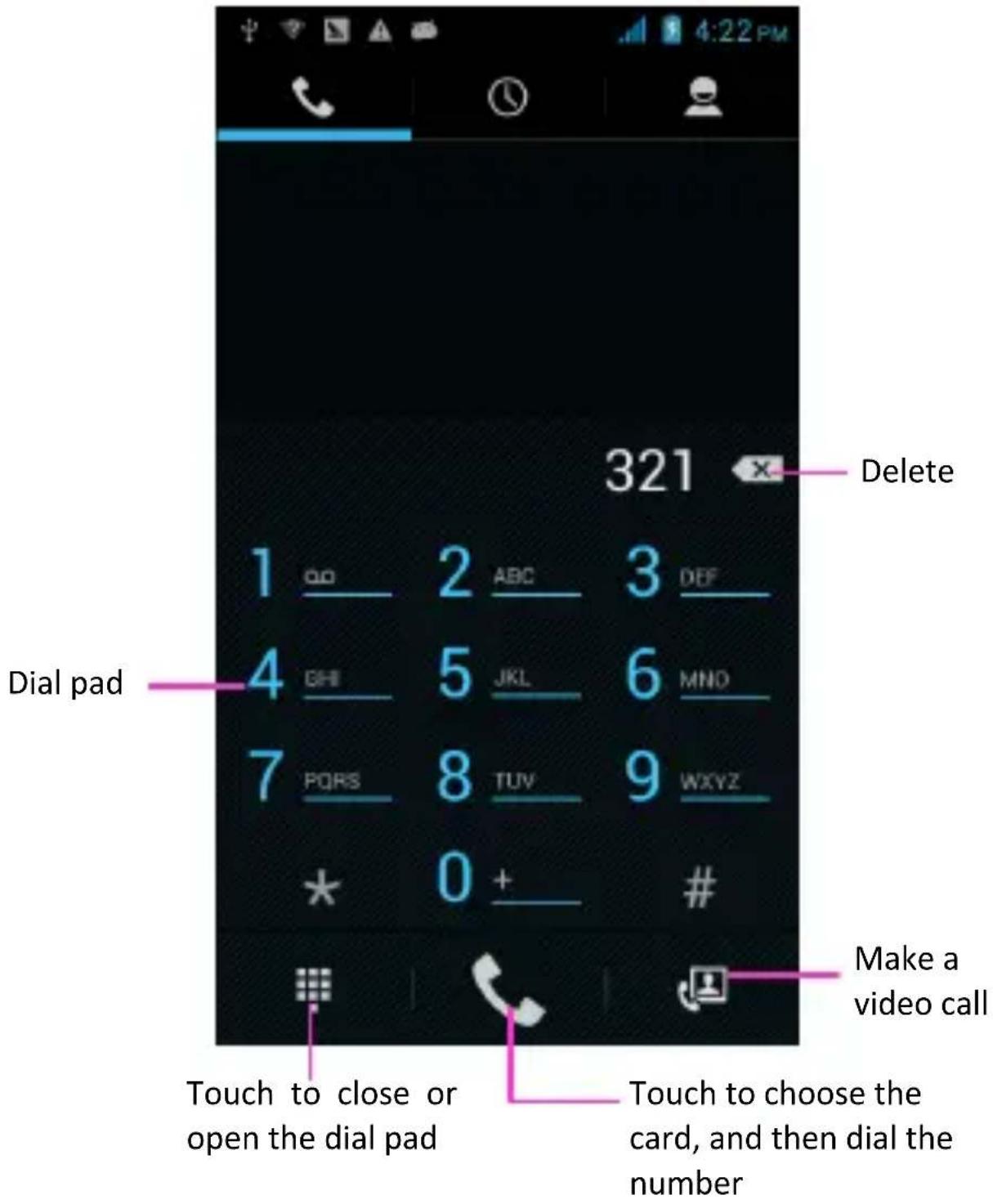
Touch to enter the Dial pad.
The phone offers you several ways of making a call.
You can make a call through the Phone, People, Messaging, and Call log.
Connecting to WLAN
Connecting to WLAN
- You can connect to the WLAN, and use it to surf the Internet at high speed and download.
Touch Launcher → Settings → WLAN.
- Turn on the switch to activate WLAN.
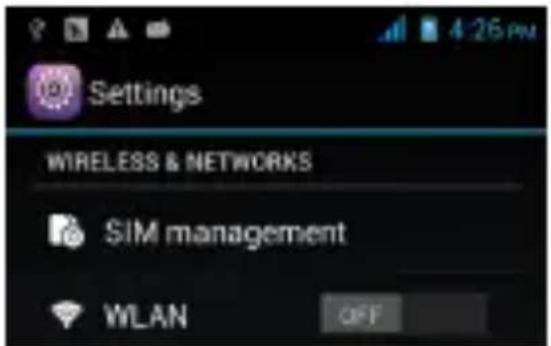
- Touch WLAN.
- Choose an available WLAN network to connect.
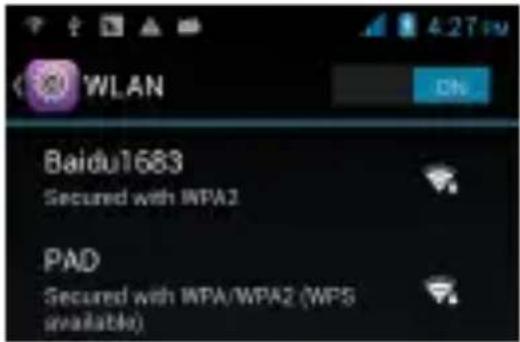
- Secured networks are indicated with a Lock icon. If the network is secured, you are prompted to enter a password or other credentials (Ask your network administrator for details)
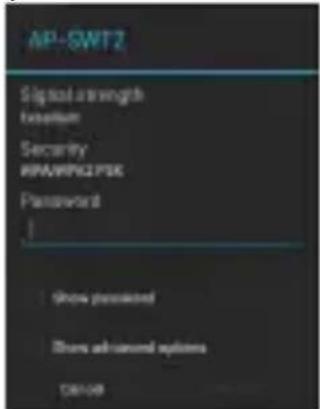
- Touch "Connect".
Accessing the Internet
Using the Browser

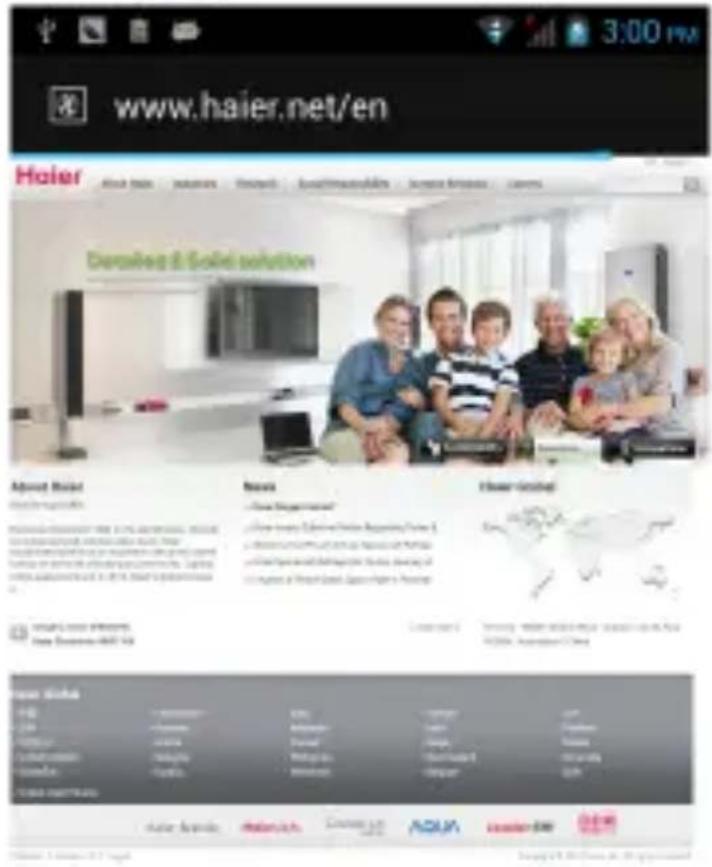
Touch to enter the Browser.
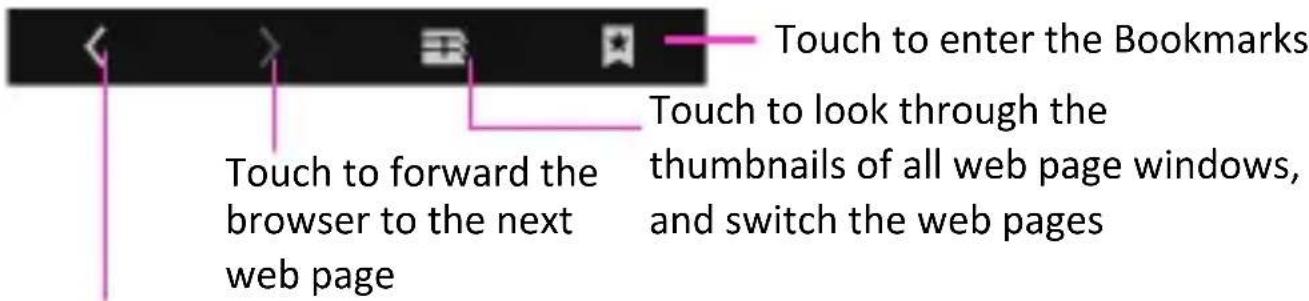
Touch to go back to the previous page
Accessing the Internet
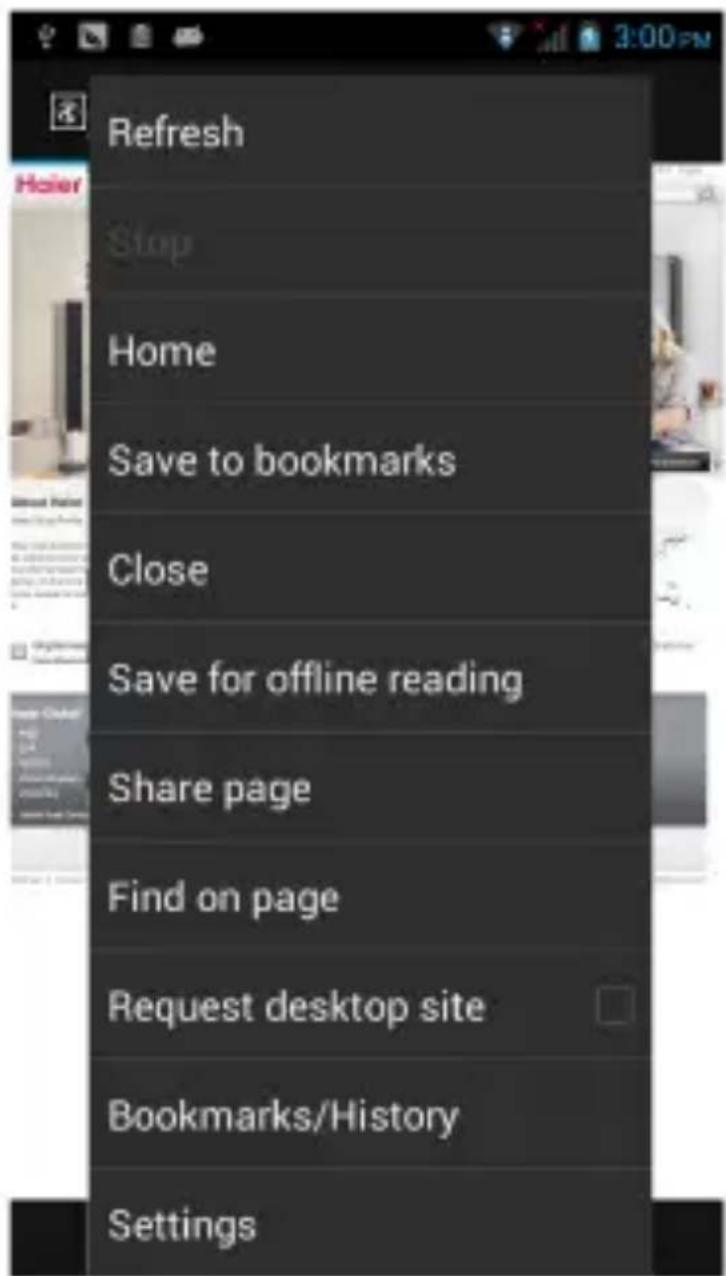
When you are viewing the web page, touch the Menu Key, the following options are available to you:
Taking Pictures/Videos
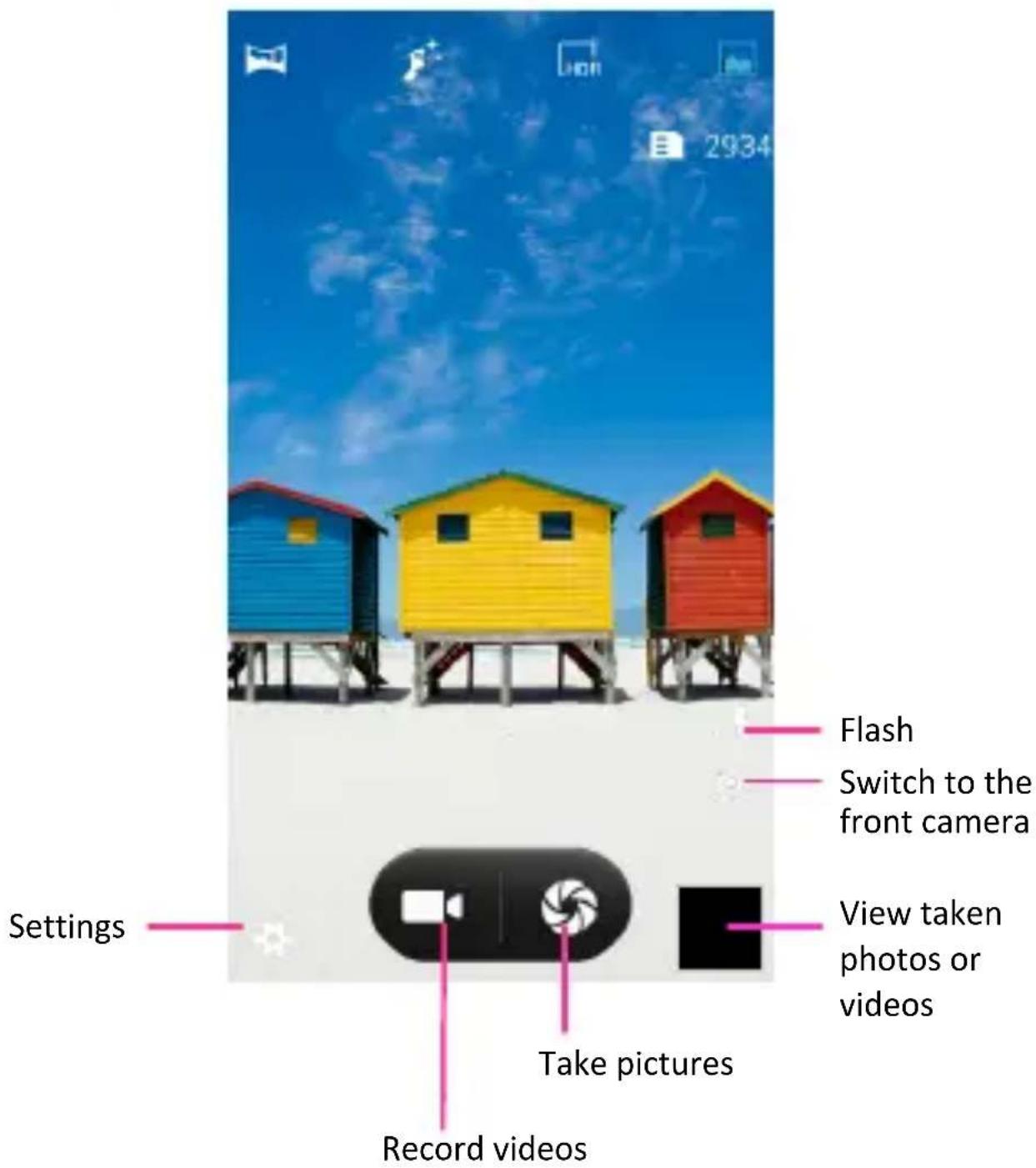
Taking pictures and videos
Touch to enter the Camera.
Playing Music
Music Player
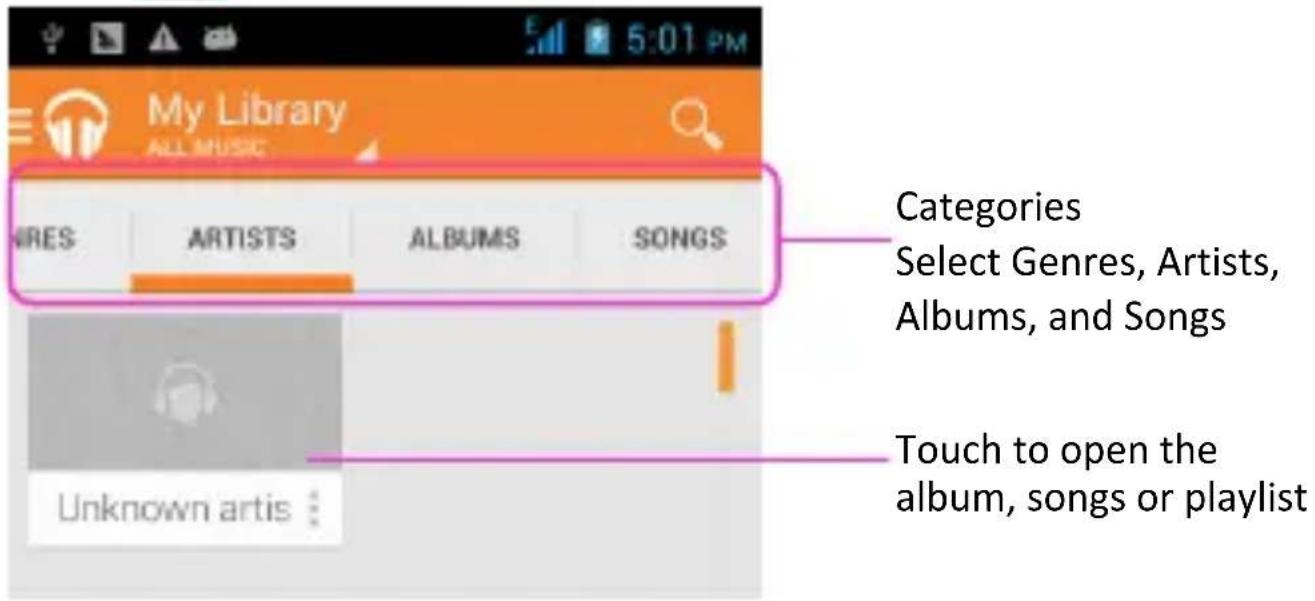
Touch to enter Music.





Previous song Play/Pause
Next song
Shuffle
Repeat: Touch to
repeat all songs;
touch again to repeat
the current song
Troubleshooting
| Frequently Asked Questions | Cause and Solution |
| Fail to turn on | Press the Power Key for over 1 second.Check if the battery is properly connected. Please remove and install it again, retry to turn it on;Check if battery is appropriately charged. |
| Fail to connect network | Weak signal. Please try and move to a location with strong signal and try connecting to the network again;Please ensure that you are not beyond the network coverage of service providers;Please ensure you have a valid SIM card. Please contact your network provider for further information; |
| Poor quality of calling | Please check if the sound volume is tuned improperlyIn an area with poor receiving condition, example:basement, the signal might be weak. Try searching a location with stronger signal reception and call again.While using the mobile phone in the peak period of communication, like commute time, you may be unable to call because of line congestion. |
| SIM Card Error | Dirt on the metal surface of an SIM card. Use clean cloth to wipe the metal touch point on an SIM card.The SIM card is not installed.The SIM card is damaged. Please contact your network service provider. |
| Callers cannot contact you | Please check if the mobile phone is on and connected with the network.Please check if the Call barring or call divert is activated.Please check if the SIM card is valid. |
| Fail to set some functions | Wrong operation.The network provider does not support the function, or you have not applied for it. |
- Company name: Qingdao Haier Telecom Co., Ltd Product name: W757
- CE Marking & NB Number:
C€0979
3. Declaration of Conformity Inserts
Hereby, Haier declares that this W757 is in compliance with the essential requirements and other relevant provisions of Directive 1999/5/EC.
(1) The declaration of conformity may be consulted at www.haier.com (2) Declaration of Conformity
Application of Council Directive(s):
Radio & Telecommunications Terminal Equipment Directive (1999/5/EC)
Standard(s) to which Conformity is Declared:
EN 62209-1: 2006
EN 62209-2: 2010
EN 50360: 2001/AC: 2006
EN 62479: 2010
EN 62311: 2008
EN 60950-1:2006+A11:2009+A1:2010+A12:2011
ETSI EN301 489-1 V1.9.2 (2011-09)
ETSI EN301 489-3 V1.4.1 (2002-08)
ETSI EN301 489-7 V1.3.1 (2005-11)
ETSI EN301 489-17 V2.2.1 (2012-09)
ETSI EN301 489-24 V1.5.1 (2010-10)
ETSI EN300 440-2 V1.4.1 (2010-08)
ETSI EN300 449-1 V1.6.1
ETSI EN 300 328 V1.7.1 (2006-10)
ETSI EN 301 511 V9.0.2 (2003-03)
EN 301 908-2 V5.2.1 (2011-05)
EN 301 908-1 V5.2.1
(3) The declaration of conformity may be consulted at the importer/manufacturer: Qingdao Haier Telecom Co., Ltd
Importer/manufacturer address: No.1, Haier Road, Haier Information Property Zone, Qingdao, P.R. China
Note:
Use earphones carefully. Possible excessive sound pressure from earphones and headphones can cause hearing loss.
CAUTION: RISK OF EXPLOSION IF BATTERY IS REPLACED BY AN INCORRECT TYPE.
DISPOSE OF USED BATTERIES ACCORDING TO THE INSTRUCTIONS.
The product shall only be connected to a USB interface of version USB 2.0. The adapter shall be installed near the equipment and shall be easily accessible.
The Charger:
Model name: LSD-D05I100
Input: AC 100-240V~50/60Hz 0.2A
Output: DC 5.0V, 1000mA
The plug is considered a disconnect device for the adapter.
Operating temperature: -20 °C to 40 °C
The device complies with RF specifications when used at a distance of 1.5 cm from your body.



- LOCK & UNLOCK SCREEN
- LOCK THE SCREEN
- PRECAUTIONS
- YOUR PHONE
- BATTERY COVER & BATTERY
- REMOVING THE BATTERY COVER
- INSTALLING THE BATTERY
- SIM CARD & MICROSD
- INSTALLING THE SIM CARD
- INSTALLING THE MICROSD MEMORY CARD
- LOCKING THE SCREEN
- UNLOCKING THE SCREEN
- HOME SCREEN
- STATUS BAR AND NOTIFICATIONS
- TOOLKITS
- THE HOME SCREEN IS YOUR GATEWAY TO THE MAIN FEATURES IN YOUR PHONE
- CUSTOMIZING
- PHONE FUNCTION
- MAKING A CALL
- CONNECTING TO WLAN
- ACCESSING THE INTERNET
- USING THE BROWSER
- TAKING PICTURES/VIDEOS
- TAKING PICTURES AND VIDEOS
- PLAYING MUSIC
- MUSIC PLAYER
- TROUBLESHOOTING
- C€
- DECLARATION OF CONFORMITY INSERTS
- NOTE
Brand : HAIER
Model : W757
Category : Smartphone