ManualGo.com
KDL48W600B - TV SONY - Free user manual and instructions
Find the device manual for free KDL48W600B SONY in PDF.


Download the instructions for your TV in PDF format for free! Find your manual KDL48W600B - SONY and take your electronic device back in hand. On this page are published all the documents necessary for the use of your device. KDL48W600B by SONY.
USER MANUAL KDL48W600B SONY
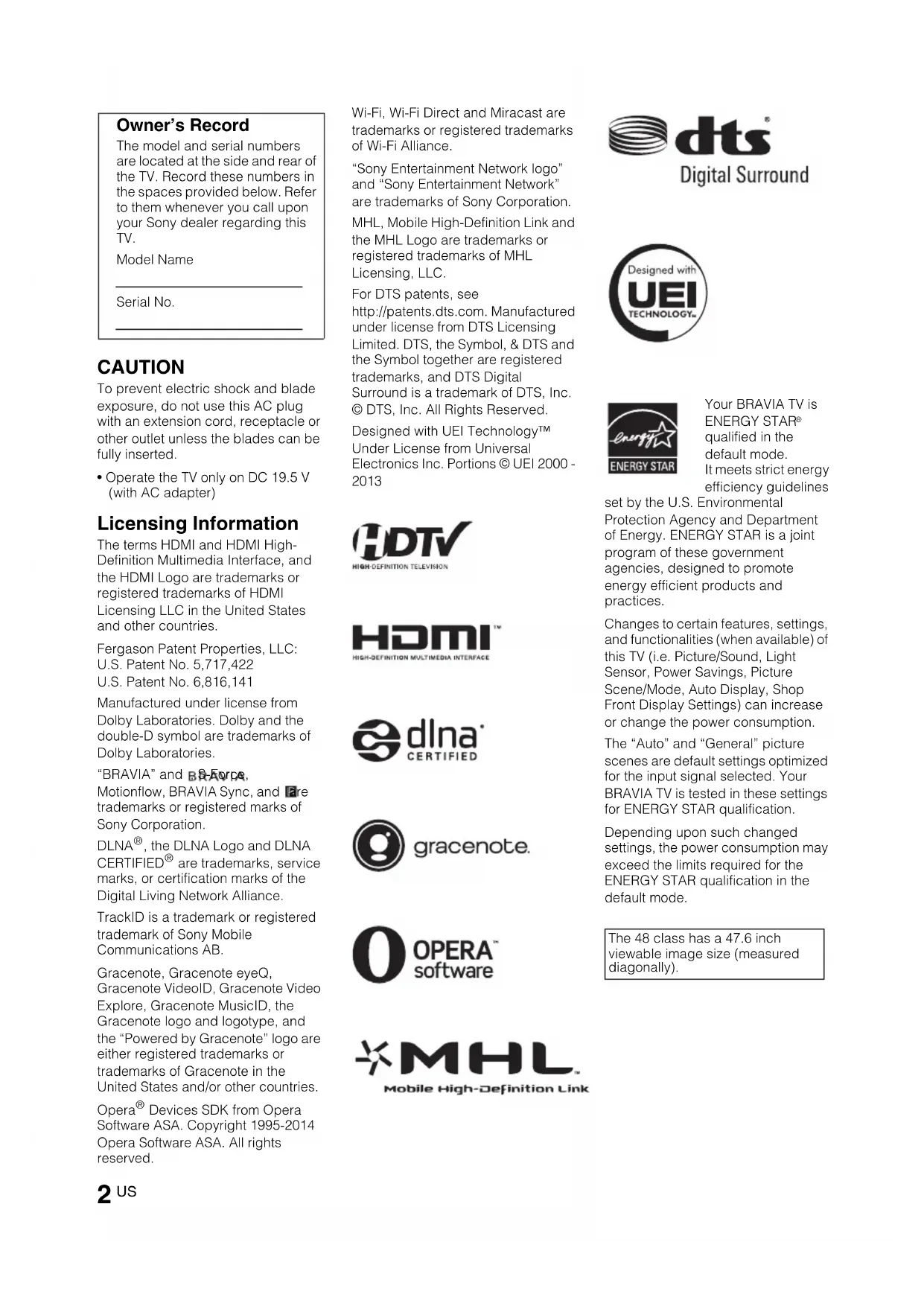
CAUTION To prevent electric shock and blade exposure, do not use this AC plug with an extension cord, receptacle or other outlet unless the blades can be fully inserted.
- Operate the TV only on DC 19.5 V (with AC adapter) Licensing Information The terms HDMI and HDMI High- Definition Multimedia Interface, and the HDMI Logo are trademarks or registered trademarks of HDMI Licensing LLC in the United States and other countries. Fergason Patent Properties, LLC: U.S. Patent No. 5,717,422 U.S. Patent No. 6,816,141 Manufactured under license from Dolby Laboratories. Dolby and the double-D symbol are trademarks of Dolby Laboratories. “BRAVIA” and , S-Force, Motionflow, BRAVIA Sync, and are trademarks or registered marks of Sony Corporation. DLNA
are trademarks, service marks, or certification marks of the Digital Living Network Alliance. TrackID is a trademark or registered trademark of Sony Mobile Communications AB. Gracenote, Gracenote eyeQ, Gracenote VideoID, Gracenote Video Explore, Gracenote MusicID, the Gracenote logo and logotype, and the “Powered by Gracenote” logo are either registered trademarks or trademarks of Gracenote in the United States and/or other countries. Opera
Devices SDK from Opera Software ASA. Copyright 1995-2014 Opera Software ASA. All rights reserved. Wi-Fi, Wi-Fi Direct and Miracast are trademarks or registered trademarks of Wi-Fi Alliance. “Sony Entertainment Network logo” and “Sony Entertainment Network” are trademarks of Sony Corporation. MHL, Mobile High-Definition Link and the MHL Logo are trademarks or registered trademarks of MHL Licensing, LLC. For DTS patents, see http://patents.dts.com. Manufactured under license from DTS Licensing Limited. DTS, the Symbol, & DTS and the Symbol together are registered trademarks, and DTS Digital Surround is a trademark of DTS, Inc. © DTS, Inc. All Rights Reserved. Designed with UEI Technology™ Under License from Universal Electronics Inc. Portions © UEI 2000 -
qualified in the default mode. It meets strict energy efficiency guidelines set by the U.S. Environmental Protection Agency and Department of Energy. ENERGY STAR is a joint program of these government agencies, designed to promote energy efficient products and practices. Changes to certain features, settings, and functionalities (when available) of this TV (i.e. Picture/Sound, Light Sensor, Power Savings, Picture Scene/Mode, Auto Display, Shop Front Display Settings) can increase or change the power consumption. The “Auto” and “General” picture scenes are default settings optimized for the input signal selected. Your BRAVIA TV is tested in these settings for ENERGY STAR qualification. Depending upon such changed settings, the power consumption may exceed the limits required for the ENERGY STAR qualification in the default mode. Owner’s Record The model and serial numbers are located at the side and rear of the TV. Record these numbers in the spaces provided below. Refer to them whenever you call upon your Sony dealer regarding this TV. Model Name Serial No. The 48 class has a 47.6 inch viewable image size (measured diagonally).D:\SONY TV\SY140189_Clover 6 (Rev 4)\4489955141_US\US02REG.fm KDL-48W600B/48W590B/48W580B/40W600B/40W590B/40W580B 4-489-955-14(1)
Location of the identification label Labels for the TV Model No. and Power Supply rating are located on the rear of the TV. Labels for the AC adapter Model No. and Serial No. are located on the bottom of the AC adapter.
- Instructions for “Installing the TV to the Wall” are included in this manual.• The illustrations of the remote control used in this manual are of the RM-YD103 unless otherwise stated.• The illustrations used in this manual may differ depending on your TV model.• Retain this manual for future reference.D:\SONY TV\SY140189_Clover 6 (Rev 4)\4489955141_US\US02REG.fm KDL-48W600B/48W590B/48W580B/40W600B/40W590B/40W580B 4-489-955-14(1)
The following chart shows the high-definition (HD) and standard-definition (SD) video formats supported by your BRAVIA TV inputs.
For details of supported formats, refer to the “Specifications” in this manual.
For supported PC formats refer to the i-Manual. The BRAVIA
Full HDTV Experience Thank you for choosing Sony! Your new BRAVIA TV opens the door to the “Full HDTV Experience.” This document will help you get the most out of your TV.Please take a moment to register your TV at: U.S.A.: http://productregistration.sony.comCanada: http://www.sony.ca/registration Four Steps to a Full HD Experience Set, Source, Sound, and Setup. 1 Set Now that you have made the best selection in LED backlit LCD TV technology, be sure to remove all accessory contents from the packaging before setting up your TV. 2 Source To experience the stunning detail of your BRAVIA TV, you need access to HD programming.• Upgrade your signal or content source to high-definition (HD) by contacting your HD service provider.• Receive over-the-air HD broadcasts with an HD-quality antenna connected directly to the back of your TV. Visit http://www.antennaweb.org for more information on antenna selection and setup.• Discover the wealth of entertainment now available on super-high resolution Blu-ray Disc™ player and other Sony HD equipment. 3 Sound Complete the high-definition experience with a BRAVIA Sync™ surround sound system or A/V receiver from Sony. 4 Setup Install your TV and connect your sources. See page 11 for sample connection diagrams. To help assure the highest quality for your HD experience, use Sony HDMI (High-Definition Multimedia Interface) cables. To learn more about HDTV, visit: U.S.A.: http://www.sony.com/HDTVCanada: http://www.sony.ca/hdtvThis TV displays all video input signals in a resolution of 1,920 dots × 1,080 lines.
About this manual (Operating Instructions) This manual explains how to setup your TV. For more information on how to use your BRAVIA TV, refer to the “Electronic manual”. Operating Instructions Electronic manual (i-Manual) Explains how to setup your TV such as connections, initial setup, and basic operations. For more information, press the i-MANUAL button Explains how to use all the features. See page 26 on how to use the i-Manual. Images and illustrations used in this manual may differ from the actual screen.D:\SONY TV\SY140189_Clover 6 (Rev 4)\4489955141_US\US01TOC.fm KDL-48W600B/48W590B/48W580B/40W600B/40W590B/40W580B 4-489-955-14(1)
Getting Started Checking the accessories Remote control (1)*
Fixing screws for Table-Top Stand (M5 × 20) (2) Operating Instructions (this manual) and other documents Wall-Mount Adapter accessories
Refer to the model name printed on the remote control.
Assembling the Table-Top Stand is required. Refer to the supplied Table-Top Stand leaflet to assemble the Table-Top Stand. Inserting batteries into the remote control 1 Remove the protection sheet. 2 Push and slide the cover to open.D:\SONY TV\SY140189_Clover 6 (Rev 4)\4489955141_US\US03STU.fm KDL-48W600B/48W590B/48W580B/40W600B/40W590B/40W580B 4-489-955-14(1)
x Guidelines for Remote Control
- Point your remote control directly at the IR sensor located on your TV.
- Make sure that no objects are blocking the path between the remote control and the IR sensor on your TV.
- Fluorescent lamps can interfere with your remote control; try turning off the fluorescent lamps.
- If you are having problems with the remote control, reinsert or replace your batteries and make sure that they are correctly inserted. Before setting up your TV Some TV models are packaged with a detached Table-Top Stand so you can mount your TV to a wall right away. See page 33 (Installing the TV to the Wall) if you want to mount the TV to a wall. If you are not mounting the TV to a wall, you will need to attach the Table-Top Stand. You will need a Phillips screwdriver (not supplied) and the supplied screws to complete the task. Look for the supplied Table-Top Stand instruction leaflet. Be sure to consider the following while setting up your TV:
- Disconnect all cables when carrying the TV.
- Carry the TV with the adequate number of people; larger size TVs require two or more people.
- Correct hand placement while carrying the TV is very important for safety and to avoid damage.
- Ensure your TV has adequate ventilation, see page 39.
- For best picture quality, do not expose the screen to direct illumination or sunlight.
- Avoid installing the TV in a room with reflective wall and floor materials.
- Avoid moving the TV from a cold area to a warm area. Sudden room temperature changes may cause moisture condensation. This may cause the TV to show poor picture and/or poor color. Should this occur, allow moisture to evaporate completely before powering the TV on. (Continued)D:\SONY TV\SY140189_Clover 6 (Rev 4)\4489955141_US\US03STU.fm KDL-48W600B/48W590B/48W580B/40W600B/40W590B/40W580B 4-489-955-14(1)
- Ensure that there are no objects in front of the TV. 1: Attaching the Table-Top Stand Refer to the supplied Table-Top Stand leaflet for proper attachment.
- Do not put stress on the LCD panel or the frame around the screen.
- If using an electric screwdriver, set the torque at approximately 1.5 N·m {15 kgf·cm}.To detach the Table-Top Stand from the TV, remove the screws fixed in step 2.
- Do not remove the Table-Top Stand for any reason other than to install corresponding accessories on the TV.• When removing the Table-Top Stand from the TV, lay the display face down on a stable work surface that is larger than the TV.• To prevent damaging the surface of the LCD display, make sure to place a soft cloth on the work surface.• Be sure the TV is vertical before turning on. To avoid uneven picture uniformity do not power on the TV with the LCD panel facing down.• When attaching the Table-Top Stand again, be sure to fasten the screws (previously removed) to the original holes on the rear of the TV.
- You can bundle the AC adapter as an optional step. Do not bundle it for any reason other than to wall-mount the TV.• Make sure that the label is facing outwards when bundling AC adapter. 2: Connecting the TV
- Use an antenna cable connector no greater than 14 mm thick.• When connecting the cable to the Cable/Antenna, input finger tighten only, over tightening the connection can damage the TV.
- Before moving the TV, disconnect all of the cables connected to the TV to prevent damaging the TV when it is moved.• Use an HDMI cable connector within 12 mm (thickness) × 21 mm (width).• For more information on connections, refer to the i-Manual. x Shown with a Set Top Box with HDMI connection Detaching the Table-Top Stand from the TV Bundling the AC adapter
Recommendation for an F type plug Projection of the inner wire from the connection part must be less than 1.5 mm. x Shown with a Set Top Box with COMPONENT connection x Cable System or VHF/UHF Antenna System (Reference drawing for an F type plug)
x Shown with MHL device with MHL connection The TV simultaneously charges the MHL- compatible connected device while playing photo/music/video files. You can use the TV remote control to control the connected MHL-compatible device.
- If Auto Input Change (MHL) is set to On, the TV automatically switches to HDMI IN 1/MHL from other input when MHL-compatible device is connected to HDMI IN 1/MHL jack. The availability of Auto Input Change (MHL) depends on whether the MHL-compatible device can support this feature.
- If Charge MHL during Power Off is set to On, you can continue charging the MHL- compatible device even when the TV is in standby mode. Use authorized MHL 2 CABLE with MHL logo MHL device (Continued)D:\SONY TV\SY140189_Clover 6 (Rev 4)\4489955141_US\US03STU.fm KDL-48W600B/48W590B/48W580B/40W600B/40W590B/40W580B 4-489-955-14(1)
x Shown with HD BRAVIA
The optical connection is only needed for A/V receivers that do not support ARC (Audio Return Channel). Set the speaker settings to audio out, press HOME, then select Settings t Sound t Speakers t Audio System.Set the HDMI CEC settings on the TV and AV receiver to allow for system audio control for ARC connections.
A/V Receiver SAT (Dish) Cable/Antenna
x Shown with HD Basic Connection with Home Theater System
- The optical connection is only needed for home theater system that do not support ARC (Audio Return Channel) when connecting with HDMI. Set the speaker settings to audio out, press HOME, then select Settings t Sound t Speakers t Audio System.Set the HDMI CEC settings on the TV and AV receiver to allow for system audio control for ARC connections. VIDEO
x Shown with PC Connection with SD VCR/DVD
- DVI does not support audio signals. Connect the audio output of the PC to the PC speakers or an A/V receiver to listen to sound from the PC. Rear of TV
3: Securing the TV Sony strongly recommends taking measures to prevent the TV from toppling over.Unsecured TVs may topple and result in property damage, serious bodily injury or even death.• Secure the TV to a wall and/or stand.• Do not allow children to play or climb on furniture and TV sets.• Avoid placing or hanging items on the TV.
- Never install the TV on:– slippery, unstable and/or uneven surfaces.– furniture that can easily be used as steps, such as a chest of drawers.• Install the TV where it cannot be pulled, pushed, or knocked over.• Route all AC power cords and connecting cables so that they are not accessible to curious children.Consider the following measures when securing your TV to a Stand (not supplied). 1 Secure the Stand for the TV. Make sure the Stand can adequately support the weight of the TV. Use two angle braces (not supplied) to secure the stand. For each angle brace use the appropriate hardware to:• Attach one side of the angle brace to the wall stud.• Attach the other side to the Stand. 2 Secure the TV to the Stand. Use the optional hardware listed as follows (not supplied):• M6 machine screw (screwed into the TV’s rear cover)• A screw or similar (attach it to the Stand)• Rope or chain (strong enough to support the weight of the TV). Make sure that there is no excess slack in the rope or chain. Preventing the TV from Toppling Recommended Measures to Secure the TV StandAngle brace (not supplied)
The length of the M6 machine screw differs depending on the rope or chain diameter. Please see below illustration. 3 Anchor the TV to the wall by using bolts, wall anchor and chain (or rope).
- Your TV is shipped with screws attached to the rear of the TV depending on the TV model. (They are fastened in the screw holes for wall mounting.) Be sure to remove the upper two screws prior to anchoring the TV to a wall.• Securing the TV to the stand without securing the TV and the stand to the wall provides minimum protection against the TV toppling over. For further protection, be sure to follow the three measures recommended. 4: Bundling the cables
5: Connecting the TV to the Internet When you connect this TV to the Internet, you can enjoy multiple functions. For details on the functions, refer to the i-Manual.
- You will need to contract with an Internet service provider to connect to the Internet.
- For LAN connections, use a Category 7 cable (not supplied). The built-in Wi-Fi device allows you to access the Internet and your home network. With this feature, you can connect to a wireless network and enjoy the benefits of networking in a cable-free environment. Before setting up the Wi-Fi function of the TV, be sure to set up a wireless router (access point). Preparing a wired network
Internet Modem with router functions Router Modem Internet
6: Running initial setup 1 Complete your cable connections before proceeding with the Initial Setup. Connect the AC power cord to the AC adapter and plug the DC cable into the DC IN 19.5 V terminal. Then, connect the AC adapter to your nearest power outlet.
- While holding the TV, plug the DC plug of the AC adapter into the DC IN 19.5 V terminal on the TV until a locking click can be felt. 2 Press "/1 on the TV. The LED indicator will light up in green. When you switch on the TV for the first time, the Language menu appears on the screen. 3 Press V/v/B/b to select an item, then press . Follow the instructions on the screen. 4 Set up the Internet connection by selecting Wi-Fi or Wired LAN. If you will not be using the network features of the TV, or to set up later, select Skip.
- The TV will automatically detect and setup the network when a wired connection is made before the initial setup.• For customers who need to setup their network connection with a Static IP address and/or a Proxy server, select Skip. After completing the initial setup, press HOME, then select Settings t Network t Network Setup t Set up network connection t Expert.
- If you use WEP security, select Wi-Fi t Connect by scan list. Then, select the network name (SSID) you want to connect to. If you cannot find the required network name, select [Manual Entry] and press to enter network name.
- To perform Network Setup later, press HOME, then select Settings t Network t Network Setup.
- The TV will automatically search for a software update after the network is setup and will try to automatically detect your region. 5 Scan for available channels using the TV’s built-in tuner by selecting Built-in Tuner t Auto. If you will be using a cable box or satellite receiver and do not wish to use the TV’s built-in tuner select Set Top Box. If you do not wish to use the TV’s built-in tuner or a set top box, select Skip. DC plugD:\SONY TV\SY140189_Clover 6 (Rev 4)\4489955141_US\US03STU.fm KDL-48W600B/48W590B/48W580B/40W600B/40W590B/40W580B 4-489-955-14(1)
Watching TV 1 Turn on the TV. Press "/1 on the TV or POWER on the remote control to turn on the TV.
2 Select a TV channel or select an input. x To select digital channelsUse 0-9 and . For example, to enter channel 2.1:Press , and , then press
Using the remote control or or
x Frequently used buttons 1 Color buttons When the color buttons are available, an operation guide appears on the screen. 2 DISPLAY Displays channel number, program details, and the clock. 3 GUIDE Displays the digital program guide. (For an Antenna signal only and availability depends on your TV model/ region/country) 4 SUBTITLE/CC You can turn closed captions/subtitles on/off.D:\SONY TV\SY140189_Clover 6 (Rev 4)\4489955141_US\US04SAF.fm KDL-48W600B/48W590B/48W580B/40W600B/40W590B/40W580B 4-489-955-14(1)
Using Your BRAVIA TV Discovering the contents you like (Discover) You can use Discover to search for content (such as TV programs, Internet contents, etc.). Contents that appear in Discover vary depending on your TV model/region/country. 1 Press DISCOVER. 2 Press V/v to select the desired category. 3 Press B/b to select the desired item, then press . The selected content is displayed. Enjoying social networking while watching TV (Social Viewing) Social Viewing brings the benefits of social networking to your TV viewing experience. Press SOCIAL VIEW to enjoy chatting with friends while watching TV. The available features in Social Viewing may vary depending on your TV model/region/country. You will need a broadband Internet connection. For details, see page 19 (5: Connecting the TV to the Internet). Then, go to Network Setup and follow the on-screen instructions to connect your TV to the Internet.
Selecting various contents and tools (Home Menu) Select the desired category at the top of the Home Menu. You can play back content by selecting its thumbnail in a subcategory. You can also use functions (such as setting change) by selecting its icon. 1 Press HOME. 2 Press B/b to select the desired category, then press . 3 Press v, then press B/b to select the desired subcategory. When the cursor is moved beyond the left/right edge of the subcategory, the next subcategory is displayed (if there is more than one subcategory). 4 Select the thumbnail of the desired content. The content is played back.The categories are available depending on your TV model/region/country. Selecting various contents Channel You can view the list of digital broadcast contents and thumbnails of live and future broadcasts. You can also change the broadcast system by using Channel List at the bottom of the Home Menu. Movies You can watch movies from online movie service providers, connected USB devices, or your home network. Album You can view photos from online service providers, connected USB devices, or your home network. Music You can play back music content from online music service providers, connected USB devices, or your home network. Apps You can launch applications. Thumbnails of featured applications (Featured) and your favorite applications (My Apps) are displayed. To view all applications, select All Apps at the bottom of the Home Menu.D:\SONY TV\SY140189_Clover 6 (Rev 4)\4489955141_US\US04SAF.fm KDL-48W600B/48W590B/48W580B/40W600B/40W590B/40W580B 4-489-955-14(1)
The tools are available depending on your TV model/region/country. Selecting a Tool Search You can input a keyword to search for content. You can also select keywords searched in the past. Inputs You can select an input device connected to the TV. Media Server You can select a media server (e.g. USB flash drive, home network) to browse its content using the Media Browser. Settings You can change TV settings (e.g. Picture & Display, Sound, Channel). Help You can view information about self diagnostics and customer support. You can also access the i-Manual. Network Status You can view the network connection status.D:\SONY TV\SY140189_Clover 6 (Rev 4)\4489955141_US\US05OVR.fm KDL-48W600B/48W590B/48W580B/40W600B/40W590B/40W580B 4-489-955-14(1)
Looking for Instructions Looking for instructions in the electronic manual (i-Manual) Operating instructions are built into your BRAVIA TV and can be displayed on the screen.To learn more about your TV features, access your i-Manual with the touch of a button. 1 Press i-MANUAL. 2 Select an item. 1 Press B/b to select an item. 2 Press V/v/B/b to select an item, then press .* If an arrow mark appears, press v repeatedly to display more items. RETURN
The page of the selected item appears.
You can save frequently viewed pages for easy access anytime. x To save a page When displaying the page to bookmark, press the red button on the remote control. x To access the bookmarked page When displaying the i-Manual, press the blue button on the remote control to display the bookmark list. Press V/v to select the desired item, then press .
Additional Information Troubleshooting When the LED indicator is flashing red, count how many times it flashes (interval time is three seconds). If the LED indicator flashes red, reset the TV by disconnecting the AC power cord from the TV for two minutes, then turn on the TV. If the problem persists, contact Sony Customer Support (information provided on the front cover) with the number of times the LED indicator flashes red (interval time is three seconds). Press "/1 on the TV to turn it off, disconnect the AC power cord, and contact Sony Customer Support. When the LED indicator is not flashing, check the items as follows. You can also refer to “Troubleshooting” in the i-Manual or perform self-diagnosis by selecting Help t Customer Support t Self Diagnostics. If the problem persists, contact Sony Customer Support (information provided on the front cover). Condition Explanation/Solution There is no picture (screen is dark) and no sound.
- Check the cable/antenna connection.
- Connect the TV to AC power, and press "/1 on the TV or POWER on the remote control. Some programs cannot be tuned.
- Check the antenna. The remote control does not function.
- Replace the batteries.
- Your TV may be in SYNC mode. Press SYNC MENU, select TV Control and then select Home (Menu) or Options to control the TV. The Parental Lock password has been forgotten.
- Enter 4357 for the PIN code. (PIN code 4357 is always accepted.) The TV and its surroundings become warm.
- When the TV is used for an extended period of time, the TV and its surroundings may become warm to the touch. This is not a malfunction of the TV. How to reset the TV to factory settings
- Turn on the TV. While holding down V on the remote control, press "/1 on the TV. (The TV will turn itself off, then back on again.) Release V.
WARNING: The reset will clear all of your customized
settings including the Parental Lock setting.
- For security purposes, be sure to remove all personal and account information before discarding, selling or passing your TV to someone else by: unlinking/ unregistering, signing out of and deactivating all network services as well as factory reset the TV.D:\SONY TV\SY140189_Clover 6 (Rev 4)\4489955141_US\US06OPT.fm KDL-48W600B/48W590B/48W580B/40W600B/40W590B/40W580B 4-489-955-14(1)
Frozen audio or video, a blank screen, or the TV does not respond to TV or remote control buttons.
- Perform a simple reset of the TV by unplugging the AC power cord for two minutes, then plug it in again. The "/1, CH+/ –, 2 +/–, V/v/B/b, t, and HOME buttons cannot be located on the TV.
How to care for your BRAVIA TV Safety is very important. Please read and follow the safety documentation (Safety Booklet) separately provided. Unplug the TV and other connected equipment from the wall outlet before you begin cleaning your TV.
- Wipe the LCD screen gently with a soft cloth.
- Stubborn stains may be removed with a cloth slightly moistened with a solution of mild soap and warm water.
- If using a chemically pretreated cloth, please follow the instruction provided on the package.
- Never spray water or detergent directly on the TV set. It may drip to the bottom of the screen or exterior parts and enter the TV set, and may cause damage to the TV set.
- Never use strong solvents such as a thinner, alcohol or benzine for cleaning.
- Do not plug in the TV into the wall outlet until the moisture from cleaning has evaporated. The TV should also be placed on a stable surface to prevent it from toppling over (see page 17). If you have young children or pets at home, check regularly to ensure the TV is securely fastened.D:\SONY TV\SY140189_Clover 6 (Rev 4)\4489955141_US\US06OPT.fm KDL-48W600B/48W590B/48W580B/40W600B/40W590B/40W580B 4-489-955-14(1)
- Screen size, dimensions and mass are approximate values.
- Optional accessories availability depends on countries/region/TV model/stock.
- Design and specifications are subject to change without notice.
- This TV set incorporates MHL 2. Model name KDL- 48W600B 48W590B 48W580B Power and others Power requirement 19.5 V DC with AC adapterRating: Input 110 V - 240 V AC, 50/60 Hz (U.S.A./Canada 120 V AC, 60 Hz)Power consumptionin use 75 Win standby Less than 0.4 W with 120 V AC and less than 0.5 W with 240 V ACScreen size (inches measured diagonally)47.6 inches(48 class)Display resolution 1,920 dots (horizontal) × 1,080 lines (vertical)Dimensions with stand (mm)(inches)1,086 × 675 × 181
without stand (mm)(inches)1,086 × 646 × 90
wall-mount hole pattern (mm)300 × 200 wall-mount screw size (mm)M6 (length: see diagram on page 33.) Mass
with stand (kg)/(lb.)10.3 / 22.7 10.2 / 22.5without stand (kg)/(lb.)9.9 / 21.9 9.9 / 21.9 Model name KDL- 40W600B 40W590B 40W580B Power and others Power requirement 19.5 V DC with AC adapterRating: Input 110 V -240 V AC, 50/60 Hz (U.S.A./Canada 120 V AC, 60 Hz)Power consumptionin use 75 Win standby Less than 0.4 W with 120 V AC and less than 0.5 W with 240 V ACScreen size (inches measured diagonally)40 inchesDisplay resolution 1,920 dots (horizontal) × 1,080 lines (vertical)Dimensions with stand (mm)(inches)926 × 584 × 162
wall-mount hole pattern (mm)300 × 200 wall-mount screw size (mm)M6 (length: see diagram on page 33.) Mass
Installing the TV to the Wall Your TV can be mounted on a wall using a Wall-Mount Adapter (supplied with the TV) out of the box as packaged. If the Table-Top Stand is attached to the TV, the TV may require detaching the Table-Top Stand; see page 11 (Detaching the Table-Top Stand from the TV). Prepare the TV for the Wall-Mount Adapter before making cable connections. For product protection and safety reasons, Sony strongly recommends that you use the Wall-Mount Adapter (supplied with the TV) designed for your TV and the installation should be performed by a Sony dealer or licensed contractor.
- Follow the instructions provided in this manual for installing the Wall-Mount Adapter. Sufficient expertise is required in installing this TV, especially to determine the strength of the wall for withstanding the TV’s weight.
- Be sure to use the screws supplied with the Wall-Mount Adapter when attaching the Mounting Hook to the TV set. The supplied screws are designed as indicated by illustration when measured from the attaching surface of the Mounting Hook. The diameter and length of the screws differ depending on the Wall-Mount Adapter model. Use of screws other than those supplied may result in internal damage to the TV set or cause it to fall, etc.
- Be sure to store the unused screws and Table-top Stand in a safe place until you are ready to attach the Table-Top Stand. Keep the screws away from small children. To Customers Sufficient expertise is required for installing this product. Be sure to subcontract the installation to Sony dealers or licensed contractors and pay special attention to safety during the installation. Sony is not liable for any damages or injury caused by mishandling or improper installation, or installing any other than the specified product. Your Statutory Rights (if any) are not affected. To Sony Dealers and Contractors Sufficient expertise is required for installing this product. Be sure to read this instruction manual thoroughly to do the installation work safely. Sony is not liable for any damages or injury caused by mishandling or improper installation. 8 mm - 10 mm Screw (supplied with the Wall-Mount Adapter) Mounting Hook Hook attachment on rear of TV set (Continued)D:\SONY TV\SY140189_Clover 6 (Rev 4)\4489955141_US\US06OPT.fm KDL-48W600B/48W590B/48W580B/40W600B/40W590B/40W580B 4-489-955-14(1)
- Read the supplied Safety Booklet for additional safety information.
- See page 40 (Safety Information) and page 41 (Precaution) on WALL-MOUNT ADAPTER before carrying out Wall-Mount Adapter installation.
- Place the TV with its screen facing down on a flat and stable surface covered with a thick and soft cloth that is larger than the TV, when securing the Mounting Hook or when removing the Table-Top Stand from the TV to prevent damaging the surface of the LCD display. 1 Prepare necessary items. Wall-Mount Adapter accessories (supplied) Wall-Mount Adapter A Paper Template B Wall-Mount Base (2) C Pulleys (2) D Screw (+PSW 6 × 16) (3) E Spacers (2) F BandD:\SONY TV\SY140189_Clover 6 (Rev 4)\4489955141_US\US06OPT.fm KDL-48W600B/48W590B/48W580B/40W600B/40W590B/40W580B 4-489-955-14(1)
2 Make sure that the wall has enough space for the TV and is capable of supporting a weight of at least four times that of the TV. Refer to the following table on installing the TV to the wall. See page 31-32 (Specifications) for the TV’s weight. Unit: inches (mm)
- Figures in the table may differ slightly depending on the installation. 3 Make a mark on the Paper Template A that indicates the center of the screen for your TV. Model Name KDL- Display dimensions Screen center dimension Length for mounting 48W600B, 48W590B, 48W580B
4 Tape the Paper Template A to the wall and drill holes according to the numbering on the Paper Template A using an electric drill. 5 Remove the Paper Template A from the wall. 6 Attach the Wall-Mount Base B to the wall correctly using screws (8 mm in diameter, not supplied). 7 Attach the Pulleys C to the TV using the supplied screws D. Attach the Spacers E to the holes indicated by the triangle marks f. Then, attach the Band F using the supplied screw
8 Make sure to connect and bundle the cables before installing the TV on the wall. 9 Bundle the AC Adapter using the cable holders (supplied with the TV). Make sure that the label is facing outwards when bundling AC adapter. 10 Install the TV on the wall. Confirm the Pulleys C are firmly latched into the Wall-Mount Base B. Then, attach the Band F to the wall using a screw (5 mm in diameter, not supplied).
Dimensions of the hole positions on the wall Pass the following information to the licensed contractors if necessary. Use screws (8 mm in diameter, not supplied) to install the Wall-Mount Base B on the wall. Be sure to use the supplied Paper Template A that shows the actual position of Wall-Mount Base B for easy installation. 220 mm 80 mm 22 mmD:\SONY TV\SY140189_Clover 6 (Rev 4)\4489955141_US\US06OPT.fm KDL-48W600B/48W590B/48W580B/40W600B/40W590B/40W580B 4-489-955-14(1)
Installing the TV against a wall or enclosed area Make sure that your TV has adequate ventilation. Allow enough space around the TV as shown in the illustration.
- Inadequate ventilation can lead to overheating of the TV and may cause damage to your TV or cause a fire. Leave at least this much space around the set. Installed with stand 4 inches(10 cm)
inches(6 cm) Installed on the wall Leave at least this much space around the set.4 inches(10 cm)4 inches (10 cm)4 inches(10 cm)
Additional Information Safety Information FCC Related Information This equipment has been tested and found to comply with the limits for a Class B digital device, pursuant to Part 15 of the FCC Rules. These limits are designed to provide reasonable protection against harmful interference in a residential installation. This equipment generates, uses and can radiate radio frequency energy and, if not installed and used in accordance with the instructions, may cause harmful interference to radio communications. However, there is no guarantee that interference will not occur in a particular installation. If this equipment does cause harmful interference to radio or television reception, which can be determined by turning the equipment off and on, the user is encouraged to try to correct the interference by one or more of the following measures: ❑ Reorient or relocate the receiving antenna. ❑ Increase the separation between the equipment and receiver. ❑ Connect the equipment into an outlet on a circuit different from that to which the receiver is connected. ❑ Consult the dealer or an experienced radio/TV technician for help. Safety and Regulatory This device complies with Industry Canada licence-exempt RSS standard(s). Operation is subject to the following two conditions: (1) this device may not cause interference, and (2) this device must accept any interference, including interference that may cause undesired operation of the device. To prevent radio interference to the licensed service, this device is intended to be operated indoors and away from windows to provide maximum shielding. Equipment (or its transmit antenna) that is installed outdoors is subject to licensing. Only use Wireless LAN indoors when using it with IEEE 802.11a (5 GHz). This equipment complies with FCC/IC radiation exposure limits set forth for uncontrolled equipment and meets the FCC radio frequency (RF) Exposure Guidelines in Supplement C to OET65 and RSS-102 of the IC radio frequency (RF) Exposure rules. This equipment has very low levels of RF energy that it deemed to comply without maximum permissive exposure evaluation (MPE). But it is desirable that it should be installed and operated with at least 20 cm and more between the radiator and person’s body (excluding extremities: hands, wrists, feet and ankles). This device and its antenna(s) must not be co- located or operating with any other antenna or transmitter except Grant condition. Note This television includes a QAM demodulator which should allow you to receive unscrambled digital cable television programming via subscription service to a cable service provider. Availability of digital cable television programming in your area depends on the type of programming and signal provided by your cable service provider.
Warning To reduce the risk of fire or electric shock, do not expose this apparatus to rain or moisture.To prevent fire or shock hazard, do not place objects filled with liquids, such as vases, on the apparatus.Do not install this equipment in a confined space, such as a bookshelf or similar unit.• Please ensure that the AC power outlet is installed near the equipment and shall be easily accessible.• Be sure to use the supplied AC adapter and AC power cord. Otherwise it may cause a malfunction.• Connect the AC adapter to an easily accessible AC power outlet. Declaration of Conformity Trade Name: SONY Model: KDL-48W600B/KDL-48W590B/ KDL-48W580B/KDL-40W600B/KDL-40W590B/
Responsible Party: Sony Electronics Inc. Address: 16530 Via Esprillo, San Diego, CA 92127 U.S.A. Telephone Number: 858-942-2230 This device complies with part 15 of the FCC rules. Operation is subject to the following two conditions: (1) This device may not cause harmful interference, and (2) this device must accept any interference received, including interference that may cause undesired operation. Pursuant to FCC regulations, you are cautioned that any changes or modifications not expressly approved in this manual could void your authority to operate this equipment.D:\SONY TV\SY140189_Clover 6 (Rev 4)\4489955141_US\US07PRE.fm KDL-48W600B/48W590B/48W580B/40W600B/40W590B/40W580B 4-489-955-14(1)
- Do not coil the AC power cord around the AC adapter. The core wire may be cut and/or it may cause a malfunction of the TV.
- Do not touch the AC adapter with wet hands.• If you notice an abnormality in the AC adapter, disconnect it from the AC power outlet immediately.
- The set is not disconnected from the AC source as long as it is connected to the AC power outlet, even if the set itself has been turned off.• As the AC adapter will become warm when it is used for a long time, you may feel hot when touching it by hand. Wall-Mount Adapter Below information shows the correct handling of the Wall-Mount Adapter. Be sure to read this information thoroughly and use the Wall-Mount Adapter correctly. To Customers: Be sure to observe the following precautions for safety to prevent a serious injury through fire, electric shock, the product toppling over, or the product dropping.• Be sure to subcontract the installation to licensed contractors and keep small children away during installation.• Be sure to subcontract moving or dismounting of the TV to licensed contractors.• Do not remove screws, etc., after mounting the TV.• Do not make alterations to the parts of the Wall-Mount Adapter.• Do not mount any equipment other than the specified product.• Do not apply any load other than the TV on the Wall-Mount Adapter.• Do not lean on or hang from the TV.• Do not handle the TV with excessive force during cleaning or maintenance. To Sony Dealers and Contractors: The following instructions are for Sony dealers and contractors only. Be sure to read safety precautions described below and pay special attention to safety during the installation, maintenance and checking of this product.• Do not install the Wall-Mount Adapter on wall surfaces where the corners or the sides of the TV are protruding away from the wall surface.• Do not install the TV over or under an air-conditioner.• Be sure to install the Wall-Mount Adapter securely to the wall following the instructions in this instruction manual. If any of the screws are loose or fall out, the Wall-Mount Adapter may fall and cause injury or property damage.• Be sure to use the supplied screws and attachment parts properly following the instructions given in this instruction manual. If you use substitute items, the TV may fall and cause bodily injury to someone or damage to the TV.• Be sure to assemble the bracket properly following the instructed procedure explained in this instruction manual.• Be sure to tighten the screws securely in the designated position.• Be careful not to subject the TV to shock during installation.• Be sure to install the TV on a wall that is both perpendicular and flat.• After proper installation of the TV, secure the cables properly.• Do not allow the AC power cord or the connecting cables to be pinched as the internal conductors may become exposed and cause a short circuit or an electrical break. WALL-MOUNT ADAPTER
- If you use the TV installed on the Wall-Mount Adapter for a long time, the wall behind or above the TV may become discoloured or the wallpaper may come unglued, depending on the material of the wall.• If the Wall-Mount Adapter is removed after installing it on the wall, the screw holes remain.• Do not use the Wall-Mount Adapter in a place where it is subjected to mechanical vibration. PrecautionD:\SONY TV\SY140189_Clover 6 (Rev 4)\4489955141_CF\CF02REG.fm KDL-48W600B/48W590B/48W580B/40W600B/40W590B/40W580B 4-489-955-14(1)
× 23 × 7sans support (mm)(pouces)926 × 556 × 89