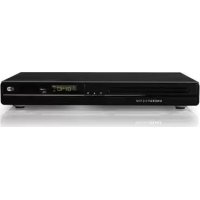
ENERGY SISTEM D2800 - DVD player

D2800 - DVD player ENERGY SISTEM - Free user manual and instructions

Find the device manual for free D2800 ENERGY SISTEM in PDF.

📄 32 pages English EN Download 💬 AI Question
Notice ENERGY SISTEM D2800 - page 3
View the manual : Français FR English EN
Pick your language and provide your email: we'll send you a specifically translated version.

User questions about D2800 ENERGY SISTEM

0 question about this device. Answer the ones you know or ask your own.

Ask a new question about this device

The email remains private: it is only used to notify you if someone responds to your question.

No questions yet. Be the first to ask one.

Download the instructions for your DVD player in PDF format for free! Find your manual D2800 - ENERGY SISTEM and take your electronic device back in hand. On this page are published all the documents necessary for the use of your device. D2800 by ENERGY SISTEM.

USER MANUAL D2800 ENERGY SISTEM

To ensure your safety and the safety of others, please ensure that you read all the safety information before operating this product.

Keep this information in a safe place for future reference.

ENERGY SISTEM D2800 - 1

This symbol indicates that this product incorporates double insulation between hazardous mains voltage and user accessible parts.

WARNING: To reduce the risk of fire or electric shock, do not expose this apparatus to rain or moisture.

Safety Considerations.

Position the cables so that they cannot be walked on or pinched by items placed on or against them.
Do not use the set top box in humid or damp conditions.
Do not allow the set top box to get wet.
Do not expose the set top box to dripping or splashing.
Do not place water filled objects such as vases on top of the set top box.
Do not place naked flame sources, such as candles, on the top of the set top box.

Ventilation

The slots and openings on the set top box are for ventilation. Do not cover or block them as it may cause overheating.

NEVER let children push anything into the holes or slots on the case.

Servicing

There are no user serviceable parts in this set top box.

Battery Disposal

Please ensure batteries are disposed of safely.

Never dispose of batteries in a fire or with other household waste.

Check with your local authority for disposal regulations.

Cleaning

ALWAYS unplug the set top box before you clean it.

Do not use liquid or aerosol cleaners.

Clean the set top box with a soft, damp (not wet) cloth.

D2800 handling and care
Place the product in a well-ventilated area Don't install it in the cold or under direct sunlight
Leave a minimum 10cm gap all around the productDo not disassemble, repair,or reorganize the product
Don't place cups with water or other liquids on the top of the productDon't place objects on the top of the product

2. FRONT PANEL

ENERGY SISTEM D2800 - FRONT PANEL - 1

  1. DISC TRAY.
  2. POWER: Used to switch the set top box ON or STANDBY.
  3. OPEN/CLOSE button.
  4. PLAY/PAUSE button.
  5. REMOTE CONTROL SENSOR: Used to receive the signal from the Infrared (IR) remote control.
  6. LED display.
  7. USB CONNECTOR: Used to attach your external USB hub/card reader/storage device.

3. REAR PANEL

ENERGY SISTEM D2800 - REAR PANEL - 1

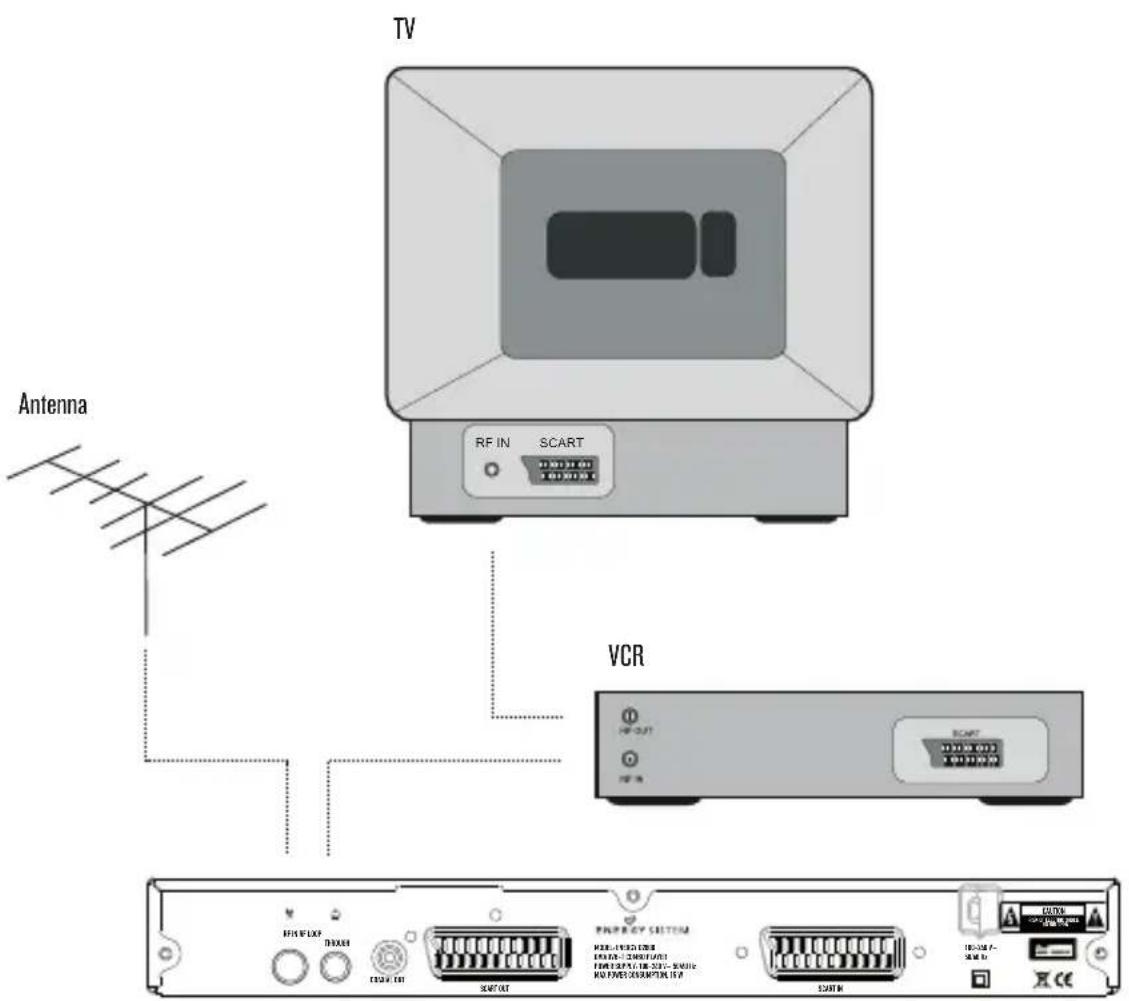
  1. RF IN: This socket connects to your external aerial.
  2. RF LOOPTHROUGH: This socket will bypass the RF signal to either your TV or another video system.
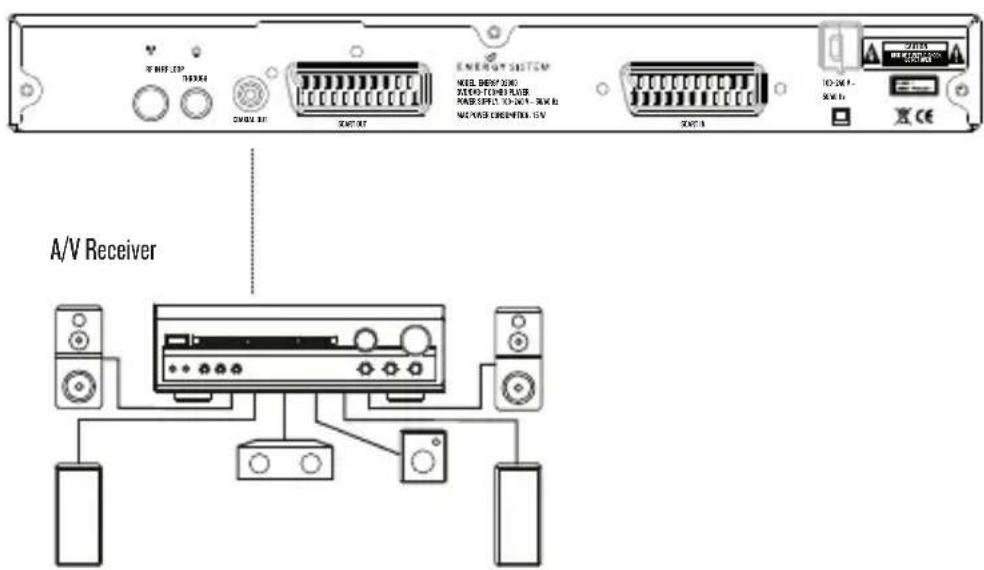
  3. COAXIAL: This socket connects to a S/PDIF RCA socket on your surround sound system.
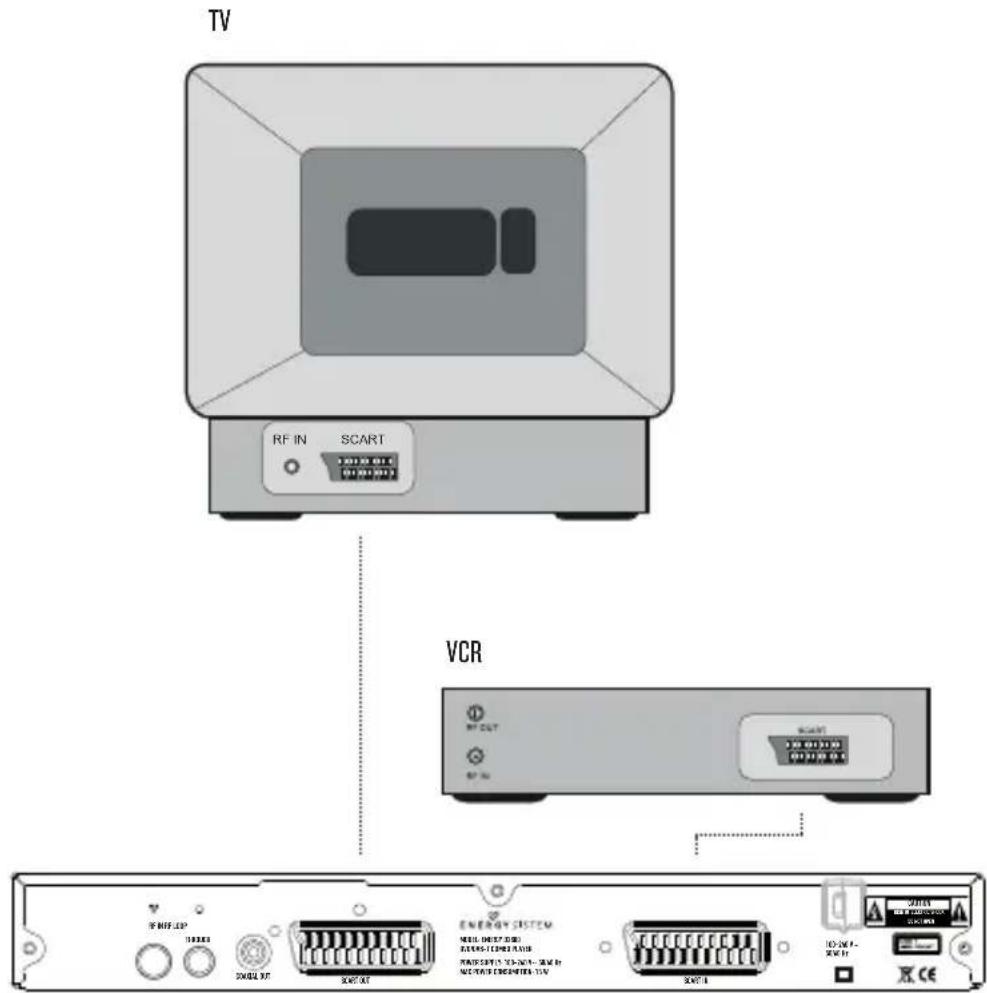
  4. SCART OUT: This socket connects to your TV.
  5. SCART IN: This socket connects to either a VCR or other video system.
  6. MAINS CABLE: This is used to connect to your main power supply.

4. REMOTE CONTROL

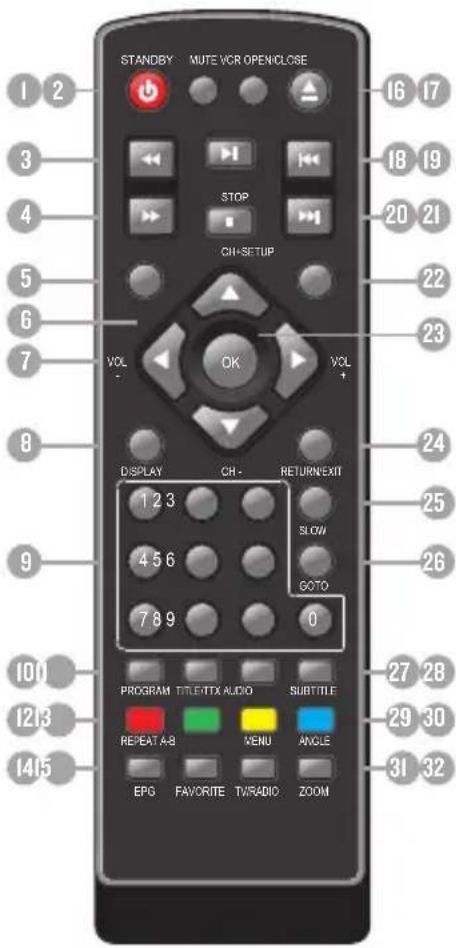
4.1. BUTTON DESCRIPTIONS

ENERGY SISTEM D2800 - BUTTON DESCRIPTIONS - 1

  1. STANDBY: Switch the set top box between on and standby mode.
  2. MUTE: Mute/unmute the sound.
  3. REV: Fast backward at selectable speeds.
  4. FWD: Fast forward at selectable speeds.
  5. SETUP: Open the setup menu window.
  6. CH + / - Move around the menu screens or change the channels in normal play mode.
  7. VOL+/-: Move around the menu screens or change the volume in normal play mode.
  8. DISPLAY: Display information about the channel being viewed or further information about the program when in normal play mode.
  9. NUMBER KEYS: Select channel numbers or input numbers in menus.
  10. PROGRAM: Program the playback order.
    II. TITLE/TTX: Title menu in DVD mode / Teletext in DVB-T mode. COLOR KEYS(RED/GREEN/YELLOW/BLUE): Operate different functions in TEXT screen or other menus.
  11. REPEAT: Change between repeat options.
  12. A-B: Define an interval and repeat it.
  13. EPG: Display information about the program being viewed and what's on next.
  14. FAVORITE: Access your favourite channels.
  15. VCR: Switch between SCART input and DVD/DVB-T.
  16. OPEN/CLOSE: Open/close the disc tray.
  17. PLAY/PAUSE: Pause or playback the program being viewed.
  18. PREVIOUS: Go to previous chapter/track/file or to the beginning of the currently playing one.
  19. NEXT: Go to the next chapter/track/file.
  20. STOP: Stop the current recording if exists or stop the playback.
  21. SOURCE: Change between disc and tuner modes.
  22. OK: Confirm a selection within a menu.
  23. RETURN/EXIT: Return to the previous screen or menu.
  24. SLOW: Slow motion playback.
  25. GOTO: Go to time point, title, chapter or file/folder depending on context.
  26. AUDIO: Select the available audio track or set the sound mode as LR(stereo), LL(left), RR(right).
  27. SUBTITLE: Switch among different available subtitles.
  28. MENU/MSM: Main menu in DVD mode / Multiscreen Mosaic in DVB mode.
  29. ANGLE: Selects a DVD camera angle if available.
  30. TV/RADIO: Switch between TV channels and Radio stations.
  31. ZOOM: Enlarges the image.
    Note: SUBTITLES/TEXT/AUDIO may not be available for all channels.

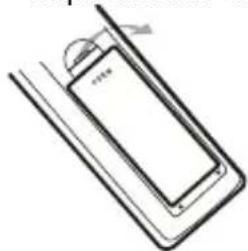
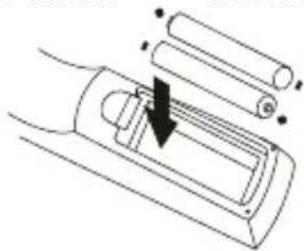
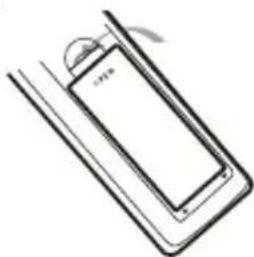
4.2. INSTALLING THE BATTERIES

Remove the battery cover from the remote control and put 2xAAA size batteries inside the compartment.

The diagram inside the battery compartment shows the correct way to install the batteries.

ENERGY SISTEM D2800 - INSTALLING THE BATTERIES - 1
1. Open the cover 2. Install the batteries

ENERGY SISTEM D2800 - INSTALLING THE BATTERIES - 2
3. Close the cover

ENERGY SISTEM D2800 - INSTALLING THE BATTERIES - 3

4.3. USING THE REMOTE CONTROL

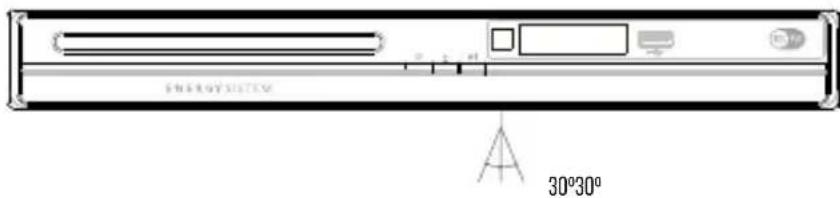
To use the remote control point it towards the front of the digital set top box.

The remote control has a range of up to 7 metres (23 feet) from the set top box at an angle of up to 60 degrees.

ENERGY SISTEM D2800 - USING THE REMOTE CONTROL - 1

The remote control will not operate if its path is blocked.

Sunlight or very bright light will decrease the sensitivity of the remote control.

5. CONNECTIONS

Caution: Make sure to check that the voltage of the wall outlet has the same rating than the receiver. To prevent the risk of electric shock, do not open the cover or the back of the receiver.

When connecting the receiver to other equipment (e.g. TV, VCR and amplifier) make sure to refer to relevant user manual for instruction. Also, make sure you disconnect all the equipments from the mains supply before the connection.

5.1.ANTENNA CONNECTION

ENERGY SISTEM D2800 - 5.1.ANTENNA CONNECTION - 1

5.2. SCART CONNECTION

ENERGY SISTEM D2800 - SCART CONNECTION - 1

5.3. CONNECTING TO AN A/V RECEIVER WITH DIGITAL AUDIO INPUT

ENERGY SISTEM D2800 - CONNECTING TO AN A/V RECEIVER WITH DIGITAL AUDIO INPUT - 1

6. USER INTERFACE - MAIN MENU

Note that the first time you use D2800 it will automatically show the Setup->Installation screen in order to scan for TV and radio channels. Please refer to Setup->Installation in page 10. Once the channel scan is finished and all the channels are stored into the database, you can start to watch the digital terrestrial TV channel or listen to the radio broadcast, some typical operations are given in this chapter.

Press

to enter Main Menu. See Figure1 Press to display D2800 version information.

ENERGY SISTEM D2800 - USER INTERFACE - MAIN MENU - 1
Figure I. Main Menu - Setup

6.1. SETUP

Set the system settings. See Figure 1.

6.1.1. Installation

ENERGY SISTEM D2800 - Installation - 1

ENERGY SISTEM D2800 - Installation - 2
Figure 2. SETUP - Installation Figure 3. SETUP - Installation (continued)

Set the receiving and playing program settings of D2800. See Figure 2, Figure 3.

Antenna Setting

Set the antenna power on or off to supply +5V power to antenna or not.

Note: The default is OFF, set this option to ON only if D2800 is connected to an active antenna which amplifies the received RF signal, otherwise please set it to OFF.

Country Setting

Set the country for Auto Scan, Manual Scan and Time Zone.

Note: Change the Country Setting will automatically change the default Time Zone and set the default Frequency and Bandwidth for Auto Scan.

OSD Language

Set the On Screen Display Language.

Audio Language

Set the audio language for watching a program (availability depends on channel broadcaster).

Subtitle Language

Set the language for displaying subtitle program (availability depends on channel broadcaster).

LCN

Set the Logical Channel Number to ON or OFF.

Note: LCN is a number that uniquely identifies a logical channel, which is popular in some European countries such as England or France.

Auto Time Zone / Time Zone

Allows you to enable or disable auto time zone update. If you know the GMT (Greenwich Mean Time) time zone offset of your location, set the Auto Time Zone to OFF and select an appropriate Time Zone, otherwise set it to ON and let the system update the time zone automatically according to the transport stream. See Figure 3

Note: Some Countries are covered with more than one Time Zone.

Auto Scan

Auto Scan will erase the database first, and scan default frequency and bandwidth by Country Setting.

Press button to start Auto Scan.

Press <0K> button to confirm clear action and start Auto Scan.

It costs time to do Auto Scan, you can press button to exit at anytime. See Figure 4, Figure 5.

ENERGY SISTEM D2800 - Auto Scan - 1

ENERGY SISTEM D2800 - Auto Scan - 2
Figure 4. Clear database message Figure 5.AutoScan Finished

Manual Scan

Press < GREEN > button to start Manual Scan.

Manual Scan adds the scanning results into database, it doesn't erase the database. But you have to indicate the Frequency and Bandwidth for scanning. If you scan the same Frequency and Bandwidth more than once, the previous programs will be overwritten.

Press button to enter Manual Scan Page.

Press button to select Frequency option.

Press < 0 9> button to input the Frequency value.

Press button to select Bandwidth option.

Press button to set Bandwidth value.

Press OK/Exit> button to start scan or exit. See Figure 6, Figure 7.

ENERGY SISTEM D2800 - Manual Scan - 1

ENERGY SISTEM D2800 - Manual Scan - 2
Figure 6. Manual Scan edit Figure 7. Manual Scan finished

6.1.2. TV Setup

Setup the display mode for TV. See Figure 8

ENERGY SISTEM D2800 - TV Setup - 1
Figure 8. TV Setup

TV Format

4:3LB(LetterBox): Typically for wide screen content on conventional 4:3 TV with black bars above and below the picture.
4:3PS(PanScan): Typically for wide screen content on conventional 4:3 TV with left and right edges cropped.
16:9PB(PillarBox)/16:9 AUTO: Typically for wide screen 16:9 TV.

TV Mode

Set PAL, NTSC or AUTO for display. AUTO will switch PAL or NTSC by program content. This setting should be matched with user's TV.

OSD Transparency

Set the On Screen Display transparency. "I" is the most transparent.

Set Banner display time. Banner does not automatically disappear when set as "Always" and disappears at timeout when set to other values.

Video Output

Set the video output mode to TV: CVBS or RGB.

Video Enhancement

Set the Video Enhancement. See figure 9.

Press button to select Video Enhancement option.

Press button to set Video Enhancement.

Press button to select Flesh Tone or Black/White Expansion.

Press button to set Flesh Tone and Black/White Expansion.

ENERGY SISTEM D2800 - Video Enhancement - 1

ENERGY SISTEM D2800 - Video Enhancement - 2
Figure 9. Video Enhancement Figure 10. Password page

6.1.3. Password

Set password for menu, channel or censorship lock. And the user can change password here, the default Password is 6666. See Figure 10.

Menu Lock

Password-lock the menus.

Channel Lock

Lock the channel which has been set to lock status when turning on the Channel Lock. Please see section Lock" on page 15 for details.

Censorship Lock

Lock the program by password and censorship threshold. The censorship info is in program content. Under the censorship rating, user has to enter the right password for watching program.

Change Password

To change the Password, select this option, press button to trigger changing password and <0-9> buttons to enter old password, new password and confirm new password. If succeed, the Password Changed message will be displayed, otherwise the Password Error message will be displayed.

6.1.4. Advance Timer

User can set timer for watching the program by date and time manually or from the TV/Radio Guide (see section "Guide" on page 16). When scheduled date/time arrives, D2800 will automatically switch to the scheduled program. Press any key except button, D2800 will ask you to abort it or not when watching booked program. You can delete the event while it is not running.

6.1.5. Set Default

Restore D2800 to factory default settings. All user settings will be restored to factory default values and the TV/radio channel database will be erased together.

6.1.6. SW Update

Updates D2800 firmware by USB.

6.2. TV/RADIO

There are two types of programs: TV and Radio.

The operation of the List and Guide of TV and Radio are almost the same. Herein take TV as an example.

6.2.1.List

ENERGY SISTEM D2800 - 6.2.1.List - 1
Figure II. TV List

There are several options to manage channels:

Favorites

User can quickly arrange the favorite programs by favorite filter. There are 8 groups of favorite channels: News, Sport, Movie, Music, Shopping, Travel, Boy and Girl. Press <1 8> button to set or clear the favorite group when Favorites option is selected.

Lock

Lock will ask for the password before watching this program when Setup -> Password -> Channel Lock is turned on. Please see section "Channel Lock" on page 14 for details. Press button to set or clear lock status when Lock option is selected.

Edit

You can edit the program name, maximum length is 20 characters.

Press button to select Edit option and button to select the program.

Press button to display program info and press it again to edit program name.

Press button to select the character.

Press button to finish the editing and return to previous program info page.

Press button to save the editing and return to List or press button to return to List without saving.

Move

Move will allow you to move the position of the channels in the list.

Note: This option will not appear when SETUP->Installation->LCN is set to ON.

Sort

Sort will allow you to sort the channels by A < - > Z or Pay < - > Free .

Note: This option will not appear when SETUP->Installation->LCN is set to ON.

Skip

Skip will skip the program when changing a program by CH + / - . Press <0K> button to set or clear skip status when Skip option is selected.

Delete

Delete will delete the program permanently from the database. You must rescan to recover it.

Press button to set delete one or delete all when Delete option is selected.

User can search the program name by partial keyword.

Press button to select Search option.

Press <0K> button to entry search page.

Press button to input keyword.

Press button to Search and return List. The matched program will be focused.

Press button to the next or previous matched program.

6.2.2. Guide

Guide is also known as EPG (Electronic Program Guide). See Figure 12, Figure 13.

Press button to select program or EPG event.

Press button to change event or date.

Press button to exit all the menus or show the detailed information of a selected event (availability depends on channel broadcaster).

Press button to exit to previous menu.

Press button to enter Book page and button to save after edition. If it's in conflict with itself or other event, a conflict message will be displayed. The successful booking will be added to Main Menu-> Setup-> Advanced Timer (see section 1.4 on page 14).

ENERGY SISTEM D2800 - Guide - 1

ENERGY SISTEM D2800 - Guide - 2
Figure 12. Guide - Event Figure 13. Guide - Event (detail)

6.3. MULTIMEDIA

Multimedia must be used with external USB device inserted, otherwise the "Device is not ready!" message will be displayed. If you remove the USB device a "Device is removed!" message will be shown and the system will return to Main Menu.

6.3.1. My Album

Use this option to view JPEG/BMP/GIF files.

If there are photos in the device root folder it will start in Thumbnail mode, otherwise it will start in Folder mode. Press button to switch to Folder mode and button to return to Thumbnail mode again.

The info (width x height and date) of selected photo will be displayed at the left bottom in Thumbnail mode and right up in Folder mode. See Figure 14 Figure 15

ENERGY SISTEM D2800 - My Album - 1

ENERGY SISTEM D2800 - My Album - 2
Figure 14. My Album - Thumbsils Figure 15. My Album - Folder

Use to browse folders or files.

Press <0K> to view the selected photo and press again to start slide show.

Press to view the available functions.

Zoom

Press to zoom in / zoom out the photo in view mode. The zoom factor can be:

25-50-100-150-200%

If zoom factor is greater than 100% you can use Up / Down / Left / Right to move through the zoomed picture.

Rotation

Press to rotate clock/counterclockwise and to flip horizontal or vertical direction.

Slide show

Press to view the photo in Thumbnail or Folder mode and press it again to start the slide show.

Press to play/pause the slide show.

Press to set background music while slide show is running.

Press to switch between repeating modes.

Press to set the time gap between photos.

Press to manually select the previous/next photo.

6.3.2. My Music

Use this option to listen to MP3/WMA files.

The music jukebox display includes (see Figure 16, Figure 17):

Progress bar with elapsed and total playing time.
Audio spectrum visualizer.

Press to browse folders and files.

Press to play or pause.

Press < GREEN> to stop.

Press to set play mode as Repeat All / Repeat Random / Repeat Off.

Press to set fast forward speed as x2/x3/x4 / normal.

Press button to adjust volume while playing.

ENERGY SISTEM D2800 - My Music - 1

ENERGY SISTEM D2800 - My Music - 2
Figure 16. My Music - Browser Figure 17. My Music - Play

6.3.3. My Movie

My Movie can play most of MPEG2, DivX, Xvid standard-resolution files.*

It displays the playing file name at the top left corner and use the INFO key to get the current playing time and total time information while playing. See Figure 18, Figure 19.

Press INFO button to select device if an external USB hub connected while browsing, and to show the control info bar while playing.

Press to select folders and files during browsing

Press OK> button to select a file to play.

Press button to play or pause while playing.

Press < GREEN> button to play the frame one by one while playing.

Press button to set fast backguard speed as x2,x4,x8,x16,x32, normal.

ENERGY SISTEM D2800 - My Movie - 1

Figure 18. My Movie - Browser Figure 19. My Movie - Play
ENERGY SISTEM D2800 - My Movie - 2
* Multimedia files compatibility depends on container file format and audio / video codec

6.3.4. My Record

Within My Record you can view the programs already recorded and configure recording options.

Note: the external storage device file system must be FAT or FAT32.

Recorded List
View or delete recorded programs.
Recording Device
Select the storage device and partition where the recordings will be stored.
Recording Preference

Time Shift Size

Note that Time Shift Size is calculated automatically according to the current storage device or partition and cannot be modified.

Time Shift

Pause: Timeshift starts when < Pause> button is pressed.

Auto: Timeshift is continuously active.

Off:Timeshift disabled

One Button recording

On: D2800 starts recording with a simple button press.

Off: After pushing you have to specify the lenght of the recording.

Default recording period

Specify the default recording period from 15 minutes to 8 hours in 15-minutes steps.

ENERGY SISTEM D2800 - My Record - 1
Figure 20. My Record Figure 21. Recorded list

ENERGY SISTEM D2800 - My Record - 2

ENERGY SISTEM D2800 - My Record - 3

ENERGY SISTEM D2800 - My Record - 4
Figure 22. Recording Device Figure 23. Recording Preferences

6.4 ACCESSORY

There are three options: Gomoku, Calendar, Calculator.

6.4.1. Gomoku

Press button to set play mode and difficulty. Press button to start play Gompoku.

Press button to select the position. Press button to place the piece.

6.4.2. Calendar

Displays the year, month and day.

6.4.3. Calculator

For mathematical calculations.

7. NORMAL PLAY

Normal Play means D2800 under watching TV or listening to the Radio. See Figure 24, Figure 25.

ENERGY SISTEM D2800 - NORMAL PLAY - 1

ENERGY SISTEM D2800 - NORMAL PLAY - 2
Figure 24. Normal Play - TV Figure 25. Normal Play - Radio

7.1. INFORMATION

Press button once to display info banner. Banner displays the program No., favorite setting, current time, program name, now and next event, lock, scramble, subtitle and teletext info. See

Figure 26.

Press button when banner exists to display detailed info of a present event Press button when detail exist to display current program info. See Figure 2

ENERGY SISTEM D2800 - Figure 26. - 1

ENERGY SISTEM D2800 - Figure 26. - 2
Figure 26. Information banner Figure 27. Program Info

7.2.SWITCH PROGRAM

User can switch program by <CH+/-> or input channel number directly. If the input program number doesn't exist, D2800 will ignore the input.

Press button to switch to the last watched channel from the current program.

7.3. VOLUME

Press Vol / Vol + button to adjust the volume. Press button to mute.

If you adjust the volume while on mute, mute will be cancelled.

7.4.PROGRAM LIST

Press OK> button to display Program List with No., name and lock/scramble/skip status. See Figure 2B.

Press to change the channel. Press to return to the normal play mode.

ENERGY SISTEM D2800 - 7.4.PROGRAM LIST - 1
Figure 28. Program List Figure 29. Audio Channels

ENERGY SISTEM D2800 - 7.4.PROGRAM LIST - 2

7.5.AUDIO

Switch the sound channel and switch sound mode to LR(stereo) or LL(left) or RR(right). If setting audio language at Setup->Installation->Audio Language, the audio channel default language will be chosen by setting. See Figure 29 Press

Press button to select Channel/Audio PID or Sound Mode option.

Press button to set the value.

7.6. PAUSE

Pause video and audio. But it will be cancelled by any input.

7.7. FAVORITES

User can switch the favorite programs in the same favorite group. About favorites settings, see section "Favorites" on page 15 for details.

Press button to switch to the favorite group in Program list.

Press <CH +/-> button to switch to the same favorite program in normal play mode.

7.8. TELEXT

Display teletext on screen, the style of teletext may be different by content provider. See Figure 30, Figure 31.

Press button to display the teletext setting page.

Press button to select the teletext language if the program has teletext (availability depends on channel broadcaster).

Press button to exit the teletext setting page.

Press <0 9/Up/Down/Left/Right> button to change teletext page (if available).

ENERGY SISTEM D2800 - TELEXT - 1
Figure 30. Teletext settings Figure 31. Teletext

ENERGY SISTEM D2800 - TELEXT - 2

7.9. SUBTITLES

Display subtitles on screen. The style of subtitles may be different by content provider (availability depends on channel broadcaster). See Figure 32, Figure 33.

Press button to display subtitle setting page.

Press button to select subtitle language, if subtitles are available.

Press OK/Exit> button to exit subtitle setting page.

ENERGY SISTEM D2800 - SUBTITLES - 1
Figure 32. Subtitle settings Figure 33.Subtitles

ENERGY SISTEM D2800 - SUBTITLES - 2

7.10. TELETEXT SUBTITLE

Display subtitle by teletext, the style of the teletext subtitle may be different by content provider (availability depends on channel broadcaster). See Figure 34, Figure 35.

Press button to display teletext or subtitle setting page. Press button to select "TTX Subtitle".

Press button to select teletext subtitle language. Press button to exit the setting page.

ENERGY SISTEM D2800 - TELETEXT SUBTITLE - 1

ENERGY SISTEM D2800 - TELETEXT SUBTITLE - 2
Figure 34. Teletext language Figure 35. Teletext subtitles

7.11. GUIDE

Press button at normal play state, see section "Guide on page 16 for details.

7.12. LIST

Press button at normal play state, see section "List on page 15 for details.

7.13. MSM: MULTI SCREEN MOSAIC - EASY ZAPPING

MSM (MultiScreen Mosaic) can display 9 programs on screen at the same time. The highlighted program is playing and the other channels will display a snapshot. See Figure 36. Press button to display MSM.

Press button to browse program.

Press <0K> button to switch program and watch it.

Press Exit button to return normal play mode.

ENERGY SISTEM D2800 - MSM: MULTI SCREEN MOSAIC - EASY ZAPPING - 1
Figure 36. MultiScreen Mosaic

7.14. MESSAGES

There are some messages to inform user the current status of the D2800.

No Signal
If D2800 can't get the signal, for example if the antenna cable is disconnected.
No Service

Program doesn't have any contents to play.
Encoded Service

Program is encoded for payment, you need to contact with the content provider to know how to decode it.

Antenna Overload

The power of antenna is overloaded.
HDTV Not Support

If the program content is HDTV format, D2800 doesn't support it.
Channel Locked

Program is locked by setting lock (see section "Lock" on page 15) and turning on channel lock in password setting (see section "Channel Lock" on page 14). You must input the correct password to

watch the channel. See Figure 3A

ENERGY SISTEM D2800 - MESSAGES - 1
Figure 37. Password-locked channel

8. DVD PLAYBACK

8.1. MAIN SETUP

Press STOP when playing disc and then press SETUP to access this menu.

8.1.1. Language Setup

OSD: Change the language of the text that appear at the user interface.
- Menu: Selects the default menu language when a DVD is used.
Audio: Change the default audio language.

Subtitle: Select the default subtitle language.
Encoding: Select the text codification to match the codification used in the subtitle files associated to MPEG4 videos.

8.1.2. Screen Setup

TV Type: 4:3PS 4:3LB 16:9
TV System: NTSC PAL Auto
Video Output: RGB CVBS
Brightness: Soft, Normal, Bright
Contrast: -4 ... +4

8.1.3. Audio Setup

Digital Out: Off, SPDIF/RAW, SPDIF/PCM
Downmix: Lo/Ro, Lt/Rt

8.1.4.Custom Setup

Angle Mark: On/Off
Parental Control

Password
Default

8.2. MULTIMEDIA FILES PLAYBACK

D2800 supports the most common multimedia formats.

Audio: MP3, MP2, WMA
Video: DAT, MPG, VOB, AVI
Picture: JPEG

Browse the disc's contents with the directional buttons and press Ok to select files/folders.

When the selected file is and audio file then in the lower-left corner information about sampling frequency, bitrate and lenght will be displayed.

If the selected file is an image then the resolution and creation date will be displayed.

9. TROUBLESHOOTING

If you experience problems with this receiver or its installation, in the first instance please read carefully the relevant sections of this User Manual and this Troubleshooting section.

Problem Possible cause What to do
Standby LED not lit Mains lead unplugged Check mains lead
No signal found Aerial is disconnected.Aerial is damaged/misaligned.Out of digital signal area.Check aerial lead.Check aerial.Check with dealer.
No picture or sound Viewing incorrect SCARToutputPress the DTV/VCR button
Tuned to digital teletext channelChange to another channel
Mosaic blocks in picture or picture freezesAerial may not be compatible Check aerial
Scrambled channel message Channel is scrambled Select an alternative channel
Forgotten channel lock code Re-install channels to cancelchannel lock
No response to remote control Receiver off Plug in and turn on receiver
Remote control not aimed correctlyAim the remote control at front panel
Front panel obstructed Check for obstructionsobstructions
Remote control batteries are inserted incorrectlyCheck batteries direction
Remote control batteries exhaustedReplace remote control batteries
After moving the device to another room can't receive the digital signalThe aerial feed may come through a distribution system which may reduce the digital signalTry a direct feed from antenna

10. SPECIFICATIONS

Item Specification
Tuner Frequency rangeVHF: 174 — 230 MHz / UHF: 470 — 862 MHz
Input Impedance 75 Ohms unbalanced
Signal input level -78 — -25 dBm
Bandwidth 7/8 MHz
Modulation Demodulator COFDM
OFDM Modulation 2k, 8k FFT, SFN and MFN
Connectors RF in IEC69-2 female connector
RF loopthrough IEC 169-2 male connector
SCART TV Composite video (CVBS), RGB, audio L/R
SCART VCR Composite video (CVBS), audio L/R
CoaxialRCA, S/PDIF digital audio output
USB 2.0Multimedia playback and DVB-T recording
PowerInput100—240 V 50—60 Hz
Consumption10 W max.
Display TV SystemPAL, NTSC
Resolution CVBS/RGB: 720 x 480i, 720 x 576i
Aspect Ratio4:3 (Letterbox, Pan & Scan), 16:9
DecodingVideoMPEG 2 Transport MP@ML
AudioMPEG 2 audio layer I & II
OthersCompliance ETSI EN 300 744 DVB-T
Multimedia FormatsVideoMPEG2, DivX, Xvid
AudioMP3, WMA
PhotoJPEG, GIF, BMP

Specifications are subject to change without further notice.

WARRANTY

Energy Sistem Soyntec S.A. warrants its products to be free from defects in materials and workmanship at the time of purchase.

The warranty period is 36 months from the date of purchase for DVB-T STB receivers.

WARRANTY PROCEDURE

  • Visit the Support section at http://support.energysystem.com and select your product to view the FAQ (Frequently Asked Questions). The solution to your problem is very likely to have been already published there. You will also be able to download user manuals, user guides, drivers and updates.
    If you cannot find an appropriate solution in the Support section, you may send us your enquiry or warranty service request by email: support@energysistem.com
  • Alternatively, you may prefer to contact the distributor from which you purchased the product, presenting the purchase receipt or invoice.

Specifications are subject to change without notice.

© 2009 by Energy Sistem®. All rights reserved.

TRADEMARKS.

All company, brand and product names are trademarks or registered trademarks of their respective companies.

DECLARATION OF CONFORMITY

Manufacturer Name: Energy Sistem Soyntec S. A.

Address: Pol. Ind. Finestrat - C/ Calpe, I - 03509 Finestrat (Alicante)

Tel: 902388388

Fax: 902 119 034

NIF: A53107488

We declare under our own exclusive responsibility that the product:

Energy Sistem® DVD Player / DVB-T Recorder Energy™ D2800

Is in compliance with the essential directives, norms and standards of the European Union 89/336/EEC (EMC Directive).

Manufacturing country: China

Manual assistant
Powered by Anthropic
Waiting for your message
Product information

Brand : ENERGY SISTEM

Model : D2800

Category : DVD player