
M2700 - DVD player ENERGY SISTEM - Free user manual and instructions
Find the device manual for free M2700 ENERGY SISTEM in PDF.


| Product Type | DVD Player |
| Brand | Energy Sistem |
| Model | M2700 |
| Dimensions (W x D x H) | 430 x 250 x 40 mm |
| Weight | 1.5 kg |
| Power Supply | AC 100-240V, 50/60 Hz |
| Power Consumption | 15 W (standby < 1 W) |
| Disc Types Supported | DVD, DVD±R/RW, CD, CD-R/RW, MP3, JPEG, DivX |
| Video Outputs | HDMI, Composite (RCA), Component (YUV) |
| Audio Outputs | Stereo RCA, Coaxial Digital |
| Playback Features | Progressive Scan, Zoom, Repeat, A-B Repeat, Multi-angle |
| Remote Control | Included (IR) |
| Region Code | Region 2 (may be multi-region) |
| Maintenance | Clean lens with dry cloth; avoid liquids. Keep vents free of dust. |
| Safety | Do not expose to moisture or extreme temperatures. Use only supplied power adapter. |
| Spare Parts & Repairability | Contact Energy Sistem support for replacement parts. Repair by qualified personnel only. |
Frequently Asked Questions - M2700 ENERGY SISTEM
User questions about M2700 ENERGY SISTEM
0 question about this device. Answer the ones you know or ask your own.
Ask a new question about this device
Download the instructions for your DVD player in PDF format for free! Find your manual M2700 - ENERGY SISTEM and take your electronic device back in hand. On this page are published all the documents necessary for the use of your device. M2700 by ENERGY SISTEM.
USER MANUAL M2700 ENERGY SISTEM
User Manual
1. INTRODUCTION

To ensure your safety and the safety of others, please ensure that you read all the safety information before operating this product.
Keep this information in a safe place for future reference.

This symbol indicates that this product incorporates double insulation between hazardous mains voltage and user accessible parts.
WARNING: To reduce the risk of fire or electric shock, do not expose this apparatus to rain or moisture.
Safety Considerations.
- Position the cables so that they cannot be walked on or pinched by items placed on or against them.
Do not use the set top box in humid or damp conditions.
Do not allow the set top box to get wet. - Do not expose the set top box to dripping or splashing.
Do not place water filled objects such as vases on top of the set top box.
Do not place naked flame sources, such as candles, on the top of the set top box.
To prevent direct exposure to the laser beam, do not open the enclosure.
▶ Never stare directly into the laser beam.
Ventilation
The slots and openings on the set top box are for ventilation. Do not cover or block them as it may cause overheating.
NEVER let children push anything into the holes or slots on the case.
Battery Disposal
Please ensure batteries are disposed of safely.
Never dispose of batteries in a fire or with other household waste.
Check with your local authority for disposal regulations.
Cleaning
ALWAYS unplug the product before you clean it.
Do not use liquid or aerosol cleaners.
Clean the set top box with a soft, damp (not wet) cloth.
2. CONTROLS AND CONNECTIONS

- Media selection.
- Navigation buttons and OK. Used to browse the menus and to confirm selection.
- Main menu in DVD mode. File browser in USB mode.
- Card Reader.
-
On/Off switch.
-
Battery-charge indicator.
- DC Power connection DC (12 V)
- 3.5 mm (1/8") Stereo earphone output.
- 3.5 mm (1/8") TRRS A/V output.
- Volume control.
II. USB host port (Type A).
For disc loading slide the screen part to the top. In that position you can place the disc easily. Then move smoothly the screen part back to its closed position.
Note: Load the disc on the tray with printed side facing up.

3. REMOTE CONTROL
3.1. BUTTON DESCRIPTION

I. SOURCE: Switches between DVD/USB/Card Reader.
2. DISPLAY: Show detailed information about the current file or disc
3. ANGLE/AUDIO: Short press changes the audio mode (if available). Long press changes the angle mark (if available).
4. TITLE/SUBTITLE: Short press changes between available subtitles. Long press to access DVD title menu.
5. MENU/ZOOM: Short press to zoom in. Long press to access DVD main menu.
6. STOP/SLOW: Short press to activate slow motion. Long press to stop playback.
7. Navigation buttons/Fast forward and Reverse.
8. ENTER: Confirms selection.
9. Play/Pause: Pause/Resume the playback.
- PROG/REPEAT: Short press to switch between different repeat modes. Long press to access program mode.
II. REPEAT A-B: First press sets start point, second press sets end point and third press returns to normal playback mode. - Numeric keyboard.
- SETUP: Access the setup menu.
- GOTO: Go to a specific time index.
- Previous: Go to previous chapter/track/file.
- Next: Go to next chapter/track/file.
3.2. BATTERY
Pull the battery loader out and insert a CR2025 battery.

Make sure to place the battery in the correct direction.
When not using the remote control for a long time remove the battery.
When operating range reduces replace the battery.
4. MP3/WMA/MPEG4
You can play files stored in optical discs, USB devices or memory cards. To select the desired media press the SOURCE button and use up/down to highlight DVD, USB or CARD.
The Card reader accepts MemoryStick (MS), Secure Digital (SD) and MultiMedia Card (MMC) types.
Press Direction key to choose the root directory and then press ENTER button to enter into the subdirectory.
Press Direction keys to choose the desired track and then press ENTER or PLAY to start the music or movie playback.
If you want to return to the upper menu, press Direction key to choose the folder named ‘..’ and press ENTER button.
Filter: Allows selecting the categories of files (Audio, Photo and Video) displayed in the browser list.
▶ Repeat: To switch different repeat playing mode.
▶ Mode: Select different playing mode.
Normal: Shuffle mode is cancelled.
Shuffle: Shuffle mode enabled. When playback reaches the end of the current chapter/track, playback jumps to a random chapter/track. As the end of each chapter/track is reached, another random chapter/track will be played until all tracks/chapters have been played or the Shuffle mode is cancelled by toggling to a different Mode Option.
Music Intro: In this mode, the media will play 10 seconds then skip to next media.
Edit Mode: To enable programmed playback mode. When you select the mode, press LEFT
Direction key to directory and press ENTER to choose the desired track and press Add to program to start program playback.
5. PICTURES
The operation of the image viewer is similar to the music/video viewer.
Image rotation.
Press Direction key to rotation the picture, press ANGLE button to change the picture scan mode.
6. SYSTEM SETUP
Press the SETUP button on the remote control, the SETUP MENU(main) will be displayed.
After accessing the setup menu, press the direction buttons for up and down movement to select an item desired, then press the ENTER button to confirm.
Press LEFT direction button return to the menu of upper level.
To exit the setup, press the SETUP button again.
6.1. LANGUAGE
▶ Use this item to select the language of the setup menu and screen display.
Subtitle. This option provides the preset subtitle language. Follow the operating instructions stated in DVD MENU SETUP In combination with the desired option.
MPEG4 Subtitle: Choice different MPEG4 subtitle encoding option.
Audio: Follow the operating instructions stated in DVD MENU SETUP In Combination with the desired option. This option provides the built-in disc dubbing language options.
DVD Menu: This option provides the film s menu language options. Follow the operating instructions stated in DVD MENU SETUP in combination with the desired option.
6.2. VIDEO
Aspect Ratio: 4:3PS, 4:3LB, 16:9
▶ TV System: NTSC, PAL, Auto
▶ Smart picture. Adjust display effect for video output:
Standard: default effect.
Bright: internal setting for bright view effect.
Soft: internal setting for soft view effect.
Dynamic: user adjust brightness, contrast, color etc.
6.3. RATING
▶Parental Control Selecting a Rating allows the user to set the parental control feature of the player Select Parental Control, and press ENTER to change the different mode.
Note: Unlock the password before setting Parental Control.
▶ Set Password Use the 0-9 keys to input four digits(password), then press ENTER to confirm. Note: If you forget your password, please use the universal password 6666 to unlock.
6.4. MISC SETUP
▶ Use Default Settings Reset setup data to factory defaults.
Screen saver Screen saver: Enable/Disable screen saver function.
7. SPECIFICATIONS
| General | |
| TV System PAL / NTSC | |
| Supported disc formats DVD, VCD, CD, CD-R, CD-RW, DVD+-R/W | |
| Supported file formats MP3, JPEG, AVI | |
| Video | |
| S/N Ratio >= 65 dB | |
| Resolution >= 500 lines | |
| Audio | |
| Frequency 20 Hz - 20 kHz +/- 1 dB | |
| S/N ratio >= 90 dB | |
| Dynamic Range >= 80 dB | |
| Distortion < 0.01 % | |
| D/A Conversion 96 kHz / 24 bit | |
| Output | |
| Screen technology TFT-LCD Color | |
| Screen size 7" | |
| Video output I Vp-p (75 Ohms) | |
| Audio output 2 Ch | |
| Power supply | DC 12 V |
| Power consumption | <= 15 W |
| Size | 206 x 160 x 40 mm |
| Weight | 0.8 kg |
Specifications are subject to change without further notice.

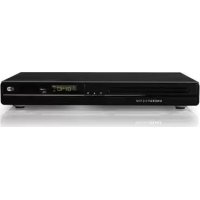
Brand : ENERGY SISTEM
Model : M2700
Category : DVD player