Jongo T4 - Docking station PURE - Free user manual and instructions
Find the device manual for free Jongo T4 PURE in PDF.



User questions about Jongo T4 PURE
0 question about this device. Answer the ones you know or ask your own.
Ask a new question about this device
Download the instructions for your Docking station in PDF format for free! Find your manual Jongo T4 - PURE and take your electronic device back in hand. On this page are published all the documents necessary for the use of your device. Jongo T4 by PURE.
USER MANUAL Jongo T4 PURE
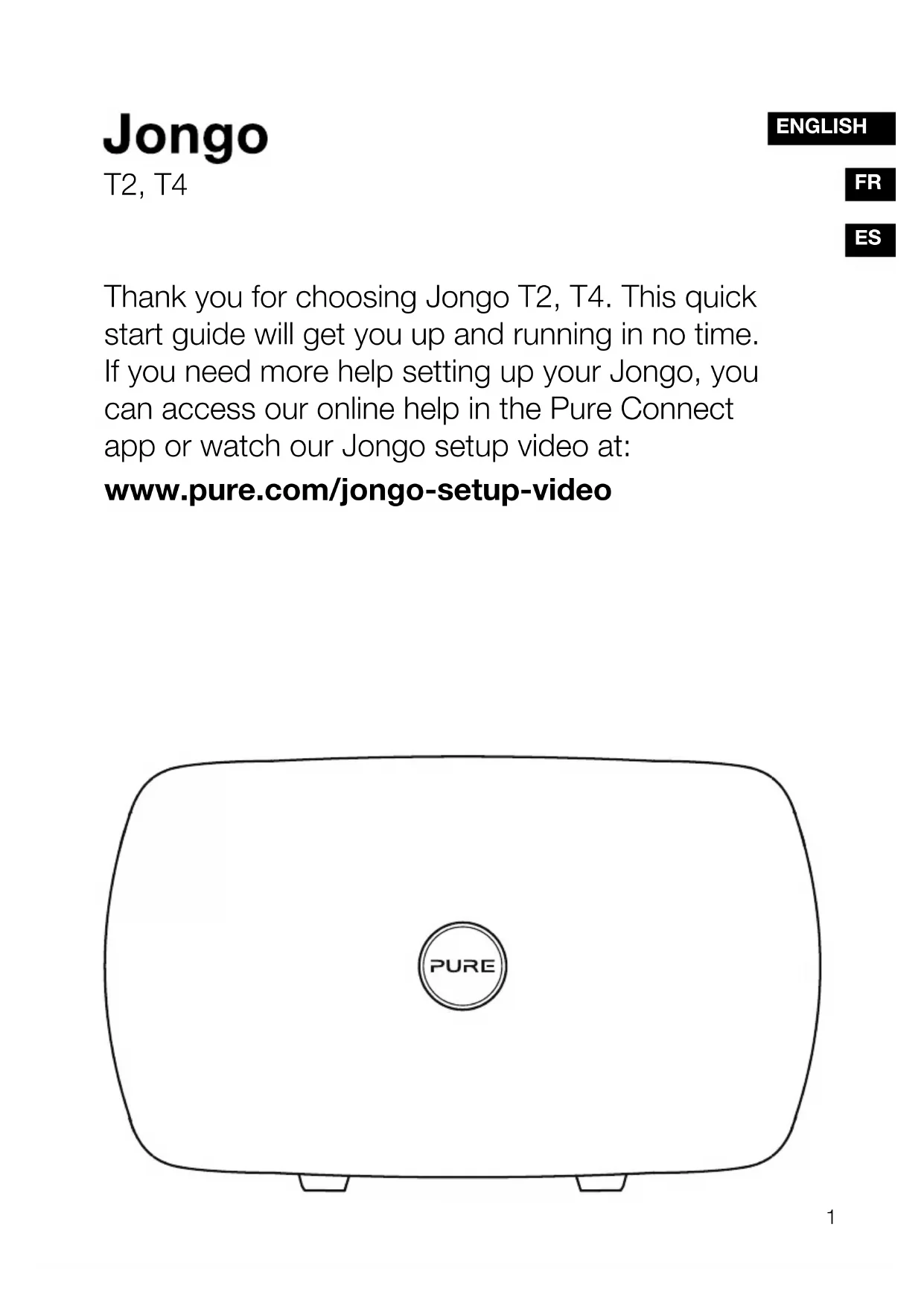
Thank you for choosing Jongo T2, T4. This quick start guide will get you up and running in no time. If you need more help setting up your Jongo, you can access our online help in the Pure Connect app or watch our Jongo setup video at:
www.pure.com/jongo-setup-video
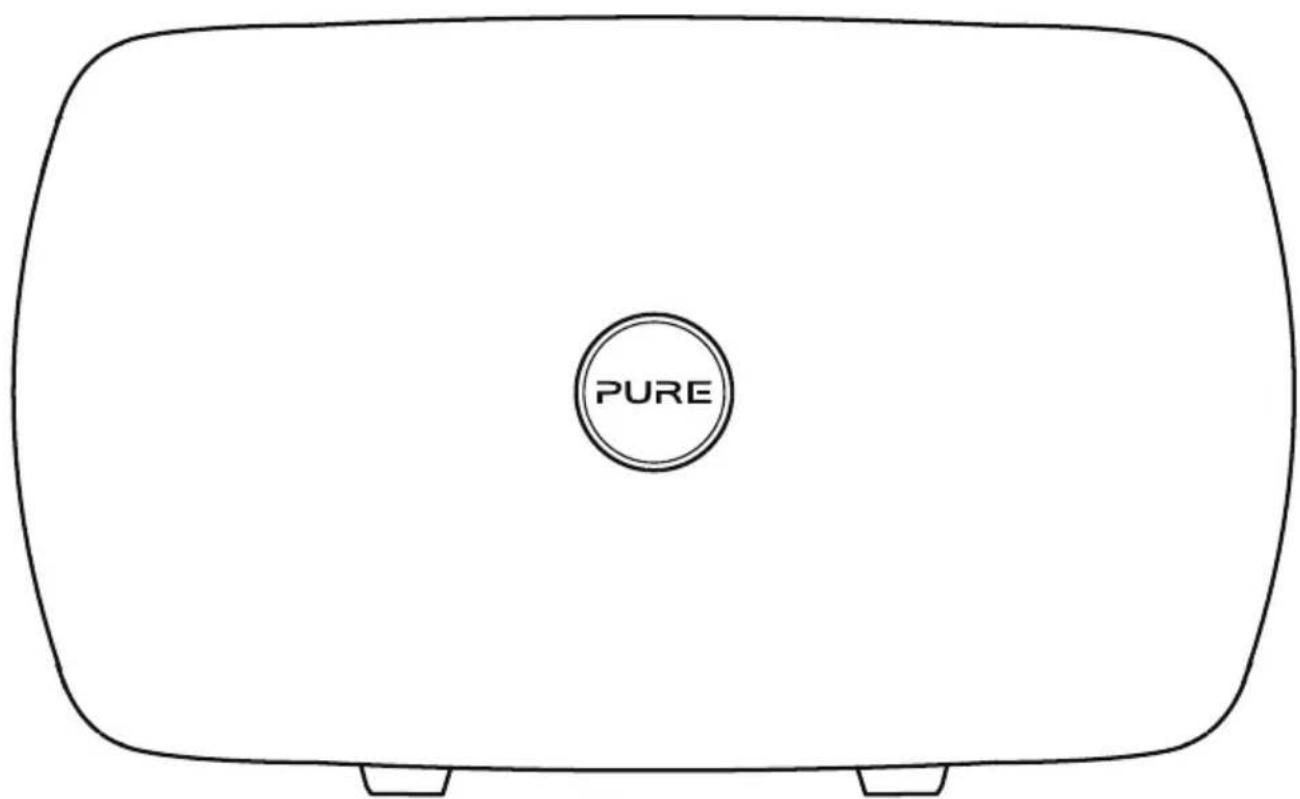
Jongo T2/T4 safety instructions
- Read these instructions – All the safety and operating instructions should be read before this product is operated.
- Keep these instructions – The safety and operating instructions should be retained for future reference.
- Heed all warnings – All warnings on the appliance and in the operating instructions should be adhered to.
- Follow all instructions – All operating and use instructions should be followed.
- Do not use this apparatus near water.
- Clean only with dry cloth.
- Do not block any ventilation openings. Install in accordance with the manufacturer's instructions.
- Do not install near any heat sources such as radiators, heat registers, stoves, or other apparatus (including amplifiers) that produce heat.
- Only use attachments/accessories specified by the manufacturer.
- Unplug the apparatus during lightning storms or when unused for long periods of time.
- Refer all servicing to qualified personnel. Servicing is required when the apparatus has been damaged in any way, such as power-supply cord or plug is damaged, liquid has been spilled or objects have fallen into the apparatus, the apparatus has been exposed to rain or moisture, does not operate normally, or has been dropped.
- WARNING: Please refer to the information on the rear of the enclosure for electrical and safety information before installing or operating the apparatus. If you are installing Jongo with the removable stand in portrait mode, this information can be located behind the trim panel.
- WARNING: To reduce the risk of fire or electric shock, do not expose this apparatus to rain or moisture. The apparatus shall not be exposed to dripping or splashing and that objects filled with liquids, such as vases, shall not be placed on apparatus.
- WARNING: The direct plug-in adapter is used as disconnect device, the disconnect device shall remain readily operable.
- Use only power supplies listed in the user instructions (Jongo T2 with model no. PSAA30R-150, manufactured by Pure) (Jongo T4 with model no. CPS065A180361, manufactured by Pure).
- Mains power supply
Jongo T2: Switching adapter: Input: AC 100 - 240V\~, 50/60 Hz, 0.8A; Output: DC 15V, 2A
Main unit: DC 15V, 2A
Jongo T4: Switching adapter: Input: AC 100 - 240V\~, 50/60 Hz, 1.6A; Output: DC 18V, 3.61A
Main unit: DC 18V, 3.61A - This equipment is a Class II or double insulated electrical appliance. It has been designed in such a way that it does not require a safety connection to electrical earth.
Connecting Jongo to Wi-Fi

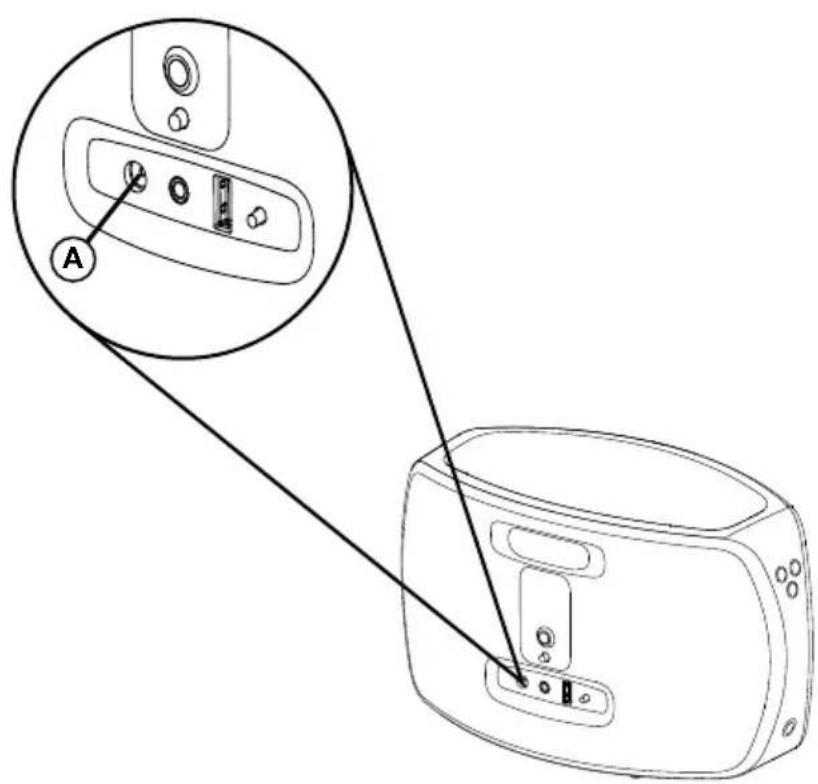
① Power up Jongo
Insert the connector of the supplied AC lead into Jongo (A) and switch Jongo on ⏻.

Download the Pure Connect app
Search for the Pure Connect app on the Apple App Store or Google Play from your phone or tablet.
If you already have the Pure Connect app, check on the Apple App Store or Google Play to see that you have the latest version and then skip to the next page.
Don't have an Android or iOS device?
To find out how to play music to your Jongo from another device, e.g. a Blackberry, Windows Phone or PC, visit our support site at:
support.pure.com/us
③ Open the Pure Connect app and sign in
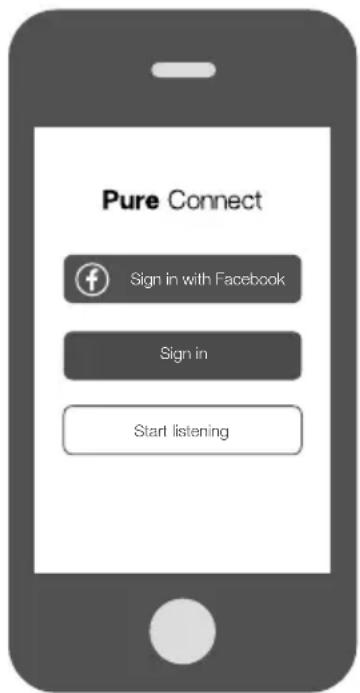
To make the most of your Jongo you really need to create a free Pure Connect account. You can create a Pure Connect account using your Facebook account or your e-mail address*.
④ Connect Jongo to your Wi-Fi
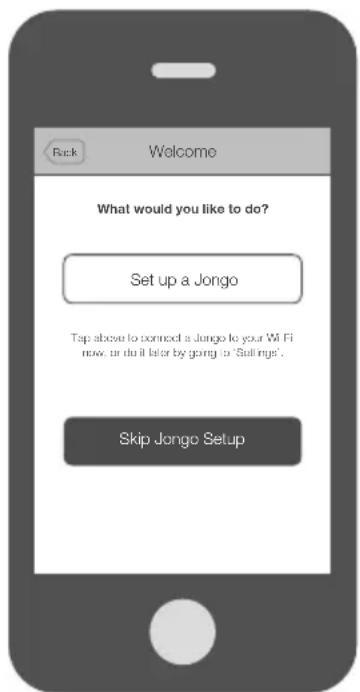
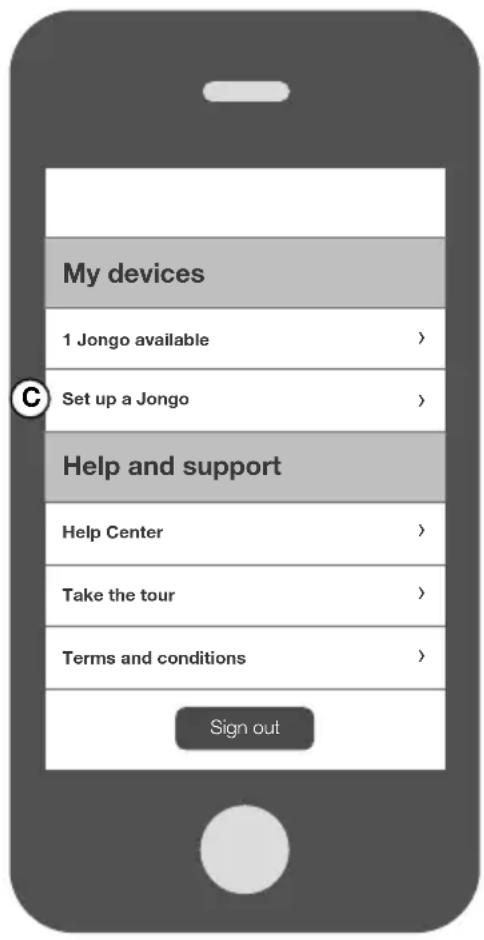
The first time you sign in to the app, you will see an option to connect Jongo to your Wi-Fi. Simply tap Set up a Jongo and follow the prompts on screen to connect Jongo to your Wi-Fi.
Adding another Jongo to your Wi-Fi
If you have already connected a Jongo to your Wi-Fi, follow the steps below to add another Jongo to your Wi-Fi.
A. Open the Pure Connect app and sign in.
B. Open the Settings menu.
C. Tap Set up a Jongo and follow the prompts on screen.
Playing music from the Pure Connect app
EN
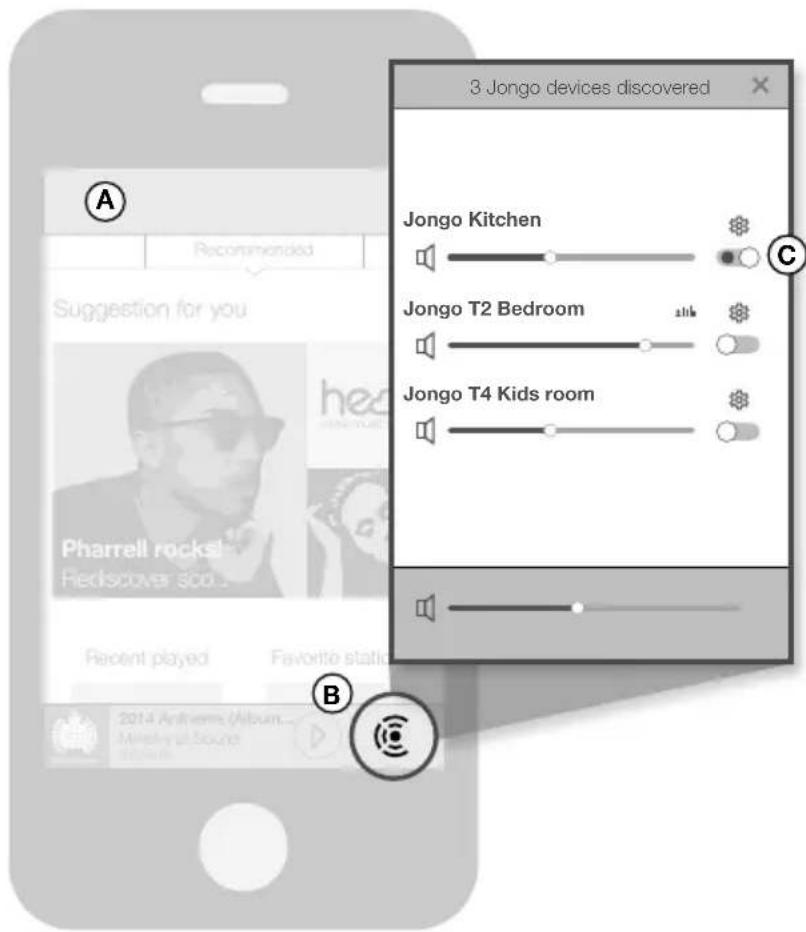
You can use the Pure Connect app to play music using Wi-Fi and manage various settings, including the volume, stereo pairing and software updates.
A. Open the Pure Connect app.
B. Tap 📷 in the player bar to view a list of available speakers.
C. Switch on the speakers that you want to stream to.
D. Select the music that you want to play.
Playing music from other apps
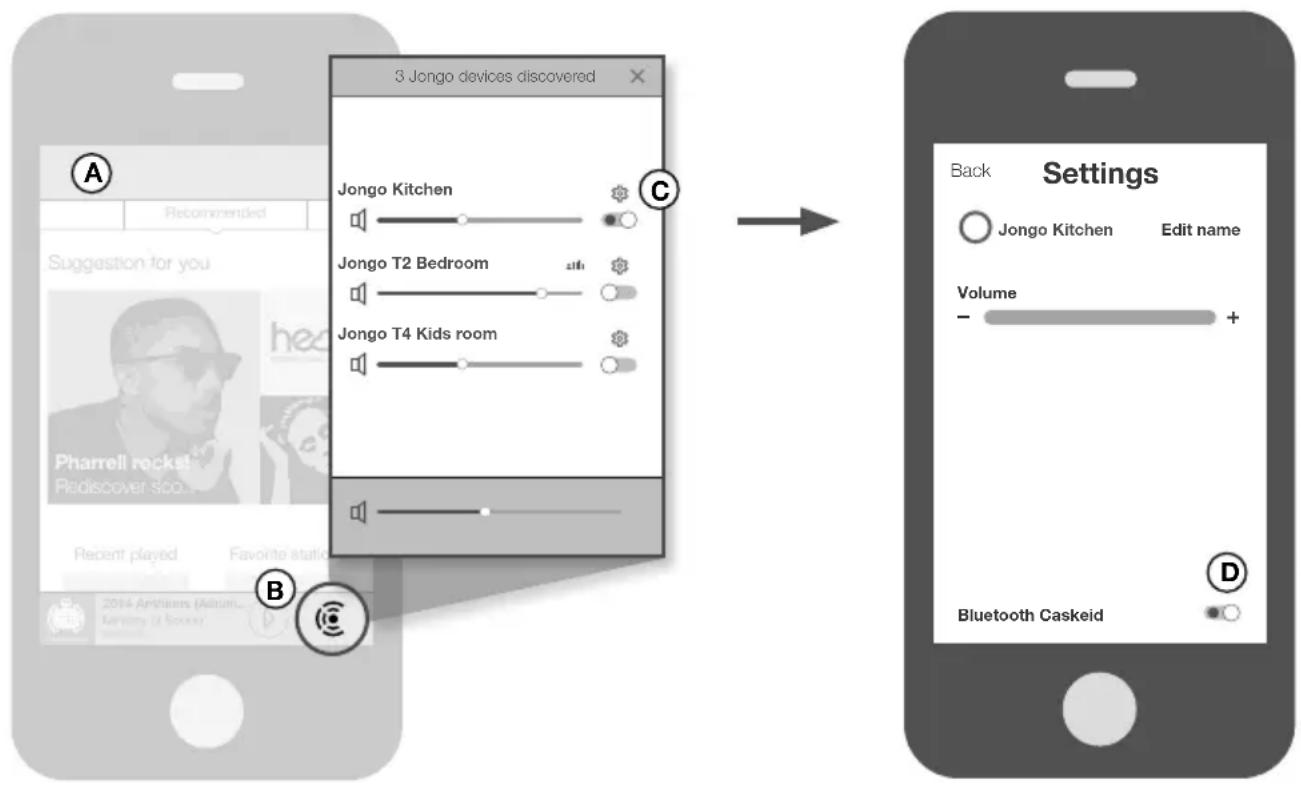
If your speakers are connected to Wi-Fi, you can use Bluetooth Caskeid to stream content from other music services, such as Spotify and Pandora, to all of your speakers.
A. Open the Pure Connect app.
B. Tap 📷 in the player bar to view a list of available speakers on your network.
C. Tap 🎨 next to the speaker that you want to stream to.
D. Switch Bluetooth Caskeid on 🔒 and return to the previous screen.
E. Repeat steps B to D for each speaker that you want to play music on.
F. Enable the Bluetooth option on your mobile device and search for Bluetooth devices.
G. Pair to one of your speakers. If your device requires a key, enter '0000'.
H. Open the music streaming service that you want to listen to and play a track.
Don't have an Android or iOS device?
To find out how to play music to your Jongo from another device, e.g. a Blackberry, Windows Phone or PC, visit our support site at:
support.pure.com/us
Troubleshooting
EN
Why does the power light on my Jongo change color?
The power light on the front of Jongo is used to tell you about Jongo's status. The list below explains some of the common colors that you may see when setting up and using your Jongo.
Green (steady): Jongo is ready to play your music or is already playing a track.
Green (pulsing): Jongo is in Wi-Fi setup mode (you'll see this when powering up your Jongo for the first time) or Jongo is busy. The power light will turn steady green when Jongo is ready to play your music.
Amber (steady): Jongo is in sleep mode. Jongo will automatically wake up and play music when you try to play a track from your smartphone or tablet.
Red (flashing): Jongo cannot connect to your Wi-Fi. Check that you are within range of your Wi-Fi network and that you have entered the correct password (matching any upper and lower case letters) and run Jongo Setup again. To get more help with setting up your Wi-Fi, visit our support site at support.pure.com/us.
Why did Jongo Setup not work?
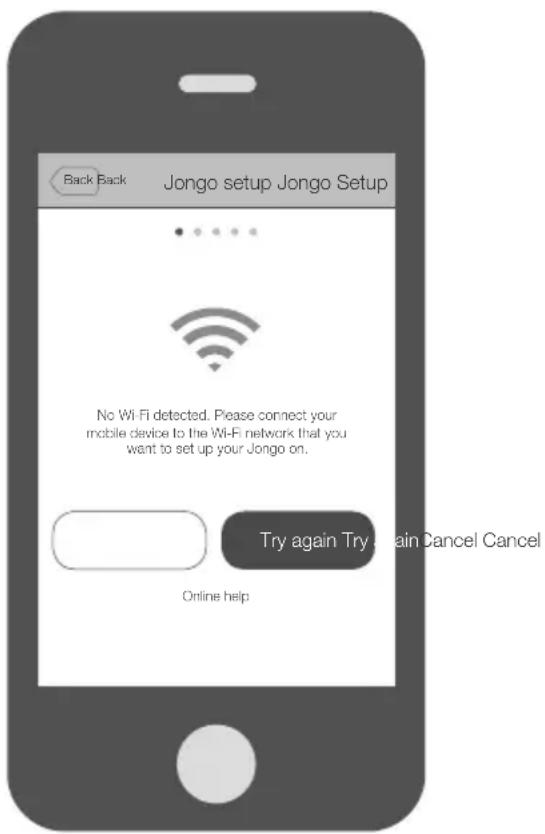
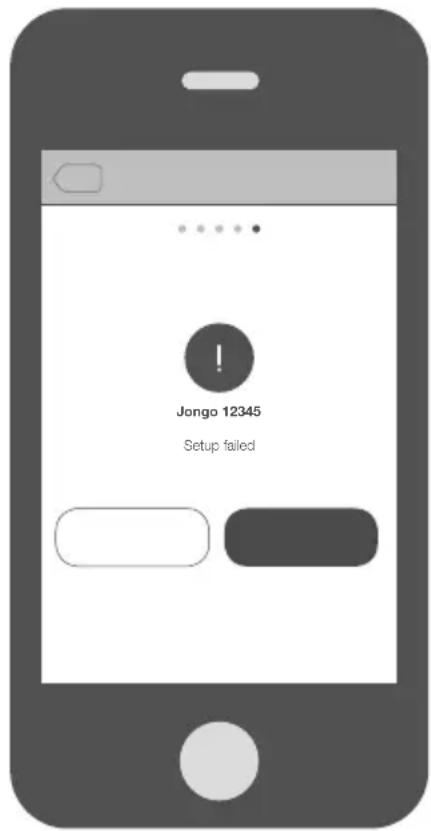
If there was a problem during Jongo Setup, the Pure Connect app will display an error message to help you troubleshoot the problem.
No Wi-Fi detected
This message will appear if your mobile device is not connected to a Wi-Fi network. Check the Wi-Fi settings on your mobile device to see if you are connected to a Wi-Fi network and then tap Try again.
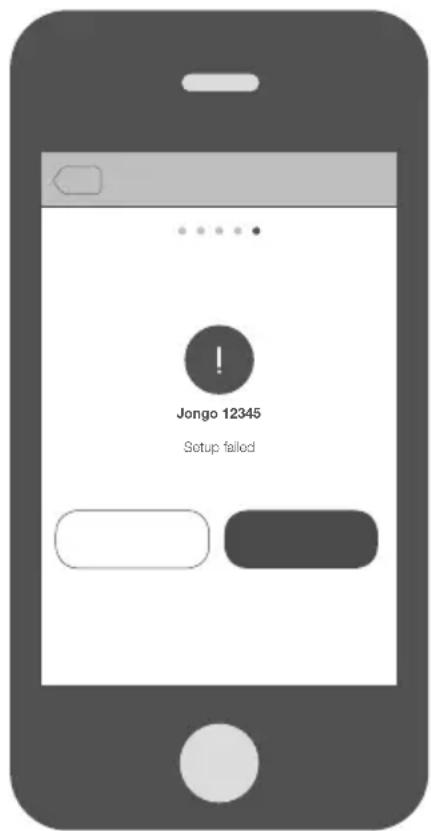
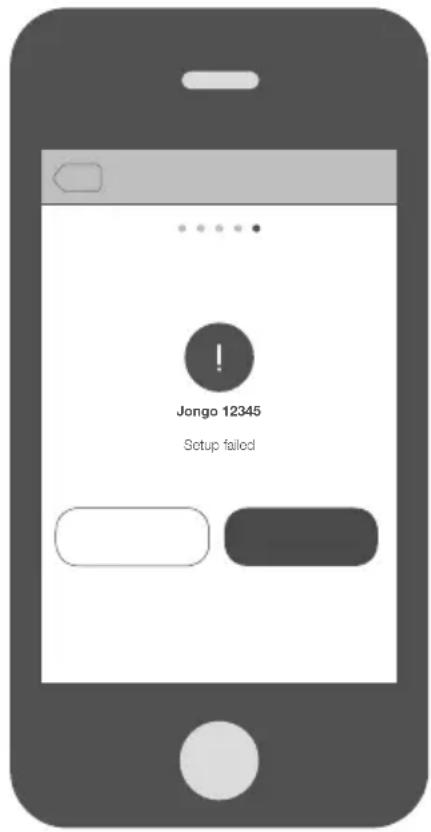
Setup failed
This message will appear if there was a problem during Jongo setup. One common reason for this message to be displayed is an incorrect Wi-Fi password. Tap Try again to try setting up your Jongo again.
Need more help?
If you need more help setting up your Jongo, you can visit our support site at: support.pure.com/us
Technical specifications
EN
Jongo T2
Speakers 2 full-range 3" drive units
Audio output 2 x 10W RMS
Input connectors 15V DC power adaptor socket (110-230V supplied), 3.5mm line-in for auxiliary devices. USB A for product upgrades and Ethernet connectivity (optional adapter available)
Controls Power, Vol+, Vol-, Mute, Wi-Fi setup, Reset
Network Wi-Fi: 802.11b and 802.11g supported with WEP and WPA/WPA2
Ethernet (requires optional adapter): 10/100 Mbps
Bluetooth: A2DP supported
Codec support Includes WMA (Standard V9), AAC, MP3, MP2
Mains power supply Adapter: Input 100-230V AC, 50/60Hz, 0.5A; Output 15V DC, 1500mA Main unit: 15V DC, 1500mA
Dimensions 9.8" (250 mm) wide x 4.7" (120 mm) deep x 5.9" (150 mm) high
Weight 2.7 lbs (1.104 kg)
Approvals CE marked. Hereby, Pure, declares that this Band II LPD device is in compliance with the essential requirements and other relevant provisions of Directive 1999/5/EC. The Declaration of Conformity may be consulted at: http://www.pure.com/R&TTE-DoC
Australian C-Tick N1600 and Electrical Safety
Jongo T4
Speakers 2 full-range 3" drive units
Audio output 2 x 25W RMS
Input connectors 18V DC power adaptor socket (110-230V supplied), 3.5mm line-in for auxiliary devices. USB Type A for product updates and Ethernet connectivity (optional adapter available)
Controls Power, Vol+, Vol-, Mute, Wi-Fi setup, Reset
Network Wi-Fi: 802.11b and 802.11g supported with WEP and WPA/WPA2
Ethernet (requires optional adapter): 10/100 Mbps
Bluetooth: A2DP supported
Codec support Includes WMA (Standard V9), AAC, MP3, MP2
Mains power supply Adapter: Input 100-240\~V AC, 50/60Hz, 1.6 A; Output 18V DC, 3.61A Main unit: 18V DC, 3.61A
Dimensions 12" (305 mm) wide x 5.7" (146 mm) deep x 6.89" (165 mm) high
Weight 6.6 lbs (3 kg)
Approvals CE marked. Hereby, Pure, declares that this Band II LPD device is in compliance with the essential requirements and other relevant provisions of Directive 1999/5/EC. The Declaration of Conformity may be consulted at: http://www.pure.com/R&TTE-DoC
Australian C-Tick N1600 and Electrical Safety
FCC NOTICE TO A USER IN THE UNITED STATES
Warning: Changes or modifications to this unit not expressly approved by the party responsible for compliance could void the user's authority to operate the equipment.
Note: This equipment has been tested and found to comply with the limits for a Class B digital device, pursuant to Part 15 of the FCC Rules. These limits are designed to provide reasonable protection against harmful interference in a residential installation. This equipment generates, uses and can radiate radio frequency energy and, if not installed and used in accordance with the instructions, may cause harmful interference to radio communications.
However, there is no guarantee that interference will not occur in a particular installation. If this equipment does cause harmful interference to radio or television reception, which can be determined by turning the equipment off and on, the user is encouraged to try to correct the interference by one or more of the following measures:
- Reorient or relocate the receiving antenna.
- Increase the separation between the equipment and receiver.
- Connect the equipment into an outlet on a circuit different from that to which the receiver is connected.
- Consult the dealer or an experienced radio/TV technician for help.
This device complies with part 15 of the FCC rules. Operation is subject to the following two conditions: (1) This device may not cause harmful interference, and (2) this device must accept any interference received, including interference that may cause undesired operation.
FCC RF Radiation Exposure Statement
Caution: This Transmitter must be installed to provide a separation distance of at least 20 cm from all persons.
IC NOTICE TO A USER IN CANADA
Since digital circuitry may cause interference to other radio or television tuners nearby, switch this unit off when not in use or move it away from the affected radio/television tuner.
Note: This digital apparatus does not exceed the Class B limits for radio noise emissions from digital apparatus as set out in the Radio Interference Regulations of Industry Canada. These limits are designed to provide reasonable protection against harmful interference in a residential installation. This equipment generates, uses and can radiate radio frequency energy and, if not installed and used in accordance with the instructions, may cause harmful interference to radio communications. However, there is no guarantee that interference will not occur in a particular installation. If this equipment does cause harmful interference to radio or television operation (which can be determined by turning the equipment off), the user is encouraged to try to correct the interference by one or more of the following measures:
- Reorient or relocate the receiving antenna.
- Increase the separation between the equipment and receiver.
- Connect the equipment into an outlet on a circuit different from that to which the receiver is connected.
- Consult the dealer or an experienced radio / TV technician for help.
This Class B digital apparatus complies with Canadian ICES-003.
Warranty information
Imagination Technologies Limited warrants to the end user that this product will be free from defects in materials and workmanship in the course of normal use for a period of three years from the date of purchase. This guarantee covers breakdowns due to manufacturing or design faults; it does not apply in cases such as accidental damage, however caused, wear and tear, negligence, adjustment, modification or repair not authorized by us. Should you have a problem with your unit please contact your supplier or contact Pure Support at http://support.pure.com/us.
Disclaimer
Imagination Technologies Limited makes no representation or warranties with respect to the content of this document and specifically disclaims any implied warranties of merchantability or fitness for any particular purpose. Further, Imagination Technologies Limited reserves the right to revise this publication and to make changes in it from time to time without obligation of Imagination Technologies Limited to notify any person or organization of such revisions or changes.
Trademarks
Jongo, Pure, the Pure logo, Imagination Technologies, and the Imagination Technologies logo are trademarks or registered trademarks of Imagination Technologies Limited.
Caskeid is a superior synchronization technology, providing clear multi-speaker wireless audio.
Caskeid and the Caskeid logo are trademarks or registered trademarks of Imagination Technologies.
Copyright
Copyright © 2014 Imagination Technologies Limited. All rights reserved. No part of this publication may be copied or distributed, transmitted, transcribed, stored in a retrieval system, or translated into any human or computer language, in any form or by any means, electronic, mechanical, magnetic, manual or otherwise, or disclosed to third parties without the express written permission of Imagination Technologies Limited. Version 1 September 2014.
Disposal of Waste Electrical & Electronic Equipment
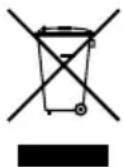
This symbol on the product or on its packaging indicates that this product should not be treated as household waste. Instead it should be handed over to a suitable collection point for the recycling of electrical and electronic equipment. By ensuring this product is disposed of correctly, you will help prevent potential negative consequences for the environment and human health, which could otherwise be caused by inappropriate waste handling of this product. The recycling of materials will help to conserve natural resources. For more detailed information about recycling of this product, please contact your local council office, your household waste disposal service or the shop where you purchased the product.
Jongo
T2, T4
EN
FRANÇAIS
ES

Téléchargez l'application Pure Connect
Codecs supportés WMA V9, AAC, MP3, MP2.
Codecs supportés WMA V9, AAC, MP3, MP2.
Poids 6.6 lbs (3 kg)

Imagination Technologies
955 East Arques Avenue
Sunnyvale, CA 94085
USA
www.pure.com/us
http://support.pure.com/us
Pure UK Headquarters
Imagination Technologies Limited
Home Park Estate
Kings Langley
Herts, WD4 8LZ
United Kingdom
www.pure.com
http://support.pure.com
PURE
www.pure.com
connect.pure.com