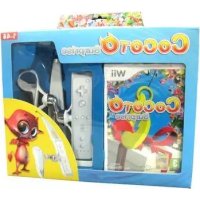
Cocoto: Surprise (Wii) - Game BIGBEN - Free user manual and instructions
Find the device manual for free Cocoto: Surprise (Wii) BIGBEN in PDF.



| Product type | Video game for Wii console |
| Brand | BIGBEN |
| Model | Cocoto: Surprise |
| Platform | Nintendo Wii |
| Format | Wii optical disc |
| Genre | Action, Mini-games (fishing) |
| PEGI rating | PEGI 3 |
| Number of players | 1 player |
| Available languages | English, French, German, Spanish, Italian, Dutch, Portuguese, Swedish, Danish, Norwegian |
| Display modes | 50 Hz (576i), 60 Hz (480i), EDTV/HDTV (480p) |
| Required accessories | Wii Remote and Nunchuk |
| Box dimensions (approx.) | 13.5 x 19 x 1.5 cm |
| Box weight (approx.) | 100 g |
| Box contents | Game disc, instruction manual |
| Publisher / Manufacturer | Neko Entertainment / BIGBEN |
| Legal warranty | 180 days, extension possible with fees |
| Technical support | Neko Entertainment, 38 rue de la République, 93100 Montreuil sous bois, France |
| Disc care | Clean with a soft, dry cloth, avoid scratches |
| Repairability | Exchange possible under warranty or after 180 days with a fee of 20€ |
Frequently Asked Questions - Cocoto: Surprise (Wii) BIGBEN
User questions about Cocoto: Surprise (Wii) BIGBEN
0 question about this device. Answer the ones you know or ask your own.
Ask a new question about this device
Download the instructions for your Game in PDF format for free! Find your manual Cocoto: Surprise (Wii) - BIGBEN and take your electronic device back in hand. On this page are published all the documents necessary for the use of your device. Cocoto: Surprise (Wii) by BIGBEN.
USER MANUAL Cocoto: Surprise (Wii) BIGBEN
WARNING: Please carefully read the separate Health and Safety Precautions Booklet included with this product before using your Nintendo® Hardware system, Disc or Accessory. The booklet contains important safety information.
Insert the Cocoto Surprise Disc into the Disc Slot. The WiiTM console will switch on. The Health and Safety Screen, as shown here, will be displayed. After reading the details press the A Button.
The Health and Safety Screen will be displayed even if the Disc is inserted after turning the Wii console's power on.
Point at the Disc Channel from the Wii Menu Screen and press the A Button.
The Channel Preview Screen will be displayed. Point at START and press the A Button.
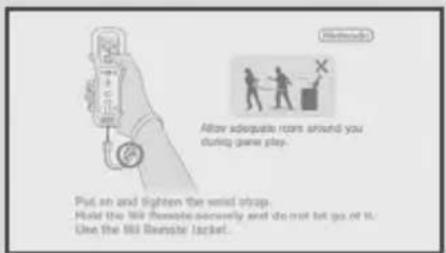
The Wii Remote™ Wrist Strap Information Screen will be displayed. Tighten the strap around your wrist, then press the A Button.

English
The Title Screen will be displayed.
Wii Menu Update
Please note that when first loading the Disc into the Wii™ console, the console will check if you have the latest version of the Wii Menu, and if necessary a Wii Menu Update Screen will appear. Select OK to proceed with the update. Please note that the Wii console must have the latest version of the Wii Menu in order to play the Disc.
When the Wii Menu is updated, unauthorised hardware and/or software modifications may be detected and unauthorised content may be removed causing the immediate or delayed inoperability of your console. Failure to accept the update may render this game, and future games, unplayable. Please note that Nintendo cannot guarantee that unauthorised software or accessories will continue to function with the Wii console after this or future updates of the Wii Menu.
The in-game language depends on the one that is set on your Wii console. This game includes ten different language versions: English, German, French, Spanish, Italian, Dutch, Portuguese, Swedish, Danish and Norwegian. If your Wii console is already set to one of them, the same language will be displayed in the game. You can change the in-game language by changing the language setting of your Wii console. For further instructions about how to change language settings please refer to the Wii Operations Manual - Channels & Settings.
NunchukTM Neutral Position Reset
NOTE: If the Control Stick is moved out of neutral position when the power is turned on, or when connecting to the Wii Remote, that position will be set as neutral position, causing incorrect game control during game play. To reset the Control Stick, allow it to return to the normal neutral position, then simultaneously hold down the A, B, Plus (+) and Minus (-) Buttons on the Wii Remote for three seconds.
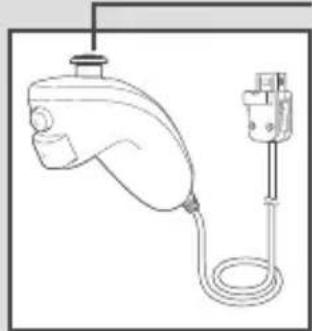
Control Stick
To prevent this from occurring, do not move the Control Stick when:
- Turning on the Wii console
- Plugging the Nunchuk into the Wii Remote
- Starting Channels from the Wii Menu
- Returning to the Wii Menu from games or Channels.
CAUTION - USE THE Wii REMOTE WRIST STRAP
For information on how to use the Wii Remote Wrist Strap refer to the Wii Operations Manual - System Setup (Using the Wii Remote).
60 Hz (480i) Mode
Many people don't know what the difference between 50Hz and 60Hz is, but since most modern TV models support 60Hz it's definitely worth finding out if your TV is compatible. In basic terms, Hz (hertz) is related to the number of frames per second (fps) appearing on your screen.
50Hz produces 25 fps and 60Hz produces close to 30 fps, which may not sound like a big difference, but the increase in quality from 25 to around 30 fps is quite noticeable on-screen. With 60Hz you get a smoother game screen with less flicker and the game runn speed, all of which produces a great gaming experience.

The default setting of the Wii console is 50Hz (576i) Mode. To change this, activate 60Hz (480i) Mode by selecting this TV TYPE in the Wii Settings. However, certain (mainly older) TV sets are unable to display games in 60Hz (480i) Mode, and therefore a small number of players could experience difficulties using this display mode on their TVs. To find out if your TV set features 60Hz (480i) Mode, consult your TV instruction manual or contact the manufacturer.
If, after changing the setting to 60Hz (480i) Mode, the screen appears blank or distorted, it will likely be the case that your TV does not support 60Hz (480i) Mode. To revert to the default setting, press RESET on the Wii console while holding the down direction on the : Control Pad, and the Wii system will restart in 50Hz (576i) Mode. For additional information on how to set the TV TYPE, please refer to the Wii Operations Manual - Channels & Settings.
Also, when you connect the Wii RGB cable (RVL-013) (sold separately) to a TV which has an RGB terminal and PAL60 compatibility, or you connect the Wii Component AV cable (RVL-011) (sold separately) to a TV which has component video inputs, you can enjoy an intensely sharp picture on-screen.
EDTV/HDTV(480p)Mode-Progressive Scan
EDTV / HDTV (480p) is a progressive display mode that allows players to view and enjoy their game in the best possible quality. This means an intensely sharp picture, the game running at optimal speed with minimised flicker, all of which produces a great gaming experience.

However, it may be the case that this mode cannot be displayed, depending on the combination of TV and cable that you use. To find out if your TV supports the Progressive

Scan display needed for the EDTV/HDTV (480p) Mode, consult your TV instruction manual or contact the respective manu facturer for details. Please make sure to use the Wii Component AV cable (RVL-011) (sold separately) and to enable Progressive Scan on your display device when selecting this mode.
The default setting of the Wii is 50Hz (576i) Mode. To activate EDTV / HDTV (480p) Mode, please select this TV TYPE in the Wii Settings. For additional information on how to set the TV TYPE, please refer to the Wii Operations Manual - Channels & Settings.
INTRODUCTION
Hello and welcome to Cocoto Surprise!
Cocoto and his friends have invited you to a toy fishing trip: they have hidden gifts with lots of toys throughout their universe. Your objective is to collect all the toys from Cocoto and his friends!
ROOM SELECTION
First of all you must choose a room: Cocoto's, Neuro's, Baggy's or Shiny's. Point at the corresponding door with the Wii Remote and then press the A Button.
Your room will automatically save your toy collection, the levels you have completed successfully and the coins you own. You can resume the game at any time by selecting the room again.
OPTIONS
Press the + Button to display the options in the room selection screen.
In the options screen you can select the language of the game, adjust the volume of the music and sound effects and see the list of people who created Cocoto Surprise.
ROOM
Once you have selected the saved game of your choice you will enter the room where you have access to the entire game content.
Point at one of the shiny objects with the Wii Remote to display its name on the upper left. Confirm by pressing the A Button.
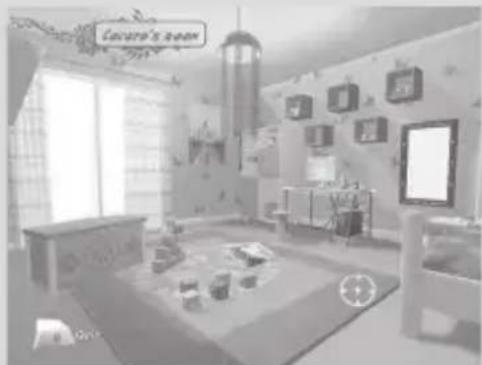
Mirror
The mirror allows you to check the following information about your saved game:
Number of toys
Number of levels completed successfully
Number of coins
In this screen you can also scroll through the toys you collected or clear the room. Attention! Clearing the room deletes your toys, the levels you have won and your coins, which means you will have to start again from the beginning or select another room.
Toy box
The toy box gives you access to all the toys you have bought or caught. Make them scroll by pointing at the arrows with the Wii Remote and then pressing the A Button.
Select a toy in the same way to see it more closely and play with it. The screen tells you what you can do with the toy.
If you point at a toy with the Wii Remote which you haven't yet caught (question mark icon), you can buy it by pressing the A Button if you have collected enough coins during the game.
Desk
Select the desk to launch a game and try to win new toys.
GAME
Controls
Whirl the Nunchuk backwards to pull up the hook.
Whirl the Nunchuk forwards to lower the hook.
Move the fishing line with the Nunchuk's Control Stick. Press the A Button to catch the nearest object with the hook. Attention! You can only catch objects which have a hook.
Take the gifts you have caught to Fairy who will put them aside for you until the end of the level.
World selection
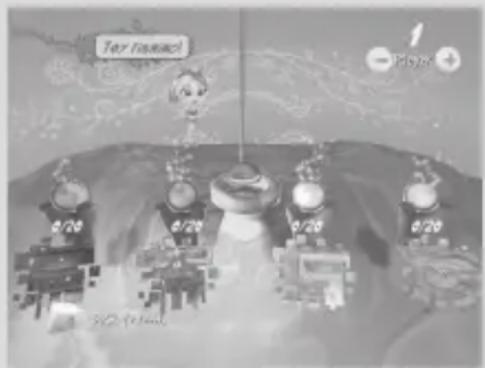
After 4 training levels in which you will learn how to use the controls mentioned above you will get to the world selection screen.
In this screen you control the magnet in the same way as the hook. Use it to choose one of the four stones: each stone corresponds to a different Cocoto Surprise world. When the magnet is close to a stone, press the A Button to select it and you will automatically be transported to one of the Cocoto worlds for a toy fishing game!
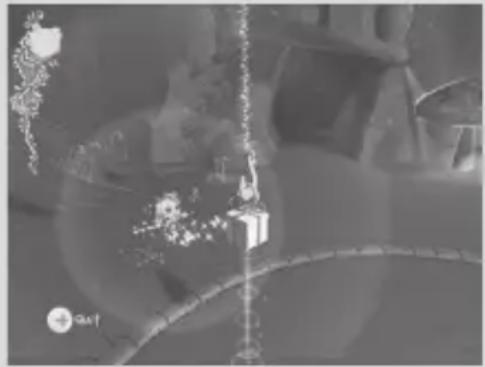
GAMEWORLDS
Abyss
In this world the gifts are hidden in big constructions. Try to collect the gifts without destroying the buildings: each wooden block (brown) which has not fallen down will turn into coins at the end of the level.
Stone blocks cannot be moved easily: search for those which have a hook, catch them with your hook and then carry out a sharp movement with the Wii Remote to pull them out.
Atlantis
In each Atlantis level a gift has fallen into the ocean. You must catch it and give it to Fairy while avoiding the fish and sea urchins. Look at the urchins: they have a hook! That means you can move them with your hook if they get in your way.
Heaven
In this mode you must cross a labyrinth with a gift while avoiding obstacles such as doors, revolving doors and enemies. Watch out, some walls are electrified! If you touch them your gift will be taken back to the last activated crossing point.
Jungle
In the Jungle the gifts never stay in place! You must be quick in order to catch the gifts swept away by the current, pulled away by the fish or taken by the moles.
Attention! If your hook gets too close to an empty mole hole it will close up and will not open again while the hook is close by.
GUARANTEES
Neko Entertainment incorporated all their interactive game know-how into this product to guarantee your complete satisfaction and to give you many hours of entertainment.
If at any time within one hundred eighty (180) days following the product's purchase date it becomes defective under normal operating conditions, Neko Entertainment promises to exchange it under the conditions defined hereafter.
After this period of one hundred eighty (180) days, Neko Entertainment accepts to exchange the defective product for shipping and handling charge of €20 per item.
To exchange the defective product, send your software in its original packaging (excluding the protective wrapping), together with the original proof of purchase, a brief description of the problem encountered, your complete name and address and if the guarantee period is over, a cheque or money order in the amount of €20 per product made out to the order of Neko Entertainment.
After the period of one hundred eighty days (180), Neko Entertainment will replace your game while quantities last. Otherwise, your payment will be sent back to you.
The user explicitly acknowledges that the use of the multimedia product is done at his own risk. The multimedia product is supplied as is and without any other guarantees than what is specified here-above. The User assumes responsibility for all the costs related to repairs and/or correction of the multimedia product.
Within the limitations set by law, Neko Entertainment rejects any guarantee relating to the market value of the multimedia product, the User's satisfaction or its qualification to respond to a particular use.
The User assumes all risks related to a loss of profits, loss of data, errors, loss of commercial data or other issues resulting from the possession of the multimedia product or its use.
Some legislations do not allow for the limitation of aforementioned guarantees, it is possible that it does not apply to the User.
Commencer à jouer
Mode EDTV/HDTV (480p) - Progressive Scan
EDTV/HDTV (480p) - Progressive Scan
Age Rating categories:
Note:There are some local variations!
The 'Online' logo indicates that a game allows the player to have access to online game play against other players.
For further information about the Pan European Game Information (PEGI) rating system please visit: