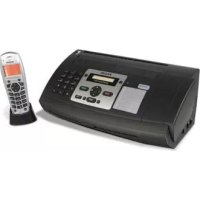
Magic 5 Eco PPF650 - Fax machines PHILIPS - Free user manual and instructions
Find the device manual for free Magic 5 Eco PPF650 PHILIPS in PDF.


| Product type | Fax machine |
| Brand | Philips |
| Model | Magic 5 Eco PPF650 |
| Transmission speed | 9,600 bps |
| Modulation | V.21, V.27ter, V.29 |
| Power supply | 220-240 V, 50 Hz |
| Dimensions (W x D x H) | 360 x 240 x 120 mm |
| Weight | 3.5 kg |
| Main functions | Send and receive faxes, copy, phone |
| Memory | Up to 50 pages |
| Speed dial | Yes |
| LCD display | Yes, backlit |
| Paper type | Thermal paper |
| Roll width | 210 mm (A4) |
| Speaker function | Yes, hands-free |
| Maintenance and cleaning | Clean with a soft, dry cloth. Do not use abrasive products. |
| Safety | Unplug before cleaning. Do not expose to moisture. |
| Spare parts | Available from authorized after-sales service. |
| Repairability | Call a qualified technician. Repairability index not disclosed. |
| General information | Manufactured by Sagem Communications for Philips. Manual available online. |
Frequently Asked Questions - Magic 5 Eco PPF650 PHILIPS
User questions about Magic 5 Eco PPF650 PHILIPS
0 question about this device. Answer the ones you know or ask your own.
Ask a new question about this device
Download the instructions for your Fax machines in PDF format for free! Find your manual Magic 5 Eco PPF650 - PHILIPS and take your electronic device back in hand. On this page are published all the documents necessary for the use of your device. Magic 5 Eco PPF650 by PHILIPS.
USER MANUAL Magic 5 Eco PPF650 PHILIPS
natural_image
Black and white photo of a mobile phone with control panel and a smaller lander on the left (no visible text or symbols)EN User Manual
Dear Customer
With the purchase of this device, you have chosen a quality PHILIPS product brand. Their device fulfils the most varied requirements for private use or in your office and business everyday.
Your device is delivered with an already inserted free ink film for a few test pages. For this film, you do not require any Plug'n'Print card (= chip card with information regarding ink film capacity).
In the telephone book of your device, you can save entries with multiple numbers and collect multiple entries into groups. You can assign various ring tones to the entries.
You can assign short dial numbers to frequently dialled telephone numbers. The numeric keys help you to call these numbers quickly.
The cordless telephone is provided with its own telephone book. With the cordless telephone you can send and read SMS messages (function is not supported in all countries and networks).
You can individually set ringer tones and notification tones, wallpaper and menu colours of the cordless telephone. Additional functions such as alarms, timer, birthday reminder or a room monitoring function are also available to you. You can register up to five cordless telephones with your device.
You can send fax messages in different resolutions to one or more recipients or a group. You can also poll faxes and prepare documents for polling.
Five fax templates, which you can use, are stored in your device. With these templates you can quickly create, for example, a short fax note or an invitation.
Select the resolution for text and photo in order to copy documents with your device. You can also create multiple copies.
You can send SMS messages from your device if this service is activated for your telephone line (this function is not supported in all countries and networks). Received SMS messages can be managed with the extensive functions of the SMS menu.
Activate notification by SMS to receive an SMS message, for instance on your mobile phone, when calls, fax transmissions or other messages arrive in your absence (this function is not supported in all countries and networks).
If you want, your device can print Sudoku puzzles in four different difficulty levels with solution.
We hope you enjoy your device and its many functions!
About this User Manual
With the installation guide on the following pages, you can start using your device quickly and easily. Detailed descriptions can be found in the following sections of this user manual.
Read the entire user manual carefully. Follow all safety instructions in order to ensure proper operation of your device. The manufacturer accepts no liability if these instructions are not followed.
Symbols Used
DANGER!

DANGER!
Warns about dangers for people, damage to the device or other objects as well as possible loss of data. Injuries or damage can result from improper handling.
Notice

Troubleshooting
This symbol designates tips that will help you to use your device more effectively and easily.
Table of Contents
Dear Customer 2
About this User Manual 2
1 General Safety Information...... 5
2 Overview....6
Overview of the Menu Functions 6
Device Overview 7
Cordless Telephone Panel 8
Panel 9
3 Initial Operation 10
Contained in the packing 10
Attaching the Paper Tray 10
Inserting Paper 10
Connecting the Telephone Cord 11
Connecting the Power Cord 11
Initial Installation 11
Inserting Batteries in Cordless Telephone 12
Putting Cordless Telephone in Operation 13
4 Telephone Functions.... 14
Putting a Call from Cordless Telephone 14
Calling additional telephone functions 14
Getting Outside Line 15
Hands-free 15
Forwarding a call 15
Placing internal calls 15
Calling Line Identification (CLIP) 16
Missed Calls 16
5 Telephone Book of the Device...... 17
Saving entry 17
Edit Entry 17
Deleting an Entry 17
Groups 17
Short Dial 18
6 Telephone Book of the Cordless Telephone 19
Saving Entry 19
Edit Entry 19
Deleting an Entry 19
Adding an Additional Number 20
Changing the Ring Tone 20
Calling Options 20
7 Cordless Telephone.... 21
Looking for Cordless Telephone 21
Switching On and Off 21
Navigating in the Menu 21
Keypad Lock 21
Activating Emergency Call Number 21
Additional Functions 22
8 Fax.... 25
Sending fax 25
Sending Fax Manually 26
Chain Dialling 26
Insert Dialling Pause 26
Direct Inward Dialling or Selecting Sub-address ..... 26
Eavesdropping while Connection is Established ..... 26
Sending to Multiple Recipients (= Broadcasting) ..... 26
Sending Fax Later 27
Fax Reception 27
Receiving Fax Manually 27
Polling Faxes 27
Using Fax Templates 27
9 Copier.... 28
Inserting Documents 28
Making a Copy 28
Creating Multiple Copies 28
10 SMS 29
SMS Requirements 29
Sending SMS 29
Notification by SMS 30
Receiving SMS Messages 31
Reading SMS Messages 31
Calling SMS Functions 32
Printing SMS Messages 32
Deleting SMS Messages 32
Modifying the Settings 33
11 Fun and Games.... 34
Sudoku 34
12 Settings on the Device.... 35
Entering the Date and Time 35
Selecting the Language 35
Selecting the Country 35
Entering Number 35
Entering Your Name 35
Setting the Contrast 35
Reducing Transmission Speed 36
Switching Page Adjustment On and Off 36
Setting the Ring Tones 36
Setting the Fax Switch 36
Printing Lists and Help Pages 36
Starting Initial Installation 37
13 Settings on the Cordless Telephone 38
Selecting the Language 38
Setting the Ring Tones 38
Turning Key-Tones and Signal-Tones On and Off .... 38
Switching Silent Mode On/Off 38
Programmable Keys 38
Automatic Picking up and Hanging up the Phone ..... 38
Resetting the Cordless Telephone 39
Displaying Call Logs and Events 39
14 Telephone Lines and Additional
Devices.... 40
Configuring Telephone Lines and Services 40
Registering and De-Registering Additional Cordless Telephones 40
Connecting Additional Devices 42
Using Additional Telephones (Easylink) 42
15 Service.... 43
Checking the Ink Film Reserve 43
Changing the Ink Film 43
Fixing a Paper Jam 45
Fixing a Document Jam 45
Cleaning 46
Displaying the Battery Charge 47
Changing the Batteries in the Cordless Telephone ..... 47
Checking the Firmware Version 47
Using Service Codes 48
Power Cycling 48
16 Appendix.... 50
Technical Data 50
Guarantee 50
Declaration of Conformity (DoC) 52
Customer Information 56
1 General Safety Information
Your device has been tested in conformity with standards EN 60950-1 and IEC 60950-1 and should only be operated with telephone systems and power equipment that meet these standards. The device was built exclusively for use in the indicated sales region.
Do not make any changes or settings that are not described in this user manual. Physical injury or damage to the device or loss of data can result from improper handling. Take note of all warning and safety notes indicated.
Setting Up the Machine
The device should rest securely on a stabile, flat surface. If the device should fall, it can be damaged or can cause injury to people, especially small children. Position all cables in such a way that no one will stumble on them, thus avoiding possible injuries to persons or damage to the device itself.
The distance between the device and other devices or objects must be at least 15 centimetres; this also applies to the use of additional cordless telephones. Do not place the device in the vicinity of radios or televisions.
Lock the cover of the device completely into place when opening the device. You could be injured if the cover falls while you are working on the device.
Protect the device against direct sunlight, heat, large temperature fluctuations and moisture. Do not place the device in the vicinity of heaters or air conditioners. Observe the information on temperature and humidity in the technical data.
The device must have sufficient ventilation and may not be covered. Do not put your device in closed cabinets or boxes. Do not place the machine on soft surfaces such as tablecloths or carpets and do not cover the ventilation slits. Otherwise, the device can overheat and catch on fire.
In the event that the device becomes too hot, or if you see smoke coming from the device, you must immediately pull the power cable out of the power socket. Have your device examined by trained professionals at a technical service location. To prevent the spread of fire, open flames should be kept away from the device.
Do not plug in the device in moist rooms. Never touch the mains cable, the mains connection or the telephone socket with wet hands.
Do not allow liquids to enter into the device. Disconnect the device from the power socket if liquids or foreign objects have entered the device and have your device examined by trained professionals at a technical service location.
Do not allow children to handle the device without supervision. The packing materials should be kept out of the hands of children.
The telephone handset of the device is magnetic. Caution, small metallic objects (paper clips) may be retained if placed near or on the telephone handset.
Power Supply
Check whether the mains voltage of your device (indicated on the type label) matches the mains voltage available at the setup location.
Use only the power and telephones cables supplied.
Set up your device so that the power socket is easily accessible. The device does not have an on/off button. In an emergency, disconnect your device from the power supply by pulling the power plug.
Never touch the power or telephone cable if the insulation is damaged. Replace damaged wires immediately. Use suitable cables only; if necessary please contact our technical customer service or your retailer.
Disconnect your device from the power and telephone networks during an electrical storm. If this is not possible, do not use the device during an electrical storm.
Before cleaning the surface of your device, disconnect it from the power and telephone networks. Use a soft, lint-free cloth. Never use liquid, gaseous or easily flammable cleansers (sprays, abrasives, polishes, alcohol). Do not allow any moisture to reach the interior of the device.
Only clean the display with a dry, soft cloth. If the breaks, a mildly corrosive liquid may escape. Avoid all contact with your skin and eyes.
In the event of a power failure, your device will not function; saved data is retained.
Repairs
Should disruptions occur, follow the instructions on the display and on the error report.
Do not make any repairs to the device yourself. Improper maintenance can result in injuries or damage to the device. Only have your device repaired by an authorised service centre.
Do not remove the type label from your device; this would void the warranty.
Consumable Materials
Use only original consumable materials. These are available from a specialised retailer or through our order service (see back side of this user manual). Other consumable materials could damage the device or shorten its service life.
Dispose of old consumable materials according to the waste regulations of your country.
Cordless Telephone
Never place the cordless telephone in the charging station without rechargeable batteries or with non-rechargeable batteries.
Do not install or use your cordless telephone in a damp environment. Never touch the cordless telephone with wet hands.
The functioning of security systems, medical equipment or sensitive devices can be disrupted by the transmission power of the cordless telephone. Observe any usage regulations (or restrictions) in the vicinity of such equipment.
The batteries used should be disposed of according to the recycling regulations of your country.
2 Overview
EN
Overview of the Menu Functions
The following functions are available on your device. There are two ways in which you can call functions:
Navigating in the Menu: Press OK or one of the two arrow keys ▲/▼, to open the function menu. Page through ▲/▼ menu entries. Use OK to select a menu function. Press C to return to the previous menu level. Press STOP to close the menu and return to the starting mode.
Calling Functions Directly: You can call a menu function directly using the function number. Press OK and enter the appropriate function number using the numeric keypad. Confirm with OK. You will find the function number in the following list.
Notice

Printing the Functions List
Press i and 6 to print a list of all functions and settings of your device.
1 Telephone book
1 1 Looking up an entry......page 25
1 2 New entry......page 17
1 3 Creating group......page 17
14 Short dial....page 18
1 5 Modifying an entry ......page 17
1 6 Deleting entries......page 17
1 7 Printing entries ......page 37
2 Calls
2 1 Received calls......page 25
2 2 Outgoing calls......page 25
2 3 Printing entries ......page 36
3 Fax
3 1 Polled reception......page 27
3 2 Polling send ......page 27
3 3 Sending fax later ...... page 27
3 4 Sending to multiple recipients (= broadcast)
......page 26
3 5 Printing fax journal......page 37
3 6 Printing transmission report......page 37
3 7 Print reduced in size......page 36
3 8 Reducing transmission speed......page 36
4 Miscellaneous
4 1 Printing call log...... page 37
4 3 Using fax templates ...... page 27
4 4 Setting the contrast...... page 35
4 5 Using service codes...... page 48
4 6 Checking the ink film reserve...... page 43
4 7 Checking the firmware version...... page 47
48 Sudoku.... page 34
5 Fax switch
5 1 Configuring day mode ...... page 36
5 2 Configuring night mode...... page 36
5 3 Setting the timer.... page 36
5 4 Easylink...... page 42
5 5 Setting the ring tones ...... page 36
6 SMS
6 1 Sending SMS ...... page 29
6 2 Reading SMS ...... page 31
6 3 Printing SMS ...... page 32
6 4 Deleting SMS...... page 32
6 5 Notification by SMS ...... page 30
6 6 SMS access...... page 33
8 Cordless Telephone
8 1 Locating cordless phones...... page 21
8 2 Registering cordless telephone...... page 41
8 3 De-registering cordless telephone ...... page 41
9 Settings
9 1 Entering the date and time ...... page 35
9 2 Selecting the language ...... page 35
9 3 Selecting the country...... page 35
9 4 Entering number...... page 35
9 5 Entering name...... page 35
9 6 Configuring telephone lines and services
...... page 40
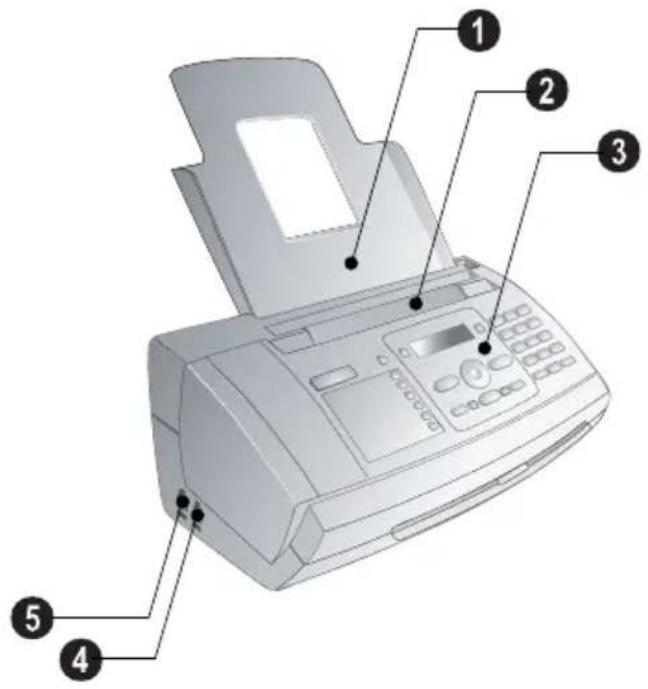
Device Overview
① Paper tray
② Document feeder (writing facing up)
③ Panel with display
4 EXT socket—Connection socket for additional devices
⑤ LINE socket—Connection socket for telephone cable
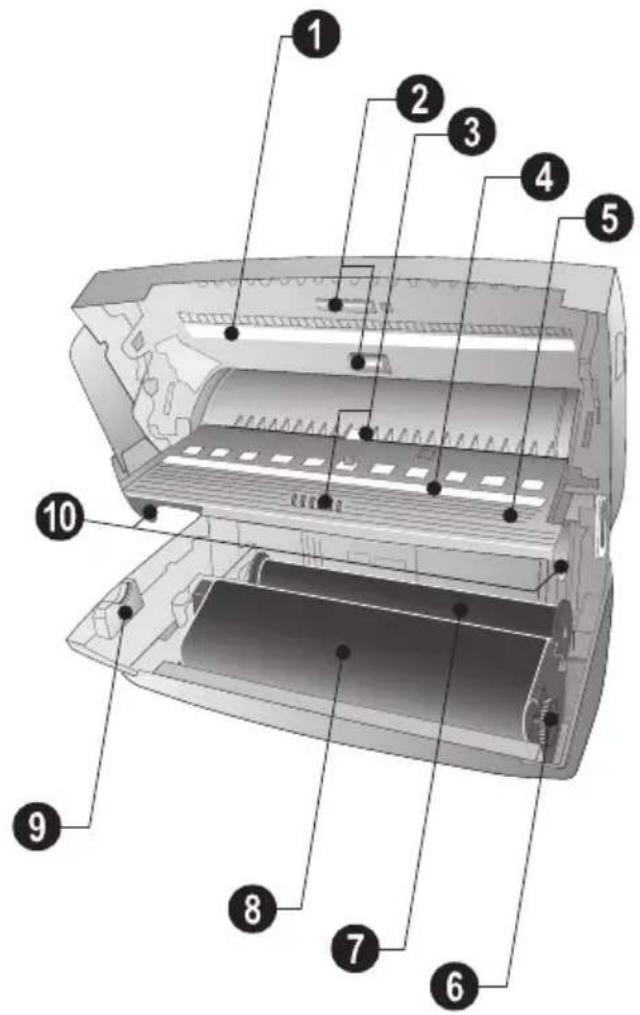
① Scanner glass
② Rollers of the automatic document feeder
③ Rests of the intake rollers
④ Document guide / scanner film
⑤ Cover for scanner and automatic document feeder
⑥ Toothed wheel for tightening the ink film
⑦ Ink film roll in the rear ink film compartment
⑧ Ink film roll in the front ink film compartment
9 Slot for the Plug'n'Print card
10 Locks for the cover of the scanner and automatic document feeder
Cordless Telephone Panel

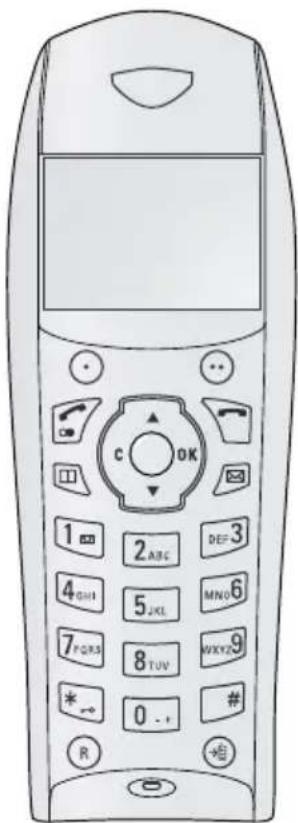
Symbols on the LCD Display
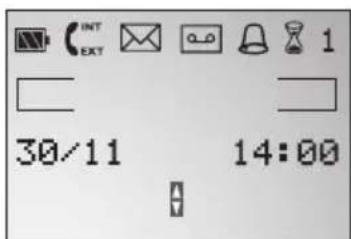
●—Programmable key (the saved function appears on the display)
- Programmable key (the saved function appears on the display) / calling options / confirming selection
/10—Press briefly: Place calls / receives calls / hands free / press and hold: Redialling / switching on cordless telephones
—Press briefly: Ending calls / aborting menu functions / press and hold: switching off cordless telephone
□—Press briefly: Calling up the telephone book from the device / hold pressed: Calling the telephone book of the cordless telephone
☒—Calling the SMS menu (function is not supported in all countries and networks)
▲/▼—Calling the menu functions / navigation within the menu / selecting options / moving the cursor / adjusting the volume level
C—Returning to the previous menu level / deleting individual digits
OK—Calling the menu functions / confirming input
*/—Press and hold: Turning keypad lock on/off
0—Inputting special characters
R—Switching between calls (= call toggling)
Forwarding a call to the device or to other cordless telephones
—Display of the battery charge
^INT —Internal telephone call (= intercom) with another cordless telephone or the device
_EXT —External telephone call
New SMS received
—Alarm clock switched on
Timer switched on
1—Number with which the cordless telephone is registered with the base unit
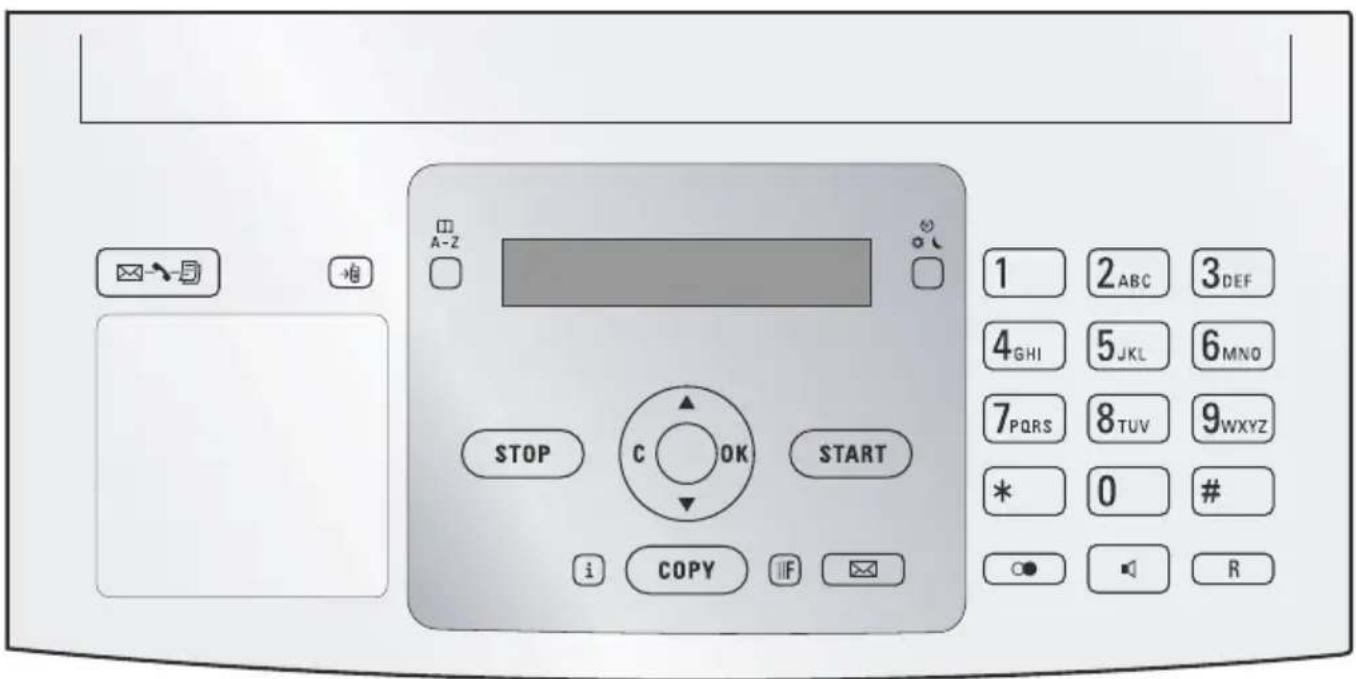
Panel
☒→-☐—Lights up, if new messages are received / list of the new messages with submenus / blinks in the case of device error (for example no ink film)
→—Locating cordless phones (all registered cordless phones start ringing)
☐A-Z—Press briefly: Calling up the telephone book entries. Selecting the entries with the ▲/▼ / press and hold: saving new entries
④/☀️/☐—Setting the timer and the fax reception modes (= fax switch). Modes set on the display ✕ (day), ℰ (night). Activated timer is indicated with ☑
STOP—Function abort / return to the starting mode / documents eject
C—Return to the previous menu level / press briefly: deleting individual characters / press and hold: deleting complete input
▲/▼—Calling the menu functions / navigation within the menu / selecting options / moving the cursor / adjusting the volume level
OK—Calling the menu functions / confirming input
START—Press briefly: Starting transmission of messages / press and hold: Starting fax polling
i—Press briefly: Printing help pages and setting lists / press and hold: Starting initial installation process
COPY—Press briefly: creating a copy / press and hold: creating multiple copies / printing SMS
手—Setting higher resolution for faxes and copying (RESOL.: STANDARD, RESOL.: FINE, RESOL.: PHOTO)
☒—Calling the SMS menu (function is not supported in all countries and networks)
Numeric keypad—Inputting digits, characters and special characters / press and hold: Recalling short dial numbers
●—Press briefly: Toggling between the list of the last 10 dialled numbers (= redial list) / press and hold: List of last ten callers (caller list)
■—Listening while connection is established
R—Press briefly: insert short line interruption (Hook Flash) as office index on PABX or for calling special functions in the public telephone network (PSTN)/long press: Inserting dialling pause
3 Initial Operation
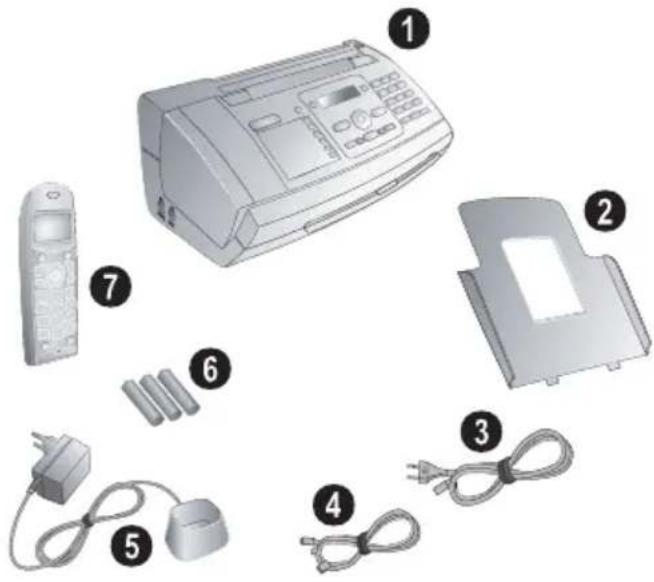
Contained in the packing
① Device
② Paper tray
③ Power cord with plug (country-specific)
④ Telephone cord with plug (country-specific)
⑤ Charging station
⑥ Three rechargeable batteries
⑦ Cordless telephone
User manual with installation guide (not depicted)
Notice

Missing Package Contents
If one of the parts is missing or damaged, please contact your retailer or our customer service.
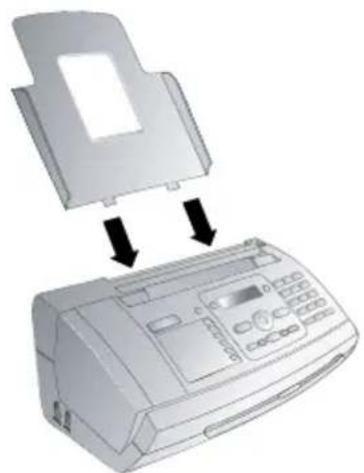
Attaching the Paper Tray
Insert the paper tray into the openings behind the paper feed mechanism.
natural_image
Diagram of a printer with a cover and two arrows indicating process flow (no text or symbols)Inserting Paper
Before you can receive documents or make copies, you must load paper into the device. Please use only appropriate paper in standard format A4 (210 × 297 millimetre · preferably 80 g/m²). Follow the specifications in the technical data.
Notice

Loading Paper
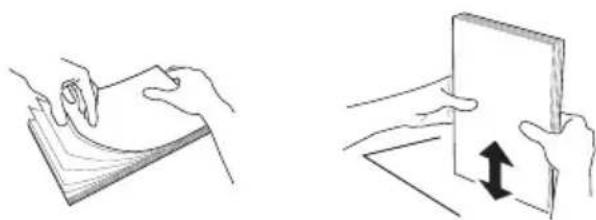
Separate the paper sheets by fanning them out, then align them by tapping edge of the stack lightly against a flat surface. This will prevent several sheets of paper from being drawn in all at once.
natural_image
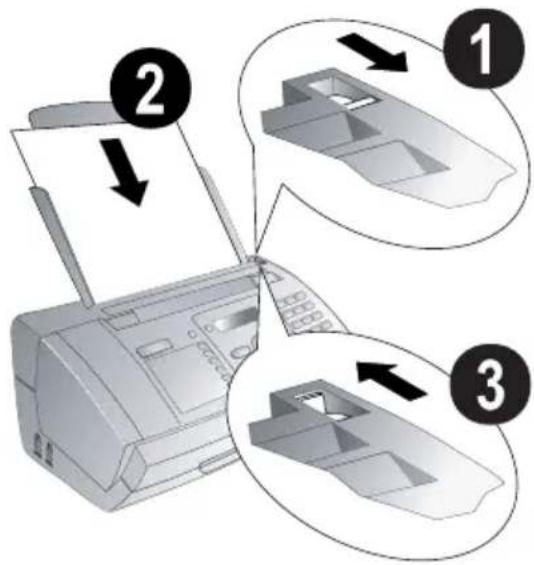
Two line drawings showing hands holding a sheet of paper and a card with an upward arrow (no text or symbols)1 Fold open the lever on the right beside the paper feed towards front.
2 Insert paper in the paper feeder. You can insert maximum 50 sheets (A4 · 80 g/m2).
3 Fold open the lever on the right beside the paper feed backward in order to enclose the paper.
Connecting the Telephone Cord
Notice

Analogue Fax Machine
Your device is an analogue fax device (Group 3). It is not an ISDN device (Group 4), and therefore it cannot be operated directly on an ISDN connection. In order to do this, you need either an analogue adapter or a connection for analogue terminals.
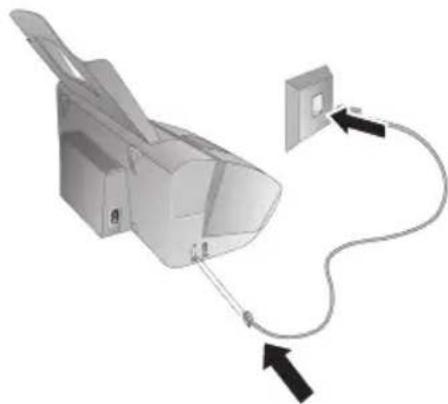
Connect the telephone cable to the device by inserting it in the socket designated with LINE (RJ-11-Connector). Insert the telephone plug into your PTT line socket.
natural_image
Diagram of a printer with cable and connector, no text or symbols presentNotice

Connection to Private Automatic Branch Exchange
If you connect your device as extension to a telephone system, you must set it for working as an extension (also see Chapter Telephone connections and additional devices, page 40).
Ireland
When connecting to the telephone line socket, use only a two-pin RJ-11-telephone cable (modular plug). The use of a four-pin telephone cable may lead to the device not functioning correctly.
Connecting the Power Cord
CAUTION!

Mains Voltage at the Site of Installation!
Check whether the mains voltage of your device (indicated on the type label) matches the mains voltage available at the setup location.
Connecting Mains Cable of the Device
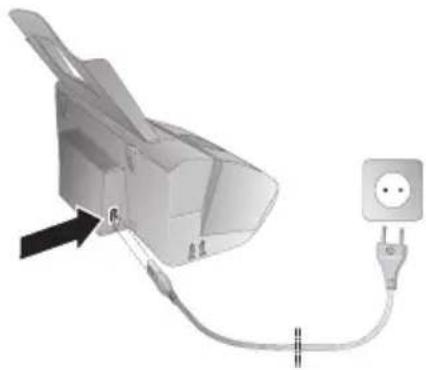
Insert the mains cable into the connection located on the rear side of the device. Plug the power cable into the electrical outlet.
natural_image
Diagram of a device with a power outlet connected to a cable, showing no text or symbols.Connecting the Mains Cable of the Charging Station
Connect the mains cable of the charging station to the electrical socket.
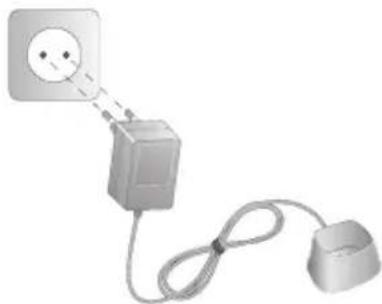
natural_image
Illustration of a power plug connected to a cable and terminal block (no text or symbols)Initial Installation
After you connect your device to the mains voltage, the initial installation commences. Press ⓘ. Your device prints a help page.
Selecting the Language
1 Use ▲/▼ to select the desired display language.
2 Confirm with OK.
Selecting the Country
CAUTION!
EN

Setting the Country Correctly!
You must set the country in which you are operating the device. Otherwise your device is not adapted to the telephone network. If your country is not included in the list, you must select a different setting and use the correct telephone cable for the country. Consult your retailer.
1 Use ▲/▼ to select the country in which you are operating the device.
2 Confirm with OK.
After this input, the device prints another help page and checks the telephone line.
Entering Number
Your name and number are added together with date, time and page number at the top edge of each fax transmission (= header).
1 Enter your number. Using # or * you can enter a plus sign.
2 Confirm with OK.
Entering Your Name
1 Enter your name. You can enter characters using the numeric keys (see button labels). Enter special characters using 0. Press the respective button several times until the desired character or special character appears on the display.
Notice

Navigating in the Editor
You can move the cursor using ▲/▼. Use C to delete individual characters.
2 Confirm with OK.
After the input, the machine prints an overview of the functions.
Entering the Date and Time
1 Enter the time, e.g. 1 4 0 0 for 2 pm.
2 Enter the date (two digits for each field), for example 080607 for June 8th, 2007.
3 Confirm with OK.
Notice

Starting Initial Installation Process
You can restart the initial installation process any time. Press i and 2.
Inserting Batteries in Cord- less Telephone
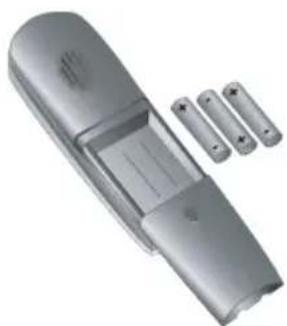
1 Insert the new rechargeable batteries in the battery compartment with the positive and negative poles as shown in the picture in the battery compartment.
DANGER!

No Non-Rechargeable Batteries!
Never use non-rechargeable batteries in the cordless telephone. Follow the specifications in the technical data.
natural_image
Exterior view of a silver remote control device with two batteries and a side panel (no text or symbols visible)2 Place the cover on the battery compartment and slide it upward until it snaps into place.
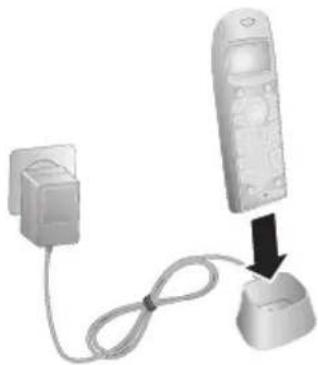
3 Place the cordless telephone into the charging station.
DANGER!

Never Into the Charging Station Without Batteries!
Never place the cordless telephone into the charging station without batteries.
natural_image
Illustration of a remote control device connected to a base, showing cable and a downward arrow (no text or symbols)Notice

Charging Batteries for 12 Hours
Leave the cordless telephone in the charging station for at least twelve hours. The batteries will heat up slightly during charging; this is not dangerous.
Putting Cordless Telephone in Operation
Press the green ⚡ key for at least two seconds for switching on your cordless telephone.
Normally your cordless telephone is registered with your device in the factory. In the starting mode, press OK. The display shows on which base unit and with which number the cordless telephone is registered.
Notice

Unregistered Cordless Telephones
If you acquired a model with several cordless telephones, only one cordless telephone is registered with your device in the factory. Insert the batteries as described above and register the cordless telephones with your device (also see Chapter "Telephone Connections and Additional Devices", page 40).
EN
4 Telephone Functions
For information on how to connect additional cordless telephones and another device and which functions are available to you, please refer the chapter on Telephone Connections and additional devices, Page 40.
Putting a Call from Cordless Telephone
Dial the desired number. There are several ways to do this: Then press ↗.
Notice

Direct Dialling
You can also press first and then dial a number. The dialling process begins immediately.
Notice

Forwarding Fax to the Device
If you receive a call on the cordless telephone and hear that it is a fax call (whistling tone or silence), you can start the fax reception on the device. Press either START on the device or * 5 on the cordless telephone.
Manual Dialling: Dial the desired number using the numeric keypad.
Telephone Book of the Cordless Telephone:
1 Hold □ pressed (for at least two seconds).
2 Select an entry using ▲/▼. Enter the starting letters with the numeric keypad to quickly navigate through the telephone book.
Notice

Additional Number
If you have added an additional number to an entry, this entry appears twice in the telephone book. The symbol of the category appears before the name.
Telephone Book of the Device:
1 Press □.
2 Select an entry using ▲/▼. Enter the starting letters with the numeric keypad to quickly navigate through the telephone book.
Short Dialling:
1 Press and hold the relevant numeric key on the device (at least two seconds).
2 Press ↗ on the cordless telephone.
Redial List: Press and hold Ⓐ (at least two seconds). Use ▲/▼ to select an entry from the list of the dialled numbers.
Caller List:
1 Press ▲/▼, and using ▲/▼ to select CALLS.
2 Confirm with OK.
3 Using ▲/▼, select from which list you would like to dial a number.
4 Confirm with OK.
5 Select the desired number using ▲/▼.
Notice

Adjusting Volume Level
You can adjust the volume level of the speaker on the cordless telephone using ▲/▼ even during a call.
Looking Up Numbers
During a call, you can look up the telephone book entries.
1 During a call, press ●● Menu.
2 Using ▲/▼ select PHONEBOOK.
3 Using ▲/▼, dial the desired entry.
Notice

Navigating in the Menu
Press ● Return to go back to the previous menu level.
Calling additional telephone functions
(Function is not supported in all countries and networks)
You can use additional telephone functions with your device for example call toggling, three-way call or call forwarding. Contact your telephone company to inquire whether or not these functions are available for your connection. The signal to the switchboard to call these services is a short line interruption (Hook Flash). How to call up the functions, depends on your telephone company and may vary from the description found below.
Receiving a Second Call
During a call, press ●● ACCEPT to accept the new call.
Switching Between Calls (= Call Toggling)
Notice

Hot Key
Press R, to toggle between the calls.
1 During a call, press ●● Menu.
2 Using ▲/▼ select SWITCH.
3 Confirm with OK.
Making a Second Call
Notice

Hot Key
Press●, and dial the other number.
1 During a call, press ●● Menu.
2 Using ▲/▼ select SECOND CALL.
3 Enter the desired number using the numeric keypad.
4 Press ●● Call.
Notice

Hot Key
Press ● and 1, to end the call and to activate the call on hold.
Getting Outside Line
Private branch exchanges (PABX) are typical in many offices and some households. You must dial an outside line access code in order to get a connection to the public telephone network (PSTN) from a PABX.
Enter the outside line access code with which you reach the public telephone network before you enter the desired number or select a stored entry. The outside line access code is usually 0.
Notice

Incorrect Outside Line Access Code
In rare cases, the outside line access code may be a different number or a two-digit number. For older telephone systems, the outside line access code can be R (= Flash). Press R to enter this outside line access code. If the connection to the public telephone network is not possible, contact your telephone system supplier.
Notice

Connection to Private Automatic Branch Exchange
If you operate your device permanently at an extension, store the outside line access code with the 96 function (see page 40).
Hands-free
Notice

Low Battery Charge
This function is not available if the battery charge of the cordless telephone is low. Place the cordless telephone into the charging station.
Switching On Hands-free
1 During a call, press ●● Menu.
2 Using ▲/▼ select Deact..
3 Confirm with OK.
Switching Off Hands-free
1 Select Deact. again.
2 Press ●● Deact..
Notice

Switching Hands-Free On/Off
You can switch the hands-free mode on and off by pressing ⬇ key during a telephone call.
Forwarding a call
Notice

Function Only Available with Several Cordless Telephones Registered to the device
This function is available only if you have registered several cordless telephones with your device and the telephones are within the range of the device.
1 During a call, press ●● Menu.
2 Using ▲/▼ select CALL TRANSFER.
3 Confirm with OK.
4 Select the cordless telephone to which you would like to transfer the call using ▲/▼.
5 Confirm with OK.
6 Press —, to hang up.
Getting Back the Telephone Call
You can get a transmitted telephone call back, before the cordless telephone is picked up.
1 Press ●● Menu.
2 Using ▲/▼ select HANGING UP.
3 Confirm with OK.
Placing internal calls
Notice

Function Only Available with Several Cordless Telephones Registered to the device
This function is available only if you have registered several cordless telephones with your device and the telephones are within the range of the device.
1 In the starting mode, press →.
2 Using ▲/▼ dial the cordless telephone you would like to call.
3 Press ●● Call.
Calling Line Identification (CLIP)
(Function is not supported in all countries and networks)
The number of the caller appears on the display of the device and the cordless telephone. For this function to work, the Calling Line Identification Presentation (CLIP) must be activated for your telephone connection. Enquire with your telephone company. Caller Line Identification may be associated with a fee.
Notice

Setting the Country Correctly
If the Caller Line Identification does not work even though the function is activated for your telephone connection, check if you have set the correct country (also see Chapter Settings, page 35).
Missed Calls
Notice

Displaying Telephone Book Names
Your device displays the name with which you have saved the number in the telephone book. The number and name will not be shown if the caller suppresses his number.
If you receive calls in your absence, a message appears on the display of the cordless telephone.
1 Press OK.
2 Using ▲/▼, you can page through the list of missed calls.
3 Press ↗, to call back.
5 Telephone Book of the Device
Notice

Printing Telephone Book Functions
Press i and 3 to print an overview of the telephone book functions.
In the telephone book of your device, you can save entries with multiple numbers and collect multiple entries into groups. You can assign various ring tones to the entries. Follow the specifications in the technical data.
Notice

Navigating in the Editor
You can move the cursor using ▲/▼. Use C to delete individual characters. Press STOP to close the menu and return to the starting mode.
Saving entry
1 Hold □□A-Z pressed (for at least two seconds).
Notice

Access Function
You can also call the function by pressing OK, 12 and OK.
2 Enter the name. You can enter characters using the numeric keys (see button labels). Enter special characters using 0. Press the respective button several times until the desired character or special character appears on the display.
3 Confirm with OK.
4 Using ▲/▼, select the category for which you would like to enter a number: CATEGORY: HOME, CATEGORY: WORK, CATEGORY: MOBILE or CATEGORY: FAX.
5 Confirm with OK.
6 Enter the telephone number.
7 Confirm with OK.
8 You can assign a ring tone to the number. Use the number keys 0 to 9 to select a ring tone. Using ▲/▼, set the volume.
9 Confirm with OK. The entry is saved.
Edit Entry
1 Press OK, 1 5 and OK.
2 Using ▲/▼ select the entry which you would like to edit.
3 Confirm with OK.
4 Edit the name.
5 Confirm with OK.
6 Using ▲/▼, select the category for which you would like to enter a number: CATEGORY: HOME, CATEGORY: WORK, CATEGORY: MOBILE or CATEGORY: FAX
7 Confirm with OK.
8 Enter the telephone number.
9 Confirm with OK.
10 You can assign a ring tone to the number. Use the number keys 0 to 9 to select a ring tone. Using ▲/▼, set the volume.
11 Confirm with OK. The entry is saved.
Deleting an Entry
1 Press OK, 1 6 and OK.
2 Using ▲/▼ select the entry which you would like to delete.
3 Confirm with OK.
4 Confirm DELETE: YES with OK.
Groups
You can combine several telephone book entries into a group. A message is sent to all members of this group in succession.
Adding Group Entries
1 Press OK, 1 3 and OK.
2 Use ▲/▼ to select the group you would like to create.
3 Confirm with OK. You can add entries to the group, display the members of the group, delete the group or send a fax to the group.
4 Using ▲/▼ select ADD MEMBER?
5 Confirm with OK.
6 Use ▲/▼ to select the entry you would like to add to the group.
7 Confirm with OK.
8 Repeat steps 4 to 6 to add additional entries to the group.
9 Press STOP to end the input.
Displaying Group Entries
1 Press OK, 1 3 and OK.
2 Use ▲/▼ to select the group you would like to display.
3 Confirm with OK.
4 Using ▲/▼ select VIEW MEMBERS?
5 Confirm with OK.
6 Page through the entries of the group with ▲/▼.
7 Press STOP twice to return to the starting mode.
Deleting Individual or All Group Entries
Deleting an Individual Entry
1 Press OK, 1 3 and OK.
2 Using ▲/▼ select the group from which you would like to delete entries.
3 Confirm with OK.
4 Using ▲/▼ select DELETE MEMBER?
5 Confirm with OK.
6 Using ▲/▼ select the entry which you would like to delete.
7 Confirm with OK.
8 Using ▲/▼ select DELETE: YES.
9 Confirm with OK. The entry is deleted.
Deleting a Group
1 Press OK, 1 3 and OK.
2 Using ▲/▼ select the group you would like to delete.
3 Confirm with OK.
4 Using ▲/▼ select DELETE MEMBER?
5 Confirm with OK.
6 Using ▲/▼ select DELETE: ALL.
7 Confirm with OK. All entries in the group are deleted.
Short Dial
You can assign short dial numbers to frequently dialled telephone numbers. The numeric keys help you to call these numbers quickly.
Assigning or Editing Short Dial Entry
1 Press OK, 1 4 and OK.
2 Use ▲/▼ or the respective number key to select the short dial number you would like to assign or change.
CAUTION!

Overwriting Short Dial Entries!
If you select a short dial number that is already assigned, the entry is overwritten.
3 Confirm with OK.
4 Use ▲/▼ to select the telephone book entry you would like to assign as a short dial entry.
5 Confirm with OK.
Deleting a Short Dial Entry
CAUTION!

The Telephone Book Entry is Deleted!
This function not only deletes the short dial entry, it also deletes the entire entry from the telephone book. Overwrite the short dial entry if you would like to change the assignment.
1 Press OK, 1 4 and OK.
2 Use ▲/▼ or the respective number key to select the entry you would like to delete.
3 Press C.
4 Confirm the deletion with OK.
6 Telephone Book of the Cordless Telephone
Notice

Restricted Telephone Book Functions
All functions for the telephone book of the device are not available to you on the cordless telephone.
Notice

Navigating in the Menu
Use C to delete individual characters. Press → to close the menu and return to the starting mode.
Saving Entry
Notice

Restricted Telephone Book Functions
You can add entries to the telephone book of the cordless telephone only.
1 Hold □ pressed (for at least two seconds).
2 Using ▲/▼ select
3 Enter the name. You can enter characters using the numeric keys (see key labels). Enter special characters using 0 or #. Press and hold the respective key or press it several times until the desired character appears on the display.
4 Confirm with OK.
5 Enter the telephone number.
6 Confirm with OK.
7 Using ▲/▼, select the category for which you would like to enter a number: HOME, WORK, MOBILE or FAX.
8 Confirm with OK.
Edit Entry
Notice

Restricted Telephone Book Functions
You can edit the entries on the cordless telephone only.
1 Hold □ pressed (for at least two seconds).
2 Using ▲/▼ select the entry which you would like to edit.
3 Press ●● Option.
4 Using ▲/▼ select EDIT ENTRY.
5 Confirm with OK.
6 Modify the name. Use C to delete individual characters.
7 Confirm with OK.
8 Modify the number.
9 Confirm with OK.
10 Select a category using ▲/▼.
11 Confirm with OK.
Deleting an Entry
1 Hold □ pressed (for at least two seconds).
2 Using ▲/▼ select the entry which you would like to delete.
3 Press ●● Option.
4 Using ▲/▼ select DELETE ENTRY.
5 Confirm with OK.
6 Confirm the deletion with ●● Yes.
Adding an Additional Number
Notice

Additional Number
If you have added an additional number to an entry, this entry appears twice in the telephone book. The symbol of the category appears before the name.
1 Hold □ pressed (for at least two seconds).
2 Using ▲/▼ select the entry which you would like to edit.
3 Press ●● Option.
4 Using ▲/▼ select ADD NUMBER.
5 Confirm with OK.
6 Enter the additional number.
7 Confirm with OK.
8 Select a category using ▲/▼.
9 Confirm with OK.
Changing the Ring Tone
You can assign a separate ring tone to each entry. In this way you can distinguish between business and personal calls.
Notice

Calling Line Identification (CLIP)
For this function to work, the Caller Line Identification (CLIP) must be activated for your telephone connection (country and network dependent). The number and name will not be shown if the caller suppresses his number.
1 Hold □ pressed (for at least two seconds).
2 Using ▲/▼ select the entry which you would like to edit.
3 Press ●● Option.
4 Using ▲/▼ select RINGER TYPE.
5 Confirm with OK.
6 Select the desired ring tone using ▲/▼.
7 Confirm with OK.
Calling Options
Telephone Book Entries on the Device
1 Press □.
2 Using ▲/▼, dial the desired entry.
3 Press ●● Option.
4 Select the desired option using ▲/▼. You can have the details of the entry displayed, call the number, send an SMS to the number or search for some other entry.
5 Confirm with OK.
Telephone Book Entries of the Cordless Telephone
1 Hold □ pressed (for at least two seconds).
2 Using ▲/▼, dial the desired entry.
3 Press ●● Option.
4 Select the desired option using ▲/▼. You can have the details of the entry displayed, call the number, send an SMS to the number, edit or delete the entry, assign a special ring tone or add an additional number to the entry, search for some other entry or save a new entry.
5 Confirm with OK.
7 Cordless Telephone
Looking for Cordless Telephone
This function helps you in locating cordless telephones, which you have misplaced. For this purpose the cordless telephones must be registered with the device and must be within its range.
Press → on the device. All cordless telephones registered with the device ring for approx. one minute.
Notice

Access Function
You can also call the function by pressing OK, 8 1 and OK.
Switching On and Off
You can switch your cordless telephone off to save power. Press and hold (at least two seconds) for switching off the cordless telephone. Press and hold (at least two seconds) for switching on the cordless telephone.
Navigating in the Menu
Press one of the two arrow keys ▲/▼ to open the function menu. Page through ▲/▼ menu entries. Use OK to select a menu function. Press C to return to the previous menu level. Press — to close the menu and return to the starting mode.
Keypad Lock
1 Press ▲/▼, and using ▲/▼ to select SETTINGS.
2 Confirm with OK.
3 Using ▲/▼ select SECURITY.
4 Confirm with OK.
5 Using ▲/▼ select KEYPAD LOCK.
6 Confirm with OK.
7 Using ●● select Yes to switch on the function. Using ● select No to switch on the function.
Activating Emergency Call Number
Using this function you can save a number as an emergency call number. If the emergency call function is activated, the number is dialled as soon as ↗ is pressed. You can dial and call other telephone numbers with the numeric keypad.
Notice

No Actual Emergency Call Numbers
It is recommended not to save any actual emergency call number (e.g. police or fire brigade) with this function, so that you do not accidentally call this emergency call number.
1 Press ▲/▼, and using ▲/▼ to select SETTINGS.
2 Confirm with OK.
3 Using ▲/▼ select SECURITY.
4 Confirm with OK.
5 Using ▲/▼ select EMERGENCY.
6 Confirm with OK.
7 Press • EDIT ENTRY.
8 Using ▲/▼ select ACTIVATE to switch on the function. Using ▲/▼ select DEACTIVATE to switch off the function.
9 Confirm with OK.
Notice

Initial Activation
When you activate the function for the first time, you must enter a number. This number remains stored.
Modifying the Emergency Call Number
1 Press ▲/▼, and using ▲/▼ to select SETTINGS.
2 Confirm with OK.
3 Using ▲/▼ select SECURITY.
4 Confirm with OK.
5 Using ▲/▼ select EMERGENCY.
6 Confirm with OK.
7 Press • EDIT ENTRY.
8 Using ▲/▼ select CHANGE NO.
9 Confirm with OK.
10 Enter the telephone number.
11 Confirm with OK.
Additional Functions
Notice

Telephone Call at Alarm Time
If you place a call at a preset alarm time, the cordless telephone rings after the call is terminated.
Notice

Navigating in the Menu
Press C to return to the previous menu level. Press → to close the menu and return to the starting mode.
Alarm
The cordless telephone rings each day at the set time with the selected ringer tone. Press any key to switch off the alarm. If you would like to completely switch off the alarm, you must deactivate the function.
Setting the Wake-up Alarm
1 Press ▲/▼, and using ▲/▼ to select ACCESSORIES.
2 Confirm with OK.
3 Using ▲/▼ select ALARM.
4 Confirm with OK.
5 Press • EDIT ENTRY.
6 Using ▲/▼ select RINGER TYPE.
7 Confirm with OK.
8 Select the desired ring tone using ▲/▼.
9 Confirm with OK.
10 Using ▲/▼, set the volume.
11 Confirm with OK.
12 Using ▲/▼ select SET TIME.
13 Confirm with OK.
14 Enter the time at which you would like to be woken up, e.g. 0 7 0 0 for 7 a.m.
15 Confirm with OK.
16 Confirm with OK to switch on the alarm.
Deactivating the Alarm Clock
1 Press ▲/▼, and using ▲/▼ to select ACCESSORIES.
2 Confirm with OK.
3 Using ▲/▼ select ALARM.
4 Confirm with OK.
5 Press • EDIT ENTRY.
6 Using ▲/▼ select DEACTIVATE.
7 Confirm with OK.
Timer
Using the Timer function (countdown alarm) you can enter a time, after which the cordless telephone rings. You can set whether the remaining time should be shown on the display. Press any key to switch off the alarm.
Notice

Telephone Call when Using Timer Function
While the timer is running, you can talk on the phone without interrupting the timer.
Setting the Timer
1 Press ▲/▼, and using ▲/▼ to select ACCESSORIES.
2 Confirm with OK.
3 Using ▲/▼ select TIMER.
4 Confirm with OK.
5 Press • EDIT ENTRY.
6 Using ▲/▼ select SET DURATION.
7 Confirm with OK.
8 Enter the minutes (max. 99 minutes).
9 Confirm with OK.
10 Using ▲/▼ select VIEW.
11 Confirm with OK.
12 Using ●● select Yes to switch on the function. Using ● select No to switch on the function.
13 Using ▲/▼ select RINGER TYPE.
14 Confirm with OK.
15 Select the desired ring tone using ▲/▼.
16 Confirm with OK.
17 Using ▲/▼, set the volume.
18 Confirm with OK.
19 Press ● Return after carrying out all the settings.
20 Press ●● Start to start the timer.
Modifying the Timer
Before you can modify the timer settings, you must switch off the current timer.
1 Press • Stop.
2 You will be asked, whether you would like to switch off the timer. Confirm with ●● Yes.
You can now access the timer menu and modify settings.
Birthday Reminder
Using the birthday reminder you can enter the dates for up to ten birthdays. The cordless telephone rings at the entered time on the entered date. Press any key to switch off the alarm.
Entering a Birthday
1 Press ▲/▼, and using ▲/▼ to select ACCESSORIES.
2 Confirm with OK.
3 Using ▲/▼ select BIRTHDAY.
4 Confirm with OK.
5 Using ▲/▼ select
6 Confirm with OK.
7 Enter the name.
8 Confirm with OK.
9 Enter the birth day, e.g. 0806 for 8th June.
10 Confirm with OK.
11 Enter the time, e.g. 1400 for 2 pm.
12 Confirm with OK.
Displaying a Birthday
1 Press ▲/▼, and using ▲/▼ to select ACCESSORIES.
2 Confirm with OK.
3 Using ▲/▼ select BIRTHDAY.
4 Confirm with OK.
5 Using ▲/▼ select the entry which you would like to be displayed.
6 Confirm with OK. Name, date and time of the birthday reminder are displayed.
7 End the function using .
Modifying a Birthday
1 Press ▲/▼, and using ▲/▼ to select ACCESSORIES.
2 Confirm with OK.
3 Using ▲/▼ select BIRTHDAY.
4 Confirm with OK.
5 Using ▲/▼ select the entry which you would like to modify.
6 Press ●● Option.
7 Using ▲/▼ select EDIT ENTRY.
8 Confirm with OK.
9 Modify the name. Use C to delete individual characters.
10 Confirm with OK.
11 Modify the date.
12 Confirm with OK.
13 Modify the time.
14 Confirm with OK.
Deleting a Birthday
1 Press ▲/▼, and using ▲/▼ to select ACCESSORIES.
2 Confirm with OK.
3 Using ▲/▼ select BIRTHDAY.
4 Confirm with OK.
5 Using ▲/▼ select the entry which you would like to delete.
6 Press ●● Option.
7 Using ▲/▼ select DELETE ENTRY.
8 Confirm with OK.
9 Confirm the deletion with ●● Yes.
Changing the Ring Tone
You can assign a separate ring tone to each birthday reminder.
1 Press ▲/▼, and using ▲/▼ to select ACCESSORIES.
2 Confirm with OK.
3 Using ▲/▼ select BIRTHDAY.
4 Confirm with OK.
5 Using ▲/▼ select the entry to which you would like to assign a new ring tone.
6 Press ●● Option.
7 Using ▲/▼ select RINGER TYPE.
8 Confirm with OK.
9 Select the desired ring tone using ▲/▼.
10 Confirm with OK.
11 Using ▲/▼, set the volume.
12 Confirm with OK.
Acoustic Room Monitoring
Notice

Function Only Available with Several Cordless Telephones Registered to the device
This function is available only if you have registered several cordless telephones with your device and the telephones are within the range of the device.
With this function you can acoustically "monitor" a room (for example, a children's bedroom).
Setting up Room Monitoring
Set up the room monitoring on the receiver unit first.
1 On the receiver unit, press ▲/▼, and using ▲/▼ select ACCESSORIES.
2 Confirm with OK.
3 Using ▲/▼ select ROOM MONITOR..
4 Confirm with OK.
5 Using ▲/▼ select the transmitting cordless telephone.
6 Press ●● Call.
7 The transmitting unit starts ringing. Press OK to accept the call.
8 Using ●● Yes activate the baby-phone function on the transmitting unit.
The cordless telephones are now connected to each other in the monitoring mode. Place the transmitting unit in the room which you would like to acoustically monitor. Keep the receiver unit with you.
Notice

Telephone Calls During Room Monitoring
If you get a call when you are in the room monitoring mode, only the device rings. On the cordless telephone, the display gets lit up and a message appears.
Telephone Calls During Room Monitoring
If you get a call when you are in the room monitoring mode, only the device rings. On the cordless telephone, the display gets lit up and a message appears.
1 Press ●● ACCEPT on the cordless telephone to accept the call.
2 Press — to end the call. The cordless telephone returns to the room monitoring mode.
You can place a call when in the room monitoring mode.
1 Press ●● Call and dial the desired number.
2 Press ↗ to make the connection.
3 Press — to end the call. The cordless telephone returns to the room monitoring mode.
Ending Room Monitoring
Press — on any one of the cordless telephones to end the room monitoring mode.
8 Fax
Notice

Printing Informations for Fax Transmission
Press i and 4 to print instructions for sending fax messages and for configuring the fax switch.
CAUTION!

Unsuitable Documents!
Do not insert any documents into the device that ...
... are wet, have been edited with correction fluid, are soiled or have a coated surface.
... that are written on with a soft pencil, with paint, chalk or charcoal.
... originate from newspapers or magazines (printing ink).
... that are held together with office or notebook staples or with tape or glue.
... are pasted with note papers.
... are creased, crumpled or torn.
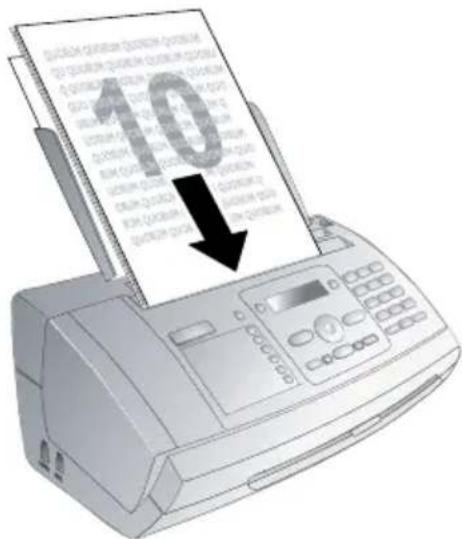
Use documents with sizes A5 or A4 with 60 to 100 g/m ^2 weight. You can insert up to ten documents at a time.
Notice

Cancel Transmission
Press STOP to eject the documents without sending them.
Sending fax
1 Insert the documents face up into the document feeder. The top most document will be fed in first.
2 Set the desired resolution. You can choose between RESOL.: STANDARD (for documents without spe-
cial features), RESOL.: FINE (for texts with small print or drawings) and RESOL.: PHOTO (for photos). Press ☐. The configured resolution appears on the display. Press ☐ again to change the resolution.
Notice

Setting the Contrast
They can adjust the preset contrast (also see Chapter Settings, page 35).
3 Dial the desired number. There are several ways to do this:
4 Press START.
Notice

Automatic Redial
If the subscriber is busy, the device dials the number again after some time. Press STOP, in order to cancel the transmission process. After the transmission, the device prints out a transmission report depending on the settings.
Manual Dialling: Dial the desired number using the numeric keypad.
Notice

Access Function
You can also load short dial entries by holding the respective number key pressed (for at least two seconds).
Telephone Book:
1 Press □A-Z.
Notice

Access Function
You can also search for an entry in the telephone book by pressing OK, 1 1 and OK.
2 Select an entry using ▲/▼. Enter the starting letters with the numeric keypad to quickly navigate through the telephone book.
Notice

Multiple Categories for One Entry
You can save an entry multiple times with the same name but in a different category. In the telephone book, the first letter of the category appears after the entry.
Redial List: Press ⬆. Use ▲/▼ to select an entry from the list of the dialled numbers.
Notice

Access Function
You can also load the redial list by pressing OK, 2 and OK.
Caller List: Press and hold ⬤ (at least two seconds). Use the ▲/▼ to select an entry from the list of callers.
Notice

Access Function
You can also load the caller list by pressing OK, 2 1 and OK.
Notice

Calling Line Identification (CLIP)
For this function to work, the Caller Line Identification (CLIP) must be activated for your telephone connection (country and network dependent). The number and name will not be shown if the caller suppresses his number.
Sending Fax Manually
1 Insert the document.
2 Enter the desired number using the numeric keypad or select a saved entry.
3 Press ▶.
4 Press START.
Chain Dialling
You can combine and edit manually entered digits and saved entries, before the dialling process starts. If you have saved, for example, the telephone number prefix of an inexpensive telephone service provider (call-by-call) as a telephone book entry, select this entry and manually enter the subsequent telephone number or select another saved entry.
Insert Dialling Pause
It may be necessary to insert a dial pause in telephone number, for example, for a direct-inward dialling number, a sub-address or in a long distance number. Hold R pressed (for at least two seconds). – appears on the display. The second part of the number is dialled only after a short pause.
Direct Inward Dialling or Selecting Sub-address
You can send a fax to a direct-inward dialling number or a sub addressor or call from a direct-inward dialling number or sub address - for example to use a certain service of a fax database provider. For this purpose, attach the direct-inward dialling number or sub address with a short dialling pause to the fax number.
1 Enter the desired number using the numeric keypad or select a saved entry.
2 Hold R pressed (for at least two seconds).
3 Enter the direct-inward dialling number or sub address.
4 Press START. The direct-inward dialling number or sub address is dialled only after a short pause.
Eavesdropping while Connection is Established
You can listen while a connection is established, for example if a fax transmission constantly fails.
Enter the desired number using the numeric keypad or select a saved entry. Press 📄.
Notice

No Hands-free Operation Possible
Hands-free operation is not possible with this function. You cannot answer if the subscriber picks up.
Sending to Multiple Recipients (= Broadcasting)
You can send one fax to multiple recipients in succession.
Entering Recipients Individually
1 Insert the document.
2 Press OK, 3 4 and OK. The document is now read.
3 Enter the desired number using the numeric keypad or select a saved entry.
4 Confirm with OK.
5 Enter the next telephone numbers.
6 Confirm with OK. You can enter up to 25 recipients.
7 Press START. The device transmits the fax message successively to all recipients.
Sending a Fax to a Group
1 Insert the document.
2 Press OK, 13 and OK.
3 Use ▲/▼ to select the group to which you would like to send a fax.
4 Confirm with OK.
5 Using ▲/▼ select SEND FAX?.
6 Confirm with OK.
Notice

Transmission to Multiple Recipients
If your device cannot reach a recipient, the fax message is sent to the other recipients. After the device has called all recipients, it once again dials the numbers that previously could not be reached.
Sending Fax Later
If you would like to make use of the lower telephone tariffs or if the recipient can be reached at some specific time only, you can send the fax at a later time—within 24 hours.
1 Insert the document.
2 Press OK, 3 3 and OK.
3 Enter the time, at which the document should be transmitted, e.g. 1 4 0 0 for 2 pm.
4 Confirm with OK.
5 Enter the desired number using the numeric keypad or select a saved entry.
6 Selecting a Saved Entry: Confirm the selected entry using OK.
7 Press START. The device goes into standby mode and transmits the fax at the entered time. You can continue to make telephone calls and receive faxes
Notice

Cancel a Scheduled Fax Transmission
Press STOP to eject the document. This interrupts the standby mode.
Fax Reception
If you have not changed the factory settings, received faxes will be printed out automatically. If no paper or no ink film is inserted, the device saves the incoming faxes. The ☒-☐ key blinks. Once paper or a new ink film is inserted, the saved faxes are printed out.
Notice

Paper Not Inserted Correctly
Check if you have inserted clamped paper correctly. The lever on the right hand side next to the paper feeder must be folded backwards.
If the message memory is full, no additional messages can be received. A warning appears on the display. Follow the specifications in the technical data.
Notice

Delete Fax Messages Sent
If there are problems with printing out saved fax messages, a service code is available (see also section Service, page 48).
Receiving Fax Manually
Select manual reception under number of rings of the fax switch (see Chapter Setting the Fax Switch, page 36). The device will not receive faxes on its own. This setting is useful, when you want to receive faxes via a modem connected to a computer.
You can start fax reception manually, by pressing START.
Polling Faxes
With the fax polling function, you can retrieve faxes that lie ready in the dialled device. You can keep a document ready in your device, which can be polled by others.
Polling Faxes Directly
1 Enter the desired number using the numeric keypad or select a saved entry.
2 Hold START pressed (for at least two seconds).
Polling Secure Faxes
With this function, you can poll faxes that are protected with a code.
1 Press OK, 3 1 and OK.
2 Enter the code.
3 Confirm with OK.
4 Enter the desired number using the numeric keypad or select a saved entry.
5 Press START.
Polling Send of Faxes
CAUTION!

Unauthorised Fax Polling!
Protect your document against unauthorised polling with a code.
A caller who knows the code can poll the fax from your device. You can continue to make telephone calls and receive faxes
1 Insert the document.
2 Press OK, 3 2 and OK.
3 Enter a code (max. 20 characters).
4 Confirm with OK.
Notice

Cancel a Scheduled Fax Transmission
Press STOP to eject the document. This interrupts the standby mode.
Using Fax Templates
Five fax templates, which you can use, are stored in your device. With these templates you can quickly create, for example, a short fax note or an invitation.
1 Press OK, 4 3 and OK.
2 Use ▲/▼ to select the template you would like to print.
3 Confirm with OK. The device prints the template.
4 Fill the template and send it to the desired recipient per fax.
9 Copier
Notice

Printing Informations for Copying
Press i and 5 to print the help for copying.
Use documents with sizes A5 or A4 with 60 to 100 g/m ^2 weight. You can insert up to ten documents at a time.
Inserting Documents
1 Insert the documents face up into the document feeder. The top most document will be fed in first.

2 Set the desired resolution. You can choose between RESOL.: STANDARD (for documents without special features), RESOL.: FINE (for texts with small print or drawings) and RESOL.: PHOTO (for photos). Press 📄. The configured resolution appears on the display. Press 📄 again to change the resolution.
Notice

Setting the Contrast
They can adjust the preset contrast (also see Chapter Settings, page 35).
Making a Copy
Press COPY briefly. The copy is created.
Creating Multiple Copies
1 Hold COPY pressed (for at least two seconds).
2 Enter the number of times you would like to copy the document (maximum of 15 copies).
3 Press COPY.
4 Using ▲/▼ select whether to reduce or enlarge the document in size when copying. You can magnify up to 200 percent or reduce to as small as 50 percent of the original size.
5 Confirm with OK. The copy is created.
Notice

Cancel Copying
Press STOP to eject the documents without copying them.
10 SMS
(Function is not supported in all countries and networks)
Notice

Printing Instructions for SMS Functions
Press i and 8 to print the instructions for SMS functions.
SMS Requirements
Your device is preset for using the SMS (Short Messaging Service) services. Caller Line Identification (CLIP) must be activated for the SMS to work. It is possible that you will not be able to send and receive SMS messages from a private branch exchange (depending on the country and network).
Notice

SMS with Secret Number
Should you face problems in sending SMS, the reason for the same could be that you are using a secret number or that the device is connected to an old ISDN System.
Notice

SMS Requirements
Ask your telephone service provider ...
... whether you must register for the SMS Service.
... to which mobile telephone service providers you can send SMS
... which costs are applicable.
... which functions are available.
Sending SMS
Notice

SMS in Ireland
In Ireland, some providers will only accept SMS messages with a 140 character limit.
On the device
1 Press ☒.
2 Confirm with OK.
Notice

Access Function
You can also call the function by pressing OK, 6 1 and OK.
Notice

SMS Templates
The last five SMS messages written remain saved as templates. Press ⬆ until the desired message appears.
3 You can enter characters using the numeric keys (see button labels). Press ☐ to enter space or special characters.
You can enter 160 characters.
Notice

Navigating and Printing
You can move the cursor using ▲/▼. Use C to delete individual characters. Press and hold C (at least two seconds) to delete the entire text. Press COPY to print the message before sending it.
4 Confirm with OK.
5 Enter the desired number using the numeric keypad or select a saved entry.
Notice

Sending to Multiple Recipients (= Broadcasting)
You can send an SMS message to up to five recipients. Press OK after entering the number.
6 Press ☒. The message is sent.
On the Cordless Telephone
Sending SMS
Notice

Navigating in the Menu
You can navigate within the text using ▲/▼. Use C to delete individual characters. Press → to close the menu and return to the starting mode.
1 Press 📧.
Notice

Access Function
You can also call the function by pressing ▲/▼ and selecting using ▲/▼ SMS. Confirm with OK.
2 Using ▲/▼ select SEND SMS.
3 Confirm with OK.
4 You can enter characters using the numeric keys (see key labels). Enter space or special characters using 0 or # Press and hold the respective key or press it several times until the desired character appears on the display.
You can enter 160 characters.
Notice

Enter Letters
Switch the keyboard to enter capital or small letters: Press ●● Select. Using ▲/▼ select whether you would like to enter capital or small letters. Confirm with OK. Press and hold ☐ (at least two seconds) to toggle between capital and small letters.
Press ●● Select. Using ▲/▼ select INSERT CHAR. to enter a character. Confirm with OK.
Press ●● Select. Using ▲/▼ select CAN-CEL to delete the entire text. Confirm with OK. Confirm the deletion with ●● Yes.
5 Confirm with OK.
6 Enter the desired number using the numeric keypad or select a saved entry.
7 Confirm with OK.
8 Press ●● Confirm to send the message. Press ● EDIT ENTRY to edit the message again.
Notice

Saving SMS Message
After sending you can save the SMS. Using ●● select Yes to save the message. Press ● No to delete the message.
Sending SMS from the Telephone Book
You can select an entry from the telephone book and then call the SMS menu.
1 Short press ☐ to call up the telephone book of the device. Long press ☐ (at least two seconds) to call up the telephone book of the cordless telephone.
2 Using ▲/▼, dial the desired entry.
3 Press ●● Option.
4 Using ▲/▼ select SEND SMS.
5 Confirm with OK. The Send SMS Menu appears.
SMS Messages to E-Mail
(Function is not supported in all countries and networks)
You can send an SMS to an E-Mail address.
1 Press ☒.
Notice

Access Function
You can also call the function by pressing ▲/▼ and selecting using ▲/▼ SMS. Confirm with OK.
2 Using ▲/▼ select EDIT EMAIL.
3 Confirm with OK.
4 Enter the text as described under Sending SMS.
5 Confirm with OK.
6 Enter the e-mail address. Press and hold 0 until the @ character appears.
Notice

Enter E-Mail Addresses
E-Mail addresses must not contain a space.
7 Confirm with OK.
8 Press ● Confirm to send the message. Press ● EDIT ENTRY to edit the message again.
SMS Messages to Fax
(Function is not supported in all countries and networks)
You can send an SMS as a fax to a fax machine.
1 Press ☒.
Notice

Access Function
You can also call the function by pressing ▲/▼ and selecting using ▲/▼ SMS. Confirm with OK.
2 Using ▲/▼ select EDIT FAX.
3 Confirm with OK.
4 Enter the text as described under Sending SMS.
5 Confirm with OK.
6 Enter the desired number using the numeric keypad or select a saved entry.
7 Confirm with OK.
8 You can give a title (= reference) which appears in the heading of the fax.
9 Press ● Confirm to send the message. Press ● EDIT ENTRY to edit the message again.
Notification by SMS
You can have an SMS message sent to a telephone number of your choice when faxes or SMS messages are received or the answering machine receives calls or voice messages in your absence.
1 Press OK, 6 5 and OK.
2 Use ▲/▼ to select whether you would like to be informed about new SMS messages.
3 Confirm with OK.
4 Use ▲/▼ to select whether you would like to be informed about calls in your absence.
5 Confirm with OK.
6 Use ▲/▼ to select whether you would like to be informed about new fax messages.
7 Confirm with OK.
8 Use ▲/▼ to select whether you would like to be informed about new messages on the answering machine.
9 Confirm with OK.
10 Enter the number to which the SMS should be sent.
11 Confirm with OK. A message appears on the display stating the notification by SMS is activated.
Receiving SMS Messages
Notice

Paper Not Inserted Correctly
Check if you have inserted clamped paper correctly. The lever on the right hand side next to the paper feeder must be folded backwards.
Received SMS messages are printed out automatically. If you have turned the automatic printing function off, the SMS messages will be stored. Your device can store up to 30 SMSs.
Reading SMS Messages
On the Device
Reading New SMS
After reception of a new SMS message, the ☒ key lights up.
1 Press
2 Select the SMS using ▲/▼.
3 Press 📧. The Read SMS menu opens.
Loading Previously Read SMS Messages
1 Press OK, 6 2 and OK.
2 Using ▲/▼ select the SMS that you would like to read. Unread SMS messages are marked with a *.
3 Confirm with OK.
Notice

Navigating and Printing
You can move the cursor using ▲/▼. Press COPY to print the SMS message.
4 Press STOP to return to the SMS list.
Notice

Calling Further SMS Functions
Press OK to call additional SMS functions.
On the Cordless Telephone
Reading SMS Messages
1 Press ☒.
Notice

Access Function
You can also call the function by pressing ▲/▼ and selecting using ▲/▼ SMS. Confirm with OK.
2 Using ▲/▼ select READ SMS.
3 Confirm with OK.
4 Select the desired message memory using ▲/▼. The number of the messages contained in the folder is given in brackets.
NEW—Contains new messages
INBOX—Contains read and saved message.
SENT—Contains sent messages that you have saved.
DRAFT—Contains message that are yet to be sent
5 Confirm with OK.
6 Select the desired SMS using ▲/▼.
7 Press ●● Select.
8 Using ▲/▼ select READ.
9 Confirm with OK.
Notice

Call Additional Functions
Press ●● Select to call additional SMS functions.
Modifying the Read Mode
You can display an SMS in different ways.
1 Select the SMS to Read.
2 Press ● Select.
3 Using ▲/▼ select SMS MODE.
4 Using ▲/▼, select the desired mode:
AUTO SCROLL—The text scrolls automatically.
MANUAL SCROLL—Using ▲/▼ you can navigate within the text.
2 LINES—Two rows of the text are displayed.
5 Confirm with OK.
Calling SMS Functions
On the Device
1 While reading an SMS message, press OK to load additional SMS functions.
2 Use ▲/▼ to select an option: You can display information about the SMS message, print or delete the message, forward the message to another recipient or send an SMS response. You can return to the list of SMS messages, or view the next or previous SMS message.
3 Confirm with OK.
On the Cordless Telephone
1 Select the SMS to Read.
2 Press ● Select.
3 Use ▲/▼ to select an option: You can reply the SMS. You can move the message to the Archive folder, delete it or forward it to some other recipient. You can call the number of the sender or save it to the telephone book.
4 Confirm with OK.
Notice

SMS in Ireland
Some providers do not include the entire telephone number of the SMS sender. In such cases a direct response to the SMS message will not be delivered. Instead, create a new SMS message. Pay attention when entering the area code.
Printing SMS Messages
1 Press OK, 6 3 and OK.
2 Using ▲/▼ select the SMS message you would like to print.
PRINT: ALL—Prints all received and composed SMS messages that you have saved
PRINT: INBOX—Prints all received SMS messages
PRINT: OUTBOX—Prints all sent SMS messages that you have saved
PRINT: NEW—Prints all unread SMS messages
3 Confirm with OK.
Notice

Printing an Individual SMS message
If you would like to print an individual SMS message, load the message. Press COPY to print the message.
Deleting SMS Messages
On the Device
If the message memory is full, the device cannot receive any more messages. Delete SMS messages to free up memory.
1 Press OK, 6 4 and OK.
2 Use ▲/▼ to select the SMS messages you would like to delete:
DELETE: ALL SMS—Deletes all received and composed SMS messages that you have saved
DELETE: READ SMS—Deletes all read SMS messages
DELETE: SENT SMS—Deletes all sent SMS messages that you have saved
3 Confirm with OK.
4 Confirm the deletion with OK.
Notice

Deleting Single SMS Message
If you would like to delete an individual SMS message, load the message. Press OK, and using ▲/▼ to select DELETE. Confirm with OK.
On the Cordless Telephone
Deleting Individual SMS
1 Select the SMS to Read.
2 Press ● Select.
3 Using ▲/▼ select DELETE ENTRY.
4 Confirm with OK.
5 Confirm the deletion with ●● Yes.
Emptying the Message Folder
CAUTION!

Messages are Deleted!
This function deletes all SMS messages in a message folder.
1 Press ☒.
Notice

Access Function
You can also call the function by pressing ▲/▼ and selecting using ▲/▼ SMS. Confirm with OK.
2 Using ▲/▼ select DELETE SMS.
3 Confirm with OK.
4 Select the folder you would like to clear using ▲/▼.
5 Confirm with OK.
6 Confirm the deletion with ●● Yes.
Modifying the Settings
Notice

Available Only on the Device
These functions are available only on the device.
Changing Transmitting and Receiving Numbers
All numbers that you need to send and receive SMSs are stored in your device. In case you moved to another telephone service provider, you must change these numbers. You can set your device for two SMS service providers.
1 Press OK, 6 6 and OK.
2 Use ▲/▼ to select the SMS service provider that you would like to set.
3 Confirm with OK.
4 Enter the number for sending SMSs.
5 Confirm with OK.
6 Enter the number for receiving SMSs.
7 Confirm with OK.
8 Use ▲/▼ to select the SMS service provider through which you would like to send SMSs.
9 Confirm with OK.
Notice

Receiving SMS Messages
You can receive SMS messages via both providers.
Turning Off the Automatic Printing
You can deactivate the automatic printing of SMS messages.
1 Press OK, 6 6 then OK repeatedly until PRINT SMS: YES appears on the display.
2 Using ▲/▼ indicate whether you would like to turn printing on or off.
3 Confirm with OK.
Switching SMS Reception On and Off
If you are using a cordless telephone with SMS function on the same telephone line, then the specific device at which you will receive an SMS message will depend on the specific manufacturer. Only one of the devices will receive the SMS message. Try to turn off the SMS reception on your cordless telephone. If this is not possible, switch off SMS reception on the device. You can continue to send SMS messages even while SMS reception is switched off.
Switching SMS Reception Off
1 Press OK, 4 5 and OK.
2 Enter the service code 3 1 2 0 7.
3 Confirm with OK.
4 Using ▲/▼ select SURE: YES.
5 Confirm with OK.
Notice

Cancelling Entry
If you have entered the incorrect code, you can cancel the entry with SURE: NO.
Switching SMS Reception On
1 Press OK, 4 5 and OK.
2 Enter the service code 4 1 2 0 6.
3 Confirm with OK.
4 Using ▲/▼ select SURE: YES.
5 Confirm with OK.
Notice

Cancelling Entry
If you have entered the incorrect code, you can cancel the entry with SURE: NO.
11 Fun and Games
Notice
EN

Printing informations for the Games and Fun functions
Press i and 7 to print the instructions for the Games and Fun functions of your device.
Sudoku
Sudoku is a Japanese number puzzle. The game has 3 × 3 squares divided into 3 × 3 fields. Depending on the difficulty level, lesser or more digits are already given at the beginning of the game. The aim of the game is to fill digits from 1 to 9 in the game field is such a way that each digit appears only once in a row, a column and each of the nine blocks. There is only one solution.
Notice

Last Solution Available
The solution of the last printed game is saved. The solutions of earlier games are no longer available.
Printing a Game
1 Press OK, 4 8 and OK.
2 Using ▲/▼ select SUDOKU: NEW.
3 Confirm with OK.
4 Using ▲/▼ select the difficulty level.
5 Confirm with OK.
6 Enter, how many copies of the Sudoku you would like to print (maximum 9 copies).
7 Confirm with OK.
8 Using ▲/▼ select if you would like to print the solution.
9 Confirm with OK.
Printing the Last Game Again
1 Press OK, 4 8 and OK.
2 Using ▲/▼ select SUDOKU:LAST.
3 Confirm with OK.
4 Enter, how many copies of the Sudoku you would like to print (maximum 9 copies).
5 Confirm with OK.
6 Using ▲/▼ select if you would like to print the solution.
7 Confirm with OK.
Printing the Solution
1 Press OK, 4 8 and OK.
2 Using ▲/▼ select SUDOKU: SOLUTION.
3 Confirm with OK.
Sudoku for Every Day
You can have a new Sudoku automatically printed each day.
1 Press OK, 4 8 and OK.
2 Using ▲/▼ select SUDOKU: AUTO.
3 Confirm with OK.
4 Enter the time, e.g. 1 4 0 0 for 2 pm.
5 Confirm with OK.
6 Using ▲/▼ select the difficulty level.
7 Confirm with OK.
8 Enter, how many copies of the Sudoku you would like to print (maximum 9 copies).
9 Confirm with OK.
10 Using ▲/▼ select if you would like to print the solution.
11 Confirm with OK.
12 Using ▲/▼ indicate whether you would like to turn printing on or off.
13 Confirm with OK.
Notice

Switching Off Function
You can turn off the daily Sudoku print by selecting the function as described above and by switching off the automatic printing under point 12.
12 Settings on the Device
Notice

Navigating in the Editor
You can move the cursor using ▲/▼. Use C to delete individual characters. Press STOP to close the menu and return to the starting mode.
Entering the Date and Time
1 Press OK, 9 1 and OK.
2 Enter the time, e.g. 1 4 0 0 for 2 pm.
3 Enter the date (two digits for each field), for example 0 8 0 6 2 7 for June 8th, 2027.
4 Confirm with OK.
Notice

Time and Date After a Short Power Failure
You must check the time and date after a short power failure. Confirm with OK.
Selecting the Language
1 Press OK, 9 2 and OK.
2 Use ▲/▼ to select the desired display language.
3 Confirm with OK.
Selecting the Country
CAUTION!

Setting the Country Correctly!
You must set the country in which you are operating the device. Otherwise your device is not adapted to the telephone network. If your country is not included in the list, you must select a different setting and use the correct telephone cable for the country. Consult your retailer.
CAUTION!

Settings will be Deleted!
When you select a new country, all settings are reset to the factory defaults for that country. Saved data remains intact. Check the number entered for the header.
1 Press OK, 9 3 and OK.
2 Use ▲/▼ to select the country in which you are operating the device.
3 Confirm with OK.
4 Using ▲/▼ select SURE: YES.
5 Confirm with OK.
Entering Number
Your name and number are added together with date, time and page number at the top edge of each fax transmission (= header).
1 Press OK, 9 4 and OK.
2 Enter your number. Using # or * you can enter a plus sign.
3 Confirm with OK.
Entering Your Name
1 Press OK, 9 5 and OK.
2 Enter your name. You can enter characters using the numeric keys (see button labels). Enter special characters using 0. Press the respective key several times until the desired character or special character appears on the display.
3 Confirm using OK.
Setting the Contrast
For copying and printing of fax messages, you can select different contrast levels.
1 Press OK, 4 and OK.
2 Using ▲/▼, select the desired contrast:
CONTR.: LIGHT—For brighter copies and fax transmission
CONTR.: NEUTRAL—For all types of originals (for example white text on black background or documents with coloured background)
CONTR.: OPTIMISED (Factory settings)—Optimized adaptation for text and photo printing
CONTR.: DARK—For darker copies and fax transmission (for example documents with faint printing)
3 Confirm with OK.
Notice

Modifying the Basic Settings
The changed settings are stored as new default settings. If you select a special function for a one-time process, take care to restore the default settings or factory settings after that.
Reducing Transmission Speed
The device adapts the transmission speed to the line quality. This may take some time, especially for overseas connections. Set a lower transmission speed if you are sending faxes into networks with poor line quality.
1 Press OK, 3 8 and OK.
2 Use ▲/▼ to set whether you would like to use a lower transmission speed.
3 Confirm with OK.
Switching Page Adjustment On and Off
In order that no information is lost, received faxes are reduced in size when printed.
1 Press OK, 3 7 and OK.
2 Use ▲/▼ to select whether you would like to switch size reduction on or off.
3 Confirm with OK.
Setting the Ring Tones
Selecting the Ring Tone
You can select from among ten different ring tones.
1 Press OK, 5 5 and OK.
2 Use the number keys 0 to 9 to select a ring tone. Using ▲/▼, set the volume.
3 Confirm with OK.
Adjusting Volume Level
You can adjust the volume of the ring tone when the device is ringing or when you set the ring tone. You can save different volumes for the ✝ (day) and ℰ (night) modes, (also see Chapter Fax Switch).
Using ▲/▼ you can set adjust the volume when the device is ringing.
Setting the Fax Switch
The built-in fax switch of your device distinguishes between fax messages and telephone calls. Faxes are automatically received, telephone calls can be received—even on additionally connected devices. While the device is checking the call, it continues to ring.
You can set how often the device should ring before picking up separately for the modes (day) and (night). This makes it possible for you to receive faxes silently at night without getting disturbed.
Press ⏻/¶/C to switch between day and night mode. With the activated timer ②, the device switches between the modes * (day) and ℓ (night) at the configured times.
Setting the Day Mode
1 Press OK, 5 1 and OK.
2 Use ▲/▼ to select the total number of rings. The device stops the ring after these total number of rings and accepts a call or a possible silent fax.
3 Confirm with OK.
4 Use ▲/▼ to select the number of rings for the fax switch. After the number of rings, the fax switch switches on and distinguishes between fax transmissions and telephone calls. While the device is checking the call, it continues to ring.
5 Confirm with OK.
6 Using ▲/▼, set the volume.
7 Confirm with OK.
Setting the Night Mode
1 Press OK, 5 2 and OK.
2 Configure the same settings as for the day mode (see steps 2 to 7).
Setting the Timer
The timer switches between the modes (day) and (night) at the configured times.
1 Press OK, 5 3 and OK.
2 Enter the time at which the device should switch to * (day) mode, for example 0 6 0 0 for 6 o'clock a.m.
3 Confirm with OK.
4 Enter the time at which the device should switch to (day) mode, for example 2 2 0 0 for 2 o'clock a.m.
5 Confirm with OK.
Special Settings
Silent Fax Reception
If you would like to accept a fax without preceding rings, set the number of rings of the fax switch to ☐.
Switching Off All Rings
If you don't want to be disturbed, e.g. in the night, by any incoming calls, you can set the number of rings to 0. The device switches immediately to silent fax reception.
Printing Lists and Help Pages
Printing Numbers and Entries
The list of numbers and entries contains the last ten calls received and numbers dialled as well as the saved entries and groups.
Press OK, 23 and OK. The list is printed.
Printing Call Log
The call log contains the last 50 dialled numbers.
1 Press OK, 4 1 and OK.
2 Using ▲/▼ indicate whether you would like to turn printing on or off.
3 Confirm with OK.
4 Switch on printing: Use ▲/▼, to select whether the call list should be printed immediately or after every 50 calls.
5 Confirm with OK.
Printing the Telephone Book
Press OK, 17 and OK. The device prints a list with the telephone book entries and saved assignments.
Printing Fax Journal
The fax journal is a list of the last ten faxes sent and received.
1 Press OK, 3 5 and OK.
2 Using ▲/▼ indicate whether you would like to turn printing on or off.
3 Confirm with OK.
4 Switch on printing: Use ▲/▼, to select whether the fax journal should be printed immediately or after every ten transmissions.
5 Confirm with OK.
Printing Transmission Report
After every transmission, the device prints out a transmission report. If a transmission error occurs, an error report is printed out. You can switch off printing of the transmission report.
1 Press OK, 3 6 and OK.
2 Using ▲/▼ indicate whether you would like to turn printing on or off.
3 Confirm with OK.
Printing Help Pages
Help 1 · Overview
Press i and 1 to print an overview of the help pages.
Help 3 · Telephone Book
Press i and 3 to print an overview of the telephone book functions.
Help 4 · Fax Transmission
Press i and 4 to print instructions for sending fax messages and for configuring the fax switch.
Help 5 · Copier
Press i and 5 to print the help for copying.
Help 6 · Function List
Press i and 6 to print a list of all functions and settings of your device.
Help 7 · Games and Fun
Press i and 7 to print the instructions for the Games and Fun functions of your device.
Help 8 · SMS
Press i and 8 to print the instructions for SMS functions.
Starting Initial Installation
1 Press i and 2.
2 The device prints out a help page and starts the initial installation process.
13 Settings on the Cordless Telephone
Notice

Navigating in the Menu
Press C to return to the previous menu level. Press → to close the menu and return to the starting mode.
Selecting the Language
Your cordless telephone automatically adopts the language setting of the device during registration. You can set a different language for the display of the cordless telephone. All languages are not available on the cordless telephone.
Notice

Adopting the Language Setting
The cordless telephone adopts the language setting of the device when you change it on the device (also see Chapter Settings on the device, Page 35)
1 Press ▲/▼, and using ▲/▼ to select SETTINGS.
2 Confirm with OK.
3 Using ▲/▼ select LANGUAGE.
4 Confirm with OK.
5 Press • EDIT ENTRY.
6 Use ▲/▼ to select the desired display language.
7 Confirm with OK.
Setting the Ring Tones
1 Press ▲/▼, and using ▲/▼ to select RINGER TYPE.
2 Confirm with OK.
3 Using ▲/▼ indicate, whether you would like to set the ring tone for internal or external calls.
4 Confirm with OK.
5 Select the desired ring tone using ▲/▼.
6 Confirm with OK.
7 Using ▲/▼, set the volume.
8 Confirm with OK.
Turning Key-Tones and Sig-nal-Tones On and Off
1 Press ▲/▼, and using ▲/▼ to select RINGER TYPE.
2 Confirm with OK.
3 Using ▲/▼ select BEEPS.
4 Confirm with OK.
5 Using ▲/▼, select whether you would like to turn the key-tones, the notification tone for low battery charge or the confirmation tone when replacing the cordless telephone in the charging station on or off.
6 Confirm with OK.
7 Press • EDIT ENTRY to switch the function on/off.
8 Confirm with OK.
Switching Silent Mode On/Off
In the silent mode, all ring tones, alarm tones and key tones of the cordless telephone are turned off. However, you can still place a call.
1 Press ▲/▼, and using ▲/▼ to select RINGER TYPE.
2 Confirm with OK.
3 Using ▲/▼ select SILENT MODE.
4 Confirm with OK.
5 Using ●● select Yes to switch on the function. Using ● select No to switch on the function.
Programmable Keys
Your cordless telephone has two programmable keys ● and ●, to which you can assign functions for the quick access. The selected functions appear as display text at the lower edge of the display.
Press ● and/or ●● to access the function. You can assign the answering machine functions, silent mode, alarm clock, timer, keypad lock, number (= specific telephone number) or redialling to the keys.
Programming the Keys
1 Press ▲/▼, and using ▲/▼ to select SETTINGS.
2 Confirm with OK.
3 Using ▲/▼ select PROGRAM KEYS.
4 Confirm with OK.
5 Press ● EDIT ENTRY to assign a function to the left programmable key.
6 Select the desired function using ▲/▼.
7 Confirm with OK.
8 Press ● EDIT ENTRY to assign a function to the right programmable key.
9 Select the desired function using ▲/▼.
10 Confirm with OK.
Automatic Picking up and Hanging up the Phone
These functions enable you to accept or end call by picking up the cordless telephone from the charging station or placing it back into the charging station respectively.
Switching Automatic Picking Up On/Off
1 Press ▲/▼, and using ▲/▼ to select SETTINGS.
2 Confirm with OK.
3 Using ▲/▼ select AUTO PICKUP.
4 Confirm with OK.
5 Switch the function on/off using ● EDIT ENTRY.
6 Confirm with OK.
Switching Automatic Picking up On/Off
1 Press ▲/▼, and using ▲/▼ to select SETTINGS.
2 Confirm with OK.
3 Using ▲/▼ select AUTO HANG UP.
4 Confirm with OK.
5 Switch the function on/off using ● EDIT ENTRY.
6 Confirm with OK.
Resetting the Cordless Telephone
With this function you can delete all personal settings such as ring tones or programmable keys and the cordless telephone is reset to factory settings. Saved data remains intact.
1 On the cordless telephone, press ▲/▼, and using ▲/▼ select SETTINGS.
2 Confirm with OK.
3 Using ▲/▼ select ADVANCED SET..
4 Confirm with OK.
5 Use ▲/▼ to select SET HANDSET.
6 Confirm with OK.
7 Use ▲/▼ to select RESET HANDSET.
8 Confirm with OK.
9 Confirm the deletion with ●● Yes.
Displaying Call Logs and Events
The call logs contain the last dialled numbers, incoming calls and other events (messages, missed calls).
Calling Call Logs
1 Press ▲/▼, and using ▲/▼ to select CALLS.
2 Confirm with OK.
3 Using ▲/▼, select from which list you would like to dial a number.
4 Confirm with OK.
5 Select the desired number using ▲/▼.
6 Press ●● Option.
7 Use ▲/▼ to select an option: You can have the call details displayed, call the number, save it to the telephone book or delete it from the log, send an SMS to the number or delete all numbers from the list.
8 Confirm with OK.
Calling Events
1 Press ▲/▼, and using ▲/▼ to select CALLS.
2 Confirm with OK.
3 Using ▲/▼ select EVENTS.
4 Confirm with OK.
5 Using ▲/▼ select VIEW.
6 Confirm with OK.
7 Select the desired number or message using ▲/▼.
8 Confirm with OK.
Setting up the Display
You can set, whether you would like to be informed about new events (SMSs, missed calls) with a message on the display.
1 Press ▲/▼, and using ▲/▼ to select CALLS.
2 Confirm with OK.
3 Using ▲/▼ select EVENTS.
4 Confirm with OK.
5 Use ▲/▼ to select whether you would like to turn the function on or off.
6 Confirm with OK.
14 Telephone Lines and Additional Devices
EN
Configuring Telephone Lines and Services
PABX Systems
Private branch exchanges (PABX) are typical in many offices and some households. You must dial an outside line access code in order to get a connection to the public telephone network (PSTN) from a PABX.
Notice

Additional Telephone No Extension
An additional telephone connected to the device on a telephone socket is not considered an extension.
1 Press OK, 9 6 and OK.
2 In some countries you can set the dialling process to pulse dialling or tone dialling (DTMF tones). Use ▲/▼ to select the desired dialling process.
Notice

Selecting the Dialling Process
Only use pulse dialling if tone dialling is not yet activated for your telephone line.
3 Confirm with OK.
4 Use ▲/▼ to set whether you operate your device on an extension.
5 Confirm with OK.
6 Configuring an extension: Enter the outside line access code with which you reach the public telephone network. This is usually 0.
Notice

Incorrect Outside Line Access Code
In rare cases, the outside line access code may be a different number or a two-digit number. For older telephone systems, the outside line access code can be R (= Flash). Press R to enter this outside line access code. If the connection to the public telephone network is not possible, contact your telephone system supplier.
7 Confirm with OK.
8 When finished, the device tests the telephone line. Confirm with OK.
9 Your device checks whether it can establish a connection with the public telephone network. If it cannot establish the connection, you are once again asked for input.
DSL Connection
In the event that you use a DSL modem: Connect the device to the slot intended for analogue telephones/fax machines! For additional information, please consult the operating manual of your DSL system. Ask your telephone or internet service provider if necessary.
ISDN Connection
Your device is an analogue fax device (Group 3). It is not an ISDN device (Group 4), and therefore it cannot be operated directly on an ISDN connection. In order to do this, you need either an analogue adapter or a connection for analogue terminals. Details for ISDN connections can be found in the instructions provided with the terminal adapter or the dial-up router.
Voice Mailbox
You cannot simultaneously use the answering machine facility of your telephone service provider (= voice-mail box) and receive faxes on your devices. Get the mail-box function for your telephone connection deactivated or set the number of rings for the fax switch to lower than 5 on your device (also see Chapter Setting the Fax Switch, page 36). When the fax switch accepts the call, the mail-box of the service provider does not step in. Enquire with your telephone company.
Registering and De-Registering Additional Cordless Telephones
Normally your cordless telephone is registered with your device in the factory. In the starting mode, press OK. The display shows on which base unit and with which number the cordless telephone is registered.
Notice

Unregistered Cordless Telephones
If you acquired a model with several cordless telephones, only one cordless telephone is registered with your device in the factory. Insert the batteries as described above and register the cordless telephones with your device (also see Chapter "Telephone Connections and Additional Devices", page 40).
You can register in all up to five cordless telephones with your device. Using only original cordless phones as additional cordless phones ensures optimum use of all functions. You can get original cordless telephones through our order service or at specialist shops.
Notice

GAP Compatible
Additional cordless telephone must be GAP-compatible.
Registering Cordless Telephone
You must first bring the cordless telephone and then your device (= base station) in the registration mode to register a cordless telephone.
1 On the cordless telephone, press ▲/▼, and using ▲/▼ select SETTINGS.
2 Confirm with OK.
3 Using ▲/▼ select ADVANCED SET..
4 Confirm with OK.
5 Using ▲/▼ select SET HANDSET.
6 Confirm with OK.
7 Using ▲/▼ select REGISTRATION.
8 Confirm with OK.
9 Confirm with ●● Yes. The cordless telephone goes into registration mode.
10 Press OK, 82 and OK on the device.
11 Confirm the preset PIN code (0000) using OK.
The cordless telephone is automatically registered. This process can take a few minutes. Then the number with which it is registered with the device appears on the display of the cordless telephone.
Notice

Registering other Cordless Telephones
You can register other cordless telephones with your device in the same manner. If you face any difficulties in registering, de-register all cordless telephones, and re-register them individually.
Deregistering Cordless Telephone
You may log off a cordless telephone either using the device or using the cordless telephone.
On the Device
1 Press OK, 8 3 and OK.
2 Using ▲/▼ to select which cordless telephone you are would like to de-register.
3 Confirm with OK. The device disconnects from the cordless telephone.
On the Cordless Telephone
1 On the cordless telephone, press ▲/▼, and using ▲/▼ select SETTINGS.
2 Confirm with OK.
3 Using ▲/▼ select ADVANCED SET..
4 Confirm with OK.
5 Using ▲/▼ select SET BASE.
6 Confirm with OK.
7 Using ▲/▼ select DELETE HANDSET.
8 Confirm with OK.
9 Using ▲/▼ to select which cordless telephone you are would like to dc-register.
10 Confirm with OK.
11 Confirm the de-registration with ●● Yes. The connection with the device is disconnected.
Registering the Cordless Telephone with other Devices
You can register a cordless telephone on four different devices (= base units).
On the Device
1 Register the cordless telephone with the first device as described above.
2 Press OK, 8 2 and OK on the next device.
3 Confirm the preset PIN code (☐☐☐☐) or enter a new PIN code.
Notice

Identically PIN Codes
The pin code can be identical with the pin code on the first device.
4 Confirm with OK.
On the Cordless Telephone
5 On the cordless telephone, press ▲/▼, and using ▲/▼ select SETTINGS.
6 Confirm with OK.
7 Using ▲/▼ select ADVANCED SET..
8 Confirm with OK.
9 Using ▲/▼ select SET HANDSET.
10 Confirm with OK.
11 Using ▲/▼ select PERSON.REGISTR.
12 Confirm with OK.
13 Select the next device (= base station) using ▲/▼.
14 Confirm with OK.
15 Confirm the name of the base unit, or enter a new name.
16 Confirm with OK.
17 Enter the same pin code which you entered on the other device.
18 Confirm with OK.
19 Using ▲/▼ select the number with which you would like to register the cordless telephone on the device.
20 Confirm with OK.
Setting the Preferred Base Unit
With this function you can specify which device (= base station) should be used for placing telephone calls if you have registered your cordless telephone with multiple devices. When you select AUTO, the cordless telephone automatically connects to the device that is within the range.
1 On the cordless telephone, press ▲/▼, and using ▲/▼ select SETTINGS.
2 Confirm with OK.
3 Using ▲/▼ select ADVANCED SET..
4 Confirm with OK.
5 Using ▲/▼ select SET HANDSET.
6 Confirm with OK.
7 Using ▲/▼ select BASE PRIORITY.
8 Confirm with OK.
9 Press • EDIT ENTRY.
10 Using ▲/▼ select the device to which you would like to assign the priority, or select auto setting.
11 Confirm with OK.
Connecting Additional Devices
You can operate other devices on a telephone line, for instance answering machines, modems or charge counters
Connection to the Device
You can connect additional devices directly to your device. Insert the telephone cable of the additional device into the EXT socket (RJ-11-connection) on the device.
Notice

Direct Connection Recommended
We recommend direct connection to the device because this allows the fax switch to function optimally and to control the additional devices.
Connection to the Telephone Line
In order for the fax switch to function, the device must be first in the series if multiple devices are connected to the same telephone socket. Follow the correct order.
Using Additional Telephones (Easylink)
With the Easylink function you can control your device with additional telephones. To use this function, additional telephones must be set to the tone dialling mode (DTMF/MFV tones) (for this purpose see the operating manual of your additional telephone).
Starting Fax Reception
If you pick up at an additional device and hear that you are receiving a fax (whistling tone or silence), you can start the fax reception by pressing * 5 on the additional telephone or pressing START on the device.
Taking Over the Line
If you pick up on an additional telephone and the device continues to ring or attempts to receive a fax, you can disconnect the device from the line. Press ☐* * on the additional telephone.
Changing Code
CAUTION!

Changing Easylink Codes!
Only change the codes if it is absolutely necessary. The codes must begin with * or # and must be different.
1 Press OK, 5 4 and OK.
2 Enter the new code for starting fax reception.
3 Confirm with OK.
4 Enter the new code for taking over the line on an additional device.
5 Confirm with OK.
Using an External Answering Machine
For the best operation, the answering machine must be connected to the EXT socket of the device. The numbers of rings set for the external answering machine should be less than the one set under FAX RINGS by at least two.
Example of the setting:
Number of Rings of the External Answering Machine .. 1
FAX RINGS 3
(also see Chapter Setting the Fax Switch, page 36)
Notice

External Answering Machine
The outgoing message must be shorter than ten seconds. Avoid music in your announcement.
If the external answering machine has a “conserving function” (i.e. a function that changes the number of rings as soon as new messages have been recorded), deactivate this function.
If the external answering machine records fax signals, but your device cannot receive faxes, inspect the connection of the external answering machine
15 Service
Notice

Troubleshooting
Should disruptions occur, follow the instructions on the display and on the error report.
Checking the Ink Film Reserve
1 Press OK, 4 6 and OK.
2 The number of pages that can still be printed with the ink film is shown on the display.
3 Press STOP to return to the starting mode.
If the ink film used up or if there is no ink film in the device, a message appears on the display.
Changing the Ink Film
CAUTION!

Use Original Consumable Materials!
Use only original consumable materials. These are available from a specialised retailer or through our order service (see back side of this user manual). Other consumable materials can cause damage to the device.
CAUTION!

Observe Packaging Instructions
Follow the instructions on the packaging of the consumable materials.
For receiving or copying documents, an ink film must be inserted in your device. Your device is delivered with an already inserted free ink film for a few test pages. For this film, you do not require any Plug'n'Print card (= chip card with information regarding ink film capacity). For every next ink film that you insert, you must load the capacity memory with the included Plug'n'Print card.
1 Remove the paper from the paper feeder and take the paper tray out of the device.
2 Open the device by lifting the panel using grip in the centre and folding it up.
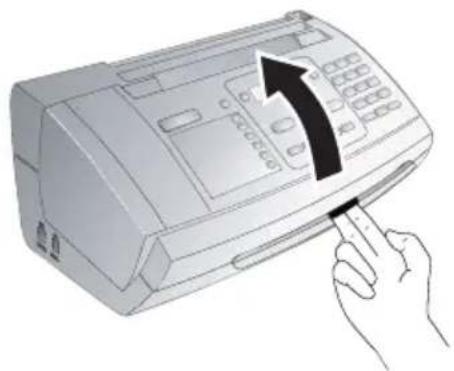
natural_image
Illustration of a hand inserting a card into a printer (no text or symbols visible)DANGER!

Device can Close with a Snap!
Lock the cover of the device completely into place when opening the device. You could be injured if the cover falls while you are working on the device.
3 Grip the rear ink film roll at both the sides and place it next to the front ink film roll.
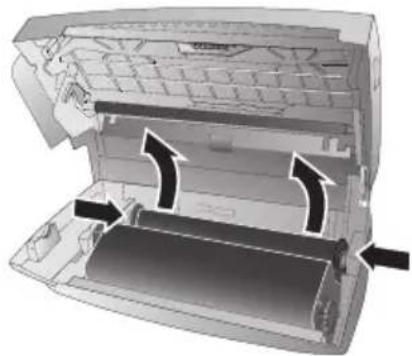
natural_image
Diagram of an air conditioner unit with internal components and directional arrows indicating airflow or movement (no text or symbols present)4 Remove both the rolls from the device. The used ink film cannot be reused.

natural_image
3D rendering of a mechanical device with cylindrical components and an arrow indicating a component (no text or symbols visible)CAUTION!

Data on Used Ink Films!
The messages and copies you have printed out can be read from used ink films. Consider data protection issues when disposing of used ink films.
5 Pull the used Plug'n'Print card out of the plug socket on the left hand side next to the ink film tray. The Plug'n'Print card cannot be reused.
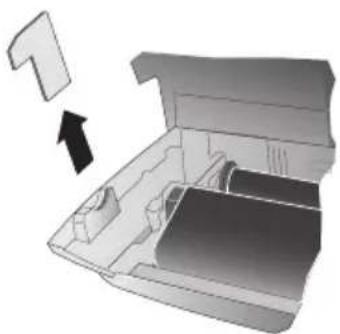
natural_image
3D diagram of a mechanical component with an arrow indicating direction (no text or symbols)6 Carefully remove the rubber bands from the new ink film. Make sure that the film is not damaged!

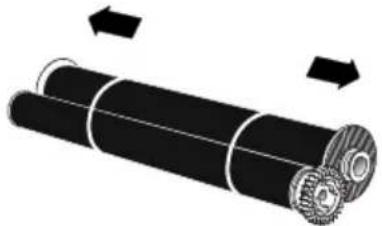
natural_image
Diagram of a cylindrical mechanical component with gear-like teeth and two arrows indicating direction (no text or symbols)7 Place the larger roll with the ink film in the rear ink film tray. The blue gear wheel must be on the right hand side.
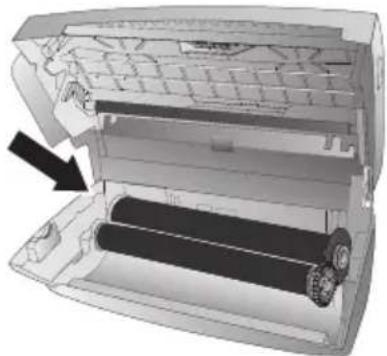
natural_image
3D rendering of an air conditioner unit with visible internal rollers and a black arrow indicating airflow direction (no text or symbols)8 Place the smaller roll without ink film in the front tray. The blue gear wheel must be on the right hand side and the pin must be inserted in the depression on the left hand side.
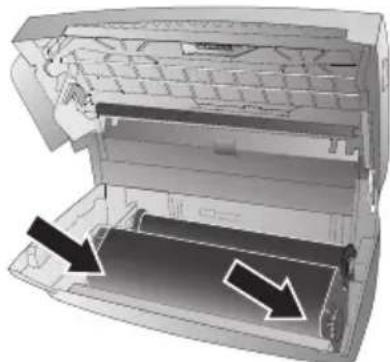
natural_image
3D diagram of an open industrial machine with internal components and directional arrows indicating flow or movement (no text or symbols)9 Break the chip card from the Plug'n'Print card. Insert the chip card in the plug socket on the left hand side next to the ink film tray.
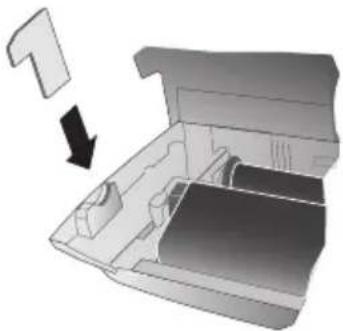
natural_image
3D diagram of a mechanical component with an arrow indicating direction (no text or symbols)10 Turn the blue gear wheel forward to tension the ink film. The ink film must not have any creases.
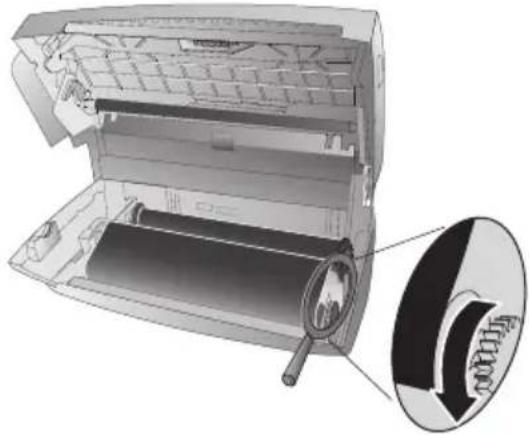
natural_image
Cross-sectional diagram of an air conditioner unit showing internal casing and ventilation duct (no text or labels)11 Close the device. Insert the paper tray in the opening provided for it behind the paper feeder. Insert paper again.
Fixing a Paper Jam
1 Remove the paper from the paper feeder and take the paper tray out of the device.
2 Open the device by lifting the panel using grip in the centre and folding it up.
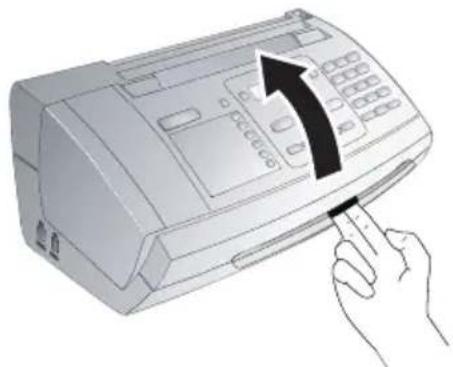
natural_image
Illustration of a hand inserting a card into a printer (no text or symbols visible)DANGER!

Device can Close with a Snap!
Lock the cover of the device completely into place when opening the device. You could be injured if the cover falls while you are working on the device.
3 Carefully pull out the paper.
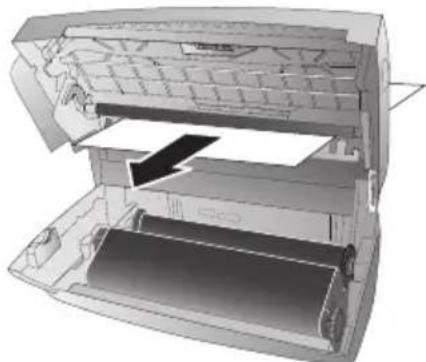
natural_image
3D cutaway diagram of a printer or printer showing internal structure and page layout (no text or symbols)4 Turn the blue gear wheel forward to tension the ink film. The ink film must not have any creases.
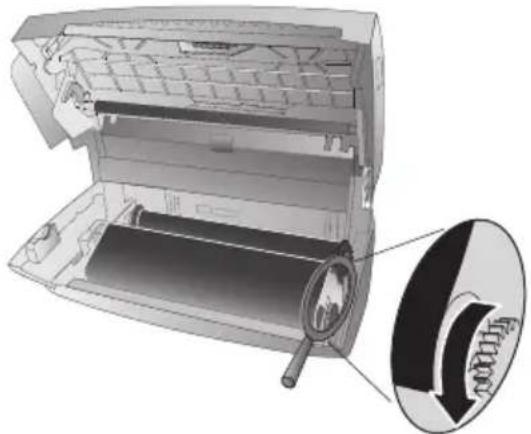
natural_image
Cross-sectional diagram of an air conditioner unit with a magnified inset showing internal components (no text or labels)5 Close the device. Insert the paper tray in the opening provided for it behind the paper feeder. Insert paper again.
Fixing a Document Jam
1 Remove the paper from the paper feeder and take the paper tray out of the device.
2 Open the device by lifting the panel using grip in the centre and folding it up.
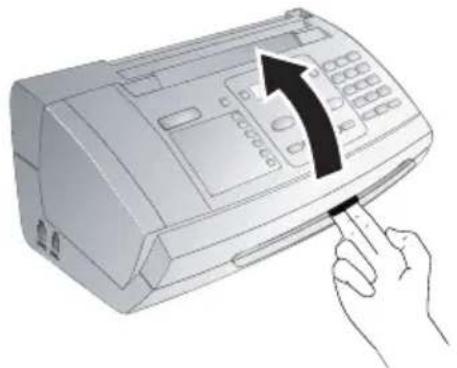
natural_image
Illustration of a hand inserting a card into a printer (no text or symbols visible)DANGER!

Device can Close with a Snap!
Lock the cover of the device completely into place when opening the device. You could be injured if the cover falls while you are working on the device.
3 Open the scanner cover and the cover of the automatic document feeder by first pushing the support (A) and then the support (B) inside. The cover (C) falls freely.
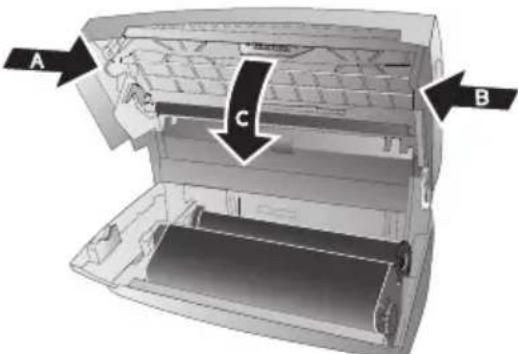
4 Carefully pull the document to the front or to the back out of the device.
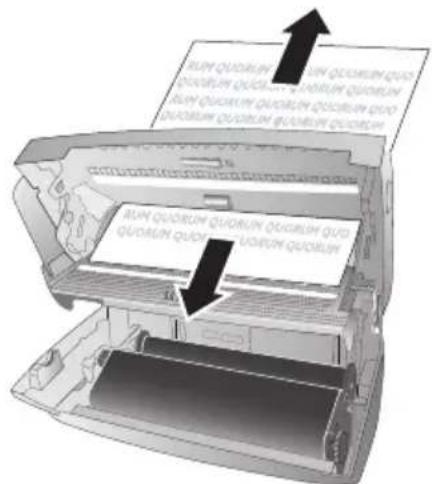
5 Close the scanner cover and the cover of the automatic document feeder. Both the supports must securely snap into place.
6 Turn the blue gear wheel forward to tension the ink film. The ink film must not have any creases.
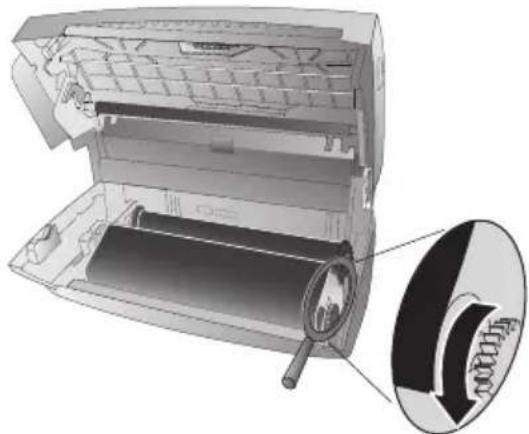
natural_image
Cross-sectional diagram of an air conditioner unit with internal components and a magnified inset showing the internal structure (no text or symbols)7 Close the device. Insert the paper tray in the opening provided for it behind the paper feeder. Insert paper again.
Cleaning
DANGER!
EN

Instructions for Cleaning!
Unplug the device from the power socket before cleaning it. Use a soft, lint-free cloth. Never use liquid or easily flammable cleansers (sprays, abrasives, polishes, alcohol, etc.). Do not allow any moisture to reach the interior of the device.
Notice

Fax Cleaning Sheets
Special fax cleaning sheets are available as accessories from our call centre. Insert a sheet into the document feeder. Press STOP; the page is ejected. Repeat this process at a few times.
1 Remove the paper from the paper feeder and take the paper tray out of the device.
2 Open the device by lifting the panel using grip in the centre and folding it up.
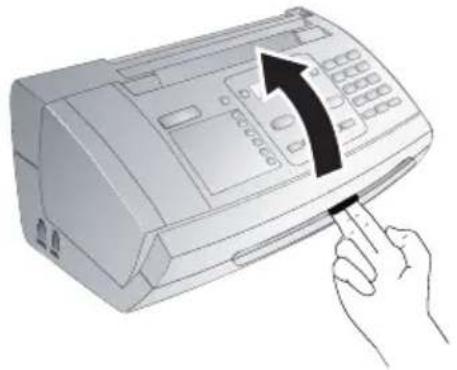
natural_image
Illustration of a hand inserting a card into a printer (no text or symbols visible)DANGER!

Device can Close with a Snap!
Lock the cover of the device completely into place when opening the device. You could be injured if the cover falls while you are working on the device.
3 Open the scanner cover and the cover of the automatic document feeder by first pushing the support (A) and then the support (B) inside. The cover (C) falls freely.
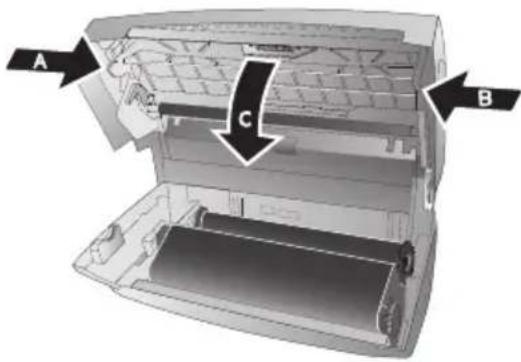
4 Lightly wipe the upper side of the scanner glass (A) and the lower side of the document feeder/scanner film (= white plastic plate) (B) with a cloth.
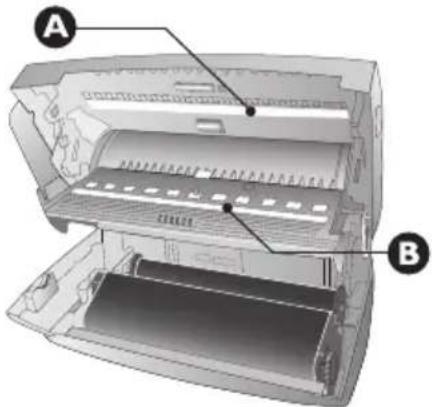
5 Clean the feed roller (A) and the underside of the support pad of the feeder roller (B) with a soft, lint-free cloth moistened with cleaning alcohol (96 percent). Rotate the feed roller; You must clean the entire roller.
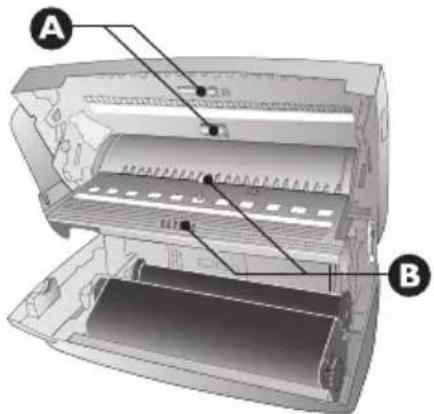
6 Close the scanner cover and the cover of the automatic document feeder. Both the supports must securely snap into place.
7 Turn the blue gear wheel forward to tension the ink film. The ink film must not have any creases.
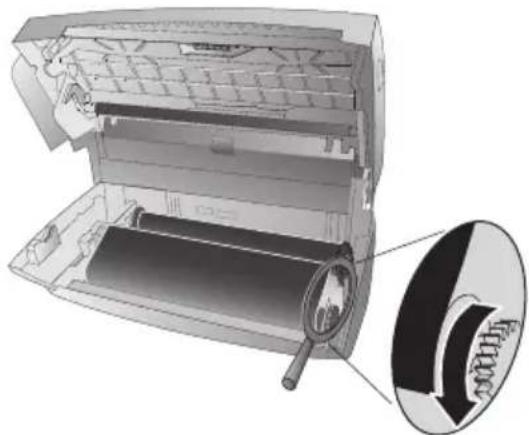
natural_image
Cross-sectional diagram of an air conditioner unit showing internal components and a magnified view of the lid (no text or labels)8 Close the device. Insert the paper tray in the opening provided for it behind the paper feeder. Insert paper again.
Displaying the Battery Charge
The charge indicator on the display shows the charge level of the battery. If the charge is too low, the display illumination is switched off and the hands-free function is not available. Place the cordless telephone into the charging station.
Changing the Batteries in the Cordless Telephone
1 Press and hold — (at least two seconds) for switching off the cordless telephone.
2 Open the battery compartment on the backside of the cordless telephone by pulling the cover down.
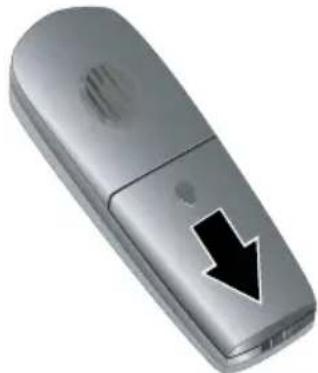
natural_image
Metallic remote control device with a black downward arrow on its side (no text or symbols visible)3 Remove the old batteries.
Notice
Disposing of the Batteries
The batteries used should be disposed of according to the recycling regulations of your country.
4 Insert the new rechargeable batteries in the battery compartment with the positive and negative poles as shown in the picture in the battery compartment.
DANGER!

No Non-Rechargeable Batteries!
Never use non-rechargeable batteries in the cordless telephone. Follow the specifications in the technical data.
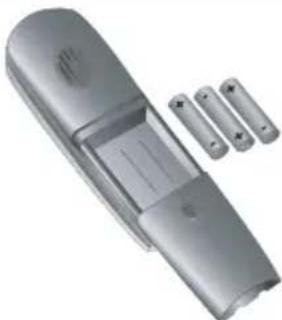
natural_image
3D rendering of a silver remote control device with two battery terminals and a separate cylindrical component (no text or symbols visible)5 Place the cover on the battery compartment and slide it upward until it snaps into place.
6 Place the cordless telephone into the charging station.
DANGER!

Never Into the Charging Station Without Batteries!
Never place the cordless telephone into the charging station without batteries.
EN
Notice

Charging Batteries for 12 Hours
Leave the cordless telephone in the charging station for at least twelve hours. The batteries will heat up slightly during charging; this is not dangerous.
Checking the Firmware Version
1 Press OK, 4 7 and OK.
2 The model designation and the configured country appear on the display.
3 Confirm with OK.
4 The information on the firmware version of the device is displayed.
5 Confirm with OK.
Using Service Codes
The service codes delete all the changed settings and your device is reset to factory settings. It may be possible that the device with the changed settings reacts differently than expected.
CAUTION!

Settings will be Deleted!
Only use the service codes if this is absolutely necessary. Some service codes also delete saved messages and telephone book entries.
1 Press OK, 4 5 and OK.
2 Enter a service code:
7 1 1 7—Deletes all changed settings and saved data. The device is reset to factory settings and the initial installation process is started.
7 1 4 0—Deletes all changed settings. Saved data and telephone book entries remain intact.
7 2 2 7—Deletes saved faxes, when there are problems with printing.
3 Confirm with OK.
4 Using ▲/▼ select SURE: YES.
5 Confirm with OK.
Notice

Cancelling Entry
If you have entered the incorrect code, you can cancel the entry with SURE: NO.
Power Cycling
If a problem occurs that cannot be corrected with the instructions in this user manual (see also the help below), follow the steps given here.
1 Pull out the power plug.
2 Wait at least ten seconds, then plug the power plug back into the socket.
3 Follow the instructions on the display and in the error report. If the problems repeats, please contact our technical customer service or your retailer.
| General Information | |
| The time and date flash on the display. | You must check the time and date after a short power failure. Confirm with OK. |
| Problems when Faxing or Printing | |
| Faxes sent are of poor quality. | Change the resolution from RESOL.: STANDARD to RESOL.: FINE or RESOL.: PHOTO.Change the contrast.Clean the scanner and the document feed slot.Test the device by making a copy of the document. If the device is in order, the device of the recipient might be defective. |
| The device produces black lines when sending or printing. | Clean the scanner and the document feed slot. |
| Copy is blank. Insert the documents face up into the document feeder. | |
| Printing is interrupted. Paper or document jam, no paper or ink film. Follow the instructions on the display and in the error report.There could be a small pause after printing several pages.The device continues printing automatically. | |
| No printing Check if you have inserted clamped paper correctly. The lever on the right hand side next to the paper feeder must be folded backwards. | |
| Documents are not properly fed. Clean the scanner and the document feed slot. | |
| Problems with the Connection | |
| The device rings once, remains silent for a short while and starts ringing again. | This is absolutely normal. The fax switch checks the call after the first ring. If it is a voice call, the device continues to ring. |
| No dial tone Check the installation of the device. Connect the telephone cable to the socket marked LINE. Insert the telephone plug into your PTT line socket. | |
| Fax transmissions are constantly interrupted. | Try to send the fax manually: Press ☐, and dial the number. If the recipient is using an answering machine, wait until you hear a whistling tone. Press START.It is possible that the recipient's device is not ready to receive. |
| You hear a whistling tone or silence in the handset. | The call is a fax: Press START on the device. Press * 5 on the additional telephone. Hang up. |
| No fax reception or a short fax audio signal as message on the answering machine | Using function 51, set the number of rings for the fax switch to 4 and the total number or the number of rings for the answering machine (model dependent) to 5 (see Page 36).You cannot simultaneously use the answering machine facility of your telephone service provider (= voice-mail box) and receive faxes on your devices(see page 40). |
| Problems with the Cordless Telephone | |
| Cordless telephone does not function or does not function as expected.Display shows only the battery charge. | Check if the cordless telephone is functioning and is registered with the device.Switch the cordless telephone off. Open the battery compartment on the backside. Remove the batteries and insert them again. Close the battery compartment and switch the cordless telephone on again. |
| No dial tone The cordless telephone is not registered with the device or is out of range. | |
| The cordless telephone cannot be switched on. | Place the cordless telephone into the charging station. |
| The cordless telephone cannot be switched on after 12 hours in the charging station. | Change the batteries in the cordless telephone (also see Chapter Service, Page 47). |
EN
16 Appendix
EN
Technical Data
Dimensions (L×H×W) 313×129×197 mm
Weight 1,9 kg
Mains Connection.... 220-240V-/50-60Hz
Power Consumption Stand-by Mode....<2,5 W
Transmission ....../<20 W
Recommended Ambient....18–28°C
Relative Humidity.... 20–80% (non-condensing)
Connection Type....PSTN · PABX
Dialling Mode Tone / pulse dialling (country dependent)
Standards
Safety...... EN 60950-1
Emissions ...... EN 55022 Class B
Immunity....EN 55024
Scanner
Scan Width 212 mm
Horizontal Resolution 8 dots/mm
Vertical Resolution .... Standard: 3,85 lines/mm
Fine: 7,7 lines/mm
Memory
Telephone Book up to 50 entries
Fax Messages .... up to 15 pages (standard test letter)
SMS Messages .... up to 30 SMS messages
Cordless Telephone
Rechargeable Batteries .... AAA · NiMH
Talk Time up to 10 hours
Stand-by Period....up to 120 hours
Range up to 50 m (in buildings)
...... up to 300 m (in open-air)
Paper
Capacity 50 sheets
Size.... A4 · 210 × 297 mm
Thickness 0,07-0,11 mm
Weight 60-90 g/m²
Document Feed Slot
Capacity 10 sheets
Width....148-212mm
Length 100–600 mm
Thickness 0,06-0,15 mm
Fax
Type.... Group 3
Compatibility ITU-TT.30
Data Compression....MH · MR
Technical specifications subject to change without notice.
Guarantee
(Terms and Conditions for United Kingdom only)
In order to supply the guarantee, you should contact your dealer or Sagem Communications Helpdesk. The proof of purchase will be required.
Please make usage of your equipment for the purpose for which it was designed and under normal usage conditions. Sagem Communications do not accept any liability for any usage made out of the frame of its original designed purpose and any consequence that may arise from this usage.
Should any malfunctioning arise, the dealer or Sagem Communications Helpdesk will advise you what to do.
A) General Guarantee Conditions
Sagem Communications undertakes to remedy by repair or exchange at its own convenience, free of charge for labour and replacement parts, any defects in the equipment during the guarantee period of 12—twelve—months (3—three—months for accessories), from the date of original invoice of the Equipment, where those defects are a result of faulty workmanship.
Unless the customer has concluded with Sagem Communications a maintenance contract in respect of the equipment which specifically provides for repairs to be carried out at the customer's premises, the repairs will not be carried out on the equipment at the customer premises. The customer must however return the defective equipment at his/her own expense, to the address given by the dealer or Sagem Communications Helpdesk.
In case a product needs to be sent in for a repair, it always has to be accompanied by a proof of purchase (which is not altered, written on or in any way be made illegible) showing that the product is still under warrantee. In case no proof of purchase is enclosed, the Sagem Communications repair center will use the production date as a reference of establishing the warrantee status of the product.
Apart from all legal obligatory rules, Sagem Communications, do not give any Guarantee, either implicit or explicit which is not set force in the present section, and could not be hold responsible for any direct or indirect, material or immaterial damage, in or out of the frame of the present guarantee.
If any provision of this guarantee shall be held to be in whole or in part invalid or illegal due to an obligatory rule applicable to consumers pursuant to their national legislation, such invalidity or illegality shall not impair or affect the remaining provisions or parts of this guarantee.
This guarantee does not affect the Customer statutory rights.
B) Exclusions From Guarantee
Sagem Communications shall have no liability under the guarantee in respect of:
•) Damage, defects, breakdown or malfunction due to one or more of the following:
– Failure to properly follow the installation process and instructions for use
- An external cause to the equipment (including but not limited to: lightening, fire, shock, vandalism, inappropriate conditions of electrical network or water damage of any nature)
- Modifications made without the written approval of Sagem Communications
– Unsuitable operating conditions, particularly of temperature and humidity
– Repair or maintenance of the equipment by persons not authorized by Sagem Communications
•) Wear and tear from normal daily use of the equipment and its accessories
•) Damage due to insufficient or bad packaging of equipment when returned to Sagem Communications
•) Usage of new versions of software without previous approval of Sagem Communications
•) Work on any equipment or software modified or added without the prior written consent of Sagem Communications
•) Malfunctions not resulting from the Equipment or from software installed in user workstations for the purpose of use of the equipment.
Communication problems related to an unsuitable environment including:
– Problems related to access and/or connection to the Internet such as interruptions by access networks or malfunction of the line used by the subscriber or his correspondent
- Transmission faults (for example poor geographical coverage by radio transmitters, interference or poor line quality)
– The local network fault (wiring, servers, workstations) or the failure of the transmission network (such as but not limited to interferences, fault or poor quality of the network)
- Modification of the parameters of the cellular network carried out after the sale of the Product
•) The normal servicing (as defined in the user guide supplied with the equipment) as well as malfunctioning due to servicing not being carried out. Servicing costs are in any event always borne by the customer.
- Malfunctions resulting from the usage of products, consumables or accessories not compatibles with the equipment.
C) Out of Guarantee Repairs
In the cases set forth in B) as well as after expiry of the guarantee period, the customer must ask the Authorized Sagem Communications Repair Centre for a cost estimation.
The repair and delivery costs will be invoiced to the customer.
The foregoing shall apply unless otherwise agreed in writing with the customer and only for the United Kingdom.
Helpdesk: 08 45 - 090 03 15

The CE symbol confirms conformity with the EU directives that apply to the device.
Declaration of Conformity (DoC)
Hereby, Sagem Communications Austria GmbH declares that this PPF 650 is in compliance with the essential requirements and other relevant provisions of Directive 1999/5/EC.
You can find the complete Declaration of Conformity on our website www.sagem-ca.at/doc

As a participant in the ENERGY STAR programme, Sagem Communications Austria GmbH has made sure that this machine complies with the ENERGY STAR requirements.


Packaging: To facilitate packaging recycling, please conform to your local selective recycling rules.
Batteries: Old batteries have to be deposited in designated collection areas.
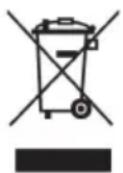
Product: The crossed out dustbin logo on your product signifies it is classified as Electrical and Electronic Equipment covered by special disposal regulations.
To enforce recycling, recovery of The Waste Electrical and Electronic Equipment (WEEE) and to protect the environment and human health, European regulations requires that you selectively collect waste equipment using one of the following options:
- Your retailer will take your equipment back if you are buying a replacement product.
- Waste equipment can also be deposited in designated collection areas.
The paper and cardboard packaging used can be disposed of as recyclable paper. Have the plastic wrapping and Styrofoam packaging recycled or dispose of it in the non-recyclable waste, depending on the requirements in your country.
Trademarks: The references mentioned in this manual are trademarks of the respective companies. The lack of the trade-
marks ^® and TM does not justify the assumption that these dedicated terminologies are free trademarks. Other product names used herein are for identification purposes only and may be trademarks of their respective owners. Sagem Communications disclaims any and all rights in those marks.
The reproduction of certain documents (e.g. by scanning, printing, copying) is prohibited in many countries. The list of such documents below is not intended to be complete, it only offers a general overview. In case of doubt, consult your legal advisor.
- Passports (personal identification)
- Entrance and exit visa papers (immigration papers)
· Military service documents
· Bank notes, travel checks, payment orders - Postage stamps, tax stamps (stamped or unstamped)
· Loan papers, certificates of deposit, bonds
· Documents protected by copyright
Follow the statutory regulations of your country with regard to the legal validity of fax transmissions—particularly in connection with the validity of signatures, meeting delivery deadlines or disadvantages resulting from the loss of quality in the transmission, etc.
Take care to maintain the statutory regulations of your country regarding telecommunications secrecy and data privacy.
This product is intended for use on an analogue public telecommunications network (PSTN) and in the country specified on the packaging. Use in other countries can result in faulty functioning.
For more information, please contact the technical service centre for your country. Should problems arise during use of your machine, please contact your retailer first.
Neither Sagem Communications nor its affiliates shall be liable to the purchaser of this product or third parties for damages, losses, costs, or expenses incurred by the purchaser or third parties as a result of accident, misuse, or abuse of this product or unauthorized modifications, repairs, or alterations to this product, or failure to strictly comply with Sagem Communications operating and maintenance instructions.
Sagem Communications shall not be liable for any damages or problems arising from the use of any options or any consumable materials other than those designated as original Sagem Communications products or Sagem Communications approved products.
Sagem Communications shall not be held liable for any damage resulting from electromagnetic interference that occurs from the use of any interface cables other than those designated as Sagem Communications products.
All rights reserved. No part of this publication may be reproduced, stored in a retrieval system or transmitted in any form or by any means, electronic, mechanical, photocopying, recording, or otherwise, without the prior written permission of Sagem Communications. The information contained herein is designed only for use with this product. Sagem Communications is not responsible, if this information is applied to other devices.
This user manual is a document that does not represent a contract.
Errors, printing errors and changes are reserved. Copyright © 2009 Sagem Communications Austria GmbH
EN
EN
EN
Customer Information
As part of our continuing quest for total customer satisfaction, all of our products are made with ease-of-use and reliability in mind.
In your user manual you will find all the information required to use your machine. If, after consulting your user manual, you still require assistance, you should contact our Call Centre. Our personnel are highly trained specialists who can ensure that you receive the maximum benefit from your product.
We can assist your more quickly if you do not call us from the machine, rather an external telephone. Keep a printout of the settings as well as the serial number of the machine handy. The serial number can be found on the type label.
United Kingdom
Telephone: 08 45 - 090 03 15
Fax: 08 70 - 124 02 02
You can order original accessories from our homepage or—in some countries (see below)—per telephone on our toll-free number.
Use only original consumable materials. The warrantee does not cover damages to the device resulting from other consumables.
United Kingdom
Telephone: 0800 - 358 08 07
E-Mail: dti.faxinfoline@sagem.com
Internet: www.sagem-communications.com
We hope that you will have lots of joy using your product.

PHILIPS and the PHILIPS' Shield Emblem are registered trademarks of Koninklijke Philips Electronics N.V. and are used by SAGEM COMMUNICATIONS under license from Koninklijke Philips Electronics N.V.
SAGEM COMMUNICATIONS
Printing Terminals
Headquarters : Le Ponant de Paris
- Dear Customer
- About this User Manual
- Symbols Used
- DANGER!
- Notice
- Troubleshooting
- Table of Contents
- General Safety Information...... 5
- Overview....6
- Initial Operation 10
- Telephone Functions.... 14
- Telephone Book of the Device...... 17
- Telephone Book of the Cordless Telephone 19
- Cordless Telephone.... 21
- Fax.... 25
- Copier.... 28
- SMS 29
- Fun and Games.... 34
- Settings on the Device.... 35
- Settings on the Cordless Telephone 38
- Telephone Lines and Additional
- Devices.... 40
- Service.... 43
- Appendix.... 50
- General Safety Information
- Setting Up the Machine
- Power Supply
- Repairs
- Consumable Materials
- Cordless Telephone
- Overview
- EN
- Overview of the Menu Functions
- Printing the Functions List
- Telephone book
- Calls
- Fax
- Miscellaneous
- Fax switch
- SMS
- Cordless Telephone
- Settings
- Device Overview
- Cordless Telephone Panel
- Symbols on the LCD Display
- Panel
- Initial Operation
- Contained in the packing
- Missing Package Contents
- Attaching the Paper Tray
- Inserting Paper
- Loading Paper
- Connecting the Telephone Cord
- Analogue Fax Machine
- Connection to Private Automatic Branch Exchange
- Ireland
- Connecting the Power Cord
- CAUTION!
- Mains Voltage at the Site of Installation!
- Connecting Mains Cable of the Device
- Connecting the Mains Cable of the Charging Station
- Initial Installation
- Selecting the Language
- Selecting the Country
- Setting the Country Correctly!
- Entering Number
- Entering Your Name
- Navigating in the Editor
- Entering the Date and Time
- Starting Initial Installation Process
- Inserting Batteries in Cord- less Telephone
- No Non-Rechargeable Batteries!
- Never Into the Charging Station Without Batteries!
- Charging Batteries for 12 Hours
- Putting Cordless Telephone in Operation
- Unregistered Cordless Telephones
- Telephone Functions
- Putting a Call from Cordless Telephone
- Direct Dialling
- Forwarding Fax to the Device
- Telephone Book of the Cordless Telephone:
- Additional Number
- Telephone Book of the Device:
- Short Dialling:
- Caller List:
- Adjusting Volume Level
- Looking Up Numbers
- Navigating in the Menu
- Calling additional telephone functions
- (Function is not supported in all countries and networks)
- Receiving a Second Call
- Switching Between Calls (= Call Toggling)
- Hot Key
- Making a Second Call
- Getting Outside Line
- Incorrect Outside Line Access Code
- Hands-free
- Low Battery Charge
- Switching On Hands-free
- Switching Off Hands-free
- Switching Hands-Free On/Off
- Forwarding a call
- Function Only Available with Several Cordless Telephones Registered to the device
- Getting Back the Telephone Call
- Placing internal calls
- Calling Line Identification (CLIP)
- Setting the Country Correctly
- Missed Calls
- Displaying Telephone Book Names
- Telephone Book of the Device
- Printing Telephone Book Functions
- Saving entry
- Access Function
- Edit Entry
- Deleting an Entry
- Groups
- Adding Group Entries
- Displaying Group Entries
- Deleting Individual or All Group Entries
- Deleting an Individual Entry
- Deleting a Group
- Short Dial
- Assigning or Editing Short Dial Entry
- Overwriting Short Dial Entries!
- Deleting a Short Dial Entry
- The Telephone Book Entry is Deleted!
- Telephone Book of the Cordless Telephone
- Restricted Telephone Book Functions
- Adding an Additional Number
- Changing the Ring Tone
- Calling Options
- Telephone Book Entries on the Device
- Telephone Book Entries of the Cordless Telephone
- Cordless Telephone
- Looking for Cordless Telephone
- Switching On and Off
- Keypad Lock
- Activating Emergency Call Number
- No Actual Emergency Call Numbers
- Initial Activation
- Modifying the Emergency Call Number
- Additional Functions
- Telephone Call at Alarm Time
- Alarm
- Setting the Wake-up Alarm
- Deactivating the Alarm Clock
- Timer
- Telephone Call when Using Timer Function
- Setting the Timer
- Modifying the Timer
- Birthday Reminder
- Entering a Birthday
- Displaying a Birthday
- Modifying a Birthday
- Deleting a Birthday
- Acoustic Room Monitoring
- Setting up Room Monitoring
- Telephone Calls During Room Monitoring
- Ending Room Monitoring
- Fax
- Printing Informations for Fax Transmission
- Unsuitable Documents!
- Cancel Transmission
- Sending fax
- Setting the Contrast
- Automatic Redial
- Telephone Book:
- Multiple Categories for One Entry
- Sending Fax Manually
- Chain Dialling
- Insert Dialling Pause
- Direct Inward Dialling or Selecting Sub-address
- Eavesdropping while Connection is Established
- No Hands-free Operation Possible
- Sending to Multiple Recipients (= Broadcasting)
- Entering Recipients Individually
- Sending a Fax to a Group
- Transmission to Multiple Recipients
- Sending Fax Later
- Cancel a Scheduled Fax Transmission
- Fax Reception
- Paper Not Inserted Correctly
- Delete Fax Messages Sent
- Receiving Fax Manually
- Polling Faxes
- Polling Faxes Directly
- Polling Secure Faxes
- Polling Send of Faxes
- Unauthorised Fax Polling!
- Using Fax Templates
- Copier
- Printing Informations for Copying
- Inserting Documents
- Making a Copy
- Creating Multiple Copies
- Cancel Copying
- SMS
- Printing Instructions for SMS Functions
- SMS Requirements
- SMS with Secret Number
- Sending SMS
- SMS in Ireland
- On the device
- SMS Templates
- Navigating and Printing
- On the Cordless Telephone
- Enter Letters
- Saving SMS Message
- Sending SMS from the Telephone Book
- SMS Messages to E-Mail
- Enter E-Mail Addresses
- SMS Messages to Fax
- Notification by SMS
- Receiving SMS Messages
- Reading SMS Messages
- Reading New SMS
- Loading Previously Read SMS Messages
- Calling Further SMS Functions
- Call Additional Functions
- Modifying the Read Mode
- Calling SMS Functions
- Printing SMS Messages
- Printing an Individual SMS message
- Deleting SMS Messages
- Deleting Single SMS Message
- Deleting Individual SMS
- Emptying the Message Folder
- Messages are Deleted!
- Modifying the Settings
- Available Only on the Device
- Changing Transmitting and Receiving Numbers
- Turning Off the Automatic Printing
- Switching SMS Reception On and Off
- Switching SMS Reception Off
- Cancelling Entry
- Switching SMS Reception On
- Fun and Games
- Printing informations for the Games and Fun functions
- Sudoku
- Last Solution Available
- Printing a Game
- Printing the Last Game Again
- Printing the Solution
- Sudoku for Every Day
- Switching Off Function
- Settings on the Device
- Time and Date After a Short Power Failure
- Settings will be Deleted!
- Modifying the Basic Settings
- Reducing Transmission Speed
- Switching Page Adjustment On and Off
- Setting the Ring Tones
- Selecting the Ring Tone
- Setting the Fax Switch
- Setting the Day Mode
- Setting the Night Mode
- Special Settings
- Silent Fax Reception
- Switching Off All Rings
- Printing Lists and Help Pages
- Printing Numbers and Entries
- Printing Call Log
- Printing the Telephone Book
- Printing Fax Journal
- Printing Transmission Report
- Printing Help Pages
- Help 1 · Overview
- Help 3 · Telephone Book
- Help 4 · Fax Transmission
- Help 5 · Copier
- Help 6 · Function List
- Help 7 · Games and Fun
- Help 8 · SMS
- Starting Initial Installation
- Settings on the Cordless Telephone
- Adopting the Language Setting
- Turning Key-Tones and Sig-nal-Tones On and Off
- Switching Silent Mode On/Off
- Programmable Keys
- Programming the Keys
- Automatic Picking up and Hanging up the Phone
- Switching Automatic Picking Up On/Off
- Resetting the Cordless Telephone
- Displaying Call Logs and Events
- Calling Call Logs
- Calling Events
- Setting up the Display
- Telephone Lines and Additional Devices
- Configuring Telephone Lines and Services
- PABX Systems
- Additional Telephone No Extension
- Selecting the Dialling Process
- DSL Connection
- ISDN Connection
- Voice Mailbox
- Registering and De-Registering Additional Cordless Telephones
- GAP Compatible
- Registering Cordless Telephone
- Registering other Cordless Telephones
- Deregistering Cordless Telephone
- Registering the Cordless Telephone with other Devices
- Identically PIN Codes
- Setting the Preferred Base Unit
- Connecting Additional Devices
- Connection to the Device
- Direct Connection Recommended
- Connection to the Telephone Line
- Using Additional Telephones (Easylink)
- Starting Fax Reception
- Taking Over the Line
- Changing Code
- Changing Easylink Codes!
- Using an External Answering Machine
- External Answering Machine
- Service
- Checking the Ink Film Reserve
- Changing the Ink Film
- Use Original Consumable Materials!
- Observe Packaging Instructions
- Device can Close with a Snap!
- Data on Used Ink Films!
- Fixing a Paper Jam
- Fixing a Document Jam
- Cleaning
- Instructions for Cleaning!
- Fax Cleaning Sheets
- Displaying the Battery Charge
- Changing the Batteries in the Cordless Telephone
- Disposing of the Batteries
- Checking the Firmware Version
- Using Service Codes
- Power Cycling
- Appendix
- Technical Data
- Standards
- Scanner
- Memory
- Paper
- Document Feed Slot
- Fax
- Guarantee
- (Terms and Conditions for United Kingdom only)
- A) General Guarantee Conditions
- B) Exclusions From Guarantee
- C) Out of Guarantee Repairs
- Declaration of Conformity (DoC)
- Customer Information
- United Kingdom
- SAGEM COMMUNICATIONS
Brand : PHILIPS
Model : Magic 5 Eco PPF650
Category : Fax machines