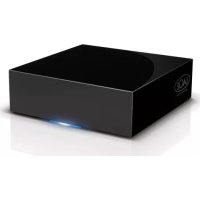
301544 - Server LACIE - Free user manual and instructions
Find the device manual for free 301544 LACIE in PDF.


User questions about 301544 LACIE
0 question about this device. Answer the ones you know or ask your own.
Ask a new question about this device
Download the instructions for your Server in PDF format for free! Find your manual 301544 - LACIE and take your electronic device back in hand. On this page are published all the documents necessary for the use of your device. 301544 by LACIE.
USER MANUAL 301544 LACIE
natural_image
Blue rectangular box with 'LACIE' logo on front face (no text or symbols on body)Quick Install Guide
Box Content
LaCie CloudBox

External power supplyEthernet cab
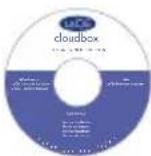
LaCie Utilities CD-ROM:
• LaCie Network Assistant
• LaCie Backup Assistant
- User Manual
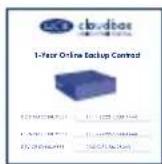
Leafl et with your
1-Year Online
Backup Contract
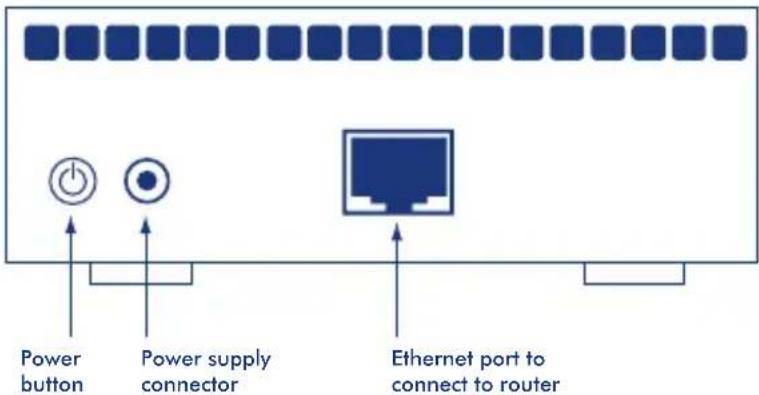
Rear View
Protect your investment – register for free technical support at www.lacie.com/register
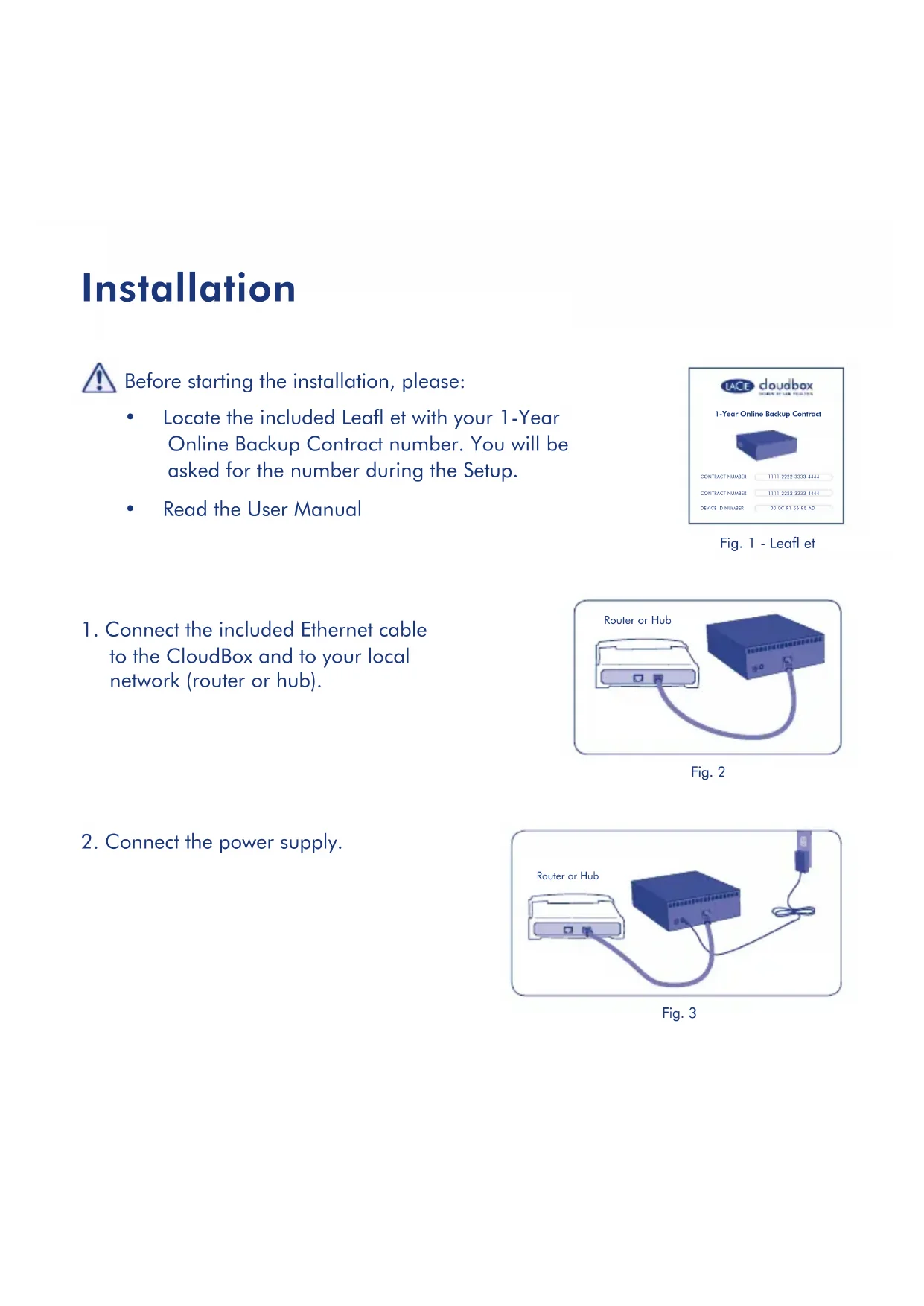
Installation

Before starting the installation, please:
- Locate the included Leafl et with your 1-Year Online Backup Contract number. You will be asked for the number during the Setup.
• Read the User Manual
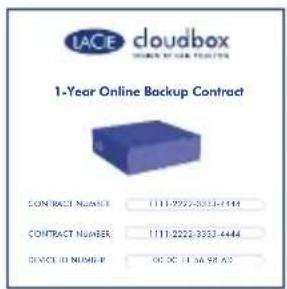
Fig. 1 - Leaflet
- Connect the included Ethernet cable to the CloudBox and to your local network (router or hub).
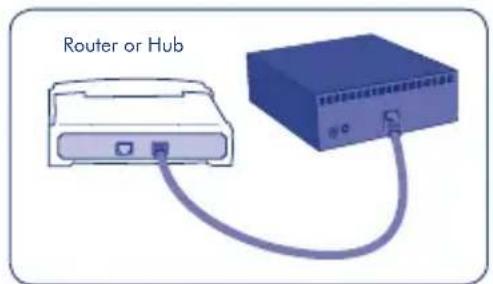
Fig. 2
- Connect the power supply.
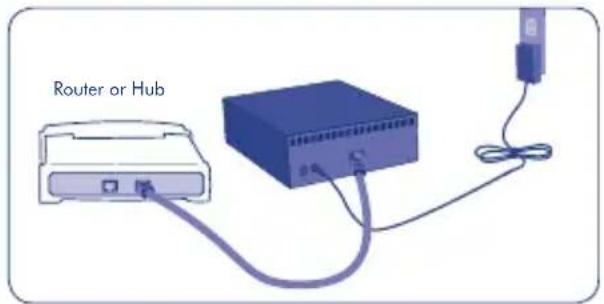
Fig. 3
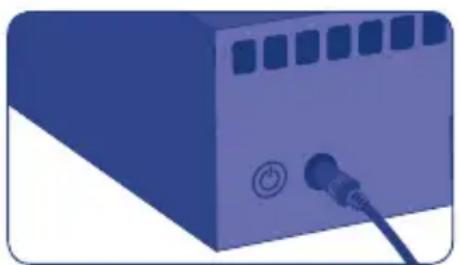
- Turn on the CloudBox by pushing and holding the power button for 2 seconds. When the front light stops blinking, the CloudBox is ready for use.
natural_image
Illustration of a blue server or network device with a power outlet and control buttons (no text or symbols)Fig. 4
Note: If you want to turn off the drive, press and hold the power button for 5 seconds until the LED blinks. When the LED turns off, the drive has shut down.
Setup

VERY IMPORTANT:
- Your network must have access to the Internet to complete the CloudBox Setup Wizard.
- The CloudBox Setup Wizard will guide you through the installation in a few easy steps.
-
The CloudBox will be available for use once the Setup Wizard is complete and your online account has been verified.
-
Install and run LaCie Network Assistant, located on the LaCie Utilities CD-ROM. LaCie Network Assistant can help you launch the CloudBox Setup Wizard.
- There are two options for launching the CloudBox Setup Wizard: a. LaCie Network Assistant; and b. From your Internet browser.
a. LaCie Network Assistant (preferred)
Windows®:
Click the LaCie Network Assistant icon located in the system tray (bottom right of the screen) and select CloudBox > Web Access...
Mac®:
Click the LaCie Network Assistant icon - located in the menu bar (top right of the screen) and select CloudBox > Web Access...
Fig. 5
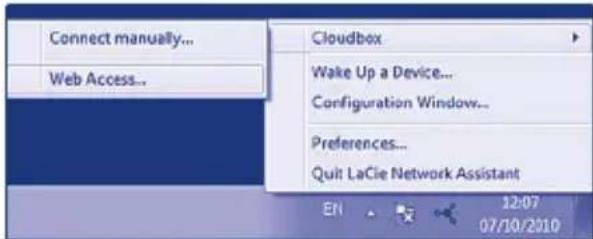
Fig. 6 - LaCie Network Assistant (Windows)
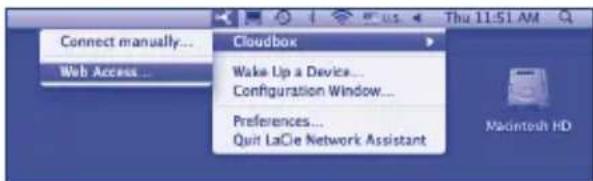
Fig. 7 - LaCie Network Assistant (Mac)
Setup
b. To launch the Setup Wizard in your web browser, type the name of your CloudBox in the address bar (the default address is http://cloudbbox or http://cloudbbox.local, depending upon your browser).
- The Setup Wizard will load in your browser. Complete the Wizard and make note of your username and password for subsequent logins. You will be asked for your contract number during the setup. Please find the contract number on the leaflet shipped with your product.
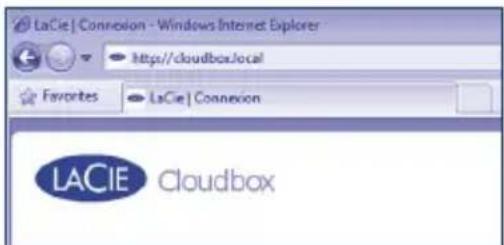
Fig. 8
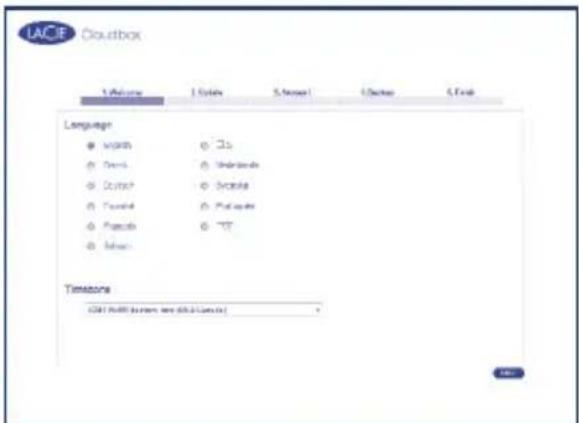
Fig. 9 - CloudBox Setup Wizard

THE ADMINISTRATOR LOGIN AND PASSWORD CANNOT BE RECOVERED.
LaCie highly recommends that you write your administrator username and password for your records since they cannot be recovered.
Note: Please create an administration password that is not easy to guess.
Transfer Files and Backup
Now you can keep your important files secure by storing them on the CloudBox. Your data will be automatically backed up online.
To begin storing files on your CloudBox:
• Copy files manually from your computer to the CloudBox.
- Copy files automatically from your computer to the CloudBox using backup software. You can run the LaCie Backup Assistant on the included LaCie Utilities CD-ROM to configure your backup.
Note: Please see the User Manual for more information on how to copy files to your LaCie CloudBox.
LaCie Dashboard
Use the Dashboard administration tool to manage your LaCie CloudBox. You can create user folders, set storage quotas for each user, change the device network settings, restore data from online backups, and much more. See the User Manual for further information on how to launch the Dashboard and manage your LaCie CloudBox.
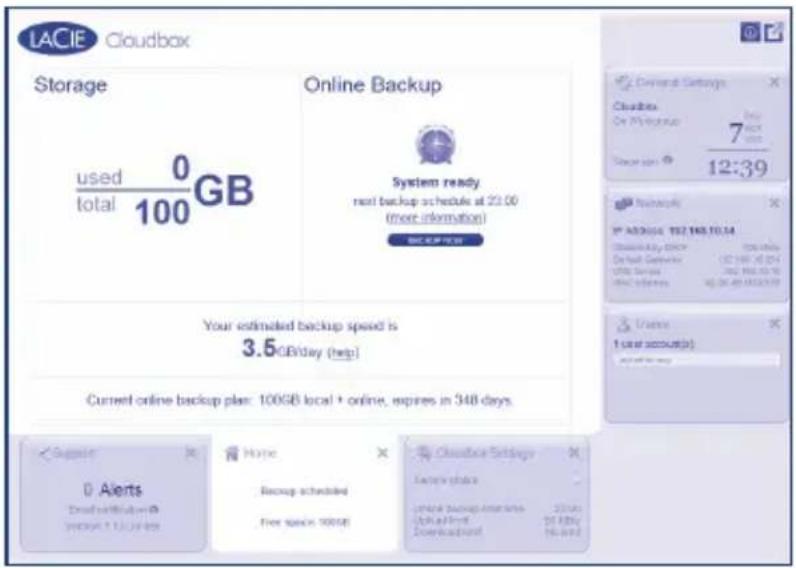
Fig. 10 - LaCie CloudBox Dashboard
FR
Installation
NIE MOŻNA ODZYSKAĆ LOGINU I HASŁA ADMINISTRATORA.
Alexandria, NSW 2015
info.au@lacie.com
LaCie Benelux
Vorstlaan / 165 Bld du Souverain
B-1160 Brussels, Belgium
info.benelux@lacie.com
LaCie Canada
235 Dufferin St.
Toronto, Ontario M6K 1Z5
info.ca@lacie.com
LaCie France
17, rue Ampère
91349 Massy Cedex
info.fr@lacie.com
LaCie Germany
Am Kesselhaus 5
D-79576 Weil Am Rhein
info.de@lacie.com
LaCie Italy
Milano Business Park
Edificio B1
(Sweden, Denmark, Norway, Finland)
Sveavägen 90, 5tr
113 59 Stockholm, Sweden
info.nordic@lacie.com
LaCie Spain
LaCie United Kingdom and Ireland
LaCie Ltd, Power Road Studios
114 Power Road
Chiswick, London, UK W4 5PY
UK: info.uk@lacie.com
Ireland: info.ie@lacie.com
LaCie USA
22985 NW Evergreen Pkwy
Hillsboro, OR 97124
sales@lacie.com
LaCie Worldwide Export
17, rue Ampère
91349 Massy Cedex, France
sales.intl@lacie.com
support.intl@lacie.com