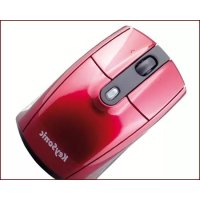
KSM1000 UTM - Mouse KeySonic - Free user manual and instructions
Find the device manual for free KSM1000 UTM KeySonic in PDF.



User questions about KSM1000 UTM KeySonic
0 question about this device. Answer the ones you know or ask your own.
Ask a new question about this device
Download the instructions for your Mouse in PDF format for free! Find your manual KSM1000 UTM - KeySonic and take your electronic device back in hand. On this page are published all the documents necessary for the use of your device. KSM1000 UTM by KeySonic.
USER MANUAL KSM1000 UTM KeySonic
... touch the difference

Bedienungsanleitung

Redrapid
(KSM-1000 UTM)
natural_image
Simple line drawing of a computer mouse inside a rounded rectangle, labeled 'uni mini' below (no other text or symbols)






natural_image
Line drawing of a computer mouse with handle and control knob (no text or symbols)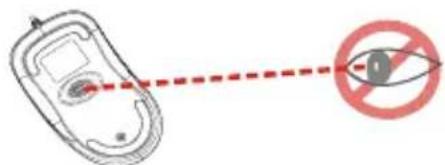
Sicherheitshinweise
natural_image
Illustration of a mechanical device with motion lines indicating movement (no text or symbols)1.1 Special Features
- Laser mini mouse in sporty design with retractable USB cable
- Dramatically metallic-redating with matt black, noticeably gentle SoftSkin coating on both sides
- Ergonomic compact universal construction for right and left handers with 3 keys functionality (incl. 4 ways scroll wheel)
- Excellent precision and full speed – 30× exacter than optical standard mice
- 1600 dpi laser sensor with shift key between 1200 dpi and 800 dpi during operation (on the fly)
- Indication of the set dpi resolution by a LED in the middle button
- Convenient storage of the USB cable through integrated spring-driven cable reels
- Practical magnetic pin for easy removal of the USB connector from the cable reel
• Plug & Play installation without any special driver
- Exclusive gift box as appealing retail packaging
• Optimal for mobile use







1.2 Technical data:
Mouse buttons: 2× Mouse function keys (Life expectancy >5 million clicks)
1× Four ways scroll wheel (Clicking on pressure as well as up, down, left, right function)
1× dpi shift key (incl. LED: on = 1600 dpi, low = 1200 dpi, off = 800 dpi)
Mouse sensor / Wave length: Pixart ACX-1001 830 - 860 mm
Sensor resolution: 1600 dpi / 1200 dpi / 800 dpi, Resolution selectable via shift key on the fly
Acceleration / Speed / Scanning rate:
20 g 0,71 m/s 6700 fps
Power supply: +5 V
DC ±5 %
Power consumption approx.: Operating: 31 mA
Standby: 23 mA (nach 1 Sek.)
Cable length / Interface: 0,75 m USB 2.0 (downwards compatible to version 1.1)
Scope of delivery: Mouse, user manual, installation CD
Certified: CE, FCC, WEEE/RoHS
Compatibility: Win 98SE / ME / 2000 / XP / Vista
Mac OS X from V10.2 and higher
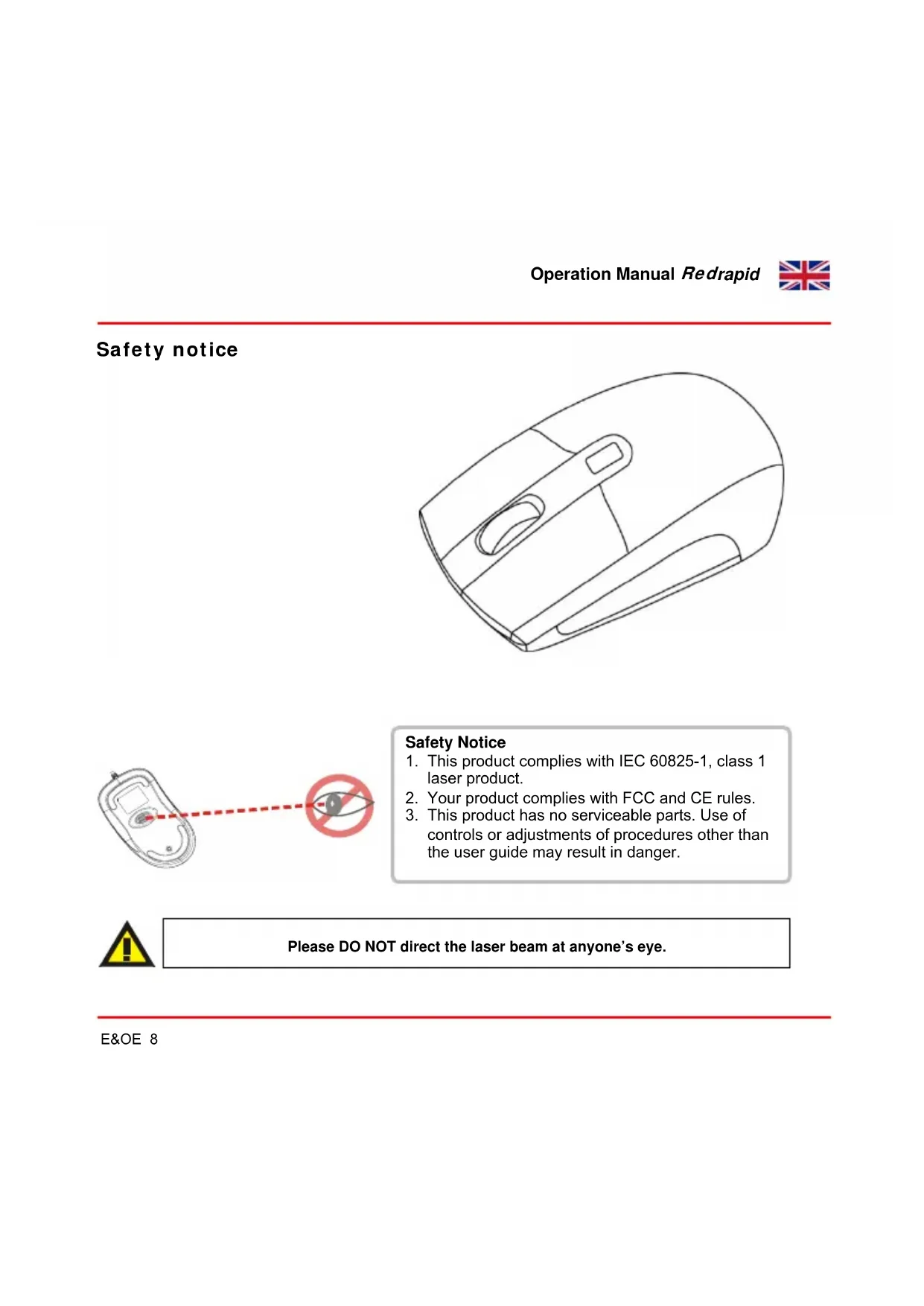
Safety notice
natural_image
Line drawing of a computer mouse with handle and control knob (no text or symbols)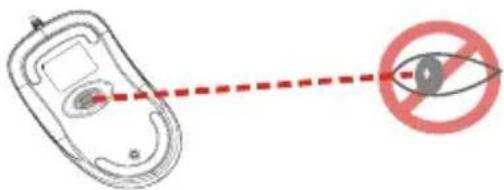
Safety Notice
- This product complies with IEC 60825-1, class 1 laser product.
- Your product complies with FCC and CE rules.
- This product has no serviceable parts. Use of controls or adjustments of procedures other than the user guide may result in danger.

Please DO NOT direct the laser beam at anyone's eye.
Mouse Buttons
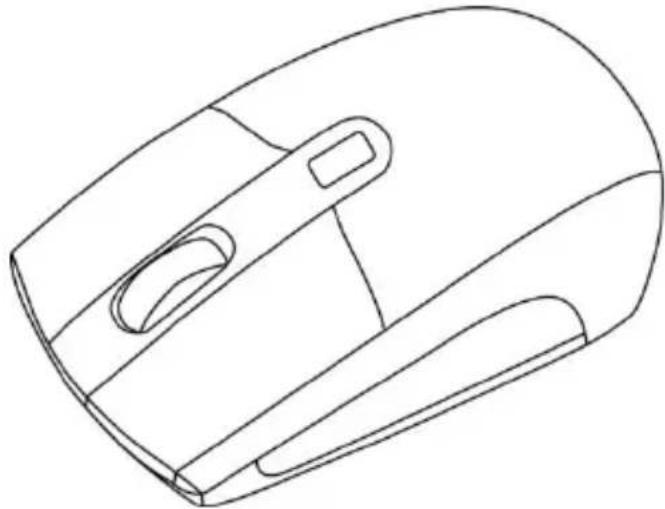
- Left button
- Right button
- Tilt Wheel
- DPI Switch
DPI Switch
The brightness of LED indicator on the scrolling wheel indicates the DPI setting in use. There are three different settings:
● Bright: 1600 DPI
- Dim: 1200 DPI
● No light: 800 DPI
The default setting is 1600 DPI. You can easily switch between DPI settings. In order to save power, the LED display will only last for 10 seconds.
How to extend the USB cord?
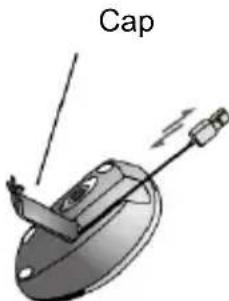
Flip the mouse over and open the cap in the back. Hold the mouse in one hand, pull out the USB cord and adjust to your desired length, then close the cap.
How to retract the USB cord?
Open the cap in the back of the mouse. Slightly pull out the USB cord and the embedded reel will wind the cord automatically, and if the USB cord is unable to retract, then pull the cord out again and be sure not to stop/pause while retracting.
Please see the included software on CD for details.
Manufacturer's Disclaimer Statement
The information in this document is subject to change without notice and does not represent a commitment on the part of the vendor. No warranty or representation, either expressed or implied, is made with respect to the quality, accuracy or fitness for any particular purpose of this document. The manufacturer reserves the right to make changes to the content of this document and/or the products associated with it at any time without obligation to notify any person or organization of such changes. In no event will the manufacturer be liable for direct, indirect, special, incidental or consequential damages arising out of the use or inability to use this product or documentation, even if advised of the possibility of such damages. This document contains materials protected by copyright. All rights are reserved. No part of this manual may be reproduced or transmitted in any form, by any means or for any purpose without expressed written consent of its authors. Product names appearing in this document are mentioned for identification purchases only. All trademarks, product names or brand names appearing in this document are registered property of their respective owner.
1. Introduction Redrapid
natural_image
Line drawing of a computer mouse with handle and control knob (no text or symbols)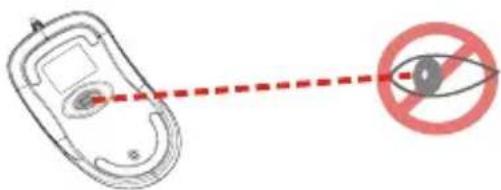
Information de conformité
natural_image
Diagram of a mechanical device with a labeled 'Cache' (no other text or symbols)Declaration of Conformity
CE
We, MaxPoint Handelsges. mbH, declare under our sole responsibility, that the product
Type: Mouse
Brand Name: KeySonic
Model Name: Redrapid KSM-1000 UTM
is herewith confirmed to comply with the requirements set out in the European Council Directive 89/336/EEC.
This declaration is based on the full compliance of the product with the following European standards:
EN 55022: 2006, Class B
EN 61000-3-2:2000
EN 61000-3-3:1995+A1:2001
EN 55024: 1998 - A1: 2001 + A2: 2003
IEC 61090-4-2. 1995-A1:1998-A2:2000
IEC 6:000-4-3:2002-A1:2002
IEC 61990-4-1 2004
IEC 61000-4-5 1995-A1:2000
IEC 61000-4-6:1996-AI:2000
IEC 6:000-4-8:1993-AI:2000
IEC 61600-4-11:2004

Alurensburg, 05.11.2008
Place and Date
Kurt-Fis Signature of responsible Person
Tel: +49-0741321-468-9705 6:30+49-0741321-468-801
Federal Communication Commission Interference Statement
This equipment has been tested and found to comply with the limits for a Class B digital device, pursuant to Part 15 of the FCC Rules. These limits are designed to provide reasonable protection against harmful interference in a residential installation. This equipment generates, uses and can radiate radio frequency energy and, if not installed and used in accordance with the instructions, may cause harmful interference to radio communications. However, there is no guarantee that interference will not occur in a particular installation. If this equipment does cause harmful interference to radio or television reception, which can be determined by turning the equipment off and on, the user is encouraged to try to correct the interference by one of the following measures:
- Reorient or relocate the receiving antenna.
- Increase the separation between the equipment and receiver.
- Connect the equipment into an outlet on a circuit different from that to which the receiver is connected.
- Consult the dealer or an experienced radio/TV technician for help.
FCC Caution: Any changes or modifications not expressly approved by the party responsible for compliance could void the user's authority to operate this equipment.
This device complies with Part 15 of the FCC Rules. Operation is subject to the following two conditions: (1) This device may not cause harmful interference, and (2) this device must accept any interference received, including interference that may cause undesired operation.