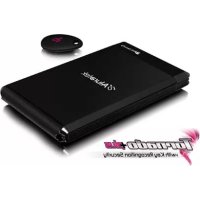
ASDURS25064F - SSD Aluratek - Free user manual and instructions
Find the device manual for free ASDURS25064F Aluratek in PDF.


| Product Type | 2.5" SSD External Hard Drive Enclosure |
| Brand | Aluratek |
| Model | ASDURS25064F |
| Interface | USB 2.0 (backward compatible with USB 1.1) |
| Transfer Rate | Up to 480 Mbps |
| Compatible Disk Formats | 2.5" SATA (SSD or HDD) |
| Security | Hardware encryption via RFID key (2 keys included) |
| Power Supply | USB bus-powered |
| Dimensions (approx.) | 13 x 8 x 1.5 cm |
| Weight (approx.) | 150 g |
| Package Contents | Enclosure, USB 2.0 cable, carrying case, 2 RFID keys, manual, warranty card |
| Supported Operating Systems | Windows 2000/XP/Vista, Mac OS 9 or later |
| Software Installation | None (Plug and Play) |
| Warranty | 1 year limited |
| Maintenance | Clean with a soft dry cloth. Avoid shocks and moisture. |
| Spare Parts Available | USB cable, replacement RFID keys (contact support) |
Frequently Asked Questions - ASDURS25064F Aluratek
User questions about ASDURS25064F Aluratek
0 question about this device. Answer the ones you know or ask your own.
Ask a new question about this device
Download the instructions for your SSD in PDF format for free! Find your manual ASDURS25064F - Aluratek and take your electronic device back in hand. On this page are published all the documents necessary for the use of your device. ASDURS25064F by Aluratek.
USER MANUAL ASDURS25064F Aluratek
Tornado Plus 2.5" USB 2.0 External Hard Drive with Key Recognition Security
model AHDURS250F
Aluratek
Instructional Manual
mnl M10071
Table of Contents
Introduction 04
Features & Requirements 05
Package Contents 06
RFID External Hard Drive Highlights 07
Hardware Installation (for enclosure purchase only) 08
Setup Hard Drive RFID and Encryption 11
Partitioning and Formatting for PC 12
Partitioning and Formatting for MAC 18
How to use the RFID drive 20
To remove the encryption from the hard drive 20
Technical Support 21
Radio and TV Interference Statement 22
Warranty 23
Introduction
Thank you for choosing Aluratek's® Tornado Plus Drive to serve your external hard drive needs. In no time, you will be able to easily store and access digital music, photo, video, multimedia and personal data files.
In addition to making sure only quality materials are used for manufacturing, Aluratek® is also dedicated to provide the best customer satisfaction and support.
The goal of Aluratek is to embody "Simple Elegance" in every product it designs, manufactures and sells.
The product focus of Aluratek is to bring simple yet elegant connectivity solutions to the consumers to enhance their consumer electronics, communications and computing experience. Each product is carefully designed with the consumer in mind. Each product is solution-driven to address the need of the consumers and deliberately planned to provide the ultimate user experience.
Read this guide thoroughly and follow the installation and operation procedures carefully to prevent any damage to the unit and / or any of the devices it connects to.
Features and Requirements
Features
RFID Data Encryption
- Includes 2 RFID Security Keys
- Swipe your key to lock / unlock the drive
Supports SATA hard drives
High-Speed USB 2.0 with data transfer rate up to 480 Mbps
- Backward compatible with USB 1.1 specification
- Easily store and access digital music, photo, video, multimedia and personal data files
- Compact design is perfect for mobile professionals
- No software installation required
- Plug-n-Play, Hot swappable, and Hot pluggable
Limited 1 Year Warranty
Requirements
- Windows 2000, XP and Vista
Mac OS 9 or later
Available USB port



Package Contents
Your order has been carefully packaged and inspected. The following should be included in your package. Please inspect the contents of the package to ensure that you have received all items and that nothing has been damaged. If you discover a problem, please contact us immediately for assistance.
2.5" RFID USB 2.0 External Hard Drive
- USB 2.0 Cable (Type A to mini-B)
- Carrying Case
RFID Key (x2)*
- Instructional Manual
Warranty / Registration Card
*Warning: If you lose one of the RFID keys, please backup your data to a different hard drive or your computer ASAP. After you have backed up your files, it is recommended that you purchase a new RFID key from us as you will not be able to access the files on the hard drive anymore if you lose the second key. Once you receive the new RFID key, please follow the remove encryption and key association instructions to pair the key and the drive again.
RFID External Hard Drive Highlights
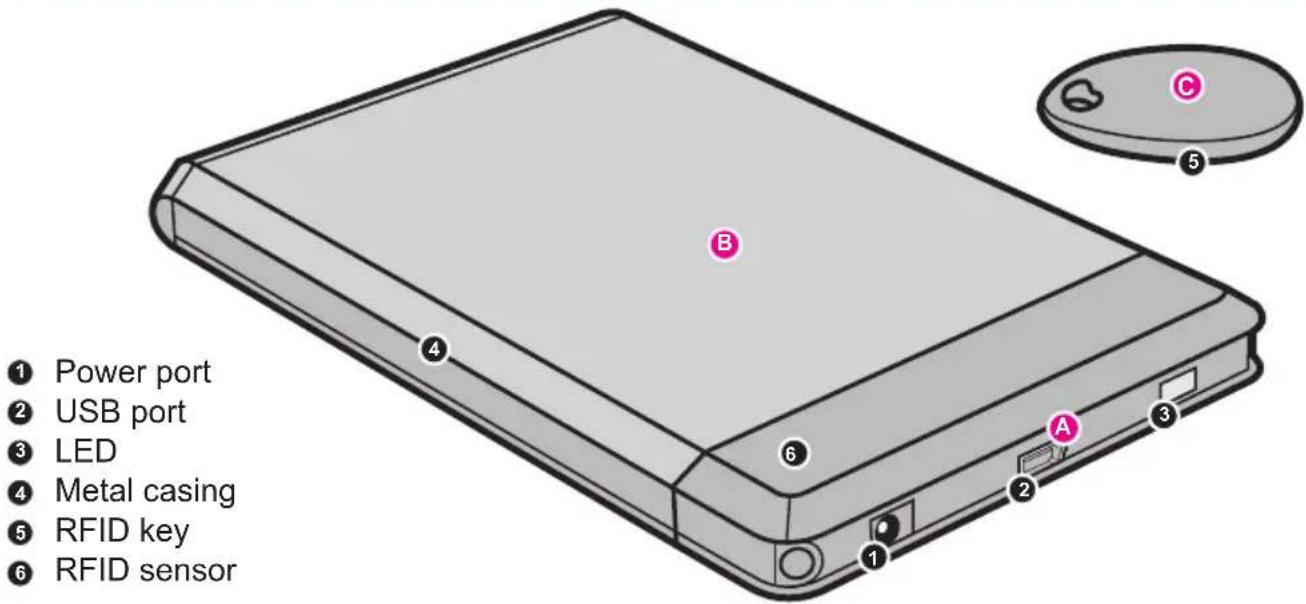
Plug-n-Play to your laptop or desktop computer to store and transfer all your files.
Hi-Speed data transfer rate up to 480 Mbps
Use the included two RFID encrypted keys to lock and unlock the drive
Hardware Installation (for Enclosure purchase only)

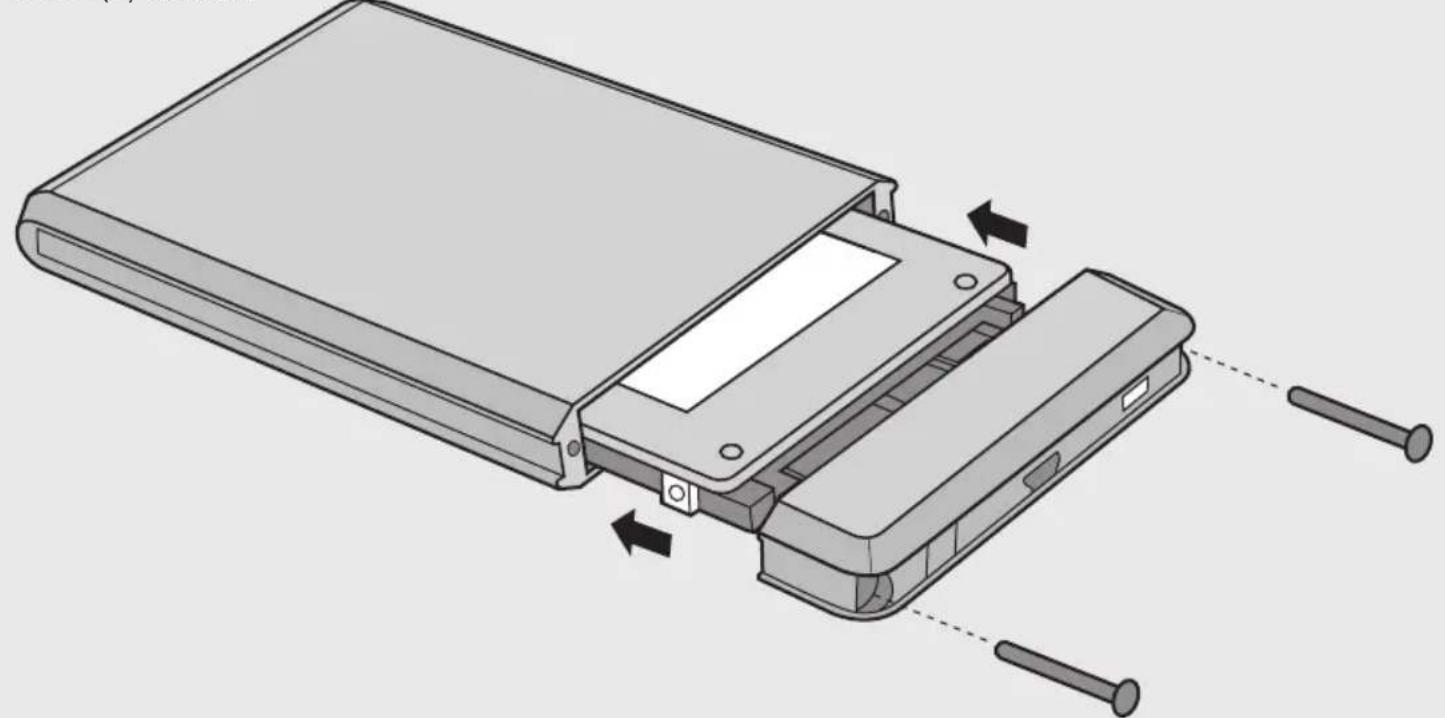
Step 1: Unscrew the (2) screws (phillips head screwdriver needed). Open the enclosure by removing the top plastic panel.

Hardware Installation (for Enclosure purchase only) cont.
Step 2:
Align the hard drive to the SATA connector and push forward to connect.


Hardware Installation (for Enclosure purchase only) cont.

Step 3:
Place the hard drive and top panel into the enclosure frame and screw in the (2) screws.
Setup Hard Drive RFID and Encryption
- Please connect AHDURS250F external drive to the computer with the enclosed USB cable; the operating system will detect the device automatically.
- AHDURS250F will give off three-short and one-long sound and the LED indicator will flash in red.
- Place/swipe one of the RFID sensor keys on the RFID Security logo on the enclosure. The key is associated with the enclosure when you hear a beep from the enclosure and the LED indicator will flash in green.
- Remove the key away from the RFID Security logo.
- Repeat steps 3 and 4 for the 2nd RFID sensor key within 3 minutes of step 4 or you will need to start the key association process for both keys again.
Note: You may replace a full hard drive with a new drive for more secure storage. AHDURS250F supports RFID security up to three different hard drives at a time. The enclosure will give a constant beep sound when you try to initiate the key association with the fourth drive. You may however use the drive as a regular external hard drive.
Setup Hard Drive RFID and Encryption cont.
Partitioning and Formatting for PC
You will need to partition and format the drive before you can use the drive with your computer.
Caution: Please make sure to backup all the data to the computer before proceeding as all data will be erased from the drive.
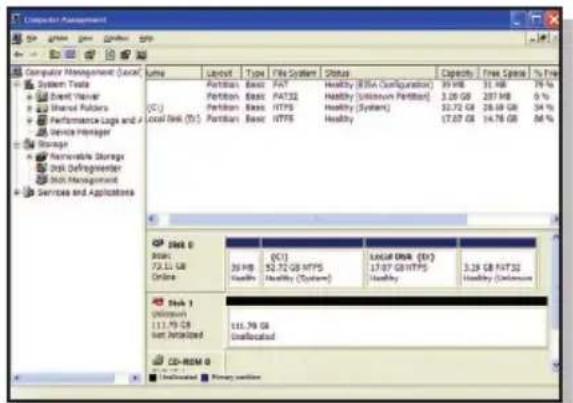
For Windows 2000/XP/Vista, please right click on "My Computer" and select "Manage" for "Disk Management".

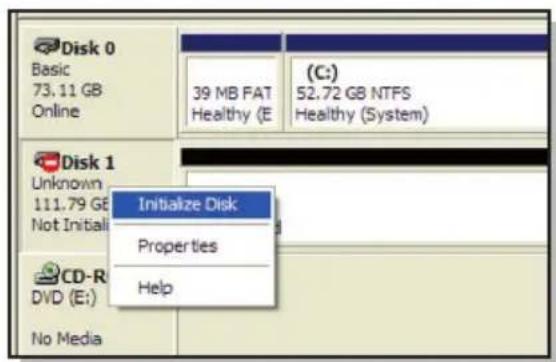
Right click on Disk 1 in this example and select "Initialize Disk" to initialize the drive.
Setup Hard Drive RFID and Encryption cont.
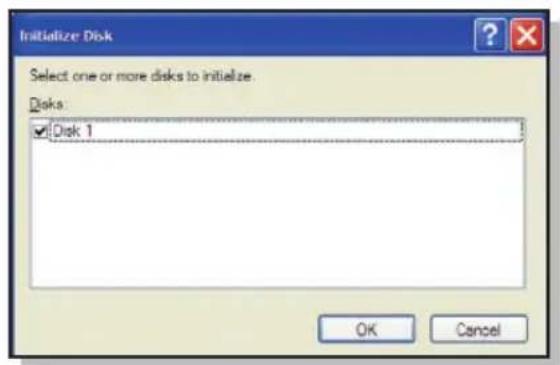


Click "OK" to continue Right click on the "Unallocated" space and select "New Partition" to format the drive.
Setup Hard Drive RFID and Encryption cont.
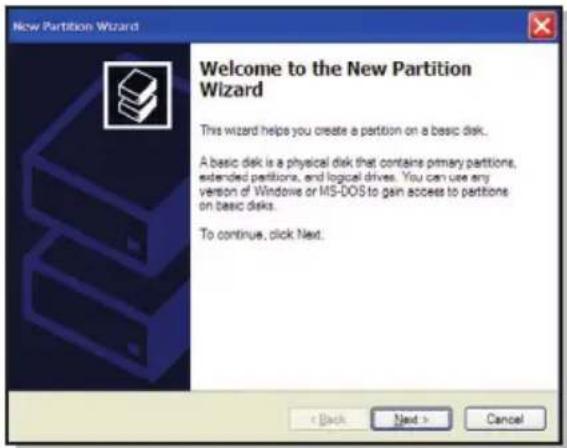

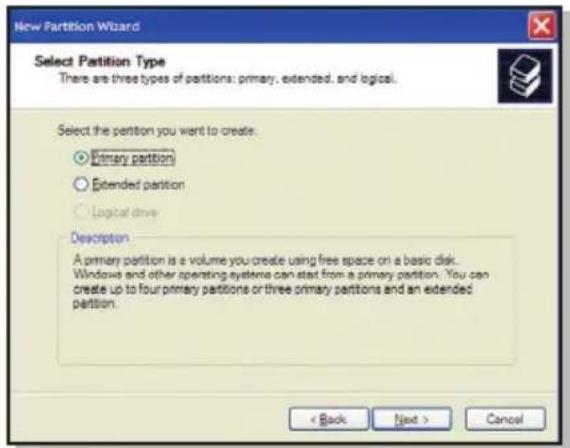
Click "Next" to continue Click "Next" to continue
Setup Hard Drive RFID and Encryption cont.
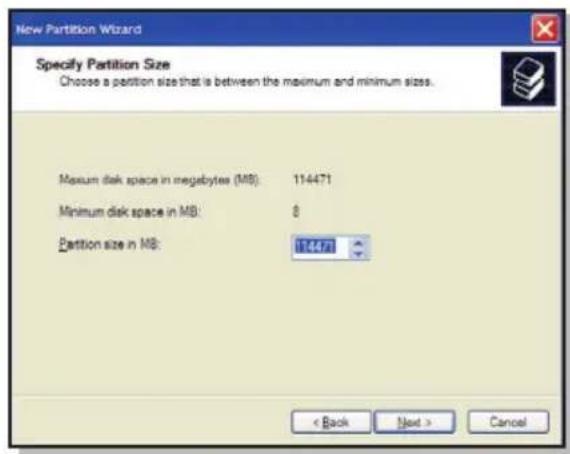
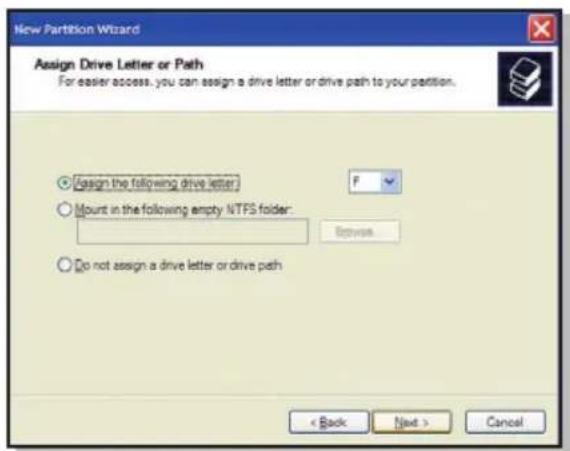
Click "Next" to continue Click "Next" to continue
Setup Hard Drive RFID and Encryption cont.
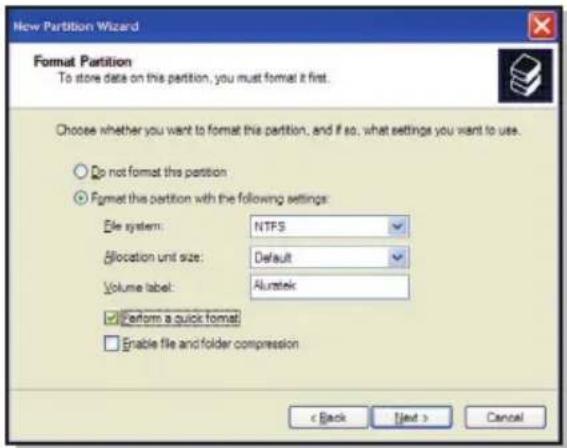
Please select "Perform a quick format", then click "Next".

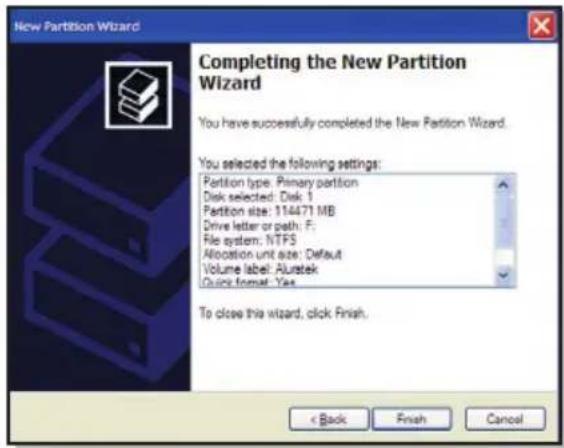
Click "Finish".
Setup Hard Drive RFID and Encryption cont.
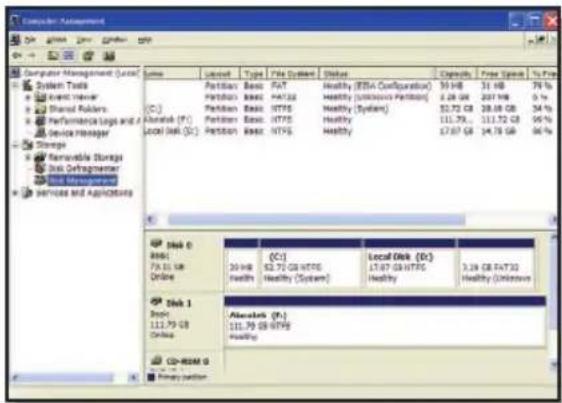
Congratulations!!! The drive is now formatted and ready to use.
Setup Hard Drive RFID and Encryption cont.
Partitioning and Formatting for MAC
You will need to partition and format the drive before you can use the drive with your computer.
Caution: Please make sure to backup all the data to the computer before proceeding as all data will be erased from the drive.
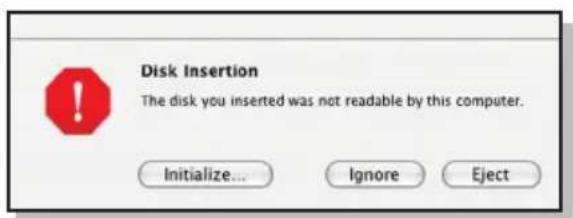

You will need to initialize the disk after the key association. Please click "initialize" when you see the above window after the key association procedure.
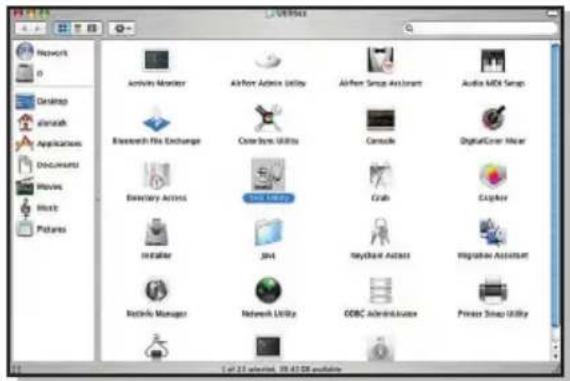
You will now need to format/partition the drive in "Disk Utility".
Setup Hard Drive RFID and Encryption cont.
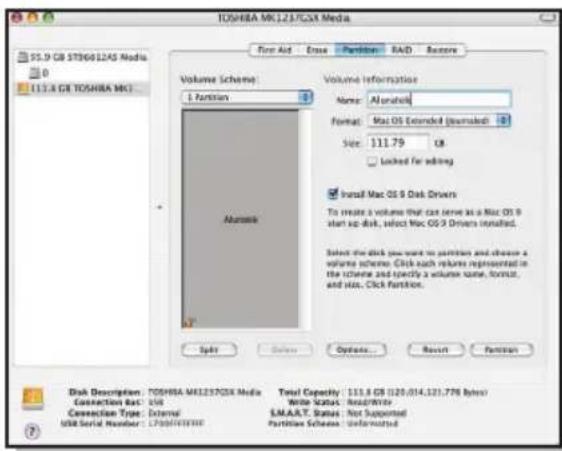
Please select the external drive in the list and select "Partition". Enter the desired number of partitions, name of the drive, drive format and click "partition"

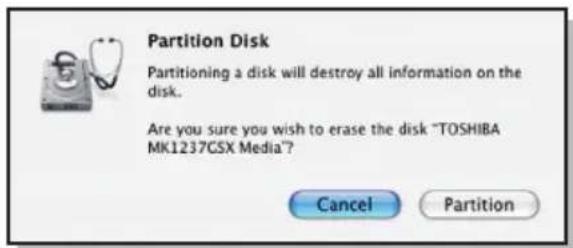
Please click "Partition" to confirm format.
Congratulations!!! The drive is now formatted and ready to use.
Setup Hard Drive RFID and Encryption cont.
How to use the RFID drive
- Connect AHDURS250F to the computer, the enclosure will gives a short beep and the LED indicator will be in red
- Place/swipe one of the RFID sensor keys on the RFID Security on the enclosure. The RFID sensor will make two-short beeps and the LED indicator will change color to green
- You should be able to use the drive like a regular external drive. You should be able to find the drive in "My Computer"
Note: If the enclosure makes a one-long sound instead of two-short sounds in step 2, please try the key again. Repeat with the 2nd key if the 1st key is not working.
To remove the encryption from the hard drive
Caution: Please make sure to backup all the data to the computer before proceeding as all data will be erased from the drive.
- Please remove the hard drive from AHDURS250F and insert it to any other 2.5" SATA external enclos
- After the system recognizes the drive, please follow the steps in partition and formatting to format the drive.
20
Technical Support
If you need further assistance, please contact Aluratek support department prior to returning this device.
E-mail: support@aluratek.com
Web: www.aluratek.com/support
Local (Irvine, CA): 949-419-6504
Toll free: 1-866-580-1978
Radio and TV Interference Statement
WARNING!!! This equipment has been tested and found to comply with the limits of a Class B digital device, pursuant to part 15 of the FCC rules. These limits are designed to provide reasonable protection against harmful interference in a residential installation
This equipment generates, uses and can radiate radio frequency energy and, if not installed and used in accordance with the instruction, may cause harmful interference to radio communications. However, there is no guarantee that interference will not occur in a particular installation. If this equipment does cause harmful interference to radio or television reception, which can be determined by turning the equipment off and on, the user is encouraged to try to correct the interference by whatever measures may be required to correct the interference.
Warranty
Aluratek warrants this product against defect in material or workmanship for 1 Year from the date of purchase.
This warranty becomes invalid if the factory-supplied serial number or "warranty void" sticker has been removed or altered on the product.
This warranty does not cover:
A) Cosmetic damage or damage due to acts of God
B) Accident, misuse, abuse, negligence or modification of any part of the product.
C) Damage due to improper operation or maintenance, connection to improper equipment, or attempted repair by anyone other than Aluratek.
D) Products sold AS IS or WITH FAULTS.
IN NO EVENT SHALL ALURATEK'S LIABILITY EXCEED THE PRICE PAID FOR THE PRODUCT FROM DIRECT, INDIRECT, SPECIAL, INCIDENTAL, OR CONSEQUENTIAL DAMAGES RESULTING FROM THE USE OF THE PRODUCT, IT'S ACCOMPANYING SOFTWARE, OR IT'S DOCUMENTATIO
Aluratek makes no warranty or representation, expressed, implied, or statutory, with respect to it's products, contents or use of this documentation and all accompanying software, and specifically disclaims it's quality, performance, merchantability, or fitness for any particular purpose. Aluratek reserves the right to revise or update it's product, software or documentation without obligation to notify any individual or entity.


Aluratek
aluratek.com
Aluratek, Inc. 12A Mauchly Irvine, CA 92618 sales@aluratek.com 949.419.6504 • office 949.419.6477 • fax