USER MANUAL SDG-8614 Adtran
Read all warning, cautions, notes and installation instructions before installing or servicing this equipment.

ATTENTION!
The ADTRAN® SDG-8612/8614 series is a Wi-Fi 6 2.5 Gigabit Ethernet router, built to deliver top-end Wi-Fi 6 performance, true 2.5 gigabit routing throughput, and advanced service delivery capabilities. This quick start describes how to install ADTRAN's Service Delivery Gateway.
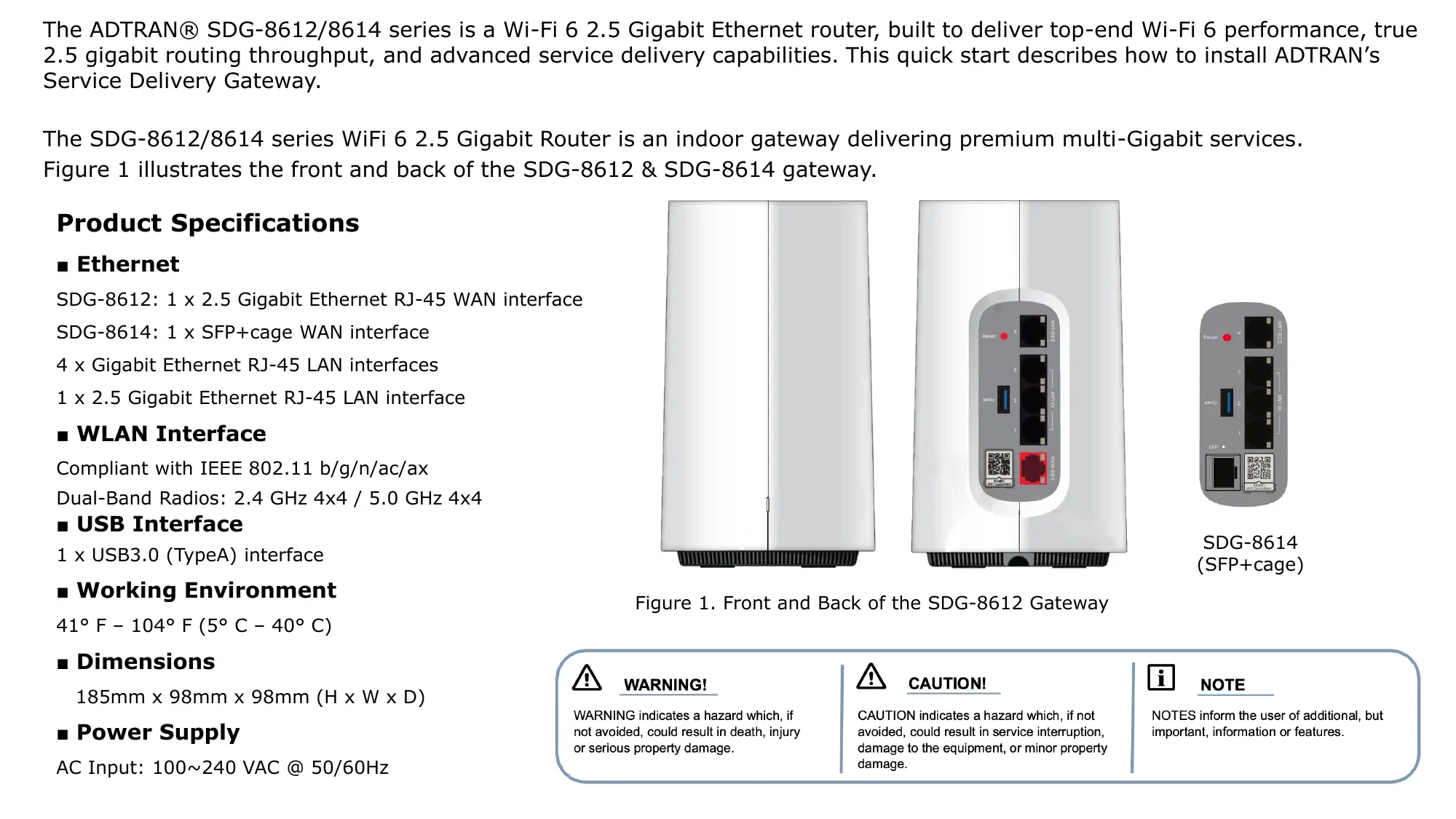
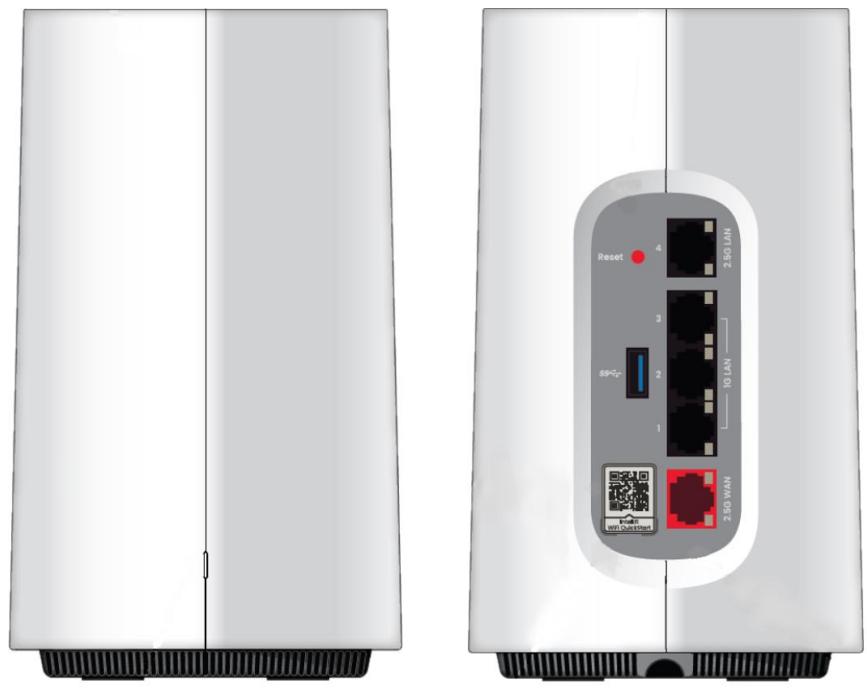
The SDG-8612/8614 series WiFi 6 2.5 Gigabit Router is an indoor gateway delivering premium multi-Gigabit services. Figure 1 illustrates the front and back of the SDG-8612 & SDG-8614 gateway.
Product Specifications
- Ethernet
SDG-8612: 1 x 2.5 Gigabit Ethernet RJ-45 WAN interface
SDG-8614: 1 x SFP+cage WAN interface
4 x Gigabit Ethernet RJ-45 LAN interfaces
1 x 2.5 Gigabit Ethernet RJ-45 LAN interface
WLAN Interface
Compliant with IEEE 802.11 b/g/n/ac/ax
Dual-Band Radios: 2.4 GHz 4x4 / 5.0 GHz 4x4
USB Interface
1 x USB3.0 (TypeA) interface
■ Working Environment
41^ F - 104^ F(5^ C - 40^ C)
Dimensions
185 ~mm × 98 ~mm × 98 ~mm(H × W × D)
Power Supply
AC Input: 100 240 VAC @ 50 / 60 ~Hz
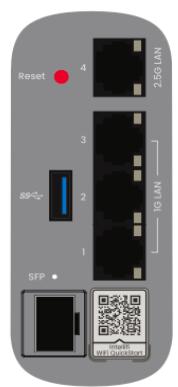
SDG-8614
(SFP+cage)
WARNING!
WARNING indicates a hazard which, if not avoided, could result in death, injury or serious property damage.

Figure 1. Front and Back of the SDG-8612 Gateway
CAUTION!
CAUTION indicates a hazard which, if not avoided, could result in service interruption, damage to the equipment, or minor property damage.

NOTE
NOTES inform the user of additional, but important, information or features.
Installing the SDG-8612 Gateway
The following are guidelines for basic installation of the gateway.

NOTE
Refer to the national, state and local electrical codes for the requirements for power, grounding, wiring, and installation methods.

CAUTION!
The product is intended for indoor use only. Ethernet cables and attached equipment are intended for use within the same building with equipotential bonding, and not intended to be placed in separate buildings or structures. Failure to deploy as described could result in permanent damage from lightning or other electrical events and voids the warranty. Furthermore, all connections from outside of the building, such as old wiring, must be disconnected prior to use.
Package Contents
ADTRAN's WiFi 6 2.5Gigabit Router
15VDC/3A USB type C power adapter
CAT.5E Ethernet cable
Prior to Installation
Before installing the equipment, inspect the gateway. If damage has occurred during shipping, file a claim with the carrier, and then contact ADTRAN Customer Support.
Connecting the Gateway
Figure 2 illustrates the installation (connection) options for the gateway.
The following subscriber connections are available on the rear of the device:
1x 2.5Gigabit Ethernet port (RJ-45 Connector) - LAN port
■ 4x Gigabit Ethernet (RJ-45 Connectors) - LAN 1-4 ports
1x 2.5Gigabit Ethernet port (RJ-45 Connector) - WAN port
1x USB 3.0 (Type A Connector) port
To connect the subscriber Ethernet interfaces, refer to Figure 2 and insert a Category 5E (or better) RJ-45 cable into one of the LAN ports or the 2.5 Gigabit Ethernet port (WAN) until there is an audible "click".
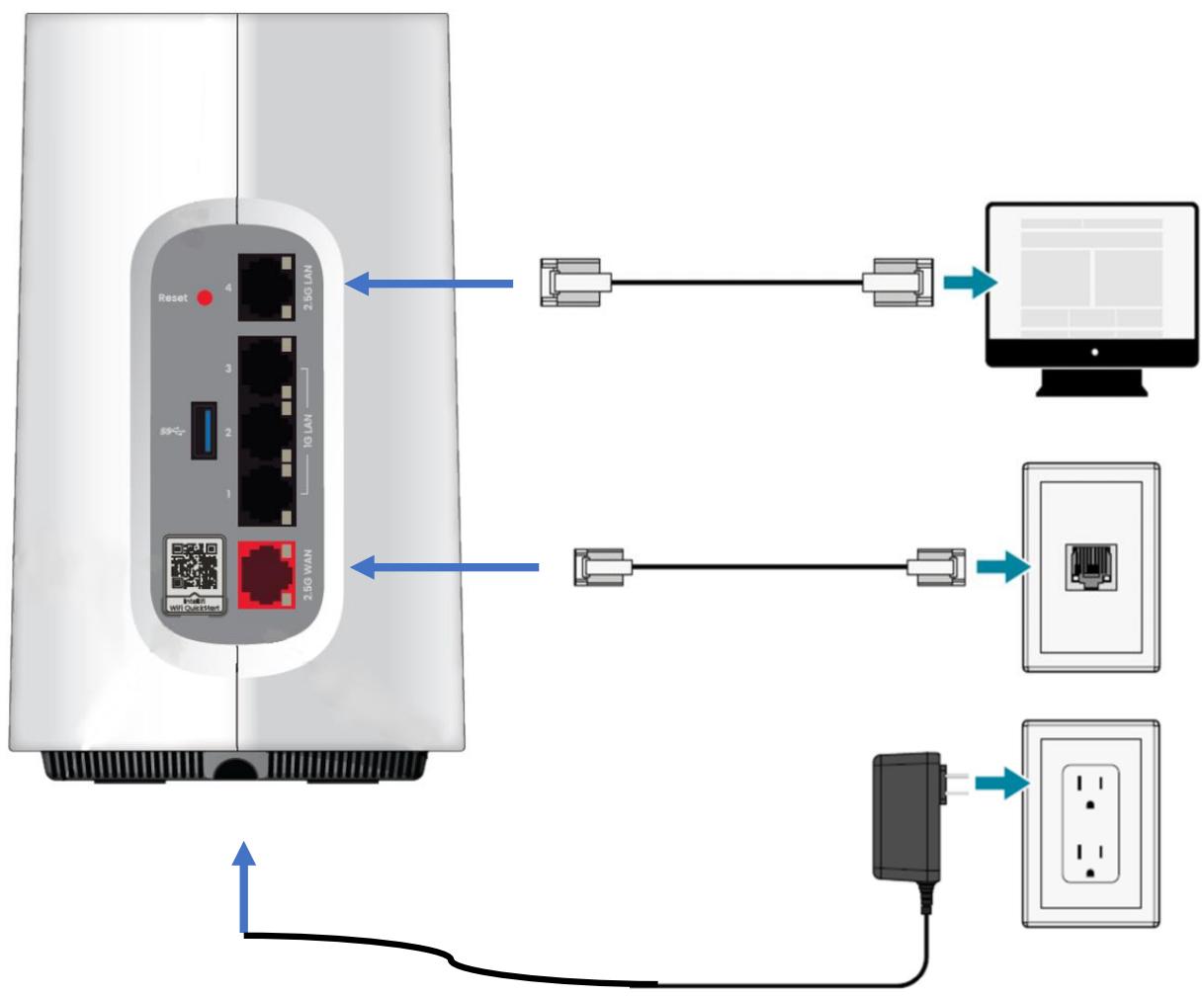
Figure 2. Gateway Installation
Connecting the Power Supply
- Connect the end of the power adapter to the Power port on the bottom of the gateway.
- Plug other end of the power adapter into the wall outlet.
- Confirm that the power is connected properly. The Power LED should be lit on the gateway.
Resetting the Gateway
A reset button is available if the device needs to be rebooted. To reboot the device, press the Reset button on the rear panel of the gateway for 5 seconds or less. To reset the device to custom defaults, press the Reset button for 5 seconds or more.
Set up
Connect to http://192.168.1.1 from web browser, go through the instructions to complete the router mode setup.
- Click on "Set up a new Intellifi® device".
- Simply input "12345678" as the password, re-enter the "12345678" again, click on "Set password".
- Then click on "Continue" to the next page.
Adtran
Set up a new Intellifi® device
Reset device to default settings
Welcome to Quickstart
Let's start by setting your login password so your device can be configured in the future.
Enter password


Re-enter password


Set password
Cancel
Cancel

Set up your Intellifi device
First, let's select your device's operating mode and role in your Intellifi network, then we'll configure your WiFi based on the role you have selected.
Continue
- Press Next>, then press Router.
- Type "samplewifi" as SSID, and type "12345678" as password, then press "Continue".
Back
Router mode
Router mode provides a router between your Internet Service Provider (ISP) WAN and your home network LAN. Select this if you do not currently have a router.
Next >
Back
Select your device's operating mode
Configure your device as a Router or as an Access Point.
Router
Access Point
Back

samplewifi

中
Continue
- Press “Yes, set up Guest WiFi, Then press “Finish” to complete setup.
Back
Do you want to set up Guest WiFi?
Guest WiFi is a great way to give house guests access to the Internet without sharing your primary WiFi password or access to your network.
Yes, set up Guest WiFi
Not now
Back
Almost done! Let's review.
Operating Mode
Router
Intellifi Mode
Controller
WiFi Name (SSID)
samplewifi
WiFi Password
12345678
Finish
Cancel
Set up complete!
This window will automatically close in 10 seconds once settings have finished applying to your device.
To manage your device settings in the future, navigate to http://router.local

Federal Communication Commission Interference Statement
This equipment has been tested and found to comply with the limits for a Class B digital device, pursuant to Part 15 of the FCC Rules. These limits are designed to provide reasonable protection against harmful interference in a residential installation. This equipment generates, uses and can radiate radio frequency energy and, if not installed and used in accordance with the instructions, may cause harmful interference to radio communications. However, there is no guarantee that interference will not occur in a particular installation. If this equipment does cause harmful interference to radio or television reception, which can be determined by turning the equipment off and on, the user is encouraged to try to correct the interference by one of the following measures:
- Reorient or relocate the receiving antenna.
- Increase the separation between the equipment and receiver.
- Connect the equipment into an outlet on a circuit different from that to which the receiver is connected.
- Consult the dealer or an experienced radio/TV technician for help.
FCC Caution: Any changes or modifications not expressly approved by the party responsible for compliance could void the user's authority to operate this equipment.
This device complies with Part 15 of the FCC Rules. Operation is subject to the following two conditions: (1) This device may not cause harmful interference, and (2) this device must accept any interference received, including interference that may cause undesired operation.
IMPORTANT NOTE:
Radiation Exposure Statement:
This equipment complies with FCC radiation exposure limits set forth for an uncontrolled environment. This equipment should be installed and operated with minimum distance 31 cm between the radiator & your body.
This transmitter must not be co-located or operating in conjunction with any other antenna or transmitter.
Country Code selection feature to be disabled for products marketed to the US/CANADA
Operation of this device is restricted to indoor use only.
Industry Canada statement:
This device contains licence-exempt transmitter(s)/receiver(s) that comply with Innovation, Science and Economic Development Canada's licence-exempt RSS(s). Operation is subject to the following two conditions:
(i) the device for operation in the band 5150- 5250 MHz is only for indoor use to reduce the potential for harmful interference to co-channel mobile satellite systems;
(ii) for devices with detachable antenna(s), the maximum antenna gain permitted for devices in the bands 5250-5350 MHz and 5470-5725 MHz shall be such that the equipment still complies with the e.i.r.p. limit;
(iii) for devices with detachable antenna(s), the maximum antenna gain permitted for devices in the band 5725-5850 MHz shall be such that the equipment still complies with the e.i.r.p. limits as appropriate; and
Operations in the 5.25-5.35GHz band are restricted to indoor usage only.
Avertissement:
Radiation Exposure Statement:
This equipment complies with Canada radiation exposure limits set forth for an uncontrolled environment. This equipment should be installed and operated with minimum distance 31 cm between the radiator & your body.