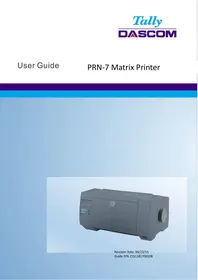
PRN-7 - Printer Tally Dascom - Free user manual and instructions
Find the device manual for free PRN-7 Tally Dascom in PDF.


| Product type | Dot matrix printer (impact) |
| Brand | Tally Dascom |
| Model | PRN-7 |
| Dimensions (W x D x H) | Approx. 400 x 300 x 200 mm |
| Weight | Approx. 6 kg |
| Power supply | 220-240 V AC, 50/60 Hz |
| Power consumption | Standby: 10 W, printing: 60 W |
| Print speed | Up to 400 characters per second |
| Print resolution | 180 x 180 dpi |
| Supported paper types | Continuous paper (forms), single sheets, labels |
| Interfaces | USB, parallel, serial (RS-232) |
| Main functions | Printing documents, invoices, reports, barcodes |
| Maintenance and cleaning | Clean the print head with a soft dry cloth; replace ribbon regularly; vacuum dust around the printer |
| Safety | Do not touch hot print head; unplug before maintenance; avoid any contact with liquids |
| Spare parts and repairability | Print head, ink ribbon, drive roller; available from after-sales service |
| General information | User manual in PDF (125 pages); languages: French, English |
Frequently Asked Questions - PRN-7 Tally Dascom
User questions about PRN-7 Tally Dascom
0 question about this device. Answer the ones you know or ask your own.
Ask a new question about this device
Download the instructions for your Printer in PDF format for free! Find your manual PRN-7 - Tally Dascom and take your electronic device back in hand. On this page are published all the documents necessary for the use of your device. PRN-7 by Tally Dascom.
USER MANUAL PRN-7 Tally Dascom
Important Safety Instructions (English)
Read the following instructions thoroughly before starting up your printer.
- Never carry out maintenance or repair work yourself. Always contact a qualified service technician.
- Keep this Operator's Manual in a place which is easily accessible at all times.
- Place the printer on a solid and even base so that it cannot fall.
- Never place the printer in the vicinity of inflammable gas or explosive substances.
- Ensure the printer is connected to a socket with the correct mains voltage.
Always disconnect the printer from the mains before opening the device to perform maintenance work or remedy errors. - Do not expose the printer to high temperatures, direct sunlight or dust.
- Keep all liquids away from the printer.
- Protect the printer from shock, impact and vibration.
Make sure that the printer and computer are switched off before connecting the data cable.
The print head will become very hot during printing; avoid contact with the print head after printing has finished.
- Do not perform any operation or action in any way other than those provided in this manual. When in doubt, contact your dealer or your customer support.
"IBM" is a trademark of International Business Machines Corporation.
"EPSON" is a trademark of Epson America Incorporated.
"DEC" is a trademark of Digital Equipment Corporation.
"Centronics" is a trademark of Centronics Data Computer Corporation.
"DOS" is a trademark of Microsoft Corporation.
"SAP" is a trademark of SAP AG.
"Windows", "Windows 7", "Windows 8", "Windows 95", "Windows 98", "Windows NT", "Windows 2000",
"Windows 2003/2008/2013 Server", "Windows XP" and "Windows Vista" are trademarks of Microsoft Corporation.
All other product names and company names appearing in this manual are the registered trademarks or trademarks of the individual companies.
TABLE OF CONTENTS
1 Printer at a glance. 1
1.1 Unpacking the printer 1
1.2 Remove transport locks 1
1.3 Prepare your printer 2
1.4 Parts description 4
2 Installation 5
2.1 Placing the printer 5
2.2 Connecting the printer 5
2.2.1 Parallel interface (IEEE 1284) 6
2.2.2 USB 2.0 (Full Speed) 6
2.2.3 Ethernet 6
2.2.4 Serial Interface (RS-232C) 7
2.2.5 Connecting the power 7
2.2.6 Switch on the printer 7
2.3 Installing the ribbon cartridge 8
3 Installing the paper 10
3.1 Adjusting the print gap for various form thicknesses 10
3.2 Paper path introduction 11
3.2.1 Cut sheet paper handling (front friction only) 11
3.2.2 Fanfold paper handling 12
3.2.3 Top-Of-Form adjustment 16
4 Control Panel Operation 17
4.1 Operation of the LCD Panel 17
4.1.1 The LC display 17
4.1.2 Online mode 18
4.1.3 Offline mode 18
4.1.4 Setup mode 19
4.1.5 Power on functions 19
5 Setting parameters for the printer 20
5.2 Setting the parameters through the LCD Panel 20
5.1.1 Enabling access to menu mode 20
5.1.2 Menu configurations 21
5.1.3 Menu handling 23
5.1.4 Selecting the LC display language 24
5.3 Menu structure 26
5.4 Full list parameters setting 27
5.4.1 Menu Configuration list 27
5.4.2 Advanced Menu 34
5.5 Display messages 37
5.5.1 Messages LCD Panel 38
6 Web Panel and Internal Ethernet Interface 39
6.1 Summary 39
6.1.1 Introduction 39
6.1.2 Supported Environments 39
6.1.3 Network Interface and Cabling 39
6.1.4 Connecting the Printer 39
6.1.5 Network Interface Status 39
6.2 IP Configuration 40
6.2.1 Network IP Configuration 40
6.2.2Assigning the IP Address 40
6.3 WebPanel 42
6.3.1 Introduction 42
6.3.2 Web Browser 42
6.3.3 Access to WebPanel 43
6.3.4 Printer Status 43
6.3.5 Printer Configuration 44
6.3.6 Printer Actions 47
6.3.7 Load Configuration 48
6.3.8 Save Configuration 49
6.3.9 Retrieve Configuration From Printer 49
6.3.10 Send Configuration to Printer 50
6.3.11 Report 52
6.3.12 Reset Printer 52
6.3.13 Panel Lock On/Off 52
6.3.14 Download Firmware 52
6.3.15 TallyCom Status 55
6.3.16 Advanced Configuration 56
6.3.17 General 57
6.3.18 TCP/IP 58
6.3.19 SNMP 59
6.3.20 Password 60
6.3.21 User Name 60
6.3.22 Resetting Password 60
6.3.23 Email Notification 61
6.3.24 Logical Printers 63
6.3.25 String Replacement Example PlainText 64
6.3.25Logout ofTallyCom 65
6.3.26 RestartTallyCom 65
6.3.27 Virtual Control Panel 66
7 Addendum 67
7.1 Character Set 67
7.2 Control Codes Summary 72
7.2.1 PJL commands 81
7.2.2 Barcode 81
7.2.3 List of available MTPL barcodes 82
7.2.4 US Postnet barcode 82
7.2.5 Royal Mail Customer barcode 83
7.2.6 KIX barcode 83
7.2.7 USPS Intelligent Mail barcode 83
7.2.8 LC printing 85
7.2.9 List of additional control Codes 86
7.3 Interfaces Specifications 87
7.3.1 Parallel I/O IEEE 1284 88
7.3.2 Ethernet I/O 10/100 MultitProtocol 89
7.3.3 USB 2.0 I/O - Full Speed 90
7.3.4 Serial Interface RS232C 91
8 Options and accessories 97
8.1 Options 97
8.2 Consumables 98
8.3 Accessories 98
9 General Specifications 99
9.1 Printer Specifications 99
9.2 Non-Scalable Fonts, Code Pages and National Character Sets 103
9.3 Paper Specifications 105
9.3.1 Standard Tractor (Front, Rear and Pull position) - narrow and wide versions 105
9.3.2 Front Feed / Manual Insertion - Narrow and wide versions 106
9.3.3 Paper Weights 106
10 Maintenance 108
10.1 Cleaning 108
10.1.1 Cleaning and Vacuuming the Printer 108
10.1.2 Cleaning the Paper Rollers 108
10.2 Troubleshooting 109
10.2.1 Print Quality Problems and Solutions 109
10.2.2 Paper Handling Problems and Solutions 110
10.2.3 Operating Problems and Solutions 110
FCC STATEMENT 111
DASCOM REPRESENTATIVES 112
Symbols used
Important information is highlighted in this manual by two symbols.

CAUTION highlights information which must be observed in order to prevent injuries to user and damage to the printer.

NOTE highlights general or additional information about a specific topic.
1 Printer at a glance
1.1 Unpacking the printer
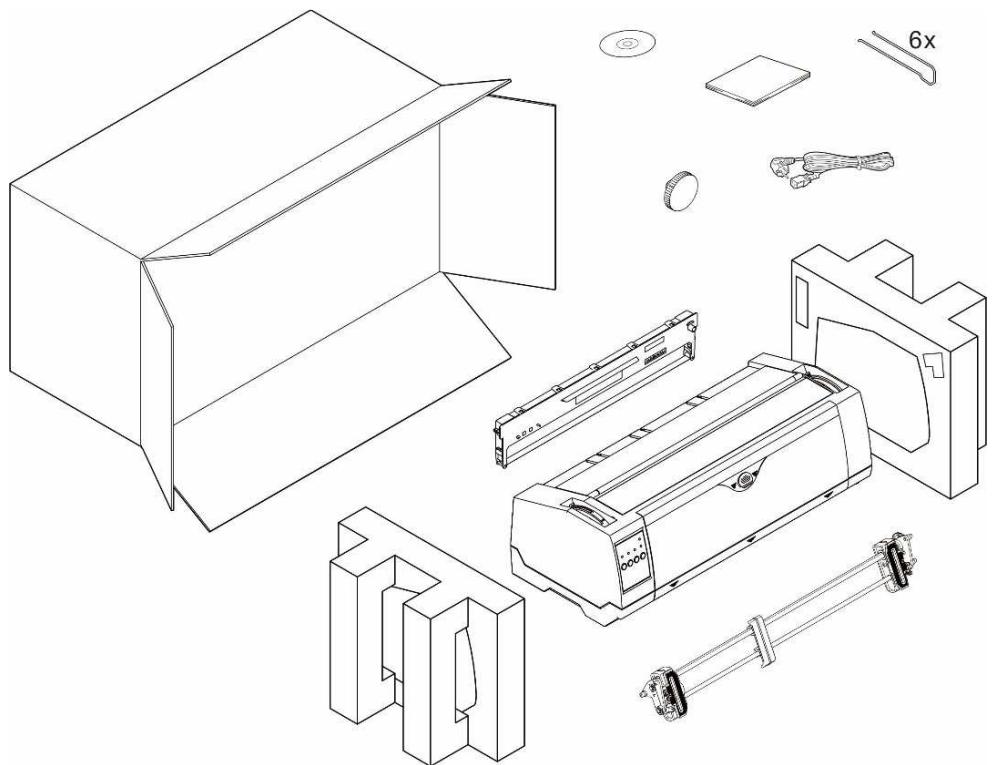
Besides this manual, the package will contain: a power cord, a ribbon cartridge, a tractor, a CD and 6 pieces of U-wire paper support.
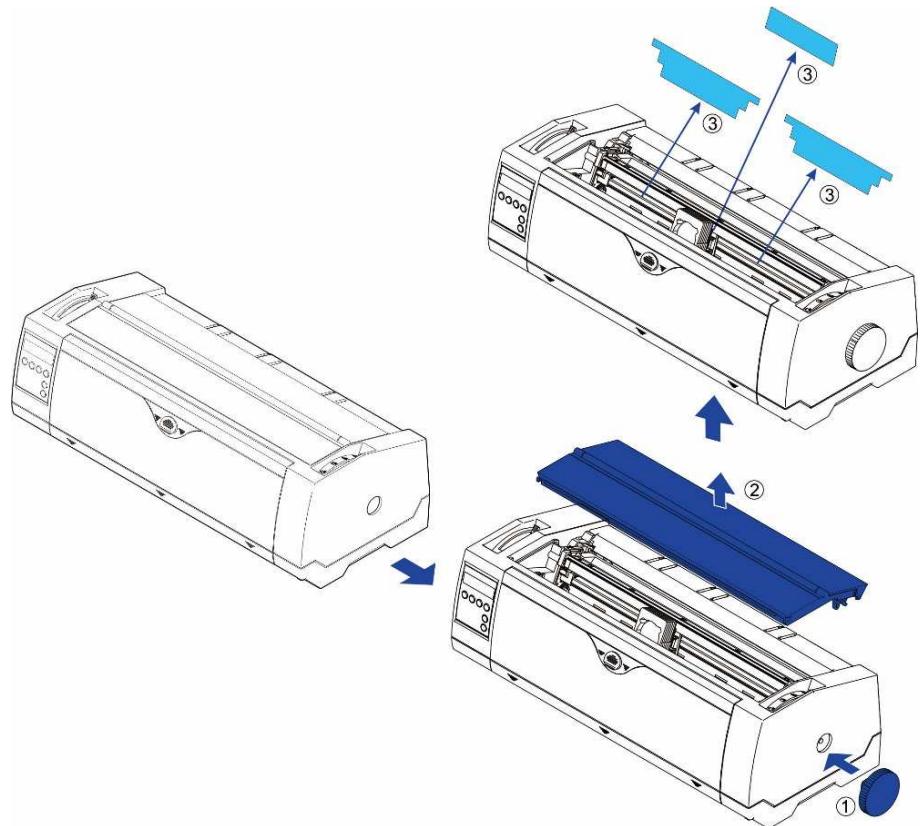
1.2 Remove transport locks
1.3 Prepare your printer
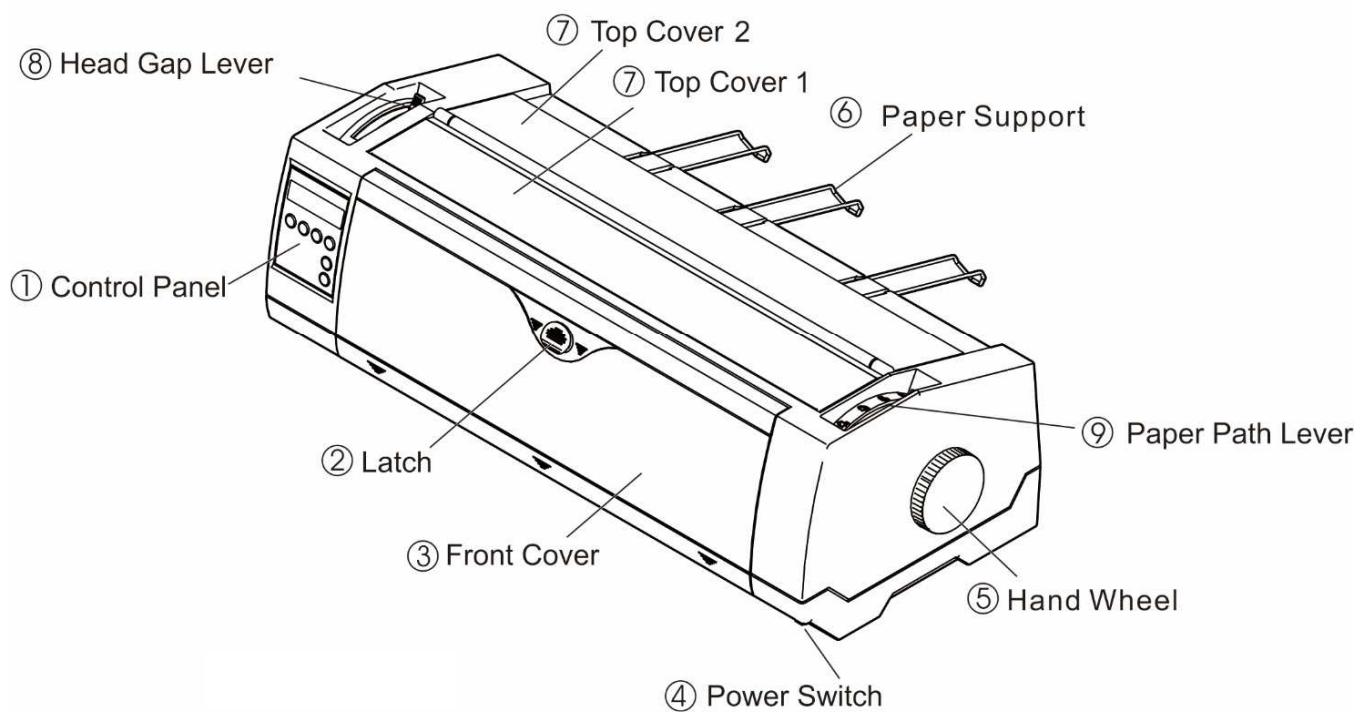
■ FrontView
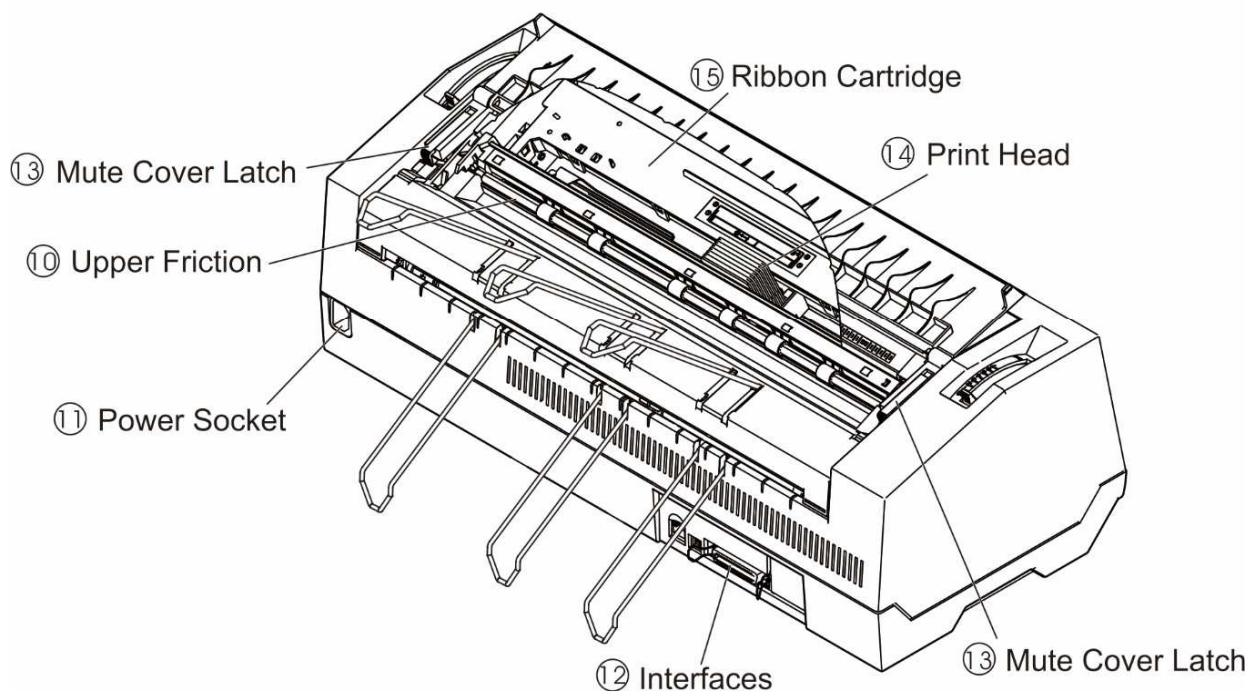
Rear View
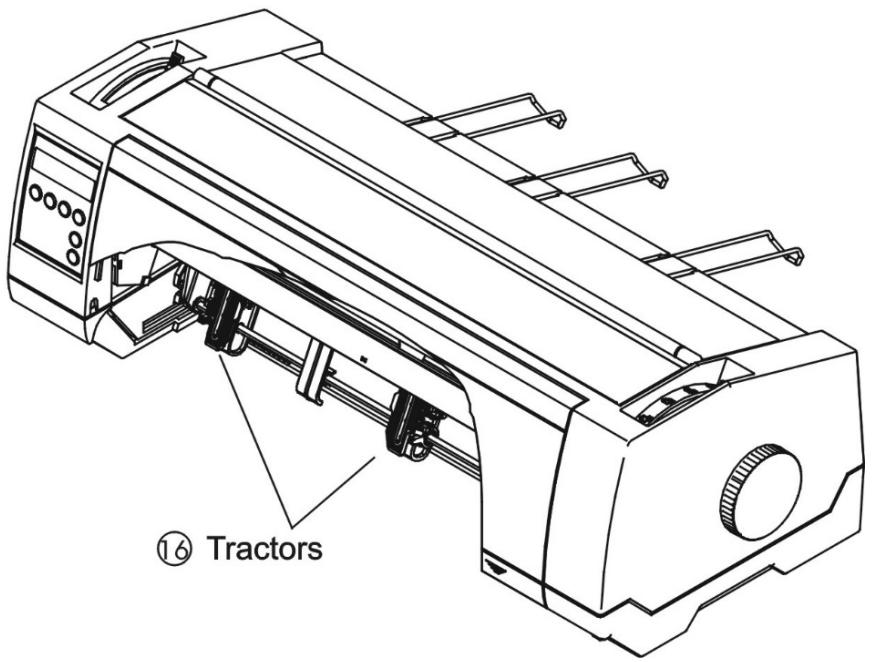
For Fanfold
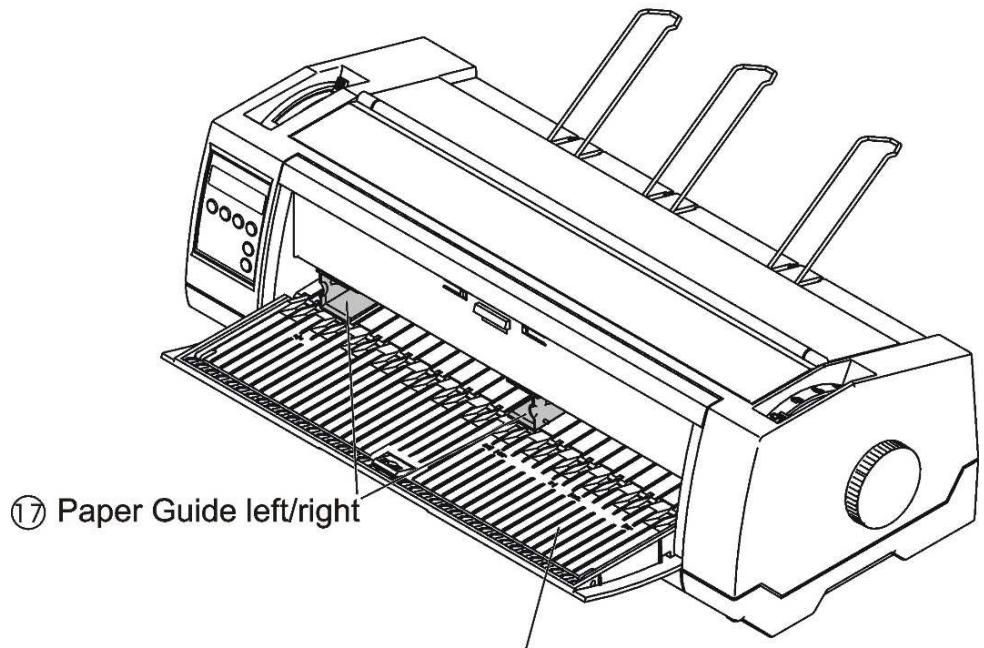
For Cut Sheets
Cut Sheet Support
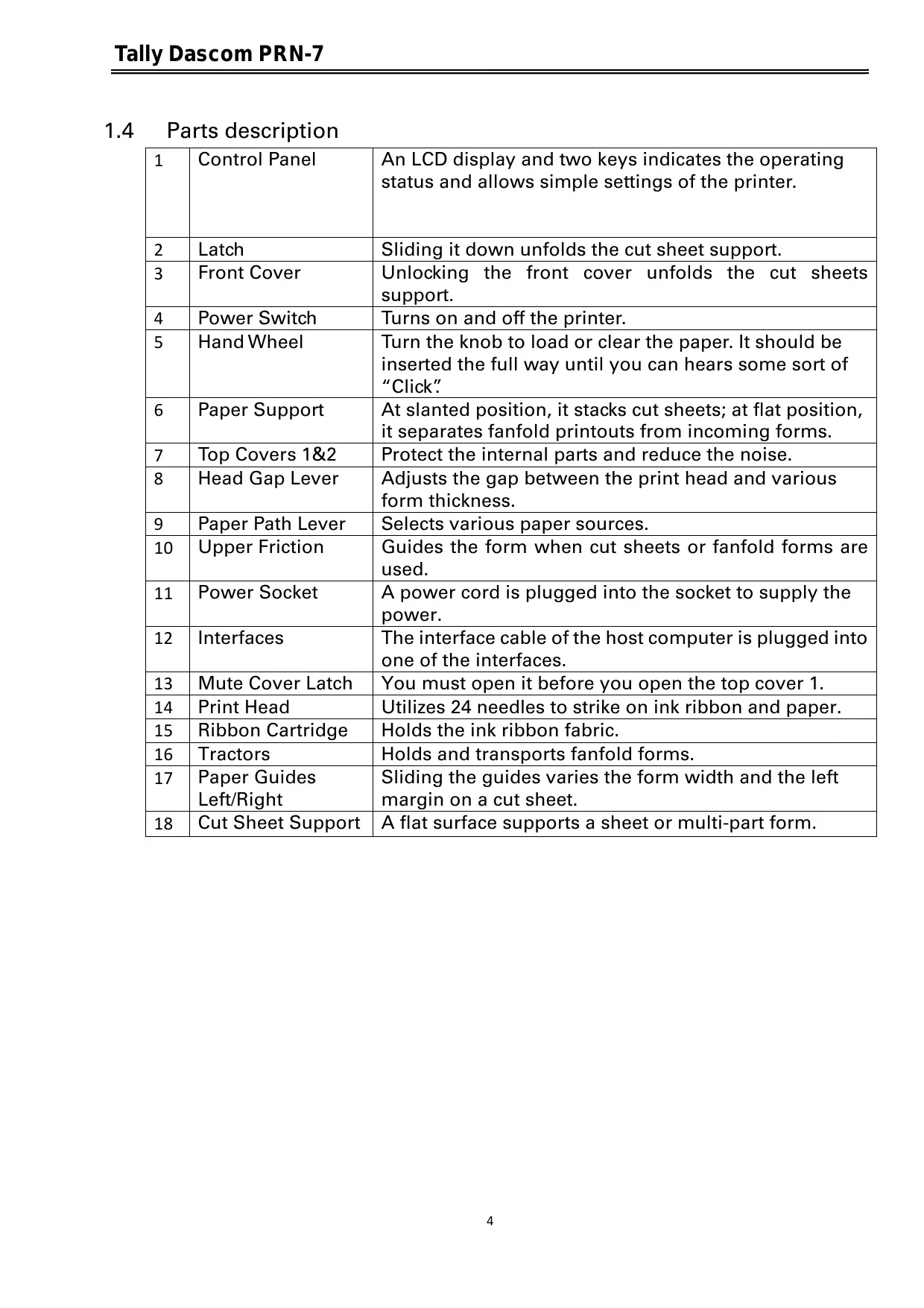
1.4 Parts description
| 1 | Control Panel | An LCD display and two keys indicates the operating status and allows simple settings of the printer. |
| 2 | Latch | Sliding it down unfolds the cut sheet support. |
| 3 | Front Cover | Unlocking the front cover unfolds the cut sheets support. |
| 4 | Power Switch | Turns on and off the printer. |
| 5 | Hand Wheel | Turn the knob to load or clear the paper. It should be inserted the full way until you can hear some sort of “Click”. |
| 6 | Paper Support | At slanted position, it stacks cut sheets; at flat position, it separates fanfold printouts from incoming forms. |
| 7 | Top Covers 1&2 | Protect the internal parts and reduce the noise. |
| 8 | Head Gap Lever | Adjusts the gap between the print head and various form thickness. |
| 9 | Paper Path Lever | Selects various paper sources. |
| 10 | Upper Friction | Guides the form when cut sheets or fanfold forms are used. |
| 11 | Power Socket | A power cord is plugged into the socket to supply the power. |
| 12 | Interfaces | The interface cable of the host computer is plugged into one of the interfaces. |
| 13 | Mute Cover Latch | You must open it before you open the top cover 1. |
| 14 | Print Head | Utilizes 24 needles to strike on ink ribbon and paper. |
| 15 | Ribbon Cartridge | Holds the ink ribbon fabric. |
| 16 | Tractors | Holds and transports fold forms. |
| 17 | Paper Guides Left/Right | Sliding the guides varies the form width and the left margin on a cut sheet. |
| 18 | Cut Sheet Support | A flat surface supports a sheet or multi-part form. |
2 Installation
2.1 Placing the printer
Place the printer on a solid, flat, stable surface such that the printer sits firmly and cannot move. Select an environment with sufficient ventilation, easy access to the control panel and paper input areas as well as the printed output.
When selecting the printer location, observe the following additional requirements:
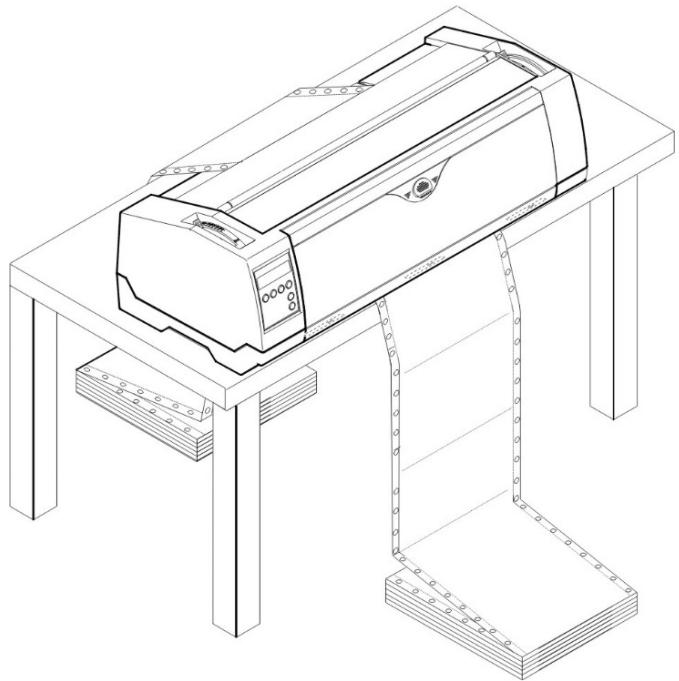

1) Never place the printer near to any flammable gas or explosive substances.
2) Do not expose the printer to direct sunlight. If you cannot avoid placing the printer near a window, protect it from the sunlight with a curtain.
3) When connecting a computer to the printer, make sure the maximum recommended cable length is not exceeded. When used with fire safety systems, the printer should be placed in the same room as the control system.
4) Ensure sufficient distance between the printer and any heating devices/radiators.
5) Avoid exposing the printer to extreme temperature or air humidity fluctuations. Above all, avoid dusty environments.
2.2 Connecting the printer
This printer is configured with a Parallel, USB, RS232 and Ethernet interface as standard.
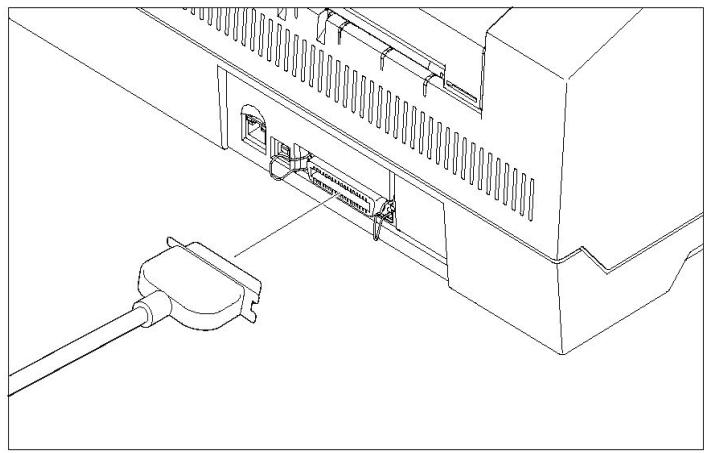
2.2.1 Parallel interface (IEEE 1284)
Make sure that the printer and the computer are switched off and connect the parallel cable between the printer and the computer. Lock the connector with the 2 clips on the printer interface connector; tighten up the 2 screws on the other end connecting to the computer.
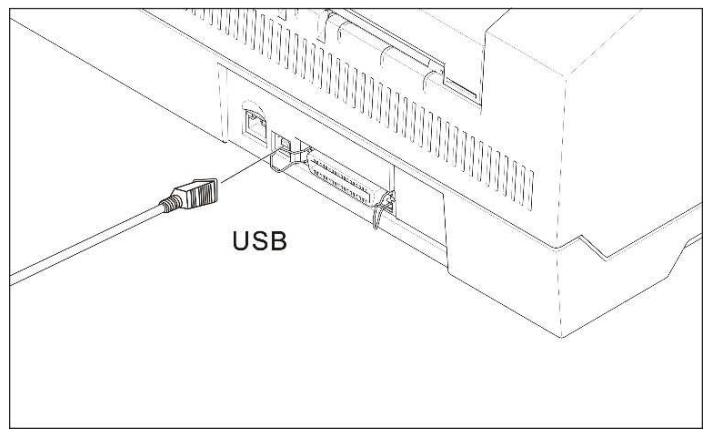
2.2.2 USB 2.0 (Full Speed)
Plug in the USB cable to the printer and the computer.
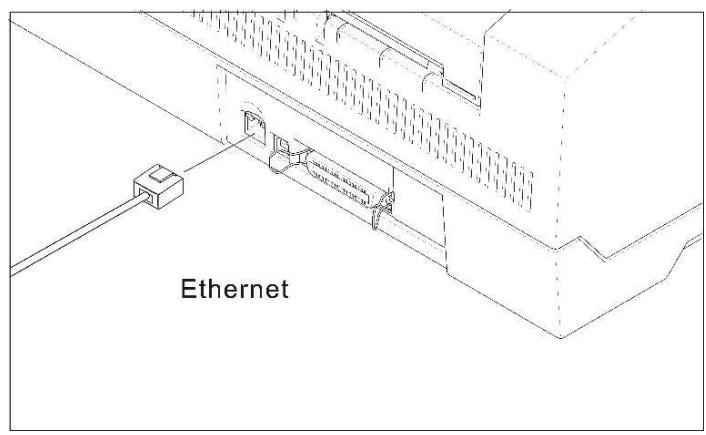
2.2.3 Ethernet
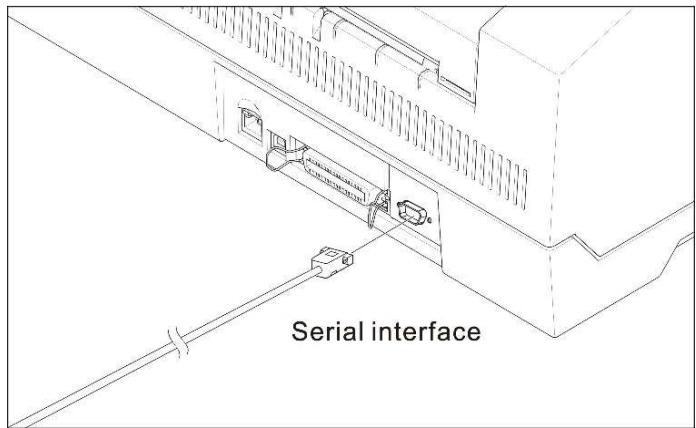
2.2.4 Serial Interface (RS-232C)
2.2.5 Connecting the power
Plug in the power cord to the printer power socket as shown in the diagram.
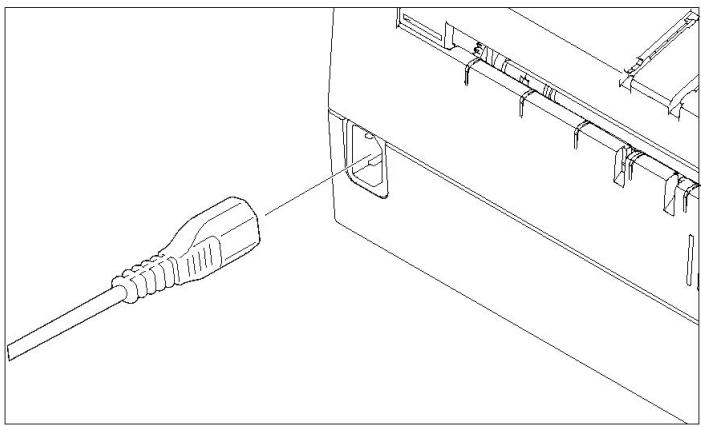

Connect the printer to the correct voltage power source.
The socket-outlet shall be installed near the equipment and shall be easily accessible.
2.2.6 Switch on the printer
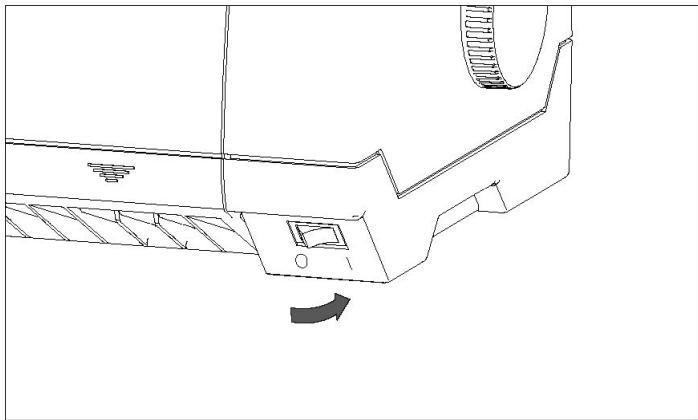
Switch on the printer as shown in the diagram.
2.3 Installing the ribbon cartridge
1) Switch off the power.
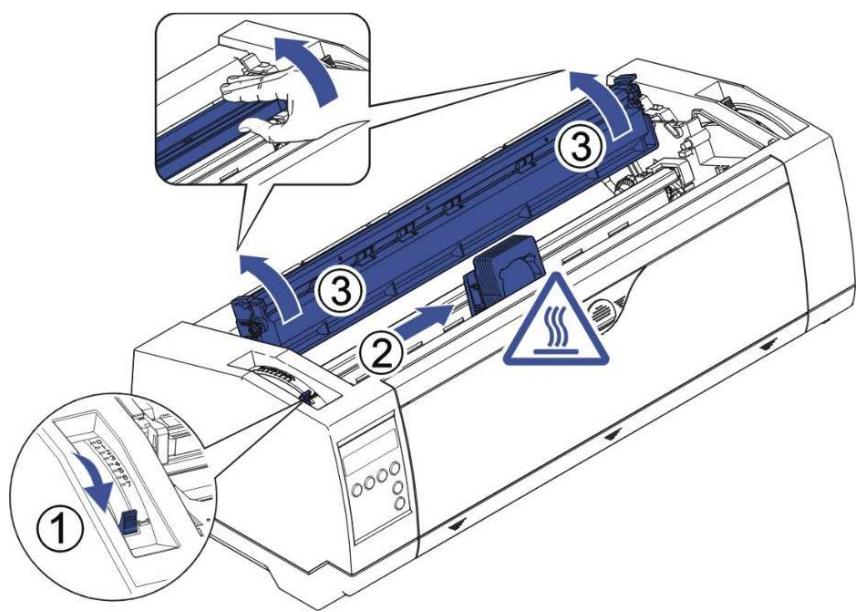
2) Unfold the top cover and follow the steps 1.2.3.4 in the below picture.
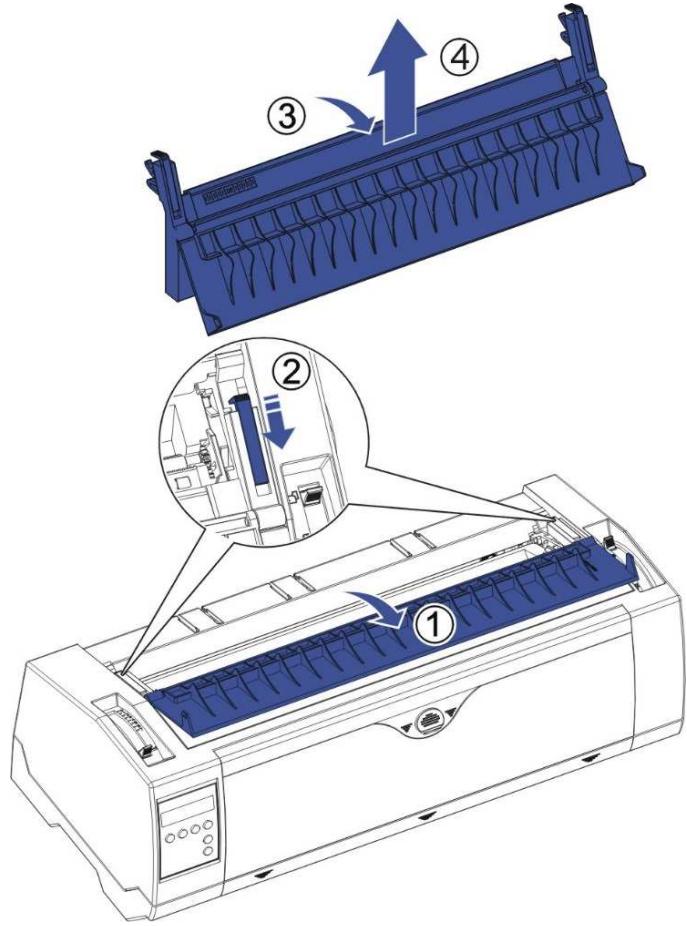
3) Flip the upper friction assembly
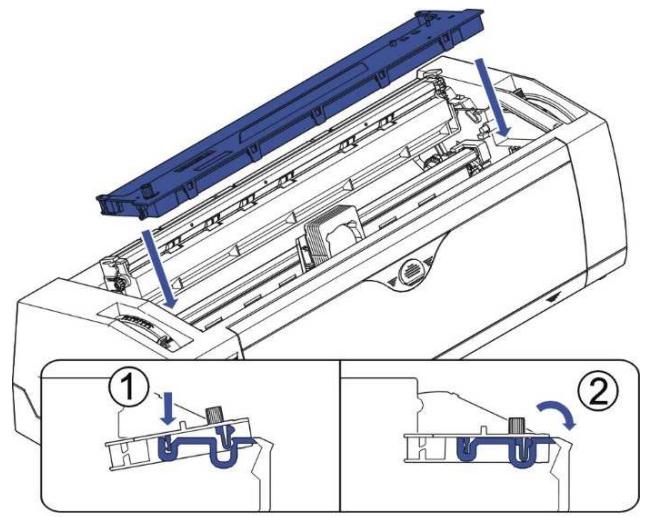
4) Insert the ribbon cartridge till it is tightly locked in position.
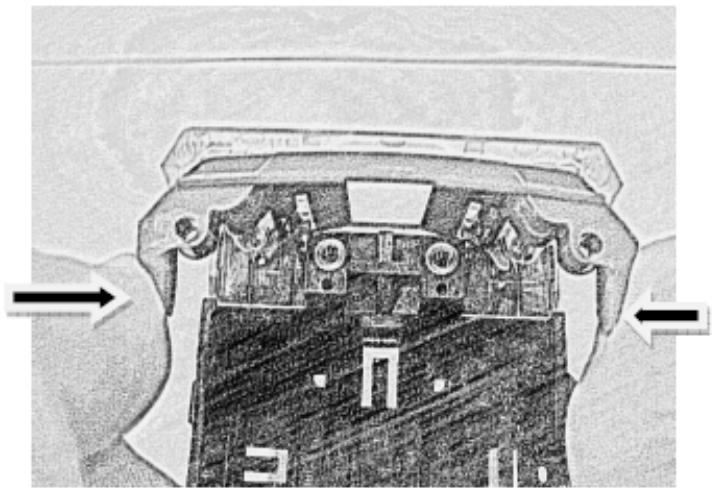
5) Insert/remove the ribbon fabric in-between the print head and ribbon mask by squeezing the outside wings of the Ribbon Guide, as shown, to position and secure the ribbon onto the print head.
6) Turn the knob on the left hand side several times in order to tighten the fabric, and the fabric will slide downwards into the correct position between print head and ribbon mask after the moving.
7) Restore the upper friction assembly to its original position.

Printhead may be hot, please move the printhead by moving the carriage.
3 Installing the paper
The printer can handle either single sheets or continuous forms. The printer is able to print up to 5 copies (original plus 5).

To ensure the print quality and protect the print head, set a proper print gap by the gap lever (see 3.1) for the form thickness and do not load folded, damaged, wrinkled, or curled paper.
3.1 Adjusting the print gap for various form thicknesses
The print gap lever is on the left side of the printer inside the top cover.
Take care to adjust the print gap lever to a suitable position whenever you change the number of copies being printed. Using the wrong print gap may cause print head damage or paper jams.
The recommended gap lever position for different form thickness is:
| Paper type | Lever position |
| 1-part | 1 |
| Original + 1 copy | 2 |
| Original + 2 copies | 3 |
| Original + 3 copies | 4 |
| Original + 4 copies | 5 |
| Original + 5 copies | 6 |
The position "Ribbon" only is suitable for loading the ribbon. When the lever is set higher than appropriate it will result in poor print. The ribbon and head life will be shortened.
3.2 Paper path introduction
3.2.1 Cut sheet paper handling (front friction only)
1) Place the paper path lever to the cut sheet position.
2) Unlock the front cover with the latch to unfold the cut sheet support.
3) Adjust the gap lever if necessary; see 3.1.
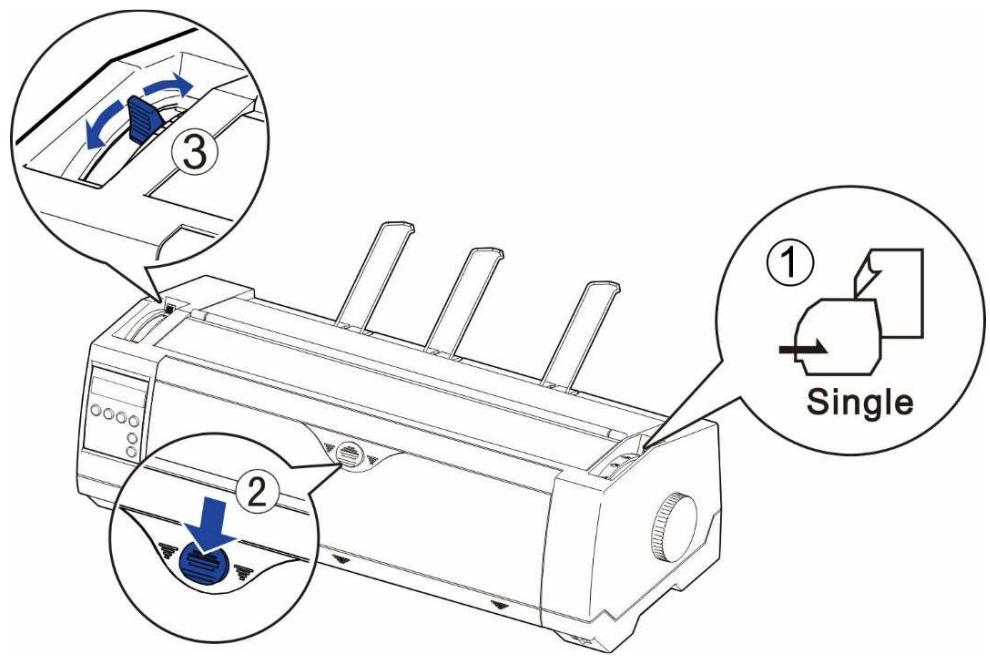
4) It is recommended to align the left paper guide exactly to the mark >1 . This marks the left edge of the stationery. Slide the right guide to the position of the right edge of the stationery.
5) Insert the stationery straightly all the way into the guided slot until it stops.
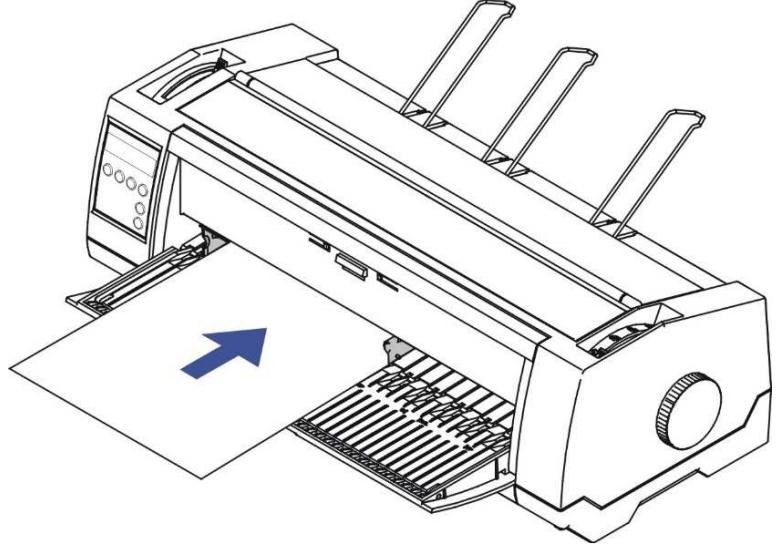
6) Press the load key to feed the paper to the correct print position, automatically. The printer clears the Paper End condition and goes into the ready or online state.
3.2.2 Fanfold paper handling
3.2.2.1 Front push tractors for fanfold

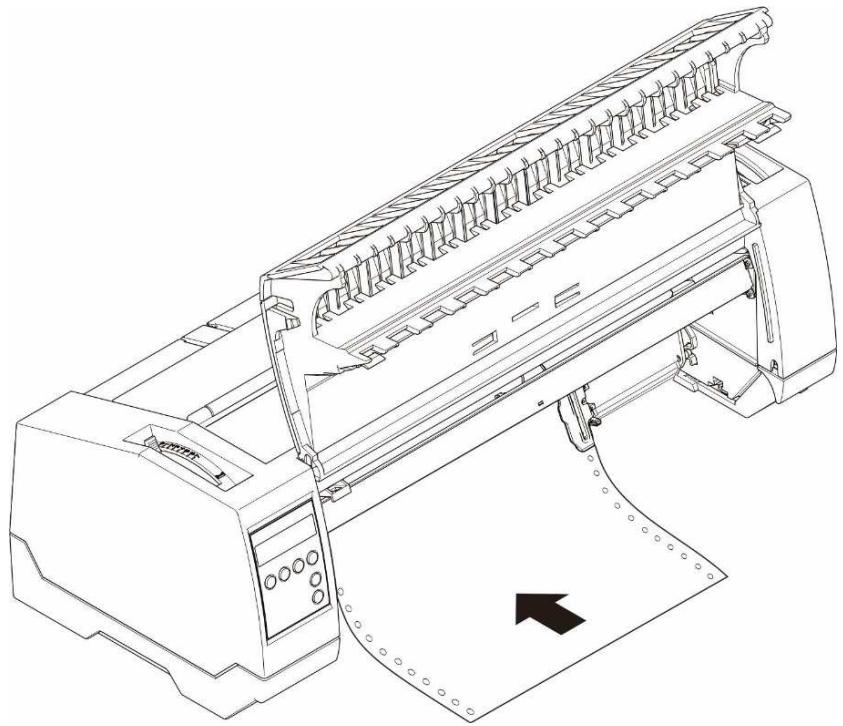
1) Close the front cover if previously opened. Switch the paper path lever to one of the desired tractor positions.
2) Move the paper path lever to the desired position.
3) Adjust the head gap lever if necessary.
4) Open the front cover by tilting the cover from bottom to the top, and make sure it's locked in place (see below pictures).
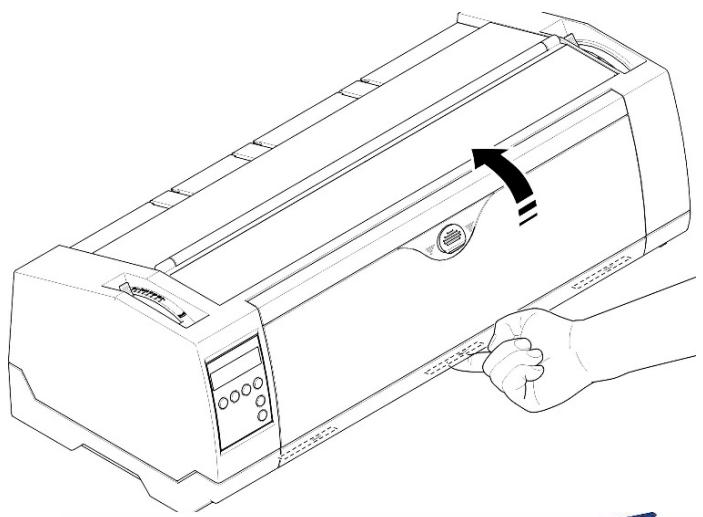
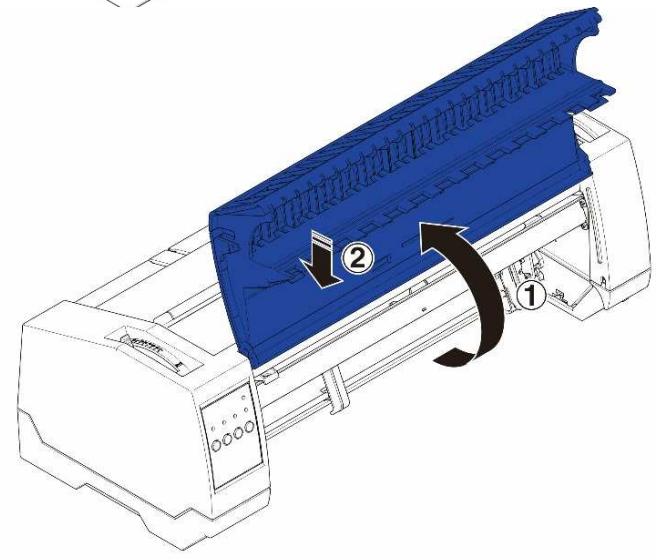
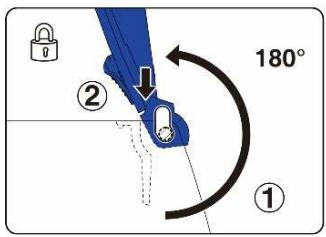
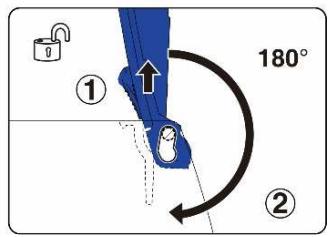

Lock the front cover in the way that is shown in the pictures.
Make sure the front cover is locked.
5) If you do not need to adjust the left margin go to the next step. Open the right and left
tractor flaps, insert fanfold paper into the left-hand tractor, and make sure that at least three paper transport holes are positioned on the tractor pins, close the tractor flap, open the latch lever and align the tractor so that the first printing position on the paper matches the IIIIIXIII mark on the printer housing, then lock the lever again.
6) Align the right-hand tractor to the width of the paper and insert the paper (Make sure that it is inserted by the same length as on the left-hand tractor in order to avoid any paper jam). Then close the tractor flap and slide the tractor to the right until the paper is slightly tensioned, then lock the tractor.
7) Lower the front cover, switch the printer on.
The active paper source (TrFront) appears in the display, the paper will automatically load when the printer is in online mode and receives data from the computer. Also, you can press the load key (key 4) only to load paper before starting the printout.
3.2.2.2 Rear tractors for fanfold

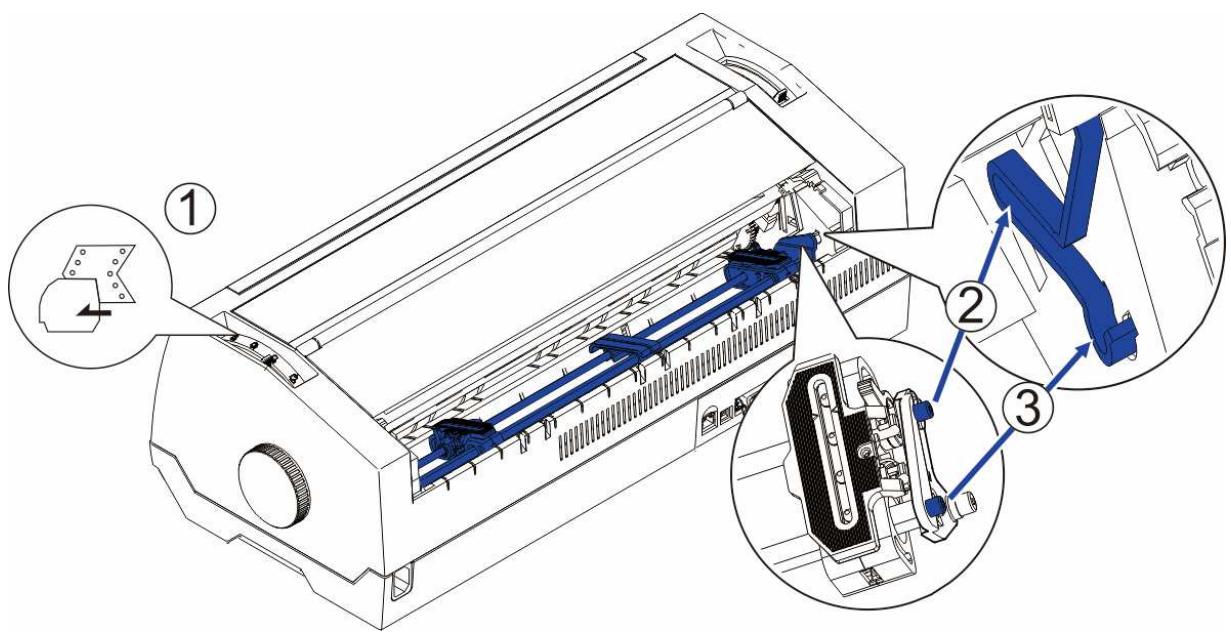
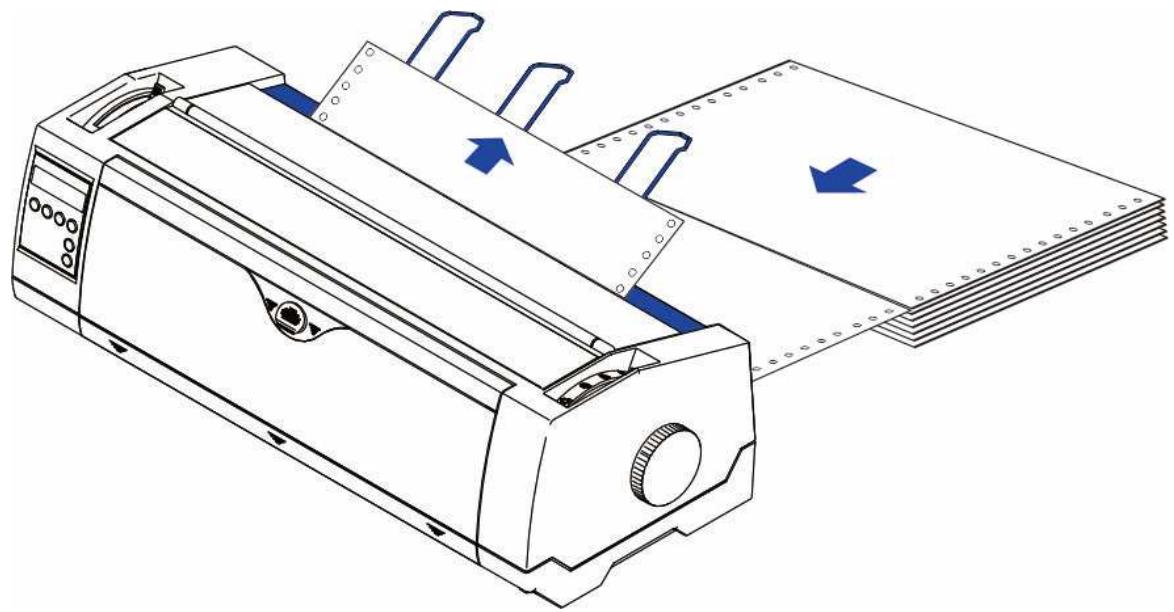
3.2.2.3 Top pull tractors for fanfold

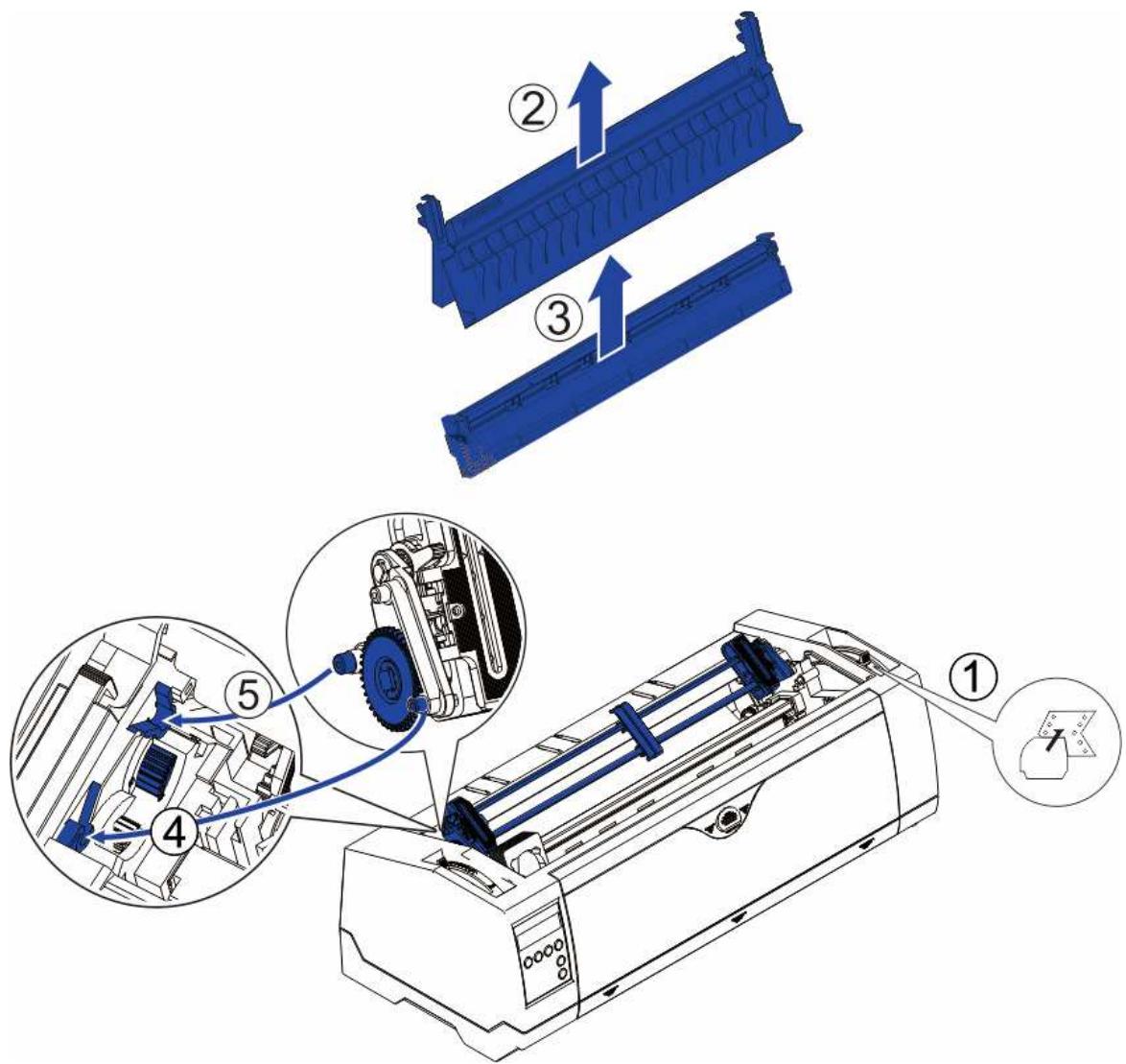
For the steps ② and ③, please refer to the 2.3
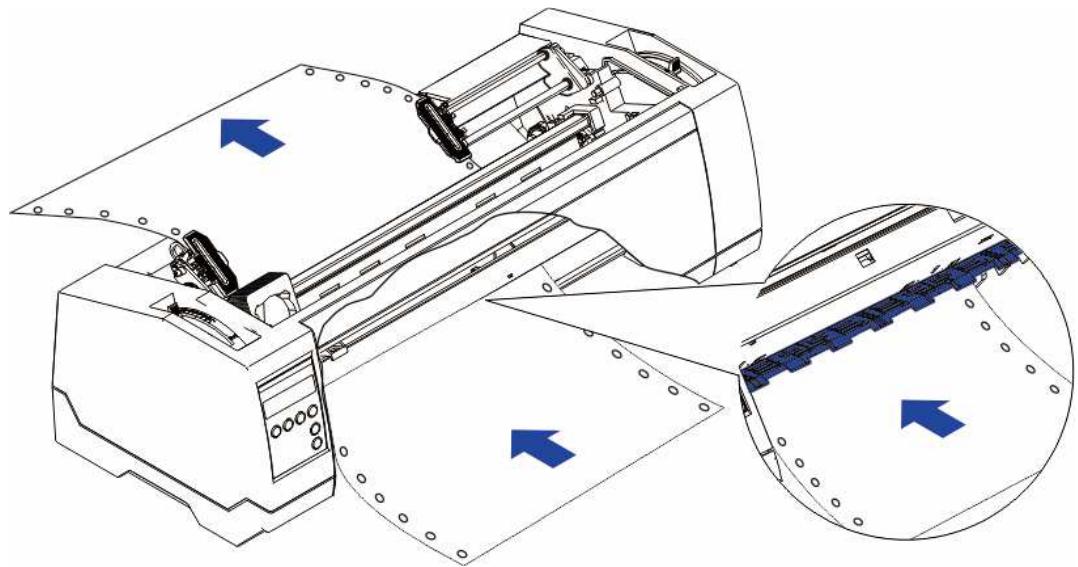
3.2.3 Top-Of-Form adjustment
For pull tractor (PullTr), follow the steps below to adjust the first print position:
1) Remove Paper from printer.
2) Power on the printer.
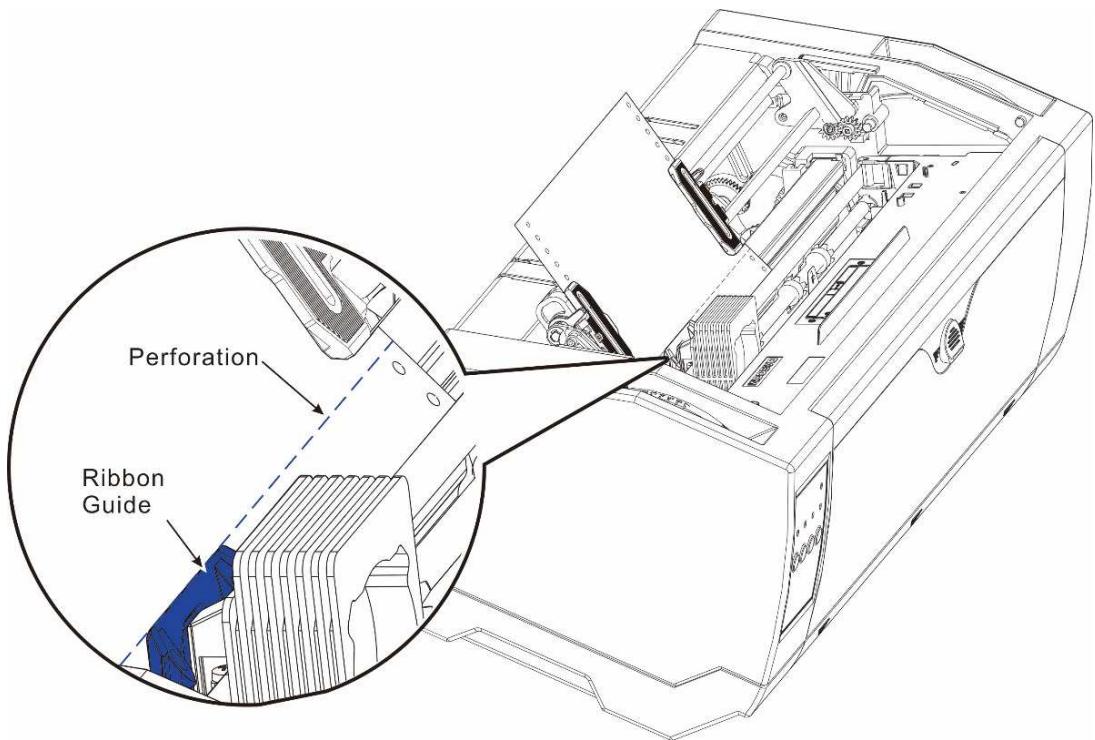
3) Lift the Top Cover so you can see the transparent ribbon guide in front of the print head.
4) Install the paper into the pull tractor.
5) Move the paper with the hand wheel so the perforation of the fanfold paper lies exactly at the top of the transparent ribbon guide.
6) Close the Top Cover.
7) Press the Load key on the panel.
8) The printer now moves the paper to the correct first print position on a page (TOF).
4 Control Panel Operation
General functions for the keys are clearly designated on the Panel label. Some other special settings need pressing multiple switches simultaneously or holding some keys when powering on the printer. This Chapter will describe the functions of the keys and display on the Panel.
4.1 Operation of the LCD Panel
The Online mode is the printer's normal operating mode. Data from your computer can be received and printed.
In the Offline mode the link between printer and computer is interrupted, i.e. no data can be received and printed.
In the Setup mode you can either select the printer menu or carry out the quick-switch function. The quick-switch option was included so that you can change the most important parameters (for example adjustments, character density, font, paper path, adjustments directly without having to enter them via the menu. The settings for the parameters character density and font are lost when the printer is switched off. They can be selected permanently in the menu mode of the printer.
In the Menu mode further printer settings (line spacing, size of the interface buffer etc.) can be altered and saved permanently.
4.1.1 The LC display
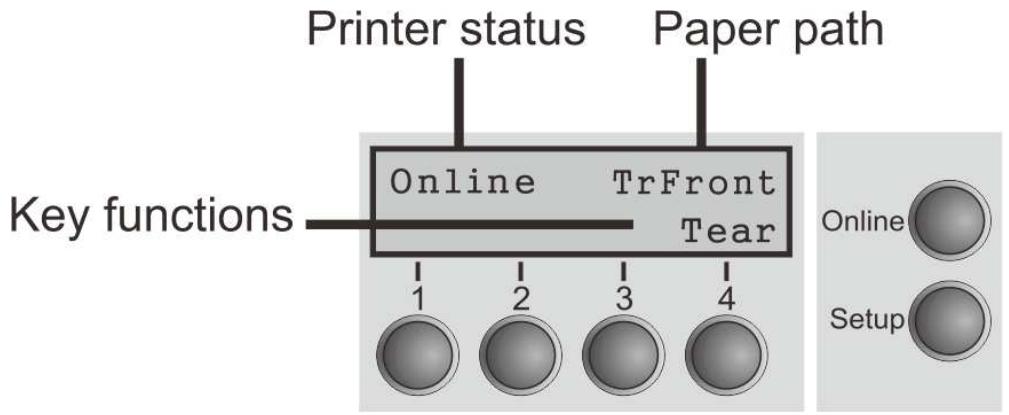
The LC display tells you all the important printer settings and informs you which functions are currently assigned to which keys.
The upper line informs you that the printer is either in online or offline mode (in the example below the printer is in the Online mode), and the selected paper path (below: TrFront = tractor front mode).
4.1.2 Online mode
After switching on, the printer is automatically set to online mode. Only in this mode can it receive data from the computer.
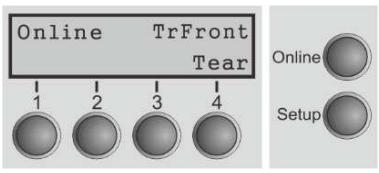
Online key: Toggle between Online and Offline mode.
Tear key (4): Activates the tear function when fanfold paper
is loaded.
If Load is displayed above this key, no paper is loaded in the printer or the paper is in park position. In this case the display switches between Online and Park Position. Press the key to feed paper to the printing position.
Setup key: Sets the printer to setup mode.
4.1.3 Offline mode
Only in this mode is it possible to perform step, line, or form feeds from the control panel, however, data cannot be received.
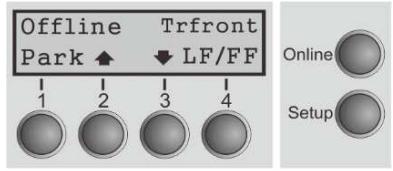
Park key (1)
If fanfold paper is loaded in the printer, it is fed to the park position or the tear position. If a single sheet is loaded, it is ejected.
key (2)
Each press: Paper is transported upwards step by step. Holding: Continuous transport upwards.
key (3)
Each press: Paper is transported downwards step by step.
Holding: Continuous transport downwards.
LF/FF (4)
Paper in the printer:
Each press: performs a line feed (LF).
Holding: performs a form feed (FF).
Load key (4)
No paper in the printer: The press on this key loads the paper to the first print position.
Setup key: Sets the printer to setup mode.
Online key: Sets the printer to online mode.
4.1.4 Setup mode
In this mode, the following settings are available:
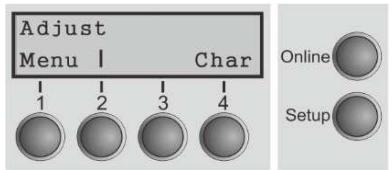
Setup key: Sets the printer to setup mode, in which the following settings can be selected.
■Menu key (1): Other menu settings. Access may be disabled by menu settings (see note below).
Adjust key (2): Sets the Tear position and first printing line (TOF). If you have the PullTr (Pull - Tractor) selected Adjust is not available.
Char key (4): Sets the font and the number of characters per inch temporarily.
Access to the other menu settings (Menu) may be disabled by the manufacturer.
Proceed as follows to release this lock temporarily.
1) Switch off the printer for approx. 5 seconds.
2) Switch the printer on again keeping the Setup key pressed.
4.1.5 Power on functions
If you keep one of the following keys pressed during power-on until the printer has completed initialization, the corresponding function is activated:
If you keep the Online key depressed while turning on the printer, you enter the printer's advanced menu mode. The advanced menu mode is described in the section 5.4.2 of this manual.
If you keep the Setup key depressed while turning on the printer, you regain access to the printer menu if you had locked it before with the help of the Menu Lock function.
If all four function keys (keys 1 to 4) are depressed simultaneously while turning on the power, all printer settings are reset to the default values, except the Forml (Form length) setting in advanced menu mode.
Holding Function key 4 while turning on the printer prints out the parameter settings.
5 Setting parameters for the printer
(Programming via the control panel)
Apart from being able to control your printer via the applications software you use, you can also program the printer directly. There are two programming options you can use:
Programming via the control panel.
Programming via the interface using Escape sequences or control codes.

Settings made by escape sequences have priority over settings made in menu mode; therefore they will override these.
Programming via the interface gives you far greater freedom for designing your printed pages, however, it is also a more sophisticated method and requires some experience with programming languages and printer control systems.
All programming via the interface is lost after you turn off the printer, whereas the programming carried out using the control panel is saved and stored even after you turn off
the printer.
5.1 Setting the parameters through the LCD Panel
This chapter describes the handling of the operator's panel with optional display.
5.1.1 Enabling access to menu mode
The menu can be locked by default to protect it from accidental or unauthorized access. Proceed as follows to release this lock temporarily.
1) Switch off the printer for approx. 5 seconds.
2) Switch the printer on again keeping the Setup key pressed.
Calling up the menu
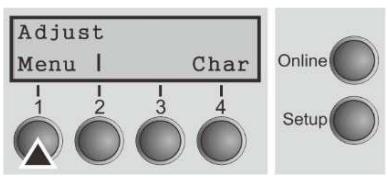
You can access the menu in the following way: Press the Setup key. The printer switches to Setup mode. (The Setup mode can be selected both in the Online and Offline mode)
To access the printer menu, press the key directly underneath the word Menu (1).
5.1.2 Menu configurations
Every printer is shipped with factory default settings. Basic settings such as emulation, character size, form length etc., which many applications make use of, are set. At the end of this chapter you will find a menu printout which shows you the printer's default settings.
Your printer allows you to set and use five independent menu configurations. If one of your applications, for example, requires an IBM printer while another program works better with an EPSON printer, you can set an IBM emulation configuration with the desired settings, and set the second configuration as an EPSON emulation.
The active menu is always the one you used last. When you switch on the printer for the very first time, menu no. 1 is loaded. Menu no.1 only remains active until you load another menu. The last active menu is stored even after the printer is switched off and is reloaded automatically when the printer is switched on again.
For example, to change from menu no. 1 to menu no. 3:
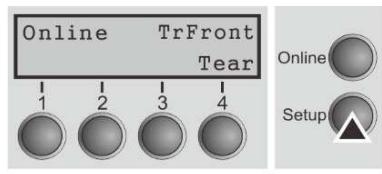
Press Setup key.
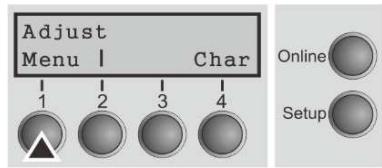
Press Menu (1) key.
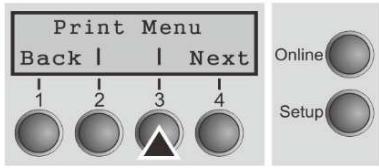
Press Menu (3) key.
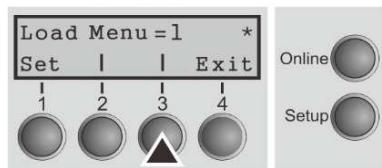
Now the following message appears in the LC display: Now press the < (2) or > (3) key repeatedly until Load
appears.
Then select menu no. 3 as the current setting using the Set key
(1). The currently active setting is marked with an asterisk () .

If changing menus it is possible that the printer initializes due to different emulation settings.
Menu Printout
| Menu 1 | Menu 2 | Menu 3 | Menu 4 | Menu 5 | Current | |
| Font | HS-Draft | HS-Draft | HS-Draft | HS-Draft | HS-Draft | HS-Draft |
| CPI | 10 CPI | 10 CPI | 10 CPI | 10 CPI | 10 CPI | 10 CPI |
| LPI | 6 LPI | 6 LPI | 6 LPI | 6 LPI | 6 LPI | 6 LPI |
| Skip | 0.01Inch | 0.01Inch | 0.01Inch | 0.01Inch | 0.01Inch | 0.01Inch |
| ESCCChar | ESC | ESC | ESC | ESC | ESC | ESC |
| Emulate | Epson LQ-2550 | IBM Propr. XL24 | Epson LQ-2550 | Epson LQ-2550 | Epson LQ-2550 | Epson LQ-2550 |
| Bidir | On | On | On | On | On | On |
| CG-Tab | Graphic | Graphic | Graphic | Graphic | Graphic | Graphic |
| CharSet | Extended | Extended | Extended | Extended | Extended | Extended |
| Country | E-US ASCII | Table 437 | E-US ASCII | E-US ASCII | E-US ASCII | E-US ASCII |
| Sl.Zero | Off | Off | Off | Off | Off | Off |
| Auto-CR | On | On | On | On | On | On |
| Auto-LF | Off | Off | Off | Off | Off | Off |
| AutoTear | ViewTear=Off | ViewTear=Off | ViewTear=Off | ViewTear=Off | ViewTear=Off | ViewTear=Off |
| Width | 13.61Inch | 13.61Inch | 13.61Inch | 13.61Inch | 13.61Inch | 13.61Inch |
| LeftMrg | 0/10" | 0/10" | 0/10" | 0/10" | 0/10" | 0/10" |
| RightMrg | 136/10" | 136/10" | 136/10" | 136/10" | 136/10" | 136/10" |
| Barcode | Off | Off | Off | Off | Off | Off |
| Harmode | Unsecured | Unsecured | Unsecured | Unsecured | Unsecured | Unsecured |
| Single | ||||||
| Formlen | Fanfold 12" | Fanfold 12" | Fanfold 12" | Fanfold 12" | Fanfold 12" | Fanfold 12" |
| FormAdj | 12/72" | 12/72" | 12/72" | 12/72" | 12/72" | 12/72" |
| TrFront | * | * | * | * | * | * |
| Formlen | Fanfold 12" | Fanfold 12" | Fanfold 12" | Fanfold 12" | Fanfold 12" | Fanfold 12" |
| FormAdj | 12/72" | 12/72" | 12/72" | 12/72" | 12/72" | 12/72" |
| TrRear | ||||||
| Formlen | Fanfold 12" | Fanfold 12" | Fanfold 12" | Fanfold 12" | Fanfold 12" | Fanfold 12" |
| FormAdj | 12/72" | 12/72" | 12/72" | 12/72" | 12/72" | 12/72” |
| PullTr. | ||||||
| Formlen | Fanfold 12" | Fanfold 12" | Fanfold 12" | Fanfold 12" | Fanfold 12" | Fanfold 12" |
| FormAdj | 12/72" | 12/72" | 12/72" | 12/72" | 12/72" | 12/72“ |
| Interf. | Shared | |||||
| Buffer | 256 KB | |||||
| CX-bid | On | |||||
| Menu | 1 | |||||
| fearAdj TrFront | 0/72" | |||||
| fearAdj TrRear | 0/72" | |||||
| fearAdj PullTr. | 0/72" | |||||
| Quietm. | Off | |||||
| Pap/back | normal | |||||
| Sound | On | |||||
| FFmode | Off | |||||
| Wrap | On | |||||
| Physim | 0/10" | |||||
| Hvy Form | Off | |||||
| GrSpeed | high | |||||
| Jobcntl | Off | |||||
| Eject | Top | |||||
| UltraDr. | Off | |||||
| Serial | ||||||
| Baud | 9600 | |||||
| Format | 8Bit No 1Stop | |||||
| Protocol | XON/XOFF | |||||
| DTR | DTR | |||||
| ETH-INT | OCTET 1 | OCTET 2 | OCTET 3 | OCTET 4 | ||
| IP Addr | 192 | 168 | 0 | 22 | ||
| Gateway | 192 | 168 | 0 | 10 | ||
| Subnet | 255 | 255 | 255 | 0 | ||
| IP Get Method | DHCP |
5.1.3 Menu handling
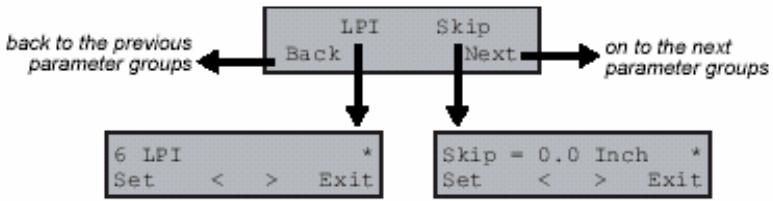
You can navigate in the current menu using the four function and selection keys arranged below the LC display field. Each function and parameter displayed in the LCD is executed or selected by the corresponding key below, respectively. Usually two parameter groups are combined at one level. In the following example, these are the LPI and Skip parameter groups.
If you do not wish to change one of the two parameters you can either press the Next key (to access the two following parameter groups in the menu), or you can press the Back key (to access the two previous parameter groups in the menu).
If you want to change a setting, (e.g. the line density), then press the LPI key (LPI = lines per inch) to access the actual parameter level.
The currently valid setting is marked by an asterisk (in the example below the current setting is 6 lpi). With the < and > keys you can view the other parameters available for
this setting.
Example:
Save settings
Once the desired parameter is displayed on the LC display, you can save it by pressing the Set key. The parameter is then set and the printer automatically displays the parameter groups again. With the Exit key you can leave the sublevel without saving your changes.
5.1.4 Selecting the LC display language
This section describes how to make settings in the menu, using the selection of the national
language as an example.
In this user guide all LC display messages are shown in English language. Your printer offers also the possibility to show the display messages in German, French, Italian, Spanish or Turkish language. This example shows how to change from the English language to the German language. The same procedure applies to the other languages (French, Italian, Spanish and Turkish).
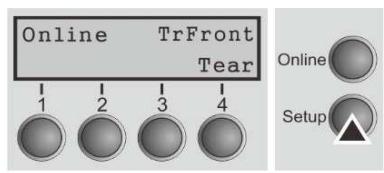
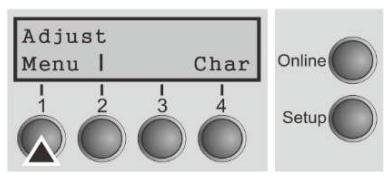
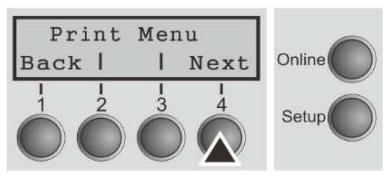
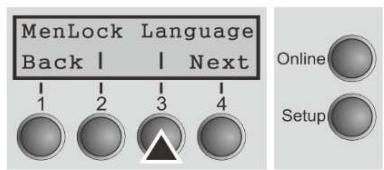
Select the Setup mode by pressing the Setup key.

Setup mode and Menu mode may be disabled. Hold down the Setup key while switching on the printer to enable menu mode. If you want to enable access to this mode permanently, you need to change the appropriatesetting in the menu.
Press the next key (4) several times until the display indicates Language.
Press the Language key (3).
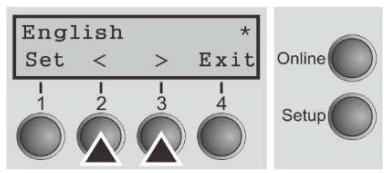
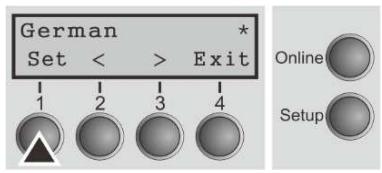
The display now changes to Parameter mode and indicates
English in the top line.
The lower line displays Set and Exit. The two arrows < (2) and > (3) represent the symbols for parameter selection (" << indicates descending and ">>" ascending). Press the
(2) or > (3) key until the desired language is displayed, in our example German.
Save your selection by pressing the Set key (1). An acoustic signal verifies this action.
You can exit Parameter mode without saving a setting by
pressing the Exit key (4), the old setting is retained.
After saving your setting (Set), the display in our example Ges.Men indicates the following text:
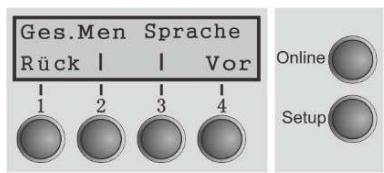

This setting is retained even after switching off your printer.Terminating Setup mode presse either the Setup key to change into Offline mode or the Online key to change to Online mode.
5.3 Menu structure
The menu structure of your printer may be slightly different from the example shown here, depending on the printer software.
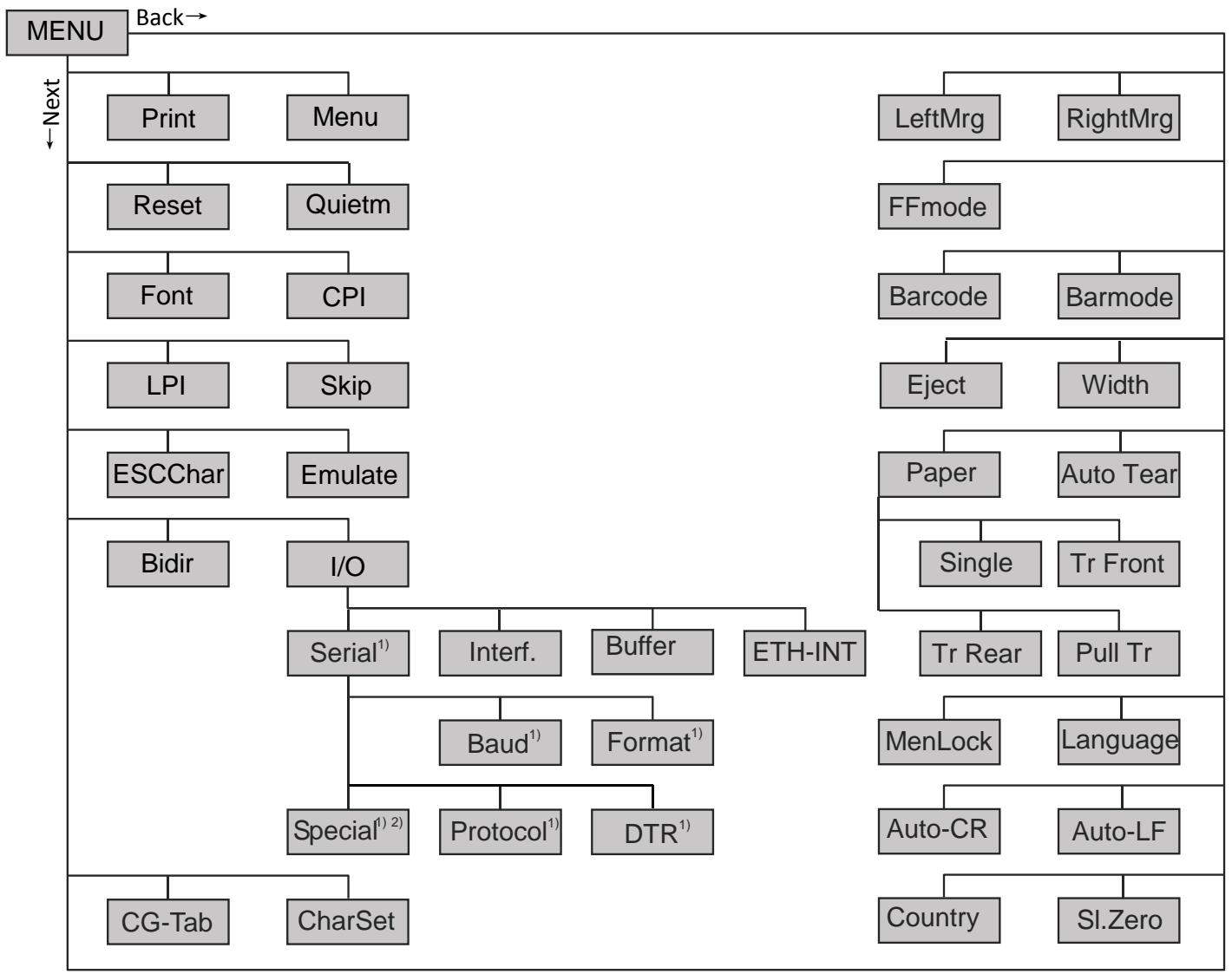
1) Only with serial interface
2) Only if ENQ/STX, ETX/ACK or ACK/NAK protocol is selected
5.4 Full list parameters setting
In order to meet individual requirements of printer functionality, users may modify the printer configuration settings accordingly as follows: start by pressing [Load/Eject] + [Speed] in offline mode. The printer will enter Main Menu settings setup mode. Follow the instructions printed on how to do the required setting changes. When a new setting is saved, it becomes effective, even when printer is power cycled.
5.4.1 Menu Configuration list
| Menu | Valid Settings | Function | ||
| Adjust | TOF Tear | Setting the tear position. Setting the first printing line (TOF). | ||
| Print the menu settings. | ||||
| Menu | Load Menu=1 Load Menu=2 Load Menu=3 Load Menu=4 Load Menu=5 | A menu is loaded, you can choose between five menus. | ||
| Reset | Reset Menu Yes No | Press the No (1) or Yes (2) key to select the desired setting. All manually altered settings in the current menu are lost when it is reset to the default settings. We therefore recommend that you print out the menu first. | ||
| Quietm | Off On | Switches between normal and quiet mode printing. For all printing modes, the print-out is made with the bidirectional method in quiet mode printing. In the first step the first row of pins is activated, during the second step the second row is used. | ||
| Font | HS-Draft | Draft | Roman NLQ | This parameter selects the character style and its quality permanently. |
| Roman LQ | Roman PS NLQ | Roman PS LQ | ||
| CourierNLQ | Sans Serif NLQ | Sans Serif LQ | ||
| Courier LQ | S Serif PS NLQ | S Serif PS LQ | ||
| Prestige NLO | Prestige LQ | Script NLQ | |||
| Script LQ | OCR-B NLQ | OCR-B LQ | |||
| OCR-A NLQ | OCR-A LQ | Orator NLQ | |||
| Courier I NLO | Courier I LQ | Orator LQ | |||
| Souvenir NLQ | Courier I PS NLQ | Gothic NLQ | |||
| Souvenir LQ | Courier I PS LQ | Gothic LQ | |||
| CPI | 10 CPI, 12 CPI, 15 CPI, 17.1 CPI, 20 CPI, 5 CPI, 6 CPI, 7.5 CPI, 8.6 CPI. | Sets the characters per inch (character pitch). The higher parameter the smaller character spacing. | |||
| LPI | 6 LPI, 8 LPI, 12 LPI, 2 LPI, 3 LPI, 4 LPI. | Sets the lines per inch (line density). The higher parameter the smaller line spacing (random LPI can be selected via the ESC sequences). | |||
| Skip | Skip=0.0 Inch, Skip=0.5 Inch, Skip=1.0 Inch, Skip=1.5 Inch, Skip=2.0 Inch, Skip=2.5 Inch, Skip=3.0 Inch, Skip=3.5 Inch. | Skipping the perforation; 7 different values (in inches) can be defined. | |||
| ESCChar | ESC ESC+$ | Selects the start signal for control sequences. Setting ESC: Only character Escape can be used. Setting ESC+: Character Escape or alternatively two characters ($$) can be used. | |||
| Emulate | Epson LQ-2550 Epson LQ-2170 IBM Propr. XL24 IBM ProXL24+AGM MTPL | Selects the emulation. When a printer understands the control set written for another printer type, it is said to emulate the other printer. | |||
| Bidir | Bidir=On Bidir=Off | Setting On: Printer prints in both directions (bidirectional). Setting Off: Printer prints only in one direction (from left to right). | |||
| I/O | Serial | Baud | Baud=9600 Baud=9200 Baud=600 Baud=1200 Baud=2400 Baud=4800 | Selects the data transmission rate (baud rate) (baud=bit per second). | |
| Format | 8Bit No 1Stop8Bit No 2Stop8Bit Even 1Stop8Bit Odd 1Stop8Bit Mark 1Stop8Bit Spc 1Stop7Bit No 2Stop7Bit Even 1Stop7Bit Odd 1Stop7Bit Odd 2Stop7Bit Mark 1Stop7Bit Spc 1Stop7Bit Mark 2Stop7Bit Spc 2Stop | This parameter serves to define the number of data bits, the parity check for received data bytes and the number of stop bits per data byte. | |||
| Protocol | XON/XOFFRobust-XON/XOFFENQ/STXETX/ACKACK/NAK | This parameter serves to select the type of protocol, i.e. a certain set of rules and procedures for ensuring error-free data exchanges between computer and printer. | |||
| DTR | DTR=OffDTR=on | Defines the conductor to which the DTR signal is connected (DTR=Data Terminal Ready). | |||
| Interf. | Interf.=ShareInterf.=ParallelInterf.=Serial | Selects the interface. Printer is configured either for parallel. Ethernet or serial connection or in automatic change for the parallel or the serial interface (Shared). | |||
| Buffer | Buffer=0 KBBuffer=32 KBBuffer=64 KBBuffer=96 KBBuffer=128 KBBuffer=160KBBuffer=192KBBuffer=224KBBuffer=256KB | Selects the size of the interface buffer. | |||
| ETH-INT | IP-Addr | Octets 1-40 to 255 | Input of the IP address of the printerThis menu level offers the possibility to set the IP address, which is divided into four digit groups (octet 1 to 4). | ||
| Gateway | Octets 1-40 to 255 | Input of the Gateway address of the printer. | |||
| Subnet | Octets 1-40 to 255 | Input of the Subnet mask address of the printer. | |||
| IP Get M | DHCP BOOTPStatic | Selects the way of administrating the IP address. | |||
| Banner | Off On | Specifies whether a banner page is to be printed out, when using the LPD/LPR protocol. | |||
| EthSpeed | Auto-Sense | The transmission speed is detected automatically. | |||
| 10Mbit Half | Sets the transmission speed to 10 MBit half duplex per second. | ||||
| 10Mbit Full | Sets the transmission speed to 10 MBit full duplex per second. | ||||
| 100Mbit Half | Sets the transmission speed to 100 MBit half duplex per second. | ||||
| 100Mbit Full | Sets the transmission speed to 100 MBit full duplex per second. | ||||
| CG-Tab | Graphic DLL Italic | Only available for Epson LQ-2550/LQ-2170 emulation. Either the Epson character set Italics or the IBM graphics character set or a DLL (download) character set, as defined before, can be activated in the code range from hex. A0 to hex. FE. | |||
| CharSet | Extended Standard | Selects the IBM standard characters or the extended IBM characters. | |||
| Country | E-USASCII | E-France | E-German | Selects the national character set. These character sets can be used according to the selected emulation. | |
| E-UK | E-Denmark I | E-Sweden | |||
| E-Italy | E-Spain I | E-Japan | |||
| E-Norway | E-Denmark II | E-Spain II | |||
| E-L.America | E-Korea | E-Legal | |||
| ISO8859-1 | ISO8859-1 SAP | ISO8859-2 | |||
| ISO8859-5 | ISO8859-7 | ISO8859-9 | |||
| ISO8859-15 | ELOT-928 | BRASCII | |||
| Abicomp | Roman8 | US-ASCII | |||
| French | German | Italian | |||
| Swedish | Norwegian | Spanish | |||
| Portuguese | Greek DEC | Cro-ASCII | |||
| Coax/Twinax | Table 437 | New-437 | |||
| Table 737 | 775 Baltic | Table 850 | |||
| New-Dig 850 | Table 851 | Table 852 | |||
| Table 857 | Table 858 | Table 860 | |||
| Table 861 | Old-Code 860 | Table 863 | |||
| Flarro 863 | Table 865 | 865 Hebrew | |||
| Table 866 | 866 Bulgaria | 866 Ukraine | |||
| 866 Kazakhst | Kamenicky | Mazovia | |||
| Siemens Turk | DECTurkish | Table 1250 | |||
| Table 1251 | Table 1252 | Table 1253 | |||
| Table 1254 | Table 1257 | ||||
| Sl.Zero | Sl.Zero=Off Sl.Zero=On | Selects if normal zero (0) or the slashed zero (Ø) is printed. | |||
| AutoCR | On Off | Switches the automatic carriage return on or off after receiving the signal LF (line feed). | |||
| AutoLF | Off On | Switches the automatic line feed (LF) on or off after receiving the signal CR (carriage return). | |||
| Menlock | Off Menu All | With MenLock=Off, all functions and settings are accessible without restriction in Online, Offline and Setup mode. If MenLock=Menu is activated, all functions and settings are still accessible in Online and Offline mode, however, in Setup mode you can only access the parameter groups Adjust (setting the print head gap [Head], top of form [TOF] and tear position [Tear]), Paperway (setting the paper path), Font (setting the font) and the character spacing (CPI), while access to Menu mode (Menu key) is disabled. If you select MenLock=All, you can access the Online/Offline, Load/Park, Paper and Paper Feed (LineFeed/Form Feed, / ) functions in Online and Offline mode while Setup mode is disabled. In this case, the Setup menu can only be called up by holding the key Setup while switching on the printer. | |||
| Languag e | English German French Italian Spanish Turkish | The menu can be shown in six languages. | |||
| Paper | Single TrFront TrRear PullTr | Selects the paper parameters Formlen (form length), FormAdj (first printing position/TOF) separately for each paper source in the current menu. | |||
| Formlen | Lines | =6 - 132 Default 6LPI = 66 Single:3-22 inches TrFront、TrRear、PullTr: 1-22 inches | Sets the form length via line formats. Please note that the adjustment in Lines depends on the selected LPI. For example 8 LPI at a selected line number of 96 lines results in a form length of 12 inches (96lines/[8lines/inch]) = 12 inches. The selectable range is between 3 and 21 inches, i.e. for 2 LPI from 6 to 42 lines and for 12 LPI from 24 to 262 lines. If the form length is set it will not be changed by changing the LPI later on. | ||
| Standard | No format DIN A3 (420 mm) DIN A4 (297 mm) DIN A5 (210 mm) DIN B5 (250 mm) DIN B6 (176 mm) DIN C6 (162 mm) Executive 10.5" Letter 11" Fanfold 12" Legal 14" | Selects the form length by standard formats. Using Standard, different paper formats can be selected directly, e.g. DIN A4, Legal, Letter. The Menu indicates No format if a value is selected by the Line function or ESC sequences, which does not correspond to a standard format. | |||
| FormAdj | FormAdj=0 -220/72" Default 12/72" | Sets the first print position of a form in n/72 inch, separately adjustable for each paper path. | |||
| Autotear | ViewTear =Off View=1s/3s/6s Tear=1s/3s/6s Tear at TOF | The auto tear function or the auto view function can be selected as desired. When auto view is switched on, the last printed text is visible. As soon as data is received the paper moves to the "normal" print position. After printing the printer waits for the given interval to bring the paper once more to the auto view position. The paper is in the tear off position when auto tear is switched on, the perforation of the positioned at the | |||
| tear off edge of the printer. If data is received, the paper returns to the normal print position. After printing, the printer waits for the given interval to bring the paper once more to the tear off position. If the tear off edge does is not aligned with the perforation of the paper then this can be corrected. | |||||
| Width | Width=13.6Inch Width=8Inch Width=13.2Inch | Selects the line length in inches. With the setting of 8 Inch, the printer operates like a printer with a width of only 8 inches. | |||
| Eject | Eject=Top Eject=Front | This is valid for single sheet mode only. It controls the exit direction of the friction sheet paper. | |||
| Barcode | Off On | With this function selected it is possible to print different barcodes and LCP (Large Character Printing). | |||
| Barmode | Unsecured Secured | Allows printing of normal characters on the left and right of the barcode. | |||
| FFmode | Off On | Specifies whether a form feed is to be performed when the paper reaches the top print line. | |||
| LeftMrg | Wide: LeftMrg=0 - 134/10" Narrow: LeftMrg=0 - 78/10" | The left print margin can be set to a fixed value. | |||
| RightMrg | Wide: RightMrg=2 - 136/10" Narrow: RightMrg=2 - 80/10" | The right print margin can be set to a fixed value. | |||
5.4.2 Advanced Menu
| Advanced Menu | Valid Settings | Function | |
| ASCII80 | 8 inch wide print of test pattern | To check operational readiness, your printer contains a self-test routine which allows testing of the printer configuration, the print quality and correct operation of your printer. | |
| H-Dump | With the interface test (Hex-Dump/H-Dump) you can test data transmission from the computer to the printer. During this test, the data from the computer is printed out in two columns. The text in the left column is printed in hexadecimal format and in the right column in ASCII format. | ||
| Formlen | 12" 11" | The Formlen function allows you to set the basic (default) form length to meet your requirements. 11 inches are usual in the USA, as opposed to 12 inches in Europe. | |
| Paphand | Physlm | Physlm=0 - 30/10" | Permanent (physical) setting of the left margin. This parameter cannot be changed by emulation dependent margin settings. Margin setting values entered by ESC sequences are added to the Physlm. |
| PLM | On Off | If PLM is on, flatten the paper edges by carriage movement before printing starts. | |
| Pagewid | 20-136/10" | It is used for setting the distance of carriage movement in Paper Jam Prevention mode. | |
| Widthcon | Off On | When Widthcon is on, the parameters set by Pagewid are valid; When Widthcon is "off", the distance of carriage movement in Paper Jam Prevention mode is 136/10". | |
| CX-bid | CX-bid=ON CX-bid=OFF | CX-bid=ON sets the parallel interface of the printer to bidirectional mode (IEEE 1284, Nibble mode), e.g. for Windows Plug & Play. CX-bid=OFF sets the interface to compatibility mode in order to ensure reliable operation with | |
| special external boxes. | |||
| Wrap | Wrap=On Wrap=Off | Wrap=On: If more characters than can be printed are transmitted per line, the characters which cannot be printed on this line are printed at the beginning of next line. Wrap=Off: If more characters than can be printed are transmitted per line, the characters which cannot be printed on this line are cut off. | |
| Sound | Sound=On Sound=Off | When Sound=On, a beep is generated every second to notify that paper is empty. | |
| Pap.back | Pap(back=normal Pap.backdark | Pap.back=normal is the standard for normal paper. Pap.back-dark can be set to process paper with a grey back. Paper with a completely black back side cannot be used if the ink is carbon-based. However, the printer can handle aniline- based black paper (undefined colors). | |
| Hvy Form | HvyForm=ON HvyForm=OFF | If you set HvyForm=ON, the printer prints the same line twice at double strike. This setting ensures that copy paper produces optimum results. | |
| SerialN | factory set | With the SerialN function you have the possibility to change the 12 digit serial number of the printer. The number can be written with any ASCII character between hex 20 and hex 7E. | |
| AssetN | 10 digits empty | With the AssetN function you have the possibility to change the 10 digit asset number of the printer. The number can be written with any ASCII character between hex 20 and hex 7E. | |
| GrSpeed | GrSpeed=Normal GrSpeed=High | This parameter allows improved Graphic Speed independently to the driver. It affects only the print speed of graphic printouts at 180 x 180 dpi. | |
| Jobcntl | Jobcntl=On Jobcntl=Off | This parameter activates the printer language PJL (Printer Job Language) in connection with the internal Ethernet interface (ETH-INT) or the external TallyCom III interface (ETH-EXT). | |
| UltraDr | UltraDr=on UltraDr=off | Ultra Draft=on, speeds up 17.1 and 20 cpi. Precondition is HS-Draft needs to be activated. | |
5.5 Display messages
If the printer detects an internal fault or user error or if it expects you to do something, a message will appear in the LC display
It also displays the status during an operation (e.g. Initializing).
5.5.1 Messages LCD Panel
| LCD Messages | Meaning |
| Eject error | The printer cannot eject the paper/advance it to park position. |
| Hardware Alarm | Internal hardware error, contact your dealer or service technician. |
| Head hot | The print head is too hot. The printer will reduce its print speed. |
| Initializing | This message appears during the printer's initializing phase after switching on the printer. |
| Load error | The printer fails to load the paper. |
| Loading default | Factory defined parameters will be reloaded in all available menus after switching on the printer. |
| Load paper from | The printer has detected paper end during operation/printer was switched on with no paper loaded. |
| Parity error | A parity error during data transmission is indicated. |
| Park position | Printer was switched on with no paper loaded. |
| Press any key | The user is requested to press any key. |
| Self test | After power-on, the printer executes a short hardware self-test. |
| Tear Paper off | The user is requested to tear off paper which has been advanced to the tear. |
| Switch Paper Lever | Choose correct paper path. Turn paper lever |
6 Web Panel and Internal Ethernet Interface
6.1 Summary
6.1.1 Introduction
It is assumed you have the following:
A working knowledge of your network system and related utilities.
Access to the supervisor or administrator account as a network administrator.
6.1.2 Supported Environments
The built-in network interface supports the following platforms and protocols:
Microsoft® Windows® NT 4.0, 2000, XP,7,8, Server 2003/2008/2012
Linux - Red Hat®, SuSE®
Unix® - Sun Solaris®, HP-UX®, IBM AIX®
TCP/IP, HTTP, LPR/LPD
6.1.3 Network Interface and Cabling
The printer requires:
Ethernet 10Base-TX or 100Base-TX interface.
Category 5e or 6 Ethernet cable with RJ-45 socket connectors.
6.1.4 Connecting the Printer
Connect the Ethernet cable to the network interface port RJ-45 connector on the rear center of the printer.
6.1.5 Network Interface Status
There are two status lights (LEDs) next to the RJ-45 connector on the rear panel.
Right green light (Link Status) is solid: This shows the printer is connected to the network.
Right green light is blinking: Shows network activity.
Left yellow light (Duplex Status) is solid: Shows network interface is in full duplex mode.
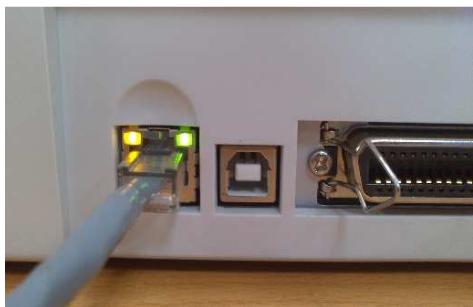
Unless the link status light is green, the printer will not be able to connect to the Network.
6.2 IP Configuration
6.2.1 Network IP Configuration
The network interface of the printer requires an IP address.
There are several ways to assign an IP address to the printer:
DHCP (A Dynamic Host Configuration Protocol server assigned IP address.)
Static (An IP address obtained from your network administrator added to the printer manually.)
BOOTP (Bootstrap Protocol server assigned IP address.)
6.2.2 Assigning the IP Address
If the printer menu is locked, please see the 4.2.5.
- Automatic DHCP IP address assignment:
Press Setup , then Menu .
Press
Press
Press
Verify that your printer was assigned an IP address by printing the "Current
Settings" configuration page or in the operator panel menu.

1) At power-up, the printer network interface broadcasts a DHCP request for an IP address. If a DHCP server is present, the request will be processed, and an IP address will be returned to the printer network interface. Upon receipt of the IP address, the printer accepts and uses this new IP address (and subnet mask, and default gateway, if any).
2) Once an IP address has been assigned, the printer network interface will no longer broadcast DHCP requests. The printer will broadcast a DHCP request each time you turn on the printer.
3) The DHCP server may grant a temporary IP address, called a temporary lease or temporary reservation, which expires later, or may grant a permanent or unlimited time lease or reservation, which does not expire.
4) Devices such as the printer that are granted a temporary lease will be notified before the lease expires and asked if they would like to extend the lease. The printer network interface will continue extending its lease indefinitely (unless prohibited by your DHCP server configuration), and thus maintain a consistent IP address.
5) If the printer is not turned on or is not connected to the network when the DHCP server is sending requests to extend the lease, the lease will not be extended. The DHCP server will cancel the lease and may assign the IP address to another device. Therefore, it is highly recommended to explicitly specify the printer lease as permanent or unlimited in your DHCP server configuration.
- Static assignment using the operator panel:
Press < Setup > , then < Menu > .
Press < Next > until the I/O selection appears. Select < I/O >
Press < Next > until the ETH-INT selection appears. Select < ETH-INT > , then < IP Addr >
Enter the value for Octet 1by pressing < OCTET 1>. Use the forward and backward arrows to increment/decrement the number. When finished with each entry press < Set > which will set the currently displayed value. To exit out without changing the value
press < Exit > . Enter the Octet 2 value in the same way, pressing < OCTET 2> . To get to Octet 3 and Octet 4, select < Next > and then select < OCTET 3> and < OCTET 4> .
Enter the default Gateway and Subnet mask in the same way. < Gateway > is available from the screen you are returned to. Press < Next > to select < Subnet > .
Enter the IP address get method under the selection IP Get M>. Select
- BOOTP IP address assignment:
Press Setup , then Menu .
Press
Press
Press
Obtain the Ethernet MAC address by printing the "Current Settings" configuration page,
Turn off printer.
Configure your BOOTP server with desired IP address and MAC address.
Turn on printer.
Verify that the printer network interface received an IP address by printing the "Current
Settings" configuration page or in the operator panel menu.
6.3 WebPanel
6.3.1 Introduction
WebPanel is an intuitive browser interface that allows you to remotely manage your networkattached printer. From WebPanel, you can do virtually everything you can do from the printer's control panel.
In addition, WebPanel provides full access to all of the TallyCom networking features. Before using WebPanel, you must configure your printer with an IP address, using one of the three methods discussed in the Assigning the IP Address section above.

The screenshots that are used in this document to demonstrate the functionality may vary depending on the printer model.
6.3.2 Web Browser
WebPanel is accessed from the printer through a web browser, i.e. Internet Explorer, Firefox, etc. The browser needs to be configured with cache and history empty, and the browser set up to check for new pages every time, to insure that connections to WebPanel will produce the latest data.
WebPanel does not work through a proxy server. Therefore, the web browser must be setup to NOT use the Proxy Server for local IP addresses.
Disclaimer: Dascom WebPanel runs in conjunction with third party software, notably web browsers, which are designed to run independently of the Dascom software.
Dascom cannot control the third party output or how it behaves from release to release. The above browser versions have been tested with WebPanel and while there is full functionality, there will undoubtedly be visual differences and anomalies between products and versions with which Dascom has no control.
6.3.3 Access to WebPanel
Once an IP address has been set up, you can access WebPanel by typing the printer's IP address into your browser address box.
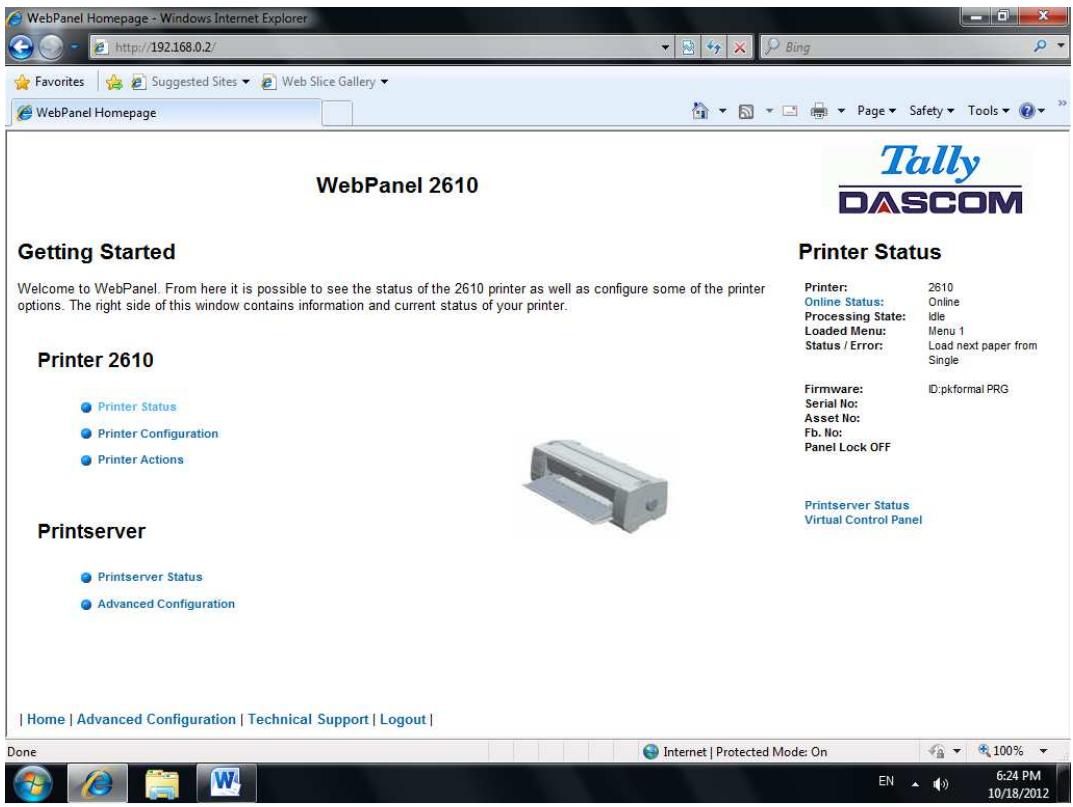
The current status of your printer is displayed on the right hand side of the screen. This is refreshed every 20 seconds, whenever you refresh the page or click Printer Status. The left side allows you to query the printer, configure it and access network options.

If you try to access the printer after power on the printer it may last up to one minute until the printer is visible in the network.
6.3.4 Printer Status
Selecting this option refreshes the status display. Displayed on this page are:
Processing state
Loaded menu
Error state
Firmware level
Serial number
Asset number
Panel lock status
Options to change the Online / Offline state, network configuration and the virtual control panel for your printer are all accessed from this page.
6.3.5 Printer Configuration
Selecting this option allows you to configure specific parameters in the printer. When one of these menu options is selected, a new page will load showing the options which can be viewed or modified.
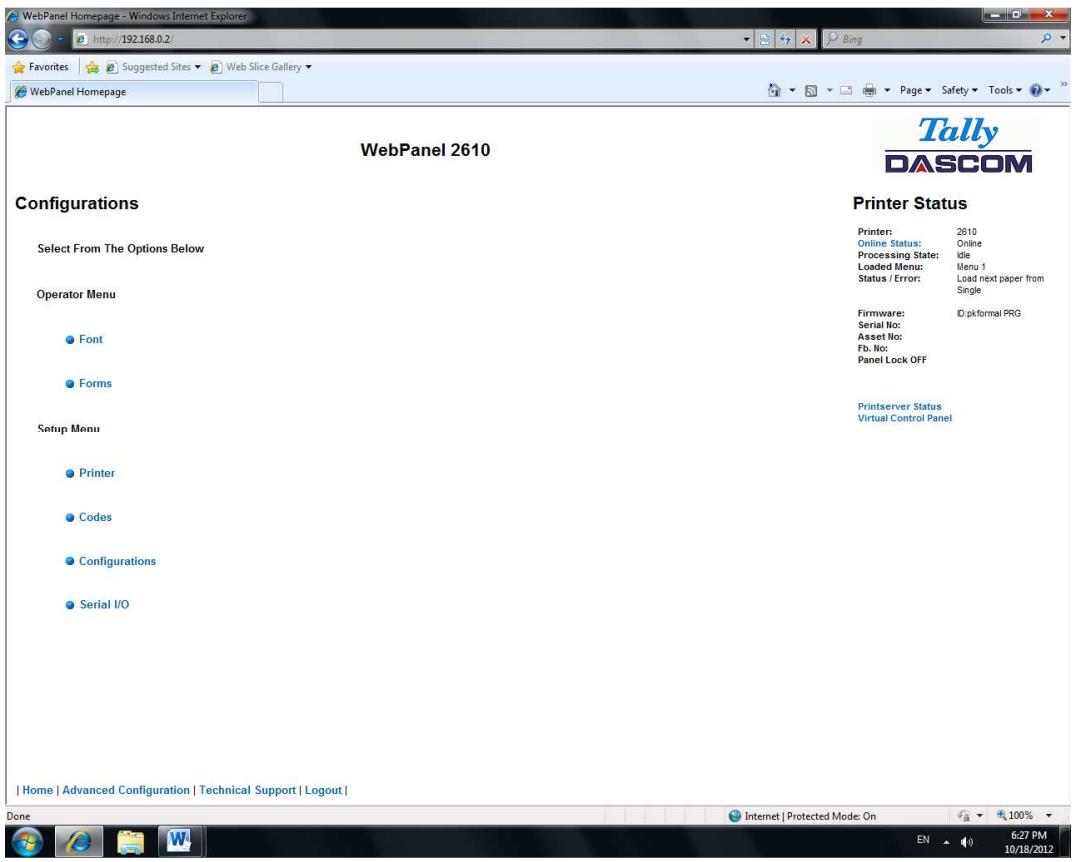
Example 1
Changing the dropdown menu option.
In this example, we are modifying the selected font to a different font. Select "Font". A new page appears.
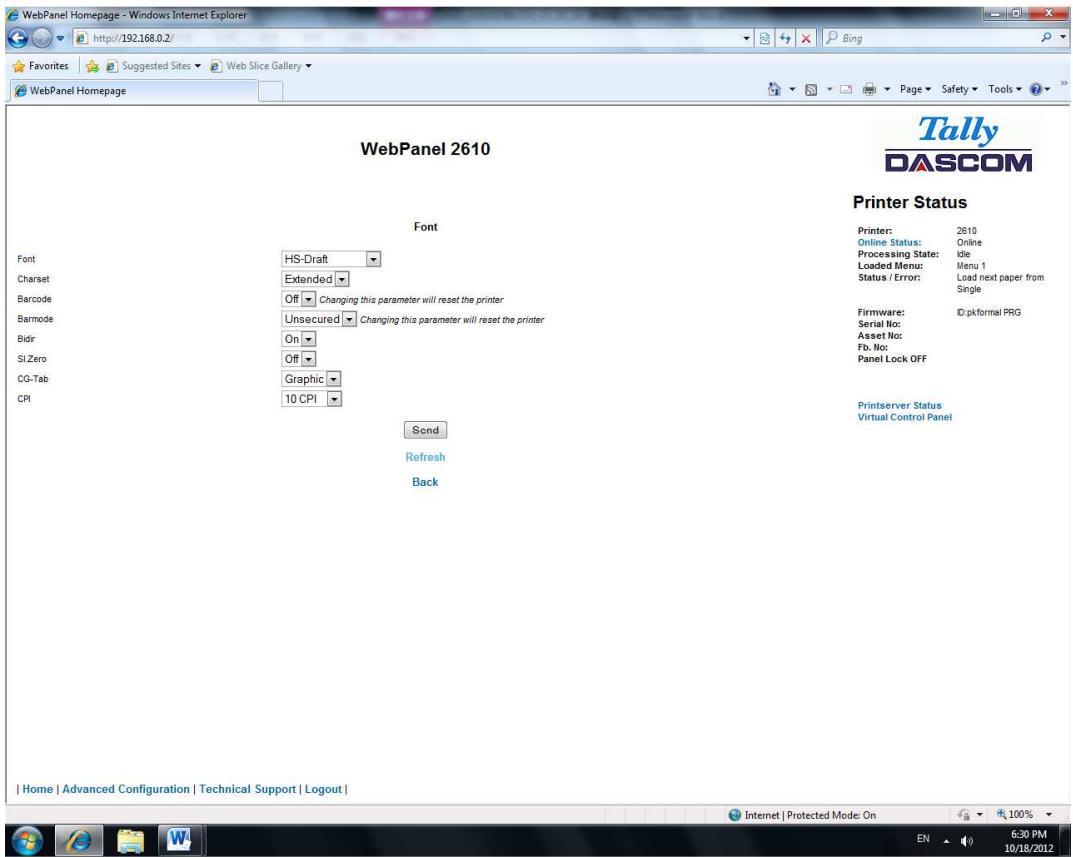
Select the Font dropdown menu and choose the new font. Select "Send".

1) Changes are not applied until "Send" is selected.
2) To reset the changed value to the prior value, select "Refresh" instead of "Send".
3) To return to the prior page without applying the change, select "Back".
Example 2
Changing an entered value menu option.
In this example, we are modifying the selected form length to a different form length. Select
"Forms". A new page appears:
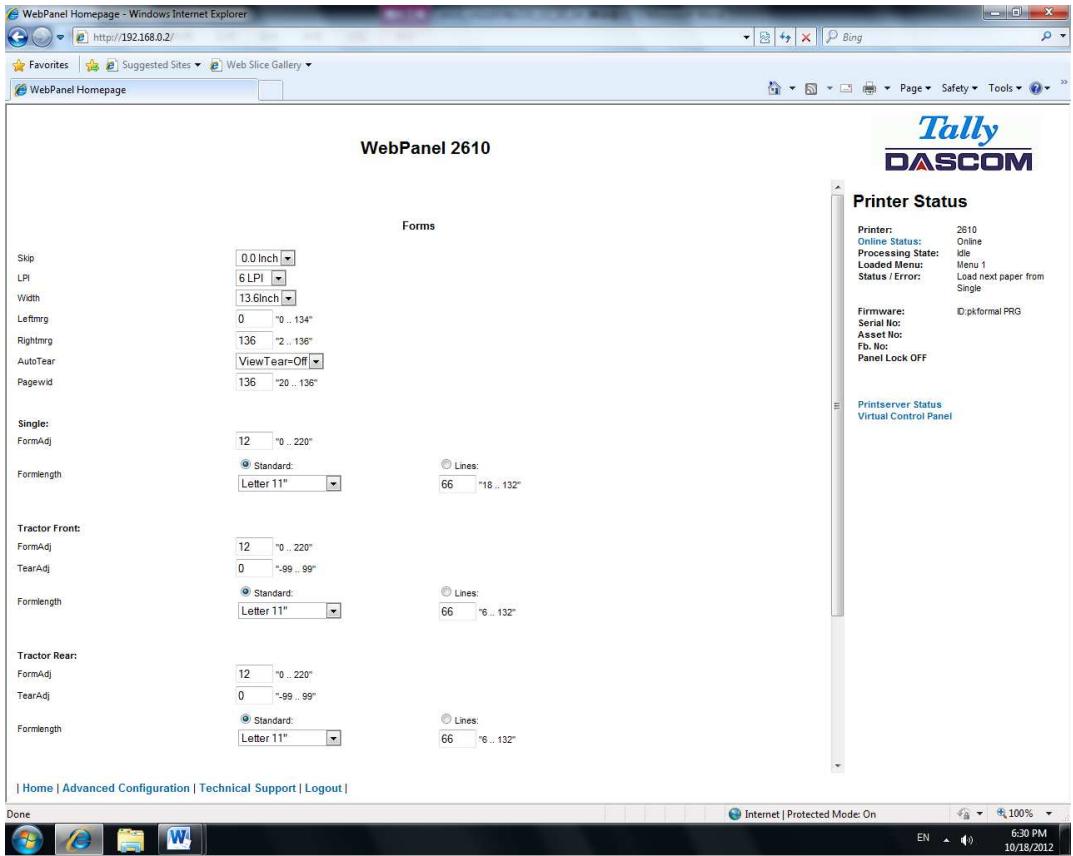
Select the Form Length field by highlighting the contents of the box and enter the new form length.
The acceptable parameters are listed to the right of the field. Select "Send".

1) Changes are not applied until "Send" is selected.
2) If the entered value is out of range of the acceptable parameters, the previous value will bere INSTATED.
3) To reset the changed value to the prior value, select "Refresh" instead of "Send". To return to the prior page without applying the change, select "Back".
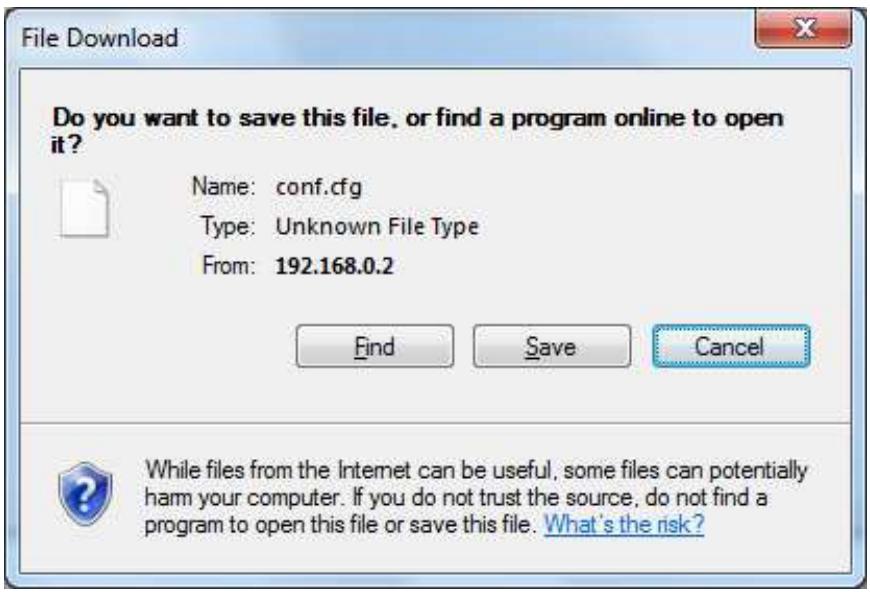
4) The default name is "conf.cfg", but it can be renamed. Saving the file to disk. This will allow it to be transferred to other printers using the "Send Configuration To Printer" option on the actions web page.
6.3.6 Printer Actions
Selecting the Printer Actions link will produce a page with a list of actions that can be performed on the printer.
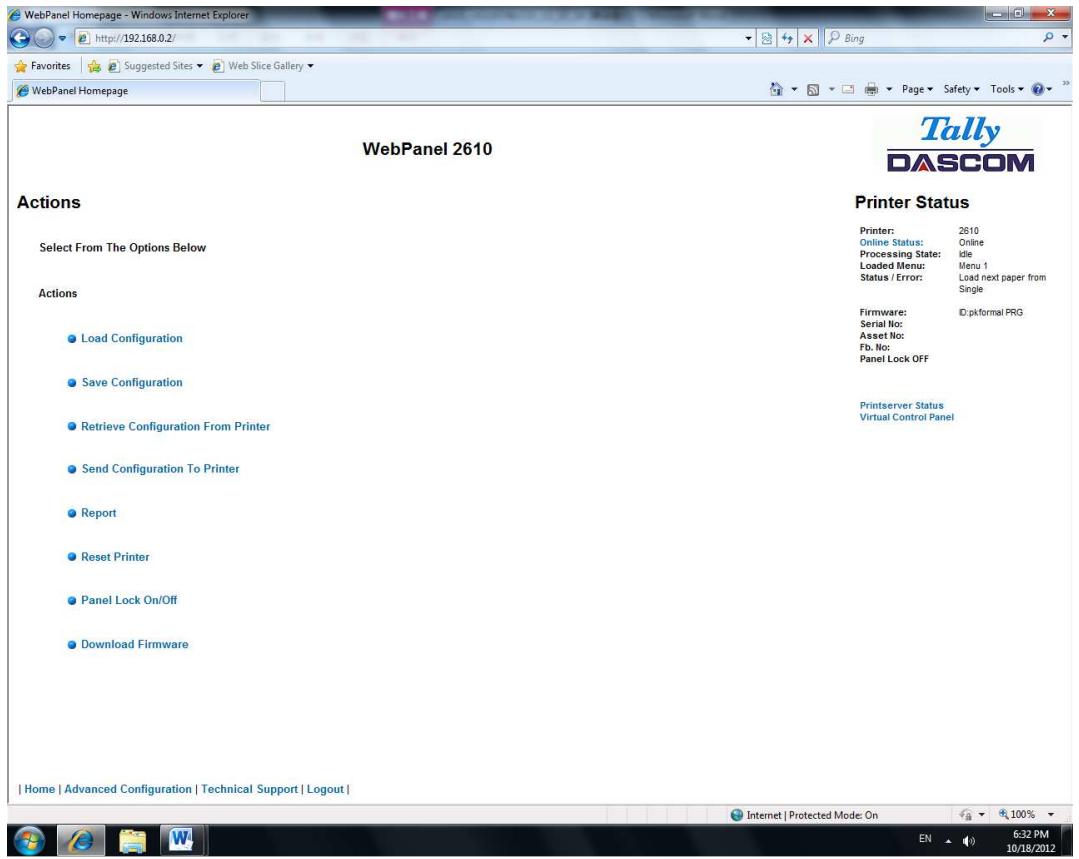
6.3.7 Load Configuration
Loads the settings stored in a menu into the printer as the current settings. When the Load Configuration link is selected, the following page will be displayed:
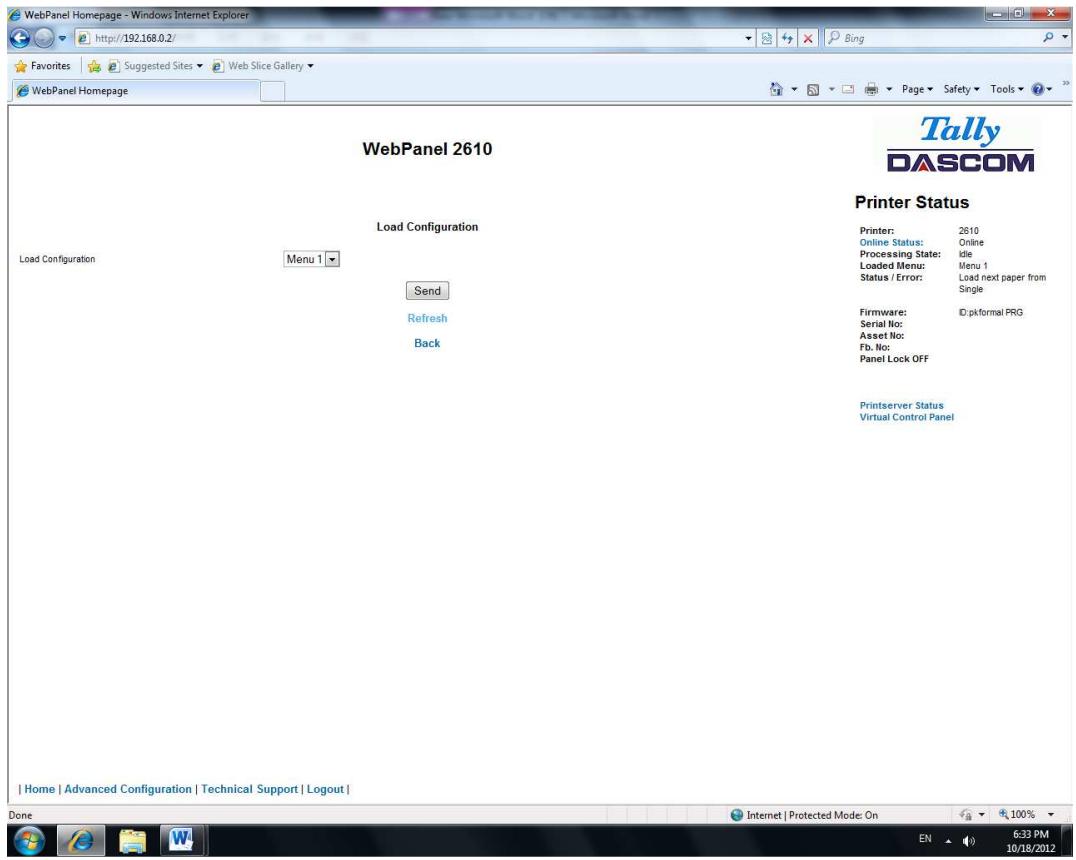
Select a menu and confirm your selection by selecting the Send button.
6.3.8 Save Configuration
You can save selected printer settings in up to 5 independent menus.
When the Save Configuration link is selected, the following page will be displayed:
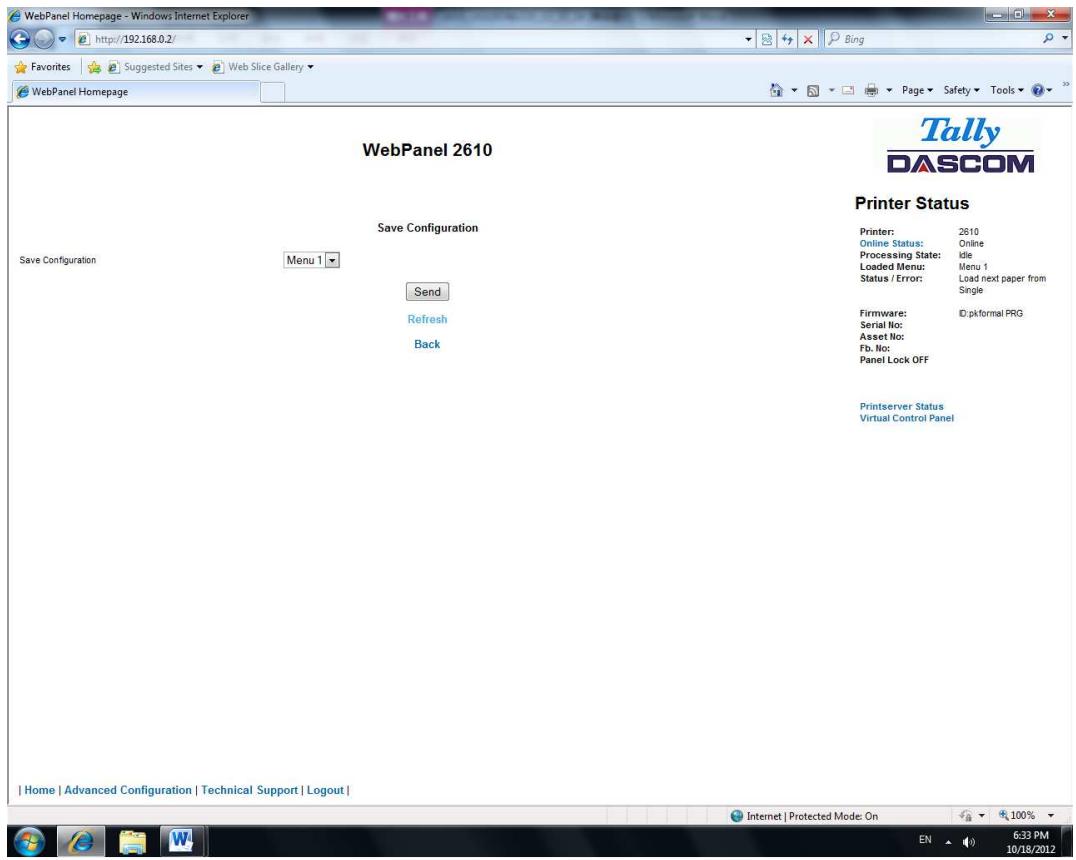
Select a menu. Select send.
6.3.9 Retrieve Configuration From Printer
Selecting this option will save all the printer settings of all menus in a file. Uploading this file to other printers will clone the printer menu settings to the other printer. When this option is selected, the following will appear (note that the actual image will be browser specific):
6.3.10 Send Configuration to Printer
Selecting this option will upload a Configuration File of another printer (see "Retrieve Configuration From Printer"). The complete configuration of this source printer will be transferred to your printer.
To upload the configuration file, first click "Send Configuration To Printer". The following page
will be displayed:
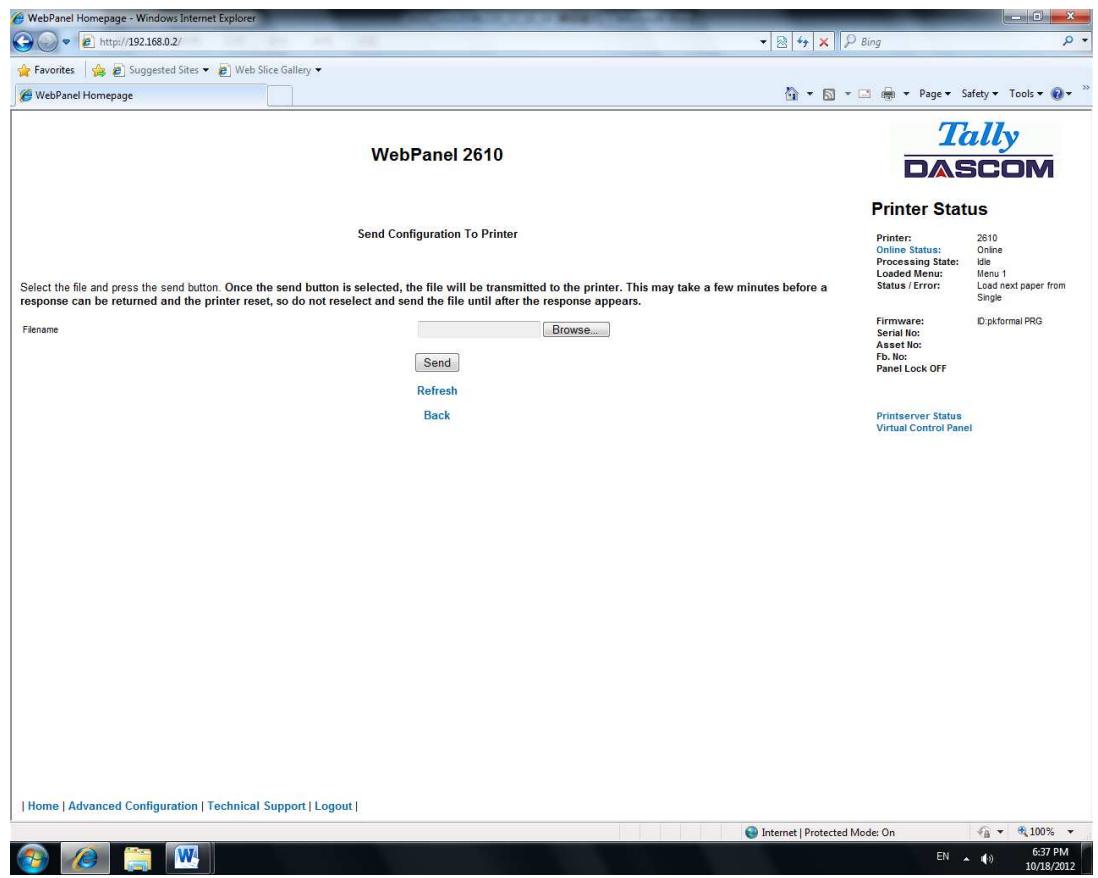
Use the "Browse" button to find the file to upload. Once the file is selected, click on the "Send" button. It is important to note the warning on this page. There is some delay while the file is transmitted so it is important not to resend or click on the "Send" button until the process is complete.
If the process is successful, the printer will reboot and the following page will be displayed:
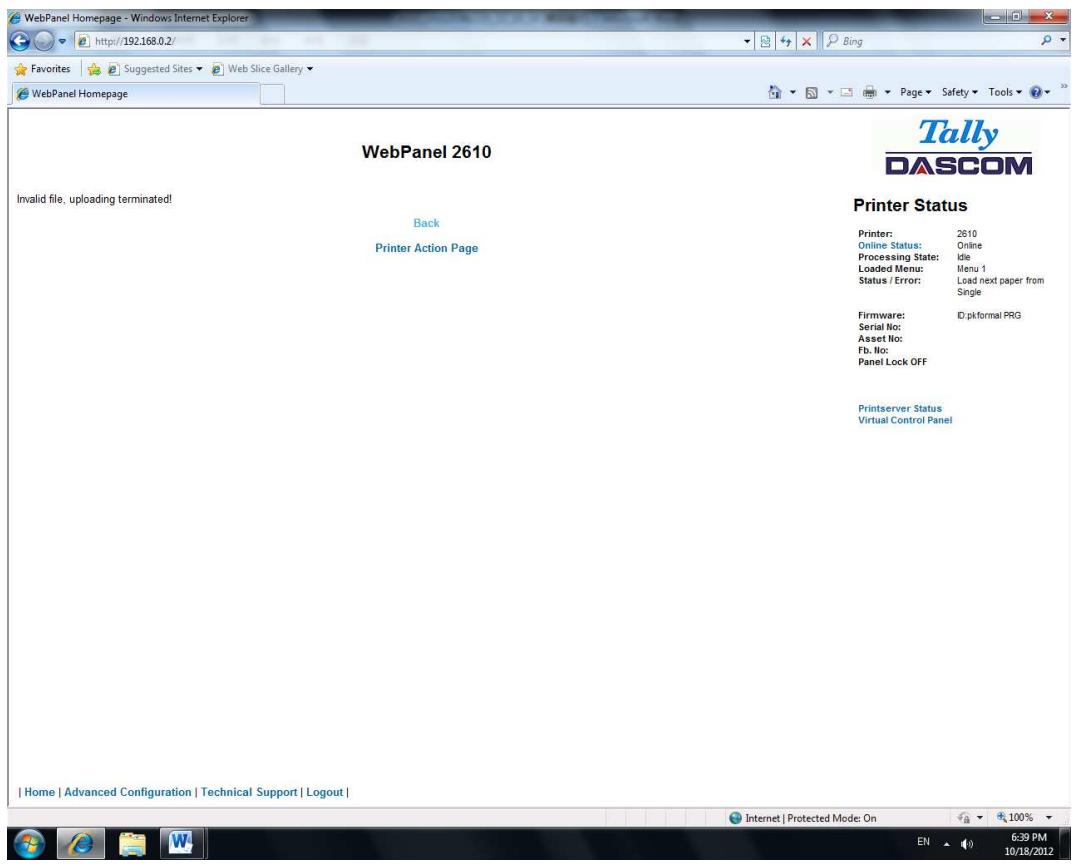
Since the printer will reboot with successful completion of this action, the user will have to reconnect to the printer through the browser.
6.3.11 Report
Selecting the report link will open up a separate browser window and a report of the printer settings will appear. This functionality is the same as pressing the "Print" option on the control panel of the printer.
6.3.12 Reset Printer
This link does a hard reset of the printer, similar to cycling power. There is no user feedback as to success since the printer is rebooting. Since the printer will reboot with successful completion of this action, the user will have to reconnect to the printer through the browser.
6.3.13 Panel Lock On/Off
This link toggles the panel lock feature of the printer. This option affects the physical control panel on the printer as well as the virtual panel in WebPanel. The state of the option is displayed in the printer status page on the right of the display.
6.3.14 Download Firmware
Through this link it is possible to download firmware updates to the printer. When this link is selected, the follow page will appear:
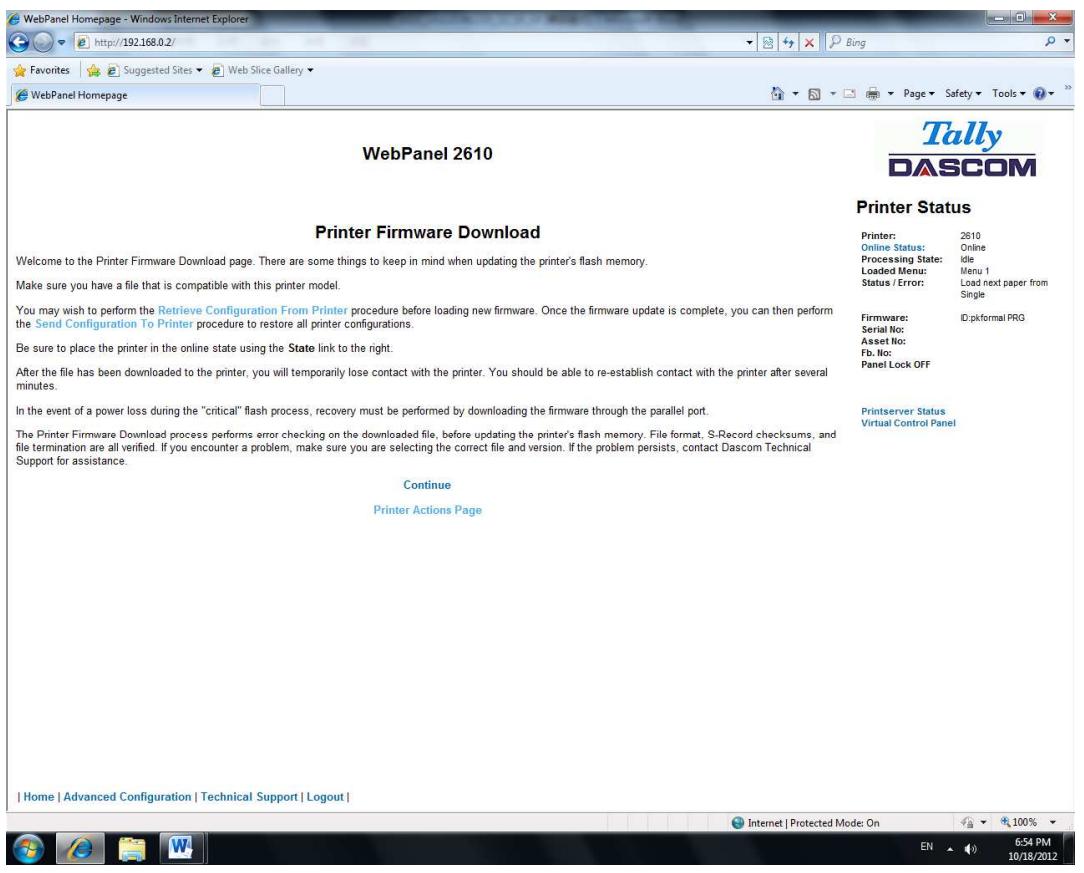
After following the directions on this page, select the "Continue" link and the following page is displayed:
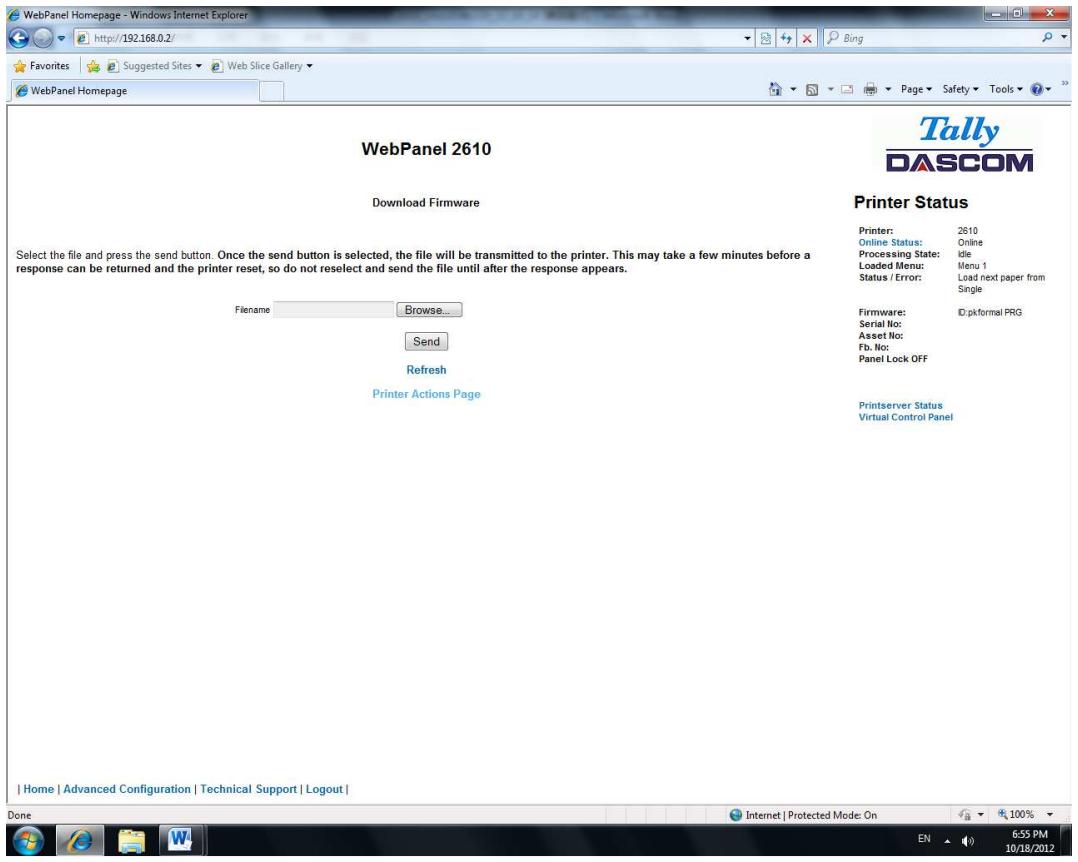
Using the "Browse" button, find the firmware file to download. Once the file is selected, click on the "Send" button. It is important to note the warning on this page. There will be some delay while the file is transmitted so it is important NOT to resend or click on the "Send" button until the process is complete.
If the process is successful, the printer will reboot and the following page will be displayed:
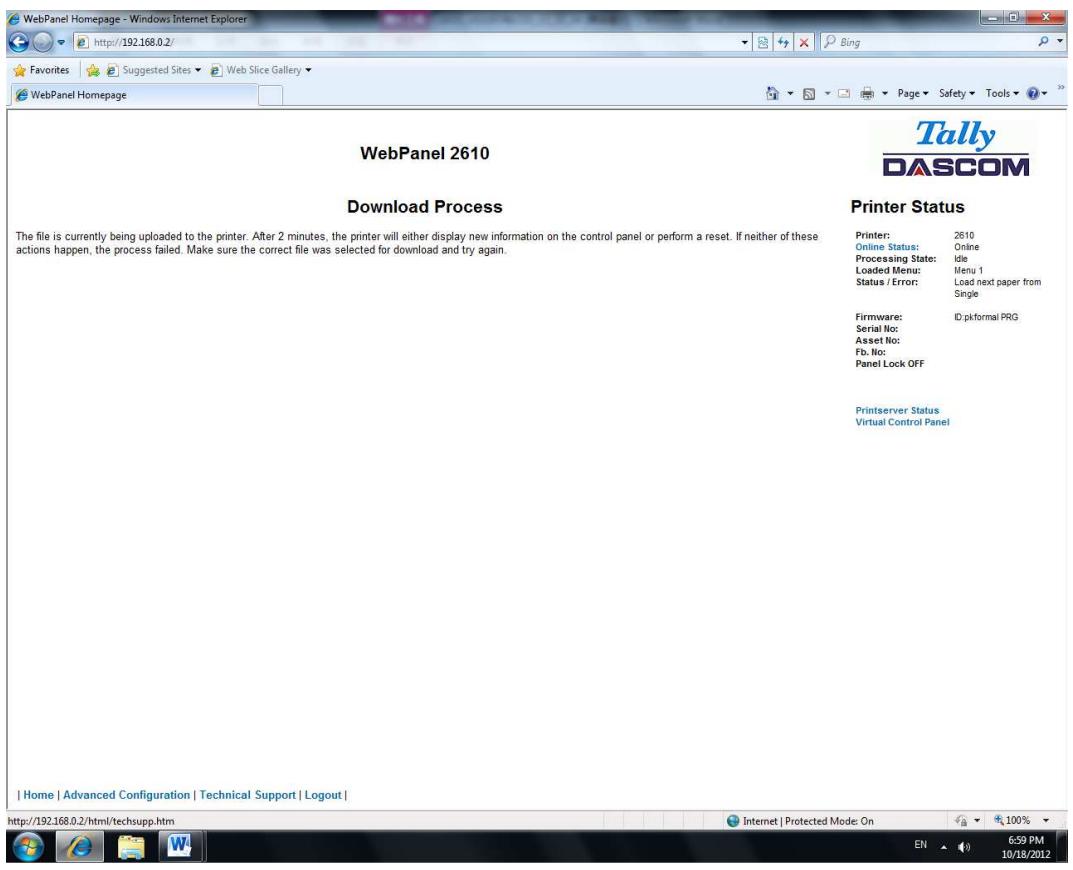
Since the printer will reboot with successful completion of this action, the user will have to reconnect to the printer through the browser.
6.3.15 TallyCom Status
Selecting this link will replace the information in the Printer Status area with networking information on the printer.
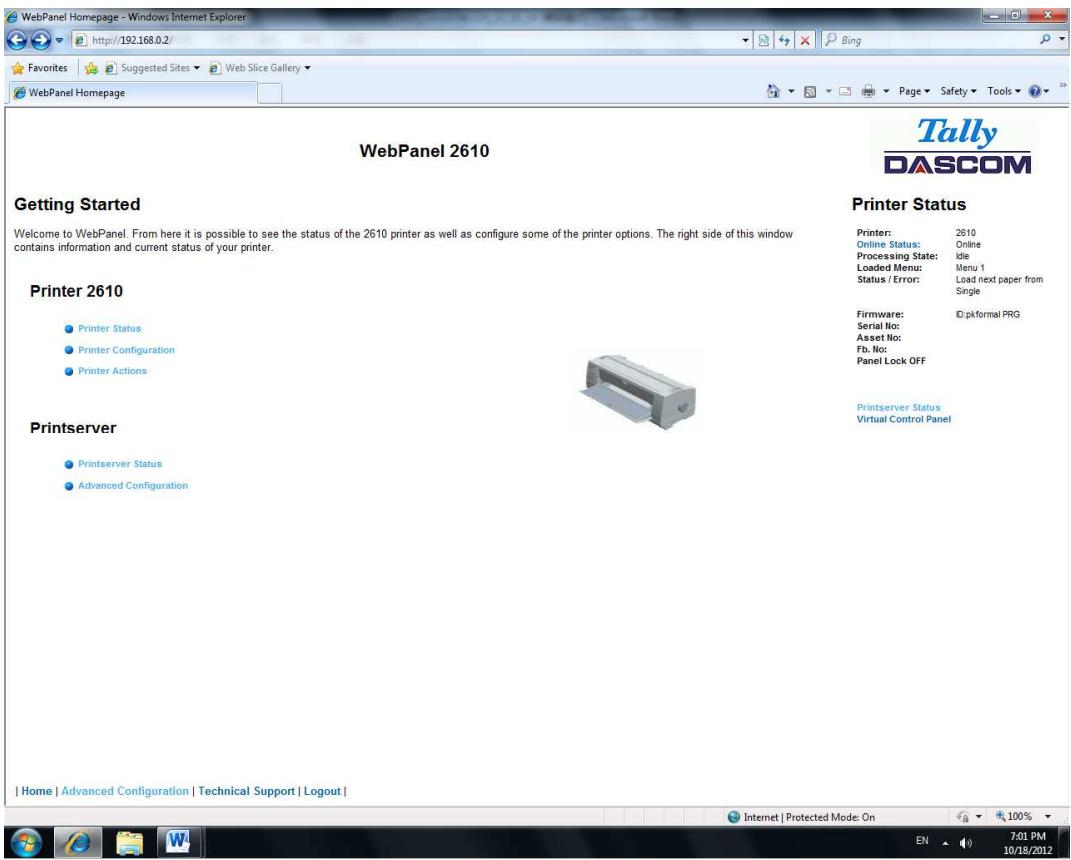
The Name, Contact and Location information is set up from the General link within the Advanced Configuration page.
6.3.16 Advanced Configuration
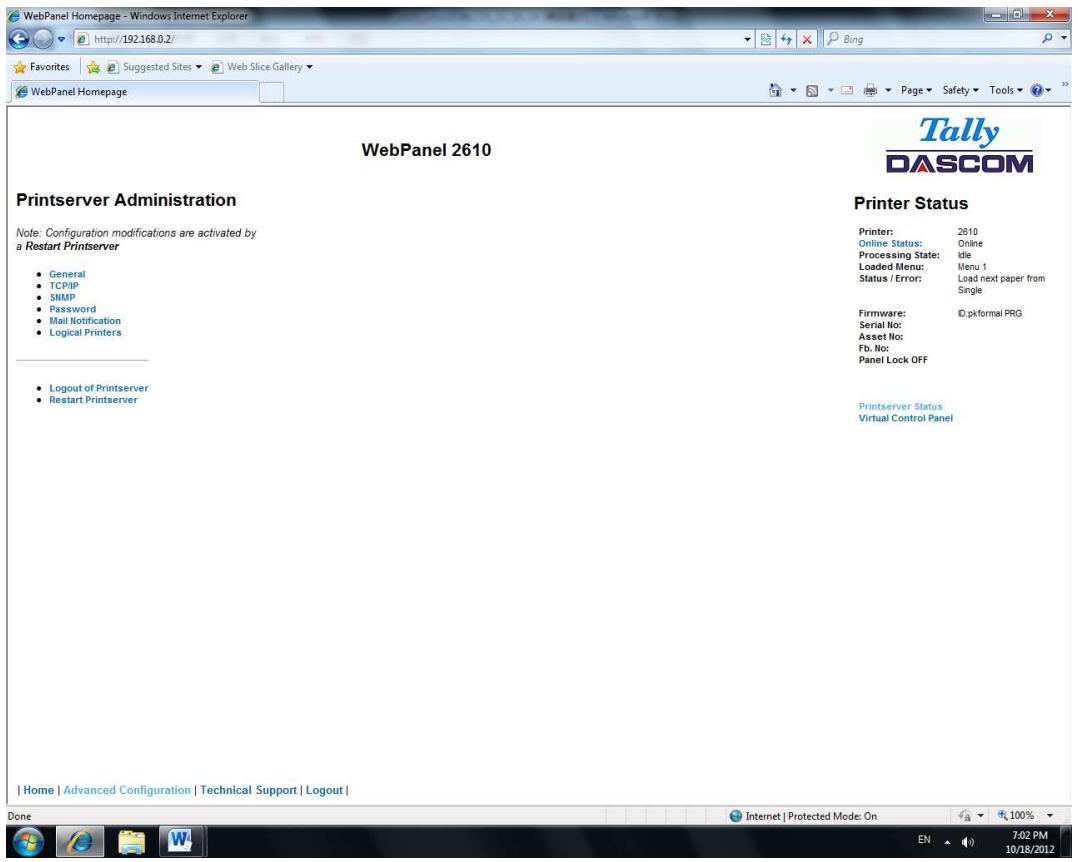
The Advanced Configuration page allows the user to set up and modify network connectivity information as well as setting up the password, email notification and logical printers. From this page it is also possible toLogout of TallyCom and restart TallyCom. The Administration page looks like this:
6.3.17 General
The General page sets up the timers and the labels for name, contact and location of the printer.
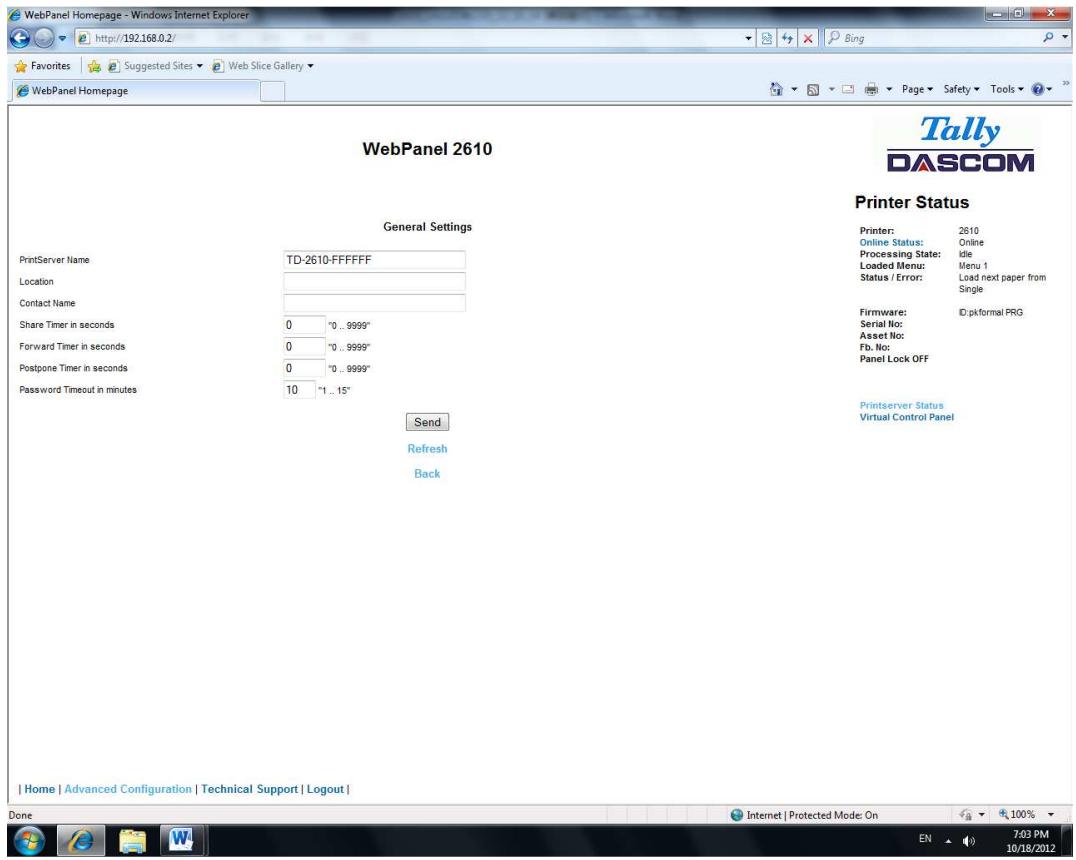

The Print Server Name is by default and can be changed accordingly. This name used for entering into Name Server (DNS/DHCP).
6.3.18 TCP/IP
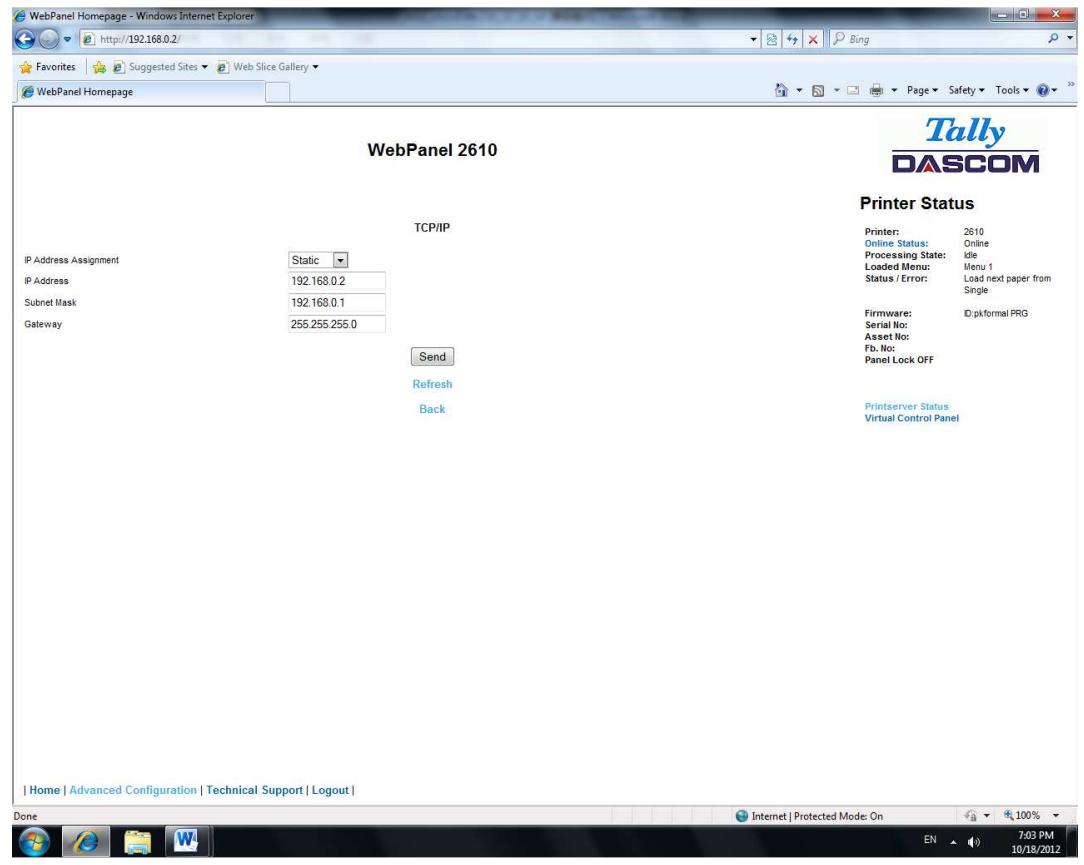
The TCP/IP Page allows the user to modify the existing TCP/IP information for the printer.
After changing the particular parameters, it is necessary to restart TallyCom from the Advanced Configuration page. If the IP Address is changed and the Send button selected you will disconnect from the current session and will need to reconnect at the new IP Address.
6.3.19 SNMP
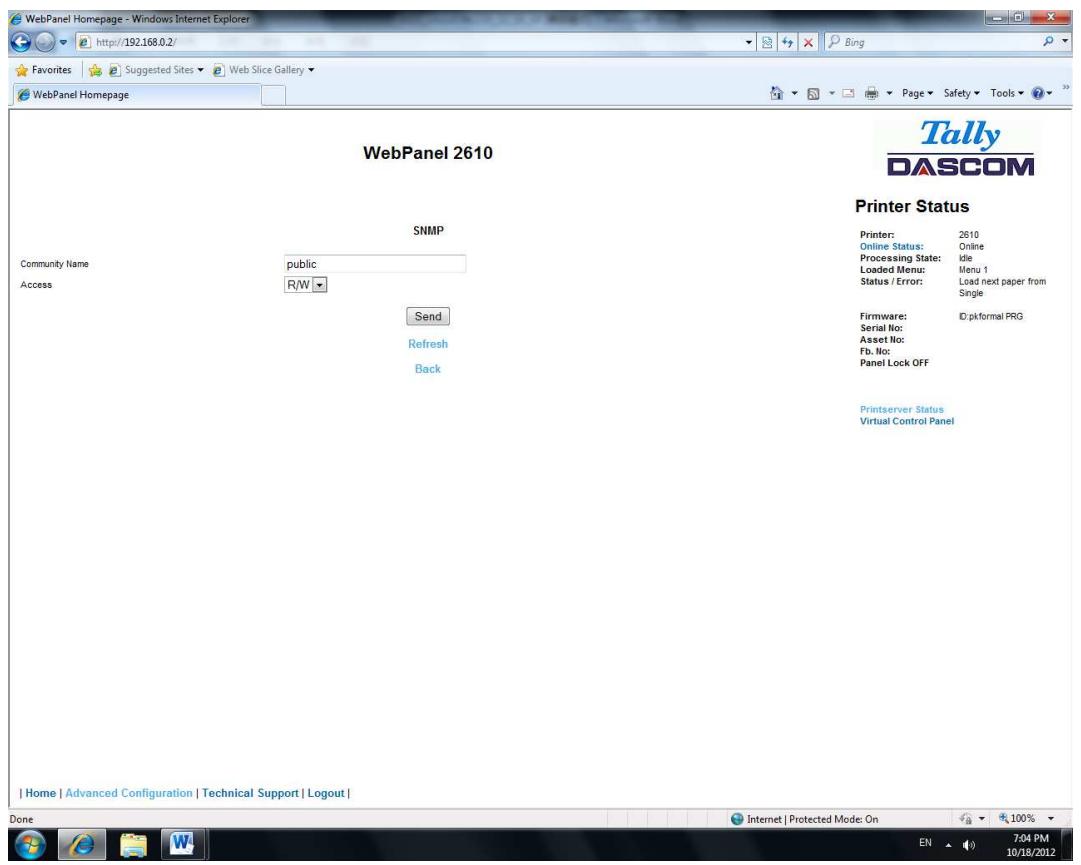
The SNMP page allows the user to set the Community Name and the Access. The page looks like this:
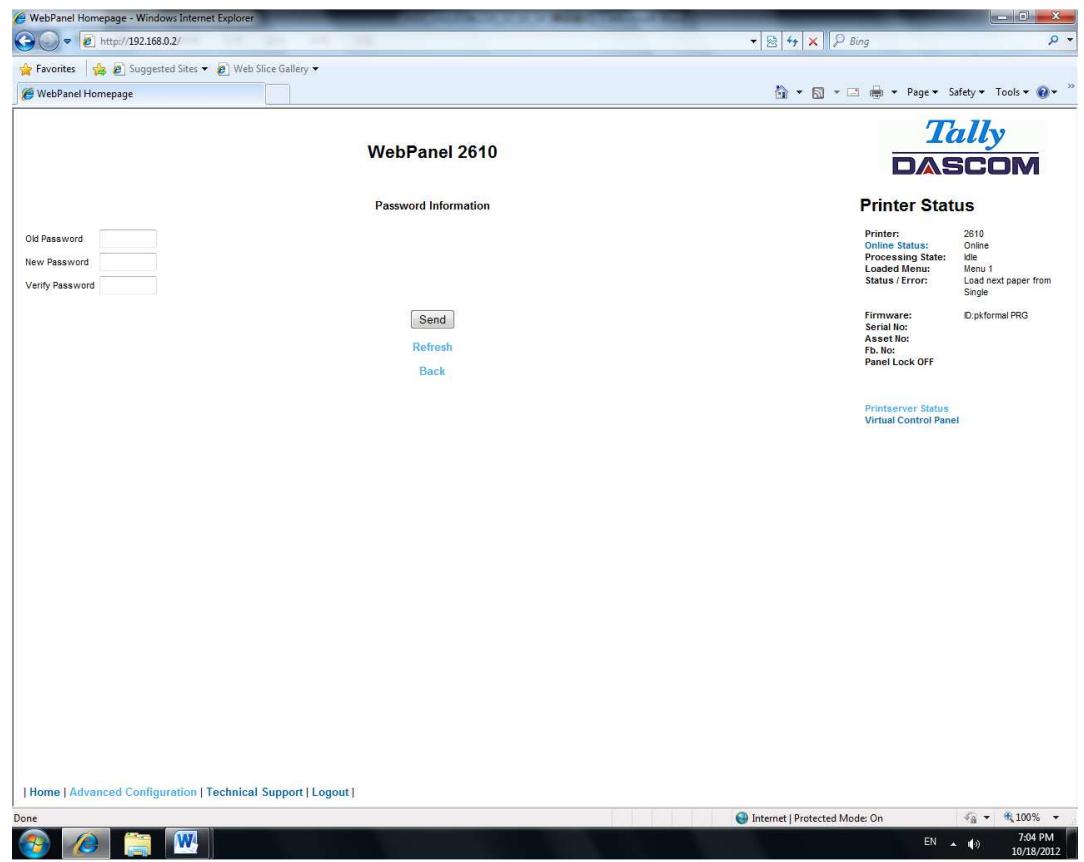
6.3.20 Password
The Password page allows the user to set a password which would limit access to certain configuration and action links in WebPanel. The maximum number of characters for the password is 7. The default password is no password at all ("null"). However, "adm" is also acceptable as the default password to be compatible with the external TallyCom III pocket NICs (Options), which use this as the default password. If this or no password at all ("null") is set as the password, all of the web pages are accessible by everyone. If any other password is set, the first time a user accesses a password protected page, a window will open asking for verification with user and password information. Once the password has been successfully recognized, all password protected pages will be available. Once the password is recognized, a timer is set, based on the Password Timer value set in the General web page. If there is inactivity in the browser which lasts beyond the timer time, the password will have to be reentered to access the protected pages.
The password page looks like this:
6.3.21 用户 Name
The default user name is "adm" and cannot be changed.
6.3.22 Resetting Password
In order to reset password the printer needs to be defaulted. See "Loading Default".
6.3.23 Email Notification
With the email notification link the user will be able to set up and receive email notices for error and status conditions of the printer. Up to 4 email addresses can be set.
The page looks like this:
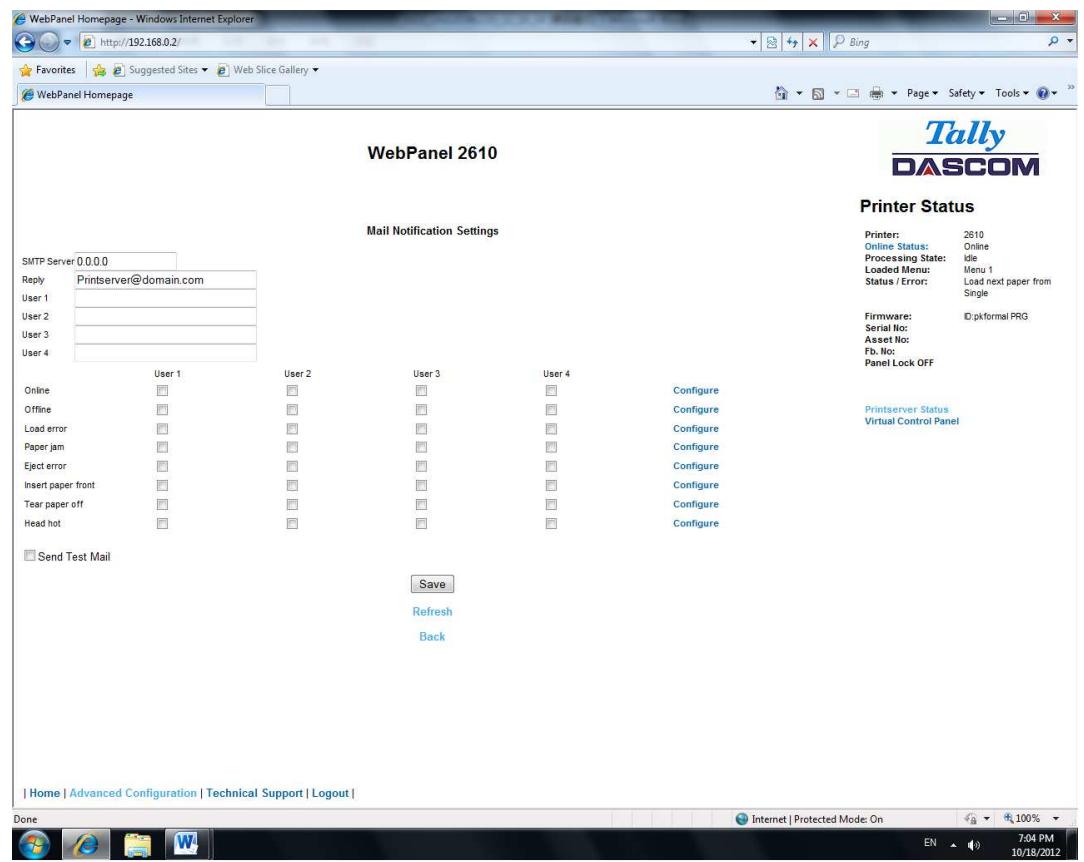
The user must set up the SMTP Mail Server as well as one or more users. The Reply address can be left as is unless there is reason to have to mail to the Reply address. To activate the mail notification:
Select which notifications are to be sent out.
Click on the check box(es) on the right of the desired notification(s) for the particular user(s).
Confirm your settings by clicking the Send button.
There is also a test mail option which sends a test email to "User 1" and is activated by checking the box and clicking on the "Save" button.
The "Configure" link at the end of each line of notification options allows the user to set up the message information for the email as well as selecting other pertinent information to be added to the email. In addition, the timer can be set which determines when the email notification is sent out.
The page looks like this:
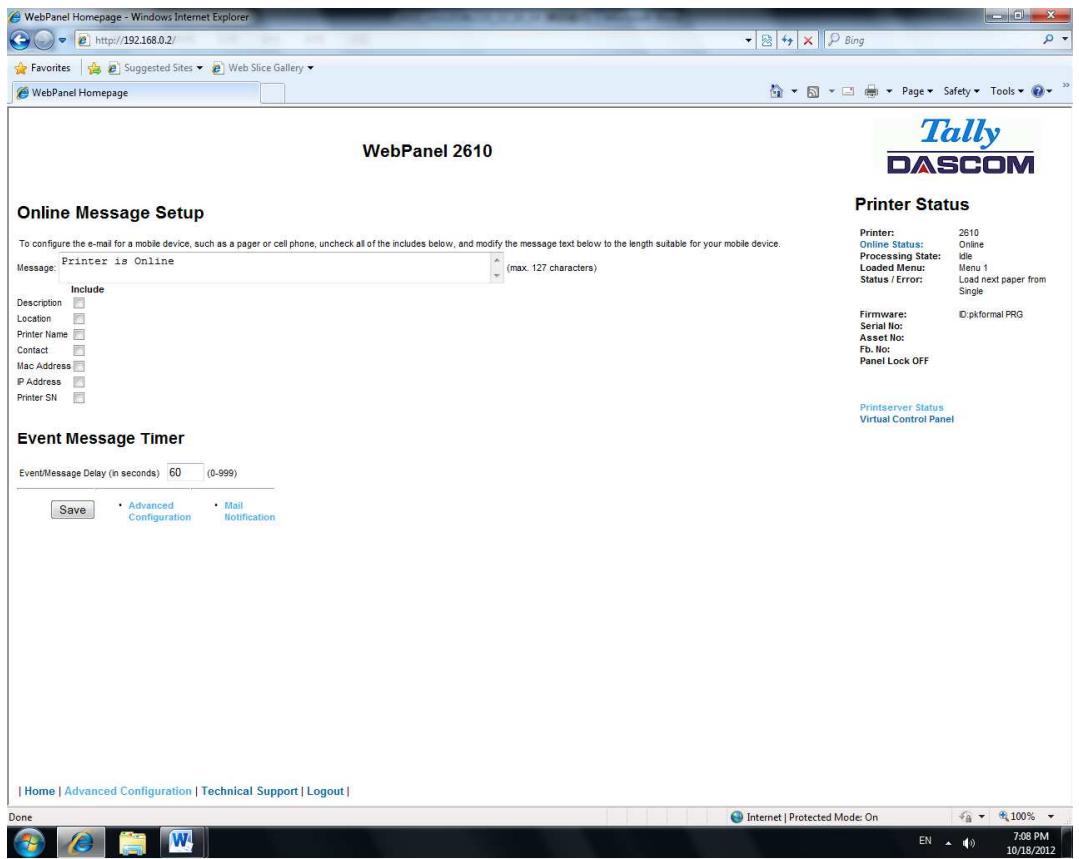
In this example, the Online message is set to "Printer is Online", and information on Description, Location, and Printer Name will be added to the email. In this example, the event timer is set for 10 seconds after the event occurs and will be sent only once, unless the printer is rebooted or the state changes. If the timer is set to 0, no email message will be sent, regardless of whether the user box has been selected. Selecting the "Save" button will set these values.
6.3.24 Logical Printers
The logical printers page will add text or commands to the beginning and ending of print jobs. This is done by pre and post strings, defined in each of the logical printers. For entering binary data in these strings, the backslash character is used followed by 2 hexadecimal digits.
Examples of this are 1b for an escape character, 0a for linefeed and for backslash. Selecting the Logical Printers link gives the following page which lists seven possible logical printers plus Raw Port, which is port 9100:
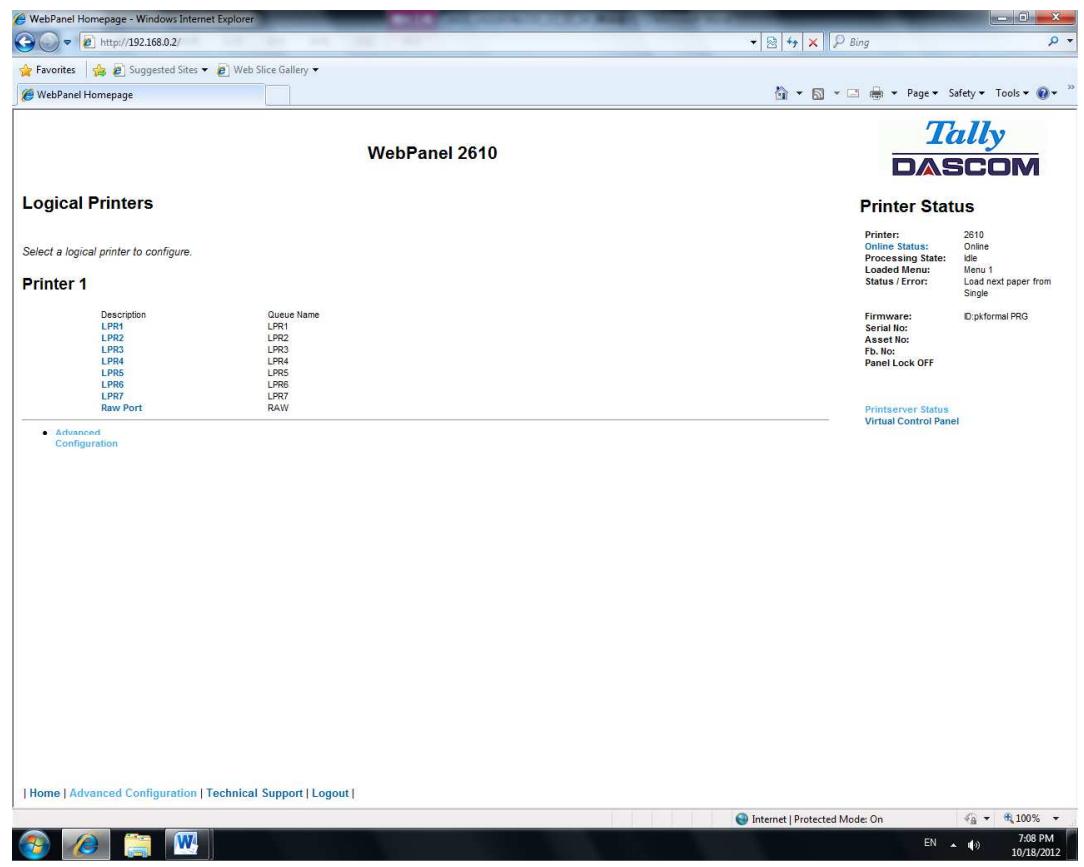
When selecting one of the logical printers under the Description column, the following page is displayed:
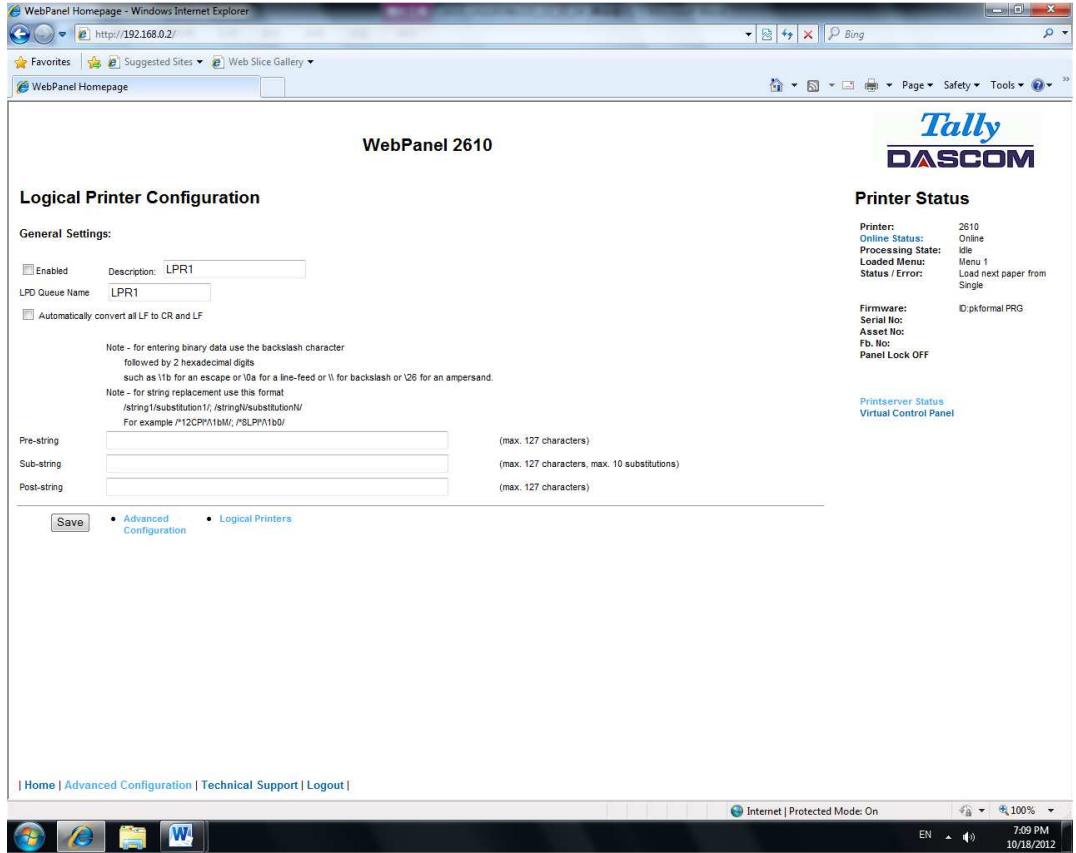
In this example if the Enable checkbox is checked, the pre-string of "Beginning to print job" followed by a CR/LF will print at the beginning of every job sent to this LPR Queue. At the end of the print job, the message "End of job" with a formfeed will print. Unchecking the Enable checkbox will not send the pre or post strings. The LPD Queue Name is the name of the print queue that comes from the host. The Description can be changed by the user and does not have to match the LPD Queue Name.
6.3.25 String Replacement Example Plain Text
Original Text / New Text
String Replacement Example Commands 1 B[8419t 1B[4196t/
Control codes are entered with a back slash "\".
In this example the Formlength of A4 (8419"720) represented by "1B[8419t" is being replaced by the string "1B[4196t" (4196"720) which results in A5.
Multiple strings are separated by a semicolon ".".
6.3.25Logout of TallyCom
TheLogout link disconnects the browser session from the printer. Clicking on the "Home" link reestablishes the connection.
6.3.26 Restart TallyCom
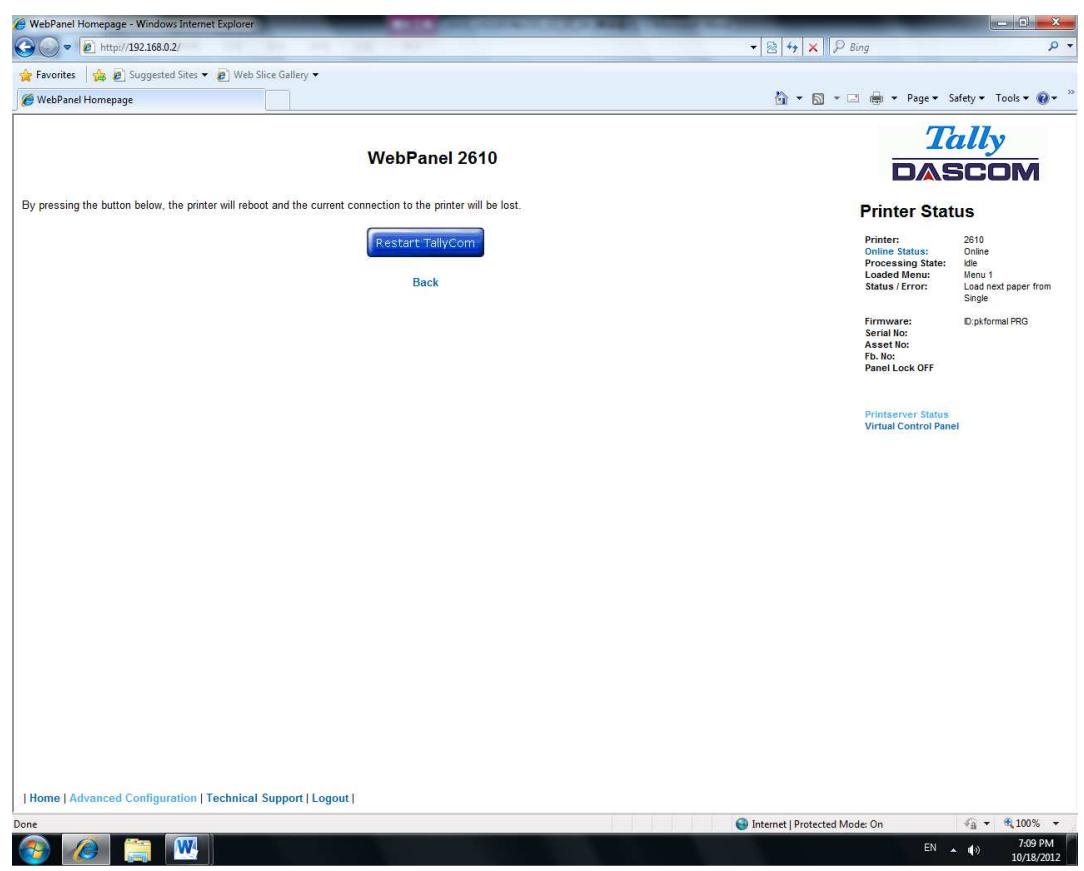
Selecting this link will reboot the printer and disconnect the current printer connection. It is used to reset certain TCP/IP variables that were set in the General and TCP/IP pages. Once TallyCom has restarted, those new setting will take effect. When this link is selected, the follow page is displayed, giving the user the option to continue or not.
6.3.27 Virtual Control Panel
The Virtual Control Panel link is in the Printer Status area of the web page. This controlpanel is a visual representation of the actual control panel on the printer. It allows the user to remotely read and set panel information as if they were standing at the control panel. The functionality of the virtual panel is identical to the physical LCD panel.
Before using the virtual panel, it is important to configure the browser to allow popup windows from the printer, otherwise the panel will not display. Once the browser is configured, the page will look similar to this:
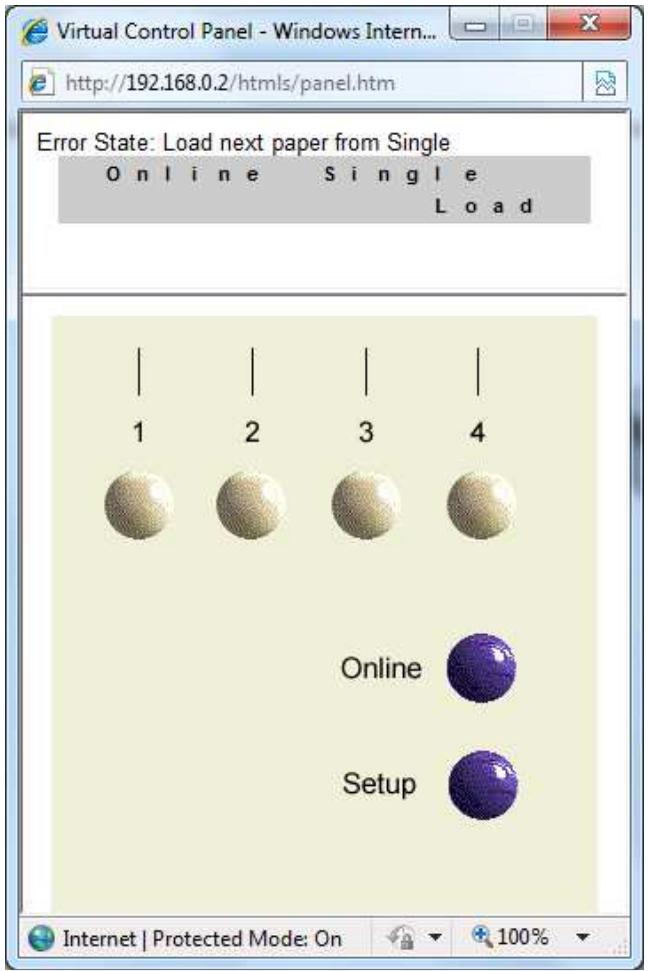
The Virtual Control Panel will be the active window. This window will show the current error state and display the contents of the printer's LCD display. Selecting the buttons on the display will behave the same as if selecting the buttons on the printer itself. The LCD information on the virtual panel refreshes every 15 seconds. The physical panel, virtual panel and Online Status in the Printer Status are all active, so there may be some synchronization delay issues if a user presses a button on the physical printer or the Online Status in the Printer Status area. The Panel Lock feature affects the virtual panel in the same way as the physical panel. The only functional difference between the physical and virtual panel is that in the virtual panel, the LF/FF option will always do a FF.
To close the virtual panel, click on the X in the upper right of the window.

1) This feature needs the browser to allow pop ups.
7 Addendum
7.1 Character Set
standard character set 1
| 0 | 1 | 2 | 3 | 4 | 5 | 6 | 7 | 8 | 9 | A | B | C | D | E | F | |
| 0 | NUL | 0 | @ | P | ' | p | NUL | 0 | @ | P | - | p | ||||
| 1 | DC1 | ! | 1 | A | Q | a | q | DC1 | / | 1 | A | Q | a | q | ||
| 2 | DC2 | " | 2 | B | R | b | r | DC2 | " | 2 | B | R | b | r | ||
| 3 | DC3 | # | 3 | C | S | c | s | DC3 | # | 3 | C | S | c | s | ||
| 4 | DC4 | 4 | D | T | d | t | DC4 | 4 | D | T | d | t | ||||
| 5 | % | 5 | E | U | e | u | % | 5 | E | U | e | u | ||||
| 6 | & | 6 | F | V | f | v | & | 6 | F | V | f | v | ||||
| 7 | BEL | ' | 7 | G | W | g | w | BEL | ' | 7 | G | W | g | w | ||
| 8 | BS | CAN | ( | 8 | H | X | h | x | BS | CAN | ( | 8 | H | X | h | x |
| 9 | HT | ) | 9 | I | Y | i | Y | HT | ) | 9 | I | Y | i | Y | ||
| A | LF | * | : | J | Z | j | z | LF | * | : | J | Z | j | z | ||
| B | VT | ESC | + | ; | K | [ | k | { | VT | ESC | + | ; | K | [ | k | { |
| C | FF | FS | , | < | L | \ | 1 | | | FF | FS | , | < | L | \ | / | | |
| D | CR | - | = | M | ] | m | } | CR | - | = | M | J | m | } | ||
| E | SO | . | > | N | ^ | n | ~ | SO | . | > | N | ^ | n | ~ | ||
| F | SI | / | ? | O | _ | o | | | SI | / | ? | O | _ | o | DEL |
standard character set 2
| 0 | 1 | 2 | 3 | 4 | 5 | 6 | 7 | 8 | 9 | A | B | C | D | E | F | |
| 0 | NUL | 0 | @ | P | ' | p | à | S | O | @ | P | - | p | |||
| 1 | DC1 | ! | 1 | A | Q | a | q | è | β | / | 1 | A | Q | a | q | |
| 2 | DC2 | " | 2 | B | R | b | r | ù | É | " | 2 | B | R | b | r | |
| 3 | DC3 | # | 3 | C | S | c | s | ò | æ | # | 3 | C | S | c | s | |
| 4 | DC4 | 4 | D | T | d | t | ì | ∅ | 4 | D | T | d | t | |||
| 5 | % | 5 | E | U | e | u | ° | ø | % | 5 | E | U | e | u | ||
| 6 | & | 6 | F | V | f | v | £ | .. | & | 6 | F | V | f | v | ||
| 7 | BEL | ' | 7 | G | W | g | w | i | Ä | ' | 7 | G | W | g | w | |
| 8 | BS | CAN | ( | 8 | H | X | h | x | è | Ö | ( | 8 | H | X | h | x |
| 9 | HT | ) | 9 | I | Y | i | y | ñ | Ü | ) | 9 | I | Y | i | Y | |
| A | LF | * | : | J | Z | j | z | ñ | ä | * | : | J | Z | j | z | |
| B | VT | ESC | + | ; | K | [ | k | { | ü | ö | + | ; | K | [ | k | { |
| C | FF | FS | , | < | L | \ | l | | | R | ü | , | < | L | \ | / | | |
| D | CR | - | = | M | ] | m | } | Å | £ | - | = | M | ] | m | J | |
| E | SO | . | > | N | ^ | n | ~ | á | é | . | > | N | ^ | n | ~ | |
| F | SI | / | ? | O | - | o | | | C | ¥ | / | ? | O | - | o | DEL |
IBM character set 1
| 0 | 1 | 2 | 3 | 4 | 5 | 6 | 7 | 8 | 9 | A | B | C | D | E | F | |
| 0 | NUL | 0 | @ | P | ✓ | p | NUL | á | ... | L | ⊥ | α | ≡ | |||
| 1 | DC1 | ! | 1 | A | Q | a | q | DC1 | í | ... | ⊥ | T | β | ± | ||
| 2 | DC2 | " | 2 | B | R | b | r | DC2 | ó | ... | T | T | Γ | ≥ | ||
| 3 | DC3 | # | 3 | C | S | c | s | DC3 | ú | | | 卜 | L | π | ≤ | ||
| 4 | DC4 | $ | 4 | D | T | d | t | DC4 | ñ | - | - | L | Σ | Γ | ||
| 5 | % | 5 | E | U | e | u | Ñ | - | + | - | σ | J | ||||
| 6 | & | 6 | F | V | f | v | a | - | - | Γ | μ | ÷ | ||||
| 7 | BEL | ' | 7 | G | W | g | w | BEL | a | - | - | + | τ | ≈ | ||
| 8 | BS | CAN | ( | 8 | H | X | h | x | BS | CAN | i | - | L | + | Φ | ° |
| 9 | HT | ) | 9 | I | Y | i | y | HT | - | - | - | - | θ | · | ||
| A | LF | * | : | J | Z | j | z | LF | - | | | ⊥ | Γ | Ω | . | ||
| B | VT | ESC | + | ; | K | [ | k | { | VT | ESC | ½ | - | T | ■ | δ | √ |
| C | FF | FS | , | < | L | \ | l | | | FF | FS | ½ | - | - | - | ∞ | n |
| D | CR | - | = | M | ] | m | } | CR | i | - | - | | | ∅ | 2 | ||
| E | so | . | > | N | ^ | n | ~ | SO | « | - | + | | | ε | ■ | ||
| F | SI | / | ? | O | - | o | | | SI | » | - | - | - | ∩ |
IBM character set 2
| 0 | 1 | 2 | 3 | 4 | 5 | 6 | 7 | 8 | 9 | A | B | C | D | E | F | |
| 0 | NUL | 0 | @ | P | ' | p | C | é | á | ... | L | ⊥ | α | ≡ | ||
| 1 | DC1 | ! | 1 | A | Q | a | q | ü | æ | í | ... | ⊥ | T | β | ± | |
| 2 | DC2 | " | 2 | B | R | b | r | é | E | ó | ... | T | T | Γ | ≥ | |
| 3 | ♥ | DC3 | # | 3 | C | S | c | s | ã | ô | ú | | | - | L | π | ≤ |
| 4 | ♠ | DC4 | $ | 4 | D | T | d | t | ä | ö | ñ | - | - | L | Σ | Γ |
| 5 | ♠ | % | 5 | E | U | e | u | à | ò | Ñ | - | + | - | σ | J | |
| 6 | ♠ | & | 6 | F | V | f | v | ã | ú | a | - | - | Γ | μ | ÷ | |
| 7 | BEL | ' | 7 | G | W | g | w | ç | ù | a | - | - | + | τ | ≈ | |
| 8 | BS | CAN | ( | 8 | H | X | h | x | é | ý | ü | - | L | + | Φ | ° |
| 9 | HT | ) | 9 | I | Y | i | y | ë | Ö | - | - | - | - | θ | • | |
| A | LF | * | : | J | Z | j | z | è | Ü | - | | | ⊥ | Γ | Ω | . | |
| B | VT | ESC | + | ; | K | [ | k | { | ü | ∅ | ½ | - | T | ■ | δ | ✓ |
| C | FF | FS | , | < | L | \ | l | | | i | £ | ½ | - | - | - | ∞ | n |
| D | CR | - | = | M | ] | m | } | i | ¥ | i | - | - | | | ∅ | 2 | |
| E | so | . | > | N | ^ | n | ~ | Ä | R | « | - | + | | | ε | ■ | |
| F | SI | / | ? | O | - | o | | | Å | f | » | - | - | - | ∩ |
OCR-A character set 1
| 0 | 1 | 2 | 3 | 4 | 5 | 6 | 7 | 8 | 9 | A | B | C | D | E | F | |
| 0 | NUL | 0 | H | P | ' | p | NUL | |||||||||
| 1 | DC1 | 4 | 1 | A | a | a | q | DC1 | ||||||||
| 2 | DC2 | " | 2 | B | R | b | r | DC2 | ||||||||
| 3 | DC3 | J | 3 | C | S | c | s | DC3 | ||||||||
| 4 | DC4 | $ | 4 | D | T | d | t | DC4 | ||||||||
| 5 | 2 | 5 | E | U | e | u | ||||||||||
| 6 | & | b | F | V | f | v | ||||||||||
| 7 | BEL | ' | 7 | G | W | g | w | BEL | ||||||||
| 8 | BS | CAN | { | 8 | H | X | h | x | BS | CAN | ||||||
| 9 | HT | } | 9 | I | Y | i | y | HT | ||||||||
| A | LF | * | : | J | Z | j | z | LF | ||||||||
| B | VT | ESC | + | ; | K | [ | k | ( | VT | ESC | ||||||
| C | FF | FS | , | ■ | L | \ | l | | | FF | FS | ||||||
| D | CR | - | = | M | ] | m | ) | CR | ||||||||
| E | so | . | ■ | N | ^ | n | ~ | SO | ||||||||
| F | SI | / | ? | 0 | - | o | . | SI |
OCR-A character set 2
| 0 | 1 | 2 | 3 | 4 | 5 | 6 | 7 | 8 | 9 | A | B | C | D | E | F | |
| 0 | ∅ | H | P | ' | p | |||||||||||
| 1 | ∅ | 4 | A | a | a | q | ||||||||||
| 2 | " | B | R | b | r | |||||||||||
| 3 | ♥ | !! | J | 3 | C | S | c | s | ||||||||
| 4 | ◆ | ¶ | € | 4 | D | T | d | t | ||||||||
| 5 | ♣ | § | ½ | 5 | E | U | e | u | ||||||||
| 6 | ♠ | - | & | b | F | V | f | v | ||||||||
| 7 | • | ' | ? | G | W | g | w | |||||||||
| 8 | □ | ↑ | [ | 8 | H | X | h | x | ||||||||
| 9 | 。 | ↓ | ] | 9 | I | Y | i | y | ||||||||
| A | ■ | → | * | : | J | Z | j | z | ||||||||
| B | ♂ | ← | + | ; | K | [ | k | ( | ||||||||
| C | ♀ | L | , | ■ | L | \ | l | | | ||||||||
| D | J | ← | - | = | M | ] | m | ) | ||||||||
| E | 月 | ▲ | . | ■ | N | ^ | n | ~ | ||||||||
| F | ☆ | ▼ | / | ? | 0 | - | o | . |
OCR-B character set 1
| 0 | 1 | 2 | 3 | 4 | 5 | 6 | 7 | 8 | 9 | A | B | C | D | E | F | |
| 0 | NUL | 0 | @ | P | ' | p | NUL | |||||||||
| 1 | DC1 | ! | 1 | A | Q | a | q | DC1 | ||||||||
| 2 | DC2 | " | 2 | B | R | b | r | DC2 | ||||||||
| 3 | DC3 | # | 3 | C | S | c | s | DC3 | ||||||||
| 4 | DC4 | $ | 4 | D | T | d | t | DC4 | ||||||||
| 5 | % | 5 | E | U | e | u | ||||||||||
| 6 | & | 6 | F | V | f | v | ||||||||||
| 7 | BEL | ' | 7 | G | W | g | w | BEL | ||||||||
| 8 | BS | CAN | ( | 8 | H | X | h | x | BS | CAN | ||||||
| 9 | HT | ) | 9 | I | Y | i | y | HT | ||||||||
| A | LF | * | : | J | Z | j | z | LF | ||||||||
| B | VT | ESC | + | ; | K | [ | k | { | VT | ESC | ||||||
| C | FF | FS | , | < | L | \ | l | | | FF | FS | ||||||
| D | CR | - | = | M | ] | m | } | CR | ||||||||
| E | SO | . | > | N | ^ | n | ~ | SO | ||||||||
| F | SI | / | ? | 0 | - | o | . | SI |
OCR-B character set 2
| 0 | 1 | 2 | 3 | 4 | 5 | 6 | 7 | 8 | 9 | A | B | C | D | E | F | |
| 0 | ∅ | 0 | @ | P | ' | p | ||||||||||
| 1 | ◎ | ! | 1 | A | Q | a | q | |||||||||
| 2 | ● | ↑ | " | 2 | B | R | b | r | ||||||||
| 3 | ♥ | || | # | 3 | C | S | c | s | ||||||||
| 4 | ♠ | ¶ | $ | 4 | D | T | d | t | ||||||||
| 5 | ♠ | § | % | 5 | E | U | e | u | ||||||||
| 6 | ♠ | - | & | 6 | F | V | f | v | ||||||||
| 7 | • | ' | 7 | G | W | g | w | |||||||||
| 8 | □ | ↑ | ( | 8 | H | X | h | x | ||||||||
| 9 | 。 | ↓ | ) | 9 | I | Y | i | y | ||||||||
| A | ■ | → | * | : | J | Z | j | z | ||||||||
| B | ♂ | ← | + | ; | K | [ | k | { | ||||||||
| C | ♀ | L | , | < | L | \ | l | | | ||||||||
| D | ♂ | ← | - | = | M | ] | m | } | ||||||||
| E | 月 | ▲ | . | > | N | ^ | n | ~ | ||||||||
| F | ☆ | ▼ | / | ? | 0 | - | o | . |
International Character Set Commands
| Country | Basic Command |
| USA | “R”CHR (0) |
| FRANCE | “R”CHR (1) |
| GERMANY | “R”CHR (2) |
| UK | “R”CHR (3) |
| DENMARK 1 | “R”CHR (4) |
| SWEDEN | “R”CHR (5) |
| ITALY | “R”CHR (6) |
| SPAIN 1 | “R”CHR (7) |
| JAPAN | “R”CHR (8) |
| NORWAY | “R”CHR (9) |
| DENMARK 2 | “R”CHR (10) |
| SPAIN 2 | “R”CHR (11) |
| LATINAMERICA | “R”CHR (12) |
| DENMARK/NORWAY | “R”CHR (13) |
| CHINA | “R”CHR $ (16) |
International character sets:
| Character Code (Hex) | ||||||||||||
| Character Set | 23 | 24 | 40 | 5B | 5C | 5D | 5E | 60 | 7B | 7C | 7D | 7E |
| 0: U. S. A. | # | @ | [ | \ | ] | ^ | ' | i | ~ | |||
| 1: FRANCE | # | à | ° | c | S | ^ | ' | é | ü | è | " | |
| 2: GERMANY | # | S | Ä | Ö | Ü | ^ | ' | ä | ö | ü | β | |
| 3: U. K. | £ | @ | [ | \ | ] | ^ | ' | { | l | } | ~ | |
| 4: DENMARK 1 | # | @ | AE | Ø | Å | ^ | ' | æ | Ø | á | ~ | |
| 5: SWEDEN | # | ☐ | É | Ä | Ö | À | ü | é | ä | Ö | á | ü |
| 6. ITALY | # | @ | ° | \ | é | ^ | ü | à | ò | è | ì | |
| 7. SPAIN 1 | Pt | @ | i | Ñ | í | ^ | ' | " | ñ | ~ | ||
| 8. JAPAN | # | @ | [ | ¥ | ] | ^ | ' | { | i | } | ~ | |
| 9: NORWAY | # | ☐ | É | AE | Ø | Á | ü | é | æ | Ø | á | ü |
| 10: DENMARK 2 | # | É | AE | Ø | Á | ü | é | æ | Ø | á | ü | |
| 11: SPAIN 2 | # | á | i | ñ | í | é | ' | i | ñ | ó | ú | |
| 12: LATIN AMERICA | # | á | i | ñ | í | é | ü | i | ñ | ó | ü | |
| 13: DENMARK/NORWAY | # | @ | [ | \ | ] | ^ | ' | { | l | } | ~ | |
| 14: CHINA | # | ¥ | @ | [ | \ | ] | ^ | ' | { | l | } | ~ |
7.2 Control Codes Summary
The following table shows sequences marked by a if they are available in the various emulations. The MTPL sequences can be used within all emulation modes. The corresponding sequences are marked by a *

If you want to learn more about control codes, we recommend to download the Programmer's Application Manual from our internet support pages.
| MTPL | IBM XL24 | IBM AGM | Epson LQ-2550 | Epson LQ-2170 | Code | Function |
| ✓ | ✓ | ✓ | ✓ | <BEL> | Signal tone | |
| ✓ | ✓ | ✓ | ✓ | ✓ | <BS> | Control character BS (Backspace) |
| ✓ | ✓ | <CAN> | Deleting a data line | |||
| ✓ | ✓ | ✓ | ✓ | ✓ | <CR> | Control character CR (Carriage return) |
| ✓ | <CSI> | Start character for MTPL sequences, corr. ESC [ | ||||
| ✓ | ✓ | <DC1> | Selecting the printer | |||
| ✓ | ✓ | <DC2> | Condensed printing OFF (set by <SI> or <ESC><SI>) | |||
| ✓ | ✓ | <DC3> | Deselecting the printer | |||
| ✓ | ✓ | <DC4> | Double-wide printing OFF (set by <SO> or <ESC><SO>) | |||
| ✓ | ✓ | * | ✓ | ✓ | <DEL> | Delete line. Epson: Delete last character |
| ✓ | ✓ | ✓ | ✓ | ✓ | <ESC> | Start character for programming sequence |
| ✓ | ✓ | ✓ | ✓ | <ESC>!<n> | Print mode selection | |
| ✓ | ✓ | ✓ | <ESC># | Bit 8 = unchanged | ||
| ✓ | ✓ | <ESC>$<n1><n2> | Perform absolute horizontal step | |||
| ✓ | ✓ | <ESC>%<0><0> | Select ROM character generator | |||
| ✓ | ✓ | <ESC]%<1><0> | Select download generator | |||
| ✓ | * | * | * | * | <ESC]%1<n1><n2> | Graphics print with 180 dpi/HQ |
| ✓ | * | * | * | * | <ESC]%2<n1><n2> | Graphics print with 360 dpi/HQ |
| ✓ | * | * | * | * | <ESC]%3<n1><n2> | Graphics print with 60 dpi |
| ✓ | * | * | * | * | <ESC]%4<n1><n2> | Graphics print with 120 dpi |
| ✓ | * | * | * | * | <ESC]%5<n1><n2> | Graphics print with 80 dpi |
| ✓ | * | * | * | * | <ESC]%7<n1><n2> | Graphics print with 240 dpi |
| ✓ | * | * | * | * | <ESC]%8<n1><n2> | Graphics print with 72 dpi |
| ✓ | * | * | * | * | <ESC]%9<n1><n2> | Graphics print with 90 dpi |
| ✓ | ✓ | <ESC>&<s><x><y>. | Define download character | |||
| ✓ | * | * | * | * | <ESC&(& | Character set ISO 8859-2 |
| ✓ | * | * | * | * | <ESC>(* | Character set ISO 8859-5 |
| ✓ | * | * | * | * | <ESC>(+ | Character set ISO 8859-1 SAP |
| ✓ | * | * | * | * | <ESC>(. | Character set ISO 8859-9 |
| ✓ | * | * | * | * | <ESC>/ | Character set ISO 8859-15 |
| ✓ | * | * | * | * | <ESC>< | Character set Cro ASCII |
| ✓ | <ESC>(c | Defining the page format | ||||
| ✓ | <ESC>(v | Relative vertical printing position | ||||
| ✓ | <ESC>(t | Assigning a character table | ||||
| ✓ | * | * | * | * | <ESC>(m | Character set BRASCII |
| ✓ | * | * | * | * | <ESC>(n | Character set Abicomp |
| ✓ | * | * | * | * | <ESC>(p | Windows character set 1250 (Latin2) |
| ✓ | * | * | * | * | <ESC>(q | Windows character set 1251 (Cyrillic) |
| ✓ | * | * | * | * | <ESC>(r | Windows character set 1252 (Latin1) |
| ✓ | * | * | * | * | <ESC>(t | Windows character set 1254 (Turkish) |
| ✓ | * | * | * | * | <ESC>(^ | Character set Norwegian |
| ✓ | <ESC>(^<n1><n2><d1><dn> | Print data as characters | ||||
| ✓ | * | * | * | * | <ESC>(A | Character set UK-ASCII |
| ✓ | * | * | * | * | <ESC>(B | Character set US-ASCII |
| ✓ | <ESC>(B<n1>-<n8> | Barcode Setup and print | ||||
| ✓ | <ESC>(C | Defining the page length | ||||
| ✓ | * | * | * | * | <ESC>(MI>F | Assign character set G0 |
| ✓ | <ESC>(G | Selecting graphics mode | ||||
| ✓ | * | * | * | * | <ESC>(H | Character set Swedish-Finnish |
| ✓ | * | * | * | * | <ESC>(K | Character set German |
| ✓ | * | * | * | * | <ESC>(L | Character set Portuguese |
| ✓ | * | * | * | * | <ESC>(R | Character set French |
| ✓ | <ESC>(U | Setting positioning units in n/3600 inch | ||||
| ✓ | <ESC>(V | Absolute vertical printing position | ||||
| ✓ | * | * | * | * | <ESC>(Y | Character set Italian |
| ✓ | * | * | * | * | <ESC>(Z | Character set Spanish |
| ✓ | * | * | * | * | <ESC>(MI>F | Assign character set G1 |
| ✓ | ✓ | ✓ | <ESC>*<0><n1><n2> | Set graphics print to 60 dpi | ||
| ✓ | ✓ | ✓ | <ESC>*<1><n1><n2> | Set graphics print to 120 dpi | ||
| ✓ | ✓ | ✓ | <ESC>*<2><n1><n2> | Set graphics print to 120 dpi | ||
| ✓ | ✓ | ✓ | <ESC>*<3><n1><n2> | Set graphics print to 240 dpi | ||
| ✓ | ✓ | ✓ | <ESC>*<32><n1><n2> | Set graphics print to 60 dpi | ||
| ✓ | ✓ | ✓ | <ESC>*<33><n1><n2> | Set graphics print to 120 dpi | ||
| ✓ | ✓ | ✓ | <ESC>*<38><n1><n2> | Set graphics print to 90 dpi | ||
| ✓ | ✓ | ✓ | <ESC>*<39><n1><n2> | Set graphics print to 180 dpi | ||
| ✓ | ✓ | ✓ | <ESC>.*<4><n1><n2> | Set graphics print to 80 dpi | ||
| ✓ | ✓ | ✓ | <ESC>*<40><n1><n2> | Set graphics print to 360 dpi | ||
| ✓ | * | * | * | * | <ESC>*MI>F | Assign character set G2 |
| ✓ | ✓ | ✓ | <ESC>.-<n> | Underlining ON/OFF | ||
| ✓ | <ESC>/<m> | Select vertical tab channels | ||||
| ✓ | <ESC>. | Printing raster graphics | ||||
| ✓ | ✓ | <ESC>: | Condensed printing 12 cpi ON | |||
| ✓ | ✓ | <ESC:<0><n><m> | Copy ROM character set | |||
| ✓ | ✓ | <ESC>< | Unidirectional printing for 1 line | |||
| ✓ | ✓ | <ESC>= | Set bit 8 = 0 | |||
| ✓ | ✓ | <ESC>=<C1><C2)... | Load font/character set | |||
| ✓ | ✓ | <ESC>> | Set bit 8 = 1 | |||
| ✓ | ✓ | <ESC>?<s><n> | Reload a graphics mode | |||
| ✓ | ✓ | <ESC>@ | Initialize printer | |||
| ✓ | * | * | * | * | <ESC>[ | MTPL start character for programming sequence |
| ✓ | * | * | * | * | <ESC>[y | Right justification and centering OFF |
| ✓ | * | * | * | * | <ESC>[=z | Bold ON |
| ✓ | * | * | * | * | <ESC>[z | Bold OFF |
| ✓ | * | * | * | * | <ESC>[?1~ | MTPL command set |
| ✓ | * | * | * | * | <ESC>[?10~ | Barcode interpretation OFF |
| ✓ | * | * | * | * | <ESC>[?11~ | Start barcode interpretation |
| ✓ | * | * | * | * | <ESC>[?4~ | MTPL + IBM Proprinter-24 command set |
| ✓ | * | * | * | * | <ESC>[?50h | Selecting character sets with 256 characters |
| ✓ | * | * | * | * | <ESC>[?50I | Selecting character sets with 94 characters |
| ✓ | * | * | * | <ESC>[?51h | Proportional fonts automatic NLQ and LQ | |
| ✓ | * | * | * | <ESC>[?51I | Proportional fonts in draft mode possible | |
| ✓ | * | * | * | * | <ESC>[?52h | Font selection (ESC[10...19m]) possible only for NLQ and LQ |
| ✓ | * | * | * | * | <ESC>[?52I | Font selection (ESC[10...19m]) Draft |
| ✓ | * | * | * | * | <ESC>[?53h | Extended character set |
| ✓ | * | * | * | * | <ESC>[?53I | Standard character set |
| ✓ | * | * | * | * | <ESC>[?6~ | MTPL + EPSON LQ-2550 command set |
| ✓ | * | * | * | * | <ESC>[?8~ | MTPL + EPSON LQ-2170 command set |
| ✓ | * | * | * | * | <ESC>[?7h | Line overrun = CR + LF |
| ✓ | * | * | * | * | <ESC>[?7] | Line overrun = Truncating data outside of the printing area |
| ✓ | * | * | * | * | <ESC>[?<n~ | Change emulation |
| ✓ | ✓ | <ESC>[@<n1><n2>... | Set double height | |||
| ✓ | ✓ | <ESC>[\\<n1><n2>... | Change vertical base units | |||
| ✓ | * | * | * | * | <ESC>[0;;n{ | Select single sheet operation |
| ✓ | * | * | * | * | <ESC>[0;0r | Clear top and bottom margin |
| ✓ | * | * | * | * | <ESC>[0;0s | Clear left and right margin |
| ✓ | * | * | * | * | <ESC>[0g | Clear horizontal tab at the current print head position |
| ✓ | * | * | * | * | <ESC>[0m | Clear all selected fonts |
| ✓ | * | * | * | * | <ESC>[0m | Reset color (reserved) |
| ✓ | * | * | * | * | <ESC>[0 SP I | Measuring unit decipoint |
| ✓ | * | * | * | * | <ESC>[0 SP K | Set horizontal pitch to 10 cpi |
| ✓ | * | * | * | * | <ESC>[0 SP L | Set vertical spacing to 6 lpi |
| ✓ | * | * | * | * | <ESC>[0 SP X | LQ print quality |
| ✓ | * | * | * | * | <ESC>[0w | Set 5 cpi |
| ✓ | * | * | * | * | <ESC>[0y | Selecting Draft printing quality |
| ✓ | * | * | * | * | <ESC>[0z | Superscript ON |
| ✓ | * | * | * | * | <ESC>[10m | Font 0 Default: Draft |
| ✓ | * | * | * | * | <ESC>[10y | Right and center adjustment OFF |
| ✓ | * | * | * | * | <ESC>[10z | Microscript ON |
| ✓ | * | * | * | * | <ESC>[11e | Set PUM (absolute measuring unit) to OFF |
| ✓ | * | * | * | * | <ESC>[11h | Set PUM (absolute measuring unit) to ON |
| ✓ | * | * | * | * | <ESC>[11m | Font 1 Default: Courier NLQ |
| ✓ | * | * | * | * | <ESC>[11w | Set 20 cpi |
| ✓ | * | * | * | * | <ESC>[11y | Select print quality HS-Draft |
| ✓ | * | * | * | * | <ESC>[12m | Font 2 Default: Courier LQ |
| ✓ | * | * | * | * | <ESC>[12 SP K | Set horizontal pitch to 12 cpi |
| ✓ | * | * | * | * | <ESC>[12w | Set horizontal pitch to 10 cpi |
| ✓ | * | * | * | * | <ESC>[12y | Select print quality LQ |
| ✓ | * | * | * | * | <ESC>[12z | Double height ON (top portion) |
| ✓ | * | * | * | * | <ESC>[13m | Font 3 Default: Sans Serif NLQ |
| ✓ | * | * | * | * | <ESC>[13y | Select print quality LQ |
| ✓ | * | * | * | * | <ESC>[13z | Double height ON (lower portion) |
| ✓ | * | * | * | * | <ESC>[14m | Font 4 Default: Sans Serif LQ |
| ✓ | * | * | * | * | <ESC>[15m | Font 5 Default: Roman LQ |
| ✓ | * | * | * | * | <ESC>[15 SP K | Set horizontal pitch to 15 cpi |
| ✓ | * | * | * | * | <ESC>[16m] | Font 6 Default: Script LQ |
| ✓ | * | * | * | * | <ESC>[17m] | Font 7 Default: Prestige LQ |
| ✓ | * | * | * | * | <ESC>[18m] | Font 8 Default: OCR-B LQ |
| ✓ | * | * | * | * | <ESC>[19m] | Font 9 Default: OCR-A LQ |
| ✓ | * | * | * | * | <ESC>[1 g] | Clear vertical tab at current position |
| ✓ | * | * | * | * | <ESC>[1 SP k] | Printout in Royal Mail customer barcode |
| ✓ | * | * | * | * | <ESC>[1 SP L] | Set vertical spacing to 4 lpi |
| ✓ | * | * | * | * | <ESC>[1 SP p] | Initiate US Postnet Barcode |
| ✓ | * | * | * | * | <ESC>[1 SP X] | Print quality NLQ |
| ✓ | * | * | * | * | <ESC>[1w] | Set 6 cpi |
| ✓ | * | * | * | * | <ESC>[1y] | Print quality NLQ |
| ✓ | * | * | * | * | <ESC>[1z] | Subscript ON |
| ✓ | * | * | * | * | <ESC>[21{} | ASF-1: Select feeder front |
| ✓ | * | * | * | * | <ESC>[22{} | ASF-2: Select feeder rear |
| ✓ | * | * | * | * | <ESC>[21m] | Double underlining |
| ✓ | * | * | * | * | <ESC>[23m] | Italics OFF |
| ✓ | * | * | * | * | <ESC>[24m] | Underline OFF |
| ✓ | * | * | * | * | <ESC>[26m] | Proportional font ON |
| ✓ | * | * | * | * | <ESC>[2g] | Clear all horizontal tabs in the current line |
| ✓ | * | * | * | * | <ESC>[2J] | Print page |
| ✓ | * | * | * | * | <ESC>[2 SP I] | Measuring unit decipoint |
| ✓ | * | * | * | * | <ESC>[2 SP k] | Printout in Kix barcode |
| ✓ | * | * | * | * | <ESC>[2 SP L] | Set vertical spacing to 3 lpi |
| ✓ | * | * | * | * | <ESC>[2 SP X] | Print quality Draft |
| ✓ | * | * | * | * | <ESC>[2w] | Set 7.5 cpi |
| ✓ | * | * | * | * | <ESC>[2y] | Proportional font ON |
| ✓ | * | * | * | * | <ESC>[2z] | Double height OFF |
| ✓ | * | * | * | * | <ESC>[2z] | Superscript, subscript and microscript OFF |
| ✓ | * | * | * | * | <ESC>[30m] | Black |
| ✓ | * | * | * | * | <ESC>[<n>m] | Color; n = 31...36 |
| ✓ | * | * | * | * | <ESC>[3g] | Clear all horizontal tabs |
| ✓ | * | * | * | * | <ESC>[3m] | Italics ON |
| ✓ | * | * | * | * | <ESC>[3 SP L] | Set vertical spacing to 12 lpi |
| ✓ | * | * | * | * | <ESC>[3w] | Set 8.6 cpi |
| ✓ | * | * | * | * | <ESC>[3z] | Line density 6 lpi (= line spacing 1/6 inch) |
| ✓ | * | * | * | * | <ESC>[4g] | Clear all vertical tabs |
| ✓ | * | * | * | * | <ESC>[4m] | Underline ON |
| ✓ | * | * | * | * | <ESC>[4 SP L] | Set vertical spacing to 8 lpi |
| ✓ | * | * | * | * | <ESC>[4w] | Set 10 cpi |
| ✓ | * | * | * | * | <ESC>[4y] | Selecting NLQ printing quality at 10 cpi |
| ✓ | * | * | * | * | <ESC>[4z] | Line density 8 lpi (= line spacing 1/8 inch) |
| ✓ | * | * | * | * | <ESC>[5{} | Select fanfold paper mode tractor 1 |
| ✓ | * | * | * | * | <ESC>[6{} | Select fanfold paper mode tractor 2 |
| ✓ | * | * | * | * | <ESC>[50m] | Proportional font OFF |
| ✓ | * | * | * | * | <ESC>[50{} | Page at print position |
| ✓ | * | * | * | * | <ESC>[51{} | Page at tear off position (perforation) |
| ✓ | * | * | * | * | <ESC>[52{} | Page at view position |
| ✓ | * | * | * | * | <ESC>[53m] | Overlining ON |
| ✓ | * | * | * | * | <ESC>[55m] | Overlining OFF |
| ✓ | * | * | * | * | <ESC>[5n] | Request status report |
| ✓ | * | * | * | * | <ESC>[5w] | Set 12 cpi |
| ✓ | * | * | * | * | <ESC>[5y] | NLQ with 12 cpi |
| ✓ | * | * | * | * | <ESC>[5z] | Graphics normal |
| ✓ | * | * | * | * | <ESC>[6~] | Initialize the printer |
| ✓ | * | * | * | * | <ESC>[6 SP K] | Set horizontal pitch to 6 cpi |
| ✓ | * | * | * | * | <ESC>[6w] | Set 15 cpi |
| ✓ | * | * | * | * | <ESC>[6z] | Graphics inverted |
| ✓ | * | * | * | * | <ESC>[7w] | Set 17.1 cpi |
| ✓ | * | * | * | * | <ESC>[7y] | Proportional font OFF |
| ✓ | * | * | * | * | <ESC>[7z] | Bit 8 = unchanged |
| ✓ | * | * | * | * | <ESC>[8w] | Reset double stroke |
| ✓ | * | * | * | * | <ESC>[8y] | Right justification ON |
| ✓ | * | * | * | * | <ESC>[8z] | Set bit 8 = 0 |
| ✓ | * | * | * | * | <ESC>[9 SP L] | Set vertical spacing to 2 lpi |
| ✓ | * | * | * | * | <ESC>[9w] | Set double stroke |
| ✓ | * | * | * | * | <ESC>[9y] | Centering ON |
| ✓ | * | * | * | * | <ESC>[9z] | Set bit 8 = 1 |
| ✓ | <ESC>[g<n1><n2><0> | Set graphics print to 60 dpi | ||||
| ✓ | <ESC>[g<n1><n2><1> | Set graphics print to 120 dpi | ||||
| ✓ | <ESC>[g<n1><n2><11> | Set graphics print to 180 dpi | ||||
| ✓ | <ESC>[g<n1><n2><12> | Set graphics print to 360 dpi | ||||
| ✓ | <ESC>[g<n1><n2><2> | Set graphics print to 120 dpi | ||||
| ✓ | <ESC>[g<n1><n2><3> | Set graphics print to 240 dpi | ||||
| ✓ | <ESC>[g<n1><n2><8> | Set graphics print to 60 dpi | ||||
| ✓ | <ESC>[g<n1><n2><9> | Set graphics print to 120 dpi | ||||
| ✓ | ✓ | <ESC>[j | Position paper back 1/180" | |||
| ✓ | * | * | * | * | <ESC>[<n1><n2>f | Set absolute horizontal and vertical position |
| ✓ | * | * | * | * | <ESC>[<n>]+w | Interface holding time n = 1 - 30 s |
| ✓ | * | * | * | * | <ESC>[<n>+x | Head position horizontal in n/720", also paper load pos. |
| ✓ | * | * | * | * | <ESC>[<n>SP q | Load menu |
| ✓ | * | * | * | * | <ESC>[<n1>...<n5>+v | Paper handling options |
| ✓ | * | * | * | * | <ESC>[<n1>...<n16>SP | Print transparent characters |
| ✓ | * | * | * | * | <ESC>[<n1><n2>f | Set absolute horizontal and vertical position |
| ✓ | * | * | * | * | <ESC>[<n1><n2>SP 0 | Change character size |
| ✓ | * | * | * | * | <ESC>[<n1><n2>SP D | Select font |
| ✓ | * | * | * | * | <ESC>[<n1><n2>SP G | Set character/line spacing |
| ✓ | * | * | * | * | <ESC>[<n1><n2>r | Set top and bottom margin |
| ✓ | * | * | * | * | <ESC>[<n1><n2>s | Set left and right margin |
| ✓ | * | * | * | * | <ESC>[<n>a | Set relative horizontal position |
| ✓ | * | * | * | * | <ESC>[<n>d | Set absolute vertical position |
| ✓ | * | * | * | * | <ESC>[<n>e | Set relative vertical position |
| ✓ | * | * | * | * | <ESC>[<n]j | Relative horizontal position back (to the left) |
| ✓ | * | * | * | * | <ESC>[<n>k | Relative vertical position back (to the top) |
| ✓ | * | * | * | * | <ESC>[<n)p | Set HMI |
| ✓ | * | * | * | * | <ESC>[<n>q | Set horizontal step |
| ✓ | * | * | * | * | <ESC>[<n>SP\ | Set additional spaces |
| ✓ | * | * | * | * | <ESC>[<n>SP C | Select character size |
| ✓ | * | * | * | * | <ESC>[<n>SP f | Set reduced spacing |
| ✓ | * | * | * | * | <ESC>[<n>SP g | Set character spacing |
| ✓ | * | * | * | * | <ESC>[<n>SP h | Line spacing |
| ✓ | * | * | * | * | <ESC>[<n>SP s | Transmits the "n" character as an ASCII character (n= 0-255) |
| ✓ | * | * | * | * | <ESC>[<n>SP U | Beginning of line (default value) |
| ✓ | * | * | * | * | <ESC>[<n>SP V | End of line (default value) |
| ✓ | * | * | * | * | <ESC>[<n>t | Set form length in lines |
| ✓ | * | * | * | * | <ESC>[<n>u | Set horizontal tab |
| ✓ | * | * | * | * | <ESC>[<n> v | Set vertical tab |
| ✓ | ✓ | <ESC>[\\n1><n2> | Perform relative horizontal step | |||
| ✓ | <ESC>\n1>,\\n2> | Transparent mode for the characters following | ||||
| ✓ | <ESC]^ | Transparent mode for the character following | ||||
| ✓ | <ESC>_n> | Overline ON/OFF | ||||
| ✓ | ✓ | ✓ | ✓ | <ESC>0 | Set line feed to 1/8 inch | |
| ✓ | <ESC>1 | Set line feed to 7/72 inch | ||||
| ✓ | ✓ | ✓ | ✓ | <ESC>2 | Set line feed to 1/6 inch | |
| ✓ | <ESC>2 | Set line feed to n/72 inch | ||||
| ✓ | ✓ | ✓ | <ESC>3 | Set line feed to n/180 inch | ||
| ✓ | <ESC>3>n> | Set line feed to n/216 inch | ||||
| ✓ | ✓ | <ESC>4 | Italics ON | |||
| ✓ | ✓ | <ESC>4 | Set beginning of form | |||
| ✓ | ✓ | <ESC>5 | Italics OFF | |||
| ✓ | ✓ | <ESC>5 | Autom. line feed ON/OFF | |||
| ✓ | ✓ | <ESC>6 | Print ASCII codes dec. 129 to dec. 159 | |||
| ✓ | ✓ | <ESC>6 | PC character set 2 (expanded) | |||
| ✓ | ✓ | <ESC>7 | Suppress ASCII codes 129 to 159 | |||
| ✓ | ✓ | <ESC>7 | PC character set 1 (standard) | |||
| ✓ | <ESC>a | Select orientation | ||||
| ✓ | ✓ | ✓ | <ESC>A | Line spacing n/60 inch | ||
| ✓ | <ESC>A | Prepare line spacing n/72 inch | ||||
| ✓ | <ESC>b | Clear all tabs | ||||
| ✓ | <ESC)b | Set vertical tabs in channels | ||||
| ✓ | ✓ | ✓ | ✓ | <ESC>B | Clear all vertical tabs | |
| ✓ | ✓ | <ESC>B...\\n1>...\\n16>\\n0> | Set vertical tabs | |||
| ✓ | ✓ | <ESC>B...\\n1>...\\n64>\\n0> | Set vertical tabs | |||
| ✓ | <ESC>c | Reset to initialization status | ||||
| ✓ | <ESC>c | Setting the horizontal motion index (HMI) | ||||
| ✓ | ✓ | ✓ | ✓ | <ESC>C | Set form length in inches | |
| ✓ | ✓ | ✓ | ✓ | <ESC>C | Set form length in lines | |
| ✓ | ✓ | ✓ | <ESC>d | Perform relative horizontal step | ||
| ✓ | ✓ | ✓ | ✓ | <ESC>D | Clear all horizontal tabs | |
| ✓ | ✓ | ✓ | ✓ | <ESC>D...\\n1>...\\n32>\\n0> | Set horizontal tabs | |
| ✓ | ✓ | <ESC><DC2> | Condensed printing OFF | |||
| ✓ | ✓ | <ESC><DC4> | Double-wide printing OFF (set with <SO> or <ESC><SO>) | |||
| ✓ | ✓ | ✓ | ✓ | <ESC><SO> | Double-wide printing ON | |
| ✓ | ✓ | <ESC><SP><n> | Set character spacing | |||
| ✓ | ✓ | <ESC>t<n> | Select character set | |||
| ✓ | ✓ | ✓ | ✓ | <ESC>T | Superscript or subscript OFF | |
| ✓ | ✓ | ✓ | ✓ | <ESC>U<n> | Unidirectional print ON/OFF | |
| ✓ | ✓ | <ESC>Un | Unidirectional print ON/OFF | |||
| ✓ | ✓ | ✓ | ✓ | <ESC=W<n> | Continuous double width ON/OFF | |
| ✓ | ✓ | <ESC=w<n> | Double height print ON/OFF | |||
| ✓ | ✓ | <ESC>x<n> | Set print quality (PQ) | |||
| ✓ | ✓ | <ESC>x<0> | sets Draft or HS-Draft | |||
| ✓ | ✓ | <ESC>x<1> | sets LQ or NLQ | |||
| ✓ | <ESC>X | Font selection according to pitch and points | ||||
| ✓ | ✓ | <ESC>X<n><m> | Set left and right margin | |||
| ✓ | ✓ | ✓ | ✓ | <ESC Y<n1><n2> | Set graphics print to 120 dpi | |
| ✓ | ✓ | ✓ | ✓ | <ESC Z<n1><n2> | Set graphics print to 240 dpi | |
| ✓ | * | * | * | * | <ESC>+F | Assign character set G3 |
| ✓ | * | * | * | * | <ESC| | Character generator LS3R |
| ✓ | * | * | * | * | <ESC} | Character generator LS2R |
| ✓ | * | * | * | * | <ESC~ | Character generator LS1R |
| ✓ | ✓ | ✓ | ✓ | ✓ | <FF> | Form feed |
| ✓ | ✓ | ✓ | ✓ | ✓ | <HT> | Horizontal tab jump |
| ✓ | <HTS> | Set tab stop at actual horizontal position | ||||
| ✓ | <IND> | Line feed without CR | ||||
| ✓ | ✓ | ✓ | ✓ | ✓ | <LF> | Line feed |
| ✓ | <NEL> | Line feed with CR | ||||
| ✓ | <PLD> | Half step line feed | ||||
| ✓ | <PLU> | Half step line feed back | ||||
| ✓ | <RI> | Line feed without CR back | ||||
| ✓ | ✓ | ✓ | ✓ | <SI> | Condensed printing of 17.1 cpi ON | |
| ✓ | <SI> | Switching the character generator (SS 3) | ||||
| ✓ | ✓ | ✓ | ✓ | <SO> | Double-wide printing ON | |
| ✓ | <SO> | Switching the character generator (SS 2) | ||||
| ✓ | ✓ | ✓ | ✓ | ✓ | <VT> | Vertical tab jump |
| ✓ | <VTS> | Set tab stop at current vertical position |
7.2.1 PJL commands
These PJL commands can be used with internal Ethernet interface as well as with external
TallyCom III Pocket interface.
This functionality may be activated via the parameter Jobcntl in the Advanced Menu.
| Sequence | Brief description |
| "ESC"%-12345X@PJL | Universal Exit Language (UEL) |
| @PJL ECHO | ECHO command |
| @PJL EOJ @PJL EOJ NAME= | EOJ (End of Job) commands |
| @PJL INFO STATUS | INFO (Information Request) |
| @PJL INFO CONFIG | INFO of the printer configuration |
| @PJL INFO VARIABLES | INFO of variables which can be set by |
| @PJL INFO MEMORY | INFO about the memory of the printer |
| @PJL USTATUS DEVICE = ON @PJL USTATUS DEVICE = OFF @PJL USTATUS DEVICE = VERBOSE @PJL USTATUS JOB = ON @PJL USTATUS JOB = OFF @P.JL USTATUS PAGE = ON | USTATUS (unsolicited status) commands |
| @PJL JOB NAME = @PJL JOB FILE = @PJL JOB START = @PJL JOB END = @PJL JOB COPY = | JOB (Start of Job) commands |
| @PJL ENTER LANGUAGE | Exit PJL and start normal parser |
| @PJL INFO USTATUS | List each type of unsolicited status |
| @PJL USTATUS TIMED | Enables timed unsolicited status |
7.2.2 Barcode
Even the standard version of your printer has the possibility of using up to 23 different MTPL barcode types.

Barcode mode can be accessed within every emulation. The user can decide whether barcode is activated permanently or activated depending on the situation by means of an escape sequence. The printer prints small barcode in 240 dpi and wider barcodes in 120 dpi.
7.2.3 List of available MTPL barcodes
| Type | Barcode | Type | Barcode |
| A* | 2/5 Matrix (default) | N | UPC A (with HRI) |
| B* | 2/5 Industrial | O | UPC A (without HRI) |
| C* | 2/5 Interleaved | P | UPC E (with HRI) |
| D* | Code 11 | Q | UPC E (without HRI) |
| E* | BCD Matrix | R* | Delta Distance (IBM) |
| F* | Code 39 | S | Code 128 |
| G* | Codabar | T | EAN 128 |
| H | EAN 8 (with HRI) | 1) | US-Postnet |
| I | EAN 8 (without HRI) | 1) | KIX Barcode |
| K | EAN 13 (with HRI) | 1) | Royal Mail Customer Barcode |
| L | EAN 13 (without HRI) | 1) | USPS Intelligent Mail Barcode |
| M* | MSI/modified PLESSEY |
*These barcodes may be printed out horizontal and vertical, the unmarked only horizontal.
1) See description on following pages.
The barcode types K, L, N, O may be expanded by using Add-On Barcodes: Add-On 2 and Add-On 5.
The information to be printed is transmitted in a "bracket" (DC4) A control sequence (Header) defines the parameters of the used barcode once (e.g. type, ratio, etc.). If no header is defined, the informaton in the "bracket" will be printed in Code 2/5 Matrix.

Please note that within the Barcode environment the barcode commands have priority in case of conflicts with the emulation.
Additional information is provided in the Barcode Programmer's Application Manual on this CD-ROM.
7.2.4 US Postnet barcode
Postnet is a special US-American type of barcode. Is printed in character size.
Numeric
values from 0 to 9 are printable.
After activating this barcode type, numeric characters from 0 (hex. 30) to 9 (hex. 39) are interpreted as barcode figures. All other characters terminate the Barcode mode.
Exception: the TAB function (hex. 09) is allowed within Barcode mode. The Postnet sequence is accessible in every emulation.

The character (e.g. CR = carriage return, hex. 0D), which terminates the barcode is not printed or carried out. US Postnet barcode does not require a barcode bracket.
Example:
| ASCII | ESC | [ | 1 | SP | P | 1 | 2 | 3 | 4 | 5 | CR |
| HEX | 1B | 5B | 31 | 20 | 70 | 31 | 32 | 33 | 34 | 35 | 0D |
The numbers 1 to 5 are printed as Postnet stripes.
7.2.5 Royal Mail Customer barcode
The Royal Mail Customer barcode is a special Mail type barcode. It is printed in character size. Numeric values from 0 to 9 and alpha- numeric values from A to Z are printable. After activating this barcode type, numeric characters from 0 (hex.30) to 9 (hex. 39) and alphanumeric values from A (hex. 41) to Z (hex. 5A) are interpreted as barcode figures. Lower cases from a (hex. 61) to z (hex. 7a) are automatically converted to capital characters. Control characters from hex. 0 (dec. 0) to hex.1F (dec. 31) terminates this barcode mode. All other characters are ignored. Exception: the TAB function (hex. 09) is allowed within Barcode mode. The Royal Mail Customer sequence is accessible in MTPL emulation. The printer prints barcode in LQ.

The character (e.g. CR = carriage return, hex. 0D), which terminates the barcode is not printed or carried out.
Royal mail customer barcode does not required barcode bracket.
Example:
| ASCII | ESC | [ | 1 | SP | k | S | O | 3 | 6 | X | Y | 1 | A | CR |
| HEX | 1B | 5B | 31 | 20 | 6B | 53 | 4F | 33 | 36 | 58 | 59 | 31 | 41 | 0D |
The characters "SO36XY1A" are printed as Royal Mail Customer stripes.
7.2.6 KIX barcode
The KIX barcode prints numeric values from 0 to 9 and alpha-numeric values from A to Z as barcode characters.
After activating this barcode type, numeric characters from 0 (hex. 30) to 9 (hex. 39) and alphanumeric values from A(hex. 41) to Z (hex. 5A) are interpreted as barcode figures. Lower cases from a (hex. 61) to z (hex. 7a) are automatically converted to capital characters. Control characters from hex. 0 (dec. 0) to hex.1F (dec. 31) terminates this barcode mode. All other characters are ignored. Exception: the TAB function (hex. 09) is allowed within Barcode mode. The KIX sequence is accessible in MTPL emulation. The printer prints barcode in LQ.

The character (e.g. CR = carriage return, hex. OD), which terminates the barcode is not printed or carried out. KIX barcode does not require a barcode bracket.
Example:
| ASCII | ESC | [ | 2 | k | S | O | 3 | 6 | X | Y | 1 | A | CR |
| HEX | 1B | 5B | 31 | 6B | 53 | 4F | 33 | 36 | 58 | 59 | 31 | 41 | 0D |
The characters "SO36XY1A" are printed as KIX stripes.
7.2.7 USPS Intelligent Mail barcode
The USPS Intelligent Mail barcode is a 4-state barcode which works in MTPL, IBM and Epson emulation. 4-state barcode data must be converted into only 0, 1, 2 or 3. Each number represents one of the four possible bars. Tabs (Hex 09) and spaces can separate either the bars or the barcodes horizontal, but every other character below Hex 20 will terminate barcode mode.
You can enter the barcode mode with the sequence ESC [ ? 11 ~, the sequence ESC [ 10 ~ exits the barcode mode.
Example:
| ASCII | ESC | [ | 9 | SP | K | <data> |
| HEX | 1B | 5B | 39 | 02 | 6B | <data> |
7.2.8 LC printing
Certain professional applications may require unusually Large character sizes. Therefore your printer has the possibility of scaling standard size characters up to factor 99 by means of control sequences (LCP*).
The Header sequence defines the parameters (e.g. height) once. This definition remains until the printer is switched off. The printable LCP* information is transmitted in an LCP "bracket" (SI).
The following character sets (with national characters) are available.
| ID | 23 | 24 | 40 | 5B | 5C | 5D | 5E | 60 | 7B | 7C | 7D | 7E | |
| US ASCII | 01 | # | @ | [ | \ | ] | ? | ` | | | - | |||
| GERMAN | 02 | # | $ | Ä | * | Ü | ? | ` | ä | * | ü | β |
The character sets are selected via the following LCP sequence ESC "P" "L" "S" n ESC "\". The value of n may range between 01 and 02 (as ASCII characters) – see ID column in the above table.
To select e.g. the German character set, you must use the following data set:
| ASCII | ESC | P | L | S | 0 | 1 | ESC | \ |
| HEX | 1B | 50 | 4C | 53 | 30 | 31 | 1B | 5C |
| DEC | 27 | 80 | 76 | 83 | 48 | 49* | 27 | 92 |

The printout of LCP characters can be selected in all of the emulations. Prerequisite: Printer must be in Barcode mode.
Note that this printer supports some scalable fonts in the LQ-2170 emulation if a compatible driver is used.
7.2.9 List of additional control Codes
You can use both the ESC sequences and the control codes
| Sequences | Control | Function |
| [?10~ | — | Barcode Off |
| [?11~ | — | Barcode On |
| PSC 0 [ESC] | — | Unsecured mode |
| PSC 1 [ESC] | — | Secured mode |
| PLS [n] [ESC] | — | LCP character set |
| s | — | Sends a character as ASCII character; n > 0–255 decimal |
| [20] [SP] | <DC4> | Barcode bracket |
| [16] [SP] | <DLE> | Start code LCP Header |
| [25] [SP] | <EM> | Termination code |
| [15] [SP] | <SI> | Header LCP bracket |
| [26] [SP] | <SUB> | Start code Barcode-Header |
| [1 SP p | — | US-Postnet Barcode |
| [1 SP k | — | Royal Mail Customer Bar-code |
| [2 SP k | — | Kix-Barcode |
| [9 SP k | — | USPS Intelligent Mail |
| Header | Function |
| <DLE> [!] nn EM | LCP header [ ] = optional nn = factor |
| <SUB> [F] a [nn][;xyz][]p EM | Barcode header [ ] = optional a = Barcode type p = 0: Barcode horizontal p = 9: Barcode vertical |

Additional information is provided in the Barcode Programmer's Application Manual on this CD-ROM.
7.3 Interfaces Specifications
Your matrix printer offers connectivity via a parallel interface, USB and Ethernet interface. This appendix informs you about the parallel Interface, USB, Ethernet interface and serial interface RS232C (standard on the PRN-7), and describes the communication between your computer and the printer. The parallel and USB interfaces are intended to be used in the same room as the host.
These interfaces are linked to form a called shared interface. Your printer can be configured to use only one interface or three alternately. When only one interface is used, it is monitored by the printer. If the printer is configured to use three interfaces simultaneously it monitors all interfaces for incoming data. As soon as the printer recognizes a signal, it switches to the respective interface and sends the BUSY signal to the other interface. After finishing the data transmission, the printer remains switched to the interface for a certain period of time (30 seconds). When this time has elapsed, the controller again enables all interfaces and the sequence described restarts. If incoming data is on the other interface and the current print position is not "Top of Form", a form feed is carried out.
7.3.1 Parallel I/O IEEE 1284
The bidirectional parallel interface offers the "Nibble" mode of IEEE1284 interface. This enables installation in accordance with Windows "Plug & Play".
The standard parallel interface is able to transfer data at a speed of max. 30,000 bytes per second. When the receiving buffer is full, the data input is blocked until the data buffer is empty.
Connector assignment
| Connector no. | Direction Printer-PC | Signal |
| 1 | ← | STROBE (active low) |
| 2 | ← | DATA 1 |
| 3 | ← | DATA 2 |
| 4 | ← | DATA 3 |
| 5 | ← | DATA 4 |
| 6 | ← | DATA 5 |
| 7 | ← | DATA 6 |
| 8 | ← | DATA 7 |
| 9 | ← | DATA 8 |
| 10 | → | ACK (active low) |
| 11 | ← | BUSY |
| 12 | ← | PAPER EMPTY (PE) |
| 13 | ← | SELECT |
| 14 | ← | AUTO FEED (active low) |
| 15 | - - - | not used |
| 16 | - | SIGNAL GROUND |
| 17 | ← | CHASSIS GROUND |
| 18 | ← | 5 V (Imax = 500 mA) |
| 19-30 | - | SIGNAL GROUND INIT |
| 31 | (active low) ERROR | |
| 32 | ← | (active low) SIGNAL |
| 33 | GROUND not used | |
| 34-35 | SELECT IN | |
| 36 |
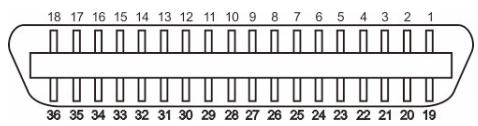
Transmission length: max. 2,0 m
7.3.2 Ethernet I/O 10/100 MultitProtocol
The Ethernet interface enables the printer to connect to local area networks. Its attributes are:
| Hardware | LAN/Ethernet: RJ45, Ethernet 100BaseTX with 100 Mbps (IEEE802.3u), 10Base-T with 10 Mbps (IEEE802.3) Speed: 100 Mbps / Full Duplex |
| Supported operating Systems | Windows XP, Windows Server 2003, Windows 2000, Windows NT, Windows 7, Windows Vista, Windows Server 2008, Windows Server 2013, Windows 8 Linux Unix Sun Solaris |
| Supported Protocols | SNMP SMTP TCP/IP FTP Ipr / Ipd Port 9100 |
| Designation of IP Address | DHCP BOOTP Static (manually via the printer's control panel) |
| Configuration | HTTP TCP/IP |
| Status | SNMP TCP/IP SMTP PING |
| Management | Web Panel HP Web Jet Admin E-Mail notification with SMTP Pre-string, Post-String, String Replacement |
| Setup | Setup via the printer's control panel Web Panel (HTTP/HTML) |
Ethernet TCP/IP
When using your printer in a local network with Ethernet connections and the TCP/IP protocol, you have to assign address information.

Address information for the Ethernet Port can only be made available by your network administrator, who has the necessary rights to install Printers on the network and/or make any changes.
Example of a Printer connected to a computer in an Network
The assumed address space corresponds to the TCP/IP address, class C, 192.168.1.xxx.
The subnet mask to be used is 255.255.255.0.
The address of the router, or gateway, is 0.0.0.0, if not available.

Example of several devices in an Ethernet
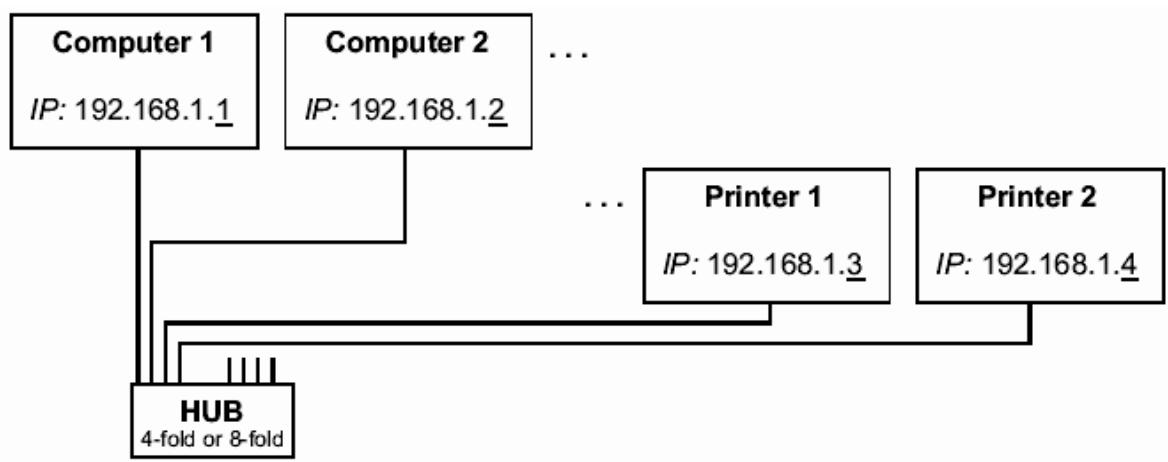
7.3.3 USB 2.0 I/O - Full Speed
The USB interface conforms to the Universal Serial Bus 2.0 Specifications. It supports the Full Speed mode at 12 Mbps. It uses the "B" type USB connector.
7.3.4 Serial Interface RS232C (standard on PRN-7)
Your printer's serial interface supports the RS232C specification. The signals are received and transmitted by a 9 pin connector.
Basically 3 lines are enough for exchanging information between computer and printer (one receive line, one send line, one line for common grounding).
| Type | RS232C interface |
| Synchronization | Asynchronous |
| Transmission rate | 600 Baud to 19200 Baud |
| Signal status | OFF (log.1) -3 V to -15 V ON (log.0) +3 V to +15 V |
| Connection cable | up to 15 m length |
| Interface connections | ITT Cannon connector, series DB-9 S |
| Transmission protocol | XON/XOFF, ENQ/STX, READY/ BUSY, Robust XON/XOFF, ETX/ ACK, ACK/NAK |
| Capacity of data buffer | 512Byte min. 256KByte max |
Connector assignment
| Connector no. | Direction PC | Printer-PC | Signal |
| 3 | → | TxD | |
| 4 | → | DTR | |
| 2 | ← | RxD | |
| 6 | ← | DSR | |
| 7 | → | RTS | |
| 8 | ← | CTS | |
| 5 | Signal Ground SG | ||
| Shield | Frame Ground FG |
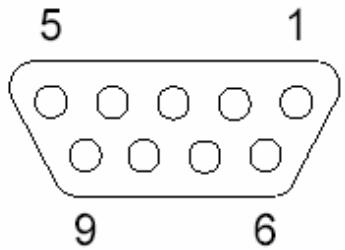

1) The serial cable length must not exceed 15 meters.
2) Make sure the "Interface Setup" selects serial interface and the settings are the same as PC communication port settings. See example below:
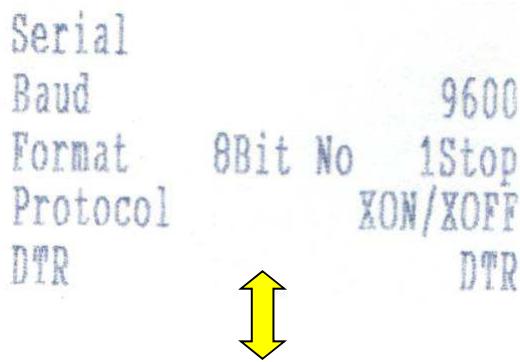
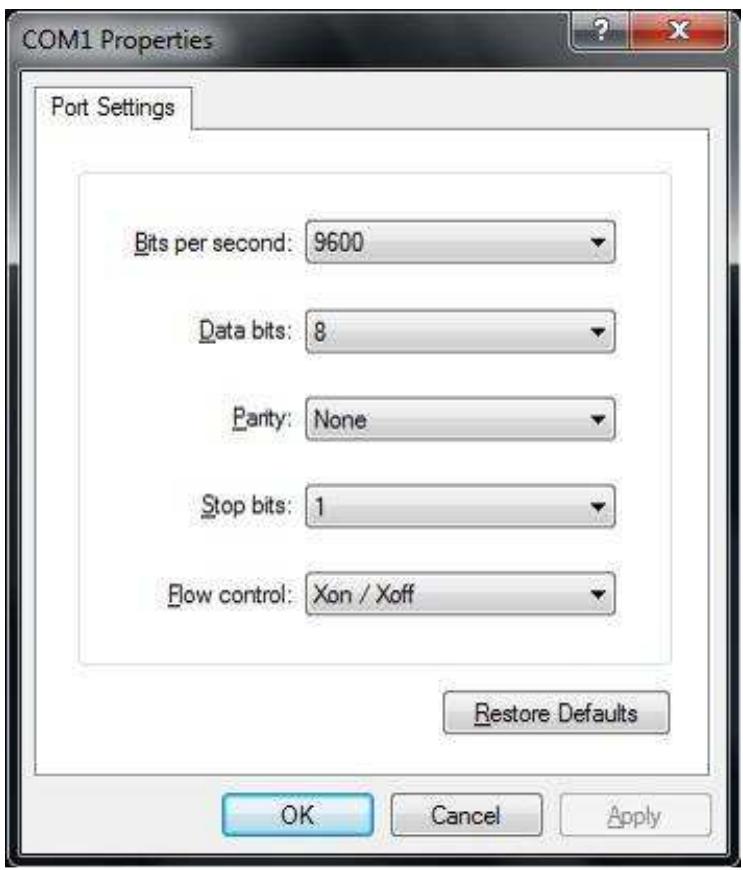
Interface cable (serial interface)
The cables used must be shielded. The cable shield must be connected to the connector shield on both ends.
| PC/AT (9 Pin) | Printer (9 Pin) | ||
| RxD | 2 | 3 | TxD |
| TxD | 3 | 2 | RxD |
| CTS | 8 | 4 | DTR/RDY |
| SG | 5 | 5 | SG |
| DSR | 6 | ||
| DTR | 4 | ||
| PC/AT (25 Pin) | Printer (9 Pin) | ||
| FG | 1 | __________ | FG |
| TxD | 2 | 2 | RxD |
| RxD | 3 | 3 | TxD |
| CTS | 5 | 4 | DTR/RDY |
| SG | 7 | 5 | SG |
| DSR | 6 | ||
| DTR | 20 | ||
It depends on the menu setting whether DTR or RDY (Ready) is active at Pin 4.
Input signals
| Signal | Function |
| CTS | Clear to Send |
| DSR | Data Set Ready |
| RxD | Receive Data |
Output signals
| Signal | Function |
| DTR | Data Terminal Ready |
| RTS | Request to Send |
| READY | Ready to receive |
| TxD | data Transmit Data |
Protocols
Memory mode XON/XOFF
The received characters are stored in a FIFO buffer (first in/first out).
The characters are processed in this buffer.
The buffer capacity can be adjusted from 0 to 128 Kb.
If the buffer is full, the interface signals NOT READY (signal acknowledgement: Level 1, -12 V) and XOFF (hex. 13, dec. 19). This results in stopping the data transmission. When the FIFO buffer is empty again, the interface signals READY (level 0, +12 V) and XON (hex.11, dec. 17). Data transmission can be continued.
In addition, the READY signal is influenced by the status of the printer (On/Off Line). If the printer assumes an undefined state, the interface also signals NOT READY and XOFF.
Memory mode Robust XON/XOFF
Robust XON/XOFF is similar to XON/XOFF. However, the state of the printer (XON or XOFF) is also periodically transmitted via the TxD line in the case of Robust XON/XOFF.
Extended menu functions with the ENQ/STX and ETX/ACK protocols selected
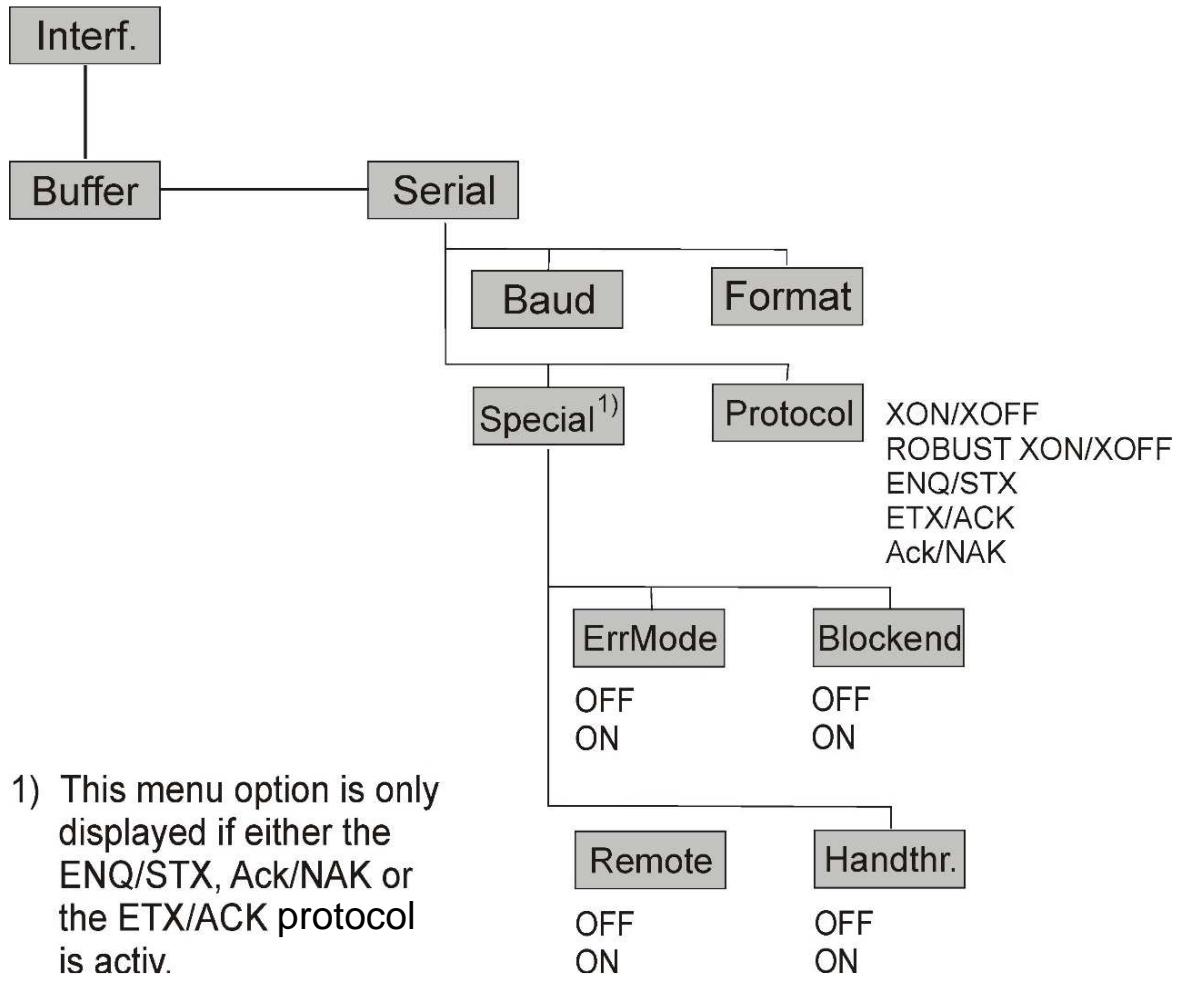
ENQ/STX protocol
In addition to this XON/XOFF message, the possibility exists of requesting a status byte from the printer using the ENQ code (hex. 05, dec. 5). The STX code (hex 02, dec. 2) is used to clear any error messages (parity error, buffer overflow).
| Status byte | Bit 0-1 | BUSY |
| Bit 1-1 | Off Line | |
| Bit 2-0 | Paper end | |
| Bit 3-1 | Always 1 | |
| Bit 4-1 | Cover open | |
| Bit 5-1 | Buffer overflow | |
| Bit 6-1 | Parity or frame error | |
| Bit 7-0 | Always 0 |
STX (hex02):
ENQ (hex05): Clears any previous parity or framing error as well as any buffer overflow error.
XON/XOF: The current printer status is sent to the host.
This protocol is automatically used for data flow control and printer status handling.
The STX and ENQ characters are not filtered out of the data stream and control the interface in addition.
OFF: The STX and ENQ are filtered out of the data stream and handled immediately by the interface.
ETX/ACK protocol
ETX (hex03): Acknowledgement informing the host that further data may be transmitted.
XON/XOFF: transmitted.
This protocol is used in addition to data flow control and printer status ACK (hex06): handling.
HandThr. = ON: Block end character.
An ETX is not acknowledged by ACK before all previously arrived data have been printed.
=OFF: When the printer receives an ETX, it returns an ACK to the host. Any previously sent data or blocks may still be present in the printer buffer.
ACK/NAK protocol
The ACK/NAK Protocol is a so called block Protocol.
Normally the Blocks are starting with the Block Start Character (STX, dec 02, hex 02) and end with a Block End Character (ETX, dec 03, hex 03).
As soon as a Block is received by the printer it acknowledges it with the Acknowledge Character (ACK, dec 06, hex 06).
If there is an Error in the transmission a Not-Acknowledge-Character (NAK, dec 21, hex 15) is being sent back. As a block end character other codes are possible.
One can check the printer condition/status; During the transmission of graphic data or download character per se problems can come up within the block mode as in this data block end characters can be transmitted as normal graphic or other data.
8 Options and accessories
The following options can be ordered for your printer.
8.1 Options
Tractor Unit PRN-7
| Name | Part no. |
| Second Tractor for push and pull position (rear, top and front installable). | 99992 |
8.2 Consumables
Ribbons
| Name | Part no. |
| Ribbon cassette monochrome black for PRN-7 | 99003 |
8.3 Accessories
Programming manuals
The following programming manuals are available. You can download the manuals from our internet page.
| Name | Part no. |
| Programmer's application manual MTPL (in English) | 379 298 |
| Programmer's application manual Barcode (in English) | 379 300 |
| Programmer's application manual Epson (in English) | 379 302 |
9 General Specifications
9.1 Printer Specifications
| Print System | Mono-chrome serial impact dot matrix | |||||
| Print Technology | Uni/bi-directional logic seeking for text and graphics | |||||
| Print Head | Number of pins: 24 pins (2 x 12; staggered) Firing frequency: Normal mode: 2 kHz Pin diameter: 0.25 mm Distance between pins: horizontal 1/20 inch, vertical 1/90 inch Life: 500 million strokes/pin @ Draft mode | |||||
| Print Speed | Pitch HS Draft Draft NLQ LQ in CPS characters per second | |||||
| 10 CPI 500 333 222 111 | ||||||
| 12 CPI 500 400 267 133 | ||||||
| 15 CPI *) 500 500 333 167 | ||||||
| 15 CPI 500 500 167 167 | ||||||
| 17.1 CPI 286 285 190 190 | ||||||
| 20 CPI 333 333 222 222 | ||||||
| 17.1 CPI **) 571 — — — | ||||||
| 20 CPI **) 680 — — — | ||||||
| Character Pitch | 5 / 6 / 7.5 / 8.6 / 10 / 12 / 15 / 17.1 / 20 CPI (characters per inch) | |||||
| Print attributes in all character pitches | Double width / italics / right justification / shadowed / auto centered / double height / bold / proportionally spaced / underlined / overlined / superscript / subscript; Scalable with special LQ-2170 fonts | |||||
| Character Size | Height: 3.32 mm (inclusive descendants) Width: max. 2.43 mm | |||||
| Font Matrix | Pitch HS Draft Draft NLQ LQ (Matrix/DPI) 10 CPI 24x8/80H 24x12/120H 24x18/180H 24x36/360H 12 CPI 24x8/96H 24x10/120H 24x15/180H 24x30/360H 15 CPI *) 16x8/120H 16x8/120H 16x12/180H 16x24/360H 15 CPI 24x8/120H 24x8/120H 24x18+6/360H 24x18+6/360H 17.1 CPI 24x12+2/240H 24x12+2/240H 24x18+3/360H 24x18+3/360H 20 CPI 24x10+2/240H 24x12+2/240H 24x15+3/360H 24x15+3/360H 17.1 CPI **) 24x06+1/240H — — — — — — | |||||
| 20 CPI **) 24x05+1/240H — — — — — — | ||||||
| Paper Feed | Feed speed: 5 ips (tractor and friction) Feed first line (6lpi): 43 ms View / Tear position: 5 ips Reverse motion: up to max form length of 14 inches | |||||
) Only with ESC/P (sub-/superscript, 15 CPI) and MTPL Micro-script
*) Reduced matrix, selectable by menu, named Ultra-Draft
| Tab Speed | 50 ips |
| Graphic Densities | Horizontal: 60 / 72 / 80 / 90 / 120 / 180 / 240 / 360 DPI (dot per inch)Vertical: 90 / 180 / 360 DPI |
| Print width | 10 CPI: 80 CPL12 CPI: 96 CPL15 CPI: 120 CPL17.1 CPI: 137 CPL20 CPI: 160 CPL |
| Fonts,resident | Print qualities:Ultra-Draft, HS-Draft and Draft in Data Print QualityNLQ same as LQ with reduced matrix, LQ Roman, Roman PS, Sans Serif, Sans Serif PS, Courier, Courier (IBM®), Courier PS (IBM®), OCR A, OCR B, Prestige, Script, Orator, Gothic, SouvenirDLL Character Sets in EPSON® and IBM® format |
| Barcodes,resident | Selectable via programming:Code 2/5 IndustrialCode 2/5 InterleavedCode 39Code EAN-8 with HRI (human readable index)Code EAN-8 without HRICode EAN-13 with HRICode EAN-13 without HRICode UPC-A with HRICode UPC-A without HRICode UPC-E with HRICode UPC-E without HRICode 128 EAN (also called EAN-128)Code 128U.S. Postnet (fix format, non-scalable)KIX BarcodeRoyal Mail Customer BarcodeUSPS Intelligent Mail Barcode |
| Emulation | MTPL, EPSON® ESC P/2 (LQ2170), EPSON® ESC P (LQ 2550), IBM® PP XL 24e |
| Code Pages andNational CharacterSets | See the list at the end of the Printer Specifications where Fonts, Code pages and available pitch sizes are given by corresponding relationships. |
| Line Spacing | 2 LPI / 3 LPI / 4 LPI / 6 LPI / 8 LPI / 12 LPI / 1/72" / 1/180" / 1/360 inches |
| Paper Handling | Feeding method: Friction (Single) and Tractor (FF-front / FF-rear / FF-pull) Path selection: By selection lever located at the right device side Paper path: Cut sheets: Front in, front or top out Fanfold paper: Front or rear in, top out For details enter the Paper Specifications - 9.3 below |
| Ribbon Type | Ribbon Cartridge, monochrome; 330 x 93 x 39mm max, (WxDxH), fabric: 13mm height |
| Ribbon Life | : 6 million characters (rolling Draft 10 CPI) |
| Windows Drivers | Windows Server 2000 / 2003 / 2008 / 2012 Windows 7 and Windows 8 (for 32 and 64bit versions) → covers Windows XP, Windows 2000 and Windows Vista. |
| Interfaces | Ethernet 10/100MHz Parallel (Bi-directional IEEE-1284 nibble mode) USB 2.0 (Full Speed 12 MHz, B type connector) For details enter the Interface Specifications - 7.3 above |
| Input Data Buffer | Up to 256KB |
| Operation Panel | LCD version: 6 keys and LCD with 2 lines x 16 characters |
| Self test | Menu setting print out Rolling ASC II 80 or 136 Hex-Dump |
| Noise Level | Sound pressure level = ≤ 55 dB(A) in LQ |
| Environmental Conditions | Temperature Operating: +10 to +35°C. Storage: - 5 to +45°C Transport: -40 to +70°C Humidity Operating: 16 to 73% RH (No condensation) Storage: 5 to 95% RH (No condensation) Transport: 5 to 95% RH (No condensation) |
| Dimensions | Wide version: 600 mm (W) x 267 mm (D) x 202 mm (H) Narrow version: 458 mm (W) x 267 mm (D) x 202 mm (H) |
| Weight | Wide version: 10.62 kg Narrow version: 8.1 kg |
| Power Supply | Unit type: Autosensing wide range power supply Power cord: Detachable Voltage rating: AC 100 to 240V / 50/60Hz Nominal power: 160W ESD: Comply with IEC801-2 Contact discharge: 4kV Air discharge: 8kV |
| Fuse | T6.3AH/250V |
| MTTR | < 15 minutes | |
| Continuous operation | Throughput: | 422 p/h in Draft mode according IEC 10561:1999 (ECMA 132) |
| MTBF: | 20.000 hours |
9.2 Non-Scalable Fonts, Code Pages and National Character Sets
| ID for ESC R/ESC ( | Draft | Roman | Sans Serif | Courier (incl. Courier IBM) | OCR-B | OCR-A | Prestige | Script | Orator | Gothic | Souvenir | |
| ISO USA | 42 | X | X | X | X | X | X | X | X | X | X | X |
| ISO UK | 41 | X | X | X | X | X | X | X | X | X | X | X |
| ISO France | 52 | X | X | X | X | X | X | X | X | X | X | X |
| ISO Germany | 4B | X | X | X | X | X | X | X | X | X | X | X |
| ISO Italy | 59 | X | X | X | X | X | X | X | X | X | X | X |
| ISO Sweden | 48 | X | X | X | X | X | X | X | X | X | X | X |
| ISO Norway | 60 | X | X | X | X | X | X | X | X | X | X | X |
| ISO Spain | 5A | X | X | X | X | X | X | X | X | X | X | X |
| ISO Portugal | 4C | X | X | X | X | X | X | X | X | X | X | X |
| Epson USA | 00 | X | X | X | X | X | X | X | X | X | X | X |
| Epson France | 01 | X | X | X | X | X | X | X | X | X | X | X |
| Epson Germany | 02 | X | X | X | X | X | X | X | X | X | X | X |
| Epson UK | 03 | X | X | X | X | X | X | X | X | X | X | X |
| Epson Denmark I | 04 | X | X | X | X | X | X | X | X | X | X | X |
| Epson Sweden | 05 | X | X | X | X | X | X | X | X | X | X | X |
| Epson Italy | 06 | X | X | X | X | X | X | X | X | X | X | X |
| Epson Spain I | 07 | X | X | X | X | X | X | X | X | X | X | X |
| Epson Japan | 08 | X | X | X | X | X | X | X | X | X | X | X |
| Epson Norway | 09 | X | X | X | X | X | X | X | X | X | X | X |
| Epson Denmark II | 0A | X | X | X | X | X | X | X | X | X | X | X |
| Epson Spain II | 0B | X | X | X | X | X | X | X | X | X | X | X |
| Epson Latin America | 0C | X | X | X | X | X | X | X | X | X | X | X |
| Epson Korea | 0D | X | X | X | X | X | X | X | X | X | X | X |
| Epson Legal | 40 | X | X | X | X | X | X | X | X | X | X | X |
| CRO-ASCII | 3C | X | X | - | X | X | - | - | - | - | - | - |
| Arabic Farsi | 96 | - | - | *1 | *1 | *1 | *1 | - | - | - | - | - |
| Arabic Urdu | 97 | - | - | *1 | *1 | *1 | *1 | - | - | - | - | - |
| Greek DEC | 46 | X | X | - | X | - | - | - | - | - | - | - |
| ELOT 928 (Greek) | 6C | X | X | - | X | - | - | - | - | - | - | - |
| CP437 Latin US | 80 | X | X | X | X | X | X | X | X | X | X | X |
| CP737 Greek | 93 | X | X | - | X | - | - | - | - | - | - | - |
| CP775 Baltic | A6 | X | X | - | X | X | - | - | - | - | - | - |
| CP850 Latin 1 | 82 | X | X | X | X | X | X | X | X | X | X | X |
| CP851 Greek | 88 | X | X | - | X | - | - | - | - | - | - | - |
| CP852 Latin 2 | 87 | X | X | - | X | X | - | - | - | - | - | - |
| CP857 Turkish | 8D | X | X | - | X | X | - | - | - | - | - | - |
| CP858 (IBM with €) | 9E | X | X | X | X | X | X | X | X | X | X | X |
| CP860 Portugal | 84 | X | X | X | X | X | X | X | X | X | X | X |
| CP861 Icelandic | 94 | X | X | X | X | X | X | X | - | - | - | - |
| CP863 French Canada | 85 | X | X | X | X | X | X | X | X | X | X | X |
| CP864 Arabic | 8C | - | - | *1 | *1 | *1 | *1 | - | - | - | - | - |
| CP864 Arab. Extended | 95 | - | - | *1 | *1 | *1 | *1 | - | - | - | - | - |
| CP865 Nordic | 86 | X | X | X | X | X | X | X | X | X | X | X |
| CP866 Cyrillic | 8E | X | X | - | X | X | - | - | - | - | - | - |
| CP866 Bulgaria | 9D | X | X | - | X | X | - | - | - | - | - | - | - | - | - | - | - | - | - | - | - | - |
| CP866 Ukraine | 8F | X | X | - | X | X | - | - | - | - | - | - | - | - | - | - | - | - | - | - | - | - |
| CP866 Kazakhstan | 90 | X | X | - | X | X | - | - | - | - | - | - | - | - | - | - | - | - | - | - | - | - |
| Siemens Turkish | 9B | X | X | - | X | X | - | - | - | - | - | - | - | - | - | - | - | - | - | - | - | - |
| DEC Turkish | 9C | X | X | - | X | X | - | - | - | - | - | - | - | - | - | - | - | - | - | - | - | - |
| CP1250 Win Latin 2 | 70 | X | X | - | X | X | - | - | - | - | - | - | - | - | - | - | - | - | - | - | - | - |
| CP1251 Win Cyrillic | 71 | X | X | - | X | X | - | - | - | - | - | - | - | - | - | - | - | - | - | - | - | - |
| CP1252 Win Latin 1 | 72 | X | X | - | X | X | - | - | - | - | - | - | - | - | - | - | - | - | - | - | - | - |
| CP1253 Win Greek | 73 | X | X | - | X | X | - | - | - | - | - | - | - | - | - | - | - | - | - | - | - | - |
| CP1254 Win Turkish | 74 | X | X | - | X | X | - | - | - | - | - | - | - | - | - | - | - | - | - | - | - | - |
| CP1256 Arabic | 75 | - | - | *1 | *1 | *1 | - | - | - | - | - | - | - | - | - | - | - | - | - | - | - | - |
| CP1257 Baltic | 76 | - | - | *1 | *1 | *1 | - | - | - | - | - | - | - | - | - | - | - | - | - | - | - | - |
| 8859-1 Latin 1 (SAP) | 25 | X | X | - | X | X | - | - | - | - | - | - | - | - | - | - | - | - | - | - | - | - |
| 8859-2 Latin 2 | 26 | X | X | - | X | X | - | - | - | - | - | - | - | - | - | - | - | - | - | - | - | - |
| 8859-5 Cyrillic | 2A | X | X | - | X | X | - | - | - | - | - | - | - | - | - | - | - | - | - | - | - | - |
| 8859-6 Arabic | 24 | - | - | *1 | *1 | *1 | - | - | - | - | - | - | - | - | - | - | - | - | - | - | - | - |
| 8859-7 Greek | 2D | X | X | - | X | X | - | - | - | - | - | - | - | - | - | - | - | - | - | - | - | - |
| 8859-9 Turkish | 2E | X | X | - | X | X | - | - | - | - | - | - | - | - | - | - | - | - | - | - | - | - |
| 8859-15 Latin 9 (Euro) | 2F | X | X | - | X | X | - | - | - | - | - | - | - | - | - | - | - | - | - | - | - | - |
| BRASCI | 6D | X | X | - | X | X | - | - | - | - | - | - | - | - | - | - | - | - | - | - | - | - |
| Abcomp | 6E | X | X | - | X | X | - | - | - | - | - | - | - | - | - | - | - | - | - | - | - | - |
| Roman 8 | 4D | X | X | - | X | X | - | - | - | - | - | - | - | - | - | - | - | - | - | - | - | - |
| Coax/Twinax(Hebrew) | 4F | X | X | X | X | X | *2 | - | - | - | *3 | *4 | - | - | - | - | - | - | - | - | - | - |
| New-DIG 850 (Hebrew) | 83 | X | X | X | X | X | *2 | - | - | - | *3 | *4 | - | - | - | - | - | - | - | - | - | - |
| Old-Dig 860 (Hebrew) | 98 | X | X | X | X | X | *2 | - | - | - | *3 | *4 | - | - | - | - | - | - | - | - | - | - |
| Flarro 863 (Hebrew) | 99 | X | X | X | X | X | *2 | - | - | - | *3 | *4 | - | - | - | - | - | - | - | - | - | - |
| Table 865 (Hebrew) | 9A | X | X | X | X | X | *2 | - | - | - | *3 | *4 | - | - | - | - | - | - | - | - | - | - |
| Mazovia (Poland) | 92 | X | X | - | X | X | - | - | - | - | - | - | - | - | - | - | - | - | - | - | - | - |
1: only in 10 and 12 cpi, 2 : same as Sans Serif, 3 : same as Roman, 4 : only in 10 cpi
9.3 Paper Specifications
9.3.1 Standard Tractor (Front, Rear and Pull position) -
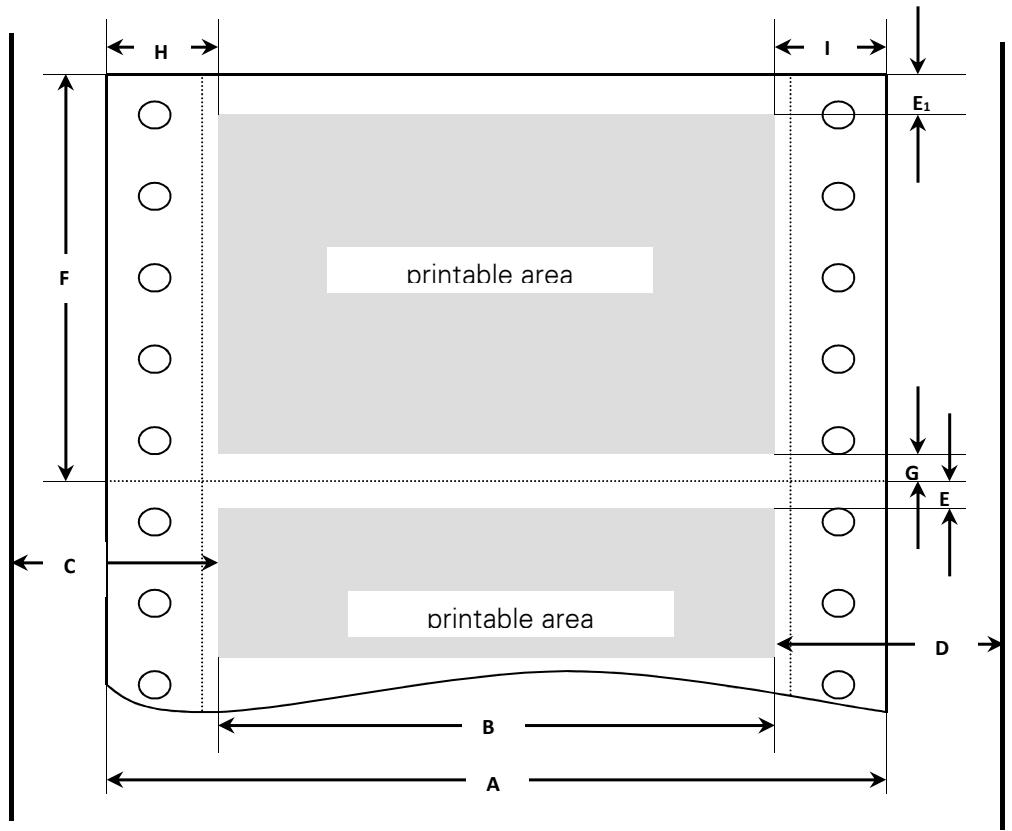
Usable figures of print area (dimensions in mm (inches))
| Pos | Title | ||
| min | max | ||
| A | paper width, | 76.2(3") | 278(11") |
| B | printable line length | 203.2(8") | |
| C | Max left tractor position to first printable character | 38(1.4") | |
| D | Max right tractor position to first printable character | 38(1.4") | |
| E | top margin1) | 0(0/72") | 77.6(220/72") |
| \( E_1 \) | top margin, default setting1) | 4.23(12/72") | |
| F | form length1) | 76,2(3") | 559(22") |
| G | bottom margin | 0 | 0 |
| H | left margin, default setting "0"1) | 0 | 198.1(78/10") |
| I | right margin, default setting "80"1) or "136/10" | 2 | 203.2(80/10") |
| reverse paper feed for front and rear tractor path | 356(14") | ||
1) Figure variable setting via interface or panel
9.3.2 Front Feed / Manual Insertion –
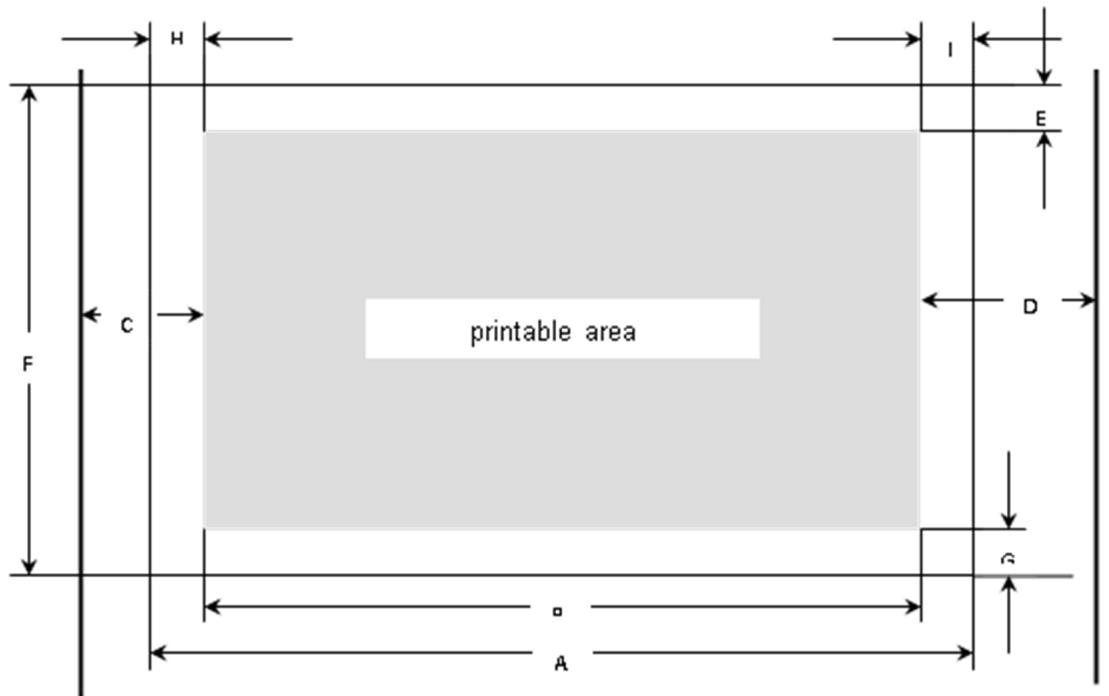
Usable figures of print area (dimensions in mm (inches))
| Pos | Title | Narrow model | |
| min | max | ||
| A | paper width, | 76(3") | 278(11") |
| B | printable line length | 203.2(8") | |
| C | Max left paper guide position to first printable character | 38(1.4") | |
| D | Max right paper guide position to first printable character | 38(1.4") | |
| E | top margin1) | 0(0/72") | 77.6(220/72") |
| E | top margin, default setting1) | 4.23(12/72") | |
| F | form length | 148(5.8") | 420(16.5") |
| G | bottom margin | 0 | 0 |
| H | left margin, default setting "0"1) | 0 | 198.1(78/10") |
| I | right margin, default setting "80"1) or "136/10" | 2 | 203.2(80/10") |
| reverse paper feed(front ejection) | 420(16.5") | ||
9.3.3 Paper Weights
| Single Part Forms | 60 – 120g/m2 |
| Number of copies | 1 + 5 |
| Multi Part Forms – original sheet | 45 – 65g/m2 |
| Multi Part Forms – copy sheets | 45 – 56g/m2 |
| Maximum thickness | 0.50mm |
1) Figure variable setting via interface or panel
10 Maintenance
Your printer requires very little care. Occasional cleaning and replacement of the ribbon cartridge are all that is required. Cleaning is recommended approximately every 6 months or 300 hours of operation, whichever is sooner. Lubrication of the printer is not usually necessary. If the print head carriage does not move smoothly back and forth, clean the printer in the manner described in this chapter. If the problem continues, contact your dealer.

Switch printer off and unplug the power cord from the mains before doing any maintenance work.
10.1 Cleaning
The housing and the top cover of the printer help protect it against dust, dirt, and other contaminants. However, paper produces small particles that accumulate inside the printer. This section explains how to clean and vacuum the printer and how to clean the paper bail rollers. It is easier to clean the printer when the cover is open.
10.1.1 Cleaning and Vacuuming the Printer
If the print head carriage does not move smoothly back and forth or paper particles have accumulated in the printer, clean the printer.
To clean and vacuum the printer:
1) Remove any paper from the printer. Make sure that the power is off, and then disconnect the printer power cord.
2) Using a soft vacuum brush, vacuum the exterior of the printer. Also vacuum the cut sheet edge.
3) Use a soft, damp cloth to wipe the exterior of the printer, including the cover. A mild detergent may be used. Do not use solvents, kerosene, or abrasive cleaning materials that may damage the printer.
4) Open the cover of the printer and remove the ribbon cartridge. Using a soft vacuum brush, gently vacuum the platen, the print head carriage and shaft, and surrounding areas. You can easily slide the print head to the left or right when the power is off. Be careful not to press too hard on the flat head cable that extends from the print head carriage.
5) Re-install the ribbon cartridge.
10.1.2 Cleaning the Paper Rollers
Clean the platen and paper bail rollers occasionally or when stains or smudges appear on the paper. Use a mild detergent as appropriate. Do not use alcohol to clean the platen or the rollers. Alcohol may cause the rubber to harden.
To clean the rollers and the platen:
1) Apply a small amount of water to a soft cloth. Avoid spilling liquid inside the printer.
2) Place the cloth against the platen and manually rotate the hand wheel.
3) Repeat this procedure for each roller.
4) To dry the platen, place a dry cloth against the platen and the rollers and manually rotate the paper feed knob.
10.2 Troubleshooting
Your printer is extremely reliable, but occasionally problems may occur. This chapter provides information on some of the common problems you may encounter and how you may solve them. If you encounter problems that you cannot resolve, contact your dealer or service partner for assistance.
10.2.1 Print Quality Problems and Solutions
| Problem | Solution |
| Printing is too light or too dark. | ·Make sure that the ribbon cartridge is properly installed and that the ribbon feeds smoothly. ·Replace the ribbon if necessary. ·Make sure that the print gap lever is set for the thickness of your paper. |
| Smears and stains appear on the page. | ·Make sure that the print gap lever is set for the thickness of your paper. ·Check for ribbon wear. Replace the ribbon if necessary. ·Check whether the tip of the print head is dirty. Clean the head with a soft cloth if necessary. ·The print head may need to be replaced. |
| Printing is erratic or the wrong characters are printed. Many “?” or unexpected characters are printed. | ·Make sure that the interface cable is securely connected to both the printer and computer. ·Make sure that the printer driver selected in your software is the same as the emulation selected on the printer. ·Check the length of the interface cable. (Maximum Parallel & USB: 2 meters, Serial: 15 meters) ·Try another interface cable. |
| The page is blank. | ·Make sure that the ribbon cartridge is properly installed. ·Make sure the gap lever is set correctly. |
| The top margin is wrong. | ·Check the application top margin setting. ·Adjust the Top Margin setting in Page Setup menu if necessary. |
| Lines are double spaced instead of single spaced. | ·Change the Auto LF setting in the System Setup menu to No. |
| The printer overprints on the same line. | ·Change the Auto CR setting in the System Setup menu to No. |
| The next print line starts where the previous line ended instead of at the left margin. | ·Change the Auto CR setting in the System Setup menu to Yes. |
10.2.2 Paper Handling Problems and Solutions
| Problem | Solution |
| Paper cannot be loaded or fed. | ·Make sure that the paper select lever located on the top right of the printer is set correctly. |
| Paper jams while loading. | ·Turn off the printer and remove the jammed paper. Remove any obstructions from the paper path. ·Make sure that the Print Gap lever is set for the thickness of your paper. ·Make sure that the paper is not folded, creased, or torn. ·Make sure that the left and right tractors are set so that the continuous forms are stretched tightly. |
| Paper jams while printing. | ·Turn off the printer and remove the jammed paper. Remove any obstructions from the paper path. ·Make sure that the Print Gap lever is set for the thickness of your paper. ·For continuous forms, make sure that the incoming and outgoing paper stacks are correctly placed. Paper should feed straight. |
| Paper slips off the forms tractors or the perforated holes of the paper tear during printing. | ·Make sure that the forms tractors are positioned correctly for the width of your paper and that the perforated holes of the paper fit directly over the tractor pins. |
10.2.3 Operating Problems and Solutions
| Problem | Solution |
| The power does not turn on. | ·Check whether the mains voltage is correct. ·Make sure that the power cord is securely connected to both the printer and the mains power outlet. ·Make sure that the power outlet is functional. If not, use other outlet. ·Turn the power off. Wait a minute and then turn the printer on again. If the printer still has no power, contact your dealer. |
| The printer is on but it will not print. | ·Make sure that the Online indicator is lit. ·If you use the interface cable, make sure it is securely connected to both the printer and the computer. ·Make sure paper is loaded. ·Run the printer Status Page. If printing executes normally, the problem is caused by: the interface, the computer, incorrect printer settings, or incorrect software settings. |
| • Make sure that the printer driver selected in your software is the same as the emulation selected on the printer. | |
| Paper select lever error | • If paper is loaded and the paper select lever is moved to the incorrect position, the printer turns offline, and the buzzer sounds continuously. Switch the paper select lever back to its correct position. |
FCC STATEMENT
Changes or modifications not expressly approved by the responsible for compliance could void the user's authority to operate the equipment.
NOTE: This equipment has been tested and found to comply with the limits for a class B digital device, pursuant to Part 15 of the FCC Rules. These limits are designed to provide reasonable against harmful interference in a residential installation. This equipment generates, uses and can radiate radio frequency energy and, if not installed and used in accordance with the instructions, may cause harmful interference to radio communications. However, there is no guarantee that interference will not occur in a particular installation. If this equipment does cause harmful interference to radio or television reception, which can be determined by turning the equipment off and on, the user is encouraged to try to correct the interference by one or more of the following measures:
- Reorient or relocate the receiving antenna.
- Increase the separation between the equipment and receiver.
- Connect the equipment into an outlet on a circuit different from that to which the receiver is connected.
- Consult the dealer or an experienced radio/TV technician for help.
DASCOM REPRESENTATIVES
GERMANY
DASCOM EuropeGmbH
Heuweg 3
D-89079 UIm
Deutschland
Tel.: +49 (0) 731 2075 0
Fax: +49 (0) 731 2075 100
www.dascom.com
UNITED KINGDOM
DASCOMGBLtd
Hart House, Priestley Road,
Basingstoke, Hampshire
RG24 9PU, England
Phone:+44 (0) 1256 481481
Fax: +44 (0) 1256 481400
www.dascom.com
SINGAPORE (ASIA PACIFIC)
DASCOMAP PteLtd
21 Bukit Batok Crescent
29-81,WCEGA Tower
Singapore 658065
Phone:+65 6760 8833
Fax: +65 6760 1066
www.dascom.com
AMERICAS
DASCOM Americas Corporation
34 Lakeview Court, Verona, VA 24482, USA
Phone:+1 (877) 434 1377
www.dascom.com
FRANCE
DASCOM EuropeGmbH
117 Avenue VictorHugo
92100 Boulogne-Billancourt
France
Phone:+33(1)73025198
www.dascom.com
CHINA
JIANGMENDASCOMCOMPUTER
PERIPHERALS CO., LTD
No.399, jinxing Road,
Jianghai District Jiangmen,
P.R. China
www.dascom.com
"All rights reserved. Translations, reprinting or copying by any means of this manual completeor in part or in any different form requiresour explicitapproval. We reserve the right to make changesto this manual without notice. All care has been taken to ensure accuracyof information contained in this manual. However, we cannot accept responsibility for any errors or damages resulting from errors or inaccuracies of information herein."