HHRA501a - Pocket computer NOKIA - Free user manual and instructions
Find the device manual for free HHRA501a NOKIA in PDF.


| Product type | Handheld computer (PDA) |
| Brand | Nokia |
| Model | HHRA501a |
| Dimensions (approx.) | 120 x 70 x 15 mm |
| Weight (approx.) | 150 g |
| Screen | Color TFT touchscreen, 3.5 inches |
| Screen resolution | QVGA (320 x 240 pixels) |
| Processor | ARM 400 MHz |
| RAM memory | 64 MB |
| Internal memory | 128 MB (expandable via SD card) |
| Operating system | Windows Mobile 6.1 |
| Wireless connectivity | Wi-Fi 802.11 b/g, Bluetooth 2.0 |
| Ports | Mini-USB B, 3.5mm audio jack |
| Power source | Rechargeable lithium-ion battery, 1000 mAh |
| Standby time (approx.) | Up to 200 hours |
| Talk time (approx.) | Up to 6 hours |
| Camera | 2 megapixels with flash |
| Maintenance and cleaning | Clean with a soft, dry cloth. Avoid liquids. |
| Safety | Compliant with SAR standards ≤ 1.6 W/kg (for head and body) |
| Spare parts and repairability | Battery and back cover replaceable. Batteries available from authorized service. |
| General information | CE, FCC, IC certifications. Indoor use for 5 GHz bands. |
Frequently Asked Questions - HHRA501a NOKIA
User questions about HHRA501a NOKIA
0 question about this device. Answer the ones you know or ask your own.
Ask a new question about this device
Download the instructions for your Pocket computer in PDF format for free! Find your manual HHRA501a - NOKIA and take your electronic device back in hand. On this page are published all the documents necessary for the use of your device. HHRA501a by NOKIA.
USER MANUAL HHRA501a NOKIA
Nokia Industrial 5G handheld HHRA501a
User manual
Issue 01
NOKIA
Contents
1 Device overview /functions. 4
2 Introduction. 7
3 Reserved. 8
4 Safety advises. 9
5 Maintenance / repair. 12
6 Battery. 13
7 What is in the box? 14
8 Preparation. 15
8.1 Install and take out the battery/Install the Nano-SIM card and Micro SD card. 15
8.2 Activate eSIM 16
8.3 APN setting steps. 16
8.4 Install and disassemble the Waist clip. 17
8.5 16 pin interface. 17
8.6 Charging 18
9 Functional introduction. 20
9.1 PTT/ customize keys 20
9.2 Multifunctional Alarm (LWP) 20
10 Setting up your phone. 22
11 Basic functions. 25
11.1 Lock and unlock the screen 25
11.2 Make it yours 25
11.2.1 Home screen 25
11.2.2 Uninstall app 26
11.2.3 Create widgets.. 26
11.2.4 Notification Bar. 27
11.2.5 AndroidTM and computer connection.. 27
11.3 Make a Call 28
11.3.1 Call Log 29
11.3.2 Answering phone calls.. 29
NOKIA
11.3.3 Reject a Call by Sending a Busy Message 29
11.3.4 Add a Contact 30
11.4 Messaging 30
11.4.1 Receiving a New Message 31
11.4.2 Editing SMS and MMS 31
11.4.3 Message conversations.. 31
11.5 Settings 32
11.5.1 Wi-Fi 32
11.5.2 Bluetooth 32
11.5.3 Security 33
11.6 Back up your data 33
11.7 Erase all data (factory reset) 33
12 Using applications 35
12.1 Camera 35
12.1.1 Take a photo 35
12.1.2 Take a selfie 36
12.1.3 Record a video 36
12.1.4 View photos and videos on your phone 36
12.2 Alarm clock 37
12.2.1 Set an alarm.. 37
12.2.2 Switch an alarm off 37
12.3 Download applications from Play Store 38
12.4 Manage Applications 38
12.5 Software update 38
13 Google apps. 39
13.1 Google 41
14 Recycling. 42
15 Industry Canada statement. 43
16 Trademarks. 54
17 Maximum output power. 55
NOKIA
1 Device overview /functions
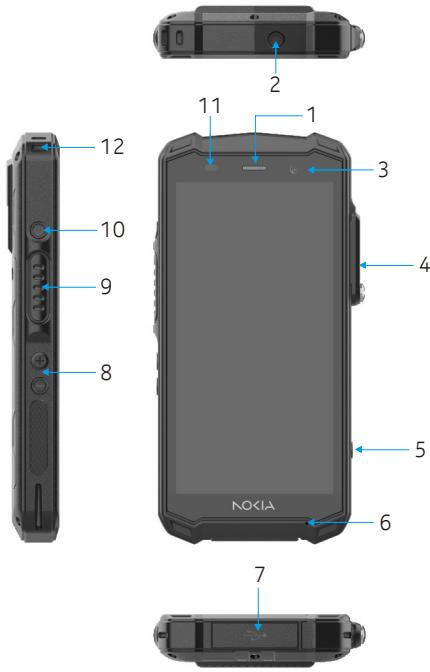
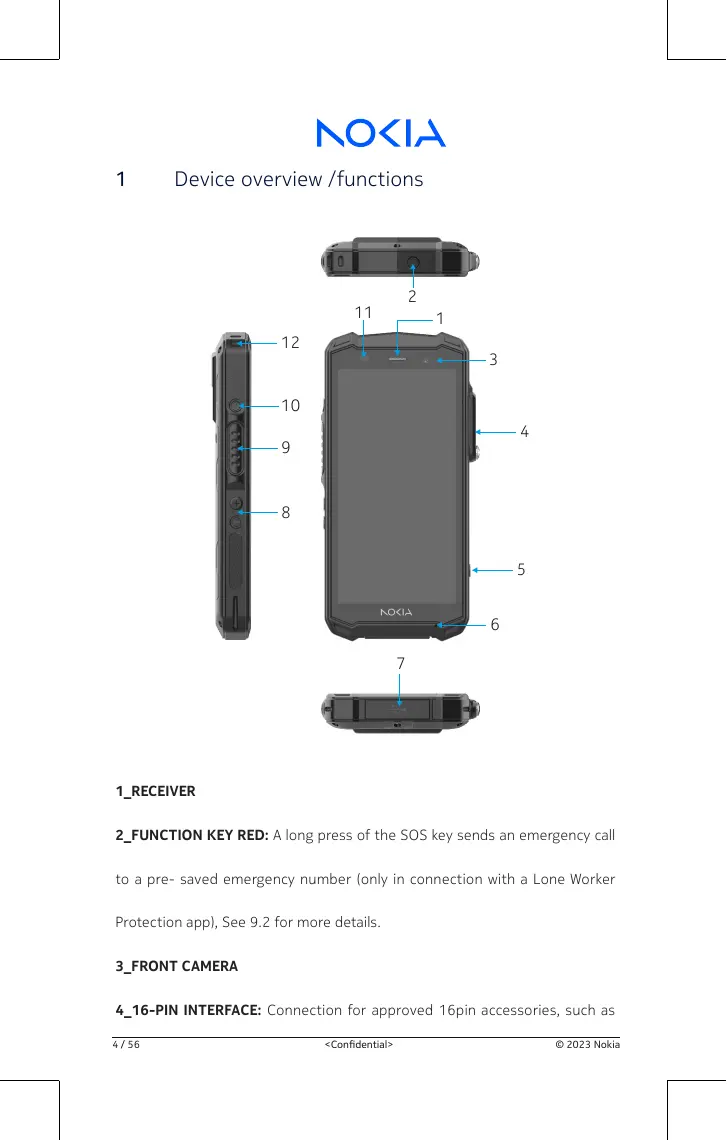
1_RECEPTIVER
2_Function Key RED: A long press of the SOS key sends an emergency call to a pre- saved emergency number (only in connection with a Lone Worker Protection app), See 9.2 for more details.
3_FRONTCAMERA
4_16-PIN INTERFACE: Connection for approved 16pin accessories, such as
NOKIA
PTT headset / RSM
5_SIDE KEY RIGHT: Optional function, example, camera - function can be assigned via "Custom Key"-App (system integrated).
6_MICROPHONE
7_USB INTERFACE: Connection for the USB-C Cable or for connection to other devices.
8_LOUDNESS CONTROL: Volume up/Volume down.
9_SIDE KEY LEFT: Optional function - function can be assigned via "Custom Key" - App (system integrated)
10_POWER KEY: A long press switches the device on/off. A short press switches the stand- by mode on/off.
11.SENSORS: Proximity sensor, light sensor.
12_HANDSTRAP HOLE
NOKIA

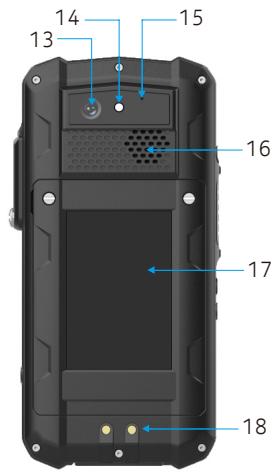
13.BackCAMERA
14_LED FLASH
15_NOISE CANCELLING: Noise cancelling microphone.
16_LOUDSPEAKER: Loudspeaker for hands-free function.
17_BATTERY: Integrated design of battery and battery cover.
18_CHARGING CONTACTS: To connect the desktop charger (accessory).
CELL BROADCAST
The device supports cell broadcast. Cell broadcast is a cellular service for sending messages to all recipients within a cell.
NOKIA
2 Introduction
This document contains information and safety regulations that must be
observed for the safe operation of device Nokia Industrial 5G handheld
HHRA501a under the described conditions. Non-observation of information
and instructions can have serious consequences and may violate regulations.
Please read the manual and these safety instructions before using the de
vice. In the case of any doubt, the English version takes precedent.
NOKIA
3 Reserved
The content of this document is presented as it currently exists. Nokia Innovations Oy does not provide any explicit or tacit guarantee for the accuracy or completeness of the content of this document, including, but not restricted to, the tacit guarantee of market suitability or fitness for a specific purpose unless applicable laws or court decisions make liability mandatory.
Nokia Innovations Oy reserves the right to make changes to this document or to withdraw it any time without prior notice. Changes, errors and misprints may not be used as a basis for any claim for damages. All rights reserved.
Nokia Innovations Oy cannot be held responsible for any data or other loss and direct or indirect damages caused by any improper use of this device.
NOKIA
4 Safety advises
- Do not touch the screen of the device with sharp objects. Dust particles and fingernails can scratch the screen. Keep the screen clean. Gently remove dust from the screen with a soft cloth and do not scratch the screen.
- Do not leave the device in environments with excessive temperatures, as this could lead to the battery overheating, resulting in fire or explosion.
- Do not charge the device near any flammable or explosive substances.
Only charge the device in dry indoor conditions. - Do not charge the device in dusty or humid environments.
- Do not use the device in any areas where use is prohibited by regulations or legislation.
- Do not expose the device or charger to strong magnetic fields, such as those emitted from induction ovens or microwaves.
- Do not attempt to open or repair the device.
Incorrect repair or opening can lead to the destruction of the device, fire or explosion.
NOKIA
Only authorized personnel are permitted to repair the device.
Only use accessories approved by Nokia Innovations Oy.
Power off the device in hospitals or other places where the use of mobile phones is prohibited.
This device may adversely affect medical equipment, such as pacemakers.
Always keep a distance of at least 15cm between the device and such equipment.
Make sure the volume level is not set at an excessive level when
connecting earphones and headphones to protect your

hearing.
- Observe all corresponding laws that are in force in the respective countries regarding the use of devices while operating a vehicle.
- Power off the device and disconnect the charging cable before cleaning the device.
- Do not use any chemical cleaning agents to clean the device or the charger.
Use a damp and anti-static soft cloth for cleaning. - The adapter must be installed near the equipment and be easily accessible.
NOKIA
The product shall only be connected to a USB interface of version USB2.0 and USB3.0.
- Do not discard old and abandoned lithium batteries into household waste, take them to a designated waste disposal point.
- The user is solely liable for any and all damages and liabilities caused by malware downloaded when using the network or other data-exchange functions of the device. Nokia Innovations Oy cannot be held responsible for any such claims.
WARNING
Nokia Innovations Oy will not assume any liability for damage caused by disregarding any of this advice or by any inappropriate use of the device.
NOKIA
5 Maintenance / repair
The device itself has no user-serviceable parts. It is recommended to perform inspections according to the safety regulations and advises. If there is a problem with the device, please contact your vendor or consult the service center. If your device needs repair, you can either contact the service center or your vendor.
NOKIA
6 Battery
There is a risk of explosion if the battery is replaced by an incorrect type. Dis-
pose of used batteries according to the instructions.
NOKIA
7 What is in the box?
The list of items in the Nokia Industrial 5G handheld HHRA501a phone box
are:
Nokia Industrial 5G handheld HHRA501a handheld device
USB type-C Cable
Power adaptor
Screwdriver
Screen protector
- Belt clip
Quick start guide
NOKIA
8 Preparation
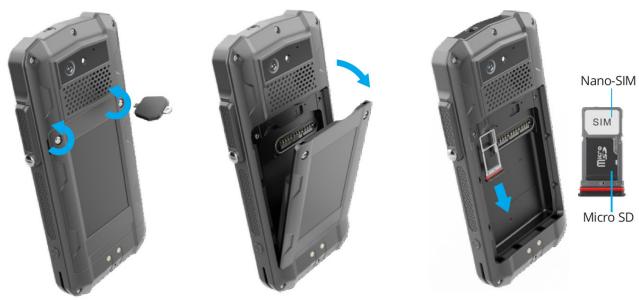
8.1 Install and take out the battery/Install the Nano-SIM card and Micro SD card
To install and take out the battery or install the Nano-SIM card and Micro SD card, please follow the steps below:
- Loosen the screws on the battery using the Screwdriver provided, remove the battery from the battery compartment.
- Insert the Nano-SIM card and/or the Micro SD card.
- Press the battery assembly into battery compartment.
- Hand-tighten the screws.
Note:
Please ensure that all gaskets are closed to ensure water and dust tightness.
NOKIA
8.2 Activate eSIM
You can activate the eSIM in several ways, please follow the steps below:
- Via the Android Setup Wizard during initial device setup:
Scan the eSIM QR code that you have received from your service provider or manually enter the eID that you have received from your service provider.
- Via the settings menu of the smartphone:
Settings > Network & Internet > Mobile network (add Network)
Download SIM > scan (or manually enter) eSIM QR code that you have received from your service provider.
8.3 APN setting steps
You can set up the APN via the settings menu of the smartphone:
Settings > Network & Internet > Mobile network >Access Point names > APNs (add APN)> Edit access point, manually enter APN information that you have received from your service provider, save your setting.
Back to previous menu (APNs) and select the APN that you just set up.
NOKIA
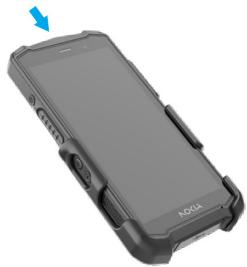
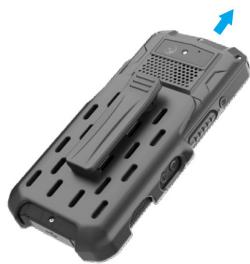
8.4 Install and disassemble the Waist clip
Install and disassemble the Waist clip as shown below:
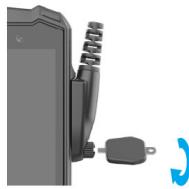
8.5 16 pin interface
Loosen the screw on the 16 pin interface cover using the screwdriver proved.
Remove the cover as shown below:
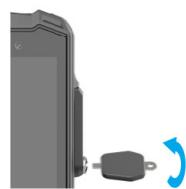
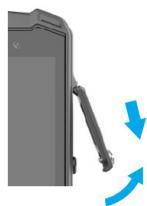
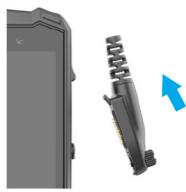
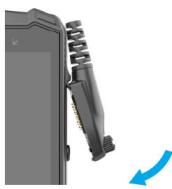
Connect the plug of the 16pin accessory to the 16 interface as shown;
Hand-tighten the screws using the Screwdriver.
Check that the plug is seated correctly and securely.
NOKIA
8.6 Charging
The Nokia Industrial 5G handheld HHRA501a supports 5V/2A charging, only use valid Nokia licensed chargers and cables because unlicensed products may cause the battery to explode or damage the device.
The device must only be charged in an ambient temperature range of +0^ to +45^ . The normal operating temperature of this mobile phone is -10^ to 50^ .
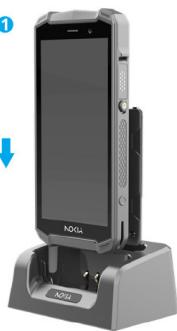
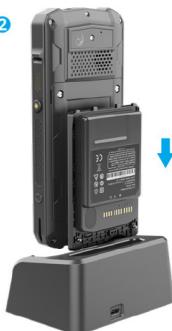
The Nokia Industrial 5G handheld HHRA501a provides charging contacts on the rear side to charge the device via the Desktop Charger (optional accessory). The Desktop Charger also provides a second charging slot for spare batteries (optional accessory).
NOKIA
1
2
NOKIA
9 Functional introduction
9.1 PTT/ customize keys
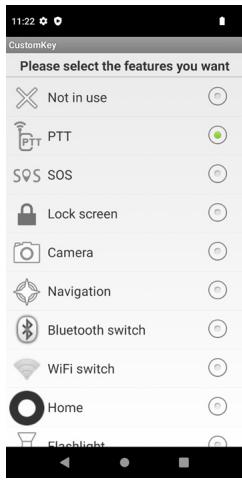
Your phone supports custom buttons, so you can use them to use quick applications. The main function of the custom button is to quickly open the application you specify. PTT in the list means: long press the custom key to enable software talkback.
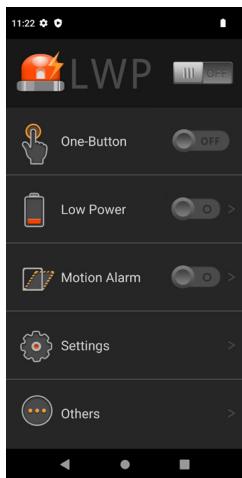
9.2 Multifunctional Alarm (LWP)
The multifunctional alarm is the feature that detects the status of the mobile phone status during motion and rest and automatically notifies the emergen-
NOKIA
cy contact via phone call/ SMS.
- Default password: 1122.
- After opening the application for the first time, a default phone number is required to be set for the alarm.
- If the mobile phone uses two SIM cards, a default phone number is required to be set for calling/SMS.
- Any aborted operation will cause the application process to be interrupted and it needs to [close/open] the application again in order to reset the alarm process.
- The alarm will not be triggered when the mobile phone is connected to a USB charger.
NOKIA
10 Setting up your phone
Follow the steps below to set up your device. For more information, follow the instructions displayed on your device screen.
- When you turn on your device for the first time, the screen below is displayed. Follow the prompts to complete the set-up process.
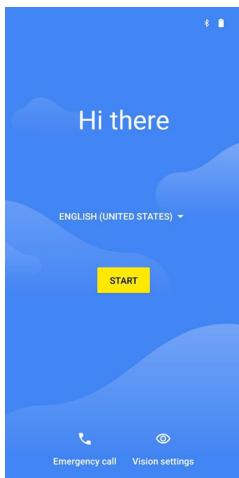
- Tap on Set up as new and connect to Wi-Fi screen is displayed. The device will start checking for updates.
NOKIA

Connect to Wi-Fi
Select a network

SMART (2.4G)

pwidaaddiw

SMART(5G)

GugGuaua

SMART

See all Wi-Fi networks
Set up offline

- Connect to a network to quickly set up your phone.
If you are not connected to the network, you will not have the ability to:
Sign into your Google account
- Restore apps & data
Get software updates
- Automatically set up time and date.
Tap on Continue to proceed.
- You can use different Google services. Tap on More to know about the services.
- By tapping on Accept you agree to the Google Terms of Services.
- For added security, set up a screen lock. Choose from the following
NOKIA
combinations:
- Pattern
PIN -
Password
-
Follow the screen instructions to set up your backup screen lock method (PIN, Pattern, or Password).
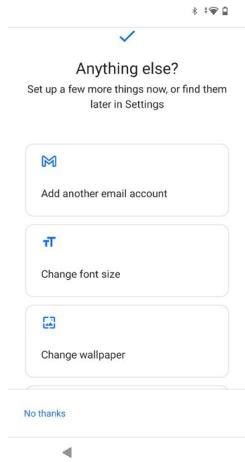
- If you want to add another email account or wish to set up other services, you can also do it using Settings. Tap on No, thanks to proceed further.
NOKIA
11 Basic functions
11.1 Lock and unlock the screen
Press power button to enter Sleep mode and meanwhile the screen will be locked; press power button again to wake up and then swipe up for unlock.
11.2 Make it yours
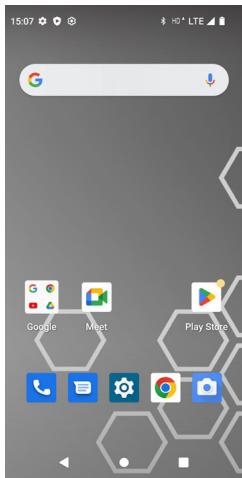
11.2.1 Home screen
It is your starting point to access all the features on your phone. It displays application icons, widgets, shortcuts, and other features. Long press home screen, and then you can Modify Wallpaper.
NOKIA
11.2.2 Uninstall app
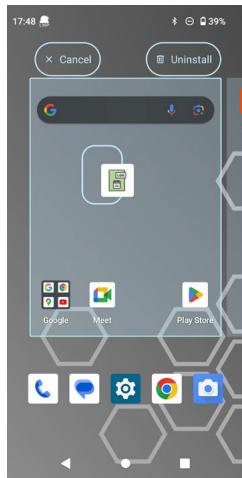
Long press and move the third-party app icon to the home screen to choose to remove or uninstall the app.
11.2.3 Create widgets
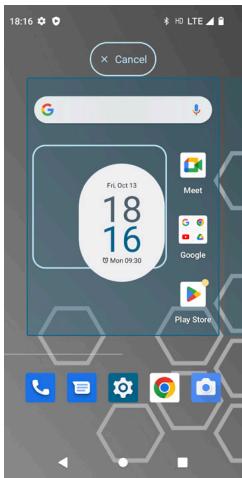
Long press the Home screen, select widgets from the pop-up menu list,
Click the widgets list and choose the one you like (example, Clock), choose
the icon Style, and drag it to the home screen
Long press the widget if you want to move or remove
NOKIA
11.2.4 Notification Bar
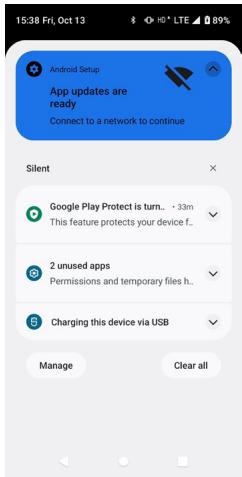
At the top of the screen, the Status Bar displays the time, status, and notifications. If there is a new message, missed call or something in the notification bar, you can drag it down to open notification panel and click the desired one to have a view. When you finished, you can close it by dragging the panel up or pressing "Back".
11.2.5 AndroidTM and computer connection
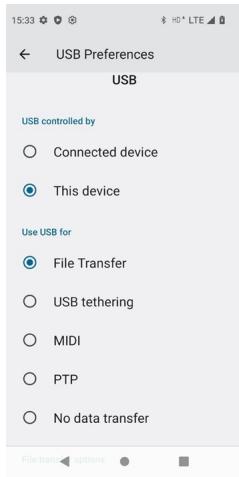
If you connect your phone to PC via USB, you can find the USB options,
Choose This Device -> file Transfer option, you can see your phone memory
NOKIA
in PC, this is same function like USB storage.
11.3 Make a Call
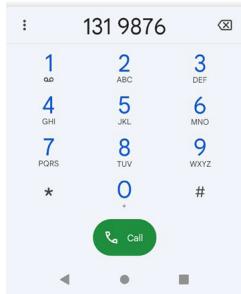
Tap dial icon on home screen, enter a complete phone number to make a call on the Phone call interface.
NOKIA
18:59 HDTLE
Search contacts & plac...

Call your favorite contacts with just one tap
Add a favorite


Favorites

Recents

Contacts

16:14 00
Create new contact
Add to a contact
Video call
Send a message
11.3.1 Call Log
Enter Phone interface, tap Recents, you can check the call logs. In call log options, you can make calls, add new contact and send message etc.
11.3.2 Answering phone calls
When there is an incoming call, you can drag the icon up to answer it directly.
11.3.3 Reject a Call by Sending a Busy Message
When there is an incoming call and it is inconvenient to accept the call, you can select “Reject call” or “Reply by SMS” options to reject calls. If “Reply by
NOKIA
SMS" is selected, users can drag the message icon upward, and then some busy messages will show on the screen, short tap any of them to send out.
11.3.4 Add a Contact
Tap Contacts to enter contacts and then add the details.
Tap CREATE NEW CONTACT to add a new contact to Phone or SIM card. Tap SAVE to complete the operation.
11.4 Messaging
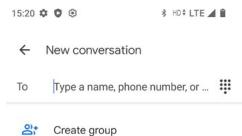
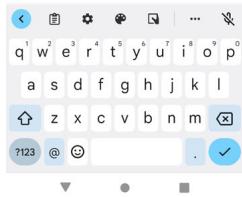
Enter Messaging, then compose new message. You touch a text field where you want to enter text, to open the keyboard.
NOKIA
11.4.1 Receiving a New Message
When there is a new message comes, a new message icon will appear in the notifications area of the status bar to notify you of a new text or multimedia message.
To open the message, press and hold the status bar, and then slide the status bar down to open the Notifications panel. Or go to Messaging, read the message directly.
11.4.2 Editing SMS and MMS
-> When you are composing a new text message, you can select text for cutting or copying. Touch the text field or portion that contains text. You can select all contexts, copy, cut and share. The selected text is highlighted in Blue.
- > A multimedia message may contain video, pictures, audio, location, etc. Thus, when you are supposed to edit a MMS, you can just add videos, pictures and more to SMS and change to MMS.
11.4.3 Message conversations
Text and multimedia messages that are sent to and received from a contact (or a number) are grouped into conversations or message threads in the All messages screen.
NOKIA
11.5 Settings
11.5.1 Wi-Fi
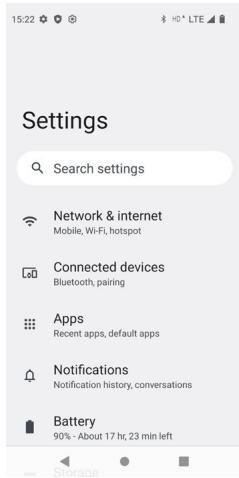
Settings> Network>Wi-Fi, open Wi-Fi, search nearly Wi-Fi and connect it, then you can use Internet or download apps for free.
11.5.2 Bluetooth
Settings> Connected device > Pair new device> Available devices
Open Bluetooth, connect to other phone, you can share something like music, photos, movies etc. to other people.
NOKIA
11.5.3 Security
Settings >Security>Screen lock>choose screen lock
There are four screen lock ways for you to choose: Swipe, Pattern, PIN, Password.
11.6 Back up your data
To ensure your data is safe, use the backup feature in your phone. Your device data (such as Wi-Fi passwords and call history) and app data (such as settings and files stored by apps) will be backed up remotely.
Switch on automatic backup
Tap Settings > System > Backup, and switch back up on.
11.7 Erase all data (factory reset)
On System screen, tap Reset options.
Tap this option to erase all data from your phone's internal storage. The data includes the following:
- Your Google Account
System and app data and settings
Downloaded apps
Music
NOKIA
Photos
Other user data
Tap Erase all data to reset the device.
NOKIA
12 Using applications
12.1 Camera
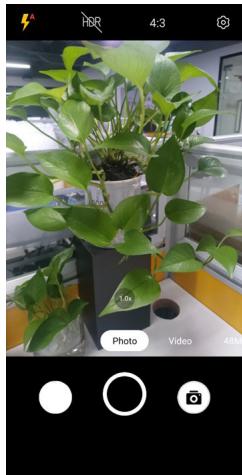
12.1.1 Take a photo
Shoot sharp and vibrant photos - capture the best moments in your photo album.
- Tap Camera.
- Take aim and focus. Tap the center circle.
NOKIA
12.1.2 Take a selfie
Tap Camera > to switch to the front camera.
12.1.3 Record a video
- Tap Camera.
- To switch to the video recording mode, tap Video, tap start recording.
12.1.4 View photos and videos on your phone
Tap Photos
NOKIA
12.2 Alarm clock
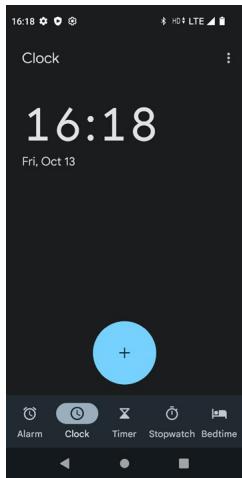
12.2.1 Set an alarm
- Tap Clock > Alarm.
- To add an alarm, tap
- Select the hour and the minutes and tap OK.
- To set the alarm to repeat on specific days, tap the corresponding weekdays.
12.2.2 Switch an alarm off
When the alarm sounds, swipe the alarm right.
NOKIA
12.3 Download applications from Play Store
- Add GoogleTM account.
- Tap Play Store.
- Tap the search bar to look for apps or select apps from your recommendations.
- In the app description, tap Install to download and install the app. To see your apps, go to the home screen and swipe up from the bottom of the screen.
12.4 Manage Applications
Enter Settings >Apps & notifications, then manage the applications. Tap any app to view the information of the applications, and you can also force the apps to stop or uninstall the apps.
12.5 Software update
- On Settings screen, tap System>System update
- Tap Check for updates. If there is any update required, system starts the updates.
- Tap Continue update to continue the update process if already started.
NOKIA
13 Google apps
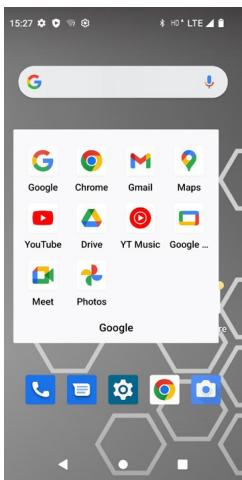
Google provides entertainment, social network, and business apps. You may require a Google account to access some apps. Refer to Accounts for more information.
To view more app information, access each apps in the help menu.
Tips: Some apps may not be available or may be labelled differently depending on the region or service provider.
1. Chrome
Search for information and browse webpages.
NOKIA
- Gmail
Send or receive emails via the Google Gmail service.
- Maps
Find your location on the map, search for locations, and view location information for various Places.
- YT Music
Discover, listen to, and share music on your device.
Play Movies & TV Watch videos stored on your device and download various content to watch from the Play Store.
- Drive
Store your content on the cloud, access it from anywhere, and share it with others.
Search quickly for items on the Internet or your device.
- Play Store
Download third-party apps from the Play Store
- Meet
Video and voice call over the network.
NOKIA
13.1 Google
- Configure your device's Google settings. Available options depend on your Google Account. From the Home screen, swipe up to access App screen, and tap Settings > Google.
If you did not log in to your Google Account yet, you can use this menu to sign in.
- On Google screen, tap Sign into your Google Account.
- Tap Google Account.
- Follow the screen instructions to finish the setup.
NOKIA
14 Recycling
The crossed-out wheelie-bin symbol on the product, battery, literature, or packaging is a reminder that all electrical and electronic products, batteries, and accumulators must be taken to separate collection points at the end of their working life. This requirement applies in the European Union. Do not dispose of these products as unsorted municipal waste. Always return used electronic products, batteries, and packaging materials to dedicated collection points. This helps prevent uncontrolled waste disposal and promotes the recycling of materials. More detailed information is available from the product retailer, local waste authorities, national producer responsibility organiza-
tions, or your local Nokia Innovations Oy representative.

NOKIA
15 Industry Canada statement
① This device complies with Industry Canada license-exempt RSS standard(s).
Operation is subject to the following two conditions:
1) this device may not cause interference, and
2) this device must accept any interference, including interference that may
cause undesired operation of the device.
③ This device complies with RSS-310 of Industry Canada. Operation is subject
to the condition that this device does not cause harmful interference.
③ Cet apparéil est conforme à la norme RSS-310 d'Industrie Canada. L'opération
FOR PORTABLE DEVICE (<20cm from body / SAR needed)
Radiation Exposure Statement:
The product comply with the Canada portable RF exposure limit set forth for an uncontrolled environment and are safe for intended operation as described in this manual. The further RF exposure reduction can be achieved if the product can be kept as far as possible from the user body or set the device to lower output power if such function is available.
Additional statement for phones:
NOKIA
This device has been tested for compliance with IC SAR values at a typical operating near the body. To ensure that RF exposure levels below the levels tested, use accessories with this equipment to maintain a minimum separation distance of 15mm between the body of the user and the device. These accessories should not contain metallic components. It is possible that the accessories used close to the body that do not meet these requirements are not consistent with the SAR limits and it is advisable to avoid using them.
Additional statement for phones:
FOR WLAN 5GHz DEVICE:
Caution :
1) the device for operation in the band 5150-5250 MHz is only for indoor use to reduce the potential for harmful interference to co-channel mobile satellite systems;
2) the maximum antenna gain permitted for devices in the bands 5250-5350 MHz and 5470-5725 MHz shall comply with the e.i.r.p. limit; and
3) the maximum antenna gain permitted for devices in the band 5725-5825 MHz shall comply with the e.i.r.p. limits specified for point-to-point and non point-to-point operation as appropriate.
4) the worst-case tilt angle(s) necessary to remain compliant with the e.i.r.p. elevation mask requirement set forth in Section 6.2.2(3) shall be clearly indicated.
NOKIA
5) Users should also be advised that high-power radars are allocated as primary users (i.e. priority users) of the bands 5250-5350 MHz and 5650-5850 MHz and that these radars could cause interference and/or damage to LE-LAN devices.
Avertissement:
Federal Communication Commission Interference Statement
This device complies with part 15 of the FCC Rules. Operation is subject to the following two conditions: (1) This device may not cause harmful interference, and (2) this device must accept any interference received, including interference that may cause undesired operation.
This device has been tested and found to comply with the limits for a Class B digital device, pursuant to Part 15 of the FCC Rules. These limits are designed to provide reasonable protection against harmful interference in a residential installation. This equipment generates, uses, and can radiate radio frequency energy, and, if not installed and used in accordance with the instructions, may cause harmful interference to radio communications. However, there is no guarantee that interference will not occur in a particular installation If this equipment does cause harmful interference to radio or television reception, which can be determined by turning the equipment off and on, the user is encouraged to try to correct the interference by one or more of the following measures:
Reorient or relocate the receiving antenna.
NOKIA
- Increase the separation between the equipment and receiver.
- Connect the equipment into an outlet on a circuit different from that to which the receiver is connected.
- Consult the dealer or an experienced radio/TV technician for help.
FCC Caution:
- Any Changes or modifications not expressly approved by the party responsible for compliance could void the user's authority to operate the equipment.
- The antenna(s) used for this transmitter must not be co-located or operating in conjunction with any other antenna or transmitter.
- The country code selection is for non-US model only and is not available to all US model. Per FCC regulation, all WiFi product marketed in US must fixed to US operation channels only.
- Operations in the 5.15-5.25GHz band are restricted to indoor usage only. RF Exposure Information (SAR)
This device meets the government's requirements for exposure to radio waves. This device is designed and manufactured not to exceed the emission limits for exposure to radio frequency (RF) energy set by the Federal Communications Commission of the U.S. Government.
NOKIA
The exposure standard for wireless device employs a unit of measurement known as the Specific Absorption Rate, or SAR. The SAR limit set by the FCC is 1.6W / kg . *Tests for SAR are conducted using standard operating positions accepted by the FCC with the device transmitting at its highest certified power level in all tested frequency bands. Although the SAR is determined at the highest certified power level, the actual SAR level of the device while operating can be well below the maximum value. This is because the device is designed to operate at multiple power levels so as to use only the poser required to reach the network. In general, the closer you are to a wireless base station antenna, the lower the power output.
The highest SAR value for the model device as reported to the FCC when tested for use at the ear is 1.12 W/kg and when worn on the body, as described in this user guide, is 0.72 W/kg (Body-worn measurements differ among device models, depending upon available accessories and FCC requirements.)
While there may be differences between the SAR levels of various devices and at various positions, they all meet the government requirement.
The FCC has granted an Equipment Authorization for this model device with all reported SAR levels evaluated as in compliance with the FCC RF exposure guidelines. SAR information on this model device is on file with the FCC and can be found under the Display Grant section of www.fcc.gov/oet/ea/fccid
NOKIA
after searching on FCC ID: 2AVO2-HHRA501A. For body worn operation, this device has been tested and meets the FCC RF exposure guidelines for use with an accessory that contains no metal and be positioned a minimum of 15mm from the body. Use of other accessories may not ensure compliance with FCC RF exposure guidelines. If you do not use a body-worn accessory and are not holding the device at the ear, position the handset a minimum of 15mm from your body when the device is switched on.
FOR PORTABLE DEVICE (<20cm from body / SAR needed)
Radiation Exposure Statement:
The product comply with the Canada portable RF exposure limit set forth for an uncontrolled environment and are safe for intended operation as described in this manual. The further RF exposure reduction can be achieved if the product
NOKIA
can be kept as far as possible from the user body or set the device to lower output power if such function is available.
Additional statement for phones:
This device has been tested for compliance with IC SAR values at a typical
operating near the body. To ensure that RF exposure levels below the levels
tested, use accessories with this equipment to maintain a minimum separation
distance of 15mm between the body of the user and the device. These
accessories should not contain metallic components. It is possible that the
accessories used close to the body that do not meet these requirements are not
consistent with the SAR limits and it is advisable to avoid using them.
Additional statement for phones:
All other trademarks and copyrights are the properties of their respective owners.
NOKIA
17 Maximum output power
| Frequency bands | Maximum output power |
| GSM900 | 32.3 dbm |
| GSM1800 | 29.0 dbm |
| 3G | 23.5 dbm |
| 4G | 23.1 dbm |
| 5G | 24.99 dbm |
| BT | 8.6 dbm |
| BLE | 8.08 dbm |
| 2.4G | 15.74 dbm |
| 5G | 14.13 dbm |
| 5.8G | 12.93 dbm |
FREQUENCY BANDS
GSM 900/1800 MHz
UTRA FDD Band I/VIII
E-UTRA FDD Band 1/3/7/8/20/28
E-UTRA TDD Band 38/40/41/42/43
5G NR Standalone: n1/n3/n7/n8/n20/n28/n38/n40/n41/n77/n78
Bluetooth: 2402 - 2480 MHz
2.4GWiFi(20MHz):2432-2472MHz
2.4GWiFi(40MHz):2442-2462MHz
5.8G Non-Specific SRD: 5745 - 5825 MHz
NFC: 13.56 MHz
GPS/Galileo/BDS/GLONASS/SBAS:1559-1610 MHz (Rx)