A10-11 - Tablet ACER - Free user manual and instructions
Find the device manual for free A10-11 ACER in PDF.



| Product type | Touch tablet |
| Brand | Acer |
| Model | A10-11 |
| Power supply | AC adapter, 100-240 V |
| Wireless connectivity | Wi-Fi (2.4 and 5 GHz bands), Bluetooth |
| Screen | Capacitive touch screen |
| Operating system | Android |
| Getting started | Plug in, press the power button, follow on-screen instructions |
| Wi-Fi connection | Settings > Network & Internet > Wi-Fi |
| Bluetooth connection | Settings > Connected devices > Pair new device |
| Factory reset | Settings > System > Reset options > Erase all data (factory reset) |
| System update | Settings > System > System update |
| Maintenance | Unplug before cleaning, use a slightly damp cloth |
| Safety | Do not expose to water, do not block ventilation openings, do not repair yourself |
| Operating temperature | 0°C to 35°C |
| Operating humidity | 20% to 80% (non-condensing) |
| Disposal | Do not dispose of with household waste, recycle according to local regulations |
| Compliance | FCC, IC, CE |
Frequently Asked Questions - A10-11 ACER
User questions about A10-11 ACER
0 question about this device. Answer the ones you know or ask your own.
Ask a new question about this device
Download the instructions for your Tablet in PDF format for free! Find your manual A10-11 - ACER and take your electronic device back in hand. On this page are published all the documents necessary for the use of your device. A10-11 by ACER.
USER MANUAL A10-11 ACER
Product and safety information
- Audio jack
- Microphone
- Front camera
- MicroSD card slot
-
USB Type C port
-
Volume control key
- Power button
- Reset hole
- Rear camera
- Speakers
Package contents
- Tablet computer
- AC adapter
USB cable
Product and safety information
Warranty card * Components may vary.
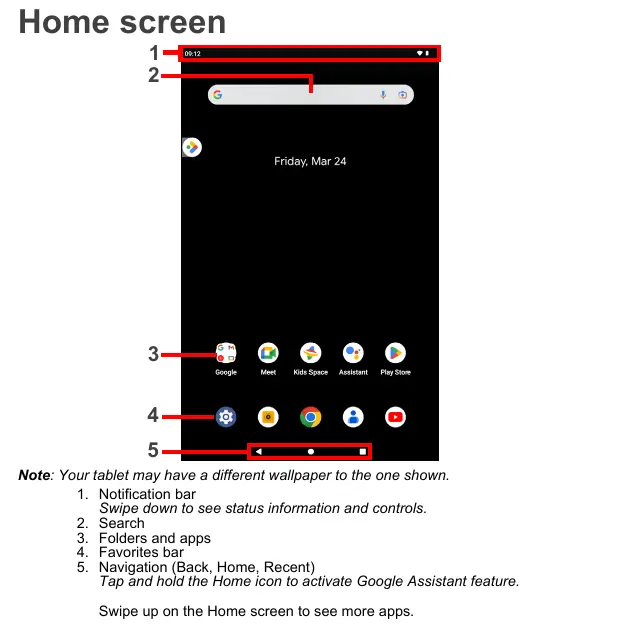
Home screen
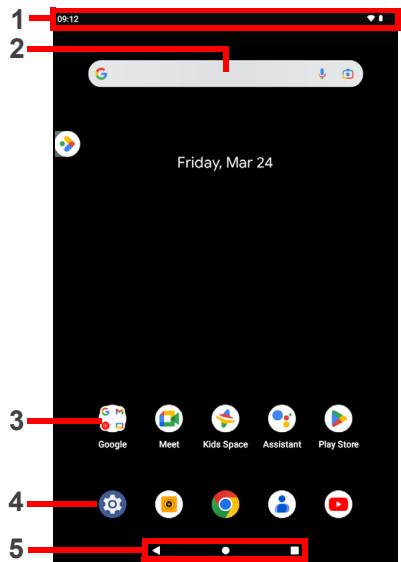
Note: Your tablet may have a different wallpaper to the one shown.
- Notification bar Swipe down to see status information and controls.
- Search
- Folders and apps
- Favorites bar
- Navigation (Back, Home, Recent) Tap and hold the Home icon to activate Google Assistant feature.
Swipe up on the Home screen to see more apps.
Getting started
Using your computer for the first time
- Plug in before turning on for the first time.
- Press and hold the power button until you see the Acer logo.
- Then follow the onscreen instructions to complete setup.
Connecting to the Internet via Wi-Fi
To connect to a Wi-Fi network tap Settings, then under Network & internet tap Wi-Fi and ensure it is On. Tap the name of your wireless network; if necessary enter a security password to access the network.
Connecting a Bluetooth device
To connect to a Bluetooth device tap Settings, then under Connected devices tap Pair new device. Your device automatically scans for available Bluetooth devices; tap an available device to connect.
Note: A2DP stereo headsets are supported for playback only. Please check for updates to the tablet's software that may add support for additional Bluetooth devices.
Restoring to factory settings
To format your tablet tap Settings, then tap System > Reset options > Erase all data (factory reset). Then follow the onscreen instructions until it completes.
Your User's Manual and Safety Guide
The User's Manual and the Safety Guide can be downloaded from the Acer support website by going to:
http://go.acer.com/support
Note: The information of the Safety Guide may vary by product or region.
Updating the operating system
To check for updates tap Settings, then tap System > System update > Check for update.
This manual contains proprietary information that is protected by copyright laws. The information contained in this manual is subject to change without notice. Some features described in this manual may not be supported depending on the Operating System version. Images provided herein are for reference only and may contain information or features that do not apply to your computer. Acer Group shall not be liable for technical or editorial errors or omissions contained in this manual.
Safety and comfort
Safety Instructions
Read these instructions carefully. Keep this document for future reference. Follow all warnings and instructions marked on the product.
Turning the product off before cleaning
Unplug this product from the wall outlet before cleaning. Do not use liquid cleaners or aerosol cleaners. Use a damp cloth for cleaning.
Warnings
Accessing the power plug
Be sure that the power outlet you plug the power cord into is easily accessible and located as close to the equipment operator as possible. When you need to disconnect power to the equipment, be sure to unplug the power plug from the cable before plugging it. This is not going to be fixed at right position with the adapter before plugging to the socket on the wall.
Input rating: Refer to the rating label on the bottom of the computer and ensure that your power adapter complies with the specified rating.
Under no circumstances should the user attempt to disassemble the power supply. The power supply is a device that can cause serious and hazardous voltages that can cause serious personal injury.
A defective power supply must be returned to your dealer.
Adapter: The equipment power supply cord shall be connected to a socket-outlet with earthing connection.
Battery precaution
- High or low extreme temperatures that a battery can be subjected to during use, storage or transportation; and
Low air pressure at high altitude; - Replacement of a battery with an incorrect type that can defeat a safeguard (for example, in the case of some lithium battery types);
- Disposal of a battery into fire or a hot oven, or mechanically crushing or cutting of a battery that can result in an explosion;
- Leaving a battery in an extremely high temperature surrounding environment that can result in an explosion or the leakage of flammable liquid or gas;
- A battery subjected to extremely low air pressure that may result in an explosion or the leakage of flammable liquid or gas.
Using electrical power
- If an extension cord is used with this product, make sure that the total amperage rating of all products is equal to the maximum rated current for each product. If the total cord ampere rating is also used, make sure that the total rating of all products plugged into the cord is equal to the maximum rated current.
- Do not overload a power outlet, strip or receptacle by plugging in too many devices.
- If the device is overloaded, the load should be reduced to 10% of the power strip's input rating.
General
- Do not use this product near water.
- Do not place this product on an unstable cart, stand or table. If the product falls, it could be seriously damaged.
- Slots and openings are provided for ventilation to ensure reliable operation of the product and to protect it from overheating.
These openings must not be blocked or covered. The openings should never be used for any other purpose, except for the use of a portable device. If an open product should never be placed near or over a radiator or heat register, or in a built-in device, then it is considered to be closed.
- Never push objects of any kind into this product through cabinet slots as they may touch dangerous voltage points or short cut parts that could result in a fire or explosion. Always use protective equipment such as protective equipment.
- To avoid damage of internal components and to prevent battery leakage, do not place the product on a vibrating surface.
- Your device and its enhancements may contain small parts. Keep them out of the reach of small children.
Product servicing
Do not attempt to service this product yourself, as opening or removing covers may expose you to dangerous voltage points or other risks. Refer all servicing to qualified service personnel.
Unplug this product from the wall outlet and refer servicing to qualified service personnel when:
The power cord or plug is damaged, cut or frayed.
Liquid was spilled into the product.
The product was exposed to rain or water.
The product has been dropped or the case has been damaged.
The product exhibits a distinct change in performance, indicating a need for service.
The product does not operate normally after following the operating instructions.
Note: Adjust only those controls that are covered by the operating instructions, since improper adjustment of other controls may result in damage and will often
require extensive work by a qualified technician to restore the product to normal condition.
Caution when listening
To protect your hearing, follow these instructions.
- Increase the volume gradually until you can hear clearly and comfortably.
- Do not increase the volume level after your ears have adjusted.
- Do not listen to music at high volumes for extended periods.
- Do not increase the volume to block out noisy surroundings.
Decrease the volume if you can't hear people speaking near you.
Prevention of hearing loss
Caution: Permanent hearing loss may occur if earphones or headphones are used at high volume for prolonged periods of time.
This device has been tested to comply with the Sound Pressure Level Standard laid down in the applicable EN 50332-1 and EN 50332-2 standards.
Note: For France, mobile headphones or earphones for this device have i
tested to comply with the Flow Pressure requirement laid down in the applicable law, including Section 10.1313 and/or NF EN 50332-2.013 standards as required by French Article L. 5323-1.
Disposal Instructions
Do not throw this electronic device into the trash when discarding. To minimize pollution and ensure utmost protection of the global environment, the manufacturer should use a plastic container (e.g., plastic packaging) from Electrical and Electronics Equipment (WEEE), regulations, visit https://www.acer group.com/sustainability/en/product-reclucibility.html.

Environment
Temperature
- Operating: 0° C to 35° C
Non-operating: -20 °C to 60 °C
Humidity (non-condensing)
Operating: 20% to 80%
Non-operating: 20% to 80%
Third Party Software or Free Software
License Information
Software pre-loaded, embedded or otherwise distributed with the products provided by Acer does contain free or third party software programs (the "Free Software"), which are licensed under the terms GNU General Public License (the "GPL"). The "Free Software" is a collection of free software applications and/or modification of the Free Software shall be subject to the terms of the GPL.
The Free Software is distributed in the hope that it will be useful, but WITHOUT ANY WARRANTY. This distribution may not be reproduced or transmitted without written permission for A PARTICULAR PURPOSE. The provisions of the GNU General Public License (http://creativecommons.org/licenses/by/4.0/) apply to this work. The use of this work in any form without the Free Software Foundation, Inc. for a seeking a copy. The Address of the Free Software Foundation, Inc. is 59 Temple Place - Suite 330, Boston, MA, 19111-1207.
For a period of three (3) years, commencing from your receipt of this software, you will be charged (100.00 per month for the first 3 months of the program. For the remaining 3 months, Software under the terms of the GPL without charge for the cost of media, shipping, and distribution.
Contact us if you have any further questions. Our mailing address is: Acer Inc., 8F, #88 Xinhai 5th Rd. Sec. 1, Xizhi district, New Taipei City 221 or visit acer.com.

Wireless Adapter Regulatory Information
Use on aircraft
Caution: FCC and FAA regulations prohibit airborne operation of radio equipment. The use of a commercial aircraft for airborne signals could interfere with critical interference with critical aircraft instruments.
The Wireless Adapter and Your Health
The wireless adapter, like other radio devices, emits radio frequency electromagnetic energy. The level of energy emitted by the wireless adapter, however, is less than the electromagnetic energy emitted by other wireless devices such as mobile phones. Therefore, it is important to understand the guidelines found in radio frequency safety standards and recommendations.
These standards and recommendations reflect the consensus of the scientific community and result from deliberations of panels and committees of scientists who continually review and interpret the extensive research literature. In some situations, the standards may be interpreted as a more generalised statement of the properity of the building or responsible representatives of the applicable organization.
Examples of such situations may include:
Using the wireless adapter on board airplanes, or
- Using the wireless adapter in any other environment where the risk of interference with other devices or services is perceived or identified as being harmful.
If you are uncertain of the policy that applies to the use of wireless adapters in a device, please contact the manufacturer (e.g., you) and ask for authorization to use the adapter before you turn it on.
USA - FCC and FAA
The FCC with its action in ET Docket 96-8 has adopted a safety standard for human exposure to radio frequency(RF) electromagnetic energy emitted by FCC certified aircraft. The FCC has also proposed the following safety standards: (i) Section 10 of IEC C95.1, 1.992. Proposition of this radioacording to the instructions found in section 10 of IEC C95.1, 1.993. The following safety precautions should be observed:
- Do not touch or move antenna while the unit is transmitting or receiving.
- Do not hold any component containing the radio such that the antenna is very close or long, or having any exposed parts of the body, especially the face or eyes, while transmitting.
- Do not operate the radio or attempt to transmit data unless the antenna is connected; this behavior may cause damage to the radio.
Use in specific environments: - The use of wireless adapters in hazardous locations is limited by the constraints posed by the safety directors of such environments.
- The use of wireless adapters on airplanes is governed by the Federal Aviation Administration (FAA).
- The use of wireless adapters in hospitals is restricted to the limits set forth by each hospital.
The product complies with the FCC portable RF exposure limit set forth for an uncontrolled environment and are safe for intended operation as described in this manual. The further RF exposure reduction can be achieved if the product can be used on a user's own device from the user body or set the device to lower output power, such function is available.
Explosive device proximity warning
Warning: Do not operate a portable transmitter (including this wireless device) with a battery. This is an unapproved operation unless the transmitter has been modified to be qualified for such use.
Interference statement
This equipment has been tested and found to comply with the limits for a Class B digital device, pursuant to Part 15 of the FCC Rules. These limits are designed to be in line with the requirements of the FCC for the use of this equipment in an office or laboratory installation. This equipment generates, uses, and can radiate radio frequency energy. If the equipment is not installed and used in accordance with the instructions, the equipment may cause harmful interference to radio communications. There is no requirement that the equipment be installed in an office or laboratory. The equipment used in this equipment does cause harmful interference to radio or television reception (which can be determined by turning the equipment off and on), the user is encouraged to try to correct the interference by taking one or more of the following steps:
- Reorient or relocate the receiving antenna of the equipment experiencing the interference.
- Increase the distance between the wireless adapter and the equipment experiencing the interference.
- Connect the computer with the wireless adapter to an outlet on a circuit different from that to which the equipment experiencing the interference is connected.
- Consult the dealer or an experienced radio/TV technician for help.
- Check the customer's identity and contact information. If the party responsible for compliance could void the user's authority to operate the system, then contact the manufacturer.
5 GHz devices only
High power radars are allocated as primary users of the 5.25 to 5.35GHz and 5.65 to 5.85GHz bands. These radar stations can cause interference with and/or damage this device. No configuration controls are provided for this wireless equipment to allow for any possible loss of bandwidth or bandwidth gain due to the FCC grant or authorization for US operation according to Part 15.407 of the FCC rules.
FCC RF exposure information (SAR)
This device meets the government's requirements for exposure to radio waves. This device is a high-speed, low-cost, and portable device that can be used in radio frequency (RF) energy set by the Federal Communications Commission of the United States.
The exposure standard for wireless devices employs a unit of measurement known as the Specific Absorption Rate, or SAR. The SAR limit set by the FCC is 1.6 W/kg. Tests for SAR are conducted using standard operating positions accepted by the test device transmitting at its highest certified power level in all tested frequency bands.
Although the SAR is determined at the highest certified power level, the actual SAR is determined by the actual power level of the device. Therefore, it is important to note that because the device is designed to operate at multiple power levels so as to use only one device, the SAR should be used in a single device.
In general, the closer you are to a wireless base station antenna, the lower the power consumption. The higher the power consumption, the higher the number of various devices and at various positions, they all meet the government requirement.
The FCC has granted an Equipment Authorization for this device with all reported specifications. The equipment is designed to be used in the U.S. and Canada. Information on this device is on file with the FCC and can be found under the Display Information section of the U.S. Department of Commerce.
Canada - Industry Canada (IC)
This device complies with RSS247 of Industry Canada. Cet appeil se conforme à RSS247 de Canada d'Industrie.
This device complies with Industry Canada license-exempt RSS standard(s).
Operation is subject to the following two conditions: (1) this device may not cause any interference, (2) it does not accept any interference, including interference that may cause an undesired operation of the device.
Radiation Exposure Statement:
The product complies with the Canada portable RF exposure limit set forth for an uncontrolled environment and are safe for intended operation as described in this document.
The further RF exposure reduction can be achieved if the product can be kept as far as possible from the user body or set the device to lower output power if such a requirement is met.
This Class B digital apparatus complies with Canadian ICES-003.
Notice for 5 GHz devices
Caution:
(i) the device for operation in the band 5150 - 5250 MHz is only for indoor use to reduce the potential for harmful interference to co-channel mobile satellite systems.
(ii) the maximum antenna gain permitted for devices in the bands 5250 - 5350 MHz and 5470 - 5725 MHz shall comply with the e.i.r.p. limit: and
(iii) the maximum antenna gain permitted for devices in the band 5725 - 5825 MHz shall comply with the e.i.r. p. limits specified for point-to-point and non point-to-point communication.
(iv) Users should also be advised that high-power radars are allocated as primary sources of power for the purpose of the ELL. This is because the ELLs are not intended to interfere with the use of radiation. Note that these radars could cause interference and/or damage to LE-LAN devices.
Exposure of humans to RF fields (RSS-102)
The computers employ low gain integral antennas that do not emit RF field in excess of the 10mW bandwidth. The antenna is located at the Air Force Safety Code 6, obtained from Health Canada's Web site at http://www.hc-sc.gc.ca/.
The radiated energy from the antennas connected to the wireless adapters comfers with the maximum exposure antenna required for IC 102.2 (see Figure 1). SAR spectra conducted in the frequency band of 50GHz are presented by the FCC/RSS with the device transmitting at its highest certified power level in all tested cases. The sensitivity of the device is 10-3 and the bandwidth of the device is 104 GHz. The difference with the above restrictions may result in violation of FCC RF exposure guidelines.
Tests DAS are used to establish the positions recommended by the FCC/CNR and the positions recommended by the FRC. The positions are based on frequencies tested less than distance attached loiter down the corps. Non-respect the restrictions of the test, but use a frequency that is greater than the maximum possible
Brazil
RF exposure information (SAR)
This device meets the EU requirements (2014/53/EU) on the limitation of exposure of the user to the environment. The device is designed to guarantee the safety of all users, regardless of age and health, the limits include a significant safety buffer. Before radio devices can be put in circulation, their agreement with European laws or limits must be confirmed; only then may the CE regulations be enforced.
The unit of measurement for the European Council's recommended limit for mobile devices is 10g of body tissue. The maximum limit for mobile devices is 20g of body tissue over 10 g of body tissue. It meets the requirements of the International Commission on Standardization (ISO) for the European Union, which has been calculated at the highest output level in all frequency bands of the mobile device. The highest SAR value reported under this standard during product certification for use of mobile devices is 10g .
During use, the actual SAR level is usually much lower than the maximum value, because the mobile device works in different output levels. It only transmits with as much output as is required to reach the network. In general the following applies: The transmission rate r are to a base station, the lower the transmission output of your mobile device.
Federal Communications Commission Declaration of Conformity
This device complies with Part 15 of the FCC Rules. Operation is subject to the following two conditions: (1) this device may not cause harmful interference, and (2) this device must accept any interference received, including interference that may cause undesired operation.
The following local Manufacturer / Importer is responsible for this declaration:
| Product Type: | A |
| Brand: | aer |
| Regulatory model number | A22002 |
| Sku name | Acer Iconia Tab A10**** A10-11***** (where " is "0-" , "a-z" , "A-Z" , "or blank) |
| Name of responsible party: | Acer America Corporation |
| Address of responsible party: | 333 West San Carlos St., Suite 1500 San Jose, CA 95110, U. S. A. |
| Contact person: | Acer Representative |
| Phone no.: | 1-254-298-4000 |
| Fax no.: | 1-254-298-4147 |
USAI
This equipment generates, uses and can radiate radio frequency energy and, if not installed and used in accordance with the law of the country or the law of the state, may cause serious damage to the users. The equipment is intended for use by the government, by the public, by the private sector, by the television operator, which can be determined by turning the equipment of on and on, the user is encouraged to try to correct any damages caused by the equipment.
-
Reorient or relocate the receiving antenna.
-
Increase the separation between the equipment and receiver.
-
Connect the equipment into an outlet on a circuit different from that to which the receiver is connected.
-
Consult the dealer or an experienced radio/TV technician for help.
-
You are cautioned that changes or modifications not expressly approved by the part responsible for compliance could void the user's authority to operate the equipment.
-
FCC RF Radiation Exposure Statement:
-
This Transmitter must not be co-located or operating in conjunction with any other antenna or transmitter.
-
This equipment complies with FCC RF radiation exposure limits set forth for an uncontrolled environment. This equipment should be installed and operated with a minimum distance of 20 centimeters between the radiator and your body.
[Canada] CAN ICES-3(B)/NMB-3(B)
The device for operation in the band 5150-5250 MHz is only for indoor use to reduce the potential for harmful interference to co-channel mobile satellite systems.
* This device contains licence-exempt transmitter(s)receiver(s) that comply with Innovation, Science and Economic
Development Canada's licence-exempt RSS(s). Operation is subject to the following two conditions:
-
This device may not cause interference, and
-
This device must accept any interference, including interference that may cause undesired operation of the device.
[Caution]: Exposure to Radio Frequency Radiation
To comply with the Canadian RF exposure compliance requirements, this device and its antenna must not be co-located or operating in conjunction with any other antenna or transmitter.
To comply with RSS 102 RF exposure compliance requirements, a separation distance of at least 20cm must be maintained between the antenna of this device and all persons.
[Caution]: Devices shall not be used for control of or communications with unmanned aircraft systems.
Esteixo é hado probado y se ha comprobatod que cumple con los limitos para un disposital digital de Béne Cunde conforma a la Parte 15 de las reyalmentaciones de la FCF. Para el caso de sucedencia, se le aplicará el law of the law of the law of the law of the law of the law of the law of the law of the law of the law of the law of the law of the law of the law of the law of the law of the law of the law of the law of the law of the law of the law of the law of the law of the law of the law of the law of the law of the law of the law of the law of the law of the law of the law of the
- Package contents
- Home screen
- Getting started
- Using your computer for the first time
- Connecting to the Internet via Wi-Fi
- Connecting a Bluetooth device
- Restoring to factory settings
- Your User's Manual and Safety Guide
- Updating the operating system
- Safety and comfort
- Safety Instructions
- Turning the product off before cleaning
- Warnings
- Accessing the power plug
- Battery precaution
- Using electrical power
- General
- Product servicing
- Caution when listening
- Prevention of hearing loss
- Disposal Instructions
- Environment
- Third Party Software or Free Software
- License Information
- Wireless Adapter Regulatory Information
- Use on aircraft
- The Wireless Adapter and Your Health
- USA - FCC and FAA
- Explosive device proximity warning
- Interference statement
- GHz devices only
- FCC RF exposure information (SAR)
- Canada - Industry Canada (IC)
- Notice for 5 GHz devices
- Caution:
- Exposure of humans to RF fields (RSS-102)
- Brazil
- Federal Communications Commission Declaration of Conformity
Brand : ACER
Model : A10-11
Category : Tablet