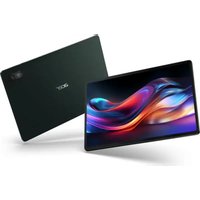
Iconia X12 - Tablet ACER - Free user manual and instructions
Find the device manual for free Iconia X12 ACER in PDF.


Pick your language and provide your email: we'll send you a specifically translated version.
| Product Type | Tablet |
| Brand | Acer |
| Model | Iconia X12 |
| Dimensions (W x H x D) | 250 x 160 x 8 mm |
| Weight | 520 g |
| Display | 10.5-inch IPS LCD, 1920 x 1200 pixels |
| Processor | Quad-core 2.0 GHz |
| RAM | 4 GB |
| Internal Storage | 64 GB eMMC |
| Operating System | Android 11 |
| Battery Capacity | 6000 mAh Li-Po |
| Power Supply | 5V / 2A DC via USB-C |
| Wireless Connectivity | Wi-Fi 802.11 a/b/g/n/ac, Bluetooth 5.0 |
| Rear Camera | 8 MP autofocus |
| Front Camera | 5 MP fixed focus |
| Audio | Built-in stereo speakers, 3.5 mm headphone jack |
| Ports | USB Type-C, microSD slot (up to 256 GB) |
| Sensors | Accelerometer, light sensor, gyroscope |
| Security Features | Face unlock |
| Cleaning Instructions | Wipe with a soft, dry cloth. Do not use solvents. |
| Safety Warnings | Avoid exposure to water or extreme temperatures. |
| Repair & Spare Parts | Contact Acer official service center only. |
| General Notes | Supports multiple languages; user manual available online. |
Frequently Asked Questions - Iconia X12 ACER
How do I turn on the Acer Iconia X12 for the first time?
Press and hold the power button located on the side until the Acer logo appears. Follow the on-screen setup wizard to select language, connect to Wi-Fi, and sign in to your Google account.
Can I expand the storage on my Iconia X12?
Yes, the Iconia X12 has a microSD card slot supporting cards up to 256 GB. Insert the card into the slot with the gold contacts facing down.
How do I take a screenshot on the Iconia X12?
Press and hold the power button and volume down button simultaneously until the screen flashes. The screenshot will be saved in the Gallery app.
Why is my tablet not charging?
Ensure you are using the original charger and cable. Check the USB-C port for debris. Try a different outlet. If the issue persists, perform a forced restart by holding the power button for 10 seconds.
How do I connect Bluetooth devices?
Open Settings > Connected devices > Bluetooth. Toggle Bluetooth on, then select your device from the list. Confirm pairing if needed.
Is the Iconia X12 waterproof?
No, the Iconia X12 is not waterproof. Avoid exposure to liquids. If it gets wet, power off immediately and dry with a soft cloth.
How do I perform a factory reset?
Go to Settings > System > Reset > Erase all data (factory reset). This will delete all data, so back up important files first.
Can I use a stylus with the Iconia X12?
The Iconia X12 does not support active styluses. Any capacitive stylus designed for touchscreens will work for basic navigation.
How do I update the software?
Go to Settings > System > System update. Tap 'Check for updates'. If an update is available, download and install it. Ensure your device is charged above 50%.
What should I do if the screen is unresponsive?
Try a forced restart by holding the power button for 10 seconds. If still unresponsive, clean the screen with a dry cloth. If problem continues, contact Acer support.
User questions about Iconia X12 ACER
0 question about this device. Answer the ones you know or ask your own.
Ask a new question about this device
No questions yet. Be the first to ask one.
Download the instructions for your Tablet in PDF format for free! Find your manual Iconia X12 - ACER and take your electronic device back in hand. On this page are published all the documents necessary for the use of your device. Iconia X12 by ACER.
USER MANUAL Iconia X12 ACER

Manual assistant
Powered by Anthropic
Waiting for your message
Product information
Brand : ACER
Model : Iconia X12
Category : Tablet