BTHS-AS100 - Headphones Avantree - Free user manual and instructions
Find the device manual for free BTHS-AS100 Avantree in PDF.



| Product type | Over-ear Bluetooth headset |
| Brand | Avantree |
| Model | BTHS-AS100 (Eon) |
| Bluetooth version | 5.0 |
| Supported audio codecs | AAC, SBC |
| Bluetooth profiles | HSP v1.2, HFP v1.7, AVRCP v1.6, A2DP v1.3.1 |
| Operating range | Up to 15 meters |
| Speaker diameter | 40 mm |
| Impedance | 32 Ω |
| Frequency response | 20 Hz - 20 kHz |
| Sound pressure level (SPL) | 100 dB (1 kHz, 179 mV) |
| Total harmonic distortion (THD) | <0.5% (1 kHz) |
| Battery life | Up to 45 h (ANC off) |
| Charging time | Approximately 2 h 30 min |
| Charging power | DC 5 V / 500 mA - 2.0 A |
| Charging port | USB Type-C |
| Headphone dimensions (L x W x H) | 191 x 156 x 92 mm |
| Headphone weight | Approximately 300 g |
| Earpad dimensions (inner) | 68 x 47 mm (depth 35 mm) |
| Earpad dimensions (outer) | 110 x 90 mm |
| Replaceable battery | Yes, lithium-ion 3.7 V 350 mAh (10440) |
| Active noise cancellation (ANC) | Yes, with ANC, Transparency, and Normal modes |
| Wired use | Yes, via 3.5mm AUX cable (microphone disabled unless using boom mic) |
| Package contents | Headset, charging stand, boom mic, USB-C cable, AUX cable, carrying pouch |
Frequently Asked Questions - BTHS-AS100 Avantree
User questions about BTHS-AS100 Avantree
0 question about this device. Answer the ones you know or ask your own.
Ask a new question about this device
Download the instructions for your Headphones in PDF format for free! Find your manual BTHS-AS100 - Avantree and take your electronic device back in hand. On this page are published all the documents necessary for the use of your device. BTHS-AS100 by Avantree.
USER MANUAL BTHS-AS100 Avantree
Charging the Headphones 7
Connecting the Headphones to Your Device 8
Pairing & Connecting 8
Configuring Audio Settings (only for PC) 10
Calling with the Boom Mic 12
Using as Wired Headphones 13
Replacing the Rechargeable Battery 14
Specifications 15
FAQ 16
Contact Us 17
Box Contents
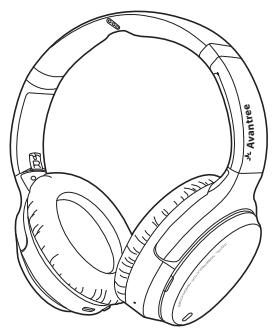
Eon Headphones
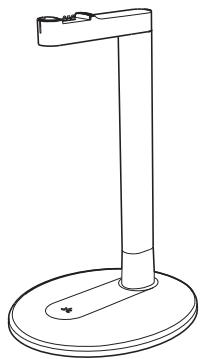
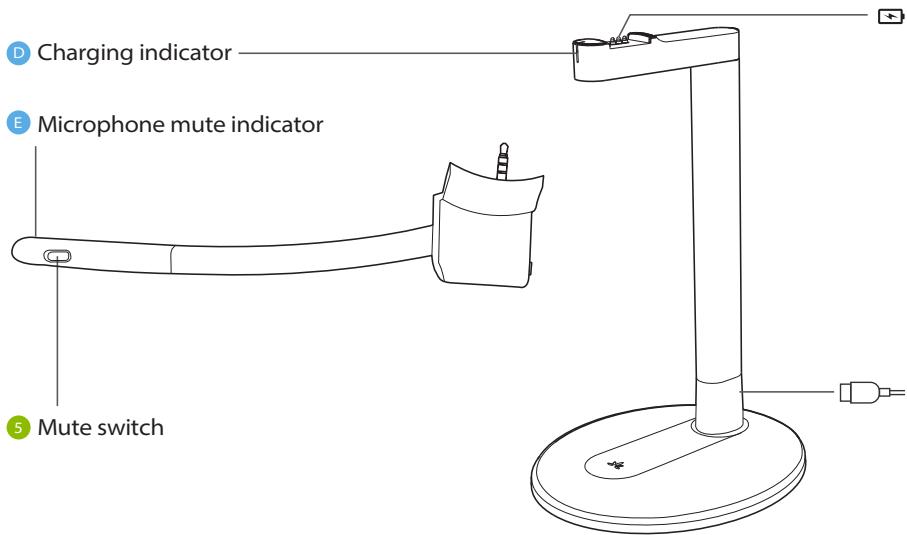
Charging Stand
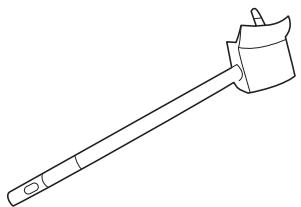
Boom Mic
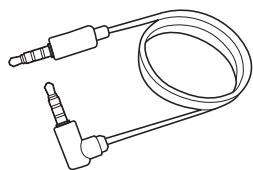
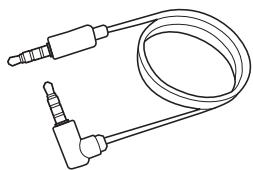
AUX 3.5mm Audio Cable
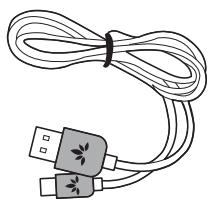
Type C Power Cable
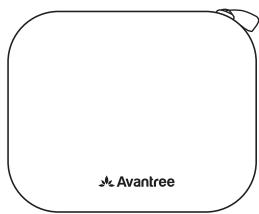
Carrying Case
Product Introduction
Product Overview
3 ANC / Transparency / Normal mode button
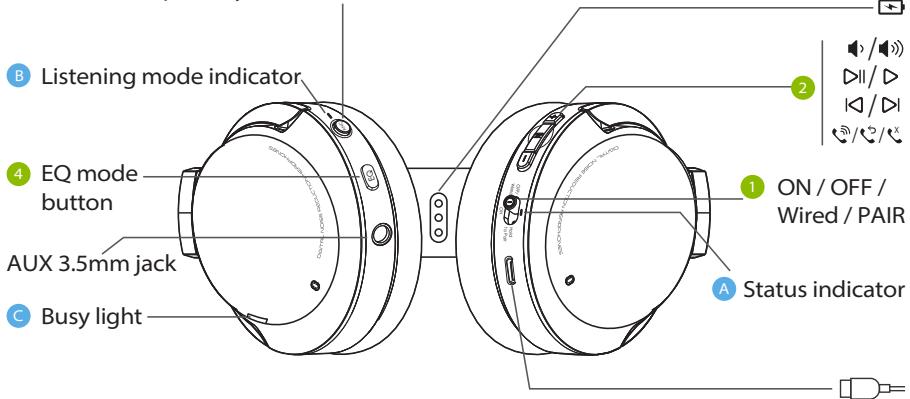
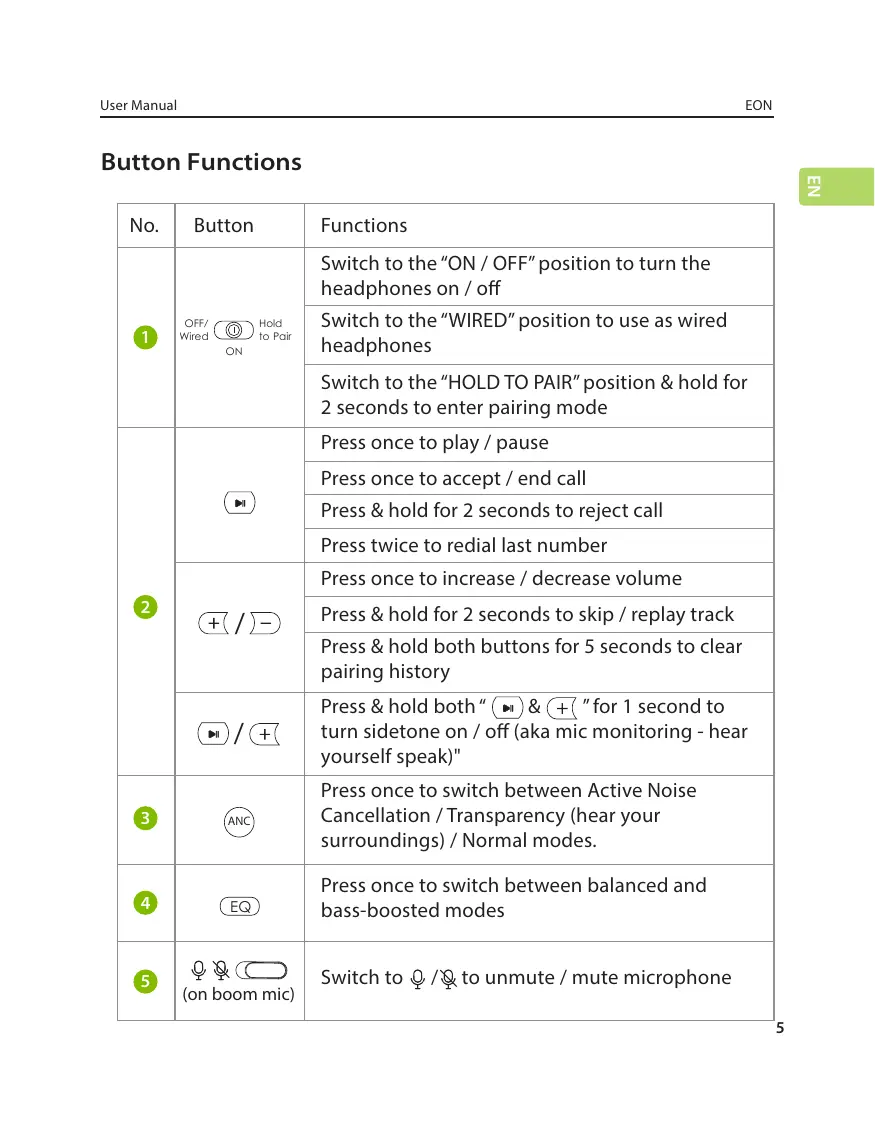
Button Functions
| No. | Button | Functions |
| 1 | OFF/Wired ON Hold to Pair | Switch to the "ON / OFF" position to turn the headphones on / off |
| Switch to the "Wired" position to use as wired headphones | ||
| Switch to the "HOLD TO PAIR" position & hold for 2 seconds to enter pairing mode | ||
| 2 | + / - | Press once to play / pause |
| Press once to accept / end call | ||
| Press & hold for 2 seconds to reject call | ||
| Press twice to radial last number | ||
| + / - | Press once to increase / decrease volume | |
| Press & hold for 2 seconds to skip / replay track | ||
| Press & hold both buttons for 5 seconds to clear pairing history | ||
| + / + | Press & hold both " (▶) & (+) "for 1 second to turn sidetone on / off (aka mic monitoring - hear yourself speak)" | |
| 3 | ANC | Press once to switch between Active Noise Cancellation / Transparency (hear your surroundings) / Normal modes. |
| 4 | EQ | Press once to switch between balanced and bass-boosted modes |
| 5 | (ON boom mic) | Switch to Q / Q to unmute / mute microphone |
LED Indicators
| No. | Indicator & Voice Prompt | Status |
| A | Solid red | Charging |
| Flashing red | Low battery | |
| Flashing blue, "BATTERY HIGH / MEDIUM / LOW" voice indicator | Power on | |
| Solid red for 1 second then off, "GOODBYE" voice indicator | Power off | |
| Alternate red & blue flashes, "PAIRING" voice indicator | Pairing | |
| Blue flash every 5 seconds, "CONNECTED" voice indicator | Connected | |
| Blue flash every 2 seconds, "DISCONNECTED" voice indicator | Disconnected | |
| Solid pink for 5 seconds, then alternate red & blue flashes | Clearing pairing history | |
| B | Solid green, "NOISE CANCELING" voice indicator | Active Noise Cancellation (ANC) mode |
| Green flash every 5 seconds, "TRANSPARENCY" voice indicator | Transparency mode | |
| LED off, "NORMAL" voice indicator | Normal mode | |
| C | Solid red | In a call |
| D | Solid white | Charging |
| Solid green | Charging complete | |
| E | Solid red | Muted microphone |
Charging the Headphones
A "BATTERY LOW" voice prompt and a flashing red light will indicate low battery. In order to charge, you can use either a 5V/500mA-2A rated USB adapter (your phone charger or similar should work) or PC USB port as a power source.
OPTION 1 Charging with the stand
Place the headphones on the charging stand. The charging dock's LED will turn white while charging and turn green once charging is complete.
OPTION 2 Charging via USB cable
Alternatively, you can plug the provided type C power cable directly into the headphones' charging port.
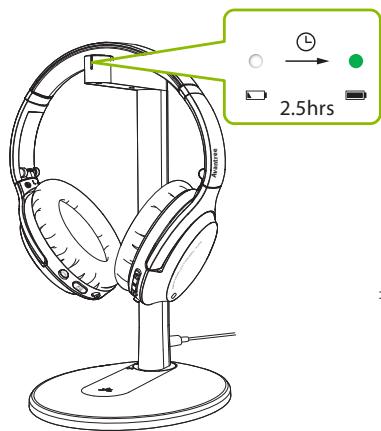
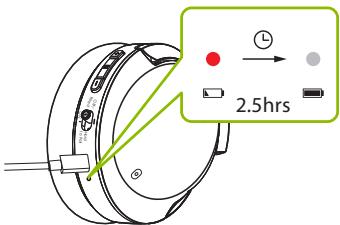
A solid red light indicates that charging is in progress; once the light turns off, your headphones will be at full battery.
Connecting the Headphones to Your Device
Pairing & Connecting
STEP1
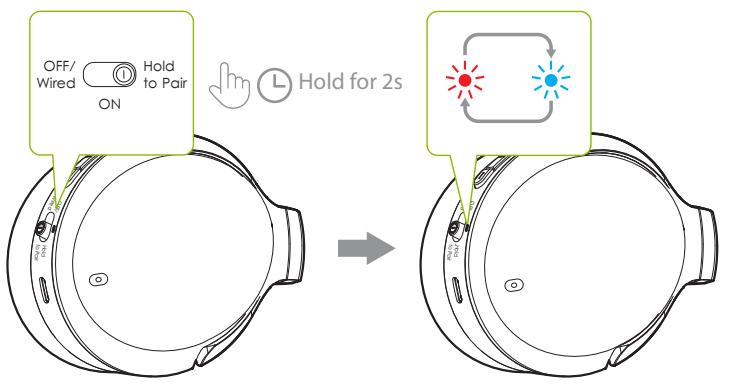
Turn on the headphones. For first time use, the headphones will enter PAIRING mode automatically.
Off/Wired Hold to Pair ON If not, put your headphones into PAIRING mode by sliding the switch to "HOLD TO PAIR" and holding for 2 seconds until the LED flashes red & blue.
STEP2
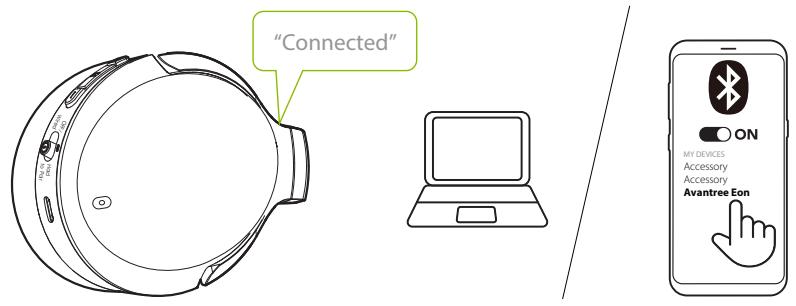
Turn on your device's Bluetooth and select "Avantree Eon" in the Bluetooth menu.
STEP3
Keep the headphones close to your device and wait for 5-10 seconds or until they connect. Once they're successfully connected, the headphones' LED indicator will flash blue, and you'll hear a "CONNECTED" voice indicator.
For subsequent use, your headphones should automatically reconnect to the last-paired device within a few seconds of being turned on. If not, you can manually activate reconnection by sliding the OFF/Wired Hold to Pair switch to
"HOLD TO PAIR" once, or by selecting "Avantree Eon" in your device's Bluetooth menu.
Configuring Audio Settings (only for PC)
You may need to configure your audio settings when using the Eon with your PC or laptop.
STEP1
Access your device's audio settings and set "Avantree Eon" as the default in SOUND OUTPUT / PLAYBACK. Set "Avantree Eon" as the default in INPUT / MICROPHONE DEVICE.
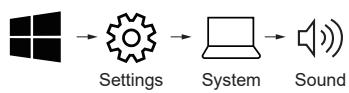
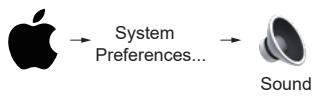
Sound
Output
Choose your output device
Avantree Eon
Input
Choose your input device
Avantree Eon
Sound
Output
Select a device for sound output:
Avantree Eon
Input
Select a device for sound input:
Avantree Eon
STEP 2:
Repeat the above steps in your meeting software (i.e. Teams, Zoom, Skype, etc.)
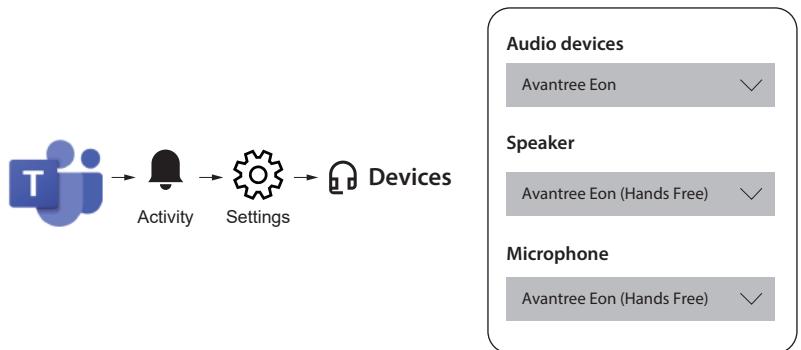
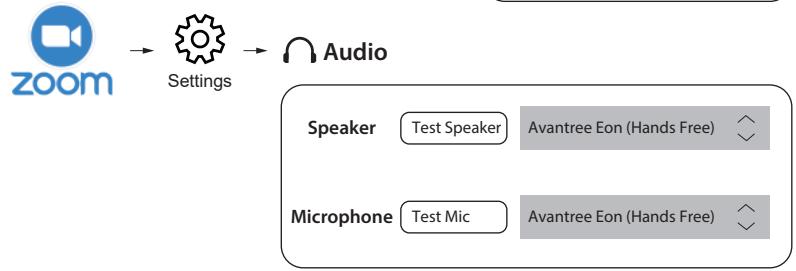
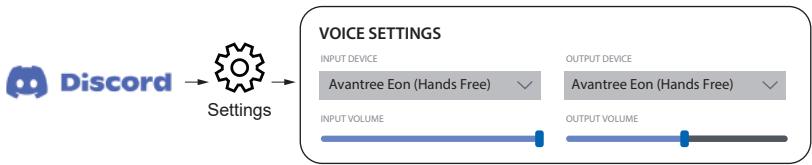
NOTE: On Windows 11 / macOS, there is no "Hands Free" option; select "Avantree Eon" as the default instead.
乙
Calling with the Boom Mic
The Eon headphones themselves have a built-in mic, but using the detachable boom mic will significantly enhance your call quality. Its noise-filtering technology will ensure your voice (and only your voice) is heard loud and clear, and its mute switch can be conveniently utilized.
We highly recommend using the boom mic for your calls. You can use it in both wireless and wired modes by plugging it into the headphones and (optionally) connecting the AUX cable directly to the boom mic.
Using as Wired Headphones
STEP1
Slide the OFF/Wired ① Hold to Pair switch to "OFF / Wired." ON
STEP2
OPTION 1
If you don't need the mic, plug the AUX 3.5mm audio cable into both the headphones and your audio output device.
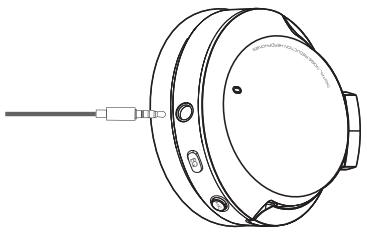
OPTION 2
If you'd like to make calls, plug the detachable boom mic into the headphones first, then plug the AUX 3.5mm audio cable into the mic. Plug the other end of the cable into your audio output device.
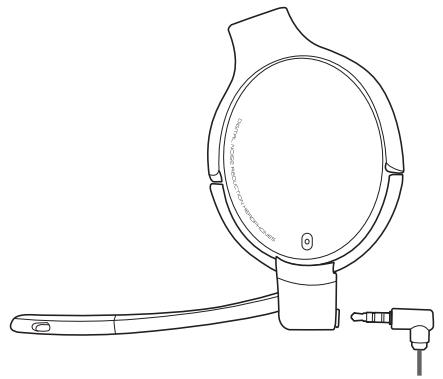
NOTE: When in wired mode, listening modes (ANC, transparency, normal) and all other built-in buttons do not function. The switch on the boom mic will still work.
Replacing the Rechargeable Battery
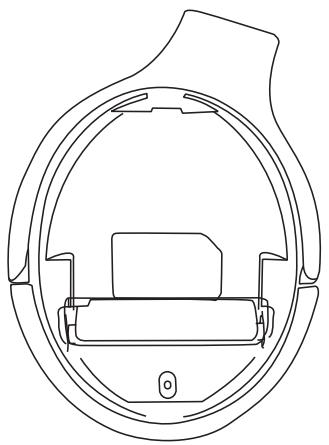
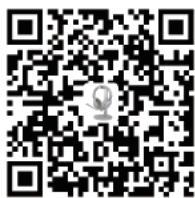
The rechargeable batteries, located in both headphones ears, can be replaced to extend your Eon's lifespan. Scan the QR code below or search "Avantree Eon battery" on Amazon or the Avantree website in order to purchase.
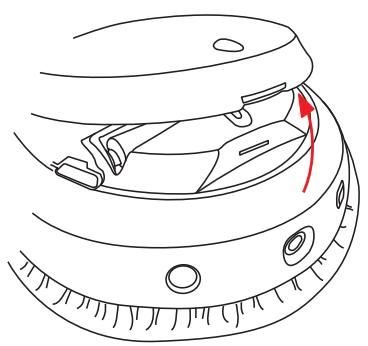
You can also use compatible batteries with the following specifications: 3.7V lithium ion 10440 rechargeable battery, capacity 350mAh.
Please visit avantree.com/eon/replace-battery for installation instructions and recommended sellers' details.
Specifications
| Bluetooth version | 5.0 |
| Audio codec support | AAC, SBC |
| Supported profiles | HSP v1.2, HFP v1.7, AVRCP v1.6 and A2DP v1.3.1 |
| Operating range | Up to 50ft / 15m |
| Drivers | 40mm |
| Impedance | 32Ω |
| Frequency response | 20Hz - 20KHz |
| Charging time | ~2.5hrs |
| Operating time | Up to 45hrs (ANC off) |
| Standby time | 325hrs (ANC off) |
| Sound pressure level (SPL) | 100dB (1kHz / 179MV) |
| Total harmonic distortion (THD) | <0.5% (1khz) |
| Product size | 191mm x 156mm x 92mm |
| Headphones weight | ~300g |
| Earpads inner diameter / depth | 68mm x 47mm / 35mm |
| Earpads outer diameter | 110mm x 90mm |
| Rated Input | DC5V/500mA~2.0A |
| Power port | Type C |
FAQ
Below are some of the most common questions people have during setup.
Why is the microphone not working with my PC?
There are several reasons why the microphone may not be working with your PC. First and foremost, check the boom mic to ensure the mute switch is OFF (unmuted). The issue could also be related to hardware or computer settings. To determine if it's a hardware issue, connect the headphones to your phone and test call someone, trying both with and without the boom mic. If there are no issues, double check your computer settings.
- Make sure only one meeting app is open at a time.
- Ensure your PC settings are properly set - check your computer's sound settings and make sure the Eon is selected as both the output and input source. Check your meeting software's sound settings as well.
- Make sure there's no interference from a second device - if your Eon is simultaneously connected to another device via dual link, try disconnecting from the other device.
Why isn't my audio switching between my phone and PC with the dual link feature?
To switch between your phone and your PC, first pause the audio / end the call on the current device (either by using the controls on your active device or by pressing the corresponding button on the headphones).
After 7-10 seconds, initiate audio on the second device. The Eon should automatically swap sources.
You can find a full FAQ list at avantree.com/support/eon, or contact us directly for additional assistance.
Contact Us

Support Tickets
avantree.com/submit-a-ticket

Support Email
support@avantree.com

USA / CA +1800 232 2078 (9am-6pm PST, Mon-Fri)
UK +44 20 8068 2023 (9am-6pm, GMT, Mon-Sat)
DE +49 32221097297 (11am-9pm, CET, Mon-Sat)
FR +33 176340312 (11am-9pm,CET, Mon-Sat)
IT +39 06 9480 3330 (9am-6pm, CET, Mon-Sat)
ES +34 931786261 (9am-6pm,CET,Mon-Sat)
AU +61283109897(11am-7pm,AEST,Mon-Fri)

FAQ
avantree.com/support/eon

Product Registration
avantree.com/product-registration
Inhaltsverzeichnis
Inhalt der Box 19
Produktinführung 20
Produktübersicht 20
Choose your output device
Avantree Eon
Input
Choose your input device
Avantree Eon
Sound
Output
Select a device for sound output:
Avantree Eon
Input
Select a device for sound input:
Avantree Eon
SCHRITT 2:
avantree.com/submit-a-ticket

Support-E-Mail
support@avantree.com

USA/CA +18002322078 (9am-6pm PST, Mon-Fri)
UK +44 20 8068 2023 (9am-6pm, GMT, Mon-Sat)
DE +49 32221097297 (11am-9pm, CET, Mon-Sat)
FR +33 176340312 (11am-9pm,CET, Mon-Sat)
IT +39 06 9480 3330 (9am-6pm, CET, Mon-Sat)
ES +34 931786261 (9am-6pm,CET,Mon-Sat)
AU +61283109897(11am-7pm,AEST,Mon-Fri)

FAQ
avantree.com/support/eon

avantree.com/product-registration
Sommaire
Câble audio AUX 3.5mm
Choose your output device
Avantree Eon
Input
Choose your input device
Avantree Eon
Sound
Output
Select a device for sound output:
Avantree Eon
Input
Select a device for sound input:
Avantree Eon
ETAPE 2:
avantree.com/submit-a-ticket

Support via email
support@avantree.com
贝

USA/CA +1800 232 2078 (9am-6pm PST, Mon-Fri)
UK +44 20 8068 2023 (9am-6pm, GMT, Mon-Sat)
DE +49 32221097297 (11am-9pm, CET, Mon-Sat)
FR +33 176340312 (11am-9pm,CET, Mon-Sat)
IT +39 06 9480 3330 (9am-6pm, CET, Mon-Sat)
ES +34 931786261 (9am-6pm,CET,Mon-Sat)
AU +61283109897(11am-7pm,AEST,Mon-Fri)

FAQ
avantree.com/support/eon

avantree.com/product-registration
Contenuti
Choose your output device
Avantree Eon
Input
Choose your input device
Avantree Eon
Sound
Output
Select a device for sound output:
Avantree Eon
Input
Select a device for sound input:
Avantree Eon
Passo 2:
avantree.com/submit-a-ticket

Email di supporto
support@avantree.com

USA/CA +1800 232 2078 (9am-6pm PST, Mon-Fri)
UK +44 20 8068 2023 (9am-6pm, GMT, Mon-Sat)
DE +49 32221097297 (11am-9pm, CET, Mon-Sat)
FR +33 176340312 (11am-9pm,CET, Mon-Sat)
IT +39 06 9480 3330 (9am-6pm, CET, Mon-Sat)
ES +34 931786261 (9am-6pm,CET,Mon-Sat)
AU +61283109897(11am-7pm,AEST,Mon-Fri)

avantree.com/support/eon

Choose your output device
Avantree Eon
Input
Choose your input device
Avantree Eon
Sound
Output
Select a device for sound output:
Avantree Eon
Input
Select a device for sound input:
Avantree Eon
PASO 2:
HINTD HINTD HINTD HINTD HINTD HINTD HINTD HINTD HINTD HINTD HINTD HINTD HINTD HINTD HINTD HINTD HINTD HINTD HINTD HINTD HINTD HINTD HINTD HINTD HINTD HINTD HINTD HINTD HINTD HINTD HINTD HINTD HINTD HINTD HINDDHINTDHINTDHINTDHINTDHINTDHINTDHINTDHINTDHINTDHINTDHINTDHINTDHINTDHINTDH
才P2 USBケームルを充電する
Choose your output device
Avantree Eon
Input
Choose your input device
Avantree Eon
Sound
Output
Select a device for sound output:
Avantree Eon
Input
Select a device for sound input:
Avantree Eon
Sty2:
avantree.com/submit-a-ticket

☆木卜X一川
support@avantree.com

USA/CA +1800 232 2078 (9am-6pm PST, Mon-Fri)
UK +44 20 8068 2023 (9am-6pm, GMT, Mon-Sat)
DE +49 32221097297 (11am-9pm, CET, Mon-Sat)
FR +33 176340312 (11am-9pm,CET, Mon-Sat)
IT +39 06 9480 3330 (9am-6pm, CET, Mon-Sat)
ES +34 931786261 (9am-6pm,CET, Mon-Sat)
AU +61283109897(11am-7pm,AEST,Mon-Fri)

FAQ
avantree.com/support/eon

製品登錄
avantree.com/product-registration
Manufacturer: Avantronics Limited
Address: Luohu District, Shenzhen 518000 China
US Importer:
Avantree Corporation
San Jose, California 95119 USA
UK Importer:
Avantree Limited
Watford,WD180 0HQ UK
EC
REP
Servicer in Europe:
Gizmex GmbH,
Sternstr. 67, 40479 Dusseldorf, Germany
Tel: 01-4083348648 support@avantree.com
FCC Requirement
Any changes or modifications not expressly approved by the party responsible for compliance could void the user's authority to operate the equipment.
This device complies with Part 15 of the FCC Rules. Operation is subject to the following two conditions:
(1) this device may not cause harmful interference, and
(2) this device must accept any interference received, including interference that may cause undesired operation.
Note: This equipment has been tested and found to comply with the limits for a Class B digital device, pursuant to Part 15 of the FCC Rules. These limits are designed to provide reasonable protection against harmful interference in a residential installation. This equipment generates, uses, and can radiate radio frequency energy, and if not installed and used in accordance with the instructions, may cause harmful interference to radio communications. However, there is no guarantee that interference will not occur in a particular installation. If this equipment does cause harmful interference to radio or television reception, which can be determined by turning the equipment off and on, the user is encouraged to try to correct the interference by one or more of the following measures:
- Reorient or relocate the receiving antenna.
- Increase the separation between the equipment and receiver.
- Connect the equipment into an outlet on a circuit different from that to which the receiver is connected.
- Consult the dealer or an experienced radio/TV technician for help.