50 XE NXT PAPER 5G - Mobile TCL - Free user manual and instructions
Find the device manual for free 50 XE NXT PAPER 5G TCL in PDF.


| Product Type | Mobile |
| Brand | TCL |
| Model | 50 XE NXT PAPER 5G |
| Display | NXT PAPER display (paper technology) |
| Power | Rechargeable lithium-ion battery, USB-C charging |
| Network | 5G |
| SIM card | Nano SIM |
| External storage | microSD card (sold separately) |
| Main functions | Calls, SMS/MMS, Contacts, Gmail, Camera, Gallery, Applications |
| Operating system | Android (with system updates) |
| Care and cleaning | Use a soft, dry cloth for cleaning |
| Security | Software update via Settings > System > System updates; Factory reset via Settings > System > Reset options; Google account removal via Settings > Accounts |
| Backup | Settings > System > Backup |
| General information | Website: www.tcl.com/ca/fr/; Support: 1 855 224-4228 (Canada/United States) |
Frequently Asked Questions - 50 XE NXT PAPER 5G TCL
User questions about 50 XE NXT PAPER 5G TCL
0 question about this device. Answer the ones you know or ask your own.
Ask a new question about this device
Download the instructions for your Mobile in PDF format for free! Find your manual 50 XE NXT PAPER 5G - TCL and take your electronic device back in hand. On this page are published all the documents necessary for the use of your device. 50 XE NXT PAPER 5G by TCL.
USER MANUAL 50 XE NXT PAPER 5G TCL
English - CJB2MMOLCAAA
Printed in China
T614J
www.tcl.com/ca/en/
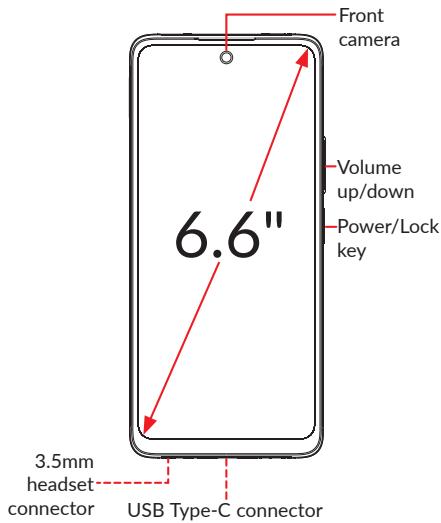
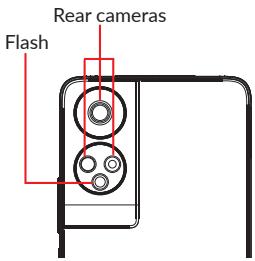
Your Mobile
Keys and connectors
Getting started
① Your new phone is partially charged. Charge the battery by using the USB-C cable and charger provided.
Use the provided SIM pin to open the SIM tray.
③ Place the Nano SIM card and/or microSD™ card into the tray, then slide the SIM tray into the slot.
Note: microSD™ cards are sold separately. Only use Nano SIM cards with your phone.
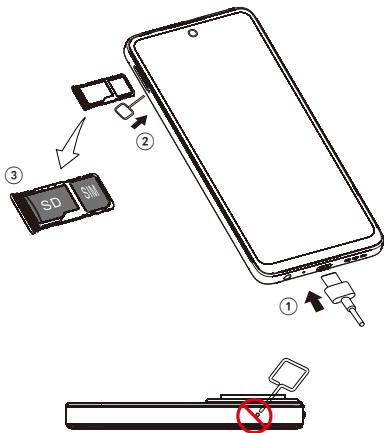
Caution: Do not insert the SIM pin into the small hole on top or bottom of the phone.
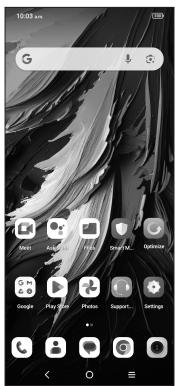
Home screen
You can bring all of the items that you use most frequently (applications, shortcuts, folders) to your Home screen for quick access.
Tapping Home always takes you back to the main Home screen.
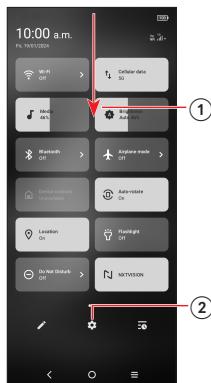
① Swipe down from the Status bar to view the Notification panel and access all pending notifications. Swipe down again to view Quick Access settings options.
② Tap to access the complete Settings menu.
Note: Software updates happen frequently, so your phone may not have all listed apps or features.
Calls
Making a call
From the Phone app, use the keypad to enter the phone number, or keyboard to enter the contact name. Then tap to place the call.
Answering a call
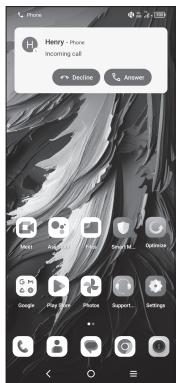
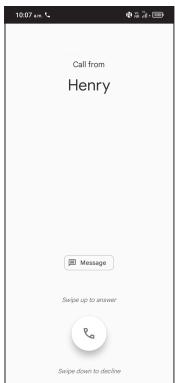
When you receive a call:
- Tap ANSWER, or swipe up the icon to answer;
- Tap DECLINE, or swipe down the icon to reject;
- Tap Message to reject the call by sending a preset message.


Contacts
Use Contacts to view your saved contacts or create a new contact. Synchronize your contacts from your email account(s) and other applications to your phone.
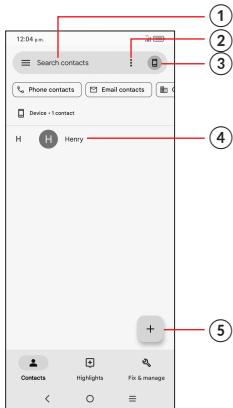
① Tap to search for a contact.
② Tap to select multiple contacts for bulk editing, such as adding a label to the contact.
③ Tap to view and add contacts from other accounts on your device.
④ Tap on the contact name or icon to open the contact card, where you can edit their information, call them, and more.
Touch and hold to share or delete the selected contact(s).
⑤ Tap to create a new contact.
Messages
You can create, edit, send, and receive SMS and MMS.
ASMS will be converted to MMS automatically when media files (image, video, audio, etc.) are attached, when a subject is added to the message, or an email address is used for a recipient.
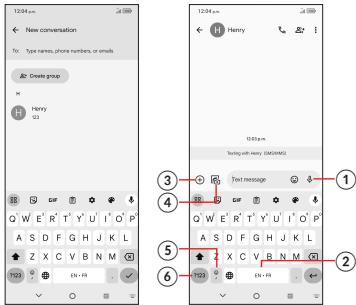
① Touch and hold to record audio.
② Touch and hold to switch language.
③ Insert a GIF, sticker, location, contact, or other media file.
④ Insert a picture from the gallery or shoot one directly.
⑤ Tap to input a comma. Touch and hold to access keyboard settings, smileys and emotions or enter left or right hand input mode.
⑥ Tap to access the symbols and numbers keyboards.
Gmail
Use Gmail to create, send, and receive emails directly on your phone. The Gmail app will allow you to add several email accounts.
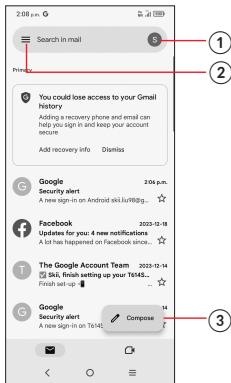
① Tap to view the email accounts on your device.
② Tap to access email folders, settings, and more.
③ Tap to create an email.
General Information
- Visit the TCL website at www.tcl.com/ca/en/ for tutorials and answers to frequently asked questions, and to download the User Manual.
- To get support for your phone, visit the TCL website (www.tcl.com/ca/en/), or dial the number listed below:
Canada-1-855-224-4228
United States-1-855-224-4228
- Update your phone's software
Go to Settings > System > System Update to check software updates.
- Back up your personal data
Go to Settings > System > Backup > Backup now and turn it on.
- Reset your phone
Go to Settings > System > Reset options > Erase all data (factory reset) > Erase all data.
- Removing your Google Account
Go to Settings > Accounts > tap on the account > REMOVE ACCOUNT.
TCL 50 XE
NXTPAPER 5G
GUIDE DE DÉMARRAGE RAPIDE
Français - CJB2MMOLCAAA
Imprimé en Chine
T614J
www.tcl.com/ca/en/
VotrerPortable
Brand : TCL
Model : 50 XE NXT PAPER 5G
Category : Mobile