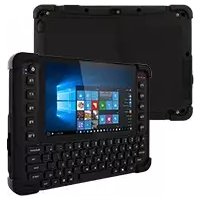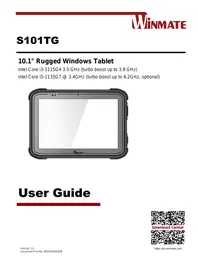
S101TG - Tablet Winmate - Free user manual and instructions
Find the device manual for free S101TG Winmate in PDF.


User questions about S101TG Winmate
0 question about this device. Answer the ones you know or ask your own.
Ask a new question about this device
Download the instructions for your Tablet in PDF format for free! Find your manual S101TG - Winmate and take your electronic device back in hand. On this page are published all the documents necessary for the use of your device. S101TG by Winmate.
USER MANUAL S101TG Winmate
10.1" Rugged Windows Tablet
Intel Core i3-1115G4 3.0 GHz (turbo boost up to 3.9 GHz)
Intel Core i5-1135G7 @ 2.4GHz (turbo boost up to 4.2GHz, optional)
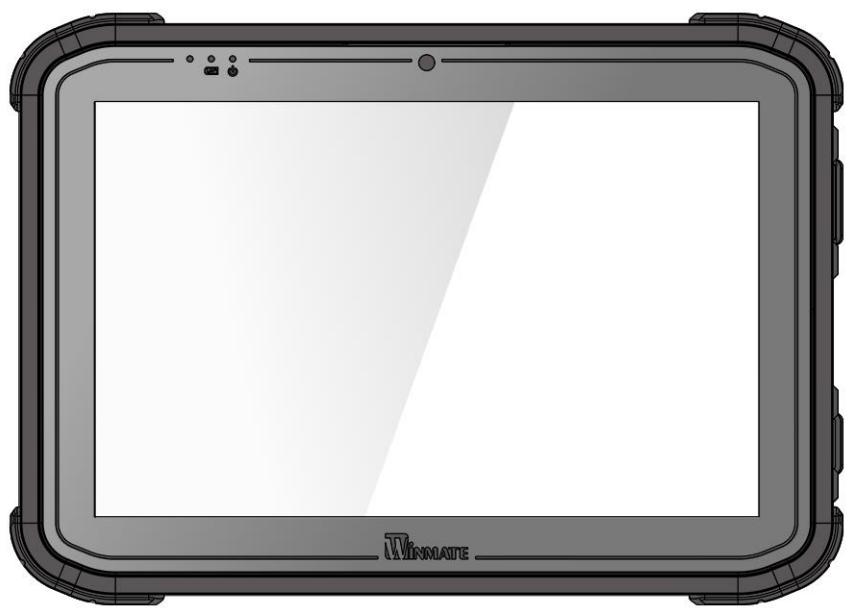
User Guide
Contents
Chapter 1: Read Me First 3
1.1 Advisory Conventions 3
1.2 Safety Information 4
1.3 Handling and Maintenance 6
1.4 Declaration of Conformity (DoC) 7
1.5 Copyright Notice 8
1.6 Trademark Acknowledgement 8
1.7 Disclaimer 8
Chapter 2: Getting Started 9
2.1 Introduction 9
2.2 Unpacking 9
2.3 Description of Parts 10
2.4 Indicators 11
2.5 Hotkey for Specific Functions 12
2.6 First-Time Operation 12
2.6.1 Installing Battery 12
2.6.2 Installing SIM card (For 4G/LTE Equipped Devices) 13
2.6.3 Installing a MicroSD Card 14
2.6.4 Charging Your Tablet 14
2.6.5 Starting the Tablet 15
Chapter 3: Setting Up Windows for the First Time 16
3.1 Introduction 16
3.2 Setting up Windows 10 IoT Enterprise 16
Chapter 4: Operating the Device 19
4.1 Hottab Introduction 19
4.2 Shortcuts 20
4.3 Using Camera 21
4.4 Built-in Devices On/Off 22
4.4.1 Using the Wireless LAN (Wi-Fi) 22
4.4.2 Using the Wireless WAN 23
4.4.3 Using the GPS 24
4.4.4 Using the Bluetooth 24
4.4.5 Turning On/Off LED Indicators 25
4.4.6 Using the Barcode Reader 25
4.4.7 Turn on/off the GPS External Antenna 34
4.4.8 Turn on/off the Light Sensor 34
4.4.9 Changing Touchscreen Modes 35
Chapter 5: Frequently Used Settings 37
5.1 Screen Resolution Scaling and Setting 37
5.1.1 Changing Display Scaling (Recommended) 37
5.1.2 Changing Screen Resolution 38
5.2 Replacing Battery 40
5.3 Using Recovery Wizard to Restore Computer 41
5.4 Docking Connector Pin Definition 43
5.5 COM Port Definition 43
5.6 Pairing with a Wireless Bluetooth Barcode Scanner 45
5.6.1 Setup Computer for Bluetooth Pairing 45
5.6.2 Set up the Barcode Scanner for Bluetooth Pairing 49
5.6.3 Perform Bluetooth Pairing 49
Chapter 6: Troubleshooting 51
6.1 Basic Troubleshooting 51
Appendix 53
Appendix A: Product Specifications 53
Chapter 1: Read Me First
1.1 Advisory Conventions
Four types of advisories are used throughout the user manual to provide helpful information or to alert you to the potential for hardware damage or personal injury. These are Notes, Important, Cautions, and Warnings. The following is an example of each type of advisory.

Note:
A note is used to emphasize helpful information

Important:
An important note indicates information that is important for you to know.

Caution A Caution alert indicates potential damage to hardware and explains how to avoid the potential problem.
Warning! An Electrical Shock Warning indicates the potential harm from electrical hazards and how to avoid the potential problem.
Do Not Disassemble, Modify, or Insert Sharp Objects Into the Battery Pack. Electrolyte leakage, generation of heat, ignition, or rupture may result.
Do Not Short the Positive (+) and Negative (-) Terminals of the Battery. Generation of heat, ignition, or rupture may result. When carrying or storing the device, do not place the battery pack with articles that may contact electricity.
Do Not Apply Shocks to the Battery by Dropping It or Applying Strong Pressure to It. Electrolyte leakage, generation of heat, ignition, or rupture of the battery may occur.
Do Not Charge the Battery Other Than Methods Those Specified In This Manual. If the battery is not charged using one of the specified methods, electrolyte leakage, generation of heat, ignition, or rupture may result.
When the Battery Pack Has Deteriorated, Replace It with a New Battery. Continued use of a damaged battery pack may result in heat generation, ignition, or battery rupture.
Do Not Expose the Battery Pack to Excessive Heat or Extreme Heat (for example, Near Fire, in Direct Sunlight) Generation of heat, ignition, or rupture may result
Do Not Use the Battery Pack With Any Other Products. The battery pack is rechargeable and is only designed for this specific product. Electrolyte leakage, generation of heat, ignition, or rupture may result if used with a product other than the specified product.
Do Not Use This Product With Battery Other Than the One Specified.
Discontinue using the device immediately if you notice the battery is swelling or looks puffy or misshapen. Do not attempt to charge or use the device. Do not handle a damaged or leaking battery. Do not let leaking battery fluid come into contact with your eyes, skin, or clothing.
It is recommended to reboot the device when some functions are defective or inactive. If it still can't solve the problems, please contact your dealer or agent.
1.3 Handling and Maintenance

General Guideline Guide Général
Keep the product at least 13 cm (5 inches) away from electrical appliances that generate a strong magnetic field such as TV, refrigerator, motor, or a large audio speaker.
Do not place heavy objects on top of the tablet computer as this may damage the display.
The screen surface can be easily scratched. Use with care. Do not use paper towels to clean the display but use the included cleaning cloth. Avoid touching it with a pen or pencil.
To maximize the life of the backlight in the display, allow the backlight to automatically turn off as a result of power management. Avoid using a screen saver or other software that prevents the power management from working.
Use a soft cloth moistened with water or a nonalkaline detergent to wipe the exterior of the product.
Gently wipe the display with a soft, lint-free cloth. Do not use alcohol or detergent on the product.
Use your finger or the stylus on display. Using sharp or metallic objects may cause scratches and damage the display, thereby causing errors.
Use a soft cloth to remove dirt on display. The touchscreen surface has a special protective coating that prevents dirt from sticking to it. Not using a soft cloth may cause damage to the special protective coating on the touchscreen surface. To clean off hard to remove dirt, blow some steam on the particular area and gently wipe away using a soft cloth.
Do not use excessive force on display. Avoid placing objects on top of the display as this may cause the glass to break.
When there is a noticeable discrepancy in the operation of the touchscreen function (your touch does not correlate to the proper location on the screen), recalibrate the touchscreen display.
No part of this document may be reproduced, copied, translated, or transmitted in any form or by any means, electronic or mechanical, for any purpose, without the prior written permission of the original manufacturer.
1.6 Trademark Acknowledgement
Brand and product names are trademarks or registered trademarks of their respective owners.
1.7 Disclaimer
Winmate Inc. reserves the right to make changes, without notice, to any product, including circuits and/or software described or contained in this manual in order to improve design and/or performance. We assume no responsibility or liability for the use of the described product(s) conveys no license or title under any patent, copyright, or masks work rights to these products, and make no representations or warranties that these products are free from patent, copyright, or mask work right infringement unless otherwise specified. Applications that are described in this manual are for illustration purposes only. We make no representation or guarantee that such application will be suitable for the specified use without further testing or modification.
Chapter 2: Getting Started
This chapter tells you step by step how to get the Tablet Computer up and running.
2.1 Introduction
Congratulations on purchasing Winmate® 10.1-inch Rugged Windows Tablet S101TG.
S101TG is a rugged tablet with robust features designed to withstand industrial use while providing high-tech solutions that increase productivity, improve safety, and reduce operational costs. The processing power comes from the 11^th generation Intel® Tiger Lake processor for high performance. The tablet features a brilliant, in-plane switching with anti-glare screen protection film, projective capacitive touch screen, which is outdoor viewable and offers 1920 x 1200 pixel resolution, and weighing at just 1.1 kg, the S101TG delivers lightweight mobility in a rugged tablet.
Highlights
11th generation Intel® Tiger Lake processor
- Anti-glare screen protection film
- Optional Ethernet thru Giga LAN (RJ45)
- Optional Expansion Port for USB 3.0 and UART support
2.2 Unpacking
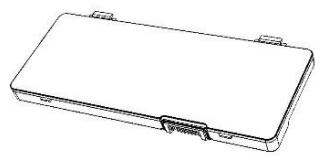
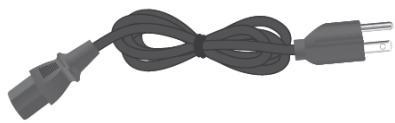
Check and identify the supplied accessories:
- Tablet Computer
Power Adapter
- Quick Start Guide
Standard Battery
Power Cord and Plugs
2.3 Description of Parts
Dimensions: 268 × 187 × 22.2 mm
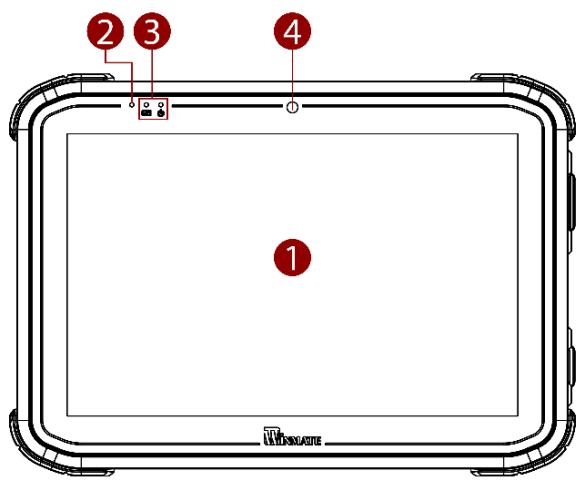
Front:

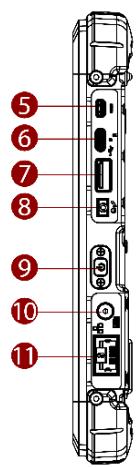
Left:
Right:
| No | Item | Description |
| 1 | 10.1" Touch Screen | Display and act as one of the inputs for the Tablet Computer |
| 2 | Light Sensor | To automatically adjust the screen brightness based on the surrounding light. |
| 3 | LED Indicators | Show the current status of the tablet computer: battery status and power status. |
| 4 | Front Camera | 2 Megapixel Webcam |
| No | Item | Description |
| 5 | Micro HDMI (Optional) | HDMI output to the external display |
| 6 | USB 3.0 Type-C | A high-speed USB port connects to USB devices. |
| Note: The USB Type-C connector follows USB 3.0 standards, not supporting Alternate Mode (ALT) or USB Power Delivery (USB-PD). | ||
| 7 | USB 3.0 Type-A | USB 3.0 port connects to USB devices, such as USB flash drive, mouse, keyboard, printer, etc. |
| 8 | Audio Jack | Headset or headphone can be connected (Mic is only supported with 3.5mm 4-pin headset) |
| 9 | Power Button | Power on/off the tablet |
| 10 | Power Jack | DC power input jack. |
| 11 | RJ45 Connector (Optional) | Connects the LAN cable. |
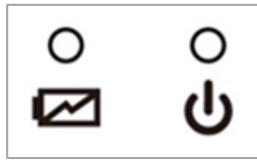
Front LED Indicator Details:
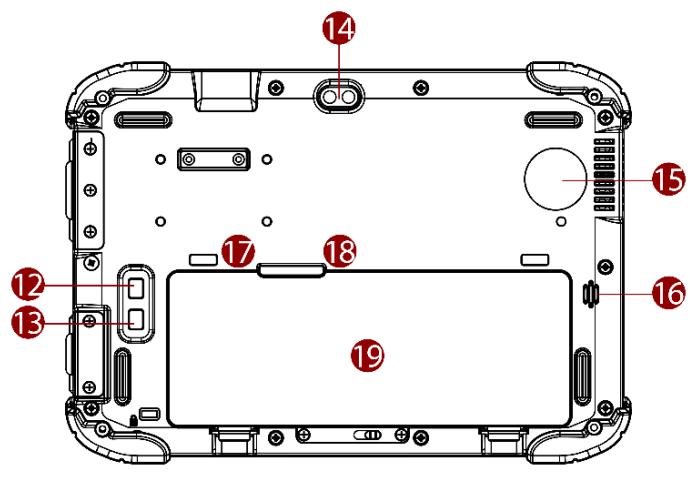
Rear:
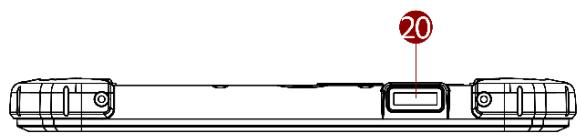
Top:
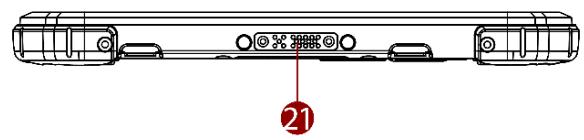
Bottom:
| No | Item | Description |
| 12 | Fn1 Button | Programmable function key configured by Hottab Utility |
| 13 | Fn2 Button | Programmable function key configured by Hottab Utility |
| 14 | Rear Camera | 8MP Autofocus Camera. Captures photos and videos. |
| 15 | Fan | Cooling system |
| 16 | Speaker | Sends out sound and voice from the computer. |
| 17 | SIM card slot | Service window to insert Nano SIM card. |
| 18 | MicroSD Card Reader | Memory card reader port for MicroSD Card |
| 19 | Battery | 11.4 V, typ. 3500 mAh. Li-Polymer Battery (3SIP) |
| No | Item | Description |
| 20 | Barcode Reader (Optional) | Barcode Scanner for reading of 1D/2D barcode. |
| 21 | Docking Connector | Port to docking solutions such as vehicle docking to provide power and external antenna. |
2.4 Indicators
| Icon | Indicator | Description |
| Power Indicator | Blue- Tablet is ON No light- Tablet is OFF | |
| Battery Status | Orange-AC adapter is plugged in and charging Green-AC adapter is plugged in, and the battery is fully charged Solid Red - Low battery (<10%) Blinking Red - Battery is hot-swapped. No light - Battery is in use, and more than 10% |
2.5 Hotkey for Specific Functions
Physical buttons with its dedicated functions can also be used to emulate commonly used keyboard keystrokes. Under a different scenario, a single physical button or a combination of physical buttons provide different keyboard keystrokes, which are specified below:
In POST (before Windows boots up):
| Buttons | Keystroke |
| Fn1 | F6 to enter Recovery Menu |
| Fn2 | Esc to enter BIOS setup screen |
In Windows:
| Buttons | Keystroke |
| Fn1 | Default: Web Browser |
| Fn2 | Default: Camera |
2.6 First-Time Operation
2.6.1 Installing Battery
To install the standard battery pack:
- Disconnect any cords connected to the tablet computer and turn the tablet over, back facing up.
- Locate the Battery Lock and slide it to the "Unlocked" position.
- Insert the battery with the connector-pins side first, and then lower the battery into the battery compartment. The battery will be flat against the housing once fully inserted.
- Slide the Battery Lock to the "Locked" position.

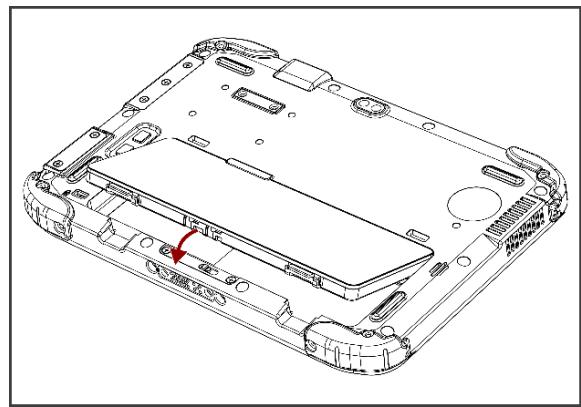
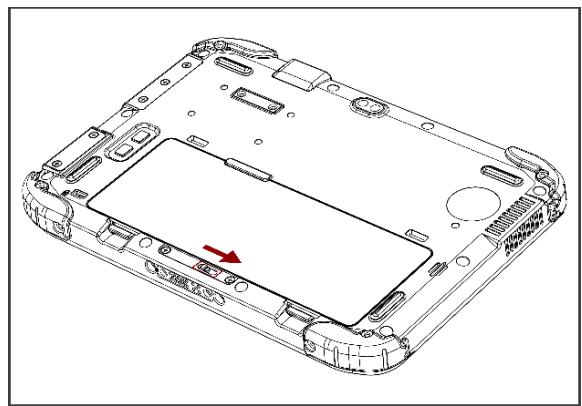
To remove the battery pack:
- Shut down the tablet (or put it into sleep mode). Disconnect any cords connected to the computer.
- Turn the tablet computer over, back facing up.
- Locate the Battery Lock and slide it to the "Unlocked" position.
- Push and hold the Battery Release Latch while lifting the battery out of the compartment.
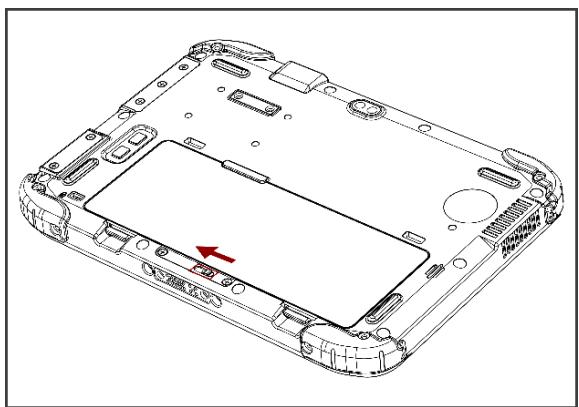
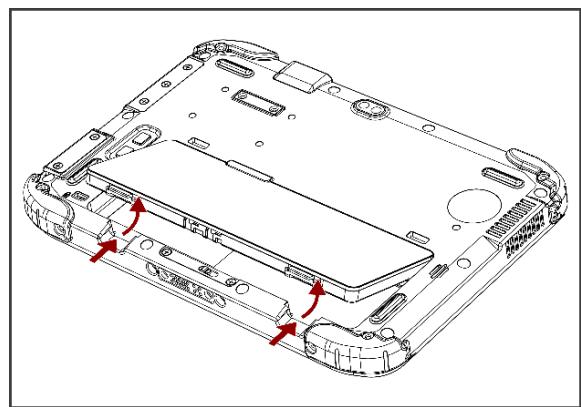
2.6.2 Installing SIM card (For 4G/LTE Equipped Devices)
The Tablet Computer supports 4G/LTE data connections and fits a Nano-SIM card.
To install the SIM card:
1 Remove the battery, as described in section 2.6.1 Installing Battery.
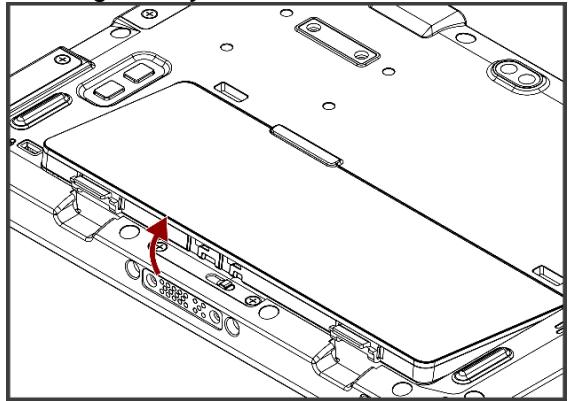
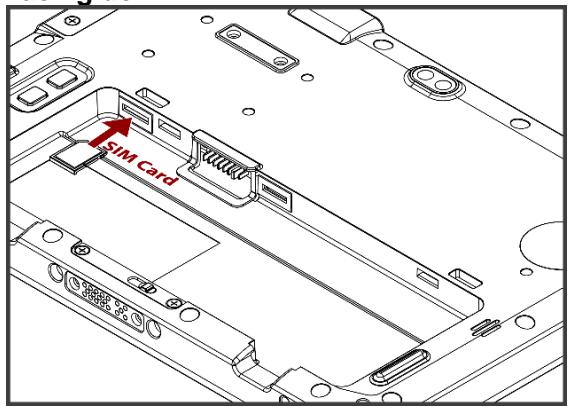
Insert SIM-Card all the way in. Chip/contact is facing down
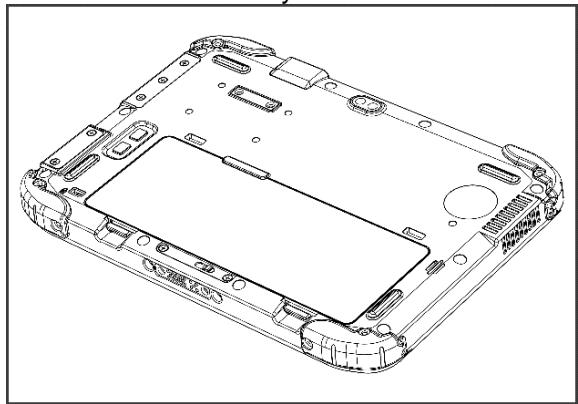
Put and lock the battery back.
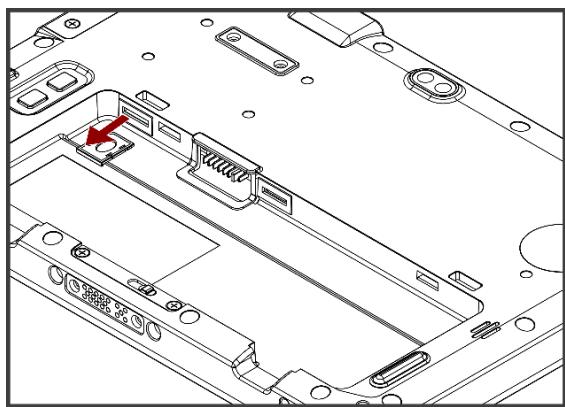
Open the SIM-card slot rubber protection cover.
Close the SIM-card slot rubber protection cover.

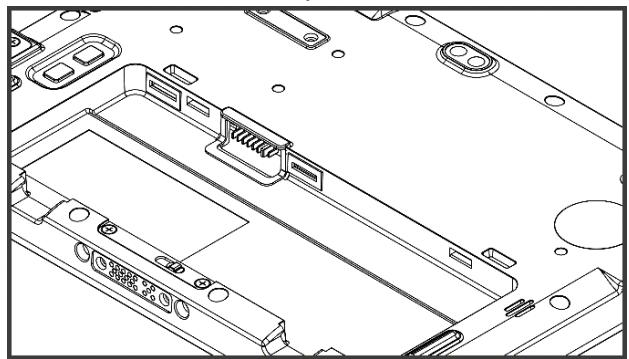
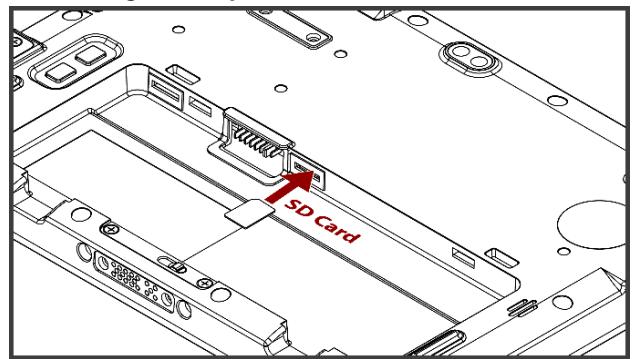
2.6.3 Installing a MicroSD Card
Your tablet supports up to 128GB additional storage with an optional microSD card slot.
To install MicroSD Card:
- Remove the battery, as described in section 2.6.1 Installing Battery.
- Open microSD slot protective cover
- Insert the microSD card into a slot with contacts facing down.
- Press the card in to ensure that it is seated properly.
- Close I/O protective cover.
- Put back the battery, as described in section 2.6.1 Installing Battery.
To remove Micro SD Card:
- Remove the battery, as described in section 2.6.1 Installing Battery.
- Open I/O protective cover by pulling out the latch.
- Push and release the microSD card to unlock it.
- Pull out the microSD card.
- Put back the battery, as described in section 2.6.1 Installing Battery.
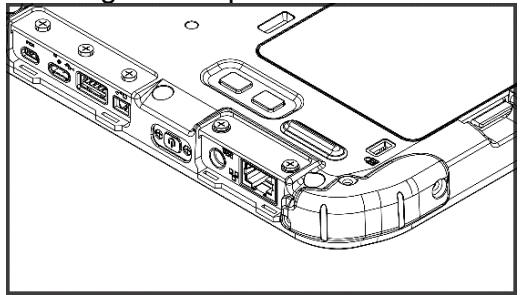
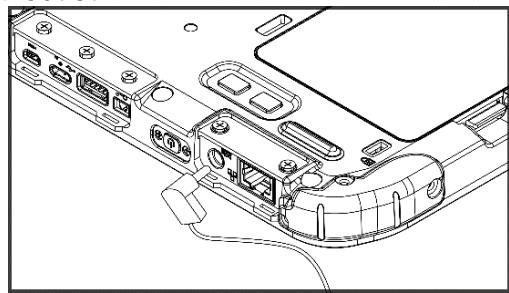
2.6.4 Charging Your Tablet
The tablet operates either on external AC power or internal battery power. It is recommended to use AC power when you start up the tablet for the first time.

Caution Use only the AC adapter included with your Tablet Computer. Using other AC adapters may damage the Tablet Computer and the Battery.
To connect a tablet to AC power:
- Open I/O protective cover by pulling out the latch.
- Plug the DC cord of the AC adapter into the power jack of the tablet computer.
- Plug the AC power cord into the AC adapter.
- Plug the AC power cord into the electrical outlet.
The battery LED indicator shows different battery states:
Orange - AC adapter is plugged in and battery is charging.
Green - AC adapter is plugged in and battery is fully charged.
Solid Red - Low battery level (<10%).
Blinking Red - Battery is hot-swapped.
No light - Battery is in use and charged (>10%)
2.6.5 Starting the Tablet

Important:
When powering on the device for the first time, please make sure there's no interruption during the Windows setting up process, for example, accidentally powering off. If it happened, please access the recovery menu by pressing Fn1 button to initiate the recovery process.
Press and hold the power button for 3 seconds until the blue LED power indicator light up.

Note:
Do not press the power button repeatedly.
Do not perform the following operations until the tablet is booted to Windows.
- Connecting or disconnecting the AC adapter
- Pressing the power button
- Touching the tablet buttons, screen, or external keyboard/mouse
To power off the Tablet Computer:
- Make sure you have closed any programs that are open on the desktop. Start Screen apps don't need to be closed.
- Tap on Power.
- Tap on Shut Down.
- Wait for Tablet Computer to power off.

Note:
The computer will forcibly be powered off if the power button is pressed and held for 6 seconds or longer.
Chapter 3: Setting Up Windows for the First Time
This chapter details how to setup the Windows that may be installed on the tablet for the first time.
3.1 Introduction
The S101TG Tablet Computer operates on Windows 10 IoT Enterprise operating system.

Caution Make sure the battery is full charged before starting the Tablet Computer for the first time with internal battery power.
- Public network: Select this location if you do not recognize all the computers on the network. (For example, you are in a coffee shop or airport or have mobile broadband) with a public network and is not trusted. Select the location where you will most often use the computer.
3.2 Setting up Windows 10 IoT Enterprise
Follow the steps below to complete the Windows 10 IoT Enterprise set-up process.
- Press the power button to turn on the computer.
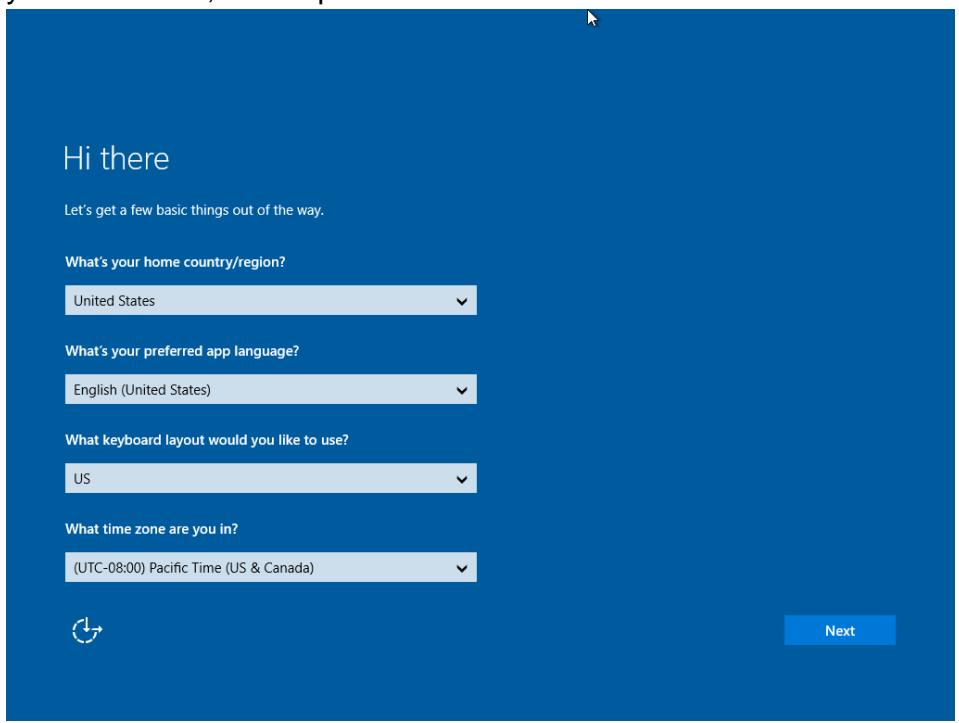
- First, select your country/region, your preferred app language, your preferred keyboard layout, and your time zone, then tap Next.
- On the Here's the legal stuff screen, read through the disclosures, then tap Accept.
Here's the legal stuff
Last updated [July 2015]
MICROSOFT SOFTWARE LICENSE TERMS
Thank you for choosing Microsoft!
Depending on how you obtained the Windows software, this is a license agreement between (i) you and the device manufacturer or software installer that distributes the software with your device; or (ii) you and Microsoft Corporation (or, based on where you live or if a business where your principal place of business is located, one of its affiliates) if you acquired the software from a retailer. Microsoft is the device manufacturer for devices produced by Microsoft or one of its affiliates, and Microsoft is the retailer if you acquired the software directly from Microsoft.
This agreement describes your rights and the conditions upon which you may use the Windows software. You should review the entire agreement, including any printed paper license terms that accompany the software and any linked terms, because all of the terms are important and together create this agreement that applies to you. You can review linked terms by pasting the (aka.ms/) link into a browser window.

Back
Accept
- Windows will then try to connect to a network. Tap Skip this step to continue without a wireless connection, as you can then set up the network later.
- On the Get going fast screen, click Use Express settings for the quickest set-up. If you want more information, tap Learn more, or if you would like to select your own options, click Customize settings.
Get going fast
Change these at any time. Select Use Express settings to:
Personalize your speech, typing, and inkling input by sending contacts and calendar details, along with other associated input data to Microsoft. Let Microsoft use that info to improve the suggestion and recognition platforms.
Let Windows and apps request your location, including location history, and use your advertising ID to personalize your experiences. Send Microsoft and trusted partners some location data to improve location services.
Help protect you from malicious web content and use page prediction to improve reading, speed up browsing, and make your overall experience better in Windows browsers. Your browsing data will be sent to Microsoft.
Automatically connect to suggested open hotspots and shared networks. Not all networks are secure.
Send error and diagnostic information to Microsoft.
Learn more
Customize settings

Back
Use Express settings
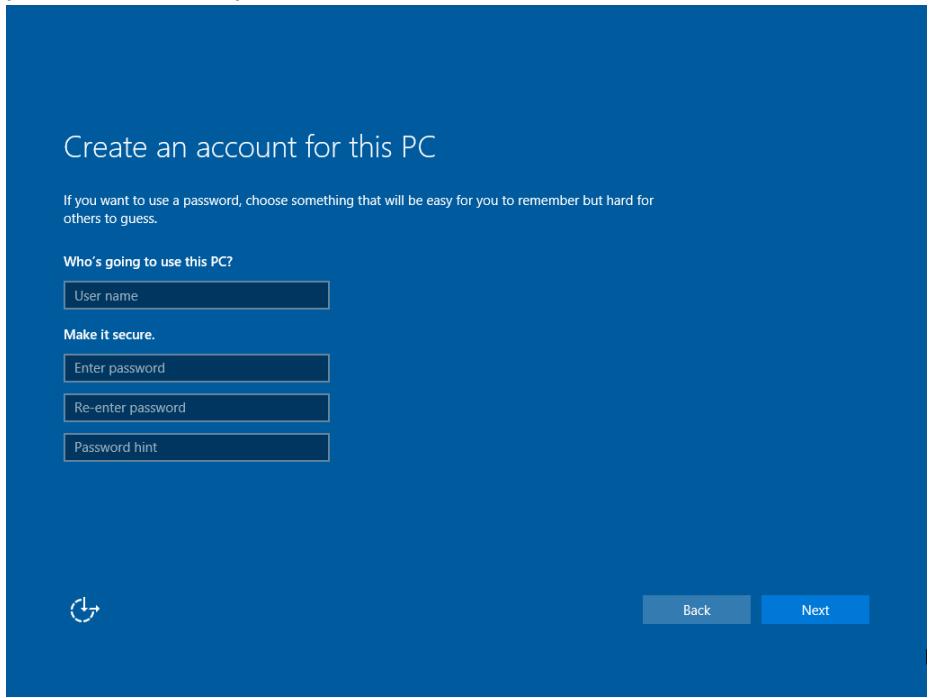
- To create a local account, type your User name, password, and Password hint in the fields provided, then tap Next.
- The initial setup screens are complete, and the desktop is displayed.
- Read any introductory screens describing features of your computer, and tap Next upon completing each. You are now done with the initial setup process.
Chapter 4: Operating the Device
This chapter describes how to operate the S101TG Tablet Computer, including camera, Hottab, barcode, WWAN, WLAN, GPS features.

Note:
Please download the SDK from Winmate Download Center (the QR code in the cover page) >> S101TG >> Development Kit.
Please notice that the barcode reader is an optional module. Please make sure you have ordered the module before using the SDK.
4.1 Hottab Introduction
Hottab provides quick access to the tablet's functions and features, such as setting up shortcuts, using camera, powering on/off built-in devices, programming function keys, and changing power management.
As Windows starts up, Hottab starts and runs in the background. To display the Hottab control utility, launch the Hottab Utility application.
Hottab Utility Icon:

The main user interface is located on the right side of the screen. There are 4 main menu options: Shortcuts, Camera, Device ON/OFF, and Settings. Operations and functions on each menu option are explained in detail in the coming section.
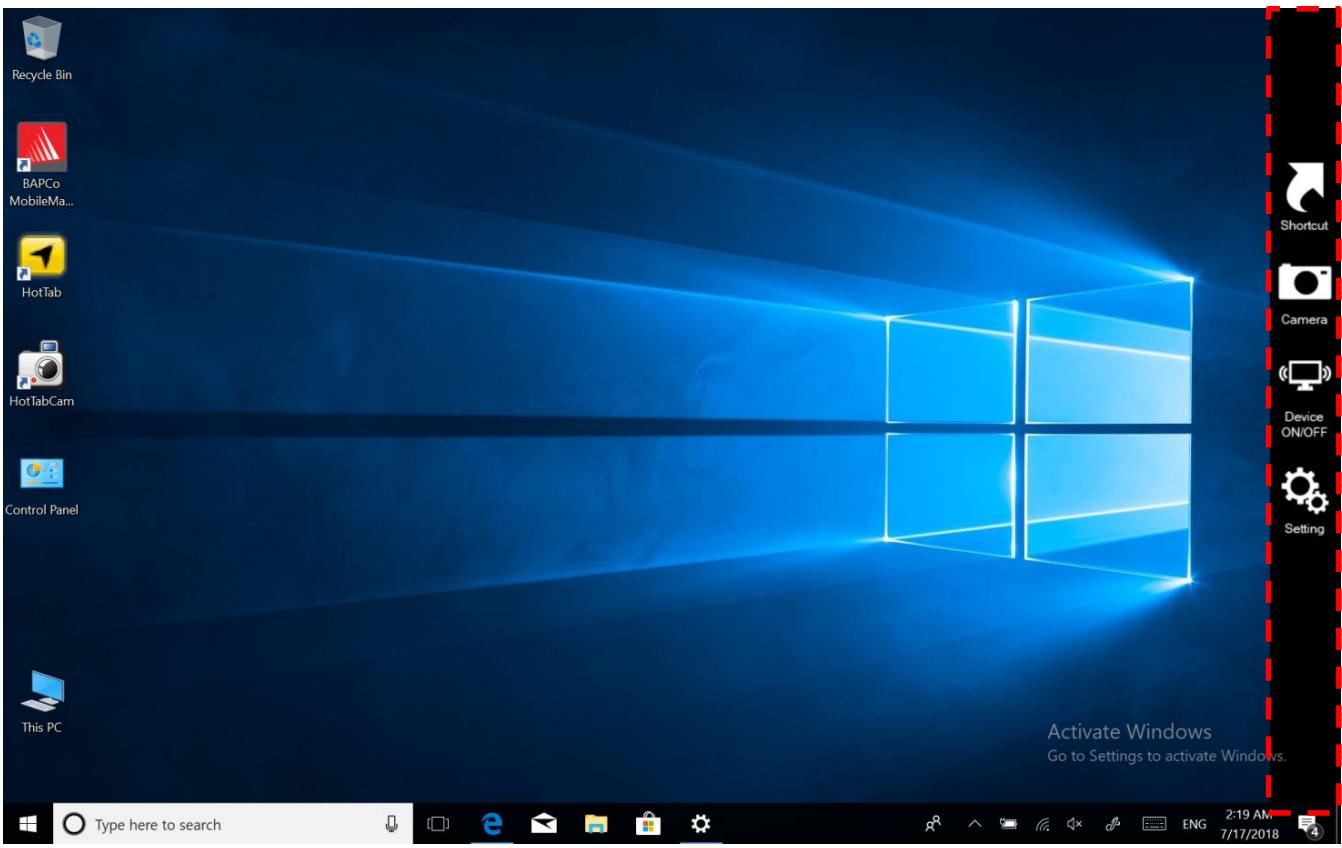
| Icon | Description |
| Shortcuts | Allows users to configure short cut to access programs quickly with a few tabs. |
| Camera | Allows users to take a picture or record a video. Users can also adjust the setting related to the camera in this menu option. |
| Device ON/OFF | Enables/disables tablet computer's hardware functions. The configurable functions are Wi-Fi, WWAN (4G/LTE), GPS, Bluetooth, Camera, LED indicators, Barcode Reader, and GPS Antenna routing options. |
| Settings | Provide PC information, battery status, device settings such as power management setting, and function key mappings. |
4.2 Shortcuts
Hottab Shortcuts Menu provides a user-friendly interface to configure onscreen software shortcuts and allow users to access programs quickly with a few tabs. The Shortcuts menu offers 8 empty slots to store user's desired quick access. Shortcuts can be mapped to any of the executable files (.exe) installed on the tablet.
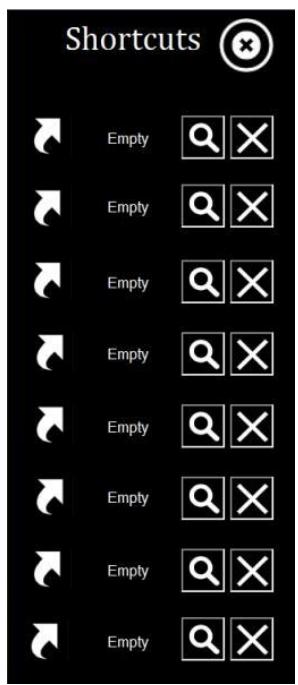
Short Cut Menu:
To store a new shortcut:
- Launch the Hottab Utility application.
-
Tap on the Shortcuts button.
-
Tap on button of any empty slot.
-
An onscreen file browser will appear.
- Browse to find the desired application to have a shortcut.
- Click "Open" to save the shortcut.
To remove a saved shortcut:
- Launch the Hottab Utility application.
- Tap on the Shortcuts button.
- Tap on the × button of any saved slot to remove
- The shortcut will be removed and show "Empty" to indicate the slot is empty.
Tap on the button will hide the Hottab Utility Menu.
Using the Hottab shortcuts:
- Launch the Hottab Utility application.
- Tap on the Shortcuts button.
- Tap on the saved shortcut items to access saved programs.
4.3 Using Camera
This Hottab menu option allows users to take a picture or record a video. Before use, make sure the camera is on under the Device ON/OFF menu with the following scenarios.
To open camera interface:
- Launch the Hottab Utility application.
- Tap on Device ON/OFF button to check the status of the built-in device.
- Check the status color of the Camera icon:
| Item | Status Color | Description |
| Camera | Orange | The camera is enabled. |
| White | The camera is disabled. |
- If the camera is disabled (white), tap on the Camera icon to enable it (orange).
- Go back to the Hottab main menu by click on the back arrow on top.
- Tap on the Camera icon to open camera menu.

| No | Item | Description | |
| 1 | Review | Review | |
| 2 | Settings | Open camera settings page. Available Settings: • Picture Save: modify/inspect the saved location for pictures. • Video Save Folder: modify/inspect the saved location for video recordings. • Picture Quality: Picture compression quality. | |
| 3 | Camera Switch | Switch between front or rear camera. | |
| 4 | Flash Control | Enables/ disables LED Flash when taking a picture. | |
| 5 | Video Record | Tap to Start, and press again to stop recording. | |
| 6 | Shutter Camera | Camera Shutter Button. Tap to take a picture. | |
| 7 | Exit | Exit the Camera and hide Hottab Utility. | |
4.4 Built-in Devices On/Off
This section describes how to get quick access to set up built-in devices, including turning on/off RF modules and setting up barcode reader.
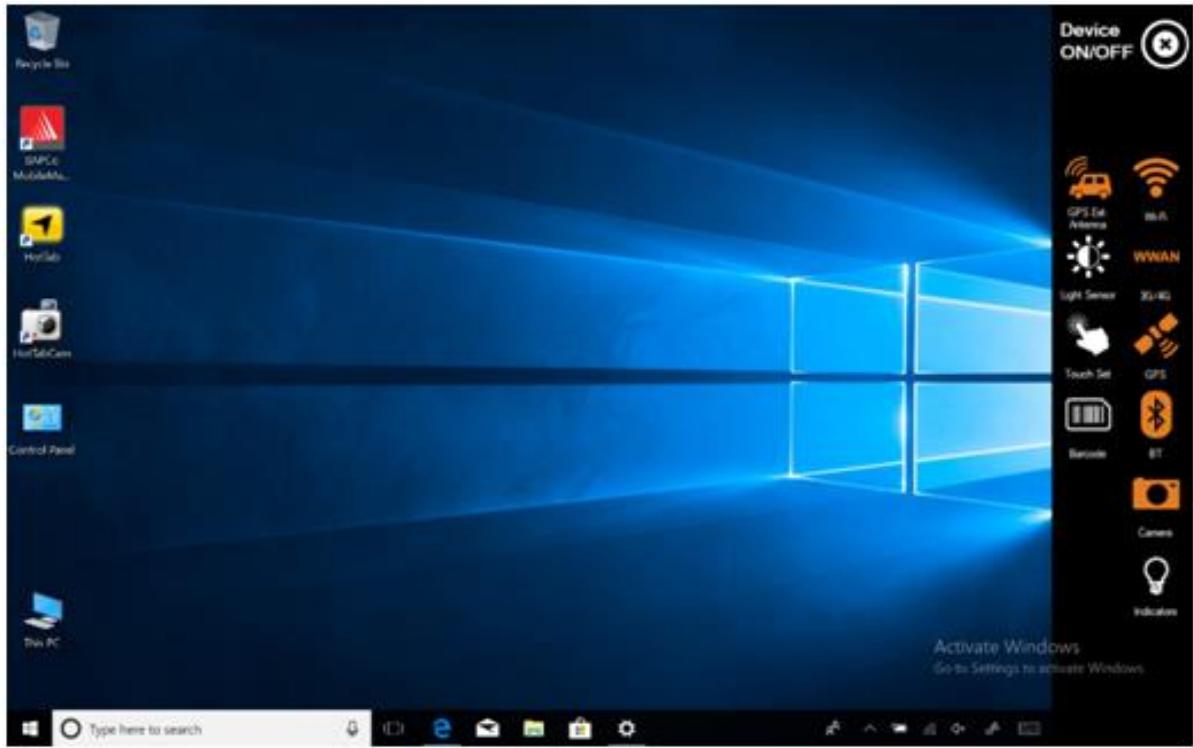
4.4.1 Using the Wireless LAN (Wi-Fi)
To use the wireless LAN (Wi-Fi) feature to connect to the network, perform the following procedure:
- Launch the Hottab Utility application.
- Tap on the Device ON/OFF button.
- Check the status color of the Wi-Fi icon:
| Item | Status Color | Description |
| Wi-Fi | Orange | Wi-Fi is enabled. |
| White | Wi-Fi is disabled. |
- If the Wi-Fi feature is disabled (white), tap on the Wi-Fi icon to enable it (orange).
- Click the wireless network connection status icon in the Windows notification area. A list of available wireless networks is displayed.
- Double-click a network to connect to it. Provide required authentication information if needed.
- To check the connection status, observe the wireless network connection status icon in the Windows notification area. The more bars the icon shows, the better the wireless LAN connection strength is.
- Now wireless LAN connection is set up, try to connect to the network with an internet browser such as Internet Explorer.
4.4.2 Using the Wireless WAN
The Tablet Computer supports data connection with 4G/LTE modules and fits a Nano SIM card. (Note: 4G/LTE feature is optional).
4.4.2.1 Installing a SIM card

Caution Power off the tablet before installing the 4G/LTE module and Nano SIM card, or the tablet computer might be damaged by the incorrect installation behaviors.
To install the SIM card:
1 Remove the battery, as described in section 2.6.1 Installing Battery.
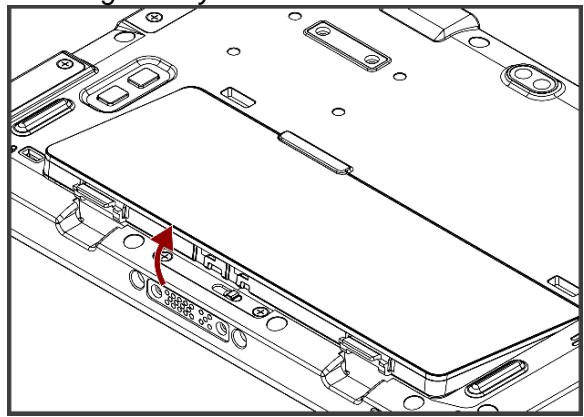
Open the SIM-card slot rubber protection cover.
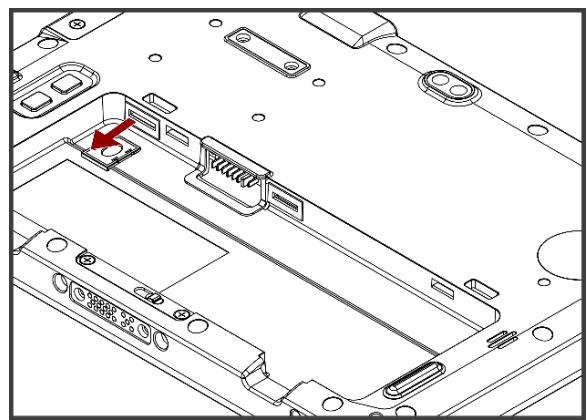
3 Insert SIM-Card all the way in. Chip/contact is facing down

Close the SIM-card slot rubber protection cover.
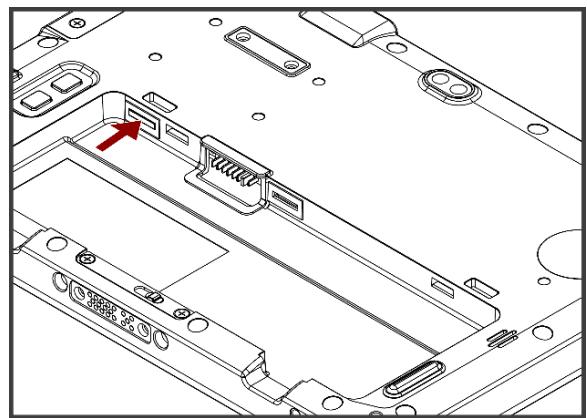
Put and lock the battery back.
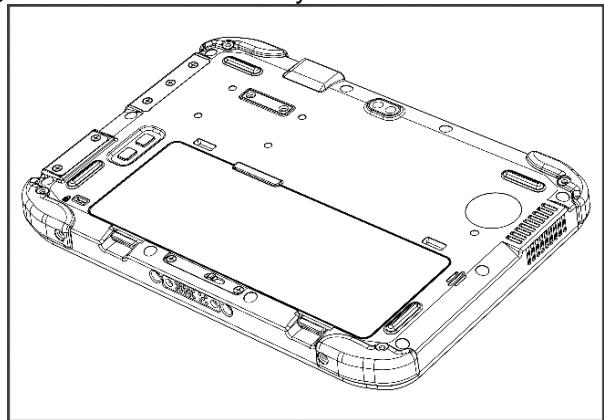
4.4.2.2 Using Wireless WAN Feature
To connect to the network using wireless WAN:
- Launch the Hottab Utility application.
- Tap on the Device ON/OFF button.
- Check the status color of the WWAN icon:
| Item | Status Color | Description |
| WWAN 4G/LTE | Orange | WWAN (4G/LTE) is enabled. |
| White | WWAN (4G/LTE) is disabled. |
- If the WWAN feature is disabled (white), tap on the WWAN icon to enable it (orange).
- You can check the wireless WAN connection status through the wireless network connection status icon in the Windows notification area. The more bars encompassed, the better the signal is.
4.4.3 Using the GPS
To enable the GPS:
- Launch the Hottab Utility application.
- Tap on the Device ON/OFF button.
- Check the status color of the GPS icon:
| Item | Status Color | Description |
| GPS | Orange | GPS is enabled. |
| White | GPS is disabled. |
- If the GPS feature is disabled (white), tap on the GPS icon to enable it (orange).
- Now the GPS feature is ready to be used with an application utilizing the GPS.
4.4.4 Using the Bluetooth
To enable the Bluetooth:
- Launch the Hottab Utility application.
- Tap on the Device ON/OFF button.
- Check the status color of the Bluetooth icon:
| Item | Status Color | Description |
| Bluetooth | Orange | Bluetooth is enabled. |
| White | Bluetooth is disabled. |
- If the Bluetooth feature is disabled (white), tap on the Bluetooth icon to enable it (orange).
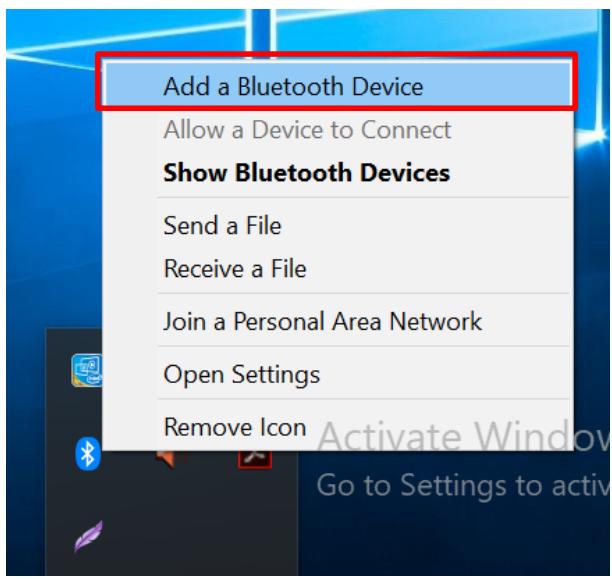
- Click the Bluetooth icon in the Windows notification area. A contextual menu for Bluetooth is displayed.
- To add a device, tap on Add a Bluetooth Device. Windows will search any Bluetooth device automatically
- Choose the Bluetooth device to connect and follow the onscreen prompt to continue the pairing procedure and use the Bluetooth device.
4.4.5 Turning On/Off LED Indicators
The LED Indicators for Power and Battery status can be turned on/off from Hottab menu.
To enable/disable the LED indicators:
- Launch the Hottab Utility application.
- Tap on the Device ON/OFF button.
- Check the status color of the Indicator icon:
| Item | Status Color | Description |
| Indicator | Orange | LED indicator is enabled. |
| White | LED indicator is disabled. |
- If the indicator is disabled (white), tap on the Indicator icon to enable it (orange).
4.4.6 Using the Barcode Reader
The 2D/1D Barcode Reader is optional for S101TG Tablet PC and is not re-workable by the end-user. To use this feature, please make sure the tablet PC has a built-in barcode reader before use, or contact our sales contact window for more details.
To enable the Barcode Reader:
- Launch the Hottab Utility application.
- Tap on the Device ON/OFF button.
- Check the status color of the Barcode icon.
| Item | Status Color | Description |
| Barcode | Orange | Barcode Reader is enabled. Reading will need to be triggered manually thru Fn button. |
| White | Barcode Reader is disabled. |
- Open the application where the barcode reader will be displaying the scanned barcode.
- Trigger the barcode reader by pressing the Fn2 function key.
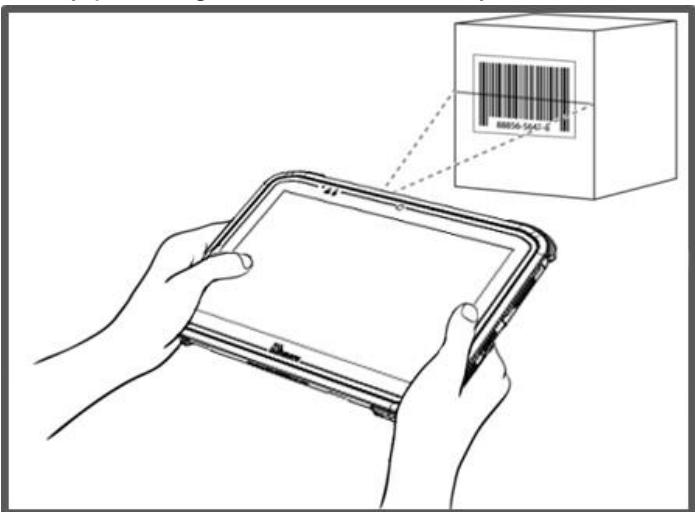
Tap the Disconnect button to stop the connection with Barcode Reader.
*To recover the connection, please tap on the button again to re-connect with Barcode Reader.
4.4.6.1 Device Configuring and Setting
- Click on Windows and search for EZConfig-Scanning from the Start menu.
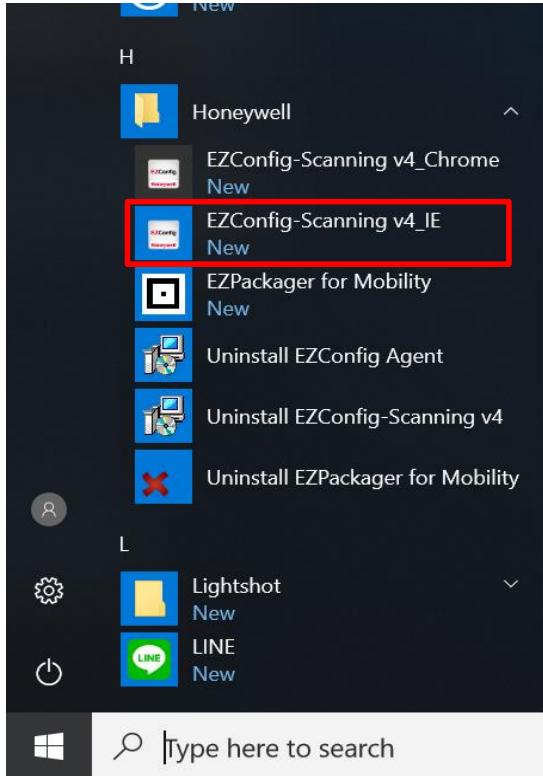
- Click on EZConfig-Scanning v4_IE and allow the blocked content if the browser is blocking the content.
- Click on the Connected Device icon and wait for the system to discover the device (Honeywell N660X).
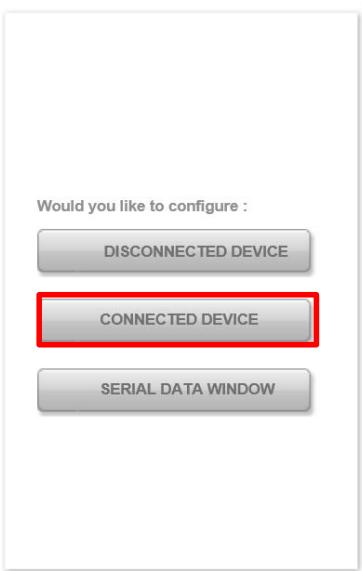

EZConfig-Scanning provides a wide range of programming functions that can be performed on a Honeywell scanning device connected to a computer. EZConfig-Scanning allows you to change programmed parameters, create and print programming bar codes and update device firmware.
Internet Explorer restricted this webpage from running scripts or ActiveX controls.
Allow blocked content
X
- Once Honeywell N660X is discovered please click the Configure Device button as shown.
GETTING STARTED | NEW FEATURES | CHECK FOR EZConfig UPDATES | FAQ | HELP | TECHNICAL KNOWLEDGE BASE

CONNECTED DEVICE

Home

nected Device

Refresh
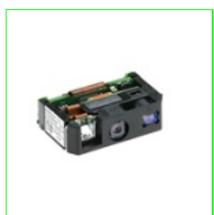
Honeywell N660X Series Area Image Engine
Model: N660X
Serial No: 18036B086F
Firmware No: BI000858HAC
Connection: USB HID CBD
Show License/Plug-in Info
Firmware is up to date
Note: Click on the device to connect / disconnect
CONFIGURE DEVICE
UPDATE FIRMWARE
SCAN DATA WINDOW
4.4.6.2 Scanning mode Settings
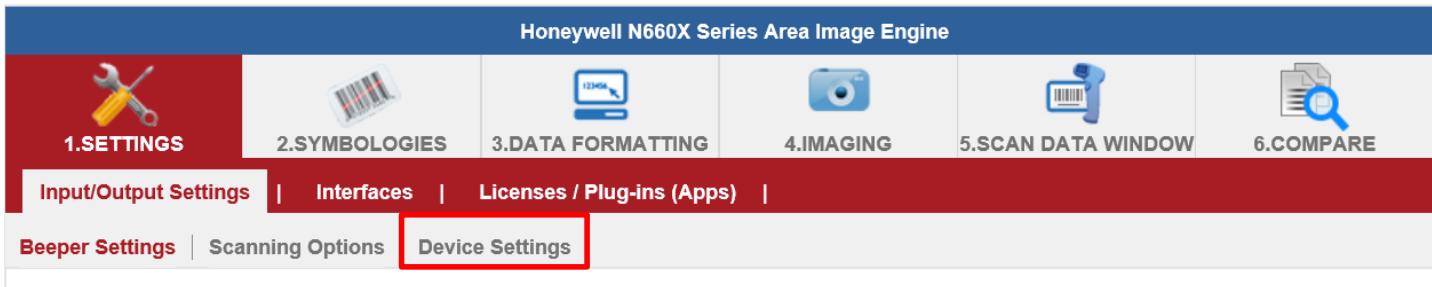
- Click on Device Settings under the Input/Output Settings section.
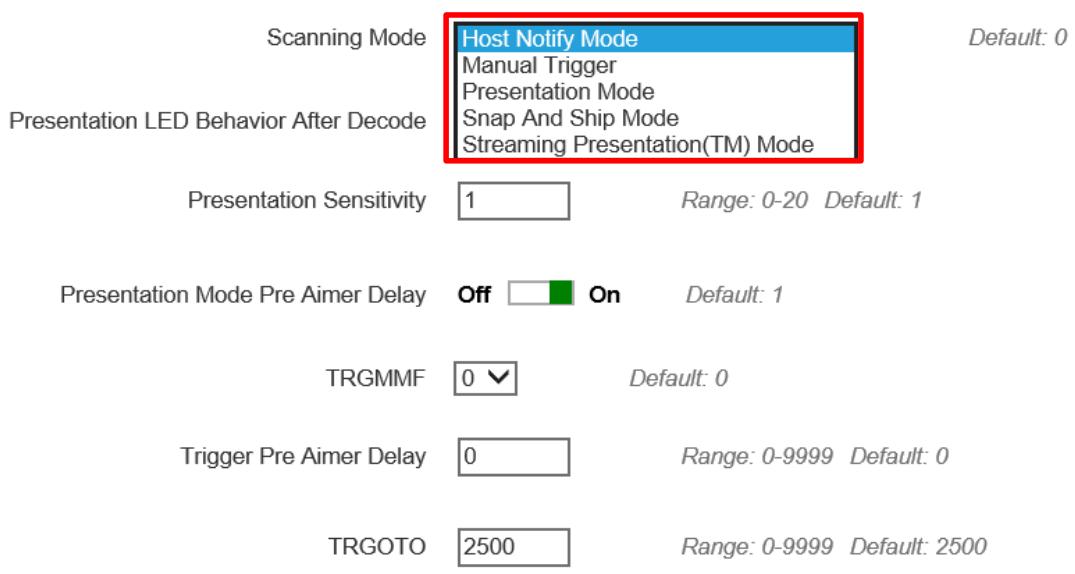
- Select the desire scanning mode from the drop-down menu shown below.
Scanning Mode Modifiers
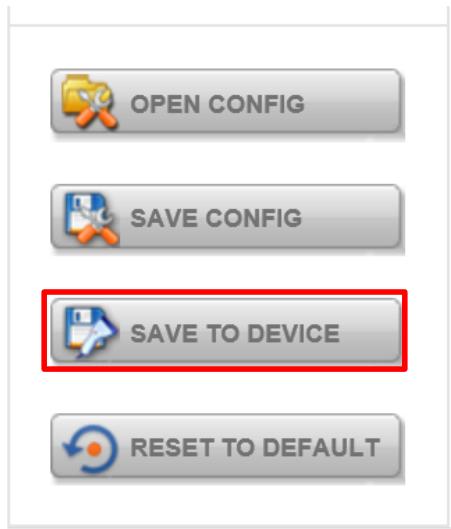
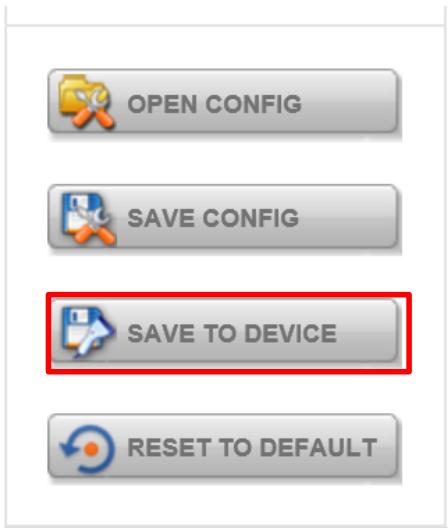
- After selecting a desire scanning mode, click on the Save to Device on the sidebar.
| Scanning mode | Description |
| Manual Trigger | When in manual trigger mode, the scanner scans until a bar code is read or until the trigger is released. Two modes are available, Normal and Enhanced. Normal mode offers good scan speed and the longest working ranges (depth of field). The Enhanced mode will give you the highest possible scan speed but slightly less range than Normal mode. Enhanced mode is best used when you require a fast pace and don't require an extended working range. Default = Manual Trigger-Normal. |
| Presentation Mode | Presentation Mode uses ambient light and scan engine illumination to detect bar codes. When in Presentation Mode, the LEDs remain dim until a bar code is presented to the scan engine, then the aimer turns on, and the LEDs turn up to read the code. If the light level in the room is not high enough, Presentation Mode may not work properly. |
| Streaming Presentation Mode | When in Streaming Presentation mode, the scan engine's aimer goes out after a short time, but the scan illumination remains on all the time to continuously search for bar codes. Two modes are available, Normal and Enhanced. Normal mode offers good scan speed and the longest working ranges (depth of field). Enhanced mode will give you the highest possible scan speed but slightly less range than Normal mode. Enhanced mode is best used when you require a fast scan speed and don't require a long working range. |
| Host Notify Mode | Host Notify Mode bypasses the decoder and notifies the host that there has been a hardware trigger pull. When in Host Notify Mode, it is up to the host to initiate an Image Snap and/or an Image Ship command. It is also up to the host to switch to another trigger mode. |
| Snap and Ship Mode | Snap and Ship mode allows you to bypass the decoder and ship an image directly to the host. In this mode, an image is taken and shipped upon each trigger pull, instead of being sent to the decoder. Snap and Ship is useful when you are using your own decoder. |
4.4.6.3 Setting the 1D/2D Barcode Scanner Symbologies
The barcode scanner is shipped with the default settings shown below. If the default setting suits the usage requirement, setting symbologies is not necessary.
Symbologies Default Settings:
| Symbologies | Default | |
| Linear | UPC-A | Enable |
| UPC-E | Enable | |
| EAN/JAN-8 | Enable | |
| EAN/JAN-13 | Enable | |
| UPC-E1 | Disable | |
| UPC-A/EAN-13 Extended Coupon Code | Disable | |
| GS1 DataBar Omni-Directinal | Enable | |
| GS1 DataBar Limited | Enable | |
| GS1 DataBar Expanded | Enable | |
| Code 39 | Enable | |
| Code 128 | Enable | |
| ISBT 128 | Disable | |
| GS1-128 | Enable | |
| Interleaved 2 of 5 | Enable | |
| Matrix 2 of 5 | Disable | |
| NEC 2/5 | Enable | |
| IATA 2/5 | Disable | |
| Code 2/5 | Disable | |
| Codabar | Enable | |
| Code 93 | Enable | |
| Code 11 | Disable | |
| MSI | Disable | |
| Telepen | Disable | |
| Trioptic Code | Disable | |
| Postal Code | Disable | |
| Planet Code | Disable | |
| Korea Psot | Disable | |
| China Post | Disable | |
| Australian Post | Disable | |
| 2D | Data Matrix | Enable |
| PDF 417 | Enable | |
| Micro PDF 417 | Enable | |
| Codablock A | Disable | |
| Codablock F | Disable | |
| Maxicode | Disable | |
| QR Code | Enable | |
| Aztec | Enable | |
| Composite Code | Disable | |
| Han Xin | Disable |
Changing the default setting of symbologies or the advanced setting
There are two methods to change the default setting of symbologies or other advanced settings:
Method (2). Click on the Reset to Default button on the side as shown:
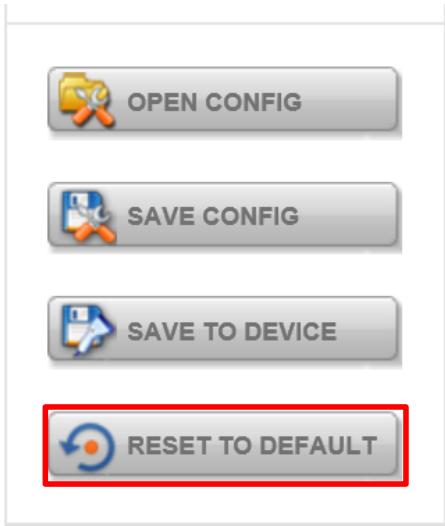
Warning
- The reset to default button will change all settings to default.
- N660X could disconnect with the system after clicking the Reset to Default button.
If the Disconnection happened, please scan the barcodes below in the following steps. Step 1. First, please scan the USB HID barcode:
USB HID
Scan the following code to program the scan engine for USB HID.
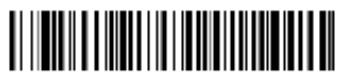
TERMID131.
USB HID
Step 2. Then please scan the USB Keyboard barcode:
USB PC or Macintosh Keyboard
Scan one of the following codes to program the scan engine for USB PC Keyboard or USB Macintosh Keyboard. Scanning these codes also adds a CR suffix.

PAP124
USB Keyboard (PC)
Step 3. Please rerun EZConfig-Scanning by following 4.4.6.1 Device Configuring and Setting
4.4.6.4 Adding a Prefix or Suffix
- To add a suffix or suffix, please click on the Data Formatting icon.
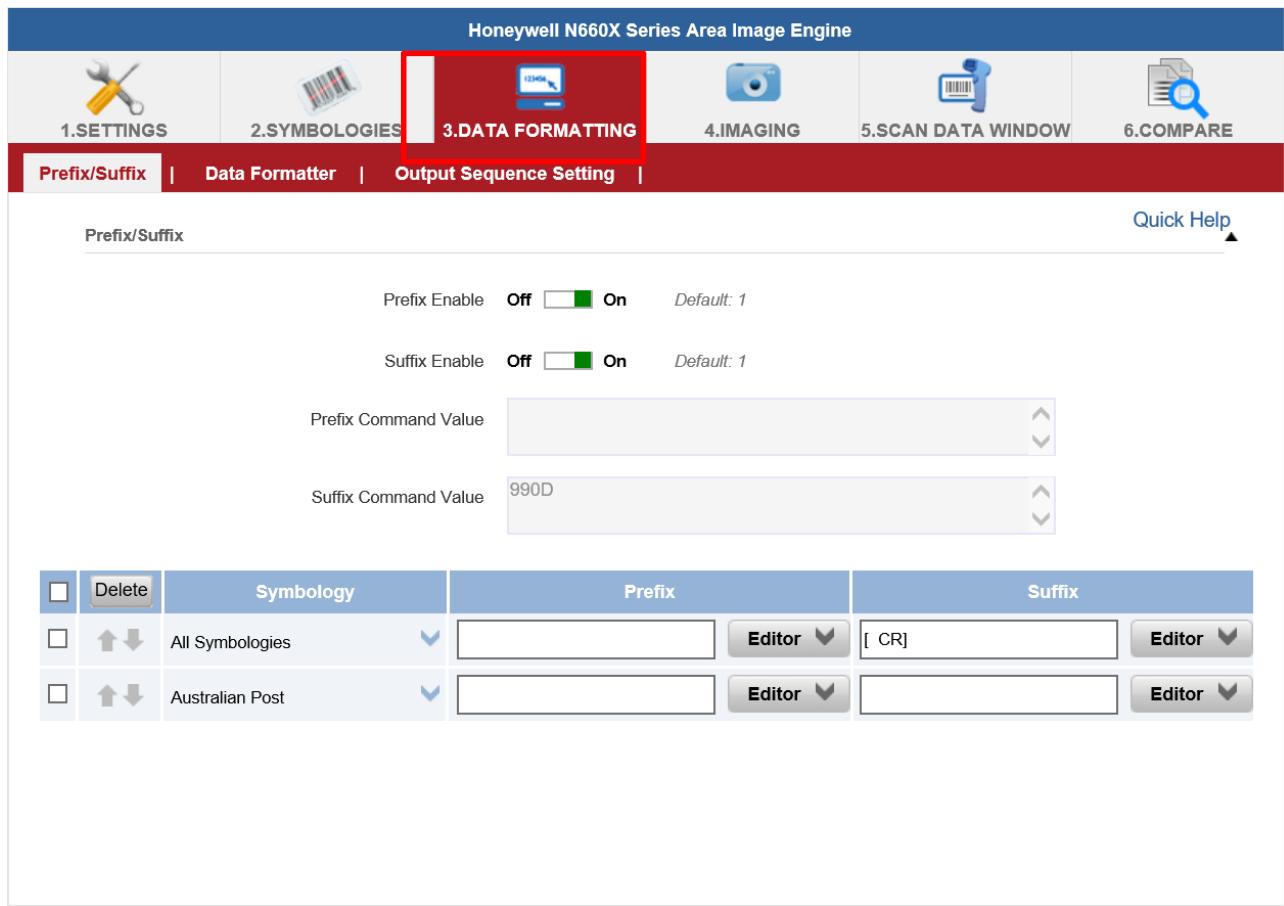
- Click on the Editor button under the Prefix or Suffix section and create Prefix/Suffix value by typing in the block or select desire characters in the Control chars, Printable chars, and Extended ASCII. as shown below:
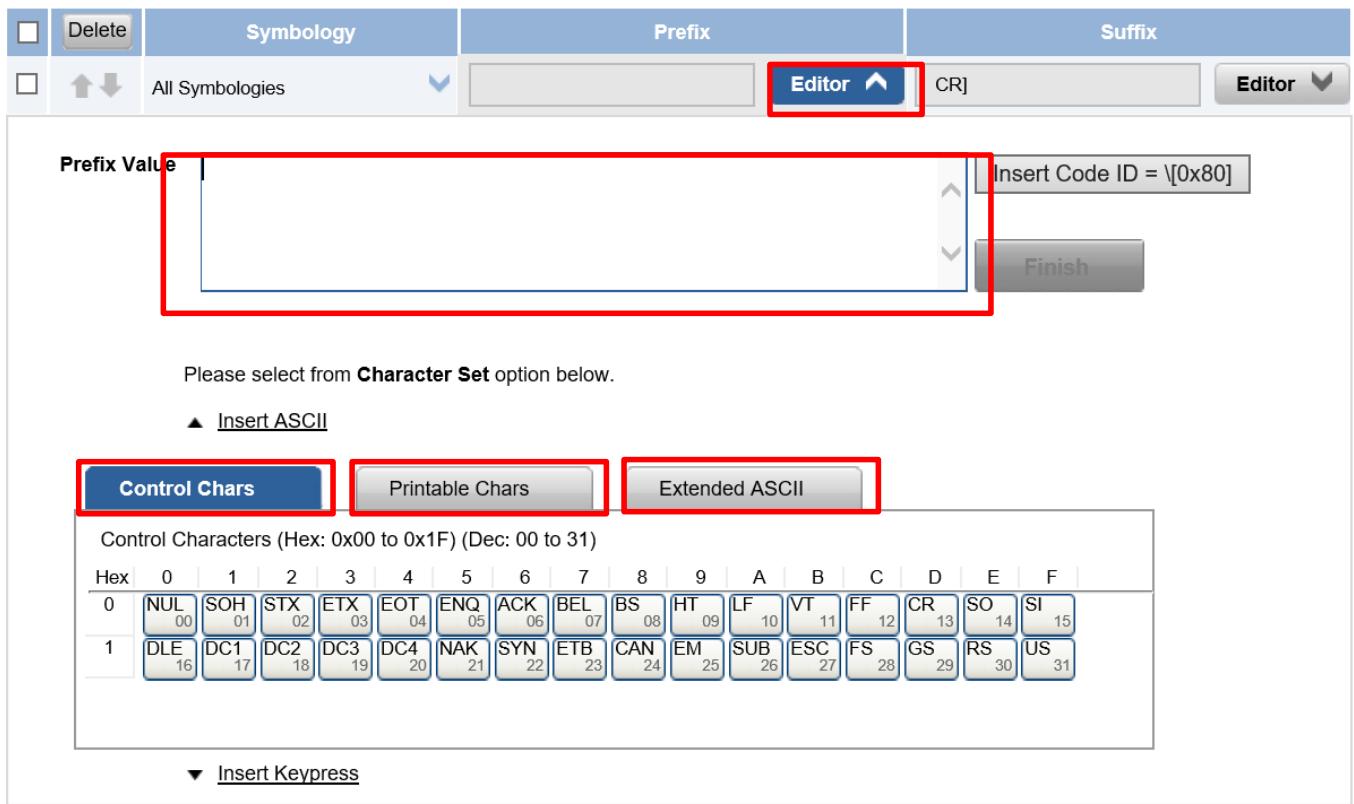
- When you finish creating Prefix/Suffix, please click on Save to Device on the sidebar.
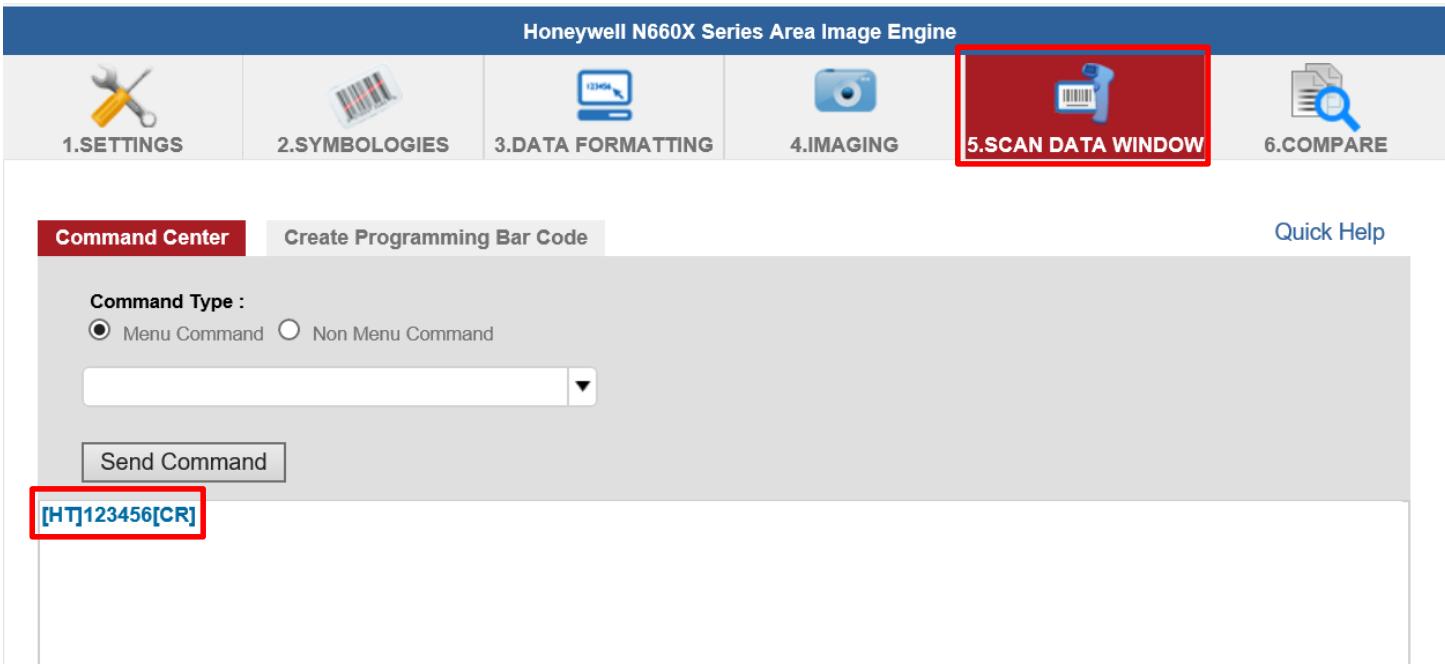
- To check the functionality of Prefix/Suffix, please click on the Scan Data Window icon on the top. Then scan a barcode to verify if the Prefix/Suffix appears correctly.
4.4.7 Turn on/off the GPS External Antenna
The vehicle dock of the S101TG Tablet PC supports an external GPS antenna through a standard SMA connector. To work with an external GPS antenna, please make sure the tablet PC is installed correctly to the vehicle dock and the vehicle dock has connected with an external GPS antenna.
When working with the vehicle dock connecting to an external antenna, user can switch the GPS antenna from the internal to the external one from the Hottab menu.
To enable/disable the GPS Ext. Antenna:
- Launch the Hottab Utility application.
- Tap on the Device ON/OFF button.
- Check the status color of the GPS Ext. Antenna icon:
| Item | Status Color | Description |
| GPS Ext. Antenna | Orange | GPS Ext. antenna is enabled and using an external antenna if available |
| White | GPS Ext. antenna is disabled and using built-in antenna |
- If the GPS Ext. antenna is disabled (white), tap on the GPS Ext. Antenna icon to enable it (orange).
4.4.8 Turn on/off the Light Sensor
The Light Sensor can be turned on/off from the Hottab menu. To enable/disable the Light Sensor, perform the following procedure:
- Launch the Hottab Utility application.
- Tap on the Device ON/OFF button.
- Check the status color of the Light Sensor icon:
| Item | Status Color | Description |
| Light Sensor | Orange | Light Sensor is enabled. |
| White | Light Sensor is disabled. |
4.4.9 Changing Touchscreen Modes
The tablet computer supports three built-in operating modes for different usage scenarios:
| Mode | Description |
| Hand/Rain (Default) | In Hand/Rain mode, the touchscreen rejects false inputs from liquid drops. When the liquid is removed, the touchscreen accepts touch inputs from bare fingertips. Supports input by: • Rubber tip passive stylus • Bare fingertips |
| Stylus | In Stylus mode, the touchscreen supports inputs from the fine-tip passive capacitive stylus (shipped with tablet). Support input by: • Fine-tip passive stylus with palm rejection • Rubber tip passive stylus • Bare fingertips |
| Glove | In Glove mode, the touchscreen supports inputs while the user is operating the touchscreen with gloves on. Supports input by: • Glove • Rubber tip passive stylus • Bare fingertips |
To change touch mode:
(1) Press and hold Function Key Fn1 (refer to User Manual, Chapter 4 to define the function key).
(2) Launch HotTab Utility application. Choose "Device ON/OFF, and then click "Touch Set" icon.

4.4.9.1 Switch via Built-in HotTab Utility
To switch touchscreen mode via the HotTab:
- Launch the Hottab Utility application.
- Choose "Device ON/OFF" and then click on

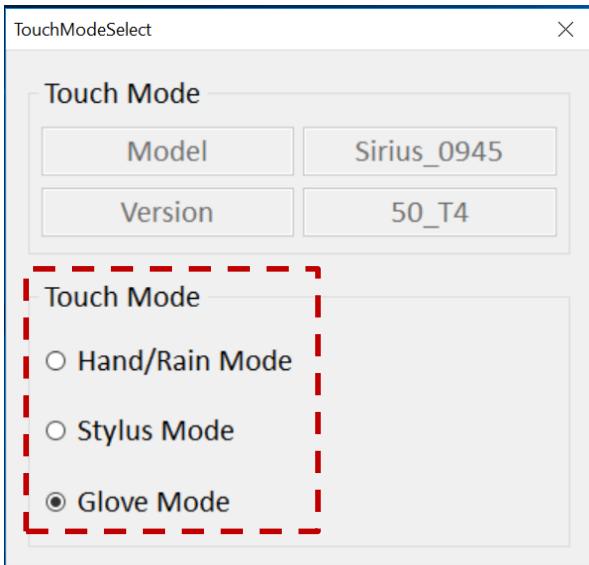
- Under the Touch Mode, select the desired touch modes by tapping on the radio button.
- Here's also additional touch-related settings to switch the touchscreen input between mouse mode with a cursor or with multi-touch mode: Mouse Mode: Single touch point supported, with mouse cursor shown.
Multi-touch Mode: The default setting of the touch screen supports multi-touch mode (up to 10 points)
4.4.9.2 Switch via Programmable Function Buttons:
To switch between the different touchscreen modes via the programmable function buttons, ensure the touchscreen mode switching is set to the programmable function buttons first.
- Launch the Hottab Utility application.
- Tap on the Setting button.
- Tap on Fn1 icon.
- Tap on the Long Press icon.
- Change the Long Press function to "Touch Mode" as shown below:
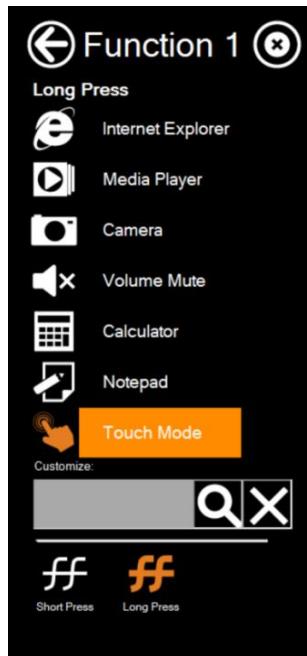
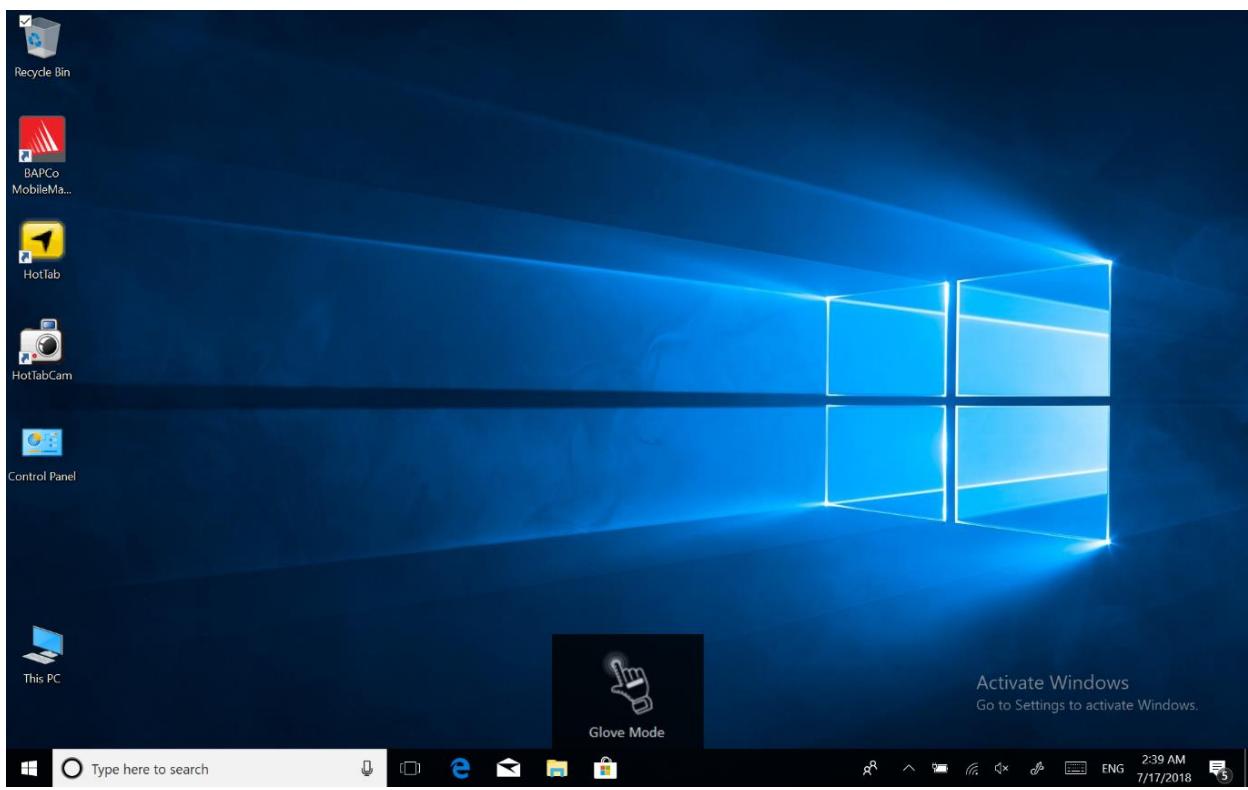
Once the touchscreen mode switching is set to the programmable function button, Long Press on Fn1 function button to cycle through the different touchscreen modes, when touchscreen mode is switched, an icon will temporarily overlay on the lower center of the screen to indicate current touchscreen mode:
Chapter 5: Frequently Used Settings
5.1 Screen Resolution Scaling and Setting
The S101TG's 1920 x 1200 high-resolution display is perfect for viewing images, videos, or other applications. However, the Windows user interface (icons, buttons, and other user interface elements) may be too small to read and operate at the default Windows settings. By changing the display scaling or the display resolution setting of the device, you can adjust the size of the text and other items on the desktop for optimal viewing. Display scaling is the recommended method because it has the effect of adjusting user interface elements without moving away from the optimal resolution setting at 1920 x 1200. This section will explain how you can adjust the built-in windows display scaling setting and resolution setting.

Note:
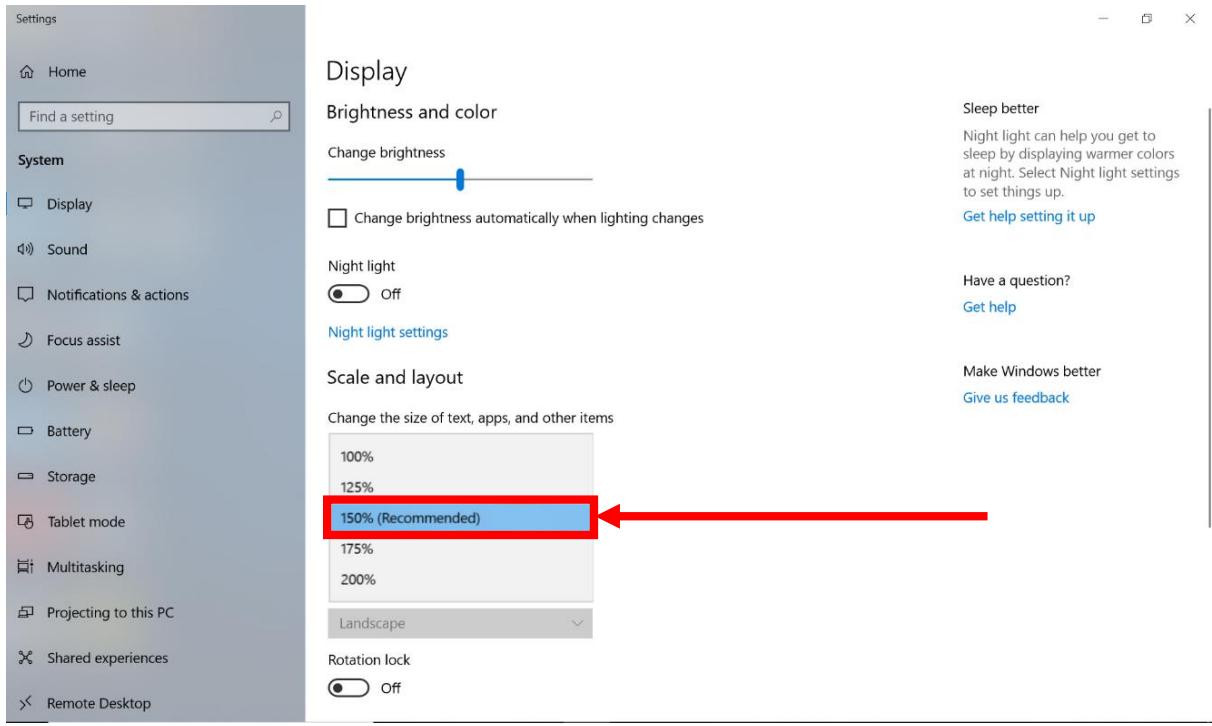
The Tablet computer is shipped with a display scaling set at Larger - 150% . We recommend the users set the scaling to this setting for optimal text and image viewing. Before proceeding to change the scaling option, make sure any opened document is saved and close also, all running applications are closed before proceeding to change the display scaling because this procedure requires users to log out of their account to apply display scaling change.
5.1.1 Changing Display Scaling (Recommended)
Perform the following to change the display scaling setting:
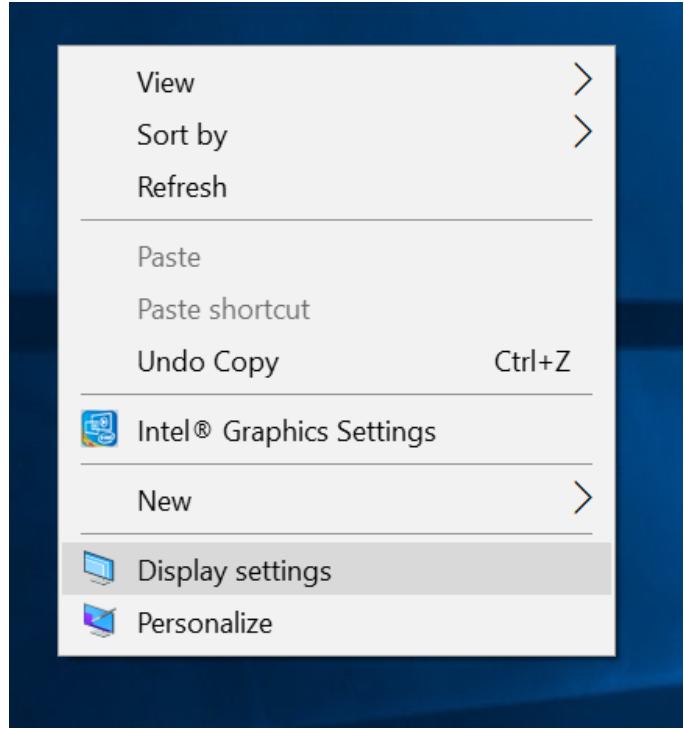
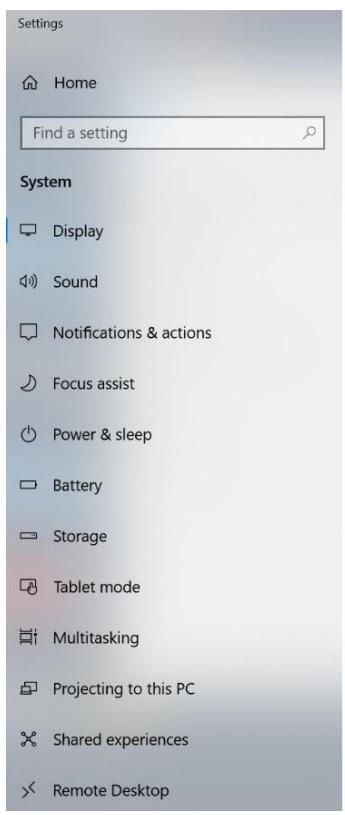
- Tap and hold anywhere on the desktop for 3 seconds and release to bring up the context menu, and select the Display settings option as shown below:
- A "Display" Window will show up. Click on the drop-down option under the "Scale and layout" section and change the scaling option to "150% (Recommended)" or any other desired display scaling.
5.1.2 Changing Screen Resolution
Alternatively, instead of changing the display scaling setting, user may choose to change the overall resolution setting to make screen elements bigger.
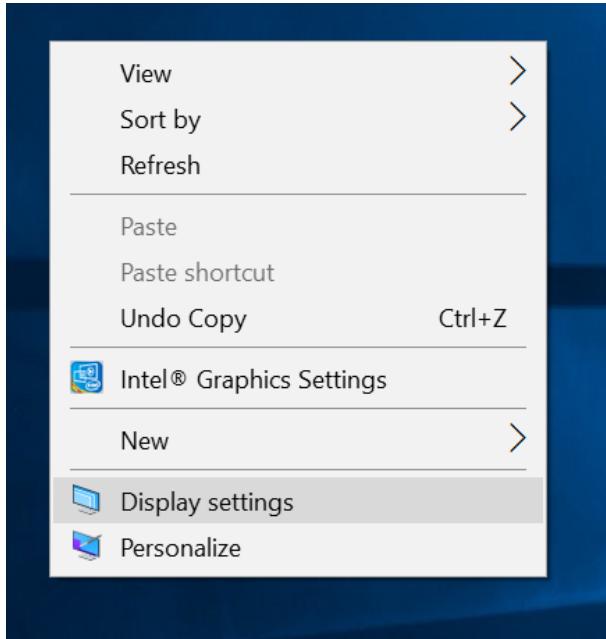
- Tap and hold anywhere on the desktop for 3 seconds and release to bring up the context menu, and select the Display settings option as shown below:
- Click on the drop-down option next to Resolution and select the desire resolution by tapping on the scale:
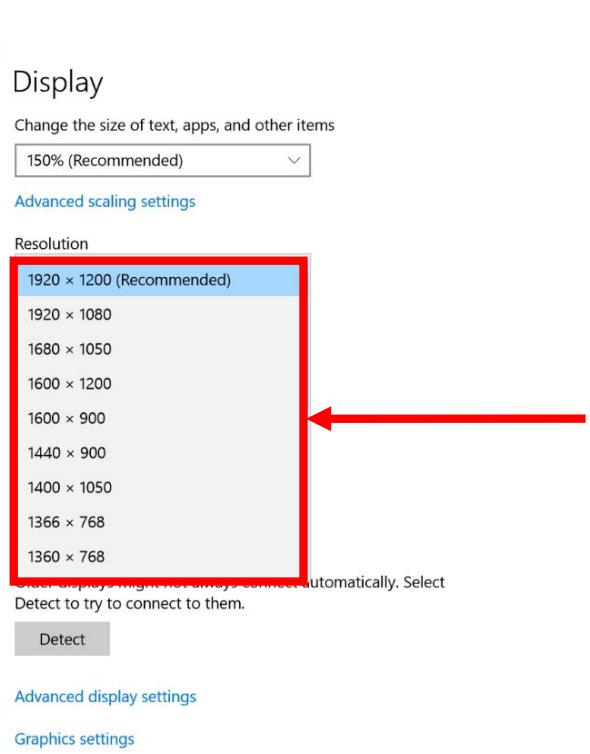
- Hit Apply. A Display Settings prompt will show up to ask the user if the applied resolution is usable.
- If the new resolution is the desired display setting hit Keep changes and continue to next step. If the new resolution is not desirable, hit Revert and select a different resolution to change to, and start again from step 2.
- The user may now use the device with the new resolution setting.
5.2 Replacing Battery
The S101TG Tablet supports an optional hot-swap battery design, meaning the tablet doesn't need to be powered off to replace the main battery. To support hot-swap, there is a backup battery inside the tablet that is charged together with the main battery. This battery cannot be removed and requires adequate power for the main battery hot-swapping. When the backup battery is fully charged, the tablet can sustain up to 5 minutes of runtime for battery hot-swapping.
Perform the following to hot-swap the batteries:
- Power on the tablet, open Hottab to check the power level of the Backup battery.
- If the Backup battery level is Low, please charge the tablet with AC Power until the Backup battery level is Medium or High and do not remove the main battery.
- If the Backup battery level is at Medium or High, you can remove the main battery.
- Insert a new fully charged battery into the battery compartment.
- Pen Hottab to check the main battery level. If the battery level is displayed incorrectly, check if the new removable battery is inserted properly.
- If the battery level is displayed correctly, continue using the tablet.

Caution Charge the built-in back-up battery every two months to keep battery health and prevent possible issues from battery over-discharge.
5.3 Using Recovery Wizard to Restore Computer
S101TG Tablet Computer has a dedicated recovery partition stored on the tablet's hard drive to enable a quick one-key recovery process. This partition occupies about 11GB of the storage space and comes built-in to each S101TG Tablet Computer.

Warning! Before starting the recovery process, be sure to backup all user data, as all data will be lost after the recovery process.
Follow the procedure below to enable quick one-key recovery:
- Plug in the AC adapter into the tablet computer. Make sure the tablet computer stays plugged into the power source during the recovery process.
- Power on the tablet computer, and when the boot screen shows up, press the Fn1 button (Recovery Key) or press F6 when using an external USB keyboard to initiate the Recovery Wizard.
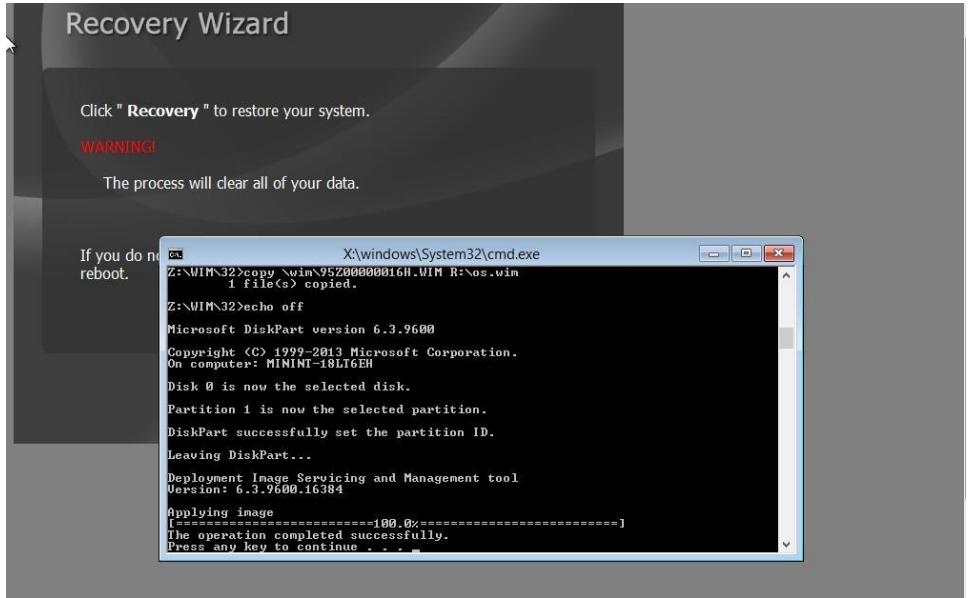
- The following screen shows the Recovery Wizard. Click on the Recovery button to continue.

- A warning message about data loss will show up. Make sure data is backed up before recovery, and click on Yes to continue.
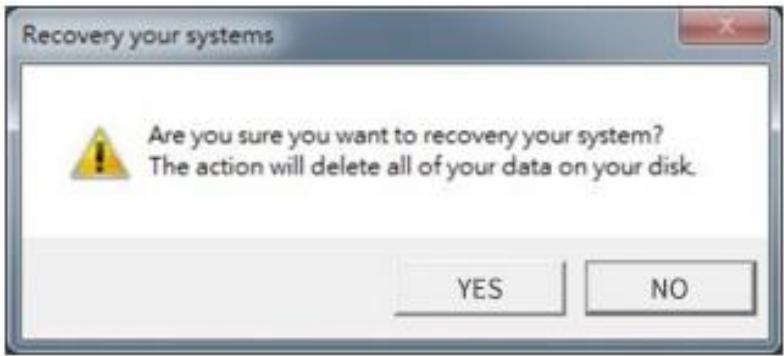
- Wait till the recovery process to complete. During the recovery process, a command prompt will show up to indicate the percent of the recovery process.
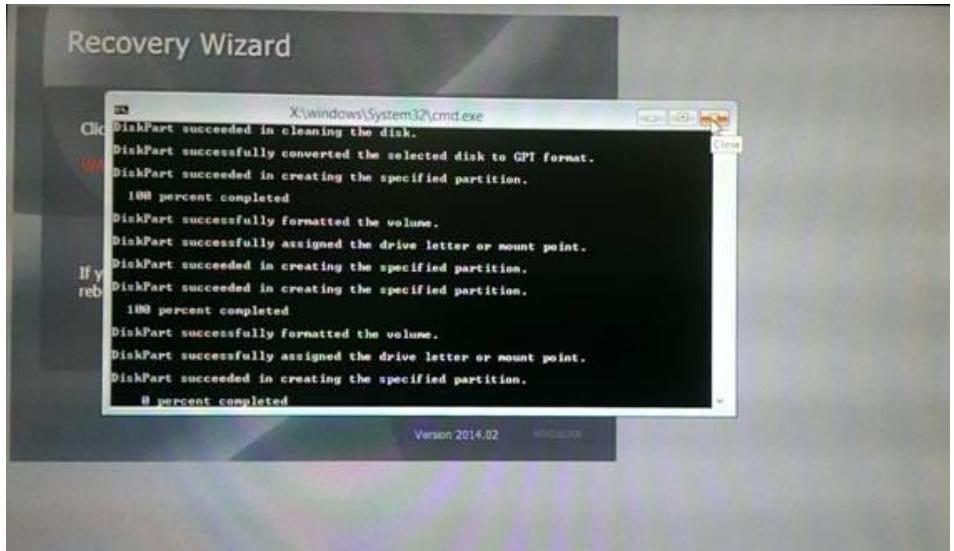
- After the recovery is complete, please press any key to continue, and the tablet computer will shut down automatically.
5.4 Docking Connector Pin Definition
S101TG tablet computer supports one 19-pin docking connector at the bottom side. The pin definition is listed in the following table.
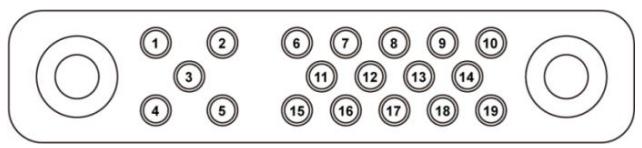
| 19 Pin Docking Connector | |||
| Pin No. | Description | Pin No. | Description |
| 1 | RF_GND | 11 | NC |
| 2 | DOCK_DET# | 12 | NC |
| 3 | GPS ANT | 13 | GND |
| 4 | RF_GND | 14 | Power |
| 5 | RF_GND | 15 | USB+ |
| 6 | NC | 16 | USB- |
| 7 | NC | 17 | GND |
| 8 | DETECT+ | 18 | GND |
| 9 | Power | 19 | DETECT- |
| 10 | Power | ||
5.5 COM Port Definition
S101TG tablet computer uses Hottab utility for built-in peripherals control. All the COM port numbers have been defined in the OS image coming with the package.
| COM Port | Device |
| COM 1 | Reserved |
| COM 2 | Reserved |
| COM 4 | Bluetooth Auto Pairing |
| COM 9 | GPS |
| COM 11 | RS232 at Docking (optional) |
For some special applications, user might re-install OS and lose the COM port settings. To make sure the features work properly with Hottab utility, please follow the procedure below to re-define the COM port numbers:
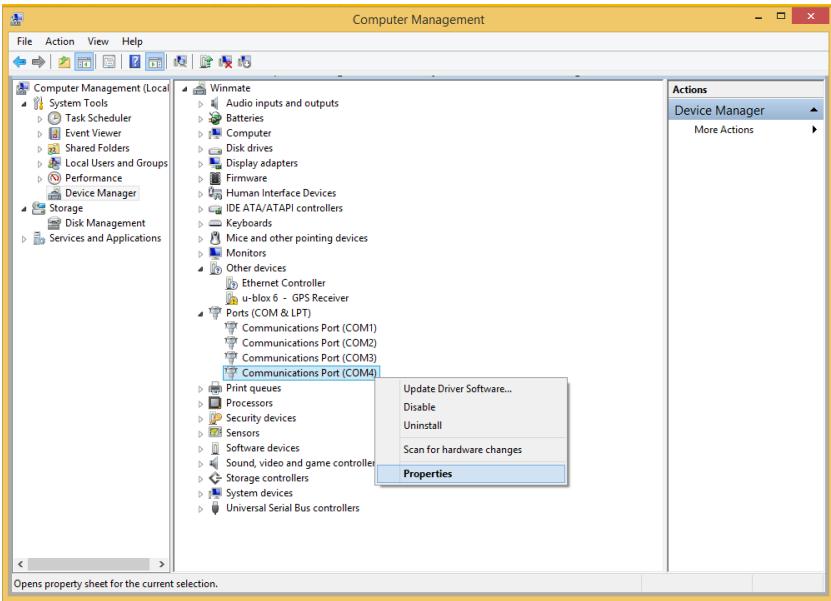
- Go to Device Manager, right-click on the COM number that need to be changed, and tap on Properties to open the setting page.
- Tap on the Port Setting tab and click on Advanced button.
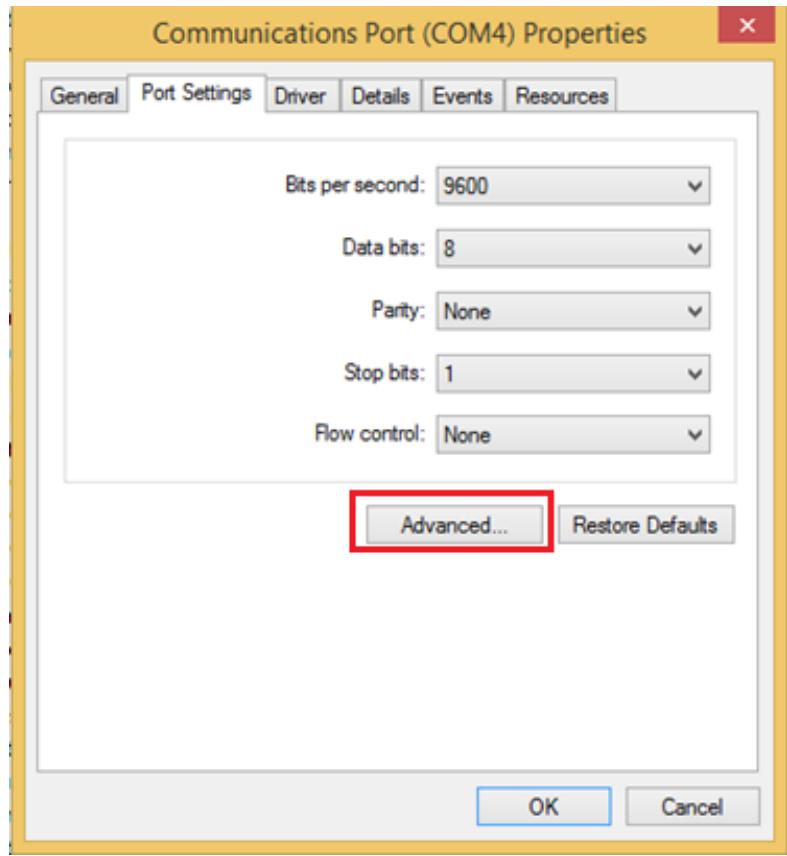
- Tap on the drop-down list, choose the correct COM Port Number (refer to the COM Port Definition Table), and click OK.
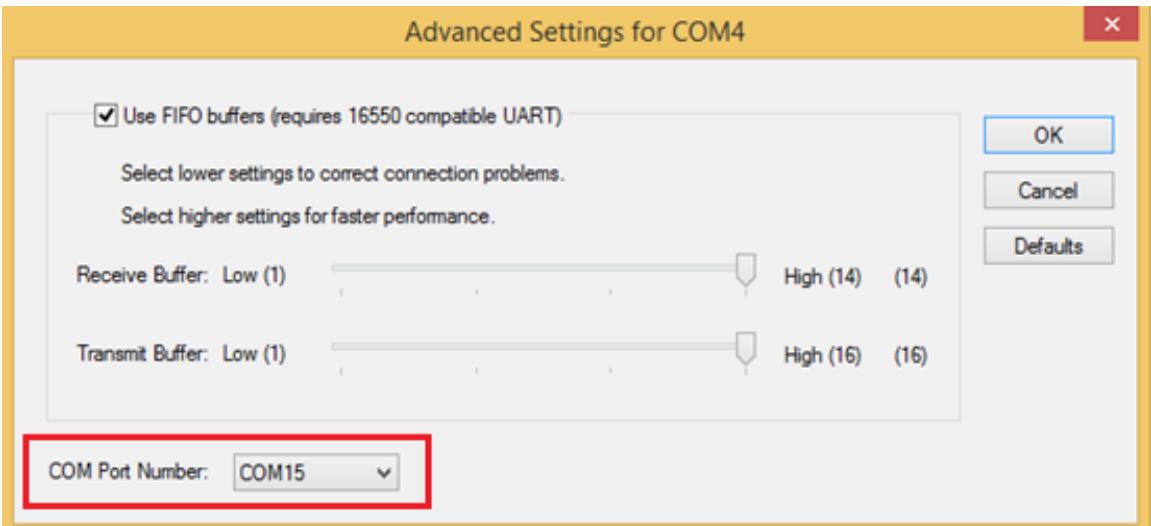
- Double-check Device Manager to make sure the COM Port number has been re-defined successfully, and then restart the system.
5.6 Pairing with a Wireless Bluetooth Barcode Scanner
The computer is affixed with a Bluetooth MAC (Media Access Control) address barcode label that enables wireless Bluetooth Barcode Scanner to establish a Bluetooth connection quickly. It is encoded with leading characters to instruct the wireless Bluetooth barcode scanner to initial Bluetooth Serial Port Profile pairing request.
5.6.1 Setup Computer for Bluetooth Pairing
To start the pairing process, first, perform the following steps to ensure the computer is properly set up for pairing:
- Locate the Bluetooth icon in the Notification Area
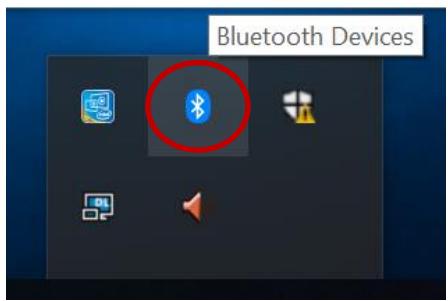
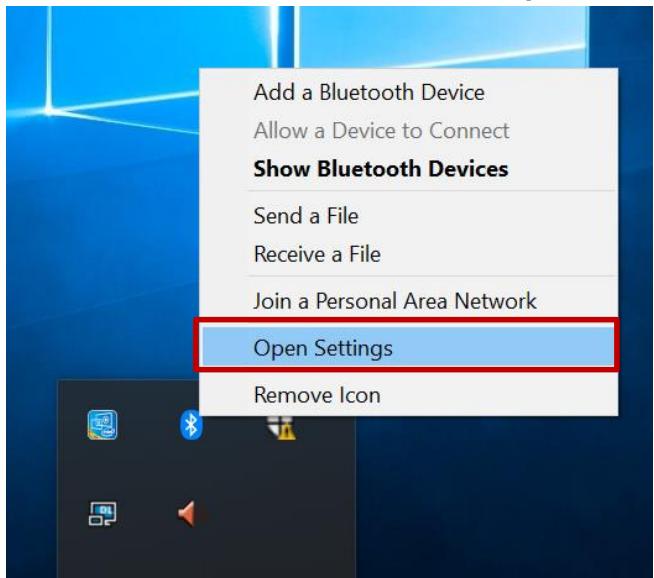
- Bring up the Contextual Menu by performing a long press on the icon with touchscreen or right-click on the icon with a mouse and select Open Settings.
- Once the Bluetooth & other devices Menu appears, click More Bluetooth options under Related settings section as shown below.

Bluetooth & other devices

Add Bluetooth or other device
Bluetooth

On
Now discoverable as "DESKTOP-RGO2EAR"
Mouse,keyboard,&pen

eGalaxTouch EXC3160-0945-07.00.00.00

USB Optical Mouse
Other devices

DESKTOP-V6ETPDF
Paired

Intel(R) Wireless Bluetooth(R)

R7000P (Gateway)
Not connected

ST SENSOR_HUB
Turn on Bluetooth even faster
To turn on Bluetooth without
opening Settings, open action
center, and then select the
Bluetooth icon. Do the same to turn
it off when you want.
Get more info about Bluetooth
Related settings
Devices and printers
Sound settings
Display settings
More Bluetooth options
Send or receive files via Bluetooth
Have a question?
Get help
Make Windows better
Give us feedback
- Go to Options tab, and make sure that in the Discovery section, the computer is set to Allow Bluetooth devices to find this computer as shown below:
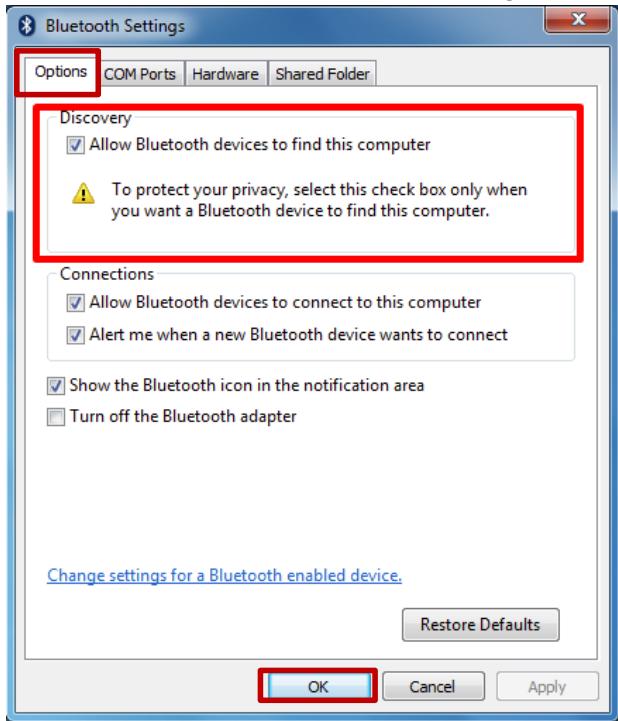
Click OK to continue.
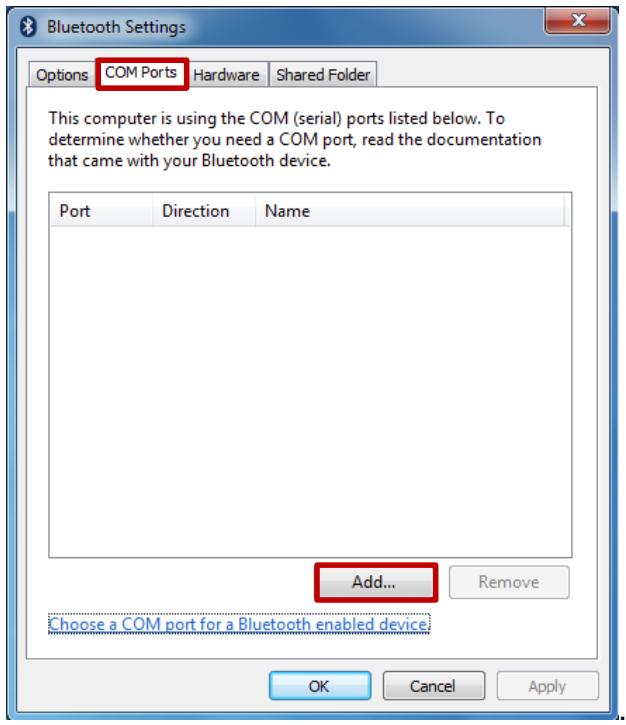
- In the Bluetooth Settings menu, go to COM Ports tab. COM port has to be setup for the wireless Bluetooth Barcode Scanner to communicate via the Bluetooth Serial Port Profile. Click on the Add... button.
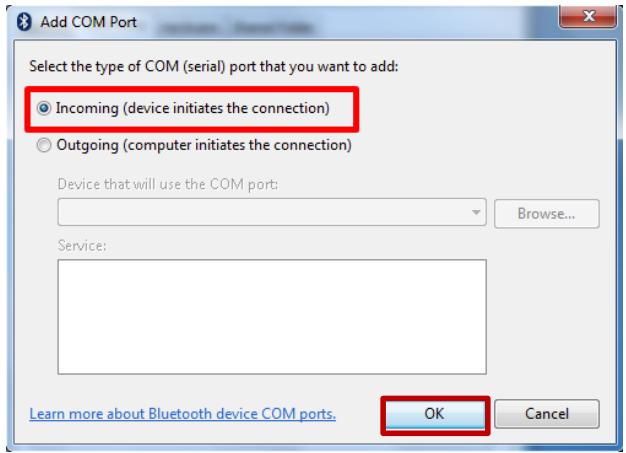
- You are in Add COM Port window. Choose Incoming (device initiates the connection) and click OK.
- The computer will automatically assign COM Port to the Bluetooth connection. In the screenshot below, COM4 is allocated.
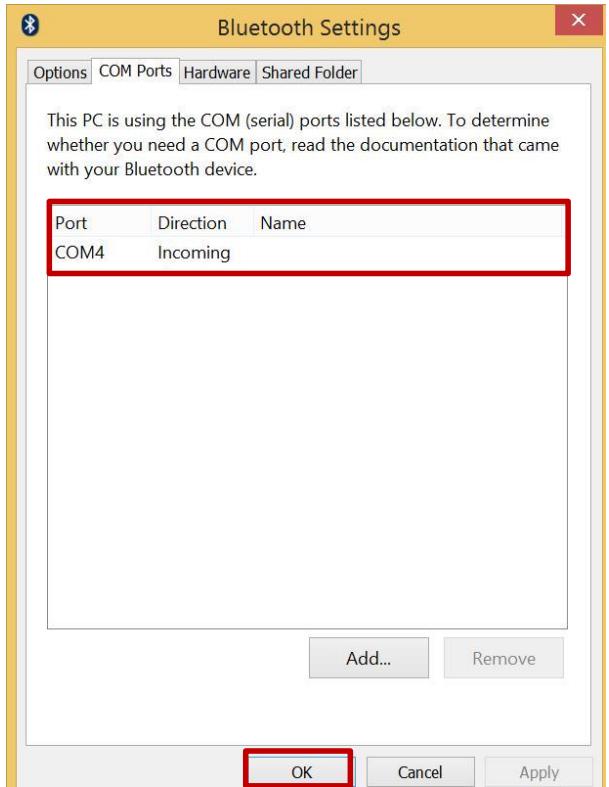
Click OK to continue.
- Next, the user has to configure the application to accept the scanned data from the wireless Bluetooth Barcode Scanner. The application has to be configured to accept the same COM Port that has been assigned for the Bluetooth Serial Port Profile in the previous step.

Important:
Make sure the application stays open while pairing.
- Now the computer is ready to start the pairing process.
5.6.2 Set up the Barcode Scanner for Bluetooth Pairing

Important:
The wireless Bluetooth Barcode Scanner has to be configured as a Bluetooth Serial Port Profile Master device to establish connection via Bluetooth MAC address barcode label. Please refer to the User Guide for the wireless Bluetooth Barcode Scanner you are using for paring for a more detailed instruction.
Now the Barcode Scanner is ready for the pairing process to start.
5.6.3 Perform Bluetooth Pairing
After you finish setting up both the Computer and Barcode Scanner, you are ready to start pairing.
- Open a program that is used for paring.
-
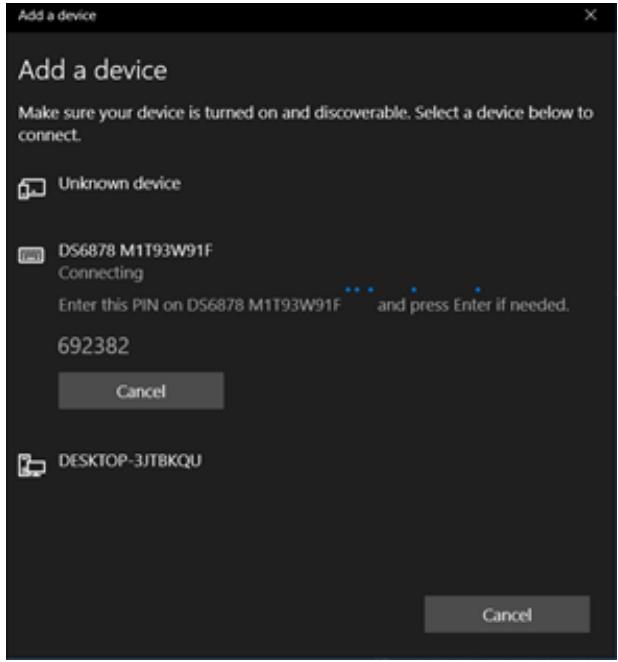
Perform scanning procedures. A Bluetooth notification window pop-up on the right-hand side of the desktop. Left-click on the mouse to enter Add a device menu.
-
Locate the Bluetooth icon in the Notification Area.
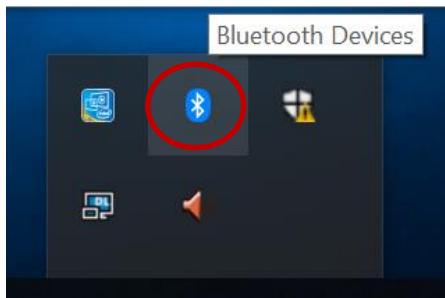
- Click Add Bluetooth Device.
- In Add a Bluetooth Device window, click Next to connect the Barcode Scanner to the Computer.
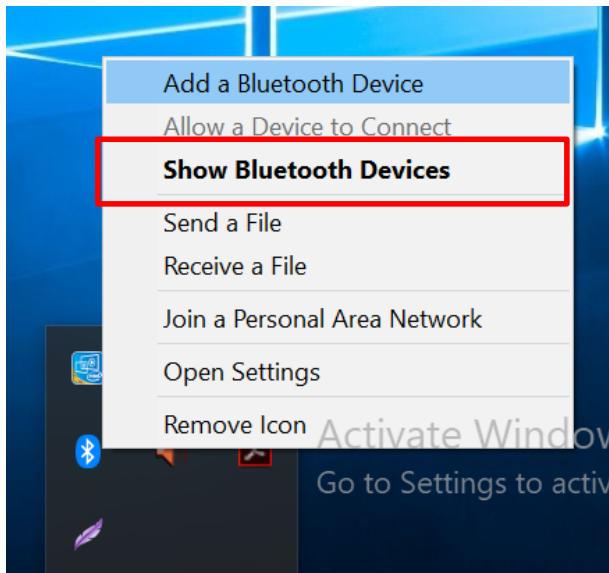
In order to ensure that Bluetooth Device is successfully paired to the computer, follow the steps below:
- Locate the Bluetooth icon in the Notification Area. Select Show Bluetooth Devices.
You can access this menu in the Control Panel:
Windows Control Panel Devices and Printers Bluetooth Devices
- Make sure your device is connected to the computer.
Chapter 6: Troubleshooting
6.1 Basic Troubleshooting
| Problem | Solution |
| The removable battery is not charging. | ·Make sure the AC adapter is properly connected and that the removable battery is properly inserted. |
| Nothing appears on the screen. | ·The tablet computer may be in sleep mode. Press the power button to wake up the display. ·The brightness level may be too low. Increase brightness. |
| The screen suddenly turns blank and the power indicator goes off. | ·Make sure that the LED indicator is not powered off in Hottab. ·Make sure the AC adapter is properly connected. ·If running on battery power, the battery may be depleted, charge the battery. |
| Wireless LAN signal quality is poor. | ·The tablet computer may be out of range. Move the tablet computer closer to the access point or another wireless LAN device associated with it. ·Check if your surroundings have interferences, such as microwave ovens, cordless phones. Move the tablet computer away from objects causing interference. |
| I cannot connect to another wireless LAN device. | ·Make sure that the wireless LAN feature is powered on. ·Make sure that the SSID setting is the same for every wireless LAN device in the network. ·Restart the tablet computer ·Make sure the IP address or subnet mask setting is correct. |
| I cannot connect to another device with Bluetooth. | ·Ensure that both devices have Bluetooth powered on (Check Hottab to see if Bluetooth is powered on). ·Ensure that the distance between the two devices is within 10 meters and that there are no walls or large obstructions between the devices. ·Make sure both devices are powered on and configured to be discoverable. ·Make sure that both devices are compatible. |
| The GPS application cannot find my location. | ·Make sure that GPS is powered on in Hottab. ·Make sure the GPS receiver and the location sensor are enabled in Control Panel. ·The tablet computer may be out of coverage area. Move your tablet computer outdoors or closer to a window. ·Check if your surroundings have interferences, such as microwave ovens, cordless phones. Move the tablet computer away from objects causing interference. |
| No sound is produced. | ·Adjust the volume of the tablet computer by pressing on the volume rocker. ·If using an external audio device, make sure that the cable is properly connected. |
| I cannot project the tablet computer display to another monitor through docking. | ·Make sure the VGA driver is installed. ·Make sure the output setting selected is correct. |
| The barcode scanner does not emit laser beam and does not seem to work. | ·Make sure the Barcode scanner device is enabled in Hottab utility. |
| Barcode Scanner emits laser beam but does not read barcode presented to it. | ·Adjust the distance between the barcode scanner of the device and the barcode being scanned. ·Make sure the barcode code type is enabled in the tablet. To enable/disable a specific barcode code type, go through the "Barcode Scanner Configuration" section. |
| I am having a GPS accuracy issue | ·When utilizing the GPS function, we recommend disabling the Barcode Reader in Hottab to reduce interference. |
| Battery leaking or swollen | ·The lithium battery used in this tablet may swell after being charged/ discharged many times, but there is no problem regarding safety. ·Continued use in such a state may result in the battery getting jammed, so please stop using the battery, and purchase a new one. |
Appendix
Appendix A: Product Specifications
| Model Name | S101TG | |
| Display | Size | 10.1 inches |
| Resolution | 1920x1200 | |
| Brightness | 800 nits | |
| Contrast Ratio | 800:1 (typ) | |
| Viewing Angle | 85/85/85/85 | |
| Touch | Projected Capacitive Multi-Touch | |
| Bonding | Optical Bonding for Sunlight Viewability | |
| Viewability | Anti-Glare touch treatment | |
| System Specification | Processor | Intel Core i3-1115G4 3.0 GHz (turbo boost up to 3.9 GHz) Intel Core i5-1135G7 @ 2.4GHz (turbo boost up to 4.2GHz, optional) |
| System Memory | 4GB DDR4 SDRAM (up to 16GB) | |
| Storage | 128GB SSD (optional up to 2TB) Additional storage available with micro SDXC card slot | |
| Operating System | Windows 10 IoT Enterprise (64 bit) | |
| WLAN | 802.11 a/b/g/n/ac/ax | |
| Bluetooth | Support | |
| GNSS | GPS, GLONASS | |
| WWAN | 4G LTE (Optional) | |
| Camera | Front Camera | 2MP Front Camera |
| Rear Camera | 8MP Rear Camera with auto-focus and LED light | |
| Mechanical | Dimensions | 266 x 187 x 20.4 mm |
| Weight | 1.1 Kg | |
| Cooling System | Fan design | |
| I/O Ports | USB Port | 1 x USB 3.0 (Type A), 1 x USB 3.0 (Type C) |
| Video | 1 x Micro HDMI(Optional) | |
| Audio | 1 x Audio combo 3.5mm audio combo jack (Mic in or Line out) Dual Mic Built-in Microphone Single Speaker | |
| SD Card Slot | 1 x Micro SDXC slot | |
| SIM Card Slot | 1 x SIM card slot | |
| Indicator | 2x LED Indicator for Power and Battery | |
| Docking Connector | 1 x 19-pin docking connector | |
| LAN | 1 x RJ45-10/100/1000 GigaLAN port | |
| Expansion Port | 1 x Expansion Connector for USD 3.0 / UART (Optional) | |
| Environment | Operating Humidity | 10% to 90% RH, non-condensing |
| Operating Temperature | -20°C to 60°C (AC mode), -10°C to 50°C (Battery mode) | |
| Storage Temperature | -30°C to 70°C (-22°F to 158°F) | |
| Shock | MIL-STD-810H Method 516.8 Procedure I | |
| Vibration | MIL-STD-810H Method 514.8 Procedure I | |
| Drop | MIL-STD-810H Method 516.8, 4 ft. | |
| IP Rating | IP65 certified, dustproof and waterproof | |
| Security Function | SOTI MobiControl | SOTI MobiControl Compliance |
| Trusted Platform Module (TPM) 2.0 | Support | |
| Kensington Lock | Support | |
| Control | Button | 1 x Power 2 x Programmable function Keys |
| Power | Battery | 11.4V, typ. 3500 mAh Li-Polymer Battery (3S1P) Hot-Swap (Optional) |
| Battery Operating Time | Standard Battery: 8 hours | |
| Power Rating | 19V DC | |
| Adapter | 100-240V, 50-60 Hz / 19V DC | |
| Barcode Scanner | Barcode Scanner | 1D/2D barcode scanner (Optional) |
| Accessory | Standard | Adapter and Power Cord Standard Battery |
| Optional | Vehicle Charger Battery Charger Hand Strap Shoulder Strap Carry Bag Sylus | |
| Certification | Certification | CE, FCC |
Notes
Winmate Inc.
9F, No.111-6, Shing-De Rd., San-Chung District,
New Taipei City 24158, Taiwan, R.O.C
www.winmate.com
FCC Warning
This device complies with part 15 of the FCC Rules. Operation is subject to the following two conditions:
(1) This device may not cause harmful interference, and (2) this device must accept any interference received, including interference that may cause undesired operation.
Any Changes or modifications not expressly approved by the party responsible for compliance could void the user's authority to operate the equipment.
Note: This equipment has been tested and found to comply with the limits for a Class B digital device, pursuant to part 15 of the FCC Rules. These limits are designed to provide reasonable protection against harmful interference in a residential installation. This equipment generates uses and can radiate radio frequency energy and, if not installed and used in accordance with the instructions, may cause harmful interference to radio communications. However, there is no guarantee that interference will not occur in a particular installation. If this equipment does cause harmful interference to radio or television reception, which can be determined by turning the equipment off and on, the user is encouraged to try to correct the interference by one or more of the following measures:
-Reorient or relocate the receiving antenna.
-Increase the separation between the equipment and receiver.
-Connect the equipment into an outlet on a circuit different from that to which the receiver is connected.
-Consult the dealer or an experienced radio/TV technician for help.
IC Warning
This device complies with Industry Canada's licence-exempt RSSs. Operation is subject to the following two conditions:
(1) This device may not cause interference; and
(2) This device must accept any interference, including interference that may cause undesired operation of the device.
The device for operation in the band 5150-5250MHz is only for indoor use.
RF Exposure Information and Statement
The SAR limit of USA/Canada (FCC/IC) is 1.6 W/kg averaged over one gram of tissue. Device types: S101TG (FCC ID: PX9S10101, IC: 9911A- S10101) has also been tested against this SAR limit. The highest SAR value reported under this standard during product certification for use the body is 0.522W/kg. This device was tested for typical body-worn operations with the back of the handset kept 0mm from the body. To maintain compliance with FCC RF exposure requirements, use accessories that maintain a 0mm separation distance between the user's body and the back of the handset. The use of belt clips, holsters and similar accessories should not contain metallic components in its assembly. The use of accessories that do not satisfy these requirements may not comply with FCC RF exposure requirements, and should be avoided.
This device was tested for typical body-worn operations. To comply with RF exposure requirements, a minimum separation distance of 0mm must be maintained between the user's body and the handset, including the antenna. Third-party belt-clips, holsters, and similar accessories used by this device should not contain any metallic components. Body-worn accessories that do not meet these requirements may not comply with RF exposure requirements and should be avoided. Use only the supplied or an approved antenna.