2571512019 - User manual SAGEM - Free user manual and instructions
Find the device manual for free 2571512019 SAGEM in PDF.



| Product type | Thermal transfer photo printer |
| Brand | SAGEM |
| Model | 2571512019 (Photo Easy 150) |
| Print resolution | 300 x 300 dpi |
| Colors | 16.7 million colors (continuous) |
| Print speed | Less than 120 seconds per photo |
| Print formats | 10x15 cm full page, with white borders, 10x13 cm, 2, 4 or 20 photos per page (contact sheet) |
| Paper feed | Automatic feeder, capacity 20 sheets |
| Supported memory card types | CompactFlash (Type I & II), SmartMedia, Memory Stick, SD, MMC |
| PC connectivity | USB 1.1 |
| Wireless connection | Infrared (for GSM photo) |
| Internal storage (GSM photos) | Up to 500 KB |
| Consumables | Photo paper 101x152.4 mm (packs of 20) and 3-color ribbon + varnish (40 prints/ribbon). Use only SAGEM consumables |
| Power supply | 230 V AC, 50/60 Hz |
| Power consumption (standby) | 7.6 W |
| Power consumption (printing) | 60 W |
| Dimensions (without paper tray) | 201 x 174 x 94 mm |
| Weight | 1.5 kg |
| Operating temperature | 10 to 35 °C |
| Operating humidity | 30 to 85 % RH |
| Warranty | 1 year (parts and labor), excluding consumables and normal wear |
Frequently Asked Questions - 2571512019 SAGEM
User questions about 2571512019 SAGEM
0 question about this device. Answer the ones you know or ask your own.
Ask a new question about this device
Download the instructions for your User manual in PDF format for free! Find your manual 2571512019 - SAGEM and take your electronic device back in hand. On this page are published all the documents necessary for the use of your device. 2571512019 by SAGEM.
USER MANUAL 2571512019 SAGEM
Connect the mains supply 3
Insert a film cartridge 4
Loading paper 5
4 PRINTING FROM A MEMORY CARD 6
Insert a memory card 6
5 USER INTERFACE 8
Print your photographs 9
Rapid printing 9
Example of rapid printing from a memory card 10
Create a contact sheet (index) 11
Prepare a series of photographs for printing
(shopping trolley mode) 13
Print in DPOF (Digital Print Order Format) mode 15
Printing from a GSM mobile phone camera 15
6 PRINT FROM A PC (PERSONAL COMPUTER) 18
Install the software 18
Connect your printer 19
7 REPLACEMENT OF CONSUMABLES 20
8 MAINTENANCE 21
Cleaning the print head 21
Paper jam 22
Problems 22
Error messages 23
Technical data 24
9 GARANTEE 25
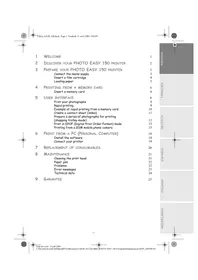
1 WELCOME
You have just acquired a SAGEM PHOTO EASY 150 printer, and we thank you for choosing our product. With this high quality printer you can get the most out of your digital photos. In a few simple steps you can produce photo prints identical to those from a professional developer, for your personal use or to share with friends and family.
The easy-to-follow steps in this user guide will walk you through:
- Switching on your PHOTO EASY 150 printer
- Printing photographs stored on a memory card
- Printing photographs transferred from a camera in a GSM mobile phone
- Installing the image processing software and printer driver on a PC
- Maintenance and troubleshooting of your PHOTO EASY 150 printer
The CD-ROM included with your kit contains an additional guide with instructions for using the image processing software and printer driver on your PC.
Safety instructions and recommendations

- Do not install your PHOTO EASY 150 printer in a humid room (bathroom, laundry, kitchen, etc.), or within 1.50m of a tap or water source, or outside. The printer should be operated within an ambient temperature range of 10^ to 35^ .
- Do not install your printer in a location where there is a noticeable amount of dust floating in the air. Such dust can degrade the print quality of your photos.
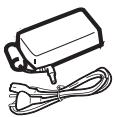
- Only the power supply provided with the printer should be used. Connect this to the mains in accordance with the installation instructions in this user guide and the information on the identification label affixed to the power supply (voltage, current, mains frequency)1.
- Never open the cover of the film cartridge compartment during printing. This could break the film and cause printer malfunction.
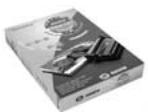
- Only use SAGEM consumables, if not you are likely to damage the equipment and invalidate the guarantee. To obtain the references of the consumables (Refer to paragraph Replacement of consumables, page -20).
- The EC marking certifies that the product meets the main requirements of the European Parliament and Council directive 1999/5/CE on telecommunications terminal equipment, regarding safety and health of users, and regarding electromagnetic interference.
2 DISCOVER YOUR PHOTO EASY 150 PRINTER
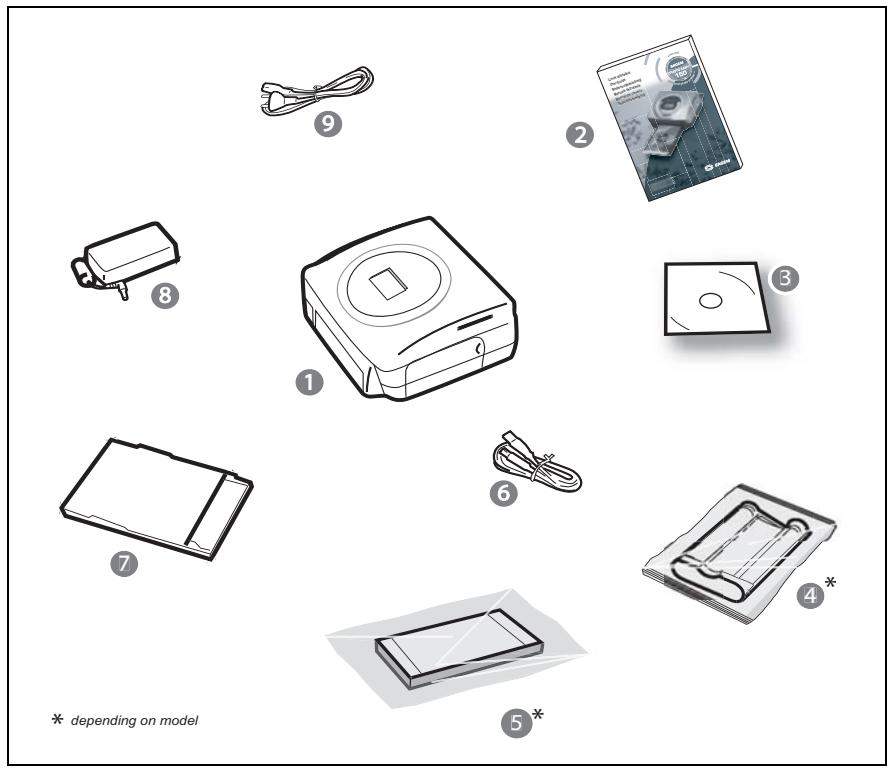
Place the box in front of you, open the packaging and check that you have received the items listed below:
1 PHOTO EASY 150 printer
2 User manual
3 CD-ROM with its applications
4 Film cartridge *
5 Photo paper (2 packs of 20 sheets)*
6 USB cable
7 Paper tray
8 Power supply unit
9 Mains cable
3 PREPARE YOUR PHOTO EASY 150 PRINTER
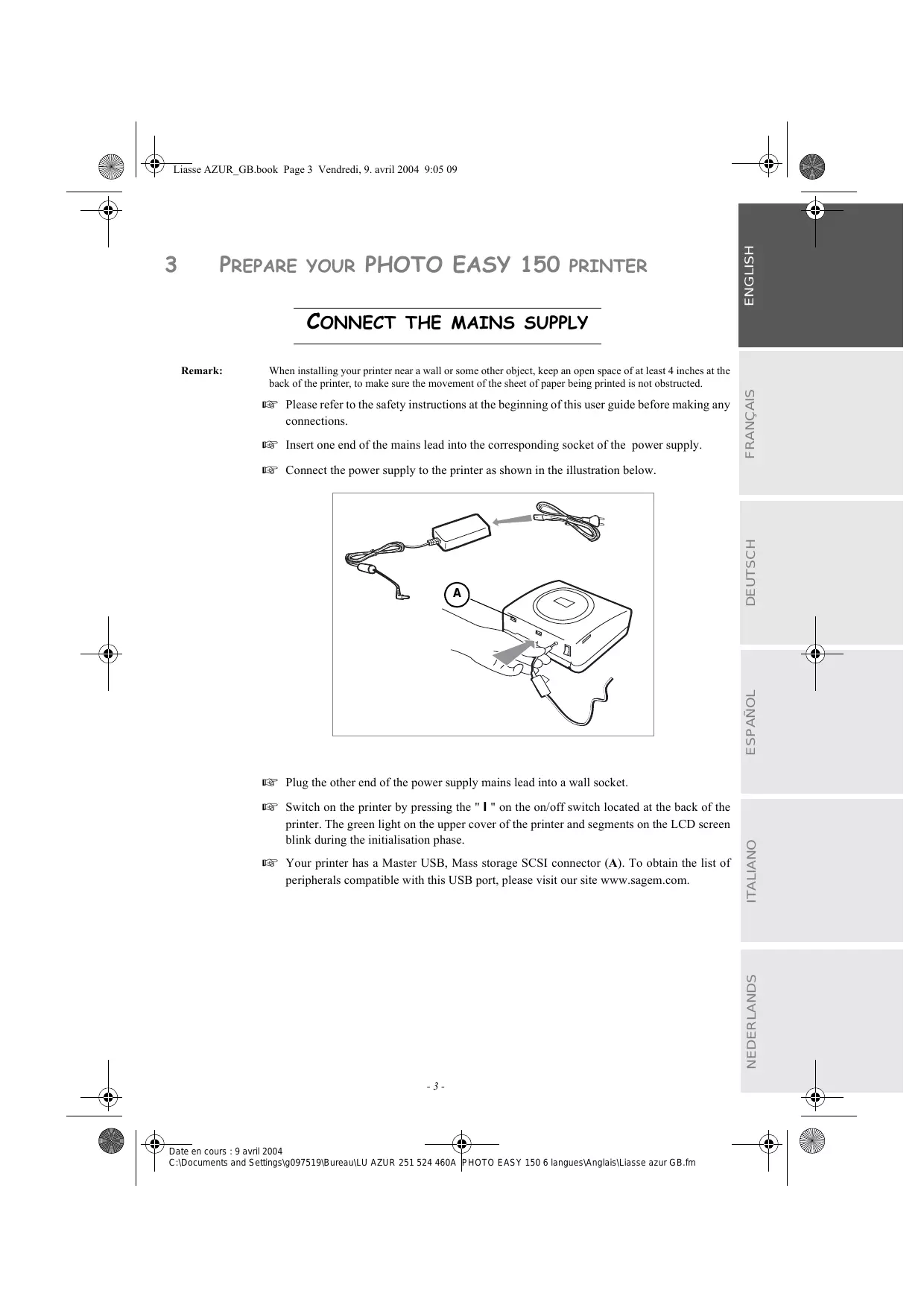
CONNECT THE MAINS SUPPLY
Remark:
When installing your printer near a wall or some other object, keep an open space of at least 4 inches at the back of the printer, to make sure the movement of the sheet of paper being printed is not obstructed.
Please refer to the safety instructions at the beginning of this user guide before making any connections.
Insert one end of the mains lead into the corresponding socket of the power supply.
Connect the power supply to the printer as shown in the illustration below.
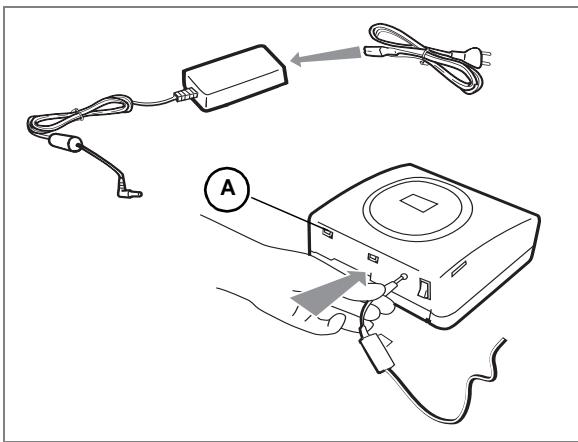
Plug the other end of the power supply mains lead into a wall socket.
Switch on the printer by pressing the "I" on the on/off switch located at the back of the printer. The green light on the upper cover of the printer and segments on the LCD screen blink during the initialisation phase.
Your printer has a Master USB, Mass storage SCSI connector (A). To obtain the list of peripherals compatible with this USB port, please visit our site www.sagem.com.
INSERT A FILM CARTRIDGE
Switch on the printer. Wait 10 seconds for the printhead to lift, then:
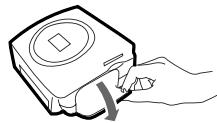
1 - Open the external flap located on the right-hand side of the printer.
2 - Remove the protective foam.
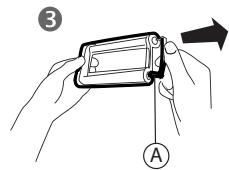
3 - Take the new ribbon out of its packaging and make sure that the film is stretched after removing the card (A).
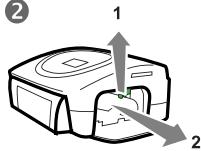
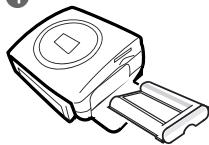
4 - Install the ribbon in the position shown in the illustration below.
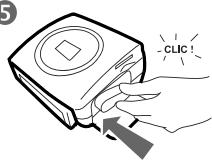
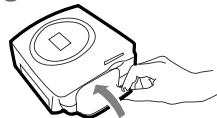
5 - Lift the locking lever and push in the film cartridge until it touches the back of the compartment the locking lever must be locked after insertion.
6 - Close the external flap.
1
2
4
5
6
Warning - Never touch the film cartridge with your fingers. Make sure the cartridge is completely inserted into the printer. Check that the green locking lever is correctly lowered.
Remark:
In the event of any difficulty, check that there are no foreign objects in the film cartridge compartment.
LOADING PAPER
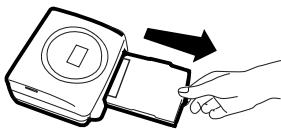
1
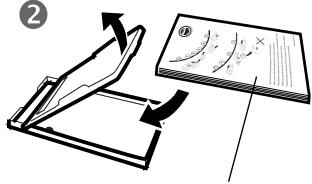
2
Protection sheet
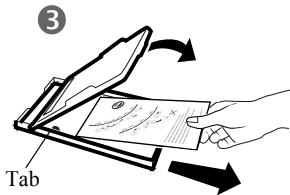
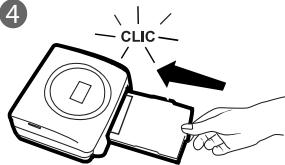
4
1 - Pull the paper tray out of the printer.
2 - Open a pack of paper with the protection sheet on the top, insert it in the paper tray, making sure the rectangle reserved for postage stamps is on the outside of the tray, that is, towards you. Make sure that the package of sheets that you have inserted in the paper tray is held down under the plastic tab located at the front left of the tray (see illustration after).
3 - Remove the protection sheet.
4 - Line up the tray with its compartment and push it in slowly until the locking system clicks.
Warning - handle paper sheets by their pre-cut edges, never allow your fingers to come into contact with the shiny surface before printing.
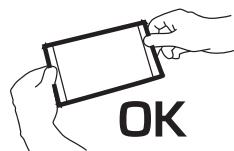
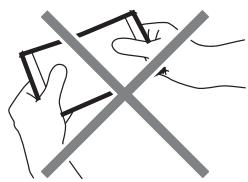
Your SAGEM PHOTO EASY 150 printer is now ready to print your digital photographs.
Warning - protect consumable items against prolonged exposure to light, humidly, heat and dust. Respect the operation conditions set out (Refer to paragraph Technical data, page -24). Only use SAGEM brand consumable items designed for this printer. Make sure that a previously printed photograph has not been slipped inadvertently into a packet of blank pages; this could damage the ribbon of your printer.
Warning - Make sure that a previously printed photograph has not been slipped inadvertently into a packet of blank pages; this could damage the ribbon of your printer.
4 PRINTING FROM A MEMORY CARD
Your SAGEM PHOTO EASY 150 printer is designed to be used with or without a computer. This chapter describes printer operation without a computer.
Refer to the technical data table at the end of this user manual to check whether your memory card is compatible with the printer. In the event of incompatibility, use a computer and the image processing software supplied on the CD-ROM.
Warning - Small sized images, less than 80,000 pixels, cannot be printed from memory cards (for example: an image size 320 × 240 , equivalent to 76,800 pixels, will not be included in the index). On the other hand, these photographs may be printed from a PC or by means of a wireless IR link.
INSERT A MEMORY CARD
Insert your memory card into the corresponding slot, as shown in the illustrations below.
Warning - SmartMedia, CONTACTS FACING UPWARDS.
Warning - The memory cards do not enter fully in the reader slot. DO NOT USE FORCE UNDER ANY CIRCUMSTANCES.
If a card does not enter properly, remove it and check that you are introducing it in the correct slot and with the right orientation.
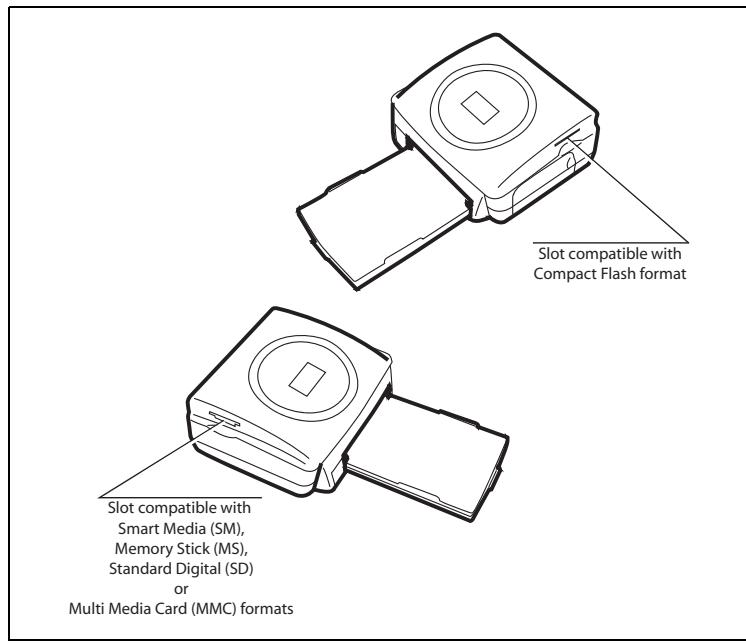
| CARD | SLOT | LOCATION | |
| Smart Media (SM) | Left | ||
| Memory Stick (MS) | Left | ||
| Standard Digital (SD) | Left | ||
| Multi Media Card (MMC) | Left | ||
| CompactFlash | Right | ||
5 USER INTERFACE
1 - Add a selection to the shopping trolley
2 - Select the number of copies per photograph (between 1 and 20)
3 - Go to the previous photograph number (., 3, 2, 1)
4 - Start printing
5 - Go to the next photograph number (1, 2, 3...)
6 - Select the print format
7 - Cancel
A - Number of copies to be printed
B - Number of the active photo
C - Number of sheets that will be printed
D - Print format
E - Shopping trolley mode
F - Active photograph in the shopping trolley
G - Paper error
H - Ribbon error
I - Memory card icon
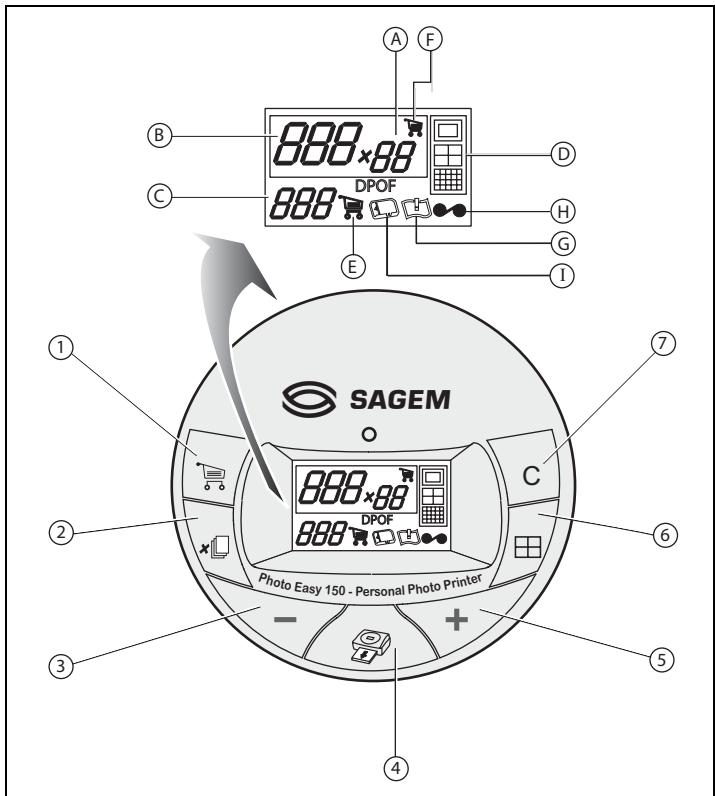
PRINT YOUR PHOTOPS
Your printer is switched on, and you have inserted a memory card, or you have transferred photographs from a GSM mobile phone camera using the IR (infrared) link.
The green light blinks while data are being transferred to the printer. After a few seconds, the number of photographs found on the memory card or in the digital camera, or transferred from the GSM mobile phone camera, is displayed on the screen. The light stops blinking.
Your photos are printed in four stages. The printer first prints the three colours: yellow, magenta and cyan in that order, then deposits a protective film on the sheet of papier, and finally ejects the photo.
The colour of the light shows the printer status:
Steady green: printer ready, on standby,
Blinking green: data being tranferred,
Steady red: incident: refer to the end of this user guide.
Remark:
To enable you to handle your photographs under the right conditions, the size of the sheets of paper is greater than the printed surface and the two lateral edges are pre-cut.
After printing, do not tear these edges abruptly, fold along the dotted line several times and then gently tear off the edges.
Tips - The edges can be removed on a number of photos at a time by superimposing them on each other.
RAPID PRINTING
Select the number of the photograph required using the - or + keys.
Press the key to set the number of copies.
Press the key to select print format.
You may select a predefined format to print the photographs:
Print your photograph in format 10× 15 cm full page, no border
- Print your photograph in format 10 × 15 cm with a white border
·Print your photograph in format 10× 13cm
Print 2 photographs per page.
Print 4 photographs per page.
Print 20 photographs per page (contact sheet or index).
Once the selection is made, press the key to start printing.
If printing is interrupted due to a lack of paper, paper jam or empty film cartridge, the printing operation may be restarted where it was interrupted by pressing the key after the necessary replacement or defect correction is performed.
Idea - Using the pre-printed reverse side postcard you can quickly send your photograph to friends, family, etc.
Tips - Hold the key down for 3 seconds to reinitialise the printer and return to the default status, such as when inserting a card.
EXAMPLE OF RAPID PRINTING FROM A MEMORY CARD
The memory card contains 23 photographs. We want to print photograph number 3, 4 times on the same sheet of paper.
Put the On/Off switch to "I".
Insert the memory card into the correct printer slot.
After the analysis and recognition phase, the number of valid photographs is displayed on screen and the memory card icon and green LED stop blinking.
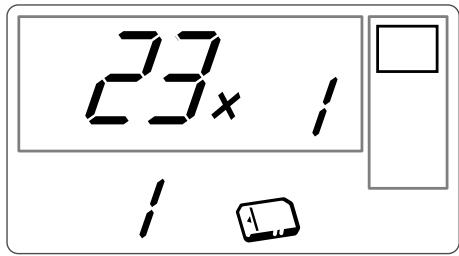
Select photograph 3, using the + key.
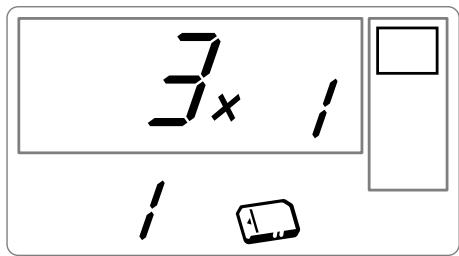
Press the 0 key until the figure 4 is displayed (that is 4 copies).
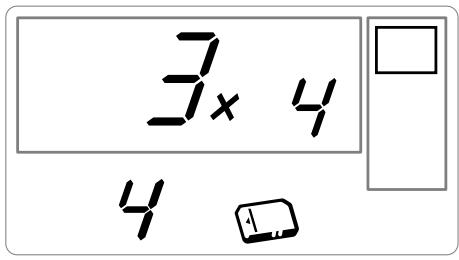
Press the key until the 4 images/page graphic is selected.
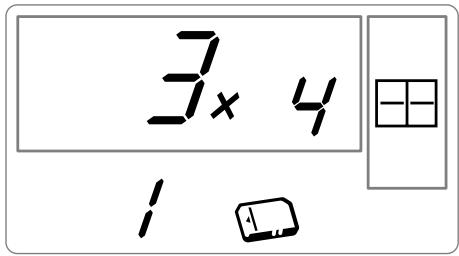
The figure 1 should be displayed as the number of sheets necessary for the printing operation.
Press the key to start printing.
CREATE A CONTACT SHEET (INDEX)
After inserting the memory card, the number of valid photographs is displayed on screen and the icon representing the memory card stops blinking.
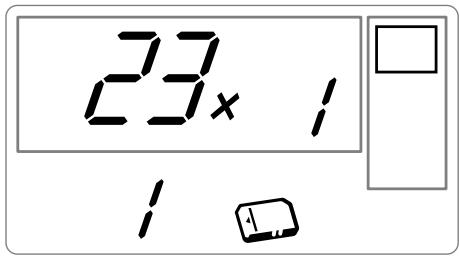
Press the + key until ALL is displayed on screen.
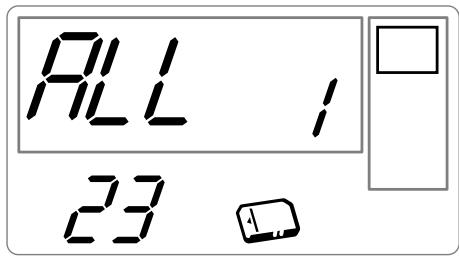
Select the format photographs per sheet format using the key.
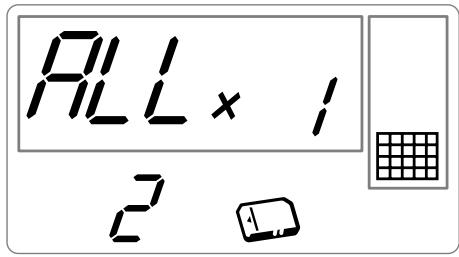
In the example provided above, 2 sheets will be necessary to print 23 photographs.
Press the he key to initiate printing.
Idea - The contact plate is a simple way of displaying all the photographs on your memory card; choose those to be printed using the number assigned to each of them
PREPARE A SERIES OF PHOTOGRAPHS FOR PRINTING (SHOPPING TROLLEY MODE)
After inserting the memory card, the number of valid photographs is displayed on screen and the icon representing the memory card is lit up steadily.
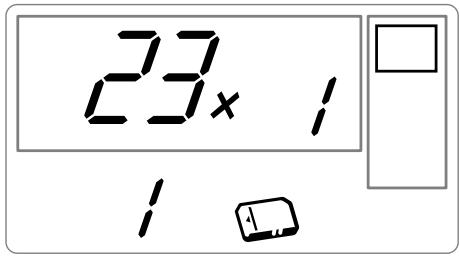
This example describes how to print 4 copies of photograph 3, 1 copy of photograph 8 and 2 copies of photograph 16.
Remark: Printing format remains fixed for series printing.
Select photograph 3, using the + , key; press the × key until the figure 4, corresponding to the quantity desired, is displayed.
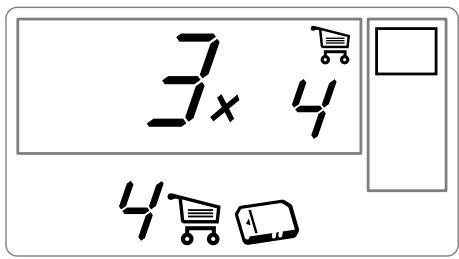
Press the key to add the photograph to the "shopping trolley" (the series). The icon indicating that the active photograph is in the shopping trolley is displayed, as well as the shopping trolley mode icon to indicate the presence of photographs in the shopping trolley.
Select photograph 8, using the + key, press key to add this to the shopping trolley (the default number of copies is 1).
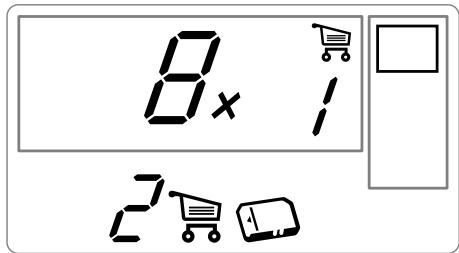
Select photograph 16, using the + key, press key until the figure 2, corresponding to the desired number of copies, is displayed.
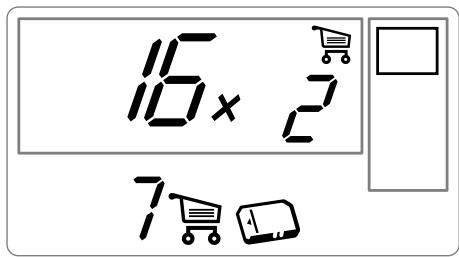
Press the key to add this to the shopping trolley.
The number of sheets required is displayed to the left of the shopping trolley icon. Press the key to start printing.
Remark:
If you notice that you have made an error after having validated the selection with the key, press the key again to cancel and redo the selection. This cancels only the most recent selection. It is also possible to deselect all photographs by selecting ALL using the + key and pressing the key twice.
Tips - To rapidly add a series of consecutive photographs to the shopping trolley, select the photograph with the lowest number and press and hold down the shopping trolley key
Photographs will be automatically added to the shopping trolley one by one until the shopping trolley key is released.
PRINT IN DPOF (DIGITAL PRINT ORDER FORMAT) MODE
This function lets you select the photographs to be printed on your camera, then print them on the SAGEM PHOTO EASY 150 printer from a memory card. Your camera must comply with the DPOF (Digital Print Order Format) standard. Refer to your camera documentation to find out if it is compatible with this standard.
Select the required photographs on the camera (follow the instructions in the documentation of your camera).
Remove the memory card from the camera and insert it into the correct slot of your SAGEM PHOTO EASY 150 printer. This starts the data transfer. The DPOF logo on the printer screen is activated and the number of printable photographs is displayed in the lower left-hand corner of the screen.
Warning - Example: memory card that contains 15 photographs selected for printing.
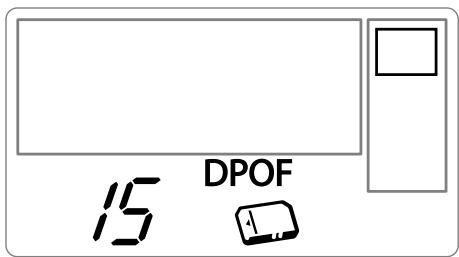
Start printing by pressing the key.
To exit DPOF mode, press the c key.
To switch back to DPOF mode, press and hold the key down for 3 seconds.
PRINTING FROM A GSM MOBILE PHONE CAMERA
Photographs taken with a GSM mobile phone equipped with a camera can be printed on the SAGEM PHOTO EASY 150 printer. To do this, the photographs need to be transferred to the printer via an IR (infrared) link between the 2 devices.
Switch on the SAGEM PHOTO EASY 150 printer (press "I" on the on/off switch).
Tips - GSM mobile phones with cameras work on low definition ; for a better quality of print we suggest you print 2 or 4 photos per sheet.
Place your GSM mobile phone opposite the SAGEM PHOTO EASY 150 printer so that the IR "windows" are facing each other and are not more than 30 centimetres apartPlace your GSM.
Warning - In an environment exposed to intense light, a distance of not more 10 centimetres between the two infrared windows is recommended.
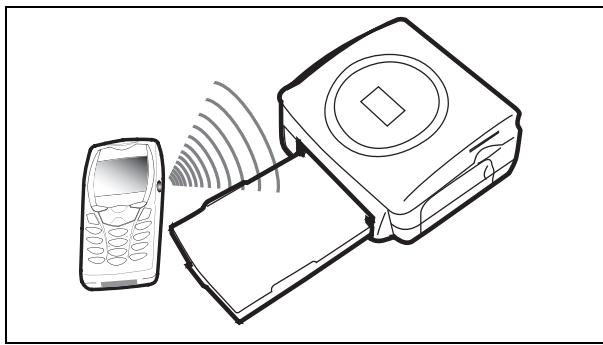
Select a photograph on your GSM mobile phone and start the IR ink transfer. The message "Ir" blinks on the printer screen throughout the transfer operation.
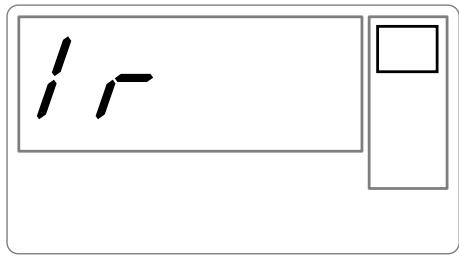
When the transfer is complete, the following information is displayed on the screen:
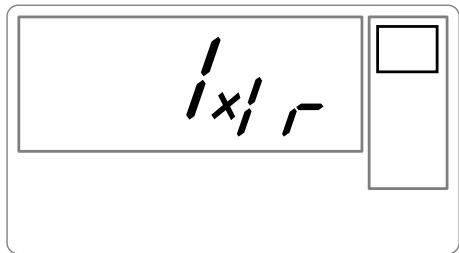
You can now:
- Start printing the transferred photograph, after setting the print format and number of copies if required.
-
Transfer another photograph from your GSM mobile phone camera, which will be added to those already stored in the printer. At the end of each transfer, the total number of photographs stored is displayed on the printer screen (the one with the highest number being the last one transferred).
-
The same operations as described in the previous chapters can now be performed before starting to print the photographs: (selecting the photographs to be printed, selecting the format, selecting the number of copies).
After all photographs transferred from your GSM mobile phone camera have been printed, the SAGEM PHOTO EASY 150 printer screen displays the information that was on the screen just before you started the print job.
You can now:
- Start another print job, after selecting different parameters (photograph number, format, number of copies) if required.
- End the transferred photograph processing. To do this, hold the c key down for 2 seconds.
6 PRINT FROM A PC (PERSONAL COMPUTER)
Your kit includes an installation CD-ROM containing a printer driver, image processing software.
Make sure that your PC is compatible with the requirements as specified (Refer to paragraph Technical data, page -24).
PC configuration required:
Pentium or equivalent,
OS:Windows98SE/2000/Me/XP,
128 MB DRAM or more,
150 MB available on hard disk,
USB port available.
INSTALL THE SOFTWARE
The SAGEM PHOTO EASY 150 software is installed in three steps: running the Install program, restarting the computer, and performing the final printer installation.
Do not connect the printer to the PC before installing the printer driver. After you have installed the software, a message will be displayed asking you to restart the PC. After restarting you can connect the printer to the PC.
Insert the CD-ROM in the drive to start installation. A command window appears. Follow the instructions displayed on the screen.
If the installation program does not start automatically, you can start it by double-clicking on the "setup.exe" file located in the CD-ROM root directory.
The CD-ROM contains an installation manual which includes detailed operating instructions for the printer driver. Refer to this manual for further information.
Remark: The B/W print option is not available in Windows 98.
CONNECT YOUR PRINTER
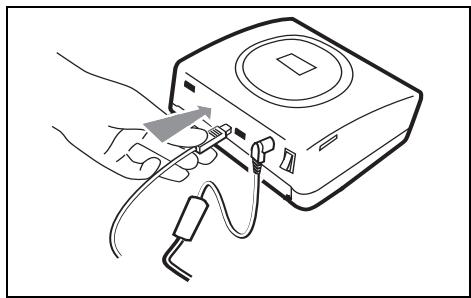
Make sure that both the PC and the printer are switched on. Never apply force when plugging in connectors into the equipment as this could damage both the cable and the connector.
Connect the USB cable to a USB port on your PC.
Connect the other end of the USB cable to the SAGEM PHOTO EASY 150 printer.
Recognition between the two devices is automatic.
7 REPLACEMENT OF CONSUMABLES
The consumable items used with the SAGEM PHOTO EASY 150 printer (film cartridge, paper) are SAGEM (PLC) brand products. Consumables may be purchased in all big stores in the photography or printer sections but also on out internet site www.sagem.com or by using the consumables order form supplied with your printer.
Use of any consumable items other than SAGEM (PLC) brand products may result in the loss of the printer's guarantee.
SAGEM consumable item kit references:
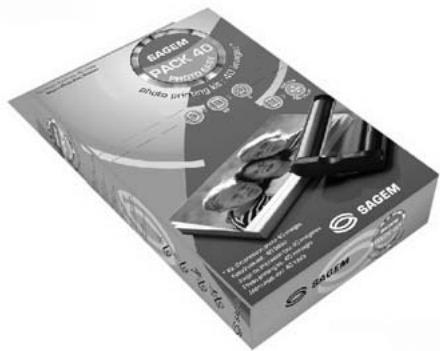
· Film cartridge (ribbon + paper for 40 photos): ref. 251 300 334
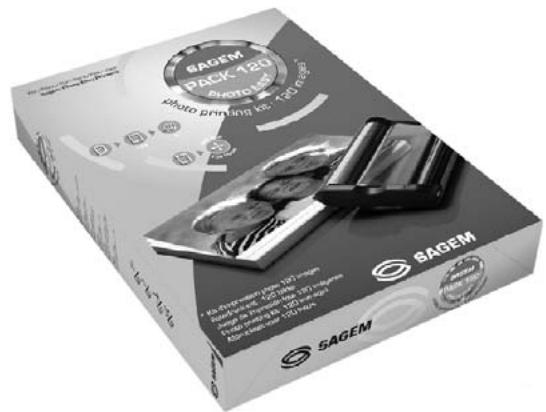
- Film cartridges (3 ribbons + paper for 120 photos): ref. 251 300 336
CLEANING THE PRINT HEAD
Continuous lines across the length of your photographs may be caused by dirt particles stuck to the printhead.
You will need a methylated alcohol1 based cleaning product and some off-the-shelf cotton tips ("Q-tips").
Switch off your printer, disconnect the main cables and wait for five minutes; since the print head operates at a high temperature, there is a risk of burning if you touch it.
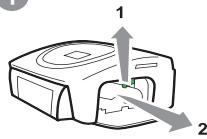
1 - Open the cartridge flap. Press on the locking lever and pull out the film cartridge.
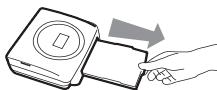
2 - Pull out the paper tray.
3 - Turn the printer upside down to remove the lower hatch.
4 - Clean the heating line of the print head carefully using a cotton bud.
5 - Replace the lower hatch, turn the printer right side up, connect the mains cable and switch on the printer.
Warning - Never touch the print head with your fingers or any object that might scratch it.
1
2
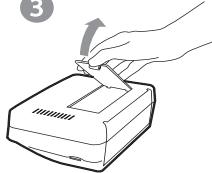
3
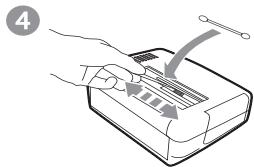
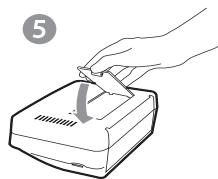
5
Replace the film cartridge. Take care that the film is taut before inserting the cartridge into its compartment. Check that the locking lever is pushed down correctly and close the flap.
Push the paper tray back into place until the locking system clicks.
PAPER JAM
Follow this procedure if a sheet becomes stuck in the printer and cannot simply be pulled out:
Switch off your printer by pressing "O" on the switch behind the printer and disconnect the mains cable.
Turn the printer upside down.
Remove the lower cover.
Gently and carefully remove the sheet causing the jam. Under no circumstances touch the printhead.
Replace the lower cover and turn the printer right side up.
Switch on the printer and reconnect the mains cable.
Warning - Never use objects that could damage the printer (scissors, screwdriver, paper cutter, etc.)
PROBLEMS
Remark:
The printer is fitted with an automatic time-out to prevent overheating, this can be tripped when performing large print jobs. The printer automatically restarts the current print job as soon as the temperature drops back to normal.
| PROBLEMS | SOLUTIONS |
| No mains supply (indicator lamp off) | ·Check that the power supply block is correctly plugged into the mains. ·Check that the power supply connector is correctly plugged into the printer. ·Checkthat the mains socket is live (check fuses and/or circuit breakers of your installation as necessary). |
| The light (indicator lamp red) | ·Refer to the error table below (Refer to paragraph Error messages, page -23). |
| The printer was unplugged during a print job | ·Set the printer on/off switch to "o" and then reconnect the mains lead. ·Switch on the printer and wait for the initialisation phase to be completed. ·If a sheet of paper is jammed, carry out the procedure (Refer to paragraph Paper jam, page -22). ·Restart printing. |
| No photograph is printed on a sheet | ·Are you using sheets that meet the technical specifications (Refer to paragraph Technical data, page -24) ·Have the sheets been inserted shiny face up? |
| The photograph is marked with a continuous line or a lot of spots | ·Clean the printhead (Refer to paragraph Cleaning the print head, page -21). |
| No PC printing | ·Check that the USB cable is correctly connected. ·Is the printer driver installed? |
ERROR MESSAGES
After any intervention on your printer, do not forget to press the key to restart the current print job.

| Error displayed | Icon displayed | Error Type | Description | Action |
| Err 01 | Paper | No paper | Check that the paper has been correctly inserted in the loading tray. | |
| Err 02 | Paper | Paper jam | Remove any paper jammed in printer (do not reuse this sheet of paper) | |
| Err 11 | Film cartridge | No film cartridge | Insert a new film cartridge or replace the current one. | |
| Err 12 | Film cartridge | End of film cartridge | Replace the film cartridge with a new one. | |
| Err 13 | Film cartridge | Film cartridge error | Check that the film cartridge is correctly inserted. If error persists: replace the cartridge. | |
| Err 14 | Film cartridge | Film cartridge missing or incorrectly inserted | Check that the cartridge is correctly inserted and that the locking lever is locked. | |
| Err 21 | Memory card | File damaged or incorrect | File illegible. Try to print others. If error persists: check the file source, or try with a different source. | |
| Err 22 | Memory card | JPEG decompression error | The file cannot be read. Try printing the others. If the error persists, check the source of the file or try with another source. | |
| Err 23 | Memory card | Unsupported JPEG feature | The JPEG file contains an unsupported feature. | |
| Err 27 | Memory card | Read error | The card or file are illegible. Check the card source or try with another source | |
| Err 72 | None | IR link | transfer error | Error during transfer of photographs from GSM mobile phone camera. Restart transfer from the GSM phone. Check that both devices are facing each other. |
| Err 75 | None | IR link | Not enough space to store photograph | Photograph to be transferred too big or insufficient space to store photograph in printer. |
| Err 76 | None | IR link | File format not supported | Photograph to be transferred is not in JPEG format. |
| Other error number | None | Other | System error | Switch off printer, wait 30 seconds and restart. If error persists, contact your retailer. |
TECHNICAL DATA
PC configuration required:
Pentium or equivalent,
OS:Windows98SE/2000/Me/XP,
128 MB DRAM or more,
150 MB available on hard disk
USB port available.
Device name
Print method
Resolution
Colours
Print speed
Interface
Storage of photographs transferred from a GSM
phone camera
Image resolution supported
Consumable items
SAGEM PHOTO EASY 150
Dye-diffusion thermal transfer
300 × 300 dpi
16.7 million continuous
Less than 120 seconds per photo (not including data transfer)
Memory cards, type Compact Flash (support type I & II), SM / MS / MMC / SD. USB port version 1.1
Up to 500 kilobytes
Up to 12 million pixels
Photo-quality paper. Film cartridge with three colours (yellow, magenta, cyan) and protective coating, 40 print operations per cartridge.
Paper size: 101 × 152.4 ~mm , available in packets of 20 sheets
By automatic loader, capacity 20 sheets
230 V AC 50/60 Hz
EC
10^ to 35^, 30% to 85% humidity
201 x 174 x 94 mm excluding paper tray
1.5kg
in standby:
7,6W
in print mode:
60 W
GUARANTEE (UK Terms and Conditions)
In order to apply the guarantee, you should contact your dealer. Proof of purchase will be required. Should malfunctioning arise, the dealer will advise you what to do.
If you bought your equipment from SAGEM directly, the following shall apply :
A SAGEM undertakes to remedy by repair, free of charge for labour and replacement parts, any defects in the equipment during a period of twelve (12) months from the date of original delivery of the Equipment, where those defects are a result of faulty workmanship.
During this twelve month guarantee period, the defective equipment will be repaired free of charge; the customer must however return the defective equipment at his/her own expense, to the address given by SAGEM After Sales Department, the phone number of which can be found on the delivery slip. Unless the customer has concluded with SAGEM a maintenance contract in respect of the equipment which specifically provides for repairs to be carried out at the customer's premises, the repairs will not be carried out on the equipment at the customer's premises.
The following sentence applies to purchases of equipment for the customer's trade, business or profession. Except as otherwise expressly provided in this Document and to the extent permitted by law, SAGEM makes no representations or warranties, express or implied, statutory or otherwise, and to such extent, all terms and conditions implied by law are hereby excluded.
This guarantee does not affect the Customer's statutory rights.
B Exclusions From Guarantee
SAGEM shall have no liability under the guarantee in respect of :
damage, defects breakdown or malfunction due to :
- failure to properly follow the installation process and instructions for use; or
- an external cause to the equipment (including but not limited to, lightening, fire, shock or water damage of any nature); or
- modifications made without the written approval of SAGEM SA; or
- a failure or neglect to maintain the equipment or inappropriate maintenance; or
- unsuitable operating conditions, particularly of temperature and humidity; or
- repair or maintenance of the equipment by persons not authorised by SAGEM; or
- wear and tear from normal daily use of the equipment and its accessories
damage due to insufficient or bad packaging of equipment when returned to SAGEM
supply of new versions of software
work on any equipment or software modified or added without the prior written consent of SAGEM
- malfunctions not resulting from the Equipment or from software installed in user workstations for the purpose of use of the equipment
communication problems related to an unsuitable environment, including :
- problems related to access and/or connection to the Internet such as interruptions by access networks or malfunction of the line used by the subscriber or his correspondent
- transmission faults (for example poor geographical coverage by radio transmitters, interference or poor line quality)
- the local network fault (wiring, servers, workstations) or the failure of the transmission network
- the normal servicing (as defined in the user guide supplied with the equipment) as well as malfunctioning due to servicing not being carried out, servicing costs are in any event always borne by the customer.
C In the cases set forth in B) as well as after expiry of the twelve month guarantee period, the customer must ask SAGEM for an estimate, and he/she must accept the estimate and agree to pay the charges mentioned in it before returning the equipment to SAGEM. The repair and delivery costs will be invoiced to the customer.
The foregoing shall apply unless otherwise agreed in writing with the customer and only for the UK. If any provision of this guarantee shall be held to be in whole or in part invalid or illegal due to an obligatory rule applicable to consumers pursuant to their national legislation, such invalidity or illegality shall not impair or affect the remaining provisions or parts of this guarantee.
1 BIENVENUE 1
2 DÉCOUVREZ VOTRE IMPRIMANTE PHOTO EASY 150
3 PREPAREZ VOTURE IMPRIMANTE PHOTO EASY 150 3
IMPRIMEZ EN MODE DPOF
7 REMPLACEMENT DES CONSOMMABLES
STAMPA IN MODALITÀ DPOF
Pentium of equivalent;
Besturingsystem: Windows 98 SE / 2000 / Me / XP;
128 MB DRAM ofmeer;
Pentium of equivalent;
Besturingsystem: Windows 98 SE / 2000 / Me / XP;
128 MB DRAM ofmeer;
DECLARATION OF CONFORMITY
declare under our sole responsibility that the product
Model
PE 150
(EUROPE)
Type
AZUR
To which this declaration relates is in conformity with the harmonized standards
EN 60950-1 2001
Artical No 3(1) (a) of Directive 1999/5/EC (R&TTE Directive)
Artical No 2 of Directive 73/23/EEC (Low Voltage Directive)
EN 55022 Class B 1999 + A1:2001
Artical No 3(1) (b) of Directive 1999/5/EC (R&TTE Directive)
Artical No 4 of Directive 89/336/EEC (EMC Directive)
EN 55024 1999 + A2:2002
EN 61000-3-2 2001
EN 61000-3-3 1995 +A1 : 2001
Meets the essential requirements according to article 3 of the following EC-Directive :
Directive, 1999/5/EC of the European parliament and of the council of 09 March 1999 relating to radio and telecommunication terminal equipment, including the mutual recognition of their conformity.
Osny, 2003-11-21
Authorized on behalf of SAGEM SA
Name and Signature
Nom et signature
Name und Untershift
R.WALLER
Managing Director Cordless Terminals Business unit
Terminals and Internet Division
User Guide - Data subject to change without notice

- WELCOME
- The easy-to-follow steps in this user guide will walk you through:
- Safety instructions and recommendations
- DISCOVER YOUR PHOTO EASY 150 PRINTER
- PREPARE YOUR PHOTO EASY 150 PRINTER
- CONNECT THE MAINS SUPPLY
- Remark:
- INSERT A FILM CARTRIDGE
- LOADING PAPER
- PRINTING FROM A MEMORY CARD
- INSERT A MEMORY CARD
- USER INTERFACE
- PRINT YOUR PHOTOPS
- RAPID PRINTING
- EXAMPLE OF RAPID PRINTING FROM A MEMORY CARD
- CREATE A CONTACT SHEET (INDEX)
- PREPARE A SERIES OF PHOTOGRAPHS FOR PRINTING (SHOPPING TROLLEY MODE)
- PRINT IN DPOF (DIGITAL PRINT ORDER FORMAT) MODE
- PRINTING FROM A GSM MOBILE PHONE CAMERA
- You can now:
- PRINT FROM A PC (PERSONAL COMPUTER)
- PC configuration required:
- INSTALL THE SOFTWARE
- CONNECT YOUR PRINTER
- REPLACEMENT OF CONSUMABLES
- CLEANING THE PRINT HEAD
- PAPER JAM
- PROBLEMS
- ERROR MESSAGES
- After any intervention on your printer, do not forget to press the key to restart the current print job.
- TECHNICAL DATA
- GUARANTEE (UK Terms and Conditions)
- In order to apply the guarantee, you should contact your dealer. Proof of purchase will be required. Should malfunctioning arise, the dealer will advise you what to do.
- IMPRIMEZ EN MODE DPOF
- REMPLACEMENT DES CONSOMMABLES
- STAMPA IN MODALITÀ DPOF
- DECLARATION OF CONFORMITY
Brand : SAGEM
Model : 2571512019
Category : User manual