H3800 - PDA HP - Free user manual and instructions
Find the device manual for free H3800 HP in PDF.


| Product Type | Personal Digital Assistant (PDA) |
| Brand | HP |
| Model | H3800 |
| Dimensions (L × W × H) | 120 x 75 x 15 mm |
| Weight | 150 g |
| Screen | TFT touchscreen 3.5 inches, 240×320 pixel resolution |
| Operating System | Pocket PC 2002 |
| Processor | Intel StrongARM 206 MHz |
| RAM Memory | 64 MB |
| Internal Memory | 32 MB |
| Expandable Storage | SD/MMC card (up to 1 GB) |
| Connectivity | USB 1.1, Infrared, Bluetooth 1.1 |
| Power | Rechargeable Lithium-Ion battery 900 mAh |
| Battery Life | Approximately 8 hours of use, 14 days on standby |
| Main Features | Contacts, Calendar, Tasks, Notes, Pocket Word, Pocket Excel, Media Player, Internet Explorer |
| Maintenance and Cleaning | Clean the screen with a soft dry cloth. Avoid liquids and abrasive products. |
| Security | Password lock, remote wipe in case of loss (via third-party software) |
| Spare Parts and Repairability | Replaceable battery and stylus. Motherboard and screen available from specialized retailers. |
| General Information | Class B digital device compliant with Canadian and European standards. |
Frequently Asked Questions - H3800 HP
User questions about H3800 HP
0 question about this device. Answer the ones you know or ask your own.
Ask a new question about this device
Download the instructions for your PDA in PDF format for free! Find your manual H3800 - HP and take your electronic device back in hand. On this page are published all the documents necessary for the use of your device. H3800 by HP.
USER MANUAL H3800 HP
The information in this document is subject to change without notice.
COMPAQ COMPUTER CORPORATION SHALL NOT BE LIABLE FOR TECHNICAL OR EDITORIAL ERRORS OR OMISSIONS CONTAINED HEREIN; NOR FOR INCIDENTAL OR CONSEQUENTIAL DAMAGES RESULTING FROM THE FURNISHING, PERFORMANCE, OR USE OF THIS MATERIAL.
This document contains information protected by copyright. No part of this document may be photocopied or reproduced in any form without prior written consent from Compaq Computer Corporation.
© 2001 Compaq Computer Corporation.
Compaq, the Compaq logo, and iPAQ are trademarks of Compaq Information Technologies Group, L.P. in the US and other countries. Microsoft, MS, ActiveSync, Windows, Windows NT, and the Windows logo are trademarks of Microsoft Corporation. Intel is a trademark of Intel Corporation. All other product names mentioned herein may be trademarks of their respective companies. Compaq shall not be liable for technical or editorial errors or omissions contained herein. The information in this document is provided "as is" without warranty of any kind and is subject to change without notice. The warranties for Compaq products are set forth in the express limited warranty statement accompanying such products. Nothing herein should be construed as constituting an additional warranty.
Compaq iPAQ Pocket PC H3800 Series Reference Guide
First Edition September 2001
Part Number 253194-001
Locating Information
| Topic | Sources |
| User Guide information | The Interactive User Guide located on the CD-ROM for the Compaq iPAQ Pocket PC H3800 Series |
| Synchronizing and exchanging files | The Microsoft ActiveSync Help on your computer. From the Help menu, click Microsoft ActiveSync Help |
| Updates and detailed technical information | The Read Me files located in the Microsoft ActiveSync folder on your computer and on the Compaq iPAQ Pocket PC H3800 Series |
| Connecting your Compaq iPAQ Pocket PC to a computer | Getting Started |
| Information on iPAQ Pocket PC options | Accessories Information |
| Additional programs that can be installed on your Compaq iPAQ Pocket PC | The CD-ROM for the Compaq iPAQ Pocket PC H3800 Series |
| Warranty and service information | The Worldwide Limited Warranty Statement Worldwide Telephone Numbers |
| Product information | http://www.compaq.com/pocketpc |
| Up-to-date information on Windows-powered devices | http://www.microsoft.com/mobile/pocketpc |
| Compaq Software Updates | http://www.compaq.com/support |
Contents
Locating Information 3
Chapter 1: Getting Acquainted 6
What Is in the Box? 6
Register 8
Charge Your Compaq iPAQ Pocket PC 8
Navigate through the Interface 12
Enter Information 19
Chapter 2: Communicating 26
Connect to a Computer 26
Connect to the Internet or your Network. 33
Work with Contacts. 40
Use the Inbox. 44
Record Voice 50
Take Notes. 53
Chapter 3: Scheduling. .55
Use the Today Screen 55
Use the Calendar 59
Use Tasks. 65
Chapter 4: Using Software .68
Use Pocket Word 68
Use Pocket Excel. 72
Use Pocket Streets 75
Use Microsoft Reader 80
Chapter 5: Expanding Functionality with Expansion Packs .85
Use the Single-slot or Dual-slot PC Card Expansion Pack. 85
Use the CompactFlash Card Expansion Pack 86
Chapter 6: Expanding Functionality with Cards. .88
View the Content of Memory Cards .88
Use the Optional 802.11 Card to Connect Wirelessly. .89
Use an Optional Modem Card. 89
Use an Optional CompactFlash Card 90
Use an Optional Secure Digital Card 91
Chapter 7: Troubleshooting 92
Getting Acquainted Tips 92
Communicating Tips 95
Scheduling Tips 101
Using Software Tips 102
Expanding with Packs Tips 103
Expanding with Cards Tips 103
Appendix A: Regulatory Notices 104
Federal Communications Commission Notice 104
Canadian Notice 105
Avis Canadien 105
European Union Notice 105
Japanese Notice 105
Battery Warning 106
Airline Travel Notice. 106
Power Cords 106
Appendix B: Hardware Specifications 107
System Specifications 107
Physical Specifications 107
Operating Environment 108
Appendix C: Routine Care and Battery Guidelines. 109
Routine Care 109
Battery Guidelines. 109
Index. 111
Getting Acquainted
To use your Compaq iPAQ™ Pocket PC H3800 Series most effectively, start by learning how to
register your Compaq iPAQ Pocket PC
- charge your Compaq iPAQ Pocket PC
- navigate through the interface
enter information
Because your Compaq iPAQ Pocket PC uses some power to maintain files in RAM and the clock, you need to recharge the battery regularly. Keep the Compaq iPAQ Pocket PC connected to the universal cradle or the AC adapter while you are at your desk. The best policy is to keep the Compaq iPAQ Pocket PC connected to your computer when working at your desk and carry your AC adapter and DC adapter plug with you when traveling.
Your Compaq iPAQ Pocket PC is shipped with a charge on the battery. You may want to ensure that it is fully charged before synchronizing.
CAUTION: Because most of the applications and data you install on your Compaq iPAQ Pocket PC are held in memory, you will need to reinstall them if the battery completely discharges.
What Is in the Box?
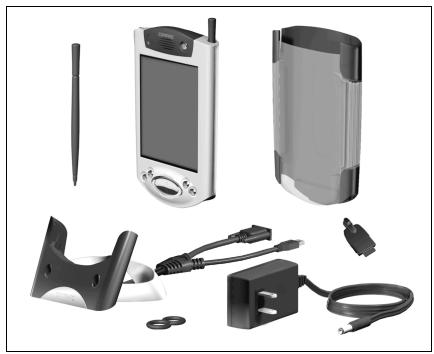
Your Compaq iPAQ Pocket PC ships with
the Getting Started Guide
- Compaq iPAQ Pocket PC Companion CD-ROM
- Microsoft® ActiveSync 3.5 software on the Companion CD-ROM
- Add-on software and applications
detailed eBook guide, which you can copy to your Compaq iPAQ Pocket PC -
interactive Flash guide
— comprehensive printable reference guide -
a universal cradle for both USB and serial connections
a protective cover pack
an extra stylus
an AC adapter - a rubber retainer
a DC adapter plug
If items are missing, contact Customer Support at the numbers provided in the Worldwide Telephone Numbers booklet.
Know your device
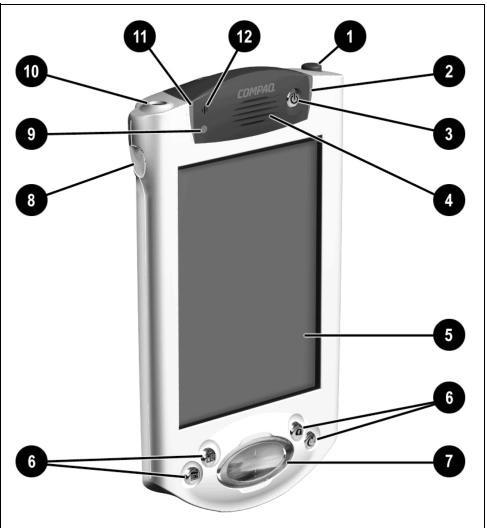
Front Panel
Stylus: push to eject, push to lock
Power Indicator: amber flash = charging; amber solid = charged; green = alarm
Power Button
4 Speaker: alarms, recordings
Color Display
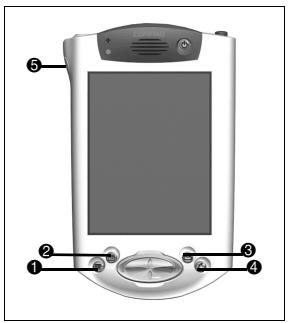
Programmable Application Buttons 1-4 (left to right): navigate to applications, default: button 1 is Calendar, button 2 is Contacts, button 3 is Inbox, button 4 is IPAQ Task
Navigation Button: scroll through a list
Record/Application Button 5
Light sensor: adjusts backlight
10 Stereo Headphone Jack
1 Active Bluetooth Indicator: flashes when Bluetooth radio is on (Bluetooth models only)
Microphone
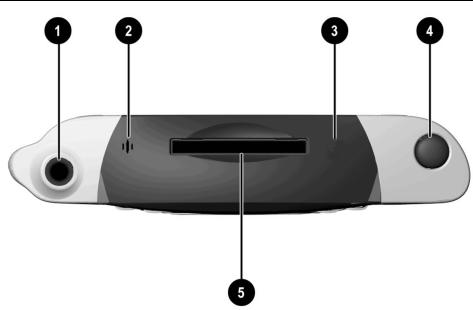
Top Panel
Stereo Headphone Jack
Microphone
6 Hidden Infrared Port: beams information with other mobile devices
Stylus: push to eject, push to lock
Secure Digital (SD) Expansion Slot: holds a Secure Digital (SD) card
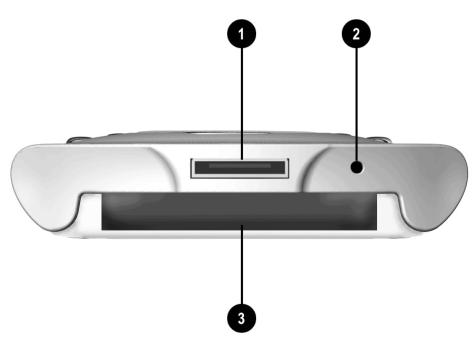
Bottom Panel
Charging/Communications Port: connect to universal cradle, USB, or serial cable
Unit Reset Switch: reset with stylus
Expansion Pack Connector: connect to an optional Expansion Pack
Register
You can receive the latest information on your Compaq iPAQ Pocket PC, as well as special offers on Compaq iPAQ Pocket PC accessories and software, by registering with Compaq online at http://www.compaq.com/register or by completing and mailing the Register Now* card included in the shipping box.
*Not available in all countries
Charge Your Compaq iPAQ Pocket PC
Charge your Compaq iPAQ Pocket PC on a regular basis with the AC adapter or the universal cradle.
Charge with the universal cradle
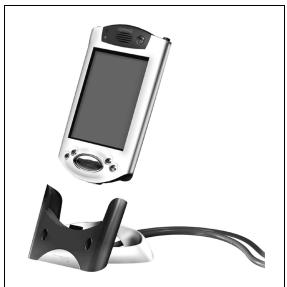
Charge your Compaq iPAQ Pocket PC with the universal cradle. Use the universal cradle to
- synchronize with your computer
- recharge the battery of an optional expansion pack, if you have purchased one (for example, recharge the battery of the Dual-slot PC Card Expansion Pack)
Slide the bottom of your Compaq iPAQ Pocket PC into the universal cradle and push firmly
The charge light blinks when your Compaq iPAQ Pocket PC is recharging the battery
The charge light is solid (nonblinking) when the battery is fully charged
Microsoft ActiveSync 3.5 opens on your computer and recognizes your Compaq iPAQ Pocket PC
Charge with the AC adapter
Because your Compaq iPAQ Pocket PC uses some power to maintain RAM and the clock, you need to recharge the battery regularly. Keep the Compaq iPAQ Pocket PC connected to the universal cradle or the AC adapter while you are at your desk. The best policy is to keep the Compaq iPAQ Pocket PC connected to your computer when working at your desk and carry your AC adapter and DC adapter plug with you when traveling.
CAUTION: Because most of the applications and data you install on your Compaq iPAQ Pocket PC are held in memory, you will need to reinstall them if the battery completely discharges.
Use the AC adapter to charge your optional expansion pack, if you have purchased one. For more information about expansion packs, see Expanding Functionality with Expansion Packs.
The standard adapter works in any household outlet. You can also purchase one that works in your car's cigarette lighter or a 12-volt power outlet.
CAUTION: Use only Compaq recommended AC adapters.
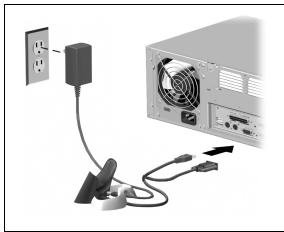
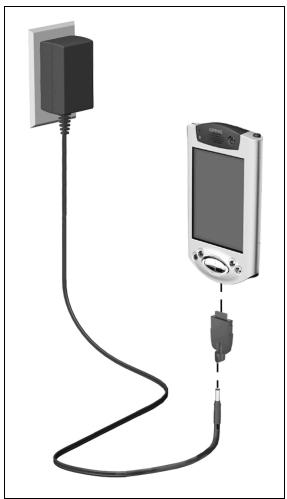
- Locate the AC adapter
- Plug the AC adapter into an outlet
- Insert the DC adapter plug into the bottom of your Compaq iPAQ Pocket PC
- Insert the AC adapter plug into the DC adapter plug
- Hold the DC adapter plug to the AC adapter with the rubber retainer
Change the backlight settings
You may want to change the backlight settings to conserve more battery power.
- From the Start menu, tap Settings
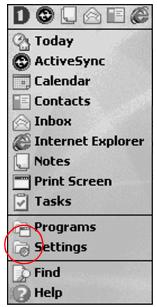
- Tap System
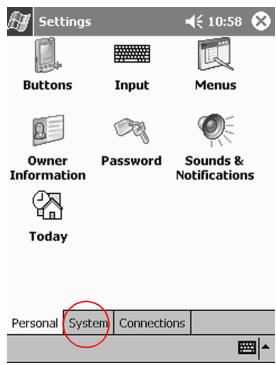
- Tap Backlight
- Select the backlight settings
On the Battery Power tab, select when to use the backlight on battery power
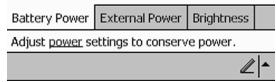
On the External Power tab, select when to use the backlight on external power
On the Brightness tab, select the level of brightness for the backlight
Hint: Slide the bar to the lowest level to conserve the most power
Tips
I cannot see anything on the screen
- Make sure the screen is on
Press the power button
- Make sure the Compaq iPAQ Pocket PC is connected to the AC adapter and the universal cradle
Plug the AC adapter into an outlet
Insert the DC adapter plug into the universal cradle
Insert the AC adapter plug into the DC adapter plug
I cannot keep my battery charged
Always keep the Compaq iPAQ Pocket PC connected to a universal cradle or AC adapter when you are not using it
In the backlight settings slide the bar to the lowest level to conserve the most power
I do not see the charge light blinking when my Compaq iPAQ Pocket PC is connected to the universal cradle
- Make sure the universal cradle is plugged into an outlet
- Make sure the bottom of your Compaq iPAQ Pocket PC is pushed firmly into the universal cradle
- Determine if the unit is fully charged.
The charge light does not blink when the unit is fully charged.
From the Start menu, tap Settings
Tap System
Tap Power
The backlight keeps turning off
The backlight turns off to conserve power
On the Battery Power tab, change the time the backlight stays on and choose to have the backlight turn on when you touch the screen or push a button
My Compaq iPAQ Pocket PC is not responding or an application hangs
Perform a soft reset of your Compaq iPAQ Pocket PC
- Insert the stylus into the unit reset switch at the bottom of your Compaq iPAQ Pocket PC
- Press the switch for 1 second
I forgot my password
Perform a hard reset of your Compaq iPAQ Pocket PC
CAUTION: Because most of the applications and data you install on your Compaq iPAQ Pocket PC are held in memory, you will need to reinstall them if you perform a hard reset.
- Press and hold the two outside application buttons
- Insert the stylus into the unit reset switch at the bottom of your Compaq iPAQ Pocket PC
- Press the switch for 5 seconds
- To reactivate your Compaq iPAQ Pocket PC, insert the stylus into the unit reset switch and press the switch for 1 second or connect your Compaq iPAQ Pocket PC to the AC adapter
Navigate through the Interface
Navigate through the Compaq iPAQ Pocket PC interface in three ways:
- tap
- tap and hold
- press application buttons
Tap the screen with the pointed tip of your stylus to open applications and make selections. For example, tap the Start menu to see a list of applications available.
Tap and hold an area on the screen to see a pop-up menu.
Press an application button on the front panel to quickly turn on the screen and open your Calendar or your Contacts or make a recording.
Realign the screen
When you turn on the screen of your Compaq iPAQ Pocket PC for the first time, you are guided through the alignment process. Realign your screen if
- the Compaq iPAQ Pocket PC does not respond accurately to your taps
-
you perform a hard reset of your Compaq iPAQ Pocket PC
-
From the Start menu, tap Settings
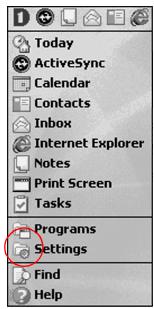
- Tap System
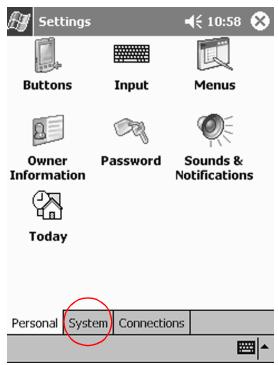
- Tap the Screen icon
- Tap the Align Screen button to begin the realignment process
- Tap the cross-hair object at each location to realign the screen. Be precise when you tap the cross-hair object
- Tap OK
Open applications
Most applications on your Compaq iPAQ Pocket PC are only two taps away from any screen. Open any application on your Compaq iPAQ Pocket PC from the Start menu.
Hint: Open any application by assigning it to an application button
- Tap Start or the Microsoft logo at the upper left of the screen on the menu bar to open the Start menu
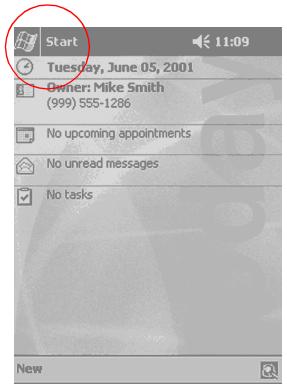
Otherwise, tap the application title on the menu bar to open the Start menu
- Tap Programs to see the applications on your Compaq iPAQ Pocket PC
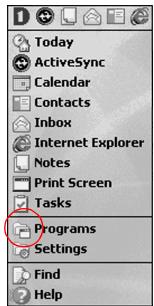
- Tap the application title or icon to open it
Minimize applications
From the application you would like to minimize, tap the x
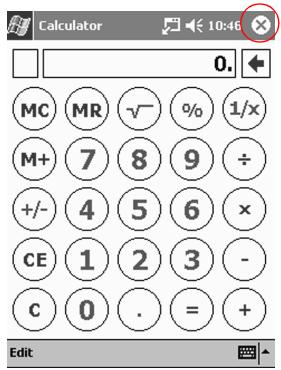
Close applications
Applications should close automatically as you open new applications. However, if your Compaq iPAQ Pocket PC is running slowly, manually close applications.
- From the Start menu, tap Settings
- Tap System
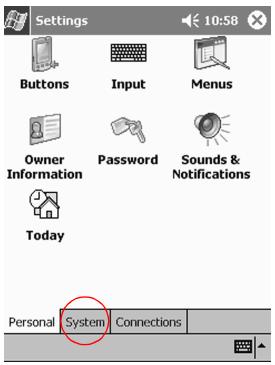
- Tap Memory
- Tap Running Programs
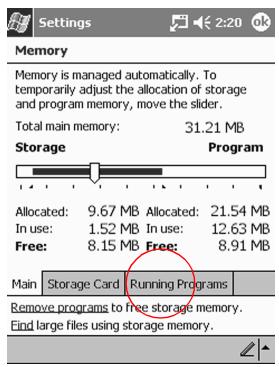
- Tap Stop All to close all applications
Otherwise, select an application and tap Stop
Set the time for home
When you turn on the screen of your Compaq iPAQ Pocket PC for the first time, you are guided through setting the time. Set the time again if
- the battery completely discharges
- you perform a hard reset of your Compaq iPAQ Pocket PC
Hint: From the Today screen, tap the clock icon to set the time.
- From the Start menu, tap Settings
2. Tap System
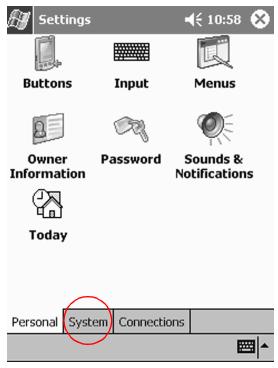
- Tap Clock
- Tap Home
- Tap the time-zone down arrow to select your location and time zone
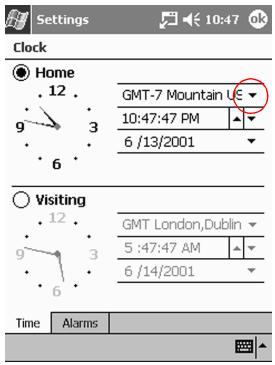
- Tap the hour, minutes, or seconds to select the time you want to adjust
- Tap the up or down arrow to adjust the time
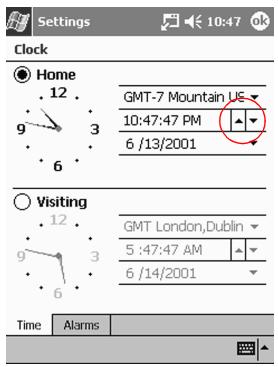
Otherwise, move the hands of the clock with the stylus to adjust the time
- Tap AM or PM to change the time to AM or PM
- Tap OK
- Tap Yes to save your clock settings
Set the time for a location you are visiting
Set the time for a location you are visiting.
Hint: From the Today screen, tap the clock icon to set the time.
- From the Start menu, tap Settings
- Tap System
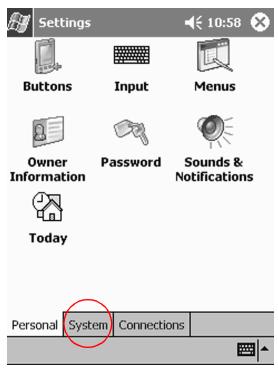
- Tap Clock
- Tap Visiting
- Tap the time-zone down arrow to select the location and time zone
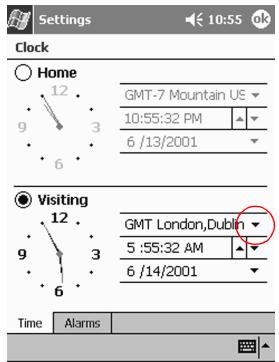
- Tap the hour, minutes, or seconds to select the time you want to adjust
- Tap the up or down arrow to adjust the time
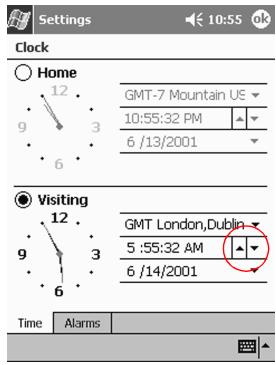
Otherwise, move the hands of the clock with the stylus to adjust the time
-
Tap AM or PM to change the time to AM or PM
-
Tap OK
- Tap Yes to save your clock settings
Set the date
When you turn on the screen of your Compaq iPAQ Pocket PC for the first time, set the date. Set the date again if
- the battery discharges completely
- you perform a hard reset of your Compaq iPAQ Pocket PC
Hint: From the Today screen, tap the clock icon to set the date.
- From the Start menu, tap Settings
- Tap System
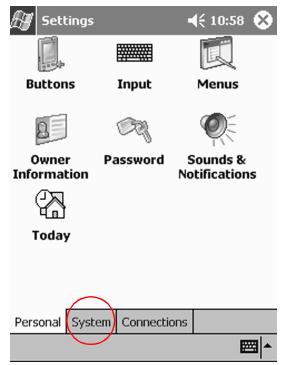
- Tap Clock
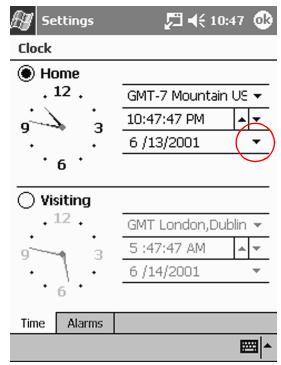
- Tap the date down arrow to see a calendar
- Tap the left or right arrow to move backward or forward through the calendar
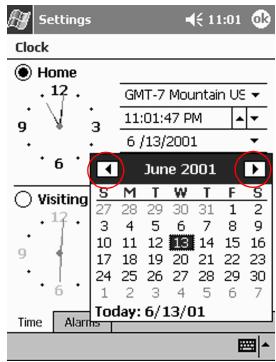
- Tap a day to select the date
- Tap OK
- Tap Yes to save your date settings
Customize the application buttons
By pressing an application button on the front panel, quickly open your Calendar or your Contacts or make a recording.
Customize the front panel buttons to open other applications.
- From the Start menu, tap Settings
- Tap Buttons
- Tap the button you want to change
- Tap the button-assignment down arrow to see a list of applications
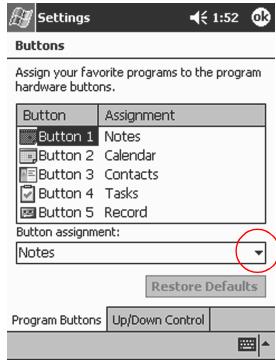
- Tap an application
- Tap OK to assign the application to the button
Tips
I want to restore the default assignments to the application buttons
- From the Start menu, tap Settings
- Tap Buttons
- Tap Restore Defaults
- Tap OK
Enter Information
Enter letters, symbols, and numbers on the Compaq iPAQ Pocket PC screen by
- tapping the Keyboard
- writing with the stylus and using the Letter Recognizer to create text
- writing with the stylus and using the Transcriber to create text
- writing with the stylus and using the Block Recognizer to create text
- drawing and writing with the stylus
Tap the Keyboard, write with the stylus and the Letter Recognizer, write with the stylus and the Transcriber, and write with the stylus and the Block Recognizer in any application. Use the stylus and draw and write on the screen in the Notes application and from any Notes tab in the Calendar, Contacts, and Tasks applications.
Please note that as you type or write, the Compaq iPAQ Pocket PC suggests words for you in a box above the Keyboard, Letter Recognizer, or Block Recognizer but not in the
Transcriber. Change when the suggestions occur (for example, decide how many letters you must enter before the Letter Recognizer will make suggestions) and how many words are suggested.
Change word suggestion options
Change
- if words are suggested
-
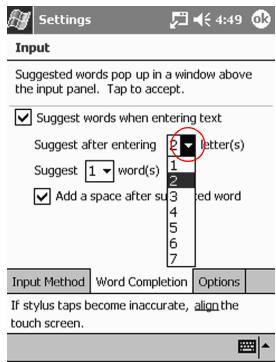
the number of letters you must enter before a word is suggested
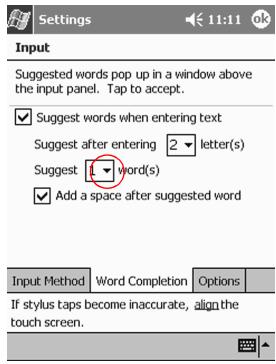
the number of words that are suggested per entry -
From the Start menu, tap Settings
- Tap Input
- Tap Word Completion
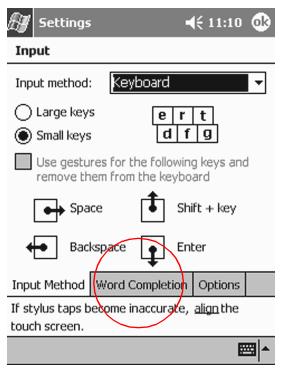
- Tap the down arrow to change the number of letters needed for suggestion
- Tap the down arrow to change the number of words to suggest
- Tap to de-select Suggest Words if you do not want any suggestions
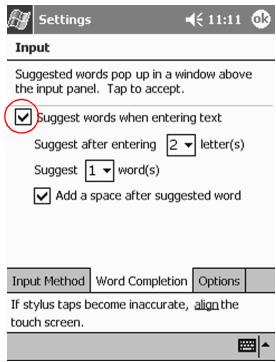
- Tap OK to save your changes
Type with the on-screen Keyboard
Enter typed text directly on the screen by tapping letters, numbers, and symbols on the Keyboard.
Hint: To see the symbols, tap the 123 or Shift key.
- From any application, tap the up arrow next to the Input Panel button
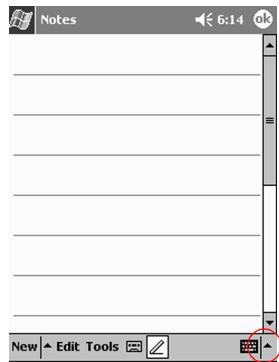
- Tap Keyboard to display a keyboard on the screen
- Tap a letter, symbol, or number to enter information
Write with the stylus and the Letter Recognizer
Write letters, numbers, and symbols on the screen using the stylus and the Letter Recognizer. Create words and sentences by writing in upper case (ABC), lower case (abc), and symbols (123) in specific areas.
- From any application, tap the up arrow next to the Input Panel button
- Tap Letter Recognizer to see a writing area
- Write a letter or symbol between the dashed line and baseline for the Letter Recognizer to work effectively
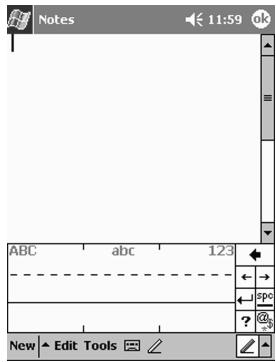
Write a letter between the hatchmarks labeled ABC to type text in upper case
Write a letter between the hatchmarks labeled abc to type text in lower case
Write a number or symbol between the hatchmarks labeled 123 to type symbols
- What you write on the screen will be converted to text
Write with the stylus and the Transcriber
Write words, letters, numbers, and symbols anywhere on the screen using the stylus and the Transcriber.
- From any application, tap the up arrow next to the Input Panel button
-
Tap Transcriber
-
Write anywhere on the screen
- What you write on the screen will be converted to text
Write with the stylus and Block Recognizer
Write letters, numbers, and symbols using the stylus and the Block Recognizer. Create words and sentences by writing letters and numbers in specific areas.
- From any application, tap the up arrow next to the Input Panel button
- Tap Block Recognizer
- Write a word, letter, or symbol between the hatchmarks
Write a letter between the hatchmarks labeled abc to type text
Write a number or symbol between the hatchmarks labeled 123 to type a number or symbol
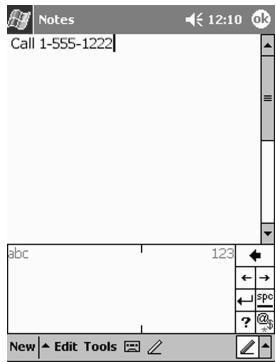
- What you write on the screen will be converted to text
Draw and write on the screen
Use the stylus as a pen to draw and write on the screen in the Notes application or from the Notes tab in
Calendar
- Contacts
Tasks
- From the Start menu, tap Notes
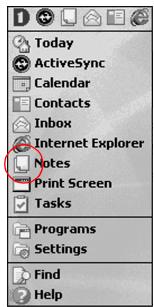
2. Tap New
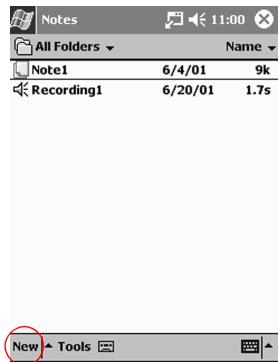
Otherwise, tap the Notes tab in Calendar, Contacts, or Tasks and tap the Pen icon
- Draw and write on the screen
- Tap the Pen icon to de-select it
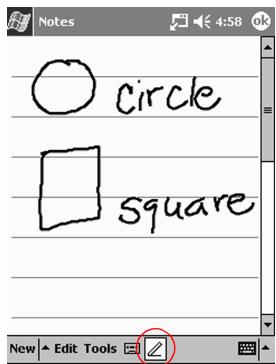
5. Tap OK
Convert writing to text
Convert your writing to text when you write with the pen in the Notes application or from the Notes tab in
Calendar
- Contacts
Tasks
- From the Start menu, tap Notes
Otherwise, tap the Notes tab in Calendar, Contacts, or Tasks
- Tap a note to open it
-
Highlight the word(s) you want to convert to text
-
Tap Tools to see a pop-up menu
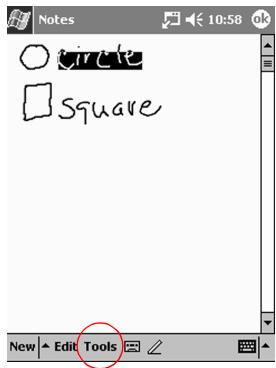
- Tap Recognize to convert writing to text
If you select more than one word to convert to text and one is not recognized, all the other words will be converted to text. The unrecognized word will remain written.
- Tap OK
Tips
I want to address an e-mail message, but I cannot find the @ symbol
- Tap the up arrow next to the Input Panel button
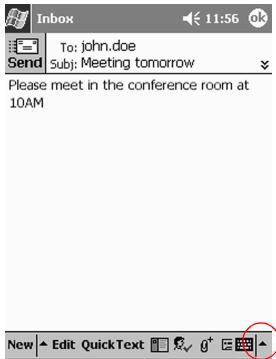
-
Tap Keyboard to display a keyboard on the screen
-
Tap the Shift key
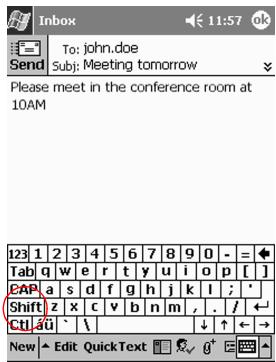
- Tap the @ key where appropriate in an e-mail address
I cannot get the Letter Recognizer to type the correct letter
- Make sure you are writing in the appropriate area (for example, ABC, abc, or 123)
- Write letters without picking up the stylus from the screen
Whenever possible, use one continuous movement to write letters
I did not get the correct word conversion from writing to text. Are there any other possibilities?
- Highlight the word(s) you wrote
- Tap Tools
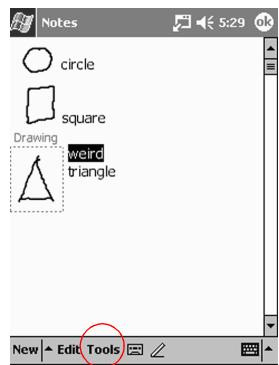
- Tap Alternates to see a list of words
- Tap an alternate
You may want to write the word again if the alternates are not correct.
- Tap OK
The application does not recognize my writing
- Write your letters close together
- Leave plenty of space between words
- Zoom in to improve character recognition
- Use the lined page
- Write legibly and try to stay between the lines
I want to change the words I typed on the Keyboard or wrote in the Letter Recognizer
- Highlight the word(s) you typed or wrote
- Type or write over the word(s)
Otherwise, tap and hold the highlighted text to see a pop-up menu with cut, copy, paste, and clear options
Your Compaq iPAQ Pocket PC H3800 Series lets you communicate in many ways:
- connect to a computer
- connect to the Internet or your network
- create and organize contacts
use the e-mail Inbox - record messages with the microphone
take notes
Connect to a Computer
Connect your Compaq iPAQ Pocket PC to your computer using Microsoft ActiveSync 3.5 and either a USB or serial cable and a universal cradle or an infrared connection.
With Microsoft ActiveSync 3.5,
- synchronize information manually or automatically with applications on your computer
- synchronize information on your server while connected to your computer
- move files to and from your computer
- install applications on your Compaq iPAQ Pocket PC
back up and restore information using the Microsoft ActiveSync 3.5 Backup/Restore utility
Synchronize with your computer
CAUTION: For synchronization to work properly, install Microsoft ActiveSync 3.5 before you first connect your Compaq iPAQ Pocket PC to your computer
During installation,
- create partnerships, which allow you to synchronize information with multiple computers
- select the information to synchronize with your Compaq iPAQ Pocket PC, for example, Contacts, Calendar, Inbox, Tasks, Favorites, Files, Notes, and AvantGo
Hint: If you have selected to synchronize files, drag and drop files from the folders on your computer to the Pocket PC My Documents folder on your desktop. When you synchronize, the files move to your Compaq iPAQ Pocket PC.
-
Insert the Compaq iPAQ Pocket PC Companion CD-ROM
-
Follow the instructions in the installation wizard
For more help, click on the Microsoft ActiveSync 3.5 Help button during installation
- The information you selected will automatically synchronize when your installation is complete
Synchronize information with your server
Synchronizing allows you to share information between your Compaq iPAQ Pocket PC and your server.
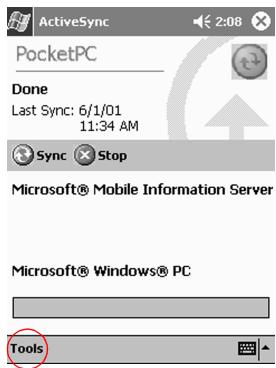
- From the Start menu, tap ActiveSync
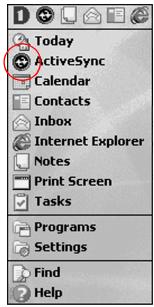
- Tap Tools
-
Tap Options
-
Tap Server
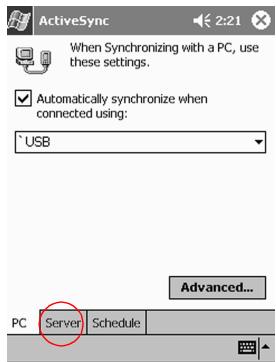
- Tap the information to synchronize with the server
If you have set up your Compaq iPAQ Pocket PC to synchronize with your computer, you are asked if you want to keep duplicate data once you synchronize with the server. Tap to delete the existing data or to keep it and tap OK.
- Tap Settings to change the synchronization settings for your information and tap OK
- Enter the server name
- Tap Advanced
- Select your network and enter your user name, password, and domain
- Tap OK to save your connection options
- Tap OK to return to ActiveSync
Synchronize information using an infrared connection
After setting up a connection with a USB or serial cable and a universal cradle, synchronize your Compaq iPAQ Pocket PC and your computer using an infrared connection if you have an infrared port or an infrared USB adapter installed on your computer. The infrared connection option works only on computers that have Windows® 98, ME, or 2000 operating systems installed.
- Synchronize with your computer using a USB or serial cable and a universal cradle
- Follow your computer manufacturer's instructions to install and set up an infrared port
- Place your Compaq iPAQ Pocket PC and the infrared port so they are unobstructed and within 12 inches of each other
- From the Start menu, tap ActiveSync
- Tap Tools
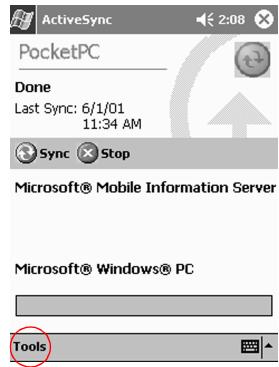
- Tap Connect via IR
- From your computer, open Microsoft ActiveSync 3.5
From the Start menu, click Programs and click Microsoft ActiveSync 3.5
- From the File menu, select Connection Settings
- Click Allow serial cable or infrared connection to this COM port
- Click the down arrow and choose Infrared Port (IR)
- Move the devices away from each other to disconnect
Change your synchronization settings
Change your synchronization settings for Microsoft ActiveSync 3.5 and
- change when your Compaq iPAQ Pocket PC synchronizes with your computer
- change when your Compaq iPAQ Pocket PC synchronizes with your server
- change the type of connection from your Compaq iPAQ Pocket PC to your computer (for example, serial, USB, or infrared connections)
- select the files and information to synchronize with your computer
- select the files and information you do not want to synchronize with your computer (for example, e-mail attachments)
-
determine how conflicts between information on your Compaq iPAQ Pocket PC and information on your computer are handled
-
From your computer, open Microsoft ActiveSync 3.5
From the Start menu, click Programs and click Microsoft ActiveSync 3.5
- From the Tools menu, click Options
On the Sync Options tab, select the files and information to synchronize with your computer
On the Sync Mode tab, select when your Compaq iPAQ Pocket PC synchronizes with your computer
On the Rules tab, determine how conflicts between information on your Compaq iPAQ Pocket PC and information on your computer are handled
- From the File menu, click Connection Settings
Select the type of connection that will be allowed between the Compaq iPAQ Pocket PC and computer
Move files to and from your computer
If you have not selected to synchronize files, move files to and from your computer using Explore in Microsoft ActiveSync 3.5 and Windows Explorer.
Hint: Move important information to the iPAQ File Store folder located in the File Explorer on your Compaq iPAQ Pocket PC. Information in iPAQ File Store is held in ROM and will not be lost if you perform a hard reset of your Compaq iPAQ Pocket PC or if the battery loses its charge. iPAQ File Store can store between 5 and 6 MB of information.
CAUTION: Move your files directly into My Documents or into a folder inside your My Documents folder so the applications on your Compaq iPAQ Pocket PC can find your files.
- From your computer, open Microsoft ActiveSync 3.5
From the Start menu, click Programs and click Microsoft ActiveSync 3.5 - Click Explore
-
Double click to open My Pocket computer
-
Right click the Start menu and select Explore
- Drag and drop your files between My Pocket computer and Windows Explorer
Microsoft ActiveSync 3.5 converts the files so that they can be used by the Pocket Office applications if necessary
Install applications on your Compaq iPAQ Pocket PC
Install applications on your Compaq iPAQ Pocket PC from
- your computer by using Microsoft ActiveSync 3.5
- your Compaq iPAQ Pocket PC if the application file has a .cab extension
- your Compaq iPAQ Pocket PC or your computer by copying an application file that has an .exe or .cef extension
Hint: When installing applications, look for the correct version for the Compaq iPAQ Pocket PC.
Hint: Install important applications to the iPAQ File Store folder located in the File Explorer on your Compaq iPAQ Pocket PC. Applications in iPAQ File Store are held in ROM and will not be lost if you perform a hard reset of your Compaq iPAQ Pocket PC or if the battery loses its charge. iPAQ File Store can store between 5 and 6 MB of information.
- Follow the instructions in the installation wizard to install applications from your computer
- Tap the application file in File Explorer and follow the instructions in the installation wizard to install applications from your Compaq iPAQ Pocket PC
From the Start menu, tap Programs and tap File Explorer to open File Explorer
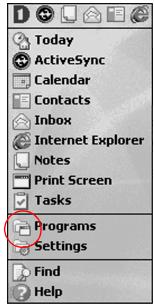
- Move or copy the application file to the Programs folder on your Compaq iPAQ Pocket PC to install applications from your Compaq iPAQ Pocket PC or your computer
- If your application does not run, insert the stylus into the unit reset switch at the bottom of your Compaq iPAQ Pocket PC
- Press the switch for 1 second
Back up and restore using Microsoft ActiveSync 3.5
Back up information to your computer and restore information from your computer to your Compaq iPAQ Pocket PC. Backing up your information regularly helps you reduce the chance of losing any of your information. Restoring your information replaces the current information on your Compaq iPAQ Pocket PC with the information saved in your backup.
CAUTION: Close all applications on your Compaq iPAQ Pocket PC before restoring your information.
- Make sure your Compaq iPAQ Pocket PC is connected to your computer
- From your computer, open Microsoft ActiveSync 3.5
From the Start menu, click Programs and click Microsoft ActiveSync 3.5
- From the Tools menu, click Backup/Restore
- Click the Backup or Restore tab and select your options
- Click Backup Now or Restore Now
Tips
I cannot connect to my computer using a cable or the universal cradle
- Make sure your Compaq iPAQ Pocket PC is connected to your computer
- Make sure the screen of your Compaq iPAQ Pocket PC is on
- If you have a modem or Ethernet card, remove it from your Compaq iPAQ Pocket PC
- Make sure your Compaq iPAQ Pocket PC is set up for a cable connection
- Make sure you do not have any other active connections
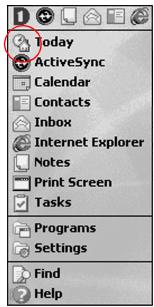
From the Start menu, tap Today
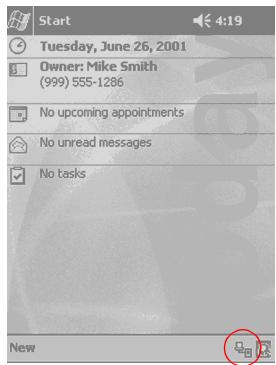
Tap the connection icon and tap Disconnect
- Make sure the cable is plugged in securely
- Make sure your Compaq iPAQ Pocket PC is in the universal cradle securely
-
If you are using a serial cable, make sure it is plugged into the COM port
-
If you are using a USB cable, make sure you are running Windows 98, ME, or 2000 and that you have installed Microsoft ActiveSync 3.5 or a later version on your computer
Download Microsoft ActiveSync 3.5 or a later version at Microsoft's Web site http://www.microsoft.com/pocketpc
- Make sure you install Microsoft ActiveSync 3.5 before connecting your Compaq iPAQ Pocket PC
For synchronization to work properly, install Microsoft ActiveSync 3.5 before you first connect your Compaq iPAQ Pocket PC to your computer. If you connect your Compaq iPAQ Pocket PC before installing Microsoft ActiveSync 3.5, your device driver will not be installed and your Compaq iPAQ Pocket PC will not be recognized.
I connected my Compaq iPAQ Pocket PC before installing Microsoft ActiveSync 3.5
- Remove the USB or serial cable from your computer
- If you have Windows® 98, 2000, or NT 4.0, uninstall the USB or the serial device record
From the Start menu, click Settings
In the Control Panel, click System and the Device Manager opens automatically
Locate and select the USB or the serial device record and click Remove
In Windows® 2000, locate and select the USB or the serial device record and click Uninstall
- Reboot your computer and allow it to detect the USB device record
- Install Microsoft ActiveSync 3.5
Follow the instructions in Synchronize with your computer
- Reconnect your Compaq iPAQ Pocket PC
Microsoft ActiveSync 3.5 cannot locate my Compaq iPAQ Pocket PC when I synchronize
- Make sure your connection is secure
- Make sure the screen is on
- Make sure the battery is charged
- Remove your Compaq iPAQ Pocket PC from the universal cradle or cable, press the power button, and put it back in the universal cradle or connect it to the cable
- Insert the stylus into the unit reset switch and press the switch for 1 second
I want to travel with my Compaq iPAQ Pocket PC
- Back up your information
Follow the instructions in Back up and restore using Microsoft ActiveSync 3.5 or use the Compaq backup utility
-
Take a copy of your backup with you on a CompactFlash memory card or a Secure Digital memory card
-
Disconnect all external devices
- Take the AC adapter and DC adapter plug with you
- Keep your Compaq iPAQ Pocket PC in a protective case and take it with your carry-on luggage
- Be careful of airport security devices
- Find out if you can use your Compaq iPAQ Pocket PC on the plane
I want to travel internationally with my Compaq iPAQ Pocket PC
- Follow the instructions in I want to travel with my Compaq iPAQ Pocket PC
- Follow customs regulations
- Make sure you have the modem, cable, and plug adapter appropriate for the country you are visiting
I want to ship my Compaq iPAQ Pocket PC to a repair facility
- Back up your information
Follow the instructions in Back up and restore using Microsoft ActiveSync 3.5
- Press and hold the two outside application buttons
- Insert the stylus into the unit reset switch at the bottom of your Compaq iPAQ Pocket PC and press the switch for 5 seconds
CAUTION: If you hard reset your Compaq iPAQ Pocket PC, you will lose all of your information.
Hint: Information in iPAQ File Store is held in ROM and will not be lost if you perform a hard reset of your Compaq iPAQ Pocket PC.
- Disconnect all external devices
- Pack your Compaq iPAQ Pocket PC and all external devices in protective packaging
Connect to the Internet or your Network
To send and receive e-mail with Inbox and view Web sites with Pocket Internet Explorer, set up a remote connection using a modem card or an Ethernet/LAN card. To establish the connection, send and receive e-mail or view a Web site. To disconnect, remove the card from your Compaq iPAQ Pocket PC.
Set up a remote connection using a modem card
To connect to the Internet with a modem card, you need a phone line, a dial-up Internet Service Provider, and an optional Single-slot or Dual-slot PC Card Expansion Pack or CompactFlash (CF) Card Expansion Pack.
CAUTION: Insert your modem card before trying to set up a modem connection.
- Insert your modem card into your Single-slot or Dual-slot PC Card Expansion Pack or your CompactFlash (CF) Card Expansion Pack
Most of the popular modem card drivers are included on your Compaq iPAQ Pocket PC, so your modem card should be recognized
If your modem card is not recognized, follow your modem manufacturer's instructions to install the modem card driver on your computer
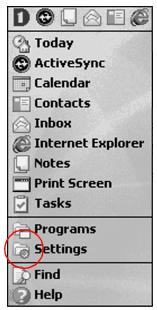
- From the Start menu, tap Settings
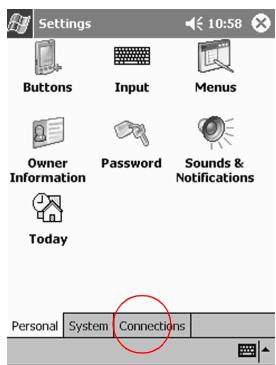
- Tap the Connections tab
- Tap the Connections icon
- Tap Internet Settings
- Tap Modify
- Tap New
-
Enter a name for the connection, select the modem type, and select the correct baud rate for that modem
-
If you need to enter the TCP/IP settings, tap Advanced and tap TCP/IP
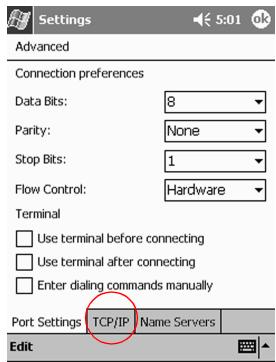
- Select Use specific IP address
- Enter your IP address
- Tap OK
- Tap Next
- Enter the phone number for your Internet Service Provider and tap Next
- Tap Finish to set up the modem connection
Set up a remote connection using an Ethernet/LAN card
To connect to the Internet or to your network with an Ethernet/LAN card, you need
- a computer with an Ethernet card
- a computer set up for TCP/IP and the Client for Microsoft Networks
- an Ethernet hub or a crossover cable to plug in your Compaq iPAQ Pocket PC
-
a Single-slot or Dual-slot PC Card Expansion Pack or a CompactFlash (CF) Card Expansion Pack
-
Insert your Ethernet/LAN card into your Compaq iPAQ Pocket PC
If your Ethernet/LAN card is not recognized, follow your Ethernet card manufacturer's instructions to install the Ethernet card driver
-
If you are using a DHCP server, the network settings should be entered for you automatically
-
If you are not using a DHCP server, enter your network settings
From the Start menu, tap Settings
Tap the Connections tab and tap Network Adapters
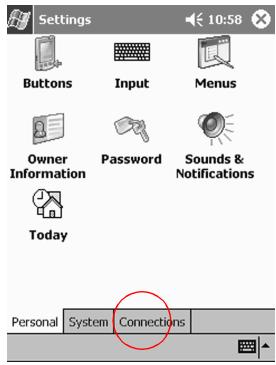
Tap the name of your Ethernet driver and tap Properties
Tap Name Servers and enter the server information
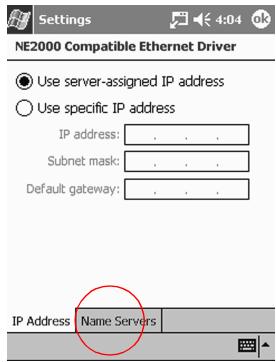
Tap OK to save the server information
Tap OK to save the network settings
Synchronize links to Web sites
Synchronize links to Web sites from your Favorites list on your computer to view them offline with Pocket Internet Explorer.
- From the Start menu on your computer, click Programs
- Click Internet Explorer
- Click Favorites to see the list of links to your favorite Web sites
- To save a Web site link to Mobile Favorites, open the Web site and click Create Mobile Favorite
If you have selected Favorite as information to be synchronized and you are connected, Microsoft ActiveSync 3.5 begins synchronizing with your Compaq iPAQ Pocket PC once you add a link to Mobile Favorites
- Follow the instructions in Synchronize information to manually synchronize your favorite links
View Web sites
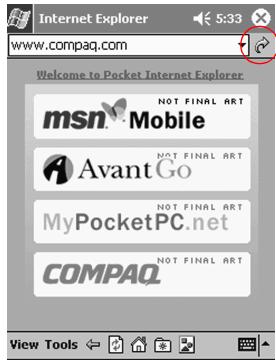
With Pocket Internet Explorer and a connection to the Internet, view Web sites on your Compaq iPAQ Pocket PC. Type a URL in the Address bar or select a Web site from your Favorites list.
CAUTION: Web sites that use HTML 4.0, DHTML, animated GIF images, and Java applets may not work correctly in Pocket Internet Explorer.
- From the Start menu, tap Internet Explorer
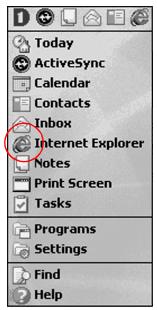
- Tap the Favorites icon and the Web site you want to view to view a Web site in Favorites
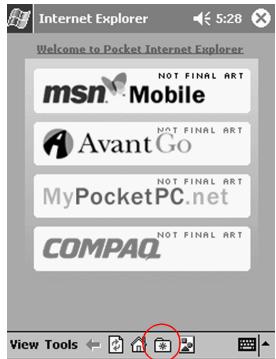
Hint: To open the Address bar, tap View and tap Address Bar Otherwise, enter a Web address in the Address bar and tap Go
Tips
I cannot connect to a network
- Make sure you have a compatible Ethernet/LAN card
- Make sure you have a DHCP server
- Make sure you have added the necessary server information
From the Start menu, tap Settings
Tap Connections and tap Network Adapters
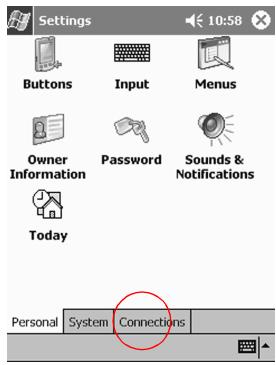
Tap the name of your Ethernet driver and tap Properties
Tap Name Servers and enter the server information
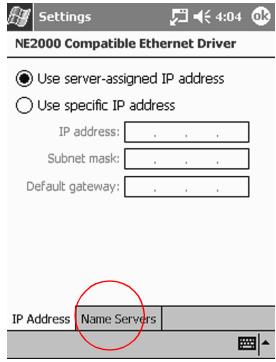
Tap OK to save the server information
- Make sure the network is not busy
Wait a few minutes and try to connect again
- Make sure the proper drivers for your card are installed
- Make sure your user name and password are correct
- Make sure that the network is available
Try to connect from another computer
- Change the device name
From the Start menu, tap Settings
Tap System and tap About
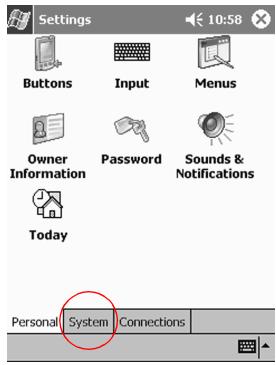
Tap Device ID
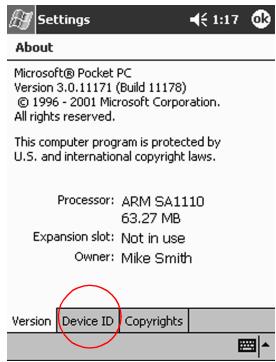
Enter a new name for the device
Tap OK
I installed a driver and it is not recognized
- Remove your card
- Insert the stylus into the unit reset switch at the bottom of your Compaq iPAQ Pocket PC
- Press the switch for 1 second
I do not want my Compaq iPAQ Pocket PC to synchronize with AvantGo channels so often
- Log in to your account at AvantGo's Web site
Go to http://www.avantgo.com
- Click on each of your selected channels and click Properties
- Change the channel refresh settings
- Save the channel settings
Work with Contacts
Enter and view information about friends, family members, or business associates in the Contacts application.
Work with your contact information and do any of the following:
- create a contact
view and edit a contact - categorize your contacts
- delete a contact
Hint: Press the Contact application button to navigate quickly to Contacts.
Create a contact
Hint: Create a contact from the Today screen.
- From the Start menu, tap Contacts
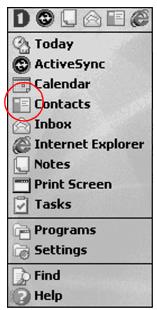
- Tap New to create a new contact
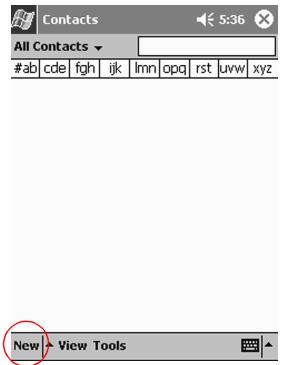
- Tap any item and enter information
Scroll down to see more fields
- Tap the down arrow next to any item and enter additional details about the item
For example, tap the Name down arrow to enter the contact's title, first, middle, and last name, and suffix
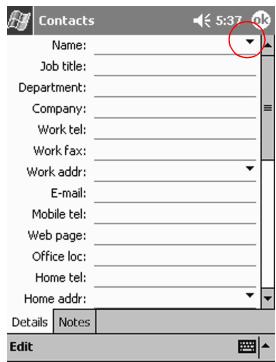
Tap anywhere outside the box to stop entering details
- Tap OK to save the contact information and return to the list of contacts
View and edit a contact
- From the Start menu, tap Contacts to display a list of your contacts from the last category selected
- Tap the down arrow next to the category name to see the list of categories
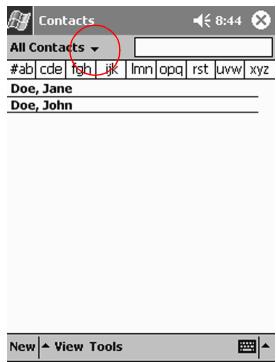
- Tap a category name to see a list of contacts placed in that category
- Tap a contact's name
- Tap Edit to see the contact information
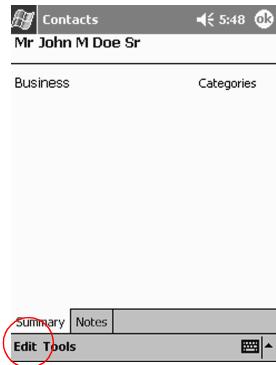
- Edit the contact information and tap OK to save the contact information and return to the list of contacts
Categorize your contacts
Categories filter the list of your contacts, which helps you easily view and edit your contact information.
Hint: After you create a new category, assign a contact to that category so the category appears in the list of categories.
- From the Start menu, tap Contacts
- Tap a contact's name
- Tap Edit to see the contact information
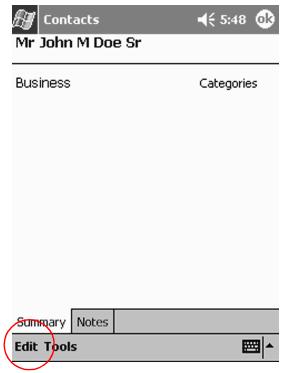
- Tap the Categories field to see a list of available categories
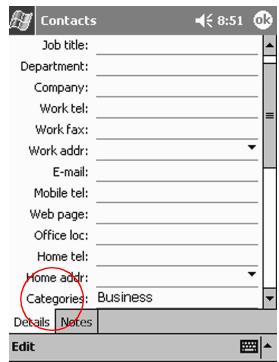
Scroll down to see the Categoriesfield
- Tap the Add/Delete tab to create a category
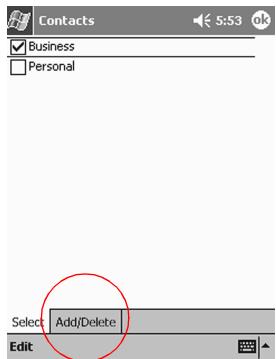
- Enter the name of the new category and tap Add
-
Tap OK to place your contact in the category
-
Tap the Categories field to place your contact in more categories
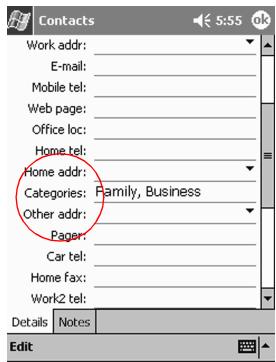
- Tap additional category names to select them and tap OK to list the categories you selected in the Categories field
- Tap OK to save the category information and return to the list of contacts
Delete a contact
CAUTION: If you delete a contact on your Compaq iPAQ Pocket PC and synchronize Contacts with your computer, you also delete the contact in Outlook on your computer.
- From the Start menu, tap Contacts to see a list of your contacts from the last category selected
- Tap the down arrow next to the category name to see a list of categories
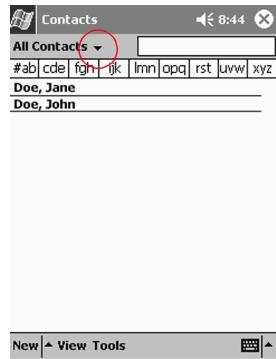
- Tap a category name to see a list of contacts placed in that category
- Tap and hold a contact's name to see a popup menu
- Tap Delete Contact to remove the contact from the list
- Tap Yes to delete the contact permanently
Tips
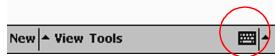
I cannot find the keyboard
Tap the keyboard icon
Use the Inbox
Send and receive e-mail by synchronizing your Compaq iPAQ Pocket PC with your computer using Microsoft ActiveSync 3.5 or connecting to the Internet or your network through an e-mail service.
Use the Microsoft ActiveSync 3.5 folder to send and receive e-mail through Microsoft ActiveSync 3.5. You see the name of the folder you are using at the bottom of the screen. If you are using an e-mail service, use that folder to send and receive e-mail.
The Inbox on your Compaq iPAQ Pocket PC is similar to the Inbox on your computer. E-mail is saved in five default folders:
- Inbox
Outbox
Deleted Items
Drafts
Sent Items
Set up an e-mail service
Set up an e-mail service to send and receive e-mail through an Internet or network connection.
Please note that if you are using Microsoft ActiveSync 3.5 to send and receive e-mail, you do not need to set up an e-mail service.
Use the Microsoft ActiveSync 3.5 folder to send and receive e-mail through Microsoft ActiveSync 3.5. You see the name of the folder you are using at the bottom of the screen. If you are using an e-mail service, use that folder to send and receive e-mail.
- From the Start menu, tap Inbox
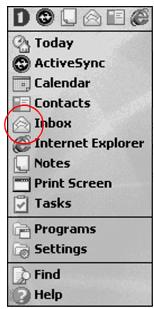
- Tap Services
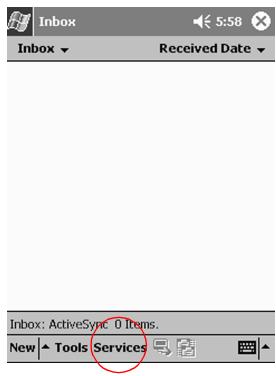
- Tap New Service
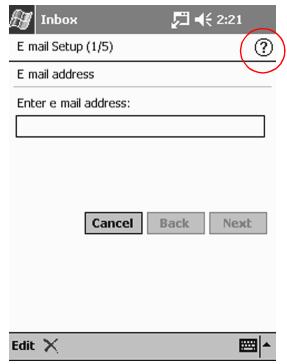
- Enter the required information and tap Next
- Tap the "question mark" icon for help on each screen
Create and send e-mail
Hint: Create e-mail from the Today screen.
If you want to create and send e-mail through an e-mail service, tap Services and select the e-mail service you want to use.
Use the Microsoft ActiveSync 3.5 folder to send and receive e-mail through Microsoft ActiveSync 3.5. You see the name of the folder you are using at the bottom of the screen. If you are using an e-mail service, use that folder to send and receive e-mail.
- From the Start menu, tap Inbox
- Tap New to write a new e-mail
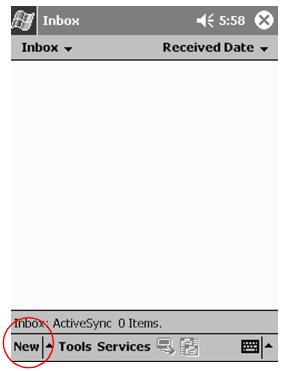
- Tap Send to place the e-mail in the Outbox
The e-mail is sent when you synchronize or it is sent automatically if you are connected to the Internet or your network through an e-mail service
- If you do not want to send your e-mail yet, tap OK to leave your e-mail in the Drafts folder
Attach a file
- From the Start menu, tap Inbox
- Tap New to write a new e-mail
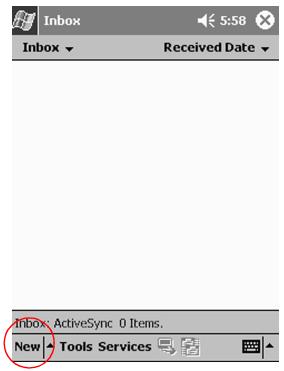
- Tap Edit
- Tap Add Attachment to see the My Documents folder
- Tap the file you want to attach
See the file name you selected below the body of the e-mail
Receive e-mail
Receive e-mail by synchronizing your Compaq iPAQ Pocket PC Inbox with your computer using Microsoft ActiveSync 3.5 or connecting to the Internet or your network through an e-mail service.
Use the Microsoft ActiveSync 3.5 folder to send and receive e-mail through Microsoft ActiveSync 3.5. You see the name of the folder you are using at the bottom of the screen. If you are using an e-mail service, use that folder to send and receive e-mail.
Please note that if you are using Microsoft ActiveSync 3.5, you can synchronize your personal folders from Outlook on your computer with Inbox on your Compaq iPAQ Pocket PC.
Please note that you do not receive e-mail attachments by default. Select this option in Microsoft ActiveSync 3.5.
- From the Start menu, tap Inbox
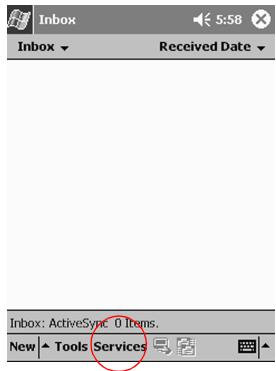
- Tap Services
-
Tap the e-mail service you want to use
-
If you have not set up an e-mail service, synchronize your Compaq iPAQ Pocket PC with your computer
From the Start menu, click Programs and click Microsoft ActiveSync 3.5
Click Sync
Open an e-mail
- From the Start menu, tap Inbox
- Tap the down arrow next to Inbox to see a list of your folders
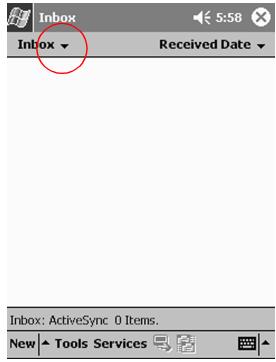
- Tap the folder where you have saved the e-mail
- Tap the e-mail to open it
Delete an e-mail
When you delete e-mail, it is placed in the Deleted Items folder but the e-mail is not permanently deleted until you tap Empty Deleted Items from the Tools menu.
Hint: Tap and hold an e-mail and choose Delete from the pop-up menu to delete an e-mail.
- From the Start menu, tap Inbox
- Tap the folder where you have saved the e-mail
- Tap and hold the e-mail you want to delete
- Tap Delete
Move an e-mail
- From the Start menu, tap Inbox
- Tap the folder where you have saved the e-mail
- Tap and hold the e-mail you want to move
- Tap Move To
- Tap the folder where you want to move the e-mail to
- Tap OK to move the e-mail
Open a folder
If you are using Microsoft ActiveSync 3.5, open the default folders or open your personal folders that you have synchronized from Outlook on your computer with Inbox on your Compaq iPAQ Pocket PC.
If you are using an e-mail service, open the default folders or open any folders that you have created.
- From the Start menu, tap Inbox
- Tap the down arrow next to Inbox to see a list of your folders
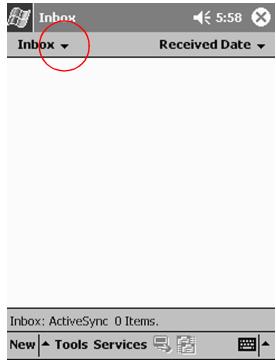
- Tap a folder to see the e-mail in that folder
Manage your folders
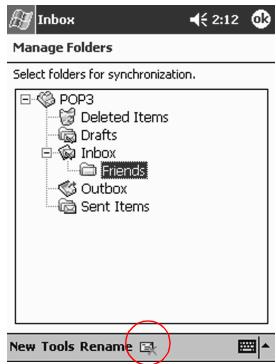
Manage folders to organize your e-mail if you are using an e-mail service. Create additional folders and rename or delete any folders that you create.
Please note that if you are using Microsoft ActiveSync 3.5, you cannot create additional folders in Inbox. However, you can synchronize your personal folders from Outlook on your computer with Inbox on your Compaq iPAQ Pocket PC. You cannot rename or delete these folders in Inbox.
- From the Start menu, tap Inbox
- Tap Services
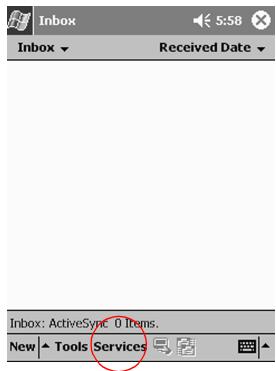
- Tap the e-mail service you want to use
4. Tap Tools
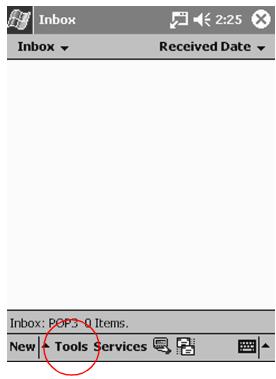
5. Tap Manage Folders
6. Tap New to create a new folder
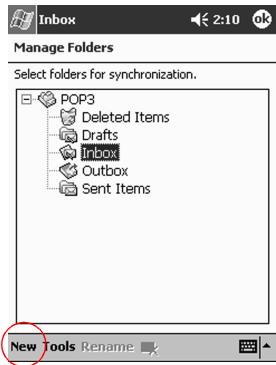
7. Tap Rename to rename a folder
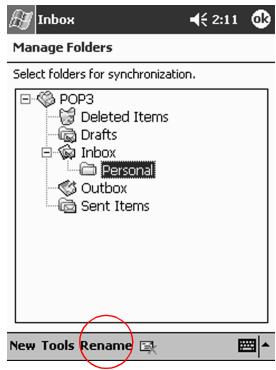
8. Tap Remove Folder to delete a folder
Tips
I cannot open e-mail in the Inbox after I restore using Microsoft ActiveSync 3.5
Synchronize with Microsoft ActiveSync 3.5 to link your e-mail from your Compaq iPAQ Pocket PC with your computer
I try to open the Inbox but receive an error or the application hangs
Limit the number of e-mail services you create
Record Voice
Record your voice or any other sound as a note within the Calendar, Contacts, Notes, and Tasks applications. In the Notes application, create stand-alone recordings, which are stored as separate .wav files in File Explorer.
Hint: Press the Record button to quickly make a recording.
Record
- From the Start menu, tap Notes
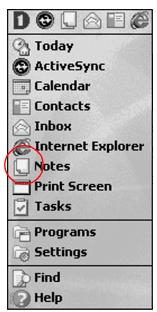
- Tap the cassette tape icon to see the recording controls
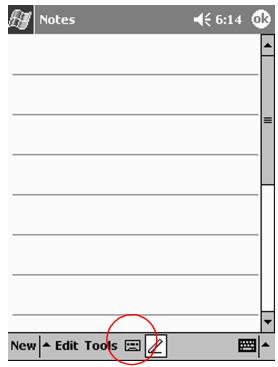
- Tap the Record icon to start recording
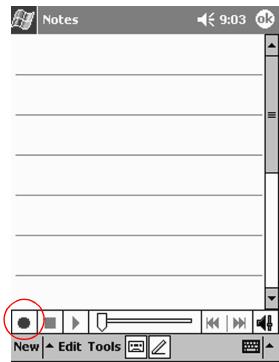
- Position the microphone to record your voice or other sound
- Tap the Stop icon to finish recording
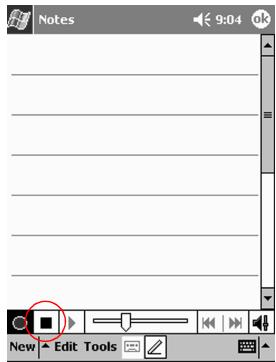
You see a speaker icon
Listen
- From the Start menu, tap Notes
- Tap a speaker icon to listen to a recording
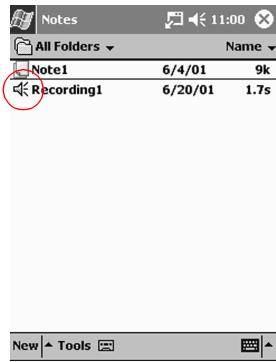
Otherwise, tap a note and tap the speaker icon in the note to listen to the recording.
Tips
I want to improve the quality of the voice recording
- From the Start menu, tap Settings
- Tap Input
- Tap Options
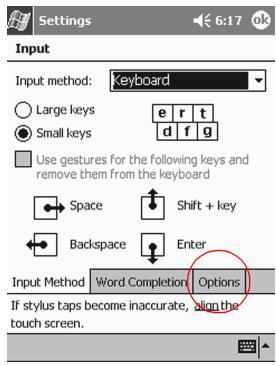
- Tap the Voice recording format drop-down menu and select a format with a higher frequency
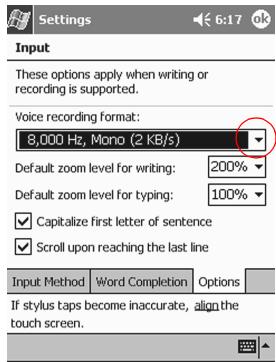
- Tap OK
I get an error when I try to record a note in Calendar or in Tasks
Try using a more compressed recording format in Calendar or in Tasks
For example, 8,000Hz , Mono (.7 KB/s) is the most compressed format available
I want to delete a recording within a note
- From the Start menu, tap Notes
-
Tap a note to open it
-
Tap the keyboard icon
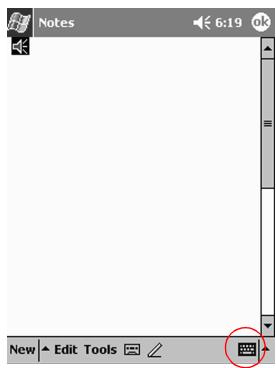
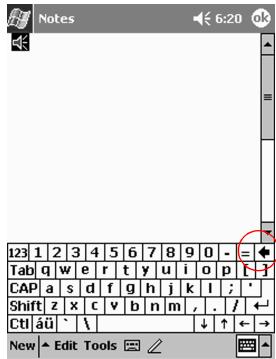
- Highlight the speaker icon
- Tap the backspace key on the keyboard to delete the recording
I want to adjust the volume of a recording
- From the Start menu, tap Notes
- Tap the speaker icon to listen to the recording
- Tap the volume icon to see the volume scale
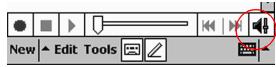
- Tap the volume scale to adjust the volume
Take Notes
Take notes in the Calendar, Contacts, Notes, and Tasks applications. Type, write, or draw in your note. In the Notes application, create a blank note or a note based on a template you choose or you create.
Create a note
Hint: Create a note from the Today screen.
- From the Start menu, tap Notes
2. Tap New
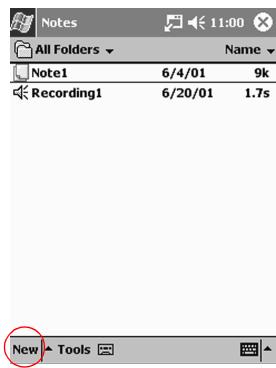
- Tap anywhere and enter your note
- Tap OK to save your note and place it in the list of notes
Your Compaq iPAQ Pocket PC H3800 Series helps you keep track of your schedule in many ways:
see information at a glance on the Today screen
- set appointments and create reminders with the Calendar
- create a task list
Use the Today Screen
You see the Today screen when you first turn on the screen of your Compaq iPAQ Pocket PC. Use the Today screen to view your
owner information
- upcoming appointments
- unread and unsent messages
- tasks that need to be completed
From the Today screen, open the New menu to create new
- appointments
- contacts
e-mail - Excel workbooks
notes - tasks
Word documents
Create new information from the Today screen
From the Today screen, create new information, including
- appointments
- contacts
e-mail - Excel workbook information
notes - tasks
Word documents
For more information on creating these items, see the appropriate instructions for each task in this guide. For example, to create a new appointment, see Schedule an appointment and set a reminder.
- From the Start menu, tap Today
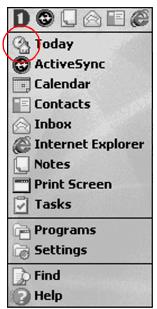
- Tap New to open the New menu
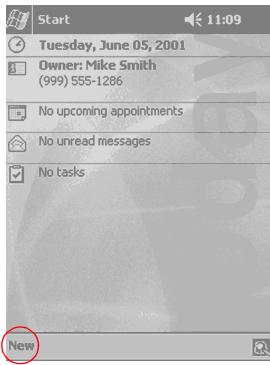
- Tap to create a new item
Change information from the Today screen
From the Today screen, change information, including
owner information
- upcoming appointments
- unread and unsent messages
- tasks that need to be completed
For more information on changing these items, see the appropriate instructions for each task in this guide. For example, to create a new appointment, see Schedule an appointment and set a reminder.
- From the Start menu, tap Today
- Tap the information you want to change
3. Enter or change the information
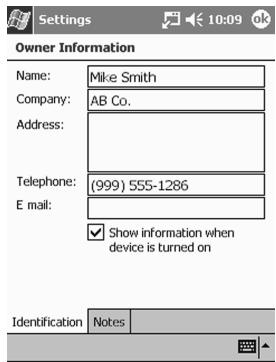
4. Tap OK to save changes and return to the Today screen
Otherwise, tap OK and from the Start menu, tap Today to return to the Today screen
Customize the appearance of the Today screen
From the Today Settings screen,
- add a picture as the background
- select the information you see
- set the order of the information
- decide when to see the Today screen
1. From the Start menu, tap Settings
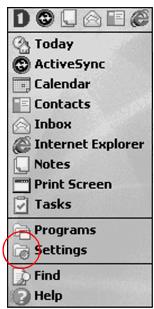
2. Tap Today
3. Add a picture
Tap the checkbox to use your picture as the background
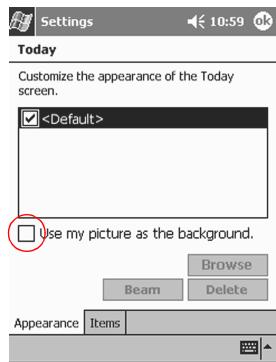
Tap Browse to select a picture from File Explorer
- Tap Items to select or reorder the information on the Today screen
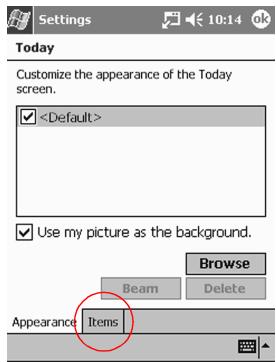
Tap to select an item
Tap Move Up or Move Down to reorder the item; you cannot move Date
Tap to select an item
Tap Options to select display options for that item; you cannot select options for Date, Owner Info, or Inbox
- Tap Display to set a time before the Today screen is displayed
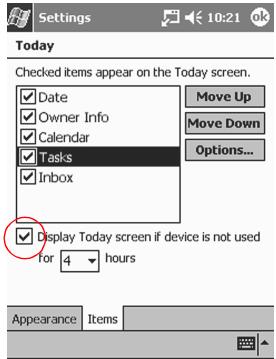
- Tap the down arrow to select the amount of time that passes before you see the Today screen
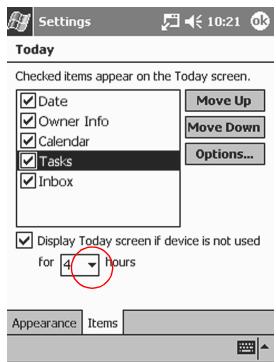
- Tap OK
Use the Calendar
Use the Calendar to
- schedule appointments
set reminders
View your calendar by
- agenda
day
week - month
year
Hint: Keep the amount of information in your appointments small to conserve memory.
Hint: Press the Calendar application button to navigate quickly to Calendar.
Look at your Calendar
By default, the Calendar first appears in the Agenda view, which provides the most detail about your appointment.
From the Start menu, tap Calendar
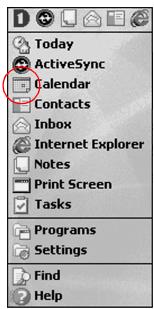
Change the Calendar view
By default, the Calendar first appears in the Agenda view, which provides the most detail about your appointment. Also view your calendar by
day
week
- month
year
- From the Start menu, tap Calendar
- Tap the Agenda, Day, Week, Month, or Year icon to see your calendar in that view
Customize the appearance of the Calendar
Customize the appearance of your calendar by setting the 1st day of the week, deciding how many days in a week you want to view, showing the number of weeks and the half-hour time slots, deciding to use a large font, and deciding to set reminders for new items. Display several icons that give visual information about your appointments, including
- Reminder
Recurs
Note - Location
- Attendees
Private
Decide to send meeting requests through Microsoft ActiveSync 3.5 or an e-mail service.
- From the Start menu, tap Calendar
- Tap Tools
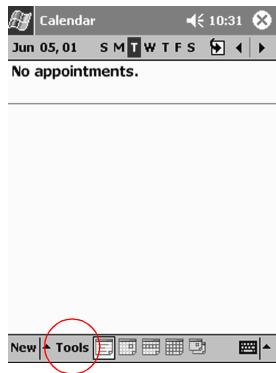
- Tap Options
- Select the calendar options
Schedule an appointment and set a reminder
Hint: Keep the amount of information in your appointments small to conserve memory.
Hint: Schedule an appointment and set a reminder from the Today screen.
-
From the Start menu, tap Calendar
-
Tap New to schedule an appointment
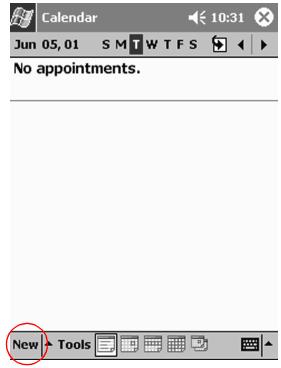
- Enter the subject
Tap the down arrow to select a predefined subject
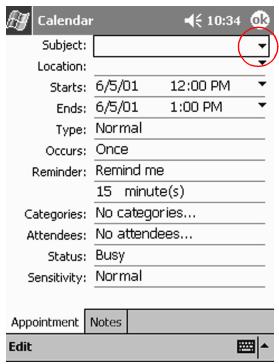
If you do not enter a subject, you see No subject in the field
- Tap any item to enter additional information
For example, to schedule an All Day appointment, tap Type and tap All Day. By default, a reminder of 15 minutes is set
- Tap 15 and tap the down arrow to change the time of the reminder
- Tap minute(s) to change the unit of time
- Tap OK to set the reminder and schedule the appointment
Send a meeting request
Schedule a meeting and send a meeting request through Microsoft ActiveSync 3.5 or an e-mail service. Please note that you must enter contacts with e-mail addresses in the Contacts application and set up the Inbox application to send and receive e-mail before you can send a meeting request.
For more information about entering contacts, see Work with Contacts. For more information about setting up the Inbox application, see Use the Inbox.
- From the Start menu, tap Calendar
2. Tap Tools
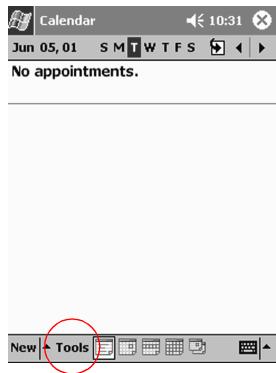
- Tap Options
- Tap the Send-meeting-requests via down arrow
- Tap the e-mail service you want to use to send a meeting request and tap OK Otherwise, tap ActiveSync to send a meeting request through Microsoft ActiveSync 3.5
- Tap New to create a new appointment
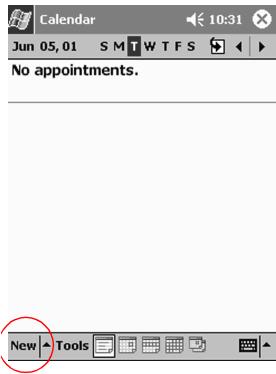
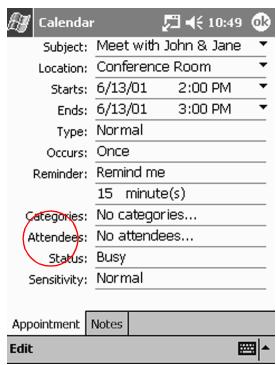
- Enter the information
- Tap the Attendees field
-
Tap the contacts you want to invite to the meeting
-
Tap OK to add the attendees
- Tap OK to schedule the meeting
Inbox automatically creates a meeting request and sends it to the attendees the next time you connect to the Internet or your network or the next time you synchronize
Hint: If you make a change to the meeting information, a box asks if you want to inform the attendees about the meeting changes.
Categorize your appointments
Categories filter the appointments you see in your calendar.
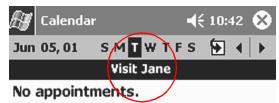
- From the Start menu, tap Calendar
- Tap an appointment
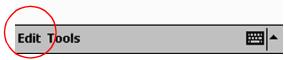
- Tap Edit
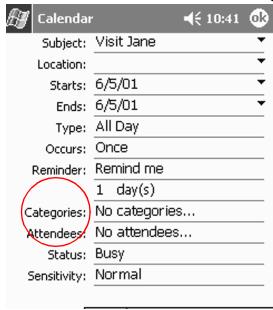
- Tap the Categories field to see a list of available categories
- Tap Add/Delete to create a category
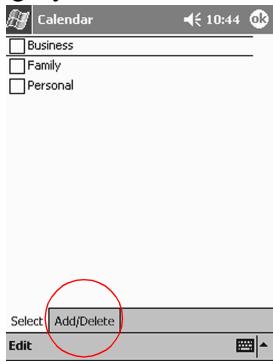
- Enter the name of the new category and tap Add
- Tap OK to place your appointment in the category
-
Tap the Categories field to place your appointment in more categories
-
Tap additional category names to select them and tap OK to list the categories you selected in the Categories field
- Tap OK to save the category information and return to the Calendar screen
Delete an appointment
Hint: Tap and hold an appointment and choose Delete Appointment from the pop-up menu to delete an appointment.
- From the Start menu, tap Calendar
- Tap an appointment to view it
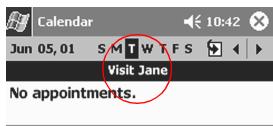
- Tap Tools
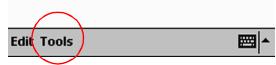
- Tap Delete Appointment
- Tap Yes to delete the appointment permanently
Tips
I want to see the current date
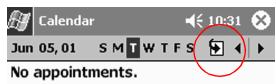
- From the Start menu, tap Calendar
- Tap the Go-to-Today icon to see today's date
I cannot see all of my appointments
Hint: The Calendar allows you to view your appointments by category. If an appointment you created is not in the selected category, you will not see it.
- From the Start menu, tap Calendar
- Tap Tools
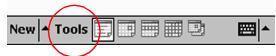
- Tap Categories
- Tap to de-select any categories that you may have selected
- Tap OK
Use Tasks
Use Tasks to
- create new tasks
- set a reminder for a task
- delete a task
sort your task list by category, status, priority, subject, start date, and due date
Create a task and set a reminder
Hint: Create a task and set a reminder from the Today screen.
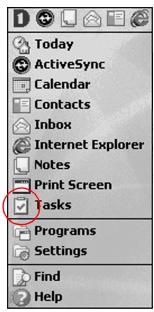
- From the Start menu, tap Tasks
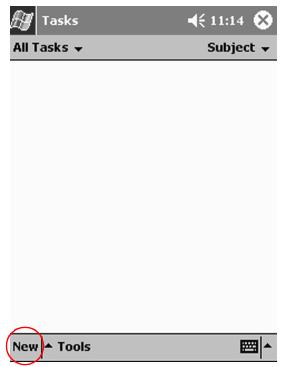
- Tap New to create a new task
- Enter the subject
Tap the down arrow to select a predefined subject
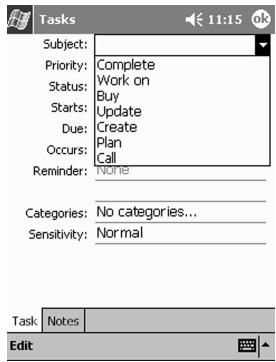
If you do not enter a subject, you see No subject in the field
- Tap any item to enter additional information
For example, tap the Sensitivity field and tap Private to make the task private
- Tap Due to add a due date for the task
- Tap Reminder and select Remind me
- Tap the date to select when you want to be reminded
- Tap OK to set the reminder and create the task
Delete a task
Hint: Tap and hold a task and choose Delete Task from the pop-up menu to delete a task.
- From the Start menu, tap Tasks
- Tap the task you want to delete
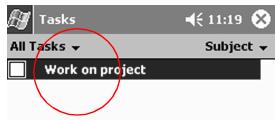
- Tap Tools
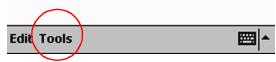
- Tap Delete Task
- Tap Yes to permanently delete the task
Sort the tasks
- From the Start menu, tap Tasks
- Tap the down arrow at the top left of the screen to sort the task list by category
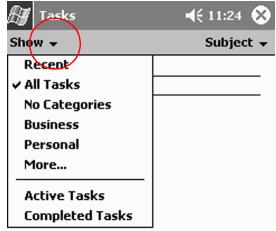
- Select a category
- Tap the down arrow at the top right of the screen to sort the task list by status, priority, subject, start date, or due date
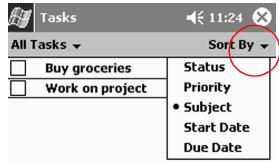
- Select a sort option
Customize the appearance of Tasks
Customize the appearance of Tasks to use a large font, show the start and end dates, and set reminders for new items.
- From the Start menu, tap Tasks
- Tap Tools
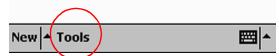
- Tap Options
- Select the Tasks options
Customize to create a task quickly
Create a task quickly by customizing Tasks so you see an Entry Bar at the top of the Tasks screen. In the Entry Bar, enter the subject and select the priority of your task to create the task and add it to your task list.
- From the Start menu, tap Tasks
- Tap Tools
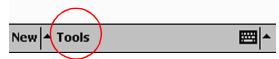
- Tap Entry Bar to see the Entry Bar at the top of the Tasks screen
- Enter the subject
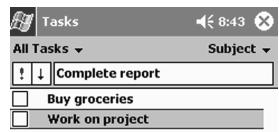
- Select the priority
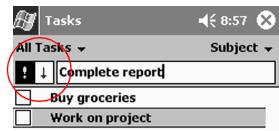
Tap the exclamation point icon to make the task high priority
Tap the down arrow icon to make the task low priority
Do not tap an icon to make the task normal priority
- Tap outside the Entry Bar to add the task to your task list
Using Software
With the applications on your Compaq iPAQ Pocket PC H3800 Series, be up to date and organized even away from your computer by
- opening or creating new Word documents
- opening or creating new Excel workbooks
viewing maps and points of interest with Pocket Streets* - reading eBooks with Microsoft Reader
Use Pocket Word
Create new Word documents from your Compaq iPAQ Pocket PC or synchronize existing Word documents from your computer to your Compaq iPAQ Pocket PC. Microsoft ActiveSync 3.5 converts Word documents into the Pocket Word format and changes the .doc extension to a .psw extension.
CAUTION: Because Microsoft ActiveSync 3.5 converts Word documents into the Pocket Word format, you may lose some formatting from the original Word document. Some formatting information (for example, the margins and the paper size) may be restored when the Pocket Word documents are synchronized with your computer and converted back to the Word format.
Pocket Word does not support
columns
numbered lists
- headers and footers
- footnotes
style sheets
Open a Word document
Using Microsoft ActiveSync 3.5, move existing Word documents to your Compaq iPAQ Pocket PC, convert them automatically to the Pocket Word format, and open them, or open documents you created on your Compaq iPAQ Pocket PC.
CAUTION: Pocket Word recognizes and displays documents in one folder below My Documents. For example, if you created another folder in the Personal folder in My Documents, the documents in that folder will not be shown.
- From the Start menu, tap Programs
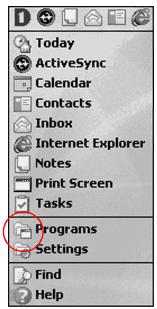
- Tap Pocket Word
- Tap a document to open it
Create a new document
Hint: Also, create a new document from the Today screen.
- From the Start menu, tap Programs
- Tap Pocket Word
- Tap New to create a new document
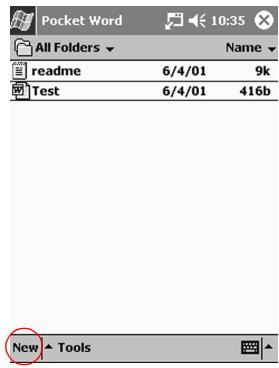
- Tap View and tap Toolbar to format text
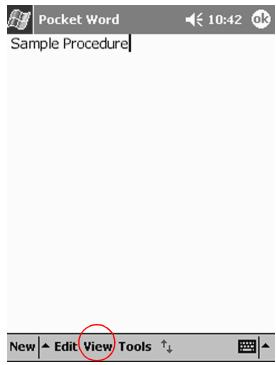
- Tap OK to close and save the document
The document is automatically saved as a Pocket Word Document with the first few words of your text as its name. You may want to rename it.
Hint: Save important documents in the iPAQ File Store folder located in the File Explorer on your Compaq iPAQ Pocket PC. Documents in the iPAQ File Store are held in ROM and will not be lost if you perform a hard reset of your Compaq iPAQ Pocket PC or if the battery loses its charge. iPAQ File Store can store between 5 and 6 MB of information.
Change the Pocket Word options
From the Pocket Word Options
- select a default template
- select whether documents are stored in main memory or on a memory card
-
select which types of documents are displayed in the list view
-
From the Start menu, tap Programs
- Tap Pocket Word
- Tap Tools and tap Options
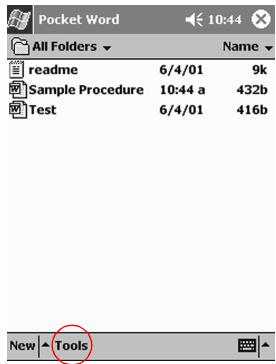
- Tap the Default-template down arrow to select a default template
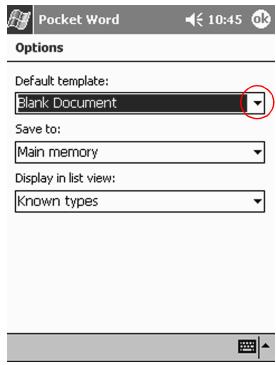
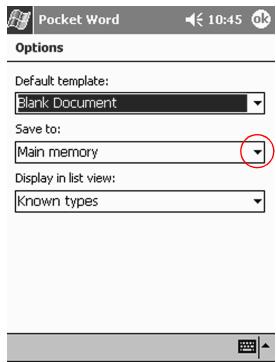
- Tap the Save-to down arrow to store documents in main memory or on a memory card
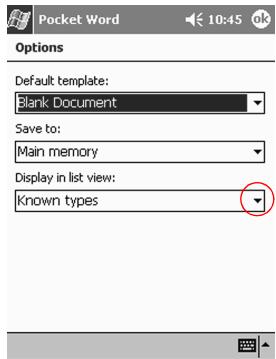
- Tap the Display-in-list-view down arrow to select which types of documents to display in the list view
- Tap OK to save the options
Find more help for Pocket Word
- From the Start menu, tap Help
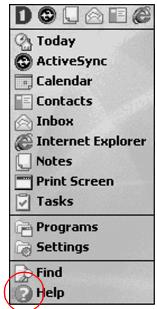
- Tap Pocket Word
Tips
I cannot find the document I saved
Pocket Word only recognizes and displays documents in one folder below My Documents. For example, if you created another folder in the Personal folder in My Documents, the documents in that folder will not be shown.
Use Pocket Excel
Create new Excel workbooks from your Compaq iPAQ Pocket PC or synchronize existing Excel workbooks from your computer to your Compaq iPAQ Pocket PC. Microsoft ActiveSync 3.5 converts Excel workbooks into the Pocket Excel format and changes the .xlsx extension to a .pxl extension.
CAUTION: Because Microsoft ActiveSync 3.5 converts Excel workbooks into the Pocket Excel format, you may lose some formatting from the original Excel workbook.
Pocket Excel does not support
data validation
cell notes
- add-ins
protection
- scenarios
- object charts
vertical alignment
text boxes
- embedded OLE objects
hyperlinks
Open a workbook
CAUTION: Pocket Excel only recognizes and displays documents in one folder below My Documents. For example, if you created another folder in the Personal folder in My Documents, the documents in that folder will not be shown.
- From the Start menu, tap Programs
- Tap Pocket Excel
- Tap a workbook to open it
Create a new workbook
Hint: Also, create a new workbook from the Today screen.
- From the Start menu, tap Programs
-
Tap Pocket Excel
-
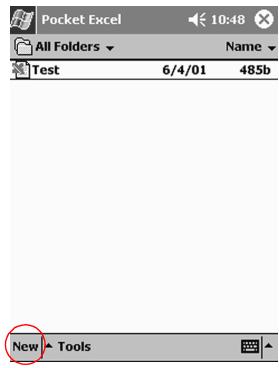
Tap New to create a new workbook
- Tap OK to close and save the workbook
The workbook is automatically saved as a Pocket Excel workbook named Book1. Depending on how many workbooks you have created since opening Pocket Excel, you may want to rename it
Hint: Save important workbooks in the iPAQ File Store folder located in the File Explorer on your Compaq iPAQ Pocket PC. Workbooks in the iPAQ File Store are held in ROM and will not be lost if you perform a hard reset of your Compaq iPAQ Pocket PC or if the battery loses its charge. iPAQ File Store can store between 5 and 6 MB of information.
Change the Pocket Excel options
From the Pocket Excel Options,
- select a template for new workbooks
- select whether workbooks are stored in main memory or on a memory card
-
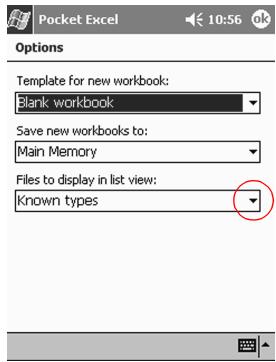
select which types of workbooks are displayed in the list view
-
From the Start menu, tap Programs
- Tap Pocket Excel
- Tap Tools and tap Options
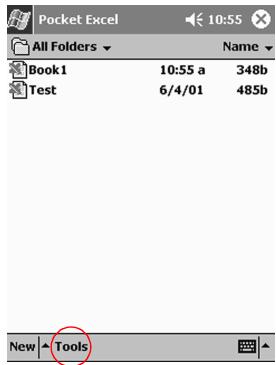
- Tap the Template-for-new-workbook down arrow to select a template
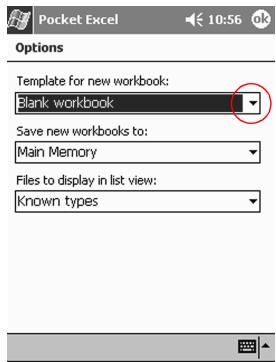
- Tap the Save-new-workbooks-to down arrow to store workbooks in main memory or on a memory card
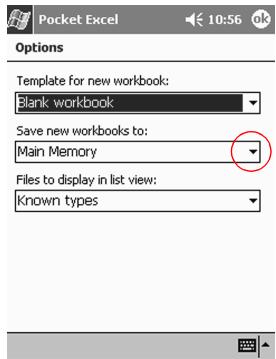
- Tap the Files-to-display-in-list-view down arrow to select which workbooks are displayed in the list view
- Tap OK to save the options
Find more help for Pocket Excel
- From the Start menu, tap Help
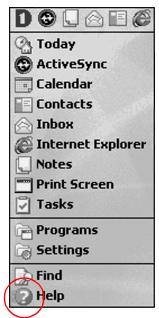
- Tap Pocket Excel
Tips
I cannot find the workbook I saved
Pocket Excel only recognizes and displays documents in one folder below My Documents. For example, if you created another folder in the Personal folder in My Documents, the documents in that folder will not be shown.
I tried to synchronize a workbook and the file is unresolved in Microsoft ActiveSync 3.5
Pocket Excel does not support all Excel formatting; therefore, Microsoft ActiveSync 3.5 cannot synchronize the file.
Use Pocket Streets
Use Pocket Streets* to view maps and points of interest. Pocket Streets does not include maps, but you can copy them from your Compaq iPAQ Pocket PC Companion CD-ROM. Alternatively, create maps in a mapping application on your computer or download maps from the Internet.
*not available for all countries
You need to install Pocket Streets from your Compaq iPAQ Pocket PC Companion CD-ROM.
Hint: You cannot install the Pocket Streets application on a memory card, but you can store extra maps on a memory card.
Install Pocket Streets
Because Pocket Streets does not come preinstalled on your Compaq iPAQ Pocket PC, install Pocket Streets from your Compaq iPAQ Pocket PC Companion CD-ROM.
Hint: You cannot install the Pocket Streets application to a memory card, but you can store extra maps on a memory card.
Hint: Install important applications in the iPAQ File Store folder located in the File Explorer on your Compaq iPAQ Pocket PC. Applications in the iPAQ File Store are held in ROM and will not be lost if you perform a hard reset of your Compaq iPAQ Pocket PC or if the battery loses its charge. iPAQ File Store can store between 5 and 6 MB of information.
- Insert the Compaq iPAQ Pocket PC Companion CD-ROM
- Locate Pocket Streets
- Click Pocket Streets to install the application
Copy maps from the Compaq iPAQ Pocket PC Companion CD-ROM
Pocket Streets does not include maps, but you can copy them from your Compaq iPAQ Pocket PC Companion CD-ROM. Alternatively, create maps in a mapping application on your computer or download maps from the Internet.
Hint: Because map files are large, you may want to store them on a memory card to reduce the amount of space you use on your Compaq iPAQ Pocket PC.
- Insert the Compaq iPAQ Pocket PC Companion CD-ROM
- Locate the map files
- Move the map files to your Compaq iPAQ Pocket PC
Drag and drop files from the CD-ROM to the Pocket PC My Documents folder on your desktop
When you synchronize, the files move to your Compaq iPAQ Pocket PC
Hint: Copy important maps in the iPAQ File Store folder located in the File Explorer on your Compaq iPAQ Pocket PC. Maps in the iPAQ File Store are held in ROM and will not be lost if you perform a hard reset of your Compaq iPAQ Pocket PC or if the battery loses its charge. iPAQ File Store can store between 5 and 6 MB of information.
View Points of Interest
Choose the points of interest to display on your maps
- restaurants
-
movie theatres
ATMs
banks -
From the Start menu, tap Programs
- Tap Pocket Streets
- Tap a map to open it
4. Tap Tools
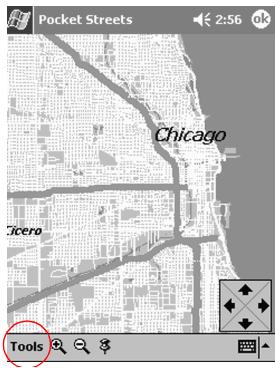
- Tap Points of Interest
- Tap to select the points of interest you want for your map
- Tap OK to return to the map
Add a pushpin
Add a pushpin to a map to mark a location of interest to you. For example, add a pushpin to mark the location of your friend's house.
- From the Start menu, tap Programs
- Tap Pocket Streets
- Tap a map to open it
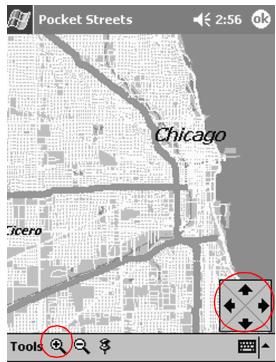
- Tap the zoom icon and the arrows to find the location where you want to add a pushpin
5. Tap the pushpin icon
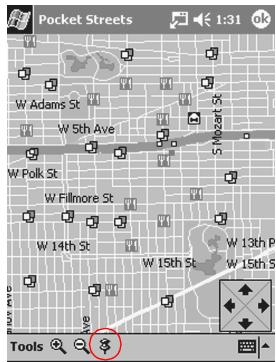
6. Tap the location
- Enter a name for the pushpin and a note if you want to include more information
- Tap OK to add the pushpin to the map
Print a map
Print a map stored on your Compaq iPAQ Pocket PC.
- From the Start menu, tap Programs
- Tap Pocket Streets
- Tap a map to open it
- Tap Tools
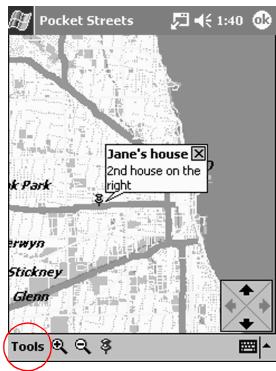
- Tap Map
- Tap Copy Map
- From the Start menu, tap Programs
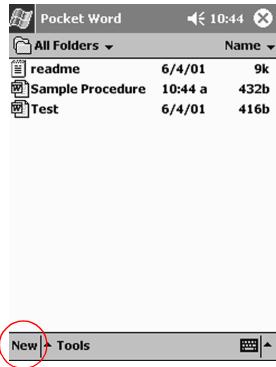
- Tap Pocket Word
- Tap New to create a new document
- Tap Edit
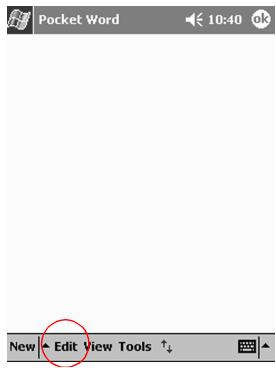
- Tap Paste to paste the map into the document
- Tap OK to save the document
- Synchronize the document with your computer
- Open the document on your computer
- Print the document
Change the Map Styles
Using Map Styles, select
a light or dark background
- the level of street detail to include on the map
- From the Start menu, tap Programs
- Tap Pocket Streets
- Tap a map to open it
- Tap Tools
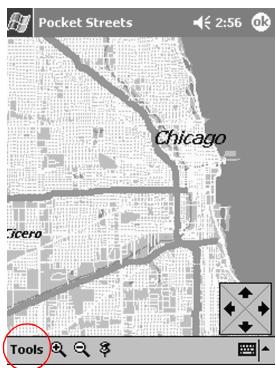
- Tap Map
- Tap Map Styles
- Tap to select the background and the street detail
- Tap OK to return to the map
Tips
I cannot view the map that I created using a mapping application on my computer
Create your map in a version 2001 mapping application
Pocket Streets 2001 is the version available on your Compaq iPAQ Pocket PC
Companion CD-ROM. In Pocket Streets 2001, you can only view maps that you created in a 2001 mapping application.
Use Microsoft Reader
Use Microsoft Reader to read and listen to eBooks.
Please note that a detailed eBook guide is available on the CD-ROM, and you can also copy it to your Compaq iPAQ Pocket PC.
Hint: You may need to activate Microsoft Reader before you can copy protected eBooks from the Internet. You must have a Hotmail, MSN, or Passport account to activate your reader.
Activate Microsoft Reader
Activate Microsoft Reader to copy protected eBooks.
- Connect your Compaq iPAQ Pocket PC to your computer
- Open Internet Explorer on your computer
- Go to http://das.microsoft.com/activate
Copy eBooks
Copy eBooks from any eBook retailer to your Compaq iPAQ Pocket PC.
- Connect your Compaq iPAQ Pocket PC to your computer
- Go to any eBook retailer's Web site and follow the directions for downloading or installing files to your Compaq iPAQ Pocket PC
Hint: Copy important eBooks to the iPAQ File Store folder located in the File Explorer on your Compaq iPAQ Pocket PC. eBooks in the iPAQ File Store are held in ROM and will not be lost if you perform a hard reset of your Compaq iPAQ Pocket PC or if the battery loses its charge. iPAQ File Store can store between 5 and 6 MB of information.
Delete an eBook
Delete an eBook from your Compaq iPAQ Pocket PC library. If your eBook is stored on your computer, you can copy it again to your Compaq iPAQ Pocket PC.
- From the Start menu, tap Programs
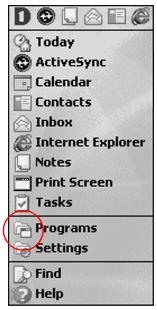
- Tap Microsoft Reader
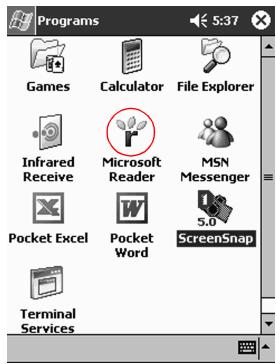
- Tap and hold the title of your eBook
- Tap Delete
- Tap Yes
Read an eBook
Read your eBook from start to finish or select specific topics. If you close your eBook and later want to open it, your ebook will open on the last page you read.
- From the Start menu, tap Programs
- Tap Microsoft Reader
-
Tap the title of your eBook
-
Tap the page number or left and right arrows to move backward and forward in the book
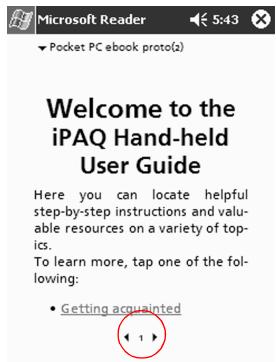
Hint: To jump to a topic, tap a link. Links can occur throughout the text or table of contents. To return from a link, tap the title of the eBook and tap Return.
Listen to an eBook
Listen to an Audible eBook on your Compaq iPAQ Pocket PC. For more information on buying and listening to Audible eBooks, go to http://www.audible.com
- From the Start menu, tap Programs
- Tap Microsoft Reader
- Tap the title
- Tap Play to listen to the book
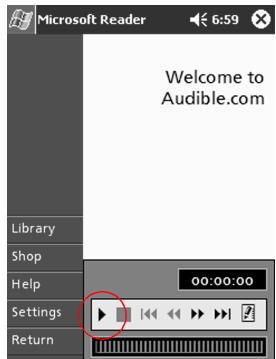
- Tap Stop to quit listening to the book
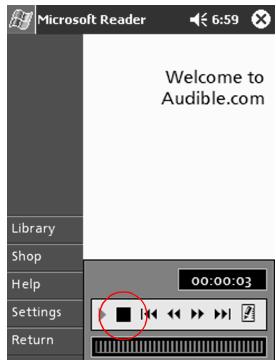
Annotate your eBook
Annotate your eBook text by
- creating bookmarks
- highlighting words or phrases
attaching notes -
creating drawings
-
From the Start menu, tap Programs
- Tap Microsoft Reader
- Tap the title
- Highlight and hold the text where you want to create a bookmark, highlight, attach a note, or create a drawing
- Tap Add Bookmark, Add Highlight, Add Text Note, or Add Drawing from the pop-up menu
Change the Microsoft Reader options
Customize Microsoft Reader to meet your individual needs. Choose to see visual guides, allow annotations (bookmarks, text notes, drawings, or highlights), or adjust the size of the font.
- From the Start menu, tap Programs
- Tap Microsoft Reader
- Tap Settings
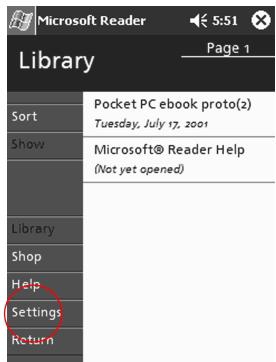
- Tap the Visual Guides option
5. Tap Page 1
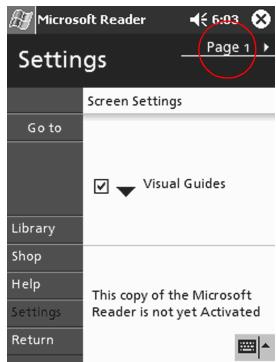
- Select the Annotations options
- Tap Page 2
- Tap and drag the cursor along the ruler to adjust the font size
- Tap Library to return to the list of eBooks
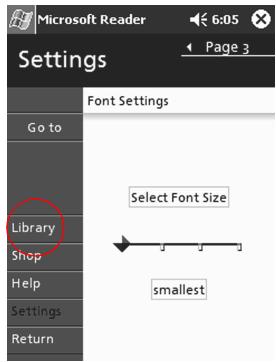
Tips
I have created annotations in my eBook and cannot figure out how to delete them
- From the Start menu, tap Programs
- Tap Microsoft Reader
- Tap the title
- Navigate to the page that contains the annotation
- Tap and hold the bookmark, note, or drawing icon or the highlighted text
- Tap Delete from the pop-up menu
Expanding Functionality with Expansion Packs
If you would like to increase the storage and connectivity of your Compaq iPAQ Pocket PC H3800 Series, use the optional
- Single-slot or Dual-slot PC Card Expansion Pack
- CompactFlash Card Expansion Pack
For more information go to http://www.compaq.com or see the Accessories Information brochure.
Also, if you would like to increase the memory of your Compaq iPAQ Pocket PC without purchasing an expansion pack, install an optional Secure Digital (SD) card into the SD memory slot.
Use the Single-slot or Dual-slot PC Card Expansion Pack
Use the optional Single-slot or Dual-slot PC Card Expansion Pack to
- create dial-up and wireless connections with optional cards
expand memory with optional cards
attach options - hold two Type II cards or one Type III card (Dual-slot PC Card Expansion Pack only)
CAUTION: You cannot install CompactFlash (CF) cards into the Single-slot or Dual-slot PC Card Expansion Pack unless you have a PC adapter. Otherwise, install CompactFlash cards only into the CF Card Expansion Pack.
Install the Single-slot or Dual-slot PC Card Expansion Pack
- Slide the Compaq iPAQ Pocket PC into the expansion pack until it snaps into place Push firmly to attach the Compaq iPAQ Pocket PC connector to the expansion pack The Compaq iPAQ Pocket PC automatically recognizes the expansion pack
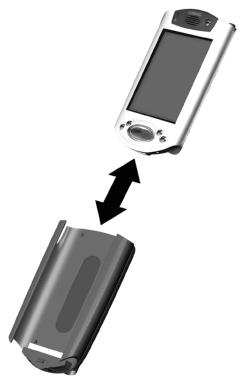
Locate information about the Single-slot or Dual-slot PC Card Expansion Packs
Locate information about the Single-slot or Dual-slot PC Card Expansion Packs at http://www.compaq.com/products/handhelds/pocketpc/expansion Packages.shtml
Use the CompactFlash Card Expansion Pack
Use the optional CompactFlash (CF) Card Expansion Pack to
- create a dial-up connection with optional cards
expand memory with optional cards
hold Type I or II cards
CAUTION: Use CompactFlash cards only in the CF Card Expansion Pack.
Install the CompactFlash Card Expansion Pack
- Slide the Compaq iPAQ Pocket PC into the expansion pack until it snaps into place Push firmly to attach the Compaq iPAQ Pocket PC connector to the expansion pack The Compaq iPAQ Pocket PC automatically recognizes the expansion pack
Locate information about the CompactFlash Card Expansion Packs
Locate information about the CF Card Expansion Packs at
http://www.compaq.com/products/handhelds/pocketpc/expansion Packs.shtml
Tips
I cannot get my Compaq iPAQ Pocket PC to recognize the expansion pack
Make sure you have firmly pushed the Compaq iPAQ Pocket PC into the expansion pack
Expanding Functionality with Cards
Use cards if you would like to expand the memory and connectivity of your Compaq iPAQ Pocket PC H3800 Series. You can
view the content of memory cards
- use the optional 802.11 card to connect wirelessly
- use an optional modem card to connect to the Internet or your network
- use an optional CompactFlash card to connect to a LAN or to the Internet or to expand the memory of your Compaq iPAQ Pocket PC
- use an optional Secure Digital Card to expand the memory of your Compaq iPAQ Pocket PC
If you would like wireless connectivity, install an 802.11 card. If you would like to increase the memory of your Compaq iPAQ Pocket PC, install a CompactFlash (CF) memory card or a Secure Digital (SD) card. If you would like LAN and modem connectivity, install a modem card, a CompactFlash modem card, or a CompactFlash LAN card.
Please note that several vendors manufacture memory and connectivity cards that are compatible with the optional Single-slot or Dual-slot PC Card Expansion Packs and CF Card Expansion Packs. To see a list of the compatible PC cards, go to
http://www.compaq.com/products/handhelds/pocketpc/pccardlist.shtml
To see a list of the compatible CF cards, go to
http://www.compaq.com/products/handhelds/pocketpc/cfcardlist.shtml
View the Content of Memory Cards
View the files that are located on your optional CompactFlash or Secure Digital cards using File Explorer.
- From the Start menu, tap Programs
- Tap File Explorer
- Tap the Storage Card icon to see a list of files and folders
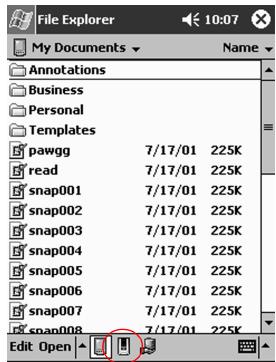
Use the Optional 802.11 Card to Connect Wirelessly
Use the optional 802.11 card to connect wirelessly to the Internet or to a network with your Compaq iPAQ Pocket PC.
Install the 802.11 card
- Install the Single-slot or Dual-slot PC Card Expansion Pack
- Insert the 802.11 card into the Single-slot or Dual-slot PC Card Expansion Pack
Push the connection edge of the card firmly into the expansion pack slot
If your 802.11 card is not recognized, follow the manufacturer's instructions to install the driver
Remove the 802.11 card
- Close all applications using the 802.11 card
- Push the eject button
- Pull the 802.11 card from the expansion pack
Locate information about 802.11 cards
Locate information about 802.11 cards at
http://www.compaq.com/products/handhelds/pocketpc/pccardlist.shtml
Use an Optional Modem Card
Use an optional modem card to connect your Compaq iPAQ Pocket PC to the Internet or a network, but you must connect with a cable rather than through a wireless connection.
Install a modem card
- Install the Single-slot or Dual-slot PC Card Expansion Pack
- Insert the modem card into the Single-slot or Dual-slot PC Card Expansion Pack
Push the connection edge of the card firmly into the expansion pack slot
If your modem card is not recognized, follow the manufacturer's instructions to install the driver
Remove a modem card
- Close all applications using the modem card
- Push the eject button
- Pull the modem card from the expansion pack and cable
Locate information about modem cards
Locate information about modem cards at
http://www.compaq.com/products/handhelds/pocketpc/pccardlist.shtml
Use an Optional CompactFlash Card
Use an optional CompactFlash (CF) card to
- create a LAN connection with a CompactFlash LAN card, which requires that your PC is configured for a network connection and has an Ethernet card and that you have an Ethernet hub or a crossover cable
- create a modem connection with a CompactFlash modem card, which requires a phone line and a dial-up Internet Service Provider (ISP)
- increase the memory capacity of your Compaq iPAQ Pocket PC with a CompactFlash memory card
With a CF card, you must connect to a LAN or the Internet with a cable (Ethernet or phone line).
Install a CompactFlash card
CAUTION: We recommend that you connect your Compaq iPAQ Pocket PC to the AC adapter when installing the expansion pack.
- Install the CompactFlash (CF) Card Expansion Pack
- Insert a CF card into the CF Card Expansion Pack
Push the connection edge of the card firmly into the expansion pack slot.
Remove a CompactFlash card
- Close all applications using the CompactFlash (CF) card
- Pull the CF card from the expansion pack
Locate information about CompactFlash cards
Locate information about CF cards at
http://www.compaq.com/products/handhelds/pocketpc/cfcardlist.shtml
Use an Optional Secure Digital Card
Use an optional Secure Digital (SD) card to increase the memory capacity of your Compaq iPAQ Pocket PC.
CAUTION: Install the SD card only into the SD memory slot on the Compaq iPAQ Pocket PC. You cannot install this card into a Single-slot or Dual-slot PC Card Expansion Pack or a CompactFlash Card Expansion Pack.
Install the Secure Digital card
- Locate the Secure Digital (SD) memory slot on your Compaq iPAQ Pocket PC
- Insert the SD card into the external memory slot
Push the connection edge of the card firmly into the external memory slot until it clicks into place or is flush with the top of the slot
Remove the Secure Digital card
- Close all applications and files using the Secure Digital (SD) card
- Push down on the SD card
The SD card will pop out of the memory slot
- Pull the SD card from the memory slot
Locate information about Secure Digital cards
Locate information about Secure Digital cards at http://www.compaq.com/products/handhelds/pocketpc/cfcardlist.shtml
Tips
I cannot insert my card
- Make sure you are not inserting the card at an angle
- Make sure you insert the connection area first
I cannot establish a connection
- Make sure your card is properly inserted into the memory slot on your expansion pack
- Follow the manufacturer's instructions to install the driver
My Compaq iPAQ Pocket PC cannot recognize my card
Perform a soft reset of your Compaq iPAQ Pocket PC
- Insert the stylus into the unit reset switch at the bottom of your Compaq iPAQ Pocket PC
- Press the switch for 1 second
Getting Acquainted Tips
I cannot see anything on the screen
- Make sure the screen is on
Press the power button
- Make sure the Compaq iPAQ Pocket PC is connected to the AC adapter and the universal cradle
Plug the AC adapter into an outlet
Insert the DC adapter plug into the universal cradle
Insert the AC adapter plug into the DC adapter plug
I cannot keep my battery charged
Always keep the Compaq iPAQ Pocket PC connected to a universal cradle or AC adapter when you are not using it
In the backlight settings, slide the bar to the lowest level to conserve the most power
I do not see the charge light blinking when my Compaq iPAQ Pocket PC is connected to the universal cradle
- Make sure the universal cradle is plugged into an outlet
- Make sure the bottom of your Compaq iPAQ Pocket PC is pushed firmly into the universal cradle
- Determine if the unit is fully charged.
The charge light does not blink when the unit is fully charged.
From the Start menu, tap Settings
Tap System
Tap Power
The backlight keeps turning off
The backlight turns off to conserve power
On the Battery Power tab, change the time the backlight stays on and choose to have the backlight turn on when you touch the screen or push a button
My Compaq iPAQ Pocket PC is not responding or an application hangs
Perform a soft reset of your Compaq iPAQ Pocket PC
- Insert the stylus into the unit reset switch at the bottom of your Compaq iPAQ Pocket PC
- Press the switch for 1 second
I forgot my password
Perform a hard reset of your Compaq iPAQ Pocket PC
CAUTION: Because most of the applications and data you install on your Compaq iPAQ Pocket PC are stored in memory, you will need to reinstall them if you perform a hard reset.
- Press and hold the two outside application buttons
- Insert the stylus into the unit reset switch at the bottom of your Compaq iPAQ Pocket PC
- Press the switch for 5 seconds
- To reactivate your Compaq iPAQ Pocket PC, insert the stylus into the unit reset switch and press the switch for 1 second or connect your Compaq iPAQ Pocket PC to the AC adapter
I want to restore the default assignments to the application buttons
- From the Start menu, tap Settings
- Tap Buttons
- Tap Restore Defaults
- Tap OK
I want to address an e-mail message, but I cannot find the @ symbol
- Tap the up arrow next to the Input Panel button
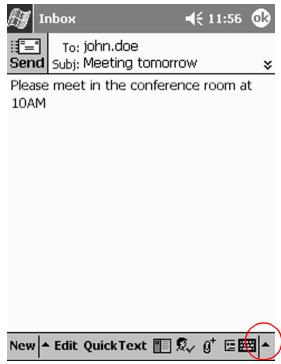
- Tap Keyboard to display a keyboard on the screen
3. Tap the Shift key
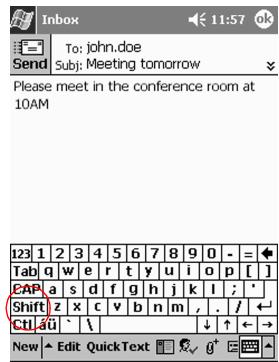
- Tap the @ key where appropriate in an e-mail address
I cannot get the Letter Recognizer to type the correct letter
- Make sure you are writing in the appropriate area (for example, ABC, abc, or 123)
- Write letters without picking up the stylus from the screen
Whenever possible, use one continuous movement to write letters
I did not get the correct word conversion from writing to text. Are there any other possibilities?
- Highlight the word(s) you wrote
- Tap Tools
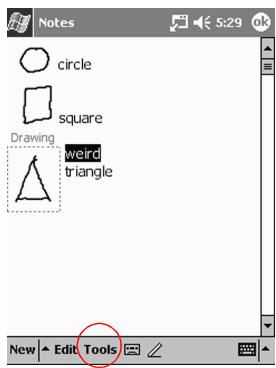
- Tap Alternates to see a list of words
- Tap an alternate
You may want to write the word again if the alternates are not correct.
- Tap OK
The application does not recognize my writing
- Write your letters close together
- Leave plenty of space between words
-
Zoom in to improve character recognition
-
Use the lined page
- Write legibly and try to stay between the lines
I want to change the words I typed on the Keyboard or wrote in the Letter Recognizer
- Highlight the word(s) you typed or wrote
- Type or write over the word(s)
Otherwise, tap and hold the highlighted text to see a pop-up menu with cut, copy, paste, and clear options
Communicating Tips
I cannot connect to my computer using a cable or the universal cradle
- Make sure your Compaq iPAQ Pocket PC is connected to your computer
- Make sure the screen of your Compaq iPAQ Pocket PC is on
- If you have a modem or Ethernet card, remove it from your Compaq iPAQ Pocket PC
- Make sure your Compaq iPAQ Pocket PC is set up for a cable connection
- Make sure you do not have any other active connections
From the Start menu, tap Today
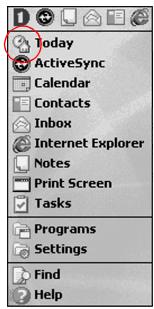
Tap the connection icon and tap Disconnect
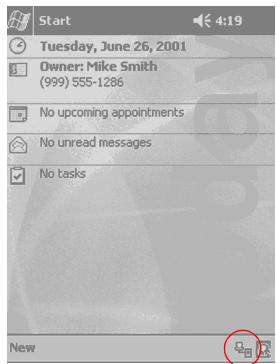
- Make sure the cable is plugged in securely
- Make sure your Compaq iPAQ Pocket PC is in the universal cradle securely
-
If you are using a serial cable, make sure it is plugged into the COM port
-
If you are using a USB cable, make sure you are running Windows 98, ME, or 2000 and that you have installed Microsoft ActiveSync 3.5 or a later version on your computer
Download Microsoft ActiveSync 3.5 or a later version at Microsoft's Web site http://www.microsoft.com/pocketpc
- Make sure you install Microsoft ActiveSync 3.5 before connecting your Compaq iPAQ Pocket PC
For synchronization to work properly, install Microsoft ActiveSync 3.5 before you first connect your Compaq iPAQ Pocket PC to your computer. If you connect your Compaq iPAQ Pocket PC before installing Microsoft ActiveSync 3.5, your device driver will not be installed and your Compaq iPAQ Pocket PC will not be recognized.
I connected my Compaq iPAQ Pocket PC before installing Microsoft ActiveSync 3.5
- Remove the USB or serial cable from your computer
- If you have Windows® 98, 2000, or NT 4.0, uninstall the USB or the serial device record
From the Start menu, click Settings
In the Control Panel, click System and the Device Manager opens automatically
Locate and select the USB or the serial device record and click Remove
In Windows® 2000, locate and select the USB or the serial device record and click Uninstall
- Reboot your computer and allow it to detect the USB device record
- Install Microsoft ActiveSync 3.5
Follow the instructions in Charge Your Compaq iPAQ Pocket PC
- Reconnect your Compaq iPAQ Pocket PC
Microsoft ActiveSync 3.5 cannot locate my Compaq iPAQ Pocket PC when I synchronize
- Make sure your connection is secure
- Make sure the screen is on
- Make sure the battery is charged
- Remove your Compaq iPAQ Pocket PC from the universal cradle or cable, press the power button, and put it back in the universal cradle or connect it to the cable
- Insert the stylus into the unit reset switch and press the switch for 1 second
I want to travel with my Compaq iPAQ Pocket PC
- Back up your information
Follow the instructions in Back up and restore using Microsoft ActiveSync 3.5 or use the Compaq backup utility
-
Take a copy of your backup with you on a CompactFlash memory card or a Secure Digital memory card
-
Disconnect all external devices
- Take the AC adapter and DC adapter plug with you
- Keep your Compaq iPAQ Pocket PC in a protective case and take it with your carry-on luggage
- Be careful of airport security devices
- Find out if you can use your Compaq iPAQ Pocket PC on the plane
I want to travel internationally with my Compaq iPAQ Pocket PC
- Follow the instructions in I want to travel with my Compaq iPAQ Pocket PC
- Follow customs regulations
- Make sure you have the modem, cable, and plug adapter appropriate for the country you are visiting
I want to ship my Compaq iPAQ Pocket PC to a repair facility
- Back up your information
Follow the instructions in Back up and restore using Microsoft ActiveSync 3.5
- Press and hold the two outside application buttons
- Insert the stylus into the unit reset switch at the bottom of your Compaq iPAQ Pocket PC and press the switch for 5 seconds
CAUTION: If you hard reset your Compaq iPAQ Pocket PC, you will lose all of your information.
Hint: Information in iPAQ File Store is held in ROM and will not be lost if you perform a hard reset of your Compaq iPAQ Pocket PC
- Disconnect all external devices
- Pack your Compaq iPAQ Pocket PC and all external devices in protective packaging
I cannot connect to a network
- Make sure you have a compatible Ethernet/LAN card
-
Make sure you have a DHCP server
-
Make sure you have added the necessary server information
From the Start menu, tap Settings
Tap Connections and tap Network Adapters
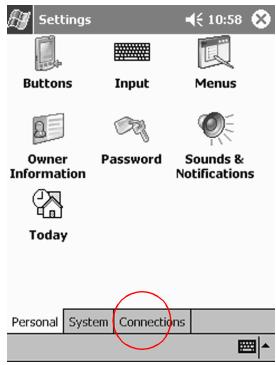
Tap the name of your Ethernet driver and tap Properties
Tap Name Servers and enter the server information
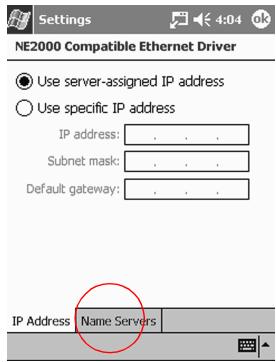
Tap OK to save the server information
- Make sure the network is not busy
Wait a few minutes and try to connect again
- Make sure the proper drivers for your card are installed
- Make sure your user name and password are correct
- Make sure that the network is available
Try to connect from another computer
- Change the device name
From the Start menu, tap Settings
Tap System and tap About
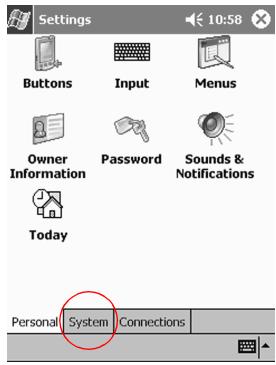
Tap Device ID
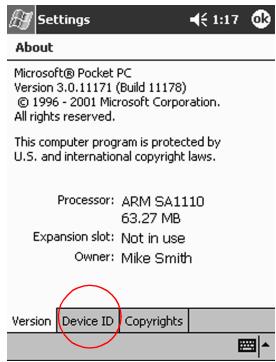
Enter a new name for the device
Tap OK
I installed a driver and it is not recognized
- Remove your card
- Insert the stylus into the unit reset switch at the bottom of your Compaq iPAQ Pocket PC
- Press the switch for 1 second
I do not want my Compaq iPAQ Pocket PC to synchronize with AvantGo channels so often
- Log in to your account at AvantGo's Web site
Go to http://www.avantgo.com
- Click on each of your selected channels and click Properties
- Change the channel refresh settings
- Save the channel settings
I cannot find the keyboard
Tap the keyboard icon

I cannot open e-mail in the Inbox after I restore using Microsoft ActiveSync 3.5
Synchronize with Microsoft ActiveSync 3.5 to link your e-mail from your Compaq iPAQ Pocket PC with your computer
I try to open the Inbox but receive an error or the application hangs
Limit the number of e-mail services you create
I want to improve the quality of the voice recording
- From the Start menu, tap Settings
- Tap Input
- Tap Options
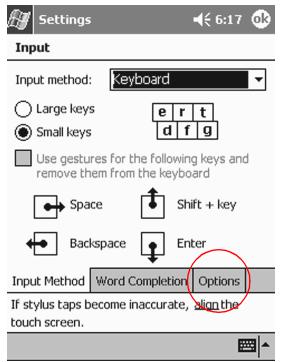
- Tap the Voice recording format drop-down menu and select a format with a higher frequency
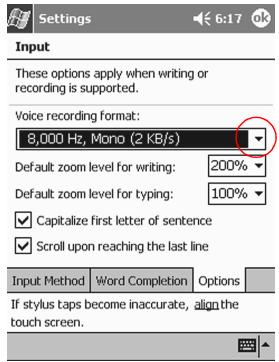
- Tap OK
I get an error when I try to record a note in Calendar or in Tasks
Try using a more compressed recording format in Calendar or in Tasks
For example, 8,000Hz , Mono (.7 KB/s) is the most compressed format available
I want to delete a recording within a note
- From the Start menu, tap Notes
-
Tap a note to open it
-
Tap the keyboard icon
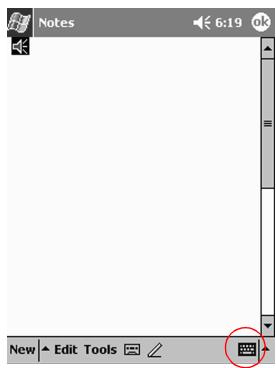
- Highlight the speaker icon
- Tap the backspace key on the keyboard to delete the recording
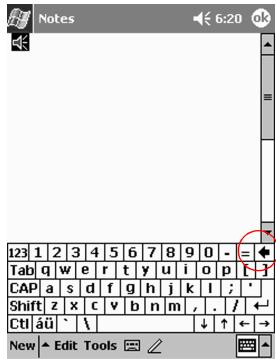
I want to adjust the volume of a recording
- From the Start menu, tap Notes
- Tap the speaker icon to listen to the recording
- Tap the volume icon to see the volume scale
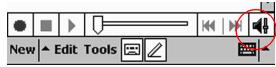
- Tap the volume scale to adjust the volume
Scheduling Tips
I want to see the current date
- From the Start menu, tap Calendar
- Tap the Go-to-Today icon to see today's date
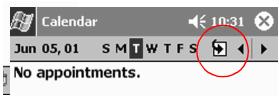
I cannot see all of my appointments
Hint: The Calendar allows you to view your appointments by category. If an appointment you created is not in the selected category, you will not see it.
- From the Start menu, tap Calendar
- Tap Tools
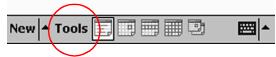
- Tap Categories
- Tap to de-select any categories that you may have selected
- Tap OK
Using Software Tips
I cannot find the document I saved
Pocket Word only recognizes and displays documents in one folder below My Documents. For example, if you created another folder in the Personal folder in My Documents, the documents in that folder will not be shown.
I cannot find the workbook I saved
Pocket Excel only recognizes and displays documents in one folder below My Documents. For example, if you created another folder in the Personal folder in My Documents, the documents in that folder will not be shown.
I tried to synchronize a workbook and the file is unresolved in Microsoft ActiveSync 3.5
Pocket Excel does not support all Excel formatting; therefore, Microsoft ActiveSync 3.5 cannot synchronize the file.
I cannot view the map that I created using a mapping application on my computer
Create your map in a version 2001 mapping application
Pocket Streets 2001 is the version available on your Compaq iPAQ Pocket PC
Companion CD-ROM. In Pocket Streets 2001, you can only view maps that you created in a 2001 mapping application.
I have created annotations in my eBook and cannot figure out how to delete them
- From the Start menu, tap Programs
- Tap Microsoft Reader
- Tap the title
-
Navigate to the page that contains the annotation
-
Tap and hold the bookmark, note, or drawing icon or the highlighted text
- Tap Delete or Erase from the pop-up menu
Expanding with Packs Tips
I cannot get my Compaq iPAQ Pocket PC to recognize the expansion pack
Make sure you have firmly pushed the Compaq iPAQ Pocket PC into the expansion pack
Expanding with Cards Tips
I cannot insert my card
- Make sure you are not inserting the card at an angle
- Make sure you insert the connection area first
I cannot establish a connection
- Make sure your card is properly inserted into the memory slot on your expansion pack
- Follow the manufacturer's instructions to install the driver
My Compaq iPAQ Pocket PC cannot recognize my card
Perform a soft reset of your Compaq iPAQ Pocket PC
- Insert the stylus into the unit reset switch at the bottom of your Compaq iPAQ Pocket PC
- Press the switch for 1 second
Regulatory Notices
Federal Communications Commission Notice
This equipment has been tested and found to comply with the limits for a Class B digital device, pursuant to Part 15 of the FCC Rules. These limits are designed to provide reasonable protection against harmful interference in a residential installation. This equipment generates, uses, and can radiate radio frequency energy and, if not installed and used in accordance with the instructions, may cause harmful interference to radio communications. However, there is no guarantee that interference will not occur in a particular installation. If this equipment does cause harmful interference to radio or television reception, which can be determined by turning the equipment off and on, the user is encouraged to try to correct the interference by one or more of the following measures:
Reorient or relocate the receiving antenna
- Increase the separation between the equipment and receiver
- Connect the equipment into an outlet on a circuit different from that to which the receiver is connected
- Consult the dealer or an experienced radio or television technician for help
Modifications
The FCC requires the user to be notified that any changes or modifications made to this device that are not expressly approved by Compaq Computer Corporation may void the Reference authority to operate the equipment.
Cables
Connections to this device must be made with shielded cables with metallic RFI/EMI connector hoods in order to maintain compliance with FCC Rules and Regulations.
Declaration of Conformity for products marked with the FCC logo—United States only
This device complies with Part 15 of the FCC Rules. Operation is subject to the following two conditions: (1) this device may not cause harmful interference, and (2) this device must accept any interference received, including interference that may cause undesired operation.
For questions regarding your product, contact:
Compaq Computer Corporation
P. O. Box 692000, Mail Stop 530113
Houston, Texas 77269-2000
Or, call 1-800-652-6672 (1-800-OK COMPAQ)
For questions regarding this FCC declaration, contact:
Compaq Computer Corporation
P. O. Box 692000, Mail Stop 510101
Houston, Texas 77269-2000
Or, call (281) 514-3333
To identify this product, refer to the Part, Series, or Model number found on the product.
Canadian Notice
This Class B digital apparatus meets all requirements of the Canadian Interference-Caising Equipment Regulations.
Avis Canadien
Products bearing the CE marking comply with both the EMC Directive (89/336/EEC) and the Low Voltage Directive (73/23/EEC) issued by the Commission of the European Community and if this product has telecommunication functionality, the R&TTE Directive (1999/5/EC).
Compliance with these directives implies conformity to the following European Norms (in parentheses are the equivalent international standards and regulations):
EN55022 (CISPR 22) - Electromagnetic Interference
EN55024 (IEC61000-4-2, 3, 4, 5, 6, 8, 11) - Electromagnetic Immunity
EN61000-3-3 (IE61000-3-3) - Power Line Flicker
EN 60950 (IEC60950) - Product Safety
Japanese Notice
WARNING: This computer contains an internal lithium polymer battery pack. To reduce the risk of fire or burns, do not disassemble, crush, puncture, short external contacts, or dispose of in fire or water. Replacement should only be done by a Compaq authorized service provider using the Compaq spare part for this computer.
Airline Travel Notice
Use of electronic equipment aboard commercial aircraft is at the discretion of the airline.
Power Cords
If you were not provided with a power cord for your Compaq iPAQ Pocket PC H3800 Series or for an AC power accessory intended for use with your device, you should purchase a power cord that is approved for use in your country.
The power cord must be rated for the product and for the voltage and current marked on the product's electrical ratings label. The voltage and current rating of the cord should be greater than the voltage and current rating marked on the product. In addition, the diameter of the wire must be a minimum of 0.75mm /18AWG, and the length of the cord must be between 5 feet (1.5m) and 6.5 feet (2m) . If you have questions about the type of power cord to use, contact your Compaq authorized service provider.
A power cord should be routed so that it is not likely to be walked on or pinched by items placed upon it or against it. Particular attention should be paid to the plug, electrical outlet, and the point where the cord exits from the product.
WARNING: To reduce the risk of personal injury, electric shock, fire, or damage to the equipment: Do not disable the power cord grounding plug. The grounding plug is an important safety feature. Plug the equipment into a grounded (earthed) electrical outlet that is easily accessible at all times. Disconnect power from the equipment by unplugging the power cord from the electrical outlet. Do not place anything on power cords or cables. Arrange them so that no one may accidentally step on or trip over them. Do not pull on a cord or cable. When unplugging from the electrical outlet, grasp the cord by the plug.
WARNING: To reduce the risk of electrical shock, fire, or damage to the equipment: Do not use converter kits sold for appliances to power the computer.
Hardware Specifications
System Specifications
| Feature | Compaq iPAQ H3800 Series |
| Processor | StrongARM SA-1110 |
| Memory | 32 MB SDRAM or greater |
| Display | Color TFT, 240 x 320 pixels, 64K-color support, .24-dot pitch |
| Backlight | Multi-level brightness adjustment, light sensor for automatic adjustment of brightness level |
| Audio | Speaker, 3.5 mm stereo headphone jack |
| Infrared | IrDA, data transfer up to 115.2 Kb per second |
| Bluetooth | Some models |
| Communications | Communication port, Expansion Pack connector |
| Indicators | 3 mode alarm notification: flashing green LED, tone, pop-up message. Charge active: flashing/solid amber LED, Bluetooth active: flashing/sound blue LED |
| Battery | Lithium Polymer |
Physical Specifications
| Compaq iPAQ Pocket PC H3800 | ||
| US | Metric | |
| Height | 5.3 in | 135 mm |
| Width | 3.3 in | 84 mm |
| Depth | .62 in | 16 mm |
| Weight | 6.7 oz | 190 g |
Operating Environment
| US | Metric | ||
| Temperature | Operating | 32° to 104°F | 0° to 40°C |
| Nonoperat ting | -22° to 140°F | -30° to 60°C | |
| Relative Humidity | Operating | 10 to 90% | 10 to 90% |
| Nonoperat ting | 10 to 90% | 10 to 90% | |
| Maximum altitude | Operating | 0-15,000 ft | 14.7 to 10.1 psia |
| Nonoperat ting | 0-15,000 ft | 14.7 to 10.1 psia | |
Routine Care and Battery Guidelines
Routine Care
To keep your Compaq iPAQ Pocket PC H3800 Series in good condition and working properly, follow these guidelines:
- Keep your Compaq iPAQ Pocket PC away from excessive moisture and temperature extremes. Do not expose your Compaq iPAQ Pocket PC to liquids or precipitation.
- Do not place anything on top of your Compaq iPAQ Pocket PC to prevent damage to the screen.
- Store your Compaq iPAQ Pocket PC in a protective case when not in use.
- Clean your Compaq iPAQ Pocket PC by wiping the screen and the exterior with a soft, damp cloth moistened only with water.
- Avoid exposing your Compaq iPAQ Pocket PC to direct sunlight or strong ultraviolet light for extended periods of time. Also avoid scratching the surface of the screen and banging it against hard objects.
- Only use the Compaq iPAQ Pocket PC stylus to prevent scratching the screen.
Battery Guidelines

Because of the type of battery used in your Compaq iPAQ Pocket PC, follow local regulations regarding the safe disposal of your Compaq iPAQ Pocket PC. Your Compaq vendor can advise you on local regulations, and/or the existence of any battery disposal programs in operation.
The Compaq iPAQ Pocket PC should not be disposed of along with the general household waste. In order to forward them to recycling or dispose of them properly, please use the public collection system or return them to Compaq, your authorized Compaq partners, or their agents.
In North America, dispose of the Compaq iPAQ Pocket PC by taking advantage of the Compaq battery recycling program. You will be provided with a postage-paid battery pack mailer pre-addressed to a reclamation facility where the metals are recycled.
CAUTION: To reduce the risk of electrical shock or damage to the internal components, do not spray liquid directly on the screen or allow excess liquid to drip inside your Compaq iPAQ Pocket PC. Using soap or other cleaning products on the screen may discolor the finish and damage the screen.
Index
Symbols
@ symbol 93
Numerics
802.11 memory card 89
A
AC adapter 9
ActiveSync
back up Pocket PC 30
connect to computer 26, 96
copy maps 76
restore Pocket PC memory 30
application buttons
customize 18
restore defaults 93
applications
close 14
install 30
open 13
appointments
categorize 63
delete 64
schedule 60
view 102
AvantGo 26,99
B
back up Pocket PC 30
backlight 10, 92
battery 92, 109
Block Recognizer 22
bottom panel illustration 8
C
Calendar 59
cards
installing 89, 90, 91
cards, installing 89, 99, 103
charging the Pocket PC 9
CompactFlash (CF) Card Expansion Pack 86
CompactFlash (CF) Cards 90
connect
to the Internet 33
to your computer 95
to your network 33, 97
contacts 40
categorize 42
create 40
delete 43
edit 41
view 41
convert writing to text 23, 94
customer support 7, 97
customize
application buttons 18
Calendar appearance 60
task appearance 67
tasks for quick entry 67
Today screen 57
D
date
set 17
view 101
delete
eBook 81
draw on screen 22
Dual-slot PC Card Expansion Pack 85
E
eBook
annote 83
copy 80
delete 81
delete annotations 102
listen to 82
read 81
attach a file 46
create 45
delete 47
manage folders 48
move 47
open 47
open a folder 48
receive 46
send 45
e-mail service, set up 44
enter information 19
entry bar 67
Ethernet/LAN card 35
Excel 102
expansion cards 88
802.11 memory card 89
CompactFlash (CF) Cards 90
modem card 89
Secure Digital (SD) card 91
expansionpacks85,103
F
files, move to, from computer 29
folders 48
front panel illustration 7
H
help
802.11 memory card 89
CompactFlash Card 90
CompactFlash Card Expansion Pack 87
Excel 75
expansionpacks86
modem cards 90
Secure Digital card 91
Word 71
I
illustrations
bottom panel 8
front panel 7
top panel 7
Inbox 44, 99
infrared connection
connect computer 26
synchronize 28
install
802.11 memory card 89
applications 30
CompactFlash Card 90
expansionpacks86
modem card 89
Pocket Streets 76
Secure Digital card 91
interface, navigate 12
Internet
connect with Ethernet card 35
connect with modem card 33
K
keyboard 20, 95, 99
L
Letter Recognizer 21, 94, 95
link to Web sites 36
locating information 3
M
maps
change styles 79
copy 76
install Pocket Streets 76
mark location 77
print 78
view 102
meeting request 61
memory cards
802.11 89
Secure Digital (SD) card 91
view content 88
Microsoft Reader 80
copy eBooks 80
delete eBook 81
modemcard33,89
N
navigate interface 12
network, connect 33, 97
notes
record 100
write 53
0
onscreen keyboard 20
options, change
Excel 73
Microsoft Reader 83
Word 70
word suggestions 19
P
password 93
PocketExcel72,102
Pocket Streets 75, 102
PocketWord68,102
pushpin, mark map locations 77
R
ravel 97
realign screen 12
record
notes 100
voice 50
registration 8
reminders, set 60, 65
remote connection
Ethernet card 35
modem card 33
restore memory 30
S
screen
realign 12
turn on 8, 92
Secure Digital (SD) card 91
server, synchronize 27
set
date 17
time, home 14
time,visiting location 16
share information
using an infrared connection 28
with your server 27
Single-slot PC Card Expansion Pack 85
specifications 107
support 7
synchronization, change settings 29
synchronize
Excelworkbooks72,102
links to Web sites 36
using an infrared connection 28
with your computer 26, 96
with your server 27
Word documents 68
T
tasks 65
time
set for home 14
set for visiting location 16
Today screen 55
Transcriber 21
travel with Pocket PC 96
U universal cradle 8
V
view appointments 102 contacts 41 date 101 maps 102 memory card content 88 points of interest 76 Web sites 37
voice recording 50, 100
Web sites
synchronize links 36
view 37
Windows Explorer 29
wireless connection, 802.11 card 89
Word 68, 102
word suggestions, change options 19
write on screen 22
writing, convert to text 23, 94
