ICE-WATCH ICE SMART 2.0 BLACK - Watch

ICE SMART 2.0 BLACK - Watch ICE-WATCH - Free user manual and instructions

Find the device manual for free ICE SMART 2.0 BLACK ICE-WATCH in PDF.

📄 80 pages English EN Download 💬 AI Question 20 questions
Notice ICE-WATCH ICE SMART 2.0 BLACK - page 5
Pick your language and provide your email: we'll send you a specifically translated version.

User questions about ICE SMART 2.0 BLACK ICE-WATCH

20 questions about this device. Answer the ones you know or ask your own.

Ask a new question about this device

The email remains private: it is only used to notify you if someone responds to your question.

How to solve the problem when the weather function does not work on the ICE SMART 2.0 BLACK watch?
Frequently Asked Questions - 04/03/2026
Response Notice-Facile

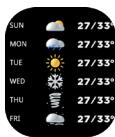
The weather function of your ICE SMART 2.0 BLACK watch displays the weather conditions for today and the next 6 days, but it relies entirely on synchronization with the ICE 2.0 app on your smartphone. If this function is not working, it is usually because the watch is not receiving weather updates from the app. Here’s how to resolve this issue.

First, check your phone connection. For the weather to display on your watch, you need to enable Bluetooth, GPS, and Internet connection (Wi-Fi or mobile data) on your smartphone. Without Internet, the app cannot retrieve weather data. Also, ensure that your watch is properly connected to your phone via Bluetooth by checking that "ICE 2.0" appears in your paired Bluetooth devices.

Next, update the ICE 2.0 app on your phone. Updates often fix bugs that prevent weather synchronization. Open the App Store (iOS) or Google Play Store (Android), search for "ICE 2.0" and check if any updates are available. On your first connection with an Android phone, a permissions window will appear: accept all requested permissions, especially for location, as they are essential for the weather function to work properly.

Also, check that the weather information is up to date in the app. If your ICE SMART 2.0 BLACK watch has been disconnected from Bluetooth for an extended period, the weather data stored on the watch becomes outdated and will not display. Open the ICE 2.0 app and force a synchronization by toggling Bluetooth off on your phone and then back on. Wait a few seconds for the connection to restore and for the weather to update.

If the problem persists after these steps, restart both your watch and your phone. This helps eliminate temporary bugs that may prevent proper synchronization. Turn off your watch by holding the button down, wait 30 seconds, then turn it back on. Do the same with your phone. Once both devices are restarted, reconnect them via the app and check that the weather displays correctly.

If the weather is still missing after all these checks, contact ICE-WATCH technical support for further assistance.

Respond (be the first)
How to turn on and off the ICE SMART 2.0 BLACK watch?
Frequently Asked Questions - 11/02/2026
Response Notice-Facile

To turn on and off your ICE SMART 2.0 BLACK watch, follow the steps below:

Turning on the watch

  • Press and hold the side button of the watch.
  • Keep the button pressed for a few seconds until the screen lights up.

Turning off the watch

  • Press and hold the same side button.
  • Keep the button pressed until the screen completely turns off.

Note that the press duration may vary slightly depending on the software version, but generally a few seconds are enough to turn the watch on or off.

Respond (be the first)
How to solve a white screen problem with lines on the ICE SMART 2.0 BLACK watch?
Frequently Asked Questions - 04/01/2026
Response Notice-Facile

A white screen with lines on your ICE SMART 2.0 BLACK watch indicates a display issue that can be resolved through several solutions. Here are the steps to follow in order:

Step 1: Full Charging - Start by connecting your watch with the provided charging cable. Use a 5V / 0.5A adapter and let it charge for at least 2 hours before trying other solutions. Check that the metal pins of the charging port are in good contact and clean. If the watch has not been used for a long time, wipe the pins with a dry cloth to ensure a reliable connection.

Step 2: Forced Restart - Press and hold the side power button for about 10 to 15 seconds until the watch vibrates or completely restarts. Wait for the screen to display normally. This forced restart often fixes temporary display issues related to software.

Step 3: Software Update - Open the ICE smart app on your phone (iOS or Android), connect your watch, and check if a software update is available. Updates can resolve display bugs. Make sure the watch remains charged and connected via Bluetooth throughout the update.

Step 4: Factory Reset - If the problem persists, perform a complete factory reset of the watch through the ICE smart app or from the watch's Settings menu. This will erase all data and restore the initial settings. Note that this operation completely wipes your device.

Step 5: Contact Customer Service - If none of these solutions work after 2 days, the screen or an internal component is likely defective. Your watch is covered by a 2-year warranty against any material defect. Contact the official ICE-WATCH customer service or an authorized dealer for assessment and repair. Keep your proof of purchase.

Respond (be the first)
How to unlock my ICE SMART 2.0 BLACK watch when it is stuck in badminton mode?
Frequently Asked Questions - 31/12/2025
Response Notice-Facile

If your ICE SMART 2.0 BLACK watch is stuck in badminton mode, here’s how to unlock it in a few simple steps.

First solution - Exit badminton mode directly: Press the upper side button of your watch to return to the main page and exit sport mode. If that’s not enough, you can also swipe left on the touchscreen to return to the main dial.

Second solution - Restart the watch: Press and hold the upper side button for 3 seconds to turn off the watch. Wait a few seconds, then press the upper button again to turn it back on. This resets the system and should allow you to exit the stuck badminton mode.

Third solution - Check the battery: A low battery can cause malfunctions. Connect your watch to the provided charging cable (5V, 0.5A) and let it charge completely. Use the appropriate charging pins and ensure that the metal contacts are properly connected.

Final solution - Factory reset: If the previous steps do not work, access the ICE Smart app on your phone (iOS or Android) and perform a full reset of the watch via the settings. This operation restores all factory settings and should unlock your watch, but it will erase all your unsaved data.

To prevent your watch from getting stuck in the future, remember to properly stop your sports recordings by exiting badminton mode after each use. If the problem persists after all these attempts, it may be a hardware defect and we recommend contacting ICE-WATCH customer service or your retailer.

Respond (be the first)
What should I do if my ICE-WATCH ICE SMART 2.0 BLACK watch won't turn on?
Frequently Asked Questions - 29/12/2025
Response Notice-Facile

If your ICE-WATCH ICE SMART 2.0 BLACK watch won't turn on, here are several steps to follow to try to resolve this issue:

1. Check the watch's charge

  • Connect the watch to its original charger.
  • Observe if a charging indicator appears on the screen or if a light turns on.
  • Let it charge for at least 30 minutes before trying to turn it on again.

2. Try restarting the watch

  • Press and hold the power button for about 10 seconds.
  • Release the button and check if the watch turns on.

3. Check the charger and cable

  • Ensure that the charging cable and adapter are not damaged.
  • Test them with another compatible device to ensure they are working properly.

4. Perform a software reset (if possible)

  • If the watch shows signs of life but does not fully turn on, a reset may be necessary.
  • Check the reset options via the buttons or the app associated with the watch.

5. Contact technical support

If none of these steps allow you to turn your watch back on, it may be a hardware issue requiring professional intervention. Contact ICE-WATCH customer service for assistance or consider a repair.

Respond (be the first)
Why does my ICE-WATCH ICE SMART 2.0 BLACK watch no longer measure my blood pressure?
Frequently Asked Questions - 29/12/2025
Response Notice-Facile

Several reasons may explain why your ICE-WATCH ICE SMART 2.0 BLACK watch no longer measures your blood pressure. Here’s how to diagnose and resolve the issue:

Check the battery: Make sure your watch is sufficiently charged. A low battery can prevent the sensor from functioning properly. Charge your watch with the provided cable for at least 2 hours until the charge indicator is at maximum.

Position the watch correctly: To measure your blood pressure, the watch must be positioned correctly on your wrist, about one finger above the wrist bone. Slightly tighten the watch during measurement so that the sensor is in good contact with your skin. An insufficiently tight or poorly adjusted position will prevent signal detection.

Clean the sensor: Ensure that the sensor located under the watch is clean and free of dust, dirt, or residues. Wipe it with a soft, dry cloth, avoiding chemicals. Dirt can completely block the measurement.

Sync with the ICE smart app: The blood pressure function requires an active connection with the ICE smart app. Ensure that Bluetooth is enabled on your phone, that the watch is properly paired (it should appear as “ICE 2.0 (1.96)” in your Bluetooth devices), and that the app is up to date. You can view your last 7 blood pressure results directly in the app.

Reset the connection: If the problem persists, try restarting your watch. Go to the watch settings and reset it, then re-pair it with your phone via Bluetooth. This step often resolves temporary detection malfunctions.

Important: The blood pressure measurements from this watch are provided for informational purposes only and cannot serve as a basis for medical decisions. If the problem persists despite these checks, it is possible that the sensor has a hardware defect. Contact ICE-WATCH customer service or an authorized dealer for technical assistance.

Respond (be the first)
What should I do if my ICE SMART 2.0 BLACK watch won't charge?
Frequently Asked Questions - 29/12/2025
Response Notice-Facile

If your ICE SMART 2.0 BLACK watch won't charge, here are several steps to follow to identify and resolve the issue:

1. Check the cable and charger

  • Make sure the charging cable is not damaged (cuts, bends, exposed wires).
  • Try connecting the cable to another USB port or a different power adapter to rule out a power issue.

2. Clean the charging contacts

Dirt or oxidation can prevent a good electrical connection:

  • Use a soft, dry cloth to gently clean the contacts of the watch and the cable.
  • Avoid using liquids that could damage the device.

3. Restart the watch

If possible, try restarting your watch to reset its system, which can sometimes resolve charging issues.

4. Wait during charging

If the battery is completely drained, it may take several minutes before the watch shows that it is charging. Leave it plugged in for at least 30 minutes without interruption.

5. Check the power source

Test the wall outlet or USB port used with another device to ensure they are functioning properly.

6. As a last resort

If after all these checks the watch still won't charge, it is possible that the battery or an internal component is defective. In this case, contacting ICE-WATCH customer service for assistance or repair is advisable.

Respond (be the first)
How to increase the sound volume of the ICE-WATCH ICE SMART 2.0 BLACK watch?
Frequently Asked Questions - 29/12/2025
Response Notice-Facile

To increase the sound volume of your ICE-WATCH ICE SMART 2.0 BLACK watch, follow these simple steps:

Step 1: Access the settings

Press the main button or swipe the screen to open the watch's settings menu.

Step 2: Find the sound settings

In the menu, look for a section named Sound, Volume, or Audio settings.

Step 3: Adjust the volume

  • Use the physical buttons or the touchscreen to increase the sound level.
  • Slide the volume slider to the right to increase the sound.

Step 4: Confirm the changes

Make sure that the settings are saved automatically or confirm the changes if the watch prompts you to do so.

Note: If you cannot find these options, it is possible that the volume is controlled via the mobile app associated with the watch. Also, check that the watch is not in silent mode or Do Not Disturb mode.

Respond (be the first)
How to connect the ICE SMART 2.0 BLACK watch to a mobile phone?
Frequently Asked Questions - 28/12/2025
Response Notice-Facile

To connect your ICE SMART 2.0 BLACK watch to your mobile phone, follow the steps below:

1. Download the dedicated app

Search for and install the ICE SMART app from the App Store (iOS) or Google Play Store (Android).

2. Turn on Bluetooth on your phone

Make sure Bluetooth is enabled in your smartphone's settings.

3. Turn on your watch

Press the power button on the watch to turn it on. The home screen should display.

4. Open the ICE SMART app

Launch the app on your phone.

5. Pair the watch with your phone

  • In the app, follow the instructions to search for available Bluetooth devices.
  • Select your ICE SMART 2.0 BLACK watch from the list.
  • Confirm the pairing by validating the code displayed on both devices if prompted.

6. Complete the setup

Follow the additional steps in the app to sync your data and customize the watch settings.

Once these steps are completed, your watch will be connected to your phone and ready to use.

Respond (be the first)
How to change personal information (gender, date of birth) on the ICE SMART 2.0 watch?
Frequently Asked Questions - 27/12/2025
Response Notice-Facile

To change personal information such as gender and date of birth on your ICE SMART 2.0 watch, you need to use the mobile app associated with the watch. Here are the steps to follow:

  • Open the ICE WATCH app on your smartphone, as it is necessary to manage your watch settings.
  • Make sure your watch is connected to the app via Bluetooth for the changes to be taken into account.
  • Go to the profile or personal settings section in the app, where you can view and modify your information.
  • Edit the desired fields such as gender, date of birth, or other personal data.
  • Save the changes before exiting the app so that the changes are synchronized with your watch.

These steps allow you to update your personal information directly through the app, ensuring good synchronization with your ICE SMART 2.0 watch.

Respond (be the first)
How to activate and start sleep tracking on the ICE-WATCH ICE SMART 2.0 BLACK watch?
Frequently Asked Questions - 27/12/2025
Response Notice-Facile

To activate and start sleep tracking on your ICE-WATCH ICE SMART 2.0 BLACK watch, you first need to connect your watch to the ICE smart mobile app. Start by downloading the ICE smart app on your smartphone by searching for it in the App Store (iOS) or the Play Store (Android), or by scanning the QR code provided in the manual. Then open the app, select 'Add Device' and follow the instructions to pair your watch via Bluetooth.

Once your watch is connected to the app, make sure your device is sufficiently charged before the night so that tracking can be done correctly. The watch automatically detects your sleep when you wear it on your wrist. For accurate recording, wear the watch snugly on your wrist during sleep, as this improves the reliability of the heart rate sensor that helps identify sleep phases.

Check the ICE smart app to ensure that sleep tracking is enabled in the health settings. The watch will automatically record the total duration of your sleep, as well as your deep and light sleep phases observed during the night. After waking up, open the app to view your detailed sleep statistics, including a complete analysis of your sleep cycles. This data is displayed directly in the app in the section dedicated to health and physical activity.

If you have difficulties receiving sleep data, check that your app is up to date (update it to the latest available version), that the Bluetooth connection remains active during the night, and that you wore the watch properly adjusted during your full sleep.

Respond (be the first)
How to reset the ICE SMART 2.0 BLACK watch to factory settings without using the app?
Frequently Asked Questions - 27/12/2025
Response Notice-Facile

To reset your ICE SMART 2.0 BLACK watch to factory settings without using the app, follow these simple steps directly from the watch:

Steps to reset the watch:

  • Turn on the watch: Make sure the watch is on and functioning.
  • Access the settings menu: On the main screen, scroll or navigate to the Settings or Preferences icon or section.
  • Find the reset option: In the settings menu, look for an option named Reset, Factory Reset, or Restore Factory Settings.
  • Confirm the reset: Select this option and confirm your choice when the watch prompts you to validate the reset.
  • Wait during the reset: The watch will automatically restart and return to its original settings.

If you cannot find these options in the menu or if the watch is unresponsive, it is possible that the reset requires the app or a specific procedure. However, most ICE SMART 2.0 models allow this operation directly from the watch.

Respond (be the first)
How to check the battery level of the ICE-WATCH ICE SMART 2.0 BLACK watch?
Frequently Asked Questions - 27/12/2025
Response Notice-Facile

The battery level of your ICE-WATCH ICE SMART 2.0 BLACK watch is visible directly on the watch screen. A battery icon usually appears at the top or bottom of the main screen, showing the percentage or remaining charge status in real time. The icon gradually empties as the battery discharges and fills up during charging.

When the battery level drops, you will automatically receive a low battery reminder that alerts you it is time to recharge your watch. This allows you to plan a recharge before the battery is completely drained and your watch unexpectedly turns off.

For a detailed check of the exact battery percentage, use the ICE smart mobile app available on iOS and Android. Once you have downloaded the app and paired your watch via Bluetooth, the app displays the precise remaining charge percentage, allowing you to monitor the battery life well before the low battery reminder appears. This regular consultation in the app helps you plan your usage sessions and know when to recharge.

To charge your ICE SMART 2.0 BLACK, use exclusively the charging cable provided with the watch along with a standard 5V adapter. Plug the cable into the charging port located at the back of the watch, ensuring the correct alignment of the metal pins with the charging contacts. Before each use, check that the charging port and metal pins are clean and free from dirt or oxidation to ensure good conductivity. Do not leave the watch unattended while charging.

Respond (be the first)
How to charge the ICE-WATCH ICE SMART 2.0 BLACK watch?
Frequently Asked Questions - 27/12/2025
Response Notice-Facile

To charge your ICE-WATCH ICE SMART 2.0 BLACK watch, you need to use the magnetic cable provided with the watch and an appropriate charging adapter.

Charging procedure:

  • Attach the charging cable to the charging port located on the back of the watch, ensuring that the metal pins are fully connected.
  • Use a power adapter with specifications 5V, 0.5A to avoid damaging the battery.
  • Plug the adapter into a wall electrical outlet.
  • Allow the watch to charge for at least 2 hours before first use. A full charge takes about 1 to 2 hours depending on the initial battery level.

Charge verification: The watch screen displays a battery icon indicating the current charge status. You can also check the exact percentage of remaining charge directly in the ICE smart mobile app on your phone.

Maintenance tips: Only use the charging cable provided with the watch to avoid any damage. If the watch does not turn on after a prolonged period of inactivity, gently clean the metal pins of the charging port with a dry cloth before trying to charge again.

Important: The rechargeable battery of the watch is not covered by the 2-year warranty that applies to the rest of the product.

Respond (be the first)
How to sync the contacts of the ICE SMART 2.0 BLACK watch with a phone?
Frequently Asked Questions - 25/12/2025
Response Notice-Facile

To sync the contacts of your ICE SMART 2.0 BLACK watch with your phone, follow these steps:

1. Install the ICE-WATCH app

Download and install the app dedicated to your watch on your smartphone. It is available on Google Play Store for Android and on App Store for iOS.

2. Connect the watch to the phone

  • Enable Bluetooth on your phone.
  • Open the ICE-WATCH app and follow the instructions to pair your watch via Bluetooth.

3. Allow access to contacts

In the app, when prompted, grant permission to access your contacts. This step is essential for the synchronization to work properly.

4. Sync contacts

  • In the app, find the section or menu dedicated to syncing contacts.
  • Start the sync manually if necessary, or enable automatic sync if available.

5. Check synchronization

After a few moments, check on your watch that your contacts are imported and accessible.

If synchronization does not work, make sure that your app and watch are up to date, and that the necessary permissions are enabled in your phone's settings.

Respond (be the first)
How to change the interface language on the ICE-WATCH ICE SMART 2.0 BLACK watch?
Frequently Asked Questions - 18/12/2025
Response Notice-Facile

To change the interface language of your ICE-WATCH ICE SMART 2.0 BLACK watch, you need to access the system settings of the watch. Here are the steps to follow:

Via the watch:

  • Turn on the watch by pressing the main button or by performing an activation gesture on the touchscreen.
  • Access the settings menu by swiping down on the screen or by tapping the settings icon.
  • Select System (or Système depending on the current language).
  • Look for the Language (or Langue) option.
  • Scroll through the list of available languages and select the desired one.
  • Confirm your choice by pressing the confirmation button.

Supported languages: Your watch supports French, English, Dutch, German, Spanish, Italian, Portuguese, Chinese, and Japanese. The language change applies immediately to the entire interface.

Alternative via the app: You can also change the language settings via the ICE smart app on your smartphone (iOS or Android) after pairing the watch. This method allows for more precise configuration if you find the watch's touchscreen interface difficult to navigate.

Respond (be the first)
How to set the time and date on the ICE-WATCH ICE SMART 2.0 BLACK watch?
Frequently Asked Questions - 12/12/2025
Response Notice-Facile

To set the time and date on your ICE-WATCH ICE SMART 2.0 BLACK watch, follow these simple steps:

1. Turn on the watch

If your watch is off, press the power button to turn it on.

2. Access the setting mode

Press and hold the main button located on the side of the watch until the screen displays the setting options.

3. Set the time

  • Use the navigation buttons to select the "Time setting" option.
  • Change the hours and minutes using the corresponding buttons.
  • If your watch uses the 12-hour format, make sure to choose AM or PM correctly.

4. Set the date

  • After setting the time, select the "Date setting" option.
  • Set the day, month, and year using the navigation buttons.

5. Save the settings

Once the settings are made, press the main button to confirm and exit the setting mode.

Your ICE SMART 2.0 BLACK watch is now correctly set with the exact time and date.

Respond (be the first)
How to use a virtual SIM card with the ICE SMART 2.0 BLACK watch?
Frequently Asked Questions - 05/12/2025
Response Notice-Facile

The ICE SMART 2.0 BLACK watch supports the use of a virtual SIM card (eSIM) for mobile connectivity. Here’s how to set up and use a virtual SIM card with your watch:

Steps to set up a virtual SIM card on the ICE SMART 2.0 BLACK watch

  1. Check compatibility: Ensure that your watch is compatible with virtual SIM cards. The ICE SMART 2.0 BLACK generally supports eSIM, but it’s important to confirm this in the technical specifications.
  2. Get an eSIM plan: Contact your mobile operator to subscribe to a compatible eSIM plan. The operator will provide you with a QR code or an activation code to activate the virtual SIM card.
  3. Install the dedicated app: Download and install the official ICE-WATCH app or the app recommended by the operator on your smartphone (iOS or Android).
  4. Connect the watch to your smartphone: Ensure that the watch is connected to your phone via Bluetooth to facilitate the setup.
  5. Add the virtual SIM card: In the app, look for the option to add or configure an eSIM. Scan the QR code provided by your operator or manually enter the activation code.
  6. Finalize the setup: Follow the on-screen instructions to complete the installation. The watch should then be able to connect to the mobile network via the virtual SIM card.
  7. Check the connection: Once the setup is complete, test receiving calls, messages, and accessing mobile data directly from the watch.

Additional tips

  • Ensure that your watch's firmware is up to date to guarantee the best compatibility with eSIM.
  • If you encounter difficulties, check that your operator indeed supports eSIM on this type of device.
  • Keep your smartphone nearby during setup to facilitate synchronization.

By following these steps, you will be able to effectively use a virtual SIM card with your ICE SMART 2.0 BLACK watch and enjoy mobile connectivity without needing a physical SIM card.

Respond (be the first)
How to set the time on the ICE-WATCH ICE SMART 2.0 BLACK watch?
Frequently Asked Questions - 04/12/2025
Response Notice-Facile

To set the time on your ICE-WATCH ICE SMART 2.0 BLACK watch, you need to connect the watch to the ICE smart app. The time synchronization occurs automatically during this connection, and not manually on the watch itself.

Steps to synchronize the time via the app:

  • Download the ICE smart app: Scan the QR code provided with the watch, or search for "ICE smart" in the App Store (iOS) or Google Play Store (Android). Install the latest available version.
  • Enable Bluetooth: On your phone, turn on Bluetooth, GPS, and Internet connection to ensure optimal connectivity.
  • Turn on the watch: Press the side button to turn on the ICE SMART 2.0 BLACK watch.
  • Add the device in the app: Open the ICE smart app, go to the devices page, and select "Add Device". Follow the on-screen instructions.
  • Perform Bluetooth pairing: For Android, a "PAIR & CONNECT" window will appear: select "ICE 2.0 (1.96)". For iOS, go to your phone's Bluetooth settings, look for "ICE 2.0 (1.96)" and tap to pair.
  • Automatic synchronization: Once the connection is established, the time will automatically synchronize with that of your phone. Check that the time displayed on the watch is correct.

If the watch does not display the correct time after synchronization, ensure that your phone's time is set correctly, then completely close the app and restart it. If the problem persists, reset the watch by turning it off for 10 seconds, then turning it back on before reconnecting the app.

Important: Do not attempt to set the time manually on the watch. This model operates in synchronization with the app, which automatically manages all time and date settings. Always use the latest version of the ICE smart app for the best user experience.

Respond (be the first)
How can I prevent unauthorized tracking of my child with the ICE SMART 2.0 BLACK watch?
Frequently Asked Questions - 02/12/2025
Response Notice-Facile

To ensure that no one can track your child without their knowledge via the ICE SMART 2.0 BLACK watch, here are the essential steps to follow:

Disable or control the GPS tracking function

  • GPS Deactivation: Check the watch settings to see if the GPS function can be disabled to prevent any real-time tracking.
  • Associated app settings: On the connected smartphone, go to the settings of the ICE SMART 2.0 app and ensure that location tracking is disabled or limited to authorized individuals.

Manage permissions and privacy

  • Access control: On the user's phone, check the permissions granted to the app, including access to location.
  • User management: Ensure that only trusted individuals have access to location information via the app.

Additional tips

  • Regular updates: Keep the watch and app updated to benefit from the latest security enhancements.
  • Child education: Explain to your child the importance of not sharing personal information or leaving the watch accessible to strangers.

By implementing these measures, you will be better able to control who can track your child and ensure their privacy with the ICE SMART 2.0 BLACK watch.

Respond (be the first)

Download the instructions for your Watch in PDF format for free! Find your manual ICE SMART 2.0 BLACK - ICE-WATCH and take your electronic device back in hand. On this page are published all the documents necessary for the use of your device. ICE SMART 2.0 BLACK by ICE-WATCH.

USER MANUAL ICE SMART 2.0 BLACK ICE-WATCH

Display the emergency contact

information. You can record 3

emergency contacts via the application

FONCTIONNALITE SPECIALE

  • The company reserves the right to modify the contents of this manual without any further notification. It is normal that some functions may vary in certain versions of software.
  • Please charge this product with the cable that was supplied with it for at least 2 hours before you use it.
  • Before you use the product, you need to connect to the APP to synchronize time and set your personal information.
  • This product has an IP68 waterproof rating, but it is not suitable for deep sea diving. Hot water, tea and corrosive liquids could destroy the watch, so damage by these liquids will not be covered by the product warranty and free maintenance services.

ICE-WATCH ICE SMART 2.0 BLACK - FONCTIONNALITE SPECIALE - 1

Use your watch in accordance with the 3 ATM and IP68 standards.

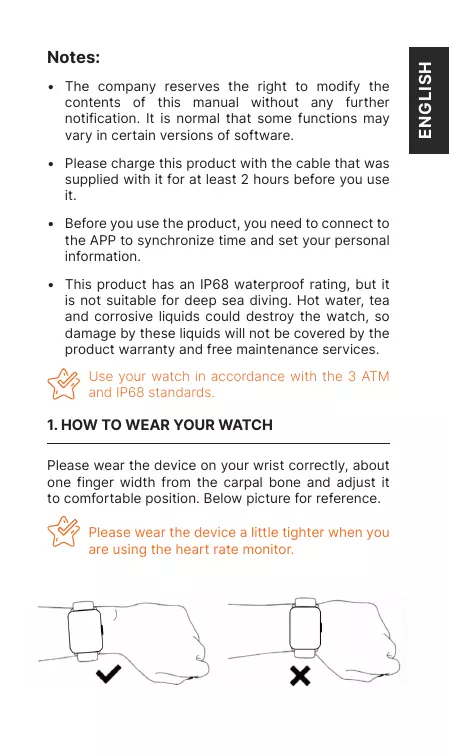
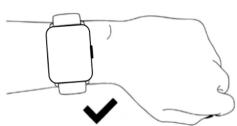
1. HOW TO WEAR YOUR WATCH

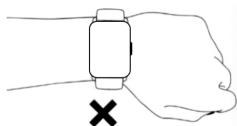
Please wear the device on your wrist correctly, about one finger width from the carpal bone and adjust it to comfortable position. Below picture for reference.

ICE-WATCH ICE SMART 2.0 BLACK - HOW TO WEAR YOUR WATCH - 1

Please wear the device a little tighter when you are using the heart rate monitor.
ICE-WATCH ICE SMART 2.0 BLACK - HOW TO WEAR YOUR WATCH - 2

ICE-WATCH ICE SMART 2.0 BLACK - HOW TO WEAR YOUR WATCH - 3

2. HOW TO DOWNLOAD & CONNECT TO APP

a. Methods to download & install the APP.

Scan "ICE" QR code to download and install "ICE smart" APP.

ICE-WATCH ICE SMART 2.0 BLACK - HOW TO DOWNLOAD & CONNECT TO APP - 1

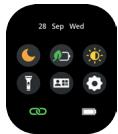
OR Find the QR code on the settings page. Turn on the watch, open "Settings > About > Download QR code", scan QR code to download and install the "ICE smart" APP.
ICE-WATCH ICE SMART 2.0 BLACK - HOW TO DOWNLOAD & CONNECT TO APP - 2

ICE-WATCH ICE SMART 2.0 BLACK - HOW TO DOWNLOAD & CONNECT TO APP - 3

OR Search "ICE smart" in App Store or Play Store to download and install the "ICE smart" APP.

b. Open "ICE smart" APP and select «Add Device» on the device page, then follow the instructions on the screen.
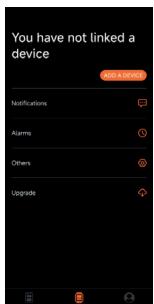
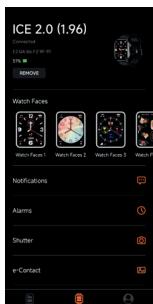
ICE-WATCH ICE SMART 2.0 BLACK - HOW TO DOWNLOAD & CONNECT TO APP - 4

ICE-WATCH ICE SMART 2.0 BLACK - HOW TO DOWNLOAD & CONNECT TO APP - 5

c. How to connect to bluetooth call feature:

For most Android phones, once your watch has been correctly connected to the app, you will see a "PAIR & CONNECT" pop-up reminder. Choose to pair with "ICE 2.0 (1.96)", then the connection will be finalized.

For all iOS mobile phones and some Android mobile phones, once your watch has been correctly connected to the app, you should go to the settings page of your mobile phone, search and select "ICE 2.0 (1.96)" in the Bluetooth list and then click it to pair. The Bluetooth call feature can be used after your devices have been paired.

ICE-WATCH ICE SMART 2.0 BLACK - c. How to connect to bluetooth call feature: - 1

TIPS

  1. Please upgrade the APP to the latest version to ensure the best experience.
  2. It is recommended to use the watch with a mobile phone system running Android 5.0 or iOS 9.0 or above.
  3. The first time you connect with an iPhone, the "Pair" reminder will pop-up. Click to pair so incoming calls and instant messages can come to your watch.
  4. The first time you connect with an Android phone, a "Permissions" reminder will pop-up, please follow the guide and allow the required permissions to ensure all functions can work properly.
  5. To successfully connect your watch and your phone, please turn on your mobile phone's Bluetooth, GPS and network connections.
  6. If the device cannot be found or connected during use, please reset or turn off your watch and then try again.

3. OPERATING INSTRUCTIONS

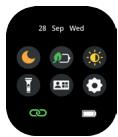
Shortcut page: Slide down from the main page to get to the shortcut page.
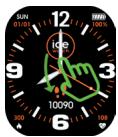
ICE-WATCH ICE SMART 2.0 BLACK - OPERATING INSTRUCTIONS - 1

ICE-WATCH ICE SMART 2.0 BLACK - OPERATING INSTRUCTIONS - 2

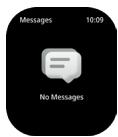
Message page: Slide up from the main page to access message page.
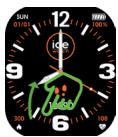
ICE-WATCH ICE SMART 2.0 BLACK - OPERATING INSTRUCTIONS - 3

ICE-WATCH ICE SMART 2.0 BLACK - OPERATING INSTRUCTIONS - 4

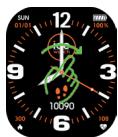
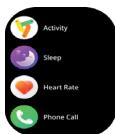
Main Menu Page: Slide right from the main page to enter into main menu. Long press the screen to choose different menu styles. Rotate the crown to scroll up and down the menu. Press the side button or slide left to return to the main page.
ICE-WATCH ICE SMART 2.0 BLACK - OPERATING INSTRUCTIONS - 5

ICE-WATCH ICE SMART 2.0 BLACK - OPERATING INSTRUCTIONS - 6

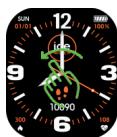
Favourite page: Slide left from the main page to access a few favourite page.
ICE-WATCH ICE SMART 2.0 BLACK - OPERATING INSTRUCTIONS - 7

ICE-WATCH ICE SMART 2.0 BLACK - OPERATING INSTRUCTIONS - 8

ICE-WATCH ICE SMART 2.0 BLACK - OPERATING INSTRUCTIONS - 9

ICE-WATCH ICE SMART 2.0 BLACK - OPERATING INSTRUCTIONS - 10

Quick access to change the watch

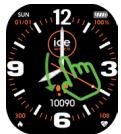
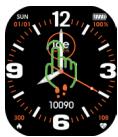
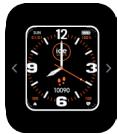
face: Keep your finger pressed on the watch face for 3 seconds to enter the watch face interface. Then swipe left to switch the watch face, and click the face you want to select.

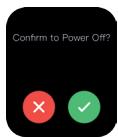
Shut down: Keep your finger pressed on the upper side button for 3 seconds to turn the watch off.
ICE-WATCH ICE SMART 2.0 BLACK - Quick access to change the watch - 1

ICE-WATCH ICE SMART 2.0 BLACK - Quick access to change the watch - 2

ICE-WATCH ICE SMART 2.0 BLACK - Quick access to change the watch - 3

Press crown : When you are using

normal functions, press the upper side button to return to the previous function interface; When you are in the watch face interface, press the upper side button to turn the screen on/off.

Quick access to Favourite Contacts: Press the lower side button to display the favourite contacts synchronized from the ICE smart app. Then you can make a call by choosing the contact (given phone call function is ON).

Quick access to Sports Mode: Long press the lower side button to access the Sports Mode directly.

4. FUNCTIONS
ICE-WATCH ICE SMART 2.0 BLACK - FUNCTIONS - 1

ICE-WATCH ICE SMART 2.0 BLACK - FUNCTIONS - 2

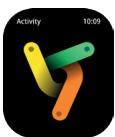
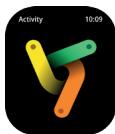
Activity: Records the number of steps, distance covered and calories used in a day. More detailed information analysis and data records can be viewed in the APP.

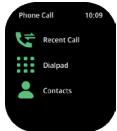
Phone call: Turn on the Bluetooth call function connection (see 2c How to connect to the Bluetooth call feature). Recent calls: Records your call history. Dial keyboard: You can enter a phone number via your watch. Contacts: Contacts can be added synchronously on the APP.
ICE-WATCH ICE SMART 2.0 BLACK - FUNCTIONS - 3

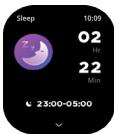
Sleeping: Your watch can record and display your total amount of sleep and the amount of deep sleep and light sleep that you had during the previous night. More detailed information analysis and data records can be viewed in the APP.
ICE-WATCH ICE SMART 2.0 BLACK - FUNCTIONS - 4

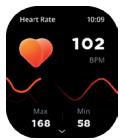
Heart rate monitor: Click the heart rate interface to measure your current heart rate. Turn on all-day heart rate measurement via the APP. According to the selected heart rate monitoring period, your watch can record and display your heart rate for 24 hours a day. More detailed information analysis and data records can be viewed in the APP. (This information is for your reference only and cannot be used as a basis for medical decisions).
ICE-WATCH ICE SMART 2.0 BLACK - FUNCTIONS - 5

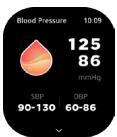
Blood pressure monitor: Test your current blood pressure and record your last 7 blood pressure test results. More detailed information analysis and data records can be viewed in the APP. (This information is for your reference only and cannot be used as a basis for medical decisions).
ICE-WATCH ICE SMART 2.0 BLACK - FUNCTIONS - 6

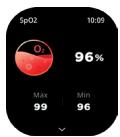
Blood oxygen monitor: Test your current blood oxygen levels, record your last 7 blood oxygen test results. More detailed information analysis and data records can be viewed in the APP. (This information is for your reference only and cannot be used as a basis for medical decisions).
ICE-WATCH ICE SMART 2.0 BLACK - FUNCTIONS - 7

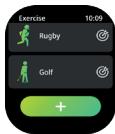
Sport modes: Supports 100+ sports modes like walking, outdoor running, cycling, skipping, badminton, etc. More detailed information analysis and data records can be viewed in the APP.
ICE-WATCH ICE SMART 2.0 BLACK - FUNCTIONS - 8

Exercise Records: Record the latest 5 sports results.
ICE-WATCH ICE SMART 2.0 BLACK - FUNCTIONS - 9

Weather: Displays the current weather conditions and the weather for the next 6 days. Weather information needs to be connected in the APP before this data can be obtained. If the connection has been disconnected for a long time, this weather information will not be updated.
ICE-WATCH ICE SMART 2.0 BLACK - FUNCTIONS - 10

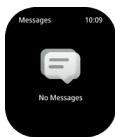
Notifications: Synchronize the information notifications from your phone and display your last 8 information notifications (for this you need to turn on «message notification» in the APP).
ICE-WATCH ICE SMART 2.0 BLACK - FUNCTIONS - 11

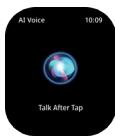
AI voice assistant: Click AI voice function button. Say the wake up word for your phone's AI voice assistant (for example, the wake-up word for iPhone is "Hey Siri"). Please make sure that the Bluetooth function has been successfully connected.
ICE-WATCH ICE SMART 2.0 BLACK - FUNCTIONS - 12

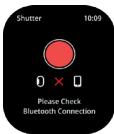
Camera control: After connecting to the APP, the watch can be used as a mobile phone camera remote control. First open the camera on the mobile APP, then click on the watch camera control page to trigger the mobile phone camera shutter.
ICE-WATCH ICE SMART 2.0 BLACK - FUNCTIONS - 13

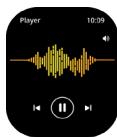
Music control: After you have connected your watch to the APP, it can control the music play/pause/ previous song /next song and volume adjustment functions on your phone.
ICE-WATCH ICE SMART 2.0 BLACK - FUNCTIONS - 14

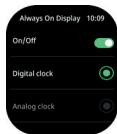
AOD: You can choose a digital clock or an analog clock and display it when the watch screen is off. (If this function is turned on, the usage time will be shortened).
ICE-WATCH ICE SMART 2.0 BLACK - FUNCTIONS - 15

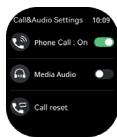
Call & Audio Settings: Phone Call ON enables BT calls. Media Audio is to control the sound from apps with media. When it is ON, sound will come to the watch. When OFF, it will play on phone.Call reset is to clear all the call records and contacts in the watch.
ICE-WATCH ICE SMART 2.0 BLACK - FUNCTIONS - 16

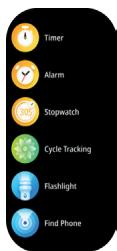
More functions : Timer, Alarm clock, Stopwatch, Menstrual Period Calendar, Flashlight, Find Phone and Mini game.
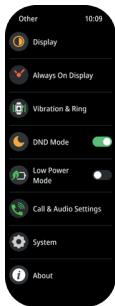
ICE-WATCH ICE SMART 2.0 BLACK - FUNCTIONS - 17

Settings: Display, AOD, Vibrate & Ring, Do Not Disturb, Low Power Mode, Call & Audio Settings, System and About.

5. OTHER FUNCTIONS

Pedometer, Calories, Sedentary behavior reminder, do not disturb mode, low battery reminder, incoming call reminder, watch face/customized watch face, 12/24h time system, unit setting, physiological cycle reminder, etc.

6. LANGUAGES

English, French, Dutch, German, Spanish, Italian, Portuguese, Chinese, Japanese.

7. CHARGING

  1. Attach the charging cable to the watch charging port, make sure that the metal pins are completely connected.
  2. Please use the correct charging adapters which are 5V, 0.5A.

8. WARRANTY

Each watch comes with a 2 YEARS LOCAL WARRANTY against defects in materials and workmanship. This warranty covers all parts except the battery, the strap and the charging cable.

The following causes of defects are not covered by the free warranty service:

  1. Personal assembly or disassembly.
  2. Damage caused by the watch being dropped during use.
  3. Any man-made damage or damage through the fault of a third party, improper use (such as: water in the smart watch, shattering due to external forces, scratching during use etc.)

Please provide the warranty card with all details filled in when you request aftersales services.

Please contact dealers directly for warranty services.

This limited warranty is void if the defect is discovered to be caused by abuse or tampering with the watch.

ICE-WATCH ICE SMART 2.0 BLACK - WARRANTY - 1

TIPS

  1. In order to ensure the waterproof performance of the product, do not open the back cover of the watch without authorization, and do not soak it in hot water, hot tea or any corrosive liquids.
  2. This product contains a lithium battery, please make sure that you take it to a designated battery recycling point for product recycling.

Remarques:

  1. Please read the user manual carefully before first use and keep it properly for future references.
  2. Only use included cable for charging.
  3. Please don't leave the device charging alone.

ICE-WATCH ICE SMART 2.0 BLACK - Remarques: - 1

ATTENTION

Remove the strap from the watch by sliding the quick release on the strap.

REMPPLIER LE BRACELET

Manual assistant
Powered by Anthropic
Waiting for your message
Product information

Brand : ICE-WATCH

Model : ICE SMART 2.0 BLACK

Category : Watch