RIVAL 650 - Gaming Mouse STEELSERIES - Free user manual and instructions
Find the device manual for free RIVAL 650 STEELSERIES in PDF.


User questions about RIVAL 650 STEELSERIES
0 question about this device. Answer the ones you know or ask your own.
Ask a new question about this device
Download the instructions for your Gaming Mouse in PDF format for free! Find your manual RIVAL 650 - STEELSERIES and take your electronic device back in hand. On this page are published all the documents necessary for the use of your device. RIVAL 650 by STEELSERIES.
USER MANUAL RIVAL 650 STEELSERIES
PRODUCT INFORMATION GUIDE
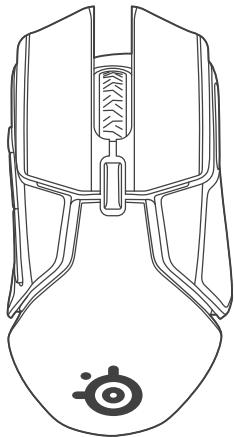
PRODUCT OVERVIEW
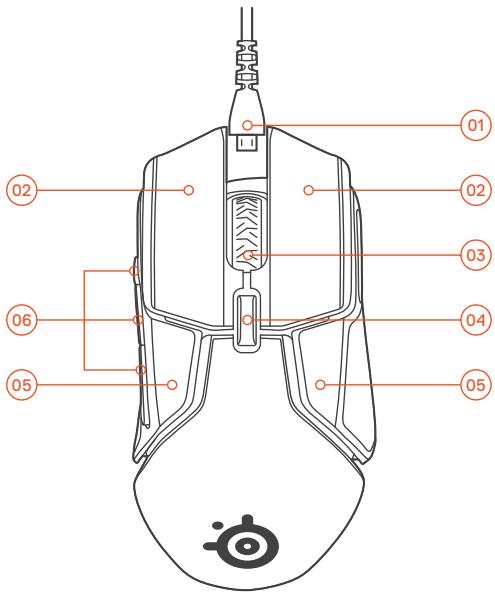
01 USB Cable for
Play & Charge
02 Split Trigger Design
Main Mouse Buttons
03 Scroll Wheel
04 CPI Button /
Lift Off Calibration
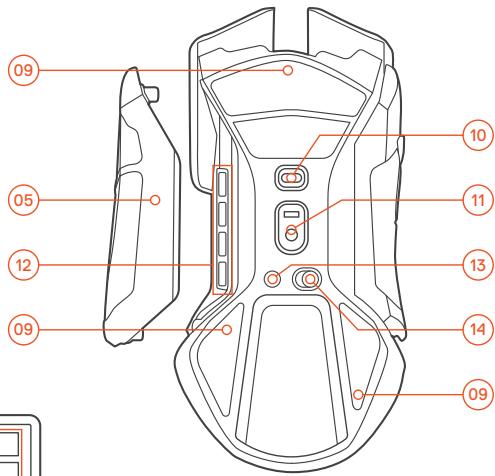
05 Removable Side Panels
with Rubber Side Grips
06 Side Buttons
07 USB Wireless Adapter

08 USB Extender
09 PTFE Feet
10 Dedicated Lift Off Sensor
11 TrueMove3 Sensor
12 Weight Molds
13 Connect Button
14 Power Switch
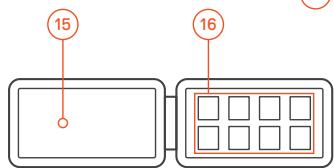
15 Weights Box
16 Weights (8× 4g)
SETUP
WIRED MODE
01 Connect the USB Cable to your computer
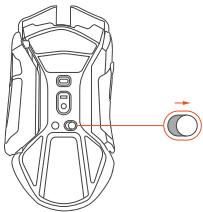
02 Turn the Power Switch ON
CHARGING
Once connected to a USB port the mouse will charge. Charging is unaffected by the Power Switch being in ON/OFF position.

Fast Charging*
| Estimated Fast Charging times | Amount of battery life ** |
| 5 minutes | 3+ hours |
| 10 minutes | 6-7 hours |
| 15 minutes | 10+ hours |
Only on USB ports supporting fast charge
*based on default lighting profile
WIRELESS MODE
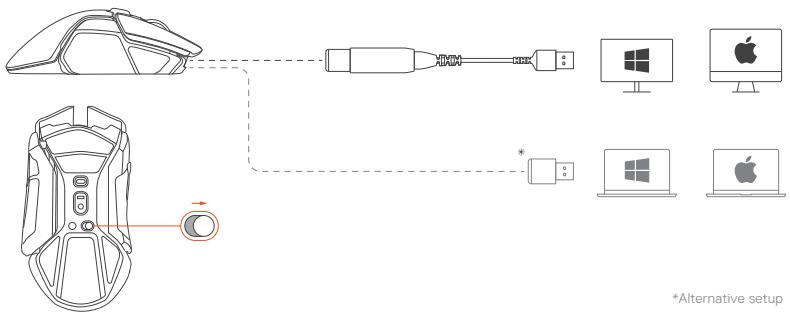
01 Connect the USB Cable to your computer
02 Use the USB Extender to connect USB Cable and USB Wireless Adapter
03 Turn the Power Switch ON. The light pipes will blink orange as the mouse tries to pair to a previously paired dongle.
Re-pairing mouse to dongle
01 Keep the mouse close to the USB Wireless Adapter which is connected to your computer
02 Turn the Power Switch ON
03 Press the Connect Button. The light pipes will blink blue while pairing.
*Alternative setup
CONFIGURING WEIGHT SYSTEM
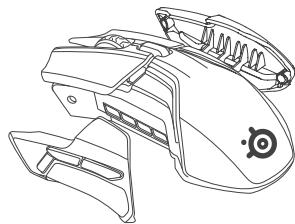
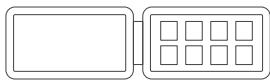
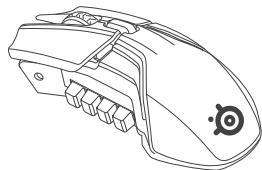
01 Remove the Side Panels to access the weight molds
02 Choose your desired Weights and insert them into the dedicated Weight Molds
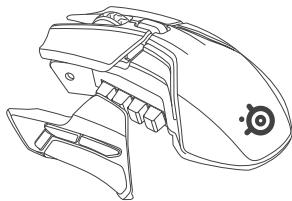
03 Re-attach Side Panels once the desired weight is calibrated. If you find it not to your liking, repeat steps 01 to 03
CALIBRATION OF LIFT OFF SENSOR
Your Rival 650 Wireless is equipped with a secondary, high precision lift off sensor. To ensure the highest level of accuracy, the lift off sensor must be calibrated to your gaming surface of choice.
Calibration of the lift off sensor can happen in two ways:
Automatic
On every mouse power up, your lift off sensor will automatically calibrate.
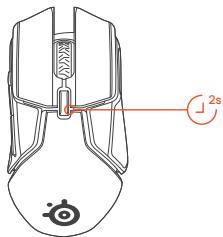
Manual
If you change gaming surfaces it is recommended to recalibrate the lift off sensor.
To manually calibrate the lift off sensor, hold down the CPI button for two seconds to force recalibration. Your Rival 650 Wireless will flash white three times when lift off calibration is complete.
FRANCAIS
Requisiti software SteelSeries Engine
Piattaforme