ManualGo.com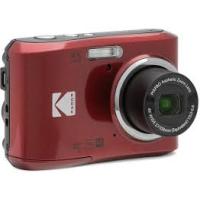
PhotoFZ45 - Camera KODAK - Free user manual and instructions
Find the device manual for free PhotoFZ45 KODAK in PDF.


Download the instructions for your Camera in PDF format for free! Find your manual PhotoFZ45 - KODAK and take your electronic device back in hand. On this page are published all the documents necessary for the use of your device. PhotoFZ45 by KODAK.
USER MANUAL PhotoFZ45 KODAK
Declaration of Conformity Responsible Party: JK Imaging Ltd. Address: JK Imaging Ltd., 17239 So. Main Street, Gardena, CA 90248 USA Company website: kodakpixpro.com For Customers in the USA Tested to Comply with FCC Standards FOR HOME OR OFFICE USE This device complies with part 15 of the FCC Rules. Operation is subject to the following two conditions: (1) This device may not cause harmful interference and (2) this device must accept any interference received, including interference that may cause undesired camera operation. For Customers in Europe "CE" mark indicates that this product complies with the European requirements for safety, health, environment and customer protection. "CE" marked cameras are intended for sales in Europe. This symbol [crossed-out wheel bin WEEE Annex IV] indicates separate collection of electrical waste and electronic equipment in the European countries. Please do not throw the equipment into domestic refuse. Please use the return and collection systems available in your country for proper, safe disposal of this product. Batteries: Please dispose of used batteries at designated collection centers. Packaging: Please follow local regulations for the recycling of packaging.
About this Manual Thank you for purchasing this KODAK PIXPRO Digital Camera. Please read this manual carefully and keep it in a safe place for future reference. JK Imaging Ltd. reserves all rights of this document. No part of this published manual may be reproduced, transmitted, transcribed, stored in a retrieval system or translated into any language or computer language, in any form, by any means, without the prior written permission of JK Imaging Ltd. All trademarks mentioned in this manual are used for identification purposes only and are properties of their respective owners. This manual provides you with instructions on how to use your new KODAK PIXPRO Digital Camera. Every effort has been made to ensure that the contents of this manual are accurate: however JK Imaging Ltd. reserves the right to make changes without notice. Throughout this manual, the following symbols are used to help you locate information quickly and easily: Indicates useful information. The following symbols may be used throughout this manual to facilitate your understanding of how to operate the camera: [Item properties]:The optional properties in the camera interface are indicated by the [ ] symbol.
SAFETY NOTES Safety Notes for this Camera Do not drop the camera or allow it to hit solid objects. Do not attempt to disassemble or repair the camera. Do not use or store the camera in dusty places or on a beach to help prevent dust or sand from entering the camera, causing possible damage. Do not use or store the camera in a hot environment or in direct sunlight. Do not use or store the camera near powerful magnetic fields, for example near a magnet or transformer. Avoid touching the lens of the camera. Do not expose the camera to direct sunlight for a long period of time. To prevent the camera from being damaged by moisture, do not use or store the camera in very humid environments, such as in rain or near bodies of water. If water accidentally comes in contact with the camera, turn the camera off immediately, remove the battery and the memory card and dry it completely within 24 hours. When you take the camera from a cold environment to a warmer environment, condensation may occur. Please wait for a reasonable period of time before you turn the camera on. Before you remove the battery and memory card, the camera should be turned off. When you clean the body of the camera, do not use abrasive, alcohol-based or organic cleansers or solvents. Use a professional lens cleaning cloth and appropriate cleaner to wipe and clean the lens. Download your photos and remove the memory card when you are going to store the camera for long periods of time. If this camera is not in use for a long period of time, please keep it in a dry and clean storage location. Our company will not pay compensation for any failure of playback including: pictures or videos damaged or unrecoverable by improper operation.
Safety Notes for Battery If battery fluid leaks inside the camera, contact our customer service department immediately. If battery fluid leaks onto your skin, rinse your skin with clean water and seek immediate medical attention. Disposal of used batteries should be carried out in accordance with your local (national or regional) regulations. To prevent the battery from being damaged, do not drop the battery or allow it to hit solid objects or to be scratched by foreign objects. Do not let the battery come in contact with metal objects (including coins) to avoid short circuiting, discharging, excessive heat or possible leakage. Do not attempt to disassemble the battery. Do not expose the battery to water. Always keep the battery contacts dry. Do not heat the battery or throw it into a fire to avoid a possible explosion. Do not store the battery in a hot environment or in direct sunlight. When the camera is stored for a long period of time, remove the battery and keep it in a safe, dry place that is not accessible to infants and children. In colder environments, the performance of the battery could be noticeably reduced. When you install the battery, align the battery markings according to the positive and negative markings inside the camera battery compartment. Never force the battery into the battery compartment.
Safety Notes for Memory Cards We highly suggest buying only well-known, name brand memory cards to ensure peak performance and reliability. Format the memory card using the camera before you use it or insert a new one. Do not drop the memory card or allow it to hit solid objects to avoid damaging it. Do not attempt to disassemble or repair the memory card. Do not expose the memory card to water. Always keep it dry. Do not remove the memory card when the camera is turned on. Otherwise, the memory card and photo/ video files could be permanently damaged. Do not directly edit the data on the memory card. Copy the data to your computer before you edit files. When the camera is stored for long periods of time, be sure to download your photos and remove the memory card. Store the memory card in a dry environment. Do not modify the name of the files or folders of the memory card using your computer. Modifying the file names may cause the files to not be recognized on the camera or a possible permanent error may occur. A photo taken with the camera will be stored in the folder that is automatically generated on the memory card. Do not store photos that are not taken using this camera in these folders as the pictures cannot be recognized during playback. When you insert the memory card, make sure the notch of the card matches the markings on the top of the camera card slot.
Other Safety Notes Do not disconnect the power or turn the camera off during the update process. Doing so may cause incorrect data to be written and the camera may not power on later. Do not hang the neck or wrist strap of the camera around the neck of a child. When using your camera on an airplane, observe the relevant rules specified by the airline and FAA regulations. Due to the limitations of manufacturing technology, the LCD may have a few dead or bright pixels. These pixels do no effect the quality or performance of the camera, photos or video. Do not expose the camera’s LCD to water. In a humid environment, only wipe it with a soft, dry and cleaning cloth. If the LCD is damaged and the liquid crystal comes into contact with your skin, wipe your skin with a dry cloth immediately and rinse it with clean water. If liquid crystal comes into contact with your eyes, wash them with clean water at least for 15 minutes and seek immediate medical attention. If you accidentally swallow liquid crystal, rinse your mouth immediately and seek medical attention.
WARNING Altering, tampering or modifying the any parts of FZ45 camera is unauthorized and will void the manufacturer’s warranty and “could” void Federal and/or State Compliance. This equipment has been tested and found to comply with the limits for a Class B digital device, pursuant to part 15 of the FCC Rules. These limits are designed to provide reasonable protection against harmful interference in a residential installation. This equipment generates, uses, and can radiate radio frequency energy and, if not installed and used in accordance with the instructions, may cause harmful interference to radio communications. However, there is no guarantee that interference will not occur in a particular installation. If this camera equipment does cause harmful interference to radio or television reception, which can be determined by turning the equipment off and on, the user is encouraged to try to correct the interference by one or more of the following measures: - Reorient or relocate the receiving antenna - Increase the separation between the camera equipment and receiver - Connect the camera equipment into an outlet on a circuit different from that to which the receiver is connected - Consult the dealer or an experienced radio/TV technician for help
White Balance Setting Color Effect Scene
GETTING STARTED Accessories Included Your camera box should contain the camera model you purchased along with the following accessories. If anything is missing or appears to be damaged, please contact your retailer first or our customer service center. AA Alkaline battery x 2 Quick St Micro USB Cable art Gui
Wrist Strap STOP Warranty Card Service Card Part Names
1 Flash Lamp 8 LCD 16 Strap Eyelet 2 AF Assist Beam/ Self-timer Lamp 9 Power Button 17 [
] Display Button/Arrow Button (Up) 10 Quick Video Recording Button 18 [ 11 Indicator Lamp 19 [ ] Delete Button/Self-timer Button/ Arrow Button (Down) 4 Microphone 12 Shutter Button 20 [ 5 Tripod Socket 13 Zoom Button 21 SET Button 6 Battery Cover 14 Micro USB Port 22 Mode Button 7 Speaker 15 Playback Button 23 Menu Button 3 Lens ] Flash Button/Arrow Button (Right) ] Macro Button/Arrow Button (Left)
Installing Battery and Memory Card
1. Open the battery cover door.
2. Insert the battery into the battery slot in the
correct direction as shown in the following diagram.
3. Insert the memory card into the memory card
slot as shown in the diagram below: Write Protection Toggle Switch A memory card (SD/SDHC/SDXC) is optional and not included in all camera packaging. It needs to be purchased separately. Please use an original memory card which is Class 10 or higher and has a capacity of 4GB to 512GB. To remove your memory card, open the battery cover door, gently press the memory card to eject it and remove it carefully.
4. Close the battery cover door.
Turning Camera On and Off Press the Power button to turn the camera on. To turn the camera off, press the Power button again. Power Button When the power is off, press and hold the play button to power on and enter Playback mode.
How to Take Pictures
1. Hold the camera with both hands, being careful to not block the flash and lens with fingers.
2. Point the lens toward the object you want to take a picture of, and then frame it with the LCD.
3. Use the Zoom button to select Tele or Wide positions to zoom in or out on your subject.
4. Press the shutter button halfway down to focus on the subject. When the focus frame turns green, press
the shutter button all the way down to completely to take the picture. Set your Language, Date/Time Set your Language, Date/Time after the First Power-On
1. When you turn the camera on for the first time, the language selection screen appears.
2. Press the arrow buttons to select your desired language.
3. After you press the
appear. button to confirm your language selection, the Date/Time settings screen will
] buttons to adjust the value for the desired Date/Time. button to confirm the time settings and the snapshot screen will appear. Resetting your Language After you set your language for the first time, follow the instructions below to reset your desired language. button and press the [
] buttons to select [Language] and press the
] button to enter the ] buttons to select your desired language and press the button and the snapshot screen will appear. Language Sound Settings Power Saver Language World Time Date & Time Auto English Home 2022.03.01 15:14
Resetting Date/Time After you set your Date/Time for the first time, follow the instructions below to reset date and time. button and press the [
] buttons to select , and press the
] buttons to press the value for your selected entry. After you finish your settings, press the button to confirm.
button and the following snapshot screen will appear. MODE OVERVIEW Display Setting Press the [ ] button to display the settings: Classic, Full, Off. Classic: Displays the camera parameters on screen Full: Camera parameters with Grid and Histogram
-0.3 EV 400 ISO Off: Does not display any additional icons on screen
LCD Screen Display Overview of the Screen Icons in Photo Shooting Mode
1 Zoom Display 5 Self-timer 2 Movie Mode 6 Memory Card/Built-In Memory 10 Remaining Recording Time 9 Focus Frame 3 Expo Metering 7 Battery Status 11 Video Quality 4 Macro Mode 8 Color Effect 12 Exposure Compensation (EV Value) For optimal video recording, it is recommended that an SDHC or SDXC memory card be used. Optical Zoom and Digital Zoom can be adjusted (24X in total). Digital Zoom can be adjusted to 6X.
Overview of the Screen Icons in Playback Mode
Memory space (indicating the current number of photos and total number of photos)
Shooting Date Using the Mode Button This camera provides a convenient Mode button that allows you to switch easily between different to enter the Mode Selection Menu, press the [
modes. After pressing the Mode button button to choose the desired mode. Press the button to confirm your selection. Scene Mode Panorama Auto Mode Auto Mode is the most common and easiest mode to take photos. While operating in this mode, the camera automatically optimizes numerous camera settings to optimally adjust settings for your photos and videos for the best possible results. Program AE The user can switch the ISO and EV value according to personal preference, the camera can automatically set the shutter speed and aperture value. Manual Mode The user can adjust the aperture, shutter speed and ISO values manually. This setting is generally used to shoot static photos.
Movie Mode Switch to this mode to record videos. Scene Mode You can press the [ ] button to select your desired scene from the 14 preset modes according to the type of environment you are shooting in, and press the button to confirm your selection. The camera then automatically configures the most appropriate settings for the best possible photos. Auto Scene Sunset ASCN The camera can intelligently detect different environments and automatically select the best scene and photo settings for you. ASCN can intelligently detect the following scenes:
Auto Mode The camera automatically adjusts the exposure and focus to ensure the best possible pictures. Landscape Mode For landscapes, automatically adjusts the exposure and reproduces vivid green and blue colors. Backlit Portrait When the sun or any other light source is behind the target you want to shoot, this mode automatically adjusts the foreground exposure to produce the best pictures possible. Macro Mode The macro setting is ideal for shooting small objects or extreme close-up photos. Night Landscape Mode For night scenes, this mode automatically increases the ISO value to compensate for low light. Portrait Mode Most suitable for capturing people with focus on their faces. Night Portrait When you take portraits at night, or in low light conditions, this mode automatically adjusts the exposure for people and night scenes. Night Landscape For night scenes. Use of a tripod or a flat surface to rest the camera on is recommended with this setting. Pet Mode The camera automatically takes a picture when a dog or cat face is detected. Snow For snowy conditions. Reproduces natural, clear, white scenes. Party Suitable for taking indoor party pictures, even under complicated lighting conditions. Sport For fast-moving subjects. Captures sharp, action shots with minimal blur. This mode is not recommended for shooting indoors.
Night Portrait For portraits against night scenery. Portrait The camera is set to automatically adjust exposure for realistic capture of skin tones. Children Turns flash off automatically. Avoids disturbing the subject and is suitable for taking photos of children. Landscape For landscapes and outdoor shots. Vivid reproduction of greens and blues. Sunset For sunsets. Captures subjects in strong sunlight. Fireworks For fireworks at night. Use of a tripod or a flat surface to rest the camera on is recommended with this setting. Beach For taking pictures in areas with strong sunlight. Anti-shake This mode can help reduce photo blur caused by hand shake, low light and/or slow shutter speed.
Panorama Mode With Panorama Mode, you can take a series of pictures which will be automatically stitched into an ultra-wide panoramic (up to 180°) picture by the camera.
1. Press the arrow buttons to select a desired
shooting direction. Should you not select a direction, the default shooting direction is “left to right”. 2 seconds later, the camera will be ready to take pictures. You can also press the button or press the shutter button halfway down to get ready to take panoramic pictures.
2. Compose the first view of the panoramic picture
on the LCD and press the Shutter button to capture the image.
3. When you finish shooting the first photo, two
target icons will display on the LCD at left and right sides. Move the camera to the right until the round target icon is directly positioned over the square box. The box will turn green when they overlap and the camera will automatically take the next picture. Repeat the same steps for additional shots. Up to 4 frames can be stitched together. Cancel Save
4. If continuous pictures are less than 4
shots, press the button, the camera will automatically stitch the pictures together. Press the Playback button to enter Playback Mode to see the finished effect.
5. If you take 4 pictures, the camera will stitch
the pictures together automatically. Press the Playback button to enter Playback Mode to see the finished effect. In Panorama Mode, the Flash, Self-timer, Macro Modes and Exposure Compensation are not available. Focus Adjustment is also not available at this time. In Panorama Mode, up to 4 photos can be captured when the image size is set at 2M.
In the process of shooting in Panorama Mode, when the LCD shows “Improper alignment. Please try again”, it means that in the process of the camera moving, the angle is off the green line and stitching cannot be completed. You will have to try again, keeping the LCD image aligned with the green line. In order to guarantee the best shooting effect in Panorama Mode, please keep moving horizontally and keep unnecessary shaking to a minimum. During Panorama Mode shooting, press the button to interrupt shooting and save the current pictures. Press the [ ] button to cancel shooting and delete previously taken pictures. Face Beautifier This mode automatically enhances facial features with skin softening touches and eye brightening capabilities.
Please refer to the table below if any nonadjustable options in mode: (O: Available X: Not available) Mode Options Aperture Shutter
BASIC OPERATION Using the Zoom Function Your camera is equipped with two types of Zoom Functions: Optical Zoom and Digital Zoom. Press the Zoom button of the camera to zoom in or out on the subject while taking pictures.
-0.3 EV 400 ISO When the optical zoom reaches the threshold as digital zoom, release and turn the zoom button to T to switch between the optical zoom and digital zoom.
Macro Mode The Macro Setting is ideal for shooting small objects or close-up photos. This mode allows you to focus on subjects very close to the camera.
] buttons to select the following 2 modes: Macro Off Select this option to disable Macro. Macro On Select this option to focus on subjects 5cm from the lens.
button to confirm the settings and exit the menu. Self-timer Setting Use this function to take pictures at pre-set intervals. The camera shutter speed can be set to 2 seconds, 10 seconds or Smile Detection.
] button to enter the Self-timer Menu. Self-timer Off
following 4 modes: ] buttons to select one of the Self-timer Off Disables the Self-timer. Self-timer 2 sec A single picture is shot 2 seconds after the Shutter Button is pressed. Self-timer Smile Press the Shutter Button and a picture will be taken immediately after a smile is detected.
button to confirm the settings and exit the menu. When enabling the Self-timer feature, pressing the shutter or the ] button can disable the Self-timer and return to the shooting screen without keeping the Selftimer setting. When enabling smile detection, pressing the shutter button or the button can disable the Self-timer and return to the shooting screen without keeping the Self-timer Smile Setting. Self-timer 10 sec A single picture is shot 10 seconds after the Shutter Button is pressed.
Flash Mode The flash provides supplemental light for scenes. The flash is usually used when shooting against the light to highlight the object; it is also suitable for metering and shooting in darker scenes to improve the exposure.
] button to enter the Flash Settings Menu. Slow Sync. This allows you to take pictures of people at night that clearly show both your subjects and the night time backdrop. The use of a tripod is recommended when shooting with this setting. Slow Sync. + Red-Eye Use this mode for slow synchrony shots with red-eye reduction. Flash Auto
following 6 modes: ] buttons to select one of the Force Off Flash is turned off. Flash Auto Camera flash goes off automatically based on lighting conditions.
Force Flash The flash will engage with each shot even if there is enough available light to take the photo without flash. Red-Eye Reduction The camera emits a brief pre-flash before the picture is taken to reduce red-eye effects. button to confirm the
settings and exit this option. EV Setting Exposure Compensation The EV Function Menu of the camera includes functions, such as EV, Shutter Adjustment and ISO. Using the appropriate Function Settings can improve your pictures. To select the best setting for optimum photos, follow these steps:
] buttons to select the Setting The adjustable range of exposure value is from EV -3.0 to EV+3.0. ISO F2.8
option values. Set up Exposure Compensation to adjust the picture brightness. If there is very high contrast between the photographed object and the background, the brightness of the picture can be adjusted as necessary.
1/50 +0.3 EV 800 ISO ] buttons to adjust the button to complete the setting and enter
Shooting Mode. The ISO Function allows you to set the sensitivity of the camera’s light sensor based on the brightness of the scene. To improve the camera’s sensor performance in darker environments, a higher ISO value is required. A lower ISO value is needed when shooting in brighter conditions. Pictures taken at higher ISO settings will generally have more noise than those taken at lower ISO settings. The camera’s ISO settings include: Auto, 100, 200, 400, 800, 1600 and 3200.
Shutter Adjustment For shutter speed, the camera may automatically set the aperture value corresponding to the manually set shutter speed to obtain the most suitable exposure value. The movement of objects may be shown by adjusting the shutter speed. High shutter value can help you more clearly capture fast moving objects, while low shutter value can better show the movement of objects. Using Quick Recording In the Photo Shooting Mode, press the Fast Video to begin recording video. Recording Button x3.5 Aperture Adjustment You can adjust the aperture size value. Selecting a large aperture opening will emphasize the point of focus and show a blurry background and foreground. A small aperture opening will keep both the background and main object in clear focus.
00:00:06 Once you are finished, press the Fast Video Recording Button or the Shutter Button to stop and store the video. The camera will return to the Shooting Mode automatically. PLAYBACK Viewing Photos and Videos To view captured photos and video clips on the LCD:
1. After pressing the
button, the last photo or video clip taken will be displayed on the LCD.
] buttons to scroll through the photos or video clips stored on the built-in memory or on the Memory Card in the camera. button to enter the Movie Playback Mode.
3. To play a selected video clip, press the
An operation guide appears on the screen when playing back a video. Press the appropriate buttons to enable the corresponding functions. Mute
00:01:23 Increase Volume 2 Pause
Return back to the beginning of the video
1. Slide the Zoom button to switch between 3 x 3 and 4 x 4 thumbnails.
2. When a 3 x 3 or 4 x 4 thumbnail is displayed, press the arrow buttons to select the picture or video clip to
3. Press the arrow buttons to select a picture or video clip to view and press the
button to restore it to the indicator appears on the LCD, then a movie file is currently being displayed. button to restore a preview icon to its original image size. Using Zoom Playback (for still pictures only) When playing back photos, you can also use the Zoom Button to zoom in on the photos, 2 to 8 times their original magnification.
] buttons to select the picture on which to use the zoom feature.
on the Zoom Button to zoom in.
3. The bottom right corner of the screen will display the amount zoomed in as well as the area of the photo
4. Press the arrow buttons to navigate and select the desired portion of the photo to be zoomed in on.
button to return the image to its original scale. Movie images cannot be magnified. Please note: This camera’s LCD is only capable of displaying a fraction of the detail and resolution of the actual photo or video file. Once photos/videos are downloaded to your computer, you will see the full resolution of the photo/video file captured.
Slideshow This setting allows you to view all the stored pictures as a slideshow.
button to enter playback screen. button to enter slide option.
] buttons to select slideshow playing or [Cancel] to return to the playback screen. Play Slide Show Effect 2 Play Slide Show Effect 1 Play Slide Show Effect 2 Play Slide Show Effect 3
button to confirm the setting. Photos and Video Deletion In Playback Mode, press the [ ] button to select your desired photos and videos. To delete photos or videos:
] buttons to select the photos and videos to be deleted. ] button and the deletion screen is displayed. Delete One Exit
] buttons to select [Delete One] or [Exit] and press the button to confirm. Erased photos/video clips cannot be recovered. Please refer to 58 for instructions on deleting more than one image at a time.
Photo Menu Expo Metering (Exposure Metering) Mode: Use this setting to select the “target” size of the camera’s field of view to be metered.
] buttons to select the Photo Shooting Menu and settings.
] buttons to select the Photo Shooting Menu to be set and press the button to confirm.
AiAE (Artificial Automatically selects the Intelligence AE) central and peripheral metering, to calculate the reasonable value of metering by weighting. Spot Metering targets a small area in the center of the camera’s field of view. Center Metering targets a slightly larger area in the center of the camera’s field of view. Image Size The size setting refers to the image resolution in pixels. A higher image resolution allows you to print that image in larger sizes without degrading the photo image quality. The bigger the number of recorded pixels is, the better the image quality becomes. As the number of recorded pixels lessens, you will be able to record more images on a memory card. Continuous AF 4608x3456 Use the Continuous AF setting to be able to continuously focus automatically when taking pictures. Cont.AF: Off Cont. AF:Off 16M: 4608x3456 14M: 4608x3072 (3:2) 12M: 4608x2592 (16:9) 10M: 3648x2736 Cont.AF: Off 5M: 2592x1944 Cont.AF: On 3M: 2048x1536 2M: 1920x1080 (16:9) VGA: 640x480
Continuous Shot Use this setting to perform continuous shooting. After entering this mode, you can shoot multiple images by continuously holding the shutter button down. Press the shutter button to start continuous shooting. Face Beautifier Skin Soften 30 sec Effect 1 Time-Lapse 30 sec Single Continuous Shot 3 Shots Time-Lapse (30sec/1min/5min/10min) The flash is disabled in Continuous Shot Mode in order to achieve quick succession of shots.
Effect 1 Skin Soften Effect 2 Skin Soften + Eye Brightening Effect 3 Skin Soften + Eye Brightening + Eye Enlargement Focus Setting This setting allows you to select different modes for optimum focus. HDR Use this setting to control wide dynamic image range when taking static pictures. Photos with extreme contrast of bright and dark areas will still maintain distinguishable detail and depth. (Suggest using tripod) HDR: Off Object Tracking Single-AF The focus frame appears on the center of the LCD to help you focus on the subject. Multi-AF The camera automatically focuses the subject in a wider area to find the focal point. Object Tracking Smart tracking of the object in motion under the focusing shooting. HDR: Off HDR: On In the scenario with high light contrast (too dark or too light), this function can be used to shoot satisfactory photos. When is enabled, Object Tracking function is not available.
White Balance Setting The white balance setting allows you to adjust the color temperature for different lighting scenes to ensure the most accurate color reproduction. Press SET To Enter AWB AWB AWB Incandescent Daylight Manual WB Cloudy Fluorescent Fluorescent CWF
(Fully press the Shutter Button to detect the white balance value) Color Temp. (1900K~10000K) Press the [ the K value”; Press the [ K value. ] buttons to “Adjust ] button to exit the Color Effect The image color setting allows you to select different color effects. Press SET To Enter Normal Normal Normal Dreamy Vivid Vignetting Black and White Salon Sepia When HDR or Continuous Shot function is enabled, Dreamy, Vignetting and Salon is not display.
Photo Shoot Settings Menu Scene Select a scene under Scene Mode ( the “Scene Mode” section on page 24. ). Refer to Press SET To Select Scene Pet Mode Press SET To Enter Menu Press the mode, you can press the [ ] button on the shooting screen to set up Auto shooting. Auto Shooting: On
Date Imprint Off Quick Review Off Quality AF Assist Beam The quality setting can be used to adjust the image compression ratio. In a darker environment, the AF assist beam setting can be turned on for better focus. Quality Normal Best Off
Normal Off Off Best 16M Average File Size: 4.0MB Digital Zoom Fine 16M Average File Size: 2.5MB Normal 16M Average File Size: 2.0MB This setting is for adjusting digital zoom. If this function is disabled, only optical zoom can be used. Normal Off Digital Zoom
Date Imprint Quick Review Include a Date/Time stamp on the photo image. This option allows quick review of the photos immediately after they are taken. Each photo is displayed on the LCD screen based on the selected time. Off Date Date/Time Off Date Imprint 1 sec 2 sec 3 sec Quick Review Face Detection Detects and focuses on faces to make all faces as clear as possible in Photo Mode. 2022/03/01 08:00 Face Detection Off
Movie Menu Expo Metering (Exposure Metering) Mode: Use this setting to select the “target” size of the camera’s field of view to be metered.
the Movie Menu to be set. ] buttons to select
] buttons to select the Movie Menu to be set and press the button to confirm. AiAE (Artificial Automatically selects the Intelligence AE) central and peripheral metering, to calculate the reasonable value of metering by weighting. Spot Metering targets a small area in the center of the camera’s field of view. Center Metering targets a slightly larger area in the center of the camera’s field of view.
Video Quality Set the image resolution used during video recording.
- The longest recording time is 29 minutes at one time. When recording in higher pixel resolutions for extended periods of time, this can cause the camera to generate heat. This is not a camera malfunction. Size: 1080p 30fps Sound recording is disabled when 640x480 120fps is chosen. The speed requirements for reading and writing high resolution image pixel images to an SD card are as follows: No. Image Pixels Frames
Class 10 When the video format is set as 640x480 (120fps), the shooting time is 30 seconds and the playback time is 2 minutes. Movie Shooting Settings Menu Color Effect The Image Color Setting allows you to select different color effects. Press SET To Enter Menu Normal Press the Normal Vivid button to enter the menu. AF Assist Beam
AF Assist Beam Digital Zoom In a darker environment, the AF assist beam setting can be turned on for better focus. This setting is for adjusting digital zoom. If this function is disabled, only optical zoom can be used. AF Assist Beam Normal Off Off
Options in the shooting mode (O: Available X: Unavailable) Shooting Modes Options Others
button to display the playback button to enter the screen and press the menu. Press SET To Confirm Normal Mode: Display all images. Normal Mode Normal Mode: Display all images. Date Mode: Arranged by date.
] buttons to select the playback desired and press the button to enter.
] or [ buttons to select an option and press the button to confirm.
The Date Folder is displayed in date order based on photo shooting date/time. HDR Touch-up With the HDR function, pictures that are overexposed may be corrected to optimize the highlights and lowlights captured to more accurately represent the actual scene. The playback beauty feature allows for beautification using three individual effects. Red-Eye Reduction HDR Red-Eye Reduction HDR Skin Soften Cancel Eye Brightening After using the HDR function, the image will be saved as a new file and the original file is still stored on the memory card. Eye Enlargement Cancel
Rotate Resize You can use this setting to change the orientation of the picture. This setting allows you to resize a picture to a particular resolution and saves it as a new picture. Turn Right
Resize to 1024x768 Turn Right Resize To 1024x768 Turn Left Resize To 640x480 Cancel Cancel Videos and panoramic pictures cannot be rotated. Only for adjusting pictures with high resolution to those with a lower resolution. The rotated picture file will replace the original photo. Sizes of photos taken in panorama mode or rotated cannot be adjusted. Playback Settings Menu Color This setting allows you to change the picture color effect. The file is saved as a new photo and stored in memory together with the original photo. Press SET To Enter Menu Cancel Press the button to enter the menu. Cancel Vivid Sepia Black and White Protect Delete DPOF Trim Grainy Dreamy Vignetting Salon
Protect Delete To prevent any pictures or videos from being accidentally erased, use this setting to lock one or all of the files stored on the memory card. You can delete one or all photo/video files. One Delete Protect One Date folder All Date folder All Reset One Lock the selected photo or video if they are unprotected; unlock the selected photo or video if they are protected. Date Folder Protect all photos in the Date Folder. All Lock all photos or videos. Reset Cancel all locked photos or videos. One Delete one photo or video. Date Folder Delete all photos in the Date Folder. All Delete all photos or videos. The “ ” indicator means a file is protected. File protection must be removed before a file can be deleted. Deleting files will cause DPOF settings to be reset. Deleted files will be permanently deleted and will not be able to be recovered or restored.
DPOF (Digital Print Order Format) Trim The DPOF feature allows you to compile and select a group of pictures that you would like to print and will save your selection on the memory card so that you can use the memory card to print without having to individually specify the photos you want to print. The Trim setting allows you to crop photos and save them as new pictures.
1. Select [Yes] to confirm trim. Select a section of
the photo to be trimmed using the zoom button and arrow buttons to trim a photo. One All DPOF Reset
A printer that supports DPOF is needed for photo printing.
button and the [Save change?] prompt appears. Select [ ] to change and save the picture. Select [ ] to cancel changes and return to the trim prompt screen. The image cannot be clipped/trimmed again once it has been clipped to 640 X 480.
General Settings Sound Settings With this setting you may adjust the sound volume. Mode:
] buttons to select the item to be set and press the
button to enter the menu.
] or [ ] buttons to select an option, and press the button to confirm.
Power Saver This setting allows you to save power and get the maximum possible running time for your camera’s batteries. Auto Power Saver Normal Best Language Date & Time Refer to the “Resetting your Language” section on page 17. Refer to the “Resetting Date/Time” section on page
World Time LCD Brightness The Zone setting is a useful function for your overseas trips. This feature enables you to display the local time on the LCD while you are abroad. Use this setting to adjust the brightness of your LCD.
the departure place ( fields. ] buttons to select ) and destination(
] buttons to select a city located in the same time zone as that of the field. Press the button to confirm settings. LCD Brightness Normal
Connection Settings Mode:
3. Select [USB] and press the
] buttons to select and press the
. Press the ] buttons to select an option, and press the
Printer button to confirm. Connecting to a Computer You can use a USB cable to connect the camera and copy (transmit) photos to a computer (PC or Mac), printer or other device. Setting the USB Mode Press the [
] buttons to select [PC] and press the button to confirm. Transferring Files to Your Computer The computer will automatically detect the camera as a removable drive. Double-click the “My Computer” icon on the desktop to locate the removable drive and to copy folders and files in the drive to a directory on your computer as you would copy any typical folder or file. Follow the steps below to connect the camera to a computer:
1. Make sure both the camera and computer are turned on
2. Connect one end of the supplied USB cable to the USB port on your camera.
3. Connect the other end of the cable to an available USB port on your computer
4. After the transmission is complete, disconnect the USB cable according to your computer manufacturer's
instructions specifying how to safely remove USB devices.
Connecting to a Printer Setting the USB Mode
Press the [ USB ] buttons to select [Printer] and press the button to confirm.
Printer After the camera is reset, it will switch to PC mode automatically from USB Mode. Connecting to your Printer
1. Make sure both the camera and printer are turned on.
2. Connect one end of the supplied USB cable to the USB port on your camera.
3. Connect the other end of the cable to the USB port on the printer.
If the camera is failed to connect to a printer, the following error message will appear on the LCD screen. Connection Failed! The error message above will also appear if the USB Mode is set incorrectly, in which case you should disconnect the USB cable, check the USB Mode settings, ensure that the printer is turned on, and then try connecting the USB cable again.
] buttons to select ] buttons to select and press the
. Press the button to ] button to enter the menu. Format Copy to Card File Numbering Reset FW Version
] buttons to select the item to be set and press the
] button to select an option and press the
] button to button to confirm. Format Please Note: formatting enables you to delete all contents on the memory card and camera’s built-in memory, including protected photo and movie files. Format Doing so will clear all data.
Yes If there is no memory card in the camera, the built-in memory will be formatted; if there is a memory card, only the memory card will be formatted. Copy to Card Use this setting to copy the files stored in the camera’s built-in memory to a memory card. Copy to Card Copy files from built-in memory to the memory card.
Yes If there is no card available in the camera, this function will not be displayed.
File Numbering Firmware (FW) Version After you take a picture or video clip, the camera will automatically save it with a sequential number. You can use this to reset the file numbering to 1. Use this setting to view the current camera firmware version. FW Version File Numbering Current Ver: V1.00 Create a new directory and reset the file number.
Yes Back When there is a new firmware version in the SD card, select [Yes] to update. Reset Use this setting to restore the camera to its original factory default settings. Reset Reset camera settings to factory defaults. FW Version Current Ver: V1.00 New Ver: VX.XX Update Firmware? Yes Cancel
APPENDICES Specifications Design and specifications are subject to change without notice. Image Sensor Lens Type 1/2.3"BSI CMOS Effective Pixels
ISO Sensitivity Auto, ISO100/200/400/800/1600/3200 AF Method Single AF, Multi-AF (TTL 9-point), Object Tracking, Face-Detection Exposure Metering Method Artificial Intelligence AE (AiAE), Center-Weighted Average, Spot (Fixed to Center of Frame), Face AE Exposure Control Method Program AE (AE-Lock Available) Exposure Compensation ±3EV in 1/3 Step Increments Shutter Type Mechanical Shutter and Electronic Shutter Speed 1/2000 ~ 4 Seconds (Manual: 30 Seconds) Continuous Shooting Playback Modes White Balance Control Yes Single Photo, Index (9/16 Thumbnails), Slide Show, Date Mode Zoom (Approx. x2 ~ x8) AWB, Daylight, Cloudy, Fluorescent, Fluorescent CWF, Incandescent, Manual WB, Color Temp. (1900K~10000K)
Internal Memory: Approx. 63MB SD/SDHC/SDXC Card (Up to 512GB Support) [MMC Card not supported] Multi-Language Support 27 Languages Jacks USB 2.0 (Micro 5 pin USB) Power 2 x AA Alkaline Battery, AA NiMH Battery [Not Include] Shooting Capability (Battery Performance) Approx. 120 Shots (Based on CIPA Standards) Operation Environment Temperature: 0 ~ 40°C, Humidity: 0 ~ 90% Dimensions (W×H×D) Approx. 93.0 × 60.2 × 28.7mm (Based on CIPA Standards) Weight Approx. 117g (Body Only) Approx. 1h for Video (@1080/30fps) Prompts and Warning Messages Message Description Action Warning! Battery exhausted. The camera battery is depleted. It is a warning indicating that the camera is going to shut off. Replace the battery. The camera will shut down in 2 seconds. Lens obstruction, Re-start Camera. The lens is jammed or some foreign object is preventing the lens from functioning properly. Turn the camera off and restart it to reset the lens. Suggest using tripod. When continuous exposure is enabled, this prompt message is displayed when the photo shooting screen is displayed for the first time. This message will disappear after 2 seconds. Battery temperature is too high. The battery temperature reaches
Let the battery cool before attempting to use the camera again. This message will disappear after 2 seconds Built-in memory error! An error has occurred in the internal memory. Try shutting down the camera and turning it on again. This message will disappear after 2 seconds
Description Action Improper alignment. Please try again. The offset is too big for panorama shooting. This message will disappear after 2 seconds. Warning! Do not turn off your camera during update! This message appears during the firmware update process. This message disappears after the camera update and restart. Remove USB cable!! Indicates that you can disconnect the USB cable. The message disappears after you disconnect the USB cable. Connection Failed! Failure to connect to your computer or printer. Remove USB cable and retry connection. Write Protect ! The memory card is locked. Remove memory card and switch the lever on the side of card to UNLOCK. This message will disappear after 2 seconds. Card Full ! Indicates that the memory card is full. Replace memory card with another that has available memory. This message will disappear after 2 seconds. Memory Full ! Indicates that the camera memory is full. It will disappear after 2 seconds. Message Description Action Card Error ! During power-on, the memory card cannot be recognized. Format the memory card. WARNING: Formatting the memory card will erase all data on the card. Copy the data from the memory card to another storage, such as a computer. Otherwise, all data will be erased after the format. This message will disappear after 2 seconds. Card is not formatted. When an error occurs in the memory card, the message "Not Formatted" will appear. Format the memory card. WARNING: Formatting the memory card will erase all data on the card. Copy the data from the memory card to another storage, such as a computer. Otherwise, all data will be erased after the format. Slow access! When a memory card lower than Class 10 is used to record a HD movie, the writing speed will be slower and recording will not continue. Replace the memory card with a higher Class over 10. This message will disappear after 2 seconds. Cannot write to SD card. The photo shooting or video recording has been interrupted, so recording cannot continue. Turn the camera off. Then unload and reload the memory card and turn on the camera to restart. Also check if memory card is full or in the locked position. No Red-Eye Detected! Red eyes have not been detected in the image. This message will disappear after 2 seconds.
Description Action This image cannot be edited. The file format does not support editing or the edited file cannot be edited again. This message will disappear after 2 seconds. Exceeded maximum folder number. This indicates that the memory card exceeded the maximum number of folders (999). This could cause a long read time during the camera's power up. Copy the data to your PC and format the memory card using the camera. Too many pictures for fast processing. During the playback by date, the images exceed specifications so that it is not possible to play by date. The message disappears after 2 seconds and the camera returns to normal playback mode. Unable to recognize files. The format of the file to be viewed is not supported or the file is corrupted so it cannot be properly read. This message disappears only after the file is deleted. No Picture! When you press the play button, no image files exist in the camera or on memory card. This message disappears after 2 seconds and returns to the photo shooting screen. Protected! Undeletable! The file is protected. The message appears when you go into delete mode. Remove memory card and switch the lever on the side of card to UNLOCK. Place card back into the camera and try again. This message will disappear after 2 seconds. Troubleshooting Problem Possible causes Solution The battery has been depleted. The battery is not inserted correctly. Replace the new batteries. Camera turns off suddenly during operation The battery has been depleted. Replace the new batteries. The picture is blurred Camera movement while taking a picture. Turn on Anti-shake mode. The memory card is full. Use another memory card or delete unnecessary files. Camera does not turn on Images and video files cannot be saved Images will not print from the connected printer The memory card is locked. The camera is not connected to the printer correctly. The printer is out of paper or ink. The printer paper is jammed. Unlock the memory card. Check the connection between the camera and printer. Load paper into the printer or replace the ink cartridge in the printer. Remove the jammed paper.
Possible causes Solution Saving data to memory card is slow Using a memory card below Class 10 may result in slower recording times. Use a memory card with Class 10 or higher standard to improve performance. Cannot write to the memory card The memory card has been locked. Release the write lock of the memory card or replace with another card. Too many movies to process The number of pictures or folders in the memory card exceed the specifications, so the playback can not be displayed. Delete unwanted files. The flash flashes on the LCD screen. Current shooting environment requires flash. Turn on flash. Memory Card Compatibility
- Cards compatible with this camera (√ : Compatible X: Not Compatible) micro
micro SDHC micro SDXC Conversion adapter to SD card
It indicates that the writing speed class will be displayed on the memory card. Use a memory card with the appropriate writing speed for the video recording mode to be recorded. (O: Recommended X: Not recommended) Speed Class UHS Speed Class 90MB/sec Video Recording Video Speed Class
60MB/sec UHS-III V60
10MB/sec Class 10 6MB/sec Class 6
© 2022 JK Imaging Ltd. All Rights Reserved. The Kodak trademark, logo and trade dress are used under license from Eastman Kodak Company. All other logos, products or company names that are referred to Imaging in this document are trade names, trademarks or registered © 2022 JK Ltd. All Rights Reserved. trademarks of their holders. The holders are not affiliated with JK Imaging Ltd., our products or our website. The Kodak trademark, logo and trade dress are used under license from Eastman Kodak Company. JK Imaging Ltd., 17239 So. Main Street, Gardena, CAproducts 90248orUSA All other logos, company names that are referred to in this document are trade names, trade kodakpixpro.com Made in Myanmar (Burma) trademarks of their holders. The holders are not affiliated with JK Imaging Ltd., our products or our webs JK Imaging Ltd., 17239 So. Main Street, Gardena, CA 90248 USA kodakpixpro.com Made in Myanmar (Burma) Document No/Sequence: U.DIS.0063.0422.en.01