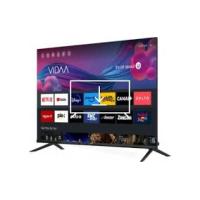
USER MANUAL LT-43FV130 JVC
Digital Video Broadcasting
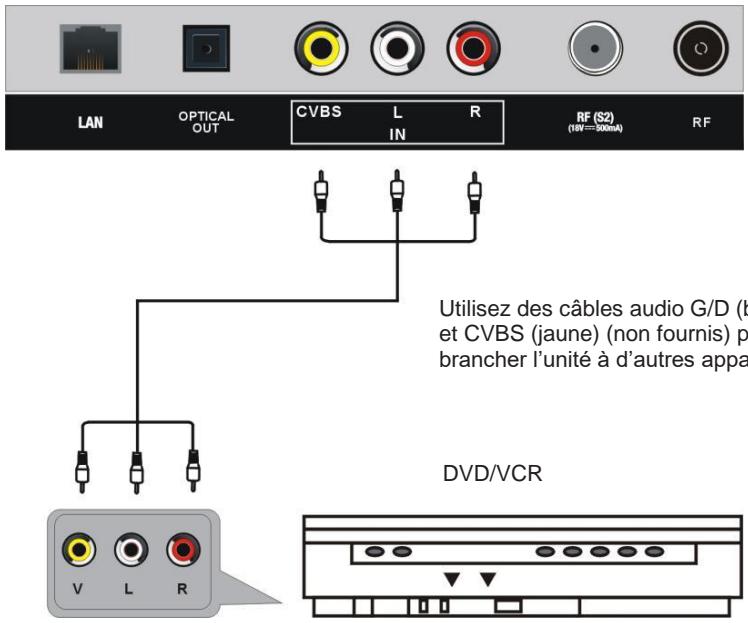
Branchement AV (video composite)
FONCTIONS DE BASE
Mode Balayage:ATV,DTV,ATV+DTV.
LCN:Off/On
(Go to Picture > Picture Mode Setting > Expert Settings)
Hotline Darty France
Disney+ subscription required, see terms at https://www.disneyplus.com. ©2022 Disney and its related entities.
NETFLIX
©2022 Amazon.com, Inc. or its affiliates. Amazon, Prime Video, and all related marks are trademarks of Amazon.com, Inc. or its affiliates. Amazon Prime membership or Prime Video fees apply. See primevideo.com/terms for details.
WAARSCHUWINGEN
alcohol, verdunner of benzine.
Wake on Wireless Network
Si usa WLAN, pode encender el televator con su dispositivo móvil.
Disney+ subscription required, see terms at https://www.disneyplus.com. ©2022 Disney and its related entities.
NETFLIX
©2022 Amazon.com, Inc. or its affiliates. Amazon, Prime Video, and all related marks are trademarks of Amazon.com, Inc. or its affiliates. Amazon Prime membership or Prime Video fees apply. See primevideo.com/terms for details.
AVISOS
This product is manufactured, distributed, serviced and warranted exclusively by Etablissements DARTY et Fils.
"JVC" is the trademark of JVCKENWOOD Corporation, used by Etablissements DARTY et Fils under license.
[European Union]
Dear Customer,
This apparatus is in conformance with the valid European directives and standards regarding electromagnetic compatibility and electrical safety.
DVB and the DVB logo are trademarks of the DVB project.

HIGH-DEFINITION MULTIMEDIA INTERFACE
The terms HDMI, HDMI High-Definition Multimedia Interface, HDMI Trade dress and the HDMI Logos are trademarks or registered trademarks of HDMI Licensing Administrator, Inc.
Dolby Audio
Manufactured under license from Dolby Laboratories.
Dolby, Dolby Audio and the double-D symbol are trademarks of Dolby Laboratories Licensing Corporation.

Disney+ subscription required, see terms at https://www.disneyplus.com. ©2022 Disney and its related entities.
NETFLIX
Netflix streaming membership required. 4K
Ultra HD availability subject
to your subscription plan, Internet service,
device capabilities, and
content availability.
www.'<>netflix.com/TermsOfUse

©2022 Amazon.com, Inc. or its affiliates. Amazon, Prime Video, and all related marks are trademarks of Amazon.com, Inc. or its affiliates. Amazon Prime membership or Prime Video fees apply. See primevideo.com/terms for details.
WARNING
- This appliance is intended for domestic household use only and should not be used for any other purpose or in any other application, such as for non domestic use or in a commercial environment.
- Ventilation
Allow at least a 10 cm gap all around the product.
-
The ventilation should not be impeded by covering the ventilation openings with items, such as newspapers, table-cloths, curtains, etc.
-
No naked flame sources, such as lighted candles, should be placed on the apparatus.
-
Protect the power cord from being walked on or pinched particularly at plugs, convenience receptacles, and the point where they exit from the apparatus.
-
This apparatus is intended for use in a tropical climate.
-
The apparatus shall not be exposed to dripping or splashing and that no objects filled with liquids, such as vases, shall be placed on the apparatus.
-
To protect the environment, use local recycling facilities for battery disposal.
-
Batteries (battery pack or batteries installed) shall not be exposed to excessive heat such as sunshine, fire or the like.
- CAUTION
Danger of explosion if battery is incorrectly replaced. Replace only with the same or equivalent type.
-
The MAINS plug is used as the disconnect device, the disconnect device shall remain readily operable.
-
Attention should be drawn to the environmental aspects of battery disposal. Don't throw used batteries in dustbin. Please contact your retailer in order to protect the environment.
-
Disposal of a battery into fire or a hot oven, or mechanically crushing or cutting of a battery or expose to excessive heat such as sunshine, fire or the like that can result in an explosion.
-
Leaving a battery in an extremely high temperature surrounding environment that can result in an explosion or the leakage of flammable liquid or gas.
-
A battery subjected in extremely low air pressure that may result in an explosion or the leakage of flammable liquid or gas.
-
Different types of batteries or new and used batteries are not to be mixed.
-
Batteries are to be inserted with the correct polarity.
-
Exhausted batteries are to be removed from the appliance.
-
The supply terminal are not to be short-circuited.
To prevent possible high sound pressure and hearing damage risk, do not listen at the levels for long periods.
Never place a television set in an unstable location.
A television set may fall, causing serious personal injury or death. Many injuries, particularly to children, can be avoided by taking simple precautions such as:
- Using cabinets or stands recommended by the manufacturer of the television set.
- Only using furniture that can safely support the television set.
- Ensuring the television set is not overhanging the edge of the supporting furniture.
- Not placing the television set on tall furniture (for example, cupboards or bookcases) without anchoring both the furniture and the television set to a suitable support.
- Not placing the television set on cloth or other materials that may be located between the television set and supporting furniture.
- Educating children about the dangers of climbing on furniture to reach the television set or its controls.
If your existing television set is being retained and relocated, the same considerations as above should be applied.
IMPORTANT SAFETY INSTRUCTIONS

TO REDUCE THE RISK OF ELECTRIC SHOCK DO NOT REMOVE COVER. NO USER SERVICEABLE PARTS INSIDE. REFER TO QUALIFIED SERVICE PERSONNEL.
CE This marking indicates that the unit complies with the European radio equipment directive.

double insulation.
This symbol indicates that the unit has
sulation.

This symbol indicates that there are
- Read these instructions and keep them for further reference. Follow all instructions.
- Do not use this apparatus near water.
- Clean only with a dry cloth.
- Do not install near any heat sources such as radiators, heat registers, stoves, or other apparatus (including amplifiers) that produce heat.
- Unplug this apparatus during lightning storms or when unused for long periods of time.
- When cleaning, unplug the power cord and wipe gently with a soft cloth to prevent scratching. Do not spray water or other liquids directly on the TV as electric shock may occur. Do not clean with chemicals
such as alcohol, thinners or benzine.
Install your TV where there is proper ventilation. Do not install in a confined space such as a bookcase. Do not cover
important operating and maintenance instructions in the documentation accompanying this unit.

This symbol indicates that dangerous
voltage constituting a risk of electric shock is present within this unit.
the product with cloth or other materials while plugged. Do not install in excessively dusty places.
- Do not press strongly upon the panel with a hand or a sharp object such as a nail, pencil or pen, or make a scratch on it.
- Do not allow an impact shock or any objects to fall into the product, and do not drop anything onto the screen.
PRODUCT DESCRIPTION
Front and Side Views
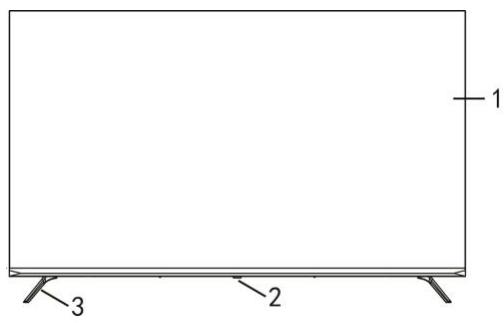
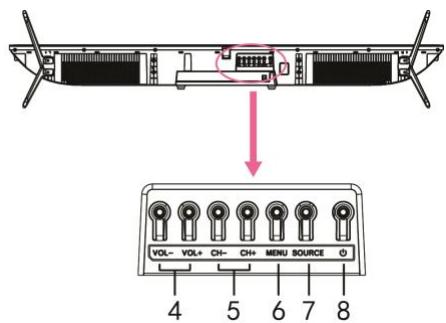
- Screen
- Remote control sensor / Power indicator
- Stand
- VOL+/- button: Adjust the volume level.
- CH + / - button: Select previous/next channel or move up/down.
- MENU button: Access the main menu.
- SOURCE button: Change the input source.
- (STANDBY) button: Turn the power on or off.
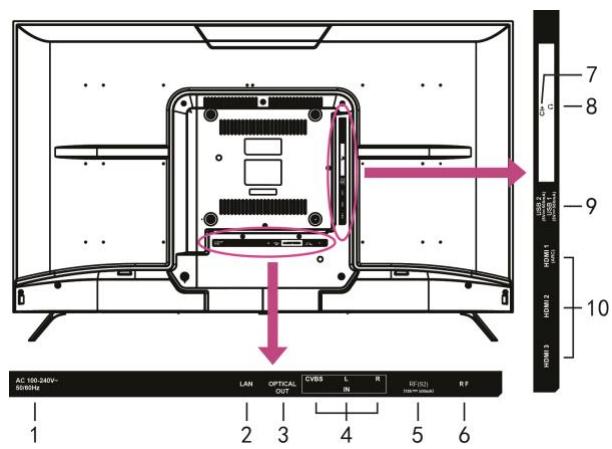
Back View
- Power input
- LAN input
- OPTICAL output port
- AV port
- RF(S2) port
- RF port
- CI+ port
- EARPHONE jack
- USB ports
10.HDMI ports
ASSEMBLING
Attaching the Stand
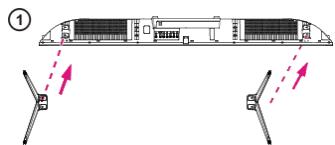
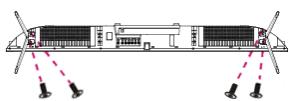
(2)
CAUTION: When attaching the stand to the TV set, place the screen facing down on a cushioned table or flat surface to protect the screen from scratches.
Mounting on a Wall
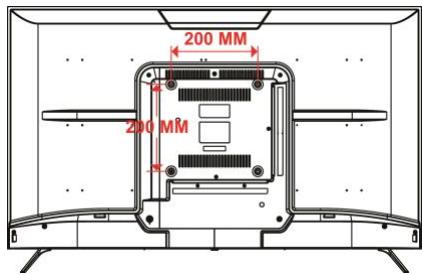
CAUTION:
- Remove the stand before installing the TV on a wall mount by performing the stand attachment in reverse.
- The distance between the holes is 200 × 200 mm in width and height.
- Tighten the screws (M5x12mm) firmly to prevent the TV from tilting forward. Do not over tighten.
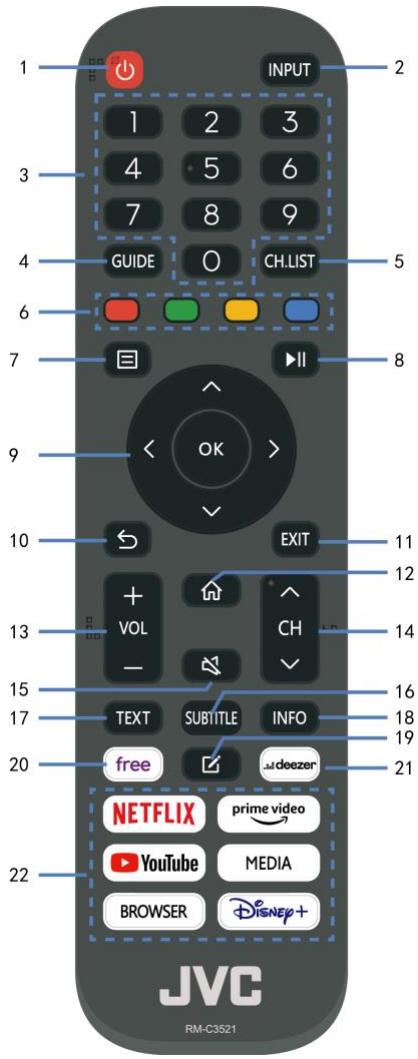
REMOTE CONTROL
1 STANDBY(POWER)
Set the unit in standby mode; press it again to switch it on.
Select desired input source.
Input the number information, such as channel number and so on.
4 GUIDE
Display the Electronic Programmes Guide (DTV mode).
5 CH.LIST
Press to show channel list.
Color buttons for direct selection of options.
Call out the main menu or return to previous menu.
8
Press to operate start/pause playing; Move fast forward; Move fast backward.
9 DIRECTION/OK
Move up, down, left, right/Confirm.
10
Return to the previous interface or menu.
11 EXIT
Exit the current interface or menu.
12 (HOME)
Press to enter home page.
13 VOL +/-
Increase/decrease the volume level.
14 CH A/V
Play the next/previous program.
15
Mute or restore the TV sound.
16 SUBTITLE
Select available subtitles.
17 TEXT
Turn on/off the Teletext.
18 INFO
Display the available program information.
19
Set up APP shortcut key.
20 Free
Enter to the deezer.
22 Content area
Six buttons for direct access to Apps.
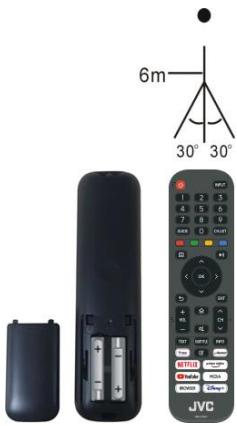
Remote control operation
- Open the battery cover.
- Insert two AAA size batteries (not included), observing the proper polarity markings inside the battery compartment.
-
Close the battery cover.
-
CAUTION: Do not mix old and new batteries, as this may damage the remote control.
Be sure to point the remote control at the remote control sensor on the TV.

This logo means "positioning of cell".
CONNECTIONS
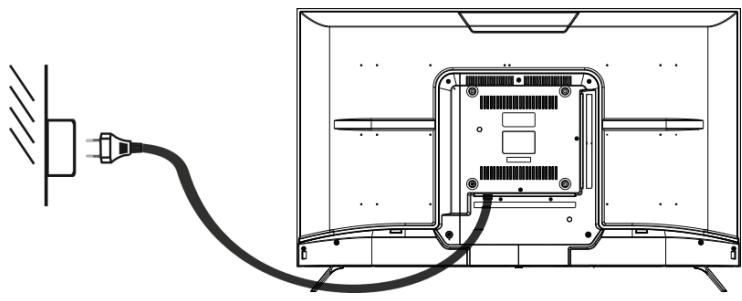
Connecting to AC power source
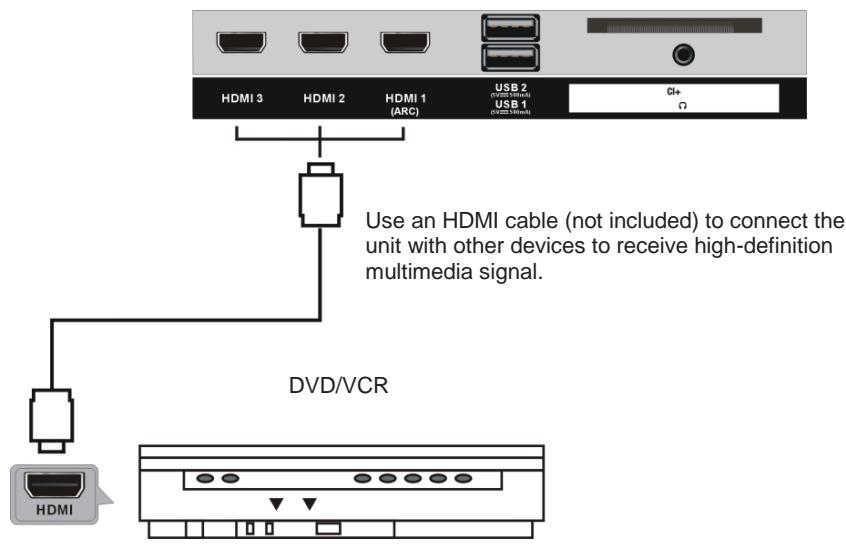
HDMI connection
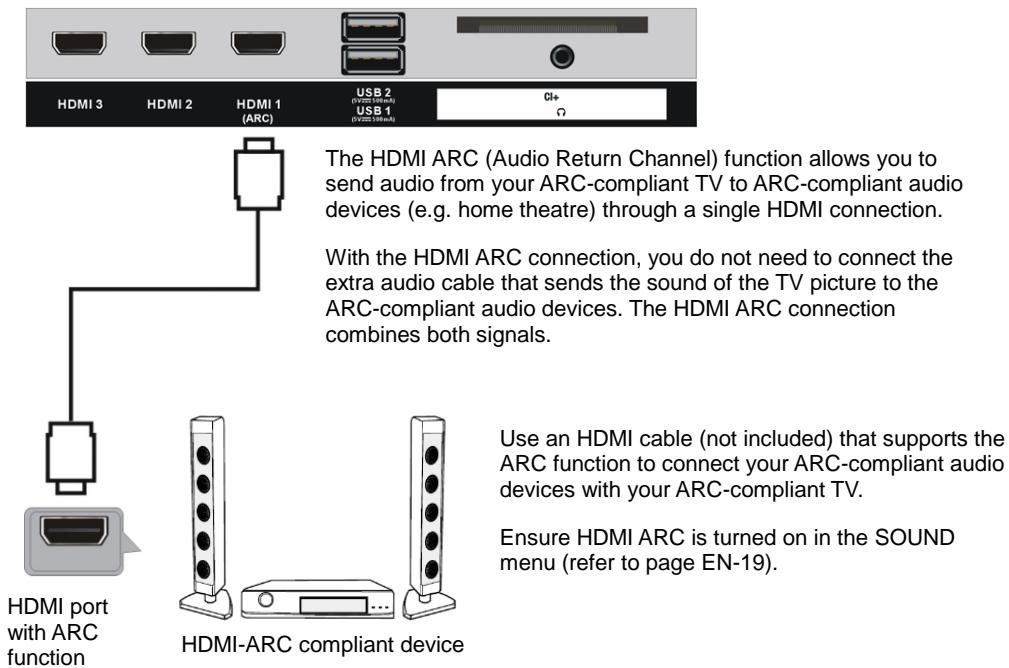
Listening to Dolby Atmos
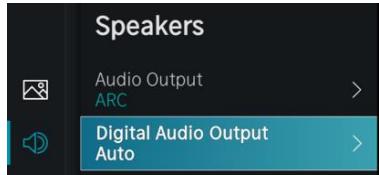
To play Dolby Atmos content, you can connect your A/V receiver or soundbar that supports Dolby Atmos audio to your TV's HDMI ARC input.
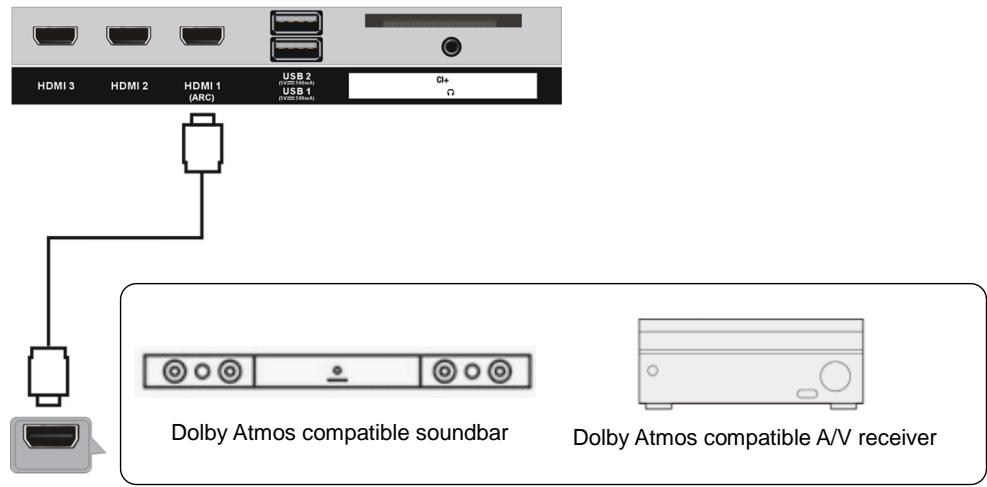
The Digital Audio Output is recommended to be set to "Auto" in order to send Dolby Atmos content via HDMI ARC to the AVR or Soundbar in the optimal Dolby format.
To set Digital Audio Output on your TV :
- Press MENU button to select Setting and press OK button to enter the OSD menu.
- Go to Sound Speakers Digital Audio Output
- Select "Auto".
USB connection
Insert a CI card
EARPHONE CONNECTION
LAN (Local Area Network) Connection
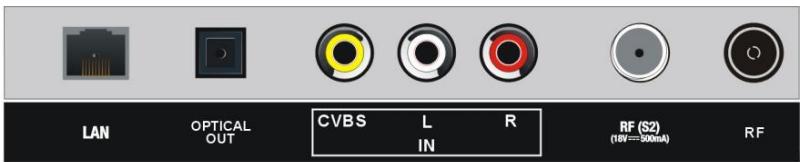

Use a LAN cable (not included) to connect this TV with available network.
OPTICAL CONNECTION
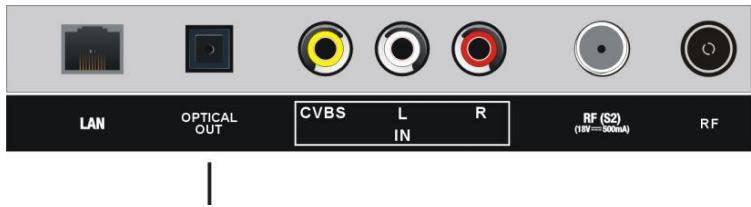
Use OPTICAL cable (not included) to connect the TV with amplifier or other audio decoding devices for coaxial audio signal output.
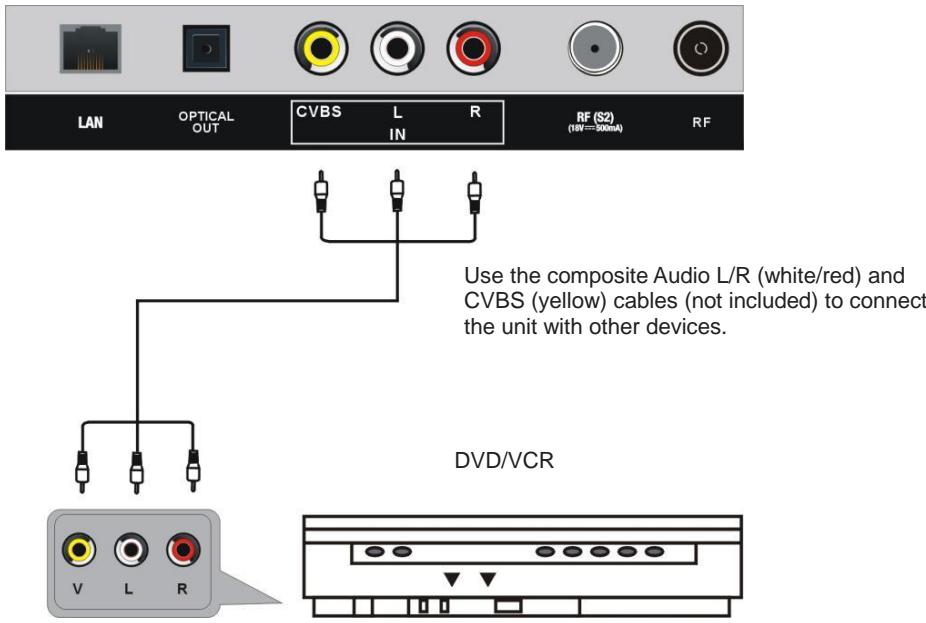
BASIC OPERATION
Make sure all necessary connections are correctly made before connecting the unit to the wall socket and turning on the power.
Watching TV
- Press the STANDBY button to power on the unit.
- Press the INPUT button to select TV as input source.
- Choose the channel by pressing CH+ or CH- or by pressing the numeric buttons (combined [-/-] if necessary) to input the channel number directly.
Electronic Program Guide (EPG)
EPG stands for Digital Electronic Program Guide. It is supplied by the program providers and offers information about the programs to be broadcast. This guide function is only available for digital channels.
You can access it by pressing GUIDE button directly or pressing the MENU button, highlight Guide item and press OK button to enter the Electronic Program Guide.
The menu will appear on the screen, as below:
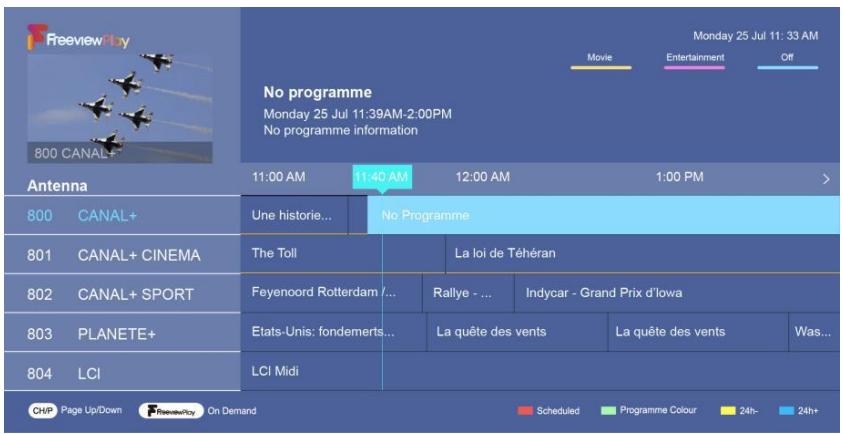
Press / navigation button to select preferred channel.
- Press / navigation button to select preferred programme of some channel.
- Press the RED button to display a list of scheduled reminders.
- Press the GREEN button to display the colour menu and select GREEN, use the colours to indicate different genres in the GUIDE(EPG) for quick and easy viewing.
- Press the YELLOW button to display the program guide of the previous day.
- Press the BLUE button to display the program guide of the following day.
First time installation
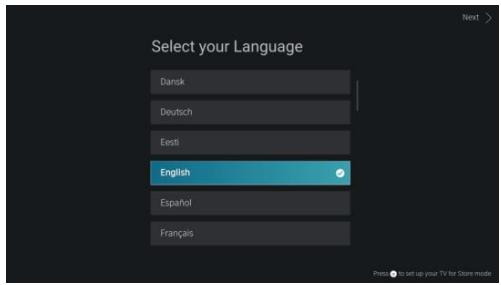
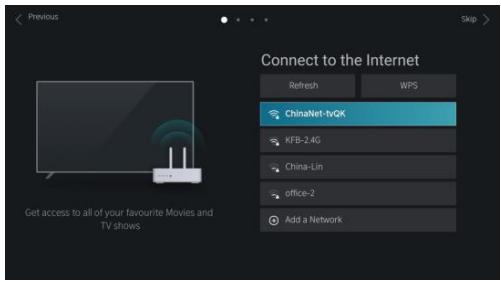
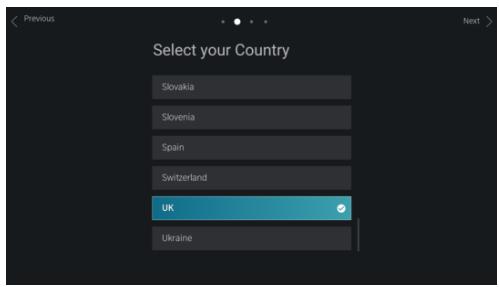
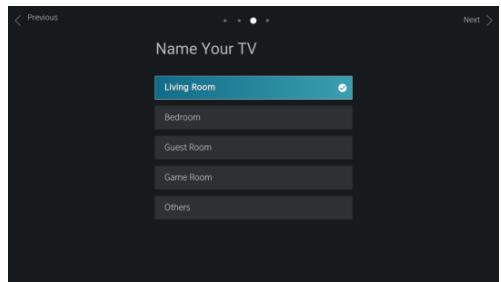
When turning on the TV for the first time, it will go straight into the installation menus. Press the UP/DOWN/LEFT/RIGHT buttons to navigate the menu and change the settings. Press the OK button to confirm.
Select Language: select the on-screen menu language.
Connect to the Internet: select the available internet to connect or skip to the next step.
Country: select your country.
Select your primary input source:
- Press UP/DOWN/LEFT/DOWN BUTTONS to select input source.
- Press OK button to confirm your selection.
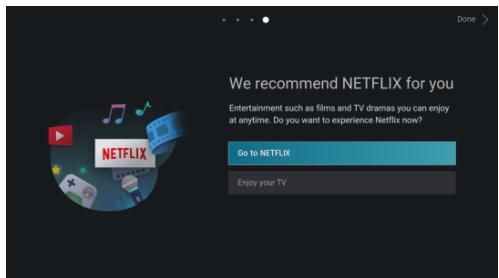
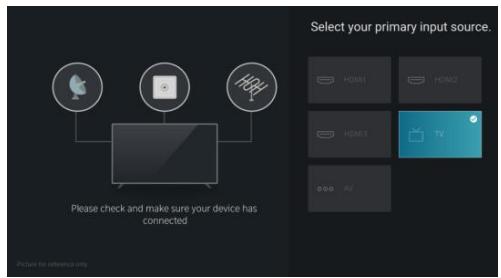
Press MENU button to select Setting and press OK button to enter the OSD menu.
1. Picture
Press UP/DOWN button to select Picture item.
Picture Mode
You can select the Picture Mode that provides the best viewing experience.
- Press RIGHT navigation button to enter the sub-page.
- Press UP/DOWN button to select Picture Mode and press OK button to confirm your selection.
Available options:
| Standard | Suitable for watching normal content e.g. News, Drama or Documentary. |
| Cinema Day | Suitable for watching movies in a bright environment. |
| Cinema Night | Suitable for watching movies in dark environment. |
| Dynamic | Suitable for the content that requires vivid picture quality. |
| Sports | Suitable for sports and fast-moving content. This setting may provide a brighter picture with faster motion response. |
Aspect Ratio
You can change the size of the picture displayed on the TV screen.
Press UP/DOWN button to select Picture Mode and press OK button to confirm your selection.
Available options:
| Automatic | Automatically switch Aspect Ratio between 16:9 and 4:3 based on the signal information. |
| 16:9 | Suitable for 16:9 Widescreen content. This will also stretch 4:3 content to Widescreen. |
| 4:3 | Suitable for 4:3 content. |
| Panoramic | Provides a full screen image by stretching the edges whilst leaving the middle untouched. |
| Movie Zoom | Provides a full screen image by zooming in on the movie. |
| Direct | Point to point display also known as 1:1 Pixel Mapping. |
Game Mode
Optimised for PC or Games consoles. Reduces Input Lag and improves responsiveness.
Picture Mode Settings
Adjust display setting for each Picture Mode.
Apply Picture Settings: Adjust current picture mode to apply to all source or just current source.
Backlight: Turn Off/On.
Brightness / Contrast / Colour Saturation: Adjustable value: 0-100.
Sharpness: Adjustable value: 0-100.
Adaptive Contrast: Automatically adjust dark areas and light areas of the image to see more details. Press navigation buttons to select Off/Low/Medium/High.
Noise Reduction: Improve the picture quality by reducing noise. (Options: Off/Low/Medium/High)
MPEG Noise Reduction: Reduces MPEG block noise to provide clearer edge transitions. (Options: Off/Low/Medium/High)
Colour Temperature: Adjust the overall color of the image. (Options: Warm1/Warm2/Standard/Cool).
Expert Settings: Adjust the colour space and Gamma to best suit the content you're viewing.
Overscan: Change the video size setting to crop the edges of the displayed image.
Reset Current Mode: Restore all the picture settings in the current picture mode to the factory default values.
2. Sound
Press UP/DOWN button to select Sound item.
Sound Mode
You can select a favorite sound mode suitable for the content type or the listening environment.
Available options:
| Standard | In this mode, the TV delivers a flat frequency response, which preserves the natural characteristics of the original sound. |
| Theater | This mode increases the surround sound effect and provides a more prominent subwoofer response. |
| Music | In this mode, low and high frequencies are emphasized to enhance musical instrument reproduction. |
| Speech | In this mode, low and high frequencies are attenuated to improve the reproduction and clarity of the human voice. |
| Late Night | In this mode, the TV will improve the reproduction and clarity of the human voice with a low volume level. |
| Sport | In this mode, sound is optimized for watching sports/football game. |
Headphone
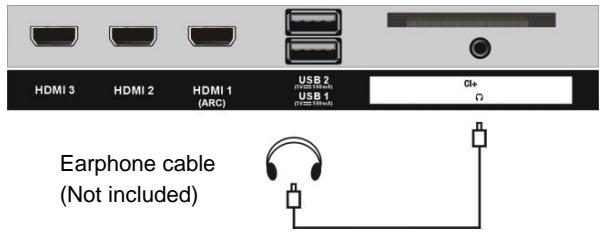
Set the sound output mode for headphones. This setting is only available when headphones are inserted.
Sound Mode Settings
Adjust the audio settings of the TV: Apply Audio Settings / Equalizer / Wall Mount Setup / Auto Volume Control / Reset Current Mode.
Speakers
Select the speaker you want to use.
(ARC: Speakers > Audio Output > ARC)
3. Network
Press UP/DOWN button to select Network item.
Network Configuration
You set the TV network by selecting Configuration and press OK button to enter the sub-page.
Connection Type: Choose a wireless network connection to access the Internet.
Refresh: Refresh wireless network.
Advanced Settings: Configure the advanced wireless network settings of the TV.
ADD: You can add wireless network.
Internet Connection
Check Internet connection.
Connection Test: Start a network connection test.
Network Information: View information about your network connection.
Wake on Wireless Network
Using WLAN, turn on your TV with your mobile device.
Wake on LAN
Using Ethernet, turn on your TV with your mobile device.
Connecting to a Wireless Network
You can connect your TV to an available wireless network.
If no wireless router is found, select Add and enter the network name in the SSID.
If no wireless router is found, select Refresh.
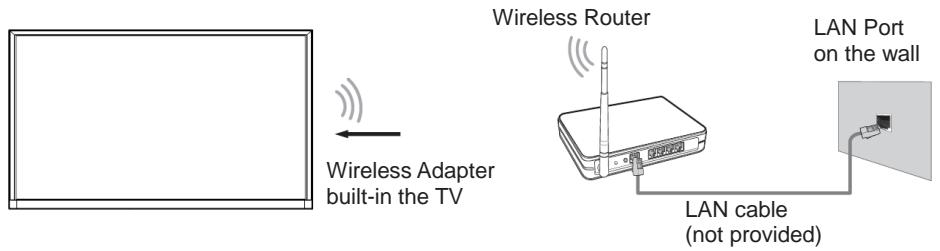
Connecting to a Wired (Ethernet) Network
It is recommended to connect your TV to a router that supports Dynamic Host Configuration Protocol(DHCP).
The router that support DHCP automatically provides the IP address, subnet mask, gateway, and DNS, so you don't have to enter them manually.
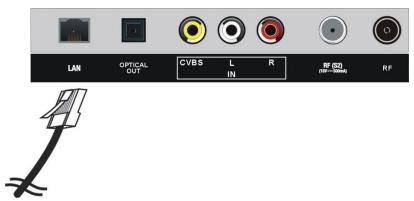
4. Channel
Press UP/DOWN button to select Channel item.
Auto Scan
Automatically scan for channels to view programmes from your TV source.
- Press RIGHT button to select Rescan or Change Setup.
- Highlight Change Setup and press OK button to select Satellite, Antenna, Cable.
- Press RIGHT button to enter the Mode setup.
Channel: All Channel, Free Channel.
Scan Mode:ATV, DTV,ATV+DTV.
LCN: Off/On
- Press RIGHT button to start auto scan.
Channel Edit
Manually edit the channel list to your preference.
Advanced Settings
Adjust advanced settings for Channel.
Manual Scan: Perform manual channel scan for ATV and DTV.
- DTV Manual Scan: Manually scan for DTV services.
When the DTV Manual Scan screen appears, press / button to select Antenna, Cable or Satellite and then press Start to commence the search of that channel. When the signal has been tuned, signal strength will be displayed on the screen.
- ATV Manual Scan: Manually scan for ATV services.
Channel List Auto Update: Allows your TV to auto-update the channel list from the content provider.
Programme Guide Auto Update: TV will automatically update the Programme Guide data overnight while in standby mode.
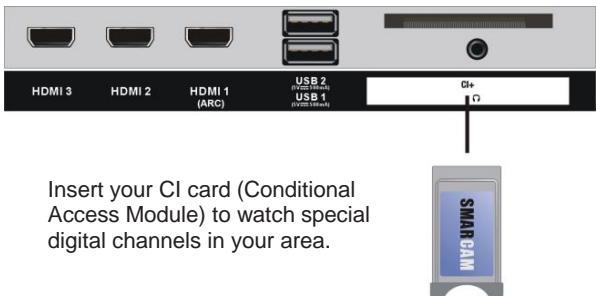
CI+ Module Settings: Review the Advanced Settings menu.-Common interface -CI card and PIN-CAM Profile search.
5. Accessibility
Press UP/DOWN button to select Accessibility item.
Set the scheme of menu.
Available options: Dark, Light
Turn High Contrast Menu On or Off.
Set the transparency of menu.
Available options: Off, Medium, High
Hard of Hearing Subtitle
Set the subtitles for the hard of hearing. Press OK button to select ON/OFF.
Audio Type
Accessibility audio settings.
Enable or disable dialogue enhancement.
6. System
Press UP/DOWN button to select System item.
Time
Set the current time based on your location.
Timer Settings
Adjust the timer settings to suit your preference.
System PIN
Change the PIN that you use to access Parental Control, Auto Channel Scan and Reset To Factory Defaults.
Parental Control
Turn on Parental Controls to prevent children from being able to view certain content.
Language and Location
Choose the language of TV and your location.
Application Settings
Set settings for apps on your TV.
HDMI & CEC
Configure how to control CEC - enabled devices with your TV remote.
You can use your TV remote to control the external devices that are connected to the TV with an HDMI cable. The external devices need to support HDMI & CEC Function (HDMI-CEC).
- Set CEC Control to On.
- Connect an HDMI-CEC-compliant device to the TV.
-
Turn on the connected external device.
-
The HDMI CEC feature of the connected device must be turned on.
-
The device is automatically connected to the TV. After connection is finished, you can access the menu of the connected device on your TV screen using your TV remote and control the device.
Usage Mode
Select Home mode or Store mode.
Advanced Settings
Access the Advanced Settings menu.
7. Support
Press UP/DOWN button to select Support item.
System Info
View System information.
Self Diagnosis
Perform self diagnosis to test sound, picture and connections.
E-Manual
Launch the E-Manual and get to know more about your TV.
System Upgrade
Set your TV to receive the latest firmware.
Disclaimer and Privacy
Click to read the Disclaimer details.
Mobile App Download
Install mobile app on your smart phone to control your TV. This app is available on both Android and iOS.
Reset to Factory Default
Restore your TV to the factory default.
□ HOME
Getting familiar with the Home screen
Run the TV more conveniently by selecting the corresponding sections.
Press button to enter the HOME screen.
- You can always view the current time at the top of the Home screen.
- If your TV is connected to the Internet through a wireless connection, then an icon will be displayed at the top right corner of the screen.
- Manage apps
- Select the item you want to move, press button to manage.
Search
Search the app you want.
Select the input you want.
Settings
Display the Settings menu.
Notifications
Allow pop-up notifications to appear for useful information and events that occur with your TV.
- Select Notifications on the Home screen, and select Settings then display Advertising, New Arrivals,Warnings And Legal Statements, System Message, from which you can choose the types of notifications you would like to receive.
VIDAA Account
Sign in your VIDAA account.
A VIDAA account gives you all the best feature of your smart TV and always keeps it up to date.
USB OPERATION
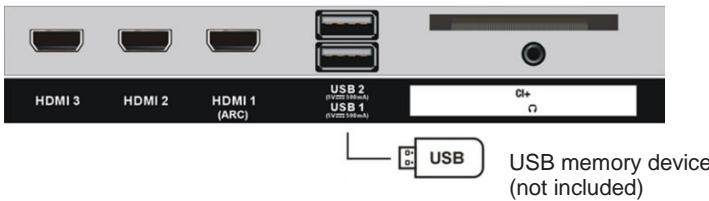
Plug in your USB device. Press the INPUT button on remote control to open SOURCE list. Then press LEFT/RIGHT/UP/DOWN navigation button to select USB (or Media) and press OK button to enter it.
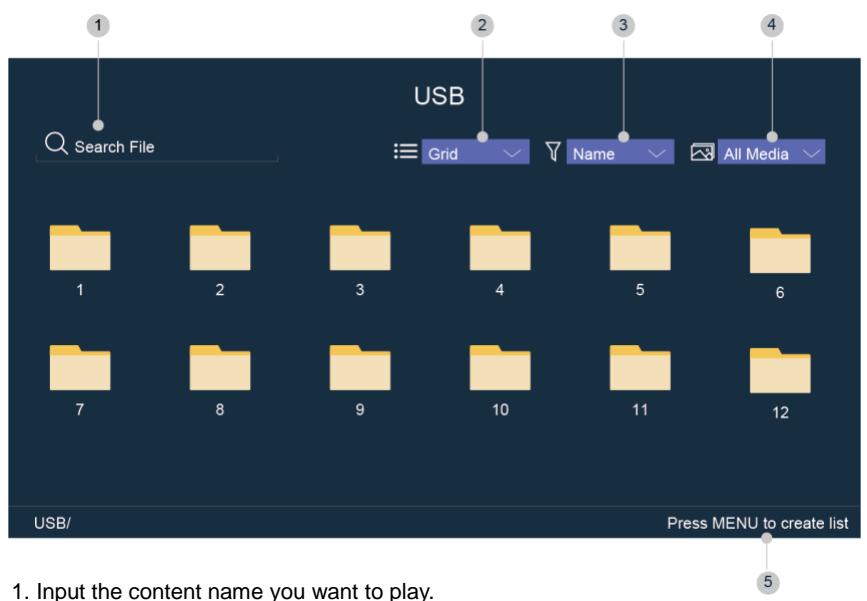
- Arrange the content list by Grid, List.
- Arrange the content list by Name, Date Modified, Size.
- Filter the content list by All Media, Photo, Video, Music, Recorded.
- Create a photo, music, or video playlist.
Your TV may support the following file formats :
| Medium | Supported File Format |
| Video | .MP4, .MOV, .MPG, .MPEG, .FLV |
| Photo | .jpg, .BMP, .PNG, .GIF |
| Music | .MP3, .AAC, .wav |
Screen Mirroring
Mirror content from your Android device to the TV.

Inputs > Screen Mirroring
- Turn on the casting function of your Android device.
- Find the TV name in the searching list of your device and select it.
- Wait for the connection progress to complete and the content on your device will be displayed on the TV.
NOTE: Some Android devices may not support casting.
Hotel Mode
Settings >Sound >Speakers >Balance
- Highlight Balance item, and press 0548 on remote control to enter hotel mode.
- Press OK button to set the Hotel Mode On.
- Press OK button again to set the Hotel Mode Off
Using Your TV as a Second Monitor
You can use your TV as a computer monitor for playing computer games, watching videos or sharing photos.
Connect your TV to a computer using an HDMI cable.
NOTE: If your computer has a DVI port (no HDMI port), please use an HDMI-to-DVI cable to make connection.
When the picture is not displayed properly, please follow below steps which may help resolve the problem.
- Check that the Black Level is set to Auto.
(Go to Picture > Picture Mode Setting > Expert Settings)
When connecting your TV to a computer using an HDMI-to-DVI cable, please ensure that the
Black Level is set to Boost.
- Check that the Contrast Level and/or Colour Saturation are set to 50 or higher.
SPECIFICATIONS
| TV Broadcasting | PAL, B/G, D/K, I, SECAM |
| Receiving Channels | ATV (48.25MHz ~ 863.25MHz) |
| Number of Preset Channels | 100 (ATV) |
| Channel Indicator | On Screen Display |
| RF Aerial Input | 75 Ohm (unbalanced) |
| Operating Voltage | AC 100-240V~50/60Hz( ~ means alternating current) |
| USB Output | 5V --- 500mA( --- means direct current) |
| Audio Output Power (WRMS.) (10% THD) | 8 W |
| Dimensions DxLxH (with foot) | 215 x 957 x 611 mm |
| Weight (with foot) | 6.9 kg |
| Dimensions DxLxH (without foot) | 97 x 957 x 557 mm |
| Weight (without foot) | 6.725 kg |
| Surrounding temperature | Operation: 0°C ~ 35°CStorage: 5°C ~ 30°C |
| Operating Humidity | Less than 80 % RH |
| Standby Mode | After 3\4\5 hours |
| Technical Specifications of 2.4G Wi-Fi |
| Operating frequency | 2412 – 2472 MHz (802.11b/g, 802.11n-HT20) 2422-2462MHz (802.11n-HT40) |
| Maximum output power | 16.507 dBm (EIRP) |
Digital reception
| Reception range | 474MHz – 858MHz |
| Input impedance | 75 Ω |
| Channel bandwidth | 8 MHz |
| Modulation | DVB-T | COFDM 2K/8K, QPSK, 16QAM, 64QAM |
| DVB-C | 16QAM, 32QAM, 64QAM, 128QAM, 256QAM |
| Video system | MPEG-2 MP@ML, MPEG-2 MP@HL, H.265 |
| Sound system | MPEG-1 layer ½, MPEG-2 layer |
| Basic functions | EPG, Subtitle, LCN, TELETEXT (Europe) |
| Max storage channels | 1000CH (DVB-T + DVB-C, dynamic) |

Indoor Use only
Product Information Sheet
| Parameter | Parameter value and precision | Unit |
| Supplier's name or trade mark | JVC | |
| Supplier's address | Etablissements Darty & fils ©,9 Rue des Bateaux-Lavoirs,94200 Ivry-sur-Seine, France |
| Model identifier | LT-43FV130 | |
| Energy efficiency class for standard Dynamic Range (SDR) | F | |
| On mode power demand for Standard Dynamic Range (SDR) | 50 | W |
| Energy efficiency class (HDR) | F | |
| On mode power demand in High Dynamic Range (HDR), if implemented | 51 | W |
| Off mode, power demand, if applicable | n.a. | W |
| Standby mode power demand, if applicable | 0,5 | W |
| Networked standby mode power demand, if applicable | 1,0 | W |
| Electronic display category | television | |
| Size ratio | 16 | : | 9 | integer |
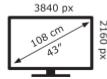
| Screen resolution (pixels)Horizontal and vertical pixels | 3840 | x | 2160 | pixels |
| Screen diagonal | 108 | cm |
| Screen diagonal | 43 | inches |
| Visible screen area | 49,8 | dm2 |
| Panel technology used | LED LCD | |
| Automatic Brightness Control | NO | |
| (ABC) available | | |
| Voice recognition sensor available | NO | |
| Room presence sensor available | NO | |
| Image refresh frequency rate (default) | 60 | Hz |
| Minimum guaranteed availability of software and firmware updates (from the date of end of the placement on the market) | 8 | Years |
| Minimum guaranteed availability of spare parts (from the date of end of the placement on the market) | 7 | Years |
| Minimum guaranteed product support | 7 | Years |
| Minimum duration of the general guarantee offered by the supplier | 2 | Years |
| Power supply type | Internal | |

ENERG

LT-43FV130
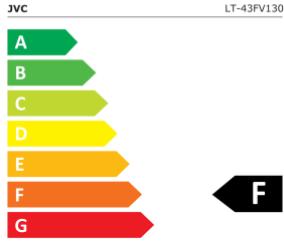
50 kWh/1000h


51 kWh/1000h
2019/7/13
TROUBLESHOOTING
| Problem | Possible Solution |
| The screen does not appear/illuminate. | 1. Check that the power plug is securely into the mains socket.
2. Check the power is on. |
| The screen appears, but there is no sound. | 1. Press the MUTE button.
2. Increase the sound level by pressing the volume adjustment buttons.
3. Check that the sound terminal of your external input is connected properly.
4. Check that the audio cables are connected properly.
5. Select and check any other input. |
| Noise or poor picture | Stop using wireless telephones, hair dryers or other electrical appliances near the TV. |
| The remote control does not work. | 1. Check if the TV is not switched on.
2. Check that the batteries of the remote control are inserted properly.
3. Check for any obstacles between the TV remote sensor and the remote control. Remove them if necessary.
4. If the batteries have no power, replace them with two new batteries off the same type. |
DISPOSAL
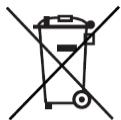
As a responsible retailer we care about the environment. As such we urge you to follow the correct disposal procedure for the appliance and packaging materials. This will help conserve natural resources and ensure that it is recycled in a manner that protects health and the environment.
You must dispose of this appliance and its packaging according to local laws and regulations. Because this appliance contains electronic components, the appliance and its accessories must be disposed of separately from household waste when the appliance reaches its end of life.
Contact your local authority to learn about disposal and recycling.
The appliance should be taken to your local collection point for recycling. Some collection points accept appliance free of charge.
We apologise for any inconvenience caused by minor inconsistencies in these instructions, which may occur as a result of product improvement and development.
EU Declaration of Conformity
The object of the declaration described above is in conformity with the relevant Union harmonisation legislation:
Regulamento (UE) N. 2019/2013, N. 2019/2021, N. 2021/340, N. 2021/341
Software version: V0104.01.00Q.N0223

EN 55032:2015+A1:2020
EN IEC 61000-3-2:2019
EN 61000-3-3:2013+A1:2019
EN 62479:2010
The person responsible for this declaration is:
Place, Date / Lieu :