
5507 15QUAL12/32/1 - Computer ASUS - Free user manual and instructions
Find the device manual for free 5507 15QUAL12/32/1 ASUS in PDF.



| Brand | ASUS |
| Model | 5507 15QUAL12/32/1 |
| Product type | Laptop |
| Dimensions (approximate) | 35.9 x 24.9 x 2.0 cm |
| Weight | Approximately 2.0 kg |
| Screen size | 15.6 inches |
| Screen resolution | 1920 x 1080 pixels |
| Processor | Intel Core i5 or equivalent |
| RAM Memory | 12 GB |
| Storage | 512 GB SSD |
| Operating system | Windows 11 |
| Power supply | 65 W AC adapter, 3-cell Li-ion battery |
| Wi-Fi connectivity | Wi-Fi 6 (802.11ax) |
| Bluetooth | Bluetooth 5.2 |
| Ports | 2x USB 3.2, 1x USB-C, 1x HDMI, 1x combo audio jack |
| Main functions | Web browsing, office work, multimedia, light gaming |
| Maintenance and cleaning | Clean with a soft, dry cloth, avoid abrasive products |
| Safety instructions | Do not expose to water or extreme temperatures; do not open the case |
| Spare parts and repairability | Contact ASUS after-sales service |
| General information | User manual of 108 pages available in English |
Frequently Asked Questions - 5507 15QUAL12/32/1 ASUS
User questions about 5507 15QUAL12/32/1 ASUS
0 question about this device. Answer the ones you know or ask your own.
Ask a new question about this device
Download the instructions for your Computer in PDF format for free! Find your manual 5507 15QUAL12/32/1 - ASUS and take your electronic device back in hand. On this page are published all the documents necessary for the use of your device. 5507 15QUAL12/32/1 by ASUS.
USER MANUAL 5507 15QUAL12/32/1 ASUS
IN SEARCH OF INCREDIBLE
E-Manual
COPYRIGHT INFORMATION
No part of this manual, including the products and software described in it, may be reproduced, transmitted, transcribed, stored in a retrieval system, or translated into any language in any form or by any means, except documentation kept by the purchaser for backup purposes, without the express written permission of ASUSTeK COMPUTER INC. ("ASUS").
ASUS PROVIDES THIS MANUAL "AS IS" WITHOUT WARRANTY OF ANY KIND, EITHER EXPRESS OR IMPLIED, INCLUDING BUT NOT LIMITED TO THE IMPLIED WARRANTY OR CONDITIONS OF MERCHANTABILITY OR FITNESS FOR A PARTICULAR PURPOSE. IN NO EVENT SHALL ASUS, ITS DIRECTORS, OFFICERS, EMPLOYEES OR AGENTS BE LIABLE FOR ANY INDIRECT, SPECIAL, INCIDENTAL, OR CONSEQUENTIAL DAMAGES (INCLUDING DAMAGES FOR LOSS OF PROFITS, LOSS OF BUSINESS, LOSS OF USE OR DATA, INTERRUPTION OF BUSINESS AND THE LIKE), EVEN IF ASUS HAS BEEN ADVISED OF THE POSSIBILITY OF SUCH DAMAGES ARISING FROM ANY DEFECT OR ERROR IN THIS MANUAL OR PRODUCT.
Products and corporate names appearing in this manual may or may not be registered trademarks or copyrights of their respective companies, and are used only for identification or explanation and to the owners' benefit, without intent to infringe.
SPECIFICATIONS AND INFORMATION CONTAINED IN THIS MANUAL ARE FURNISHED FOR INFORMATIONAL USE ONLY, AND ARE SUBJECT TO CHANGE AT ANY TIME WITHOUT NOTICE, AND SHOULD NOT BE CONSTRUED AS A COMMITMENT BY ASUS. ASUS ASSUMES NO RESPONSIBILITY OR LIABILITY FOR ANY ERRORS OR INACCURACIES THAT MAY APPEAR IN THIS MANUAL, INCLUDING THE PRODUCTS AND SOFTWARE DESCRIBED IN IT.
Copyright © 2024 ASUSTeK COMPUTER INC. All Rights Reserved.
LIMITATION OF LIABILITY
Circumstances may arise where because of a default on ASUS' part or other liability, you are entitled to recover damages from ASUS. In each such instance, regardless of the basis on which you are entitled to claim damages from ASUS, ASUS is liable for no more than damages for bodily injury (including death) and damage to real property and tangible personal property; or any other actual and direct damages resulted from omission or failure of performing legal duties under this Warranty Statement, up to the listed contract price of each product.
ASUS will only be responsible for or indemnify you for loss, damages or claims based in contract, tort or infringement under this Warranty Statement.
This limit also applies to ASUS' suppliers and its reseller. It is the maximum for which ASUS, its suppliers, and your reseller are collectively responsible.
UNDER NO CIRCUMSTANCES IS ASUS LIABLE FOR ANY OF THE FOLLOWING: (1) THIRD-PARTY CLAIMS AGAINST YOU FOR DAMAGES; (2) LOSS OF, OR DAMAGE TO, YOUR RECORDS OR DATA; OR (3) SPECIAL, INCIDENTAL, OR INDIRECT DAMAGES OR FOR ANY ECONOMIC CONSEQUENTIAL DAMAGES (INCLUDING LOST PROFITS OR SAVINGS), EVEN IF ASUS, ITS SUPPLIER OR YOUR RESELLER IS INFORMED OF THEIR POSSIBILITY.
SERVICE AND SUPPORT
Visit our multi-language website at https://www.asus.com/support/.
MyASUS offers a variety of support features including troubleshooting, products performance optimization, ASUS software integration, and helps you to organize personal desktop and increase storage space. For more details, please visit https://www.asus.com/support/FAQ/1038301/.
Table of Contents
About this manual. 7
Conventions used in this manual 8 Icons 8 Typography 8
Safety precautions. 9
Using your Notebook PC. 9 Caring for your Notebook PC 10 Proper disposal 11 Battery safety information. 12
Chapter 1: Hardware Setup
Getting to know your Notebook PC 16
Front View. 16 Bottom View 24 Right View. 26 Left View 28
Chapter 2: Using your Notebook PC
Getting started 32
Charge your Notebook PC. 32 Lift to open the display panel 34 Press the power button 34
Using the touchpad 35
Using the keyboard. 42
Hotkeys 42 Function keys 43 Windows keys 43 Using the numeric keypad 44
Chapter 3: Working with Windows
Starting for the first time. 46
Start menu 47
Windows apps 49
Working with Windows apps. 50
Customizing Windows apps 50
Task view. 52
Widgets 53
Snap feature 55
Snap hotspots 55
Action Center 57
MyASUS Splendid 59
Setting the OLED display 61
Setting the Dark Mode 61
Turning off the display when not in use 63
Adjusting display brightness 65
Auto-hide the taskbar 67
Setting the Dark Mode in Microsoft Office 69
Other keyboard shortcuts 70
Connecting to wireless networks 72
Wi-Fi 72
Bluetooth 73
Airplane mode 74
Turning your Notebook PC off. 75
Putting your Notebook PC to sleep 76
Chapter 4: Power-On Self-Test (POST)
The Power-On Self-Test (POST) 78
Using POST to access BIOS and Troubleshoot. 78
BIOS 78
Accessing BIOS 78
Recovering your system. 79
Performing a recovery option. 80
Tips and FAQs
Useful tips for your Notebook PC 84
Hardware FAQs. 86
Software FAQs. 89
Appendices
Legal information 92
USB-IF Trademark 92
Regulatory statements 93
Federal Communications Commission Interference Statement. 93
FCC RF Exposure Information. 94
FCC RF Caution Statement 94
FCC 5.925-7.125 GHz Caution Statement 94
ISED 5.925-7.125 GHz Caution Statement 94
Compliance Statement of Innovation, Science and Economic Development Canada (ISED) 95
Radio Frequency (RF) Exposure Information 97
Radiation Exposure Statement. 98
ISED SAR Information. 99
UL Safety Notices. 100
Power Safety Requirement. 101
TV Notices 101
Macrovision Corporation Product Notice 101
Prevention of Hearing Loss. 101
Coating Notice 101
Nordic Lithium Cautions (for lithium-ion batteries) 102
Declaration of Compliance for Product Environmental Regulation. 103
EU REACH and Article 33. 103
EU RoHS. 103
Japan JIS-C-0950 Material Declarations. 103
India RoHS. 103
Vietnam RoHS 104
ASUS Recycling/Takeback Services. 104
Rechargeable Battery Recycling Service in North America. 104
Ecodesign Directive 104
ENERGY STAR® Qualified Product 105
EPEAT Registered Products 105
Regional notice for Singapore 106
Notices for removable batteries. 106
Avis concernant les batteries replacables. 106
License of BIOS Text Fonts 106
Simplified EU Declaration of Conformity 107
Simplified UKCA Declaration of Conformity 108
Wi-Fi Network Notice 108
About this manual
This manual provides information about the hardware and software features of your Notebook PC, organized through the following chapters:
Chapter 1: Hardware Setup
This chapter details the hardware components of your Notebook PC.
Chapter 2: Using your Notebook PC
This chapter shows you how to use the different parts of your Notebook PC.
Chapter 3: Working with Windows
This chapter provides an overview of using Windows in your Notebook PC.
Chapter 4: Power-On Self-Test (POST)
This chapter shows you how to use POST to change the settings of your Notebook PC.
Tips and FAQs
This section presents some recommended tips, hardware FAQs, and software FAQs you can refer to for maintaining and fixing common issues with your Notebook PC.
Appendices
This section includes notices and safety statements for your Notebook PC.
Conventions used in this manual
To highlight key information in this manual, some text are presented as follows:
IMPORTANT! This message contains vital information that must be followed to complete a task.
NOTE: This message contains additional information and tips that can help complete tasks.
WARNING! This message contains important information that must be followed to keep you safe while performing tasks and prevent damage to your Notebook PC's data and components.
Icons
The icons below indicate the devices you can use for completing a series of tasks or procedures on your Notebook PC.

= Use the touchpad.

= Use the keyboard.
Typography
Bold = This indicates a menu or an item that must be selected.
Italic = This indicates sections that you can refer to in this manual.
Safety precautions
Using your Notebook PC
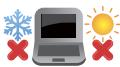
This Notebook PC should only be used in environments with ambient temperatures between 5°C (41°F) and 35°C (95°F).

Refer to the rating label on the bottom of your Notebook PC and ensure that your power adapter complies with this rating.

Your Notebook PC can get warm to hot while in use or while charging the battery pack. Do not leave your Notebook PC on your lap or near any part of your body to prevent injury from heat. When working on your Notebook PC, do not place it on surfaces that can block the vents.

Do not use damaged power cords, accessories, and other peripherals with your Notebook PC.

While powered on, ensure that you do not carry or cover your Notebook PC with any materials that can reduce air circulation.

Do not place your Notebook PC on uneven or unstable work surfaces.

You can send your Notebook PC through x-ray machines (used on items placed on conveyor belts), but do not expose them to magnetic detectors and wands.

Contact your airline provider to learn about related in-flight services that can be used and restrictions that must be followed when using your Notebook PC in flight.
Caring for your Notebook PC

Disconnect the AC power and remove the battery pack (if applicable) before cleaning your Notebook PC. Use a clean cellulose sponge or chamois cloth dampened with warm water. Remove any extra moisture from your Notebook PC using a dry cloth. Keep any liquids from entering the chassis or keyboard gap to prevent short circuit or corrosion.
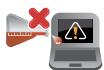
Do not use strong solvents such as alcohol, thinners, benzene, or other chemicals on or near your Notebook PC.

Do not place objects on top of your Notebook PC.

Do not expose your Notebook PC to strong magnetic or electrical fields.

Do not use or expose your Notebook PC near liquids, rain, or moisture.

Do not expose your Notebook PC to dusty environments.

Do not use your Notebook PC near gas leaks.

Do not place active electronic devices close to your Notebook PC to avoid electromagnetic wave interference to the display panel.

Do not use this Notebook PC for cryptocurrency mining (consuming a vast amount of electricity and time to gain convertible virtual currency) and/or related activities.
Proper disposal

Do not throw your Notebook PC in municipal waste. This product has been designed to enable proper reuse of parts and recycling. The symbol of the crossed out wheeled bin indicates that the product (electrical, electronic equipment and mercury-containing button cell battery) should not be placed in municipal waste. Check local regulations for disposal of electronic products.

Do not throw the battery in municipal waste. The symbol of the crossed out wheeled bin indicates that the battery should not be placed in municipal waste.
Battery safety information
Battery protection
- Frequently charging a battery under high voltage may shorten the battery life. To protect the battery, once the battery is fully charged, the system may stop charging when the battery power is between 90% and 100%.
NOTE: The level at which the battery resumes charging is usually set between 90% and 99%. The actual value may vary by model.
- Charging or storing a battery in high ambient temperatures may result in permanent damage to the battery power capacity and rapidly shorten battery life. If the battery temperature is too high, the system may reduce the battery power charging capacity or even stop charging to protect the battery.
- Battery power capacity may drop even when your device is powered off and disconnected from the AC power. This is normal as the system still draws a small amount of power from the battery.
Standard battery care
If you are not using your device for a long period of time, ensure to charge the battery power to 50%, then power off your device and disconnect the AC power adapter. Recharge the battery power to 50% every three months to avoid over-discharging and prevent damage to the battery. - Avoid charging the battery at high voltage for a prolonged period of time to extend the battery life. If you are constantly using AC power for your device, ensure to discharge the battery power to 50% at least once every two weeks. You can also adjust the settings from Battery Health Charging in MyASUS to help extend the battery life. It is recommended to store your battery at temperatures between 5°C (41°F) and 35°C (95°F) with the battery power at 50%. You can also adjust the settings from Battery Health Charging in MyASUS to help extend the battery life. - Do not leave your battery in damp environments. Exposure to damp environments may increase the battery over-discharging rate. Low temperature environment may damage the chemicals inside the battery while high temperature or overheating may result in a risk of explosion. - Do not place your device or battery pack near radiators, fireplaces, furnaces, heaters, or any sources of heat with temperature exceeding 60°C (140°F). High temperature surrounding environment may result in an explosion or leakage that may cause fire.
Chapter 1: Hardware Setup
Getting to know your Notebook PC
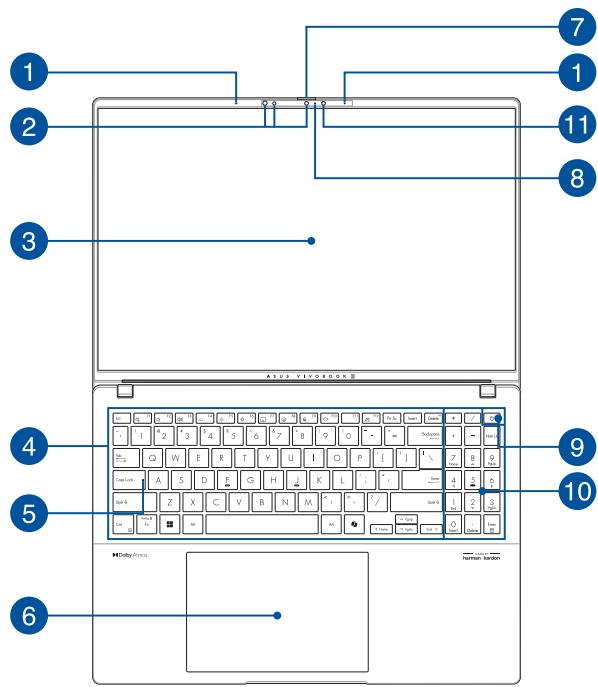
Front View
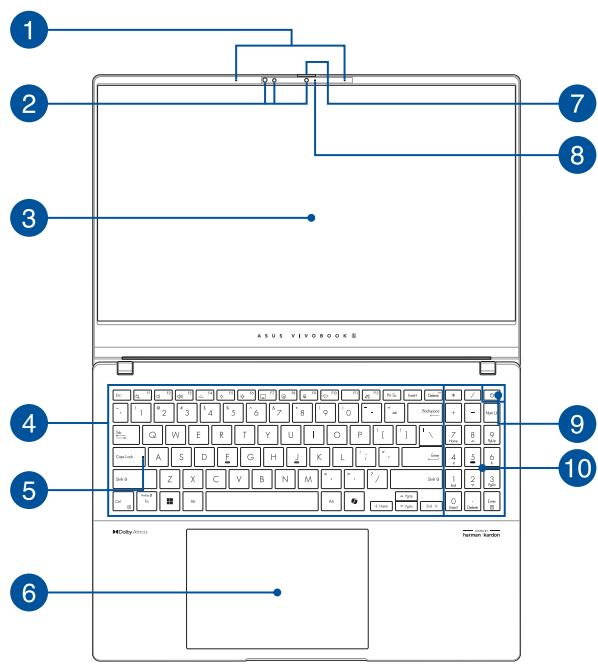
NOTE: The keyboard's layout may vary per region or country. The front view may also vary in appearance depending on the Notebook PC model.
14" model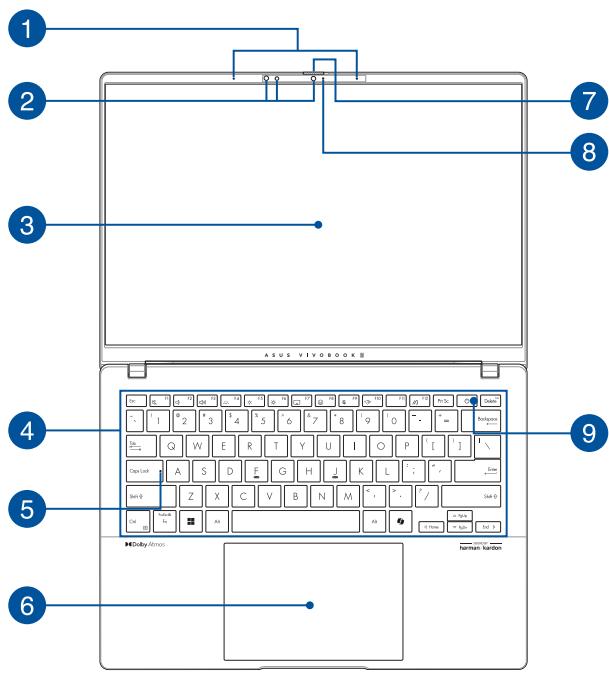
15" model
ThunderboltTM 4 model
16" model
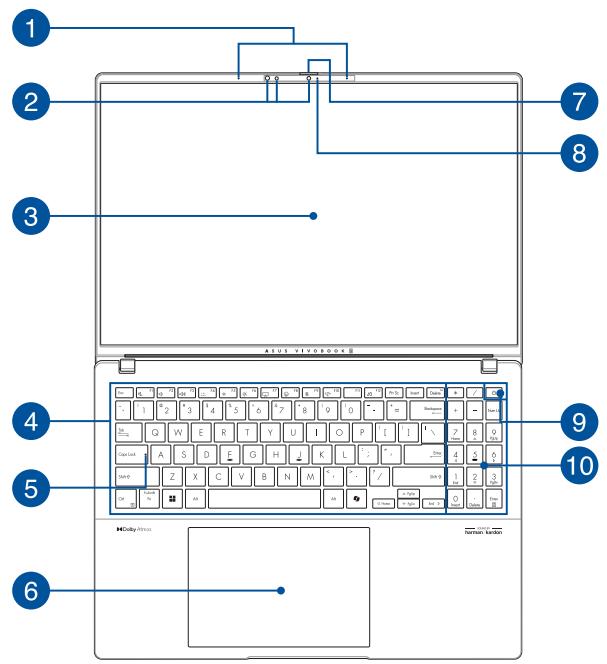

Array microphones
The array microphones feature echo canceling, noise suppression, and beam forming functions for better voice recognition and audio recording.

Camera
The built-in camera allows you to take pictures or record videos using your Notebook PC.
IR Camera
The built-in IR camera captures infrared images for facial recognition and supports Windows Hello.
NOTE: The red IR LED blinks in the process while data is being read before you sign in with Windows Hello facial recognition.

Display panel
This high-definition display panel provides excellent viewing features for photos, videos, and other multimedia files on your Notebook PC.
Disclaimer: Prolonged display of static or high-contrast images may result in image persistence or burn-in on OLED display. ASUS Notebook PC with OLED display (on selected models) minimizes the potential of burn-in by setting Dark Mode in Windows as default and shortening the idle time before the screen is turned off. It is recommended to enable animated dark-background screenshot and avoid setting your OLED display at maximum brightness to extend the lifespan of your OLED display.
NOTE: For more details, refer to the Setting the OLED display section in this manual.

Keyboard
The keyboard provides full-sized QWERTY keys with a comfortable travel depth for typing. It also enables you to use the function keys, allows quick access to Windows, and controls other multimedia functions.
NOTE: The keyboard layout differs by model or territory.

Capital lock indicator
This indicator lights up when the capital lock function is activated. Using capital lock allows you to type capitalized letters (such as A, B, C) using your Notebook PC's keyboard.

Touchpad
The touchpad allows the use of multi-gestures to navigate onscreen, providing an intuitive user experience. It also simulates the functions of a regular mouse.
NOTE: For more details, refer to the Using the touchpad section in this manual.

Webcam shield
This allows you to cover the camera lens of your Notebook PC.

Camera indicator
The camera indicator lights up when the built-in camera is in use.

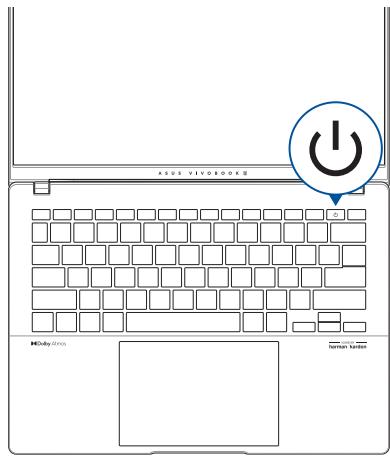
Power button
Press the power button to turn your Notebook PC on or off. You can also use the power button to put your Notebook PC to sleep or hibernate mode and wake it up from sleep or hibernate mode.
In the event that your Notebook PC becomes unresponsive, press and hold the power button for at least ten (10) seconds until your Notebook PC shuts down.

Numeric keypad
The numeric keypad toggles between these two functions: for numeric input and as pointer direction keys.
NOTE: For more details, refer to the Using the numeric keypad section in this manual.

Ambient light sensor
The ambient light sensor detects the amount of ambient light in your environment. It allows the system to automatically adjust the brightness of the display depending on the ambient light condition.
Adaptive color sensor
The adaptive color sensor will automatically adjust the color temperature of your display panel according to the surrounding light levels.
IMPORTANT! Please note that the ambient light sensor and adaptive color sensor are only supported on the latest Microsoft Windows operating system.
NOTE: The adaptive color sensor is disabled by default. To enable the adaptive color sensor, launch the Start menu, then go to Settings > System > Display.
NOTE: The bottom view may vary in appearance depending on model.
WARNING! Your Notebook PC can get warm to hot while in use or while charging the battery pack. Do not leave your Notebook PC on your lap or near any part of your body to prevent injury from heat. When working on your Notebook PC, do not place it on surfaces that can block the vents.
IMPORTANT!
- Battery time varies by usage and by the specifications for this Notebook PC. The battery pack cannot be disassembled. Purchase components from authorized retailers to ensure maximum compatibility and reliability. Consult an ASUS service center or authorized retailers for product service or assistance on proper disassembly or assembly of the product.
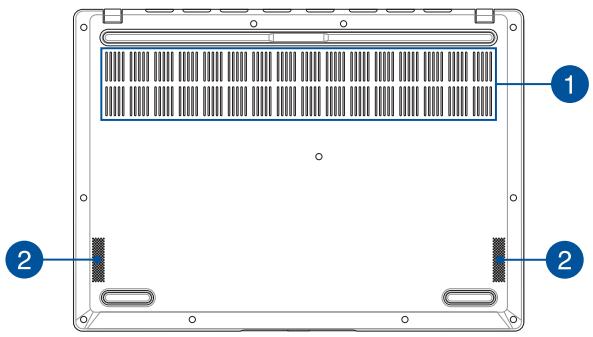
Air vents
The air vents allow cool air to enter or warm air to exit the Notebook PC.
WARNING! Ensure that paper, books, clothing, cables, or other objects do not block any of the air vents or else overheating may occur.
Audio speakers
The built-in audio speakers allow you to hear audio straight from your Notebook PC. Audio features are software-controlled.
Right View


Status indicators
The status indicators help identify the current hardware status of your Notebook PC.

Two-color battery charge indicator
The two-color LED provides a visual indication of the battery's charge status. Refer to the following table for details:
| Color | Status |
| Solid White | The Notebook PC is plugged to a power source and the battery power is 100%. |
| Solid Orange | The Notebook PC is plugged to a power source, charging its battery, and the battery power is between 0% and 99%. |
| Blinking Orange | The Notebook PC is running on battery mode and the battery power is less than 10%. |
| Lights off | The Notebook PC is running on battery mode and the battery power is between 10% to 100%. |

Power indicator
The power indicator lights up when the Notebook PC is turned on and blinks slowly when the Notebook PC is in sleep mode.

USB 3.2 Gen 1 port
The USB 3.2 (Universal Serial Bus 3.2) Gen 1 port provides a transfer rate of up to 5 Gbit/s and is backward compatible to USB 2.0.
Left View
14"/16" model

15" model
Thunderbolt™ 4 model

USB4® model


HDMI output port
This port allows you to send audio and video signals from your Notebook PC to an HDMI-compatible device using an HDMI cable.

Thunderbolt™ 4/Power Delivery combo port
The Thunderbolt™ 4 port is compatible with USB Type-C standards, and provides a transfer rate of up to 40 Gbit/s for Thunderbolt™ 4 devices. Connect your Notebook PC to a DisplayPort, VGA, DVI, or HDMI external display and experience high-resolution display features via Intel® Thunderbolt™ technology. Insert the bundled power adapter into this port to charge the battery pack and supply power to your Notebook PC.
NOTE: Transfer rate of this port may vary per model.
WARNING! The adapter may become warm to hot while in use. Do not cover the adapter and keep it away from your body while it is connected to a power source.
IMPORTANT!
It may take longer to fully charge your Notebook PC through a low-voltage power source. To prevent any damage, use only power sources rated 20V/4.5A to charge your Notebook PC with the USB Power Delivery combo port. For more information, consult an ASUS service center for assistance.

microSD card slot
This built-in memory card reader slot supports microSD card formats.

Headphone/Headset/Microphone jack
This port allows you to connect amplified speakers or headphones. You can also use this port to connect your headset or an external microphone.

USB4®/Power Delivery combo port
The USB4® (Universal Serial Bus 4) port provides a transfer rate of up to 40 Gbit/s and is backward compatible to USB 2.0. Use a USB Type-C® adapter to connect your Notebook PC to an external display. Insert the bundled power adapter into this port to charge the battery pack and supply power to your Notebook PC.
NOTE: Transfer rate of this port may vary per model.
WARNING! The adapter may become warm to hot while in use. Do not cover the adapter and keep it away from your body while it is connected to a power source.
IMPORTANT!
It may take longer to fully charge your Notebook PC through a low-voltage power source. - To prevent any damage, use only power sources rated 20V/3.25A or 20V/4.5A to charge your Notebook PC with the USB Power Delivery combo port. For more information, consult an ASUS service center for assistance.
Chapter 2:
Using your Notebook PC
Getting started
Charge your Notebook PC
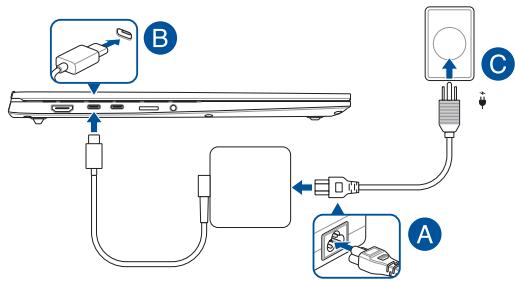
A. Connect the AC power cord to the AC/DC adapter. B. Connect the DC power connector into your Notebook PC's power (DC) input port. C. Plug the AC power adapter into a 100V~240V power source.

Charge the Notebook PC for 3 hours before using it in battery mode for the first time.
NOTE: The power adapter may vary in appearance, depending on model and your region.
IMPORTANT!
Power adapter information:
Input voltage: 100-240Vac Input frequency: 50-60Hz Rating output current: 3.25A (65W) / 4.5A (90W) Rating output voltage: 20V
IMPORTANT!
- Locate the input/output rating label on your Notebook PC and ensure that it matches the input/output rating information on your power adapter. Some Notebook PC models may have multiple rating output currents based on the available SKU.
- Ensure that your Notebook PC is connected to the power adapter before turning it on for the first time. Always plug the power cord into a wall socket without using any extension cords. For your safety, connect this device to a properly grounded electrical outlet only.
- The socket outlet must be easily accessible and near your Notebook PC.
- To disconnect your Notebook PC from its main power supply, unplug your Notebook PC from the power socket.
WARNING!
Read the following precautions for your Notebook PC's battery:
- Only ASUS-authorized technicians should remove the battery inside the device (for non-removable battery only).
- The battery used in this device may present a risk of fire or chemical burn if removed or disassembled.
- Follow the warning labels for your personal safety.
- Risk of explosion if battery is replaced by an incorrect type. Do not dispose of in fire.
- Never attempt to short-circuit your Notebook PC's battery.
- Never attempt to disassemble and reassemble the battery (for non-removable battery only). Discontinue usage if leakage is found.
- The battery and its components must be recycled or disposed of properly.
- Keep the battery and other small components away from children.
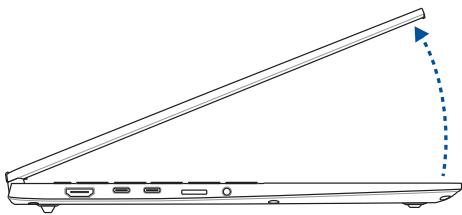
Lift to open the display panel
Press the power button
Using the touchpad
Moving the pointer
You can tap anywhere on the touchpad to activate its pointer, then slide your finger on the touchpad to move the pointer onscreen.
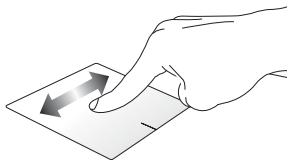
Slide horizontally
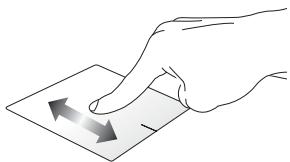
Slide vertically
Slide diagonally
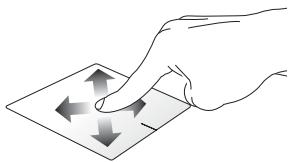
One-finger gestures
Tap/Double-tap
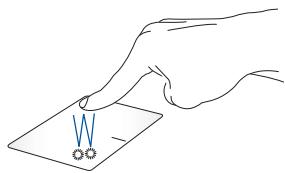
- Tap an app to select it. Double-tap an app to launch it.
Drag and drop

Double-tap an item, then slide the same finger without lifting it off the touchpad. To drop the item to its new location, lift your finger from the touchpad.
Left-click
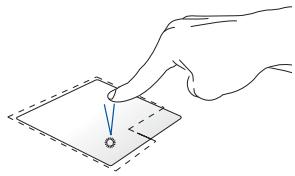
Right-click
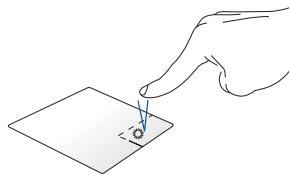
- Click an app to select it. Double-click an app to launch it.
Click this button to open the right-click menu.
NOTE: The areas inside the dotted line represent the locations of the left mouse button and the right mouse button on the touchpad.
Two-finger gestures
Tap

Tap two fingers on the touchpad to simulate the right-click function.
Two-finger scroll (up/down)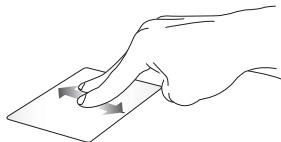
Slide two fingers to scroll up or down.
Two-finger scroll (left/right)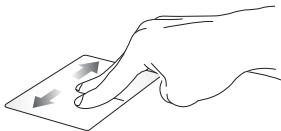
Slide two fingers to scroll left or right.
Zoom out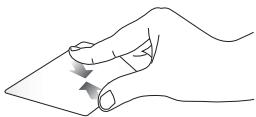
Bring together your two fingers on the touchpad.
Zoom in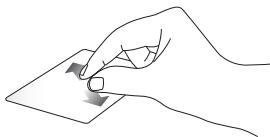
Spread apart your two fingers on the touchpad.
Drag and drop
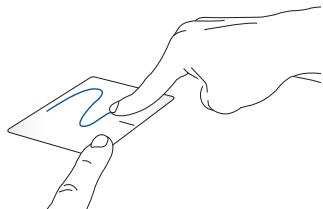
Select an item, then press and hold the left button. Using your other finger, slide on the touchpad to drag the item, lift your finger off the button to drop the item.
Three-finger gestures
Tap
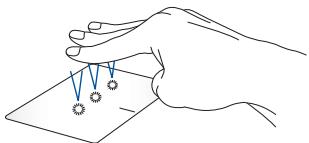
Tap three fingers on the touchpad to launch the function you selected in Settings.
Swipe left/Swipe right
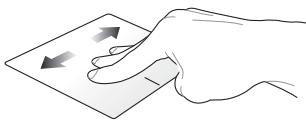
If you opened multiple apps, swipe three fingers left or right to switch between these apps.
Swipe up
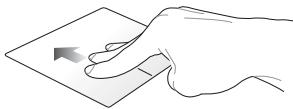
Swipe up to see an overview of all the apps currently opened.
Swipe down
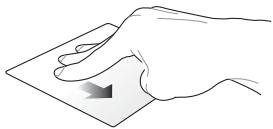
Swipe down to show the desktop.
Four-finger gestures
Tap
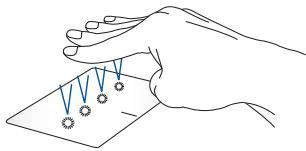
Tap four fingers on the touchpad to launch the function you selected in Settings.
Using the keyboard
Hotkeys
The hotkeys on your Notebook PC's keyboard can trigger the following commands:

Turns the speaker on or off

Turns the speaker volume down

Turns the speaker volume up

Adjusts brightness for the backlit keyboard

Decreases display brightness

Increases display brightness

Toggles the display mode
NOTE: Ensure that the second display is connected to your Notebook PC.

Launches the emoji keyboard

Turns the microphone on or off

Turns the AI noise-canceling microphone on or off

Launches MyASUS
Function keys
Press Fn + Esc to enable or disable the function keys (F1-F12). When the function keys are enabled, you can also access hotkeys by holding down Fn in combination with the function keys.
Windows keys

Launches the Start menu
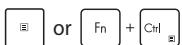
Displays the drop-down menu

Launches Windows Copilot
NOTE: Feature availability varies by market, see aka.ms/WindowsAlFeatures.
Using the numeric keypad
NOTE: The numeric keypad layout may differ by model or territory but the usage procedures remain the same.
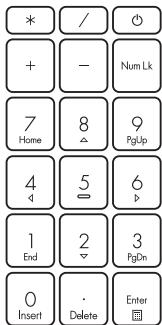
A numeric keypad is available on selected Notebook PC models. You can use this keypad for numeric input or as pointer direction keys.

Press Num Lk to toggle
between using the keypad as number keys or as pointer direction keys.
Chapter 3:
Working with Windows
Starting for the first time
When you start your Notebook PC for the first time, a series of screens appear to guide you in configuring your Windows operating system.
To start your Notebook PC for the first time:
- Press the power button on your Notebook PC. Wait for a few minutes until the setup screen appears.
- From the setup screen, pick your region and a language to use on your Notebook PC.
- Carefully read the License Agreement. Select Accept.
- Follow the onscreen instructions to configure the following basic items:
Personalize, Get online, Settings, Your account
- After configuring the basic items, Windows proceeds to install your apps and preferred settings. Ensure that your Notebook PC is kept powered on during the setup process.
- Once the setup process is complete, the Desktop appears.
NOTE: The screenshots in this chapter are for reference only.
Start menu
The Start menu is the main gateway to your Notebook PC's programs, Windows apps, folders, and settings.
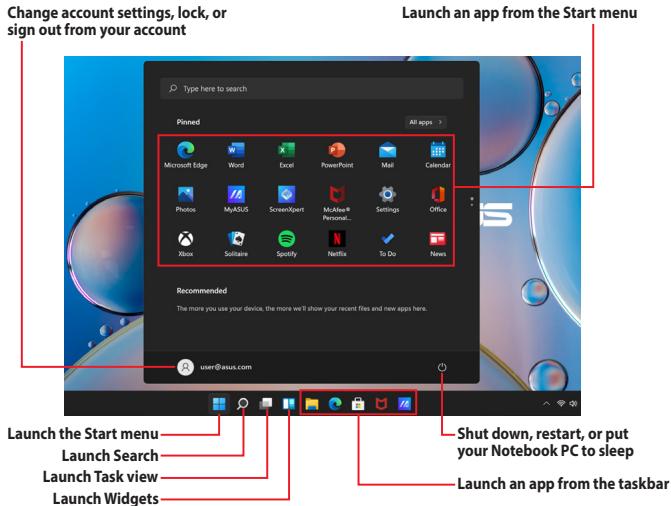
You can use the Start menu to do these common activities:
Start programs or Windows apps, open commonly used programs or Windows apps, adjust Notebook PC settings, get help with the Windows operating system, turn off your Notebook PC, log off from Windows or switch to a different user account.
Launching the Start menu

Position your mouse pointer over the Start icon on your desktop, then click it.


Press the Windows logo key on your keyboard.
Opening programs from the Start menu
One of the most common uses of the Start menu is opening programs installed on your Notebook PC.

Position your mouse pointer over the program, then click to launch it.

Use the arrow keys to browse through the programs. Press Enter to launch it.
NOTE: Select All apps to display a full list of programs and folders on your Notebook PC in alphabetical order.
Windows apps
These are apps pinned on the Start menu and displayed in tiled-format for easy access.
NOTE: Some Windows apps require signing in to your Microsoft account before they are fully launched.
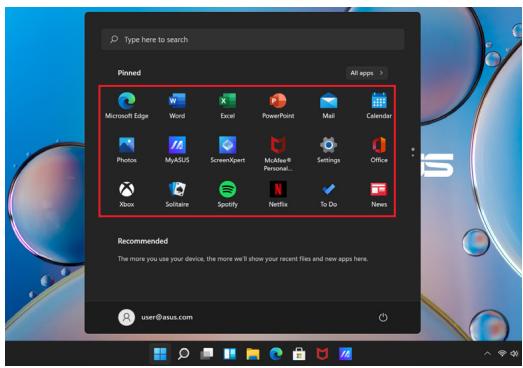
Working with Windows apps
Launching Windows apps from the Start menu

Position your mouse pointer over the app, then click to launch it.

Use the arrow keys to browse through the apps. Press

Customizing Windows apps
You can move, unpin, or pin apps to the taskbar from the Start menu using the following steps:
Moving apps

Position your mouse pointer over the app, then drag and drop the app to a new location.
Unpinning apps

Position your mouse pointer over the app and right-click it, then click Unpin from Start.

Use the arrow keys to navigate to the app.
Press or Fn + Ctrl (on selected models), then select Unpin from Start.
Pinning apps to the taskbar

Position your mouse pointer over the app and right-click it, then click Pin to taskbar.

Use the arrow keys to navigate to the app.
Press or Fn + Ctrl (on selected models), then select Pin to taskbar.
Pinning more apps to the Start menu

From All apps, position your mouse pointer over the app you want to add to the Start menu and right-click it, then click Pin to Start.

From All apps, press or Fn + Ctrl (on selected models) on the app that you want to add to the Start menu, then select Pin to Start.
Task view
Quickly switch between opened apps and programs using the Task view feature, you can also use Task view to switch between desktops.
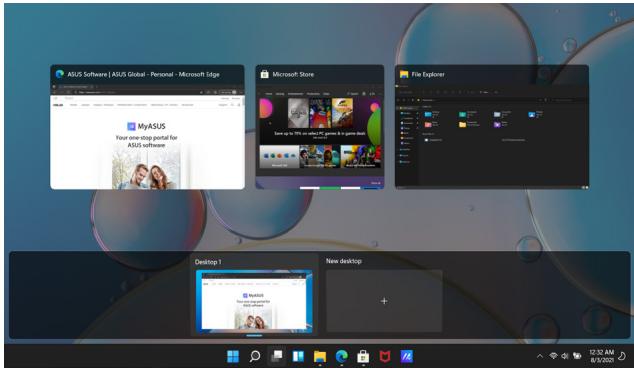
Launching Task view

Position your mouse pointer over the icon on the taskbar and click it.

Press ⌀⌀ + ⌀⌀ on your keyboard.
Widgets
You can launch Widgets for quick access of important info.
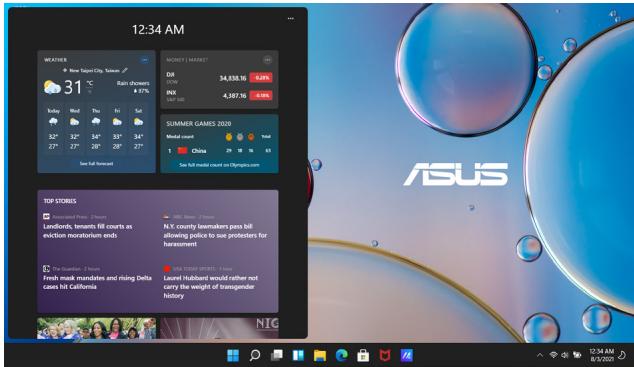
Launching Widgets

Position your mouse pointer over the icon on the taskbar and click it.

Press ⌀⌀ + ⌀⌀ on your keyboard.
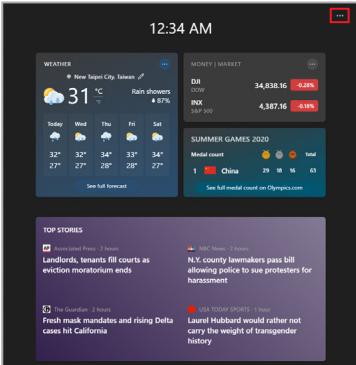
Customizing Widgets

Click/Tap the • • • icon, then select Manage interests to change the content that shows up in the Widgets.
Snap feature
The Snap feature displays apps side-by-side, allowing you to work or switch between apps.
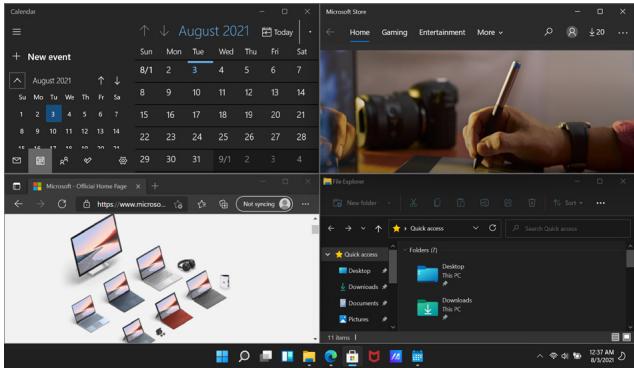
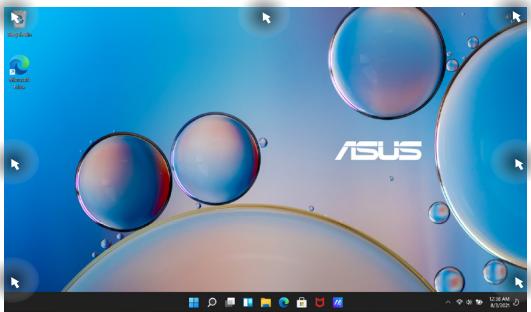
Snap hotspots
You can drag and drop apps to these hotspots to snap them into place.
Using Snap

- Launch the app you wish to snap.
- Drag the title bar of your app and drop the app to the edge of the screen to snap.
- Launch another app and repeat the above steps to snap another app.

- Launch the app you wish to snap.
- Press and hold the key, then use the arrow keys to snap the app.
- Launch another app and repeat the above steps to snap another app.
Action Center
Action Center consolidates notifications from apps and presents a single place where you can interact with them. It also has a really useful Quick Actions section.
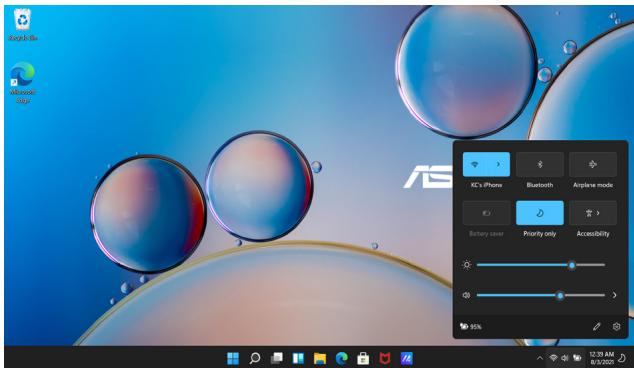
Launching Quick Actions

Position your mouse pointer over the status icons on the taskbar and click it.

Press A on your keyboard.
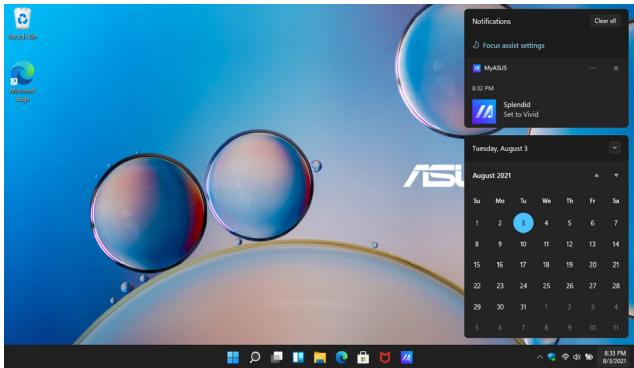
Launching Notifications

Position your mouse pointer over the date and time on the taskbar and click it.

Press + on your keyboard.
MyASUS Splendid
MyASUS Splendid ensures that all ASUS display panels show identical and accurate colors. You may select the Vivid, Eye Care, or Manual modes in addition to the Normal mode to adjust the display settings.
- Normal: Through Gamma and Color temperature correction, the image output from the panel is as close as possible as what your eye can naturally see. For models with OLED panels, this mode is compliant with TUV Low Blue Light Certification. Vivid: This mode allows you to adjust the saturation of the image, making it more vivid and vibrant.
- Manual: This mode allows you to adjust the color temperature value to your personal needs, ranging from -50 to +50. Eye Care: This mode reduces blue light emission by up to 30%, helping to protect your eyes.
Level 1-5: The higher the level, the more blue light emission is reduced. For models with LCD panels, Level 5 is the optimized setting, and is compliant with TUV Low Blue Light Certification.
Flicker-free technology eliminates the primary cause of monitor flicker and prevents eye strain.
NOTE: Enable HDR from Settings > System > Display for a better viewing experience with your OLED panel (on selected models) that is compliant with TÜV Flicker Free Certification.
Please refer to the following tips to alleviate eye strain:
Take some time away from the display if working for long hours. It is advised to take short breaks (at least 5 minutes) after around 1 hour of continuous working at the computer. Taking short and frequent breaks is more effective than a long break. To minimize eye strain and eye dryness, rest your eyes periodically by focusing on objects that are far away. Repeat the following exercises to reduce eye strain:
(1) Look up and down repeatedly (2) Slowly roll your eyes (3) Move your eyes diagonally
If eye strain persists, please consult a physician.
High energy blue light may lead to eye strain and AMD (Age-Related Macular Degeneration). Blue light Filter reduces 30% (max.) harmful blue light to avoid CVS (Computer Vision Syndrome).
Setting the OLED display
The following settings are recommended to optimize the visual experience, maximize battery life, and extend the lifespan of your OLED display (on selected models).
Setting the Dark Mode
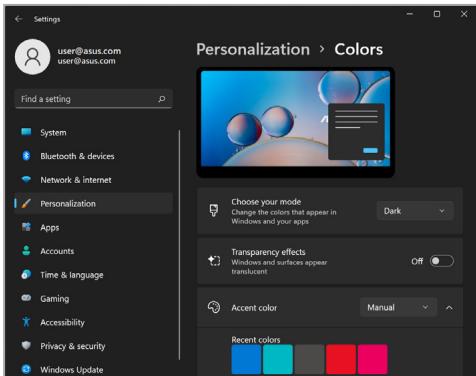
The Dark Mode is enabled by default. To check or adjust the settings:
- Launch the Start menu.
- Click/Tap Settings and select Personalization.
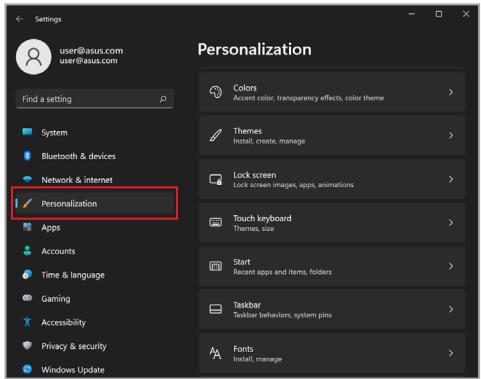
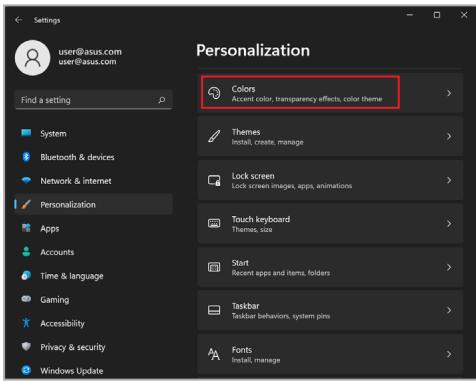
3. Select the Colors tab to view the options.
Turning off the display when not in use
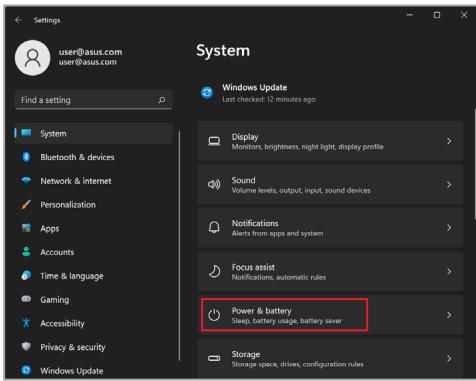
Ensure to set your display to turn off automatically when not in use. To check or adjust the settings:
- Launch the Start menu.
- Click/Tap Settings and select System.
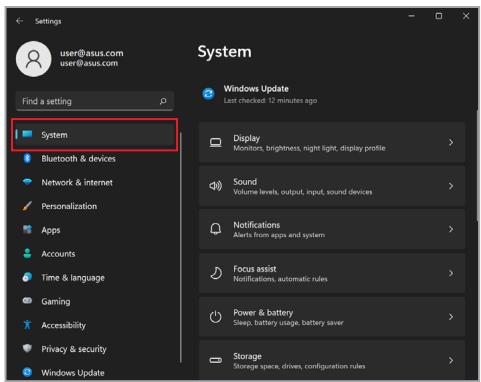
3. Select the Power & battery tab to view the options.
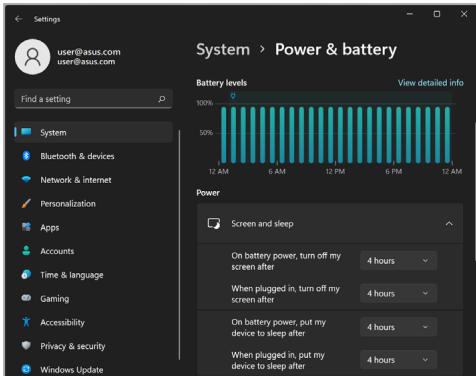
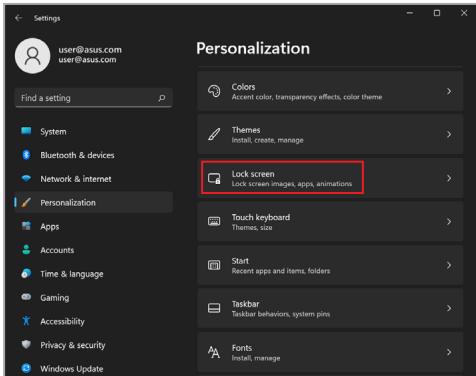
Adjusting display brightness
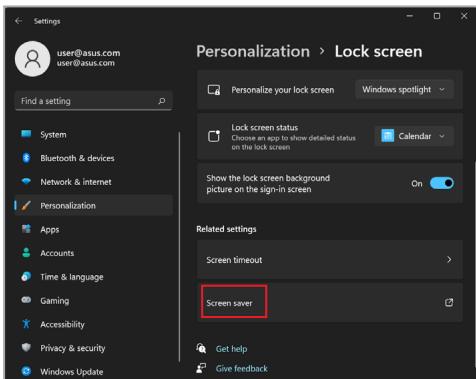
It is recommended to enable animated dark-background screensaver and avoid setting your OLED display at maximum brightness to extend the lifespan of your OLED display. To check or adjust the settings:
- Launch the Start menu.
- Click/Tap Settings and select Personalization.
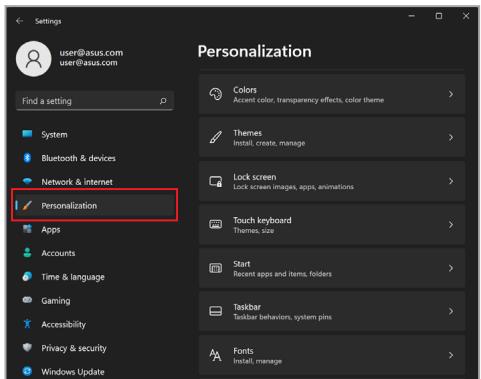
- Select the Lock screen tab and then select Screen saver to view the options.
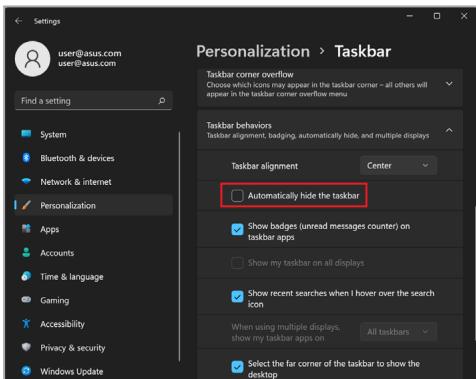
Auto-hide the taskbar
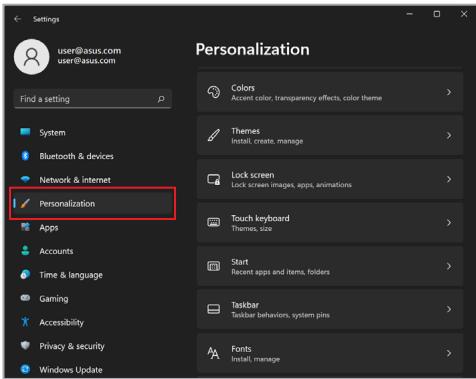
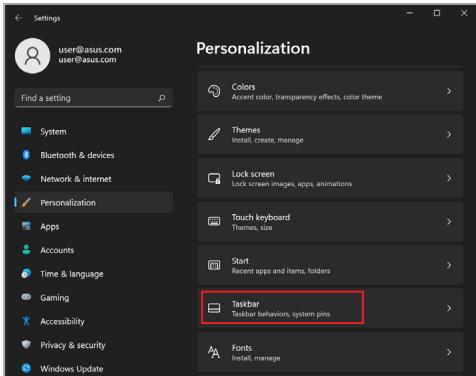
To avoid displaying the taskbar on your OLED display for a prolonged period of time, ensure to auto-hide the taskbar. To adjust the settings:
- Launch the Start menu.
- Click/Tap Settings and select Personalization.
3. Select the Taskbar tab and then enable Automatically hide the taskbar.
Setting the Dark Mode in Microsoft Office
- Launch a Microsoft Office application, and then click/tap File > Account.
- Select Dark Gray under Office Theme. The theme will be applied to all the Microsoft applications.
Other keyboard shortcuts
Using the keyboard, you can also use the following shortcuts to help you launch applications and navigate Windows.

Launches Start menu
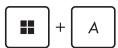
Launches Action Center
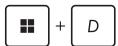
Launches the desktop

Launches the File Explorer

Launches Settings
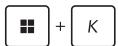
Launches Connect panel

Activates the lock screen
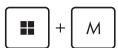
Minimizes all currently active windows
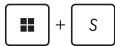
Launches Search
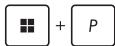
Launches Project panel
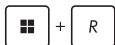
Opens the Run window
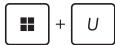
Opens Accessibility
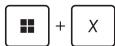
Opens the context menu of the Start button
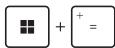
Launches the magnifier icon and zooms in your screen

Zooms out your screen
Connecting to wireless networks
Wi-Fi
Access emails, surf the Internet, and share applications via social networking sites using your Notebook PC's Wi-Fi connection.
IMPORTANT! Airplane mode disables this feature. Ensure that Airplane mode is turned off before enabling the Wi-Fi connection of your Notebook PC.
Connecting to Wi-Fi
Connect your Notebook PC to a Wi-Fi network by using the following steps:

- Launch Action Center from the taskbar.
- Click/Tap the Wi-Fi icon to enable Wi-Fi.
- Select an access point from the list of available Wi-Fi connections.
- Select Connect to start the network connection.
NOTE: You may be prompted to enter a security key to activate the Wi-Fi connection.
Bluetooth
Use Bluetooth to facilitate wireless data transfers with other Bluetooth-enabled devices.
IMPORTANT! Airplane mode disables this feature. Ensure that Airplane mode is turned off before enabling the Bluetooth connection of your Notebook PC.
Pairing with other Bluetooth-enabled devices
You need to pair your Notebook PC with other Bluetooth-enabled devices to enable data transfers. Connect your devices by using the following steps:

- Launch Settings from the Start menu.
- Select Bluetooth & devices > Add device to search for Bluetooth-enabled devices.
- Select a device from the list to pair your Notebook PC with the device.
NOTE: For some Bluetooth-enabled devices, you may be prompted to key in the passcode of your Notebook PC.
Airplane mode
Airplane mode disables wireless communication, allowing you to use your Notebook PC safely while in flight.
NOTE: Contact your airline provider to learn about related in-flight services that can be used and restrictions that must be followed when using your Notebook PC in flight.
Turning Airplane mode on/off

- Launch Action Center from the taskbar.
- Click/Tap the Airplane mode icon to enable or disable Airplane mode.
Turning your Notebook PC off
You can turn off your Notebook PC by doing either of the following procedures:

- Launch the Start menu, then select the power icon and choose Shut down to do a normal shutdown. From the log-in screen, select the power icon and choose Shut down.

Press Alt to launch Shut Down
Windows. Select Shut down from the drop-down list, then select OK.
If your Notebook PC is unresponsive, press and hold the power button for at least ten (10) seconds until your Notebook PC turns off.
Putting your Notebook PC to sleep
To put your Notebook PC to Sleep mode:

- Launch the Start menu, then select the power icon and choose Sleep to put your Notebook PC to sleep. From the log-in screen, select the power icon and choose Sleep.

Press the Windows logo key + X to launch the Quick Link menu.
Select Sleep from the drop-down list, then select OK.
NOTE: You can also put your Notebook PC to Sleep mode by pressing the power button once.
Chapter 4:
Power-On Self-Test (POST)
The Power-On Self-Test (POST)
The POST (Power-On Self-Test) is a series of software-controlled diagnostic tests that run when you turn on or restart your Notebook PC. The software that controls the POST is installed as a permanent part of the Notebook PC's architecture.
Using POST to access BIOS and Troubleshoot
During POST, you can access the BIOS settings or run troubleshooting options using the function keys of your Notebook PC. You may refer to the following information for more details.
BIOS
The BIOS (Basic Input and Output System) stores system hardware settings that are needed for system startup in the Notebook PC.
The default BIOS settings apply to most conditions of your Notebook PC. Do not change the default BIOS settings except in the following circumstances:
An error message appears onscreen during system bootup and requests you to run the BIOS Setup. You have installed a new system component that requires further BIOS settings or updates.
WARNING! Using inappropriate BIOS settings may result in system instability or boot failure. We strongly recommend that you change the BIOS settings only with the help of a trained service personnel.
Accessing BIOS
Restart your Notebook PC, then press F2 during POST.
Recovering your system
Using recovery options on your Notebook PC allows you to restore the system to its original state or simply refresh its settings to help improve performance.
IMPORTANT!
- Back up all your data files before doing any recovery option on your Notebook PC. Note down important customized settings such as network settings, user names, and passwords to avoid data loss.
- Ensure that your Notebook PC is plugged in to a power source before resetting your system.
Windows allows you to do any of the following recovery options:
- Keep my files - This option allows you to refresh your Notebook PC without affecting personal files (photos, music, videos, documents).
Using this option, you can restore your Notebook PC to its default settings and delete other installed apps.
- Remove everything - This option resets your Notebook PC to its factory settings. You must back up your data before doing this option.
- Advanced startup - Using this option allows you to perform other advanced recovery options on your Notebook PC such as:
Using a USB drive, network connection or Windows recovery DVD to start up your Notebook PC. - Using Troubleshooting to enable any of these advanced recovery options: Startup Repair, Uninstall Updates, Startup Settings, UEFI Firmware Settings, Command Prompt, System Restore, and System Image Recovery.
Performing a recovery option
Refer to the following steps if you want to access and use any of the available recovery options for your Notebook PC.
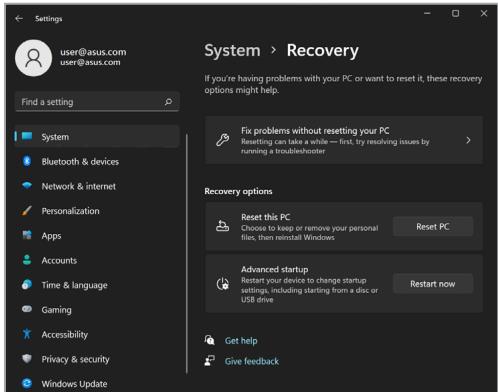
- Launch Settings and select System > Recovery.
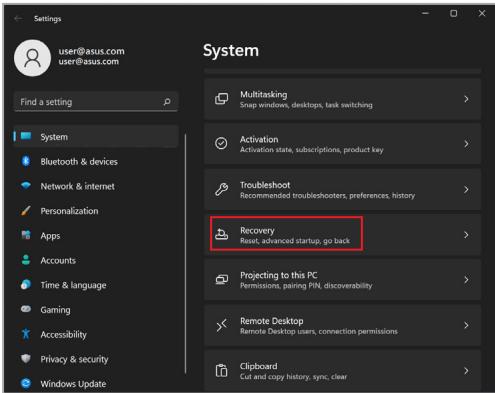
2. Select the recovery option you would like to perform.
Tips and FAQs
Useful tips for your Notebook PC
To help you maximize the use of your Notebook PC, maintain its system performance, and ensure all your data are kept secured, here are some useful tips that you can follow:
- Update Windows periodically to ensure that your applications have the latest security settings.
- Update MyASUS to ensure that you have the latest settings for ASUS exclusive applications, drivers, and utilities. Use an anti-virus software to protect your data and keep this updated too. Unless absolutely necessary, refrain from using force shutdown to turn off your Notebook PC. Always backup your data and make it a point to create a backup data in an external storage drive. If you are not using your Notebook PC for a long period of time, ensure to charge the battery power to 50%, then power off your Notebook PC and disconnect the AC power adapter. If you are constantly using AC power for your Notebook PC, set the Battery Health Charging to Balanced mode in MyASUS.
- Disconnect all external devices and ensure you have the following items prior to resetting your Notebook PC:
Product key for your operating systems and other installed applications - Backup data - Log in ID and password - Internet connection information
- Visit our support site for troubleshooting and view some of the most frequently asked questions at https://www.asus.com/support.
Hardware FAQs
- A black dot, or sometimes a colored dot, appears onscreen when I turn on the Notebook PC. What should I do?
Although these dots normally appear onscreen, they will not affect your system. If the incident continues and subsequently affects system performance, consult an authorized ASUS service center.
- My display panel has an uneven color and brightness. How can I fix this?
The color and brightness of your display panel may be affected by the angle and current position of your Notebook PC. The brightness and color tone of your Notebook PC may also vary per model. You may use the function keys or the display settings in your operating system to adjust the appearance of your display panel.
- How can I maximize my Notebook PC's battery life?
You can try doing any of the following suggestions:
Use the function keys to adjust the display brightness. If you are not using any Wi-Fi connection, switch your system into Airplane mode. - Disconnect unused USB devices. - Close unused applications, especially those that take up too much system memory.
- My battery charge indicator does not light up. What's wrong?
- Check whether the power adapter or battery pack is attached correctly. You may also disconnect the power adapter or battery pack, wait for a minute, then reconnect them again to the power outlet and Notebook PC. If the problem still exists, contact your local ASUS service center for assistance.
- Why is my touchpad not working?
Go to Touchpad settings (System settings) to enable your touchpad.
- When I play audio and video files, why can't I hear any sound from my Notebook PC's audio speakers?
You can try doing any of the following suggestions:
Press F3 to turn up the speaker volume. Check if your speakers were set to mute. - Check if a headphone jack is connected to your Notebook PC and remove it.
- What should I do if my Notebook PC's power adapter gets lost or my battery stops working?
Contact your local ASUS service center for assistance.
- My Notebook PC cannot do keystrokes correctly because my cursor keeps on moving. What should I do?
Make sure that nothing accidentally touches or presses on your touchpad while you type on the keyboard. You can also go to Touchpad settings (System settings) to disable your touchpad.
Software FAQs
1. When I turn on my Notebook PC, the power indicator lights up but nothing appears on my screen. What can I do to fix this?
You can try doing any of the following suggestions:
- Force shutdown your Notebook PC by pressing the power button for at least ten (10) seconds. Check if the power adapter and battery pack are inserted correctly, then turn on your Notebook PC. If the problem still exists, contact your local ASUS service center for assistance.
2. What should I do when my screen displays this message: "Remove disks or other media. Press any key to restart."?
You can try doing any of the following suggestions:
- Remove all connected USB devices, then restart your Notebook PC.
- Remove any optical discs that are left inside the optical drive, then restart.
- If the problem still exists, your Notebook PC might have a memory storage problem. Contact your local ASUS service center for assistance.
3. My Notebook PC boots slower than usual and my operating system lags. How can I fix this?
Delete the applications you recently installed or were not included with your operating system package, then restart your system.
4. My Notebook PC does not boot up. How can I fix this?
You can try doing any of the following suggestions:
- Remove all connected devices to your Notebook PC, then restart your system. If the problem still exists, contact your local ASUS service center for assistance.
5. Why can't my Notebook PC wake up from sleep mode?
You need to press the power button to resume your last working state. - Your system might have completely used up its battery power. Connect the power adapter to your Notebook PC and connect to a power outlet, then press the power button.
If you have any other problems, please visit https://www.asus.com/support/FAQ/1045091/ for troubleshooting.
Appendices
Legal information
USB-IF Trademark

The USB 5Gbps Port Logo is a trademark of the USB Implementers Forum, Inc.

The USB 10Gbps Port Logo is a trademark of the USB Implementers Forum, Inc.

The USB 20Gbps Port Logo is a trademark of the USB Implementers Forum, Inc.

The USB 40Gbps Port Logo is a trademark of the USB Implementers Forum, Inc.
Regulatory statements
Federal Communications Commission Interference Statement
This device complies with FCC Rules Part 15. Operation is subject to the following two conditions:
This device may not cause harmful interference. This device must accept any interference received, including interference that may cause undesired operation.
This equipment has been tested and found to comply with the limits for a class B digital device, pursuant to Part 15 of the Federal Communications Commission (FCC) rules. These limits are designed to provide reasonable protection against harmful interference in a residential installation. This equipment generates, uses, and can radiate radio frequency energy and, if not installed and used in accordance with the instructions, may cause harmful interference to radio communications. However, there is no guarantee that interference will not occur in a particular installation. If this equipment does cause harmful interference to radio or television reception, which can be determined by turning the equipment off and on, the user is encouraged to try to correct the interference by one or more of the following measures:
Reorient or relocate the receiving antenna. - Increase the separation between the equipment and receiver. - Connect the equipment into an outlet on a circuit different from that to which the receiver is connected. - Consult the dealer or an experienced radio/TV technician for help.
WARNING! The use of a shielded-type power cord is required in order to meet FCC emission limits and to prevent interference to the nearby radio and television reception. It is essential that only the supplied power cord be used. Use only shielded cables to connect I/O devices to this equipment. You are cautioned that changes or modifications not expressly approved by the party responsible for compliance could void your authority to operate the equipment.
(Reprinted from the Code of Federal Regulations #47, part 15.193, 1993.
Washington DC: Office of the Federal Register, National Archives and Records Administration, U.S. Government Printing Office.)
FCC RF Exposure Information
This device meets the government's requirements for exposure to radio waves. This device is designed and manufactured not to exceed the emission limits for exposure to radio frequency (RF) energy set by the Federal Communications Commission of the U.S. Government. The exposure standard employs a unit of measurement known as the Specific Absorption Rate, or SAR. The SAR limit set by the FCC is 1.6 W/kg. Tests for SAR are conducted using standard operating positions accepted by the FCC with the EUT transmitting at the specified power level in different channels. The FCC has granted an Equipment Authorization for this device with all reported SAR levels evaluated as in compliance with the FCC RF exposure guidelines. SAR information on this device is on file with the FCC and can be found under the Display Grant section of www.fcc.gov/oet/ea/fccid.
FCC RF Caution Statement
WARNING! Any changes or modifications not expressly approved by the party responsible for compliance could void the user's authority to operate this equipment.
FCC 5.925-7.125 GHz Caution Statement
Operation of transmitters in the 5.925-7.125 GHz band is prohibited for control of or communications with unmanned aircraft systems.
ISED 5.925-7.125 GHz Caution Statement
RLAN devices:
Devices shall not be used for control of or communications with unmanned aircraft systems.
Compliance Statement of Innovation, Science and Economic Development Canada (ISED)
This device complies with Innovation, Science and Economic Development Canada license exempt RSS standard(s). Operation is subject to the following two conditions: (1) this device may not cause interference, and (2) this device must accept any interference, including interference that may cause undesired operation of the device.
Operation in the band 5150-5250 MHz is only for indoor use to reduce the potential for harmful interference to co-channel mobile satellite systems.
CANICES-003(B)/NMB-003(B)
(i) the device for operation in the band 5150-5250 MHz is only for indoor use to reduce the potential for harmful interference to co-channel mobile satellite systems;
(ii) for devices with detachable antenna(s), the maximum antenna gain permitted for devices in the bands 5250-5350 MHz and 5470-5725 MHz shall be such that the equipment still complies with the e.i.r.p. limit;
(iii) for devices with detachable antenna(s), the maximum antenna gain permitted for devices in the band 5725-5850 MHz shall be such that the equipment still complies with the e.i.r.p. limits as appropriate; and
(iv) where applicable, antenna type(s), antenna model(s), and worst-case tilt angle(s) necessary to remain compliant with the e.i.r.p. elevation mask requirement set forth in section 6.2.2.3 shall be clearly indicated.
Warning
Radio Frequency (RF) Exposure Information
The radiated output power of the Wireless Device is below the Innovation, Science and Economic Development Canada (ISED) radio frequency exposure limits. The Wireless Device should be used in such a manner such that the potential for human contact during normal operation is minimized.
This device has been evaluated for and shown compliant with the ISED Specific Absorption Rate ("SAR") limits when operated in portable exposure conditions.
Radiation Exposure Statement
The product complies with the Canada portable RF exposure limit set forth for an uncontrolled environment and is safe for intended operation as described in this manual. Further RF exposure reduction can be achieved if the product can be kept as far as possible from the user body or set the device to lower output power if such function is available.
This EUT is compliant with SAR for general population/uncontrolled exposure limits in IC RSS-102. This equipment should be installed and operated with a minimum distance of 0 cm between the radiator and your body. This equipment complies with ISED radiation exposure limits set forth for an uncontrolled environment. The end user must follow the specific operating instructions to satisfy RF exposure compliance. This transmitter must not be co-located or operating in conjunction with any other antenna or transmitter. The portable device is designed to meet the requirements for exposure to radio waves established by the ISED. These requirements set a SAR limit of 1.6 W/kg averaged over one gram of tissue. The highest SAR value reported under this standard during product certification for use when properly worn on the body.
Required for UL 1459 covering telecommunications (telephone) equipment intended to be electrically connected to a telecommunication network that has an operating voltage to ground that does not exceed 200 V peak, 300 V peak-to-peak, and 105 V rms, and installed or used in accordance with the National Electrical Code (NFPA 70).
When using the Notebook PC modem, basic safety precautions should always be followed to reduce the risk of fire, electric shock, and injury to persons, including the following:
DO NOT use the Notebook PC near water, for example, near a bath tub, wash bowl, kitchen sink or laundry tub, in a wet basement or near a swimming pool. DO NOT use the Notebook PC during an electrical storm. There may be a remote risk of electric shock from lightning. DO NOT use the Notebook PC in the vicinity of a gas leak.
Required for UL 1642 covering primary (non-rechargeable) and secondary (rechargeable) lithium batteries for use as power sources in products. These batteries contain metallic lithium, or a lithium alloy, or a lithium ion, and may consist of a single electrochemical cell or two or more cells connected in series, parallel, or both, that convert chemical energy into electrical energy by an irreversible or reversible chemical reaction.
DO NOT dispose the Notebook PC battery pack in a fire, as they may explode. Check with local codes for possible special disposal instructions to reduce the risk of injury to persons due to fire or explosion. DO NOT use power adapters or batteries from other devices to reduce the risk of injury to persons due to fire or explosion. Use only UL certified power adapters or batteries supplied by the manufacturer or authorized retailers.
Power Safety Requirement
Products with electrical current ratings up to 6A and weighing more than 3Kg must use approved power cords greater than or equal to: H05VV-F, 3G, 0.75mm2 or H05VV-F, 2G, 0.75mm2 .
TV Notices
Note to CATV System Installer—Cable distribution system should be grounded (earthed) in accordance with ANSI/NFPA 70, the National Electrical Code (NEC), in particular Section 820.93, Grounding of Outer Conductive Shield of a Coaxial Cable – installation should include bonding the screen of the coaxial cable to the earth at the building entrance.
Macrovision Corporation Product Notice
This product incorporates copyright protection technology that is protected by method claims of certain U.S.A. patents and other intellectual property rights owned by Macrovision Corporation and other rights owners. Use of this copyright protection technology must be authorized by Macrovision Corporation, and is intended for home and other limited viewing uses only unless otherwise authorized by Macrovision Corporation. Reverse engineering or disassembly is prohibited.
Prevention of Hearing Loss
To prevent possible hearing damage, do not listen at high volume levels for long periods.

Coating Notice
IMPORTANT! To provide electrical insulation and maintain electrical safety, a coating is applied to insulate the device except on the areas where the I/O ports are located.
Nordic Lithium Cautions (for lithium-ion batteries)
CAUTION! Danger of explosion if battery is incorrectly replaced. Replace only with the same or equivalent type recommended by the manufacturer. Dispense of used batteries according to the manufacturer's instructions. (English)
BHHAMAHIE!Ptn 3aemeHe aKKyMynIaTOp Ha aKKyMynIaTOp INHO TnA BO3MOXHO erO BO3rpanHe. YtJIIN3uPyTe aKKyMynIaTOp B COOTBETCTBnC INHCTpyKzIMn npO3BQdITeRn.(Russian)
Declaration of Compliance for Product Environmental Regulation
ASUS follows the green design concept to design and manufacture our products, and makes sure that each stage of the product life cycle of ASUS product is in line with global environmental regulations. In addition, ASUS disclose the relevant information based on regulation requirements.
Please refer to https://esq.asus.com/Compliance.htm for information disclosure based on regulation requirements ASUS is complied with.
EU REACH and Article 33
Complying with the REACH (Registration, Evaluation, Authorization, and Restriction of Chemicals) regulatory framework, we publish the chemical substances in our products at ASUS REACH website at https://esg.asus.com/Compliance.htm.
EU RoHS
This product complies with the EU RoHS Directive. For more details, see https://esq.asus.com/Compliance.htm.
Japan JIS-C-0950 Material Declarations
Information on Japan RoHS (JIS-C-0950) chemical disclosures is available on https://esq.asus.com/Compliance.htm.
India RoHS
This product complies with the "India E-Waste (Management) Rules, 2016" and prohibits use of lead, mercury, hexavalent chromium, polybrominated biphenyls (PBBs) and polybrominated diphenyl ethers (PBDEs) in concentrations exceeding 0.1% by weight in homogenous materials and 0.01% by weight in homogenous materials for cadmium, except for the exemptions listed in Schedule II of the Rule.
Vietnam RoHS
ASUS products sold in Vietnam, on or after September 23, 2011, meet the requirements of the Vietnam Circular 30/2011/TT-BCT.
ASUS recycling and takeback programs come from our commitment to the highest standards for protecting our environment. We believe in providing solutions for you to be able to responsibly recycle our products, batteries, other components as well as the packaging materials.
Please go to https://esg.asus.com/en/Takeback.htm for detailed recycling information in different regions.
Rechargeable Battery Recycling Service in North America

For US and Canada customers, you can call 1-800-822-8837 (toll-free) for recycling information of your ASUS products' rechargeable batteries.
Ecodesign Directive
The European Union announced a framework for the setting of ecodesign requirements for energy-related products (2009/125/EC). Specific implementing measures are aimed at improving environmental performance of specific products or across multiple product types. ASUS provides product information at https://esg.asus.com/Compliance.htm.
ENERGY STAR® Qualified Product

ENERGY STAR® is a joint program of the U.S. Environmental Protection Agency and the U.S. Department of Energy helping us all save money and protect the environment through energy efficient products and practices.
All ASUS products with the ENERGY STAR® logo comply with the ENERGY STAR® standard, and the power management feature is enabled by default. The monitor is automatically set to sleep within 10 minutes of user inactivity; the computer is automatically set to sleep within 30 minutes of user inactivity. To wake your computer, click the mouse, press any key on the keyboard, or press the power button.
Please visit https://www.energystar.gov for detailed information on the ENERGY STAR® joint program, power management, and the benefits to the environment.
NOTE: ENERGY STAR® is NOT supported on FreeDOS and Linux-based products.
EPEAT Registered Products
The public disclosure of key environmental information for ASUS EPEAT (Electronic Product Environmental Assessment Tool) registered products is available at https://esq.asus.com/en/Ecolabel.htm. More information about EPEAT program and purchase guidance can be found at www.epeat.net.
Regional notice for Singapore
Complies with IMDA Standards DB103778
This ASUS product complies with IMDA Standards.
Notices for removable batteries
- Risk of explosion if battery is replaced by an incorrect type. The battery and its component must be recycled or disposed of properly.
Notice regarding replaceable batteries
Copyright © 2024 The Android Open Source Project
Licensed under the Apache License, Version 2.0 (the "License"); you may not use this file except in compliance with the License. You may obtain a copy of the License at http://www.apache.org/licenses/License-2.0.
Unless required by applicable law or agreed to in writing, software distributed under the License is distributed on an "AS IS" BASIS, WITHOUT WARRANTIES OR CONDITIONS OF ANY KIND, either express or implied.
See the License for the specific language governing permissions and limitations under the License.
Simplified EU Declaration of Conformity
ASUSTek Computer Inc. hereby declares that this device is in compliance with the essential requirements and other relevant provisions of Directive 2014/53/EU. Full text of EU declaration of conformity is available at https://www.asus.com/support/.
The WiFi operating in the band 5150-5350 MHz shall be restricted to indoor use for countries listed in the table below:
| AT | BE | BG | CZ | DK | EE | FR |
| DE | IS | IE | IT | EL | ES | CY |
| LV | LI | LT | LU | HU | MT | NL |
| NO | PL | PT | RO | SI | SK | TR |
| FI | SE | CH | HR | UK(NI) |
CE
a. Low Power Indoor (LPI) Wi-Fi 6E devices: The device is restricted to indoor use only when operating in the 5945 to 6425 MHz frequency range in Belgium (BE), Bulgaria (BG), Cyprus (CY), Czech Republic (CZ), Estonia (EE), France (FR), Iceland (IS), Ireland (IE), Lithuania (LT), Germany (DE), Netherlands (NL), Spain (ES). b. Very Low Power (VLP) Wi-Fi 6E devices (portable devices): The device is not permitted to be used on Unmanned Aircraft Systems (UAS) when operating in the 5945 to 6425 MHz frequency range in Belgium (BE), Bulgaria (BG), Cyprus (CY), Czech Republic (CZ), Estonia (EE), France (FR), Iceland (IS), Ireland (IE), Lithuania (LT), Germany (DE), Netherlands (NL), Spain (ES).
Simplified UKCA Declaration of Conformity
ASUSTek Computer Inc. hereby declares that this device is in compliance with the essential requirements and other relevant provisions of The Radio Equipment Regulations 2017 (S.I. 2017/1206). Full text of UKCA declaration of conformity is available at https://www.asus.com/support/.
The WiFi operating in the band 5150-5350 MHz shall be restricted to indoor use for the country listed below:
UK
a. Low Power Indoor (LPI) Wi-Fi 6E devices: The device is restricted to indoor use only when operating in the 5925 to 6425 MHz frequency range in UK. b. Very Low Power (VLP) Wi-Fi 6E devices (portable devices): The device is not permitted to be used on Unmanned Aircraft Systems (UAS) when operating in the 5925 to 6425 MHz frequency range in UK.
Wi-Fi Network Notice
IMPORTANT! Wi-Fi 6E network card is available on selected models. The connectivity of Wi-Fi 6E band may vary according to the regulation and certification of each country/region.
- IN SEARCH OF INCREDIBLE
- COPYRIGHT INFORMATION
- LIMITATION OF LIABILITY
- SERVICE AND SUPPORT
- TABLE OF CONTENTS
- CHAPTER 1: HARDWARE SETUP
- CHAPTER 2: USING YOUR NOTEBOOK PC
- CHAPTER 3: WORKING WITH WINDOWS
- CHAPTER 4: POWER-ON SELF-TEST (POST)
- TIPS AND FAQS
- APPENDICES
- ABOUT THIS MANUAL
- CONVENTIONS USED IN THIS MANUAL
- ICONS
- TYPOGRAPHY
- SAFETY PRECAUTIONS
- USING YOUR NOTEBOOK PC
- CARING FOR YOUR NOTEBOOK PC
- PROPER DISPOSAL
- BATTERY SAFETY INFORMATION
- BATTERY PROTECTION
- STANDARD BATTERY CARE
- GETTING TO KNOW YOUR NOTEBOOK PC
- FRONT VIEW
- MODEL
- THUNDERBOLTTM 4 MODEL
- ARRAY MICROPHONES
- CAMERA
- IR CAMERA
- DISPLAY PANEL
- KEYBOARD
- CAPITAL LOCK INDICATOR
- TOUCHPAD
- WEBCAM SHIELD
- CAMERA INDICATOR
- POWER BUTTON
- NUMERIC KEYPAD
- AMBIENT LIGHT SENSOR
- ADAPTIVE COLOR SENSOR
- IMPORTANT
- AIR VENTS
- AUDIO SPEAKERS
- RIGHT VIEW
- STATUS INDICATORS
- TWO-COLOR BATTERY CHARGE INDICATOR
- POWER INDICATOR
- USB 3.2 GEN 1 PORT
- LEFT VIEW
- THUNDERBOLT™ 4 MODEL
- USB4® MODEL
- HDMI OUTPUT PORT
- THUNDERBOLT™ 4/POWER DELIVERY COMBO PORT
- MICROSD CARD SLOT
- HEADPHONE/HEADSET/MICROPHONE JACK
- USB4®/POWER DELIVERY COMBO PORT
- CHAPTER
- GETTING STARTED
- CHARGE YOUR NOTEBOOK PC
- WARNING
- LIFT TO OPEN THE DISPLAY PANEL
- PRESS THE POWER BUTTON
- USING THE TOUCHPAD
- MOVING THE POINTER
- SLIDE HORIZONTALLY
- SLIDE VERTICALLY
- SLIDE DIAGONALLY
- ONE-FINGER GESTURES
- TAP/DOUBLE-TAP
- DRAG AND DROP
- LEFT-CLICK
- RIGHT-CLICK
- TWO-FINGER GESTURES
- TAP
- THREE-FINGER GESTURES
- SWIPE LEFT/SWIPE RIGHT
- SWIPE UP
- SWIPE DOWN
- FOUR-FINGER GESTURES
- USING THE KEYBOARD
- HOTKEYS
- FUNCTION KEYS
- WINDOWS KEYS
- USING THE NUMERIC KEYPAD
- WORKING WITH WINDOWS
- STARTING FOR THE FIRST TIME
- START MENU
- LAUNCHING THE START MENU
- OPENING PROGRAMS FROM THE START MENU
- WINDOWS APPS
- WORKING WITH WINDOWS APPS
- LAUNCHING WINDOWS APPS FROM THE START MENU
- CUSTOMIZING WINDOWS APPS
- MOVING APPS
- UNPINNING APPS
- PINNING APPS TO THE TASKBAR
- PINNING MORE APPS TO THE START MENU
- TASK VIEW
- LAUNCHING TASK VIEW
- WIDGETS
- LAUNCHING WIDGETS
- CUSTOMIZING WIDGETS
- SNAP FEATURE
- SNAP HOTSPOTS
- USING SNAP
- ACTION CENTER
- LAUNCHING QUICK ACTIONS
- LAUNCHING NOTIFICATIONS
- MYASUS SPLENDID
- SETTING THE OLED DISPLAY
- SETTING THE DARK MODE
- SELECT THE COLORS TAB TO VIEW THE OPTIONS
- TURNING OFF THE DISPLAY WHEN NOT IN USE
- SELECT THE POWER & BATTERY TAB TO VIEW THE OPTIONS
- ADJUSTING DISPLAY BRIGHTNESS
- AUTO-HIDE THE TASKBAR
- SELECT THE TASKBAR TAB AND THEN ENABLE AUTOMATICALLY HIDE THE TASKBAR
- SETTING THE DARK MODE IN MICROSOFT OFFICE
- OTHER KEYBOARD SHORTCUTS
- CONNECTING TO WIRELESS NETWORKS
- WI-FI
- CONNECTING TO WI-FI
- BLUETOOTH
- PAIRING WITH OTHER BLUETOOTH-ENABLED DEVICES
- AIRPLANE MODE
- TURNING AIRPLANE MODE ON/OFF
- TURNING YOUR NOTEBOOK PC OFF
- PUTTING YOUR NOTEBOOK PC TO SLEEP
- POWER-ON SELF-TEST (POST)
- THE POWER-ON SELF-TEST (POST)
- USING POST TO ACCESS BIOS AND TROUBLESHOOT
- BIOS
- ACCESSING BIOS
- RECOVERING YOUR SYSTEM
- PERFORMING A RECOVERY OPTION
- SELECT THE RECOVERY OPTION YOU WOULD LIKE TO PERFORM
- USEFUL TIPS FOR YOUR NOTEBOOK PC
- HARDWARE FAQS
- SOFTWARE FAQS
- WHEN I TURN ON MY NOTEBOOK PC, THE POWER INDICATOR LIGHTS UP BUT NOTHING APPEARS ON MY SCREEN. WHAT CAN I DO TO FIX THIS
- WHAT SHOULD I DO WHEN MY SCREEN DISPLAYS THIS MESSAGE: "REMOVE DISKS OR OTHER MEDIA. PRESS ANY KEY TO RESTART
- MY NOTEBOOK PC BOOTS SLOWER THAN USUAL AND MY OPERATING SYSTEM LAGS. HOW CAN I FIX THIS
- MY NOTEBOOK PC DOES NOT BOOT UP. HOW CAN I FIX THIS
- WHY CAN'T MY NOTEBOOK PC WAKE UP FROM SLEEP MODE
- LEGAL INFORMATION
- USB-IF TRADEMARK
- REGULATORY STATEMENTS
- FEDERAL COMMUNICATIONS COMMISSION INTERFERENCE STATEMENT
- FCC RF EXPOSURE INFORMATION
- FCC RF CAUTION STATEMENT
- FCC 5.925-7.125 GHZ CAUTION STATEMENT
- ISED 5.925-7.125 GHZ CAUTION STATEMENT
- COMPLIANCE STATEMENT OF INNOVATION, SCIENCE AND ECONOMIC DEVELOPMENT CANADA (ISED)
- RADIO FREQUENCY (RF) EXPOSURE INFORMATION
- RADIATION EXPOSURE STATEMENT
- POWER SAFETY REQUIREMENT
- TV NOTICES
- MACROVISION CORPORATION PRODUCT NOTICE
- PREVENTION OF HEARING LOSS
- COATING NOTICE
- NORDIC LITHIUM CAUTIONS (FOR LITHIUM-ION BATTERIES)
- DECLARATION OF COMPLIANCE FOR PRODUCT ENVIRONMENTAL REGULATION
- EU REACH AND ARTICLE
- EU ROHS
- JAPAN JIS-C-0950 MATERIAL DECLARATIONS
- INDIA ROHS
- VIETNAM ROHS
- RECHARGEABLE BATTERY RECYCLING SERVICE IN NORTH AMERICA
- ECODESIGN DIRECTIVE
- ENERGY STAR® QUALIFIED PRODUCT
- EPEAT REGISTERED PRODUCTS
- REGIONAL NOTICE FOR SINGAPORE
- NOTICES FOR REMOVABLE BATTERIES
- NOTICE REGARDING REPLACEABLE BATTERIES
- SIMPLIFIED EU DECLARATION OF CONFORMITY
- CE
- SIMPLIFIED UKCA DECLARATION OF CONFORMITY
- UK
- WI-FI NETWORK NOTICE
Brand : ASUS
Model : 5507 15QUAL12/32/1
Category : Computer