
DECO E4(3-PACK)(EU) - WiFi Repeater TP-LINK - Free user manual and instructions
Find the device manual for free DECO E4(3-PACK)(EU) TP-LINK in PDF.


| Product Type | WiFi Mesh System (WiFi Extender) |
| Brand | TP-LINK |
| Model | Deco E4 (3-PACK) (EU) |
| WiFi Standards | IEEE 802.11a/b/g/n/ac (AC1200) |
| Frequency Band | 2.4 GHz and 5 GHz |
| Maximum Speed | Up to 300 Mbps (2.4 GHz) + 867 Mbps (5 GHz) |
| Antennas | 2 internal per unit |
| Ethernet Ports | 2 10/100 Mbps ports per unit (1 WAN/LAN, 1 LAN) |
| Power Supply | 12V 1A power adapter (included) |
| Dimensions (per unit) | 90.7 x 90.7 x 90.7 mm |
| Weight (per unit) | 210 g |
| Coverage (per unit) | Up to 120 m² (1200 ft²) |
| Total coverage (3-pack) | Up to 360 m² (3600 ft²) |
| Number of units | 3 |
| Features | Mesh, band steering, simple QoS, parental controls |
| Installation | Via Deco app (iOS/Android) |
| Security | WPA2-PSK, WPA3 |
| Compatibility | Any internet service provider |
| Operating temperature | 0°C to 40°C |
| Humidity | 10% to 90% non-condensing |
| Care and cleaning | Clean with a soft, dry cloth. Do not use chemicals. |
| Repairability | Not user serviceable. Contact TP-Link customer service. |
Frequently Asked Questions - DECO E4(3-PACK)(EU) TP-LINK
User questions about DECO E4(3-PACK)(EU) TP-LINK
0 question about this device. Answer the ones you know or ask your own.
Ask a new question about this device
Download the instructions for your WiFi Repeater in PDF format for free! Find your manual DECO E4(3-PACK)(EU) - TP-LINK and take your electronic device back in hand. On this page are published all the documents necessary for the use of your device. DECO E4(3-PACK)(EU) by TP-LINK.
USER MANUAL DECO E4(3-PACK)(EU) TP-LINK
Manage Connected Devices 9
Set Main Deco 10
Create New Networks 11
Remove/Reboot Deco 13
Wi-Fi Settings 14
Blacklist 15
Online Update 16
Advanced Features 17
WPS 22
Parental Controls 23
QoS 24
Monthly Report 25
Managers 26
FAQ 27
Authentication 28
About This Guide
This guide provides a brief introduction to Deco Whole Home Mesh Wi-Fi System and the Deco app, as well as regulatory information.
Features available in Deco may vary by model and software version. Deco availability may also vary by region or ISP. All images, steps, and descriptions in this guide are only examples and may not reflect your actual Deco experience.
Conventions
In this guide, the following conventions are used:
| Convention | Description |
| Deco | Stands for Deco Whole Home Mesh Wi-Fi System/Unit. |
| Underline | Hyperlinks are in teal and underlined. You can click to redirect to a website or a specific section. |
| Teal | Key information appears in teal, including management page text such as menus, items, buttons and so on. |
| Note: | Ignoring this type of note might result in a malfunction or damage to the device. |
| Tips: | Indicates important information that helps you make better use of your device. |
More Info
- Specific product information can be found on the product page at https://www.tp-link.com.
- A Technical Community is provided for you to discuss our products at https://community.tp-link.com.
- Our Technical Support contact information can be found at the Help center of the Deco app and the Contact Technical Support page at https://www.tp-link.com/support/.
Speed/Coverage/Device Quantity Disclaimer
Maximum wireless transmission rates are the physical rates derived from IEEE Standard 802.11 specifications. Range, coverage, and maximum quantity of connected devices are based on test results under normal usage conditions. Actual wireless data throughput, wireless coverage, and quantity of connected devices are not guaranteed and will vary as a result of 1) environmental factors, including building materials, physical objects, and obstacles, 2) network conditions, including local interference, volume and density of traffic, product location, network complexity, and network overhead, and 3) client limitations, including rated performance, location, connection quality, and client condition.
MU-MIMO Disclaimer
Use of MU-MIMO requires clients to also support MU-MIMO.
Seamless Roaming Disclaimer
Clients need to support 802.11k/v/r and may require additional set up. Performance may vary depending on the client device.
Appearance
Each Deco has an LED that changes color according to its status, two RJ-45 Ethernet ports, a power slot, and a Reset button. See the explanation below:
Tip: The product label can be found at the bottom of the product.
Yellow pulse:
Deco is resetting.
Yellow solid:
Deco is starting up.
Blue pulse:
Deco is ready for setup.
Blue solid:
Deco is setting up.
White pulse:
Deco is upgrading firmware.
White solid:
Deco is registered and all is well.
Red pulse:
Deco is disconnected from main Deco.
Red solid:
Deco has an issue.
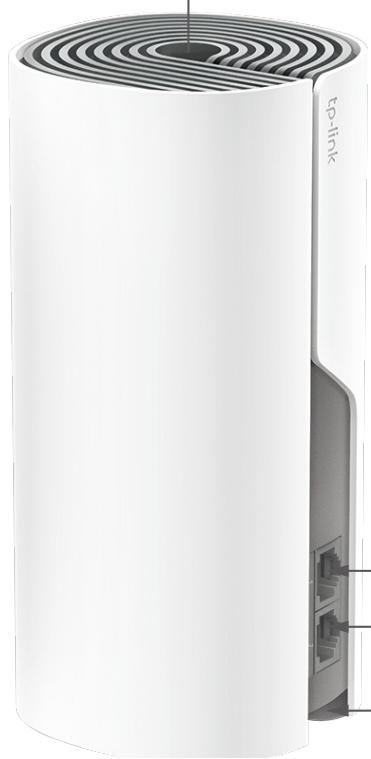
Ethernet Ports:
For connecting Deco to your modem, the Ethernet outlet or other internet devices.
Power Slot:
For connecting Deco to the power socket via the provided power adapter.
Reset Button:
Press for 1 second and release to reset Deco to factory default settings. The light turning pulsing yellow indicates a successful reset.
Set Up Your Deco
The intuitive Deco app guides you through an easy setup process that gets each unit up and running and all your devices connected and online.
Follow the steps below to set up your Deco Whole Home Mesh Wi-Fi System.
1. Download and install the Deco app
Scan the QR code below or go to Google Play or the Apple App Store to download the Deco app. Install the app on your Android or iOS smartphone or tablet.
or

GET IT ON
Google Play

Download on the
AppStore

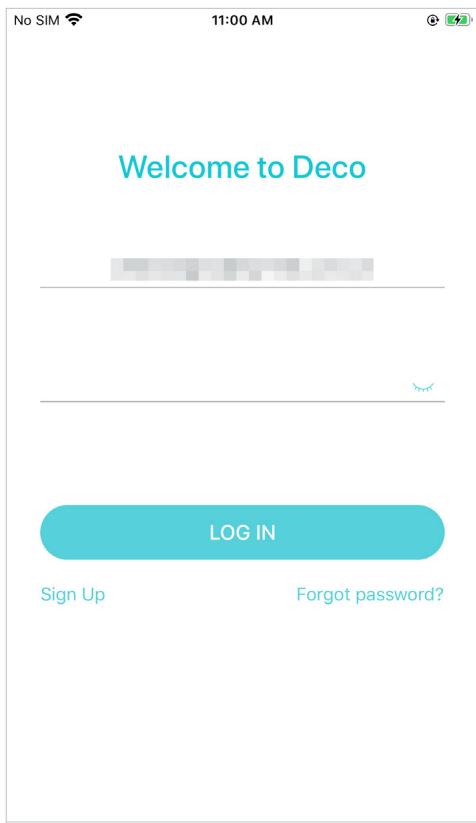
2. Log in or sign up with TP-Link ID
Open the app. Use your TP-Link ID to log in. If you don't have a TP-Link ID, sign up first.
Note: If you forgot your login password, tap Forgot password?.
The Deco app will guide you through the rest.
3. Connect Deco to your modem
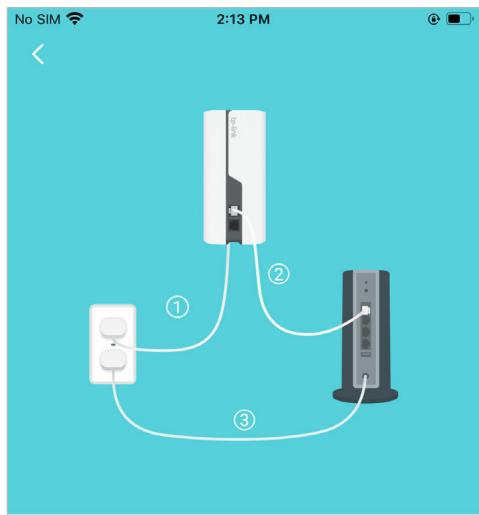
Power off your modem. Connect your Deco to the modem and power them both on.
If you don't have a modem, connect the Ethernet outlet directly to your Deco.
Plug in your devices
Connect your modem's LAN port to either Ethernet port on Deco and power them both on.
NEXT
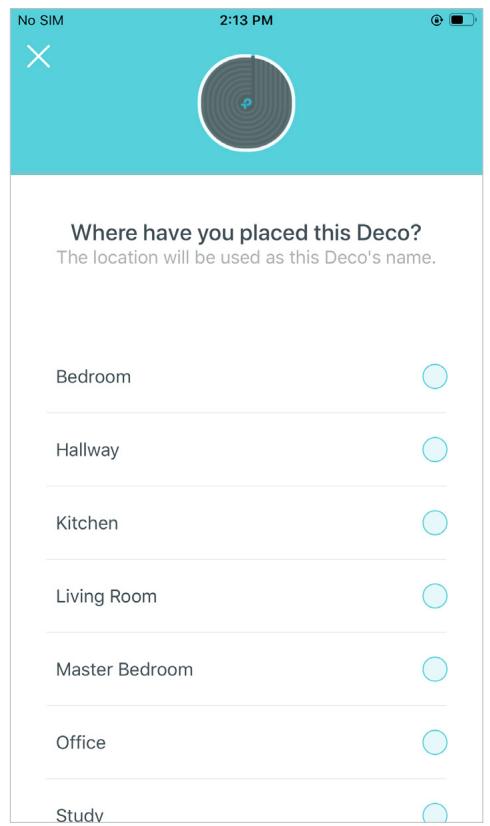
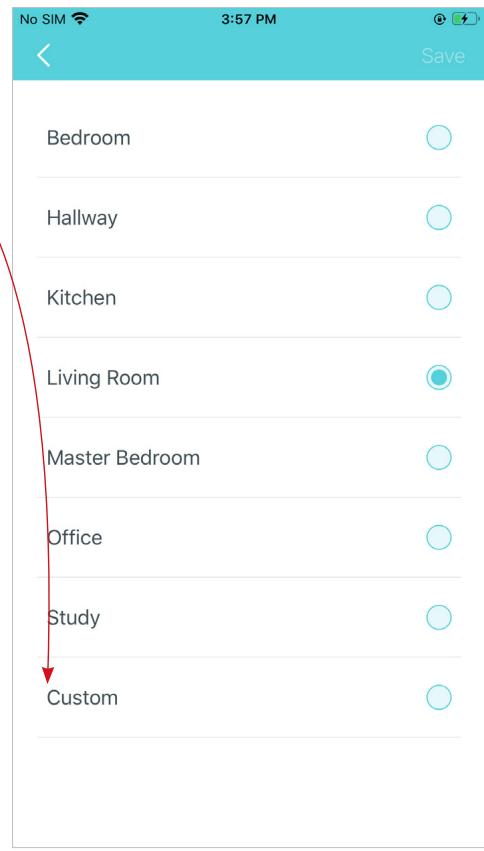
4. Select a location
Select a location for this Deco. If its location is not listed, you can create a new one by choosing Custom.
5. Set up internet connection
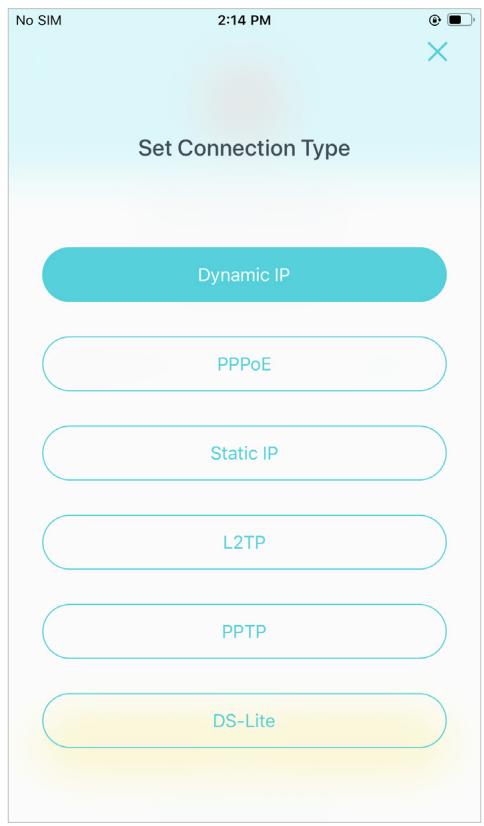
Select the internet connection type and enter the information. If you are not sure, contact your internet service provider.
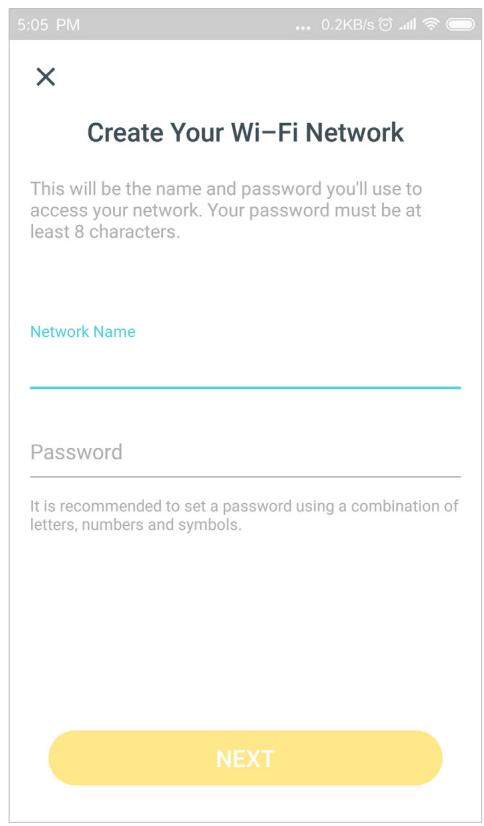
6. Create your Wi-Fi network
Set a network name and a password. These will be the name and password you use to connect your devices to Wi-Fi.
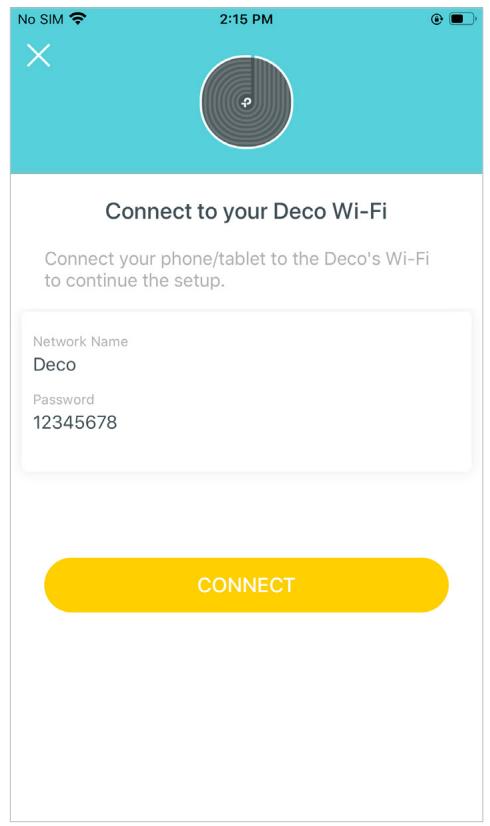
7. Connect to your Wi-Fi network
Connect your devices to the Deco's Wi-Fi to continue the setup.
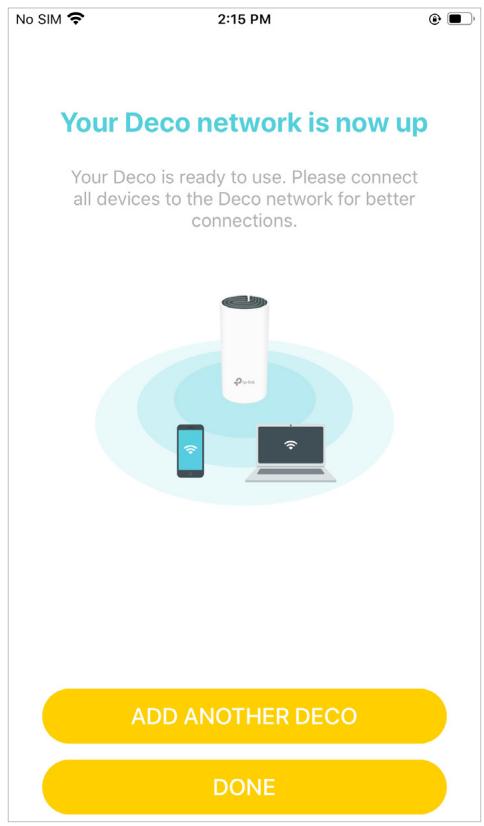
8. Setup complete
Your Deco network is now up. Connect all devices to the Deco network.
Add More Decos
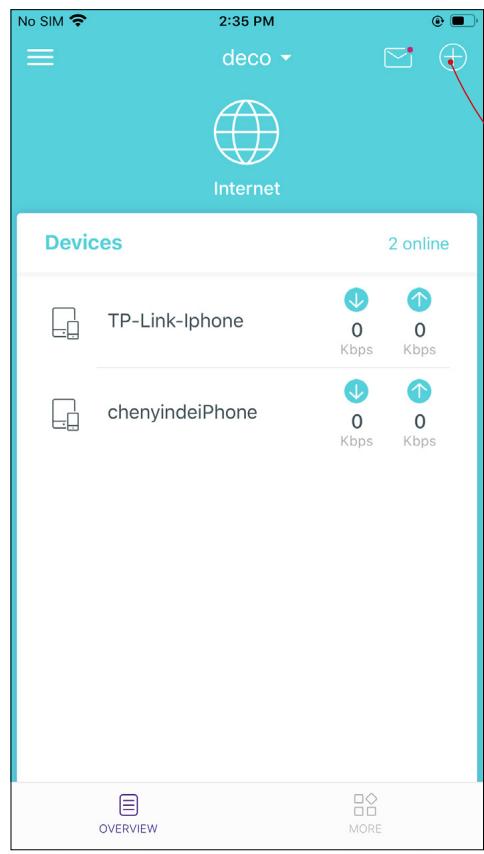
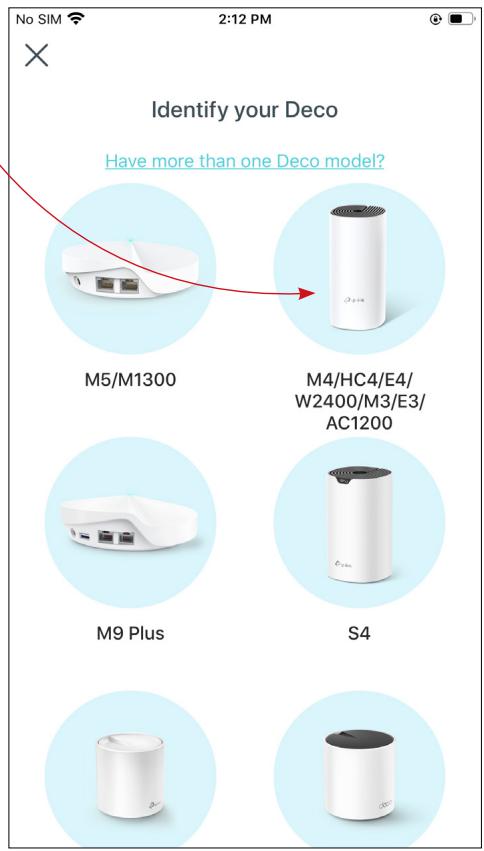
After creating a Deco network, you can add more Deco units into the network to expand the Wi-Fi coverage, and manage them conveniently on your Deco app.
In Overview, tap
Select the Deco model you want to add, and follow app instructions to complete the setup
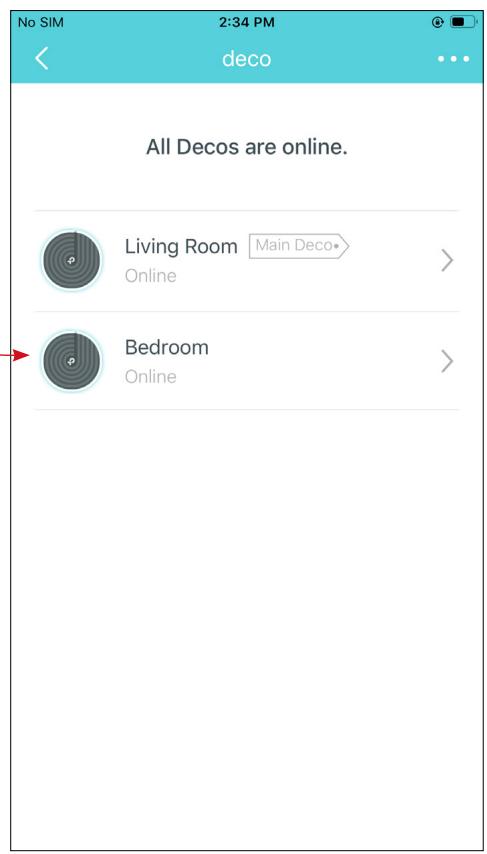
After the setup, you can find the added Decos by tapping
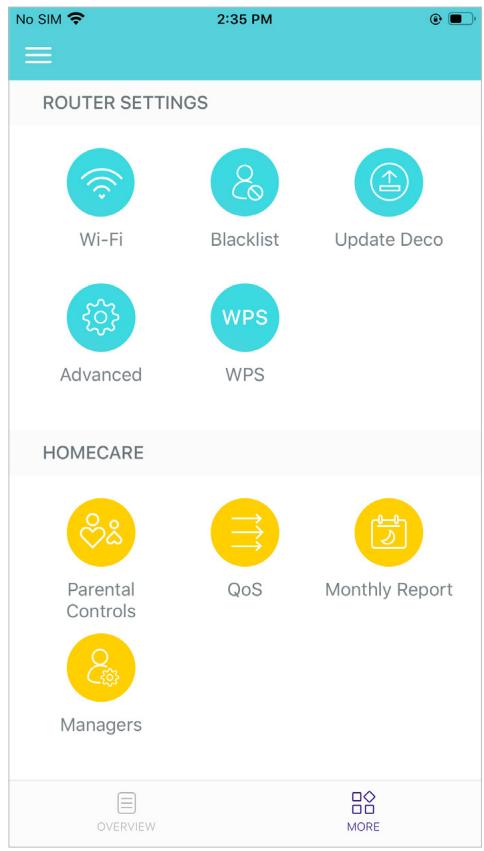
Dashboard
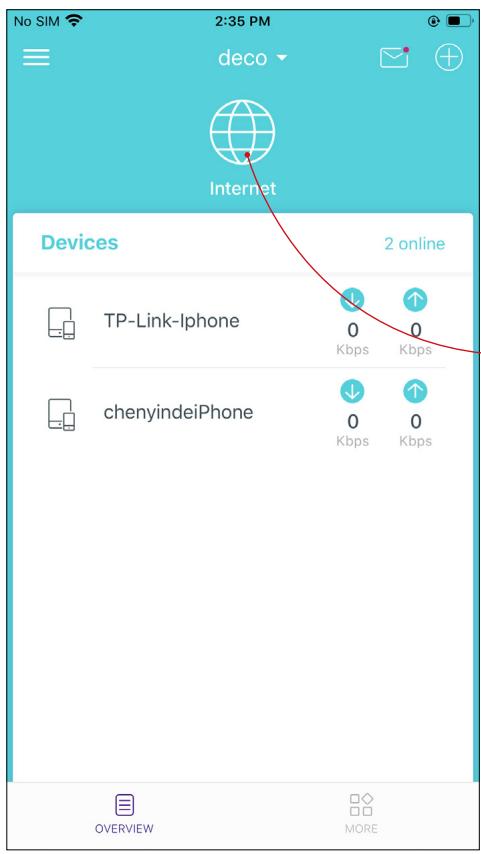
After you successfully set up your Deco network, you will see the dashboard of the Deco app. Here you can get an overview of the network status, check your connected devices and configure advanced features.
Tap to get an overview of the network status
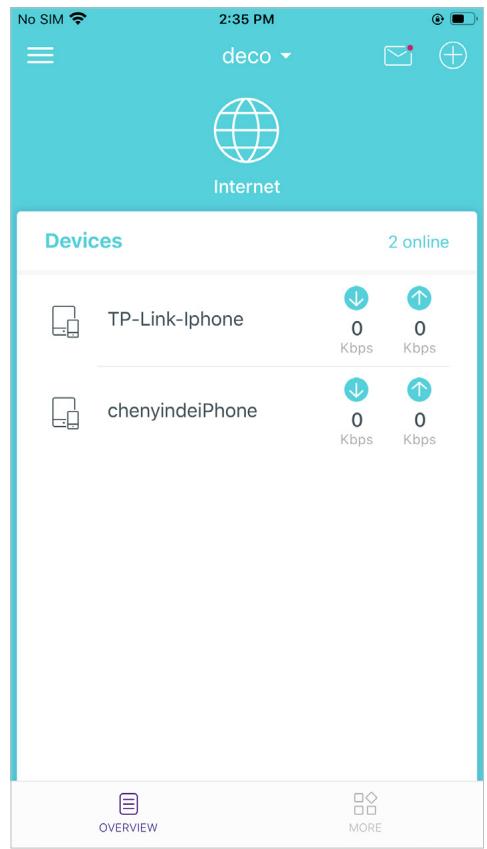
Tap for more features
Check Deco Status
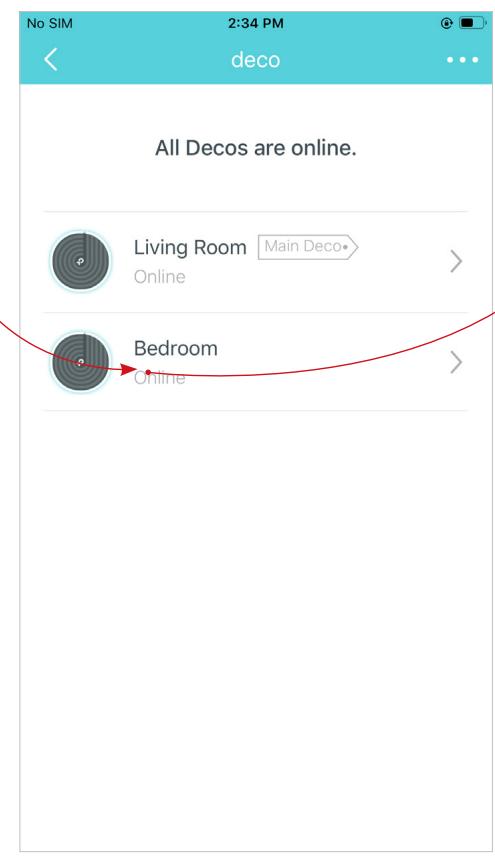
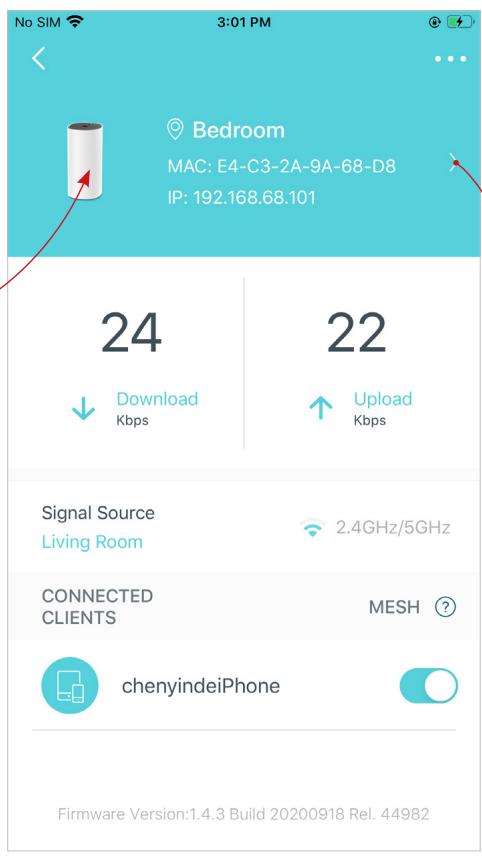
In Overview, you can check the working status of all the Decos, check the Deco details, change or customize the location, and more.
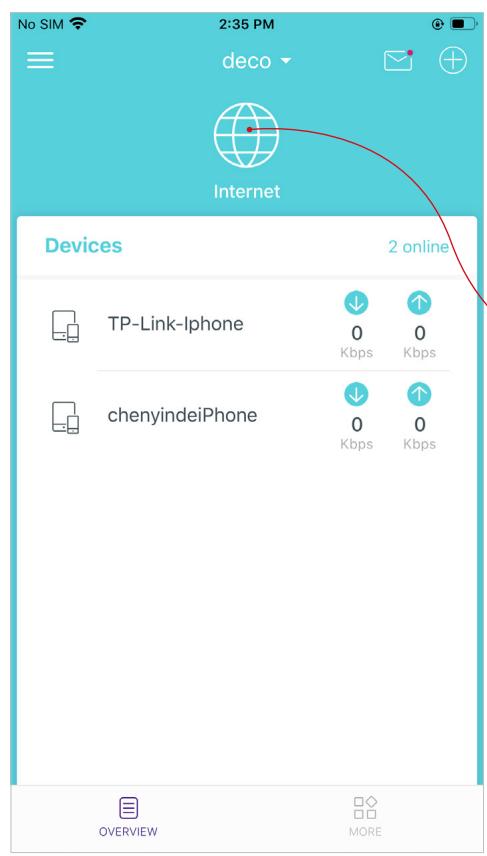
Tap to check all Decos' status
Tap a Deco unit to check the details
Tap the Deco unit to change or customize the location
Manage Connected Devices
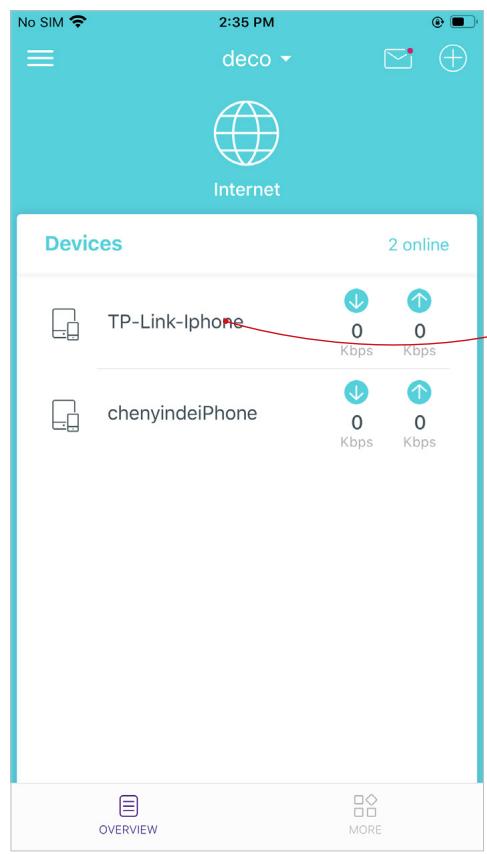
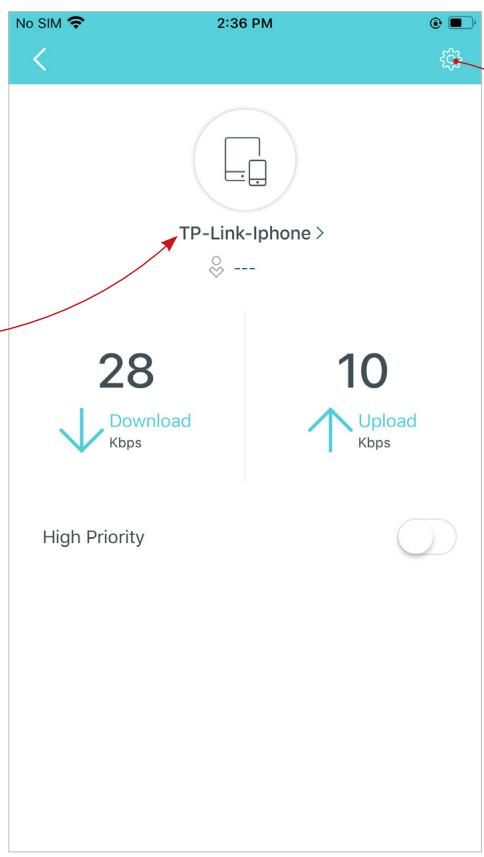
In Overview, you can check the working status of all the connected devices, view the device details, and change the device settings.
Tap a client on the Devices list to check the details
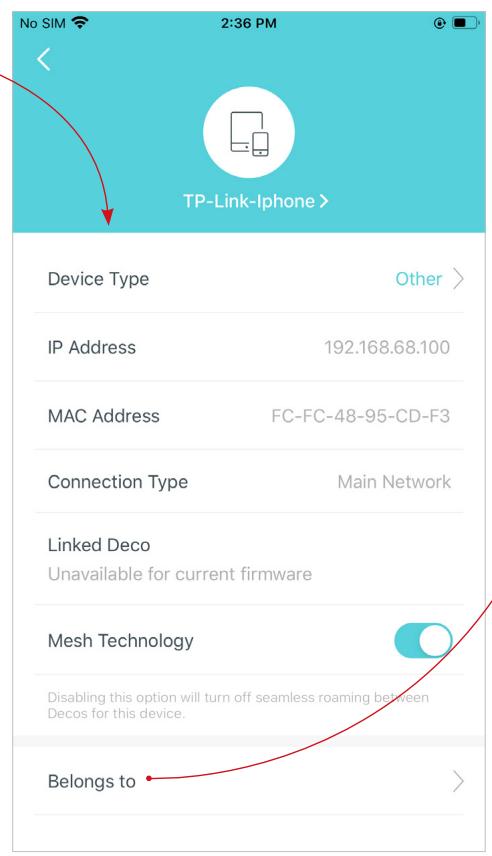
Tap to manage the device settings
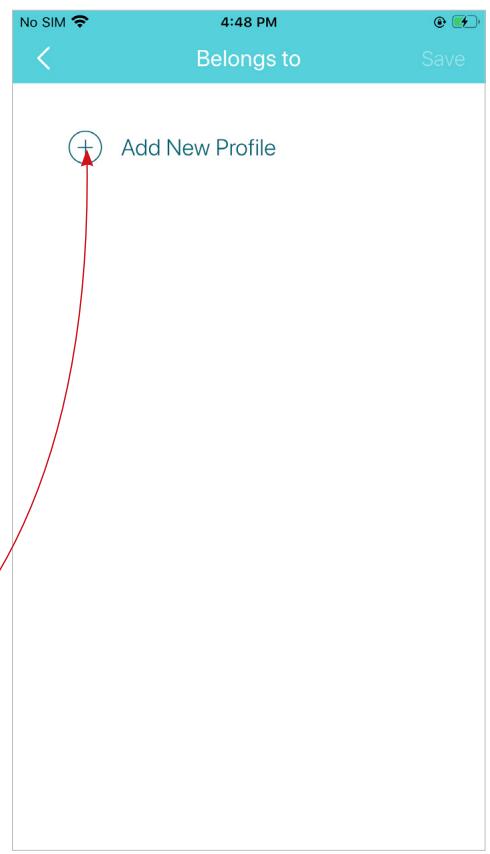
Tap Belongs to to add a unique profile for the device and manage its online activities
Set Main Deco
After setup, you can replace the main Deco with any satellite Deco when needed. Follow the steps below.

In Overview, tap
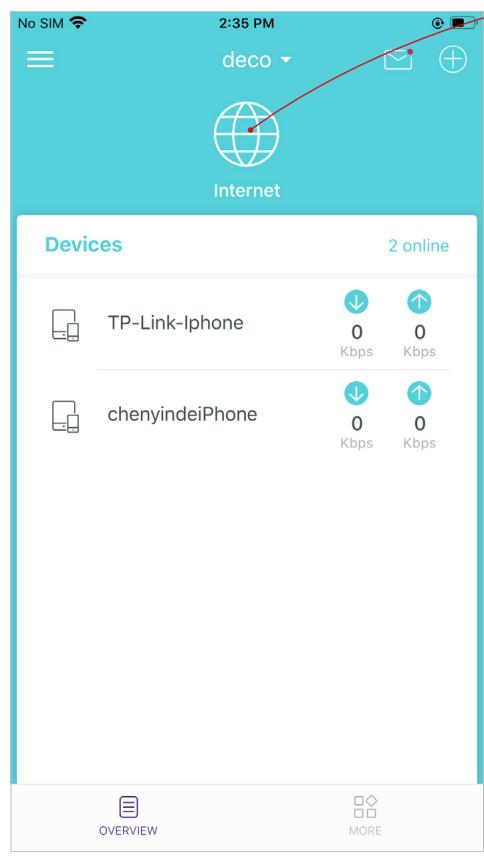
Tap > Set Main Deco
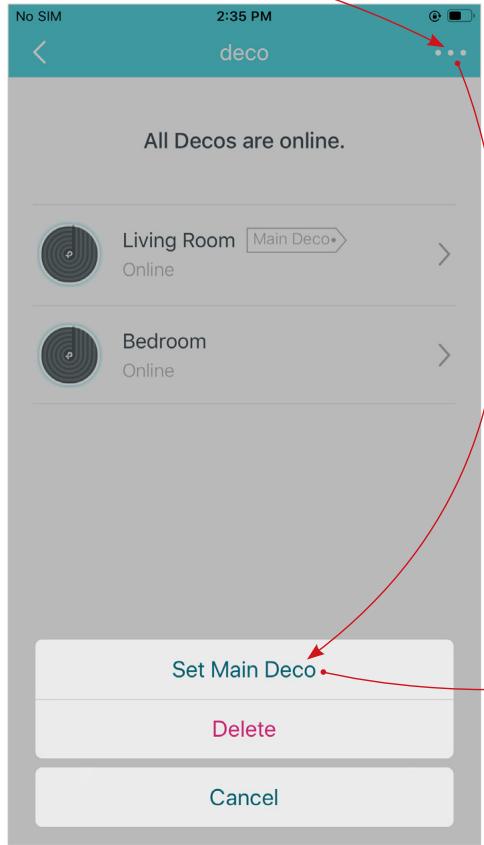
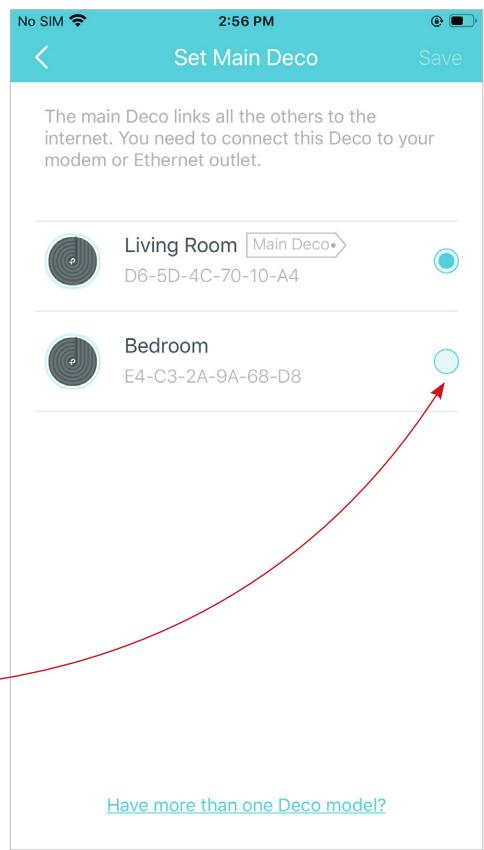
Choose any satellite Deco and follow app instructions to complete the settings
Create New Networks
On the Deco app, you can create different Deco networks bound to your TP-Link ID, and manage them conveniently from the Deco app with one account. You can also help family or friends by managing their network on your Deco app. Two methods are provided as below to create a new network:
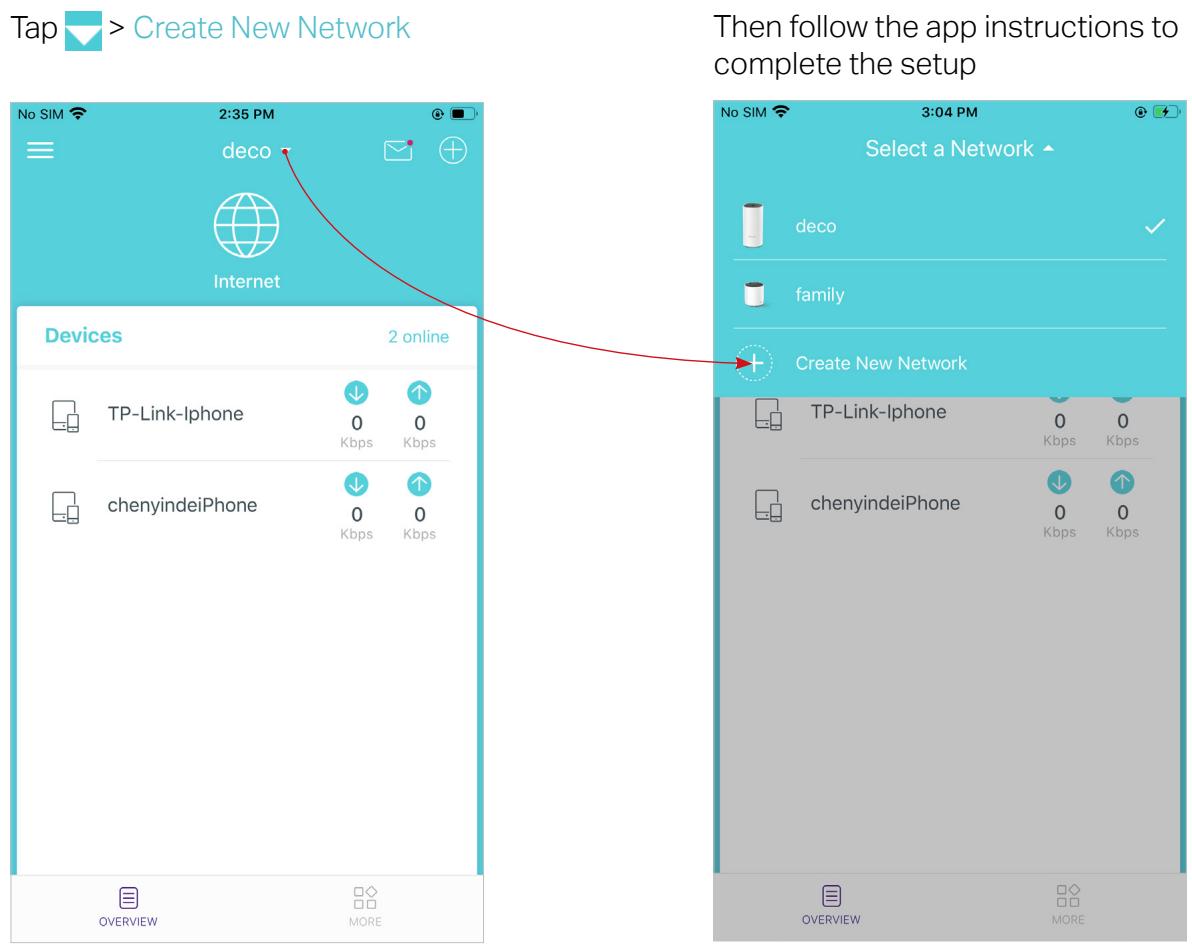
Method 1. Create a new network from the Overview page
Create New Networks
On the Deco app, you can create different Deco networks bound to your TP-Link ID, and manage them conveniently from the Deco app with one account. You can also help family or friends by managing their network on your Deco app. Two methods are provided as below to create a new network:
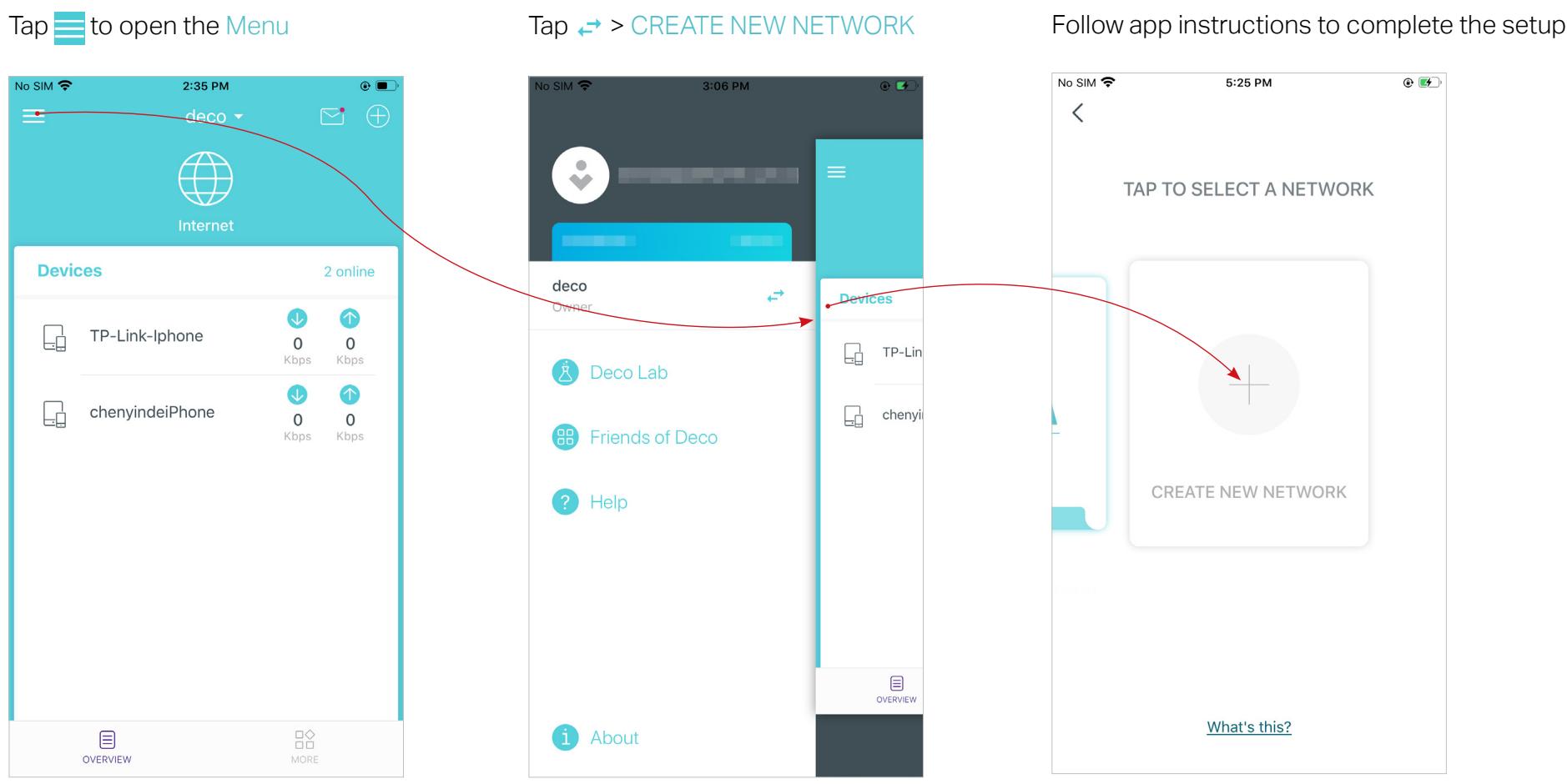
Method 2. Create a new network from the Menu page
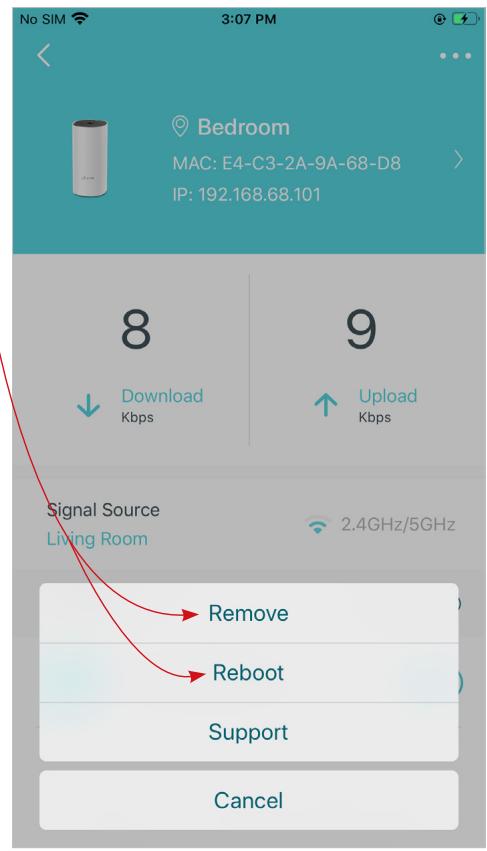
Remove/Reboot Deco
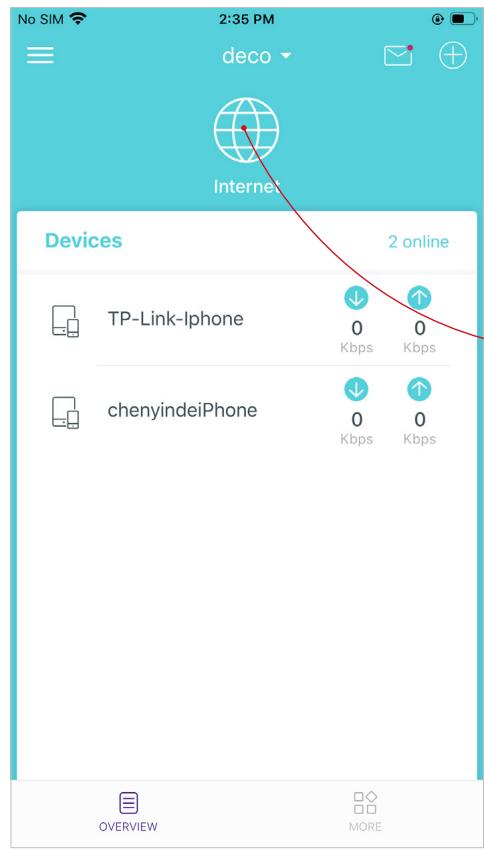
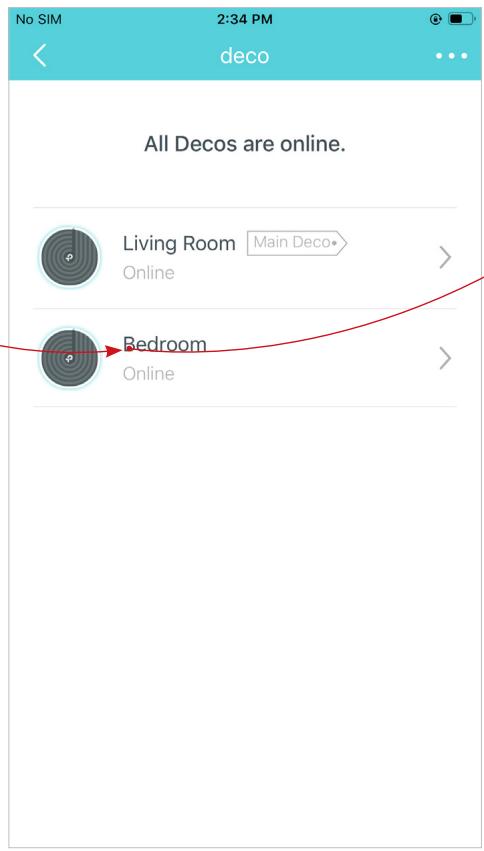
You can remove or reboot your Deco easily on the Deco app. Follow the steps below.
Tap to check all Decos' status
Tap a Deco unit to enter the details
Tap to remove or reboot the Deco
Note: If the LED light of Deco does not turn pulsing blue after tapping Remove, refer to Appearance to press the Reset button to reset it.

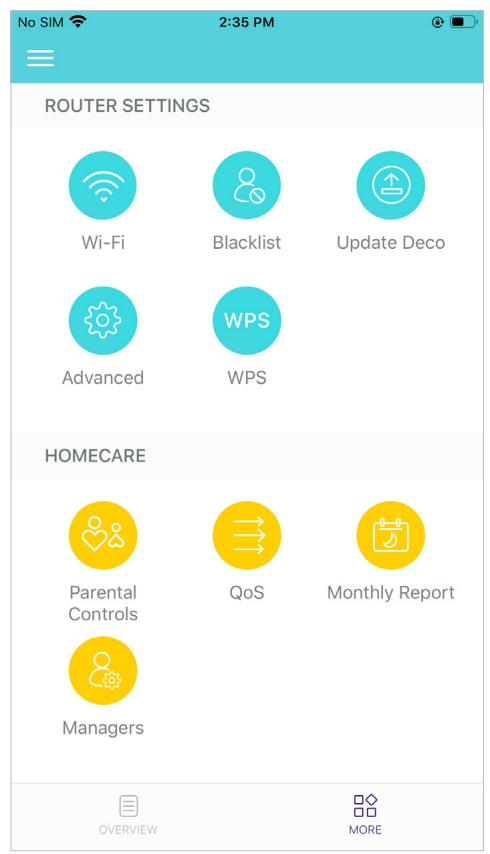
Wi-Fi Settings
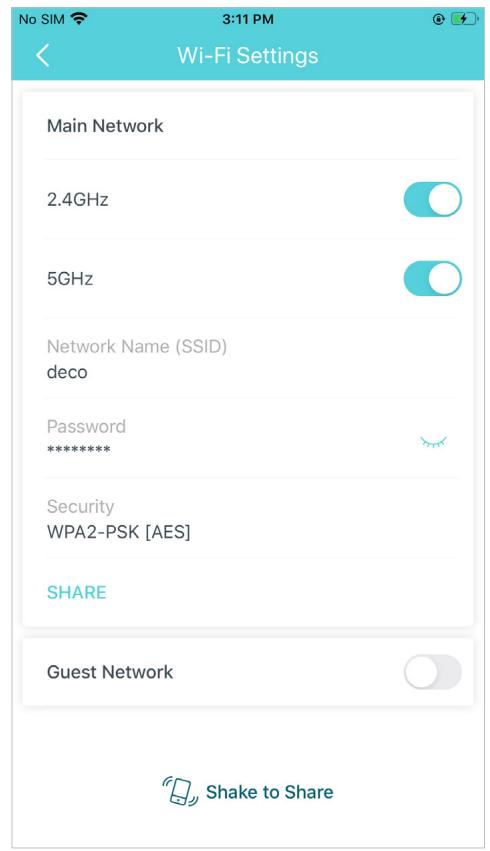
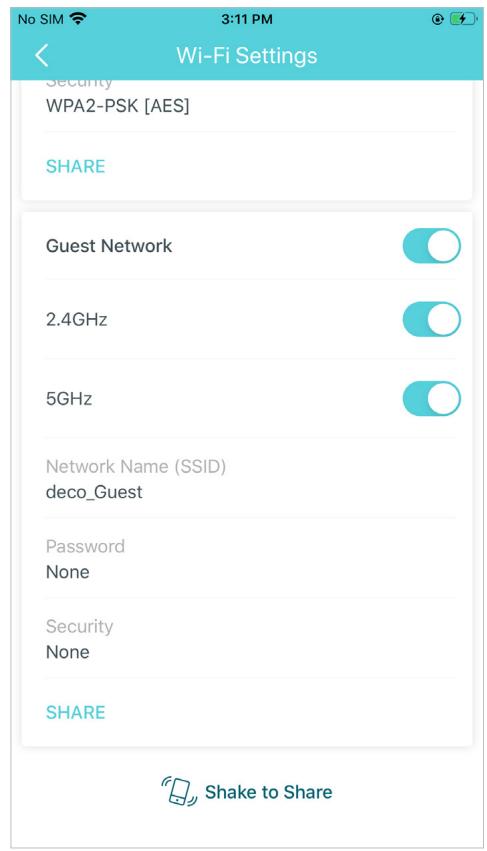
You can change the network name and password of your main network, create a separate network for guests to guarantee the security and privacy of your main network, and shake your device to share the network details easily with family and friends.
Tap > Wi-Fi
Manage main network (e.g. change your main network Wi-Fi name and password)
Enable guest network (e.g. change your guest network Wi-Fi name and password)
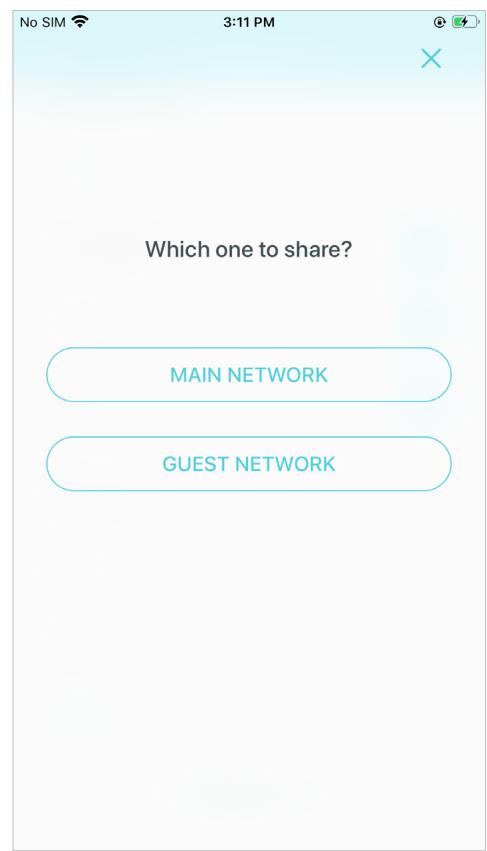
Shake to share your network
Blacklist
Build a network.
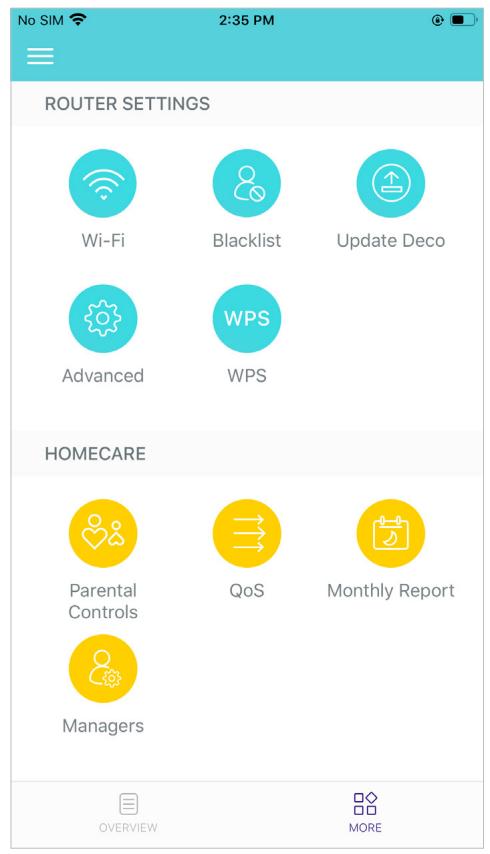
Tap □◇ > Blacklist
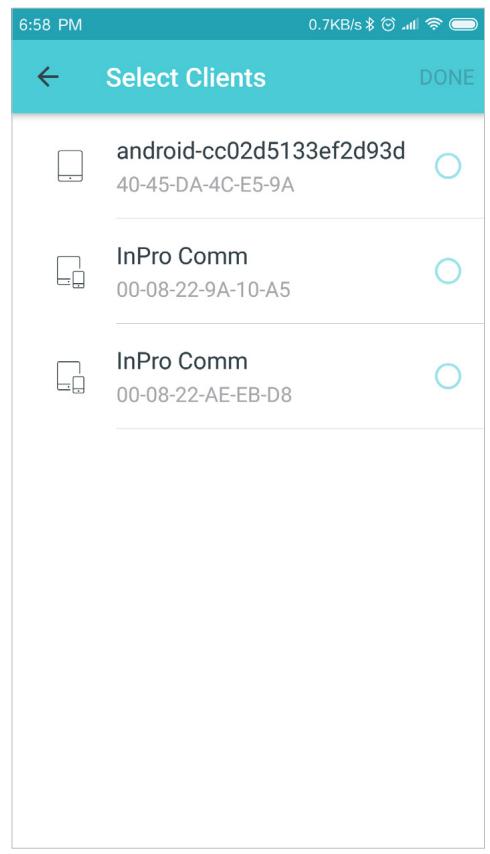
Add clients to blacklist
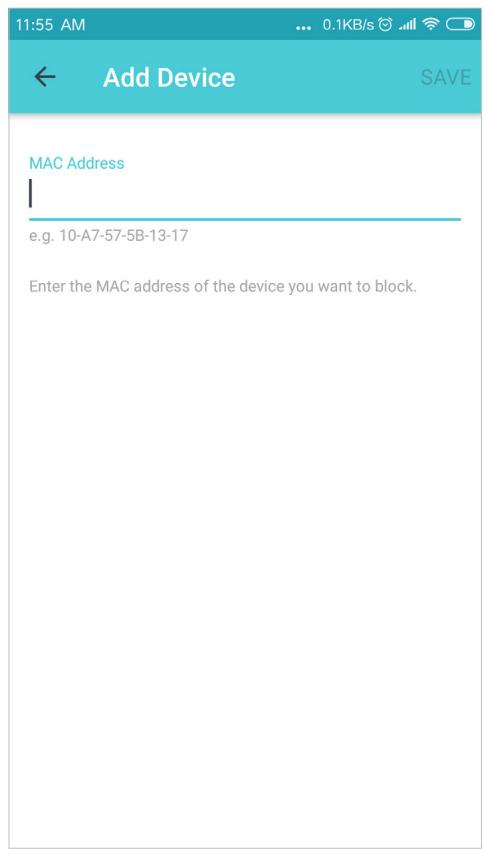
Add other devices to blacklist
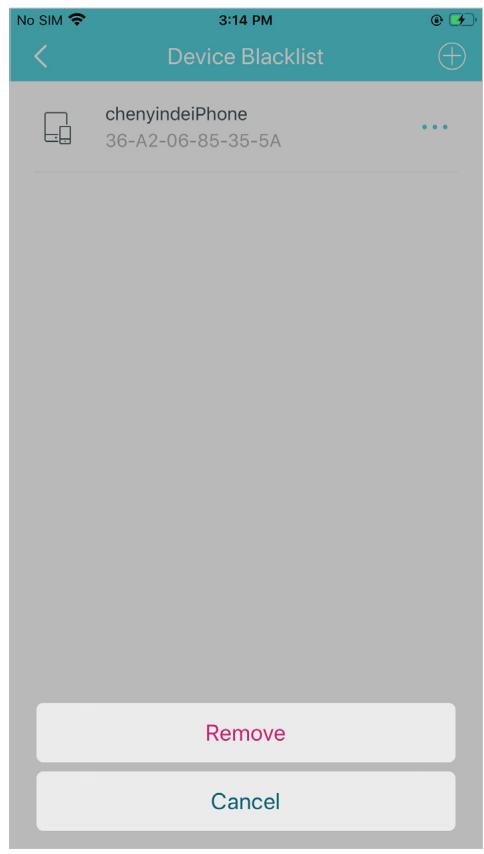
Manage blacklist
Online Update
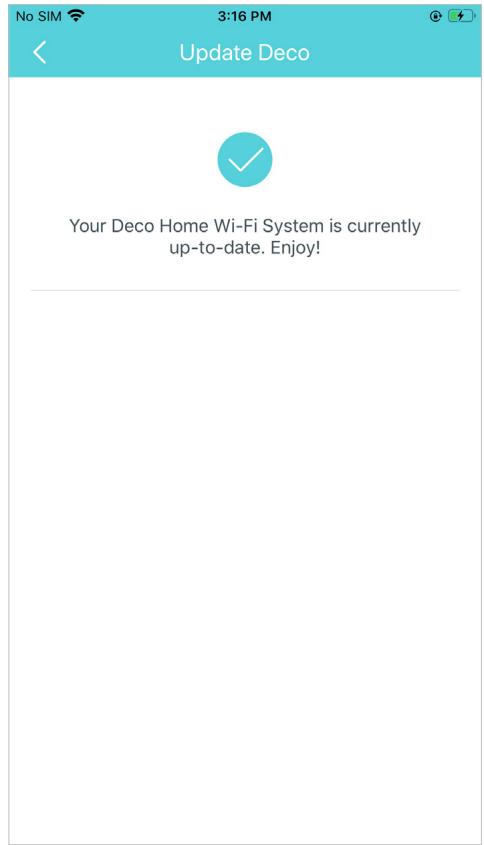
Deco is dedicated to improving product features and providing a better customer experience. An up-to-date firmware provides better and more stable network performance. Always update your Deco to the latest firmware version when prompted in the Deco app.
Tap > Update Deco
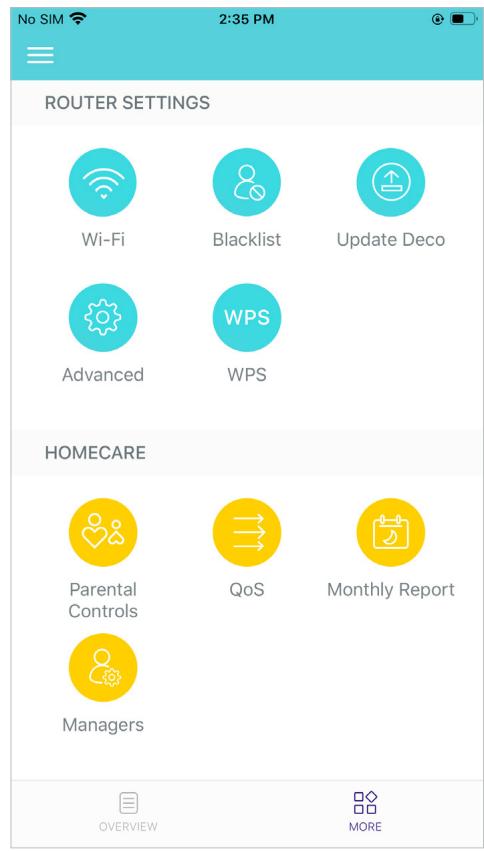
Follow app instructions to update your Deco to the latest version
Tip: If the firmware update fails, please reboot the main Deco, move the Satellite Deco closer to the main Deco, then try to update again.
Advanced Features
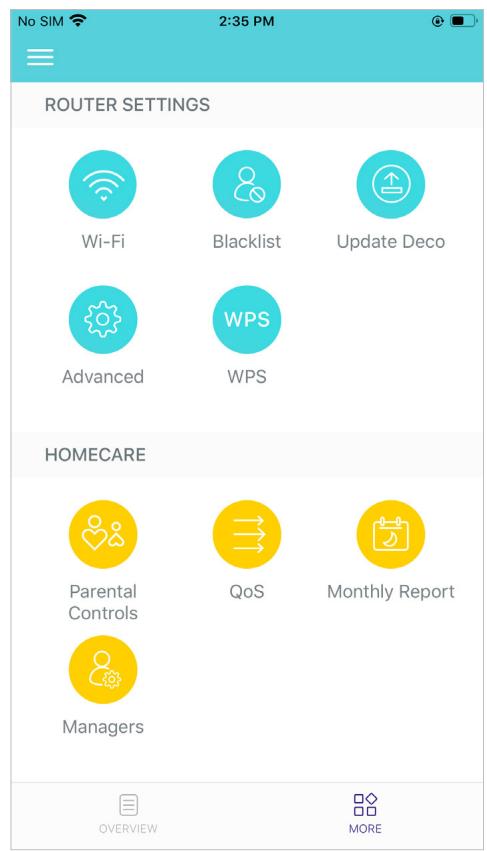
Additional features are available under the Advanced menu. You can modify WAN settings (IPv4 & IPv6), add IPv6 firewall rules, modify LAN IP, set up DHCP server, enable VLAN/IPTV/MAC Clone mode, reserve the same IP address for a specific device, set up port forwarding rules to make your local computers accessible to other devices over the internet, enable TP-Link DDNS, SIP ALG, fast roaming and beamforming, control Deco's LED, change the working mode, and configure the notification settings.
Tap > Advanced
View IPv4 details or change the internet connection type
Enable IPv6 to set up an IPv6 internet connection
Add IPv6 firewall rules to allow specific devices to access the specified services
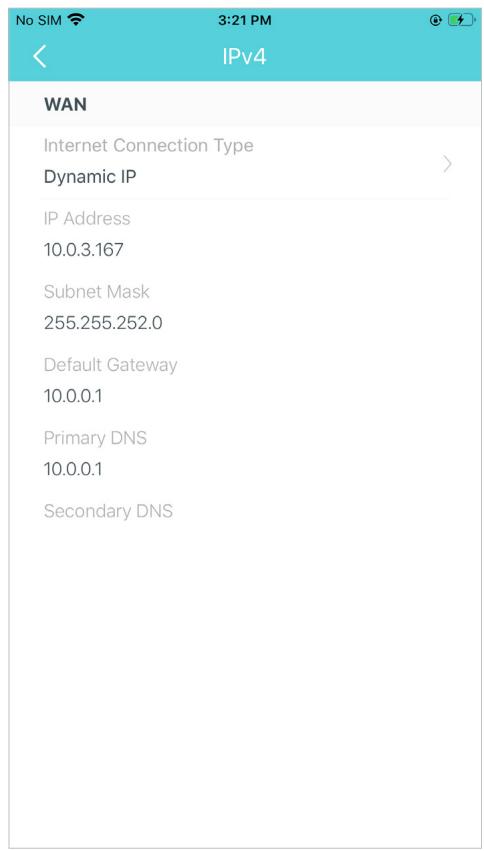
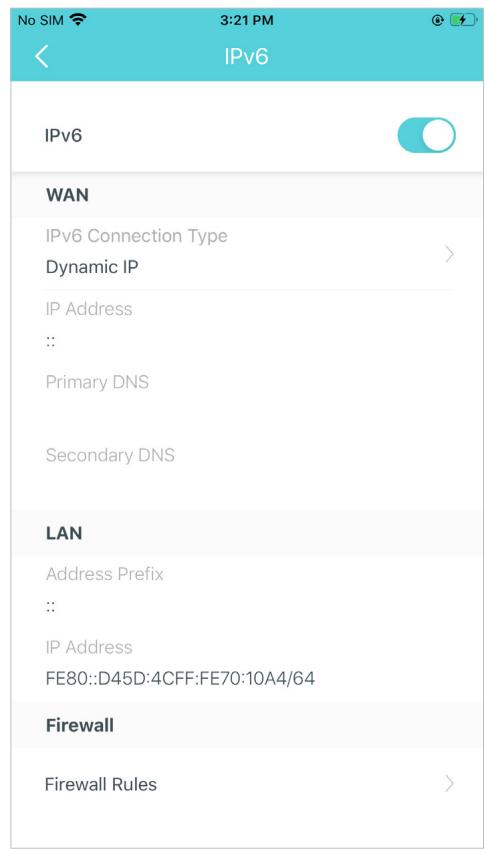
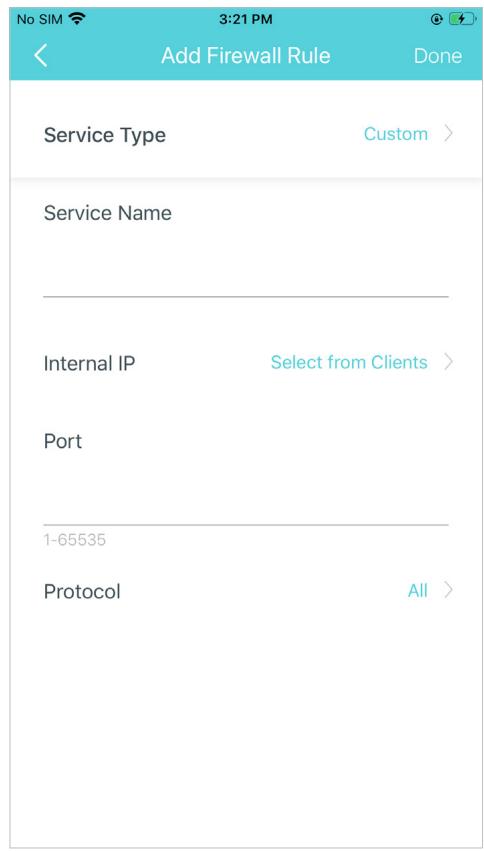
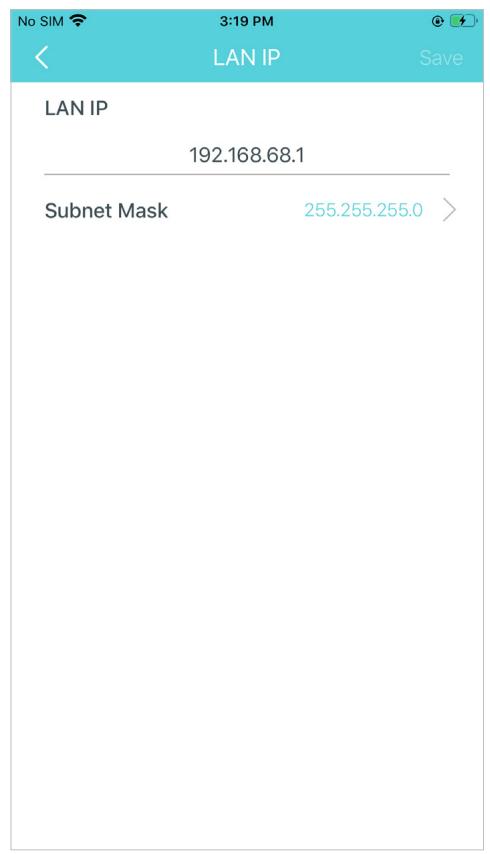
Modify LAN IP to avoid IP address conflict
Change DHCP server settings
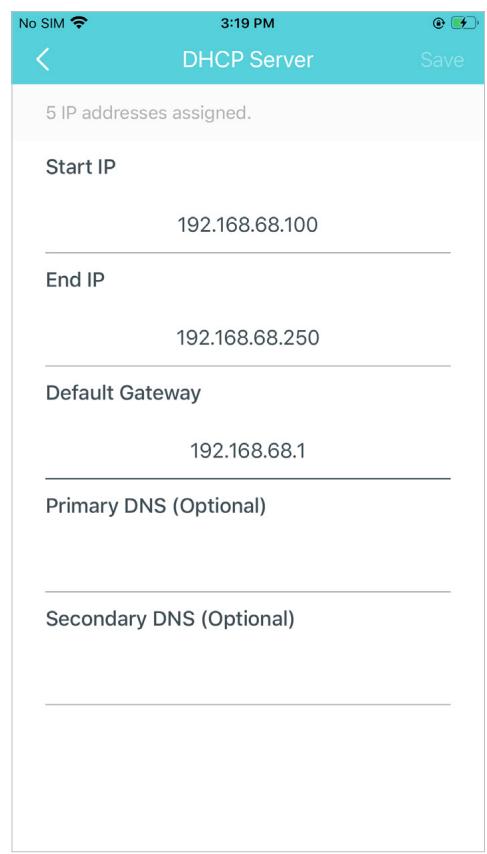
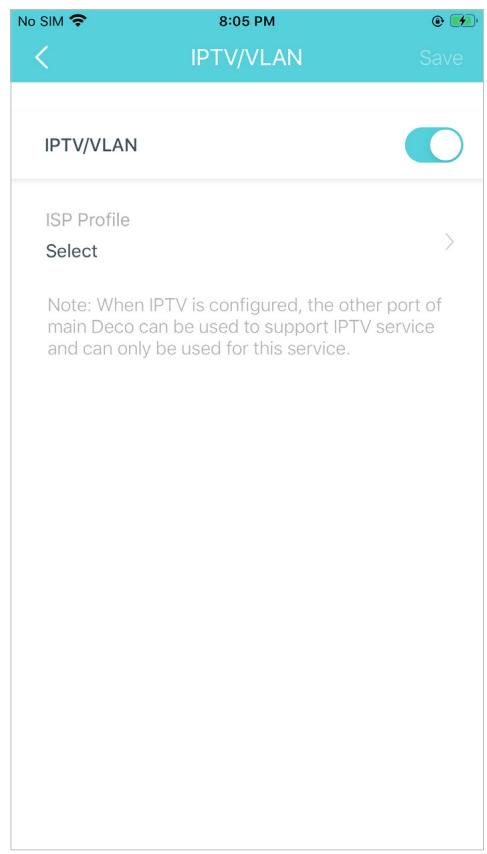
Enable IPTV/VLAN mode to support IPTV services
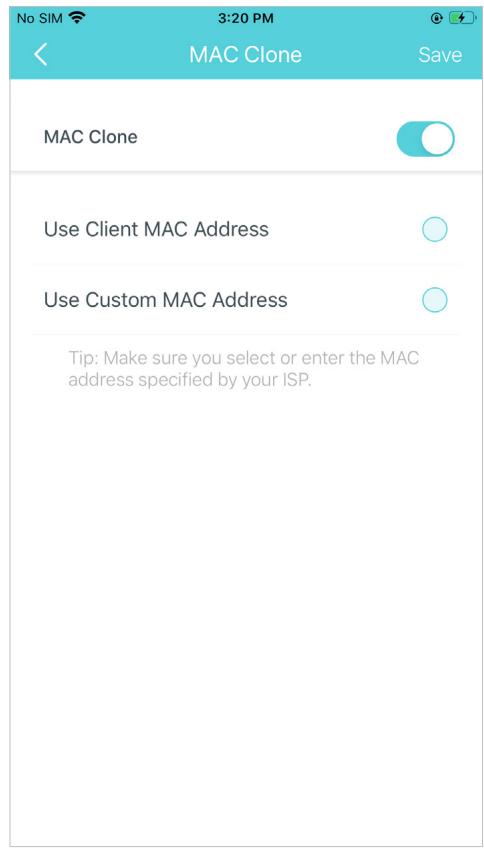
Enable MAC Clone if Deco fails to connect to the internet
Tip: For more about MAC Clone, refer to https://www.tp-link.com/support/faq/2925/
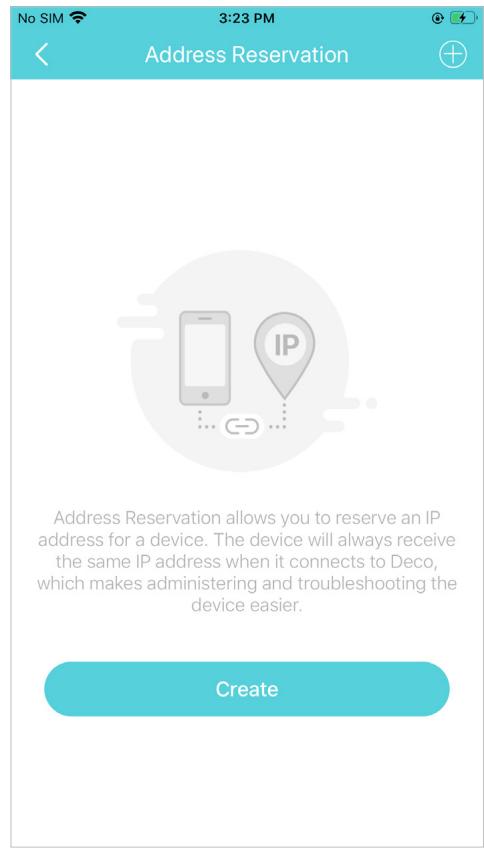
Reserve IP addresses for specific devices to recognize and manage the device more easily
Set up port forwarding rules to enable devices in your network accessible over the internet with safety
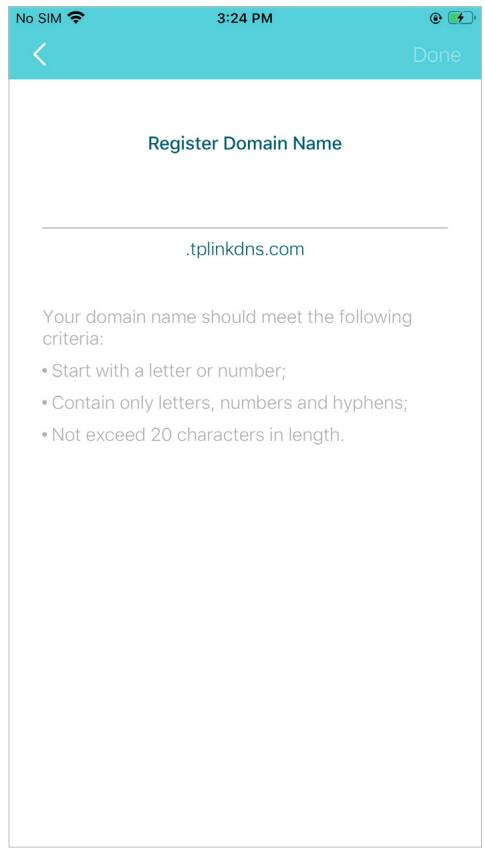
Register a TP-Link DDNS domain name to access your router and local servers using a domain name
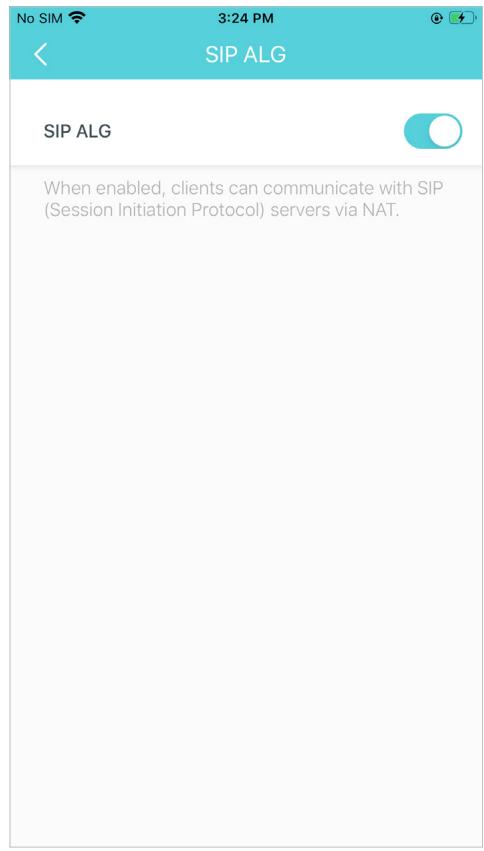
Enable SIP ALG to communicate with SIP (Session Initiation Protocol) servers via NAT)

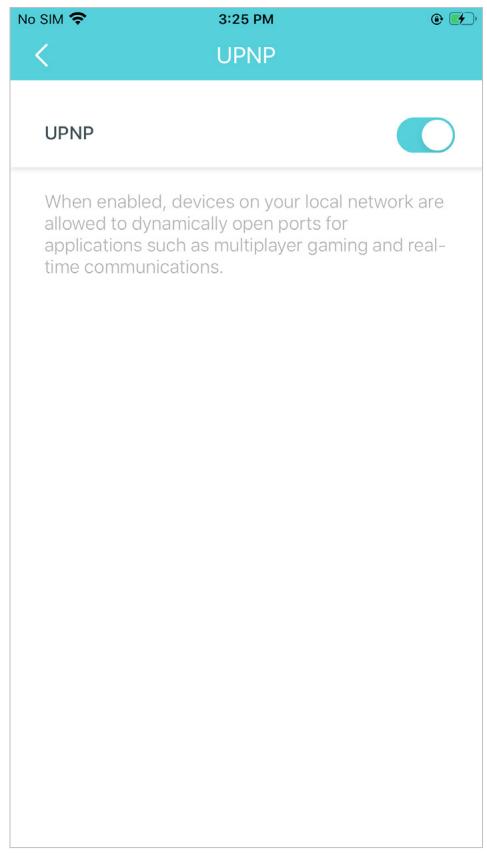
Enable UPNP to enable devices on your local network to dynamically open ports for applications such as multiplayer gaming
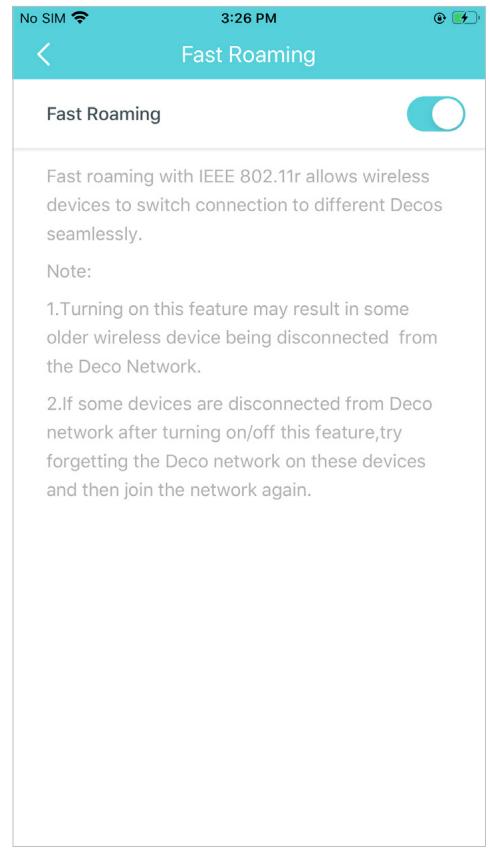
Enable Fast Roaming to allow your wireless devices to switch connection to different Decos
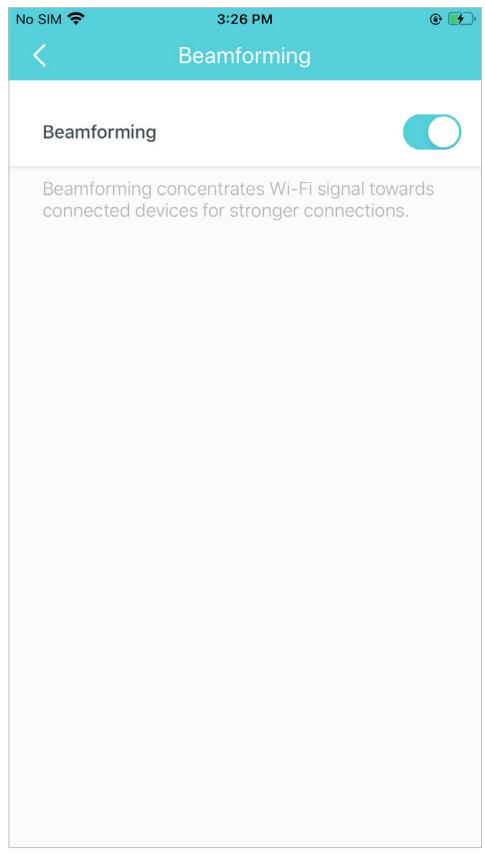
Enable Beamforming to concentrate Wi-Fi signal towards connected devices for stronger connections
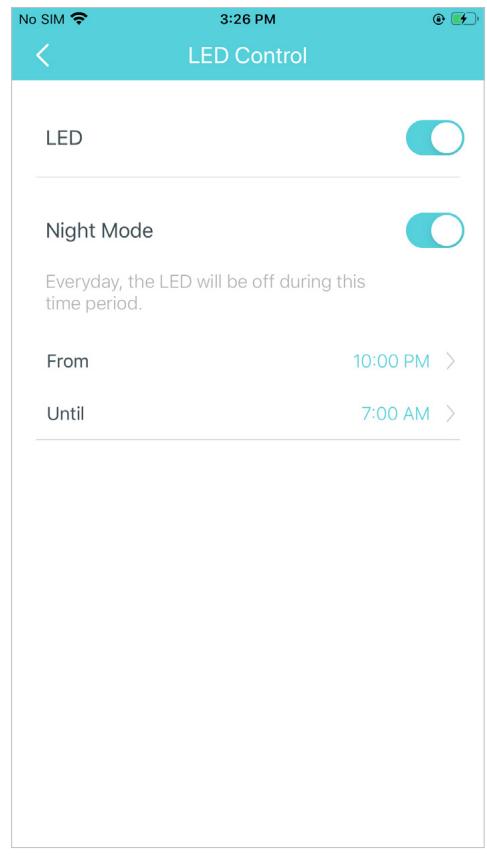
Toggle off LED to turn off the light on Deco. Configure the Night Mode to turn off the LED light at bedtime only
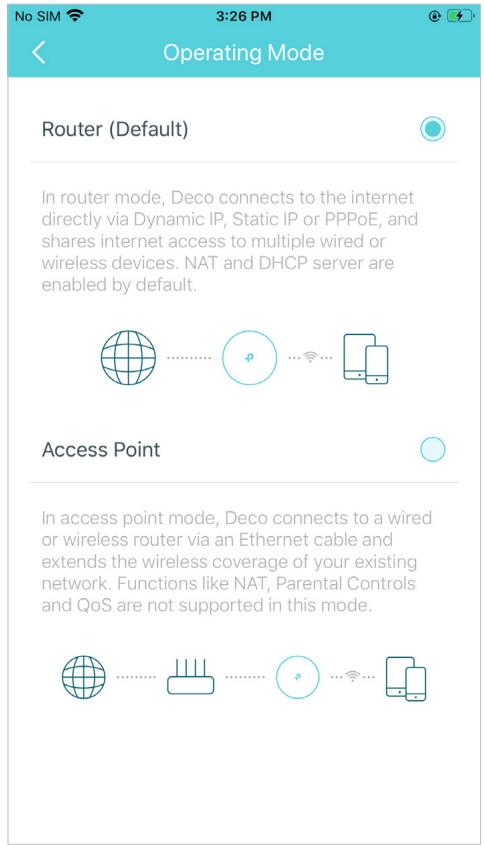
Change the operating mode
Note: When the Deco works in Access Point mode, advanced features such as IPv4, Address Reservation, Port Forwarding, and DHCP server are not available.
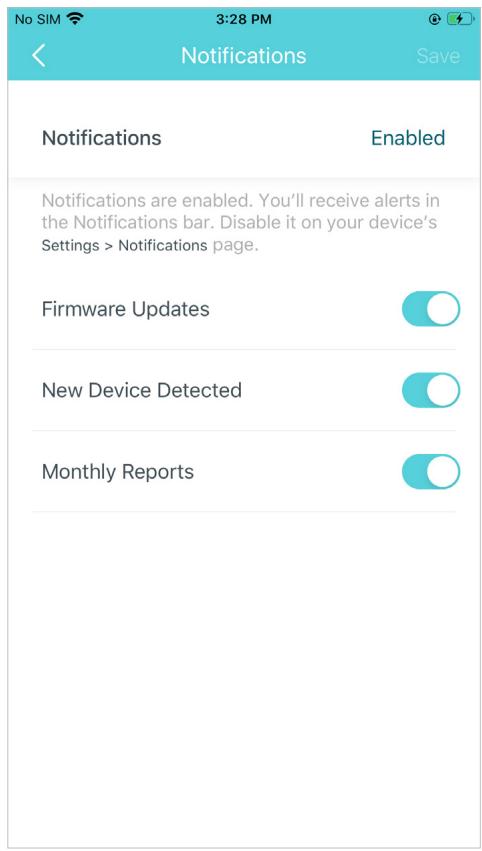
Set connection alerts to receive notifications once the clients connect to or disconnect from Deco
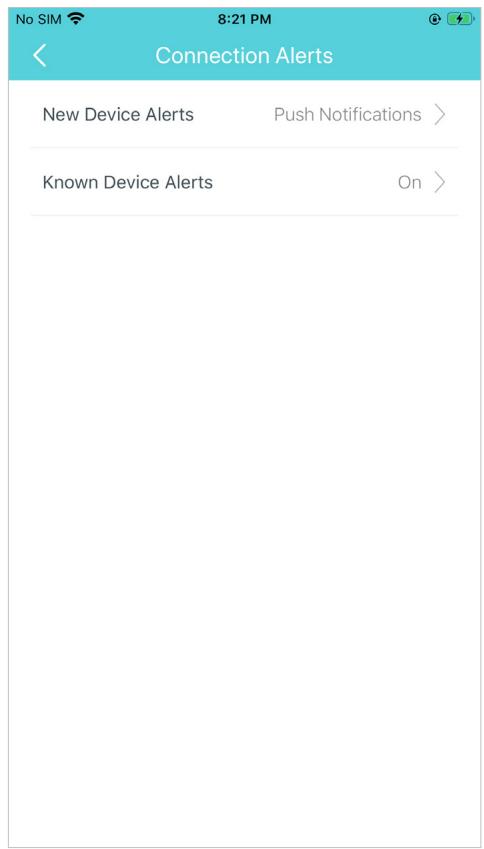
Set notifications to receive alerts in the notification bar
WPS
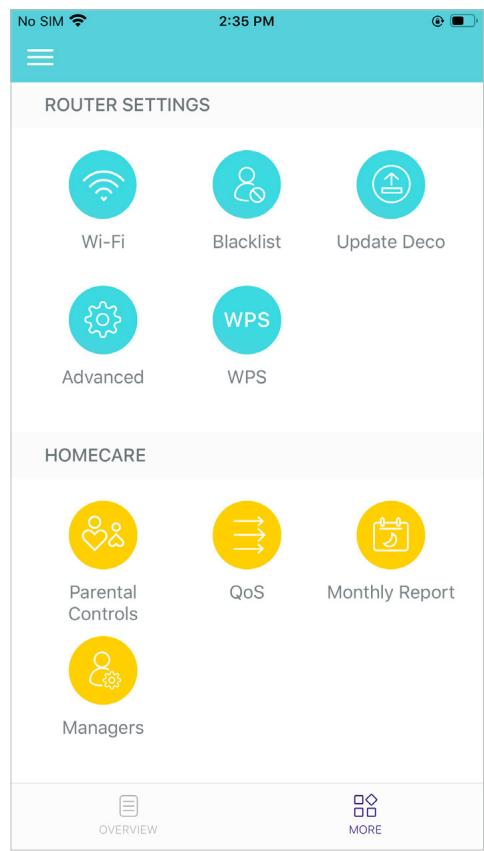
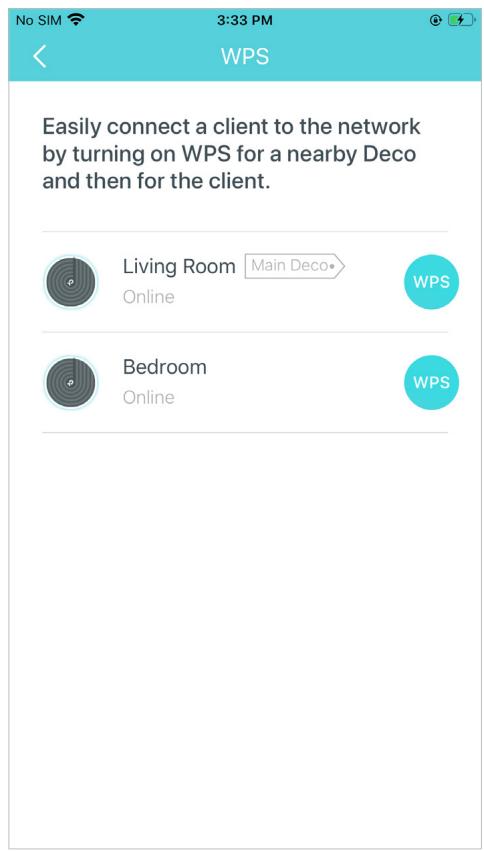
WPS (Wi-Fi Protected Setup) helps you to quickly and securely connect a client to a network with a tap without entering any password.
Tap l >WPS
Tap the WPS icon on Deco app and then on your client
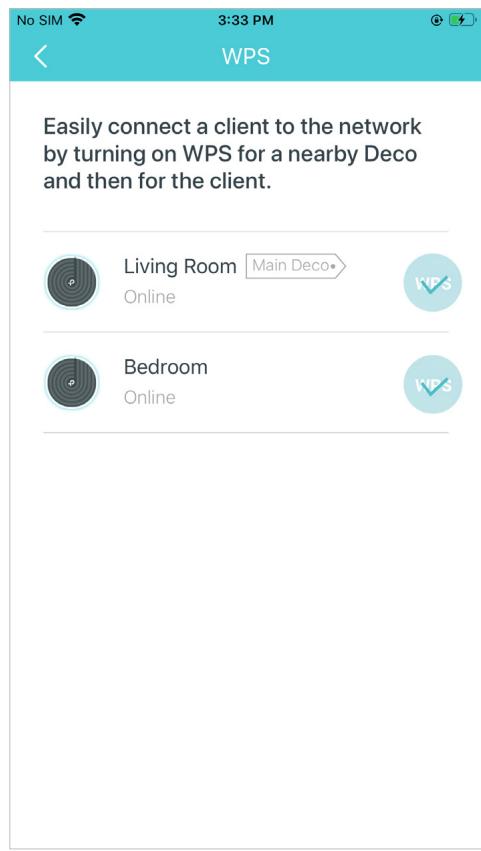
Your device connects to the network successfully if shown as below
Parental Controls
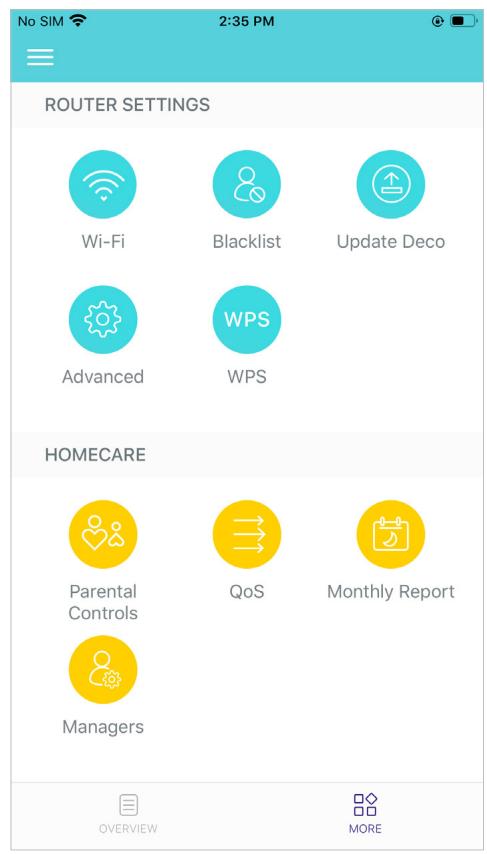
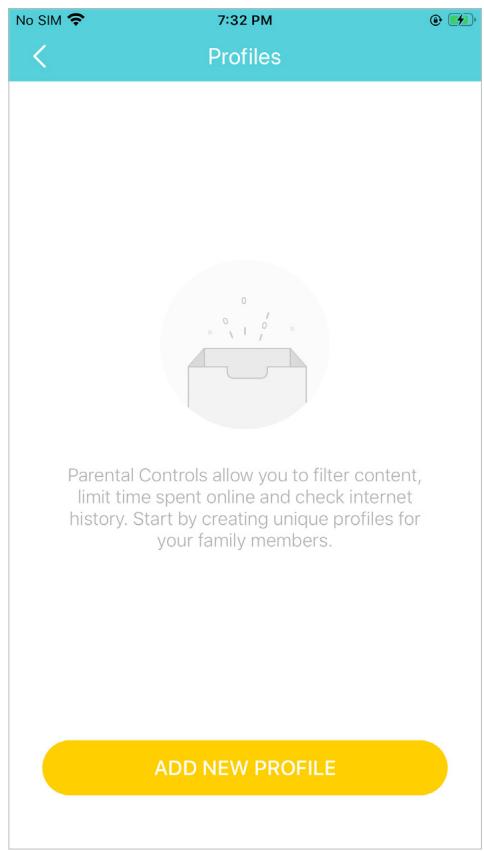
Parental Controls allows you to filter content, limit time spent online and check internet history. Start by creating unique profiles for your family members.
Tap > Parental Controls
Create unique profiles for family members
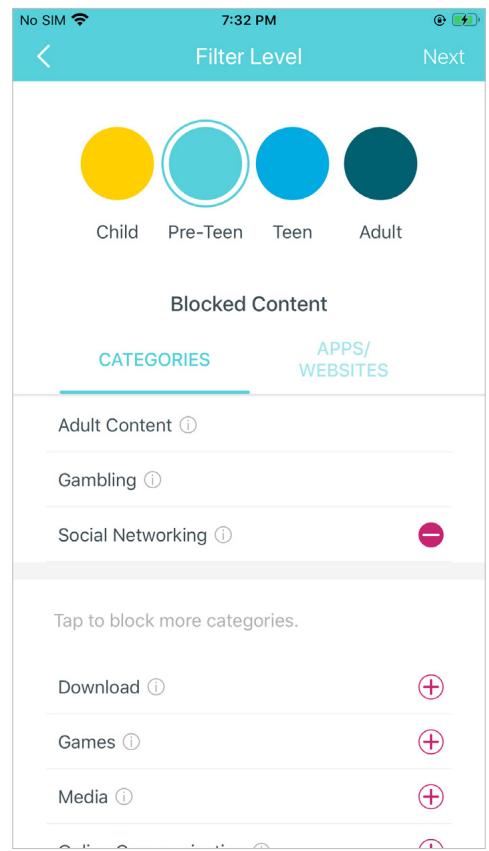
Set filter level to block inappropriate contents
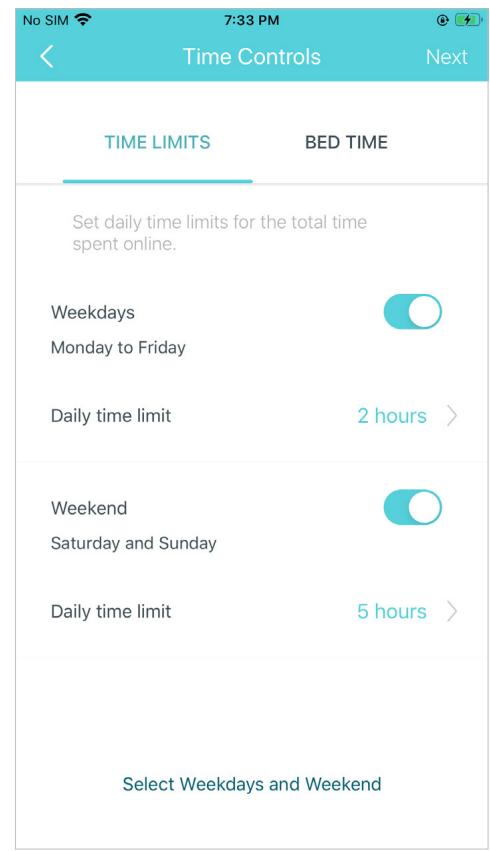
Set daily time limits for the total time spent online
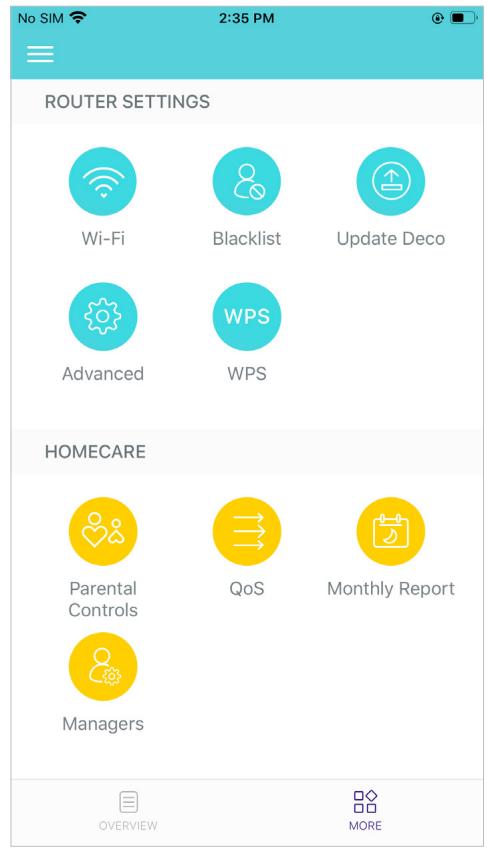
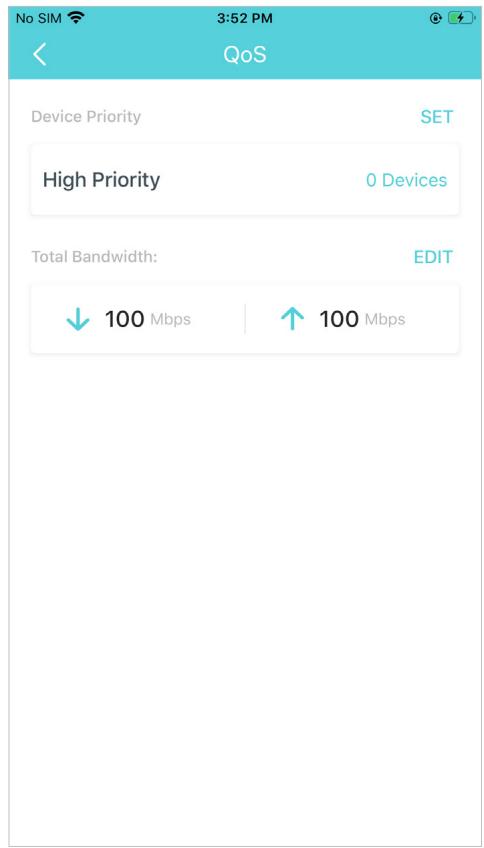
QoS (Quality of Service) helps you set priority for specific applications and devices, so that they can perform better with lower latency.
Tap > QoS
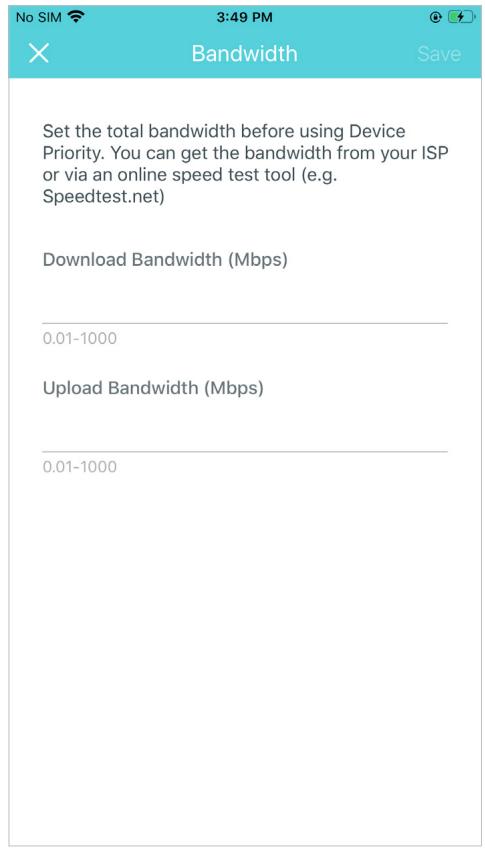
Set the total bandwidth before using QoS
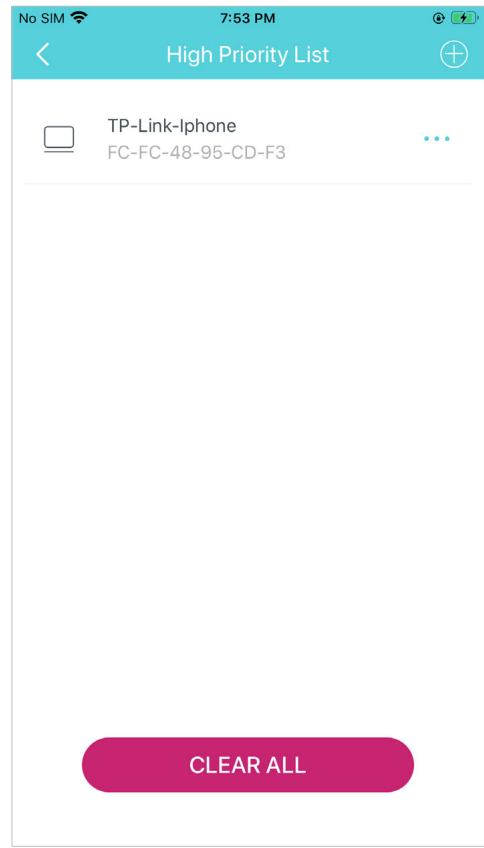
Add devices you want to prioritize to guarantee a better network performance
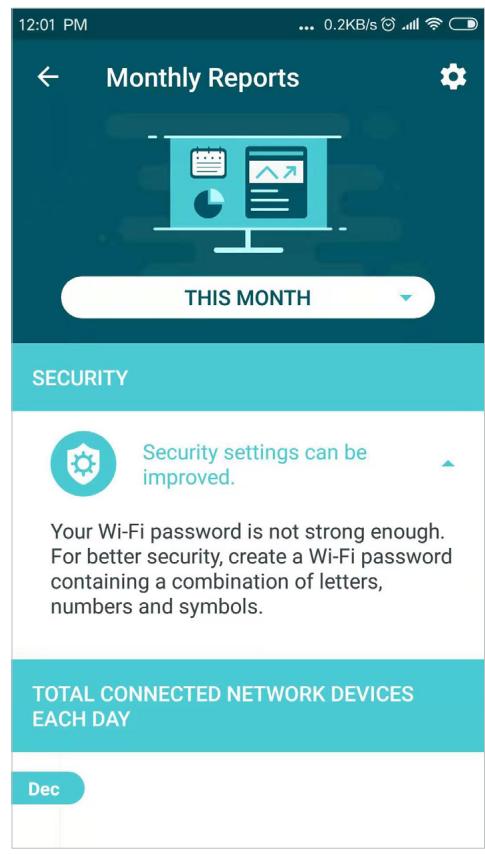
Monthly Report
Review the monthly usage statistics, such as security threats and total connected network devices each day.
Tap > Monthly Report
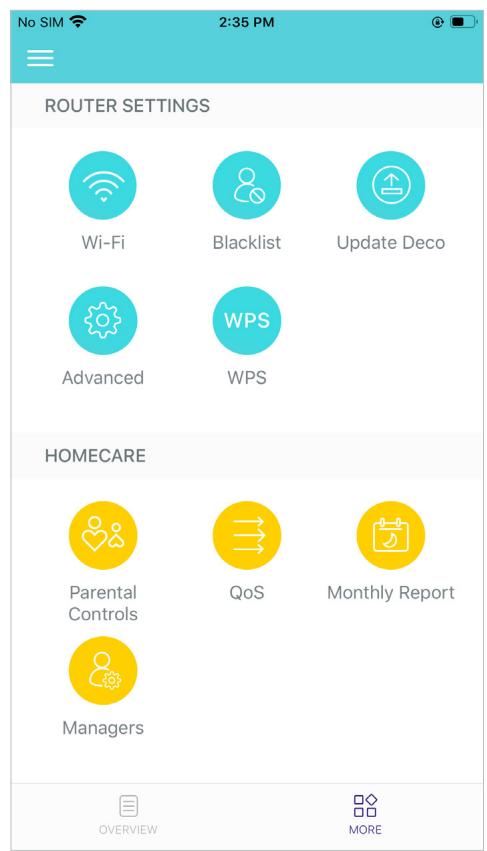
View monthly reports
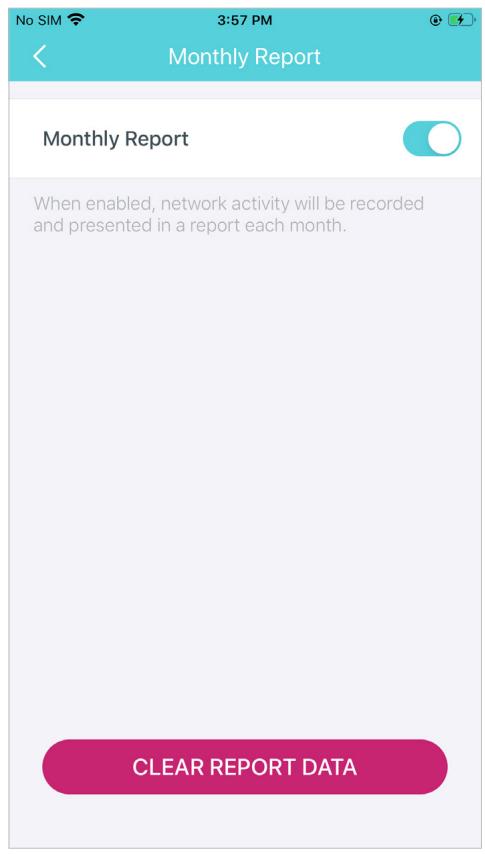
Enable or disable monthly report
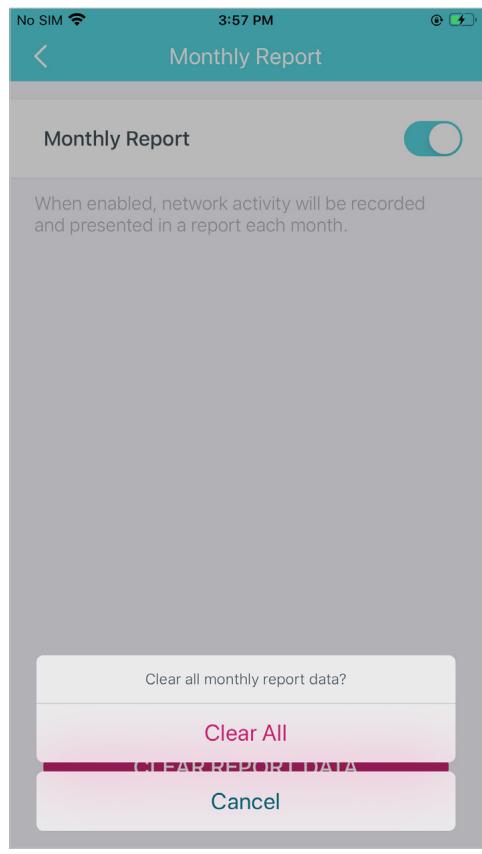
Clear monthly report data
Managers
Add friends and family members to help manage your network. Each manager should have their own TP-Link ID.
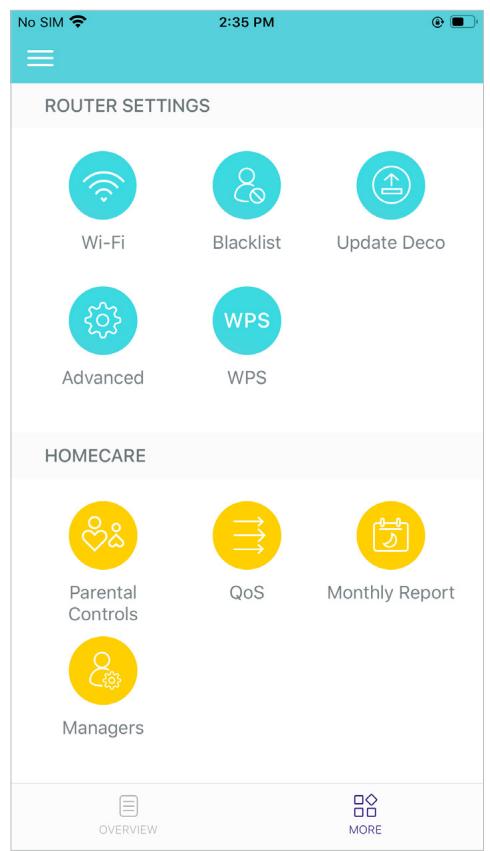
Tap >Managers
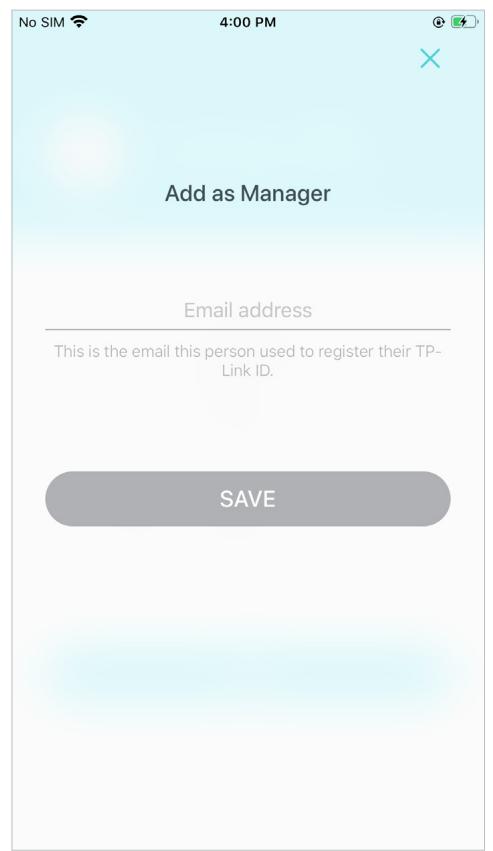
Add other accounts as managers
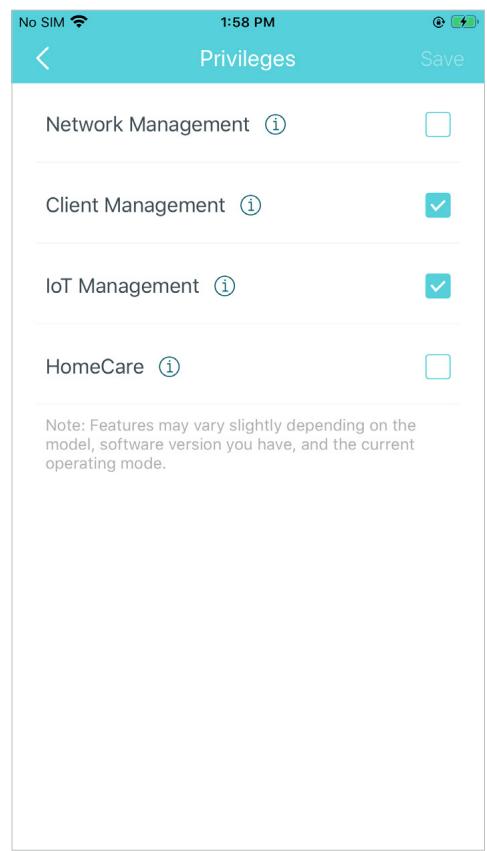
Set privileges for managers
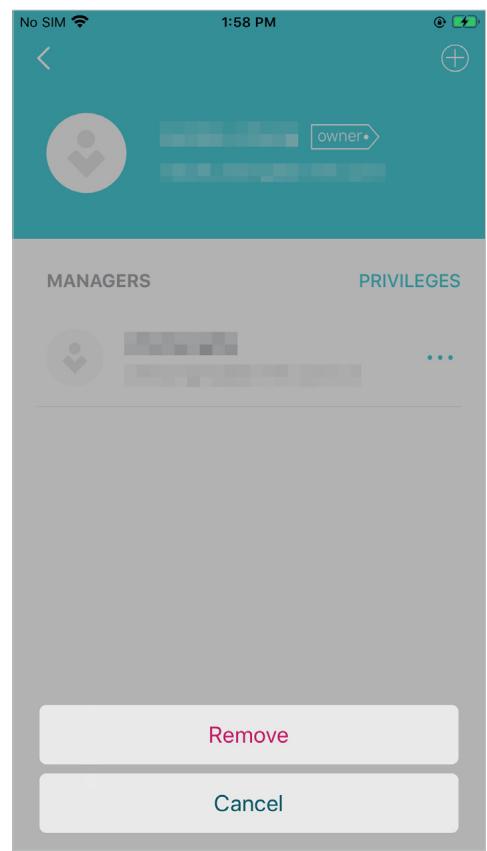
Manage manager list
FAQ
Solutions to common problems during setup or use are provided here for reference. Follow the steps in the provided link to solve your problem. If problems still exist, contact us: https://www.tp-link.com/support
Q1. What should I do if I fail to configure the main Deco and get stuck on "We couldn't find Deco"?
Refer to the guide https://www.tp-link.com/support/faq/2239/ or follow the video https://youtu.be/2HYuEYS9XJM
Q2. What should I do if I fail to configure the satellite Deco and get stuck on "We couldn't find another Deco"?
Refer to the guide https://www.tp-link.com/support/faq/1447/ or follow the video https://youtu.be/iVgDzoo16T4
Q3. What should I do if I fail to configure the main Deco and get stuck on "Testing Internet Connection"?
Refer to the video https://youtu.be/OSUrGdWH-i0
Q4. What should I do if my wireless devices cannot connect to Deco?
Refer to the guide https://www.tp-link.com/support/faq/2718/
Q5. What should I do if Deco suddenly lost internet access?
Refer to the guide https://www.tp-link.com/support/faq/1454/
Q6. How can I find a suitable spot for my Deco?
Refer to the guide https://www.tp-link.com//support/faq/1446/
Q7. What can I do if the Deco app isn't working properly?
Refer to the guide https://www.tp-link.com/support/faq/1456/
Authentication
FCC Compliance Information Statement

Product Name: AC1200 Whole Home Mesh Wi-Fi System
Model Number: Deco E4R/Deco W2400
| Component Name | Model |
| I.T.E POWER SUPPLY | T120100-2B1 |
Responsible party:
TP-Link USA Corporation, d/b/a TP-Link North America, Inc.
Address: 145 South State College Blvd. Suite 400, Brea, CA 92821
Website: http://www.tp-link.com/us/
Tel: +1 626 333 0234
This equipment has been tested and found to comply with the limits for a Class B digital device, pursuant to part 15 of the FCC Rules. These limits are designed to provide reasonable protection against harmful interference in a residential installation. This equipment generates, uses and can radiate radio frequency energy and, if not installed and used in accordance with the instructions, may cause harmful interference to radio communications. However, there is no guarantee that interference will not occur in a particular installation. If this equipment does cause harmful interference to radio or television reception, which can be determined by turning the equipment off and on, the user is encouraged to try to correct the interference by one or more of the following measures:
Reorient or relocate the receiving antenna.
- Increase the separation between the equipment and receiver.
- Connect the equipment into an outlet on a circuit different from that to which the receiver is connected.
- Consult the dealer or an experienced radio/ TV technician for help.
This device complies with part 15 of the FCC Rules. Operation is subject to the following two conditions:
- This device may not cause harmful interference.
- This device must accept any interference received, including interference that may cause undesired operation.
Any changes or modifications not expressly approved by the party responsible for compliance could void the user's authority to operate the equipment.
Note: The manufacturer is not responsible for any radio or TV interference caused by unauthorized modifications to this equipment. Such modifications could void the user's authority to operate the equipment.
FCC RF Radiation Exposure Statement
This equipment complies with FCC RF radiation exposure limits set forth for an uncontrolled environment. This device and its antenna must not be co-located or operating in conjunction with any other antenna or transmitter.
"To comply with FCC RF exposure compliance requirements, this grant is applicable to only Mobile Configurations. The antennas used for this transmitter must be installed to provide a separation distance of at least 20cm from all persons and must not be co-located or operating in conjunction with any other antenna or transmitter."
We, TP-Link USA Corporation, has determined that the equipment shown as above has been shown to comply with the applicable technical standards, FCC part 15. There is no unauthorized change is made in the equipment and the equipment is properly maintained and operated.
Issue Date: 2021-03-01
FCC Compliance Information Statement

Product Name: I.T.E POWER SUPPLY
Model Number: T120100-2B1
Responsible party:
TP-Link USA Corporation, d/b/a TP-Link North America, Inc.
Address: 145 South State College Blvd. Suite 400, Brea, CA 92821
Website: http://www.tp-link.com/us/
Tel: +1 626 333 0234
This equipment has been tested and found to comply with the limits for a Class B digital device, pursuant to part 15 of the FCC Rules. These limits are designed to provide reasonable protection against harmful interference in a residential installation. This equipment generates, uses and can radiate radio frequency energy and, if not installed and used in accordance with the instructions, may cause harmful interference to radio communications. However, there is no guarantee that interference will not occur in a particular installation. If this equipment does cause harmful interference to radio or television reception, which can be determined by turning the equipment off and on, the user is encouraged to try to correct the interference by one or more of the following measures:
Reorient or relocate the receiving antenna.
- Increase the separation between the equipment and receiver.
- Connect the equipment into an outlet on a circuit different from that to which the receiver is connected.
- Consult the dealer or an experienced radio/ TV technician for help.
This device complies with part 15 of the FCC Rules. Operation is subject to the following two conditions:
1) This device may not cause harmful interference.
2) This device must accept any interference received, including interference that may cause undesired operation.
Any changes or modifications not expressly approved by the party responsible for compliance could void the user's authority to operate the equipment.
We, TP-Link USA Corporation, has determined that the equipment shown as above has been shown to comply with the applicable technical standards, FCC part 15. There is no unauthorized change is made in the equipment and the equipment is properly maintained and operated.
Issue Date: 2021-03-01
CE Mark Warning
This is a class B product. In a domestic environment, this product may cause radio interference, in which case the user may be required to take adequate measures.
OPERATING FREQUENCY(the maximum transmitted power)
2412MHz—2483.5MHz (20dBm)
5150MHz—5250MHz (23dBm)
EU declaration of conformity
TP-Link hereby declares that the device is in compliance with the essential requirements and other relevant provisions of directives 2014/53/EU, 2009/125/EC, 2011/65/EU and (EU)2015/863. The original EU declaration of conformity may be found at http://www.tp-link.com/en/ce
RF Exposure Information
This device meets the EU requirements (2014/53/EU Article 3.1a) on the limitation of exposure of the general public to electromagnetic fields by way of health protection.
The device complies with RF specifications when the device used at 20 cm from your body.
Attention: This device may only be used indoors in all EU member states and EFTA countries.
| ! | AT | BE | BG | CH | CY | CZ | DE | DK |
| EE | EL | ES | FI | FR | HR | HU | IE | |
| IS | IT | LI | LT | LU | LV | MT | NL | |
| NO | PL | PT | RO | SE | SI | SK | UK(NI) |
Canadian Compliance Statement
This device complies with Industry Canada license-exempt RSS standard(s). Operation is subject to the following two conditions:
-
This device may not cause interference, and
-
This device must accept any interference, including interference that may cause undesired operation of the device.
The device for operation in the band 5150-5250 MHz is only for indoor use to reduce the potential for harmful interference to co-channel mobile satellite systems;
Avertissement:
Radiation Exposure Statement:
This equipment complies with IC radiation exposure limits set forth for an uncontrolled environment. This equipment should be installed and operated with minimum distance 20cm between the radiator & your body.
Industry Canada Statement
CANICES-3(B)/NMB-3(B)
Korea Warning Statements:
当用,末端能比是运用中,前和入的能也。
NCC Notice & BSMI Notice:
注意!
依據低功率電波輻射性電機管理辦法
- Keep the device away from water, fire, humidity or hot environments.
- Do not attempt to disassemble, repair, or modify the device. If you need service, please contact us.
- Do not use damaged charger or USB cable to charge the device.
- Do not use any other chargers than those recommended.
- Do not use the device where wireless devices are not allowed.
- Adapter shall be installed near the equipment and shall be easily accessible.
- Use only power supplies which are provided by manufacturer and in the original packing of this product. If you have any questions, please don't hesitate to contact us.
Please read and follow the above safety information when operating the device. We cannot guarantee that no accidents or damage will occur due to improper use of the device. Please use this product with care and operate at your own risk.
Explanation of the symbols on the product label
| Symbol | Explanation |
| — | DC voltage |
| A | Caution |
| i | Operator's manual |
| □ | Class II equipment |
| ◇◇◇ | Polarity of output terminals |
| VI | Energy efficiency Marking |
| Indoor use only | |
| RECYCLINGThis product bears the selective sorting symbol for Waste electrical and electronic equipment (WEEE). This means that this product must be handled pursuant to European directive 2012/19/EU in order to be recycled or dismantled to minimize its impact on the environment.User has the choice to give his product to a competent recycling organization or to the retailer when he buys a new electrical or electronic equipment. |
- About This Guide
- Conventions
- More Info
- Speed/Coverage/Device Quantity Disclaimer
- MU-MIMO Disclaimer
- Seamless Roaming Disclaimer
- Appearance
- Set Up Your Deco
- Download and install the Deco app
- Log in or sign up with TP-Link ID
- Connect Deco to your modem
- Select a location
- Set up internet connection
- Create your Wi-Fi network
- Connect to your Wi-Fi network
- Setup complete
- Add More Decos
- Dashboard
- Check Deco Status
- Manage Connected Devices
- Set Main Deco
- Create New Networks
- Remove/Reboot Deco
- Wi-Fi Settings
- Blacklist
- Online Update
- Tap > Update Deco
- Follow app instructions to update your Deco to the latest version
- Advanced Features
- Modify LAN IP to avoid IP address conflict
- Change DHCP server settings
- Enable IPTV/VLAN mode to support IPTV services
- Enable MAC Clone if Deco fails to connect to the internet
- Change the operating mode
- WPS
- Parental Controls
- Tap > Parental Controls
- Monthly Report
- Tap > Monthly Report
- View monthly reports
- Enable or disable monthly report
- Clear monthly report data
- Managers
- FAQ
- Authentication
- FCC Compliance Information Statement
- Responsible party:
- FCC RF Radiation Exposure Statement
- CE Mark Warning
- OPERATING FREQUENCY(the maximum transmitted power)
- EU declaration of conformity
- RF Exposure Information
- Canadian Compliance Statement
- Avertissement:
- Radiation Exposure Statement:
- Industry Canada Statement
- Korea Warning Statements:
- NCC Notice & BSMI Notice:
Brand : TP-LINK
Model : DECO E4(3-PACK)(EU)
Category : WiFi Repeater