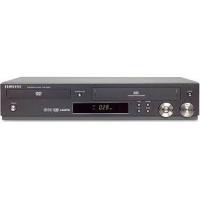
DVD-V9500 - DVD player SAMSUNG - Free user manual and instructions
Find the device manual for free DVD-V9500 SAMSUNG in PDF.


| Product type | DVD/VCR Combo Player |
| Brand | Samsung |
| Model | DVD-V9500 |
| Dimensions (approx.) | 430 x 80 x 300 mm (W x H x D) |
| Weight | 6.26 kg (13.8 lbs) |
| Power supply | 120 V AC, 60 Hz, 25 W |
| Compatible disc formats | DVD-Video, VCD, Audio CD, CD-R/RW, DVD-R/RW, DVD+R/RW, MP3, WMA, JPEG |
| Main functions | DVD playback, VHS recording and playback, progressive scan, HDMI output, MP3/WMA/JPEG playback, programmed recording (7 events/1 month), repeat and zoom functions |
| Video outputs | HDMI, Composite, S-Video, Component (Y Pb Pr) |
| Audio outputs | Analog stereo (RCA), digital coaxial and optical |
| Inputs | RF antenna/cable, Audio/Video line (RCA) |
| VCR | 4 heads, Hi-Fi stereo, SP and SLP speeds, One Touch Recording (OTR) |
| Care and cleaning | Wipe with a soft, dry cloth; do not use benzene, thinners or other solvents |
| Safety | Class 1 laser; do not expose to water or heat; disconnect before cleaning; use only recommended accessories |
| Included accessories | Remote control, AAA batteries (2), video/audio cable, antenna cable, HDMI cable, user manual |
| Warranty | 1 year labor, 1 year parts (carry-in) |
| Region code | Printed on rear of unit (usually region 1 for North America) |
| Operating temperature | 5°C to 40°C |
| Operating humidity | 10% to 75% |
Frequently Asked Questions - DVD-V9500 SAMSUNG
User questions about DVD-V9500 SAMSUNG
0 question about this device. Answer the ones you know or ask your own.
Ask a new question about this device
Download the instructions for your DVD player in PDF format for free! Find your manual DVD-V9500 - SAMSUNG and take your electronic device back in hand. On this page are published all the documents necessary for the use of your device. DVD-V9500 by SAMSUNG.
USER MANUAL DVD-V9500 SAMSUNG
natural_image
Symbolic illustration of a person climbing a ladder with a no-smoking sign, enclosed in a circle (no text or symbols present)Précautions

ATTENTION
RISQUE DE CHOC ELECTRIQUE. NE PAS OUVRIR

POUR ÉVITER LE RISQUE D'UN CHOC ÉLECTRIQUE, NE JAMAIS RETIRER LE CAPOT DE L'APPAREIL. AUCUN ÉLÉMENT NÉCESSAIRE À L'UTILISATEUR N'EST PLACÈ À L'INTÉRIEUR DE L'APPAREIL. RÉFÉREZ-VOUS AU SERVICE APRÈS-VENTE ET CONSULTEZ UN TECHNICIEN QUALIFIÉ EN CAS DE BESOIN.
CLASS 1 LASER PRODUCT
KLASSE 1 LASER PRODUKT
LUOKAN 1 LASER LAITE
KLASS 1 LASER APPARAT
PRODUCTO LÁSER CLASE 1
ATTENTION
CE PRODUIT UTILISE UN FAISCEAU LASER. EN OPÉRANT UN CONTRÔLE, UN AJUSTEMENT, OU TOUTE PROCÉDURE AUTRE QUE CELLES INDIQUÉES DANS CE MANUEL, VOUS VOUS EXPOSEZ À DES RADIATIONS DANGEREUSES. NE JAMAIS OUVRIR LE CAPOT ET NE PAS ESSAYER DE RÉPARER LE LECTEUR VOUS-MÊME. TOUTE RÉPARATION DOIT ETRE EFFECTUÉE PAR UN TECHNICIEN QUALIFIÉ.
Remarque:
natural_image
Close-up of a remote control panel with a black arrow pointing to the left side (no text or symbols visible)2
natural_image
Technical illustration of a mechanical device with a handle and internal components (no text or symbols)3
natural_image
Illustration of a remote control panel with an arrow indicating left-side movement (no text or symbols)▶▶ (Forward/Fast Forward)
text_image
DVD 8:11:11 VCR ① ② ③ ④ ⑤8 DIGITAL AUDIO OUT (OPTICAL/COAXIAL)
16 Bouton OPEN/CLOSE
text_image
Diagram showing mechanical tool and electrical component with labeled terminals VHF and UHF, including directional arrows and rotation indicators.text_image
Câble coaxial (non fourni) COaxial Optical DIGITAL AUDIO INnatural_image
Illustration of a black plug inserted into a white socket with three outlets (no text or symbols)You must have the antenna connected to set the Auto Clock
text_image
A OPEN/CLO2
natural_image
Illustration of a DVD disc with a downward arrow indicating compression (no text or symbols)3
text_image
SUBTITLE INFO C-128text_image
REC SPEED EZ VIEW DISCK CLEAR MODE REPEAT OFFSET SAMSI2
text_image
REC SPEED EZ VIEW DISCUIT CLEAR MODE REPEAT SMATCH SAMSC2
natural_image
Pure diagram of four arrows pointing outward from a central plus sign, no text or symbols presenttext_image
Non ROOT ROOT MP3 WMA ENTER RETURN MENU4
text_image
ENTER OFF REC SPEED EZ VIEW CLEAR MODE REPEAT SEARCHtext_image
Non ROOT ROOT WMA JPEG MP3 ENTER RETURN MENU2
natural_image
Black-and-white illustration of a flower with visible petals and stem, enclosed in a frame (no text or symbols)Remarques
natural_image
Black-and-white line drawing of a flower with visible petals and leaves, no text or symbols present.natural_image
Illustration of two hands holding a rectangular object with curved cutouts, no text or symbols present2
natural_image
Illustration of hands holding a device with an upward arrow indicating motion (no text or symbols)natural_image
Illustration of two hands holding a rectangular object with curved cutouts, no text or symbols present2
text_image
Diagram of a device control panel with labeled buttons and a hand pointing to the right buttonnatural_image
Illustration of hands holding a device with an upward arrow indicating motion (no text or symbols)text_image
ENTER REC SPEED EZ VIEW DIS CLEAR MODE REPEAT SEARCHnatural_image
Illustration of two hands holding a rectangular object with circular cutouts, no text or symbols present2
text_image
Record Safety TabEnregistrement
1
natural_image
Illustration of hands holding a device with an upward arrow (no text or symbols)2
text_image
TV/MUTE AUDIO INPUT SEL A F MENI SUBTITLE INFO RIOnatural_image
Illustration of hands holding a device with an upward arrow (no text or symbols)2
text_image
No. Ca Debut Fin Date Vit 1. 07 9:00am 11:00am 5/10 SP 2. --- --- --- --- --- --- --- --- --- --- 3. --- --- --- --- --- --- --- --- --- --- 4. --- --- --- --- --- --- --- --- --- --- 5. --- --- --- --- --- --- --- --- --- --- 6. --- --- --- --- --- --- --- --- --- --- 7. --- --- --- --- --- --- --- --- --- --- ENTER RETURN MENURemarque
Important Safety Instructions
1) Read these instructions.
2) Keep these instructions.
3) Heed all warnings.
4) Follow all instructions.
5) Do not use this apparatus near water.
6) Clean only with dry cloth.
7) Do not block any ventilation openings, Install in accordance with the manufacturer's instructions.
8) Do not install near any heat sources such as radiators, heat registers, or other apparatus (including amplifiers) that produce heat.
9) Do not defeat the safety purpose of the polarized or grounding- type plug. A polarized plug has two blades with one wider than the other. A grounding type plug has two blades and a third grounding prong. The wide blade or the third prong are provided for your safety. If the provided plug does not fit into your outlet, consult an electrician for replacement of the obsolete outlet.
10) Protect the power cord from being walked on or pinched particularly at plugs, convenience receptacles, and the point where they exit from the apparatus.
11) Only use attachments/accessories specified by the manufacturer.
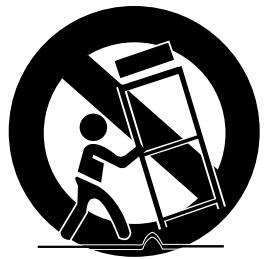
12) Use only with cart, stand, tripod, bracket, or table specified by the manufacturer, or sold with the apparatus.
13) Unplug this apparatus. When a cart is used, use caution when moving the cart/apparatus combination to avoid injury from tip-over.
14) Refer all servicing to qualified service personnel. Servicing is required when
natural_image
Silhouette of a person climbing a ladder inside a circular frame (no text or symbols)the apparatus has been damaged in any way, such as power-supply cord or plug is damaged, liquid has been spilled or objects have fallen into the apparatus the apparatus has been exposed to rain or moisture, does not operate normally, or has been dropped.
Precautions

CAUTION
RISK OF ELECTRIC SHOCK
DO NOT OPEN

TO REDUCE THE RISK OF ELECTRIC SHOCK, DO NOT REMOVE THE COVER(OR BACK).
NO USER-SERVICEABLE PARTS ARE INSIDE. REFER SERVICING TO QUALIFIED SERVICE PERSONNEL.
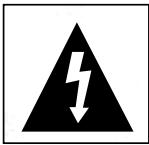
This symbol indicates "dangerous voltage" inside the product that presents a risk of electric shock or personal injury.

This symbol indicates important instructions accompanying the product.
Do not install this equipment in a confined space such as a bookcase or similar unit.
WARNING : To prevent damage which may result in fire or electric shock hazard, do not expose this appliance to rain or moisture.
CAUTION : DVD PLAYERS USE AN INVISIBLE LASER BEAM WHICH CAN CAUSE HAZARDOUS RADIATION EXPOSURE IF DIRECTED. BE SURE TO OPERATE PLAYER CORRECTLY AS INSTRUCTED.
CAUTIONS
Caution: To prevent electric shock, match wide blade of plug to wide slot, fully insert.
This product satisfies FCC regulations when shielded cables and connectors are used to connect the unit to other equipment. To prevent electromagnetic interference with electric appliances, such as radios and televisions, use shielded cables and connectors for connections.
FCC NOTE (for U.S.A):
This equipment has been tested and found to comply with the limits for a Class B digital device, pursuant to Part 15 of the FCC rules. These limits are designed to provide reasonable protection against harmful interference in a residential installation. This equipment generates, uses and can radiate radio frequency energy and, if not installed and used in accordance with the instructions, may cause harmful interference to radio or television reception, which can be determined by turning the equipment off and on.
The user is encouraged to try to correct the interference by one or more of the following measures.
- Reorient or relocate the receiving antenna.
- Increase the separation between the equipment and receiver.
- Connect this equipment into an outlet on a circuit different from that to which the receiver is connected.
- Consult the dealer or an experienced radio/TV technician for help.
This class B digital apparatus meets all requirements of the Canadian Interference -- Causing Equipment Regulations.
CLASS 1 LASER PRODUCT
KLASSE 1 LASER PRODUKT
LUOKAN 1 LASER LAITE
KLASS 1 LASER APPARAT
PRODUCTO LÁSER CLASE 1
CAUTION
THIS PRODUCT UTILIZES A LASER. USE OF CONTROLS OR ADJUSTMENTS OR PERFORMANCE OF PROCEDURES OTHER THAN THOSE SPECIFIED HEREIN MAY RESULT IN HAZARDOUS RADIATION EXPOSURE. DO NOT OPEN COVER AND DO NOT REPAIR YOURSELF. REFER SERVICING TO QUALIFIED PERSONNEL.
Note:
- This unit can be used only where the power supply is AC 120V, 60Hz. It cannot be used elsewhere.
- This DVD player is designed and manufactured to respond to the Region Management Information. If the Region number of a DVD disc does not correspond to the Region number of this DVD player, the DVD player cannot play the disc.
• The product unit accompanying this user manual is licensed under certain intellectual property rights of certain third parties. In particular, this product is licensed under the following US patents: 5,991,715, 5,740,317, 4,972,484, 5,214,678, 5,323,396, 5,539,829, 5,606,618, 5,530,655, 5,777,992, 6,289,308, 5,610,985, 5,481,643, 5,544,247, 5,960,037, 6,023,490, 5,878,080, and under US Published Patent Application No. 2001-44713-A1.
This license is limited to private non-commercial use by end-user consumers for licensed contents. No rights are granted for commercial use. The license does not cover any product unit other than this product unit and the license does not extend to any unlicensed product unit or process conforming to ISO/IEC 11172-3 or ISO/IEC 13818-3 used or sold in combination with this product unit.
The license only covers the use of this product unit to encode and/or decode audio files conforming to the ISO/IEC 11172-3 or ISO/IEC 13818-3. No rights are granted under this license for product features or functions that do not conform to the ISO/IEC 11172-3 or ISO/IEC 13818-3.
Handling Cautions
- Before connecting other components to this player, be sure to turn them all off.
- Do not move the player while a disc is being played, or the disc may be scratched or broken, and the player's internal parts may be damaged.
- Do not put a flower vase filled with water or any small metal objects on the player.
- Be careful not to put your hand into the disc tray.
- Do not place anything other than the disc in the disc tray.
- Exterior interference such as lightning and static electricity can affect normal operation of this player. If this occurs, turn the player off and on again with the POWER button, or disconnect and then reconnect the AC power cord to the AC power outlet. The player will operate normally.
- Be sure to remove the disc and turn off the player after use.
- Disconnect the AC power cord from the AC outlet when you don't intend to use the player for long periods of time.
- Clean the disc by wiping in a straight line from the inside to the outside of the disc.
Disc Storage
Be careful not to harm the disc because the data on these discs is highly vulnerable to the environment.
- Do not keep under direct sunlight.
- Keep in a cool ventilated area.
- Store vertically.
- Keep in a clean protection jacket.
Maintenance of Cabinet
For safety reasons, be sure to disconnect the AC power cord from the AC outlet.
- Do not use benzene, thinner, or other solvents for cleaning.
- Wipe the cabinet with a soft cloth.
Before you start
Accessories
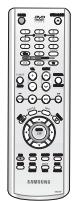
Remote Control
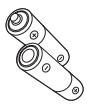
Batteries-2EA
1.5V(AAA)
(AC43-12002H)
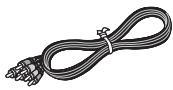
Video/Audio Cable (AC97-01746A)
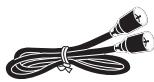
Antenna Cable (AC39-42001J)

User's Guide
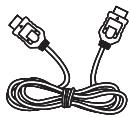
HDMI Cable
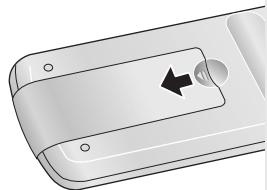
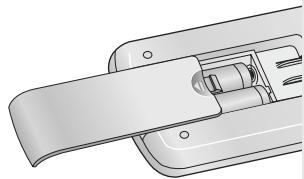
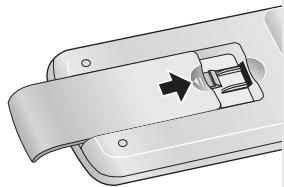
Install Batteries in the Remote Control
1
Open the battery cover on the back of the remote control.
natural_image
Close-up of a remote control panel with a black arrow indicating left-side action (no text or symbols)2
Insert two AAA batteries. Make sure that the polarities (+ and -) are aligned correctly.
natural_image
Technical illustration of a mechanical device with a handle and internal components (no text or symbols)3
Replace the battery cover.
natural_image
Diagram of a device with a scroll and internal component, no visible text or symbolsIf the remote control doesn't operate properly:
■ Check the polarity +, - of the batteries (Dry-Cell)
■ Check if the batteries are drained.
- Check if remote control sensor is blocked by obstacles.
■ Check if there is any fluorescent lighting nearby.
TABLE OF CONTENTS
Table of Contents
Safety Instructions ....2
Important Safety Instructions ....2
Before you start 5
Accessories....5
Install Batteries in the Remote Control ....5
Chapter 1: Setup
General Features....8
Disc Type and Characteristics....9
Description....10
Tour of the Remote Control....12
Chapter 2: Connections
Connecting the Antenna Cable ....13
Method1: Antenna + DVD-VCR + TV: No Cable box 13
Method2: Antenna + DVD-VCR + TV: Cable box with many scrambled channels ....14
Method3: Antenna + DVD-VCR + TV: Cable box with a few scrambled channels .....14
Before Connecting the DVD-VCR 15
Connection to a TV ....15
Connection to a TV (Video)....15
Connection to a TV (S-Video) 16
Connection to a TV (Interlace) 17
Connection to a TV (Progressive)....18
Connection to a TV with HDMI Jack 19
Connection to an Audio System ....21
Connection to an Audio System (2 Channel Amplifier) 21
Connection to an Audio System (Dolby digital, MPEG2 or DTS Amplifier)....22
Connecting a Power Cord & Auto Setup ....23
Chapter 3: Initial Setup
Selecting a Menu Language ....24
Setting the Clock 25
Setting the Clock Automatically....25
Setting the Clock Manually ....27
Memorizing the Channel ....28
Selecting the Video Signal-source ....28
Storing Channels in Memory (Automatic Method) 29
Adding and Erasing Channels (Manual Method) 29
Selecting the RF Output Channel ....30
Setting the Front Panel Display ....31
Setting the Power Off Automatically 32
TABLE OF CONTENTS
Chapter 4: DVD Operations
Playing a Disc ....33
Using the Search and Skip Functions ....35
Using the Display Function ....36
Using the Disc and Title Menu (DVD/VCD) 38
Using the Function Menu (DVD/VCD) 39
Repeat Play 40
Slow Repeat Play 42
Adjusting the Aspect Ratio (EZ View) 43
Selecting the Audio Language 45
Selecting the Subtitle Language 46
Changing the Camera Angle 47
Using the Bookmark Function 47
Using the Zoom Function (DVD/VCD) 49
Clips Menu for MP3/WMA/JPEG ....50
Folder Selection ....50
MP3/WMA Playback ....51
Program Play & Random Play....53
Picture CD Playback ....54
Using the Setup Menu ....56
Setting Up the Language Features ....57
Setting Up the Audio Options ....59
Setting Up the Display Options ....61
Setting Up the Parental Control 64
Chapter 5: VCR Operations
Inserting and Ejecting a Video Cassette Tape ....67
Playing a Pre-Recorded Video Cassette Tape ....68
Special VCR Playback Features ....69
Using Automatic Tracking ....70
Selecting the Cassette Type ....71
Setting the Auto Play 72
Setting the Auto Repeat ....73
Using the Tape Counter 74
Using the Assemble Edit Function ....75
Selecting the Audio Output Mode ....76
Searching for a Specific Sequence ....77
Basic Recording 79
Special Recording Features ....80
Using One-Touch Recording 81
Selecting the Recording Speed 82
Using a Timer Recording 83
Chapter 6: Reference
Using the TV Buttons on the Remote Control ....85
Troubleshooting 86
Technical Specifications 88
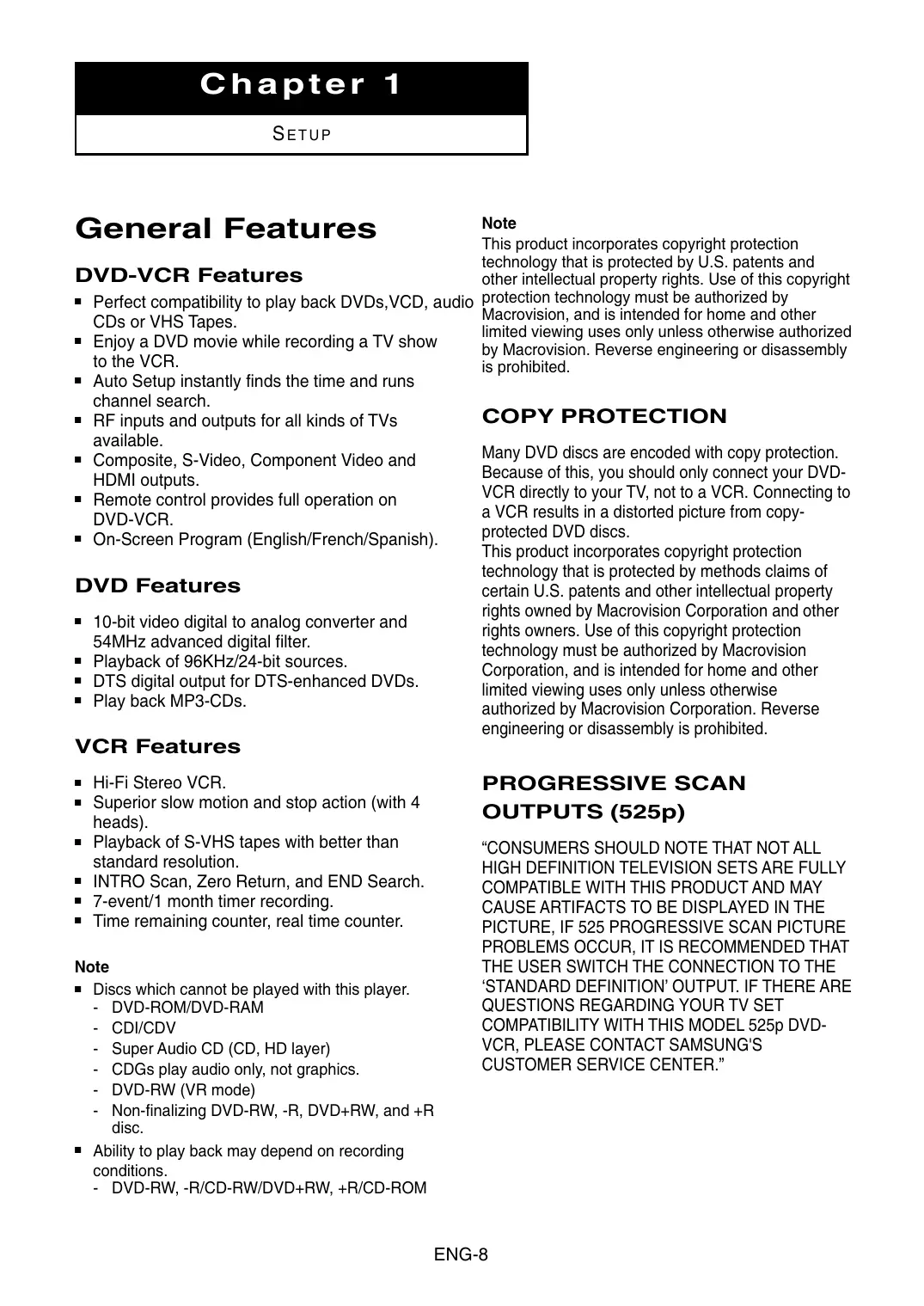
General Features
DVD-VCR Features
■ Perfect compatibility to play back DVDs, VCD, audio CDs or VHS Tapes.
- Enjoy a DVD movie while recording a TV show to the VCR.
■ Auto Setup instantly finds the time and runs channel search.
■ RF inputs and outputs for all kinds of TVs available.
■ Composite, S-Video, Component Video and HDMI outputs.
■ Remote control provides full operation on DVD-VCR.
■ On-Screen Program (English/French/Spanish).
DVD Features
■ 10-bit video digital to analog converter and 54MHz advanced digital filter.
■ Playback of 96KHz/24-bit sources.
■ DTS digital output for DTS-enhanced DVDs.
■ Play back MP3-CDs.
VCR Features
■ Hi-Fi Stereo VCR.
■ Superior slow motion and stop action (with 4 heads).
■ Playback of S-VHS tapes with better than standard resolution.
■ INTRO Scan, Zero Return, and END Search.
■ 7-event/1 month timer recording.
■ Time remaining counter, real time counter.
Note
■ Discs which cannot be played with this player.
- DVD-ROM/DVD-RAM
- CDI/CDV
- Super Audio CD (CD, HD layer)
- CDGs play audio only, not graphics.
- DVD-RW (VR mode)
- Non-finalizing DVD-RW, -R, DVD+RW, and +R disc.
■ Ability to play back may depend on recording conditions.
- DVD-RW, -R/CD-RW/DVD+RW, +R/CD-ROM
Note
This product incorporates copyright protection technology that is protected by U.S. patents and other intellectual property rights. Use of this copyright protection technology must be authorized by Macrovision, and is intended for home and other limited viewing uses only unless otherwise authorized by Macrovision. Reverse engineering or disassembly is prohibited.
COPY PROTECTION
Many DVD discs are encoded with copy protection. Because of this, you should only connect your DVD-VCR directly to your TV, not to a VCR. Connecting to a VCR results in a distorted picture from copy-protected DVD discs.
This product incorporates copyright protection technology that is protected by methods claims of certain U.S. patents and other intellectual property rights owned by Macrovision Corporation and other rights owners. Use of this copyright protection technology must be authorized by Macrovision Corporation, and is intended for home and other limited viewing uses only unless otherwise authorized by Macrovision Corporation. Reverse engineering or disassembly is prohibited.
PROGRESSIVE SCAN OUTPUTS (525p)
"CONSUMERS SHOULD NOTE THAT NOT ALL HIGH DEFINITION TELEVISION SETS ARE FULLY COMPATIBLE WITH THIS PRODUCT AND MAY CAUSE ARTIFACTS TO BE DISPLAYED IN THE PICTURE, IF 525 PROGRESSIVE SCAN PICTURE PROBLEMS OCCUR, IT IS RECOMMENDED THAT THE USER SWITCH THE CONNECTION TO THE 'STANDARD DEFINITION' OUTPUT. IF THERE ARE QUESTIONS REGARDING YOUR TV SET COMPATIBILITY WITH THIS MODEL 525p DVD-VCR, PLEASE CONTACT SAMSUNG'S CUSTOMER SERVICE CENTER."
Disc Type and Characteristics
This DVD-VCR is capable of playing the following types of discs with the corresponding logos:
| Disc Types (Logos) | Recording Types | Disc Size | Max. Playing Time | Characteristics |
DVD | Audio+Video | 12 Cm | Single-sided 240 min.Double-sided 480 min. | - DVD contains excellent sound and video due to Dolby Digital and MPEG-2 system.- Various screen and audio functions can be easily selected through the on-screen menu. |
| 8 Cm | Single-sided 80 min.Double-sided 160 min. | |||
VIDEO-CD | Audio+Video | 12 Cm | 74 min. | - Video with CD sound, VHS quality & MPEG-1 compression technology. |
| 8 Cm | 20 min. | |||
AUDIO-CD | Audio | 12 Cm | 74 min. | - CD is recorded as a Digital Signal with better audio quality, less distortion and less deterioration of audio quality over time. |
| 8 Cm | 20 min. |
- CD-R, CD-RW and DVD-RW, -R, DVD+RW, +R discs may not be playable in all cases due to the disc type or condition of the recording.
Disc Markings
 | Play Region Number |
 | NTSC broadcast system in U.S.A, Canada, Korea, Japan, etc. |
 | Dolby Digital disc |
 | Stereo disc |
 | Digital Audio disc |
 | DTS disc |
 | MP3 disc |
You must only insert one DVD disc at a time. Inserting two or more discs will not allow playback and may cause damage to the DVD-VCR.
Region Number
Both the DVD-VCR and the discs are coded by region. These regional codes must match in order for the disc to play. If the codes do not match, the disc will not play.
The Region Number for this player is described on the rear panel of the player. North America is Region 1.


Description
Front Panel Controls
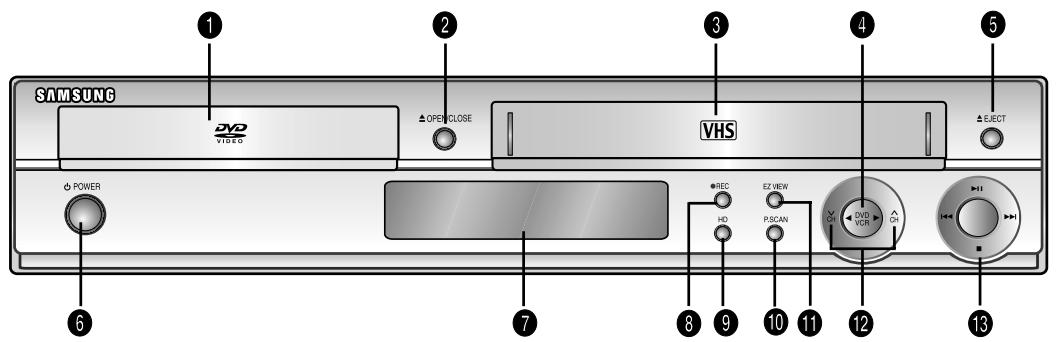
text_image
SAMSUNG DVD VIDEO △OPE CLOSE VHS △EJECT POWER REC HD EX HODI PSCAN DH DVD HDD CH 131 DISC TRAY
Place the disc here.
2 OPEN/CLOSE
Press to open and close the disc tray.
3 VCR Deck
Insert a standard VHS video tape.
4 DVD/VCR
Press to view DVD or VCR mode.
5 EJECT
Press to eject a video tape if the tape is stopped.
6 POWER
Press to turn the DVD-VCR on and off.
7 Front Panel Display
Operation indicators are displayed here.
8 REC (VCR)
Press to begin recording.
9 HD
HDMI Output resolution setup.
10 P.SCAN
Press to select component video out progressive scan mode.
11 EZ VIEW
The aspect ratio of a picture can easily be adjusted to your TV's screen size.
12 CHANNEL V and ∧
Press to change channels.
13 ◀◀ (Reverse/Rewind)
Press to reverse/rewind a disc/video tape.
(STOP)
Press to stop a disc/video tape during playback or record (VCR).
▶II (Play/Pause)
Press to play or pause the disc/video tape.
▶▶ (Forward/Fast Forward)
Press to forward/fast forward a disc/videotape.
Front Panel Display
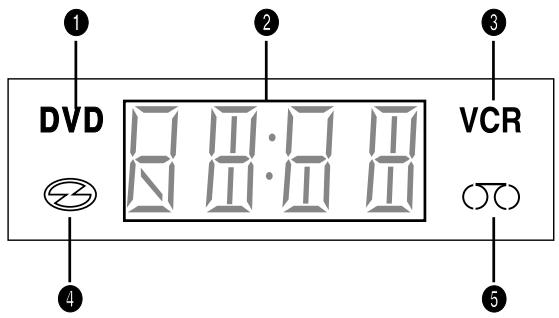
text_image
DVD 2:8:8:8 VCR ① ② ③ ④ ⑤1 DVD is activated.
2 The time, counter position, time remaining or current deck status is indicated.
3 VCR is activated.
4 DVD, VCD or CD media is loaded.
5 VHS videotape is loaded.
Rear Panel
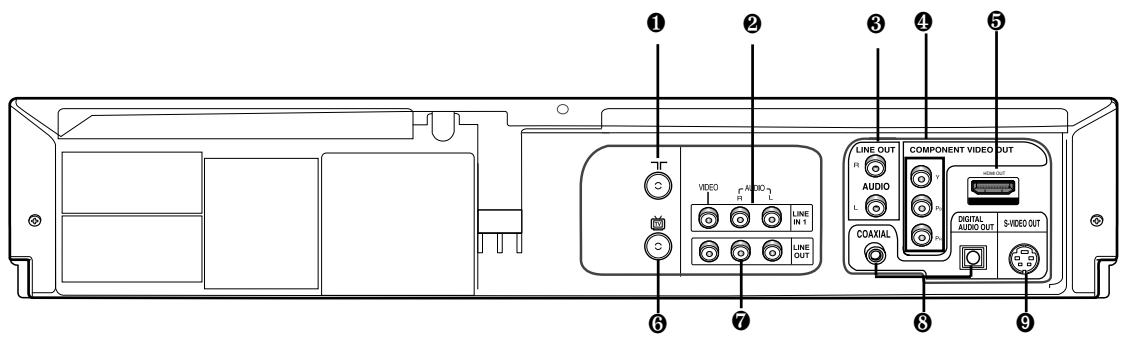
text_image
① ② ③ ④ ⑤ VIDEO AUDIO LINE IN 1 LINE OUT LINE OUT COMPONENT VIDEO OUT AUDIO L COAXIAL DIGITAL AUDIO OUT S VIDEO OUT1 RF IN (FROM ANT.)
Connect the RF Antenna cable to your DVD-VCR.
2 LINE IN 1 (VIDEO/AUDIO)
Connect to the Video/Audio output jack of your external device.
3 AUDIO OUT
Connect to the Audio input jacks of your television.
4 COMPONENT VIDEO OUT
- Use these jacks if you have a TV with Component Video in jacks.
These jacks provide P_R , P_B and Y video.
- If Component (Progressive Scan) Video Output is selected in the Alt Video Out menu or by using the P.SCAN button on the front panel, progressive scan mode will be enabled.
- If Component (Interlace Scan) Video Output is selected in the Alt Video Out menu or by using the P.SCAN button on the front panel, interlaced scan mode will be enabled.
5. HDMI OUT JACK
- Use the HDMI cable to connect this jack to the HDMI jack on your television for the best quality picture.
- If an HDMI cable is connected to an HDMI-compatible TV, HDMI will be output automatically within 10 seconds.
- If you want to use a Video, S-Video or Component Output, unplug HDMI cable.
6 RF OUT (TO TV)
Connect your DVD-VCR to a TV.
7 LINE OUT (VIDEO/AUDIO)
Use a Video/Audio cables to connect to the Video/Audio input jacks on your television.
8 DIGITAL AUDIO OUT (OPTICAL/COAXIAL)
- Use either an optical or coaxial digital audio cable to connect to a compatible Dolby Digital receiver.
- Use either an optical or coaxial digital audio cable to connect to an A/V Amplifier that contains a Dolby Digital, MPEG2 or DTS decoder.
9 S-VIDEO OUT
Use the S-Video cable to connect this jack to the S-Video input jack on your television for higher picture quality.
Notes
- Consult your TV User's Manual to find out if your TV supports Progressive Scan. If Progressive Scan is supported, follow the TV User's Manual regarding Progressive Scan settings in the TV's menu system.
- If Component (Progressive Scan) Output is selected in Alt Video Out menu, Composite Video and S-Video will not work.
- See pages 61 \~ 63 to get more information on how to use the Alt Video Out menu.
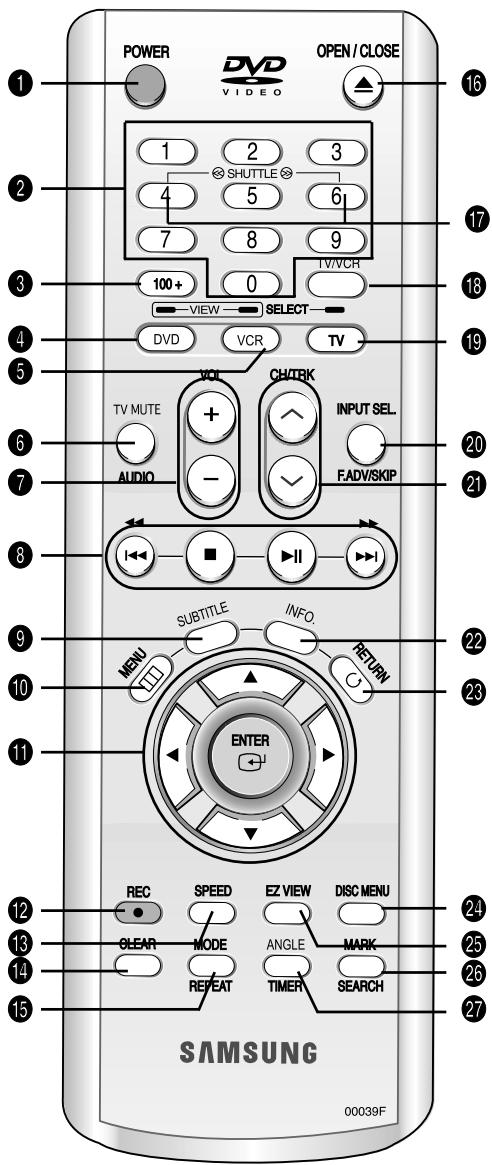
Tour of the Remote Control
1 POWER button
Turns the DVD-VCR's power on and off.
2 NUMBER buttons
3 100+ button
4 DVD button
Use to operate DVD.
5 VCR button
Use to operate VCR.
6 AUDIO/TV MUTE button
Use this to access various audio functions on a disc.(DVD mode)
This operates as Sound Mute. (TV mode)
7 VOL (+, -) buttons
8 Playback-related buttons
Search/Skip/Stop/Play/Pause
9 SUBTITLE button
Use to display the DVD's subtitle language.
10 MENU button
Brings up the DVD-VCR player's menu.
11 ENTER/▲▼◀▶ buttons
This button functions as a toggle switch.
12 REC button
Use to begin recording. (VCR)
13 SPEED button
Use to select the tape recording speed. (VCR)
14 CLEAR button
Use to remove menus or status displays from the screen.
15 MODE button
Use to select the program or random play.
REPEAT button
Allows you to repeat play a title, chapter, track, or disc. (DVD)
text_image
POWER DVD VIDEO OPEN / CLOSE 1 2 3 SHUTTLE 4 5 6 7 8 9 TV/VCR 100+ 0 VIEW SELECT DVD VCR TV VOI CH/TRK TV MUTE + INPUT SEL. AUDIO - F.ADV/SKIP ■ II ▶I SUBTITLE INFO RETURN C- MENU ENTER 22 23 11 12 REC SPEED EZ VIEW DISC MENU 24 13 CLEAR MODE ANGLE MARK 14 REPEAT TIMER SEARCH 25 26 27 SAMSUNG 00039F16 OPEN/CLOSE button
17 SHUTTLE (◀/▶) buttons
Use to play a sequence at variable speeds. (VCR)
18 TV/VCR button
Use to switch between TV and VCR mode.
19 TV button
Use to operate TV.
20 F.ADV/SKIP/INPUT SEL. button
Use to advance play one frame at a time. (DVD and VCR)
Use to fast forward a video tape. (VCR)
Use to select an external signal source.
21 CH/TRK button
Use to change channels. (TV)
Use to adjust tape tracking. (VCR)
22 INFO. button
Displays the current disc mode. (DVD)
23 RETURN button
Returns to a previous menu.
24 DISC MENU button
Brings up the Disc menu. (DVD)
25 EZVIEW
The aspect ratio of a picture can easily be adjusted according to the screen size of your TV (16:9 or 4:3).
26 MARK/SEARCH button
Use to memorize scenes for replay. (DVD)
Displays the VCR Function menu. (VCR)
27 ANGLE/TIMER button
Use to access various camera angles on a disc. (DVD)
Displays the Manual Clock menu.
Chapter 2
CONNECTIONS
Connecting the Antenna Cable
There are several ways to connect your DVD-VCR. Select one of the following antenna connections that best suits you below.
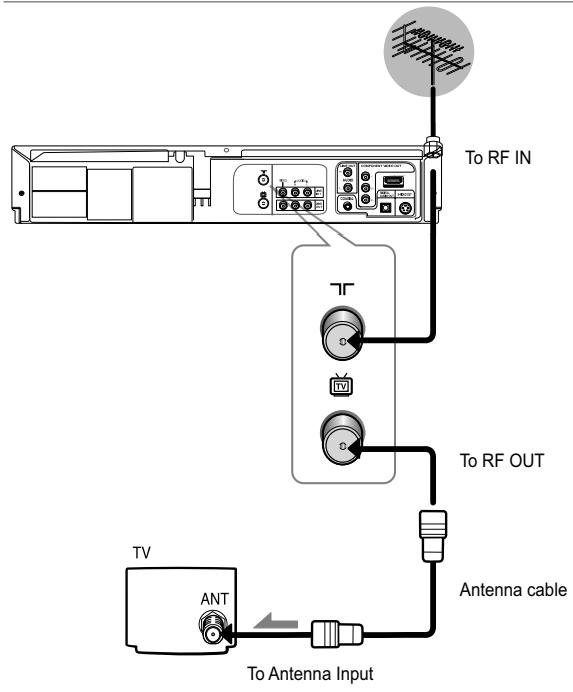
■ Method 1: Antenna + DVD-VCR + TV: No Cable box
■ Method 2: Antenna + Cable box + DVD-VCR + TV: Cable box with many scrambled channels
■ Method 3: Antenna + DVD-VCR + Cable box + TV: Cable box with a few scrambled channels
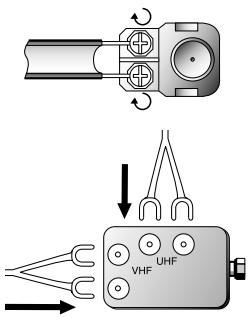
- If you are using an off-air antenna that has 300-ohm twin flat leads, use an external antenna connector (300-75 ohm adaptor: not supplied) to connect the antenna to the DVD-VCR.
- If you have two separate antennas (one VHF and the other UHF), use a UHF/VHF combiner-adaptor (available at most electronics shops) to connect the antenna to the DVD-VCR.
- The RF OUT(TO TV) jack of this product sends signals received through the antenna and outputs Audio/Video signals.
text_image
Diagram showing electrical component assembly with labeled terminals and connection arrowsMethod1: Antenna + DVD-VCR + TV: No Cable box
You can record non-scrambled channels by selecting the channel on the DVD-VCR.
Also use this Method if you watch channels without cable box.
flowchart
graph TD
    A["TV"] --> B["Antenna cable"]
    B --> C["To RF OUT"]
    C --> D["To RF IN"]
    D --> E["Antenna Input"]
    E --> F["Antenna cable"]
    style A fill:#f9f,stroke:#333
    style B fill:#ccf,stroke:#333
    style C fill:#cfc,stroke:#333
    style D fill:#fcc,stroke:#333
    style E fill:#cff,stroke:#333
    style F fill:#ffc,stroke:#333
Method2: Antenna + DVD-VCR + TV: Cable box with many scrambled channels
You can record channels by selecting the channel on the cable box. You cannot record one channel while watching another channel. Be sure that the cable box is turned on.
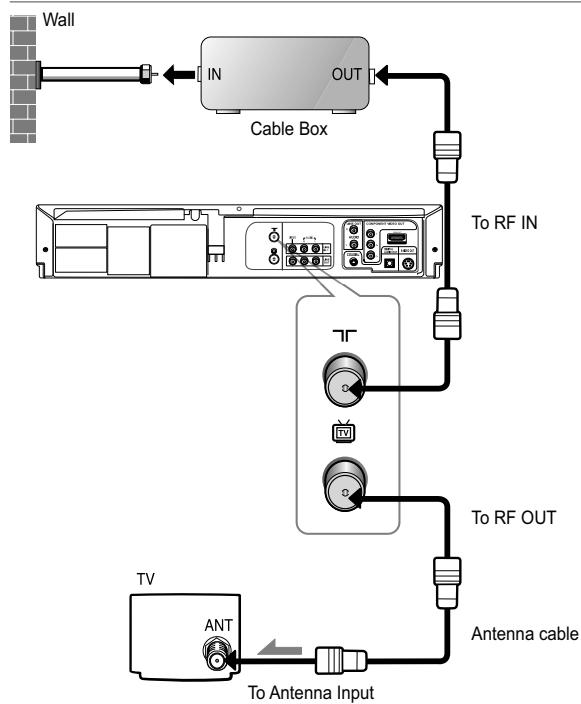
flowchart
graph TD
    A["Wall"] --> B["Cable Box"]
    B --> C["To RF IN"]
    B --> D["To RF OUT"]
    B --> E["Antenna cable"]
    B --> F["Antenna Input"]
    B --> G["Antenna"]
    style A fill:#f9f,stroke:#333
    style B fill:#ccf,stroke:#333
    style C fill:#cfc,stroke:#333
    style D fill:#fcc,stroke:#333
    style E fill:#cff,stroke:#333
    style F fill:#ffc,stroke:#333
    style G fill:#fcc,stroke:#333
Method3: Antenna + DVD-VCR + TV: Cable box with a few scrambled channels
You can record non-scrambled channels by selecting the channel on the cable box. You cannot record scrambled channels that require a cable box.
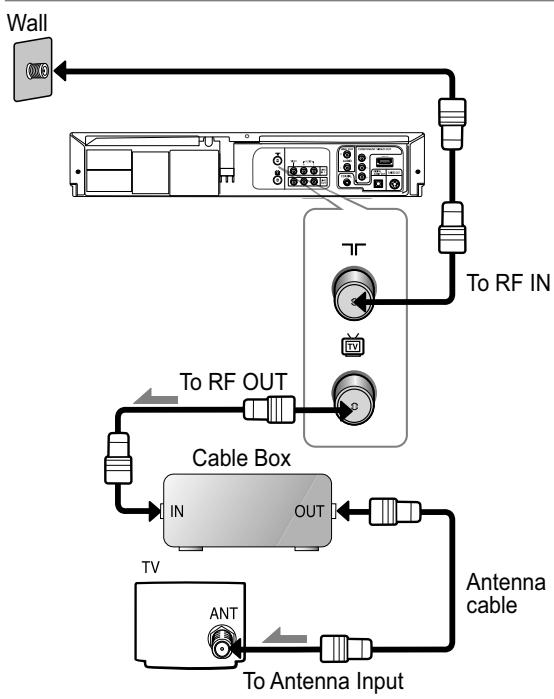
flowchart
graph TD
    A["Wall"] --> B["To RF IN"]
    B --> C["Cable Box"]
    C --> D["TV"]
    C --> E["Antenna cable"]
    C --> F["Antenna Input"]
    C --> G["In OUT"]
    G --> H["To RF OUT"]
    H --> I["To RF IN"]
    I --> J["Antenna cable"]
Before Connecting the DVD-VCR
- Always turn off the DVD-VCR, TV, and other components before you connect or disconnect any cables.
- Refer to the user's manual of the additional components (such as a TV) you are connecting for more information on those particular components.
Connection to a TV
The following shows examples of connections commonly used to connect the DVD-VCR with a TV and other components.
Connection to a TV (Video)
1
Using video/audio cables, connect the VIDEO (yellow)/AUDIO (red and white) OUT terminals on the rear of the DVD-VCR to the VIDEO (yellow)/AUDIO (red and white) IN terminals of your TV.
2
Turn on the DVD-VCR and TV.
3
Press the input selector on your TV remote control until the Video signal from the DVD-VCR appears on the TV screen.
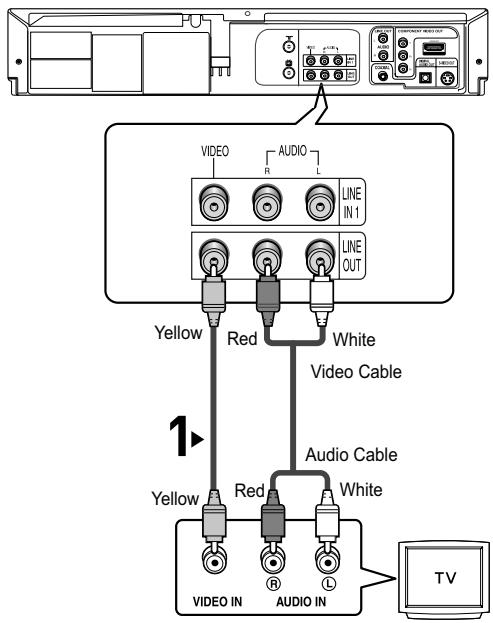
text_image
VIDEO AUDIO LINE IN 1 LINE OUT Yellow Red White Video Cable Audio Cable Yellow Red White VIDEO IN AUDIO IN TVNotes
- Noise may be generated if the audio cable is placed too close to the power cable.
- If you want to connect to an Amplifier, please refer to the Amplifier connection page. (See pages 21 to 22)
- The number and position of terminals may vary depending on your TV set. Please refer to the user's manual of your TV.
- If there is one audio input terminal on the TV, connect it to the AUDIO OUT Left (white) terminal of the DVD-VCR.
- If you press the P.SCAN button when DVD-VCR is in stop mode or no disc is inserted, the Alt Video Out mode changes in the following sequence: (S-Video - Interlace - Progressive)
- When the Alt Video Output in Display Setup menu is set to Progressive, the Composite and S-Video Output do not work.
Connection to a TV (S-Video)
- Connecting to your TV using an S-Video cable.
- You will enjoy high quality images. S-Video separates the picture element into black and white(Y) and color(C) signals to present clearer images than regular video input mode. (Audio signals are delivered through the audio output.)
1
Using an S-Video cable (not included), connect the S-VIDEO OUT terminal on the rear of the DVD-VCR to the S-VIDEO IN terminal of your TV.
2
Using the audio cables, connect the AUDIO (red and white) OUT terminals on the rear of the DVD-VCR to the AUDIO (red and white) IN terminals of your TV.
Turn on the DVD-VCR and TV.
3
With the unit in stop mode, set the Alt video output to COMPOSITE/S-VIDEO in the Display Setup menu (see pages 61\~63) or press the P.SCAN button on the front panel until S-Video is output.
4
Press the input selector on your TV remote control until the S-Video signal from the DVD-VCR appears on your TV screen.
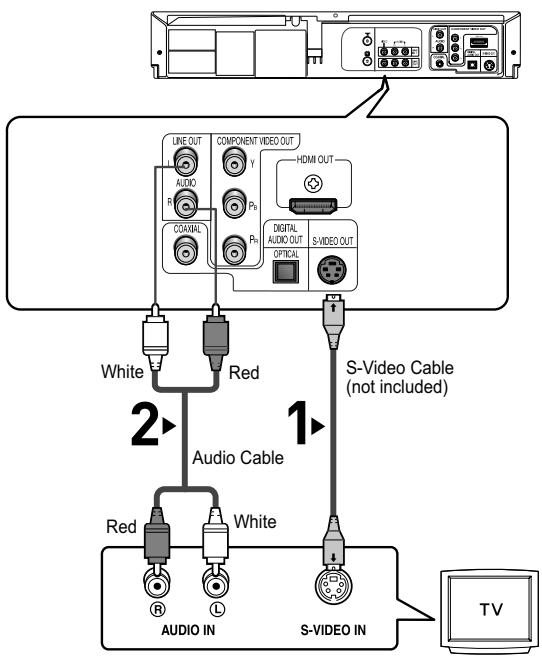
text_image
LINE OUT COMPONENT VIDEO OUT AUDIO R Y HDMI OUT COMVAL Pn DIGITAL AUDIO OUT OPTICAL S-VIDEO OUT White Red Audio Cable 1 S-Video Cable (not included) Red White AUDIO IN S-VIDEO IN TVNotes
- If you want to connect to an Amplifier, please refer to the Amplifier connection page. (See pages 21 to 22)
- The number and position of terminals may vary depending on the TV set.
Please refer to the user's manual of your TV.
Connection to a TV (Interlace)
- Connecting to your TV using Component video cables.
- You will enjoy high quality and accurate color reproduction images. Component video separates the picture element into black and white(Y), blue(P B ), red(P R ) signals to present clear and clean images. (Audio signals are delivered through the audio output.)
1
Using component video cables (not included), connect the COMPONENT VIDEO OUT terminal on the rear of the DVD-VCR to the COMPONENT IN terminal of your TV.
2
Using the audio cables, connect the AUDIO (red and white) OUT terminals on the rear of the DVD-VCR to the AUDIO (red and white) IN terminals of your TV.
Turn on the DVD-VCR and TV.
3
With the unit in stop mode, set the Alt video output to COMPONENT(I-SCAN) in the Display Setup menu (see pages 61\~63) or press the P.SCAN button on the front panel until Interlace is output.
4
Press the input selector on your TV remote control until the Component signal from the DVD-VCR appears on the TV screen.
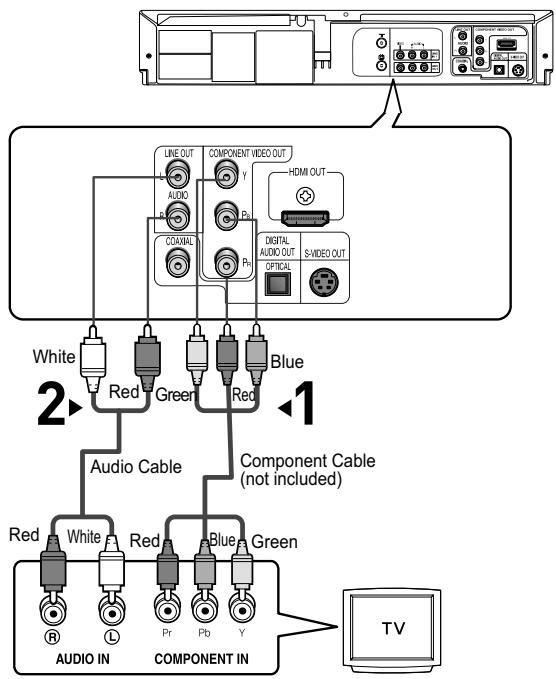
flowchart
graph TD
    A["TV"] --> B["Component IN"]
    B --> C["Red"]
    B --> D["Blue"]
    B --> E["Green"]
    B --> F["Pr"]
    B --> G["Pb"]
    B --> H["Y"]
    B --> I["AUDIO IN"]
    B --> J["Audio Cable"]
    B --> K["Blue Audio OUT"]
    B --> L["S-VIDEO OUT"]
    B --> M["HDMI OUT"]
    B --> N["Line OUT"]
    B --> O["AUDIO OUT"]
Notes
- If Video output is incorrectly set to S-Video with the Component cables connected, the screen will turn red.
- If you want to connect to an Amplifier, please refer to the Amplifier connection page. (See pages 21 to 22)
- The component terminal of your TV may be marked "R-Y, B-Y, Y" or "Cr, Cb, Y" instead of "PR, PB, Y" depending on the manufacturer. The number and position of terminals may vary depending on the TV set. Please refer to the user's manual of your TV.
Connection to a TV (Progressive)
1
Using component video cables (not included), connect the COMPONENT VIDEO OUT terminal on the rear of the DVD-VCR to the COMPONENT IN terminal of your TV.
2
Using the audio cables, connect the AUDIO (red and white) OUT terminals on the rear of the DVD-VCR to the AUDIO (red and white) IN terminals of your TV.
Turn on the DVD-VCR and TV.
3
With the unit in stop mode, set the Alt video output to HDMI/COMPONENT (P.SCAN) in the Display Setup menu (see pages 61\~63) or press the P.SCAN button on the front panel until the Progressive Scan mode prompt screen appears.
Then press ENTER and progressive will be output.
4
Press the input selector on your TV remote control until the Component signal from the DVD-VCR appears on the TV screen.
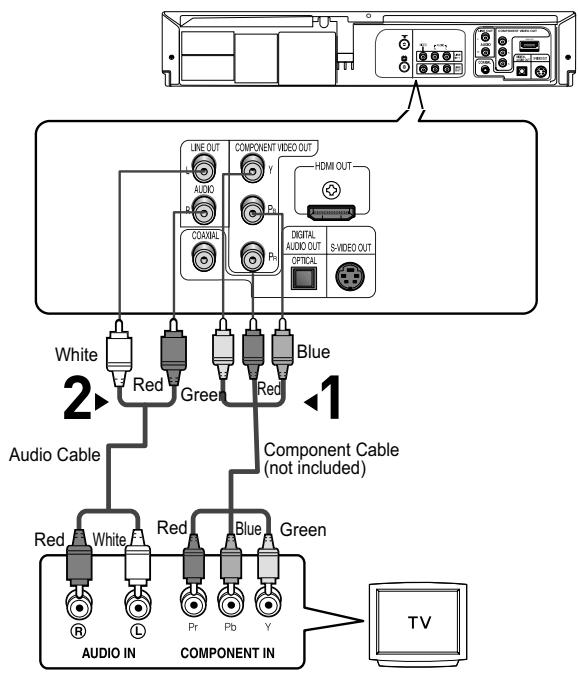
flowchart
graph TD
    A["TV"] --> B["Component IN"]
    B --> C["Red White"]
    B --> D["Red Blue"]
    B --> E["Blue Green"]
    B --> F["Green Audio Cable"]
    B --> G["Blue Audio OUT"]
    B --> H["Digital Audio OUT"]
    B --> I["OLED TV"]
    B --> J["Line OUT"]
    B --> K["COMPONENT VIDEO OUT"]
    B --> L["HDMA OUT"]
    style A fill:#f9f,stroke:#333
    style B fill:#ccf,stroke:#333
    style C fill:#cfc,stroke:#333
    style D fill:#cfc,stroke:#333
    style E fill:#cfc,stroke:#333
    style F fill:#cfc,stroke:#333
    style G fill:#cfc,stroke:#333
    style H fill:#cfc,stroke:#333
    style I fill:#cfc,stroke:#333
    style J fill:#cfc,stroke:#333
To see the progressive video output,
- Consult your TV User's Manual to find out if your TV supports Progressive Scan. If Progressive Scan is supported, follow the TV User's Manual regarding Progressive Scan settings in the TV's menu system.
- Depending on your TV, the connection method may differ from the illustration above.
Note
What is "Progressive Scan"?
Progressive scan has twice as many scanning lines as the interlace output method.
Progressive scanning method provides better and clearer picture quality.
Progressive scan only works in DVD mode, not VCR.
Connecting to a TV with HDMI Jack
1
Using the HDMI-HDMI cable connect the HDMI OUT terminal on the rear of the DVD player to the HDMI IN terminal of your TV.
2
Press the input selector on your TV remote control until the HDMI signal from the DVD player appears on your TV screen.
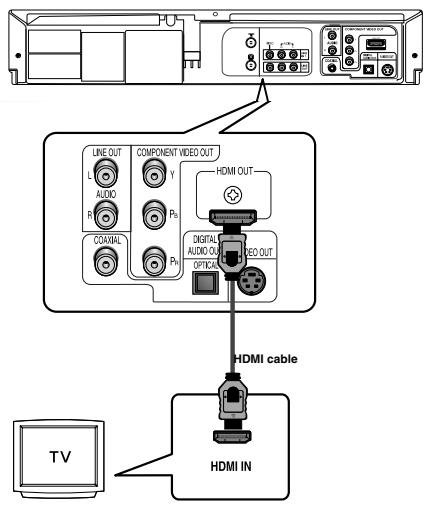
text_image
TV LINE OUT L AUDIO R COMPONENT VIDEO OUT Y P0 COSMO P0 HDMI OUT DIGITAL AUDIO OUT OPTICAL RED OUT HDMI cable HDMI INHDMI VIDEO Specifications
When you press the HD button on the front panel, 480p, 720p, 1080i are selected in order.
The first press of the HD button on the front panel brings up the current resolution.
The second press allows you to change the HDMI output resolution.
- Depending on your TV, certain HDMI output resolutions may not work.
- Please refer to the user's manual of your TV.
- If HDMI or HDMI cable is plugged into TV, the DVD player's output is set to HDMI within 10 seconds.
- If you set the HDMI output resolution 720p or 1080i, HDMI output provides better picture quality.
• HDMI (High Definition Multimedia Interface)
HDMI is an interface to enable the digital transmission of video and audio data with just a single connector. Using HDMI, the DVD player transmits a digital video and audio signal and displays a vivid picture on a TV having an HDMI input jack.
• HDMI connection description
HDMI connector - Both uncompressed video data and digital audio data (LPCM or Bit Stream data).
- Though the player uses a HDMI cable, the player outputs only a pure digital signal to the TV.
- If TV does not support HDCP (High-bandwidth Digital Content Protection), snow noise appears on the screen.
• Why does Samsung use HDMI?
Analog TVs require an analog video/audio signal. However, when playing a DVD, the data transmitted to a TV is digital. Therefore either a digital-to-analog converter (in the DVD player) or an analog-to-digital converter (in the TV) is required. During this conversion, the picture quality is degraded due to noise and signal loss.
Connection to an Audio System
Connection to an Audio System (2 Channel Amplifier)
1
Using the audio cables, connect the (LINE) AUDIO (red and white) OUT terminals on the rear of the DVD-VCR to the AUDIO (red and white) IN terminals of the Amplifier.
2
Using the video signal cable(s), connect the VIDEO, S-VIDEO or COMPONENT OUT terminals on the rear of the DVD-VCR to the VIDEO, S-VIDEO or COMPONENT IN terminal of your TV as described on pages 16 to 18.
3
Turn on the DVD-VCR, TV, and Amplifier.
4
Press the input select button of the Amplifier to select external input in order to hear sound from the DVD-VCR.
Refer to your Amplifier's user manual to set the Amplifier's audio input.
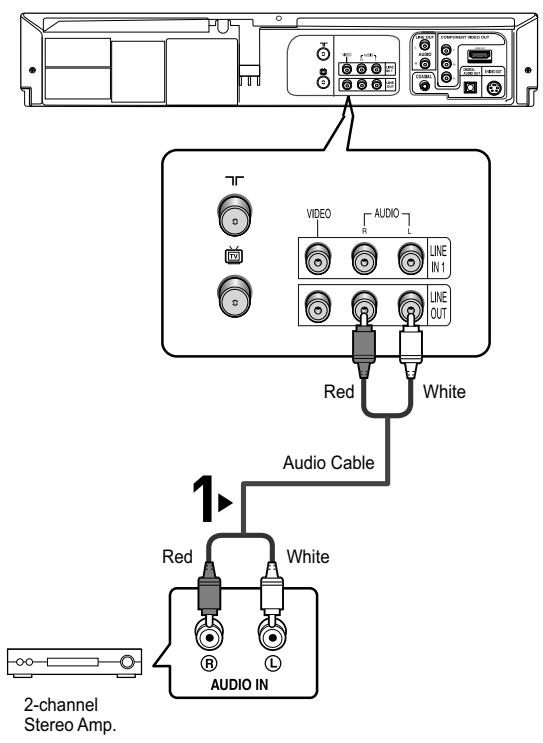
text_image
2-channel Stereo Amp. VIDEO AUDIO LINE IN 1 LINE OUT Red White Audio Cable Red White AUDIO INNotes
- Please turn the volume down when you turn on the Amplifier. Sudden loud sound may cause damage to the speakers and your ears.
- Please set the audio in the menu screen according to the Amplifier. (See pages 59 to 60)
- The position of terminals may vary depending on the Amplifier. Please refer to your Amplifier's user manual.
Connection to an Audio System (Dolby digital, MPEG2 or DTS Amplifier)
1
Using a coaxial or an optical cable (not included), connect the DIGITAL AUDIO OUT (COAXIAL) or DIGITAL AUDIO OUT (OPTICAL) terminal on the rear of the DVD-VCR to the DIGITAL AUDIO IN (COAXIAL) or DIGITAL AUDIO IN (OPTICAL) terminal of the Amplifier.
2
Using the video signal cable(s), connect the VIDEO, S-VIDEO or COMPONENT OUT terminals on the rear of the DVD-VCR to the VIDEO, S-VIDEO or COMPONENT IN terminal of your TV as described on pages 16 to 18.
3
Turn on the DVD-VCR, TV, and Amplifier.
4
Press the input select button of the Amplifier to select external input in order to hear sound from the DVD-VCR.
Refer to your Amplifier's user manual to set the Amplifier's audio input.
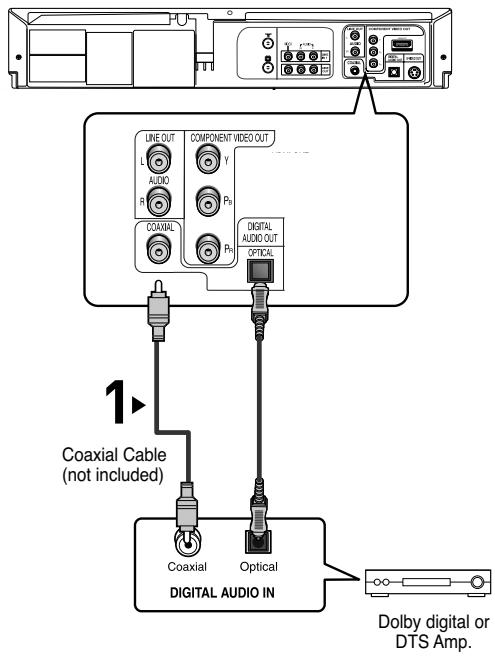
text_image
LINE OUT L AUDIO R Y P0 COAVIAL P0 DIGITAL AUDIO OUT OPTICAL 1> Coaxial Cable (not included) Coaxial Optical DIGITAL AUDIO IN Dolby digital or DTS Amp.Notes
- When you connect the DVD-VCR to DTS Amplifier and play a DTS disc, set the DTS to On in Audio Setup menu. If it is set to Off, sound will not be heard, or there will be a loud sound.
- Please turn the volume down when you turn on the Amplifier. Sudden loud sound may cause damage to the speakers and your ears.
- Please set the audio in the menu screen according to the Amplifier. (See pages 59 to 60)
- The position of terminals may vary depending on the Amplifier. Please refer to the user's manual of the Amplifier.
- Only audio from the DVD player section can be heard when connection is made via the Optical or Coaxial jack. You must have the analog L and R Audio Out connected to hear VCR audio (see page 19).
Connecting the Power Cord & Auto Setup
1
Your DVD-VCR's power cord should be plugged into a standard 120V/60Hz wall outlet. Avoid pressing any buttons on the remote control or on the unit during Auto Setup. While your DVD-VCR is running Auto Setup, "Auto" will blink. When Auto Setup is complete, the current time will be displayed on the front panel. If Auto Setup fails to locate a channel to set the clock, you should set the clock manually. (See page 27.)
2
Turn on the power by pressing the POWER button on the remote control or on the front panel.
3
Turn on your TV by pressing the POWER button on the TV remote control.

natural_image
Illustration of a black cable inserted into a white electrical socket with three outlets (no text or symbols)You must have the antenna connected to set the Auto Clock (See pages 13\~14)
Chapter 3
INITIAL SETUP
Selecting a Menu Language
To change the on-screen MENU language to English, French or Spanish, follow these steps.
1 Press the MENU button.
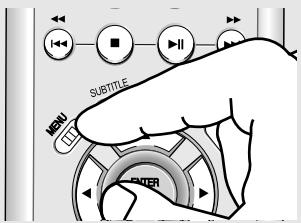
text_image
SUBTITLE MENU ENTER2 Press the ▲/▼ buttons to select Setup, then press the ▶ or ENTER button.
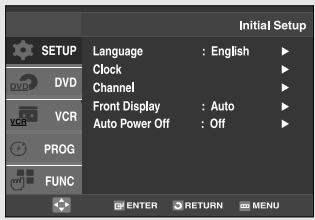
text_image
Initial Setup Language : English ▶ Clock ▶ Channel ▶ Front Display : Auto ▶ Auto Power Off : Off ▶ FUNC ENTER RETURN MENU3 Press the ▲/▼ buttons to select Language, then press the ▶ or ENTER button.
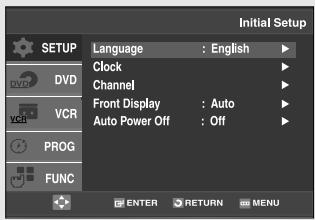
text_image
Initial Setup Language : English ▶ Clock ▶ Channel ▶ Front Display : Auto ▶ Auto Power Off : Off ▶ FUNC ENTER RETURN MENU4 Press the ▲/▼ buttons to select the appropriate language: English, Français or Español. Press the ENTER button.
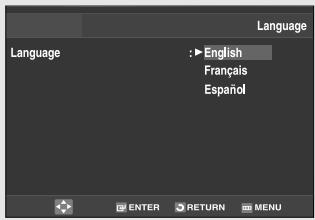
text_image
Language Language : ▶ English Français Español ENTER RETURN MENU5 Press the MENU button to exit.
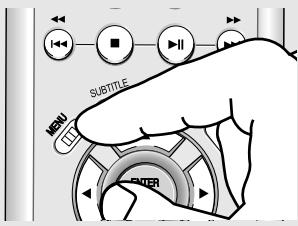
text_image
SUBTITLE MENU ENTERSetting the Clock
This menu is used to set the current time. You need to set the time to use timer recording.
Setting the Clock Automatically
1
Press the MENU button.
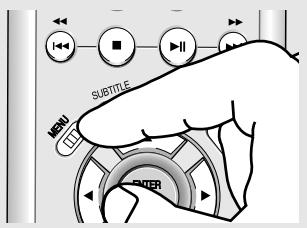
text_image
SUBTITLE MONI ENTER2
Press the ▲/▼ buttons to select Setup, then press the ▶ or ENTER button.
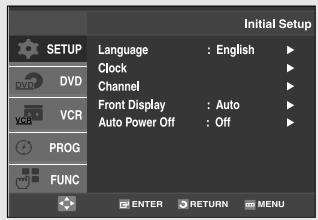
text_image
Initial Setup Language : English ▶ Clock Channel Front Display : Auto ▶ Auto Power Off : Off ▶ FUNC ENTER RETURN MENU3
Press the ▲/▼ buttons to select Clock, then press the ▶ or ENTER button.
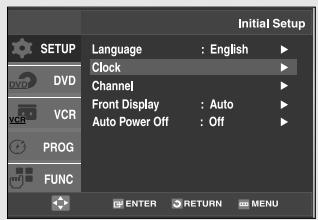
text_image
Initial Setup Language : English ▶ Clock ▶ Channel ▶ Front Display : Auto ▶ Auto Power Off : Off ▶ FUNC ENTER RETURN MENU4
Press the ▲/▼ buttons to select Auto Clock, then press the ▶ or ENTER button.
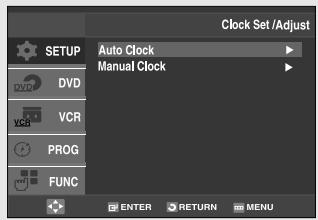
text_image
Clock Set /Adjust AUTO Clock Manual Clock SETUP DVD VCR PROG FUNC ENTER RETURN MENU5
Select a channel that carries a time signal by using the ▶ or ENTER button.
(Auto, 1, 2, ..., 125)
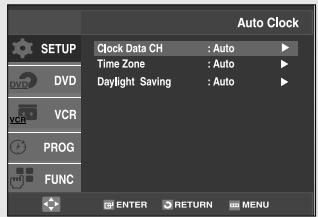
text_image
Auto Clock SETUP Clock Data Ch : Auto Time Zone : Auto Daylight Saving : Auto PROG FUNC ENTER RETURN MENUNotes
You must have the antenna connected to set the Auto Clock. (See pages 13\~14)
The Clock will be automatically set when you turn off the DVD-VCR.
6
Press the ▲/▼ buttons to select Time Zone, then press the ▶ or ENTER button.
Select the time zone of your area by using the ▲/▼/◄/► buttons, then press the ENTER button.
Select Automatic to set the time zone automatically.
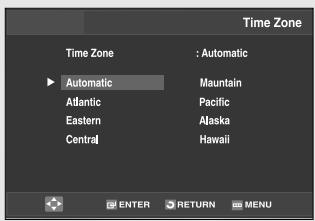
text_image
Time Zone Time Zone : Automatic Automatic Mauntain Atlantic Pacific Eastern Alaska Central Hawaii ENTER RETURN MENU7
Press the ▲/▼ buttons to select Daylight Saving, then press the ▶ or ENTER button to select Yes, No or Auto.
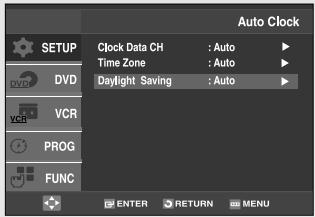
text_image
Auto Clock SETUP Clock Data CH : Auto Time Zone : Auto Daylight Saving : Auto VCD VCR PROG FUNC ENTER RETURN MENU8
Press the MENU button to exit.
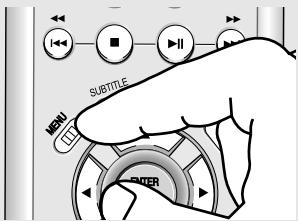
text_image
SUBTITLE MENU ENTERNote
If your clock is set to the wrong Time Zone or Daylight Saving, you can adjust these settings without turning off the Auto Clock Set function.
Setting the Clock Manually
If Auto Setup fails to set the DVD-VCR's internal clock by locating a local TV station, follow these steps to set the date and time manually.
Note: For accurate Timer Recording, your DVD-VCR's internal clock must be set correctly.
1
Press the MENU button.
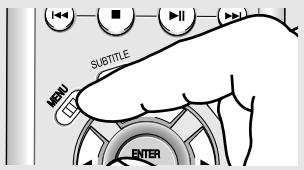
text_image
SUBTITLE MENU ENTER2
Press the ▲/▼ buttons to select Setup, then press the ▶ or ENTER button.
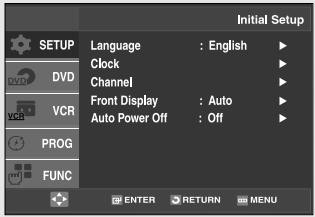
text_image
Initial Setup SETUP Language : English ▶ Clock Channel Front Display : Auto ▶ Auto Power Off : Off ▶ PROG FUNC ENTER RETURN MENU3
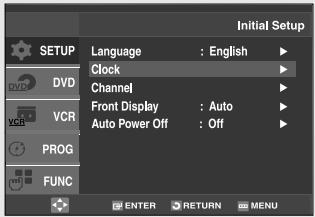
Press the ▲/▼ buttons to select Clock, then press the ▶ or ENTER button.
text_image
Initial Setup Language : English ▶ Clock ▶ Channel ▶ Front Display : Auto ▶ Auto Power Off : Off ▶ PROG FUNC ENTER RETURN MENU4
Press the ▲/▼ buttons to select Manual Clock, then press the ▶ or ENTER button.

text_image
Clock Set /Adjust AUTO Clock Manual Clock SETUP DVD VCR PROG FUNC ENTER RETURN MENU5
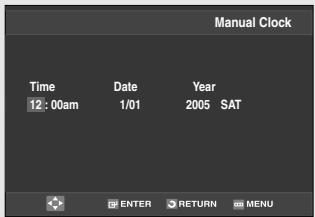
Use the ◀/▶ buttons to select each of the following options, then use the ▲/▼ buttons to set each option.
Press the ENTER button to set the clock.
text_image
Manual Clock Time Date Year 12:00am 1/01 2005 SAT ENTER RETURN MENU6
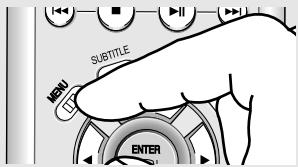
Press the MENU button to exit.
text_image
SUBTITLE MENU ENTERMemorizing the Channels
Selecting the Video Signal-source
This feature allows you to manually set the DVD-VCR's tuner band to Antenna or Cable, whichever you connected to the Antenna In jack during initial setup.
1
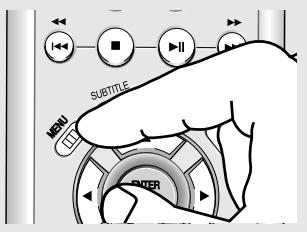
Press the MENU button.
text_image
MONI SUTTITLE POTER2
Press the ▲/▼ buttons to select Setup, then press the ▶ or ENTER button.
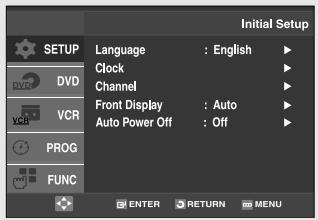
text_image
Initial Setup Language : English ▶ Clock ▶ Channel ▶ Front Display : Auto ▶ Auto Power Off : Off ▶ FUNC ENTER RETURN MENU3
Press the ▲/▼ buttons to select Channel, then press the ▶ or ENTER button.
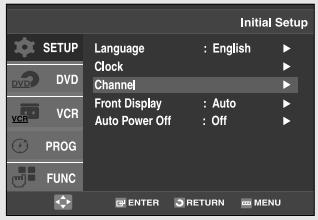
text_image
Initial Setup Language : English ▶ Clock ▶ Channel ▶ Front Display : Auto ▶ Auto Power Off : Off FUNC ENTER RETURN MENU4
Press the ▶ or ENTER button to select Antenna or Cable TV.
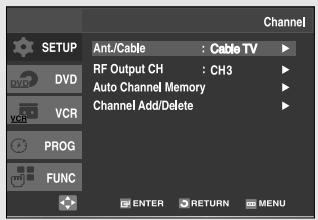
text_image
SETUP Ant/Cable : Cable TV RF Output CH : CH3 Auto Channel Memory Channel Add/Delete VCR PROG FUNC ENTER RETURN MENU- Antenna: Select this if the DVD-VCR is connected to an indoor or outdoor VHF/UHF antenna.
- Cable TV: Select this if the DVD-VCR is connected to Cable TV.
Storing Channels in Memory (Automatic Method)
Auto Channel Memory will automatically seek and store all active channels in your area.
5
Press the ▲/▼ buttons to select Auto Channel Memory, then press the ▶ or ENTER button.
The DVD-VCR will automatically search for all available channels.
This procedure may take a few minutes to complete.
When finished, the lowest channel found will be displayed.
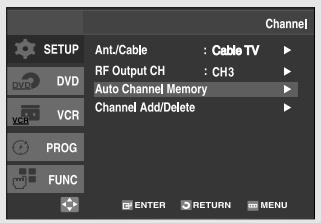
text_image
AnL/Cable : Cable TV RF Output CH : CH3 Auto Channel Memory Channel Add/Delete ENTER RETURN MENU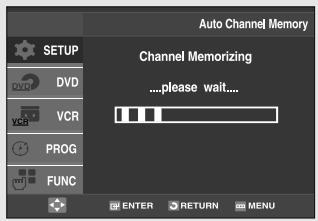
text_image
Auto Channel Memory Channel Memorizing ....please wait.... ENTER RETURN MENUNote
Do not turn the power off when Auto Channel Memory function is proceeding as not all channels will be memorized.
Adding and Erasing Channels (Manual Method)
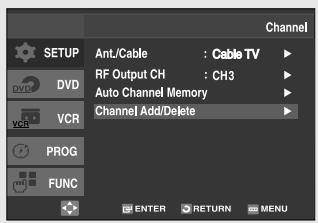
Use this feature if Auto Channel Search missed a channel that you would like to add, or to delete a channel you wish to remove.
6
Press the ▲/▼ buttons to select Channel Add/Delete, then press the ▶ or ENTER button.
text_image
SETUP DVD VCR PROG FUNC Ant/Cable : Cable TV RF Output CH : CH3 Auto Channel Memory Channel Add/Delete ENTER RETURN MENU7
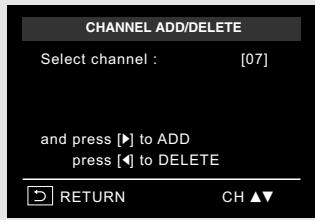
Press the CH ∧/∨ buttons to tune in the channel number you wish to add or delete. Use the number button to select the channel directly.
text_image
CHANNEL ADD/DELETE Select channel : [07] and press [▶] to ADD press [◀] to DELETE RETURN CH ▲▼8
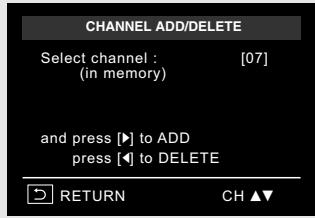
Press the ◀ or ▶ button to delete the channel from your channel list or to add.
Repeat steps 7 to add or to delete additional channels.
Press the MENU button to exit.
text_image
CHANNEL ADD/DELETE Select channel : [07] (in memory) and press [▶] to ADD press [◀] to DELETE RETURN CH ▲▼Note
Use the number buttons to select the channel directly.
Selecting the RF Output Channel
Use this feature if DVD-VCR is connected to TV using RF antenna cable.
1
Press the MENU button.
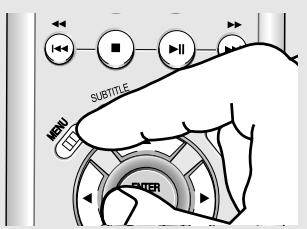
text_image
MENI ENTER2
Press the ▲/▼ buttons to select Setup, then press the ▶ or ENTER button.
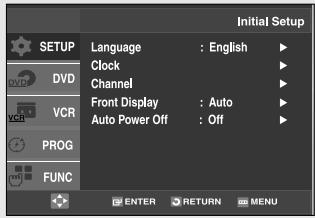
text_image
Initial Setup Language : English ▶ Clock ▶ Channel ▶ Front Display : Auto ▶ Auto Power Off : Off ▶ FUNC ENTER RETURN MENU3
Press the ▲/▼ buttons to select Channel, then press the ▶ or ENTER button.
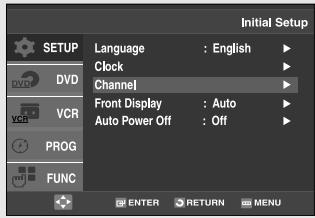
text_image
Initial Setup Language : English ▶ Clock ▶ Channel ▶ Front Display : Auto ▶ Auto Power Off : Off ▶ FUNC ENTER RETURN MENU4
Press the ▲/▼ buttons to select RF Output CH, then press the ▶ or ENTER button to select CH3 or CH4.
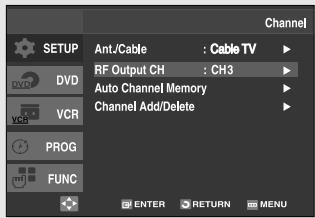
text_image
SETUP Ant/Cable : Cable TV RF Output CH : CH3 Auto Channel Memory Channel Add/Delete VCR PROG FUNC ENTER RETURN MENU5
Press the MENU button to exit.
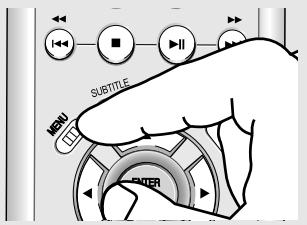
text_image
SUBTITLE MENU ENTERSetting the Front Panel Display
You can set the Front Panel Display to be bright all the time, dim all the time, or to automatically dim during power off.
1
Press the MENU button.
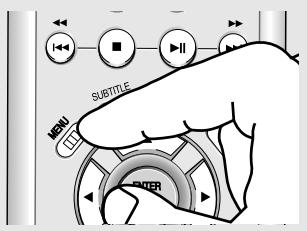
text_image
SUBTITLE MENU ENTER2
Press the ▲/▼ buttons to select Setup, then press the ▶ or ENTER button.
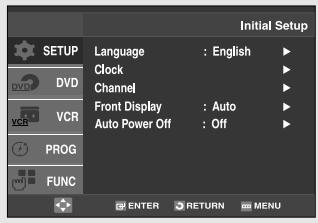
text_image
Initial Setup Language : English ▶ Clock ▶ Channel ▶ Front Display : Auto ▶ Auto Power Off : Off ▶ FUNC ENTER RETURN MENU3
Press the ▲/▼ buttons to select Front Display, then press the ▶ or ENTER button to select Auto, Bright or Dim.
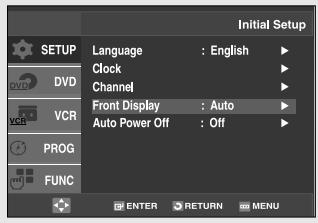
text_image
Initial Setup Language : English ▶ Clock ▶ Channel ▶ Front Display : Auto ▶ Auto Power Off : Off ▶ FUNC ENTER RETURN MENU4
Press the MENU button to exit.
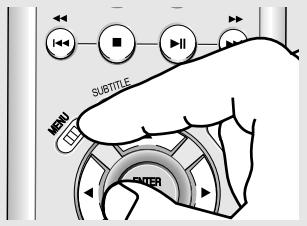
text_image
NOT SUBTITLE MENU ENTER■ Auto: Front Panel Display will dim automatically during power off.
■ Bright: Front Panel Display will be bright all the time.
■ Dim: Front Panel Display will be dim all the time.
Setting the Power Off Automatically
This feature automatically turns off your DVD-VCR if no signal is received and you do not press any buttons for the selected time.
1
Press the MENU button.
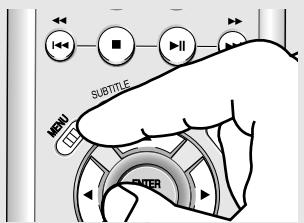
text_image
SUBTITLE MENU ENTER2
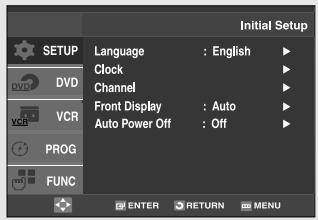
Press the ▲/▼ buttons to select Setup, then press the ▶ or ENTER button.
text_image
Initial Setup Language : English ▶ Clock ▶ Channel ▶ Front Display : Auto ▶ Auto Power Off : Off ▶ FUNC ENTER RETURN MENU3
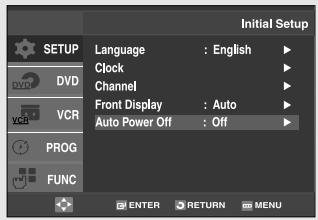
Press the ▲/▼ buttons to select Auto Power Off, then press the ▶ or ENTER button to select Off, 1Hr or 2Hr.
text_image
Initial Setup Language : English Clock Channel Front Display : Auto Auto Power Off : Off PROG FUNC ENTER RETURN MENU4
Press the MENU button to exit.
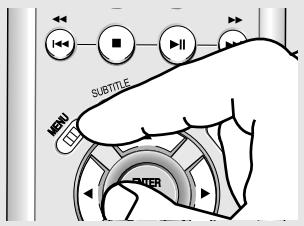
text_image
MENU SUBTITLE ENTER■ Off: Auto power off is disabled.
■ 1Hr: DVD-VCR will auto shut off 1 hour after the last button is pressed or no signal is received.
■ 2Hr: DVD-VCR will auto shut off 2 hours after the last button is pressed or no signal is received.
Chapter 4
DVD OPERATIONS
Playing a Disc
Before Play
- Turn on your TV and set it to the correct Video Input on your TV's remote control.
- If you connected an external Audio System, turn on your Audio System and set it to the correct Audio Input.
Playback
1
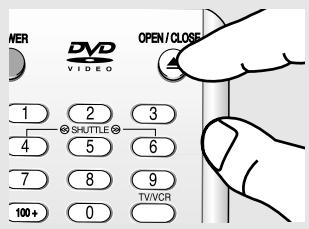
Press the OPEN/CLOSE (▲) button.
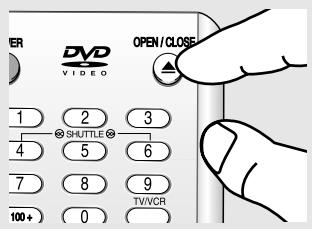
text_image
DVD VIDEO OPEN/CLOSE 1 2 3 SHUTTLE 6 4 5 7 8 9 TV/WR 100+ 02
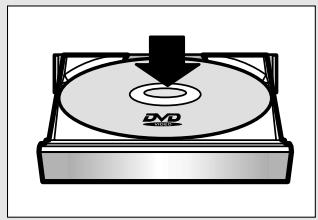
Place a disc gently into the tray with the disc's label facing up.
natural_image
Illustration of a DVD disc being placed on a stand (no text or symbols)3
Press the ▶II (Play/Pause) button on your remote control or on the front panel.
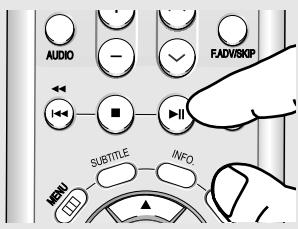
text_image
AUDIO FADVISKIP SUBTITLE INFO. MENUMost discs will start to play back as soon as the tray closes.
4
Stopping Play
Press the ■ (Stop) button during play.
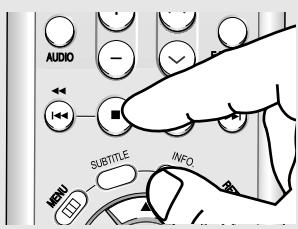
text_image
AUDIO SUBTITLE INFO MENU◀ Stop/Resume
- Press the ■(Stop) button once to stop playback. To resume the DVD/VCD/CD from the point where the disc stopped, press the ▶II (Play/Pause) button.
- Press the ■ (Stop) button twice to completely stop playback. The next time you press the ▶II (Play/Pause), the disc will start over from the beginning.
5
Pausing Play
Press the ▶II (Play/Pause) button on your remote control or on the front panel during play.
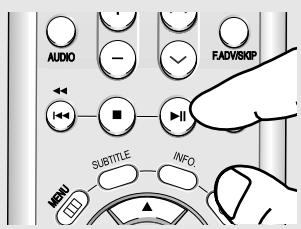
text_image
AUDIO FADVISKOP I← ■ II SUBTITLE INFO. MENU6
Step Motion Play (Except CD)
Press the F.ADV button on the remote control during play.
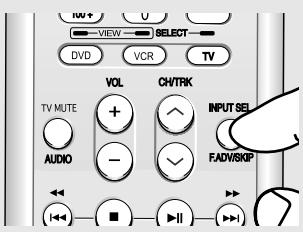
text_image
HIV VIEW SELECT DVD VCR TV VOL CH/TRK TV MUTE + - INPUT SEL AUDIO - FAD/RSKP7
Slow Motion Play (Except CD)
Press and hold the ▶▶ (Forward) button to choose the play speed between 1/8, 1/4 and 1/2 of normal during PAUSE or STEP mode.
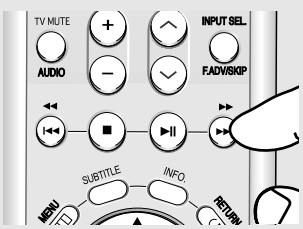
text_image
TV MUTE AUDIO INPUT SEL. FADV/SKIP SUBTITLE INFO. RETURN◀ - Screen stops, no sound.
- To resume, press the ▶II (Play/Pause) button once again.
Note
If the player is left for about 5 minutes in pause mode, it will stop.
- Each time the button is pressed, a new frame will appear.
- No sound is heard during STEP mode.
- Press the ▶II (Play/Pause) button to resume normal play.
- You can only perform step motion play in the forward direction.
◀ - No sound is heard during slow mode.
- Press the ▶II (Play/Pause) button to resume normal play.
- Reverse slow motion play will not work.
Note
This ( ⊙ ) icon indicates an invalid button press.
8
To remove the Disc
Press the OPEN/CLOSE (▲) button.
text_image
NER DVD VIDEO OPEN / CLOSE 1 2 3 SHUTTLE 4 5 6 7 8 9 100+ 0 TV/VCRUsing the Search and Skip Functions
During play, you can search quickly through a chapter or track, and use the skip function to jump to the next selection.
Searching through a Chapter or Track
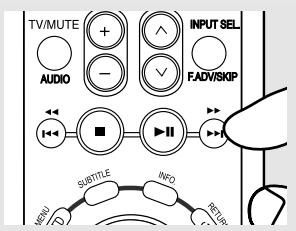
During play, press and hold the ◀◀/▶▶ (Search) buttons on the remote control for more than 1 second.
text_image
TV/MUTE AUDIO INPUT SEL FADV/SKIP SUBTITLE INFO RELIPIf you want to search at a faster speed on the DVD or CD, press and hold the button.
| DVD | 2X, 4X, 8X, 16X, 32X,128X |
| VCD,CD | 2X, 4X, 8X |
Notes
- The speed marked in this function may be different from the actual playback speed.
- No sound is hearing during search mode (Except CD).
Skipping Tracks
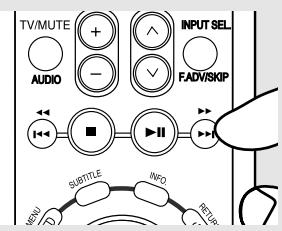
During play, press the ◀◀◀/▶◀ (Skip) buttons.
text_image
TV/MUTE AUDIO INPUT SEL FADVISKIP SUBTITLE INFO MENU D- When playing a DVD, if you press the ▶▶▶ (Skip) button, it moves to the next chapter. If you press the ◀◀◀ (Skip) button, it moves to the beginning of the current chapter. One more press makes it move to the beginning of the previous chapter.
Using the Display Function
When Playing a DVD/VCD/CD
1
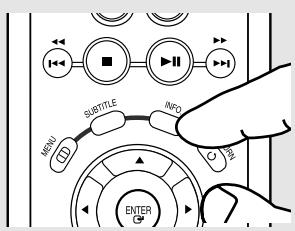
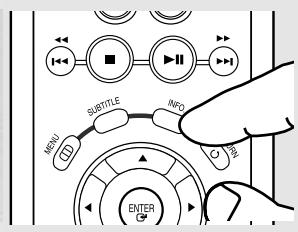
During play, press the INFO. button on the remote control.
text_image
Diagram showing hand interacting with a control panel with labeled buttons and directional indicators◀ You can select Information in the DVD Function menu by pressing the INFO button.
2
Press the ▲/▼ buttons to select the desired item.
DVD
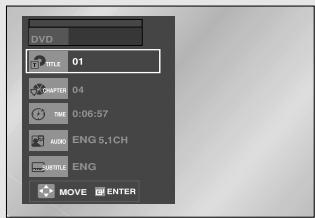
text_image
DVD TITLE 01 CHAPTER 04 TIME 0:06:57 AUDIO ENG 5,1CH TITLE ENG MOVE ENTERVCD
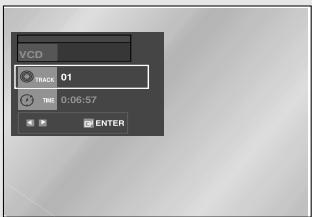
text_image
VCD TRACK 01 TIME 0:06:57 ENTERCD
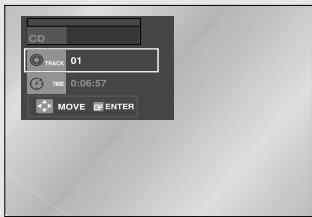
text_image
CD TRACK 01 TIME 0:06:57 MOVE ENTER◀ You may use the number buttons of the remote control to directly access a title, chapter or to start the playback from a desired time.
3
Press the ◀/▶ buttons to make the desired setup and then press the ENTER button.
4
To exit the menu, press the INFO. button again.
text_image
NOT SUBTITLE INFO ENTERNote
 | To access the desired title when there is more than one in the disc.For example, if there is more than one movie on a DVD, each movie will be identified. |
  | Most DVD discs are recorded in chapters so that you can quickly find a specific passage (similar to tracks on an audio CD). |
 | Allows playback of the film from a desired time. You must enter the starting time as a reference.The time search function does not operate on some discs. |
 | Refers to the film's soundtrack language. In the example, the soundtrack is played in English 5.1CH.A DVD disc can have up to eight different soundtracks. |
 | Refers to the subtitle languages available in the disc.You will be able to choose the subtitle languages or, if you prefer, turn them off from the screen.A DVD disc can have up to 32 different subtitles. |
Using the Disc and Title Menu (DVD/VCD)
1
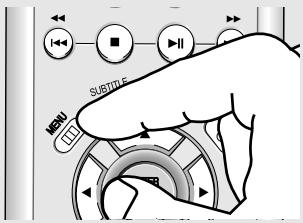
During playback of a DVD disc, press the MENU button on the remote control.
text_image
SUBTITLE MSN◀ MENU button can be used to access Disc and title menus on a DVD during playback.
2
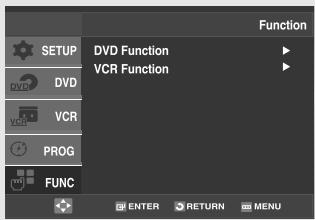
Press the ▲/▼ buttons to select Function, then press the ▶ or ENTER button.
text_image
DVDF Function VCR FunctionWhen VCD 2.0 is in Menu Off mode only, this function works. Select Menu Off by pressing the DISC MENU button.
3
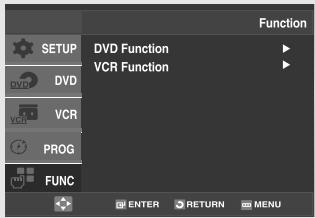
Press the ▲/▼ buttons to select DVD Function, then press the ▶ or ENTER button.
text_image
SETUP DVD Function VCR Function VCR PROG FUNC Function ENTER RETURN MENU4
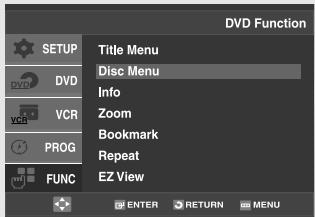
Press the ▲/▼ buttons to select Title Menu or Disc Menu then press the ▶ or ENTER button.
text_image
DVD Function SETUP Title Menu Disc Menu Info Zoom Bookmark Repeat EZ View VCR PROG FUNC ENTER RETURN MENUNotes
- Depending on the disc, the Disc Menu or Title Menu may not be available.
- You can also use the Disc Menu by using the DISC MENU button on the remote control.
- Title Menu will only be displayed if there are at least two titles in the disc.
Using the Function Menu (DVD/VCD)
1
During the playback of a DVD disc, press the MENU button on the remote control.
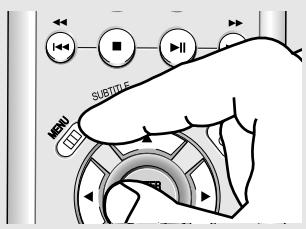
text_image
SUBTITLE MSNI◀ MENU button can be used to access DVD functions such as Information, Zoom, Bookmark, Repeat and EZ view menu during DVD playback.
2
Press the ▲/▼ buttons to select Function, then press the ▶ or ENTER button.
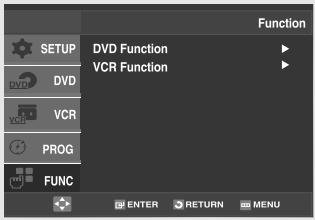
text_image
DV VCR Function SETUP DVD Function VCR Function VBR PROG FUNC FUNCTION ENTER RETURN MENU3
Press the ▲/▼ buttons to select DVD Function, then press the ▶ or ENTER button.
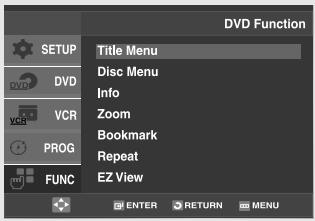
text_image
DVD Function SETUP Title Menu Disc Menu Info Zoom Bookmark Repeat EZ View VCR PROG FUNC ENTER RETURN MENU- Info
(See pages 36 to 37) - Zoom (See page 48)
- Bookmark
(See pages 47 to 48) - Repeat (See pages 40 to 41)
- EZ View
(See pages 43 to 44)
4
Press the ▲/▼ buttons to select one of the five functions. Then press the ▶ or ENTER button to access the function.
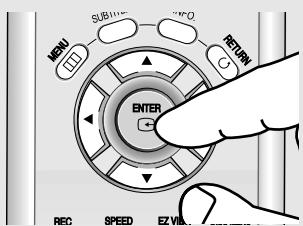
text_image
MENU SUB REC RETURN ENTER REC SPEED EZ VIND◀ You can also directly select these functions using their respective buttons on the remote control.
- Info
- MARK
- REPEAT
Repeat Play
Repeat the current track, chapter, title, a chosen section (A-B), or all of the disc.
When playing a DVD/VCD/CD
1
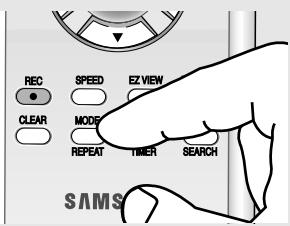
During play, press the REPEAT button on the remote control. Repeat screen appears.
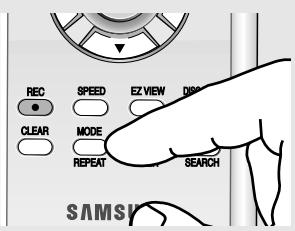
text_image
REC SPEED EZ VIEW DISH CLEAR MODE REPEAT SEARCH SAMSI2
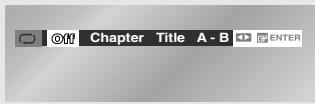
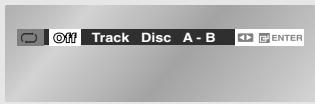
Press the ◀/▶ buttons to select Chapter, Title or A-B, then press the ENTER button.
DVD
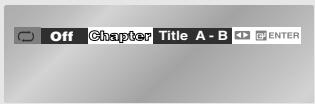
text_image
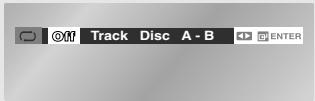
Off Chapter Title A - B ENTERVCD/CD
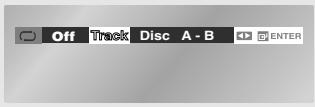
text_image
Off Track Disc A - B ENTER◀ DVD repeats play by chapter or title, and CD repeats play by track or disc.
- Chapter: repeats the chapter that is playing.
- Title: repeats the title that is playing.
- Track: repeats the track that is playing.
- Disc: repeats the disc that is playing.
- A-B: repeats a segment of the disc that you select.
3
To return to normal play, press the REPEAT button again, then press the ◀/▶ buttons to select Off and press ENTER button.
To stop repeat play, you can also press the CLEAR button.
DVD
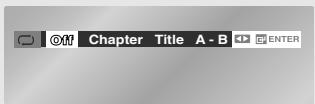
text_image
OFF Chapter Title A - B ENTERVCD/CD
text_image
Off Track Disc A - B ENTERNote
Depending on a disc, the Repeat function may not work.
Using the A-B Repeat function
1
During play, press the REPEAT button on the remote control. Repeat screen appears.
text_image
REC SPEED EZ VIEW CLEAR MODE REPEAT TIMER SEARCH SAMS2
Press the ◀/▶ buttons to select A-.
DVD
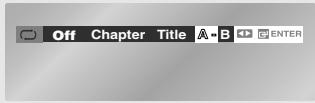
text_image
Off Chapter Title A-B ENTERVCD/CD
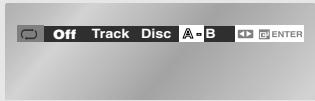
text_image
Off Track Disc A-B ENTER3
Mark the Starting Point
Press the ENTER button at the beginning of the segment you want to repeat (Point A). Once you select point A, B will be selected.
DVD
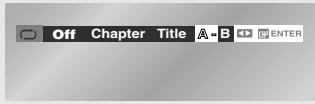
text_image
Off Chapter Title A - B ENTERVCD/CD
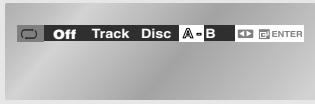
text_image
Off Track Disc A-B ENTER4
Mark the Ending Point
Press the ENTER button again at the end of the segment you want to repeat (Point B).
The segment will begin repeating in a continuous loop.
DVD
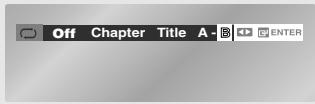
text_image
Off Chapter Title A - B ENTERVCD/CD
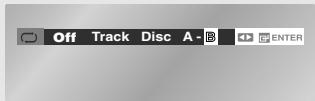
text_image
Off Track Disc A - B ENTER5
Cancel A-B Repeat
Press the REPEAT button, then press the ◀/▶ buttons to select Off and press ENTER button.
DVD
text_image
OFF Chapter Title A - B ENTERVCD/CD
text_image
Off Track Disc A - B ENTERNote
The minimum A -B Repeat time is 5 seconds.
Slow Repeat Play
This feature allows you to slowly to repeat scenes containing sports, dancing, musical instruments being played etc., so you can study them more closely.
When playing a DVD
1
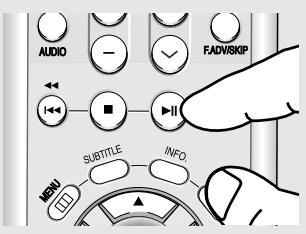
During play, press the
▶II (Play/Pause) button.
text_image
AUDIO FADVSKIP SUBTITLE INFO MENU2
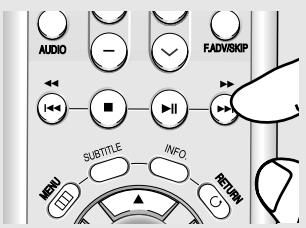
Press and hold the ▶▶ (Forward) button to choose the play speed between 1/8, 1/4 and 1/2 of normal during PAUSE or STEP mode.
text_image
AUDIO FADVISKIP SUBTITLE INFO RETURN3
Press the REPEAT button on the remote control.
Press the ◀/▶ buttons to select A-.
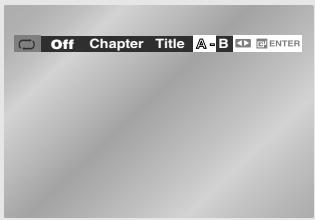
text_image
Off Chapter Title A-B ENTER4
Press the ENTER button at the point where you want repeat play to start (A).
B is automatically selected. Press the ENTER button at the point where you want the repeat play to stop (B).
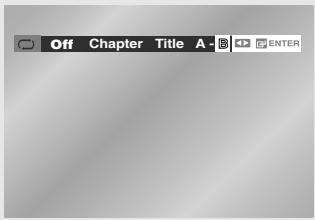
text_image
Off Chapter Title A - ENTER5
To return to normal play, press the REPEAT button, then press the ◀/▶ buttons to select Off and press ENTER button.
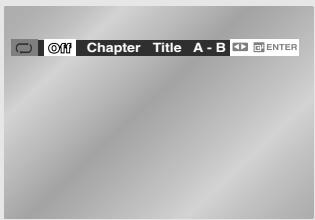
text_image
Off Chapter Title A - B ENTERTo set A-B repeat, set (A) first, then set (B) after the following slow play time has elapsed:
1/8x: wait 40 seconds, then press B
1/4x: wait 20 seconds, then press B
1/2x: wait 10 seconds, then press B
The disc will play from A to B repeatedly at the speed you chose.
Adjusting the Aspect Ratio (EZ View)
Set the aspect ratio (length x width) of your TV screen so the DVD-VCR will display movies at the appropriate size for your television.
To Playback using Aspect Ratio (DVD)
Press the EZ VIEW button.
- The screen size changes when the button is pressed repeatedly.
- The screen zoom mode operates differently depending on the screen setting in the Display Setup menu.
- To ensure correct operation of the EZ VIEW button, you should set the correct aspect ratio in the Display Setup menu. (See pages 59 to 61).
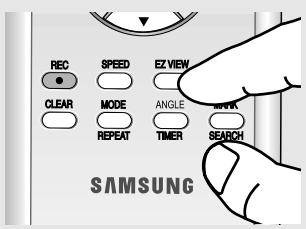
text_image
REC SPEED EZ VIEW CLEAR MODE ANGLE REPEAT TIMER SEARCH SAMSUNG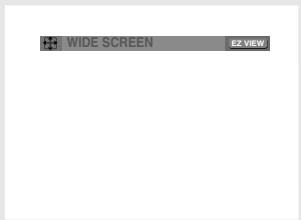
text_image
WIDE SCREEN EZ VIEWThe EZ View feature is not available when the A-B Repeat function is activated.
If you are using a 16:9 TV
For 16:9 aspect ratio discs
- WIDE SCREEN
Displays the content of the DVD title in 16:9 aspect ratio.
- SCREEN FIT
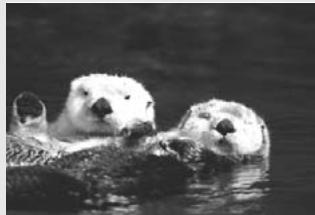
The top and bottom portions of the screen are cut off. When playing a 2.35:1 aspect ratio disc, the black bars at the top and bottom of the screen will disappear. The picture will look vertically stretched. (Depending on a type of disc, the black bars may not disappear completely.)
- ZOOM FIT
The top, bottom, left and right of the screen are cut off and the central portion of the screen is enlarged.
For 4:3 aspect ratio discs
- NORMAL WIDE
Displays the content of the DVD title in 16:9 aspect ratio. The picture will look horizontally stretched.
- SCREEN FIT
The top and bottom portions of the screen are cut off and the full screen appears. The picture will look vertically stretched.
- ZOOM FIT
The top, bottom, left and right portions of the screen are cut off and the central portion of the screen is enlarged.
- VERTICAL FIT
When a 4:3 DVD is viewed on a 16:9 TV, black bars will appear at the left and right of the screen in order to prevent the picture from looking horizontally stretched.
If you are using a 4:3 TV
For 16:9 aspect ratio discs
- 4:3 Letter Box
Displays the content of the DVD title in 16:9 aspect ratio. The black bars will appear at the top and bottom of the screen.
- 4:3 Pan Scan
The left and right portions of the screen are cut off and the central portion of the 16:9 screen is displayed.
- SCREEN FIT
The top and bottom portions of the screen are cut off and a full screen appears. The picture will look vertically stretched.
- ZOOM FIT
The top, bottom, left and right of the screen are cut off and the central portion of the screen is enlarged.
For 4:3 aspect ratio discs
- NORMAL SCREEN
Displays the content of the DVD title in 4:3 aspect ratio.
- SCREEN FIT
The top and bottom portions of the screen are cut off and the full screen appears. The picture will look vertically stretched.
- ZOOM FIT
The top, bottom, left and right portions of the screen are cut off and the central portion of the screen is enlarged.
natural_image
Black-and-white photo of three otter on water, no text or symbols visible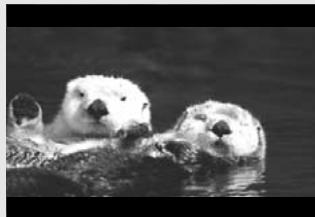
natural_image
Black-and-white photo of two otter on water, no text or symbols visibleNote
This function may behave differently depending on the type of disc.
Selecting the Audio Language
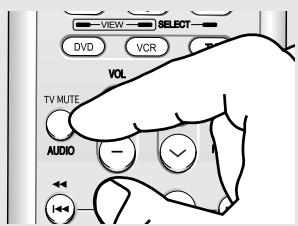
You can select a desired audio language quickly and easily with the AUDIO button.
Using the AUDIO button (DVD/VCD/CD)
1
During play, press the AUDIO button.
Audio languages change when the ◀/▶ button is pressed repeatedly.
The audio languages are represented by abbreviations.
text_image
VIEW SELECT DVD VCR VOL TV MUTE AUDIO -DVD
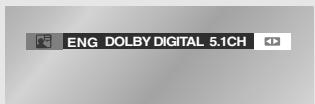
text_image
ENG DOLBY DIGITAL 5.1CHVCD/CD
When playing a CD, you can select among Stereo, Right or Left.

text_image
Stereo2
To remove the AUDIO icon, press the AUDIO, CLEAR or RETURN button.
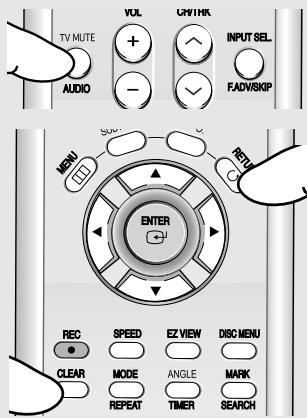
text_image
TV MUTE AUDIO VOL CW/HK INPUT SEL FADV/SKIP MENU Enter REC SPEED EZ VIEW DISC MENU CLEAR MODE ANGLE MARK REPEAT TIMER SEARCHNotes
- To change the desired audio in the Disc Menu, press the DISC MENU button.
- This function depends on what audio languages are encoded on the disc and may not work on all DVDs.
- A DVD disc can contain up to 8 audio languages.
- To have the same audio language come up whenever you play a DVD, see pages 57 to 58.
Selecting the Subtitle Language
You can select a desired subtitle quickly and easily with the SUBTITLE button.
Using the SUBTITLE button (DVD)
1
During play, press the SUBTITLE button.
The subtitle changes when the ◀/▶ button is pressed repeatedly.
The subtitle languages are represented by abbreviations.

text_image
SUBTITLE MENU C RETURN BNT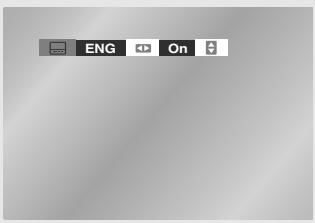
text_image
ENG OnNotes
- To change the desired subtitle in the Disc Menu, press the DISC MENU button.
- This function depends on what subtitles are encoded on the disc and may not be available on all DVDs.
- A DVD disc can contain up to 32 subtitle languages.
- To have the same subtitle language come up whenever you play a DVD, see pages 57 to 58.
2
To remove the SUBTITLE icon, press the SUBTITLE, CLEAR or RETURN button.
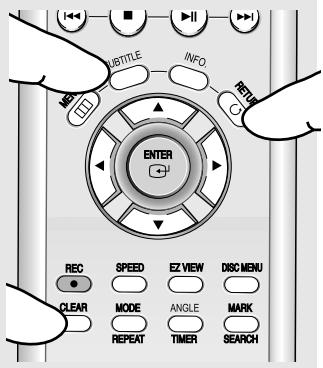
text_image
UBTITLE INFO. ENTER REC SPEED EZ VIEW DISC MENU CLEAR MODE ANGLE MARK REPEAT TIMER SEARCHChanging the Camera Angle
When a DVD contains multiple angles of a particular scene, you can use the ANGLE function.
Using the ANGLE button (DVD)
If the disc contains multiple angles, the ANGLE (💡) icon appears on the screen.
1
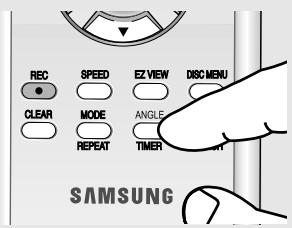
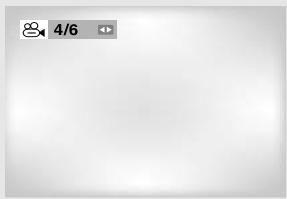
Press the ANGLE button, then the ANGLE icon will appear with the current angle number and the number of angles available.
text_image
REC SPEED EZ VIEW DISC MENU CLEAR MODE ANGLE REPEAT TIMER SAMSUNG2
Press the ◀/▶ buttons repeatedly to select the desired angle. To remove the ANGLE icon, press the CLEAR or RETURN button.
text_image
4/6Note
If the disc has only one angle, this feature won't work. Currently, very few discs have this feature.
Using the Bookmark Function
This feature lets you bookmark sections of a DVD so you can quickly find them at a later time.
Using the MARK button (DVD/VCD)
1
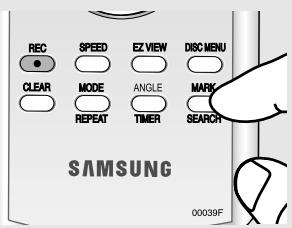
During play, press the MARK button on the remote control.
text_image
REC SPEED EZ VIEW DISC MENU CLEAR MODE ANGLE MARK REPEAT TIMER SEARCH SAMSUNG 00039F2
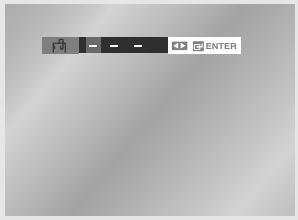
When you reach the scene you want to mark, press the ENTER button. Up to three scenes may be marked at a time.
text_image
ENTERNote
Depending on a disc, the Bookmark function may not work.
When VCD 2.0 is in Menu Off mode only, this function works. Select Menu Off by pressing the DISC MENU button.
Recalling a Marked Scene
1
During play, press the MARK button on the remote control.
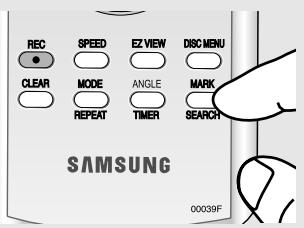
text_image
REC SPEED EZ VIEW DISC MENU CLEAR MODE ANGLE MARK REPEAT TIMER SEARCH SAMSUNG 00039F2
Press the ◀/▶ buttons to select a marked scene.
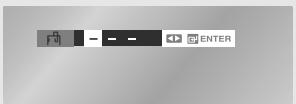
text_image
向 - - ENTER3
Press the ▶II (Play/Pause) button to skip to the marked scene.
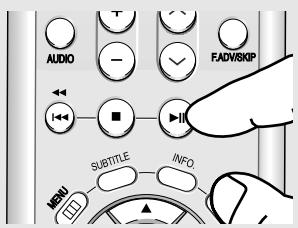
text_image
AUDIO FADWSKIP SUBTITLE INFO. MENUClearing a Bookmark
1
During play, press the MARK button on the remote control.
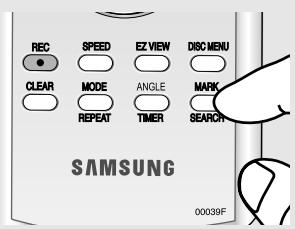
text_image
REC SPEED EZ VIEW DISC MENU CLEAR MODE ANGLE MARK REPEAT TIMER SEARCH SAMSUNG 00039F2
Press the ◀/▶ buttons to select the bookmark number you want to delete.
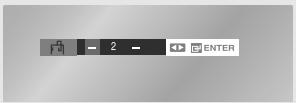
text_image
ENTER 23
Press the CLEAR button to delete a bookmark number.
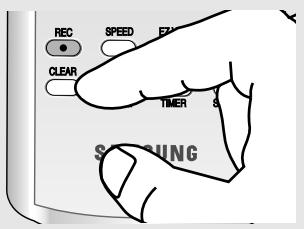
text_image
REC SPEED EX CLEAR TIMER SINGUsing the Zoom Function (DVD/VCD)
1
During the playback of a DVD disc, press the MENU button on the remote control.
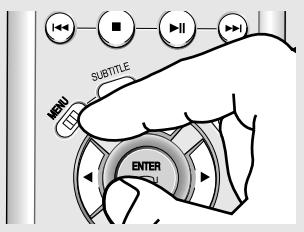
text_image
SUBTITLE MENU ENTER2
Press the ▲/▼ buttons to select Function, then press the ▶ or ENTER button.
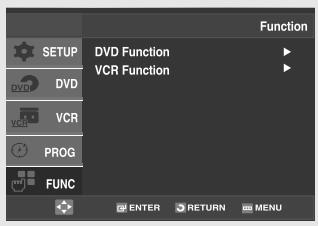
text_image
FUNCTION SETUP DVD Function VCR Function VCR PROG FUNC ENTER RETURN MENU3
Press the ▲/▼ buttons to select DVD Function, then press the ▶ or ENTER button.
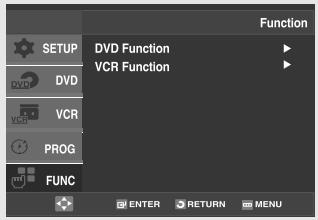
text_image
SETUP DVD Function VCR Function VCR PROG FUNC Function ENTER RETURN MENU4
Press the ▲/▼ buttons to select Zoom, then press the or ENTER button.
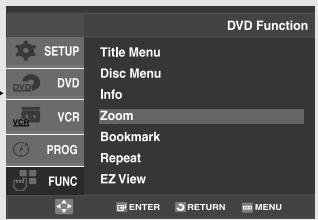
text_image
DVD Function Title Menu Disc Menu Info Zoom Bookmark Repeat EZ View ENTER RETURN MENU5
Press the ▲/▼ or ◀/► buttons to select the part of the screen you want to zoom in on.
Press the ENTER button.
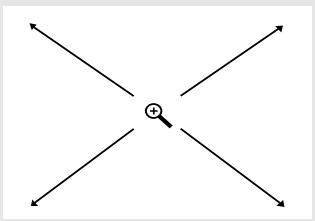
flowchart
graph TD
    A["+"] --> B[" "]
    A --> C[" "]
    A --> D[" "]
    A --> E[" "]
During DVD play, press ENTER to zoom in 2X/4X/2X/Normal in order. During VCD play, press ENTER to zoom in 2X / normal in order.
Note
Depending on a disc, the Zoom function may not be available.
When VCD 2.0 is in Menu Off mode only, this function works. Select Menu Off by pressing the DISC MENU button.
Clips Menu for MP3/WMA/JPEG
Discs with MP3/WMA/JPEG contain individual songs and/or pictures that can be organized into folders as shown below. They are similar to how you use your computer to put files into different folders.
1
Open the disc tray.
2
Place the disc on the tray.
3
Close the tray. The tray closes and this screen displays.
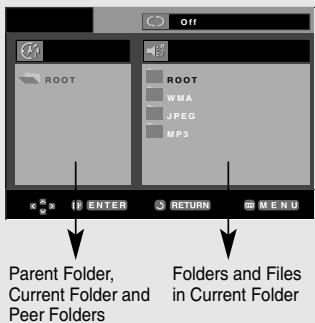
text_image
Off ROOT ROOT WMA JPEG MP3 ENTER RETURN MENU Parent Folder, Current Folder and Peer Folders Folders and Files in Current Folder- : Name of currently playing file.
- : Current Playback Time.
- : Current Playback Mode : There are four modes. They can be selected in order by pressing the REPEAT button.
- Off: Normal Playback
- Track: Repeats the current track.
- Folder: Repeats the current folder.
-
Random: Files in the disc will be played in random order.
-
MP3 : MP3 file icon.
- WMA : WMA file icon.
- JPG : JPEG file icon.
- : Folder icon.
- : Current Folder icon.
Folder Selection
The folder can only be selected in the Stop mode.
- To select the Parent Folder
Press the RETURN button to go the to parent folder, or press the ▲/▼ buttons to select “..” and press the ENTER button to go to the parent folder.
- To select the Peer Folder
Press the ◀/▶ buttons to highlight the left window. Press the ▲/▼ buttons to select the desired folder, then the ENTER button.
- To select the Sub-Folder
Press the ◀/▶ buttons to highlight the right window. Press the ▲/▼ buttons to select the desired folder, then press the ENTER button.
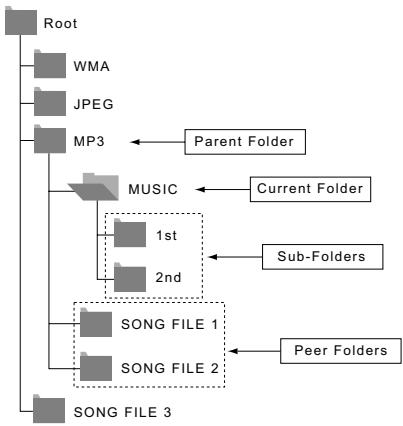
flowchart
graph TD
    A["Root"] --> B["WMA"]
    A --> C["JPEG"]
    A --> D["MP3"]
    D --> E["Parent Folder"]
    D --> F["MUSIC"]
    F --> G["Current Folder"]
    F --> H["1st"]
    F --> I["2nd"]
    F --> J["SONG FILE 1"]
    F --> K["SONG FILE 2"]
    F --> L["Peer Folders"]
    F --> M["SONG FILE 3"]
MP3/WMA Playback
1
Open the disc tray.
2
Place the disc on the tray.
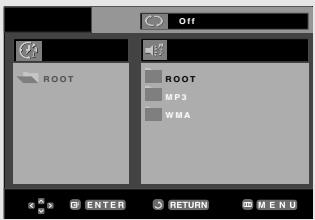
text_image
Off ROOT ROOT MP3 WMA ENTER RETURN MENU3
Close the tray.
4
Press the ▲/▼ or ◀/▶ buttons to select a song file.
Press the ENTER button to begin playback of the song file.
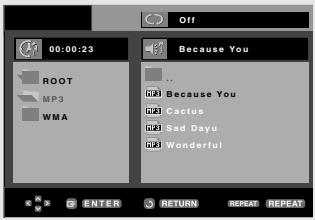
text_image
00:00:23 ROOT MP3 WMA Because You ... Because You Cactus Sad Dayu Wonderful ENTER RETURN REPEAT REPEATWhen a disc or a folder contains both MP3 and WMA files, only one type will be played, not both.
Notes
- Depending on the recording method, some MP3 CD-Rs may not be played.
- Only MP3/WMA Format files with the “.mp3 and .wma” extensions can be played.
Repeat/Random playback
During play, press the REPEAT button to change the playback mode. There are four modes.
Off, Track, Folder and Random.
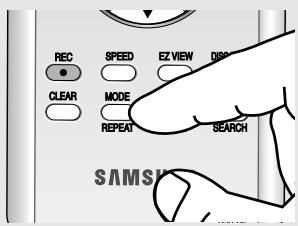
text_image
REC SPEED EZ VIEW DISP CLEAR MODE REPEAT SEARCH SAMSI- Off: Normal Playback
- Track: Repeats the current song file.
- Folder: Repeats the song files which have the same extension in the current folder.
- Random: Song files which have the same extension will be played in random order.
To resume normal play, press the CLEAR button.
MP3/WMA file
When you record MP3 or WMA files on CD-R, please refer to the following.
- Your MP3 or WMA files should be ISO 9660 or JOLIET format.
ISO 9660 format and Joliet MP3 or WMA files are compatible with Microsoft's DOS and Windows, and with Apple's Mac. This format is the most widely used. - When naming your MP3 or WMA files, do not exceed 8 characters, and enter “.mp3, .wma” as the file extension.
General name format : Title.mp3. or Title.wma. When composing your title, make sure that you use 8 characters or less, have no spaces in the name, and avoid the use of special characters including: (.,/,\,=,+). - Use a decompression transfer rate of at least 128 Kbps when recording MP3 files.
Sound quality with MP3 files basically depends on the rate of compression/decompression you choose. Getting CD audio sound requires an analog/digital sampling rate, that is conversion to MP3 format, of at least 128 Kbps and up to 160 Kbps. However, choosing higher rates, like 192
Kbps or more, only rarely give better sound quality. Conversely, files with decompression rates below 128 Kbps will not be played properly.
- Use a decompression transfer rate of at least 64Kbps when recording WMA files.
Sound quality with WMA files basically depends on the rate of compression/decompression you choose.
Getting CD audio sound requires an analog/digital sampling rate, that is conversion to WMA format, of at least 64Kbps and up to 192Kbps.
Conversely, files with decompression rates below 64Kbps or over 192Kbps will not be played properly.
- Do not try recording copyright protected MP3 files.
Certain "secured" files are encrypted and code protected to prevent illegal copying. These files are of the following types: Windows MediaTM (registered trade mark of Microsoft Inc) and SDMITM (registered trade mark of The SDMI Foundation). You cannot copy such files.
- Important:
The above recommendations cannot be taken as a guarantee that the DVD-VCR will play MP3 recordings, or as an assurance of sound quality. You should note that certain technologies and methods for MP3 file recording on CD-Rs prevent optimal playback of these files on your DVD-VCR (degraded sound quality and in some cases, inability of the player to read the files).
- This unit can play a maximum of 3000 files and 300 folders per disc.
Program Play & Random Play
You can listen to songs randomly or in the desired sequence.
Up to 20 tracks can be programmed.
This function is available only with Audio CDs.
Program Play
1
With the unit in stop mode, press the REPEAT button.
- The play mode menu will appear.
2
Press the ◀ or ▶ buttons to select PROGRAM, then press the ENTER button.
- The program play screen will appear.
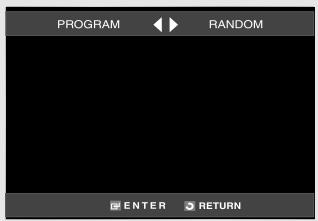
text_image
PROGRAM RANDOM ENTER RETURN3
Press the ▲/▼ or ◀/▶ buttons to select the desired track, then press the ENTER button.
- The selected track will be added to the Program order.
- If you delete the track, press the CLEAR button. The track added last will be deleted from the Program order.
4
To finish programming and start playback, press the ▶II button.
The disc will be played in programmed order.
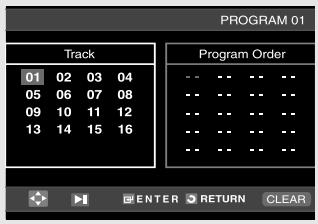
text_image
PROGRAM 01 Track 01 02 03 04 05 06 07 08 09 10 11 12 13 14 15 16 Program Order -- -- -- -- -- -- -- -- -- -- -- -- -- -- -- -- -- -- -- -- -- -- -- -- -- -- -- -- ENTER RETURN CLEARNote
Random Play
- With the unit in stop mode, press the REPEAT button.
- The play mode menu will appear.
- Press the ◀ or ▶ buttons to select Random, then press the ENTER button.
- The disc will be played in random order.
Note
If the disc tray is opened during programming, program play will be canceled.
• To Cancel Programming
- Press the REPEAT button. The program will not be saved and the program screen will disappear.
• To Cancel Program Play
- During playback or in Stop mode, press the CLEAR button.
Picture CD Playback
1
Select the desired folder, then press the ENTER button.
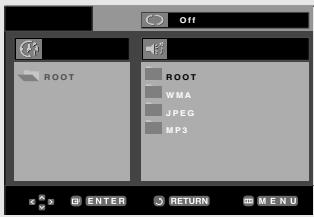
text_image
Off ROOT ROOT WMA JPEG MP3 ENTER RETURN MENU2
Press the ▲/▼ buttons to select a Picture file in the clips menu, then press the ENTER button.
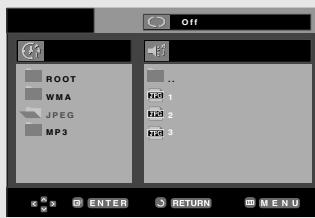
text_image
Off ROOT WMA JPEG MP3 ... Fid 1 Fid 2 Fid 3 ENTER RETURN MENU3
Press the INFO. button to display the menu.
Press the ◀/▶ buttons to select the menu you want to view, then press the ENTER button.
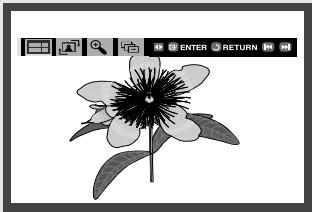
natural_image
Black-and-white line drawing of a flower with visible petals and stem, enclosed in a software toolbar (no text or symbols on the flower itself)Notes
- If no buttons on the remote control are pressed for 10 seconds, the menu will disappear.
- Press the ■(Stop) button to return to the clips menu.
- When playing a Kodak Picture CD, the unit displays the Photo directly, not the clips menu.
Album Screen
- : Returns to the Album Screen.
- To see the next six pictures, press the ▶▶▶(Skip) button.
- To see the previous six pictures, press the ◀◀◀ (Skip) button.
Rotation

: Each time the ENTER button is pressed, the picture rotates 90 degrees clockwise.
Zoom

Press the ▲/▼ or ◀/► buttons to select the part of the screen you want to zoom in on. Press the ENTER button. Each time the ENTER button is pressed, the picture is enlarged up to 4X. (2X → 4X → 2X → Normal)
Slide Show
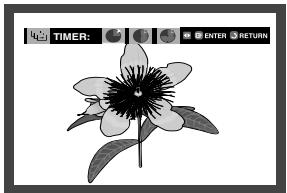
natural_image
Black-and-white illustration of a flower with visible petals and leaves, no text or symbols present.- : The unit enters slide show mode.
- Before beginning the Slide Show, the picture interval must be set.
- : When this icon is selected and ENTER is pressed, the pictures change automatically with about a 6 second interval.
- : The pictures change automatically with about a 12 second interval.
- : The pictures change automatically with about a 18 second interval.
Notes
- Depending on a file size, the amount of time between each picture may be different from the set interval time.
- If you don't press a button, the slide show will start automatically in about 10 seconds by default.
JPEG Discs
When playing a CD-R/Picture CD
- Only files with the “.jpg” and “.JPG” extensions can be played.
- If the disc is not closed, it will take longer to start playing and not all of the recorded files may be played.
- Only CD-R discs with JPEG files in ISO 9660 or Joliet format can be played.
- The name of the JPEG file may not be longer than 8 characters and should contain no blank spaces or special characters (. / = +).
- Only a consecutively written multi-session disc can be played. If there is a blank segment in the multi-session disc, the disc can be played only up to the blank segment.
- A maximum of 3000 images can be stored on a single CD.
- Kodak Picture CDs are recommended.
- When playing a Kodak Picture CD, only the JPEG files in the pictures folder can be played.
- Kodak Picture CD: The JPEG files in the pictures folder can be played automatically.
- Konica Picture CD: If you want to see the Picture, select the JPEG files in the clips menu.
- Fuji Picture CD: If you want to see the Picture, select the JPEG files in the clips menu.
- QSS Picture CD: The unit may not play QSS Picture CD.
- If the number of files in 1 Disc is over 3000, only the first 3000 JPEG files can be played.
- If the number of folders in 1 Disc is over 300, only JPEG files in the first 300 folders can be played.
Using the Setup Menu
The Setup menu lets you customize your DVD-VCR by allowing you to select various language preferences, set up a parental level, even adjust the player to the type of television screen you have.
1
With the unit in Stop mode, press the MENU button on the remote control.
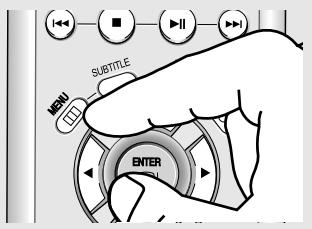
text_image
SUBTITLE ENTER2
Press the ▲/▼ buttons to select DVD, then press the ▶ or ENTER button.
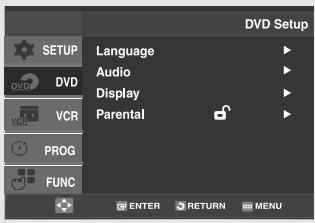
text_image
SETUP DVD VCR PROG FUNC Language Audio Display Parental DVD Setup ENTER RETURN MENU① Language: Setup of the Language.
② Audio: Setup of the Audio Options.
③ Display: Setup of the Display Options. Used to select which type of screen you want to watch and several display options.
④ Parental: Setup of the Parental Level. Allows users to set the level necessary to prevent children from viewing unsuitable movies such as those with violence, adult subject matter, etc.
3
Press the ▲/▼ buttons to access the different features. Press the ▶ or ENTER button to access the sub features.
text_image
MENU REVIEW ENTER REC SPEED EZ VIEW4
To make the DVD setup screen disappear after setting up, press the MENU button again.
text_image
SUBTITLE MENU ENTERNote
Depending on the disc, some DVD Setup menu selections may not be available.
Setting Up the Language Features
If you set the audio and subtitle language in advance, they will come up automatically every time you watch a movie.
1
With the unit in Stop mode, press the MENU button on the remote control.
text_image
SUBTITLE MENU ENTER2
Press the ▲/▼ buttons to select DVD, then press the ▶ or ENTER button.
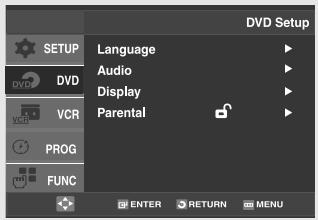
text_image
SETUP DVD VCR PROG FUNC Language Audio Display Parental DVD Setup ENTER RETURN MENU3
Press the ▲/▼ buttons to select Language, then press the ▶ or ENTER button.
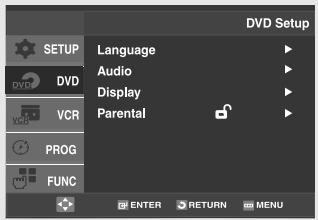
text_image
SETUP DVD VCR PROG FUNC Language Audio Display Parental DVD Setup ENTER RETURN MENU4
Press the ▲/▼ buttons to select the desired item, then press the ▶ or ENTER button.
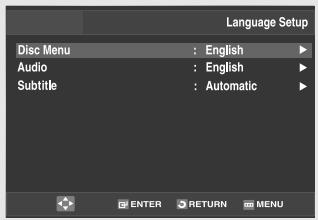
text_image
Language Setup Disc Menu : English ▶ Audio : English ▶ Subtitle : Automatic ▶ ENTER RETURN MENU5
Press the ▲/▼ buttons to select the desired language, then press the ▶ or ENTER button.
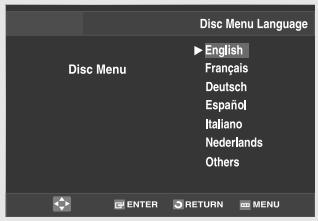
text_image
Disc Menu Language English Français Deutsch Español Italiano Nederlands Others- The language is selected and the screen returns to Language Setup menu.
- To make the DVD Setup menu disappear, press the MENU button.
Language Function
Disc Menu
To set the Disc Menu Language to your preferred language, follow these steps. If your preferred language is available on a DVD, your Disc Menu Language will automatically be set to the language you choose.
text_image
Disc Menu Language English Français Deutsch Español Italiano Nederlands OthersAudio
To set the Audio Language to your preferred language, follow these steps. If your preferred language is available on a DVD, your Audio Language will automatically be set to the language you choose.
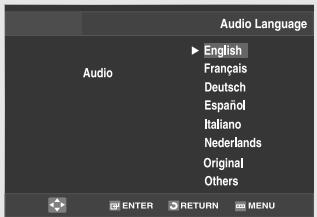
text_image
Audio Language Audio English Français Deutsch Español Italiano Nederlands Original Others ENTER RETURN MENUSubtitle
To set the Subtitle Language to your preferred language, follow these steps. If your preferred language is available on a DVD, your Subtitle Language will automatically be set to the language you choose.

text_image
Subtitle Language ▶ Automatic English Français Deutsch Español Italiano Nederlands Others- Select "Others" if the language you want is not listed.
- If the selected language is not recorded on the disc, the original pre-recorded language is selected.
- Select "Original" if you want the default soundtrack language to be the original language the disc is recorded in.
- Select "Others" if the language you want is not listed.
- If the selected language is not recorded on the disc, the original pre-recorded language is selected.
- Select "Automatic" if you want the subtitle language to be the same as the language selected as the audio language.
- Select “Others” if the language you want is not listed. Some discs may not contain the language you select as your initial language; in that case the disc will use its original language setting.
Setting Up the Audio Options
Audio Options allows you to set up sound for use with your external audio system.
1
With the DVD in Stop mode, press the MENU button on the remote control.
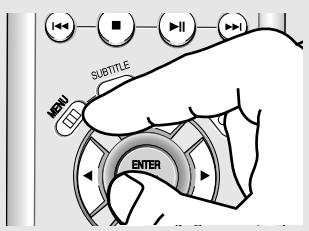
text_image
SUBTITLE ENTER2
Press the ▲/▼ buttons to select DVD, then press the ▶ or ENTER button.
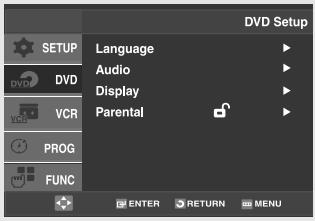
text_image
DVD Setup Language Audio Display Parental VCR PROG FUNC ENTER RETURN MENU3
Press the ▲/▼ buttons to select Audio, then press the ▶ or ENTER button.
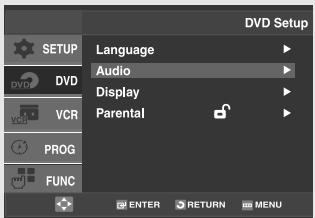
text_image
SETUP DVD VCR PROG FUNC Language Audio Display Parental DVD Setup ENTER RETURN MENU4
Press the ▲/▼ buttons to select the desired item, then press the ▶ or ENTER button.
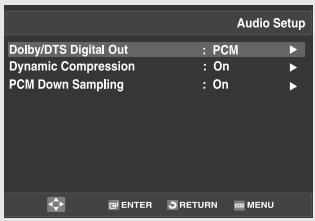
text_image
Audio Setup Dolby/DTS Digital Out : PCM Dynamic Compression : On PCM Down Sampling : On- To make the DVD Setup menu disappear, press the MENU button.
Audio Options
Dolby/DTS Digital Out
- PCM: Converts to PCM(2CH) audio.
- Bitstream: Outputs Dolby/DTS Digital via the digital output. Select Bitstream when connecting to a Dolby/DTS Digital Decoder.
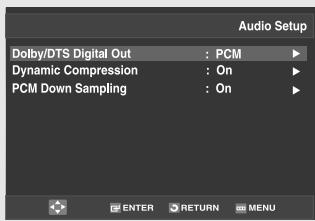
text_image
Audio Setup Dolby/DTS Digital Out : PCM Dynamic Compression : On PCM Down Sampling : OnDynamic Compression
- On: To select dynamic compression.
- Off : To select the standard range.
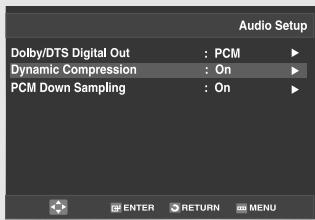
text_image
Audio Setup Dolby/DTS Digital Out : PCM ▶ Dynamic Compression : On ▶ PCM Down Sampling : On ▶PCM Down Sampling
- On: Select this when the Amplifier connected to the player is not 96KHz compatible. In this case, the 96KHz signals will be down converted to 48KHZ.
- Off: Select this when the Amplifier connected to the player is 96KHz compatible. In this case, all signals will be output without any changes.
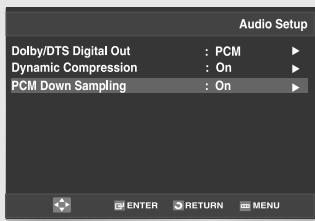
text_image
Audio Setup Dolby/DTS Digital Out : PCM ▶ Dynamic Compression : On ▶ PCM Down Sampling : On ▶ ENTER RETURN MENUNote
There is no analog audio output when you play a DTS disc.
Manufactured under license from Dolby Laboratories. "Dolby" and the double-D symbol are trademarks of Dolby Laboratories. "DTS" and "DTS Digital Out" are trademarks of Digital Theater Systems, Inc.
- Dynamic compression restrains the dynamic range of the sound, i.e. the difference between the loud and quiet passages of a DVD audio track. This is useful when watching a DVD late at night.
Note
Even when PCM Down sampling is Off, some discs will still output down sampled (48KHZ) audio through the digital outputs.
Setting Up the Display Options
Display options enable you to set various video functions of the player.
1
With the unit in Stop mode, press the MENU button on the remote control.
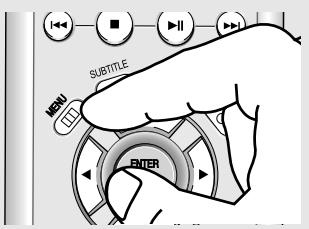
text_image
SUBTITLE MENU ENTER2
Press the ▲/▼ buttons to select DVD, then press the ▶ or ENTER button.
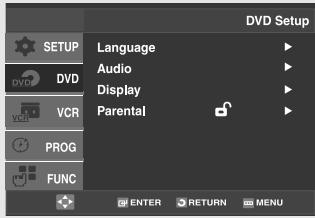
text_image
SETUP DVD VCR PROG FUNC Language Audio Display Parental DVD Setup ENTER RETURN MENU3
Press the ▲/▼ buttons to select Display, then press the ▶ or ENTER button.
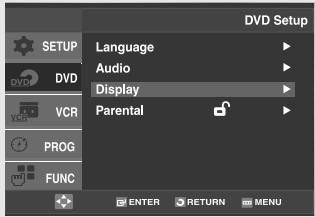
text_image
DVD Setup Language Audio Display Parental PROG FUNC ENTER RETURN MENU4
Press the ▲/▼ buttons to select the desired item, then press the ▶ or ENTER button.
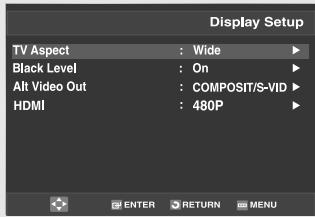
text_image
Display Setup TV Aspect : Wide ▶ Black Level : On ▶ Alt Video Out : COMPOSIT/S-VID ▶ HDMI : 480P ▶ ENTER RETURN MENU- To make the DVD Setup menu disappear, press the MENU button.
Display Options
TV Aspect
Depending on the type of television you have, you may want to adjust the screen setting (aspect ratio).
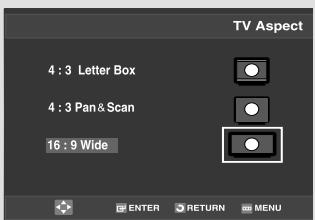
text_image
TV Aspect 4 : 3 Letter Box 4 : 3 Pan & Scan 16 : 9 Wide ENTER RETURN MENU- 4:3 Letter Box: Select when you want to see the total 16:9 ratio screen DVD supplies, even though you have a TV with a 4:3 ratio screen. Black bars will appear at the top and bottom of the screen.
- 4:3 Pan&Scan: Select this for conventional size TVs when you want to see the central portion of the 16:9 screen. (Extreme left and right side of movie picture will be cut off.)
- 16:9 Wide: You can view the full 16:9 picture on your wide screen TV.
Black Level
The Black Level feature adjusts black reference level in the video signal to one of two choices:
- On: This will enhance the Black Level for increased brightness/contrast when viewing DVDs.
- Off: This is the Standard NTSC reference Black Level for consistent brightness/contrast across all sources.
Alt Video Out
The “Alt Video Out” option must be set in the on-screen menu if you have connected your DVD-VCR to a TV using the S-VIDEO OUT or COMPONENT VIDEO OUT jacks.
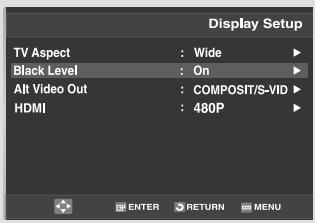
text_image
Display Setup TV Aspect : Wide ▶ Black Level : On ▶ Alt Video Out : COMPOSIT/S-VID ▶ HDMI : 480P ▶ ENTER RETURN MENU- COMPOSITE/S-VIDEO: Select when you want to use S-Video or Composite output.
- COMPONENT(I-SCAN): Select when you want to use Component interlace(525i) Out.
- HDMI/COMPONENT(P-SCAN) : Select when you want to use Progressive(525p) Out.
Note
It cannot be adjusted when Alt Video Out is set to Progressive.
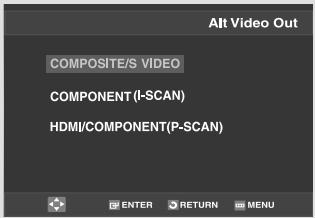
text_image
Alt Video Out COMPOSITE/S VIDEO COMPONENT (I-SCAN) HDMI/COMPONENT(P-SCAN)- See your TV owner's manual to determine what type of TV you have.
- COMPONENT(I-SCAN): Interlaced Scan mode will work.
- HDMI/COMPONENT(P-SCAN): Progressive Scan mode will work, and Video and S-Video will not work.
- Press the P.SCAN button on the front panel in stop mode. Be sure to set the correct Video output for the proper picture.
HDMI
This setting is used when the unit is connected by HDMI with Display devices (TV, projector, etc).
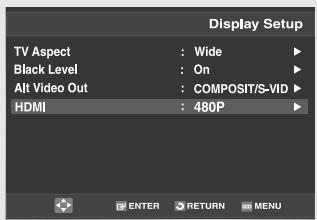
text_image
Display Setup TV Aspect : Wide ▶ Black Level : On ▶ Alt Video Out : COMPOSIT/S-VID ▶ HDMI : 480P ▶ ENTER RETURN MENU- Resolution
- 480p : 720 x 480
- 720p : 1280 x 720
- 1080i : 1920 x 1080
- Format
This feature can be used to fine-tune the output of the DVD-V9500 to your TV or Monitor for best color reproduction.
You can use this function to set the HDMI output's digital data RGB range.
- RGB-Normal : HDMI Limited range RGB data output.
- RGB-Expand : HDMI Full range RGB data output.
- YCbCr-(4:4:4) : HDMI Limited range YCbCr-(4:4:4) output.
- YCbCr-(4:2:2) : HDMI Limited range YCbCr-(4:2:2) output.
Limited range Black/White and color level are displayed within Limited data range. ex) When the bit depth is 8 bits
Full range Black/White and color level are displayed within full data range.
ex) When the bit depth is 8 bits
You can use this function to set HDMI/COMPONENT (P-SCAN) output brightness.
Dark
Bright

natural_image
Five horizontal grayscale color swatches arranged horizontally (no text or symbols)Level 1
Level 2
Level 3
Level 4
Level 5
- Consult your TV User's Manual to find out if your TV supports Progressive Scan. If Progressive Scan is supported, follow the TV User's Manual regarding Progressive Scan settings in the TV's menu system.
- If Video Output is set incorrectly, the screen may be blocked.
- The resolutions available for HDMI output depend on the connected TV or projector. For details, see the user's manual of your TV or projector.
- When the resolution is changed during playback, it may take a few seconds for a normal image to appear.
- If you set the HDMI output resolution 720p or 1080i, HDMI output provides better picture quality.
Setting Up the Parental Control
The Parental Control function works in conjunction with DVDs that have been assigned a rating, which helps you control the types of DVDs that your family watches. There are up to 8 rating levels on a disc.
1
With the DVD in Stop mode, press the MENU button on the remote control.
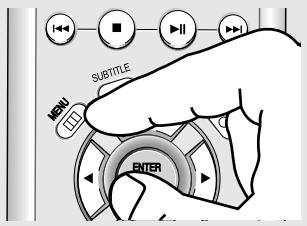
text_image
NOT SUBTITLE MENU ENTER2
Press the ▲/▼ buttons to select DVD, then press the ▶ or ENTER button.
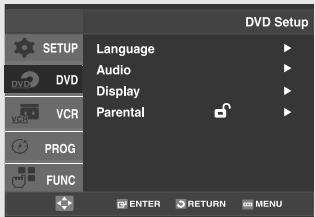
text_image
SETUP DVD VCR PROG FUNC Language Audio Display Parental DVD Setup ENTER RETURN MENU3
Press the ▲/▼ buttons to select Parental, then press the ▶ or ENTER button.
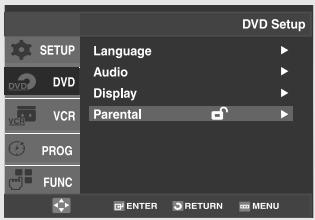
text_image
DVD Setup Language Audio Display Parental PROG FUNC ENTER RETURN MENU4
Press the ▶ or ENTER button to select Yes if you want to use a password. The Enter Password screen appears.
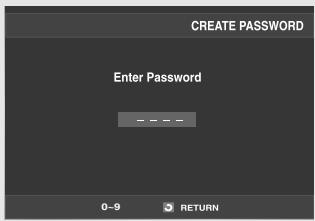
text_image
CREATE PASSWORD Enter Password 0-9 RETURN5
Enter your password. The Re-enter Password screen appears to confirm the password. Enter your password again.
The player is locked ( - ).
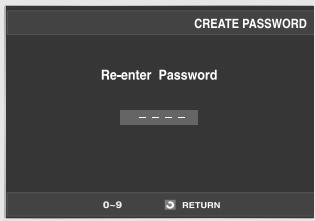
text_image
CREATE PASSWORD Re-enter Password 0-9 RETURN◀ - To make the DVD Setup menu disappear, press the MENU button.
Note
There is no default password.
Setting Up the Rating Level
1
With the unit in stop mode, press the MENU button on the remote control.
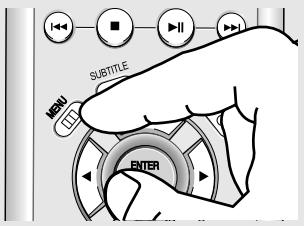
text_image
SUBTITLE MENU ENTER2
Press the ▲/▼ buttons to select DVD, then press the ▶ or ENTER button.
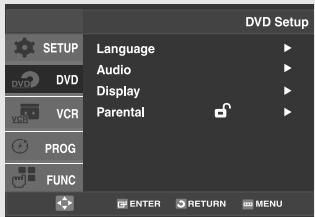
text_image
SETUP DVD VCR PROG FUNC Language Audio Display Parental DVD Setup ENTER RETURN MENU3
Press the ▲/▼ buttons to select Parental, then press the ▶ or ENTER button.
Enter your password.
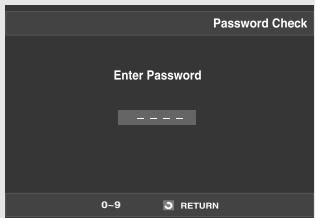
text_image
Password Check Enter Password 0-9 RETURN4
Press the ▲/▼ buttons to select Rating Level, then press the ▶ or ENTER button.
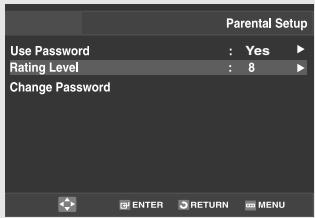
text_image
Parental Setup Use Password : Yes Rating Level : 8 Change Password ENTER RETURN MENU5
Press the ▲/▼ buttons to select the Rating Level you want, then press the ▶ or ENTER button.
e.g) Setting up in Level 6.
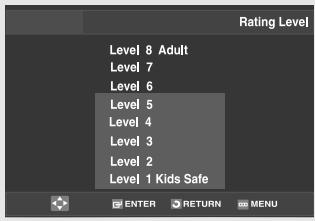
text_image
Rating Level Level 8 Adult Level 7 Level 6 Level 5 Level 4 Level 3 Level 2 Level 1 Kids Safe- To make the DVD setup menu disappear, press the MENU button.
- For example, if you select up to Level 6, discs that contain Level 7, 8 will not play.
Changing the Password
1
With the unit in stop mode, press the MENU button on the remote control.
text_image
SUBTITLE MENU ENTER2
Press the ▲/▼ buttons to select DVD, then press the ▶ or ENTER button.
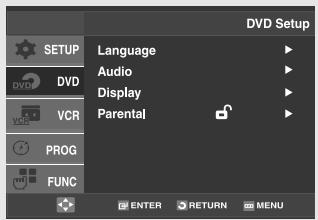
text_image
DVD Setup Language Audio Display Parental PROG FUNC ENTER RETURN MENU3
Press the ▲/▼ buttons to select Parental, then press the ▶ or ENTER button.
Enter your password.
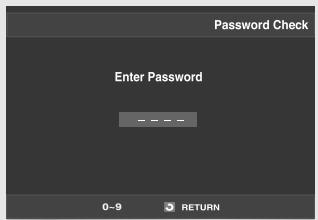
text_image
Password Check Enter Password 0-9 RETURN4
Press the ▲/▼ buttons to select Change Password, then press the ▶ or ENTER button.
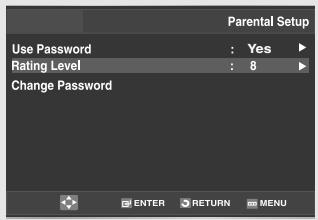
text_image
Parental Setup Use Password : Yes ▶ Rating Level : 8 ▶ Change Password ENTER RETURN MENU5
Enter your new password. Re-enter the new password again.
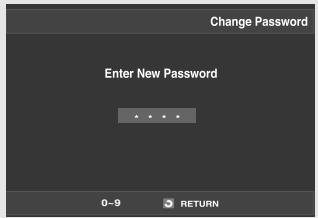
text_image
Change Password Enter New Password 0-9 RETURN
- To make the DVD setup menu disappear, press the MENU button.
Note
If you forgot your password, press power on from a cold start with no disc in the unit. Press the HD/CH (V) buttons simultaneously on the front panel for 5 seconds. The "Reset Ok" message will appear. Press the POWER button.
Chapter 5
VCR OPERATIONS
In this chapter, you will learn how to play a video cassette tape, how to use the time counter and memory stop features, and how to record a program as you are watching TV.
Inserting and Ejecting a Video Cassette Tape
To Insert a Video Cassette Tape
1
Hold the video cassette tape window-side up with the arrow pointing away from you.
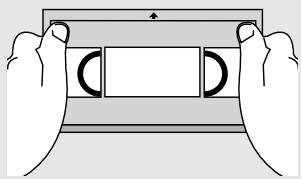
natural_image
Illustration of two hands holding a rectangular object with curved cutouts, no text or symbols present2
Gently push the tape through the compartment door until you feel the VCR pull it.
The VCR loads the tape automatically.
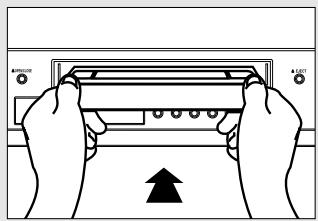
natural_image
Illustration of hands holding a device with an upward arrow indicating motion (no text or symbols)- Don't try to insert a tape upside down or backwards.
- Use only video tapes labeled "VHS." European PAL VHS video tapes and S-VHS pre-recorded tapes aren't compatible with this unit. Choose brand name, high quality tapes for best results.
- If the safety tab of your video tape has been removed, the tape begins to play automatically. You don't have to press PLAY. For more information on the safety tab, see page 77.
To Eject a Video Cassette Tape
1
Press the ■ (Stop) button to stop playing the tape.
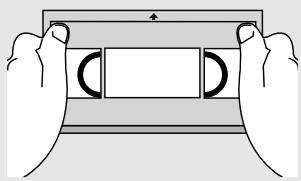
natural_image
Illustration of two hands holding a rectangular object with curved cutouts, no text or symbols presentWhen you're finished playing a pre-recorded video tape, it's best to rewind it to the beginning and remove it from the VCR to protect it from wear and tear.
2
Press the EJECT button on the front panel to eject the tape.
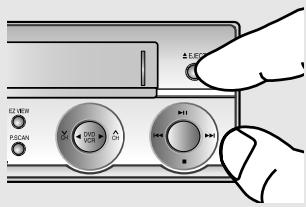
text_image
EZ-MIN P/SCAN OFF OFF OFFAfter ejecting a tape, you should remove it completely from the compartment and turn off the VCR.
Playing a Pre-Recorded Video Cassette Tape
Playing the Tape
1
Insert the video cassette tape.
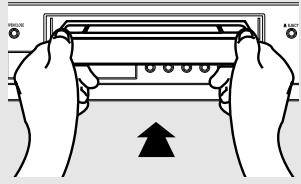
natural_image
Illustration of hands holding a device with an upward arrow indicating motion (no text or symbols)- For more information on the safety tab, see page 79.
2
If the tape doesn't begin to play automatically, press the ▶II (Play/Pause) button.
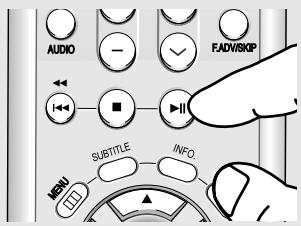
text_image
AUDIO FADVISKOP SUBTITLE INFO.3
Pausing Play
While a tape is playing, press the ▶II (Play/Pause) button when you want to interrupt play. The tape pauses temporarily.
Press the ▶II (Play/Pause) button to resume playing the tape.
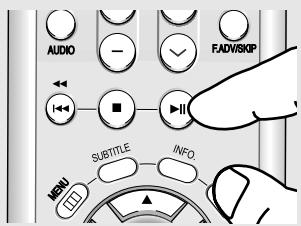
text_image
AUDIO FADVISRIP SUBTITLE INFO. MENU- The VCR does not play sound while a video tape is paused.
- If you see white lines on the screen, see "Using Automatic Tracking" on page 70.
Special VCR Playback Features
While a videotape is playing, you can enjoy a variety of special playback features, including Still, Frame Advance, Skip, Repeat, and more. Press the Play/Pause button again to resume normal playback.
Frame Advance
In the pause mode, press F.ADV to advance to the next frame.
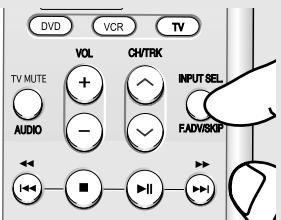
text_image
DVD VCR TV VOL CHYTRK TV MUTE AUDIO INPUT SEL. FADV/SKGPFps/Rps Review
In Play mode, press the ▶▶ (Forward) or ◀◀ (Rewind) to review at two speeds:
- Picture Search: Press and release to advance the tape forward or backward at 5 times normal speed.
- Jet Search: Press and hold down the SEARCH button, then release it to play back at the normal speed.
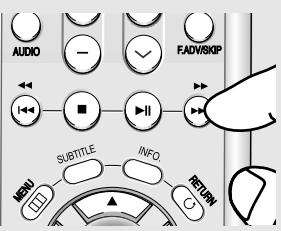
text_image
AUDIO FADVISKIP SUBTITLE INFO RETURNSkip
In Play mode, press the SKIP button to move ahead exactly 30 seconds. Press the SKIP button repeatedly up to 4 times to move ahead 2 minutes.
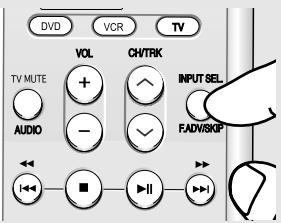
text_image
DVD VCR TV VOL CHYTRK TV MUTE + - AUDIO INPUT SEL. F-ADVISGPRepeat
- In Play mode, press the REPEAT button to review the last 5 seconds of tape (SP mode).
- In Play mode, press the REPEAT button to review the last 15 seconds of tape (SLP mode).
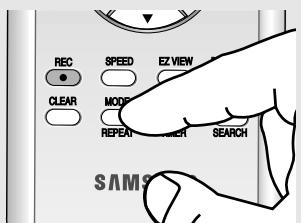
text_image
REC SPEED EZ VIEW CLEAR MODE REPEAT SEARCH SEARCH SAM9Shuttle
In Play mode, Shuttle >> gradually increases the cue speed: Double Speed playback → Picture Search → Jet Search.
Shuttle << gradually slows down the tape, then goes into Slow mode, Still mode, Reverse Picture Search and Reverse Jet Search.
Each time you press the SHUTTLE button, the playback speed is different accordingly.
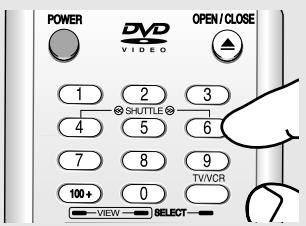
text_image
POWER DVD VIDEO OPEN/CLOSE 1 2 3 4 5 6 7 8 9 TV/VR 100+ 0 VIEW SELECTUsing Automatic Tracking
The Tracking adjustment removes the white lines that sometimes appear during playback because of slight differences in recording decks. The TRK button will automatically align the recorded tracks with the playback heads to solve this problem. You may also set tracking manually.
1
Insert and play a video cassette tape.
As soon as the tape begins to play, the VCR begins automatic tracking.
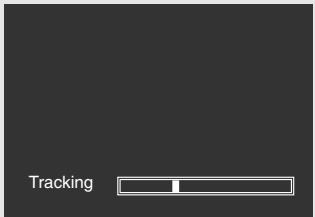
text_image
Tracking2
If automatic tracking doesn't remove the streaks from the picture, press and hold the TRK☑ or TRK☑ button until the streaks disappear.
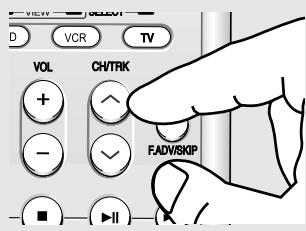
text_image
VIEW VCR TV VOL CH/TRK + - F.ADV/SKIPSelecting the Cassette Type
If you wish to use the tape counter to display the time remaining on a cassette, you must indicate the type of cassette inserted.
1
Press the MENU button on the remote control.
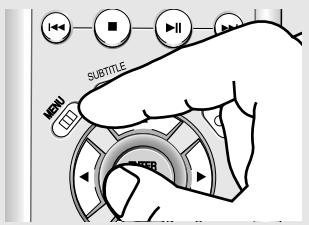
text_image
SUTTLE MENU2
Press the ▲/▼ buttons to select VCR, then press the ▶ or ENTER button.
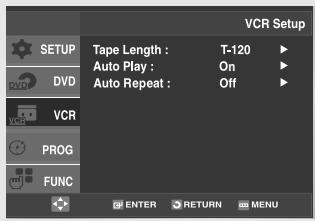
text_image
VCR Setup Tape Length : T-120 Auto Play : On Auto Repeat : Off VCR PROG FUNC ENTER RETURN MENU3
Press the ▲/▼ buttons to select Tape Length, then press the ▶ or ENTER button to select the correct cassette length.
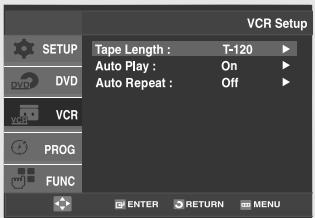
text_image
VCR Setup Tape Length : T-120 Auto Play : On Auto Repeat : Off VCR PROG FUNC ENTER RETURN MENU4
Press the MENU button to exit.
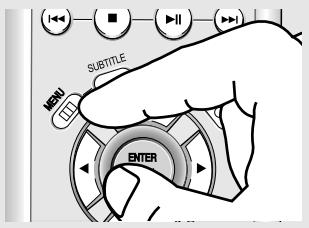
text_image
SUBTITLE MON ENTERNote
This information is usually printed on the tape box. The menu cycles through: T-120, T-160 or T-180.
Once the type of cassette is set, the VCR can display the amount of time remaining on the tape when you press the INFO. button.
Setting the Auto Play
If you want your videotapes to play automatically when you insert them, turn on Auto Play.
1
Press the MENU button on the remote control.
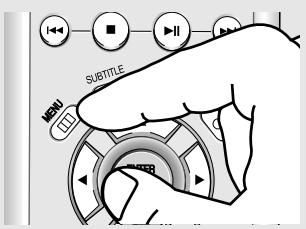
text_image
SUBTITLENote
Only tapes that are missing the Record Safety Tab will play automatically when inserted (See page 77).
2
Press the ▲/▼ buttons to select VCR, then press the ▶ or ENTER button.
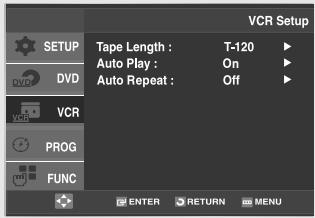
text_image
VCR Setup Tape Length : T-120 Auto Play : On Auto Repeat : Off VCR PROG FUNC ENTER RETURN MENU3
Press the ▲/▼ buttons to select Auto Play, then press the ▶ or ENTER button to select On or Off.
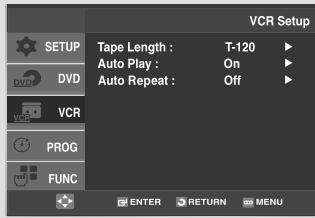
text_image
VCR Setup Tape Length : T-120 Auto Play : On Auto Repeat : Off VCR PROG FUNC ENTER RETURN MENU
- On: The VCR will automatically begin playing a video tape when it is inserted, as long as the safety tab of the cassette has been removed.
- Off: Auto play is disabled.
4
Press the MENU button to exit.
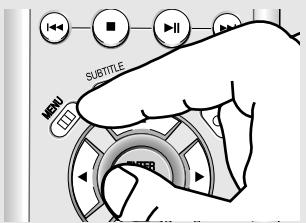
text_image
SUBTITLE MENUSetting the Auto Repeat
If you want your videotapes to play repeatedly, turn on Auto Repeat.
1
Press the MENU button on the remote control.
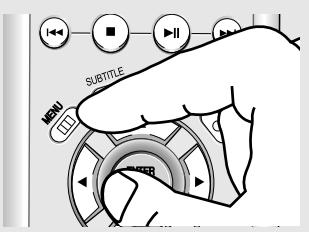
text_image
SUBTITLE MENU2
Press the ▲/▼ buttons to select VCR, then press the ▶ or ENTER button.
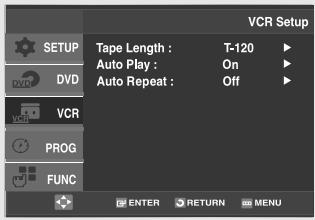
text_image
VCR Setup Tape Length : T-120 Auto Play : On Auto Repeat : Off VCR PROG FUNC ENTER RETURN MENU3
Press the ▲/▼ buttons to select Auto Repeat, then press the ▶ or ENTER button to select On or Off.
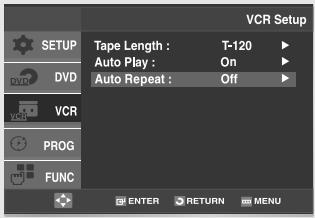
text_image
VCR Setup Tape Length : T-120 Auto Play : On Auto Repeat : Off VCR PROG FUNC ENTER RETURN MENU4
Press the MENU button to exit.
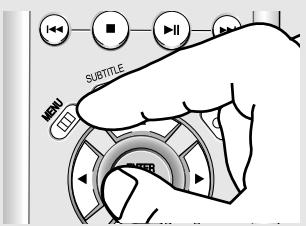
text_image
SUBTITLE MENU
- On: The VCR will play a tape repeatedly [unless a tape control is activated (stop, fast forward or rewind)].
- Off: Auto Repeat is disabled.
Using the Tape Counter
The tape counter:
- Indicates the elapsed time in the play and record modes (hours, minutes and seconds).
- Is reset when a cassette is inserted in the DVD-VCR.
- Allows you to easily find the beginning of a sequence.
- If the remaining time is to be calculated correctly, you must indicate the type of cassette being used.
1
Insert a cassette in your DVD-VCR. To set the tape counter to zero at the beginning of a sequence:
- Press the INFO. button twice to display the counter
- Press the CLEAR button when you want to set the tape counter to zero.
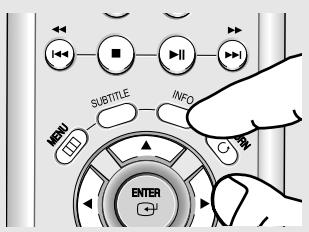
text_image
SUBTITLE INFO MENU ENTER2
When you are ready,
- Start playback or Recording.
- Press the ■ (Stop) button.
- To fast-forward or rewind to the sequence at which the counter was set to zero, press the the ▶▶ (Forward) or
◀◀ (Rewind) button.
- Some DVD-VCR information, such as the counter, can be displayed on the television screen.
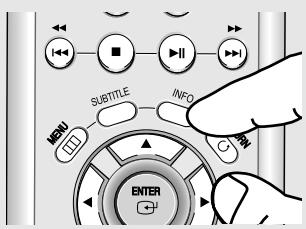
text_image
SUBTITLE INFO MENU ENTERPress the INFO. button:
- Once to display the current function, recording speed and counter.
- Twice to display the counter only.
- Three times to display the time remaining on the cassette.
- Four times to clear the display.
Using the Assemble Edit Function
This function allows you to start a new recording at a specific position on the cassette while maintaining a very smooth scene change.
1
Insert the cassette to be edited in your DVD-VCR.
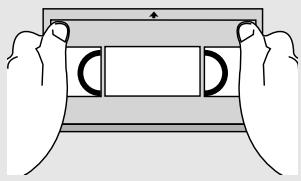
natural_image
Illustration of two hands holding a rectangular object with curved cutouts, no text or symbols present2
Press the ▶II (Play/Pause) button to start playback.
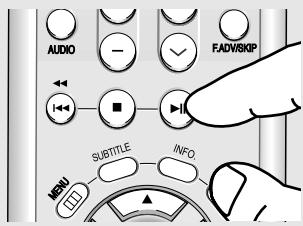
text_image
AUDIO FADVISKIP SUBTITLE INFO MENU3
When you reach the position from which you wish to start the new recording, press the ▶II (Play/Pause) button.
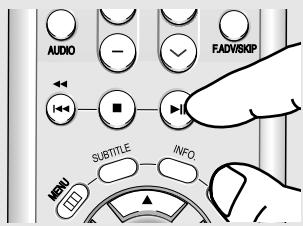
text_image
AUDIO FADVISKIP SUBTITLE INFO MENU4
Press the F.ADV button as often as necessary to advance frame by frame, until the exact recording position is located.
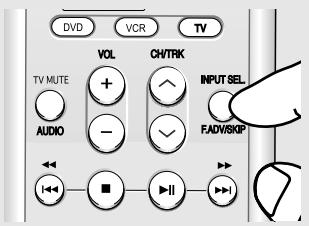
text_image
DVD VCR TV VOL CH/TRK TV MUTE INPUT SEL AUDIO FAD/RSKP ← ■ ▶ ▶5
While the DVD-VCR is in pause mode, press the REC button. The pause mode is displayed on the screen.
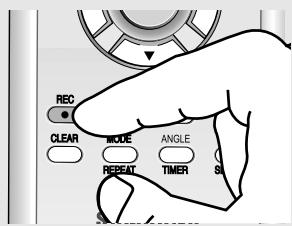
text_image
REC CLEAR MODE ANGLE REPEAT TIMER S16
Select the source from which you wish to record by pressing:
- The CH^ or ∨ buttons for television channel.
- The INPUT SEL. button for the LINE input source.
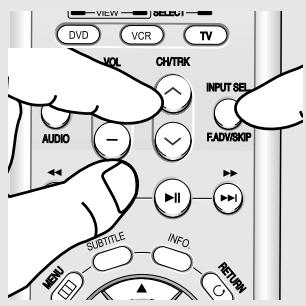
text_image
VIEW DVD VCR TV VOL CH/TRK INPUT SEL AUDIO FADVISKIP SUBTITLE INFO RETURN G7
Press the REC button to start recording. When you have finished recording, press the ■ (Stop) button.
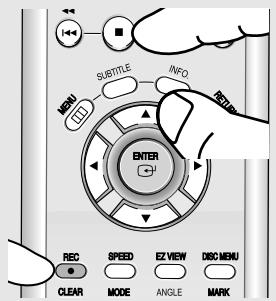
text_image
SUBTITLE INFO MENU ENTER REC SPEED EZ VIEW DISC MENU CLEAR MODE ANGLE MARKSelecting the Audio Output Mode
You can select the mode in which the sound is reproduced on the loudspeakers and AV outputs. The following options are available.
Press the AUDIO button on the remote control until the required option is displayed.
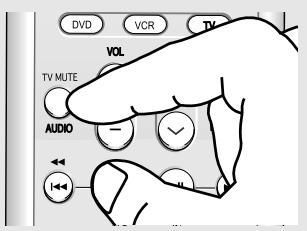
text_image
DVD VCR TV VOL TV MUTE AUDIO +/-Audio output mode
- Left: Used to listen to the sound on the left Hi-Fi channel.
- Right: Used to listen to the sound on the right Hi-Fi channel.
- Mono: Used to listen to the sound on the normal mono channel.
- Hi-Fi: Used to listen to Hi-Fi stereo sound on the left and right channels. When playing back tapes recorded in Hi-Fi, the sound switches to Hi-Fi after five seconds of Mono.
Searching for a Specific Sequence
Each time you record a cassette on this DVD-VCR, an “index” is automatically marked on the tape when recording starts.
The Search function allows you to fast-forward or rewind to a specific index and start playback from that point. Depending on the direction selected, the indexes are numbered as follows:

| etc. | Prev Seq. | Seq. being played | Next Seq. | etc. |
| 2 | 1 | 1 | 2 |
This DVD-VCR uses a standard indexing system (VISS). As a result, it will recognize any indexes marked by other VCRs using the same system and vice versa.
1
Press the MENU button on the remote control.
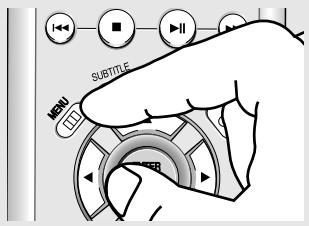
text_image
I← ■ II SUBTITLE MENU T1 R2
Press the ▲/▼ buttons to select Function, then press the ▶ or ENTER button.
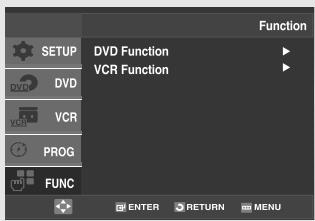
text_image
DVDF VCR PROG FUNC DVDF Function VCR Function FUNCTION3
Press the ▲/▼ buttons to select VCR Function, then press the ▶ or ENTER button.
VCR Function can be displayed simply by pressing the SEARCH button.
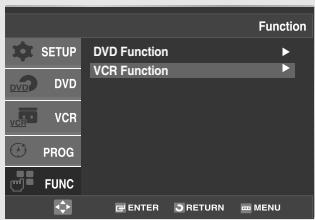
text_image
DVH Function VCR Function SETUP DVD VCR PROG FUNC Function ENTER RETURN MENU4
Press the ▲/▼ buttons to select the desired item, then press the ▶ or ENTER button.
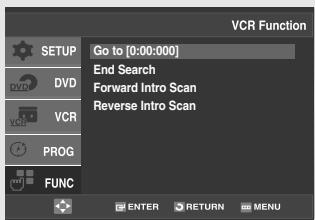
text_image
VCR Function GO to [0:00:000] End Search Forward Intro Scan Reverse Intro Scan SETUP DVD VCR PROG FUNC ENTER RETURN MENUVariable Search System
Go To [0:00:00] Stop
Use this feature when you want to search for the 0:00:00 counter position on a cassette.
Press the CLEAR button at the point on the tape where you want to set the counter to [0:00:00].
![SAMSUNG DVD-V9500 - Go To [0:00:00] Stop - 1](/content/2019/10/27643/images/84ef9719dc0df2fdb867f38ebccdad49bd0212c714066a637a318861f6269c32.jpg)
text_image
VCR Function SETUP Go to [0:00:000] End Search Forward Intro Scan Reverse Intro Scan DVD VCR PROG FUNC ENTER RETURN MENUThe VCR will rewind or fast forward, searching for the 0:00:00 counter position, and then automatically stop at that position.
End Search
Use this feature when you want to search for a blank position to record a program on a cassette.
The VCR will fast forward, searching for a blank position, and then automatically stop at
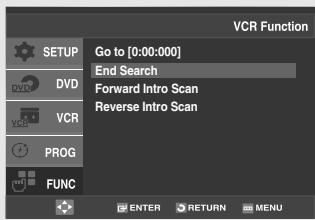
text_image
VCR Function GO to [0:00:000] End Search Forward Intro Scan Reverse Intro Scan SETUP DVD VCR PROG FUNC ENTER RETURN MENUIf the VCR reaches the end of the tape during end search, the tape will be ejected.
Scan and play
Use scan and play when you don't know exactly where a program is located on a cassette tape.
- Forward Intro Scan
Select "Forward Intro Scan", then press the ENTER button.
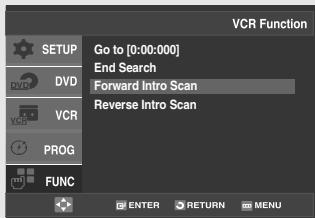
text_image
VCR Function SETUP Go to [0:00:000] End Search Forward Intro Scan Reverse Intro Scan DVD VCR PROG FUNC ENTER RETURN MENU- Reverse Intro Scan
Select "Reverse Intro Scan", then press the ENTER button.
Basic Recording
You can record a TV show in progress by inserting a blank tape and pressing the REC button.
You can even add time in 30-minute increments up to 4 hours by pressing the REC button repeatedly; see page 79.
Note
Be sure your videotape has a Record Safety Tab. If the tab is missing, you can cover the opening with a small piece of tape. Warning: Do not cover this opening unless you are sure you want to record over the tape.
Before You Begin...
- Power on the DVD-VCR
- Power on the TV
Protecting a Recorded Cassette
Video cassettes have a safety tab to prevent accidental erasure. When this tab has been removed, you cannot record on the tape.
If you wish to protect a cassette, break off the tab using a small screwdriver.
To re-record over a protected cassette (safety tab broken), cover the hole with adhesive tape.
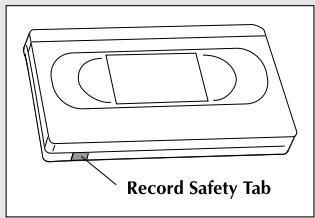
text_image
Record Safety TabRecording
1
Insert a blank VHS tape into the VCR deck.
Make sure the tape is long enough to record the entire program.
Press the SPEED button to set to the record speed.
(See page 80)
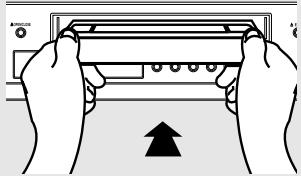
natural_image
Illustration of hands holding a device with an upward arrow, no text or symbols present2
Use the Number buttons or the CH ▲ or ▼ buttons to select the desired channel, or press the INPUT SEL. button to select LINE if recording from an external device connected to the rear jacks.
3
Press the REC button on the remote control or front panel.
For options while recording is in progress, see “Special Recording Features” on this page.
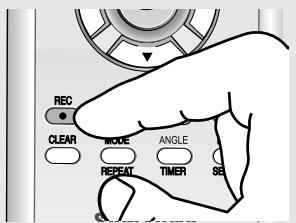
text_image
REC CLEAR MODE ANGLE REPEAT TIMER SENote
Recording from the DVD-VCR to the VCR is not possible.
4
Pause/Resume Recording
Press the ▶II (Play/Pause) button.
Press the REC button again to resume.
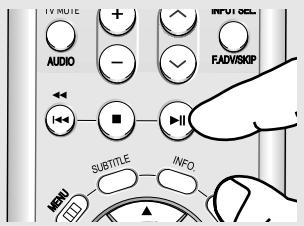
text_image
TV MULIE AUDIO + - INPUT SEL FADWRKIP SUBTITLE INFO MENU5
Stop Recording
Press the ■ (Stop) button.
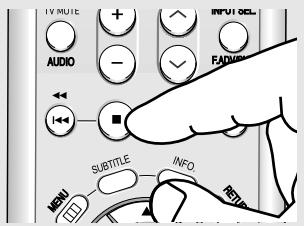
text_image
IV MILE AUDIO SUBTITLE INFO MENU INFO SEL FAMILYSpecial Recording Features
While a recording is in progress, you can watch a different channel or a DVD, or add recording time in 30-minute increments.
To Watch a different Channel while Recording
Make sure that you connect the DVD-VCR to the TV using an RF cable.
- When you watching through the Antenna input during recording, press the TV/VCR button on the remote control. Using your TV remote control, change the channel you want to watch.
- When you watching through Line input during recording, change the input of your TV from Line to Antenna. Using your TV remote control, change the channel you want to watch.
To Watch a DVD while Recording
Insert a DVD in the DVD tray and press the ▶II (Play/Pause). The output will automatically change to the DVD.
To Add Recording Time
See One-Touch Recording (OTR) below.
Using One-Touch Recording
One-Touch Recording (OTR) allows you to add recording time in 30-minute increments up to 4 hours at the touch of a button.
1
Insert a blank VHS tape into the VCR deck.
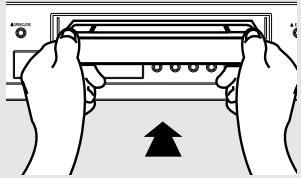
natural_image
Illustration of hands holding a device with an upward arrow (no text or symbols)2
Use the Number buttons or the CH ▲ or ▼ buttons to select the desired channel, or press the INPUT SEL. button to select LINE if recording from an external device connected to the rear jacks.
3
Press the REC button on the remote control or front panel.
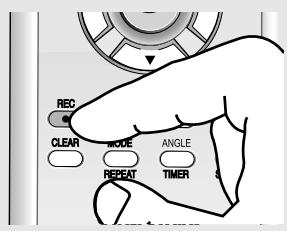
text_image
REC CLEAR MODE ANGLE REPEAT TIMER4
While in Record mode, press the REC button again to activate One-Touch Recording (OTR).
Record length 0:30 appears on the On-screen display and the DVD-VCR will record for exactly 30 minutes.
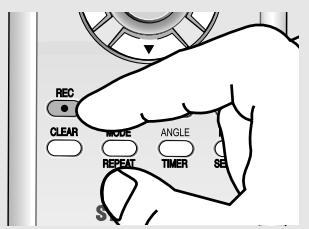
text_image
REC CLEAR MODE ANGLE REPEAT TIMER SE5
Add Recording Time
Continue pressing REC button to add recording time in 30 minute increments up to 4 hours.
The DVD-VCR stops recording automatically when the time has elapsed. The DVD-VCR will automatically be turned off when the OTR finished.
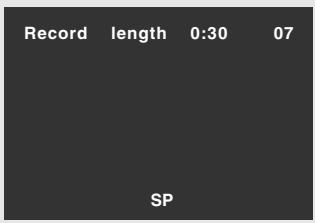
text_image
Record length 0:30 07 SPSelecting the Recording Speed
You can slow down the recording speed from SP to SLP in order to fit six hours of programming on a T-120 tape.
Press the SPEED button on the remote control to select the Record Speed.
- SP: Standard Play, for best quality.
- SLP: Super Long Play, for maximum recording time (3 times SP).
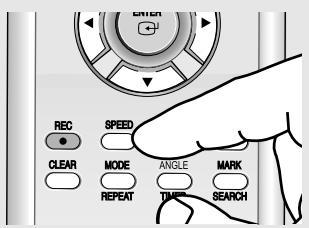
text_image
REC SPEED CLEAR MODE ANGLE MARK REPEAT TIMER SEARCHNote
The selected Record Speed will appear on the front panel display and on-screen display.
Maximum Recording Time - SP vs. SLP
| Tape Length | SP (Standard Play) | SLP (Super Long Play) |
| T-120 | 2 hrs | 6 hrs |
| T-160 | 2hrs 40 mins | 8 hrs |
| T-180 | 3 hrs | 9 hrs |
Using a Timer Recording
Insert a blank videotape into the VCR deck. Be sure to leave the Record Safety Tab intact.
With the Timer Recording function, you can program up to 7 events at a time to record up to a month in advance.
To Begin Setting the Timer Recording,
- Power On your DVD-VCR.
- Power On your TV.
1
Press the MENU button on the remote control.
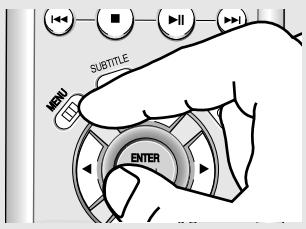
text_image
SUBTITLE MENU ENTER2
Press the ▲/▼ buttons to select PROG, then press the ▶ or ENTER button.
It can be displayed simply by pressing the TIMER button.
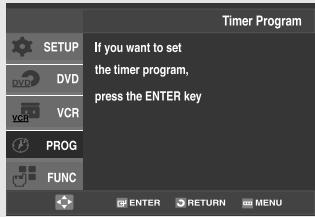
text_image
Timer Program If you want to set the timer program, press the ENTER key SETUP DVD VCR PROG FUNC ENTER RETURN MENU3
Select Channel Number
Press the ▶ button, then press the ▲/▼ buttons to set the channel.
Press the ▶ button to move to the next setting.
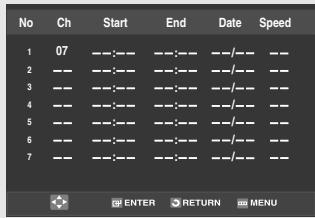
text_image
No Ch Start End Date Speed 1 07 -- -- -- -- -- -- -- -- 2 -- -- -- -- -- -- -- 3 -- -- -- -- -- -- -- 4 -- -- -- -- -- -- -- 5 -- -- -- -- -- -- -- 6 -- -- -- -- -- -- -- 7 -- -- -- -- -- -- -- ENTER RETURN MENU4
Set Time/Date/Speed
Repeat Step 3 above to set start time, end time, date and record speed.
Date can be set for one time, daily or weekly recording.
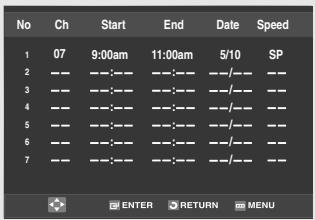
text_image
No Ch Start End Date Speed 1 07 9:00am 11:00am 5/10 SP 2 -- -- -- -- -- -- -- -- 3 -- -- -- -- -- -- -- -- 4 -- -- -- -- -- -- -- -- 5 -- -- -- -- -- -- -- -- 6 -- -- -- -- -- -- -- -- 7 -- -- -- -- -- -- -- ENTER RETURN MENUNote
You can select external input directly (L1) using INPUT SEL. button.
Selecting Auto Speed
If the length of the videotape is not long enough for a timer recording in the SP mode, set the recording tape speed to "Auto". Recording will start in the SP mode. If the length is not long enough, the tape speed will automatically change from SP mode to SLP mode.
Daily/Weekly Date Programming
Weekly [Sun\~Sat]: Use this to record TV programs on the same channel at the same time every week. Daily [MO - FR] : Use this to record TV programs on the same channel at the same time every day Monday through Friday.
5
Save Timer Recording
Press the RETURN button to finish setting the timer recording.
Stop the DVD-VCR or turn the power off. Then the DVD-VCR will automatically turn on and begin recording at the time you set.
To stop the timer recording, press the POWER button or press the ■ (Stop) button twice.
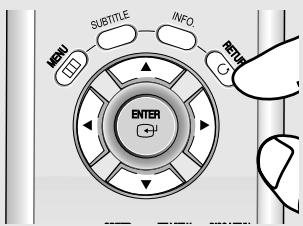
text_image
MENU SUBTITLE INFO REDUCE ENTERChapter 6
REFERENCE
Using the TV Buttons on the Remote Control
Your DVD-VCR remote control will work with Samsung televisions and compatible brands.
To determine whether your television is compatible, follow the instructions below.
1 Switch your television on.
2 Point the remote control towards the television.
3 Hold down the TV button and enter the two-figure code corresponding to the brand of your television, by pressing the appropriate numeric buttons.
| TV Codes | |
| BRAND | CODE |
| SAMSUNG | 01, 14, 15, 23 |
| DAEWOO | 19 |
| EMERSON | 21 |
| HITACHI | 10 |
| LG | 06, 08, 18 |
| LOEWE | 28 |
| MAGNAVOX | 04 |
| NEWSAN | 27 |
| NOBLEX | 25 |
| PANASONIC | 12, 24 |
| RCA | 07, 29 |
| SANYO | 05, 20 |
| SHARP | 02, 16, 22 |
| SONY | 03 |
| TELEFUNKEN | 26 |
| TOSHIBA | 09 |
| ZENITH | 17 |
Note
- If your television is compatible with the remote control, it will switch off. It is now programmed to operate with the remote control.
- If several codes are indicated for your television brand, try each one in turn until you find one that works.
You can then control the television using the following buttons.
| Button | Function |
| POWER | Used to switch the television on and off. |
| INPUT SEL. | Used to select an external source. |
| VOL + or - | Used to adjust the volume of the television. |
| CH (^ or ∨) | Used to select the required channel. |
| TV MUTE | Used to toggle the sound on and off. |
The various functions will not necessarily work on all televisions. If you encounter problems, operate the television directly.
Troubleshooting
Before contacting a Samsung authorized service center, perform the following simple checks. If you are unable to solve the problem after reading the above instructions, note:
- The model and serial number on the rear of your DVD-VCR
- The warranty information
- A clear description of the problem
Then contact your nearest SAMSUNG service center.
Identifying DVD Problems
| Problem | Action | Page |
| No operations can be performed with the remote control. | Check the batteries in the remote control.They may need replacing.Operate the remote control at a distance of no more than 20 feet.Remove batteries and hold down one or more buttons for several minutes to drain the microprocessor inside the remote control to reset it. Reinstall batteries and try to operate the remote control again. | P5 |
| Disc does not play. | Ensure that the disc is installed with the label side facing up.Check the region number of the DVD. | P9 |
| 5.1 channel sound is not being reproduced. | 5.1 channel sound is reproduced only when the following conditions are met.:1) The DVD-VCR is connected with the proper Amplifier2) The disc is recorded with 5.1 channel sound.Check whether the disc being played has the “5.1 ch” mark on the outside.Check if your audio system is connected and working properly.In a DVD Setup Menu, is the Audio Output set to Bitstream? | P22 |
| The ☉ icon appears on screen. | The features or action cannot be completed at this time because:1. The DVD’s software restricts it.2. The DVD’s software doesn’t support the feature (e.g., angles).3. The feature is not available at the moment.4. You’ve requested a title or chapter number or search time that is out of range. | - |
| Disc Menu doesn’t appear. | Check if the disc has a Menu. | - |
| Play mode differs from the Setup Menu selection. | Some of the functions selected in the Setup Menu may not work properly if the disc is not encoded with the corresponding function. | - |
| The screen ratio cannot be changed. | The Screen Ratio is fixed on your DVDs. | P43~44 |
| No audio. | Make sure you have selected the correct Digital Output in the Audio Options Menu. | P59~60 |
| The screen is blocked | Press the HD/CH (V) buttons simultaneously for more than 5 seconds with no disc in the unit. All settings will revert to the factory settings. | - |
| Forgot password | Press the HD/CH (V) buttons simultaneously for more than 5 seconds with no disc in the unit. All settings including the password will revert to the factory settings. Don't use this unless absolutely necessary. | P64~66 |
| If you experience other problems. | Go to the contents and find the section of the instruction book that contains the explanations regarding the current problem, and follow the procedure once again.If the problem still cannot be solved, please contact your nearest authorized service center. | |
| The picture is noisy or distorted | Make sure that the disc is not dirty or scratched.Clean the disc. |
Identifying VCR Problems
| Problem | Action | Page |
| No power | Check that the power plug is connected to a wall outlet. | - |
| You cannot insert a video cassette | A video cassette can only be inserted with the window side up and the safety tab facing you. | P67 |
| The television program was not recorded | Check the DVD-VCR antenna/cable connections.Is the DVD-VCR tuner properly set?Check if the safety tab is intact on the cassette. | - |
| Timer recording was unsuccessful | Re-check the recording start/stop time settings.If there was a power failure or interruption during timer recording, the recording will have been cancelled. | P83~84 |
| No playback picture or the picture is distorted | Check to see if you are using a prerecorded tape. | P79 |
| You cannot see normal broadcasts | Check the tuner or external setting. It should be on tuner.Check the TV or VCR antenna connections. | - |
| Noise bars or streaks on playback | Press the TRK buttons to minimize this effect. | P70 |
| When the ▶II button is pressed during playback, the still picture has severe “noise bar” streaks | A still picture may have “noise bars”, depending on the condition of the tape. Press the TRK buttons during slow motion to minimize this effect. | - |
| Video Head Cleaning | If poor pictures appear on a variety of cassettes, the video heads may need cleaning. This is not a common problem and unless it appears, the heads should not be cleaned. When cleaning the video heads, read all instructions provided with the head cleaning cassette. Incorrect head cleaning can permanently damage the video heads. | - |
Technical Specifications
| Inputs | AUDIO | 1 Stereo audio input, RCA Connector, -8dbm, 47KΩ, |
| VIDEO | 1 Composite video input, RCA Connector, 75Ω, 1Vp-p | |
| RF | Antenna or CATV input, F-Connector, 75Ω | |
| Outputs | AUDIO | 1 Stereo audio output, RCA Connector, -8dbm, 1.5KΩ |
| AUDIO (DVD only) | 2 Digital audio output (1 coaxial, 1 optical) | |
| VIDEO | 1 pair Stereo audio outputs1 Composite video output, RCA Connector, 75Ω, 1Vp-p | |
| VIDEO (DVD only) | 1 S-Video output, S-Connector, 75Ω, Y=1.0Vp-p,C=0.286Vp-p | |
| 1 Component video output, 75Ω, Y=1.0Vp-p, Pb=0.7Vp-p,Pr=0.7Vp-p | ||
| HDMI | 1 HDMI output | |
| VCR | RF | Channel 3 or 4 |
| VIDEO SYSTEM | 1/2-inch VHS system, 4 rotary head helical scanning;FM azimuth luminance;chrominance: converted sub system phase shift | |
| AUDIO TRACK | Normal: 1 track; Hi-Fi: 2 track | |
| PLAY/RECORD TIME | T-180 tape: SP 3 hours, SLP 9 hours | |
| FF/REW TIME | T-120 tape: <2 minutes | |
| HEADS | Video: DA 4 rotaryAudio: 2 rotary heads (Hi-Fi); 1 stationary head (Linear)Control: 1 stationary headErase: 1 full track, 1 audio track | |
| WOW & FLUTTER | Less than 0.005% (Hi-Fi) | |
| FREQ. RESPONSE | 20-20,000 Hz (Hi-Fi) | |
| DVD | DISC COMPATIBILITY | CD, CD-R, CD-RWDVD-Video, CD-Digital Audio (5" and 3.5") |
| FREQ. RESPONSE | 96/48 kHz Sampling: 4 Hz-22kHz | |
| S/N RATIO | 110 dB | |
| DYNAMIC RANGE | 96 dB | |
| THD | 0.003 % | |
| SYSTEM | POWER REQUIREMENTS | 120V AC, 60 Hz, 25 watts |
| ENVIRONMENT | 41-104°F (5-40°C); 10%-75% humidity | |
| WEIGHT | 13.8 lbs. |
- Samsung Electronics Co., Ltd reserves the right to change the specifications without notice.
- Weight and dimensions are approximate.
MEMO
Warranty
LIMITED WARRANTY TO ORIGINAL PURCHASER
Samsung Electronics Canada Inc.(SECA), warrants that this product is free from defective material and workmanship.
SECA further warrants that if this product falls to operate properly within the specified warranty period and the failure is due to improper workmanship or defective materials, SECA will repair or replace the product at its option.
All warranty repairs must be performed by a SECA Authorized Service Center. (The name and address of the location nearest you can be obtained by calling toll free: 1-800-SAMSUNG)
LABOR
One year (Carry-in)
PARTS
One year
On carry-in models, transportation to and from the service center is the customer's responsibility.
The original dated sales receipt must be retained by the customer and is the only acceptable proof of purchase. It must be presented to the authorized service center at the time service is requested.
EXCLUSIONS (WHAT IS NOT COVERED)
This warranty does not cover damage due to accident, fire, flood and/or other acts of God; misuse, incorrect line voltage, improper installation, improper or unauthorized repairs, commercial use or damage that occurs in shipping. Exterior and interior finish, lamps, glass are not covered under this warranty. Customer adjustments which are explained in the instruction manual are not covered under the terms of this warranty. This warranty will automatically be voided for any unit found with a missing or altered serial number. This warranty is valid only on products purchased and used in Canada.
HEADQUARTERS
SAMSUNG ELECTRONICS CANADA, INC.
7037 FINANCIAL DRIVE MISSISSAUGA, ONTARIO L5N 6R3 CANADA
FABRIQUE EN CORÉE
TEL: 1-905-542-3837
www.samsung.ca