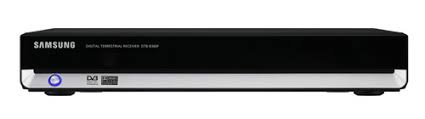
DTB-B360F - DVB SAMSUNG - Free user manual and instructions
Find the device manual for free DTB-B360F SAMSUNG in PDF.



| Product type | DVB-T decoder |
| Brand | SAMSUNG |
| Model | DTB-B360F |
| Dimensions (W x D x H) | 270 x 200 x 45 mm |
| Net weight | 1.2 kg |
| Power supply | 230 V~, 50/60 Hz |
| Tuner frequency range | 50 – 860 MHz |
| Demodulation | OFDM (DVB-T), modes 2K/8K |
| Video decoder | MPEG-2 MP@ML |
| Video formats | 4:3 and 16:9 |
| Audio decoder | MPEG-1 Layer I & II |
| Audio modes | Mono, Dual, Stereo, Joint Stereo |
| Number of channels | 500 programmable |
| Main functions | EPG, auto/manual scan, parental control, subtitles, teletext |
| Connectors | 2 x SCART (AV1 TV, AV2 EXT), SPDIF output, antenna input, RF loop |
| Remote control | Infrared with Braille dots |
| OSD languages | French, English, German, Spanish, Italian, Dutch |
| Operating temperature | 0 °C to +45 °C |
| Storage temperature | -10 °C to +70 °C |
| Safety | Do not open, avoid contact with liquids, ensure free ventilation |
| Cleaning | Unplug, soft cloth slightly damp, no solvents |
Frequently Asked Questions - DTB-B360F SAMSUNG
User questions about DTB-B360F SAMSUNG
0 question about this device. Answer the ones you know or ask your own.
Ask a new question about this device
Download the instructions for your DVB in PDF format for free! Find your manual DTB-B360F - SAMSUNG and take your electronic device back in hand. On this page are published all the documents necessary for the use of your device. DTB-B360F by SAMSUNG.
USER MANUAL DTB-B360F SAMSUNG
Instructions for use
SAMSUNG
Instructions for use.
Instructions for use.
4. List des services
Instructions for use
SAFETY INSTRUCTIONS
This STB has been manufactured to satisfy international safety standards.
Please read the following recommended safety precautions carefully.
MAINS SUPPLY: AC 230V\~, 50/60Hz
OVERLOADING: Do not overload wall outlets, extension cords or adapters as this can result in fire or electrical shock.
LIQUIDS: Keep liquids away from the STB.
CLEANING: Before cleaning, disconnect the STB from the wall socket. Use a cloth lightly dampened with water (no solvents) to clean the exterior.
VENTILATION: Do not block the STB ventilation holes. Ensure that free airflow is maintained around the STB. Never store the STB where it is exposed to direct sunlight or near heating equipment e.g. a radiator. Never stack other electronic equipment on top of the STB. Place the STB at least 30mm from the wall.
ATTACHMENTS: Do not use any attachment that is not recommended by the manufacturer; it may cause a hazard or damage the equipment.
CONNECTION TO THE CABLE TV SIGNAL AND TV:
Connect all components before plugging any power cords into the wall outlet. Always turn off the STB, TV and other components before you connect or disconnect any cables.
SERVICING: Do not attempt to service this product yourself
Any attempt to do so will make the warranty invalid.
Refer all servicing to a qualified service agent.
LIGHTNING: If the STB is installed in an area subject to intense lightning activity, protection devices for the STB mains connector and modem telephone line are essential.
The individual manufacturer's instruction for safeguarding other equipment, such as TV set, Hi-Fi, etc., connected to the STB must also be followed during lightning storms.
GROUNDING: Terrestrial cable MUST BE EARTHED.
The grounding system must comply with SABS 061.
WARNING!
1. Follow these directions in order not to damage the power cord or plug.
- Do not modify or process the power cord or plug arbitrarily.
- Do not bend or twist the power cord too much.
- Make sure to disconnect the power cord with holding the plug.
- Separate heat appliances from the power cord as distance as possible in order to prevent the cover from being melted.
2. Failure to follow one of them may cause electrical shock.
- Do not open the main body.
- Do not insert metals or inflammable objects inside the product.
- Do not touch the power plug with a wet hand.
- Disconnect the power cord in case of lightning.
- Do not cover the receiver's ventilation openings with items such as newspapers, clothes etc.
- Do not place the receiver on top of household appliances that emit heat.
3. Do not use the product when it is out of order. If you continue to use the product with a defect, it can cause a serious damage to the product. Make sure to contact your local product distributor when the product is out of order.

Correct Disposal of This Product
(Waste Electrical & Electronic Equipment)
(Applicable in the European Union and other European
countries with separate collection systems)
This marking shown on the product or its literature, indicates that it should not be disposed with other
household wastes at the end of its working life. To prevent possible harm to the environment or human health from uncontrolled waste disposal, please separate this from other types of wastes and recycle it responsibly to promote the sustainable reuse of material resources.
Household users should contact either the retailer where they purchased this product, or their local government office, for details of where and how they can take this item for environmentally safe recycling.
Business users should contact their supplier and check the terms and conditions of the purchase contract. This product should not be mixed with other commercial wastes for disposal.
CONTENTS
Getting Start 2
Safety Instructions 2
General Features 5
Connecting Your STB 6
Description 8
Front Panel 8
Rear Panel. 9
Remote Control Unit 10
Basic Functions 12
Operating The Receiver 17
Main Menu 17
- EPG-Electronic Program Guide. 17
-
Channel 18
2.1 Auto Scan 18
2.2 Manual Scan 19
2.3 Channel List 19
2.4 Favorite Channel. 20
2.5 Parental Guide 20 -
Preference 21
-
System 24
4.1 Product Info 24
4.2 Reset 24
4.3 Change PIN Code 25
4.4 Language 25
4.5 Software Update 26
Reference 27
Troubleshooting 27
Disposal 27
Technical Specifications 28
GENERAL FEATURES
1. USER SECTION
500 PROGRAMMABLE CHANNELS
ADVANCED ELECTRONIC PROGRAM GUIDE
MULTI LANGUAGE SUPPORTED FOR OSD
TELETEXT (VBI) SUPPORTED WITH MULTI LANGUAGE
FULL FUNCTION INFRARED REMOTE CONTROL UNIT
AUTO AND MANUAL SCAN FACILITY
CHANNEL ORGANIZING (PROGRAMMABLE)
LOW POWER CONSUMPTION
AUTO UPDATED EPG
LCN (Local Channel Number) SUPPORTED
2. TUNER SECTION
50~860 MHz WIDE BAND TUNER
RF LOOP-THROUGH OUTPUT (MALE) FOR ANALOG RECEIVER
3.VIDEO SECTION
DVB-T COMPLIANT
MPEG-2VIDEO (MP@ML)
SUPPORTS ASPECT RATIO 4:3 (NORMAL) AND 16:9 (WIDE SCREEN)
FFT: 2K OR 8K
2SCART
HDMI OUT (For model DTB-B460F)
4. AUDIO SECTION
MPEG 1 AUDIO LAYER I & II
MONO, DUAL, STEREO AND JOINT STEREO AUDIO MODE
32, 44.1, AND 48 KHz SAMPLING FREQUENCIES
VOLUME CONTROL AND MUTE FUNCTION THROUGH REMOTE CONTROL UNIT
SPDIF DIGITAL AUDIO OUTPUT
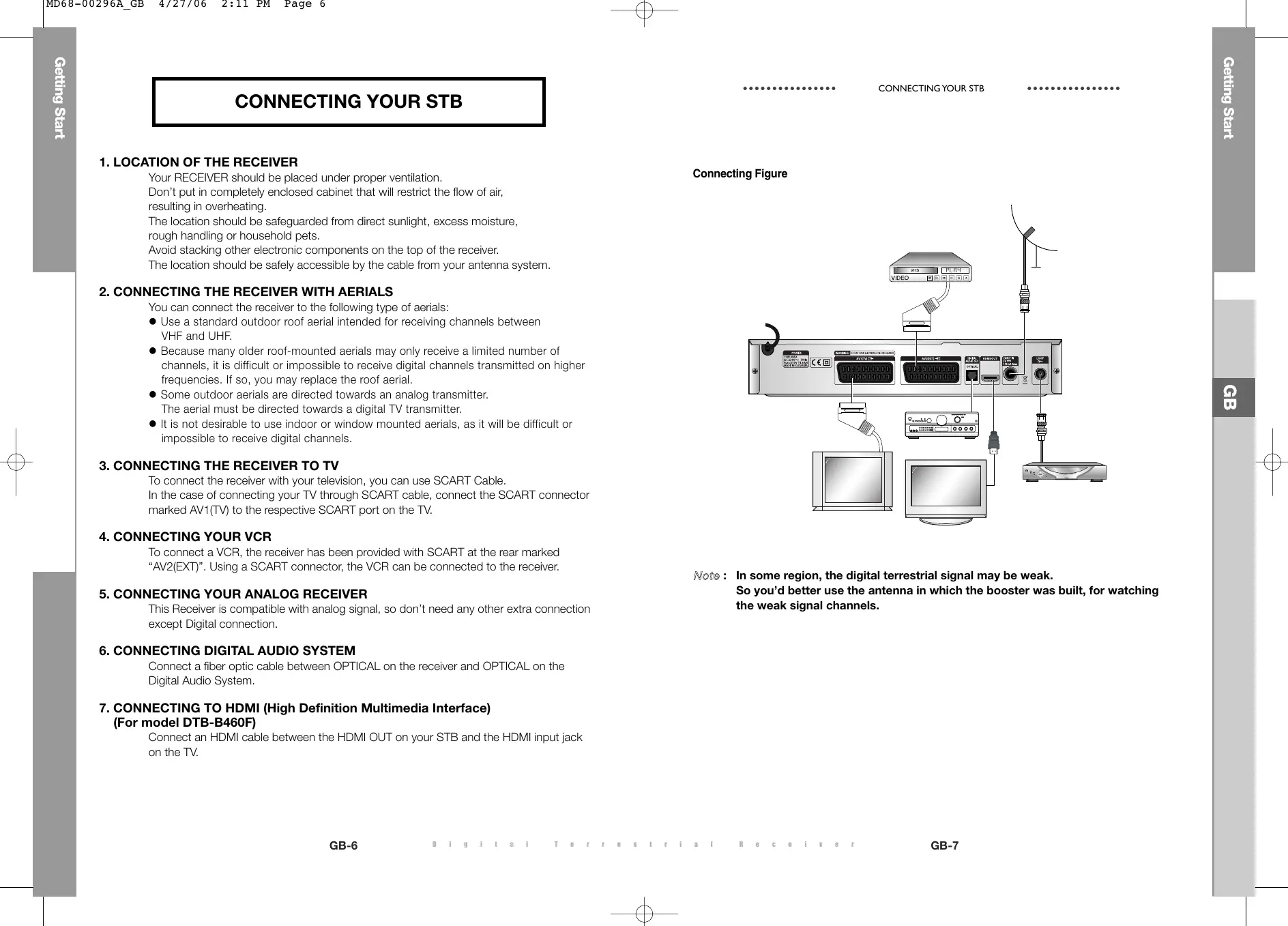
CONNECTING YOUR STB
1. LOCATION OF THE RECEIVER
Your RECEIVER should be placed under proper ventilation.
Don't put in completely enclosed cabinet that will restrict the flow of air, resulting in overheating.
The location should be safeguarded from direct sunlight, excess moisture, rough handling or household pets.
Avoid stacking other electronic components on the top of the receiver.
The location should be safely accessible by the cable from your antenna system.
2. CONNECTING THE RECEIVER WITH AERIALS
You can connect the receiver to the following type of aerials:
- Use a standard outdoor roof aerial intended for receiving channels between VHF and UHF.
- Because many older roof-mounted aerials may only receive a limited number of channels, it is difficult or impossible to receive digital channels transmitted on higher frequencies. If so, you may replace the roof aerial.
- Some outdoor aerials are directed towards an analog transmitter. The aerial must be directed towards a digital TV transmitter.
- It is not desirable to use indoor or window mounted aerials, as it will be difficult or impossible to receive digital channels.
3. CONNECTING THE RECEIVER TO TV
To connect the receiver with your television, you can use SCART Cable.
In the case of connecting your TV through SCART cable, connect the SCART connector marked AV1(TV) to the respective SCART port on the TV.
4. CONNECTING YOUR VCR
To connect a VCR, the receiver has been provided with SCART at the rear marked
"AV2(EXT)". Using a SCART connector, the VCR can be connected to the receiver.
5. CONNECTING YOUR ANALOG RECEIVER
This Receiver is compatible with analog signal, so don't need any other extra connection except Digital connection.
6. CONNECTING DIGITAL AUDIO SYSTEM
Connect a fiber optic cable between OPTICAL on the receiver and OPTICAL on the Digital Audio System.
7. CONNECTING TO HDMI (High Definition Multimedia Interface) (For model DTB-B460F)
Connect an HDMI cable between the HDMI OUT on your STB and the HDMI input jack on the TV.
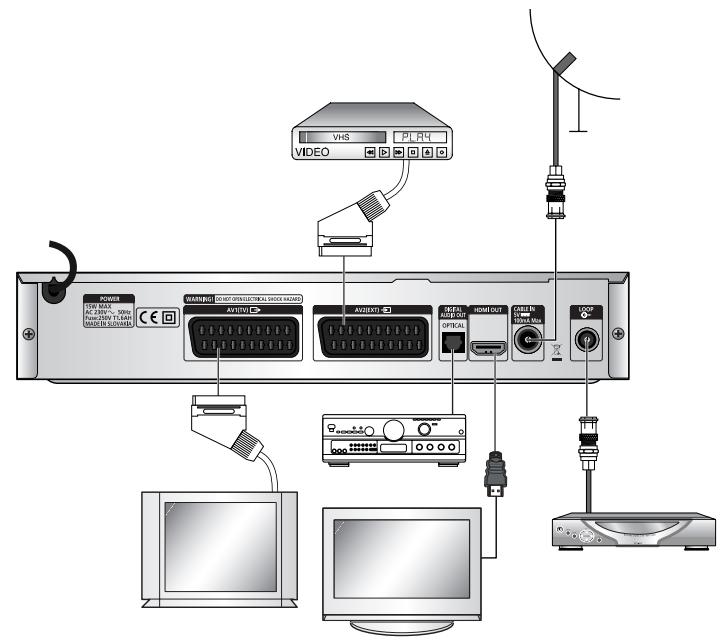
Connecting Figure
Note: In some region, the digital terrestrial signal may be weak.
So you'd better use the antenna in which the booster was built, for watching the weak signal channels.

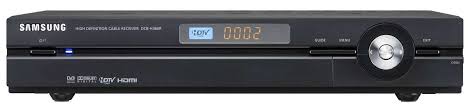
Front Panel
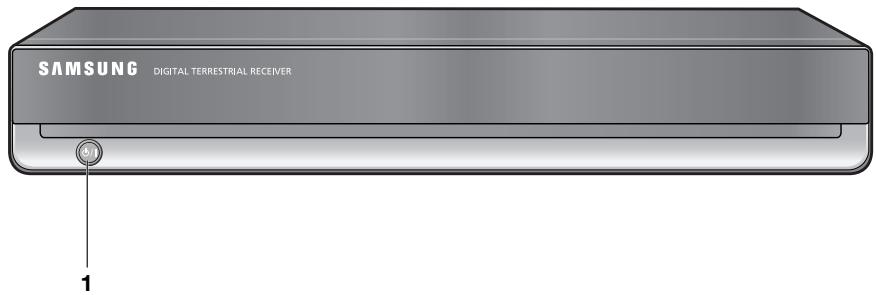
- / This key is used to turn the receiver on and off (Standby).
Rear Panel
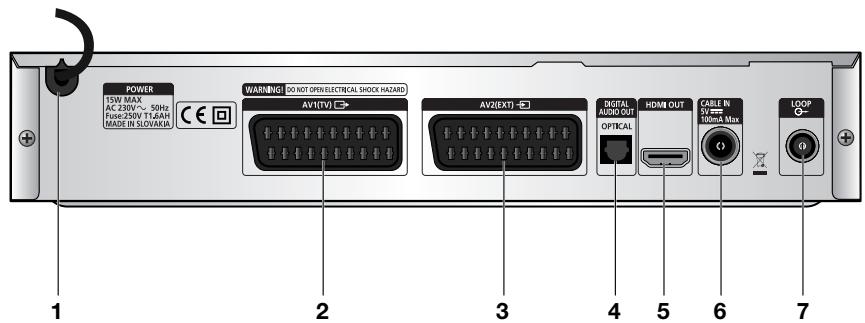
- AC MAINS This is to plug in the AC mains power cord. The input AC voltage range is 230V 50Hz/60Hz supply.
- AV1 (TV) This is for connecting to your TV. RGB format is supported.
- AV2 (EXT) This is for connecting to your VCR or other equipment.
- DIGITAL AUDIO OUT Output for connection to a digital amplifier.
- HDMI OUT This port is to connect to the HDMI input jack for device with HDMI input. (For model DTB-B460F)
- CABLE IN This port is to connect the coaxial cable from your cable system.
- LOOP To enable the connection of an Analog receiver. The receiver is provided with this 'LOOP' port.
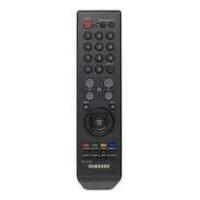
Remote Control Unit
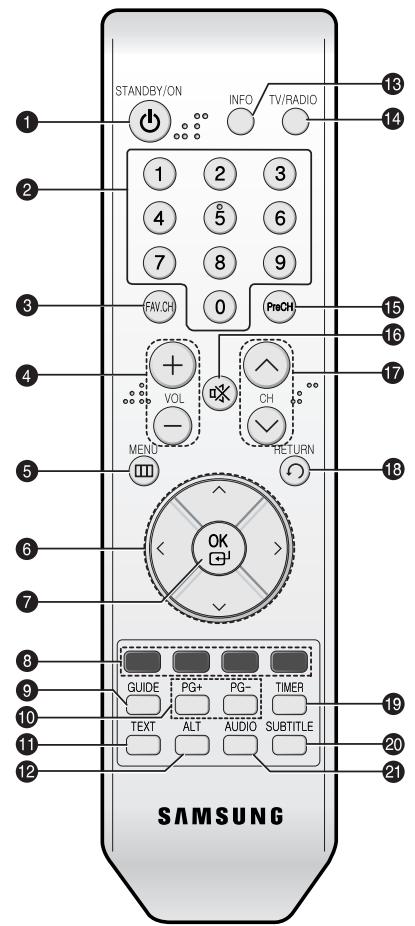
Note: 1. When inserting batteries, make sure that the polarity (+ / - ) is correct.
2. This is a special remote control for the visually impaired, and has Braille Points on the buttons.
- STANDBY/ON Turns the STB on and off.
- 0-9 Numeric key Press to enter numeric value and select the channel directly by entering number on the service list.
- FAV.CH Displays the favorite channel lists.
- VOL+/VOL- Press to increase or decrease the volume.
- MENU Displays the main on-screen menu.
- Arrow Key Controls the cursor in the menu.
- OK Confirms a selection.
- Color key (RED, GREEN, YELLOW, BLUE)
Used to select special operation for the STB.
- GUIDE Displays the on-screen Electronic Program Guide (EPG).
- PG+/PG- Press to move up or down pages on Teletext mode.
- TEXT Select the teletext mode.
- ALT Select the soundtrack list for the current service.
- INFO Press to display information for current program.
- TV/RADIO Toggle between the TV and Radio channel.
- PreCH Turns to the previous channel.
16.※(MUTE) This key is for toggling between normal & muted audio. - CH /CH Press to change channels.
- RETURN Returns to the previous menu.
- TIMER This function is not supported.
- SUBTITLE Press to change a subtitle language.
- AUDIO Press to select a Audio mode.
BASIC FUNCTIONS
1. Display Channel
Before you can view the television program, you must perform the installation.
Therefore you will see only menu images at first.
After the television channels have been programmed, you will see the following picture(banner) each time you switch channels:

- Press the INFO key in view mode.
- Select the channel by pressing Numeric (0~9) keys or CH /CH keys and press TV/RADIO key to move to TV or Radio channel.
- When the INFO key is pressed in second time, detailed information for current program can be displayed on another window.
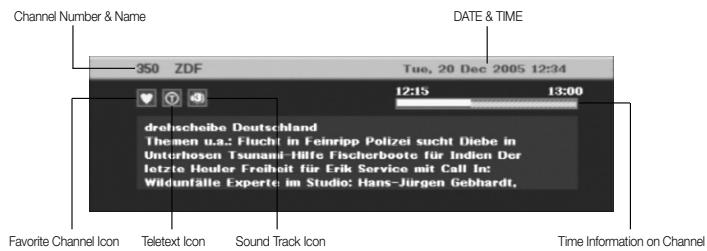
- If program is supported, you can see following icon list.
Favorite Channel Icon
04 Scramble Channel Icon
Lock Channel Icon
Sound Track Icon
Subtitle Icon
Teletext Icon
TV channel Icon
Radio channel icon
You will also see this picture each time you change channels.
When you press TV/RADIO key on the Remote Control Unit, TV and RADIO program are toggled.
2. Volume Control

To control the volume level :
- Press the VOL+ or VOL- keys to adjust the volume level.
- Press the 咪 (MUTE) key to turn to silence mode.
- Press the (MUTE) key again or VOL+ or VOL- keys in order to cancel the mute function.
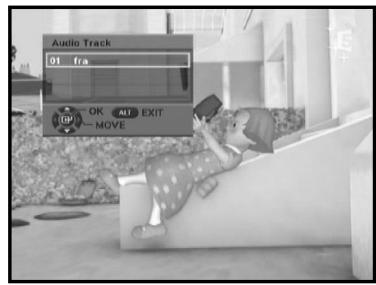
3. Select Soundtrack
- Press the ALT key to see the soundtrack list.
- Press the / and OK keys to select one.
- When watching TV through HDMI Out, AC 3 Audio output is not supported.
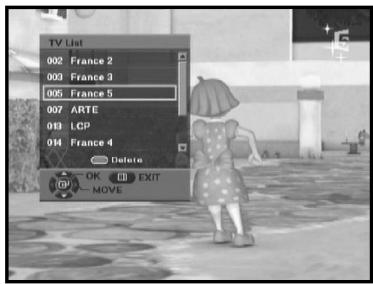
4. Service List
- Press the OK key while you are viewing a program.
- Select list by pressing the TV/RADIO key.
- Select the channel by pressing the / keys for moving up or down pages on the lists.
- Press the RED key to delete a channel from the TV or Radio list.
- Press the OK key to watch that channel.
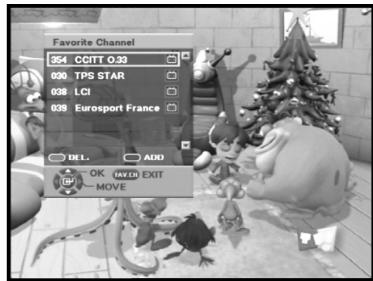
5. Setting the Favorite Channel
You can immediately register the present channel to the favorite channel.
- Press the FAV key while you are viewing a program.
- To add the current channel to the Favorite channels, press the BLUE key.
- To delete a favorite channel from the Favorite channel list, press the RED key.
To watch the favorite channel
- Press the FAV key and then select the channel by using / keys.
- Press the OK key to watch that channel.
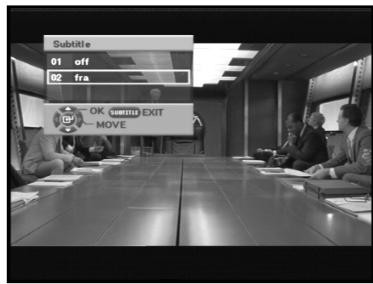
6. Changing the Subtitle Language
When the current broadcasting program provides subtitle, press the SUBTITLE key to see the current subtitle language list.
If Subtitle is available on current program, is displayed on information on channel.
- Press the SUBTITLE key to see the subtitle language List.
- Use the / keys to select a subtitle language you want.
- Press the OK key and then the subtitle language you want is displayed.
To do text off, press the SUBTITLE key and select '01 off'. Then, press OK key.
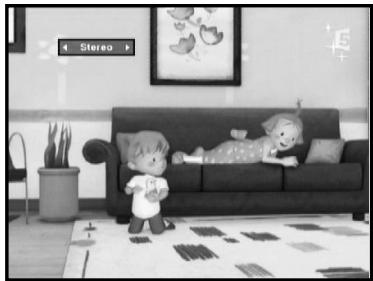
7. Selecting the Audio mode
Depending on the particular program being broadcast, you can listen to stereo, mono, right, or left.
- Press the AUDIO key to see the Audio menu.
- Use the / keys to select a Audio menu.
Stereo: Select this to listen to the audio track in stereo.
Mono: Select this to listen to the audio track in mono.
Right: Select this to listen to the right audio track through both speakers.
Left: Select to listen to the left audio track through both speakers.
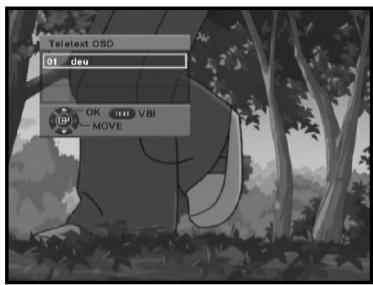
8. Changing the Teletext OSD
- When the current broadcasting program provides Teletext OSD, press the TEXT key to see the current Teletext OSD list.
- Use the / keys to select a Teletext OSD you want.
- Press the OK key and then the Teletext OSD you want is displayed on the screen.
- When Teletext screen is displayed, press the / , / , PG+, PG-, or Numeric keys to go to desired page.
Pressing PG+ or PG- moves the page by 100 pages.
- Press the TEXT key to exit.
INFO key function in the Teletext screen
- Press the INFO key once: The background screen of Teletext becomes transparent and displays the text.
- Press the INFO key twice: The background screen of Teletext becomes black and dose not display the video but displays the text.
- Press the INFO key three times: The same screen as that when selecting the Teletext is displayed.
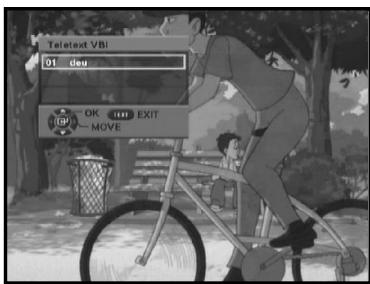
9. Changing the Teletext VBI
- When the current broadcasting program provides Teletext VBI, press the TEXT key twice to see the current Teletext VBI list.
- This Teletext will be displayed to the screen by TV, which supports Teletext.
Use the / keys to select a Teletext VBI you want. - Press the OK key and then the Teletext VBI you want is displayed on the screen.
- When Teletext Screen is display, press the / or Numeric keys to go to desired page.
- Press the TEXT key to exit.
After installing your antenna system and STB with appropriate connectors.
- Plug in the AC main power and switch on the receiver.
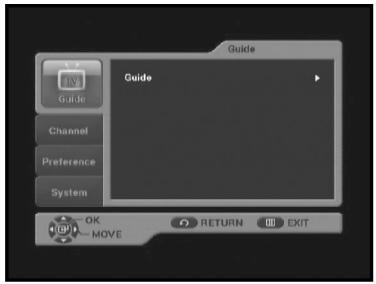
- Press the MENU key to bring up the main menu.
The following on screen display will appear:
The sub menu topics will be displayed.
For the sub-menus Guide, Channel, Preference and System.
1. EPG-Electronic Program Guide
The electronic program guide gives you a channel list for the channels.
- Select "GUIDE" in the main menu, then press the OK key.
GREEN key : Green key is for moving back to the previous date.
YELLOW key : Yellow key is for moving to the next coming date.
INFO key : INFO key can be used to see detailed channel information.
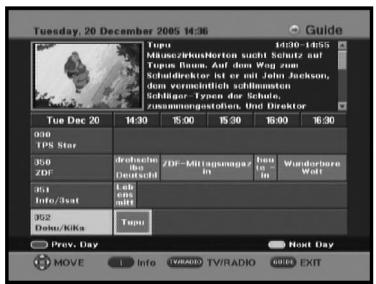
- Press the / keys to select the desired channel, then press the OK key.
Note: Quick way to access the GUIDE menu : Just press the GUIDE key while you are viewing a program.
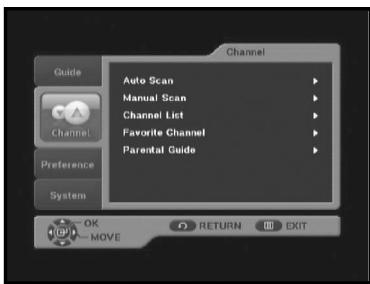
2. Channel
This menu consists of 5 sub-menus:
Auto Scan, Manual Scan, Channel List, Favorite Channel and Parental Guide.
- Select "Channel" in the main menu by using / keys.
- Place the cursor on this sub menu and press the OK key.
If you have not entered your own PIN Code then the PIN Code 0000 applies, which was set at the factory.
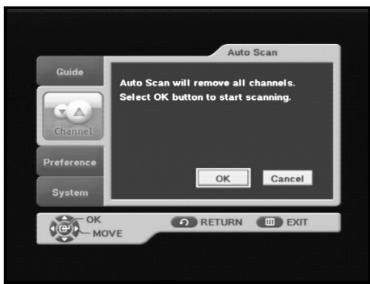
2.1 Auto Scan
This function allows you to download of the channels automatically from the preprogrammed load.
- Press the OK key.
Auto Scan will be started.
All the channels in the list will be automatically downloaded.
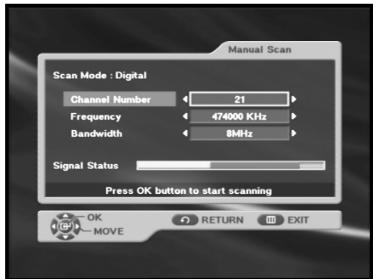
2.2 Manual Scan
To tune-in new channels and weak signals, the STB has been provided with the option "Manual Scan" where the channel data can be entered by the user.
- Select the Channel Number.
You can select the specified channel you want to find.
The followings are defined as a default, but optionally you can choose it.
Signal Status bar shows you if it is valid.
- Input the frequency of the channel you want to find.
- Select the bandwidth.
You can select the value of 6, 7 or 8 MHz. - Press the OK key start scanning.
2.3 Channel List
This function is used to delete the channels.
- Select the channel you want to delete by using / keys.
- Press the RED key. The message "Do you want to delete the selected channel?" will appear. If you delete the channel, select Yes.
- To move to TV or Radio channel, press the TV/RADIO key repeatedly.
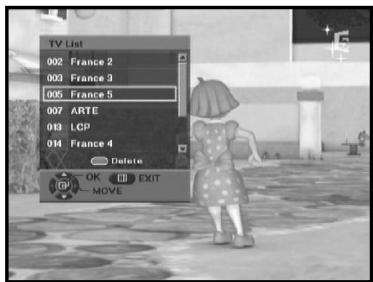
Note: 1. If you want to watch the channel on channel list, select the channel then press the OK key.
- Quick way to access the channel list menu: Just press the OK key while you are viewing a program.
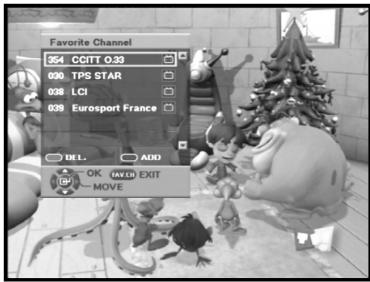
2.4 Favorite Channel
You can immediately register the present channel to the favorite channel list.
- To add the current channel to the favorite channels, press the BLUE key.
- To delete a favorite channel from the favorite channel list, press the RED key.
- Press the OK key to watch that channel.
Note: Quick way to access the Favorite channel menu : Just press the FAV key while you are viewing a program.
2.5 Parental Guide
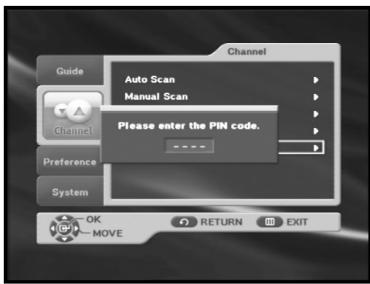
This feature sets viewing restrictions and prevents unauthorized access to your STB through the PIN(Personal Identification Number), which is a 4 digit number. (The factory preset PIN Code:0000)
On selecting this menu, you can set lock for any desired channel.
- Enter PIN Code. If you have not entered your own PIN Code then the PIN Code 0000 applies, which was set at the factory.
3. Preference
This option enables you to change preset setting such as Aspect Ratio, TV setting as per your requirement. You can set the various preference settings you want.
-
Place the cursor on this sub menu and press OK key.
-
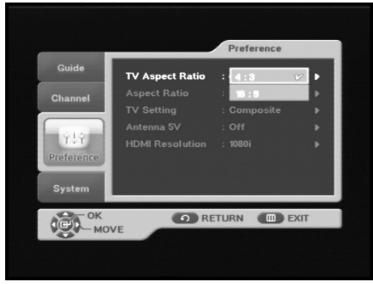
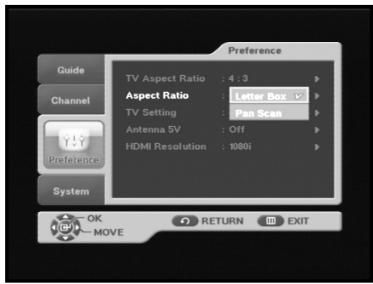
Select the TV Aspect Ratio : STANDARD 4:3 ratio or WIDE SCREEN 16:9 ratio type.
-
Select the Aspect Ratio : Letter Box or Pan Scan. (This is available function when it is standard 4:3 to TV Aspect ratio)
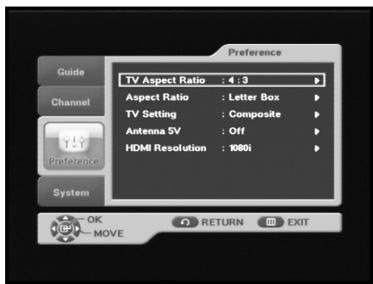
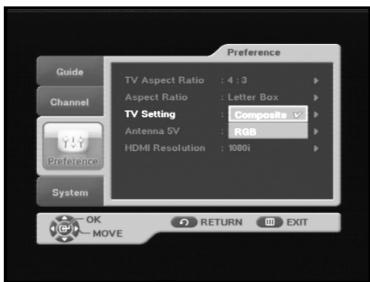
- Select the TV setting : Composite or RGB. You can select the Video signal type.
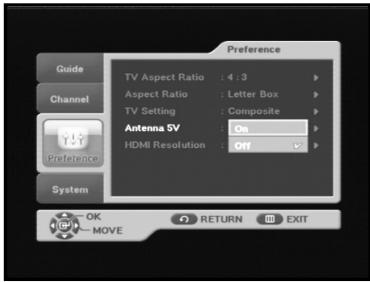
- Select the Antenna 5V : On or Off
Select Active Antenna Power
Use the / keys to select On or Off, then press the OK key.
On: Active antenna power is supplied through the ANT in terminal to boost up RF signal gain.
Off: Active antenna power is not supplied.
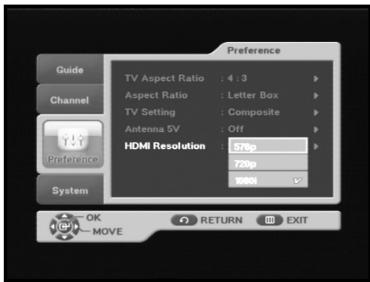
- Select the HDMI (High Definition Multimedia Interface) Resolution : 576p, 720p, or 1080i. (For model DTB-B460F)
Note : When you connect an HDMI cable between the HDMI OUT jack on your STB and the HDMI input jack on the TV, the HDMI Resolution menu appears.
Resolution and interlacing
Two of the elements that determine the quality of a TV picture are resolution and interlacing.
- Resolution: For TV equipment and broadcasts, resolution is defined by the number of horizontal lines displayed to make up each frame of a video image. The more lines of resolution used to draw each frame of video, the more detailed and sharp the picture will be. Standard TV resolution uses 576 horizontal lines to make up each frame of video. HDTV uses either 720 lines, or 1080 lines to make each video frame.
- Interlacing: When TVs display video, they display a new video frame at a rate that is faster than your eye can see (from 24 to 60 frames per second, depending on the TV and broadcast). Interlacing refers to whether each of those frames contains all of the lines of video for each frame or every other line. Interlaced signals take every other line from 2 frames of video (each lasting 1/60th of a second), and combine them into one frame lasting 1/30th of a second. In this way, interlacing tricks your eye into thinking it is seeing twice the resolution that is actually being displayed.
In non-interlaced video, (referred to as progressive scan video), video frames are displayed every 1/60th of a second containing all of the lines of video information for each frame.
The specifications for video resolutions are usually stated by giving the number of horizontal lines, followed by either the letter i, for interlaced video, or p for progressive scan video. Most standard TV broadcasts are 576i (576 lines of interlaced video resolution).
4. System
This menu consists of 5 sub-menus : Product Info, Reset, Change PIN code, Language, and Software Update.
- Place the cursor on this sub menu and press OK key.
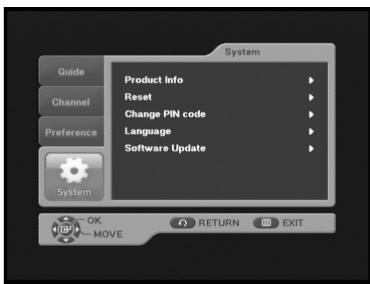
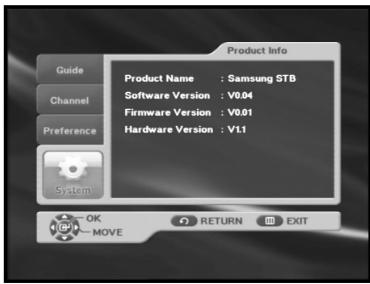
4.1 Product Info
If you have to contact your service provider or a service center they might ask for information available from this menu.
Place the cursor on this sub menu and press the OK key.
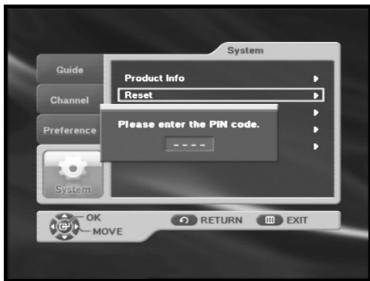
4.2 Reset
This is to restore the factory set values in case the user has encountered some problems after changing any new values of channel data and others, which may be in error. Select Reset menu in System menu and press OK key. If you want to continue, select "YES" in the warning window. The receiver will be reset to settings automatically. Please note that the Factory Default procedure may take a few seconds.
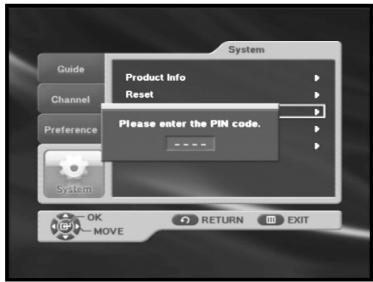
4.3 Change PIN Code
In this option, you need to enter the current PIN code at the first cursor, and at the second cursor enter the desired PIN code. To confirm, you need to enter the new PIN code again.
Please remember the PIN code should be a 4 digit numerical value.
THE FACTORY PRESET PIN Code : 0000
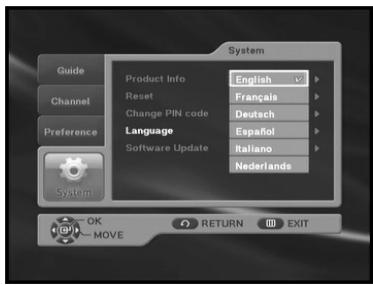
4.4 Language
The "Language" option allows the user to select the desired language of the OSD.
- To accommodate user from different regions speaking different languages, OSD languages are available 6 languages. (English, Français, Deutsch, Espanol, Italiano, and Nederlands provided currently)
- To select the desired language menu, press the / keys to change language and press the OK key.
- The OSD language will vary according to the selected language.
4.5 Software Update
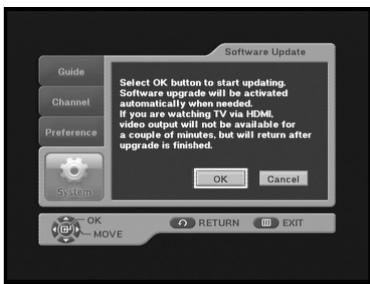
Using this function, you can check if a new version of the software is available and upgrade the software if available.
- To upgrade the software, select 'OK' and press the OK key.
- Selecting this will take about 2 minutes to check if a new version of the software is available. If a new version is available, the software upgrade starts.
- If there is no new version, the "You don't need to upgrade software!" message appears.
- To cancel the upgrade, select 'Cancel' and press the OK key.
TROUBLESHOOTINGS
In some region, the digital terrestrial signal may be weak.
So you'd better use the antenna in which the booster was built, for watching the weak signal channels.
You can download and upgrade the system software of the receiver through a specific channel designated by the broadcaster.
The Distributor will provide you with more information about that.
| Problem | Possible cause | Solution of the problem |
| No display LED on the front panel; No power supply | Power cord not plugged in correctly | Power cord plug in correctly |
| No pictures on the screen | Receiver in Standby mode; Scart not connected tightly to video output of television; incorrect channel or video output selected on television | Set receiver to “On”; Check connection and correct; Check channel and video output and correct (TV instruction manual) |
| No sound | Audio cord connected incorrectly; Loudness level = 0; Muting active | Check connection and correct; Increase loudness on television set; Press the MUTE key |
| Remote Control does not operate directly | Incorrect operation; Batteries dead or inserted incorrectly | Point remote control towards the Receiver. Replace batteries or insert correctly |
| Poor picture quality | Signal strength too low | Check the signal strength in the “Manual Scan” menu, correct alignment of your antenna |
| On-Screen Error Message “Searching for signal” | Antenna cable not connected or not tight; incorrect position of the antenna; | Check connection and correct; Check position and correct, Check the signal strength in the “Manual Scan” menu |
| On-Screen Error Message “Channel data does not exist.” | Receiver not yet set | Scanning of in “Installation” menu |
DISPOSAL
The device, packaging material (e.g. Styrofoam) and the batteries must never be disposed of with household refuse. Please obtain appropriate information about the regulations in your community, and dispose of all refuse in accordance with regulations at the separate locations provided.
TECHNICAL SPECIFICATIONS
Power supply
| Type : | SMPS |
| Input voltage : | AC 230V~, 50/60Hz |
| Fuse rating : | 250V T1.6AH |
Demodulator
| DEMODULATION : | OFDM DEMODULATION (DVB-T) |
| MODE : | 2K/8K |
| CODE RATE : | Viterbi Convolutional |
| Code Rate - 1/2,2/3,3/4,5/6,7/8 |
Tuner
| Freq. Range : | 50~860 MHz |
| Input signal level : | -25 ~ -65 dBm |
| Channel selection : | PLL frequency synthesizer |
| Input impedance : | 75 Ω unbalanced |
| Connector type : | Din type female(RF in/RF out) |
Video decoder
| System decoding : | MPEG 2 ISO/IEC 13818 (Transport Stream) |
| Profile and level : | MPEG 2 MP@ML (4:2:2) |
| Data rate : | 1~15 Mb/s |
| Video formats : | 4:3 (normal) & 16:9 (widescreen) |
| Picture resolution : | 720(H) x 576(V) x 50 fields/sec |
Audio Decoder
| System decoding : | MPEG 1 ISO/IEC 11172~3 layer I & II |
| Audio mode : | single channel, dual channel, stereo, joint stereo |
| Sampling frequency : | 32, 44.1, 48, 96 KHz |
Note : The specification of the STB may be changed without notice in advance.
A/V output
| TV SCART : | VIDEO (CVBS, RGB), AUDIO R&L |
| VCR SCART : | VIDEO (CVBS), AUDIO R&L |
| SPDIF : | Digital Audio Output |
| HDMI : | HDMI OUT (For model DTB-B460F) |
Physical Specification
| Size (W x H x D) : | 270 mm x 200 mm x 45 mm |
| Weight(Net) : | 1.2 kg |
| Operating Temperature : | 0 °C to +45 °C |
| Storage Temperature : | -10 °C to +70 °C |
DTB-B460F / DTB-B360F
Ovladani receiveru 17
Hlavní nabídka 17
- Instructions for use
- List des services
- SAFETY INSTRUCTIONS
- CONNECTION TO THE CABLE TV SIGNAL AND TV:
- WARNING!
- Follow these directions in order not to damage the power cord or plug.
- Failure to follow one of them may cause electrical shock.
- Do not use the product when it is out of order. If you continue to use the product with a defect, it can cause a serious damage to the product. Make sure to contact your local product distributor when the product is out of order.
- This marking shown on the product or its literature, indicates that it should not be disposed with other
- CONTENTS
- GENERAL FEATURES
- USER SECTION
- TUNER SECTION
- 3.VIDEO SECTION
- AUDIO SECTION
- CONNECTING YOUR STB
- LOCATION OF THE RECEIVER
- CONNECTING THE RECEIVER WITH AERIALS
- CONNECTING THE RECEIVER TO TV
- CONNECTING YOUR VCR
- CONNECTING YOUR ANALOG RECEIVER
- CONNECTING DIGITAL AUDIO SYSTEM
- CONNECTING TO HDMI (High Definition Multimedia Interface) (For model DTB-B460F)
- Front Panel
- Rear Panel
- Remote Control Unit
- BASIC FUNCTIONS
- Display Channel
- Volume Control
- Select Soundtrack
- Service List
- Setting the Favorite Channel
- To watch the favorite channel
- Changing the Subtitle Language
- Selecting the Audio mode
- Changing the Teletext OSD
- INFO key function in the Teletext screen
- Changing the Teletext VBI
- The following on screen display will appear:
- EPG-Electronic Program Guide
- Channel
- Auto Scan
- Manual Scan
- Channel List
- Favorite Channel
- Parental Guide
- Preference
- Resolution and interlacing
- System
- Product Info
- Reset
- Change PIN Code
- Language
- Software Update
- TROUBLESHOOTINGS
- DISPOSAL
- TECHNICAL SPECIFICATIONS
- Power supply
- Demodulator
- Tuner
- Video decoder
- Audio Decoder
- A/V output
- Physical Specification
- DTB-B460F / DTB-B360F
Brand : SAMSUNG
Model : DTB-B360F
Category : DVB