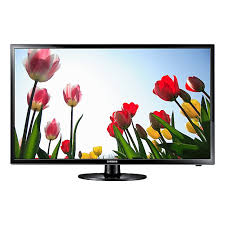
UE19F4000AW - TV SAMSUNG - Free user manual and instructions
Find the device manual for free UE19F4000AW SAMSUNG in PDF.



| Product Type | LED TV |
| Brand | Samsung |
| Model | UE19F4000AW |
| Screen Size | 19 inches (48 cm) |
| Display Resolution | 1366 x 768 pixels |
| Dimensions with Stand (W x H x D) | 453.7 x 314.2 x 151.4 mm |
| Weight with Stand | 2.6 kg |
| Weight without Stand | 2.5 kg |
| Audio Power | 3 W x 2 (Stereo) |
| Optimal Resolution | 1366 x 768 @ 60 Hz |
| Connectivity | HDMI (2), Component, SCART (AV), USB, CI+, Headphone jack |
| Main Features | Media Play (USB), e-Manual, Teletext, Electronic Program Guide, Eco Mode |
| Power Supply | AC/DC adapter (mains voltage) |
| Operating Temperature | 10 °C to 40 °C |
| Operating Humidity | 10% to 80%, non-condensing |
| Wall Mount (VESA) | 75 x 75 mm, M4 screws |
| Included Accessories | Remote control, AAA batteries x2, power cable, adapter, manual, warranty card |
| Maintenance | Soft dry cloth; do not use solvents |
| Safety | Do not obstruct ventilation; maintain 10 cm clearance |
Frequently Asked Questions - UE19F4000AW SAMSUNG
User questions about UE19F4000AW SAMSUNG
0 question about this device. Answer the ones you know or ask your own.
Ask a new question about this device
Download the instructions for your TV in PDF format for free! Find your manual UE19F4000AW - SAMSUNG and take your electronic device back in hand. On this page are published all the documents necessary for the use of your device. UE19F4000AW by SAMSUNG.
USER MANUAL UE19F4000AW SAMSUNG
If you have any questions or comments relating to Samsung products, please contact the SAMSUNG customer care centre.
| Country | Customer Care Centre | Web Site |
| AUSTRIA | 0810 - SAMSUNG (7267864, € 0.07/min) | www.samsung.com |
| BELGIUM | 02-201-24-18 | www.samsung.com/be (Dutch)www.samsung.com/be_fr (French) |
| BOSNIA | 051 133 1999 | www.samsung.com |
| BULGARIA | 07001 33 11 , share cost tariff | www.samsung.com/bg |
| CROATIA | 062 SAMSUNG (062 726 786) | www.samsung.com/hr |
| CZECH | 800 - SAMSUNG (800-726786) | www.samsung.com |
| Samsung Electronics Czech and Slovak, s.r.o. V Parku 2343/24, 148 00 - Praha 4 | ||
| DENMARK | 70 70 19 70 | www.samsung.com |
| FINLAND | 030-6227 515 | www.samsung.com |
| FRANCE | 01 48 63 00 00 | www.samsung.com/fr |
| GERMANY | 0180 6 SAMSUNG bzw.0180 6 7267864 ^* (*0,20 €/Anruf aus dem dt. Festnetz, aus dem Mobilfunk max. 0,60 €/Anruf) | www.samsung.com |
| CYPRUS | 8009 4000 only from landline | www.samsung.com/gr |
| GREECE | 80111-SAMSUNG (80111 726 7864) only from land line(+30) 210 6897691 from mobile and land line | www.samsung.com/gr |
| HUNGARY | 06-80-SAMSUNG (726-7864) | http://www.samsung.com/hu |
| ITALIA | 800-SAMSUNG (726-7864) | www.samsung.com |
| LUXEMBURG | 261 03 710 | www.samsung.com |
| MONTENEGRO | 020 405 888 | www.samsung.com |
| NETHERLANDS | 0900-SAMSUNG (0900-7267864) (€ 0,10/Min) | www.samsung.com |
| NORWAY | 815 56480 | www.samsung.com |
| POLAND | 0 801-172-678 ^* lub +48 22 607-93-33 ^** ^* (całkowity koszt połączenia jak za 1 impuls według taryfy operatora) ^** (koszt połączenia według taryfy operatora) | www.samsung.com/pl |
| PORTUGAL | 808 20-SAMSUNG (808 20 7267) | www.samsung.com |
| ROMANIA | 08008 SAMSUNG (08008 726 7864)TOLL FREE No. | www.samsung.com/ro |
| SERBIA | 011 321 6899 | www.samsung.com/rs |
| SLOVAKIA | 0800 - SAMSUNG (0800-726 786) | www.samsung.com |
| SPAIN | 902172678 | www.samsung.com |
| SWEDEN | 0771 726 7864 (SAMSUNG) | www.samsung.com |
| SWITZERLAND | 0848 - SAMSUNG(7267864, CHF 0.08/min) | www.samsung.com/ch (German)www.samsung.com/ch_fr (French) |
| U.K | 0330 SAMSUNG (7267864) | www.samsung.com |
| EIRE | 0818 717100 | www.samsung.com |
| LITHUANIA | 8-800-77777 | www.samsung.com/lt |
| LATVIA | 8000-7267 | www.samsung.com/lv |
| ESTONIA | 800-7267 | www.samsung.com/ee |
| TURKEY | 444 77 11 | www.samsung.com |
SAMSUNG
SERIES
4
SERIES
5
LED TV
user manual
text_image
E-MANUALThank you for purchasing this Samsung product.
To receive more complete service, please register your product at
www.samsung.com/register
Model ____ Serial No. ____
Warning! Important Safety Instructions
(Please read the safety instructions below before installing and using the product.)
CAUTION
RISK OF ELECTRIC SHOCK. DO NOT OPEN.
CAUTION: TO REDUCE THE RISK OF ELECTRIC SHOCK, DO NOT REMOVE COVER (OR BACK). THERE ARE NO USER SERVICEABLE PARTS INSIDE. REFER ALL SERVICING TO QUALIFIED PERSONNEL.

This symbol indicates that high voltage is present inside. It is dangerous to make any kind of contact with any internal part of this product.

This symbol indicates that important literature concerning operation and maintenance has been included with this product.
- The slots and openings in the cabinet and in the back or bottom are provided for necessary ventilation. To ensure reliable operation of this apparatus, and to protect it from overheating, these slots and openings must never be blocked or covered.
- Do not cover the slots and openings with a cloth or other materials.
- Do not block the slots and openings by placing this apparatus on a bed, sofa, rug or other similar surface.
- Do not place this apparatus in a confined space, such as a bookcase or built-in cabinet, unless proper ventilation is provided.
- Do not place this apparatus near or over a radiator or heat register, or where it is exposed to direct sunlight.
- Do not place a vessel containing water (vases etc.) on this apparatus, as this can result in a risk of fire or electric shock.
- Do not expose this apparatus to rain or place it near water (near a bathtub, washbowl, kitchen sink, or laundry tub, in a wet basement, or near a swimming pool etc.). If this apparatus accidentally gets wet, unplug it and contact an authorized dealer immediately.
- Make sure to pull out the power cord from the outlet before cleaning.
- This apparatus use batteries. In your community, there might be regulations that require you to dispose of these batteries properly to protect the environment. Please contact your local authorities for disposal or recycling information.
- Do not overload wall outlets, extension cords, or adaptors beyond their capacity, since this can result in fire or electric shock.
- Power-supply cords should be routed so that they are not likely to be walked on or pinched by items placed upon or against them. Pay particular attention to cords at the plug end, where connected to adaptors, and at the point where they exit from the apparatus.
- To protect this apparatus from a lightning storm, or when it is left unattended and unused for long periods of time, unplug it from the wall outlet and disconnect the antenna or cable system. This will prevent damage to the set due to lightning and power line surges.
- Before connecting the AC power cord to the DC adaptor outlet, make sure the voltage designation of the DC adaptor corresponds to the local electrical supply. (depending on the model)
- Never insert anything metallic into the open parts of this apparatus. Doing so may create a danger of electric shock.
- To avoid electric shock, never touch the inside of this apparatus. Only a qualified technician should open this apparatus.
- Make sure to plug the power cord in until it is firmly inserted. Pull on the plug, not the cord, when removing the power cord from the outlet. Do not touch the power cord with wet hands.
- If this apparatus does not operate normally - in particular, if there are any unusual sounds or smells coming from it - unplug it immediately and contact an authorized dealer or service center.
- Be sure to pull the power plug out of the outlet if the TV is to remain unused or if you are to leave the house for an extended period of time (especially when children, elderly or disabled people will be left alone in the house).
- Accumulated dust can cause an electric shock, an electric leakage, or a fire by causing the power cord to generate sparks and heat, or cause the insulation to deteriorate.
- Be sure to contact an authorized service center, when installing your set in a location with heavy dust, high or low temperatures, high humidity, chemical substances or where it will operate for 24 hours a day such as in an airport, a train station, etc. Failure to do so may cause serious damage to your set.
- Use only a properly grounded plug and receptacle.
- An improper ground may cause electric shock or equipment damage. (Class I Equipment only.)
- To turn off the apparatus completely, you must pull the power plug out of the wall socket. Consequently, the power plug should be readily accessible at all times.
- Do not allow children to hang onto the product.
- Store the accessories (batteries, etc.) in a location safely out of the reach of children.
- Do not install the product in an unstable location such as a shaky self, a slanted floor, or a location exposed to vibration.
- Do not drop or impart a shock to the product. If the product is damaged, disconnect the power cord and contact a service center.
- To clean the product, unplug the power cord from the power outlet and wipe the product using a soft cloth dipped in a small amount of water. Do not use any chemicals such as wax, benzene, alcohol, thinners, insecticide, air freshener, lubricant or detergent. This may damage the appearance or erase the printing on the product.
- Do not expose the apparatus to dripping or splashing.
- Do not dispose of batteries in a fire.
- Do not short circuit, disassemble, or overheat the batteries.
• not short circuit, disassemble, or overheat the batteries. - There is a danger of explosion if you replace the batteries with the wrong type of battery. Replace only with the same or equivalent type.
- WARNING - TO PREVENT THE SPREAD OF FIRE, KEEP CANDLES OR OTHER OPEN FLAMES AWAY FROM THIS PRODUCT AT ALL TIMES.

For more information on how to use e-Manual (P. 8)
Figures and illustrations in this User Manual are provided for reference only and may differ from actual product appearance. Product design and specifications may be changed without notice.
Important Warranty Information Regarding Television Format Viewing
- Functionalities related to Digital TV (DVB) are only available in countries/areas where DVB-T (MPEG2 and MPEG4 AVC) digital terrestrial signals are broadcasted or where you are able to access to a compatible DVB-C (MPEG2 and MPEG4 AAC) cable-TV service. Please check with your local dealer the possibility to receive DVB-T or DVB-C signal.
- DVB-T is the DVB European consortium standard for the broadcast transmission of digital terrestrial television and DVB-C is that for the broadcast transmission of digital TV over cable. However, some differentiated features like EPG (Electric Programme Guide), VOD (Video On Demand) and so on, are not included in this specification. So, they cannot be workable at this moment.
- Although this TV set meets the latest DVB-T and DVB-C standards, as of [August, 2008], the compatibility with future DVB-T digital terrestrial and DVB-C digital cable broadcasts cannot be guaranteed.
- Depending on the countries/areas where this TV set is used some cable-TV providers may charge an additional fee for such a service and you may be required to agree to terms and conditions of their business.
- Some Digital TV functions might be unavailable in some countries or regions and DVB-C might not work correctly with some cable service providers.
- For more information, please contact your local Samsung customer care centre.
The reception quality of TV may be affected due to differences in broadcasting method between the countries. Please check the TV performance in the local SAMSUNG Authorized Dealer, or the Samsung Call Centre whether it can be improved by reconfiguring TV setting or not.
Still image warning
Avoid displaying still images (like jpeg picture files) or still image element (like TV programme logo, panorama or 4:3 image format, stock or news bar at screen bottom etc.) on the screen. Constant displaying of still picture can cause ghosting of LED screen, which will affect image quality. To reduce risk of this effect, please follow below recommendations:
- Avoid displaying the same TV channel for long periods.
• Always try to display any image on the whole screen, use the picture size menu for the best possible option to achieve this. - Reduce brightness and contrast to minimum values required to achieve desired picture quality, excessively high values will increase the possibility of screen burnout.
- Frequently use all the TV's features designed to reduce image retention and screen burnout, please refer to the relevant section of the user manual for details.
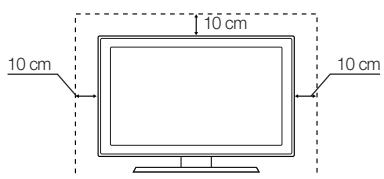
Securing the Installation Space
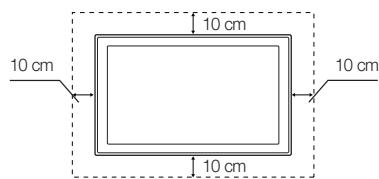
Keep the required distances between the product and other objects (e.g. walls) to ensure proper ventilation.
Failing to do so may result in fire or a problem with the product due to an increase in the internal temperature of the product.

When using a stand or wall-mount, use parts provided by Samsung Electronics only.
- If you use parts provided by another manufacturer, it may result in a problem with the product or an injury due to the product falling.

The appearance may differ depending on the product.

Be careful when you contact the TV because some parts can be somewhat hot.
Installation with a stand.
text_image
10 cm 10 cm 10 cmInstallation with a wall-mount.
text_image
10 cm 10 cm 10 cm 10 cm
Correct Disposal of This Product (Waste Electrical & Electronic Equipment)
(Applicable in the European Union and other European countries with separate collection systems)
This marking on the product, accessories or literature indicates that the product and its electronic accessories (e.g. charger, headset, USB cable) should not be disposed of with other household waste at the end of their working life. To prevent possible harm to the environment or human health from uncontrolled waste disposal, please separate these items from other types of waste and recycle them responsibly to promote the sustainable reuse of material resources. Household users should contact either the retailer where they purchased this product, or their local government office, for details of where and how they can take these items for environmentally safe recycling. Business users should contact their supplier and check the terms and conditions of the purchase contract. This product and its electronic accessories should not be mixed with other commercial wastes for disposal.
Correct disposal of batteries in this product
(Applicable in the European Union and other European countries with separate battery return systems)
This marking on the battery, manual or packaging indicates that the batteries in this product should not be disposed of with other household waste at the end of their working life. Where marked, the chemical symbols Hg, Cd or Pb indicate that the battery contains mercury, cadmium or lead above the reference levels in EC Directive 2006/66. If batteries are not properly disposed of, these substances can cause harm to human health or the environment. To protect natural resources and to promote material reuse, please separate batteries from other types of waste and recycle them through your local, free battery return system.

CIS languages (Russian, Ukrainian, Kazakhs) are not available for this product, since this is manufactured for customers in EU region.
List of Features
Media Play
- Allows you to play music files, pictures, and movies saved on a USB device.
e-Manual
- Allows you to read on screen full manual. (p. 8)
Accessories
Please make sure the following items are included with your TV. If any items are missing, contact your dealer.
The items' colours and shapes may vary depending on the models.
Cables not included in the package contents can be purchased separately.
• Remote Control & Batteries (AAA x 2)
• Warranty Card / Regulatory Guide
- Owner's Instructions
- Power Cord
• AC/DC Adapter (for 19", 22" models)
An administration fee may be charged if either
(a) an engineer is called out at your request and there is no defect in the product
(i.e. where you have failed to read this user manual)
(b) you bring the unit to a repair centre and there is no defect in the product
(i.e. where you have failed to read this user manual)
The amount of such administration charge will be advised to you before any work or home visit is carried out.
Using the TV's Controller (Panel Key)
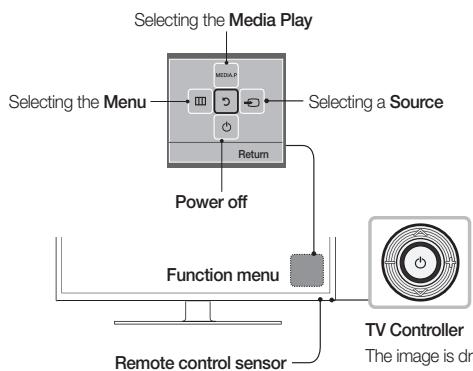
The TV's Controller, a small joy stick like button on the rear right side of the TV, lets you control the TV without the remote control.
Some functions which require a PIN code may not be available.
The product colour and shape may vary depending on the model.
Exits the menu when pressing the controller more than 1 second.
When using the controller in the up/down/left/right directions, make sure you do not push the controller in first. If you push the controller in first it will not move in the up/down/left right directions.
flowchart
graph TD
    A["Selecting the Media Play"] --> B["Selecting the Menu"]
    B --> C["Selecting a Source"]
    C --> D["Power off"]
    D --> E["Function menu"]
    E --> F["Remote control sensor"]
    F --> G["TV Controller"]
The image is drawn by facing the front side of the TV.
Standby mode
Do not leave your TV in standby mode for long periods of time (when you are away on a holiday, for example). A small amount of electric power is still consumed even when the power button is turned off. It is best to unplug the power cord.
Viewing the Remote Control

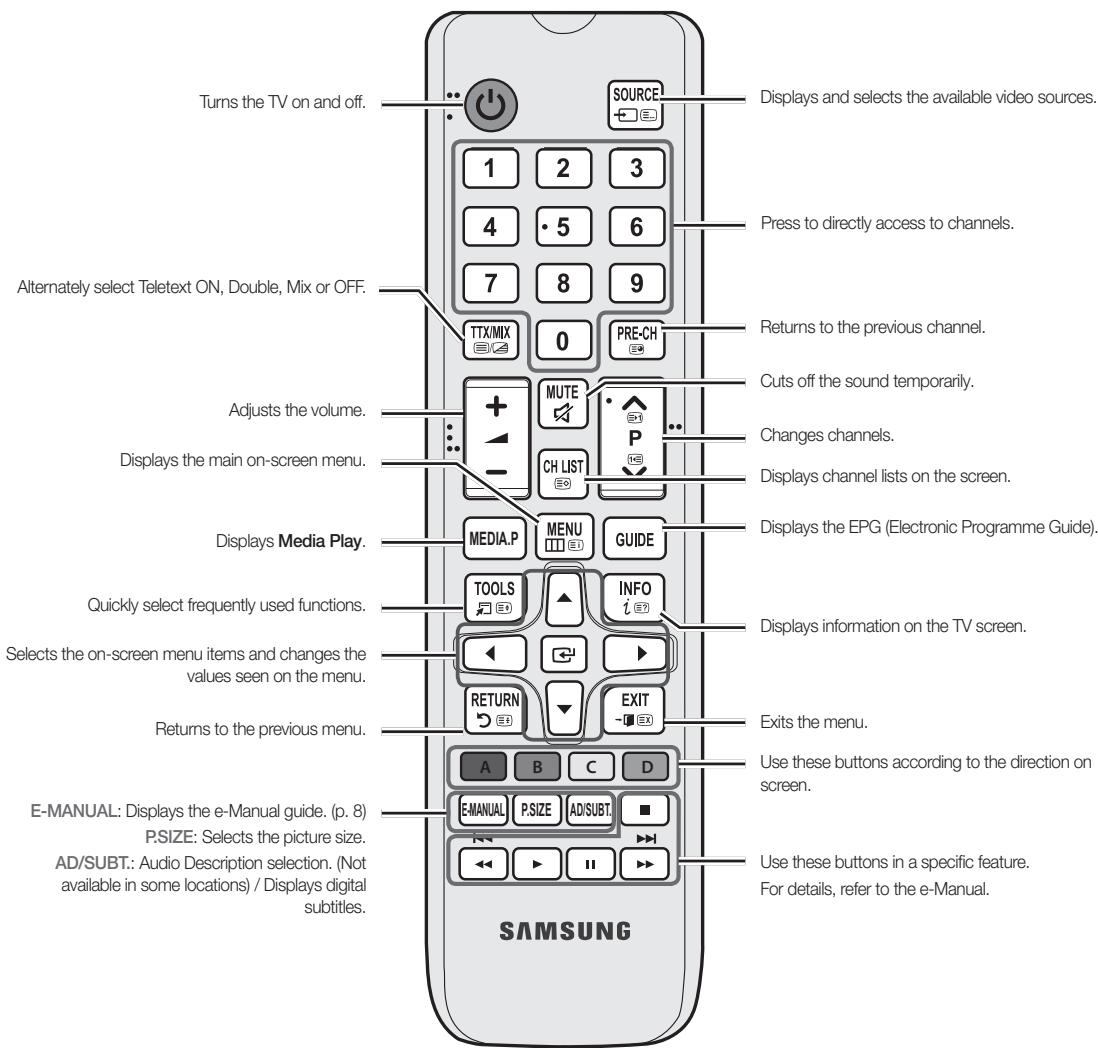
This is a special remote control for the visually impaired persons and has Braille points on the Power, Channel, and Volume buttons.
text_image
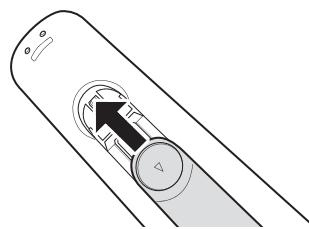
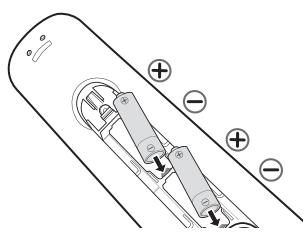
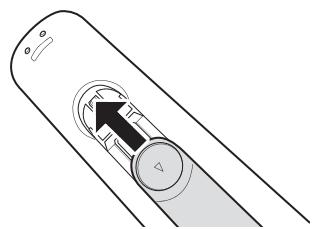
Turns the TV on and off. Alternate select Teletext ON, Double, Mix or OFF. Adjusts the volume. Displays the main on-screen menu. Displays Media Play. Quickly select frequently used functions. Selects the on-screen menu items and changes the values seen on the menu. Returns to the previous menu. E-MANUAL: Displays the e-Manual guide. (p. 8) PSIZE: Selects the picture size. AD/SUBT: Audio Description selection. (Not available in some locations) / Displays digital subtitles. SOURCE 1 2 3 4 5 6 7 8 9 TTX/MIX 0 PRE-CH MUTE CH LIST MEDIA.P MENU GUIDE TOOLS INFO RETURN EXIT A B C D E-MANUAL PSIZE AD/SUBT SAMSUNG Displays and selects the available video sources. Press to directly access to channels. Returns to the previous channel. Cuts off the sound temporarily. Changes channels. Displays channel lists on the screen. Displays the EPG (Electronic Programme Guide). Displays information on the TV screen. Exits the menu. Use these buttons according to the direction on screen. Use these buttons in a specific feature. For details, refer to the e-Manual.Installing batteries (Battery size: AAA)
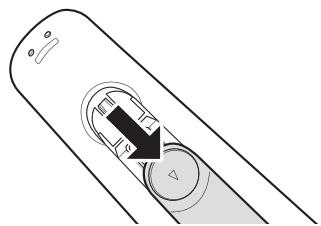
natural_image
Diagram of a remote control panel with a black arrow indicating clockwise direction (no text or symbols)
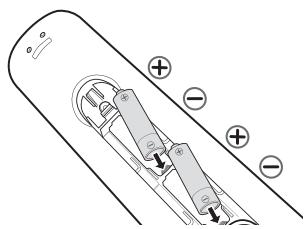
text_image
Diagram showing a battery with positive and negative terminals, marked with plus and minus signs indicating polarity.
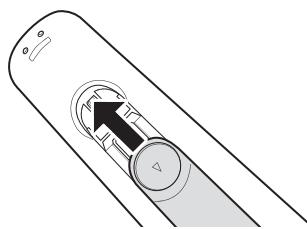
natural_image
Diagram of a remote control panel with directional arrows indicating movement (no text or symbols)Connections
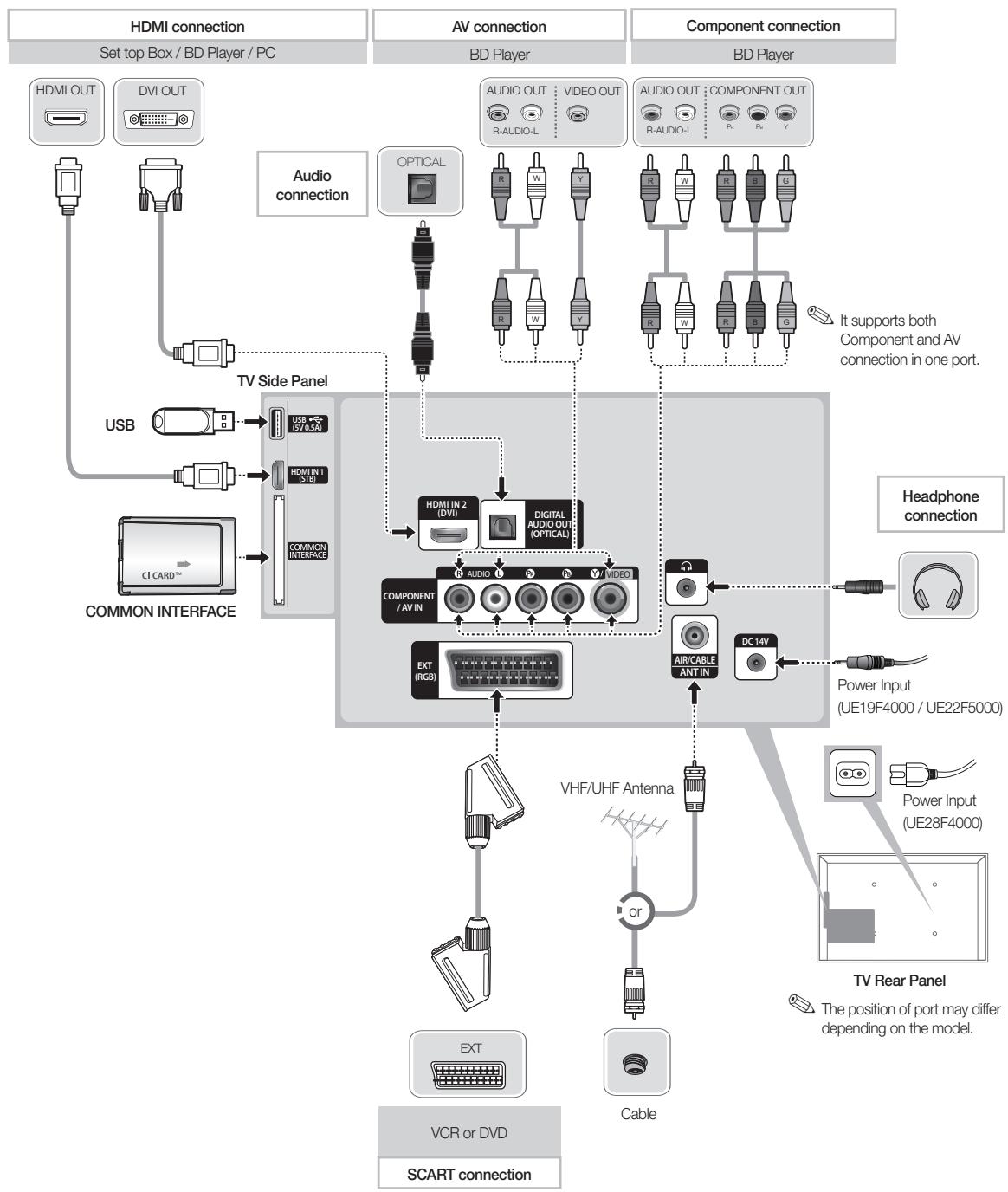
flowchart
graph TD
    A["HDMI connection"] --> B["Set top Box / BD Player / PC"]
    C["AV connection"] --> D["BD Player"]
    E["Component connection"] --> F["BD Player"]
    G["TV Side Panel"] --> H["USB"]
    G --> I["COMMON INTERFACE"]
    J["Headphone connection"] --> K["AUDIO OUT R-AUDIO-L"]
    J --> L["AUDIO OUT R-AUDIO-L"]
    J --> M["AUDIO OUT R-AUDIO-L"]
    J --> N["AUDIO OUT R-AUDIO-L"]
    J --> O["AUDIO OUT R-AUDIO-L"]
    J --> P["AUDIO OUT R-AUDIO-L"]
    J --> Q["AUDIO OUT R-AUDIO-L"]
    J --> R["AUDIO OUT R-AUDIO-L"]
    J --> S["AUDIO OUT R-AUDIO-L"]
    J --> T["AUDIO OUT R-AUDIO-L"]
    J --> U["AUDIO OUT R-AUDIO-L"]
    J --> V["AUDIO OUT R-AUDIO-L"]
    J --> W["AUDIO OUT R-AUDIO-L"]
    J --> X["AUDIO OUT R-AUDIO-L"]
    J --> Y["AUDIO OUT R-AUDIO-L"]
    J --> Z["AUDIO OUT R-AUDIO-L"]
    J --> AA["AUDIO OUT R-AUDIO-L"]
    J --> AB["AUDIO OUT R-AUDIO-L"]
    J --> AC["AUDIO OUT R-AUDIO-L"]
    J --> AD["AUDIO OUT R-AUDIO-L"]
    J --> AE["AUDIO OUT R-AUDIO-L"]
    J --> AF["AUDIO OUT R-AUDIO-L"]
    J --> AG["AUDIO OUT R-AUDIO-L"]
    J --> AH["AUDIO OUT R-AUDIO-L"]
    J --> AI["AUDIO OUT R-AUDIO-L"]
    J --> AJ["AUDIO OUT R-AUDIO-L"]
    J --> AK["AUDIO OUT R-AUDIO-L"]
    J --> AL["AUDIO OUT R-AUDIO-L"]
    J --> AM["AUDIO OUT R-AUDIO-L"]
    J --> AN["AUDIO OUT R-AUDIO-L"]
    J --> AO["AUDIO OUT R-AUDIO-L"]
    J --> AP["AUDIO OUT R-AUDIO-L"]
    J --> AQ["AUDIO OUT R-AUDIO-L"]
    J --> AR["AUDIO OUT R-AUDIO-L"]
    J --> AS["AUDIO OUT R-AUDIO-L"]
    J --> AT["AUDIO OUT R-AUDIO-L"]
    J --> AU["AUDIO OUT R-AUDIO-L"]
    J --> AV["AUDIO OUT R-AUDIO-L"]
    J --> AW["AUDIO OUT R-AUDIO-L"]
    J --> AX["AUDIO OUT R-AUDIO-L"]
    J --> AY["AUDIO OUT R-AUDIO-L"]
    J --> AZ["AUDIO OUT R-AUDIO-L"]
    J --> BA["AUDIO OUT R-AUDIO-L"]
    J --> BB["AUDIO OUT R-AUDIO-L"]
    J --> BC["AUDIO OUT R-AUDIO-L"]
    J --> BD["AUDIO OUT R-AUDIO-L"]
    J --> BE["AUDIO OUT R-AUDIO-L"]
    J --> BF["AUDIO OUT R-AUDIO-L"]
    J --> BG["AUDIO OUT R-AUDIO-L"]
    J --> BH["AUDIO OUT R-AUDIO-L"]
    J --> BI["AUDIO OUT R-AUDIO-L"]
    J --> BJ["AUDIO OUT R-AUDIO-L"]
    J --> BK["Audio IN 2 (DVI)"]
    K --> L["COMPONENT / AV IN"]
    L --> M["EXT (RGB)"]
    M --> N["VHF/UHF Antenna"]
    N --> O["Power Input (UE19F4000 / UE22F5000)"]
    N --> P["Power Input (UE28F4000)"]
    N --> Q["Power Input (UE28F4000)"]
    N --> R["Power Input (UE28F4000)"]
    N --> S["Power Input (UE28F4000)"]
    N --> T["Power Input (UE28F4000)"]
    N --> U["Power Input (UE28F4000)"]
    N --> V["Power Input (UE28F4000)"]
    N --> W["Power Input (UE28F4000)"]
    N --> X["Power Input (UE28F4000)"]
    N --> Y["Power Input (UE28F4000)"]
    N --> Z["Power Input (UE28F4000)"]
    N --> AA["Power Input (UE28F4000)"]
    N --> AB["Power Input (UE28F4000)"]
    N --> AC["Power Input (UE28F4000)"]
    N --> AD["Power Input (UE28F4000)"]
    N --> AE["Power Input (UE28F4000)"]
    N --> AF["Power Input (UE28F4000)"]
    N --> AG["Power Input (UE28F4000)"]
    N --> AH["Power Input (UE28F4000)"]
    N --> AI["Power Input (UE28F4000)"]
    N --> AJ["Power Input (UE28F4000)"]
    N --> AK["Power Input (UE28F4000)"]
    N --> AL["Power Input (UE28F4000)"]
    N --> AM["Power Input (UE28F4000)"]
    N --> AN["Power Input (UE28F4000)"]
    N --> AO["Power Input (UE28F4000)"]
    N --> AP["Power Input (UE28F4000)"]
    N --> AQ["Power Input (UE28F4000)"]
    N --> AR["Power Input (UE28F4000)"]
    N --> AS["Power Input (UE28F4000)"]
    N --> AT["Power Input (UE28F4000)"]
    N --> AU["Power Input (UE28F4000)"]
    N --> AV["Power Input (UE28F4000)"]
    N --> AW["Power Input (UE28F4000)"]
    N --> AX["Power Input (UE28F4000)"]
    N --> AY["Power Input (UE28F4000)"]
    N --> AZ["Power Input (UE28F4000)"]
    N --> BA["Power Input (UE28F4000)"]
    N --> BB["Power Input (UE28F4000)"]
    N --> BC["Power Input (UE28F4000)"]
    N --> BD["Power Input (UE28F4000)"]
    N --> BE["Power Input (UE28F4000)"]
    N --> BF["Power Input (UE28F4000)"]
    N --> BG["Power Input (UE28F4000)"]
    N --> BH["Power Input (UE28F4000)"]
    N --> BI["Power Input (UE28F4000)"]
    N --> BJ["Power Input (UE28F4000)"]
    N --> BK["Power Input (UE28F4000)"]
    N --> BL["Power Input (UE28F4000)"]
    N --> BM["Power Input (UE28F4000)"]
    N --> BN["Power Input (UE28F4000)"]
    N --> BO["Power Input (UE28F4000)"]
    N --> BP["Power Input (UE28F4000)"]
    N --> BQ["Power Input (UE28F4000)"]
    N --> BR["Power Input (UE28F4000)"]
    N --> BS["Power Input (UE28F4000)"]
    N --> BT["Power Input (UE28F4000)"]
    N --> BU["Power Input (UE28F4000)"]
    N --> BV["Power Input (UE28F4000)"]
    N --> BW["Power Input (UE28F4000)"]
    N --> BX["Power Input (UE28F4000)"]
    N --> BY["Power Input (UE28F4000)"]
    N --> BZ["Power Input (UE28F4000)"]
    N --> CA["Power Input (UE28F4000)"]
    N --> CB["Power Input (UE28F4000)"]
    N --> CC["Power Input (UE28F4000)"]
    N --> CD["Power Input (UE28F4000)"]
    N --> CE["Power Input (UE28F4000)"]
    N --> CF["Power Input (UE28F4000)"]
    N --> CG["Power Input (UE28F4000)"]
    N --> CH["Power Input (UE28F4000)"]
    N --> CI["X C CARD™"]

NOTE
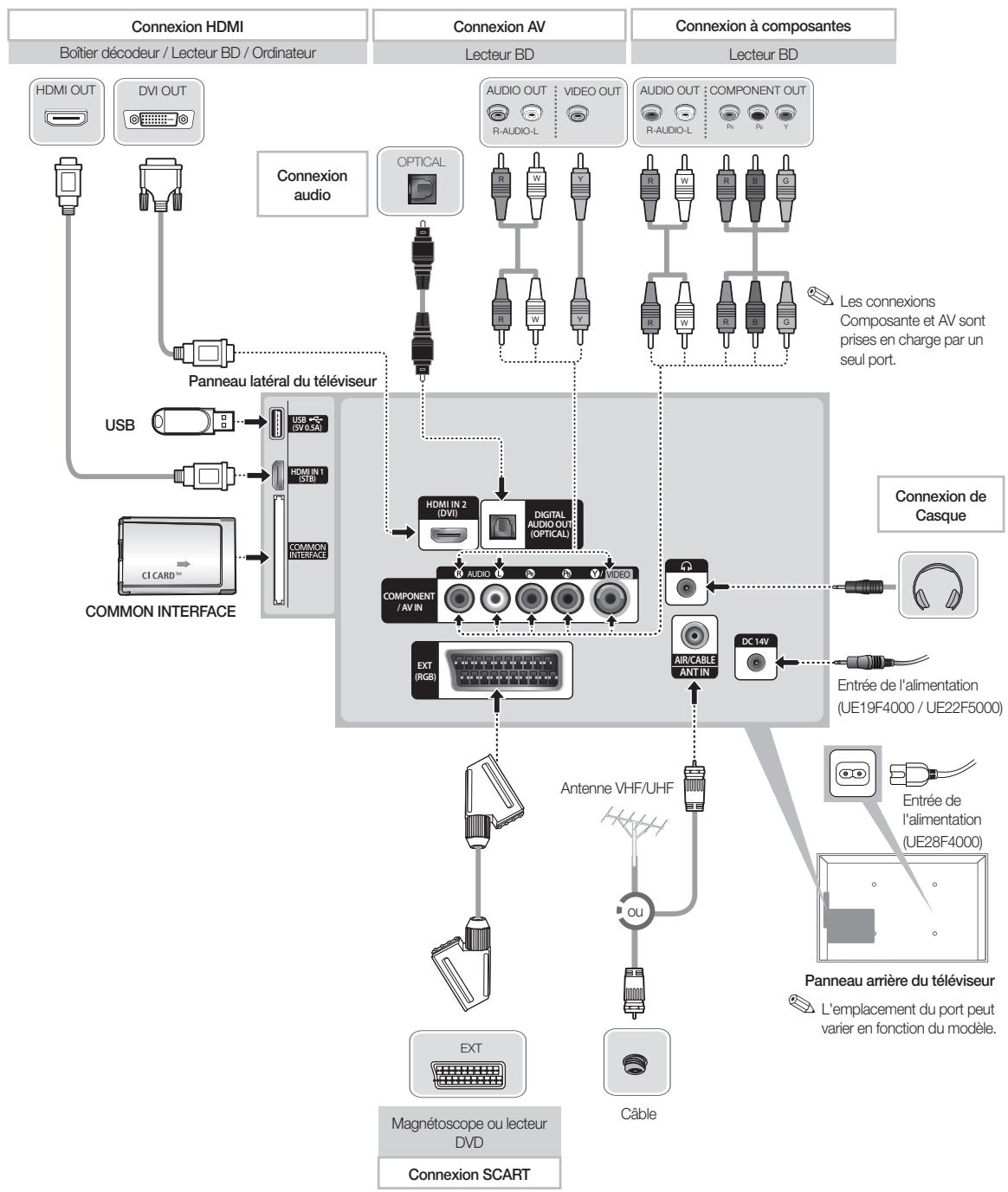
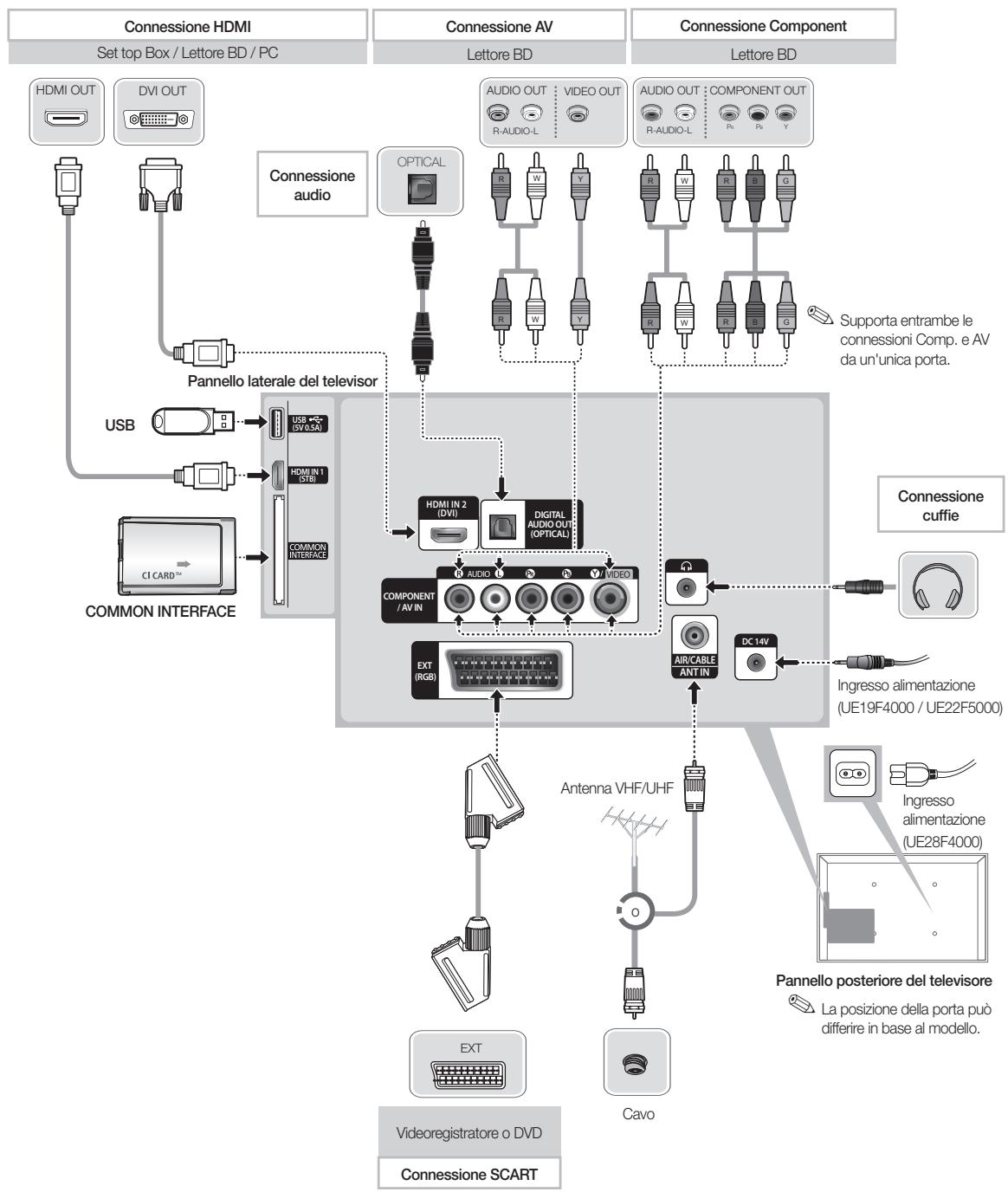
• PC(D-Sub) and PC/DVI AUDIO IN input are not supported.
- Connecting through the HDMI cable may not be supported depending on the PC.
- If a DVI to HDMI cable is connected to HDMI IN 2(DVI) port, there will be no audio.
- For set-top box connection using HDMI cable, we highly recommend you to connect the HDMI IN 1(STB) port.
- The headphone jack supports only the 3 conductor tip-ring-sleeve (TRS) type.
- The HDD (Hard Disk Drive) connected to USB is not supported.
Connecting to a COMMON INTERFACE slot (Your TV viewing Card Slot)
To watch paid channels, the "CI or CI+ CARD" must be inserted.
- If you do not insert the “CI or CI+ CARD”, some channels will display the message “Scrambled Signal”.
- The pairing information containing a telephone number, the "CI or CI+ CARD" ID the Host ID and other information will be displayed in about 2\~3 minutes. If an error message is displayed, please contact your service provider.
- When the configuration of channel information has finished, the message “Updating Completed” is displayed, indicating the channel list is updated.
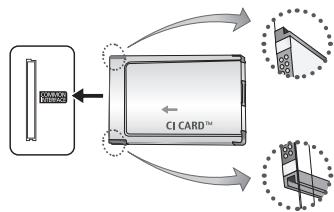
flowchart
graph TD
    A["Device"] --> B["CI CARD™"]
    B --> C["Component 1"]
    B --> D["Component 2"]
    style A fill:#f9f,stroke:#333
    style B fill:#ccf,stroke:#333
    style C fill:#cfc,stroke:#333
    style D fill:#fcc,stroke:#333
- The image may differ depending on the model.

NOTE
- You must obtain a "CI or CI+ CARD" from a local cable service provider.
- When removing the “CI or CI+ CARD”, carefully pull it out with your hands since dropping the “CI or CI+ CARD” may cause damage to it.
- Insert the "CI or CI+ CARD" in the direction marked on the card.
- The location of the COMMON INTERFACE slot may be different depending on the model.
- “CI or CI+ CARD” is not supported in some countries and regions; check with your authorized dealer.
• If you have any problems, please contact a service provider. - Insert the “CI or CI+ CARD” that supports the current aerial settings. The screen will be distorted or will not be seen.
Initial Setup
When the TV is initially powered on, a sequence of on-screen prompts will assist in configuring basic settings. Press the POWER button. Setup is available only when the source is set to TV.

If you connect any device to HDMI IN 1(STB) before starting the installation, Channel Source will be changed to Set-top box automatically. If you do not want to select Set-top box, please select Aerial.
If You Want to Reset This Feature...
You should do Setup (MENU → System) again at home although you did in shop.
Select System - Setup (Initial Setup). Enter your 4 digit PIN number. The default PIN number is "0-0-0-0" (except Italy). If you want to change the PIN number, use the Change PIN function.

If you forget the PIN code, press the remote control buttons in the following sequence in Standby mode, which resets the PIN to "0-0-0-0" (Italy: "1-1-1-1"): POWER (off) → MUTE → 8 → 2 → 4 → POWER (on).
Changing the Input Source
Source
TV / Ext. / HDMI1 / HDMI2/DVI / AV / Component
Use to select TV or other external input sources such as DVD / Blu-ray players / cable box / STB satellite receiver connected to the TV.

Press the SOURCE button. In the displayed Source list, connected inputs will be highlighted.

PC(D-Sub) input is not supported. If you want to connect PC to the TV, you can connect the HDMI to DVI cable with the HDMI IN 2(DVI) port on the TV.

Ext. always stays activated.

Press the TOOLS button.
- Edit Name
You can set an external input source name you want.
- When connecting a PC to the HDMI IN 2(DVI) port with HDMI cable, you should set the TV to PC mode under Edit Name.
- When connecting a PC to the HDMI IN 2(DVI) port with HDMI to DVI cable, you should set the TV to DVI PC mode under Edit Name.
- When connecting an AV devices to the HDMI IN 2(DVI) port with HDMI to DVI cable, you should set the TV to DVI Devices mode under Edit Name.
- Information
You can see detailed information about the connected external device.
How to use the e-Manual
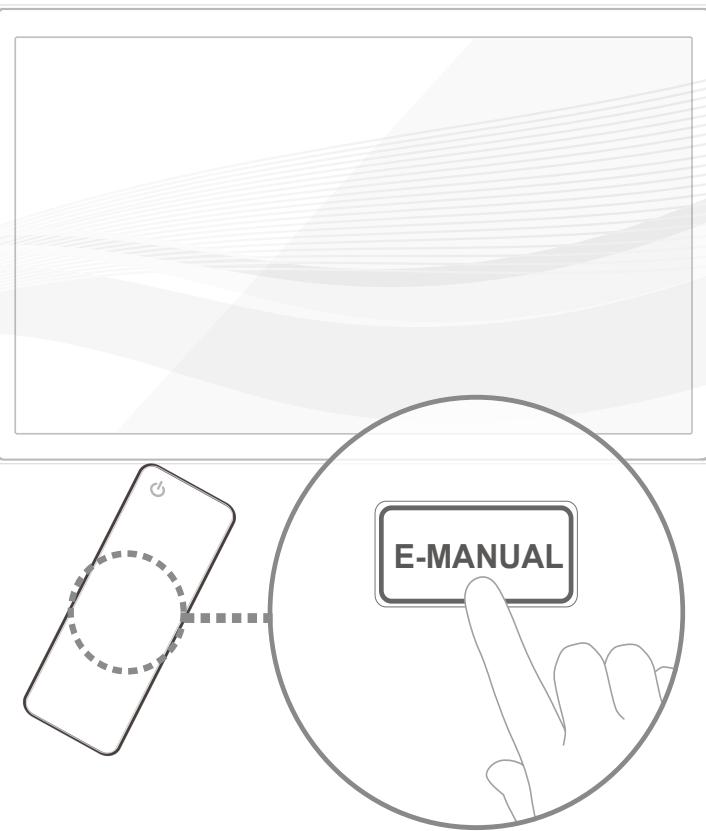
You can find instructions about your TV's features in the e-Manual in your TV. To use, press the E-MANUAL button on your remote. Move the cursor using the up/down/right/left buttons to highlight a category, then a topic, and then press the ENTER button. The e-Manual displays the page you want to see.
You can also access it through the menu:

MENU→Support→e-Manual→ENTER

To return to the e-Manual main menu, press the E-MANUAL button on the remote.
Screen Display
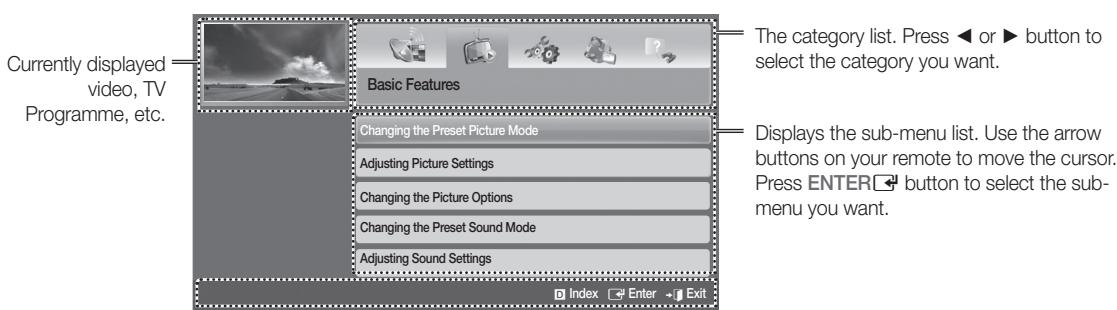
text_image
Currently displayed video, TV Programme, etc. Basic Features The category list. Press ◀ or ▶ button to select the category you want. Changing the Preset Picture Mode Adjusting Picture Settings Changing the Picture Options Changing the Preset Sound Mode Adjusting Sound Settings Displays the sub-menu list. Use the arrow buttons on your remote to move the cursor. Press ENTER button to select the sub-menu you want. Index Enter ExitOperation Buttons
D Index: Displays the index screen.
Enter: Selects a category or sub-menu.
→ Exit: Exit the e-Manual.
A Try now: Displays the OSD menu that corresponds to the topic. To return to the e-Manual screen, press the E-MANUAL button.
B Home: Moves to the e-Manual home screen.
Page: Moves to previous or next page.
© Zoom: Magnifies a screen.
- Press the C (Zoom) button to magnify the screen. You can scroll through the magnified screen by using the ▲ or ▼ buttons. To return to the screen to normal size, press the RETURN button.
How to toggle between an e-Manual topic and the corresponding OSD menu(s).

This function is not enabled in some menus.

You cannot use the Try now function if the menu is not activated.
| Method 1 | Method 2 |
| 1. If you want to use the menu that corresponds to an e-Manual topic, press the red button to select Try now.2. To return to the e-Manual screen, press the E-MANUAL button. | 1. Press the ENTER button when a topic is displayed. “Are you sure?” appears. Select Yes, and then press the ENTER button. The OSD window appears.2. To return to the e-Manual screen, press the E-MANUAL button. |
How to search for a topic on the index page

This function may not be supported depending on the language.
-
If you want to search a keyword, press the blue button to select Index.
-
Press the ◀ or ▶ button to select a character order you want.
-
Press the ▲ or ▼ button to select a keyword you want to see, and then press the ENTER← button.
-
You can view the corresponding e-Manual instruction screen.

To close the Index screen, press the RETURN button.
Teletext Feature
The index page of the Teletext service gives you information on how to use the service. For Teletext information to be displayed correctly, channel reception must be stable. Otherwise, information may be missing or some pages may not be displayed.

You can change Teletext pages by pressing the numeric buttons on the remote control.
text_image
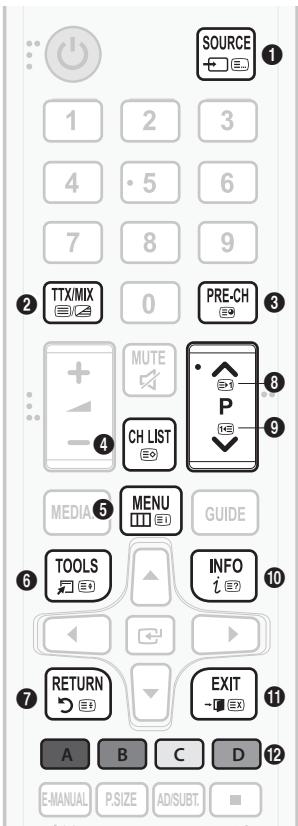
SOURCE 1 2 3 4 · 5 6 7 8 9 2 TTX/MIX 0 PRE-CH MUTE CH LIST MEDIA MENU GUIDE TOOLS INFO I RETURN EXIT A B C D E-MANUAL P.SIZE AD/SUBT.① (mode): Selects the Teletext mode (LIST/FLOF). If pressed during LIST mode, switches the mode to List save mode. In List save mode, you can save a Teletext page into a list using the ⊕(store) button.
② ☑ (Teletext on/mix/off): Activates the Teletext mode for the current channel. Press the button twice to overlap the Teletext mode with the current broadcasting screen. Press it one more time to exit teletext.
3 (sub-page): Displays the available sub-page.
4 (store): Stores the Teletext pages.
5 i (index): Displays the index (contents) page at any time while you are viewing Teletext.
6 (size): Displays the teletext on the upper half of the screen in double-size. To move the text to the lower half of the screen, press it again. For normal display, press it once again.
⑦ (hold): Holds the display at the current page, in the case that there are several secondary pages that follow automatically. To undo, press it again.
8 ☐-1 (page up): Displays the next Teletext page.
9 (page down): Displays the previous Teletext page.
10 ☑? (reveal): Displays the hidden text (answers to quiz games, for example). To display the normal screen, press it again.
11 ☒ (cancel): Shrinks the Teletext display to overlap with the current broadcast.
12 Colour buttons (red, green, yellow, blue): If the FASTEXT system is used by the broadcasting company, the different topics on a Teletext page are colour-coded and can be selected by pressing the coloured buttons. Press the colour corresponding to the topic of your choice. A new colour coded page is displayed. Items can be selected in the same way. To display the previous or next page, press the corresponding coloured button.
The Teletext pages are organized according to six categories
| Part | Contents |
| A | Selected page number. |
| B | Broadcasting channel identity. |
| C | Current page number or search indications. |
| D | Date and time. |
| E | Text. |
| F | Status information. FASTEXT information. |
| A | B | C | D |
| E | |||
| F | |||
Troubleshooting
If the TV seems to have a problem, first try this list of possible problems and solutions. If none of these troubleshooting tips apply, visit “www.samsung.com”, then click on Support, or call Samsung customer service centre.
| Issues | Solutions and Explanations |
| Picture Quality | First of all, please perform the Picture Test and confirm that your TV is properly displaying test image. (go to MENU - Support - Self Diagnosis - Picture Test) If the test image is properly displayed, the poor picture may caused by the source or signal. |
| The TV image does not look as good as it did in the store. | ·If you have an analogue cable/set top box, upgrade to a digital set top box. Use HDMI or Component cables to deliver HD (high definition) picture quality.·Cable/Satellite subscribers: Try HD stations from the channel line up.·Aerial connection: Try HD stations after performing Auto tuning.·Many HD channels are up scaled from SD (Standard Definition) contents.·Adjust the Cable/Set top box video output resolution to 1080i or 720p.·Make sure you are watching the TV at the minimum recommended distance based on the size and definition of the signal. |
| The picture is distorted: macroblock error, small block, dots, pixelization | ·Compression of video contents may cause picture distortion especially in fast moving pictures such as sports and action movies.·Low signal level or bad quality can cause picture distortion. This is not a TV issue.·Mobile phones used close to the TV (cca up to 1m) may cause noise in picture on analogue and digital TV. |
| Colour is wrong or missing. | ·If you're using a component connection, make sure the component cables are connected to the correct jacks. Incorrect or loose connections may cause colour problems or a blank screen. |
| There is poor colour or brightness. | ·Adjust the Picture options in the TV menu. (go to Picture Mode / Colour / Brightness / Sharpness)·Adjust Energy Saving option in the TV menu. (go to MENU - System - Eco Solution - Energy Saving)·Try resetting the picture to view the default picture settings. (go to MENU - Picture - Reset Picture) |
| There is a dotted line on the edge of the screen. | ·If the picture size is set to Screen Fit, change it to 16:9.·Change cable/satellite box resolution. |
| The picture is black and white. | ·If you are using an AV composite input, connect the video cable (yellow) to the Green jack of component input 1 on the TV. |
| When changing channels, the picture freezes or is distorted or delayed. | ·If connected with a cable box, please try to reset the cable box. Reconnect the AC cord and wait until the cable box reboots. It may take up to 20 minutes.·Set the output resolution of the cable box to 1080i or 720p. |
| Sound Quality | First of all, please perform the Sound Test to confirm that your TV audio is properly operating. (go to MENU - Support - Self Diagnosis - Sound Test)If the audio is ok, the sound problem may be caused by the source or signal. |
| There is no sound or the sound is too low at maximum volume. | ·Please check the volume of the device (Cable/Sat Box, DVD, Blu-ray etc) connected to your TV. |
| The picture is good but there is no sound. | ·Set the Speaker Select option to TV Speaker in the sound menu.·If you are using an external device, make sure the audio cables are connected to the correct audio input jacks on the TV.·If you are using an external device, check the device's audio output option (ex. you may need to change your cable box's audio option to HDMI when you have a HDMI connected to your TV).·Reboot the connected device by reconnecting the device's power cable. |
| The speakers are making an inappropriate noise. | ·Check the cable connections. Make sure a video cable is not connected to an audio input.·For aerial or cable connections, check the signal strength. Low signal level may cause sound distortion. |
| No Picture, No Video | |
| The TV will not turn on. | Make sure the AC power cord is securely plugged in to the wall outlet and the TV.Make sure the wall outlet is working.Try pressing the POWER button on the TV to make sure the problem is not the remote. If the TV turns on, refer to “The remote control does not work” below. |
| The TV turns off automatically. | Ensure the Sleep Timer is set to Off in the Time menu.If your PC is connected to the TV, check your PC power settings.Make sure the AC power cord is plugged in securely to the wall outlet and the TV.When watching TV from an aerial or cable connection, the TV will turn off after 10 ~ 15 minutes if there is no signal. |
| There is no picture/video. | Check cable connections (remove and reconnect all cables connected to the TV and external devices).Set your external device's (Cable/Set top Box, DVD, Blu-ray etc) video outputs to match the connections to the TV input. For example, if an external device's output is HDMI, it should be connected to an HDMI input on the TV.Make sure your connected devices are powered on.Be sure to select the TV's correct source by pressing the SOURCE button on the remote control.Reboot the connected device by reconnecting the device's power cable. |
| Aerial (Air/Cable) Connection | |
| The TV is not receiving all channels. | Make sure the Aerial cable is connected securely.Please try Setup (Initial setup) to add available channels to the channel list. Go to MENU - System - Setup (Initial setup) and wait for all available channels to be stored.Verify the Aerial is positioned correctly. |
| The picture is distorted: macro block error small block, dots, pixelization | Compression of video contents may cause picture distortion, especially on fast moving pictures such as sports and action movies.A low signal can cause picture distortion. This is not a TV issue. |
| Others | |
| The picture will not display in full screen. | HD channels will have black bars on either side of the screen when displaying up scaled SD (4:3) contents.Black bars on the top and bottom will appear during movies that have aspect ratios different from your TV.Adjust the picture size options on your external device or TV to full screen. |
| The remote control does not work. | Replace the remote control batteries with the poles (+/-) in the right direction.Clean the sensor's transmission window on the remote.Try pointing the remote directly at the TV from 5~6 feet away. |
| The cable/set top box remote control doesn't turn the TV on or off, or adjust the volume. | Programme the Cable/Set top box remote control to operate the TV. Refer to the Cable/Set top box user manual for the SAMSUNG TV code. |
| A “Mode Not Supported” message appears. | Check the supported resolution of the TV, and adjust the external device's output resolution accordingly. |
| There is a plastic smell from the TV. | This smell is normal and will dissipate over time. |
| The TV Signal Information is unavailable in the Self Diagnosis Test menu. | This function is only available with digital channels from an Aerial / RF / Coax connection. |
| TV is tilted to the right or left side. | Remove the stand base from the TV and reassemble it. |
| There are difficulties assembling the stand base. | Make sure the TV is placed on a flat surface. If you can not remove the screws from the TV, please use a magnetized screw driver. |
| The Broadcasting menu is grey out (unavailable). | The Broadcasting menu is only available when the TV source is selected. |
| Your settings are lost after 30 minutes or every time the TV is turned off. | If the TV is in theStore Demomode, it will reset audio and picture settings every 30 minutes. If you want to change the settings fromStore Demomode toHome Use, press the SOURCE button to selectTVmode, and go to MENU -Support-Use Mode. |
| You have intermittent loss of audio or video. | Check the cable connections and reconnect them.Loss of audio or video can be caused by using overly rigid or thick cables. Make sure the cables are flexible enough for long term use. If mounting the TV to the wall, we recommend using cables with 90 degree connectors. |
| You see small particles when you look closely at the edge of the frame of the TV. | This is part of the product's design and is not a defect. |
| ThePIPmenu is not available. | PIPfunctionality is only available when you are using a HDMI or components source. |
| You turned the TV off 45 minutes ago, and it turned on again. | It is normal. The TV operates the OTA (Over The Aerial) function itself to upgrade firmware downloaded whilst your watching TV. |
| The message “Scrambled Signal” or “Weak or No Signal” appears. | If you are using a CAM CARD (CI/CI+), check that it is installed into the common interface slot.If there is still a problem, pull the CAM CARD out of the TV and insert it into the slot again. |
| There are recurrent picture/sound issues. | Check and change the signal/source. |
| A reaction may occur between the rubber cushion pads on the base stand and the top finish of some furniture. | To prevent this, use felt pads on any surface of the TV that comes in direct contact with furniture. |
| The message “This file may not be playable properly.” appears. | This may appear because of high bit rate of content. Content generally will play but could experience some playability issue. |
You can keep your TV in optimum operating condition by upgrading to the latest firmware (www.samsung.com → Support) by USB.
This TFT LED panel uses a panel consisting of sub pixels which require sophisticated technology to produce. However, there may be a few bright or dark pixels on the screen. These pixels will have no impact on the performance of the product.
Installing the Wall Mount
The wall mount kit (sold separately) allows you to mount the TV on the wall. For detailed information on installing the wall mount, see the instructions provided with the wall mount. Contact a technician for assistance when installing the wall mount bracket. We do not advice you to do it yourself.
Samsung Electronics is not responsible for any damage to the product or injury to yourself or others if you select to install the TV on your own.
Wall Mount Kit Specifications (VESA)
Wall mount kit is not supplied but sold separately.
Install your wall mount on a solid wall perpendicular to the floor. When attaching to other building materials, please contact your nearest dealer. If installed on a ceiling or slanted wall, it may fall and result in severe personal injury.

NOTE
- Standard dimensions for wall mount kits are shown in the table below.
- When purchasing our wall mount kit, a detailed installation manual and all parts necessary for assembly are provided.
- Do not use screws that do not comply with the VESA standard screw specifications.
- Do not use screws longer than the standard dimension, as they may cause damage to the inside of the TV set.
- For wall mounts that do not comply with the VESA standard screw specifications, the length of the screws may differ depending on their specifications.
- Do not fasten the screws too strongly, this may damage the product or cause the product to fall, leading to personal injury. Samsung is not liable for these kinds of accidents.
- Samsung is not liable for product damage or personal injury when a non-VESA or non-specified wall mount is used or the consumer fails to follow the product installation instructions.
- Do not exceed 15 degrees tilt when mounting this TV.
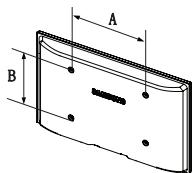
| inches | VESA Spec. (A * B) | Standard Screw | Quantity |
| 19–22 | 75 X 75 | M4 | 4 |
| 26–28 | 100 X 100 | ||
| 32–42 | 200 X 200 | M8 | |
| 46–60 | 400 X 400 |

Do not install your Wall Mount Kit while your TV is turned on. It may result in personal injury due to electric shock.
text_image
A BSecuring the TV to the Wall

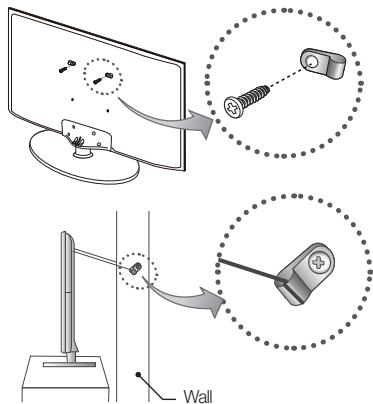
Caution: Pulling, pushing, or climbing onto the TV may cause the TV to fall. In particular, ensure that your children do not hang over or destabilize the TV; doing so may cause the TV to tip over, resulting in serious injuries or death. Follow all safety precautions provided on the included Safety Flyer. For added stability, install the anti-fall device for safety purposes, as follows.
To avoid the TV from falling
text_image
Diagram illustrating a cable installation process with labeled components and directional arrowsThe product colour and shape may vary depending on the model.
- Put the screws into the clamps and firmly fasten them onto the wall. Confirm that the screws have been firmly installed onto the wall.
You may need additional material such as an anchor depending on the type of wall.
Since the necessary clamps, screws, and string are not supplied, please purchase these additionally.
-
Remove the screws from the centre back of the TV, put the screws into the clamps, and then fasten the screws onto the TV again.
-
Connect the clamps fixed onto the TV and the clamps fixed onto the wall with a strong string and then tie the string tightly.
NOTE
- Install the TV near to the wall so that it does not fall backwards.
- It is safe to connect the string so that the clamps fixed on the wall are equal to or lower than the clamps fixed on the TV.
-
Untie the string before moving the TV.
-
Verify all connections are properly secured. Periodically check connections for any sign of fatigue for failure. If you have any doubt about the security of your connections, contact a professional installer.
Anti-theft Kensington Lock
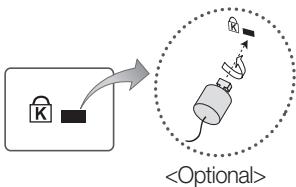
The Kensington Lock is not supplied by Samsung. It is a device used to physically fix the system when using it in a public place. The appearance and locking method may differ from the illustration depending on the manufacturer. Refer to the manual provided with the Kensington Lock for additional information on proper use.
Please find a “☑” icon on the rear of the TV. A kensington slot is beside the “☑” icon.
The position and colour may differ depending on the model.
flowchart
graph TD
    A["Lock"] --> B["Output"]
    style A fill:#f9f,stroke:#333
    style B fill:#ccf,stroke:#333
    subgraph <Optional>
        C["Device Icon"] --> D["Arrow to Lock"]
        D --> E["Arrow to Output"]
    end
To lock the product, follow these steps:
- Wrap the Kensington lock cable around a large, stationary object such as desk or chair.
- Slide the end of the cable with the lock attached through the looped end of the Kensington lock cable.
- Insert the locking device into the Kensington slot on the product.
- Lock the lock.
These are general instructions. For exact instructions, see the User manual supplied with the locking device.
The locking device has to be purchased separately.
Storage and Maintenance
If you remove the attached sticker on the TV screen, clean the residues and then watch TV.
The exterior and screen of the product can get scratched during cleaning. Be sure to wipe the exterior and screen carefully using a soft cloth to prevent scratches.
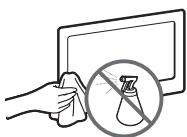
Do not spray water directly onto the product. Any liquid that goes into the product may cause a failure, fire, or electric shock.
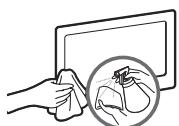
Clean the product with a soft cloth dapped in a small amount of water. Do not use a flammable liquid (e.g. benzene, thinners) or a cleaning agent.
Caution of the cover-jack
for LED 4 series

CAUTION: The cover-jack is for use by qualified service personnel only. To reduce the risk of electric shock or fire hazard, do not use the cover jack, unless you are qualified to do so.
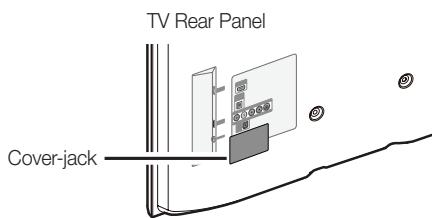
text_image
TV Rear Panel Cover-jackThe rear panel may differ depending on the model.
Specifications
| Environmental ConsiderationsOperating TemperatureOperating HumidityStorage TemperatureStorage Humidity | 10°C to 40°C (50°F to 104°F)10% to 80%, non-condensing-20°C to 45°C (-4°F to 113°F)5% to 95%, non-condensing | |
| Model Name | UE19F4000 | UE28F4000 |
| Screen Size | 19 inches | 28 inches |
| Sound (Output) | 3W X 2 | 5W X 2 |
| Display Resolution | 1366 X 768 | |
| Dimensions (W x H x D)BodyWith stand | 453.7 x 285.8 x 49.5 (mm)453.7 x 314.2 x 151.4 (mm) | 645.0 x 389.4 x 49.5 (mm)645.0 x 435.6 x 252.6 (mm) |
| WeightWithout StandWith Stand | 2.5 kg2.6 kg | 4.2 kg4.6 kg |
| Model Name | UE22F5000 | |
| Screen Size | 22 inches | |
| Sound (Output) | 3W X 2 | |
| Display Resolution | 1920 X 1080 | |
| Dimensions (W x H x D)BodyWith stand | 513.1 x 321.5 x 43.8 (mm)513.1 x 366.5 x 169.6 (mm) | |
| WeightWithout StandWith Stand | 2.6 kg2.9 kg | |
Design and specifications are subject to change without prior notice.
For information about power supply, and more about power consumption, refer to the label attached to the product.
Typical power consumption is measured according to IEC 62087 Ed.2
Supported Video Formats
| File Extention | Container | Video Codec | Resolution | Frame rate (fps) | Bit rate (Mbps) | Audio Codec |
| *.avi / *.mkv*.asf / *.wmv*.mp4 / *.3gp*.vro / *.mpg*.mpeg / *.ts*.tp / *.trp*.mov / *.flv*.vob / *.svi*.divx | AVIMKVASFMP43GPMOVFLVVROVOBPSTS | DivX 3.11/4.x/5.x/6.x | 1920 x 1080 | 6~30 | 30 | AC3LPCMADPCM(IMA, MS)AACHE-AACWMA DD+MPEG (MP3)DTS (Core)G.711(A-Law, μ-Law) |
| MPEG4 SP/ASP | ||||||
| H.264 BP/MP/HP | ||||||
| Motion JPEG | 640 x 480 | 8 | ||||
| Window Media Video v9 | 1920 x 1080 | 30 | ||||
| MPEG2 | ||||||
| MPEG1 | ||||||
| *.webm | WebM | VP8 | 20 | Vorbis |

Other Restrictions
• Video content will not play, or not play correctly, if there is an error in the content or the container.
• Sound or video may not work if the contents have a standard bit rate/frame rate above the compatible Frame/sec listed in the table.
- If the Index Table is in error, the Seek (Jump) function is not supported.
- Some USB/digital camera devices may not be compatible with the player.
- The menu can be displayed late if the video is over 10Mbps(bit rate).
| Video decoder | Audio decoder |
| Supports up to H.264, Level 4.1 (FMO/ASO/RS are not supported.)frame rate :- Below 1280 x 720: 60 frame max-Above 1280 x 720: 30 frame maxVC1 AP L4 is not supported.GMC 2 or higher is not supported. | WMA 10 Pro supports up to 5.1 channel and M2 profile.WMA lossless audio is not supported.Vorbis supports up to 2ch.DD+ supports up to 5.1 channel. |
Supported Subtitle Formats
- External
| Name | File extension |
| MPEG-4 timed text | .txt |
| SAMI | .smi |
| SubRip | .srt |
| SubViewer | .sub |
| Micro DVD | .sub or .txt |
| SubStation Alpha | .ssa |
| Advanced SubStation Alpha | .ass |
| Powerdivx | .psb |
- Internal
| Name | Container | Format |
| Xsub | AVI | Picture Format |
| SubStation Alpha | MKV | Text Format |
| Advanced SubStation Alpha | MKV | Text Format |
| SubRip | MKV | Text Format |
| MPEG-4 Timed text | MP4 | Text Format |
Supported Photo Formats
| File Extension | Type | Resolution |
| *.jpg*.jpeg | JPEG | 15360 X 8640 |
| *.bmp | BMP | 4096 X 4096 |
| *.mpo | MPO | 15360 X 8640 |
Supported Music Formats
| File Extension | Type | Codec | Remark |
| *.mp3 | MPEG | MPEG1 Audio Layer 3 | |
| *.m4a*.mpa*.aac | MPEG4 | AAC | |
| *.flac | FLAC | FLAC | Supports up to 2ch. |
| *.ogg | OGG | Vorbis | Supports up to 2ch. |
| *.wma | WMA | WMA | WMA 10 Pro supports up to 5.1 channel and M2 profile. (WMA lossless audio is not supported.) |
| *.wav | wav | wav | |
| *.mid*.midi | midi | midi | type 0 and type 1 |

The MPO type file does not support Zoom, Rotate and Slide Show Effect functions.
Full available resolution
Optimal resolution is 4 series:1366 x 768@60Hz / 5 series: 1920 x 1080@60Hz. See specification page for full available resolution.
| Mode | Resolution | Horizontal Frequency (KHz) | Vertical Frequency (Hz) | Pixel Clock Frequency (MHz) | Sync Polarity (H / V) | 1366 x 768 | 1920 X 1080 |
| IBM | 720 x 400 | 31.469 | 70.087 | 28.322 | -/+ | √ | √ |
| MAC | 640 x 480 | 35.000 | 66.667 | 30.240 | -/- | √ | √ |
| 832 x 624 | 49.726 | 74.551 | 57.284 | -/- | √ | √ | |
| 1152 x 870 | 68.681 | 75.062 | 100.000 | -/- | √ | ||
| VESA DMT | 640 x 480 | 31.469 | 59.940 | 25.175 | -/- | √ | √ |
| 640 x 480 | 37.861 | 72.809 | 31.500 | -/- | √ | √ | |
| 640 x 480 | 37.500 | 75.000 | 31.500 | -/- | √ | √ | |
| 800 x 600 | 37.879 | 60.317 | 40.000 | +/+ | √ | √ | |
| 800 x 600 | 48.077 | 72.188 | 50.000 | +/+ | √ | √ | |
| 800 x 600 | 46.875 | 75.000 | 49.500 | +/+ | √ | √ | |
| 1024 x 768 | 48.363 | 60.004 | 65.000 | -/- | √ | √ | |
| 1024 x 768 | 56.476 | 70.069 | 75.000 | -/- | √ | √ | |
| 1024 x 768 | 60.023 | 75.029 | 78.750 | +/+ | √ | √ | |
| 1152 x 864 | 67.500 | 75.000 | 108.000 | +/+ | √ | ||
| 1280 x 720 | 45.000 | 60.000 | 74.250 | +/+ | √ | √ | |
| 1280 x 800 | 49.702 | 59.810 | 83.500 | -/+ | √ | ||
| 1280 x 1024 | 63.981 | 60.020 | 108.000 | +/+ | √ | ||
| 1280 x 1024 | 79.976 | 75.025 | 135.000 | +/+ | √ | ||
| 1366 x 768 | 47.712 | 59.790 | 85.500 | +/+ | √ | √ | |
| 1440 x 900 | 55.935 | 59.887 | 106.500 | -/+ | √ | ||
| 1600 x 900RB | 60.000 | 60.000 | 108.000 | +/+ | √ | ||
| 1680 x 1050 | 65.290 | 59.954 | 146.250 | -/+ | √ | ||
| 1920 x 1080 | 67.500 | 60.000 | 148.500 | +/+ | √ |

NOTE
• The interlace mode is not supported.
- The set might operate abnormally if a non-standard video format is selected.
Licence
DOLBY.
DIGITAL PLUS PULSE
Manufactured under license from Dolby Laboratories. Dolby and the double-D symbol are trademarks of Dolby Laboratories.

dts® Premium Sound | 5.1
Manufactured under a license from U.S. Patent No's: 5,956,674, 5,974,380, 5,978,762, 6,487,535, 6,226,616, 7,212,872, 7,003,467, 7,272,567, 7,668,723, 7,392,195, 7,930,184, 7,333,929 and 7,548,853. DTS, the Symbol, and DTS and the Symbol together are registered trademarks & DTS Premium Sound | 5.1 is a trademark of DTS, Inc. ©2012 DTS, Inc. All Rights Reserved.

dts ^ Studio Sound
Manufactured under a license from U.S. Patent No's: 6,285,767, 8,027,477, 5,319,713, 5,333,201, 5,638,452, 5,771,295, 5,970,152, 5,912,976, 7,200,236, 7,492,907, 8,050,434, 7,720,240, 7,031,474, 7,907,736 and 7,764,802. DTS, the Symbol, and DTS and the Symbol together are registered trademarks & DTS Studio Sound is a trademark of DTS, Inc. ©2012 DTS, Inc. All Rights Reserved.
HDMI
The terms HDMI and HDMI High-Definition Multimedia Interface, and the HDMI Logo are trademarks or registered trademarks of HDMI Licensing LLC in the United States and other countries.
DIVX ^TM HD
DivX Certified® to play DivX® video up to HD 1080p, including premium content.
ABOUT DIVX VIDEO: DivX® is a digital video format created by DivX, LLC, a subsidiary of Rovi Corporation. This is an official DivX Certified® device that plays DivX video. Visit divx.com for more information and software tools to convert your files into DivX videos. ABOUT DIVX VIDEO-ON-DEMAND: This DivX Certified® device must be registered in order to play purchased DivX Video-on-Demand (VOD) movies. To obtain your registration code, locate the DivX VOD section in your device setup menu. Go to vod.divx.com for more information on how to complete your registration. Covered by one or more of the following U.S. patents : 7,295,673; 7,460,668; 7,515,710; 7,519,274 DivX®, DivX Certified® and associated logos are trademarks of Rovi Corporation or its subsidiaries and are used under license.
Open source licence notice
In the case of using open source software, Open Source Licences are available on the product menu. Open Source Licence Notice is written only English.
natural_image
Diagram of a remote control panel with a black arrow indicating the left side (no text or symbols present)
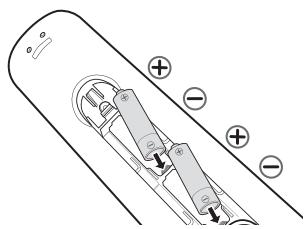
text_image
Diagram showing a battery with positive and negative terminals, marked with plus and minus signs indicating polarity.
natural_image
Diagram of a remote control panel with a directional arrow and circular buttons (no text or symbols)
text_image
Diagram illustrating cable installation and wire-winding process on a computer, showing cable attachment and wire connection steps.
Manufactured under a license from U.S. Patent No's: 5,956,674, 5,974,380, 5,978,762, 6,487,535, 6,226,616, 7,212,872, 7,003,467, 7,272,567, 7,668,723, 7,392,195, 7,930,184, 7,333,929 and 7,548,853. DTS, the Symbol, and DTS and the Symbol together are registered trademarks & DTS Premium Sound | 5.1 is a trademark of DTS, Inc. ©2012 DTS, Inc. All Rights Reserved.

dts®
Studio Sound
Manufactured under a license from U.S. Patent No's: 6,285,767, 8,027,477, 5,319,713, 5,333,201, 5,638,452, 5,771,295, 5,970,152, 5,912,976, 7,200,236, 7,492,907, 8,050,434, 7,720,240, 7,031,474, 7,907,736 and 7,764,802. DTS, the Symbol, and DTS and the Symbol together are registered trademarks & DTS Studio Sound is a trademark of DTS, Inc. ©2012 DTS, Inc. All Rights Reserved.
HDMI
The terms HDMI and HDMI High-Definition Multimedia Interface, and the HDMI Logo are trademarks or registered trademarks of HDMI Licensing LLC in the United States and other countries.
DIVX™
HD
DivX Certified® to play DivX® video up to HD 1080p, including premium content.
ABOUT DIVX VIDEO: DivX® is a digital video format created by DivX, LLC, a subsidiary of Rovi Corporation. This is an official DivX Certified® device that plays DivX video. Visit divx.com for more information and software tools to convert your files into DivX videos.
ABOUT DIVX VIDEO-ON-DEMAND: This DivX Certified® device must be registered in order to play purchased DivX Video-on-Demand (VOD) movies. To obtain your registration code, locate the DivX VOD section in your device setup menu. Go to vod.divx.com for more information on how to complete your registration. Covered by one or more of the following U.S. patents : 7,295,673; 7,460,668; 7,515,710; 7,519,274
DivX®, DivX Certified® and associated logos are trademarks of Rovi Corporation or its subsidiaries and are used under license.
RISQUE D'ELECTROCUTION - NE PAS OUVRIR
ATTENTION : POUR REDUIRE LES RISQUES D'ELECTROCUTION, NE RETIREZ PAS LE COUVERCLE (NI LE PANNEAU ARRIERE). A L'INTERIEUR DE L'APPAREIL, AUCUNE PIECE NE PEUT ETRE REPAREE PAR L'UTILISATEUR. POUR TOUT DEPANNAGE, ADRESSEZ-VOUS A UN SPECIALISTE.

natural_image
Diagram of a remote control panel with a black arrow indicating direction (no text or symbols)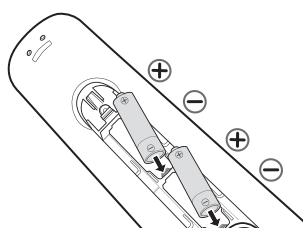
text_image
Diagram showing a mechanical or electrical component with positive and negative charges indicated by plus and minus signs.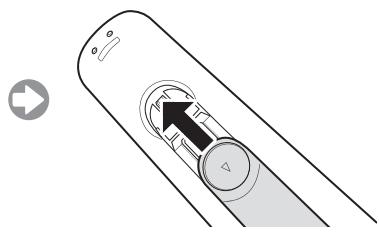
natural_image
Diagram of a remote control panel with directional arrows and a play button (no text or symbols)Connexions
flowchart
graph TD
    A["Connexion HDMI\nBoîtier décodeur / Lecteur BD / Ordinateur"] --> B["HDMI OUT"]
    A --> C["DVI OUT"]
    A --> D["Common Interface"]
    D --> E["USB"]
    D --> F["CM Card™"]
    D --> G["Chromosome Latviaral du téléviseur"]
    G --> H["Chromosome audio"]
    H --> I["Optical"]
    H --> J["AUDIO OUT\nR-AUDIO-L"]
    H --> K["VIDEO OUT"]
    H --> L["AUDIO OUT\nR-AUDIO-L"]
    H --> M["COMPONENT OUT\nP1 P2 Y"]
    H --> N["Lecteur BD"]
    H --> O["Chromosome di Composites"]
    O --> P["Les connexions Composante et AV sont prises en charge par un seul port."]
    G --> Q["Chromosome In 2 (DVI)"]
    Q --> R["Digital Audio Out (OPTICAL)"]
    R --> S["COMPONENT / AV IN"]
    S --> T["EXT (RGB)"]
    S --> U["AIR/CABLE ANT IN"]
    U --> V["DC 14V"]
    V --> W["Entrée de l'alimentation (UE19F4000 / UE22F5000)"]
    W --> X["Entrée de l'alimentation (UE28F4000)"]
    G --> Y["Antenna VHF/UHF"]
    Y --> Z["OU"]
    Z --> AA["Câble"]
    AA --> AB["Magnétoscope ou lecteur DVD"]
    AB --> AC["Connexion SCART"]
    style A fill:#f9f,stroke:#333
    style O fill:#f9f,stroke:#333

REMARQUE
Installation du support mural
text_image
Diagram illustrating a mouse movement technique on a computer monitor, showing how to connect to a mouse with a screw and cable.Manufactured under a license from U.S. Patent No's: 5,956,674, 5,974,380, 5,978,762, 6,487,535, 6,226,616, 7,212,872, 7,003,467, 7,272,567, 7,668,723, 7,392,195, 7,930,184, 7,333,929 and 7,548,853. DTS, the Symbol, and DTS and the Symbol together are registered trademarks & DTS Premium Sound | 5.1 is a trademark of DTS, Inc. ©2012 DTS, Inc. All Rights Reserved.

dts®
Studio Sound
Manufactured under a license from U.S. Patent No's: 6,285,767, 8,027,477, 5,319,713, 5,333,201, 5,638,452, 5,771,295, 5,970,152, 5,912,976, 7,200,236, 7,492,907, 8,050,434, 7,720,240, 7,031,474, 7,907,736 and 7,764,802. DTS, the Symbol, and DTS and the Symbol together are registered trademarks & DTS Studio Sound is a trademark of DTS, Inc. ©2012 DTS, Inc. All Rights Reserved.
HDMI
The terms HDMI and HDMI High-Definition Multimedia Interface, and the HDMI Logo are trademarks or registered trademarks of HDMI Licensing LLC in the United States and other countries.
DIVX™
HD
DivX Certified® to play DivX® video up to HD 1080p, including premium content.
ABOUT DIVX VIDEO: DivX® is a digital video format created by DivX, LLC, a subsidiary of Rovi Corporation. This is an official DivX Certified® device that plays DivX video. Visit divx.com for more information and software tools to convert your files into DivX videos.
ABOUT DIVX VIDEO-ON-DEMAND: This DivX Certified® device must be registered in order to play purchased DivX Video-on-Demand (VOD) movies. To obtain your registration code, locate the DivX VOD section in your device setup menu. Go to vod.divx.com for more information on how to complete your registration.
Covered by one or more of the following U.S. patents : 7,295,673; 7,460,668; 7,515,710; 7,519,274
DivX®, DivX Certified® and associated logos are trademarks of Rovi Corporation or its subsidiaries and are used under license.
natural_image
Diagram of a remote control panel with a black arrow indicating clockwise direction (no text or symbols)
text_image
Diagram showing a battery with positive and negative terminals, indicating charge distribution or polarity.
natural_image
Diagram of a device handle with a circular component and an arrow indicating direction (no text or symbols)Collegamenti
flowchart
graph TD
    A["Connessione HDMI"] --> B["Set top Box / Lettore BD / PC"]
    B --> C["HDMI OUT"]
    B --> D["DVI OUT"]
    C --> E["USB"]
    D --> F["Common Interface"]
    E --> G["CI CARD™"]
    F --> H["USB + CC / DV/SCAN"]
    G --> I["HOME IN 1 (STB)"]
    H --> J["COMMON INTERFACE"]
    I --> K["COMMON INTERFACE"]
    L["Connessione AV"] --> M["AUDIO OUT R-AUDIO-L"]
    M --> N["VIDEO OUT"]
    N --> O["OPTICAL"]
    O --> P["R W Y"]
    P --> Q["VIDEO OUT"]
    Q --> R["R AUDIO-L"]
    R --> S["AUDIO OUT COMPONENT OUT"]
    S --> T["R W R B G"]
    T --> U["Supporta entrambe le connessioni Comp. e AV da un'unica porta."]
    V["Connessione Component"] --> W["Audio OUT R-AUDIO-L"]
    W --> X["VIDEO OUT"]
    X --> Y["OPTICAL"]
    Y --> Z["R W R B G"]
    Z --> AA["VIDEO OUT"]
    AA --> AB["R AUDIO-L"]
    AB --> AC["AUDIO OUT COMPONENT OUT"]
    AC --> AD["R W R B G"]
    AD --> AE["Supporta entrambe le connessioni Comp. e AV da un'unica porta."]
    AF["Connessione cuffie"] --> AG["AIR/CABLE ANT IN"]
    AG --> AH["DC 14V"]
    AH --> AI["Ingresso alimentazione (UE19F4000 / UE22F5000)"]
    AI --> AJ["Antenna VHF/UHF"]
    AJ --> AK["Antenna VHF/UHF"]
    AK --> AL["Antenna VHF/UHF"]
    AL --> AM["Pannello posteriore del televisore La posizione della porta può differire in base al modello."]
    AN["Videoregistratore o DVD"] --> AO["Cavo"]
    AP["Connessione SCART"] --> AQ["Video REGISTRATORE o DVD"]

NOTA
text_image
Diagram illustrating a mechanical assembly process with labeled components and motion arrows, including a separate view of a computer monitor.
Manufactured under a license from U.S. Patent No's: 5,956,674, 5,974,380, 5,978,762, 6,487,535, 6,226,616, 7,212,872, 7,003,467, 7,272,567, 7,668,723, 7,392,195, 7,930,184, 7,333,929 and 7,548,853. DTS, the Symbol, and DTS and the Symbol together are registered trademarks & DTS Premium Sound | 5.1 is a trademark of DTS, Inc. ©2012 DTS, Inc. All Rights Reserved.

dts®
Studio Sound
Manufactured under a license from U.S. Patent No's: 6,285,767, 8,027,477, 5,319,713, 5,333,201, 5,638,452, 5,771,295, 5,970,152, 5,912,976, 7,200,236, 7,492,907, 8,050,434, 7,720,240, 7,031,474, 7,907,736 and 7,764,802. DTS, the Symbol, and DTS and the Symbol together are registered trademarks & DTS Studio Sound is a trademark of DTS, Inc. ©2012 DTS, Inc. All Rights Reserved.
HDMI
The terms HDMI and HDMI High-Definition Multimedia Interface, and the HDMI Logo are trademarks or registered trademarks of HDMI Licensing LLC in the United States and other countries.
DIVX™
HD
DivX Certified® to play DivX® video up to HD 1080p, including premium content.
ABOUT DIVX VIDEO: DivX® is a digital video format created by DivX, LLC, a subsidiary of Rovi Corporation. This is an official DivX Certified® device that plays DivX video. Visit divx.com for more information and software tools to convert your files into DivX videos.
ABOUT DIVX VIDEO-ON-DEMAND: This DivX Certified® device must be registered in order to play purchased DivX Video-on-Demand (VOD) movies. To obtain your registration code, locate the DivX VOD section in your device setup menu. Go to vod.divx.com for more information on how to complete your registration.
Covered by one or more of the following U.S. patents : 7,295,673; 7,460,668; 7,515,710; 7,519,274
DivX®, DivX Certified® and associated logos are trademarks of Rovi Corporation or its subsidiaries and are used under license.