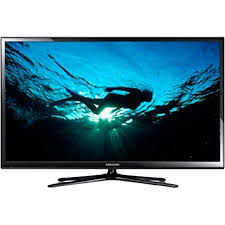
PN64F5300AF - TV SAMSUNG - Free user manual and instructions
Find the device manual for free PN64F5300AF SAMSUNG in PDF.


| Product type | 3D Plasma TV |
| Brand | Samsung |
| Model | PN64F5300AF |
| Screen size | 64 inches (162.6 cm) |
| Resolution | 1920 x 1080 pixels (Full HD) |
| Aspect ratio | 16:9 |
| Dimensions without stand (W x H x D) | 1504 x 895 x 79 mm |
| Weight without stand | 39 kg |
| Power supply | AC 100-240 V, 50/60 Hz |
| Typical power consumption | 200 W |
| Standby power consumption | Less than 0.5 W |
| 3D functions | Yes (Active 3D glasses required) |
| Video inputs | HDMI (2), Component, AV, USB |
| Digital audio output | Yes (optical) |
| Network features | Built-in Wi-Fi, DLNA (AllShare) |
| Media Play | Play photos, videos and music via USB |
| Remote control | Included (TM1240A) |
| Parental control | Yes (lock programs by rating) |
| Maintenance and cleaning | Wipe with a soft, dry cloth; do not use chemical products |
| Safety instructions | Do not expose to moisture; do not block ventilation slots |
| Repairability | Spare parts available via Samsung; software update possible via USB |
Frequently Asked Questions - PN64F5300AF SAMSUNG
User questions about PN64F5300AF SAMSUNG
0 question about this device. Answer the ones you know or ask your own.
Ask a new question about this device
Download the instructions for your TV in PDF format for free! Find your manual PN64F5300AF - SAMSUNG and take your electronic device back in hand. On this page are published all the documents necessary for the use of your device. PN64F5300AF by SAMSUNG.
USER MANUAL PN64F5300AF SAMSUNG
□ Using the Wireless Network
for PDP 4900 series
Using a wireless router or modem and the Samsung Wireless LAN Adapter (WIS09ABGNX, WIS12ABGNX), you can connect your TV to a wireless network.

For detailed information about the wireless network connection, refer to the paper user's manual.

NOTE
- If the wireless router or modem supports DHCP, your TV can use a DHCP or static IP address to connect to the wireless network.
- Select a channel for the wireless router or modem that is not currently being used. If the channel set for the wireless router or modem is currently being used by another device nearby, this will result in interference and communication failure.
- You must use the “Samsung Wireless LAN Adapter” (WIS09ABGNX, WIS12ABGNX) to connect the TV to a wireless network. The Samsung Wireless LAN Adapter and the USB extension Cable are sold separately and are offered by selected retailers, E-commerce sites, and SamsungParts.com.
- Your TV supports only the following wireless network security protocols.
- Authentication Mode: WEP, WPAPSK, WPA2PSK
- Encryption Type: WEP, TKIP, AES
- If you select the HIGH PURE THROUGHPUT (Greenfield) 802.11n mode and the Encryption type is set to WEP or TKIP in your wireless router, Samsung TVs will not support a connection in compliance with new Wi-Fi certification specifications.
- If your wireless router supports WPS (Wi-Fi Protected Setup), you can connect to the network via PBC (Push Button Configuration) or PIN (Personal Identification Number). WPS will automatically configure the SSID and WPA key in either mode.
- If your router, modem, or device is not certified, it may not connect to the TV via the “Samsung Wireless LAN Adapter”.
-
Connection Methods : You can setup the wireless network connection in four ways:
-
Auto Setup (Using the Auto Network Search function)
- Manual Setup
- WPS(PBC)
-
Wi-Fi Direct
-
Ensure the TV is turned off before you connect the Samsung Wireless LAN Adapter.
- The TV may not recognize the Samsung Wireless LAN Adapter if it is connected to the TV using a USB hub or USB extension cable other than the cable supplied.
How to connect the Samsung Wireless LAN Adapter
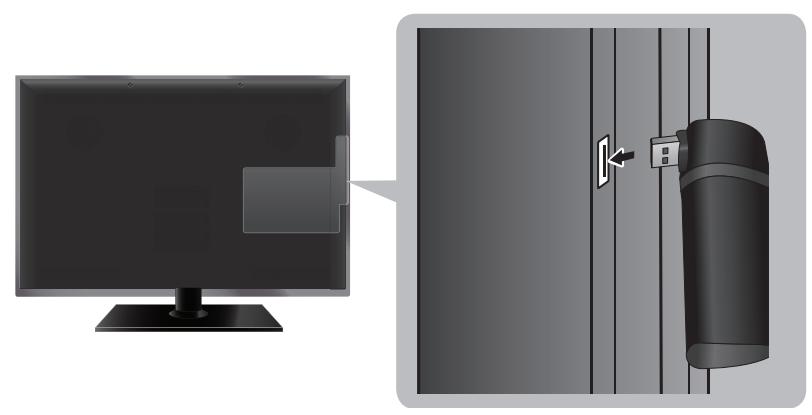
You can connect the LAN Adapter in one of two ways:
1 Connect the LAN Adapter using the USB right angle adapter.
2 Connect the LAN Adapter via the USB extension cable.
1
natural_image
Diagram showing a monitor connected to a wall-mounted device via a door lock (no text or symbols present)2
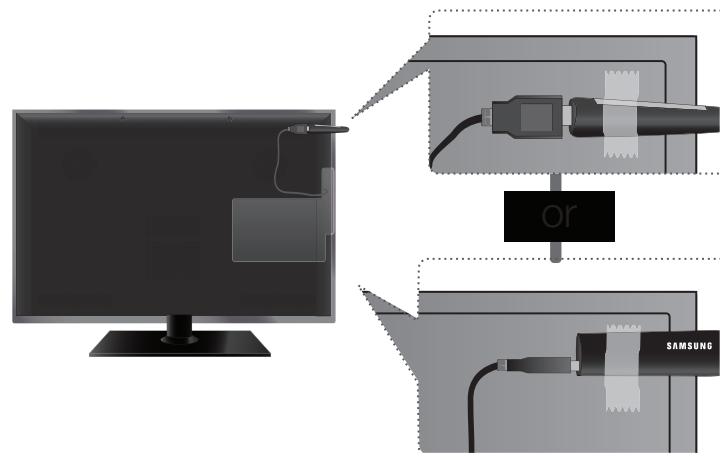
The picture may appear corrupted or have static for some channels when the TV is connected to the Samsung Wireless LAN Adapter. In such a case, connect the Samsung Wireless LAN Adapter using the USB extension cable. Put the Adapter in a place where it does not affect the picture.
The position of the USB port may differ depending on the model.
État du réseau
You can check the your TV's current network and Internet status.
Paramètres réseau
Set the network connection to use AllShare ^TM .
You can only use the Internet to share content via AllShare™.
■ Auto Network Setup
Most wireless networks have an optional security system that requires devices that access the network to transmit an encrypted security code called an Access or Security Key. The Security Key is based on a Pass Phrase, typically a word or a series of letters and numbers of a specified length you were asked to enter when you set up wireless security for your wireless network. If you use this method of setting up the network connection, and have a Security Key for your wireless network, you will have to enter the Pass Phrase during the setup process.
When you connect the Samsung Wireless LAN Adapter for the first time, the Network setup screen appears immediately.
-
In the TV's menu, go to Paramètres réseau screen. (Réseau → Paramètres réseau)
-
The Network function searches for available wireless networks. When done, it displays a list of the available networks.
- In the list of networks, press the ▲/▼ buttons to select a network, and then press ENTER← button.

If the wireless router is set to Hidden (Invisible), you have to select
Ajouter réseau, and then enter the correct network name and Security key to establish the connection.
-
If the Enter security key screen appears, go to step 5. If you select a wireless router that does not have wireless security, go to step 6.
-
Enter the security key using ▲/▼/◄/► buttons, and then select Fait.
You can also enter numbers by pressing the number buttons.
You should be able to find the Pass Phrase on one of the set up screens you used to set up your router or modem.
- The network connection screen appears, and network set up is done.
If the Security key you enter fails, select Réessayer or Param. IP.
If you want to set up the connection manually, select Param. IP. For detailed manual set up instructions, refer to "Manual Network Setup".
If you select Changer réseau, you can select other wireless networks.
WPS(PBC) Wireless Setup
If your router has a WPS(PBC) button, follow these steps.
- The Network function searches for available wireless networks. When done, it displays a list of the available networks.
- Scroll through the list. Find, and then select WPS(PBC).
- Press the WPS(PBC) button on your router within 2 minutes. Your TV automatically acquires all the network setting values it needs and connects to your network.
- The network connection screen appears, and network set up is done.
■ Manual Network Setup
Use the Manual Network Setup when connecting your TV to a network that requires a Static IP address.

You can get the network connection values from you Internet provider.
How to set up manually
To set up your TV's wireless network connection manually, follow these steps.
- The network function searches for available wireless networks. When done, it displays a list of the available networks.
- In the list of networks, select a network you want to connect to.
- If the wireless router is set to Hidden (Invisible), you have to select Ajouter réseau and enter the correct Network Nom (SSID) and Security Key to establish the connection.
- If the Enter security key screen appears, go to step 5. If you select a wireless router that does not have wireless security, go to step 7.
-
To set wireless security for the router, enter the Security Key.
-
Enter the Security Key using the keyboard pop-up screen and your remote.
-
You should be able to find the Pass Phrase on one of the set up screens you used to set up your router.
-
When finished, select Fait. The network connection screen appears and the verification process starts.
- Select Arrêter. The verification process stops. Select Param. IP on the network connection screen. The Param. IP screen appears.
8 Select Param. IP, and then set Param. IP to Entrer manuellement. -
Go to the Adresse IP entry field, and then select Adresse IP using your remote.
-
Enter the first portion of the IP Address (for example, 105) into the first entry field using your remote. When done, go to the next field.
- Enter the next portion of the IP Address. When done, go to the next field.
- Repeat the entry process for each field in the IP Address.
- If you make a mistake when entering a number, re-enter the number to correct it.
- When done, go to the Masque s.-réseau fields.
- Repeat the same entry process for Masque s.-réseau, Passerelle, and Serveur DNS.
- When done, select OK. The network connection screen appears and the verification process starts. When the connection has been verified, the "Réseau sans fil et connexion Internet configurés et prêts à être utilisés." message appears.
If Your TV Fails to Connect to the Internet
If your TV fails to connect to the Internet, read the information below and view the troubleshooting guide on the following pages.
Your TV may not be able to connect to the Internet because your ISP has permanently registered the MAC address (a unique identifying number) of your PC or modem, which it then authenticates each time you connect to the Internet as a way of preventing unauthorized access. As your TV has a different MAC address, your ISP can not authenticate its MAC address, and your TV can not connect.
To resolve this problem, ask your ISP about the procedures required to connect devices other than a PC (such as your TV) to the Internet.
If your Internet service provider requires an ID or password to connect to the Internet, your TV may not be able to connect to the Internet. If this is the case, you must enter your ID or password when connecting to the Internet.
The internet connection may fail because of a firewall problem. If this is the case, contact your Internet service provider.
If you cannot connect to the Internet even after you have followed the procedures of your Internet service provider, please contact Samsung Electronics.
Troubleshooting a wireless network connection failure
If the wireless network connection fails, try the following solutions:
| Issue | Solutions and Explanations |
| Wireless network connection failed. | No wireless router selected. Go to Paramètres réseau to select your router. |
| Unable to connect to wireless router. | Check if the router is turned on, and if it is on, try turning it off and on again.Check if you need to enter a security key to use the router. |
| IP auto setting failed. | Try the following to set your IP address automatically or set your IP address manually by selecting Param. IP.- Ensure DHCP server is enabled on the router, and then unplug and plug-in the router.- Check if you need to enter a security key to use the router.- Contact your Internet Service Provider for more information. |
| Unable to connect to the network. | Check if your IP address is set correctly in Param. IP.Check if you need to enter a security key to use the router.Contact your Internet Service Provider for more information. |
| Connected to your local network, but cannot connect to the Internet. | Make sure your Internet LAN cable is connected correctly to the LAN port of the router.Check the DNS settings in Param. IP.If the problem persists, contact your Internet Service Provider to access the Internet. |
| Network setup complete, but cannot connect to the Internet. | Confirm that your router is connected to the Internet.If the problem persists, contact your Internet Service Provider to access the Internet. |
□ Managing the Network Connected Devices
for PDP 4900 series
Wi-Fi Direct
MENU → Réseau → Wi-Fi Direct → ENTER
Use to connect the TV to wireless mobile devices. Using this function, you can connect wireless mobile devices with your TV directly without a wireless router.
You can use this function only when the Samsung Wireless LAN Adapter is connected to the TV.
Wi-Fi Direct only supports the Media Play function.
Wi-Fi Direct may not be supported by your mobile device, depending on the device.
How to connect a device to your TV using the Wi-Fi Direct function

To use this function, you must turn on the Wi-Fi Direct function on your device.
- In the TV's menu, go to Wi-Fi Direct. The TV starts to search for devices. (Réseau → Wi-Fi Direct)
- Select a device from the list that the TV displays, and then press ENTER button.
- When the connection message appears on your device, allow it.

If you want to disconnect the device, select the connected device, and press the ENTER button to select Déconnexion.
Paramètres AllShare
Lets you allow a network connected device such as a smartphone or tablet to share content with or control the TV using an application downloaded to the mobile device. For details on set up options, refer to the “Using the AllShare Settings Functions”.
Nom de l'app.
Change the TV's name.
When selecting Entrée util., you can key in a name for your TV manually. Use ▲/▼/◄/► buttons to select characters, and then select Fait.
☐ Using the DLNA Functions (AllShare™)
for PDP 4900 series
Via your network, you can play videos, photos, and music saved on your mobile phone or on other devices (such as your PC) through your TV, and control playback using controls on the TV via the network.

NOTE
- This model only supports the DLNA function in AllShare™.
- First, connect your TV to your network. For detailed network connection instructions, refer to “Paramètres réseau”.
- For more information, visit “www.samsung.com” or contact the Samsung call center. Mobile devices may need additional software installed. For details, refer to each device’s user’s guide.
- If your Samsung TV connects to a non-Samsung DLNA server, a compatibility issue may occur during video playback.

By connecting your Samsung TV to a network via AllShare™, you can use Samsung's original functions, controls, and capabilities as follows:
- Playback of various video formats (DivX, MP4, 3GPP, AVI, ASF, MKV, etc.)
- Bookmark function (to resume video playback)
- Auto-chaptering (scene navigation)
- Digital content management
- Compatibility with various subtitle formats (SRT, SMI, SUB, TXT, TTXT)
- And many others

To use Samsung's original DLNA functions fully, we recommend that you use the AllShare™ software provided with your TV.
Playing the media contents saved on the devices
- Connect a mobile phone or another device which supports AllShare™ to your network, and then select and play a media file on the device. A popup screen appears on the bottom of your TV.
- Select Permet. to accept the connected device. The media contents of the device can now be played on your TV.

You can find the allowed devices on Paramètres AllShare.
Using the Media Play function, play the media contents of the devices connected to your TV through AllShare™.
- Press the MEDIA.P button to select Media Play.
- Press ▲/▼ button to select the desired category (Vidéos, Photos, or Musique), and then press the ENTER← button.
- When the DLNA device is selected, press the ENTER← button again.
- Press the ▲/▼/◄/► button to select the desired file.
-
Press the ENTER← button.
-
Contents may not play on your TV depending on their resolution and format.
- The ENTER◀ and ◀/▶ buttons may not work depending on the type of media content.
- Using the mobile device, you can control the media playback. For details, refer to each device's user's guide.

Shows a list of mobile phones or connected devices which have been set up with this TV to use the Paramètres AllShare function.

The Paramètres AllShare function is available in all devices which support DLNA DMC.
- Permet. / Bloquer: Allows/Blocks the devices.
- Supprimer: Deletes the devices from the list.

This function only deletes the name of the devices from the list. If the deleted device is turned on or tries to connect to the TV, it may appear on the list again.
Connecting to a PC through your network
You can play pictures, music, and videos saved on your PC via a network connection through your TV using Media Play.

If you want to use Media Play to play files saved on your PC through your TV, you should download “AllShare PC Software” and the AllShare user's manual from “www.samsung.com”.
- Connect your TV to your network. For network connection instructions, refer to "Paramètres réseau".
- We recommend you locate both TV and PC in same subnet. The first 3 parts of the IP address of the TV and PC should be the same and only the last part (the host address) should be changed. (e.g. IP Address: 123.456.789.***)
- Connect the PC on which you will install or have installed AllShare PC software and your TV to the same network.
Functions that are not supported by Media Play when the TV is connected to a PC through a network:
- Background music when playing a slide show.
- The (REW) or (FF) button while a movie is playing.
The DivX DRM, Multi-audio, embedded caption is not supported.
Make sure AllShare PC Software is permitted by the firewall program on your PC.

When you use Media Play through a network connection, depending on the functions of the server:
- The sorting method may vary.
- The (REW), (FF) or (Pause) buttons may not work depending on the content information.

When you play video through a network, the video may not run depending on the network status. Also, when you play video over a network connection, the video may not play smoothly.
