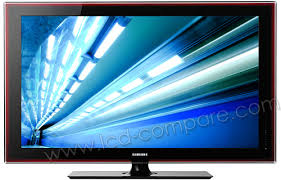
PS50A756 - TV SAMSUNG - Free user manual and instructions
Find the device manual for free PS50A756 SAMSUNG in PDF.



| Product type | Plasma TV |
| Brand | Samsung |
| Model | PS50A756 |
| Screen size (diagonal) | 127 cm (50 inches) |
| Resolution | 1920 x 1080 pixels (Full HD) |
| Dimensions (without stand) | 1240 x 766 x 96 mm |
| Dimensions (with stand) | 1240 x 830 x 315 mm |
| Weight (without stand) | 39 kg |
| Weight (with stand) | 44 kg |
| Power supply | 100-240 V AC, 50/60 Hz (see product label) |
| Power consumption | See product label |
| Audio power | 2 x 10 W |
| Connectivity | HDMI (x4), Component, SCART (x2), PC VGA, USB, LAN, optical audio output |
| Main features | Plug & Play, PIP, WISELINK Pro (USB multimedia), DLNA, Anynet+ (HDMI-CEC), InfoLive (weather, news, stocks), Teletext |
| Image settings | Modes Dynamic, Standard, Cinema; detailed settings (gamma, white balance, color space) |
| Burn-in protection | Pixel shift, white screen, scrolling, edge gray |
| Maintenance and cleaning | Use a soft dry cloth; do not use chemicals |
| Safety | Do not expose to rain or moisture; install at altitude below 2000 m; do not block ventilation openings |
| Operating temperature | 10 °C to 40 °C |
| Operating humidity | 10% to 80% (non-condensing) |
| Compatible devices | DVD players, game consoles, PC, USB devices (photos, music, videos) |
| Included accessories | Remote control, batteries (2x AAA), power cord, cleaning cloth, bottom cover, screws, ferrite core |
Frequently Asked Questions - PS50A756 SAMSUNG
User questions about PS50A756 SAMSUNG
0 question about this device. Answer the ones you know or ask your own.
Ask a new question about this device
Download the instructions for your TV in PDF format for free! Find your manual PS50A756 - SAMSUNG and take your electronic device back in hand. On this page are published all the documents necessary for the use of your device. PS50A756 by SAMSUNG.
USER MANUAL PS50A756 SAMSUNG
If you have any questions or comments relating to Samsung products, please contact the SAMSUNG customer care centre.
| Country | Customer Care Centre | Web Site |
| AUSTRIA | 0810 - SAMSUNG(7267864, € 0.07/min) | www.samsung.com/at |
| BELGIUM | 02 201 2418 | www.samsung.com/be |
| CZECH REPUBLIC | 800 - SAMSUNG (800-726786) | www.samsung.com/cz |
| Samsung Zrt., česká organizační složka, Oasis Florenc, Sokolovská394/17, 180 00, Praha 8 | ||
| DENMARK | 8 - SAMSUNG(7267864) | www.samsung.com/dk |
| EIRE | 0818 717 100 | www.samsung.com/ie |
| ESTONIA | 800-7267 | www.samsung.ee |
| FINLAND | 30 - 6227 515 | www.samsung.com/fi |
| FRANCE | 3260 'dites' SAMSUNG (€ 0,15/Min)0825 08 65 65 (€ 0.15/Min) | www.samsung.com/fr |
| GERMANY | 01805 - SAMSUNG(7267864, € 0.14/Min) | www.samsung.de |
| HUNGARY | 06 - 80 - SAMSUNG(7267864) | www.samsung.com/hu |
| ITALIA | 800 - SAMSUNG(7267864) | www.samsung.com/it |
| KAZAKHSTAN | 8-10-800-500-55-500 | www.samsung.com/kz_ru |
| KYRGYZSTAN | 00-800-500-55-500 | |
| LATVIA | 8000-7267 | www.samsung.com/lv |
| LITHUANIA | 8-800-77777 | www.samsung.lt |
| LUXEMBURG | 02 261 03 710 | www.samsung.com/lu |
| NETHERLANDS | 0900 - SAMSUNG(7267864, € 0.10/Min) | www.samsung.com/nl |
| NORWAY | 3 - SAMSUNG(7267864) | www.samsung.com/no |
| POLAND | 0 - 801 - 1SAMSUNG(172678)022 - 607 - 93 - 33 | www.samsung.com/pl |
| PORTUGAL | 808 20 - SAMSUNG(7267864) | www.samsung.com/pt |
| RUSSIA | 8-800-555-55-55 | www.samsung.ru |
| SLOVAKIA | 0800 - SAMSUNG(7267864) | www.samsung.com/sk |
| SPAIN | 902 - 1 - SAMSUNG (902 172 678) | www.samsung.com/es |
| SWEDEN | 075 - SAMSUNG(726 78 64) | www.samsung.com/se |
| Switzerland | 0848 - SAMSUNG(7267864, CHF 0.08/min) | www.samsung.com/ch |
| TADJIKISTAN | 8-10-800-500-55-500 | |
| Turkey | 444 77 11 | www.samsung.com/tr |
| U.K | 0845 SAMSUNG(7267864) | www.samsung.com/uk |
| UKRAINE | 8-800-502-0000 | www.samsung.ua |
| UZBEKISTAN | 8-10-800-500-55-500 | www.samsung.com/kz_ru |
Plasma TV user manual
imagine the possibilities
Thank you for purchasing this Samsung product. To receive more complete service, please register your product at
www.samsung.com/global/register
Model ____ Serial No. ____
User Instructions
Screen Image retention
Do not display a still image (such as on a video game or when hooking up a PC to this PDP) on the plasma monitor panel for more than 2 hours as it can cause screen image retention. This image retention is also known as “screen burn”. To avoid such image retention, reduce the degree of brightness and contrast of the screen when displaying a still image.
Height
The PDP can normally operate only under 2000m in height. It might abnormally function at a place over 2000m in height so do not install and operate there.
■ Heat on the top of the PDP TV
The top side of the product may be hot after long period of use as heat dissipates from the panel through the vent hole in the upper part of the product. This is normal and does not indicate any defect or operation failure of the product. However, children should be prevented from touching the upper part of the product.
The product is making a ‘cracking’ noise.
A ‘cracking’ noise may occur when the product contracts or expands due to a change of surrounding environment such as temperature or humidity. This is normal and not a defect of the unit.
Cell Defects
The PDP uses a panel consisting of 1,230,000(SD-level) to 3,150,000(HD-level) pixels which require sophisticated technology to produce. However, there may be few bright or dark pixels on the screen. These pixels will have no impact on the performance of the product.
- Avoid operating the TV at temperatures below 5°C(41°F)
A still image displayed too long may cause permanent damage to the PDP Panel.
Watching the PDP TV in 4:3 format for a long period of time may leave traces of borders displayed on the left, right and centre of the screen caused by the difference of light emission on the screen. Playing a DVD or a game console may cause similar effect to the screen. Damages caused by the above effect are not covered by the Warranty.
■ Afterimage on the Screen.
Displaying still images from Video games and PC for longer than a certain period of time may produce partial afterimages. To prevent this effect, reduce the ‘brightness’ and ‘contrast’ when displaying still images.
Warranty
- Warranty does not cover any damage caused by image retention.
- Burn-in is not covered by the warranty.
Installation
Be sure to contact an authorized service centre, when installing your set in a location with heavy dust, high or low temperatures, high humidity, chemical substance and where it operates continually such as the airport, the train station etc. Failure to do so may cause a serious damage to your set.
Digital TV (DVB-T) Notice
- FUNCTIONALITIES RELATED TO DIGITAL TV (DVB) ARE ONLY AVAILABLE IN COUNTRIES OR AREAS WHERE DVB-T (MPEG2 AND MPEG4 AVC) DIGITAL TERRESTRIAL SIGNALS ARE BROADCAST. DVB-T is the European consortium standard for the broadcast transmission of digital terrestrial television. Please check with your local dealer about the availability of DVB-T service in your area.
- Although this TV set meets the current DVB-T standards as of [August, 2008], compatibility with future DVB-T digital terrestrial broadcast cannot be guaranteed.
- Some Digital TV functions may not be available or operate correctly in some countries or regions.
- For more information, please contact your local SAMSUNG customer care centre.
Contact SAMSUNG WORLDWIDE
If you have any questions or comments relating to Samsung products, please contact the SAMSUNG customer care centre. (See back cover for more informations.)
Contents
Connecting and Preparing Your TV
■ User Instructions ...... 2
- Checking Parts ....4
■ Using the Stand-Base 4
■ How to assemble the Stand-Base (depending on the model) 4
■ Viewing the Control Panel 5
■ Viewing the Connection Panel....6
■ Remote Control ....8
■ Installing Batteries in the Remote Control 9
■ Switching On and Off....9
■ Placing Your Television in Standby Mode......9
■ Viewing the Menus....10
■ Using the TOOLS Button....10
■ Using the Wheel button....10
■ Plug & Play Feature ....11
Channel Control
■ Storing Channels and channel 11
■ Managing Channels ....14
Picture Control
■ Changing and Resetting the Picture Settings......15
■ Viewing Picture-in-Picture ....19
■ Setting up the TV with your PC 19
■ PC Display....20
Sound Control
■ Changing the Sound Standard....21
■ Selecting the Sound Mode ....22
Function Description
■ Configuring the Setup Menu....23
■ Setting the Time ....26
■ Network Connection....27
■ Network Setup....29
■ Source List / Edit Name....31
■ Product Guide ....31
WISELINK Pro
■ Connecting a USB Device....32
■ Using the WISELINK Pro Function....33
■ Using and Sorting Photo List....35
■ Viewing a Photo or Slide Show ....36
■ Using and Sorting the Music List....38
■ Playing a Music....39
■ Using and Sorting the Movie List....40
■ Playing a Movie File ....41
■ Deleting the Photo/Music/Movie File 42
■ Picture/Music Settings Using WISELINK Pro......43
■ Using the Setup Menu....43
WISELINK Pro-DLNA
■ Setting the DLNA Network....44
■ Installing the DLNA Application 44
■ Using the DLNA Application 46
■ Using the DLNA Function....49
Content Library
■ Activating the Content Library ....50
■ Using the Content Library....51
■ Using Additional Content Using External USB Memory Storage....52
About Anynet+
■ Connecting Anynet ^+ Devices ....53
■ Setting Up Anynet+....54
■ Scanning and Switching between Anynet+ Devices.....54
■ Recording....55
■ Listening through a Receiver (Home theater) .....56
■ Troubleshooting for Anynet ^+ .....56
InfoLive
■ Using InfoLive....57
■ Using the Weather Service....58
■ Using the News Service ....58
■ Using the Stock Service ....59
■ InfoLive Setup 60
Recommendations for Use
■ Teletext Feature....61
■ Wall Mount Kit Specifications (VESA)....62
■ Auto Wall-Mount Adjustment (Sold separately) ......63
■ Preparing before installing Wall- Mount on the wall .....64
■ Securing the TV to the Wall....64
■ Troubleshooting....65
■ Specifications ....66
■ Additional Terms of Service....67
Connecting and Preparing Your TV
Checking Parts
Owner's Instructions

Remote Control/AAA Batteries (2ea)

Power Cord

Cloth-Clean

Warranty Card/
Safety Guide Manual
(Not available in all locations)
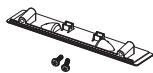
Cover-Bottom / Screws (2ea) (PS50A756)

Holder-Ring (4ea) (Refer to page 64)

Program CD

Ferrite Core for Power Cord (2ea)
Ferrite Core (Power Cord)
The ferrite core is used to shield the cable from interference. When connecting a cable, open the ferrite core and clip it around the cable near the plug.


Using the Stand-Base
Two or more people should carry the PDP. Never lay the PDP on the floor because of possible damage to the screen. Always keep the PDP upright.
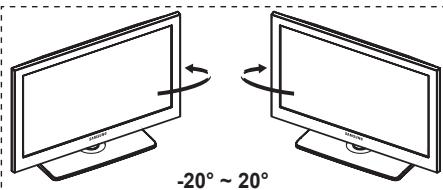
The PDP can rotate 20 degrees in right and left directions.
How to assemble the Stand-Base (depending on the model)
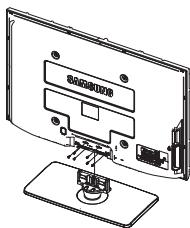
Using the 6 screws for securing the stand base and the monitor, firmly attach the monitor to the stand base.
(The exterior of the set may be different than the picture.)
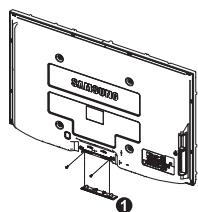
In case of installing your TV on the wall, close the cover (1) on the stand-base connection part using two screws for hiding.
natural_image
Line drawing of a computer monitor with an open rear panel and cable connectors (no text or symbols)Warning
Firmly secure the stand to the TV before moving it, as the stand may fall and could cause serious injury.
☐ Two or more people should carry the TV. Never lay the TV on the floor because of possible damage to the screen. Always store the TV upright.
The product colour and shape may vary depending on the model.
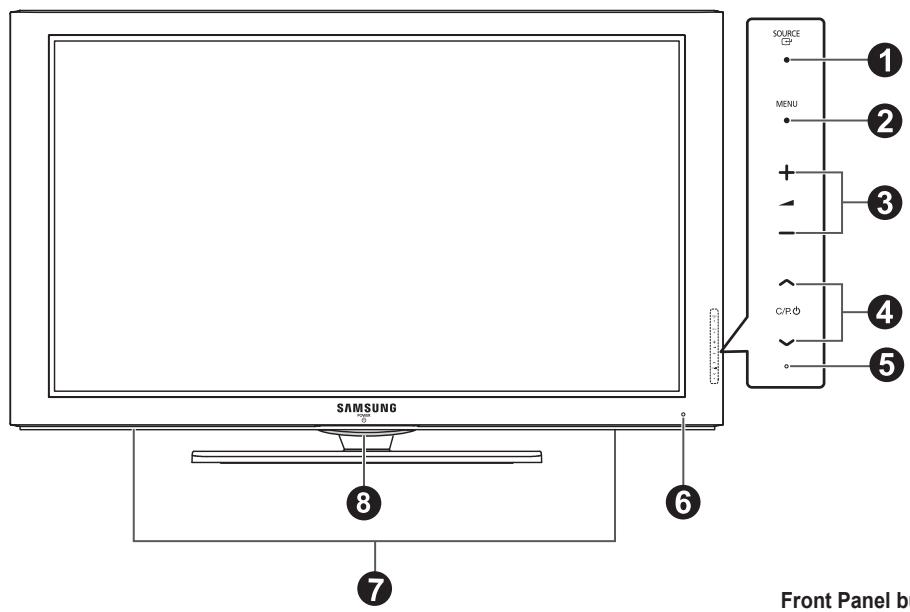
Front Panel buttons
Touch each button to operate.
① SOURCE
Toggles between all the available input sources (TV, Ext1, Ext2, AV, S-Video, Component, PC, HDMI1, HDMI2/DVI, HDMI3, HDMI4, USB, DLNA).
In the on-screen menu, use this button as you would use the ENTER button on the remote control.
② MENU
Press to see an on-screen menu of your TV's features.
③ - +
Press to increase or decrease the volume. In the on-screen menu, use the - + buttons as you would use the ◀ and ▶ buttons on the remote control.
4 ∧ C/P.↓√
Press to change channels. In the on-screen menu, use the ▲ C/P.↓ √ buttons as you would use the ▲ and ▼ buttons on the remote control. You can use ▲ C/P.↓ √ button to turn on the TV without the remote control.
5 POWER INDICATOR
Blinks and turns off when the power is on and lights up in stand-by mode.
6 REMOTE CONTROL SENSOR
Aim the remote control towards this spot on the TV.
7 SPEAKERS
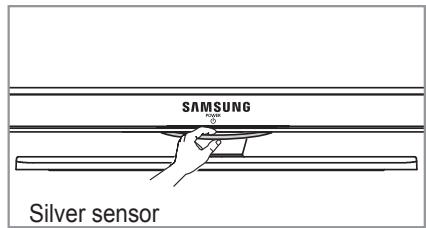
8 ⏻ (POWER)
Touch the silver sensor below the ⏻ mark to turn the TV on and off.
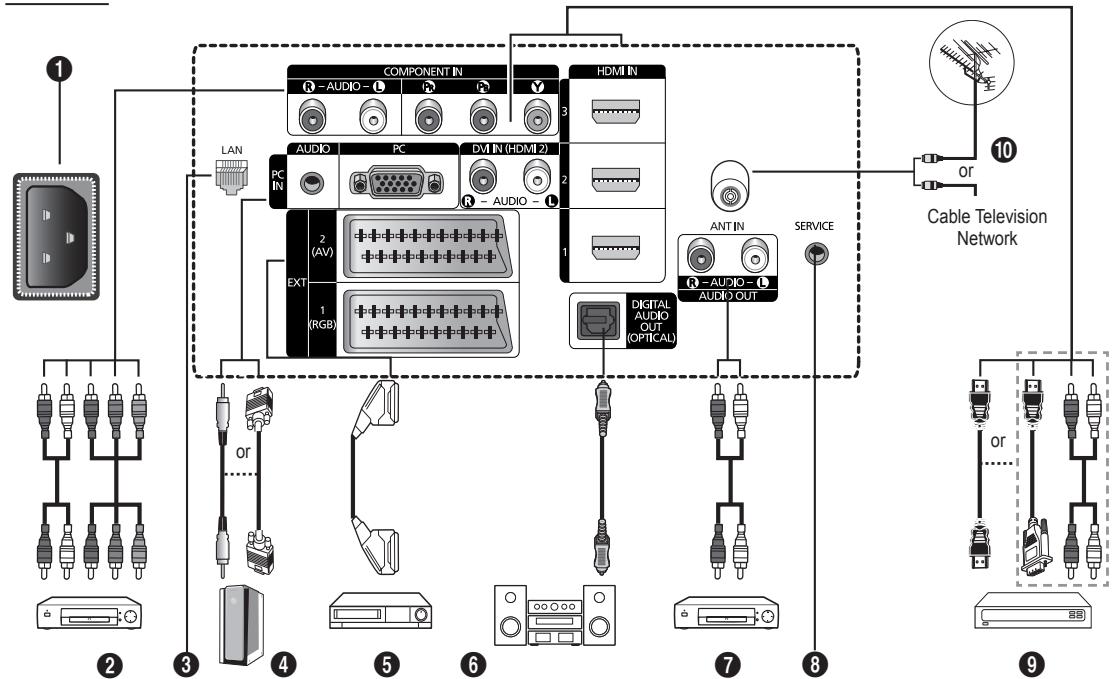
Rear Panel
flowchart
graph TD
    A["1"] --> B["COMPONENT IN"]
    B --> C["HDMI IN"]
    C --> D["2 (AV)"]
    C --> E["EXT"]
    C --> F["1 (RGB)"]
    D --> G["PC IN"]
    E --> H["PC"]
    F --> I["PC"]
    G --> J["AUDIO"]
    H --> K["DVI IN (HDMI 2)"]
    I --> L["ANT IN"]
    J --> M["Digital Audio OUT (OPTICAL)"]
    K --> N["AUDIO OUT"]
    L --> O["Service"]
    M --> P["Cable Television Network"]
    N --> Q["or"]
    O --> R["or"]
    P --> S["or"]
    Q --> T["2"]
    R --> U["3"]
    S --> V["4"]
    T --> W["5"]
    U --> X["6"]
    V --> Y["7"]
    W --> Z["8"]
    X --> AA["9"]
The product colour and shape may vary depending on the model.
Whenever you connect an audio or video system to your set, ensure that all elements are switched off.
When connecting an external device, match the colour of the connection terminal to the cable.
① POWER IN
Connect the supplied power cord.
② COMPONENT IN
Audio (AUDIO L/R) and video (Y/PB/PR) inputs for Component.
③ LAN
Connect a LAN cable to this port to connect to the Network.
4 PC IN(PC) / AUDIO
Connect to the video and audio output jack on your PC.
⑤ EXT 1, EXT 2
Inputs or outputs for external devices, such as VCR, DVD, video game device or video disc players.
Input/Output Specification
| Connector | Input | Output | ||
| Video | Audio(L/R) | RGB | Video + Audio(L/R) | |
| EXT 1 | √ | √ | √ | Only TV or DTV output is available. |
| EXT 2 | √ | √ | Output you can choose. | |
6 DIGITAL AUDIO OUT (OPTICAL)
Connect to a Digital Audio Component.
⑦ AUDIO OUT(AUDIO R/L)
Connect RCA audio signals from the TV to an external source, such as Audio equipment.
8 SERVICE
Connector for service.
⑨ HDMI IN 1, 2, 3
- No additional Audio connection is needed for an HDMI to HDMI connection.
- When using an HDMI/DVI cable connection, you must use the HDMI IN 2 jack.
What is HDMI?
- High Definition Multimedia interface allows the transmission of high definition digital video data and multiple channels of digital audio.
- The HDMI/DVI terminal supports DVI connection to an extended device with the appropriate cable (not supplied). The difference between HDMI and DVI is that the HDMI device is smaller in size, has the HDCP (High Bandwidth Digital Copy Protection) coding feature installed, and supports multi-channel digital audio.
DVI audio outputs for external devices.
10 ANT IN
75Ω Coaxial connector for Aerial/Cable Network.
Supported modes for HDMI/DVI and Component
| 480i | 480p | 576i | 576p | 720p | 1080i | 1080p | |
| HDMI/DVI 50Hz | X | X | X | O | O | O | O |
| HDMI/DVI 60Hz | X | O | X | X | O | O | O |
| Component | O | O | O | O | O | O | O |
Side Panel
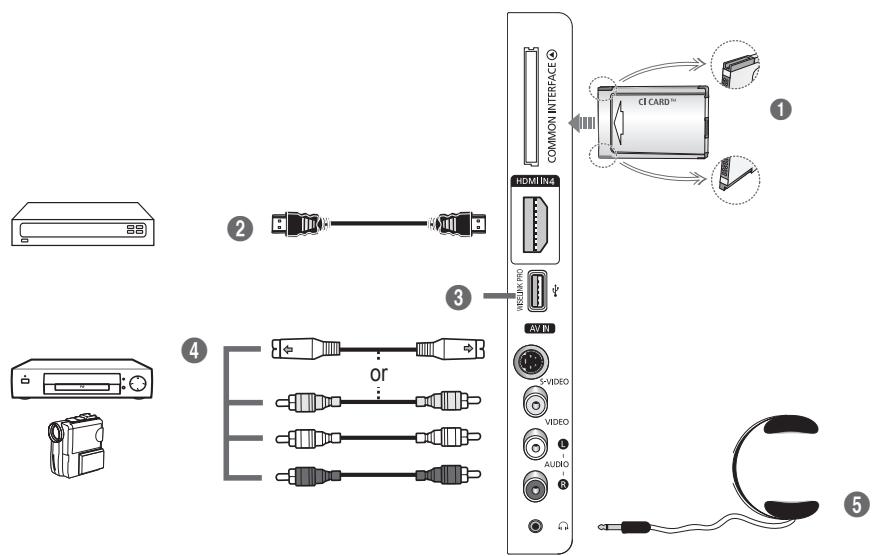
The product colour and shape may vary depending on the model.
① COMMON INTERFACE Slot
Insert CI (Common Interface) card into the slot. (refer to page 25)
- When not inserting CI CARD in some channels, Scramble Signal is displayed on the screen.
- The pairing information containing a telephone number, CI CARD ID, Host ID, and other information will be displayed in about 2\~3 minutes. If an error message is displayed, please contact your service provider.
- When the channel information configuration has finished, the message Updating Completed is displayed, indicating that the channel list is now updated.
Insert the CI-Card in the direction marked on it.
② HDMI IN 4
Connect to the HDMI jack of a device with HDMI output.
③ WISELINK PRO
Connect a USB mass storage device to view and play photo files (JPEG), audio files (MP3) and movie files. You can connect to SAMSUNG's network wirelessly.
Video (S-Video or Video) and audio inputs for external devices, such as a camcorder or VCR.
⑤ HEADPHONES JACK
You can connect a set of headphones if you wish to watch a television programme without disturbing the other people in the room.
☐ Prolonged use of headphones at a high volume may damage your hearing.
You can use the remote control up to a distance of about 23 feet from the TV.
The performance of the remote control may be affected by bright light.
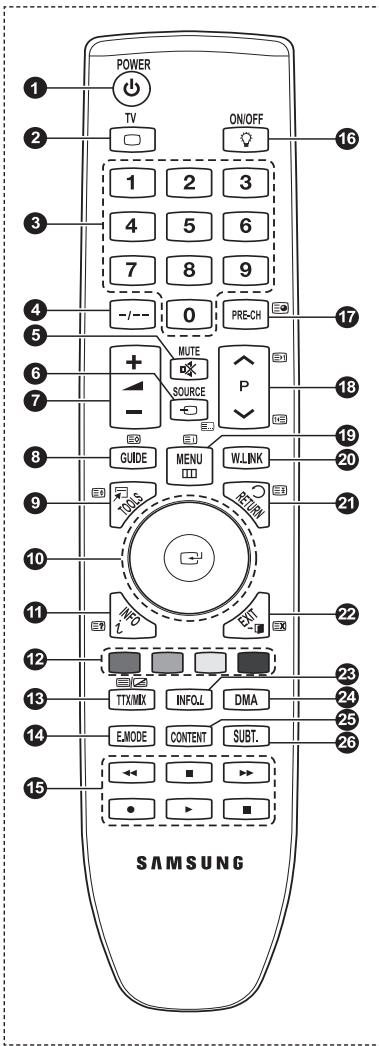
1 POWER button (turns the TV on and off)
② Selects the TV mode directly.
③ Number buttons for direct channel access
4 One or more digit channel selection
5 Temporary sound switch-off
⑥ Available source selection
⑦ + Volume increase
- Volume decrease
⑧ Electronic Program Guide (EPG) display
9 Use to quickly select frequently used functions.
10 Press the ▲ / ▼ / ◀ / ▶ sections of the wheel button and Enter to select on-screen menu items and change menu values. You can navigate up and down the menu, switch channels and adjust the volume by turning the wheel button.
11 Use to see information on the current broadcast
12 Use these buttons in the Channel list and WISELINK, etc.
14 Press to select the optional display and sound modes for sports, cinema and games.
15 Use these buttons in the Channel list, WISELINK Pro and Anynet+.
16 ON/OFF
Press to backlight the buttons on the remote. This function is convenient for using at night or when the room is dark. (Using the remote control with the ON/OFF(💡) light button set to On will reduce the battery usage time.)
17 Previous channel
18 Next channel Previous channel
19 Displays the main on-screen menu
20 This function enables you to view and play photo (JPEG), audio files (MP3) and movie files from an external device.
21 Returns to the previous menu
22 Exit the on-screen menu
23 Press to use the News, Stock Market and Weather Forecast information services available over the network.
24 Use this when connecting a SAMSUNG DMA (Digital Media Adapter) device through an HDMI interface and switching to DMA mode. (The DMA button is optional.) For more information on the operating procedures, refer to the user manual of the DMA. This button is available when Anynet+(HDMI-CEC) is On (see page 54)
25 This function enables you to view Content Library.
26 Digital subtitle display
Teletext Functions
② Exit from the teletext display (depending on the model)
⑥ Teletext mode selection (LIST/FLOF)
8 Teletext store
9 Teletext size
11 Teletext reveal
12 Fastext topic selection
13 Teletext display/mix both teletext information and the normal broadcast
17 Teletext sub page
18 P ▲ :Teletext next page
P ▼ :Teletext previous page
19 Teletext index
21 Teletext hold
22 Teletext cancel
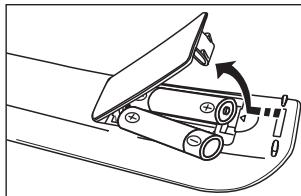
Installing Batteries in the Remote Control
- Lift the cover at the back of the remote control upward as shown in the figure.
- Install two AAA size batteries.
Make sure to match the ‘+’ and ‘-’ ends of the batteries with the diagram inside the compartment.
- Close the cover.
Remove the batteries and store them in a cool, dry place if you won't be using the remote control for a long time.
Using the remote control with the ON / OFF light button set to on will reduce the battery usage time.
If the remote control doesn't work, check the following:
- Is the TV power on?
- Are the plus and minus ends of the batteries reversed?
- Are the batteries drained?
- Is there a power outage or is the power cord unplugged?
- Is there a special fluorescent light or neon sign nearby?
natural_image
Diagram of a car door handle with rollers and a switch, showing mechanical components (no text or symbols)Switching On and Off
The mains lead is attached to the rear of your set.
- Plug the mains lead into an appropriate socket.
The standby indicator lights up on your set.
- Press the POWER ⏻ button on your set.
You also can press the POWER button or the TV button on the remote control to turn the TV on.
The programme that you were watching last is reselected automatically.
- Press the numeric button (0\~9) or channel up / down (∧ / ∨) button on the remote control or ∨C/P. ⏻ ∧ button on your set.
When you switch the set on for the very first time, you will be asked to choose language in which the menus are to be displayed.
- To switch your set off, press the POWER button again.
Placing Your Television in Standby Mode
Your set can be placed in standby mode in order to reduce the power consumption. The standby mode can be useful when you wish to interrupt viewing temporarily (during a meal, for example).
- Press the POWER ⏻ button on the remote control.
The screen is turned off and a red standby indicator appears on your set. - To switch your set back on, simply press the POWER ⏻, numeric buttons (0\~9), TV button or channel up / down (∧ / ∨) button again.
Do not leave your set in standby mode for long periods of time (when you are away on holiday, for example). It is best to unplug the set from the mains and aerial.
Viewing the Menus
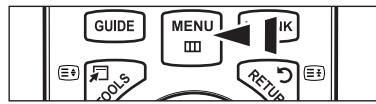
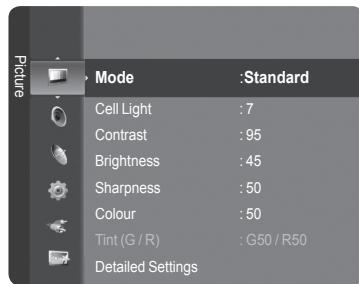
- With the power on, press the MENU button. The main menu appears on the screen. The menu's left side has icons: Picture, Sound, Channel, Setup, Input, Application.
- Press the ▲ or ▼ button to select one of the icons. Then press the ENTER button to access the icon's sub-menu.
- Press the EXIT button to exit.
The on-screen menus disappear from the screen after about one minute.
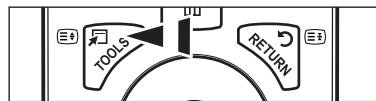
Using the TOOLS Button
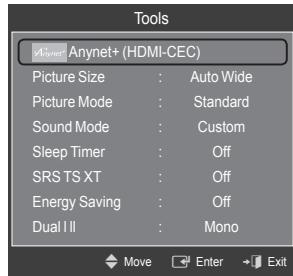
You can use the TOOLS button to select your frequently used functions quickly and easily. The Tools menu changes depending on which external input mode you are viewing.
- Press the TOOLS button. The Tools menu will appear.
- Press the ▲ or ▼ button to select a menu, then press the ENTER button.
- Press the ▲ / ▼ / ◀ / ▶ / ENTER → buttons to display, change, or use the selected items. For a more detailed description of each function, refer to the corresponding page.
• Anynet ^+ (HDMI-CEC): see page 53
• Picture Size: see page 17
• Picture Mode: see page 15
• Sound Mode: see page 21
- Sleep Timer: see page 26
• SRS TS XT: see page 21
• Energy Saving: see page 25
- Dual I II: see page 22
- PIP: see page 19
• Auto Adjustment: see page 19
flowchart
graph TD
    A["TOOLS"] --> B["Process Step"]
    B --> C["RETURN"]
    C --> D["End"]
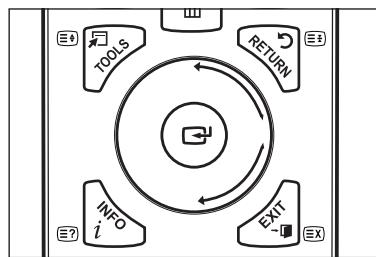
Using the Wheel button
To increase the channel number, turn the wheel clockwise when the Channel Display is displayed. To decrease the channel number, turn the wheel counterclockwise.
To turn the volume up, turn the wheel clockwise when the Volume Control window is displayed. To turn the volume down, turn the wheel counterclockwise.
To move to a lower menu, turn the wheel clockwise when the menu Display is displayed. To move to a higher menu, turn the wheel counterclockwise.
flowchart
graph TD
    A["TOOLS"] --> B["RETURN"]
    B --> C["INFO i"]
    C --> D["EXIT"]
    D --> E["unknown information"]
    style A fill:#f9f,stroke:#333
    style B fill:#ccf,stroke:#333
    style C fill:#cfc,stroke:#333
    style D fill:#fcc,stroke:#333
    style E fill:#ffc,stroke:#333
Plug & Play Feature
When the TV is initially powered on, basic settings proceed automatically and subsequently.
- Press the POWER button on the remote control. The message The Menu Language, Store Demo, Channels and Time will be set. is displayed.
- Press the ENTER button, then Select the OSD Language. menu is automatically displayed. Press the ENTER button.
- Select the appropriate language by pressing the ▲ or ▼ button. Press the ENTER button to confirm your choice.
- Press the ◀ or ▶ button to select Store Demo or Home Use, then the ENTER button.
We recommend setting the TV to Home Use mode for the best picture in your home environment.
Store Demo mode is only intended for use in retail environments.
☑ If the unit is accidentally set to Store Demo mode and you want to return to Home Use (Standard): Press the Volume button on the TV. When the volume OSD is displayed, press and hold the MENU button on the TV for 5 seconds.
The Screen Saver is activated if there is no remote control key input for longer than 1 minute while Plug & Play is running.
The Screen Saver is activated if there is no operating signal for longer than 15 minutes.
-
Press the ENTER button. Select the appropriate country by pressing the ▲ or ▼ button. Press the ENTER button to confirm your choice.
-
Press the ▲ or ▼ button to select the channel source to memorize. Press the ENTER← button to select Start.
Digital & Analogue: Digital and Analogue channels.
Digital: Digital channels.
Analogue: Analogue channels.
The channel search will start and end automatically.
Press the ENTER button at any time to interrupt the memorization process.
☑ After all the available channels are stored, the message Set the Clock Mode. is displayed.
- Press the ENTER button. Press the ▲ or ▼ button to select Auto, then Press the ENTER button.
If you select Manual, Set current date and time is displayed. (See page 26)
If you have received a digital signal, the time will be set automatically. If not, see page 26 to set the clock.
- The message Enjoy your viewing is displayed. When you have finished, press the ENTER button.
If you want to reset this feature...
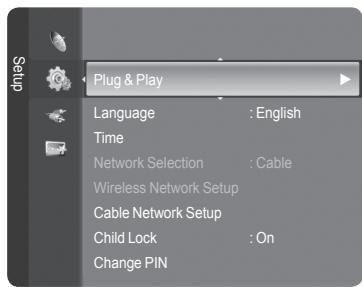
- Press the MENU button to display the menu. Press the ▲ or ▼ button to select Setup, then press the ENTER button.
- Press the ENTER button again to select Plug & Play.
- Enter your 4 digit PIN number. The default PIN number of a new TV set is '0-0-0-0'.
If you want to change PIN number, refer to 23 page.
The Plug & Play feature is only available in the TV mode.
Channel Control
Storing Channels and channel
□ Country
- Analogue Channel: You can change the country for analogue channels.
Digital Channel: You can change the country for digital channels.
The PIN number input screen appears. Enter your 4 digit PIN number.
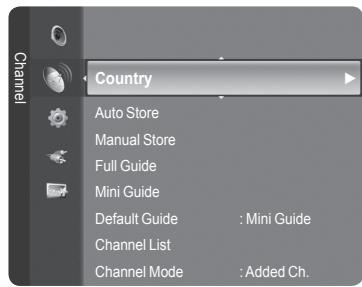
Auto Store
You can scan for the frequency ranges available to you (and availability depends on your country). Automatically allocated programme numbers may not correspond to actual or desired programme numbers.
• Digital & Analogue: Digital and Analogue channels.
• Digital: Digital channels.
• Analogue: Analogue channels.
√ Scans for all channels with active broadcast stations and stores them in the TV's memory.
If you want to stop Auto Store, press the ENTER button.
The Stop Auto Store? message will be displayed.
Select Yes by pressing the ◀ or ▶ button, then press the ENTER← button.
If a channel is locked using the Child Lock function, the PIN input window appears.
Manual Store
☑ Scans for a channel manually and stores it in the TV's memory.
If a channel is locked using the Child Lock function, the PIN input window appears.
Digital Channel
Manual store for digital channels.
- Channel: Set the Channel number using the ▲, ▼ or number (0\~9) buttons.
• Frequency: Set the frequency using the number buttons. - Bandwidth: Set the bandwidth using the ▲, ▼ or number (0\~9) buttons.
When it has finished, channels are updated in the channel list.
Analogue Channel
Manual store for analogue channel.
- Programme (Programme number to be assigned to a channel): Sets the programme number using the ▲, ▼ or number (0\~9) buttons.
- Colour System → Auto / PAL / SECAM / NTSC4.43: Sets the colour system value using the ▲ or ▼ button.
- Sound System → BG / DK / I / L: Sets the sound system value using the ▲ or ▼ button.
- Channel (When you know the number of the channel to be stored): Press the ▲ or ▼ button to select C (Air channel) or S (Cable channel). Press the ▶ button, then press the ▲, ▼ or number (0\~9) buttons to select the required number.
You can also select the channel number directly by pressing the number (0\~9) buttons.
If there is abnormal sound or no sound, reselect the sound standard required.
- Search (When you do not know the channel numbers): Press the ▲ or ▼ button to start the search. The tuner scans the frequency range until the first channel or the channel that you selected is received on the screen.
- Store (When you store the channel and associated programme number): Set to OK by pressing the ENTER button.
Channel mode
- P (Programme mode): When completing tuning, the broadcasting stations in your area have been assigned to position numbers from P00 to P99. You can select a channel by entering the position number in this mode.
- C (Air channel mode): You can select a channel by entering the assigned number to each air broadcasting station in this mode.
- S (Cable channel mode): You can select a channel by entering the assigned number for each cable channel in this mode.
Full Guide / Mini Guide
The EPG (Electronic Programme Guide) information is provided by the broadcasters. Programme entries may appear blank or out of date as a result of the information broadcast on a given channel. The display will dynamically update as soon as new information becomes available.
For the detailed procedures on using Full Guide and Mini Guide, refer to the descriptions on page 13.
You can also display the guide menu simply by pressing the GUIDE button. (To configure the Default Guide, refer to the descriptions.)
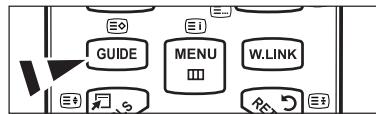
Full Guide: Displays the programme information as time ordered One hour segments. Two hours of programme information is displayed which may be scrolled forwards or backwards in time.
Mini Guide: The information of each programme is displayed by each line on the current channel Mini Guide screen from the current programme onwards according to the programme starting time order.
Default Guide
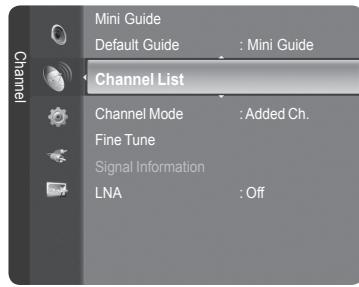
Mini Guide / Full Guide: You can decide whether to display either the Mini Guide or the Full Guide when the GUIDE button on the remote control is pressed.
Channel List
For the detailed procedures on using the Channel List, refer to the descriptions on pages 14\~15.
Channel Mode
When the press the P ∨/∧ button, Channels will be switched within the selected channel list.
- Added Ch.: Channels will be switched within the memorized channel list.
- Favourite Ch.: Channels will be switched within the favourite channel list.
Fine Tune
If the reception is clear, you do not have to fine tune the channel, as this is done automatically during the search and store operation. If the signal is weak or distorted, you may have to fine tune the channel manually.
√ Fine tuned channels that have been saved are marked with an asterisk * on the right-hand side of the channel number in the channel banner.
To reset the fine-tuning, select Reset by pressing the ▲ or ▼ button and then press the ENTER← button.
Only Analogue TV channels can be fine tuned.
Signal Information
You can get information about the signal status.
If the signal status is poor, the Weak or No Signal message is displayed.
While viewing a Digital channel, this function can be selected.
The technical information for signal status is displayed.
- Frequency / Service ID / Multiplex / Network / Bit error level / Signal Strength
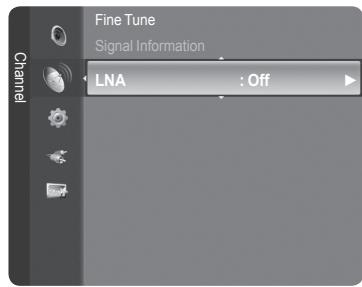
LNA → Off / On
If the TV is operating in a weak-signal area, the LNA (Low Noise Amplifier) function can improve the reception (a low-noise preamplifier boosts the incoming signal).
While viewing an Analogue channel, this function can be selected.
Using the Full / Mini Guide
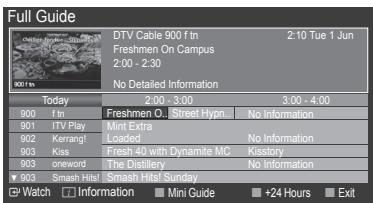
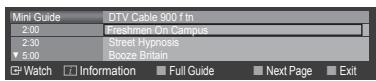
| ▲/▼/◄/►, (ENTER) | Select a programme by pressing the ▲/▼/◄/► button.If the next programme is selected, it is scheduled with the clock icon displayed. If the ENTER button is pressed again, press the ▲/▼/◄/► button to select Cancel Schedules, the scheduling is canceled with the clock icon gone.For details about scheduling programmes, refer to the section. |
| RED | Toggle between the Mini Guide or Full Guide. |
| GREEN | Full Guide: Scroll backwards quickly (24 hours).Mini Guide: Display next page quickly. |
| YELLOW | Full Guide: Scroll forwards quickly (24 hours).Mini Guide: Display previous page quickly. |
| BLUE | Exit the guide. |
| INFO | INFO button for the detailed information. Channel Number, Running Time, Status Bar, Parental Level, Video Quality Information (HD/SD), Sound Modes, Subtitle or Teletext, languages of Subtitle or Teletext and brief summary of the highlighted programme are included on the detailed information. “...” will be appeared if the summary is long. |
Managing Channels
Using this menu, you can Add / Delete or set Favourite channels and use the programme guide for digital broadcasts.
☑ Select a channel in the All Channels, Added Channels, Favourites or Programmed screen by pressing the ▲ / ▼ buttons, and pressing the ENTER button. Then you can watch the selected channel.
All Channels: Shows all currently available channels.
■ Added Channels: Shows all added channels.
- Favourites: Shows all favourite channels.
Programmed: Shows all current reserved programmes.
Using the Colour buttons with the Channel List
- Red (Channel Type): Toggle between your TV, Radio, Data / Other and All.
- Green (Zoom): Enlarges or shrinks a channel number.
- Yellow (Select): Selects multiple channel lists.
- TOOLS (Option): Displays the Delete (or Add), Add to Favourite (or Delete from Favourite), Lock (or Unlock), Timer Viewing, Edit Channel Name, Sort, Edit Channel Number, Select All, Deselect All or Auto Store menu. (The Options menus may differ depending on the situation.)
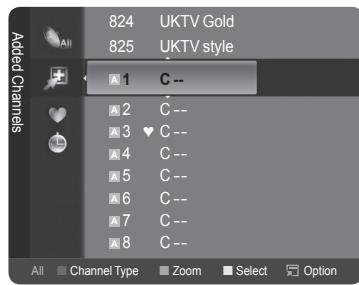
Channel Status Display Icons
| A | An Analogue channel. | √ | A channel selected by pressing the yellow button. |
| ♥ | A channel set as a Favourite. | ✕ | A programme currently being broadcast. |
| ✕ | A locked channel. | ✕ | A reserved programme |
Channel List Option Menu (in All Channels / Added Channels / Favourites)
Press the TOOLS button to use the option menu.
☑ Option menu items may differ depending on the channel status.
Add / Delete
You can delete or add a channel to display the channels you want.
All deleted channels will be shown on All Channels menu.
A gray-coloured channel indicates the channel has been deleted.
The Add menu only appears for deleted channels.
You can also delete a channel to the Added Channels or Favourite menu in the same manner.
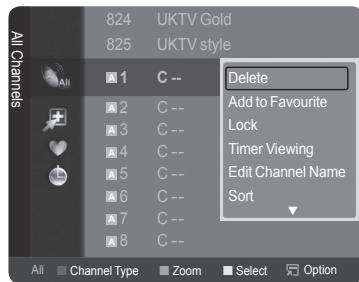
■ Add to Favourite / Delete from Favourite
You can set channels you watch frequently as favourites.
The ♥ symbol will be displayed and the channel will be set as a favourite.
All favourite channels will be shown on Favourite menu.
Lock / Unlock
You can lock a channel so that the channel cannot be selected and viewed. This function is available only when the Child Lock is set to on. (see page 23)
The PIN number input screen appears. Enter your 4 digit PIN number.
The default PIN number of a new TV set is 0-0-0-0. You can change the PIN, by selecting Change PIN from the menu.
The 🔒 symbol will be displayed and the channel will be locked.
Timer Viewing
If you reserve a programme you want to watch, the channel is automatically switched to the reserved channel in the Channel List; even when you are watching another channel. To reserve a programme, set the current time first. (See page 26.)
Only memorized channels can be reserved.
You can set the channel, month, day, year, hour and minute directly by pressing the number buttons on the remote control.
☐ Reserving a programme will be shown on Programmed menu.
Digital Programme Guide and Viewing Reservation
When a digital channel is selected, and you press the ▶ button, the Programme Guide for the channel appears. You can reserve a programme according to the procedures described above.
■ Edit Channel Name (only analogue channel)
Channels can labeled so that their call letters appear whenever the channel is selected.
The names of digital broadcasting channels are automatically assigned and cannot be labeled.
■ Edit Channel Number (only digital channel)
You can also edit the channel number by pressing the number buttons on the remote control.
Sort
This operation allows you to change the programme numbers of the stored channels. This operation may be necessary after using the auto store.
The function is only available in Analouge.
Select All / Deselect All
- Select All: You can select all the channels in the channel list.
- Deselect All: You can deselect all the selected channels in the channel list.
You can perform the add / delete, add to Favourites / delete from Favourites, or lock / unlock function for multiple channels at the same time. Select the required channels and press the yellow button to set all the selected channels at the same time.
The √ mark appears to the left of the selected channels.
☐ You can only select Deselect All when there is a selected channel.
Auto Store
For further details on setting up options, refer to page 11.
If a channel is locked using the Child Lock function, the PIN input window appears.
Channel List Option Menu (in Programmed)
You can view, modify or delete a reservation.
Press the TOOLS button to use the option menu.
- Change Info: Select to change a viewing reservation.
- Cancel Schedules: Select to cancel a viewing reservation.
Information: Select to view a viewing reservation. (You can also change the reservation information.) - Select All: Select all reserved programmes.
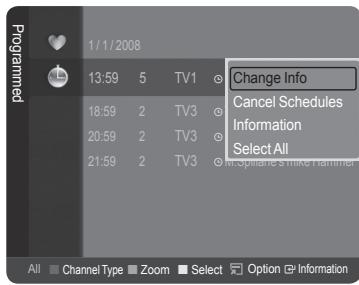
Picture Control
Changing and Resetting the Picture Settings
Mode
You can select the type of picture which best corresponds to your viewing requirements.
■ Dynamic: Selects the picture for high-definition in a bright room.
Standard: Selects the picture for the optimum display in a normal environment.
■ Movie: Selects the picture for viewing movies in a dark room.
Press the TOOLS button to display Tools menu. You can also set the picture mode by selecting Tools → Picture Mode.
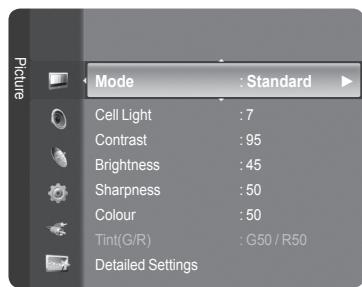
Cell Light / Contrast / Brightness / Sharpness / Colour / Tint(G/R)
Your television has several setting options that allow you to control the picture quality.
Cell Light: Adjusts the pixel brightness. 10 is brightest.
- Contrast: Adjusts the contrast level of the picture.
- Brightness: Adjusts the brightness level of the picture.
- Sharpness: Adjusts the edge definition of the picture.
Colour: Adjusts Colour saturation of the picture.
Tint(G/R): Adjusts the Colour tint of the picture.
☑ Select a picture mode to be adjusted first. The adjusted values are saved for each picture mode.
When you make changes to Cell Light, Contrast, Brightness, Sharpness, Colour or Tint(G/R), the OSD will be adjusted accordingly.
In Analogue TV, Ext., AV, S-Video modes of the PAL system, you cannot use the Tint Function.
In PC mode, you can only make changes to Cell Light, Contrast and Brightness.
Settings can be adjusted and stored for each external device you have connected to an input of the TV.
The energy consumed during use can be significantly reduced if the level of brightness of the picture is reduced, and then this will reduce the overall running cost.
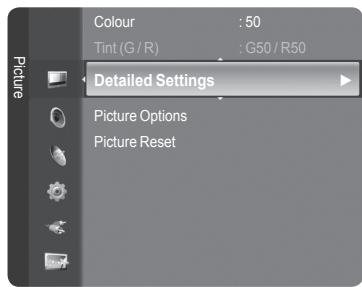
□ Detailed Settings
Samsung's new TVs allow you to make even more precise picture settings than previous models. See below to adjust detailed picture settings.
Detailed Settings is available in Standard or Movie mode.
In PC mode, you can only make changes to Dynamic Contrast, Gamma and White Balance from among the Detailed Settings items.
Black Adjust → Off / Low / Medium / High
You can select the black level on the screen to adjust the screen depth.
■ Dynamic Contrast → Off / Low / Medium / High
You can adjust the screen contrast so that the optimal contrast is provided.
Gamma
You can adjust the Primary Colour (Red, Green, Blue) Intensity.
Colour Space
Colour Space is a colour matrix composed of red, green and blue colours. Select your favourite Colour Space to experience the most natural colour.
• Auto: Auto Colour Space automatically adjusts to the most natural colour tone based on programme sources.
- Native: Native Colour Space offers deep and rich colour tone.
- Custom: Adjusts the colour range to suit your preference.
Customizing the Colour Space
- Colour → Red / Green / Blue / Yellow / Cyan / Magenta
- Adjusts the Colour range to suit your preference. Colour is available when Colour Space is set to Custom.
- Red / Green / Blue: In Colour, you can adjust the RGB values for the selected colour.
- Reset: Resets the colour space to the default values.
White Balance
You can adjust the colour temperature for more natural picture colours.
- R-Offset / G-Offset / B-Offset / R-Gain / G-Gain / B-Gain: Changing the adjustment value will refresh the adjusted screen.
- Reset: The previously adjusted white balance will be reset to the factory defaults.
Flesh Tone
You can emphasize the pink ‘flesh tone’ in the picture.
Changing the adjustment value will refresh the adjusted screen.
Edge Enhancement → Off / On
You can emphasize object boundaries in the picture.
xvYCC → Off / On
Setting the xvYCC mode to on increases detail and colour space when watching movies from an external device (i.e. DVD player).
xvYCC is available when the picture mode is set to Movie, and the external input is set to HDMI or Component mode.
If xvYCC function is active, PIP cannot be selected.
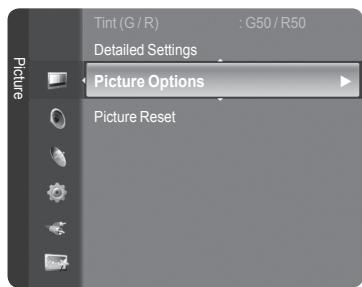
Picture Options
In PC mode, you can only make changes to the Colour Tone, Size and Screen Burn Protection from among the items in Picture Options.
Colour Tone → Cool2 / Cool1 / Normal / Warm1 / Warm2
You can select the most comfortable colour tone to your eyes.
The adjusted values are stored according to the selected Picture mode.
Warm1 or Warm2 is only activated when the picture mode is Movie.
Size
You can select the picture size which best corresponds to your viewing requirements.
Press the TOOLS button to display Tools menu.
You can also set the size by selecting Tools → Picture Size.
• Auto Wide: Automatically adjusts the picture size to the 16:9 aspect ratio.
• 16:9: Adjusts the picture size to 16:9 appropriate for DVDs or wide broadcasting.
- Wide Zoom: Magnify the size of the picture more than 4:3.
- Zoom: Magnifies the 16:9 wide picture (in the vertical direction) to fit the screen size.
• 4:3: This is the default setting for a video movie or normal broadcasting.
- Just Scan: Use the function to see the full image without any cutoff when HDMI (720p / 1080i / 1080p) or Component (1080i / 1080p) signals are input.
Depending on the input source, the picture size options may vary.
The items available may differ depending on the selected mode.
In PC Mode, only 16:9 and 4:3 mode can be adjusted.
Settings can be adjusted and stored for each external device you have connected to an input of the TV.
Temporary image retention may occur when viewing a static image on the set for more than two hours.
Wide Zoom: Press the ▶ button to select Position, then press the ENTER button. Press the ▲ or ▼ button to move the screen up / down. Then press the ENTER button.
Zoom: Press the ▶ button to select Position, then press the ENTER button. Press the ▲ or ▼ button to move the picture up and down. Then press the ENTER button. Press the ▶ button to select Size, then press the ENTER button. Press the ▲ or ▼ button to magnify or reduce the picture size in the vertical direction. Then press the ENTER button.
☑ After selecting Just Scan in HDMI (1080i / 1080p) or Component (1080i / 1080p) mode: Select Position by pressing the ◀ or ▶ button. Use the ▲, ▼, ◀ or ▶ button to move the picture.
Reset: Press the ◀ or ▶ button to select Reset, then press the ENTER button. You can initialize the setting.
☑ If you use the Just Scan function with HDMI 720p input, 1 line will be cut at the top, bottom, left and right as in the overscan function.
When Double (☐, ☐) mode has been set in PIP, the Picture Size cannot be set.
Screen Mode → 16:9 / Wide Zoom / Zoom / 4:3
When setting the picture size to Auto Wide in a 16:9 wide TV, you can determine the picture size you want to see the 4:3 WSS (Wide Screen Service) image or nothing. Each individual European country requires different picture size so this function is intended for users to select it.
• 16:9: Sets the picture to 16:9 wide mode.
- Wide Zoom: Magnify the size of the picture more than 4:3.
- Zoom: Magnify the size of the picture vertically on screen.
• 4:3: Sets the picture to 4:3 normal mode.
This function is available in Auto Wide mode.
This function is not available in PC, Component or HDMI mode.
Digital NR → Off / Low / Medium / High / Auto
If the broadcast signal received by your TV is weak, you can activate the Digital Noise Reduction feature to help reduce any static and ghosting that may appear on the screen.
When the signal is weak, select one of the other options until the best picture is displayed.
DNle → Off / Demo / On
This TV includes the DNle function so as to provide a high visual quality. If you set DNle to on, you can view the screen with the DNle feature activated. If you set the DNle to Demo, you can view the applied DNle and normal pictures on the screen, for demonstration purposes. Using this function, you can view the difference in the visual quality.
DNIe™ (Digital Natural Image engine) DNIe™
This feature brings you more detailed image with 3D noise reduction, detail enhancement, contrast enhancement and white enhancement. New image compensation Algorithm gives brighter, clearer, more detailed image to you. DNle™ technology will fit every signal into your eyes.
This function is not available in Movie and Standard mode.
HDMI Black Level → Normal / Low
You can directly select the black level on the screen to adjust the screen depth.
This function is active only when the external input connects to HDMI (RGB signals).
Real 100Hz Demo→ Off / On
You can get a clear distinction between Real 100Hz and 50Hz, especially when watching fast moving scenes. Therefore, when seeing slow moving scenes, you will not be able to distinguish between Real 100Hz and 50Hz. Demo 100Hz works only with 50Hz signal. Real 100Hz demo mode is provided for shop demonstration with special pictures.
■ Movie Plus → Off / Low / Medium / High / Demo
You can view more natural skin and clear text even in fast moving scenes.
Use this function when watching movies.
This function is not available in Wide Zoom and Zoom modes.
This function is not available when PIP is set to On.
It is not supported in HDMI 1080p/24Hz, 25Hz, 30Hz mode.
Blue Only Mode → Off / On
This function is for AV device measurement experts. This function displays the blue signal only by removing the red and green signals from the video signal so as to provide a Blue Filter effect that is used to adjust the Colour and Tint of video equipment such as DVD players, Home Theaters, etc. Using this function, you can adjust the Colour and Tint to preferred values appropriate to the signal level of each video device using the Red / Green / Blue / Cyan / Magenta / Yellow Colour Bar Patterns, without using an additional Blue Filter.
Blue Only Mode is available when the picture mode is set to Movie or Standard.
Screen Burn Protection
To reduce the possibility of screen burn, this unit is equipped with screen burn prevention technology. This technology enables you to set picture movement up/down (Vertical Line) and side to side (Horizontal Dot). The Time setting allows you to program the time between movement of the picture in minutes.
- Pixel Shift: Using this function, you can minutely move pixels on the PDP in horizontal or vertical direction to minimize after image on the screen.
Set Pixel Shift to On by pressing the ▲ or ▼ button, then press the ENTER button.
☑ Select the required option by pressing the ▲ or ▼ button, then press the ENTER button.
Available options: Horizontal Dot, Vertical Line, Time.
☑ Optimum condition for pixel shift;
| PC | TV/Ext/AV/Component/HDMI | |
| Horizontal Dot | 4 | 4 |
| Vertical Line | 4 | 4 |
| Time (minute) | 4 | 2 min |
The Pixel Shift value may differ depending on the monitor size (inches) and mode.
This function is not available in the Just Scan mode.
- All White: This function helps remove after images on the screen by changing the colour of pixels to white. Use this function when there are remaining after images or symbols on the screen especially when you displayed a still image on the screen for a long time.
- Scrolling: This function helps remove after images on the screen by moving all the pixels on the PDP according to a pattern. Use this function when there are remaining after images or symbols on the screen especially when you displayed a still image on the screen for a long time.
- Side Gray: When you watch TV with the screen ratio of 4:3, the screen is prevented from any damage by adjusting the white balance on both extreme left and right sides.
- Dark: When you set the screen ratio to 4:3, it darkens the left and right sides.
- Light: When you set the screen ratio to 4:3, it brightens the left and right sides.
☐ Picture Reset → Reset Picture Mode / Cancel
Resets all picture settings to the default values.
☑ Select a picture mode to be reset. The reset is performed for each picture mode.
Viewing Picture-in-Picture
You can display a sub picture within the main picture of set programme or video input. In this way, you can watch the picture of set programme or video input from any connected equipment while watching the main picture.
You may notice that the picture in the PIP window becomes slightly unnatural when you use the main screen to view a game or karaoke.
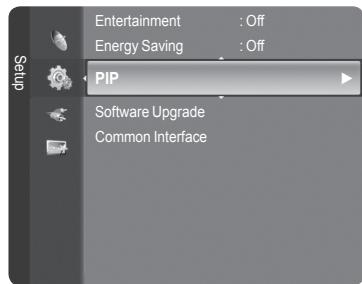
☐ Press the TOOLS button to display Tools menu. You can also configure PIP related settings by selecting Tools → PIP.
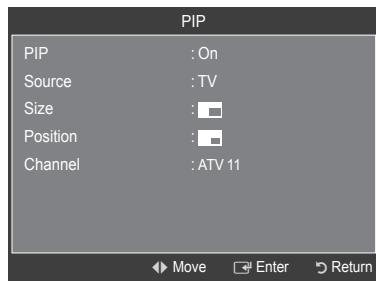
□ PIP → Off / On
You can activate or deactivate the PIP function.
| Main picture | Sub picture |
| Component | |
| HDMI 1, HDMI2/DVI, HDMI 3, HDMI 4 | TV, Ext.1, Ext.2, AV |
| PC |
Source
You can select a source of the sub-picture.
Size → / /
You can select a size of the sub-picture.
If main picture is in HDMI mode, Size is available.
You can select a position of the sub-picture.
In Double (☐, ☐) mode, Position cannot be selected.
Channel
You can select a channel of the sub-picture only when the Source is set to TV.
Press the TOOLS button to display Tools menu. You can also set the picture mode by selecting Tools → PIP
Setting up the TV with your PC
☑ Preset: Press the SOURCE button to select PC mode.
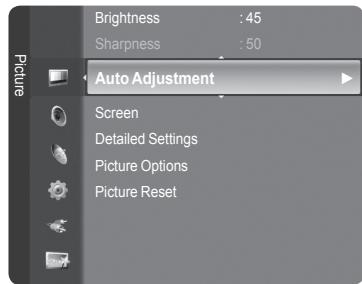
Auto Adjustment
Auto Adjustment allows the PC screen of set to self-adjust to the incoming PC video signal. The values of fine, coarse and position are adjusted automatically.
This function does not work in DVI-HDMI mode.
Press the TOOLS button to display Tools menu.
You can also set the Auto Adjustment by selecting Tools → Auto Adjustment.
Screen
Coarse / Fine: The purpose of picture quality adjustment is to remove or reduce picture noise. If the noise is not removed by Fine-tuning alone, then adjust the frequency as best as possible (Coarse) and Fine-tune again. After the noise has been reduced, readjust the picture so that it is aligned on the center of screen.
PC Position: Adjust the PC's screen positioning if it does not fit the TV screen. Press the ▲ or ▼ button to adjusting the Vertical-Position. Press the ◀ or ▶ button to adjust the Horizontal-Position.
Image Reset: You can replace all image settings with the factory default values.
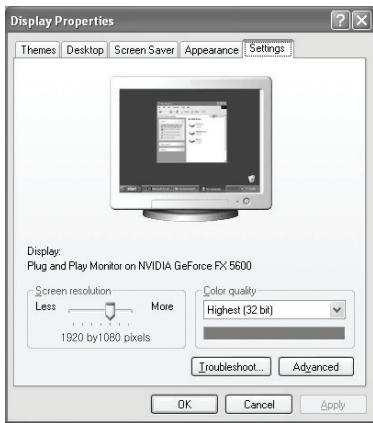
Setting Up Your PC Software (Based on Windows XP)
The Windows display-settings for a typical computer are shown below. The actual screens on your PC will probably be different, depending upon your particular version of Windows and your particular video card. However, even if your actual screens look different, the same basic set-up information will apply in almost all cases. (If not, contact your computer manufacturer or Samsung Dealer.)
- First, click on 'Control Panel' on the Windows start menu.
- When the control panel window appears, click on 'Appearance and Themes' and a display dialog-box will appear.
- When the control panel window appears, click on 'Display' and a display dialog-box will appear.
- Navigate to the 'Settings' tab on the display dialog-box.
The correct size setting (resolution)
Optimum: 1920 X 1080 pixels
If a vertical-frequency option exists on your display settings dialog box, the correct value is '60' or '60 Hz'. Otherwise, just click 'OK' and exit the dialog box.
Display Modes
Both screen position and size will vary depending on the type of PC monitor and its resolution. The resolutions in the table are recommended.
D-Sub Input
| Mode | Resolution | Horizontal Frequency (kHz) | Vertical Frequency (Hz) | Pixel Clock Frequency (MHz) | Sync Polarity (H / V) |
| IBM | 640 x 350 | 31.469 | 70.086 | 25.175 | + / - |
| 720 x 400 | 31.469 | 70.087 | 28.322 | - / + | |
| VESA | 640 x 480 | 31.469 | 59.940 | 25.175 | - / - |
| 640 x 480 | 37.861 | 72.809 | 31.500 | - / - | |
| 640 x 480 | 37.500 | 75.000 | 31.500 | - / - | |
| 800 x 600 | 37.879 | 60.317 | 40.000 | + / + | |
| 800 x 600 | 48.077 | 72.188 | 50.000 | + / + | |
| 800 x 600 | 46.875 | 75.000 | 49.500 | + / + | |
| 1024 x 768 | 48.363 | 60.004 | 65.000 | - / - | |
| 1024 x 768 | 56.476 | 70.069 | 75.000 | - / - | |
| 1024 x 768 | 60.023 | 75.029 | 78.750 | + / + | |
| 1280 x 1024 | 63.981 | 60.020 | 108.000 | + / + | |
| 1280 x 1024 | 79.976 | 75.025 | 135.000 | + / + | |
| 1360 x 768 | 47.712 | 60.015 | 85.500 | + / + | |
| 1600 x 1200 | 75.000 | 60.000 | 162.000 | + / + | |
| CVT | 1920 x 1080RB | 66.587 | 59.934 | 138.500 | + / - |
HDMI / DVI Input
| Mode | Resolution | Horizontal Frequency (kHz) | Vertical Frequency (Hz) | Pixel Clock Frequency (MHz) | Sync Polarity (H / V) |
| VESA | 640 x 480 | 31.469 | 59.940 | 25.175 | - / - |
| 800 x 600 | 37.879 | 60.317 | 40.000 | + / + | |
| 1024 x 768 | 48.363 | 60.004 | 65.000 | - / - | |
| 1280 x 1024 | 63.981 | 60.020 | 108.000 | + / + | |
| 1360 x 768 | 47.712 | 60.015 | 85.500 | + / + | |
| 1600 x 1200 | 75.000 | 60.000 | 162.000 | + / + | |
| CEA | 1920 x 1080p | 67.500 | 60.000 | 148.500 | + / + |
When using an HDMI / DVI cable connection, you must use the HDMI IN 2 jack.
The interlace mode is not supported.
The set might operate abnormally if a non-standard video format is selected.
Separate and Composite modes are supported. SOG is not supported.
Too long or low quality VGA cable can cause picture noise at high resolution modes (1920x1080).
Changing the Sound Standard
Mode → Standard / Music / Movie / Speech / Custom
You can select the type of special sound effect to be used when watching a given broadcast.
Press the TOOLS button to display Tools menu.
You can also configure the sound mode by selecting Tools → Sound Mode.
Equalizer
The sound settings can be adjusted to suit your personal preferences.
■ Mode: You can select a sound mode to suit your personal preferences.
Balance: Controls the balance between the right and left speakers.
100Hz / 300Hz / 1kHz / 3kHz / 10kHz (Bandwidth Adjustment): To adjust the level of different bandwidth frequencies
- Reset: Resets the equalizer settings to the default values.
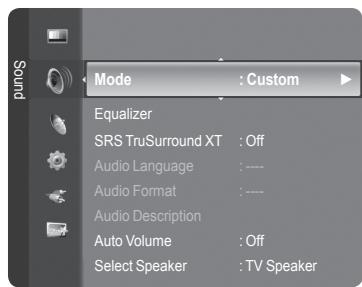
☐ SRS TruSurround XT → Off / On
TruSurround XT is a patented SRS technology that solves the problem of playing 5.1 multichannel content over two speakers. TruSurround delivers a compelling, virtual surround sound experience through any two-speaker playback system, including internal television speakers. It is fully compatible with all multichannel formats.
Press the TOOLS button to display Tools menu.
You can also set the SRS TruSurround XT by selecting Tools → SRS TS XT.

TruSurround XT, SRS and (●) Symbol are trademarks of SRS Labs, Inc. TruSurround XT technology is incorporated under license from SRS Labs, Inc.
Audio Language
You can change the default value for audio languages. Displays the language information for the incoming stream.
While viewing a digital channel, this function can be selected.
You can only select the language among the actual languages being broadcast.
☐ Audio Format → MPEG / Dolby Digital
When sound is emitted from both the main speaker and the audio receiver, a sound echo may occur due to the decoding speed difference between the main speaker and the audio receiver. In this case, use the TV Speaker function.
While viewing a digital channel, this function can be selected.
You can only select the language among the actual languages being broadcast.

Manufactured under license from Dolby Laboratories. Dolby and the double-D symbol are trademarks of Dolby Laboratories.
Audio Description
This is an auxiliary audio function that provides an additional audio track for visually challenged persons. This function handles the Audio Stream for the AD (Audio Description), when it is sent along with the Main audio from the broadcaster. Users can turn the Audio Description On or Off and control the volume.
■ Audio Description → Off / On: Turn the audio description function on or off.
Volume: You can adjust the audio description volume.
Volume is active when Audio Description is set to On.
While viewing a Digital channel, this function can be selected.
☐ Auto Volume → Off / On
Each broadcasting station has its own signal conditions, and so it is not easy to adjust the volume every time the channel is changed. This feature lets you automatically adjust the volume of the desired channel by lowering the sound output when the modulation signal is high or by raising the sound output when the modulation signal is low.
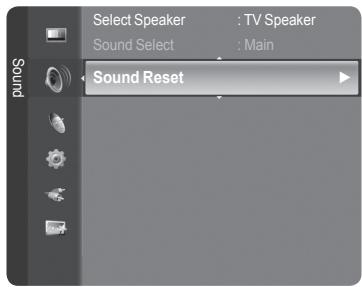
☐ Select Speaker → External Speaker / TV Speaker
If you want to hear the sound through separate speakers, cancel the internal amplifier.
The - +, MUTE buttons do not operate when the TV Speaker is set to Off.
☑ If you select External Speaker in the Select Speaker menu, the sound settings will be limited.
| TV's Internal Speakers | Audio Out (Optical, L / R Out) to Sound System | |
| TV / Ext. / AV / S-Video / Component / PC / HDMI | TV / Ext. / AV / S-Video / Component / PC / HDMI | |
| TV Speaker | Speaker Output | Sound Output |
| External Speaker | Mute | Sound Output |
| Video No Signal | Mute | Mute |
Sound Select
When the PIP feature is activated, you can listen to the sound of the sub (PIP) picture.
■ Main: Used to listen to the sound of the main picture.
Sub: Used to listen to the sound of the sub picture.
Press the TOOLS button to display Tools menu.
You can also set the sound of the sub picture by selecting Tools → PIP → Sound Select.
Sound Reset
- Reset All / Reset Sound Mode / Cancel: You can restore the Sound settings to the factory defaults.
Selecting the Sound Mode
You can set the sound mode in the Tools menu. When you set to Dual I II, the current sound mode is displayed on the screen.
| Type of broadcast | On-screen indication | |||
| NICAM Stereo | Regular broadcast(Standard audio) | Mono (Normal use) | ||
| Regular + NICAM Mono | NICAM ↔ Mono(Normal) | |||
| NICAM-Stereo | NICAM Stereo ↔ Mono(Normal) | |||
| NICAM Dual-I/II | NICAM Dual-1 → NICAM Dual-2 → Mono(Normal) | |||
| A2 Stereo | Regular broadcast(Standard audio) | Mono (Normal use) | ||
| Bilingual or DUAL-I/II | Dual I ↔ Dual II | |||
| Stereo | Stereo ↔ Mono(Forced mono) | |||
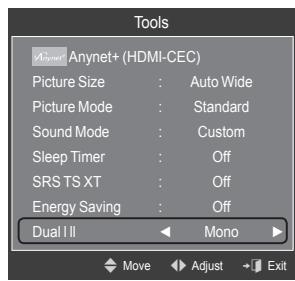
If the stereo signal is weak and an automatic switching occurs, then switch to the mono.
This function is only activated in stereo sound signal. It is deactivated in mono sound signal.
This function is only available in TV mode.
Configuring the Setup Menu
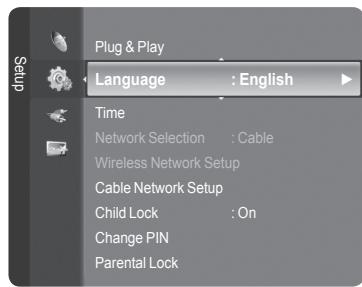
Language
You can set the menu language.
☐ Child Lock → Off / On
This feature allows you to prevent unauthorized users, such as children, from watching unsuitable programmes by muting out video and audio.
Before the setup screen appears, the PIN number input screen appears. Enter your 4 digit PIN number.
The default PIN number of a new TV set is 0-0-0-0. You can change the PIN by selecting Change PIN from the menu.
You can lock some channels in Channel List. (refer to page 14)
Child Lock is available only in TV mode.
Change PIN
You can change your personal ID number that is required to set up the TV.
Before the setup screen appears, the PIN number input screen appears. Enter your 4 digit PIN number.
The default PIN number of a new TV set is 0-0-0-0.
☑ If you forget the PIN code, press the remote control buttons in the following sequence, which resets the PIN to 0-0-0-0: POWER (Off), MUTE, 8, 2, 4, POWER (On).
☐ Parental Lock → Parental Rating
This feature allows you to prevent unauthorized users, such as children, from watching unsuitable programmes by a 4-digit PIN (Personal Identification Number) code that is defined by the user.
- In the Parental Rating screen, configure the parental ratings.
Before the setup screen appears, the PIN number input screen appears. Enter your 4 digit PIN number.
The default PIN number of a new TV set is 0-0-0-0. You can change the PIN by selecting Change PIN from the menu.
When the parental ratings are set, the 🔒 symbol is displayed.
Allow All: Press to unlock all TV ratings.
Block All: Press to lock all TV ratings.
Subtitle
You can activate and deactivate the subtitles. Use this menu to set the Subtitle Mode. Normal under the menu is the basic subtitle and Hard of hearing is the subtitle for a hearing-impaired person.
■ Subtitle → Off / On: Switches subtitles off or on.
■ Mode → Normal / Hard of hearing: Sets the subtitle mode.
■ Subtitle Language: Set the subtitle language.
If the programme you are watching does not support the Hard of hearing function, Normal automatically activates even though Hard of hearing mode is selected.
☑ English is the default in cases where the selected language is unavailable in the broadcast.
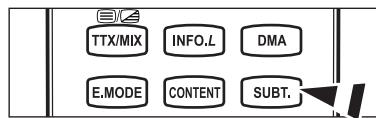
You can select these options simply by pressing the SUBT. button on the remote control.
□ Teletext Language
You can set the Teletext language by selecting the language type.
English is the default in cases where the selected language is unavailable in the broadcast.
Preference
■ Primary Audio Language / Secondary Audio Language / Primary Subtitle Language / Secondary Subtitle Language / Primary Teletext Language / Secondary Teletext Language
Using this feature, users can select one of the languages. The language selected here is the default when the user selects a channel.
If you change the language setting, the Subtitle Language, Audio Language, and the Teletext Language of the Language menu are automatically changed to the selected language.
The Subtitle Language, Audio Language, and the Teletext Language of the Language menu show a list of languages supported by the current channel and the selection is highlighted. If you change this language setting, the new selection is only valid for the current channel. The changed setting does not change the setting of the Primary Subtitle Language, Primary Audio Language, or the Primary Teletext Language of the Preference menu.
☐ Digital Text → Disable / Enable
If the programme is broadcast with digital text, this feature is enabled.
MHEG (Multimedia and Hypermedia Information Coding Experts Group)
An International standard for data encoding systems used in multimedia and hypermedia. This is at a higher level than the MPEG system which includes data-linking hypermedia such as still images, character service, animation, graphic and video files as well as multimedia data. MHEG is user runtime interaction technology and is being applied to various fields including VOD (Video-On-Demand), ITV (Interactive TV), EC (Electronic Commerce), tele-education, tele-conferencing, digital libraries and network games.
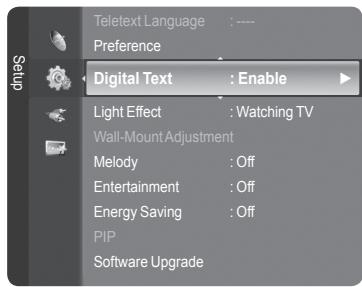
Light Effect → Off / In Standby / Watching TV / Always
You can turn on/off the blue LED on the front of TV according to the situation. Use it for saving power or when the LED dazzles your eyes.
- Off: The blue LED is always off.
In Standby: The blue LED lights while in Standby mode and it turns off when your TV is turned on. - Watching TV: The blue LED lights when watching TV and it turns off when your TV is turned off.
■ Always: The blue LED always lights.
Set the Light Effect to Off to reduce the power consumption.
Melody
Off / Low / Medium / High
The TV power on / off melody sound can be adjusted.
The Melody does not play
- When no sound is output from the TV because the MUTE button has been pressed.
- When no sound is output from the TV because the - ▶ (Volume) button has been pressed.
- When the TV is turned off by Sleep Timer function.
Entertainment
The Entertainment mode enables you to select the optimal display and sound for sports, cinema and games.
■ Off: Switches the Entertainment function off.
Sports: Provides the optimal picture and sound quality for sports.
Cinema: Provides the optimal picture and sound quality for movie watching. You can experience a richer picture and enhanced sound.
Game: Provides the optimal picture and sound quality for games. This mode accelerates the playing speed when using an external game console connected to the TV.
☑ If you set any of the three Entertainment modes to On, the settings will be locked and can not be adjusted. In addition, Picture and Sound mode settings are not allowed. If you want to make Picture and Sound mode adjustments, the Entertainment mode must be turned off.
The Entertainment settings are saved for each input source.
Entertainment mode is not activated in PC mode.
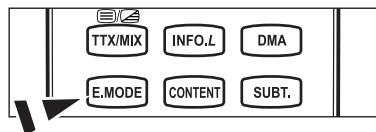
You can press the E.MODE button on the remote control repeatedly to change the Entertainment setting.
Energy Saving
This feature adjusts the brightness of the TV in order to reduce power consumption. When watching TV at night, set the Energy Saving mode option to High to reduce eye fatigue as well as power consumption.
- Off: Turns off the energy saving function.
■ Low: Sets the TV to low energy saving mode.
■ Medium: Sets the TV to medium energy saving mode.
■ High: Sets the TV to high energy saving mode.
Press the TOOLS button to display Tools menu.
You can also set the Energy Saving option by selecting Tools → Energy Saving.
Software Upgrade
To keep your product up-to-date with new Digital Television features then software upgrades are periodically broadcast as part of the normal Television signal. It will automatically detect these signals and display the software upgrade banner. You are given the option to install the upgrade.
By USB
Insert a USB drive containing the firmware upgrade into TV. Please be careful to not disconnect the power or remove the USB drive while upgrades are being applied. The TV will turn off and turn on automatically after completing the
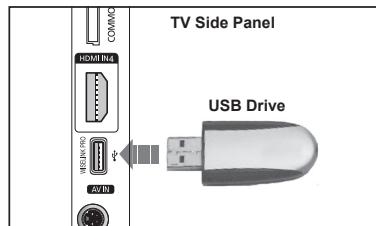
firmware upgrade. Please check the firmware version after the upgrades are complete. When software is upgraded, video and audio settings you have made will return to their default (factory) settings. We recommend you write down your settings so that you can easily reset them after the upgrade.
By Channel
Upgrades the software using the broadcasting signal.
Standby Mode Upgrade
To continue software upgrade with master power on, Select On by pressing the ▲ or ▼ button. 45 minutes after entering standby mode, a manual upgrade is automatically conducted. Since the power of the unit is turned on internally, the screen may be on slightly for the product. This phenomenon may continue for more than 1 hour until the software upgrade is completed.
Alternative Software
To display the software version information.
Common Interface
Installing the CI Card
a. Purchase the CI CAM module by visiting your nearest dealer or by phone.
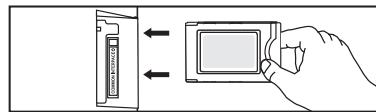
b. Insert the CI CARD into the CAM in the direction of the arrow until it fits.
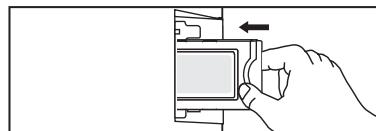
c. Insert the CAM with the CI CARD installed into the common interface slot.
Insert the CAM in the direction of the arrow, right up to the end so that it is parallel with the slot.
d. Check if you can see a picture on a scrambled signal channel.
CI Menu
This enables the user to select from the CAM-provided menu. Select the CI Menu based on the menu PC Card.
Application Info.
This contains information on CAM inserted in the CI slot and displays it. The Application Info inserting is about the CI CARD. You can install the CAM anytime whether the TV is ON or OFF.
- Purchase the CI CAM module by visiting your nearest dealer or by phone.
- Insert the CI CARD into the CAM in the direction of the arrow until it fits.
- Insert the CAM with the CI CARD installed into the common interface slot. (Insert the CAM in the direction of the arrow, right up to the end so that it is parallel with the slot.)
- Check if you can see a picture on a scrambled signal channel.
natural_image
Hand pressing a button on a device (no text or symbols visible)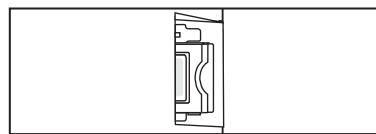
natural_image
Pure technical line drawing of a mechanical component without any text, numbers, or symbolsClock
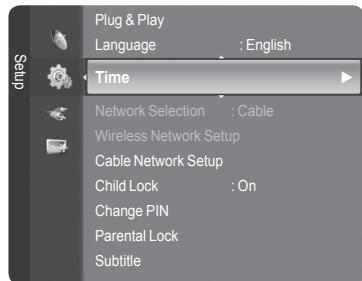
Setting the clock is necessary in order to use the various timer features of the TV.
The current time will appear every time you press the INFO button.
If you disconnect the power cord, you have to set the clock again.
Clock Mode
You can set up the current time manually or automatically.
- Auto: Set the current time automatically using the time from the digital broadcast.
- Manual: Set the current time to a manually specified time.
Clock Set
You can set the current time manually.
Set up this item when you have set Clock Mode to Manual.
You can set the day, month, year, hour, minute directly by pressing the number buttons on the remote control.
☐ Sleep Timer → Off / 30 min / 60 min / 90 min / 120 min / 150 min / 180 min
The sleep timer automatically shuts off the TV after a preset time (30, 60, 90, 120, 150 and 180 minutes).
The TV automatically switches to standby mode when the timer reaches 0.
To cancel the Sleep Timer function, select Off.
Press the TOOLS button to display Tools menu.
You can also set the sleep timer by selecting Tools → Sleep Timer.
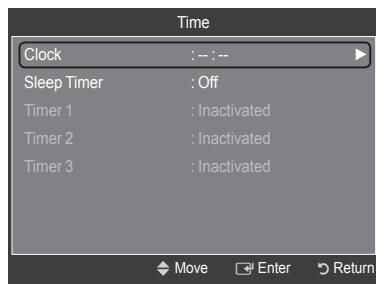
☐ Timer 1 / Timer 2 / Timer 3
Three different on / off timer settings can be made.
On Time: Set the hour, minute, and Activate / Inactivate. (To activate timer with the setting you've chosen, set to Activate.)
- Off Time: Set the hour, minute, and Activate / Inactivate. (To activate timer with the setting you've chosen, set to Activate.)
Volume: Set the required volume level.
- Contents: When the On Timer is active, you can turn on a specific channel or play back contents such as photo or audio files.
• TV / USB: Select TV or USB. (Make sure that an USB device is connected to your TV.)
• Antenna: Select ATV or DTV.
• Channel: Select the desired channel.
• Music: Select the folder containing MP3 files on the USB device.
• Photo: Select the folder containing JPEG files on the USB device.
- Repeat: Select Once, Everyday, Mon\~Fri, Mon\~Sat, Sat\~Sun, or Manual.
When Manual is selected, press the ▶ button to select the desired day of the week. Press the ENTER☐ button over the desired day and the √ mark will appear.
You must set the clock first.
☐ You can set the hour, minute and channel by pressing the number buttons on the remote control.
Auto Power Off
When you set the timer On, the television will eventually turn off, if no controls are operated for 3 hours after the TV was turned on by the timer. This function is only available in timer On mode and prevents overheating, which may occur if a TV is on for too long time.
Network Connection - Cable
Cable Connection for a DHCP Environment
The procedures to set up the network using Dynamic Host Configuration Protocol (DHCP) are described below. Since an IP address, subnet mask, gateway, and DNS are automatically allocated when DHCP is selected, you do not have to enter them manually.
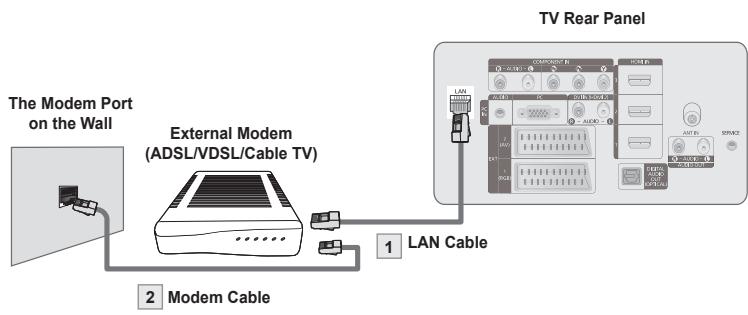
- Connect the [LAN] port on the rear panel of the TV and the external modem with a LAN Cable.
- Connect the LAN port on the wall and the external modem with a Modem Cable.
You can connect the LAN via a Sharer (Router).
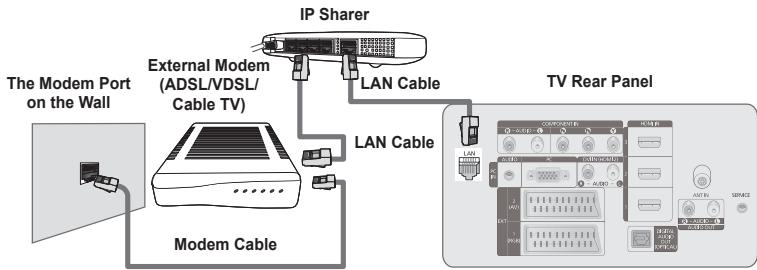
flowchart
graph TD
    A["The Modem Port on the Wall"] --> B["Modem Cable"]
    B --> C["External Modem (ADSL/VDSL/Cable TV)"]
    C --> D["IP Sharer"]
    D --> E["LAN Cable"]
    E --> F["TV Rear Panel"]
    F --> G["LAN Cable"]
    G --> H["Internet Panel"]
    style A fill:#f9f,stroke:#333
    style B fill:#ccf,stroke:#333
    style C fill:#cfc,stroke:#333
    style D fill:#fcc,stroke:#333
    style E fill:#cff,stroke:#333
    style F fill:#ffc,stroke:#333
    style G fill:#cfc,stroke:#333
    style H fill:#fcc,stroke:#333
You can connect the LAN port and the TV directly depending on your network status.
The terminals (the position of the port and the type) of the external device may differ depending on the manufacturer.
If the IP address allocation by the DHCP server has failed, turn the external modem off, turn it on again after at least 10 seconds and then try again.
For the connections between the external modem and the Sharer (Router), refer to the owner's manual of the corresponding product.
☐ You can connect the TV to the LAN directly without connecting it through a Sharer (Router).
☑ You cannot use a manual-connection-type ADSL modem because; e it does not support DHCP. You have to use an automatic-connection-type ADSL modem.
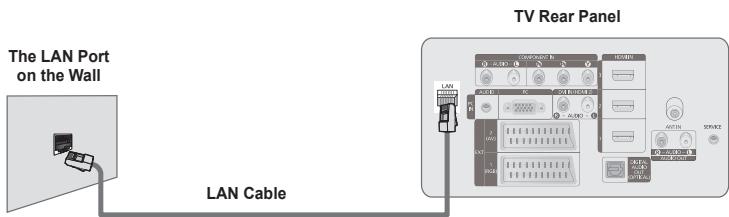
■ LAN Connection for Static IP Environment
The procedures to set up the network using a static IP address are described below. You have to manually enter the IP address, subnet mask, gateway, and DNS that are provided by your Internet Service Provider (ISP).
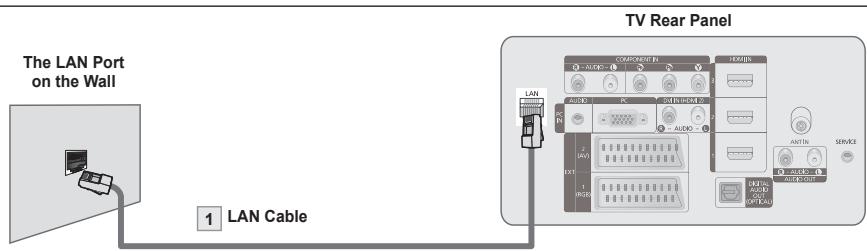
1. Connect the [LAN] port on the rear panel of the TV and the LAN port on the wall using the LAN cable.
You can connect the LAN via a Sharer (Router).
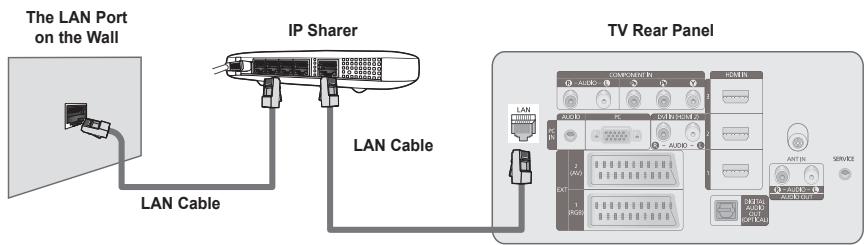
The terminals (the position of the port and the type) of the external device may differ depending on the manufacturer.
☑ If you are using a static IP address, your ISP will inform you of the IP address, subnet mask, gateway, and DNS. You must enter these values to complete the network settings. If you do not know the values, ask your network administrator.
For the information on how to configure and connect a Sharer (Router), refer to the owner's manual for the corresponding product.
You can connect the TV to the LAN directly without connecting it through a Sharer (Router).
If you use an IP Sharer (IP Router) that supports DHCP, you can set up the device as either DHCP or static IP.
For the procedures to use a static IP address, ask your Internet Service Provider.
Network Connection - Wireless
You can connect to the network wirelessly through a wireless IP sharer.
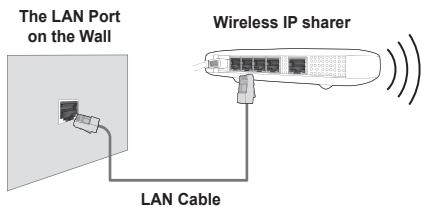
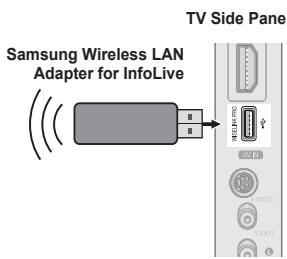
- Connect the 'Samsung Wireless LAN Adapter for InfoLive' into the Wiselink terminal of the TV.
You must use the 'Samsung Wireless LAN Adapter for InfoLive'(WIS-08BG) to use a wireless network.
The ‘Samsung Wireless LAN Adapter for InfoLive’ is sold separately. Contact a Samsung Electronics agent or service center for purchasing.
To use a wireless network, your TV must be connected to a wireless IP sharer.
If the wireless IP sharer supports DHCP, you TV can use a DHCP or static IP address to connect to the wireless network.
You must use a wireless IP sharer that supports IEEE 802.11 B or IEEE 802.11G.
If the wireless IP sharer allows you to turn on / off the Ping connection function, turn it on.
Set the wireless IP sharer to Infrastructure mode. Ad-hoc mode is not supported.
☑ Select a channel for the wireless IP sharer that is not currently being used. If the channel set for the wireless IP sharer is currently being used by another device nearby, this will result in interference and communications may fail.
When applying the security key for the AP (wireless IP sharer), only the following is supported.
1) Authentication Mode : WEP, WPAPSK, WPA2PSK
2) Encryption Type : WEP, TKIP, AES
1) Authentication Mode : WEP, WPAPSK, WPA2PSK 2) Encryption Type : WEP, TKIP, AES
If you apply a security system other than the systems listed above, it will not work with the TV.
Network Selection
Select Cable or Wireless as the method to connect to the network.
The menu is activated only if the ‘Samsung Wireless LAN Adapter’ for InfoLive’ is connected.
Cable: Connect to network using a cable.
■ Wireless: Connect to network wirelessly.
Cable Network Setup
- Internet Protocol Setup → Auto Setup / Manual Setup
■ Network Test: You can test or confirm the network connection status after setting up the network.
When unable to connect to a wired network
If your Internet service provider has registered the MAC address of the device used to connect to the Internet for the first time and authenticates the MAC address each time you connect to the Internet, your TV may not be able to connect to the Internet as the MAC address differs from that of the device (PC) used to connect to the Internet the first time. In this case, ask your Internet service provider about the procedures to connect devices other than your PC (such as your TV) to the Internet. If your Internet service provider requires an ID or password to connect to the Internet (network), your TV may not be able to connect to the Internet. In this case, you have to enter your ID or password when connecting to the Internet using an Internet Sharer (Router).
The internet connection may fail due to a firewall problem. In this case, contact your Internet service provider. If you cannot connect to the Internet even if you have followed the procedures of your Internet service provider, please contact a Samsung Electronics Service Center.
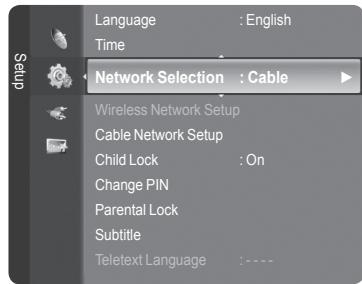
☐ Wireless Network Setup
- Internet Protocol Setup → Auto Setup / Manual Setup
■ Network Test: You can test or confirm the network connection status after setting up the network.
When unable to connect to a wireless network
Your TV may fail to locate an AP that is configured as a private SSID type. In this case, please change the AP settings and try again. If your Internet service provider has registered the MAC address of the device used to connect to the Internet for the first time and authenticates the MAC address each time you connect to the Internet, your TV may not be able to connect to the Internet as the MAC address differs from that of the device (PC) used to connect to the Internet the first time. In this case, ask your Internet service provider about the procedures to connect devices other than your PC (such as your TV) to the Internet. If you cannot connect to the Internet even if you have followed the procedures of your Internet service provider, please contact a Samsung Electronics Service Center.
- Select Access Point: You can select the IP sharer to use when using a wireless network.
If a wireless Access Point is not in the Access Point list, press the Red button.
When the connection is made, you will be returned to the screen automatically.
If you selected an Access Point that requires security authentication, enter the security key.
If you have selected an Access Point with a security authentication:
- The Security Key input screen appears.
- Enter the security key and press the ENTER button.
- Using the Remote Control Buttons on the Security Key Input Screen.
Setup Screen can be different depending on the security types.
| Button | Operations |
| ▲/▼/◄/►, (Wheel) | Moves the selection up/down/left/right. |
| (ENTER) | Enters (Inputs) the selected character. |
| Red button | Switch between Upper- and Lower-Case Letters |
| Green button | You can delete an already entered character. |
| Blue button | Press this button to finish entering the security key. |
Cable Network Setup-Auto Setup
If you connect the LAN cable and it supports DHCP, the Internet Protocol (IP) Settings are automatically configured. Please check if the LAN cable is connected. (See page 27)
- Set Network Selection to Cable.
- Select Cable Network Setup.
- Set Internet Protocol Setup to Auto Setup.
- Select Network Test to check the network connectivity.
Cable Network Setup-Manual Setup
To connect the TV to the LAN using a static IP address, you must set up the Internet Protocol (IP). Please check if the LAN cable is connected. (See page 27)
- Set Network Selection to Cable.
- Select Cable Network Setup.
- Set Internet Protocol Setup to Manual Setup.
-
Set up IP Address, Subnet Mask, Gateway and DNS Server.
Press the number buttons on the remote control when you set the Network manually. -
Select Network Test to check the network connectivity.
Wireless Network Setup-Auto Setup
The menu is activated only if the ‘Samsung Wireless LAN Adapter for InfoLive’ is connected. (See page 28) If you connect the LAN cable and it supports DHCP, the Internet Protocol (IP) Settings are automatically configured. The wireless IP sharer to be connected to this product must support DHCP.
- Set Network Selection to Wireless.
- Select Wireless Network Setup.
- Set Internet Protocol Setup to Auto Setup.
- Select an AP through Select Access Point.
- Select Network Test to check the network connectivity.
Wireless Network Setup-Manual Setup
The menu is activated only if the ‘Samsung Wireless LAN Adapter for InfoLive’ is connected. (See page 28)
- Set Network Selection to Wireless.
- Select Wireless Network Setup.
- Set Internet Protocol Setup to Manual Setup.
- Select an AP through Select Access Point.
- Select Network Test to check the network connectivity.
Source List
Use to select TV or other external input sources such as DVD players or Cable Box / Satellite receivers (Set-Top Box) connected to the TV. Use to select the input source of your choice.
TV, Ext.1, Ext.2, AV, S-Video, Component, PC, HDMI1, HDMI2 / DVI, HDMI3, HDMI4, USB, DLNA.
You can choose only those external devices that are connected to the TV. In the Source List, connected inputs will be highlighted and sorted to the top. Inputs that are not connected will be sorted to the bottom.
Using the Colour buttons on the remote with the Source list
- Red (Refresh): Refreshes the connecting external devices.
- TOOLS (Option): Displays the Edit Name and Information menus.
Press the SOURCE button on the remote control to view an external signal source. TV mode can be selected by pressing the TV button, number buttons (0\~9), and the P ∧ / √ button on the remote control.
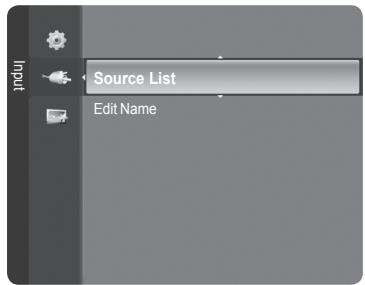
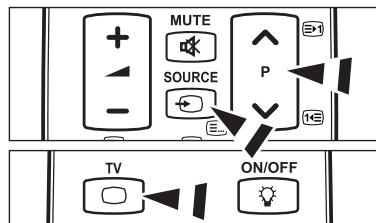
Edit Name
VCR / DVD / Cable STB / Satellite STB / PVR STB / AV Receiver / Game / Camcorder / PC / TV / IPTV / Blu-Ray / HD DVD / DMA
Name the device connected to the input jacks to make your input source selection easier.
When a PC with a resolution of 1920 x 1080@60Hz is connected to the HDMI IN 2 port, you should set the HDMI2 / DVI mode to PC in the Edit Name of the Input mode.
Product Guide
The Product Guide gives you information on the most important features of this TV.
- Press the MENU button to display the menu. Press the ▲ or ▼ button to select Application, then press the ENTER button.
- Press the ▲ or ▼ button to select Product Guide, then press the ENTER button.
- Press the ◀ or ▶ button to select a Guide (Picture Quality, Entertainment or Connectivity) and press the ENTER ➕ button.
- You can navigate the Product Guide screen by using the ◀ and ▶ buttons.
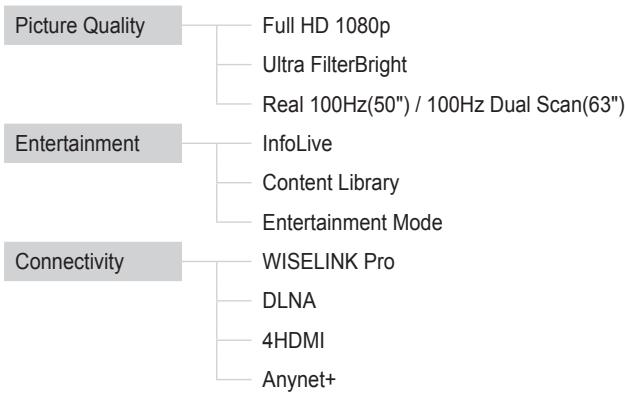
flowchart
graph TD
    A["Picture Quality"] --> B["Full HD 1080p"]
    A --> C["Ultra FilterBright"]
    A --> D["Real 100Hz(50") / 100Hz Dual Scan(63")"]
    E["Entertainment"] --> F["InfoLive"]
    E --> G["Content Library"]
    E --> H["Entertainment Mode"]
    I["Connectivity"] --> J["WISELINK Pro"]
    I --> K["DLNA"]
    I --> L["4HDMI"]
    I --> M["Anynet+"]
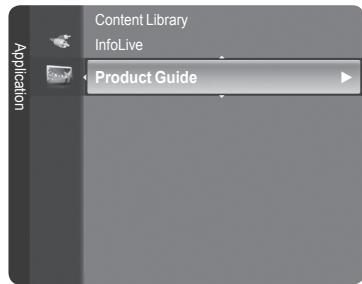
- Press the EXIT button to exit.
Using the Remote Control Button in Product Guide Menu
| Button | Operations |
| Yellow button | Shows the contents of the Product Guide sequentially. (AutoPlay) |
| ▲/▼/◄/►(Wheel) | Move the cursor and select an item. |
| ENTER | Select the currently selected item. |
| RETURN | Return to the previous menu. |
| EXIT | Stop the current function and return to theProduct Guidemain menu. |
| P [^]/[~, PRE-CH | Stop Product Guide mode and Returns to TV mode |
WISELINK Pro
Connecting a USB Device
- Press the POWER button to turn the TV on.
- Connect a USB device containing photo, music and/or movie files to the WISELINK jack (USB jack) on the side of the TV.
☑ If you enter the WISELINK Pro mode with no USB device connected the message 'No external storage device found. Check the connection status.' will appear. In this case, insert the USB device, exit the screen by pressing the W.LINK button on the remote control and enter the WISELINK Pro screen again.
MTP (Media Transfer Protocol) is not supported.
The file system only supports FAT16/32 (The NTFS file system is not supported).
☑ Certain types of USB Digital camera and audio devices may not be compatible with this TV.
☑ WISELINK Pro only supports USB Mass Storage Class devices (MSC). MSC is a Mass Storage Class Bulk-Only Transport device. Examples of MSC are Thumb drives and Flash Card Readers (Both USB HDD and HUB are not supported.)
☑ Please connect directly to the USB port of your TV. If you are using a separate cable connection, there may be a USB compatibility problem.
Before connecting your device to the TV, please back up your files to prevent them from damage or loss of data. SAMSUNG is not responsible for any data file damage or data loss.
Do not disconnect the USB device while it is loading.
MSC supports MP3 and JPEG files, while a PTP device supports JPEG files only.
The sequential JPEG format is supported.
The higher the resolution of the image, the longer it takes to display on the screen.
The maximum supported JPEG resolution is 15360X8640 pixels.
For unsupported or corrupted files, the Not Supported File Format message is displayed.
☑ If the number of photo files exceeds 4000 (or the number of music files exceeds 3000), any files exceeding the 4000 limit may not be displayed in the Photo List (or Music List).
MP3 files with DRM that have been downloaded from a non-free site cannot be played. Digital Rights Management (DRM) is a technology that supports the creation of content, the distribution and management of the content in an integrated and comprehensive way, including the protection of the rights and interests of the content providers, the prevention of the illegal copying of contents, as well as managing billings and settlements.
When moving to a photo, loading may take a few seconds. At this point, the loading icon will appear at the screen.
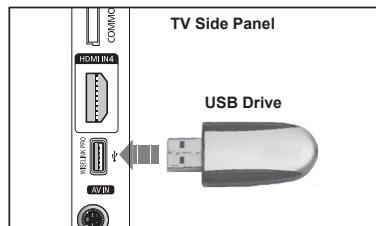
Using the WISELINK Pro Function
This function enables you to view and listen to photo, music and/or movie files saved on a USB Mass Storage Class (MSC) device.
Entering the WISELINK Pro Menu
- Press the MENU button. Press the ▲ or ▼ button to select Application, then press the ENTER button.
- Press the ▲ or ▼ button to select WISELINK Pro, then press the ENTER button.
The WISELINK Pro menu is displayed.
Press the W.LINK button on the remote control to display the WISELINK Pro menu.
Press the SOURCE button on the remote control repeatedly to select USB or DLNA, then press the ENTER button.
- Press the Red button, then press the ▲ or ▼ button to select the corresponding USB Memory Device (i.e. if connected through a hub). Press the ENTER button.
This function differs depending on the USB Memory Device/ DLNA device connected to TV.
The selected USB device name appears at the bottom left of the screen.
- Press the ◀ or ▶ button to select an icon (Photo, Music, Movie, Setup), then press the ENTER→ button. To exit WISELINK Pro mode, press the W.LINK button on the remote control.
You can enjoy game movies. (Not support game program)
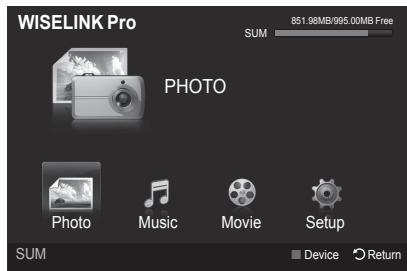
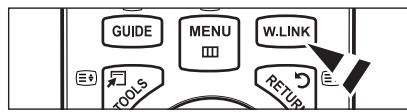
flowchart
graph TD
    A["GUIDE"] --> B["MENU"]
    B --> C["W.LINK"]
    C --> D["RETURN"]
    D --> E["TOOLS"]
    E --> A
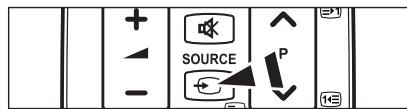
Removing a USB Memory Device Safely
You can remove the device safely from the TV.
- Press the TOOLS button in the WISELINK Pro file list screen, or while a SlideShow or music file is being played.
- Press the ▲ or ▼ button to select Remove Safely, then press the ENTER button.
- Remove the USB device from the TV.
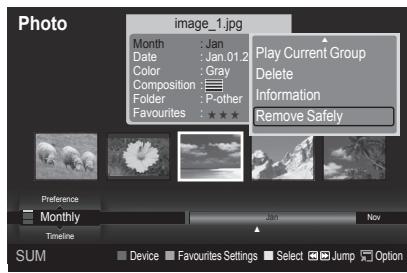
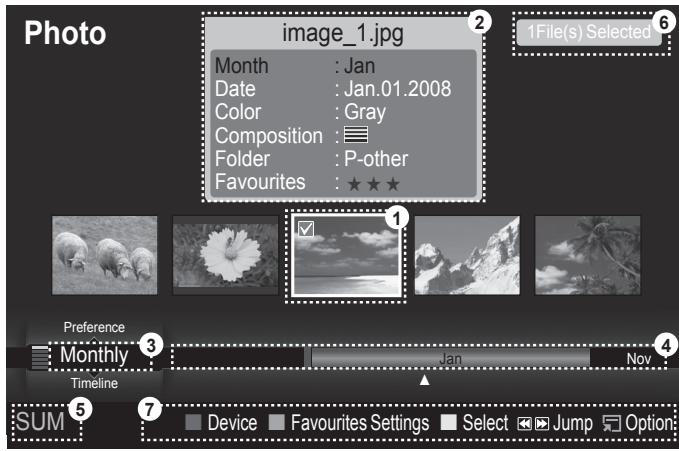
- Currently selected file: The currently selected file is highlighted. Photo and movie files are displayed as thumbnail images.
- Information Window: Shows information about the currently selected file. There is a separate information window for photo and movie files only. For music files, the file information is also displayed in the location where the file is displayed.
- Current Sort Standard: This field shows the current standard for sorting files. Press the ▲ or ▼ button to change the standard for sorting files.
- View Groups: Shows the sorting groups. The sorting group including the currently selected photo is highlighted.
- Current Device: Shows the currently selected device name. Press the Red button to select a device.
-
Item Selection Information: Shows the number of photos that are selected by pressing the Yellow button.
-
Help Items
-
Red (Device) button: Selects a connected device.
- Green (Favourites Settings) button: Changes the Favourites Settings for the selected file. Press this button repeatedly until the desired value appears.
- Yellow (Select) button: Selects file from the file list. Selected files are marked with a symbol √. Press the yellow button again to cancel a file selection.
- (Jump) button: Jumps to the previous sorting group/Jumps to the next sorting group.
- TOOLS (Option) button: Displays the option menus. (The option menu changes according to the current status.)
Using the Remote Control Button in WISELINK Pro Menu
| Button | Operations |
| ▲/▼/◄/►(Wheel) | Move the cursor and select an item. |
| ENTER | Select the currently selected item.While playing a slide show, movie, or music file:- Pressing the ENTER button during play pauses the play.- Pressing the ENTER button during pause resumes the play. |
| ▶ / ▶ | Play or pause the Slide Show or Music file. |
| RETURN | Return to the previous menu. |
| TOOLS | Run various functions from the Photo, Music and Movie menus. |
| Stop the current slide show, Music or Movie file. | |
| Jump to previous group/Jump to next group. | |
| INFO | Show file information. |
| W.LINK | Exit WISELINK Pro mode. |
| EXIT | Stop the current function and return to the WISELINK Pro main menu. |
You can sort photos in the Photo List by a particular standard.
- Press the ▲ or ▼ button to select a sorting standard in the Photo list.
The photos are sorted according to the newly selected sorting standard.
To move to the previous/next group, press the ◀◀ (REW) or ▶▶ (FF) button.
- Press the ▶ (Play)/ENTER◀ button to start the Slide Show in the order selected by the user.
The information of a photo file is automatically set.
The Color and Composition information extracted from a photo file may be different from the user's expectations.
Photo information is automatically set. You can change the Color, Composition, and Favourites.
☑ Photos for which information cannot be displayed are set as Unclassified.
☑ PTP does not support folder sort mode.
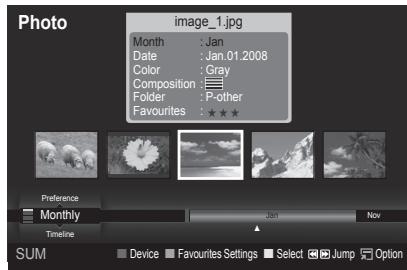
Sorting Standard for the Photo List
Monthly
It sorts and shows photos in the file by month. It sorts only by month (from January to December) regardless of year.
Timeline
It sorts and shows photos by date. It sorts by year and month from the earliest photo.
Color
It sorts photos by color. You can change the photo color information.
Color options: Red, Yellow, Green, Blue, Magenta, Black, Gray, Unclassified.
Composition
It sorts photos by composition. You can change the compositional information of photos.
Composition options: (horizontal), (vertical), (object), (perspective), (pattern), Unclassified.
Folder
It sorts photos by folder. If there are many folders in USB, the photos files are shown in order in each folder. The photo file in the Root folder is shown first and the others are shown in alphabetical order by name.
Preference
It Sorts photos by preference (Favourites). You can change the photo preferences.
Changing the Favourites Settings.
Select the desired photo in the Photo list, then press the Green button repeatedly until the desired setting appears.
Favourites options: ★★★, ★★★, ★★★, ★★★
Photo List Option Menu
Slide Show
Using this menu, you can play a SlideShow using the photo files on the USB memory device.
Play Current Group
Using this menu, you can play a SlideShow using only the photo files in the currently selected sorting group.
Delete
Using this menu, you can delete the selected photo files.
Change Group
You can change the Color and Composition information of photo files.
The group information of the current file is updated and the file is moved to the new group.
To change the information of multiple files, select the files you want by pressing the yellow button.
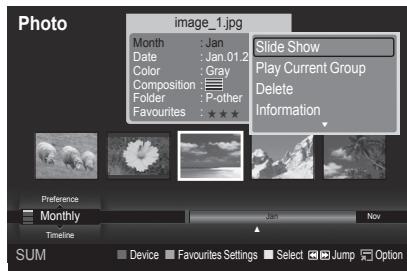
Information
The photo file information including the name, the size, the resolution, the date modified and the path is displayed.
You can view the information of photo files during a SlideShow using the same procedures.
Alternatively, select a photo from the photo list and press the INFO button to view the information.
Remove Safely
You can remove the device safely from the TV.
Viewing a Photo or Slide Show
Viewing a Slide Show
- Press the ◀ or ▶ button to select the desired photo in the Photo list.
- Press the TOOLS button.
- Press the ▲ or ▼ button to select Slide Show, then press the ENTER button.
All files in the photo list will be used for the Slide Show.
During the slide show, files are displayed in order from the currently shown file.
The Slide Show progresses in the order sorted in the Photo list.
Music files can be automatically played during the Slide Show if the Background Music is set to On. (Refer to page 37).
While a photo list is displayed, press the ▶(Play)/ENTER button on the remote control to start slide show.
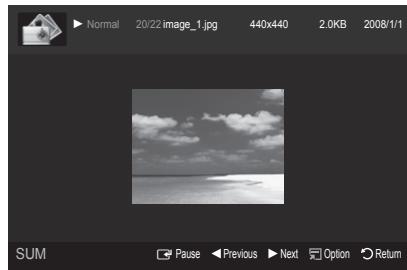
natural_image
Black-and-white photo of a cloudy sky over water, displayed in a media player interface (no text or symbols on the image itself)
SlideShow Control Buttons
| ENTER | Play/Pauses the Slide Show. | Exit Slide Show and return to the photo list. | |
| Play the Slide Show. | TOOLS | Run various functions from the Photo menus. | |
| Pause the Slide Show. | Change the SlideShow playing speed. |
Playing current group
- Press the ▲ or ▼ button to select a sorting standard. (Monthly, Timeline, Color, Composition, Folder, Preference)
- Press the ◀◀ (REW) or ▶▶ (FF) button to select the desired group.
- Press the TOOLS button.
- Press the ▲ or ▼ button to select Play Current Group, then press the ENTER button.
Only the photos in the sorting group including the selected files will be used for the Slide Show.
To perform a SlideShow with only the selected files
- Press the ◀ or ▶ button to select the desired photo in the Photo list.
- Press the yellow button. Repeat the above operation to select multiple photos.
The √ mark appears to the left of the selected photo.
If you select one file, the SlideShow will not be performed.
To deselect all selected files, press the TOOLS button and select Deselect All.
- Press the ▶ (Play)/ENTER← button.
The selected files will be used for the Slide Show.
■ Stop Slide Show / Start Slide Show
You can start or stop a SlideShow.
Rotate
You can rotate photos saved on a USB memory device.
Whenever you press the ◀ button, it rotates by 270°, 180°, 90°, and 0°.
Whenever you press the ▶ button, it rotates by 90^ , 180^ , 270^ , and 0^ .
Zoom
You can magnify photos saved on a USB memory device. (x1 → x2 → x4)
To move the enlarged photo image, press the ENTER button, then press the ▲/▼/◄/► buttons. Note that when the enlarged picture is smaller than the original screen size, the location change function doesn't work.
The enlarged file is not saved.
If you have select Rotate, the Zoom deactivated.
Slide Show Speed
You can select the slide show speed.
☐ You can select the Slide Show speed only during a slide show.
You can also change the speed of the Slide Show by pressing the (REW) or (FF) button during the Slide Show.
Background Music → On/Off
If you set Background Music to On, the background music will be played when viewing photos one by one or in a Slide Show.
If you set Background Music to On, a screen appears immediately where you can set the Background Music.
To use this feature, there must be music and photo files stored on the USB device.
■ Background Music Setting
You can select background music when watching a SlideShow.
If you turn off the Background Music, even if the Background Music Settings have been set up, the background music will not be played.
Loading music files is needed to change BGM mode. Play music files in music category to load.
• BGM Mode → Mood/Selected File/Shuffle
• BGM Mood → Energetic/Rhythmical/Sad/Exciting/Calm
If you set BGM Mode to Mood, you can select a mood.
You cannot select a mood not part of the music files on the USB memory device.
- Select Music File
If you set BGM Mode to Selected File, you can select a music file.
■ Picture Setting / Sound Setting
Refer to page 43.
Information
The photo file information is displayed.
Remove Safely
You can remove the device safely from the TV.
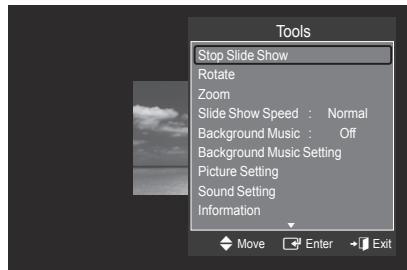
You can sort music files in the Music List by a particular standard.
- Press the ▲ or ▼ button to select a sorting standard in the Music list.
Music files are sorted according to the newly selected sorting standard.
To move to the previous/next group, press the ◀◀ (REW) or ▶▶ (FF) button.
- Press the ENTER button to start playing music in the order selected by the user.
The information of the music files is automatically set.
The Mood information extracted from a music file may differ from the expectations of the user.
Music information is automatically set. You can change the Mood and Favourites.
Music files for which information cannot be displayed are set to Unclassified.
If there is no title information for a music file, the filename is displayed.
If no information is available for the Genre, Artist, Album, or Year, the corresponding item is displayed as blank.
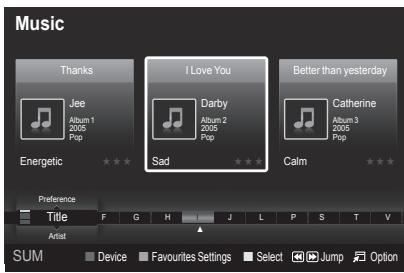
Sorting Standard for the Music List
Title: It sorts the Music titles in alphabetical order, and shows the music file.
■ Artist: It sorts the music file by artist in alphabetical order.
■ Mood: It sorts music files by the mood. You can change the music mood information.
Mood options: Energetic, Rhythmical, Sad, Exciting, Calm, Unclassified
■ Genre: It sorts music files by the genre.
Folder: It sorts music files by the folder. If there are many folders in USB, the files are shown in order in each folder. The music file in the Root folder is shown first and the others are shown in alphabetical order by name.
- Preference: It sorts music files by preference (Favourites). You can change the music files preferences.
Changing the Favourites Settings
Select the desired music file in the Music list, then press the Green button repeatedly until the desired setting appears.
To change the information of multiple files, select files by pressing the yellow button.
Favourites options: ★★★, ★★★, ★★★, ★★★
Music List Option Menu
Play Current Group: Using this menu, you can only play music files in the currently selected sorting group.
Delete: Using this menu, you can delete the selected music files.
Change Group: You can change the mood information of music files. The group information of the current file is updated and the file is moved to the new group.
To change the information of multiple files, select files by pressing the yellow button.
Information: The music file information including the name, the size, the date modified and the path is displayed.
You can view the information of music files during a SlideShow using the same procedures.
Alternatively, select a music file from the music list and press the INFO button to view the information.
■ Remove Safely: You can remove the device safely from the TV.
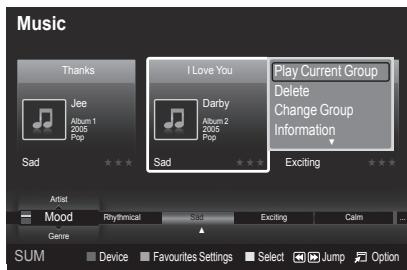
Playing a music file
- Pressing the ◀ or ▶ button to select a music file to be played.
- Press the ▶ (Play)/ENTER← button.
This menu only shows files with the MP3 file extension. Files with other file extensions are not displayed, even if they are saved on the same USB device.
◀ (REW) or ▶ (FF) buttons do not function during play.
The selected file is displayed at the top with its playing time.
To adjust the music volume, press the volume button on the remote control. To mute the sound, press the MUTE button on the remote control.
The playing duration of a music file may be displayed as '00:00:00' if its playing time information is not found at the start of the file.
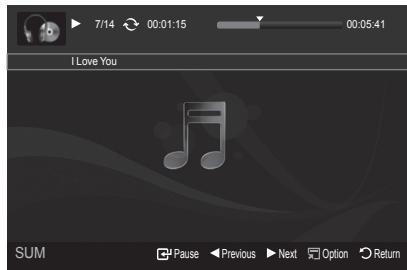
Music Play Control Buttons
| ENTER | Play/Pauses the music file. | ■ | Exit play mode and return to the music list. | |
| Play the music file | TOOLS | Run various functions from the Music menus. | ||
| Pause the music file |
Music function information icon


When all music files in the folder (or the selected file) are repeated. Repeat Mode is On.
When all music files in the folder (or the selected file) are played once. Repeat Mode is Off.
Playing the music group
- Press the ▲ or ▼ button to select a sorting standard.
(Title, Artist, Mood, Genre, Folder, Preference)
- Press the ◀◀ (REW) or ▶▶ (FF) button to select the desired group.
- Press the TOOLS button.
- Press the ▲ or ▼ button to select Play Current Group, then press the ENTER button.
The music files in the sorting group including the selected file are played.
Playing the selected music files
- Press the ◀ or ▶ button to select the desired music file in the music list.
- Press the yellow button. Repeat the above operation to select multiple music files.
The √ mark appears to the left of the selected music file.
- Press the ▶ (Play)/ENTER← button.
Only the selected file is played.
Music Play Option Menu
■ Repeat Mode → On/Off
You can play music files repeatedly.
■ Picture Setting / Sound Setting
Refer to page 43.
Information
The music file information is displayed.
Remove Safely
You can remove the device safely from the TV.
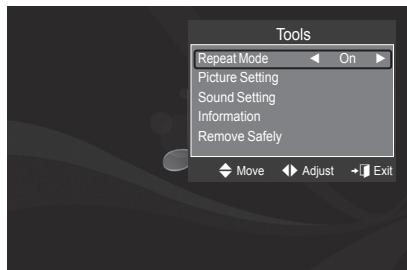
Using and Sorting the Movie List
You can sort movies in the Movie List by a particular standard.
- Press the ▲ or ▼ button to select a sorting standard in the Movie list.
The movie files are sorted according to the newly selected sorting standard.
To move to the previous/next group, press the (REW) or (FF) button.
☑ Movie doesn't support subtitles.
(for example, not support smi, srt and sub files, etc and not support subtitles included in movie files)
- Press the ▶ (Play)/ENTER button to play the movie in the order selected by the user.
The movies are sorted according to the newly selected sorting standard.
Movie information is automatically set. You can change the Favorites.
Sorting Standard for the Movie List
Title
It sorts and displays the Movie titles in symbol/Number/alphabet/special order.
Timeline
It sorts and shows movies by date. It sorts by year and month from the earliest movie.
Folder
If there are many folders in USB, the movies files are shown in order in each folder. The movie file in the Root folder is shown first and the others are shown in alphabetical order by name.
Preference
It sorts movies by preference. (favourites) You can change the movie preferences.
Changing the Favourites Settings
Select the desired movie file in the movie list, then press the Green button repeatedly until the desired setting appears.
Favourites options: ★★★, ★★★, ★★★, ★★★
Movie List Option Menu
Play Current Group
Using this menu, you can only play movie files in the currently selected sorting group.
Delete
Using this menu, you can delete the selected movie files.
Information
The movie file information including the order of the file in the current directory, the name, the size, the date modified and the path is displayed.
Alternatively, select a movie file from the movie list and press the INFO button to view the information.
Remove Safely
You can remove the device safely from the TV.
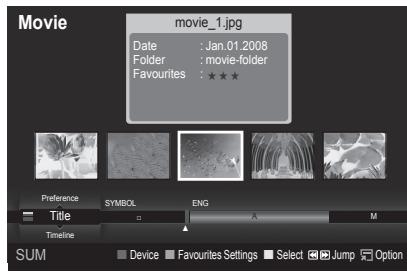
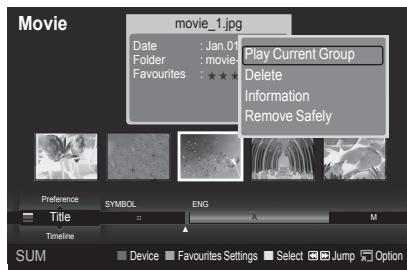
Playing a movie file
- Pressing the ◀ or ▶ button to select a movie to be played.
- Press the ▶ (Play)/ENTER← button.
The selected file is played.
The selected file is displayed at the top with its playing time.
The playing duration of a movie file may be displayed as '00:00:00' if its playing time information is not found at the start of the file.
Supported Video Formats
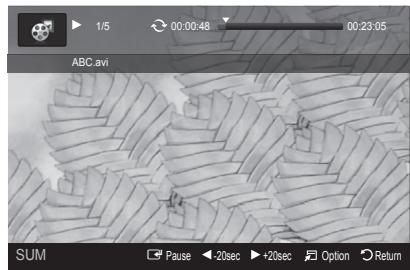
natural_image
Microscopic view of a textured surface with directional arrows and control buttons (no readable text or symbols)| Video Codec | |||
| File Extention | Container | Video Decoder | Max Resolution Sti |
| *.avi | AVI | XviD | 720x576 |
| MPEG1 | 720x576 | ||
| MPEG2 | 720x576 | ||
| H.264 BP | 1920x1088 | ||
| H.264 BP | 1920x1088 | ||
| H.264 HP | 1920x1088 | ||
| MPEG-4 SP | 720x576 | ||
| MPEG-4 ASP | 720x576 | ||
| *.mp4 | MP4 | H.264 BP | 1920x1088 |
| H.264 MP | 1920x1088 | ||
| H.264 HP | 1920x1088 | ||
| MPEG-4 SP | 720x576 | ||
| MPEG-4 ASP | 720x576 | ||
| *.mpg*.mpeg*.vro*.vob | PS | MPEG1 (Program Stream) | 1920x1088 |
| MPEG2 (Program Stream) | 1920x1088 | ||
| MPEG2 VOB | 1920x1088 | ||
| MPEG2 VRO | 1920x1088 | ||
| others (ts) | TS | MPEG2 (Transport Stream) | 1920x1088 |
| H.264 (Transport Stream) | 1920x1088 | ||
Video Play Control Buttons
| ENTER | Play/Pauses the movie file |
| Play the movie file | |
| Pause the movie file | |
| Exit play mode and return to the movie list. | |
| TOOLS | Run various functions from the movie menus. |
| Skip forwards or backwards through the movie file in 20 second intervals. | |
| Move to the first or last view of the current file. |
Movie function information icon
| [3HW0] | When all movie files in the folder (or the selected file) are repeated.Repeat Mode is On. |
 | When all movie files in the folder (or the selected file) are played once.Repeat Mode is Off. |
Playing the movie group
- Press the ▲ or ▼ button to select a sorting standard. (Title, Timeline, Folder, Preference)
- Press the ◀◀ (REW) or ▶▶ (FF) button to select the desired group.
- Press the TOOLS button.
- Press the ▲ or ▼ button to select Play Current Group, then press the ENTER← button.
Playing the selected movie files
- Press the ◀ or ▶ button to select the desired movie file in the movie list.
- Press the yellow button. Repeat the above operation to select multiple movie files.
The √ mark appears to the left of the selected movie file.
- Press the ▶ (Play)/ENTER← button.
Only the selected file is played.
Playing movie continuously
If you exit playing movie, playing it continuously later is possible.
With Play continuously function, you can watch movie without watching again from beginning or bothering searching.
- Select movie file you want to Play continuously by pressing ◀ or ▶ button from the Movie List.
- Press the ▶ (Play)/ENTER← button.
- Select play continuously by pressing Blue button.
Movie will begin to play from where it was stopped being played.
If Cont. movie play help function was set On, a pop-up message will appear when you play movie file you want to Play continuously. (Refer to page 43)
- To exit WISELINK Pro mode, press the W.LINK button on the remote control.
Movie Play Option Menu
Repeat Mode
You can play the movie repeatedly.
■ Picture Setting / Sound Setting
Refer to page 43.
Picture Size
• Fit: Play video at the TV screen size.
• Original: Play video at the original size.
Information
The movie file information is displayed.
Remove Safely
You can remove the device safely from the TV.
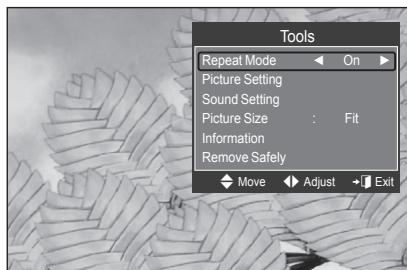
Deleting the Photo/Music/Movie File
- Press the ◀ or ▶ button to select the desired file in the Photo/Music/Movie list.
To delete multiple files, select files by pressing the yellow button.
- Press the TOOLS button.
- Press the ▲ or ▼ button to select Delete (or Delete Selected File), then press the ENTER button.
- Press the ◀ or ▶ button to select OK, then press the ENTER← button.
The file is deleted.
When a read-only file is deleted, the This File is read-only file. Delete it? message appear.
Read-only files among multiple files cannot be deleted.
If you select Cancel, the deletion is cancelled.
While removing files, don't remove the USB memory device.
You cannot remove the PTP-connected digital camera picture files.
☐ You cannot recover deleted photo/music/movie files.
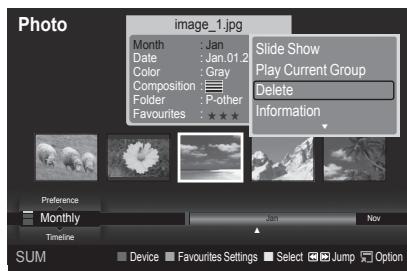
When watching a SlideShow or listening to music using WISELINK Pro, you can set the picture and sound.
Picture Setting
- Press the TOOLS button during a Slide Show or while music is playing.
- Press the ▲ or ▼ button to select Picture Setting.
- Press the ◀ or ▶ button to select the Picture Mode (Dynamic, Standard, or Movie).
- Press the ▲ or ▼ button to move to an item. (Contrast, Brightness, Color, Dynamic Contrast, Black Adjust, or Reset)
Select Reset to initialize the picture settings. - Press the ◀ or ▶ button to adjust the settings.
For more information on the picture settings, refer to pages 15\~18.
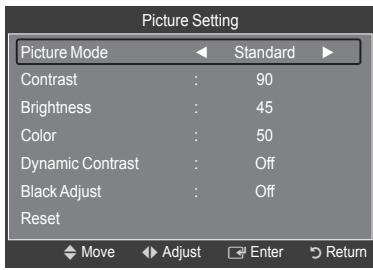
Sound Setting
- Press the TOOLS button during a Slide Show or while music is playing.
- Press the ▲ or ▼ button to select Sound Setting.
- Press the ◀ or ▶ button to select the Sound Mode. (Standard, Music, Movie, Speech, or Custom)
- Press the ▲ or ▼ button to move to an item.
☑ Select Reset to initialize the sound settings. - Press the ◀ or ▶ button to adjust the settings.
For more information on the sound settings, refer to page 21\~22.
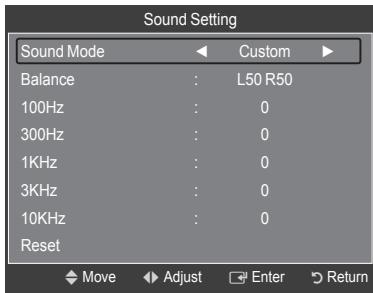
Using the Setup Menu
Setup displays the user settings of the WISELINK Pro menu.
- Press the W.LINK button on the remote control to display the WISELINK Pro menu.
- Press the ◀ or ▶ button to select Setup, then press the ENTER button.
- Press the ▲ or ▼ button to select the desired option.
- Press the ◀ or ▶ button to select the option, then press the ENTER button.
To exit WISELINK Pro mode, press the W.LINK button on the remote control.
■ Slide Show Speed → Fast/Slow/Normal
Select to control the slide show speed.
■ Music Repeat Mode → On/Off
Select to repeatedly play music files.
■ Movie Repeat Mode → On/Off
Select to repeatedly play movie files.
■ Cont. movie play help → On/Off
Select to display the help pop-up message for continuous movie playback.
Screen Saver Run Time → 1 min/3 min/5 min
Select to set the waiting time before the screen saver appears.
Information
Select to viewing the information of the connected device.
Remove Safely
You can remove the device safely from the TV.
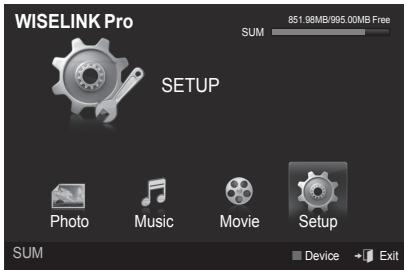
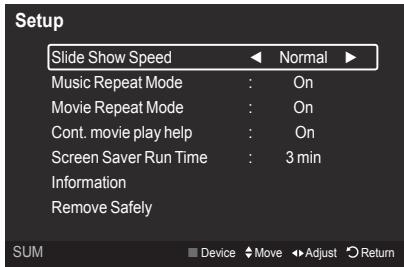
Setting the DLNA Network
DLNA allows you to watch videos and pictures saved on your PC on your TV through a network connection in Wiselink Pro mode. This removes the need to copy them to a USB storage device and then connect the device to your TV. To use DLNA, the TV must be connected to the network and the DLNA application must be installed on your PC.
Network Connections Diagram
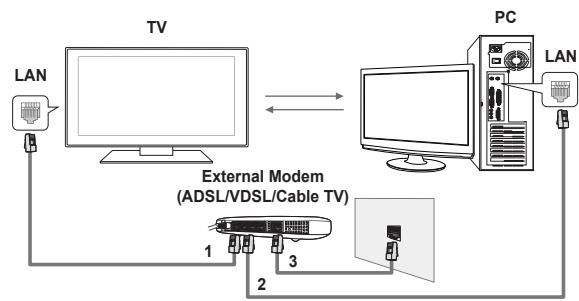
flowchart
graph TD
    TV["TV"] --> PC["PC"]
    PC --> LAN["LAN"]
    LAN --> ExternalModem["External Modem (ADSL/VDSL/Cable TV)"]
    ExternalModem --> 1["1"]
    ExternalModem --> 2["2"]
    ExternalModem --> 3["3"]
    ExternalModem --> PC
    PC <--> TV
    PC <--> PC
    PC <--> LAN
- Connect the [LAN] port on the rear panel of the TV to the external modem with a LAN Cable.
- Connect the PC to which the “DLNA PC Share Manager” programme will be installed and the external modem using a LAN cable.
- Connect the LAN port on the wall and the external modem with a Modem Cable.
Connecting to the Network
- When connecting to the network is complete, set up the network on the TV.
A Wireless Internet connection does not support DLNA.
Three parts(subnet address) before the TV and PC IP addresses should be same. The last part (host address) should be changed. (e.g. IP Address: 123.456.789**)
- Run a Network Test to check the network settings.
Installing the DLNA Application
To play content on the PC on the TV, you have to first install the application.
System Requirements
- Insert the Programme CD supplied with this TV into your PC.
- 20MB of free hard disk space is needed for the programme installation.
If you share files, up to 20MB of hard disk drive space is required for each 100 files.
If you cancel file sharing, the hard disk drive space used for the thumbnail information is also freed.
■ Supported Formats
- Image: JPEG (jpg, jpeg)
- Audio: MP3 (mp3)
- Video: MPEG1(mpg, mpeg), MPEG2 PS/TS(mpg, mpeg, trp, ts, tp), divx(mpg, mpeg, avi), MPEG4/H.264 (mpg, mpeg)
- Install the application
- Run the Setup.exe file on the Programme CD supplied with the product.
Alternatively, you can download the file from www.samsung.com.
- Install the SAMSUNG PC Share Manager as shown in the figures below.
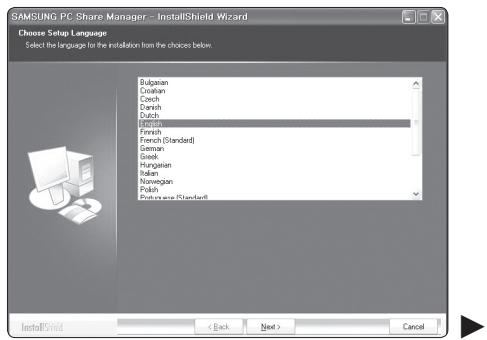
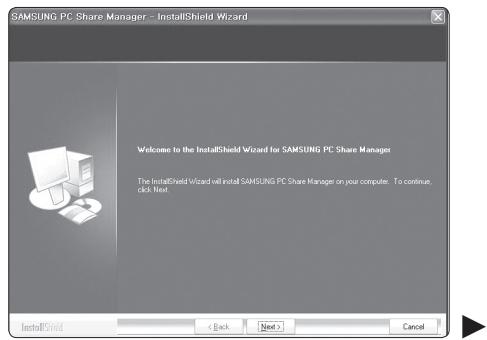
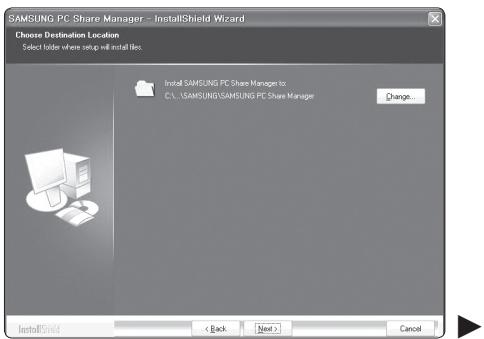
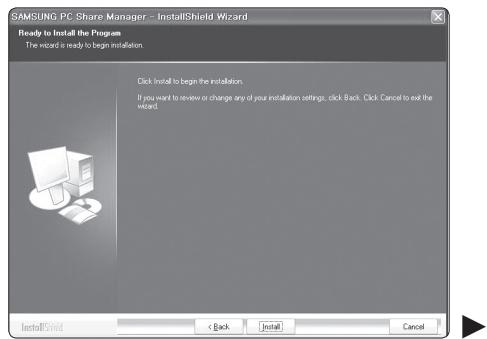
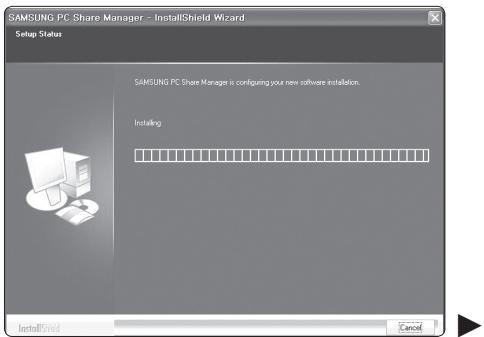
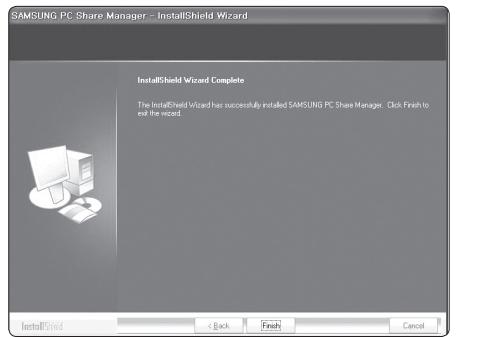
- When the installation is complete, the PC Share Manager icon appears on your Desktop.
Double-click the icon to run the programme.
The Programme Screen Layout
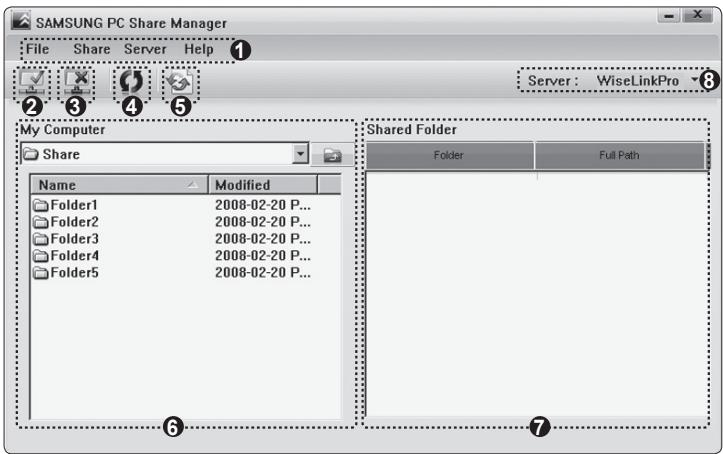
- Menus: The following application menus are provided : File, Share, Server, and Help.
- Click to share the selected PC server folder.
- Click to cancel sharing.
- Click to refresh the PC folder and files.
- Click to synchronize the share status.
- The folders and files of the PC to be shared are listed.
- Folders shared by the user are listed.
- PC server name shown on the device list of the WISELINK Pro: Click to change the name.
File
■ Property: Shows information on the selected file or folder.
- Method 1: Select a file or folder and select the File menu and then select the Property sub-menu.
- Method 2: Select a file or folder, right-click over the selected file or folder and then select Property from the pop-up menu.
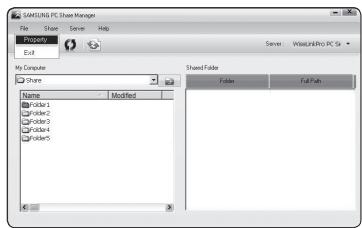
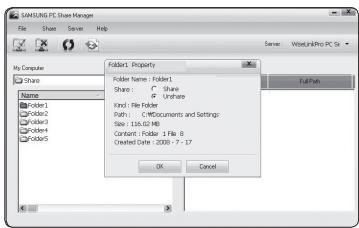
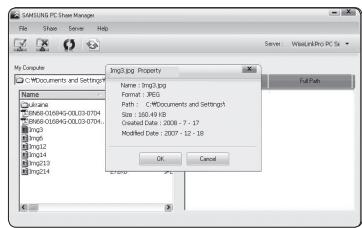
■ Exit: Exits the DLNA application.
If you select Exit without applying the changes after changing the shared status, a message will appear asking if you want to apply the changed settings to the PC. Select Yes to apply the changes and exit the application.
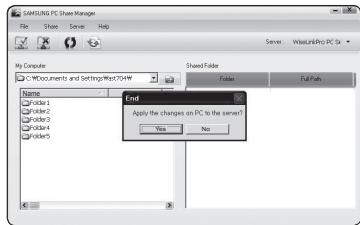

Share
Sharing a Folder
You can share a folder from your PC to the TV. The maximum number of folders that can be shared is 32.
Your PC will operate as a server to the TV.
- Method 1: Select a folder in My Computer, select the Share menu and then select the Share Folder sub-menu.
- Method 2: Select a folder in My Computer, right-click over the selected folder and then select Share Folder from the popup menu.
- Method 3: Locate the mouse pointer over a folder in the My Computer folder list in the left pane and drag&drop the folder into the Shared Folders pane. If a message appears asking you to confirm the shared folder, select Yes.
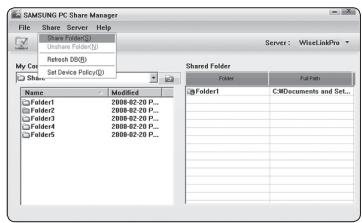
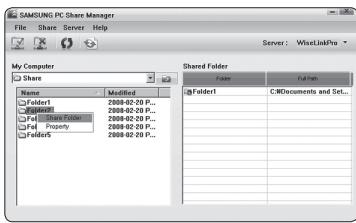
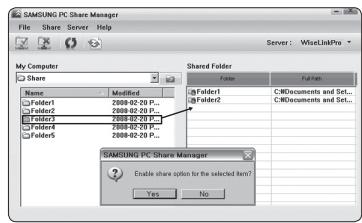
- Cancelling a Shared Folder
You can cancel a shared folder on your PC. Select a folder from the Shared Folder pane and select Unshare Folder.
- Method 1: Select a folder from the Shared Folder pane, select the Share menu and then select Unshare Folder.
- Method 2: Select a folder from the Shared Folder pane, right-click over the selected folder and then select Unshare Folder from the pop-up menu.
- Method 3: Locate the mouse pointer over a folder in the Shared Folder pane and drag&drop the folder into the My Computer pane. If a message appears asking you to confirm the cancelation, select Yes.
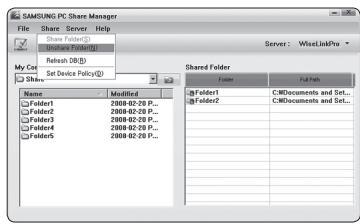
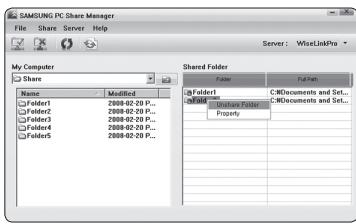
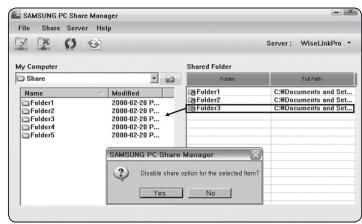
■ Applying the Current Settings
Perform this when synchronization is necessary due to a new shared folder or canceling a shared folder. The Set Changed State menu applies changes to shared folders to the data saved with the PC share programme.
Since applying changes to the internal data is a time-consuming process, this function enables users to apply changes to the data only when required.
Until the Set Changed State menu is selected, the changed state of the shared folder is not applied to the server.
Changes to the shared folders are not applied to your PC until you select the Set Changed State menu.
- Method 1: Select the Share menu and select the Refresh DB sub-menu.
- Method 2: Click the Set Changed State icon.
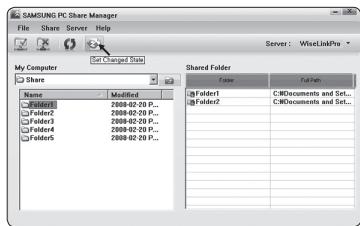
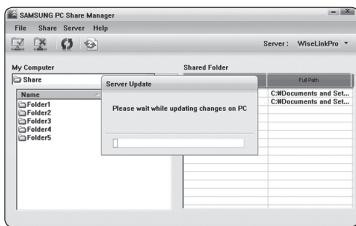
Setting the Access Permission
To enable the TV to find your PC, the TV must be set to Set Device Policy in the Access Permission Settings window. In addition, the PC server and the TV must be on the same subnet.
- Method: Select the Share menu and select Set Device Policy. Rejected items are represented in gray. You can change the access permissions by using the Allow Accept / Deny button. To delete an item, select the item and select Delete Item.
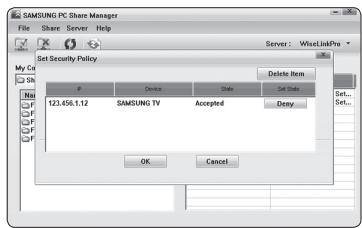
Server
Server
You can run or stop using your PC as a server.
■ Start Server at Windows start
You can determine whether to start the PC server automatically when Windows starts.
Change server name
You can rename the PC server. Enter a new name and click OK. The new name will appear at the top right of the window and will appear on the TV.
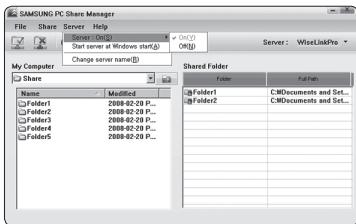
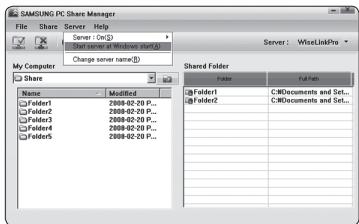
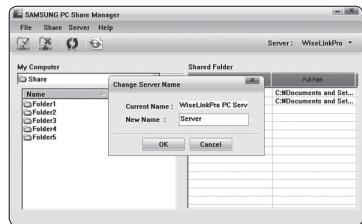
Help
Version
The programme version information message box appears.
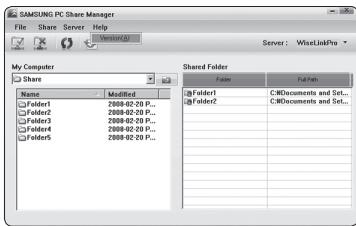
Using the DLNA Menu
DLNA (Digital Living Network Alliance) enables content saved on a DLNA server (usually your PC) connected to your TV or over a network to be played.
Wiselink Pro enables playing content saved on a USB memory device connected to the TV, while DLNA enables playing content saved on a DLNA server (your PC) connected to your TV or over the network. The procedures to use the content are the same as those for WISELINK Pro.
If you install the PC share manager programme supplied with the TV onto a PC, you can have the PC perform the role of a DLNA server over the network.
-
Press the W.LINK button on the remote control to display the DLNA menu.
-
Press the ◀ or ▶ button to select an icon (Photo, Music, Movie, Setup), then press the ENTER button.
To exit DLNA mode, press the W.LINK button on the remote control.
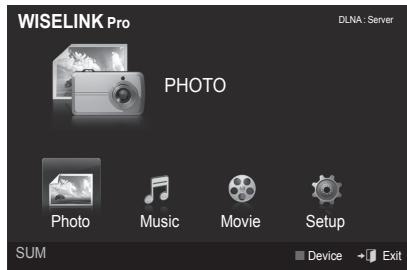
Photo
■ Photo List option menu
Sorting Photo List/Viewing the Information/Rotating the Photo file/Viewing a Slide Show
During a Slide Show option menu
Play & Pause/Slide Show Speed/Zoom/Rotate
Music
■ Music List option menu
Sorting Music List/Viewing the Information/Playing a music file
■ Music Play Option Menu
Play & Pause/Repeat Mode
Movie
■ Movie List option menu
Sorting Movie List/Viewing the Information/Playing a Movie file
■ Movie Play Option Menu
Play & Pause/Repeat Mode
Setup
Slide Show Speed/Music Repeat Mode/Movie Repeat Mode/Screen Saver Run Time/Information
DLNA does not support the following functions.
- The Background Music and Background Music Setting functions.
- Sorting files by preference in the Photo, Music, and Movie folders.
- The Change Group Info function.
- The Delete function.
- The Safe Remove function.
- The ◀◀ (REW)/▶▶ (FF) button functions while a movie is playing.
The Skip (◄/► button) or Pause function may not work while a movie is playing for the DLNA of other manufacturers, depending on the corresponding content information.
The playing time may not be displayed while a movie is playing.
Activating the Content Library
The Content Library enables you to view or play the built-in contents on the TV or stored on your USB device. The Delete, Move and Update functions will not work with the built-in content on the TV.
- Press the MENU button. Press the ▲ or ▼ button to select Application, then press the ENTER button.
- Press the ▲ or ▼ button to select Content Library, then press the ENTER button.
The Content Library main menu is displayed.
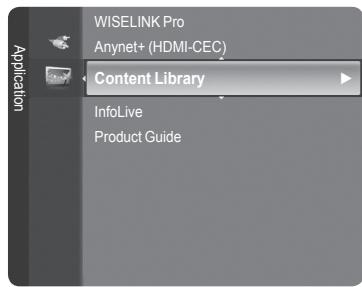
Press the CONTENT button on the remote control to display the Content Library main menu.
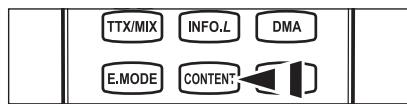
- Press the ◀ or ▶ button to select an icon (Gallery, Cooking, Children, Fitness), then press the ENTER button.
The selected item will be run.
☑ Refer to the explanation for the button in the display when the user uses the button while content is running.
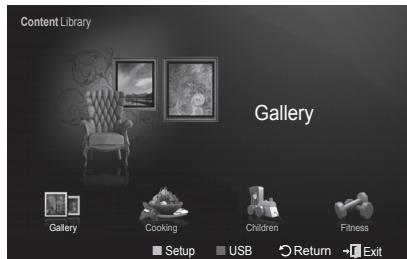
Using the Remote Control Button in Content Library Menu
| Button | Operations |
| ▲/▼/◄/► (Wheel) | Move the cursor and select an item. |
| ENTER | Select the currently selected item. |
| RETURN | Return to the previous menu. |
| EXIT | Stop the current function and return to theContent Librarymain menu. |
 (colour button) (colour button) | Button that provide functions are described on the corresponding page. |
 | You can control the volume of the played content. |
| CONTENT | Exit Content Library mode. |
If you press the Volume or MUTE button, no OSD is displayed, but the function operates accordingly.
CONTENTS LIBRARY CONTAINS TEXT, GRAPHICS, IMAGES, MULTIMEDIA, AND OTHER MATERIALS FOR INFORMATIONAL AND PROMOTIONAL PURPOSES ONLY. MATERIALS IN CONTENTS LIBRARY HAS BEEN MODIFIED AND KEEPS BEING REVISED AND UPDATED. THE MATERIALS IN THE CONTENTS LIBRARY MAY NOT BE SUITABLE FOR ALL AUDIENCES.
INFORMATION IN THE CONTENTS LIBRARY IS PROVIDED "AS IS." ALTHOUGH THE INFORMATION PROVIDED TO YOU IN THE CONTENTS LIBRARY IS OBTAINED OR COMPLIED FROM SOURCES WE BELIEVE TO BE RELIABLE, SAMSUNG CANNOT AND DOES NOT GUARANTEE THE ACCURACY, VALIDITY, TIMELINESS OR COMPLETENESS OF ANY INFORMATION OR DATA MADE AVAILABLE TO YOU FOR ANY PARTICULAR PURPOSE. UNDER NO CIRCUMSTANCES, INCLUDING NEGLIGENCE, SHALL SAMSUNG BE HELD LIABLE, WHETHER IN CONTRACT OR TORT, FOR ANY DIRECT, INDIRECT, INCIDENTAL, SPECIAL OR CONSEQUENTIAL DAMAGES, ATTORNEY FEES, EXPENSES, OR ANY OTHER DAMAGES WHATSOEVER ARISING OUT OF, OR IN CONNECTION WITH, ANY INFORMATION CONTAINED IN, OR THE USE OF, THE CONTENTS LIBRARY, EVEN IF ADVISED OF THE POSSIBILITY OF SUCH DAMAGES.
Gallery
Art/Relaxation/Party: This function plays a SlideShow with high resolution images and background music and produces various atmospheres. Using the Gallery function of the TV, you can change your home atmosphere.
Press the yellow button to playback all imageries.
There is default music for each for the Art, Relaxation, and Party options.
Press INFO button to see the credit and detail information in English for the imagery. Press INFO button again or press ▶ button for the credit information to go away (currently, the credit supports English only).
The copyrights of the Gallery contents and all issues related to them are reserved by Gallery Player, Inc.
For additional Gallery contents, check for information through www.samsung.com. Please refer to the Using Additional Content Using External USB Memory Storage section to see how to play additional imagery.
Cooking
■ Starters/Main Courses/Desserts: You can view various recipes that you can then easily follow step by step. Enjoy these contents which give you great ideas for meals.
The recipes introduced in the Cooking contents on the Samsung TV are based on recipes published by Anness Publishing.
The copyrights of the Cooking contents and all issues related to them are reserved by Practical Pictures.
Children
■ Story/Song/Play: This is educational and interactive content that children can watch repeatedly. Enjoy existing stories, songs and plays with the Boowa and Kwala characters.
The copyrights of the Children contents and issues related to them are reserved by UpToTen.
Fitness
Basic Stretches/Massage: This is beneficial health management content that provides stretching and massage exercises that can be enjoyed by the whole family.
This is beneficial health management content that provides stretching and massage exercises that can be enjoyed by the whole family. The Basic Stretches contents for the Samsung TV are based on the book Stretching by Suzanne Martin which is published by DK and the Massage contents are based on the books published by Anness Publishing.
The copyrights to Basic Stretches are reserved by the DK Publishing Company. The copyrights to the Massage content are reserved by Practical Pictures. All issues related to copyrights are reserved by the corresponding company.
Using the Remote Control Button in Fitness menu
| Button | Operations |
| ◀/▶(Wheel) | View to previous step/View to next step |
| ENTER | Play or pause (in Basic and Advanced Stretches) |
Screen Saver Run Time
Select to set the waiting time before the screen saver appears.
Press the yellow button to select Setup in the Content Library main menu.
Using Additional Content Using External USB Memory Storage
You can download contents onto a USB memory device and play them on your TV. (The contents on the external USB device are played directly without being copied to the built-in Flash memory of the TV.)
Playing and Exiting New Content
- Press the Red button in the Content Library main menu.
The USB Browser main screen is displayed.
A list of files saved on the USB device is displayed.
- Press the ▲ or ▼ button to move to the file (or folder) you want to play. Press the ENTER button.
The selected content is played.
The use of contents is the same as in using the TV memory contents.
To return to the USB browser main screen, press the EXIT button.
Content Library only supports USB Mass Storage Class devices (MSC). MSC is a Mass Storage Class Bulk-Only Transport device. Examples of MSC are Thumb drives and Flash Card Readers (Both USB HDD and HUB are not supported.)
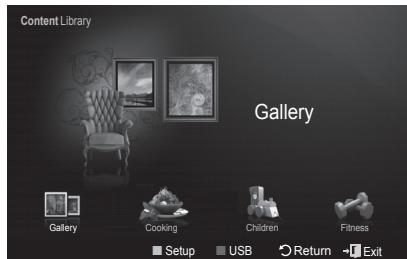
Downloading New Contents
New content other than the built-in contents will be provided via the Samsung.com website with or without charge.
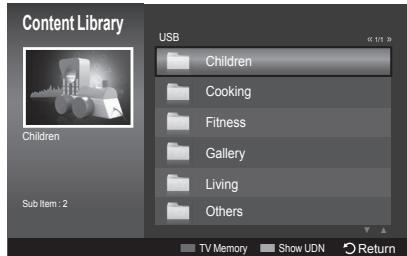
■ Downloading Content
- Visit the www.samsung.com website and open the Content Library page.
- Enter the product number (UDN, Unique Device Number) when it is asked.
- Select a content item in the Contents Download page.
- Download the contents onto the USB memory device.
Content Library only supports USB Mass Storage Class devices (MSC). MSC is a Mass Storage Class Bulk-Only Transport device. Examples of MSC are Thumb drives and Flash Card Readers (Both USB HDD and HUB are not supported.)
-
Go to Content Library main menu by pressing CONTENT button or choosing Content Library (Menu → Application → Content Library)
-
Plug the USB memory into USB port on the side of the TV.
■ Finding a product number (Unique Device Number, UDN)
- Insert the USB memory into the USB port on the side of the TV.
- In the USB Browser main screen, press the Green button (Show UDN).
- The 18-digit number on the screen is the product code.
Provided Content
- Additional contents are available on www.samsung.com.
Connecting Anynet+ Devices
Anynet ^+ is a function that enables you to control all connected Samsung devices that support Anynet ^+ with your Samsung TV's remote.
The Anynet ^+ system can be used only with Samsung devices that have the Anynet ^+ feature. To be sure your Samsung device has this feature, check if there is an Anynet ^+ logo on it.
To connect to a TV
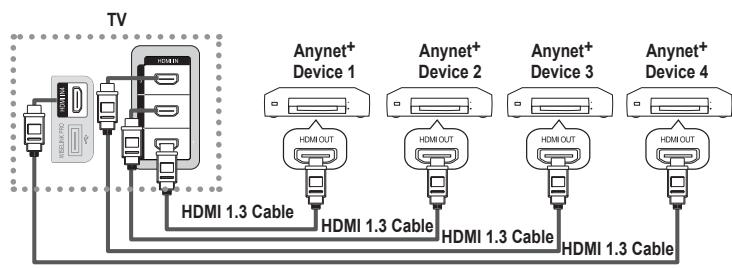
flowchart
graph TD
    TV["TV"] --> HDMI1["HDMI"]
    HDMI1 --> HDMI2["HDMI OUT"]
    HDMI1 --> HDMI3["HDMI OUT"]
    HDMI1 --> HDMI4["HDMI OUT"]
    HDMI1 --> HDMI5["HDMI OUT"]
    HDMI1 --> HDMI6["HDMI OUT"]
    HDMI1 --> HDMI7["HDMI OUT"]
    HDMI1 --> HDMI8["HDMI OUT"]
    HDMI1 --> HDMI9["HDMI OUT"]
    HDMI1 --> HDMI10["HDMI OUT"]
    HDMI1 --> HDMI11["HDMI OUT"]
    HDMI1 --> HDMI12["HDMI OUT"]
    HDMI1 --> HDMI13["HDMI OUT"]
    HDMI1 --> HDMI14["HDMI OUT"]
    HDMI1 --> HDMI15["HDMI OUT"]
    HDMI1 --> HDMI16["HDMI OUT"]
    HDMI1 --> HDMI17["HDMI OUT"]
    HDMI1 --> HDMI18["HDMI OUT"]
    HDMI1 --> HDMI19["HDMI OUT"]
    HDMI1 --> HDMI20["HDMI OUT"]
    HDMI1 --> HDMI21["HDMI OUT"]
    HDMI1 --> HDMI22["HDMI OUT"]
    HDMI1 --> HDMI23["HDMI OUT"]
    HDMI1 --> HDMI24["HDMI OUT"]
    HDMI1 --> HDMI25["HDMI OUT"]
    HDMI1 --> HDMI26["HDMI OUT"]
    HDMI1 --> HDMI27["HDMI OUT"]
    HDMI1 --> HDMI28["HDMI OUT"]
    HDMI1 --> HDMI29["HDMI OUT"]
    HDMI1 --> HDMI30["HDMI OUT"]
    HDMI1 --> HDMI31["HDMI OUT"]
    HDMI1 --> HDMI32["HDMI OUT"]
    HDMI1 --> HDMI33["HDMI OUT"]
    HDMI1 --> HDMI34["HDMI OUT"]
    HDMI1 --> HDMI35["HDMI OUT"]
    HDMI1 --> HDMI36["HDMI OUT"]
    HDMI1 --> HDMI37["HDMI OUT"]
    HDMI1 --> HDMI38["HDMI OUT"]
    HDMI1 --> HDMI39["HDMI OUT"]
    HDMI1 --> HDMI40["HDMI OUT"]
    HDMI1 --> HDMI41["HDMI OUT"]
    HDMI1 --> HDMI42["HDMI OUT"]
    HDMI1 --> HDMI43["HDMI OUT"]
    HDMI1 --> HDMI44["HDMI OUT"]
    HDMI1 --> HDMI45["HDMI OUT"]
    HDMI1 --> HDMI46["HDMI OUT"]
    HDMI1 --> HDMI47["HDMI OUT"]
    HDMI1 --> HDMI48["HDMI OUT"]
    HDMI1 --> HDMI49["HDMI OUT"]
    HDMI1 --> HDMI50["HDMI OUT"]
    HDMI1 --> HDMI51["HDMI OUT"]
    HDMI1 --> HDMI52["HDMI OUT"]
    HDMI1 --> HDMI53["HDMI OUT"]
    HDMI1 --> HDMI54["HDMI OUT"]
    HDMI1 --> HDMI55["HDMI OUT"]
    HDMI1 --> HDMI56["HDMI OUT"]
    HDMI1 --> HDMI57["HDMI OUT"]
    HDMI1 --> HDMI58["HDMI OUT"]
    HDMI1 --> HDMI59["HDMI OUT"]
    HDMI1 --> HDMI60["HDMI OUT"]
    HDMI1 --> HDMI61["HDMI OUT"]
    HDMI1 --> HDMI62["HDMI OUT"]
    HDMI1 --> HDMI63["HDMI OUT"]
    HDMI1 --> HDMI64["HDMI OUT"]
    HDMI1 --> HDMI65["HDMI OUT"]
    HDMI1 --> HDMI66["HDMI OUT"]
    HDMI1 --> HDMI67["HDMI OUT"]
    HDMI1 --> HDMI68["HDMI OUT"]
    HDMI1 --> HDMI69["HDMI OUT"]
    HDMI1 --> HDMI70["HDMI OUT"]
- Connect the [HDMI 1], [HDMI 2], [HDMI 3] or [HDMI 4] jack on the TV and the HDMI OUT jack of the corresponding Anynet ^+ device using an HDMI cable.
To connect to Home Theater
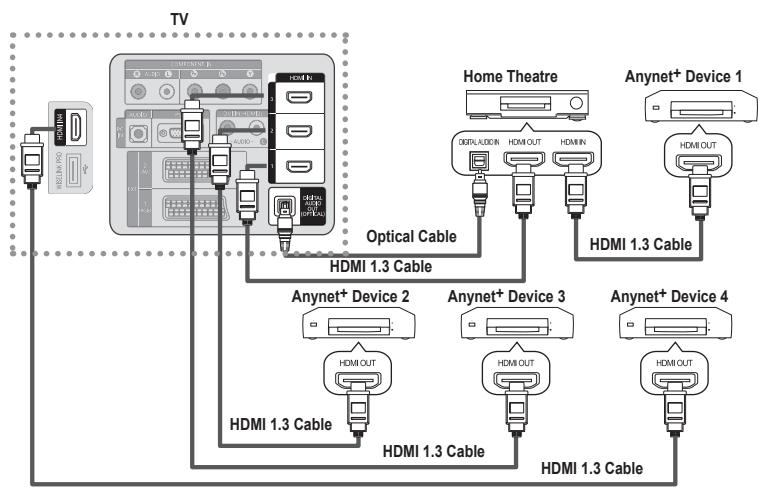
flowchart
graph TD
    TV["TV"] -->|Optical Cable| HomeTheatre["Home Theatre"]
    TV -->|Optical Cable| Anynet+Device1["Anynet+ Device 1"]
    TV -->|Optical Cable| Anynet+Device2["Anynet+ Device 2"]
    TV -->|Optical Cable| Anynet+Device3["Anynet+ Device 3"]
    TV -->|Optical Cable| Anynet+Device4["Anynet+ Device 4"]
    HomeTheatre -->|HDMI 1.3 Cable| Anynet+Device2
    HomeTheatre -->|HDMI 1.3 Cable| Anynet+Device3
    HomeTheatre -->|HDMI 1.3 Cable| Anynet+Device4
    Anynet+Device2 -->|HDMI 1.3 Cable| Anynet+Device3
    Anynet+Device2 -->|HDMI 1.3 Cable| Anynet+Device4
    Anynet+Device3 -->|HDMI 1.3 Cable| Anynet+Device4
    Anynet+Device2 -->|HDMI OUT| HomeTheatre
    Anynet+Device3 -->|HDMI OUT| HomeTheatre
    Anynet+Device4 -->|HDMI OUT| HomeTheatre
- Connect the [HDMI 1], [HDMI 2], [HDMI 3] or [HDMI 4] jack on the TV and the HDMI OUT jack of the corresponding Anynet+ device using an HDMI cable.
- Connect the HDMI IN jack of the home theater and the HDMI OUT jack of the corresponding Anynet ^+ device using an HDMI cable.
Connect the Optical cable between the Digital Audio Out (Optical) jack on your TV and the Digital Audio Input on the Home Theater.
When following the connection above, the Optical jack only outputs 2 channel audio. You will only hear sound from the Home Theater's Front Left and Right speakers and the subwoofer. If you want to hear 5.1 channel audio, connect the Digital Audio Out (Optical) jack on the DVD player or Cable/Satellite Box (ie Anynet Device 1 or 2) directly to the Amplifier or Home Theater, not the TV.
Connect only one Home Theater.
You can connect an Anynet ^+ device using the HDMI 1.3 cable. Some HDMI cables may not support Anynet ^+ functions.
Anynet ^+ works when the AV device supporting Anynet ^+ is in the Standby or On status.
☑ Anynet ^+ supports up to 12 AV devices in total. Note that you can connect up to 3 devices of the same type.
Setting Up Anynet+
□ Anynet ^+ (HDMI-CEC)
Tools → Anynet+(HDMI-CEC) performs the same function.
Setup
- Anynet ^+ (HDMI-CEC) Off / On: To use the Anynet+ Function, Anynet ^+ (HDMI-CEC) must be set to On.
When the Anynet+ (HDMI-CEC) function is disabled, all the Anynet+ related operations are deactivated.
- Auto Turn Off → No / Yes: Setting an Anynet+ Device to turn Off Automatically when the TV is Turned Off
The active source on the TV remote must be set to TV to use the Anynet ^+ function.
If you set Auto Turn Off to Yes, connected external devices are also turned off when the TV is turned off. If an external device is still recording, it may or may not turn off.
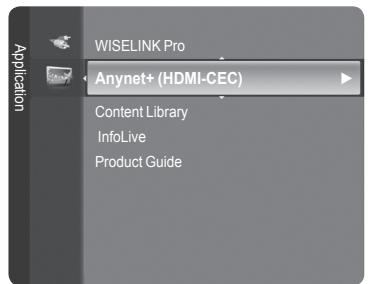
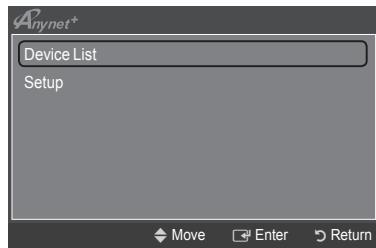
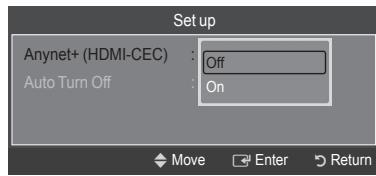
Scanning and Switching between Anynet+ Devices
- Press the TOOLS button. Press the ENTER button to select Anynet+ (HDMI-CEC).
- Press the ▲ or ▼ button to select Device List, then press the ENTER button.
Anynet+ devices connected to the TV are listed. If you cannot find a device you want, press the red button to scan for devices.
Only when you set Anynet+ (HDMI-CEC) to On in the Setup menu, the Device List menu appears.
- Press the ▲ or ▼ button to select to a particular device and press the ENTER← button. It is switched to the selected device.
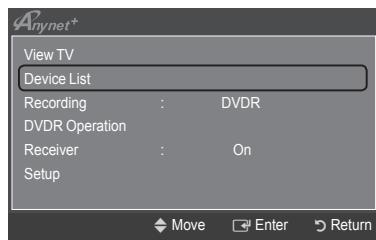
Switching to the selected devices may take up to 2 minutes. You cannot cancel the operation during the switching operation.
The time required to scan for devices is determined by the number of connected devices.
When the device scan is complete, the number of devices found are not displayed.
Although the TV automatically searches the device list when the TV is turned on via the power button, devices connected to the TV when the TV is on or under some conditions are not automatically displayed in the device list. Press the red button to search for the connected device.
If you have selected external input mode by pressing the SOURCE button, you cannot use the Anynet+ function. Make sure to switch to an Anynet+ device by using the Device List.
Anynet ^+ Menu
The Anynet ^+ menu changes depending on the type and status of the Anynet ^+ devices connected to the TV.
| Anynet+ Menu | Description |
| View TV | Anynet+ mode changes to TV broadcast mode. |
| Device List | Shows the Anynet+ device list. |
| (device_name) Menu | Shows the connected device menus. E.g. If a DVD recorder is connected, the disc menu of the DVD recorder will appear. |
| (device_name) Operation | Shows the play menu of the connected device. E.g. If a DVD recorder is connected, the play menu of the DVD recorder will appear. |
| Record: (*recorder) | Starts recording immediately using the recorder. (This is only available for devices that support the recording function.) |
| (*recorder) Reserve Recording | Enables reserving a recording for the recorder. (This is only available for devices that support the recording reservation function.) |
| Stop Recording: (*recorder) | Stops recording. |
| Receiver | Sound is played through the receiver. |
If more than one recording device is connected, they are displayed as (*recorder) and if only one recording device is connected, it will be represented as (*device_name).
TV Remote Control Buttons Available in Anynet ^+ Mode
| Device Type | Operating Status | Available Buttons |
| Anynet^+ Device | After switching to the device, when the menu of the corresponding device is displayed on the screen. | Numeric buttons▲/▼/◄/►/ENTER⇨buttonsColour buttons / EXIT button |
| After switching to the device, while playing a file | ◀◀(Backward search) / ►▶(Forward search) ■(Stop) / ►(Play) / □□(Pause) | |
| Device with built-in Tuner | After switching to the device, when you are watching a TV programme | P [^] / [~] button |
| Audio Device | When Receiver is activated | VOL [+] / [~] buttonMUTE button |
The Anynet+ function only works when the active source on the TV remote control is set to TV.
The ● button works only while in the recordable state.
You cannot control Anynet+ devices using the buttons on the TV. You can control Anynet+ devices only using the TV remote control.
The TV remote control may not work under certain conditions. In this case, reselect the Anynet+ device.
The Anynet+ functions do not operate with other manufacturers' products.
The ◀◀, ▶▶ operations may differ depending on the device.
Recording
You can make a recording of a TV programme using a Samsung recorder.
-
Press the TOOLS button. Press the ENTER button to select Anynet+ (HDMI-CEC).
-
Press the ▲ or ▼ button to select Recording: (device_name), then press the ENTER← button. Recording begins.
When there is more than one recording device
When multiple recording devices are connected, the recording devices are listed. Press the ▲ or ▼ button to select a recording device and press the ENTER button. Recording begins.
When the recording device is not displayed
Select Device List and press the red button to search devices.
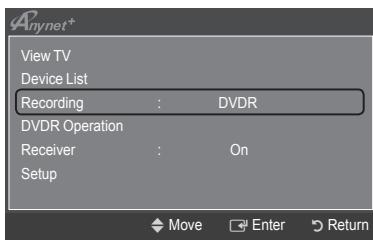
- Press the EXIT button to exit.
You can record the source streams by selecting Recording: (device_name).
Pressing the ● button will record whatever you are currently watching. If you are watching video from another device, the video from the device is recorded.
Before recording, check whether the antenna jack is properly connected to the recording device. To properly connect an antenna to a recording device, refer to the recording device's users manual.
Listening through a Receiver (Home theater)
You can listen to sound through a receiver instead of the TV speaker.
- Press the TOOLS button. Press the ENTER← button to select Anynet+ (HDMI-CEC).
-
Press the ▲ or ▼ button to select Receiver. Press the ◀ or ▶ button to select On or Off.
-
Press the EXIT button to exit.
If your receiver supports audio only, it may not appear in the device list.
The receiver will work when you have properly connected the Optical IN jack of the receiver to the Optical Out jack of the TV.
When the receiver (home theater) is set to On, you can hear sound output from the TV's Optical jack. When the TV is displaying a DTV(air) signal, the TV will send out 5.1 channel sound to the Home theater receiver. When the source is a digital component such as a DVD and is connected to the TV via HDMI, only 2 channel sound will be heard from the Home Theater receiver.
When using the WISELINK Pro feature, sound may not output properly through the receiver.
When listening through the receiver, there are restrictions for using the PIP and audio-related (MTS, Preferred language) menus.
☑ If there is a power interruption to the TV when the Receiver is set to On (by disconnecting the power cord or a power failure), the Select Speaker may be set to External Speaker when you turn the TV on again. (see page 22)
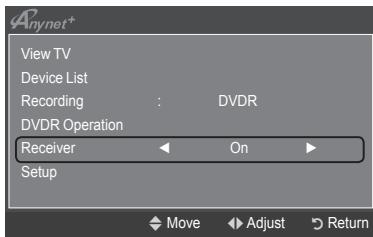
Troubleshooting for Anynet+
| Symptom | Solution |
| Anynet^+ does not work. | Check if the device is an Anynet^+ device. The Anynet^+ system supports Anynet^+ devices only.Connect only one receiver (home theater).Check if the Anynet^+ device power cord is properly connected.Check the Anynet^+ device's Video/Audio/HDMI 1.3 cable connections.Check whether Anynet^+ (HDMI-CEC) is set to On in the Anynet^+ setup menu.Check whether the TV remote control is in TV mode.Check whether it is Anynet^+ exclusive remote control.Anynet+ doesn't work in certain situations. (Searching channels, Operating WISELINK Pro, Plug & Play, etc.)When connecting or removing the HDMI 1.3 cable, please make sure to search devices again or turn your TV off and on again.Check if the Anynet^+ Function of Anynet^+ device is set on. |
| I want to start Anynet^+ . | Check if the Anynet^+ device is properly connected to the TV and check if the Anynet^+ (HDMI-CEC) is set to On in the Anynet^+ Setup menu.Press theTVbutton on the TV remote control to switch to TV. Then press the TOOLS button to show the Anynet^+ menu and select a menu you want. |
| I want to exit Anynet^+ . | Select View TV in the Anynet^+ menu.Press the SOURCE button on the TV remote control and select a device other than Anynet^+ devices.(Note that the channel button operates only when a tuner-embedded Anynet^+ device is not connected.) |
| The message Connecting to Anynet^+ device... appears on the screen. | You cannot use the remote control when you are configuring Anynet^+ or switching to a view mode.Use the remote control when the Anynet^+ setting or switching to view mode is complete. |
| The Anynet^+ device does not play. | You cannot use the play function when Plug & Play is in progress. |
| The connected device is not displayed. | Check whether or not the device supports Anynet^+ functions.Check whether or not the HDMI 1.3 cable is properly connected.Check whether Anynet^+ (HDMI-CEC) is set to On in the Anynet^+ setup menu.Search Anynet^+ devices again.You can connect an Anynet^+ device using the HDMI 1.3 cable only. Some HDMI cables may not support Anynet^+ functions.If it is terminated by an abnormal situation such as disconnecting the HDMI cable or power cord or a power failure, please repeat the device scan. |
| The TV programme cannot be recorded. | Check whether the antenna jack on the recording device is properly connected. |
| The TV sound is not output through the receiver. | Connect the optical cable between TV and the receiver. |
InfoLive
Using InfoLive
You can view news, stock market and weather information services using SAMSUNG's InfoLive service.
Set up the network. (Refer to pages 27\~28)
InfoLive is available only in UK, France, Germany, Italy, Spain, Norway, Sweden, Denmark, Finland and Russia. Country is selected depending on the country which is set in Plug & Play.
-
Press the MENU button to display the menu.
Press the ▲ or ▼ button to select Application, then press the ENTER← button. -
Press the ▲ or ▼ button to select InfoLive, then press the ENTER button.
-
Press the ◀ or ▶ button to select a service (Weather, News, Stocks or Setup) and press the ENTER button.
You can select and view more than one service at the same time only for 'News (without detailed information)', 'Weather-Today's Weather', and 'Stocks-Favorite Stocks, Market Summary'.
Press the INFO.L button on the remote control to display the InfoLive menu.
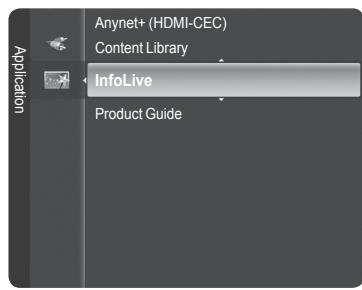
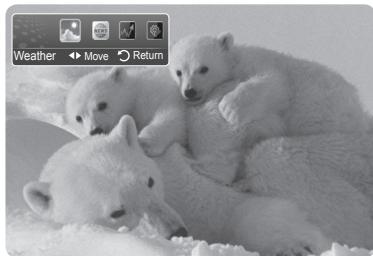
natural_image
Black-and-white photo of three polar bears resting on snow, with a weather control interface in the corner (no text or symbols on the animals themselves)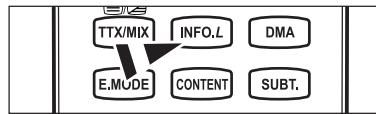
flowchart
graph TD
    A["TTX/MIX"] --> B["E.MODE"]
    C["INFO.L"] --> B
    D["DMA"] --> B
    E["CONTENT"] --> B
    F["SUBT."] --> B
ALL THE MATERIALS AVAILABLE THROUGH INFOLIVE ['INFOLIVE CONTENT'] ARE THE PROPERTY OF THE ORIGINATOR OF THE CONTENT ['CONTENT OWNER'] AND/OR ITS AFFILIATES OR LICENSORS, AND ARE PROTECTED BY COPYRIGHT, TRADEMARK, AND OTHER INTELLECTUAL PROPERTY LAWS. ALL INFOLIVE CONTENT IS PROVIDED SOLELY FOR YOUR PERSONAL NONCOMMERCIAL USE. YOU MAY NOT USE ANY INFOLIVE CONTENT IN A MANNER THAT CONSTITUTES AN INFRINGEMENT OF THE CONTENT OWNERS' RIGHTS OR THAT HAS NOT BEEN AUTHORIZED BY THE CONTENT OWNER. MORE SPECIFICALLY, UNLESS EXPLICITLY AUTHORIZED IN THIS DISCLAIMER OR BY THE CONTENT OWNER, YOU MAY NOT MODIFY, COPY, REPRODUCE, REPUBLISH, UPLOAD, POST, TRANSMIT, TRANSLATE, SELL, CREATE DERIVATIVE WORKS, EXPLOIT, OR DISTRIBUTE IN ANY MANNER OR MEDIUM (INCLUDING BY EMAIL OR OTHER ELECTRONIC MEANS) ANY INFOLIVE CONTENT OR ANY OTHER MATERIAL FROM THE INFOLIVE SERVICE. CONTENT PROVIDED CONTENT OWNERS IN CONNECTION WITH THE INFOLIVE SERVICE MAY BE TIME-DELAYED AS SPECIFIED BY THE CONTENT OWNER AND/OR ITS AFFILIATES. INFOLIVE IS PROVIDED THROUGH AGREEMENT BETWEEN SAMSUNG AND THE CONTENT OWNER. INFOLIVE MAY BE TERMINATED OR INTERRUPTED AT ANY TIME BY EITHER SAMSUNG OR THE CONTENT PROVIDER OR THROUGH TERMINATION OF THE AGREEMENT BETWEEN THEM. UNDER NO CIRCUMSTANCES, INCLUDING NEGLIGENCE, SHALL SAMSUNG OR THE CONTENT PROVIDER BE HELD LIABLE, WHETHER IN CONTRACT OR TORT, FOR ANY DIRECT, INDIRECT, INCIDENTAL, SPECIAL OR CONSEQUENTIAL DAMAGES, ATTORNEY FEES, EXPENSES, OR ANY OTHER DAMAGES WHATSOEVER ARISING OUT OF, OR IN CONNECTION WITH, SUCH TERMINATION OR INTERUPTION. SINCE CONTENT TRANSMITTED VIA INFOLIVE IS RECEIVED BY MEANS OF NETWORKS AND TRANSMISSION FACILITIES OVER WHICH SAMSUNG HAS NO CONTROL, SAMSUNG EXPRESSLY DISCLAIMS ANY RESPONSIBILITY OR LIABILITY FOR ANY INTERRUPTION OR SUSPENSION OF INTERLINK SERVICE OR FOR THE ABSENCE OF CONTENT RESULTING THEREFROM. INFORMATION IN THE INFOLIVE IS PROVIDED "AS IS," AND CONSEQUENTLY, SAMSUNG DOES NOT WARRANT THE INFORMATION SO PROVIDED, EITHER EXPRESSLY OR IMPLIEDLY, FOR ANY PARTICULAR PURPOSE; AND SAMSUNG EXPRESSLY DISCLAIMS ANY IMPLIED WARRANTIES, INCLUDING BUT NOT LIMITED TO, WARRANTIES OF MERCHANTABILITY OR FITNESS FOR A PARTICULAR PURPOSE. SAMSUNG DOES NOT GUARANTEE THE ACCURACY, VALIDITY, TIMELINESS, LEGALITY, OR COMPLETENESS OF ANY INFORMATION OR DATA MADE AVAILABLE THROUGH INFOLIVE FOR ANY PARTICULAR PURPOSE AND UNDER NO CIRCUMSTANCES, INCLUDING NEGLIGENCE, SHALL SAMSUNG BE HELD LIABLE, WHETHER IN CONTRACT OR TORT, FOR ANY DIRECT, INDIRECT, INCIDENTAL, SPECIAL OR CONSEQUENTIAL DAMAGES, ATTORNEY FEES, EXPENSES, OR ANY OTHER DAMAGES WHATSOEVER ARISING OUT OF, OR IN CONNECTION WITH, ANY INFORMATION CONTAINED IN, OR AS A RESULT OF THE USE OF INFOLIVE BY YOU OR ANY THIRD PARTY, EVEN IF ADVISED OF THE POSSIBILITY OF SUCH DAMAGES.
ACCESS TO INFOLIVE IS SUBJECT TO THE YAHOO'S TERMS OF SERVICE AVAILABLE ON PAGE 67.
YAHOO TERMS OF SERVICE IN **LANGUAGE** ARE AVAILABLE ON THE WEB AT **ADDRESS**.
| French | http://fr.docs.yahoo.com/info/utos.html | Swedish | http://se.docs.yahoo.com/seterms.html |
| German | http://de.docs.yahoo.com/info/utos.html | Danish | http://dk.docs.yahoo.com/termsofservice.html |
| Italian | http://it.docs.yahoo.com/info/utos.html | Finnish | http://fi.docs.yahoo.com/info/terms/?fr=sfp |
| Spanish | http://es.docs.yahoo.com/info/utos.html |
Using the Weather Service
- Press the INFO.L button on the remote control.
- Press the ◀ or ▶ button to move to the Weather service and press the ENTER button.
Set up the Region
- Press the Yellow button. Press the ▲ or ▼ button to select the initial letter (A\~Z) of the location you want, then press the ENTER button.
- Press the ▶ button to move to the Category. Press the ▲ or ▼ button to select the location you want and press the ENTER← button.
☐ You can check the weather of the selected region.
Set up Weather Option
- Press the Red button while using the service to change the Weather service option.
- Press ▲ or ▼ button and select Weather option.
To exit the Weather service, press the Blue button.
To exit the InfoLive service, press the EXIT button.
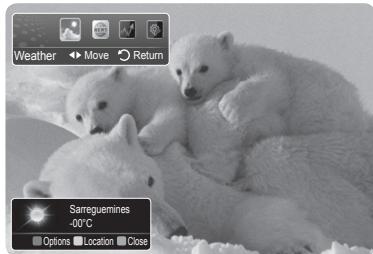
natural_image
Black-and-white photo of three polar bears in a snowy landscape, with weather and location controls visible (no text or symbols on the animals themselves)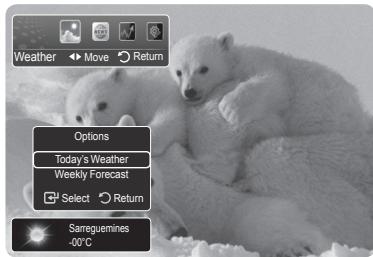
Using the News Service
The news provider may be changed in the future.
- Press the INFO.L button on the remote control.
- Press the ◀ or ▶ button to move to the News service and press the ENTER button.
Press the ENTER button to view the detailed article.
Press the ◀ or ▶ button to view the previous or next article.
-
Press the Red button while using the service to change the News service Option.
-
Press ▲ or ▼ button and select News service option.
The News service option changes depending on the provided web service.
To exit the News service, press the Blue button.
To exit the InfoLive service, press the EXIT button.
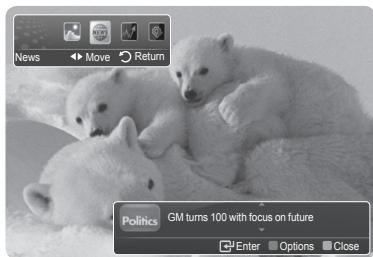
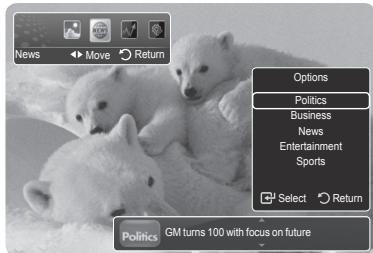
Using the Stock Service
- Press the INFO.L button on the remote control.
- Press the ◀ or ▶ button to move to the Stocks service and press the ENTER button.
- Press the Red button while using the service to change the Stocks service option.
- Press ▲ or ▼ button and select Stocks service option, then press the ENTER button.
Stock quotes delayed up to 20 minutes. The delay time can vary depending on country.
To exit the Stocks service, press the Blue button.
To exit the InfoLive service, press the EXIT button.
- Favorite Stocks: The Favorite stock information is displayed. You can set up the Favorite Stocks by pressing the Yellow button.
■ Market Summary: Major indices are toggled and the entire index, amount of up or down, and % are displayed.
■ Stocks & News: The Favorite stock information and major indices and Financial news are displayed.
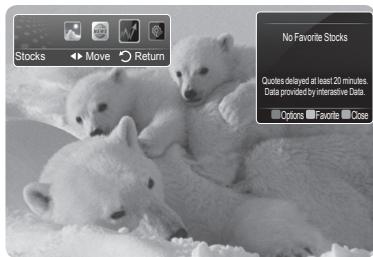
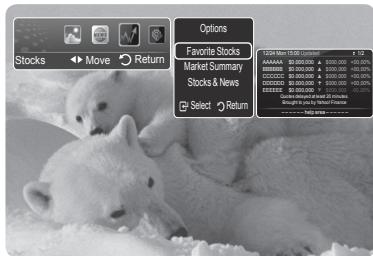
Setting Favorite Stocks Items
- Press the Yellow button when Favorite Stocks or Stocks & News is selected.
- Press the ▲ or ▼ button to select the exchange market you want and press the ENTER← button.
The set Favorite Stocks screen appears.
- Press the ◀, ▶, ▲ or ▼ button to enter stock symbol. Then press the ENTER button.
The result is displayed.
You can check the stock symbols by newspaper or Internet.
- Press the ENTER button to set a favourite stock.
The selected stock is set as a Favorite Stock.
To delete your favourite stocks
Press the Green button when Favorite Stocks or Stocks & News is selected. Press the ▲ or ▼ button to select a stocks, then press the ENTER button. The √ mark will disappear to the left of the stock name. Press the RETURN button.
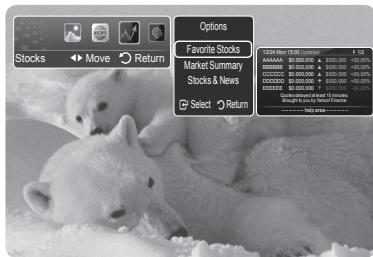
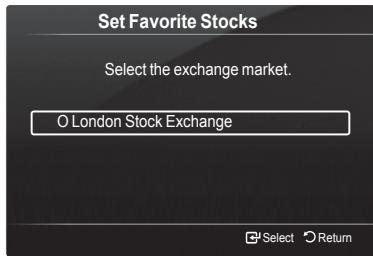
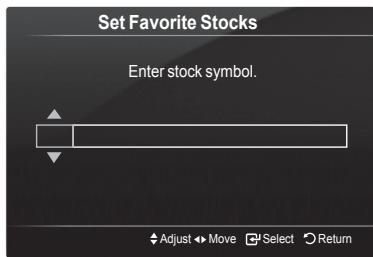
InfoLive Setup
- Press the INFO.L button on the remote control.
- Press the ◀ or ▶ button to select Setup, then press the ENTER button.
- Press the ▲ or ▼ button to select the desired option. (Auto Launch, Display Time, Font Size, Background Color, InfoLive's Position)
-
Press the ▲ or ▼ button to select an option, then press the ENTER button.
-
Auto Launch: Determines whether to launch InfoLink automatically when the TV is turned on. You can select either Off or On.
- Display Time: Determines the time to display the service on the TV screen. You can select :10 minutes, 20 minutes, 1 hour, or Always.
- Font Size: You can select letter size Standard or Large through InfoLink service.
- Background Colour: You can select the Background Colours (black, blue, red, green, gray) of InfoLink service. The colour is applied to each service, option and setup window.
- InfoLink's Position: You can set the position of each InfoLink service on the screen. You can select from six preset InfoLink positions (Position 1\~Position 6).
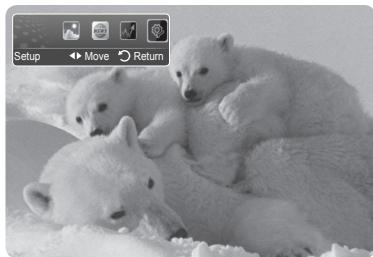
natural_image
Black-and-white photo of three polar bears resting on snow, with no visible text or symbols.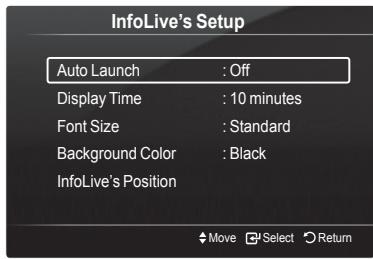
To exit the Setup service, press the RETURN button.
To exit the InfoLive service, press the EXIT button.
InfoLive's Position
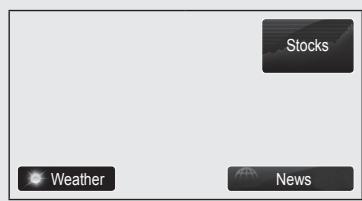
Position 1
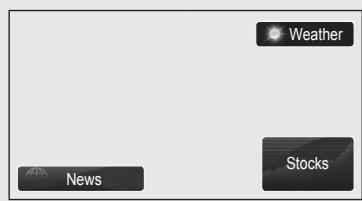
Position 2
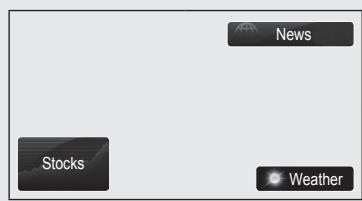
Position 3
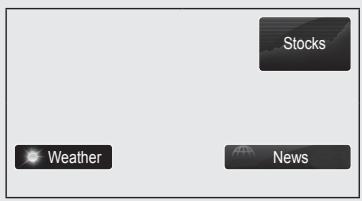
Position 4
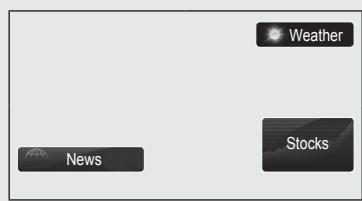
Position 5
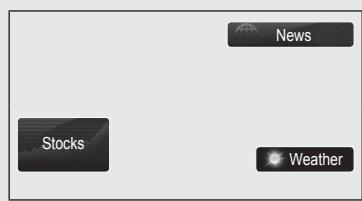
Position 6
Teletext Feature
Most television stations provide written information services via Teletext. The index page of the teletext service gives you information on how to use the service. In addition, you can select various options to suit your requirements by using the remote control buttons.
For teletext information to be displayed correctly, channel reception must be stable. Otherwise, information may be missing or some pages may not be displayed.
① □ (exit)
Exit from the teletext display.
2 ≡i (index)
Used to display the index (contents) page at any time while you are viewing teletext.
③ (store)
Used to store the teletext pages.
4 (size)
Press to display the double-size letters in the upper half of the screen. For lower half of the screen, press it again. To display normal screen, press it once again.
5 ≡? (reveal)
Used to display the hidden text (answers to quiz games, for example). To display normal screen, press it again.
6 (teletext on/mix)
Press to activate teletext mode after selecting the channel providing the teletext service. Press it twice to overlap the teletext with the current broadcasting screen.
⑦ (sub-page)
Used to display the available sub-page.
8 ≡1 (page up)
Used to display the next teletext page.
9 1≡ (page down)
Used to display the previous teletext page.
10 ≡... (mode)
Press to select the teletext mode (LIST/FLOF). If you press it in the LIST mode, it switches into the List save mode. In the List save mode, you can save teletext page into list using the ☐(store) button.
11 (hold)
Used to hold the display on a given page if the selected page is linked with several secondary pages which follow on automatically. To resume, press it again.
12 ☒ (cancel)
Used to display the broadcast when searching for a page.
13 Colour buttons (red/green/yellow/blue)
If the FASTEXT system is used by a broadcasting company, the different topics covered on a teletext page are colour-coded and can be selected by pressing the coloured buttons. Press one of them corresponding to the required. The page is displayed with other coloured information that can be selected in the same way. To display the previous or next page, press the corresponding coloured button.
☐ You can change teletext pages by pressing the numeric buttons on the remote control.
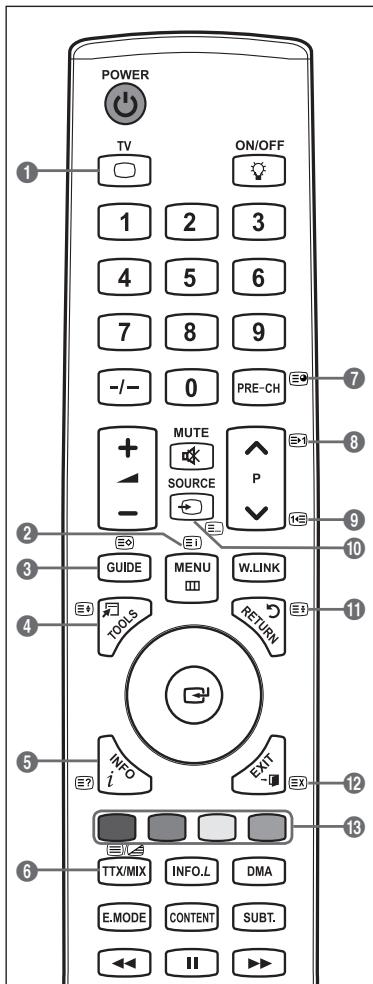
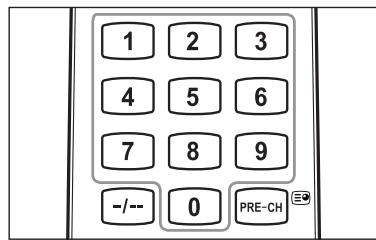
The teletext pages are organized according to six categories:
| Part | Contents |
| A | Selected page number. |
| B | Broadcasting channel identity. |
| C | Current page number or search indications. |
| D | Date and time. |
| E | Text. |
| F | Status information.FASTEXT information. |
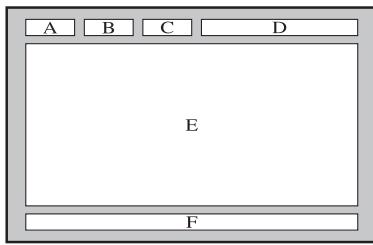
Teletext information is often divided between several pages displayed in sequence, which can be accessed by:
- Entering the page number
- Selecting a title in a list
- Selecting a coloured heading (FASTEXT system)
Press the TV button to exit from the teletext display.
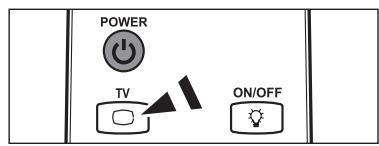
Wall Mount Kit Specifications (VESA)
Install your wall mount on a solid wall perpendicular to the floor.
When attaching to other building materials, please contact your nearest dealer.
If installed on a ceiling or slanted wall, it may fall and result in severe personal injury.
| Product Family | inch | VESA Spec. (A * B) | Standard Screw | Quantity |
| LCD-TV | 23 ~ 26 | 200 * 100 | M4 | 4 |
| 32 ~ 40 | 200 * 200 | M6 | ||
| 46 ~ 52 | 400 * 400600 * 400 | M8 | ||
| 57 | 700 * 400(No VESA) | |||
| 57 ~ 70 | 800 * 400 | |||
| 80 ~ | 1400 * 800 | |||
| PDP-TV | 42 ~ 58 | 400 * 400600 * 400 | M8 | 4 |
| 63 | 676 * 407(No VESA) | 6 | ||
| 63 ~ 70 | 800 * 400 | 4 | ||
| 80 ~ | 1400 * 800 | 4 |
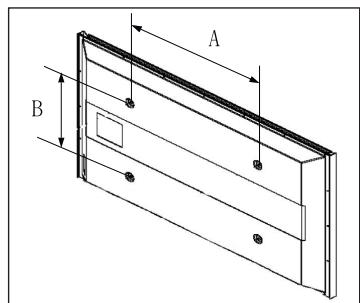
We provided the standard dimensions for wall mount kits as shown in the table above.
When purchasing our wall mount kit, a detailed installation manual and all parts necessary for assembly are provided.
Do not use screws longer than the standard dimension, as they may cause damage to the inside of the TV set.
For wall mounts that do not comply with the VESA standard screw specifications, the length of the screws may differ depending on their specifications.
Do not use screws that do not comply with the VESA standard screw specifications.
Do not use fasten the screws too strongly, this may damage the product or cause the product to fall, leading to personal injury. Samsung is not liable for these kinds of accidents.
Samsung is not liable for product damage or personal injury when a non-VESA or non-specified wall mount is used or the consumer fails to follow the product installation instructions.
Our 57" and 63" models do not comply with VESA Specifications. Therefore, you should use our dedicated wall mount kit for this model.
Do not exceed 15 degrees tilt when mounting this TV.

Do not install your Wall Mount Kit while your TV is turned on. It may result in personal injury due to electric shock.
Auto Wall-Mount Adjustment (Sold separately) (Depending on the model)
Once the auto wall mount is installed, your TV's position can be easily adjusted.
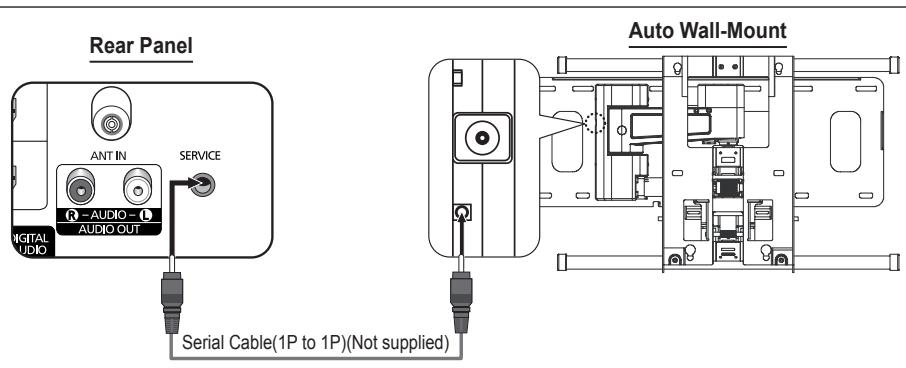
Entering the menu
- Press the ▲, ▼, ◀ or ▶ button on your remote control.
The Wall Mount Adjustment screen is displayed.
If the Auto Wall-Mount screen is not displayed when clicking on a direction button while watching your TV, use the menu to display that screen.
- Press the MENU button to display the menu. Press the ▲ or ▼ button to select Setup, then press the ENTER button.
- Press the ▲ or ▼ button to select Wall-Mount Adjustment, then press the ENTER button.
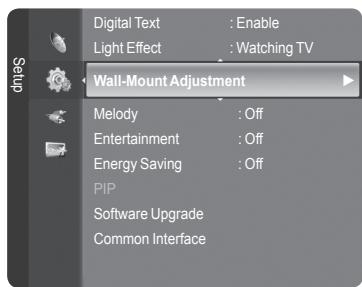
Remembering the Position
- Adjust to the desired position using the ▲, ▼, ◀, ► buttons.
If you press an arrow button when no OSD is displayed on the TV screen, the Adjustment screen appears.
Press the INFO button to reset. Press the ◀ or ▶ button to select Yes, then press the ENTER button. The position is initialized to the default setting.
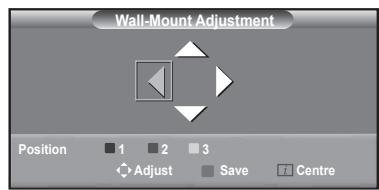
- Press the blue button. Press the ▲ and ▼ buttons to select a save mode from either Position 1, Position 2 or Position 3 in order to save the current position.
To not save the current position, press the RETURN button.
When selecting a save mode, you cannot use the Colour buttons.
- Press the ENTER← button to save.
When Position1 is selected, the message Current position saved as Position1 is displayed.
- Press the ENTER button.
The saved Position appears on the left side of the OSD.
Moving to the remembered position
-
Complete Step 1 of Entering the menu.
-
Pressing a Colour (Red, Green, Yellow) button moves the auto wall mount to the saved position.
☐ You can move the wall mount to one of the 3 pre-set positions by pressing the Red (Position 1), Green (Position 2) or Yellow (Position 3) buttons.
If you adjust the Position after moving to a pre-set position, the position display will disappear.
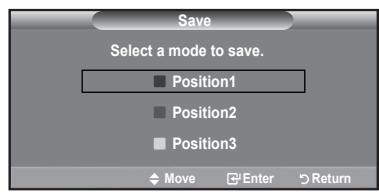
For installation, refer to the Installation Manual provided with the wall mount.
For product installation and the installation and moving of the wall mount, make sure to consult a specialized installation company.
This installation manual is to be used when attaching the wall mount to a wall. When attaching to other building materials, please contact your nearest dealer.
The auto wall mount will not work when Anynet ^+ or WISELINK Pro is operating.
Preparing before installing Wall- Mount on the wall
Case A. Installing SAMSUNG Wall-Mount
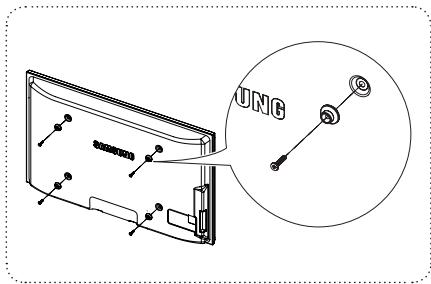
Case B. Installing other company's Wall-Mount
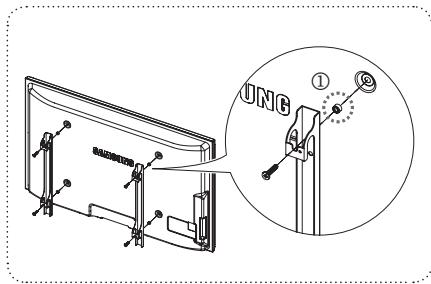
- Install Wall Mount with the torque range of 15kgf·cm or less. Make sure that parts can be damaged if the torque is out of the specified range.
- Accessory Kit contains Holder–Ring [①] for installing other company's Wall-Mount on Samsung TV. (Case B)
Securing the TV to the Wall

Pulling, pushing, or climbing on the TV may cause the TV to fall. In particular, ensure your children do not hang over or destabilize the TV; doing so may cause the TV to tip over, causing serious injuries or death. Follow all safety precautions provided on the included Safety Flyer. For added stability, install the anti-fall device for safety purposes, as follows.
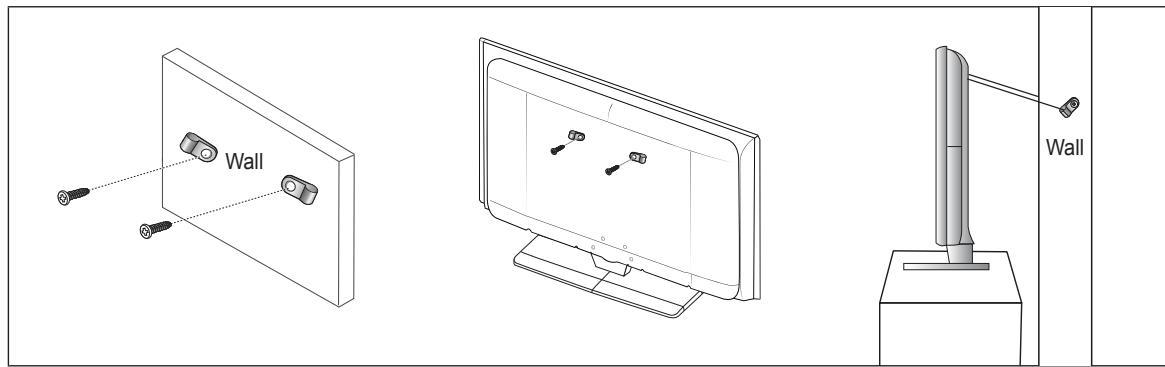
To avoid the TV from falling:
- Put the screws into the clamps and firmly fasten them onto the wall. Confirm that the screws have been firmly installed onto the wall.
You may need additional material such as an anchor depending on the type of wall.
Since the necessary clamps, screws, and string are not supplied, please purchase these additionally.
- Remove the screws from the center back of the TV, put the screws into the clamps, and then fasten the screws onto the TV again.
☑ Screws may not be supplied with the product. In this case, Screws are sold separately.
- Connect the clamps fixed onto the TV and the clamps fixed onto the wall with a strong string and then tie the string tightly.
Install the TV near to the wall so that it does not fall backwards.
It is safe to connect the string so that the clamps fixed on the wall are equal to or lower than the clamps fixed on the TV.
☐ Untie the string before moving the TV.
- Verify all connections are properly secured. Periodically check connections for any sign of fatigue for failure. If you have any doubt about the security of your connections, contact a professional installer.
Troubleshooting
Before contacting the Samsung after-sales service, perform the following simple checks.
If you cannot solve the problem using the instructions below, note the model and serial number of the television and contact your local dealer.
| No sound or picture | Check that the mains lead has been connected to a wall socket.Check that you have pressed the button on your set.Check the picture contrast and brightness settings.Check the volume.Check if Select Speaker is set to External Speaker. |
| Normal picture but no sound | Check the volume.Check whether the MUTE button has been pressed on the remote control. |
| No picture or black and white picture | Adjust the colour settings.Check that the broadcast system selected is correct. |
| Sound and picture interference | Try to identify the electrical appliance that is affecting the television, then move it further away.Plug the television into a different main socket. |
| Blurred or snowy picture, distorted sound | Check the direction, location and connections of your aerial.This interference often occurs due to the use of an indoor aerial. |
| Remote control malfunctions | Replace the remote control batteries.Clean the upper edge of the remote control (transmission window).Check that the + and - ends of the batteries are inserted correctly.Check that the batteries are drained. |
| Screen is black and power indicator light blinks steadily | On your computer check; Power, Signal Cable.Move the computer's mouse or press any key on the keyboard.On your equipment check (STB, DVD, etc) ; Power, Signal Cable.The TV is using its power management system.Press the Source button on the panel or remote control.Turn the TV off and on. |
| The damaged picture appears in the corner of the screen. | If Just Scan is selected in some external devices, the damaged picture may appear in the corner of the screen. This symptom is caused by external devices, not TV. |
| The "Resets all settings to the default values" message appears. | This appears when you press and hold the EXIT button for a while. The product settings are reset to the factory defaults. |
Specifications
The descriptions and characteristics in this booklet are given for information purposes only and are subject to modification without notice.
| Model Name | PS50A756 | PS63A756 |
| Screen Size (Diagonal) | 50 inch | 63 inch |
| PC Resolution (Optimum) | 1920 x 1080 @ 60 Hz | 1920 x 1080 @ 60 Hz |
| Sound (Output) | 10 W x 2 | 15 W x 2 |
| Dimension (WxHxD) | ||
| Body | 1240 x 766 x 96 mm | 1531 x 932 x 99 mm |
| With stand | 1240 x 830 x 315 mm | 1531 x 1005 x 418 mm |
| Weight | ||
| Body | 39 kg | 67 kg |
| With stand | 44 kg | 84 kg |
| Environmental Considerations | ||
| Operating Temperature | 50 °F to 104 °F (10 °C to 40 °C) | |
| Operating Humidity | 10% to 80%, non-condensing | |
| Storage Temperature | -4 °F to 113 °F (-20 °C to 45 °C) | |
| Storage Humidity | 5% to 95%, non-condensing | |
This device is a Class B digital apparatus.
☐ Design and specifications are subject to change without prior notice.
For the power supply and Power Consumption, refer to the label attached to the product.
1. ACCEPTANCE OF TERMS
Welcome to Yahoo! UK & Ireland. Yahoo! UK Limited ("Yahoo!") provides its service to you, subject to the following Terms of Service ("TOS"), which may be updated by Yahoo! from time to time without notice to you. You should review the TOS periodically for changes at: http://uk.docs.yahoo.com/info/terms.html.
In addition, when using particular Yahoo! services, you and Yahoo! shall be subject to any guidelines and rules applicable to such services which may be posted by Yahoo! from time to time. All such guides and rules are hereby incorporated by reference into the TOS. In most cases the guides and rules are specific to a particular part of the Service and will assist you in applying the TOS to that part, but to the extent of any inconsistency between the TOS and any guide or rule, the TOS will prevail. Yahoo! may also offer services from time to time that are governed by other terms of service. In such cases the other terms of service will be posted on the relevant service to which they apply.
2. DESCRIPTION OF SERVICE
Yahoo! currently provides users with access to a rich collection of on-line resources, including, various communications tools, online forums, shopping services, personalised content and branded programming through its network of properties (the "Service"). Unless explicitly stated otherwise, any new features that augment or enhance the current Service, including the release of new Yahoo! properties, shall be subject to the TOS. You acknowledge and agree that the Service is provided "AS IS" and that Yahoo! assumes no responsibility for the timeliness, deletion, mis-delivery or failure to store any user communications or personalisation settings.
In order to use the Service, you must obtain access to the World Wide Web, either directly or through devices that access web-based content, and pay any service and/or telephony fees associated with such access. In addition, you must provide all equipment necessary to make such connection to the World Wide Web, including a computer and modem or other access device. Please be aware that Yahoo! has created certain areas on the Service that contain adult or mature content. You must be at least 18 years of age to access and view such areas.
3. YOUR REGISTRATION OBLIGATIONS AND SUPERVISING CHILDREN
In consideration of your use of the Service, you agree to: (a) provide true, accurate, current and complete information about yourself as prompted by the Service's registration form (such information being the “Registration Data”) and (b) maintain and promptly update the Registration Data to keep it true, accurate, current and complete. If you provide any information that is untrue, inaccurate, not current or incomplete, or Yahoo! has reasonable grounds to suspect that such information is untrue, inaccurate, not current or incomplete, Yahoo! has the right to suspend or terminate your account and refuse any and all current or future use of the Service (or any portion thereof).
Yahoo! is concerned about the safety and privacy of all its users, particularly children. For this reason, parents who wish to allow their children access to the Service should assist them in setting up any relevant accounts and supervise their access to the Service. By allowing your child access to the Service, they will be able to access all of the Services including, email, message boards, groups, instant messages and chat (among others). Please remember that the Service is designed to appeal to a broad audience. Accordingly, as the legal guardian, it is your responsibility to determine whether any of the Services and/or Content (as defined in Section 6 below) are appropriate for your child.
4. YAHOO! PRIVACY POLICY
Registration Data and certain other information about you is subject to our Privacy Policy. For more information, please see our full privacy policy at http://privacy.yahoo.com/privacy/uk
5. MEMBER ACCOUNT, PASSWORD AND SECURITY
You will receive a password and account designation upon completing the Service's registration process. You are responsible for maintaining the confidentiality of the password and account, and are fully responsible for all activities that occur under your password or account. You agree to (a) immediately notify Yahoo! of any unauthorised use of your password or account and any other breach of security, and (b) ensure that you exit from your account at the end of each session. Yahoo! cannot and will not be liable for any loss or damage arising from your failure to comply with this Section 5.
6. MEMBER CONDUCT
You acknowledge that all information, data, text, software, music, sound, photographs, graphics, video, messages and other materials (“Content”), whether publicly posted or privately transmitted, are the sole responsibility of the person from which such Content originated. This means that you, and not Yahoo! are entirely responsible for all Content that you upload, post, email or otherwise transmit via the Service. Yahoo! does not control the Content posted via the Service and, as such, does not guarantee the accuracy, integrity or quality of such Content. You acknowledge that by using the Service, you may be exposed to Content that is offensive, indecent or objectionable. Under no circumstances will Yahoo! be liable in any way for any Content, including, but not limited to, for any errors or omissions in any Content, or for any loss or damage of any kind incurred as a result of the use of any Content posted, emailed or otherwise transmitted via the Service.
You agree to not use the Service to:
a. upload, post, email or otherwise transmit any Content that is unlawful, harmful, threatening, abusive, harassing, tortious, defamatory, vulgar, obscene, libellous, invasive of another's privacy, hateful, or racially, ethnically or otherwise objectionable;
b. harm minors in any way;
c. impersonate any person or entity, including, but not limited to, a Yahoo! official, forum leader, guide or host, or falsely state or otherwise misrepresent your affiliation with a person or entity;
d. forge headers or otherwise manipulate identifiers in order to disguise the origin of any Content transmitted through the Service;
e. upload, post, email or otherwise transmit any Content that you do not have a right to transmit under any law or under contractual or fiduciary relationships (such as inside information, proprietary and confidential information learned or disclosed as part of employment relationships or under nondisclosure agreements);
f. upload, post, email or otherwise transmit any Content that infringes any patent, trademark, trade secret, copyright or other proprietary rights (“Rights”) of any party;
g. upload, post, email or otherwise transmit any unsolicited or unauthorised advertising, promotional materials, "junk mail," "spam," "chain letters," "pyramid schemes," or any other form of solicitation, except in those areas (such as shopping rooms) that are designated for such purpose;
h. upload, post, email or otherwise transmit any material that contains software viruses or any other computer code, files or programs designed to interrupt, damage, destroy or limit the functionality of any computer software or hardware or telecommunications equipment;
i. disrupt the normal flow of dialogue, cause a screen to “scroll” faster than other users of the Service are able to type, or otherwise act in a manner that negatively affects other users’ ability to engage in real time exchanges;
j. interfere with or disrupt the Service or servers or networks connected to the Service, or disobey any requirements, procedures, policies or regulations of networks connected to the Service;
k. intentionally or unintentionally violate any applicable law or regulation including, but not limited to, regulations promulgated by any securities exchange;
I. "stalk" or otherwise harass another; or
m. extract, collect, process, combine or store personal data about other users.
You acknowledge that Yahoo! has no obligation to monitor Content. Yahoo! and its designees shall have the right (but not the obligation) in their sole discretion to refuse, move or remove any Content that is available via the Service that violates the TOS or is otherwise objectionable. You agree that you must evaluate, and bear all risks associated with, the use of any Content, including any reliance on the accuracy, completeness, or usefulness of such Content.
You agree that Yahoo! may access, preserve, and disclose your account information and Content: (a) to its affiliated companies worldwide for the purpose of providing the Content to you in an efficient manner; (b) for the purpose of properly administering your account in accordance with the standard operating procedures of Yahoo! or its affiliated companies; and (c) if required to do so by law or in the good faith belief that any such access, preservation or disclosure is reasonably necessary to: (i) comply with legal process; (ii) enforce the TOS; (iii) respond to claims that any Content violates the rights of third-parties; (iv) respond to your requests for customer service; or (v) protect the rights, property, or personal safety of Yahoo!, its users and the public.
You acknowledge that the technical processing and transmission of the Service, including your Content, may involve transmissions over various networks and changes to conform and adapt to technical requirements of connecting networks or devices. Yahoo! reserves the right to terminate your access to some or all parts of its Service if you withdraw your consent in this paragraph at any time.
7. SPECIAL ADMONITIONS FOR INTERNATIONAL USE
Recognising the global nature of the Internet, you agree to comply with all local laws and rules regarding online conduct and acceptable Content. Specifically, you agree to comply with all applicable laws regarding the transmission of technical data exported from the United Kingdom, the United States and the country in which you reside (if different from the aforementioned). When you are on any international Yahoo! property, you are bound by the Terms of Service and applicable laws governing that Yahoo! property.
8. PUBLIC CONTENT POSTED TO YAHOO!
a. For purposes of the TOS, “publicly accessible areas” of the Service are those accessible by the general public. By way of example, a publicly accessible area of the Service would include public Yahoo! Groups, Yahoo! Answers and Yahoo! Message Boards, but would not include unlisted Yahoo! Groups or private Yahoo! communication services such as Yahoo! Mail or Yahoo! Messenger. You acknowledge that you are solely responsible for any personal data or information that you choose to disclose and make publicly accessible via the Service, and that under no circumstances will Yahoo! be liable in any way for the disclosure and public accessibility of such personal data or information. You acknowledge that any personal data or information (or any other Content) posted to publicly accessible areas may remain publicly accessible indefinitely.
b. With respect to Content you elect to post for inclusion in publicly accessible areas of Yahoo! Groups or that consists of photos or other graphics you elect to post to any other publicly accessible area of the Service, you grant Yahoo! a world-wide, royalty free and non-exclusive licence to reproduce, modify, adapt and publish such Content on the Service solely for the purpose of displaying, distributing and promoting the specific Yahoo! Group to which such Content was submitted, or, in the case of photos or graphics, solely for the purpose for which such photo or graphic was submitted to the Service. This licence exists only for as long as you elect to continue to include such Content on the Service and shall be terminated at the time you delete such Content from the Service.
c. With respect to all other Content you elect to post to other publicly accessible areas of the Service, you grant Yahoo! the royalty-free, perpetual, irrevocable, non-exclusive and fully sub-licensable right and licence to use, reproduce, modify, adapt, publish, translate, create derivative works from, distribute, perform and display such Content (in whole or part) worldwide and/or to incorporate it in other works in any form, media, or technology now known or later developed.
9. INDEMNITY
You agree to indemnify and hold Yahoo! and its subsidiaries, affiliates, officers, agents, co-branders and other partners, and employees, harmless from any claim or demand, including reasonable attorneys' fees, made by any third party due to or arising out of Content you submit, post to or transmit through the Service, your use of the Service, your connection to the Service, your violation of the TOS, or your violation of any rights of another.
10. NO RESALE OF SERVICE
You agree not to reproduce, duplicate, copy, sell, resell or exploit for any commercial purposes, any portion of the Service, use of the Service, or access to the Service.
11. GENERAL PRACTICES REGARDING USE AND STORAGE
You acknowledge that Yahoo! may establish general practices and limits concerning use of the Service, including with out limitation the maximum number of days that email messages, message board postings or other uploaded Content will be retained by the Service, the maximum number of email messages that may be sent from or received by an account on the Service, the maximum size of any email message that may be sent from or received by an account on the Service, the maximum disk space that will be allotted on Yahoo's servers on your behalf, and the maximum number of times (and the maximum duration for which) you may access the Service in a given period of time. You agree that Yahoo! has no responsibility or liability for the deletion or failure to store any messages and other communications or other Content maintained or transmitted by the Service. You acknowledge that Yahoo! reserves the right to log off accounts that are inactive for an extended period of time. You further acknowledge that Yahoo! reserves the right to change these general practices and limits at any time, in its sole discretion, with or without notice.
12. MODIFICATIONS TO SERVICE
Yahoo! reserves the right at any time and from time to time to modify or discontinue, temporarily or permanently, the Service (or any part thereof) with or without notice. You agree that Yahoo! shall not be liable to you or to any third party for any modification, suspension or discontinuance of the Service.
13. TERMINATION
You agree that Yahoo! in its sole discretion, may terminate your password, account (or any part thereof) or use of the Service, and remove and discard any Content within the Service, for any reason, including, without limitation, for lack of use or if Yahoo! believes that you have violated or acted inconsistently with the letter or spirit of the TOS. Yahoo! may also in its sole discretion and at any time discontinue providing the Service, or any part thereof, with or without notice. You agree that any termination of your access to the Service under any provision of this TOS may be effected without prior notice, and acknowledge and agree that Yahoo! may immediately deactivate or delete your account and all related information and files in your account and/or bar any further access to such files or the Service. Further, you agree that Yahoo! shall not be liable to you or any third-party for any termination of your access to the Service.
14. DEALINGS WITH ADVERTISERS AND MERCHANTS
Your correspondence or business dealings with, or participation in promotions of, advertisers and merchants found on or through the Service, including payment and delivery of related goods or services, and any other terms, conditions, warranties or representations associated with such dealings, are solely between you and such advertiser or merchant. To the fullest extent permitted by applicable law, you agree that: (a) Yahoo! shall not be responsible or liable for any loss or damage of any kind incurred as the result of any such dealings or as the result of the presence of such advertisers and merchants on the Service, and (b) any orders placed by you on, and any product specifications and product availability appearing on, the Service (including, without limitation, Yahoo! Shopping) are subject to confirmation by, and the terms and conditions of business of, the relevant Merchant.
15. LINKS
The Service may provide, or third parties may provide, links to other World Wide Web sites or resources. Because Yahoo! has no control over such sites and resources, you acknowledge and agree that Yahoo! is not responsible for the availability of such external sites or resources, and does not endorse and is not responsible or liable for any Content, advertising, products, or other materials on or available from such sites or resources. You further acknowledge and agree that Yahoo! shall not be responsible or liable, directly or indirectly, for any damage or loss caused or alleged to be caused by or in connection with use of or reliance on any such Content, goods or services available on or through any such site or resource.
16. YAHOO'S PROPRIETARY RIGHTS
You acknowledge and agree that the Service and any necessary software used in connection with the Service (“Software”) contain proprietary and confidential information that is protected by applicable intellectual property and other laws. You further acknowledge and agree that Content contained in sponsor advertisements or information presented to you through the Service or advertisers is protected by copyrights, trademarks, service marks, patents or other proprietary rights and laws. Except as expressly authorised by Yahoo! or advertisers, you agree not to modify, rent, lease, loan, sell, distribute or create derivative works based on the Service or the Software, in whole or in part.
Yahoo! grants you a personal, non-transferable and non-exclusive right and licence to use the object code of its Software on a single computer; provided that you do not (and do not allow any third party to) copy, modify, create a derivative work of, reverse engineer, reverse assemble or otherwise attempt to discover any source code, sell, assign, sublicense, grant a security interest in or otherwise transfer any right in the Software. The foregoing is subject to applicable statute and other express law. You agree not to modify the Software in any manner or form, or to use modified versions of the Software, including (without limitation) for the purpose of obtaining unauthorised access to the Service. You agree not to access the Service by any means other than through the interface that is provided by Yahoo! for use in accessing the Service.
17. DISCLAIMERS
YOU EXPRESSLY ACKNOWLEDGE AND AGREE THAT:
a. YOUR USE OF THE SERVICE IS AT YOUR SOLE RISK. THE SERVICE IS PROVIDED ON AN "AS IS" AND "AS AVAILABLE" BASIS. TO THE FULLEST EXTENT PERMITTED BY APPLICABLE LAW, YAHOO! EXPRESSLY DISCLAIMS ALL WARRANTIES, CONDITIONS AND OTHER TERMS OF ANY KIND, WHETHER EXPRESS OR IMPLIED, INCLUDING, BUT NOT LIMITED TO ANY IMPLIED TERM OF MERCHANTABILITY, SATISFACTORY QUALITY, FITNESS FOR A PARTICULAR PURPOSE, AND ANY TERM AS TO THE PROVISION OF SERVICES TO A STANDARD OF REASONABLE CARE AND SKILL OR AS TO NON-INFRINGEMENT OF ANY INTELLECTUAL PROPERTY RIGHT.
b. YAHOO! MAKES NO WARRANTY OR REPRESENTATION THAT (i) THE SERVICE WILL MEET YOUR REQUIREMENTS, (ii) THE SERVICE WILL BE UNINTERRUPTED, TIMELY, SECURE, OR ERROR-FREE, (iii) THE RESULTS THAT MAY BE OBTAINED FROM THE USE OF THE SERVICE WIL L BE ACCURATE OR RELIABLE, (iv) THE QUALITY OF ANY PRODUCTS, SERVICES, INFORMATION, OR OTHER MATERIAL PURCHASED OR OBTA INED BY YOU THROUGH THE SERVICE WILL MEET YOUR EXPECTATIONS, AND (V) ANY ERRORS IN THE SOFTWARE WILL BE CORRECTED.
C. ANY MATERIAL DOWNLOADED OR OTHERWISE OBTAINED THROUGH THE USE OF THE SERVICE IS DONE AT YOUR OWN DISCRETION AND RISK AND THAT YOU WILL BE SOLELY RESPONSIBLE FOR ANY DAMAGE TO YOUR COMPUTER SYSTEM OR LOSS OF DATA THAT RESULTS FROM THE DOWNLOAD OF ANY SUCH MATERIAL.
D. NO ADVICE OR INFORMATION, WHETHER ORAL OR WRITTEN, OBTAINED BY YOU FROM YAHOO! OR THROUGH OR FROM THE SERVICE SHALL CREATE ANY WARRANTY OR OTHER OBLIGATION NOT EXPRESSLY STATED IN THE TOS.
18. LIMITATION OF LIABILITY
YOU EXPRESSLY ACKNOWLEDGE AND AGREE THAT YAHOO! SHALL NOT BE LIABLE FOR ANY DIRECT, INDIRECT, INCIDENTAL, SPECIAL, CONSEQUENTIAL OR EXEMPLARY DAMAGES, INCLUDING BUT NOT LIMITED TO, DAMAGES FOR LOSS OF PROFITS, GOODWILL, USE, DATA OR OTHER INTANGIBLE LOSSES (EVEN IF YAHOO! HAS BEEN ADVISED OF THE POSSIBILITY OF SUCH DAMAGES), RESULTING FROM: (i) THE USE OR THE INABILITY TO USE THE SERVICE; (ii) THE COST OF PROCUREMENT OF SUBSTITUTE GOODS AND SERVICES RESULTING FROM ANY GOODS, DATA, INFORMATION OR SERVICES PURCHASED OR OBTAINED OR MESSAGES RECEIVED OR TRANSACTIONS ENTERED INTO THROUGH OR FROM THE SERVICE; (iii) UNAUTHORIZED ACCESS TO OR ALTERATION OF YOUR TRANSMISSIONS OR DATA; (iv) STATEMENTS OR CONDUCT OF ANY THIRD PARTY ON THE SERVICE; OR (v) ANY OTHER MATTER RELATING TO THE SERVICE.
YOU AGREE THAT REGARDLESS OF ANY STATUTE OR LAW TO THE CONTRARY, ANY CLAIM OR CAUSE OF ACTION ARISING OUT OF OR RELATED TO USE OF THE SERVICE OF THESE TOS MUST BE FILED WITHIN ONE (1) YEAR AFTER SUCH CLAIM OR CAUSE OF ACTION AROSE OR BE FOREVER BARRED.
19. EXCLUSIONS AND LIMITATIONS
SOME JURISDICTIONS DO NOT ALLOW THE EXCLUSION OF CERTAIN WARRANTIES OR THE LIMITATION OR EXCLUSION OF LIABILITY FOR INCIDENTAL OR CONSEQUENTIAL DAMAGES. ACCORDINGLY, SOME OF THE ABOVE LIMITATIONS OF SECTIONS 17 AND 18 MAY NOT APPLY TO YOU.
IN PARTICULAR, NOTHING IN THESE TOS SHALL AFFECT THE STATUTORY RIGHTS OF ANY CONSUMER OR EXCLUDE OR RESTRICT ANY LIA BIITY FOR DEATH OR PERSONAL INJURY ARISING FROM THE NEGLIGENCE OR FRAUD OF YAHOO!.
20. SPECIAL ADMONITION FOR SERVICES RELATING TO FINANCIAL MATTERS
If you intend to create or join any service, receive or request any news, messages, alerts or other information from the Service concerning companies, stock quotes, investments or securities, please read the above Sections 17 and 18 again. They go doubly for you. In addition, for this type of information particularly, the phrase “Let the investor beware” is apt. The Service is provided for informational purposes only, and no Content included in the Service is intended for trading or investing purposes. Yahoo! shall not be responsible or liable for the accuracy, usefulness or availability of any information transmitted via the Service, and shall not be responsible or liable for any trading or investment decisions made based on such information.
21. NOTICE
Notices to you may be made via either email or regular mail. The Service may also provide notices of changes to the TOS or other matters by displaying notices or links to notices to you generally on the Service.
22. TRADEMARK INFORMATION
Yahoo!, the Yahoo! logo, Yahoo! in Chinese Characters, Yahooligans!, the Yahooligans! logo, YAHOO! KIDS, Yahoo! Kids logo, the “Jumpin Y Guy” logo, Do you Yahoo!?, Y!, Y! stylised, My Yahoo!, Eyeballs design, Homework Answers, The Scoop, Get Local, the Worlds Favorite Internet Guide, the Sunglasses design, e Café Yahoo!, Viaweb, Shop Find, EZSpree, EZWheels, I Shops, Permission Marketing, Yoyodyne, Get Rich Click, and Geocities trademarks and service marks, and other Yahoo! logos and product and service names are trademarks of Yahoo! Inc. (the “Yahoo! Marks”). Without Yahoo’s prior permission, you agree not to display or use in any manner, the Yahoo! Marks.
23. COPYRIGHTS and COPYRIGHT AGENTS
Yahoo! respects the intellectual property of others, and we ask our users to do the same. If you believe that any of your intellectual property rights have been infringed on the Service, please go to our copyright policy to report the problem.
24. GENERAL INFORMATION
These TOS (including the guides and rules referred to herein) constitute the entire agreement between you and Yahoo! and govern your use of the Service, superseding any prior agreements between you and Yahoo! You also may be subject to additional terms and conditions that may apply when you use affiliate services, third-party content or third-party software. The TOS and the relationship between you and Yahoo! shall be governed by the laws of England. You and Yahoo! agree to submit to the exclusive jurisdiction of the English courts. Any failure by Yahoo! to exercise or enforce any right or provision of the TOS shall not constitute a waiver of such right or provision. If any provision of the TOS is found by a court of competent jurisdiction to be invalid, the parties nevertheless agree that the court should endeavour to give effect to the parties' intentions as reflected in the provision, and the other provisions of the TOS remain in full force and effect.
Neither you nor Yahoo! may assign or transfer any rights or obligations under these TOS without the prior written consent of the other party, except that Yahoo! shall be entitled to assign or transfer any or all of its rights and obligations (without your prior consent) to any of its affiliated companies.
The section titles in the TOS are for convenience only and have no legal or contractual effect. No Right of Survivorship and Non-Transferability. You agree that your Yahoo! account is non-transferable and any rights to your Yahoo! ID or contents within your account terminate upon your death. Any free account that has not been used for a certain period of time may be terminated and all contents therein permanently deleted in line with Yahoo!'s policy.
25. VIOLATIONS
Please report any violations of the TOS to Yahoo! Customer Care.
This page is intentionally left blank.
natural_image
Simple line drawing of a trash bin with crossed lines indicating no waste or restriction (no text or symbols)
Correct Disposal of This Product
(Waste Electrical & Electronic Equipment)
(Applicable in the European Union and other European countries with separate collection systems)
This marking shown on the product or its literature, indicates that it should not be disposed with other household wastes at the end of its working life.
To prevent possible harm to the environment or human health from uncontrolled waste disposal, please separate this from other types of wastes and recycle it responsibly to promote the sustainable reuse of material resources.
Household users should contact either the retailer where they purchased this product, or their local government office, for details of where and how they can take this item for environmentally safe recycling.
Business users should contact their supplier and check the terms and conditions of the purchase contract. This product should not be mixed with other commercial wastes for disposal.
Rémanence à l'écran
natural_image
Technical line drawing of a computer monitor with visible internal components and mounting base (no text or symbols)Avertissement
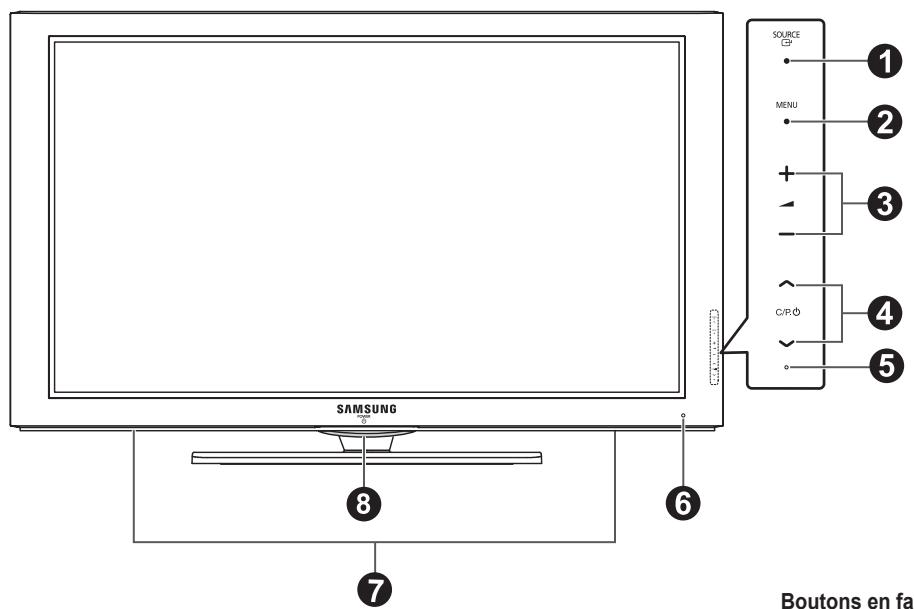
6 DIGITAL AUDIO OUT (OPTICAL)
natural_image
Technical line drawing of a mechanical component with no visible text or symbols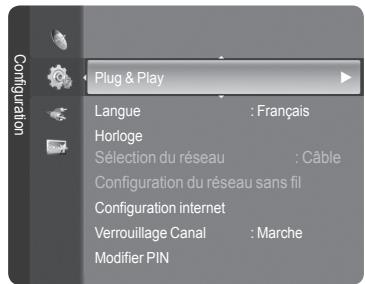
Modes d'affichage
MHEG (Multimedia and Hypermedia Information Coding Experts Group)
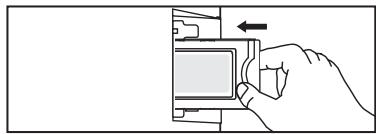
natural_image
Hand pressing a button on a device (no text or symbols visible)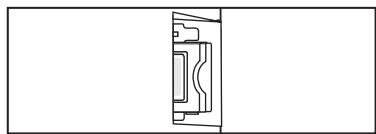
natural_image
Pure technical line drawing of a mechanical component without any text, numbers, or symbols□ Modif. Nom
natural_image
Black-and-white landscape photo of a cloudy sky with distant clouds, displayed in a video editing interface (no text or symbols on the landscape itself)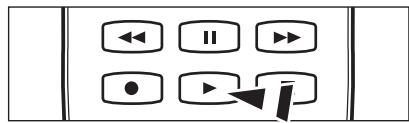
natural_image
Microscopic view of a wavy surface texture with directional arrows and time markers (no readable text or symbols)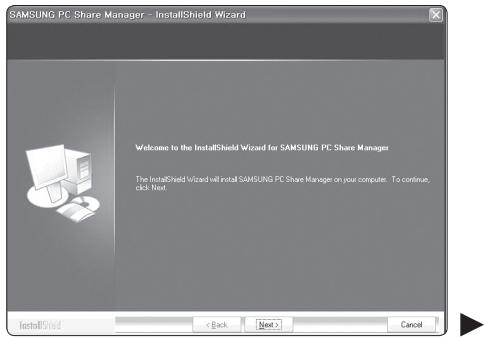
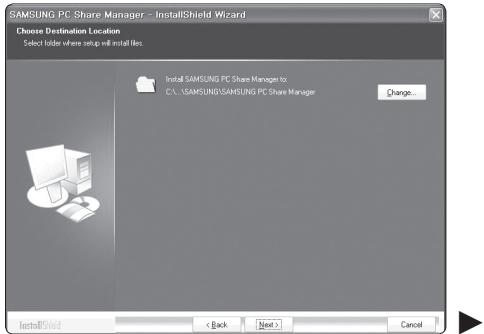
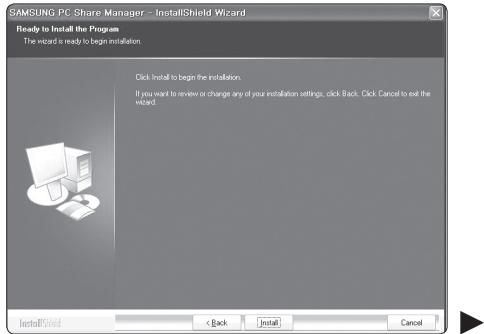
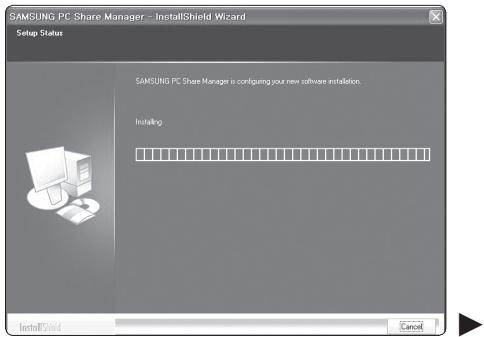
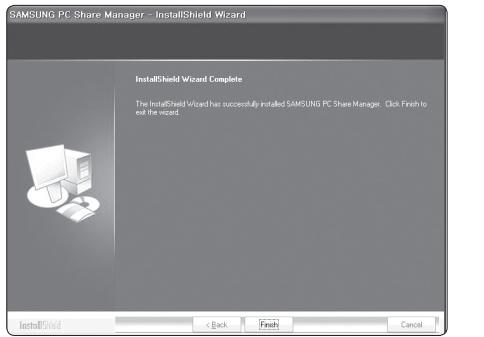
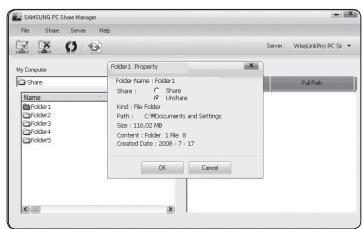
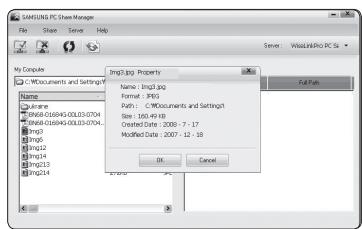
Partager
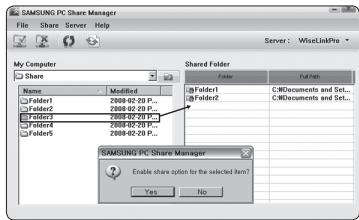
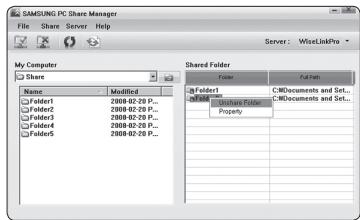
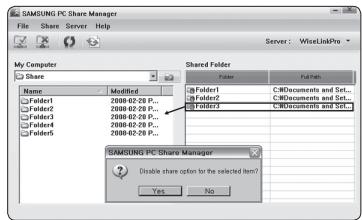
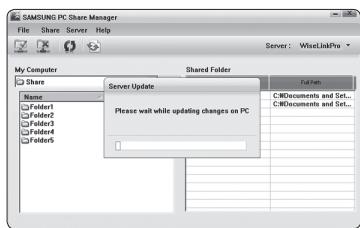
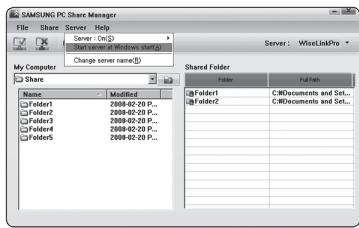
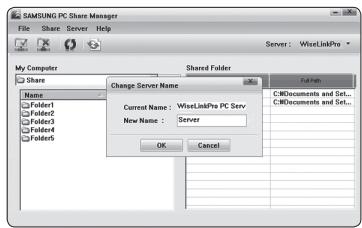
Aide
Version
natural_image
Black-and-white photo of three polar bears resting on snow, with no visible text or symbols.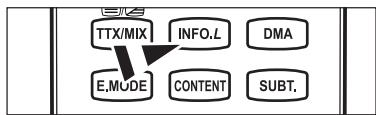
flowchart
graph TD
    A["TTX/MIX"] --> B["E.MODE"]
    C["INFO.L"] --> B
    D["DMA"] --> B
    E["CONTENT"] --> B
    F["SUBT."] --> B
TOUS LES MATÉRIAUX MIS À DISPOSITION VIA INFOLIVE ['INFOLIVE CONTENT'] SONT LA PROPRIÉTÉ DES AUTEURS DU CONTENU ["PROPRIÉTAIRE DU CONTENU"] ET/OU DE SES SOCIÉTÉS AFFILIÉES OU DONNEURS DE LICENCE ET SONT PROTÉGÉS PAR LES LOIS SUR LE COPYRIGHT, LES MÁRQUES COMMERCIALES ET AUTRES LOIS SUR LA PROPRIÉTÉ INTELLECTUELLE. TOUT LE CONTENU INFOLIVE EST FOURNI À VOTRE SEUL USAGE PERSONNEL NON COMMERCIAL. VOUS N'ÊTES PAS AUTORISÉ À UTILISER DU CONTENU INFOLIVE D'UNE MANIÈRE QUI CONSTITUE UNE INFRACTION AUX DROITS DES PROPRIÉTAIRES DU CONTENU OU QUI N'A PAS ÉTÉ AUTORISÉE PAR CEUX-CI. PLUS PARTICULIÈREMENT, SAUF AUTORISATION EXPRESSE DANS LA PRÉSENTE NOTICE OU PAR LE PROPRIÉTAIRE DU CONTENU, VOUS N'ÊTES PAS AUTORISÉ À MODIFIER, COPIER, REPRODUIRE, REPUBLIER, TÉLÉCHARGER, POSTER, TRANSMETTRE, TRADUIRE, VENDRE, CRÉER DES TRAVAUX DÉRIVÉS, EXPLOITER OU DISTRIBUER D'UNE QUELCONQUE MANIÈRE OU SUR QUELQUE SUPPORT QUE CE SOIT (Y COMPRIS PAR E-MAIL OU AUTRE MOYEN ÉLECTRONIQUE) TOUT CONTENU INFOLIVE OU TOUT AUTRE MATÉRIAU PROVENANT DU SERVICE INFOLIVE. LE CONTENU FOURNI PAR LES PROPRIÉTAIRES DU CONTENU EN RELATION AVEC LE SERVICE INFOLIVE PEUT L'ÊTRE AVEC UN DÉCALAGE DANS LE TEMPS COMME SPÉCIFIÉ PAR LE PROPRIÉTAIRE DU CONTENU ET/OU SES SOCIÉTÉS AFFILIÉES.
INFOLIVE EST FOURNI DANS LE CADRE D'UN ACCORD ENTRE SAMSUNG ET LE PROPRIÉTAIRE DU CONTENU. LE SERVICE INFOLIVE PEUT ÊTRE DISCONTINUÉ OU INTERROMPU À TOUT MOMENT PAR SAMSUNG OU LE PROPRIÉTAIRE DU CONTENU OU SUITE À LA RÉSILIATION DE L'ACCORD QUI LES LIE. EN AUCUN CAS, Y COMPRIS LES CAS DE NÉGLIGENCE, SAMSUNG OU LE PROPRIÉTAIRE DU CONTENU NE POURRONT ÊTRE TENUS RESPONSABLES, SUR UNE BASE CONTRACTUELLE OU DE DOMMAGES ET INTÉRÊTS, POUR TOUT DOMMAGE DIRECT, INDIRECT, ACCIDENTEL, PARTICULIER OU CONSÉCUTIF, FRAIS D'AVOCAT, FRAIS EXPOSÉS OU TOUT AUTRE DOMMAGE QUELCONQUE RÉSULTANT DE OU LIÉ À UNE TELLE RÉSILIATION OU INTERRUPTION. PUISQUE LE CONTENU TRANSMIS VIA INFOLIVE EST REÇU PAR LE BIAIS DE RÉSEAUX ET D'INSTALLATIONS DE TRANSMISSION SUR LESQUELS SAMSUNG N'A AUCUN CONTRÔLE, SAMSUNG DÉCLINE EXPRESSÉMENT TOUTE RESPONSABILITÉ POUR TOUTE INTERRUPTION OU SUSPENSION DU SERVICE INTERLINK OU POUR L'ABSENCE DE CONTENU EN RÉSULTANT.
LES INFORMATIONS TRANSMISES VIA INFOLIVE SONT FOURNIES "EN L'ÉTAT", ET, PAR CONSÉQUENT, SAMSUNG NE GARANTIT PAS LES INFORMATIONS AINSI FOURNIES, EXPLICITEMENT OU IMPLICITEMENT, À UN QUELCONQUE USAGE PARTICULIER ; ET SAMSUNG DÉCLINE EXPRESSÉMENT TOUTE GARANTIE IMPLICITE, Y COMPRIS DE MANIÈRE NON LIMITATIVE, LES GARANTIES DE QUALITÉ MARCHANDE OU D'ADÉQUATION À UN USAGE PARTICULIER. SAMSUNG NE GARANTIT PAS L'EXACTITUDE, LA VALIDITÉ, L'ACTUALITÉ, LA LÉGALITÉ OU LE CARACTÈRE COMPLET DE TOUTES INFORMATIONS OU DONNÉES RENDUES DISPONIBLES VIA INFOLIVE À UN USAGE PARTICULIER ET, EN AUCUN CAS, Y COMPRIS LA NÉGLIGENCE, SAMSUNG NE POURRA ÊTRE TENUE RESPONSABLE, QUE CE SOIT SUR UNE BASE CONTRACTUELLE OU EN DOMMAGES ET INTÉRÊTS, POUR TOUT DOMMAGE DIRECT, INDIRECT, ACCIDENTEL, PARTICULIER OU CONSÉCUTIF, FRAIS D'AVOCAT, FRAIS EXPOSÉS OU TOUT AUTRE DOMMAGE QUELCONQUE RÉSULTANT DE OU LIÉ À TOUTE INFORMATION CONTENUE DANS OU RÉSULTANT DE L'UTILISATION D'INFOLIVE PAR VOUS OU TOUT TIERS, MÊME SI ELLE A ÉTÉ AVERTIE DE LA POSSIBILITÉ DE TELS DOMMAGES.
L'ACCÈS À INFOLIVE EST SOUMIS AUX CONDITIONS DE SERVICE DE YAHOO DISPONIBLES SUR 67
☑ LES CONDITIONS DE SERVICE DE YAHOO EN **LANGUAGE** SONT DISPONIBLES SUR LE WEB À L'ADRESSE **ADDRESS**.
| Français | http://fr.docs.yahoo.com/info/utos.html | Suédois | http://se.docs.yahoo.com/seterms.html |
| Allemand | http://de.docs.yahoo.com/info/utos.html | Danois | http://dk.docs.yahoo.com/termsofservice.html |
| Italien | http://it.docs.yahoo.com/info/utos.html | Finnois | http://fi.docs.yahoo.com/info/terms/?fr=sfp |
| Espagnol | http://es.docs.yahoo.com/info/utos.html |
natural_image
Black-and-white photo of two polar bears in a snowy environment, one lying on the other (no text or symbols visible)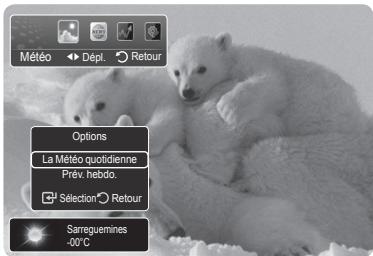
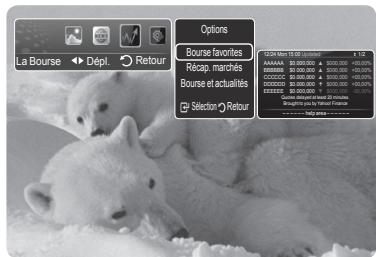
natural_image
Black-and-white photo of three polar bears resting on snow, with no visible text or symbols.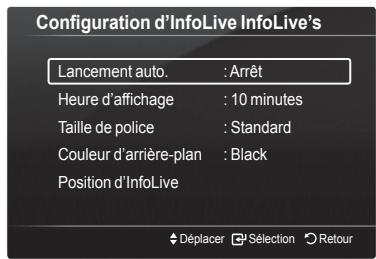
natural_image
Symbol of a trash bin crossed out by two diagonal lines (no text or labels)
natural_image
Technical line drawing of a computer monitor with internal components and mounting base (no text or symbols)Achtung
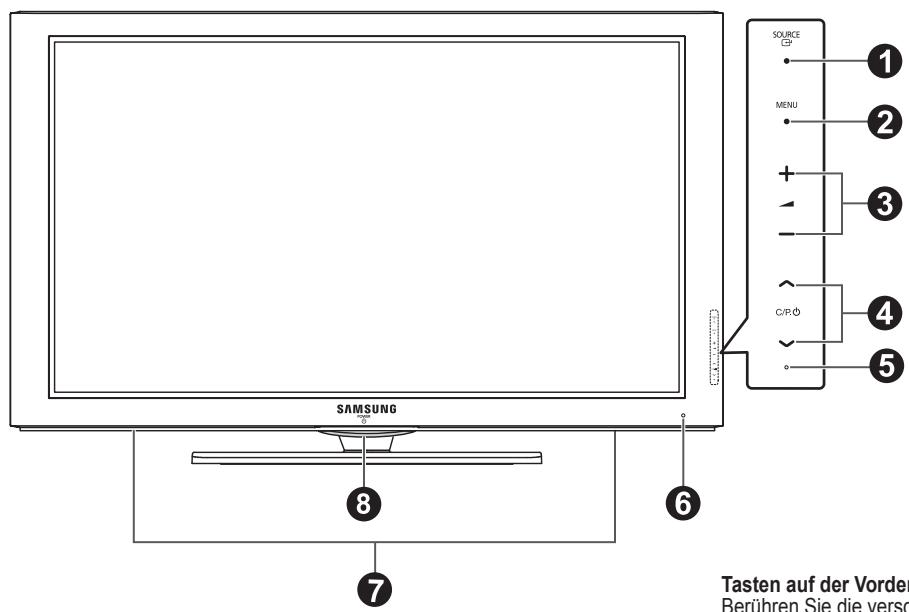
6 DIGITAL AUDIO OUT (OPTICAL)
natural_image
Technical line drawing of a mechanical component with no visible text or symbolsflowchart
graph TD
    A["TOOLS"] --> B["RETURN"]
    B --> C["End"]
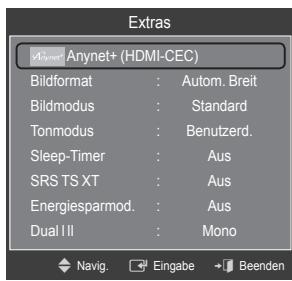
Anzeigemodi
MHEG (Multimedia and Hypermedia Information Coding Experts Group)
natural_image
Black-and-white photo of a cloudy sky with distant clouds, displayed in a media player interface (no readable text or symbols on the image itself)
natural_image
Abstract 3D pattern with wavy lines and arrows, displayed in a video editing interface (no readable text or symbols)| Video Codec | |||
| Dateierweiterung | Container | Video Decoder | Max Resolution Sti |
| *.avi | AVI | XviD | 720x576 |
| MPEG1 | 720x576 | ||
| MPEG2 | 720x576 | ||
| H.264 BP | 1920x1088 | ||
| H.264 BP | 1920x1088 | ||
| H.264 HP | 1920x1088 | ||
| MPEG-4 SP | 720x576 | ||
| MPEG-4 ASP | 720x576 | ||
| *.mp4 | MP4 | H.264 BP | 1920x1088 |
| H.264 MP | 1920x1088 | ||
| H.264 HP | 1920x1088 | ||
| MPEG-4 SP | 720x576 | ||
| MPEG-4 ASP | 720x576 | ||
| *.mpg | PS | MPEG1 (Programmstream) | 1920x1088 |
| *.mpeg | MPEG2 (Programmstream) | 1920x1088 | |
| *.vro | MPEG2 VOB | 1920x1088 | |
| *.vob | MPEG2 VRO | 1920x1088 | |
| andere (ts) | TS | MPEG2 (Programmstream) | 1920x1088 |
| H.264 (Programmstream) | 1920x1088 | ||
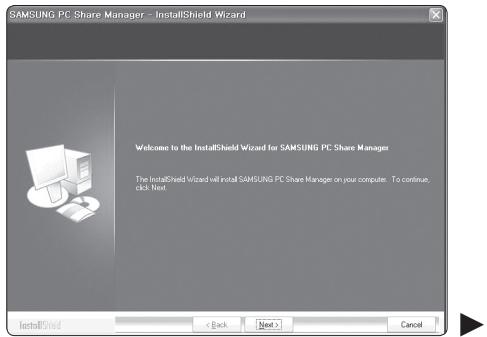
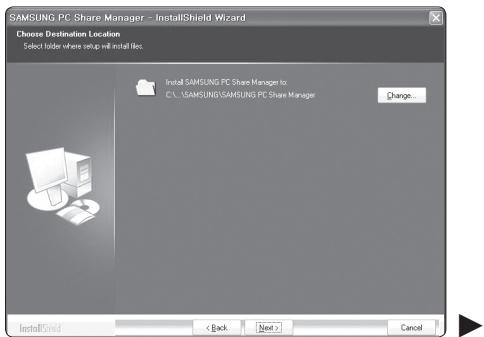
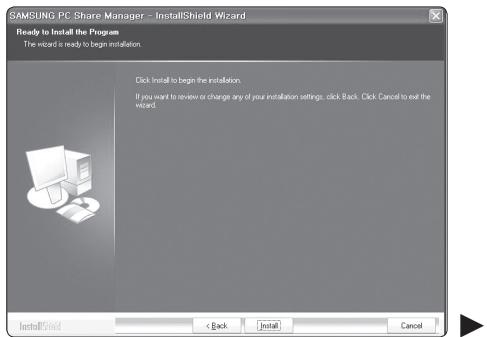
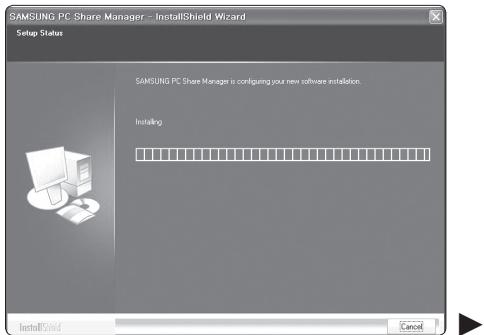
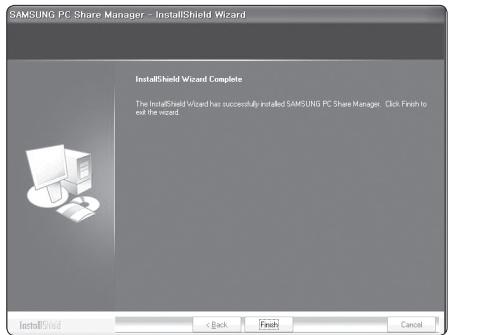
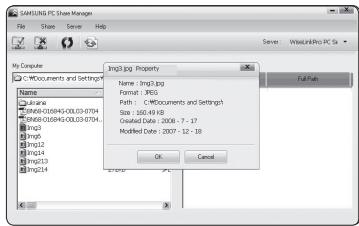
Freigeben
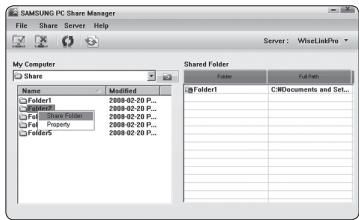
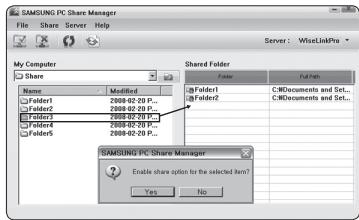
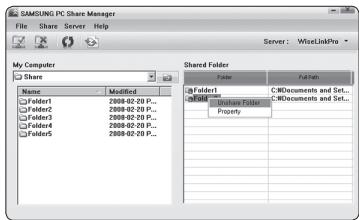
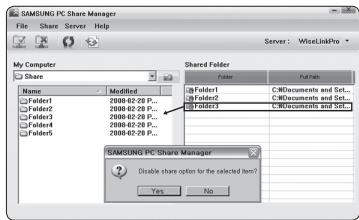
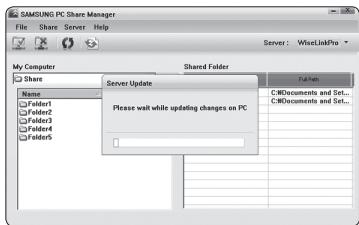
Server
Server
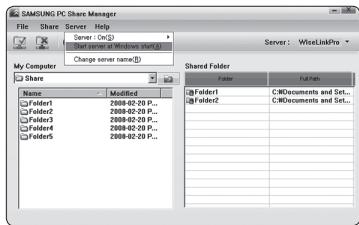
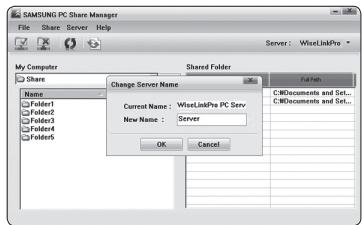
Hilfe
Version
natural_image
Black-and-white photo of three polar bears resting on ice, with no visible text or symbols.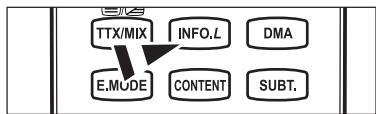
flowchart
graph TD
    A["TTX/MIX"] --> B["E.MODE"]
    C["INFO.L"] --> B
    D["DMA"] --> B
    E["CONTENT"] --> B
    F["SUBT."] --> B
natural_image
Black-and-white photo of three polar bears in cold weather, no text or symbols visible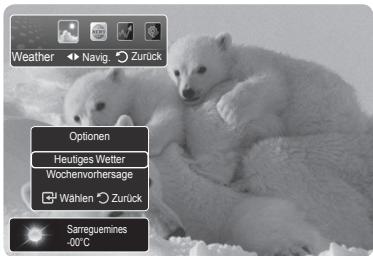
natural_image
Black-and-white photo of three polar bears resting on ice, with no visible text or symbols.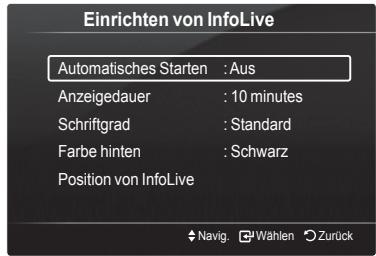
6 📊/(Z) (teletext on/mix)
natural_image
Symbol of a trash bin crossed with no text or labels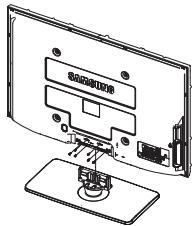
natural_image
Technical line drawing of a computer monitor with an attached cable and drive (no text or symbols)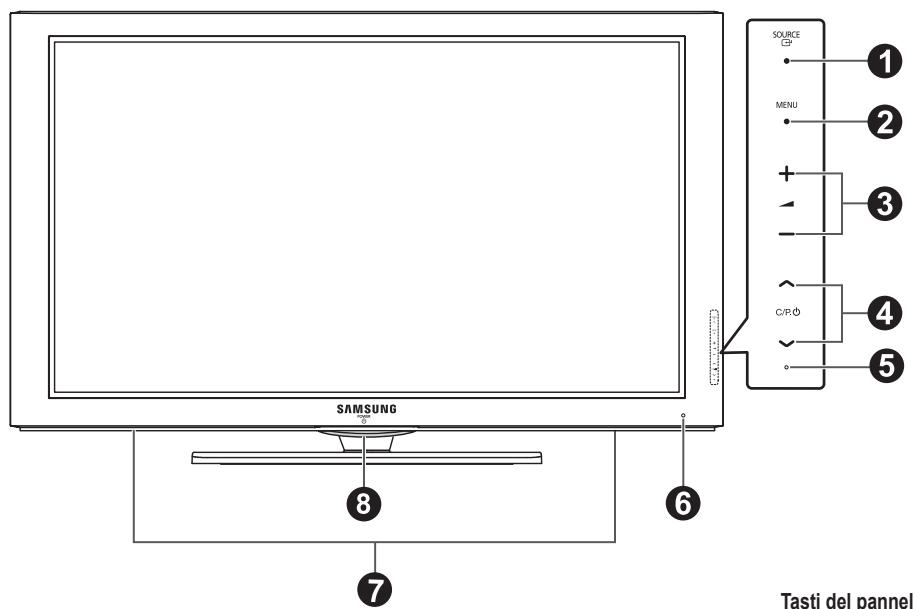
6 DIGITAL AUDIO OUT (OPTICAL)
Supported modes for HDMI/DVI and Component
| 480i | 480p | 576i | 576p | 720p | 1080i | 1080p | |
| HDMI/DVI 50Hz | X | X | X | O | O | O | O |
| HDMI/DVI 60Hz | X | O | X | X | O | O | O |
| Component | O | O | O | O | O | O | O |
Pannello laterale
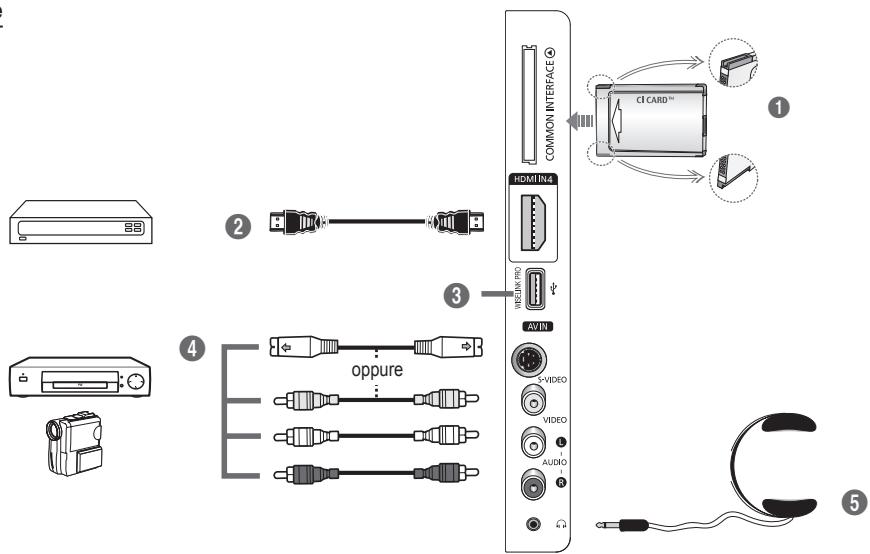
natural_image
Technical line drawing of a mechanical component with no visible text or symbolsYou can use the TOOLS button to select your frequently used functions quickly and easily. The Strumenti menu changes depending on which external input mode you are viewing.
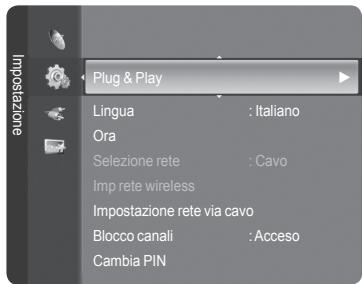
Menu Channel List Option (in All Channels / Added Channels / Favourites)
Channel List Option Menu (in Programme med)
MHEG (Multimedia and Hypermedia Information Coding Experts Group)
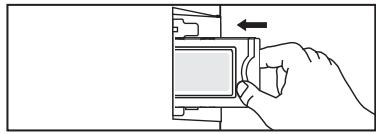
natural_image
Hand pressing a button on a device (no text or symbols visible)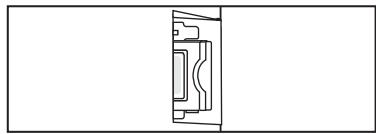
natural_image
Pure technical line drawing of a mechanical component without any text, numbers, or symbolsflowchart
graph TD
    A["Presa Modem a parete"] --> B["Modem esterno (ADSL/VDSL/Cable TV)"]
    B --> C["Cavo Modem"]
    D["IP Sharer (Router)"] --> E["Cavo LAN"]
    F["Pannello posteriore TV"] --> G["Switch with 2.0V/10V power, 3.5V/10V output, 4.5V/10V load, 5.5V/10V grid, 6.5V/10V output"]
Setup Screen can be different depending on the security types.
Modifica Nome
VCR / DVD / VCR / DVD / Cable STB / Satellite STB / PVR STB / AV Receiver / Game / Camcorder / PC / TV / IPTV / Blu-ray / HD DVD / DMA
natural_image
Black-and-white photo of a cloudy sky with a small boat on the horizon, displayed in a video editing interface (no text or symbols on the image itself)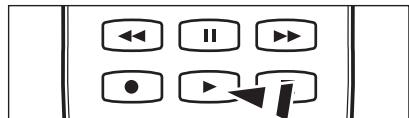
natural_image
Microscopic view of a wavy surface texture with directional arrows and control panel (no readable text or symbols)| Codec Video | |||
| Estensione file | Contenitore | Decodificatore Video | Risoluzione massima Sti |
| *.avi | AVI | XviD | 720x576 |
| MPEG1 | 720x576 | ||
| MPEG2 | 720x576 | ||
| H.264 BP | 1920x1088 | ||
| H.264 BP | 1920x1088 | ||
| H.264 HP | 1920x1088 | ||
| MPEG-4 SP | 720x576 | ||
| MPEG-4 ASP | 720x576 | ||
| *.mp4 | MP4 | H.264 BP | 1920x1088 |
| H.264 MP | 1920x1088 | ||
| H.264 HP | 1920x1088 | ||
| MPEG-4 SP | 720x576 | ||
| MPEG-4 ASP | 720x576 | ||
| *.mpg*.mpeg*.vro*.vob | PS | MPEG1 (Flusso di programma) | 1920x1088 |
| MPEG2 (Flusso di programma) | 1920x1088 | ||
| MPEG2 VOB | 1920x1088 | ||
| MPEG2 VRO | 1920x1088 | ||
| altri(ts) | TS | MPEG2 (Flusso di trasporto) | 1920x1088 |
| H.264 (Flusso di trasporto) | 1920x1088 | ||
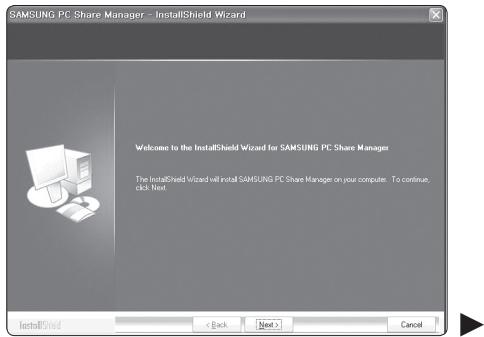
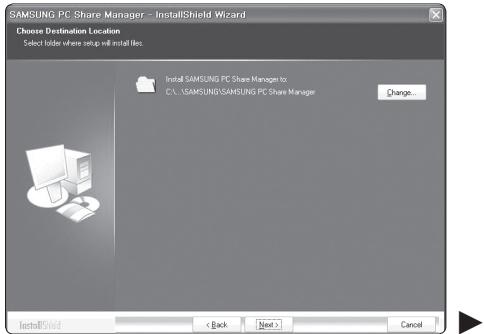
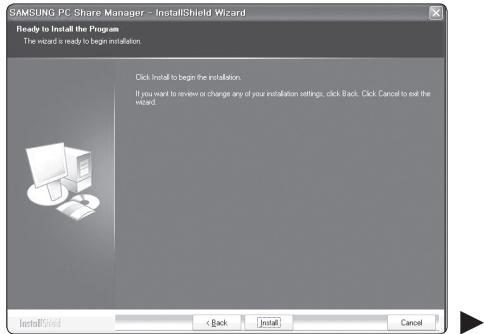
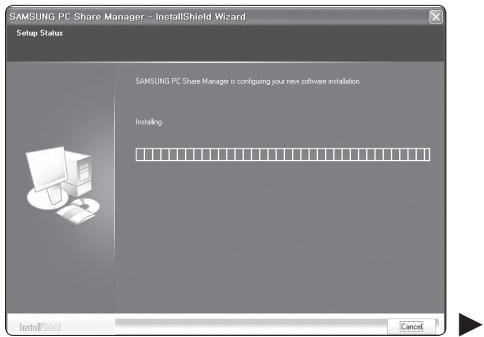
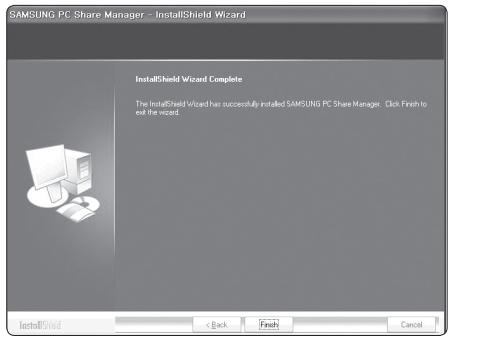
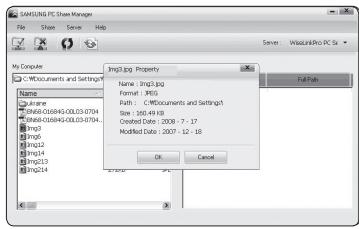
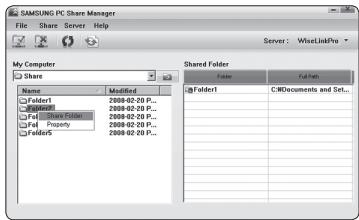
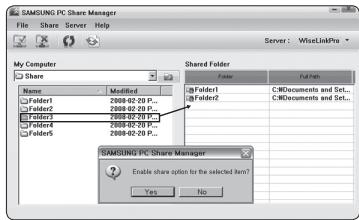
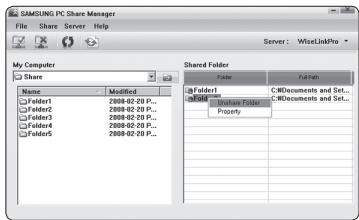
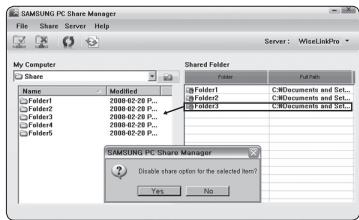
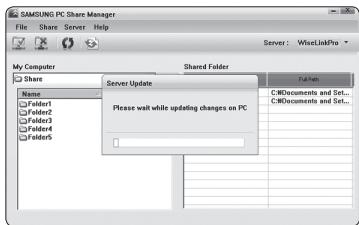
Server
Server
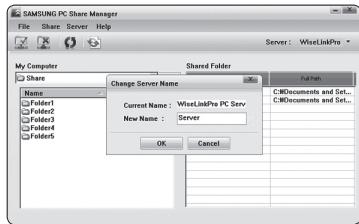
Guida
Versione
Uso del menu DLNA
Sorting Photo List/Viewing the Information/Rotating the Photo file/Viewing a Slide Show
Sorting Music List/Viewing the Information/Playing a music file
Sorting Movie List/Viewing the Information/Playing a Movie file
natural_image
Black-and-white photo of three polar bears in a snowy environment, with no visible text or symbols.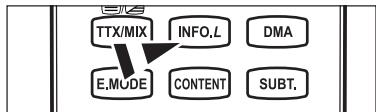
flowchart
graph TD
    A["TTX/MIX"] --> B["E.MODE"]
    C["INFO.L"] --> B
    D["DMA"] --> B
    E["CONTENT"] --> B
    F["SUBT."] --> B
TUTTI I MATERIALI DISPONIBILI ATTRAVERSO INFOLIVE ['INFOLIVE CONTENT'] SONO DI PROPRIETA' DEL LICENZIATARIO DEL CONTENUTO ['PROPRIETARIO DEL CONTENUTO'] E/O DELLE SUE AFFILIATE O LICENZIATARI, E SONO PROTETTI DA LEGGI SUL COPYRIGHT, MARCHI E ALTRE LEGGI RELATIVE ALLA PROPRIETA' INTELLETTUALE. TUTTI I CONTENUTI INFOLIVE SONO FORNITI PER UN USO PERSONALE E NON COMMERCIALE. E' VIETATO L'USO DI QUALSIASI CONTENUTO INFOLIVE IN MODO CHE COSTITUISCA UNA VIOLAZIONE DEI DIRITTI D'AUTORE DEL PROPRIETARIO DEL CONTENUTO O SENZA LA PREVIA AUTORIZZAZIONE SCRITTA DEL PROPRIETARIO DEL CONTENUTO. PIU' IN PARTICOLARE, SENZA L'ESPLICITA AUTORIZZAZIONE CONTENUTA IN QUESTA DICHIARAZIONE DI ESCLUSIONE DI RESPONSABILITA' O RILASCIATA DAL PROPRIETARIO DEL CONTENUTO, E' VIETATO MODIFICARE, COPIARE, RIPRODURRE, RIPUBBLICARE, CARICARE, INVIARE, TRASMETTERE, TRADURRE, VENDERE, CREARE OPERE DERIVANTI O DISTRIBUIRE IN QUALSIASI FORMA O MANIERA (COMPRESO L'INVIO VIA EMAIL O ALTRI MEZZI ELETTRONICI) QUALSIASI CONTENUTO INFOLIVE O QUALSIASI ALTRO MATERIALE DEL SERVIZIO INFOLIVE. I CONTENUTI FORNITI DAL PROPRIETARIO DEI CONTENUTI CONGIUNTAMENTE AL SERVIZIO INFOLIVE POSSONO ESSERE INVIATI IN DIFFERITA COME SPECIFICATO DAL PROPRIETARIO DEI CONTENUTI E/O DAI SUOI AFFILIATI.
INFOLIVE VIENE EROGATO ATTRAVERSO UN ACCORDO TRA SAMSUNG E IL PROPRIETARIO DEI CONTENUTI. IL SERVIZIO INFOLIVE PUO' ESSERE INTERROTTO O TERMINATO IN QUALSIASI MOMENTO DA SAMSUNG O DAL FORNITORE DEI CONTENUTI O MEDIANTE LA CESSAZIONE DELL'ACCORDO VIGENTE TRA LE DUE PARTI. IN NESSUNA CIRCOSTANZA, INCLUSA NEGLIGENZA, SAMSUNG O IL FORNITORE DEI CONTENUTI POSSONO ESSERE RITENUTI RESPONSABILI, SIA PER CONTRATTO SIA PER ILLECITO, DI EVENTUALI DANNI DIRETTI, INDIRETTI, INCIDENTALI, SPECIALI O CONSEQUENZIALI, PARCELLE LEGALI, SPESE, O QUALSIASI ALTRO DANNO DI QUALSIASI NATURA POSSA DERIVARE O ESSERE ASSOCIATO A TALE INTERRUZIONE O CESSAZIONE. POCHE' I CONTENUTI VENGONO TRASMESSI ATTRAVERSO IL SERVIZIO INFOLIVE E VENGONO RICEVUTI TRAMITE LE RETI E LE STAZIONI DI TRASMISSIONE SULLE QUALI SAMSUNG NON HA ALCUN CONTROLLO, SAMSUNG NON SI ASSUME ALCUNA RESPONSABILITA' OD OBBLIGAZIONE PER EVENTUALI INTERRUZIONI O SOSPENSIONE DEI SERVIZI DI NTERCONNESSIONE O PER L'ASSENZA DEI CONTENUTI EVENTUALMENTE DERIVANTI DA TALI EVENTI.
LE INFORMAZIONI FORNITE DAL SERVIZIO INFOLIVE VENGONO EROGATE "COSI' COME SONO" E PERTANTO SAMSUNG NON GARANTISCE LA CORRETTEZZA DELLE INFORMAZIONI FORNITE, IN MODO SIA IMPLICITO SIA ESPLICITO, PER QUALSIASI SPECIFICO UTILIZZO; SAMSUNG NON FORNISCE ESPRESSAMENTE ALCUNA GARANZIA, COMPRESA MA NON LIMITATA A, GARANZIA DI COMMERCIABILITA' O IDONEITA' PER UN PARTICOLARE SCOPO. SAMSUNG NON GARANTISCE L'ACCURATEZZA, LA VALIDITA', LA TEMPESTIVITA', LA LEGALITA', O LA COMPLETEZZA DI QUALSIASI INFORMAZIONE O DATO RESO DISPONIBILE ATTRAVERSO IL SERVIZIO INFOLIVE PER QUALSIASI SCOPO SPECIFICO E IN NESSUNA CIRCOSTANZA, INCLUSA NEGLIGENZA, SAMSUNG PUO' ESSERE RITENUTA RESPONSABILE, SIA PER CONTRATTO SIA PER ILLECITO, PER EVENTUALI DANNI DIRETTI, INDIRETTI, INCIDENTALI, SPECIALI O CONSEQUENZIALI, PARCELLE LEGALI, SPESE, O EVENTUALI ALTRI DANNI DERIVANTI O RELATIVI A QUALSIASI INFORMAZIONE CONTENUTA, O COME RISULTATO DELL'USO DEL SERVIZIO INFOLIVE DA PARTE DELL'UTENTE O DI TERZI ANCHE SE AVVISATI DELL'EVENIENZA DI TALI DANNI.
L'ACCESSO A INFOLIVE È SOGGETTO AI TERMINI DEL SERVIZIO DI YAHOO! DISPONIBILI ALLA PAGINA 67.
I TERMINI DEL SERVIZIO DI YAHOO! IN **LANGUAGE** SONO DISPONIBILI SUL SITO WEB ALLA PAGINA **ADDRESS**.
| Francese | http://fr.docs.yahoo.com/info/utos.html | Svedese | http://se.docs.yahoo.com/seterms.html |
| Tedesco | http://de.docs.yahoo.com/info/utos.html | Danese | http://dk.docs.yahoo.com/termsofservice.html |
| Italiano | http://it.docs.yahoo.com/info/utos.html | Finlandese | http://fi.docs.yahoo.com/info/terms/?fr=sfp |
| Spagnolo | http://es.docs.yahoo.com/info/utos.html |
natural_image
Black-and-white photo of two polar bears resting together, with a camera interface panel showing location options (Meteo, Sposta, Ritorno) in the top left corner.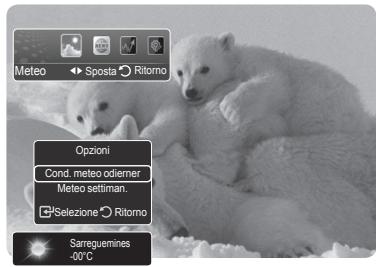
natural_image
Black-and-white photo of three polar bears resting on snow, with no visible text or symbols in the image itself.flowchart
graph TD
    subgraph_Input_Jack["Input Jack"]
        A["PCMCIA"] --> B["TS S/W LCX16244"]
        C["DVB NIM Tuner"] --> D["HDMI 1,2,3,4"]
        E["DVI Audio"] --> F["EXT 1/2"]
        G["PC"] --> H["USB"]
        I["COMPONENT"] --> J["VIDEO"]
        J --> K["S-VIDEO"]
    end

    subgraph ANT
        L["ANT"] --> M["HDMI 1,2,3,4"]
        M --> N["DVI Audio"]
        N --> O["EXT 1/2"]
        P["PC"] --> Q["USB"]
        R["COMPONENT"] --> S["VIDEO"]
        S --> T["S-VIDEO"]

    end

    subgraph_MAIN_Part["MAIN Part"]
        U["STi7103 CPU DEMUX MPEG A/V-DECODER PAL ENCODER HOST-INTERFACE PERIPHERALS"] --> V["CPU Multi Decoder De-interlacer Scaler LVDS Out (10bit-dual) FHD Output Caption/TTX 10bit process"]
    V --> W["Micom 3D Comb Multi Decoder De-interlacer Scaler LVDS Out (10bit-dual) FHD Output Caption/TTX 10bit process"]
    W --> X["Video SW MM74HC"]
    W --> Y["Video SW"]
    W --> Z["USB_HUB"]
    W --> AA["USB_DM/DP"]
    W --> AB["USB_DM/DP"]
    W --> AC["SC1: RGB, CVBS, FB"]
    W --> AD["SC1: CVBS_OUT"]
    W --> AE["SC2:CVBS"]
    W --> AF["R,G,B,Hsync,Vsync"]
    W --> AG["USB_DM/DP"]
    W --> AH["Y,Pb,Pr"]
    W --> AI["VCBS"]
    W --> AJ["Y,C"]
    W --> AK["SC1_R/L_OUT"]
    W --> AL["SC2_R/L_OUT"]
    W --> AM["DAC WM8521"]
    W --> AN["AUDIO CODEC MT8291"]
    W --> AO["I2S"]
    W --> AP["I2S"]
    W --> AQ["I2S"]
    W --> AR["I2S"]
    W --> AS["I2S"]
    W --> AT["I2S"]
    W --> AU["I2S"]
    W --> AV["I2S"]
    W --> AW["I2S"]
    W --> AX["I2S"]
    W --> AY["I2S"]
    W --> AZ["I2S"]
    W --> BA["I2S"]
    W --> BB["I2S"]
    W --> BC["I2S"]
    W --> BD["I2S"]
    W --> BE["I2S"]
    W --> BF["I2S"]
    W --> BG["I2S"]
    W --> BH["I2S"]
    W --> BI["I2S"]
    W --> BJ["I2S"]
    W --> BK["I2S"]
    W --> BL["I2S"]
    W --> BM["I2S"]
    W --> BN["I2S"]
    W --> BO["I2S"]
    W --> BP["I2S"]
    W --> BQ["I2S"]
    W --> BR["I2S"]
    W --> BS["I2S"]
    W --> BT["I2S"]
    W --> BU["I2S"]
    W --> BV["I2S"]
    W --> BW["I2S"]
    W --> BX["I2S"]
    W --> BY["I2S"]
    W --> BZ["I2S"]
    W --> CA["I2S"]
    W --> CB["I2S"]
    W --> CC["I2S"]
    W --> CD["I2S"]
    W --> CE["I2S"]
    W --> CF["I2S"]
    W --> CG["I2S"]
    W --> CH["I2S"]
    W --> CI["I2S"]
    W --> CJ["I2S"]
    W --> CK["I2S"]
    W --> CL["I2S"]
    W --> CD
    W --> DD["I2S"]
    W --> DE["I2S"]
    W --> DF["I2S"]
    W --> DG["I2S"]
    W --> DH["I2S"]
    W --> DI["I2S"]
    W --> DJ["I2S"]
    W --> DK["I2S"]
    W --> DL["I2S"]
    W --> DV["I2S"]
    W --> DW["I2S"]
    W --> DX["I2S"]
    W --> DY["I2S"]
    W --> DX
    style Input_Jack fill:#f9f,stroke:#333
    style MAIN_Part fill:#ccf,stroke:#333
natural_image
Symbol of a trash bin crossed with diagonal lines, no text or labels presentA ‘cracking’ noise may occur when the product contracts or expands due to a change of surrounding environment such as temperature or humidity. This is normal and not a defect of the unit.
Defecto de celda
natural_image
Technical line drawing of a computer monitor with internal components and mounting base (no text or symbols)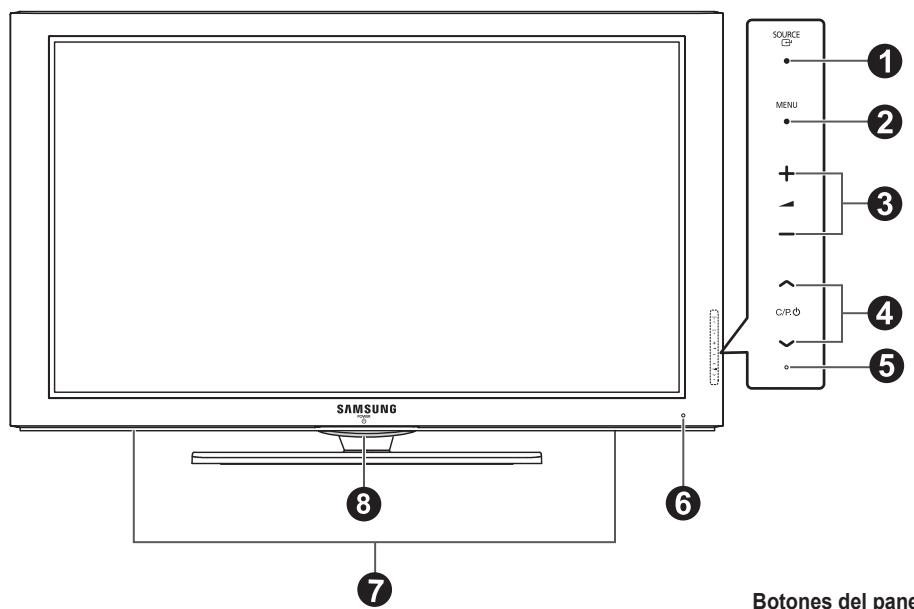
6 DIGITAL AUDIO OUT (OPTICAL)
natural_image
Technical line drawing of a mechanical component with no visible text or symbolsEncendido y apagado
Añadir a Favoritos / Delete to Favourite
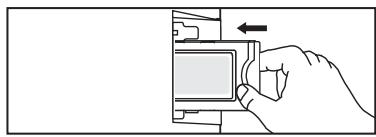
natural_image
Hand pressing a button on a device (no text or symbols visible)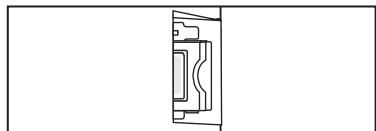
natural_image
Pure mechanical component diagram without any text, numbers, or symbols☐ Editar nombre
VCR / DVD / VCR / DVD / Cable STB / Satellite STB / PVR STB / AV Receiver / Game / Camcorder / PC / TV / IPTV / Blu-ray / HD DVD / DMA
natural_image
Black-and-white photo of a cloudy sky over the ocean, captured in a video editing interface (no text or symbols on the image itself)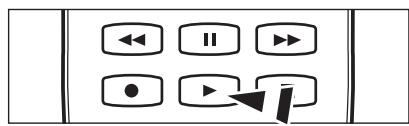
natural_image
Microscopic view of a textured surface with wavy patterns, captured via SEM software interface (no readable text or symbols)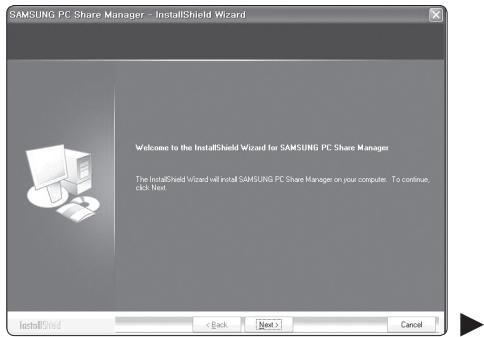
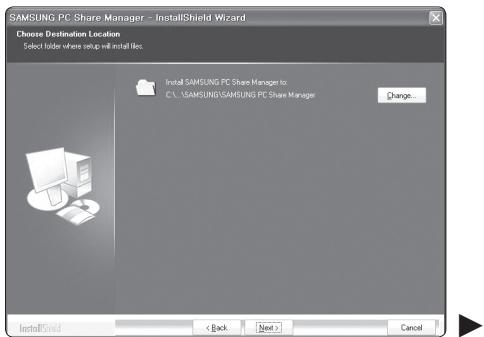
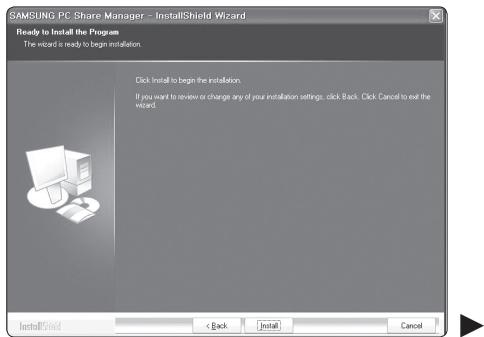
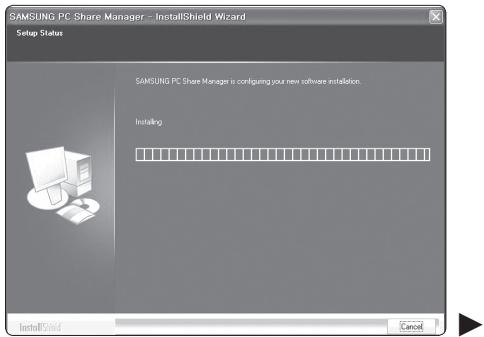
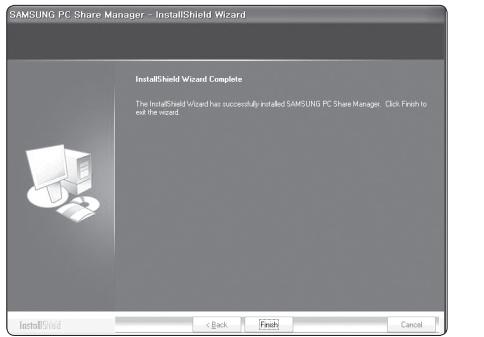
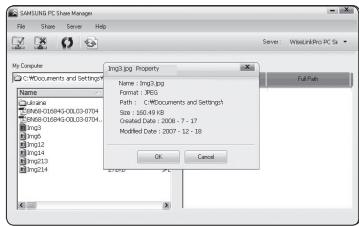
compartir
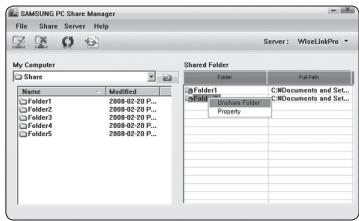
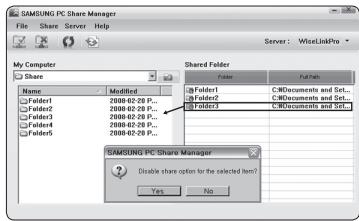
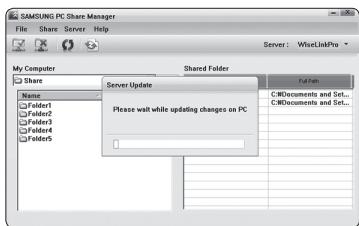
Servidor
Servidor
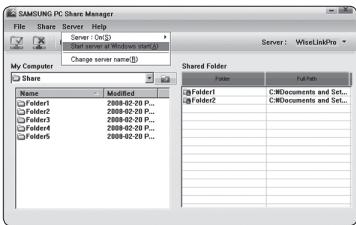
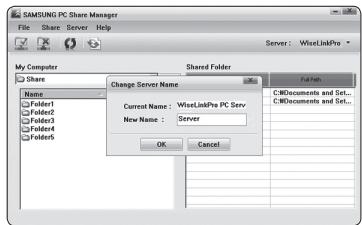
Ayuda
Version
Sorting Photo List/Viewing the Information/Rotating the Photo file/Viewing a Slide Show
Sorting Music List/Viewing the Information/Playing a music file
Sorting Movie List/Viewing the Information/Playing a Movie file
natural_image
Black-and-white photo of three polar bears resting on snow, with a small icon panel showing 'Tiempo' and navigation buttons (Mover, Volver) in the corner.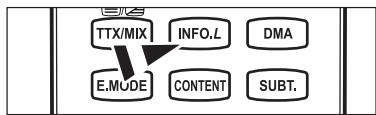
flowchart
graph TD
    A["TTX/MIX"] --> B["E.MODE"]
    C["INFO.L"] --> B
    D["DMA"] --> B
    E["CONTENT"] --> B
    F["SUBT."] --> B
TODOS LOS MATERIALES DISPONIBLES A TRAVÉS DE INFOLIVE ['INFOLIVE CONTENT'] SON PROPIEDAD DEL CREADOR DEL CONTENIDO ['PROPIETARIO DEL CONTENIDO'] Y SUS AFILIADOS O LICENCIATARIOS, Y ESTÁN PROTEGIDOS POR LAS LEYES DE COPYRIGHT, MARCAS COMERCIALES Y OTRAS DE PROPIEDAD INTELECTUAL. EL CONTENIDO DE INFOLIVE SE PROPORCIONA SÓLO PARA USO PERSONAL NO COMERCIAL. NO SE PUEDE USAR NINGÚN CONTENIDO DE INFOLIVE DE UNA MANERA QUE CONSTITUYA UN INFRINGIMIENTO DE LOS DERECHOS DE LOS PROPIETARIOS DEL CONTENIDO O QUE NO SEA AUTORIZADA POR EL PROPIETARIO DEL CONTENIDO. MÁS ESPECIFÍCAMENTE, A MENOS QUE SEA AUTORIZADO EXPLÍCITAMENTE EN ESTE DESCARGO DE RESPONSABILIDAD O POR EL PROPIETARIO DEL CONTENIDO, NO SE PUEDE MODIFICAR, COPIAR, REPRODUCIR, VOLVER A PUBLICAR, CARGAR, ENVIAR POR CORREO, TRANSMITIR, TRASLADAR, VENDER, CREAR TRABAJOS DERIVADOS DE ELLOS, EXPLOTAR NI DISTRIBUIR DE NINGUNA MANERA O POR NINGÚN MEDIO (INCLUIDO EL CORREO ELECTRÓNICO U OTROS MEDIOS ELECTRÓNICOS) NINGÚN CONTENIDO DE INFOLIVE NI OTRO MATERIAL DESDE EL SERVICIO DE INFOLIVE. EL CONTENIDO PROPORCIONADO EN CONEXIÓN CON EL SERVICIO DE INFOLIVE SE PUEDE TEMPORIZAR DE ACUERDO CON LO ESPECIFICADO POR EL PROPIETARIO DEL CONTENIDO Y SUS AFILIADOS.
natural_image
Black-and-white photo of two polar bears resting on ice, with no visible text or symbols in the main image area.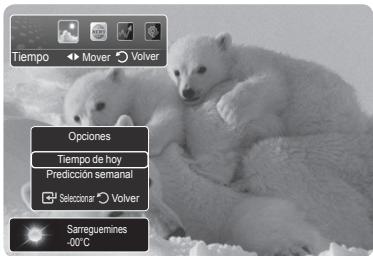
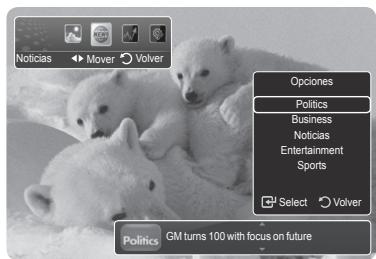
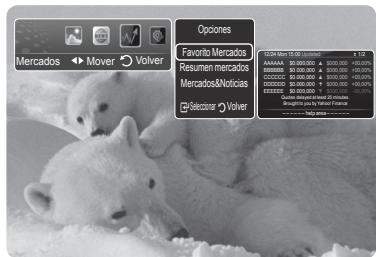
natural_image
Black-and-white photo of three young penguins resting on snow, with no visible text or symbols.Para impedir que el televisor se caiga:
natural_image
Simple line drawing of a trash bin with two crossed lines indicating no waste or prohibition (no text or symbols)