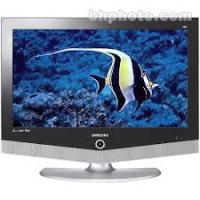
LN-R238WXC - TV SAMSUNG - Free user manual and instructions
Find the device manual for free LN-R238WXC SAMSUNG in PDF.



| Product type | TFT LCD TV |
| Brand | Samsung |
| Model | LN-R238WXC |
| Screen size (diagonal) | 23 inches (58.4 cm) |
| Maximum PC resolution | 1280 x 720 @ 60 Hz |
| Power supply | AC 110-120 V, 60 Hz |
| Power consumption | 100 W maximum |
| Audio output | 3 W + 3 W |
| Dimensions (with stand) | 583.0 x 206.0 x 484.7 mm |
| Weight (with stand) | 8.6 kg |
| Main features | DNIe (Digital Natural Image engine), Dynamic Contrast, Brightness sensor, SRS TruSurround XT, HDMI, PIP (Picture-in-Picture), V-Chip (parental control), Fine tuning, Screen zoom |
| Connectivity | ANT IN, AV IN (x2), S-Video IN, Component IN (x2), PC IN (D-Sub + audio), HDMI/DVI IN, Audio Out, Headphone jack, Anynet |
| Screen formats | Wide (16:9), Panorama, Zoom, 4:3 |
| Preset image modes | Dynamic, Standard, Movie, Personal |
| Preset sound modes | Standard, Music, Movie, Speech, Personal |
| Parental control | V-Chip with TV, MPAA, Canadian (English/French) ratings |
| Subtitles | Closed Captions (CC) with Text and Caption modes |
| Timer | On/Off timer, Sleep |
| Maintenance and cleaning | Use a soft, dry cloth. Avoid solvents. Clean the screen with the provided cleaning cloth. |
| Safety | Kensington lock for anti-theft. Do not expose to moisture. Precautions against prolonged still images to prevent screen burn. |
| Operating temperature | 10 °C to 40 °C |
| Operating humidity | 10 % to 80 % (non-condensing) |
Frequently Asked Questions - LN-R238WXC SAMSUNG
User questions about LN-R238WXC SAMSUNG
0 question about this device. Answer the ones you know or ask your own.
Ask a new question about this device
Download the instructions for your TV in PDF format for free! Find your manual LN-R238WXC - SAMSUNG and take your electronic device back in hand. On this page are published all the documents necessary for the use of your device. LN-R238WXC by SAMSUNG.
USER MANUAL LN-R238WXC SAMSUNG
If you have any questions or comments relating to Samsung products, please contact the SAMSUNG customer care center.
Owner's Instructions
This device is a Class B digital apparatus.
Register your product at www.samsung.com/global/register
Precautions When Displaying a Still Image
A still image may cause permanent damage to the TV screen.
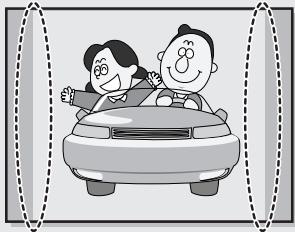
- Digital Ready TV: When you select the regular screen (4:3) mode to watch an SD-grade digital broadcast (and the set-top box output is 480p).
natural_image
Cartoon illustration of a smiling car driver and passenger (no text or symbols)- Digital Ready TV: When you select the wide screen (16:9) mode to watch an SD-grade digital broadcast (and the set-top box output is 1080i).
natural_image
Cartoon illustration of a family driving a car inside a dashed frame (no text or symbols)Although digital broadcasting must be in the wide screen (16:9) HD format, broadcasters sometimes show programs made originally in the regular screen format (4:3) by converting the signals into digital form, in which case the left and right side edges of the screen are cropped.
Note: If the borders at the left, right and the center of the screen remain fixed for an extended period of time, the amount of light transmission will also remain varied and as a result the borders may leave traces.
Do not leave the screen in pause mode for extended periods of time as you may experience temporary or permanent image burn.
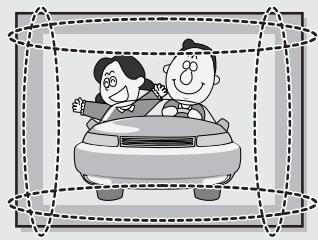
- Digital Ready TV: When the TV receives HD-grade signals (and the set-top box output is 1080i).
natural_image
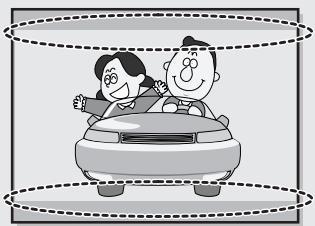
Cartoon illustration of a smiling car driver and a smiling passenger inside a dashed rectangular frame (no text or symbols)When you watch a digital HD-grade broadcast on a regular (4:3) TV with the screen size "16:9" or "Panorama" selected, you will be able to watch the program but the top and bottom edges of the screen will be cropped.
Note: If the borders at the top, bottom and the center of the screen remain fixed for an extended period of time, the amount of light transmission will also remain varied and as a result the borders may leave traces.
Do not leave the screen in pause mode for extended periods of time as you may experience temporary or permanent image burn.
- Integrated Digital TV (Wide-screen): When the TV receives SD-grade (regular) broadcasting signals (receives 480p regular signals).
- Digital Ready TV (wide-screen): digital TV: When the TV receives SD-grade (regular) broadcasting signals (with a set-top box).
- When you watch an analog (regular) broadcast on a wide-screen TV (with the 4:3 screen mode selected).
natural_image
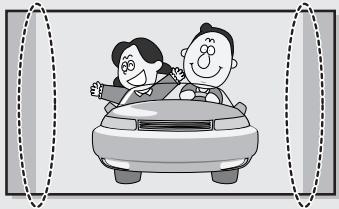
Cartoon illustration of a smiling couple driving a car (no text or symbols)Although digital broadcasting must be in the wide screen (16:9) HD format, broadcasters sometimes show programs made originally in the regular screen format (4:3) by converting the signals into digital form, in which case the left and right side edges of the screen are cropped.
Note: If the borders at the left, right and the center of the screen remain fixed for an extended period of time, the amount of light transmission will also remain varied and as a result the borders may leave traces.
Do not leave the screen in pause mode for extended periods of time as you may experience temporary or permanent image burn.
- When you watch a DVD, CD or a video in wide-screen (21:9) format on a wide-screen (16:9) TV.
- When you connect a computer or a game console to the TV and select the 4:3 screen mode.
natural_image
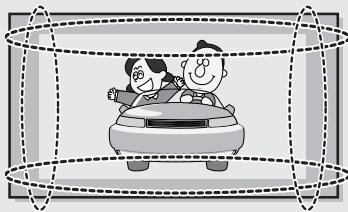
Cartoon illustration of a family driving a car inside a vehicle (no text or symbols)If you connect a DVD player, computer or a game console to the wide-screen TV and watch a movie or play a game in regular (4:3) or wide (21:9) screen mode, the left and right side edges, or the top and bottom edges of the screen will be cropped.
Note: If the borders at the left, right and the center of the screen remain fixed for an extended period of time, the amount of light transmission will also remain varied and as a result the borders may leave traces.
Do not leave the screen in pause mode for extended periods of time as you may experience temporary or permanent image burn.
Chapter 1: General Information
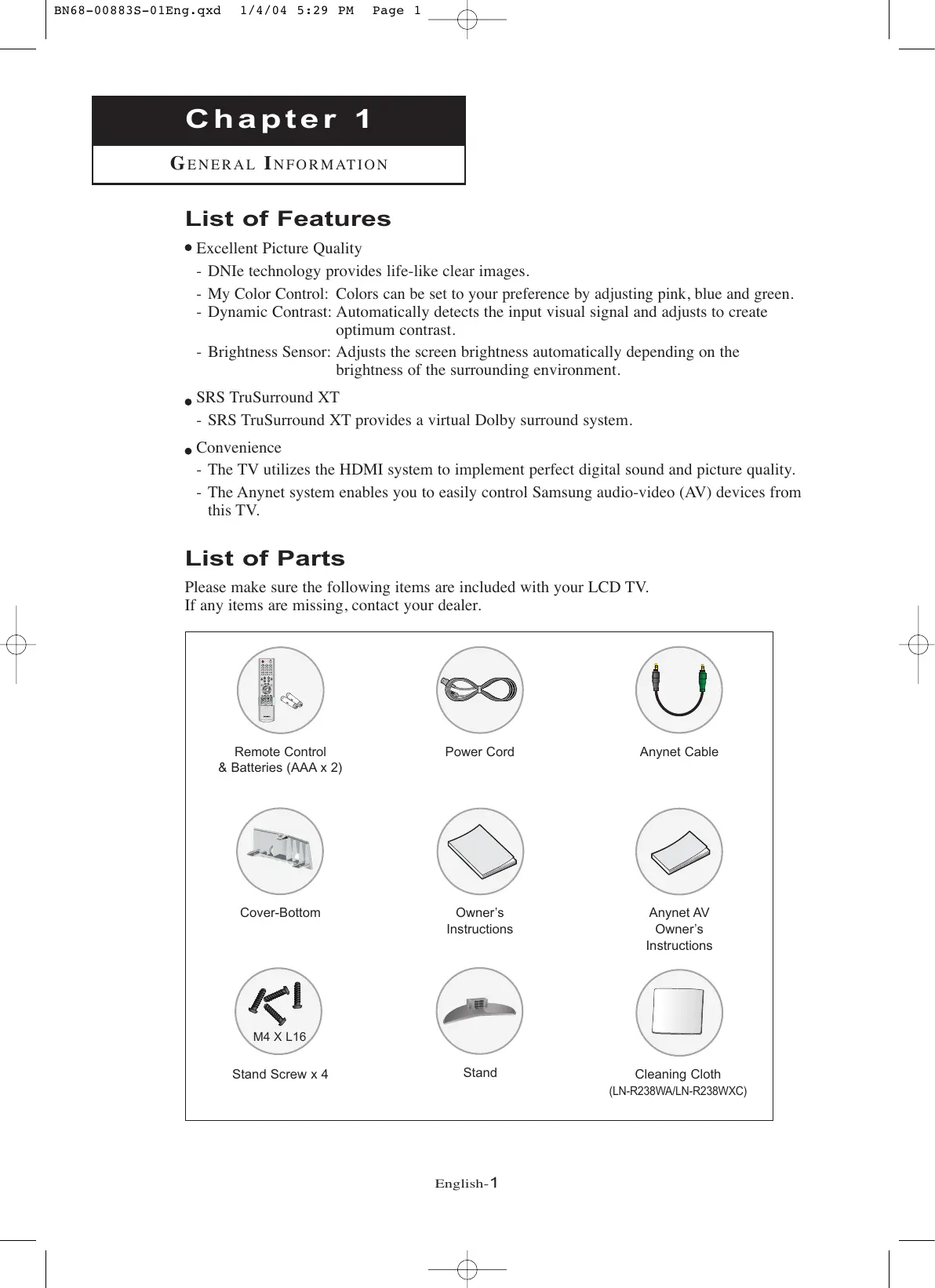
List of Features 1
List of Parts 1
Familiarizing Yourself with Your New TV 2
Buttons on the Lower-Right Part of the Panel 2
Rear Panel Jacks 3
Remote Control 4
Installing Batteries in the Remote Control 6
If the remote control doesn't work 6
Chapter 2: Connections
Connecting VHF and UHF Antennas 7
Antennas with 300-ohm Flat Twin Leads 7
Antennas with 75-ohm Round Leads 8
Separate VHF and UHF Antennas 8
Connecting Cable TV 9
Cable without a Cable Box 9
Connecting to a Cable Box that Descrambles All Channels ..... 9
Connecting to a Cable Box that Descrambles Some Channels . . . 9
Connecting a VCR 11
Connecting an S-VHS VCR 13
Connecting a DVD Player 14
Connecting a Digital TV Set-top box 15
Connecting an Amplifier/DVD Home Theater 15
Connecting a DVD/Set-top box via DVI 16
Connecting a DVD/Set-top box via HDMI 17
Connecting a PC 18
Chapter 3: Operation
Turning the TV On and Off 19
Changing Channels 19
Using the Channel Buttons 19
Using the Number Buttons 19
Using the PRE-CH Button to select the Previous Channel ..... 19
Adjusting the Volume 20
Using Mute 20
Viewing the Display 21
Viewing the Menus 21
Plug & Play Feature 22
Memorizing the Channels 24
Selecting the Video Signal-source 24
Storing Channels in Memory (Automatic Method) 25
Adding and Erasing Channels (Manual Method) 26
To Select the Source 27
To Edit the Input Source Name 28
Chapter 4: Picture Control
Using Automatic Picture Settings 29
Customizing the Picture 30
Adjusting the Color Tone 31
Changing the Screen Size 32
Zoom 33
Freezing the Picture 34
Digital Noise Reduction 34
DNIe (Digital Natural Image engine) 35
My Color Control 36
Easy Control 36
Detail Control 37
Dynamic Contrast 38
Brightness Sensor 39
Viewing Picture-in-Picture 40
Activating Picture-in-Picture 40
Selecting a Signal Source (External A/V) for PIP 41
Swapping the Contents of the PIP and Main image 41
Changing the PIP Channel 41
Changing the Size of the PIP Window 42
Changing the Position of the PIP Window 42
PIP Settings 42
Chapter 5: Sound Control
Using Automatic Sound Settings 43
Customizing the Sound 44
Setting the TruSurround XT (SRS TSXT) 45
Choosing a Multi-Channel Sound (MTS) Soundtrack 46
Automatic volume control 47
Selecting the Internal Mute 48
Selecting the Main or Sub (PIP) Sound 49
Chapter 6: Channel Control
Fine Tuning Channels 50
Chapter 7: PC Display
Using Your TV as a Computer (PC) Display 51
Setting Up Your PC Software (Based on Windows XP) ..... 51
How to Auto Adjust 52
Adjusting the Screen Quality 53
Changing the Screen Position 54
Initializing the Screen Position or Color Settings 55
Chapter 8: Time Setting
Setting the Clock 56
Setting the Sleep Timer 57
Setting the On/Off Timer 58
Chapter 9: Function Description
Selecting a Menu Language 60
Using the V-Chip 61
Setting Up Your Personal ID Number (PIN) 61
How to Enable/Disable the V-Chip 63
How to Set up Restrictions Using the 'TV Parental Guidelines' . 64
How to Set up Restrictions Using the MPAA Ratings:
G, PG, PG-13, R, NC-17, X, NR 67
How to Reset the TV after the V-Chip
Blocks a Channel ('Emergency Escape') 68
How to Set up Restrictions Using the ‘Canadian English’ ..... 69
How to Set up Restrictions Using the ‘Canadian French’ ..... 70
Viewing Closed Captions 71
Setting the Blue Screen Mode 73
Selecting the Melody 74
Chapter 10: Troubleshooting
Identifying Problems 75
Appendix
Installing the stand 77
Disconnecting the stand 77
Installing the Wall Mount Kit 78
Using the Anti-Theft Kensington Lock 79
Using Your TV in Another Country 79
Specifications 80
Display Modes 81
List of Features
• Excellent Picture Quality
- DNIe technology provides life-like clear images.
- My Color Control: Colors can be set to your preference by adjusting pink, blue and green.
- Dynamic Contrast: Automatically detects the input visual signal and adjusts to create optimum contrast.
- Brightness Sensor: Adjusts the screen brightness automatically depending on the brightness of the surrounding environment.
• SRS TruSurround XT
- SRS TruSurround XT provides a virtual Dolby surround system.
- Convenience
- The TV utilizes the HDMI system to implement perfect digital sound and picture quality.
- The Anynet system enables you to easily control Samsung audio-video (AV) devices from this TV.
List of Parts
Please make sure the following items are included with your LCD TV. If any items are missing, contact your dealer.
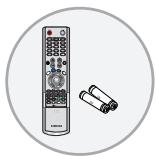
Remote Control & Batteries (AAA x 2)
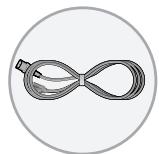
Power Cord
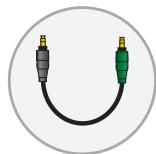
Anynet Cable
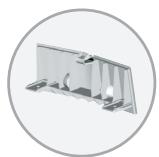
Cover-Bottom
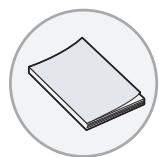
Owner's Instructions
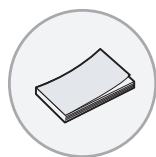
Anynet AV
Owner's
Instructions
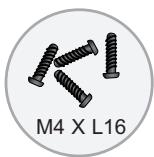
Stand Screw x 4
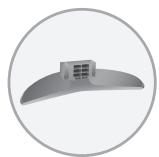
Stand
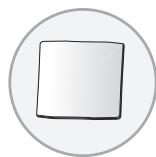
Cleaning Cloth
(LN-R238WA/LN-R238WXC)
Familiarizing Yourself with Your New TV
Buttons on the Lower-Right Part of the Panel
The buttons on the lower-right panel control your TV's basic features, including the on-screen menu. To use the more advanced features, you must use the remote control.
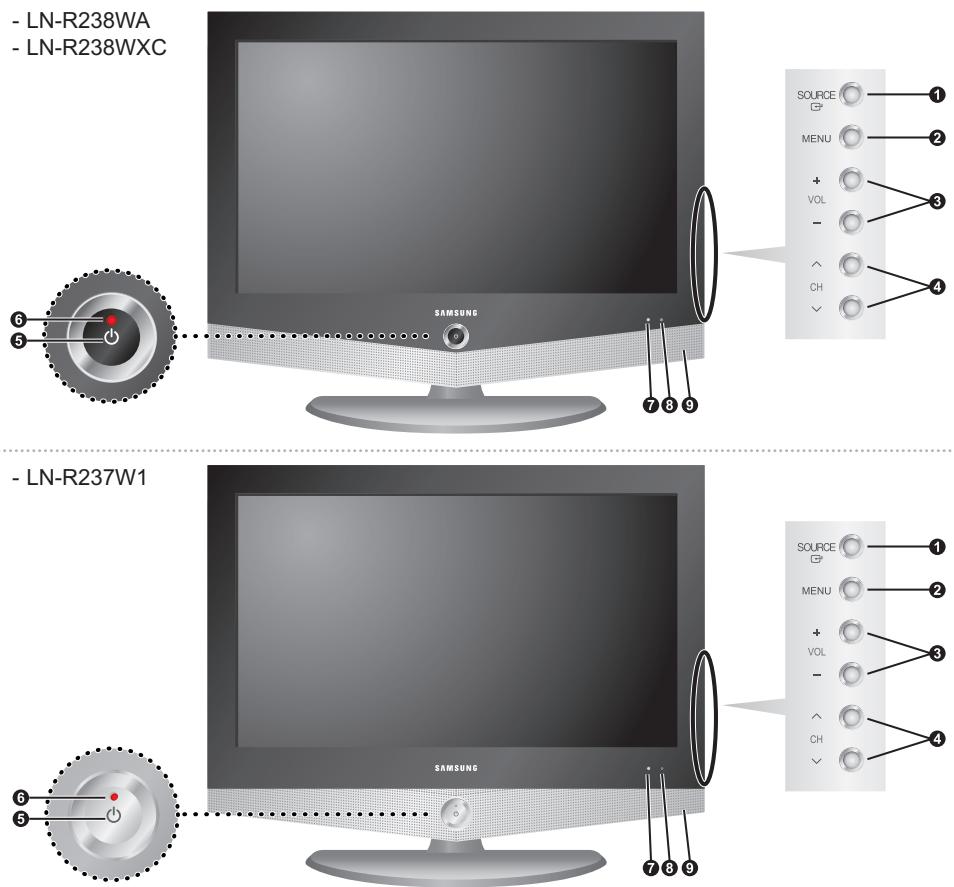
- LN-R238WA
- LN-R238WXC
- LN-R237W1
Note: The product color may vary depending on the model.
① SOURCE
Displays a menu of all of the available input sources (TV, AV1, AV2, S-Video, Component 1, Component 2, PC, HDMI). In the on-screen menu, use this button as you use the ENTER button on the remote control.
② MENU
Press to see an on-screen menu of your TV's features.
③ - VOL +
Press to decrease or increase the volume. In the on-screen menu, use the - VOL + buttons as you use the ◀ and ▶ buttons on the remote control.
4 ∨ CH ∧
Press to change channels. In the on-screen menu, use the ▼ch∧ buttons as you use the ▼ and ▲ buttons on the remote control. (Without the Remote Control, You can turn on TV by using the Channel buttons.)
5 ⏻ (POWER)
Press to turn the TV on and off.
6 POWER INDICATOR
Blinks and turns off when the power is on and lights up in stand-by mode.
7 LIGHT DETECTING SENSOR
Adjusts the brightness of the screen automatically by detecting brightness of the surrounding environment. This sensor works when the Brightness Sensor is on.
8 REMOTE CONTROL SENSOR
Aim the remote control towards this spot on the TV.
9 SPEAKERS
Rear Panel Jacks
Use the rear panel jacks to connect an A/V component that will be connected continuously such as a VCR or a DVD player.
For more information on connecting equipment, see pages 7-18.
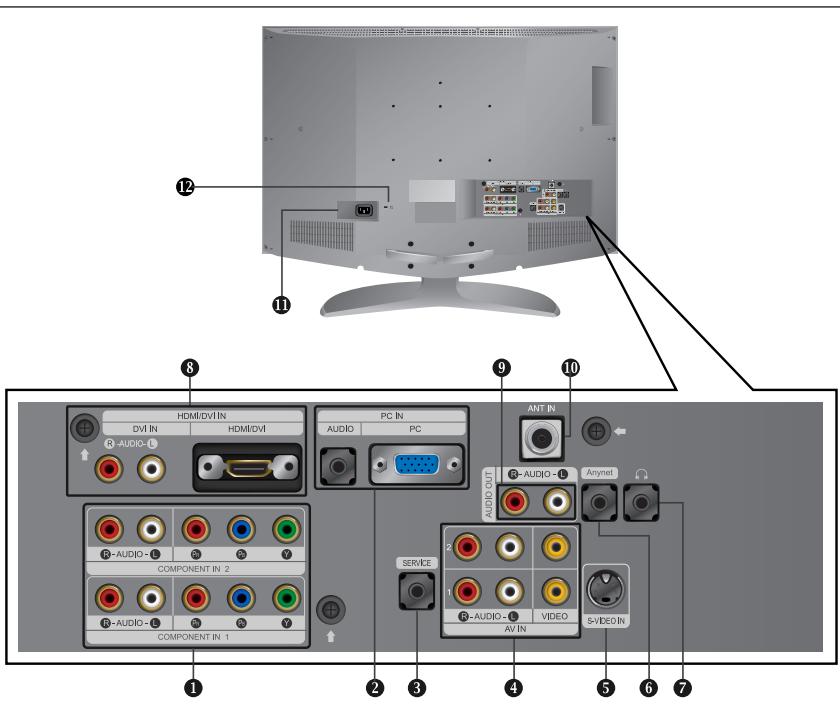
① COMPONENT IN 1, 2
Connect component video/audio from a DVD/Set-top box.
2 PC IN
Connect to the video and audio output jack on your PC.
③ SERVICE
Connector for service only.
4 AV IN 1, 2
Video and audio inputs for external devices, such as a camcorder or VCR.
5 S-VIDEO IN
Video inputs for external devices with an S-Video output, such as a camcorder or VCR.
6 Anynet
Refer to "Anynet AV Owner's Instructions".
7 HEADPHONE JACK
Connect a set of external headphones for private listening.
8 HDMI/DVI IN (R-AUDIO-L)
Connect to the HDMI jack of a device with HDMI output. Use the HDMI/DVI terminal for DVI connection to an external device. You should use the DVI-to-HDMI cable or DVI-HDMI Adaptor for the connection, and the 'R -AUDIO -L' terminal on DVI-IN for sound output. (HDMI/DVI IN terminal does not support PC.)
9 AUDIO OUT
Connect to the audio input jack on your amplifier.
10 ANT IN
Connect to an antenna or to a cable TV system.
11 POWER INPUT
Connect the supplied power cord.
12 KENSINGTON LOCK
Refer to "Using the Anti-Theft Kensington Lock" on page 79.
| Speaker | Audio Out | |||||
| RF | AV, S-Video | Component, PC, HDMI | RF | AV, S-VIDEO | Component, PC, HDMI | |
| Internal Mute Off | Speaker Output | Speaker Output | Speaker Output | Sound Output | Sound Output | Sound Output |
| Internal Mute On | Mute | Mute | Mute | Sound Output | Sound Output | Sound Output |
| Video No Signal | Mute | Mute | Mute | Mute | Sound Output | Sound Output |
Remote Control
You can use the remote control up to a distance of about 23 feet from the TV. When using the remote, always point it directly at the TV.
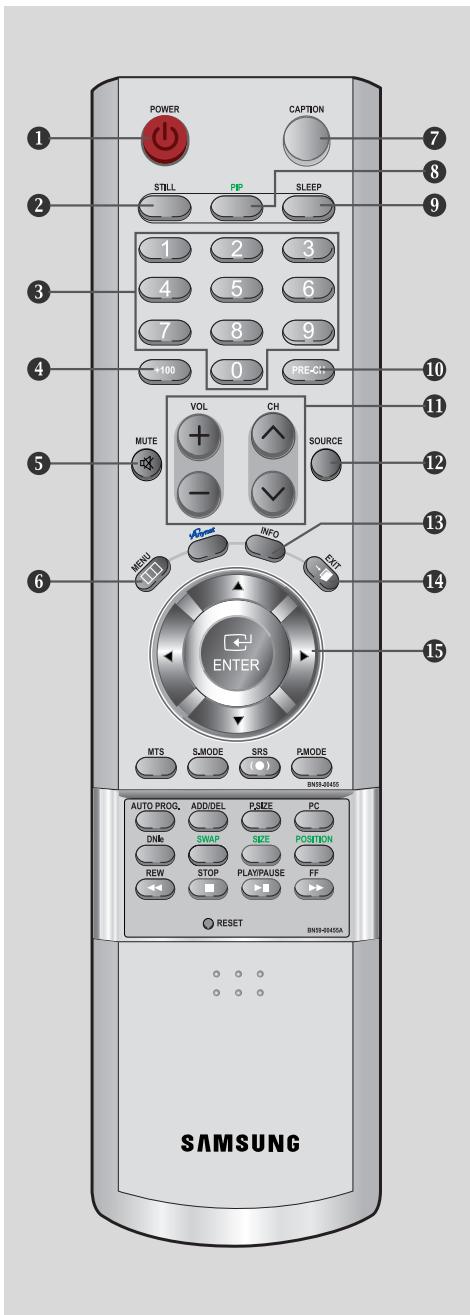
1 POWER
Turns the TV on and off. (See page 19)
② STILL
Press to stop the action during a particular scene. Press again to resume normal video. (See page 34)
3 NUMBER BUTTONS
Press to change the channel.
4 +100
Press to select channels over 100. For example, to select channel 121, press “+100”, then press “2” and “1”. (See page 19)
⑤ MUTE
Press to temporarily cut off the sound. (See page 20)
6 MENU
Displays the main on-screen menu. (See page 21)
⑦ CAPTION
Controls the caption decoder. (See page 71)
8 PIP
Picture-in-Picture ON/OFF. (See page 40)
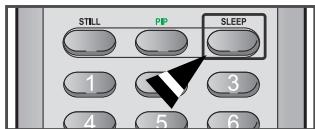
9 SLEEP
Press to select a time for the TV to turn off automatically. (See page 57)
10 PRE-CH
Tunes to the previous channel. (See page 19)
11 CH^ and CH∨ (Channel UP/Down)
Press CH^ or CH∨ to change channels. (See page 19)
VOL + and VOL -
Press to increase or decrease the volume. (See page 20)
12 SOURCE
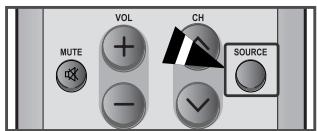
Press to display all of the available video sources. (See page 27)
13 INFO
Use to see information on the current broadcast. (See page 21)
14 EXIT
Press to exit the menu.
Use to select on-screen menu items and change menu values.
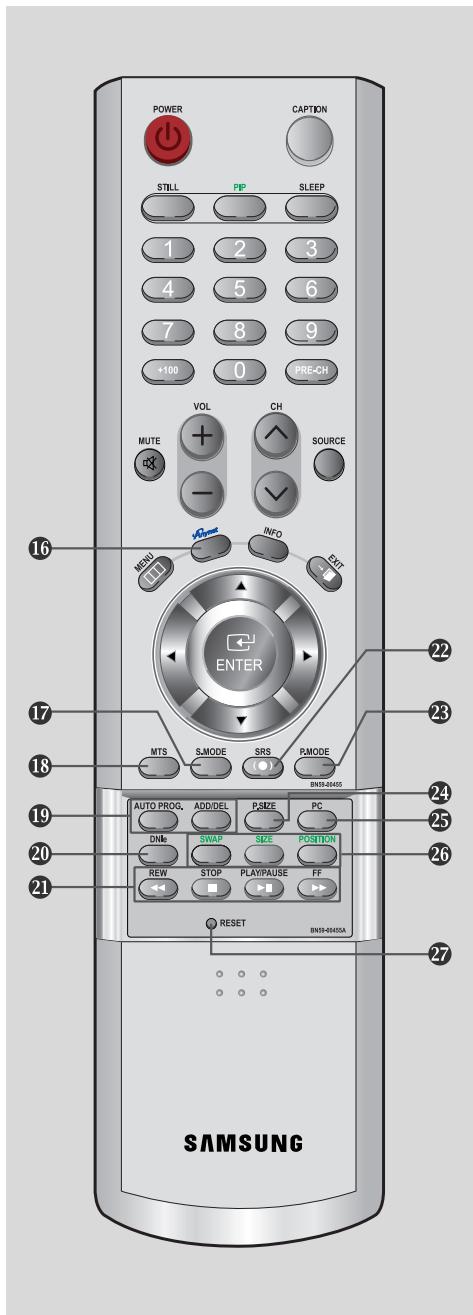
16 Anynet
Press the Anynet button to bring up the Anynet menu. (Refer to "Anynet AV Owner's Instructions".)
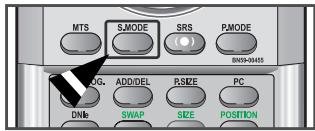
17 S.MODE
Adjusts the TV sound by selecting one of the preset factory settings (or selects your personal, customized sound settings). (See page 43)
18 MTS
(Multi channel Television Stereo)
Press to choose stereo, mono or Separate Audio Program (SAP broadcast). (See page 46)
19 AUTO PROG.
Press to automatically store selected TV/Cable channels. (See page 25)
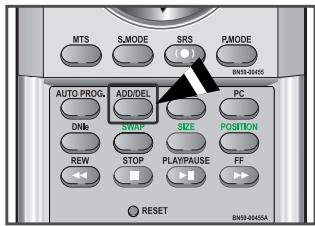
ADD/DEL
Use to store and delete channels to/from memory. (See page 26)
20 DNle
DNIe Demo On/Off.
Off : DNle Demo mode is deactivated.
On : The right-hand side of the screen shows the improved DNle image. The left-hand side of the screen shows the original image.(See page 35)
21 VCR/DVD Functions (Only Anynet mode)
- Rewind
- Stop
- Play/Pause
- Fast Forward
22 SRS
Selects TruSurround XT mode. (See page 45)
23 P.MODE
Adjusts the TV picture by selecting one of the preset factory settings. (See page 29)
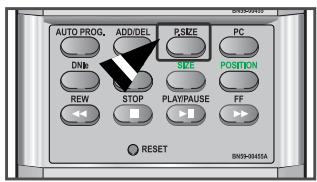
24 P.SIZE
Press to change the screen size. (See page 33)
25 PC
Press to switch to the PC mode. (See pages 52\~55)
26 SWAP
Press to interchange the main picture and the sub (PIP) picture. (See page 41)
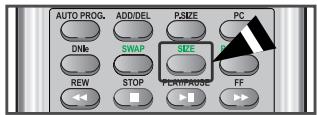
SIZE
Press to make the PIP window small, double1, double2. (See page 42)
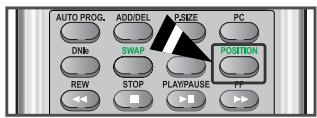
POSITION
Press to select the position of sub (PIP) picture. (See page 42)
27 RESET
When your remote does not work, change the batteries and press the RESET button for 2-3 seconds before use.
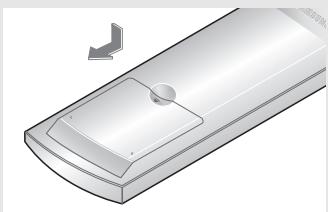
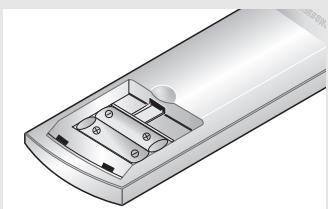
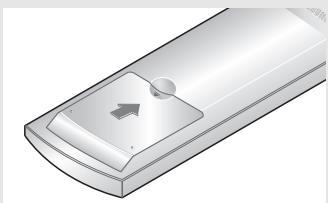
Installing Batteries in the Remote Control
1
Slide the cover out completely.
natural_image
Illustration of a remote control with a scroll wheel and a button, showing no text or symbols.2
Install two AAA size batteries.
natural_image
Illustration of a remote control panel with buttons and a handle (no text or symbols)Make sure to match the “+” and “−” ends of the batteries with the diagram inside the compartment.
3
Replace the cover.
natural_image
Illustration of a remote control with a scroll wheel and directional arrow (no text or symbols)Remove the batteries and store them in a cool, dry place if you won't be using the remote control for a long time.
The remote control can be used up to about 23 feet from the TV. (Assuming typical TV usage, the batteries last for about one year.)
If the remote control doesn't work
Check the following:
- Is the TV power on?
- Are the plus and minus ends of the batteries reversed?
- Are the batteries drained?
- Is there a power outage, or is the power cord unplugged?
- Is there a special fluorescent light or a neon sign nearby?
Connecting VHF and UHF Antennas
If your antenna has a set of leads that look like this, see “Antennas with 300-ohm Flat Twin Leads” below.
If your antenna has one lead that looks like this, see “Antennas with 75-ohm Round Leads” on page 8.
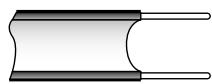
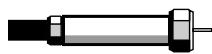
If you have two antennas, see “Separate VHF and UHF Antennas” on page 8.
Antennas with 300-ohm Flat Twin Leads
If you are using an off-air antenna (such as a roof antenna or “rabbit ears”) that has 300-ohm twin flat leads, follow the directions below.
1
Place the wires from the twin leads under the screws on a 300-75 ohm adaptor (not supplied). Use a screwdriver to tighten the screws.
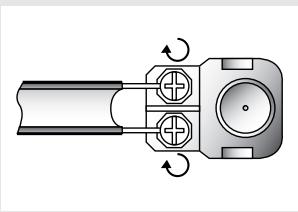
natural_image
Mechanical component diagram showing rotational motion with no text or symbols2
Plug the adaptor into the ANT IN terminal on the back of the TV.
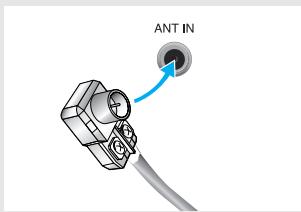
Antennas with 75-ohm Round Leads
1
Plug the antenna lead into the ANT IN terminal on the back of the TV.
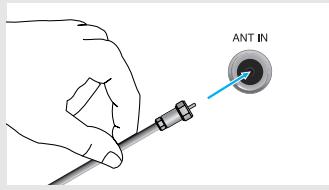
Separate VHF and UHF Antennas
If you have two separate antennas for your TV (one VHF and one UHF), you must combine the two antenna signals before connecting the antennas to the TV. This procedure requires an optional combiner-adaptor (available at most electronics shops).
1
Connect both antenna leads to the combiner.
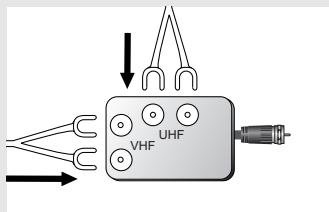
2
Plug the combiner into the ANT IN terminal on the back of the TV.
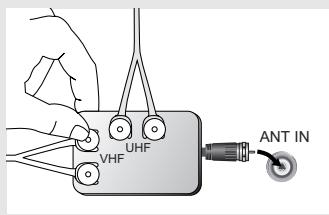
Connecting Cable TV
To connect to a cable TV system, follow the instructions below.
Cable without a Cable Box
1
Plug the incoming cable into the ANT IN terminal on back of the TV.
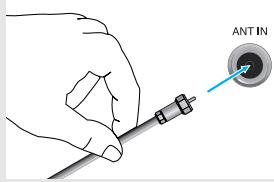
Because this TV is cable-ready, you do not need a cable box to view unscrambled cable channels.
Connecting to a Cable Box that Descrambles All Channels
1
Find the cable that is connected to the ANT OUT terminal on your cable box.
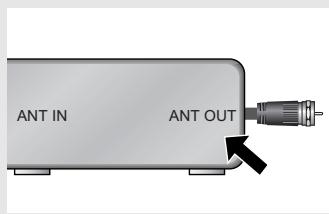
This terminal might be labeled “ANT OUT”, “VHF OUT” or simply, “OUT”.
2
Connect the other end of this cable to the ANT IN terminal on the back of the TV.
Connecting to a Cable Box that Descrambles Some Channels
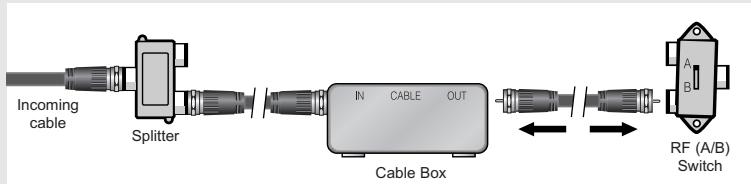
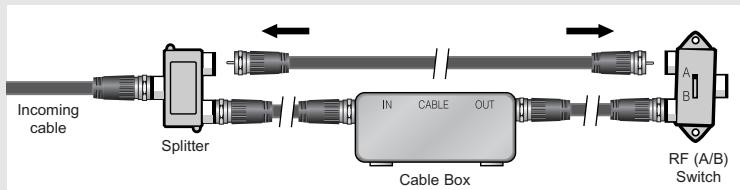
If your cable box descrambles only some channels (such as premium channels), follow the instructions below. You will need a two-way splitter, an RF (A/B) switch, and four lengths of RF cable. (These items are available at most electronics stores.)
1
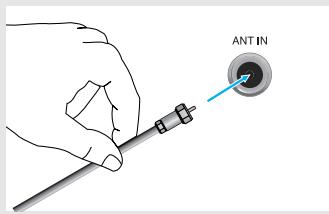
Find and disconnect the cable that is connected to the ANT IN terminal on your cable box.
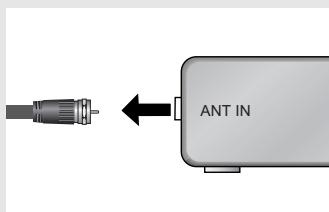
This terminal might be labeled “ANT IN”, “VHF IN” or simply, “IN”.
Continued...
2
Connect this cable to a two-way splitter.
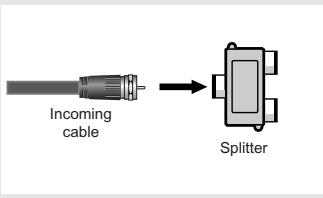
3
Connect an RF cable between an OUTPUT terminal on the splitter and the IN terminal on the cable box.
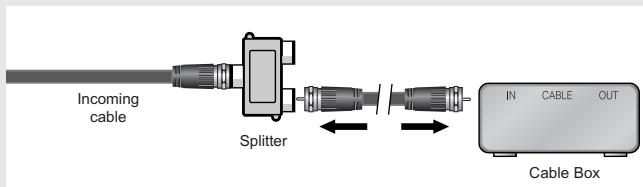
4
Connect an RF cable between the ANT OUT terminal on the cable box and the B–IN terminal on the A/B switch.
flowchart
graph LR
    A["Incoming cable"] --> B["Splitter"]
    B --> C["Cable Box"]
    C --> D["RF (A/B) Switch"]
    C <--> E["IN CABLE OUT"]
5
Connect another cable between the other OUT terminal on the splitter and the A–IN terminal on the RF (A/B) switch.
6
Connect the last RF cable between the OUT terminal on the RF (A/B) switch and the ANT IN terminal on the rear of the TV.
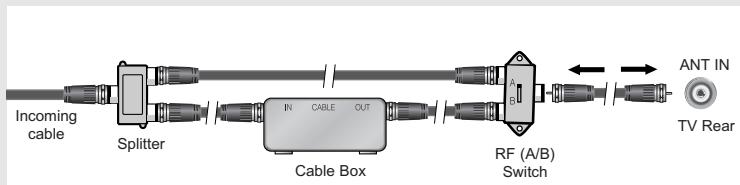
After you've made this connection, set the A/B switch to the “A” position for normal viewing. Set the A/B switch to the “B” position to view scrambled channels.
(When you set the A/B switch to “B”, you will need to tune your TV to the cable box’s output channel, which is usually channel 3 or 4.)
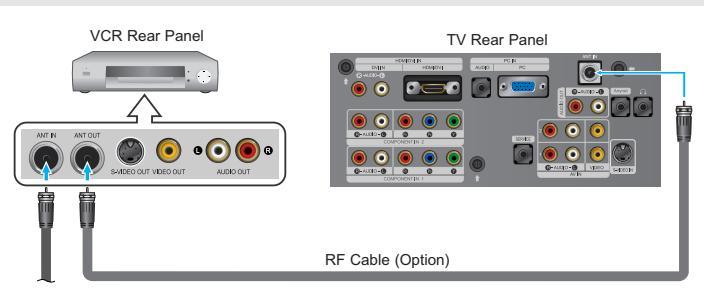
Connecting a VCR
These instructions assume that you have already connected your TV to an antenna or a cable TV system (according to the instructions on pages 7-10).
Skip step 1 if you have not yet connected to an antenna or a cable system.
1
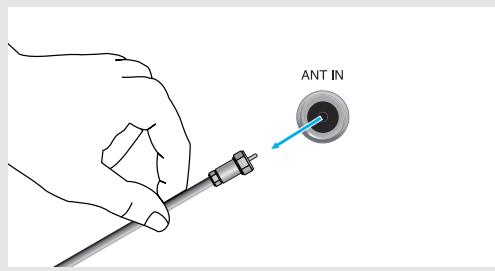
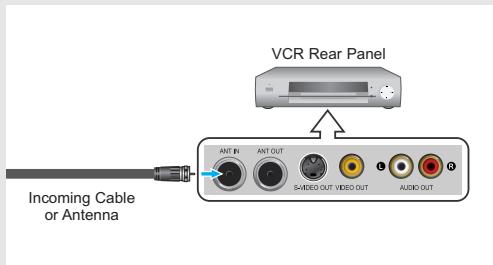
Unplug the cable or antenna from the back of the TV.
2
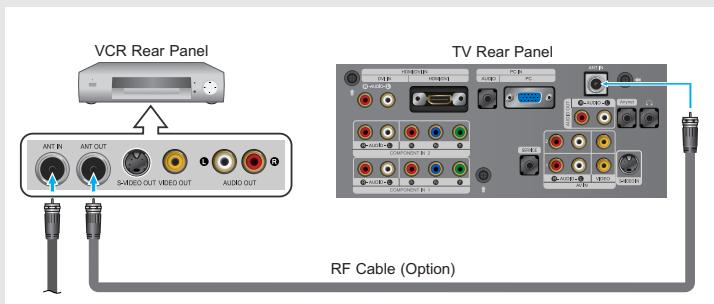
Connect the cable or antenna to the ANT IN terminal on the back of the VCR.
3
Connect an RF cable between the ANT OUT terminal on the VCR and the ANT IN terminal on the TV.
Continued...
4
Connect an audio cable between the AUDIO OUT jacks on the VCR and the AV IN [R-AUDIO-L] jacks on the TV.
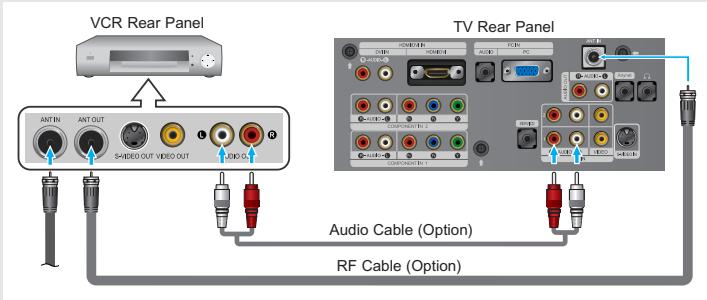
If you have a “mono” (non-stereo) VCR, use the Y-connector (not supplied) to hook up to the left and right audio input jacks of the TV.
5
Connect a video cable between the VIDEO OUT jack on the VCR and the AV IN [VIDEO] jack on the TV.
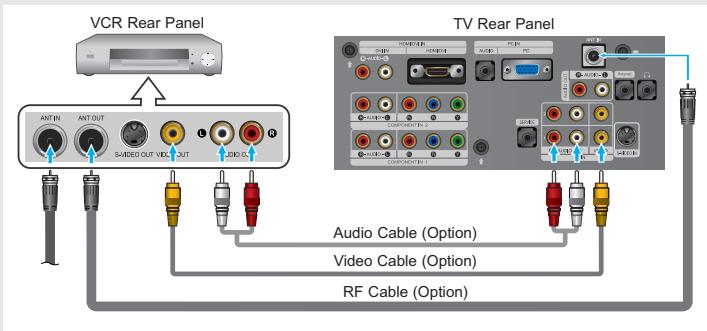
Follow the instructions in “Viewing a VCR or Camcorder Tape” to view your VCR tape.
* Each external input source device has a different back panel configuration.
* When connecting an external device, match the color of the connection terminal to the cable.
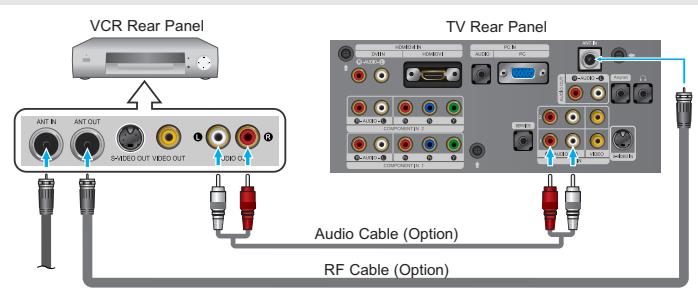
Connecting an S-VHS VCR
Your Samsung TV can be connected to an S-Video signal from an S-VHS VCR. (This connection delivers a better picture as compared to a standard VHS VCR.)
1
To begin, follow steps 1–3 in the previous section to connect the antenna or cable to your VCR and your TV.
2
Connect an audio cable between the AUDIO OUT jacks on the VCR and the AV IN [R-AUDIO-L] jacks on the TV.
3
Connect an S-Video cable between the S-VIDEO OUT jack on the VCR and the S-VIDEO IN jack on the TV.
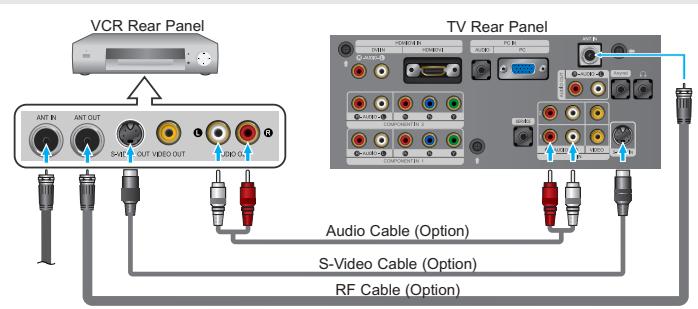
An S-Video cable is usually included with an S-VHS VCR.
(If not, check your local electronics store.)
* Each external input source device has a different back panel configuration.
* When connecting an external device, match the color of the connection terminal to the cable.
Connecting a DVD Player
The rear panel jacks on your TV make it easy to connect a DVD player to your TV.
1
Connect an audio cable between the
COMPONENT IN 1 or COMPONENT IN 2
[R-AUDIO-L] jacks on the TV and the AUDIO OUT jacks on the DVD player.
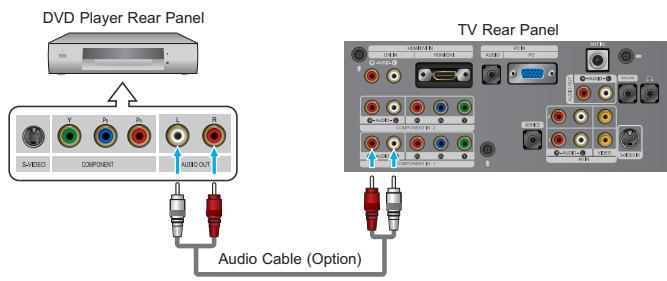
2
Connect a component cable between the COMPONENT IN 1 or COMPONENT IN 2
[P_R, P_B, Y] jacks on the TV and the COMPONENT [Y, P_B, P_R] jacks on the DVD player.
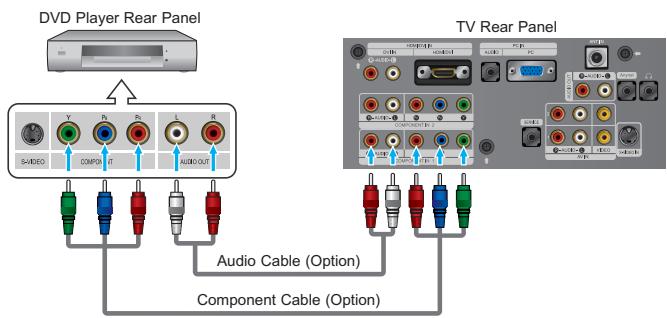
Note: For an explanation of Component video, see your DVD player owner's manual. Be sure to match the component video and audio connections. For example, if connecting the video cable to Component In 1, connect the audio cable to Component In 1 also.
* Each external input source device has a different back panel configuration.
* When connecting an external device, match the color of the connection terminal to the cable.
Connecting a Digital TV Set-top box
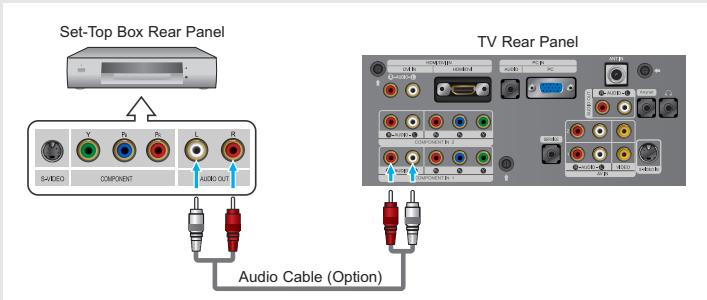
The connections for a typical Set-top box are shown below.
1
Connect an audio cable between the COMPONENT IN 1 or COMPONENT IN 2 [R-AUDIO-L] jacks on the TV and the AUDIO OUT jacks on the Set-top box.
2
Connect a component cable between the COMPONENT IN 1 or COMPONENT IN 2 [PR,PB,Y] jacks on the TV and the COMPONENT [Y,PB,PR] jacks on the Set-top box.
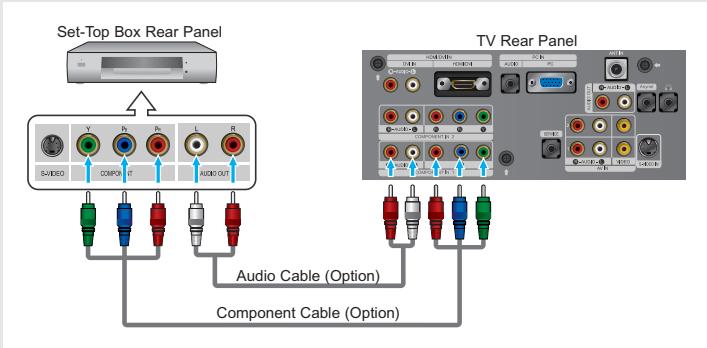
Note: For an explanation of Component video, see your Set-top box owner's manual.
* Each external input source device has a different back panel configuration.
* When connecting an external device, match the color of the connection terminal to the cable.
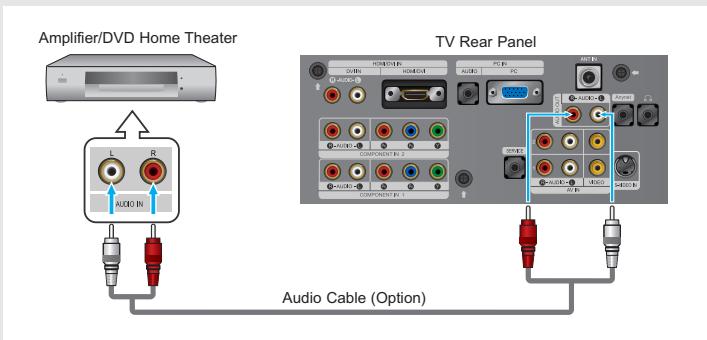
Connecting an Amplifier/DVD Home Theater
1
Connect an audio cable between the AUDIO OUT [R-AUDIO-L] jacks on the TV and the AUDIO IN jacks on the Amplifier/DVD Home Theater.
* Each external input source device has a different back panel configuration.
* When connecting an external device, match the color of the connection terminal to the cable.
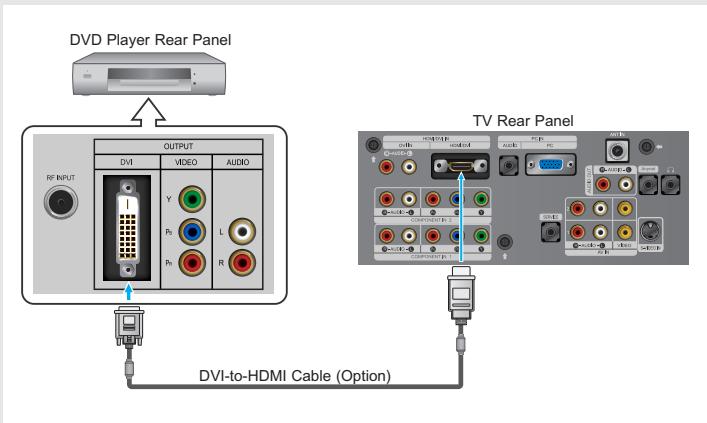
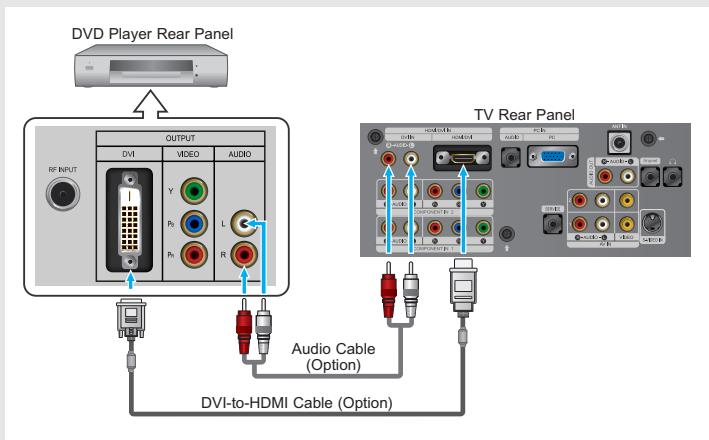
Connecting a DVD/Set-top box via DVI
This can be applied only if there is the DVI Output connector on the external device.
1
Connect a DVI-to-HDMI cable or DVI-HDMI adaptor between the HDMI/DVI connector on the TV and the DVI connector on the DVD player/Set-top box.
2
Connect an audio cable between the DVI IN [R-AUDIO-L] jack on the TV and the AUDIO OUT jacks on the DVD player/Set-top box.
* Each external input source device has a different back panel configuration.
* When connecting an external device, match the color of the connection terminal to the cable.
Connecting a DVD/Set-top box via HDMI
This can be applied only if there is the HDMI Output connector on the external device.
1
Connect an HDMI cable between the HDMI/DVI connector on the TV and the HDMI connector on the DVD player/Set-top box.
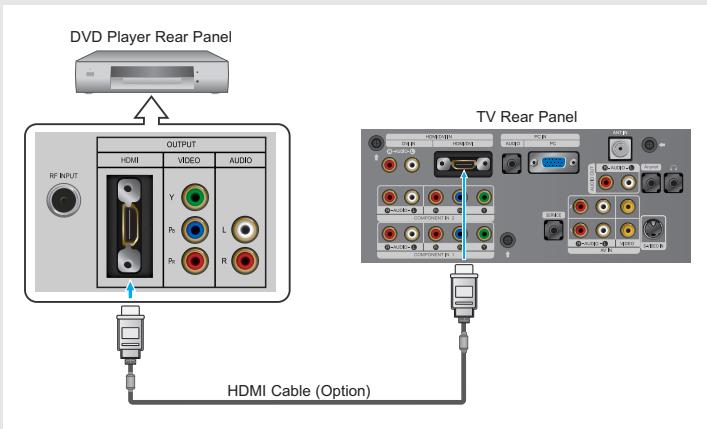
Note: No sound connection is needed for an HDMI to HDMI connection.
What is HDMI?
- HDMI, or high-definition multimedia interface, is a next-generation interface that enables the transmission of digital audio and video signals using a single cable without compression.
- “Multimedia interface” is a more accurate name for it especially because it allows multiple channels of digital audio (5.1 channels). The difference between HDMI and DVI is that the HDMI device is smaller in size, has the HDCP (High Bandwidth Digital Copy Protection) coding feature installed, and supports multi-channel digital audio.
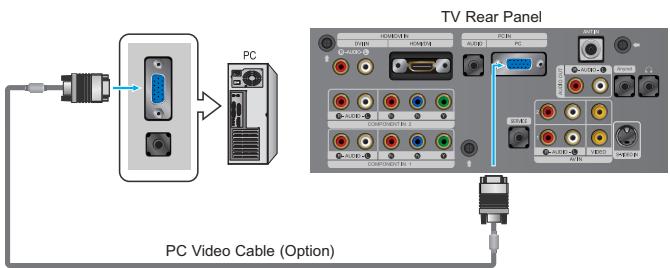
Connecting a PC
1
Connect a PC video cable(D-Sub) between PC IN [PC] connector on the TV and the PC output connector on your computer.
2
Connect a PC audio cable between PC IN [AUDIO] on the TV and the Audio Out of the sound card on your computer.
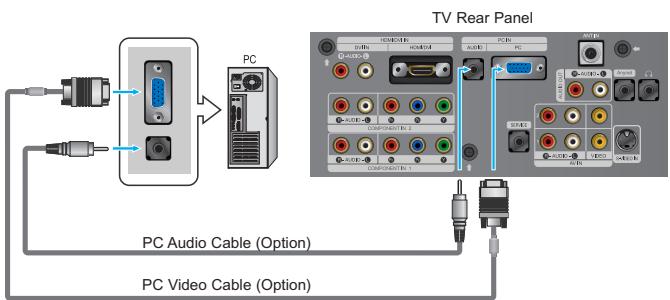
flowchart
graph TD
    A["PC"] --> B["PC Audio Cable (Option)"]
    A --> C["PC Video Cable (Option)"]
    B --> D["TV Rear Panel"]
    C --> D
    D --> E["PC"]
    D --> F["PC Video Cable (Option)"]
    style A fill:#f9f,stroke:#333
    style C fill:#f9f,stroke:#333
    style D fill:#ccf,stroke:#333
Turning the TV On and Off
1
Press the POWER ⏻ button on the remote.
You can also use the POWER ⏻ button on the front of the panel.
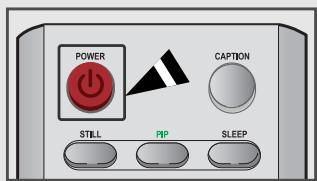
Changing Channels
Using the Channel Buttons
1
Press the CH ^/√ buttons to change channels.
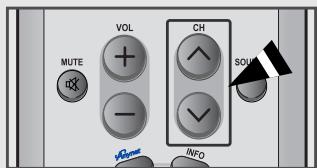
When you press the CH ∧/∨ buttons, the TV changes channels in sequence. You will see all the channels that the TV has memorized. (The TV must have memorized at least three channels). You will not see channels that were either erased or not memorized. See pages 24-25 to memorize channels.
Using the Number Buttons
1
Press the number buttons to go directly to a channel.
ex) To select channel 27, press “2” → “7”.
To select channel 108, press “+100” → “0” → “8”.
When you use the number buttons, you can directly select channels that were either erased or not memorized. To change to single-digit channels (0\~9) faster, press “0” before the single digit. (For channel “4” press “0”, then “4”.)
Using the PRE-CH Button to select the Previous Channel
1
Press the PRE-CH button.
The TV will switch to the last channel viewed.
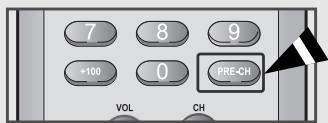
To quickly switch between two channels that are far apart, tune to one channel, then use the number button to select the second channel. Then use the PRE-CH button to quickly alternate between them.
Adjusting the Volume
1
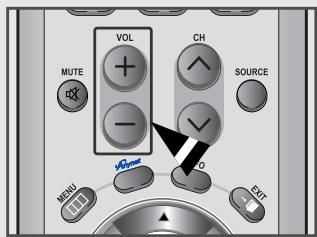
Press the VOL + and VOL - buttons to increase or decrease the volume.
Using Mute
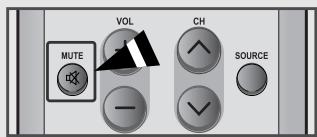
At any time, you can temporarily cut off the sound using the MUTE button.
1
Press MUTE and the sound cuts off. The word "Mute" will appear in the lower-left corner of the screen.
2
To turn mute off, press the MUTE button again, or simply press the VOL + and VOL - buttons.
Viewing the Display
The display identifies the current channel and the status of certain audio-video settings.
1
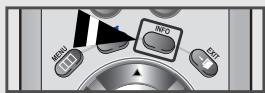
Press the INFO button on the remote control.
The TV will display the channel, the type of sound, and the status of certain picture and sound settings.
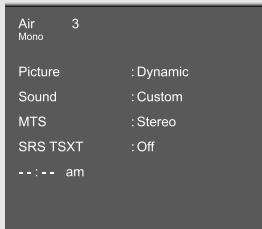
◀ Press the INFO button once more or wait approximately 10 seconds and it disappears automatically.
Allows the user to adjust the settings according to his/her preference and shows the current settings.
Viewing the Menus
1
With the power on, press the MENU button.
The main menu appears on the screen.
It's left side has five icons: Input, Picture, Sound, Channel, Setup.
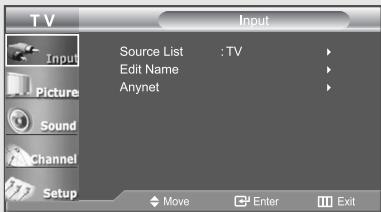
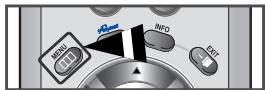
The on-screen menus disappear from the screen after about two minutes.
2
Use the UP/DOWN ▲▼ buttons to select one of the 5 icons. Then press the ENTER button to access the icon's sub-menu.
3
Press the EXIT button to exit.
Plug & Play Feature
When the TV is initially powered on, several basic customer settings proceed automatically and subsequently.
1
Press the POWER ⏻ button on the remote control.
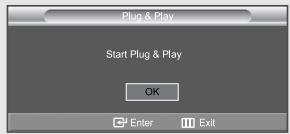
The message
"Start Plug & Play" is displayed with "OK" selected.
2
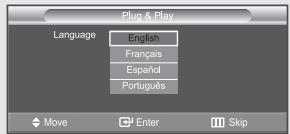
Select the appropriate language by pressing the UP/DOWN ▲▼ buttons.
Press the ENTER button to confirm your choice.
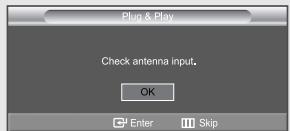
3
The message
"Check antenna input." is displayed with "OK" selected.
Press the ENTER← button.
4
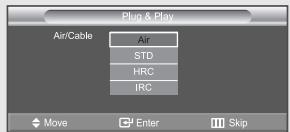
Press the UP/DOWN ▲▼ buttons to select "Air", "STD", "HRC", or "IRC", then press the ENTER button.
Continued...
5
Press the ENTER← button to select "Start".
The TV will begin memorizing all of the available channels.
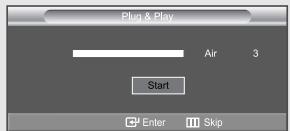
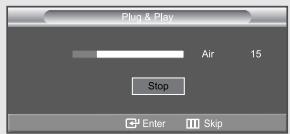
To stop the search before it has finished, press the ENTER button with "Stop" selected.
6
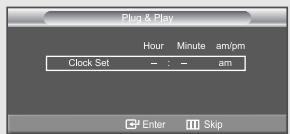
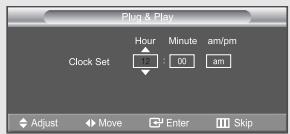
Press the ENTER button.
Press the LEFT/RIGHT ◀▶ buttons to move to the “Hour”, “Minute” or “am/pm”.
Set the "Hour", "Minute" or "am/pm" by pressing the UP/DOWN ▲▼ buttons.
(Refer to "Setting the Clock" on page 56.)
7
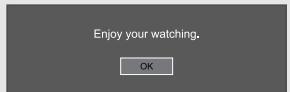
Press the MENU button to confirm your setting.
The message "Enjoy your watching." is displayed.
Memorizing the Channels
Your TV can memorize and store all of the available channels for both “off-air” (antenna) and cable channels. After the available channels are memorized, use the CH ∧ and CH ∨ buttons to scan through the channels. This eliminates the need to change channels by entering the channel digits. There are three steps for memorizing channels: selecting a broadcast source, memorizing the channels (automatic) and adding and deleting channels (manual).
Selecting the Video Signal-source
Before your television can begin memorizing the available channels, you must specify the type of signal source that is connected to the TV (i.e. an antenna or a cable system).
1
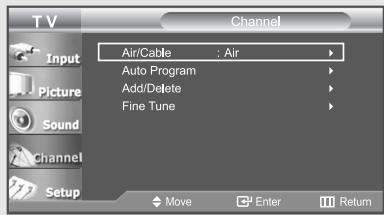
Press the MENU button to display the menu.
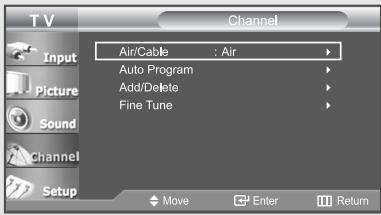
Press the UP/DOWN ▲▼ buttons to select "Channel", then press the ENTER button.
2
Press the ENTER← button.
Repeatedly press the UP/DOWN ▲▼ buttons to cycle through these choices: "Air", "STD", "HRC", or "IRC" (all cable TV), then press the ENTER← button.
Press the EXIT button to exit.
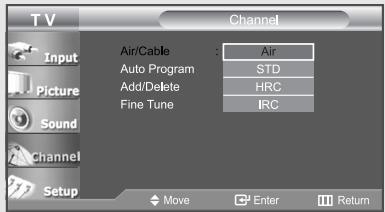
Note: STD, HRC and IRC identify various types of cable TV systems.
Contact your local cable company to identify the type of cable system that exists in your particular area.
At this point, the signal source has been selected.
Proceed to “Storing Channels in Memory” (next page).
Storing Channels in Memory (Automatic Method)
1
Press the MENU button to display the menu.
Press the UP/DOWN ▲▼
buttons to select "Channel", then press the ENTER button.
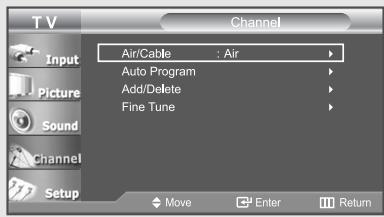
First, select the correct signal source (Air, STD, HRC, or IRC). See steps 1\~2 on the previous page.
2
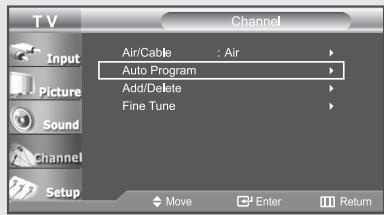
Press the UP/DOWN ▲▼
buttons to select "Auto Program".
Press the ENTER← button.
3
Press the ENTER← button to select "Start".
The TV will begin memorizing all of the available channels.
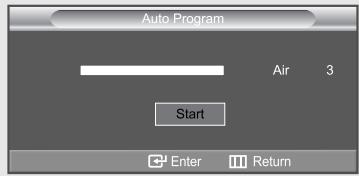
The TV automatically cycles through all of the available channels and stores them in memory. This takes about one to two minutes. Press the ENTER button at any time to interrupt the memorization process and return to the “Channel” menu.
4
After all the available channels are stored, the "Channel" menu reappears.
Press the EXIT button to exit.
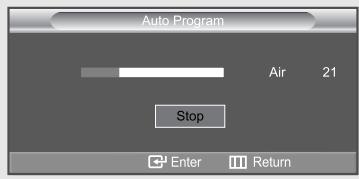
To stop the search before it has finished, press the ENTER button with "Stop" selected.
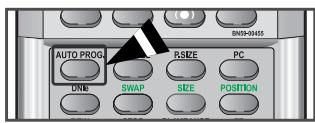
Alternate method:
Press the AUTO PROG. button under the remote's cover.
Adding and Erasing Channels (Manual Method)
1
Press the MENU button to display the menu.
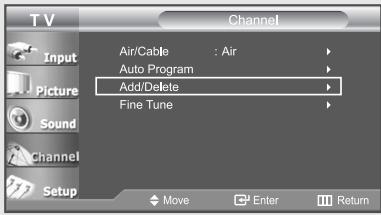
Press the UP/DOWN ▲▼ buttons to select "Channel", then press the ENTER button.
Press the UP/DOWN ▲▼ buttons to select "Add/Delete".
Press the ENTER button.
Press the CH^ or CH∨ button to select channel that you wish to add or delete.
Press the ENTER← button to select "Add" or "Delete" (Pressing the ENTER← button toggles between the two).
Press the EXIT button to exit.
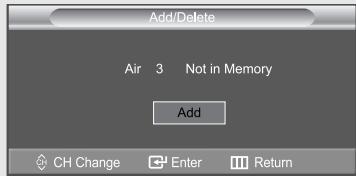
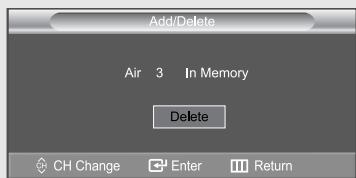
Alternate method:
Use the number buttons to directly select the channel that will be added or erased. Press the ADD/DEL button under the remote's cover.
Repeatedly pressing the ENTER button will alternate between "Add" and "Delete". Press the EXIT button to exit.
You can view any channel (including an erased channel) by using the number buttons on the remote control.
To Select the Source
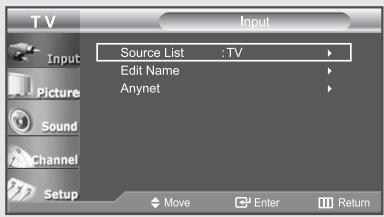
Use to select TV or another external input source connected to the TV.
Use to select the input source of your choice.
1
Press the MENU button to display the menu.
Press the ENTER button to select "Input".
2
Press the ENTER← button.
Press the UP/DOWN ▲▼ buttons to select the Input source, then press the ENTER button.
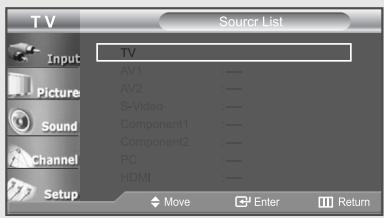
Alternate method:
Press the SOURCE button on the remote control to view an external signal source.
To Edit the Input Source Name
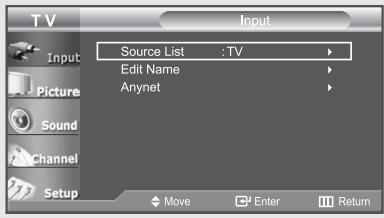
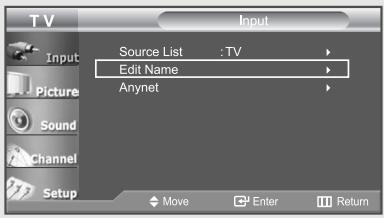
Name the device connected to the input jacks to make your input source selection easier.
1
Press the MENU button to display the menu.
Press the ENTER button to select "Input".
Press the UP/DOWN ▲▼
buttons to select
"Edit Name", then press the ENTER button.
2
Press the UP/DOWN ▲▼
buttons to select
"AV1", "AV2", "S-Video",
"Component1", "Component2",
"PC", or "HDMI" input jack, then press the ENTER button.
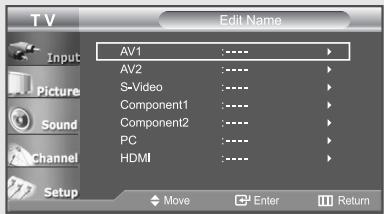
3
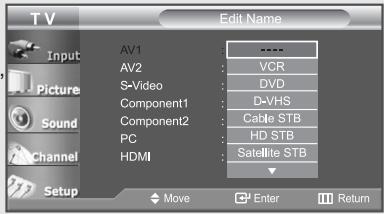
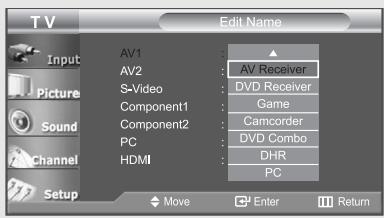
Press the UP/DOWN ▲▼
buttons to select "VCR",
“DVD”, “D-VHS”, “Cable STB”
"HD STB", "Satellite STB",
"AV Receiver",
"DVD Receiver", "Game",
"Camcorder", "DVD Combo",
"DHR (DVD HDD Recoder)", or "PC" input source, then press the ENTER button.
Press the EXIT button to exit.
Using Automatic Picture Settings
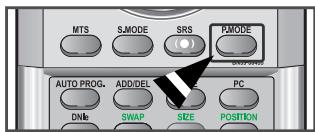
Your TV has four automatic picture settings (“Dynamic”, “Standard”, “Movie”, and “Custom”) that are preset at the factory. You can activate either Dynamic, Standard, Movie, or Custom by pressing P.MODE (or by making a selection from the menu). Or, you can select “Custom” which automatically recalls your personalized picture settings.
1
Press the MENU button to display the menu.
Press the UP/DOWN ▲▼ buttons to select "Picture", then press the ENTER button.
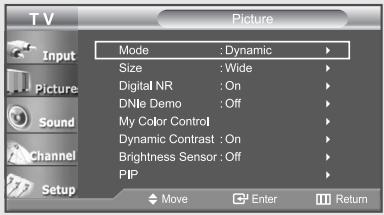
2
Press the ENTER button.
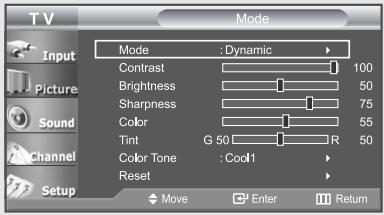
3
Press the ENTER button again to select "Mode".
Press the UP/DOWN ▲▼ buttons to select "Dynamic", "Standard", "Movie", or Custom".
Press the ENTER button.
Press the EXIT button to exit.
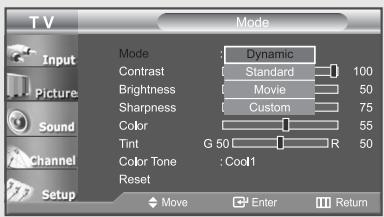
Alternate method:
Simply press the P.MODE button on the remote control to select one of the standard picture settings.
- Choose Dynamic to increase the clarity and sharpness of the picture.
- Choose Standard for the standard factory settings.
- Choose Movie when watching movies.
- Choose Custom if you want to adjust the settings according to personal preference (see “Customizing the Picture, page 30).
Customizing the Picture
You can use the on-screen menus to change the contrast, brightness, sharpness, color, and tint according to personal preference.
(Alternatively, you can use one of the “automatic” settings. See the previous page.)
1
Press the MENU button to display the menu.
Press the UP/DOWN ▲▼ buttons to select "Picture", then press the ENTER button.
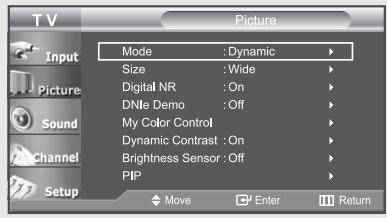
2
Press the ENTER button.
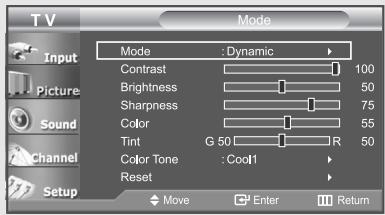
3
Press the UP/DOWN ▲▼ button to select a particular item (Contrast, Brightness, Sharpness, Color, or Tint), then press the ENTER button.
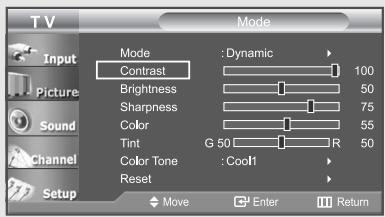
The adjusted values are stored according to the selected Picture mode.
4
Press the LEFT/RIGHT ◀▶ buttons to decrease or increase the value of a particular item.
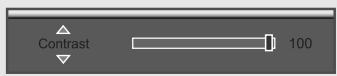
◀ You can select the option (Contrast, Brightness, Sharpness, Color, or Tint) to be adjusted by pressing the UP/DOWN ▲▼ button.
For example, if you select "Contrast", pressing the RIGHT▶ button increases it.
Press the EXIT button to exit.
Adjusting the Color Tone
You can change the color of the entire screen according to your preference.
1
Press the MENU button to display the menu.
Press the UP/DOWN ▲▼ buttons to select "Picture", then press the ENTER button.
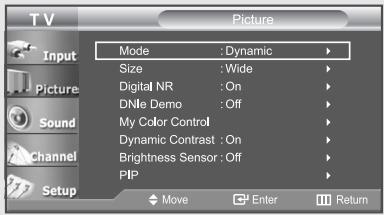
2
Press the ENTER← button.
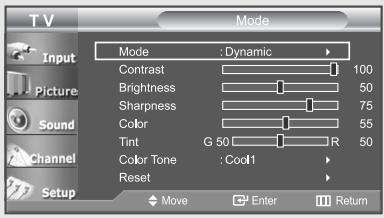
3
Press the UP/DOWN ▲▼ button to select "Color Tone", then press the ENTER← button.
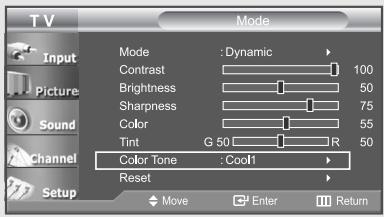
4
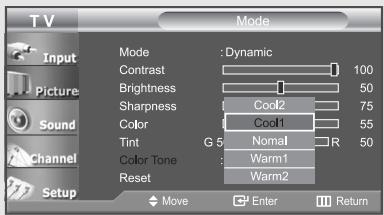
Press the UP/DOWN ▲▼ buttons to select "Cool2", "Cool1", "Normal" "Warm1", or "Warm2".
Press the ENTER← button.
Press the EXIT button to exit.
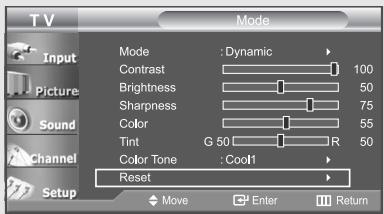
Resetting the Picture Settings to the Factory Defaults
Press the UP/DOWN ▲▼ buttons to select "Reset", then press the ENTER button.
Press the EXIT button to exit.
◀ Choose from the following Color Tone settings: "Cool2", "Cool1", "Normal", "Warm1", "Warm2" according to personal preference.
The adjusted values are stored according to the selected Picture mode.
The “Reset” will be set for each picture mode.
Changing the Screen Size
1
Press the MENU button to display the menu.
Press the UP/DOWN ▲▼ buttons to select "Picture", then press the ENTER button.
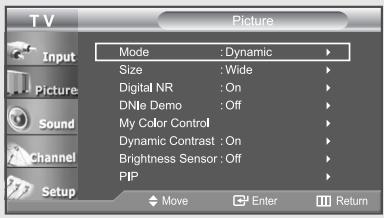
Only the wide and 4:3 sizes can be selected when the Source is PC.
2
Press the UP/DOWN ▲▼ buttons to select "Size" then press the ENTER button.
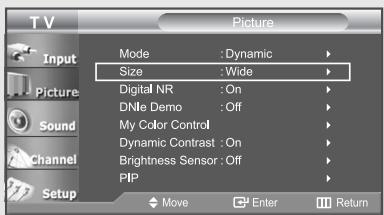
◀ Supported screen resolution modes may differ depending on the model of the product.
3
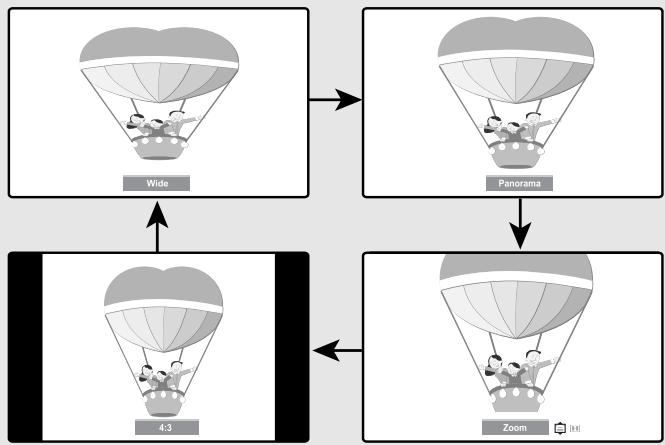
Press the UP/DOWN ▲▼ buttons to select "Wide", "Panorama", "Zoom", "4:3".
Press the EXIT button to exit.
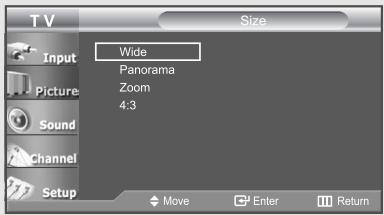
- Wide : Sets the picture to 16:9 wide mode.
- Panorama : Use this mode for the wide aspect ratio of a panoramic picture.
- Zoom : Magnifies the size of the picture on the screen.
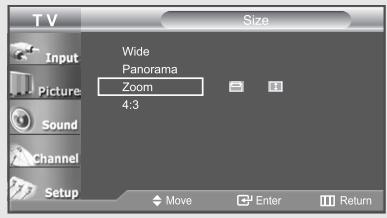
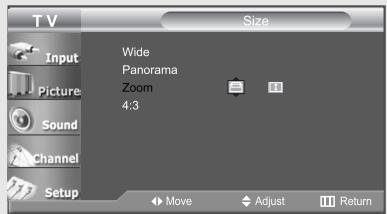
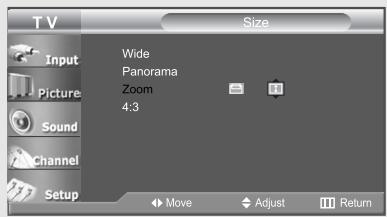
[Positioning and Sizing the screen using Zoom] - Resizing the screen using the Zoom enables the positioning and sizing of the screen to up/down direction using the ▲ or ▼ button as well as the screen size.
- Move the screen up/down using the ▲ or ▼ button after selecting the 📋 by pressing the ◀ or ▶ button.
- Resize the screen vertically using the ▲ or ▼ button after selecting the ☑ by pressing the ◀ or ▶ button. (Pressing the ▲ button extends it upward and pressing the ▼ button extends it downward.)
• 4:3 : Sets the picture to 4:3 normal mode.
This is the standard TV screen size.
Zoom
1
Press the UP/DOWN ▲▼ buttons to select "Zoom".
2
Select 📋 by pressing the LEFT/RIGHT ◀▶ buttons.
Use the UP/DOWN ▲▼ button to move the picture up and down.
3
After selecting 📄, use the UP/DOWN ▲▼ button to magnify or reduce the picture size in a vertical direction.
Alternate method:
Press the P.SIZE button under the remote's cover to change the screen size.
flowchart
graph TD
    A["Wide"] --> B["Panorama"]
    B --> C["Zoom"]
    D["4:3"] --> C
Freezing the Picture
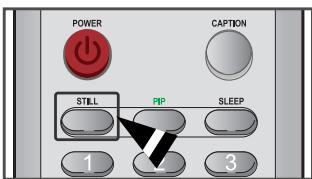
1
Press the STILL button to freeze a moving picture.
• Normal sound will still be heard.
Press again to cancel.
Digital Noise Reduction
If the broadcast signal received by your TV is weak, you can activate the Digital Noise Reduction feature to help reduce any static and ghosting that may appear on the screen.
1
Press the MENU button to display the menu.
Press the UP/DOWN ▲▼ buttons to select "Picture", then press the ENTER button.
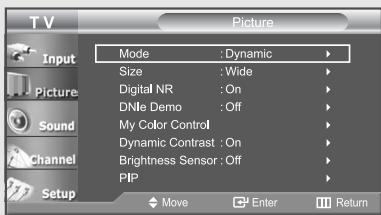
2
Press the UP/DOWN ▲▼ buttons to select "Digital NR", then press the ENTER button.
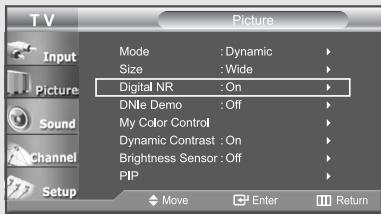
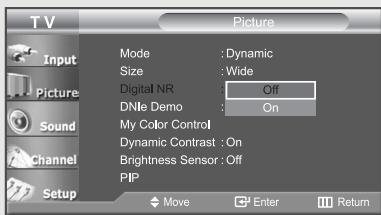
3
Press the UP/DOWN ▲▼ buttons to select "Off".
Press the EXIT button to exit.
DNle (Digital Natural Image engine)
Samsung's new technology brings you more detailed images with contrast, white enhancement and 3D noise reduction.
You can see how DNIe improves the picture by setting DNIe demo mode to On.
1
Press the MENU button to display the menu.
Press the UP/DOWN ▲▼ buttons to select "Picture", then press the ENTER button.
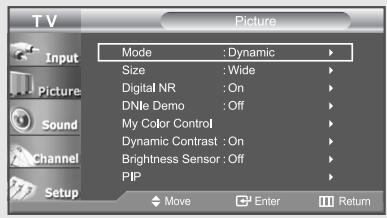
2
Press the UP/DOWN ▲▼ buttons to select "DNle Demo", then press the ENTER button.
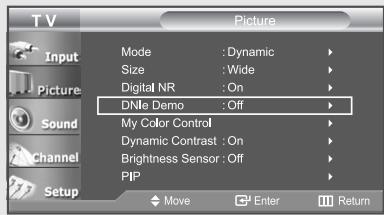
This function doesn't work when Source is in PC mode.
3
Press the UP/DOWN ▲▼ buttons to select "On", then press the ENTER← button.
Press the EXIT button to exit.
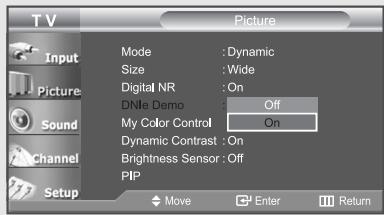
Alternate method:
Press the DNle button under the remote's cover to change the DNle Demo mode.
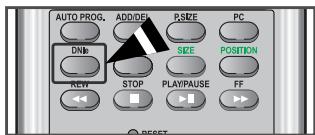
- DNIe Demo: Off DNIe Demo mode is deactivated.
- DNIE Demo: On The right-hand side of the screen shows the improved DNIE image. The left-hand side of the screen shows the original image.
- The “DNle Demo” is designed to show the difference between the regular and DNle pictures.
- By default, the product displays the picture with DNle applied.
My Color Control
My Color Control allows users to adjust colors to their preference by adjusting Pink, Blue and Green using the predefined settings (Blue, Green, Pink, Standard, and Custom) without affecting other colors on the screen.
Easy Control
1
Press the MENU button to display the menu.
Press the UP/DOWN ▲▼ buttons to select "Picture", then press the ENTER button.
Press the UP/DOWN ▲▼ buttons to select
"My Color Control", then press the ENTER button.
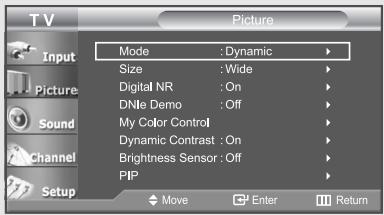
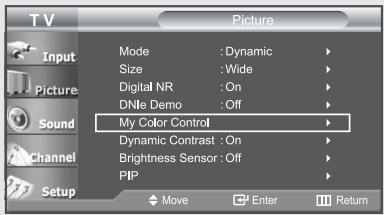
2
Press the UP/DOWN ▲▼ buttons to select
"Easy Control", then press the ENTER button.
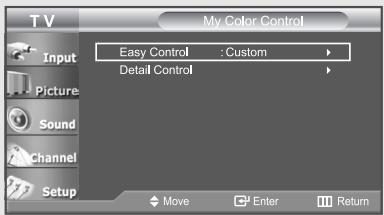
3
Press the LEFT/RIGHT ◀▶ buttons to select the desired "My Color Control" color, then press the ENTER button.
Press the EXIT button to exit.
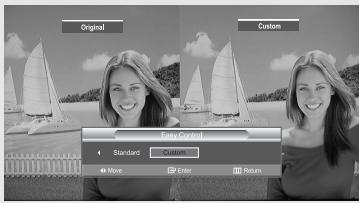
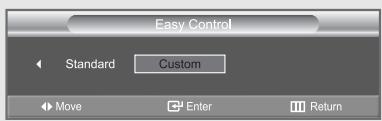
This function doesn't work when the Source is in PC mode or PIP is set to on.
This captures the current screen in a still image to adjust the color.
The Original picture (before adjustment) is shown on the left side, while the selected mode is shown on the right side.
Detail Control
1
Press the MENU button to display the menu.
Press the UP/DOWN ▲▼
buttons to select "Picture", then press the ENTER button.
Press the UP/DOWN ▲▼
buttons to select
"My Color Control", then press the ENTER button.
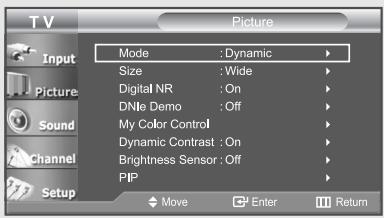
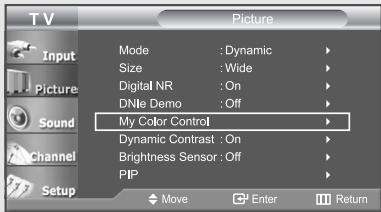
2
Press the UP/DOWN ▲▼
buttons to select
"Detail Control", then press the ENTER button.
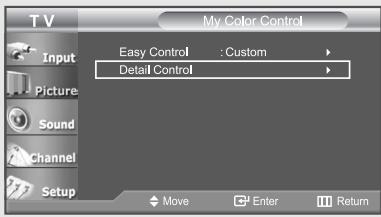
3
Press the UP/DOWN ▲▼ buttons to select the desired "My Color Control" color, then press the ENTER button.
Press the LEFT/RIGHT ◀▶
buttons to increase or decrease the value of a particular item.
Press the EXIT button to exit.
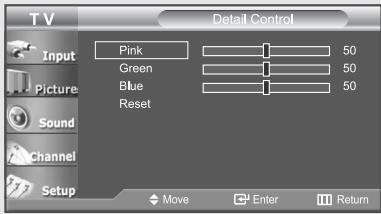
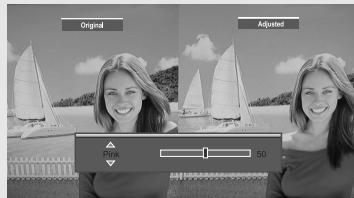

This function doesn't work when the Source is in PC mode or PIP is set to on.
This captures the current screen in a still image to adjust the color.
◀ To reset the “Detail Control”, select “Reset” by pressing the UP/DOWN ▲▼ button and then press the ENTER ▶ button.
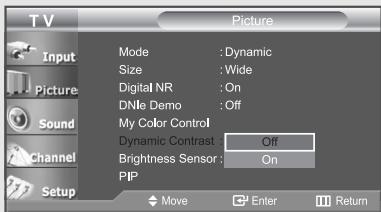
Dynamic Contrast
Dynamic Contrast detects the visual signal input and adjusts to create optimum contrast.
1
Press the MENU button to display the menu.
Press the UP/DOWN ▲▼ buttons to select "Picture", then press the ENTER button.
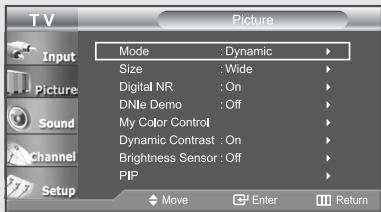
2
Press the UP/DOWN ▲▼ buttons to select
"Dynamic Contrast", then press the ENTER button.
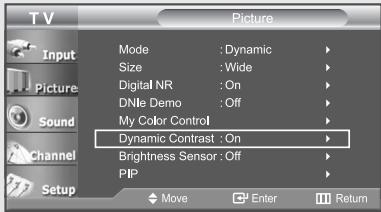
This function doesn't work when the Source is in PC mode or PIP is set to on.
3
Press the UP/DOWN ▲▼ buttons to select "Off".
Press the EXIT button to exit.
Brightness Sensor
The Brightness Sensor adjusts the screen brightness automatically by using a light detecting sensor.
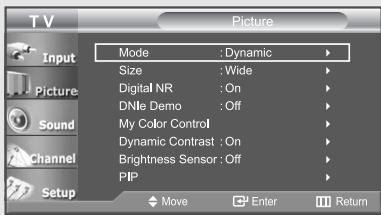
1
Press the MENU button to display the menu.
Press the UP/DOWN ▲▼ buttons to select "Picture", then press the ENTER button.
2
Press the UP/DOWN ▲▼ buttons to select "Brightness Sensor", then press the ENTER button.
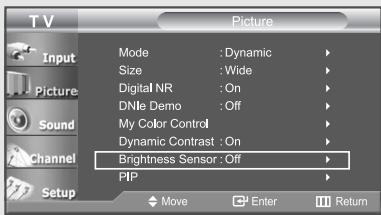
This function doesn't work when the Source is in PC mode.
3
Press the LEFT/RIGHT ◀▶ buttons to select "On".
Press the EXIT button to exit.
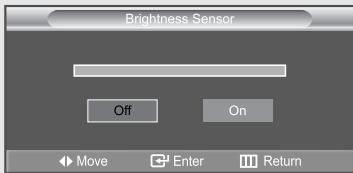
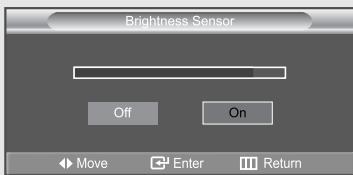
◀ Screen brightness is adjusted automatically depending on the brightness of the surrounding environment.
Viewing Picture-in-Picture
This product has one built-in tuner, which does not allow PIP to function in the same mode. For example, you cannot watch one TV channel in the main screen, and a different one in the PIP screen. Please see ‘PIP Settings’ below for details.
You can use the PIP feature to simultaneously watch two video sources.
Note: While V-Chip is in operation, the PIP function cannot be used.
Activating Picture-in-Picture
1
Press the MENU button to display the menu.
Press the UP/DOWN ▲▼ buttons to select "Picture", then press the ENTER button.
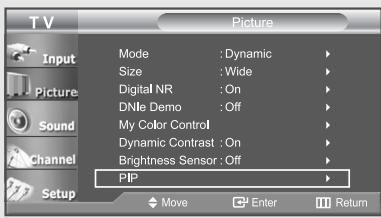
Press the UP/DOWN ▲▼ buttons to select "PIP", then press the ENTER button.
2
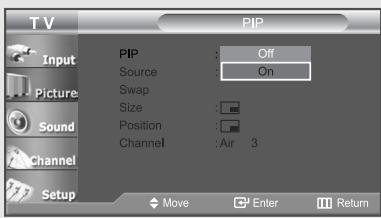
Press the ENTER button.
Press the UP/DOWN ▲▼ buttons to select "On".
Press the ENTER button.
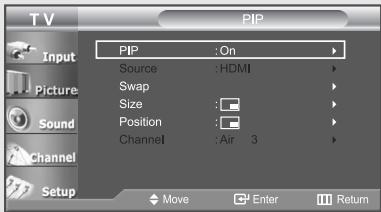
If you turn the TV off while watching in PIP mode and turn it on again, the PIP window will disappear.
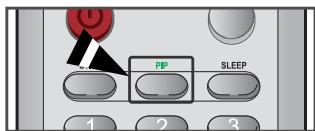
Alternate method:
Press the PIP button on the remote control repeatedly to activate or deactivate the PIP.
Continued...
Selecting a Signal Source (External A/V) for PIP
3
Press the UP/DOWN▲▼ buttons to select "Source", then press the ENTER button.
Select the source of the sub picture (PIP) by pressing the UP/DOWN ▲▼ buttons and press the ENTER← button.
[PC/HDMI modes only]
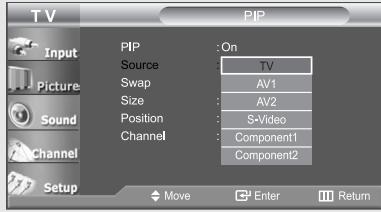
When the main picture is set to TV/AV1/AV2/S-Video/Component1/Component2, only HDMI can be selected and when the main picture is set to PC/HDMI, only TV/AV1/AV2/S-Video/Component1/Component2 can be selected.
◀ Source selection is possible only when PC or HDMI is connected.
Swapping the Contents of the PIP and Main image
4
Press the UP/DOWN ▲▼ buttons to select "Swap", then press the ENTER button.
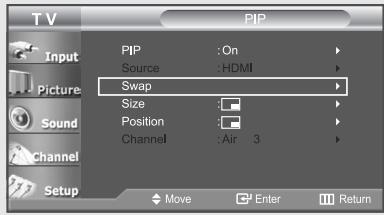
If main picture is in PC Mode, "Swap" is not available.
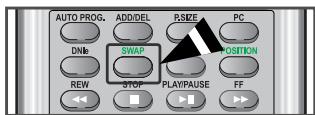
Alternate method:
Press the SWAP button under the remote's cover.
Changing the PIP Channel
5
Press the UP/DOWN ▲▼ buttons to select "Channel", then press the ENTER button.
Press the UP/DOWN ▲▼ buttons to select the desired channel in the PIP window.
[PC/HDMI modes only]
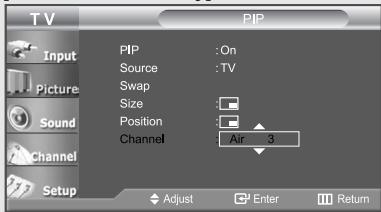
Continued...
Changing the Size of the PIP Window
6
Press the UP/DOWN ▲▼ buttons to select "Size", then press the ENTER← button.
Press the UP/DOWN ▲▼ buttons to select the desired size of the PIP window.
Press the ENTER button.
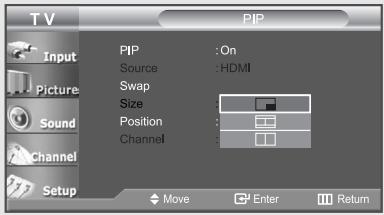
If main picture is in PC Mode, "Size" is not available.
Alternate method:
Press the SIZE button under the remote's cover.
Changing the Position of the PIP Window
7
Press the UP/DOWN ▲▼ buttons to select "Position", then press the ENTER button.
Press the UP/DOWN ▲▼ buttons to select the desired PIP window position.
Press the ENTER button.
Press the EXIT button to exit.
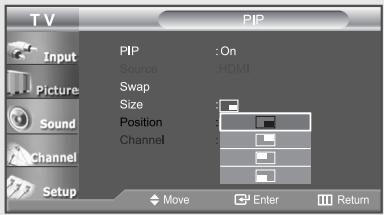
Alternate method:
Press the POSITION button under the remote's cover.
PIP Settings
O : PIP operates
X : PIP doesn't operate
| Main Picture\Sub Picture | TV | AV1 | AV2 | S-Video | Component1 | Component2 | PC | HDMI |
| TV | X | X | X | X | X | X | X | O |
| AV1 | X | X | X | X | X | X | X | O |
| AV2 | X | X | X | X | X | X | X | O |
| S-Video | X | X | X | X | X | X | X | O |
| Component1 | X | X | X | X | X | X | X | O |
| Component2 | X | X | X | X | X | X | X | O |
| PC | O | O | O | O | O | O | X | X |
| HDMI | O | O | O | O | O | O | X | X |
- When the PC is in energy saving mode, you cannot choose the PIP option.
- You may notice that the picture in the PIP window becomes slightly unnatural when you use the main screen to view a game or karaoke.
- You can adjust picture position only by using the □ size menu.
Using Automatic Sound Settings
Your TV has five automatic sound settings (“Standard”, “Music”, “Movie”, “Speech”, and “Custom”) that are preset at the factory. You can activate any of them by pressing the S.MODE button (or by making a selection from the on-screen menu).
Or, you can select “Custom”, which automatically recalls your personalized sound settings.
1
Press the MENU button to display the menu.
Press the UP/DOWN ▲▼ buttons to select "Sound", then press the ENTER button.
Press the ENTER button.
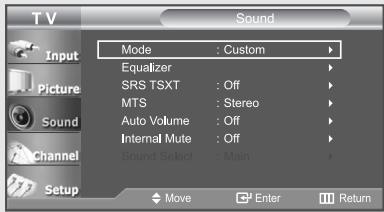
2
Press the UP/DOWN ▲▼ buttons repeatedly to select the “Standard”, “Music”, “Movie”, “Speech”, or “Custom” sound settings.
Press the EXIT button to exit.
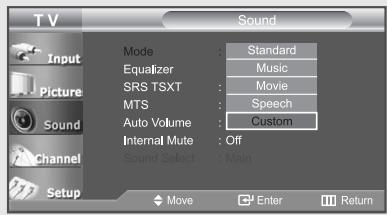
Alternate method:
Simply press the S.MODE button on the remote control to select one of the standard sound settings.
- Choose Standard for the standard factory settings.
- Choose Music when watching music videos or concerts.
- Choose Movie when watching movies.
- Choose Speech when watching a show that is mostly dialog (i.e. news).
- Choose Custom to recall your personalized settings.
Customizing the Sound
The sound settings can be adjusted to suit your personal preference.
(Alternatively, you can use one of the “automatic” settings. See the previous page.)
1
Press the MENU button to display the menu.
Press the UP/DOWN ▲▼ buttons to select "Sound", then press the ENTER button.
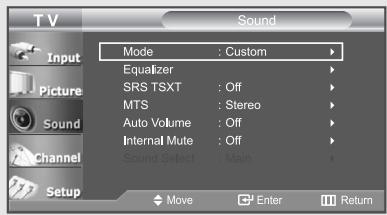
2
Press the UP/DOWN ▲▼ buttons to select "Equalizer", then press the ENTER button.
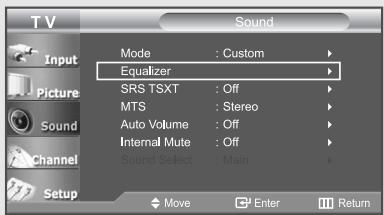
3
Press the LEFT/RIGHT ◀▶ buttons to select a particular frequency to be changed.
Press the UP/DOWN ▲▼ buttons to increase or decrease the value of a particular item.
Press the EXIT button to exit.
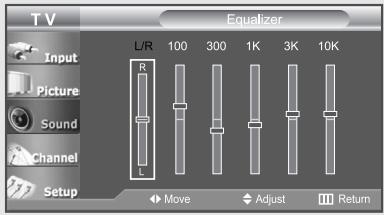
If you make any changes to these settings, the Sound Mode is automatically switched to “Custom”.
Note: The Custom setting allows you to adjust frequencies to your preference.
The lowest frequency is 100 and 10K is the highest.
Setting the TruSurround XT (SRS TSXT)
Emphasizes midrange and bass and provides a simulated surround-sound experience.
1
Press the MENU button to display the menu.
Press the UP/DOWN ▲▼ buttons to select "Sound", then press the ENTER button.
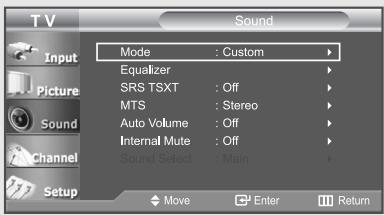
2
Press the UP/DOWN ▲▼
buttons to select "SRS TSXT", then press the ENTER button.
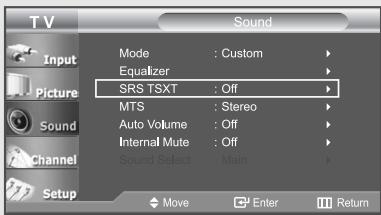
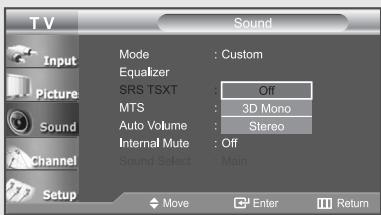
3
Press the UP/DOWN ▲▼ buttons to select "Off", "3D Mono" or "Stereo", than Press the ENTER button.
Press the EXIT button to exit.
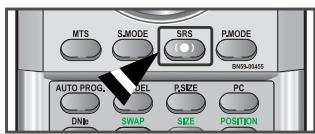
Alternate method:
Simply press the SRS button on the remote control to change the "SRS TSXT" settings.
TRADEMARK & LABEL LICENSE NOTICE
SRS
TruSurround XT
TruSurround XT, SRS and (●) symbol are trademarks of SRS Labs, Inc. TruSurround XT technology is incorporated under license from SRS Labs, Inc.
Choosing a Multi-Channel Sound (MTS) Soundtrack
Depending on the particular program being broadcast, you can listen to stereo, mono or a Separate Audio Program. (SAP audio is usually a foreign-language translation. Sometimes SAP has unrelated information like news or weather).
1
Press the MENU button to display the menu.
Press the UP/DOWN ▲▼ buttons to select "Sound", then press the ENTER button.
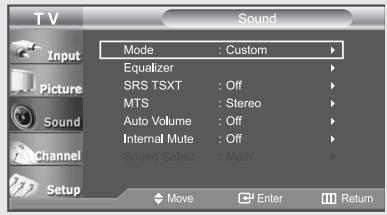
2
Press the UP/DOWN ▲▼ buttons to select "MTS", then press the ENTER button.
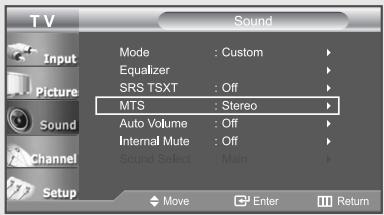
3
Press the UP/DOWN ▲▼ buttons to select "Mono", "Stereo" or "SAP", then press the ENTER button.
Press the EXIT button to exit.
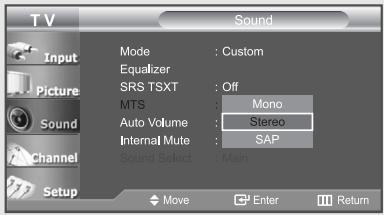
When you change channels, MTS is set to “Stereo” automatically.
Alternate method:
Simply press the MTS button on the remote control to change the MTS settings.
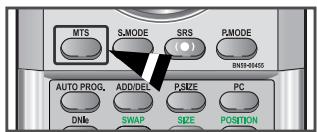
- Choose Mono for channels that are broadcasting in mono, or if you are having difficulty receiving a stereo signal.
- Choose Stereo for channels that are broadcasting in stereo.
- Choose SAP to listen to the Separate Audio Program, which is usually a foreign-language translation.
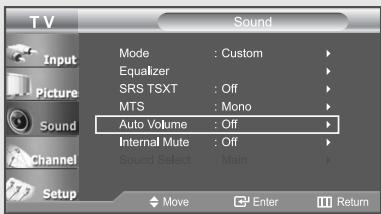
Automatic volume control
Reduces the differences in volume level among broadcasters.
1
Press the MENU button to display the menu.
Press the UP/DOWN ▲▼ buttons to select "Sound", then press the ENTER button.
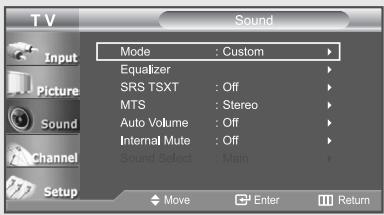
2
Press the UP/DOWN ▲▼ buttons to select
"Auto Volume", then press the ENTER button.
3
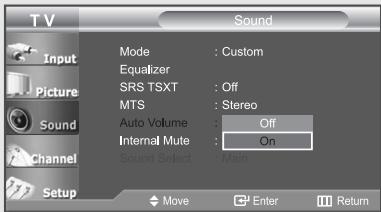
Press the UP/DOWN ▲▼ buttons to set Auto Volume "On".
Press the EXIT button to exit.
Selecting the Internal Mute
Sound output from the TV speakers is muted.
1
Press the MENU button to display the menu.
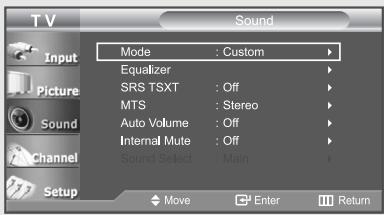
Press the UP/DOWN ▲▼ buttons to select "Sound", then press the ENTER button.
2
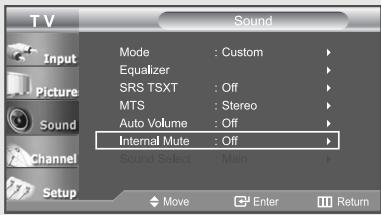
Press the UP/DOWN ▲▼ buttons to select "Internal Mute", then press the ENTER button.
3
Press the UP/DOWN ▲▼ buttons to select "On", Then Press the ENTER button.
Press the EXIT button to exit.
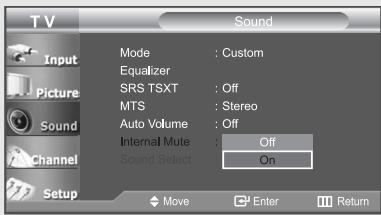
When “Internal mute” is set to “On”, Sound menus except “MTS” and “Sound Select” cannot be adjusted.
Selecting the Main or Sub (PIP) Sound
You can select either Main or Sub sound when PIP is On.
1
Press the MENU button to display the menu.
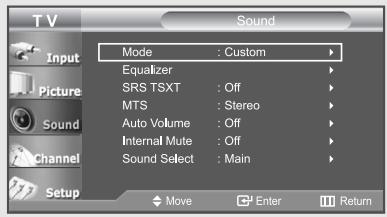
Press the UP/DOWN ▲▼ buttons to select "Sound", then press the ENTER button.
2
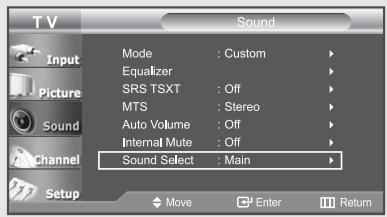
Press the UP/DOWN ▲▼
buttons to select
"Sound Select", then press the ENTER button.
3
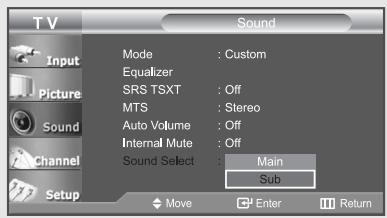
Press the UP/DOWN ▲▼ buttons to select "Main" or "Sub".
Select "Main" to hear the main TV sound and select "Sub" to hear the PIP window sound.
Press the EXIT button to exit.
Chapter 6
CHANNEL CONTROL
Fine Tuning Channels
Use fine tuning to manually adjust a particular channel for optimal reception.
1
Press the MENU button to display the menu.
Press the UP/DOWN ▲▼ buttons to select "Channel", then press the ENTER button.
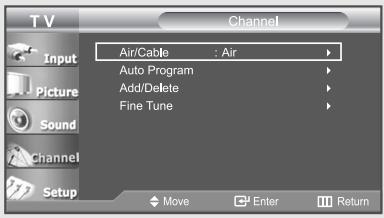
2
Press the UP/DOWN ▲▼ buttons to select "Fine Tune", then press the ENTER button.
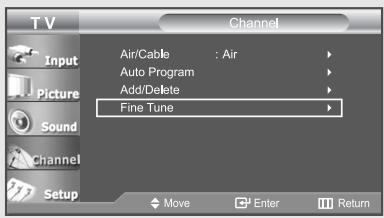
3
Press the LEFT/RIGHT ◀▶ buttons to adjust the fine tuning.
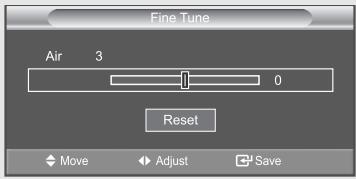
4
To store the fine tuning setting in the TV's memory, press the ENTER button.
Press the EXIT button to exit.
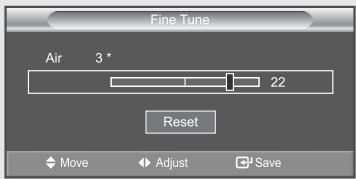
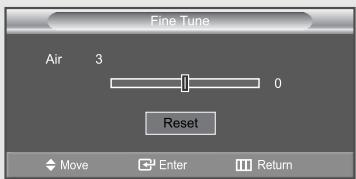
If you do not store the fine-tuned channel in memory, adjustments are not saved.
◀ Fine tuned channels that have been saved are marked with an asterisk “*” on the right-hand side of the channel number in the channel banner.
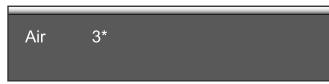
◀ Press the UP/DOWN ▲▼ button to select “Reset”, than press the ENTER ➕ button.
Using Your TV as a Computer (PC) Display
Setting Up Your PC Software (Based on Windows XP)
The Windows display-settings for a typical computer are shown below. The actual screens on your PC will probably be different, depending upon your particular version of Windows and your particular video card. However, even if your actual screens look different, the same basic set-up information will apply in almost all cases. (If not, contact your computer manufacturer or Samsung Dealer.)
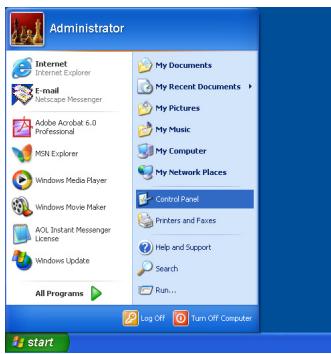
1 First, click on “Control Panel” on the Windows start menu.
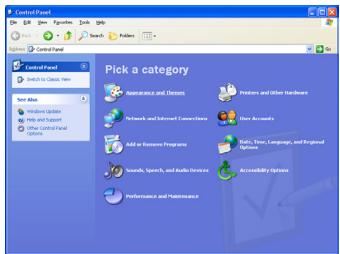
2 When the control panel window appears, click on “Appearance and Themes” and a display dialog-box will appear.
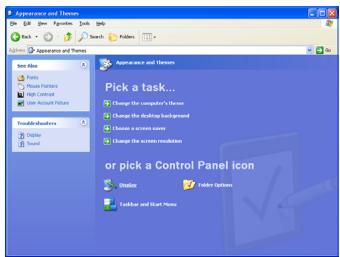
3 When the control panel window appears, click on "Display" and a display dialog-box will appear.
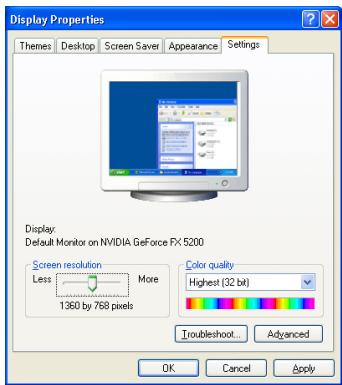
4 Navigate to the "Settings" tab on the display dialog-box. The correct size setting (resolution) -Optimum: LN-R237W1: 1360 x 768 pixels LN-R238WA/LN-R238WXC: 1280 x 720 pixels
If a vertical-frequency option exists on your display settings dialog box, the correct value is “60” or “60 Hz”. Otherwise, just click “OK” and exit the dialog box.
* See “Display Modes” on page 81.
How to Auto Adjust
Use the Auto Adjust function to have the TV set automatically adjust the video signals the monitor receives. The function also automatically fine-tunes the settings and adjusts the frequency values and positions.
Press the PC button under the remote's cover to select the PC mode.
1
Press the MENU button to display the menu.
Press the UP/DOWN ▲▼ buttons to select "Setup", then press the ENTER button.
Press the UP/DOWN ▲▼ buttons to select "PC", then press the ENTER← button.
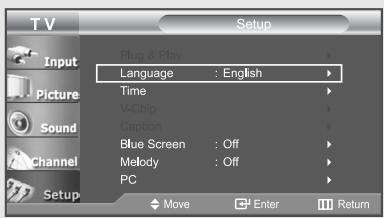
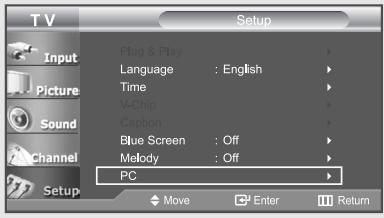
2
Press the UP/DOWN ▲▼ buttons to select "Auto Adjustment", then press the ENTER button.
Press the EXIT button to exit.
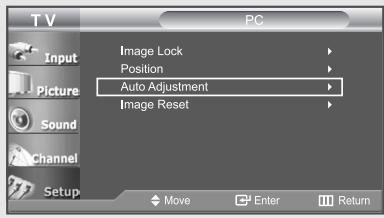
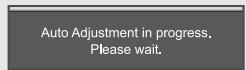
Adjusting the Screen Quality
The purpose of the picture quality adjustment is to remove or reduce picture noise. If the noise is not removed by fine tuning alone, then do the frequency adjustments to the utmost and fine tune again. After the noise has been reduced, re-adjust the picture so that it is aligned on the center of screen.
Press the PC button under the remote's cover to select the PC mode.
1
Press the MENU button to display the menu.
Press the UP/DOWN ▲▼ buttons to select "Setup", then press the ENTER← button.
Press the UP/DOWN ▲▼ buttons to select "PC" then press the ENTER button.
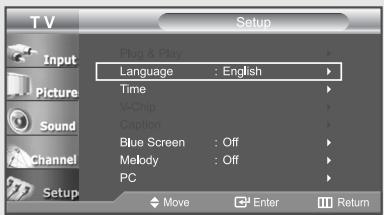
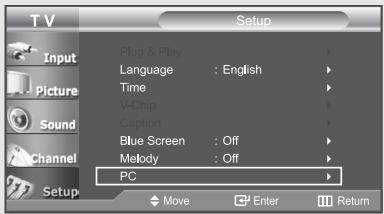
2
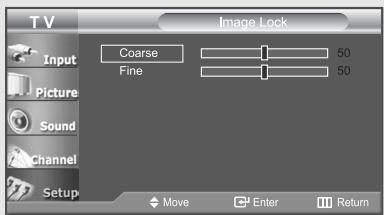
Press the ENTER button to select "Image Lock".
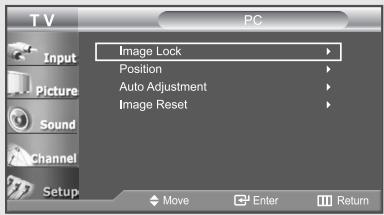
3
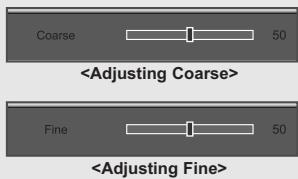
Press the UP/DOWN ▲▼ buttons to select "Coarse" or "Fine", then press the ENTER button.
Press the LEFT/RIGHT◀▶ buttons to adjust the screen quality. Vertical stripes may appear or the picture may be blurry.
Press the EXIT button to exit.
Changing the Screen Position
Press the PC button under the remote's cover to select the PC mode.
1
Press the MENU button to display the menu.
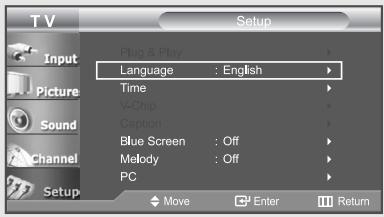
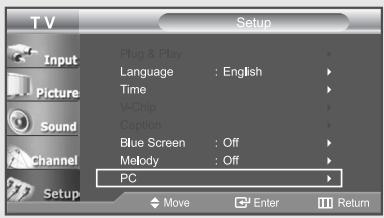
Press the UP/DOWN ▲▼ buttons to select "Setup", then press the ENTER button.
2
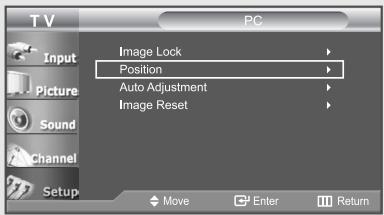
Press the UP/DOWN ▲▼ buttons to select "PC", then press the ENTER ← button.
Press the UP/DOWN ▲▼ buttons to select "Position", then press the ENTER button.
3
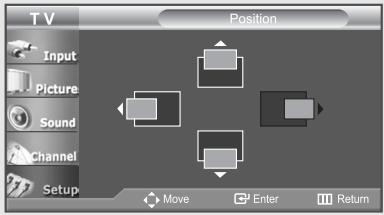
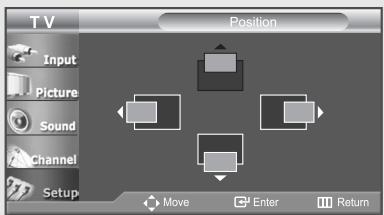
Press the UP/DOWN ▲▼ buttons to adjust the V-Position.
Press the LEFT/RIGHT ◀▶ buttons to adjust the H-Position.
Press the EXIT button to exit.
Initializing the Screen Position or Color Settings
Press the PC button under the remote's cover to select the PC mode.
1
Press the MENU button to display the menu.
Press the UP/DOWN ▲▼ buttons to select "Setup", then press the ENTER ← button.
Press the UP/DOWN ▲▼ buttons to select "PC", then press the ENTER← button.
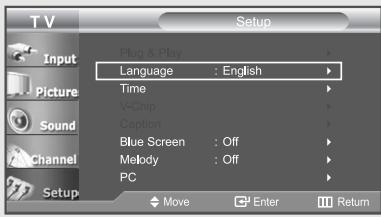
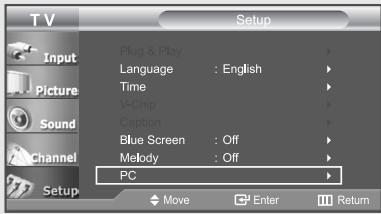
2
Press the UP/DOWN ▲▼ buttons to select "Image Reset", then press the ENTER button.
Press the EXIT button to exit.
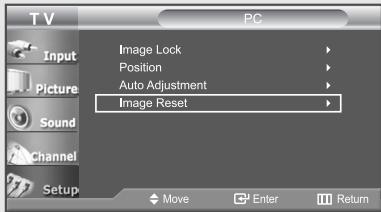
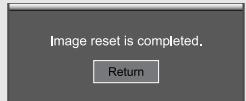
Setting the Clock
Setting the clock is necessary in order to use the various timer features of the TV. Also, you can check the time while watching the TV. (Just press the INFO button).
1
Press the MENU button to display the menu.
Press the UP/DOWN ▲▼ buttons to select "Setup", then press the ENTER button.
Press the UP/DOWN ▲▼ buttons to select "Time", then press the ENTER button.
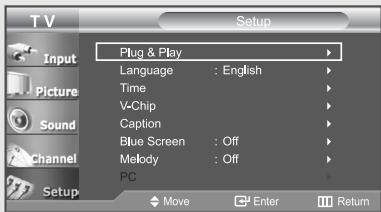
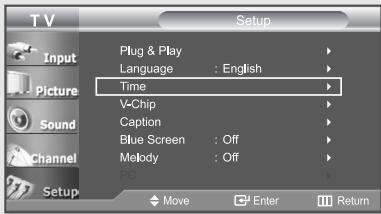
2
Press the ENTER button to select "Time", then press the ENTER button to select "Clock Set".
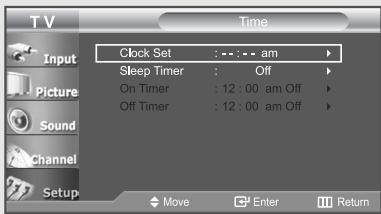
3
Press the UP/DOWN ▲▼ buttons repeatedly until the correct "Hour" appears.
After the hour is entered, press the LEFT/RIGHT ◀▶ buttons to select "Minute".
Press the UP/DOWN ▲▼ buttons until the correct "Minute" appears.
Press the LEFT/RIGHT ◀▶ buttons to select “am/pm” and adjust with the UP/DOWN ▲▼ buttons.
Press the EXIT button to exit.
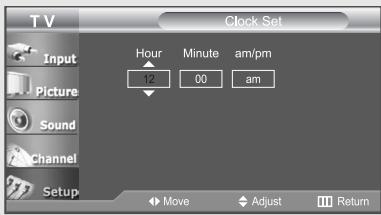
◀ You can also set the time using the number buttons on the remote.
Setting the Sleep Timer
Set the timer for the TV to turn off at the preset time automatically.
Sleep timer
1
Press the MENU button to display the menu.
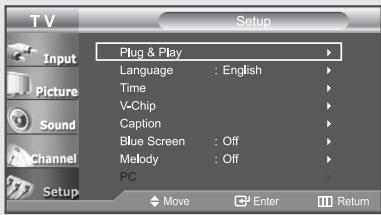
Press the UP/DOWN ▲▼ buttons to select "Setup", then press the ENTER button.
Press the UP/DOWN ▲▼ buttons to select "Time", then press the ENTER button.
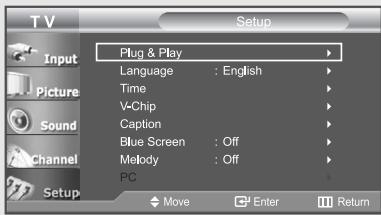
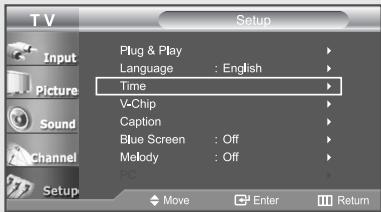
2
Press the UP/DOWN ▲▼ buttons to select "Sleep Timer", then press the ENTER← button.
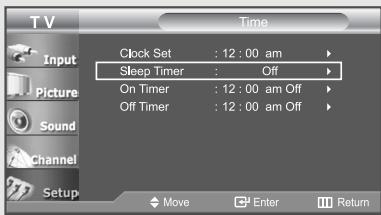
3
Press the UP/DOWN ▲▼ buttons repeatedly until the correct time appears.
Press the EXIT button to exit.
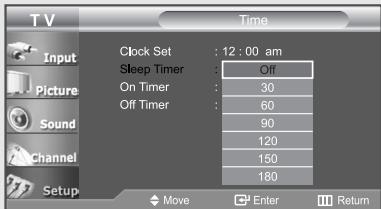
Alternate method:
Press the SLEEP button on the remote. The number on the screen changes from Off • 30 • 60 • 90 • 120 • 150 • 180
Setting the On/Off Timer
1
Press the MENU button to display the menu.
Press the UP/DOWN ▲▼ buttons to select "Setup", then press the ENTER button.
Press the UP/DOWN ▲▼ buttons to select "Time", then press the ENTER button.
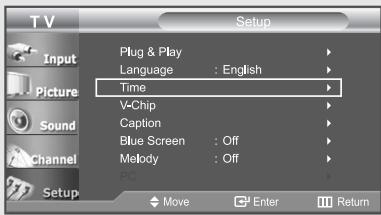
2
Press the UP/DOWN ▲▼ buttons to select "On Timer", then press the ENTER button.
Press the UP/DOWN ▲▼ buttons repeatedly to select the appropriate "Hour".
Press the LEFT/RIGHT◀▶ buttons to select "Minute".
Press the UP/DOWN ▲▼ buttons repeatedly to select the appropriate "Minute".
Set other items using the same method as above.
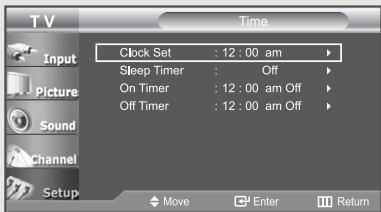
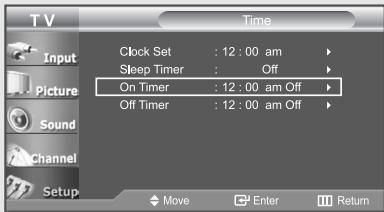
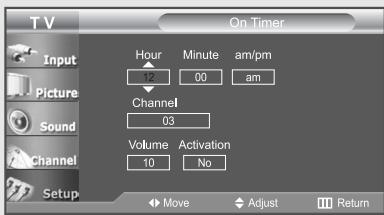
Before using the timer, you must set the TV's clock.
When you set the hours, make sure the correct time of day (am or pm) appears to the right of the time.
◀ You can also set the time using the number buttons on the remote.
Continued...
3
Press the LEFT/RIGHT ◀▶ buttons to select "Activation". Press the UP/DOWN ▲▼ buttons to set the On Time "Yes".
When finished, press the ENTER← button.
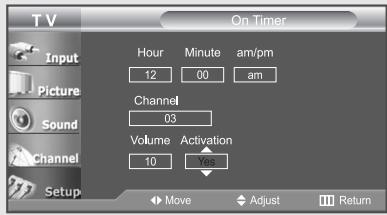
◀ To deactivate the “On Timer,” select “No” during this step.
Repeatedly pressing the UP/DOWN ▲▼ buttons will alternate between “Yes” and “No”.
◀ You can also set the time using the number buttons on the remote.
4
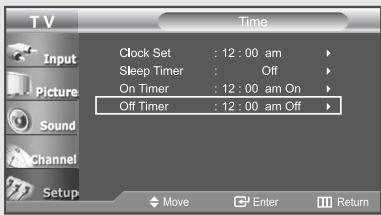
To set the Off time, press the UP/DOWN ▲▼ buttons to select "Off Timer".
Press the ENTER button and set the hours and minutes.
(Follow the same procedure as in steps 2 and 3 above).
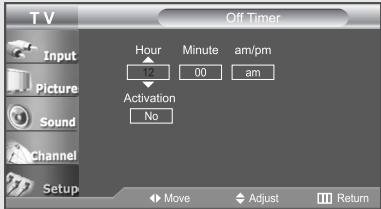
5
When finished setting the timer, press the EXIT button to exit.
- Auto Power Off
When you set the timer on, your television will be turned off if you do not operate any controls for 3 hours after the TV has been turned on with the ‘Timer On’ function.
Chapter 9
FUNCTION DESCRIPTION
Selecting a Menu Language
1
Press the MENU button to display the menu.
Press the UP/DOWN ▲▼ buttons to select "Setup", then press the ENTER button.
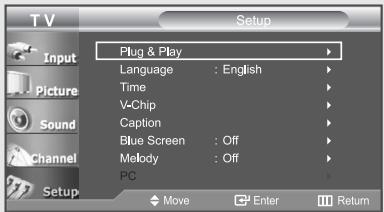
2
Press the UP/DOWN ▲▼ buttons to select "Language".
Press the ENTER← button.
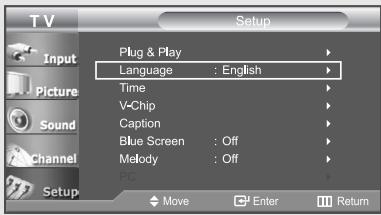
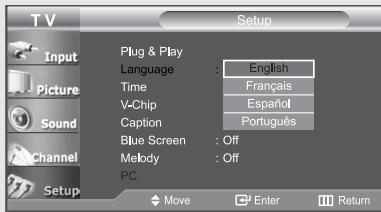
3
Press the UP/DOWN ▲▼ buttons to select “English”, “Français”, “Español”, or “Português”.
Press the EXIT button to exit.
Using the V-Chip
The V-Chip feature automatically locks out programming that is deemed inappropriate for children. The user must first enter a PIN (personal ID number) before any of the V-Chip restrictions can be set up or changed.
Setting Up Your Personal ID Number (PIN)
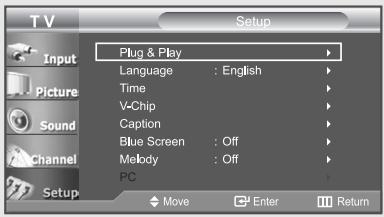
1
Press the MENU button to display the menu.
Press the UP/DOWN ▲▼ buttons to select "Setup", then press the ENTER button.
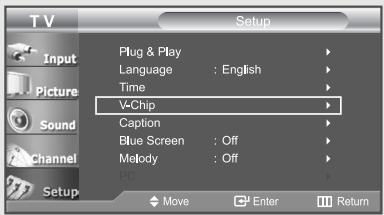
2
Press the UP/DOWN ▲▼ buttons to select "V-Chip", then press the ENTER button.
3
The “Enter PIN” screen will appear. Enter your 4-digit PIN number.
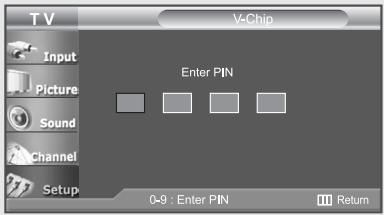
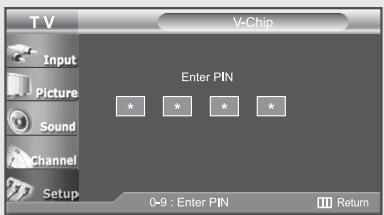
The default PIN number for a new TV set is “0-0-0-0.”
Continued...
4
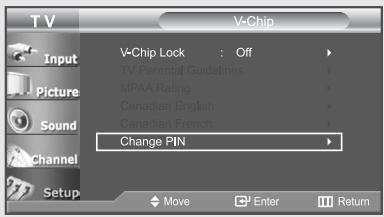
After entering a valid PIN number, the "V-Chip" screen will appear. Press the UP/DOWN ▲▼ buttons to select "Change PIN".
5
Press ENTER button.
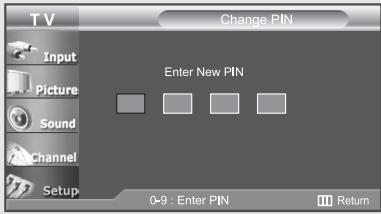
The Change PIN screen will appear. Choose any 4-digits for your PIN and enter them.
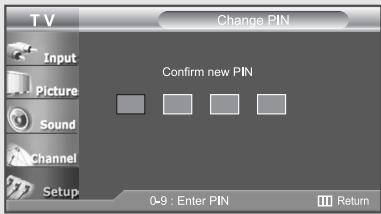
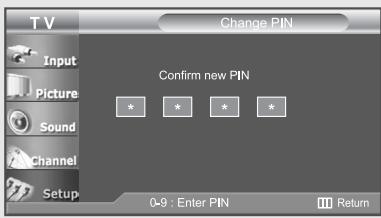
As soon as the 4 digits are entered, the “Confirm new PIN” screen appears. Re-enter the same 4 digits. When the Confirm screen disappears, your PIN has been memorized.
Press the EXIT button to exit.
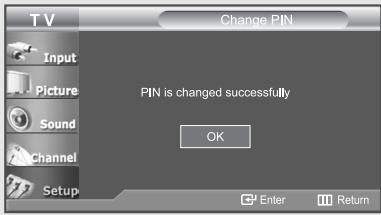
◀ If you forget the PIN, press the remote-control buttons (with the unit “Off”) in the following sequence, which resets the PIN to 0-0-0-0: POWER OFF → MUTE → 8 → 2 → 4 → POWER ON.
How to Enable/Disable the V-Chip
Note: PIP operation is disabled when the V-chip is on.
1
Press the MENU button to display the menu.
Press the UP/DOWN ▲▼ buttons to select "Setup", then press the ENTER button.
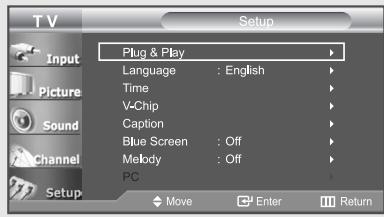
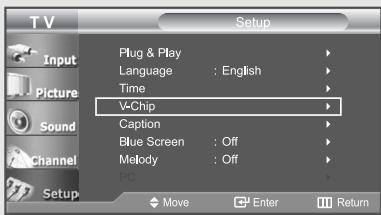
2
Press the UP/DOWN ▲▼ buttons to select "V-Chip", then press the ENTER button.
3
The “Enter PIN” screen will appear. Enter your 4-digit PIN number.
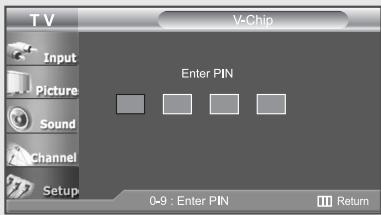
The default PIN number for a new TV set is “0-0-0-0.”
4
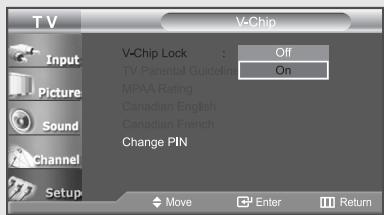
The "V-Chip" screen will appear, and "V-Chip Lock" will be selected.
To enable the V-Chip feature, press the UP/DOWN ▲▼ buttons so that the "V-Chip Lock" is set to "On".
Press the ENTER button. Press the EXIT button to exit
How to Set up Restrictions Using the ‘TV Parental Guidelines’
First, set up a personal identification number (PIN), and enable the V-Chip.
(See previous section.) Parental restrictions can be set up using either of two methods:
The TV guidelines or the MPAA rating.
1
Press the MENU button to display the menu.
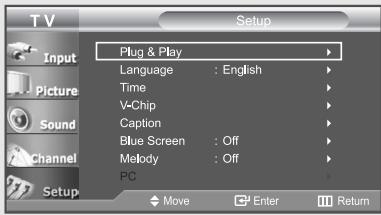
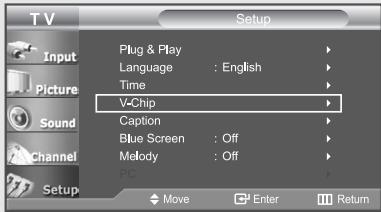
Press the UP/DOWN ▲▼ buttons to select "Setup", then press the ENTER button.
Press the UP/DOWN ▲▼ buttons to select "V-Chip", then press the ENTER button.
2
The "Enter PIN" screen will appear.
Enter your 4-digit PIN number.
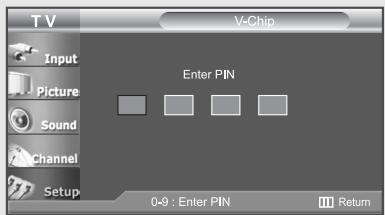
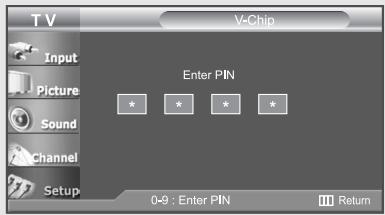
The default PIN number for a new TV set is "0-0-0-0."
Continued...
3
Press the UP/DOWN ▲▼ buttons to select "TV Parental Guidelines", then press the ENTER button.
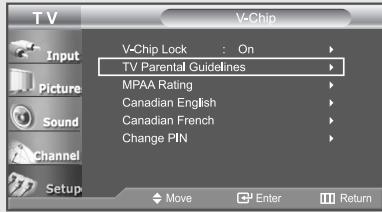
4
The “TV Parental Guidelines” screen will appear.
Press the UP/DOWN ▲▼ buttons to select one of the six age-based categories:
TV-Y : Young children
TV-Y7 : Children 7 and over
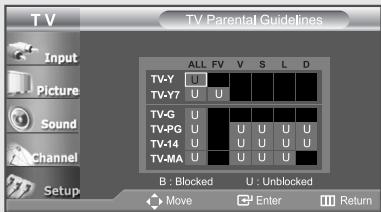
TV-G : General audience
TV-PG : Parental guidance
TV-14 : Viewers 14 and over
TV-MA : Mature audience
Note: These categories consist of two separate groups: TV-Y and TV-Y7 (young children through age 7), and TV-G through TV-MA (everybody else). The restrictions for these two groups work independently: If a household includes very young children as well as young adults, the TV guidelines must be set up separately for each age group. (See next step.)
Continued...
5
At this point, one of the TV-Ratings is selected.
Depending on your existing setup, the letter "U" or "B" will be highlighted (changed to yellow). (U= Unblocked, B= Blocked)
When the "U" or "B" is highlighted, press the ENTER button to block or unblock the category. To select a different TV-Rating, press the UP/DOWN▲▼ buttons and then repeat the process. To EXIT this screen, press the MENU button again.
Note 1: The TV-Y7, TV-PG, TV-14 and TV-MA have additional options. See the next step to change any of the following sub-ratings:
FV: Fantasy Violence
D : Sexual suggestive Dialog
L : Adult Language
S : Sexual situation
V : Violence
Note 2: The V-Chip will automatically block certain categories that are “more restrictive.” For example, if you block “TV-Y” category, then TV-Y7 will automatically be blocked. Similarly, if you block the TV-G category, then all the categories in the “young adult” group will be blocked (TV-G, TV-PG, TV-14 and TV-MA). The sub-ratings (D, L, S, V) work together similarly. (See next section.)
6
How to set the FV, D, L, S and V sub-ratings.
First, select one of these TV-Ratings: TV-Y7, TV-PG, TV-14 or TV-MA (See Step 4, on previous page).
Next, while the TV-Rating is selected, repeatedly press the LEFT or RIGHT buttons.
This will cycle through the available sub-ratings (FV,L, S, D or V).
A highlighted letter ("U" or "B") will be displayed for each sub-rating. While the "U" or "B" is highlighted, press the ENTER button to change the sub-rating.
Press the MENU button once to save the TV guidelines.
To select a different TV-Rating, press the UP/DOWN ▲▼ buttons and then repeat the process.
To exit this screen, press the MENU button once again.
Note: The V-chip will automatically block certain categories that are “More restrictive”. For example, if you block the “L” sub-rating in TV-PG, then the “L” sub-ratings in TV-14 and TV-MA will automatically be blocked.
7
Press the EXIT button to exit.
(Or proceed to the next section, and set up additional restrictions based on the MPAA codes).
How to Set up Restrictions Using the MPAA Ratings: G, PG, PG-13, R, NC-17, X, NR
The MPAA rating system uses the Motion Picture Association of America (MPAA) system, and its main application is for movies.
When the V-Chip lock is on, the TV will automatically block any programs that are coded with objectionable ratings (either MPAA or TV-Ratings).
1
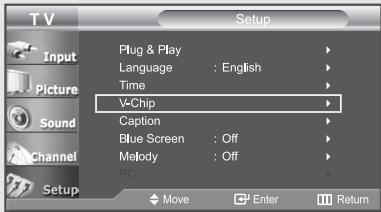
Press the MENU button to display the menu.
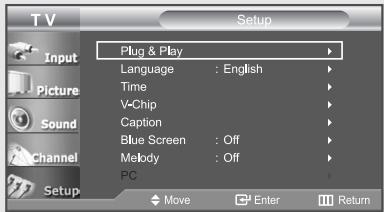
Press the UP/DOWN ▲▼ buttons to select "Setup", then press the ENTER ↩ button.
Press the UP/DOWN ▲▼ buttons to select "V-Chip", then press the ENTER button.
2
The “Enter PIN” screen will appear. Enter your 4-digit PIN number.
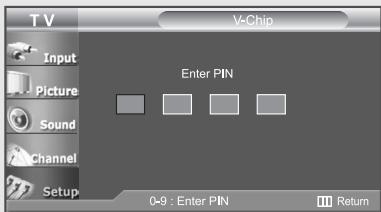
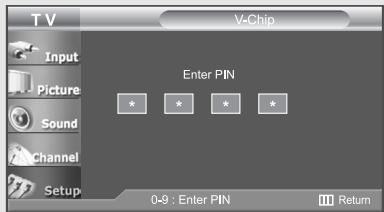
The default PIN number for a new TV set is “0-0-0-0.”
Continued...
3
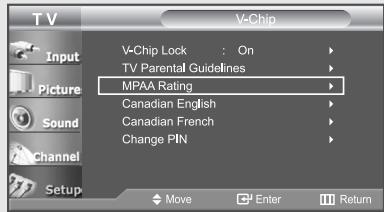
Press the UP/DOWN ▲▼
buttons to select
"MPAA Rating", then press the ENTER button.
4
Repeatedly press the UP/DOWN ▲▼ buttons to select a particular MPAA category. (When a category is selected, its color changes to yellow.)
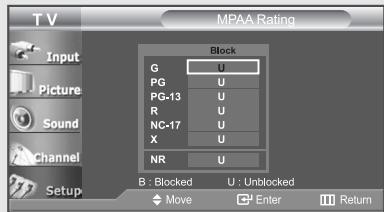
| G | General audience (no restrictions). |
| PG | Parental guidance suggested. |
| PG-13 | (Parents strongly cautioned). |
| R | (Restricted. Children under 17 should be accompanied by an adult). |
| NC-17 | No children under age 17. |
| X | (Adults only). |
| NR | Not rated. |
Press the ENTER button to select "U" or "B".
Press the EXIT button to save and clear all screen.
Note: The V-Chip will automatically block any category that is “more restrictive”.
For example, if you block the “PG-13” category, then “R”, “NC-17” and “X” will automatically be blocked also.
How to Reset the TV after the V-Chip Blocks a Channel ('Emergency Escape')
If the TV is tuned to a restricted channel, the V-Chip will block it. The screen will go blank and the following message will appear: "Excessive rating".
To resume normal viewing, tune to a different channel using the number buttons. Under certain conditions (depending on the rating of the local TV programs) the V-Chip might lock out all the channels.
In this case, use the MENU button for an "emergency escape":
Select the V-Chip on the Menu. Enter your PIN number, and press the ENTER button to temporarily disable the V-Chip Lock.
How to Set up Restrictions Using the ‘Canadian English’
1
Press the MENU button to display the menu.
Press the UP/DOWN ▲▼ buttons to select "Setup", then press the ENTER button.
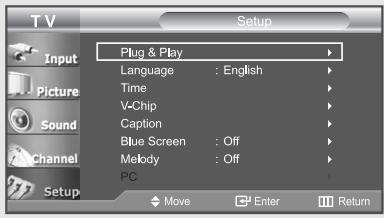
2
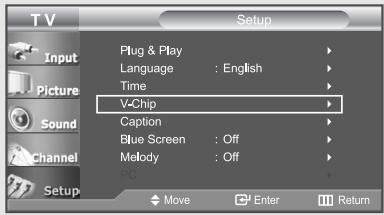
Press the UP/DOWN ▲▼ buttons to select "V-Chip", then press the ENTER button.
3
The “Enter PIN” screen will appear. Enter your 4-digit PIN number.
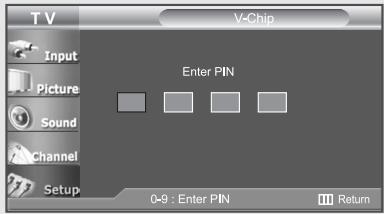
The default PIN number for a new TV set is "0-0-0-0."
4
Press the UP/DOWN ▲▼ buttons to select "Canadian English", then press the ENTER← button.
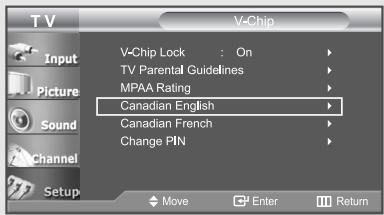
5
Press the UP/DOWN ▲▼ button to select a appropriate restriction. Press the ENTER← button to activate the restriction selected. The "B" is indicated. Press the EXIT button to exit.
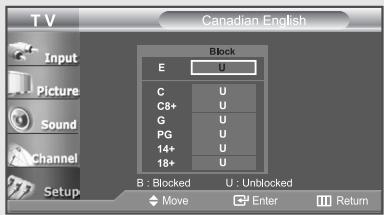
Canadian English
• E : Exempt programming includes...news, sports, documentaries and other information programming, talk shows, music videos, and variety programming.
• C : Programming intended for children under age 8.
• C8+ : Programming generally considered acceptable for children 8 years and over to watch on their own.
• G : General programming, suitable for all audiences.
• PG : Parental Guidance.
- 14+ : Programming contains themes or content which may not be suitable for viewers under the age of 14.
• 18+ : Adult programming.
How to Set up Restrictions Using the ‘Canadian French’
1
Press the MENU button to display the menu.
Press the UP/DOWN ▲▼ buttons to select "Setup", then press the ENTER button.
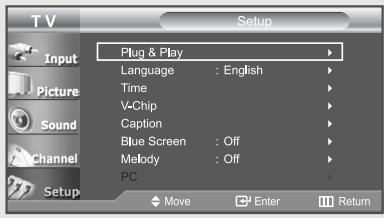
2
Press the UP/DOWN ▲▼ buttons to select "V-Chip", then press the ENTER button.
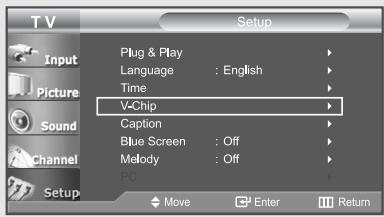
3
The “Enter PIN” screen will appear. Enter your 4-digit PIN number.
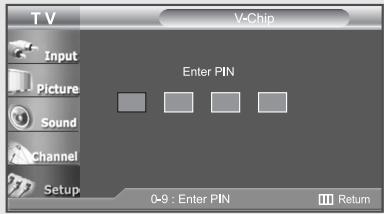
The default PIN number for a new TV set is “0-0-0-0.”
4
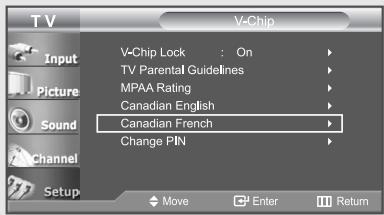
Press the UP/DOWN ▲▼ buttons to select "Canadian French", then press the ENTER← button.
5
Press the UP/DOWN ▲▼ button to select a appropriate restriction.
Press the ENTER button to activate the restriction selected. The "B" is indicated. Press the EXIT button to exit.
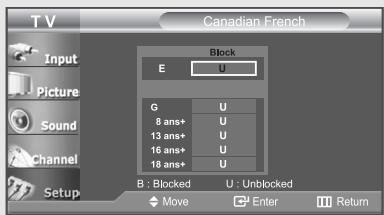
Canadian French
• E : Exempt programming includes...news, sports, documentaries and other information programming, talk shows, music videos, and variety programming.
• G : General.
- 8 ans+ : Not recommended for young children.
- 13 ans+ : Programming may not be suitable for children under the age of 13.
- 16 ans+ : Programming is not suitable for children under the age of 16.
- 18 ans+ : Programming restricted to adults.
Viewing Closed Captions
Your TV decodes and displays the closed captions that are broadcast with certain TV shows. These captions are usually subtitles for the hearing impaired or foreign-language translations. All VCRs record the closed caption signal from television programs, so home-recorded video tapes also provide closed captions. Most pre-recorded commercial video tapes provide closed captions as well. Check for the closed caption symbol in your television schedule and on the tape's packaging: cc.
1
Press the MENU button to display the menu.
Press the UP/DOWN ▲▼ buttons to select "Setup", then press the ENTER button.
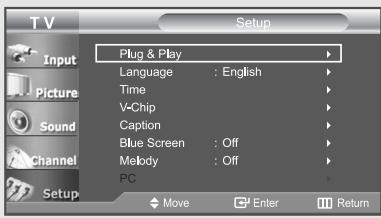
The Caption feature does not work with DVD or Set-top box signals.
2
Press the UP/DOWN ▲▼ buttons to select "Caption", then press the ENTER button.
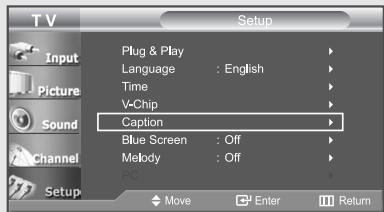
3
Press the ENTER button to select "Caption".
Press the UP/DOWN ▲▼ buttons to set the Caption "On", then press the ENTER button.
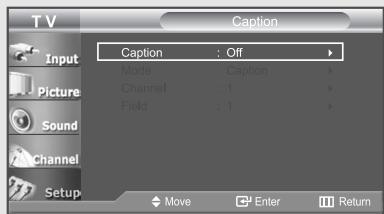
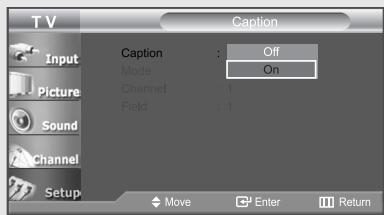
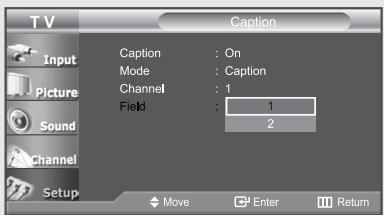
Different channels and fields display different information: Field 2 carries additional information that supplements the information in Field 1. (For example, Channel 1 may have subtitles in English, while Channel 2 has subtitles
◀ in Spanish).
4
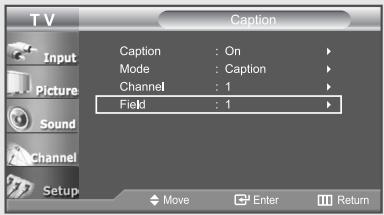
Depending on the particular broadcast, it might be necessary to alter the settings to “Channel” and “Field”.
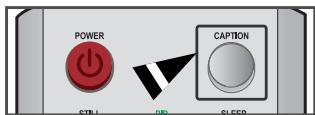
Alternate method:
Press the CAPTION button on the remote control.
5
Press the UP/DOWN ▲▼ buttons to select "Mode", then press the ENTER ← button.
Press the UP/DOWN ▲▼ buttons to set "Caption" or "Text", then press the ENTER button.
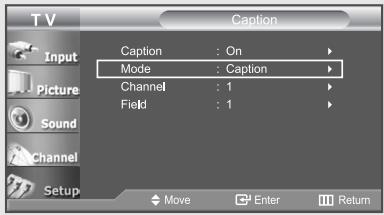
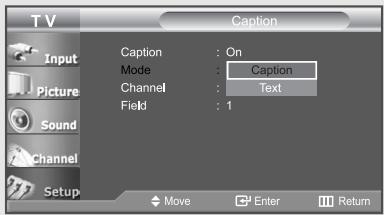
6
Press the UP/DOWN ▲▼ buttons to select "Channel", then press the ENTER button.
Press the UP/DOWN ▲▼ buttons to select "1" or "2", then press the ENTER button.
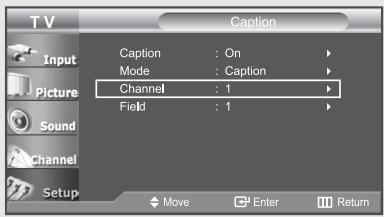
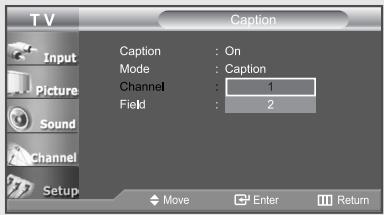
7
Press the UP/DOWN ▲▼ buttons to select "Field", then press the ENTER button.
Press the UP/DOWN ▲▼ buttons to select "1" or "2", then press the ENTER button.
Press the EXIT button to exit.
Setting the Blue Screen Mode
If no signal is being received or the signal is very weak, a blue screen automatically replaces the noisy picture background.
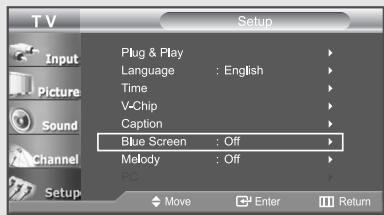
If you wish to continue viewing the poor picture, you must set the “Blue Screen” mode to “Off”.
1
Press the MENU button to display the menu.
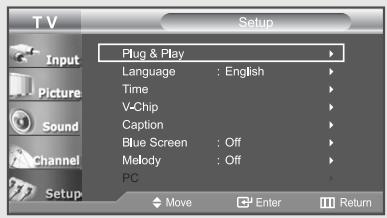
Press the UP/DOWN ▲▼ buttons to select "Setup", then press the ENTER button.
2
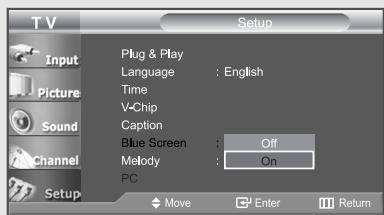
Press the UP/DOWN ▲▼ buttons to select "Blue Screen", then press the ENTER button.
3
Press the UP/DOWN ▲▼ buttons to set Blue Screen "On".
Press the EXIT button to exit.
Selecting the Melody
You can hear a melody sound when the television is powered on or off.
1
Press the MENU button to display the menu.
Press the UP/DOWN ▲▼ buttons to select "Setup", then press the ENTER button.
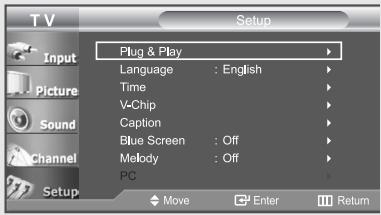
2
Press the UP/DOWN ▲▼ buttons to select "Melody", then press the ENTER button.
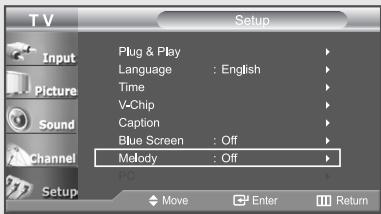
3
Press the UP/DOWN ▲▼ buttons to select "On".
Press the EXIT button to exit.
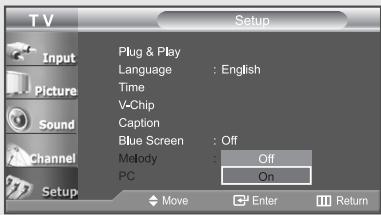
If the TV seems to have a problem, first try this list of possible problems and solutions. If none of these troubleshooting tips apply, call your nearest Samsung service center.
Identifying Problems
| Problem | Possible Solution |
| Poor picture | Try another channel.Adjust the antenna.Check all wire connections. |
| Poor sound quality. | Try another channel.Adjust the antenna. |
| No picture or sound. | Try another channel.Press the SOURCE button.Make sure the TV is plugged in.Check the antenna connections. |
| No sound or sound is too low at maximum volume. | First, check the volume of units connected to your TV (digital broadcasting receiver, DTV, DVD, cable broadcasting receiver, VCR, etc.). Then, adjust the TV volume accordingly.Check if “Internal Mute” is off. |
| Picture rolls vertically. | Check all wire connections. |
| The TV operates erratically. | Unplug the TV for 30 seconds, then try operating it again. |
| Remote control malfunctions | Replace the remote control batteries.Clean the upper edge of the remote control (transmission window).Check the battery terminals. |
| “Check signal cable” message. | Ensure that the signal cable is firmly connected to the PC sources. |
| “Not Supported Mode” message. | Check the maximum resolution and the frequency of the Video Adaptor.Compare these values with the data in the Display Modes. |
| The image is too light or too dark. | Adjust the Brightness and Contrast.Adjust the Fine tuning. |
| Horizontal bars appear to flicker, jitter or shimmer on the image. | Adjust the Coarse tuning and then adjust the Fine tuning. |
Problem
Vertical bars appear to flicker, jitter or shimmer on the image.
Screen is black and power indicator light blinks steadily.
Image is not stable and may appear to vibrate when you have a computer connected to the PC input.
Possible Solution
Adjust the Coarse tuning and then adjust the Fine tuning.
On your computer check: Power, Signal Cable. The TV is using its power management system. Move the computer's mouse or press any key on the keyboard.
If the setting is not correct, use your computer utility program to change the display settings.
NOTE: Your TV supports multiscan display functions within the following frequency domain:
| Horizontal frequency (kHz) | 30~61 |
| Vertical frequency (Hz) | 60~75 |
| Maximum refresh rate (at 60Hz) | 1280 X 720(*LN-R237W1: 1360 x 768) |
Image is not centered on the screen.
If a still image is displayed for an extended period of time, residual images or blurring may appear.
Adjust the horizontal and vertical position. The screen position must be adjusted on the output source (i.e. STB) with a digital signal.
When you need to leave the monitor unused for an extended period of time, adjust the settings so that the monitor automatically goes into energy saving mode or activates the screen saver to display moving images.
The TFT LCD panel uses a panel consisting of sub pixels [2,764,800 (LN-R237W1 - 3,147,264)] which require sophisticated technology to produce.
However, there may be few bright or dark pixels on the screen. These pixels will have no impact on the performance of the product.
Installing the stand
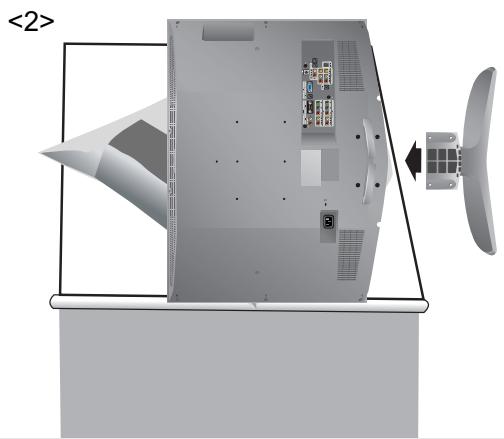
natural_image
Diagram of a device with labeled components and an arrow indicating rotation (no text or symbols present)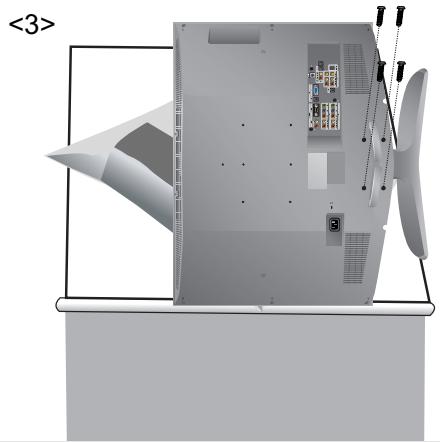
natural_image
3D CAD model of a mechanical assembly with internal components and mounting brackets (no visible text or symbols)- Place the TV faced down on a soft cloth or cushion on a table.
- Attach the stand to the TV set as shown in the picture.
- Use the four screws to tightly fix the stand.
Disconnecting the stand
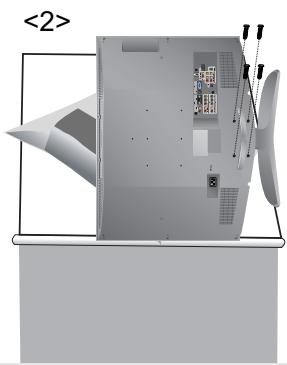
natural_image
3D rendering of a computer monitor with ventilation slots and external components (no visible text or symbols)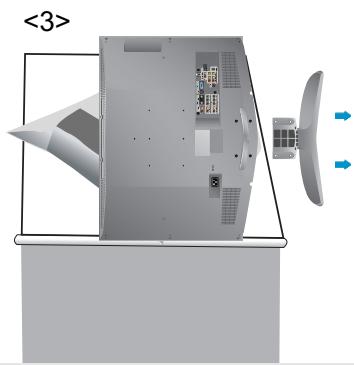
natural_image
Diagram of a device interior with labeled components and directional arrows (no readable text or symbols)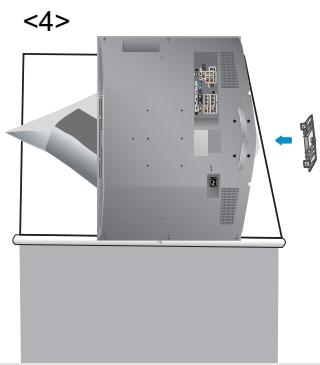
natural_image
3D diagram of a device interior with labeled components and an arrow indicating direction (no text or symbols present)- Place the TV faced down on a soft cloth or cushion on a table.
- Remove four screws from the back of the TV.
- Separate the stand from the TV.
- Cover the bottom hole with a cap.
Installing the Wall Mount Kit
Note: This installation is to be used when attaching the wall mount to a wall.
When attaching to other building materials, please contact your nearest dealer.
Components (Sold separately)
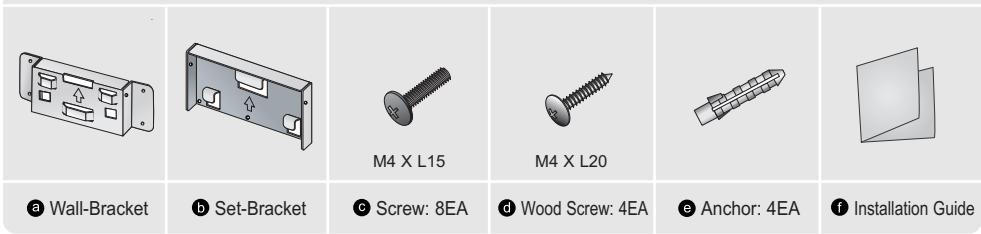
How to assemble the Wall Mount Bracket
1 ① Mark the location on the wall where the hole will be drilled.
② Drill a hole of 35mm depth on the marked location.
③ Fix anchors ⓔ on each hole on the wall.
④ Connect wall-bracket a to the wall with wood screws d after fitting anchors e into the wall-bracket a.
Note: If the bracket is not firmly fixed to the wall, LCD TV can fall off.
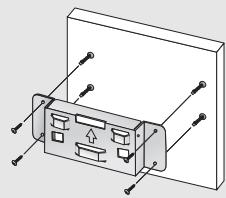
natural_image
Isometric line drawing of a device rear panel with connectors and ports (no text or symbols)2 ① Turn the power off and unplug the power cord from the outlet.
② Place the TV faced down on a soft cloth or cushion on a table.
③ Attach the set-bracket ⓑ onto the rear side of the TV set and secure the screws Ⓒ.
②
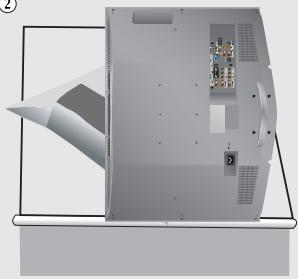
natural_image
3D rendering of a mechanical or electronic component with internal components and a tapered tip, no visible text or symbols
③
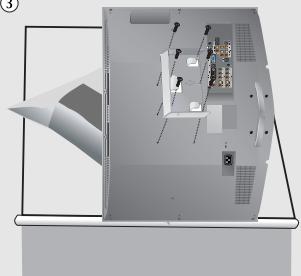
natural_image
3D architectural rendering of a server room with internal components and ventilation ducts (no text or symbols visible)3 ① Insert three Hangers of the set-bracket b into the grooves of the wall-bracket a.
② Fix set-bracket b and wall-bracket a with screws c.
Note: Before installing the set on the wall, connect the cables to the set first.
①
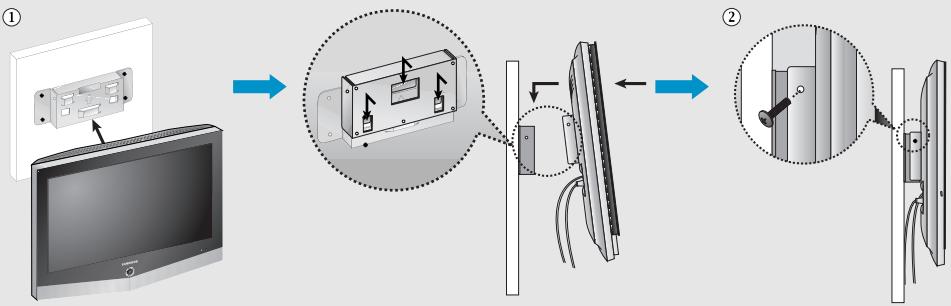
flowchart
graph TD
    A["① Screen Panel"] --> B["② Display Panel"]
    B --> C["② View Panel"]
    style A fill:#f9f,stroke:#333
    style B fill:#ccf,stroke:#333
    style C fill:#cfc,stroke:#333
Using the Anti-Theft Kensington Lock
The Kensington lock is a device used to physically fix the system when using it in a public place.
The locking device has to be purchased separately. The appearance and locking method may differ from the illustration depending on the manufacturer. Please refer to the manual provided with the Kensington lock for proper use.
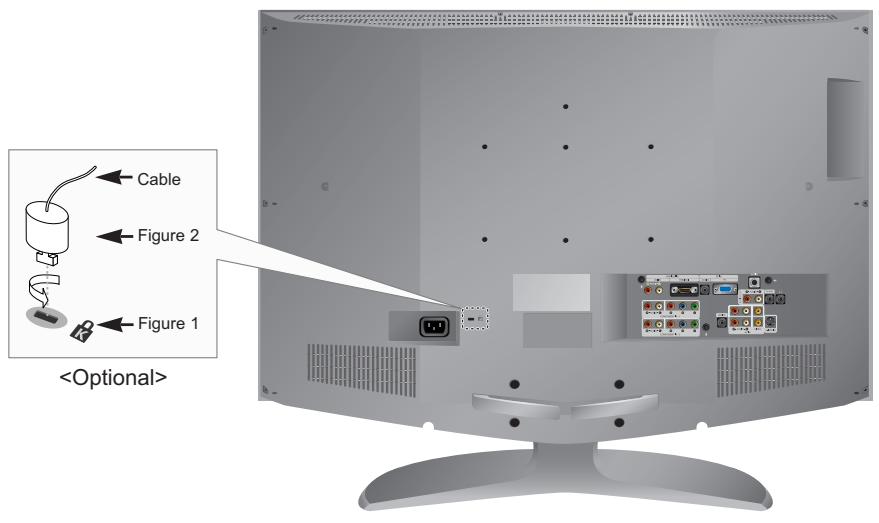
Note: The place of the Kensington Lock may be different depending on its model.
- Insert the locking device into the Kensington slot on the LCD TV (Figure 1), and turn it in the locking direction (Figure 2).
- Connect the Kensington lock cable.
- Fix the Kensington lock to a desk or a heavy stationary object.
Using Your TV in Another Country
If you plan to take your TV with you to a foreign country, please be aware of the different television systems that are in use around the world. A TV designed for one system may not work properly with another system due to differences in the TV channel frequencies.
Specifications
| Model Name | LN-R237W1 | LN-R238WA / LN-R238WXC |
| Screen Size (Diagonal) | 23 inch | 23 inch |
| Power Supply | AC110V-120V, 60 Hz | AC110V-120V, 60 Hz |
| Power Consumption | 100 W | 100 W |
| PC Resolution | 1360 x 768 @ 60 Hz | 1280 x 720 @ 60 Hz |
| Sound Output | 3 W + 3 W | 3 W + 3 W |
| Dimensions (WxDxH) | ||
| Body | 22.95 x 3.54 x 17.44 inches(583.0 x 90.0 x 443.0 mm) | 22.95 x 3.54 x 17.44 inches(583.0 x 90.0 x 443.0 mm) |
| With stand | 22.95 x 8.11 x 19.10 inches(583.0 x 206.0 x 484.7 mm) | 22.95 x 8.11 x 19.10 inches(583.0 x 206.0 x 484.7 mm) |
| Weight With stand | 18.96 lbs (8.6 kg) | 18.96 lbs (8.6 kg) |
| Environmental Considerations | ||
| Operating Temperature | 50 °F to 104 °F (10 °C to 40 °C) | 50 °F to 104 °F (10 °C to 40 °C) |
| Operating Humidity | 10% to 80%, non-condensing | 10% to 80%, non-condensing |
| Storage Temperature | -4 °F to 113 °F (-20 °C to 45 °C) | -4 °F to 113 °F (-20 °C to 45 °C) |
| Storage Humidity | 5% to 95%, non-condensing | 5% to 95%, non-condensing |
* Referring to Display Modes, page 81.
Display Modes
If the signal from the system equals the standard signal mode, the screen is adjusted automatically. If the signal from the system doesn't equal the standard signal mode, adjust the mode by referring to your video card user guide; otherwise there may be no video. For the display modes listed below, the screen image has been optimized during manufacture.
| Mode | Resolution | Horizontal Frequency (kHz) | Vertical Frequency (Hz) | Pixel Clock Frequency (MHz) | Sync Polarity (H/V) |
| IBM | 640 X 480 | 31.469 | 59.940 | 25.175 | - / - |
| 720 X 400 | 31.469 | 70.087 | 28.322 | - / + | |
| VESA | 640 X 480 | 37.861 | 72.809 | 31.500 | - / - |
| 640 X 480 | 37.500 | 75.000 | 31.500 | - / - | |
| 800 X 600 | 37.879 | 60.317 | 40.000 | + / + | |
| 800 X 600 | 48.077 | 72.188 | 50.000 | + / + | |
| 800 X 600 | 46.875 | 75.000 | 49.500 | + / + | |
| 1024 X 768 | 48.364 | 60.000 | 65.000 | - / - | |
| 1024 X 768 | 56.476 | 70.069 | 75.000 | - / - | |
| 1024 X 768 | 60.023 | 75.029 | 78.750 | + / + | |
| 1360 X 768 | 47.712 | 60.015 | 85.800 | + / + | |
| VESA (LN-R238WA/ LN-R238WXC) | 1280 X 720 | 45.000 | 60.000 | 74.250 | + / + |
* The interlace mode is not supported.
* The set might operate abnormally if a non-standard video format is selected.
* DVI dose not support PC function.
LN-R237W1
LN-R238WA
LN-R238WXC
natural_image
Cartoon illustration of a smiling couple driving a car (no text or symbols)natural_image
Cartoon illustration of a boy and a man driving a car inside a dashed frame (no text or symbols)natural_image
Cartoon illustration of a smiling driver and a car driver in a driving pose (no text or symbols)natural_image
Cartoon illustration of a family driving a car (no text or symbols)natural_image
Cartoon illustration of a child and adult driving a car inside a dashed rectangular frame (no text or symbols)① COMPONENT IN 1, 2
8 HDMI/DVI IN (R-AUDIO-L)
18 MTS (Multi channel Television Stereo)
natural_image
Illustration of a remote control device with a knob and scroll (no text or symbols)2
Placez deux piles AAA.
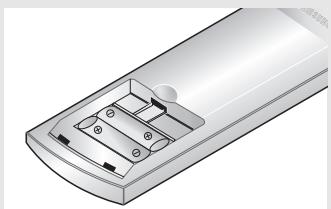
natural_image
Illustration of a remote control panel with buttons and a handle (no text or symbols)natural_image
Illustration of a remote control with a button and arrow (no text or symbols)natural_image
Pure mechanical component diagram without any text, numbers, or symbols2
2
2
flowchart
graph TD
    A["Large"] --> B["Panorama"]
    B --> C["Zoom"]
    D["4:3"] --> C
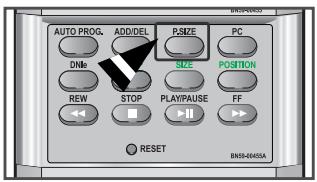
Gel de l'image
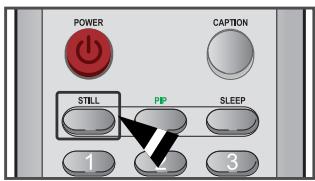
1
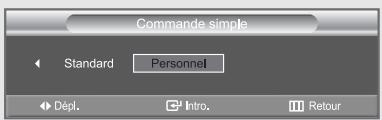
Suite...
| ImageFenêtreprincipale\Image | TV | AV1 | AV2 | S-Vidéo | Composant1 | Composant2 | PC | HDMI |
| TV | X | X | X | X | X | X | X | O |
| AV1 | X | X | X | X | X | X | X | O |
| AV2 | X | X | X | X | X | X | X | O |
| S-Vidéo | X | X | X | X | X | X | X | O |
| Composant1 | X | X | X | X | X | X | X | O |
| Composant2 | X | X | X | X | X | X | X | O |
| PC | O | O | O | O | O | O | X | X |
| HDMI | O | O | O | O | O | O | X | X |
natural_image
Diagram of a device interior with labeled components and an arrow indicating direction (no readable text or symbols)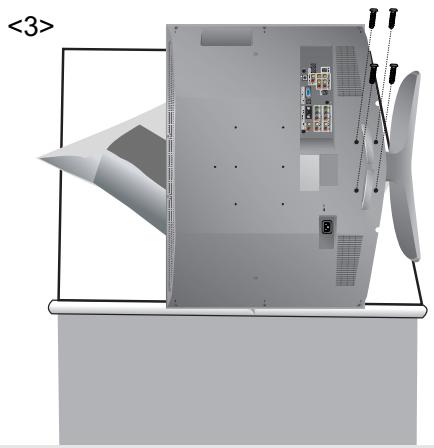
natural_image
3D CAD model of a mechanical assembly with internal components and mounting brackets (no visible text or symbols)natural_image
3D rendering of a mechanical device with internal components and mounting base (no visible text or symbols)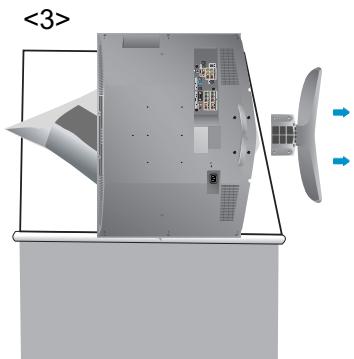
natural_image
Diagram of a device with labeled components and directional arrows, no readable text or symbols present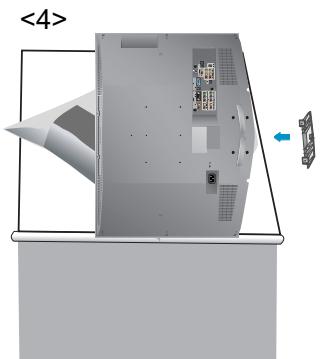
natural_image
3D diagram of a computer monitor with an open rear panel and a small inset showing a device (no text or symbols)natural_image
Technical line drawing of a device panel with connectors and ports (no text or symbols)natural_image
3D rendering of a computer monitor with ventilation grilles and internal components (no visible text or symbols)
③
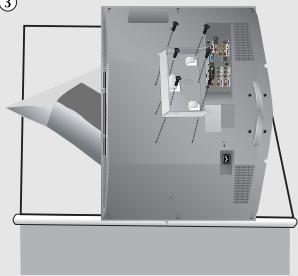
natural_image
3D architectural rendering of a modern building interior with furniture and structural elements (no visible text or symbols)natural_image
Cartoon illustration of a smiling couple driving a car (no text or symbols)natural_image
Cartoon illustration of a family driving a car, enclosed in a dashed rectangular frame (no text or symbols)natural_image
Cartoon illustration of a smiling driver and a car driver inside a vehicle (no text or symbols)natural_image
Cartoon illustration of a smiling couple driving a car (no text or symbols)natural_image
Cartoon illustration of a family driving a car inside a vehicle (no text or symbols)MPAA: G, PG, PG-13, R, NC-17, X, NR 67
① COMPONENT IN 1, 2
8 HDMI/DVI IN (R-AUDIO-L)
natural_image
Illustration of a remote control device with a scroll wheel and a button, showing no text or symbols.2
natural_image
Illustration of a remote control with handle and buttons (no text or symbols)natural_image
Illustration of a remote control with a scroll wheel and directional arrow (no text or symbols)natural_image
Pure mechanical diagram showing a lever mechanism with rotating arrows (no text or symbols)2
2
2
Continúa...
5
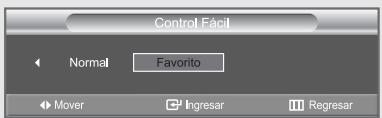
Continúa...
natural_image
Diagram of a device with labeled components and an arrow indicating rotation (no readable text or symbols)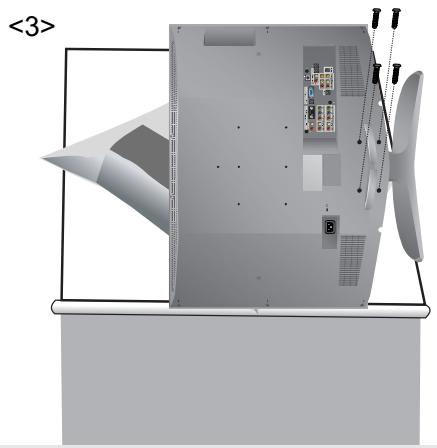
natural_image
3D architectural rendering of a modern office building (no visible text or symbols)natural_image
3D rendering of a mechanical device with internal components and mounting base (no visible text or symbols)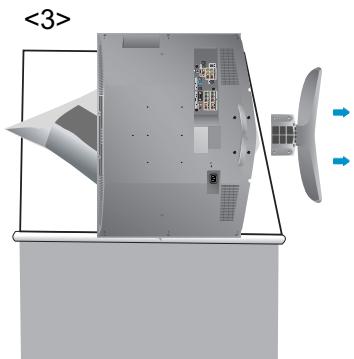
natural_image
Diagram of a device with labeled components and directional arrows, no readable text or symbols present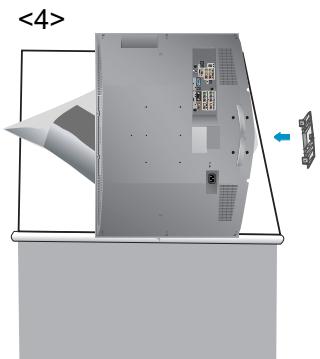
natural_image
3D architectural rendering of a modern office building (no visible text or symbols)natural_image
Technical line drawing of a device panel with connectors and ports (no text or symbols)natural_image
3D rendering of a computer monitor with ventilation grilles and internal components (no visible text or symbols)
③
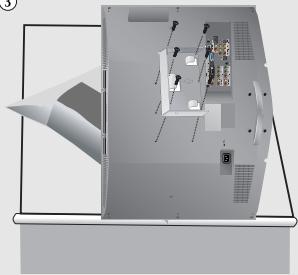
natural_image
3D architectural rendering of a modern building interior with furniture and structural elements (no visible text or symbols)- Owner's Instructions
- Precautions When Displaying a Still Image
- Chapter 1: General Information
- Chapter 2: Connections
- Chapter 3: Operation
- Chapter 4: Picture Control
- Chapter 5: Sound Control
- Chapter 6: Channel Control
- Chapter 7: PC Display
- Chapter 8: Time Setting
- Chapter 9: Function Description
- Chapter 10: Troubleshooting
- Appendix
- List of Features
- List of Parts
- Familiarizing Yourself with Your New TV
- Buttons on the Lower-Right Part of the Panel
- ① SOURCE
- ② MENU
- ③ - VOL +
- ∨ CH ∧
- ⏻ (POWER)
- POWER INDICATOR
- LIGHT DETECTING SENSOR
- REMOTE CONTROL SENSOR
- SPEAKERS
- Rear Panel Jacks
- Remote Control
- POWER
- ② STILL
- NUMBER BUTTONS
- +100
- ⑤ MUTE
- MENU
- ⑦ CAPTION
- PIP
- SLEEP
- PRE-CH
- CH^ and CH∨ (Channel UP/Down)
- SOURCE
- INFO
- EXIT
- Anynet
- S.MODE
- MTS
- AUTO PROG.
- ADD/DEL
- DNle
- VCR/DVD Functions (Only Anynet mode)
- SRS
- P.MODE
- P.SIZE
- PC
- SWAP
- SIZE
- POSITION
- RESET
- Installing Batteries in the Remote Control
- 1
- 2
- 3
- If the remote control doesn't work
- Connecting VHF and UHF Antennas
- Antennas with 300-ohm Flat Twin Leads
- Antennas with 75-ohm Round Leads
- Separate VHF and UHF Antennas
- Connecting Cable TV
- Cable without a Cable Box
- Connecting to a Cable Box that Descrambles All Channels
- Connecting to a Cable Box that Descrambles Some Channels
- 4
- 5
- 6
- Connecting a VCR
- Connecting an S-VHS VCR
- Connecting a DVD Player
- Connecting a Digital TV Set-top box
- Connecting an Amplifier/DVD Home Theater
- Connecting a DVD/Set-top box via DVI
- Connecting a DVD/Set-top box via HDMI
- What is HDMI?
- Connecting a PC
- Turning the TV On and Off
- Changing Channels
- Using the Channel Buttons
- Using the Number Buttons
- Using the PRE-CH Button to select the Previous Channel
- Adjusting the Volume
- Using Mute
- Viewing the Display
- Viewing the Menus
- Plug & Play Feature
- 7
- Memorizing the Channels
- Selecting the Video Signal-source
- Storing Channels in Memory (Automatic Method)
- Alternate method:
- Adding and Erasing Channels (Manual Method)
- To Select the Source
- To Edit the Input Source Name
- Using Automatic Picture Settings
- Customizing the Picture
- Adjusting the Color Tone
- Resetting the Picture Settings to the Factory Defaults
- Changing the Screen Size
- Zoom
- Freezing the Picture
- Digital Noise Reduction
- DNle (Digital Natural Image engine)
- My Color Control
- Easy Control
- Detail Control
- Dynamic Contrast
- Brightness Sensor
- Viewing Picture-in-Picture
- Activating Picture-in-Picture
- Selecting a Signal Source (External A/V) for PIP
- Swapping the Contents of the PIP and Main image
- Changing the PIP Channel
- Changing the Size of the PIP Window
- Changing the Position of the PIP Window
- Using Automatic Sound Settings
- Customizing the Sound
- Setting the TruSurround XT (SRS TSXT)
- TRADEMARK & LABEL LICENSE NOTICE
- Choosing a Multi-Channel Sound (MTS) Soundtrack
- Automatic volume control
- Selecting the Internal Mute
- Selecting the Main or Sub (PIP) Sound
- Chapter 6
- CHANNEL CONTROL
- Fine Tuning Channels
- Using Your TV as a Computer (PC) Display
- Setting Up Your PC Software (Based on Windows XP)
- How to Auto Adjust
- Adjusting the Screen Quality
- Changing the Screen Position
- Initializing the Screen Position or Color Settings
- Setting the Clock
- Setting the Sleep Timer
- Sleep timer
- Setting the On/Off Timer
- - Auto Power Off
- Chapter 9
- FUNCTION DESCRIPTION
- Selecting a Menu Language
- Using the V-Chip
- Setting Up Your Personal ID Number (PIN)
- How to Enable/Disable the V-Chip
- How to Set up Restrictions Using the ‘TV Parental Guidelines’
- How to Set up Restrictions Using the MPAA Ratings: G, PG, PG-13, R, NC-17, X, NR
- How to Reset the TV after the V-Chip Blocks a Channel ('Emergency Escape')
- How to Set up Restrictions Using the ‘Canadian English’
- Canadian English
- How to Set up Restrictions Using the ‘Canadian French’
- Canadian French
- Viewing Closed Captions
- Setting the Blue Screen Mode
- Selecting the Melody
- Problem
- Possible Solution
- Installing the stand
- Disconnecting the stand
- Installing the Wall Mount Kit
- How to assemble the Wall Mount Bracket
- Using the Anti-Theft Kensington Lock
- Using Your TV in Another Country
- Display Modes
- MTS (Multi channel Television Stereo)
- Gel de l'image
- ① COMPONENT IN 1, 2
- HDMI/DVI IN (R-AUDIO-L)
Brand : SAMSUNG
Model : LN-R238WXC
Category : TV