
49LJ5150V - Television LG - Free user manual and instructions
Find the device manual for free 49LJ5150V LG in PDF.


User questions about 49LJ5150V LG
0 question about this device. Answer the ones you know or ask your own.
Ask a new question about this device
Download the instructions for your Television in PDF format for free! Find your manual 49LJ5150V - LG and take your electronic device back in hand. On this page are published all the documents necessary for the use of your device. 49LJ5150V by LG.
USER MANUAL 49LJ5150V LG
Safety and Reference
LEDTV*
- LG LED TV applies LCD screen with LED backlights.
Please read this manual carefully before operating your set and retain it for future reference.
www/lg.com
P/NO:MFL68702414(1505-REV03)
Printed in Korea
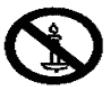

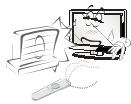
Do not place the TV and/or remote control in the following environments:
- A location exposed to direct sunlight
- An area with high humidity such as a bathroom
- Near any heat source such as stoves and other devices that produce heat
- Near kitchen counters or humidifiers where they can easily be exposed to steam or oil
- An area exposed to rain or wind
Near containers of water such as vases
Otherwise, this may result in fire, electric shock, malfunction or product deformation.
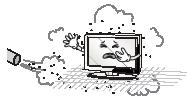
Do not place the product where it might be exposed to dust. This may cause a fire hazard.
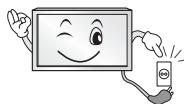
Mains Plug is the TV connecting/disconnecting device to AC mains electric supply. This plug must remain readily attached and operable when TV is in use.
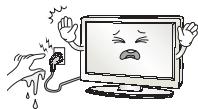
Do not touch the power plug with wet hands. Additionally, if the cord pin is wet or covered with dust, dry the power plug completely or wipe dust off. You may be electrocuted due to excess moisture.
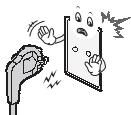
Make sure to connect Mains cable to compliant AC mains socket with Grounded earth pin. (Except for devices which are not grounded on earth.) Otherwise possibility you may be electrocuted or injured.
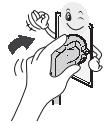
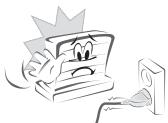
Ensure the power cord does not come into contact with hot objects such as a heater. This may cause a fire or an electric shock hazard.
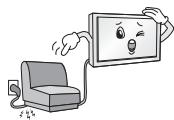
Do not place a heavy object, or the product itself, on power cables. Otherwise, this may result in fire or electric shock.
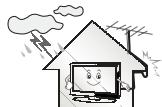
Bend antenna cable between inside and outside building to prevent rain from flowing in. This may cause water damaged inside the Product and could give an electric shock.
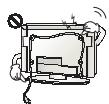
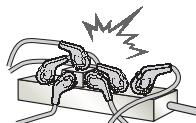
Do not plug too many electrical devices into a single multiple electrical outlet. Otherwise, this may result in fire due to over-heating.
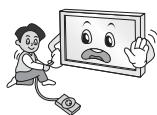
Do not drop the product or let it fall over when connecting external devices. Otherwise, this may result in injury or damage to the product.
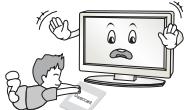
Keep the anti-moisture packing material or vinyl packing out of the reach of children. Anti-moisture material is harmful if swallowed. If swallowed by mistake, force the patient to vomit and visit the nearest hospital. Additionally, vinyl packing can cause suffocation. Keep it out of the reach of children.
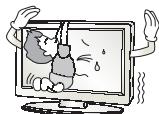
Do not let your children climb or cling onto the TV. Otherwise, the TV may fall over, which may cause serious injury.
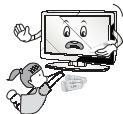
Dispose of used batteries carefully to ensure that a small child does not consume them. Please seek Doctor- Medical Attention immediately if child consumes batteries.
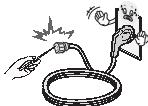
Do not insert any metal objects/conductors (like a metal chopstick/ cutlery/screwdriver) between power cable plug and input Wall Socket while it is connected to the input terminal on the wall. Additionally, do not touch the power cable right after plugging into the wall input terminal. You may be electrocuted. (Depending on model)
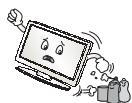
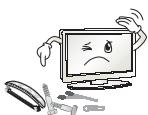
Do not drop metallic objects such as coins, hair pins, chopsticks or wire into the product, or inflammable objects such as paper and matches. Children must pay particular attention. Electrical shock, fire or injury can occur. If a foreign object is dropped into the product, unplug the power cord and contact the service centre.
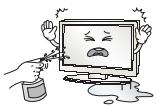
Do not spray water on the product or scrub with an inflammable substance (thinner or benzene). Fire or electric shock accident can occur.
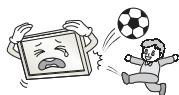
Do not allow any impact, shock or any objects to fall into the unit, and do not drop anything onto the screen. You may be injured or the product can be damaged.
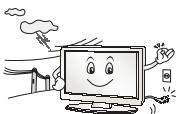
Never touch this product or antenna during a thunder or lighting storm. You may be electrocuted.
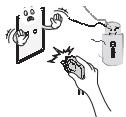
Never touch the wall outlet when there is leakage of gas, open the windows and ventilate. It may cause a fire or a burn by a spark.
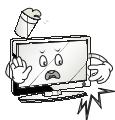
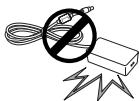
Be careful in handling the adapter to prevent any external shocks to it. An external shock may cause damage to the adapter.

Unplug the TV from AC mains wall socket if you do not intend to use the TV for a long period of time. Accumulated dust can cause fire hazard and insulation deterioration can cause electric leakage/shock/fire.
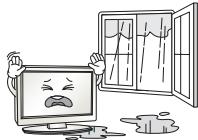
Apparatus shall not be exposed to dripping or splashing and no objects filled with liquids, such as vases, shall be placed on the apparatus.
Do not install this product on a wall if it could be exposed to oil or oil mist. This may damage the product and cause it to fall.
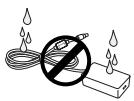
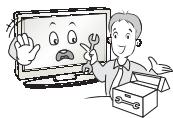
If water enters or comes into contact with TV, AC adapter or power cord please disconnect the power cord and contact service centre immediately. Otherwise, this may result in electric shock or fire.
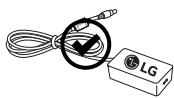
Only use an authorized AC adapter and power cord approved by LG Electronics. Otherwise, this may result in fire, electric shock, malfunction or product deformation.
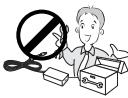
Never Disassemble the AC adapter or power cord. This may result in fire or electric shock.

CAUTION
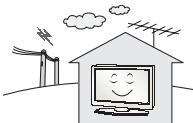
Install the product where no radio wave occurs.
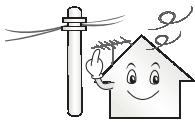
There should be enough distance between an outside antenna and power lines to keep the former from touching the latter even when the antenna falls. This may cause an electric shock.
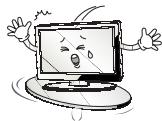
Do not install the product on places such as unstable shelves or inclined surfaces. Also avoid places where there is vibration or where the product cannot be fully supported. Otherwise, the product may fall or flip over, which may cause injury or damage to the product.
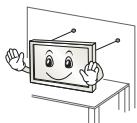
If you install the TV on a stand, you need to take actions to prevent the product from overturning. Otherwise, the product may fall over, which may cause injury.
If you intend to mount the product to a wall, attach VESA standard mounting interface (optional parts) to the back of the product. When you install the set to use the wall mounting bracket (optional parts), fix it carefully so as not to drop.
Only use the attachments / accessories specified by the manufacturer.
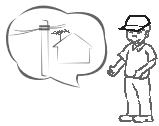
When installing the antenna, consult with a qualified service technician. If not installed by a qualified technician, this may create a fire hazard or an electric shock hazard.
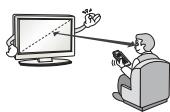
We recommend that you maintain a distance of at least 2 to 7 times the diagonal screen size when watching TV. If you watch TV for a long period of time, this may cause blurred vision.
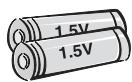
Only use the specified type of battery. This could cause damage to the remote control.
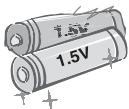
Do not mix new batteries with old batteries. This may cause the batteries to overheat and leak.
Batteries should not be exposed to excessive heat. For example, keep away from direct Sunlight , open fireplace and electric heaters .
Do not place non-rechargeable batteries in charging device.
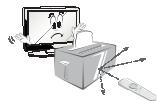
Make sure there are no objects between the remote control and its sensor.
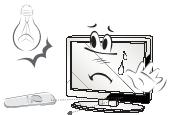
Signal from Remote Control can be interrupted due to external/internal lighting eg Sunlight, fluorescent lighting. If this occurs turn off lighting or darken viewing area.
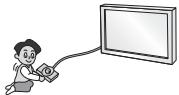
When connecting external devices such as video game consoles, make sure the connecting cables are long enough. Otherwise, the product may fall over, which may cause injury or damage the product.
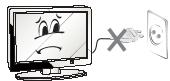
Do not turn the product On/Off by plugging-in or unplugging the power plug to the wall outlet. (Do not use the power plug for switch.) It may cause mechanical failure or could give an electric shock.
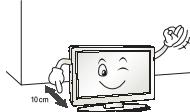
Please follow the installation instructions below to prevent the product from overheating.
- The distance between the product and the wall should be more than 10cm .
- Do not install the product in a place with no ventilation (e.g., on a bookshelf or in a cupboard).
- Do not install the product on a carpet or cushion.
- Make sure the air vent is not blocked by a tablecloth or curtain.
otherwise, this may result in fire.
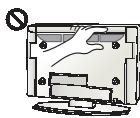
Take care not to touch the ventilation openings when watching the TV for long periods as the ventilation openings may become hot. This does not affect the operation or performance of the product.
Periodically examine the cord of your appliance, and if its appearance indicates damage or deterioration, unplug it, discontinue use of the appliance, and have the cord replaced with an exact replacement part by an authorized servicer.
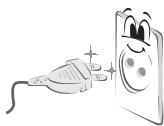
Prevent dust collecting on the power plug pins or outlet. This may cause a fire hazard.
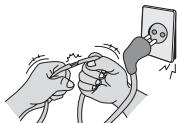
Protect the power cord from physical or mechanical abuse, such as being twisted, kinked, pinched, closed in a door, or walked upon. Pay particular attention to plugs, wall outlets, and the point where the cord exits the appliance.
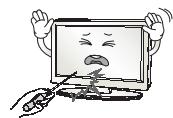
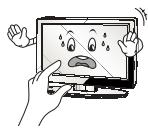
Do not press strongly upon the panel with a hand or sharp object such as nail, pencil or pen, or make a scratch on it, as it may cause damage to screen.
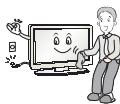
When cleaning the product and its components, unplug the power first and wipe it with a soft cloth. Applying excessive force may cause scratches or discolouration. Do not spray with water or wipe with a wet cloth. Never use glass cleaner, car or industrial shiner, abrasives or wax, benzene, alcohol etc., which can damage the product and its panel. Otherwise, this may result in fire, electric shock or product damage (Deformation, corrosion or breakage).
As long as this unit is connected to the AC wall outlet, it is not disconnected from the AC power source even if you turn off this unit by SWITCH.
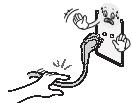
When unplugging the cable, grab the plug and unplug it, by pulling at the plug.
Don't pull at the cord to unplug the power cord from the power board, as this could be hazardous.

When moving the product, make sure you turn the power off first. Then, unplug the power cables, antenna cables and all connecting cables. The TV set or power cord may be damaged, which may create a fire hazard or cause electric shock.

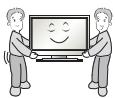
When moving or unpacking the product, work in pairs because the product is heavy. Otherwise, this may result in injury.

Contact the service centre once a year to clean the internal parts of the product.
Accumulated dust can cause mechanical failure.

Refer all servicing to qualified service personnel. Servicing is required when the apparatus has been damaged in any way, such as power supply cord or plug is damaged, liquid has been spilled or objects have fallen into the apparatus, the apparatus has been exposed to rain or moisture, does not operate normally, or has been dropped.
If the product feels cold to the touch, there may be a small "flicker" when it is turned on. This is normal, there is nothing wrong with product.
The panel is a high technology display product with resolution of two million to six million pixels. You may see tiny black dots and/or brightly coloured dots (red, blue or green) at a size of 1 ppm on the panel. This does not indicate a malfunction and does not affect the performance and reliability of the product.
This phenomenon also occurs in third-party products and is not subject to exchange or refund.
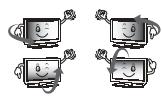
You may find different brightness and color of the panel depending on your viewing position(left/right/top/down).
This phenomenon occurs due to the characteristic of the panel. It is not related with the product performance, and it is not malfunction.
Viewing 3D imaging (Only 3D models)

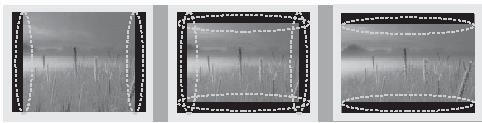
Displaying a still image (e.g., broadcasting channel logo, on-screen menu, scene from a video game) for a prolonged time may cause damage to the screen, resulting in retention of the image, which is known as image sticking. The warranty does not cover the product for image sticking.
Avoid displaying a fixed image on your television's screen for a prolonged period (2 or more hours for LCD, 1 or more hours for Plasma). Also, if you watch the TV at a ratio of 4:3 for a long time, image sticking may occur on the borders of the panel.
This phenomenon also occurs in third-party products and is not subject to exchange or refund.
Generated Sound
"Cracking" noise: A cracking noise that occurs when watching or turning off the TV is generated by plastic thermal contraction due to temperature and humidity. This noise is common for products where thermal deformation is required. Electrical circuit humming/panel buzzing:
A low level noise is generated from a high-speed switching circuit, which supplies a large amount of current to operate a product. It varies depending on the product.
This generated sound does not affect the performance and reliability of the product.
Do not use high voltage electrical goods near the TV (e.g. electric mosquito-swatter). This may result in product malfunction.


CAUTION
Preparing
Viewing Environment
Viewing Distance
- Maintain a distance of at least twice the screen diagonal length when watching 3D contents. If you feel discomfort in viewing 3D contents, move further away from the TV.
Viewing Age
- Infants/Children
Usage/Viewing 3D contents for children under the age of 6 are prohibited.
-
Children under the age of 10 may overreact and become overly excited because their vision is in development (for example: trying to touch the screen or trying to jump into it. Special monitoring and extra attention is required for children watching 3D contents.
-
Children have greater binocular disparity of 3D presentations than adults because the distance between the eyes is shorter than that of adults. Therefore they will perceive more stereoscopic depth compared to adults for the same 3D image.
Teenagers
- Teenagers under the age of 19 may react with sensitivity due to stimulation from light in 3D contents. Advise them to refrain from watching 3D contents for a long time when they are tired.
Elderly
- The elderly may perceive less 3D effect compared to the young. Do not sit closer to the TV than the recommended distance.
Cautions when using the 3D glasses
- Make sure to use LG 3D glasses. Otherwise, you may not be able to view 3D videos properly.
- Do not use 3D glasses instead of your normal glasses, sunglasses or protective goggles.
- Using modified 3D glasses may cause eye strain or image distortion.
- Do not keep your 3D glasses in extremely high or low temperatures. It will cause deformation.
- The 3D glasses are fragile and are easily scratched. Always use a soft, clean piece of cloth when wiping the lenses. Do not scratch the lenses of the 3D glasses with sharp objects or clean/wipe them with chemicals.

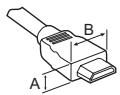

- Use a certified cable with the HDMI logo attached.
If you do not use a certified HDMI cable, the screen may not display or a connection error may occur. (Recommended HDMI Cable Types)
- High-Speed HDMI™ cable (3 m or less)
- High-Speed HDMI™ cable with Ethernet (3 m or less)
How to use the ferrite core (Depending on model)
- Use the ferrite core to reduce the electromagnetic interference in the component Y, Pb, Pr, L, R and AV Video, L, R.

[Cross Section of Ferrite Core]
[to an External device]
[to the TV]
![LG 49LJ5150V - [Cross Section of Ferrite Core] - 1](/content/2019/10/2413/images/a75e001b93d96d2d6c695bf2ee67d0a55cc0e2484990be80d655563df65583f5.jpg)
20 mm (+/ -5 mm)
![LG 49LJ5150V - [Cross Section of Ferrite Core] - 2](/content/2019/10/2413/images/199f3463f5a84e4a31906c64e33e591e895b2a0b5998b85eb791254a9cd7f765.jpg)
CAUTION
- Do not use any unapproved items to ensure the safety and product life span.
- Any damage or injuries caused by using unapproved items are not covered by the warranty.
- Some models have a thin film attached on to the screen and this must not be removed.
- When attaching the stand to the TV set, place the screen facing down on a cushioned table or flat surface to protect the screen from scratches.
- Make sure that the screws are inserted correctly and fastened securely. (If they are not fastened securely enough, the TV may tilt forward after being installed.) Do not use too much force and over tighten the screws; otherwise screw may be damaged and not tighten correctly.
Separate purchase
Separate purchase items can be changed or modified for quality improvement without any notification. Contact your dealer to buy these items. These devices only work with certain models. The model name or design may be changed depending on the upgrade of product functions, manufacturer's circumstances or policies.
Depending on model)
| AG-F*** Cinema 3D glasses | AG-F***DP Dual play glasses |
| LG Audio Device |
Maintenance
Cleaning your TV
Clean your TV regularly to keep the best performance and to extend the product lifespan.
- Make sure to turn the power off and disconnect the power cord and all other cables first.
- When the TV is left unattended and unused for a long time, disconnect the power cord from the wall outlet to prevent possible damage from lightning or power surges.
Screen, frame, cabinet and stand
To remove dust or light dirt, wipe the surface with a dry, clean, and soft cloth.
To remove major dirt, wipe the surface with a soft cloth dampened in clean water or a diluted mild detergent. Then wipe immediately with a dry cloth.
- Avoid touching the screen at all times, as this may result in damage to the screen.
- Do not push, rub, or hit the screen surface with your fingernail or a sharp object, as this may result in scratches and image distortions.
- Do not use any chemicals as this may damage the product.
- Do not spray liquid onto the surface. If water enters the TV, it may result in fire, electric shock, or malfunction.
Power cord
Remove the accumulated dust or dirt on the power cord regularly.
Using the joystick button
(Image shown may differ from your TV.)
You can simply operate the TV functions, pressing or moving the joystick button up, down, left or right.

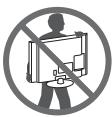
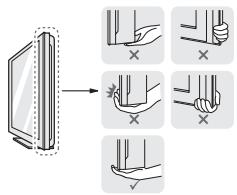
- Hold the top and bottom of the TV frame firmly. Make sure not to hold the transparent part, speaker, or speaker grill area.
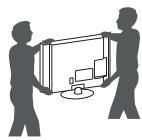
- When transporting the TV, do not expose the TV to jolts or excessive vibration.
- When transporting the TV, keep the TV upright, never turn the TV on its side or tilt towards the left or right.
- Do not apply excessive pressure to cause flexing/bending of frame chassis as it may damage screen.
- When handling the TV, be careful not to damage the protruding joystick button.
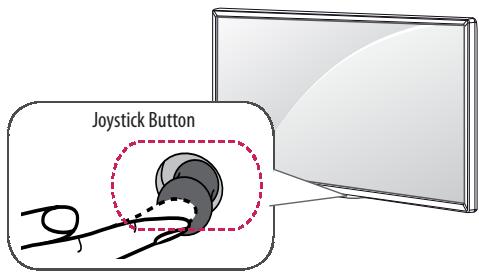
| Power On | When the TV is turned off, place your finger on the joystick button and press it once and release it. |
| Power Off | When the TV is turned on, place your finger on the joystick button and press it once for a few seconds and release it. (However, if the Menu button is on the screen, pressing and holding the joystick button will let you exit the Menu.) |
| Volume Control | If you place your finger over the joystick button and move it left or right, you can adjust the volume level you want. |
| Programmes Control | If you place your finger over the joystick button and move it up or down, you can scrolls through the saved programmes you want. |

CAUTION
- Avoid touching the screen at all times, as this may result in damage to the screen.
- Do not move the TV by holding the cable holders, as the cable holders may break, and injuries and damage to the TV may occur.
Adjusting the Menu
When the TV is turned on, press the joystick button one time. You can adjust the Menu items moving the joystick button up, down, left or right.
| ○ | Turns the power off. |
| × | Clears on-screen displays and returns to TV viewing. |
| ● | Changes the input source. |
| ◇ |

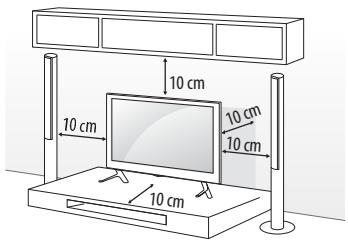
2 Connect the power cord to a wall outlet.
CAUTION
- Do not place the TV near or on sources of heat, as this may result in fire or other damage.
Using the kensington security system
(This feature is not available for all models.)
- Image shown may differ from your TV.
The Kensington security system connector is located at the rear of the TV. For more information of installation and using, refer to the manual provided with the Kensington security system or visit http://www.kensington.com. Connect the Kensington security system cable between the TV and a table.

Securing the TV to a wall
(This feature is not available for all models.)
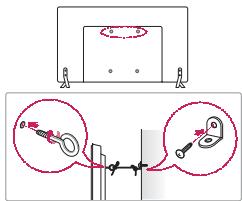
1 Insert and tighten the eye-bolts, or TV brackets and bolts on the back of the TV.
- If there are bolts inserted at the eye-bolts position, remove the bolts first.
2 Mount the wall brackets with the bolts to the wall. Match the location of the wall bracket and the eye-bolts on the rear of the TV.
3 Connect the eye-bolts and wall brackets tightly with a sturdy rope. Make sure to keep the rope horizontal with the flat surface.
CAUTION
- Make sure that children do not climb on or hang on the TV.


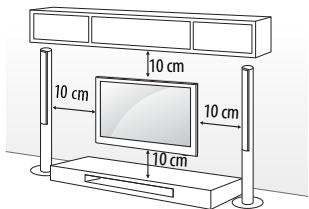
Make sure to use screws and wall mount bracket that meet the VESA standard. Standard dimensions for the wall mount kits are described in the following table.
Separate purchase(Wall Mounting Bracket)
| Model | 32/39LF56**32LF55**32LF62**32/43LF51**40/43UF67**40/43LF57**43LF54** | 49/55UF67**49LF54**49LF51** |
| VESA (mm) (A x B) | 200 x 200 | 300 x 300 |
| Standard screw | M6 | M6 |
| Number of screws | 4 | 4 |
| Wall mount bracket | LSW240BMSW240 | LSW350BMSW240 |
| Model | 60/65UF67** | 42/47/50/55LF56**42/49/55LF55**42/49/55LF62** |
| VESA (mm) (A x B) | 300 x 300 | 400 x 400 |
| Standard screw | M6 | M6 |
| Number of screws | 4 | 4 |
| Wall mount bracket | LSW350B | LSW440BMSW240 |
| Model | 60LF56** | |
| VESA (mm) (A x B) | 400 x 400 | |
| Standard screw | M6 | |
| Number of screws | 4 | |
| Wall mount bracket | LSW440B |


CAUTION
- Disconnect the power first, and then move or install the TV. Otherwise electric shock may occur.
- Remove the stand before installing the TV on a wall mount by performing the stand attachment in reverse.
- If you install the TV on a ceiling or slanted wall, it may fall and result in severe injury. Use an authorised LG wall mount and contact the local dealer or qualified personnel.
- Do not over tighten the screws as this may cause damage to the TV and void your warranty.
- Use the screws and wall mounts that meet the VESA standard. Any damages or injuries by misuse or using an improper accessory are not covered by the warranty.

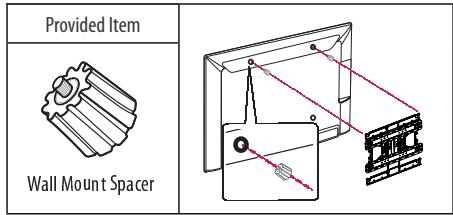
- When attaching a wall mounting bracket to the TV, insert the wall mount spacers into the TV wall mount holes to adjust the vertical angle of the TV. (Only when the item of the following form is provided)

Satellite dish connection
(Only satellite models)
Connect the TV to a satellite dish to a satellite socket with a satellite RF cable (75) .
HDMI ULTRA HD deep colour settings
(Only UF67**)

- SETTINGS PICTURE HDMI ULTRA HD Deep Colour HDMI (1/2) ULTRA HD Deep Colour
- On: Support 4K @ 50/60 Hz (4:4:4, 4:2:2, 4:2:0)
- Off: Support 4K @ 50/60 Hz (4:2:0)
All HDMI ports support the HDCP 2.2. - 4K Source is only supported in HDMI input.
- 4K signal and content are not available in the RF/USB input.
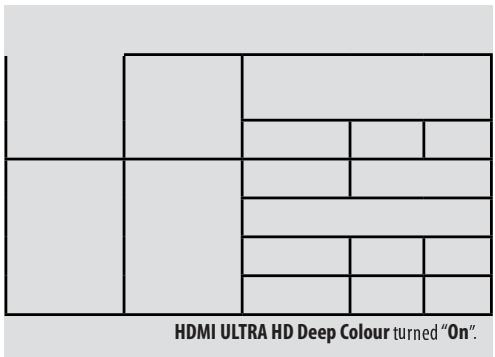
- All HDMI input ports support 4K @ 50/60 Hz (For details on the supported specifications, refer to the table below.) for high-definition video. Picture or sound may not be supported depending on the specifications of the external device connected. In that case, change the settings for HDMI ULTRA HD Deep Colour.
CI module connection
Depending on model)
View the encrypted (pay) services in digital TV mode.
- Check if the CI module is inserted into the PCMCIA card slot in the right direction. If the module is not inserted properly, this can cause damage to the TV and the PCMCIA card slot.
- If the TV does not display any video and audio when Cl+ CAM is connected, please contact to the Terrestrial/Cable/Satellite Service Operator.

CAUTION
- Please be sure to connect the TV to the AC-DC power adapter before connecting the TV's power plug to a wall power outlet.

| Current input mode\Output Type | AV1 (TV Out1) |
| Digital TV | Digital TV |
| Analogue TV, AV | Analogue TV |
| Component | |
| HDMI |
1 TV Out: Outputs Analogue TV or Digital TV signals.
- Any Euro scart cable used must be signal shielded.
- When watching digital TV in 3D imaging mode, only 2D out signals can be output through the SCART cable. (Only 3D models)
Other connections
Connect your TV to external devices. For the best picture and audio quality, connect the external device and the TV with the HDMI cable. Some separate cable is not provided.
Remote control
Depending on model)
The descriptions in this manual are based on the buttons on the remote control. Please read this manual carefully and use the TV correctly.
To replace batteries, open the battery cover, replace batteries (1.5 V AAA) matching the and ends to the label inside the compartment, and close the battery cover. To remove the batteries, perform the installation actions in reverse.

CAUTION
- Do not mix old and new batteries, as this may damage the remote control.
- The remote control will not be included for all sales market.
Make sure to point the remote control toward the remote control sensor on the TV.
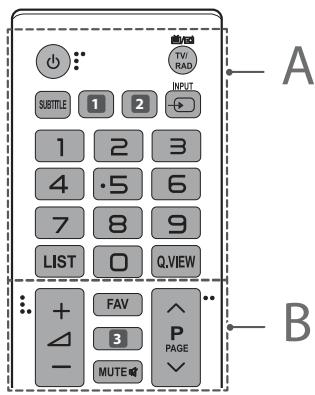
A
(POWER)TurnstheTVonoroff.
TV/RAD Selects Radio, TV and DTV programme.
SUBTITLE Recalls your preferred subtitle in digital mode.
AD By pressing the AD button, audio descriptions function will be enabled. (Depending on model)
GUIDE Shows programme guide. (Depending on model)
2 RATIO Resizes an image. (Depending on model)
AV MODE Selects an AV mode. (Depending on model)
INPUT Changes the input source.
Number buttons Enters numbers.
LIST Accesses the saved programme list.
Q.VIEW Returns to the previously viewed programme.
B
FAV Accesses your favourite programme list.
3 GUIDE Shows programme guide. (Depending on model)
3D Used for viewing 3D video. (Depending on model)
MUTE Mutes all sounds.
+Adjusts the volume level.
Scrol1s through the saved programmes.
PAGE Moves to the previous or next screen.
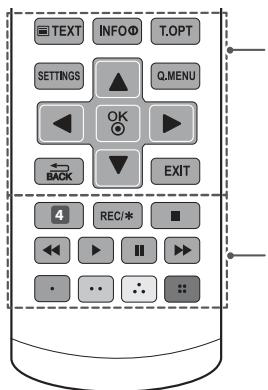
C
Teletext buttons (TEXT, T.OPT) These buttons are used for teletext.
INFO ① Views the information of the current programme and screen.
SETTINGsAccesses the main menus.
Q.MENUAccesses the Quick menus.
Navigation buttons (up/down/left/right) Scrolls through menus or options.
OK Selects menus or options and confirms your input.
BACK Returns to the previous level.
EXIT Clears on-screen displays and returns to TV viewing.
D
4 AV MODE Selects an AV mode. (Depending on model)
4 AD By pressing the AD button, audio descriptions function will be enabled. (Depending on model)
REC/Starts to record and displays record menu.
(Only Time Machine Ready supported model) (Depending on model)
Control buttons (■, ▲, ■, ≦, ▽) Controls the MY MED menus, Time Machine™ ready control or the SIMPLINK compatible devices (USB, SIMPLINK or Time Machine™).
Coloured buttons These access special functions in some menus.
(Red, Green: Yellow, Blue)

Licenses
Supported licenses may differ by model. For more information about licenses, visit www.lg.com.
DOLBY
DIGITALPLUS
Manufactured under license from Dolby Laboratories.
Dolby and the double-D symbol are trademarks of Dolby
Laboratories.
Hami
The terms HDMI and HDMI High-Definition Multimedia Interface,
and the HDMI logo are trademarks or registered trademarks of HDMI
Licensing LLC in the United States and other countries.
DIVX
HD
This DivX Certified device has passed rigorous testing to ensure it plays DivX® video.
To play purchased DivX movies, first register your device at vod.divx.
com. Find your registration code in the DivX VOD section of your
device setup menu.
DivX Certified* to play DivX* video up to HD 1080p, including
premium content.
DivX, DivX Certified and associated logos are trademarks of DivX.
LLC and are used under license.
Covered by one or more of the following U.S. patents:
7,295,673; 7,460,668; 7,515,710; 7,519,274.

dt
2.0+Digital Out
(Only UF67**)
For DTS patents, see http://patents.dts.com. Manufactured under
license from DTS Licensing Limited. DTS, the Symbol, & DTS and the
Symbol together are registered trademarks, and DTS 2.0+Digital Out
is a trademark of DTS, Inc. © DTS, Inc. All Rights Reserved.

Auto Tuning only finds programmes that are currently broadcasting.
- If Lock System is turned on, a pop-up window will appear asking for password.
To select Picture Mode
SETTINGS PICTURE Picture Mode
Select the picture mode optimized for the viewing environment or the programme.
- Vivid: Heightens contrast, brightness and sharpness to display vivid images.
- Standard: Displays images in standard levels of contrast, brightness and sharpness.
- Eco/APS: [Depending on model]
The Energy Saver feature changes settings on the TV to reduce power consumption. - Cinema/Game: Displays the optimum picture for movie, game.
-
Sport: [Depending on model] Optimizes the video image for high and dynamic actions by emphasizing primary colours such as white, grass, or sky blue.
-
Expert 1,2: Menu for adjusting picture quality that allows experts and amateurs to enjoy the best TV viewing. This is the adjustment menu provided for ISF-certified picture tuning professionals. (ISF logo can only be used on ISF-certified TVs.) ISFccc: Imaging Science Foundation Certified Calibration Control
- Depending on input signal, available range of picture modes may differ.
- Expert mode is for picture tuning professionals to control and fine-tune using a specific image. For normal images, the effects may not be dramatic.
- The ISF function is only available on some models.
To set advanced control
SETTINGS PICTURE Picture Mode Advanced Control / Expert Control
Calibrates the screen for each picture mode; or adjusts picture settings for a special screen. First select a Picture Mode of your choice.
- Dynamic Contrast: Adjusts the contrast to the optimal level according to the brightness of the image.
- Dynamic Colour: Adjusts colours to make the image appear in more natural colours.
- Skin Colour: Sets Skin colour spectrum separately to implement the skin colour as defined by the user.
- Sky Colour: Sky colour is set separately.
- Grass Colour: Natural colour spectrum (meadows, hills, etc.) can be separately set.
- Gamma: Sets the gradation curve according to the output of picture signal in relation to the input signal.
- Colour Gamut : Selects the range of colours that can be expressed.
- Edge Enhancer : Shows clearer and distinctive yet natural edges of the video.
- Expert Pattern: [Depending on model] Patterns used for expert adjustment.
- Colour Filter: Filters a specific colour spectrum in RGB colours to fine-tune colour saturation and hue accurately.
- Colour Temperature: Adjusts the overall tone of the screen as desired. In Expert mode, detailed fine-tuning can be set via Gamma method, etc.
- Colour Management System: This is a system that experts use when they adjust colour with a test pattern. They can select from six colour areas (Red / Green / Blue / Cyan / Magenta / Yellow) without affecting other colours. For normal images, adjustments may not result in noticeable colour changes.
Super Resolution: [Depending on model]
Adjusts the resolution to make dim and blurred images clearer. - Depending on input signal or other picture settings, the range of detailed items for adjustment may differ.
PICTURE Picture Mode Picture Option
[Depending on model]
Adjusts detailed setting for images.
- Noise Reduction: Eliminates noise in the picture.
- MPEG Noise Reduction: Eliminates noise generated while creating digital picture signals.
- Black Level: Adjusts the brightness and contrast of the screen to suit the black level of the input picture by using the blackness (black level) of the screen.
Real Cinema: Optimizes the screen for movie viewing. - Motion Eye Care / Smart Energy Saving : [Depending on model] Saves power consumption by adjusting the brightness corresponding to the movement of the image on the screen.
- LED Local Dimming: [Depending on model] Brightens bright areas and darkens dark areas of the image for maximum contrast and minimum blur while reducing power consumption.
- Off: Disables the LED Local Dimming function.
- Low/Medium/High : Changes the contrast ratio.
- TruMotion: [Depending on model] Optimizes the image quality of fast-moving pictures.
Off:Turns off the TruMotion.
- Smooth: Softens fast-moving pictures.
- Clear: Makes fast-moving pictures clearer.
- User: Sets De-Judder/De-Blur manually.
De-Judder: Adjusts juddering on the screen.
De-Blur: Reduces the blurring effects of motion.
Auto means Juddering and blurring range that depend on input video status is controlled by TruMotion mode.
- Depending on input signal or other picture settings, the range of detailed items for adjustment may differ.
To use Energy Saving feature
SETTINGS PICTURE Energy Saving
Reduces power consumption by adjusting screen brightness.
- Auto: [Depending on model]
The TV sensor detects the ambient lighting and automatically adjusts the screen brightness. - Off: Turns off the Energy Saving mode.
- Minimum / Medium / Maximum: Applies the pre-set Energy Saving mode.
- Screen Off: Screen is turned off and only sound is played. Press any button except Power button on the remote control to turn the screen back on.
To use HDMI ULTRA HD Deep Colour
SETTINGS PICTURE HDMI ULTRA HD Deep Colour HDMI (1/2) ULTRA HD Deep Colour
[Depending on model]
HDMI port provides ULTRA HD Deep Colour, HDMI port provides ULTRA HD Deep Colour for a clearer picture.
- On: ULTRA HD Deep Colour enabled
- Off: ULTRA HD Deep Colour disabled
To use TV speaker
SETTINGs AUDIO Sound Out TV Speaker/Internal TV Speaker
[Depending on model]
Sound is output through the TV speaker.
To use External Speaker
SETTINGs AUDIO Sound Out External Speaker (Optical) / Audio Out (Optical)
[Depending on model]
Sound is output through the speaker connected to the optical port.
- SimpLink is supported.
To use Internal TV Speaker + Audio Out (Optical)
SETTINGS AUDIO Sound Out Internal TV Speaker + Audio Out (Optical)
[Depending on model]
Audio is played through the TV's built-in speakers and the audio device connected to the digital optical audio output port simultaneously.
To use Digital Sound Out
SETTINGS AUDIO Sound Out External Speaker (Optical) / Audio Out (Optical) / Internal TV Speaker + Audio Out (Optical) Digital Sound Out
[Depending on model]
Sets up Digital Sound Out.
| Auto | MPEG Dolby Digital Dolby Digital Plus HE-AAC DTS | PCM Dolby Digital Dolby Digital Dolby Digital DTS |
| PCM | All | PCM |
SETTINGs AUDIO Sound Out LG Sound Sync (Optical) [Depending on model]
Connect LG audio device with the Sound Sync logo to the optical digital audio output port. LG audio device allows you to enjoy rich powerful sound easily.
To use Headphone
SETTINGS AUDIO Sound Out Headphone
[Depending on model]
Sound is output through the headphone connected to the earphone/ headphones port.
To synchronize audio and video
SETTINGS AUDIO AV Sync. Adjust
[Depending on model]
Synchronizes video and audio directly when they do not match.
- If you set AV Sync. Adjust to ON, you can adjust the sound output (TV speakers or SPDIF) to the screen image.
To use SIMPLINK
[Depending on model]
SIMPLINK is a feature that enables you to control and manage various multimedia devices conveniently via the SIMPLINK menu.
1 Connect the TV's HDMI IN terminal and the SIMPLINK device's HDMI output terminal using an HDMI cable.
- [Depending on model] For home theatre units with a SIMPLINK function, connect HDMI terminals as above, and use an optical cable to connect Optical Digital Audio Out from the TV to Optical Digital Audio In of the SIMPLINK device.
2 Select INPUT(OPTION) SIMPLINK. SIMPLINK menu window appears.
3 In SIMPLINK Setting window, set SIMPLINK function to ON.
4 In SIMPLINK menu window, selects the device you want to control.
- This function is only compatible with devices with the SIMPLINK logo.
- To use the SIMPLINK function, you need to use a high-speed HDMI cable (with CEC (Consumer Electronics Control) feature added). High-speed HDMI cables have the No. 13 pin connected for information exchange between devices.
- If you switch to another input, the SIMPLINK device will stop.
- If a third-party device with the HDMI-CEC function is also used, the SIMPLINK device may not work normally.
- [Depending on model] If you select or play media from a device with a home theatre function, the HT Speaker(Speaker) is automatically connected. Be sure to connect with an optical cable (sold separately) to use the HT Speaker(Speaker) function.
SIMPLINK function description
- Direct Play: Plays the multimedia device on the TV instantly.
- Select multimedia device: Selects the desired device via the
SIMPLINK menu to control it from the TV screen instantly. - Disc playback: Manages the multimedia device with the TV remote control.
- Power off all devices: When you power off the TV, all connected devices are turned off.
- Sync Power on: When the equipment with SIMPLINK function connected HDMI terminal starts to play, the TV will automatically turn on.
- Speaker: [Depending on model]
Select speaker either on the home theatre unit or the TV.
To set password
SETTINGS LOCK Set Password
Sets or changes the TV password.
The initial password is set to '0000'.
- When France is selected for Country, password is not '0000' but '1234'.
- When France is selected for Country, password cannot be set to '0000'.
To return Factory Reset
SETTINGS OPTION Factory Reset
All stored information is deleted and TV settings are reset.
The TV turns itself off and back on, and all settings are reset.
- When Lock System is in place, a pop-up window appears and asks for password.
- Do not turn off the power during initialization.
Q.MENU USB Device
Select a USB storage device that you want to remove.
When you see a message that the USB device has been removed, separate the device from the TV.
- Once a USB device has been selected for removal, it can no longer be read. Remove the USB storage device and then re-connect it.
Using a USB storage device - warning
- If the USB storage device has a built-in auto recognition program or uses its own driver, it may not work.
- Some USB storage devices may not work or may work incorrectly.
- Use only USB storage devices formatted with the Windows FAT32 or NTFS File System.
- For external USB HDDs, it is recommended that you use devices with a rated voltage of less than 5V and a rated current of less than 500mA .
- It is recommended that you use USB memory sticks of 32 GB or less and USB HDDs of 2 TB or less.
- If a USB HDD with power-saving function does not work properly, turn the power off and on. For more information, refer to the user manual of the USB HDD.
- Data in the USB storage device can be damaged, so be sure to back up important files to other devices. Data maintenance is the user's responsibility and the manufacturer is not responsible for data loss.
My Media supporting file
Maximum data transfer rate: 20 Mbps (Mega bit per second)
- External supported subtitle formats .srt (SubRip), .smi (SAMI), .sub (Subscriber, MicroDVD, DVDsubtitleSystem, Subldx(Vobsub)), .ass/.ssa (SubStation Alpha), .txt (TMplayer), .psb (PowerDivX)
- Internal supported subtitle formats: .dat/.mpg/.mpeg. vob (DVD Subtitle), .ts/.tp/.m2ts/ (DVB Subtitle), .mp4 (DVD Subtitle, UTF-8 Plain Text), .mkv (ASS, SSA, UTF-8 Plain Text, Universal Subtitle Format, VobSub, DVD Subtitle), .divx/.avi (XSUB1, XSUB+)
1 XSUB : Supports internal subtitles generated from DivX6
Supported Video Formats
Maximum: 1920 × 1080 @ 30p (only Motion JPEG 640 x 480 @ 30p)
.asf,wmv [Video]MPEG-2,MPEG-4 Part2,DivX3.11,DivX4,DivX5,DivX6, XViD,H.264/AVC,VC1(WMV3,WVC1),MP43 [Audio]WMA Standard,WMA9(Pro),MP3,AAC,AC3,MP3,3D WMV Single Stream.
- divx, .avi
[Video] MPEG-2, MPEG-4 Part2, DivX3.11, DivX4, DivX5, DivX6, XViD, H.264/AVC
[Audio] HE-AAC, LPCM, ADPCM, MPEG-1 Layer I, MPEG-1 Layer II, Dolby Digital, MPEG-1 Layer III (MP3), DTS
- .ts, .trp, .tp, .mts, .m2ts
[Video] H.264/AVC, MPEG-2, AVS, VC1
[Audio] MPEG-1 Layer I, MPEG-1 Layer II, MPEG-1 Layer III (MP3), Dolby Digital, Dolby Digital Plus, AAC, HE-AAC, DTS
.vob [Video] MPEG-1,MPEG-2 [Audio] Dolby Digital,MPEG-1 Layer I,MPEG-1 Layer II,DVD-LPCM
.mp4, .m4v, .mov
[Video] MPEG-2, MPEG-4 Part2, DivX3.11, DivX4, DivX5, DivX6, XVID, H.264/AVC
[Audio] AAC, MPEG-1 Layer III (MP3), DTS
. mkv [Video] MPEG-2, MPEG-4 Part2, DivX3.11, DivX4, DivX5, DivX6, XVID, H.264/AVC [Audio] HE-AAC, Dolby Digital, MPEG-1 Layer III (MP3), DTS, LPCM
- motion JPEG
[Video] MJPEG
[Audio] LPCM, ADPCM
.mpg.mpeg.mpe [Video]MPEG-1,MPEG-2 [Audio]MPEG-1LayerI,MPEG-1LayerII,DolbyDigital,LPCM
- dat
[Video] MPEG-1, MPEG-2
[Audio] MP2
- flv [Video] Sorenson H.263, H.264/AVC [Audio] MP3, AAC, HE-AAC
*rm,*rmvb [Video]RV30,RV40 [Audio] Dolby Digital, AAC, HE-AAC, RA6(Cook)
3gp, 3gp2
[Video] H.264/AVC, MPEG-4 Part2
[Audio] AAC, AMR(NB/WB)
- DTS / rm / *rmvb : Depending on model
O O O


Automatic Standby (Depending on model) / Sleep
Timer / Off Time is activated in the TIME settings.
- If there is no signal while the TV is on, the TV will turn off automatically after 15 minutes of inactivity.
When connecting to the PC (HDMI), 'No signal' or 'Invalid Format' is displayed.
- Turn the TV off/on using the remote control.
- Reconnect the HDMI cable.
- Restart the PC with the TV on.
BENUTZERHANDBUCH
[Bitrate] 32 kbit/s - 320 kbit/s
[Abtastfrequenz] 16 kHz bis 48 kHz
[Bitterate] Freies Format
[Abtastfrequenz] 8kHz 48kHz
[Bitterate] Freies Format
[Abtastfrequenz] 8kHz 48kHz
[Bitrate] Freies Format
[Abtastfrequenz] 48kHz
SOF1: Extend Sequential,
SOF2: Progressive
[BildgroBe] Minimum: 64 × 64
Maximum: Normales Modell: 15360 (B) x 8640 (H),
Progressive: 1920 (B) x 1440 (H)
- Kategorie: BMP
[BildgroBe] Minimum: 64 x 64, Maximum : 9600 x 6400
- Kategorie: PNG
[Formati supportati] ADIF, ADTS
- Tipo di file: M4A
No permitted that the children are to be given food.
[Sopporté] WMA10 Pro
SOF1: extensiono sequencial,
SOF2: progresivo
[Tamaño de Foto] Minimo: 64 x 64,
Maximo: Tipo normal: 15360 (ancho) x 8640 (alto),
Kouma teletext (TEXT, T.OPT) Autá ta Koumá xynoumoioóvtau yia to teletext.
INFO ①ПорьолTwv ПларрорiwTou tpexovtronpovpauatoc kai tnc obovnc.
SETTINGsPiOoBaon OTo Kupia eVou.
Q.MENUIpooBaon Oa ynpyopa evou.
Koumia nIoynonc (Enavw/Katw/ogtepa/6xi) Kluon 0evou n t c Eioyec.
OK Evpyooinon mevou n enlouovkai epibetaiaown tow kataxwipoeW.
BACK Eniotpoq nto nponyoumuev eoineo.
EXIT iaypaip oawtwvEvdeEeWNOUePavicovatr OtvOboVn KAI EITPOPOIPOTNV KAVOVNIPOBoIaN TLeOpaanC.
4 AV MODE Emi IeYei iia Jeaertoupyia AV. (AvaIoya me to voytel)
4 ADIaVtac to koumi AD, eevpyoioietai n Aetoupyia nepiypaqicn xou. (Avaloya u e to oovteilo)
REC/ Ekkivnən EyyapnC kai npoBnTou mEvov EyypaPnC. (mvo to movtElo Time MachineReady) (Avalova με to movtElo)
Koumtia eLevyou (I, II, 已 ELeykei ta mevou MEZA, ta otoixia eLevyou Time MachineReady nti oubetae ouokuec SIMPLINK (USB, SIMPLINK n Time MachineReady).
Exypwa kouma Xpnoiooioovta iya npv npobaon oe elikec,
lambda upvies opieuewu mevou.
(·:KoKKiV0,·):PiapoiV0,:KitpiV0,Mπλε)

D
Aδειες χρήσος
OuiooTnpiOcOeVEc, aoeIEc xPnOc, evDExeTai va diaIaepouv, avalova y e To oVteAo. Ia nepiooTepeC, nAnpOpopiec, oxetiká y tic adoeie, xPnOc, EIOKEpEeTE n Tieduhovon www.lg.com.

DOLBY
DIGITALPLUS
Dolby Laboratories.
| CI Module Size (W x H x D) | 100.0 mm x 55.0 mm x 5.0 mm | |
| Environment condition | Operating Temperature | 0 °C to 40 °C |
| Operating Humidity | Less than 80 % | |
| Storage Temperature | -20 °C to 60 °C | |
| Storage Humidity | Less than 85 % | |
| Satellite Digital TV | Digital TV | Analogue TV | |
| DVB-T/T2 | DVB-T | PAL/SECAM B/G/D/K/I, SECAM L/L' | |
| DVB-C | DVB-C | ||
| DVB-S/S2 | DVB-T/T2* | ||
| VHF, UHF | VHF, UHF | VHF: E2 to E12, UHF: E21 to E69, CATV: S1 to S20, HYPER: S21 to S47 | |
| C-Band, Ku-Band | |||
| 6,000 | 1,500 | ||
| 75 Ω | |||
- Only DVB-T2/C/S2 support models.
3D supported mode
(Only 3D models)
Video, which is input as below media contents is switched into the 3D screen automatically.
The method for 3D digital broadcast may differ depending on the signal environment. If video is not switched automatically into 3D, manually convert the settings to view 3D images.
| 720p | 1280 x 720 | 37.50 | 50 | Side by Side(half), Top and Bottom | |
| 45 | 60 | ||||
| 75 | 50 | Frame packing | |||
| 89.90 / 90 | 59.94 / 60 | ||||
| 1080i | 1920 x 1080 | 28.125 | 50 | Side by Side(half), Top and Bottom | |
| 33.70 | 60 | ||||
| 1080p | 1920 x 1080 | 27.00 | 24 | Side by Side(half), Top and Bottom | |
| 33.70 | 30 | ||||
| 53.95 / 54 | 23.98 / 24 | Frame packing | |||
| 56.30 | 50 | Side by Side(half), Top and Bottom, Single frame sequential | |||
| 67.50 | 60 | ||||
| DTV | 720p | 1280 x 720 | 37.50 | 50 | Side by Side, Top and Bottom |
| 1080i | 1920 x 1080 | 28.125 | 50 | ||
| USB | 1080p | 1920 x 1080 | 33.75 | 30 | Side by Side, Top and Bottom, JPS, MPO(Photo) |
HDMI-DTV supported mode
| Resolution | Horizontal Frequency (kHz) | Vertical Frequency (Hz) |
| 640 x 480 | 31.46 | 59.94 |
| 31.50 | 60.00 | |
| 720 x 480 | 31.47 | 59.94 |
| 31.50 | 60.00 | |
| 720 x 576 | 31.25 | 50.00 |
| 1280 x 720 | 37.50 | 50.00 |
| 1280 x 720 | 45.00 | 60.00 |
| 1280 x 720 | 44.96 | 59.94 |
| 1920 x 1080 | 28.12 | 50.00 |
| 33.75 | 60.00 | |
| 33.72 | 59.94 | |
| 56.25 | 50.00 | |
| 67.50 | 60.00 | |
| 67.43 | 59.94 | |
| 27.00 | 24.00 | |
| 26.97 | 23.97 | |
| 33.75 | 30.00 | |
| 33.71 | 29.97 | |
| 3840 x 2160 | 53.95 | 23.98 |
| 54 | 24.00 | |
| 56.25 | 25.00 | |
| 61.43 | 29.97 | |
| 67.5 | 30.00 | |
| 112.5 | 50.00 | |
| 135 | 59.94 | |
| 135 | 60.00 | |
| 4096 x 2160 | 53.95 | 23.98 |
| 54 | 24.00 | |
| 56.25 | 25.00 | |
| 61.43 | 29.97 | |
| 67.5 | 30.00 | |
| 112.5 | 50.00 | |
| 135 | 59,94 | |
| 135 | 60.00 |
| Resolution | Horizontal Frequency (kHz) | Vertical Frequency (Hz) |
| 640 x 350 | 31.46 | 70.09 |
| 720 x 400 | 31.46 | 70.08 |
| 640 x 480 | 31.46 | 59.94 |
| 800 x 600 | 37.87 | 60.31 |
| 1024 x 768 | 48.36 | 60.00 |
| 1152 x 864 | 54.34 | 60.05 |
| 1360 x 768 | 47.71 | 60.01 |
| 1280 x 1024 | 63.98 | 60.02 |
| 1920 x 1080 | 67.50 | 60.00 |
| 3840 x 2160 | 54 | 24.00 |
| 3840 x 2160 | 56.25 | 25.00 |
| 3840 x 2160 | 67.5 | 30.00 |
| 4096 x 2160 | 53.95 | 23.97 |
| 4096 x 2160 | 54 | 24 |

2
| Component ports on the TV | Y | PB | |
| Video output ports onDVD player | Y | PB | |
| Y | B-Y | ||
| Y | Cb | ||
| Y | Pb |
| Signal | Component |
| 480i / 576i | 0 |
| 480p / 576p | 0 |
| 720p / 1080i | 0 |
| 1080p | 0 (Only 50 Hz / 60 Hz) |
Regulatory
LG Recycling Policy (Only EU)
LG Electronics offers a customized e-waste take-back & recycling service that meets local needs and requirements in the countries where e-waste regulations are in place, and also provides product and packaging take-back & recycling service voluntarily in some countries. LG Electronics evaluates products' recyclability at the design step using LG's recyclability evaluation tool, with the goal of improving recyclability where practicable. Through these activities, LG seeks to contribute to conserving natural resources and protecting the environment.
For more information about the LG Recycling Policy, please visit our global site at http://www/lg.com/global/sustainability/environment/take-back-recycling
Energy Saving
Energy efficiency cuts energy consumption and thus saves money by reducing electricity bills. The following indications allow to reduce power consumption when the television is not being watched:
- Turning the television off at its mains supply, or un-plugging it, will cut energy use to zero for all televisions, and is recommended when the television is not being used for a long time, e.g. when on holiday,
- Putting the television into standby mode, will reduce energy consumption, but will still draw some power,
- Reducing the brightness of the screen will reduce energy use.
Isolator (Only Sweden, Norway)
- "Equipment connected to the protective earthing of the building installation through the mains connection or through other equipment with a connection to protective earthing - and to a cable distribution system using coaxial cable, may in some circumstances create a fire hazard. Connection to a cable distribution system has therefore to be provided through a device providing electrical isolation below a certain frequency range (galvanic isolator, see EN 60728-11)"
- "Utrustning som ar kopplad till skyddsjord via jordat vagguttag och/eller via annan utrustning och samtidigt ar kopplad till kabel-TV nit kan i vissa fall medfora risk for brand.
For att undvika detta skall vid anslutning av uutrustninger till kabel-TV nat galvanisk isolator finnas mellan utrustninger och kabel-TV naret. - "Utstyr som er koplet til beskyttelsesjord via nettplugg og/eller via annet jordtilkoplet utstyr - og er tilkoplet et kabel-TV nett, kan forårsake brannfare.
Better for the environment...
High Energy Efficiency
Reduced CO2 emissions
- Designed to facilitate repair and recycling
... better for you.
EU Ecolabel : PL/22/004
LGE announced the 'LG Declaration for a Cleaner Environment' in 1994, and this ideal has served as a Guiding managerial principle ever since. The Declaration is a foundation that has allowed us to undertake environmentally friendly activities in careful consideration of economic, environmental, and social aspects. We promote activities for environmental preservation, and we specifically develop our products to embrace the Concept of environment- friendly through whole process from getting raw materials, production, transportation, usage and end-of-life. These environmental characteristics are endorsed by the award of the European Commission as approval of the product environmental status for energy saving. Facilities for recycling and a host of other features.
The full list of criteria and more information on the eco label can be found at the web-site address: http://www.ecolabel.eu
Restriction of Hazardous Substances (Only Ukraine)
06mexeHHa KpaiHn Ha HaeBHicThb He6e3neuHx peoBHH
- The equipment complies with requirements of the Technical Regulation, in terms of restrictions for the use of certain dangerous substances in electrical and electronic equipment.
YctaKbAHnB BiDnOBiAe BmOram TexHcHOro pernaHt y 0do o6MeJehHO BIKOpCTaHHe 6e3neHnx peOBoH B eKeTpHOMy i enekTPOHHOMy o6laHaHHi.
Packing Information (Only Russia, Kazakhstan, Belarus)

Pycckn
CMMBOI «He dJe NIIeBoi npOdyKuNN» pIIMeHaeTcB COOTBETCTBNE C TEXHueCKM perIaMeHTOM TaMOxEHORO coIO3a «06e3oNACOCTN ynakOBKM» 005/2011 u kya3bIbaet ha To, cy OyakOBKa daHORO npOdyKta He npEHa3NaHcena DnI NOBtOPHO r NcONlb3OBAHIN I NOJIeKHT ytnH3aUHN. ynakOBky daHORO npOdyKta 3aPpeAaTcNcONlb3OBaTb I dyXpAHENr NIIeBoi npOdyKuu.
Ka3akwa
CmB0J KeJeHik OdaKbIH 005/2011 TexNHkaIbIK perIaMeHTIe CcJIkeC KOnDaHbIaIbI JxHe OcbI eHMHH KaTAMacBH EkiHpi pet naIdanaHyf a npHaImaFahBIH JxHe XOIOFA JxTaIbIH KepCETei. OcbI eHMHH KaTAMacBH a3bIK-TyNik EHMdepIH cKaTIay yuH naiJaIaNHyf TaIbIM caNbHaIbI.

Pycckn
CmBON «NetTn Me6uCy a» kay3bIaBaet Ha Bo3MOXHcOt bYtINI3auIyNApOKKn. CmBON MoKET 6bIb DOnoJIeH O603HaueHem MATEpnaJa yNApOKKn B VbIe ZIΦpOBO rO I/II N ByKBeHNrO 6O3HaueHIn.
Ka3aKawa
CmBONKANTAMAbJKOIOYMMKHirINKepceTei.CmBOJcaNdbIKKoJDkaHe/Hemeceepin6eRinepiTypiHderiKANTAM MaTePnAIBHbENBcricMeHToNtBkTbIpybIyMMyKiH.



LG
Life's Good
Record the model number and serial number of the TV. Refer to the label on the back cover and quote this information to your dealer when requiring any service.
MODEL
SERIAL

Digital Video
Broadcasting
Please contact LG First.
If you have any inquiries or comments,
please contact LG customer information centre.
www.lg.com
| LG Customer Information Centre | |||
| Country | LGService | Country | LGService |
| Österreich | 0 810 144 131 | Nederland | 0900 543 5454 |
| Belgien | 015 200 255 | Norge | 800 187 40 |
| Luxembourg | 0032 15 200255 | Polska | 801 54 54 54 |
| България | 07001 54 54 | Portugal | 808 78 54 54 |
| Česár Rep. | 810 555 810 | Romania | 031 228 3542 |
| Danmark | 8088 5758 | Slovensko | 0850 111 154 |
| Suomi | 0800 0 54 54 | Espana | 963 05 05 00 |
| France | 3220 dites LG ou tapez 54 | Sverige | 0770 54 54 54 |
| Deutschland | 01806 11 54 11 (0,20€ pro Anruf aus dem Festnetz der DTAG; Mobilfunk max. 0,60€ pro Anruf) | Schweiz | 0848 543 5443 |
| Еλλάδα | 801 11 200 900, 210 4800 564 | United Kingdom | 0344 847 5454 |
| Russien | 8 800 200 7676 | ||
| Magyarország | 06 40 54 54 54 | Eesti | 800 9990 |
| Éire | 01 686 9454 | Уkraine | 0 800 303 000 |
| Italia | 199600099 | Казахстан | 8 8000 805 805, 2255(GSM) |
| Беларcsy | 8 820 0071 1111 | ||
| Latvia | 80200201 | УзEKистан | 8 800 120 2222 |
| Lietuva | 880008081 | Кыртбиздотан | 0-800-805-8050 |
| Türkiye | 444 6 543 | Slovenija | 080 543 543 |
