
NV100HD - Camera SAMSUNG - Free user manual and instructions
Find the device manual for free NV100HD SAMSUNG in PDF.



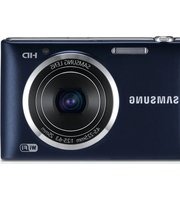
| Product type | Compact digital camera |
| Brand | Samsung |
| Model | NV100HD |
| Effective resolution | 14.7 megapixels |
| Sensor | CCD 1/1.72" (1.49 cm) |
| Lens | Schneider-KREUZNACH f = 6.0 - 21.6 mm (equiv. 28-102 mm in 35 mm) |
| Aperture | F2.8 (wide-angle) - F5.9 (telephoto) |
| Optical zoom | 3.6x |
| Screen | 3.0" (7.62 cm) color TFT LCD touchscreen, 460,000 pixels |
| Image stabilization | Dual IS (Optical OIS + Digital DIS) |
| Video | MP4 (H.264), max duration 20 min |
| Built-in flash | Yes, auto, red-eye reduction, slow sync |
| Storage media | Internal memory 40 MB + SD/SDHC/MMC Plus card (up to 8 GB) |
| Power supply | Lithium-ion battery SLB-1137D (1,100 mAh) + AC charger SAC-47 |
| Connectivity | USB 2.0, AV output (NTSC/PAL), HDMI (via docking station) |
| Dimensions (W x H x D) | 94.9 x 59.5 x 19.9 mm |
| Weight | 138 g (without battery or card) |
| Operating temperature | 0 - 40°C |
| Care and cleaning | Clean the lens with a soft, dry cloth. Avoid moisture and dust. |
| Safety | Do not use the flash within one meter of the face. Keep out of reach of children. |
| Spare parts and repairability | Battery and charger available. For any repairs, contact a Samsung authorized service center. |
| General information | Manufacturer's warranty. Recycling according to WEEE directive. |
Frequently Asked Questions - NV100HD SAMSUNG
User questions about NV100HD SAMSUNG
0 question about this device. Answer the ones you know or ask your own.
Ask a new question about this device
Download the instructions for your Camera in PDF format for free! Find your manual NV100HD - SAMSUNG and take your electronic device back in hand. On this page are published all the documents necessary for the use of your device. NV100HD by SAMSUNG.
USER MANUAL NV100HD SAMSUNG
Please refer to the warranty that came with your product or go to our website http://www.samsungcamera.com/ for after-sales service or inquiries.

The CE Mark is a Directive conformity
mark of the European Community (EC)
AD68-03083A
NV100HD
This Quick Start Manual has been specially designed to guide you through the basic functions and features of your device.
For more information, refer to the User Manual included on the supplied CD-ROM.
Please read the Quick Start Manual and User Manual carefully to ensure safe and correct use.

QuickTime
©2008 Samsung Techwin
Corporation
The specifications of the camera or contents of this manual may be changed without prior notice due to upgrade of camera functions.
Copyright information
Microsoft Windows and the Windows logo are registered trademarks of the Microsoft Corporation. - HDMI, the HDMI logo and the term "High Definition Multimedia Interface" are trademarks or registered trademarks of HDMI Licensing LLC. - QuickTime and QuickTime logo are trademarks or registered trademarks of Apple Computer, Inc., used under license.
Provided manuals
Quick Start Manual
Explains how to assemble and prepare your camera for its first use, capture photos or videos and transfer files to a PC.
User Manual (CD-ROM)
Explains how to shoot with various shooting modes, set shooting options, and use the settings menu. It also includes how to handle error messages and maintain your camera.
Indication information
In this manual, camera buttons are represented by bold type in brackets. For example, [Shutter] represents the Shutter button.
Contents

Please follow these procedures before using the camera.
1. Unpack 6 2. Insert the battery and memory card 7 3. Charge the battery and turn on your camera 8 4. Select a language and set the date and time 9

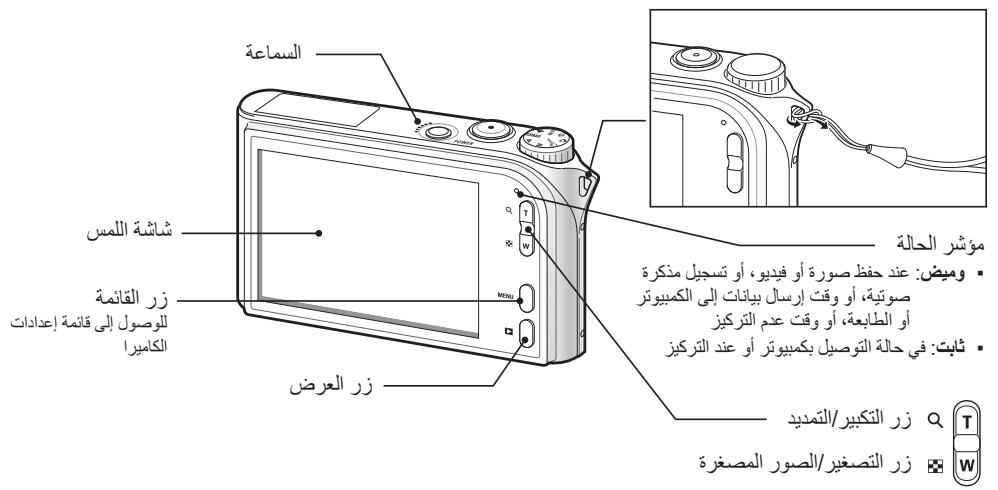
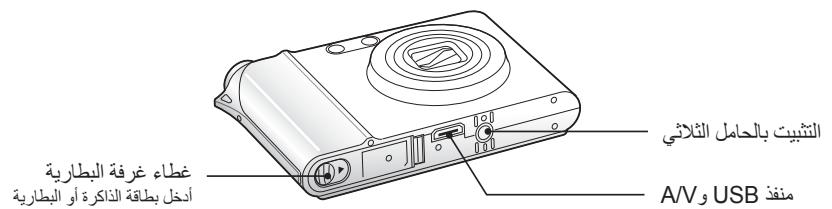
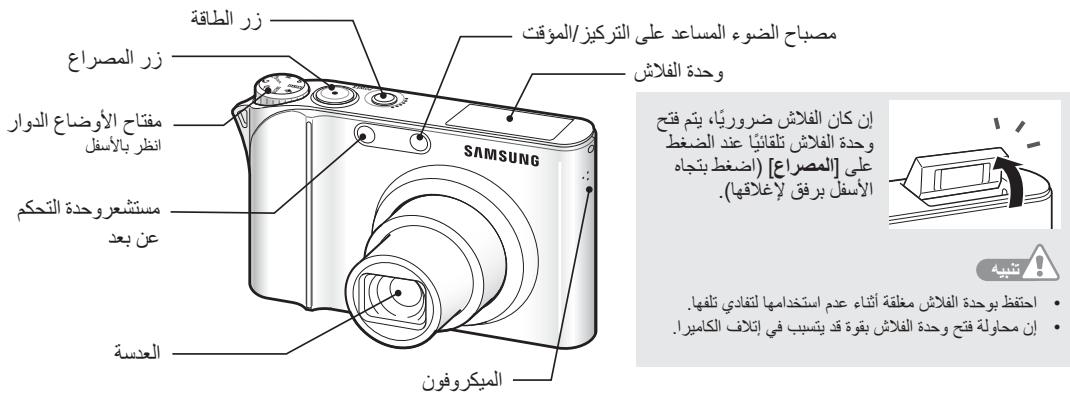
Camera layout 10
Icons 12
Use the touch screen 13

Take a photo 14
Record a video 15
Transfer files to a PC (for Windows) 16
Specifications 18
Get answers to common questions
You can easily solve most problems by setting shooting options.
There are more details about how to set shooting options in the CD version of the user manual.
| The subject's eyes appear red. | This is caused by a reflection from the camera flash. • Set the flash option to Red Eye or Red Eye Fix. (See the user manual p.33) • If the photo has already been taken, select Red Eye Fix in the edit menu. (See the user manual p.57) |
| Photos have dust spots. | Dust particles floating in the air may be captured in photos when using the flash. • Turn the flash off or avoid taking photos in a dusty place. • Set ISO speed options. (See the user manual p.35) |
| Photos are blurred. | This may be caused by taking photos in low light conditions or holding the camera incorrectly. Set the Optical Image Stabilisation (OIS) option or press [Shutter] halfway down to make sure the subject is focused. (See the user manual p.26) |
| Photos are blurred when shooting at night. | As the camera tries to let in more light, the shutter speed slows. This can make it difficult to steady the camera and may result in camera shake. • Turn the flash on. (See the user manual p.33) • Select the mode. (See the user manual p.20) • Set ISO speed options. (See the user manual p.35) • Use a tripod to prevent your camera from shaking. |
| Subjects come out too dark because of backlighting. | When the light source is behind the subject or when there is a high contrast between the light and dark areas, the subject may come out shaded. • Avoid shooting in front of the sun. • Select BACKLIGHT in the SCENE mode. (See the user manual p.20) • Set the flash option to Fill in. (See the user manual p.33) • Set the Auto Contrast Balance (ACB) option. (See the user manual p.41) • Adjust the exposure. (See the user manual p.40) • Set the metering option to [·] Spot if a bright subject is in the centre of the frame. (See the user manual p.42) |
Comply with the following precautions to avoid dangerous or illegal situations while operating the camera and keep this manual handy for future reference.

Warnings
Situations that could cause injury to yourself or others
Do not use your camera near flammable or explosive gases and liquids
Do not use your camera near fuels, combustibles, or flammable chemicals. Do not store or carry flammable liquids, gases, or explosive materials in the same compartment as the camera or its accessories.
Keep your camera away from small children and pets
Keep your camera and all accessories out of the reach of small children and animals. Small parts may cause choking or serious injury if swallowed. Moving parts and accessories may present physical dangers as well.
Prevent damage to subjects' eyesight
Do not use the flash in close proximity (closer than 1 m / 3 ft) to people or animals. Using the flash too close to your subject's eyes can cause temporary or permanent damage.
Handle and dispose of batteries and chargers with care
- Use only Samsung-approved batteries and chargers. Incompatible batteries and chargers can cause serious injuries or damage to your camera.
- Never dispose of batteries in a fire. Follow all local regulations when disposing of used batteries.
- Never place batteries or cameras on or in heating devices, such as microwave ovens, stoves, or radiators. Batteries may explode when overheated.

Cautions
Situations that could cause damage to your camera or other equipment
Handle and store your camera carefully and sensibly
- Do not allow your camera to get wet—liquids can cause serious damage. Do not handle your camera with wet hands. Water damage to your camera can void your manufacturer's warranty.
- Avoid using or storing your camera in dusty, dirty, humid, or poorly-ventilated areas to prevent damage to moving parts and internal components.
- Protect your camera from impact, rough handling, and excessive vibration to avoid serious damage.
- Exercise caution when connecting cables or adapters and installing batteries and memory cards. Forcing the connectors, improperly connecting cables, or improperly installing batteries and memory cards can damage ports, connectors, and accessories.
Do not insert foreign objects into any of your camera's compartments, slots, or access points. This type of damage may not be covered by your warranty.
Protect batteries, chargers, and memory cards from damage
- Avoid exposing batteries or memory cards to very cold or very hot temperatures (below 0°C / 32°F or above 40°C / 104°F). Extreme temperatures can reduce the charging capacity of your batteries and can cause memory cards to malfunction.
- Prevent batteries from making contact with metal objects, as this can create a connection between the + and - terminals of your battery and lead to temporary or permanent battery damage.
- Prevent memory cards from making contact with liquids, dirt, or foreign substances. If dirty, wipe the memory card clean with a soft cloth before inserting in your camera.
Use only Samsung-approved accessories
Using incompatible accessories may damage your camera, cause injury, or void your warranty.
Protect your camera's lens
Protect your lens from fingerprints and scratches
Clean your lens with a soft, clean, debris-free lens cloth.
1. Unpack
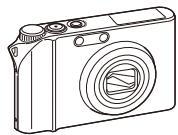
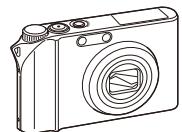
Camera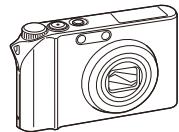
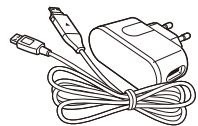
AC adapter (SAC-47)/ USB cable (SUC-C4)
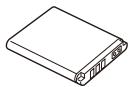
Rechargeable battery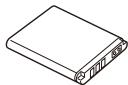
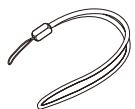
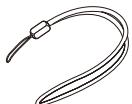
Strap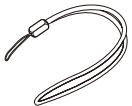
A/V cable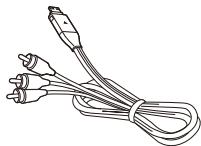
Quick Start Manual
Software CD-ROM (User manual included)
Optional accessories
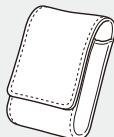
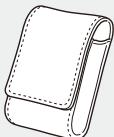
Camera case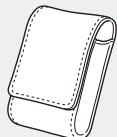
Memory cards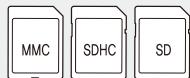
Sold as a set
HDMI cradle manual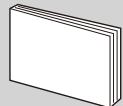
Remote control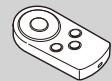
Cradle (for charging the battery and connecting your camera to an HDTV or PC)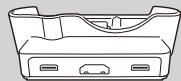
HDMI cable (for viewing high-resolution images or playing videos)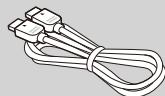
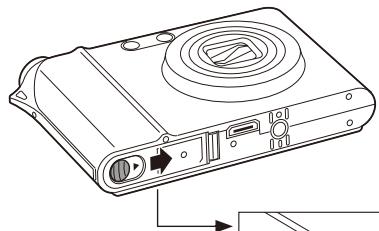
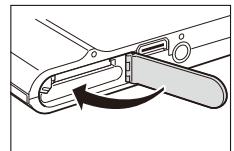
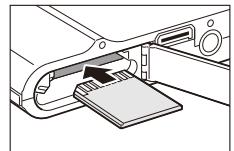
2. Insert the battery and memory card
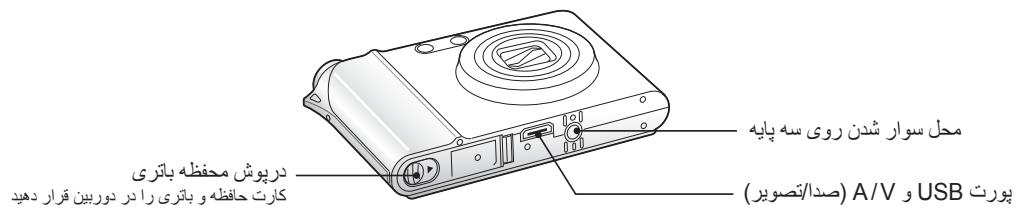
p.74 'About memory cards' p.75 'About the battery'
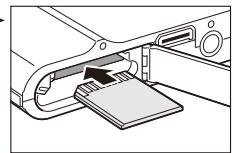
Insert memory cards with the gold-coloured contacts facing up.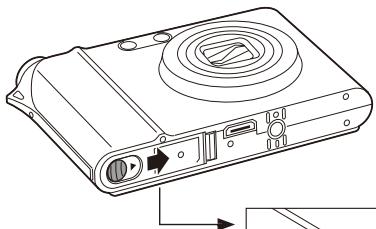
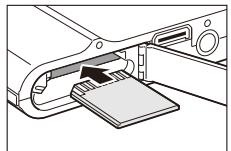
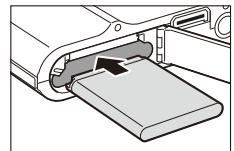
Insert batteries with the Samsung logo facing down.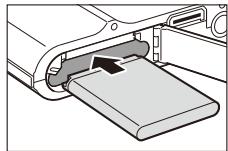
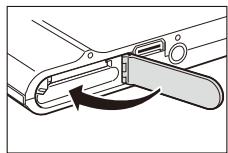
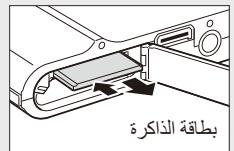
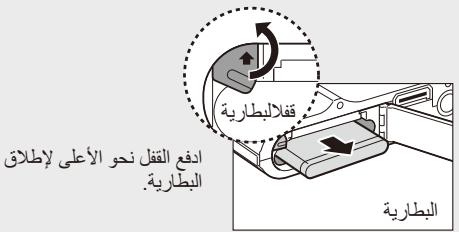
Remove the battery and memory card
Push gently until the card disengages from the camera and then pull it out of the slot.
Push the lock up to release the battery.
+Note
The internal memory can be used as a temporary storage device when the memory card is not inserted.
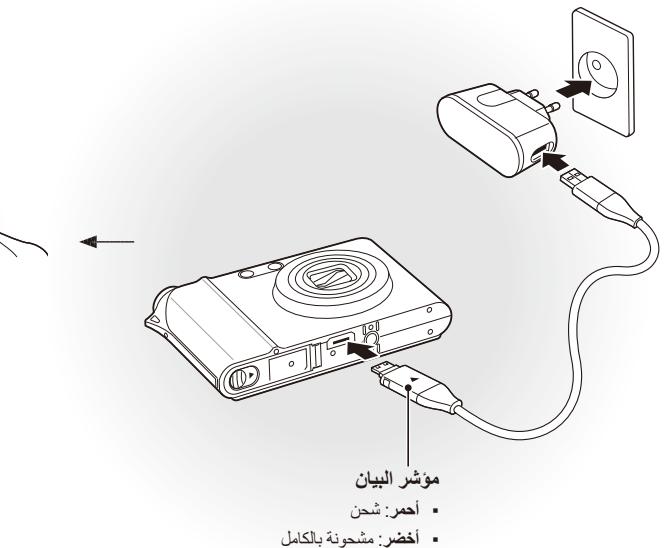
3. Charge the battery and turn on your camera

p.75 'About the battery'
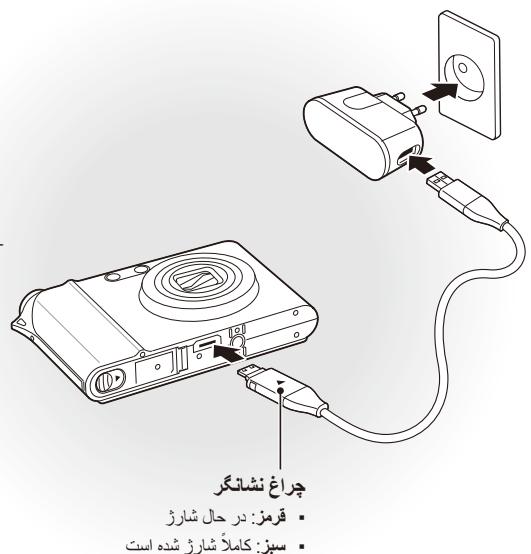
Charge the battery
Indicator light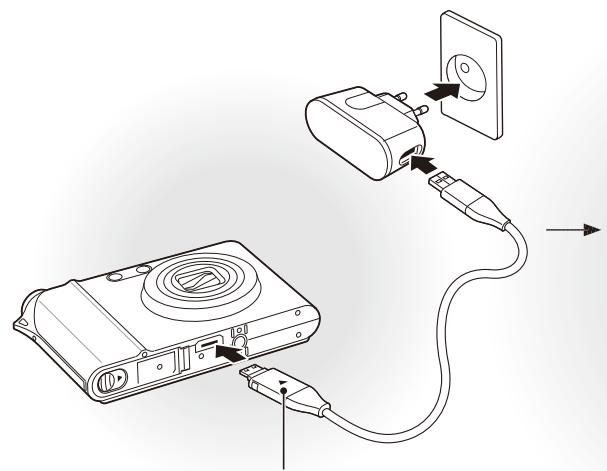
Red: Charging Green: Fully charged
Turn on your camera
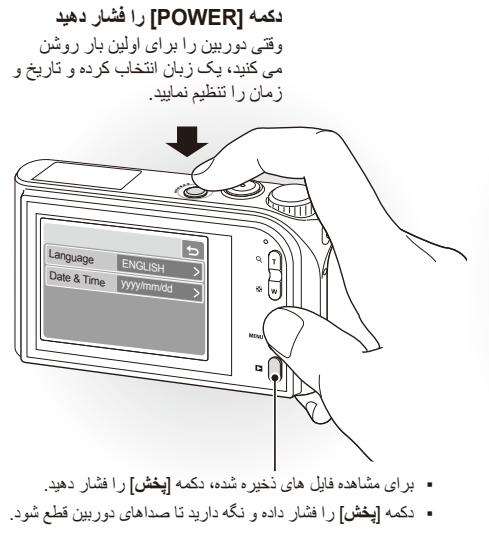
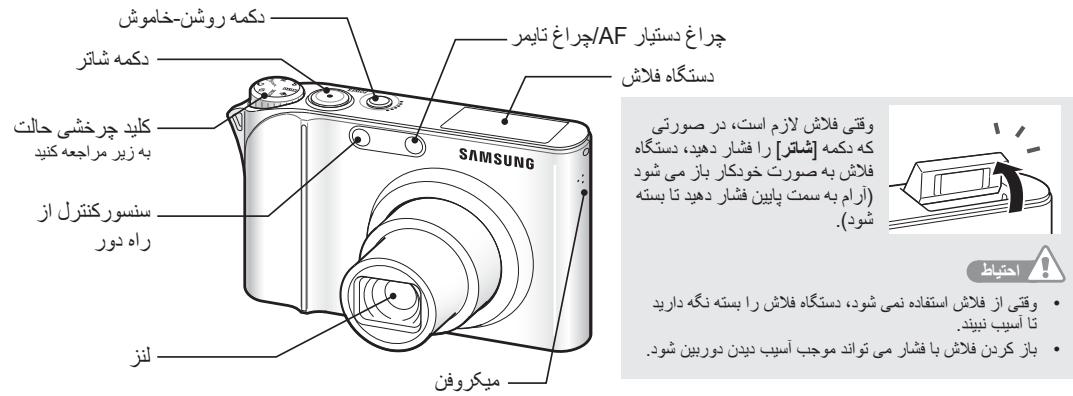
Press [POWER]
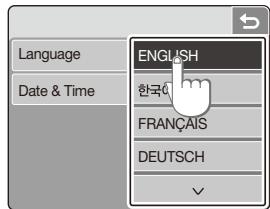
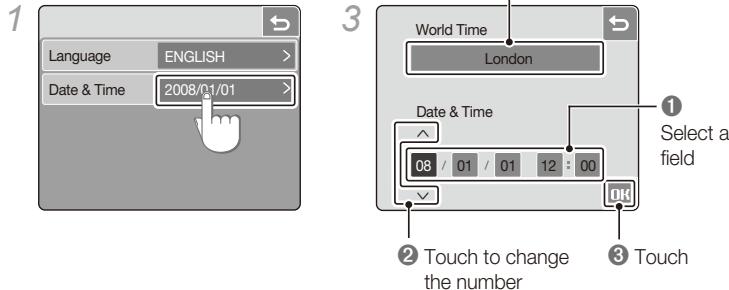
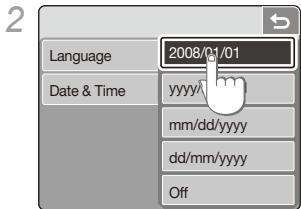
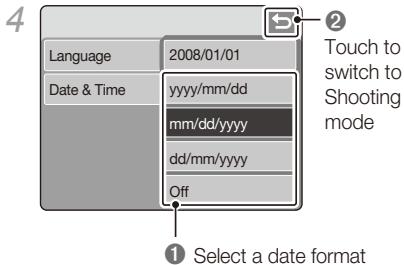
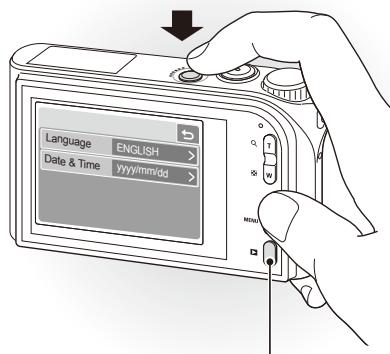
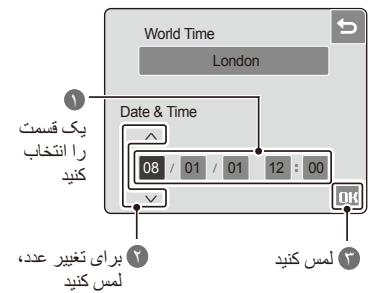
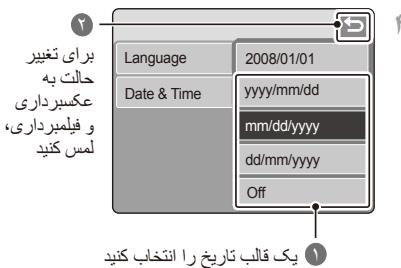
When you turn on your camera for the first time, select a language and set the date and time.
![SAMSUNG NV100HD - Press [POWER] - 1](/content/2024/11/23856/images/1e7dc5b70dca4a9acbdd58e6e45eed33f32bcead6d7c94f26d81c47852c06e14.jpg)
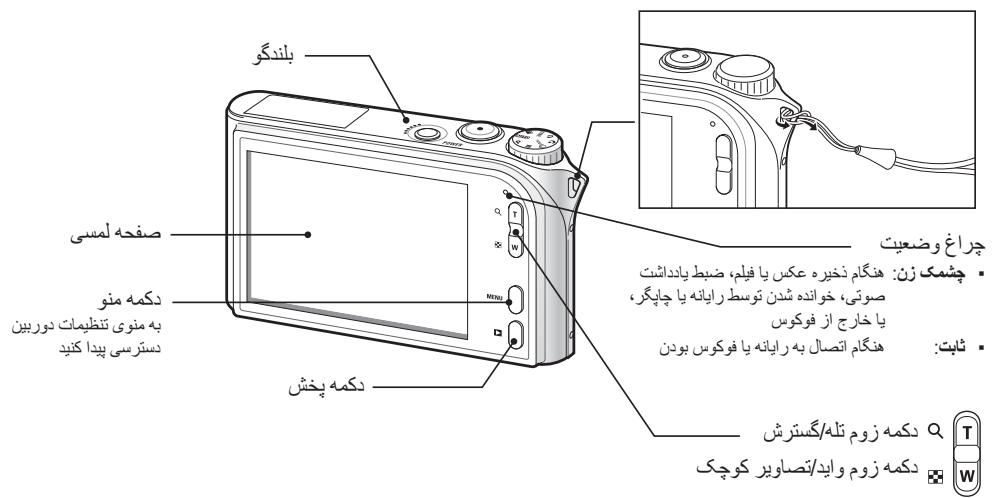
- Press [Playback] to view stored files.
- Press and hold [Playback] to mute camera sounds.
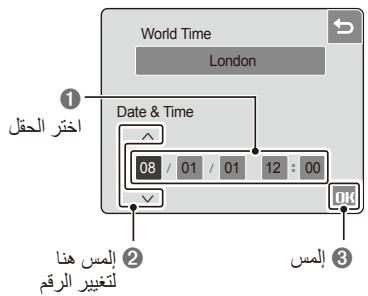
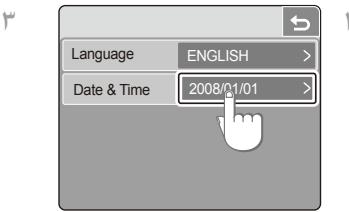
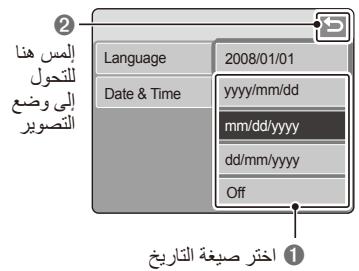
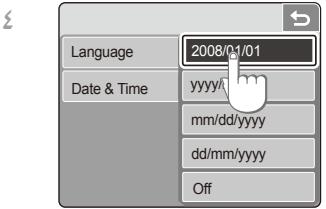
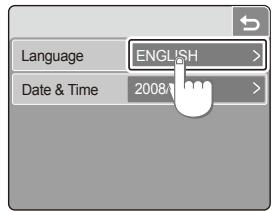
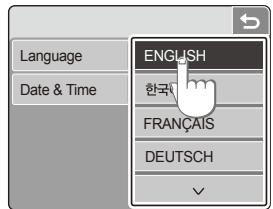
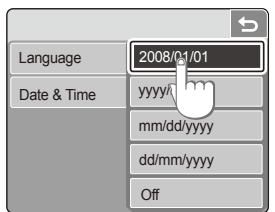
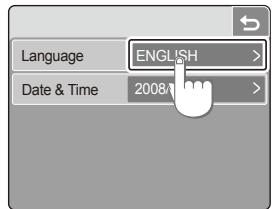
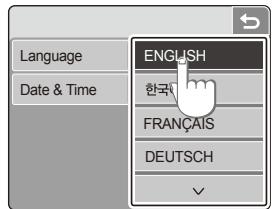
4. Select a language and set the date and time
Select a language
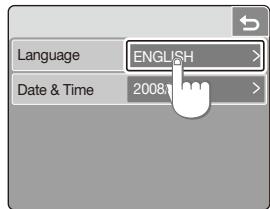
Set the date and time
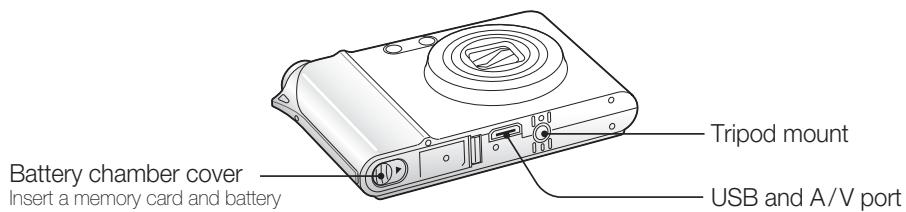
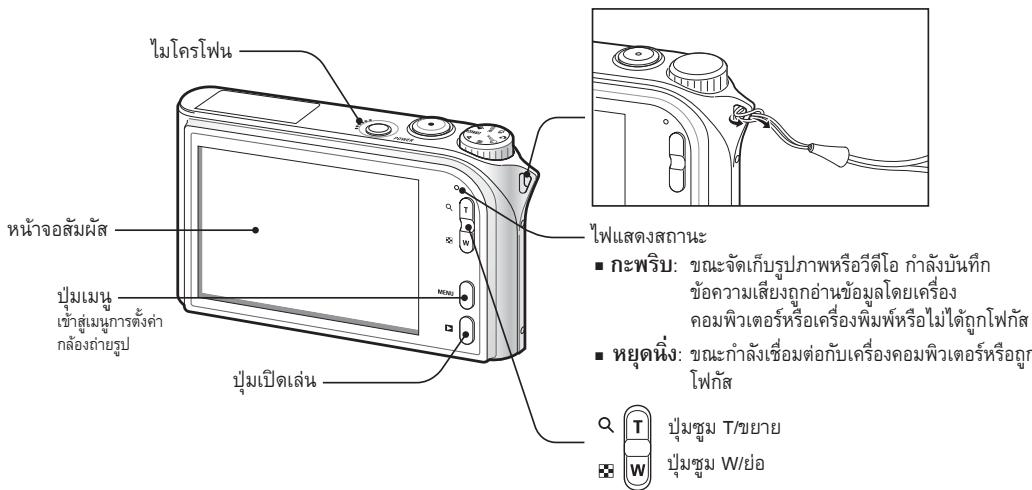
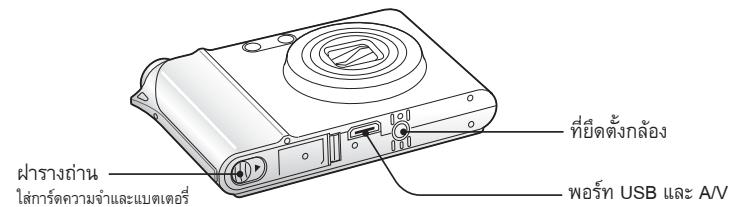
Camera layout
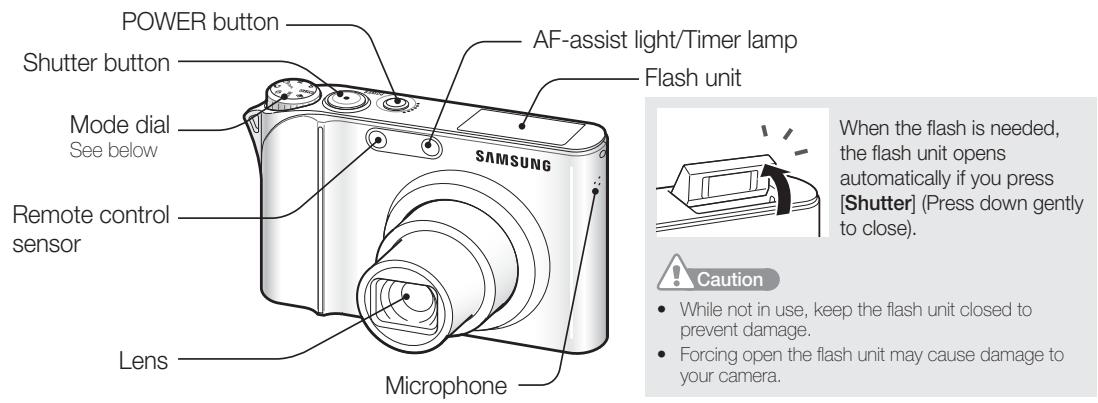
| Icon | Mode | Description |
| AUTO | AUTO | Take a photo conveniently with minimal settings |
| P | PROGRAM | Take a photo by setting options (except for shutter speed and aperture value) |
| M | MANUAL | Take a photo by setting options manually |
| DUAL | DUAL IS | Take a photo with options suitable for reducing camera shake |
| Icon | Mode | Description |
| ☆ | NIGHT | Take a photo with options for shooting at night |
| ☆ | BEAUTY SHOT | Take a photo of a person with options to hide facial imperfections |
| SCENE | SCENE | Take a photo with options for a preset scene |
| MOVIE | Record a video | |
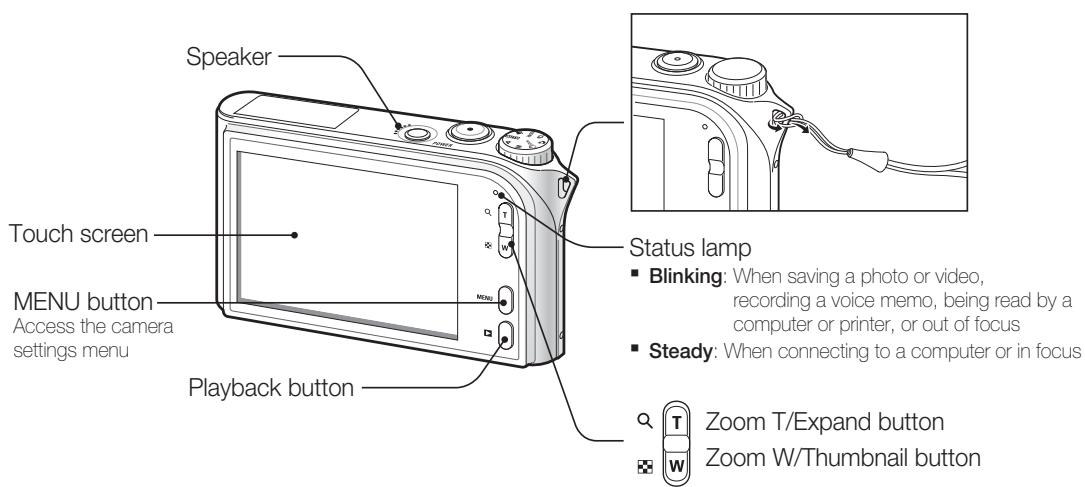
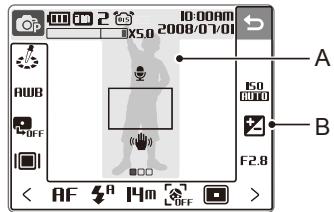
The icons displayed will change according to the selected mode or options you set.
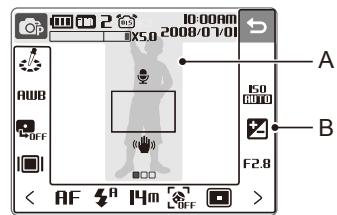
A. Main display
| Icon | Description |
| Selected shooting mode | |
| Fully charged | |
| Partially charged | |
| Charging needed | |
| Internal memory | |
| Memory card inserted | |
| Available number of photos | |
| 00:00:06 | Available recording time |
| Optical Image Stabilisation (OIS) | |
| 2008/01/01 | Current date and time |
| Zoom ratio | |
| Voice memo | |
| Auto focus frame | |
| Camera shake | |
| Option set 1 (of 3) |
B. Touch icons
| Icon | Description |
| Selected photo style | |
| RAW | Select a white balance |
| OFF | Adjust the exposure with ACB |
| Select a display type | |
| Return to the previous screen | |
| Select a scene | |
| ISO | Select an ISO speed |
| Adjust the brightness of the face | |
| Adjust the exposure manually | |
| 1/30 | Adjust the shutter speed |
| Adjust imperfections of the face | |
| F2.8 | Select an aperture value |
| RF | Select an auto focus option |
| Select a flash option | |
| 200 | Select a video resolution |
| Icon | Description |
| Hm | Select a photo resolution |
| 30 | Select a frame rate |
| DIF | Select a face detection option |
| Select a focus area option | |
| Select a burst type | |
| [=] | Select a metering option |
| Select photo quality | |
| OFF | Select a timer option |
| DIF | Add a voice memo to a photo or record a voice memo |
| DIF | Set the Optical Image Stabilisation option |
| Apply a colour effect | |
| Adjust sharpness | |
| Adjust contrast | |
| Adjust saturation | |
| < > | Display another row of options |
Use the touch screen
Learn basic actions to use the touch screen.
The touch screen works best when touched with the soft part of your finger.

Do not use any sharp objects to touch the screen. Doing so may damage the screen.
Touching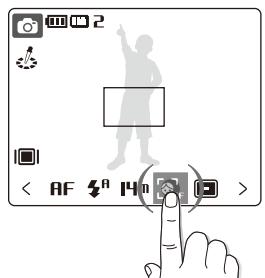
Touch an icon to open a menu or set an option.
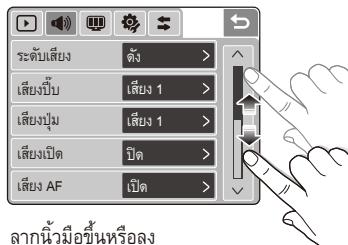
Dragging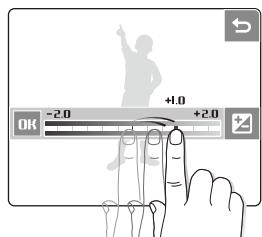
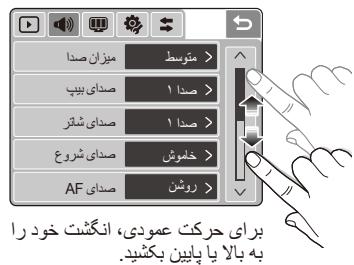
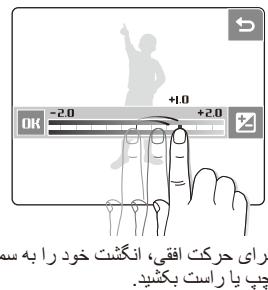
Drag your finger left or right to scroll horizontally.
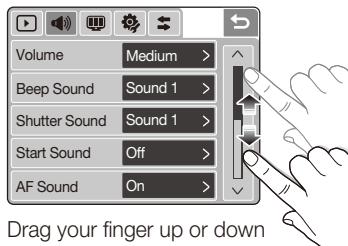
Drag your finger up or down to scroll vertically.
Take a photo
1 Select AUTO

2 Align your subject in the frame.
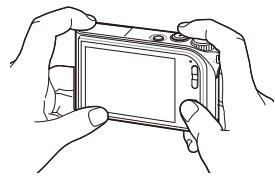
3 Press [Shutter] halfway down to focus automatically.
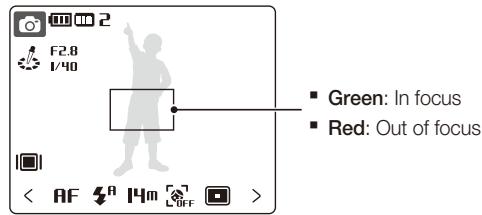
4 Press [Shutter] all the way down to take the photo.
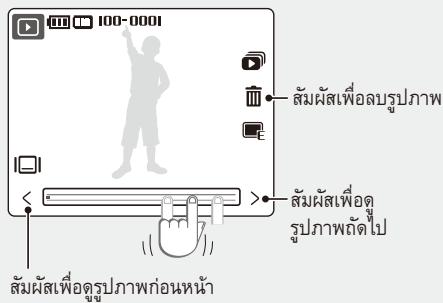
Viewing photos
1 Press [Playback].
If the camera is off, it will turn on.
2 Drag your finger left or right to scroll through photos.
Touch to view the previous photo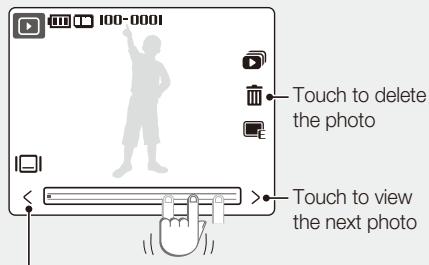
Record a video
1 Select

2 Align your subject in the frame. 3 Press [Shutter].
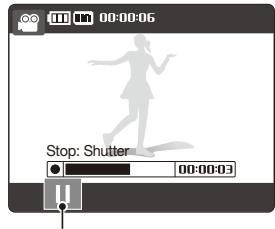
- Touch to pause
- Touch again to resume
4 Press [Shutter] again to stop the recording.

You can record videos of up to 20 minutes in length.
Playing a video
1 Press [Playback]. 2 Touch PLXY 3 Use the following icons to control playback.
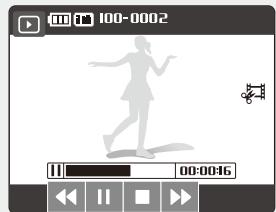
| Icon | Description |
| ← | Skip backward |
| || | Pause or resume playback |
| ■ | Stop playback |
| ► | Skip forward |
Transfer files to a PC (for Windows)

p.61 'Transferring files to your computer'
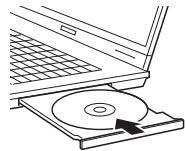
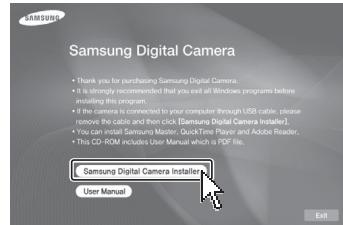
1 Insert the installation CD in a CD-ROM drive and follow the on-screen instructions.
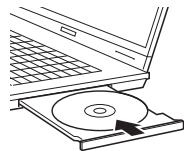
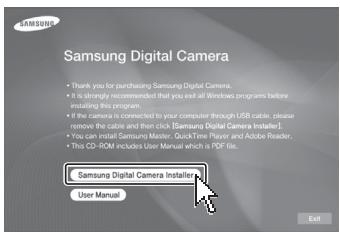
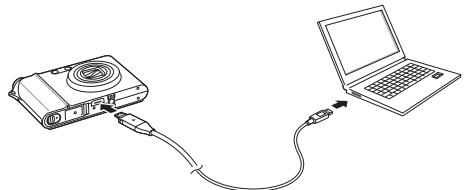
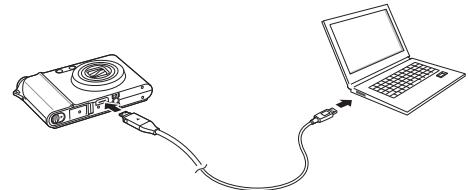
2 Connect the camera to the PC with the USB cable.
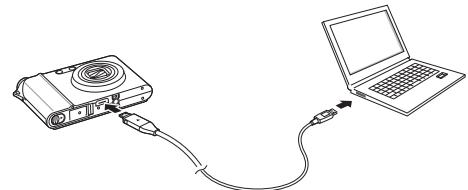

You must plug the end of the cable with the indicator light (▲) into your camera. If the cable is reversed, it may damage your files. The manufacturer is not responsible for any loss of data.
3 Turn on the camera.

Click User Manual to read the user manual.
The CD contains the following programs
| Samsung Master | Edit photos and videos |
| QuickTime Player 7.4 | View videos |
| Adobe Reader | View the user manual |
4 Touch Computer.
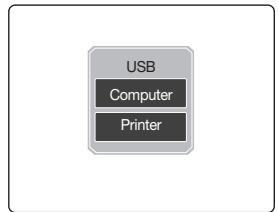
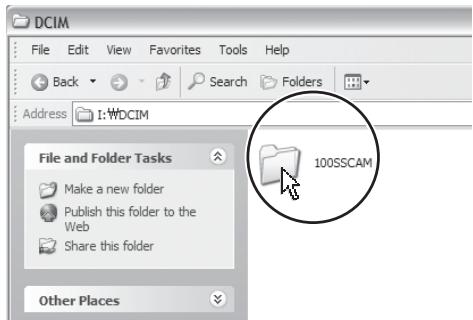
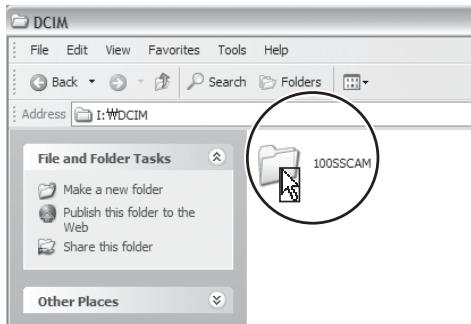
5 On your PC, select My Computer > Removable Disk > DCIM > 100SSCAM.
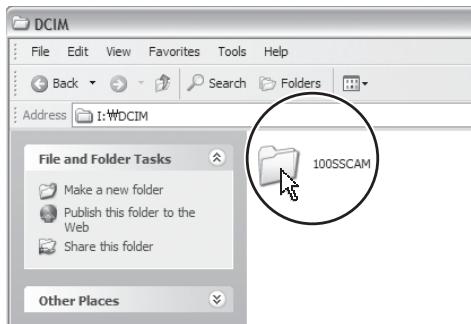
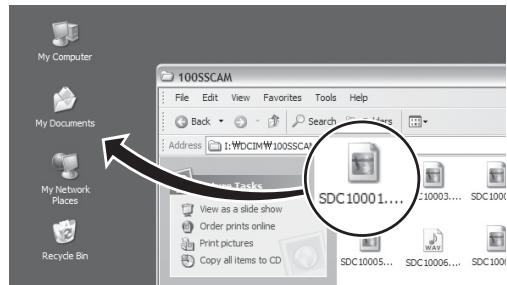
6 Select the files you want and drag or save them to the PC.
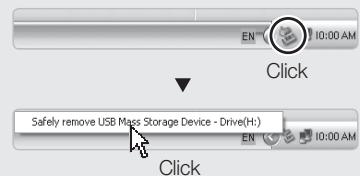
To disconnect safely (for Windows XP)
The way to disconnect the USB cable for Windows 2000/Vista is similar.
Specifications

p.79 'Camera specifications'
| Image sensor | Type | 1/1.72" (1.49 cm) CCD | ||
| Pixel | Effective pixels: approx. 14.7 mega-pixels, Total pixels: approx. 15.0 mega-pixels | |||
| Lens | Focal length | Schneider-KREUZNACH lens f = 6.0 - 21.6 mm (35 mm film equivalent: 28 - 102 mm) | ||
| F-stop range | F2.8 (W) - F5.9 (T) | |||
| LCD monitor | 3.0" (7.62 cm) hVGA color TFT LCD (460,000 pixels) (Touch) | |||
| Focusing | Type | TTL auto focus (Multi AF, Center AF, Touch AF, Face Detection AF) | ||
| Range | Wide | Tele | ||
| Normal | 80cm-infinity | |||
| Macro | 5cm-80 cm | 50cm-80 cm | ||
| Auto macro | 5cm-infinity | 50cm-infinity | ||
| Shutter speed | AUTO: 1 - 1/2,000 sec. MANUAL: 16 - 1/2,000 sec. NIGHT: 8 - 1/2,000 sec. FIREWORK: 4 sec. | |||
| Shake reduction | Dual IS [OS (Optical Image Stabilisation) + DIS (Digital Image Stabilisation)] | |||
| Storage | Media | Internal memory: approx. 40 MB External memory (Optional): SD card (up to 4 GB guaranteed), SDHC card (up to 8 GB guaranteed), MMC Plus (up to 2 GB guaranteed, 4 bit 20 MHz) Internal memory capacity may not match these specifications. | ||
| File format | Still image: JPEG (DCF), EXIF 2.21, DPOF 1.1, PictBridge 1.0 Movie: MP4 (H.264 (MPEG4.AVC)) Audio: WAV | |||
| Image size | For 1 GB SD | |||||
| Super fine | Fine | Normal | ||||
| 4384x3288 | 136 | 265 | 386 | |||
| 4384x2920 | 153 | 296 | 430 | |||
| 4384x2464 | 180 | 347 | 501 | |||
| 3264x2448 | 240 | 457 | 653 | |||
| 2592x1944 | 370 | 685 | 957 | |||
| 1920x1080 | 807 | 1374 | 1794 | |||
| 1024x768 | 1655 | 2438 | 2894 | |||
| These figures are measured under Samsung's standard conditions and may vary depending on shooting conditions and camera settings. | ||||||
| Interface | Digital output | Connector: USB 2.0 (30 pin) | ||||
| Audio output | Mono (Internal speaker), Stereo (Microphone) | |||||
| Video output | AV: NTSC, PAL (selectable)HDMI 1.2: NTSC, PAL (selectable)HDMI is available when it is connected to the optional cradle. | |||||
| DC power input connector | 30 pin, 4.2 V | |||||
| Power source | Rechargeable battery | Lithium-ion battery SLB-1137D (1100 mAh) | ||||
| AC adapter | Power adapter (SAC-47), USB cable (SUC-C4) | |||||
| Cradle(Optional) | SCC-NV5 HDThe power source may differ depending on your region. | |||||
| Dimensions (W x H x D) | 94.9 X 59.5 X 19.9 mm(without projection part) | |||||
| Weight | 138 g (without battery and memory card) | |||||
| Operating temperature | 0 - 40°C | |||||
| Operating humidity | 5 - 85% | |||||

Correct Disposal of This Product (Waste Electrical & Electronic Equipment)
(Applicable in the European Union and other European countries with separate collection systems)
This marking shown on the product or its literature indicates that it should not be disposed of with other household wastes at the end of its working life. To prevent possible harm to the environment or human health from uncontrolled waste disposal, please separate this from other types of wastes and recycle it responsibly to promote the sustainable reuse of material resources. Household users should contact either the retailer where they purchased this product, or their local government office, for details of where and how they can take this item for environmentally safe recycling. Business users should contact their supplier and check the terms and conditions of the purchase contract. This product should not be mixed with other commercial wastes for disposal.

Samsung Techwin cares for the environment at all product manufacturing stages to preserve the environment, and is taking a number of steps to provide customers with more environment-friendly products. The Eco mark represents
Samsung Techwin's will to create environment-friendly products, and indicates that the product satisfies the EU RoHS Directive.

Correct disposal of batteries in this product
(Applicable in the European Union and other European countries with separate battery return systems.)
This marking on the battery, manual or packaging indicates that the batteries in this product should not be disposed of with other household waste at the end of their working life. Where marked, the chemical symbols Hg, Cd or Pb indicate that the battery contains mercury, cadmium or lead above the reference levels in EC Directive 2006/66. If batteries are not properly disposed of, these substances can cause harm to human health or the environment.
To protect natural resources and to promote material reuse, please separate batteries from other types of waste and recycle them through your local, free battery return system.
The rechargeable battery incorporated in this product is not user replaceable. For information on its replacement, please contact your service provider.
©2008 Samsung Techwin
Corporation
| Simge | Açıklama |
| 30F | Kare®,®,®,®,®,®,®,®,®,®,®,®,®,®,®,®,®,®,®,®,®,®,®,®,®,®,®,®,®,®,®,®,®,®,®,®,®,®,®,®,®,®,®,®,®,®,®,®,®,®,®,®,®,®,®,®,®,®,®,®,®,®,®,®,®,®,®,®,®,®,®,®,®,®,®,®,®,®,®,®,®,®,®,®,®,®,®,®,®,®,®,®,®,®,®,®,®,®,®,®,® |
| DIFF | Yüz algilama®,®,®,®,®,®,®,®,®,®,®,®,®,®,®,®,®,®,®,®,®,®,®,®,®,®,®,®,®,®,®,®,®,®,®,®,®,®,®,®,®,®,®,®,®,®,®,®,®,®,®,®,®,®,®,®,®,®,®,®,®,®,®,®,®,®,®,®,®,®,®,®,®,®,®,®,®,®,®,®,®,®,®,®,®,®,®,®,®,®,®,®,®,®,®,®,®,®,®, ® |
| [=] | Odek alanı®,®,®,®,®,®,®,®,®,®,®,®,®,®,®,®,®,®,®,®,®,®,®,®,®,®,®,®,®,®,®,®,®,®,®,®,®,®,®,®,®,®,®,®,®,®,®,®,®,®,®,®,®,®,®,®,®,®,®,®,®,®,®,®,®,®,®,®,®,®,®,®,®,®,®,®,®,®,®,®,®,®,®,®,®,®,®,®,®,®,®,®,®,®,®,®,®,®,®,© |
| OFF | Seri®,®,®,®,®,®,®,®,®,®,®,®,®,®,®,®,®,®,®,®,®,®,®,®,®,®,®,®,®,®,®,®,®,®,®,®,®,®,®,®,®,®,®,®,®,®,®,®,®,®,®,®,®,®,®,®,®,®,®,®,®,®,®,®,®,®,®,®,®,®,®,®,®,®,®,®,®,®,®,®,®,®,®,®,®,®,®,®,®,®,®,®,®,®,®,®,®,®,®,☐ |
| OFF | Zamanlayüncü®,®,®,®,®,®,®,®,®,®,®,®,®,®,®,®,®,®,®,®,®,®,®,®,®,®,®,®,®,®,®,®,®,®,®,®,®,®,®,®,®,®,®,®,®,®,®,®,®,®,®,®,®,®,®,®,®,®,®,®,®,®,®,®,®,®,®,®,®,®,®,®,®,®,®,®,®,®,®,®,®,®,®,®,®,®,®,®,®,®,®,®,®,®,®,®,®,®,®,⁄· |
| OFF | Fotoğraf kalitesini®,®,®,®,®,®,®,®,®,®,®,®,®,®,®,®,®,®,®,®,®,®,®,®,®,®,®,®,®,®,®,®,®,®,®,®,®,®,®,®,®,®,®,®,®,®,®,®,®,®,®,®,®,®,®,®,®,®,®,®,®,®,®,®,®,®,®,®,®,®,®,®,®,®,®,®,®,®,®,®,®,®,®,®,®,®,®,®,®,®,®,®,®,®,®,®,®,®,®,,— |
| OFF | Zamanlayüncü®®®®®®®®®®®®®®®®®®®®®®®®®®®®®®®®®®®®®®®®®®®®®®®®®®®®®®®®®®®®®®®®®®®®®®®®®®®®®®®®®®®®®®®®®®®®®®®®®®®® |
| OFF | Optik Görçkı Ütünü Sabitlemeyi Ayarlama |
| OFF | Renk efektı ekleme |
| OFF | Keskinliliği ayarlama |
| OFF | Kontrastı ayarlama |
| OFF | Doygunluğu ayarlama |
| <> | Düşer seçenek satirlarını gırkıubleme |
Camera parts. 10
Icons 12
| .1.2.3.4.5.6.7.8.9.10.11.12.13.14.15.16.17.18.19.20.21.22.23.24.25.26.27.28.29.30.31.32.33.34.35.36.37.38.39.40.41.42.43.44.45.46.47.48.49.50.51.52.53.54.55.56.57.58.59.60.61.62.63.64.65.66.67.68.69.70.71.72.73.74.75.76.77.78.79.80.81.82.83.84.85.86.87.88.89.90.91.92.93.94.95.96.97.98.99.100.101.102.103.104.105.106.107.108.109.110.111.112.113.114.115.116.117.118.119.120.121.122.123.124.125.126.127.128.129.130.131.132.133.134.135.136.137.138.139.140.141.142.143.144.145.146.147.148.149.150.151.152.153.154.155.156.157.158.159.160.161.162.163.164.165.166.167.168.169.170.171.172.173.174.175.176.177.178.179.180.181.182.183.184.185.186.187.188.189.190.191.192.193.194.195.196.197.198.199.200.201.202.203.204.205.206.207.208.209.210.211.212.213.214.215.216.217.218.219.220.221.222.223.224.225.226.227.228.229.230.231.232.233.234.235.236.237.238.239.240.241.242.243.244.245.246.247.248.249.250.251.252.253.254.255.256.257.258.259.260.261.262.263.264.265.266.267.268.269.270.271.272.273.274.275.276.277.278.279.280.281.282.283.284.285.286.287.288.289.290.291.292.293.294.295.296.297.298.299.300.301.302.303.304.305.306.307.308.309.310.311.312.313.314.315.316.317.318.319.320.321.322.323.324.325.326.327.328.329.330.331.332.333.334.335.336.337.338.339.340.341.342.343.344.345.346.347.348.349.350.351.352.353.354.355.356.357.358.359.360.361.362.363.364.365.366.367.368.369.370.371.372.373.374.375.376.377.378.379.380.381.382.383.384.385.386.387.388.389.390.391.392.393.394.395.396.397.398.399.400.401.402.403.404.405.406.407.408.409.410.411.412.413.414.415.416.417.418.419.420.421.422.423.424.425.426.427.428.429.430.431.432.433.434.435.436.437.438.439.440.441.442.443.444.445.446.447.448.449.450.451.452.453.454.455.456.457.458.459.460.461.462.463.464.465.466.467.468.469.470.471.472.473.474.475.476.477.478.479.480.481.482.483.484.485.486.487.488.489.490.491.492.493.494.495.496.497.498.499.500.501.502.503.504.505.506.507.508.509.510.511.512.513.514.515.516.517.518.519.520.521.522.523.524.525.526.527.528.529.530.531.532.533.534.535.536.537.538.539.540.541.542.543.544.545.546.547.548.549.550.551.552.553.554.555.556.557.558.559.560.561.562.563.564.565.566.567.568.569.570.571.572.573.574.575.576.577.578.579.580.581.582.583.584.585.586.587.588.589.590.591.592.593.594.595.596.597.598.599.600.601.602.603.604.605.606.607.608.609.610.611.612.613.614.615.616.617.618.619.620.621.622.623.624.625.626.627.628.629.630.631.632.633.634.635.636.637.638.639.640.641.642.643.644.645.646.647.648.649.650.651.652.653.654.655.656.657.658.659.660.661.662.663.664.665.666.667.668.669.670.671.672.673.674.675.676.677.678.679.680.681.682.683.684.685.686.687.688.689.690.691.692.693.694.695.696.697.698.699.700.701.702.703.704.705.706.707.708.709.710.711.712.713.714.715.716.717.718.719.720.721.722.723.724.725.726.727.728.729.730.731.732.733.734.735.736.737.738.739.740.741.742.743.744.745.746.747.748.749.750.751.752.753.754.755.756.757.758.759.760.761.762.763.764.765.766.767.768.769.770.771.772.773.774.775.776.777.778.779.780.781.782.783.784.785.786.787.788.789.790.791.792.793.794.795.796.797.798.799.800.801.802.803.804.805.806.807.808.809.810.811.812.813.814.815.816.817.818.819.820.821.822.823.824.825.826.827.828.829.830.831.832.833.834.835.836.837.838.839.840.841.842.843.844.845.846.847.848.849.850.851.852.853.854.855.856.857.858.859.860.861.862.863.864.865.866.867.868.869.870.871.872.873.874.875.876.877.878.879.880.881.882.883.884.885.886.887.888.889.890.891.892.893.894.895.896.897.898.899.800.801.802.803.804.805.806.807.808.809.810.811.812.813.814.815.816.817.818.819.820.821.822.823. 824.825.826.827.828.829.830.831.832.833.834.835.836.837.838.839.840.841.842.843.844.845.846.847.848, 849, 850, 851, 852, 853, 854, 855, 856, 857, 858, 859, 860, 861, 862, 863, 864, 865, 866, 867, 868, 869, 870, 871, 872, 873, 874, 875, 876, 877, 878, 879, 880, 881, 882, 883, 884, 885, 886, 887, 888, 889, 890, 891, 892, 893, 894, 895, 896, 897, 898, 899, 900, 901, 902, 903, 904, 905, 906, 907, 908, 909, 910, 911, 912, 913, 914, 915, 916, 917, 918, 919, 920, 921, 922, 923, 924, 925, 926, 927, 928, 929, 930, 931, 932, 933, 934, 935, 936, 937, 938, 939, 940, 941, 942, 943, 944, 945, 946, 947, 948, 949, 950, 951, 952, 953, 954, 955, 956, 957, 958, 959, 960, 961, 962, 963, 964, 965, 966, 967, 968, 969, 970, 971, 972, 973, 974, 975, 976, 977, 978, 979, 980, 981, 982, 983, 984, 985, 986, 987, 988, 989, 990, 991, 992, 993, 994, 995, 996, 997, 998, 999, 1000, 1001, 1002, 1003, 1004, 1005, 1006, 1007, 1008, 1009, 1010, 1011, 1012, 1013, 1014, 1015, 1016, 1017, 1018, 1019, 1020, 1021, 1022, 1023, 1024, 1025, 1026, 1027, 1028, 1029, 1030, 1031, 1032, 1033, 1034, 1035, 1036, 1037, 1038, 1039, 1040, 1041, 1042, 1043, 1044, 1045, 1046, 1047, 1048, 1049, 1050, 1051, 1052, 1053, 1054, 1055, 1056, 1057, 1058, 1059, 1060, 1061, 1062, 1063, 1064, 1065, 1066, 1067, 1068, 1069, 1070, 1071, 1072, 1073, 1074, 1075, 1076, 1077, 1078, 1079, 1080, 1081, 1082, 1083, 1084, 1085, 1086, 1087, 1088, 1089, 1090, 1091, 1092, 1093, 1094, 1095, 1096, 1097, 1098, 1099, 1100, 1101, 1102, 1103, 1104, 1105, 1106, 1107, 1108, 1109, 1110, 1111, 1112, 1113, 1114, 1115, 1116, 1117, 1118, 1119, 1120, 1121, 1122, 1123, 1124, 1125, 1126, 1127, 1128, 1129, 1130, 1131, 1132, 1133, 1134, 1135, 1136, 1137, 1138, 1139, 1140, 1141, 1142, 1143, 1144, 1145, 1146, 1147, 1148, 1149, 1150, 1151, 1152, 1153, 1154, 1155, 1156, 1157, 1158, 1159, 1160, 1161, 1162, 1163, 1164, 1165, 1166, 1167, 1168, 1169, 1170, 1171, 1172, 1173, 1174, 1175, 1176, 1177, 1178, 1179, 1180, 1181, 1182, 1183, 1184, 1185, 1186, 1187, 1188, 1189, 1190, 1191, 1192, 1193, 1194, 1195, 1196, 1197, 1198, 1199, 1200, 1201, 1202, 1203, 1204, 1205, 1206, 1207, 1208, 1209, 1210, 1211, 1212, 1213, 1214, 1215, 1216, 1217, 1218, 1219, 1220, 1221, 1222, 1223, 1224, 1225, 1226, 1227, 1228, 1229, 1230, 1231, 1232, 1233, 1234, 1235, 1236, 1237, 1238, 1239, 1240, 1241, 1242, 1243, 1244, 1245, 1246, 1247, 1248, 1249, 1250, 1251, 1252, 1253, 1254, 1255, 1256, 1257, 1258, 1259, 1260, 1261, 1262, 1263, 1264, 1265, 1266, 1267, 1268, 1269, 1270, 1271, 1272, 1273, 1274, 1275, 1276, 1277, 1278, 1279, 1280, 1281, 1282, 1283, 1284, 1285, 1286, 1287, 1288, 1289, 1290, 1291, 1292, 1293, 1294, 1295, 1296, 1297, 1298, 1299, 1300, 1301, 1302, 1303, 1304, 1305, 1306, 1307, 1308, 1309, 1310, 1311, 1312, 1313, 1314, 1315, 1316, 1317, 1318, 1319, 1320, 1321, 1322, 1323, 1324, 1325, 1326, 1327, 1328, 1329, 1330, 1331, 1332, 1333, 1334, 1335, 1336, 1337, 1338, 1339, 1340, 1341, 1342, 1343, 1344, 1345, 1346, 1347, 1348, 1349, 1350, 1351, 1352, 1353, 1354, 1355, 1356, 1357, 1358, 1359, 1360, 1361, 1362, 1363, 1364, 1365, 1366, 1367, 1368, 1369, 1370, 1371, 1372, 1373, 1374, 1375, 1376, 1377, 1378, 1379, 1380, 1381, 1382, 1383, 1384, 1385, 1386, 1387, 1388, 1389, 1390, 1391, 1392, 1393, 1394, 1395, 1396, 1397, 1398, 1399, 1400, 1401, 1402, 1403, 1404, 1405, 1406, 1407, 1408, 1409, 1410, 1411, 1412, 1413, 1414, 1415, 1416, 1417, 1418, 1419, 1420, 1421, 1422, 1423, 1424, 1425, 1426, 1427, 1428, 1429, 1430, 1431, 1432, 1433, 1434, 1435, 1436, 1437, 1438, 1439, 1440, 1441, 1442, 1443, 1444, 1445, 1446, 1447, 1448, 1449, 1450, 1451, 1452, 1453, 1454, 1455, 1456, 1457, 1458, 1459, 1460, 1461, 1462, 1463, 1464, 1465, 1466, 1467, 1468, 1469, 1470, 1471, 1472, 1473, 1474, 1475, 1476, 1477, 1478, 1479, 1480, 1481, 1482, 1483, 1484, 1485, 1486, 1487, 1488, 1489, 1490, 1491, 1492, 1493, 1494, 1495, 1496, 1497, 1498, 1499, 1500, 1501, 1502, 1503, 1504, 1505, 1506, 1507, 1508, 1509, 1510, 1511, 1512, 1513, 1514, 1515, 1516, 1517, 1518, 1519, 1520, 1521, 1522, 1523, 1524, 1525, 1526, 1527, 1528, 1529, 1530, 1531, 1532, 1533, 1534, 1535, 1536, 1537, 1538, 1539, 1540, 1541, 1542, 1543, 1544, 1545, 1546, 1547, 1548, 1549, 1550, 1551, 1552, 1553, 1554, 1555, 1556, 1557, 1558, 1559, 1560, 1561, 1562, 1563, 1564, 1565, 1566, 1567, 1568, 1569, 1570, 1571, 1572, 1573, 1574, 1575, 1576, 1577, 1578, 1579, 1600, [ ] . . . . . . . . . . . . . . . . . . . . . . . . . . . . . . . . . . . . . . . . . . . . . . . . . . . . . . . . . . . . . . . . . . . . . . . . . . . . . . . . . . . . . . . . . . . . . . . . . . . .. [ ] . . . . . . . . . . . . . . . . . . . . . . . . . . . . . . . . . . . . . . . . . . . . . . . . . . . . . . . . . . . . . . . . . . . . . . . . . . . . . . . . . . . . . . . . . . . . . . . . . .. . [ ] . . . . . . . . . . . . . . . . . . . . . . . . . . . . . . . . . . . . . . . . . . .. [ ] . . . . . . . . . . . . . . . . . . . . . . .. [ ] . . . . . . . . . . . . . . . . [ ] . . . . . . . . . . . . . . . .. [ ] . . . . . . . . . . . . .. [ ] . . . . . . . . . .. [ ] . . . . . . . . .. [ ] . . . . . . . .. [ ] . . . . . . .. [ ] . . . . .. [ ] . . . .. [ ] . . .. [ ] . . .. [ ] . . .. [ ] . . .. [ ] . . .. [ ] . . .. [ ] . . .. [ ] . . .. [ ] . . . [ ] .. [ ] . [ ] . [ ] . [ ] . [ ] . [ ] . [ ] . [ ] . [ ] . [ ] . [ ] . [ ] . [ ] . [ ] . [ ] . [ ] . [ ] . [ ] . [ ] . [ ] . [ ] . [ ] . [ ] . [ ] . [ ] . [ ] . [ ] . [ ] . [ ] . [ ] . [ ] . [ ] . [ ] . [ ] . . [ ] . [ ] . [ ] . [ ] . [ ] . [ ] . [ ] . [ ] . [ ] . [ ] . [ ] . [ ] . [ ] . [ ] . [ ] . [ ] . [ ] . [ ] . [ ] . [ ] . [ ] . [ ] . [ ] . [ ] . [ ] . [ ] . [ ] . [ ] . [ ] . [ ] . [ ] . [ ] . [ ] [ ] . [ ] . [ ] . [ ] . [ ] . [ ] . [ ] . [ ] . [ ] . [ ] . [ ] . [ ] . [ ] . [ ] . [ ] . [ ] . [ ] . [ ] . [ ] . [ ] . [ ] . [ ] . [ ] . [ ] . [ ] . [ ] . [ ] . [ ] . [ ] . [ ] . [ ] . [ ] . [ ] . ( ) . ( ) . ( ) . ( ) . ( ) . ( ) . ( ) . ( ) . ( ) . ( ) . ( ) . ( ) . ( ) . ( ) . ( ) . ( ) . ( ) . ( ) . ( ) . ( ) . ( ) . ( ) . ( ) . ( ) . ( ) . ( ) . ( ) . ( ) . ( ) . ( ) . ( ) . ( ) . ( ) . ( ) ( ) ( ) ( ) ( ) ( ) ( ) ( ) ( ) ( ) ( ) ( ) ( ) ( ) ( ) ( ) ( ) ( ) ( ) ( ) ( ) ( ) ( ) ( ) ( ) ( ) ( ) ( ) ( ) ( ) ( ) ( ) ( ) ( ) () ( ) ( ) ( ) ( ) ( ) ( ) ( ) ( ) ( ) ( ) ( ) ( ) ( ) ( ) ( ) ( ) ( ) ( ) ( ) ( ) ( ) ( ) ( ) ( ) ( ) ( ) ( ) ( ) ( ) ( ) ( ) ( ) ( ) \ ( ) ( ) ( ) ( ) ( ) ( ) ( ) ( ) ( ) ( ) ( ) ( ) ( ) ( ) ( ) ( ) ( ) ( ) ( ) ( ) ( ) ( ) ( ) ( ) ( ) ( ) ( ) ( ) ( ) ( ) ( ) ( ) ( ) ( ) ( ) ( ) ( ) ( ) ( ) ( ) ( ) ( ) ( ) ( ) ( ) ( ) ( ) ( ) ( ) ( ) ( ) ( ) ( ) ( ) ( ) ( ) ( ) ( ) ( ) ( ) ( ) ( ) ( ) ( ) ( ) ( ) . ( ) ( ) ( ) ( ) ( ) ( ) ( ) ( ) ( ) ( ) ( ) ( ) ( ) ( ) ( ) ( ) ( ) ( ) ( ) ( ) ( ) ( ) ( ) ( ) ( ) ( ) ( ) ( ) ( ) ( ) ( ) ( ) ( ) / ( ) ( ) ( ) ( ) ( ) ( ) ( ) ( ) ( ) ( ) ( ) ( ) ( ) ( ) ( ) ( ) ( ) ( ) ( ) ( ) ( ) ( ) ( ) ( ) ( ) ( ) ( ) ( ) ( ) ( ) ( ) ( ) ( ) |
1 1

6 7 .... 8 8.... 1 9...

- 13.

- 15.
aBaa) jssSsI aaiai ai
16....... (Windows 18. 19.
A
y
1 1 1 1 1 1 1 1 1 1 1 1 1 1 1 1 1 1
Jlllall jai yjlll alba j Jssll
(2010年) = ( x 1,y 1) , = ( x 2,y 2)
y 1
plzwi1cila glan
a#all jj# jai jai jai jai jai jai jai jai jai jai jai jai jai jai jai jai jai jai jai jai jai jai jai jai jai jai jai jai jai jai jai jai jai jai jai jai jai jai jai jai jai jai jai jai jai jai jai jai jai jai jali jali jali jali jali jali jali jali jali
Samsung Techwin 2008
Corporation
"High Definition Multimedia
i 1
.HDMI Licensing LLC
QuickTime QuickTime
45.12 jilisue jiyjiesi jidaoLas
Apple Computer, Inc.
.

jglg jglglllglgllll
j0a jslal lclbglg jzglj g yjglg jy
at-11
aiaiaiaiaiaiaiaiaiaiaiaiaiaiaiaiaiaiaiaiaiaiaiaiaiaiaiaiaiaiaiaiaiaiaiaiaiaiaiaiaiaiaiaiaiaiaiaiaiaiaiaiaiaiaiaiaiaiaiaiaiaiaiaiaiaiaiaiaiaiaia
i 10
aill aiaiaial all aill oal 1.
i 1

Samsung com
Therefore, the area of triangle OBC equals the area of triangle COD plus the area of triangle BOC.
logii
J 1 J 1 1 1 1 1 1 1 1 1 1 1 1 1 1 1 1 1
JbbsuJkssdsasall,
a 1
"5 11111111111111111
aJbll 10

a1 = 2/3,a2 = - 4/3,b1 = 5/6,b2 = - 7/8,c1 = 9/10
Jusss jll 8j ydd

Aldo slll al 1yol yol yol yol yol yol yol
a 15111111111 a15111111111 a1511111111
Samsung
a


5.5.13.1 c.12
- ( 2x - π /6) = 1
jll jall jall (ailll lll jaiy)


1.
[POWER]
Insert the battery and memory card, then close the battery/memory card cover.
4.2.1.1.1
Removable Disk > DCIM > 100SSCAM.

.USB 154 154 154 154 154 154 154 154 154

a 1
AC (SAC-47) / USB (SUC-C4)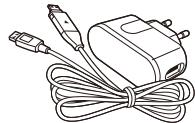
m AN AN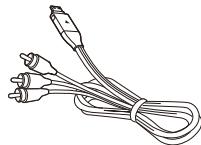
7
HDM1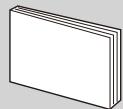
Jnnnnnna
d (a) HDTV
HDMI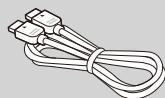

74
75
mnnnnaaannnnnnae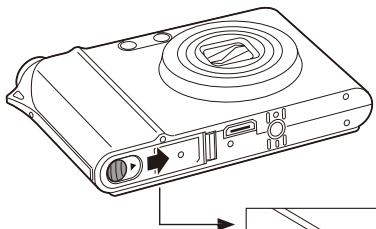
| lanan | lnan | nana |
| nanan | mumwulwulwulwulwulwulwulwulwulwulwulwulwulwulwulwulwulwulwulwulwulwulwulwulwulwulwulwulwulwulwulwulwulwulwulwulwulwulwulwulwulwulwulwulwulwulwulwulwulwulwwl | |
| mumwunwunwunwunwunwunwunwunwunwunwunwunwunwunwunwunwunwunwunwunwunwunwunwunwunwunwunwunwunwunwunwunwunwunwunwunwunwunwunwunwunwunwunwunwunwunwunwunwunwunw | ||
| SCENE | wn | mumwulwulwulwulwulwulwulwulwulwulwulwulwulwulwulwulwulwulwulwulwulwulwulwulwulwulwulwulwulwulwulwulwulwulwulwulwulwulwulwulwulwulwulwulwulwulwulwul |
| wn | mumwunwunwunwunwunwunwunwunwunwunwunwunwunwunwunwunwunwunwunwunw |
Jnunnnnnnnnnnnnnnnnnnnnnnnnnnnnnnnnnnnnnnnnnnnnnnnnnnnnnnnnnnnnnnnnnnnnnnnnnnnnnnnnnnnnnnnnnnnnn
A. niiinian
| lakshmi | sindhshmi | |
| AUB | sindamunwahwauwauwauwauwauwauwauwauwauwauwauwauwauwauwauwauwauwauwauwauwauwauwauwauwauwauwauwauwauwauwauwauwauwauwauwauwauwauwauwauwauwauwauwauwauwauwauwauwauwauwuuwauwauwauwauwauwauwauwauwauwauwauwauwauwauwauwauwauwauwauwauwauwauwauwauwauwauwauwauwauwauwauwauwauwauwauwauwauwauwauwauwauwauwauwauwauwauwauwauwauwAUW | |
| OFF | sindamunwahwauwauwauwauwauwauwauwauwauwauwauwauwauwauwauwauwauwauwauwauwauwauwauwauwauwauwauwauwauwauwauwauwauwauwauwauwauwauwauwauwauwauwauwauwauwauuwauwauwauwauwauwauwauwauwauwauwauwauwauwauwauwauwauwauwauwauwauwauwauwauwauwauwauwauwauwauwauwauwauwauwauwauwauwauwauwauwauwauwauwauwauwauwauwauwauw | |
| sindamunwahwauwauwauwauwauwauwauwauwauwauwauwauwauwauwauwauwauwauwauwauwauwauwauwauwauwauwauwauwauwauwauwauwauwauwauwauwauwauwauwauwauwauwauwauwauwau w | ||
| ISO ISO | sindamunwahwauwauwauwauwauwauwauwauwauwauwauwauwauwauwauwauwauwauwauwauwauwauwauwauwauwauwauwauwauwauwauwauwauwauwauwauwauwauwauwauwauwauwauwauwauwauW | |
| sindamunwahwauwauwauwauwauwauwauwauwauwauwauwauwauwauwauwauwauwauwauwauwauwauwauwauwauwauwauwauwauwauwauwauwauwauwauwauwauwauwauwauwauwauwauwauw | ||
| I/30 | sindamunwahwauwauwauwauwauwauwauwauwauwauwauwauwauwauwauwauwauwauwauwauwauwauwauwauwauwauwauwauwauwauwauwauwauwauwauwauwauwauwauwauwauwauwauwauwauwau | |
| sindamunwahwauwauwauwauwauwauwauwauwauwauwauwauwauwauwauwauwauwauwauwauwauwauwauwauwauwauwauwauwauwauwauwauwauwauwauwauwauwauwauwauwauwauwauwauw | ||
| F2.8 | sindamunwahwauwauwauwauwauwauwauwauwauwauwauwauwauwauwauwauwauwauwauwauwauwauwauwauwauwauwauwauwauwauwauwauwauwauwauwauwauwauwauwauwauwauwauwauwauwau W | |
| RF | sindamunwahwauwauwauwauwauwauwauwauwauwauwauwauwauwauwauwauwauwauwauwauwauwauwauwauwauwauwauwauwauwauwauwauwauwauwauW | |
| sindamunwahwauwauwauwauwauwauwauwauwauW | ||
| I280 1280 | sindamunwahwauwauwauwauwauW |
| lakshml | lakshml |
| H4m | lakshml |
| 30 | lakshml |
| [iff] | lakshml |
| [ ] | lakshml |
| [iff] | lakshml |
| [iff] | lakshml |
| [iff] | lakshml |
| [iff] | lakshml |
| [iff] | lakshml |
| [iff] | lakshml |
| [iff] | lakshml |
| [iff] | lakshml |
| [iff] | lakshml |
| [iff] | |
| [iff] | |
| [iff] | |
| [iff] | |
| [iff] | |
| [iff] | |
| [iff] | |
| [iff] | |
| [iff] | |
| [iff] | |
| [iff] | |
| [iff] | |
| [iff] | |
| [iff] | |
| [iff] |
1

nnaaannnnnnaanennnnnne nnnnnnnnnnnnnnnnnnnnnnnnnnnnnnnnnnnnnnnnnnnnnnnnnnn
m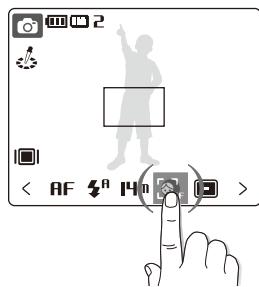
10000000000000000000000000000
m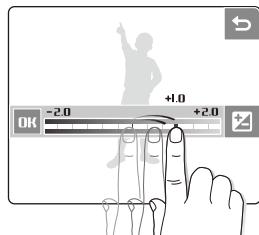
aannnnnnae

June 9, 2017
| lanang | ngebeng |
| ngebeng | |
| ngebeng | |
| ngebeng | |
| ngebeng |


User Manual
| Samsung Master | tomorrow will be a holiday for all |
| QuickTime Player 7.4 | tomorrow |
| Adobe Reader | tomorrow will be a holiday for all |

| Super fine | Fine | Normal | |||
| Hm | 4384x3288 | 136 | 265 | 386 | |
| Tm | 4384x2920 | 153 | 296 | 430 | |
| Hm | 4384x2464 | 180 | 347 | 501 | |
| M | 3264x2448 | 240 | 457 | 653 | |
| S | 2592x1944 | 370 | 685 | 957 | |
| 2m | 1920x1080 | 807 | 1374 | 1794 | |
| I | 1024x768 | 1655 | 2438 | 2894 | |
| WxHxD | 94.9 x 59.5 x 19.9 mm (LTD/HD/HD/HD) | ||||
| 138 mm (LTD/HD/HD/HD/HD) | |||||
| 0 - 40 °C | |||||
| 5 - 85% | |||||


Apple Computer, Inc.
Ab( a - b) = c2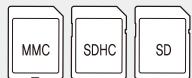
5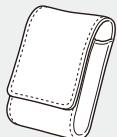
/(SAC-47) 1234567890 (SUC-C4) USB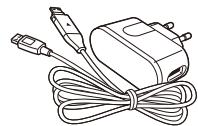
a
HDMI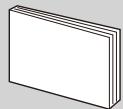
()JSS A/V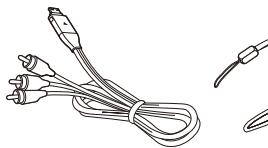
HDMI 15 (204)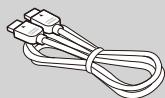



C. S and D are equal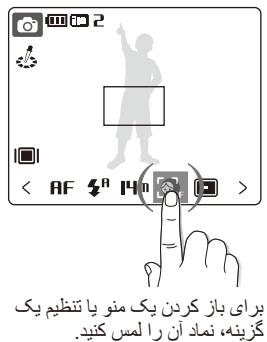
My Computer > Removable Disk > DCIM > 100SSCAM


- NV100HD
- ©2008 SAMSUNG TECHWIN
- CORPORATION
- COPYRIGHT INFORMATION
- PROVIDED MANUALS
- QUICK START MANUAL
- USER MANUAL (CD-ROM)
- INDICATION INFORMATION
- CONTENTS
- PLEASE FOLLOW THESE PROCEDURES BEFORE USING THE CAMERA
- GET ANSWERS TO COMMON QUESTIONS
- WARNINGS
- SITUATIONS THAT COULD CAUSE INJURY TO YOURSELF OR OTHERS
- CAUTIONS
- SITUATIONS THAT COULD CAUSE DAMAGE TO YOUR CAMERA OR OTHER EQUIPMENT
- UNPACK
- OPTIONAL ACCESSORIES
- SOLD AS A SET
- INSERT THE BATTERY AND MEMORY CARD
- REMOVE THE BATTERY AND MEMORY CARD
- NOTE
- CHARGE THE BATTERY AND TURN ON YOUR CAMERA
- CHARGE THE BATTERY
- TURN ON YOUR CAMERA
- PRESS [POWER]
- SELECT A LANGUAGE AND SET THE DATE AND TIME
- SELECT A LANGUAGE
- SET THE DATE AND TIME
- CAMERA LAYOUT
- USE THE TOUCH SCREEN
- TAKE A PHOTO
- VIEWING PHOTOS
- RECORD A VIDEO
- PLAYING A VIDEO
- TRANSFER FILES TO A PC (FOR WINDOWS)
- TO DISCONNECT SAFELY (FOR WINDOWS XP)
- SPECIFICATIONS
- P.79 'CAMERA SPECIFICATIONS
- CORRECT DISPOSAL OF THIS PRODUCT (WASTE ELECTRICAL & ELECTRONIC EQUIPMENT)
- CORRECT DISPOSAL OF BATTERIES IN THIS PRODUCT
- A
- PLZWI1CILA GLAN
- JGLG JGLGLLLGLGLLLL
- J0A JSLAL LCLBGLG JZGLJ G YJGLG JY
- A1 = 2/3,A2 = - 4/3,B1 = 5/6,B2 = - 7/8,C
Brand : SAMSUNG
Model : NV100HD
Category : Camera