
LANDIAO M110 - Camera SAMSUNG - Free user manual and instructions
Find the device manual for free LANDIAO M110 SAMSUNG in PDF.



| Product type | Digital compact camera |
| Brand | Samsung |
| Model | LANDIAO M110 |
| Category | Camera |
| Dimensions (L x H x D) | 87.7 x 56.3 x 20 mm (without protruding parts) |
| Weight | 114.5 g (without batteries and memory card) |
| Power supply | Rechargeable lithium-ion battery SLB-10A (3.7 V, 1050 mAh); AC adapter SAC-47 (DC 4.2 V, 400 mA) |
| Sensor | 1/2.5" CCD, 8.2 effective megapixels (8.3 total megapixels) |
| Lens | Samsung f = 6.2 ~ 18.6 mm (35mm equivalent: 37 ~ 111 mm), aperture F2.8 (wide-angle) ~ F5.2 (telephoto) |
| Digital zoom | 1.0x ~ 3.0x (still image); 1.0x ~ 10.2x (playback) |
| LCD screen | 2.5-inch color TFT screen, 230,000 dots |
| Focus | TTL autofocus (multi AF, center AF, face detection); range: normal (80 cm ~ infinity), macro (5 cm ~ 80 cm), auto macro (5 cm ~ infinity) |
| Shutter speed | 1 ~ 1/1500 s (manual mode: 8 ~ 1/1500 s) |
| Exposure metering | Multi, selective, center-weighted; compensation ±2 EV in 1/3 EV steps; ISO sensitivity auto, 80, 100, 200, 400, 800, 1600 |
| Built-in flash | Modes: auto, red-eye reduction, slow sync, off; range: 0.2 ~ 4.7 m (wide-angle), 0.5 ~ 2.5 m (telephoto); recharge time: approx. 4 seconds |
| Shooting modes | Auto, Program, Manual, Dual IS, Help Guide, Scene (Night, Portrait, Children, Landscape, Close-up, Text, Sunset, Dawn, Backlight, Fireworks, Beach & Snow), Portrait; burst modes: Single, Continuous, AEB, Motion Capture; self-timer: 10 s, 2 s, Double, Motion Timer |
| Video recording | With or without sound; resolutions: 640x480 or 320x240; 30 or 15 fps; maximum duration 2 hours per clip |
| Storage | Internal memory 10 MB; external SD card (up to 2 GB), SDHC (up to 4 GB), MMC Plus (up to 2 GB) |
| File formats | Image: JPEG (DCF), EXIF 2.2, DPOF 1.1, PictBridge 1.0; video: AVI (MJPEG); audio: WAV |
| Connectivity | USB 2.0 high speed, NTSC/PAL video output, mono audio |
| Software included | Samsung Master, Adobe Reader |
| Maintenance and cleaning | Clean with a soft dry cloth. Avoid extreme temperatures and humidity. Remove the battery if the camera is not used for an extended period. |
| Safety | Do not open the camera. Avoid flammable or explosive environments. Do not touch the flash after use. Use only recommended batteries. Keep out of reach of children. |
| Spare parts and repairability | Available parts: battery SLB-10A, AC adapter SAC-47, USB cable, case (optional), memory cards. Repairs exclusively by a Samsung authorized service center. |
Frequently Asked Questions - LANDIAO M110 SAMSUNG
User questions about LANDIAO M110 SAMSUNG
0 question about this device. Answer the ones you know or ask your own.
Ask a new question about this device
Download the instructions for your Camera in PDF format for free! Find your manual LANDIAO M110 - SAMSUNG and take your electronic device back in hand. On this page are published all the documents necessary for the use of your device. LANDIAO M110 by SAMSUNG.
USER MANUAL LANDIAO M110 SAMSUNG
Thank you for buying a Samsung Camera.
This manual has basic instructions for quick and easy picture taking.
For more information, refer to the user manual included in the supplied CD-Rom.
ENGLISH/FRANÇAIS/ESPÁÑOL
Getting to know your camera
Microsoft Windows and Windows logo are registered trademarks of Microsoft Corporation incorporated in the United States and/or other countries
- All brand and product names appearing in this manual are registered trademarks of their respective companies.
- The contents and illustrations of this manual are subject to change without prior notice for upgrading the camera functions.
Refer to the user manual included on the Software CD for more information.
Contents
Getting to know your camera 2
Identification of features / Contents of camera 4
Battery life & Number of shots (Recording time) 5
When Using the Camera for the First Time 6
LCD monitor indicator 7
Mode dial 8
Taking a picture 9
Playing back/Deleting images/Protecting images 10
Downloading images 11
Specifications 12
FCC notice
NOTE:
This equipment has been tested and found to comply with the limits for a Class B digital device, pursuant to part 15 of the FCC Rules. These limits are designed to provide reasonable protection against harmful interference in a residential installation.
This equipment generates, uses and can radiate radio frequency energy and, if not installed and used in accordance with the instructions, may cause harmful interference to radio communications. However, there is no guarantee that interference will not occur in a particular installation. If this equipment does cause harmful interference to radio or television reception, which can be determined by turning the equipment off and on, the user is encouraged to try to correct the interference by one or more of the following measures:
- Reorient or relocate the receiving antenna.
- Increase the distance between the equipment and receiver.
- Connect the equipment to an outlet on a circuit different to that to which the receiver is connected.
- Consult the dealer or an experienced radio/TV technician for help.
CAUTION:
Changes or modifications not expressly approved by the manufacturer responsible for compliance could void the user's authority to operate the equipment.
Declaration of Conformity
Trade Name : SAMSUNG DIGITAL IMAGING CO., LTD.
Model No. : SAMSUNG M110
Responsible Party : SAMSUNG ELECTRONICS AMERICA INC.
Address : 105 Challenger Road Ridgefield Park NJ
Telephone No. : 1-800-SAMSUNG(726-7864)
This device complies with Part 15 of the FCC Rules. Operation is subject to the following two conditions: (1) This device may not cause harmful interference, and (2) this device must accept any interference received, including interference that may cause undesired operation.
Getting to know your camera
DANGER
DANGER indicates an imminently hazardous situation which, if not avoided, will result in death or serious injury.

Do not attempt to modify this camera in any way. To do so may result in fire, injury, electric shock or severe damage to you or your camera. Internal inspection, maintenance and repairs should only be carried out by your dealer or Samsung Camera Service centre.

Should any form of liquid or a foreign object enter the camera, do not use it. Switch off the camera, and then disconnect the power source. You must contact your dealer or Samsung Camera Service centre. Do not continue to use the camera as this may cause a fire or electric shock.

Please do not use this product in close proximity to flammable or explosive gases, as this could increase the risk of explosion.

Do not insert or drop metallic or inflammable foreign objects into the camera through access points e.g. the memory card slot and battery chamber. This may cause a fire or electric shock.

Do not operate this camera with wet hands. This could pose a risk of electric shock.
WARNING
WARNING indicates a potentially hazardous situation which, if not avoided, could result in death or serious injury.

Do not use the flash in close proximity to people or animals. Positioning the flash too close to your subject's eyes may cause eyesight damage.

For safety reasons keep this product and accessories out of reach of children or animals to prevent accidents e.g.:
- Swallowing battery or small camera accessories. If an accident should occur, please consult a doctor immediately.
- There is the possibility of injury from the camera's moving parts.

Battery and camera may become hot during prolonged use and it may result in camera malfunction. Should this be the case, allow the camera to sit idle for a few minutes to allow it time to cool.

Do not leave this camera in places subject to extremely high temperatures, such as a sealed vehicle, direct sunlight or other places of extremes in temperature. Exposure to extreme temperatures may adversely affect the camera's internal components and could cause a fire.

When in use, do not cover the camera or Charger. This may cause heat to build up and distort the camera body or cause a fire. Always use the camera and its accessories in a well-ventilated area.
Getting to know your camera
CAUTION
CAUTION indicates a potentially hazardous situation which, if not avoided, may result in a minor or moderate injury.

Remove the battery when not planning to use the camera for a long period of time. Otherwise the battery may leak corrosive electrolyte and permanently damage the camera's components.

Leaking, overheating, or damaged battery could result in fire or injury.
- Use battery with the correct specification for the camera.
- Do not short circuit, heat or dispose of battery in fire.
- Do not insert the battery with the polarities reversed.

Do not fire the flash while it is in contact with hands or objects. Do not touch the flash after using it continuously. It may cause burns.

Take care not to touch the lens or lens cover to avoid taking an unclear image and possibly causing camera malfunction.

Credit cards may be demagnetized if left near a camera case. Avoid leaving magnetic strip cards near the case.

Do not insert the memory card the wrong way round.

It is highly likely to result in computer malfunctions when the 20 pin connector is connected to the USB port of a PC. Never connect the 20 pin connector to USB port of a PC.

Be sure to format the memory card if you are using a newly purchased memory card for the first time, if it contains data that the camera cannot recognise, or if it contains images captured with a different camera.

Before an important event or going on a trip, you should check the camera condition. Samsung cannot be held responsible for camera malfunctions.
Identification of features / Contents of camera
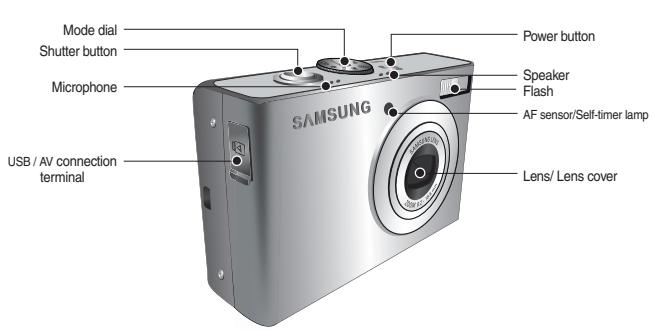
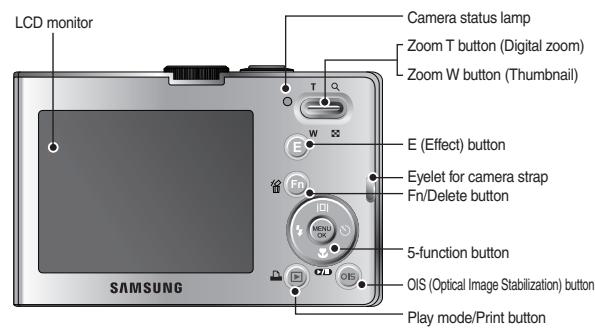
Included items
Camera
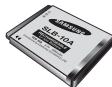
Rechargeable Battery (SLB-10A)
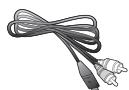
AV cable

Camera strap
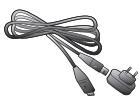
AC Adapter(SAC-47)/JSB cable(SUC-C3)

Optional items
Camera case

SD/SDHC/MMC memory card

User manual, Product warranty

Software CD
- Please check that you have the correct contents before using this product. The contents can vary depending on the sales region. To buy the optional equipment, contact your nearest Samsung dealer or Samsung service centre.
Battery life & Number of shots (Recording time)
Number of images and battery life : Using the SLB-10A
| Still image | Movie | |
| Battery life | Number of images | Recording time |
| Approx. 110 MIN | Approx. 220 shots | Approx. 120 MIN |
| Conditions | Using the fully charged battery, Auto mode, 8M image size Fine image quality, Shot to shot interval: 30Sec. Changing the zoom position between the Wide and the Tele after every shot. Using the flash on every second shot. Using the camera for 5 minutes and then Powering it off for 1 minute. | Using the fully charged battery 640x480 image size 30fps frame rate |
- These figures are measured under Samsung's standard conditions and shooting conditions and may vary depending on the user's methods.
-
These figures are measured under OIS shooting condition.
-
When using a 256MB MMC (Multi Media Card), the specified shooting capacity will be as follows.
| Recorded image size | Super Fine | Fine | Normal | 30FPS | 15FPS | |
| Still image | 8" | About 64 | About 117 | About 171 | - | - |
| 7" | About 71 | About 135 | About 192 | - | - | |
| 6" | About 84 | About 157 | About 220 | - | - | |
| 5" | About 100 | About 186 | About 256 | - | - | |
| 3" | About 150 | About 269 | About 372 | - | - | |
| 1" | About 459 | About 822 | About 868 | - | - | |
| Movie | 640 | - | - | - | About 2'02" | About 4'05" |
| 320 | - | - | - | About 7'39" | About 13'15" | |
- The recording times can be changed by the zoom operation.
The zoom button cannot be used during the movie recording.
When Using the Camera for the First Time
- Charge the rechargeable battery fully before using the camera for the first time.
- When the camera is turned on for the first time, a menu will be displayed to set date / time and language in the LCD monitor. This menu will not be displayed after setting up. Set up the date / time and language before using this camera.
Setting up the Language
- Select the [Language] menu by pressing the UP/ DOWN button and press the RIGHT button.
- Select the desired sub menu by pressing the UP / DOWN button and press the OK button.
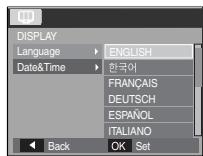

- You can select one of 22 languages. These are listed below :
- English, Korean, French, German, Spanish, Italian, S.Chinese, T.Chinese, Japanese, Russian, Portuguese, Dutch, Danish, Swedish, Finnish, Thai, Bahasa (Malay/ Indonesian), Arabic, Czech, Polish, Hungarian and Turkish.
- Even if the camera is restarted, the language setting will be maintained.
Setting up the date, time and date type
- Select the [Date&Time] menu by pressing the UP/ DOWN button and press the RIGHT button.
- Select the desired sub menu by pressing the UP/ DOWN/ LEFT/ RIGHT button and press the OK button.
RIGHT button : Selects WORLD TIME/YEAR/MONTH/ DAY/HOUR/ MINUTE/DATE TYPE
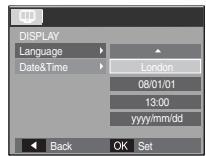
LEFT button : Moves the cursor to the [Date&Time] main menu if the cursor is at the first item of the date and time setup. In all other instances, the cursor will be shifted to the left of its current position.
UP/DOWN button : Changes the value of each item.
LCD monitor indicator
- The LCD monitor displays information about the shooting functions and selections. Refer to the user manual included on the Software CD for more information.
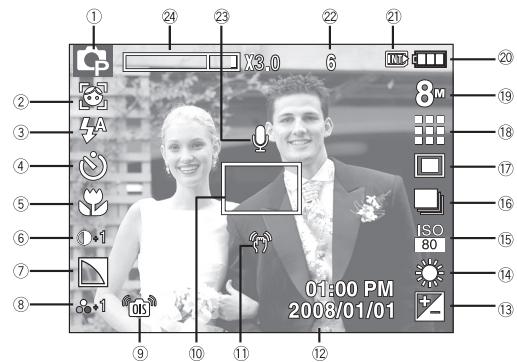
[Image & Full Status]
| No. | Description | Icons |
| 1 | Recording mode | M W K C S A T E E D X Y Z |
| 2 | Face Detection / Self Portrait | / |
| 3 | Flash | A B C D E F G |
| 4 | Self-timer | S Z S (C) |
| 5 | Macro | # |
| 6 | Contrast | -2 -1 1 +1 2 |
■ You can select a desired camera mode by using the Mode dial on the top of the camera
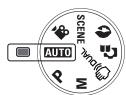
AUTO
Selects this mode for quick and easy picture taking with minimal user interaction. In this mode, you can select the basic menus. To select an advanced menu, select the other camera mode.
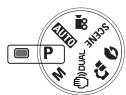
PROGRAM
Selecting the automatic mode will configure the camera with optimal settings. You can still manually configure all functions except the aperture value and shutter speed.
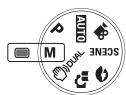
MANUAL
You can manually configure all functions, aperture value and shutter speed.
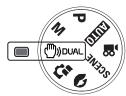
DUAL IS
This mode will reduce the effect of camera shake and help you to get a well-exposed image operating both OIS and DIS function.

PHOTO HELP GUIDE
Helps the user learn the correct picture taking method and includes solutions for potential problems that may occur. This also enables the user to practice the best way to take the pictures.
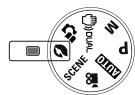
PORTRAIT
Please select this mode for quick and easy portraits.
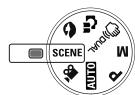
SCENE
Use the menu to easily configure optimal settings for a variety of shooting situations.
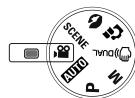
MOVIE
A movie can be recorded for as long as the available recording time of the memory capacity allows.
Taking a picture
How to take a picture
Select a camera mode.
- Turn on the camera
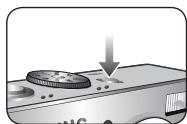
- Hold the camera as shown
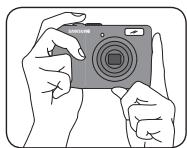
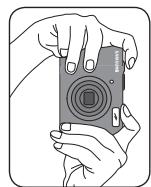
- Confirm the composition
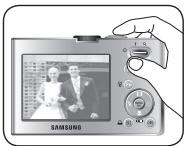
- Take a picture
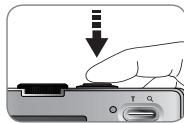
Pressing halfway down Focus and Flash status are checked.
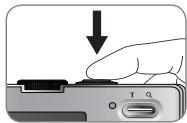
Pressing fully Image is taken
ENGLISH
How to record a movie
Rotate the Mode dial and select (
- Confirm the composition
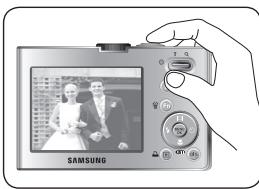
- Start the recording
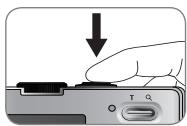
Press the Shutter button and the recording starts and press the Shutter button again to stop the recording
Playing back / Deleting images / Protecting images
Playing back the images
- The last image stored on the memory is displayed.
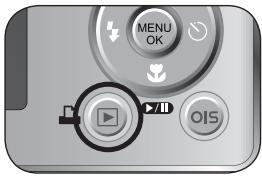
Press the button to select the Playback mode
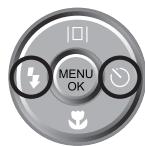
Select an image that you want to play back by pressing the Left/Right button
- Deleting images
-
This deletes images stored on the memory card.
-
Select an image that you want to delete by pressing the Left / Right button and press the DELETE (备份) button.
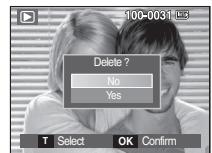
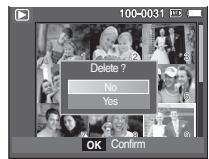
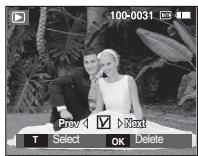
-
To delete images, press the T button.
-
Left/Right button : Selects images
- T button : Checks for deletion
- OK button : Deletes the selected images
Protecting images
- This is used to protect specific shots from being accidentally erased (Lock).
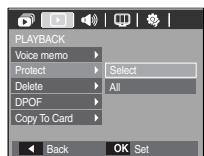
[Select]:Selection window for an image to be protected / released is displayed.
[All] : Protect / release all saved images
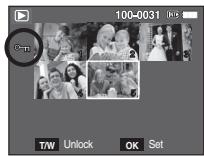
- If you protect an image, the protect icon will be displayed on the LCD monitor.
An image in LOCK mode will be protected from the delete function or [Delete] functions, but will NOT be protected from the [Format] function.
Downloading images
System Requirements
| For Windows | For Macintosh |
| PC with processor better than Pentium II 450MHz (Pentium 800MHz recommended) | Power Mac G3 or later |
| Windows 98SE / 2000 / ME / XP/Vista | Mac OS 10.0 ~ 10.4 |
| Minimum 128MB RAM (Over 512MB recommended) 200MB of available hard disk space (Over 1GB recommend) | Minimum 64MB RAM 110MB of available hard-disk space |
| USB port | USB port |
| CD-ROM drive | CD-ROM drive |
| 1024x768 pixels, 16bit color display compatible monitor (24bit color display recommended) MicroSoft DirectX X 9.0C | MPlayer (For movie) |
PC connection mode
- Install the supplied Software.
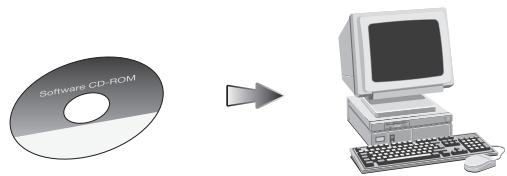
2. Download the images
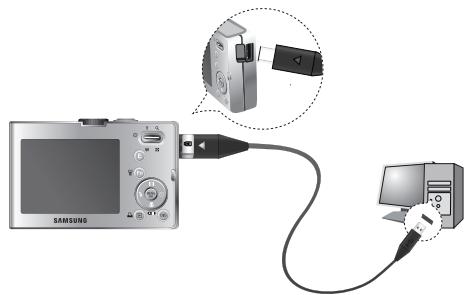
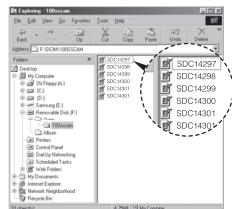
- Connect the camera and Computer with supplied USB cable and download the image on your computer to save them.
Specifications
Image Sensor -Type:1/2.5"CCD
- Effective Pixel : Approx. 8.2 Mega-pixel
- Total Pixel: Approx. 8.3 Mega-pixel
Lens
- Focal Length: SAMSUNG Lens f = 6.2 ~ 18.6mm (35mm film equivalent : 37 ~ 111mm
-F No.: F 2.8(W) ~ F 5.2(T) - Digital Zoom : : Still Image mode : 1.0X ~ 3.0X
- Play mode : 1.0X ~ 10.2X (depends on image size)
LCD Monitor
- 2.5" color TFT LCD (230,000 dots)
Focusing
- Type: TTL auto focus (Multi-AF, Center AF, Face Detection AF)
- Range
| Normal | Macro | Auto Macro | |
| Wide | 80cm ~ Infinity | 5cm ~ 80cm | 5cm ~ Infinity |
| Tele | 50cm ~ 80cm | 50cm ~ Infinity |
Shutter
- Control: Program AE
-Metering:Multi,Spot,CenterWeighted - Compensation: ±2EV (1/3EV steps)
-ISO:Auto,80,100,200,400,800,1600
Flash
- Modes : Auto, Auto & Red-eye reduction, Fill-in flash, Slow sync, Flash off, Red-eye Fix
- Range: Wide: 0.2m ~ 4.7m, Tele: 0.5m ~ 2.5m (ISO AUTO)
- Recharging Time : Approx. 4 sec
Sharpness
-2,-1,0,+1,+2
Color Effect
- Normal, B&W, Sepia, Red, Green, Blue, Negative, Custom Color
White Balance
- Auto, Daylight, Cloudy, Fluorescent_H, Fluorescent_L, Tungsten, Custom
Voice Recording
- Voice Recording (max. 10 hours)
- Voice Memo in Still Image (max. 10 sec.)
Date Imprinting
- Date, Date & Time, Off (user selectable)
Shooting
- Still Image
Mode: Auto, Program, Manual, DUAL IS, Photo Help Guide, Scene, Portrait
· Scene : Nightscene, Children, Landscape, Close up, Text, Sunset, Dawn, Backlight, Firework, Beach & Snow
- Shooting: Single, Continuous, AEB, Motion Capture
Self-timer:10sec.,2sec.,Double,MotionTimer
- Movie
With Audio or without Audio
* The maximum memory capacity of continuous movie is 2 hours.
Size:640x480,320x240
Frame rate:30 fps,15 fps
Storage
-
Media
-
Internal memory : 10MB flash memory
-
External Memory (Optional): SD (up to 2GB guaranteed)/SDHC Card (up to 4GB guaranteed)/MMC Plus (Up to 2GB)
-
File Format
-
Still Image : JPEG (DCF), EXIF 2.2, DPOF 1.1, PictBridge 1.0
Movie:AVI(MJPEG)
Audio : WAV
Specifications
- Image Size
| 8" | 7" | 6" | 5" | 3" | 1" |
| 3264 | 3264 | 3264 | 2592 | 2048 | 1024 |
| X | X | X | X | X | X |
| 2448 | 2176 | 1836 | 1944 | 1536 | 768 |
- Capacity (256 MB Size)
| 8* | 7* | 6* | 5* | 3* | 2* | |
| Super Fine | 64 | 71 | 84 | 100 | 150 | 459 |
| Fine | 117 | 135 | 157 | 186 | 269 | 822 |
| Normal | 171 | 192 | 220 | 256 | 372 | 868 |
These figures are measured under Samsung standard conditions and may vary depending on shooting conditions and camera settings.
| “E”Button | - Effect : Color, Image Adjust(Sharpness, Contrast, Saturation) - Editing : Resize, Rotate, Color, Image Adjust (ACB, Red Eye Fix, Brightness, Contrast ,Saturation) |
| Image Play | - Type : Single image, Thumbsnails, Multi Slide show, Movie |
| Interface | - Digital output connector : USB 2.0 High Speed - Audio : Mono - Video output : NTSC, PAL (user selectable) |
| Power Source | - Rechargeable battery : SLB-10A, 3.7V (1,050mAh) - Adaptor : SAC-47 (DC 4.2V, 400mA) |
Dimensions (WxHxD)
- 87.7 X 56.3 X 20mm (excluding protrusions)
Weight -114.5g (without batteries and card)
Operating Temperature
3
-0 40^ C
Operating Humidity
-5\~85%
Software
Samsung Master, Adobe Reader
※ Specifications are subject to change without prior notice.
All trademarks are the property of their respective owners.
Correct Disposal of This Product

Correct Disposal of This Product (Waste Electrical & Electronic Equipment)
(Applicable in the European Union and other European countries with separate collection systems) This marking shown on the product or its
literature, indicates that it should not be disposed of with other household
wastes at the end of its working life.
To prevent possible harm to the environment or human health from uncontrolled waste disposal, please separate this from other types of wastes and recycle it responsibly to promote the sustainable reuse of material resources. Household users should contact either the retailer where they purchased this product, or their local government office, for details of where and how they can take this item for environmentally safe recycling. Business users should contact their supplier and check the terms and conditions of the purchase contract.
This product should not be mixed with other commercial wastes for disposal.
Correct disposal of batteries in this product

Correct disposal of batteries in this product (Applicable in the European Union and other European countries with separate battery return systems.)
This marking on the battery, manual or packaging indicates that the batteries in this product should not be disposed of with other household waste at the end of their working life. Where marked, the chemical symbols Hg, Cd or Pb indicate that the battery contains mercury, cadmium or lead above the reference levels in EC Directive 2006/66. If batteries are not properly disposed of, these substances can cause harm to human health or the environment.
To protect natural resources and to promote material reuse, please separate batteries from other types of waste and recycle them through your local, free battery return system.
The rechargeable battery incorporated in this product is not user replaceable. For information on its replacement, please contact your service provider.

Samsung Eco-mark
It is Samsung's own symbol mark is used to effectively communicate Samsung's environmental friendly product activities to the consumers. The mark represents Samsung's continuous effort on development of environmental conscious products.
MEMO
ENGLISH
MEMO
Do not leave this camera in places subject to extremely high temperatures, such as a sealed vehicle, direct sunlight or other places of extreme variances in temperature. Exposure to extreme temperatures may adversely affect the camera's internal components and could cause a fire.

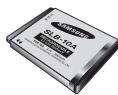
Batterie rechargeable (SLB-10A)

Cable AV
Mode: AUTO, PROGRAMA, MANUA, DUAL IS,
Please refer to the warranty that came with the product you purchased,
or go to our website http://www.samsungcamera.com/ for after-sales service or inquiries.
Internet address - http ://www.samsungcamera.com

The CE Mark is a Directive conformity
mark of the European Community (EC)
AD68-02828A