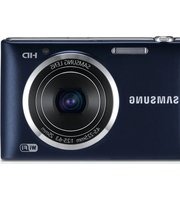
USER MANUAL EC-NV9 SAMSUNG
Please refer to the warranty that came with your product or go to our website http://www.samsungcamera.com/ for after-sales service or inquiries.

The CE Mark is a Directive conformity mark of the European Community (EC)
AD68-03101A

NV9
This Quick Start Manual has been specially designed to guide you through the basic functions and features of your device.
For more information, refer to the User Manual included on the supplied CD-ROM.
Please read the Quick Start Manual and User Manual carefully to ensure safe and correct use.
©2008 SAMSUNG DIGITAL IMAGING CO., LTD.
The specifications of the camera or contents of this manual may be changed without prior notice due to upgrade of camera functions.
Microsoft Windows and the Windows logo are registered trademarks of Microsoft Corporation.
Provided manuals
Quick Start Manual
Explains how to assemble and prepare your camera for its first use, capture photos or videos, play multimedia files, and transfer files to a PC.
User Manual (CD-ROM)
Explains how to shoot with various shooting modes, set shooting options, play multimedia files, and use the settings menu. It also includes how to handle error messages and maintain of your camera.
In this manual, camera buttons are represented by bold type in brackets. For example, [Shutter] represents the Shutter button.
Contents

Please follow these procedures before using the camera.
- Unpack 6
- Insert the battery and memory card ....7
- Charge the battery and turn on your camera 8
- Select a language and set the date and time....9

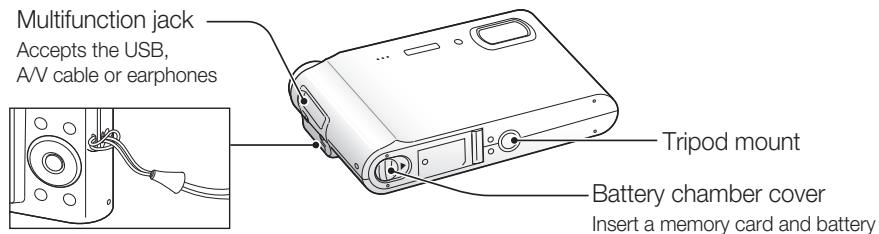
Camera layout 10
Icons 12
Set options.... 13

Capture photos or videos ..... 14
Play files 15
Transfer files to a PC (for Windows) 16
Specifications.... 18
Get answers to common questions
You can easily solve most problems by setting shooting options.
There are more details about how to set shooting options in the CD version of user manual.
| The subject's eyes appear red. | This is caused by a reflection from the camera flash. Set the flash option to (Red Eye) or (Red Eye Fix). (See the user manual p. 41) If the photo is already taken, select Red Eye Fix in the edit menu. (See the user manual p. 62) |
| Photos have dust spots. | Dust particles floating in the air may be captured in photos when using the flash. Turn the flash off or avoid taking photos in a dusty place. Set ISO speed options. (See the user manual p. 42) |
| Photos are blurred. | This may be caused by taking photos in low light conditions or holding the camera incorrectly. Set the Optical Image Stabilisation (OIS) option or press [Shutter] halfway down to make sure the subject is focused. (See the user manual p. 33) |
| Photos are blurred when shooting at night. | As the camera tries to let more light in, the shutter speed slows. This can make it difficult to steady the camera and may result in camera shake. Turn the flash on. (See the user manual p. 41) Select Nightscene in the SCENE mode. (See the user manual p. 28) Set ISO speed options. (See the user manual p. 42) Use a tripod to prevent your camera from shaking. |
| Subjects come out too dark because of backlight. | When the light source is behind the subject or when there is a high contrast between the light and dark areas, the subject may come out shaded. Avoid shooting in front of the sun. Select Backlight in the SCENE mode. (See the user manual p. 28) Set the flash option to (Fill In). (See the user manual p. 41) Set the Auto Contrast Balance (ACB) option. (See the user manual p. 47) Adjust the exposure. (See the user manual p. 47) Set the metering option to [•] Spot if a bright subject is in the centre of the frame. (See the user manual p. 48) |
Comply with the following precautions to avoid dangerous or illegal situations while operating the camera and keep this manual handy for future reference.

Warnings
Situations that could cause injury to yourself or others
Do not use your camera near flammable or explosive gases and liquids
Do not use your camera near fuels, combustibles, or flammable chemicals. Do not store or carry flammable liquids, gases, or explosive materials in the same compartment as the camera or its accessories.
Keep your camera away from small children and pets
Keep your camera and all accessories out of the reach of small children and animals. Small parts may cause choking or serious injury if swallowed. Moving parts and accessories may present physical dangers as well.
Prevent damage to subjects' eyesight
Do not use the flash in close proximity (closer than 1m/3 ft) to people or animals. Using the flash too close to your subject's eyes can cause temporary or permanent damage.
Handle and dispose of batteries and chargers with care
- Use only Samsung-approved batteries and chargers. Incompatible batteries and chargers can cause serious injuries or damage to your camera.
- Never dispose of batteries in a fire. Follow all local regulations when disposing of used batteries.
- Never place batteries or cameras on or in heating devices, such as microwave ovens, stoves, or radiators. Batteries may explode when overheated.

Cautions
Situations that could cause damage to your camera or other equipment
Handle and store your camera carefully and sensibly
- Do not allow your camera to get wet—liquids can cause serious damage. Do not handle your camera with wet hands. Water damage to your camera can void your manufacturer's warranty.
- Avoid using or storing your camera in dusty, dirty, humid, or poorly-ventilated areas to prevent damage to moving parts and internal components.
- Protect your camera and monitor from impact, rough handling, and excessive vibration to avoid serious damage.
- Exercise caution when connecting cables or adapters and installing batteries and memory cards. Forcing the connectors, improperly connecting cables, or improperly installing batteries and memory cards can damage ports, connectors, and accessories.
Do not insert foreign objects into any of your camera's compartments, slots, or access points. This type of damage may not be covered by your warranty.
Use caution with earphones
- Do not use earphones while driving, cycling, or operating motorised vehicles. Doing so may create a traffic hazard and may be illegal in some areas.
- Use only the minimum volume setting necessary. Listening to earphones at high volumes can damage your hearing.
Protect batteries, chargers, and memory cards from damage
- Avoid exposing batteries or memory cards to very cold or very hot temperatures (below 0° C/ 32° F or above 40° C/ 104° F). Extreme temperatures can reduce the charging capacity of your batteries and can cause memory cards to malfunction.
- Prevent batteries from contacting metal objects, as this can create a connection between the + and – terminals of your battery and lead to temporary or permanent battery damage.
- Prevent memory cards from making contact with liquids, dirt, or foreign substances. If dirty, wipe the memory card clean with a soft cloth before inserting in your camera.
Use only Samsung-approved accessories
Using incompatible accessories may damage your camera, cause injury, or void your warranty.
Protect your camera's lens
Protect your lens from fingerprints and scratches.
Clean your lens with a soft, clean, debris-free lens cloth.
1. Unpack
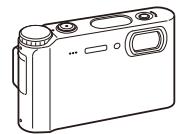
Camera
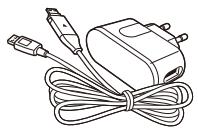
AC adapter (SAC-47)/USB cable (SUC-C3)
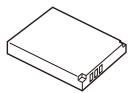
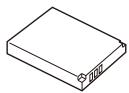
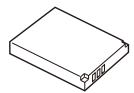
Rechargeable battery
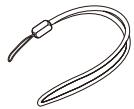
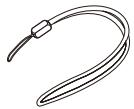
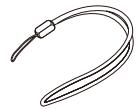
Strap
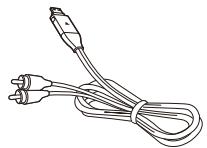
A/V cable
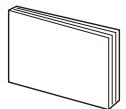
Quick Start Manual
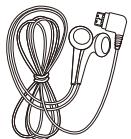
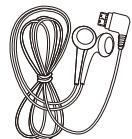
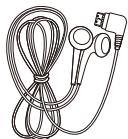
Earphones

Software CD-ROM
(User manual included)
Optional accessories
Camera case
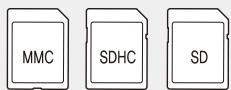
Memory cards
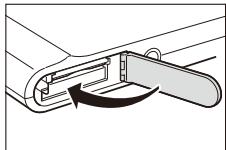
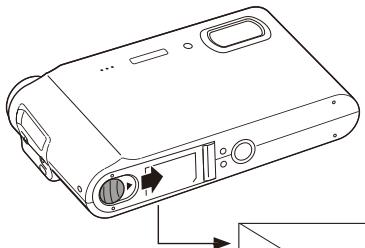
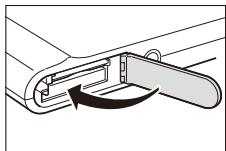
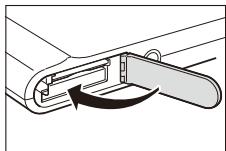
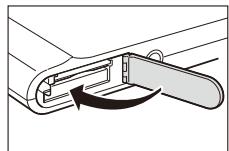
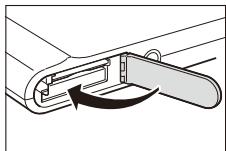
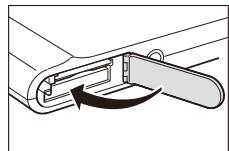
2. Insert the battery and memory card
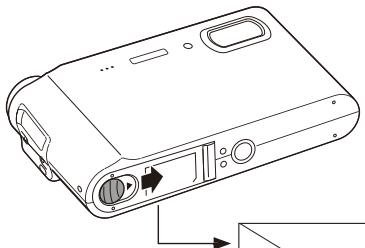
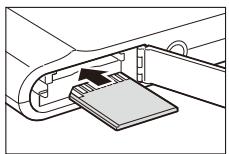
Insert memory cards with the gold-coloured contacts facing up.
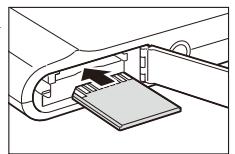
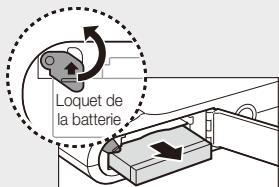
Insert batteries with the Samsung logo facing down.
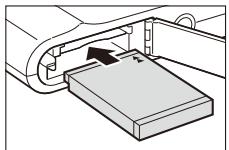
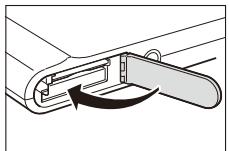
Remove the battery and memory card
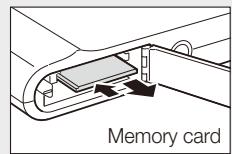
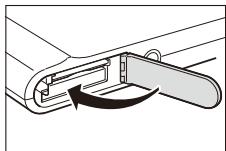
Push gently until the card disengages from the camera and then pull it out of the slot.
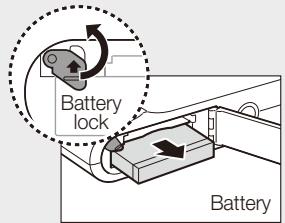
Push the lock up to
release the battery.

Note
The internal memory can be used as a temporary storage device when the memory card is not inserted.
3. Charge the battery and turn on your camera

p. 84 'About the battery'
Charge the battery
![Press [POWER] When you turn on your camera for the first time, select a language and set the date and time. ↓ DISPLAY Language ENGLISH Date&Time 08/01/01 Move MENU Ext Indicator light ■ Red: Charging ■ Green: Fully charged ■ Press [▶] to view stored files. ■ Press and hold [▶] to mute camera sounds.](/content/2020/05/23795/images/617f5d0deeea00d1f6df6dba1ec0b17a1c9b76a097671d171c778323b0385707.jpg)
Turn on your camera
Press [POWER]
When you turn on your camera for the first time, select a language and set the date and time.
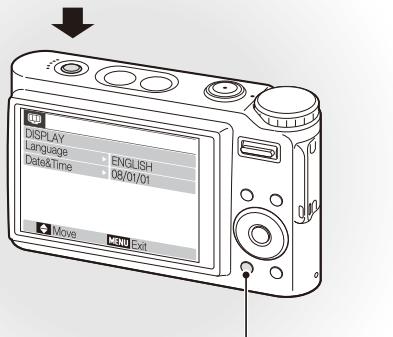
■ Press [▶] to view stored files.
■ Press and hold [▶] to mute camera sounds.
4. Select a language and set the date and time
Select a language
1 Press [💡] to select Language.
2 Press [💡].
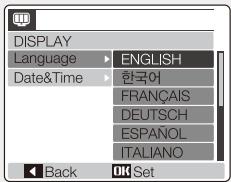
3 Press [☐] or [💡] to select a language.
4 Press [MENU/OK].
Set the date and time
1 Press [💡] to select Date&Time.
2 Press [💡] and then [∥□∥].
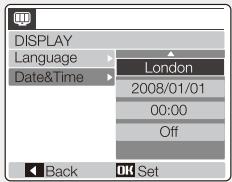
3 Press [⚡] or [💡] to select a city.
4 Press [MENU/OK].
5 Press [💡] to select the date field.
6 Press [☐] or [◀] to change the number.
7 Press [💡] to select the next item or field.
8 Press [□] or [◀] to change the number or select another date format.
9 Press [MENU/OK].
Camera layout
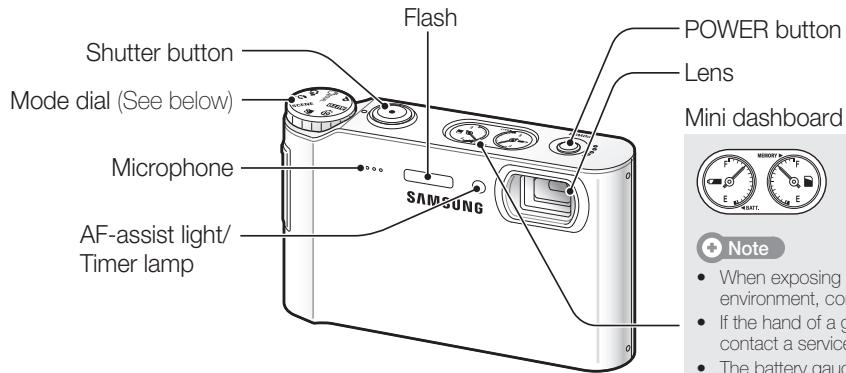
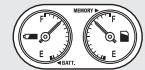
Shows you the remaining capacity of the battery and memory card
Note
- When exposing the camera to a hot and humid environment, condensation can form on the gauges.
- If the hand of a gauge keeps spinning around, contact a service centre.
- The battery gauge and the battery icons on the display may show different capacities.
| Icon | Mode | Description |
| AUTO | Auto | Take a photo quickly and easily with minimal settings |
| P | Program | Take a photo by setting options |
| DUAL | Dual IS | Take a photo with options suitable for reducing camera shake |
| Photo Help Guide | Get shooting tips and practice shooting |
| Icon | Mode | Description |
| Beauty Shot | Take a photo of a person with options to hide facial imperfections |
| SCENE | Scene | Take a photo with options for a preset scene |
| Movie | Record a video |
| Multimedia | Listen to MP3s, play videos, and view text files |
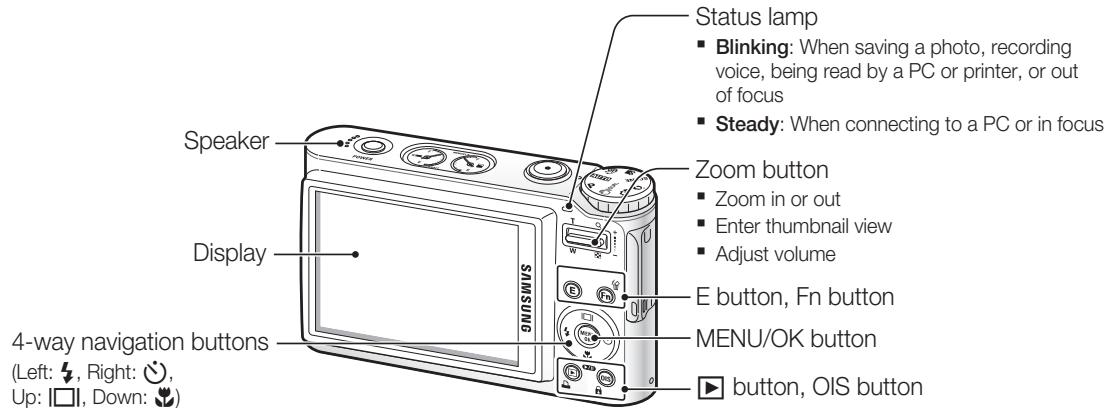
Icons
The icons displayed may change according to the selected mode or options you set.
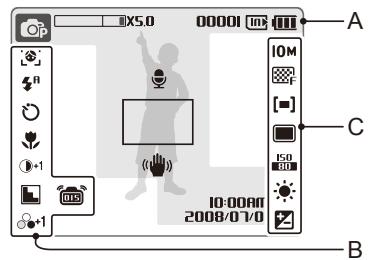
A. Information
| Icon | Description |
| Selected shooting mode |
| Zoom ratio |
| 00001 | Available number of photos |
| 00:00:06 | Available recording time |
| Internal memory |
| Memory card inserted |
| Fully chargedPartially chargedCharging needed |
| Voice memo |
| Auto focus frame |
| Camera shake |
| 10:00:002008/07/01 | Current date and time |
B. Icons on the left
| Icon | Description |
| Face detection |
| Photo style |
| Colour |
| Flash |
| Timer |
| Auto focus |
| Contrast |
| Sharpness |
| Voice Mute |
| Saturation |
| Optical Image Stabilisation (OIS) |
C. Icons on the right
| Icon | Description |
| 10M | Photo resolution |
| 640 | Video resolution |
| Photo quality |
| 30 | Frame rate |
| [=] | Metering option |
| Burst type |
| ISO | ISO speed |
| White balance |
| Exposure |
| LT | Long time shutter |
Set options
You can set options by pressing [E], [MENU/OK], or [Fn] and using the navigation buttons ([⚡], [💡], [☐☐], [💡]).
1 Press [E], [MENU/OK], or [Fn].
2 Use the navigation buttons to scroll to an option or menu.
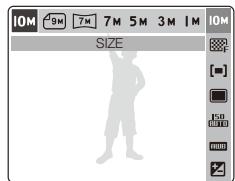
■ To move left or right, press [⚡] or [💡].
- To move up or down, press [☐] or [✿].
3 Press [MENU/OK] to confirm the highlighted option or menu.
Press [E], [Fn], or [MENU/OK] again to go back to the previous menu.

Press [Shutter] to return to Shooting mode.
E.g. Select a white balance option in the P mode
1 Select P.

2 Press [Fn].
3 Press [☐] or [♥] and then [♥] or [○] to set the white balance.
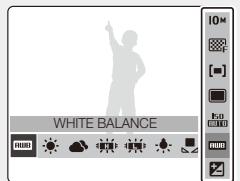
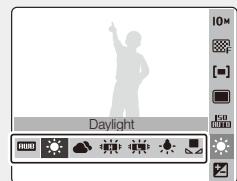
4 Press [MENU/OK].
Capture photos or videos

p. 27 'Extended functions'
Take a photo
1 Select AUTO

2 Align your subject in the frame.
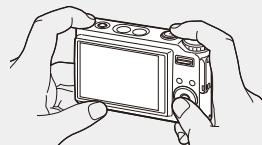
3 Press [Shutter] halfway down to focus automatically.
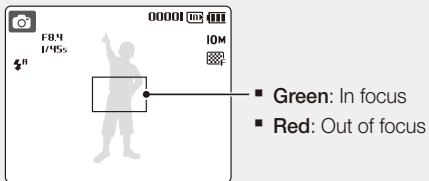
4 Press [Shutter] all the way down to take the photo.
Record a video
1 Select

2 Align your subject in the frame.
3 Press [Shutter].
![00:00:00 640 30 [■] 00:00:16 SH Stop ▶ Pause](/content/2020/05/23795/images/148b9fae72275edb43c1497fda824d31918fcf0b5d42d50f1dea53e3e4fd997c.jpg)
■ Press [💡] to pause or resume.
4 Press [Shutter] again to stop the recording.
Play files
View photos
1 Press [▶].
■ If the camera is off, it will turn on.
2 Press [⚡] or [💡] to scroll through files.
■ Press and hold to view files quickly.
Play a video
1 Press [▶].
2 Press [⚡] or [💡] to scroll through files.
■ Press and hold to view files quickly.
3 Press [💡].
4 Use the following buttons to control playback:
- Press [⚡] or [💡] to skip forward or backward.
■ Press [💡] to pause or resume playback.
■ Press [Zoom] up or down to adjust volume.

p. 54 'Playback/Editing'
p. 68 'Multimedia'
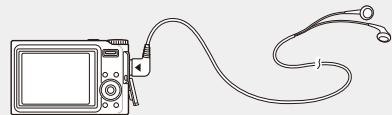
1 Plug the supplied earphones into the Multifunction jack (optional).
2 Select 🎨.

3 Press [⚡] or [💡] to select a mode.
■: MP3
■: PMP
■: Text Viewer
4 Select Open to select a file to play.
- Select Resume to open the last file played (in the MP3 mode) or resume the last video or text file.
5 Press [MENU/OK].
Transfer files to a PC (for Windows)
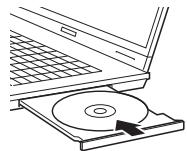
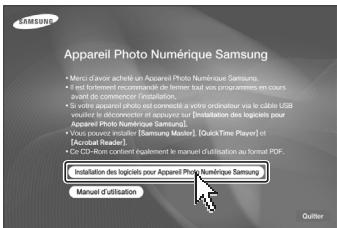
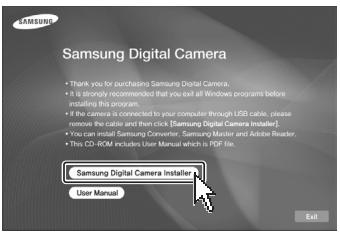
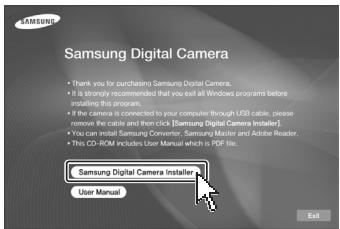
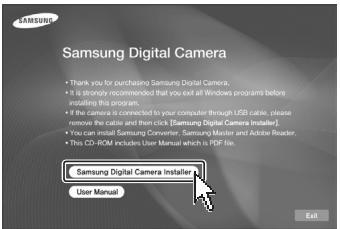
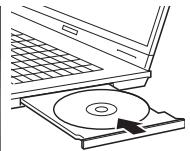
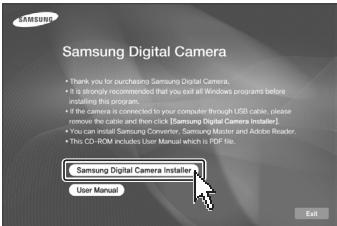
1 Insert the installation CD in a CD-ROM drive and follow the on-screen instructions.
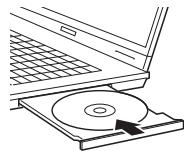
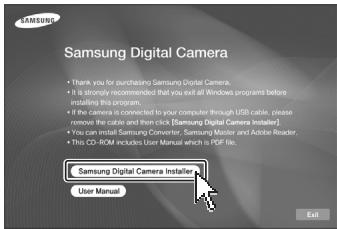

Click User Manual to read the user manual.
The CD contains the following programs
| Program | Description |
| Samsung Converter | Convert videos so that they can be played on the camera |
| Samsung Master | Edit photos and videos |
| Adobe Reader | View the user manual |
2 Connect the camera to your PC with the USB cable.
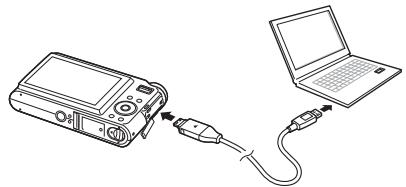

You should plug the end of the cable with the indicator light (▲) into your camera. If the cable is reversed, it may damage your files. The manufacturer is not responsible for any loss of data.
3 Turn on the camera.
4 Select Computer and press [MENU/OK].
5 On your PC, select My Computer > Removable Disk > DCIM > 100SSCAM.
6 Select the files you want and drag or save them to the PC.
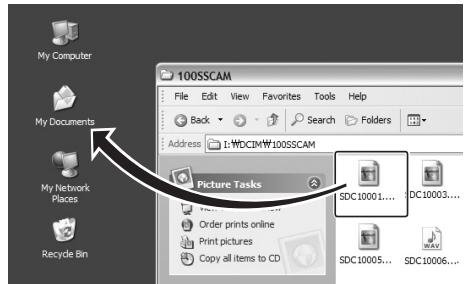
1 Create new folders named 'MP3', 'PMP', and 'TEXT' in My Computer > Removable Disk.
2 Copy multimedia files to the corresponding folders.
■ MP3: MP3 files
■ PMP: SDC files*
■ TEXT: TXT files
*Convert with Samsung Converter
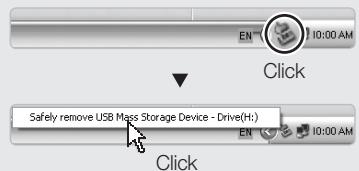
To disconnect safely (for Windows XP)
The way to disconnect the USB cable for Windows 2000/Vista is similar.
| Image sensor | Type | 1/2.33" (Approx. 1.09 cm) CCD |
| Pixel | Effective pixels: Approx. 10.2 mega-pixels, Total pixels: Approx. 10.3 mega-pixels |
| Lens | Focal length | SAMSUNG lens 5X Inner Zoom f = 6.8 - 34 mm (35 mm film equivalent: 38 - 190 mm) |
| F-stop range | F3.7 (W) - F4.9 (T) |
| LCD monitor | 2.7" (Approx. 6.86 cm) colour TFT LCD (Approx. 230,000 pixels) |
| Focusing | Type | TTL auto focus (Center AF, Multi AF, Face Detection AF) |
| Range | | Wide (W) | Tele (T) |
| Normal | 80 cm - Infinity |
| Auto macro | 8 cm - Infinity | 50 cm - Infinity |
| Macro | 8 cm - 80 cm | 50 cm - 80 cm |
| Super Macro | 3 cm - 8 cm | - |
| Shutter speed | Auto: 1 - 1/1,500 sec.Nightscene: 16 - 1/1,500 sec.Continuous, AEB: 1/4 - 1/1,500 sec. |
| Shake reduction | Dual IS[OIS (Optical Image Stabilisation) + DIS (Digital Image Stabilisation)] |
| Storage | Media | Internal memory : Approx. 10 MB flash memory External memory (Optional) : SD card (up to 4 GB guaranteed), SDHC card (up to 8 GB guaranteed), MMC Plus (up to 2 GB guaranteed)Internal memory capacity may not match these specifications. |
| File format | Still image: JPEG (DCF), EXIF 2.21,DPOF 1.1, PictBridge 1.0Video: AVI (MJPEG)Audio: WAV |
| Image size | For 1GB SD |
| Super fine | Fine | Normal |
| 10M | 3648x2736 | 188 | 357 | 412 |
| 9M | 3648x2432 | 206 | 391 | 557 |
| 7M | 3584x2016 | 248 | 469 | 638 |
| 7M | 3072x2304 | 262 | 483 | 645 |
| 5M | 2592x1944 | 344 | 638 | 872 |
| 3M | 2048x1536 | 533 | 897 | 1214 |
| 1M | 1024x768 | 1720 | 2064 | 2381 |
| These figures are measured under Samsung's standard conditions and may vary depending on shooting conditions and camera settings. |
| Interface | Digital output | Connector : USB 2.0 (20 pin) |
| Audio output | Mono |
| Video output | AV: NTSC, PAL (selectable) |
| DC power input connector | 20 pin |
| Power source | Rechargeable battery | Lithium-ion battery SLB-10A (1050 mAh) |
| AC adapter | Power adapter (SAC-47), USB cable (SUC-C3) |
| The power source may differ depending on your region. |
| Dimensions (WxHxD) | 95 X 59.9 X 18.8 mm (without projection part) |
| Weight | 139.4 g (without battery and memory card) |
| Operating temperature | 0 - 40 °C |
| Operating humidity | 5 - 85 % |

Correct Disposal of This Product (Waste Electrical & Electronic Equipment)
(Applicable in the European Union and other European countries with separate collection systems)
This marking shown on the product or its literature, indicates that it should not be disposed with other household wastes at the end of its working life. To prevent possible harm to the environment or human health from uncontrolled waste disposal, please separate this from other types of wastes and recycle it responsibly to promote the sustainable reuse of material resources. Household users should contact either the retailer where they purchased this product, or their local government office, for details of where and how they can take this item for environmentally safe recycling. Business users should contact their supplier and check the terms and conditions of the purchase contract. This product should not be mixed with other commercial wastes for disposal.

Correct disposal of batteries in this product
(Applicable in the European Union and other European countries with separate battery return systems.)
This marking on the battery, manual or packaging indicates that the batteries in this product should not be disposed of with other household waste at the end of their working life. Where marked, the chemical symbols Hg, Cd or Pb indicate that the battery contains mercury, cadmium or lead above the reference levels in EC Directive 2006/66. If batteries are not properly disposed of, these substances can cause harm to human health or the environment.
To protect natural resources and to promote material reuse, please separate batteries from other types of waste and recycle them through your local, free battery return system.
The rechargeable battery incorporated in this product is not user replaceable. For information on its replacement, please contact your service provider.

Samsung Eco-mark
It is Samsung's own symbol mark is used to effectively communicate Samsung's environmental friendly product activities to the consumers. The mark represents Samsung's continuous effort on development of environmental conscious products.
©2008 SAMSUNG DIGITAL IMAGING CO., LTD.
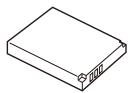
Batterie rechargeable
Dragonne
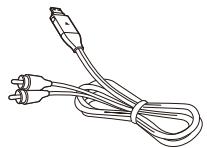
Câble audio / vidéo
Guide de prise en main rapide
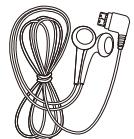
Écouteurs
Carte mémoire
Voyant lumineux
2 Sélectionnez


Attention
A/V kablosu


Dikkat
A / V 纜線
快速入門手冊
耳機

軟體光碟
(含使用手册)
選購配件
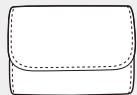
相機套


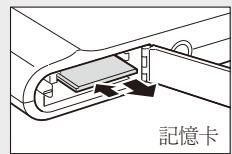
記憶卡
2. 插入電池和記憶卡
將記憶卡的金色
觸點面朝上,插入記憶卡。
移除電池和記憶卡
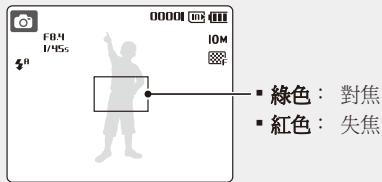
3 將 [快門] 按下一半可自動對焦。
2 選擇 📋。


備註

小心
將多媒體檔案傳輸至相機
Kabel A/V
Panduan Cepat
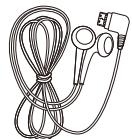
Earphone
- Untukbergerak ke kiri atau kanan, tekan [⚡] atau [💡].
- Untuk bergerak naik atau turun, tekan [|□|] atau [✿].
4 Tekan [MENU/OK].
Mengambil gambar atau video

hal.27 'Fungsi-fungsi lanjut'
Mengambil foto
1 Pilih AUTO.

2 Pilih 🎯.



hzام
بطارية يعاد شحنها
| الوصف | الرمز |
| وضع التصوير المختار | #p |
| نسبة التكبير | ☐☐☐☐☐☐☐☐☐☐☐☐☐☐☐☐☐☐☐☐☐☐☐☐☐☐☐☐☐☐☐☐☐☐☐☐☐☐☐☐☐☐☐☐☐☐☐☐☐☐☐☐☐☐☐☐☐☐☐☐☐☐☐☐☐☐☐☐☐☐☐☐☐☐☐☐☐☐☐☐☐☐☐☐☐☐☐☐☐☐☐☐☐☐☐☐☐☐☐☐ ☐☐☐☐☐☐☐☐☐☐☐☐☐☐☐☐☐☐☐☐☐☐☐☐☐☐☐☐☐☐☐☐☐☐☐☐☐☐☐☐☐☐☐☐☐☐☐☐☐☐☐☐☐☐☐☐☐☐☐☐☐☐☐☐☐☐☐☐☐☐☐☐☐☐☐☐☐☐☐☐☐☐☐☐☐☐☐☐☐☐☐☐☐☐☐☐☐☐☐☐○☐☐☐☐☐☐☐☐☐☐☐☐☐☐☐☐☐☐☐☐☐☐☐☐☐☐☐☐☐☐☐☐☐☐☐☐☐☐☐☐☐☐☐☐☐☐☐☐☐☐☐☐☐☐☐☐☐☐☐☐☐☐☐☐☐☐☐☐☐☐☐☐☐☐☐☐☐☐☐☐☐☐☐☐☐☐☐☐☐☐☐☐☐☐☐☐☐☐☐☑☐☐☐☐☐☐☐☐☐☐☐☐☐☐☐☐☐☐☐☐☐☐☐☐☐☐☐☐☐☐☐☐☐☐☐☐☐☐☐☐☐☐☐☐☐☐☐☐☐☐☐☐☐☐☐☐☐☐☐☐☐☐☐☐☐☐☐☐☐☐☐☐☐☐☐☐☐☐☐☐☐☐☐☐☐☐☐☐☐☐☐☐☐☐☐☐☐☐☐☒☐☐☐☐☐☐☐☐☐☐☐☐☐☐☐☐☐☐☐☐☐☐☐☐☐☐☐☐☐☐☐☐☐☐☐☐☐☐☐☐☐☐☐☐☐☐☐☐☐☐☐☐☐☐☐☐☐☐☐☐☐☐☐☐☐☐☐☐☐☐☐☐☐☐☐☐☐☐☐☐☐☐☐☐☐☐☐☐☐☐☐☐☐☐☐☐☐☐☐□☐☐☐☐☐☐☐☐☐☐☐☐☐☐☐☐☐☐☐☐☐☐☐☐☐☐☐☐☐☐☐☐☐☐☐☐☐☐☐☐☐☐☐☐☐☐☐☐☐☐☐☐☐☐☐☐☐☐☐☐☐☐☐☐☐☐☐☐☐☐☐☐☐☐☐☐☐☐☐☐☐☐☐☐☐☐☐☐☐☐☐☐☐☐☐☐☐☐☐ |
.[✿] اختر

٢ اضغط [٤] أو [١] ل bakingيار acoustic.
MP3 : ♪
PMP :
: عارض النصوص


สาย A/V
คู่มือใช้งานฉบับย่อ
หูฟัง
2 เลือก



بند
باتری قابل شارژ
چräg نشانگر
▪ قرمز: در حال شارژ
| شرح | نmostat | |
| CALLت عکسیرداری یا قیلیمیرداری انتخاب شده | [IMAGE] | |
| نسبت زوم | ☐ ☐ ☐ ☐ ☐ ☐ ☐ ☐ ☐ ☐ ☐ ☐ ☐ ☐ ☐ ☐ ☐ ☐ ☐ ☐ ☐ ☐ ☐ ☐ ☐ ☐ ☐ ☐ ☐ ☐ ☐ ☐ ☐ ☐ ☐ ☐ ☐ ☐ ☐ ☐ ☐ ☐ ☐ ☐ ☐ ☐ ☐ ☐ ☐ ☐ ☐ ☎ |
| تعداد وجود عکس | ☐☐☐☐☐☐☐☐☐☐☐☐☐☐☐☐☐☐☐☐☐☐☐☐☐☐☐☐☐☐☐☐☐☐☐☐☐☐☐☐☐☐☐☐☐☐☐☐☐☐☐☐☐☐☐☐☐☐☐☐☐☐☐☐☐☐☐☐☐☐☐☐☐☐☐☐☐☐☐☐☐☐☐☐☐☐☐☐☐☐☐☐☐☐☐☐☐☐☐☐ ☐☐☐☐☐☐☐☐☐☐☐☐☐☐☐☐☐☐☐☐☐☐☐☐☐☐☐☐☐☐☐☐☐☐☐☐☐☐☐☐☐☐☐☐☐☐☐☐☐☐☐☐☐☐☐☐☐☐☐☐☐☐☐☐☐☐☐☐☐☐☐☐☐☐☐☐☐☐☐☐☐☐☐☐☐☐☐☐☐☐☐☐☐☐☐☐☐☐☐☐○ |
| زمان ضبط-mounted | 00:00:06 |
| حقظه داخلی | ☐☐☐☐☐☐☐☐☐☐☐☐☐☐☐☐☐☐☐☐☐☐☐☐☐☐☐☐☐☐☐☐☐☐☐☐☐☐☐☐☐☐☐☐☐☐☐☐☐☐☐☐☐☐☐☐☐☐☐☐☐☐☐☐☐☐☐☐☐☐☐☐☐☐☐☐☐☐☐☐☐☐☐☐☐☐☐☐☐☐☐☐☐☐☐☐☐☐ ☑☐☐☐☐☐☐☐☐☐☐☐☐☐☐☐☐☐☐☐☐☐☐☐☐☐☐☐☐☐☐☐☐☐☐☐☐☐☐☐☐☐☐☐☐☐☐☐☐☐☐☐☐☐☐☐☐☐☐☐☐☐☐☐☐☐☐☐☐☐☐☐☐☐☐☐☐☐☐☐☐☐☐☐☐☐☐☐☐☐☐☐☐☐☐☐☐☐☐☐☑☐☐☐☐☐☐☐☐☐☐☐☐☐☐☐☐☐☐☐☐☐☐☐☐☐☐☐☐☐☐☐☐☐☐☐☐☐☐☐☐☐☐☐☐☐☐☐☐☐☐☐☐☐☐☐☐☐☐☐☐☐☐☐☐☐☐☐☐☐☐☐☐☐☐☐☐☐☐☐☐☐☐☐☐☐☐☐☐☐☐☐☐☐☐☐☐☐☐☐□☐☐☐☐☐☐☐☐☐☐☐☐☐☐☐☐☐☐☐☐☐☐☐☐☐☐☐☐☐☐☐☐☐☐☐☐☐☐☐☐☐☐☐☐☐☐☐☐☐☐☐☐☐☐☐☐☐☐☐☐☐☐☐☐☐☐☐☐☐☐☐☐☐☐☐☐☐☐☐☐☐☐☐☐☐☐☐☐☐☐☐☐☐☐☐☐☐☐☐☒☐☐☐☐☐☐☐☐☐☐☐☐☐☐☐☐☐☐☐☐☐☐☐☐☐☐☐☐☐☐☐☐☐☐☐☐☐☐☐☐☐☐☐☐☐☐☐☐☐☐☐☐☐☐☐☐☐☐☐☐☐☐☐☐☐☐☐☐☐☐☐☐☐☐☐☐☐☐☐☐☐☐☐☐☐☐☐☐☐☐☐☐☐☐☐☐☐☐☐ | |
| کارت حافظه قرار داده شده است | ☐☐☐☐☐☐☐☐☐☐☐☐☐☐☐☐☐☐☐☐☐☐☐☐☐☐☐☐☐☐☐☐☐☐☐☐☐☐☐☐☐☐☐☐☐☐☐☐☐☐☐☐☐☐☐☐☐☐☐☐☐☐☐☐☐☐☐☐☐☐☐☐☐☐☐☐☐☐☐☐☐☐☐☐☐☐☐☐☐☐☐☐☐☐☐☐☐☐○ | |
| کادر قوکوس اتوماتیک | ☐☐☐☐☐☐☐☐☐☐☐☐☐☐☐☐☐☐☐☐☐☐☐☐☐☐☐☐☐☐☐☐☐☐☐☐☐☐☐☐☐☐☐☐☐☐☐☐☐☐☐☐☐☐☐☐☐☐☐☐☐☐☐☐☐☐☐☐☐☐☐☐☐☐☐☐☐☐☐☐☐☐☐☐☐☐☐☐☐☐☐☐☐☐☐☐☐☐ |
| لرزش دوربين | ☐☐☐☐☐☐☐☐☐☐☐☐☐☐☐☐☐☐☐☐☐☐☐☐☐☐☐☐☐☐☐☐☐☐☐☐☐☐☐☐☐☐☐☐☐☐☐☐☐☐☐☐☐☐☐☐☐☐☐☐☐☐☐☐☐☐☐☐☐☐☐☐☐☐☐☐☐☐☐☐☐☐☐☐☐☐☐☐☐☐☐☐☐☐☐☐☐☐ | |
را انتخاب کنید.
![00:00:00 640 30 [■] 00:00:16 SH touq mok](/content/2020/05/23795/images/539a3d94b31e03e139a875ba3383d4641b5b78d00609c3bd8ea4bb72a65c49ae.jpg)
My Computer > Removable Disk >