
W9IOM24S1H - Built-in oven WHIRLPOOL - Free user manual and instructions
Find the device manual for free W9IOM24S1H WHIRLPOOL in PDF.


| Product type | Built-in oven |
| Brand | Whirlpool |
| Model | W9IOM24S1H |
| Category | Built-in oven |
| Dimensions (H x W x D) | Approximately 595 x 595 x 550 mm |
| Net weight | Approximately 40 kg |
| Power supply | 230 V / 50 Hz / 16 A |
| Power rating | 3 kW (adjustable to 13 A) |
| Interior capacity | Approximately 70 L |
| Control type | Touch screen |
| Main functions | Rapid preheat, Natural convection, Grill, Turbo grill, Fan forced, Cook 4, Fan assisted, Defrost, Keep warm, Dough proving, Quick cooking, Maxi cooking, Eco fan forced, Frozen Bake, 6th Sense |
| Cleaning | Steam self-cleaning (Self-Clean) and manual |
| Safety | Control lock |
| Lighting | Halogen bulb G9, 20-40 W, 230 V, 300 °C |
| Door | Removable for easy cleaning |
| Included accessories | Metal rack, Baking tray, Pastry plate, Telescopic slides (depending on model) |
| Connectivity | Built-in WiFi (2.4 GHz b/g/n), compatible with 6th Sense Live app |
| Energy class | A+ (estimated) |
Frequently Asked Questions - W9IOM24S1H WHIRLPOOL
User questions about W9IOM24S1H WHIRLPOOL
0 question about this device. Answer the ones you know or ask your own.
Ask a new question about this device
Download the instructions for your Built-in oven in PDF format for free! Find your manual W9IOM24S1H - WHIRLPOOL and take your electronic device back in hand. On this page are published all the documents necessary for the use of your device. W9IOM24S1H by WHIRLPOOL.
USER MANUAL W9IOM24S1H WHIRLPOOL
THANK YOU FOR BUYING A WHIRLPOOL PRODUCT In order to receive a more complete assistance, please register your product on www.whirlpool.eu/register

Before using the appliance carefully read the Safety Instruction.
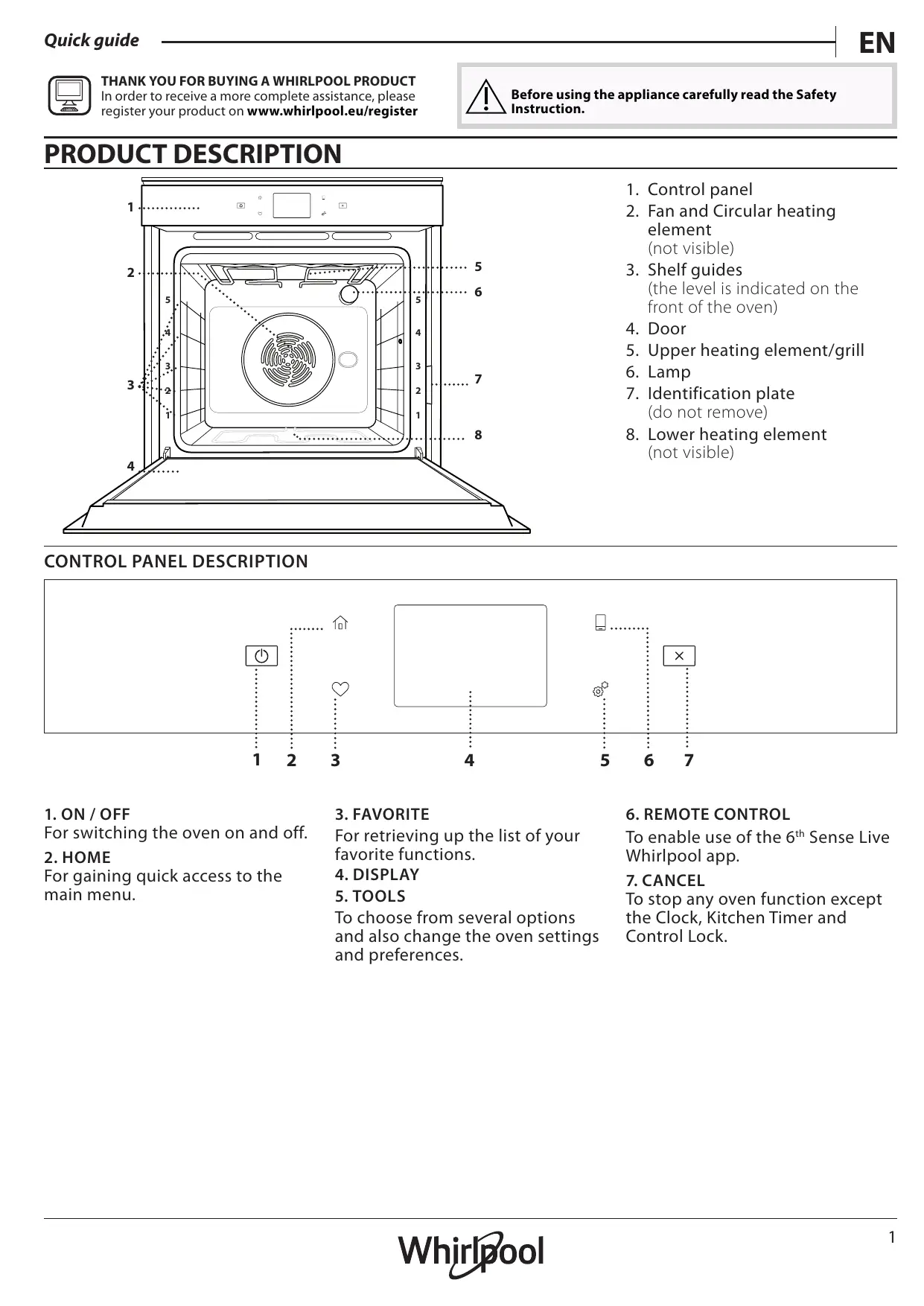
PRODUCT DESCRIPTION
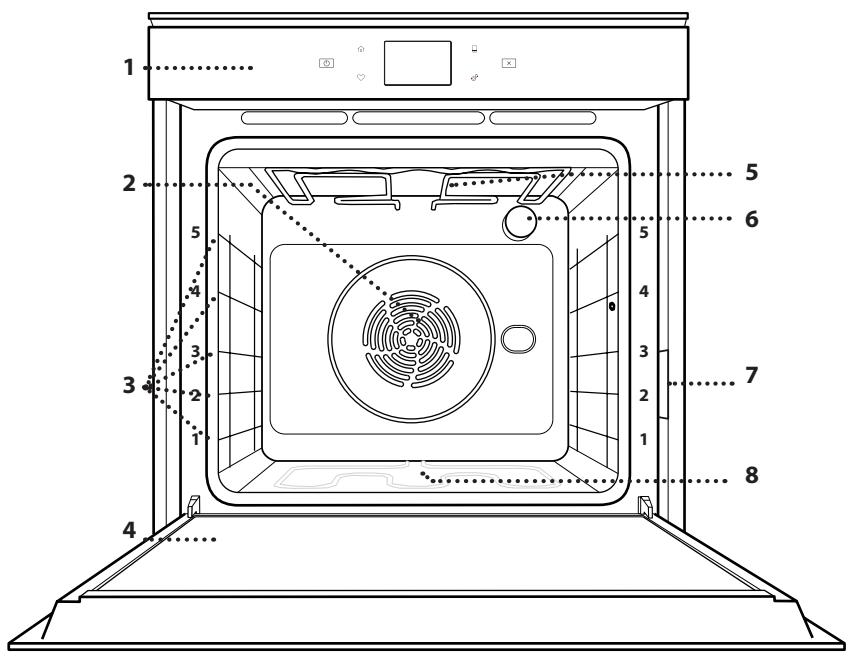
- Control panel
- Fan and Circular heating element (not visible)
- Shelf guides (the level is indicated on the front of the oven)
- Door
- Upper heating element/grill
- Lamp
- Identification plate (do not remove)
- Lower heating element (not visible)
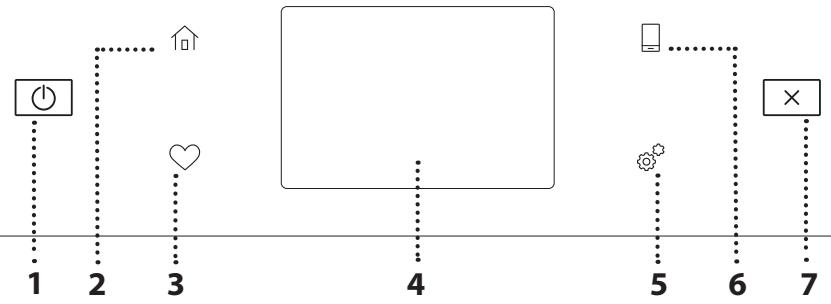
CONTROL PANEL DESCRIPTION
flowchart
graph TD
    1["1"] --> 2["2"]
    2 --> 3["3"]
    3 --> 4["4"]
    4 --> 5["5"]
    5 --> 6["6"]
    6 --> 7["7"]
    style 1 fill:#fff,stroke:#000
    style 2 fill:#fff,stroke:#000
    style 3 fill:#fff,stroke:#000
    style 4 fill:#fff,stroke:#000
    style 5 fill:#fff,stroke:#000
    style 6 fill:#fff,stroke:#000
    style 7 fill:#fff,stroke:#000
1. ON / OFF
For switching the oven on and off.
2. HOME
For gaining quick access to the main menu.
3. FAVORITE
For retrieving up the list of your favorite functions.
4. DISPLAY
5. TOOLS
To choose from several options and also change the oven settings and preferences.
6. REMOTE CONTROL
To enable use of the 6^th Sense Live Whirlpool app.
7. CANCEL
To stop any oven function except the Clock, Kitchen Timer and Control Lock.
ACCESSORIES
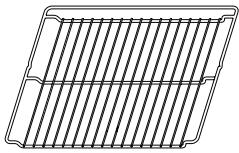
WIRE SHELF
......
Use to cook food or as a support for pans, cake tins and other ovenproof items of cookware
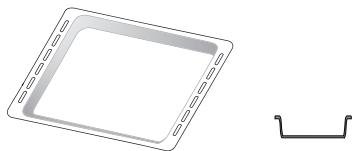
DRIP TRAY
natural_image
Simple line drawing of a square frame with a separate curved line below (no text or symbols)Use as an oven tray for cooking meat, fish, vegetables, focaccia, etc. or position underneath the wire shelf to collect cooking juices.
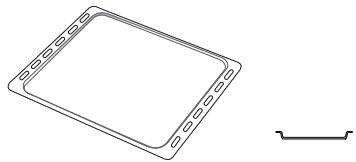
BAKING TRAY
natural_image
Simple line drawing of a rectangular plate with side notches and a separate curved line below (no text or symbols)Use for cooking all bread and pastry products, but also for roasts, fish en papillotte, etc.
SLIDING RUNNERS *
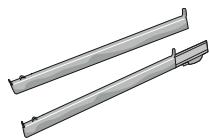
To facilitate inserting or removing accessories.
* Available only on certain models
The number and the type of accessories may vary depending on which model is purchased.
Other accessories can be purchased separately from the After-sales Service.
INSERTING THE WIRE SHELF AND OTHER ACCESSORIES
Insert the wire shelf horizontally by sliding it across the shelf guides, making sure that the side with the raised edge is facing upwards.
Other accessories, such as the drip tray and the baking tray, are inserted horizontally in the same way as the wire shelf.
REMOVING AND REFITTING THE SHELF GUIDES
- To remove the shelf guides, lift the guides up and then gently pull the lower part out of its seating: The shelf guides can now be removed.
- To refit the shelf guides, first fit them back into their upper seating. Keeping them held up, slide them into the cooking compartment, then lower them into position in the lower seating.
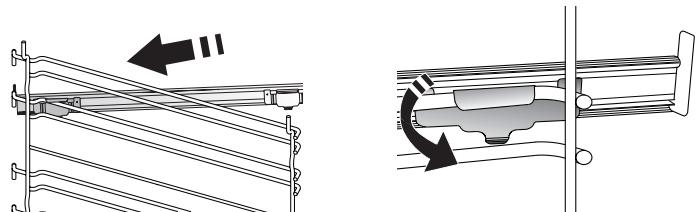
FITTING THE SLIDING RUNNERS (IF PRESENT)
Remove the shelf guides from the oven and remove the protective plastic from the sliding runners.
Fasten the upper clip of the runner to the shelf guide and slide it along as far as it will go. Lower the other clip into position. To secure the guide, press the lower portion of the clip firmly against the shelf guide.
Make sure that the runners can move freely. Repeat these steps on the other shelf guide on the same level.
natural_image
Technical diagram showing two mechanical assembly configurations with arrows indicating motion (no text or symbols present)Please note: The sliding runners can be fitted on any level.

MANUAL FUNCTIONS
- FAST PREHEAT
For preheating the oven quickly.
• CONVENTIONAL
For cooking any kind of dish on one shelf only.
- GRILL
For grilling steaks, kebabs and sausages, cooking vegetables au gratin or toasting bread. When grilling meat, we recommend using a drip tray to collect the cooking juices: Position the tray on any of the levels below the wire shelf and add 500 ml of drinking water.
• TURBO GRILL
For roasting large joints of meat (legs, roast beef, chicken). We recommend using a drip tray to collect the cooking juices: Position the pan on any of the levels below the wire shelf and add 500 ml of drinking water.
FORCED AIR
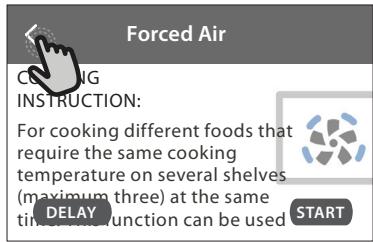
For cooking different foods that require the same cooking temperature on several shelves (maximum three) at the same time. This function can be used to cook different foods without odours being transferred from one food to another.
• COOK 4 FUNCTIONS
For cooking different foods that require the same cooking temperature on four levels at the same time. This function can be used to cook cookies, cakes, round pizzas (also frozen) and to prepare a complete meal. Follow the cooking table to obtain the best results.
• CONVECTION BAKE
For cooking meat, baking cakes with fillings on one shelf only.
• SPECIAL FUNCTIONS
» DEFROST
To speed up defrosting of food. Place food on the middle shelf. Leave food in its packaging to prevent it from drying out on the outside.
» KEEP WARM
For keeping just-cooked food hot and crisp.
» RISING
For optimal proving of sweet or savoury dough. To maintain the quality of proving, do not activate the function if the oven is still hot following a cooking cycle.
» CONVENIENCE
To cook ready-made food, stored at room temperature or in the refrigerator (biscuits, cake mix, muffins, pasta dishes and bread-type products). The function cooks all the dishes
quickly and gently and can also be used to heat food already cooked. The oven does not need to be pre-heated. Follow the instructions on the packaging.
» MAXI COOKING
For cooking large joints of meat (above 2.5 kg). It is advisable to turn the meat over during cooking, to obtain even browning on both sides. It is best to baste the meat every now and again to prevent it from drying out.
» ECO FORCED AIR
For cooking stuffed roasting joints and fillets of meat on a single shelf. Food is prevented from drying out excessively by gentle, intermittent air circulation. When this ECO function is in use, the light will remain switched off during cooking. To use the ECO cycle and therefore optimise power consumption, the oven door should not be opened until the food is completely cooked.
- FROZEN BAKE
The function automatically selects the ideal cooking temperature and mode for 5 different types of ready frozen food. The oven does not have to be preheated.

6^th SENSE
These enable all types of food to be cooked fully automatically. To use at best this function, follow the indications on the relative cooking table.
The oven does not have to be preheated.
HOW TO USE THE TOUCH DISPLAY

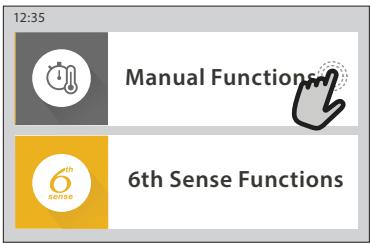
To select or confirm:
Tap the screen to select the value or menu item you require.

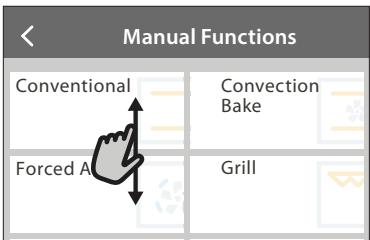
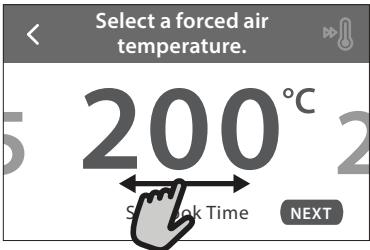
To scroll through a menu or a list:
Simply swipe your finger across the display to scroll through the items or values.
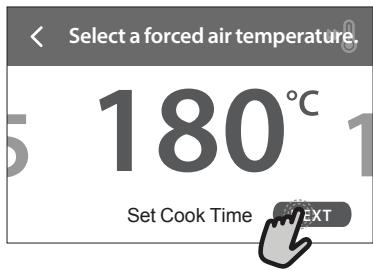
To confirm a setting or go to the next screen: Tap "SET" or "NEXT".
To go back to the previous screen: Tap < .
FIRST TIME USE
You will need to configure the product when you switch on the appliance for the first time.
The settings can be changed subsequently by pressing Ⓞ to access the "Tools" menu.
1. SELECT THE LANGUAGE
You will need to set the language and the time when you switch on the appliance for the first time.
- Swipe across the screen to scroll through the list of available languages.
- Tap the language you require.
Tapping < will take you back to the previous screen.
2. SETTING UP WIFI
The 6 ^th Sense Live feature allows you to operate the oven remotely from a mobile device. To enable the appliance to be controlled remotely, you will need to complete the connection process successfully first. This process is necessary to Register your appliance and connect it to your home network.
- Tap "SETUP NOW" to proceed with setup connection.
Otherwise, tap "SKIP" to connect your product later.
HOW TO SET UP THE CONNECTION
To use this feature you will need: A smartphone or tablet and a wireless router connected to the Internet. Please use your smart device to check that your home wireless network's signal is strong close to the appliance.
Minimum requirements.
Smart device: Android with a 1280x720 (or higher) screen or iOS.
See on app store the app compatibility with Android or iOS versions.
Wireless router: 2.4Ghz WiFi b/g/n.
1. Download the 6 ^th Sense Live App
The first step to connecting your appliance is to download the app on your mobile device. The 6 ^th Sense Live app will guide you through all the steps listed here. You can download the 6 ^th Sense Live app from the iTunes Store or the Google Play Store.
2. Create an account
If you haven't done so already, you'll need to Create an account. This will enable you to network your appliances and also view and control them remotely.
3. Register your appliance
Follow the instructions in the app to register your appliance. You will need the Smart Appliance IDentifier (SAID) number to complete the registration process. You can find its unique code the number on the identification plate attached to the product.
4. Connect to WiFi
Follow the scan-to-connect setup procedure. The app will guide you through the process of connecting your appliance to the wireless network in your home.
If your router supports WPS 2.0 (or higher), select "MANUALLY", then tap "WPS Setup": Press the WPS button on your wireless router to establish a connection between the two products.
If necessary, you can also connect the product manually using "Search for a network".
The SAID code is used to synchronise a smart device with your appliance.
The MAC address is displayed for the WiFi module.
The connection procedure will only need to be carried out again if you change your router settings (e.g. network name or password or data provider)
3. SETTING THE TIME AND DATE
Connecting the oven to your home network will set the time and date automatically. Otherwise you will need to set them manually
- Tap the relevant numbers to set the time.
- Tap "SET" to confirm.
Once you have set the time, you will need to set the date
- Tap the relevant numbers to set the date.
- Tap "SET" to confirm.
After a long power loss, you need to set the time and date again.
4. SET THE POWER CONSUMPTION
The oven is programmed to consume a level of electrical power that is compatible with a domestic network that has a rating of more than 3 kW (16 Ampere): If your household uses a lower power, you will need to decrease this value (13 Ampere).
- Tap the value on the right to select the power.
- Tap "OKAY" to complete initial setup.
5. HEAT THE OVEN
A new oven may release odours that have been left behind during manufacturing: this is completely normal. Before starting to cook food, we therefore recommend heating the oven with it empty in order to remove any possible odours.
Remove any protective cardboard or transparent film from the oven and remove any accessories from inside it. Heat the oven to 200 °C for around one hour. It is advisable to air the room after using the appliance for the first time.
1. SELECT A FUNCTION
- To switch on the oven, press Ⓑ or touch anywhere on the screen.
The display allows you to choose between Manual and 6^th Sense Functions.
- Tap the main function you require to access the corresponding menu.
- Scroll up or down to explore the list.
- Select the function you require by tapping it.
2. SET MANUAL FUNCTIONS
After having selected the function you require, you can change its settings. The display will show the settings that can be changed.
TEMPERATURE / GRILL LEVEL
- Scroll through the suggested values and select the one you require.
If allowed by the function, you can tap ⚫ to activate preheating.
DURATION
You do not have to set the cooking time if you want to manage cooking manually. In timed mode, the oven cooks for the length of time you select. At the end of the cooking time, the cooking is stopped automatically.
• To set the duration, tap "Set Cook Time".
- Tap the relevant numbers to set the cooking time you require.
- Tap "NEXT" to confirm.
To cancel a set duration during cooking and so manage manually the end of cooking, tap the duration value and then select "STOP".
3. SET 6 ^th SENSE FUNCTIONS
The 6^th Sense functions enable you to prepare a wide variety of dishes, choosing from those shown in the list. Most cooking settings are automatically selected by the appliance in order to achieve the best results.
- Choose a recipe from the list.
Functions are displayed by food categories in the "6 ^th SENSE FOOD" menu (see relative tables) and by recipe features in the "LIFESTYLE" menu.
- Once you have selected a function, simply indicate the characteristic of the food (quantity, weight, etc.) you want to cook to achieve the perfect result.
4. SET START TIME DELAY
You can delay cooking before starting a function: The function will start at the time you select in advance.
- Tap "DELAY" to set the start time time you require.
- Once you have set the required delay, tap "START DELAY" to start the waiting time.
- Place the food in the oven and close the door: The function will start automatically after the period of time that has been calculated.
Programming a delayed cooking start time will disable the oven preheating phase: The oven will reach the temperature your require gradually, meaning that cooking times will be slightly longer than those listed in the cooking table.
- To activate the function immediately and cancel the programmed delay time, tap ⏻.
5. START THE FUNCTION
- Once you have configured the settings, tap "START" to activate the function.
If the oven is hot and the function requires a specific maximum temperature, a message will shown on the display. You can change the values that have been set at any time during cooking by tapping the value you want to amend.
- Press × to stop the active function at any time.
6. PREHEATING
If previously activated, once the function has been started the display indicates the status of preheating phase. Once this phase has been finished, an audible signal will sound and the display will indicate that the oven has reached the set temperature.
- Open the door.
- Place the food in the oven.
- Close the door and tap "DONE" to start cooking.
Placing the food in the oven before preheating has finished may have an adverse effect on the final cooking result. Opening the door during the preheating phase will pause it. The cooking time does not include a preheating phase.
You can change the default setting of the preheating option for cooking functions that allow you to do that manually.
- Select a function that allows you to select the preheating function manually.
- Tap 🔊 icon to activate or deactivate preheating. It will be set as a default option.
7. PAUSING COOKING
Some 6 ^th Sense functions will require to turn the food during cooking. An audible signal will sound and the displays shows the action must to be done.
- Open the door.
- Carry out the action prompted by the display.
- Close the door, then tap "DONE" to resume cooking.
Before cooking ends, the oven could prompt you to check the food in the same way.
An audible signal will sound and the displays shows the action must to be done.
- Check the food.
- Close the door, then tap "DONE" to resume cooking.
8. END OF COOKING
An audible signal will sound and the display will indicate that cooking is complete. With some functions, once cooking has finished you can give your dish extra browning, extend the cooking time or save the function as a favorite.
• Tap ♥ to save it as a favorite.
- Select "Extra Browning" to start a five-minute browning cycle.
- Tap ⊕ to save prolong the cooking.
9. FAVORITES
The Favourites feature stores the oven settings for your favorite recipe.
The oven automatically recognizes the most used functions. After a certain number of uses, you will be prompted to add the function to your favorites.
HOW TO SAVE A FUNCTION
Once a function has finished, tapping on ♥ to save it as a favourite. This will enable you to use it quickly in the future, keeping the same settings. The display allows you to save the function by indicating up to 4 favorite meals time including breakfast, lunch, snack and dinner.
- Tap the icons to select at least one.
- Tap "SAVE AS FAVORITE" to save the function.
ONCE SAVED
To view the favorite menu, press ♥: the functions will be divided by different meal times and some suggestions will be offered.
- Tap the meals icon To view the relevant lists
- Scroll through the prompted list.
- Tap the recipe or function you require.
- Tap "START" to activate the cooking.
CHANGING THE SETTINGS
In the favorite screen, you can add an image or name to the favorite to customize it to your preferences.
- Select the function you want to change.
- Tap "EDIT".
- Select the attribute you want to change.
- Tap "NEXT": The display will show the new attributes.
- Tap "SAVE" to confirm your changes.
In the favorite screen you can also delete functions you have saved:
- Tap the ♥ on the function.
- Tap "REMOVE IT".
You can also adjust the time when the various meals are shown:
- Press Ⓞ.
- Select "Preferences".
- Select "Times and Dates".
- Tap "Your Meal Times".
- Scroll through the list and tap the relevant time.
- Tap the relevant meal to change it.
It will be possible to combine a time slot only with a meal.
10. TOOLS
Press ⚙️ to open the "Tools" menu at any time. This menu enables you to choose from several options and also change the settings or preferences for your product or the display.

REMOTE ENABLE
To enable use of the 6^th Sense Live Whirlpool app.

KITCHEN TIMER
This function can be activated either when using a cooking function or alone for keeping time. Once started, the timer will continue to count down independently without interfering with the function itself. Once the timer has been activated, you can also select and activate a function.
The timer will continue counting down at the top-right corner of the screen.
To retrieve or changhe the kitchen timer:
- Press Ⓞ.
- Tap .
An audible signal will sound and the display will indicate once the timer has finished counting down the selected time.
- Tap "DISMISS" to cancel the timer or set a new timer duration.
- Tap "SET NEW TIMER" to set the timer again.

LIGHT
To switch on or off the oven lamp.

SELF-CLEAN
Activate the "Self-Clean" function for optimum cleaning of the internal surfaces.
It is recommended to do not open the oven door during the cleaning cycle to avoid a loss of water vapor that could get an adverse effect on the final cleaning result.
- Remove all accessories from the oven before activating the function.
- When the oven is cold, pour 200 ml of drinking water on the bottom of the oven.
- Tap "START" to activate the cleaning function.
Once the cycle has been selected, you can delay the start of automatic cleaning. Tap "DELAY" to set the end time as indicated in the relevant section.

MUTE
Tap the icon to mute or unmute all the sounds and alarms.

CONTROL LOCK
The "Control Lock" enables you to lock the buttons on the touch pad so they cannot be pressed accidentally.
To activate the lock:
- Tap the icon.
To deactivate the lock:
- Tap the display.
- Swipe up on the message shown.
MORE MODES
For selecting Sabath mode and accessing Power Management.
PREFERENCES
For changing several oven settings.
WI-FI
For changing settings or configuring a new home network.
i INFO
For switching off "Store Demo Mode", resetting the product and obtaining further information about the product.
COOKING TABLE
| RECIPE | FUNCTION | PREHEAT | TEMPERATURE (°C) / GRILL LEVEL | DURATION (Min.) | SHELF AND ACCESSORIES |
| Leavened cakes / Sponge cakes | Yes | 170 | 30 - 50 | 2 | |
| Yes | 160 | 30 - 50 | 2 | ||
| Yes | 160 | 30 - 50 | 4 1 | ||
| Filled cakes (cheesecake, strudel, apple pie) | Yes | 160 - 200 | 30 - 85 | 3 | |
| Yes | 160 - 200 | 35 - 90 | 4 1 | ||
| Cookies / Shortbread | Yes | 150 | 20 - 40 | 3 | |
| Yes | 140 | 30 - 50 | 4 | ||
| Yes | 140 | 30 - 50 | 4 1 | ||
| Yes | 135 | 40 - 60 | 5 3 1 | ||
| Small cakes / Muffin | Yes | 170 | 20 - 40 | 3 | |
| Yes | 150 | 30 - 50 | 4 | ||
| Yes | 150 | 30 - 50 | 4 1 | ||
| Yes | 150 | 40 - 60 | 5 3 1 | ||
| Choux buns | Yes | 180 - 200 | 30 - 40 | 3 | |
| Yes | 180 - 190 | 35 - 45 | 4 1 | ||
| Yes | 180 - 190 | 35 - 45 * | 5 3 1 | ||
| Meringues | Yes | 90 | 110 - 150 | 3 | |
| Yes | 90 | 130 - 150 | 4 1 | ||
| Yes | 90 | 140 - 160 * | 5 3 1 | ||
| Pizza / Bread / Focaccia | Yes | 190 - 250 | 15 - 50 | 2 | |
| Yes | 190 - 230 | 20 - 50 | 4 1 | ||
| Pizza (Thin, thick, focaccia) | Yes | 220 - 240 | 25 - 50 * | 5 3 1 | |
| Frozen pizza | Yes | 250 | 10 - 15 | 3 | |
| Yes | 250 | 10 - 20 | 4 1 | ||
| Yes | 220 - 240 | 15 - 30 | 5 3 1 | ||
| Savoury pies (vegetable pie,quiche) | Yes | 180 - 190 | 45 - 55 | 3 | |
| Yes | 180 - 190 | 45 - 60 | 4 1 | ||
| Yes | 180 - 190 | 45 - 70 * | 5 3 1 | ||
| Vols-au-vent / Puff pastry crackers | Yes | 190 - 200 | 20 - 30 | 3 | |
| Yes | 180 - 190 | 20 - 40 | 4 1 | ||
| Yes | 180 - 190 | 20 - 40 * | 5 3 1 |

| RECIPE | FUNCTION | PREHEAT | TEMPERATURE (°C) / GRILL LEVEL | DURATION (Min.) | SHELF AND ACCESSORIES |
| Lasagne / Flans / Baked pasta / Cannelloni | Yes | 190 - 200 | 45 - 65 | 3 | |
| Lamb / Veal / Beef / Pork 1 kg | Yes | 190 - 200 | 80 - 110 | 3 | |
| Roast pork with crackling 2 kg | — | 170 | 110 - 150 | 2 | |
| Chicken / Rabbit / Duck 1 kg | Yes | 200 - 230 | 50 - 100 | 3 | |
| Turkey / Goose 3 kg | Yes | 190 - 200 | 80 - 130 | 2 | |
| Baked fish / en papillote (fillets, whole) | Yes | 180 - 200 | 40 - 60 | 3 | |
| Stuffed vegetables (tomatoes, courgettes, aubergines) | Yes | 180 - 200 | 50 - 60 | 2 | |
| Toast | — | 3 (High) | 3 - 6 | 5 | |
| Fish fillets / Steaks | — | 2 (Mid) | 20 - 30 ** | 4 | |
| Sausages / Kebabs / Spare ribs / Hamburgers | — | 2 - 3 (Mid - High) | 15 - 30 ** | 5 | |
| Roast chicken 1-1.3 kg | — | 2 (Mid) | 55 - 70 *** | 2 | |
| Leg of lamb / Shanks | — | 2 (Mid) | 60 - 90 *** | 3 | |
| Roast potatoes | — | 2 (Mid) | 35 - 55 *** | 3 | |
| Vegetable gratin | — | 3 (High) | 10 - 25 | 3 | |
| Cookies | Yes | 135 | 50 - 70 | 5 | |
| Tarts | Yes | 170 | 50 - 70 | 5 | |
| Round pizzas | Yes | 210 | 40 - 60 | 5 | |
| Complete meal: Fruit tart (level 5) / lasagne (level 3) / meat (level 1) | Yes | 190 | 40 - 120 * | 5 | |
| Complete meal: Fruit tart (level 5) / roasted vegetables (level 4) / lasagna (level 2) / cuts of meat (level 1) | Yes | 190 | 40 - 120 | 5 | |
| Lasagna & Meat | Yes | 200 | 50 - 100 * | 4 | |
| Meat & Potatoes | Yes | 200 | 45 - 100 * | 4 | |
| Fish & Vegetables | Yes | 180 | 30 - 50 * | 4 | |
| Stuffed roasting joints | — | 200 | 80 - 120 * | 3 | |
| Cuts of meat (rabbit, chicken, lamb) | — | 200 | 50 - 100 * | 3 |
* Estimated length of time: dishes can be removed from the oven at different times depending on personal preference.
** Turn food halfway through cooking.
*** Turn food two thirds of the way through cooking (if necessary).
HOW TO READ THE COOKING TABLES
The tables list: recipes, if preheating is needed, temperature ( ^ C), grill level, cooking time (minutes), accessories and level suggested for cooking. Cooking times start from the moment food is placed in the oven, excluding preheating (where required). Cooking temperatures and times are approximate and depend on the amount of food and the type of accessory used. Use the lowest recommended values to begin with and, if the food is not cooked enough, move on to higher values. Use the accessories supplied and preferably dark-coloured metal cake tins and oven trays. You can also use pans and accessories in pyrex or stoneware, but bear in mind that cooking times will be slightly longer. To obtain the best results, carefully follow the advice given in the cooking table for the choice of accessories (supplied) to be placed on the various shelves.
| FUNCTIONS | Conventional | Forced air | Convection bake | Grill | TurboGrill | MaxiCooking | Cook 4 | Eco Forced air |
| Food categories | Level and Accessories | Quantity | Cooking Info | ||
| CASSEROLE & BAKED PASTA | Fresh Lasagna | 2 | 500 - 3000 g | Prepare according to your favorite recipe. Pour bechamel sauce on top and sprinkle with cheese to get perfect browning | |
| Frozen Lasagna | 2 | 500 - 3000 g | |||
| MEAT | Beef | Roast beef | 3 | 600 - 2000 g | Brush with oil and rub with salt and pepper. Season with garlic and herbs as you prefer. At the end of cooking let rest for at least 15 minutes before carving |
| Hamburger | 5 4 | 1.5 - 3 cm | Brush with oil and sprinkle with salt before cooking. Turn at 3/5 of cooking time. | ||
| Pork | Roast Pork | 3 | 600 - 2500 g | Brush with oil and rub with salt and pepper. Season with garlic and herbs as you prefer. At the end of cooking let rest for at least 15 minutes before carving | |
| Pork Ribs | 5 4 | 500 - 2000 g | Brush with oil and sprinkle with salt before cooking. Turn at 2/3 of cooking time | ||
| Sausages & Wurstel | 5 4 | 1.5 - 4 cm | Distribute evenly on the wire shelf. Turn at 3/4 of cooking time | ||
| Chicken | Roast Chicken | 2 | 600 - 3000 g | Brush with oil and season as you prefer. Rub with salt and pepper. Insert into the oven with the breast side up | |
| Fillet / Breast | 5 4 | 1 - 5 cm | Brush with oil and sprinkle with salt before cooking. Turn at 2/3 of cooking time | ||
| Kebabs | 5 4 | 1 grid | Brush with oil and sprinkle with salt before cooking. Turn at 1/2 of cooking time | ||
| VEGETABLES | Roasted Fillets | Fresh Fillets | 3 2 | 0.5 - 3 cm | Brush with oil and rub with salt and pepper. Season with garlic and herbs as you prefer |
| Frozen Fillets | 3 2 | 0.5 - 3 cm | |||
| Grilled seafood | Scallops | 4 | one tray | Cover with breadcrumbs and season with oil, garlic, pepper and parsley | |
| Gratin Mussels | 4 | one tray | Brush with oil and rub with salt and pepper. Season with garlic and herbs as you prefer | ||
| Shrimps | 4 3 | one tray | |||
| Prawns | 4 3 | one tray | |||
| Roasted Vegetables | Potatoes | 3 | 500 - 1500 g | Cut in pieces, season with oil, salt and flavor with herbs before insert into the oven | |
| Stuffed Vegetables | 3 | 100 - 500 g each | Brush with oil and rub with salt and pepper. Season with garlic and herbs as you prefer | ||
| Other Vegetables | 3 | 500 - 1500 g | |||
| Gratin Vegetables | Potatoes | 3 | 1 tray | Cut in pieces, season with oil, salt and flavor with herbs before insert into the oven | |
| Tomatoes | 3 | 1 tray | Cover with breadcrumbs and season with oil, garlic, pepper and parsley | ||
| Peppers | 3 | 1 tray | Prepare according to your favorite recipe. Sprinkle with cheese to get perfect browning | ||
| Broccoli | 3 | 1 tray | Prepare according to your favorite recipe. Pour bechamel sauce on top and sprinkle with cheese to get perfect browning | ||
| Cauliflowers | 3 | 1 tray | |||
| Others | 3 | 1 tray | |||
ACCESSORIES

Wire shelf

Oven tray or cake tin on wire shelf

Drip tray / Baking tray or oven tray on wire shelf

Drip tray / Baking tray

Drip tray with 500 ml of water
| Food categories | Level and Accessories | Quantity | Cooking Info | ||
| CAKES & PASTRIES | Sponge Cake In Tin | 2 | 500 - 1200 g | Prepare a fatless sponge cake batter of 500-900g. Pour into lined and greased baking pan | |
| Pastries & filled pies | Cookies | 3 | 200 - 600 g | Make a batch of 500g flour, 200g salted butter, 200g sugar, 2 egg. Flavor with fruit essence. Let cool down. Stretch evenly the dough and shape as you prefer. Lay the cookies on a baking tray | |
| Croissants (fresh) | 3 | one tray | Distribute evenly in the baking tray. Let cool down before serving | ||
| Choux Pastry | 3 | one tray | |||
| Tart In Tin | 3 | 400 - 1600 g | Make a batch of 500g flour, 200g salted butter, 200g sugar, 2 egg. Flavor with fruit essence. Let cool down. Stretch evenly the dough and fold in a tin. Fill with marmalade a cook | ||
| Strudel | 3 | 400 - 1600 g | Prepare a mix of diced apple, pine nuts, cinnamon and nutmeg. Put some butter in a pan, sprinkle with sugar and cook for 10-15 minutes. Roll it into a pastry and fold the external part | ||
| Fruit filled pie | 2 | 500 - 2000 g | Line a pie dish with the pastry and sprinkle the bottom with bread crumbs to absorb the juice from the fruit. Fill with chopped fresh fruit mixed with sugar and cinnamon | ||
| SALTY CAKES | 2 | 800 - 1200 g | Line a pie dish for 8-10 portions with a pastry and pierce it with a fork, Fill the pastry according to your favorite recipe | ||
| BREAD | Rolls | 3 | 60 - 150 g each | Prepare dough according to your favorite recipe for a light bread. Form to rolls before rise. Use the oven dedicated function to rise | |
| Sandwich Loaf in Tin | 2 | 400 - 600g each | Prepare dough according to your favorite recipe for a light bread. Form into a loaf container before rise. Use the oven dedicated function to rise | ||
| Big Bread | 2 | 700 - 2000 g | Prepare dough according to your favorite recipe and place it on baking tray | ||
| Baguettes | 3 | 200 - 300g each | Prepare dough according to your favorite recipe for a light bread. Form to baguette rolls before rise. Use the oven dedicated function to rise | ||
| PIZZA | Pizza Thin | 2 | round - tray | Prepare a pizza dough based on 150ml water, 15g yeast, 200-225g flour, oil and salt. Rise it using the dedicated oven function. Roll out the dough into a lightly greased baking tray. Add topping like tomatoes, mozzarella and ham | |
| Pizza Thick | 2 | round - tray | |||
| Pizza Frozen | 2 | 1 - 4 layers | Take out from packaging. Distribute evenly on the wire shelf | ||
| 4 | |||||
| 5 | |||||
| 5 | |||||

CLEANING AND MAINTENANCE
Make sure that the oven has cooled down before carrying out any maintenance or cleaning. Do not use steam cleaners.
Do not use wire wool, abrasive scourers or abrasive/corrosive cleaning agents, as these could damage the surfaces of the appliance.
Wear protective gloves. The oven must be disconnected from the mains before carrying out any kind of maintenance work.
EXTERIOR SURFACES
- Clean the surfaces with a damp microfibre cloth. If they are very dirty, add a few drops of pH-neutral detergent. Finish off with a dry cloth.
- Do not use corrosive or abrasive detergents. If any of these products inadvertently comes into contact with the surfaces of the appliance, clean immediately with a damp microfibre cloth.
INTERIOR SURFACES
- After every use, leave the oven to cool and then clean it, preferably while it is still warm, to remove any deposits or stains caused by food residues To dry any condensation that has formed as a result of cooking foods with a high water content, let the
oven to cool completely and then wipe it with a cloth or sponge.
- Activate the "Self-Clean" function for optimum cleaning of the internal surfaces.
- Clean the glass in the door with a suitable liquid detergent.
- The oven door can be removed to facilitate cleaning.
ACCESSORIES
- Soak the accessories in a washing-up liquid solution after use, handling them with oven gloves if they are still hot. Food residues can be removed using a washing-up brush or a sponge.
REPLACING THE LAMP
- Disconnect the oven from the power supply.
- Unscrew the cover from the light, replace the bulb and screw the cover back on the light.
- Reconnect the oven to the power supply.
Please note: Only use 20-40 W/230 \~ V type G9, T300°C halogen bulbs. The bulb used in the product is specifically
designed for domestic appliances and is not suitable for general room lighting within the home (EC Regulation 244/2009). Light bulbs are available from our After-sales Service. Do not handle bulbs with your bare hands as your fingerprints could damage them. Do not use the oven until the light cover has been refitted.
REMOVING AND REFITTING THE DOOR
- To remove the door, open it fully and lower the catches until they are in the unlock position.
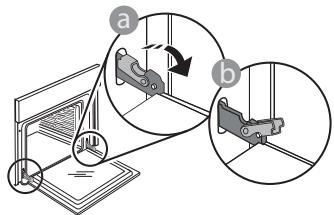
- Close the door as much as you can. Take a firm hold of the door with both hands – do not hold it by the handle. Simply remove the door by continuing to close it while pulling it upwards at the same time until it is released from its seating. Put the door to one side, resting it on a soft surface.
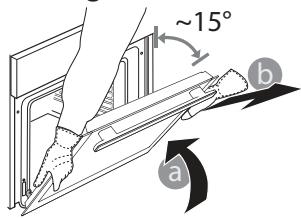
Refit the door by moving it towards the oven, aligning the hooks of the hinges with their seating and securing the upper part onto its seating.
- Lower the door and then open it fully. Lower the catches into their original position: Make sure that you lower them down completely.
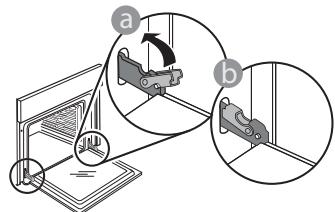
- Apply gentle pressure to check that the catches are in the correct position.
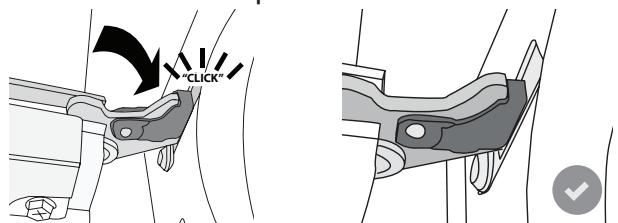
- Try closing the door and check to make sure that it lines up with the control panel. If it does not, repeat the steps above: The door could become damaged if it does not work properly.
WIFI FAQs
Which WiFi protocols are supported?
The WiFi adapter installed supports WiFi b/g/n for European countries.
Which settings need to be configured in the router software?
The following router settings are required: 2.4 GHz enabled, WiFi b/g/n, DHCP and NAT activated.
Which Version of WPS is supported?
WPS 2.0 or higher. Check the router documentation.
Are there any differences between using a smartphone (or tablet) with Android or iOS?
You can use whichever operating system you prefer, it makes no difference.
Can I use mobile 3G tethering instead of a router?
Yes, but cloud services are designed for permanently connected devices.
How can I check whether my home Internet connection is working and wireless functionality is enabled?
You can search for your network on your smart device. Disable any other data connections before trying.
How can I check whether the appliance is connected to my home wireless network?
Access your router configuration (see router manual) and check whether the appliance's MAC address is listed on wireless connected devices page.
Where can I find the appliance's MAC address?
Press 📋 then tap 📄 WiFi or look on your appliance: There is a label showing the SAID and MAC addresses. The Mac address MAC address consists of a combination of numbers and letters starting with "88:e7".
How can I check whether the appliance's wireless functionality is enabled?
Use your smart device and the 6^th Sense Live app to check whether the appliance network is visible and connected to the cloud.
Is there anything that can prevent the signal reaching the appliance?
Check that the devices you have connected are not using up all the available bandwidth.
Make sure that your WiFi-enabled devices do not exceed the maximum number permitted by the router.
How far should the router be from the oven?
Normally the WiFi signal is strong enough to cover a couple of rooms, but this very much depends on the material the walls are made of. You can check the signal strength by placing your smart device next to the appliance.
What can I do if my wireless connection does not reach the appliance?
You can use specific devices to extend your home WiFi coverage, such as access points, WiFi repeaters and power line bridges (not provided with appliance).
How can I find out the name of and password for my wireless network?
See the router documentation. There is usually a sticker on the router showing the information you need to reach the device setup page using a connected device.
What can I do if my router is using the neighbourhood WiFi channel?
Force the router to use your home WiFi channel.
What can I do if 📋 appears on the display or the oven is unable to establish a stable connection to my home router?
The appliance might have successfully connected to the router, but it is not able to access the Internet. To connect the appliance to the Internet, you will need to check the router and/or carrier settings.
Router settings: NAT must be on, firewall and DHCP must be properly configured. Password encryption supported: WEP, WPA,WPA2. To try a different encryption type, please refer to the router manual.
Carrier settings: If your Internet service provider has fixed the number of MAC addresses able to connect to the Internet, you may not be able to connect your appliance to the cloud. The MAC address of a device is its unique identifier. Please ask your Internet service provider how to connect devices other than computers to the Internet.
How can I check whether data is being transmitted?
After setting up the network, switch the power off, wait 20 seconds and then switch on the oven: Check that the app is showing the UI status of the appliance. Some settings take several seconds to appear in the app.
How can I change my Whirlpool account but keep my appliances connected?
You can create a new account, but remember to remove your appliances from your old account before moving them to your new one.
I changed my router – what do I need to do?
You can either keep the same settings (network name and password) or delete the previous settings from the appliance and configure the settings again.
TROUBLESHOOTING
| Problem | Possible cause | Solution |
| The oven is not working. | Power cut.Disconnection from the mains. | Check for the presence of mains electrical power and whether the oven is connected to the electricity supply. Turn off the oven and restart it to see if the fault persists. |
| The display shows the letter “F” followed by a number or letter. | Oven failure. | Contact you nearest Client After-sales Service Centre and state the number following the letter “F”.Press , tap and then select “Factory Reset”.All settings saved will be deleted. |
| The home power goes off. | Power setting wrong. | Verify if your domestic network has at least a rating of more than 3 kW. If no, decrease the power to 13 Ampere. To change it, press , select “More Modes” and then select “Power Management”. |
| The oven does not heat up. | Demo mode is running. | Press , tap “Info” and then select “Store Demo Mode” to exit. |
| Theicon is shown on display. | WiFi router is off.Router set up properties has changed.The wireless connections does not reach the appliance.The oven is unable to make a stable provision to home network.The connectivity is not supported. | Verify if the WiFi router is connected to internet.Verify the WiFi signal strength close to the appliance is good.Try to restart the router.See paragraph “FAQ WiFi”If your home wireless network properties has changed, carry out the pairing to the network: Press , tap “WiFi” and then select “Connect to network”. |
| The connectivity is not supported. | Remote enable not allowed in your country. | Verify before purchasing if your country allows the remote control for electronic appliances. |

You can download the Safety Instructions, User Manual, Product Fiche and Energy data by:
- Visiting our website docs.whirlpool.eu
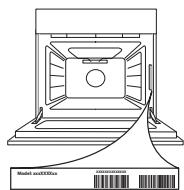
• Using QR Code - Alternatively, contact our After-sales Service (See phone number in the warranty booklet). When contacting our After-sales Service, please state the codes provided on your product's identification plate.
- ON / OFF
- HOME
- FAVORITE
- DISPLAY
- TOOLS
- REMOTE CONTROL
- CANCEL
- ACCESSORIES
- INSERTING THE WIRE SHELF AND OTHER ACCESSORIES
- REMOVING AND REFITTING THE SHELF GUIDES
- FITTING THE SLIDING RUNNERS (IF PRESENT)
- MANUAL FUNCTIONS
- - FAST PREHEAT
- • CONVENTIONAL
- - GRILL
- • TURBO GRILL
- FORCED AIR
- • COOK 4 FUNCTIONS
- • CONVECTION BAKE
- • SPECIAL FUNCTIONS
- » DEFROST
- » KEEP WARM
- » RISING
- » CONVENIENCE
- » MAXI COOKING
- » ECO FORCED AIR
- - FROZEN BAKE
- 6th SENSE
- HOW TO USE THE TOUCH DISPLAY
- To select or confirm:
- To scroll through a menu or a list:
- FIRST TIME USE
- SELECT THE LANGUAGE
- SETTING UP WIFI
- HOW TO SET UP THE CONNECTION
- Download the 6 th Sense Live App
- Create an account
- Register your appliance
- Connect to WiFi
- SETTING THE TIME AND DATE
- SET THE POWER CONSUMPTION
- HEAT THE OVEN
- SELECT A FUNCTION
- SET MANUAL FUNCTIONS
- TEMPERATURE / GRILL LEVEL
- DURATION
- SET 6 th SENSE FUNCTIONS
- SET START TIME DELAY
- START THE FUNCTION
- PREHEATING
- PAUSING COOKING
- END OF COOKING
- FAVORITES
- HOW TO SAVE A FUNCTION
- ONCE SAVED
- CHANGING THE SETTINGS
- TOOLS
- REMOTE ENABLE
- KITCHEN TIMER
- LIGHT
- SELF-CLEAN
- MUTE
- CONTROL LOCK
- MORE MODES
- PREFERENCES
- WI-FI
- i INFO
- HOW TO READ THE COOKING TABLES
- CLEANING AND MAINTENANCE
- EXTERIOR SURFACES
- INTERIOR SURFACES
- REPLACING THE LAMP
- REMOVING AND REFITTING THE DOOR
- WIFI FAQs
Brand : WHIRLPOOL
Model : W9IOM24S1H
Category : Built-in oven