
KARMA LIGHT - Drone GOPRO - Free user manual and instructions
Find the device manual for free KARMA LIGHT GOPRO in PDF.


| Product Type | Drone with stabilizer and battery |
| Brand | GoPro |
| Model | Karma Light |
| Drone Power Supply | Rechargeable lithium-polymer battery, dedicated Karma charger |
| Remote Control Power Supply | Built-in battery, charger with output 0.5 V 0.5-3 A |
| Flight Autonomy | Approximately 20 minutes (depending on conditions) |
| Remote Control Range | Up to 1 km (estimate) |
| Main Functions | Flight, video/photo capture, stabilization, automatic return, live flight via GoPro Passenger App |
| Shooting Modes | Video, photo, time lapse, HiLight Tag |
| Storage | microSD card (not included) in the GoPro camera |
| Landing Type | Automatic (return to home, return to pilot, land in place) or manual |
| Safety Functions | Automatic return in case of low battery or loss of link, critical landing |
| Calibration | Automatic (accelerometer and compass); manual recalibration possible if necessary |
| Software Update | Via Wi-Fi (remote control); automatic notifications |
| Mobile App | GoPro Passenger App (iOS/Android) to view live flight |
| Compatible Camera | GoPro HERO (sold separately); requires battery for balancing |
| Maintenance and Cleaning | Avoid exposure to excessive heat; clean with a soft cloth |
| Safety of Use | Do not fly over people/animals; avoid fog, strong wind, rain, or snow; respect distance >8 km from airports; fly within visual line of sight |
| Spare Parts and Repairability | Replacement parts available on gopro.com; GoPro Care (optional) offers support |
| General Information | Free user manual available; comply with local regulations |
Frequently Asked Questions - KARMA LIGHT GOPRO
User questions about KARMA LIGHT GOPRO
0 question about this device. Answer the ones you know or ask your own.
Ask a new question about this device
Download the instructions for your Drone in PDF format for free! Find your manual KARMA LIGHT - GOPRO and take your electronic device back in hand. On this page are published all the documents necessary for the use of your device. KARMA LIGHT by GOPRO.
USER MANUAL KARMA LIGHT GOPRO
| Getting Started | 4 |
| Flying Safely | 14 |
| Pre-Flight Checklist | 16 |
| Taking Off | 17 |
| Capturing Video and Photos | 18 |
| Sharing Your Live Flight | 21 |
| Landing Karma | 22 |
| Offloading Content | 25 |
| Pairing and Calibration | 26 |
| Battery | 27 |
| Troubleshooting | 29 |
| GoPro Care | 31 |
| Trademarks | 31 |
| Regulatory Information | 31 |
DRONE + STABILIZER + BATTERY

text_image
Diagram of a drone with numbered parts and a separate labeled device, likely illustrating a flight or navigation system.- Propellers
- Power Button [ ⏻ ]
- Orientation Lights
-
Camera Stabilizer
-
Battery Status Lights
- Battery Status Button
- Touch Display
- Camera Tilt Wheel
CONTROLLER

text_image
Labeled diagram of a portable electronic device with numbered components for identification- Start/Stop Button
- Speaker
- Land Button [ √ ]
-
Ambient Light Sensor
13.Shutter Button [O] -
Mode/Tag Button
- Joysticks
- Charging Port
- Lanyard Tether Point
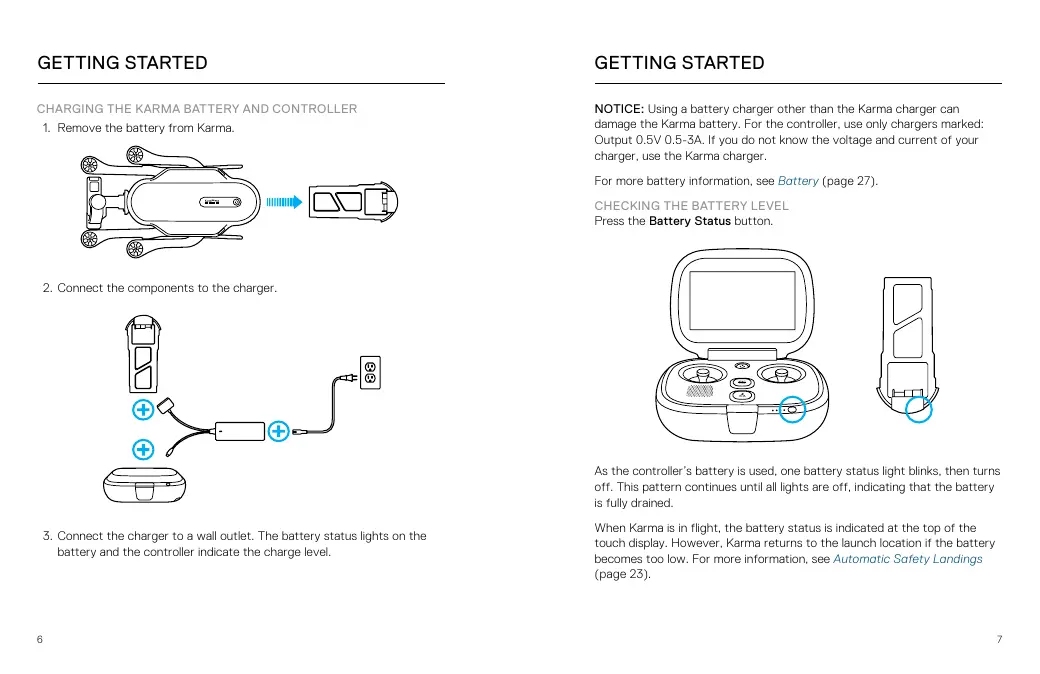
CHARGING THE KARMA BATTERY AND CONTROLLER
- Remove the battery from Karma.

natural_image
Top-down schematic of a vehicle showing front and side views with no text or symbols- Connect the components to the charger.

text_image
Diagram showing battery connection with labeled components and polarity indicators- Connect the charger to a wall outlet. The battery status lights on the battery and the controller indicate the charge level.
GETTING STARTED
NOTICE: Using a battery charger other than the Karma charger can damage the Karma battery. For the controller, use only chargers marked: Output 0.5V 0.5-3A. If you do not know the voltage and current of your charger, use the Karma charger.
For more battery information, see Battery (page 27).
CHECKING THE BATTERY LEVEL
Press the Battery Status button.

natural_image
Line drawing of a device with open lid and internal ports, alongside a separate 3D view showing a rectangular device with circular buttons (no text or symbols)As the controller's battery is used, one battery status light blinks, then turns off. This pattern continues until all lights are off, indicating that the battery is fully drained.
When Karma is in flight, the battery status is indicated at the top of the touch display. However, Karma returns to the launch location if the battery becomes too low. For more information, see Automatic Safety Landings (page 23).
ASSEMBLING KARMA
- Insert the battery.
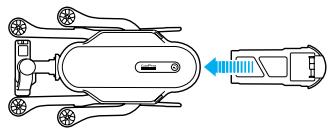
natural_image
Top-down schematic of a vehicle showing internal components and a highlighted section with blue arrows (no text or symbols)- Unfold the landing gear and arms.
Note: To close the landing gear, pull the legs toward the back of the drone, then bend them inward.

natural_image
Diagram of a drone with blue directional arrows indicating rotational motion (no text or symbols)GETTING STARTED
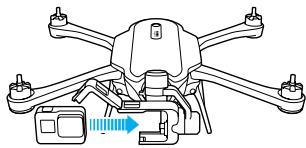
- Open the harness and insert a camera (sold separately, for some Karma bundles).
Note: Although the Karma battery powers both the drone and the camera, the camera must contain a battery so that Karma is properly balanced.
natural_image
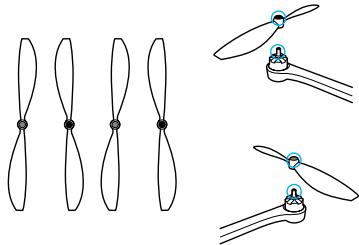
Diagram of a drone with four wings and a control panel, showing no text or symbols- Securely tighten the propellers. Propellers are color-coded to match the correct motors.
natural_image
Diagram showing three propeller configurations with mounting holes and connecting rods (no text or labels)PRO TIP: Replacement parts for Karma or its components are available at gopro.com.
GETTING STARTED
SETTING UP KARMA
The Karma controller contains everything you need to set up Karma and control the drone during flight. In addition to flight data and safety info, the controller contains an interactive flight simulator so you can practice before Karma leaves the ground.
- Power on the controller, then power on the drone. The light around the Power button [ ⏻ ] turns on. The orientation lights on the arms help you identify the front and back of the drone during flight. The lights on the front are green and those on the back are red.

natural_image
Illustration of a drone with four propellers and a control panel, alongside a separate device with a blue arrow indicating force (no text or symbols present)- Follow the on-screen instructions to set up your system and learn how to fly.
PRO TIP: You can practice flying at any time with the flight simulator on the controller. From the Home screen, tap Learn, then tap Practice Flying.
GETTING STARTED
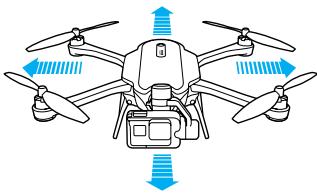
LEFT JOYSTICK
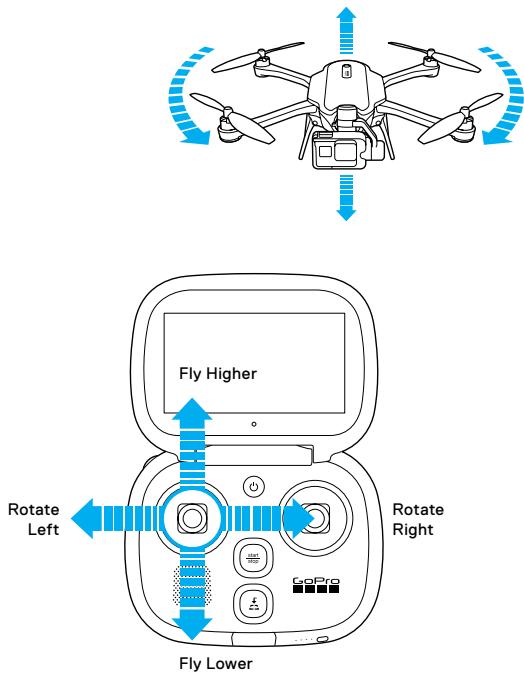
RIGHT JOYSTICK
natural_image
Diagram of a quadcopter drone with directional arrows indicating propeller orientation (no text or symbols)
text_image
Fly Forward Fly Left Fly Backward Fly RightGETTING STARTED
KARMA AND YOUR GOPRO
The controller operates both Karma and your camera, so the camera buttons are disabled when you use your camera with the drone. In addition, the camera's wireless connection is turned off, the camera uses Karma's battery, and a drone icon [✗] appears on the camera status screen.
SOFTWARE UPGRADES
To get the latest features and best performance from your Karma components, make sure to periodically check for updates by connecting the controller to a Wi-Fi network (from the Home screen, tap Connect > Wi-Fi). The controller then automatically notifies you if a software upgrade is available and provides instructions about how to download and install it.

WARNING: Abide by all local laws when using Karma and its accessories. Depending on where you plan to operate Karma, there may be restrictions on use in certain areas, such as populated public sporting events, near airports, or in connection with certain activities, such as hunting. It is solely your responsibility to comply with all local laws, regulations and restrictions.
FLYING SAFELY
natural_image
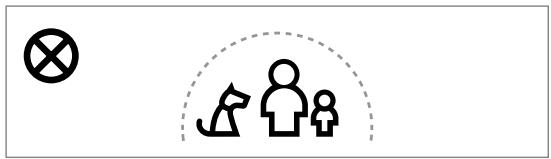
Simple line drawing of a family icon with a cross symbol and a dashed arc (no text or labels)Don't fly over people or animals.
natural_image
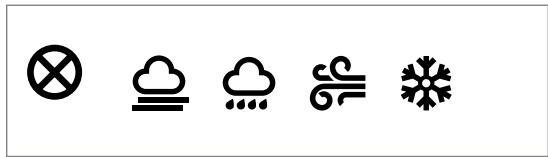
Five symbolic icons: crossed-out circle, cloud, cloud with raindrops, snowflake, and snow (no text or labels)Don't fly in fog, high winds, rain or snow.
text_image
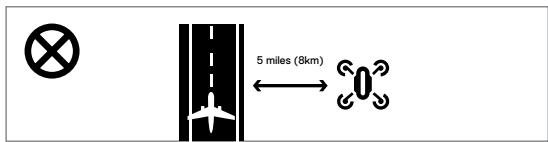
5 miles (8km)Don't fly within 5 miles (8km) of airports.
FLYING SAFELY

natural_image
Simple line diagram showing a drone flying over mountain and human figures (no text or symbols)Fly outdoors and within line of sight.*
natural_image
Simple icon of a drone with a magnifying glass, no text or symbols presentMake sure your Karma isn't damaged.
natural_image
Simple black-and-white icon of a classical building with columns, resembling a bank or government institution (no text or symbols)Comply with all regulations.
PRE-FLIGHT CHECKLIST
Complete these items before every flight:
- Securely tighten the propellers
• Fully extend the landing gear and arms - Be sure the camera stabilizer is securely locked into the drone
- Check battery levels for Karma, the controller, and the camera
- Check the available space on the microSD card
- Be sure your flight area is clear of people and obstacles
• Review all safety items in Flying Safely (page 14)
TAKING OFF
Before taking off, be sure to complete the items in Pre-Flight Checklist (page 16).
- Place Karma on flat, firm ground in an open area. Point the camera away from you.
- Power on Karma and the controller. Karma takes a few minutes to warm up. During this time, the stabilizer might move around.
Do not move Karma until the light around the Start/Stop button turns solid green. - When the controller confirms that Karma is ready for flight, press and hold the Start/Stop button on the controller for 3 seconds to start the motors.
Note: The Karma controller contains antennae that must be directed at Karma at all times. If the connection is lost, Karma returns to the launch location. For details, see Automatic Safety Landings (page 17). - Select one of these options:
-
To take off automatically, tap the auto takeoff button on the touch display.
• To take off manually, gently push the left joystick forward. -
Use the joysticks to guide the drone during flight.
PRO TIP: As long as Karma has a GPS connection exists, the drone hovers in place whenever you let go of the joysticks.

WARNING: Never touch Karma while it is in flight. Do not touch the propellers while they are spinning. The propellers have sharp edges and move rapidly with force.
CAPTURING VIDEOS AND PHOTOS
CAPTURING VIDEO AND PHOTOS
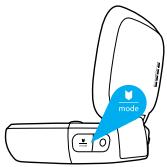
- On the controller, press the Mode/Tag button to cycle to the mode that you want. For more information about camera modes and settings, see the user manual for your camera at gopro.com/help.
text_image
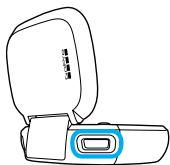
mode- Roll the Camera Tilt wheel on the controller to adjust the camera angle.
natural_image
Line drawing of a car seat with lid and button (no text or symbols)CAPTURING VIDEOS AND PHOTOS
- Press the Shutter button [O]. The camera status at the bottom of the touch display indicates when recording starts.

natural_image
Line drawing of a device with a blue location pin and control buttons (no text or symbols)- To stop capturing video or time lapse content, press the Shutter button again. The camera status at the bottom of the touch display indicates when recording stops.
PRO TIP: For best results, make small adjustments when tilting the camera and fly slowly.

text_image
modeHILIGHT TAGGING
You can mark specific moments in your video as they happen with HiLight Tags. HiLight Tags make it easy to find the best moments to share.
To Add HiLight Tags During Recording:
On the controller, press the Mode/Tag button.
SHARING YOUR LIVE FLIGHT
If you are flying Karma with friends, they can watch your live flight on their iOS ^ or Android ^TM mobile devices with the GoPro Passenger App.
- From the Home screen of the controller, tap Connect, and then tap Passenger. This screen displays the name and password of your drone.
- Tap the button to turn on Passenger.
- Ask your friend to complete these steps:
a. Download the GoPro Passenger App from the Apple® App Store® or Google™ Play to a smartphone/tablet.
b. Open the app and follow the on-screen instructions to connect to the controller.
- When the Passenger app is connected, tap one of these options:
• To let your friend view your live flight, tap Viewer.
- To let your friend view your live flight and control the camera stabilizer while you fly, tap Co-Pilot.
Note: The GoPro Passenger App cannot control the drone's flight.
AUTOMATICALLY LANDING KARMA
With an automatic landing, you have the option of Karma returning to the launch location, returning to you, or landing in place. You can use the joysticks to maneuver Karma around obstacles during the return flight and descent.
- Press the Land button [ ] on the controller.
- Select where you want Karma to land:
• The launch location
- Your current location
• In place (straight down)
Unless you opt to land in place, Karma hovers for a few seconds, moves to an altitude of 66ft (20m), then flies to the landing location.
Note: You can set the altitude for automatic landings in the Flight Settings on the controller.
- Use the joysticks to maneuver around obstacles during the return flight. When Karma reaches the launch location, it hovers for 10 seconds before starting the descent.
- When the propellers stop spinning, press and hold the Power button [ ⏻ ] on Karma. The button light and the orientation lights on the arms turn off when Karma is powered off.
CANCELLING AN AUTOMATIC LANDING
To cancel an automatic landing and regain full control of Karma, tap Cancel on the touch display.
MANUALLY LANDING KARMA
With a manual landing, you use the joysticks to control Karma during the return flight and guide it to the ground.
- Use the joysticks to guide Karma toward a safe landing area.
- When you reach the landing area, gently pull the left joystick back until Karma reaches the ground, then continue pulling this joystick back until the propellers stop spinning.
- Press and hold the Power button [ ⏻ ] on Karma. The button light turns off when Karma is powered off.
Note: In an emergency, you can stop the motors immediately by pressing and holding the Start/Stop button and Land button simultaneously for 5 seconds.
AUTOMATIC SAFETY LANDINGS
To prevent damage to the drone and its surroundings, Karma includes these built-in safety landings:
Low Battery Landings
If the Karma battery level becomes low during flight, Karma automatically returns to the launch location. It is possible (although not advised) to cancel this automatic flight and continue flying. If the Karma battery then reaches a critical level, the controller notifies you and Karma begins landing in place.
Lost Connection Landing
If the controller loses connection to Karma, Karma hovers in place while the controller tries to re-establish a connection. If a connection cannot be re-established, Karma returns to the launch location.
Karma automatically returns to the controller's last known location, if the controller moved more than 82ft (25m) from the launch location.
Note: During any automatic safety landing, you can use the joysticks to maneuver Karma around obstacles only if a connection exists between the controller and the drone.
LANDING KARMA
Critical Landing
If Karma encounters an emergency (such as a software problem), the controller notifies you, and Karma immediately lands in place.
Unless the connection between Karma and the controller is lost, you can still use the joysticks during these safety landings to maneuver around obstacles.
OFFLOADING CONTENT
Your videos and photos are saved to the camera's microSD card. Transfer the content to a computer or mobile device to view, edit, and share your aerial footage.
OFFLOADING CONTENT TO A MOBILE DEVICE
- Download and install Capture from the Apple® App Store® or Google™ Play to your smartphone/tablet.
- Follow the on-screen instructions to connect your camera.
OFFLOADING CONTENT TO A COMPUTER
- Download and install the Quik™ app for desktop from gopro.com/apps.
- Connect the camera to your computer using the USB cable that came with your camera.
- Power on the camera and follow the on-screen instructions in Quik.
You can also transfer files to a computer using a card reader (sold separately). Connect the card reader to your computer and insert the microSD card into the reader. You can then transfer your files to your computer or delete selected files on your card.
PAIRING AND CALIBRATION
PAIRING THE KARMA DRONE AND THE KARMA CONTROLLER
If you replace the Karma Drone and/or the Karma Controller, you must manually pair the two components.
- Press the Power button [ ⏻ ] on the controller.
- Press the Power button [ ⏻ ] on Karma until the orientation lights on the arms blink front to back.
- From the Home menu, tap Connect, then tap Pairing.
- Follow the on-screen instructions.
CALIBRATION
Accelerometer and compass calibration might be required at times to ensure the best flight performance from Karma.
The compass and accelerometer on both the drone and the controller are calibrated automatically. However, if either of these components must be recalibrated, the controller notifies you and provides step-by-step instructions to guide you through the process.
BATTERY
BATTERY USE AND SAFETY
Do not drop, disassemble, open, crush, bend, deform, puncture, shred, microwave, incinerate, or paint your Karma battery or Karma controller. Do not insert foreign objects into the battery bay on your Karma. Do not use your Karma or any GoPro product containing a battery if the product has been damaged—for example, if cracked, punctured, or in contact with liquids.

WARNING: Handle and store batteries properly to avoid injury or damage. Most battery issues arise from improper handling of batteries and, particularly, from the continued use of damaged batteries.
Battery fluid can cause serious burns to the skin and eyes. In the unlikely event that battery fluid leaks onto your skin, wash the affected area with plenty of water and seek medical advice immediately.
Do not expose your Karma or battery to excessive heat, including direct sunlight or fire and storage or use inside cars in hot weather, where it can be exposed to temperatures in excess of 140^ ( 60^ ). Doing so may cause the battery to generate heat, rupture, or ignite. Using your Karma battery in this manner also may result in loss of performance and a shortened life expectancy.
If the battery is damaged and ignites, do not use water to extinguish flames. Instead, use a functioning fire extinguisher. Do not short-circuit batteries. Avoid storing them around metal objects such as keys, pocket change, paper clips, and jewelry.
The battery charger must be used indoors only. It is neither designed nor tested for outdoors, in recreation vehicles, or on boats. Make no modifications to the battery charger. Unauthorized alterations may compromise safety, regulatory compliance, and battery charger performance, and may void the warranty. Do not drop the battery charger or batteries.
BATTERY
The battery is intended only for use with the battery charger provided with your Karma. Do not continue charging the battery if it does not reach full charge within two hours. Overcharging may cause the battery to become hot, rupture, or ignite. If you see any heat deformation or leakage, properly dispose of the battery.
Do not charge or connect a battery if the power cable has been pinched or shorted. Always inspect the battery and charger before charging. Do not pierce, crush, dent, or deform the battery or charger in any way. If either becomes deformed, properly dispose of it.
Do not dry your Karma which contains batteries with an external heat source such as a conventional or microwave oven or hair dryer.
Do not attempt to use the Karma battery to power other electronics. Doing so may result in permanent damage to your product and/or personal injury.
BATTERY DISPOSAL
Most rechargeable lithium-polymer batteries are classified as non-hazardous waste and are safe for disposal in the normal municipal waste stream. Many localities have laws in place requiring battery recycling. Check your local laws to make sure that you can dispose of rechargeable batteries in your regular trash.
To safely dispose of lithium-polymer batteries, protect terminals from exposure to other metal with packing, masking, or electrical tape so they do not cause a fire while being transported. Lithium-polymer batteries, however, do contain recyclable materials and are accepted for recycling by the Rechargeable Battery Recycling Corporation's (RBRC) Battery Recycling Program. We encourage you to visit Call2Recycle at call2recycle.org or call 1-800-BATTERY in North America to find a convenient recycling location Never dispose of a battery in a fire because it may explode.
TROUBLESHOOTING
ONE OF MY KARMA PARTS BROKE
You have several options to replace the part:
- If the warranty period has not expired, contact Customer Support for a replacement part.
- If you purchased GoPro Care, most replacement parts are included in the plan (camera replacements are available for a fee). For more info, visit shop.gopro.com/care.
- If the warranty period already expired and you did not purchase GoPro Care, visit gopro.com to purchase a replacement.
Make sure the component is charged. For details, see Charging the Karma Battery and the Controller (page 6).
Remove and re-insert the battery, then press the Power button [ ⏻ ] on the drone to turn it on.
THE CONTROLLER WON'T RESPOND WHEN I PRESS A BUTTON
Press and hold the Power [ ⏻ ] button on the controller for 8 seconds to restart it.
- Quickly blinking: A system error occurred that requires Customer Support to resolve.
- Slowly blinking: The connection between Karma and the controller is lost. If a lost connection occurs during flight, Karma attempts to return to the launch location and land. If a connection is re-established during the return flight, this light turns solid green. At this point, you can tap Cancel on the touch display to cancel the return flight and regain control of the drone.
TROUBLESHOOTING
Calibration is required. Whenever calibration is needed, the controller also notifies you and provides step-by-step instructions.
KARMA WON'T PAIR WITH THE CONTROLLER
Karma Drone and the Karma Controller are paired out of the box. But if you need to re-pair them, follow these guidelines:
- Move the controller at least 6ft (2m) away from the drone.
- Be sure to correctly follow the pairing instructions on the controller.
For more information about Karma, see gopro.com/yourkarma.
GOPRO CARE
GoPro Care (optional) provides unprecedented damage support and replacement parts so you can fly worry free. For more info, visit shop.gopro.com/care.
TRADEMARKS
Actual product specifications may vary, and all features, functionality and other product specifications are subject to change without notice or obligation. GoPro, HERO and their respective logos are trademarks or registered trademarks of GoPro, Inc. in the United States and other countries. All other trademarks are the property of their respective owners. © 2016 GoPro, Inc. All rights reserved.
REGULATORY INFORMATION
To see the complete list of country certifications, refer to the Important Product + Safety Instructions included with Karma.
