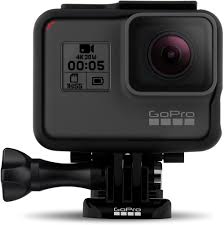
HERO5 - Action Camera GOPRO - Free user manual and instructions
Find the device manual for free HERO5 GOPRO in PDF.


| Product type | Action camera |
| Brand | GoPro |
| Model | HERO5 Black |
| Approximate dimensions | 62 x 44 x 33 mm |
| Approximate weight | 118 g |
| Power source | Rechargeable lithium-ion battery 1220 mAh, charging via USB-C |
| Waterproof | Up to 10 m with doors closed |
| Maximum video resolutions | 4K at 30 fps, 2.7K at 60 fps, 1080p at 120 fps |
| Photo resolution | 12 MP |
| Storage | microSD, microSDHC, microSDXC card (Class 10 or UHS-I) up to 128 GB |
| Screen | 2-inch color touchscreen |
| Voice commands | Yes, 13 commands available |
| Video stabilization | Yes (except 4K and >60 fps) |
| Connectivity | Wi-Fi, Bluetooth, GPS, USB-C, micro HDMI |
| Burst mode | Up to 30 photos in 1 second |
| Time-lapse | Video and photo, adjustable interval |
| Protune | Advanced settings (color, white balance, ISO, etc.) |
| Maintenance | Rinse with fresh water after use in salt water, clean the seals |
| Safety | Avoid extreme temperatures, do not disassemble battery |
| Replacement parts | Additional batteries, doors, mounting frames, cables |
Frequently Asked Questions - HERO5 GOPRO
User questions about HERO5 GOPRO
0 question about this device. Answer the ones you know or ask your own.
Ask a new question about this device
Download the instructions for your Action Camera in PDF format for free! Find your manual HERO5 - GOPRO and take your electronic device back in hand. On this page are published all the documents necessary for the use of your device. HERO5 by GOPRO.
USER MANUAL HERO5 GOPRO
| Your HERO5 Black | 6 |
| Getting Started | 8 |
| Navigating Your GoPro | 16 |
| Map of Modes and Settings | 20 |
| QuikCapture | 22 |
| Capturing Video and Photos | 24 |
| Controlling Your GoPro with Your Voice | 27 |
| Playing Back Your Content | 30 |
| Using Your Camera with an HDTV | 33 |
| Connecting to the Capture App | 35 |
| Offloading Your Content | 36 |
| Video Mode: Capture Modes | 39 |
| Video Mode: Settings | 41 |
| Video Mode: Advanced Settings | 48 |
| Photo Mode: Capture Modes | 50 |
| Photo Mode: Settings | 52 |
| Photo Mode: Advanced Settings | 54 |
| Time Lapse Mode: Capture Modes | 56 |
| Time Lapse Mode: Settings | 58 |
TABLE OF CONTENTS
| Time Lapse Mode: Advanced Settings | 62 |
| Advanced Controls | 63 |
| Connecting to an Audio Accessory | 73 |
| Customizing Your GoPro | 74 |
| Important Messages | 78 |
| Resetting Your Camera | 79 |
| Mounting | 80 |
| Removing the Side Door | 85 |
| Maintenance | 87 |
| Battery Information | 88 |
| Troubleshooting | 91 |
| Customer Support | 93 |
| Trademarks | 93 |
| Regulatory Information | 93 |
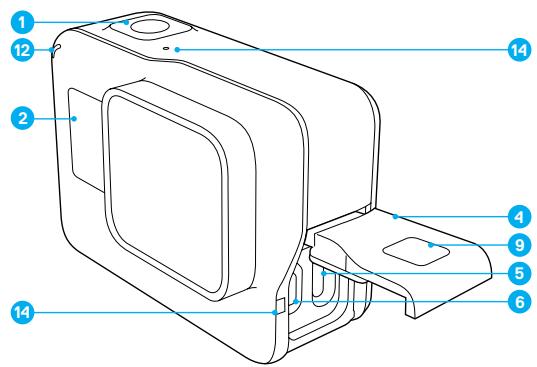
1.Shutter Button

- Camera Status Screen
3.ModeButton[mode] - Side Door
-
USB-C Port
-
Micro HDMI Port (cable not included)
- Speaker
- Battery Door
- Latch Release Button
YOUR HERO5 BLACK
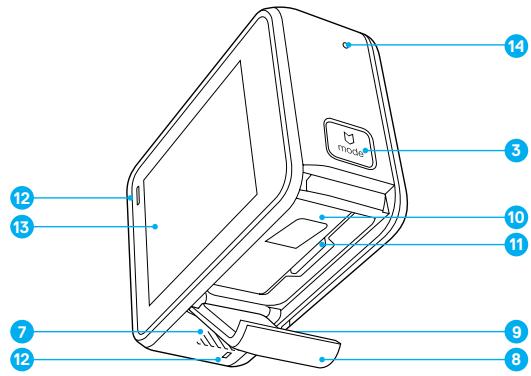
- Battery
- microSD Card Slot
- Camera Status Light
- Touch Display
- Microphone
GETTING STARTED
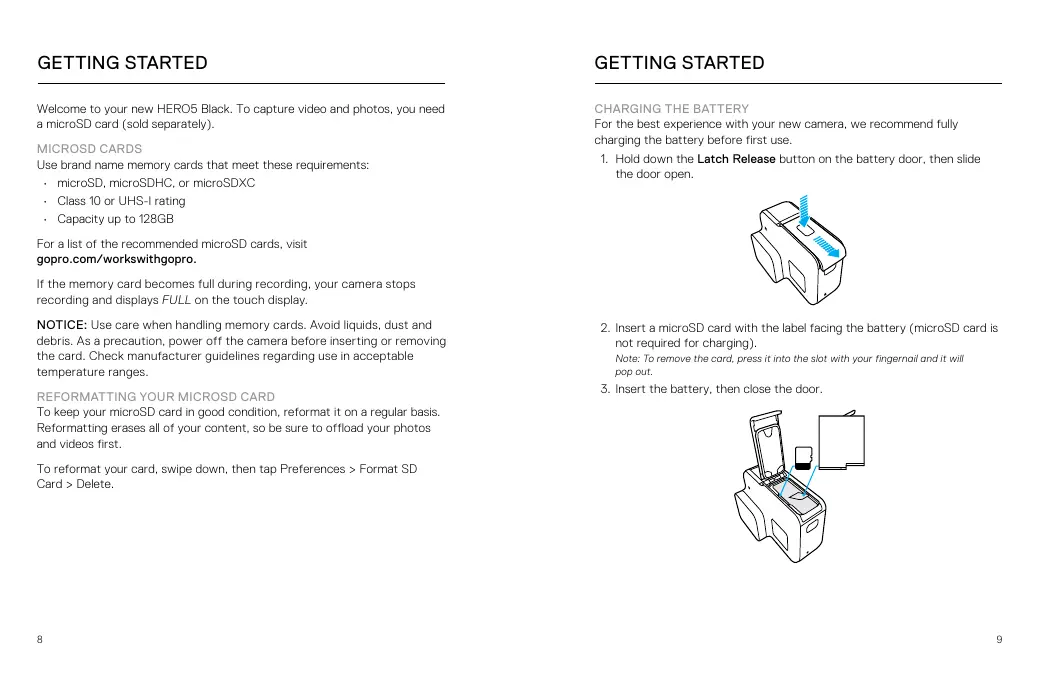
Welcome to your new HERO5 Black. To capture video and photos, you need a microSD card (sold separately).
MICROSD CARDS
Use brand name memory cards that meet these requirements:
- microSD, microSDHC, or microSDXC
Class 10 or UHS-I rating
Capacity up to 128GB
For a list of the recommended microSD cards, visit
gopro.com/workswithgopro.
If the memory card becomes full during recording, your camera stops recording and displays FULL on the touch display.
NOTICE: Use care when handling memory cards. Avoid liquids, dust and debris. As a precaution, power off the camera before inserting or removing the card. Check manufacturer guidelines regarding use in acceptable temperature ranges.
REFORMATTING YOUR MICROSD CARD
To keep your microSD card in good condition, reformat it on a regular basis. Reformatting erases all of your content, so be sure to offload your photos and videos first.
To reformat your card, swipe down, then tap Preferences > Format SD Card > Delete.
GETTING STARTED
CHARGING THE BATTERY
For the best experience with your new camera, we recommend fully charging the battery before first use.
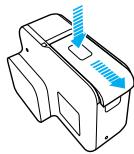
- Hold down the Latch Release button on the battery door, then slide the door open.
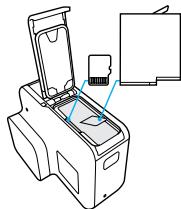
- Insert a microSD card with the label facing the battery (microSD card is not required for charging).
Note: To remove the card, press it into the slot with your fingernail and it will pop out.
- Insert the battery, then close the door.
GETTING STARTED
- Hold down the Latch Release button on the side door, then slide the door open.
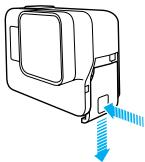
- Connect the camera to a computer or other USB charging adapter using the included USB-C cable.
- Power off the camera. The camera status light turns on during charging and turns off when charging is complete.
When charging with a computer, be sure that the computer is connected to a power source. If the camera status light does not turn on, use a different USB port.
The battery charges to 100% in about 3 hours. For more information, see Battery Information (page 88).
PRO TIP: For fastest charging, use GoPro's Supercharger (sold separately). You can charge your camera with a USB-compatible wall charger or auto charger.
GETTING STARTED
UPDATING YOUR CAMERA SOFTWARE
To get the latest features and best performance from your GoPro, make sure your camera is always using the most current software. When you connect to the Capture app or Quik for desktop, you are automatically notified if an update is available.
-
Download these apps:
-
Capture app from the Apple® App Store® or Google Play™
-
Quik for desktop from gopro.com/apps
-
Connect your camera to your smartphone/tablet or computer. If an update is available, the app provides instructions for installing it.
You can also update your camera manually using the microSD card and a card reader/adapter (sold separately). For details and information about the latest software version, visit gopro.com/update.
PRO TIP: To see your current software version, swipe down from the main screen, then tap Preferences > About This GoPro.
POWERING ON + OFF
To Power On:
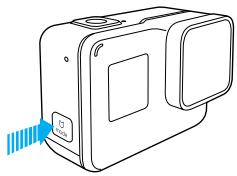
Press the Mode button [ ], The camera beeps several times while the camera status lights flash. When information appears on the touch display or the camera status screen, your camera is on.
To Power Off:
Press and hold the Mode button for two seconds. The camera beeps several times while the camera status lights flash.

WARNING: Use caution when using your GoPro as part of your active lifestyle. Always be aware of your surroundings to avoid injury to yourself and others.
Abide by all local laws when using your GoPro and related mounts and accessories, including all privacy laws, which may restrict recording in certain areas.
GETTING STARTED
CAMERA STATUS SCREEN
The camera status screen on the front of the camera contains the following information about modes and settings so you can see the basics for your current setting at a glance:
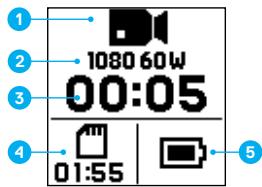
- Camera Mode
- Settings
- Number of Files Captured
- Remaining microSD Card Storage
- Battery Status
Note: The icons and settings that appear on the camera status screen vary by mode. Those shown above are for Video mode.
GETTING STARTED
TOUCH DISPLAY
The touch display on the back of the camera contains the following information about modes and settings on the main screen. The settings that appear vary by mode.
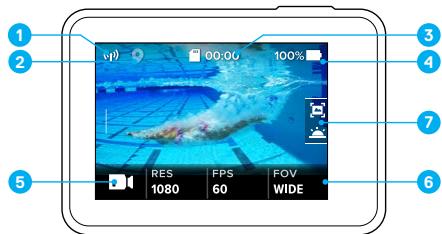
- Wireless Status
- GPS Status
- Time Remaining/Photos Taken
- Battery Status
- Camera Mode
- Settings
- Advanced Settings (icons)
Note: The touch display does not work under water.
GETTING STARTED
TOUCH DISPLAY GESTURES
Use these gestures to navigate the touch display. When swiping, swipe from the edge of the screen.
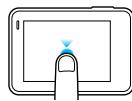
Tap
Selects an item, turns a setting on/off.
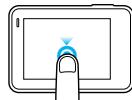
Press and Hold
Accesses Exposure Control setting.
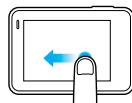
Swipe Left
Accesses advanced settings (if available) for the current mode.
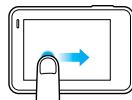
Swipe Right
Displays your media.
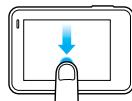
Swipe Down
From the main screen, opens the Connect and Preferences menus. Otherwise, returns to the main screen.
PRO TIP: To lock the touch display to prevent accidental input, swipe down from the main screen, then tap [ ] Tap this icon again to unlock it.
MODES
Your HERO5 Black contains three camera modes: Video, Photo, and Time Lapse.
Video
Video mode contains three capture modes: Video, Video + Photo, and Looping. For descriptions of each capture mode, see Video Mode: Capture Modes (page 39).
Photo
Photo mode contains three capture modes: Photo, Burst, and Night. For descriptions of each capture mode, see Photo Mode: Capture Modes (page 50).
Time Lapse
Time Lapse mode contains three capture modes: Time Lapse Video, Time Lapse Photo, Night Lapse Photo. For descriptions of each capture mode, see Time Lapse Mode: Capture Modes (page 56).
For a visual map of your GoPro's modes and settings, see Map of Modes and Settings (page 20).
NAVIGATING WITH THE TOUCH DISPLAY
- From the main screen, tap the icon in the lower left corner.
- Tap one of the mode icons at the top of the screen (Video, Photo, or Time Lapse).
- Tap a capture mode in the list below it.
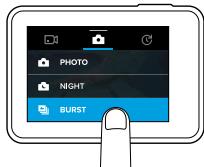
- On the main screen, tap the setting that you want to change.
- Tap a new option (available options are white). The camera returns you to the main screen.
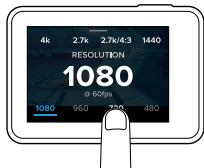
If you select a video resolution (RES) that does not support the frames per second (FPS) setting that is selected, a message appears that instructs you to tap the touch display to automatically move to the FPS setting and select a different value. A similar message appears if you select an FPS that is not supported by the selected resolution.
- To change an advanced setting, swipe left.
Note: Not all capture modes have advanced settings.
- To turn on an advanced setting, tap [ ]
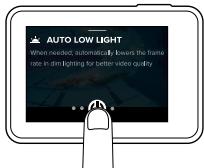
- To return to the main screen, swipe down.
CHANGING MODES WITH THE MODE BUTTON
The Mode button lets you quickly cycle through the capture modes that you set. For example, if you previously selected Video in Video mode, Night Photo in Photo mode, and Time Lapse Video in Time Lapse mode, pressing the Mode button cycles through those capture modes.
Note that Burst photo always appears in this cycle. You can capture fast-moving action like kids jumping into a pool or a mountain bike jump without having to change your Photo capture mode ahead of time.
NAVIGATING WITH THE BUTTONS
If you use the camera under water, use the buttons and the camera status screen to change modes and settings.
- With the camera powered on, hold down the Mode button [mode] and press the Shutter button [Shutter].
- Use the Mode button to cycle through the settings.
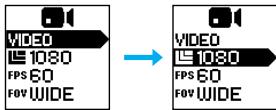
- Press the Shutter button to cycle through the options within a setting. To select an option, leave the option highlighted.
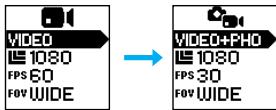
- To exit, press and hold the Shutter button, or cycle to Done in the menu.
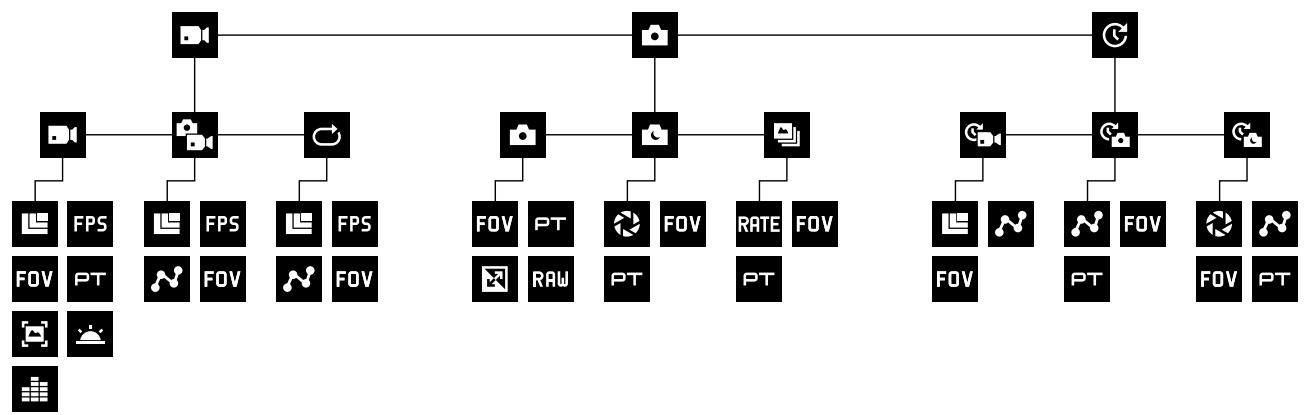

Auto Low Light

Burst

FOV

FPS

Interval

Looping

Manual Audio Control

Night Photo

Night Lapse Photo

Photo Mode / Photo

Protune

Rate

RAW

Resolution (RES)

Shutter

Time Lapse Mode

Time Lapse Photo

Time Lapse Video

Video Mode / Video

Video + Photo

Video Stabilization

WDR
QUIKCAPTURE
QuikCapture is the fastest way to capture video or time lapse photos with HERO5 Black. Because the camera is powered on only when it is capturing, you also conserve battery power.
CAPTURINGVIDEOWITHQUIKCAPTURE
- With the camera powered off, press the Shutter button [ ]
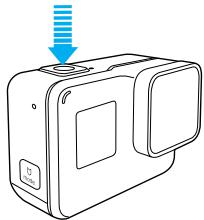
Your camera powers on, beeps several times, and automatically begins capturing video. The camera status lights blink while the camera is recording.
- To stop recording, press the Shutter button again.
The camera stops recording, beeps several times, and automatically powers off.
To capture other types of video, see Capturing Video and Photos (page 24).
QUIKCAPTURE
CAPTURING TIME LAPSE PHOTOS WITH QUIKCAPTURE
In addition to showing how a scene changes over time, time lapse photos are also useful for capturing a series of photos to be sure you get the shot you want.
- With the camera powered off, press and hold the Shutter button [ ] until capture begins.
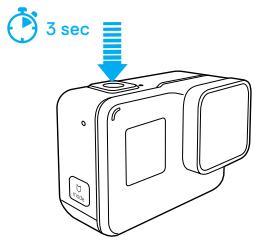
Your camera powers on, beeps several times, and automatically begins capturing time lapse photos. The camera status lights blink once for each photo captured.
- To stop capturing, press the Shutter button again.
The camera stops recording, beeps several times, and automatically powers off to maximize battery life.
To capture other types of photos or time lapse content, see Capturing Video and Photos (page 24).
TURNING QUIKCAPTURE OFF
QuikCapture is on by default, but you can turn it off, if needed.
- From the main screen, swipe down.
- Tap Preferences > QuikCapture.
- Tap Off.
CAPTURINGVIDEOANDPHOTOS
CAPTURINGVIDEOANDPHOTOS
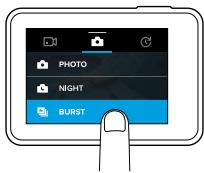
You can also use a more traditional method to capture video and photos—including time lapse video and photos—in which you leave the camera powered on and capture, as needed. With this method, you can use the touch display to preview your shots and change modes and settings before capturing. However, unlike QuikCapture, the camera remains on when you are not capturing, so you must manually power it off to save battery life.
- If needed, select a different mode:
a. Tap the icon in the lower left corner of the touch display.
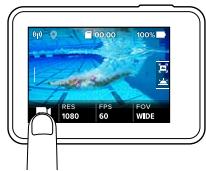
b. Tap one of the mode icons at the top of the screen.
c. Tap a capture mode in the list below it.
CAPTURINGVIDEOANDPHOTOS
- If needed, select different settings. For details about settings, see Video Mode: Capture Modes (page 39), Photo Mode: Capture Modes (page 50), or Time Lapse Mode: Capture Modes (page 56).
- Press the Shutter button [ ] The camera beeps and the camera status lights flash while the camera is capturing.
- To stop capturing video or time lapse, press the Shutter button. The camera beeps and the camera status lights flash quickly.
PRO TIP: You can also capture video and photos using voice commands. For details, see Controlling Your GoPro with Your Voice (page 27).
ADDING HILIGHT TAGS
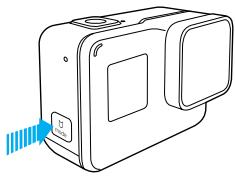
You can mark specific moments in your video during recording or playback with HiLight Tags. HiLight Tags make it easy to find the best highlights to share.
While recording or playing back video, press the Mode button [mode].
PRO TIP: You can also add HiLight Tags during recording with the Capture app, Voice Control, or the Smart Remote.
You can control your HERO5 Black with your voice using a set of specific commands (see list below).
Note: Voice Control performance may be impacted by distance, wind, and noisy conditions. Keep the product clean and clear of debris.
USING VOICE CONTROL
Voice Control works best when you and your GoPro are in close proximity.
- From the main screen, swipe down, then tap [ ]
Note: You can also turn Voice Control on or off from the Preferences menu. Tap Preferences > On Camera Voice Control, then select an option. - If this is the first time you turned on voice control, confirm or change the voice control language.
- Say a command from List of Voice Commands (page 28).
- To turn off Voice Control manually, swipe down on the main screen, then tap [ ] Voice Control also turns off when your camera powers off. For details, see Auto Off (page 75).
PRO TIP: To extend the voice control of your camera in windy and noisy environments, use Remo (Waterproof Voice Activated Remote). For details, visit gopro.com.
Two types of commands are available with Voice Control:
- Action commands let you immediately capture video or photos. For example, if you just stopped recording video, you can say the command to take a photo or begin capturing time lapse—without having to first change the mode.
- Mode commands are useful if you want to quickly select a mode and then use the Shutter button to capture.
Your camera does not need to be in a specific mode to capture video or photos. You can use the action commands from any mode. Your camera captures video or photos based on the settings you previously selected.
| Action Command | Description |
| GoPro start recording | Starts capturing video |
| GoPro HiLight | Adds a HiLight Tag to video during recording |
| That was sick | Adds a HiLight Tag to video during recording |
| GoPro stop recording | Stops capturing video |
| GoPro take a photo | Captures a single photo |
| GoPro shoot burst | Captures burst photos |
| GoPro start time lapse | Starts capturing time lapse |
| GoPro stop time lapse | Stops capturing time lapse |
| GoPro turn off | Powers off the camera |
| Mode Command | Description |
| GoPro Video mode | Changes the camera mode to Video (does not capture video) |
| GoPro Photo mode | Changes the camera mode to Photo mode (does not capture photos) |
| GoPro Burst mode | Changes the camera mode to Burst mode (does not capture burst photos) |
| GoPro Time Lapse mode | Changes the camera mode to Time Lapse (does not capture time lapse photos) |
For the most updated list of commands, visit gopro.com/yourhero5.
PRO TIP: If you are recording video or time lapse, you must stop recording before issuing a new command.
CHANGING YOUR VOICE CONTROL LANGUAGE
- From the main screen, swipe down.
- Tap Preferences > Language (in the Voice Control section).
- Tap a language.
You can play back your content on the camera's touch display, your computer, TV, or smartphone/tablet.
You can also play back content by inserting the microSD card directly into a device, such as a computer or compatible TV. With this method, playback resolution depends on the resolution of the device and its ability to play back that resolution.
- Swipe right to open the gallery. If your microSD card contains a lot of content, it might take a minute for it to load.
- Scroll through the thumbnails.
Note: For photo series (Burst, Time Lapse, Night Lapse and Continuous photos), the thumbnail displays the first photo in the series.
- Tap a video or photo to open it in full-screen view.
- To add a HiLight Tag, tap [ ] . HiLight Tags make it easy to find the best video and photos to share.
- To return to the thumbnails screen, tap [ ]
- To exit the gallery, swipe down.
Video trimming lets you create short clips of your favorite shots from your video files. Clips are saved as new files that can be shared and used during editing in the Capture app or Quik for desktop.
- Swipe right to open the gallery, then tap the video that contains the clip that you want to save.
- Tap [▶] to begin playing the video.
- When you reach the point where you want to start clipping, tap [ ]
- Tap [X]. By default, the duration of the clip is 5 seconds.
- To save a longer clip, tap 5 SEC, then tap the length of the clip that you want (15 or 30 seconds).
- Tap the screen, then tap PREVIEW to review the clip before saving it.
- To adjust the starting point of the clip, tap -1. To adjust the ending point, tap +1.
Note: If you adjust the starting or ending points, the duration of the clip remains the same.
- Tap [✔]. The clip is saved as a separate video file and your original video file is unchanged.
PRO TIP: After you create clips from a video, you can delete the original file to save space on your microSD card.
- Swipe right to open the gallery, then tap the video that contains the clip that you want to save.
- Tap [▶] to begin playing the video.
- When you reach the frame that you want to save, tap [ ]
- Tap [ ]
- If needed, slide the bar at the bottom of the screen to select the frame.
- Tap [✔]. The frame is saved as a photo and your original video file is unchanged.
VIEWING VIDEOS AND PHOTOS ON A COMPUTER
To play back your video and photos on a computer, you must first transfer these files to a computer. For details, see Offloading Your Content (page 36).
VIEWING CONTENT ON A MOBILE DEVICE
- Connect your camera to Capture. For details, see Connecting to the Capture App (page 35).
- Use the controls on the app to play back your footage on your smartphone/tablet.
PRO TIP: While playing back your video with the Capture app, you can mark the best moments by tapping [ ] to add a HiLight Tag.
USING YOUR CAMERA WITH AN HDTV
VIEWING VIDEOS AND PHOTOS ON AN HDTV
Playing back videos and photos on your HDTV lets you view your content directly from your camera on a large screen. This playback requires a micro HDMI cable (sold separately).
Note: HDMI playback depends on the resolution of the device, and is certified up to 1080p.
- Power on the camera.
- Tap Preferences > HDMI Output > Media.
- Use a micro HDMI cable to connect the HDMI port on the camera to an HDTV.
- Select the HDMI input on your TV.
- Press the Mode button [ (\boxed{\mathrm{min}}) ] to move through the controls, then press the Shutter button [ (\boxed{\mathrm{O}}) ] to select the control. For example, to move through each thumbnail, press the Mode button to move to ([>] , then press the Shutter button repeatedly to move through the files.
- To open a file in full-screen view, tap [ ]
PRO TIP: When viewing your videos and photos on an HDTV, you can also navigate using gestures on the touch display.
CAPTURING VIDEO AND PHOTOS WHILE CONNECTED TO AN HDTV
This option lets you see the live preview from your camera when it is connected to an HDTV or monitor.
- Power on the camera.
-
Tap Preferences > HDMI Output, then select one of these options:
-
To display your camera's live preview with the icons from the touch display, tap Monitor.
-
To display your camera's live preview on the HDTV without the icons or overlays that you see during recording on the camera's touch display, tap Live.
-
Use a micro HDMI cable to connect the HDMI port on the camera to an HDTV.
- Select the HDMI input on your TV.
- Use the Shutter button [ ] on the camera to start and stop recording.
CONNECTING TO THE CAPTURE APP
CONNECTING TO THE APP FOR THE FIRST TIME
The Capture app lets you control your camera remotely using a smartphone or tablet. Features include full camera control, live preview, playback and sharing of content, and camera software updates.
- Download Capture to your mobile device from the Apple® App Store® or Google Play™.
- Follow the app's on-screen instructions to connect your camera.
CONNECTING TO THE APP IN THE FUTURE
After connecting to the Capture app for the first time, you can connect in the future through the Connect menu on the camera.
- If your camera's wireless is not already turned on, swipe down, then tap Connect > Wireless Connections.
- In the Capture app, follow the on-screen instructions to connect your camera.
OFFLOADING YOUR CONTENT
OFFLOADING YOUR CONTENT TO A COMPUTER
To play back your video and photos on a computer, you must first transfer these files to a computer. Transferring also frees up space on your microSD card for new content.
- Download and install Quik for desktop from gopro.com/apps.
- Connect the camera to your computer using the included USB-C cable.
- Power on the camera and follow the on-screen instructions in Quik.
PRO TIP: To offload files to a computer using a card reader (sold separately) and your computer's file explorer, connect the card reader to the computer, then insert the microSD card. You can then transfer files to your computer or delete selected files on your card. Note that you must use a card reader to offload RAW photos or RAW audio files.
UPLOADING YOUR CONTENT TO THE CLOUD
With a subscription to GoPro Plus, you can upload your content to the cloud and then view, edit, and share it from any of your devices. From your mobile device, use the Quik™ app to edit content from the cloud and share it with your friends.
Note: When you upload your content to the cloud, your original files remain on your camera.
- Subscribe to GoPro Plus:
a. Download the Capture app to your mobile device from the Apple® App Store® or Google Play™.
b. Follow the app's on-screen instructions to connect your camera.
c. If this is the first time you are connecting to the app, follow the on-screen instructions to subscribe to GoPro Plus. Otherwise, tap [ ] next to the image of your camera and follow the instructions.
OFFLOADING YOUR CONTENT
- Connect your camera to a power outlet. When the battery is charged, automatic upload to the cloud begins.
Note: Once you set up Auto Upload, you do not need to connect your camera to the Capture app to use this feature.
The files in the cloud are optimized for the web, so might not be full resolution. To offload files in their full resolution, connect your camera to the Guik app for desktop and offload the files to your computer.
- To access content in the cloud from your mobile device, connect to the Capture app and tap [ ] next to the image of your camera.
- Download the desired content to your phone, then use the Quik app to edit and share.
PRO TIP: After you subscribe to GoPro Plus, you can use Quik for desktop to offload your files to your computer. Quik then uploads the files to your GoPro Plus account.
TURNING OFF AUTO DOWNLOAD
You can temporarily turn off Auto Upload on the camera to prevent automatic upload to GoPro Plus when you connect your camera to a power outlet.
- Swipe down, then tap Connect > Auto Upload > Upload.
- Tap Off.
CONNECTING TO A DIFFERENT WIRELESS NETWORK
If you want to connect to a different wireless network for your camera to use for Auto Upload, you can change that network on the camera.
- Swipe down, then tap Connect > Auto Upload > Networks.
- Tap the name of a network. The network must not be hidden or require an end user license agreement (such as the network in a hotel).
- If needed, enter the password.
- Tap [√] to save the new network.
VIDEO MODE: CAPTURE MODES
Video mode contains three capture modes: Video, Video + Photo, and Looping. Each capture mode has its own settings.
VIDEO
This capture mode is for traditional video capture. The default settings are 1080p60 Wide, with Video Stabilization and Auto Low Light both turned on. For more information, see these topics:
HERO5 Black Video Resolutions (page 45)
Video Stabilization (page 48)
Interval (Video) (page 47)
Auto Low Light (page 48)
Manual Audio Control (page 49)
PT Protune (page 66)
VIDEO + PHOTO
Video + Photo captures photos at set intervals while you record video. The default settings are 1080p30 Wide, with the interval set at 5 photos per second. Photos are captured at 12MP with a 16:9 aspect ratio. For more information, see these topics:
HERO5 Black Video Resolutions (page 45)
Interval (Video) (page 47)
VIDEO MODE: CAPTURE MODES
LOOPINGVIDEO
Use Looping to you continuously record video, but save only the moments that you want. For example, if you select a 5-minute interval, only the previous 5 minutes are saved when you press the Shutter button to stop recording. If you record for 5 minutes and do not press the Shutter button to stop recording and save, the camera records a new 5-minute interval by recording over your previous 5 minutes of footage.
This capture mode is useful when you are recording events that contain long periods of inactivity that you don't want to save, such as fishing or recording from a car dashboard.
The default settings for Looping are 1080p60 Wide, with the interval set at 5 minutes. Looping is not available in 4K, 2.7K 4:3, and 480p. For more information, see these topics:

HERO5 Black Video Resolutions (page 45)

Interval (Video) (page 47)
VIDEO MODE: SETTINGS
VIDEO RESOLUTION
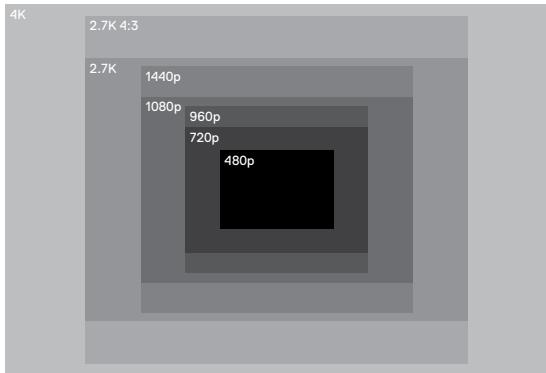
Video resolution (RES) refers to the number of horizontal lines in the video. For example, 720p means that the video has 720 horizontal lines, each with a width of 1280 pixels. Higher numbers of lines and pixels result in greater detail and clarity. So, a video with resolution of 4K is considered higher quality than 720p because it consists of 3840 lines, each with a width of 2160 pixels.
VIDEO MODE: SETTINGS
Use this table to help you determine the best resolution for your activity. Also consider the capabilities of your computer or TV to be sure your hardware can support the selected resolution.
| Video Resolution | Best Use |
| 4K | Stunning high-resolution video with professional low-light performance. 8MP stills available from video. Recommended for tripod or fixed position shots. |
| 2.7K | 16:9 resolution video downscales to provide stunning, cinema-quality results for professional productions. |
| 2.7K 4:3 | Recommended for body-mounted, ski-mounted or surfboard-mounted shots. Provides large viewing area. |
| 1440p | Recommended for body-mounted shots. Aspect ratio of 4:3 captures a larger vertical viewing area, compared to 1080p. High frame rate yield the smoothest, most immersive results for high-action capture. Great for sharing to social media. |
| 1080p | Great for all shots and for sharing to social media. High resolution and frame rate yield stunning results. This resolution is available in all FOVs and its high FPS option (120fps) enables slow motion during editing. |
VIDEO MODE: SETTINGS
| Video Resolution | Best Use |
| 960p | Use for body-mounted shots and when slow motion is desired. Aspect ratio of 4:3 provides large viewing area and smooth results for high action capture. |
| 720p | Good for handheld shots and when slow motion is desired. The high frame rate of 240fps is great for super slow motion, but is available only in Narrow FOV. |
| 480p | Good when super slow motion and Wide FOV are desired and standard definition is acceptable. |
FRAMES PER SECOND (FPS)
Frames per second (FPS) refers to the number of video frames that are captured in each second.
When selecting a resolution and FPS, consider the activity that you want to capture. Higher resolutions result in greater detail and clarity, but are generally available at lower fps values. Lower resolutions result in less detail and clarity, but support higher FPS values, which are important for capturing motion. Higher FPS values can also be used to create slow-motion videos.
ASPECT RATIO
GoPro video resolutions use two aspect ratios: either 16:9 or 4:3. Standard televisions and editing programs use 16:9. Footage shot in 4:3 is 33% taller, but must be cropped to 16:9 for playback on a TV. (If footage is not cropped, it appears with black bars on the sides of the image.)
VIDEO MODE: SETTINGS
FIELD OF VIEW (FOV)
The field of view (FOV) refers to how much of the scene (measured in degrees) can be captured through the camera lens. Wide FOV captures the largest amount of the scene, while Narrow FOV captures the least.
The FOV options that appear are based on the selected resolution and fps.
| FOV | Best Use |
| SuperView | SuperView delivers the world's most immersive field of view. Good for body-or gear-mounted shots. More vertical 4:3 content is automatically stretched to full-screen 16:9 for stunning widenscreen playback on your computer or TV. |
| Wide | Large field of view that is good for action shots where you want to capture as much as possible within the frame. This FOV results in a fisheye look, especially around the edge of the scene. (You can crop that out during editing, if needed.) |
| Medium | Mid-range field of view that has the effect of zooming in on the center of the shot. |
| Linear | Mid-range field of view that removes the fisheye effect found in the Wide FOV. Good for capturing aerial footage or any other shot where you want to remove the distortion. |
| Narrow | Smallest field of view. Good for capturing content at a distance. Its most significant effect is that it zooms in on the center of the shot. |
VIDEO MODE: SETTINGS
| Video Resolution (RES) | FPS (NTSC/ PAL) | FOV | Screen Resolution | Aspect Ratio |
| 960p | 120/120 60/50 | Wide | 1280x960 | 4:3 |
| 720p | 240/240 | Narrow² | 1280x720 | 16:9 |
| 720p | 120/120 60/50 | SuperView, Wide, Medium, Narrow | 1280x720 | 16:9 |
| 720p | 100/100 | SuperView | 1280x720 | 16:9 |
| 720p | 30/25 | Wide, Medium, Narrow | 1280x720 | 16:9 |
| 480p | 240/240 | Wide | 848x480 | 16:9 |
1NTSC and PAL refer to the video format, which depends on the region that you are in. For more information, see Video Format (page 77).2 Narrow FOV for 720p240 is smaller than Narrow FOV for other resolutions/frame rates.
For more information about resolution, FPS, or FOV, see these topics:

Video Resolution (page 41)

Frames Per Second (FPS) (page 43)

Field of View (FOV) (page 44)
VIDEO MODE: SETTINGS

High Resolutions/High Frame Rates
When capturing video at high resolutions or high frame rates in warm ambient temperatures, the camera may become warm and use more power.
In addition, lack of airflow around the camera and using the camera with the Capture app further increase camera temperature and power consumption, and decrease camera recording time.
If the camera gets too hot, a message appears on the screen indicating that the camera is shutting down. For details, see Important Messages (page 78).
When recording in high-performance video modes, capture shorter video clips when in stationary use, and/or limit your use of features that increase power consumption, such as the GoPro Capture app. To control your camera remotely at higher temperatures, use a GoPro remote or Remo (Waterproof Voice Activated Remote) (both sold separately) instead of Capture.

INTERVAL(VIDEO)
The Interval setting determines the amount of time that passes between each captured frame.
Video + Photo Intervals
Available photo intervals for Video + Photo range are 5 (default), 10, 30, and 60 seconds. The quality of the photo depends on the selected video resolution and FOV.
Looping Video Intervals
Available intervals for Looping are 5 (default), 20, 60, and 120 minutes. You can also select Max as the interval. With this option, the camera records until the memory card is full, then overwrites the content.

VIDEO STABILIZATION
This setting adjusts the footage to offset for motion during capture. The result is smoother footage, especially in activities with relatively small but fast motion including cycling, motorcycling, and handheld uses. The options for this setting are On (default) and Off. To access this advanced setting, see Navigating with the Touch Display (page 17).
Video Stabilization is not available for 4K or frame rates higher than 60 fps. For Wide FOV, the image is cropped 10% . This setting is not available for Video + Photo or Looping video.
PRO TIP: The more narrow the FOV, the greater the effect of Video Stabilization.

AUTO LOW LIGHT
Auto Low Light allows you to shoot in low-light environments or when quickly transitioning in and out of low-light conditions. When possible, the camera automatically adjusts fps to achieve the optimal exposure and best results.
The options for this setting are On (default) and Off. Auto Low Light is available for frame rates higher than 30fps.
When Auto Low Light and Video Stabilization are both on and Auto Low Light activates because of dark lighting conditions, Video Stabilization is temporarily turned off to deliver optimal image quality in the dark scene.
To access this advanced setting, see Navigating with the Touch Display (page 17).
VIDEO MODE: ADVANCED SETTINGS

MANUAL AUDIO CONTROL
By default, this setting is off and your camera automatically switches between recording in stereo and filtering wind noise to achieve the best audio balance. When this setting is on, you can manually select which of these two filters to apply.
For example, you might want to turn on this setting and select Wind Only if you are recording outdoors on a windy day. You might select Stereo Only if you are recording in a club or theater where consistent stereo audio is a priority and wind is not a factor.
To access this advanced setting, see Navigating with the Touch Display (page 17).

PROTUNE
Protune is available only for the Video capture mode. For details about Protune settings, see Protune (page 66).
PRO TIP: Easily create GoPro-style videos using GoPro Studio (included in Quik for desktop). Learn more and download this free software to your computer at gopro.com/apps.
PHOTO MODE: CAPTURE MODES
Photo mode contains three capture modes: Photo, Night, and Burst. All photos are captured at 12MP. Each capture mode has its own settings.
PHOTO
Photo captures either single or continuous photos. For continuous photos, hold down the Shutter button to capture 4 photos/second, up to 30 photos.
The default FOV for Photo is Wide, with all advanced settings turned off. For more information, see these topics:
FOV Field of View (FOV) (Photos) (page 52)
Wide Dynamic Range (WDR) (page 54)
RAW RAW Format (page 54)
PT Protune (page 66)
NIGHT
Night captures photos in dim to dark light. The shutter remains open longer to let in more light in dark environments, so Night photo is not recommended for handheld shots or mounted shots where the camera might move during exposure.
The default settings for Night are Wide FOV, with the Shutter set to Auto. For more information, see these topics:
FOV Field of View (FOV) (Photos) (page 52)
Shutter (Night Photo) (page 53)
PT Protune (page 66)
PHOTO MODE: CAPTURE MODES
BURST
Burst captures up to 30 photos in 1 second, so it is perfect for capturing fast-moving activities. The default FOV for Burst is Wide, with the Rate set to 30 photos in 1 second. For more information, see these topics:
FOV Field of View (FOV) (Photos) (page 52)
RATE Rate (page 53)
PT Protune (page 66)
FOV FIELD OF VIEW (FOV) (PHOTOS)
Your camera includes several FOV options for photos. All photos are captured at 12MP.
| FOV | Description |
| Wide | Largest field of view. Good for action shots to capture as much as possible within the frame. This FOV results in a fisheye look, especially around the edge of the scene. (You can crop that out during editing, if needed.) |
| Medium | Mid-range field of view. Has the effect of zooming in on the center of the shot. |
| Linear | Mid-range field of view that removes the fisheye distortion. Good for capturing aerial footage or any other shot where you want a more traditional perspective. |
| Narrow | Smallest field of view with reduced fisheye distortion. Good for capturing content at a distance. Its most significant effect is that it zooms in on the center of the shot. |
PHOTO MODE: SETTINGS
RATE RATE
This setting applies only to Burst. Available rates:
30 photos in 1, 2, 3, or 6 seconds
10 photos in 1, 2, or 3 seconds
- 5 photos in 1 second
3 photos in 1 second

SHUTTER (NIGHT PHOTO)
Within Photo mode, this setting applies only to Night Photo. Shutter lets you determine the amount of time that the shutter is open. The default option is Auto.
| Settings | Examples |
| Auto (up to 2 sec) | Sunrise, sunset, dawn, dusk, twilight, night |
| 2 sec, 5 sec, 10 sec | Dawn, dusk, twilight, traffic at night, Ferris wheel, fireworks, light painting |
| 20 sec | Night sky (with light) |
| 30 sec | Night stars, Milky Way (complete darkness) |
PRO TIP: To reduce the amount of blur when using Night photo, mount your camera on a tripod or other surface that is stable and cannot move.
PHOTO MODE: ADVANCED SETTINGS

WIDE DYNAMIC RANGE (WDR)
Wide Dynamic Range (WDR) retains a greater level of detail in the dark and bright areas of an image. The result is a photo that is properly exposed for both of these extremes. This setting is especially useful for scenes that are backlit or that have large bright regions and a dark foreground.
WDR is available only for the Photo capture mode and only when RAW Format is turned off. The options for this setting are Off (default) and On. To access this advanced setting, see Navigating with the Touch Display (page 17).

RAW FORMAT
When this setting is turned on, all photos are captured with an accompanying .jpg image for immediate viewing on your camera or sharing with the Capture app. RAW photos are saved as .gpr files, which are based on the Adobe .png format. These files can be used in Adobe Camera Raw (ACR), version 9.7 or later. You can also use Adobe Photoshop Lightroom CC (2015.7 release or later) and Adobe Photoshop Lightroom 6 (version 6.7 or later).
RAW Format is available only for the Photo capture mode and only when Wide Dynamic Range is turned off. RAW Format is not available when capturing Continuous photos (that is, when holding down the Shutter button in Photo capture mode) or for Linear FOV.
The options for this setting are Off (default) and On. To access this advanced setting, see Navigating with the Touch Display (page 17).
PRO TIP: Photos in .gpr format are captured in the same location and with the same file name as .jpg files. To access them, insert your microSD card into a card reader and locate the files with your computer's file explorer.
PHOTO MODE: ADVANCED SETTINGS
PT PROTUNE
Within Photo mode, Protune is available for all capture modes (Photo, Night, and Burst). For details about Protune settings, see Protune (page 66).
TIME LAPSE MODE: CAPTURE MODES
Time Lapse mode contains three capture modes: Time Lapse Video, Time Lapse Photo, and Night Lapse Photo. Each capture mode has its own settings.
TIME LAPSEVIDEO
Time Lapse Video creates video from frames captured at specific intervals. This option lets you capture a time lapse event and immediately view or share it as a video. Time Lapse Video is available only in 4K, 2.7K 4:3, and 1080p resolutions and is captured without audio.
The default resolution for Time Lapse Video is 4K, with the default interval set at 0.5 second. For more information, see these topics:

HERO5 Black Video Resolutions (page 45)

Interval (Time Lapse) (page 59)
TIME LAPSE PHOTO
Time Lapse Photo captures a series of photos at specified intervals. Use this mode to capture photos of any activity, then choose the best ones later. You can also capture photos over a long time frame, then convert them into a video using GoPro Studio (included with Quik for desktop).
The default FOV for Time Lapse Photo is Wide, with the default interval set at 0.5 second. For more information, see these topics:

Interval (Time Lapse) (page 59)

Field of View for Time Lapse (page 58)

Protune (page 66)
TIME LAPSE MODE: CAPTURE MODES
NIGHT LAPSE PHOTO
Night Lapse Photo captures a series of photos at set intervals when there is minimal light. The shutter remains open longer to let in more light in dark environments.
The default settings for Night Lapse Photo are Wide FOV, with the Interval set at 15 seconds and Shutter set to Auto. For more information, see these topics:

Shutter (Time Lapse) (page 61)

Field of View for Time Lapse (page 58)

Protune (page 66)
TIME LAPSE MODE: SETTINGS
TIME LAPSE VIDEO RESOLUTION AND FOV
In Time Lapse mode, resolution and FOV apply only to Time Lapse Video.
Video resolution refers to the number of horizontal lines in the video. Higher resolutions result in greater detail and clarity. So, a video with resolution of 2.7K is considered higher quality than 1080p because it consists of 2704 lines, each with a width of 1520 pixels.
The field of view (FOV) refers to how much of the scene (measured in degrees) can be captured through the camera lens. Wide FOV captures the largest amount of the scene.
Available resolutions for Time Lapse Video are 4K, 2.7K 4:3, and 1080p.
FOV FIELD OF VIEW (FOV) FOR TIME LAPSE
Your camera includes several FOV options for time lapse.
| FOV | Description |
| Wide | Largest field of view. Good for action shots to capture as much as possible within the frame. This FOV results in a fisheye look, especially around the edge of the scene. (You can crop that out during editing, if needed.) |
| Medium | Mid-range field of view. Has the effect of zooming in on the center of the shot. |
TIME LAPSE MODE: SETTINGS
| FOV | Description |
| Linear | Mid-range field of view that removes the fisheye distortion. Good for capturing aerial footage or any other shot where you want a more traditional perspective. |
| Narrow | Smallest field of view with reduced fisheye distortion. Good for capturing content at a distance. Its most significant effect is that it zooms in on the center of the shot. |

INTERVAL (TIME LAPSE)
The Interval setting determines the amount of time that passes between each captured frame.
Time Lapse Photo and Time Lapse Video Intervals
Available intervals for Time Lapse Video are 0.5 (default), 1, 2, 5, 10, 30, and 60 seconds.
| Interval | Examples |
| 0.5-2 seconds | Surfing, biking or other sport |
| 2 seconds | Busy street corner |
| 5-10 seconds | Clouds or outdoor scenes with long durations |
| 10-60 seconds | Lengthy activities, such as construction or artwork |
TIME LAPSE MODE: SETTINGS
Night Lapse Photo Interval
Interval determines the rate at which photos are captured. Night Lapse intervals are Auto, 4, 5, 10, 15, 20, and 30 seconds, and 1, 2, 5, 30, and 60 minutes.
Auto (default) causes the Interval to match the Shutter setting. For example, if Shutter is set to 10 seconds and Interval is set to Auto, your camera captures a photo every 10 seconds. Photos are captured at 12MP.
| Interval | Examples |
| Auto | Great for all exposures. Captures as quickly as possible, depending on the Shutter setting. |
| 4-5 seconds | Evening city scene, street lighting, or scenes with movement |
| 10-15 seconds | Dim lighting with slow scene changes, like night clouds with a bright moon |
| 20-30 seconds | Very low light or very slow scene changes, like stars with minimal ambient or street light |
TIME LAPSE MODE: SETTINGS

SHUTTER (TIME LAPSE)
Within Time Lapse mode, this setting applies only to Night Lapse Photo. Shutter lets you determine the amount of time that the shutter is open. The default option is Auto.
Use this table to help you select the most appropriate setting for your activity:
| Settings | Examples |
| Auto (up to 2 sec) | Sunrise, sunset, dawn, dusk, twilight, night |
| 2 sec, 5 sec, 10 sec | Dawn, dusk, twilight, traffic at night, Ferris wheel, fireworks, light painting |
| 20 sec | Night sky (with light) |
| 30 sec | Night stars, Milky Way (complete darkness) |
PRO TIP: To reduce the amount of blur when using Night Lapse Photo, mount your camera on a tripod or other surface that is stable and cannot move.

PROTUNE
Within Time Lapse mode, Protune is available for Time Lapse Photo and Night Lapse Photo. For details about Protune settings, see Protune (page 66).
ADVANCED CONTROLS
EXPOSURE CONTROL
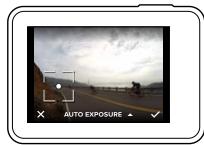
By default, your camera uses the entire image to determine the appropriate exposure level. However, Exposure Control lets you select an area that you want the camera to prioritize when determining exposure. This setting is particularly useful in shots where an important region might otherwise be over- or underexposed.
When you change this setting, the touch display immediately shows you the effect on your image. If you change modes, the camera returns to using the entire scene to determine the correct level of exposure.
Using Exposure Control with Auto Exposure
With this option, the camera always bases exposure on the area of the touch display that you select, regardless of what is in that area.
Suppose your camera is mounted on your dashboard. You might want to select the upper part of the touch display so that the exposure is based on the scene outside of the windshield and not on the dashboard (which might cause the scene outside to be overexposed).
- Press the touch display until a square outline shrinks to the middle of the screen.
- Drag the square to the area that you want to use to set the exposure level. (You can also tap that area instead of dragging the square.)
- Tap [√] in the lower right corner.
ADVANCED CONTROLS
Using Exposure Control with Locked Exposure
With this option, the camera locks the exposure. That exposure level remains until you cancel it.
For example, suppose you are snowboarding on a sunny day. By manually setting the exposure level based on your subject's jacket, the images that you capture throughout the day are based on the jacket. So, they are less likely to be underexposed compared to the bright snow.
- Press the touch display until a square outline shrinks to the middle of the screen.
- Drag the square to the area that you want to use to set the exposure level. (You can also tap that area instead of dragging the square.)
- Tap Auto Exposure to change it to Locked Exposure.
- Confirm that the exposure looks the way you want it to, and then tap [] in the lower right corner to lock the exposure.
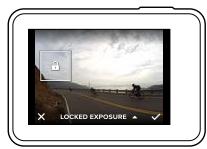
ADVANCED CONTROLS
Canceling Exposure Control
Exposure Control is automatically canceled when you select a different mode or restart the camera. You can also cancel this setting manually (below). When you cancel the exposure setting that you previously set, the camera returns to using the entire scene to determine the correct level of exposure.
- Press the touch display until a square outline shrinks to the middle of the screen.
- Tap [X] in the lower left corner.
PRO TIP: For advanced exposure settings, see Exposure Value Compensation (page 71).
ADVANCED CONTROLS
PROTUNE
Protune unlocks the camera's full potential, yielding stunning image quality and cinema-caliber video and photos optimized for professional productions. Protune gives content creators more flexibility and workflow efficiency than ever before.
Protune is compatible with professional color correction tools, GoPro Studio (included in Quik for desktop) and other video and photo editing software.
Protune enables manual control of color, white balance, shutter speed, and more for advanced control and customization of your video footage and photos.

Protune
Protune is available as an advanced setting for supported capture modes. To access this advanced setting, see Navigating with the Touch Display (page 17). The options for this setting are Off (default) and On. When Protune is on, [PT] appears on the camera screens.
Protune is not available for Video + Photo, Looping, or Time Lapse Video. Some Protune settings are not available when you use Exposure Control. Protune is available for all video and photo resolutions.
Changes that you make to Protune settings in one capture mode apply only to that capture mode. For example, changing the White Balance for Night Photo does not affect White Balance for Burst photos.
ADVANCED CONTROLS

Color
Color allows you to adjust the color profile of your video footage or photos. When you change this setting, the touch display immediately shows you the effect on your image.
| Color Setting | Resulting Color Profile |
| GoPro Color (default) | Provides GoPro color-corrected profile (same great color as when Protune is turned off). |
| Flat | Provides neutral color profile that can be color-corrected to better match footage captured with other equipment, offering more flexibility in post-production. Due to its long curve, Flat captures more details in shadows and highlights. |

White Balance
White Balance lets you adjust the color temperature of videos and photos to optimize for cool or warm lighting conditions. When you change this setting, the touch display immediately shows you the effect on your image.
Options for this setting are Auto (default), 3000K, 4000K, 4800K, 5500K, 6000K, 6500K, and Native. Lower values result in warmer tones.
You can also select Native to create a minimally color-corrected file from the image sensor that allows for more precise adjustments in post-production.
ISO ISO (Video Only)
ISO determines the camera's sensitivity to light, and creates a tradeoff between brightness and resulting image noise. Image noise refers to the degree of graininess in the image.
In low light, higher ISO values result in brighter images, but with greater image noise. Lower values result in lower image noise, but darker images. When you change this setting, the touch display immediately shows you the effect on your image.
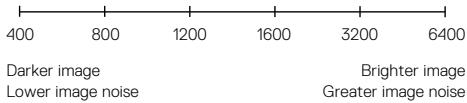
ISO behavior depends on the Shutter setting:
- Shutter set to Auto: The ISO that you select is used as the maximum ISO value. The ISO value that is applied might be lower, depending on the lighting conditions. Available ISO values are 6400, 3200, 1600, 1200, 800, 400.
- Shutter not set to Auto: The ISO that you select is used as the maximum ISO value, unless you tap [ ] at the bottom of the screen to lock the value. Available ISO values are 6400, 3200, 1600, 1200, 800, and 400.
ADVANCED CONTROLS
ISO↓ ISO Minimum (Photo Only)
ISO7 ISO Maximum (Photo Only)
ISO Minimum and ISO Maximum let you set a range for the camera's sensitivity to light and image noise. ISO settings create a balance between brightness and resulting image noise. Image noise refers to the degree of graininess in the image.
Higher values result in brighter images with greater image noise. Lower values result in darker images with lower image noise.
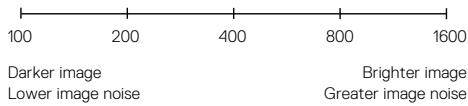
Note: ISO Minimum is not available for Time Lapse photos when the interval is set to 0.5 or 1 second.
PRO TIP: To lock the ISO at a specific value, set ISO Minimum and ISO Maximum to the same values.

Shutter
The Shutter setting in Protune applies only to Video and determines the amount of time that the shutter is open. When you change this setting, the touch display immediately shows you the effect on your image.
The options available for this setting depend on the FPS setting, as noted below. The default setting is Auto.
| Settings | Example 1: 1080p30 | Example 2: 1080p60 |
| Auto | Auto | Auto |
| 1/FPS | 1/30 sec | 1/60 sec |
| 1/(2xFPS) | 1/60 sec | 1/120 sec |
| 1/(4xFPS) | 1/120 sec | 1/240 sec |
| 1/(8xFPS) | 1/240 sec | 1/480 sec |
PRO TIP: To reduce the amount of blur in your video and photos when using the Shutter setting, mount your camera on a tripod or other surface that is stable and cannot move.
ADVANCED CONTROLS

Exposure Value Compensation (EV Comp)
Exposure Value Compensation affects the brightness of your video or photo. Adjusting this setting can improve image quality when shooting in environments with contrasting lighting conditions.
Options for this setting range from -2.0 to +2.0. The default setting is 0.
When you change this setting, the touch display immediately shows you the effect on your image. Higher values result in brighter images.
For Video, this setting is available only if Shutter is set to Auto.
For information about adjusting exposure based on a certain area of your scene, see Exposure Control (page 63).
PRO TIP: Exposure Value Compensation adjusts brightness within the existing ISO setting. If brightness has already reached the ISO setting in a low-light environment, increasing the Exposure Value Compensation does not have any effect. To continue increasing the brightness, select a higher ISO value.

Sharpness
Sharpness controls the quality of details captured in your video footage or photos. Options for this setting are High (default), Medium, and Low.
When you change this setting, the touch display immediately shows you the effect on your image.

RAW Audio
This setting applies only to the Video capture mode and creates a separate .wav file for your video, in addition to the standard .mp4 audio track. You can select the level of processing to apply to the RAW audio track. This setting is useful if you want a separate .wav file to share or use in post-processing.
| Option | Description |
| Low | Applies minimal processing. Ideal if you apply audio processing in post-production. |
| Med | Applies processing based on the Manual Audio Control setting (wind and/or stereo). If Manual Audio Control is turned off, the camera automatically switches between wind filtering and stereo audio. |
| High | Applies full audio processing (automatic gain and AAC encoding). |
PRO TIP: Audio files in .wav format are captured in the same location and with the same file name as .mp4 files. To access them, insert your microSD card into a card reader and locate the files with your computer's file explorer.
Reset
This option resets all Protune settings to their default values.
CONNECTING TO AN AUDIO ACCESSORY
An accessory microphone or other component can provide enhanced audio for your captured video.
- Connect the audio accessory to your camera's USB-C port using GoPro's Pro 3.5mm Mic Adapter (sold separately).
- From the camera's main screen, swipe down.
- Tap Preferences > Audio Input.
- Tap an option:
| Option | Description |
| Standard (default) | Camera supplies power to the microphone and no audio boost |
| Standard+ | Camera supplies power to the microphone and a 20dB boost in audio |
| Non-Powered | Camera supplies no microphone power and no audio boost |
| Non-Powered+ | Camera provides no microphone power and a 20dB boost in audio |
| Line In | Use for audio equipment other than a microphone (mixing board, guitar preamplifier, karaoke machine, etc.) |
Note: If you are not sure which option to select, refer to the information from your microphone manufacturer.
CUSTOMIZING YOUR GOPRO
From changing the beep volume to turning off the status lights, you can set up your camera to work the way that you want.
CHANGING PREFERENCES
- Swipe down, then tap Preferences.
- Tap a setting, then tap a new option.
- To exit, swipe down.

DATE AND TIME
The date and time are automatically updated when you connect your camera to the Capture app or Quik for desktop. However, you can manually change these settings, if needed.
Note: If the battery is removed from the camera for an extended period of time, you must reset the date and time (automatically or manually).

BEEP VOLUME
Sets the volume of your GoPro's alerts. The options are High (default), Med, Low, and Off.

LED
Sets which status lights blink. The options are All On (default), All Off, and Front Off.
PRO TIP: Turn the front status light off if you are capturing in an area with windows or mirrors that might cause reflection in the shot.
CUSTOMIZING YOUR GOPRO

DEFAULT MODE
Sets the capture mode that your GoPro defaults to when powering up. The options are Video (default), Time Lapse Video, Video + Photo, Looping, Photo, Night, Burst, Time Lapse Photo, and Night Lapse Photo.
Note: This setting does not affect QuikCapture.

AUTO OFF
Powers off your GoPro after a period of inactivity to save battery life. The options are 5 minutes, 15 minutes (default), 30 minutes, and Never.
Note: Voice Control is not available when the camera is off. When using Voice Control, consider selecting a higher time period (or Never) for Auto Off.
SCREENSAVER
Turns off the touch display after a period of inactivity to save battery life. The options are 1 minute (default), 2 minutes, 3 minutes, and Never. To turn on the touch display again, tap anywhere on the screen. When the touch display turns off, you can still use the camera buttons and Voice Control.

BRIGHTNESS
Adjusts the brightness level of the touch display. The options are 10% to 100% (default).
CUSTOMIZING YOUR GOPRO

AUTO-ROTATION
This setting determines the orientation of your video or photos to help you prevent upside down footage.
| Setting | Description |
| Auto | (Auto Image Rotation) Camera automatically selects Up or Down, based on the orientation of the camera when recording begins. Ensures that your resulting image is always right-side up. |
| Up (default) | Camera is set to always capture in right-side up orientation. |
| Down | Camera is set to always capture in upside down orientation. |

GPS
Captures the location where your video and photos were taken. To see this information, view the video or photos on a compatible desktop or mobile application. For details, visit gopro.com/help.

LANGUAGE
Sets the language that appears on the camera.
CUSTOMIZING YOUR GOPRO

VIDEO FORMAT
Sets the regional frame rates that your camera uses for recording and playing back video on a TV/HDTV. Selecting the appropriate option for your region helps prevent flicker when capturing video indoors.
| Setting | Description |
| NTSC | Select this option to play back your video on an NTSC TV (most televisions in North America) |
| PAL | Select this option to play back your video on a PAL TV (most televisions outside of North America) |
IMPORTANT MESSAGES
TEMPERATURE ICON

The Temperature icon appears on the camera status screen when the camera becomes too hot and needs to cool down. Simply let it sit and cool before attempting to use it again. Your camera was designed to identify conditions of overheating and shuts down when needed.
FILE REPAIR ICON

If recording stopped abruptly and the video file was not properly saved, the file might become corrupted. If this happens, the camera displays the File Repair icon while it tries to repair the file. When this process is finished, you receive a message stating whether the repair was successful or failed. Press any button to continue using the camera.
MICROSD CARD MESSAGES
| NO SD | No card present. The camera requires a microSD, microSDHC or microSDXC card (sold separately) to capture videos and photos. |
| FULL | The card is full. Delete some files or insert a different card. |
| SD ERR | The camera is unable to read the card formatting. Reformat the card in the camera. |
RESETTING YOUR CAMERA
RESETTING THE CONNECTIONS
This option clears your connections list and resets the camera's password. If you reset the connections, you must reconnect any desired devices to your GoPro.
- From the main screen, swipe down.
- Tap Connect > Reset Connections, and then tap Reset.
RESETTING ALL SETTINGS TO THE DEFAULTS
This option resets all of your camera settings to the defaults, except Date, Time, and your camera's username and password.
- From the main screen, swipe down.
- Tap Preferences > Camera Defaults, and then tap Reset.
If your camera is not responding, press and hold the Mode button [ _^ ] for 8 seconds to shut down the camera and then restart it. All settings are retained.
RESTORING FACTORY SETTINGS
Follow the steps below to reset all settings and the camera's password, and unregister the camera from your GoPro Plus account. This option is useful if you are reselling your camera and want to reset it to its original state.
- From the main screen, swipe down.
- Tap Preferences > Factory Reset, and then tap Reset.
Restoring factory settings does not erase all content from your microSD card. To clear your microSD card, see Reformating Your microSD Card (page 8).
MOUNTING
ATTACHING YOUR CAMERA TO MOUNTS
To attach your camera to a mount, you need The Frame (for HERO5 Black) and a mounting buckle and/or thumb screw, depending on the mount you are using.
THE FRAME
Your camera comes with The Frame (for HERO5 Black).
The HERO5 Black camera is waterproof to 33^ (10m) with the doors closed—no additional housing is needed when using the camera in or around water.
The The Frame (for HERO5 Black) provides additional protection for your camera if you drop it, so you might want to keep it in The Frame during certain activities, even if the camera is not mounted.
NOTICE: The Frame does not provide additional waterproof protection.
MOUNTING
Securing the Camera in The Frame
- Open the latch.
- Slide the camera into the frame. The bottom front of The Frame has a raised edge. Be sure the front of the camera sits flush against it.
- Close the door.
- Lock the latch.
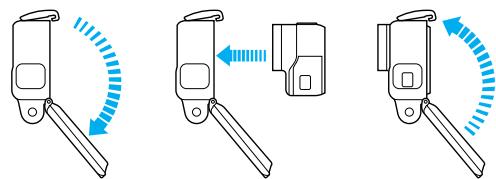
PRO TIP: During water activities, use Camera Tethers for added security and use a Floaty to keep your camera afloat (both sold separately). For more information, visit gopro.com.
MOUNTING
ATTACHING MOUNTING BUCKLES TO MOUNTS
- Flip up the mounting buckle plug.
- Slide the buckle into the mount until it clicks into place.
- Press down on the plug so that it sits flush with the buckle.
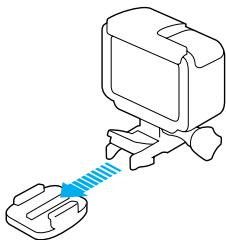
PRO TIP: If you mount your HERO5 Black upside down, the camera automatically changes the orientation of your image to be right-side up. For more information, see Auto-Rotation (page 76).
MOUNTING
USING CURVED + FLAT ADHESIVE MOUNTS
The Curved + Flat Adhesive Mounts make it easy to attach the camera to curved and flat surfaces of helmets, vehicles, and gear. With the mounting buckle, the frame can be clicked on and off the secured adhesive mounts.
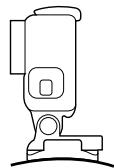
Curved Adhesive Mount
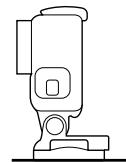
Flat Adhesive Mount
MOUNTING GUIDELINES
Follow these guidelines when attaching adhesive mounts:
- Attach the adhesive mounts at least 24 hours before use.
- Adhesive mounts must be mounted only on smooth surfaces. Porous or textured surfaces do not enable a proper bond. When applying the mount, firmly press it into place and ensure full contact over the entire surface.
- Apply adhesive mounts to clean surfaces only. Wax, oil, dirt or other debris reduce adhesion, which can result in a weak bond and risk of losing the camera should the connection fail.
- Attach adhesive mounts in room temperature conditions. Adhesives do not bond properly if applied in cold or damp environments to cold or damp surfaces.
MOUNTING
- Check state and local regulations and laws to ensure that attaching a camera to equipment (such as hunting equipment) is permitted. Always comply with regulations that restrict the use of consumer electronics or cameras.
- During water activities, use Camera Tethers for added security and use a Floaty to keep your camera afloat (both sold separately).

WARNING: To avoid injury, do not use a tether when mounting the camera on a helmet.
For more information about mounts, visit gopro.com.

WARNING: If using your camera with a GoPro mount or strap intended for use with a helmet, always select a helmet that meets the applicable safety standard.
Choose the right helmet for your particular sport or activity and make sure that it is the right fit and size for you. Inspect your helmet to ensure that it is in good condition, and follow the helmet manufacturer's instructions on safe helmet use.
Any helmet that has sustained a major impact should be replaced. No helmet can protect against injury in every accident.
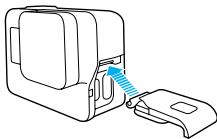
REMOVING THE SIDE DOOR
In some situations, such as charging the camera within The Frame or connecting audio or HDMI accessories or the Karma drone, you must remove the side door to access the ports.

WARNING: Remove the side door only when you are using the camera in a dry, dust-free environment. When the door is open or removed, the camera is not waterproof. Never operate the camera with the battery door open.
REMOVING THE SIDE DOOR
- Hold down the Latch Release button and slide the door open.
- Pull the door off of the camera.
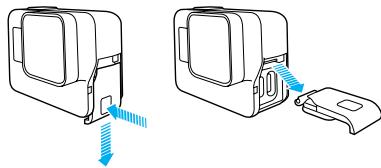
- Hold down the Latch Release button and extend the tab on the door.

- Press the tab onto the small silver bar.
MAINTENANCE
Follow these guidelines to get the best performance from your camera:
- The camera is waterproof to 33^ (10m)—no housing needed. Ensure that the doors are closed before using the camera in or around water, dirt, or sand.
Before closing the doors, be sure the seals are free of debris. If needed, clean with a cloth. - Before opening the doors, be sure the camera is free of water or debris. If needed, rinse the camera with fresh water and dry it with a cloth.
- If sand or debris hardens around the doors, soak the camera in warm tap water for 15 minutes and then rinse thoroughly to remove the debris before opening the doors.
- In wet environments, dry the touch display with a soft cloth so that it registers your touch.
- For best audio performance, shake the camera or blow on the mic to remove water and debris from the microphone holes. To prevent damage to the internal waterproof membranes, do not use compressed air to blow into the mic holes.
- After every use in salt water, rinse the camera with fresh water, and dry with a soft cloth.
- To clean the lens, wipe it with a soft, lint-free cloth. If debris becomes lodged between the lens and the trim ring, flush it out with water or air. Do not insert foreign objects around the lens.
BATTERY INFORMATION
MAXIMIZING BATTERY LIFE
A message appears on the touch display if the battery drops below 10% . If the battery reaches 0% while recording, the camera saves the file and powers off.
To maximize battery life, follow these guidelines when possible:
- Turn off Wireless Connections
- Capture video at lower frame rates and resolutions
- Turn off Protune
- Use these settings:
QuikCapture (page 22)
- Screensaver (page 75)
- Brightness (page 75)
Using the USB-C cable that came with your camera, you can capture video and photos while the camera is plugged in to a USB charging adapter, the GoPro Supercharger, another GoPro charger, or the GoPro Portable Power Pack. Although the battery does not charge during recording, you can use one of the above methods to power the camera and obtain extended recording time. When you stop recording, charging resumes. (You cannot record while charging the camera through a computer.)
Note: Because the side door is open, the camera is not waterproof during charging.

WARNING: Using a wall charger other than a GoPro charging device can damage the GoPro camera battery and could result in fire or leakage. With the exception of the GoPro Supercharger (sold separately), only use chargers marked: Output 5V 1A. If you do not know the voltage and current of your charger, use the included USB cable to charge the camera from your computer.
BATTERY INFORMATION
BATTERY STORAGE AND HANDLING
The camera contains sensitive components, including the battery. Avoid exposing your camera to very cold or very hot temperatures. Low or high temperature conditions may temporarily shorten the battery life or cause the camera to temporarily stop working properly. Avoid dramatic changes in temperature or humidity when using the camera, as condensation may form on or within the camera.
Do not dry the camera or battery with an external heat source such as a microwave oven or hair dryer. Damage to the camera or battery caused by contact with liquid inside the camera is not covered under the warranty.
Do not store your battery with metal objects, such as coins, keys or necklaces. If the battery terminals come in contact with metal objects, this may cause a fire.
Do not make any unauthorized alterations to the camera. Doing so may compromise safety, regulatory compliance, performance, and may void the warranty.

WARNING: Do not drop, disassemble, open, crush, bend, deform, puncture, shred, microwave, incinerate or paint the camera or battery. Do not insert foreign objects into the battery opening on the camera. Do not use the camera or the battery if it has been damaged—for example, if cracked, punctured or harmed by water. Disassembling or puncturing the battery can cause an explosion or fire.
BATTERY DISPOSAL
Most rechargeable lithium-ion batteries are classified as non-hazardous waste and are safe for disposal in the normal municipal waste stream. Many localities have laws in place requiring battery recycling. Check your local laws to make sure that you can dispose of rechargeable batteries in your regular trash. To safely dispose of lithium-ion batteries, protect terminals
BATTERY INFORMATION
from exposure to other metal with packing, masking or electrical tape so they do not cause a fire while being transported.
Lithium-ion batteries, however, do contain recyclable materials and are accepted for recycling by the Rechargeable Battery Recycling Corporation's (RBRC) Battery Recycling Program. We encourage you to visit Call2Recycle at call2recycle.org or call 1-800-BATTERY in North America to find a convenient recycling location.
Never dispose of a battery in a fire because it may explode.

WARNING: Only use manufacturer-recommended replacement batteries for your camera.
TROUBLESHOOTING
Make sure your GoPro is charged. To charge your camera, use the included USB-C cable and a computer. You can also use GoPro's Supercharger or USB-compatible Wall Charger or Auto Charger (all sold separately) or any charging device marked with output 5V 1A. (Supercharger's output is 5V 2A.)
MY GOPRO WON'T RESPOND WHEN I PRESS A BUTTON
See Restarting Your GoPro (page 79).
PLAYBACK ON MY COMPUTER IS CHOPPY
Chappy playback is typically not a problem with the file. If your footage skips, one of these situations is likely the cause:
- Using an incompatible video player. Not all video players support the H.264 codec. For best results, download the latest version of Quik for desktop for free at gopro.com/apps.
- The computer does not meet the minimum requirements for HD playback. The higher the resolution and frame rate of your video, the harder the computer has to work to play it back. Make sure that your computer meets the minimum requirements for the playback software.
If your computer does not meet the minimum requirements, record at 1080p60 with Protune off, and make sure that all other programs on your computer are closed. If that resolution does not improve the playback, try 720p30.
I FORGOT MY CAMERA'S USERNAME OR PASSWORD
Swipe down, then tap Connect > Name & Password.
TROUBLESHOOTING
I DON'T KNOW WHAT SOFTWARE VERSION I HAVE
From the main screen, swipe down. Then tap Preferences > About This GoPro. The Version Number displays the software version that you are running.
I CAN'T FIND MY CAMERA'S SERIAL NUMBER
The camera's serial number is listed in several places:
In Preferences > About This GoPro
- On the inside of the battery bay (remove the battery to see it)
- On your camera's microSD card (in the version.txt file in the MSC folder)
For more answers to commonly asked questions, see gopro.com/help.
CUSTOMER SUPPORT
GoPro is dedicated to providing the best possible service. To reach GoPro Customer Support, visit gopro.com/help.
TRADEMARKS
GoPro, HERO, Protune, and SuperView are trademarks or registered trademarks of GoPro, Inc. in the U.S. and internationally. Other names and marks are the property of their respective owners.
REGULATORY INFORMATION
To see the complete list of country certifications, refer to the Important Product + Safety Instructions included with your camera or visit gopro.com/help.

HDMI
HIGH DEFINITION MULTIMEDIA INTERFACE