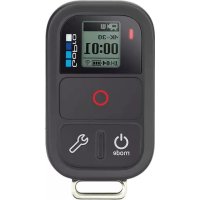
Smart Remote - Remote control GOPRO - Free user manual and instructions
Find the device manual for free Smart Remote GOPRO in PDF.



| Product type | Wireless remote for GoPro cameras |
| Brand | GoPro |
| Model | Smart Remote |
| Waterproof rating | Up to 10 meters |
| Maximum range | 180 meters (under optimal conditions) |
| Number of controllable cameras | Up to 50 cameras simultaneously |
| Power source | Rechargeable battery via USB port |
| Buttons | Power/Mode, Shutter/Select, Settings/Tag |
| Status indicator | LED indicator |
| Mounting | Adjustable strap, mounting key and ring |
| Compatibility | GoPro cameras with wireless connection (Fusion, HERO7 Black, HERO6 Black, HERO5 Black, etc.) |
| Main functions | Trigger video/photo recording, add HiLight tags, change mode |
| Care and cleaning | Wipe with a soft, dry cloth |
| Safety | Do not exceed the 10-meter waterproof depth |
| Spare parts and repairability | Strap, mounting key, USB cable; repair by GoPro authorized center |
| General information | User manual available in PDF at notice-facile.com |
Frequently Asked Questions - Smart Remote GOPRO
User questions about Smart Remote GOPRO
0 question about this device. Answer the ones you know or ask your own.
Ask a new question about this device
Download the instructions for your Remote control in PDF format for free! Find your manual Smart Remote - GOPRO and take your electronic device back in hand. On this page are published all the documents necessary for the use of your device. Smart Remote by GOPRO.
USER MANUAL Smart Remote GOPRO
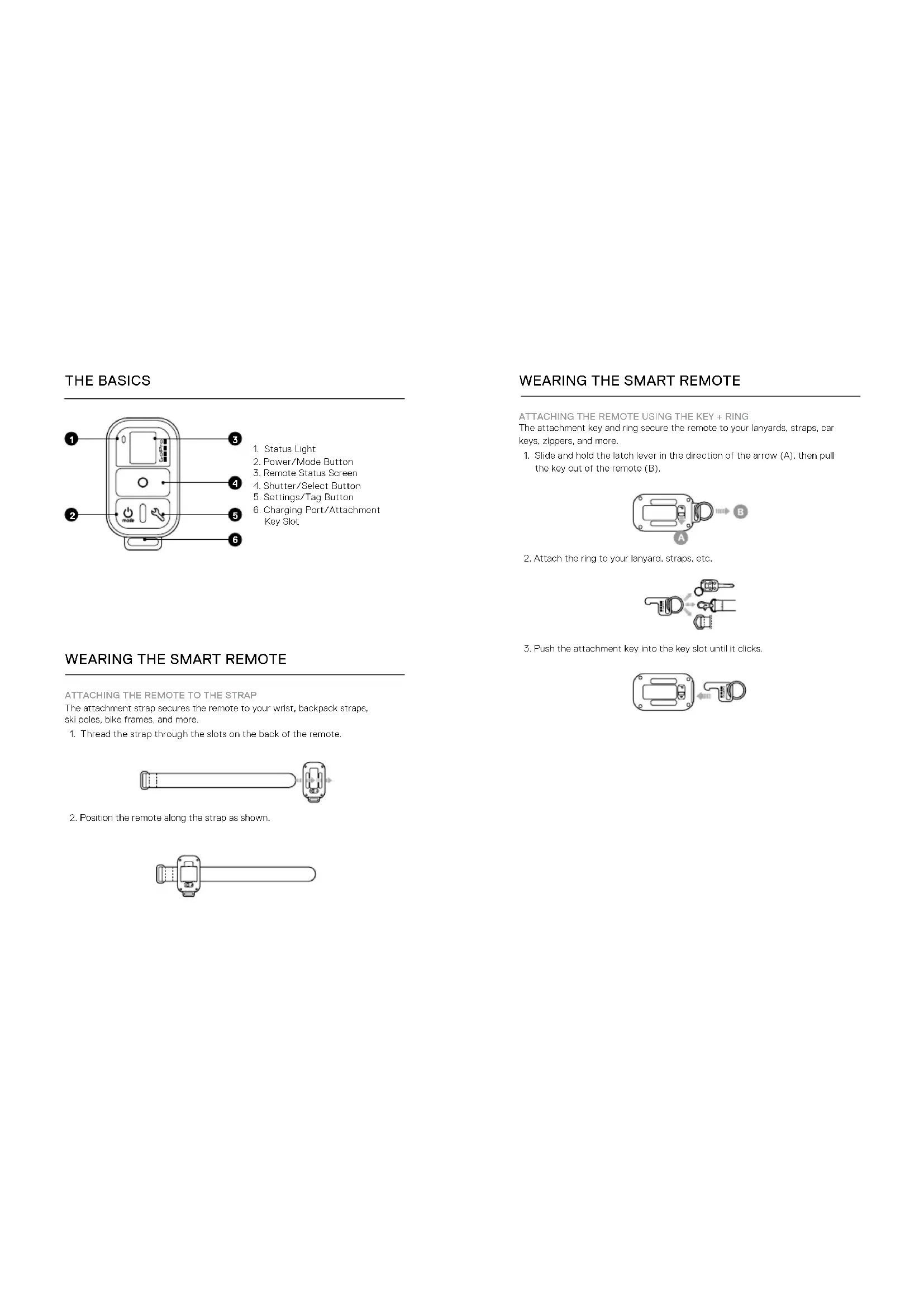
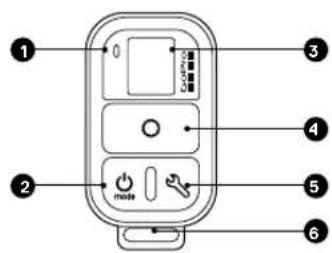
- Status Light
- Power/Mode Button
- Remote Status Screen
4.Shutter/Select Button - Settings/Tag Button
- Charging Port/Attachment Key Slot
WEARING THE SMART REMOTE
ATTACHING THE REMOTE TO THE STRAP
The attachment strap secures the remote to your wrist, backpack straps, ski poles, bike frames, and more.
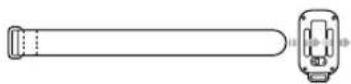
- Thread the strap through the slots on the back of the remote.
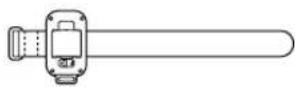
- Position the remote along the strap as shown.
WEARING THE SMART REMOTE
ATTACHING THE REMOTE USING THE KEY + RING
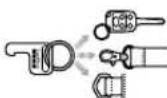
The attachment key and ring secure the remote to your lanyards, straps, car keys, zippers, and more.
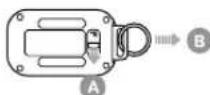
- Slide and hold the latch lever in the direction of the arrow (A), then pull the key out of the remote (B).
- Attach the ring to your lanyard, straps, etc.
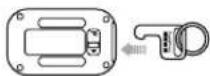
- Push the attachment key into the key slot until it clicks,
CHARGING
- Slide and hold the latch lever in the direction of the arrow (A), then pull the key out of the remote (B).
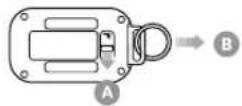
- Insert the charging cable into the remote until it clicks into place.

- Connect the other end of the cable to a computer or other USB power source. Note: See sure that the computer is connected to a power source. If the remote status soren does not indicate that the remote is charging, use a different USB port.

POWERING ON + OFF
POWERING ON
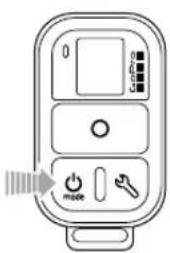
Press the Power/Mode button
POWERING OFF
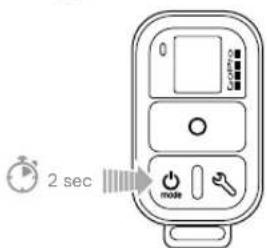
Press and hold the Power/Mode button for two seconds.
PAIRING THE REMOTE AND YOUR GOPRO
You can pair the Smart Remote with any wireless-enabled GoPro. The remote can control up to 50 cameras at a time from up to 600ft (180m) away in optimal conditions. Your camera recognizes only one remote at a time. The Smart Remote is waterproof to 33ft (10m).
The distance from which you can control your camera with the remote varies and depends on factors such as camera model, terrain, weather, obstructions, and electromagnetic interference.
For information about using the Smart Remote with other GoPro cameras, see gopro.com/smart-remote-setup.
Dependent on camera model and environmental conditions. Visit gopro.com for details.
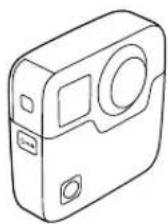
PAIRING YOUR REMOTE AND YOUR FUSION
- Power off the remote.
- On your camera, complete these steps:
a. Press the Mode button repeatedly until you get to Settings then press the Shutter button to select it.
b. Press the Shutter button repeatedly until you get to Connections (H)
c. Press the Mode button to highlight Connect, then press the Shutter button to select it.
d. Press the Mode button repeatedly until you got to SmrIRC, then press the Shutter button to select it. The camera automatically begins pairing.
- Power on the remote, if the remote was never paired with a camera. It automatically begins pairing. Otherwise, press and hold the Settings/Tag button for four seconds to begin pairing. Once the devices are paired, a confirmation appears on each screen.
PAIRING THE REMOTE AND YOUR GOPRO
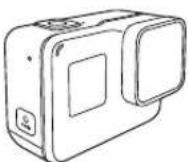
PAIRING YOUR REMOTE AND YOUR HERO7 BLACK
-
Power off the remote.
-
On your camera, complete these steps:
a. From the main screen, swine down.
b. Tap Preferences > Connections > Connect Device > Smart Remote
The camera automatically begins pairing.
- Power on the remote. If the remote was never paired with a camera, it automatically begins pairing. Otherwise, press and hold the Settings/Tag button for four seconds to begin pairing. Once the devices are paired, a confirmation appears on each screen.
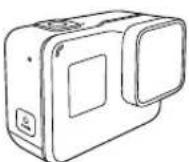
-
Power off the remote.
-
On your camera, complete these steps:
a. From the main screen, swipe down.
b. Tap Connections > Connect New Device > Smart Remote. The camera automatically begins pairing.
- Power on the remote. If the remote was never paired with a camera, it automatically begins pairing. Otherwise, press and hold the Settings/Tag button for four seconds to begin pairing. Once the devices are paired, a confirmation appears on each screen.
CONNECTING THE REMOTE AND YOUR GOPRO
After your remote and camera are paired, follow the steps below to connect them in the future. With this procedure, your camera connects to the remote that it connected to most recently.
CONNECTING THE REMOTE AND YOUR FUSION
-
Power on the remote and the camera.
-
On your camera, complete these steps:
a. Press the Mode button repeatedly until you get to Settings... then press the Shutter button to select it.
b. Press the Shutter button repeatedly until you get to Connections(p).
c. Press the Mode button to highlight Turn On, then press the Shutter button to select it.
d. Press the Mode button to highlight Yes, then press the Shuttor button to turn on wireless.
e. Press the Mode button repeatedly until you get to Done, then press the Shutter button to select it.
- Power on the remote and the camera.
- On your camera, complete these steps:
a. From the main screen, swipe down.
b. Tap Preferences > Connections > Wireless Connections to turn
on wireless.
- Power on the remote and the camera.
- On your camera, complete these steps:
a. From the main screen, swipe down.
b. Tap Connections > Wireless Connections to turn on wireless.
CAPTURINGVIDEOANDPHOTOS
Use the remote to capture video and photos with one camera or multiple cameras.
TO CAPTURE VIDEO OR PHOTOS
- Press the Power/Mode button repeatedly to cycle to the mode that you want.
- Press the Shutter/Select button to begin capturing.
- To stop capturing video or time lapse content, press the Shutter/Select button again.
If your camera goes out of range of the remote while you are recording, recording continues until you stop it.
PRO TIP: You can add HiLight Tags to quickly find highlights during playback and editing. While recording, press the Settings/Tag button on the remote to add a HiLight Tag."
HiLight Tags are not available on all GoPro camera models.
THE FOLLOWING FEATURES ARE NOT AVAILABLE WHEN USING THE REMOTE WITH YOUR GOPRO
- QuikCapture
- Continuous photo with multiple cameras
- Manually capturing photos while recording video with multiple cameras
REGULATORY INFORMATION
To see additional information regarding country certifications, refer to the Important Product + Safety Instructions Included with your remote.
C
SMART REMOTE
TELECOMMANDE LONGUE PORTE POUR VOTRE GOPRO
MANUEL DE L'UTILISATEUR

L'ESSENTIEL
Connessioni wireless.