USER MANUAL MY PASSPORT ULTRA WD
natural_image
Line drawing of a folded paper or box with diagonal hatching, no text or symbols present
Accessing Online Support
Visit our product support website at http://support.wdc.com and choose from these topics:
■ Downloads — Download software and updates for your WD product
■ Registration — Register your WD product to get the latest updates and special offers at http://register.wdc.com
■ Warranty & RMA Services — Get warranty, product replacement (RMA), RMA status, and data recovery information
■ Knowledge Base — Search by keyword, phrase, or Answer ID
■ Installation — Get online installation help for your WD product or software
■ WD Community — Share your thoughts and connect with other WD users at http://community.wdc.com
Table of Contents
Accessing Online Support......ii
1 About Your WD Drive....1
Features....1
Kit Contents....2
Optional Accessories....2
Operating System Compatibility....2
Disk Drive Format....3
Physical Description....3
USB 3.0 Interface....3
Power/Activity LED....3
Registering Your Drive....4
Handling Precautions....4
2 Connecting the Drive and Getting Started....5
Connecting the Drive....5
Getting Started with the WD Software....5
3 Backing Up Files.... 10
How the Backup Function Works....10
Backing Up Files.... 11
4 Restoring Files....14
How the Restore Function Works.... 14
Restoring Files....14
5 Locking and Unlocking the Drive....16
Password Protecting the Drive....16
Unlocking the Drive....17
With the WD Security or WD Drive Utilities Software....17
With the WD Drive Unlock Utility....18
Changing Your Password....18
Turning Off the Drive Lock Feature....19
6 Managing and Customizing the Drive....20
Checking Drive Health.... 20
Safely Disconnecting the Drive 21
Turning Off the LED....21
Erasing the Drive....21
Using the Drive Erase Function....22
Using Five Invalid Passwords....22
Registering the Drive....23
Restoring the WD Software....23
7 Managing and Customizing the Software.... 24
Checking for Software Updates.... 24
Configuring Your Cloud Service Account....24
Uninstalling the WD Software....26
8 Using the Drive with a Mac Computer....27
Reformatting the Drive....27
Restoring the WD Software.... 27
9 Troubleshooting....28
Installing, Partitioning, and Formatting the Drive....28
Frequently Asked Questions....28
Regulatory Compliance.... 30
FCC Class B Information....30
ICES-003/NMB-003 Statement....30
Safety Compliance....30
CE Compliance For Europe....31
KC Notice (Republic of Korea only)....31
Environmental Compliance (China)....31
Warranty Information....31
Obtaining Service....31
Limited Warranty....32
Australia/New Zealand....33
Warranty....33
Obtaining Service....34
About Your WD Drive
Welcome to your My Passport™ portable hard drive. This drive offers high capacity in a sleek portable device. It features ultra-fast USB 3.0 connectivity, local and cloud backup, and password protection to help protect your files from unauthorized use.
This introductory chapter includes the following topics:
Features
Kit Contents
Operating System Compatibility
Disk Drive Format
Physical Description
Registering Your Drive
Handling Precautions
Features
With a compact design, high capacity, and your choice of local or cloud backup, your My Passport drive fits perfectly into the busy life of anyone with an on-the-go digital life.
Back Up Automatically — The My Passport drive comes equipped with WD Backup software to help make sure your photos, videos, music and documents don't get lost. You can set it to run automatically to your schedule. Just pick the time and frequency to back up important files from your system onto your My Passport drive.
Password Protection — The WD Security™ software helps keep your content private and safe. Just activate password protection and set your own personalized password.
Reimagined Design — The bold, vibrant design of the My Passport drive is sure to stop you in your tracks. It is portable storage reimagined and gives you the opportunity to express yourself! Available in a wide range of beautiful colors, you can pick what complements your own personal style.
Easy to Use — My Passport portable storage is ready to use out of the box so you can start transferring files, saving your memories and backing up right away. It comes with all the software you need to help protect all your data, including WD Backup and WD Security software.
| Important: | For the latest WD product information and news, visit our website at http://www.wdc.com. For the latest software, firmware, and product documentation and information, go to http://support.wdc.com/downloads.aspx |
Kit Contents
As shown in figure 1, your My Passport drive kit includes the following:
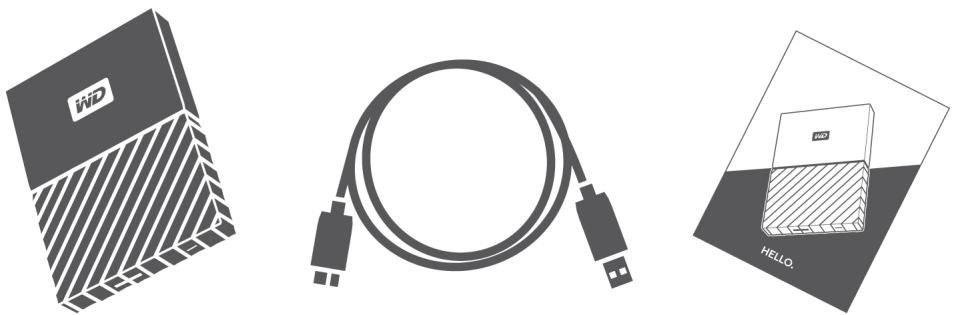
Figure 1: My Passport Portable Hard Drive Kit Components
■ My Passport portable hard drive, with the WD Backup, WD Security and WD Drive Utilities software
■ USB 3.0 cable
■ Quick install guide
Optional Accessories
For information about optional accessories for WD products, visit www.wdc.com
Operating System Compatibility
Your My Passport drive and the WD Drive Utilities and WD Security software are compatible with the following operating systems:
| Windows® | macOSTM (if applicable) |
| ■ Windows 7■ Windows 8■ Windows 8.1■ Windows 10 | ■ Mavericks■ Yosemite■ El Capitan■ Sierra |
The WD Backup software is compatible with the following operating systems:
Windows 7
Windows 8
Windows 8.1
Windows 10
Compatibility can vary, depending on hardware configuration and operating system.
For highest performance and reliability, always install the latest updates and service pack (SP). For Windows computers, go to the Start menu and select Windows Update. For Mac computers, go to the Apple menu and select Software Update.
Your My Passport drive is formatted as a single NTFS partition for compatibility with all updated Windows operating systems. If you want to use the drive with a Mac computer, see Reformatting the Drive and Troubleshooting.
Physical Description
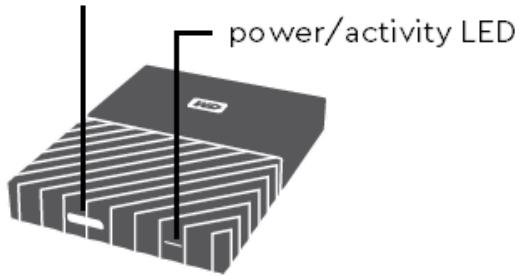
As shown in figure 2, the My Passport drive has:
■ A USB 3.0 interface port
■ A power/activity LED indicator
USB 3.0 Interface
The USB 3.0 interface supports data transfer rates up to 5 Gb/s.
USB 3.0 is backward compatible with USB 2.0. A USB 2.0 Interface supports data transfer rates up to 480 Mb/s.
USB 3.0 interface port
text_image
power/activity LED
Figure 2: My Passport drive
Power/Activity LED
The power/activity LED shows the drive's power state as follows:
| LED Appearance | Power State/Activity |
| On steady | Idle |
| Fast flashing, approximately 3 times per second | Activity |
| Slow flashing, approximately every 2.5 seconds | System standby |
| Off | Unit off or has been configured to have the LED turned off using WD Drive Utilities |
Registering Your Drive
Always register your My Passport drive to get the latest updates and special offers. You can easily register your drive using the WD Drive Utilities software. Another way is to register online at http://register.wdc.com
Handling Precautions
WD products are precision instruments and must be handled with care during unpacking and installation. Rough handling, shock, or vibration can damage drives. Always observe the following precautions when unpacking and installing your external storage product:
■ Do not drop or jolt the drive.
■ Do not move the drive during activity.
Connecting the Drive and Getting Started
This chapter provides instructions for connecting the drive and installing the WD software on your computer. It includes the following topics:
Connecting the Drive
Getting Started with the WD Software
Connecting the Drive
- Turn on your computer.
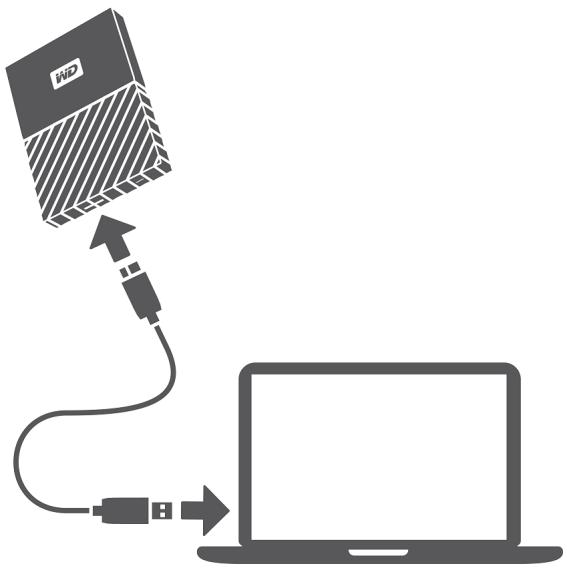
- Connect the drive to your computer as shown in figure 3.
- Verify that the drive appears in your computer's file management utility listing.
- If a Found New Hardware screen appears, click Cancel to close it. The WD software installs the proper driver for your drive.
Your My Passport drive is now ready to use as an external storage device. You can enhance its capabilities by installing the WD software that is on the drive:
■ WD Backup
■ WD Security
■ WD Drive Utilities
natural_image
Diagram showing a Wi-Fi device connected to a laptop via cable, with no text or symbols present.
Figure 3: Connecting the My Passport Drive
Getting Started with the WD Software
- Double-click the WD Apps Setup file that appears in the listing for the drive in your computer's file management utility to display the WD Apps Setup wizard, Software Installer dialog.
Welcome to the WD Software Installer
Get the most out of your new WD Drive.

WD Backup | Backup Software
Protect your files, photos and documents with a backup to a WD drive or the cloud.

WD Security | Security Tool
Set a password and keep your private stuff private with hardware encryption.

WD Drive Utilities | Drive Management Tool
Configure, manage, and diagnose your WD drive.
Next
Cancel
2. Click Next to display the Installation Type dialog:
Installation Type
Recommended Install
The following applications will be installed.
WD Backup, WD Security, and WD Drive Utilities
49.3 MB will be used on drive C:\
Custom Install
I agree to the terms of the Western Digital End User License Agreement
Back
Next
Cancel
3. On the Installation Type dialog:
a. Select the option that you want to use for the installation:
■ Recommended Install—Installs all of the WD software
■ Custom Install—Installs only the WD software that you select
b. Click the Western Digital End User License Agreement link and read the agreement.
c. Select the I agree... check box to accept the agreement and activate the Next button.
d. Click Next.
4. The dialog box that appears depends on the installation option you selected at Step 3:
IF you selected the ... option,
THEN...
Recommended Install
The Installing Applications dialog appears.
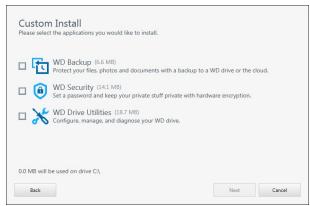
Custom Install
The Custom Install dialog appears:
On the Custom Install dialog:
text_image
Custom Install
Please select the applications you would like to install.
WD Backup (0.6 MB)
Protect your files, photos and documents with a backup to a WD drive or the cloud.
WD Security (14.1 MB)
Set a password and keep your private stuff private with hardware encryption.
WD Drive Utilities (18.7 MB)
Configure, manage, and diagnose your WD drive.
0.0 MB will be used on drive C3.
Back
Next
Cancel
- Select the check boxes for the applications that you want to install.
-
Click Next to display the Installing Applications dialog.
-
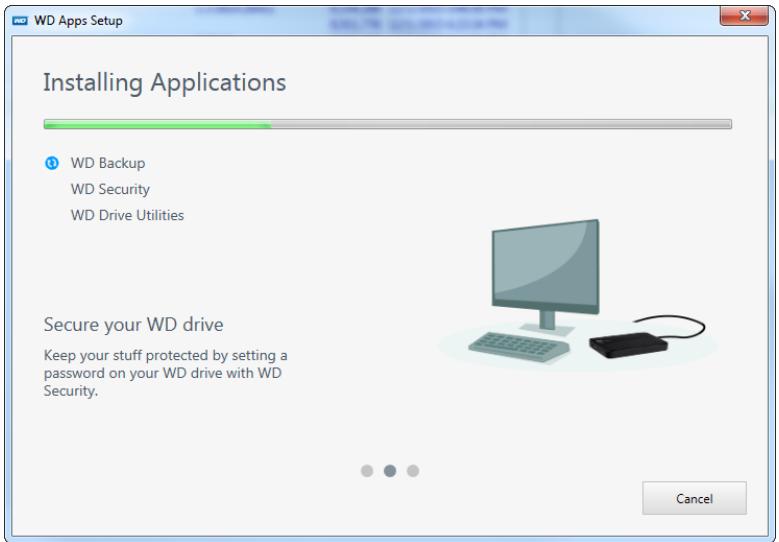
The Installing Applications dialog:
text_image
WD Apps Setup
Installing Applications
WD Backup
WD Security
WD Drive Utilities
Secure your WD drive
Keep your stuff protected by setting a password on your WD drive with WD Security.
Cancel
■ Shows the progress of the software installation
■ Displays a brief description of each application
■ Adds a desktop shortcut icon for each installed application
■ Replaces the Cancel button with a Next button when the installation is complete
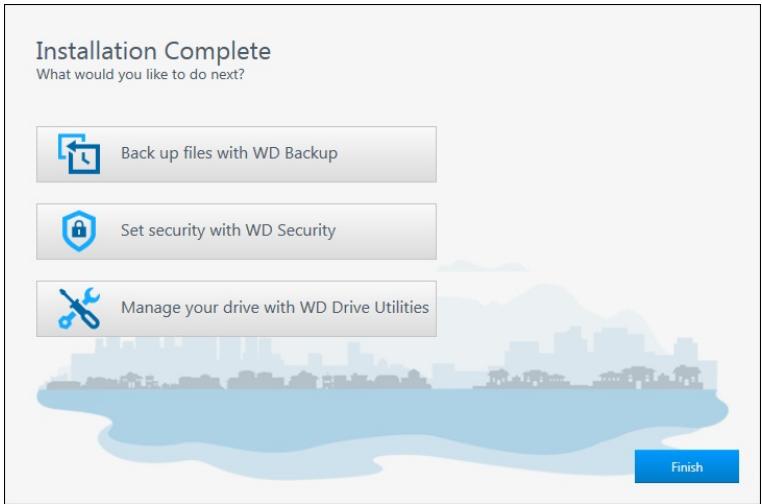
- Click Next to display the Installation Complete dialog:
text_image
Installation Complete
What would you like to do next?
Back up files with WD Backup
Set security with WD Security
Manage your drive with WD Drive Utilities
Finish
- On the Installation Complete dialog, click:
■ Back up files... to display the WD Backup screen. See Backing Up Files
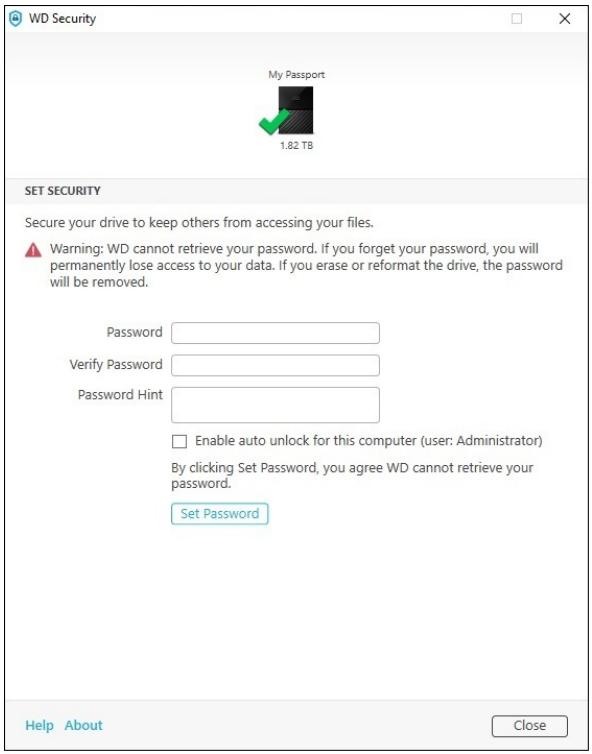
■ Set security... to display the WD Security screen, Set Security dialog. See Locking and Unlocking the Drive
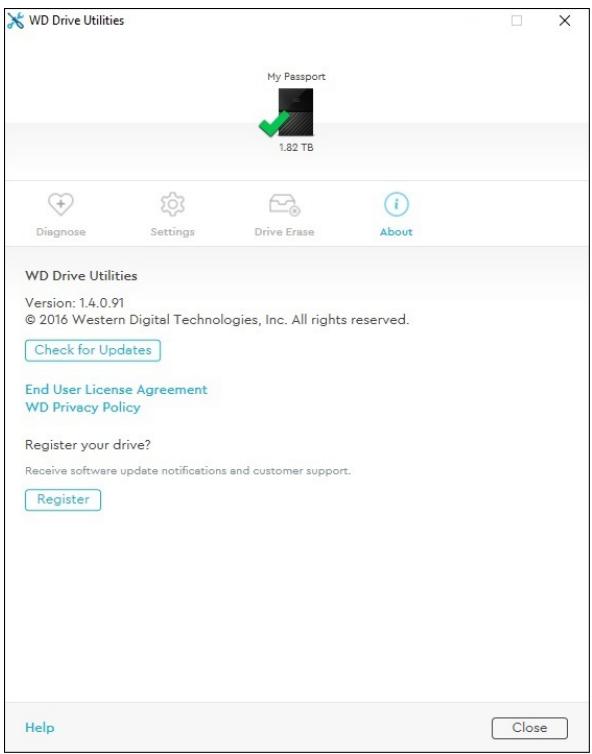
■ Manage your drive... to display the WD Drive Utilities screen. See Managing and Customizing the Drive
■ Finish to close the Installation Complete dialog.
text_image
WD Drive Utilities
My Passport
1.82 TB
Diagnose Settings Drive Erase About
WD Drive Utilities
Version: 1.4.0.91
© 2016 Western Digital Technologies, Inc. All rights reserved.
Check for Updates
End User License Agreement
WD Privacy Policy
Register your drive?
Receive software update notifications and customer support.
Register
Help Close
Figure 4: WD Drive Utilities Screen
text_image
WD Security
My Passport
1.82 TB
SET SECURITY
Secure your drive to keep others from accessing your files.
⚠ Warning: WD cannot retrieve your password. If you forget your password, you will permanently lose access to your data. If you erase or reformat the drive, the password will be removed.
Password
Verify Password
Password Hint
Enable auto unlock for this computer (user: Administrator)
By clicking Set Password, you agree WD cannot retrieve your password.
Set Password
Help About Close
Figure 5: WD Security Screen
text_image
WD Drive Unlock
My Passport
1.82 TB
WX11AB5KNCN2
Unlock Drive
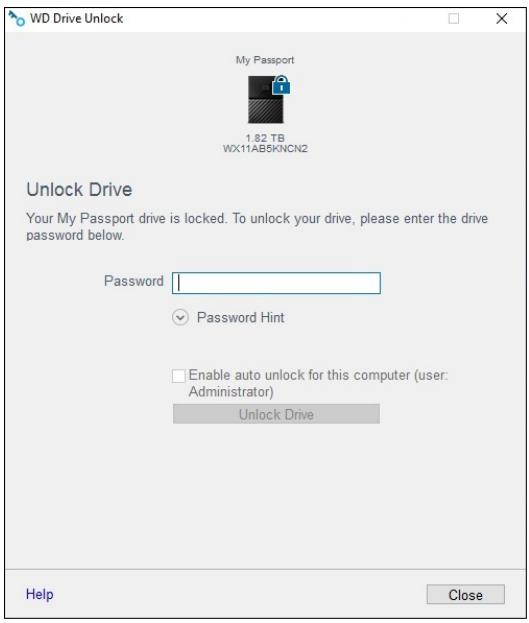
Your My Passport drive is locked. To unlock your drive, please enter the drive password below.
Password
Password Hint
Enable auto unlock for this computer (user:
Administrator)
Unlock Drive
Help
Close
Figure 6: WD Drive Unlock Screen
Backing Up Files
This chapter includes the following topics:
How the Backup Function Works
Backing Up Files
How the Backup Function Works
The WD Backup software is a scheduled backup application that automatically backs up the files that you select on the schedule that you specify.
When you create a backup plan, you specify the backup:
■ Target—the external storage device where you will copy your files for backup protection. The backup target can be any supported:
- External storage drive
- Cloud service account
■ Source—the computer files and folders that you want to copy to the backup target for backup protection. The backup source can be any internal hard drive, hard drive partition, or any:
- External storage drive
• Supported cloud service account
■ Schedule—the time of day, day of week, and month that you want to run the backup.
When you click Start Backup after creating a backup plan, the WD Backup software copies all of the specified backup source files and folders to the specified backup target. Then, on the schedule you specified, the WD Backup software automatically backs up any:
■ New file that was created in or copied to a backup-protected device or folder
■ Existing backup-protected file that was changed
This protection is automatic—the WD Backup software does it for you without any action on your part. Just leave the backup source and target devices connected to your computer.
Note: Whenever you disconnect and reconnect a backup target or source device, the WD Backup software rescans the backup source device for new or changed files and resumes automatic backup protection according to the schedule.
Excluded Files—The WD Backup software will not backup files that have specific:
■ Attributes: reparsePoint, temporary
■ Names: \AppData\Roaming\Microsoft\Windows, [CommonApplicationData]\Western Digital\, [CommonApplicationData]\Microsoft\Windows\Caches\, config.msi, MSOCache, ntuser.dat, ntuser.ini, [RecycleBin], \$recycle.bin, recycler,
[Root]\Drivers\, [Root]\Temp\, System Volume Information, WD Backup.swstore, .WD Hidden Items, WD SmartWare.swstor, [Windows]
■ Extensions: .ds_store, .temp, .tmp, .wdsync
■ Start value: \~
■ End values: desktop.ini, .dropbox, .dropbox.attr, hiberfil.sys, -journal, pagefile.sys, thumbs.db
Backing Up Files
- Open the Select your WD storage device or cloud service dialog by clicking either:
■ Add Backup Plan on the WD Backup screen
■ Configure backup on the WD Backup view menu from the Windows task bar
- The Select your WD storage device or cloud service dialog shows all of the hardware devices and cloud service accounts that you can use for a backup target device:
a. Select to highlight the device that you want to use.
b. If you have more than three available devices, use the left- and right-scroll buttons to see them all.
c. Click Next to display the Setup Complete dialog:
Note that:
| IF you selected a . . . | THEN the WD Backup software displays a . . . |
| Cloud service account, | Log in or connect dialog that you must complete to continue. (See Uninstalling the WD Software.) |
| Password-protected device that is locked, | No writable partition message. In this case, first use either the WD Security or the WD Drive Utilities software to unlock the drive. Then reselect it. |
- The initial/default configuration of the backup settings on the Setup Complete dialog is for hourly backups of everything in the Windows Users folder for your computer user name.
On the Setup Complete dialog:
| IF you want to . . . | THEN click . . . |
| Accept the default settings, | Start Backup to save and launch your backup plan and close the Setup Complete dialog.Skip to Step 10. |
| Specify a different backup schedule, | Edit Schedule to display the Automatic Backup Schedule screen and proceed to Step 4. |
| Change the Include Files setting, | Edit Files to display the Select Files to Back Up screen and skip to Step 7. |
- On the Automatic Backup Schedule screen, select the option for the automatic backup schedule that you want:
| Selecting . . . , | Configures automatic backups . . . |
| Hourly | Every hour, on the hour, 24 hours/day, 7 days/week. |
| Daily | Once a day, on the days of the week you select, at the hour or half-hour you specify.For a daily backup:1. Select or clear the Days check boxes to specify the days of the week you want to run your backup.2. Use the "At" selection box to specify the time of day that you want to run your backup. |
| Monthly | Once a month on the day you select, at the hour or half-hour you specify.For a monthly backup:1. Select or clear the Weeks check boxes to specify which occurrences of the day that you want to run your backup—First, Second, Third, Fourth, or Last.2. Select or clear the Days check boxes to specify the days of the week that you want to run your backup.3. Use the "At" selection box to specify the time of day that you want to run your backup. |
- Click OK to save and implement your change to the backup schedule and close the Automatic Backup Schedule screen.
- After changing the backup schedule:
| IF you want to . . . | THEN click . . . |
| Accept the default Include Files setting, | Start Backup to save and launch your backup plan and close the Setup Complete dialog. Skip to Step 10. |
| Change the Include Files setting, | Edit Files to display the Select files to back up screen and proceed to Step 7. |
- On the Select Files to Back Up screen:
a. Click to select the device that has the files and folders you want to back up:
■ My Computer
- Dropbox
Note: If the files and folders you want to back up are in a Dropbox account and you have not configured the account for access by the WD Backup software see Uninstalling the WD Software
b. In the file structure view of the selected device, click the selectors to open the listings and select the check box for each file and folder that you want to
back up. Note that selecting the check box for a folder automatically selects the check boxes for all of the files and subfolders in the folder.
c. Clear the check box for each file and folder that you do not want to include in the backup. Note also that clearing the check box for a folder automatically clears the check boxes for all of the files and subfolder in the folder.
Note: The default backup source is everything in the Windows Users folder for your computer user name. Be sure to clear that selection if you do not want to include those files and folders in your backup.
d. Click OK to save your selections and close the Select Files to Back Up screen.
-
Verify that your Automatic Backups and Include Files specifications are correct.
-
Click Start Backup to save and launch your backup plan and close the Setup Complete dialog.
-
The WD Backup software runs the first backup immediately and shows the progress with a Backup in progress (x % complete) message on the Backup dialog. After the initial backup completes, the backup runs automatically according to the specified schedule.
Restoring Files
This chapter includes the following topics:
How the Restore Function Works
Restoring Files
How the Restore Function Works
The WD Backup software makes it easy for you to restore backed up files from your backup target device to either:
■ Their original locations on the backup source device
■ Any other location you select
Restore is generally a four-step process:
- Select the backup target device and the scheduled backup that has the files you want to restore.
- Select the location where you want to restore the files.
- Specify what you want to restore—either individual files and folders, or everything.
- Restore the files.
Restoring Files
- Open the Restore dialog by clicking either:
■ Restore on the WD Backup screen.
■ Restore files on the WD Backup view menu from the Windows task bar.
a. If you have more than one backup target device connected to your computer, click to select the one that has the backup files you want to restore.
b. Select the location option for where you want to restore the files:
| IF you want to restore files to . . . | THEN select . . . |
| Their original locations, | Original Location. |
| A new location, | Select Location to activate the Browse button and:1. Click Browse to display the Select Location screen:2. Use the folder structure view of your computer to select the restore location.3. With the selected folder name in the Folder box, click Select Folder.4. The WD Backup software closes the Select Location screen and displays the path to the selected folder on the Restore dialog. |
c. Click Select Files to Restore to display the Restore Files screen with the earliest backup selected by default in the View files from list.
- On the Restore Files screen:
a. In the View files from list, select the backup that has the files you want to restore.
b. Use the folder structure view of the selected backup to specify the files that you want to restore:
| IF you want to restore . . . | THEN . . . |
| All of the files in the selected backup, | Select the top-level check box to specify the entire backup. |
| Selected files and folders, | 1. Click the selectors in the folder structure view of the backup to open the folders and subfolders.2. Select the check boxes for the files or folders that you want to restore.Note that selecting the check box for a folder automatically selects all of the files and subfolders in the folder. |
c. Click Restore to restore the selected files or folders to the specified location.
Locking and Unlocking the Drive
This chapter includes the following topics:
Password Protecting the Drive
Unlocking the Drive
Changing Your Password
Turning Off the Drive Lock Feature
Password Protecting the Drive
You should password protect your drive if you are worried that someone else will gain access to your drive and you do not want them to see your files on the drive. A password can be used to lock and unlock your drive. Depending on your location ^1 , using a password may encrypt your data.
The My Passport software uses your password to electronically lock and unlock your drive. If you forget your password, you will not be able to access the data that is on your drive or write new data to it. You will have to erase the drive before you can use it again.
- Click Start > All Programs > Western Digital > WD Apps > WD Security to display the WD Security screen, Set Security dialog.
- If you have more than one supported drive connected to your computer, select the one that you want to create a password for.
- Read the warning about the possibility of data loss if you forget your password.
- Type your password in the Password box, using up to 25 characters.
- Retype your password in the Verify Password box.
- Type a hint to help remember your password in the Password Hint box.
- Select the Enable auto unlock for this computer... check box if you want the WD Security software to remember your password for the selected drive on this computer.
- Click Set Password to save your password.
After creating a password, the drive remains unlocked for as long as you continue your current work session. Then the My Passport software:
- Locks the drive when you shut down your computer or disconnect your drive. Sleep mode locks the drive if power to the USB port is off.
- Requires you to type your password to unlock the drive when you restart your computer or reconnect your drive, UNLESS you selected the Enable auto unlock for this computer... check box when you created your password
Note: When you create a password, the drive begins to protect your data.
This listing appears:
■ The next time you shut down and restart your computer
■ When you remove and reconnect the My Passport drive
■ Your computer exits the sleep mode, depending on its configuration
The listing appears regardless of whether the drive is locked or not, or whether you selected the Enable auto unlock for this computer... check box when you created your password. It remains as long as you have password protection enabled for the drive.
Unlocking the Drive
After you have created a password to keep others from accessing the files on your drive, unless you selected the Enable auto unlock for this computer... check box, you will have to type your password to unlock the drive whenever:
■ You shut down and restart your computer
■ You disconnect and reconnect the drive to your computer
■ Your computer exits the sleep mode
You will have to do this even if you do not have the My Passport software installed on your computer.
Depending on the software configuration of your computer, there are two ways to unlock the drive, using either the:
■ WD Security or WD Drive Utilities software
■ WD Drive Unlock utility
With the WD Security or WD Drive Utilities Software
Whenever you shut down and restart your computer or disconnect and reconnect the drive to your computer, starting either the My Passport or WD Drive Utilities software displays the Unlock Drive dialog:
This happens either:
■ Automatically if you only have the one locked My Passport drive connected to your computer
■ When you select the locked drive on either the WD Security or WD Drive Utilities screen if you have more than one supported drive connected to your computer
To unlock the drive:
- If you do not see the Unlock Drive dialog, click either:
■ Start > All Programs > Western Digital > WD Apps > WD Security
■ Start > All Programs > Western Digital > WD Apps > WD Drive Utilities
-
If you have more than one supported device connected to your computer, select the one that is locked to display the Unlock Drive dialog.
-
On the Unlock Drive dialog:
a. Type your password in the Password box.
b. Click Unlock Drive.
With the WD Drive Unlock Utility
Whenever you connect your password-protected drive to a computer that does not have the WD Security or WD Drive Utilities software installed, you can use the WD Drive Unlock utility to unlock the drive. The WD Drive Unlock utility is on a virtual CD drive that appears in your computer's file management utility display.
- Start the WD Drive Unlock utility by either:
■ Using your computer's file management utility to open the WD Unlocker virtual CD and double-clicking the WD Drive Unlock.exe file
- Clicking Start > Computer and double-clicking the WD Unlocker virtual CD icon under Devices with Removable Storage
- On the WD Drive Unlock utility screen:
a. Type your password in the Password box.
b. Select the Enable auto unlock for this computer... check box if you want the WD Drive Unlock utility to remember your password on this computer.
c. Click Unlock Drive.
Changing Your Password
- Click Start > All Programs > Western Digital > WD Apps > WD Security to display the WD Security screen.
- If you have more than one supported device connected to your computer, select the one with the password that you want to change to display the Edit security settings dialog.
- On the Edit security settings dialog, select the Change password option to display the change password dialog.
- On the change password dialog:
a. Type your current password in the Current Password box.
b. Type your new password in the New Password box, using up to 25 characters.
c. Retype your new password in the Verify Password box.
d. Type a hint to help remember your new password in the Password Hint box.
e. Select or clear the Enable auto unlock for this computer... check box to signify whether you want the My Passport software to remember your new password for the selected drive on this computer.
f. Click Update Security Settings.
After changing a password, the drive remains unlocked for as long as you continue your current work session. Then the WD Security software:
- Locks the drive when you shut down your computer, disconnect your drive, or your computer goes into the sleep mode
- Requires you to type your password to unlock the drive when you restart your computer or reconnect your drive, UNLESS you selected the Enable auto unlock for this computer... check box when you changed your password
Turning Off the Drive Lock Feature
- Click Start > All Programs > Western Digital > WD Apps > WD Security to display the WD Security screen.
- If you have more than one supported drive connected to your computer, select the one with the password that you want to remove to display the Edit security settings dialog.
- On the Edit security settings dialog, the Remove password option is selected by default:
a. Type your password in the Password box.
b. Click Update Security Settings.
Managing and Customizing the Drive
This chapter includes the following topics:
Checking Drive Health
Safely Disconnecting the Drive
Turning Off the LED
Erasing the Drive
Registering the Drive
Restoring the WD Software
The My Passport software makes it easy for you to manage and customize your drive for the best possible performance:
■ Diagnose—Run diagnostics and status checks to make sure your drive is working properly.
- Sleep Timer—Reduces power to your drive during extended periods of inactivity to conserve power and extend the life of the drive.
- Drive Erase—Erase all of the data on the drive, including your password if you have set one.
■ About—See the installed software version, check for software updates, and register your drive to receive free technical support during the warranty period and find out about product enhancements and price discount opportunities.
Checking Drive Health
The WD Drive Utilities software provides three diagnostic tools to help make sure that your drive is performing well. Run the following tests if you are concerned that your drive is not operating properly:
■ Drive status check
The drive status check is a failure-prediction function that continuously monitors key internal performance attributes of the drive. A detected increase in drive temperature, noise, or read/write errors, for example, can provide an indication that the drive is approaching a serious failure condition. With advanced warning, you could take precautionary measures, like moving your data to another drive, before a failure occurs.
The result of a drive status check is a pass or fail evaluation of the drive's condition.
■ Quick drive test
Your drive has a built-in Data Lifeguard ^™ diagnostic utility that tests the drive for error conditions. The quick drive test checks the drive for major performance problems.
The result of a quick drive test is a pass or fail evaluation of the drive's condition.
■ Complete drive test
The most comprehensive drive diagnostic is the complete drive test. It tests every sector for error conditions and inserts bad sector markers as required.
It is best to run the drive diagnostics and status checks on a regular basis, before you encounter any problems with your drive. And, because they are so fast, running the drive status check and the quick drive test provides a high level of assurance with minimal
inconvenience. Then, run all three whenever you encounter disk error conditions when writing or accessing files.
- Click Start > All Programs > Western Digital > WD Apps > WD Drive Utilities to display the WD Drive Utilities screen, Diagnose dialog.
- If you have more than one supported drive connected to your computer, select the one that you want to check.
- On the Diagnose dialog, click the button for the test that you want to run:
■ Run Drive Status Check
■ Run Quick Drive Test
■ Run Complete Drive Test
Safely Disconnecting the Drive
Windows and Macintosh operating systems have a means for safely disconnecting and removing the drive without turning off the system:
■ Windows has a Safely Remove Hardware and Eject Media icon in the system tray which, when used, ensures that all data is flushed from system cache before device removal.
■ Mac users can simply drag the drive icon to the trash before disconnecting it.
Turning Off the LED
The drive LED can be turned off using the WD Drive Utilities software.
- Click Start > All Programs > Western Digital > WD Apps > WD Drive Utilities to display the WD Drive Utilities screen.
- Click Settings.
- Click LED to turn the LED off.
Erasing the Drive
Note: Erasing your drive also deletes the WD software and all of the support files and utilities. You can download these to restore your My Passport drive to its original configuration after erasing the drive.
The My Passport drive provides two ways to erase your drive, depending on whether it is locked or not:
| IF your drive is . . . | AND you . . . | THEN see . . . |
| Not locked, | Want to erase the drive, | Using the Drive Erase Function. |
| Locked | Have forgotten or lost your password and must erase the drive, | Using Five Invalid Passwords |
Using the Drive Erase Function
To erase your drive when it is not locked:
- Click Start > All Programs > Western Digital > WD Apps > WD Drive Utilities to display the WD Drive Utilities screen.
- If you have more than one supported drive connected to your computer, select the one that you want to erase.
- On the WD Drive Utilities screen, click Drive Erase to display the drive erase dialog.
- On the drive erase dialog:
a. If you want to change the volume name, type over the name in the Volume Name box.
b. Read the explanation of the loss of data if you erase your drive. If you want to save any of the data that is on the drive, back it up to another device before continuing with the drive erase.
c. Click the I understand... check box to signify that you accept the risk and activate the Erase Drive button.
d. Click Erase Drive.
Go to http://support.wdc.com and see Knowledge Base answer ID 7 for information about downloading and restoring the WD software on your My Passport drive.
Note: Erasing your drive also removes your password. If you used a password to protect your drive, you will need to re-create it after restoring the WD software. (See Password Protecting the Drive.)
Using Five Invalid Passwords
When you have forgotten or lost your password, you can erase the drive by entering five invalid passwords on the Unlock Drive dialog. See:
■ With the WD Security or WD Drive Utilities Software
■ With the WD Drive Unlock Utility
- On the Unlock Drive dialog, make five attempts to unlock the drive by:
a. Typing a password in the Password box.
b. Clicking Unlock Drive.
- Entering the fifth invalid password displays a too many password attempts dialog, depending on the application you used to open the Unlock Drive dialog:
■ Using the WD Security or WD Drive Utilities software
■ Using the WD Drive Unlock utility
- To erase your drive:
a. If you are using the WD Security or WD Drive Utilities software and you want to change the volume name, type over the name in the Volume Name box.
b. Read the explanation about erasing all of the data on the drive and select the I understand check box to indicate that you accept the risk and activate the Erase Drive button.
c. Click Erase Drive.
Go to http://support.wdc.com and see Knowledge Base answer ID 7 for information about downloading and restoring the WD software on your drive.
Note: Erasing your drive also removes your password. If you still want to use a password to protect your drive, you will need to re-create it after restoring the WD software. (See Password Protecting the Drive.)
Registering the Drive
The My Passport software uses your computer's Internet connection to register your drive. Registering the drive provides free technical support during the warranty period and keeps you up-to-date on the latest WD products.
- Make sure that your computer is connected to the Internet.
- Click Start > All Programs > Western Digital > WD Apps > WD Drive Utilities to display the WD Drive Utilities screen.
- If you have more than one supported drive connected to your computer, select the one that you want to register.
-
Click About > Register to display the Register Your Device screen.
-
On the Register Your Device screen:
a. Type your first name in the First name box.
b. Type your last name in the Last name box.
c. Type your email address in the Email box.
d. Select your language in the Preferred Language box.
e. Select or clear the Inform me about... check box to specify whether you want to receive notifications about software updates, product enhancements, and price discount opportunities.
f. Click Register Device.
Restoring the WD Software
In addition to deleting all of the data on your drive, erasing or reformatting the drive also removes the WD software and all of the support files, utilities and online help.
If you ever need to remove and reinstall the WD software on your computer, or move the drive to another computer and install the software there, you will need to restore the WD software on your drive. To do this, after you have erased or reformatted the drive, go to http://support.wdc.com and see Knowledge Base answer ID 7.
Managing and Customizing the Software
This chapter includes the following topics:
Checking for Software Updates
Configuring Your Cloud Service Account
Uninstalling the WD Software
Checking for Software Updates
If an update is available, follow the on-screen download and installation instructions:
| Software | Procedure |
| WD Drive Utilities | 1. Click Start > All Programs > Western Digital > WD Apps > WD Drive Utilities to display the WD Drive Utilities screen.2. Click the About icon and the Check for Updates button. |
| WD Security | 1. Click Start > All Programs > Western Digital > WD Apps > WD Security to display the WD Drive Security screen.2. Click the About icon and the Check for Updates button. |
| WD Backup | When the WD Backup software determines that a software update is available, it:■ Generates and displays a software update notification■ Adds the Update WD Backup selection to the WD Backup view menu1. Click the WD logo icon in the Windows task bar and select WD Backup to display the WD Backup view menu.2. Select Update WD Backup. |
Configuring Your Cloud Service Account
Before you can use a cloud service as a backup source or target device, you must configure your account for access by the WD Backup software.
- Open the Select your WD storage device or cloud service dialog by clicking either:
■ Add Backup Plan on the WD Backup screen:

text_image
Help
Add Backup Plan Delete Backup Plan Close
■ Configure backup on the WD Backup view menu from the Windows taskbar:
| Configure backup |
| Restore files |
| Settings... |
| Update WD Backup... |
| Help |
| View Notifications (1)... |
| Quit |
- On the Select your WD storage device or cloud service dialog, select to highlight the Dropbox icon:
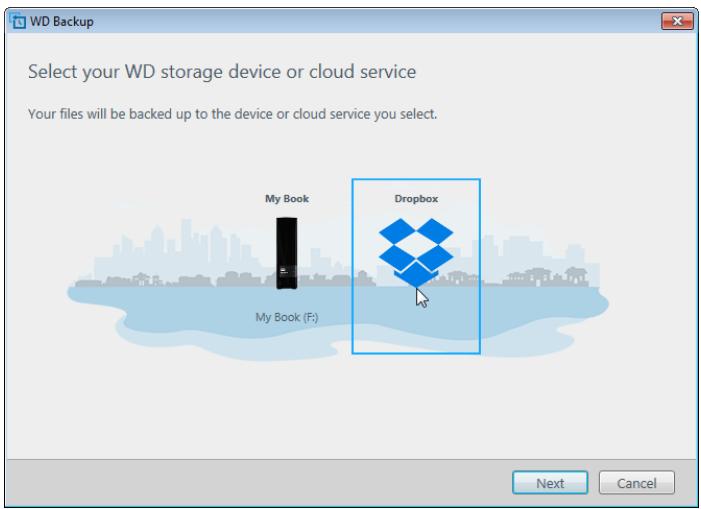
text_image
WD Backup
Select your WD storage device or cloud service
Your files will be backed up to the device or cloud service you select.
My Book
My Book (F:)
Dropbox
Next Cancel
- Click Next to display the connection dialog for your Dropbox account:
Connect to Dropbox
Click Sign In to allow WD Backup access to your Dropbox account.
Sign In
After you have allowed WD Backup access to your account click Finish to complete the connection process.
Finish
- On the connection dialog:
a. Click Sign In. The WD Backup software initiates a connection request on your behalf and uses your Web browser to access the Dropbox website.
b. On the Dropbox website, if you have not configured your account to remember your login credentials, type your email address and password and click Sign In to see the connection request from the WD Backup software.
c. Click Allow to accept the connection request.
d. The Success! indication signifies that the WD Backup software has been granted access to your Dropbox account.
e. Click Finish on the Dropbox connection dialog to finalize the configuration and display the Setup Complete dialog with Dropbox selected as your backup target device:
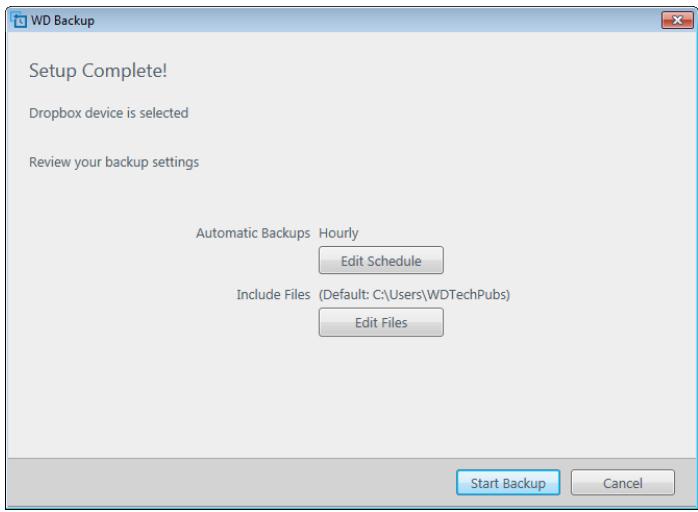
text_image
WD Backup
Setup Complete!
Dropbox device is selected
Review your backup settings
Automatic Backups Hourly
Edit Schedule
Include Files (Default: C:\Users\WDTechPubs)
Edit Files
Start Backup Cancel
Uninstalling the WD Software
Use the Windows Add or Remove Programs function to uninstall the WD software from your computer.
- Go to the Control Panel.
- Select Programs and Features category; in some versions of Windows, this is called simply "Programs".
- Choose the program you want to remove, then click Uninstall.
- When prompted with an "Are you sure..." question, click Yes.
Using the Drive with a Mac Computer
The My Passport drive is formatted as a single NTFS partition for compatibility with updated Windows operating systems. To use the drive on Mac OS X operating systems, and to use Time Machine, if you want, you must reformat the drive to a single HFS+J partition.
This chapter includes the following topics:
Reformatting the Drive
Restoring the WD Software
Reformatting the drive erases all its contents. If you have already saved files on the drive, be sure to back them up before reformatting it.
Go to http://support.wdc.com and refer to Knowledge Base answer ID 3865 for information about reformatting the drive.
See Troubleshooting for more information about reformatting a drive.
Restoring the WD Software
After you have reformatted your My Passport drive for use on Mac computers, go to http://support.wdc.com and see Knowledge Base answer ID 7 for information about downloading and restoring the Mac versions of the WD Drive Utilities and WD Security software on your My Passport drive.
The WD Backup software is not available for Mac computers.
Troubleshooting
This chapter includes the following topics:
Installing, Partitioning, and Formatting the Drive
Frequently Asked Questions
If you have problems installing or using this product, refer to this troubleshooting section or visit our support website at http://support.wdc.com and search our knowledge base for more help.
KnowledgeBase Answer ID
How to
■ Partition, and format a WD drive on Windows 3865 (10, 8, 7) and Mac OS X
■ Convert a Mac OS X GPT partition to an NTFS 3647 partition in Windows 7
■ Download software, utilities, firmware updates, and drivers for WD products (from the Downloads Library)
■ Format a WD external hard drive in exFAT or 291 FAT32*
*The FAT32 file system has a maximum individual file size of 4 GB and cannot create partitions larger than 32 GB in Windows. To create partitions larger than 32 GB in FAT32 when reformatting the drive, download the External USB/FireWire FAT32 Formatting Utility from http://support.wdc.com/downloads.aspx?p=34. Windows users can avoid these size limitations by formatting the drive to exFAT.
For further details, see:
■ Answer ID 291 at http://support.wdc.com
■ Article IDs 314463 and # 184006 at https://support.microsoft.com
■ The appropriate third-party software documentation or support organization
Frequently Asked Questions
Why is the drive not recognized under My Computer or on the computer desktop?
If your system has a USB 3.1, USB 3.0 or USB 2.0 PCI adapter card, be sure that its drivers are installed before connecting your WD USB 3.1 external storage product. The drive is not recognized correctly unless USB 3.1, USB 3.0 or USB 2.0 root hub and host controller drivers are installed. Contact the adapter card manufacturer for installation procedures.
| Why won't my computer boot when I connect my USB drive to the computer before booting? | Depending on your system configuration, your computer might try to boot from your WD portable USB drive. Refer to your system's motherboard BIOS setting documentation to disable this feature or visit http://support.wdc.com and see Knowledge Base answer ID 1201. For more information about booting from external drives, refer to your system documentation or contact your system manufacturer. |
| Why is the data transfer rate slow? | Your system may be operating at USB 1.1 speeds due to an incorrect driver installation of the USB 3.1, USB 3.0 or USB 2.0 adapter card or a system that does not support USB 3.1, USB 3.0 or USB 2.0. |
| How do I determine whether or not my system supports USB 3.1, USB 3.0 or USB 2.0? | Refer to your USB card documentation or contact your USB card manufacturer.Note: If your USB 3.1, USB 3.0 or USB 2.0 controller is built in to the system motherboard, be sure to install the appropriate chipset support for your motherboard. Refer to your motherboard or system manual for more information. |
| What happens when a USB 3.1, USB 3.0 or USB 2.0 device is plugged into a USB 1.1 port or hub? | USB 3.1, USB 3.0 and USB 2.0 are backward-compatible with USB 1.1. When connected to a USB 1.1 port or hub, a USB 3.1, USB 3.0 or USB 2.0 device can transfer data up to 12 Mbps.If your system includes a PCI Express slot, you can achieve higher data transfer rates by installing a PCI Express adapter card. Contact the card manufacturer for installation procedures and more information. |
This appendix includes the following topics:
Regulatory Compliance
Environmental Compliance (China)
Warranty Information
Regulatory Compliance
Operation of this device is subject to the following conditions:
■ This device may not cause harmful interference.
■ This device must accept any interference received, including interference that may cause undesired operation.
This device has been tested and found to comply with the limits for a Class B digital device, pursuant to Part 15 of the FCC Rules. These limits are designed to provide reasonable protection against harmful interference in a residential installation. This device generates, uses, and can radiate radio frequency energy and, if not installed and used in accordance with the instructions, may cause harmful interference to radio or television reception. However, there is no guarantee that interference will not occur in a particular installation. If this equipment does cause harmful interference to radio or television reception, which can be determined by turning the equipment off and on, you are encouraged to try to correct the interference by one or more of the following measures:
■ Reorient or relocate the receiving antenna.
■ Increase the separation between the equipment and the receiver.
■ Connect the equipment into an outlet on a circuit different from that to which the receiver is connected.
- Consult the dealer or an experienced radio/television technician for help.
Any changes or modifications not expressly approved by WD could void your authority to operate this device.
ICES-003/NMB-003 Statement
This device complies with Canadian ICES-003 Class B.
Safety Compliance
Approved for US and Canada. CAN/CSA-C22.2 No. 60950-1, UL 60950-1: Safety of Information Technology Equipment.
CE Compliance For Europe
Marking by the CE symbol indicates compliance of this system to the applicable Council Directives of the European Union, including the EMC Directive (2014/30/EU) and the Low Voltage Directive (2014/35/EU). A "Declaration of Conformity" in accordance with the applicable directives has been made and is on file at Western Digital Europe.
KC Notice (Republic of Korea only)
Environmental Compliance (China)
Obtaining Service
WD values your business and always attempts to provide you the very best of service. If this Product requires maintenance, either contact the dealer from whom you originally purchased the Product or visit our product support website at http://support.wdc.com for information on how to obtain service or a Return Material Authorization (RMA). If it is determined that the Product may be defective,
you will be given an RMA number and instructions for Product return. An unauthorized return (i.e., one for which an RMA number has not been issued) will be returned to you at your expense. Authorized returns must be shipped in an approved shipping container, prepaid and insured, to the address provided on your return paperwork. Your original box and packaging materials should be kept for storing or shipping your WD product. To conclusively establish the period of warranty, check the warranty expiration (serial number required) via http://support.wdc.com. WD shall have no liability for lost data regardless of the cause, recovery of lost data, or data contained in any Product placed in its possession.
Limited Warranty
WD warrants that the Product, in the course of its normal use, will for the term defined below, be free from defects in material and workmanship and will conform to WD's specification therefor. The term of your limited warranty depends on the country in which your Product was purchased. The term of your limited warranty is for 3 years in the North, South and Central America region, 3 years in the Europe, the Middle East and Africa region, and 3 years in the Asia Pacific region, unless otherwise required by law. The term of your limited warranty period shall commence on the purchase date appearing on your purchase receipt. WD may at its discretion make extended warranties available for purchase. WD shall have no liability for any Product returned if WD determines that the Product was stolen from WD or that the asserted defect a) is not present, b) cannot reasonably be rectified because of damage occurring before WD receives the Product, or c) is attributable to misuse, improper installation, alteration (including removing or obliterating labels and opening or removing external enclosures, including the mounting frame, unless the product is on the list of limited user-serviceable products and the specific alteration is within the scope of the applicable instructions, as found at http://support.wd.com), accident or mishandling while in the possession of someone other than WD. Subject to the limitations specified above, your sole and exclusive warranty shall be, during the period of warranty specified above and at WD's option, the repair or replacement of the Product with an equivalent or better Product. The foregoing warranty of WD shall extend to repaired or replaced Products for the balance of the applicable period of the original warranty or ninety (90) days from the date of shipment of a repaired or replaced Product, whichever is longer.
The foregoing limited warranty is WD's sole warranty and is applicable only to products sold as new. The remedies provided herein are in lieu of a) any and all other remedies and warranties, whether expressed, implied or statutory, including but not limited to, any implied warranty of merchantability or fitness for a particular purpose, and b) any and all obligations and liabilities of WD for damages including, but not limited to accidental, consequential, or special damages, or any financial loss, lost profits or expenses, or lost data arising out of or in connection with the purchase, use, or performance of the Product, even if WD has been advised of the possibility of such damages. In the United States, some states do not allow exclusion or limitations of incidental or consequential damages, so the limitations above may not apply to you. This warranty gives you specific legal rights, and you may also have other rights which vary from state to state.
Australia/New Zealand
Nothing in this warranty modifies or excludes your legal rights under the Australian Competition and Consumer Act or the New Zealand Consumer Guarantees Act. This warranty identifies WD's preferred approach to resolving warranty claims which is likely to be quick and simple for all parties.
No other warranties either express or implied by law, including but not limited to those contained in the Sale of Goods Act, are made with respect to the Product. If you purchased your Product in New Zealand for the purposes of a business, you acknowledge and agree that the New Zealand Consumer Guarantees Act does not apply.
In Australia, our goods come with guarantees that cannot be excluded under the Australian Consumer Law. You are entitled to a replacement or refund for a major failure and compensation for any other reasonably foreseeable loss or damage. You are also entitled to have the goods repaired or replaced if goods fail to be of acceptable quality and the failure does not amount to a major failure. What constitutes a major failure is set out in the Australian Consumer Law.
Warranty
WD warrants that the Product, in the course of its normal use, will for the term defined below, be free from defects in material and workmanship and will conform to WD's specifications. The term of your warranty is 3 years in Australia and New Zealand, unless otherwise required by law. The term of your warranty period shall commence on the purchase date appearing on your purchase receipt from an authorized distributor or authorized reseller. Proof of purchase shall be required to be eligible for this warranty and to establish the commencement date of this warranty. Warranty service will not be provided unless the Product is returned to an authorized distributor, authorized reseller or regional WD return center where the Product was first shipped by WD.
WD may at its discretion make extended warranties available for purchase. WD shall have no liability for any Product returned if WD determines that the Product was (i) not purchased from an authorized distributor or authorized reseller, (ii) not used in accordance with WD specifications and instructions, (iii) not used for its intended function, or (iv) stolen from WD, or that the asserted defect a) is not present, b) cannot reasonably be rectified because of damage occurring before WD receives the Product, or c) is attributable to misuse, improper installation, alteration (including removing or obliterating labels and opening or removing external enclosures, including the mounting frame, unless the product is on the list of limited user-serviceable products and the specific alteration is within the scope of the applicable instructions, as found at http://support.wd.com), accident or mishandling while in the possession of someone other than WD.
PRODUCTS ARE COMPLEX AND FRAGILE ITEMS THAT MAY OCCASIONALLY FAIL DUE TO (A) EXTERNAL CAUSES, INCLUDING WITHOUT LIMITATION, MISHANDLING, EXPOSURE TO HEAT, COLD, AND HUMIDITY, AND POWER FAILURES, OR (B) INTERNAL FAULTS. SUCH FAILURES CAN RESULT IN THE LOSS, CORRUPTION, DELETION ALTERATION OF DATA. NOTE THAT YOU SHALL BE RESPONSIBLE FOR THE LOSS, CORRUPTION, DELETION OR ALTERATION OF DATA HOWSOEVER CAUSED, AND FOR BACKING UP AND PROTECTING DATA AGAINST LOSS,
CORRUPTION, DELETION OR ALTERATION. YOU AGREE TO CONTINUALLY BACK UP ALL DATA ON THE PRODUCT, AND TO COMPLETE A BACKUP PRIOR TO SEEKING ANY GENERAL SERVICE AND TECHNICAL SUPPORT FROM WD.
In Australia, if the Product is not of a kind ordinarily acquired for personal, domestic or household use or consumption, provided it is fair and reasonable to do so, WD limits its liability to replacement of the Product or supply of equivalent or better Product. This warranty shall extend to repaired or replaced Products for the balance of the applicable period of the original warranty or ninety (90) days from the date of shipment of a repaired or replaced Product, whichever is longer. This warranty is WD's sole manufacturer's warranty and is applicable only to Products sold as new.
Obtaining Service
WD values your business and always attempts to provide you the very best of service. Should you encounter any problem, please give us an opportunity to address it before returning this Product. Most technical support questions can be answered through our knowledge base or e-mail support service at http://support.wd.com. If the answer is not available or, if you prefer, please contact WD at the applicable telephone number shown in the front of this document.
If you wish to make a claim, you should initially contact the dealer from whom you originally purchased the Product. If you are unable to contact the dealer from whom you originally purchased the Product, please visit our product support Web site at http://support.wd.com for information on how to obtain service or a Return Material Authorization (RMA). If it is determined that the Product may be defective, you will be given an RMA number and instructions for Product return. An unauthorized return (i.e., one for which an RMA number has not been issued) will be returned to you at your expense. Authorized returns must be shipped in an approved shipping container, prepaid and insured, to the address provided with your RMA number. If following receipt of a qualifying claim under this warranty, WD or the dealer from whom you originally purchased the Product determines that your claim is valid, WD or such dealer shall, at its discretion, either repair or replace the Product with an equivalent or better Product or refund the cost of the Product to you. You are responsible for any expenses associated with a claim under this warranty. The benefits provided to you under this warranty are in addition to other rights and remedies available to you under the Australian Competition and Consumer Act or the New Zealand Consumer Guarantees Act. Your original box and packaging materials should be kept for storing or shipping your WD product. To conclusively establish the period of warranty, check the warranty expiration (serial number required) via http://support.wd.com.
Index
A
Australia/New Zealand 33
B
Backup
about backing up files 10
procedure 11
Box contents 2
C
CAUTION about
erasing the drive 21
lost passwords 16
China RoHS, environmental compliance 31
Cloud service, configuring 24
Compatibility with operating systems 2
Compliance, regulatory 30
Converting drive format 28
Creating a password 16
D
Disconnecting the drive 21
Disk image, downloading and restoring 23
Drive
diagnostics and status checks 20
disconnecting 21
formats, converting 3
handling precautions 4
Drive Erase dialog 22
Drive status check 20
Drive Utilities
Drive Erase dialog 22
Register Your Device dialog 23
E
End User License Agreement, link 6
Environmental compliance, China RoHS 31
Erase Drive dialog 22
Erasing the drive 21
F
FCC Class B information 30
Full media scan 20
H
Handling precautions 4
Hardware 2
|
ICES-003/NMB-003 compliance 30
Indicator light 3
K
Kit contents 2
L
LED indicator 3
Limited warranty 32
O
Operating systems 2
P
Password protecting your drive
CAUTION about lost passwords 16
Physical description 3
Precautions for handling 4
Product features 1
Q
Quick drive test 20
R
Reformatting the drive 27, 28
Register Your Device dialog 23
Registering your drive 23
Regulatory compliance 30
Remote Dropbox account, configuring 26
Retrieve
about retrieving files 14
S
Safety compliance 30
Service 31, 34
Software settings
cloud service account 24
Software Settings
Dropbox Account 26
System compatibility 2
U
Unlocking the drive
from the virtual CD 18, 21
with the WD Security software 17
USB interface 3
W
Warranty information 31, 33
WD
service, obtaining 31, 34
WD Drive Utilities software
Drive Erase dialog 22
Register Your Device dialog 23
screen 8
WD Drive Utilities software screen 9
WD Software, downloading and restoring 27
WD, the WD logo, My Passport, WD Backup, WD Drive Utilities and WD Security are registered trademarks or trademarks of Western Digital Corporation or its affiliates in the U.S. and/or other countries. Other marks may be mentioned herein that may belong to other companies. Picture shown may vary from actual product. Product specifications subject to change without notice.
Apple, Mac, OS X, and Time Machine are trademarks of Apple Inc., registered in the U.S. and other countries. Dropbox and the Dropbox logo are trademarks of Dropbox, Inc. Microsoft and Windows are either registered trademarks or trademarks of Microsoft Corporation in the United States and/or other countries. As used for transfer rate or interface, megabyte per second (MB/s) = one million bytes per second, megabit per second (Mb/s) = one million bits per second, and gigabit per second (Gb/s) = one billion bits per second.
© 2016 Western Digital Corporation or its affiliates.
Western Digital
3355 Michelson Drive, Suite 100
Irvine, California 92612 U.S.A