
WX60 - Camera SONY - Free user manual and instructions
Find the device manual for free WX60 SONY in PDF.



| Product type | Compact digital camera |
| Brand | Sony |
| Model | DSC-WX60 |
| Sensor | Exmor R CMOS 1/2.3-inch, 16.2 effective megapixels |
| Lens | Carl Zeiss Vario-Tessar, 8x optical zoom (25-200 mm equiv. 35 mm) |
| Aperture | f/3.3 (W) - f/6.3 (T) |
| Image stabilization | Optical SteadyShot |
| LCD screen | 2.7-inch TFT, 230,400 dots |
| Built-in flash | Range: 0.2 m - 4.2 m (W), 1.5 m - 2.2 m (T) |
| Recording formats | JPEG (still images), AVCHD/MP4 (video) |
| Max video resolution | Full HD 1080i (AVCHD) |
| Storage media | Internal memory 48 MB, Memory Stick Duo, SD/SDHC/SDXC |
| Battery | Rechargeable lithium-ion NP-BN (3.6 V, 630 mAh) |
| Battery life (photos) | Approx. 230 shots (CIPA) |
| Battery life (video) | Approx. 60 min (continuous) |
| Connectivity | Micro-USB, micro-HDMI |
| Wi-Fi | No (only on WX80/WX200) |
| Dimensions (W x H x D) | 92.3 x 52.5 x 22.5 mm |
| Weight (with battery and card) | Approx. 124 g |
| Operating temperature | 0°C to 40°C |
| Cleaning | Soft dry or slightly damp cloth |
| Safety | Do not expose to water, do not disassemble the battery |
| Spare parts | Battery NP-BN, charger AC-UB10, USB cable |
| Repairability | Consult an authorized Sony service center |
Frequently Asked Questions - WX60 SONY
User questions about WX60 SONY
0 question about this device. Answer the ones you know or ask your own.
Ask a new question about this device
Download the instructions for your Camera in PDF format for free! Find your manual WX60 - SONY and take your electronic device back in hand. On this page are published all the documents necessary for the use of your device. WX60 by SONY.
USER MANUAL WX60 SONY
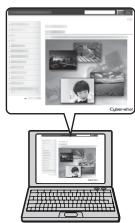
Learning more about the camera ("Cyber-shot User Guide")
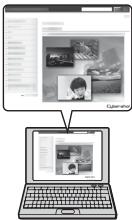
"Cyber-shot User Guide" is an on-line manual. Refer to it for in-depth instructions on the many functions of the camera.
① Access the Sony support page.
http://www.roy.net/SonyInfo/Support/
② Select your country or region.
③ Search for the model name of your camera within the support page.
- Check the model name on the bottom of your camera.
Checking the supplied items
The number in parentheses indicates the number of pieces.
- Camera (1)
- Rechargeable battery pack NP-BN (1)
(This rechargeable battery pack cannot be used with Cyber-shot that are supplied with the NP-BN1 battery pack.)
- Micro USB cable (1)
- AC Adaptor AC-UB10/UB10B/UB10C/UB10D (1)
- Power cord (mains lead) (not supplied in the USA and Canada) (1)
- Wrist strap (1)
- Instruction Manual (this manual) (1)
Owner's Record
The model and serial numbers are located on the bottom. Record the serial number in the space provided below. Refer to these numbers whenever you call your Sony dealer regarding this product.
Model No. DSC-WX60/DSC-WX80/DSC-WX200
Serial No.
Model No. AC-UB10/AC-UB10B/AC-UB10C/AC-UB10D
Serial No.
GB
WARNING
To reduce fire or shock hazard, do not expose the unit to rain or moisture.
IMPORTANT SAFETY INSTRUCTIONS -SAVE THESE INSTRUCTIONS DANGER TO REDUCE THE RISK OF FIRE OR ELECTRIC SHOCK, CAREFULLY FOLLOW THESE INSTRUCTIONS
If the shape of the plug does not fit the power outlet, use an attachment plug adaptor of the proper configuration for the power outlet.
CAUTION
Battery pack
If the battery pack is mishandled, the battery pack can burst, cause a fire or even chemical burns. Observe the following cautions.
- Do not disassemble.
- Do not crush and do not expose the battery pack to any shock or force such as hammering, dropping or stepping on it.
- Do not short circuit and do not allow metal objects to come into contact with the battery terminals.
- Do not expose to high temperature above 60^ (140^) such as in direct sunlight or in a car parked in the sun.
- Do not incinerate or dispose of in fire.
-
Do not handle damaged or leaking lithium ion batteries.
-
Be sure to charge the battery pack using a genuine Sony battery charger or a device that can charge the battery pack.
- Keep the battery pack out of the reach of small children.
- Keep the battery pack dry.
- Replace only with the same or equivalent type recommended by Sony.
- Dispose of used battery packs promptly as described in the instructions.
1 AC Adaptor
Use the nearby wall outlet (wall socket) when using the AC Adaptor. Disconnect the AC Adaptor from the wall outlet (wall socket) immediately if any malfunction occurs while using the apparatus.
The power cord (mains lead), if supplied, is designed specifically for use with this camera only, and should not be used with other electrical equipment.
For Customers in the U.S.A. and Canada
I RECYCLING LITHIUM-ION BATTERIES
Lithium-Ion batteries are recyclable.
You can help preserve our environment by returning your used rechargeable batteries to the collection and recycling location nearest you.
For more information regarding recycling of rechargeable batteries, call toll free
1-800-822-8837, or visit http://www.rbrc.org/

Caution: Do not handle damaged or leaking Lithium-Ion batteries.
Battery pack
This device complies with Part 15 of the FCC Rules. Operation is subject to the following two conditions:
(1) This device may not cause harmful interference, and (2) this device must accept any interference received, including interference that may cause undesired operation.
This Class B digital apparatus complies with Canadian ICES-003.
For DSC-WX80/DSC-WX200 only
This equipment complies with FCC/IC radiation exposure limits set forth for an uncontrolled environment and meets the FCC radio frequency (RF) Exposure Guidelines in Supplement C to OET65 and RSS-102 of the IC radio frequency (RF) Exposure rules. This equipment has very low levels of RF energy that are deemed to comply without testing of specific absorption ratio (SAR).
For Customers in the U.S.A.
UL is an internationally recognized safety organization. The UL Mark on the product means it has been UL Listed.
If you have any questions about this product, you may call: Sony Customer Information Center 1-800-222-SONY (7669) The number below is for the FCC related matters only.
Regulatory Information
Declaration of Conformity
Trade Name:SONY
Model No.:DSC-WX60,DSC-WX80
Responsible Party: Sony Electronics Inc.
Address: 16530 Via Esprillo, San Diego, CA 92127 U.S.A.
TelephoneNo.:858-942-2230
This device complies with Part15 of the FCC Rules. Operation is subject to the following two conditions: (1) This device may not cause harmful interference, and (2) this device must accept any interference received, including interference that may cause undesired operation.
Declaration of Conformity
Trade Name:SONY
Model No.:DSC-WX200
Responsible Party: Sony Electronics Inc.
Address: 16530 Via Esprillo, San Diego, CA 92127 U.S.A.
TelephoneNo.:858-942-2230
This device complies with Part15 of the FCC Rules. Operation is subject to the following two conditions: (1) This device may not cause harmful interference, and (2) this device must accept any interference received, including interference that may cause undesired operation.
This equipment must not be co-located or operated in conjunction with any other antenna or transmitter.
CAUTION
You are cautioned that any changes or modifications not expressly approved in this manual could void your authority to operate this equipment.
I Note:
This equipment has been tested and found to comply with the limits for a Class B digital device, pursuant to Part 15 of the FCC Rules.
These limits are designed to provide reasonable protection against harmful interference in a residential installation. This equipment generates, uses, and can radiate radio frequency energy and, if not installed and used in accordance with the instructions, may cause harmful interference to radio communications. However, there is no guarantee that interference will not occur in a particular installation. If this equipment does cause harmful interference to radio or television reception, which can be determined by turning the equipment off and on, the user is encouraged to try to correct the interference by one or more of the following measures:
- Reorient or relocate the receiving antenna.
- Increase the separation between the equipment and receiver.
- Connect the equipment into an outlet on a circuit different from that to which the receiver is connected.
- Consult the dealer or an experienced radio/TV technician for help.
The supplied interface cable must be used with the equipment in order to comply with the limits for a digital device pursuant to Subpart B of Part 15 of FCC Rules.
For Customers in Canada
This device complies with Industry Canada licence-exempt RSS standard(s).
Operation is subject to the following two conditions: (1) this device may not cause interference, and (2) this device must accept any interference, including interference that may cause undesired operation of the device.
For Customers in Europe
CE
Hereby, Sony Corporation, declares that this DSC-WX80/DSC-WX200 Digital Still Camera is in compliance with the essential requirements and other relevant provisions of the Directive 1999/5/EC. For details, please access the following URL: http://www.compliance.sony.de/
I Notice for the customers in the countries applying EU Directives
This product has been manufactured by or on behalf of Sony Corporation, 1-7-1 Konan Minato-ku Tokyo, 108-0075 Japan. Inquiries related to product compliance based on European Union legislation shall be addressed to the authorized representative, Sony Deutschland GmbH, Hedelfinger Strasse 61, 70327 Stuttgart, Germany. For any service or guarantee matters, please refer to the addresses provided in the separate service or guarantee documents.
This product has been tested and found compliant with the limits set out in the EMC regulation for using connection cables shorter than 3 meters (9.8 feet).
Attention
The electromagnetic fields at the specific frequencies may influence the picture and sound of this unit.
I Notice
If static electricity or electromagnetism causes data transfer to discontinue midway (fail), restart the application or disconnect and connect the communication cable (USB, etc.) again.
Disposal of Old Electrical & Electronic Equipment (Applicable in the European Union and other European countries with separate collection systems)

This symbol on the product or on its packaging indicates that this product shall not be treated as household waste. Instead it shall be handed over to the applicable collection point for the recycling of electrical and electronic equipment. By ensuring this product is disposed of correctly, you will help prevent potential negative consequences for the environment and human health, which could otherwise be caused by inappropriate waste handling of this product. The recycling of materials will help to conserve natural resources. For more detailed information about recycling of this product,
please contact your local Civic Office, your household waste disposal service or the shop where you purchased the product.
Disposal of waste batteries (applicable in the European Union and other European countries with separate collection systems)

This symbol on the battery or on the packaging indicates that the battery provided with this product shall not be treated as household waste. On certain batteries this symbol might be used in combination with a chemical symbol. The chemical symbols for mercury (Hg) or lead (Pb) are added if the battery contains more than 0.0005% mercury or 0.004% lead. By ensuring these batteries are disposed of correctly, you will help prevent
potentially negative consequences for the environment and human health which could otherwise be caused by inappropriate waste handling of the battery. The recycling of the materials will help to conserve natural resources.
In case of products that for safety, performance or data integrity reasons require a permanent connection with an incorporated battery, this battery should be replaced by qualified service staff only. To ensure that the battery will be treated properly, hand over the product at end-of-life to the applicable collection point for the recycling of electrical and electronic equipment.
For all other batteries, please view the section on how to remove the battery from the product safely.
Hand the battery over to the applicable collection point for the recycling of waste batteries. For more detailed information about recycling of this product or battery, please contact your local Civic Office, your household waste disposal service or the shop where you purchased the product.
Notice for customers in the United Kingdom
A moulded plug complying with BS 1363 is fitted to this equipment for your safety and convenience.
Should the fuse in the plug supplied need to be replaced, a fuse of the same rating as the supplied one and approved by ASTA or BSI to BS 1362, (i.e., marked with an 艹 or 艹 mark) must be used.
If the plug supplied with this equipment has a detachable fuse cover, be sure to attach the fuse cover after you change the fuse. Never use the plug without the fuse cover. If you should lose the fuse cover, please contact your nearest Sony service station.
For Customers in Singapore
Complies with
IDA Standards
DB00353
For customers who purchased their camera from a store in Japan that caters to tourists (DSC-WX200)
I Note
Some certification marks for standards supported by the camera can be confirmed on the screen of the camera.
Select MENU (Settings) (Main Settings) [Certification Logo].
If display is not possible due to problems such as camera failure, contact your Sony dealer or local authorized Sony service facility.
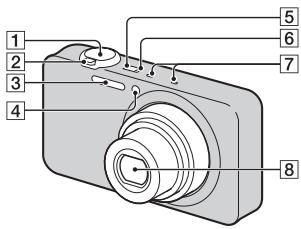
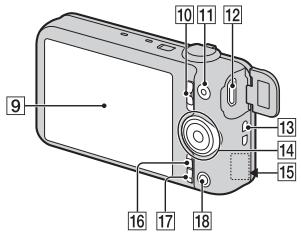
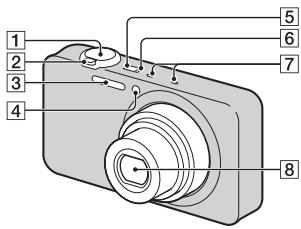
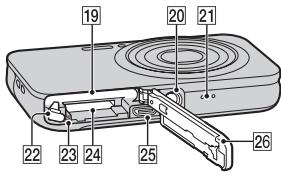
Identifying parts
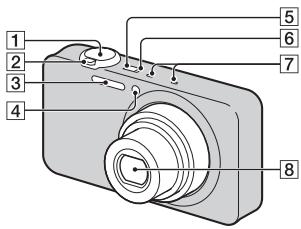
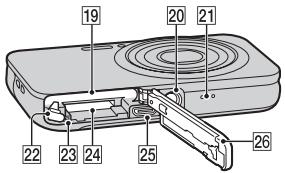
1 Shutter button
For shooting: W/T (Zoom) lever For viewing: (Index) lever/ (Playback zoom) lever
3 Flash
4 Self-timer lamp/Smile Shutter lamp/AF illuminator
[5] ON/OFF (Power) button
Charge lamp
7 Microphone
8 Lens
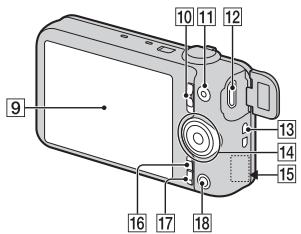
9 LCD screen
10 Mode switch
(Still Image)/ (Sweep Panorama)/ (Movie)
MOVIE (Movie) button
12 Multi/Micro USB Terminal*
Hook for wrist strap
14 Control wheel
[15] Wi-Fi receiver (built-in) (DSC-WX80/WX200 only)
16 MENU button
17 ?/ (In-Camera Guide/Delete) button
18 (Playback) button
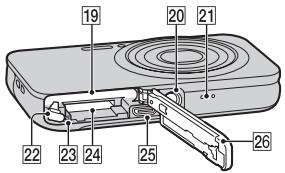
19 Battery insertion slot
20 Tripod receptacle
- Use a tripod with a screw less than 5.5mm (7/32 inches) long. Otherwise, you cannot firmly secure the camera, and damage to the camera may occur.
21 Speaker
22 Battery eject lever
23 Access lamp
24 Memory card slot
25 HDMI micro jack
26 Battery/memory card cover * Supports Micro USB compatible device.
Inserting the battery pack
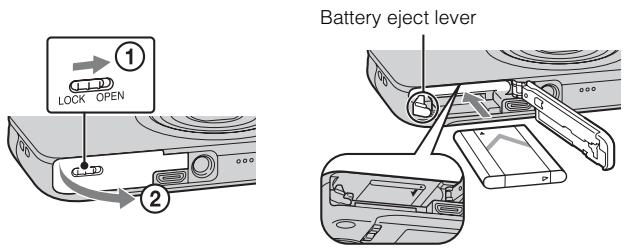
1 Open the cover.
2 Insert the battery pack.
- While pressing the battery eject lever, insert the battery pack as illustrated. Make sure that the battery eject lever locks after insertion.
- Closing the cover with the battery inserted incorrectly may damage the camera.
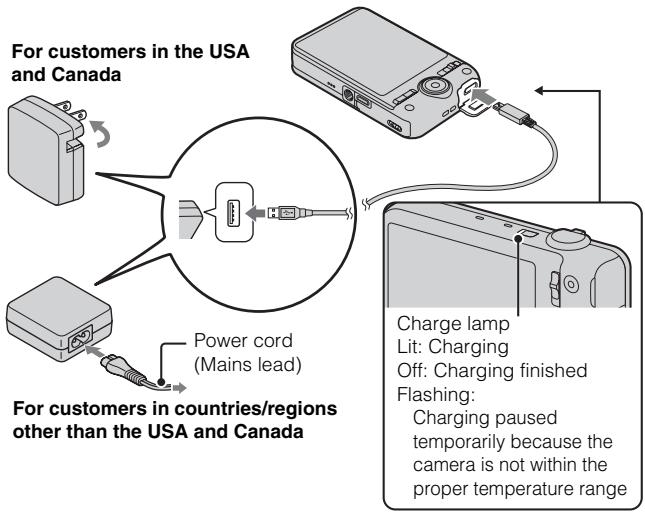
GB
1 Connect the camera to the AC Adaptor (supplied), using the micro USB cable (supplied).
2 Connect the AC Adaptor to the wall outlet (wall socket). The Charge lamp lights orange, and charging starts.
- Turn off the camera while charging the battery.
- You can charge the battery pack even when it is partially charged.
- When the Charge lamp flashes and charging is not finished, remove and re-insert the battery pack.
Notes
- If the Charge lamp on the camera flashes when the AC Adaptor is connected to the wall outlet (wall socket), this indicates that charging is temporarily stopped because the temperature is outside the recommended range. When the temperature gets back within the appropriate range, the charging resumes. We recommend charging the battery pack in an ambient temperature of between 10^ to 30^ (50^ to 86^) .
- The battery pack may not be effectively charged if the terminal section of the battery is dirty. In this case, wipe any dust off lightly using a soft cloth or a cotton swab to clean the terminal section of the battery.
- Connect the AC Adaptor (supplied) to the nearest wall outlet (wall socket). If malfunctions occur while using the AC Adaptor, disconnect the plug from the wall outlet (wall socket) immediately to disconnect from the power source.
- When charging is finished, disconnect the AC Adaptor from the wall outlet (wall socket).
- Be sure to use only genuine Sony brand battery packs, micro USB cable (supplied) and AC Adaptor (supplied).
Charging time (Full charge)
The charging time is approximately 115min using the AC Adaptor (supplied).
Notes
- The above charging time applies when charging a fully depleted battery pack at a temperature of 25^ ( 77^ ). Charging may take longer depending on conditions of use and circumstances.
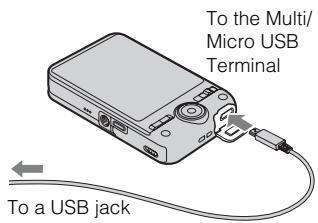
Charging by connecting to a computer
The battery pack can be charged by connecting the camera to a computer using a micro USB cable.
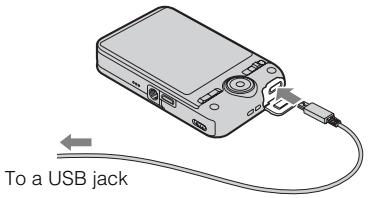
GB
Notes
-
Note the following points when charging via a computer:
-
If the camera is connected to a laptop computer that is not connected to a power source, the laptop battery level decreases. Do not charge for an extended period of time.
- Do not turn on/off or restart the computer, or wake the computer to resume from sleep mode when a USB connection has been established between the computer and the camera. The camera may cause a malfunction. Before turning on/off, or restarting the computer or waking the computer from sleep mode, disconnect the camera and the computer.
- No guarantees are made for charging using a custom-built computer or a modified computer.
Battery life and number of images that can be recorded and played back
| Battery life | Number of images | ||
| Shooting (still images) | DSC-WX60/ WX80 | Approx. 115 min. | Approx. 230 images |
| DSC-WX200 | Approx. 110 min. | Approx. 220 images | |
| Typical movie shooting | DSC-WX60/ WX80 | Approx. 30 min. | — |
| DSC-WX200 | Approx. 35 min. | — | |
| Continuous movie shooting | DSC-WX60/ WX80 | Approx. 60 min. | — |
| DSC-WX200 | Approx. 55 min. | — | |
| Viewing (still images) | DSC-WX60/ WX80 | Approx. 180 min. | Approx. 3600 images |
| DSC-WX200 | Approx. 150 min. | Approx. 3000 images |
Notes
- The above number of images applies when the battery pack is fully charged. The number of images may decrease depending on the conditions of use.
-
The number of images that can be recorded is for shooting under the following conditions:
-
Using Sony "Memory Stick PRO Duo" (Mark2) media (sold separately)
- The battery pack is used at an ambient temperature of 25^ (77^) .
-
The number for "Shooting (still images)" is based on the CIPA standard, and is for shooting under the following conditions:
(CIPA: Camera & Imaging Products Association)
- DISP(Display Setting) is set to [ON].
- Shooting once every 30 seconds.
- The zoom is switched alternately between the W and T ends.
- The flash strobes once every two times.
-
The power turns on and off once every ten times.
-
The numbers of minutes for movie shooting are based on the CIPA standard, and are for shooting under the following conditions:
-
Movie quality:AVC HD HQ
- Typical movie shooting: Battery life based on repeatedly starting/stopping shooting, zooming, turning on/off, etc.
- Continuous movie shooting: Battery life based on non-stop shooting until the limit (29 minutes) has been reached, and then continued by pressing the MOVIE button again. Other functions, such as zooming, are not operated.
Supplying power
The camera can be supplied with power from the wall outlet (wall socket) by connecting to the AC Adaptor, using the micro USB cable (supplied).
You can import images to a computer without worrying about draining the battery pack by connecting the camera to a computer using the micro USB cable.
In addition, you can use the AC Adaptor AC-UD10 (sold separately) for shooting to supply power when shooting.
Notes
- Power cannot be supplied when the battery pack is not inserted in the camera.
- When the camera is connected directly to a computer or to a power outlet using the supplied AC Adaptor, power supply is available only in playback mode. If the camera is in shooting mode or while you are changing the settings of the camera, power is not supplied even if you make a USB connection using the micro USB cable.
- If you connect the camera and a computer using the micro USB cable while the camera is in playback mode, the display on the camera will change from the playback screen to the USB connection screen. Press (Playback) button to switch to the playback screen.
Inserting a memory card (sold separately)
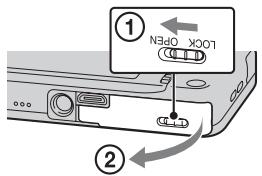
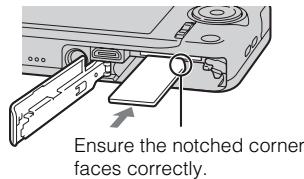
1 Open the cover.
2 Insert the memory card (sold separately).
- With the notched corner facing as illustrated, insert the memory card until it clicks into place.
3 Close the cover.
Memory cards that can be used
| Memory card | For still images | For movies | |
| A | Memory Stick XC-HG Duo | ✓ | ✓ |
| Memory Stick PRO Duo | ✓ | ✓ (Mark2 only) | |
| Memory Stick PRO-HG Duo | ✓ | ✓ | |
| Memory Stick Duo | ✓ | — | |
| B | Memory Stick Micro (M2) | ✓ | ✓ (Mark2 only) |
| C | SD memory card | ✓ | ✓ (Class 4 or faster) |
| SDHC memory card | ✓ | ✓ (Class 4 or faster) | |
| SDXC memory card | ✓ | ✓ (Class 4 or faster) | |
| D | microSD memory card | ✓ | ✓ (Class 4 or faster) |
| microSDHC memory card | ✓ | ✓ (Class 4 or faster) | |
| microSDXC memory card | ✓ | ✓ (Class 4 or faster) |
- In this manual, the products in the table are collectively referred to as follows:
A: "Memory Stick Duo" media
B: "Memory Stick Micro" media
C:SD card
D: microSD memory card
Notes
- To use a "Memory Stick Micro" media or microSD memory card with the camera, be sure to insert it into a dedicated adaptor first.
To remove the memory card/battery pack
Memory card: Push the memory card in once to eject the memory card.
Battery pack: Slide the battery eject lever. Be sure not to drop the battery pack.
Notes
- Never remove the memory card/battery pack when the access lamp (page 9) is lit. This may cause damage to data in the memory card/internal memory.
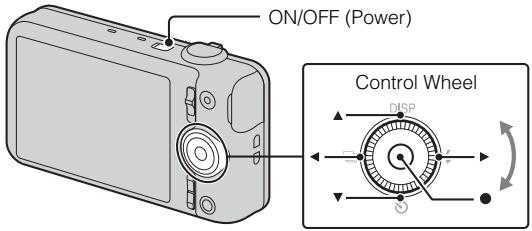
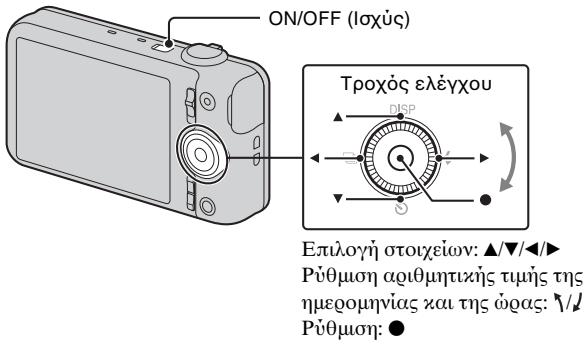
Select items: / / /
Set the numeric value of date and
time: 1/1
Set:
GB
1 Press the ON/OFF (Power) button.
Date & Time setting is displayed when you turn on the camera for the first time.
- It may take time for the power to turn on and allow operation.
2 Select a desired language.
3 Select a desired geographic location by following the on-screen instructions, then press on the control wheel.
4 Set [Date & Time Format], [Daylight Savings] or [Summer Time] and [Date & Time], then select [OK] → [OK].
- Midnight is indicated as 12:00 AM, and noon as 12:00 PM.
5 Follow the instructions on the screen.
-
The battery pack will run out quickly when:
-
Disp. Resolution is set to [High] (DSC-WX200 only).
Shooting still images/movies
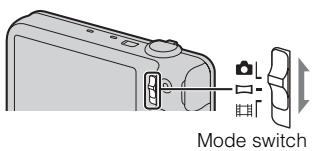
: Still image
Movie
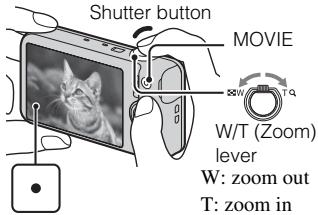
Shooting still images
1 Press the shutter button halfway down to focus.
When the image is in focus, a beep sounds and the indicator lights.
2 Press the shutter button fully down to shoot an image.
Shooting movies
1 Press the MOVIE (Movie) button to start recording.
- Use the W/T (zoom) lever to change the zoom scale.
- Press the shutter button to shoot still images while continuing to record the movie.
2 Press the MOVIE button again to stop recording.
Notes
- The sound of the lens and lever operating will be recorded when the zoom function operates while shooting a movie. The sound of the MOVIE button operating may also be recorded when movie recording is finished.
- The panoramic shooting range may be reduced, depending on the subject or the way it is shot. Therefore even when [360^] is set for panoramic shooting, the recorded image may be less than 360 degrees.
- Continuous shooting is possible for approximately 29 minutes at one time at the camera's default settings and when the temperature is approximately 25^ ( 77^ ). When movie recording is finished, you can restart recording by pressing the MOVIE button again. Recording may stop to protect the camera depending on the ambient temperature.
Viewing images
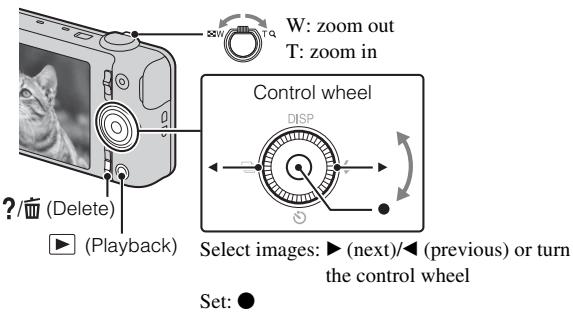
1 Press the (Playback) button.
- When images on a memory card recorded with other cameras are played back on this camera, the registration screen for the data file appears.
Selecting next/previous image
Select an image by pressing (next)/ (previous) on the control wheel or by turning the control wheel. Press in the center of the control wheel to view movies.
Deleting an image
① Press?/(Delete)button.
② Select [This Image] with on the control wheel, then press .
Returning to shooting images
Press the shutter button halfway down.
In-Camera Guide
This camera is equipped with a built-in instruction guide. This allows you to search the camera's functions according to your needs.
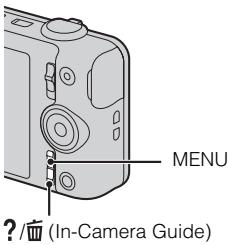
1 Press the MENU button.
2 Select the desired MENU item, then press the ? / (In-Camera Guide) button.
The operation guide for the selected item is displayed.
- If you press the ?/In-Camera Guide) button when the MENU screen is not displayed, you can search the guide using keywords or icons.
Introduction of other functions
Other functions used when shooting or playing back can be operated using the control wheel or MENU button on the camera. This camera is equipped with a Function Guide that allows you to easily select from the functions. While displaying the guide, you can use various functions.
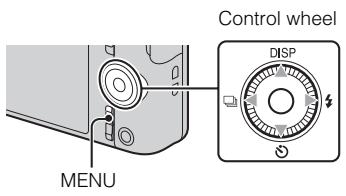
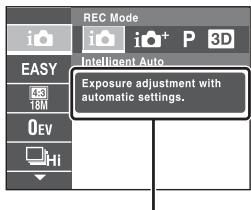
Function Guide
Control wheel
DISP(Display Setting): Allows you to change the screen display.
(Self-Timer): Allows you to use the self-timer.
(Cont. Shooting Settings): Allows you to use the burst shooting mode.
(Flash): Allows you to select a flash mode for still images.
Center button (Tracking focus): The camera tracks the subject and adjusts focus automatically even when the subject is moving.
Menu Items
Shooting
| REC Mode | Select still image recording mode. |
| Movie shooting scene | Select movie recording mode. |
| Panorama Shooting Scene | Select recording mode when shooting panoramic images. |
| Picture Effect | Shoot a still image with an original texture according to the desired effect. |
| Scene Selection | Select pre-set settings to match various scene conditions. |
| Easy Mode | Shoot still images using minimal functions. |
| HDR Painting effect | When [HDR Painting] is selected in Picture Effect, sets the effect level. |
| Area of emphasis | When [Miniature] is selected in Picture Effect, sets the part to focus on. |
| Color hue | When [Toy camera] is selected in Picture Effect, sets the color hue. |
| Extracted Color | When [Partial Color] is selected in Picture Effect, selects the color to extract. |
| Illustration Effect | When [Illustration] is selected in Picture Effect, sets the effect level. |
| Defocus Effect | Set the level of background defocus effect when shooting in Background Defocus mode. |
| Soft Skin Effect | Set the Soft Skin Effect and the effect level. |
| Still Image Size(Dual Rec) | Set the still image size shot while recording a movie. |
| Ctrl with Smartphone*1 | Shoot still images and movies by controlling the camera remotely by a smartphone. |
| Send to Computer*1*3 | Back up images by transferring them to a computer connected to a network. |
| Still Image Size/ Panorama Image Size/Movie Size/ Movie Quality | Select the image size and the quality for still images, panoramic images or movie files. |
| Exposure Compensation | Adjust the exposure manually. |
| ISO | Adjust the luminous sensitivity. |
| White Balance | Adjust color tones of an image. |
| Underwater White Balance*2 | Adjust color tones when shooting underwater. |
| Focus | Select the focus method. |
| Metering Mode | Select the metering mode that sets which part of the subject to measure to determine the exposure. |
| Cont. Shooting Interval | Select the number of images taken per second for Burst shooting. |
| Scene Recognition | Set to automatically detect shooting conditions. |
| Smile Shutter | Set to automatically release the shutter when a smile is detected. |
| Smile Detection Sensitivity | Set the Smile Shutter function sensitivity for detecting smiles. |
| Face Detection | Select to detect faces and adjust various settings automatically. |
| Anti Blink | Set to automatically shoot two images and select image in which the eyes are not blinking. |
| Movie SteadyShot | Set the strength of SteadyShot in movie mode. If you change the setting for [Movie SteadyShot], the angle of view will change. |
| In-Camera Guide | Search the camera's functions according to your needs. |
1 DSC-WX80/WX200 only
2 DSC-WX200 only
*3 Displayed only when a memory card is inserted.
Viewing
| Easy Mode | Increase the text size on the screen for ease of use. |
| Send to Smartphone*1 | Upload and transfer images to a smartphone. |
| View on TV*1 | View images on a network-enabled TV. |
| Send to Computer*1*2 | Back up images by transferring them to a computer connected to a network. |
| Beauty Effect | Retouch a face on a still image. |
| Retouch | Retouch an image using various effects. |
| Picture Effect | Add various texture on images. |
| Slideshow | Select a method of continuous playback. |
| Delete | Delete an image. |
| 3D Viewing | Set to play back images shot in 3D mode on a 3D TV. |
| View Mode | Select the display format for images. |
| Display Cont. Shooting Group | Select to display burst images in groups or display all images during playback. |
| Protect | Protect the images. |
| Print (DPOF) | Add a print order mark to a still image. |
| Rotate | Rotate a still image to the left. |
| In-Camera Guide | Search the camera’s functions according to your needs. |
1 DSC-WX80/WX200 only
2 Displayed only when a memory card is inserted.

Setting items
If you press the MENU button while shooting or during playback,
- (Settings) is provided as a final selection. You can change the default settings on the - (Settings) screen.
| Shooting Settings | Movie format/AF Illuminator/Grid Line/Clear Image Zoom/Digital Zoom/Wind Noise Reduct./Red Eye Reduction/Blink Alert/Write Date/Disp. Resolution (DSC-WX200 only) |
| Main Settings | Beep/Panel Brightness/Language Setting/Display color/ Demo Mode/Initialize/Function Guide/CTRL FOR HDMI/USB Connect Setting/USB Power Supply/LUN Setting/Download Music/Empty Music/Airplane Mode*1/Eye-Fi*2/Power Save/Version/Certification Logo*4 |
| Network Settings*1 | WPS Push/Access point settings/Edit Device Name/SSID/PW Reset/Disp MAC Address |
| Memory Card Tool*3 | Format/Create REC.Folder/Change REC.Folder/Delete REC.Folder/Copy/File Number |
| Clock Settings | Area Setting/Date & Time Setting |
1 DSC-WX80/WX200 only
2 Displayed only when an Eye-Fi memory card is inserted.
3 If a memory card is not inserted, (Internal Memory Tool) will be displayed and only [Format] can be selected.
4 Overseas DSC-WX200 model only.
Features of "PlayMemories Home"
The software "PlayMemories Home" allows you to import still images and movies to your computer and use them.
GB
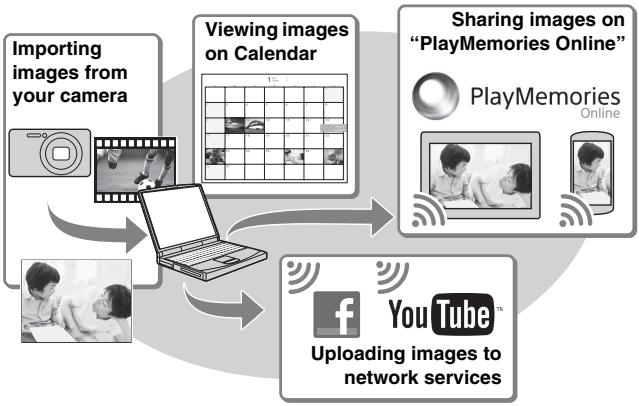

Downloading "PlayMemories Home" (for Windows only)
You can download "PlayMemories Home" from the following URL: www.sony.net/pm
Notes
- An Internet connection is required to install "PlayMemories Home".
- An Internet connection is required to use "PlayMemories Online" or other network services. "PlayMemories Online" or other network services may not be available in some countries or regions.
- "PlayMemories Home" is not compatible with Macs. Use the applications that are installed on your Mac. For details, visit the following URL: http://www.sony.co.jp/imsoft/Mac/
■ Installing "PlayMemories Home" on a computer
1 Using the Internet browser on your computer, go to the following URL, then click [Install] [Run].
www.sony.net/pm
2 Follow the instructions on the screen to complete the installation.
- When the message to connect the camera to a computer is displayed, connect the camera and computer using the micro USB cable (supplied).
Viewing "PlayMemories Home Help Guide"
For details on how to use "PlayMemories Home", refer to the "PlayMemories Home Help Guide".
1 Double-click the [PlayMemories Home Help Guide] icon on the desktop.
- To access the "PlayMemories Home Help Guide" from the start menu: Click [Start] [All Programs] [PlayMemories Home] [PlayMemories Home Help Guide].
- For details on "PlayMemories Home", you can also see the "Cyber-shot User Guide" (page 2) or the following PlayMemories Home support page (English only): http://www.sony.co.jp/pmh-se/
Number of still images and recordable time of movies
The number of still images and recordable time may vary depending on the shooting conditions and the memory card.
Still images
(Units: Images)
| Capacity Size | Internal memory | Memory card |
| Approx. 48 MB | 2 GB | |
| 18M (DSC-WX200) | 7 | 295 |
| 16M (DSC-WX60/ WX80) | 8 | 320 |
| VGA | 155 | 6400 |
| 16:9(13M) (DSC-WX200) | 8 | 325 |
| 16:9(12M) (DSC-WX60/ WX80) | 8 | 330 |
| 16:9(2M) | 29 | 1150 |
Movies
The table below shows the approximate maximum recording times. These are the total times for all movie files. Continuous shooting is possible for approximately 29 minutes (a product specification limit). The maximum continuous recording time of an MP4 (12M) format movie is about 15 minutes (limited by the 2 GB file size restriction).
(h hour), m (minute))
| Capacity Size | Internal memory | Memory card |
| Approx. 48 MB | 2 GB | |
| AVC HD 24M (FX) | — | 10 m (10 m) |
| AVC HD 9M (HQ) | — | 25 m (15 m) |
| MP4 12M | — | 15 m |
| MP4 3M | — | 1 h 10 m |
The number in () is the minimum recordable time.
- The recordable time of movies varies because the camera is equipped with VBR (Variable Bit Rate), which automatically adjusts image quality depending on the shooting scene. When you record a fast-moving subject, the image is clearer but the recordable time is shorter because more memory is required for recording. The recordable time also varies depending on the shooting conditions, the subject or the image quality/size settings.
Notes on using the camera
Functions built into this camera
- This manual describes the functions of 1080 60i-compatible devices and 1080 50i-compatible devices.
To check if your camera is a 1080 60i-compatible device or 1080 50i-compatible device, check for the following marks on the bottom of the camera.
1080 60i-compatible device: 60i
1080 50i-compatible device: 50i
- Do not watch 3D images shot with this camera for extended periods of time on 3D-compatible monitors.
- When you view 3D images shot with this camera on a 3D-compatible monitors, you may experience discomfort in the form of eye strain, fatigue, or nausea. To prevent these symptoms, we recommend that you take regular breaks. However, you need to determine for yourself the length and frequency of breaks you require, as they vary according to the individual. If you experience any type of discomfort, stop viewing the 3D images until you feel better, and consult a physician as necessary. Also refer to the operating instructions supplied with the device or software you have connected or are using with this camera. Note that a child's eyesight is still at the development stage (particularly children below the age of 6). Consult a pediatrician or ophthalmologist before letting your child view 3D images, and make sure he/she observes the above precautions when viewing such images.
On use and care
Avoid rough handling, disassembling, modifying, physical shock, or impact such as hammering, dropping, or stepping on the product. Be particularly careful of the lens.
Notes on recording/playback
- Before you start recording, make a trial recording to make sure that the camera is working correctly.
- The camera is neither dust-proof, nor splash-proof, nor water-proof.
- Avoid exposing the camera to water. If water enters inside the camera, a malfunction may occur. In some cases, the camera cannot be repaired.
- Do not aim the camera at the sun or other bright light. It may cause the malfunction of the camera.
-
If moisture condensation occurs, remove it before using the camera.
-
Do not shake or strike the camera. It may cause a malfunction and you may not be able to record images. Furthermore, the recording media may become unusable or image data may be damaged.
Do not use/store the camera in the following places
- In an extremely hot, cold or humid place
In places such as in a car parked in the sun, the camera body may become deformed and this may cause a malfunction.
- Under direct sunlight or near a heater
The camera body may become discolored or deformed, and this may cause a malfunction.
- In a location subject to rocking vibration
- Near a location that generates strong radio waves, emits radiation or is strongly magnetic place. Otherwise, the camera may not properly record or play back images.
- In sandy or dusty places
Be careful not to let sand or dust get into the camera. This may cause the camera to malfunction, and in some cases this malfunction cannot be repaired.
On carrying
Do not sit down in a chair or other place with the camera in the back pocket of your trousers or skirt, as this may cause malfunction or damage the camera.
Carl Zeiss lens (DSC-WX60/WX80)
The camera is equipped with a Carl Zeiss lens which is capable of reproducing sharp images with excellent contrast. The lens for the camera has been produced under a quality assurance system certified by Carl Zeiss in accordance with the quality standards of Carl Zeiss in Germany.
Notes on the screen and lens
The screen is manufactured using extremely high-precision technology so over 99.99% of the pixels are operational for effective use. However, some tiny black and/or bright dots (white, red, blue or green) may appear on the screen. These dots are a normal result of the manufacturing process, and do not affect the recording.
On camera's temperature
Your camera and battery may get hot due to continuous use, but it is not a malfunction.
On the overheat protection
Depending on the camera and battery temperature, you may be unable to record movies or the power may turn off automatically to protect the camera.
A message will be displayed on the screen before the power turns off or you can no longer record movies. In this case, leave the power off and wait until the camera and battery temperature goes down. If you turn on the power without letting the camera and battery cool enough, the power may turn off again or you may be unable to record movies.
On charging the battery
If you charge a battery that has not been used for a long time, you may be unable to charge it to the proper capacity.
This is due to the battery characteristics, and is not a malfunction. Charge the battery again.
Warning on copyright
Television programs, films, videotapes, and other materials may be copyrighted. Unauthorized recording of such materials may be contrary to the provisions of the copyright laws.
No compensation for damaged content or recording failure
Sony cannot compensate for failure to record or loss or damage of recorded content due to a malfunction of the camera or recording media, etc.
Cleaning the camera surface
Clean the camera surface with a soft cloth slightly moistened with water, then wipe the surface with a dry cloth. To prevent damage to the finish or casing:
- Do not expose the camera to chemical products such as thinner, benzine, alcohol, disposable cloths, insect repellent, sunscreen or insecticide.
Maintaining the LCD monitor
- Hand cream or moisturizer left on the screen may dissolve its coating. If you get any on the screen, wipe it off immediately.
- Wiping forcefully with tissue paper or other materials can damage the coating.
- If fingerprints or debris are stuck to the screen of the LCD monitor, we recommend that you gently remove any debris and then wipe the screen clean with a soft cloth.
Note on wireless LAN
We assume no responsibility whatsoever for any damage caused by unauthorized access to, or unauthorized use of, destinations loaded on the camera, resulting from loss or theft.
Note on disposal/transfer of the camera
To protect personal data, perform the following when disposing of or transferring the camera.
- Format the internal memory (page 24), record images up to full capacity of the internal memory with the lens covered, and then format the internal memory again.
This will make it difficult to recover any of your original data.
- Reset all camera settings by performing [Initialize] [All settings] (page 24).
Camera
[System] (DSC-WX200)
Image device: 7.76mm (1/2.3 type)
Exmor R CMOS sensor
Total pixel number of camera:
Approx. 18.9 Megapixels
Effective pixel number of camera:
Approx. 18.2 Megapixels
Lens: Sony G 10 × zoom lens
f = 4.45 mm - 44.5 mm( 25 mm - .
250~mm (35 mm film equivalent))
F3.3 (W) - F5.9 (T)
While shooting movies (16:9):
27.5 mm - 275 mm*
While shooting movies (4:3):
33.5 mm - 335 mm*
- When [Movie SteadyShot] is set to [Standard]
SteadyShot: Optical
Exposure control: Automatic exposure, Scene Selection
White balance: Automatic, Daylight,
Cloudy, Fluorescent 1/2/3
Incandescent, Flash, One Push
Underwater White balance:
Underwater
File format:
Still images: JPEG (DCF, Exif,
MPF Baseline) compliant, DPOF
compatible
3D still images: MPO (MPF
Extended (Disparity Image))
compliant
Movies (AVCHD format):
AVCHD format Ver. 2.0
compatible
Video: MPEG-4 AVC/H.264
Audio: Dolby Digital 2ch,
equipped with Dolby Digital Stereo
Creator
- Manufactured under license from Dolby Laboratories.
Movies (MP4 format):
Video: MPEG-4 AVC/H.264
Audio: MPEG-4 AAC-LC 2ch
Recording media: Internal Memory
(Approx. 48 MB), "Memory Stick
"Duo" media, "Memory Stick
Micro" media, SD cards, microSD
memory cards
Flash: Flash range (ISO sensitivity
(Recommended Exposure Index)
set to Auto):
Approx. 0.2m to 3.7m
(7 7/8 inches to 12 ft. 1 3/4 inches)
(W)
Approx. 1.5m to 2.2m
(4 ft. 11 1/8 inches to 7 ft. 2 5/8
inches) (T)
[System] (DSC-WX60/WX80)
Image device: 7.77mm (1/2.3 type)
Exmor R CMOS sensor
Total pixel number of camera:
Approx. 16.8 Megapixels
Effective pixel number of camera:
Approx. 16.2 Megapixels
Lens: Carl Zeiss Vario-Tessar 8 × zoom lens
f = 4.5 mm - 36.0 mm( 25 mm - .
200mm (35 mm film equivalent))
F3.3 (W) - F6.3 (T)
While shooting movies (16:9):
28 mm - 224 mm*
While shooting movies (4:3):
34mm - 272mm^*
- When [Movie SteadyShot] is set to [Standard]
SteadyShot: Optical
Exposure control: Automatic exposure,
Scene Selection
White balance: Automatic, Daylight, Cloudy, Fluorescent 1/2/3, Incandescent, Flash, One Push
File format:
Still images: JPEG (DCF, Exif, MPF Baseline) compliant, DPOF compatible
3D still images: MPO (MPF Extended (Disparity Image)) compliant
Movies (AVCHD format):
AVCHD format Ver. 2.0
compatible
Video:MPEG-4AVC/H.264
Audio: Dolby Digital 2ch, equipped with Dolby Digital Stereo Creator
Manufactured under license from Dolby Laboratories.
Movies (MP4 format):
Video:MPEG-4AVC/H.264
Audio: MPEG-4 AAC-LC 2ch
Recording media: Internal Memory (Approx. 48 MB), "Memory Stick Duo" media, "Memory Stick Micro" media, SD cards, microSD memory cards
Flash: Flash range (ISO sensitivity (Recommended Exposure Index) set to Auto):
Approx. 0.2m to 4.2m
(7 7/8 inches to 13 ft. 9 3/8 inches) (W)
Approx. 1.5m to 2.2m
(4 ft. 11 1/8 inches to 7 ft. 2 5/8 inches) (T)
[Input and Output connectors]
HDMI connector: HDMI micro jack
Multi/Micro USB Terminal*:
USB communication
USB communication: Hi-Speed USB (USB 2.0)
- Supports Micro USB compatible device.
[Screen] (DSC-WX200)
LCD screen: 6.7 cm (2.7 type) TFT drive Total number of dots: 460 800 dots
[Screen] (DSC-WX60/WX80)
LCD screen: 6.7 cm (2.7 type) TFT drive Total number of dots: 230 400 dots
[Power, general]
Power: Rechargeable battery pack NP-BN, 3.6 V
AC Adaptor AC-UB10/UB10B/
UB10C/UB10D, 5 V
Power consumption (during shooting):
DSC-WX200: Approx. 1.2 W
DSC-WX60/WX80:
Approx. 1.0W
Operating temperature: 0^ to 40^ (32^ to 104^)
Storage temperature: -20^ to +60^ (-4^ to +140^)
Dimensions (CIPA compliant): DSC-WX200:
92.3mm× 52.4mm× 21.6mm
(3 3/4 inches × 2 1/8 inches × 7/8
inches) (W/H/D)
DSC-WX60/WX80:
92.3mm× 52.5mm× 22.5mm
(3 3/4 inches × 2 1/8 inches ×
29/32 inches) (W/H/D)
Mass (CIPA compliant) (including NP-BN battery pack, "Memory Stick Duo" media):
DSC-WX200:
Approx. 121g (4.3 oz)
DSC-WX60/WX80:
Approx. 124g (4.4 oz)
Microphone: Stereo
Speaker: Monaural
Exif Print: Compatible
PRINT Image Matching III: Compatible
[Wireless LAN] (DSC-WX80/WX200)
Supported standard: IEEE 802.11 b/g/n
Frequency: 2.4GHz
Supported security protocols: WEP/WPA-PSK/WPA2-PSK
Configuration method: WPS (Wi-Fi Protected Setup) / manual
Access method: Infrastructure Mode
AC Adaptor AC-UB10/UB10B/UB10C/UB10D
Power requirements: AC 100 V to 240V , 50Hz / 60Hz , 70mA
Output voltage: DC 5 V, 0.5 A
Operating temperature: 0^ to 40^ (32^ to 104^)
Storage temperature: -20^ to +60^ (-4^ to +140^)
Dimensions: Approx. 50mm× 22mm× 54mm (2 inches × 7/8 inches × 2 1/4 inches) (W/H/D)
Mass: For the USA and Canada: Approx. 48g (1.7 oz) For countries or regions other than the USA and Canada: Approx. 43g (1.5 oz)
Rechargeable battery pack NP-BN
Used battery: Lithium-ion battery
Maximum voltage: DC 4.2 V
Nominal voltage: DC 3.6 V
Maximum charge voltage: DC 4.2 V
Maximum charge current: 0.9 A
Capacity:
typical: 2.3 Wh (630 mAh)
minimum: 2.2Wh (600mAh)
Design and specifications are subject to change without notice.
Trademarks
- The following marks are trademarks of Sony Corporation.
Cybershot, "Cyber-shot," "Memory Stick XC-HG Duo," "Memory Stick PRO Duo," "Memory Stick PRO-HG Duo," "Memory Stick Duo," "Memory Stick Micro"
- "AVCHD" and "AVCHD" logotype are trademarks of Panasonic Corporation and Sony Corporation.
- The terms HDMI and HDMI High-Definition Multimedia Interface, and the HDMI Logo are trademarks or registered trademarks of HDMI Licensing LLC in the United States and other countries.
- Windows is registered trademark of Microsoft Corporation in the United States and/or other countries.
Mac, App Store are registered trademarks of Apple Inc. - iOS is a registered trademark or trademark of Cisco Systems, Inc. and/or its affiliates in the United States and certain other countries.
- Android, Google Play are trademarks of Google Inc.
- Wi-Fi, the Wi-Fi logo, Wi-Fi PROTECTED SET-UP are registered trademarks of the Wi-Fi Alliance.
- DLNA and DLNA CERTIFIED are trademarks of Digital Living Network Alliance.
- SDXC logo is a trademark of SD-3C, LLC.
- "e" and "PlayStation" are registered trademarks of Sony Computer Entertainment Inc.
- Facebook and the "F" logo are trademarks or registered trademarks of Facebook, Inc.
YouTube and the YouTube logo are trademarks or registered trademarks of Google Inc.
- In addition, system and product names used in this manual are, in general, trademarks or registered trademarks of their respective developers or manufacturers. However, the TM or ® marks are not used in all cases in this manual.

Works with PlayStation®3
- Add further enjoyment with your PlayStation 3 by downloading the application for PlayStation 3 from PlayStation Store (where available.)
- The application for PlayStation 3 requires PlayStation Network account and application download. Accessible in areas where the PlayStation Store is available.
Additional information on this product and answers to frequently asked questions can be found at our Customer Support Website.
http://www.sony.net/
Printed on 70% or more recycled paper using VOC (Volatile Organic Compound)-free vegetable oil based ink.
GB
Appareil photo (1)
- Batterie rechargeable NP-BN (1)
Responsible : Sony Electronics Inc.
Adresse: 16530 Via Esprillo, San Diego, CA 92127 E.-U.
Responsible : Sony Electronics Inc.
Adresse: 16530 Via Esprillo, San Diego, CA 92127 E.-U.
5 Touche ON/OFF (Alimentation)
(h (heures), m (minutes))
| CapacitéTaille | Mémoire interne | Carte mémoire |
| Environ 48 Mo | 2 Go | |
| AVC HD 24M (FX) | — | 10 m(10 m) |
| AVC HD 9M (HQ) | — | 25 m(15 m) |
| MP4 12M | — | 15 m |
| MP4 3M | — | 1 h 10 m |
[Systeme] (DSC-WX200)
Films (format AVCHD) :
[Systeme] (DSC-WX60/WX80)
[Ecran] (DSC-WX60/WX80)
Ecran LCD: Matrice active TFT 6,7 cm (type 2,7)
DSC-WX200:Environ 1,2 W DSC-WX60/WX80: Environ 1,0 W
[LAN sans fil] (DSC-WX80/WX200)
Batterie rechargeable NP-BN
Works with PlayStation®3
A: "Memory Stick Duo"
B: "Memory Stick Micro"
C: scheda SD
D: schedadi memoria microSD
Note
[SiStema] (DSC-WX60/WX80)
[Schemo] (DSC-WX200)
[Schermo] (DSC-WX60/WX80)
[LAN wireless] (DSC-WX80/WX200)
Standard supportato: IEEE 802.11 b/g/n
Frequenza: 2,4 GHz
Works with PlayStation®3
[SiStema] (DSC-WX60/WX80)
[Pantalla] (DSC-WX200)
[Pantalla] (DSC-WX60/WX80)
DSC-WX200: Aprox. 1,2 W
DSC-WX60/WX80: Aprox. 1,0 W
Temperatura de funciona: 0^ a 40^
Temperatura de almacenamento:
-20^ a +60^
Dimensiones (cumple con CIPA): DSC-WX200:
92,3mm× 52,4mm× 21,6mm
(An/Al/Pr)
DSC-WX60/WX80:
92,3mm× 52,5mm× 22,5mm
(An/Al/Pr)
Works with PlayStation®3
(h (horas), m (minutes))
[SiStema] (DSC-WX60/WX80)
Dispositivo de imagem: Sensor CMOS Exmor R de 7,77 mm (valor 1/2,3)
[Ecra] (DSC-WX60/WX80)
Ecrà LCD:
unidade TFT de 6,7 cm (valor 2,7)
Número total de pontos:
230 400 pontos
Cyber-shot, "Cyber-shot",
"Memory Stick XC-HG Duo", "Memory Stick PRO Duo",
"Memory Stick PRO-HG Duo", "Memory Stick Duo", "Memory Stick Micro"
Works with PlayStation®3
[System] (DSC-WX200)
[System] (DSC-WX60/WX80)
Format AVCHD Ver. 2.0
kompatibel
Video: MPEG-4 AVC/H.264
DSC-WX200: ca. 1,2 W
DSC-WX60/WX80: ca. 1,0 W
Konfigurationsmethode: WPS (Wi-Fi)
Protected Setup)/manuell
Works with PlayStation®3
Carl Zeiss-lens (DSC-WX60/WX80)
[System] (DSC-WX200)
Beeldapparaat: 7,76mm (type 1/2,3) Exmor R CMOS-sensor
[System] (DSC-WX60/WX80)
Beeldapparaat: 7,77mm (type 1/2,3) Exmor R CMOS-sensor
[Scherm] (DSC-WX200)
LCD-schem:
[Scherm] (DSC-WX60/WX80)
LCD-schem:
DSC-WX60/WX80:Ong.1,0W
Configuratiemethode: WPS (Wi-Fi Protected Setup) / handmatig
Cybershot, "Cyber-shot",
"Memory Stick XC-HG Duo", "Memory Stick PRO Duo", "Memory Stick PRO-HG Duo", "Memory Stick Duo", "Memory Stick Micro"
Works with PlayStation®3
Elementary apparatus
[System] (DSC-WX200)
[System] (DSC-WX60/WX80)
[Ekran] (DSC-WX60/WX80)
Ekran LCD: 6,7 cm (typ 2,7) naped TFT
DSC-WX200: Oko 1,2 W
DSC-WX60/WX80:
Oko1o 1,0 W
Temperatura pracy: 0^ do 40^
Works with PlayStation®3
Sony Europe Limited, The Heights, Brooklands, Weybridge, Surrey, KT130XW, United Kingdom
PL
(CIPA: Camera & Imaging Products Association)
[System] (DSC-WX200)
Obrazovy snimač: 7,76 mm (typ 1/2,3) snimač Exmor R CMOS
Celkovy počet pixelu fotaparátu:
Přbl. 18,9 megapixelu
[System] (DSC-WX60/WX80)
Obrazovy snimac: 7,77 mm (typ 1/2,3) snimac Exmor R CMOS
Celkovy počet pixelu fotaparátu: Přbl. 16,8 megapixel
DSC-WX60/WX80: Pribl.1,0 W
Works with PlayStation®3
A membranous cystitis (BCC) is a rare entity that is characterized by the presence of a single or multiple cystic lesion in the bladder. It is usually associated with a history of bladder cancer, and it is also common in men.
- Az ejfelt a 12:00 AM, a delete a 12:00 PM jerolli.
[Rendszer] (DSC-WX60/WX80)
DSC-WX60/WX80:Kb.1,0W
Uzemi hómér séklet: 0^ - 40^
Tárolásihomérseklet: -20^- +60^
Méretak (CIPA-kompatibilis): DSC-WX200:
92,3mm× 52,4mm× 21,6mm
(Szé/Ma/Mé)
DSC-WX60/WX80:
92,3mm× 52,5mm× 22,5mm
(Szé/Ma/Mé)
Cyber-shot, "Cyber-shot", "Memory Stick XC-HG Duo", "Memory Stick PRO Duo", "Memory Stick PRO-HG Duo", "Memory Stick Duo", "Memory Stick Micro"
Works with PlayStation®3
| Shooting Settings | Movie format/AF Illuminator/Grid Line/Clear Image Zoom/Digital Zoom/Wind Noise Reduct./Red Eye Reduction/Blink Alert/Write Date/Disp. Resolution (len model DSC-WX200) |
| Main Settings | Beep/Panel Brightness/Language Setting/Display color/Demo Mode/Initialize/Function Guide/CTRL FOR HDMI/USB Connect Setting/USB Power Supply/LUN Setting/Download Music/Empty Music/Airplane Mode*1/Eye-Fi*2/Power Save/Version/Certification Logo*4 |
| Network Settings*1 | WPS Push/Access point settings/Edit Device Name/SSID/PW Reset/Disp MAC Address |
| Memory Card Tool*3 | Format/Create REC.Folder/Change REC.Folder/Delete REC.Folder/Copy/File Number |
| Clock Settings | Area Setting/Date & Time Setting |
[System] (DSC-WX200)
Zobrazovacie zariadenie: 7,76 mm snimač Exmor R CMOS (typ 1/2,3)
Celkovy poct pixelov fotoaparatu: Pribl. 18,9 megapixa
Efektivy počet pixelov
fotoaparátu:
Pribl. 18,2 megapixa
la
Objektiv: objektiv Sony G s 10 × prilibízenim f = 4,45 ~mm - 44,5 ~mm (25 mm - 250 mm (ekvivalent 35 mm filmu))
F3,3 (W) - F5,9 (T)
Pri snímaní videoozáznamov (16:9): 27,5 mm - 275 mm
Pri snímaní videoozáznamov (4:3): 33,5 mm - 335 mm
* Ked je položka [Movie SteadyShot] nastavená na możnost [Standard]
SteadyShot: Opticky
[System] (DSC-WX60/WX80)
Zobrazovacie zariadenie: 7,77 mm snimac Exmor R CMOS (typ 1/2,3)
Celkovy poct pixelov Fotoaparatu: Pribl. 16,8 megapixa
Efektivny počet pixeov
fotoaparátu:
Pribl. 16,2 megapixa
SK
Objektiv: objektiv Carl Zeiss Vario-Tessar s 8× priblizenim f = 4,5mm - 36,0mm (25 mm- 200~mm (ekvivalent 35mm filmu))
F3,3 (W) - F6,3 (T)
DSC-WX200:Pribl.1,2 W
DSC-WX60/WX80:Pribl.1,0W
Prevadzková teploa: 0^ až 40^
Skladovacia teplota: -20^ a +60^
Rozmery (v sulade so standardom CIPA):
DSC-WX200:
92,3mm× 52,4mm× 21,6mm ( / /)
DSC-WX60/WX80:
92,3mm× 52,5mm× 22,5mm ( /N / H)
Hmotnosf (v suliade so štandardom CIPA) (vratane baterie NP-BN a pamäfovej karty „Memory Stick Duo“):
DSC-WX200:
Pribl. 121 g
DSC-WX60/WX80:
Pribl. 124g
Mikrofón: Stereofonny
Reproduktor: Monofónny
Exif Print: Kompatibilny
PRINT Image Matching III:
Kompatibilny
[Bezdrotová siet LAN] (DSC-WX80/WX200)
Podporovany Štandard: IEEE 802.11 b/g/n
Frekvencia: 2,4 GHz
Works with PlayStation®3
Ziskajte dalsie potesenie z konzoly PlayStation 3 po prevzati aplikacia pre konzolu PlayStation 3 z obchodu PlayStation Store (ak je k dispozicii).
- Ak chcete prevziaf aplikaciu pre PlayStation 3, musite mat učet na PlayStation Network. Dostupné v oblastiach, kde je k disposizii PlayStation Store.
(CIPA: Camera & Imaging Products Association)
Visa "Hjalpguide for PlayMemories Home"
Mer information om hur du anvander "PlayMemories Home" fár du om du lāser "Hjälpguide for PlayMemories Home".
[System] (DSC-WX200)
Bildenhet: 7,76 mm (1/2,3-typ) Exmor R CMOS-sensor
[System] (DSC-WX60/WX80)
Bildenhet: 7,77mm (1/2,3-typ)
Exmor R CMOS-sensor
[Skärm] (DSC-WX60/WX80)
LCD-skärm:
6,7 cm (2,7-typ) TFT-enhet
Cyber-shot, "Cyber-shot",
"Memory Stick XC-HG Duo",
"Memory Stick PRO Duo",
"Memory Stick PRO-HG Duo",
"Memory Stick Duo", "Memory Stick Micro"
Works with PlayStation®3
(CIPA: Camera & Imaging Products Association)
[Naytto] (DSC-WX200)
LCD-näytto:
[Naytto] (DSC-WX60/WX80)
LCD-näytto:
DSC-WX60/WX80: Noin 1,0 W
Cyber-shot, "Cyber-shot",
"Memory Stick XC-HG Duo", "Memory Stick PRO Duo",
"Memory Stick PRO-HG Duo",
"Memory Stick Duo", "Memory Stick Micro"
Works with PlayStation®3
(h (time), m (minutt))
| Kapasitet Størrelse | Interninne | Minnekort |
| Ca. 48 MB | 2 GB | |
| AVC HD 24M (FX) | — | 10 m (10 m) |
| AVC HD 9M (HQ) | — | 25 m (15 m) |
| MP4 12M | — | 15 m |
| MP4 3M | — | 1 h 10 m |
Tallet i parentes viser minsteverdien for opptakstiden som er tilgengelig.
Carl Zeiss-linse (DSC-WX60/WX80)
Kameraet er utstyr med en Carl Zeiss-linse som er i stand til a reproduzeske karpe bilder med glimrende kontrast. Kameralinsen er produsert med et kvalitetsikringssystem sertifisert av Carl Zeiss i samsvar med kvalitetsstandardene til Carl Zeiss i Tyskland.
[System] (DSC-WX200)
Bildeenhet: 7,76mm (1/2,3 type)
Exmor R CMOS-sensor
Totalt antall piksler på kamera:
Ca. 18,9 megapiksler
Effektiv antall piksler på camera:
Ca. 18,2 megapiksler
Linse: Sony G 10 × zoomlinse
f = 4,45mm - 44,5mm (25 mm -
250~mm (tilsvarende 35~mm film))
F3,3 (W) - F5,9 (T)
(MPF Extended (Disparity Image))
Filmer (AVCHD-format):
AVCHD-format Ver. 2.0-kompatibel
Video:MPEG-4AVC/H.264
Lyd: Dolby Digital 2 kanal, utstyrt med Dolby Digital Stereo Creator
Blits: Blitsomrade (ISO-folsomhet
(Anbefalt eksponeringsindeks) stilt
inn til Auto):
Ca. 0,2m til 3,7m (W)
Ca. 1,5m til 2,2m (T)
[System] (DSC-WX60/WX80)
Bildeenhet: 7,77mm (1/2,3 type)
Exmor R CMOS-sensor
Totalt antall piksler pa kamera:
Ca. 16,8 megapiksler
Effektiv antall piksler på camera:
Ca. 16,2 megapiksler
Linse: Carl Zeiss Vario-Tessar 8 × zoomlinse
f = 4,5mm - 36,0mm (25 mm -
200mm (tilsvarende 35mm film))
F3,3 (W) - F6,3 (T)
(MPF Extended (Disparity Image))
Filmer (AVCHD-format):
AVCHD-format Ver. 2.0-
kompatibel
Video: MPEG-4 AVC/H.264
Lyd: Dolby Digital 2 kanal, utstyrt
med Dolby Digital Stereo Creator
Blits: Blitsomrade (ISO-folsomhet
(Anbefalt eksponeringsindeks) stilt
inn til Auto):
Ca. 0,2m til 4,2m (W)
Ca. 1,5m til 2,2m (T)
[Skjerm] (DSC-WX200)
LCD-skjerm:
[Skjerm] (DSC-WX60/WX80)
LCD-skjerm:
DSC-WX60/WX80: Ca. 1,0 W
Driftstemperatur: 0^ til 40^
Oppbevaringstemperatur: -20^ til
+60°C
Mäl (CIPA-ettergivende):
DSC-WX200:
92,3mm× 52,4mm× 21,6mm
(B/H/D)
DSC-WX60/WX80:
92,3 mm × 52,5 mm × 22,5 mm
(B/H/D)
[Tradigs LAN] (DSC-WX80/WX200)
Stottet standard: IEEE 802.11 b/g/n
Frekvens: 2,4 GHz
Stottedes sikkerhetsprotokoller: WEP/WPA-PSK/WPA2-PSK
Works with PlayStation®3
Identification of kameraets dele
1 Udloserknap
2 Ved optagelse: W/T (Zoom)-knap
Ved visning: (Indeks)-knap/
Q (Afsplningszoom)-knap
3 Blitz
Selvudløserlampe/Lampe til smiludøser/AF-lampe
[5] ON/OFF (Strøm)-knap
6 Opladelampe
7 Mikrofon
8 Objektiv
9 LCD-skaerm
10 Tilstandssomskifter

(Stillbillede)/
(Panorering)/(Film)
(h (timer), m (minutter))
| Kapacitet Størrelse | Intern hukommelse | Hukommelseskort |
| Ca. 48 MB | 2 GB | |
| AVC HD 24M (FX) | — | 10 m (10 m) |
| AVC HD 9M (HQ) | — | 25 m (15 m) |
| MP4 12M | — | 15 m |
| MP4 3M | — | 1 h 10 m |
[System] (DSC-WX200)
Billedenhed: 7,76mm (1/2,3-type) Exmor R CMOS-sensor
Totalt antal pixels for kameraet: Ca. 18,9 megapixels
Antal effective pixels for kameraet: Ca. 18,2 megapixels
Objektiv: Sony G 10x zoomobjektiv f = 4.45 mm - 44.5 mm (25 mm - 250 mm (svarende til 35 mm film))
F3,3 (W) - F5,9 (T)
[System] (DSC-WX60/WX80)
Billedenhed: 7,77mm (1/2,3-type)
Exmor R CMOS-sensor
Totalt antal pixel for kameraet:
Ca. 16,8 megapixels
Totalt antal pixel for kameraet:
Ca. 16,2 megapixels
(DCF, Exif, MPF Baseline),
DPOF-kompatibel
3D-stillbilleder: Overholder MPO
(MPF Extended (Forskelsbillede))
Film (AVCHD-format): AVCHD
format,Ver.2.0-kompatibel
Video:MPEG-4AVC/H.264
Lyd: 2-kanals Dolby Digital,
[Skaarm] (DSC-WX60/WX80)
LCD-skærm:
6,7 cm (2,7-type) TFT-drev
DSC-WX60/WX80: Ca. 1,0 W
Driftstemperatur: 0^ til 40^
Opbevaringtemperatur: -20^ til
+60°C
[Tradlst LAN] (DSC-WX80/WX200)
Understotted standarder: IEEE 802.11
b/g/n
Frekvens: 2,4 GHz
Konfigurationsmetode: WPS (Wi-Fi)
Protected Setup) / manuel
Adgangsmetode: Infrastrukturtilstand
Lysnetadapter AC-UB10/ UB10B/UB10C/UB10D
Strömkrav: Vekselström 100 V til 240 V, 50 Hz/60 Hz, 70 mA
Cybershot, "Cyber-shot", "Memory Stick XC-HG Duo", "Memory Stick PRO Duo", "Memory Stick PRO-HG Duo", "Memory Stick Duo", "Memory Stick Micro"
Works with PlayStation®3
[Sustav] (DSC-WX200)
[Sustav] (DSC-WX60/WX80)
[Zaslon] (DSC-WX200)
LCDzaslon: 6,7 cm (tip 2,7) TFT pogon
Ukupan broj tocaka: 460800 tocaka
[Zaslon] (DSC-WX60/WX80)
LCDzaslon: 6,7 cm (tip 2,7) TFT pogon Ukupan broj tocaka: 230 400 tocaka
[Napajanje, opcenito]
Napajanje: punjiva baterija NP-BN, 3,6 V ACispravljac AC-UB10/ UB10B/UB10C/UB10D,5V
Potrošnja snage (pri snimanju): DSC-WX200: približno 1,2 W DSC-WX60/WX80: približno 1,0 W
Radna temperatura: 0^ do 40^ Temperatura pohrane: -20^ do +60^
Dimenzije (kompatibilno s CIPA):
DSC-WX200:
92,3mm× 52,4mm× 21,6mm
(S/V/D)
DSC-WX60/WX80:
92,3mm× 52,5mm× 22,5mm
(S/V/D)
Masa (kompatibilno s CIPA)
(uključujuci bateriju NP-BN,
»Memory Stick Duo»:
DSC-WX200:
priblizno 121 g
DSC-WX60/WX80:
priblizno 124g
Mikrofon: stereo
Zvučnik: monofonski
Exif Print: kompatibilan
PRINT Image Matching III:
kompatibilan
[Bežična LAN mreža] (DSC-WX80/WX200)
Podrzani standard: IEEE 802.11 b/g/n
Frekvencija: 2,4 GHz
Podrzani sigurnosni protokoli: WEP/WPA-PSK/WPA2-PSK
Način konfiguriranja: WPS (Wi-Fi Protected Setup)/ručno
Način pristupa: infrasrukturni način
AC ispravljac AC-UB10/ UB10B/UB10C/UB10D
Zahtjevi napajanja: 100V do 240V izmjenične struje, 50Hz / 60Hz , 70mA
Works with PlayStation®3
- Povecajte uživanje u upotrebi uredaja PlayStation 3 preuzimanjem aplikacije za PlayStation 3 iz trgovine PlayStation Store (gdje je dostupna).
- Za aplikaciju za PlayStation 3 potrebno je stvoriti račun PlayStation Network i preuzeti aplikaciju. Dostupno je na podrucjima gdje je PlayStation Store dostupan.
Dodatne informacije o ovom
proizvodu i odgovori na
najceša pitanja mogu se naci na
internetskim stranicama tvrtke
Sony za podršku korisnicima
(Sony Customer Support Website).
http://www.sony.net/
Ipsisano na 70% ili vishe recikliranom papiru s tintom na bazi bilnoga ulja bez VOC-a (Volatile Organic Compound).
HR
Mai multe despre aparatul Foto ("Ghid de utilizes Cyber-shot")
[Sistem] (DSC-WX200)
Dispositivimagini:senzor Exmor R CMOS 7,76 mm (tip 1/2,3)
Numar total de pixeli ai aparatului Foto: Aprox. 18,9 Megapixeli
[Sistem] (DSC-WX60/WX80)
Dispositiv imagin: senzor Exmor R CMOS 7,77 mm (tip 1/2,3)
[Ecran] (DSC-WX60/WX80)
Ecran LCD: 6,7cm (tip 2,7), unitate TFT Numar total de puncte: 230400 puncte
[Alimentare, general]
Alimentare: Bacterie reincarcabila NP-BN, 3,6 V Adaptor c.a. AC-UB10/UB10B/ UB10C/UB10D, 5 V
Consum de energia (la fotografia): DSC-WX200: Aprox. 1,2 W DSC-WX60/WX80: Aprox. 1,0 W
Temperatura de fonctionare: 0^ pàna la 40^
Temperatura de depositare: -20^ pña la +60^
Dimensiuni (conform CIPA): DSC-WX200: 92.3mm× 52.4mm× 21.6mm (latime/inaltime/adancime) DSC-WX60/WX80: 92.3mm× 52.5mm× 22.5mm (latime/inaltime/adancime)
Greutate (conform CIPA) (inclusive baterie NP-BN, „Memory Stick Duo)): DSC-WX200: Aprox. 121 g DSC-WX60/WX80: Aprox. 124 g
Microfon: Stereo
Difuzor: Monaural
Exif Print: Compatible
PRINT Image Matching III: Compatible
[LAN fara fir] (DSC-WX80/WX200)
Standard acceptat: IEEE 802.11 b/g/n
Frecventa:2,4 GHz
Protocoale de sécurité acceptate: WEP/WPA-PSK/WPA2-PSK
Metoda de configurare: WPS (Wi-Fi Protected Setup)/manual
Metoda de acces: Mod infrastructura
Adaptor c.a. AC-UB10/UB10B/ UB10C/UB10D
Cerinte de alimentare: c.a. 100 V pânà la 240 V, 50 Hz/60 Hz, 70 mA
Tensiune de cesire: c.c. 5 V, 0,5 A
Temperatura de fonctionare: 0^ pàna la 40^
Temperatura de depositare: -20^ pña la +60^
Dimensiuni: Aprox. 50mm× 22mm× 54mm (latime/inaltime/adancime)
Greetate: Pentru S.U.A. 山 i Canada: Aprox. 48g
Works with PlayStation®3
A: "Memory Stick Duo"
B: "Memory Stick Micro"
C:Kagra SD
D:Kαστα μνημις microSD
Σημειωεις
Tva va xogauoioiOeEva"Memory Stick Micro" n ma xagta mnuHmS microSD m TnV xauega, govvtioe Tqonoyouevwos va ta too0etnoeTe 6 evav xataaIao pooogauoyea.
Fia aphiexn tnc kaptac vnhnc/maTapiac
Kaogta uviuqns: Othote tvxagta uviuugn 9ooc ta eoa eia xivon yia eaywn ts xagtas uviuus.
Mnatagia: VogeTe to ooxo Eeayoyns mataqia. Qgovtiote va unv oas πeoi n mataqia.
ημειωεεις
Mv afoeite note tvxagta mvnnc/ntaragia otav eval avamuev n v x v i a ngbaon5 (oeida 7). Mtoei va qoxanthei baaen oe deoeva ornv xagta mvnnc/oeowtequxnmvnn.
Póthμiən poλoγιού
GR
1 Nañóte to kouμmi ON/OFF (Ioχúς).
H o'hoon nueoopnviac xai oqac ephiavicetai otav eveyoanoe tnv xaega yia npotn fogda.
Mopoei va anateia taoioos xovos yau tnv evogyootoiOn Tns Toofooboias aun tydvatoTetaeotuyias.
(Πειπου 48 MB), "Memory
"Stick Duo", "Memory Stick
Micro", xagτεS SD, xagτεS
s microSD
:E (E v a
ISO (Aeixtns oovitowevns
PQaayaxos aq0s pixel n
xagc:
IIeiou 16,2 Megapixel
: Carl Zeiss Vario-Tessar 8× f = 4,5mm - 36,0mm (25 mm- 200~mm (woobvuo 35mm) F3,3 W)-F6,3 T) KaTAtn tauvov (16:9): 28mm - 224mm^ KaTAtn tauvov (4:3): 34mm - 272mm^ * Otav to [SteadyShot yia tavia] evai qvthetavo o [Tuuio]
SteadyShot: Oπιχό
[Oðovn] (DSC-WX60/WX80)
O0ovn LCD: Movda TFT 6,7 cm (turos2,7) Suvoiaoq aioo xovxixodov: 230400xovxiiδε
GR
[IoXuc, yEvikà]
Tqofoobooia: Eanavaoogntcogevn atagia NP-BN,3.6V Metaoynmaotis evaalaooovov euvatoC AC-UB10/UB10B/UB10C/ UB10D,5V
Katavalawon qeutauos (xata tn diagxieia liyns) DSC-WX200: Ieqitov 1,2 W DSC-WX60/WX80: Ieqitov 1.0 W
i a : 0^ C 40^ C
: -20^ +60^
(ovmuotnta μe CIPA): DSC-WX200: 92,3mm× 52,4mm× 21,6mm ( /Y / B) DSC-WX60/WX80: 92,3mm× 52,5mm× 22,5mm ( /Y / B)
Baooc (oumuatotnta CIPA) (oumuquaabovouevns tns a i s NP-BN kai tou
"Memory Stick Duo"):
DSC-WX200:
Piogitov 121 g
DSC-WX60/WX80:
Piogitov 124 g
Mxqofovo: TεgεofoVtuXo
Hxio: Movovovizox Exif Print:
PRINT Image Matching III:
[Aaupuato LAN] (DSC-WX80/WX200)
YiooTngoEvO qotvno:IEEE 802.11 b/g/n
:2,4GHz
YIooTnquc6muva nOoTTOxOaIa aOaAeIaC: WEP/WPA-PSK/WPA2-PSK
Métho8o5 qvμoŋ: WPS (PiooTaeuμeV qvθμoWi-Fi)/xqoivnT
M0o0oc πo0baonc: Aetovoyia vnoo0u
Metaoxnmuotnc Evaalaooou evou emuatoc AC-UB10/UB10B/UB10C/ UB10D
Aπaattnoειονxioε:AC100Vεo240V,50Hz/60Hz,70mA
Tao o v : 5V, 0,5A
:0^ 40^
: -20^ +60^
△iouaioεi: oi 50mm× 22mm× 54~mm (I/Y/B)
Baooc: Tua tG H.IA. xau tov Kavada: Ieigitov 48 g Tia xoegs eKto5 tov H.IA. xau tov Kavada: Ieigitov 43 g
Enavaopoticiouevn unatapia NP-BN
Mataqia nov xonouotowitai: Mataqia ovvtov iov
MeYoTn taon: SuVexeQeVma 4,2 V
Ovuaotaxn taon: vexes qvma 3,6V
Meyotn taon foqwnc: Uvexes 4,2V
MeioToeVmuafoqTuonS:0,9A
XogntuxoTna: tuuxi:2,3 Wh (630 mAh) elambdaxotn:2,2 Wh (600 mAh)
Oxediouo5 xai oqodwyoaofo 100eivta o aalayes xoic 100eidoortoiqn.
Eumopika oHaTa
Ta axoov0a oma ta evia mtogua ojma ta Tc Sony Corporation.
Cyber-shot, "Cyber-shot", "Memory Stick XC-HG Duo", "Memory Stick PRO Duo", "Memory Stick PRO-HG Duo", "Memory Stick Duo", "Memory Stick Micro"
H eTowvua "AVCHD" xau to loyoturo "AVCHD" eiva emuogua omaata ts Panasonic Corporation xau ts Sony Corporation.
Ot eovuieHDMI xia HDMI High-Definition Multimedia Interface xia to loyoturo HDMI eiva eutogix omaata i omaata xataeivta ngHDMI Licensing LLC otic HwouveG PoiatieG xia oe aAecxwoeg.
H Ewovuia Windows eivai oua xataeov tnc Microsoft Corporation otC Hvomegaes Ioiatieies nAeoungn / ae aaeeXwOeS.
Ot eovuui Mac App Store eva onmuata xataeTeVTA tns Apple Inc.
H eWvua iOS iva oJua
xataethetaV hmuOoo oJma nTCSco Systems,Inc. h/xau Tov
thayiaov etaueow nT otic
HwuevesPiaitieix aai
oouueves alles xooes
- Ot eovvuiεs Android xai Google Play eviae μoovua σημata της Google Inc.
H eWvua Wi-Fi, to loyotwO Wi-Fi xa n eovuua Wi-Fi PROTECTED SET-UP iva omaata xatae0evta nG Wi-Fi Alliance.
- Oι επωνμεις DLNA xαi DLNA CERTIFIED εινα εμτομιασιματα της Digital Living Network Alliance.
To loyotu SDXC eivau ta SD-3C,LLC. - Ot επωνμες "P" χαt
"PlayStation" ενα σιματα
κατατεθέντα της Sony Computer Entertainment Inc.
H etowvua Facebook xu to loyoturo "f" eivau eutouxa onma t honmaata xatae the Facebook, Inc.
H EIOVUVIIa YouTube 1a to L OYOTUo YouTube eivai eioqixa oHmuata nOmuata xataTeovta tC Google Inc.
EpiAevov, ta ovouata twv ouotauov xai ngoiovtvov tyxogmuotoiovvtaeavto tyexgduoivai, oveyueq yqaues, eutogua onuata n onuata xataeobvtaowvntoyw npoygaumatotov n xataoxevaovtovs.0tooo, oavto tyexgduoTa onuataTM devxogmuotoiovvtae oIe

Works with PlayStation®3
Tva va aioaoubetave TgouoofoToPlayStation 3 oac, vavte lamysn5eaooyngua Play Station 3 aAoTo Play Station Store (ovov daiotetau).
H eaooyn yia to PlayStation 3 aataei evav loayaguoo oTo PlayStation Network xau tyn mtn eaooying. Eivai diaoteumn oe neooxc otov uaoxto PlayStation Store.
Pioo0eTe5nnoofooie5
Oxetixa to pooiov auTo xu
aavtnoeic oevxves
egtwoeis mpoite va geite
oto diadixtuaxo to
VoootqIeN a v a
http://www.sony.net/
EkTuWmevo 70% nTepiaoTepo avakukawevoxapti Me xpnon melaaviou baaigoue pfutka Eaia, nou dve mepieei IIOE (PTNIkEc Opyaikec Evwaeic).
Eupwaikn EyyunonSONY
AyannTe nEaTn,
Sac evxagotov neov ayogoadate
avtoT noqiov Tn SY. EAnCiouve
va meivete xavonnoevoi aTo th
xionoun. Tn vntaihov nepiTwnon
noT noqiov oac xgeawatei oegbis
(Enoxeun) Xata th diapceia Ta
eyvongn, naqaxaleite va
etuvowovote me to xataotna
ayogac n eva maoLsTov dixtvov
Evoaouohtovueov oegbs ma (ASN)
tnc Evogwaixns Oixovomuxs Zvyns
(EOZ) nXauAALwovogovov
avafoqvota o' uvt nTnv eYvunon i
ota ouvodovovta uvtiv pfUkadia
(IIeioxN KAlVyns TngvOnns).
Mtoogeitva Boeite ANTOtegeues yia
ta meIaN ToV dxTtov Ma ASN, otouc
tnAeovivouvs XataAloyous, otouc
XataAloyos PovovTovMaXaOtis
Woooleides ma. Ta va atofoyete
Xade pigttn talaatwoia, oas
ovuotoube va daaboeente npooextika
to eyxigidio xonons Tootov va eOgtes
ee taoen Toov npoQmEvut ao nTo
dixtro Esvoanodotneovov oegics mas
Eeapoeic kai npiopoi
Me eiaeogonovooavapoeovta
awotego, n Sony de aaoeyea quaia
eyyiono (qntn, ownqnex, ex to voumou
n alan) 000v apogaa tyn oioiota, tyn
etidoon, tn axogibua, tn aegioniotia,
tnv zataaIoiotaTOu npovotoc n
tov loyauoxou vnoapexetai n
ovodoeiTOoiov, yia
ovyezopaevoOto. Eev n ovvoova
voofoia atayogeuei pJowos n
peoicwsc TnV aoovoa eaiagone, n
Sony eiaei n peoiogiee Tnv eyynuon
TnMoovn eyoitextaon Tnv
eTuTeei n oxvoova voofoia.
Otoaoditote eyynuon n oioia dev
eiaeitaarAoWOS (OTo metoov To
eTuTeei o 1oxvovouc) 0a
eepoiogicetaromdiagceiaoyx5ns
paoovoc cyyunonis.
H movadxivoxoewon Tc Sony
ouvaue nTn paoovoa eyyunon
eiva n euaoxevn n avxtataoan
pooivotovu vovtovkevnta oov
ogovxauovthnxgnsyvyong. H
Sony dev evthetavatya otaowaidtoe
anwiaea nCetauov axetctaa u ta
pooivota, to oepic, nV npaoova
eyvwnon, ouptaeuaabavoeovwov
tov
oovomawxvaawhawatalewov, tv
tuajotocov xatafaBnqne yua tyn
ayoga tv poiovvtos, nAOWIAeas
xedov, Eoojjnatoc, deooyov,
aOAAUONs honontou pooiovvtos n
otowovntote ovvedeqevov
poiovtwv-nc aueons,
aepaillttovocn n eaxdovalohtns
aWIAeias nCniuaacn axav atn
n awoiaea nCniua aphiopa oe
MweweynLeitovyia n mLeitovgya Tou npoiovtos ouvdeedevov npoiovtwov Lyow Eattowatov n mdiatheouotas xata nT ngiodo nov auto bioxetao TOn Syon n oe meloc toudxvov ASN, no onoa poxaloe diaoxon diaeouotac tou npoiovtog, aWaleia Xovov XoNt n daxon n ts egyaiac.
Piagoxn avaxqubov
πλnoqoogov nov ηntiθnaxv
aio to πoioviv aio
ouveedeva npoiovta.
Znua aTawlaia loyouawo npoyogmuatow n aqauovmeuvos moeov ato0thevov 6edooewv o
Moivoeis aio wus h alles arties.
Taavotowoyovnuaawoleiesxua
Cnues,rovvovovteauoeoednoote
yevixc agcxduoiu,
oumouvaubavovueyntns aieiaas n
aovwadooatauw, aettnong
oubaon,entntn woutnoig
eyuvnangaaovtaeuvvups
(aoxja xua yia thepatyia ta oioia n
Sony n eaoctovdauov ASN exei
ebotoihei yau dvatotnra
poaxnqntetowovnnu
2to meoovu noxyovoa vouotheoiia
arayovoei neqiouicui utvc ts
eagoeic evvovnu, n Sony eaeapei n
neqiouicui tvnvovnu tmo otn
yeuotextaonovtngnteepen i
wovooba vovaoteia. Tpa aadetya,
meqa xopanatayovouvnuTny
eaioeon hovneoguo cunowv ouo
opeivovtae oaeia, oe baia
aieia, oe npoece5
paoattouga, odozo xau paooueis
poaies. Se xiaia neigtown, n
evuvnu ng Sory xata tvny aqouova
eyvnon, dev vteqaive tv nyinr ouo
xatabnne yna tv ayogau tov
poiovvtoc, wotoo av n xyovoa
vovthetaia enteeta movo
Teqoiogovcsvovuvnuolntotegov
baohou, tho ivovov u teevtaioi.
- Learning more about the camera ("Cyber-shot User Guide")
- Checking the supplied items
- Owner's Record
- WARNING
- IMPORTANT SAFETY INSTRUCTIONS -SAVE THESE INSTRUCTIONS DANGER TO REDUCE THE RISK OF FIRE OR ELECTRIC SHOCK, CAREFULLY FOLLOW THESE INSTRUCTIONS
- CAUTION
- Battery pack
- AC Adaptor
- For Customers in the U.S.A. and Canada
- I RECYCLING LITHIUM-ION BATTERIES
- For DSC-WX80/DSC-WX200 only
- For Customers in the U.S.A.
- Regulatory Information
- Declaration of Conformity
- I Note:
- For Customers in Canada
- For Customers in Europe
- CE
- I Notice for the customers in the countries applying EU Directives
- Attention
- I Notice
- Disposal of Old Electrical & Electronic Equipment (Applicable in the European Union and other European countries with separate collection systems)
- Disposal of waste batteries (applicable in the European Union and other European countries with separate collection systems)
- Notice for customers in the United Kingdom
- For Customers in Singapore
- For customers who purchased their camera from a store in Japan that caters to tourists (DSC-WX200)
- I Note
- Identifying parts
- Inserting the battery pack
- Notes
- Charging time (Full charge)
- Charging by connecting to a computer
- Battery life and number of images that can be recorded and played back
- Supplying power
- Inserting a memory card (sold separately)
- Memory cards that can be used
- To remove the memory card/battery pack
- Press the ON/OFF (Power) button.
- Select a desired language.
- Select a desired geographic location by following the on-screen instructions, then press on the control wheel.
- Set [Date & Time Format], [Daylight Savings] or [Summer Time] and [Date & Time], then select [OK] → [OK].
- Follow the instructions on the screen.
- Shooting still images/movies
- Shooting still images
- Shooting movies
- Viewing images
- Press the (Playback) button.
- Selecting next/previous image
- Deleting an image
- Returning to shooting images
- In-Camera Guide
- Introduction of other functions
- Control wheel
- Menu Items
- Setting items
- Features of "PlayMemories Home"
- Downloading "PlayMemories Home" (for Windows only)
- ■ Installing "PlayMemories Home" on a computer
- Viewing "PlayMemories Home Help Guide"
- Number of still images and recordable time of movies
- Still images
- Movies
- Notes on using the camera
- Functions built into this camera
- On use and care
- Notes on recording/playback
- Do not use/store the camera in the following places
- On carrying
- Carl Zeiss lens (DSC-WX60/WX80)
- Notes on the screen and lens
- On camera's temperature
- On the overheat protection
- On charging the battery
- Warning on copyright
- No compensation for damaged content or recording failure
- Cleaning the camera surface
- Maintaining the LCD monitor
- Note on wireless LAN
- Note on disposal/transfer of the camera
- Camera
- [System] (DSC-WX200)
- [System] (DSC-WX60/WX80)
- [Input and Output connectors]
- [Screen] (DSC-WX200)
- [Screen] (DSC-WX60/WX80)
- [Power, general]
- [Wireless LAN] (DSC-WX80/WX200)
- AC Adaptor AC-UB10/UB10B/UB10C/UB10D
- Rechargeable battery pack NP-BN
- Trademarks
- http://www.sony.net/
- [Systeme] (DSC-WX200)
- [Systeme] (DSC-WX60/WX80)
- [Ecran] (DSC-WX60/WX80)
- [LAN sans fil] (DSC-WX80/WX200)
- Batterie rechargeable NP-BN
- Note
- [SiStema] (DSC-WX60/WX80)
- [Schemo] (DSC-WX200)
- [Schermo] (DSC-WX60/WX80)
- [LAN wireless] (DSC-WX80/WX200)
- [Pantalla] (DSC-WX200)
- [Pantalla] (DSC-WX60/WX80)
- [Ecra] (DSC-WX60/WX80)
- Carl Zeiss-lens (DSC-WX60/WX80)
- [Scherm] (DSC-WX200)
- [Scherm] (DSC-WX60/WX80)
- Elementary apparatus
- [Ekran] (DSC-WX60/WX80)
- Works with PlayStation®3
- A membranous cystitis (BCC) is a rare entity that is characterized by the presence of a single or multiple cystic lesion in the bladder. It is usually associated with a history of bladder cancer, and it is also common in men.
- [Rendszer] (DSC-WX60/WX80)
- [Bezdrotová siet LAN] (DSC-WX80/WX200)
- Visa "Hjalpguide for PlayMemories Home"
- [Skärm] (DSC-WX60/WX80)
- [Naytto] (DSC-WX200)
- [Naytto] (DSC-WX60/WX80)
- Carl Zeiss-linse (DSC-WX60/WX80)
- [Skjerm] (DSC-WX200)
- [Skjerm] (DSC-WX60/WX80)
- [Tradigs LAN] (DSC-WX80/WX200)
- Identification of kameraets dele
- [Skaarm] (DSC-WX60/WX80)
- [Tradlst LAN] (DSC-WX80/WX200)
- Lysnetadapter AC-UB10/ UB10B/UB10C/UB10D
- [Sustav] (DSC-WX200)
- [Sustav] (DSC-WX60/WX80)
- [Zaslon] (DSC-WX200)
- [Zaslon] (DSC-WX60/WX80)
- [Napajanje, opcenito]
- [Bežična LAN mreža] (DSC-WX80/WX200)
- AC ispravljac AC-UB10/ UB10B/UB10C/UB10D
- Mai multe despre aparatul Foto ("Ghid de utilizes Cyber-shot")
- [Sistem] (DSC-WX200)
- [Sistem] (DSC-WX60/WX80)
- [Alimentare, general]
- [LAN fara fir] (DSC-WX80/WX200)
- Adaptor c.a. AC-UB10/UB10B/ UB10C/UB10D
- Σημειωεις
- Fia aphiexn tnc kaptac vnhnc/maTapiac
- ημειωεεις
- Póthμiən poλoγιού
- Nañóte to kouμmi ON/OFF (Ioχúς).
- [Oðovn] (DSC-WX60/WX80)
- [IoXuc, yEvikà]
- [Aaupuato LAN] (DSC-WX80/WX200)
- Metaoxnmuotnc Evaalaooou evou emuatoc AC-UB10/UB10B/UB10C/ UB10D
- Enavaopoticiouevn unatapia NP-BN
- Eumopika oHaTa
- Eupwaikn EyyunonSONY
- AyannTe nEaTn,
- Eeapoeic kai npiopoi
Brand : SONY
Model : WX60
Category : Camera