USER MANUAL THETA X RICOH
A New Way to Enjoy Photography
Easy Operation Introduction Video
You can watch a video of how to use this product.
https://www.thetalab.ricoh/en/howto/tips/ thetax/
Product Website
You can see the latest product information and useful hints and tips on using this product.
https://theta360.com/en/
Brand Website
You can see the tips on how to enjoy this product, various events, and other information.
https://www.thetalab ricoh/en/
User Guide
You can access the user guide for details on how to use this product.
https://support.theta360.com/en/manual/
You can see the support information and entire warranty provisions.
https://support.theta360.com/en/
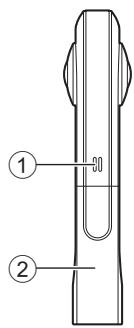
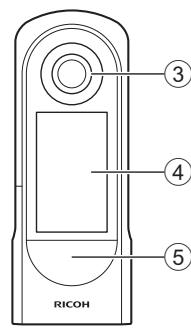
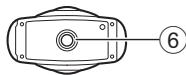
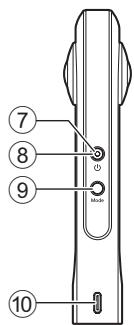
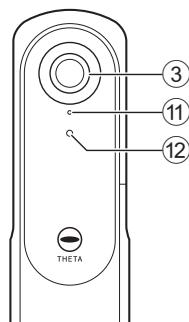
Names of Parts
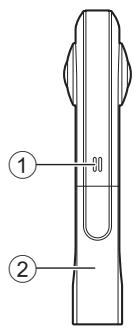
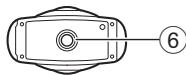
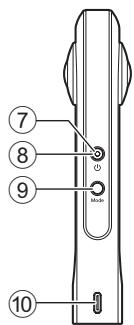
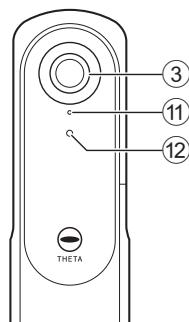
① Speaker
② Battery/card cover
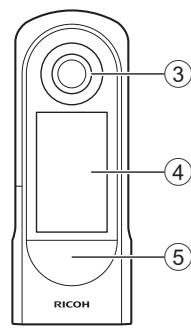
③ Lens
④ LCD panel
Displays the menu, shooting information, and captured images. Touch operation is possible on this panel.
⑤ Shutter button
Shoots a still image or video when pressed.
⑥ Tripod mount hole
⑦ Power lamp
Lights blue when the power is on.
⑧ Power button
Turns the power on and off when pressed and held.
Turns the sleep mode on and off when pressed briefly.
⑨ Mode button
Switches the shooting mode.
Runs and terminates the installed plug-ins when pressed and held.
10 USB terminal (USB Type-C)
Connects with other devices via the provided USB cable.
11 Microphone
12 Camera status lamp
Lights when shooting can be performed.
- Be careful when handling the lens section. Always store the camera in the provided soft case when the camera is not used.
Before Use
1 Check that the power of the camera is off.
2 Slide the battery/card cover in the direction of the arrow to open it.
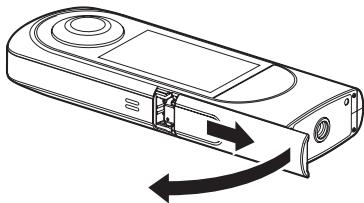
3 Check that the orientation of the battery is correct, and insert it all the way while pushing the latch sideways.
To remove the battery, slide the latch.
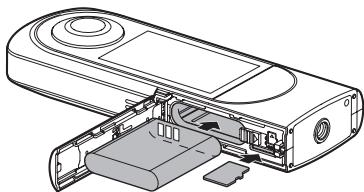
4 Check that the orientation of the memory card is correct, and insert it.
Use a commercially available microSDXC card (64 GB or higher, UHS-I).
4
5 Close the battery/card cover.
6 Connect the camera to a computer with the provided USB cable to charge the battery.
The battery level can be checked on the LCD panel.
The power lamp lights green during charging, and the lamp turns off when charging is complete.
- Update the camera firmware to the latest version before using the camera. For details on the operation, refer to the user guide. https://support.theta360.com/en/manual/
Basic Operation
Turning the Camera On
Press and hold the power button for approx. 1 second. The power lamp starts to flash.
In the sleep mode, briefly press the power button to recover from the sleep mode.
Touch on the LCD panel for subsequent operations.
Making Initial Settings
When the camera is started for the first time, set the language, position information, and date and time according to the on-screen instructions.
Then the LCD panel shows how to operate on the shooting, setting, and playback screens and how to connect the camera to a smartphone.
If [Auto] is set in the date and time setting, the date and time of the camera is synchronized with those of the smartphone when the camera is connected to the basic app for smartphone.
When the initial settings are complete, the shooting screen appears.
- Switching the Screen
Swipe from the edge of the LCD panel while the shooting screen is displayed to switch the screen.
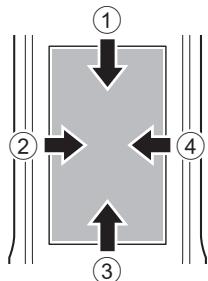
① Swiping down: Camera setting screen
② Swiping right: Playback screen
③ Swiping up: Shooting parameter setting screen
Swiping up again: Shooting setting screen
④ Swiping left: Plug-in selection screen
- Swipe the bar at the edge of each screen toward the center to return to the shooting screen. The panel display returns to the shooting screen also when the shutter button is pressed.
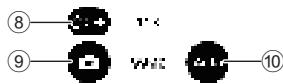
- Shooting Screen
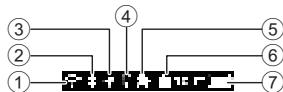
① Wireless LAN communication status
② Bluetooth®
③ Position information
④ Remote control
⑤ Plug-in
⑥ Memory card
⑦ Battery level
⑧ Self-timer
⑨ Shooting mode
10 Exposure program
For 8, 9, and 10, you can make settings by tapping them.
Downloading the App
You can capture and play back images with this camera alone, but furthermore, you can use a smartphone app to shoot, view, and share images from your smartphone.
Download the basic app that is compatible with your smartphone.

https://support(theta360.com/en/download/
The app "THETA+ for editing captured still images and videos is also available.

Basic app

THETA+
Connecting to a Smartphone
You can use the Bluetooth® function to connect the camera to a smartphone via a wireless LAN.
1 Turn the power on, and then tap on the camera setting screen.
appears on the LCD panel.
2 Turn on the Bluetooth® and Wi-Fi™ functions of the smartphone.
3 Start the basic app for smartphone.
4 Tap on the screen of the basic app, and then follow the on-screen instructions.
- When the Bluetooth® Function Is Not Used
Select the SSID of this camera in the network list of the Wi-FiTM settings on the smartphone, and then enter the password.
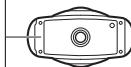
The serial number printed on the bottom of the camera is the same as the SSD and password.
Password (00001017 in this case)
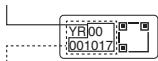
SSID THETA + Serial number + OSC (THETAYR00001017. OSC in this case)
- You can change the password from the smartphone.
- When the Connection Cannot Be Established
1 Turn off and back on on the camera setting screen.
2 Check that the camera is not connected to another wireless LAN such as a public Wi-FiTM network.
3 Execute [Reset password] on the camera setting screen.
4 Turn off the power of the camera, restart the basic app for smartphone, and then turn the power on again.
Connecting to a Wireless Router
You can connect the camera to a wireless router in the client mode.
1 Select [SSID] in [Client mode] on the camera setting screen, and then enter the password.
2 Tap [Connect].
Shooting and Viewing
- Switching the Shooting Mode
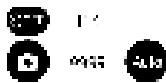
You can switch the shooting mode by tapping or on the shooting screen.
Alternatively, press the mode button on the side to switch the shooting mode.
Still image
Video

- Shooting Still Images and Videos
You can shoot still images and videos from the camera or smartphone.
To shoot still images and videos using the camera, press the shutter button.
To shoot still images and videos using the smartphone, use the basic app for smartphone.
For how to shoot with the remote control (TR-1) sold separately, refer to the user guide.
https://support(theta360.com/en/manual/
Viewing Still Images and Videos
You can view captured still images and videos on the LCD panel. You can also send still images and videos to the smartphone for viewing, using the basic app for smartphone.
Sharing on SNS
You can share captured still images and videos on social networking services such as Twitter and Facebook.
Still images and videos can be shared from the basic app for smartphone, editing app "THETA+", or basic app for computer.
- You need to register with an account on each service in order to use the services.
For details on viewing and sharing images from a computer, refer to the user guide.
https://support.theta360.com/en/manual/
Extending the Functions
You can use the camera in special modes by using the plugins installed in the camera.
Running and Terminating the Plug-in
1 Swipe left on the LCD panel to display the plug-in selection screen.
2 Tap the plug-in to use. The plug-in is run.
3 Press and hold the mode button on the side to terminate the plug-in.
- The next time the mode button is pressed and held, the last selected plug-in is run. If a plug-in has never been run, the plug-in selection screen appears.
- In addition to the pre-installed plug-ins, you can add new plug-ins. When the connection is established in the client mode, you can install plug-ins on the plug-in selection screen.
-
For details on the plug-in, refer to the user guide. https://support.theta360.com/en/manual/
-
Facebook, the Facebook logo, and "f" logo are trademarks or registered trademarks of Facebook, Inc.
- Twitter, the Twitter logo, Twitter "t" logo, and Twitter blue bird are registered trademarks of Twitter, Inc. in the United States and other countries.
Wi-Fi is a registered trademark of Wi-Fi Alliance.
- Bluetooth is a registered trademark of Bluetooth SIG, Inc.
- USB Type-C is a trademark of USB Implementers Forum.
- The images, illustrations, and screen captures used in this guide may differ from those of the actual device.
Unauthorized reproduction of this document in whole or in part is strictly prohibited.
The content of this document may be changed at any time without prior notice.
© 2021 RICOH COMPANY, LTD.
Deutsch
Fotografia mal ganz anders genießen
https://theta360.com/de/
Marken-Website
https://www.thetalab ricoh/en/
Benutzerhandbuch
https://support.theta360.com/de/manual/
https://support.theta360.com/de/
https://support.theta360.com/de/manual/
https://support.theta360.com/de/download/
Password (00001017 in thisem Fall)
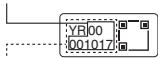
SSID THETA + Seriennummer + .OSC (THETAYR00001017.OSC in thisem Fall)
https://support.theta360.com/de/manual/
https://theta360.com/ja/
- プ蘭ドサイトの它案内
https://support.theta360.com/ja/manual/
拉卜のこ案内
https://support.theta360.com/ja/
各部の名称
https://support(theta360.com/ja/download/
https://support.theta360.com/ja/manual/
靜止画·動画の確認
https://support.theta360.com/ja/manual/
62
機能の拏張