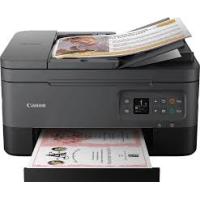
PIXMA G3560 - Inkjet multifunction printer CANON - Free user manual and instructions
Find the device manual for free PIXMA G3560 CANON in PDF.


Pick your language and provide your email: we'll send you a specifically translated version.
| Features | Printing, scanning, copying |
| Printing technology | Inkjet (2 FINE heads) |
| Ink system | MegaTank refillable tanks (GI-46) |
| Print resolution | 4,800 x 1,200 dpi |
| Print speed B&W | 10.8 pages/min |
| Print speed color | 6 pages/min |
| Borderless printing | A4, 13x18 cm, 10x15 cm |
| Scanner type | Flatbed scanner |
| Scanner resolution | 1,200 x 600 dpi |
| Black ink yield | ~12,000 pages |
| Color ink yield | ~7,000 pages |
| Paper tray capacity | 100 sheets |
| Compatible paper sizes | A4, A5, B5, Letter, Legal, 10x15 cm, 13x18 cm |
| Connectivity | USB 2.0, Wi-Fi, Wi-Fi Direct |
| Mobile printing | Apple AirPrint, Canon PRINT (iOS/Android), Mopria |
| Display | 2-line LCD |
| Power consumption | 15 W (operation), 0.3 W (standby) |
| Dimensions (W x D x H) | 445 x 330 x 167 mm |
| Weight | 6.4 kg |
| Compatible OS | Windows 7 / 8.1 / 10, macOS 10.10 and later |
Frequently Asked Questions - PIXMA G3560 CANON
How to refill the ink tanks of the Canon PIXMA G3560?
The G3560 uses the MegaTank system with refillable tanks. Open the tank cover on the left side of the printer, then pour the ink from the GI-46 bottles into the corresponding tank (black, cyan, magenta, or yellow). Never mix inks and fill up to the maximum mark indicated.
What is the ink tank capacity of the PIXMA G3560?
The tanks allow printing approximately 12,000 pages in black and white and 7,000 pages in color (about 2,000 photos 10x15 cm). This is one of the main advantages of the MegaTank system compared to traditional cartridge printers.
Does the Canon PIXMA G3560 have automatic duplex printing?
No, the G3560 does not have an automatic duplex module. You must manually turn the sheets after the first pass to print on the other side.
How to connect the PIXMA G3560 to the Wi-Fi network?
Press and hold the printer's Wi-Fi button until the light flashes. Then use the Canon software or the Canon PRINT app on your smartphone to detect the printer and connect it to your network. The G3560 also supports Wi-Fi Direct for a connection without a router.
How to print from a smartphone or tablet with the G3560?
Install the Canon PRINT app (available on iOS and Android), ensure that the printer and your device are on the same Wi-Fi network, then select the G3560 in the app. It is also compatible with Apple AirPrint and Mopria for Android.
Is the Canon PIXMA G3560 compatible with macOS?
Yes, the G3560 is compatible with macOS 10.10 (Yosemite) and later versions. Download the drivers from the official Canon website. It also works with Windows 7, 8.1, and 10.
How to make a copy without a computer on the PIXMA G3560?
Place your document on the scanner glass, set the number of copies and options via the control panel, then press the copy button (black or color). No computer is needed for this operation.
What to do if the G3560 prints with lines or missing colors?
Run a print head cleaning from the Canon software or the control panel (hold Stop then Resume). Then print a test pattern. If the problem persists, perform a deep cleaning. Also, check that the ink tanks are not empty.
How to fix a paper jam on the Canon PIXMA G3560?
Turn off the printer, open the top cover and the output cover to locate the jammed paper. Gently pull it in the direction of the feed without tearing it. Make sure no pieces remain inside before restarting the device.
Can the PIXMA G3560 print borderless photos?
Yes, the G3560 supports borderless printing for 10x15 cm, 13x18 cm, and A4 sizes. A 10x15 cm photo is printed in about 45 seconds. Use Canon photo paper for optimal results.
Which ink bottle should I buy for the Canon PIXMA G3560?
The G3560 uses Canon GI-46 ink bottles: GI-46 BK (black), GI-46 C (cyan), GI-46 M (magenta), and GI-46 Y (yellow). These bottles are sold separately and available at Canon retailers or printing supplies websites.
User questions about PIXMA G3560 CANON
0 question about this device. Answer the ones you know or ask your own.
Ask a new question about this device
No questions yet. Be the first to ask one.
Download the instructions for your Inkjet multifunction printer in PDF format for free! Find your manual PIXMA G3560 - CANON and take your electronic device back in hand. On this page are published all the documents necessary for the use of your device. PIXMA G3560 by CANON.