CANON IMAGERUNNER 2206N - Laser MFP

IMAGERUNNER 2206N - Laser MFP CANON - Free user manual and instructions

Find the device manual for free IMAGERUNNER 2206N CANON in PDF.

📄 699 pages English EN Download 💬 AI Question 10 questions ⚙️ Specs
Notice CANON IMAGERUNNER 2206N - page 10
View the manual : Français FR English EN
Pick your language and provide your email: we'll send you a specifically translated version.
Product Type Monochrome laser multifunction printer
Brand Canon
Model imageRUNNER 2206N
Main functions Copy, print, scan
Print speed (A4) Up to 22 pages per minute
Print resolution 600 x 600 dpi
Standard paper capacity 250 sheets (tray 1) + 100 sheets (multipurpose tray)
Maximum paper capacity Up to 850 sheets with optional tray 2
Supported paper sizes A3, A4, A5, B4, B5, Letter, Legal, Envelopes
Duplex printing Automatic (with optional Duplex Unit-C)
Color scanning Yes (with optional Color Send Kit)
Network connectivity Ethernet 10/100/1000 Base-T, Wi-Fi (optional)
Dimensions (W x D x H) Approximately 565 x 693 x 892 mm
Weight Approximately 55 kg
Power supply 220-240 V AC, 50/60 Hz
Power consumption (max) Approximately 1.5 kW
Touch screen Yes, 5-line color LCD screen
Monthly duty cycle Up to 50,000 pages
Maintenance and cleaning Cleaning of the platen glass, transfer roller, drum, and fuser assembly
Security Service ID management, department ID management, function lock
Spare parts and repairability Toner cartridge, drum, fuser unit, paper trays
General information 699-page user manual available for download

Frequently Asked Questions - IMAGERUNNER 2206N CANON

How to load paper in the main tray?
Pull the tray towards you, lower the metal plate, adjust the paper guides, then insert the paper with the print side facing up. Make sure not to exceed the maximum fill mark. Close the tray and specify the paper size and type in the settings.
How to make a duplex copy?
Place your documents in the feeder or on the platen. Press Copy, then select Duplex. Choose the desired duplex copy type (1-sided -> 2-sided, etc.). Press Start to begin copying.
What to do in case of a paper jam?
Open the front cover and the side covers indicated on the screen. Carefully remove the jammed paper following the arrows. Check that no pieces remain. Close all covers. The device will resume automatically.
How to replace the toner cartridge?
Open the front cover. Remove the old cartridge by pulling it out. Unpack the new cartridge, remove the protective tape, then insert it into the device until it clicks. Close the cover. The device will automatically initialize the new toner.
How to connect the printer via Wi-Fi?
Go to Settings > Network > Wireless LAN. Select Automatic setup (WPS) or Search for networks. Choose your network, enter the security key, then confirm. The Wi-Fi indicator will light up when connected.
How to scan a document to email?
Place the document in the feeder or on the platen. Press Scan then Send to e-mail. Enter the e-mail address or select it from the address book. Press Start. The document will be scanned and sent.
How to adjust the brightness of a copy?
In copy mode, press Settings then Density. Use the - and + keys to lighten or darken the image. You can also enable Automatic mode for optimal adjustment.
What type of paper can I use?
The printer accepts plain, recycled, color, thick paper, envelopes, transparencies, labels, and pre-perforated paper. Paper weights range from 64 to 128 g/m² depending on the type. Refer to the paper type table in the manual to select the correct setting.
How to print from my smartphone?
The printer supports AirPrint (iOS) and Google Cloud Print. Make sure your mobile device and the printer are on the same network. Select the printer in your app's print options and start printing.
How to secure access to the printer?
Enable Department ID Management from the administrator settings. Set a PIN code for each department. Users must enter their ID and PIN before using the device. You can also restrict certain functions by department.

User questions about IMAGERUNNER 2206N CANON

0 question about this device. Answer the ones you know or ask your own.

Ask a new question about this device

The email remains private: it is only used to notify you if someone responds to your question.

No questions yet. Be the first to ask one.

Download the instructions for your Laser MFP in PDF format for free! Find your manual IMAGERUNNER 2206N - CANON and take your electronic device back in hand. On this page are published all the documents necessary for the use of your device. IMAGERUNNER 2206N by CANON.

USER MANUAL IMAGERUNNER 2206N CANON

Parts and Their Functions 4

External View 5
Internal View 7
Control Panel 9
Display 12
Customizing the Screen 16

Logging on to the Machine 18

Using the Display 21

Entering Text 24

Placing Documents 26

Loading Paper 30

Loading Paper in the Paper Printer 32
Loading Paper in the Multi-Purpose Tray 36
Loading Envelopes in the Multi-Purpose Tray 39
Loading Preprinted Paper 42
45
Registering a Custom Paper Size 47

Registering in the Address Book 49

Registering Destinations in the Address Book 50
Registering Destinations for One-Touch Dial 55
Registering Multiple Destinations for Group Dial 60

Adjusting the Volume 63

Setting Auto Shutdown Time 65

66

Copying 69

Basic Copy Operations 71

Selecting Copy Paper 73

Canceling Copies 74

Various Copy Settings 76

Enlarging or Reducing 78
Selecting Document Type 79
Adjusting Density 80
2-Sided Copying 81
Copying Multiple Documents onto One Sheet (2 on 1/4 on 1) 84
Copying Both Sides of an ID Card onto One Page 86
Erasing Dark Borders and Frame Lines (Erase Frame) 87
Collating Copies by Page 89
Splitting Facing Page Documents into Separate Pages for Copying 91
Copying Different Size Documents Together (Different Size Originals) 92

Configuring Copy Settings to Your Needs 94

Changing Default Settings 95

Registering Frequently Used Copy Settings 96

Faxing (imageRUNNER 2206iF) 98

Sending Faxes 101

Canceling Sending Faxes 107

Sending from Registered Destinations 109

Specifying from Address Book 110

Selecting Destinations Directly by Entering Coded Dial Numbers 113

Specifying Destinations with the One-Touch Buttons 116

Specifying Previously Used Destinations 118

Specifying Destinations in an LDAP Server 121

Various Fax Settings 124

Adjusting Resolution 125

Adjusting Density 126

Scanning 2-Sided Documents 127

Changing Default Settings 128

Receiving Taxes 129

Sending and Receiving Faxes According to Your Purposes 133

Making a Call before Sending Faxes (Manual Sending) 134

Sending Faxes to Multiple Destinations Simultaneously (Sequential Broadcast) 135

Storing Received Faxes into Memory (Memory Reception) 137

Forwarding Received Faxes 140

Selecting a Document to Forward 141

Forwarding All the Received Documents Automatically 143

Receiving Fax Information Services 147

Checking Status and Log for Sent and Received Documents 149

Sending Faxes from Your Computer (PC Fax) 151

Sending PC Faxes 152

Using the Machine as a Printer 155

Printing from a Computer 156

CancelingPrints 158

Checking the Printing Status 161

Printing a Document Secured by a PIN (Secure Print) 163

Printing via Secure Print 164

Configuring Print Settings to Your Needs 167

Registering Combinations of Frequently Used Print Settings 168

Changing Default Settings 170

Using the Machine as a Scanner 173

Preparing to Use the Machine as a Scanner 174

Scanning from the Machine 175

Scanning from a Computer 178

Scanning Using an Application 179
Configuring Scan Settings in ScanGear MF 181
Using WSD 182

Convenient Scanning with a Machine-Based Operation 186

Sending Documents as E-Mails Directly from the Machine 187
Saving Documents Directly in Shared Folder 194
Canceling Sending Documents (E-Mail/Shared Folder) 197

Specifying Detailed Settings 199

Specifying a Scanning Size 200
Setting Color Mode 201
Selecting a File Format 202
Adjusting Density 203
Specifying Orientation of Your Document 204
Selecting Document Type 205
Scanning 2-Sided Documents 206
Adjusting Balance between File Size and Image Quality 207
Setting Gamma Values 208

Sending Using Registered Destinations (E-Mail/Shared Folder) 209

Specifying from Address Book 210
Selecting Destinations Directly by Entering Coded Dial Numbers 213
Specifying Destinations with the One-Touch Buttons 216
Specifying Previously Used Destinations 218
Specifying Destinations in an LDAP Server (E-Mail) 221

Changing Default Settings 225
Checking Status and Log for Sent Documents (E-Mail/Shared Folder) 227

Linking with Mobile Devices 230

Connecting with Mobile Devices 231

Connecting via a Wireless LAN Router (LAN Connection) 232
Connecting Directly (Access Point Mode) 233

Utilizing the Machine through Applications 235

Using AirPrint 236

Printing with AirPrint 241
Scanning with AirPrint 244
Faxing with AirPrint (imageRUNNER 2206iF) 246
If AirPrint Cannot Be Used 248

Using Google Cloud Print 249

Managing the Machine by the Remote Control 251

Network 253

Connecting to a Network 255

Selecting Wired LAN or Wireless LAN 257
Connecting to a Wired LAN 258
Connecting to a Wireless LAN 259
Setting Up Connection Using WPS Push Button Mode 261
Setting Up Connection Using WPS PIN Code Mode 263

Setting Up Connection by Selecting a Wireless Router 266
Setting Up Connection by Specifying Detailed Settings 269
Checking the SSID and Network Key 273

Setting IP Addresses 274

Setting IPv4 Address 275
Setting IPv6 Addresses 278

Viewing Network Settings 282

Configuring the Machine for Printing or Faxing from a Computer 286

Configuring Printing Protocols and WSD Functions 287
Configuring Printer Ports 290
Setting Up Print Server 293

Configuring Scan Settings (E-Mail/Shared Folders) 296

Configuring Scan Settings (Sending E-Mail) 297

Configuring Basic E-Mail Settings 298
Configuring E-Mail Communication Settings 302

Configuring the Machine for Scanning to Shared Folders 306
Setting a Shared Folder as a Save Location 307

Configuring the Machine for Your Network Environment 311

Configuring Ethernet Settings 312
Changing the Maximum Transmission Unit 314
Setting a Wait Time for Connecting to a Network 315
Configuring DNS 316
Configuring SMB 321
Registering LDAP Servers 323
ConfiguringSNTP 329
Monitoring and Controlling the Machine with SNMP 332

Security 338

Protecting the Machine from Unauthorized Access 339

Preventing Unauthorized Access 340
Setting Access Privileges 342

Setting the System Manager ID 343
Setting the Department ID Management 345
Setting a Remote UI PIN 352

LDAP Server Authentication 354
Restricting Communication by Using Firewalls 359

Specifying IP Addresses for Firewall Rules 360
Specifying MAC Addresses for Firewall Rules 364

Changing Port Numbers 367
Setting a Proxy 369

Restricting the Machine's Functions 371

Restricting Access to Address Book and Sending Functions 372
Setting a PIN for Address Book 373
Limiting Available Destinations 374
Prohibiting PC Faxing (imageRUNNER 2206iF) 375
Disabling Use of Previously Used Destinations 376

Checking Destinations before Sending Documents (imageRUNNER 2206iF) 377
Prohibiting Sequential Broadcasting (imageRUNNER 2206iF) 379
Restricting Printing from a Computer 380
Restricting USB Functions 381
Disabling HTTP Communication 382
Disabling Remote UI 383

Implementing Robust Security Features 384

Enabling TLS Encrypted Communication for the Remote UI 385
Configuring IEEE 802.1X Authentication 389

Configuring Settings for Key Pairs and Digital Certificates 394

Generating Key Pairs 395
Using CA-issued Key Pairs and Digital Certificates 402
Verifying Key Pairs and Digital Certificates 405

Using Remote UI 408

Starting Remote UI 409
Remote UI Screens 411
Managing Documents and Checking the Machine Status 415
Setting Up Menu Options from Remote UI 420
Saving/Loading Address Book from Remote UI 422
Registering Address Book from Remote UI 426

Setting Menu List 431

Network Settings 432
Preferences 443
Timer Settings 449
Common Settings 454
Copy Settings 458
Fax Settings (imageRUNNER 2206iF) 461
Scan Settings 473
Printer Settings 477
Adjustment/Maintenance 487
System Management Settings 492

Troubleshooting 502

Clearing Jams 504
Countermeasures for Each Message 519
Countermeasures for Each Error Code 530
Common Problems 537

Installation/Settings Problems 539
Copy/Printing Problems 543
Faxing/Telephone Problems 546
Miscellaneous Problems 548

When You Cannot Print Properly 549

Printing Results Are Not Satisfactory 551

Paper Creases or Curls 555

Paper Is Fed Incorrectly 557

When a Problem Cannot Be Solved 559

Maintenance 561

Cleaning the Machine 562

Exterior 563

Platen Glass 564

Feeder 566

Transfer Roller 570

Drum 571

Fixing Assembly 572

Replacing the Toner Cartridges 574

Configuring Purchase Information for Consumables 576

How to Replace the Toner Cartridges 578

How to Replace the Drum Unit 581

Printing Reports and Lists 585

Fax TX Result Report (imageRUNNER 2206iF) 586

E-Mail/File TX Result Report 588

Communication Management Report 590

RX Result Report (imageRUNNER 2206iF) 592

Address Book List 593

User Data List/System Manager Data List 595

Department ID Management Report 596

PCL Font List 597

Copy/Print Charge Log Report 598

Viewing the Counter Value 599

Initializing Settings 601

Initializing Address Book 602

Initializing Menu 603

Initializing System Management Settings 604

Initializing All Data/Settings 605

Replacement Parts 606

Appendix 608

Third Party Software 609

Feature Highlights 610

Going Green and Saving Money 611

Improving Efficiency 614

Going Digital 616

So Much More 619

Specifications 622

Main Unit 623

Feeder (DADF-AY) 626
Available Paper 627
Cassette Feeding Module-AD 630
Duplex Unit-C 631
Fax Function (imageRUNNER 2206iF) 632
Scan Function 633
Printer Functions 634
Management Functions 636
System Environment 637
Network Environment 639

Options 640

Optional Equipment 641
System Options 644

Manuals and Their Contents 646

Using User's Guide 647

Screen Layout of User's Guide 648
Viewing User's Guide 651

Basic Windows Operations 652

Notice 660

Basic Operations

Basic Operations 2

Parts and Their Functions 4
External View 5
Internal View 7
Control Panel 9
Display 12
Customizing the Screen 16

Logging on to the Machine 18
Using the Display 21
Entering Text 24
Placing Documents 26
Loading Paper 30
Loading Paper in the Paper Drawer 32
Loading Paper in the Multi-Purpose Tray 36
Loading Envelopes in the Multi-Purpose Tray 39
Loading Preprinted Paper 42
45
Registering a Custom Paper Size 47
Registering in the Address Book 49
Registering Destinations in the Address Book 50
Registering Destinations for One-Touch Dial 55
Registering Multiple Destinations for Group Dial 60
Adjusting the Volume 63
Setting Auto Shutdown Time 65
Entering Sleep Mode 66

Basic Operations

36WC-000

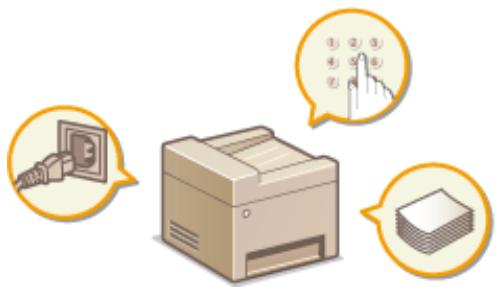
This chapter describes basic operations, such as how to use the control panel or how to load the paper and documents, that are frequently performed to use the functions of the machine.

Parts and Their Functions

This section describes the exterior and interior parts of the machine and their functions, as well as how to use the keys on the control panel and how to view the display. Parts and Their Functions(P. 4)
CANON IMAGERUNNER 2206N - Parts and Their Functions - 1

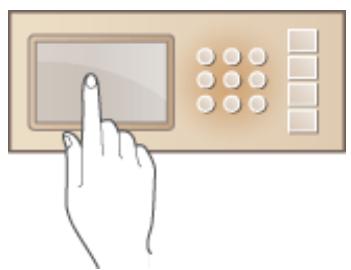
Using the Display

This section describes how to toggle the display and select items. Using the Display(P. 21)
CANON IMAGERUNNER 2206N - Using the Display - 1

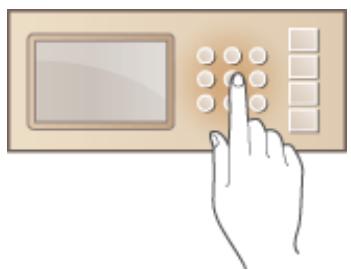
■ Entering Text

This section describes how to enter characters and numbers for registering destinations to the Address Book, sending faxes, etc. Entering Text(P. 24)
CANON IMAGERUNNER 2206N - ■ Entering Text - 1

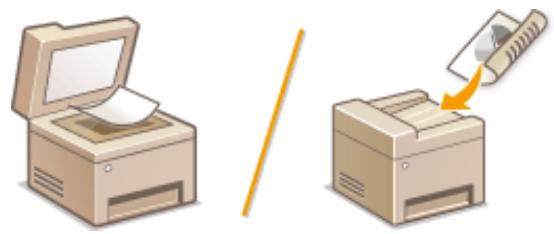
Placing Documents

This section describes how to place documents on the platen glass and in the feeder. Placing Documents(P. 26)
CANON IMAGERUNNER 2206N - Placing Documents - 1

Loading Paper

This section describes how to load the paper into the paper drawer and multi-purpose tray. Loading Paper(P. 30)

CANON IMAGERUNNER 2206N - Loading Paper - 1

Registering in the Address Book

This section describes how to register destinations for sending faxes or scanned documents. Registering in the Address Book(P. 49)

CANON IMAGERUNNER 2206N - Registering in the Address Book - 1

Adjusting the Volume

This section describes how to adjust the volume of various machine sounds, such as those produced when fax sending is complete or when an error occurs. Adjusting the Volume(P. 63)

CANON IMAGERUNNER 2206N - Adjusting the Volume - 1

■ Entering Sleep Mode

This section describes how to set the sleep mode. Entering Sleep Mode(P. 66)

CANON IMAGERUNNER 2206N - ■ Entering Sleep Mode - 1

Parts and Their Functions

36WC-001

This section describes the parts of the machine (exterior, front and back side, and interior) and how they function. In addition to describing the parts of the machine used for such basic operations as placing documents, loading paper, and replacing the toner cartridges, this section also describes the keys on the control panel and display. Read this section for tips on how to use the machine properly.
CANON IMAGERUNNER 2206N - Parts and Their Functions - 1

External View(P.5)
Internal View(P. 7)
Control Panel(P. 9)

36WC-002

When the DADF-AY and Cassette Feeding Module-AD are attached:
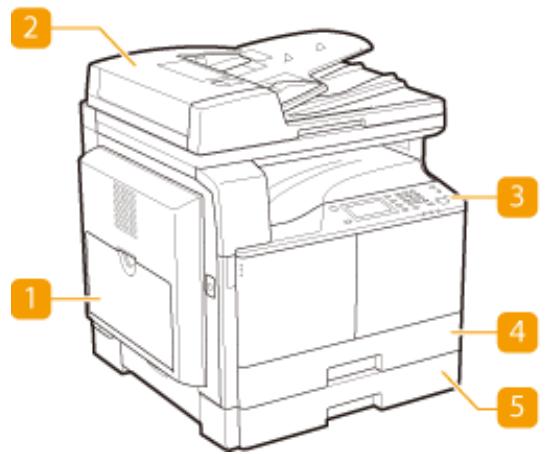
CANON IMAGERUNNER 2206N - Parts and Their Functions - 2

CANON IMAGERUNNER 2206N - Parts and Their Functions - 3

NOTE

  • Parts marked with " ^1" are optional for the imageRUNNER 2206N.
  • Parts marked with ^ 2 are optional for all models.
  • Parts marked with " ^*3 " are available only for the imageRUNNER 2206iF.

1 Multi-purpose tray

Load the paper into the multi-purpose tray when you want to temporarily use a type of paper different from that which is loaded in the paper drawer. Loading Paper in the Multi-Purpose Tray(P. 36)

2 Feeder \*1

Automatically feeds documents into the machine for scanning. When two or more sheets are loaded in the feeder, documents can be scanned continuously. Placing Documents(P. 26)

3 Control panel

The control panel consists of keys such as the numeric keys and [Start] key, a display, and status indicators. You can perform all the operations and specify settings from the control panel. Control Panel(P. 9) Display(P. 12)

4 Paper drawer 1

Load the type of paper you frequently use into the paper drawer. Loading Paper in the Paper Drawer(P. 32)

5 Paper drawer 2^*2

Load the type of paper you frequently use into the paper drawer. Loading Paper in the Paper Printer (P. 32)

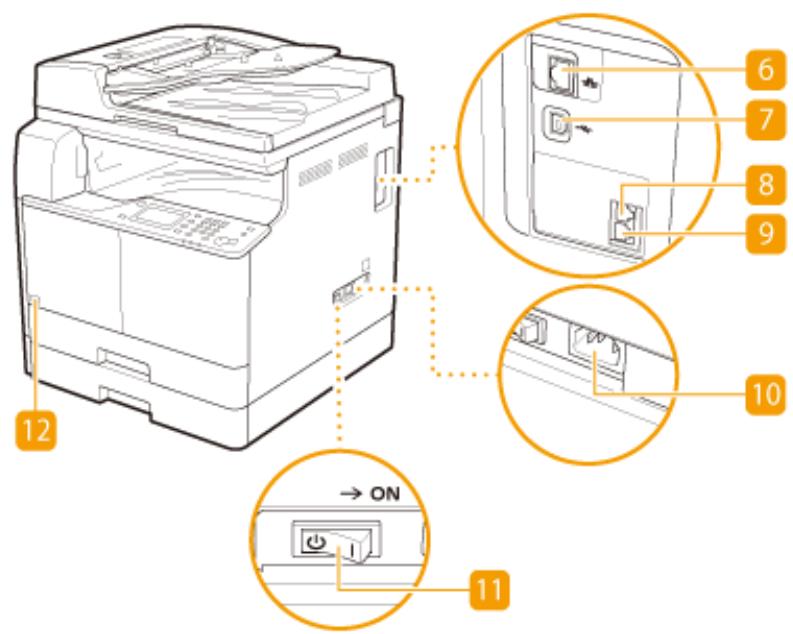
6 LAN port

Connect a LAN cable when connecting the machine to a wired LAN router, etc. Connecting to a Wired LAN(P. 258)

7 USB port

Connect a USB cable when connecting the machine and a computer.

External telephone jack *3

Connect an external telephone or the optional handset.

9 Telephone line jack *3

Connect a telephone cable when connecting the machine to a telephone line.

10 Power socket

Connect the power cord.

Power switch

Turns the power ON or OFF. To restart the machine, turn OFF the machine, wait for at least 10 seconds, and turn it back ON.

Toner Code

This code indicates the type of genuine toner that can be used with the machine. Use toner with a code that includes the same letters as the code on the front cover of the machine.

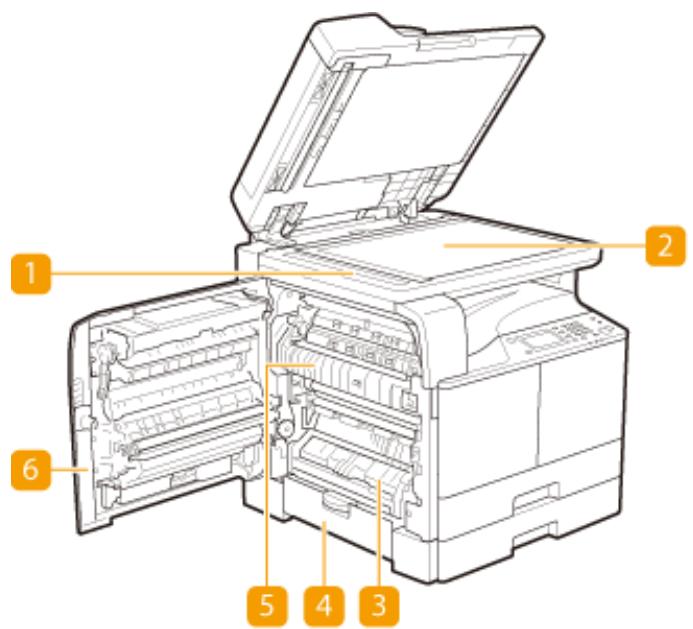
36WC-003

When the DADF-AY and Cassette Feeding Module-AD are attached:
CANON IMAGERUNNER 2206N - Toner Code - 1

CANON IMAGERUNNER 2206N - Toner Code - 2

1 Document feed scanning area

Documents loaded in the feeder are automatically fed to the scanning area for scanning.

2 Platen glass

Place documents to scan on the platen glass. Also, use the platen glass to place thick or bound documents such as books when they cannot be loaded in the feeder. Placing Documents(P. 26)

3Drawer1leftcover

Open this cover when clearing a paper jam in paper drawer 1. Clearing Jams(P. 504)

4Drawer 2 left cover (Cover of the Optional Cassette Feeding Module-AD)

Open this cover when clearing a paper jam in paper drawer 2. Clearing Jams(P. 504)

5 Fixing assembly

When a paper jam occurs around the fixing assembly, clear the paper jam from here. Clearing Jams(P. 504)

6 Left cover

Open this cover to clear a paper jam inside the main unit. Clearing Jams(P. 504)

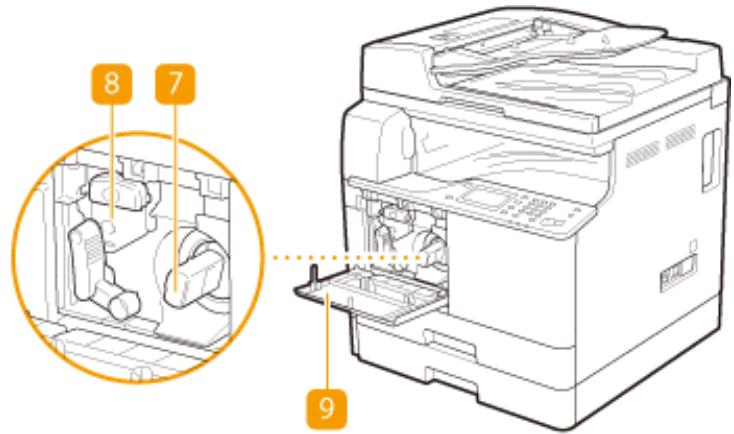
7 Toner cartridge

Replace the toner cartridge when the toner runs out. How to Replace the Toner Cartridges(P. 578)

8 Drum unit

Replace the drum unit before the usage period expires. How to Replace the Drum Unit(P. 581)

9 Front cover

Open this cover to replace the toner cartridge or drum unit. How to Replace the Toner Cartridges(P. 578)

36WC-004

CANON IMAGERUNNER 2206N - Front cover - 1

CANON IMAGERUNNER 2206N - Front cover - 2

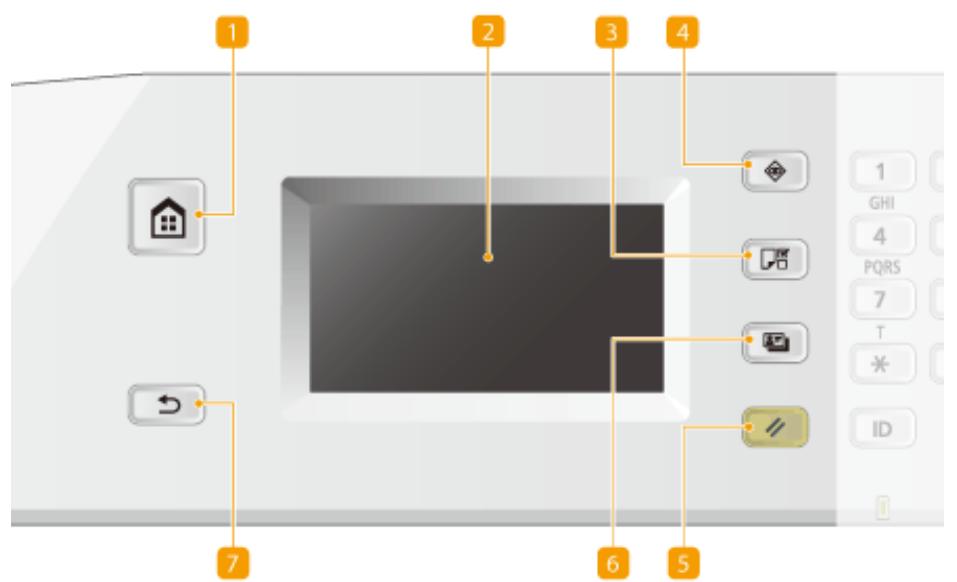
1 [Home] key

Press to display the screen. Customizing the Screen(P. 16)

2 Display

You can view the progress of copy and other jobs and error statuses. The display is a touch panel, allowing you to operate the screen by touch to specify settings. Display(P. 12) Using the Display(P. 21)

3 [Paper Settings] key

Press to select a paper source, such as a paper drawer or multi-purpose tray, and register paper size and type.

4 [Status Monitor] key

Press to check the status of printing, to view the usage history, or to view the network settings such as the IP address of the machine. You can also check the status of the machine, such as the remaining amounts of paper and toner, or whether any errors occurred. 口 Display(P. 12)

5 [Reset] key

Press to reset the settings.

6 [ID Card Copy] key

Press to copy a card-size original, such as an ID card and driver's license. Copying Both Sides of an ID Card onto One Page(P. 86)

7 [Back] key

Press to return to the previous screen. If you press this key when specifying settings, for example, the settings are not applied and the display returns to the previous screen.

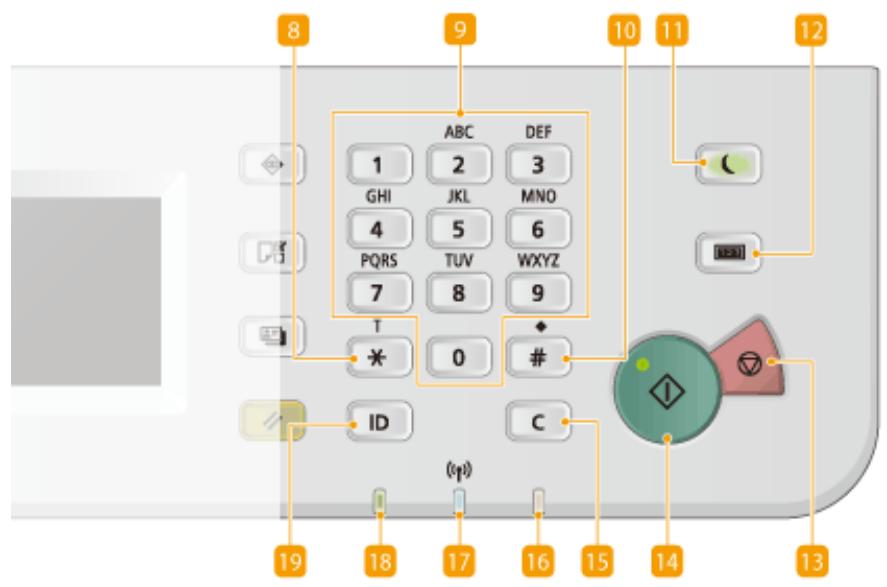
8 [] key

Press to switch the type of text that is entered.
- Press to use tone dialing such as when receiving fax information services. Receiving Fax Information Services(P. 147)

9 Numeric keys ([0]-[9] keys)

Press to enter numbers and text. Entering Text(P. 24)

10 [#] key

Press to enter symbols such as "@" or "/".

[Energy Saver] key

Press to put the machine into sleep mode. The key lights up green when the machine is in sleep mode. Press the key again to exit sleep mode. Entering Sleep Mode(P. 66)

[Counter Check] key

Press to display the total number of pages used for operations such as copying or printing on the touch panel display. You can also check the serial number of the machine (three letters and five numbers).

[Stop] key

Press to cancel copying, faxing, and other operations.

14 [Start] key

Press to scan or copy documents.

15 [Clear] key

Press to delete the entered numbers and texts.

16 [Error] indicator

Blinks or lights up when an error such as a paper jam occurs.

Wi-Fi indicator

Lights up when the machine is connected to wireless LAN.

[Processing/Data] indicator

Blinks while operations such as sending or printing are being performed. Lights up when there are documents waiting to be processed.

19 [Log In/Out] key

Press to log in/out when Department ID Management has been set.

Using the Display(P. 21)

The screen for initiating operations and screens for specifying settings appear in the display. You can also view job progress and messages here. Touch the display to operate it.

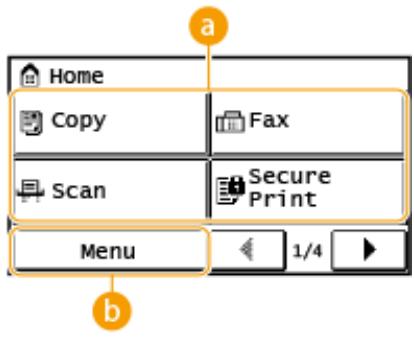
Screen

The screen is displayed when the power is turned ON or by pressing on the control panel. Use this screen to specify settings for and register functions.

NOTE

  • For imageRUNNER 2206N, functions marked with ^** can only be used when the optional Color Send Kit is attached.
CANON IMAGERUNNER 2206N - NOTE - 1

Toggle functions

Switch to copy, fax, secure print, or scan functions. Copying(P. 69) Faxing (imageRUNNER 2206iF) (P. 98) Printing a Document Secured by a PIN (Secure Print)(P. 163) Using the Machine as a Scanner(P. 173)

, , and many other machine settings start from this button. Setting Menu List(P. 431)

CANON IMAGERUNNER 2206N - Toggle functions - 1

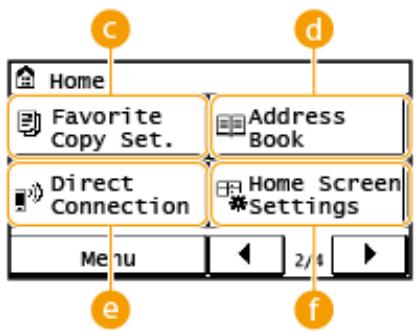
You can register frequently used combinations of copy settings, and recall them easily when needed. Registering Frequently Used Copy Settings(P. 96)

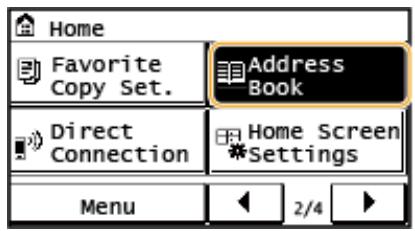
Address Book\*

Display destinations registered in the Address Book. Also use when registering/editing destinations in the Address Book. Registering in the Address Book(P. 49)

e

Use this to establish a direct wireless connection to a mobile device. Connecting Directly (Access Point Mode)(P. 233)

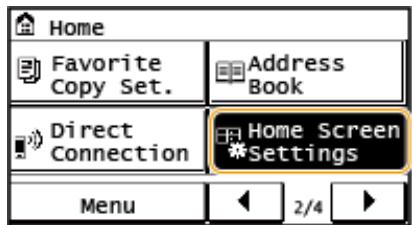
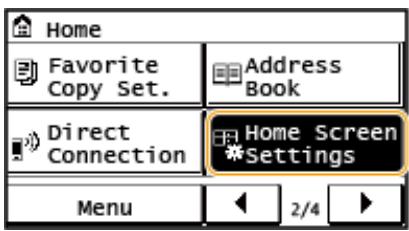
Home Screen Settings>

Allows you to change the order that the screen buttons are displayed in. Customizing the Screen(P. 16)

CANON IMAGERUNNER 2206N - Home Screen Settings> - 1

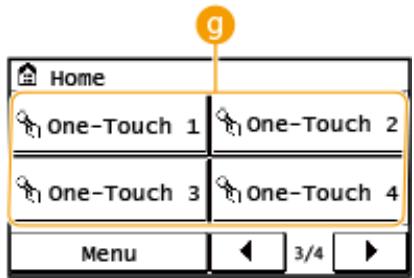
9 to

If you register destinations beforehand as One-Touch Dial numbers, they can be quickly displayed. Specifying Destinations with the One-Touch Buttons(P. 116)

CANON IMAGERUNNER 2206N - to - 1

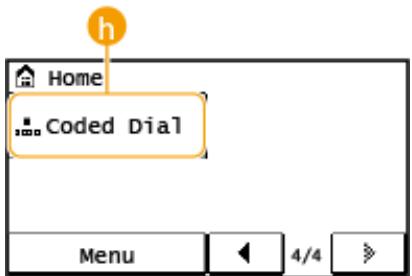
Coded Dial\*

If you register destinations beforehand as coded dial numbers, they can be quickly displayed by simply entering a three-digit number. Registering in the Address Book(P. 49)

Screen

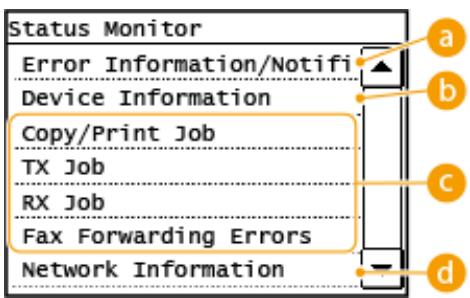
When you press , a screen is displayed that enables you to check the status of documents that are being printed, sent, or received, as well as the status of the machine such as the toner level or the network setting information such as the IP address of the machine.

NOTE

  • For imageRUNNER 2206N, functions marked with " ^1" can only be used when the optional Color Send Kit is attached.
  • Functions marked with " ^2" are available only for the imageRUNNER 2206iF.
CANON IMAGERUNNER 2206N - NOTE - 1

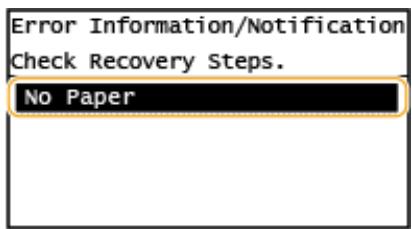
a

Displays the details of any errors that occurred. Countermeasures for Each Message(P. 519)

CANON IMAGERUNNER 2206N - a - 1

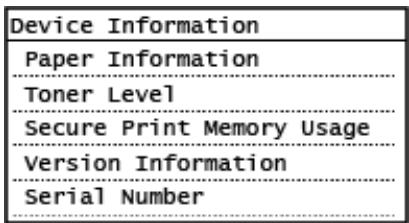
Device Information

Displays the status of the machine, such as the amount of paper or toner remaining.
CANON IMAGERUNNER 2206N - Device Information - 1

Displays whether paper is loaded in each paper source.

Displays the amount of toner remaining. Depending on the environment in which your machine is located, other internal parts may reach the end of their lifetime before the toner runs out.

< Secure Print Memory Usage>

Displays the amount of memory currently used for storing secured document data. Printing a Document Secured by a PIN (Secure Print)(P. 163)

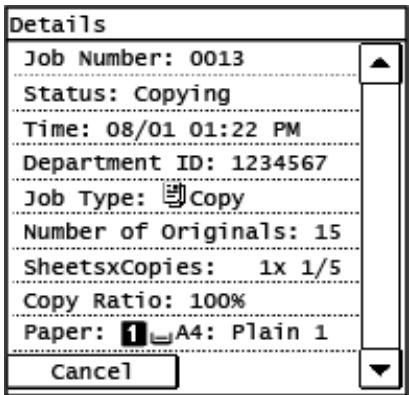
Status of copy/print/send*1/receive*2 jobs

Displays the current status of the selected item. The screen is shown below as an example.
CANON IMAGERUNNER 2206N - Status of copy/print/send*1/receive*2 jobs - 1

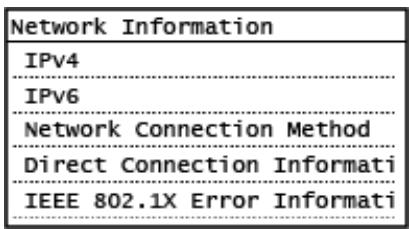
Displays the network settings such as the IP address of the machine and status such as the condition of wireless LAN communications.

CANON IMAGERUNNER 2206N - Status of copy/print/send*1/receive*2 jobs - 1
Viewing Network Settings(P. 282)

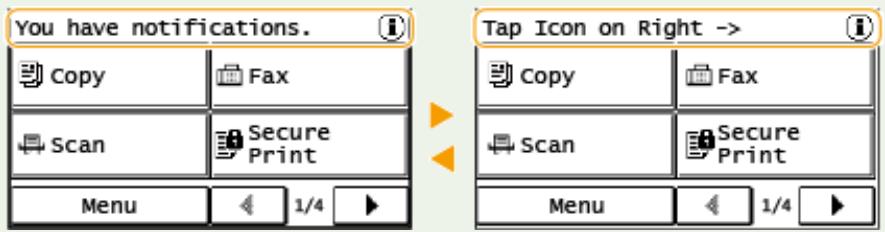
When a Message Is Displayed

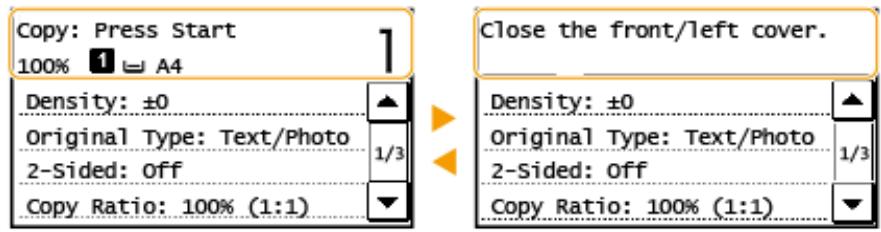
Messages are displayed at the top of the screen in situations such as when toner level is low or when a cover is left open. The display alternates between showing the normal screen and the message.

CANON IMAGERUNNER 2206N - When a Message Is Displayed - 1
Countermeasures for Each Message(P. 519)

NOTE

When or Is Displayed Tap to view the notification.
CANON IMAGERUNNER 2206N - NOTE - 1

When an Error Occurs

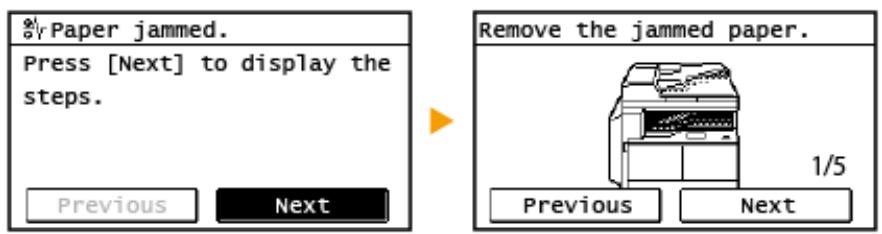
In some cases when an error occurs, instructions on how to respond to the error are displayed. Follow the on-screen instructions to solve the problem. The screen displayed when a paper jam occurs is shown below as an example ( Countermeasures for Each Message(P. 519)).

CANON IMAGERUNNER 2206N - When an Error Occurs - 1

Customizing the Screen(P. 16)
Using the Display(P. 21)

Customizing the Screen

36WC-006

You can change the order that buttons in the screen are displayed in according to your application or a preferred arrangement.

Changing the Home Screen Button Display Order

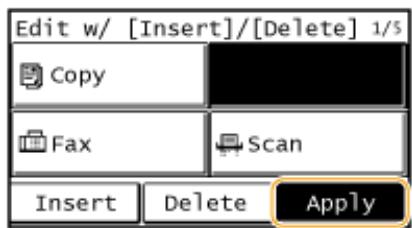
1 Press and tap .

CANON IMAGERUNNER 2206N - Press and tap . - 1

  • If a screen for entering a System Manager ID and PIN is displayed, enter the System Manager ID and PIN, tap , and press (ID). Setting the System Manager ID(P. 343)

2 Tap .
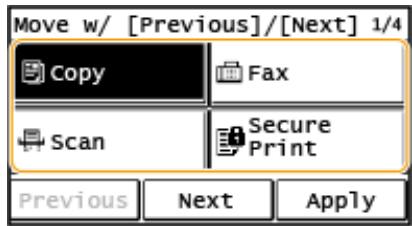
3 Tap the button to move.

CANON IMAGERUNNER 2206N - Tap the button to move. - 1

4 Tap or to move the button, and tap .

CANON IMAGERUNNER 2206N - Tap  or  to move the button, and tap . - 1

5 Repeat steps 3 and 4 to move all buttons you want to move.

6 Tap .

To Insert Blanks in Screen

1 Press and tap .

CANON IMAGERUNNER 2206N - Press and tap . - 1

  • If a screen for entering a System Manager ID and PIN is displayed, enter the System Manager ID and PIN, tap , and press (ID). Setting the System Manager ID(P. 343)

2 Tap .
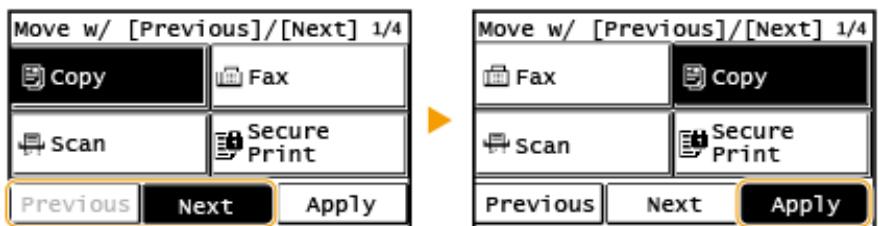
3 Tap the button where you want to insert a blank, and tap .

To delete an inserted blank, select the blank, tap , and proceed to step 5.
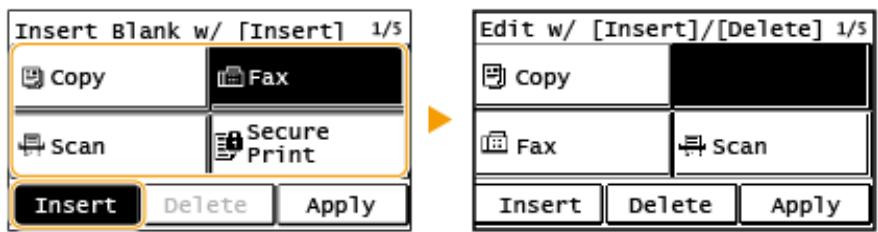
CANON IMAGERUNNER 2206N - Tap the button where you want to insert a blank, and tap . - 1

4 Tap .

CANON IMAGERUNNER 2206N - Tap . - 1

5 Tap .

LINKS

Display(P. 12)

Logging on to the Machine

36WC-007

If Department ID Management is enabled or System Manager IDs are enabled, you must log in before using the machine. You also need to log in if use of the fax and scan functions is restricted.

NOTE

The System Manager ID and PIN are set to "7654321" at the factory. It is recommended that you change this setting for higher security.

Department ID Management Login(P. 18)
Logging in to Authorized Send (P. 19)

Department ID Management Login

When the login screen appears, use the procedure below to enter the Department ID and PIN.
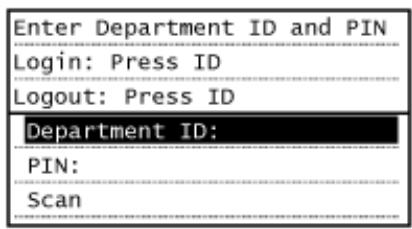
CANON IMAGERUNNER 2206N - Department ID Management Login - 1

1 Tap (or ).
2 Enter a number of up to seven digits using the numeric keys, and tap .
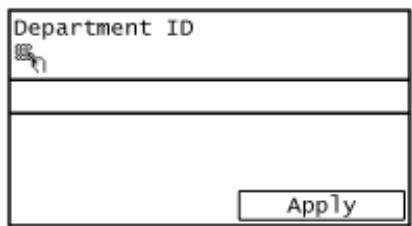
CANON IMAGERUNNER 2206N - Department ID Management Login - 2

If no PIN is registered, proceed to step 5.

3 Select .
4 Enter a number of up to seven digits using the numeric keys, and tap .

  • When < PIN(Confirm)> is displayed, enter the PIN once again to confirm.

5 Press ID
The logon screen will be changed to the main screen.

  • After you finish using the machine, press ID again to display the logon screen.

Logging in to Authorized Send

If the Send function authorization setting ( LDAP Server Authentication(P. 354) is enabled, the Authorized Send login screen appears when the fax or scan function is used.

Enter User Name, Password, and Server Name Login/Logout: Press ID
User Name: Password: Server Name:

NOTE

  • For imageRUNNER 2206N, these functions can only be used when the optional Color Send Kit is attached.

1 Tap .
2 Enter your user name using the numeric keys, and tap .
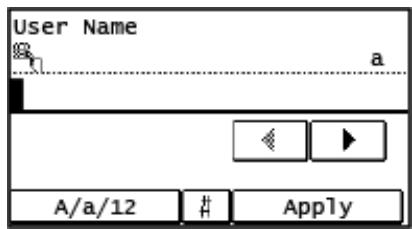
CANON IMAGERUNNER 2206N - NOTE - 1

3 Tap.
4 Enter the password using the numeric keys, and tap .
5 Tap and select the server for your authentication.

6 Press ID

The logon screen will be changed to the main screen.

After you finish using the machine, press ID again to display the logon screen.

NOTE:

If thescreen appears

  • If you are logged in to both Authorized Send and Department ID Management, a dialog box appears in which you can select the items you want to log out of. In the case where you want to log out of Authorized

Send (fax or scan function) while remaining logged in to Department ID Management, select . In any other cases, select .

Setting the Department ID Management(P. 345)
Setting the System Manager ID(P. 343)
LDAP Server Authentication(P. 354)

The display is a touch panel, allowing you to operate directly on the screen.

IMPORTANT

Avoid the following actions.

The display may malfunction or be damaged.

Pressing forcefully
- Pressing with pointed objects (fingernails, ballpoint pen, pencil, etc.)
- Operating with wet/soiled hands
- Operating the display while an object is placed on it

Tap

Touch the screen lightly and quickly. Use for selecting or finalizing items.
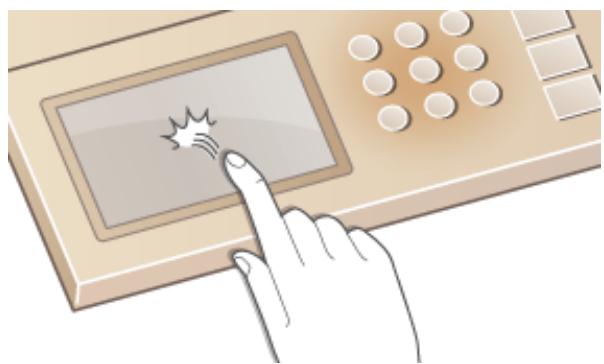
CANON IMAGERUNNER 2206N - Tap - 1

Long Touch

Keep finger held on the screen. When text cannot be completely displayed on one line ("..." appears), touch and hold the line to scroll all of the text. Also continuously increases/decreases the copy magnification.
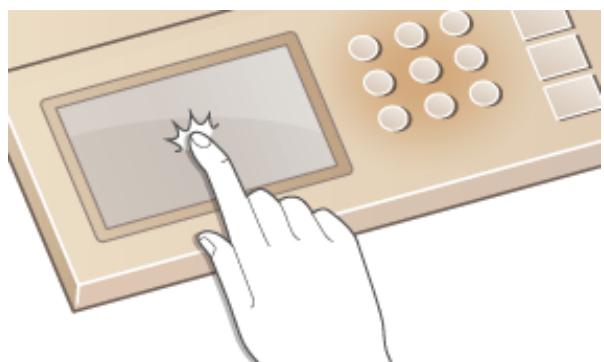
CANON IMAGERUNNER 2206N - Long Touch - 1

Selecting items

Tap an item name or button to make a selection.
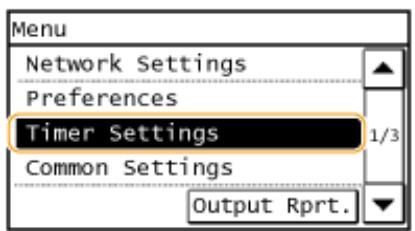
CANON IMAGERUNNER 2206N - Selecting items - 1

CANON IMAGERUNNER 2206N - Selecting items - 2

NOTE

If an item is mistakenly touched

Slide your finger away then release it from the screen to cancel the selection.
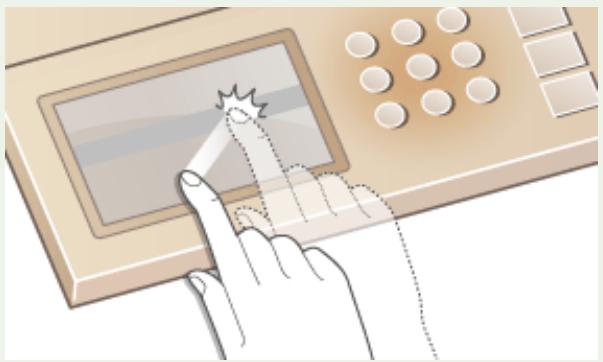
CANON IMAGERUNNER 2206N - If an item is mistakenly touched - 1

To return to the previous screen

Press to return to the previous screen.

Scrolling the screen

The scroll bar is displayed on the screen when there is still information that is undisplayed. If the scroll bar is displayed, tap / to scroll the screen. The screen changes page by page, and the page number is displayed in the scroll bar.
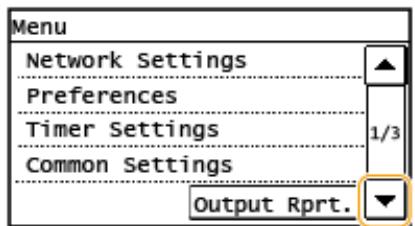
CANON IMAGERUNNER 2206N - Scrolling the screen - 1

CANON IMAGERUNNER 2206N - Scrolling the screen - 2

CANON IMAGERUNNER 2206N - Scrolling the screen - 3

Changing values and settings

Changing values

Tap / to enter values. If an icon such as below is displayed at the upper left of the screen, you can enter values directly using the numeric keys.
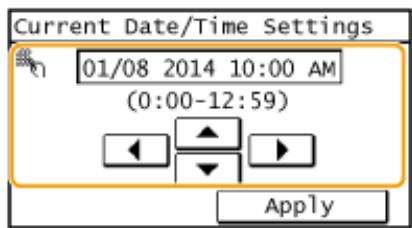
CANON IMAGERUNNER 2206N - Changing values - 1

NOTE

To move the cursor

When / is displayed, tap to move the cursor.

Changing setting values

To adjust a value on a scale, tap <-> / <+ .
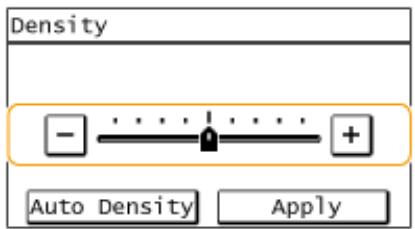
CANON IMAGERUNNER 2206N - Changing setting values - 1

TIPS

  • You can change a variety of display-related settings, such as the scrolling speed or display language:
    Display Settings(P. 445)
  • To change the screen that is automatically displayed when the machine remains idle for a specified length of time:
    Function After Auto Reset(P. 451)

Use the display and numeric keys to enter text and values.
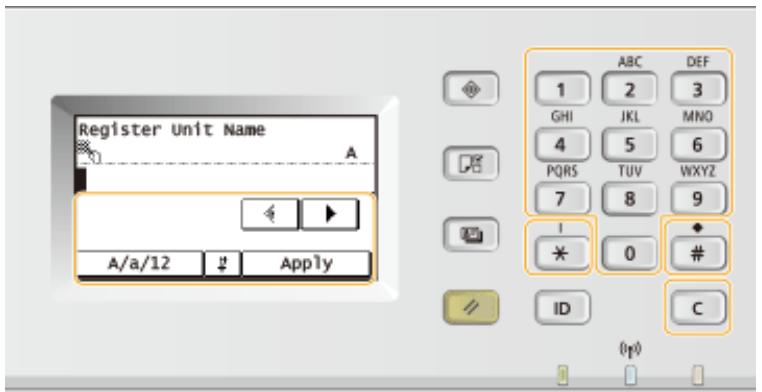
CANON IMAGERUNNER 2206N - TIPS - 1

Switching the Type of Text

Tap <A / a / 12> to switch the type of text that is entered. The currently selected type of text is indicated by the "A", "a", or "12" displayed above and to the right of the text input field.
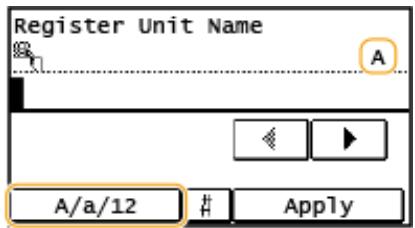
CANON IMAGERUNNER 2206N - Switching the Type of Text - 1

NOTE

You can also press * to switch the type of text.

Types of Text That Can Be Entered

Enter text with the numeric keys and the display. Text that can be entered is listed below.

KeyAa12
1@ . - _/1
2ABCabc2
3DEFdef3
4GHIghi4
5JKLjkl5
6MNOmno6
7PQRSpqrs7
8TUVtuv8
9WXYZwxyz9
0(Not available)0
#(space) -. * # !",;;^ ` _ = / | '? $ @ % & +\~() [ ] { }<>(Not available)

NOTE

Press # or tap <#> when the type of text that is entered is or to display enterable symbols in the screen. Tap symbols to enter.

Deleting Text

One character is deleted each time is pressed. Press and hold to delete all of the entered text.

Moving the Cursor (Entering a Space)

Tap or to move the cursor. To enter a space, move the cursor to the end of the text, and tap ▷

Example of Entering Text and Numbers

Example:"Canon-1"

1 Tap (or press ) repeatedly until is selected.
2 Press 2 repeatedly until the letter "C" is selected.
3 Tap < A / a / 12> (or press 掌 ) repeatedly until < a> is selected.
4 Press 2 repeatedly until the letter "a" is selected.
5 Press 6 repeatedly until the letter "n" is selected.
6 Press 6 repeatedly until the letter "o" is selected.
7 Press 6 repeatedly until the letter "n" is selected.
8 Press 1 repeatedly until the symbol "-" is selected.
9 Tap < A / a / 12> (or press * ) repeatedly until < 12> is selected.
10 Press 1.
11 Tap.

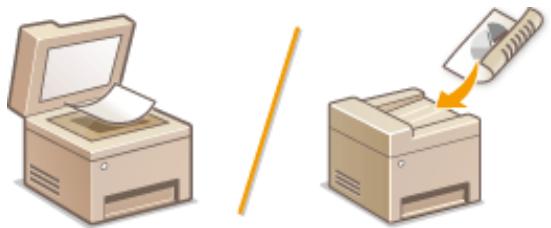
Place documents on the platen glass or in the feeder. Use the platen glass when scanning thick or bound documents such as books. You can load two or more sheets of documents in the feeder so that they can be scanned continuously. For information about the types of documents that can be placed on the platen glass or in the feeder, and information about the scannable area of a document, see Main Unit(P. 623) or Feeder (DADF-AY)(P. 626).
CANON IMAGERUNNER 2206N - Example of Entering Text and Numbers - 1

Placing Documents on the Platen Glass(P. 26)

Placing Documents in the Feeder (P. 27)

IMPORTANT

Use documents that are completely dry

When placing documents, make sure that any glue, ink, or correction fluid on the documents has completely dried.

To avoid paper jams

Do not place the following types of documents in the feeder as this may cause paper jams:

  • Wrinkled or creased paper
    Carbon paper or carbon-backed paper
    Curled or rolled paper
    Coated paper
    Torn paper
  • Onion skin or thin paper
    Stapled or clipped documents
  • Paper printed by a thermal transfer printer
    Transparencies

CANON IMAGERUNNER 2206N - To avoid paper jams - 1

CANON IMAGERUNNER 2206N - To avoid paper jams - 2

NOTE

To scan documents more accurately

Documents placed in the feeder are scanned while being fed into the machine. On the other hand, documents placed on the platen glass remain in a fixed position while they are scanned. To ensure more accurate scanning results, placing documents on the platen glass is recommended.

To scan tracing paper or transparencies

To scan transparent documents (for example, tracing paper or transparencies), place them on the platen glass.

Placing Documents on the Platen Glass

1 Open the feeder/platen cover.
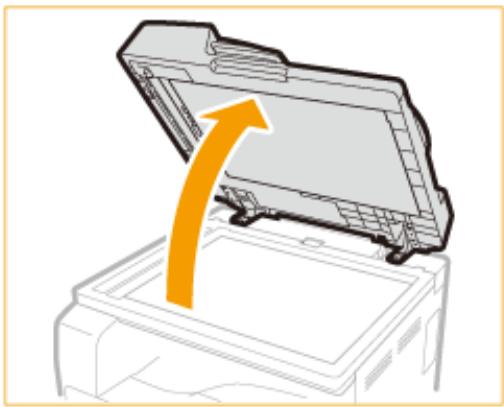
CANON IMAGERUNNER 2206N - Open the feeder/platen cover. - 1

2 Place the document face down on the platen glass.

  • Align the corner of the document with the top-left corner of the platen glass.
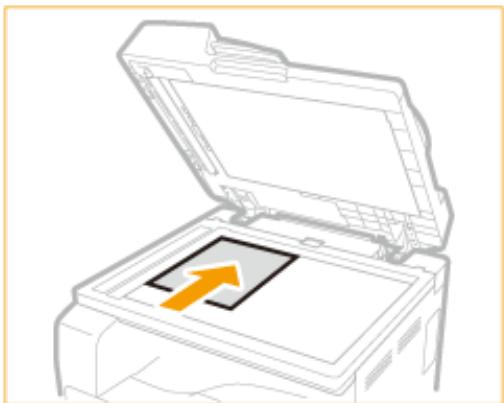
CANON IMAGERUNNER 2206N - Place the document face down on the platen glass. - 1

NOTE:

To scan transparent documents (for example, tracing paper or transparencies), cover them with plain white paper.

3 Gently close the feeder/platen cover.

The machine is ready to scan the document.
- When scanning is complete, remove the document from the platen glass.

Placing Documents in the Feeder

NOTE

  • For imageRUNNER 2206N, these functions can only be used when the optional DADF-AY is attached.

1 Spread the document guides apart.

  • Slide the document guides outward until they are slightly farther apart than the actual document width.
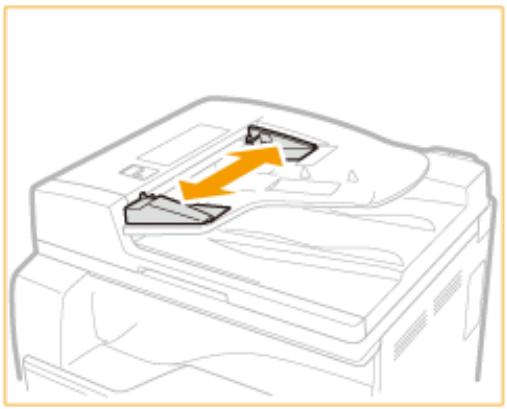
CANON IMAGERUNNER 2206N - Spread the document guides apart. - 1

2 Fan the document stack and align the edges.

  • Fan the document stack in small batches, and align the edges by lightly tapping the stack on a flat surface a few times.
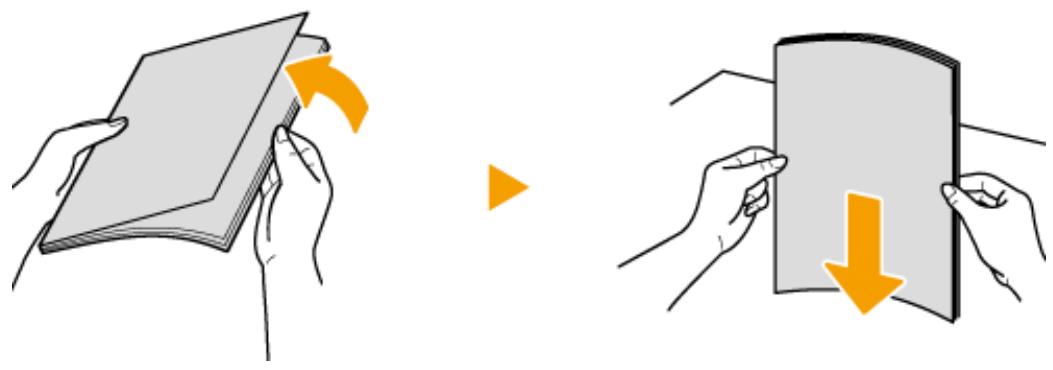
CANON IMAGERUNNER 2206N - Fan the document stack and align the edges. - 1

3 Place the document(s) face up in the feeder.
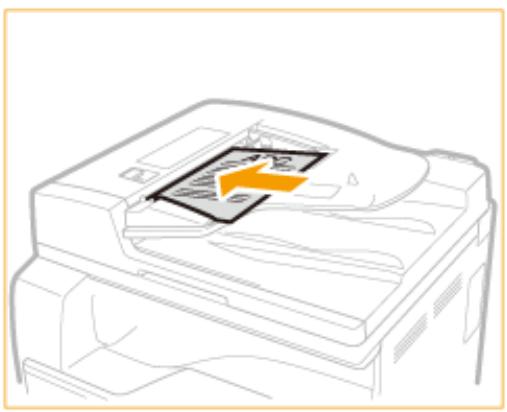
CANON IMAGERUNNER 2206N - Fan the document stack and align the edges. - 2

IMPORTANT:

  • Up to 50 sheets can be loaded at a time. If 50 or more sheets are loaded, scanning may stop or a paper jam may occur.

4 Align the document guides against the edges of the document.

  • Slide the document guides inward until they are aligned securely against the edges of the document.
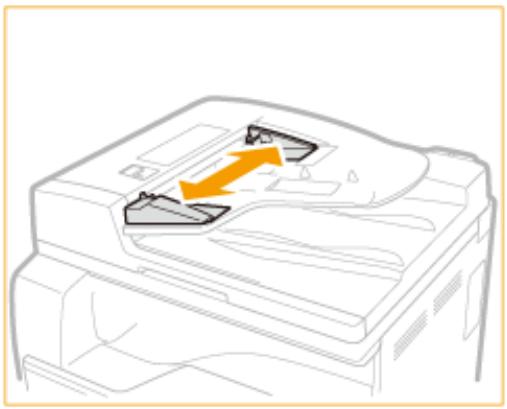
CANON IMAGERUNNER 2206N - Align the document guides against the edges of the document. - 1

The machine is ready to scan the document.

IMPORTANT:

Align the document guides securely against the edges of the document

Document guides that are too loose or too tight can cause misfeeds or paper jam.

While documents are being scanned

Do not add or remove documents.

When scanning is complete

Remove the scanned documents from beneath the feeder to prevent paper jams.

Loading Paper

36WC-00C

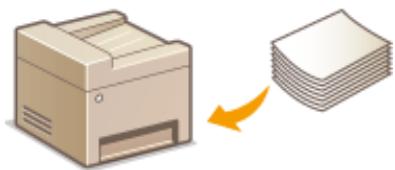
You can load the paper into the paper drawer or multi-purpose tray. Load the paper you usually use into the paper drawer. The paper drawer is convenient when using large amounts of paper. Use the multi-purpose tray when you temporarily use size or type of paper that is not loaded in the paper drawer. See Available Paper(P. 627) for available paper sizes.

CANON IMAGERUNNER 2206N - Loading Paper - 1

Paper Type and Setting for the Machine

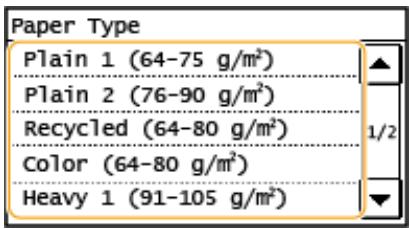
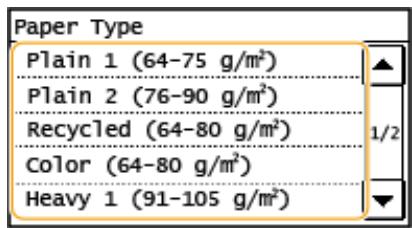
See the table below to specify the paper settings according to the type and weight of the paper to load into the paper source. For more information about how to specify the paper settings on the machine, see Specifying Paper Size and Type(P. 45). For the amount of paper that can be loaded in each paper source, see Available Paper(P. 627).

Paper TypePaper WeightPaper Setting on the Machine
Plain paper64 to 75 g/m2<Plain 1 (64-75 g/m2)>
76 to 90 g/m2<Plain 2 (76-90 g/m2)>
Recycled paper64 to 80 g/m2<Recycled (64-80 g/m2)>
Color paper64 to 80 g/m2<Color (64-80 g/m2)>
Heavy paper91 to 105 g/m2<Heavy 1 (91-105 g/m2)>
106 to 128 g/m2<Heavy 2 (106-128 g/m2)>
Bond paper75 to 90 g/m2<Bond>
Envelope<Envelope>
Pre-punched75 to 80 g/m2<Pre-Punched>
Transparency<Transparency>
Label<Labels>

IMPORTANT

Do not use the following types of paper:

  • Wrinkled or creased paper
    Curled or rolled paper
    Torn paper
    Damp paper
    Very thin paper
  • Paper printed by a thermal transfer printer

Highly textured paper
Glossy paper

Paper handling and storage

  • Store the paper on a flat surface.
  • Keep the paper wrapped in its original package to protect the paper from moisture or dryness.
  • Do not store the paper in such a way that may cause it to curl or fold.
  • Do not store the paper vertically or stack too much paper.
  • Do not store the paper in direct sunlight, or in a place subject to high humidity, dryness, or drastic changes in temperature or humidity.

NOTE

When printing on paper that has absorbed moisture

Steam may emit from the paper output area, or water droplets may form on the back side of the control panel or around the paper output area. There is nothing unusual about any of these occurrences, which occur when the heat generated from fixing toner on the paper causes moisture in the paper to evaporate (most likely to occur at low room temperatures).

Registering a Custom Paper Size(P. 47)

Loading Paper in the Paper Printer

36WC-00E

Load the paper that you usually use in the paper drawer. When you want to print on paper that is not loaded in the paper drawer, load the paper in the multi-purpose tray. Loading Paper in the Multi-Purpose Tray(P. 36)

Hold the handle of the paper drawer and pull it out until it stops.
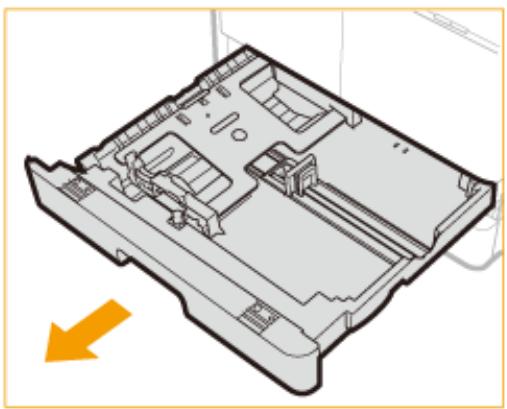
CANON IMAGERUNNER 2206N - Hold the handle of the paper drawer and pull it out until it stops. - 1
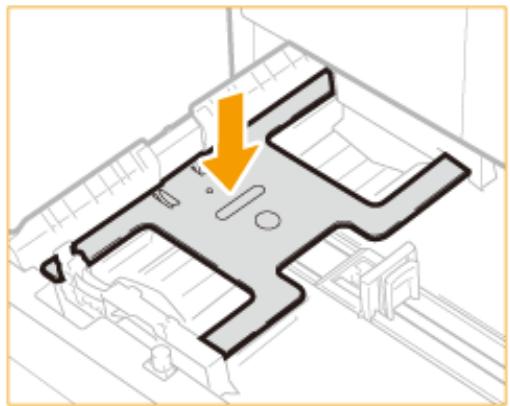
2 Push down the metal plate to lock it.

CANON IMAGERUNNER 2206N - Push down the metal plate to lock it. - 1

3 Adjust the position of the paper guides.

When loading paper in the paper drawer 1
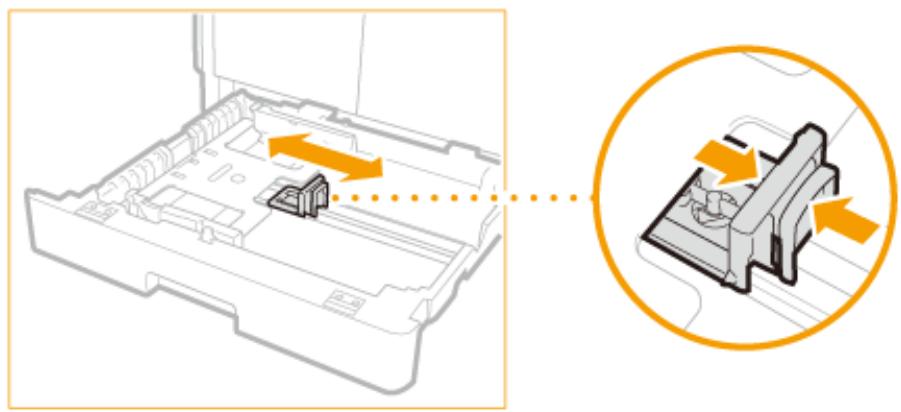
CANON IMAGERUNNER 2206N - When loading paper in the paper drawer 1 - 1

1 While squeezing the top part of the right guide, slide it to align with the size indicator for the paper to be loaded.
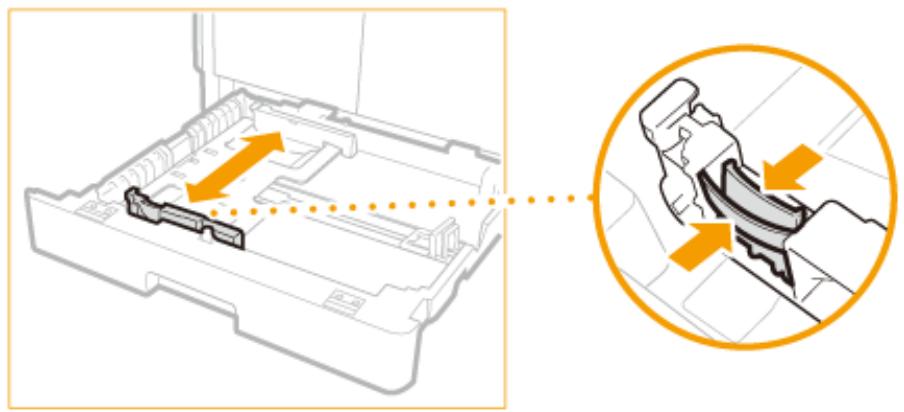
CANON IMAGERUNNER 2206N - When loading paper in the paper drawer 1 - 2

2 While squeezing the top part of the front guide, slide it to align with the size indicator for the paper to be loaded.

CANON IMAGERUNNER 2206N - When loading paper in the paper drawer 1 - 3
When loading paper in the paper drawer 2
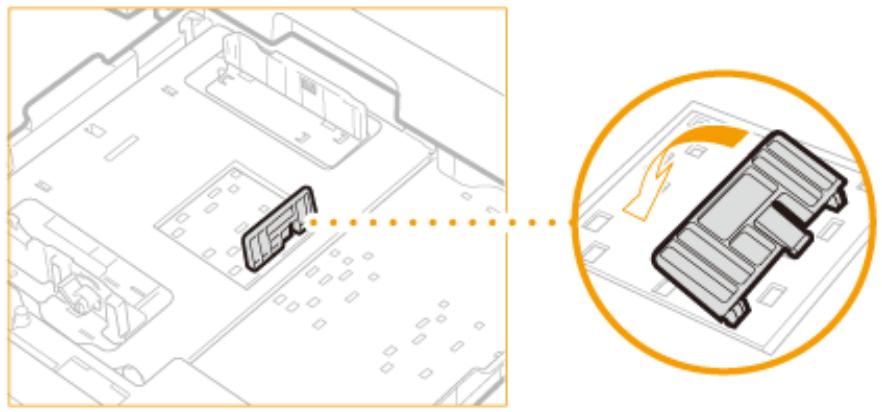
1 Detach the end guide and reattach it to the slots aligned with the mark indicating the desired paper size.
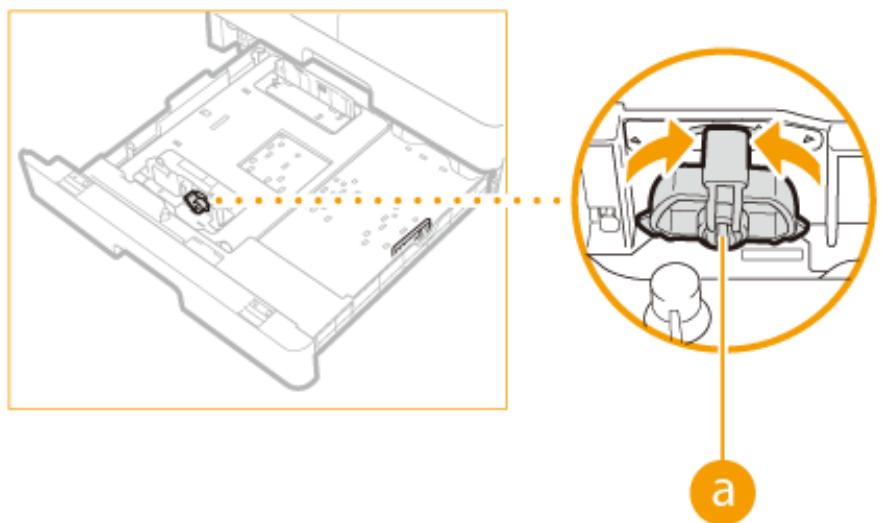
CANON IMAGERUNNER 2206N - When loading paper in the paper drawer 1 - 4

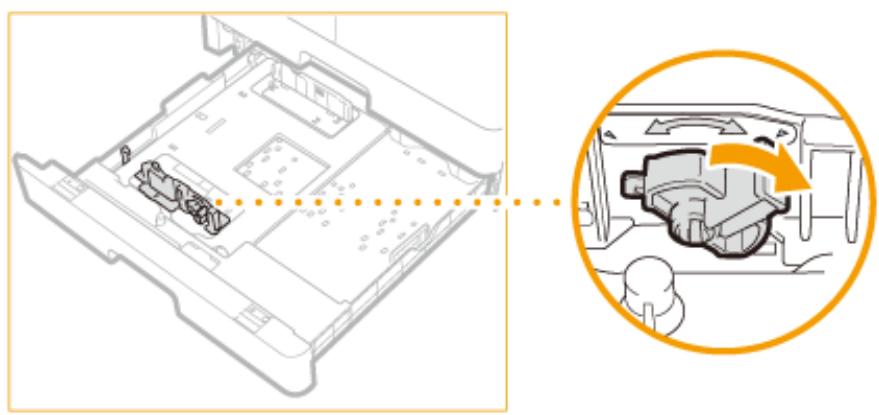
2 Lift up the lock lever on the front slide guide, and slide it backwards or forwards to align it with the groove marked with the desired paper size.
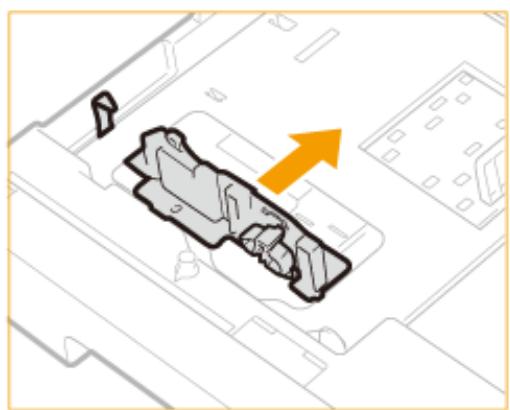
CANON IMAGERUNNER 2206N - When loading paper in the paper drawer 1 - 5

CANON IMAGERUNNER 2206N - When loading paper in the paper drawer 1 - 6

3 Lower the lock lever to lock the front slide guide into place.

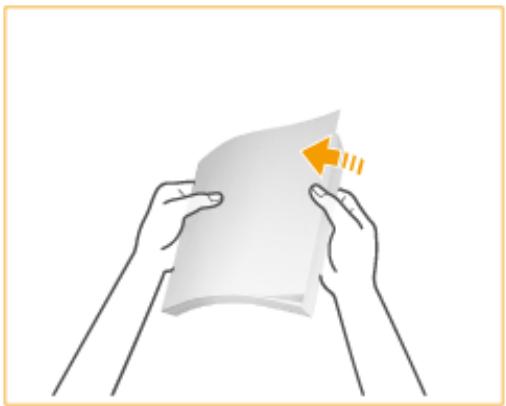
4 Prepare paper.

  • Fan the paper stack well, and tap it on a flat surface to align the edges.
CANON IMAGERUNNER 2206N - Prepare paper. - 1

NOTE:

Size abbreviations on the paper guides

The abbreviations on the paper guides in the paper drawer indicate paper sizes as follows:

LGL: Legal
LTR: Letter
- STMT: Statement

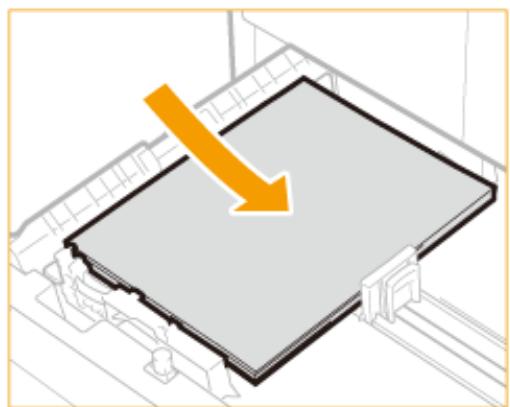
5 Insert the paper into the paper drawer.
CANON IMAGERUNNER 2206N - Insert the paper into the paper drawer. - 1

1 Make sure that the paper size setting of the paper drawer matches the size of the paper to load in the paper drawer.
2 Load the paper stack with the print side face up, and against the left guide of the paper drawer.

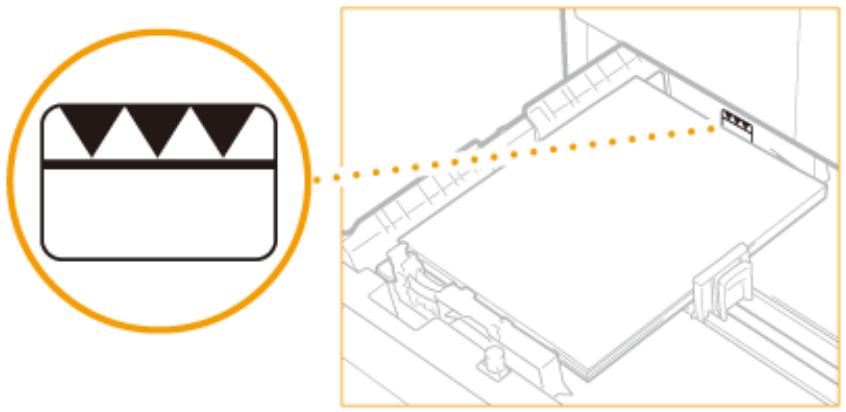
IMPORTANT:

Do not exceed the load limit mark when loading paper

Make sure that the paper stack does not exceed the load limit mark. Loading too much paper can cause paper jams.
CANON IMAGERUNNER 2206N - Do not exceed the load limit mark when loading paper - 1

NOTE:

When loading envelopes or paper with a logo, see Loading Envelopes in the Multi-Purpose Tray(P. 39) or Loading Preprinted Paper(P. 42).

Gently insert the paper drawer into the machine.

Continue to Specifying Paper Size and Type(P. 45)

IMPORTANT:

When changing the paper size or type

If you load a different size or type of paper into the machine, make sure to change the settings. If you do not change the settings, the machine cannot print properly.

Available Paper(P. 627)

Loading Paper in the Multi-Purpose Tray

36WC-00F

When you want to print on paper that is not loaded in the paper drawer, load the paper in the multi-purpose tray. Load the paper that you usually use in the paper drawer. Loading Paper in the PaperDrawer(P. 32)

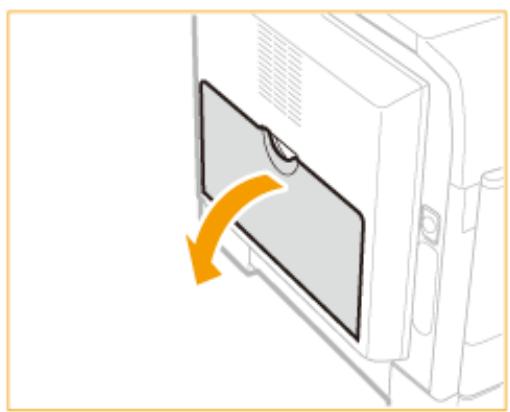
1 Open the multi-purpose tray.

CANON IMAGERUNNER 2206N - Open the multi-purpose tray. - 1

  • Pull out the auxiliary tray (a), and extend the tray extension (b) when loading large-sized paper.
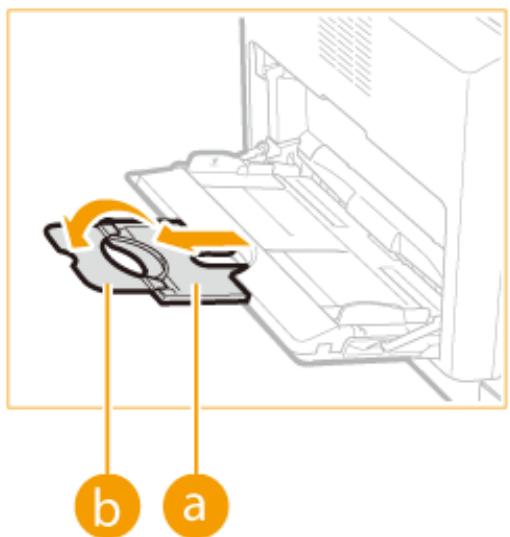
CANON IMAGERUNNER 2206N - Open the multi-purpose tray. - 2

2 Adjust the slide guides ( ) to match the size of the paper.
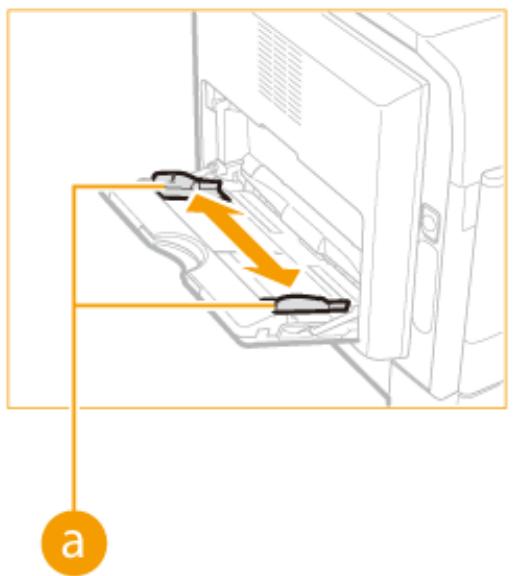
CANON IMAGERUNNER 2206N - Open the multi-purpose tray. - 3

3 Insert the paper into the multi-purpose tray until the paper stops.

  • Load the paper with the print side face down.
  • Fan the paper stack well, and tap it on a flat surface to align the edges.
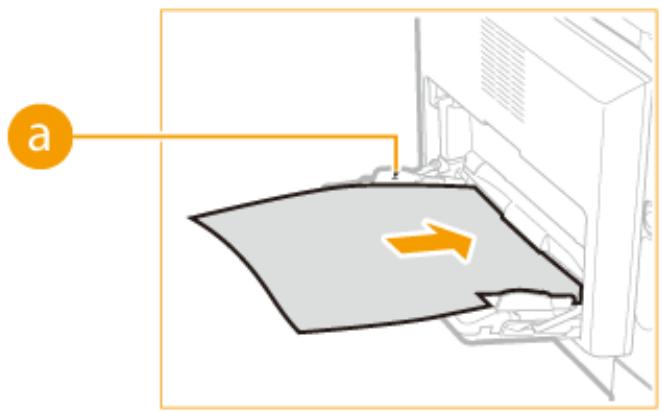
CANON IMAGERUNNER 2206N - Insert the paper into the multi-purpose tray until the paper stops. - 1

IMPORTANT:

Do not exceed the load limit mark when loading paper

Make sure that the paper stack does not exceed the load limit mark (a). Loading too much paper can cause paper jams.

NOTE:

When loading envelopes or paper with a logo, see Loading Envelopes in the Multi-Purpose Tray(P. 39) or Loading Preprinted Paper(P. 42).

Continue to Specifying Paper Size and Type(P. 45)

Printing on the Back Side of Printed Paper (Manual 2-Sided Printing)

You can print on the back side of printed paper. Flatten any curls on the printed paper and insert it into the multi-purpose tray in the orientation indicated below (a), with the side to print face down (previously printed side face up).
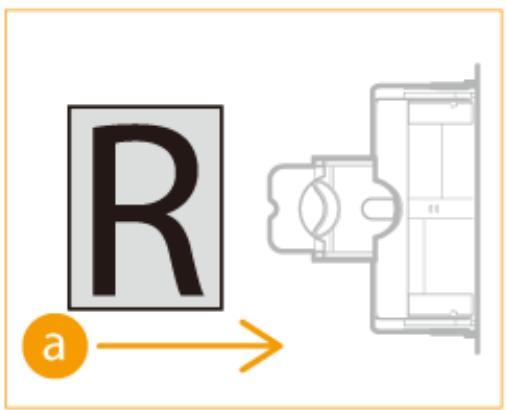
CANON IMAGERUNNER 2206N - Printing on the Back Side of Printed Paper (Manual 2-Sided Printing) - 1

  • You can use only the paper printed with this machine.

Loading Envelopes in the Multi-Purpose Tray

36WC-00H

Make sure to flatten any curls on envelopes before loading them. Also pay attention to the orientation of envelopes and which side is face up.

Before Loading Envelopes(P. 39)

Loaded Orientation(P. 40)

NOTE

This section describes how to load envelopes in the orientation you want, as well as procedures that you need to complete before loading envelopes. For a description of the general procedure for loading paper in the paper drawer or multi-purpose tray, see Loading Paper in the PaperDrawer(P. 32) or Loading Paper in the Multi-Purpose Tray(P. 36).

Before Loading Envelopes

Follow the procedure below to prepare the envelopes before loading.

NOTE

10 envelope at a time can be loaded in the multi-purpose tray. Follow steps 1 to 4 in the procedure below to prepare the envelope for loading.

1 Close the flap of each envelope.
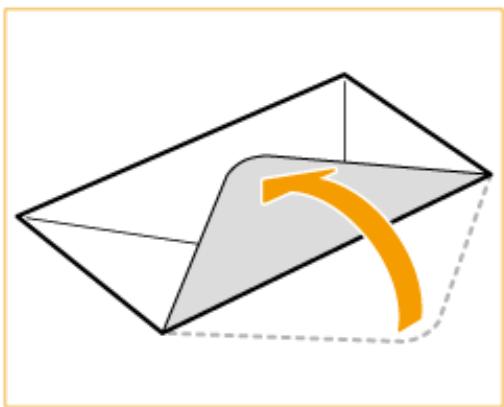
CANON IMAGERUNNER 2206N - Close the flap of each envelope. - 1

2 Flatten them to release any remaining air, and make sure that the edges are pressed tightly.
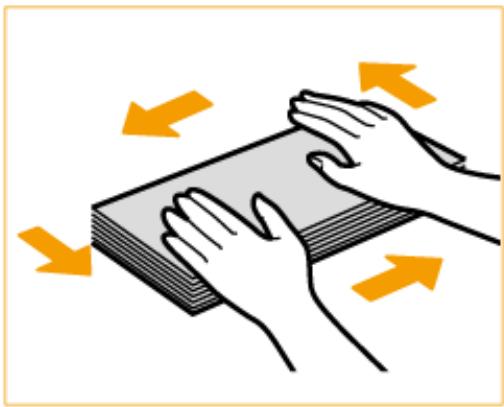
CANON IMAGERUNNER 2206N - Close the flap of each envelope. - 2

3 Loosen any stiff corners of the envelopes and flatten any curls.
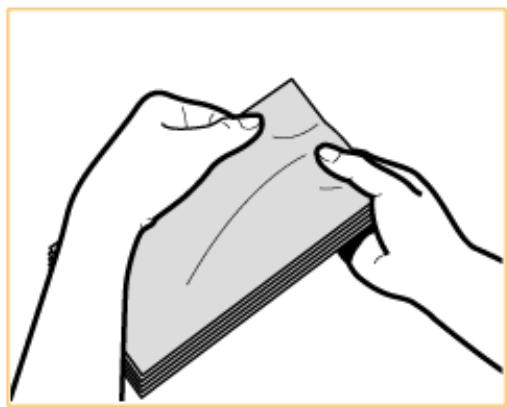
CANON IMAGERUNNER 2206N - Close the flap of each envelope. - 3

4 Align the edges of the envelope on a flat surface.
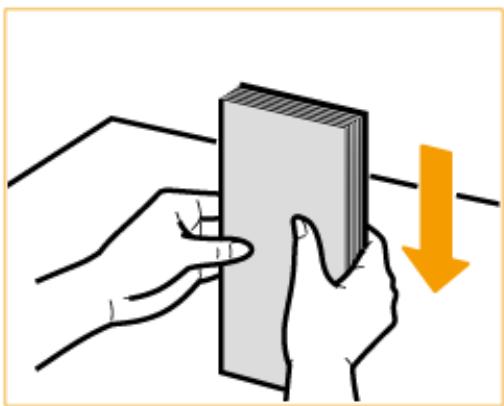
CANON IMAGERUNNER 2206N - Close the flap of each envelope. - 4

Loaded Orientation

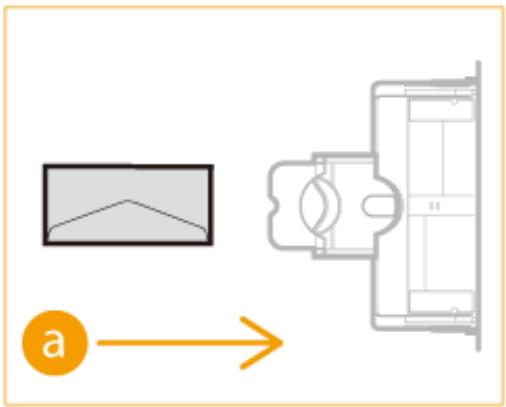
Load the envelopes in portrait orientation, short edge first, with the non-glued side (front side) face up.

Load the envelopes, as shown in the illustrated bellow (a: feeding direction).

CANON IMAGERUNNER 2206N - Loaded Orientation - 1

Loading Preprinted Paper

36WC-00J

When you use paper that has been preprinted with a logo, pay attention to the orientation of the paper when loading it in the paper source. Load the paper properly so that printing is performed on the same side as the logo.

Loading Paper with Logos in Portrait Orientation(P. 42)

Loading Paper with Logos in Landscape Orientation(P. 43)

NOTE

  • This section describes how to load preprinted paper with the proper orientation. For a description of the general procedure for loading paper in the paper drawer or multi-purpose tray, see Loading Paper in the PaperDrawer(P. 32) or Loading Paper in the Multi-Purpose Tray(P. 36).
  • The orientation of the paper may vary depending on the settings in .

Loading Paper with Logos in Portrait Orientation

The loading method varies depending on the size of the paper with the logo and the paper source that is used.

CANON IMAGERUNNER 2206N - Loading Paper with Logos in Portrait Orientation - 1

When Loading A4-size Paper with Logos

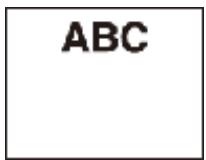
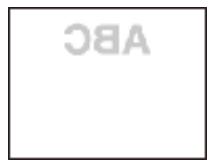
Load the paper so that the logo faces up in the paper drawer and faces down in the multi-purpose tray, as shown in the illustrations below.

Paper drawer Multi-purpose tray
CANON IMAGERUNNER 2206N - When Loading A4-size Paper with Logos - 1

CANON IMAGERUNNER 2206N - When Loading A4-size Paper with Logos - 2

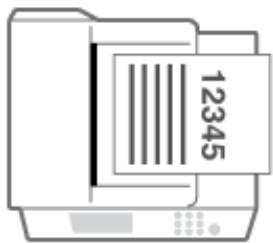
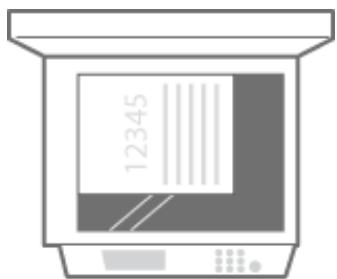
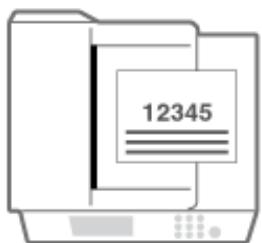
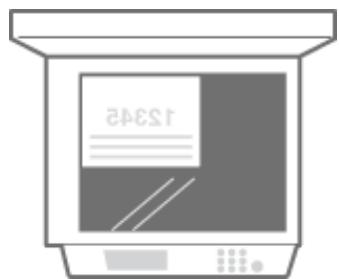
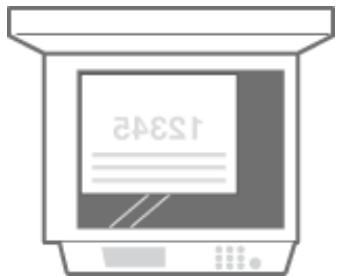
Pay attention to the orientation when placing a document. Place as follows, with the document facing up in the feeder and facing down on the platen glass.

CANON IMAGERUNNER 2206N - When Loading A4-size Paper with Logos - 3
Feeder

CANON IMAGERUNNER 2206N - When Loading A4-size Paper with Logos - 4
Platen glass

When Loading A3-size Paper with Logos

Load the paper so that the logo faces up in the paper drawer and faces down in the multi-purpose tray, as shown in the illustrations below.

CANON IMAGERUNNER 2206N - When Loading A3-size Paper with Logos - 1
Paper drawer
Multi-purpose tray

CANON IMAGERUNNER 2206N - When Loading A3-size Paper with Logos - 2

Pay attention to the orientation when placing a document. Place as follows, with the document facing up in the feeder and facing down on the platen glass.

CANON IMAGERUNNER 2206N - When Loading A3-size Paper with Logos - 3
Feeder

CANON IMAGERUNNER 2206N - When Loading A3-size Paper with Logos - 4
Platen glass

Loading Paper with Logos in Landscape Orientation

The loading method varies depending on the size of the paper with the logo and the paper source that is used.

CANON IMAGERUNNER 2206N - Loading Paper with Logos in Landscape Orientation - 1

When Loading A4-size Paper with Logos

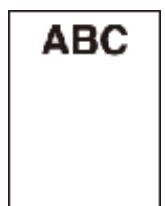
Load the paper so that the logo faces up in the paper drawer and faces down in the multi-purpose tray, as shown in the illustrations below.

CANON IMAGERUNNER 2206N - When Loading A4-size Paper with Logos - 1
Paper drawer
Multi-purpose tray

CANON IMAGERUNNER 2206N - When Loading A4-size Paper with Logos - 2

Pay attention to the orientation when placing a document. Place as follows, with the document facing up in the feeder and facing down on the platen glass.

CANON IMAGERUNNER 2206N - When Loading A4-size Paper with Logos - 3
Feeder

CANON IMAGERUNNER 2206N - When Loading A4-size Paper with Logos - 4
Platen glass

When Loading A3-size Paper with Logos

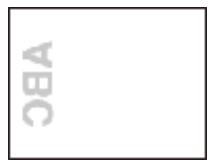
Load the paper so that the logo faces up in the paper drawer and faces down in the multi-purpose tray, as shown in the illustrations below.

Paper drawer

Multi-purpose tray

ABC

38A

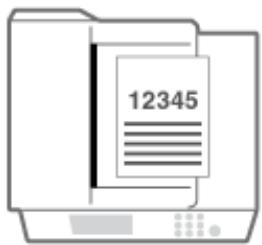
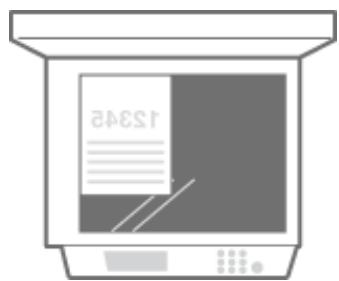
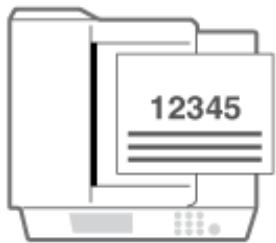
Pay attention to the orientation when placing a document. Place as follows, with the document facing up in the feeder and facing down on the platen glass.

Feeder
Platen glass
CANON IMAGERUNNER 2206N - When Loading A3-size Paper with Logos - 1

CANON IMAGERUNNER 2206N - When Loading A3-size Paper with Logos - 2

Specifying Paper Size and Type

36WC-00K

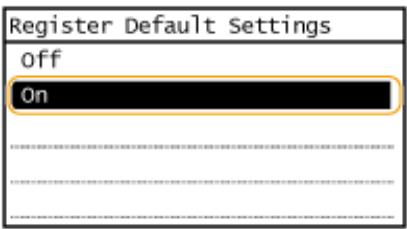
You must specify the paper size and type settings to match the paper that is loaded. Make sure to change the paper settings when you load the paper that is different from the previously loaded paper. You can also register a default paper size and paper type for the multi-purpose tray, which is convenient if you always load paper of the same size and type.

IMPORTANT

If the setting does not match the size and type of loaded paper, a paper jam or printing error may occur.

1 Press

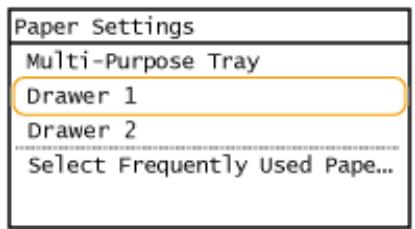
2 Select the paper source.

If the same size/type of paper is always set in the Multi-Purpose Tray Tap .

CANON IMAGERUNNER 2206N - Select the paper source. - 1

If you want to register the paper in paper drawer 1 or paper drawer 2 Tap or .

CANON IMAGERUNNER 2206N - Select the paper source. - 2

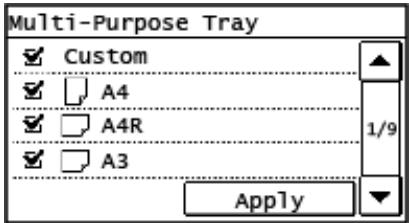
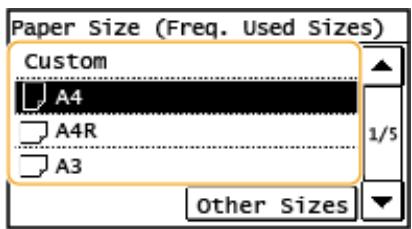
3 Select the loaded paper size.

  • If the loaded paper size is not displayed, tap .
CANON IMAGERUNNER 2206N - Select the loaded paper size. - 1

4 Select the loaded paper type.

CANON IMAGERUNNER 2206N - Select the loaded paper type. - 1

TIPS

When a frequently used paper size is known

You can set the machine to display only frequently used paper sizes in the selection screen.

1 Press
2 Tap

CANON IMAGERUNNER 2206N - When a frequently used paper size is known - 1

NOTE:

The paper sizes without check mark are displayed in the screen.

5 Tap.

Loading Paper in the Paper Drawer(P. 32)

Available Paper(P. 627)

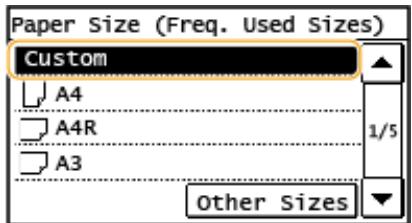
Registering a Custom Paper Size

36WC-00L

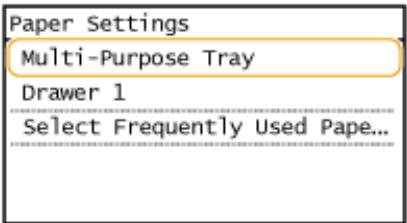
You can register a custom paper size and type to load in the multi-purpose tray.

1 Press

2 Tap .
CANON IMAGERUNNER 2206N - Tap . - 1

3 Tap .

CANON IMAGERUNNER 2206N - Tap . - 1

4 Tap .

CANON IMAGERUNNER 2206N - Tap . - 1

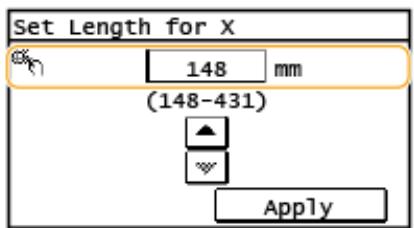
5 Specify the paper size.

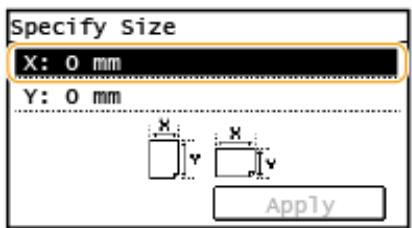
1 Specify the length of the <X> side.

  • Tap <X> .
  • Input the length of the side using / , with / to move the cursor between the digits for inputting whole numbers and fractions, and tap .
CANON IMAGERUNNER 2206N - Specify the length of the &lt;X&gt; side. - 1

CANON IMAGERUNNER 2206N - Specify the length of the &lt;X&gt; side. - 2

CANON IMAGERUNNER 2206N - Specify the length of the &lt;X&gt; side. - 3

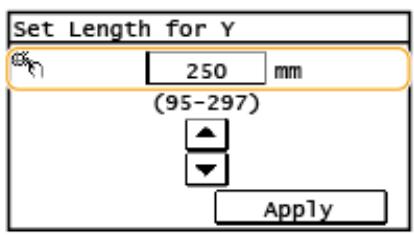
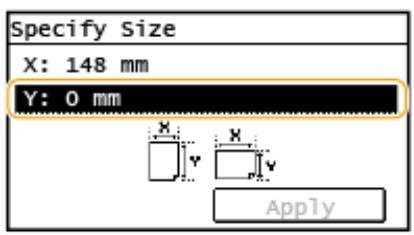
2 Specify the length of the side.

  • Tap .
  • Input the length of the side, and tap .
CANON IMAGERUNNER 2206N - Specify the length of the &lt;X&gt; side. - 4

CANON IMAGERUNNER 2206N - Specify the length of the &lt;X&gt; side. - 5

CANON IMAGERUNNER 2206N - Specify the length of the &lt;X&gt; side. - 6

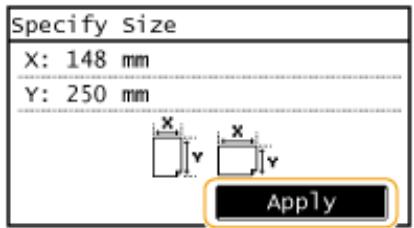
3 Tap.

CANON IMAGERUNNER 2206N - Specify the length of the &lt;X&gt; side. - 7

6 Select the paper type.

CANON IMAGERUNNER 2206N - Specify the length of the &lt;X&gt; side. - 8

Loading Paper in the Paper Printer(P. 32)
Loading Paper in the Multi-Purpose Tray(P. 36)

Registering in the Address Book

36WC-00R
CANON IMAGERUNNER 2206N - Registering in the Address Book - 1

You can register destinations to the Address Book or One-Touch Dial. You can register frequently used fax/scan destinations in the Address Book and easily select them when needed. You can register up to 104 destinations in the Address Book. Destinations can be searched alphabetically, from lists in the Address Book, or by entering three-digit numbers (coded dial numbers) ( Registering Destinations in the Address Book(P. 50)). You can also specify destinations more quickly by using the following features.

NOTE

  • For imageRUNNER 2206N, this function can only be used when the optional Color Send Kit is attached.
  • Fax numbers can be registered as destinations on the imageRUNNER 2206iF only.

One-Touch Dial

Registering a lot of addresses in the Address Book makes it difficult to find the destination you need. To avoid this situation, register frequently used destinations as One-Touch Dial numbers. This allows them to be displayed by the One-Touch buttons in the screen. You can register up to 4 destinations for One-Touch Dial. Registering Destinations for One-Touch Dial(P. 55)

Group Dial

You can select multiple destinations that have already been registered and register them together as a group. You can send faxes or e-mails to multiple destinations at the same time. You can register up to 50 destinations for a group. Groups can also be registered in One-Touch Dial. Registering Multiple Destinations for Group Dial(P. 60)

NOTE

  • Use the computer to register a shared folder as the destination for scans. Setting a Shared Folder as a Save Location(P. 307) Registering Address Book from Remote UI(P. 426)
  • You can save the Address Book as a file on your computer (although you cannot use the computer to edit the Address Book). You can also import a saved Address Book from the computer to the machine. Saving/Loading Address Book from Remote UI(P. 422)
  • You can print a list of destinations registered in the Address Book. Address Book List(P. 593)
  • If your office has an LDAP server installed, you can make search to find user information on the server and register it in the Address Book. You need to specify the settings for connecting to an LDAP server beforehand. Registering LDAP Servers(P. 323)

Specifying from Address Book(P. 110)

Registering Destinations in the Address Book

36WC-00S

You can register up to 100 destinations for Coded Dial in the Address Book. You can edit or delete destinations that you have registered.

1 Press and tap
.

CANON IMAGERUNNER 2206N - Press and tap . - 1

2 Tap .

  • If a screen appears prompting you to enter a PIN, enter the correct PIN using the numeric keys, and tap . Setting a PIN for Address Book (P. 373)

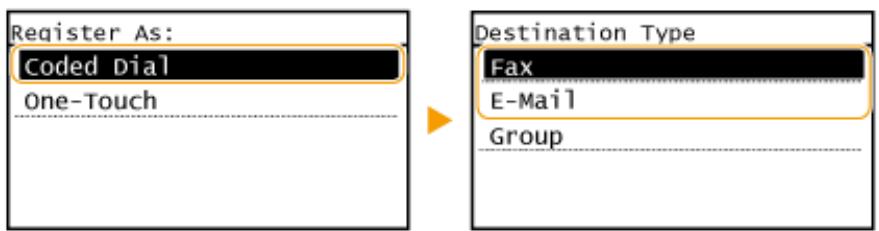
3 Select Select type of address to register.

CANON IMAGERUNNER 2206N - Select  Select type of address to register. - 1

According to the address being registered, tap <Fax> / <E-Mail> .

■Registering destinations with the LDAP server

If your office has an LDAP server installed, you can make search to find user information on the server and register it in the Address Book.

NOTE:

To make registration from the LDAP server, you need to specify the settings for connecting to the LDAP server beforehand. Registering LDAP Servers(P. 323)

1 Tap .
2 Select the LDAP server you are using.
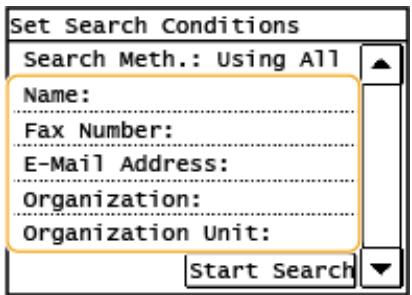
3 Select conditions for user information to be searched.

  • Name, fax numbers, e-mail addresses, organization names, and organization unit are available criteria for searching destinations.
CANON IMAGERUNNER 2206N - NOTE: - 1

4 Enter the search target character string, and select .

On how to enter text, see Entering Text(P. 24).
To specify multiple search criteria, repeat steps 3 and 4.

5 Tap .
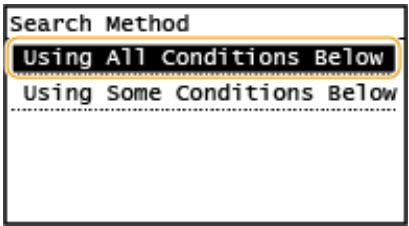
6 Select conditions to display the search result.
CANON IMAGERUNNER 2206N - NOTE: - 2

Searches and displays the users that meet all the search criteria specified in steps 3 and 4.

If users that meet even one of the criteria specified in steps 3 and 4 are found, displays all those users.

7 Tap.

The users meeting your search criteria are displayed.

NOTE:

  • If the authentication screen appears when you tap , enter the user name of the machine and the password registered in the LDAP server, and tap . Registering LDAP Servers(P. 323)

8 Select a user you want to register in the Address Book.

9 Tap.

The user name and the fax number or e-mail address registered on the LDAP server of the selected user are registered in the Address Book.

Tap .

  • Registering is optional. If you register , the destination can be searched alphabetically.

5 Enter the name using the numeric keys, and tap .
6 Tap or .

7 Enter the destination using the numeric keys, and tap .

■Making detailed settings (only when registered for fax)

After tapping

, a screen similar to the following is displayed.
CANON IMAGERUNNER 2206N - ■Making detailed settings (only when registered for fax) - 1

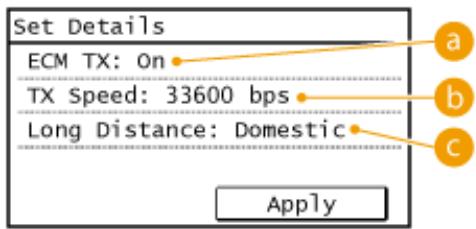
a

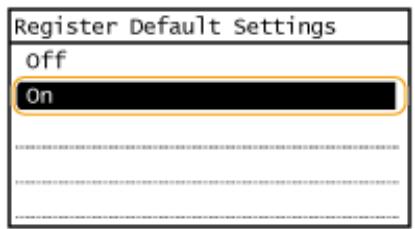
If an error occurs in an image that is being sent, the error is checked and corrected to prevent an improper image from being sent when setting <On> .

b

If it takes time for transmissions to start, such as when there is a poor telephone connection, you can adjust the transmission start speed downward incrementally starting from "33600 bps".

Specify to according to the transmission conditions when registering overseas fax numbers.

NOTE

You can also make detailed settings for destinations from

. However, settings made from
are enabled for the detailed settings of destinations registered in the Address Book.

8 Tap .

  • A three-digit number is automatically set to destinations. The number can be edited after it has been registered.

CANON IMAGERUNNER 2206N - Tap . - 1

■ Editing the Content of Registered Destinations

After registering destinations, you can change the content of registered information. For example, you can change the fax number or name of a registered destination, change the type from fax number to e-mail, change the coded dial number, and so on.

1 Press and tap

.

CANON IMAGERUNNER 2206N - ■ Editing the Content of Registered Destinations - 1

2 Tap

.
3 Use / to select the tab containing the destination you want to edit, and tap the destination.
4 Tap .
- If a screen appears prompting you to enter a PIN, enter the correct PIN using the numeric keys, and tap . Setting a PIN for Address Book (P. 373)
5 Select the item you want to edit, perform editing, and then tap .
6 Tap .

CANON IMAGERUNNER 2206N - ■ Editing the Content of Registered Destinations - 2

  • Deleting a Registered Destination

1 Press and tap

.

CANON IMAGERUNNER 2206N - ■ Editing the Content of Registered Destinations - 3

2 Tap

.

3 Use / to select the tab containing the destination you want to delete, and tap the destination.
4 Tap.
- If a screen appears prompting you to enter a PIN, enter the correct PIN using the numeric keys, and tap . Setting a PIN for Address Book (P. 373)
5 Tap .

Registering Destinations for One-Touch Dial

36WC-00U

You can conveniently register frequently used destinations for One-Touch Dial. Destinations can be quickly displayed by tapping One-Touch buttons in the screen. You can edit or delete destinations that you have registered. You can register up to 4 destinations for One-Touch Dial.

1 Press and tap
.

CANON IMAGERUNNER 2206N - Press and tap . - 1

2 Tap.

  • If a screen appears prompting you to enter a PIN, enter the correct PIN using the numeric keys, and tap . Setting a PIN for Address Book (P. 373)

3 Select Select type of address to register.

CANON IMAGERUNNER 2206N - Select  Select type of address to register. - 1

  • According to the address being registered, tap <Fax>/ E-Mail .

4 Tap the number to register.

  • You can change this number to another number later.

■Registering destinations with the LDAP server

If your office has an LDAP server installed, you can make search to find user information on the server and register it in the Address Book.

NOTE:

To make registration from the LDAP server, you need to specify the settings for connecting to the LDAP server beforehand. Registering LDAP Servers(P. 323)

1 Tap .
2 Select the LDAP server you are using.
3 Select conditions for user information to be searched.

  • Name, fax numbers, e-mail addresses, organization names, and organization unit are available criteria for searching destinations.

CANON IMAGERUNNER 2206N - NOTE: - 1

4 Enter the search target character string, and tap .

On how to enter text, see 口 Entering Text(P. 24).
To specify multiple search criteria, repeat steps 3 and 4.

5 Tap .
6 Select conditions to display the search result.

CANON IMAGERUNNER 2206N - NOTE: - 2

Searches and displays the users that meet all the search criteria specified in steps 3 and 4.

If users that meet even one of the criteria specified in steps 3 and 4 are found, displays all those users.

7 Tap.

The users meeting your search criteria are displayed.

NOTE:

  • If the authentication screen appears when you tap , enter the user name of the machine and the password registered in the LDAP server, and tap . Registering LDAP Servers(P. 323)

8 Select a user you want to register in the Address Book.

9 Tap.

The user name and the fax number or e-mail address registered on the LDAP server of the selected user are registered in the Address Book.

5 Tap .

  • Registering is optional. If you register , the destination can be searched alphabetically.

6 Enter the name using the numeric keys and tap .

7 Tap or .

8 Enter the destination using the numeric keys and tap .

■Making detailed settings (only when registered for fax)

After tapping

, a screen similar to the following is displayed.

CANON IMAGERUNNER 2206N - ■Making detailed settings (only when registered for fax) - 1

a

If an error occurs in an image that is being sent, the error is checked and corrected to prevent an improper image from being sent when setting < On > .

b

If it takes time for transmissions to start, such as when there is a poor telephone connection, you can adjust the transmission start speed downward incrementally starting from "33600 bps".

Specify to according to the transmission conditions when registering overseas fax numbers.

NOTE

You can also make detailed settings for destinations from

. However, settings made from
are enabled for the detailed settings of destinations registered in the Address Book.

9 Tap .

CANON IMAGERUNNER 2206N - Tap . - 1

■ Editing the Content of Registered Destinations in One-Touch Dial

You can make changes to set information, such as changing numbers or names you have registered or changing numbers registered to One-Touch Dial.

1 Press and tap
.

CANON IMAGERUNNER 2206N - Press and tap . - 1

2 Tap

.
3 Select < using /, and tap the destination you want to change.
4 Tap .

  • If a screen appears prompting you to enter a PIN, enter the correct PIN using the numeric keys, and tap . Setting a PIN for Address Book (P. 373)
    5 Tap the item you want to edit, perform editing, and then tap .
    6 Tap .

CANON IMAGERUNNER 2206N - Press and tap . - 2

  • Deleting a Registered Destination

1 Press and tap

.

CANON IMAGERUNNER 2206N - Press and tap . - 3

2 Tap

.
3 Select < using / ▶, and tap the destination you want to delete.
4 Tap.

  • If a screen appears prompting you to enter a PIN, enter the correct PIN using the numeric keys, and tap . Setting a PIN for Address Book (P. 373)

5 Tap .

Registering Multiple Destinations for Group Dial

36WC-00W

Multiple destinations can be combined into groups. After a group is registered, you can add or delete destinations.

NOTE

  • Only destinations of the same type of address can be registered in the same group.
  • Shared folders cannot be registered in a group as destinations.

1 Press and tap
.

CANON IMAGERUNNER 2206N - Press and tap . - 1

2 Tap .

  • If a screen appears prompting you to enter a PIN, enter the correct PIN using the numeric keys, and tap . Setting a PIN for Address Book (P. 373)

3 Tap .

  • Groups can also be registered in One-Touch Dial. Select to register the group as a One-Touch Dial number.

4 Tap.

5 Tap.

  • Registering is optional. If you register , the destination can be searched alphabetically.

6 Enter the name using the numeric keys, and tap .

7 Tap .

8 Tap .

CANON IMAGERUNNER 2206N - Tap . - 1

9 Use / to select the tab and tap a destination you want to register.

CANON IMAGERUNNER 2206N - Tap . - 2

10 Tap .

CANON IMAGERUNNER 2206N - Tap . - 3

11 Repeat steps 8 and 9 until you have registered all of the destinations that you want to register, and then tap .
12 Tap .

CANON IMAGERUNNER 2206N - Tap . - 4

■ Editing the Content of Registered Groups

After registering destinations, you can change the content of groups such as names, destinations, and coded dial numbers.

1 Press and tap

.

CANON IMAGERUNNER 2206N - Tap . - 5

2 Tap

.
3 Select < using /, and tap the destination you want to change.
4 Tap .

  • If a screen appears prompting you to enter a PIN, enter the correct PIN using the numeric keys, and tap . Setting a PIN for Address Book (P. 373)
    5 Select the item you want to edit, perform editing, and then tap .
    6 Tap .

CANON IMAGERUNNER 2206N - Tap . - 6

- Deleting a Group

1 Press and tap

.

CANON IMAGERUNNER 2206N - - Deleting a Group - 1

2 Tap

.
3 Select < using / ▶, and tap the group you want to delete.
4 Tap.

  • If a screen appears prompting you to enter a PIN, enter the correct PIN using the numeric keys, and tap . Setting a PIN for Address Book (P. 373)

5 Tap .

Adjusting the Volume

36WC-00X

The machine produces sounds in a variety of situations, such as when fax sending is complete or when a paper jam or error occurs. You can set the volume of each of these sounds individually.

1 Press and tap.

CANON IMAGERUNNER 2206N - Press and tap. - 1

2 Tap .

3 Tap .

4 Select a setting.

SettingDescriptionProcedure
Fax Tone*Sound produced during a fax transmissionGo to step 5.
Ring Tone*Sound produced when an incoming fax is received
TX Done Tone*Sound produced when fax sending is completeGo to step 5.
RX Done Tone*Sound produced when fax receiving is complete
Scanning Done Tone*Sound produced when fax document scanning is complete
Entry ToneConfirmation sound each time a key on the control panel or button on the display is pressedSelect (produce a tone) or (not produce a tone).
Invalid Entry ToneSound produced when an invalid key operation is performed, such as when you enter a number outside the valid setting range
Warning ToneSound produced when a paper jam or other error occurs
Job Done ToneSound produced when an operation such as copying or scanning is complete
<Energy Saver Alert>Sound produced when the machine enters or exits sleep mode
<Original in Feeder Detection Tone>*Sound produced when an original is loaded in the feeder

NOTE:

Settings marked with "*" may not be displayed depending on the model you are using, or options.

5 Use / to set volume, tap .

CANON IMAGERUNNER 2206N - Use  /  to set volume, tap . - 1

  • Tap and move the cursor all the way to the left to mute the sound.

CANON IMAGERUNNER 2206N - Use  /  to set volume, tap . - 2

End sound only for error

  • Tap .

CANON IMAGERUNNER 2206N - End sound only for error - 1

Setting Auto Shutdown Time

36WC-00Y

By enabling this setting, you can set the machine to automatically shut down. The machine automatically turns OFF after the specified period of idle time has elapsed since entering the sleep mode. You can cut electric power consumption at night and on holidays if you forget to turn OFF the machine.

This setting is available when a telephone line cable is not connected to the machine.

CANON IMAGERUNNER 2206N - Setting Auto Shutdown Time - 1

▷ Set the time period ▷

IMPORTANT

Before setting

When the setting is enabled, the machine may automatically shut down even if you are operating the machine from the Remote UI or from the Send Function Setting Tool. A malfunction may occur, particularly if the machine shuts down while data is being imported. When you import data using the Remote UI or use the Send Function Setting Tool, set to <0> (Off) in advance.

NOTE

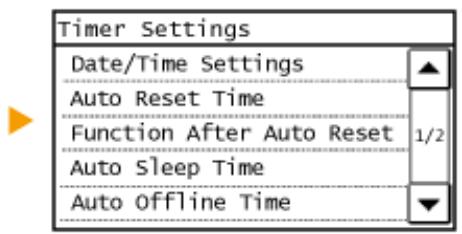
The default setting is 4 hours. - If any setting of the [Timer Settings] is changed from the Remote UI while the machine is in the sleep mode, the timer for the setting is reset to the beginning. The machine automatically shuts down after the specified period of idle time has elapsed since the timer was reset. The sleep mode function reduces the amount of power consumed by the machine by disabling power flow to the control panel. If no operations will be performed on the machine for a while, such as during a lunch break, you can save power simply by pressing on the control panel. You can also use the Auto Sleep Time setting to automatically put the machine into sleep mode if it remains idle for a specified length of time. ![](images/e68a7e39c23d64cf44bc099f3e23ee6cad7d54c8b67daaec79165087e8bf9cc1.jpg)

NOTE

When in sleep mode

When the machine enters sleep mode, lights up yellow green.

Situations in which the machine does not enter sleep mode

- When the machine is in operation - When the [Processing/Data] indicator is lit up or blinking - When the machine is performing an operation such as adjustment or cleaning - When a paper jam occurs - When the receiver of the optional handset or an external telephone is off the hook - When the menu screen is displayed - When a job is waiting to be scanned to a computer - When an error message is displayed on the screen (There are some exceptions. The machine sometimes enters sleep mode when error messages are displayed.) - When the machine is communicating with an LDAP server, etc. - When the SSID/network key screen for Direct Connection is displayed

When You Want to Set the Auto Sleep Timer

The factory default settings for the amount of time that elapses before the machine enters auto sleep mode are listed below. We recommend using the factory default settings to save the most power. If you want to change the amount of time that elapses before the machine enters auto sleep mode, follow the procedure below. 10 minutes (setting range is 3 to 60 minutes) ![](images/86ca01ebf4d45282e20940d656104fc8fbf67256166121b7b8227c367f3256e2.jpg) ▶ Set the amount of time that elapses before the machine automatically enters sleep mode ▶ ![](images/6b680e7fc39ed25504d6522641882ca67c4e420e4033b14e3d3b9cf8fc73ddeb.jpg)

Exiting Sleep Mode

Press . You can also tap the display or press any key other than to exit sleep mode.

NOTE

If the optional handset or an external telephone is connected, the machine exits sleep mode when you take the receiver off the hook.

Copying

Copying 69

Basic Copy Operations 71 Selecting Copy Paper 73 Canceling Copies 74 Various Copy Settings 76 Enlarging or Reducing 78 Selecting Document Type 79 Adjusting Density 80 2-Sided Copying 81 Copying Multiple Documents onto One Sheet (2 on 1/4 on 1) 84 Copying Both Sides of an ID Card onto One Page 86 Erasing Dark Borders and Frame Lines (Erase Frame) 87 Collating Copies by Page 89 Splitting Facing Page Documents into Separate Pages for Copying 91 Copying Different Size Documents Together (Different Size Originals) 92

Configuring Copy Settings to Your Needs 94

Changing Default Settings 95 Registering Frequently Used Copy Settings 96 This chapter describes basic copy operations and various other useful functions.

Using Basic Operations

Basic Copy Operations(P. 71) Selecting Copy Paper(P. 73) Canceling Copies(P. 74)

Using Copy Settings to Suit Your Needs

![](images/5da6d9cd9344df2ee88755761beb6934af9879951233f25c1f4e34e17c8dd948.jpg) Enlarging or Reducing(P. 78) ![](images/87e7cb8fcb429135957ce6c3f85bbac4a902073b95b9a0dea42ac1fb340f9b35.jpg) Collating Copies by Page(P. 89) ![](images/f568450e01c8c745cced05dc3e88014fe61d0b9031559b525a3eb51725024882.jpg) Selecting Document Type(P. 79) ![](images/60a311735084b0a2a28f5e223a0e3cbfd3a6d75ef2b3c5be27ac670deff24197.jpg) Adjusting Density(P. 80) ![](images/24e7dd480730273f99318e962c74d2958b0f5ad05aad22f900051087e00f5c9e.jpg) Erasing Dark Borders and Frame Lines (Erase Frame)(P. 87) ![](images/e0c1a4b565fe5e58bb60903398d0d3e67775b0d21aebc7eab5cfe48564d98a35.jpg) Copying Both Sides of an ID Card onto One Page(P. 86) ![](images/2632fa45bcb5755794a8db627ceef126890ab43c43b969a42615df23185f31cd.jpg) ![](images/353ff6cf7fcf133d8737144cc6f4a53ac060d6142c76eff66328b6ce09f1ffe5.jpg) ![](images/f40f3739347f54858fc1ffd4a5525b26be882036d89f4602caaf9bf03b17982d.jpg) Copying Multiple Documents onto One Sheet (2 on 1/4 on 1) (P. 84) Splitting Facing Page Documents into Separate Pages for Copying(P. 91) 2-Sided Copying(P. 81) ![](images/0da96725dd3551b5ab21045411a2a065fe7fdcdb28192f3e59dd3b73a843f5e5.jpg) Copying Different Size Documents Together (Different Size Originals)(P. 92) Simplifying Your Frequent Copy Operations Changing Default Settings(P.95) Registering Frequently Used Copy Settings(P. 96)

1 Place the document(s). Placing Documents(P. 26)

![](images/42ef10472ef7b08bb71f936f8a953ce2a169766d6dd9da5215c3f75b3908406e.jpg) ![](images/0c40505872e6155257b68f04f069e50e78c3892e24d6e97d3ba0590e95cafd9e.jpg)

2 Press and tap .

![](images/2bb773edd37fefc6986947d19333d9315f0961240d439ca0c892e0eb0b63f89c.jpg)

3 Enter the number of copies using the numeric keys.

- Enter a quantity from 1 to 999. Press c to cancel the entered quantity. ![](images/c6753b8c16bae5d37c94bcb6996fe7df00af2cb654016bfd1f24ac5d867e313d.jpg)

4 Specify the copy settings as necessary.

- Select the settings. Various Copy Settings(P. 76) ![](images/8ae9649f09504f87fbfa832c7b7ace834cc68dfbfcbee89d5782dfac0278afeb.jpg)

5 Press

- Copying starts. - If you want to cancel copying, tap . ☐Canceling Copies(P. 74)

■When placing documents in the feeder in step 1

The document is automatically scanned.

■When placing documents on the platen glass in step 1

Depending on the copy settings you made, the screen for selecting the document size is displayed when copying multiple documents. Follow the procedure below. 1 Select the document size. ![](images/e38f49d8b70e530f5cb6d41930cf2870c01d69556947fd70efc3ce4ce07debe3.jpg) 2 Place the next document on the platen glass, and press Repeat this step until you finish scanning the entire document. 3 Tap.

NOTE:

- When the message appears. Countermeasures for Each Message(P. 519)

IMPORTANT

When copying documents with text or images that extend to the edges of the page The edges of the document might not be copied. For more information about the scan margins, see Main Unit(P. 623).

TIPS

- If you always want to make copies with the same settings: Changing Default Settings(P. 95) Registering Frequently Used Copy Settings(P. 96)

Selecting Copy Paper

36WC-013 Specify the paper source that contains the paper to use for printing out copies.

NOTE

- cannot be selected when is set, or when or is set for . - You must first specify the size and type of paper that is loaded in the paper source. Specifying Paper Size and Type(P. 45) Loading Paper(P. 30) ![](images/5054da3a0b37acbc4b8a54c44d524ed2ef96de0a3fa465c4431bb1c17023fec1.jpg) Select the paper source (a, b, c, d) ![](images/9f2ba0c49ffbb3d5a28bbe5aed281ed6abf157100b3d582b224762361bff10e6.jpg)

a

If the optional feeder is attached, the machine automatically selects the paper loaded in the multi-purpose tray or the paper drawer.

b< E>

Selects the paper loaded in the multi-purpose tray.

C<1>

Selects the paper loaded in the paper drawer.

d<2>

Selects the paper loaded in the optional paper drawer. Basic Copy Operations(P. 71)

Canceling Copies

36WC-014 If you want to cancel copying immediately after pressing , tap on the screen or press on the control panel. You can also cancel copying after checking the copy status. - Tap on the Screen That is Displayed While Copying ![](images/606b3832bb201a8149afaf7716a38c62de7db18e1dd236f4cf5b31a8bc2902ce.jpg) ![](images/3afb4bc34b22252548a74d82d256da5d2be9e995c21fd972f25c36a152ebf379.jpg) Press to Cancel ![](images/0eb60bec31ebca23a8111ce9a886ea73f9a4f9247f1a18e4c80496e3180a932c.jpg)

If the Screen Displays a List of Documents When is Pressed

Documents have been scanned and are waiting to be printed. Select the copy document to cancel. ![](images/f485c1ebde51563f5444377a68d791de5d29b1fff7178e9ea3616d9133c34530.jpg) ![](images/3a53da748e288d9c24d23ef02117b67b566165cb5595d2e7802d7acfc51c0299.jpg) Use to Cancel ![](images/7a6d8d1a27747777ce14681bf77948fd9e8f46da54907bfa2285126471fdb3db.jpg) > > > Select the desired job > > ![](images/27c82032465d5d55bcf9c623c37f32bc47b2cafbc2aabc089388af95a6dfa5bb.jpg)

a Copy details

The number of copies, settings, and other details are displayed. If you only want to check the details without canceling copying, press to return to the copy main screen.

Cancels copying. Basic Copy Operations(P. 71)

Various Copy Settings

36WC-015 A variety of settings are available to suit your needs, such as when you want to save paper or make your documents easier to read. ![](images/ae052934e60ae09af2546b402bbb254a4dd5790fbd86174ab381b59babaf636d.jpg) Enlarging or Reducing(P. 78) ![](images/edf522c8ebeb00afce6e693b5ece996c41ebc1ae7fc60115fc3d410650a5b757.jpg) Collating Copies by Page(P. 89) ![](images/3fc625657e56f720615a8978a6bdf1fda49ffd121004963e08bdd285d7f3fdfc.jpg) Selecting Document Type(P. 79) ![](images/5c86c55061ab6a09628de83fd75961d7682ca1077026e7873bc1582601bf0b4d.jpg) Adjusting Density(P. 80) ![](images/b9393e77531f90f32ae849309518f3e05cdb6eaa63ddba82e123e87ff889aa05.jpg) Erasing Dark Borders and Frame Lines (Erase Frame)(P. 87) ![](images/a2a825bc5862503834031a4c3e3a89629b083b1a15efc54db6e4b70776377fd2.jpg) Copying Both Sides of an ID Card onto One Page(P. 86) ![](images/a0e9ebd925a6050fe97e9d6dfcd0c79d66f3bf2ba5c4478623bbad2626f61e04.jpg) Copying Multiple Documents onto One Sheet (2 on 1/4 on 1) (P. 84) ![](images/9ec0b47f6191ee22eb6676ab7b0458a48005731073e4a22e21e72464698e5012.jpg) Splitting Facing Page Documents into Separate Pages for Copying(P. 91) ![](images/a0c3db51f7117cf4acc3a6d5518015b866f32e3e8bc01c466dd8861269a2ab29.jpg) 2-Sided Copying(P. 81) ![](images/6e0749869912169b7e4ef81e903f54ad2b477ae6dbadb41732227772015073ba.jpg) Copying Different Size Documents Together (Different Size Originals)(P. 92)

Enlarging or Reducing

36WC-016 ![](images/631b73634ea90013b061e63180443db18a3eba2551cf24dbbbf356e174d630b7.jpg) You can enlarge or reduce copies by using a preset copy ratio such as A5 A4 , or by setting a custom copy ratio in increments of 1% .

NOTE

is not available when using . ![](images/5bc9727526598a97452ed8996c6885573ffc42475d50bb96433030090c1e7baf.jpg) Select the copy ratio ![](images/5c0cc476cc12de6f582ab3d9f6a67cc720bb88a473eb28500603562722aeed66.jpg)

a

Use / or the numeric keys to enter the copy ratio, and tap . You can set any copy ratio from 25% to 400% in 1% increments. ![](images/783b01c7b96810c6587962ec06c9cb38efe2e7d37c2af65bc40b82643fad40f7.jpg)

b Preset copy ratio

Select a copy ratio. Basic Copy Operations(P. 71)

Selecting Document Type

36WC-017 ![](images/6df07faece16b2efda952bae2a6286f06e1639059118875ac22f5bd9405b48f4.jpg) You can select the optical image quality for the copy depending on the document type, such as text-only documents, documents with charts and graphs, or magazine photos. ![](images/3251f07809b943bbe71854e78987769b876ffd7777d26fa618336c0d0e7614fe.jpg) Select the document type ![](images/4cd17f5044d2f9f08dd60c84a659545b8cc06b3be7f1d3b4ab53592d6b9ec3b4.jpg)

a

Suitable when copying documents that only contain text.

Text/Photo>

Suitable when copying documents that contain both text and photos.

Suitable when copying documents that contain printed photos, such as magazines or pamphlets.

NOTE

Even if is set to , when is set to or , is canceled. Basic Copy Operations(P. 71)

Adjusting Density

36WC-018 ![](images/9d66fe9e91a82b6cb2400ec339d863472fb9075db634b9a09b089c7791cb44dc.jpg) You can adjust the density of the copy if the text or images in a document are too light or dark. You can also automatically set an optimal density for a document. ![](images/1bffaec6c9d2a7274687b4bc3e2cc74d084dfd3881d693a4daca3fd5c14187c3.jpg) Adjust the density Apply> ![](images/5af0dbf559345c8e731ebec2e8048f369162a58928994952221cf41c7b7c6f5e.jpg)

a <->

Decreases the density.

b <++>

Increases the density.

An optimal density for the document is automatically set. is automatically set to . ( 选 Selecting Document Type(P. 79) ) Basic Copy Operations(P. 71) Auto Recognize Original Orientation (P. 459)

2-Sided Copying

36WC-019 ![](images/716b47a76d41f8e2deb5041b50f7bb4f7a6d0400da5eeffebb4e26f1882a98a4.jpg) You can copy two pages of a document on both sides of the paper. You can also copy a two-sided document on both sides of the paper, or on two separate pages.

NOTE

- <2-Sided> may not be available with some sizes and types of paper. - <2-Sided> is not available when using 2 Pages> or . ![](images/fdbd451116177a09401dc7060ab5c60cf29f21308ef488d41f70ac64913e570b.jpg) <2-Sided> Select the type of 2-sided copying ![](images/bad205e33e85965b94cbf986f994a7f7788b56792e652893bc915930a9a20c33.jpg)

Types of 2-sided copying

The illustration below shows the types of 2-sided copying. 1-Sided->2-Sided 2-Sided->2-Sided 2-Sided->1-Sided ![](images/b52d0e104df44462e5a2fa8374fe278468e8dc3a90172b73be6bfe3d7f83d1f7.jpg) ![](images/de1cc816ce4cc9251e726a696221841a0047b9be82f7b533fb35ae9793d8d089.jpg) ![](images/46558d9bdfdbd51905d2f500a751cc90923f5381723b120505a01ac4a14731cd.jpg)

Original/Finishing Type>

Specify if you want to change the binding, such as when copying book-type documents in calendar-type format.

1-Sided->2-Sided

NOTE

For imageRUNNER 2206N, this function can only be used when the optional Duplex Unit-C is attached. - If you want to copy portrait-oriented documents in calendar-type format (short-edge binding) ![](images/fe283375ccc127b055186ca06cc21ea630fcf072630303e364723c1821074d4d.jpg) ![](images/078d1f597cd6dc8d8929a844edef0b4ea48b7c42194fbad73299f817eb8ab733.jpg) <1-Sided->2-Sided> If you want to copy landscape-oriented documents in book-type format (short-edge binding) ![](images/5e61c45d8872239142c2e3abc682fd5db3e8997f6e1ec8d911eb2fa8275b5251.jpg) ![](images/a9f4200a31e4a0bcc2aca4b7f6e17530be0a23778fe159352e78d2b8ef33354b.jpg) <1-Sided->2-Sided>

2-Sided->2-Sided

NOTE

- For imageRUNNER 2206N, this function can only be used when the optional Duplex Unit-C and the optional DADF-AY are attached. If you want to create copies with a different binding type than the original ![](images/7cf082daec3d1a30e66813949b119f11094e33d775e1a4263d610d42a580f117.jpg) ![](images/cc7c479055ae842313b11ee1eb429911c53f16e7303eb7aa4bdf1ca46fefb057.jpg) <2-Sided->2-Sided> Select the original binding type Select the binding type for the finished copy, which is different from that of the original document

2-Sided->1-Sided

This setting enables you to align the direction of the output paper.

NOTE

- For imageRUNNER 2206N, this function can only be used when the optional DADF-AY is attached. - When a 2-sided document is in portrait-oriented calendar-type format (short-edge binding) ![](images/9c1609ffffacfd0595124a2f9e476ba6da67d2160380ef0be7a3387ce27cedeb.jpg) ![](images/798307e35e5254448c74da58d5a22c6946d3d5125a4a441db5be1d87ad5f206d.jpg) <2-Sided->1-Sided> - When a 2-sided document is in landscape-oriented book-type format (short-edge binding) ![](images/cbb1bc59f287e619ce5aa210d7b94f0b6dd51a59d0fd5ded04a9d8b19f3ac956.jpg) ![](images/3202aab15c9697c3629d15181b86a78dac78c7196776f1b5529d05ed026c06ca.jpg) <2-Sided->1-Sided> Basic Copy Operations(P. 71) Copying Multiple Documents onto One Sheet (2 on 1/4 on 1)(P. 84)

Copying Multiple Documents onto One Sheet (2 on 1/4 on 1)

36WC-01A ![](images/b4b0e9c0a809a10a140201cf4e11707819c0396dd8684a239dd05979b0c22505.jpg) You can copy two or four documents onto a single sheet at a reduced size. This decreases the number of pages, enabling you to save paper.

NOTE

- Using < 2 on 1> / < 4 on 1> reduces the copy ratio automatically (the copy ratio is displayed on the screen). You can increase or further reduce the copy ratio before pressing , but the edges of the document might not be copied if you increase it. - <2 on 1>/<4 on 1> is not available when using , , 2 Pages>, or . - When you copy multiple documents onto one page, margins may be created in the copied image. ![](images/4e6d18408e9f8888c431dac095c536af8f75c79dc255255c3159f5c396f7bfa6.jpg) ▶ Select <2 on 1> or <4 on 1> ▶ Select the document size on the screen ▶ On the screen, select the paper source that contains the paper you want to use ![](images/325d7869b710d1f70e4c7d4b8a41c987c316bac50a412c59ab12744d46bd7ead.jpg)

a < 2 on 1> /< 4 on 1>

Select <2 on 1> to copy two pages of documents onto a single sheet, or select <4 on 1> to copy four pages of documents onto a single sheet.

Select Layout>

Specify how to arrange the documents on the page. ![](images/3b5df13df06347acfac040bb5152bd3155c7d8c28e8033c43a599115fd29ffec.jpg) Basic Copy Operations(P. 71) 2-Sided Copying(P.81)

Copying Both Sides of an ID Card onto One Page

36WC-01C ![](images/7405d5f6ec6141911966b8d17f7a6d60bff89a67c05138e78c7ab569b081a48f.jpg) You can use to copy the front and back sides of a card onto the same side of a page. This function is useful when copying a driver's license or ID card.

NOTE

- is available with A4/Letter size paper or larger. - is automatically set to <100% (1:1)>. - is not available when using <2-Sided>, , , 2 Pages>, or <2 on 1>/<4 on 1>. ![](images/7a3e98b25298f9a6f32bd085289c47d0a405ff75b57754986b0fcf99cf39052a.jpg) Place the card ![](images/004d9f37dbcb669a8e88a775295d06d897d833be7e78d4604a50950059a514d5.jpg) ![](images/fe56bb93b858cca5ced5dcbb8bc61d69c93e8f7aac08882b3ead6e10b530c6e0.jpg) Turn the card over ![](images/cb0db06f97e1a2ad515f2c5461939b26530d362189a6dd6febc83c3363c22075.jpg)

How to place the card

![](images/9dbc20fdb239b1e880c71a5c2e498087d17143a1aafb5c2d50535c43df8e8aa4.jpg) ![](images/d0b2b71088f7368adfce3c5e1c5492b657374071409b442a59ac34c8e81b7fb4.jpg)

NOTE:

- When the message appears. Countermeasures for Each Message(P. 519)

Basic Copy Operations(P. 71)

Erasing Dark Borders and Frame Lines (Erase Frame)

36WC-01E ![](images/ee295f914ecfee82c33531a49e6b924f6056bcf1a841cde453b727e3ab7d2c01.jpg) When copying documents that are smaller than the output paper size, frame lines may appear around the edges in the copied image. When copying facing pages from thick book, dark borders may appear. enables you to erase these frame lines and dark borders.

NOTE

- The width of the frame to erase is increased or decreased relative to the setting. - is not available when using , <2 on 1>/<4 on 1> or . ![](images/409287ec34ec6afca00617975d73851da6c5f60bb93ad180f90054bb25c889af.jpg) Select the type of Erase Frame Specify the width of the frame to erase Apply> Select the paper size on the screen ![](images/d08b6c373bc2c68bf0141198677bfaceaf2e09b10628b7c6124a6fc35eb9ac41.jpg)

Original Frame

Specify to erase the dark borders and frame lines that appear around the copy if the original is smaller than the selected paper size. You can also use this mode to create a blank border around the edge of the copy. ![](images/9acad523465059c78494bbbf7c09f73b44f4c5337bf894b837c136a2a85632c4.jpg)

Book Frame

Specify
and to erase the dark borders, as well as center and contour lines that appear if you are copying facing pages in a bound original onto a single sheet of paper. ![](images/8cf701890c99b64962e7c72d8830efd26d971e7e649bdb84bc2e35d484203101.jpg)

Collating Copies by Page

36WC-01F ![](images/8d077f21e51084bddb3f71e08f4b85bac1050aeb3a2760b20d170ba67d402763.jpg) When preparing multiple copies of multi-page documents, you can select <Group> , <Collate> , <Rotate + Group> , or <Rotate + Collate> for the order of copied papers. This function is useful when preparing handouts for meetings or presentations. ![](images/eb0362b8feea73984bca1124228a33f7f624a33ea28c37f1bea24df9bff4af11.jpg) ![](images/aef5a7cf5eeb602ebaed4f0d53c436f49d075bb351239d7c6ca4ec89b75766e5.jpg) Select page order ![](images/1a121dade2bc9a88de4f3765d1c9b6d141d690e16c9b0d55a55d86ca95696bed.jpg)

a

The copies are grouped by page. For example, if you are making three copies of a five-page document, the printouts will be arranged in the following order. ![](images/46260b1711a35b60ab6736b305ac3c586e8fae4c5de724592f5a2eff2580180f.jpg)

The copies are collated by sequential page order. For example, if you are making three copies of a five-page document, the printouts will be arranged in the following order. ![](images/449fd9cb77bb1930e202c19b9fa9f3e17c55de8b9b5af5ad9dda9b5e2260944b.jpg)

The copies are grouped by page, and each group is rotated 90 degrees. For example, if you are making three copies of a five-page document, the printouts will be arranged in the following order. ![](images/c257d3eb0d397f2875e260d634be38e8a6a1f6753a611c09eb734949f57e8bcb.jpg)

The copies are collated by sequential page order, and each group is rotated 90 degrees. For example, if you are making three copies of a five-page document, the printouts will be arranged in the following order. ![](images/b7f0d0aa74a9e3bacea849abd582b3b178722d2561b5560e21262e62b0b799b8.jpg) Basic Copy Operations(P. 71)

Splitting Facing Page Documents into Separate Pages for Copying

36WC-01H ![](images/092d427bba21ff4eedef7e4e4d8bd34ad08076e7138c6964a9d981b1ea894b4d.jpg) You can copy documents with two facing pages such as books and magazines into separate pages, dividing the left and right pages.

NOTE

- When scanning a facing page document, place it on the platen glass. Place the document face down with its corner aligned with the top-left corner of the platen glass, as shown below. ![](images/5a0e04894ed6d22da5de66f68701caf9c8b3ae04070daa7c25790bf7293ce24f.jpg) - 2 Pages> is not available when using <2-Sided>, <2 on 1>/<4 on 1>, , or . ![](images/b8df32e1302033012805e3fa54deba510db26e00a09971cec09479972d5e2872.jpg) Book->2 Pages> ![](images/f4afd7f2a1a42db81f69eba81af43fa17d568f40af329b0cba9b9a54c3747879.jpg)

a

Does not set this function.

b

Sets this function.

Copying Different Size Documents Together (Different Size Originals)

36WC-01J ![](images/d47464c3b5311ba86e0ce1029bd0b21dcd9d0e6c116c6c5162cde433d2127544.jpg) You can place different size originals in the feeder and scan them at one time. You can eliminate the need to select paper and place the original again.

IMPORTANT

- You are limited to certain combinations of document sizes for scanning. Scanning with an improper combination may cause damage to the documents or paper jams. - Do not place the documents together that are of different weights or paper types, as this may cause damage to the documents or paper jams.

NOTE

- For imageRUNNER 2206N, this function can only be used when the optional DADF-AY is attached. - is not available when using <2 on 1> / <4 on 1> , , , or 2 Pages>. ![](images/0d0e0caf9224fb0a6fbe4e81cbe4dd11aec064621a13cb406dec3a96377a7a19.jpg) Different Size Originals> ![](images/dff2cfcd7296b8f8af78751b81a4594d408e7b8be56febad5f65137dfc7d7ed0.jpg)

a

Does not set this function.

b

Sets this function.

NOTE

When the documents with different widths are scanned together, the images of the smaller size documents may be slanted because the documents cannot be fixed with the document guides. Basic Copy Operations(P. 71)

Configuring Copy Settings to Your Needs

36WC-01K The default settings are the settings that are displayed whenever you turn ON the machine, or when you press . If you register your frequently used settings as default settings, you can eliminate the need to configure the same settings every time you make copies. In addition, you can also register combinations of multiple copy settings and use them whenever you need them.

NOTE

The machine comes pre-configured with factory default settings ( O Setting Menu List(P. 431)). You can change and register the default settings according to your needs. ![](images/9e85fd5a4fb7d3d2f456d8fbbf5ca731bece4999af6342cff1371f99542f2a08.jpg) I often copy documents with pages full of information, and I always reduce the copy ratio to 95% . ![](images/acce8eb2333ee27ba5baec6b8a56fe5d61301beedb468394678e659c1d18ca8b.jpg) Change the copy ratio to 95% and register it as the default setting. From now on, you can make copies without changing the copy ratio. Changing Default Settings(P. 95) ![](images/54ac094ec01412318a7b14c4675a3a9dc3958d8e1d408491241463e6f679f736.jpg) For our regular weekly meetings, I always make copies for each member, and collate them according to the page order of the original document. ![](images/17ca9e2c4befecdb235b06a220d5898ea48877e3e054a80dc85829d2251216a1.jpg) Go to and register the combination of and turned . You can then easily use this setting combination whenever you need it. Registering Frequently Used Copy Settings(P. 96)

Changing Default Settings

36WC-01L The default settings are the settings that are displayed whenever you turn ON the machine, or when you press . If you change these default settings to match the operations that you perform frequently, you can eliminate the need to configure the same settings every time you make copies. ![](images/3efbdc0531ced6432e23f3e27526e7fa82f19b7f286614c9db72d5d8c574fb31.jpg) Select the setting Change the default value of the selected item Apply> Apply> ![](images/ea5f77dd9f59f9fe6ddf6c9808cd2d5f65a1fc32c6271635987533c54612038e.jpg)

Settings

Select the item you want to set, and change the default value. Basic Copy Operations(P. 71) Various Copy Settings(P. 76) Copy Settings(P. 458)

Registering Frequently Used Copy Settings

36WC-01R You can register up to four frequently used combinations of copy settings. By simply selecting a registered setting combination when it is needed, you can eliminate the need to configure the same settings every time you make copies, such as if you frequently set the number of copies to 5, set to , and increase the sharpness when copying. You can register the setting combinations as to . ![](images/83f0dcf0afc7a9c64878f8489991a782007f98dfd7e9d910f9bc1d20f3c2f4b4.jpg) Select to Select each setting and set the value ![](images/720837bc4570f2667b85810ff732b08a62b0108b64ae5d1c12c215341ef16008.jpg) ![](images/99a5359f8e16bb9db7b3456e85debf9b33c0d4ebb71eac62e074912e297bb9da.jpg) b

Settings 1> to Settings 4>

Register frequently used combinations of copy settings as one of the modes. To edit the settings for a mode that has already been registered, select that mode, and tap again.

Settings

Configure your frequently used settings. Various Copy Settings(P. 76)

NOTE

- If you want to delete a registered setting, tap select the setting . - If you want to use a registered setting, tap select the setting. - Registered settings are saved even when the machine is turned OFF. - You can change the settings of a mode after it is activated. Basic Copy Operations(P. 71)

Faxing (imageRUNNER 2206iF)

Faxing (imageRUNNER 2206iF) 98

Sending Faxes 101 Canceling Sending Faxes 107 Sending from Registered Destinations 109 Specifying from Address Book 110 Selecting Destinations Directly by Entering Coded Dial Numbers 113 Specifying Destinations with the One-Touch Buttons 116 Specifying Previously Used Destinations 118 Specifying Destinations in an LDAP Server 121 Various Fax Settings 124 Adjusting Resolution 125 Adjusting Density 126 Scanning 2-Sided Documents 127 Changing Default Settings 128 Receiving Taxes 129 Sending and Receiving Faxes According to Your Purposes 133 Making a Call before Sending Faxes (Manual Sending) 134 Sending Faxes to Multiple Destinations Simultaneously (Sequential Broadcast) 135 Storing Received Faxes into Memory (Memory Reception) 137 Forwarding Received Faxes 140 Selecting a Document to Forward 141 Forwarding All the Received Documents Automatically 143 Receiving Fax Information Services 147 Checking Status and Log for Sent and Received Documents 149 Sending Faxes from Your Computer (PC Fax) 151 Sending PC Faxes 152

Faxing (imageRUNNER 2206iF)

36WC-01S This chapter describes fax settings, basic operations and various other useful functions to suit your needs, such as PC Fax to send documents directly from computers, and Address Book to specify destinations easily.

NOTE

- You need to register destinations in the Address Book before using this feature. Registering in the Address Book(P. 49) Using Basic Operations Sending Faxes(P. 101) Canceling Sending Faxes(P. 107) Receiving Faxes(P. 129) ■ Specifying Scanning Settings ![](images/89afa71a6cf188311e8305429a3c44fae52269d577f5b63435d39aa72e73b683.jpg) Adjusting Resolution(P. 125) ![](images/8974c809a191be6bf568d82bd493bd68079458812eeefa1f42b1d18404638d34.jpg) Adjusting Density(P. 126) ![](images/370de90a09afdb976037ad0f6da0fe88a64070a68270d157db76893cd6ab9cad.jpg) Scanning 2-Sided Documents(P. 127) ■ Specifying Destinations Simply and Quickly ![](images/71818bc40f295c29dda77731fcae36529c1180f5619b892c449f40c28f9a3e3d.jpg) Specifying from Address Book(P. 110) ![](images/4145cddb4eaec3561817ed9d02c8e6a403abe51ad4abb20877248ac28cff8cdf.jpg) Selecting Destinations Directly by Entering Coded Dial Numbers(P. 113) ![](images/5bf11db84f27330da39206d71e905e972188e5655509c0c0ec581b4ac69513cd.jpg) Specifying Destinations with the One-Touch Buttons(P. 116) ![](images/aeabb2c28f8c35715f40d1fb1b975c49ea2fdb014bdbbe0012ea3fe25ddea471.jpg) Specifying Previously Used Destinations(P. 118) ![](images/331b6e25fba1f7ed149efc3e33151bbeee88923001e61036d83e0481e138e22a.jpg) Specifying Destinations in an LDAP Server(P. 121)

Sending and Receiving According to Your Purposes

![](images/54de14a5a6963bda6fb9fe05733795b0240d22794d24902348d7df92ceae297a.jpg) Making a Call before Sending Faxes (Manual Sending)(P. 134) ![](images/5f03e674d262c1649195a899f5b4bf6a430cd85ecb75d8e9d5568ddf4178fe4a.jpg) Sending Faxes to Multiple Destinations Simultaneously (Sequential Broadcast)(P. 135) ![](images/57f642ffc04aab67778b71c0d14d8ba0d577b82d4b744697fce8772dbcd104cf.jpg) Storing Received Faxes into Memory (Memory Reception) (P. 137) ![](images/b2d773c1101924984b8835a2f6b97966923d162c9fc5b8e733e34fae39496e05.jpg) Forwarding Received Faxes(P. 140) ![](images/0a974d7524d3812eeb728f9bd62d3c316545c2b4766324e3b179d93834028012.jpg) Receiving Fax Information Services(P. 147) Sending Faxes Directly from Your Computer ![](images/f4505bd698194fbaee7c483e8930e2d88f3fe029e0c0e68ba5d15b178ff27a00.jpg) Sending Faxes from Your Computer (PC Fax)(P. 151)

IMPORTANT

To prevent missending of a fax, always press first. *Destinations set by the previous user may remain.

1 Place the document(s). Placing Documents(P. 26)

![](images/6adf45ae837ece5f12fe4423b39ba6a011ba43a74f9d14e9b4dcf1269a575ec1.jpg)

2 Press and tap .

![](images/489aea1fb78d2682cc13e6abdd174ac6ac06324ea0751da2ee27c3d99657f5b1.jpg) - When the logon screen appears, use the numeric keys to enter the user name and password. Then select the authentication server and press ID. Logging on to the Machine(P. 18)

3 Specify a destination.

■Specifying destinations using the numeric keys

Enter the destination using the numeric keys, and tap . - If your machine is connected to a PBX (Private Branch Exchange), tap <R> before entering the destination. If <R> is not available, you need to register the R-key settings. R-Key Setting (P. 463) - If you enter the wrong characters, press C. (Press to delete each character one by one; press and hold to delete all the input characters at once.) ![](images/004320d9ab6e9366b856f72c8e1ebe88b3bb00a2811b145ca2683dde2bb524bb.jpg)

To send overseas

Enter the international access code, the country code, the area code, and the fax number to specify the destination.

1 Enter the international access code.

![](images/ad243b8aea3cffa0e82dcd07e5373722821ef58ed17dd0e3a5cb22fd3e70631d.jpg)

2 Tap.

-

(pause) is inserted between numbers. In this case, 012 will be dialed first, then 4 seconds later, the next number will be dialed. ![](images/65539b2bcef570a7621d2082d5b015a62a981322528722877d46a4e6249b4108.jpg)

NOTE:

- Inputting pauses is optional; however, consecutive numbers that are input without pauses may not be recognized correctly. - Pauses can be inserted continuously. One pause inserts 4 seconds of waiting time. This time can be changed as necessary. Set Pause Time(P. 465)

3 Enter the country code, the area code, and the fax number.

![](images/6d2479e423c994369946f720f3dc23feedd0c46e8a17362d446f358ff2d020a0.jpg)

4 Tap to insert a pause at the end of the fax number as necessary.

The waiting time inserted here is fixed to 10 seconds. This time cannot be changed. ![](images/26aecf192cf610a0f2fdfcbb8a3178f839109dd522f631e6ab8c328acd0e7ece.jpg)

5 Tap.

![](images/50abe726ba2b2e3545c1bf6548ff7e464a8cfcdda75ca856506b57b0abefd00f.jpg)

NOTE:

When is set to , a screen appears that prompts you to enter the destination again (Checking Destinations before Sending Documents (imageRUNNER 2206iF)(P. 377)). Enter the same destination again for confirmation. ![](images/75a6445063b63abea88b9c7ad3c51672dd0434930067d382ce381c5b3c388d6b.jpg)

■Specifying Destinations from Address Book

1 Tap .

![](images/ac4724ff352b142413b568968b128b80443b074555970a90ca7a64ee8293cd62.jpg)

2 Tap .

![](images/ad06c7dec28683c1ac55dae25208a8c15ed411bdcf3f33376245a3f7c3720511.jpg)

3 Use / to select tab.

![](images/2962e445ff4a92a6c220e9a82ec52c090dce6902e9e9f06825e9aeee2b79bbe9.jpg) Displays all the destinations registered in the Address Book. For the marks beside the destinations, see the explanations below. ![](images/64d5de9ac91804570c45f0bcb970c4f5fab283d6f3a95fa46789a6113acc53ac.jpg) Only destinations for one-touch dialing are displayed. /<0-9>/ to Displays destinations with recipient names whose first characters correspond to the characters of the selected tab. ![](images/e564ae94627b1c5332b981e01fc3cd8fedf46ba32a153a194bfab0be7429056e.jpg) Displays destinations for faxes. ![](images/e1d3f4fd2e87a8710d539f2dc65eda5bab3e534684922fc6b2e45559ec67d896.jpg) Displays destinations for sending e-mail. Do not use in this procedure.

Specifying from Address Book(P. 110)

< Displays destinations for shared folders. Do not use in this procedure.

Specifying from Address Book(P. 110)

![](images/365d963237f1ad0c4f7c296f9f342d3ccbab012a013b687460f18857a810ffd0.jpg) Displays a list of destinations registered in Group Dial. 4 Select a destination. ![](images/204d98720c608136da36b579d3609a8db1b66fead9e7a776ceb16f31aa5917fd.jpg)

■Specifying Destinations Entering Coded Dial Numbers Directly

1 Tap . ![](images/934f90480ba76060aab42ce98ac448cf0b83c16119729f224c5a4aea22482396.jpg) 2 Tap . ![](images/3a1875884e4d0f27e0cd54cdcc3bbdfd4bd9f764c70a3b0f165cc0689a8fcd14.jpg) 3 Use the numeric keys to enter a three-digit number (001 to 100). ![](images/499a0424425707c38ff965bc103768ba36483c612cd6f1c6f172a9daba852952.jpg)

■Specifying Destinations from One-Touch

1 Tap . ![](images/de73a0b503d38d3854749577efd0a3642029558468edd85553f389c993abfcee.jpg) 2 Tap . ![](images/f16582cf2fbdb6a07c60ee968c696755d5b4adc84f36fe2ea7426ce4526cfd27.jpg) 3 Select a destination. ![](images/b5244bba0cbfe23d7570a1b2bae597862aae38a7ed4f3e628f571b690d90391a.jpg)

4 Specify the scanning settings as necessary.

- Select the settings. Various Fax Settings(P. 124) ![](images/8b7ea283340dd114cdfa2dd4d89b99942999a9d237551007fdc92b8f2e3ead68.jpg)

5 Press to start sending.

Scanning starts. - If you want to cancel sending, press Tap .

■When placing documents in the feeder in step 1

When scanning is complete, the faxes are sent.

■When placing documents on the platen glass in step 1

Follow the procedures below. 1 Select the document size. - When there is only one page to be scanned, proceed to step 3. 2 Place the next document on the platen glass, and press Repeat this step until you finish scanning all of the pages. 3 Tap. The faxes are sent.

TIPS

If you always want to send faxes with the same settings: Changing Default Settings(P. 128) - If you want to sound an alarm when the handset is off the hook: Off-Hook Alarm (P. 462) Canceling Sending Faxes(P. 107) Sending and Receiving Faxes According to Your Purposes(P. 133) Checking Status and Log for Sent and Received Documents(P. 149) Specifying from Address Book(P. 110) Selecting Destinations Directly by Entering Coded Dial Numbers(P. 113) Specifying Destinations with the One-Touch Buttons(P. 116) Specifying Destinations in an LDAP Server(P. 121)

Canceling Sending Faxes

36WC-01W If you want to cancel sending faxes immediately after pressing , tap on the display or press . You can also cancel sending faxes after checking the fax status.

Use to cancel

![](images/e2a309faca9b233d85968fbaa5bb80db02554fcb1ecd7353612181dedfaedb41.jpg)

Press to cancel

![](images/41f1edb75fb2b2787b724ddc612228c14a2ad02eb2aa6257650b92b04980f406.jpg) ![](images/a6abf7462dc2f3b066d4c5998671c36e2479e0c2f763187efd96ce75593bc5dd.jpg) ![](images/daa861b22c3bb4c528f1f404bda2cc257856b5878f909876e6ef2aac979103f6.jpg)

If the screen displays a list of documents when is pressed

Documents have been scanned and are waiting to be processed. Select the document to cancel. ![](images/16910267584ba3ff87c67fd49ea91a087124a0f6fc2f301779326df07b43b323.jpg)

Use to cancel

![](images/a254abb7dfb4e2c373f020d648e4b366d934bf1c55d352e0cedb1799b6bdd36b.jpg) ![](images/d5708eeef2ad6a92383f48bbac2b457576c322b61a3ec28dae19ba9237984b28.jpg) Select the document ![](images/068b8aa29fceed5ce9041a5bf812ea8754ca1d54fdff20a7bf63d9c84d0303bf.jpg)

Fax details

The number of sending document, settings, and other details are displayed. If you only want to check the details without sending, press to return to the fax main screen.

Cancel sending. Sending Faxes(P. 101) Checking Status and Log for Sent and Received Documents(P. 149)

Sending from Registered Destinations

36WC-01X You can specify destinations by selecting them from the Address Book, coded dial numbers, or one-touch buttons, as well as by using the numeric keys. To use the Address Book, coded dial numbers, or one-touch buttons, you need to register destinations beforehand. You can also specify previously used destinations. If your office has an LDAP server installed, you can also specify a destination using user information in the server. ![](images/4d7f30e202105555872c5d564cad99292db9df60b2d041e110a671080403225a.jpg) Specifying from Address Book(P. 110) ![](images/1f4ef926ac8649912d8c1bcbefaa20650a3da2a24222567d7a19ff2837122b64.jpg) Selecting Destinations Directly by Entering Coded Dial Numbers(P. 113) ![](images/71cd01cfb68cc44dd82e10f21d9a603fcaf0fbd93fe203599dd07532b6142645.jpg) Specifying Destinations with the One-Touch Buttons(P. 116) ![](images/73fe41813f02cf5e806f0040144b08f4a1298070974355b4df80706a1f16d61b.jpg) Specifying Previously Used Destinations(P. 118) ![](images/e016e73a92c0cda3ec8c58d87c4dfa176fb4bc3d0591a4a7c6237af9ec288f26.jpg) Specifying Destinations in an LDAP Server(P. 121)

TIPS for Enhancing Security

- If you want to limit available destinations to ones from the Address Book or previously specified ones: Limiting Available Destinations(P. 374) - If you want to disable specifying previously used destinations: Disabling Use of Previously Used Destinations (P. 376) Sending Faxes(P. 101) Registering in the Address Book(P. 49)

Specifying from Address Book

36WC-01Y ![](images/2af970e602bb9be291a6d006a56600250051d3f11fb2d15dc7b83205278fc0ad.jpg) The Address Book enables you to specify a destination by selecting from a list of registered destinations or by searching by name for destinations with recipient names.

NOTE

You need to register destinations in the Address Book before using this feature. Registering in the Address Book(P. 49)

1 Press and tap
.

![](images/f34478fddd3ef26defbf6c6d5369a087be6694dd4ce533e052d6de6aae6e0180.jpg)

2 Use / to select a tab.

![](images/dc3491237e0eed30807f37b02affacbdf07ba88b2ab3a69d7987cdcf633ef9cd.jpg)

a

Displays all the destinations registered in the Address Book. ![](images/3d02dfecfc6b394f476e6a384779775875a66bb767aefa02360277fb21532a71.jpg) Only destinations for one-touch dialing are displayed. $$ < A - Z > / < 0 - 9 > / < A B C > t o < Y Z > $$ Displays destinations with recipient names whose first characters correspond to the characters of the selected tab. ![](images/f9e9476dfe0192961853677c1afb2ef169050450b53b71f8161330bd412d89b5.jpg) Displays destinations for faxes. ![](images/686df4b4bb6410f92a09ee92308a4d832671259bdd660584fe4ab4234ba09913.jpg) Displays destinations for sending e-mail. Do not use in this procedure. Specifying from Address Book(P. 110) ![](images/c9f711a8c3aeb4b7e8bb5b8f31361a070937e7fd467272a364a202aa48f8d569.jpg) Displays destinations for shared folders. Do not use in this procedure. Specifying from Address Book(P. 110) ![](images/99632e95d2b034905887ea571d61415b44d6ea2d3db7d3390e9ab05ed5946d4e.jpg) Displays a list of destinations registered in Group Dial.

3 Select a destination.

- When the logon screen appears, use the numeric keys to enter the user name and password. Then select the authentication server and press ID. Logging on to the Machine(P. 18)

NOTE:

If you want to specify multiple destinations Repeat the following steps. You can specify up to 104 destinations. Select a tab Select a destination. - To specify any additional destinations with the numeric keys, tap .

4 Specify the scanning settings as necessary.

- Select the settings. Various Fax Settings(P. 124) ![](images/cf6867794a8de526f38688c11113dd058e4fe0bd798afe849a1a7e8ee8012edc.jpg)

5 Press to start sending.

Scanning starts. If you want to cancel sending, press Tap .

■To delete destinations

If you specified multiple destinations, you can delete destinations as necessary. 1 Select . ![](images/7b6e3acc8001279daaf009e9d2591de654046ee40a53c716d237d85e7a3477cf.jpg) 2 Select a destination you want to delete. ![](images/ab56572a9795f2c6f14851b0cea2990dff86f514cdceaaa10b04337d6afdcb98.jpg)

3 Tap .

- If you specified Group Dial in step 2, "XX destination(s)" is displayed. Tapping displays destinations registered in the group. ![](images/4b139eb9d58c66eed6b1325eb4411d3b97043040f392c072f07036a1c9c0e8a0.jpg)

NOTE

If you want to easily and quickly delete destinations without displaying a list of destinations

Before tapping in step 1, you can press / to toggle the destinations you specified. Display a destination you want to delete, and press C Sending Faxes(P. 101) Sending Faxes to Multiple Destinations Simultaneously (Sequential Broadcast)(P. 135)

Selecting Destinations Directly by Entering Coded Dial Numbers

36WC-020 ![](images/45994b79903ad94183d05b9517d231035f780cdc90a5975fbde5baa5d6eb56fd.jpg) You can directly enter the three-digit number (coded dial number) for a destination to send a fax.

NOTE

You need to register destinations in the coded dial numbers before using this feature. Registering Destinations in the Address Book(P. 50)

1 Press and tap .

![](images/c4c3cb40102261c7fe20a43a0c75e0692fd4a6e359d260211a7cca8207922acb.jpg)

2 Use the numeric keys to enter a three-digit number (001 to 100).

- If you enter the wrong characters, press C. (Press to delete each character one by one; press and hold to delete all the input characters at once.) ![](images/eef289708fc9b328c56317f442dbb40e7b8756a7bb2b8b9d009220ae73aa4987.jpg)

NOTE:

If a confirmation screen appears When is set to , a screen is displayed that shows the destination and the name for the number. (For Group Dial, the destination name and the number of destinations are shown.) Check the contents and if everything is correct, and tap . If you have difficulty, tap and re-enter the three-digit coded dial number. Displaying Destinations in Address Book(P. 377) ![](images/c49f4e25230689deed8fd06e98cb0181192119861407bc3b948c5eb307efe366.jpg) If you want to specify multiple destinations Repeat the following steps. You can specify up to 100 destinations. Specify from Coded Dial> Enter a number. - To specify any additional destinations with the numeric keys, tap .

3 Specify the scanning settings as necessary.

- Select the settings. Various Fax Settings(P. 124) ![](images/d9ae741d30d14f5d2ceedb5d12099f7817796431dcc22196260a7401609464c5.jpg)

4 Press to start sending.

Scanning starts. If you want to cancel sending, press Tap .

To delete destinations

If you specified multiple destinations, you can delete destinations as necessary. 1 Select . ![](images/b8f51158155d8b67bdaefa48648c38a9c65aa83f0912ffd22eb0125093faaf96.jpg) 2 Select a destination you want to delete. ![](images/f5e2e26c837ba96cce19849520f053f3a21dc45f03eddd1394da0594f342e241.jpg) 3 Tap . - If you specified Group Dial in step 2, "XX destination(s)" is displayed. Tapping displays destinations registered in the group. ![](images/b81902b8f067877a7efaf863bb473d926ba8597631dd315e095976d1d8a128ea.jpg)

NOTE

If you want to easily and quickly delete destinations without displaying a list of destinations

Before tapping in step 1, you can press / to toggle the destinations you specified. Display a destination you want to delete, and press C Sending Faxes(P. 101) Sending Faxes to Multiple Destinations Simultaneously (Sequential Broadcast)(P. 135)

Specifying Destinations with the One-Touch Buttons

36WC-021 ![](images/4244e4912f2295a5e3af9930bcd88fe45290dbe845bbf6a9018f6bde4e1a8559.jpg) Tap one-touch buttons in the screen to specify destinations.

NOTE

You need to register destinations before using one-touch dialing. Registering Destinations in the Address Book(P. 50)

1 Press and tap any one of to .

![](images/b421b56e34a74775aa92b7a0e3f543b454e6545caaa113e48975fde80f8ea0d6.jpg)

NOTE:

If a confirmation screen appears

If is set to , a confirmation screen appears with the destination and destination name registered to the one-touch button (if a destination registered for Group Dial, the group name and number of destinations appears). Confirm the destinations are correct, and tap . If destinations are incorrect, tap and tap the one-touch buttons again. 🅐Checking Destinations before Sending Documents (imageRUNNER 2206iF)(P. 377) ![](images/14f03d50abfd2872f068a4a2ba5b71049842b5ebc7f7a7d936d0f7ddebad9818.jpg)

Selecting several destinations

Destinations can be added from the Address Book, coded dial numbers, and numeric keys. Tap .

2 Specify the scanning settings as necessary.

- Select the settings. Various Fax Settings(P. 124)

![](images/5e6655af43eaa278ab58938db66a08878f9519fd46a86f56ca44cce0c1828366.jpg)

3 Press to start sending.

Scanning starts. - If you want to cancel sending, press Tap .

To delete destinations

If you specified multiple destinations, you can delete destinations as necessary. 1 Select Confirm/Edit>. ![](images/b47394b307b29a3633a3ae6b0f205bbe67b445034fdbf85172b817ed0286471e.jpg) 2 Select a destination you want to delete. ![](images/5e8e151abc25ca354c347a8b8843a36710d2b05d622bda118062ca26ecf971d5.jpg) 3 Tap . - If you specified Group Dial in step 2, "XX destination(s)" is displayed. Tapping displays destinations registered in the group. ![](images/33f924701bae397bdb0f086b3fa6fadec3eb130a06d79d371b418447e1cdf745.jpg)

NOTE

If you want to easily and quickly delete destinations without displaying a list of destinations

Before tapping in step 1, you can press / to toggle the destinations you specified. Display a destination you want to delete, and press C Sending Faxes(P. 101) Sending Faxes to Multiple Destinations Simultaneously (Sequential Broadcast)(P. 135)

Specifying Previously Used Destinations

36WC-022 ![](images/3a3bbad558a94c29d61ad8075d723171d1170e956b7f9f6faa4f8a00b389487d.jpg) You can select a destination from among the past three destinations.

IMPORTANT

- When is set to , you cannot use this feature. Disabling Use of Previously Used Destinations (P. 376) - Turning OFF the machine or setting to deletes the past destinations, and disables this feature. Limiting Available Destinations(P. 374) - Destinations from a fax for which several destinations were specified, as well as the destinations in Manual Sending are not available for this feature. Sending Faxes to Multiple Destinations Simultaneously (Sequential Broadcast)(P. 135) Making a Call before Sending Faxes (Manual Sending)(P. 134)

NOTE

When you specify a destination using this feature, any destinations that you have already specified are deleted.

1 Press and tap .

![](images/167348b554d5954a2c2689a2b2bbd1658d1f8c2d248c74c4d0c305ebb938398a.jpg) - When the logon screen appears, use the numeric keys to enter the user name and password. Then select the authentication server and press ID. Logging on to the Machine(P. 18)

2 Select .

![](images/89d244a7850ff01b78bc803a576387b69a23899f7898014122e7790b72a04ff9.jpg)

3 Select a destination.

![](images/67134153c4c1a09b3070bcd22c3329f9982b98a2a90c16ac53884d82b3a72d94.jpg)

4 Specify the scanning settings as necessary.

- Select the settings. Various Fax Settings(P. 124) ![](images/524a09ff228b0a0aa27d5bf4e14a3e4175f5f283b95fdd8df57a55eea1a37ea7.jpg)

5 Press to start sending.

Scanning starts. If you want to cancel sending, press Tap .

To delete destinations

If you specified multiple destinations, you can delete destinations as necessary. 1 Select Confirm/Edit>. ![](images/d9160011210d67d1291c5589759649b2a929b8801611e8ad80a31a5e6d58ac74.jpg) 2 Select a destination you want to delete. ![](images/c4da4cff92ea4fdcb971eb26394802268a0d651101b3f0c44216d2173f41e8bf.jpg) 3 Tap . - If you specified Group Dial in step 2, "XX destination(s)" is displayed. Tapping displays destinations registered in the group. ![](images/268c0f608da4ae4835cf6c90ecae91f57df845d3861460abd2b026acacc569d1.jpg)

NOTE

If you want to easily and quickly delete destinations without displaying a list of destinations Before tapping in step 1, you can press / to toggle the destinations you specified. Display a destination you want to delete, and press C LINKS Sending Faxes(P. 101)

Specifying Destinations in an LDAP Server

36WC-023 ![](images/edb361f09ac1ed1caebd03454b82a3f687e76d8a2a3cf74ae23eead43ea073d1.jpg) If your office has an LDAP server installed, you can specify a destination using user information in the server. Access the LDAP server via the machine to search for the appropriate user information and specify it as destination.

NOTE

- You need to specify the settings for connecting to an LDAP server beforehand. Registering LDAP Servers(P. 323)

1 Press and tap .

![](images/b57669b770f871f337d79c9463d8bd79d39c1f4383c709e0d99ec5dfe6039f1a.jpg) - When the logon screen appears, use the numeric keys to enter the user name and password. Then select the authentication server and press ID. Logging on to the Machine(P. 18)

2 Select .

![](images/93c05324d9c8e0d37c89c066f8331cee617b9f04a612255af801e9b9d3a27d11.jpg)

3 Select the LDAP server you are using.

4 Select conditions for user information to be searched.

- Name, fax numbers, e-mail addresses, organization names, and organization unit are available criteria for searching destinations. ![](images/6328eb244d25da2f9fdb86f941a2d3463ba7f6f214ad6ba62a16fd2787012c22.jpg)

5 Enter the search target character string and tap .

On how to enter text, see Entering Text(P. 24). To specify multiple search criteria, repeat steps 4 and 5.

6 Tap .

7 Select conditions to display the search result.

![](images/720b8e3418ac3f26721bda67dfc9ffb676c95d8a3f4d0bffc97e8567673ba02b.jpg)

Searches and displays the users that meet all the search criteria specified in steps 4 and 5.

If users that meet even one of the criteria specified in steps 4 and 5 are found, displays all those users. The users meeting your search criteria are displayed.

NOTE:

- If the authentication screen appears when you tap , enter the user name of the machine and the password registered in the LDAP server, and tap . Registering LDAP Servers(P. 323)

9 Select the check box for the user that you want to specify as destination.

Up to 10 destinations can be specified from an LDAP server.

NOTE:

- The maximum number of destinations that you can specify when using the numeric keys in combination with an LDAP server is 10. For example, if three destinations have been specified using the numeric keys, up to seven destinations can be specified using an LDAP server.

10 Tap .

- When searching for destinations using a different set of search conditions, repeat steps 2 to 10.

To delete destinations

If you specified multiple destinations, you can delete destinations as necessary. 1 Select Confirm/Edit>. ![](images/ded03eba1e1074975db7523b7b4e1eef1a63d3e2b41bc5a57323b8ef190aa154.jpg) 2 Select a destination you want to delete. ![](images/1247aa9be13c89385cc6242e2fd1267a87991f3170618afe92e510a8fc9908ac.jpg) 3 Tap . ![](images/6fc45d95dc145bf2f6438cb6981bbe4ff26bcfc9aa9c0d04abc5fe2859396105.jpg)

NOTE

If you want to easily and quickly delete destinations without displaying a list of destinations

- Before tapping in step 1, you can tap / to toggle the destinations you specified. Display a destination you want to delete, and press C. Sending Faxes(P. 101) Sending Faxes to Multiple Destinations Simultaneously (Sequential Broadcast)(P. 135)

Various Fax Settings

36WC-024 A variety of settings are available to suit your needs, for example, when you want to adjust density or enhance the clarity of an image. ![](images/51455dc04c0f453e35f0229a2d5a11c9717f0c6f0ea647ba8734b77505ea7cb3.jpg) Adjusting Resolution(P. 125) ![](images/ba3914f19f935f569c568f380c38b2620d3aaec9c081d6b585f704d4e47be77b.jpg) Adjusting Density(P. 126) ![](images/07dd291608b4cf36d90a4695fcab7ded59a412c6e7af7e83302acd222a211bbc.jpg) Scanning 2-Sided Documents(P.127)

Adjusting Resolution

36WC-025 ![](images/022d1a4381f5727bda8ce548d09627862b123dd21367cd322fbc4581bf8d906b.jpg) You can select the resolution suitable for your document type. The higher the resolution is, the clearer the image becomes, but the longer it takes to send. ![](images/0e2fd1ef8ed7fcb28529409058fb97a9f0d11f54fa925efd213bfc2994c333ef.jpg) Select the resolution ![](images/50164400adb2a5253354944bbc830bc829787d75f32034b56214e6e3dad6303d.jpg)

a < 200× 100 dpi (Normal)>

Suitable for documents that contain text only.

<200 x 200 dpi (Fine)>

Suitable for documents that contain fine text.

<200 x 200 dpi (Photo)>

Suitable for documents that contain photographs.

<200 x 400 dpi (Superfine)>

Achieves an even finer resolution than Fine. LINKS Sending Faxes(P. 101)

Adjusting Density

36WC-026 ![](images/0c93273691d1eaaafd60836efd95f0c17caafe1b0224b3f381b8494064e06281.jpg) You can adjust the density of the fax if the text or images in a document are too light or dark. ![](images/148127912f5c0df9e4af81fca2288696a84e1c218ac6da30e51bc16068ed17cb.jpg) Adjust the density Apply> ![](images/7842f557465e775813e48b46eaaf93c19dc85426da5d7798df9c00e39289cd16.jpg) a<--> Decreases the density. b <++> Increases the density. Sending Faxes(P. 101)

Scanning 2-Sided Documents

36WC-027 ![](images/ef48f5cad0a227060158b1c774251a7113dc6102d7972efec5af67c1109a6bab.jpg) The machine can automatically scan the front and back sides of documents in the feeder.

IMPORTANT

Place the documents in the feeder; the machine cannot scan both sides of documents automatically when the documents are placed on the platen glass or when the machine is set to Manual Sending. ![](images/b9d446cc430bd2c4acc20b8fdaa994fa4657d3ab67eec9203fe491b024edcc46.jpg) <2-Sided Original> Select or ![](images/fd1fc88528cca3091241932ed085beda2c04026c87d86a5617366bcee8a37f1a.jpg)

Book Type>

Select for documents whose images on the front and back sides face the same direction.

Calendar Type>

Select for documents whose images on the front and back sides face in opposite directions. Sending Faxes(P. 101) Making a Call before Sending Faxes (Manual Sending)(P. 134)

Changing Default Settings

36WC-028 The default settings are the settings that are displayed whenever you turn ON the machine, or when you press . If you change these default settings to match the operations that you perform frequently, you can eliminate the need to configure the same settings every time you send faxes. ![](images/6479b33187796bccdc722c7441f40e613a693d0543d262a009ce2acd068f3350.jpg) Select the setting Change the default value of the selected item Apply> ![](images/b88a9acb2018cc71d4d3fa01fa59b9d84919d6054f4876570baf402a3cf046bc.jpg)

Settings

Select the item you want to set, and change the default value.

NOTE

The default settings can be initialized ( Initialize Default Settings (P. 460) .) Sending Faxes(P. 101) Various Fax Settings(P. 124) Fax Settings (imageRUNNER 2206iF)(P.461)

Receiving Faxes

36WC-029 This section describes the methods for receiving faxes and how to set up the machine to receive faxes. You need to complete some procedures for using fax functions before specifying the receiving settings.

NOTE

An incoming fax is printed on the same size of paper as the document size received. If received fax documents are printed on other paper sizes, a portion of the page may not be printed or a page may be printed on two separate sheets of paper.

Methods for Receiving Faxes

The machine provides the following receiving methods. Select the method that best suits your needs and then set it up by following the procedures in Setting Up the Machine to Receive Faxes(P. 130).
<Auto>Dedicated to receiving faxes The machine receives faxes automatically. Even if someone makes a call to you, you cannot talk to the caller.
<Fax/Tel (Auto Switch)>When the call is a fax The machine receives the fax automatically. When the call is a telephone call An incoming call rings. Pick up the handset to answer the call. NOTE: You need to connect your telephone or the optional handset to the machine beforehand.
<Answering Machine>When the call is a fax After an incoming call rings, the machine receives the fax automatically. When the call is a telephone call The answering machine activates, enabling the caller to leave a message. If you pick up the handset before the answering machine starts recording a message, you can talk with the caller. NOTE: • You need to connect your answering machine to the machine beforehand. • Set the answering machine to answer after a few rings. • We recommend that you add approximately 4 seconds of silence at the beginning of the message or set the maximum recording time to 20 seconds.
<Manual>When the call is a fax An incoming call rings. Pick up the handset. If you hear a beep, tap <Start Receiving> to receive faxes. Specify the destination. End R Destination When the call is a telephone call An incoming call rings. Pick up the handset. If you do not hear a beep, start your conversation.
NOTE: • You need to connect your telephone or the optional handset to the machine beforehand. • You can set the machine to automatically receive faxes when an incoming call rings within a specified timeframe. ☐Switch to Auto RX(P. 469)
<Net Switch>The machine distinguishes between fax and telephone calls. This mode is only available for certain countries and requires subscription to a network switch service. NOTE: You need to connect your telephone or the optional handset to the machine beforehand.

NOTE

- Depending on the type of telephone connected to it, the machine may not be able to send or receive faxes properly. - If you are connecting an external telephone with fax functions, set the telephone to not receive faxes automatically. - If you pick up the handset and hear a beep, the call is a fax. You can receive the fax just by using the telephone to enter a specific ID number. Using a Telephone to Receive Faxes (Remote Reception)(P. 131) Setting Up the Machine to Receive Faxes 1 Press and tap . ![](images/9495fd5456fc08980f191a2d199c43c73aa74e8b8eb4a3e404d091b7274b97ce.jpg) - When the logon screen appears, use the numeric keys to enter the user name and password. Then select the authentication server and press ID. Logging on to the Machine(P. 18) 2 Tap . ![](images/ded3f1e8c895ae512c9c162faca5ca429f7926616c10b666ebe9ebc8ad970185.jpg) 3 Select the receiving method. ![](images/29a6902949421157c1c342837d77bc1a7a155bea9f28d506222fd4c6312b4176.jpg)

■When selecting

Specify the following three settings as necessary. When the setting is complete, tap . ![](images/47865a0c541f7217982b6d9e78d32adfa0af89052be4947840756188f5bcc16f.jpg)

a

Enables you to specify the duration during which the machine determines whether an incoming call is a fax or a telephone call. (Setting values: 4 to 30 seconds; default setting: 8 seconds)

b

Enables you to specify the duration during which an incoming call rings for a telephone call. (Setting values: 15 to 300 seconds; default setting: 22 seconds)

Enables you to specify how the machine operates if you do not pick up the handset while an incoming call is ringing. Select to disconnect the call or to receive an incoming fax. (Default setting: )

TIPS

- If you want to print received documents on both sides of paper: Print on Both Sides(P. 470) - If you want to print information, such as reception date and time, at the bottom of received documents: RX Page Footer (P. 471)

Using a Telephone to Receive Faxes (Remote Reception)

When you pick up the telephone and get a fax signal, you do not need to go to the machine to receive the fax. Just enter a specific ID number (default setting: 25) with the telephone, and you can start receiving the fax.

NOTE

When the telephone is not directly connected with the machine, the remote reception function is not available.

1 When an incoming call rings, pick up the handset.

2 If you hear a beep, enter the ID number for Remote Reception with the telephone. The ID number is set to 25 by default. You can change this number as necessary. Remote RX(P. 469) 3 Hang up the handset. LINKS Sending and Receiving Faxes According to Your Purposes(P. 133) Checking Status and Log for Sent and Received Documents(P. 149)

Sending and Receiving Faxes According to Your Purposes

36WC-02A In addition to the basic sending and receiving methods, there are a variety of other methods to suit your purposes. ![](images/39460660dd179c88d01bcb565dbe620e25bcb03af147d70a6a9d45b82916d1a9.jpg) Making a Call before Sending Faxes (Manual Sending)(P. 134) ![](images/264655705e6aa072ff0f55863280134e159fd931a50604a534de85beedbbf9d4.jpg) Sending Faxes to Multiple Destinations Simultaneously (Sequential Broadcast)(P. 135) ![](images/5cd72a15dd96d4e5e2889dcb7c688ab2de0823c600d3aac537647727dbb6b248.jpg) Storing Received Faxes into Memory (Memory Reception) (P. 137) ![](images/abbec63adad1e3e0efab3f022d1087bc70303a8647eb081c019bf43e51d00738.jpg) Forwarding Received Faxes(P. 140) ![](images/45dd00547eb000fff3db59758e1d984d3a179c47d7ff699e546f39826e7c594f.jpg) Receiving Fax Information Services(P. 147) Sending Faxes(P. 101) Receiving Faxes(P. 129) Checking Status and Log for Sent and Received Documents(P. 149)

Making a Call before Sending Faxes (Manual Sending)

36WC-02C ![](images/d1d812c53b081928c5fedf2b334d99c2e85278482c4ff786e23f1709fbc38ab8.jpg) You can send faxes manually at the end of a phone conversation. When you hear a beep over the phone, it means the recipient is trying to receive your faxes. Press to send your faxes.

NOTE

You need to connect your telephone or the optional handset to the machine beforehand.

1 Place the document(s). Placing Documents(P. 26)

- Place the documents in the feeder. Documents cannot be scanned from the platen glass. The machine cannot automatically scan both sides of the documents in Manual Sending.

2 Press and tap .

![](images/d8f752133bf8f0c259aa1979bbf914583487b4b0bd03c6a0b22191b0345cf17a.jpg) - When the logon screen appears, use the numeric keys to enter the user name and password. Then select the authentication server and press ID. Logging on to the Machine(P. 18)

3 Specify the scanning settings as necessary. Various Fax Settings(P. 124)

4 Dial the recipient's fax number.

5 Ask the recipient to set their fax machine to receive your faxes.

If you hear a beep, proceed to step 6.

6 Press , and hang up the handset.

Sending Faxes(P. 101) Canceling Sending Faxes(P. 107) Checking Status and Log for Sent and Received Documents(P. 149)

Sending Faxes to Multiple Destinations Simultaneously (Sequential Broadcast)

36WC-02E ![](images/9c4a24e94078a15f732cf828cef56680b7d476e900f3eda729dbbf1f25bef259.jpg) You can send faxes to up to 114 destinations at once. Use the numeric keys, the Address Book, coded dial numbers, or one-touch buttons to specify destinations.

IMPORTANT

When is set to , you cannot use this feature. Prohibiting Sequential Broadcasting (imageRUNNER 2206iF)(P. 379)

NOTE

You need to register destinations in the Address Book or one-touch buttons before using this feature. Registering in the Address Book(P. 49) Specifying Destinations with the One-Touch Buttons(P. 116) 1 Place the document(s). Placing Documents(P. 26) 2 Press and tap . ![](images/3b788c190deba627414c0a5b71335bb512ea907bf438477b54cd1cf71a3ae0ae.jpg) - When the logon screen appears, use the numeric keys to enter the user name and password. Then select the authentication server and press ID. Logging on to the Machine(P. 18) 3 Specify the destination. - To specify with the numeric keys, enter the fax number, and tap . To specify any additional destinations, select before repeating the same procedure. ![](images/23b9b88a2ad5498d1eda338d3060a964c39c22005fafdf8d752e7e7d8ec86bdd.jpg) To specify from the Address Book Specifying from Address Book(P. 110)

4 Specify the scanning settings as necessary.

- Select the settings. Various Fax Settings(P. 124) ![](images/20fa9e59ec518befeedfeccb6939d243766b3c7afc556a193fbf961e4161612a.jpg)

5 Press to start sending.

Sending Faxes(P. 101) Canceling Sending Faxes(P. 107) Checking Status and Log for Sent and Received Documents(P. 149)

Storing Received Faxes into Memory (Memory Reception)

36WC-02F ![](images/1e0a8f99595774e88f19c657c35f3c74f693e7839ad058e6e989c3f1b85aa444.jpg) You can store received faxes into memory without printing them as soon as you receive them. The documents in memory can be printed at any time. This feature is helpful when printing confidential documents; you can print them whenever it is convenient for you and prevent unauthorized persons from seeing them unintentionally. Storing Documents into Memory(P. 137) Printing Documents in Memory(P. 138) Checking/Deleting Documents in Memory(P. 138)

NOTE

The documents in memory can be also forwarded to a destination. Forwarding Received Faxes(P. 140)

Storing Documents into Memory

To store received documents into memory, set to . You can also specify optional settings such as a time setting that specifies a period of time during the day in which received documents are stored in memory. ![](images/0b141953f1c5fca90aeceff2ffc2c65ea7945eef4deec72eb1381d08c138416d.jpg) Specify each setting Apply - If a screen for entering a System Manager ID and PIN is displayed, enter the System Manager ID and PIN, tap , and press ID. Setting the System Manager ID(P. 343) ![](images/4818e9ffcb37d00cb6d8501f81d5832713c5949818f9eb0b46dbda9cd3648f9f.jpg)

a

Enables you to print RX Result reports every time documents are stored into memory. To print reports, tap . You also need to set to . RX Result Report (imageRUNNER 2206iF)(P. 592)

Memory Lock Time>

Specify a period of time during the day in which received documents are stored in memory. If you do not set a period of time, the machine stores every document into memory when Memory Reception is turned on.

Printing Documents in Memory

To print received documents in memory, set to . All the documents in memory are printed.

NOTE

- You cannot select a specific document for printing. - If a time for the feature to deactivate has been specified, the documents are automatically printed at the specified time. ![](images/ca5c3016f97beab655eea198ee6bcbe62b71a7b3c090c64d6735f403f5bb293d.jpg) - If a screen for entering a System Manager ID and PIN is displayed, enter the System Manager ID and PIN, tap , and press ID. Setting the System Manager ID(P. 343) ![](images/0297e239e11e9bd20f731045133997ac20a2bd1c5c0c65e24a4c5af4f39c667c.jpg)

Checking/Deleting Documents in Memory

You can check detailed information about the documents stored in memory, including sender fax numbers and number of pages sent, and then delete unnecessary documents.

1 Press

2 Tap .

![](images/515c8f9edceb773ab2ba4790dd3e015bdb69d2f25333648451a16534b0857479.jpg)

3 Tap .

![](images/542f0d63afa6bc21d2a48cbd72cca5409abb9d98f480de503260626ca0a5fd33.jpg)

4 Select the document you want to check.

![](images/5d7c643078b3414ad28cc6cbfb1da1d0c6afb7b9d60cd6a9c7155338c2c3c510.jpg) ![](images/44fccc07ed67ed602cc51f049af80a9f313f7aafd34df75ac3892e3013009668.jpg)

To delete the checked document

1 Tap.

![](images/6f1ca060f29ec4fe64f03af25e9c173ced2a2aaa05026e3844e973e44f2129a4.jpg)

2 Tap.

![](images/b057d232cfab5476582973967343bf36ae97e38cfb0769f99ec279ac14eddcd1.jpg) Receiving Faxes(P. 129) Checking Status and Log for Sent and Received Documents(P. 149)

Forwarding Received Faxes

36WC-02H ![](images/518c77f563c6025b8274e221d9ba9d17a24eafeace0c9cfc3aa9eb708738d38a.jpg) You can forward received documents to other destinations. You can select a document from among all the documents received in memory for forwarding, or set the machine to automatically forward every received document to specified destinations.

NOTE

- Available destinations for forwarding are limited to the destinations registered in the Address Book. If no destinations are registered, register destinations in the Address Book before using this feature. Registering in the Address Book(P. 49) Selecting a Document to Forward(P. 141) Forwarding All the Received Documents Automatically (P. 143)

Selecting a Document to Forward

36WC-02J The machine forwards the document that you select from among all the documents received in memory. To use this feature, first activate the Memory Reception feature. Storing Received Faxes into Memory (Memory Reception) (P. 137)

NOTE

- As long as the Memory Reception feature is not deactivated, the documents in memory are not deleted even after they are forwarded; the same documents can be forwarded multiple times. - Only fax numbers can be specified for forwarding destinations.

1 Press

2 Tap .

![](images/4ac57468004817f6f976d0f2b9cf79b8f0ea59366dee20e1d785fc9857a85e64.jpg)

3 Tap .

![](images/5641c3ceb021c0867359854e4c7b0fe70c99aa69bedac362fd81354c34e01860.jpg)

4 Select the document you want to forward.

![](images/0149f9bcccbaea663212433610e7dc1a0359e56725d009eeb6928953a68b6eb5.jpg)

5 Tap.

![](images/c14f9a5d4795abc82b906a87856d1c47ddc7d40af36834bbd204e3d310f7b0cf.jpg)

6 Select the forwarding destination from the Address Book.

For instructions on how to use the Address Book, see Specifying from Address Book(P. 110). ![](images/4dac4b98cb58a3d91d57f63ba742d34bfe7a3186dc3c76b6913f6951d8fc445d.jpg) The document is forwarded to the specified destination.

Forwarding All the Received Documents Automatically

36WC-02K The machine can forward all the received documents to specified destinations. Even if you are out of the office, you can receive fax information anytime, anywhere. Specifying Settings for Documents to be Forwarded Automatically(P. 143) Printing Documents to be Forwarded(P. 143) Printing/Resending/Deleting Documents that Failed to be Forwarded(P. 144)

NOTE

- Only e-mail addresses and shared folders can be specified for forwarding destinations. - Received documents are converted and sent as PDF files.

Specifying Settings for Documents to be Forwarded Automatically

While the Forwarding feature is activated, all the documents to be received are automatically forwarded. ![](images/d8e708e24d3e47edbd0f27305ddfd59023efa99a5500ac6bd247162b57050d05.jpg) Select the forwarding destination from the Address Book ![](images/9a1f54640861abf356c2c28f2c9113deb380a15ac3dfa681c59aeb0a5b4a3a0a.jpg)

NOTE

- For instructions on how to use the Address Book, see Specifying from Address Book(P. 110).

Printing Documents to be Forwarded

If you want to check the documents to be forwarded for yourself, you can set the machine to print the documents whenever they are forwarded, or to print only the documents that failed to be forwarded. ![](images/1f23087313561ee4b86f2617f2749b36f894dcb7991a0333c6380ecbc4e5aec3.jpg) Select or ![](images/3f2b536c7465105c20374c4f3300276dcdc1c9f32d12074ae5ba7b619a9562d7.jpg)

a

Prints all the documents to be forwarded.

b

Prints only the documents that failed to be forwarded.

Printing/Resending/Delete Documents that Failed to be Forwarded

You can store documents that failed to be forwarded in memory, and print, resend, or delete them later.

Storing Documents that Failed to be Forwarded in Memory

![](images/61bb02f35ea1ad0e98aba6e3324533b3b82d4006bc28455cfb0396e2b0cff45e.jpg) ![](images/c4a1c5e9edbfd0993ac2d67365b4a9970cb41ff3f3300db4abe8e52a0c654e59.jpg)

■ Printing/Resending/Deleting Documents Stored in Memory

1 Press

2 Tap .

![](images/48b1b285957d19b04cc77c4e1682790de782b5e68544c9482be24acf6106481f.jpg)

3 Select the document you want to check.

![](images/2a414ad83f7fd94e0117fbbca8d980270bee93c143e3c5b289951e07ee80cee0.jpg)

To print the checked document

1 Tap . ![](images/903bcd5ce7c405ca7198b69d08d500f6fce482e4bd053a764387753d04e5f7a1.jpg) 2 Tap . ![](images/4fa3dd16c75c4853b17425958a857998b19da920f9f02fd26a94c0b0b43727e8.jpg) 3 Tap. ![](images/ec4cef8b875cb1088d4fde8f0c724703e70c0a6579345c2dab28494b6762b40f.jpg)

To resend the checked document

1 Tap . ![](images/502f427eac4089622c91a2a3892894f92ef121f7cfac1cd1f832fa955568ed25.jpg) 2 Tap. ![](images/212fd1f9bc2ca154a1ac32806c4a233c9c973b0e11b7aba8b8101c6413353107.jpg) 3 Select the forwarding destination from the Address Book. For instructions on how to use the Address Book, see Specifying from Address Book(P. 110). ![](images/1e89d36294d3ad8e1d4799930998ed3cc768fae658097719bf1f6057d4e31333.jpg)

To delete the checked document

1 Tap.

![](images/88818bbe39bad992ad103c955dc0b6c2ba1b7271565fd0cc8bd4ec9553f4204f.jpg)

2 Tap.

![](images/46e776e1afed3d6c0e153edf27bd2d5127bb2360063fab1eb975f761e4f1d3b2.jpg) Receiving Faxes(P. 129) Checking Status and Log for Sent and Received Documents(P. 149)

Receiving Fax Information Services

36WC-02L ![](images/4feb7bb037ce2bebad573cb2644e066a8c17e1cade88b95820256728d45544ba.jpg) Through fax information services, you can easily get a variety of helpful lifestyle and work information from companies and organizations. This section describes a typical procedure for receiving these services.

NOTE

Depending on the service, actual procedures may differ from the ones described below. Follow the procedures for the service you are using.

1 Press and tap .

![](images/7a2bd67c41f03d3ddfc2b8cb2bdcb9fe8795e0d7d2fbb621936894a43fe9316e.jpg) - When the logon screen appears, use the numeric keys to enter the user name and password. Then select the authentication server and press ID. Logging on to the Machine(P. 18)

2 Tap .

- If an external telephone or the optional handset is connected to the machine, you can pick up the handset instead of tapping . ![](images/e95f9a4c48fd241915665a45ee4f8e13082ae764a61740f2250bf86016ef65df.jpg)

3 When you hear a dial tone, dial the information service.

![](images/64823eb063988e31d7e5607c3aa4e21a13927b88be48b0f839f212cf2b2d82c9.jpg)

4 When the recorded message of the information service answers, press

This step is unnecessary if the machine is using a tone-dialing line. ![](images/83608c12cfff8da730cf0ebdc5130b925e8c0614d02e073af1847e0b764336cb.jpg)

Use the numeric keys to enter the service number assigned for the information you want to receive.

- You can also use the keypad on the telephone to enter the information service number. ![](images/9e10f328bce9277525fe050c7f1ea94dd844e4156922b07ccb1bd512eb3ae8a0.jpg)

6 Tap .

If you have picked up the handset, hang it up. ![](images/9ea0ce53edcfc65d55c30577a0d49b3a3d99545b88036b2d090c61f4c293be1d.jpg) Receiving Faxes(P. 129)

Checking Status and Log for Sent and Received Documents

36WC-02R The statuses and communication logs for sent and received fax documents can be checked separately for sending and receiving. You can check detailed document information, including destinations and number of pages, and you can delete unnecessary documents.

IMPORTANT

When is set to , you cannot check the communication logs. Display Job Log (P. 497)

NOTE

The destinations in Manual Sending cannot be checked because they are not displayed.

1 Press

2 Tap or .

![](images/f0f2f4fe96433621520acb18a7efb77a57f3e6e963bb066121ee2fde95f5203e.jpg)

3 Check the statuses and communication logs for sent and received documents.

To check the statuses for sent and received documents

1 Tap .

![](images/23d9b95e88b049282df457e34b7694430c40d406bdbc067fae8c62acbc307248.jpg)

2 Select the document whose status you want to check.

![](images/45c513076b74372e52fbe6737b96f3be22a4d1db1e741d9442088e463c6a7de3.jpg) ![](images/4dc9272c3b645e9287165add22f12257eece15552b9d3f0e5ae2e13503a5fb1e.jpg)

a /

Displays a list of the documents that are being sent and received or are waiting to be processed.

Displays detailed information about the document selected from the list. If you specified multiple destinations, the number of specified destinations is displayed on the screen. To check the details of specified multiple destinations, tap . If you find an unnecessary document, press or , and tap .

To check the communication logs for sent and received documents

1 Tap .

![](images/6697569c80d2c65f8fa1be46d743c7e46d59be4841270658884d3dd538bc6dea.jpg)

2 Select the document whose log you want to check.

![](images/f3ef11510738e6241528132ab6cfe14f8a30ac28809f38875f881f36c405d4b0.jpg) ![](images/ee6aaf8edb1db782f80ffafb24adedb4916c6b63a67463cc50d41980e2b7cdb3.jpg)

a /

Displays a list of the documents that were sent and received. is displayed when a document was sent or received successfully, and is displayed when a document failed to be sent or received because it was canceled or there was some error.

Details>

Displays detailed information about the document selected from the list.

NOTE:

If the column shows a three-digit number This number represents an error code. Countermeasures for Each Error Code(P. 530) Fax TX Result Report (imageRUNNER 2206iF)(P. 586) Communication Management Report(P. 590) RX Result Report (imageRUNNER 2206iF)(P. 592)

Sending Faxes from Your Computer (PC Fax)

36WC-0EH You can send fax documents created on your computer application directly from your computer. This feature eliminates the need to print documents for faxing and saves paper. You need to complete some procedures, such as specifying the basic fax settings and installing the fax driver on your computer, before using this feature. ![](images/1aa1a57eb1cffe02ca09634e590cc80e397054f1d02023bbdec641b0eae3ed59.jpg) Sending PC Faxes(P. 152)

About the Fax Driver Help

Clicking [Help] on the fax driver screen displays the Help screen. On this screen you can see information that is not in the User's Guide, including information about driver features such as registering frequently used settings and how to set up those features.

NOTE

- Depending on the operating system and the version of the fax driver you are using, the fax driver screens in this manual may differ from your screens.

IMPORTANT

- When is set to on the machine, you cannot send faxes from computers. Prohibiting PC Faxing (imageRUNNER 2206iF)(P. 375) - You need to enable Department ID Management on the fax driver you are using if Department ID Management is enabled on the machine. For more information, click [Help] on the fax driver screen. Setting the Department ID Management(P. 345) 1 Open a document in an application and display the print dialog box. - How to display the print dialog box differs for each application. For more information, see the instruction manual for the application you are using. 2 Select your fax driver, and click [Print]. 3 Specify the destination. ■Specifying one destination 1 Click the [Enter Destination] tab. 2 Specify [Communication Mode]/[Fax Number/URI]/[Fax Number]. ![](images/2a191e7fc2383093e2b2da874e47be18a5288d8e3fb9bc4a40af638ebd782677.jpg)

NOTE:

Only one destination can be entered in the [Enter Destination] tab. To send faxes to several destinations at the same time, use the [Select Destination] tab.

■Specifying several destinations

1 Click the [Select Destination] tab. 2 Click [Add Destination]. ![](images/32cc04318da03af4637b369dd5edb4e349683d80a3436d7bdcfb80d4c8d1fc94.jpg) 3 Specify [Destination Name]/[Communication Mode]/[Fax Number/URI]/[Fax Number], and click [OK]. 4 Repeat steps 2 and 3 to add concurrent destinations. - You can also add a destination by clicking [Add Next Destination] in step 3. - If you need to specify a number to dial an outside line, select [Detailed Settings] [Add Outside Dialing Prefix to G3/IP Fax Number] and enter the number. The specified number is added to the beginning of the fax number when the machine dials. To make it easier to specify destinations using the Address Book. - Selecting [Store Sent Fax Information and Image] enables you to store the logs for sending documents and check detailed information of a sent document along with its image, including destinations and number of pages. For more information, click [Help] on the fax driver screen.

NOTE:

If you have selected [Confirm Fax Number/URI when Setting Destination] in the dialog box that is displayed when [Security Settings] of the [Special] tab is clicked, also enter a number in [Confirm Fax Number]. For more information, click [Help] on the fax driver screen.

4 Click [Send] to send the document.

Using the Machine as a Printer

Using the Machine as a Printer 155

Printing from a Computer 156

CancelingPrints 158 Checking the Printing Status 161 Printing a Document Secured by a PIN (Secure Print) 163 Printing via Secure Print 164 Configuring Print Settings to Your Needs 167 Registering Combinations of Frequently Used Print Settings 168 Changing Default Settings 170

Using the Machine as a Printer

36WC-02S There are many ways to use the machine as a printer. You can print documents on your computer by using the printer driver, or print from portable devices. Make full use of the print functions to suit your needs.

■ Printing from a Computer

You can print a document made on your computer by using the printer driver. Printing from a Computer(P. 156) ![](images/dea82152df86a4edc9ebb0f9a5564ea96851053303358e1ae6c7558c57bee63f.jpg)

Printing from Mobile Devices

- Linking mobile devices such as smartphones or tablets to this machine provides a quick and easy way to print photos and web pages. The machine also supports Google Cloud Print™. Linking with Mobile Devices(P. 230) Using Google Cloud Print(P. 249)

Printing from a Computer

36WC-02U You can print a document made with an application on your computer by using the printer driver. There are useful settings on the printer driver, such as enlarging/reducing and 2-sided printing, that enable you to print your documents in various ways. Before you can use this function, you need to complete some procedures, such as installing the printer driver on your computer. For more information, see the manuals for the relevant drivers on the online manual website. ![](images/a4b47c9048491f283b313a2a377f2430a5a5c0ff5c9fe57de1b9729168df2958.jpg) About the Printer Driver Help(P. 156) To Use the Optional Items(P. 156) Basic Printing Operations(P. 156)

About the Printer Driver Help

Clicking [Help] on the printer driver screen displays the Help screen. On this screen, you can see the detailed descriptions that are not in the User's Guide.

To Use the Optional Items

If the optional Cassette Feeding Module-AD or the optional Duplex Unit-C is attached to the machine, perform the following operation on the printer driver.

IMPORTANT

To perform the following procedure, log in to your computer with an administrator account. ![](images/4c2186ec88b11cd714036eebb53dbfa8252819f986ea765fe7167fb8cf540ebb.jpg) Open the printer folder (Displaying the Printer Folder(P. 652)) Right-click the printer driver icon for this machine [Printer properties] or [Properties] [Device Settings] tab Select the check box for attached optional equipment [OK]

Basic Printing Operations

This section describes how to print a document on your computer by using the printer driver.

NOTE

Paper settings on the machine

- Normally, it is necessary to specify the paper size and type for the paper loaded in each paper source before proceeding to printing. 1 Open a document in an application and display the print dialog box. 2 Select the printer driver for this machine, and click [Preferences] or [Properties]. 3 Specify the print settings as necessary, and click [OK]. - Switch the tab according to the settings. ![](images/e4468062269e4513c9b9cbd75e3643d9a8e8179edf84e9e8fbaca11f496c5875.jpg) 4 Click [Print] or [OK]. Printing starts. If you want to cancel printing, see CancelingPrints(P.158). Checking the Printing Status(P. 161)

Canceling Prints

36WC-02X You can cancel printing from your computer or on the control panel of the machine. From a Computer(P. 158) From the Control Panel(P. 159)

From a Computer

You can cancel printing from the printer icon displayed on the system tray on the desktop.

1 Double-click the printer icon.

![](images/a9bc42fa5a5ff75341fa5eb0a09dd0b82a4d758d1dd66680205f9f327870f734.jpg)

NOTE:

When the printer icon is not displayed Open the printer folder (Displaying the Printer Folder(P.652)), right-click your printer icon, and click [See what's printing] (or double-click the icon of the printer driver for the machine).

2 Select the document you want to cancel, and click [Document] [Cancel].

![](images/1c1f91b6d25c33de7ad949259e8d26843086566eb63af06ff79ccfe64b1eeb05.jpg)

3 Click [Yes].

![](images/c319465cb02d548c5a212fd784fa9c1f0cb6623c11a63783552339548107c1ef.jpg) - Printing of the selected document is canceled.

NOTE

Several pages may be output after you cancel printing.

TIPS

Canceling from the Remote UI

You can cancel printing from the [Print: Job Status] page on the Remote UI: Checking Current Status of Print Documents(P. 415)

Canceling from an application

On some applications, a screen like shown below appears. You can cancel printing by clicking [Cancel]. ![](images/2601b7c24ec8d3e01c056780fb38d2d8534c8f7b5d364d91174e4ee936eb91ba.jpg)

From the Control Panel

Cancel printing using or

Press to Cancel

![](images/d12407a45665233519e02444e9735e54cf720e9a6bd34a8a3a22466fa49fd4ba.jpg)

If the Screen Displays a List of Documents When is Pressed

Tap the document to cancel. ![](images/ed1966ef7f06c579151a8d031a25eaba4a83acf3d6312a14e759ab2865f107c1.jpg) ![](images/a644953343866e638496aed2ffe162e207b098d1dec272079d5bef0ce6267fac.jpg) ![](images/0170abe291195ec6ca4866a48f0c3fc39569706d339e4e06f28bbf6ff0146af2.jpg)

Use to Cancel

![](images/f0c14dbd58a6571bd63a686ceeb0d26e061cc82196381005417552bb84972d8c.jpg) > > > Select the document on the screen > > ![](images/542c0cd99f54e9ea7cb77301de60be8dc06d4a7c4486bdcf6cca936995ab44e4.jpg) ![](images/c3a6ded309561ae16fd43278d5a913eb80e96b2c8c613fdb74fdc21d755bfebd.jpg) ![](images/415885672ba8581f42794c6f39fa958717d722472c40da74d9c23ba0caa0151e.jpg)

NOTE

Several pages may be output after you cancel printing. Basic Printing Operations(P. 156) Checking the Printing Status(P. 161)

Checking the Printing Status

36WC-02Y You can check the current print statuses.

IMPORTANT

- When is set to , you cannot check the print logs. Display Job Log(P. 497)

Useful in the Following Cases

- When your documents are not printed for a long time, you may want to see the waiting list of the documents waiting to be printed. - When you cannot find your printouts that you thought had been printed, you may want to see whether an error has occurred. 1 Press 2 Tap . 3 Tap . ![](images/9391e71f7b849febf1d773c16d4531ddd7d521797fada90b0a51511b005808ff.jpg) 4 Select the document to check. ![](images/a1ad8e2b45dfcaae7ad7e8749e5274fbfcf630879b7ab65b5d9ed85051c7a448.jpg) a Displays a list of the documents that are being processed or are waiting to be processed. Details> Displays detailed information about the document selected from the list. LINKS Basic Printing Operations(P. 156)

Printing a Document Secured by a PIN (Secure Print)

36WC-03R By setting a PIN to a document when printing from a computer, the document is held in the memory of the machine, and is not printed until the correct PIN is entered on the control panel of the machine. This function is called "Secure Print," and the document that is protected by a PIN is called a "secured document." Using Secure Print keeps printouts of confidential documents from being left unattended. ![](images/0965b9be4e751d09247349b5b6106c045b3da89e4605b42dd4512a035394601e.jpg) Printing via Secure Print(P. 164)

Printing via Secure Print

36WC-03S This section describes how to print a document from an application as a secured document. The first part of this section describes how to send a secured document to the machine, and the second part of this section describes how to print the secured document on the machine. Sending a Secured Document from a Computer to the Machine(P. 164) Printing Out Secured Documents(P. 165) Changing the Valid Time Period for Secured Documents(P. 165)

Sending a Secured Document from a Computer to the Machine

1 Open a document in an application and display the print dialog box. 2 Select the printer driver for this machine, and click [Preferences] or [Properties]. 3 Select [Secured Print] in [Output Method]. The [Information] pop-up screen is displayed. Check the message, and click [Yes] or [No]. 4 Specify the print settings as necessary, and click [OK]. - Switch the tab according to the settings. ![](images/a6eadc4c8daa40e8c3f1efd82d3eccaf3987f8e8a632dc77bb53430e68b46daf.jpg) 5 Click [Print] or [OK]. After the secured document is sent to the machine, it is held in the memory of the machine waiting to be printed.

Printing Out Secured Documents

Prints secured documents sent to the machine. After a valid time period ( Changing the Valid Time Period for Secured Documents(P. 165) ) has elapsed, the secured document will be deleted from the memory of the machine and can no longer be printed.

NOTE

- If secured documents are left unprinted, they occupy the memory and may prevent the machine from printing even ordinary (not secured) documents. Make sure that you print your secured documents as soon as you can. - You can check how much memory is being used for secured documents. ![](images/e5c4f9a00156e34a3ed19e1c1ffa8ee73a16c368bf0e9b89eec253054af720ec.jpg) Device Information> Secure Print Memory Usage 1 Tap in the screen. 2 Select the secured document to print.

NOTE:

If a screen to select a user is displayed - If secured documents from two or more users are stored in memory, the screen for user selection is displayed prior to the screen for file selection. Select your user name. Deleting a secured document - You can delete documents. Tap ▷ select the secured document to delete ▷ . 3 Enter the PIN, and tap . Printing starts. - If you want to cancel printing, tap .

Changing the Valid Time Period for Secured Documents

You can change the valid time period from the time secured document data is sent to the machine until the time it is deleted within a certain period of time. 1 Tap in the screen. 2 Tap . - If a screen for entering a System Manager ID and PIN is displayed, enter the System Manager ID and PIN, tap , and press . Logging on to the Machine(P. 18) 3 Select .

NOTE:

When cannot be selected Set to . Disabling Secure Print Set to .

4 Specify how long the machine holds secured documents, and tap .

- The secured document is deleted from the memory of the machine unless it is printed before the time specified here elapses. Checking the Printing Status(P. 161) Restricting Printing from a Computer(P. 380)

Configuring Print Settings to Your Needs

36WC-03J You can register combinations of settings as "profiles" to suit your different printing objectives. Also, you can register the settings that you frequently use as the default settings. Once the default settings are registered, they are displayed automatically in the printer driver screen, and you can skip the operations to specify them and proceed to printing immediately. ![](images/4aa28f232805f8d5005e892346184d0a3351737becf773e79275dd90b947ced0.jpg)

Registering Combinations of Frequently Used Print Settings

36WC-03K Specifying combinations of settings such as "1-sided landscape orientation on A4 size paper in save toner mode" every time you print is time consuming. If you register your frequently used combinations of print settings as "profiles," you can specify print settings simply by selecting one of the profiles from the list. This section explains how to register profiles and how to print using profiles. Registering a Profile(P. 168) Selecting a Profile(P. 169)

Registering a Profile

1 Change the settings that you want to register as a profile, and click [Add].

- Make print settings as required on the [Basic Settings], [Page Setup], [Finishing], and [Quality] tabs. ![](images/c31c1d84dcb5efc4964e16025afceeed574c4742d9e5843ae9a9207f564b978f.jpg)

2 Enter a profile name in [Name], select an icon, and then click [OK].

As necessary, enter comments about the profile in [Comment]. - Click [View Settings] to see the settings that will be registered. ![](images/571a04e6f4cc02d857293ffa5bb930ef04a993afe1a3a7e651ffe9cf9c8ab45e.jpg)

NOTE

Editing a profile

By clicking [Edit] on the right side of [Profile] on the screen shown in step 1, you can change the name, icon, or comment of the profiles you have previously registered. However, you cannot edit the pre-registered profiles.

Selecting a Profile

Simply select the profile that suits your objective, and click [OK]. ![](images/2ad3710aeace01bc97964eb70c969036e6b52a93d9b9e56699bb16708e5ede37.jpg)

NOTE

Changing the settings of the currently selected profile

You can change the settings of the currently selected profile. In addition, the changed settings can be registered as another profile. Basic Printing Operations(P. 156) Changing Default Settings(P. 170)

Changing Default Settings

36WC-03L The default settings are the settings that are first displayed whenever you open the print settings screen of the printer driver. You can change these settings to the settings that you use most often. For example, if you always want to print 2 document pages on each printout page, set [2 on 1] as the default page layout setting. From the next time that you open the printer driver screen, the setting will always be [2 on 1], eliminating the need to change this setting every time you make prints.

IMPORTANT

To perform the following procedure, log on to your computer with an administrator account. 1 Open the printer folder. Displaying the Printer Folder(P. 652) 2 Right-click the icon of the machine and then click [Printing preferences]. ![](images/c078257a8f700ca65f26ebab217586c8abf6f5e3daa1560a7450852b6651f3f9.jpg) 3 Change the settings on the printing preferences screen, and click [OK]. - Make print settings as required on the [Basic Settings], [Page Setup], [Finishing], and [Quality] tabs. ![](images/6a718bd43d550ed7c13727d7aa63cbab7be5e9cc69ecc4f3f2741e067fcc13c4.jpg) Basic Printing Operations(P. 156) Registering Combinations of Frequently Used Print Settings(P. 168)

Using the Machine as a Scanner

Using the Machine as a Scanner 173

Preparing to Use the Machine as a Scanner 174 Scanning from the Machine 175 Scanning from a Computer 178 Scanning Using an Application 179 Configuring Scan Settings in ScanGear MF 181 Using WSD 182

Convenient Scanning with a Machine-Based Operation 186

Sending Documents as E-Mails Directly from the Machine 187 Saving Documents Directly in Shared Folder 194 Canceling Sending Documents (E-Mail/Shared Folder) 197 Specifying Detailed Settings 199 Specifying a Scanning Size 200 Setting Color Mode 201 Selecting a File Format 202 Adjusting Density 203 Specifying Orientation of Your Document 204 Selecting Document Type 205 Scanning 2-Sided Documents 206 Adjusting Balance between File Size and Image Quality 207 Setting Gamma Values 208

Sending Using Registered Destinations (E-Mail/Shared Folder) 209

Specifying from Address Book 210 Selecting Destinations Directly by Entering Coded Dial Numbers 213 Specifying Destinations with the One-Touch Buttons 216 Specifying Previously Used Destinations 218 Specifying Destinations in an LDAP Server (E-Mail) 221 Changing Default Settings 225 Checking Status and Log for Sent Documents (E-Mail/Shared Folder) 227

Using the Machine as a Scanner

36WC-03U You can scan original documents by using the control panel of the machine or an application on a computer. Whichever way you use, the scanned documents are converted into electronic file formats such as PDFs. Use the scan function to convert large-volume paper documents into files so that you can organize them easily.

NOTE

- To use this machine as a scanner, you must complete preparations in advance, including installation of software to a computer. For more information, see the manuals for the relevant drivers or software on the online manual website. To connect the machine to your computer via a network, you must register the machine to the installed software. Preparing to Use the Machine as a Scanner(P. 174) Depending on the operating system and the version of the scanner driver or applications you are using, the screens in this manual may differ from your screens.

Scanning from the Machine

You can scan and save documents to your computer by using the control panel of the machine. You can also send documents as e-mail attachments. Scanning from the Machine(P. 175) Convenient Scanning with a Machine-Based Operation(P. 186) ![](images/8157eb2a088386619bff567ed1963c788b6ebffe01656c9f8a79537fa1efd118.jpg)

Scanning from a Computer

You can scan documents placed on the machine from a computer. The scanned documents are saved to the computer. You can scan using MF Scan Utility (included with the machine), or with other applications such as an image-processing or word-processing application. Scanning from a Computer(P. 178) ![](images/b335fc854f0d249d20deaf2eaef461ebf1e7b7be615e55254c6f0ff22a2e3a0b.jpg)

Scanning from Mobile Devices

- Linking mobile devices such as smartphones or tablets to this machine provides a quick and easy way to scan originals set on this machine. Linking with Mobile Devices(P. 230)

Preparing to Use the Machine as a Scanner

36WC-03W To use this machine as a scanner, you must complete preparations in advance, including installation of software to a computer. For more information, see the manuals for the relevant drivers on the online manual website. In Windows, when connecting this machine to a computer via a wireless or wired LAN, you need to register this machine in "MF Network Scanner Selector" using the following procedure. This procedure is not required if the machine and your computer are connected via USB.

IMPORTANT

- The scan function is not available if the machine and your computer are connected in an IPv6 environment. Use IPv4 or a USB connection. - When using the machine with a USB connection, exit sleep mode before scanning. Entering Sleep Mode(P. 66)

1 Click in the system tray.

![](images/cc5c526bc0250f54ad4ced7916fed234b2c128128864ae1f2dc7ee08cc497fca.jpg)

2 Select the check box for the machine, and click [OK].

![](images/4044235030c22759e404840a77d1aaf6bddc4d24618123fcfa3f266621d2331f.jpg) - Up to ten computers can be connected at a time on a network to one product (scatterer).

Scanning from the Machine

36WC-03X ![](images/8d8e9e8c2c7de612c80aac8cf0ccf6ac50b8572863597f6841e4722aa0f58b00.jpg) The sequence of "scanning a document and saving it to a computer" can only be done when scanning from the machine. Scan while specifying what computer documents will be saved to; whether to scan documents in color or black and white; whether to save documents as PDFs or JPEGs; and other settings.

1 Place the document(s). Placing Documents(P. 26)

![](images/46772088063ffbe4e5a5ccf9012afb5cb8c5df42afbf668d8f01ae00032268a9.jpg) ![](images/2a5fcc1a733f893c5a742d75be25b81b48211ace0dd2dfb2989c8e6f161cbf5c.jpg)

2 Press and tap .

![](images/ffa1796b4b9a4d47bd1b90ae9f4c13bc74eb43e8a0a4167790e29d1ce2316475.jpg) - When the logon screen appears, use the numeric keys to enter the user name and password. Then select the authentication server and press ID. Logging on to the Machine(P. 18)

3 Tap.

![](images/d277326242f3cb2e12c597a6c9677a18a4a3c984d4e32b5f32f6372eab9a0119.jpg)

4 Select the destination computer.

This screen is not displayed if only a computer is connected to the machine via USB. ![](images/17669ad74ad756abad165160f080e0d72836fa4df9aeed671967827cbb77232f.jpg)

5 Select the scan type.

![](images/837bca69cc3227d4951f8817b6fb07104b728ce5eaf6a870c1f478a7c74ae870.jpg)
Scan typeColorResolutionFile format
<Color Scan>Color300 dpiJPEG (Exif)
<Black & White Scan>Black and white*1300 dpiPDF (searchable*2)
<Custom 1>Color300 dpiJPEG (Exif)
<Custom 2>Color300 dpiJPEG (Exif)
*1 Documents are scanned in black and white only, with no intermediate shades of gray. *2 A PDF format where characters on the document are scanned as text data and the text can be searched using a computer.

NOTE:

To change settings

- The settings in the table above are all factory default settings. You can change settings from MF Scan Utility. For more information, click [Instructions] on MF Scan Utility. - If you are a macOS user, see the manuals for the relevant drivers or software on the online manual website.

6

Press

Scanning starts. To cancel, tap .

IMPORTANT:

You cannot scan while the ScanGear MF is displayed. Close the screen before scanning. ![](images/60bc44aadb1da385f9db60d108f7d352b70645ab22416cad7027c3484abbe6ac.jpg)

■When placing documents in the feeder in step 1

When scanning is complete, the save destination folder is displayed on the computer.

■When placing documents on the platen glass in step 1

When scanning is complete, follow the procedure below (when file format is PDF). 1 If there are additional pages of documents to be scanned, place the next document on the platen glass, ![](images/67911ce34a452661eb01ac2c9d276a7ca4e85ac8adffbddc2e2d632aa364c37b.jpg) ![](images/2e5235b0a957d157bb50b2ea14edf39e7a50471963c93d6367e40e53afc2f5b4.jpg) Repeat this step until you finish scanning all of the pages. - When there is only one page to be scanned, proceed to the next step. 2 Tap. The save destination folder is displayed on the computer.

NOTE

About the save destination folder

- By default, the scanned data is saved to the [My Documents] folder. A subfolder named with the scanning date is created, and the data is saved to that folder. - You can change the save destination from the MF Scan Utility. For more information, click [Instructions] on MF Scan Utility.

TIPS

Other useful scanning functions

- You can send scanned documents by e-mail. The documents can also be saved to shared folders. You can accomplish these functions directly from the machine. Sending Documents as E-Mails Directly from the Machine(P. 187) Saving Documents Directly in Shared Folder(P. 194)

Scanning from a Computer

36WC-03Y There are three ways to scan from a computer: using MF Scan Utility, using an application such as an image-processing or word-processing application, and using WSD. ![](images/ae3227d287562ba68b4b23e8002cfe60082324865d1e06f8f8731e14cb603d62.jpg)

Scanning Using MF Scan Utility

![](images/b26d87f3dda0d4b7da0c20d37960edaf8c2924573f461f7747ae41ed61e4bd2c.jpg) MF Scan Utility is an application included with the machine that enables you to scan documents or images to a computer. You can forward the scanned data to a specified application, or attach it to an e-mail message. For more information, click [Instructions] on MF Scan Utility.

NOTE

If you are a macOS user, see the manuals for the relevant drivers or software on the online manual website.

Scanning Using an Application

![](images/49b3a17ce9cb7abc73ff4324622fcd256ef4f6281f3ff05db31976b8e856143e.jpg) You can scan images by using an application such as a word-processing or image-processing application, and load the images directly into the application. You do not need to start another application to scan.

Using WSD to Scan

Even if you do not have a dedicated scanner driver, you can scan a document easily from a computer using the WSD function available for Windows. Using WSD(P. 182)

Scanning Using an Application

36WC-042 ![](images/cc41db7524ef7078f7a379d62c6383ff01a89d6f0b2fda027697f3be31843b24.jpg) You can scan originals from applications such as image-processing or word-processing software. The scanned image is directly loaded in the application, allowing you to edit or process the image immediately. The following procedure varies depending on the application.

IMPORTANT

- The application must be compatible with TWAIN or WIA*. For more information, see the instruction manual for your application. * TWAIN is a standard for connecting image input devices, such as scanners, with computers. WIA is a function that is an integrated standard in Windows. - When using the machine with a USB connection, exit sleep mode before scanning. ☐Entering Sleep Mode(P. 66)

1 Place the document(s). Placing Documents(P. 26)

![](images/af19205912acf22f25c71e00970924a4e7ed7001c1bc0a010a889fedc677479d.jpg) ![](images/64ea9806c06cc6c78c62eab7c28a5ec7406dd13f88de7d3d11921e13b30198ab.jpg)

IMPORTANT:

- The second or subsequent documents may not be scanned, or an error message may be displayed depending on the application. In such a case, place and scan one document at a time. - When is set to , you must tap in the screen to bring the machine online. □Auto Online for Remote Scan(P. 496)

2 From the application, select the start scan command.

The procedure for selecting the start scan command varies depending on the application. For more information, see the instruction manual for your application.

3 Select the scanner driver for the machine.

- Select ScanGear MF or WIA. If you select ScanGear MF, you can configure advanced scan settings.

4 Configure the scan settings as necessary.

5 Click [Scan].

Scanning starts. - When scanning is complete, the scanned image is forwarded to an application. Configuring Scan Settings in ScanGear MF(P. 181)

Configuring Scan Settings in ScanGear MF

36WC-043 ![](images/e44681484d607590d423e30f12f20a7c444600ce4e498719ab60bb5675cdf77f.jpg) You can use ScanGear MF to configure advanced scan settings when you scan. The way of starting ScanGear MF differs depending on the way of scanning from the computer.

Starting from MF Scan Utility

When scanning from MF Scan Utility, click [ScanGear] to start ScanGear MF. For more information, click [Instructions] on MF Scan Utility.

NOTE

- If you are a macOS user, see the manuals for the relevant drivers or software on the online manual website.

Starting from an application

To scan from applications such as image-processing or word-processing software, select ScanGear MF as scanner driver. Scanning Using an Application(P. 179)

TIPS

Operations available with ScanGear MF

- Previewing the image before scanning - Specifying the scanning area - Finely adjusting the image quality

How to use ScanGear MF

- Click for ScanGear MF, and see help. ![](images/ee6be2903ca1082e3b39a35b8da28b5ee9bec7a1436725680db936def2885c64.jpg) "WSD (Web Services on Devices)" is a function to search devices located on the network. Using WSD enables you to automatically find the machine on the network from a computer, and start scanning the document on the machine. This function is called "WSD Scan." You need to complete some procedures before using WSD Scan.

Preparing for WSD Scan

![](images/63eb45879999b58ab69584cdccdd4029cb1a1c0015fefe19166f4575bda4547f.jpg)

From the control panel

1 Tap in the screen. 2 Tap . 3 Select in and then select in . ![](images/0588c7ff907ddd31e38f50261bcc21eedd17e4291f0068c0dc53b225061a2bd0.jpg)

From a computer

4 Click [Start] [Devices and Printers]. 5 Click [Add a device]. ![](images/f5f146bd0423f86d706cfae7b4c83876d6232d372cb58f1f890dccfaf357c014.jpg) 6 Select this machine and click [Next]. Follow the on-screen instructions to operate.

NOTE:

- If this machine is not displayed, a Firewall setting problem may exist. For more information, see the instruction manual of the computer.

Scanning Originals Using WSD (WSD Scan)

![](images/7d3560a685be3155bac905cc67f3b157d13e525ec039156b6f80898b9e4243a0.jpg)

From the control panel

NOTE

When is set to Off Tap in the screen to bring the machine online before operating the machine. System Management Settings(P. 492) Scanning is not possible in the following instances. - During printing, copying, faxing, etc. - When importing/exporting the Address Book - When cleaning the fixing assembly - When paper is jammed in the feeder - When the front cover is open - When the machine is waiting for a wireless LAN connection or Direct Connection Scan after these operations are completed or remedying the error. 1 Place the document. Placing Documents(P. 26) ![](images/15f7526a8417af6f2543fe879f3a0042726fd39b86c5ae345d7871b22d38a008.jpg) ![](images/b01addc949611ce26c93bbbf25453417ba0af4e109fa3be2c40e19b29c35d342.jpg) ![](images/5e0fc4666eb7f7f1671324ab166bc02ccad79a379f6f05f1bdce671e20b217d9.jpg)

From a computer

2 Click [Start] [All Programs] [Windows Fax and Scan]. 3 Click [Scan]. ![](images/6dcdc9947bb6da5bfbfe4ff70b1ef768d4e4247ded8fbe1d1cd7ce75d074b701.jpg)

4 Click [New Scan].

![](images/34abf30c5add94f3a712b278eac42eb233ac01163cdc2bdcda6ba24c74f23552.jpg) - When the [Select Device] dialog box is displayed, select the machine and click [OK].

5 From the [Source] drop-down list, select the location where the document is placed.

- When placing the document on the platen glass, select [Flatbed]. When placing in the feeder, select [Feeder (Scan one side)] or [Feeder (Scan both sides)]. ![](images/eb2feac20cf750fbf1025344eac8456930e06547efe2ad24f652b83660e4df13.jpg)

6 Specify the scan settings as necessary.

- Selecting the type of document from the [Profile] drop-down list enables you to make adjustments for the optimal image quality. For documents mainly consisting of text, select [Document]. For documents consisting of photographs only, select [Photo (Default)]. From the [File type] drop-down list, select the file format for the document to be scanned and saved. To check the document image with the specified settings reflected, click [Preview].

7 Click [Scan].

Scanning a document starts. - When scanning is complete, the scanned document is displayed in the list of files on the [Windows Fax and Scan] screen and saved in the [Scanned Documents] folder of [Documents].

NOTE

Registering frequently used scan settings

- If you always scan with the same settings, follow the procedures below to register the settings. You can easily and conveniently recall them when scanning. Select [Add profile] from the [Profile] drop-down list Specify the scan settings you want to register Enter a name in the [Profile name] text box Click [Save Profile]

Sending the document to a computer using WSD

- You can also send the scanned document to computers on the network that support WSD. In this case, tap on the screen select the computer you want to send to tap . The [Windows Fax and Scan] screen and the folder open in the computer, and the scanned document is displayed.

Convenient Scanning with a Machine-Based Operation

36WC-047 The machine can convert original documents into electronic file formats such as PDF without using a computer. There are many advantages to digitizing documents. A variety of useful settings are available to suit your needs.

NOTE

- For imageRUNNER 2206N, this function can only be used when the optional Color Send Kit is attached.

Sending Documents as E-Mails Directly from the Machine

You can save scanned documents as JPEG images, PDF files or in other digital file formats and send them directly from the machine as e-mail attachments. You can work more efficiently because this feature eliminates the need to use your computer to send scanned documents. Sending Documents as E-Mails Directly from the Machine(P. 187) ![](images/b60e84f6002fc02ad9d6b6dcccec569b41b39d29113597ec52fde9d0c8e5727a.jpg)

Saving Documents Directly in Shared Folder

You can save scanned documents as JPEG images, PDF files or in other digital file formats and store them in shared folders on computers. This feature is helpful when digitalizing paper documents for sharing. Saving Documents Directly in Shared Folder(P. 194) ![](images/daaff698fa227d8434d737fc217b9ba6029645513aa767962dbd78a93cfc59a5.jpg)

Sending Documents as E-Mails Directly from the Machine

36WC-048 This section describes how to scan documents and send them as e-mails directly from the machine. Scanned documents are sent as e-mail attachments in JPEG, PDF, or other digital file formats. You can specify multiple destinations, including Cc/Bcc destinations, just like you can when sending normal e-mails.

NOTE

- To send e-mails directly from the machine, you must complete preparations in advance, including specification of mail server settings. Configuring Scan Settings (Sending E-Mail)(P. 297) - When you specify multiple destinations, the second and following destinations must be ones registered in the Address Book. As for Cc and Bcc, you can only specify destinations registered in the Address Book. To use the Address Book, you must complete the necessary registration procedure in advance. Registering in the Address Book(P. 49)

1 Place the document(s). Placing Documents(P. 26)

![](images/16f32cd789d6f52da05edb883823b7a6f259db874a9638950d414b633a4cd2b2.jpg)

2 Press and tap.

![](images/f0962aad6929c5c4c140259bef5a889d38ec9dd667b9dda38d6d9e480dec9880.jpg) - When the logon screen appears, use the numeric keys to enter the user name and password. Then select the authentication server and press ID. Logging on to the Machine(P. 18)

3 Tap .

![](images/4c70444e076d27fd601f9bbaacc32b22c0596922c9df88018a811b03975dbcb4.jpg)

4 Enter the destination using the numeric keys, and tap .

On how to enter text, see Entering Text(P. 24). To use the Address Book to quickly specify destinations: Sending Using Registered Destinations (E-Mail/ Shared Folder)(P. 209) ![](images/591b1d48d1b2f4264b576a59a1848f0c62f4057248195cd24b607eaefdd99e35.jpg)

5 Specify multiple destinations, including Cc/Bcc destinations, as necessary.

- Tap , and select the method for specifying destinations. ![](images/98fe5370a76518ea043a4d6996d38f79210b03b00554c444a67285a6cc20be72.jpg) ![](images/6d9a89690913b028058ed0099709104bb018ae50a24b070fa041c367132e9b2c.jpg)

6 Specify the scanning settings as necessary.

Tap the settings. Specifying Detailed Settings(P. 199) ![](images/ca75447a23c56c2552a58375e565183221ac723edc68da777014319bcc40a5ee.jpg)

NOTE:

- The file name of a scanned document is automatically assigned based on the following format: "communication management number (four digits)_sent date and time_document number (three digits).file extension." Example of file names: If a one-page document is converted into a PDF file and sent on October 17, 2015 at 07:00:05 P.M. "0045_151017190005_001.pdf" You cannot specify file names yourself.

7 Specify the subject, body, reply-to address, and priority for the e-mail as necessary.

The subject and the priority are set to "Attached Image" and "Standard" respectively by default. The body is not set by default. Enter it as necessary. Without the body text, only scanned documents are sent. - The reply-to address is not set by default. If you want to display the reply-to address differently from that of the machine, specify the address from among those registered in the Address Book. If no destination is registered in the Address Book, see Registering in the Address Book(P. 49). ![](images/3f0aa7164dbc0b1abe7a9e742ccc54578b24fcd9598ac034b583a542628dd26e.jpg)

To specify subject/body

1 Tap .

![](images/18bc514c08a0e3d4d2890c057b26ac4afd402344bfefae302f9da39659b7ff5e.jpg)

2 Tap .

![](images/8777a0f502a837bf02ca238e527e1632f4cf30675b23847080c27b58594b1d57.jpg)

3 Enter the subject using the numeric keys, and tap .

![](images/36f8da0b0783872e6693a2328c03d8ad401fe9c81b8f2fe335487d1f63923f68.jpg)

4 Tap .

![](images/f9d3e1f5f272a52f087510a38631548a5e042192530d4eb002bff8d98613660d.jpg)

5 Enter the body using the numeric keys, and tap .

![](images/681896010cdff806dda0cad17893ca4b430e997ce3ed4f13aded3b98a1fe9399.jpg)

6 Tap.

![](images/51739bf57e1af9b2b7ce778a719d4f55a0061dc2fa94983483562e5cdfdbdb66.jpg)

To specify reply-to address

1 Tap. ![](images/0851ac60a5ccf8f4d5dde03bb3e3daf934b6e7a374680e873e5f21a6e629820e.jpg) 2 Tap . ![](images/8ac7b6db126d0144fb84f4dc71f9487c27b0d7258dedd29baff38a7e4fc87a4c.jpg) 3 Select a reply-to address from the Address Book. For instructions on how to use the Address Book, see 口 Specifying from Address Book(P. 210). ![](images/2a04ceffc09a023bc58861bfe96d0f254f3d77c0859f585b409fc991fcf0a8ec.jpg)

To specify priority

1 Tap . ![](images/96dc97eca1313d174f0768d63310c95866b8c76917f39aeb22f0f7cf5b05ddcd.jpg) 2 Select a priority level. ![](images/e91df95eb3230a3871386739009a7a66ba7265b256554ed8c75b6f70cdc53ef9.jpg)

8 Press to start sending.

Scanning of the document starts. - To cancel sending, tap . ☐Canceling Sending Documents (E-Mail/Shared Folder) (P. 197)

■When placing documents in the feeder in step 1

When scanning is complete, the e-mail is sent.

■When placing documents on the platen glass in step 1

When scanning is complete, follow the procedures below (except if you selected JPEG as a file format in step 6). 1 If there are additional pages of documents to be scanned, place the next document on the platen glass, and press . Repeat this step until you finish scanning all of the pages. - When there is only one page to be scanned, proceed to the next step. 2 Tap. The e-mail is sent.

If a Send Error Occurs

Error notifications are sometimes sent to the e-mail address set to the machine. If you leave it as-is, it may result in an insufficient remaining capacity of mailbox depending on your mail server. It is recommended that you clear the mailbox periodically.

To clear the mailbox

IMPORTANT:

- When the mailbox is cleared, all e-mail in the server mailbox is deleted. When you specify the e-mail account that you use usually, you should first check whether any e-mail in the mailbox needs to be kept. 1 Start the Remote UI and log on in System Manager Mode. O Starting Remote UI(P. 409) 2 Click [Settings/Registration]. ![](images/b0b3bdb13007344fd8038966c50ca7f5188397a7f3a3785209ca19cf2e73ef80.jpg)

3 Click [Network Settings] [E-Mail Settings].

![](images/8832f3259f92c8e4982f7900e1c7a726d17fe21a611c43de9cea058f34aaad02.jpg)

4 Click [Clear] in [Clear Mail Box].

![](images/265e2bfe8bc8249fa362c4fb43276d01da8925219b2ce92863c99957d12497ec.jpg)

5 Read the message that is displayed, and click [OK].

![](images/4350ba3b58f521be52a638563f3babd52de38fc3bb3ad8046ad9701e5ec5f23e.jpg) E-mail is deleted from the mailbox.

TIPS

- If you always want to scan with the same settings: Changing Default Settings(P. 225) - If you want to specify the e-mail sender name: Register Unit Name (E-Mail)(P. 476) Checking Status and Log for Sent Documents (E-Mail/Shared Folder)(P. 227)

Saving Documents Directly in Shared Folder

36WC-049 This section describes how to scan documents and save them to a shared folder directly from the machine. Scanned documents are saved as JPEG images, PDF files or in other digital file formats.

NOTE

- To save documents directly to a shared folder, you must complete preparations in advance, including specification of the save destination. Configuring the Machine for Scanning to Shared Folders(P. 306) - Available destinations for shared folders are limited to the destinations registered in the Address Book. To specify a destination using the Address Book, it is necessary to register the destinations for shared folders beforehand. Setting a Shared Folder as a Save Location(P. 307) Registering Address Book from Remote UI(P. 426) - You can only specify one destination at a time.

1 Place the document(s). Placing Documents(P. 26)

![](images/c60c99a854ca6131be20c98c715426309a9a3fff7f5717535587ff9a192c50fc.jpg) ![](images/7b2ff17db2e2dfe313861a50c9931b84f697f79561e551d8e8a6c13244700053.jpg)

2 Press and tap .

![](images/edc121a55c5a6564db6d5d6cdfe7f7713dd18548fc69d611dd11e9ba6b6f3be4.jpg) - When the logon screen appears, use the numeric keys to enter the user name and password. Then select the authentication server and press ID. Logging on to the Machine(P. 18)

3 Tap .

![](images/e05eb360f5c6630d101cd1baebe8e6c99bbd266de268b7f20b159bf8991bb7c2.jpg)

4 Select a destination from the Address Book.

For instructions on how to use the Address Book, see Specifying from Address Book(P. 210). ![](images/6d77acd9198301e5e45443037d11c04b05c4604aaf4da00a4cb7b485b97cca02.jpg) - Selecting destinations directly by entering coded dial numbers. You can also specify previously used destinations. Selecting Destinations Directly by Entering Coded Dial Numbers(P. 213) Specifying Previously Used Destinations(P. 218)

5 Specify the scanning settings as necessary.

- Tap the settings. Specifying Detailed Settings(P. 199) ![](images/7f59f37fcfd78124e100faee390864de5e28c473c3bd331e65efa7d88c8e9e66.jpg)

NOTE:

- The file name of a scanned document is automatically assigned based on the following format: "communication management number (four digits)_sent date and time_document number (three digits).file extension name." Example of file names: If a one-page document is converted into a PDF file and sent on October 17, 2015 at 07:00:05 P.M. "0045_151017190005_001.pdf" - You cannot specify file names yourself. ![](images/5bb46a4267c6783ae944de19195e520f6bddebb2f15779a2eb615de02ffa77b0.jpg)

Press to start scanning.

Scanning of the document starts. - To cancel scanning, tap . ☐Canceling Sending Documents (E-Mail/Shared Folder) (P. 197)

■When placing documents in the feeder in step 1

When scanning is complete, the documents are scanned to the shared folder.

■When placing documents on the platen glass in step 1

When scanning is complete, follow the procedures below (except if you selected JPEG as a file format in step 5). 1 If there are additional pages of documents to be scanned, place the next document on the platen glass, and press . Repeat this step until you finish scanning all of the pages. - When there is only one page to be scanned, proceed to the next step. 2 Tap.

TIPS

- If you always want to scan with the same settings: Changing Default Settings(P. 225) Checking Status and Log for Sent Documents (E-Mail/Shared Folder)(P. 227)

Canceling Sending Documents (E-Mail/Shared Folder)

36WC-04A If you want to cancel sending documents immediately after pressing ![](images/df1b166fa5080a669dbe8e8bb51d2910c11167f559d462245fd843e4e65796ad.jpg) tap < Cancel on the display or press ![](images/6ae2ceda6047fd5bf882c1c1d859cabcccde4f0151e0a4b0839baffbe2d22ec1.jpg) You can also cancel sending documents after checking the sending status.

Use to Cancel

![](images/f0287000e3bcb7dbfc10335b9c227e7755206c9f01472015a2389f23a161bd0e.jpg) ![](images/56f8d04a65ff14a93c2cdf759cf0757ccfc14f9dd98d3908dc7f1e38e967fdf6.jpg) ![](images/2a2b21becaf44d57279b2283141844fb548bf5b65c7ba0181d1b3643239c0146.jpg)

Press to Cancel

![](images/7313920791ac7764429e6180fbeee5c90a91ef663d9e6bb78afa49ad6c6e2eaf.jpg)

If the Screen Displays a List of Documents When Is Pressed

Documents have been scanned and are waiting to be processed. Select the document to cancel. ![](images/b734f03209ec769bdfe60bee9fb580574adcfbfebeba62a996bc6bb25cb1f86d.jpg) Check the Transmission Status before Canceling ![](images/53edb837ec5ec13b7948b4f61eb9e7202c3bb8b708996a20fa9d5fd0b41eeaa1.jpg) ![](images/e983f9cdfd9dd9d1ae19e6e1f12c59817da5fd085a5b5c94e18f90859f1f7e42.jpg) Select the document ![](images/d36ac924287de5278193324351b61134692f8f6a14177565c96e716d5ff0ad60.jpg) ![](images/204e1c011ffc919da324da1f4f85594e3b06c9c4867ed7ad64c1da56308db170.jpg) ![](images/228979ffcb96383dce672d2ed571091424ffb6bd440aa3dcb8d15e971eba1e9e.jpg) Sending Documents as E-Mails Directly from the Machine(P. 187) Saving Documents Directly in Shared Folder(P. 194) Checking Status and Log for Sent Documents (E-Mail/Shared Folder)(P. 227)

Specifying Detailed Settings

36WC-04C This section describes the settings available when scanning documents. These settings include specifying the file format into which documents are converted and adjusting density to improve the appearance of scanned documents as well as the basic settings such as specifying the document orientation or scanning size. ![](images/4fcc019df7e9a598917d9cc88a29068cb1e7b44ff4fcc0d4e48ff9acd41e4771.jpg) Specifying a Scanning Size(P. 200) ![](images/380af327422aaabd9f3d75b1e2a2ae6e46207148d2be73bb61d2e3d30cc1cedd.jpg) Setting Color Mode(P. 201) ![](images/5c719c1ae1d4b0b8334165211917d8d7a88ee4a900f9d2db90900aea83accc73.jpg) Selecting a File Format(P. 202) ![](images/89af194e7f101e406cfe9f08feaac24b0363f59393d2549f76ca30ebf734c644.jpg) Adjusting Density(P. 203) ![](images/3219d8b9a9be9dc5f4d6fe7e318e174fc2d21abb080fe8fe3a518656c54bc7a1.jpg) Specifying Orientation of Your Document(P. 204) ![](images/d5391c01e9549444802c4dc61af9801e034720279a8ec4a434472d432bcdcae5.jpg) Selecting Document Type(P. 205) ![](images/45f79ab452a02a5ac310e3a9b5a3e817e689dd9a012ab023a1422c673c86184c.jpg) Scanning 2-Sided Documents (P. 206) ![](images/370730ba2a1cfeb321d69e1ee1db192d195e2f584747db14ad3e961a74ec2a7b.jpg) Adjusting Balance between File Size and Image Quality(P. 207) ![](images/1411f9748cf8a796ddde938a0f032623b6878f7dfa562342f2c39b6bfc7c65ed.jpg) Setting Gamma Values(P. 208)

Specifying a Scanning Size

36WC-04E ![](images/ff6dca5cc800d5803ee94674dfdc5fe292852a116165288a05d1f15e99b03da7.jpg) You can specify the scanning size of your documents. ![](images/99b40ba58138aefb7315c566b4a238ced8b50619651a969f8e19ca5c0053fe81.jpg) Specify a destination with / Select the document size ![](images/316fcb33be9d7460c732a96cd90187afaee7a0c10bacdffaf291b2e510bc561b.jpg) Sending Documents as E-Mails Directly from the Machine(P. 187) Saving Documents Directly in Shared Folder(P. 194)

Setting Color Mode

36WC-04F ![](images/a8e9c803e2ef860d913cae0d6151f96b1326ca1e1c995b189471b53f9cf9ee68.jpg) You can specify whether to scan documents in color or black and white. ![](images/7c0d8ca13b2c34d50fccf16bc00b1d3940d16ed6501aa2a8550ba1a974f4d2de.jpg) Specify a destination with / Select the color mode ![](images/ef16d696a8ac5a8444c8bea39cbbcb5228c3aae9419ecaeaeb288d47b757017a.jpg) Sending Documents as E-Mails Directly from the Machine(P. 187) Saving Documents Directly in Shared Folder(P. 194) 36WC-04H ![](images/42771b7b29276ee4f317378ecb568a1473259fb2a5dc8f386edb7b66382fe912.jpg) You can select the file format to which documents are scanned, from PDF/JPEG/TIFF. For PDF, you can select a highly compressed PDF file with a reduced file size. ![](images/b55810c79416bf0b83bf6ac5924b1321cb2f0599adc6173c980961c8b7133454.jpg) Specify a destination with / Select a file format ![](images/2ce5e39f6778784d193753c6626300887022f178aa6087ed688f032520b8cc05.jpg)

a

Converts a scanned document into a PDF file with no file size reduction.

Converts a scanned document into a PDF file with a reduced file size than that of .

C

The scanned document is converted into a JPEG file.

d

The scanned document is converted into a TIFF file.

NOTE

- If you select JPEG in and try to scan a document from the platen glass, you can only scan one page. To scan a multiple-page document all at once, use the feeder. Each page of the document is saved as a separate file. If you select TIFF or PDF, you can scan multiple-page documents either from the platen glass or from the feeder and the whole of the scanned document is saved as one file. - compresses photos and illustrations on documents more than . The file will be smaller, but the image quality of some documents or the number of documents that can be scanned at once may be lower.

Adjusting Density

36WC-04J ![](images/2db4ee26a8d395c03ededd67e04c5010f6be525f0b6a29e70f95398ba78c0da7.jpg) You can adjust the density of the scan if the text or images in a document are too light or dark. ![](images/daf016a0d20938f375b4b6eb8bfd7185527dd7b539b024bdf82a752b486ab13f.jpg) Specify a destination with / Adjust the density Apply ![](images/bc787ffd8d85c6c70296e4cfee5a177f40eef2a263f9354eca735348d406a9ba.jpg) a<--> Decreases the density. b <++> Increases the density. Sending Documents as E-Mails Directly from the Machine(P. 187) Saving Documents Directly in Shared Folder(P. 194)

Specifying Orientation of Your Document

36WC-04K ![](images/d9b2b2c6e21679d1f3777a86d68a0304bc68d1a0af0890f9833bc05d617f45ca.jpg) You can specify portrait or landscape orientation. ![](images/38a261a9cc81a3ba0b4725235684ad5b8dc8337ad2981ef55321499301c48300.jpg) Specify a destination with / Select the document type ![](images/3e8b9561e6a5029610f9bc3e143a855e18e577b0931e75bc766aa00a76c5b7ec.jpg)

a

Select for documents with portrait orientation.

Select for documents with landscape orientation. Sending Documents as E-Mails Directly from the Machine(P. 187) Saving Documents Directly in Shared Folder(P. 194)

Selecting Document Type

36WC-04L ![](images/d1fe9859a099a2f1ce92c3c457bdb5be81803243598d5c27c712d7d12294474c.jpg) You can select the image quality for the scan depending on the document type, such as text-only documents, documents with charts and graphs, or magazine photos. ![](images/02352d93a1a13f98255d09fcb8b7cfd0a0b25f585c4e4755deea22dc1668bb18.jpg) Specify a destination with / Select the document type ![](images/b2258d4bcc7829ba05a291532635bb98f1560246cf244a548367d1c3c515447e.jpg)

a

Suitable when scanning documents that only contain text.

Text/Photo>

Suitable when scanning documents that contain both text and photos.

Suitable when scanning documents that contain printed photos, such as magazines or pamphlets. Sending Documents as E-Mails Directly from the Machine(P. 187) Saving Documents Directly in Shared Folder(P. 194)

Scanning 2-Sided Documents

36WC-04R ![](images/0a3eb5e17a3cf65c2be3781bd81461e10b07446fe13525a883fcad477cc797ae.jpg) The machine can automatically scan the front and back sides of documents in the feeder.

IMPORTANT

- The machine cannot scan both sides of documents automatically when the documents are placed on the platen glass. - When using the machine with a USB connection, exit sleep mode before scanning. Entering Sleep Mode(P. 66)

NOTE

- For imageRUNNER 2206N, this function can only be used when the optional DADF-AY is attached. ![](images/073e81653f7b106c4bd1e810ddca6b8109621930dcf7467314b22ad88b2a9c4e.jpg) Specify a destination with / <2-Sided Original> Select or ![](images/616ef86fffc6ea379e495e30a1f19fc394c633921e378a7dcc8085b989522326.jpg)

Book Type>

Select for documents whose images on the front and back sides face the same direction.

Calendar Type>

Select for documents whose images on the front and back sides face in opposite directions. Sending Documents as E-Mails Directly from the Machine(P. 187) Saving Documents Directly in Shared Folder(P. 194)

Adjusting Balance between File Size and Image Quality

36WC-04S ![](images/830ae6f70f3d47cd5fe83dfcc1a7d348a0740f6519979fed5942a79faa047fc6.jpg) You can specify the file compression ratio when converting scanned documents into the JPEG format. makes the compression ratio higher than normal to create smaller files with lower image quality. On the other hand, makes the compression ratio lower than normal larger files with higher image quality. ![](images/9fdce483274ae7c676a3cc3a83242ff67c443c61268837fd6def6be75e2be313.jpg) Specify a destination with / Specify the setting ![](images/c911e2350ef717a598f975ef45faf35eb7068d4686a1faf6468192c6d394698b.jpg)

The data size is highly compressed and reduced, but the image quality becomes low.

b

The compression ratio and the image quality are adjusted to an intermediate setting between and .

The image quality improves, but the data compression ratio decreased and data size becomes large. Sending Documents as E-Mails Directly from the Machine(P. 187) Saving Documents Directly in Shared Folder(P. 194) Selecting a File Format(P. 202)

Setting Gamma Values

36WC-04U ![](images/605a88a6ea3e61f514bd3490941dbabb2ffe184cada841352a832c371db54752.jpg) ![](images/d2117d5578957d7e3a6e7263c7e0877aa03677d0153d99f33bf48927b3889904.jpg) The scanned documents are converted into the specified file formats. At that time, you can specify the gamma values to apply to the documents. You can specify the same gamma value as that of the monitor which is to be used for viewing the converted files so the files are displayed with brightness true to the original documents.

NOTE

- For the gamma value of a monitor display, see the instruction manual included with the display. ![](images/0ca5441c2e6ccac6e198d4d4bde7c8ba1febac4307e4b44b3446cdf1b4fd0ac3.jpg) Select the gamma value ![](images/8ff9dc89f7e3c663d90edb9a8c7c1daf41a2b6400aae67ac8448733368a91aa4.jpg) Sending Documents as E-Mails Directly from the Machine(P. 187) Saving Documents Directly in Shared Folder(P. 194) Selecting a File Format(P. 202)

Sending Using Registered Destinations (E-Mail/Shared Folder)

36WC-04W You can specify destinations by selecting from the Address Book as well as by using the numeric keys. To use the Address Book, you need to register destinations in the Address Book beforehand. You can also specify previously used destinations. ![](images/574425f66b0c3ead28ef9db74f0ca9231dc4d989d3ffc3e656da14f160f345cb.jpg) Specifying from Address Book(P. 210) ![](images/41d0dd0b7d9a125bbe87cb84ce25849f2e429376db6cec24afc4df87211287c7.jpg) Selecting Destinations Directly by Entering Coded Dial Numbers(P. 213) ![](images/7183a41181ee502b5927b32127c1ee50283bc787ef36d6ab67ae0c1d584a41a1.jpg) Specifying Destinations with the One-Touch Buttons(P. 216) ![](images/b02a06a1d6d8383e503985168c31d88bd82f023ce62cba462d7e44474349fbb3.jpg) Specifying Previously Used Destinations(P. 218) ![](images/0847aa3d740d14edc36914cb9edb976610b6111a147f8f059732526fd8d876f7.jpg) Specifying Destinations in an LDAP Server (E-Mail)(P. 221)

TIPS for Enhancing Security

- If you want to limit available destinations to ones from the Address Book, ones in an LDAP server, or previously specified ones: Limiting Available Destinations(P. 374) - If you want to disable specifying previously used destinations: Disabling Use of Previously Used Destinations (P. 376) Sending Documents as E-Mails Directly from the Machine(P. 187) Saving Documents Directly in Shared Folder(P. 194) Registering in the Address Book(P. 49)

Specifying from Address Book

36WC-04X ![](images/64adfbba203b4071a15451d85da9fad0f2ff67da2f092f2c971b125d39fe633d.jpg) The Address Book enables you to specify a destination by selecting from a list of registered destinations or by searching by name for destinations with recipient names.

NOTE

- You need to register destinations in the Address Book before using this feature. Registering in the Address Book(P. 49) - To register shared folders as destinations, you need to perform the registration procedure from the computer. Setting a Shared Folder as a Save Location(P. 307) Registering Address Book from Remote UI(P. 426)

1 Press and tap.

![](images/bd12c57383a7759bc6956485e638281422bde30e2233c55d6a4c364631e378d6.jpg) - When the logon screen appears, use the numeric keys to enter the user name and password. Then select the authentication server and press ID. Logging on to the Machine(P. 18)

2 Tap or .

![](images/b49b7b0256a3bf8875eca2e3e626a42b221050e64caf268923203a65eadf4d13.jpg) If you select , proceed to step 4.

3 Select Specify from Address Book>.

![](images/e03e4d84e3fc0c054c70b6a6fd07a8220811e7268257ea19a2073dd4caf01ef0.jpg) ![](images/7b6c9f4520d8a3b93a4ada0ff3f11c3e4fbc6b721bdf78247f5e0912c6b6aea9.jpg) - If the screen appears, select , , or as a destination type.

4 Select a tab using / .

![](images/fb575fc9dce444f53b87fbfbb99e4b1192ca91717ae17b838005ea15485c14b0.jpg)

a

Displays all the destinations registered in the Address Book. ![](images/17e2a908a9d9483c1996afa427bd722aea7bb37f628c259a0f8a08bd21ba21c9.jpg) Only destinations for one-touch dialing are displayed.
<A-Z>/<0-9>/<ABC> to <YZ> 
Displays destinations with recipient names whose first characters correspond to the characters of the selected tab. ![](images/a3f053201af349e54c29282046378d719b5b13274a523e861b322546e29bf23b.jpg) Displays destinations for faxes. Do not use in this procedure. To specify destinations using this tab, see Specifying from Address Book(P. 110). ![](images/09319c1e5de6ffb5753cccf58e6fd3f15063a57b778a6ff569807259ae2e1027.jpg) Displays destinations for e-mails. ![](images/6300876e8edfcaef7cd7d79b10acef949277ba7cd670b0a98eb494d42534a2d9.jpg) Displays destinations for shared folders. ![](images/799446d294f2b9db173116cd4e22f5069b6a4c9c3a4972861738865b6c1b8951.jpg) Displays a list of destinations registered in Group Dial. This feature is not available when scanning documents to shared folders.

5 Select a destination.

![](images/a645ce39882725466938df6db65b1447496c343c9a25d1b137d440ec59114a45.jpg)

NOTE:

If you want to specify multiple destinations (e-mail) Repeat steps 3 to 5. Up to 50 destinations can be specified.

To delete destinations (e-mail)

If you specified multiple destinations, you can delete destinations as necessary. 1 Select Confirm/Edit>. ![](images/d682265bb9bca6d7719864b1e941a0d5ca670127c2ae7fecc828ca98cec8a56c.jpg) ![](images/76b0415be1107a1ea93ae69ab50a92a1e346da88c003774018852ee6ed4b22da.jpg) 2 Select a destination you want to delete. ![](images/0c76f6db4e17c226454d8b9e8b89c807084e9da023449caaacc85080a22539a6.jpg) 3 Tap. - If you select Group Dial in step 2, is displayed. Tapping this item displays destinations registered in the group. ![](images/9934ebd7fd7f2817422bdbcc462e2dfd32b4fe4af8f06dd75aa35babab6bbaf6.jpg) 4 Tap.

NOTE

If you want to easily and quickly delete destinations without displaying a list of destinations

- Before tapping in step 1, you can tap / to toggle the destinations you specified. Display a destination you want to delete, and press Sending Documents as E-Mails Directly from the Machine(P. 187) Saving Documents Directly in Shared Folder(P. 194)

Selecting Destinations Directly by Entering Coded Dial Numbers

36WC-04Y ![](images/3eb2b56273d55bc9dd1cde7967480526e793e782503afb7b923b13b27e584f1b.jpg) Three-digit numbers (coded dial numbers) are assigned to addresses in the Address Book. You can specify an address simply by entering its coded dial number.

NOTE

- To use coded dial numbers, the destination must be registered in the Address Book beforehand. Registering Destinations in the Address Book(P. 50) - To register shared folders as destinations, you need to perform the registration procedure from the computer. Setting a Shared Folder as a Save Location(P. 307) Registering Address Book from Remote UI(P. 426)

1 Press and tap .

![](images/64f9cc8966ef345f3814003ea5e2c3c43093117de6300454f260ec5de257b06d.jpg) - When the logon screen appears, use the numeric keys to enter the user name and password. Then select the authentication server and press ID. Logging on to the Machine(P. 18)

2 Tap or .

![](images/7d741cbebe6ec0ecb6c7fe749c3062a2ae79252efabf39ec5c7ac53a902af39d.jpg)

3 Select Specify from Coded Dial>.

■If is selected at step 2

![](images/5fc4c8a5bef5c0b53471e5f485b7ad326589960a92d276aaebf222502756bf6a.jpg) ![](images/7d313214acce12ad2765e874ea3c6e373a6dc117ad3708ee17e80e7a4157e55d.jpg) ![](images/57919f1f23d8238b5950d439a2593adfae4f94b39162e62a7dd57d40e9c22e27.jpg) - If the screen appears, select , , or as a destination type.

If is selected at step 2

![](images/ba3be2697d9eb75eb0724b0917b827249f385abe48289fb5db87cf7f1e7d38b3.jpg)

4 Use the numeric keys to enter a three-digit number (001 to 100).

- If you enter the wrong characters, press C. (Press to delete each character one by one; press and hold to delete all the input characters at once.) ![](images/3dc46ae4c71d9a8a805d31c93f1a97b28097c7892a6cde78cbf166757d4dd207.jpg)

NOTE:

If a confirmation screen appears

- When is set to , a screen is displayed that shows the destination and the name for the number. (For Group Dial, the group name and the number of destinations are shown.) Check the contents and if everything is correct, tap . To specify a different destination, tap and then re-enter the three-digit coded dial number. Displaying Destinations in Address Book(P. 377) If you want to specify multiple destinations (e-mail) Repeat steps 2 and 3. Up to 50 destinations can be specified.

To delete destinations (e-mail)

If you specified multiple destinations, you can delete destinations as necessary. 1 Select Confirm/Edit>. ![](images/f2ce0915f015b89ff46d9c38165e643fdc1c265d32d545464ba23c36de1b4412.jpg) 2 Select a destination you want to delete. ![](images/421915910a8c378e9b80f5a5418db88cc1f5a136bd0e6823abc710fe06e6b598.jpg) 3 Tap. - If you select Group Dial in step 2, is displayed. Tapping this item displays destinations registered in the group. ![](images/d7ce87019f2b38dadffa90c9586b7c604fb778ef0d8bd35816541dae25f99e3d.jpg) 4 Tap.

NOTE

If you want to easily and quickly delete destinations without displaying a list of destinations

- Before tapping in step 1, you can tap / to toggle the destinations you specified. Display a destination you want to delete, and press C. Sending Documents as E-Mails Directly from the Machine(P. 187) Saving Documents Directly in Shared Folder(P. 194)

Specifying Destinations with the One-Touch Buttons

36WC-050 ![](images/e2cd4397ecb9bf122a65ed0c2486b3766f44b7642e4de4bfbc7296943be1d8a5.jpg) Tap one-touch buttons in the screen to specify destinations.

NOTE

You need to register destinations before using one-touch dialing. Registering Destinations for One-Touch Dial(P. 55)

1 Press and tap any one of to .

![](images/8e27374944a5cc310cdebd50af6a59f7e03d06abb7e043e35838e0694cd9af5a.jpg)

NOTE:

If a confirmation screen appears If is set to , a confirmation screen appears with the destination and destination name registered to the one-touch button (if a destination registered for Group Dial, the group name and number of destinations appears). Confirm the destinations are correct, and tap . If destinations are incorrect, tap and tap the one-touch buttons again. ☐Checking Destinations before Sending Documents (imageRUNNER 2206iF)(P. 377) ![](images/ff8a966543aade95625750c35f4467bb011607b4182d54b4fd2259a07de90d51.jpg) Selecting several destinations (e-mail) Destinations can be added from the Address Book, coded dial numbers, One-Touch, and Recall Settings. Tap .

2 Specify the scanning settings as necessary.

- Select the settings. O Specifying Detailed Settings(P. 199) ![](images/2601aba1d8924b0aee2e99e3a25089de6e3fd50da230baf85e4971f447fb261b.jpg)

3 Press to start sending.

Scanning starts. If you want to cancel sending, press Tap .

To delete destinations (e-mail)

If you specified multiple destinations, you can delete destinations as necessary. 1 Select . ![](images/a8612a87f9f161aaf6b97a97ee8360266cf776e3537a370c16c6d4b238ac7744.jpg) ![](images/851368ada2695b66fbfac48765acdcb0238c7b7240f86ad51c53a643f80bbb3b.jpg) 2 Select a destination you want to delete. ![](images/3a8bb8fd1f4975eb42435c0f31fb1d9b317e1733885fc4edfdadd6a89f225878.jpg) 3 Tap . - If you specified Group Dial in step 2, is displayed. Tapping this item displays destinations registered in the group. ![](images/856f8d5b25f06cfee23cf5b861c49430b9b833ec38513a71bb319b8c41fe719a.jpg)

NOTE

If you want to easily and quickly delete destinations without displaying a list of destinations Before tapping in step 1, you can tap / to toggle the destinations you specified. Display a destination you want to delete, and press C Sending Documents as E-Mails Directly from the Machine(P. 187) Saving Documents Directly in Shared Folder(P. 194)

Specifying Previously Used Destinations

36WC-051 ![](images/cb239e9c8ff6068a9af2f7b7cd6bf4aa9066c49009439e7b5f4d1e7dac7ad07a.jpg) You can select a destination from among the past three destinations. When you specify a previously used destination, the machine also sets the same scan settings such as density you used the last time you sent documents to that destination.

IMPORTANT

- When is set to , you cannot use this feature. Disabling Use of Previously Used Destinations (P. 376) - Turning OFF the machine or setting to deletes the past destinations, and disables this feature. Limiting Available Destinations(P. 374) - When using the machine with a USB connection, exit sleep mode before scanning. Entering Sleep Mode(P. 66)

NOTE

- When you specify a destination using this feature, any destinations that you have already specified are deleted.

1 Press and tap .

![](images/a1d7064e96469c7768e5200c903ad7a613bc4945cfb75eca3eafb08054178522.jpg) - When the logon screen appears, use the numeric keys to enter the user name and password. Then select the authentication server and press ID. Logging on to the Machine(P. 18)

2 Tap or .

![](images/3ecbc31c20f1e25984fc6350dba6c7130ae97ad88b903d57f72eed552bab037a.jpg)

3 Select .

■If is selected at step 2

![](images/669151917771f9f7e13b2022093d7544696d916afb697b8713fc69c68405fe09.jpg) ![](images/d9654338481d4d9be7cc60a6e43e7aae3b779521ba8d7b4d0a34e09c621c2012.jpg)

■If is selected at step 2

![](images/f6e7cabff9e5a74a8fb5e576cec10620ab42c5f45d25d43e94ed9754ef2a70e1.jpg) ![](images/0b9fadab73a05964f28ef19aadd58e079b44e4797b785704a0f092d8f0a02206.jpg)

4 Select a destination.

- When you transmit to multiple destinations, only the address specified for the first transmission is displayed in the log, but all the destinations are specified. ![](images/1b1f2c5c4d0d969fbc70c1ed4cab2015153358681d49e1cc4a4520a7dd3c0270.jpg) The selected destination and its scan settings are specified. You can also change the settings before sending.

To delete destinations (e-mail)

When you transmitted to multiple destinations, you can delete destinations as necessary.

1 Select .

![](images/b971624380cd9e9f3e4216ec1a8b83aed26abc5e01a0d14adf8e4f5f1a925525.jpg) ![](images/f3238648c5cb9b1f1225fb281a412bf2783655d3d74d4fd4f6d2a245f59c283a.jpg)

2 Select a destination you want to delete.

![](images/6d2a4545c64c776bbebeec1724c8fb53c58ab6305da9773611c0e4ac9616fbc3.jpg)

3 Tap.

- If you select Group Dial in step 2, is displayed. Tapping this item displays destinations registered in the group. ![](images/0e06cbf35464cacf6d86573ec1378b54a5fc9330754564be59b8e1015ffeaf91.jpg)

4 Tap.

NOTE

If you want to easily and quickly delete destinations without displaying a list of destinations - Before tapping in step 1, you can tap / to toggle the destinations you specified. Display a destination you want to delete, and press ![](images/4628f0bd0492d330d74db9488c34ce3b56f799a4898248aee27b7622f4827143.jpg) Sending Documents as E-Mails Directly from the Machine(P. 187) Saving Documents Directly in Shared Folder(P. 194)

Specifying Destinations in an LDAP Server (E-Mail)

36WC-054 ![](images/c40e111c5a42e9b7b694ce8fdd6be368a2636156d02bd97f418e3e7e77268573.jpg) If your office has an LDAP server installed, you can specify a destination using user information in the server. Access the LDAP server via the machine to search for the appropriate user information and specify it as destination.

NOTE

- You need to specify the settings for connecting to an LDAP server beforehand. Registering LDAP Servers(P. 323)

1 Press and tap .

![](images/87afae05a6202b6c905945740b94f8c819c210a30f2bde60c60ccde27fbd4ec5.jpg) - When the logon screen appears, use the numeric keys to enter the user name and password. Then select the authentication server and press ID. Logging on to the Machine(P. 18)

2 Tap .

![](images/32364eafa98cdbf5ca6537519ed4df2d67e681f64c9be40e80240c83ed5330f3.jpg)

3 Select Specify from LDAP Server>.

![](images/fb946573487e682b3f7c8bbcdb4459213ab856ea7fafec7c22eaaf6eb05d8be6.jpg) ![](images/8bb797cd421102bee4def18eb67575f0e17617046ae2fc06a395267654ac9571.jpg)

4 Select the LDAP server you are using.

![](images/2ff9cf07024f125881a58020cebbdaa820ef343290f507f1903a07542593c43e.jpg)

5 Select the search criteria.

- Personal names, fax numbers, e-mail addresses, organization names, and Organization Unit names are available criteria for searching destinations. ![](images/7147c5f5e3d14e28e5be2d9938dbcaee69db4006052d3872b091818baf0964cb.jpg)

6 Enter the search target character string using the numeric keys, and tap .

On how to enter text, see Entering Text(P. 24). ![](images/50461caddcf102939d5f7f5b69c19f81f5a39f2557b6b6b0b7eb980ca04d33c2.jpg) To specify multiple search criteria, repeat steps 5 and 6.

7 Tap .

![](images/28b961cf841e8fcb14d1ca3c3369204e7d7d4dc1aa7b3b9d61a3c56b38c0a6b8.jpg)

8 Specify the search method.

![](images/b747c4e03bc800b8294767a3f84c95807d61fc590f46d73f7e8aeffac7f5fc0b.jpg) a Searches and displays the users that meet all the search criteria specified in steps 5 and 6.

If users that meet even one of the criteria specified in steps 5 and 6 are found, displays all those users. ![](images/1ea6435ebd5980dfbbdcf5240a0b7be07239928b845e13c31813616d56a906ac.jpg) The users meeting your search criteria are displayed.

NOTE:

- If the authentication screen appears when you tap , enter the user name of the machine and the password registered in the LDAP server, and tap . Registering LDAP Servers(P. 323)

10 Select the check box for the user that you want to specify as destination.

Up to 10 destinations can be specified from an LDAP server. ![](images/2bfb975e04ab63de86f3ab9fd2610276b95f0198b7289479f57e4df4d9a7d9d3.jpg) To cancel selection, tap a selected user.

NOTE:

- If you have already specified a destination using the numeric keys, up to nine destinations can be specified using an LDAP server. - You cannot specify the selected destinations as Cc or Bcc addresses.

11 Tap .

- When searching for destinations using a different set of search conditions, repeat steps 3 to 11.

■To delete destinations

If you specified multiple destinations, you can delete destinations as necessary. 1 Select . ![](images/25ce9b89368d231fdfb0db66e71296486d5878e2e7bcca9922ee6df9963e9caf.jpg) ![](images/69de241476de757d1e944a9e344145de99ce2956cb472e531573ad08977882b0.jpg) 2 Select a destination you want to delete. ![](images/d008db5e66b201183cc89fab195737816572ae07f7081d203efe5b8d9984ec37.jpg)

3 Tap.

- If you select Group Dial in step 2, is displayed. Tapping this item displays destinations registered in the group. ![](images/f59ec6cbba1feafab32761e25f7a8a166ea92c856948d9868a92caa5d7cabf8a.jpg)

4 Tap .

NOTE

If you want to easily and quickly delete destinations without displaying a list of destinations - Before tapping in step 1, you can tap / to toggle the destinations you specified. Display a destination you want to delete, and press C Sending Documents as E-Mails Directly from the Machine(P. 187)

Changing Default Settings

36WC-052 The default settings are the settings that are displayed whenever you turn ON the machine, or when you press . If you change these default settings to match the operations that you perform frequently, you can eliminate the need to configure the same settings every time you scan.

E-Mail

![](images/0f7b89498d545c82309792f7ab64824f0dac8c4f23d0174122c0525eb329f765.jpg) Select the setting Change the default value of the selected item Apply> ![](images/6d403665b1fac931f416c3a7e8432f31166080b9cf023c8649395fcd11ee36de.jpg)

Settings

Select the item you want to set, and change the default value.

■ Shared Folder

![](images/2cdb41b315d6b5ecc3e1942d545a98937c7ceffb2de0e27c6d75bc0ad840cb1b.jpg) Select the setting Change the default value of the selected item Apply ![](images/4069ec4638177e389421f71cc356fad6e21a6b397b99490ef8b3e2f80b9c5ef0.jpg)

Settings

Select the item you want to set, and change the default value. Sending Documents as E-Mails Directly from the Machine(P. 187) Saving Documents Directly in Shared Folder(P. 194) Specifying Detailed Settings(P. 199) Scan Settings(P. 473)

Checking Status and Log for Sent Documents (E-Mail/ Shared Folder)

36WC-053 You can check the status and log for scanned documents sent directly from the machine.

IMPORTANT

- When is set to , you cannot check the logs for sent documents. Display Job Log (P. 497) - When using the machine with a USB connection, exit sleep mode before scanning. Entering Sleep Mode(P. 66)

1 Press

2 Tap.

![](images/2a2daf5c8ce27cfb752d2dbedaf14fb093d53dc2cae203206c00f772696b420a.jpg)

3 Check the statuses and logs for sent documents.

To check the statuses for sent documents

1 Tap .

![](images/976e491c6b45bcfb6a502a29c9958ba54232624419be29a0778c9c2884d7b98c.jpg)

2 Select the document whose status you want to check.

![](images/abb4c09162151bede85c16c7944a4ab85f6c56334866731513f80ee456962966.jpg) a ![](images/d11f1be2a584e1a95c4bba91c248ec0a900fe37be18261ea30a98f40998f7a3b.jpg) ![](images/cd3804b836ae01b1a4304aece9e0ed3cb4945f544ce903e8ca87f8b36d95e423.jpg) ![](images/1ee3d633789d197377c00397ecb1000263f28f24034d3ab2f688fc5074f3e2fd.jpg)

a

Displays a list of the documents that are being sent or are waiting to be processed.

Details>

Displays detailed information about the document selected from the list. If you specified multiple destinations, the number of specified destinations is displayed on the screen. To check the details of specified multiple destinations, tap .

To check the logs for sent documents

1 Tap .

![](images/2cca66e5155bf5685ac1b3c4f6440164e986243d3fa99b477f9580cf244b4663.jpg)

2 Select the document whose log you want to check.

![](images/41ddf3d4d420221d24fe0bd49e74607b43960f1c163aba99646cee077daec5ec.jpg)

a

Displays a list of the documents that were sent. is displayed when a document was sent successfully, and is displayed when a document failed to be sent because it was canceled or there was some error.

Details>

Displays detailed information about the document selected from the list.

NOTE:

When a three-digit number is shown in the case of This number represents an error code. Countermeasures for Each Error Code(P. 530) Sending Documents as E-Mails Directly from the Machine(P. 187) Saving Documents Directly in Shared Folder(P. 194) Canceling Sending Documents (E-Mail/Shared Folder)(P. 197) Fax TX Result Report (imageRUNNER 2206iF)(P. 586) Communication Management Report(P. 590)

Linking with Mobile Devices

Linking with Mobile Devices 230

Connecting with Mobile Devices 231 Connecting via a Wireless LAN Router (LAN Connection) 232 Connecting Directly (Access Point Mode) 233

Utilizing the Machine through Applications 235

Using AirPrint 236

Printing with AirPrint 241 Scanning with AirPrint 244 Faxing with AirPrint (imageRUNNER 2206iF) 246 If AirPrint Cannot Be Used 248

Using Google Cloud Print 249

Managing the Machine by the Remote Control 251

Linking with Mobile Devices

36WC-055 Linking the machine with mobile devices such as smart phones and tablets enables you to use an appropriate application to perform printing, or other operation with ease. In addition, you can operate the machine from mobile devices via remote control to confirm printing status and change the settings of the machine. ![](images/48743ec29837caeddc3a977eb0b80d06ccaa15a78bb880157ba1c6ceba31d682.jpg) Connecting with Mobile Devices(P. 231) Connecting Directly (Access Point Mode)(P. 233) Utilizing the Machine through Applications(P. 235) Using AirPrint(P. 236) Using Google Cloud Print(P. 249) Managing the Machine by the Remote Control(P. 251)

IMPORTANT

Depending on your mobile device, the machine may not operate correctly.

Connecting with Mobile Devices

36WC-056 There are two methods used to connect a mobile device with the machine: connecting via a wireless LAN router, and communicating wirelessly and directly with the machine. Select a connection method in accordance with the communication environment and the device you are using.

- Connecting via a Wireless LAN Router

Just as connecting a computer to the machine, connect a mobile device to the machine via a wireless LAN router. Connecting via a Wireless LAN Router (LAN Connection)(P. 232) ![](images/4b3493607f98c5d465e74e573fc9f38b1f9a0e666c919f77d6f3612157bf3b92.jpg)

- Connecting Directly

Directly connect a mobile device to the machine wirelessly without using wireless LAN. It is possible to immediately connect to the machine wirelessly even outside of a wireless LAN environment. Connecting Directly (Access Point Mode)(P. 233) ![](images/f56f26dd98dc16cf99e53481d3502819630a27343fe27e5cff691d5f94e09dee.jpg)

Connecting via a Wireless LAN Router (LAN Connection)

36WC-05U If a wireless LAN router is connected to the network connected to the machine, you can establish a communication with a mobile device via the wireless LAN router in the same way for a computer. For information about how to connect a mobile device to your wireless LAN router, see the instruction manuals for your networking devices or contact your manufacturer. Connect the machine to a router via the wired or wireless LAN. Connecting to a Network(P. 255) ![](images/9975d2aa49f13562ac952ec59eb39d783dff0d52dd9a15a22aceb590f3215002.jpg)

NOTE

- If your mobile devices do not support IPv6, use the IPv4 address. Setting IPv4 Address(P. 275) 1 Press 2 Select . 3 Display the IP address of the machine. IPv4 - Select . IPv6 - Select . 4 Connect from the mobile device to the IP address that appears on the screen.

Connecting Directly (Access Point Mode)

36WC-05W Even in an environment without a wireless LAN router, using "Access Point Mode," which can directly connect a mobile device to the machine wirelessly, enables you to connect the mobile device on hand to the machine without difficult settings. ![](images/972f9c797771b2019b44d8c99a48fecadf05f600a3caef892de64480c5d93091.jpg) Preparing for Direct Connection (Access Point Mode)(P. 233) Connecting Directly(P. 233)

Preparing for Direct Connection (Access Point Mode)

Establish a connection by using Access Point Mode in the following order (only for IPv4 environment). ![](images/44b2f3a60d32dff4d39cb9be36cafbd7aedb968488349555c2b17d02f7d941b5.jpg) Preparing the mobile device - Configure settings to connect the mobile device to Wi-Fi. ![](images/fa1bbd1ed3b35c5ce92b1cc03b317624656590221e0770c1e30ff2d425966b26.jpg) Put the machine into the connection standby status. - ▶ set to .

NOTE

Specifying the value for time until auto termination

- You can specify the time to automatically establish a disconnection when the direct connection is enabled. Time Until Direct Connection Termination (P. 434)

Connecting multiple mobile devices at the same time

- Configure the machine's SSID and network key arbitrarily. The network key can be left blank. Access Point Mode Settings (P. 434)

Connecting Directly

IMPORTANT

It may take time until a connection of the machine and the mobile device is established. 1 Select in the screen. Screen(P. 12) - If a message appears, continue by following the instructions on the screen. 2 Configure the Wi-Fi settings from the mobile device using the SSID and network key information that appear on the display. 3 When the target operation is completed, select .

IMPORTANT

- While connecting via direct connection, you may not be able to connect to the Internet depending on the mobile device you are using. - If a wireless connection from the mobile device is not performed within 5 minutes while the SSID and network key are displayed, the connection waiting state terminates. - If the status without data transmission between the mobile device and the machine continues during communication by direct connection, the communication may end. Power saving performance of sleep mode degrades while connecting via direct connection. - If the machine is used with a wireless LAN, you need to keep the machine connected to the wireless LAN when using direct connection. When the machine is not connected to a wireless LAN or the connection process is not complete yet, the direct connection process cannot begin. If the connection between the machine and the wireless LAN is lost during communication through direct connection, the communication may end. - When you finish the desired operation, be sure to terminate the connection between the machine and the mobile device. If they remain connected, power saving performance of sleep mode degrades. - If you use the direct connection, do not set the IP address manually on the mobile device. Doing so may prevent proper communication after using the direct connection.

Utilizing the Machine through Applications

36WC-05X Perform printing and other operations from the mobile device connected to the machine using applications. Various applications including those exclusive to Canon are supported. Use properly in accordance with your device, the application, and the situation.

Using Canon PRINT Business

This application is used to perform printing and other operations from mobile devices that support iOS/Android. When printing, it is not necessary to perform operations on the machine. For more information on supported operating systems, detailed setting methods, and operations, see the application's Help or the Canon website (http://www.canon.com/gomp/).

IMPORTANT

- You can download Canon PRINT Business for free, but you will be charged the Internet connection fee.

■ Printing with Canon Print Service

You can easily print from the menu of applications that support the Android print subsystem. For more information on supported operating systems and detailed settings and procedures, see the Canon website (http://www.canon.com/).

■ Printing by Mopria®

The machine also supports Mopria®. Using Mopria® enables you to print from mobile devices that support Android using common operations and settings, even if manufacturers and models differ. For example, if you are using printers supporting Mopria® made by multiple manufacturers or a printer supporting Mopria® that is located in a place you are visiting, you can print without installing an application exclusive for each manufacturer or model. For more information on supporting models or operation environments, see http://www.mopria.org. ![](images/ffb79adc8701d3ea880512c7fec35771a7b7ef365b004bf7f03f36a636f2631b.jpg)

■ Printing with Google Cloud Print

You can use applications and services which support Google Cloud Print to print from a computer or mobile device without using a printer driver. Using Google Cloud Print(P. 249) This section describes the settings required to use AirPrint and the procedures to be performed using Apple devices. ![](images/ff8dd96b0018b66cabd3bb4367a98a8864eecc0d1a27067788b16dbf124b0946.jpg)

AirPrint Settings

Configuring AirPrint Settings(P. 236) Displaying the Screen for AirPrint(P. 239)

Functions of the AirPrint

Printing with AirPrint(P. 241) Scanning with AirPrint(P. 244) Faxing with AirPrint (imageRUNNER 2206iF)(P. 246)

Troubleshooting

If AirPrint Cannot Be Used(P. 248)

Configuring AirPrint Settings

You can register information, including the name of the machine and installation location, that is used for identifying the machine. You can also disable the AirPrint function of the machine. Use the Remote UI to change these settings.

NOTE

- For more information about the basic operations to be performed when setting the machine from the Remote UI, see Setting Up Menu Options from Remote UI(P. 420). 1 Start the Remote UI and log in to System Manager Mode. Starting Remote UI(P. 409) 2 Click [Settings/Registration] on the Portal page. Remote UI Screens(P. 411) If you are using a mobile device, such as an iPad, iPhone, or iPod touch, read "click" as "tap" in this section. 3 Select [Network Settings] > [AirPrint Settings]. 4 Click [Edit].

5 Specify the required settings.

![](images/42e9d585a1cab2c9b9d2175d58a57be9384492c5a2fe080e55b2d3ce2d6f77dc.jpg)

[Use AirPrint]

Select the check box to enable AirPrint. To disable AirPrint, clear the check box.

[Printer Name]

Enter the name of the machine. If an mDNS name has already been registered in [mDNS Settings] ( C Configuring DNS(P. 316)), the registered name is displayed.

[Location]

Enter the location of the machine. If a location has already been registered in [Device Information] ([System Management] in [System Management Settings] (Settings/Registration)), the registered name is displayed.

[Latitude]

Enter the latitude of the location where the machine is installed.

[Longitude]

Enter the longitude of the location where the machine is installed.

6 Click [OK].

IMPORTANT

If you select [Use AirPrint], the following settings are set to on.

- [IPP Print Settings] (IPv4 Settings) - (IPv6 Settings) Network Link Scan Settings

NOTE

- If you change [Printer Name] that you have once specified, you may be unable to print any more from the Mac that has been able to be used for printing so far. This phenomenon occurs because ( Configuring DNS(P. 316) ) of IPv4 is also changed automatically. In this case, add the machine to the Mac again. - Entering the printer name makes it easier to identify multiple printers that support AirPrint.

Changing the Setting of Functions Available with AirPrint

If you want to disable functions that you are not going to use with AirPrint or encrypt communications, configure the necessary setting using the control panel or Remote UI.

Changing Print and Fax Settings

To perform printing or fax sending with AirPrint, IPP protocol is used.

Turning the Function On/Off

You can specify whether to perform printing and fax sending with AirPrint. The factory default setting is [On]. ![](images/87db0e2371498494c9834413cb024df77b684ee4b71b4ddee9d353c5b582a45c.jpg) Log in to the Remote UI in System Manager Mode ( Starting Remote UI(P. 409)) [Settings/Registration] [Network Settings] [TCP/IP Settings] [Edit] in [IPP Print Settings] Clear or select the [Use IPP Printing] check box [OK]

Changing the TLS Setting

You can specify whether to encrypt communications using TLS when performing printing or sending faxes with AirPrint. The factory default setting is [On]. ![](images/daf1a436c8b739f8006a4f6470348e38b0bd89cca2a5ff3687e94eabe4f15bd4.jpg) Log in to the Remote UI in System Manager Mode ( Starting Remote UI(P. 409)) [Settings/Registration] [Network Settings] [TCP/IP Settings] [Edit] in [IPP Print Settings] Clear or select the [Use TLS] check box [OK]

Changing the Scan Setting

Configure the scan setting using AirPrint.

Setting the Function to Enable or Disable

You can turn on/off the scan function available with AirPrint. The factory default setting is . ![](images/129889fd77d5795c983363da9344ea021d96f6dee3f863fe2f92b1c7d14cc7f9.jpg) Set to or

Changing TLS Setting

You can specify whether or not to encrypt TLS communications when scanning data using AirPrint. The factory default setting is <On> . ![](images/9ca4a95c599a1d0c45567ba1db2301ff1fba1f899bd447eca6cd504c5022efc7.jpg) Set to or

Displaying the Screen for AirPrint

You can display the screen for AirPrint, on which you can not only access the AirPrint Settings but also view information about consumables, such as paper and toner cartridge, etc. Further, you can configure security function settings ( Enabling TLS Encrypted Communication for the Remote UI(P. 385)). 1 Select [System Preferences] [Printers & Scanners], then add the machine to the Mac you are using. - If the machine has already been added, this operation is not required. 2 Select this machine from the list of printers in [Printers & Scanners]. 3 Click [Options & Supplies]. 4 Click [Show Printer Webpage]. 5 Log in to the Remote UI. To change the AirPrint settings, it is necessary to log in as an administrator.

AirPrint-Dedicated Page

When you log in with administrator privileges, the AirPrint-dedicated page is displayed as shown below. ![](images/3ede013b18c41a7cb6861749bc998f4f259bc707669726c75db68eb14e0e6f29.jpg)

1 [AirPrint Settings]

Enables you to check the values entered in the AirPrint settings, such as the name and location of the machine. You can click [Edit] to change the settings.

2 [Other Settings]

[Print Security Settings] Configure the print security settings using TLS or authentication. [Scan Security Settings] Configure the scan security settings using TLS. [TLS Settings] Enables you to change the key and certificate used for TLS. Enabling TLS Encrypted Communication for the Remote UI(P. 385) [Key and Certificate Settings] Enables you to generate and install a key and certificate, or request a certificate to be issued. Enabling TLS Encrypted Communication for the Remote UI(P. 385)

3 [Consumables Information]

Enables you to check the information of a paper source and consumables of the machine and the device version.

Trademarks

Apple, Bonjour, iPad, iPhone, iPod touch, Mac, macOS, OS X and Safari are trademarks of Apple Inc., registered in the U.S. and other countries. AirPrint and the AirPrint logo are trademarks of Apple Inc. You can print from an iPad, iPhone, iPod touch, or Mac without using a printer driver. ![](images/37fa304eb02acd2fe61e46fb1e4246948bb77a2ac4a1f49ac22616cbb4d9b39e.jpg) Printing from an iPad, iPhone, or iPod touch(P. 241) Printing from a Mac(P. 242)

System Requirements

One of the following Apple devices is required to print with AirPrint. - iPad (all models) iPhone (3GS or later) - iPod touch (3rd generation or later) Mac (Mac OS X 10.7 or later)\* *OS X v10.9 or later when using a USB connection

Network Environment

One of the following environments is required. An environment where an Apple device and the machine are connected to the same LAN An environment where an Apple device and the machine are connected directly An environment where a Mac is connected to the machine via USB

IMPORTANT

- For printing, it is required to set [Use IPP Printing] to [On]. Changing the Setting of Functions Available with AirPrint(P. 238)

Printing from an iPad, iPhone, or iPod touch

1 Make sure that the machine is turned ON and connected to the Apple device. For how to make sure of this, see Connecting to a Network(P. 255). For information on the Direct Connection, see Connecting Directly (Access Point Mode)(P. 233). 2 From the application on your Apple device, tap to display the menu options.

3 Tap [Print].

4 Select this machine from [Printer].

The printers connected to the network are displayed here. Select this machine in this step.

IMPORTANT:

- The screen for selecting this machine in [Printer] is not displayed on applications that do not support AirPrint. You cannot print by using those applications.

5 Specify the print settings as necessary.

NOTE:

The available settings and paper sizes differ depending on the application you are using.

6 Tap [Print].

Printing starts.

NOTE:

Checking the print status During printing, press the Home button of the Apple device twice tap [Print].

Printing from a Mac

1 Make sure that the machine is turned ON and connected to the Mac.

For how to make sure of this, see Connecting to a Network(P. 255).

2 Add the machine to the Mac from [System Preferences] [Printers & Scanners].

- If the machine has already been added, this operation is not required.

3 Open a document in an application and display the print dialog box.

- How to display the print dialog box differs for each application. For more information, see the instruction manual or Help for the application you are using.

4 Select the machine in the print dialog box.

The printers connected to the Mac are displayed. Select this machine in this step.

5 Specify the print settings as necessary.

NOTE:

The available settings and paper sizes differ depending on the application you are using.

6 Click [Print].

Printing starts. 36WC-05A You can use AirPrint to transfer the data scanned by the machine directly to a Mac. ![](images/aad334868a3810512ab5179fdc34ed86fcd58428310c1e0da15d8375a9acfafb.jpg)

System Requirements

To scan with AirPrint, you need a Mac with OS X 10.9 or later installed. To scan using TLS, you need a Mac with OS X 10.11 or later installed.

Network Environment

One of the following environments is required. An environment where an Apple device and the machine are connected to the same LAN An environment where a Mac is connected to the machine via USB

IMPORTANT

- For scanning, it is required to set to . Changing the Setting of Functions Available with AirPrint(P. 238) - Before scanning, it is required to put the machine into online state. When the auto online function () is set to , first put the machine into online state by selecting , then start the procedure for scanning. - You cannot scan while settings for operations are being made, or while the machine is performing any operation whatsoever.

Scanning from a Mac

1 Make sure that the machine is turned ON and connected to the Mac. For how to make sure of this, see Connecting to a Network(P. 255). 2 Add the machine to the Mac from [System Preferences] [Printers & Scanners]. If the machine has already been added, this operation is not required. 3 Select this machine from the list of printers in [Printers & Scanners]. 4 Click [Scan]. 5 Click [Open Scanner]. The [Scanner] screen is displayed. 6 Configure the scan settings as necessary. 7 Click [Scan]. The original is scanned, and the image is displayed.

Faxing with AirPrint (imageRUNNER 2206iF)

36WC-05C You can send faxes from a Mac in almost the same way as when you print from a Mac. ![](images/b8c2b601d3892254c5f8db1a123bf7335014f4af3a2a4b2d75d23930c817933c.jpg) ![](images/20213f3bd864f9a77af96e85f776c45cc5eb7cca1a9daf2166ef36b5f3c42b25.jpg) ![](images/7de809a88bcbefb6edb6c9f46e92afeb20e662ca4f1bbe08cd0aa2bf8400eeb6.jpg) ![](images/f4ead1270c9c873aac45583b929ca2787b8e3faacf2edd3531dabadc03b74f8e.jpg)

System Requirements

To send faxes with AirPrint, you need a Mac with OS X 10.9 or later installed.

Network Environment

One of the following environments is required. An environment where an Apple device and the machine are connected to the same LAN An environment where a Mac is connected to the machine via USB

IMPORTANT

- For faxing, it is required to set [Use IPP Printing] to [On]. Changing the Setting of Functions Available with AirPrint(P. 238)

Faxing from a Mac

1 Make sure that the machine is turned ON and connected to the Mac. For how to make sure of this, see Connecting to a Network(P. 255). 2 Add the machine to the Mac from [System Preferences] [Printers & Scanners]. If the machine has already been added, this operation is not required. 3 Open a document in an application and display the print dialog box. - How to display the print dialog box differs for each application. For more information, see the instruction manual for the application you are using. 4 Select this machine in the print dialog box. The printers connected to the Mac are displayed. Select the fax driver of this machine in this step. 5 Specify the destination.

6 Click [Fax].

Fax sending starts.

If AirPrint Cannot Be Used

36WC-05L If AirPrint cannot be used, try taking the following solutions. - Make sure that the machine is turned ON. If the machine is turned ON, first turn it OFF, then wait for at least 10 seconds and then turn it back ON to check if the problem is solved. - Make sure that no error messages are displayed on the machine. - Make sure that Apple devices and the machine are connected to the same LAN. If the machine is turned ON, it may take several minutes before the machine is ready for communication. Make sure that Bonjour on your Apple device is enabled. - Make sure that the machine is configured to enable execution of jobs from a computer even when no department ID and password are entered. Blocking Jobs When Department ID Is Unknown(P. 350) - For printing, make sure that the paper is loaded in the machine and that the machine contains a sufficient amount remaining in the toner cartridge and the drum unit. Displaying the Screen for AirPrint(P. 239) - For scanning, make sure that the machine's setting for Network Link Scan is . Changing the Setting of Functions Available with AirPrint(P. 238)

Using Google Cloud Print

36WC-05R Google Cloud Print is a service that enables a user with a Google account to print from a smartphone, tablet, or computer connected to the Internet using applications compatible with Google Cloud Print. Unlike conventional printing from a computer, it does not require a printer driver. ![](images/ccc58e2de6e7e28b84be06f2bdbbe2a8462f821401dd7d87bb625eb16f51dc1d.jpg) Checking the Settings of the Machine(P. 249) Registering the Machine with Google Cloud Print(P. 249)

IMPORTANT

- An environment in which you can connect to the internet is required when registering the machine and when printing using Google Cloud Print. In addition, the customer is responsible for any fees regarding internet connection. Google Cloud Print may not be available, depending on your country or region.

NOTE

- A Google account is required to use Google Cloud Print. If you do not have a Google account, create one on the Google website.

Checking the Settings of the Machine

Check the following before configuring cloud printing. - Make sure that the IPv4 address or IPv6 address is specified for the machine, and that the machine is able to communicate with computers on a network. Connecting to a Wired LAN(P. 258) Connecting to a Wireless LAN(P. 259) - Check whether the date and time of the machine are specified correctly. Date/Time Settings(P. 449) - If Department ID Management is set, make sure that you can print from a computer without entering a Department ID or PIN. Blocking Jobs When Department ID Is Unknown(P. 350)

Registering the Machine with Google Cloud Print

Registering the machine with Google Cloud Print enables you to print from anywhere using the service.

NOTE

- For more information about the basic operations to be performed when setting the machine from the Remote UI, see Setting Up Menu Options from Remote UI(P. 420). 1 Start the Remote UI and log in as an administrator. Starting Remote UI(P. 409) 2 Click [Settings/Registration] on the Portal page. Remote UI Screens(P. 411) 3 Select [Network Settings] > [Google Cloud Print Settings]. 4 Click [Edit] for [Basic Settings]. 5 Select the [Use Google Cloud Print] check box [OK]. 6 Click [Register] in [Registration Status].

NOTE:

Re-Registering the Machine To re-register the machine, delete its registration before registering it again. 7 Click the URL link displayed for [URL for Registration]. 8 Follow the instructions on the screen to register the machine. Printing can now be performed from applications that support Google Cloud Print, such as Google Chrome™.

NOTE:

- For information on the latest applications that support Google Cloud Print, check the Google Cloud Print home page.

NOTE

Configuring Settings on the Control Panel

- You can also enable or disable the Cloud Print function from the screen. Google Cloud Print Settings(P. 497)

Registering from a Mobile Device or Google Chrome

- You can register the machine from a mobile device or Google Chrome. The machine's display shows the confirmation screen before completion of the registration. Select to complete the registration. - For information on registration methods, see the manual of your device or the Google Cloud Print website.

Managing the Machine by the Remote Control

36WC-05S You can use the Remote UI from a smart phone or tablet Web browser. You can confirm the machine status or perform various settings from a mobile device. ![](images/5125a9ce7db49de4928eafc6666cd9743f94a2f01483412091f1bbed60b97301.jpg)

Supported Web Browsers

Web browsers supporting the Remote UI for mobile devices are the following.

Android OS

- Chrome

iOS

Safari

Starting the Remote UI from Mobile Devices

Enter the IP address of the machine on the Web browser to start the Remote UI. Prior to operation, confirm the IP address set for the machine ( Viewing Network Settings(P. 282)). If it is unknown, ask your network administrator. 1 Start the Web browser of the mobile device. 2 Enter "http:///" in the address entry column. - If you want to use an IPv6 address, enclose the IPv6 address with brackets. Example: http://[fe80::2e9e:fcff:fe4e:dbce]/ LINKS Using Remote UI(P. 408)

Network

Network 253

Connecting to a Network 255

Selecting Wired LAN or Wireless LAN 257 Connecting to a Wired LAN 258 Connecting to a Wireless LAN 259 Setting Up Connection Using WPS Push Button Mode 261 Setting Up Connection Using WPS PIN Code Mode 263 Setting Up Connection by Selecting a Wireless Router 266 Setting Up Connection by Specifying Detailed Settings 269 Checking the SSID and Network Key 273

Setting IP Addresses 274

Setting IPv4 Address 275 Setting IPv6 Addresses 278

Viewing Network Settings 282

Configuring the Machine for Printing or Faxing from a Computer 286

Configuring Printing Protocols and WSD Functions 287 Configuring Printer Ports 290 Setting Up Print Server 293

Configuring Scan Settings (E-Mail/Shared Folders) 296

Configuring Scan Settings (Sending E-Mail) 297 Configuring Basic E-Mail Settings 298 Configuring E-Mail Communication Settings 302

Configuring the Machine for Scanning to Shared Folders 306

Setting a Shared Folder as a Save Location 307

Configuring the Machine for Your Network Environment 311

Configuring Ethernet Settings 312 Changing the Maximum Transmission Unit 314 Setting a Wait Time for Connecting to a Network 315 Configuring DNS 316 Configuring SMB 321 Registering LDAP Servers 323 ConfiguringSNTP 329 Monitoring and Controlling the Machine with SNMP 332 The machine has been designed for flexibility of use across a variety of environments, and it includes advanced technologies in addition to basic network features. Do not worry if you are not a network expert, because the machine has also been designed for convenience and ease of use. Relax and proceed with the network setup one step at a time. - Connecting to a Computer/Viewing the Machine's Network Settings ![](images/f2d7f7a8acd204e2895acc0cf7845cb5361ffd070eae85fec5891fb3d7cea795.jpg) Connecting to a Network(P. 255) ![](images/d6ba52d19248b20cf64b0f87421ff247a67b6b89a4f8cf498f1784301c943b7a.jpg) Viewing Network Settings(P. 282) ■ Configuring or Preparing for Print/PC Fax/Scan Functions ![](images/9eb2be88a6b7849a114bafe7da21e40114e93d6694b6b7d5b81020d8ef204c74.jpg) Configuring the Machine for Printing or Faxing from a Computer(P. 286) ![](images/ee85c635928ece375c8f42afa3a13e8faf043f6f0e3f10f16fe4ed1e2529927c.jpg) Configuring Scan Settings (E-Mail/Shared Folders) (P. 296) - Customizing the Machine for More Convenient Network Experience ![](images/7d3be2e5a179d823f9f32b339b593ac428fd255c52ab081a76879740da9f6a80.jpg) Configuring the Machine for Your Network Environment(P. 311) You can directly communicate with the machine from your mobile device without the need to configure difficult network settings. Connecting Directly (Access Point Mode)(P. 233)

Connecting to a Network

36WC-061 When connecting the machine to a wired or wireless local area network (LAN), you need to set an IP address unique to the selected network. Select "wired" or "wireless" depending on your communication environment and networking devices. For specific IP address settings, contact your Internet service provider or Network Administrator. ![](images/1f8da25b028bfb78e0aff08a7b5b36d3e483efb7d4001381cda242d4ce837be1.jpg)

IMPORTANT

If the machine is connected to an unsecured network, your personal information might be leaked to a third party.

NOTE

- The machine cannot connect to both wired and wireless LANs at the same time. - The machine does not come with a LAN cable or router. Have them ready as necessary. - For more information about your networking devices, see the instruction manuals for the devices or contact your manufacturer.

Before You Start

Follow these steps to connect the machine to a network. ![](images/64dd646ccb1df8dcf05f0eccb155275d1cfdc0008d4f8a726647ccf6424b21ed.jpg)

Check your computer settings.

- Make sure that the computer is correctly connected to the network. For more information, see the instruction manuals for the devices you are using, or contact the device manufacturers. - Make sure that the network settings have been completed on the computer. If the network has not been set up properly, you will not be able to use the machine on the network, even if you perform the rest of the procedure below.

NOTE:

Depending on the network, you may need to change settings for the communication method (half-duplex/full-duplex) or the Ethernet type (10BASE-T/ 100BASE-TX) ( Configuring Ethernet Settings(P. 312)). For more information, contact your Internet service provider or Network Administrator. - To check the MAC address of the machine. Viewing the MAC Address for Wired LAN(P. 283) Viewing the MAC Address and Information for Wireless LAN(P. 283) To connect to an IEEE 802.1X network, see Configuring IEEE 802.1X Authentication(P.389). ![](images/fdce69dce25ea50043381c6a06430a68f61633c63954177f9973ba00ff2dd26b.jpg) ![](images/4b9d19fbca0fb2f70ad7bc3fd3da8979e50784891e8e4c4351841c1f29f32548.jpg) Select wired or wireless LAN. Selecting Wired LAN or Wireless LAN (P. 257) ![](images/dac16859cddd161cc03ccdace9021a1cfcbf2cf6e67a926ea29b1d7b3013654c.jpg) ![](images/a579f0979db2b14faca98bbba130146d72c698b508f74414018ccde396aa0b22.jpg) Connect to a wired or wireless LAN. - Proceed to the section that corresponds to the setting you selected in step 2. Connecting to a Wired LAN(P. 258) Connecting to a Wireless LAN(P. 259) ![](images/c85bb4e5b43d566fc25b5a81df046b2fac5d9467d401c0d13deba1b503d14cb9.jpg) ![](images/38ef65bfc33ac5ebea776c818c4211de37773487c4d25a7a8383f27406f197c4.jpg) Set the IP address as necessary. - This step is required when you want to assign a specific IP address to the machine or change the dynamic IP addressing protocol from the default DHCP. Setting IP Addresses(P. 274)

Selecting Wired LAN or Wireless LAN

36WC-062 After you decide on wired or wireless LAN to connect the machine to the computer, select wired LAN or wireless LAN using the control panel. Note that if you change the setting from to or vice versa, you will need to uninstall the drivers installed on your computer and then reinstall them. For more information, see the manuals for the relevant drivers on the online manual website. 1 Tap in the screen. 2 Tap . - If a screen for entering a System Manager ID and PIN is displayed, enter the System Manager ID and PIN, tap , and press ID. Setting the System Manager ID(P. 343) 3 Tap . The machine starts searching for available wireless routers. ![](images/bce52a3db1b7b6e18de78c50d4c701564d25009e893b501f2804f157a95626d3.jpg)

NOTE:

If is displayed See Countermeasures for Each Message(P. 519).

7 Select a wireless LAN router.

- Select the router whose SSID matches the one that you have written down. ![](images/c946a64dc3e3a2a49be41bc67a4296c15a4eb53549911e36f3bd1131cc186a54.jpg)

NOTE:

If your wireless router is not found Check whether the machine is properly installed and ready to connect to the network. Installation/ Settings Problems(P. 539)

8 Enter the network key that you have written down.

- Enter the network key using the numeric keys, and tap . Entering Text(P. 24)

WEP

![](images/6d12df3563ad5b7e0d50e7a221aa9a96805bec42f05ac0c532bf57c783c71b3a.jpg)

WPA-PSK or WPA2-PSK

![](images/0fc92cc61a5837cc1bd5e02cfae4569855bc636e09d3140cde67ae7ba070c757.jpg)

9 Tap .

![](images/f6026e465402d9fceb95ebfdf878a4123738051c8d60a6c76a487cffa59c67a3.jpg)

NOTE:

If an error message is displayed during setup Tap , check whether the network key is correct, and return to step 5.

10 Check that the Wi-Fi indicator is blinking on the control panel.

- The Wi-Fi indicator blinks when a wireless router is detected. ![](images/1db8744c45d95002aa98d3df5e8bf82cadba32b8c6e10a9e6d6beb6caf60cfb2.jpg) - When the setup is completed, the screen below is displayed, and approximately 2 seconds later, the Wi-Fi indicator lights up. ![](images/6ef35c46588f641fa5baecb660a64cb6f13c4d69263eb90c3ac364aeee2c24bc.jpg) ![](images/dbef519f82f0a0030948b233aa3c3c8bda6c632bb2433452b9968b0626d0e51b.jpg) Wait approximately 2 minutes until the IP address settings of the machine are completed.

IMPORTANT:

Signal strength When more than one wireless router is available for connection, the machine connects to the device with the strongest signal. Signal strength is measured using RSSI (Received Signal Strength Indication).

NOTE

Reducing power consumption

You can set the machine to enter based on signals emitted from the wireless router. Power Save Mode (P. 433)

If the IP address of the machine has changed

In a DHCP environment, the IP address of the machine may be changed automatically. If this happens, the connection is maintained as long as the machine and the computer belong to the same subnet. Connecting to a Wireless LAN(P. 259)

Setting Up Connection by Specifying Detailed Settings

36WC-068 If you want to specify the security settings in detail or cannot establish the wireless connection using the other procedures, manually enter all the required information for the wireless LAN connection. Before specifying detailed settings, check and write down the required information, including the SSID, network key, and wireless security protocols (Checking the SSID and Network Key(P. 273)). 1 Tap in the screen. 2 Tap . If a screen for entering a System Manager ID and PIN is displayed, enter the System Manager ID and PIN, tap , and press ID. Setting the System Manager ID(P. 343) 3 Tap . - If the message is displayed, tap . - If the message is displayed, tap . 4 Read the message that is displayed, and tap . 5 Select Enter Manually>. 6 Enter the SSID that you have written down. - Enter the SSID using the numeric keys, and tap . Entering Text(P. 24) ![](images/fa4470e3dc973d83b7b0544975e4ddf10167358b5d91e79ed1776541cdb9898e.jpg) 7 Specify the security settings based on the information that you have written down. - If you do not need to specify the security settings, tap . ![](images/f4ab00d7d1d17a6c5afe65ca64d7dc6d8fef84c2b8f052524f6117aeb3b305f6.jpg)

Using WEP

1 Tap. 2 Select an authentication method. ![](images/e87b1d3e31392aa3459994da9bb7febda1f71aab4fa0ed572d49ed1aa97d8b21.jpg)

a

Sets open system authentication, which is also called "open authentication."

Uses the WEP key as a password.

NOTE:

When is selected When connecting to a wireless LAN, the machine experiences an authentication error if the shared key authentication is set on the wireless router. If this happens, the machine automatically changes the setting to and retries the connection. 3 Tap . ![](images/cadd464da8b18691449c1e7524af618df4770d4930e27ae2669db513ef62f6fe.jpg) 4 Select the WEP key(1 to 4) you want to edit. Up to four WEP keys can be registered. ![](images/379ae54e4dbb121427d1b9a90ad1d59f390956d34fe29f403a3f10b84a320a35.jpg) 5 Enter the network key that you have written down. - Enter the network key using the numeric keys, and tap . ☐Entering Text(P. 24) ![](images/7939a4d7dbad2def9079442051401e7579660d8070515c27b928227d6969d73c.jpg) 6 Tap . ![](images/a7d8d1b8c3701104cbf7f1f4ee22ebcba67d86a61ca4462ca778c34fb0bd3889.jpg) 2 Tap , , or . ![](images/1df8b9d8005b873591563cb0bdeeed68fa74a1ab3d58ea02dcfbf980f4e3c6f4.jpg)

NOTE:

If you do not want to use DHCP/BOOTP/RARP to assign an IP address Select . If you select , , or when these services are unavailable, the machine will waste time and communications resources searching the network for these services. 3 Check that is set to . - If is selected, change the setting to . 4 Tap.

NOTE:

IP addresses assigned via DHCP/BOOTP/RARP override the address obtained via Auto IP.

Manually entering an IP address

1 Check that is set to . ![](images/8edc12f0dc7af85feb8aa8855c0e5f47e8979884106033c90c6f994feda3fb83.jpg) - If is displayed, tap , and set both Select line type

Select Public Line Connection Type

When the fax receive mode is ), an external telephone may not ring or a call may not be dialable. In this instance, specify or . Direct Adapter 1 Adapter 2 ![](images/dc8364aee6739073f92cd2e596438994c152f769fa0ae306a2048d902e7aba82.jpg) Select a country or region

Remote UI Settings

Configure settings for using the Remote UI. Using the Remote UI allows you to configure machine settings from a Web browser.

Use Remote UI

Select whether to use the Remote UI. Using the Remote UI allows you to configure machine settings from a Web browser. Disabling Remote UI(P. 383) Off On+

Remote UI Access Security Settings

Set whether a PIN is required for accessing the Remote UI. Set a PIN of up to 7 digits. All users use a common PIN. Setting a Remote UI PIN(P. 352) Off† On Remote UI Access PIN ![](images/5ab1010c859bfb95af0fe145a2ba16d60041dbaee0048ddb53306d6748fa3f30.jpg) Enter PIN PIN (Confirm) Apply

Auto Online for Remote Scan

Select whether to use this feature to go online for remote scanning, even without using the control panel. Off On ![](images/5723f271299862a5806c8aff161369f7ab48135b150d5af7cf171f48fa5b838f.jpg) ▶Select or

Restrict TX Function *1

Specify settings for restricting access to sending functions for selected destinations.

Address Book PIN

Specify a PIN and require entering it to add new entries to or edit existing entries in the Address Book. Setting a PIN for Address Book (P. 373)

Restrict New Destinations

Select whether to limit the fax numbers and e-mail addresses that can be specified as destinations to those already registered in the Address Book. Limiting Available Destinations(P. 374) Off† On

Restrict Resending from Log

Select whether to prevent a destination from being selected from the sent job logs. × Disabling Use of Previously Used Destinations (P. 376) Off† On

Confirm One-Touch/Coded Dial TX

Select whether to display the details of an entered coded dial number when it is selected as a destination. Displaying Destinations in Address Book(P. 377) Off On

Display Job Log

Select whether to display the copying, printing, faxing, and scanning logs on the display of the machine and in the Communication Management Report. Off On+ ![](images/e4b279314724815ea20d2f939154387e72082bca70197c417b1a854d452ae462.jpg) Select or

Use as USB Device

Enable or disable the USB port that is used for connecting the machine to a computer. Off On+ ![](images/fb169589ac23a495a8ee6c2aa80d8519b653ff74020dfad848920c128a7ec48b.jpg) Select or Restart the machine

Google Cloud Print Settings

Enable or disable Google Cloud Print. Using Google Cloud Print(P. 249) Enable Google Cloud Print Off On Google Cloud Print Registration Status

Secure Print Settings

Specify whether to enable or disable Secure Print. Printing via Secure Print(P. 164) Use Secure Print Off On Restrict Printer Jobs Off On

PDL Selection (Plug and Play)

Select a page description language so that the machine is detected as a printer that is compatible with that language when it is connected to a computer by using Plug and Play.

Network

Select a page description language so that the machine is detected as a printer that is compatible with that language when it is detected over the network. FAX*1 UFRII LT+ UFRII LT (V4) PCL6 PCL6 (V4)

USB

Select a page description language so that the machine is detected as a printer that is compatible with that language when it is connected to a computer via USB. UFRII LT+ UFRII LT (V4) PCL6 PCL6 (V4)

NOTE:

Any setting change is enabled the next time the main power is turned ON. ![](images/89be2409635247b89ed4e26c8a5b3ca8f9a8783a19cf9d6f5b6124935d8dd6b1.jpg) Select or Select a page description language ![](images/6a05eb2fe163dfe458b4bc43bc4893a19fed9210c9af95c323e107f3109a3952.jpg) ![](images/47b4d9daf9a79a15f92ced5d27051be4cd703bf92c270ce71b71dabf4286af50.jpg) ![](images/dae2c28f2ee8826c3d4d57358e8abe971bd4b34b0d9c89d9fdca7854e65b2947.jpg)

a

Detects and connects the machine as a fax device.

Detects and connects the machine as a UFRII LT printer.

Detects and connects the machine as a UFRII LT printer that is compatible with XML Paper Specification (XPS).

c

Detects and connects the machine as a PCL6 printer.

e

Detects and connects the machine as a PCL6 printer.

Register License *1

Enter the license key for a system option that can be used on the machine. ![](images/fd96660dc8f68e6e72e0c258d1d1d085688951ad1638b33cdc7a8aaf5c7548bf.jpg) Enter Register License Code Restart the machine

Update Firmware

Select how to install the firmware update according to the environment of the machine. Select to manually install the firmware update available on the Canon Web site yourself. For instructions on how to install the update, see the instruction manual available on the Web site. When the machine uses a wireless LAN, update with below or use a USB cable to connect. Select to automatically install the firmware update without using a computer. Follow the on-screen instructions to perform the update. The machine must be connected to the Internet. Select to check details for the current firmware. Via PC Via Internet Version Information

Initialize Address Book *1

Select to restore the Address Book settings to the factory defaults. 口 Initializing Address Book (P. 602)

Initialize Menu

Select to restore the settings listed below to the factory defaults. You can restore all the settings listed below at once, or you can restore individual settings separately. Initializing Menu(P. 603) Initializing System Management Settings(P. 604) Preferences Timer Settings Common Settings Copy Settings Fax Settings*1 Scan Settings\*1 Printer Settings Adjustment/Maintenance System Management Settings Initialize All

Initialize All Data/Settings

Delete all data on the machine and return it to its factory default settings. ![](images/094e35d56ad3733dc64e1460bfb07af3882c8c13c750056620d8c8b97eb36dcb.jpg) Restart the machine

Troubleshooting

Troubleshooting 502

Clearing Jams 504 Countermeasures for Each Message 519 Countermeasures for Each Error Code 530 Common Problems 537 Installation/Settings Problems 539 Copy/Printing Problems 543 Faxing/Telephone Problems 546 Miscellaneous Problems 548

When You Cannot Print Properly 549

Printing Results Are Not Satisfactory 551 Paper Creases or Curls 555 Paper Is Fed Incorrectly 557

When a Problem Cannot Be Solved 559

Troubleshooting

36WC-09A When a problem occurs, check this chapter to find out solutions before contacting Canon.

Paper Jams

If a document or paper jams, see Clearing Jams(P. 504) to remove the jammed paper. ![](images/ba68962bd081e3ec0ccedbf946ea6587c24a2b601cb1d66316e3685737541f11.jpg)

A Message or Error Code Appears

If the screen displays a message or error code (three digits), see the following sections. ![](images/b4a90928a0f7ca37f694ccf5817b4d3dcb86497907debecef9674a3382ea3b36.jpg) Countermeasures for Each Message(P. 519) Countermeasures for Each Error Code(P. 530)

Common Problems

If you suspect that the machine is malfunctioning, see the following sections before contacting Canon. ![](images/80ce42befd49d1f9b32b27147f5c506d1076f832f13be0395964b193da4b2e87.jpg) Common Problems(P. 537) Installation/Settings Problems(P. 539) Copy/Printing Problems(P. 543) Faxing/Telephone Problems(P. 546) Miscellaneous Problems(P. 548)

■ Printing Results are Not Satisfactory

If printing results are not satisfactory, see When You Cannot Print Properly(P. 549). ![](images/3d92d271b014eb1c3e6ca84e0cbc45c61e7bb18aeb9033514219c3d619786a3f.jpg)

■When a Problem Cannot Be Solved

If a problem persists, see When a Problem Cannot Be Solved(P. 559) to find out where to contact. ![](images/7d868bd924394a5386e7b05929defc6d542c29eae01317a64b6d3aa4c5a9fb64.jpg) If a paper jams, is displayed on the screen. Press to display simple solutions. If it is difficult to understand the procedures on the display, see the following sections to clear jams. ![](images/3a32225975d5fbb8c34853f1b1cf071196e3697ec86bc81ec298d35107fdede0.jpg) Document Jams in the Feeder (DADF-AY)(P. 504) Paper Jams in the Paper Drawer 1(P. 505) Paper Jams in the Cassette Feeding Module-AD(P. 508) Paper Jams around the Output Area(P. 511) Paper Jams in the Duplex Unit-C(P. 513) Paper Jams around the Fixing Assembly(P. 515) Paper Jams in the Multi-Purpose Tray(P. 516)

IMPORTANT

When removing the jammed paper, do not turn OFF the machine

Turning OFF the machine deletes the data that is being printed. Be especially careful when receiving fax documents.

If paper tears

Remove all the paper fragments to prevent them from becoming jammed.

If paper jams repeatedly

- Tap the paper stack on a flat surface to even the edges of the paper before loading it into the machine. - Check that the paper is appropriate for the machine.

Available Paper(P. 627)

- Check that no jammed paper fragments remain in the machine.

Do not forcibly remove the jammed document or paper from the machine

Forcibly removing the paper may damage parts. If you are not able to remove the paper, contact your local authorized Canon dealer. When a Problem Cannot Be Solved(P. 559)

Document Jams in the Feeder (DADF-AY)

If there are documents placed in the feeder, remove them first. Then, follow the procedure below.

NOTE

For imageRUNNER 2206N, this procedure is necessary only when the optional DADF-AY is attached.

1 Open the feeder cover.

![](images/0bfe533bf4916bb8bd4d09e9533bd22f0cf85b090c8141d4887977b35245de72.jpg) 2 Turn the dial in the direction of the arrow, and remove the jammed paper from the output tray. ![](images/bda98c8620e8bb929f37f016819837beea43e127d1bcd6b2bc3717c30b0b4d1d.jpg) 3 Gently close the feeder cover. 4 Lift the feeder, and remove the jammed document. ![](images/f10d35b9d1bcf5d68380eaf6c7a4a5a33321bd24f50d8f9efb7cc653722c2647.jpg) 5 Gently close the feeder. Paper Jams in the Paper Printer 1 1 Remove the jammed paper from the output tray. ![](images/462d7d7af7ed31893b5c57dc5c639abf6df395f59a99babc3792b418315933a7.jpg)

2 Press the button on the left cover of the main unit, and open the left cover.

![](images/3013e1eb66808edac5f04978a365bca1e50957d0fd5f9a21f38ff8633ff53b0d.jpg) ![](images/0e076c663f2b1673f02afae89fe773b9d85b2dacad6c3c42bbe209536e1c3a07.jpg)

3 Open the drawer 1 left cover.

![](images/3398e1ec7ab5e241f3071acea03d4d7d0c74e638ef10262a0070f234ee362c14.jpg)

4 Remove the jammed paper.

![](images/fd0686a93b43ef575b143eb5932e965507ab4128dc2702be4be4eab02594777f.jpg)

5 Grip the handle, and pull out the paper drawer 1 until it stops.

![](images/966a05143a5e3f57add6a083540f530bb7cc8fbbac3b53c2b603d7b6b8af7f83.jpg)

6 Remove the jammed paper.

![](images/899a353b2148376752fa228fdb20d4de925198c8975402fbfaacfec85dcd8ea0.jpg)

7 Gently push the paper drawer 1 back into the machine until it clicks.

8 Close the drawer 1 left cover.

9 Place your hand where the hand symbol is located on the left cover of the main unit, and then gently close the left cover until it clicks into place in the closed position.

Paper Jams in the Cassette Feeding Module-AD

NOTE

This procedure is necessary only when the optional Cassette Feeding Module-AD is attached. 1 Remove the jammed paper from the output tray. ![](images/62e18eb49943cd5f44400249704a532c69c6c7f8ac7b7e4ac55dcc40726549ac.jpg) Press the button on the left cover of the main unit, and open the left cover. ![](images/76f0ae2020e09f3f08ded8aea41b50a66e7c258e5b41b17cd72a622cb3f3046c.jpg) ![](images/b589f1cffa62b0abc37e21b365f40cc3cd737ac2ce5dd6c859b12c348b84fb9d.jpg) 3 Open the drawer 1 left cover. ![](images/852d7bfdd9df2a867c0ff14337a84e88dbe5d8c41d4e75b45f539ee78dda2cc7.jpg)

4 Remove the jammed paper.

![](images/b868e8e984ee955cc3c3942fb6eb7ca49584b9bb88d12b485bd832b06643877a.jpg)

5 Close the drawer 1 left cover.

6 Open the drawer 2 left cover.

![](images/c33a5e2607cb71a98828b5e33e34df7b304bfdb704d64224d0dfc256b79c9062.jpg)

7 Remove the jammed paper.

![](images/3285e10f896cd61c1e436af8767dd73c183f057e7a7484e1b5c078198bb171d4.jpg) 8 Grip the handle, and pull out the paper drawer 2 until it stops. ![](images/fa487e90aeec90931c9c04e2ab764c19abfeeb05f35e50c5a02542e8aff9a410.jpg) 9 Remove the jammed paper. ![](images/1dc74860d3d43234dee295b7ff445fea621e421f0001788e1947a15b1f56d3ed.jpg) 10 Gently push the paper drawer 2 back into the machine until it clicks. 11 Close the drawer 2 left cover. 12 Place your hand where the hand symbol is located on the left cover of the main unit, and then gently close the left cover until it clicks into place in the closed position.

Paper Jams around the Output Area

1 Remove the jammed paper from the output tray. ![](images/9355907bcc35e2928dbeb8bf818e71fdc4a54de80795701dda454515e01f6dde.jpg) 2 Press the button on the left cover of the main unit, and open the left cover. ![](images/670d4299af54a92937be45e896f91a258fc921e69017b732b7f3369fe2c2f8b7.jpg) ![](images/c95bdcafa3abc78720233803d6fd95df0f1c52d1906b0ee5afbb3fef8324311d.jpg) 3 Remove the jammed paper. ![](images/d5a9e6586d3f39e8150e880a5ecf387dcca0dae145ab6d462c0283db15834514.jpg) ![](images/64723e7e2ef883393cc9793e93bbb8936cacd3c3bb7bef8ad6ecd9fb7b6dcce8.jpg)

CAUTION

The fixing assembly and its surroundings inside the printer are hot during use. Make sure the fixing assembly is completely cool before removing the jammed paper. Touching the fixing assembly when it is still hot may result in burns.

4 Open the drawer 1 left cover.

![](images/4630785e2bc66936f19cd293039a90d7b354ee4bf6ae88ed87df1488dc02d1b5.jpg)

5 Remove the jammed paper.

![](images/8659f1fe52545efb8a9317501d9a65e96e820ca10a008e9d89dd25a5fcf691ed.jpg)

6 Close the drawer 1 left cover.

7 Place your hand where the hand symbol is located on the left cover of the main unit, and then gently close the left cover until it clicks into place in the closed position.

Paper Jams in the Duplex Unit-C

NOTE

For imageRUNNER 2206N, this procedure is necessary only when the optional Duplex Unit-C is attached. 1 Remove the jammed paper from the output tray. ![](images/2dd5a6d60e6b72d6e7079900960ba6c5d187b32a2c92a01a9c4b9c317f1398f9.jpg) 2 Press the button on the left cover of the main unit, and open the left cover. ![](images/68a9eb529e4ac03c14fc9126ac1d5f2152dbd2d6c357810b9dfa21fcab09a35f.jpg) ![](images/83c1e1ac2147daaa19d6f9899b8827d8ad363c4c5ce37775e29ba8d7af4fed15.jpg) 3 Remove any jammed paper that is protruding from the upper and lower parts of the duplex unit. ![](images/31d8e35c4d379975c95c60f2af04017d00794bc2aa69cc9600a884f3b457bb1b.jpg) ![](images/fd468291470d26fd4cf6b3923fd006dfa3daf07ad5595a5ec5cbddff3da8e908.jpg)

CAUTION

Some parts of the Duplex Unit-C are subject to high temperatures. When removing jammed paper, take care not to touch anything in this unit.

4 Open the drawer 1 left cover.

![](images/b87ea6eef22d943ebe1c687adad33b382c2947c2433077e0c4ac4cbbe67dd2bd.jpg)

5 Remove the jammed paper.

![](images/e1449706e78479d043a393b7d122515a03b3f4a68ee9f49ed75bda869ceb0cbc.jpg)

6 Close the drawer 1 left cover.

7 Place your hand where the hand symbol is located on the left cover of the main unit, and then gently close the left cover until it clicks into place in the closed position.

Paper Jams around the Fixing Assembly

1 Remove the jammed paper from the output tray. ![](images/2b15f728b89c05f3a942d07b76425b6f97f510c32c346da1e8fe7f3155e7b523.jpg) Press the button on the left cover of the main unit, and open the left cover. ![](images/b7e80c26e208b1182dffae19f91bda0401c2d675587c11487b5d08a6fc119138.jpg) ![](images/091968725a142dfca5b47f96dc5f411117be5ddf77168cbf64d5e79f64d685ce.jpg) 3 Open the drawer 1 left cover. ![](images/991bd42882ff4207a0d981f8601a1572b1dc645d786e8ce87d87db99b5043ff0.jpg)

4 Remove the jammed paper.

![](images/53fbbac6d64b03c50b0d86291c1e584b28a7469f0a5be65f91f5dec51132f256.jpg) ![](images/e993f6801fd92d7a4291ab548984085a6a9e774e7ef20755edb429e37a5904a1.jpg)

CAUTION

The fixing assembly and its surroundings inside the printer are hot during use. Make sure the fixing assembly is completely cool before removing the jammed paper. Touching the fixing assembly when it is still hot may result in burns. 5 Close the drawer 1 left cover. 6 Place your hand where the hand symbol is located on the left cover of the main unit, and then gently close the left cover until it clicks into place in the closed position. Paper Jams in the Multi-Purpose Tray 1 If paper is loaded in the multi-purpose tray, remove the paper. ![](images/fa28b46921626f8b9cec047ab580f5b43eabdfd5a53467a1ac9dfa18f9411993.jpg) 2 Press the button on the left cover of the main unit, and open the left cover. ![](images/91a6e7231df748aed819ee7d8a2540d09b17579b7f9a56aeede2406fc5b4e503.jpg) ![](images/a98be682cb34bc6d93a190f9976c6e4ad4ed1b684b9417a4b882d8af663a4cb0.jpg) 3 Remove any jammed paper. ![](images/bab4c51e3fbe78d3d0681e0386deaadf68140a1a886542bd58e1790842d11b29.jpg) 4 Place your hand where the hand symbol is located on the left cover of the main unit, and then gently close the left cover until it clicks into place in the closed position.

Countermeasures for Each Message

36WC-0F9 If you cannot send a fax or the memory is full, or you encounter operation problems, a message appears on the display. Find out more information about messages in the following list.

Cannot change the destination type of any destination that is registered to a group.

A selected destination could not be edited because it was registered to Group Dial. - To change the type of destination that is registered to Group Dial, first delete the registered destination from Group Dial. Next, change the destination type, and then register the destination to Group Dial again.

Cannot connect using Direct Connection.

An error has occurred while starting Access Point Mode. - Set an IP address other than "192.168.22.xx". If you still cannot connect, check the subnet mask setting. For details, contact your Network Administrator. Setting IPv4 Address(P. 275)

Cannot connect using Direct Connection. Check the network connection.

Access Point Mode was started without the device being connected to the access point. - Start Access Point Mode after connecting the device with the access point.

Cannot find the access point.

When automatic setting with WPS was attempted, a wireless router could not be detected within a specific period of time. - Connect again paying attention to the time limit. Setting Up Connection Using WPS Push Button Mode(P. 261) Setting Up Connection Using WPS PIN Code Mode(P. 263) An SSID of a wireless router was entered, but the entry was incorrect. Check the SSID and enter the correct one again. Checking the SSID and Network Key(P. 273) Setting Up Connection by Specifying Detailed Settings(P. 269) A wireless router could not be detected due to setting problems of the network to be connected. - Check whether the machine is properly installed and ready to connect to the network. Installation/Settings Problems(P. 539) - If the problem persists, check the security settings of the wireless router.

Cannot print RX data.

A received document cannot be printed due to the following:

- Replacement period of the toner cartridge is near. A cover is opened. The toner cartridge is not set. - Paper is not set. An original or paper jams. An error has occurred. - Check whether the problems above are occurring. If messages including causes and solutions appear on the display, check the contents.

Cannot receive the fax. Make sure the fax was sent correctly by the sender.

The recipient's machine did not respond within 35 seconds.

- Ask the sender to send the fax again. If you hear a beep, tap to receive the fax. Receiving Faxes(P. 129)

Cannot send because more than one destination is specified.

Sending a fax to multiple destinations is disabled.

To specify multiple destinations, you need to set to or . For more information, contact your Administrator. Prohibiting Sequential Broadcasting (imageRUNNER 2206iF)(P. 379)

Cannot specify a group.

Group Dial was specified as a destination after tapping .

- Once you tap , you cannot specify destinations in Group Dial. Tap on the . screen, and specify destinations to send fax documents without selecting .

Cannot use Google Cloud Print. Server authentication failed.

Cloud Print could not perform server authentication, or could not acquire information for registration.

- Check whether the date and time settings are correctly specified. Date/Time Settings(P. 449)

Cannot use Google Cloud Print. Server communication error.

Cloud Print is unavailable due to an error.

- Check whether the machine is correctly connected to a wired LAN or a wireless LAN. Connecting to a Wired LAN(P. 258) Connecting to a Wireless LAN(P. 259) - A port that is used for Cloud Print may be blocked by a firewall or other protection. Check whether the 5222 port is available with your computer. - If a proxy server is used on the network, check whether the proxy settings on the machine and the server are correct. For details, contact your Network Administrator. Setting a Proxy(P. 369)

Cannot use these settings. Sending to the specified destination is restricted.

Sending to the specified destination is restricted. - Change the send restrictions. LDAP Server Authentication(P. 354)

Check the authentication settings.

The authentication method set on the machine does not match the authentication method set on the RADIUS server. - Check that the same authentication method is set on this machine and the RADIUS server, and set the correct authentication method. Configuring IEEE 802.1X Authentication(P. 389)

Copying is restricted.

Copying is disabled in the Department ID Management. - Log in with a Department ID for which copying is not disabled. For the Department ID and PIN, contact your Administrator. Setting the Department ID Management(P. 345)

Could not connect.

For Access Point Mode connection Connection in Access Point Mode failed due to an error. - Wait a few moments and try again. If you still cannot connect, turn OFF the machine, and then turn it back on again. Connecting Directly (Access Point Mode)(P. 233)

Could not connect.

For Easy Connection via PC connection

An error has occurred while starting Easy Connection via PC (cableless setup mode). Press to return to the previous screen, and then try again. - If the same message still appears after retrying , turn OFF the machine, and then turn it back on again.

Could not connect. Check the PSK settings.

The network key (PSK) of a wireless router to be connected is not set to the machine correctly. - Check the network key (PSK) of the wireless router, and set it to the machine again. Checking the SSID and Network Key(P. 273) Setting Up Connection by Selecting a Wireless Router(P. 266) Setting Up Connection by Specifying Detailed Settings(P. 269) - If the problem persists even after checking the network key, check whether the machine is properly installed and ready to connect to the network. Installation/Settings Problems(P. 539)

Could not connect using the wireless LAN. Turn the main power OFF and ON, then configure the settings again.

A connection failed due to an error while setting wireless LAN connection. Restart the machine and set again. - If the problem persists even after restarting the machine, check whether the machine is properly installed and ready to connect to the network. Installation/Settings Problems(P. 539) - If the problem persists even after checking the wireless LAN connection, check the security settings of the wireless router.

Could not connect using WPS. Wait a moment, then configure the settings again.

When automatic setting with WPS was attempted, the connection failed due to an error. - Wait for a while, and set again. If the problem persists, check whether the wireless router supports WPS. If WPS is supported: Check whether the machine is properly installed and ready to connect to the network. Installation/Settings Problems(P. 539) If WPS is not supported: Set using another connecting method. Connecting to a Wireless LAN(P. 259) Could not detect any connections from wireless devices. It was not possible to detect any mobile device within the predetermined length of time. - Connect again paying attention to the time limit. Connecting Directly (Access Point Mode)(P. 233) Could not perform cleaning. Paper jammed during cleaning. - Remove the jammed paper, set paper correctly, and perform cleaning again. Clearing Jams(P. 504) The amount of toner required for cleaning the fixing assembly is insufficient. - Cleaning requires toner. Replace the toner cartridge, and perform the cleaning again. Replacing the Toner Cartridges(P. 574) Could not perform Open System authentication. Check the WEP settings. The authentication method of the machine is set to , but that of a wireless router is set to "Shared Key." - Connect again by manually changing the WEP authentication method to . Setting Up Connection by Specifying Detailed Settings(P. 269) The MAC address of the machine is rejected because the MAC address filter is set at a wireless router. - Set the wireless router to permit the MAC address of the machine and your computer. For more information about how to set, see the instruction manuals for your networking devices or contact your manufacturer. To check the MAC address of the machine, select . Viewing the MAC Address for Wired LAN(P. 283) Could not perform Shared Key authentication. Check the WEP settings. The network key (the WEP key) of a wireless router to be connected is not set to the machine correctly. - Check the network key (the WEP key) of the wireless router, and set it to the machine again. Checking the SSID and Network Key(P. 273) Setting Up Connection by Specifying Detailed Settings(P. 269) - Connect again by selecting a wireless router or by manually changing the WEP authentication method to . Setting Up Connection by Selecting a Wireless Router(P. 266) Setting Up Connection by Specifying Detailed Settings(P. 269) The authentication method of the machine is set to , but that of the wireless router is set to "Open System."

Troubleshooting

- Change the WEP authentication method to "Shared Key" at the wireless router, and connect again. For more information about how to change, see the instruction manuals for your networking devices or contact your manufacturer.

Direct Connection terminated.

Connection with the mobile device was interrupted. Establish Direct Connection again. Connecting Directly (Access Point Mode)(P. 233)

Direct Connection terminated. Check the network connection.

Connection with the mobile device was interrupted. Establish Direct Connection again. Connecting Directly (Access Point Mode)(P. 233)

Easy Connection via PC ended because the session timed out.

A connection to the computer has not been established for 30 minutes since Easy Connection via PC (cableless setup mode) started. - Press l to return to the previous screen, and then try again.

Faxing is restricted.

Faxing is disabled in the Department ID Management. - Log in with a Department ID for which faxing is not disabled. For the Department ID and PIN, contact your Administrator. Setting the Department ID Management(P. 345)

Insert the drum unit.

The drum unit is not inserted. - Insert the drum unit. How to Replace the Drum Unit(P. 581)

Maximum number of wireless devices connected using Direct Connection has been reached. To connect other devices, terminate some of the current connections.

The number of directly connected mobile devices is at a maximum. To connect other devices by Direct Connection, disconnect current device(s) and try connecting again. Connecting Directly (Access Point Mode)(P. 233)

No Paper: XXXX*

* or is displayed for XXXX. Paper is not loaded in the paper drawer or the multi-purpose tray. Load the paper. Loading Paper(P. 30) Paper on which reports or lists can be printed is not loaded. Reports or lists can be printed on A4 or Letter size paper. Load A4 or Letter size paper and set its size. Loading Paper(P. 30) Specifying Paper Size and Type(P. 45) Paper on which received documents can be printed is not loaded. - Received documents can be printed on A4 or Letter size paper. Load A4 or Letter size paper and set its size. Also, set the paper type to , , or depending on the loaded paper. Loading Paper(P. 30) Specifying Paper Size and Type(P. 45)

NOTE:

If you print received documents on paper other than A4 or Letter size, some portions of the image may be missing or the image may be divided and printed onto several sheets.

No reply from the destination.

A network cable may be disconnected, or there may be a problem in a switch. - Check the status of the network cables and switches.

No response from the host.

The machine is not connected to a network correctly. - Check the machine and network settings, and connect again. Connecting to a Network(P. 255)

Paper jammed.

Paper jams.

- Remove the jammed paper, and print again (Printing may resume automatically). Clearing Jams(P. 504)

Paper Size & Settings Mismatch

The paper size setting on the control panel does not match the loaded paper size. Match the paper size setting specified in and the size of the paper that is actually loaded. To use the loaded paper Change the setting of to match the loaded paper size. Specifying Paper Size and Type(P. 45)

NOTE:

If printing from a computer, check whether the paper size setting in the printer driver matches the loaded paper size. To load paper without changing the settings Load the paper with the size that is set to . Loading Paper(P. 30)

Prepare the toner cartridge.

The toner cartridge needs to be replaced soon. It is recommended to replace the toner cartridge when printing a large volume of documents. Replacing the Toner Cartridges(P. 574)

Remote scanning is restricted.

Scanning that is operated by using a computer is disabled in the Department ID Management. - Log in to the Remote UI in System Manager Mode, display the edit screen of Department ID Management, and select the [Allow Scan Jobs with Unknown IDs] check box. Setting the Department ID Management(P. 345)

Replace the toner cartridge.

The toner cartridge has reached the end of its lifetime. - Replace the toner cartridge with a new one. Replacing the Toner Cartridges(P. 574)

Scanning is restricted.

Scanning is disabled in the Department ID Management. - Log in with a Department ID for which scanning is not disabled. For the Department ID and PIN, contact your Administrator. Setting the Department ID Management(P. 345)

Set the correct authentication information.

The client authentication information (key and certificate, user name and password, or CA certificate) is not set correctly. - Check the specified authentication method and authentication information (key and certificate, user name and password, and CA certificate). Configuring IEEE 802.1X Authentication(P. 389)

**Specifying and registering new destinations is restricted.**

Only destinations that are registered in the Address Book can be specified to send a fax or e-mail. To enter a new destination with the control panel, or add or edit it in the Address Book, you need to set to . For more information, contact your Administrator. Limiting Available Destinations(P. 374)

The computer is restricted.

Scanning that is operated on the control panel is disabled in the Department ID Management. - Log in to the Remote UI in System Manager Mode, display the edit screen of the corresponding Department ID, and select the [Allow Scan Jobs with Unknown IDs] check box. Setting the Department ID Management(P. 345)

The connection with the PC has been lost. Check the connection.

The connection to the computer was lost during a scan. - Check the connection between the machine and the computer. Preparing to Use the Machine as a Scanner(P. 174)

The memory is full.

A fax could not be sent or received, or an original could not be scanned due to insufficient memory space. - If a sending or printing job is queued, wait until the job is completed.

Troubleshooting

- If a received document is stored to memory, print or delete it. Storing Received Faxes into Memory (Memory Reception)(P. 137) - If sending an original with many pages, divide it into multiple sections. - If sending a fax, reduce the resolution to scan the original. Adjusting Resolution(P. 125) - If scanning, change the file format to reduce its file size. Scanning from the Machine(P. 175)

The memory is full. Process secure print jobs.

Memory became full of secured documents that were not printed. - Print the secured documents that are stored in memory. Printing via Secure Print(P. 164)

The memory is full. Scanning will be canceled. Do you want to print?

The document being printed contains a page with a very large amount of data. - Select whether to print as far as the portion scanned into memory or to cancel the job. - Copy the document in two or more parts.

The number of entered characters is incorrect or invalid characters are used.

The network key (the WPA/WPA2-PSK or WEP key) of a wireless router is not entered correctly. - Check the network key (the WPA/WPA2-PSK or WEP key) of the wireless router, and set it to the machine again. For more information about how to check the network key, see the instruction manuals for your networking devices or contact your manufacturer. Checking the SSID and Network Key(P. 273) Setting Up Connection by Selecting a Wireless Router(P. 266) Setting Up Connection by Specifying Detailed Settings(P. 269)

The WEP key is not set correctly. Check the WEP settings.

The network key (the WEP key) of a wireless router to be connected is not set to the machine correctly. - Check the network key (the WEP key) of the wireless router, and set it to the machine again. Checking the SSID and Network Key(P. 273) Setting Up Connection by Selecting a Wireless Router(P. 266) Setting Up Connection by Specifying Detailed Settings(P. 269) The authentication method of the machine is set to , but that of the wireless router is set to "Open System." - Connect again by selecting a wireless router or by manually changing the WEP authentication method to . Setting Up Connection by Selecting a Wireless Router(P. 266) Setting Up Connection by Specifying Detailed Settings(P. 269) - Change the WEP authentication method to "Shared Key" at the wireless router, and connect again. For more information about how to change, see the instruction manuals for your networking devices or contact your manufacturer.

Turn the main power OFF and ON. If the device does not recover, contact your dealer or service representative.

An error has occurred with the machine.

- Turn OFF the power switch, wait 10 seconds, and turn it back ON. If the problem persists, turn OFF the power switch, disconnect the power cord, and contact your local authorized Canon dealer or the Canon help line. Be sure to provide the displayed .

Turn the main power OFF and ON. If the problem persists, change the drum unit.

The drum unit has reached the end of its lifetime.

- Replace the drum unit. How to Replace the Drum Unit(P. 581)

Use Remote UI to set the information necessary for authentication.

The IEEE 802.1X settings are incorrect.

- Check whether [Login Name] is set correctly. - Check whether the [Use TLS], [Use TTLS], or [Use PEAP] check box is selected. If using TLS, check whether a "key and certificate" is registered. - If using TTLS or PEAP, check whether a user name and password are set correctly. Configuring IEEE 802.1X Authentication(P. 389)

Countermeasures for Each Error Code

36WC-0FA If printing is not successful or you cannot send or receive a fax or scanned document, or another error occurs, that error appears on a report or a message on the screen as a three-digit number (error code). Check the following to find out causes and solutions for each error code. For how to print an error report and information in the report, see Printing Reports and Lists(P. 585). ![](images/fdb2a18332fd7e19e3a1371b4cfc251d3eee342c244902f70b42addd790d5195.jpg) ![](images/22c39eaa31b0ae50e399e5e593e384f9193e0c576254bd147968f52eae360357.jpg)

001

An original jams in the feeder. - Remove the jammed original. Document Jams in the Feeder (DADF-AY)(P. 504)

003

A fax could not be sent or received due to its large data size. - When sending a fax: Reduce the resolution, and scan the original a portion at a time. Adjusting Resolution(P. 125) - When receiving a fax: Ask the sender to divide the original into multiple sections or reduce the resolution before sending.

005

A fax could not be sent because the recipient's machine did not respond within 35 seconds. - When the recipient's machine is turned OFF or the line is busy, a fax may not be sent. Ask the recipient to check the machine status. When sending the fax overseas, insert pauses in the fax number. Sending Faxes(P. 101)

012

A fax could not be sent because the recipient's machine ran out of paper. - Ask the recipient to reload the paper.

018

A fax could not be sent since the recipient's machine did not respond because the line was busy or for other reasons. - When the recipient's machine is turned OFF or the line is busy, a fax may not be sent. Ask the recipient to check the machine status. When sending the fax overseas, insert pauses in the fax number. Sending Faxes(P. 101)

022

Sending of a fax from a computer is disabled. - To send a fax from a computer, you need to set to . For more information, contact your Administrator. Prohibiting PC Faxing (imageRUNNER 2206iF)(P. 375) A fax could not be forwarded because the specified destination was deleted from the Address Book. - Register the forwarding destination again. If the documents that failed to be forwarded remain in memory, you can forward it again. Registering in the Address Book(P. 49) Printing/Resending/Deleting Documents that Failed to be Forwarded(P. 144)

037

Memory is full. If a sending or printing job is queued, wait until the job is completed. - If a received document is stored to memory, print or delete it. Storing Received Faxes into Memory (Memory Reception)(P. 137) - If sending a document with many pages, divide it into multiple sections. - If sending a fax, reduce the resolution to scan the document. Sending Faxes(P. 101) - If several destinations are specified in the fax driver, specify only one destination.

#099

An operation that caused a job to be canceled has been performed. - When you cancel a job, this error code is displayed, but this is not abnormal. Print, send, or receive documents again as necessary.

#701

Authentication failed because an incorrect Department ID or PIN was entered when the Department ID Management was activated. - Enter the correct Department ID and PIN. Continuing operating without entering a Department ID was attempted even though unknown-ID jobs (functions that permit operations without a Department ID and PIN) were disabled in the Department ID Management. - Enable unknown-ID jobs in System Manager Mode in Remote UI. Blocking Jobs When Department ID Is Unknown(P. 350)

#752

E-mail sending was impossible because an incorrect SMTP server name was set. - Check the SMTP server name, and correct the setting. Configuring Basic E-Mail Settings(P. 298) Configuring E-Mail Communication Settings(P. 302) E-mail sending was impossible because an incorrect domain name was set. - Check the domain name, and correct the setting. Configuring DNS(P. 316) E-mail sending was impossible because the machine was not connected to a network correctly. - Check whether the machine is properly installed and correctly connected to the network. Installation/Settings Problems(P. 539)

#753

Scanned data could not be sent as e-mail or stored in the shared folder because the LAN cable is disconnected. - Check whether the LAN cable is connected correctly. Connecting to a Wired LAN(P. 258)

#755

Scanned data could not be sent as e-mail or stored in the shared folder because TCP/IP was not working correctly. - Check , and set correctly. Network Settings(P. 432) An IP address is not set. Set the IP address correctly. Setting IP Addresses(P. 274) The machine cannot communicate with devices on a network immediately after the machine starts up because the waiting time for the start of the communication is set. - The machine cannot start communicating immediately after it is turned ON. Wait until the set time for passes after turning ON the machine, and send again. Setting a Wait Time for Connecting to a Network(P. 315)

#801

When communicating with an SMTP server to send an e-mail, a timeout error occurred from the server. - Check whether SMTP is running on the network correctly. - Check whether the machine is properly installed and correctly connected to the network. Installation/Settings Problems(P. 539) When communicating with the SMTP server, an error returned from the server. - Check whether the SMTP server is set correctly. A destination is not set correctly. - Check whether the destination is set correctly. When storing a scanned original into the shared folder, an error occurred from the folder. - Check whether the shared folder and the computer that has the shared folder are running correctly. The incorrect folder name or password was specified when storing to the shared folder. Check the destination settings.

802

The SMTP/POP3 server name is not set correctly. - Set the SMTP/POP3 server name correctly. Configuring Basic E-Mail Settings(P. 298) Configuring E-Mail Communication Settings(P. 302)

804

No access privileges to access the shared folder are granted. - Assign the privilege for writing data to the storage folder to the sender (user name registered in the destination). For details, contact your Network Administrator. The incorrect folder name was specified when storing to the shared folder. Check the destination settings.

#806

When storing data to a shared folder, an incorrect user name or password was specified. - The same user name and password as those registered in a shared folder must be registered in the Address Book. Setting a Shared Folder as a Save Location(P. 307) Registering Address Book from Remote UI(P. 426) When sending an e-mail, an incorrect destination was specified. - Enter the correct e-mail address, and send the message again. If the destination that was registered in the Address Book was used, check whether the e-mail address is correct. Registering in the Address Book(P. 49)

#810

An error has been returned from the POP3 server when sending an e-mail. - Check whether the POP3 server is set correctly. - Check whether your mail server and network are running correctly. For more information, contact your Network Administrator.

#813

The login name or the password that is used on the POP3 server is not set correctly. - Correctly enter login name or the password that is used on the POP3 server.

#816

The number of print pages has reached the upper limit specified for the department. - To reset the print page count, click [Clear Count] on the [Department ID Management] page of Remote UI. Registering/Editing Department ID and PIN(P. 345)

#839

A user name and password that are used for SMTP authentication are not set correctly. - Set the user name and password correctly. Configuring Basic E-Mail Settings(P. 298) Configuring E-Mail Communication Settings(P. 302)

841

When sending an e-mail, an encryption algorithm that is common to the mail server is not present. - Clear the [Use TLS for SMTP] /[Use TLS for POP] check box. Configuring E-Mail Communication Settings(P. 302) - Add the common encryption algorithm to the mail server settings. A TLS server certificate verification error has occurred during communication with the SMTP server. - Check that the CA certificate that signed the TLS server certificate on the SMTP server side is registered to the machine by using the Remote UI. - Check that the TLS server certificate on the SMTP server side is valid. - Check that the TLS server certificate is not a self-signed certificate.

844

TLS encrypted communication to a POP3 server failed when sending an e-mail with POP before SMTP. - Check the TLS encrypted communication settings in the POP3 server. - Clear the [Use TLS for POP] check box for the POP3 server. If the problem persists, clear the [Use POP Authentication Before Sending] check box, and set the communication setting to a setting other than POP before SMTP. Configuring E-Mail Communication Settings(P. 302) When verifying a TLS server certificate to communicate to the POP3 server, a verification error occurred. - Check that the CA certificate that signed the TLS server certificate on the POP3 server side is registered to the machine by using the Remote UI. - Check that the TLS server certificate on the POP3 server side is valid. - Check that the TLS server certificate is not a self-signed certificate.

846

An e-mail could not be sent due to a POP authentication failure. Check the setting, and try again. Configuring E-Mail Communication Settings(P. 302)

#852

The machine turns OFF for some reason. - Check whether the power plug is inserted into an outlet firmly.

#853

A document could not be printed because its data size exceeded the machine's upper processing capability. - The machine may not be able to print documents with many pages. Reduce the number of pages per printing, or print when no print job is queued or no document is being printed. If you are still unable to print, check the document data for any defects. Printing was canceled from the computer. - If you cancel an operation when the print data is being sent to the machine from a computer, this error code is displayed, but this is not abnormal. Print again as necessary. A secured document that was left unprinted was deleted. - If the secured document is not printed within a specific period of time (30 minutes by default), it is deleted from memory. Send the secured document again, and print it within the period. Printing via Secure Print(P. 164) Printing using Secure Print was attempted when Secure Print was restricted. - When is set to , you cannot use Secure Print. Set the setting to and print again. Printing via Secure Print(P. 164) - Print without using Secure Print. Basic Printing Operations(P. 156) You tried to print a file that is either corrupted or not supported. Check the file and try again. Basic Printing Operations(P. 156) A PC fax was sent after setting a resolution not guaranteed on the machine. - Reduce the resolution setting in the fax driver.

865

Authentication failed because the secured authentication method is selected for the dedicated port on this machine. - Check the settings of the sender device and send the data again. For details, contact your network administrator. Dedicated Port Authentication Method(P. 441)

#995

A document waiting to be sent was canceled. - Send the document again as necessary. If you encounter problems when using the machine, check the items in this section before contacting us. If the problems persist, contact your local authorized Canon dealer.

Check the Following

Is the machine turned ON? Is the power cord connected?

- If the machine is turned ON but does not respond, turn it OFF, check whether the power cord is connected correctly, and turn it back ON.

Are the phone cord, LAN cable and USB cable connected correctly?

- Check whether these cables are connected correctly. Use care not to mistake the phone cord's port for the other cables' ports. Parts and Their Functions(P. 4)

→ Is sleep mode activated?

- If you leave the machine unattended for a specific period of time, it enters sleep mode for power conservation, not allowing you to operate it. To cancel sleep mode, press

→ Is any message displayed on the screen?

If a problem occurs, a message is displayed. When a Problem Cannot Be Solved(P. 559)

Has the Power Switch Been Just Turned ON?

Wait a few moments until the machine starts and warms up.

Are the Settings Properly Configured?

- If the machine does not start operating even after has been pressed, the settings may not have been configured properly. Check the configured settings.

Is the [Error] Indicator on or Blinking?

- Make sure that paper is loaded properly in the paper drawer or multi-purpose tray. Loading Paper(P. 30) Check if paper is jammed. Clearing Jams(P. 504)

Troubleshooting

- Turn OFF the power switch, wait 10 seconds, and turn it ON again. If the problem is solved, the [Error] indicator will turn off and the display will return to standby mode. If the [Error] indicator keeps blinking, unplug the power cord and contact your local authorized Canon dealer. When a Problem Cannot Be Solved(P. 559)

Paper Is Not Fed, or Multiple Sheets of Paper Are Fed at a Time.

Make sure that the paper is properly loaded. Loading Paper(P. 30) Make sure that the number of paper you have loaded or paper to be used meets the paper requirements. Loading Paper(P. 30) Make sure to load the same size and type of paper into the paper drawer or multi-purpose tray.

Paper Jams Occur Repeatedly.

Make sure that the paper is properly loaded. Loading Paper(P. 30) Make sure that the number of paper you have loaded or paper to be used meets the paper requirements. Loading Paper(P. 30)

If a problem persists even after checking

Click the link that corresponds to the problem. Installation/Settings Problems(P. 539) Copy/Printing Problems(P. 543) Faxing/Telephone Problems(P. 546) Miscellaneous Problems(P. 548) See Common Problems(P. 537) also.

NOTE

Icons in the description

![](images/3451e535b070cc9fd6d3b6f4b33ddad8ad463a2afc68bafbed2034db7402e76c.jpg) Problem with the wireless LAN connection ![](images/2562d209d41d1a4377425c913b2b56fdbaf3c389c577ade2ee5581282ea092d3.jpg) Problem with the wired LAN connection ![](images/4aea0b79b5d4cfcb0f477fbfad3177cd40b46317e9d2f9d19b28524512563520.jpg) Problem with the USB connection

The machine cannot be connected to a computer via a wireless LAN, a wired LAN and a USB cable at the same time.

- All three connection types cannot be used at the same time. The following can be used at the same time: a USB cable and a wired LAN, or a USB cable and a wireless LAN.

Remote UI is not displayed.

![](images/1dbabcf80a9de12ad6597b2b841d3243bb4403b6387c7afec38d0e0423b386e0.jpg) ![](images/3655f6b1b704dce1ecf821b835a8978678d30782b7ea38f42f6cbaf75f734380.jpg) - Are and set to Disabling HTTP Communication(P. 382) Disabling Remote UI(P. 383) - If the machine is connected to a wired LAN, check that the cable is connected firmly and the IP address is set correctly, and then start the Remote UI again. Connecting to a Wired LAN(P. 258) Viewing Network Settings(P. 282) - If the machine is connected to a wireless LAN, check that the Wi-Fi indicator is lit and the IP address is set correctly, and then start the Remote UI again. Control Panel(P. 9) Viewing Network Settings(P. 282) - Are you using a proxy server? If so, add the machine's IP address to the [Exceptions] list (addresses that do not use the proxy server) in the Web browser's proxy settings dialog. - Is communication not limited by the firewall on your computer? If IP addresses are or an MAC address is incorrectly entered, the Remote UI cannot be displayed. In that case, you need to use the control panel to set , , or to . Restricting Communication by Using Firewalls(P. 359) IPv4 Address Filter(P. 494) IPv6 Address Filter(P. 494) MAC Address Filter(P. 494)

A connection to a network cannot be established.

![](images/658f3d4b00cce70649fe76fa299385f27b8a6749697b335358d81b7c4d2ce9ba.jpg) ![](images/94ab7c34c9752055362a01c3f345db8c5f5bf0cfc53ab621e41ddf6dd0e69c1e.jpg) - The IP address may not be set correctly. Set the IP address again. Setting IP Addresses(P. 274) - When you connect the machine to a computer via wireless LAN, check whether the machine is properly installed and ready to connect to the network. When the machine cannot connect to the wireless LAN(P. 541) You are unsure of the set IP address. ![](images/5c0892820a3fc572c1d77e745f7921ed080ea2963bd81be159b2f9b6a9f10beb.jpg) ![](images/ae11ebacf129dd267a9a1ac32001602c080c0c0024eb5a2548be8b446ce9a19a.jpg) Viewing Network Settings(P. 282)

The connection method cannot be switched between a wired LAN and a wireless LAN.

- Did you select a wired LAN or a wireless LAN on the control panel on the machine as well? This selection is required to have the machine switch to your selection. Selecting Wired LAN or Wireless LAN (P. 257)

A fax cannot be sent or received on an optical fiber line.

![](images/1ef8969e7e42b647eb9f0aad5cdabf7f8d38b98855665efe102f2e29ef520401.jpg) ![](images/80c1bfdccddf3c118a34287079ce96da804cc2782cb64a02c80c689147904807.jpg) - The machine is compliant with use on analog lines. When using an optical fiber line or IP phone line, the machine may not work correctly depending on the connection environment or connected devices. In such a case, contact the provider of the optical fiber line or IP phone.

You are unsure of the SSID or the network key of the wireless router to be connected. The SSID is not displayed on the screen.

- Check whether the SSID can be found on the wireless router or package box. - Check the SSID or the network key of the wireless router. Checking the SSID and Network Key(P. 273)

The SSID of the wireless router to be connected is not displayed in the access point list.

- Check whether the SSID is correct. Checking the SSID and Network Key(P. 273) - If the SSID of the wireless router is hidden (using a stealth mode\*), set the SSID to be visible on the wireless router. * A mode that disables the SSID auto-detection of other devices. - Check whether the machine is properly installed and ready to connect to the network. When the machine cannot connect to the wireless LAN(P. 541)

The machine dials up to an unintended connection destination (if a dialup router is connected to a network).

- If a dialup router does not need to pass broadcast packets, set the dialup router so that the broadcast packets will not pass. If the dialup router needs to pass broadcast packets, check whether the settings are correct. - If a DNS server is located in an external network, set the IP address to be connected, not the host name, even if connecting to the devices that are on the network that is connected to the machine. - If a DNS server is located on a network that is connected to the machine and the information about the devices that are connected to an external network is registered to the DNS server, check whether the settings are correct.

When the machine cannot connect to the wireless LAN

![](images/e0db1de4e70ffde0dfb56a15e1d98abc809ae6a8d4a5c7ccf498faa65b127f66.jpg)

Check the status of your computer.

- Have the settings of the computer and the wireless router been completed? - Are the cables of the wireless router (including the power cord and LAN cable) correctly plugged in? Is the wireless router turned on? If the problem persists even after checking the above: - Turn off the devices, and then turn them on again. - Wait for a while, and try again to connect to the network. ![](images/7c9fbc7abaa18861afa687babb5e58885e91c7902ed6d9809649799f6bcb5fd2.jpg) ![](images/c06860420881289a47a62a10978419b06a0c4da01086cb6ba0de62e32f17728e.jpg)

Check whether the machine is turned ON.

- If the machine is turned ON, turn it OFF, and then turn it back ON. ![](images/f57b4316d10763e3caa288f14bb1b9d650ac26e6088965d53c62130d440aa27d.jpg) ![](images/ffb1b5f2637e46f1f2de36a5cd252cae4d3fd8e79e7c7a94b06e0d6953c64627.jpg)

Check the installation site of the machine and the wireless router.

- Is the machine too far from the wireless router? - Are there any obstacles such as walls between the machine and the wireless router? - Are there any appliances such as microwave ovens or digital cordless phones that emit radio waves near the machine? ![](images/36abb800b6125fe9c3ecb8cf1ff2388ffd38e44a3654c7954972fec3a984b6c4.jpg) a : 50 m or less ![](images/a907a7701e61e8964f77c039eda7d99131d9d98185b68bd0ee4e1df221811fee.jpg) ![](images/bf29e9a05ee5c4075c479c52f8eaaba6bda9bb08a8e649077e4a58d632eaf152.jpg)

Perform one of the following settings again.

Setting Up Connection Using WPS Push Button Mode(P. 261) Setting Up Connection Using WPS PIN Code Mode(P. 263) Setting Up Connection by Selecting a Wireless Router(P. 266) Setting Up Connection by Specifying Detailed Settings(P. 269) NOTE

When you need to manually set up the connection

If the wireless router is set as described below, manually enter all the required information for the wireless LAN connection ( O Setting Up Connection by Specifying Detailed Settings(P. 269)). - ANY connection refusal^ is activated. - The WEP key that was automatically generated (hexadecimal) is selected. The stealth mode is activated. * A function in which the wireless router refuses the connection if the SSID on the device to be connected is set to "ANY" or is blank.

When you need to change the settings of the wireless router

If the wireless router is set as described below, change the settings of the router. - The MAC address packet filtering is set. - When only IEEE 802.11n is used for the wireless communication, WEP is selected or the WPA/WPA2 encryption method is set to TKIP.

Problem with the USB Connection

Cannot communicate.

- Change the USB cable. If you are using a long USB cable, replace it with a short one. - If you are using a USB hub, connect the machine directly to your computer using a USB cable.

Problem with the Print Server

You cannot find the print server to connect to.

- Are the print server and computer connected correctly? Is the print server running? - Do you have user rights to connect to the print server? If you are not sure, contact the server administrator. - Is [Network discovery] enabled? Enabling [Network discovery](P. 652)

You cannot connect to a shared printer.

- On the network, does the machine appear among the printers of the print server? If it is not displayed, contact the network or server administrator. Displaying Shared Printers in the Print Server(P. 653) See Common Problems(P. 537) also.

Printing/copy results are not satisfactory. Paper creases or curls.

When You Cannot Print Properly(P. 549)

You cannot print.

- Can you print a Windows test page? If you can print a Windows test page, there is no problem with the machine or the printer driver. Check the print settings of your application. Printing a Test Page in Windows(P. 654) If you cannot print a test page, check the following according to your environment. Wireless LAN connection - Check the connection status (signal strength) of the wireless LAN. Viewing Network Settings(P. 282)

NOTE:

If the connection is poor, try the following. - Change the channel of your wireless LAN router. If you have more than one router, set the channels to be at least five channels apart. If you can change the radio output power of your wireless LAN router, raise the output power. - If your computer is connected to a wireless LAN, are the computer and this machine using the same wireless LAN router SSID? If they are different, reset the wireless LAN connection settings of this machine. Viewing Network Settings(P. 282) Checking the SSID to Which Your Computer is Connected(P. 659) Connecting to a Wireless LAN(P. 259)

NOTE:

When you reset wireless LAN connection settings - As the wireless LAN router, select the one with the SSID to which the computer is connected. Have you selected the correct port? If there is no port to use, create a port. Checking the Printer Port(P. 657) Configuring Printer Ports(P. 290) - Is communication not limited by the firewall on your computer? If IP addresses are incorrectly entered, you will be not able to access the machine. In that case, you need to use the control panel to set or to . Restricting Communication by Using Firewalls(P. 359) IPv4 Address Filter (P. 494) IPv6 Address Filter (P. 494) - Disable security software and other resident software. - Reinstall the printer driver. For more information, see the manuals for the relevant drivers on the online manual website. - Can you print from other computers on the network? If you also cannot print from other computers, contact your local authorized Canon dealer or the Canon help line. Wired LAN connection Have you selected the correct port? If there is no port to use, create a port. Checking the Printer Port(P. 657) Configuring Printer Ports(P. 290) - Is communication not limited by the firewall on your computer? If IP addresses are or an MAC address is incorrectly entered, you will be not able to access the machine. In that case, you need to use the control panel to set, , or to . Restricting Communication by Using Firewalls(P. 359) IPv4 Address Filter (P. 494) IPv6 Address Filter (P. 494) MAC Address Filter (P. 494) - Disable security software and other resident software. - Reinstall the printer driver. For more information, see the manuals for the relevant drivers on the online manual website. - Can you print from other computers on the network? If you also cannot print from other computers, contact your local authorized Canon dealer or the Canon help line. USB connection - Have you selected the correct port? If there is no port to use or you are not sure, reinstall the printer driver. When you reinstall the printer driver, the correct port is created automatically. For more information, see the manuals for the relevant drivers on the online manual website. Checking the Printer Port(P. 657) - Is bidirectional communication enabled? Enable bidirectional communication, and restart the computer. Checking Bidirectional Communication(P. 658) - Disable security software and other resident software. - Connect to another USB port on the computer. - Can you print from a USB connection to another computer? If you also cannot print from other computers, contact your local authorized Canon dealer or the Canon help line. Via print server - Can you print from the print server? If you can print from the print server, check the connection between the print server and your computer. Problem with the Print Server(P. 542) - Disable security software and other resident software. - Reinstall the printer driver. For more information, see the manuals for the relevant drivers on the online manual website. - Can you print from other computers via the print server? If you also cannot print from other computers, contact your local authorized Canon dealer or the Canon help line.

Printing seems to be slow. *

- Print or delete data in memory. Printing Documents in Memory(P. 138) Checking/Deleting Documents in Memory(P. 138) * When the free space in memory is running low, the processing speed of the machine becomes slow, just as a computer does. There is nothing abnormal.

You cannot print with Google Cloud Print.

Using Google Cloud Print(P. 249)

It takes a long time before printing starts.

- Did you print to narrow width paper? After you print to narrow width paper, the machine may cool itself to maintain the print quality. As a result, it may take some time before the next job is printed. Wait until the machine is ready to print. Printing will resume when the temperature inside the machine has fallen.

A blank sheet is output (nothing is printed).

- Did you pull the sealing tape out when loading the toner cartridge? If you did not pull it out, remove the toner cartridge, pull the sealing tape out, and reload the toner cartridge. How to Replace the Toner Cartridges(P. 578)

Sending Problems

A fax cannot be sent.

- Is an external phone line busy? Wait until the line becomes free. - Has an error occurred? Print and check a Communication Management Report. Communication Management Report(P. 590) Is a telephone line set correctly? - When sending the fax overseas, insert pauses in the fax number. Sending Faxes(P. 101)

A fax cannot be sent with a destination in the history specified.

Did you turn OFF the machine? If so, the stored history was deleted. Did you set to ? If so, the history before you set was deleted. Did you set to If so, the destinations in the history cannot be specified.

A fax cannot be sent on an optical fiber line.

- The machine is compliant with use on analog lines. When using an optical fiber line or IP phone line, the machine may not work correctly depending on the connection environment or connected devices. In such a case, contact the provider of the optical fiber line or IP phone.

The results of a sent fax are not satisfactory.

- Clean the platen glass or feeder. If cleaning does not improve the results, the recipient's fax machine may be a cause. Platen Glass(P. 564) Feeder(P. 566)

Receiving Problems

The results of received fax are not satisfactory. Paper creases or curls. When You Cannot Print Properly(P. 549)

Telephone and fax cannot be switched automatically.

- Check that the receive mode is set to , or . Free space in memory may be running low. Print or delete data in memory.

Troubleshooting

Checking/Deleting Documents in Memory(P. 138) Printing Documents in Memory(P. 138)

A fax cannot be received automatically.

- Check that the receive mode is set to , , or . Free space in memory may be running low. Print or delete data in memory. Checking/Deleting Documents in Memory(P. 138) Printing Documents in Memory(P. 138)

A fax cannot be received on an optical fiber line.

- The machine is compliant with use on analog lines. When using an optical fiber line or IP phone line, the machine may not work correctly depending on the connection environment or connected devices. In such a case, contact the provider of the optical fiber line or IP phone. See Common Problems(P. 537) also.

Steam is Emitted from the Machine's Output Area.

- Use only dry paper in the machine. Moisture evaporates from damp paper due to the heat generated inside the fixing assembly (it is most likely to occur at low room temperatures). This is not a malfunction, but you can prevent this by using a stack of new unopened paper. However, if you smell something burning, immediately turn OFF the machine, unplug the power plug from the AC power outlet, and contact your local authorized Canon dealer. Continued use may lead to a fire or electrical shock.

Water Droplets From in the Output Area.

- Use only dry paper in the machine. Moisture evaporates from damp paper due to the heat generated inside the fixing assembly (it is most likely to occur at low room temperatures). This is not a malfunction, but you can prevent this by using a stack of new unopened paper. However, if you smell something burning, immediately turn OFF the machine, unplug the power plug from the AC power outlet, and contact your local authorized Canon dealer. Continued use may lead to a fire or electrical shock.

The Settings That You Specified Are Not Enabled or Saved.

- If you turn OFF the machine immediately after changing settings via the control panel, the settings may not be stored in the machine. After changing the settings, wait for approximately five seconds before turning OFF the machine.

When You Cannot Print Properly

36WC-09W If printing results are not satisfactory, or paper creases or curls, try the following solutions. If the problems persist, contact your local authorized Canon dealer. ![](images/10dde6d0cc437810f4829095c73e37dd389e9fa59e327df6c02acad45ec0db54.jpg) Streaks Appear on Printouts(P. 551) ![](images/39bbc243992d4a5a68ffaf218e3e04e4dc0e690d93a6c68941ffdec1a3a5ea22.jpg) White Streaks Appear(P. 551) ![](images/0ba5c32047d8a87ae892326e246070b15cdc817f4517a1cdf5f06ac61df2d7e5.jpg) Toner Smudges and Splatters Appear(P. 551) ![](images/49e108c84d6840de4d2c05c090a9f74406e2fd5624d7184312889df8731a1be1.jpg) Printouts Are Faded(P. 552) ![](images/4c132105990d72518d8d3bc9fccb65624417a05cd2087d5cbecac210776865b2.jpg) Printed Pages Have White Specks(P. 552) ![](images/27b0ae0b3369d3e406cb5d8f24540e352f90a2701ba8396fde64b782aa2046f3.jpg) Print Density Is Uneven(P. 553) ![](images/b1ddd47c746251d8b51e77c03d1920db0fa94df035fdec6f00b8aa8ee837fdb0.jpg) Printouts Are Grayish(P. 553) ![](images/c7153bd422197ce1bc151a06fa06d8cec160b6c27d6adb91d67d9ddd4a3ba650.jpg) The Toner Adheres to the Hand(P. 554) ![](images/8afcfd5c9e0dea57c1b42a8cbda8d9efbbfd39ddc0c23861da050517577b185b.jpg) Paper Creases(P. 555) ![](images/8667d5d5fa96d47cb5d5a0ab2353c783046dcafe67b943e7f0ebdc82c9c300a5.jpg) Paper Curls(P. 555) ![](images/f3eadd3b79da5a4a0fc93de7e837f4fece68d658c8dbf9e3dd9ba8791bd22b84.jpg) Printouts Are Skewed(P. 557) ![](images/d85caff3d13b682e1f35fc0f721b21d850c78b15e2e8204d910e8fd1591d92f6.jpg) Paper Is Not Fed/Two or More Sheets Are Fed Together(P. 557)

Printing Results Are Not Satisfactory

36WC-09X Dirt inside the machine may affect printing results. Perform care and cleaning to the machine first. Cleaning the Machine(P. 562)

Streaks Appear on Printouts

![](images/306e4f67b8c1bf4309e3578e819be2e9acb6d391d6914c9faee4126ab3b3020f.jpg) Are you using appropriate paper? - Check usable paper, and replace with appropriate paper. Available Paper(P. 627) Loading Paper(P. 30)

White Streaks Appear

![](images/bc3d51672f9fc8a93fa445ff7600fbe1ca2aed39494fd5616fc9fdc4ef2dcc8e.jpg) Is toner running low? - Check how much toner is left, and replace the toner cartridges as necessary. Replacing the Toner Cartridges(P. 574)

Toner Smudges and Splatters Appear

![](images/1537883d101a226041fce39e76a4b4d081d9497e28f485a564ef72d844f45dfa.jpg)

Are you using appropriate paper?

- Check usable paper, and replace with appropriate paper. Available Paper(P. 627) Loading Paper(P. 30)

Is toner running low?

- Check how much toner is left, and replace the toner cartridges as necessary. Replacing the Toner Cartridges(P. 574)

Printouts Are Faded

![](images/29693b83557efb0c2c59e5002adfd701d850313cbb2906da522fd5be8148dc6e.jpg)

Is toner running low?

- Check how much toner is left, and replace the toner cartridges as necessary. Replacing the Toner Cartridges(P. 574)

Are you using appropriate paper?

- Check usable paper, and replace with appropriate paper. Also, specify the paper size and type settings properly. Available Paper(P. 627) Loading Paper(P. 30) Specifying Paper Size and Type(P. 45)

Printed Pages Have White Specks

![](images/a6f48facd0731f3256670839dcc2f4a1c1a3ecfd19fbc312160b4c6cabd01eb0.jpg)

Are you using appropriate paper?

- Check usable paper, and replace with appropriate paper. Available Paper(P. 627) Loading Paper(P. 30) Is the drum in the toner cartridge deteriorated? - Replace the toner cartridge with a new one. Replacing the Toner Cartridges(P. 574) ![](images/42365644cdae3ca1fd251380b2bf58009221a0486a15d103d9bb8ca8a6d79720.jpg) Is toner running low? - Check how much toner is left, and replace the toner cartridges as necessary. Replacing the Toner Cartridges(P. 574)

Printouts Are Grayish

![](images/2c64bb141866735e8a4d0e425c581fe2c53790c516de2091924ba2238111620c.jpg) Is in set too dark? Adjust the setting so that density is lighter. Setting Menu List(P. 431) → Is the printer installed where it is subject to direct sunlight or strong light? Install the printer in an appropriate location. → Was the toner cartridge been left in direct sunlight for a long period of time? - Store the toner cartridge in an appropriate location for two to three hours, then try printing again. This may solve the problem. If the problem persists, replace the toner cartridge. Replacing the Toner Cartridges(P. 574)

The Toner Adheres to the Hand

![](images/ccddd75823dcc555db8f70c7c667752bb2eadf87433370c467a54c2a3b4e39db.jpg) The paper type setting specified is not appropriate. - Select the appropriate paper type setting. Loading Paper(P. 30) → The paper type loaded is not appropriate. - Make sure that the number and type of the paper loaded in the paper drawer meets the paper requirements. Available Paper(P. 627)

Paper Creases

![](images/289fd890f6d56bc3cd0ca21e202877c364797f8e4d9e296e3199879f1365783c.jpg)

→ Is paper loaded correctly?

- If paper is not loaded below the load limit mark or is loaded obliquely, it may crease. Loading Paper(P. 30)

Are you using paper that has absorbed moisture?

Replace with appropriate paper. Loading Paper(P. 30)

Are you using appropriate paper?

- Check usable paper, and replace with appropriate paper. Available Paper(P. 627)

Paper Curls

![](images/14bb7921376ec36139a2776a189b2faae7110c9587c878378ba7eeb30eae24ca.jpg)

Are you using appropriate paper?

- Check usable paper, and replace with appropriate paper. Also, specify the paper size and type settings properly. Available Paper(P. 627) Loading Paper(P. 30) Specifying Paper Size and Type(P. 45) - Change the setting of to a setting for thinner paper. For example, if the current setting is , change it to Printouts Are Skewed ![](images/b7955f1769fb4ae0abfeee33674905eb804a062bb5c5bf723e854fa4e89946ac.jpg) Do the paper guides align with the edges of the paper? If the paper guides are too loose or too tight, the printouts are skewed. Loading Paper(P. 30) Is the paper source the multi-purpose tray? - Load the paper into the paper drawer. Loading Paper in the Paper Drawer(P. 32) Are you printing on curled envelopes? Uncurl the envelopes, and print again. Loading Envelopes in the Multi-Purpose Tray(P. 39)

Paper Is Not Fed/Two or More Sheets Are Fed Together

![](images/37d6804d9cfe68fc17697fb7b7ae1e390379fea0b0027f485286e20d87a19548.jpg) Is paper loaded correctly? - Fan the paper stack thoroughly so that paper is not stuck together. - Check whether paper is loaded correctly. Loading Paper(P. 30) - Check whether the number of sheets of paper loaded is appropriate and whether the appropriate paper is used. Available Paper(P. 627)

Loading Paper(P. 30)

- Check whether mixed sizes and types of paper are loaded together.

When a Problem Cannot Be Solved

36WC-0A1 If you have read this chapter and a problem is yet to be resolved, contact your authorized Canon dealer.

IMPORTANT

Do not disassemble or repair the machine yourself - If you disassemble or repair the machine yourself, it may not be covered by the warranty.

Information To Prepare Before When Contacting Canon

When contacting us, have the following information ready: Product name (imageRUNNER 2206iF / 2206N) Dealer where you purchased the machine - Problem details (performed operations and the results, phenomena, etc.) The error code displayed on the touch panel display

Maintenance

Maintenance 561

Cleaning the Machine 562

Exterior 563 Platen Glass 564 Feeder 566 Transfer Roller 570 Drum 571 Fixing Assembly 572

Replacing the Toner Cartridges 574

Configuring Purchase Information for Consumables 576 How to Replace the Toner Cartridges 578

How to Replace the Drum Unit 581

Printing Reports and Lists 585

Fax TX Result Report (imageRUNNER 2206iF) 586 E-Mail/File TX Result Report 588 Communication Management Report 590 RX Result Report (imageRUNNER 2206iF) 592 Address Book List 593 User Data List/System Manager Data List 595 Department ID Management Report 596 PCL Font List 597 Copy/Print Charge Log Report 598

Viewing the Counter Value 599

Initializing Settings 601

Initializing Address Book 602 Initializing Menu 603 Initializing System Management Settings 604 Initializing All Data/Settings 605

Replacement Parts 606

This chapter describes upkeep of the machine, including how to clean the machine and initialize settings.

■ Basic Cleaning Cleaning the Machine(P. 562)

![](images/970fd5c1a82ea951e3ddd77b278e99b1a3e9293dd1283fc840b86d8c254b119f.jpg) The machine becomes dirty Exterior(P. 563) - Smudge marks appear on originals or printouts Platen Glass(P. 564) Feeder(P. 566) Streaks appear on printouts Fixing Assembly(P. 572)

Replacing Toner Cartridges

![](images/203135b4de88af2a0d81bb40703f11f7ce90d8ef6ba3a8be70a887949f644946.jpg) - If you want to check the remaining toner level Replacing the Toner Cartridges(P. 574) - How to replace toner cartridges How to Replace the Toner Cartridges(P. 578)

■ Printing Reports and Lists

![](images/f8e6179f62cae9903d639263dac7dfa4da33e4849112239c5467268650870672.jpg) - Print out reports describing transmission results, or a list of Address Book information Printing Reports and Lists(P. 585)

Checking the Total Pages Printed by the Machine

If you want to check the total page number of printouts Viewing the Counter Value(P. 599)

■ Initializing Settings

If you want to restore the settings Initializing Settings(P. 601)

Cleaning the Machine

36WC-0A3 Regularly clean the machine to prevent deterioration in printing quality and to ensure that you use it safely and easily.

Where to Clean

![](images/caa6d1a659826ec54faf4fd7334f54231b014008a93395a24dfa4015ca8791e4.jpg) Exterior of the machine and ventilation slots Exterior(P. 563) Rollers inside the feeder Feeder(P. 566) Interior of the machine and fixing assembly Fixing Assembly(P. 572) Platen glass and the underside of the feeder/platen cover Platen Glass(P. 564) ![](images/a8e2f44ab00e238a424713bf227695b7cd063f70448dd5c429f250b0fa224f3a.jpg) Regularly wipe the exterior of the machine, especially around the ventilation slots, to keep the machine in good condition.

1 Turn OFF the machine, and unplug the power cord from the AC power outlet.

- When you turn OFF the machine, data that is waiting to be printed is deleted. Fax documents that were received by using the Memory Reception function, faxes that are waiting to be sent, and reports that are automatically printed after sending and receiving faxes are not deleted.

2 Clean the exterior of the machine and the ventilation slots.

- Use a soft, well-wrung-out cloth dampened with water or a mild detergent diluted with water. To locate the ventilation slots, see External View(P. 5). ![](images/39e9b574ca692c86257f2335ba773376bb12bd57117b660aedbe22687503b190.jpg) 3 Wait for the exterior of machine to dry completely. 4 Reconnect the power cord and turn ON the machine. Regularly wipe off the dust from the platen glass and the underside of the feeder/platen cover to prevent smudges to be printed on documents or printouts.

NOTE

Scanning area cleaning

To display a message when soiling is detected on the scanning area, set to . ![](images/c1441b1d88870a6de668253c31cd4590aa741895caea6b47f7e97c493d461a09.jpg)

1 Turn OFF the machine, and unplug the power cord from the AC power outlet.

- When you turn OFF the machine, data that is waiting to be printed is deleted. Fax documents that were received by using the Memory Reception function, faxes that are waiting to be sent, and reports that are automatically printed after sending and receiving faxes are not deleted.

2 Open the feeder/platen cover.

![](images/16c7dfdf549533bdea2249575dc7ea3c2ca49f3f52bfa25516fdde2043fd3aa4.jpg)

3 Clean the platen glass and the underside of the feeder/platen cover.

Clean the areas with a cloth dampened with water. Then, wipe the area with a soft, dry cloth. - In addition to the platen glass and underside of the feeder/platen cover, make sure to clean and wipe the white strip of plate (a) and the document feed scanning area (b) too. ![](images/19b23b0a7e848b101ab74d061cebe9ae5669ba8779f32b2b3e5cb2da6b0e3204.jpg) 4 Wait for the cleaned area to dry completely. Gently close the feeder/platen cover. 6 Reconnect the power cord and turn ON the machine. Dust and graphite powder may adhere to the roller inside the feeder and cause smudges to appear on printouts. To clean the feeder, perform the following procedure.

NOTE

For imageRUNNER 2206N, this procedure is necessary only when the optional DADF-AY is attached.

Cleaning the Feeder Manually

Clean the areas with a well-wrung-out cloth dampened with water. Then, wipe the area with a soft, dry cloth.

1 Turn OFF the machine, and unplug the power cord from the AC power outlet.

- When you turn OFF the machine, data that is waiting to be printed is deleted. Fax documents that were received by using the Memory Reception function, faxes that are waiting to be sent, and reports that are automatically printed after sending and receiving faxes are not deleted.

2 Open the feeder cover.

![](images/7f9d1d92dbef229be80b3c802f73b7f96a212b0903ee6ca67417a4b1cc9417f3.jpg)

3 Wipe rollers inside the feeder.

Clean the rollers with a well-wrung-out cloth dampened with water. Then, wipe the area with a soft, dry cloth. ![](images/a471a9be3a0ffe7a44fa1fecd6af5ed3cc939c458490f0384370a8d92d0542a9.jpg)

4 Open the inner cover, holding it by its front tab.

![](images/950438dfff933f3865d5cdf87efd031e7186ab1b4f02306c515276aae8f46c95.jpg)

5 Wipe rollers inside the inner cover.

Clean the areas with a well-wrung-out cloth dampened with water. Then, wipe the area with a soft, dry cloth. ![](images/ce8dca643180e4d19ef28dae6c622dc5841868e4cef640478848877995734d7c.jpg)

6 Clean the transparent plastic part of the inner cover.

Clean the areas with a well-wrung-out cloth dampened with water. Then, wipe the area with a soft, dry cloth. ![](images/74e1463b03fe7473ad61132052a0158bcf7a7afb6b4db6898c011761e2b5ec67.jpg)

7 Gently close the inner cover.

Gently close the feeder cover.

9 Lift the feeder.

![](images/a475faaba326c99c61bbaa13712574585c0f960cbe1af26b2ab4c7d07816ee64.jpg)

10 Wipe the document feed scanning area (a) and the document feeding roller (b).

Clean the areas with a well-wrung-out cloth dampened with water. Then, wipe the area with a soft, dry cloth. ![](images/f8df3901fe762f04c1631b5df9ef9dac429dc085257aa95a9ba57b9c964c45b1.jpg) ![](images/f508d84df6b97f6a548c88f810d9f7a6a688709ddf08d35cb505c295401bf59b.jpg) 11 Gently close the feeder. 12 Reconnect the power cord and turn ON the machine.

Cleaning the Feeder Automatically

Before you start cleaning, load ten sheets of plain A4 or Letter size paper in the feeder ( Placing Documents(P. 26)). Then follow the procedure below. 1 Press and tap . 2 Tap .

NOTE

You cannot use this function when jobs are stored in memory. 3 Tap . - Cleaning starts. When the message is displayed approximately 30 seconds later, press to return to the screen.

Transfer Roller

36WC-0A7 When the transfer roller inside the machine becomes dirty, print quality may deteriorate or dots may appear on printouts. If this happens, follow the procedure below to clean the transfer roller. Note that you cannot clean the transfer roller when the machine has documents waiting to be printed. 1 Press and tap. 2 Tap . 3 Tap . 4 Tap . - Cleaning starts. When the message is displayed approximately 30 seconds later, press to return to the screen. 36WC-0A8 When the drum unit inside the machine becomes dirty, print quality may deteriorate. If this happens, follow the procedure below to clean the drum unit. Note that you cannot clean the drum unit when the machine has documents waiting to be printed. 1 Press and tap. 2 Tap . 3 Tap . 4 Tap . - Cleaning starts. When the message is displayed approximately 30 seconds later, press to return to the screen.

Fixing Assembly

36WC-0A9 Dirt may adhere to the fixing assembly inside the machine and cause black streaks to appear on printouts. To clean the fixing assembly, perform the following procedure. Note that you cannot clean the fixing assembly when the machine has documents waiting to be printed. To clean the fixing assembly, you need A4 or Letter size paper. Set the paper in the paper drawer or multi-purpose tray before performing the following procedure.

NOTE

- Cleaning requires toner. Make sure that there is sufficient toner remaining beforehand. - It takes approximately 90 seconds to clean the fixing assembly. Checking Toner Level(P. 575) Loading Paper in the Multi-Purpose Tray(P. 36) 1 Press and tap. ![](images/b2f65555bbc5f212fe30b06f9395e4223c31cd1237442d8efe536a06f03dca12.jpg) 2 Tap . 3 Tap . 4 Load paper (A4 or LTR) in the multi-purpose tray, and tap OK> Start>. ![](images/09c34eee201bbd0baedec4f514e53ebfcb8455adb00a75cdec4179d738e68e4d.jpg) A sheet for cleaning the fixing assembly is printed. Follow the instructions on the screen to place the sheet for cleaning with the side to be printed face up in the multi-purpose tray, and then press . ![](images/631f1f5046004ef254a7e343d85464b3d342ef0a11490c045cea829cb6df1fba.jpg) - After cleaning is completed and the message appears, press to return to the screen.

Replacing the Toner Cartridges

36WC-0AA The machine will display a message when a toner cartridge is nearly empty. Note that the print quality becomes poor if you continue printing without taking any action. You can check the remaining toner level on the display. When a Message Appear(P. 574) If Printouts Are Poor in Quality(P. 574) Checking Toner Level(P. 575)

When a Message Appear

The message that is displayed depends on the amount of remaining toner. Depending on which message is displayed, you will need to make sure that you have a replacement toner cartridge ready or replace the toner cartridge. How to Replace the Toner Cartridges(P. 578) Replacement Parts(P. 606)

This message notifies you that a toner cartridge needs to be replaced soon. Shake the toner cartridge to evenly distribute the toner inside the cartridge. Replace the toner cartridge if you see this message before you start to print a large job. ![](images/8152b5e9cc2eade13605373a970db1834e6d7f27f6457c3665790785f22da898.jpg)

IMPORTANT

- If this message is displayed, the incoming fax will be stored in the memory without being printed. Also, reports are not printed, even if they are set to be printed automatically. - You can continue printing when this message is displayed, but the print quality may deteriorate.

NOTE:

When a message is displayed - If the message is displayed when the machine is receiving a fax or automatic report output is set, received faxes and reports will be stored in the machine so that they do not appear faded after they are printed.

■ If Printouts Are Poor in Quality

If your printouts begin to show any of the following features, your toner cartridge is nearly empty. Replace the nearly empty toner cartridge even if no message is displayed.

How to Replace the Toner Cartridges(P. 578)

White streaks appear ![](images/ec09532e65a4ddbee34f54f1fa7fbd60ce037b8ec93cd7f471a6d300d3025256.jpg) Partially faded ![](images/e0b046cd4fe1e086f82ffe0cb927e0b719188584e646842ffe31e41c0ed53218.jpg) Uneven density ![](images/669ecad16c36f6e2659c1f16e7ca7ecfcabd10a6494379307473a08b43060fe8.jpg) Toner smudges and splatters appear Blank space of originals becomes grayish in printouts ![](images/03240ed8b768843e847cec16669f8ab5b824dcd5c9fd2bded7894b4ce4999e70.jpg) ![](images/94ddf2c07d000be70f693de35b84fb9d08c1a2648af8ffa49462cb0d4751b3b9.jpg)

■ Checking Toner Level

You can check the level of remaining toner according to the following, whenever you want to. It is recommended that you check the level before you start to print a large job. ![](images/6278744a1726bfd8a37ebeaf748bfbb5d44978c755483cb929c558181d0b9db5.jpg) ![](images/99d3501529f8ae768c53cdbb05e8d0f685b91301450db1eff911b1ce38188312.jpg) Device Information> Check the toner level ![](images/4c93c1cf7db050b1571474f0247082c9369348e1f109ff05764f5c2533bbac15.jpg)

a Toner Level

Displays the amount of remaining toner.

NOTE

- The toner level value that is displayed is an approximation, and may differ from the actual value. Replacement Parts(P. 606)

Configuring Purchase Information for Consumables

36WC-0AC You can scan and register the documentation of your local authorized Canon dealer (business card, information, etc.). You can print their contact information when you run out of consumables. Registering/Editing Purchase Information(P. 576) Printing Purchase Information(P. 576) Deleting Purchase Information(P. 577)

Registering/Editing Purchase Information

You can scan and register/edit the documentation of your local authorized Canon dealer (business card, information, etc.). 1 Press and tap . 2 Tap . 3 Place the document. ( Placing Documents(P. 26) ) press - If the documentation is already registered, a confirmation screen for overwriting the existing data is displayed.

Printing Purchase Information

Specify to print purchase information for consumables. The following items are printed: Product Name Genuine Canon Toner Name Documentation data for your local authorized Canon dealer ![](images/fdd25396b81f8805d354647fa925f585e421e3e66aacacf44c35191a9eba9a73.jpg) ![](images/20c03d0b5928a2f2e5693949759487da38871e450199650232ac8093fc0e32db.jpg) 1 Press and tap . 2 Tap press

Deleting Purchase Information

Delete purchase information that you no longer need. 1 Press and tap . 2 Tap . 3 Press

How to Replace the Toner Cartridges

36WC-0AE When replacing the toner cartridge, the procedure is also displayed on the screen. Check the information displayed on the screen in addition to the following procedure.

1 Open the front cover.

![](images/e5f98a00a4435e62505d2a75da667b98fc3c64e0b787f2a2e4059606453700e2.jpg)

2 While pressing the unlock tab on the grip (a), turn the toner cartridge in the direction of the arrow (clockwise).

![](images/c28ecf91a2acdfbacb67b7bb6fe26699c44dbed5dd88b1f36d462eee1575793d.jpg)

3 Pressing the unlock tab, pull out the toner cartridge.

![](images/93a151aa1623bb57624a65ddf6765860b789fa9461b1c2e6a671791b714697bf.jpg)

4 Remove a new toner cartridge from the box.

![](images/d7d5cd023d910c631210e00c9aff6279f72a2fc15d8c5e8a0fd8f451a2c00986.jpg) 5 Shake the new toner cartridge 5 or 6 times as shown below to evenly distribute the toner inside the cartridge. ![](images/d2a0a1ae29771aebc7fe1742e9cc335cc67b962dffcae59eba1492387566e379.jpg) 6 Install the toner cartridge. - Make sure that the side of the cartridge with the label is facing up, and push the toner cartridge into the machine as far as it will go. - Support the new toner cartridge with one hand from underneath, while pushing it into the machine with the other hand. ![](images/2006ca77571a0fcdba5ea44f5786561d20ad542b462429e897472ef581f3dcba.jpg) Hold the toner cartridge in place with one hand, and then remove the protective seal by pulling it straight out with the other hand. ![](images/3cd142e954f764ddfdab7bf37459ac7eaa907837daf62dc234cff9507f90f9fe.jpg)

IMPORTANT

Pull out the seal slowly, otherwise the toner may scatter and soil your clothes or skin. - Make sure that you pull out the seal completely, otherwise print errors may occur. - Make sure that you pull the seal straight out. Pulling the seal upwards or downwards may break the seal. If the seal breaks inside the toner cartridge and cannot be removed completely, the toner cartridge cannot be used. - Throw away the seal after removing it from the toner cartridge.

8 Turn the toner cartridge in the direction of the arrow (counterclockwise).

![](images/101f4f751a3a4e17007750ab178d640b8f168187beb6590f271d424cb96b1746.jpg)

IMPORTANT

Turn the toner cartridge fully until it locks into place.

9 Close the front cover.

NOTE:

If you cannot close the front cover Make sure that the toner cartridge is inserted properly. Forcing it closed may cause damage.

How to Replace the Drum Unit

36WC-0AF When the drum unit needs to be replaced, a message appears on the display. Follow the procedure below to replace the drum unit.

1 Press the button on the left cover, and open the left cover.

![](images/9cd49681de6b2c29874e0d8976667360af3ba717591ca46ad2ce4afdc3b05a3d.jpg)

IMPORTANT

To avoid damage to the drum unit, always open the left cover wider than 50~mm .

2 Open the front cover.

![](images/e5b9138b8c33c2813e85d27dde11800a54f920a3e3928699e053a52b65a8b4f8.jpg)

3 Turn the unlock lever.

![](images/699b2809e163ea3c3247d222b6f8ee8e36bfb3f755f4c051f1ee8e50e661ed5a.jpg)

4 Turn a screw and remove it.

![](images/aaa43cd170e3cada178e8e437d8733067e3c8c3d4f470559c34e68075aedbd9d.jpg)

While gripping the handle of the drum unit, pull the unit out slightly upward.

![](images/c42f1f1f2472474c29ee6f6dcf4db924d51f85cfe342b73854259094320376da.jpg)

6 Remove a new drum unit from the package.

![](images/dc56caaa564e7377c0b372067f15effa1f22f985f783fe431f85ffce8e811bc1.jpg)

IMPORTANT

Do not remove the protective cover before attaching the drum unit to the machine.

7 Hold the protective cover of the drum unit, and align it with the slots inside the main unit.

![](images/f8cfc41ef2291e6ff08d59af7e93dd10922c7886ef1bdd3d64892d3580eba93a.jpg) 8 While holding the protective cover, insert the drum unit. ![](images/509a8f40c2b161afea16bbd980f0824a3ebd95b27a58ac8e1f85cdc99e578fff.jpg)

IMPORTANT

Be careful not to touch the blue-green part of the drum. 9 Remove the protective cover of the drum unit. ![](images/efe35f0d540aa525b24613a95effe14c47b822f0a5f72fcbaa84452af2eabe6d.jpg) 10 Turn a screw and attach it. ![](images/5ff913b3f51b74c49be4ed539f248502099b102f74ccc35d880d486370370e78.jpg)

11 Turn the unlock lever to its vertical position.

![](images/bc3b95f7fae39dd981dbf5c6db30411269b9bfbe4cf8e7d81d25616de9a024a2.jpg)

12 Check the counter enter the date and counter value in the drum counter label.

![](images/aea02a2a70469e2ba8b085986fb6569e34807683bed8b8dd9d7748db27e1b8ce.jpg)

13 Affix the counter label (a) on the drum unit.

![](images/4131983afc6418fe8b363b12a75d77466253e36b187799264215ce30f772a914.jpg)

14 Close the front cover and left cover.

Printing Reports and Lists

36WC-0AH You can check fax results and the machine settings by printing reports and lists.

Fax TX Result Report

You can check the communication result of sending faxes. Fax TX Result Report (imageRUNNER 2206iF) (P. 586)

E-Mail/File TX Result Report

You can check the communication results of sending e-mails and saving documents to the shared folder. Mail/File TX Result Report(P. 588)

Communication Management Report

You can check the logs of sent and received documents. Communication Management Report(P. 590)

RX Result Report

You can check the logs of received fax documents. RX Result Report (imageRUNNER 2206iF)(P. 592)

Address Book List

You can check the list of destinations registered in the Address Book. Address Book List(P. 593)

User Data List/System Manager Data List

You can check the list of the settings ( Setting Menu List(P. 431) as well as the content that has been registered in the machine. User Data List/System Manager Data List(P. 595)

Department ID Management Report

Print the page total and page restriction for copies/scans/prints/total prints. If Department ID Management is set, the department ID is also printed. Department ID Management Report(P. 596)

PCL Font List

You can check the list of available fonts for the machine. PCL Font List(P. 597)

Copy/Print Charge Log Report

You can check the counter information. Copy/Print Charge Log Report(P. 598)

Fax TX Result Report (imageRUNNER 2206iF)

36WC-0AJ You can check the communication result of sending faxes by printing a Fax TX Result Report. The report can be printed either every time a transmission is completed or only when a sending error occurs. ![](images/22975026e714df21cbe487e356a4b84c10808251c117ed9c22dfc96c7c0a5fbd.jpg) Select the print setting ![](images/47b035fea7f71615a8a6f7ebeb335c8efd1c96814f39f5980883ed0eb1dba783.jpg)

a

Select if you do not want to print Fax TX Result Reports.

b

Select to print a Fax TX Result Report every time you send a document.

Select to print a Fax TX Result Report only when a sending error occurs.

Example:

![](images/af0b28219bef2afe63dd43ee2e8637589596f5ed79838fbf2cd147087c21e4af.jpg)

a Result

"OK" indicates that the transmission was completed successfully while "NG" and three digits (an error code) indicates that the transmission failed ( Countermeasures for Each Error Code(P. 530)).

NOTE

To print a part of a fax document on the report

When you select or , a part of a fax document can be included in the report. Tap to . However, Send jobs originating from the fax driver are omitted from this report. ![](images/172b74ada3cc2b6015d8aef06a81be419f747a7959a4b4a91e6de46dec4f2938.jpg) ![](images/54c29eb1e1be756cc6462ea420cb5e0be378e7cd527ef7d2457d581265cee643.jpg) ![](images/4e220e9d659550fbd6a4dab9b9d647ebe9def31943bb163559eac4b2b7acd447.jpg)

E-Mail/File TX Result Report

36WC-0C5 You can check the communication results of sending e-mails and saving documents to the shared folder by printing an E-Mail/File TX Result Report. The report can be printed either every time a transmission is completed or only when a sending error occurs.

NOTE

For imageRUNNER 2206N, this function can only be used when the optional Color Send Kit is attached. ![](images/41228e46424eae5d33f0194b88af4b219325354fc160ae4cebb892347eb5ce63.jpg) Select the print setting ![](images/0238c5f67d89be85489ddd4ed623475bc7f075bf5ba42344c7062e38c4909f52.jpg)

a

Select if you do not want to print E-Mail/File TX Result Reports.

b

Select to print an E-Mail/File TX Result Report every time you send a document.

Select to print an E-Mail/File TX Result Report only when a sending error occurs.

Example:

![](images/69268a723f87b46b3a5c2b2910ca300e0534ccf8752618189eff13b928b6aec6.jpg)

a Sent/Error

For e-mail, E-Mail/File TX Result Reports indicate the transmission result between the machine and the mail server, not between the machine and the destination address. Even if the transmission fails, a three-digit error code will not be printed. To check the error code, print a Communication Management Report ( 忍 Communication Management Report(P. 590)).

Communication Management Report

36WC-0AK You can check the fax and e-mail logs of sent and received documents by printing a Communication Management Report. The report can be printed automatically after every 40 transmissions, or you can print it manually.

NOTE

For imageRUNNER 2206N, this function can only be used when the optional Color Send Kit is attached. - You cannot select if is set for in . ![](images/47ee40d15e5a03253a539d63462fdb5b5d820df52c45232732e8c3648ac65806.jpg) ▶ Select the print setting ![](images/2041fb8b4803a9d1d52e75ffe834ea69b608e9033053127769e5119320c7cb22.jpg)

Auto Print (40 Transmissions)>

Tap to print the report automatically after every 40 transmissions, or if you do not want to print the report automatically.

< Separate TX/RX > (imageRUNNER 2206iF)

Tap to print sent and received reports separately, or to print both reports on one sheet. ![](images/c462e9a01d9505999ab7b9645e04ea1ae0c75584d781d89a96f19bac27abcffb.jpg) ▶ Check that the size and type of paper displayed on the screen is loaded in the machine▶

Example:

![](images/9ade3a930ba94825d0322fac3b5ca4c28f511ce6ad226979087b111dc14e0403.jpg)

a Result

"OK" indicates that the transmission was completed successfully while "NG" and three digits (an error code) indicates that the transmission failed ( Countermeasures for Each Error Code(P. 530)). For e-mail, Communication Management Reports indicate the transmission result between the machine and the mail server, not between the machine and the destination address.

RX Result Report (imageRUNNER 2206iF)

36WC-0AL You can check the logs of received fax documents by printing an RX Result Report. The report can be printed either every time a transmission is completed or only when a receiving error occurs. ![](images/da219680999342f1329a0ef53e2ff87a7796974d8e5b41e1c736cd30178514ca.jpg) Select the print setting ![](images/a39d59ad7a6cd78fed996c5d0947c400005079e427b19cc8c58695d2df3cd0ac.jpg)

a

Select if you do not want to print RX Result Reports.

b

Select to print an RX Result Report every time you receive a document.

Select to print an RX Result Report only when a receiving error occurs.

Example:

![](images/54f4aa0e2c36fde1054b981a3933f725b87f4ded91621a74b8d6c5c975648797.jpg)

a Result

"OK" indicates that the transmission was completed successfully while "NG" and three digits (an error code) indicates that the transmission failed ( Countermeasures for Each Error Code(P. 530)). 36WC-0AR You can check the list of destinations registered in the Address Book as , , and by printing an Address Book List.

NOTE

For imageRUNNER 2206N, this function can only be used when the optional Color Send Kit is attached. ![](images/cc0b7b46290979040b4066fcd747ceb49a1442cef3b0a8498f6171783b286824.jpg)
▶ Select the registration type that you want to print▶ Check that the size and type of paper displayed on the screen is loaded in the machine▶ OK▶Yes> Example: ![](images/e11abc3fdfc853bb185dc5bbf4c7b1b09b339cf8f4c85ed3e25f7fb6813c4a62.jpg) Example: ![](images/b064048e29f92ebd0643fb39d9e48b60db4b1afb5c712c60c9848be7c4b6a972.jpg) Example: ![](images/8e2f7808f82e8d74ad3bebc4c1edb284b19fa0653f4dd24f3a55f85936b5404c.jpg) Registering in the Address Book(P. 49) Registering Address Book from Remote UI(P. 426)

User Data List/System Manager Data List

36WC-0AS You can check the list of setting items ( Setting Menu List(P. 431) ) and current settings registered in the machine. This list includes the paper size and type registered in the machine, the print settings of , , , and . ![](images/311389ed2f15f453ab38cc8334dc739b00961758ee99882861a310637c6c8887.jpg) or Check that the size and type of paper displayed on the screen is loaded in the machine OK> Yes

Example:

![](images/6d4d9f49a2c3ad044f1297a29a94bed2067f7f10ec29d58ccabc1fd0967466ee.jpg) ![](images/c53e965d22d51e5670e880059ba110425b53008ac8a95f8479a7790516ca812a.jpg)

NOTE

The User Data List does not include the setting information for and . To check all setting items, print the System Manager Data List. Fax TX Result Report (imageRUNNER 2206iF)(P. 586) E-Mail/File TX Result Report(P. 588) Communication Management Report(P. 590) RX Result Report (imageRUNNER 2206iF)(P. 592) Loading Paper(P. 30)

Department ID Management Report

36WC-0AU When Department ID Management is enabled, you can print a report to check the total number of pages that were copied, printed, and scanned for each Department ID. The report enables you to monitor usage and improve management. ![](images/6597332e2ab3f5d24f4075d41c79606e107185041acda0b4af080b1d833c498c.jpg) Check that the size and type of paper displayed on the screen is loaded in the machine OK> Yes>

Example:

**********Department ID Management Report********************
Color ScanCopyBlack & White Scan
Dept. IDPage TotalPage LimitPage TotalPage LimitPage TotalPage Limit
0000111000
1234567001
200
Setting the Department ID Management(P. 345) You can check the list of available fonts for the machine. ![](images/53aeece002b1cd90a4da272a1518308b5f2fdb076351711d1dc8ce0893485c6f.jpg) ▶ Check that the size and type of paper displayed on the screen is loaded in the machine▶

Example:

![](images/d4d5550eeb647b65f6357e9a0a57315c7455eb133218299767eb576f5de27e38.jpg)

Copy/Print Charge Log Report

36WC-0AW You can check the counter numbers which are used for the total counter (charge counter). ![](images/bc96974faecf77fad8268f97033406668331073665cf2170d567eb427734ce30.jpg) Check that the size and type of paper displayed on the screen is loaded in the machine OK>

Example:

![](images/51efc06ae9ab4352cd9d9ce09d71f2e978950aa3540bc58bd664ba0428b80dfe.jpg) 36WC-0AX You can check total for the number of pages used for printouts. This total includes faxes, reports, and lists, in addition to copies and printouts of data from computers. ![](images/211d5e11a9728ba98b12cb3560ae8b331f9cba2529960c309ec33c31ab2cceff.jpg) ![](images/c344f179766838a738115086053deb3f2816a698aa5f1a35b41f0d406a5abfb6.jpg) Select the item you want to check.
Check Counter
Check Device Configuration
112: Total (Black & white/L...
113: Total (Black & white/s...
501: Scan (Total 1)
301: Print (Total 1)

NOTE

Each item of the counter is counted under the following conditions. - Depending on the settings performed by the local authorized Canon dealer, the following counter may not be displayed or counter not listed below may be displayed.
NumberCounter NameCounted ItemsCounted Number per One Printed/Scanned Sheet *1
Job TypeSizeNumber of Printed/ Scanned Sides
Large *2Small *3One-SidedTwo-Sided
101Total 1All Print Jobs1112
102Total 2All Print Jobs2112
103Total (Large)All Print Jobs1012
112Total (Black & White/Large)All Print Jobs1012
113Total (Black & White/Small)All Print Jobs0112
201Copy (Total 1)Copy Jobs1112
202Copy (Total 2)Copy Jobs2112
203Copy (Large)Copy Jobs1012
301Print (Total 1)All Print Jobs (Except Copy and Receive Print Jobs)1112
501Scan (Total 1)All Scan1112
Jobs
*1 The counted number per one printed/scanned sheet for each item on the counter is as follows: "number in the Size (Large or Small) column" × "number in the Number of Printed/Scanned Sides (One-Sided or Two-Sided) column" Example: For large, double-sided print, the number added to < 102 : Total 2 > is 2 × 2 = 4 . *2 Large: Standard size larger than A3/11" x 17". *3 Small: Standard size smaller than B4/LGL.

Initializing Settings

36WC-0AY You can restore the following settings: Initializing Address Book (P. 602) Initializing Menu(P. 603) Initializing System Management Settings(P. 604) Initializing All Data/Settings(P. 605)

Initializing Address Book

36WC-0C0 You can restore the settings of the Address Book. Note that all the information registered in the Address Book will be deleted after initializing.

NOTE

- For imageRUNNER 2206N, this function can only be used when the optional Color Send Kit is attached. - If a screen for entering a System Manager ID and PIN is displayed, enter the System Manager ID and PIN, tap , and press ID. Setting the System Manager ID(P. 343) ![](images/655e8b6b7598ce4ca79979ef75248710dd740108d2ffa65a9c268dad31da62b7.jpg) Registering in the Address Book(P. 49) Registering Address Book from Remote UI(P. 426) You can restore the settings of the machine ( 口 Setting Menu List(P. 431)).

NOTE

- To initialize the settings of and , see Initializing System Management Settings(P. 604). - If a screen for entering a System Manager ID and PIN is displayed, enter the System Manager ID and PIN, tap , and press ID. Setting the System Manager ID(P. 343) ![](images/0b7890a8f4b55cfd0cec8bbc478a79ce5dbdc242a8333c72830a300b15097a47.jpg) Select the item you want to initialize ![](images/5c29c338106f2965977614bb63e4577509bb9d805bd930c39162d5e29710c90c.jpg)

Items for initializing

Select the setting you want to initialize.

b

Initializes all the settings.

Initializing System Management Settings

36WC-0C2 You can restore the settings of the machine ( Setting Menu List(P. 431)). Some settings require restarting the machine to be initialized.

NOTE

If a screen for entering a System Manager ID and PIN is displayed, enter the System Manager ID and PIN, tap , and press ID. Setting the System Manager ID(P. 343) ![](images/9db3dc31ca5f11311d925e1d8a411e7aa1cc41e6cea1e0a2d8a468a2bcc64d6b.jpg) Select the item that you want to initialize Restart the machine if necessary. ![](images/2bad58fa301c3c467c004f1ee3b14ddc1f6fc816cd97f5390779503f476cfdc6.jpg)

Items for initializing

Select the setting you want to initialize.

b

Initializes all the settings.

NOTE

To initialize the settings in , you can also tap .

Initializing All Data/Settings

36WC-0C3 To make changes to registered data and settings all at once such as when changing the installation location of the machine, you can delete registered data and initialize all settings ( Setting Menu List(P. 431) ) together at the same time. You are required to restart the machine after initializing all data/settings.

NOTE

- If a screen for entering a System Manager ID and PIN is displayed, enter the System Manager ID and PIN, tap , and press ID. Setting the System Manager ID(P. 343) ![](images/0d583cb01f76c0b4f47012c6fde365b4b62dbdb5429147c991f68396889206f8.jpg) and restart the machine.

Replacement Parts

36WC-0EL This section describes the replacement parts (consumables/consumable parts) used by the machine. Purchase the replacement parts from the authorized Canon dealer that you purchased the machine from. Follow the precautions when handling and storing the replacement parts.

Genuine Consumables

- Canon continuously develops technology innovations in Canon manufactured Toner, Cartridge, and Parts, specifically designed for use in Canon Multi-Functional machines. Experience the benefits of optimal print performance, print volume and high quality outputs, achieved through Canon's new advanced technologies. Therefore, the use of Canon genuine consumables is recommended for your Canon Multi-Functional machine ![](images/867adda653b21aa219ac91de2e453878e23251fb17d59052f13d796946a5ad0b.jpg) CANON Genuine TONER, CARTRIDGE & PARTS

NOTE

- For information on handling and storing the replacement parts, follow the precautions indicated in the Getting Started included with the machine. - You can check the level of remaining toner. Checking Toner Level(P. 575)

Toner Cartridge for Replacement

![](images/f8ca36ea5c5df733aaff72e1d8d91a3e9b58c57173b5664c9d830c94c92c5967.jpg)

C-EXV

Confirm that the code on the front cover of the machine and the one on the package of the genuine toner are the same.
Model nameGenuine Canon toner
imageRUNNER 2206iF / 2206N● Canon C-EXV 42 Black Toner

IMPORTANT

Be careful of counterfeit toners

- Please be aware that there are counterfeit Canon toners in the marketplace. Use of counterfeit toner may result in poor print quality or machine performance. Canon is not responsible for any malfunction, accident or damage caused by the use of counterfeit toner. For more information, see global.canon/ctc.

- Drum Unit

Product NameModel Number
imageRUNNER 2206iF / 2206N• Canon C-EXV 42 Drum Unit

Appendix

Appendix 608

Third Party Software 609

Feature Highlights 610

Going Green and Saving Money 611 Improving Efficiency 614 Going Digital 616 So Much More 619

Specifications 622

Main Unit 623 Feeder (DADF-AY) 626 Available Paper 627 Cassette Feeding Module-AD 630 Duplex Unit-C 631 Fax Function (imageRUNNER 2206iF) 632 Scan Function 633 Printer Functions 634 Management Functions 636 System Environment 637 Network Environment 639

Options 640

Optional Equipment 641 System Options 644

Manuals and Their Contents 646

Using User's Guide 647

Screen Layout of User's Guide 648 Viewing User's Guide 651

Basic Windows Operations 652

Notice 660

Appendix

36WC-0C6 This chapter contains technical specifications of this machine, instructions on how to use the User's Guide, disclaimers, copyright information, and other important information for customers.

Third Party Software

36WC-0EF For information related to third-party software, click the following icon(s). ![](images/f06cbcdd20ce8fbe3995276621f0ce6d8e2866b0e9273645615cfde54242baec.jpg)

Feature Highlights

36WC-0C7 This section describes tips for leveraging the features of the machine by category. You can make use of the features according to your intended purposes and operating environment. Going Green and Saving Money(P. 611) Improving Efficiency(P. 614) Going Digital(P. 616) So Much More(P. 619)

Going Green and Saving Money

36WC-0C8

Easy on the environment, easy on your wallet

There are lots of ways to cut back on paper, toner, power, and expenses. ![](images/4ee4f30ba23c1362a9b87e6daab78c9c25dd94060ef01f7815cd77fe12ec6064.jpg) 01 ![](images/7a498b88ca954031a108f13bad482c15f495f5890f76972ea126ed8536ae31a3.jpg) 2-Sided Printing You can use 2-sided printing for copies, print jobs sent from your computer, and even incoming faxes. Because you'll only be using half the paper you would otherwise, you can cut your paper costs in half. ![](images/6b86d63fa4727507118746652b62b1317fad0aeb6f903227f92b1925b0657a45.jpg) To make 2-sided copies: 口 2 -Sided Copying(P.81) To print 2-sided documents from your computer: Printing from a Computer(P. 156) To print 2-Sided incoming faxes: Print on Both Sides(P. 470)

NOTE

For imageRUNNER 2206N, this function can only be used when the optional Duplex Unit-C is attached. 02 ![](images/653a91ad133683a33581d203a35708e577d2620f5c6c656b13baf5c6babef63c.jpg) Print Multiple Pages on a Single Sheet To really start saving paper, shrink multiple pages onto a single sheet - 2 or 4 pages for copies, and up to 16 pages for print jobs sent from your computer. ![](images/e02a8ead0c76ae8db87f021d4168cc25af95ac657cccd4048353b2660be33baf.jpg) To copy multiple pages of a document onto one sheet: Copying Multiple Documents onto One Sheet (2 on 1/4 on 1)(P. 84) To print multiple pages of a document onto one sheet: Printing from a Computer(P. 156) 03 ![](images/3ad4f21b6f25f737f123854228fa73256f5e014b44b236b45ebc79dbbc2eb517.jpg) Sleep Mode For saving energy and money, a sleep mode that powers down a machine when nobody is using it has become an essential feature. This machine will enter sleep mode automatically, and can also be put to sleep whenever you want. Press once to put the machine to sleep. Press it again to instantly wake the machine back into action. ![](images/9153bdb7def3575f31f417c65e91a6cd0332f458212512ec4e4bcff2abdd472f.jpg) For more information about this function, see Entering Sleep Mode(P. 66). 04 ![](images/899921a6778d37b8d5934638fd1167cf6aebcb0f157e76f4e1e7d68d9cab860f.jpg) Save Toner Got multi-page documents or drafts that don't need presentation-quality printing? There's a setting that uses less toner. Give it a try and save toner and money. ![](images/c360c02a73e6a893119c5026d86516a596a2d69d63179389a9a3f1d4c5f203ad.jpg) For more information about this function, see Printing from a Computer(P. 156). 05 ![](images/db6247c70add007bc44ca468e4ae8601be3dfe4b1fa51c51b17447a1f1ee7424.jpg) Send Faxes Directly From Your Computer (imageRUNNER 2206iF) Fax documents directly from your computer. Why bother printing and then faxing? It just wastes paper and costs you money. You can save yourself this trouble and cut costs with paperless faxing. ![](images/546774e6903e77f28d0ea3bb93613c3d51e0cc5321e98775b1d93e10754ff2d1.jpg) For more information about this function, see Sending Faxes from Your Computer (PC Fax)(P. 151). 06 ![](images/b86517aec298e625d0f1c9d0b41adde5469c02f054b297ba52974192b08352ac.jpg) Screen Your Faxes (imageRUNNER 2206iF) You can have incoming faxes held in memory and then check them yourself before they're printed. Just print what you need and delete the rest, saving paper and toner. ![](images/2a0e2bccb581672a61e30eaaef11881f7cc40d8df53cde4bae747fc8d6328f54.jpg) For more information about this function, see Storing Received Faxes into Memory (Memory Reception) (P. 137).

Little things that save lots of time

Here are some simple operations that can make complicated tasks more efficient. ![](images/6e9aa4867105f1d474d2a8ae7332c58a5f7262efd464bd522d6348c6a6484a80.jpg) 01 ![](images/72d87c911bc0a2dca338de18dfd4a8a15c9c2fbc152c723debd299260beae89f.jpg) Address Book Entering fax and e-mail addresses in the Address Book saves you the inconvenience of entering them number-by-number, letter-by-letter every time you have something to send. By registering destinations that you frequently send to , you can quickly display them anytime. You can save your Address Book data on your computer and feel secure knowing that your important contact information is backed up. ![](images/bd94fb91d3c39744f46512c47f40052ef67531ba4edf97c36c071ed4a41e10d1.jpg) To use the machine to enter addresses in the Address Book: Registering in the Address Book(P. 49) To use your computer to enter addresses in the Address Book: Registering Address Book from Remote UI(P. 426) To select an Address Book address as a fax destination: Specifying from Address Book(P. 110) To select an Address Book address as an e-mail destination: Specifying from Address Book(P. 210) To save Address Book addresses on your computer or to export Address Book addresses from your computer to the machine, using the Remote UI: Saving/Loading Address Book from Remote UI(P. 422)

NOTE

- For imageRUNNER 2206N, this function can only be used when the optional Color Send Kit is attached. 02 ![](images/78916ab05fb0eb32a8d01477f62c3259fdf776754ebf9d27c3077d49bb4692cf.jpg) Remote Management with Remote UI Remote UI lets you manage a lot from your computer, all without having to go over to the machine. Configure settings and keep an eye on the machine's status with an intuitive, easy-to-understand Web browser interface that you'll master immediately. Save your time and energy for things other than taking care of the machine. ![](images/cd8cc39ddfae7f6e8c61c1811dee3749817d7e8905eb793a5745ae77c5a44b12.jpg) For more information about this function, see Using Remote UI(P. 408). 03 ![](images/2a25e6f112f7d683377ef84dbb4cf24a480c74f6fd88c5231ef1ee2448cc5d83.jpg) Make Print Settings Quickly with Intuitive Operation You can easily specify the page layout as well as binding position, switching between 1-sided and 2-sided printing, etc. intuitively on the preview image in the printer driver. The simple click-operation allows you to conveniently make settings while viewing how settings are applied. ![](images/fef3292a4193b5f8871e5ffb5312b3d2db722c549c4f0b7b4450b4ac9cff04c4.jpg) For more information, see Printing from a Computer(P. 156). 36WC-0CA

From reams of paper to compact data

There is so much more you can do after you go digital. ![](images/faa18669bef68320c05365022d7dda92c4af27e59557456efc23425fd9a109e6.jpg) 01 ![](images/1a669be1acfba1c3d610b514ea1c1ec61a5793bbc3dee8984bb70bf1f3ac3622.jpg) Scan and E-Mail E-mail scanned documents without even turning on your computer. Just convert your scanned document into an e-mail attachment right from the machine. If you're one of those people who'd rather send a fax than mess around with a computer, this feature is for you. ![](images/b9515dbedb5cefcda76ce49d8b0a533ce8b85e5acd7bb5489cc14988de96ff9f.jpg) For more information about this function, see Sending Documents as E-Mails Directly from the Machine(P. 187).

NOTE

- For imageRUNNER 2206N, this function can only be used when the optional Color Send Kit is attached. 02 ![](images/a32e995362a1268eec1f77bf6f68c3ff604b320c18445354b4af8e9573027b70.jpg) Scan and Share Say you've got a paper copy of a report for a company-wide meeting. Scan it, convert it, and now everyone can see it. It's saved directly in a shared folder on your network, so there's no need to print out copies and pass them out. Once you start talking about hundreds of pages of documents that everyone needs, there's just no other way to go. ![](images/dbd7360589822259e9f230e923e76e20e7ba7ab2c051b463c3546c82296fb8fd.jpg) For more information about this function, see Saving Documents Directly in Shared Folder(P. 194).

NOTE

- For imageRUNNER 2206N, this function can only be used when the optional Color Send Kit is attached.

03

![](images/ec2baf8814cdfc9e6bf518736e59dccced5d342c1956bd3eb7ac6685f68c19ff.jpg)

Scan Only What You Need

What if you're scanning a whole page of a newspaper but all you're really interested in is a headline and a photo? Use ScanGear MF. You can select what you want from a preview, and then have the scanner disregard the rest. Otherwise you'll have to use an editing program to crop out everything you don't need.

IMPORTANT

Using your product to scan, print or otherwise reproduce certain documents, and the use of such images as scanned, printed or otherwise reproduced by your product, may be prohibited by law and may result in criminal and/or civil liability. If you are uncertain about the legality of using your product to scan, print or otherwise reproduce any particular document, and/or of the use of the images scanned, printed or otherwise reproduced, you should consult in advance with your legal advisor for guidance. ![](images/0c5fdca9007ea786762f8c673633ff5ca8d77447106221faf239242910c8d49b.jpg) For more information about this function, see Configuring Scan Settings in ScanGear MF(P. 181).

04

![](images/3647c8006257bc7aa42156634ad749a295e912f4520dd370837f075ea4663e24.jpg)

Searchable PDFs

Searching of text in a PDF can be done with a "searchable PDF*". By scanning an original with both text and images, text portions are converted by OCR into text data. In addition to being able to search for text information, you can also copy required portions into an Excel spreadsheet or Word document in Microsoft Office. Eliminate the need to type in customer data, addresses, etc. from scratch. * You cannot create a searchable PDF in the macOS environment. ![](images/ab2e758d438f3be28192d6af029078ec2b396bbe84d0c554dd53ada169eb43a5.jpg) For more information about this function, see Scanning from a Computer(P. 178). 05 ![](images/52b260e9fb3fac4ffdaed69f6b6c5b93b4edfedfe3fd610fc641d22c9f9d3755.jpg) Add Images to a Work in Progress Some applications work with the machine to let you easily import scanned images directly into documents you're working on. This way you can skip the steps of opening a separate application just for receiving the scanned images and then exporting them to the application you're really using. ![](images/a114fb6de978c43e097e602efdf50adfac6875ce48a7efbdd0a65474e915b49d.jpg) For more information about this function, see Scanning Using an Application(P. 179). 36WC-0CC

Just what you were looking for

There are a variety of features for whatever you need to do - at home, in the office, or even on the road. ![](images/c85df5ee4ae71459788024432e692c4b736ce9866685ce8561c5a2c615be63f1.jpg) 01 ![](images/106234018c46eeb992cbbf0799729c16ae8ad61647aec2bf895a7a21fe543ce5.jpg) Using a smartphone/tablet At times such as when you want to quickly print out a proposal you completed on a tablet while travelling to a business destination, or scan materials handed out at a meeting using a smartphone, Canon PRINT Business or Canon Print Service comes in handy. Even in environments without a wireless LAN router, you can connect to the machine with a mobile device wirelessly and directly. PCless, quick, and easy! An even broader range of possibilities for work/play with functionality made for this age of speed. ![](images/7a90b893e0c2acf354c19b6f46cf0c2a72c185be1cfea87af17259c3a81d2bb5.jpg) ![](images/3f1038c0f7fee7068db8a9c3f0ee3393a07f5b1341d7846d6ea1c80121ee3117.jpg) ![](images/edf67a23d1d5258a3224cf31d8d0fb479aef65608152578fbc7b514c10070c2b.jpg) For more information, see Linking with Mobile Devices(P. 230). 02 ![](images/1b4887655ad10acd089638875dfbd2fd2574d100339d32a771d711127150c257.jpg) Easy Printing with Google Cloud Print Hook up to Google Cloud Print with your laptop or cell phone, send your data, and out come your printed documents. With this machine, Google Cloud Print, and your mobile device, print whenever you want from wherever you want.

Google

![](images/2e2b7804d18e1b3b3378add9ef8bdc14e599d3aef60945e87e18ad968f0003b8.jpg) Cloud Print Ready For more information about this function, see Linking with Mobile Devices(P. 230). 03 ![](images/8f8481e6161fbd80f96c379234a6a36f6dbac7b37454d4596381717821c76335.jpg) Keep Your Printouts Private Normally, when you print something from your computer, it comes out of the printer right away. However, if you have sensitive documents, this may not be what you want. Just use secure printing and no one will be able to print your documents without entering your password on the machine's control panel. Don't let your confidential documents lie exposed on the tray for everyone to see. ![](images/7f03b0d4ed104e3ca481b04aa6bb3de31ca35d658bb1b2591f627fd8d14cdf0f.jpg) For more information about this function, see Printing a Document Secured by a PIN (Secure Print) (P. 163). 04 ![](images/0c3d4fd4e14b465b9e602bdc1bcda117cb9624baaf0a382889b4b4cdc4e03e3d.jpg) Go Wireless No cables, easy installation, simple maintenance. If you've got a WPS wireless LAN router, bypass the settings process altogether and be ready to go before you know it. Enjoy the kind of clutter-free and easy to use document system that you can only get from wireless. Compatible with IEEE 802.11b/g/n for stress-free wireless, and also supports WEP and WPA/WPA2-PSK (TKIP/AES-CCMP) for tighter security. ![](images/c16c55d1ae82b6860334b449989359570626e53396aa5a7ad065cf91480313a5.jpg) For more information about this function, see Connecting to a Wireless LAN(P. 259). 05 ![](images/4fc5c029e6bd76ab1d45213f277f030d43e1d0a884106bb69d840dfb5374fbaf.jpg) Get Faxes Wherever You Go (imageRUNNER 2206iF) Never worry about missing a fax when you're out of the office. Set a forwarding destination and any fax that comes in on the machine will go right to you. Better yet, make the forwarding destination the e-mail address for your tablet or mobile. ![](images/aa23c95226a35b3b086c7e5bae4690be21ccb31007878f6d78d39cce58cb1a77.jpg) For more information about this function, see Forwarding Received Faxes(P. 140). 06 ![](images/38ce1c45d7ca30377764b063e76bcdf24e1cd29fd11a02a53b17dc9e6d1a6611.jpg)

Make Posters

Blow up a regular one-sheet printout and make an exceptionally large poster. A large poster will be printed out on nine sheets. Put them together in a 3x3 grid, and voila! ![](images/c33e0a83810727240ec7248ad1fc77b81072dd40009a2bc70027983d8d4bcc83.jpg) For more information about this function, see Printing from a Computer(P. 156). 07 ![](images/8c0b486216b869c814fb2a5f2153d22a6b1752bbf78bd273a7c73b306d8d9f1d.jpg)

Make Booklets

Sometimes your documents deserve better presentation than a staple in the upper-left corner. Making booklets is easy. The print driver will take care of the page positioning for you. All you have to do is fold the pages and staple them along the middle. ![](images/dbc2553eb936a5cb9548baa850338dedafa88045fa6297149c3231bd42f071e5.jpg) For more information about this function, see Printing from a Computer(P. 156). Specifications are subject to change without notice for product improvement or future release. Machine Specifications Main Unit(P. 623) Feeder (DADF-AY)(P. 626) Available Paper(P. 627) ■ Specifications of Optional Equipment Cassette Feeding Module-AD(P. 630) Duplex Unit-C(P. 631) Functional Specifications Fax Function (imageRUNNER 2206iF)(P. 632) Scan Function(P.633) Printer Functions(P. 634) Management Functions(P. 636) ■ Environment To Use the Machine System Environment(P. 637) Network Environment(P. 639)

NOTE

For information on paper sizes and types for each paper source, see "Available Paper(P. 627)".
NameCanon imageRUNNER 2206iF / 2206N
TypeDesktop
Color SupportedBlack and White
Resolution for Reading600 dpi x 600 dpi
Resolution for Writing600 dpi x 600 dpi
Number of Tones256
Acceptable OriginalsUp to 297.0 mm x 431.8 mm
Copy Size/Copy PaperPaper Sizes • Max (Paper drawer) : 11" x 17" • Min (Paper drawer) : A5R • Max (Multi-purpose tray): 297.0 mm x 431.8 mm • Min (Multi-purpose tray): 95.0 mm x 148.0 mm Margin TOP: • When copying via the platen glass 3.0 mm ± 1.5 mm • When copying via the feeder 3.0 mm ± 2.0 mm Left: • 3.0 mm ± 2.0 mm Paper Weight • Paper drawer: 64 g/m² to 90 g/m² • Multi-purpose tray: 64 g/m² to 128 g/m²
Paper TypeAvailable Paper(P. 627)
Warm-Up Time*1After Powering ON 13 seconds Returning from the Sleep mode 4.3 seconds
First Copy Time (A4)7.4 seconds
Copy Speed *2 (A4)22 sheets/minute
Scanning Speed (A4)Full Color: 3.42 seconds Black and White: 1.71 seconds
Magnification25% to 400% (in 1% increments)
Paper Feeding System/Capacity *3Paper drawer 300 sheets (64 g/m²)/250 sheets (80 g/m²) x 1 Multi-purpose tray A4, A4R, B5, B5R, A5, A5R, Letter, LetterR, Statement, StatementR 100 sheets (64 g/m²)/80 sheets (80 g/m²) A3, B4, 11" x 17", Legal 50 sheets (64 g/m²)/50 sheets (80 g/m²) Transparency 50 sheets Label 1 sheet Envelope 10 sheets
Paper Output System/Capacity *3A4, B5, Letter 250 sheets (64 to 80 g/m²) Other sizes 100 sheets (64 to 80 g/m²)
Multiple Copies999 sheets
Power SourceAC 220 V - 240 V, 2.7 A, 50/60 Hz
Power Consumption *1Maximum Power Consumption 1.5 kW During Sleep Mode 2.0 W With the Main Power Turned OFF 0.1 W
Dimensions (W x D x H)When the platen cover is attached (one paper drawer attached) 622 mm x 589 mm x 499 mm When the Feeder (DADF-AY) is attached (one paper drawer attached) 622 mm x 606 mm x 600 mm
WeightWhen the platen cover is attached (one paper drawer attached) Approx. 28.7 kg*4
When the Feeder (DADF-AY) is attached (one paper drawer attached) Approx. 35.5 kg*4
Installation SpaceSee "Getting Started". ►Manuals and Their Contents(P. 646)
Memory CapacityRAM: 512 MB
*1 May vary depending on the environment and conditions under which the machine is being used. *2Copy/print speeds are measured based on internal testing using A4 size paper copied/printed with 100% copy/print ratio to original on one-sided paper. Internal testing involved continuously copying/printing the same one page of content on plain paper (copy speed is tested by copying on the platen glass). Copy/print speeds may vary depending on paper type, paper size or paper feeding direction. The device may automatically pause or slow down in order to adjust printer condition such as controlling temperature of a certain unit or limiting impact to image quality during continuous copying/printing. *3May vary depending on the installation environment and paper to use. *4The toner cartridge is included.

NOTE

- For imageRUNNER 2206iF, the feeder (DADF-AY) is standard equipment. For imageRUNNER 2206N, the feeder (DADF-AY) is optional.
Original Feeding MechanismAutomatic 2-Sided Document Feeder
Original Size /TypeSize of Originals • Max: 297.0 mm x 431.8 mm • Min: 148.0 mm x 128.0 mm Weight of Originals • Continuously scanning 1-Sided Originals / 2-Sided Originals: 52 to 105 g/m² • Scanning a single original 1-Sided Originals: 37 to 128 g/m² 2-Sided Originals: 52 to 128 g/m²
Original Tray Capacity (A4)50 sheets (80 g/m²)
Original Scanning SpeedCopying (600 dpi x 600 dpi, A4) 1-Sided Scanning: 22 pages/minute 2-Sided Scanning: 8 pages/minute Scanning* 1-Sided Scanning: 13.6 pages/minute 2-Sided Scanning: 6.8 pages/minute
Dimensions (W x D x H)565 mm x 521 mm x 125 mm
WeightApprox. 7.0 kg
*May vary depending on the environment and conditions under which the machine is being used.

Available Paper

36WC-0EW The paper types that can be used with this machine are shown in the following table.

Supported Paper Sizes

Available :Unavailable
Paper SizesMulti-Purpose trayPaper Printer 1Cassette Feeding Module-AD (Optional)Automatic 2-Sided Printing *1
A3 *2
B4 *2
A4 *2
A4R
B5
B5R
A5
A5R
11" x 17" *2
Legal *2
Letter *2
LetterR
Statement
StatementR
Executive
Oficio
Oficio (Ecuador)
Oficio (Brazil)
Oficio (Mexico)
Oficio (Argentina)
Letter (Argentina)
LetterR (Argentina)
Letter (Government)
LetterR (Government)
Legal (Government)
Foolscap (Australia)
Foolscap
8K
16K
16KR
F4A
Legal (India)
Custom *3
Envelope No.10 (COM10) *4
Envelope Monarch *4
Envelope ISO-C5 *4
Envelope DL *4
*1Automatic 2-sided printing is available without replacing paper. The Duplex Unit-C is necessary depending on the model you are using. *2Can be used for printing reports or lists.

Appendix

*3Custom paper size of 95.0 to 297.0 mm in width and 148.0 to 431.8 mm in length can be loaded in the multi-purpose tray. ^*4 Make sure the flap is folded.

Supported Paper Types

Chlorine-free paper can be used with this machine. ![](images/ce4c851ccee350195c854b2238562d706a431d5c6b7f87fe0da1867fa9f983ec.jpg) Available :Unavailable
Paper TypeMulti-Purpose trayPaper Printer 1Cassette Feeding Module-AD (Optional)Automatic 2-Sided Printing *1
Plain 1
Plain 2
Heavy 1
Heavy 2
Recycled
Color
Pre-Punched *2
Bond
Transparency
Labels
Envelope
*1Automatic 2-sided printing is available without replacing paper. The Duplex Unit-C is necessary depending on the model you are using. *2usable paper sizes are A4, A4R, Letter, LetterR.

Cassette Feeding Module-AD

36WC-0F4
Paper Sizes• Max: 11" x 17" • Min: A5
Paper Weight64 g/m2to 90 g/m2
Paper Drawers Capacity*300 sheets (64 g/m2)/250 sheets (80 g/m2)
Dimensions (W x D x H)580 mm x 575 mm x 116.8 mm
WeightApprox. 5.75 kg
*May vary depending on the installation environment and paper to use.

NOTE

- For imageRUNNER 2206iF, the Duplex Unit-C is standard equipment. - For imageRUNNER 2206N, the Duplex Unit-C is optional.
Paper SizesA3, B4, A4, A4R, B5, B5R, A5R, 11" x 17", Legal, Letter, LetterR, StatementR, Executive, Oficio, Oficio (Ecuador), Oficio (Brazil), Oficio (Mexico), Oficio (Argentina), Letter (Argentina), LetterR (Argentina), Letter (Government), LetterR (Government), Legal (Government), Foolscap (Australia), Foolscap, 8K, 16K, 16KR, F4A, Legal (India)
Paper Weight64 g/m2to 90 g/m2*
Dimensions(W x D x H)381 mm x 118 mm x 218 mm
WeightApprox. 1.25 kg
*Depending on the conditions of use, these values may differ.

Fax Function (imageRUNNER 2206iF)

36WC-0EX
Telephone Line Used *1Public Switched Telephone Network (PSTN)
Scan Line DensityNormal G3: 8 pels*2/mm x 3.85 line/mm Fine G3: 8 pels*2/mm x 7.7 line/mm Superfine G3: 8 pels*2/mm x 15.4 line/mm
Transmission Speed *3Super G3: 33.6 kbps G3: 14.4 kbps
Compression MethodMH, MR, MMR
Transmission TypeSuper G3, G3
Sending Original SizesA3, B4, A4, A4R, B5*4, B5R*5, A5*5, A5R*5
Receiving Paper SizesA3, B4, A4, B5, A5, 11" x 17", Legal, Letter, Statement
Transmission TimesApprox. 3.0 seconds/page*6
*1Depending on your locale or your telephone connection, you may be unable to perform data communication. In this case, contact your local authorized Canon dealer or the Canon help line. *2Pels stands for picture elements (pixels). *3With the Automatic Fallback function. *4Sent as B4. *5Sent as A4. ^*6 Based on ITU-T (ITU Telecommunication Standardization Sector) Standard Chart No. 1, JBIG standard mode. 36WC-0EY
TypeColor Scanner
Original Scanning Size (Max)Scanning on Platen Glass Same as "Acceptable Originals" in "Main Unit" ○Main Unit(P. 623) Scanning from Feeder Same as "Size of Originals" in "Feeder" ○Feeder (DADF-AY)(P. 626)
Resolution (Max)600 dpi x 600 dpi
Scanning SpeedScanning on Platen Glass Same as "Scanning Speed" in "Main Unit" ○Main Unit(P. 623) Scanning from Feeder Same as "Original Scanning Speed" in "Feeder" ○Feeder (DADF-AY)(P. 626)
InterfaceUSB USB 1.1 Full-Speed, USB 2.0 Hi-Speed Wired LAN 10BASE-T, 100BASE-TX (IEEE 802.3 compliant) Wireless LAN IEEE 802.11b, IEEE 802.11g, IEEE 802.11n
Protocol Supported *SMB (TCP/IP), SMTP, TCP/IP, USB
Output Format (Push Scan)TIFF (MMR), JPEG (Single/Page), PDF
* Some formats are not supported depending on the function. UFR II-LT Printer Function
TypeInternal
Print SizeAvailable Paper(P. 627)
Print SpeedSame as "Copy Speed" in "Main Unit" Main Unit(P. 623)
ResolutionData Processing 600 dpi x 600 dpi
Page Description Language (PDL)UFR II-LT
Protocol SupportedTCP/IP: LPD, Port9100, IPP, IPPS, WSD
Resident FontsNone
InterfaceUSB USB 1.1 Full-Speed, USB 2.0 Hi-Speed Wired LAN 10BASE-T, 100BASE-TX (IEEE 802.3 compliant) Wireless LAN IEEE 802.11b, IEEE 802.11g, IEEE 802.11n
■ PCL Printer Function
TypeInternal
Print SizeAvailable Paper(P. 627)
Print SpeedSame as "Copy Speed" in "Main Unit" Main Unit(P. 623)
ResolutionData Processing 600 dpi x 600 dpi
Page Description Language (PDL)PCL6, PCL5e
Protocol SupportedTCP/IP: LPD, Port9100, IPP, IPPS, WSD
Resident Fonts45 Roman
InterfaceUSB USB 1.1 Full-Speed, USB 2.0 Hi-Speed Wired LAN 10BASE-T, 100BASE-TX (IEEE 802.3 compliant) Wireless LAN IEEE 802.11b, IEEE 802.11g, IEEE 802.11n

Authentication Functions

The machine communicates with LDAP servers using LDAPv3. - UTF-8 is the supported character encoding used when the text data is transmitted between the machine and an LDAP server.

■ Firewall Settings

Up to 4 IP addresses (or ranges of IP addresses) can be specified for both IPv4 and IPv6. Up to 10 MAC addresses can be specified.

■ Registration of Keys and Certificates

- If you install a key or CA certificate from a computer, make sure that they meet the following requirements:
Format• Key: PKCS#12*1 • CA certificate: X.509 DER/PEM
File extension• Key: ".p12", ".pfx" • CA certificate: ".cer"
Public key algorithm (and key length)• RSA (512 bits*2, 1024 bits, 2048 bits, 4096 bits) • ECDSA (P256, P384, P521)
Certificate signature algorithm• RSA: SHA1*3, SHA256, SHA384*4, SHA512*4, MD2*5, MD5*5 • ECDSA: SHA1*3, SHA256, SHA384, SHA512
*1Requirements for the certificate contained in a key are pursuant to CA certificates. *2The signature algorithm is available only for SHA1-RSA or SHA256-RSA. *3Available only for a generated key and certificate signature request (CSR) or installation from the Remote UI. *4Available only when the key algorithm is 1024 bits or more. *5Available only for installation from the Remote UI.

NOTE

- The machine does not support use of a certificate revocation list (CRL). System Environment 36WC-0F2
System Environment for WSD ScanWindows Vista Windows 7 Windows 8 Windows 10
System Requirements for the Remote UI *1Windows Windows Vista / 7 / 8.1 / 10: Internet Explorer 11 or later Windows 10: Edge macOS Mac OS X 10.6 and later Safari 3.2.1 and later iOS Safari Android Chrome
File Servers Available as Destinations for File TransmissionSMB Windows Vista SP2 / 7 / 8 / 8.1 / 10 Windows Server 2008 / Server 2012 Solaris Version 2.6 and later Red Hat Linux 7.2 and later Mac OS X 10.6 and later SMTP Sendmail 8.12.5 and later Sendmail 8.13.x Sendmail 8.14.x Exchange Server 2003 / 2007 / 2010 Lotus Domino 6.x / 7.x / 8.x
Types of LDAP serversWindows Server 2003 R2 SP2 with Active Directory Windows Server 2008 SP2 with Active Directory Windows Server 2012 with Active Directory Windows Server 2012 R2 with Active Directory eDirectory V8.8 SP7 or later Lotus Domino R8.5 or later
System Requirements for the Send Function Setting ToolWindows 7 / 8.1 / 10 / Server 2003 / Server 2008: Internet Explorer 7 or later Windows 10: Edge
System Requirements for the User's GuideWindows Internet Explorer 9 and later Microsoft Edge Firefox Firefox ESR
• Chrome*2 macOS • Safari • Firefox • Chrome*2 Linux • Firefox ios • Safari*2 Android • Chrome*2
*1Before changing the settings of the machine, set your Web browser to enable all cookies and use JavaScript. *2Only when viewing manuals on the Internet. Common Specifications
Protocol SupportedTCP/IP • Frame type: Ethernet II • Print applications: LPD, Raw, IPP, IPPS, WSD, Mopria, Google Cloud Print, AirPrint, Windows10 Mobile Print
■ Wired LAN Specifications
Interface10BASE-T, 100BASE-TX (RJ-45)
■ Wireless LAN Specifications
StandardIEEE 802.11b, IEEE 802.11g, IEEE 802.11n
Transmission SchemeIEEE 802.11b (Modulation system: DS-SS) IEEE 802.11g (Modulation system: OFDM method) IEEE 802.11n (Modulation system: OFDM method)
Frequency Range2.412 GHz to 2.472 GHz
Maximum Radio-Frequency Power Transmitte15.9 dBm
Communication Mode• Infrastructure Mode • Access Point Mode
Security (encryption method)Infrastructure Mode • 128 (104)/64 (40) bit WEP • WPA-PSK (TKIP/AES-CCMP) • WPA2-PSK (TKIP/AES-CCMP) Access Point Mode WPA2-PSK (AES-CCMP)
Connection MethodWPS (Wi-Fi Protected Setup), Manual setup

Options

36WC-0F5 Installing options on the machine enables you to use more features. ■ Knowing What Types of Options are Available Optional Equipment(P. 641) System Options(P. 644) Looking for Optional Equipment by Purpose Loading multiple sheets of original Feeder (DADF-AY)(P. 641) Adding a Paper Printer / Paper drawers that can be installed to the machine Optional Paper Drawer(P. 641) Sending Faxes Manually, Making or Receiving Phone Calls Handset (imageRUNNER 2206iF)(P. 642) Printing 2-sided documents Duplex Unit-C(P. 642)

Optional Equipment

36WC-0EO The functionality of the machine can be expanded by installing optional equipment to the machine. Install the optional equipment to meet your needs such as by loading a large amount of paper. Feeder (DADF-AY)(P. 641) Optional Paper Drawer(P. 641) Handset (imageRUNNER 2206iF)(P. 642) Duplex Unit-C(P. 642)

Feeder (DADF-AY)

The Feeder can be attached to the imageRUNNER 2206N in place of the platen cover. Automatically feeds documents into the machine for scanning. When two or more sheets are loaded in the feeder, documents can be scanned continuously. ![](images/238d39a5984dfc3c2c1639d2b659d0911844dc6542695bdd4ef3781a9ff24729.jpg)

NOTE

- For imageRUNNER 2206iF, the feeder (DADF-AY) is standard equipment. For imageRUNNER 2206N, the feeder (DADF-AY) is optional.

Optional Paper Drawers

You can install the optional paper drawer to the machine.

Cassette Feeding Module-AD

In addition to the provided standard paper drawer and multi-purpose tray, you can install the optional paper drawer to the machine. The optional paper drawer can hold up to 250 sheets (80 g/m²). ![](images/614a4869f634390d1b056bdecbf72a61f2136c3cfd1cfa46f7e92611cb3944fe.jpg)

FL Cassette-BB

You can replace the standard paper drawer of the machine with the optional paper drawer. The optional paper drawer cannot be attached to the optional Cassette Feeding Module-AD. ![](images/f8f0c4f46426d5f5bb09ebe423d51c5a35e41c2071d6825269394a9a7d74a05a.jpg)

NOTE

- For how to load paper into the paper drawer, see Loading Paper(P. 30). For available paper sizes, see Available Paper(P. 627).

Handset (imageRUNNER 2206iF)

By connecting the Handset to the machine, you can make and receive calls the same way as an ordinary telephone. For instructions on how to configure the FAX/TEL function, see Receiving Faxes(P. 129).

NOTE

The design of the Handset may differ. - If the Handset emits howling, turn off the alarm sounds and reduce the volume of fax communication sounds. Adjusting the Volume(P. 63) ![](images/2cf181bdcd90559091bc901b03919747ff49df30a2a5afcef76288028c08cb09.jpg)

1 Ring volume switch

You can set the volume of the telephone ring to high, low, or off.

Making a Telephone Call

When making a telephone call, pick up the handset and tap <Fax> , then dial the telephone number. After using the handset, put the handset back on the cradle.

Duplex Unit-C

The Duplex Unit-C (1) enables you to use the 2-sided mode for copying or printing. ![](images/922e87cde3baed77c730f1797abc12e596dff927c472ce4228ed504bd8b47c3f.jpg)

NOTE

- For imageRUNNER 2206iF, the Duplex Unit-C is standard equipment. - For imageRUNNER 2206N, the Duplex Unit-C is optional. The machine performance can be enhanced even more by installing system options.

Color Send Kit

This option enables you to scan documents and send them directly from the machine as e-mail attachments. You can also scan documents and store them in folders on computers for sharing. For more information about the function, see Convenient Scanning with a Machine-Based Operation(P. 186).

NOTE

- For imageRUNNER 2206iF, the Color Send Kit is standard equipment. - For imageRUNNER 2206N, the Color Send Kit is optional.

License Registration

To activate certain system options, you need to obtain a license key and register the key to the machine.

Obtaining a License Key

You can obtain a license key by using a web browser. Access the License Management System (http:// www.canon.com/lms/licenses) and follow the procedure. As a part of the procedure, you are required to enter the following numbers.

License Access Number

Check the license access number provided on the License Access Number Certificate that is included in the package of the option.

Serial Number of the Machine

Check the serial number of the machine from the control panel. ![](images/d04db54d46ef56797336e4df6cd15fa51bdbdda55601435db09d0b2082fb3eaa.jpg)

Registering a License Key

1 Select in the screen. l Screen(P. 12) 2 Select . If the login screen appears, enter the correct ID and PIN. Logging on to the Machine(P. 18) 3 Select .

4 Confirm the message on the screen, and select OK>.

![](images/2513fde6a276c26c04718b3a0fe18e635983a89e1d78743a7ccd01fe9209cdea.jpg)

5 Enter the license key using the numeric keys, and select .

Registration starts. Wait until the message is displayed.

6 Select .

7 Restart the machine.

Manuals and Their Contents

36WC-0E1 The manuals listed below are included with the machine. Refer to them as necessary.
Getting StartedRead this manual first. It describes the flow of settings to perform before using this machine. PDF
User's Guide (This Manual)This manual describes all the functions of the machine in a manual that is viewed using a Web browser. You can browse information by category or enter a keyword to search for pages on a specific topic. Using User's Guide(P. 647)
Send Setting GuideThis manual describes how to configure settings and prepare for sending scanned images by e-mail and saving scanned images to shared folders.

Using User's Guide

36WC-0F7 The User's Guide is a manual that can be viewed on your computer or mobile device and it describes all of the functions of the machine. You can search from your intended use or enter a keyword to quickly find the page you are looking for. The section describes the screen layout of the User's Guide and how to read the Guide. You can specify how the appearance of the User's Guide looks.

■ Screen Layout of User's Guide

This section describes the screens configuring the User's Guide and how to use the on-screen buttons. Screen Layout of User's Guide(P. 648)

Viewing User's Guide

This section describes the meaning of the marks used in the User's Guide, how the keys on the control panel and the buttons on the computer display are represented, and other matters that help you understand the information contained in the User's Guide. Viewing User's Guide(P. 651)

■ Specifying How the Appearance of the User's Guide Looks

You can change the character size used in the User's Guide, and switch the screen layout to fit to the device you use to view the User's Guide.

NOTE

- If you do not have access to Adobe Reader to view the manuals in PDF format, try other programs such as PDF Preview developed by Vivid Document Imaging Technologies.

How to Find the Topic You Are Looking for

Search the contents

- You can find the page you are looking for by selecting the topic from the "Contents" on the left side of the screen.

Search by keyword

- Perform a search by entering a keyword, such as "envelope" or "toner cartridge," and the pages containing the keyword are displayed. You can find the page you are looking for from those results. You can also enter phrases such as "connecting to a network." The keyword search also supports the AND Boolean to search for multiple keywords. For the organization of the search screen and how to operate the search screen, see Search(P. 649).

Screen Layout of User's Guide

36WC-0F8 The User's Guide is divided into different screens, and the content of each screen varies.

Top Page

Appears when User's Guide is started. ![](images/b49ca2465113159eec1c84c10cc1a116310bee3da81ae8e3e30048e055a5bcca.jpg)

a

Click to also display all of the sections under the chapters. Click to return to the previous display.

b :/Q

Click to toggle the display between the contents and search. When the table of contents is displayed, each click on switches between hiding and showing the display. When the search display is shown, each click on switches between hiding and showing the display.

C

Click to set parameters to determine how the User's Guide is displayed, such as character size or layout.

d ?

Click to display information on how to view the User's Guide, how to perform a search, and other information.

e

Click to display the previous or following topic.

[Notice]

Click to view important information you should know when using the machine.

Topic Page

Contains information about how to configure and use the machine. ![](images/52570dd3adbec7af22d9f1ae2d332b1cd9721ef8586292fe7d9f6799e1d26757.jpg)

a Navigation

See what chapter topic you are currently viewing.

#

Click to jump to the corresponding page. To return to the previous page, click "Back" on your Web browser.

C

Click to display the hidden detailed descriptions. Click to close the detailed descriptions.

#

Click to return to the page top. Click to display the search window. Contains a text box to perform a search by keyword and find the page you are looking for. ![](images/fef905195406d72428412f598720cf6ffbb12cd7d06458d3e90435fad7d48698.jpg)

a [Enter keyword(s) here]

Enter a keyword or keywords and click to display the search results. You can search for pages containing all the keywords by separating the keywords by a space (blank). Also you can only search for pages containing an exact phrase by enclosing the keywords in double quotation marks.

Search result

Displays the search results of the pages that contain the specified keywords. From the results, locate the page you are looking for and click the topic title of the page.

NOTE:

The specified keyword(s) are shown in bold in the search results.

Viewing User's Guide

36WC-0E6 This section describes the marks, buttons, screens, and other items used in the User's Guide. The warnings are also given in the "Important Safety Instructions" in the "Getting Started" included with the machine. See also these instructions.

Marks

Cautions regarding safety, restrictions and cautions regarding the handling of the machine, useful tips, and other information are indicated using the marks below. ![](images/ab07ffa0dcd6950b4b72659cc06612a184342cfccb91063c8fb0f37bba2d987d.jpg)

CAUTION

Indicates a caution concerning operations that may lead to injury to persons if not performed correctly. To use the machine safely, always pay attention to these cautions. ![](images/2b01a9f7c4f12b554dcf515bc2f981b360e3c7dda683c09ed0acf9faeeda07f4.jpg) Indicates an operation that must not be performed. Read these items carefully, and make sure not to perform the described operations.

IMPORTANT

Indicates operational requirements and restrictions. Be sure to read these items carefully to operate the machine correctly, and avoid damage to the machine or property.

NOTE

Indicates a clarification of an operation, or contains additional explanations for a procedure.

TIPS

Indicates useful functions or tips for using the machine.

Keys and Buttons Used in this Manual

Keys on the control panel and buttons on the computer display appear in the following notation:
TypeExample
Keys on the control panel
Settings displayed on the control panel<Timer Settings>
<Paper jammed.>
Buttons and other text interfaces displayed on the computer display[Preferences]

Computer Screens Used in This Manual

Unless otherwise noted, displays used in the User's Guide are those for the imageRUNNER 2206iF. Depending on the model or operating system you are using, the appearance of the displays used in this manual may slightly differ from the actual displays. Also, the appearance of drivers and software may differ depending on their version.

Illustrations Used in This Manual

Unless otherwise noted, illustrations used in the User's Guide are those for the imageRUNNER 2206iF. When differences are significant, multiple illustrations are used with the model names, such as "imageRUNNER XXXX."

Basic Windows Operations

36WC-0E9 Displaying the Printer Folder(P. 652) Enabling [Network discovery](P. 652) Displaying Shared Printers in the Print Server(P. 653) Displaying the [Software Programs/Manuals Setup] Screen(P. 654) Printing a Test Page in Windows(P. 654) Checking the Bit Architecture(P. 655) Checking the Computer Name(P. 656) Checking the Printer Port(P. 657) Checking Bidirectional Communication(P. 658) Checking the SSID to Which Your Computer is Connected(P. 659) When Printing or Sending from the Windows Store App(P. 659)

NOTE

Depending on the computer that you use, the operation may differ.

Displaying the Printer Folder

Windows 7/Server 2008 R2 [Start] select [Devices and Printers]. Windows 8/Server 2012 Right-click the lower-left corner of the screen select [Control Panel] [View devices and printers]. Windows 8.1/Server 2012 R2 Right-click [Start] select [Control Panel] [View devices and printers]. Windows 10 [ ] select [Windows System] [Control Panel] [Hardware and Sound] [Devices and Printers]. Windows Server 2008 [Start] select [Control Panel] double-click [Printers]. Windows Server 2016 Right-click [ ] select [Control Panel] [Hardware] [Devices and Printers].

Enabling [Network discovery]

Enable [Network discovery] to view the computers on your network. Windows 7/Server 2008 R2 [Start] select [Control Panel] [View network status and tasks] [Change advanced sharing settings] select [Turn on network discovery] under [Network discovery]. Windows 8/Server 2012 Right-click the lower-left corner of the screen select [Control Panel] [View network status and tasks] [Change advanced sharing settings] select [Turn on network discovery] under [Network discovery]. Windows 8.1/Server 2012 R2 Right-click [Start] select [Control Panel] [View network status and tasks] [Change advanced sharing settings] select [Turn on network discovery] under [Network discovery]. Windows 10 [ ] select [Windows System] [Control Panel] [View network status and tasks] [Change advanced sharing settings] select [Turn on network discovery] under [Network discovery].

Windows Server 2008

[Start] select [Control Panel] double-click [Network and Sharing Center] select [Turn on network discovery] under [Network discovery].

Windows Server 2016

Right-click [ ] select [Control Panel] [View network status and tasks] [Change advanced sharing settings] select [Turn on network discovery] under [Network discovery].

Displaying Shared Printers in the Print Server

1 Open Windows Explorer.

Windows 7/Server 2008

[Start] select [All Programs] or [Programs] [Accessories] [Windows Explorer].

Windows 8/Server 2012

Right-click the lower-left corner of the screen select [File Explorer].

Windows 8.1/Server 2012 R2

Right-click [Start] select [File Explorer].

Windows 10/Server 2016

Right-click [ ] select [File Explorer].

2 Select the printer server in [Network] or [My Network Places].

- To view computers on the network, you may need to turn on network discovery or search the network for computers. ![](images/f6293bef11d29e1701c00ca684603cd26ee9978cfbc3be129f517c459b9d1bb6.jpg) Shared printers are displayed. ![](images/0a9738b89a369c02c7868e2ef7b4ce41951e988e1ff73a8b423265d09bc1099f.jpg)

■ Displaying the [Software Programs/Manuals Setup] Screen

If your computer does not display the [Software Programs/Manuals Setup] screen after inserting the provided CD-ROM/DVD-ROM, follow the procedure below. The CD-ROM/DVD-ROM drive name is indicated as "D:" in this manual. The CD-ROM/DVD-ROM drive name may differ depending on the computer you are using.

Windows 7/Server 2008

[Start] enter "D:\MInst.exe" in [Search programs and files] or [Start Search] press the [ENTER] key.

Windows 8/Server 2012

Right-click the lower-left corner of the screen [Run] enter "D:\MInst.exe" click [OK].

Windows 8.1/Server 2012 R2

Right-click [Start]▶[Run]▶enter "D:\MInst.exe"▶click [OK].

Windows 10

Enter "D:\MInst.exe" in the search box click [D:\MInst.exe] displayed as the search result.

Windows Server 2016

Click [ ] enter "D:\MInst.exe" click [D:\MInst.exe] displayed as the search result.

■ Printing a Test Page in Windows

You can check whether the printer driver is operational by printing a test page in Windows. 1 Load A4 size paper in the paper drawer. Loading Paper in the Paper Drawer(P. 32) 2 Open the printer folder. Displaying the Printer Folder(P. 652) 3 Right-click the printer driver icon for this machine, and click [Printer properties] or [Properties]. ![](images/39ac6c12083758f2e0cef27059fdfe6ea14f24c5502ec67a271fc3b41d5560f6.jpg) 4 Click [Print Test Page] in [General] tab. ![](images/8706bcd87642ba38bffe8712fcc35d4132440d63daf067b372e9315ad8bda4da.jpg) The test page is printed.

Checking the Bit Architecture

If you are not sure whether your computer is running 32-bit or 64-bit Windows follow the procedure below.

1 Display [Control Panel].

Windows 7/Server 2008 [Start] select [Control Panel]. Windows 8/Server 2012 Right-click the lower-left corner of the screen select [Control Panel]. Windows 8.1/Server 2012 R2 Right-click [Start] select [Control Panel]. Windows 10/Server 2016 Proceed to step 2.

2 Display [System].

Windows 7/8/Server 2008 R2/Server 2012 Click [System and Maintenance] or [System and Security] [System]. Windows 10/Server 2016 Click [ ] > [Settings] > [System] > select [About]. Windows Server 2008 Double-click [System].

3 Check the bit architecture.

For 32-bit versions [32-bit Operating System] is displayed. For 64-bit versions [64-bit Operating System] is displayed. ![](images/7c9331e3f0afd10b60b04d01747c9052e4c468a9a0f5e47b9e58848bd5866639.jpg)

■ Checking the Computer Name

1 Display [Control Panel].

Windows 7/Server 2008 [Start] select [Control Panel]. Windows 8/Server 2012 Right-click the lower-left corner of the screen select [Control Panel]. Windows 8.1/Server 2012 R2 Right-click [Start] select [Control Panel]. Windows 10 Click [ ] select [Windows System] [Control Panel]. Windows Server 2016 Right-click [ ] select [Control Panel].

2 Display [System].

Windows 7/8/10/Server 2008 R2/Server 2012/Server 2016 Click [System and Maintenance] or [System and Security] [System]. Windows Server 2008 Double-click [System].

3 Check the computer name.

![](images/74f68e36fb36d99b5979642581e72aba6ab47547f66f3353f8602e69fc5bb581.jpg) Checking the Printer Port 1 Open the printer folder. Displaying the Printer Folder(P. 652) 2 Right-click the printer driver icon for this machine, and click [Printer properties] or [Properties]. ![](images/ea4179f0dd69f615ed4c07a094106dfcad76a72b5a7bc32b107d03b90385ea83.jpg) 3 In the [Ports] tab, check that the port is selected correctly. ![](images/ae11cf48f2a65b4da9a4e323468c5fb8edc0623282ba7fb23d4534797fc61bd8.jpg)

NOTE

If you are using a network connection and have changed the machine's IP address - If [Description] for the selected port is [Canon MFNP Port], and the machine and the computer are on the same subnet, then the connection will be maintained. You do not need to add a new port. If it is [Standard TCP/IP Port], you need to add a new port. Configuring Printer Ports(P. 290) ■ Checking Bidirectional Communication 1 Open the printer folder. Displaying the Printer Folder(P. 652) 2 Right-click the printer driver icon for this machine, and click [Printer properties] or [Properties]. ![](images/a0900b1985eded0b36851db8ba58766e0fcf7f2cdc91c64d271e5b0e1667486a.jpg) 3 In the [Ports] tab, make sure that the [Enable bidirectional support] check box is selected. ![](images/5a230ce9e149039d376af721fab6a736113d5d4f297a192fcebc79920a49e90a.jpg)

■ Checking the SSID to Which Your Computer is Connected

If your computer is connected to a wireless LAN network, click , , , or in the system tray to display the SSID of the connected wireless LAN router. ![](images/914351edcffcdf999b53fabcb99f8887d748b50264165c7e7a7cfdedb2fcd77f.jpg)

■ When Printing or Sending from the Windows Store App

Windows 8/Server 2012

Display the charms on the right side of the screen Tap or click [Devices] The driver that you use [Print].

Windows 8.1/Server 2012 R2

Display the charms on the right side of the screen Tap or click [Devices] [Print] The driver that you use [Print].

Windows 10

Tap or click [Print] on the application The driver that you use [Print].

NOTE

- If you print a document or send a fax using this method, only a limited number of functions are available. - If the message [The printer requires your attention. Go to the desktop to take care of it.] is displayed, go to the desktop and perform the required operations. This message appears when the machine is set to display the user name when printing documents, sending faxes or similar instances. ![](images/9070fe90105f8af72079ea3cb7ab6647f54df9c338f5ee9c9f18dce66c864f15.jpg) The protocol stack included in this machine has obtained the IPv6 Ready Logo Phase-1 established by the IPv6 Forum.

■ Product Information required by COMMISSION REGULATION (EU) No 801/2013 amending Regulation (EC) No 1275/2008

Power consumption of the product in networked standby if wired network ports are connected and all wireless network ports are activated (if they are available at the same time).
Model NamePower consumption of the product in networked standby
imageRUNNER 2206iF / 2206N3.0 w or less

NOTE

- The above value(s) are the actual values for single machine, chosen arbitrarily, and may therefore vary from the value of the machine in use. Optional network ports are not connected and/or activated in the measurement.

WEEE and Battery Directives

![](images/272828695bde334abddeb0d1581e49ea0330e950148439a4c1e2b7bb42d5c884.jpg) ![](images/2653461c16ba45e2282828268fd14dbff05bcf8dfda6215987e918275d0026b0.jpg) Only for European Union and EEA (Norway, Iceland and Liechtenstein) These symbols indicate that this product is not to be disposed of with your household waste, according to the WEEE Directive (2012/19/EU), the Battery Directive (2006/66/EC) and/or national legislation implementing those Directives. If a chemical symbol is printed beneath the symbol shown above, in accordance with the Battery Directive, this indicates that a heavy metal (Hg = Mercury, Cd = Cadmium, Pb = Lead) is present in this battery or accumulator at a concentration above an applicable threshold specified in the Battery Directive. This product should be handed over to a designated collection point, e.g., on an authorized one-for-one basis when you buy a new similar product or to an authorized collection site for recycling waste electrical and electronic equipment (EEE) and batteries and accumulators. Improper handling of this type of waste could have a possible impact on the environment and human health due to potentially hazardous substances that are generally associated with EEE. Your cooperation in the correct disposal of this product will contribute to the effective usage of natural resources. For more information about the recycling of this product, please contact your local city office, waste authority, approved scheme or your household waste disposal service or visit www.canon-europe.com/weee, or www.canoneurope.com/battery.

Environmental Information

Reducing your environmental impact while saving money

Power Consumption and Activation Time

The amount of electricity a device consumes depends on the way the device is used. This product is designed and set in a way to allow you to reduce your electricity costs. After the last print it switches to Ready Mode. In this mode it can print again immediately if required. If the product is not used for a time, the device switches to its Power Save Mode. The devices consume less power (Watt) in these modes. If you wish to set a longer Activation Time or would like to completely deactivate the Power Save Mode, please consider that this device may then only switch to a lower energy level after a longer period of time or not at all. Canon does not recommend extending the Activation Times from the optimum ones set as default.

Energy Star

The Energy Star® programme is a voluntary scheme to promote the development and purchase of energy efficient models, which help to minimise environmental impact. Products which meet the stringent requirements of the Energy Star® programme for both environmental benefits and the amount of energy consumption will carry the Energy Star® logo accordingly.

Paper types

This product can be used to print on both recycled and virgin paper (certified to an environmental stewardship scheme), which complies with EN12281 or a similar quality standard. In addition it can support printing on media down to a weight of 64g / m^2 . Lighter paper means less resources used and a lower environmental footprint for your printing needs.

Duplex printing (Standard duplex printing products only)

Duplex printing capability enables you to print on both sides automatically, and therefore helps to reduce the use of valuable resources by reducing your paper consumption. The duplex function has been auto enabled during the set up and driver installation and Canon strongly recommends that you do not disable this function. You should continue to use the duplex function to reduce the environmental impact of your work with this product at all times.

■ Disclaimers

The information in this document is subject to change without notice. CANON INC. MAKES NO WARRANTY OF ANY KIND WITH REGARD TO THIS MATERIAL, EITHER EXPRESS OR IMPLIED, EXCEPT AS PROVIDED HEREIN, INCLUDING WITHOUT LIMITATION, THEREOF, WARRANTY AS TO MARKETABILITY, MERCHANTIBILITY, FITNESS FOR A PARTICULAR PURPOSE OF USE, OR NON-INFRINGEMENT. CANON INC. SHALL NOT BE LIABLE FOR ANY DIRECT, INCIDENTAL, OR CONSEQUENTIAL DAMAGES OF ANY NATURE, OR LOSSES OR EXPENSES RESULTING FROM THE USE OF THIS MATERIAL. Reproduction of the contents of this document in whole or in part without prior permission is prohibited.

Trademarks

Adobe, Acrobat, and Reader are registered trademarks of Adobe Systems Incorporated in the United States and/or other countries. Apple, Bonjour, iPad, iPhone, iPod touch, Mac, macOS, OS X and Safari are trademarks of Apple Inc. Microsoft, Windows, Windows Vista, Windows Server, Internet Explorer, Word and Excel are either registered trademarks or trademarks of Microsoft Corporation in the United States and/or other countries. iOS is a trademark or registered trademark of Cisco in the U.S. and other countries and is used under license. Google Cloud Print, Google Chrome and Android are either registered trademarks or trademarks of Google Inc. Mopria®, the Mopria® Logo and the Mopria® Alliance logo are registered trademarks and service marks of Mopria Alliance, Inc. in the United States and other countries. Unauthorized use is strictly prohibited. This product contains the Universal Font Scaling Technology or UFST® under license from Monotype Imaging, Inc. UFST® is a trademark of Monotype Imaging, Inc. registered in the United States Patent and Trademark Office and may be registered in certain jurisdictions. UFST: Copyright © 1989 - 1996, 1997, 2003, 2004, 2008, all rights reserved, by Monotype Imaging Inc. ![](images/aa58a6351625ad5b446859113e9b6d3d989907d156177412669f2612533ce462.jpg) The Adobe PDF logo is a trademark or registered trademark of Adobe Systems Incorporated in the United States and other countries. Copyright © 2008 Adobe Systems Incorporated. All rights reserved. Protected by U.S. Patents 6,185,684; 6,205,549; 7,213,269; 7,272,628; 7,278,168; Patents pending in the U.S. and other countries. All instances of the name PostScript in the text are references to the PostScript language as defined by Adobe Systems Incorporated unless otherwise stated. The name PostScript also is used as a product trademark for Adobe Systems' implementation of the PostScript language interpreter. Except as otherwise stated, any reference to a "PostScript printing device," "PostScript display device," or similar item refers to a printing device, display device or item (respectively) that contains PostScript technology created or licensed by Adobe Systems Incorporated and not to devices or items that purport to be merely compatible with the PostScript language. Adobe, the Adobe logo, Adobe LiveCycle® Policy Server, InDesign, PostScript, the PostScript Logo, and PostScript 3 are either registered trademarks or trademarks of Adobe Systems Incorporated in the United States and/or other countries. All other trademarks are the property of their respective owners. Portions of this software are copyright © 2007 The FreeType Project (www.freetype.org). All rights reserved. All other product and brand names are registered trademarks, trademarks or service marks of their respective owners. V_180517 This Font Software is licensed under the SIL Open Font License, Version 1.1. This license is copied below, and is also available with a FAQ at: http://scripts.sil.org/OFL SIL OPEN FONT LICENSE Version 1.1 - 26 February 2007

PREAMBLE

The goals of the Open Font License (OFL) are to stimulate worldwide development of collaborative font projects, to support the font creation efforts of academic and linguistic communities, and to provide a free and open framework in which fonts may be shared and improved in partnership with others. The OFL allows the licensed fonts to be used, studied, modified and redistributed freely as long as they are not sold by themselves. The fonts, including any derivative works, can be bundled, embedded, redistributed and/or sold with any software provided that any reserved names are not used by derivative works. The fonts and derivatives, however, cannot be released under any other type of license. The requirement for fonts to remain under this license does not apply to any document created using the fonts or their derivatives.

DEFINITIONS

"Font Software" refers to the set of files released by the Copyright Holder(s) under this license and clearly marked as such. This may include source files, build scripts and documentation. "Reserved Font Name" refers to any names specified as such after the copyright statement(s). "Original Version" refers to the collection of Font Software components as distributed by the Copyright Holder(s). "Modified Version" refers to any derivative made by adding to, deleting, or substituting -- in part or in whole -- any of the components of the Original Version, by changing formats or by porting the Font Software to a new environment. "Author" refers to any designer, engineer, programmer, technical writer or other person who contributed to the Font Software.

PERMISSION & CONDITIONS

Permission is hereby granted, free of charge, to any person obtaining a copy of the Font Software, to use, study, copy, merge, embed, modify, redistribute, and sell modified and unmodified copies of the Font Software, subject to the following conditions: 1) Neither the Font Software nor any of its individual components, in Original or Modified Versions, may be sold by itself. 2) Original or Modified Versions of the Font Software may be bundled, redistributed and/or sold with any software, provided that each copy contains the above copyright notice and this license. These can be included either as stand-alone text files, human-readable headers or in the appropriate machine-readable metadata fields within text or binary files as long as those fields can be easily viewed by the user. 3) No Modified Version of the Font Software may use the Reserved Font Name(s) unless explicit written permission is granted by the corresponding Copyright Holder. This restriction only applies to the primary font name as presented to the users. 4) The name(s) of the Copyright Holder(s) or the Author(s) of the Font Software shall not be used to promote, endorse or advertise any Modified Version, except to acknowledge the contribution(s) of the Copyright Holder(s) and the Author(s) or with their explicit written permission. 5) The Font Software, modified or unmodified, in part or in whole, must be distributed entirely under this license, and must not be distributed under any other license. The requirement for fonts to remain under this license does not apply to any document created using the Font Software.

TERMINATION

This license becomes null and void if any of the above conditions are not met.

DISCLAIMER

THE FONT SOFTWARE IS PROVIDED "AS IS", WITHOUT WARRANTY OF ANY KIND, EXPRESS OR IMPLIED, INCLUDING BUT NOT LIMITED TO ANY WARRANTY OF MERCHANTABILITY, FITNESS FOR A PARTICULAR PURPOSE AND NONINFRINGEMENT OF COPYRIGHT, PATENT, TRADEMARK, OR OTHER RIGHT. IN NO EVENT SHALL THE COPYRIGHT HOLDER BE LIABLE FOR ANY CLAIM, DAMAGES OR OTHER LIABILITY, INCLUDING ANY GENERAL, SPECIAL, INDIRECT, INCIDENTAL, OR CONSEQUENTIAL DAMAGES, WHETHER IN AN ACTION OF CONTRACT, TORT OR OTHERWISE, ARISING FROM, OUT OF THE USE OR INABILITY TO USE THE FONT SOFTWARE OR FROM OTHER DEALINGS IN THE FONT SOFTWARE.

The Software Subjected to the Other License Conditions

Please refer to Table of Software and respective License terms below, for more detail and corresponding license conditions. Table of Software
Names of SoftwareTerms and Conditions of the License: See Page
Adobe PDF Scan Library2
bldimake5
FreeType6
Incl11
JPEG12
math13
mDNSResponder14
mDNSResponder (part of mDNSShared)18
OpenSSL19
pcftypes.h23
snmp24
xpm27
Portions use software under the following terms: This product contains either BSAFE and/or TIPEM software by RSA Security Inc. Copyright (c) 1998-2000 The Apache Software Foundation. All rights reserved. Redistribution and use in source and binary forms, with or without modification, are permitted provided that the following conditions are met: 1. Redistributions of source code must retain the above copyright notice, this list of conditions and the following disclaimer. 2. Redistributions in binary form must reproduce the above copyright notice, this list of conditions and the following disclaimer in the documentation and/or other materials provided with the distribution. 3. The end-user documentation included with the redistribution, if any, must include the following acknowledgment: "This product includes software developed by the Apache Software Foundation (http://www.apache.org/)." Alternately, this acknowledgment may appear in the software itself, if and wherever such third-party acknowledgments normally appear. 4. The names "Xerces" and "Apache Software Foundation" must not be used to endorse or promote products derived from this software without prior written permission. For written permission, please contact apache@apache.org. 5. Products derived from this software may not be called "Apache", nor may "Apache" appear in their name, without prior written permission of the Apache Software Foundation. THIS SOFTWARE IS PROVIDED "AS IS" AND ANY EXPRESSED OR IMPLIED WARRANTYES, INCLUDING, BUT NOT LIMITED TO, THE IMPLIED WARRANTYES OF MERCHANTABILITY AND FITNESS FOR A PARTICULAR PURPOSE ARE DISCLAIMED. IN NO EVENT SHALL THE APACHE SOFTWARE FOUNDATION OR ITS COLNUTORS BE LIABLE FOR ANY DIRECT, INDIRECT, INCIDENTAL, SPECIAL, EXEMPLARY, OR CONSEQUENTIAL DAMAGES (INCLUDING, BUT NOT LIMITED TO, PROCUREMENT OF SUBSTITUTE GOODS OR SERVICES; LOSS OF USE, DATA, OR PROFITS; OR BUSINESS INTERRUsION) HOWEVER CAUSED AND ON ANY THEORY OF LIABILITY, WHETHER IN CONTRACT, STRICT LIABILITY, OR TORT (INCLUDING NEGLIGENCE OR OTHERWISE) ARISING IN ANY WAY OUT OF THE USE OF THIS SOFTWARE, EVEN IF ADVISED OF THE POSSIBILITY OF SUCH DAMAGE. This software consists of voluntary contributions made by many individuals on behalf of the Apache Software Foundation and was originally based on software copyright (c) 1999, International Business Machines, Inc., http://www.ibm.com. For more information on the Apache Software Foundation, please see . March 27, 2003 Portions of this product are based on Modifications created from the Original Code known as the "Sablotron XSLT Processor". The Sablotron XSLT Processor is subject to the Mozilla Public License Version 1.1 (the "License"). You may obtain a copy of the License at http://www.mozilla.org/MPL/ Software distributed under the License is distributed on an "AS IS" basis, WITHOUT WARRANTY OF ANY KIND, either express or implied. See the License for the specific language governing rights and limitations under the License. The Original Code is the Sablotron XSLT Processor. The Initial Developer of the Original Code is Ginger Alliance Ltd. Portions created by Ginger Alliance are Copyright (C) 2000 Ginger Alliance Ltd. All Rights Reserved. Pursuant to sections 3.2 and 3.6 of the License, the Modifications created by Adobe Systems Incorporated are available as Source Code. The Modifications may be downloaded via the Internet from: http://partners.adobe.com/asn/tech/XML/sablotron/index.jsp The Original Code may be downloaded via the Internet from: https://sourceforge.net/projects/sablotron/ Portions Copyright (c) 1997-1999 Silicon Graphics Computer Systems, Inc. Permission to use, copy, modify, distribute and sell this software and its documentation for any purpose is hereby granted without fee, provided that the above copyright notice appear in all copies and that both that copyright notice and this permission notice appear in supporting documentation. Silicon Graphics makes no representations about the suitability of this software for any purpose. It is provided "as is" without express or implied warranty. The Loki Library Portions Copyright (c) 2001 by Andrei Alexandrescu. This code accompanies the book: Alexandrescu, Andrei. "Modern C++ Design: Generic Programming and Design Patterns Applied". Portions Copyright (c) 2001. Addison-Wesley. Permission to use, copy, modify, distribute and sell this software for any purpose is hereby granted without fee, provided that the above copyright notice appear in all copies and that both that copyright notice and this permission notice appear in supporting documentation. The author or Addison-Wesley Longman make no representations about the suitability of this software for any purpose. It is provided "as is" without express or implied warranty. Updated Information/Additional Third Party Code Information available at http://www.adobe.com/go/thirdparty.

bldimake

Copyright (c) 1985, 1986, 1987, 1988 The Open Group All right Reserved. Permission to use, copy, modify, distribute, and sell this software and its documentation for any purpose is hereby granted without fee, provided that the above copyright notice appear in all copies and that both that copyright notice and this permission notice appear in supporting documentation. The above copyright notice and this permission notice shall be included in all copies or substantial portions of the Software. THE SOFTWARE IS PROVIDED "AS IS", WITHOUT WARRANTY OF ANY KIND, EXPRESS OR IMPLIED, INCLUDING BUT NOT LIMITED TO THE WARRANTYES OF MERCHANTABILITY, FITNESS FOR A PARTICULAR PURPOSE AND NONINFRINGEMENT. IN NO EVENT SHALL THE OPEN GROUP BE LIABLE FOR ANY CLAIM, DAMAGES OR OTHER LIABILITY, WHETHER IN AN ACTION OF CONTRACT, TORT OR OTHERWISE, ARISING FROM, OUT OF OR IN CONNECTION WITH THE SOFTWARE OR THE USE OR OTHER DEALINGS IN THE SOFTWARE. Except as contained in this notice, the name of The Open Group shall not be used in advertising or otherwise to promote the sale, use or other dealings in this Software without prior written authorization from The Open Group. The FreeType Project LICENSE 2006-Jan-27 Copyright 1996-2002, 2006 by David Turner, Robert Wilhelm, and Werner Lemberg Introduction The FreeType Project is distributed in several archive packages; some of them may contain, in addition to the FreeType font engine, various tools and contributions which rely on, or relate to, the FreeType Project. This license applies to all files found in such packages, and which do not fall under their own explicit license. The license affects thus the FreeType font engine, the test programs, documentation and makefiles, at the very least. This license was inspired by the BSD, Artistic, and IJG (Independent JPEG Group) licenses, which all encourage inclusion and use of free software in commercial and freeware products alike. As a consequence, its main points are that: o We don't promise that this software works. However, we will be interested in any kind of bug reports. ('as is' distribution) o You can use this software for whatever you want, in parts or full form, without having to pay us. ('royalty-free' usage) o You may not pretend that you wrote this software. If you use it, or only parts of it, in a program, you must acknowledge somewhere in your documentation that you have used the FreeType code. ('credits') We specifically permit and encourage the inclusion of this software, with or without modifications, in commercial products. We claim all warranties covering The FreeType Project and assume no liability related to The FreeType Project. Finally, many people asked us for a preferred form for a credit/disclaimer to use in compliance with this license. We thus encourage you to use the following text: 111 Portions of this software are copyright © The FreeType Project (www.freetype.org). All rights reserved. 111 Please replace with the value from the FreeType version you actually use. Legal Terms 0. Definitions Throughout this license, the terms `package', `FreeType Project', and `FreeType archive' refer to the set of files originally distributed by the authors (David Turner, Robert Wilhelm, and Werner Lemberg) as the `FreeType Project', be they named as alpha, beta or final release. `You' refers to the licensee, or person using the project, where `using' is a generic term including compiling the project's source code as well as linking it to form a `program' or `executable'. This program is referred to as 'a program using the FreeType engine'. This license applies to all files distributed in the original FreeType Project, including all source code, binaries and documentation, unless otherwise stated in the file in its original, unmodified form as distributed in the original archive. If you are unsure whether or not a particular file is covered by this license, you must contact us to verify this. The FreeType Project is copyright (C) 1996-2000 by David Turner, Robert Wilhelm, and Werner Lemberg. All rights reserved except as specified below.

1. No Warranty

THE FREETYPE PROJECT IS PROVIDED 'AS IS' WITHOUT WARRANTY OF ANY KIND, EITHER EXPRESS OR IMPLIED, INCLUDING, BUT NOT LIMITED TO, WARRANTY OF MERCHANTABILITY AND FITNESS FOR A PARTICULAR PURPOSE. IN NO EVENT WILL ANY OF THE AUTHORS OR COPYRIGHT HOLDERS BE LIABLE FOR ANY DAMAGES CAUSED BY THE USE OR THE INABILITY TO USE, OF THE FREETYPE PROJECT.

2. Redistribution

This license grants a worldwide, royalty-free, perpetual and irrevocable right and license to use, execute, perform, compile, display, copy, create derivative works of, distribute and sublicense the FreeType Project (in both source and object code forms) and derivative works thereof for any purpose; and to authorize others to exercise some or all of the rights granted herein, subject to the following conditions: o Redistribution of source code must retain this license file ('FTL.TXT') unaltered; any additions, deletions or changes to the original files must be clearly indicated in accompanying documentation. The copyright notices of the unaltered, original files must be preserved in all copies of source files. o Redistribution in binary form must provide a disclaimer that states that the software is based in part of the work of the FreeType Team, in the distribution documentation. We also encourage you to put an URL to the FreeType web page in your documentation, though this isn't mandatory. These conditions apply to any software derived from or based on the FreeType Project, not just the unmodified files. If you use our work, you must acknowledge us. However, no fee need be paid to us.

3. Advertising

Neither the FreeType authors and contributors nor you shall use the name of the other for commercial, advertising, or promotional purposes without specific prior written permission. We suggest, but do not require, that you use one or more of the following phrases to refer to this software in your documentation or advertising materials: `FreeType Project', `FreeType Engine', `FreeType library', or `FreeType Distribution'. As you have not signed this license, you are not required to accept it. However, as the FreeType Project is copyrighted material, only this license, or another one contracted with the authors, grants you the right to use, distribute, and modify it. Therefore, by using, distributing, or modifying the FreeType Project, you indicate that you understand and accept all the terms of this license.

4. Contacts

There are two mailing lists related to FreeType: o freetype@nongnu.org Discusses general use and applications of FreeType, as well as future and wanted additions to the library and distribution. If you are looking for support, start in this list if you haven't found anything to help you in the documentation. o freetype-devel@nongnu.org Discusses bugs, as well as engine internals, design issues, specific licenses, porting, etc. Our home page can be found at http://www.freetype.org --- end of FTL.TXT ---

Incl

Copyright (c) 1994-96 SunSoft, Inc. Permission is hereby granted, free of charge, to any person obtaining a copy of this software and associated documentation files (the "Software"), to deal in the Software without restriction, including without limitation the rights to use, copy, modify, merge, publish, distribute, sublicense, and/or sell copies of the Software, and to permit persons to whom the Software is furnished to do so, subject to the following conditions: The above copyright notice and this permission notice shall be included in all copies or substantial portions of the Software. THE SOFTWARE IS PROVIDED "AS IS", WITHOUT WARRANTY OF ANY KIND, EXPRESS OR IMPLIED, INCLUDING BUT NOT LIMITED TO THE WARRANTYES OF MERCHANTABILITY, FITNESS FOR A PARTICULAR PURPOSE AND NONINFRINGEMENT. IN NO EVENT SHALL SUNSOFT INC. OR ITS PARENT COMPANY BE LIABLE FOR ANY CLAIM, DAMAGES OR OTHER LIABILITY, WHETHER IN AN ACTION OF CONTRACT, TORT OR OTHERWISE, ARISING FROM, OUT OF OR IN CONNECTION WITH THE SOFTWARE OR THE USE OR OTHER DEALINGS IN THE SOFTWARE. Except as contained in this notice, the name of SunSoft, Inc. shall not be used in advertising or otherwise to promote the sale, use or other dealings in this Software without prior written authorization from SunSoft, Inc.

JPEG

"This software is based in part on the work of the Independent JPEG Group."

math

Copyright (c) 1993 by Sun Microsystems, Inc. All rights reserved. Developed at SunPro, a Sun Microsystems, Inc. business. Permission to use, copy, modify, and distribute this software is freely granted, provided that this notice is preserved. copyright.c:* Copyright (c) 1993 by Sun Microsystems, Inc. All rights reserved. math_private.h:* Copyright (c) 1993 by Sun Microsystems, Inc. All rights reserved. powf.c:* Copyright (c) 1993 by Sun Microsystems, Inc. All rights reserved. scalbnf.c:* Copyright (c) 1993 by Sun Microsystems, Inc. All rights reserved. Apache License Version 2.0, January 2004 http://www.apache.org/licenses/ TERMS AND CONDITIONS FOR USE, REPRODUCTION, AND DISTRIBUTION

1. Definitions.

"License" shall mean the terms and conditions for use, reproduction, and distribution as defined by Sections 1 through 9 of this document. "Licensor" shall mean the copyright owner or entity authorized by the copyright owner that is granting the License. "Legal Entity" shall mean the union of the acting entity and all other entities that control, are controlled by, or are under common control with that entity. For the purposes of this definition, "control" means (i) the power, direct or indirect, to cause the direction or management of such entity, whether by contract or otherwise, or (ii) ownership of fifty percent (50%) or more of the outstanding shares, or (iii) beneficial ownership of such entity. "You" (or "Your") shall mean an individual or Legal Entity exercising permissions granted by this License. "Source" form shall mean the preferred form for making modifications, including but not limited to software source code, documentation source, and configuration files. "Object" form shall mean any form resulting from mechanical transformation or translation of a Source form, including but not limited to compiled object code, generated documentation, and conversions to other media types. "Work" shall mean the work of authorship, whether in Source or Object form, made available under the License, as indicated by a copyright notice that is included in or attached to the work (an example is provided in the Appendix below). "Derivative Works" shall mean any work, whether in Source or Object form, that is based on (or derived from) the Work and for which the editorial revisions, annotations, elaborations, or other modifications represent, as a whole, an original work of authorship. For the purposes of this License, Derivative Works shall not include works that remain separable from, or merely link (or bind by name) to the interfaces of, the Work and Derivative Works thereof. "Contribution" shall mean any work of authorship, including the original version of the Work and any modifications or additions to that Work or Derivative Works thereof, that is intentionally submitted to Licensor for inclusion in the Work by the copyright owner or by an individual or Legal Entity authorized to submit on behalf of the copyright owner. For the purposes of this definition, "submitted" means any form of electronic, verbal, or written communication sent to the Licensor or its representatives, including but not limited to communication on electronic mailing lists, source code control systems, and issue tracking systems that are managed by, or on behalf of, the Licensor for the purpose of discussing and improving the Work, but excluding communication that is conspicuously marked or otherwise designated in writing by the copyright owner as "Not a Contribution." "Contributor" shall mean Licensor and any individual or Legal Entity on behalf of whom a Contribution has been received by Licensor and subsequently incorporated within the Work. 2. Grant of Copyright License. Subject to the terms and conditions of this License, each Contributor hereby grants to You a perpetual, worldwide, non-exclusive, no-charge, royalty-free, irrevocable copyright license to reproduce, prepare Derivative Works of, publicly display, publicly perform, sublicense, and distribute the Work and such Derivative Works in Source or Object form. 3. Grant of Patent License. Subject to the terms and conditions of this License, each Contributor hereby grants to You a perpetual, worldwide, non-exclusive, no-charge, royalty-free, irrevocable (except as stated in this section) patent license to make, have made, use, offer to sell, sell, import, and otherwise transfer the Work, where such license applies only to those patent claims licensable by such Contributor that are necessarily infringed by their Contribution(s) alone or by combination of their Contribution(s) with the Work to which such Contribution(s) was submitted. If You institute patent litigation against any entity (including a cross-claim or counterclaim in a lawsuit) alleging that the Work or a Contribution incorporated within the Work constitutes direct or contributory patent infringement, then any patent licenses granted to You under this License for that Work shall terminate as of the date such litigation is filed. 4. Redistribution. You may reproduce and distribute copies of the Work or Derivative Works thereof in any medium, with or without modifications, and in Source or Object form, provided that You meet the following conditions: a. You must give any other recipients of the Work or Derivative Works a copy of this License; and b. You must cause any modified files to carry prominent notices stating that You changed the files; and c. You must retain, in the Source form of any Derivative Works that You distribute, all copyright, patent, trademark, and attribution notices from the Source form of the Work, excluding those notices that do not pertain to any part of the Derivative Works; and d. If the Work includes a "NOTICE" text file as part of its distribution, then any Derivative Works that You distribute must include a readable copy of the attribution notices contained within such NOTICE file, excluding those notices that do not pertain to any part of the Derivative Works, in at least one of the following places: within a NOTICE text file distributed as part of the Derivative Works; within the Source form or documentation, if provided along with the Derivative Works; or, within a display generated by the Derivative Works, if and wherever such third-party notices normally appear. The contents of the NOTICE file are for informational purposes only and do not modify the License. You may add Your own attribution notices within Derivative Works that You distribute, alongside or as an addendum to the NOTICE text from the Work, provided that such additional attribution notices cannot be construed as modifying the License. You may add Your own copyright statement to Your modifications and may provide additional or different license terms and conditions for use, reproduction, or distribution of Your modifications, or for any such Derivative Works as a whole, provided Your use, reproduction, and distribution of the Work otherwise complies with the conditions stated in this License. 5. Submission of Contributions. Unless You explicitly state otherwise, any Contribution intentionally submitted for inclusion in the Work by You to the Licensee shall be under the terms and conditions of this License, without any additional terms or conditions. Notwithstanding the above, nothing herein shall supersede or modify the terms of any separate license agreement you may have executed with Licensee regarding such Contributions. 6. Trademarks. This License does not grant permission to use the trade names, trademarks, service marks, or product names of the Licensor, except as required for reasonable and customary use in describing the origin of the Work and reproducing the content of the NOTICE file. 7. Disclaimer of Warranty. Unless required by applicable law or agreed to in writing, Licensor provides the Work (and each Contributor provides its Contributions) on an "AS IS" BASIS, WITHOUT WARRANTY OR CONDITIONS OF ANY KIND, either express or implied, including, without limitation, any warranties or conditions of TITLE, NON-INFRINGEMENT, MERCHANTABILITY, or FITNESS FOR A PARTICULAR PURPOSE. You are solely responsible for determining the appropriateness of using or redistributing the Work and assume any risks associated with Your exercise of permissions under this License. 8. Limitation of Liability. In no event and under no legal theory, whether in tort (including negligence), contract, or otherwise, unless required by applicable law (such as deliberate and grossly negligent acts) or agreed to in writing, shall any Contributor be liable to You for damages, including any direct, indirect, special, incidental, or consequential damages of any character arising as a result of this License or out of the use or inability to use the Work (including but not limited to damages for loss of goodwill, work stoppage, computer failure or malfunction, or any and all other commercial damages or losses), even if such Contributor has been advised of the possibility of such damages. 9. Accepting Warranty or Additional Liability. While redistributing the Work or Derivative Works thereof, You may choose to offer, and charge a fee for, acceptance of support, warranty, indemnity, or other liability obligations and/or rights consistent with this License. However, in accepting such obligations, You may act only on Your own behalf and on Your sole responsibility, not on behalf of any other Contributor, and only if You agree to indemnify, defend, and hold each Contributor harmless for any liability incurred by, or claims asserted against, such Contributor by reason of your accepting any such warranty or additional liability. END OF TERMS AND CONDITIONS

APPENDIX: How to apply the Apache License to your work

To apply the Apache License to your work, attach the following boilerplate notice, with the fields enclosed by brackets "[ ]" replaced with your own identifying information. (Don't include the brackets!) The text should be enclosed in the appropriate comment syntax for the file format. We also recommend that a file or class name and description of purpose be included on the same "printed page" as the copyright notice for easier identification within third-party archives. Copyright [yyyy] [name of copyright owner] Licensed under the Apache License, Version 2.0 (the "License"); you may not use this file except in compliance with the License. You may obtain a copy of the License at http://www.apache.org/licenses/License-2.0 Unless required by applicable law or agreed to in writing, software distributed under the License is distributed on an "AS IS" BASIS, WITHOUT WARRANTY OR CONDITIONS OF ANY KIND, either express or implied. See the License for the specific language governing permissions and limitations under the License. * Copyright (c) 2003-2004, Apple Computer, Inc. All rights reserved. * Redistribution and use in source and binary forms, with or without * modification, are permitted provided that the following conditions are met: * 1. Redistributions of source code must retain the above copyright notice, \* this list of conditions and the following disclaimer. * 2. Redistributions in binary form must reproduce the above copyright notice, \* this list of conditions and the following disclaimer in the documentation * and/or other materials provided with the distribution. * 3. Neither the name of Apple Computer, Inc. ("Apple") nor the names of its * contributors may be used to endorse or promote products derived from this * software without specific prior written permission. * THIS SOFTWARE IS PROVIDED BY APPLE AND ITS COLNTRIBUTORS "AS IS" AND ANY * EXPRESS OR IMPLIED WARRANTYES, INCLUDING, BUT NOT LIMITED TO, THE IMPLIED * WARRANTYES OF MERCHANTABILITY AND FITNESS FOR A PARTICULAR PURPOSE ARE * DISCLAIMER. IN NO EVENT SHALL APPLE OR ITS CONTRIBUTORS BE LIABLE FOR ANY * DIRECT, INDIRECT, INCIDENTAL, SPECIAL, EXEMPLARY, OR CONSEQUENTIAL DAMAGES * (INCLUDING, BUT NOT LIMITED TO, PROCEDURE OF SUBSTITUTE GOODS OR SERVICES; * LOSS OF USE, DATA, OR PROFITS; OR BUSINESS INTERRUPTION) HOWEVER CAUSED AND * ON ANY THEORY OF LIABILITY, WHETHER IN CONTRACT, STRICT LIABILITY, OR TORT * (INCLUDING NEGLIGENCE OR OTHERWISE) ARISING IN ANY WAY OUT OF THE USE OF THIS * SOFTWARE, EVEN IF ADVISED OF THE POSSIBILITY OF SUCH DAMAGE. \*/ * Copyright (c) 1998-2011 The OpensSL Project. All rights reserved. * Redistribution and use in source and binary forms, with or without * modification, are permitted provided that the following conditions * are met: * 1. Redistributions of source code must retain the above copyright * notice, this list of conditions and the following disclaimer. * 2. Redistributions in binary form must reproduce the above copyright * notice, this list of conditions and the following disclaimer in * the documentation and/or other materials provided with the * distribution. * 3. All advertising materials mentioning features or use of this * software must display the following acknowledgment: * "This product includes software developed by the OpenSSL Project * for use in the OpenSSL Toolkit. (http://www.openssll.org/" * 4. The names "OpenSSL Toolkit" and "OpenSSL Project" must not be used to * endorse or promote products derived from this software without * prior written permission. For written permission, please contact * opensssl-core@openssl.org. * 5. Products derived from this software may not be called "OpenSSL" * nor may "OpenSSL" appear in their names without prior written * permission of the OpenSSL Project. * 6. Redistributions of any form whatsoever must retain the following * acknowledgment: * "This product includes software developed by the OpenSSL Project * for use in the OpenSSL Toolkit (http://www.openssll.org/" * THIS SOFTWARE IS PROVIDED BY THE OpenSSL PROJECT `AS IS" AND ANY * EXPRESSSED OR IMPLIED WARRANTYES, INCLUDING, BUT NOT LIMITED TO, THE * IMPLIED WARRANTYES OF MERCHANTABILITY AND FITNESS FOR A PARTICULAR * PURPOSE ARE DISCLAIMED. IN NO EVENT SHALL THE OpensSL PROJECT OR * ITS CONTRIButors BE LIABLE FOR ANY DIRECT, INDIRECT, INCIDENTAL, * SPECIAL, EXEMPLARY, OR CONSEQUENTIAL DAMAGES (INCLUDING, BUT * NOT LIMITED TO, PROCEDURE OF SUBSTITUTE GOODS OR SERVICES; * LOSS OF USE, DATA, OR PROFITS; OR BUSINESS INTERRUPTION) * HOWEVER CAUSED AND ON ANY THEORY OF LIABILITY, WHETHER IN CONTRACT, * STRICT LIABILITY, OR TORT (INCLUDING NEGLIGENCE OR OTHERWISE) *ARISING IN ANY WAY OUT OF THE USE OF THIS SOFTWARE, EVEN IF ADVISED * OF THE POSSIBILITY OF SUCH DAMAGE. ![](images/9844c4bdc43bc9d6c69ece2ae6dff4ff5dc0313ba3021a78758d28d818ac4bbe.jpg) * This product includes cryptographic software written by Eric Young * (eay@cryptsoft.com). This product includes software written by Tim * Hudson (tjh@cryptsoft.com). \* \*/ Original SSLeay License /\* Copyright (C) 1995-1998 Eric Young (eay@cryptsoft.com) * All rights reserved. \* * This package is an SSL implementation written * by Eric Young (eay@cryptsoft.com). * The implementation was written so as to conform with Netscapes SSL. * This library is free for commercial and non-commercial use as long as * the following conditions are ahead to. The following conditions * apply to all code found in this distribution, be it the RC4, RSA, * Ihash, DES, etc., code; not just the SSL code. The SSL documentation * included with this distribution is covered by the same copyright terms * except that the holder is Tim Hudson (tjh@cryptsoft.com). * Copyright remains Eric Young's, and as such any Copyright notices in * the code are not to be removed. * If this package is used in a product, Eric Young should be given attribution * as the author of the parts of the library used. * This can be in the form of a textual message at program startup or * in documentation (online or textual) provided with the package. * Redistribution and use in source and binary forms, with or without * modification, are permitted provided that the following conditions * are met: * 1. Redistributions of source code must retain the copyright * notice, this list of conditions and the following disclaimer. * 2. Redistributions in binary form must reproduce the above copyright * notice, this list of conditions and the following disclaimer in the * documentation and/or other materials provided with the distribution. * 3. All advertising materials mentioning features or use of this software * must display the following acknowledgement: * "This product includes cryptographic software written by * Eric Young (eay@cryptsoft.com)" * The word 'cryptographic' can be left out if the rouines from the library * being used are not cryptographic related :-). * 4. If you include any Windows specific code (or a derivative thereof) from * the apps directory (application code) you must include an acknowledgement: * "This product includes software written by Tim Hudson (tjh@cryptsoft.com)" * THIS SOFTWARE IS PROVIDED BY ERIC YOUNG `AS IS' AND * ANY EXPRESS OR IMPLIED WARRANTYES, INCLUDING, BUT NOT LIMITED TO, THE * IMPLIED WARRANTYES OF MERCHANTABILITY AND FITNESS FOR A PARTICULAR PURPOSE * ARE DISCLAIMED. IN NO EVENT SHALL THE AUTHOR OR CONTRIBUTORS BE LIABLE * FOR ANY DIRECT, INDIRECT, INCIDENTAL, SPECIAL, EXEMPLARY, OR CONSEQUENTIAL * DAMAGES (INCLUDING, BUT NOT LIMITED TO, PROCEDURE OF SUBSTITUTE GOODS * OR SERVICES; LOSS OF USE, DATA, OR PROFITS; OR BUSINESS INTERRUPTION) * HOWEVER CAUSED AND ON ANY THEORY OF LIABILITY, WHETHER IN CONTRACT, STRICT * LIABILITY, OR TORT (INCLUDING NEGLIGENCE OR OTHERWISE) ARISING IN ANY WAY * OUT OF THE USE OF THIS SOFTWARE, EVEN IF ADVISED OF THE POSSIBILITY OF * SUCH DAMAGE. * The licence and distribution terms for any publically available version or * derivative of this code cannot be changed. i.e. this code cannot simply be * copied and put under another distribution licence * [including the GNU Public Licence.] \*/ Copyright (c) 2000, 2001, 2002 by Francesco Zappa Nardelli Permission is hereby granted, free of charge, to any person obtaining a copy of this software and associated documentation files (the "Software"), to deal in the Software without restriction, including without limitation the rights to use, copy, modify, merge, publish, distribute, sublicense, and/or sell copies of the Software, and to permit persons to whom the Software is furnished to do so, subject to the following conditions: The above copyright notice and this permission notice shall be included in all copies or substantial portions of the Software. THE SOFTWARE IS PROVIDED "AS IS", WITHOUT WARRANTY OF ANY KIND, EXPRESS OR IMPLIED, INCLUDING BUT NOT LIMITED TO THE WARRANTYES OF MERCHANTABILITY, FITNESS FOR A PARTICULAR PURPOSE AND NONINFRINGEMENT. IN NO EVENT SHALL THE AUTHORS OR COPYRIGHT HOLDERS BE LIABLE FOR ANY CLAIM, DAMAGES OR OTHER LIABILITY, WHETHER IN AN ACTION OF CONTRACT, TORT OR OTHERWISE, ARISING FROM, OUT OF OR IN CONNECTION WITH THE SOFTWARE OR THE USE OR OTHER DEALINGS IN THE SOFTWARE. Copyright 1988, 1989 by Carnegie Mellon University

All Rights Reserved

Permission to use, copy, modify, and distribute this software and its documentation for any purpose and without fee is hereby granted, provided that the above copyright notice appear in all copies and that both that copyright notice and this permission notice appear in supporting documentation, and that the name of CMU not be used in advertising or publicity pertaining to distribution of the software without specific, written prior permission. CMU DISCLAIMS ALL WARRANTYES WITH REGARD TO THIS SOFTWARE, INCLUDING ALL IMPLIED WARRANTYES OF MERCHANTABILITY AND FITNESS, IN NO EVENT SHALL CMU BE LIABLE FOR ANY SPECIAL, INDIRECT OR CONSEQUENTIAL DAMAGES OR ANY DAMAGES WHATSOEVER RESULTING FROM LOSS OF USE, DATA OR PROFITS, WHETHER IN AN ACTION OF CONTRACT, NEGLIGENCE OR OTHER TORTIOUS ACTION, ARISING OUT OF OR IN CONNECTION WITH THE USE OR PERFORMANCE OF THIS SOFTWARE. /\* Copyright (C) 1995-1998 Eric Young (eay@cryptsoft.com) * All rights reserved. \* * This package is an SSL implementation written * by Eric Young (eay@cryptsoft.com). * The implementation was written so as to conform with Netscapes SSL. * This library is free for commercial and non-commercial use as long as * the following conditions are ahead to. The following conditions * apply to all code found in this distribution, be it the RC4, RSA, * Ihash, DES, etc., code; not just the SSL code. The SSL documentation * included with this distribution is covered by the same copyright terms * except that the holder is Tim Hudson (tjh@cryptsoft.com). * Copyright remains Eric Young's, and as such any Copyright notices in * the code are not to be removed. * If this package is used in a product, Eric Young should be given attribution * as the author of the parts of the library used. * This can be in the form of a textual message at program startup or * in documentation (online or textual) provided with the package. * Redistribution and use in source and binary forms, with or without * modification, are permitted provided that the following conditions * are met: * 1. Redistributions of source code must retain the copyright * notice, this list of conditions and the following disclaimer. * 2. Redistributions in binary form must reproduce the above copyright * notice, this list of conditions and the following disclaimer in the * documentation and/or other materials provided with the distribution. * 3. All advertising materials mentioning features or use of this software * must display the following acknowledgement: * "This product includes cryptographic software written by * Eric Young (eay@cryptsoft.com)" * The word 'cryptographic' can be left out if the rouines from the library * being used are not cryptographic related :-). * 4. If you include any Windows specific code (or a derivative thereof) from * the apps directory (application code) you must include an acknowledgement: * "This product includes software written by Tim Hudson (tjh@cryptsoft.com)" * THIS SOFTWARE IS PROVIDED BY ERIC YOUNG `AS IS' AND * ANY EXPRESS OR IMPLIED WARRANTY, INCLUDING, BUT NOT LIMITED TO, THE * IMPLIED WARRANTYES OF MERCHANTABILITY AND FITNESS FOR A PARTICULAR PURPOSE * ARE DISCLAIMED. IN NO EVENT SHALL THE AUTHOR OR CONTRIBUTORS BE LIABLE * FOR ANY DIRECT, INDIRECT, INCIDENTAL, SPECIAL, EXEMPLARY, OR CONSEQUENTIAL * DAMAGES (INCLUDING, BUT NOT LIMITED TO, PROCEDURE OF SUBSTITUTE GOODS * OR SERVICES; LOSS OF USE, DATA, OR PROFITS; OR BUSINESS INTERRUPTION) * HOWEVER CAUSED AND ON ANY THEORY OF LIABILITY, WHETHER IN CONTRACT, STRICT * LIABILITY, OR TORT (INCLUDING NEGLIGENCE OR OTHERWISE) ARISING IN ANY WAY * OUT OF THE USE OF THIS SOFTWARE, EVEN IF ADVISED OF THE POSSIBILITY OF * SUCH DAMAGE. * The licence and distribution terms for any publically available version or * derivative of this code cannot be changed. i.e. this code cannot simply be * copied and put under another distribution licence * [including the GNU Public Licence.] \*/ Copyright 1988, 1989 by Carnegie Mellon University Copyright 1989 TGV, Incorporated

All Rights Reserved

Permission to use, copy, modify, and distribute this software and its documentation for any purpose and without fee is hereby granted, provided that the above copyright notice appear in all copies and that both that copyright notice and this permission notice appear in supporting documentation, and that the name of CMU and TGV not be used in advertising or publicity pertaining to distribution of the software without specific, written prior permission. CMU AND TGV DISCLAIMS ALL WARRANTYES WITH REGARD TO THIS SOFTWARE, INCLUDING ALL IMPLIED WARRANTYES OF MERCHANTABILITY AND FITNESS, IN NO EVENT SHALL CMU OR TGV BE LIABLE FOR ANY SPECIAL, INDIRECT OR CONSEQUENTIAL DAMAGES OR ANY DAMAGES WHATSOEVER RESULTING FROM LOSS OF USE, DATA OR PROFITS, WHETHER IN AN ACTION OF CONTRACT, NEGLIGENCE OR OTHER TORTIOUS ACTION, ARISING OUT OF OR IN CONNECTION WITH THE USE OR PERFORMANCE OF THIS SOFTWARE.

xpm

Copyright (c) 1989-95 GROUPE BULL Permission is hereby granted, free of charge, to any person obtaining a copy of this software and associated documentation files (the "Software"), to deal in the Software without restriction, including without limitation the rights to use, copy, modify, merge, publish, distribute, sublicense, and/or sell copies of the Software, and to permit persons to whom the Software is furnished to do so, subject to the following conditions: The above copyright notice and this permission notice shall be included in all copies or substantial portions of the Software. THE SOFTWARE IS PROVIDED "AS IS", WITHOUT WARRANTY OF ANY KIND, EXPRESS OR IMPLIED, INCLUDING BUT NOT LIMITED TO THE WARRANTY OF MERCHANTABILITY, FITNESS FOR A PARTICULAR PURPOSE AND NONINFRINGEMENT. IN NO EVENT SHALL GROUPE BULL BE LIABLE FOR ANY CLAIM, DAMAGES OR OTHER LIABILITY, WHETHER IN AN ACTION OF CONTRACT, TORT OR OTHERWISE, ARISING FROM, OUT OF OR IN CONNECTION WITH THE SOFTWARE OR THE USE OR OTHER DEALINGS IN THE SOFTWARE. Except as contained in this notice, the name of GROUPE BULL shall not be used in advertising or otherwise to promote the sale, use or other dealings in this Software without prior written authorization from GROUPE BULL.
Table of contents Click a title to access it
Manual assistant
Powered by Anthropic
Waiting for your message
Product information

Brand : CANON

Model : IMAGERUNNER 2206N

Category : Laser MFP