
12 MINI - Mobile Phone APPLE - Free user manual and instructions
Find the device manual for free 12 MINI APPLE in PDF.


| Product type | Mobile phone |
| Brand | Apple |
| Model | iPhone 12 mini |
| Dimensions | 131.5 x 64.2 x 7.4 mm |
| Weight | 135 grams |
| Screen | 5.4-inch Super Retina XDR OLED |
| Battery | Rechargeable lithium-ion 8.57 Wh (3.85 V) |
| Power | Charging via Lightning connector |
| Operating system | iOS (latest version required for repair) |
| Storage | 64 GB, 128 GB, 256 GB (depending on configuration) |
| Camera | Dual 12 MP camera (wide and ultra-wide) |
| Connectivity | 5G, Wi‑Fi 6, Bluetooth 5.0, NFC |
| Water resistance | IP68 (up to 6 meters for 30 minutes) |
| Sensors | Face ID, accelerometer, gyroscope, proximity, ambient light |
| Care and cleaning | Clean with a soft, dry cloth. Avoid moisture in openings. |
| Safety | Lithium-ion battery: do not puncture, crush, heat, or burn. Use antistatic tools. |
| Spare parts and repairability | Original Apple parts available via Self Service Repair. Using new screws is mandatory. |
| System configuration required after repair | System Configuration (non-beta iOS, Wi‑Fi ≥ 1 Mbps, usage 6–22 MB) |
| General information | Class 1 laser classification (IEC 60825-1 Ed. 3). Repair by a qualified technician recommended. |
Frequently Asked Questions - 12 MINI APPLE
User questions about 12 MINI APPLE
0 question about this device. Answer the ones you know or ask your own.
Ask a new question about this device
Download the instructions for your Mobile Phone in PDF format for free! Find your manual 12 MINI - APPLE and take your electronic device back in hand. On this page are published all the documents necessary for the use of your device. 12 MINI by APPLE.
USER MANUAL 12 MINI APPLE
6 Internal View
7 Orderable Parts
8 Screws
9 Tools
Safety
14 Battery Safety
17 Broken Glass
Procedures
19 First Steps
20 SIM Tray
21 Display
52 Battery
65 Camera
73 Speaker
77 Taptic Engine
Introduction
This manual includes technical instructions for replacing genuine Apple parts in iPhone and is intended for individual technicians with the knowledge, experience, and tools required to repair electronic devices.
Important
- Read the entire manual first. If you're not comfortable performing the repairs as instructed in this manual, don't proceed.
- Always use the latest version of this document available at support.apple.com/manuals/repair+manual.

Warning
- Failure to follow the repair instructions or to use genuine Apple parts or proper tools may cause fire or other safety issues and lead to personal injury or death.
- iPhone 7 and later are classified as Class 1 Laser products per IEC 60825-1 Ed. 3. These devices comply with 21 CFR 1040.10 and 1040.11, except for conformance with IEC 60825-1 Ed. 3., as described in Laser Notice No. 56, dated May 8, 2019. These devices contain one or more lasers. Use other than as described in the user guide, repair, or disassembly may cause damage, which could result in hazardous exposure to infrared laser emissions that are not visible.

Caution
Failure to follow the repair instructions or to use genuine Apple parts or proper tools may damage the iPhone, parts, or other property, or compromise the device's functionality or water resistance.
Warranty information
Damage caused by repairs performed outside of Apple or the Apple Authorized Service network is not covered by Apple's warranty or AppleCare plans. Such damage may cause future repairs to be subject to out-of-warranty costs or render the device ineligible for future repairs by Apple or Apple Authorized Service Providers.
Tools and parts
Hardware tools
Apple tools are designed to apply the appropriate heat, force, and torque during repairs, and to withstand high-volume professional use.
- The heated display removal fixture softens adhesive to allow separation of the display from the enclosure. The fixture is used with a heated display pocket designed for the device's specific dimensions.
- The display press applies the appropriate amount of pressure to secure new adhesive during display installation. The display press is used with a repair tray and display adhesive press plate designed for the device's specific dimensions.
- The battery press applies the appropriate amount of pressure to secure new adhesive during battery installation. The battery press is used with a repair tray designed for the device's specific dimensions.
Ordering tools and parts
You can learn how to order genuine Apple parts and tools at support.apple.com/self-service-repair. During the purchase process, enter the manual ID VXUZTC to indicate that you've read this manual in its entirety and agree that you have the knowledge and experience to perform your intended repair.
Software tools
A System Configuration step may be required at the end of your repair. System Configuration is a postrepair software tool that completes the repair for genuine Apple parts. Running System Configuration has a number of purposes that vary based on the part replaced.
| What System Configuration does | Why it's important |
| Transfers factory calibration values | Certain parts like displays, cameras, and ambient light sensors have calibration values that are customized to each individual part during manufacturing. Transferring these values ensures maximum performance and quality after a repair. |
| Links Secure Element and biometric authentication parts | After repair of a logic board or a biometric authentication part (Touch ID or Face ID), linking the biometric sensors to the Secure Enclave on the logic board is required to ensure device security. |
| Ensures repair integrity | After a hardware repair, software checks are performed to ensure repair integrity. Repair integrity means that a genuine Apple part has been correctly installed. |
| Assigns wireless region | To comply with regional communications regulations, a wireless region must be assigned to your logic board. |
| Updates firmware | Keeping firmware up to date ensures that the device has all the latest security and performance features. |
System Configuration requires a strong Wi-Fi network capable of 1.0 Mbps download and upload speeds, with less than 400 ms latency and less than 2% packet loss. Estimated data usage to run System Configuration is 6–22 MB.
The device must be running the latest version of iOS and not a beta version.
Learn how to initiate the System Configuration process at support.apple.com/self-service-repair.
Alerts
Failure to follow alerts could result in fire, injury, data loss, or damage to the device, parts, or other property.

Warning
Instructions for reducing risk of personal injury

Caution
Instructions for reducing risk of data loss or device hardware damage
Important
Supplemental information for successfully completing procedures; neither a Warning nor a Caution
Internal View
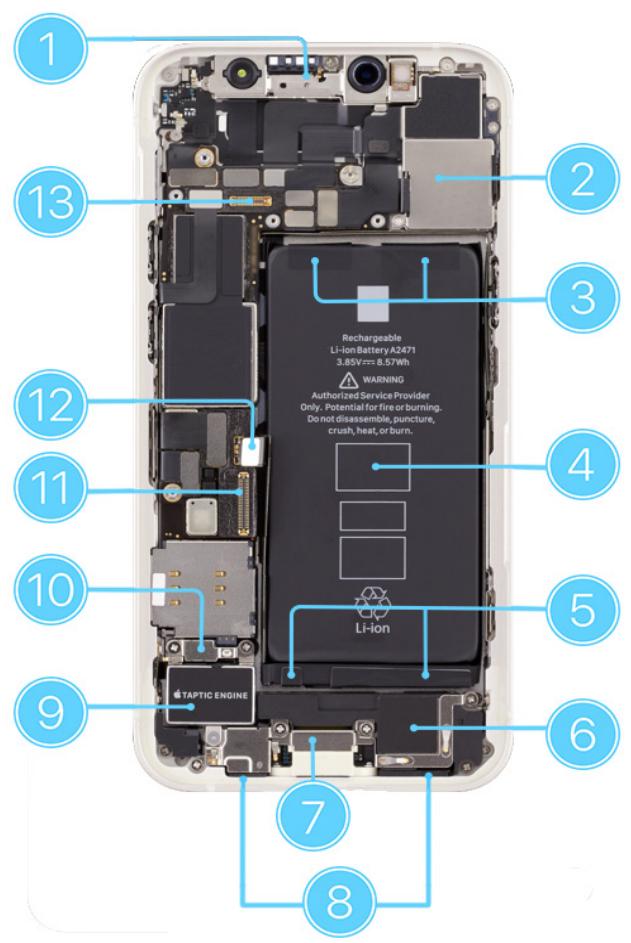
- TrueDepth camera assembly
- Cameras
- Top battery adhesive tabs
- Battery
- Bottom battery adhesive tabs
- Speaker
-
Lightning connector
-
Bottom microphones
- Taptic Engine
- Taptic Engine connector cowling
- Display connector
- Battery flex cable
- Receiver/ambient light sensor/proximity sensor connector
Orderable Parts
| Name | Numbers | Screws |
| Battery | 661-17939 | — |
| Camera | 661-17676 | — |
| Camera cowling | 923-04975 | 923-04991 (2) |
| Display | 661-17940LL661-17940 (U.S.) | — |
| Display adhesive | 923-04892 | — |
| Lower cowling | 923-04992 | 923-04994 (1) |
| Rubber gasket | 923-05010 | — |
| Security screws | — | 923-05080 (2) black923-05081 (2) silver |
| SIM tray | 923-05004 single, black923-05005 single, white923-05006 single, red923-05007 single, blue923-05008 single, green923-05680 single, purple | — |
| Speaker | 923-05011 | 923-05012 (3) lower left, middle, upper right923-05013 (1) lower right |
| Taptic Engine | 923-04999 | 923-05000 (1) upper left (super screw)923-05001 (1) bottom |
| Taptic Engine connector cowling | 923-04996 | 923-04997 (1) upper right923-04998 (1) upper left |
| Upper cowling | 923-04993 | 923-04994 (2) upper left, upper right923-04995 (3) lower left, middle, lower right |
Screws

Warning
- Never reinstall a screw after it has been removed. Install only new screws. iPhone screw grooves are covered in adhesive that can't be reused.
- Use only the torque driver indicated to install new screws during reassembly. Both overtightened screws and loose screws can damage parts.
Note: You can use any torque driver to remove screws.
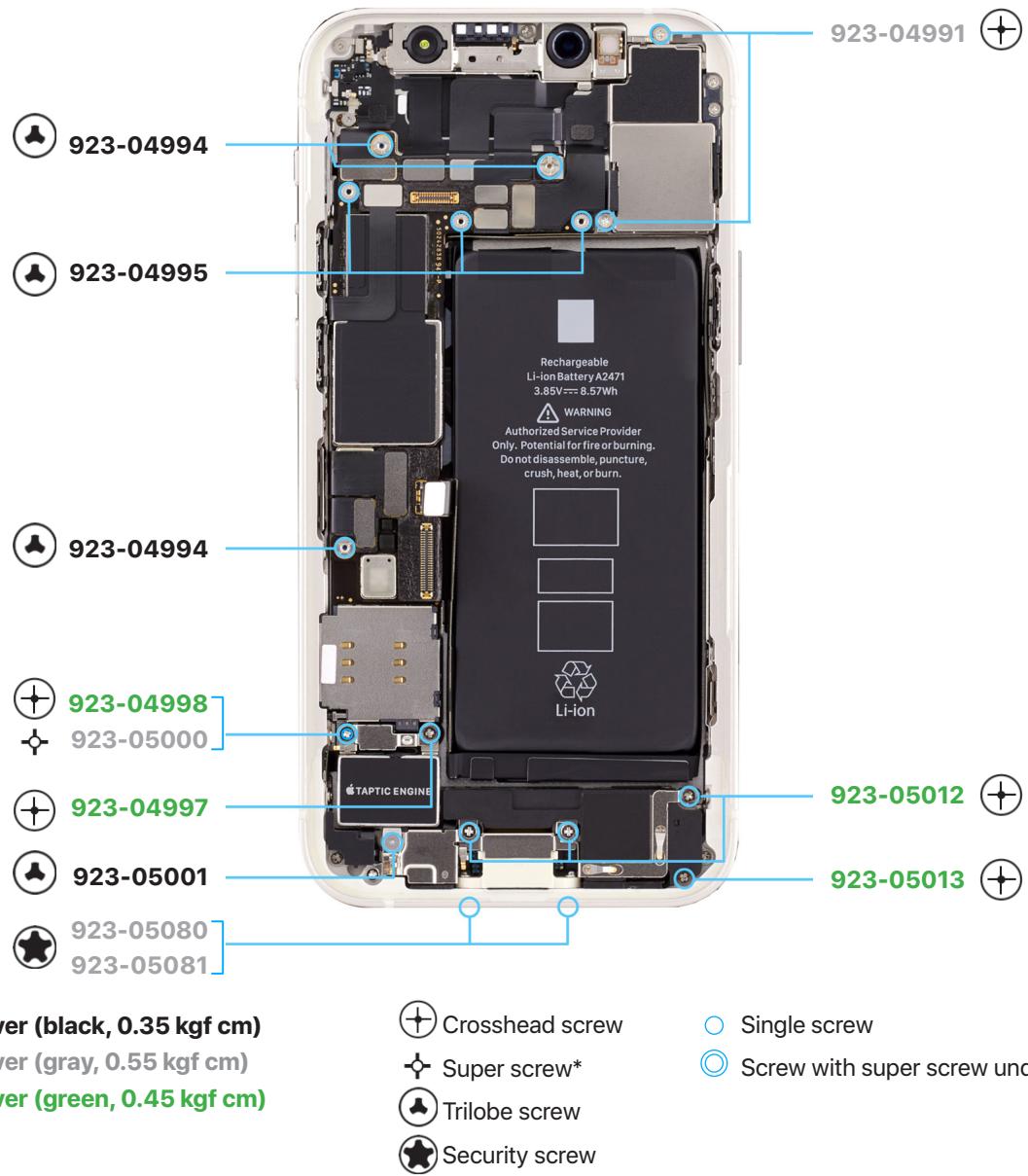
*A super screw has a threaded hole that holds another screw.
Tools
Tools with part numbers are available for purchase from the Self Service Repair Store. Tools without part numbers can be purchased from electronics supply retailers.
923-048755.4-inch back protective cover | 923-048765.4-inch display protective cover | 661-222885.4-inch heated display pocket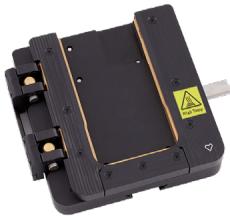 |
923-049075.4-inch repair tray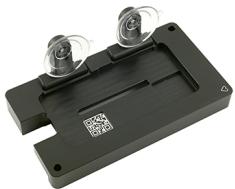 | 923-01092Adhesive cutter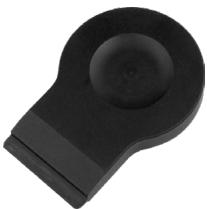 | 923-02657Battery press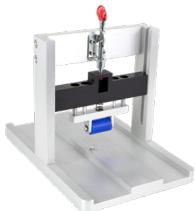 |
Cut-resistant gloves | 923-04910Display adhesive press plate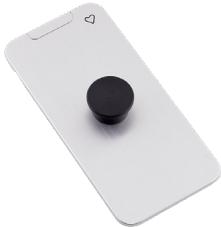 | 661-08916Display press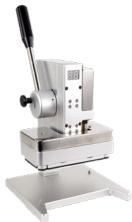 |
ESD mat | ESD-safe cleaning solution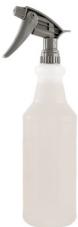 | ESD-safe tweezers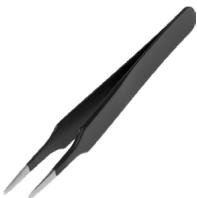 |
ESD wrist strap with clip or plug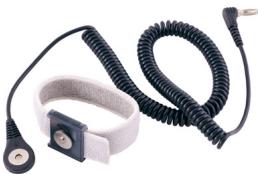 | Ethanol wipes1 | 661-17619Heated display removal fixture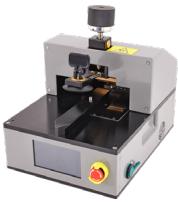 |
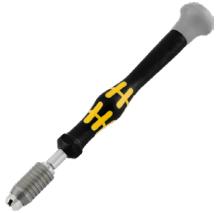
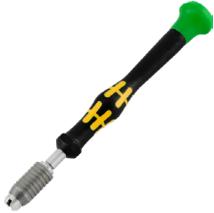
Heat-resistant gloves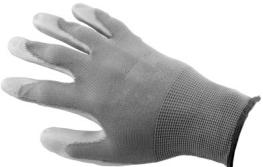 | IPA wipes | 923-01290Micro stix® bit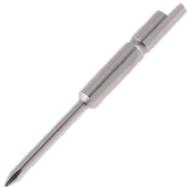 |
Nitrile or lint-free gloves | 922-5065Nylon probe (black stick)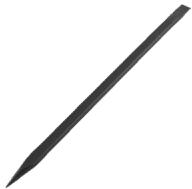 | Safety glasses with side shields |
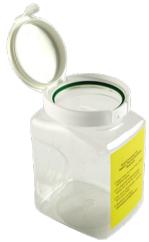
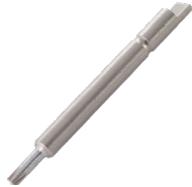
| Sand2 | Sand container3 | 923-02066Super screw bit |
 |  |  |
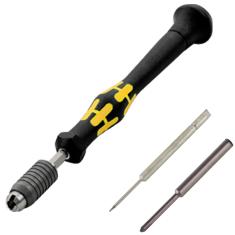
| 923-0248Torque driver (black, 0.35 kgf cm) kit4 | 923-00738Torque driver (gray, 0.55 kgf cm) | 923-00105Torque driver (green, 0.45 kgf cm) |
 |  |  |
^1 Ethanol wipes must contain at least 90% ethanol and no additives except isopropyl alcohol.
^2 Clean, dry, untreated sand (8–10 cups)
^3 Sand container (wide-mouthed, quick pour, nonbreakable plastic container with a flip-top lid)
^4 The black torque driver kit includes a black torque driver (0.35 kgf cm), Torx ^ security bit (923-0247), and JCIS bit (923-0246).
Heated Display Removal Fixture
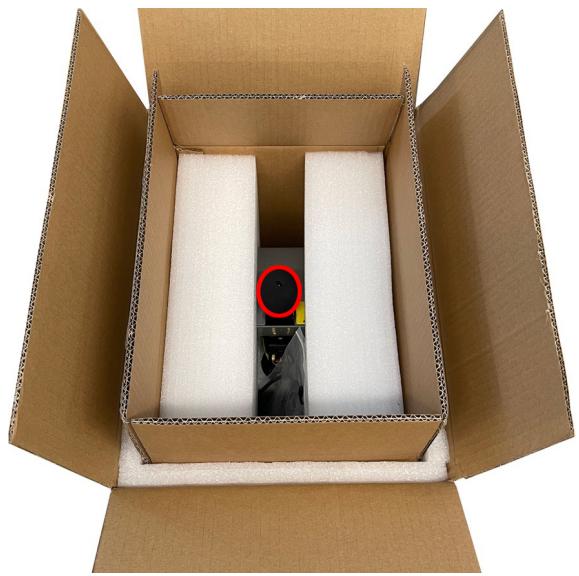
Note: A rented heated display removal fixture may have different packaging than shown. If your fixture came with a USB cable, set the cable aside. This setup doesn't require it.
- Remove the fixture from the box. Then remove the packing Styrofoam.

Caution
Don't lift the fixture by the knob.
natural_image
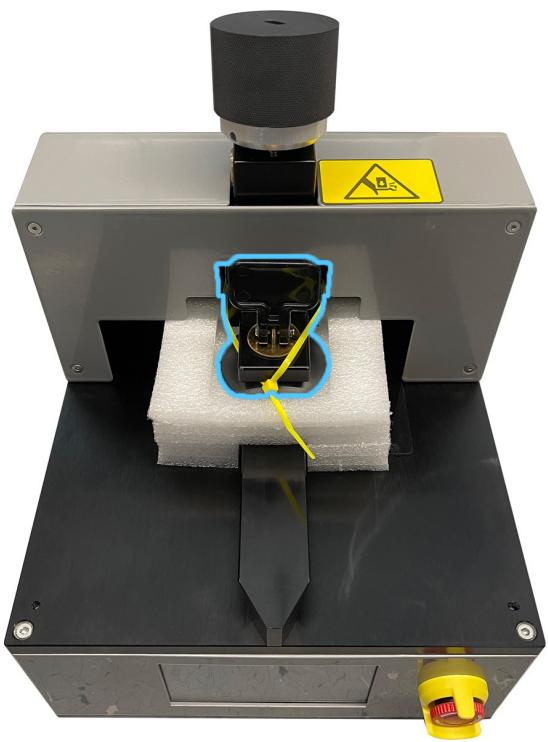
Open cardboard box with white foam sheets and a red circular icon on the side (no text or symbols)- Cut and remove the zip tie from the handle.
natural_image
Mechanical testing setup with a black sample holder and yellow warning label (no readable text or symbols)- Turn the top knob on the fixture counterclockwise to raise the suction cup. Remove the packing Styrofoam.
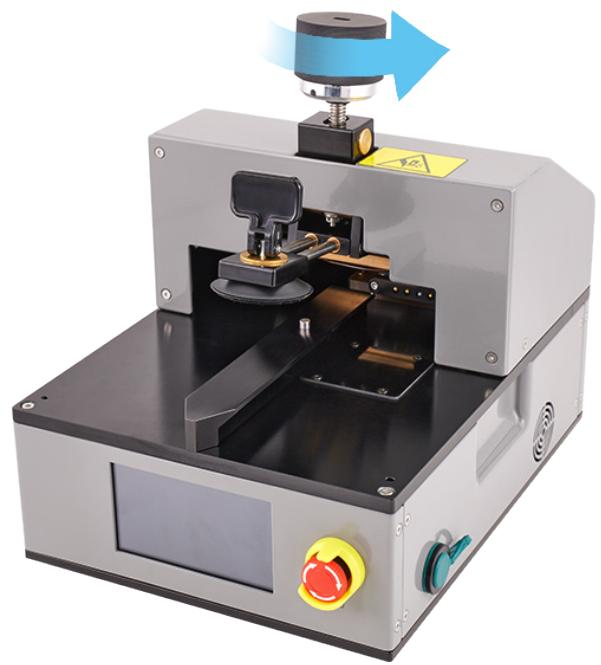
natural_image
Industrial machine with mechanical components and a blue arrow indicating motion (no visible text or symbols)- Turn the emergency stop knob clockwise until it clicks and protrudes from the stop guard.
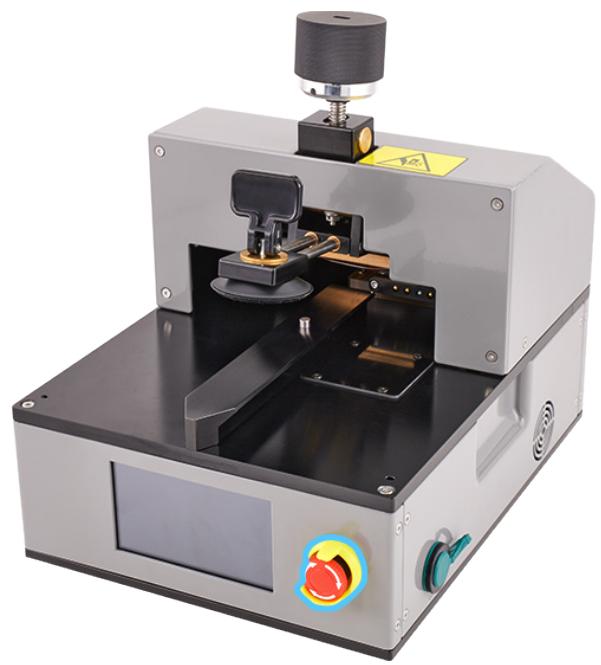
natural_image
Industrial machine with mechanical components and control panel (no visible text or symbols)- Plug the power cord into the fixture. The fixture won't turn on until you flip the switch on the back.
Battery Safety

Warning
- This device contains a built-in lithium-ion rechargeable battery with soft battery cells. Battery safety is the number one concern when repairing a device with a built-in lithium-ion battery.
- Only technicians with the knowledge, experience, and tools required to repair electronic devices should replace a battery.
- Improper battery replacement, improper handling of parts, failure to discharge the battery before repair, or failure to follow the provided instructions could cause battery overheating, swelling, venting, leaking, or a battery thermal event. These events could result in fire, injury, death, data loss, or damage to the device, parts, or other property.
- To avoid these potentially harmful events, follow the battery safety guidelines and work in a safety-focused workspace with the tools listed below. It's important to be prepared for all possible outcomes.
How to set up a workspace for battery safety
Tools
• Clean, dry, untreated sand (8–10 cups)
- Sand container (wide-mouthed, quick pour, nonbreakable plastic container with a flip-top lid)
• Heat-resistant gloves
• Safety glasses with side shields
• ESD-safe cleaning solution
Workspaces used to repair Apple devices should meet the following criteria:
• Nonflammable and electrostatic discharge (ESD)-safe work bench
- At least 2 feet away from paper and other combustible materials
- Sand container within reach (2 feet) on both sides of the workspace, not above the workspace
- Adequate ventilation

Warning
How to handle a battery thermal event
A battery thermal event is a rapid chemical chain reaction that occurs inside a battery cell. The energy stored in the battery is released suddenly, which can cause outgassing and fire. A battery thermal event can be triggered by physical damage to the battery, improper replacement or repair, or temperatures outside the battery's operating range.
Act immediately if you notice any of the following signs of a battery thermal event:
- The lithium-ion battery or a device that contains one begins to smoke or emit sparks or soot.
• The battery pouch suddenly and quickly puffs out. - The lithium-ion battery or a device that contains one begins to emit hissing or popping sounds.
Don't use water or an ABC or carbon dioxide fire extinguisher on a battery thermal event or a device that is undergoing one. Water and ABC or carbon dioxide fire extinguishers won't stop the reaction.
Do smother the battery or device immediately with plenty of clean, dry sand. Dump the sand all at once. Timing is critical — the faster you pour all the sand, the sooner the reaction will be contained.
Do contact local fire authorities if further assistance is needed.
Do leave the room for 30 minutes after the reaction is contained. Ventilate the area. Don't return until the area is clear of smoke.
Do wait 30 minutes before touching the device. Wear the heat-resistant gloves and safety glasses with side shields to remove the device from the sand.
Do wipe the affected area with water first. Then wipe the area with an ESD-safe cleaning solution.
Do dispose of the damaged battery or device (including any debris removed from the sand) according to local environmental laws and guidelines.
How to handle batteries

Warning
Fully discharge the battery before you begin a repair. A discharged battery is less susceptible to a battery thermal event. If you can't determine the battery level, don't repair the device.
Perform the following steps to discharge the battery:
- Disconnect all external cables.
- Remove all cases and covers.
- Turn on the flashlight from the Lock Screen, in Control Center, or by asking Siri. Wait until the device has turned off and the flashlight is no longer illuminated.

Caution
The flashlight produces heat. Keep the iPhone in a well-ventilated area while the flashlight is illuminated.
Best practices
- To avoid noxious fumes or a battery thermal event, don't puncture, strike, or crush a lithium-ion battery or a device that contains one.
- Keep your workspace clear of foreign objects and sharp materials.
- Be careful when using sharp tools near the battery.
- Don't leave loose screws, extra screws, or small parts inside the device.
- Don’t use tools that conduct electricity.
- Don't throw or drop the battery.
- Don't expose the battery to excessive heat or sunlight, or temperatures outside the battery's operating range.
- Handle and dispose of waste batteries in accordance with local laws and regulations.
Broken Glass

Warning
iPhone displays and some back covers are made of glass. The glass could break if the iPhone is dropped on a hard surface, receives a substantial impact, or is crushed, bent, or deformed. Don't attempt to remove chipped or cracked glass shards.
Tools
- Back protective cover
- Cut-resistant gloves
• Display protective cover - Heated display pocket
• Safety glasses with side shields - Vacuum cleaner
If the iPhone glass is broken, perform the following steps before you begin a repair:
- Put on safety glasses with side shields and the cut-resistant gloves.
- Use a vacuum cleaner to remove glass pieces from your workspace and the iPhone.
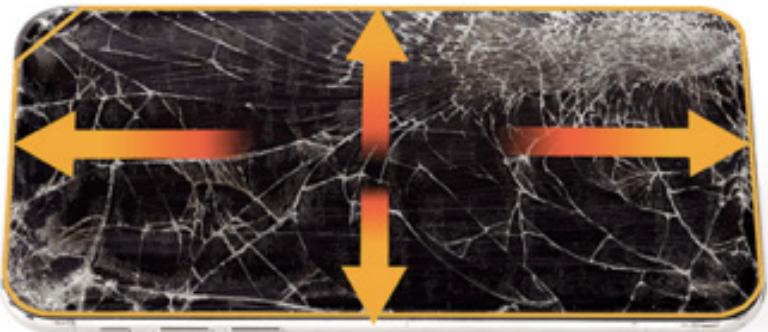
- Attach a protective cover to the broken glass to prevent injury or scattering of glass. Each protective cover has a release liner underneath. Slowly pull the release liner out from under the protective cover while pressing the cover onto the enclosure.
- Fold the release liner. Use the shiny side of the release liner to firmly press the protective cover onto the broken glass and smooth out any air bubbles.
natural_image
Microscopic view of fibrous material with orange arrows indicating direction (no text or symbols)- Wait at least 12 minutes for the bond between the protective cover and the glass to strengthen.
- If the back glass is broken, place the iPhone into the heated display pocket.
If the iPhone has any of the following conditions, stop the repair:
There's no glass or insufficient glass for the protective cover to adhere to.
- The protective cover doesn't adhere to the iPhone.
- The iPhone doesn't fit in the heated display pocket.
You can find a service option at support.apple.com/repair.
First Steps
Always perform the following steps before starting a repair:
• Back up the iPhone.
• Discharge the battery fully.
• Turn off the iPhone.
- Disconnect all cables.
- Remove all cases and covers.
• Clear and clean your workspace.
- Put on an ESD wrist strap and attach it to a properly grounded ESD mat.

Caution
ESD (electrostatic discharge, or the release of static electricity) can damage electronic components.
Be aware of the following while performing a repair:
- The manual for this model may show images of other models, but the procedures are the same. Ensure that you use the correct tools for the model you're repairing.
• Take your time. Thoroughly read all instructions and alerts. - Magnetizing the torque drivers will make it easier to work with small screws.
- The end of each flex cable must align with its connector. Press the end of each flex cable to its connector until it clicks to ensure that it's secure.

Warning
Loose screws, extra screws, or small parts inside the device can damage the battery and cause safety issues. Set aside all parts and screws removed during the repair and account for them at the end of the repair.
SIM Tray
Tools
• SIM-eject tool or paper clip
Removal
- Find your model to locate the SIM tray.
- Insert a paper clip or SIM-eject tool into the hole next to the SIM tray.
- Push the paper clip or SIM-eject tool toward the enclosure to eject the SIM tray.
- Remove the SIM tray.
Reassembly
- Press the SIM tray back into the side of the enclosure.
Display
Before You Begin

Warning
- Read Battery Safety and follow workspace and battery handling guidelines before you begin.
- Read Broken Glass before you begin.
Tools
• 5.4-inch heated display pocket
• 5.4-inch repair tray
- Adhesive cutter
• Display adhesive press plate
- Display press
• ESD-safe tweezers
- Ethanol wipes or isopropyl alcohol (IPA) wipes
• Heated display removal fixture
• Heat-resistant gloves
- Micro stix bit
• Nylon probe (black stick)
• Torque driver (black, 0.35 kgf cm)
• Torque driver (gray, 0.55 kgf cm)
- Torx security bit
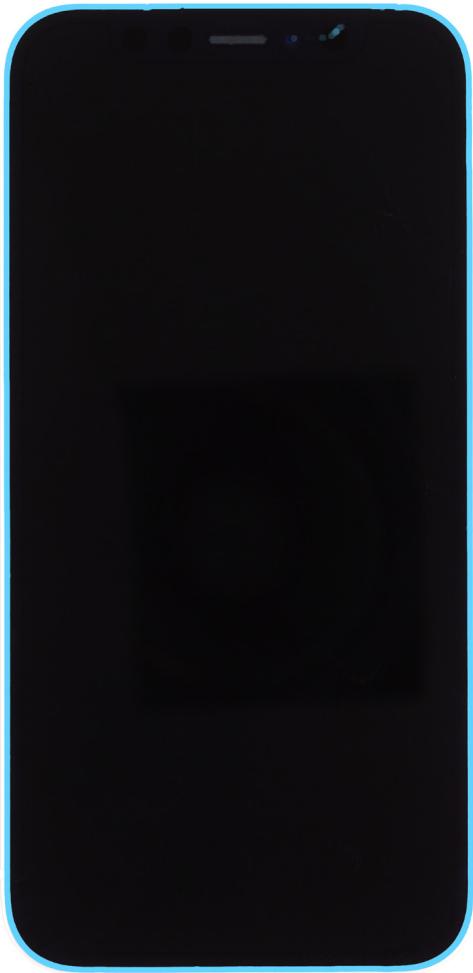
natural_image
Front view of a black smartphone with blue outline and white frame (no visible text or symbols)
Caution
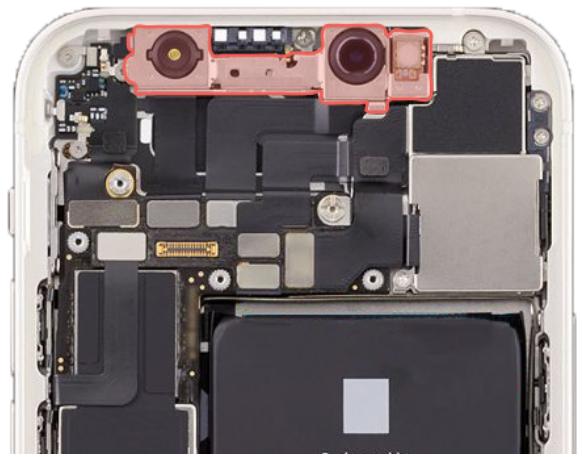
- To avoid damaging the lenses, don't touch the TrueDepth camera assembly or nearby parts.
- Don't touch the back of the display. Touching the back of the display may affect image quality.
natural_image
Internal view of an iPhone showing the circuit board with camera and display components (no text or symbols visible)Important
- This procedure requires System Configuration. After you've completed all removal and reassembly steps, learn how to initiate the System Configuration process at support.apple.com/self-service-repair.
- Read Heated Display Removal Fixture if you're setting up the fixture for the first time.
Removal
- Use a torque driver and the Torx security bit to remove the two security screws, one from each side of the Lightning connector. Set aside the screws.

natural_image
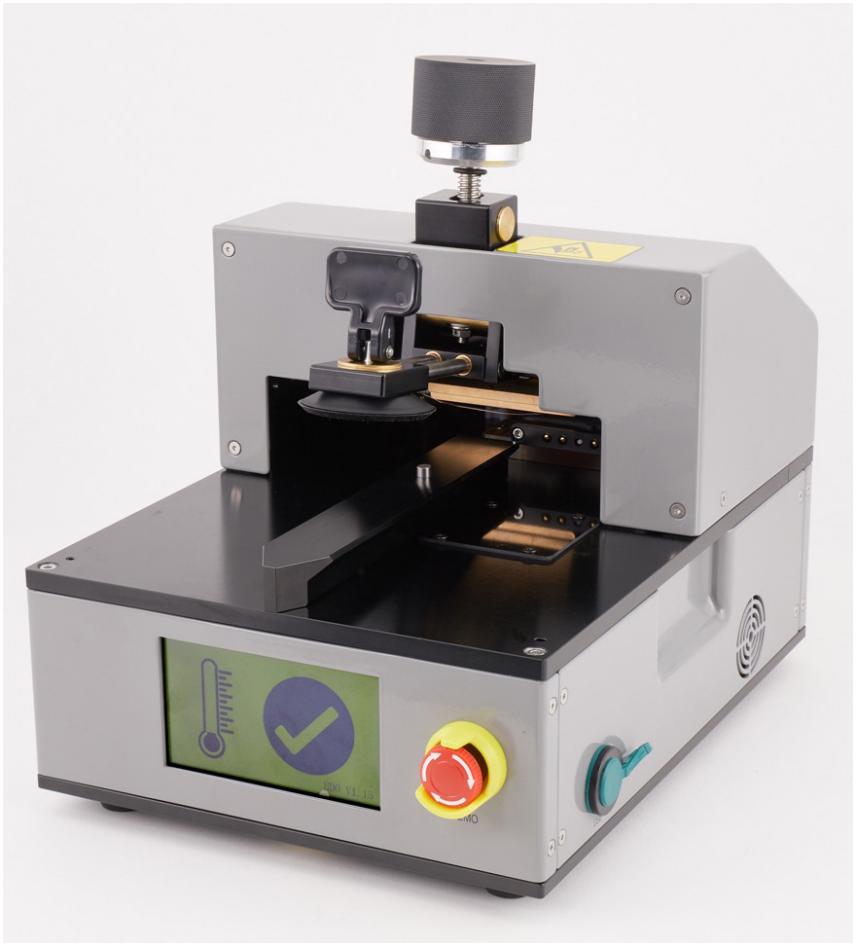
Close-up of a device rear panel with blue circular markers highlighting ports (no text or symbols visible)- Flip the switch on the back of the heated display removal fixture to turn it on. The internal fan will turn on. Wait for a checkmark to appear on the screen.
Note: If an error code appears on the screen, turn off the fixture and turn it back on.
natural_image
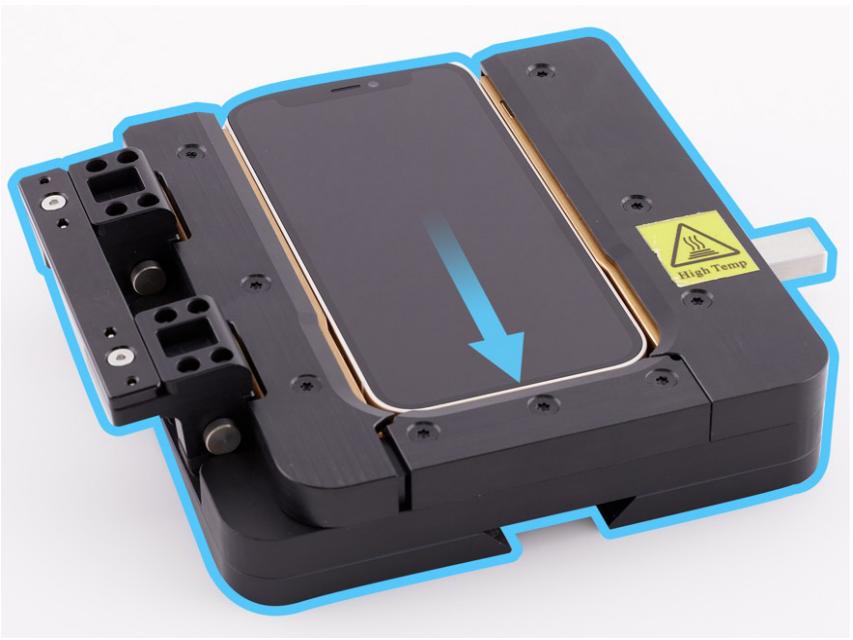
Industrial machine with control panel and warning label (no readable text or symbols on main body)- Gently insert the iPhone into the heated display pocket with the display faceup and the Lightning connector facing the bottom of the pocket.
Important
Ensure that the clamp on the side of the pocket is flipped up.
natural_image
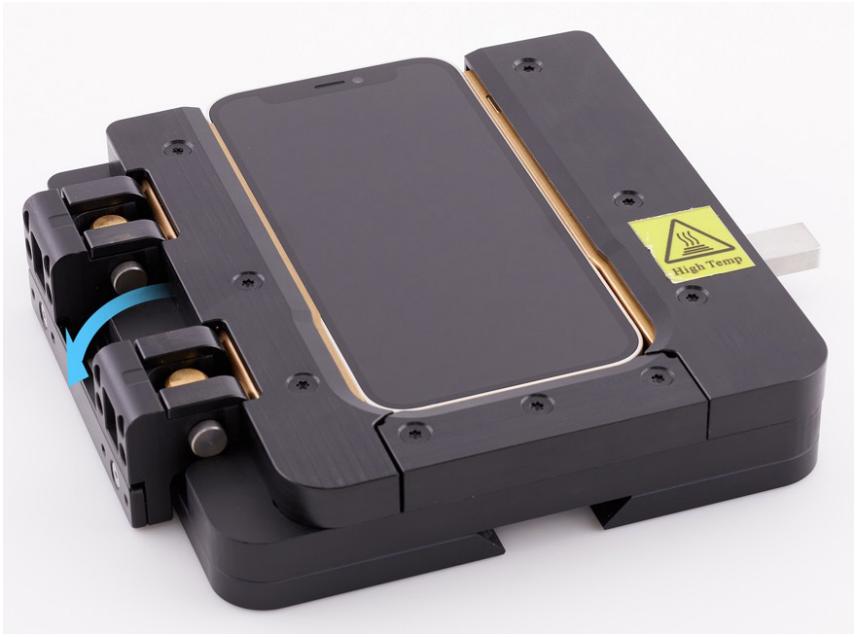
Close-up of a black electronic device with a blue arrow indicating a temperature warning sign, no readable text or symbols present.- Flip down the clamp on the side of the pocket to lock the iPhone into place.
natural_image
Black electronic device with a smartphone and warning label 'High Temp' (no readable text or symbols beyond the label)- Put on the heat-resistant gloves. Align the cutout on the bottom of the pocket with the rail on the fixture. Slide the pocket with the iPhone onto the rail on the fixture.

Warning
Don't insert the pocket into the fixture without wearing the heat-resistant gloves.
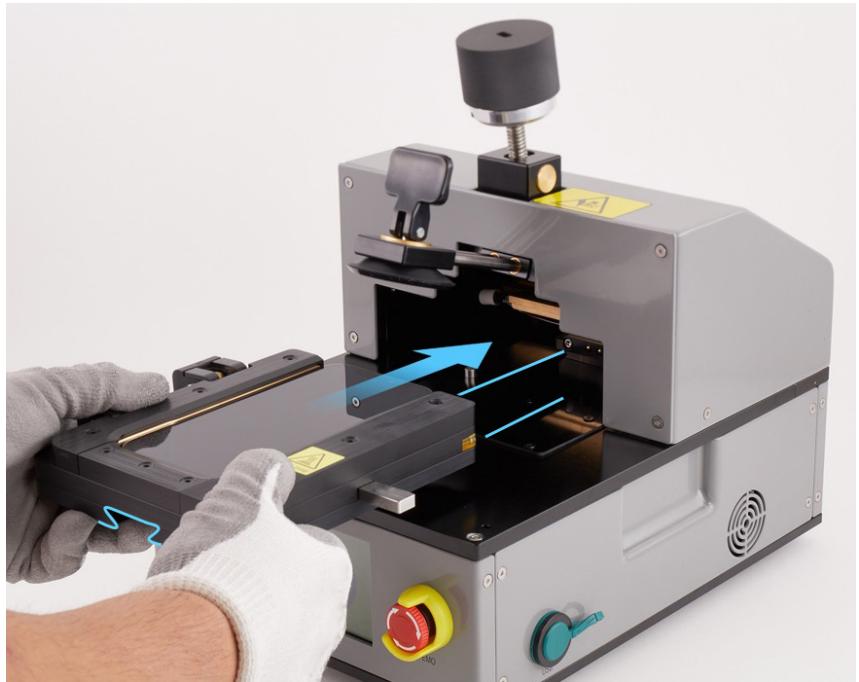
natural_image
Close-up of a robotic optical instrument with blue arrows indicating motion or force, being handled by gloved hands (no text or symbols visible)- Slide the pocket into the fixture until you hear the pocket click into place.
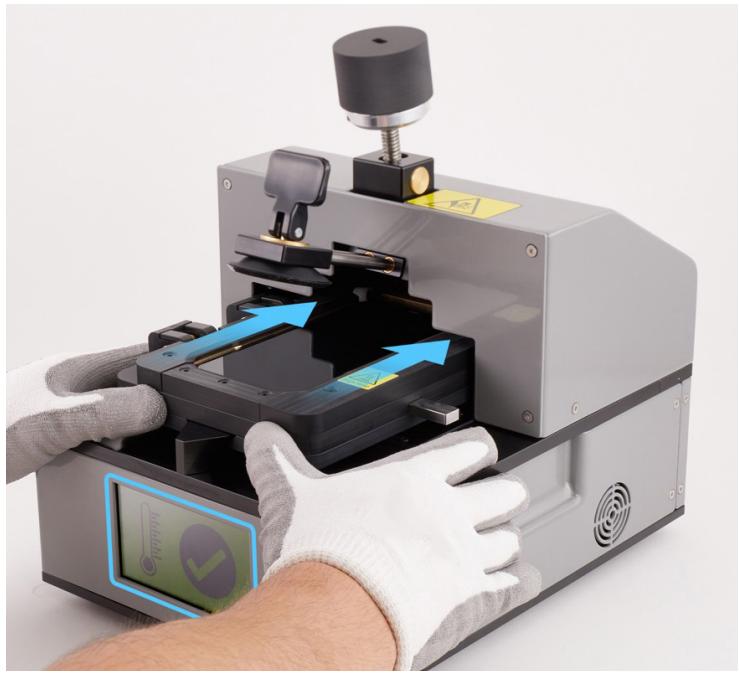
natural_image
Person using a 3D printing machine with blue arrows indicating process flow, no visible text or symbols on the device itself.Note: The screen on the fixture will turn red and the timer will count down from 2 minutes while the pocket heats to the correct temperature. When the timer ends, the fixture will start to beep and the screen will turn green.
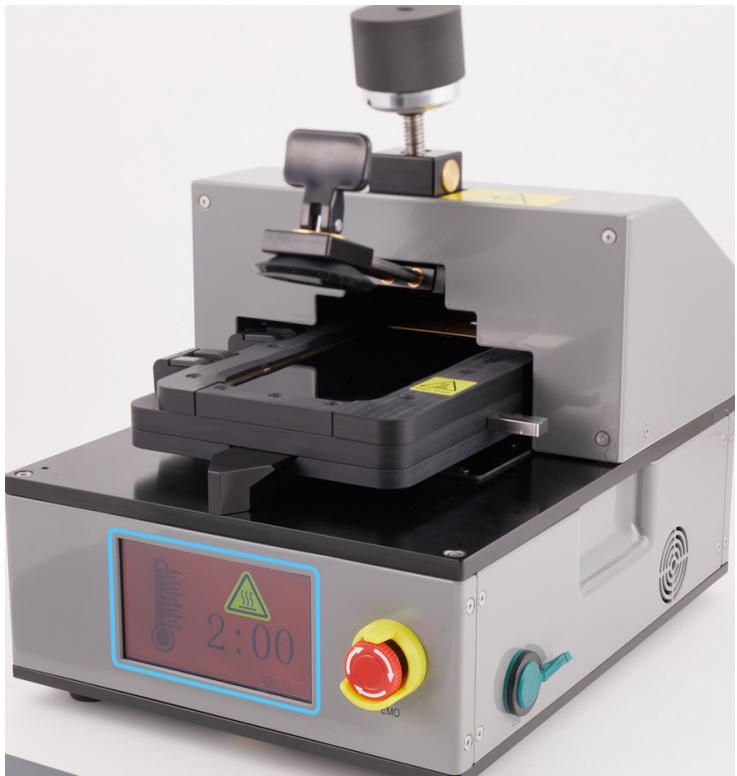
natural_image
Industrial machine with digital display showing '2:00' and warning symbol (no readable text or labels)- Turn the knob on the fixture clockwise to lower the suction cup as close to the iPhone as possible without touching the iPhone.

Caution
To avoid damaging the iPhone, don't turn the knob before the timer beeps.
Note: The fixture will beep until the suction cup is lowered.
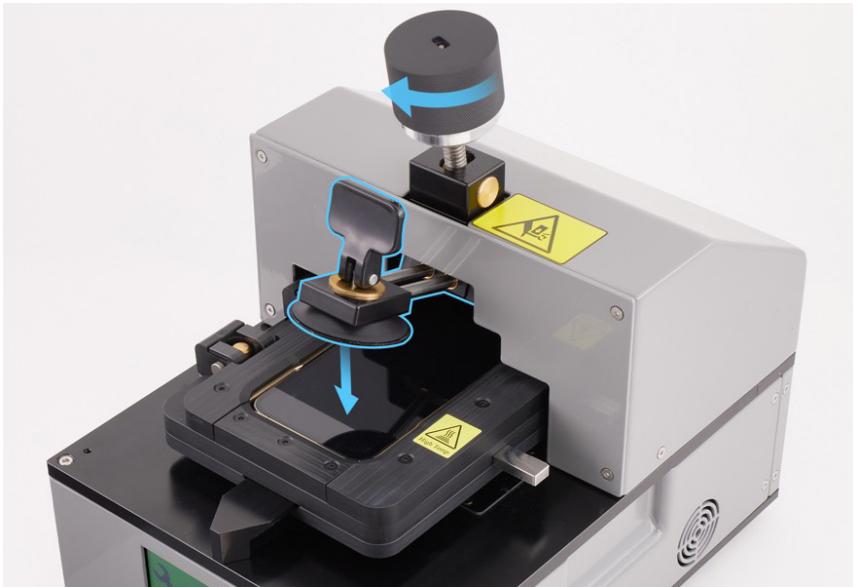
natural_image
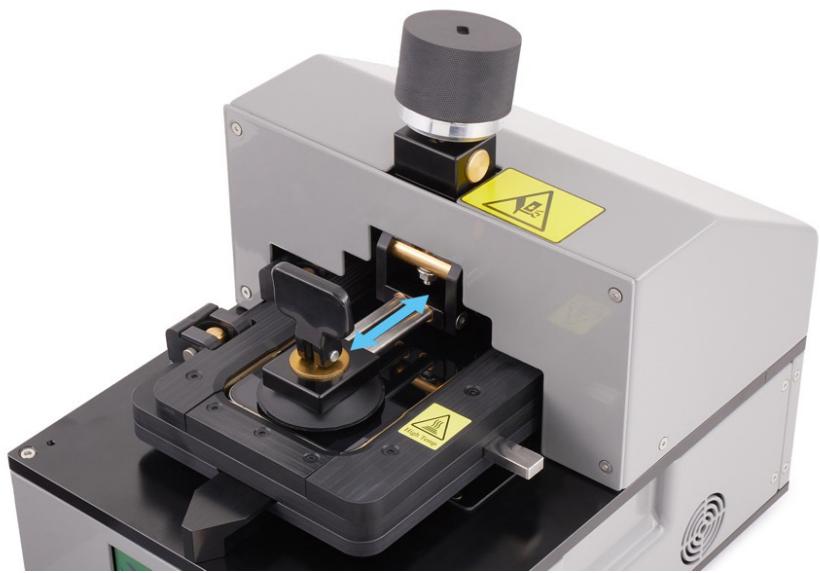
3D printer internal structure with blue warning arrows and warning labels (no readable text or symbols)- Grasp the handle and slide the suction cup straight out until the edge of the suction cup aligns with the bottom edge of the display.

Caution
Failure to align the edges of the suction cup and the display may damage the iPhone.
natural_image
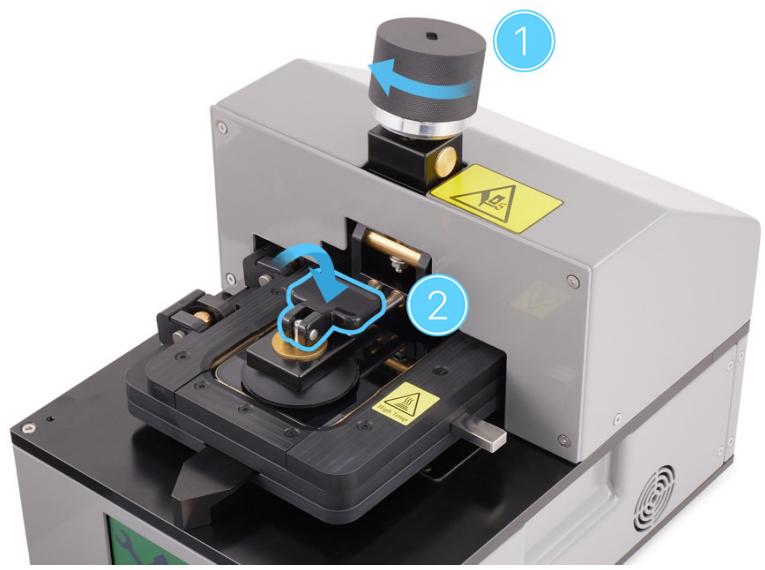
Close-up of a laboratory optical instrument with warning labels and a blue arrow indicating motion (no readable text or symbols)- Turn the knob on the fixture clockwise to lower the suction cup onto the display (1). Then flip down the handle on the suction cup to secure the suction cup to the display (2).
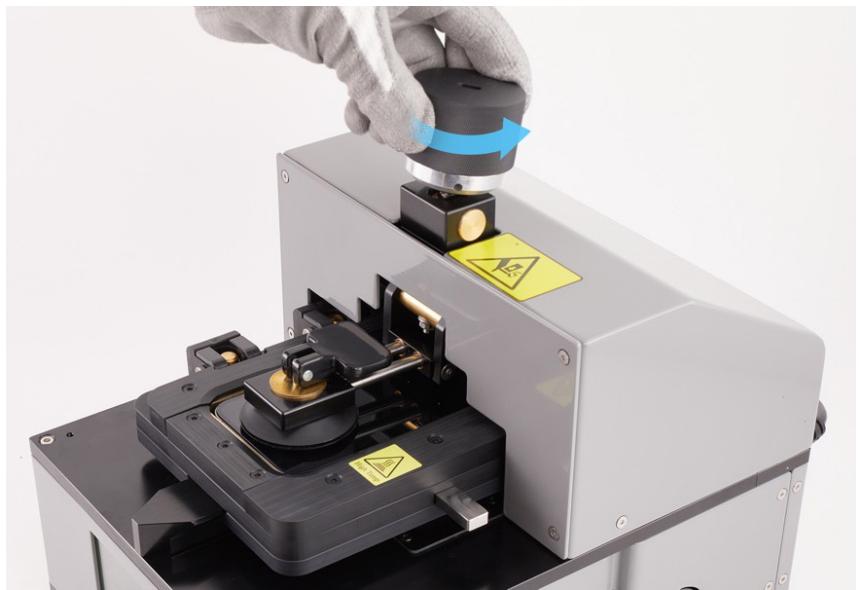
- Slowly turn the knob on the fixture counterclockwise until the display begins to separate from the enclosure.
Important
If you don't see a gap between the display and the enclosure immediately, wait 30 seconds. If you still don't see a gap, turn the silver part of the knob counterclockwise until the display begins to separate from the enclosure.
natural_image
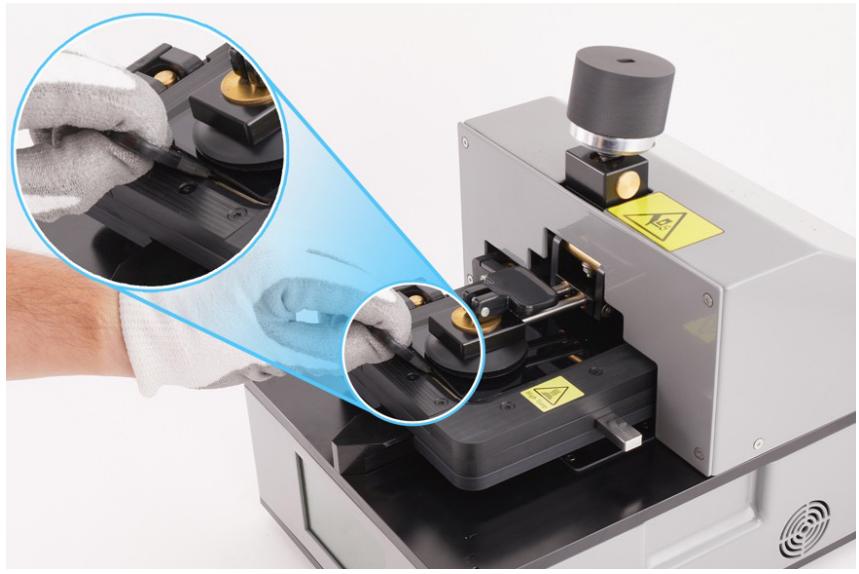
Close-up of a robotic device with a hand adjusting a component, showing no visible text or symbols.- Insert the edge of the adhesive cutter between the display and the enclosure. Run the cutter between the display and the enclosure to the right and left as shown until the display partially releases from the enclosure.
natural_image
Close-up of a laboratory optical instrument with a hand holding a sample, showing internal components and a warning sign (no readable text or symbols)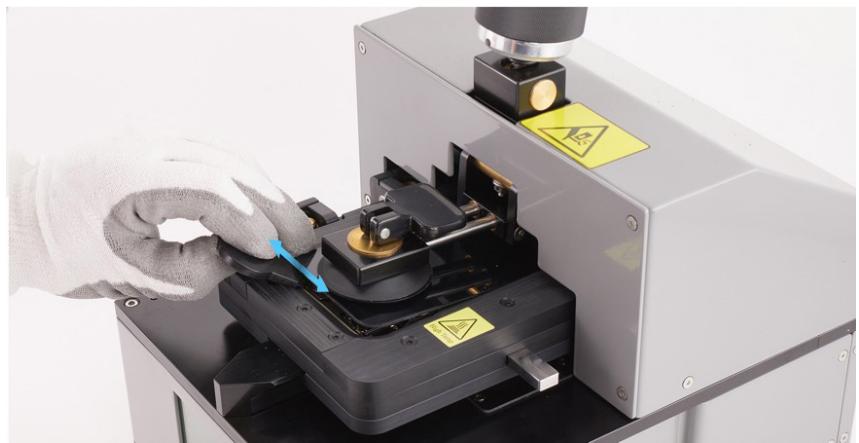
natural_image
Close-up of a gloved hand adjusting a mechanical device with blue arrows pointing to components (no visible text or symbols)
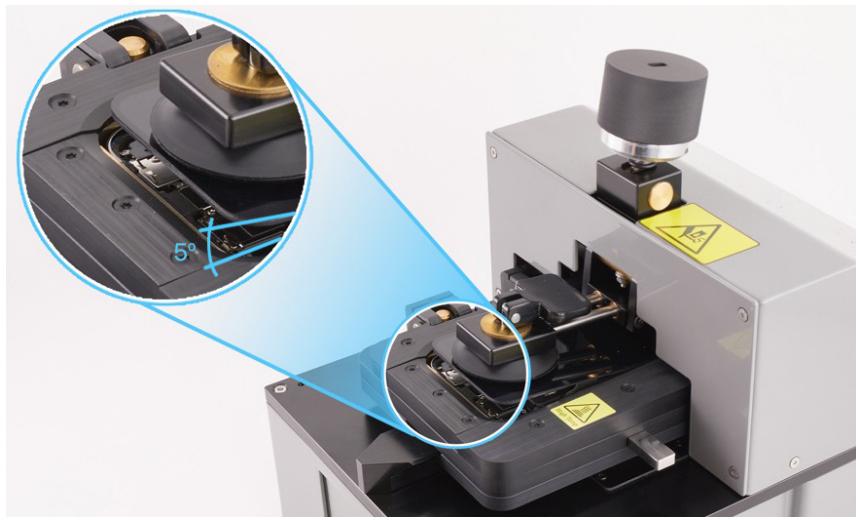
Caution
To avoid damaging the flex cables, don't tilt up the bottom of the display more than 5 degrees.
natural_image
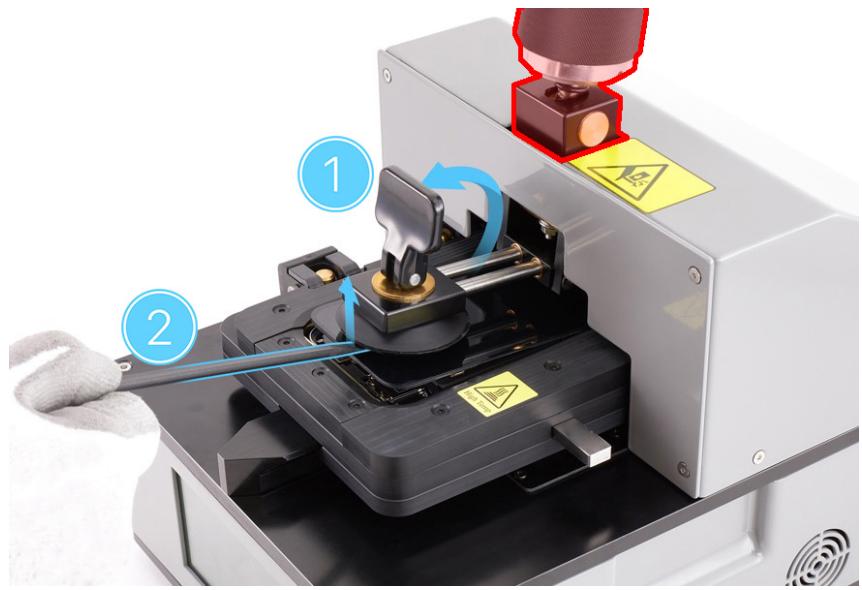
Close-up of a mechanical device with circular annotations highlighting a 5° angle and warning symbols (no readable text or labels)- Flip up the handle to release the suction cup (1). Gently slide the flat end of the black stick under the edge of the suction cup to release it from the display (2).

Caution
Don't turn the knob. Turning the knob may damage the flex cables.
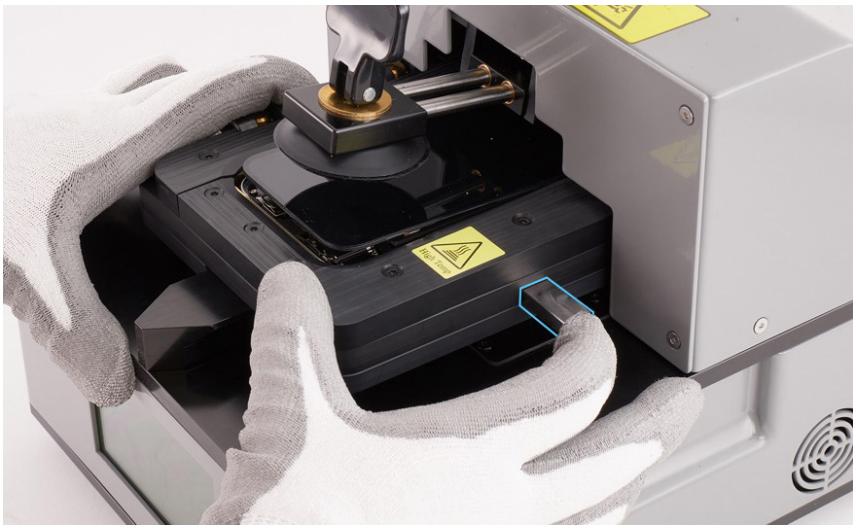
- Press the eject button on the side of the pocket to release the pocket from the fixture.
natural_image
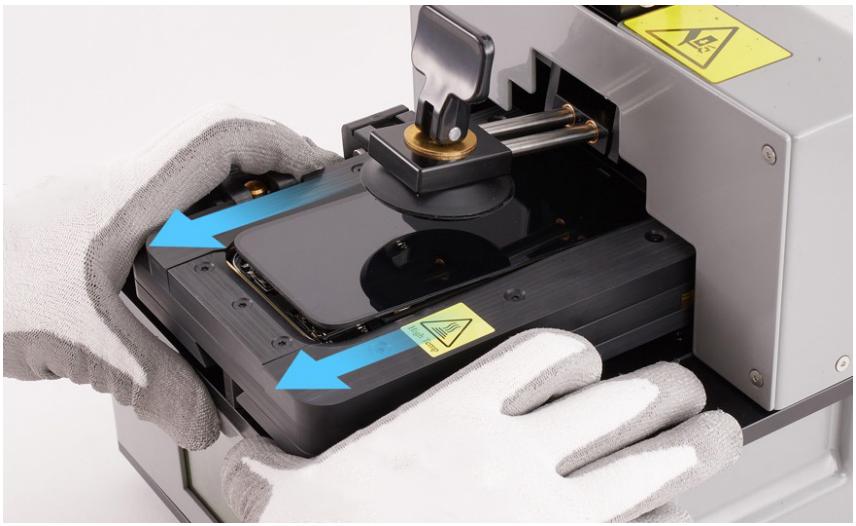
Close-up of gloved hands operating a 3D printer with a warning label and highlighted component (no readable text or symbols)- Hold both sides of the pocket and slide it straight out of the fixture.
natural_image
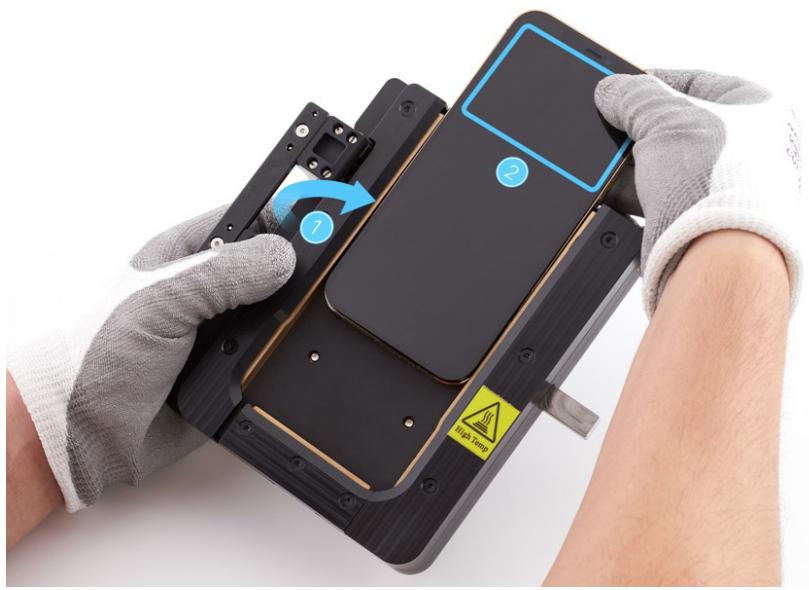
Close-up of gloved hands operating a 3D printer with blue arrows indicating motion, no visible text or symbols- Flip up the clamp on the side of the pocket to release the iPhone (1). Hold the area outlined in blue and gently remove the iPhone from the pocket (2).
natural_image
Close-up of hands installing a device component with numbered parts and warning labels (no readable text or symbols)-
Place the iPhone into the repair tray with the display faceup and the Lightning connector facing the cutout. Remove the gloves.
-
Slide the display slightly toward the bottom of the iPhone.
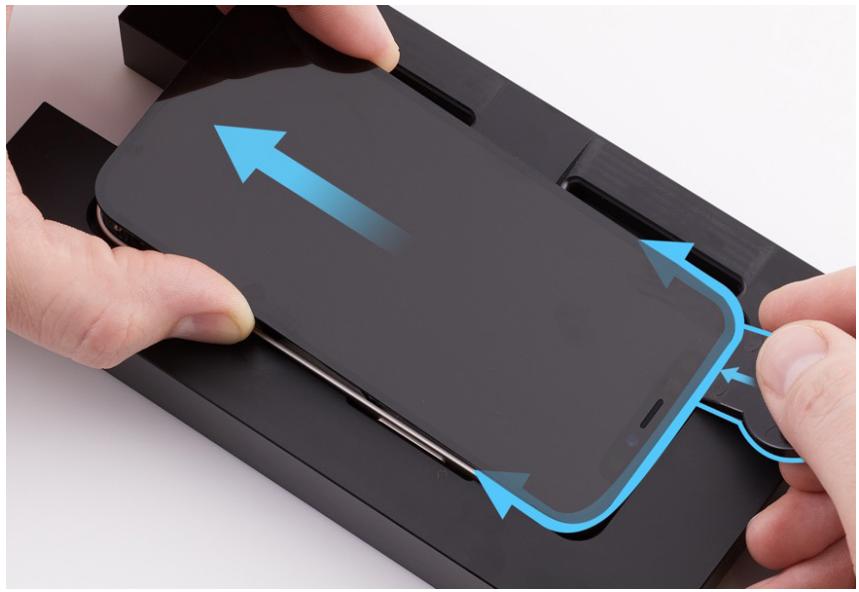
- Insert the edge of the adhesive cutter into the top of the iPhone between the display and the enclosure. Hold the adhesive cutter at a 45-degree angle. Start at the middle and cut along the top and sides of the iPhone until the display is free.
natural_image
Close-up of hands holding a smartphone with blue arrows indicating motion or force (no text or symbols visible)
Caution
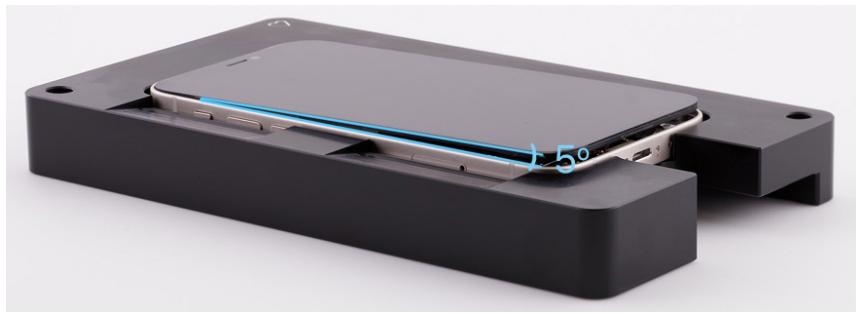
To avoid damaging the flex cables, don't tilt up the bottom of the display more than 5 degrees.
natural_image
Exterior view of a black plastic electronic device with a cutaway view showing internal components (no text or symbols visible)- Insert the repair tray suction cups into the slots in the repair tray.
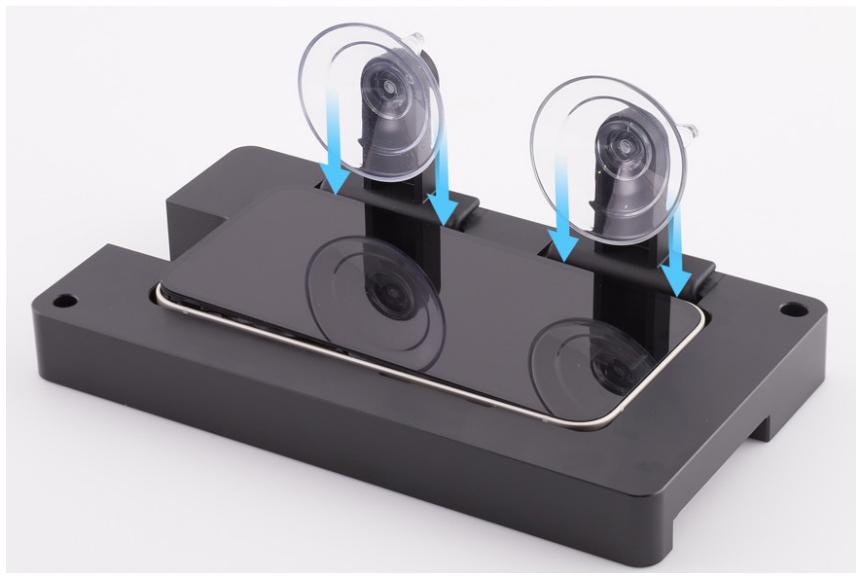
natural_image
3D rendering of a black plastic electronic device with two transparent lenses and blue arrows indicating motion or assembly (no text or symbols)- Tilt up the display toward the suction cups. Press the top and bottom edges of the display to secure it to the suction cups.

Caution
- To avoid damaging the enclosure or display, ensure that the internal display clips are released before you tilt up the display.
- Don't damage the flex cables as you tilt up the display.

natural_image
Interior view of an electronic device showing internal components and a blue directional arrow indicating flow or movement (no text or symbols visible)
Warning
If the battery is dented, punctured, or otherwise damaged, stop the repair. You can find a service option at support.apple.com/repair.
- Use a torque driver and the Micro stix bit to remove the trilobe screw from the lower cowling. Set aside the screw.
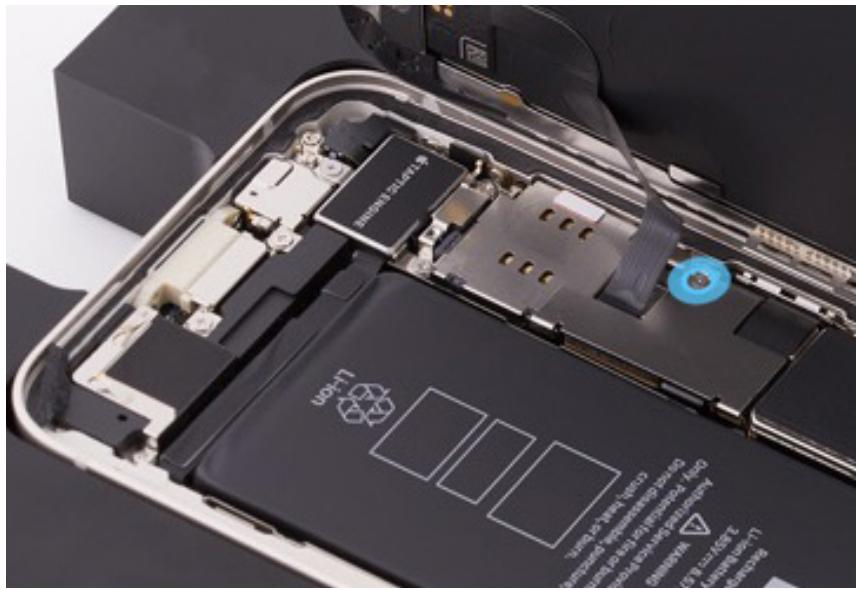
natural_image
Internal view of a smartphone showing internal circuitry and battery pack (no readable text or symbols)-
Use ESD-safe tweezers to remove the lower cowling. Save the cowling for reassembly.
-
Use a torque driver and the Micro stix bit to remove four trilobe screws (1–4) from the upper cowling. Hold the upper cowling in place and remove the last trilobe screw (5). Set aside the screws.
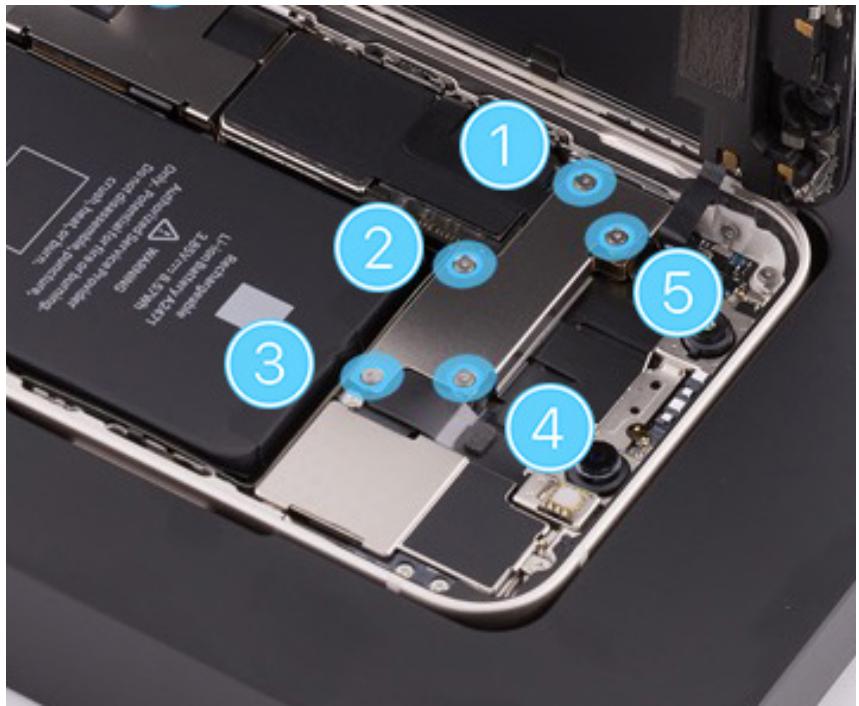
-
Use ESD-safe tweezers to remove the upper cowling. Save the cowling for reassembly.
-
Use the black stick to lift the end of the battery flex cable off the connector.

Caution
You must disconnect the battery flex cable first to ensure that the iPhone remains turned off.
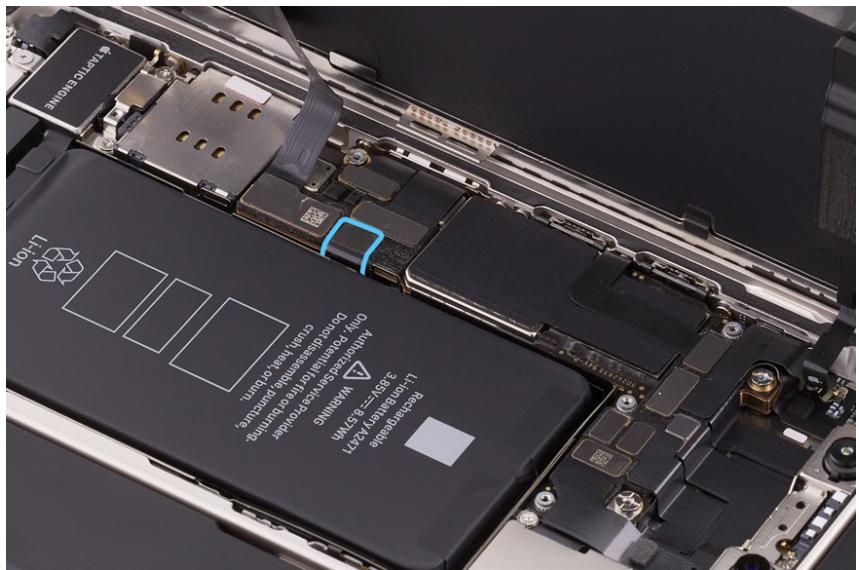
- Use the black stick to lift the ends of the display flex cable (1) and the receiver flex cable (2) off the connectors.
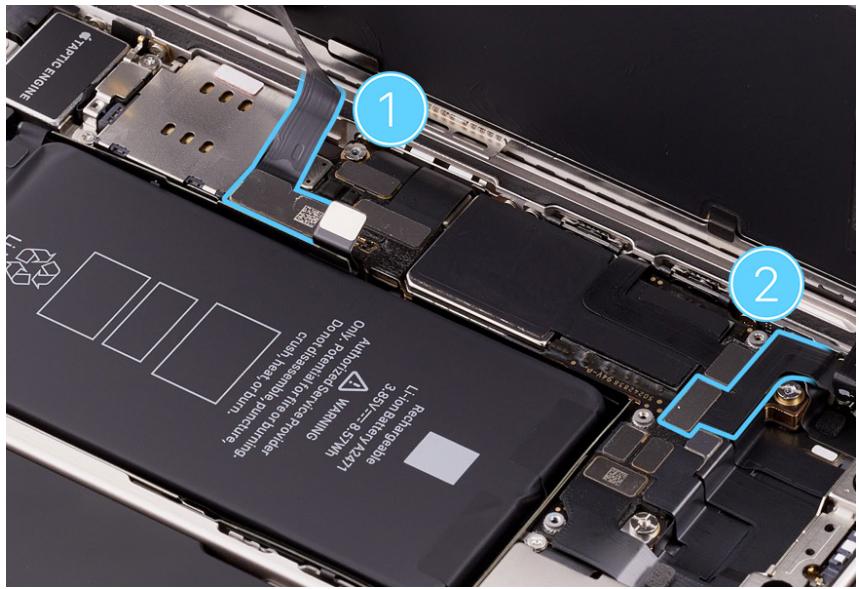
- Hold the display by the edges. Pull the tabs on the suction cups to release them from the display. Then set the display facedown on a clean, flat surface.
-
Remove the suction cups from the repair tray.
-
Use ESD-safe tweezers to pick up the adhesive. Then pull the adhesive to remove it from the enclosure. Repeat this process until all the adhesive is removed from the perimeter of the enclosure.

natural_image
Close-up of hands installing a battery on an electronic device, with close-ups of internal components and tools (no visible text or symbols)
Caution
Don't touch the TrueDepth camera assembly, grounding springs, or nearby parts.
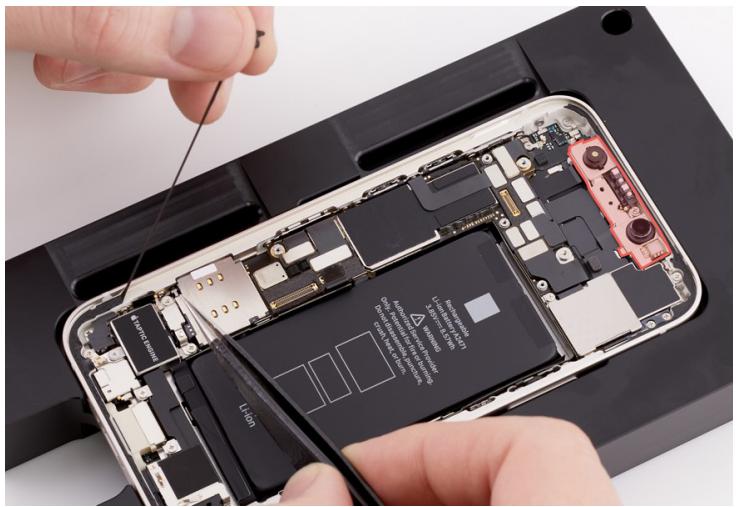
natural_image
Close-up of hands assembling a smartphone with visible internal circuitry and battery pack (no text or symbols)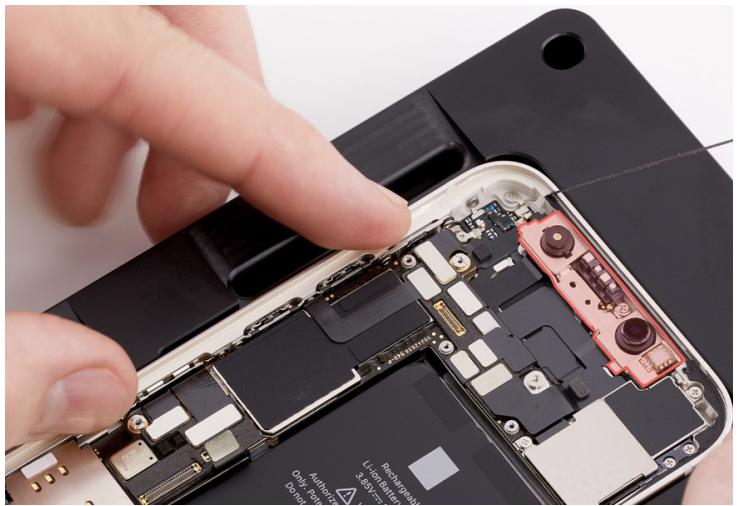
natural_image
Close-up of a hand inserting a smartphone into an open circuit board (no visible text or symbols)- Use ethanol wipes or IPA wipes to clean any adhesive residue from the enclosure.

Caution
Don't use ethanol wipes or IPA wipes on the display. Ethanol or isopropyl alcohol may damage the display and affect image quality.
Reassembly
- Inspect the internal display clips for damage before reassembly. Ensure that the internal display clips are at a 90-degree angle and aren't bent or damaged.
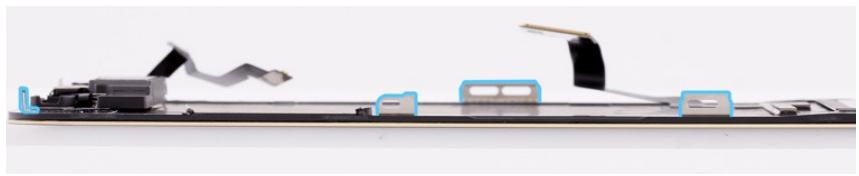
natural_image
Diagram of a device with a mechanical component and wiring, showing no visible text or symbolsImportant
- If the internal display clips are damaged, you may need to replace the display.
- If you're installing a replacement display, peel the protective liner from the top and underside of it.

Warning
Inspect the enclosure for loose or extra screws and small parts, which can damage the battery and cause safety issues.
-
Place the enclosure in the repair tray with the Lightning connector facing the cutout.
-
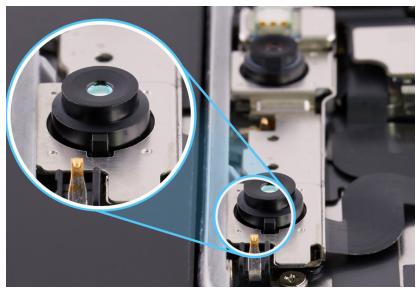
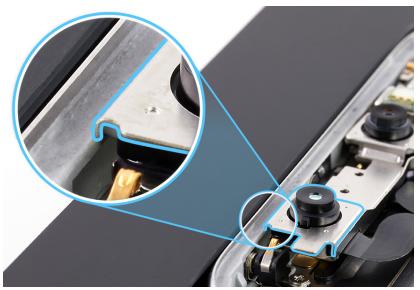
Inspect the TrueDepth camera. Ensure that the top edge of the TrueDepth camera is under the lip of the enclosure.
Correct position
natural_image
Close-up of mechanical components with highlighted parts, no visible text or symbolsIncorrect positions
natural_image
Close-up of a mechanical component with a magnified inset showing a detail (no visible text or symbols)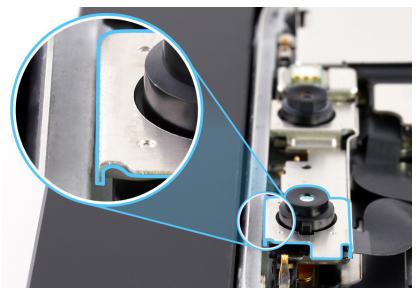
natural_image
Close-up of a mechanical device with a magnified inset showing a component detail (no visible text or symbols)
Caution
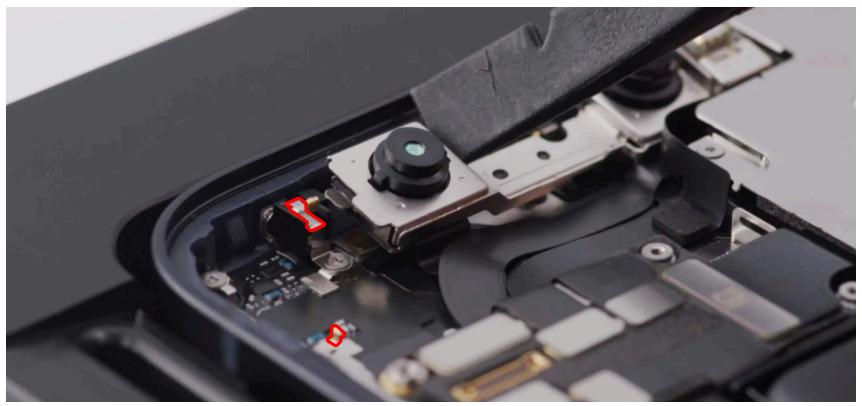
If the TrueDepth camera is positioned incorrectly, use the black stick to move it away from the grounding clip. Then insert the top edge of the TrueDepth camera under the lip of the enclosure.
natural_image
Close-up of an electronic device's internal components, showing a black case with visible circuitry and connectors (no text or symbols)- Align the replacement display adhesive over the enclosure with the top holes over the TrueDepth camera assembly and the bottom tab on the left.

Caution
Ensure that you've removed all adhesive residue from the display and the enclosure before you apply the replacement display adhesive.
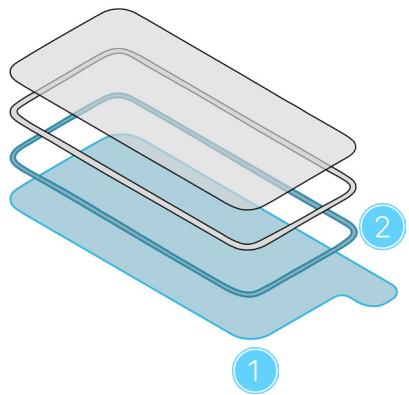
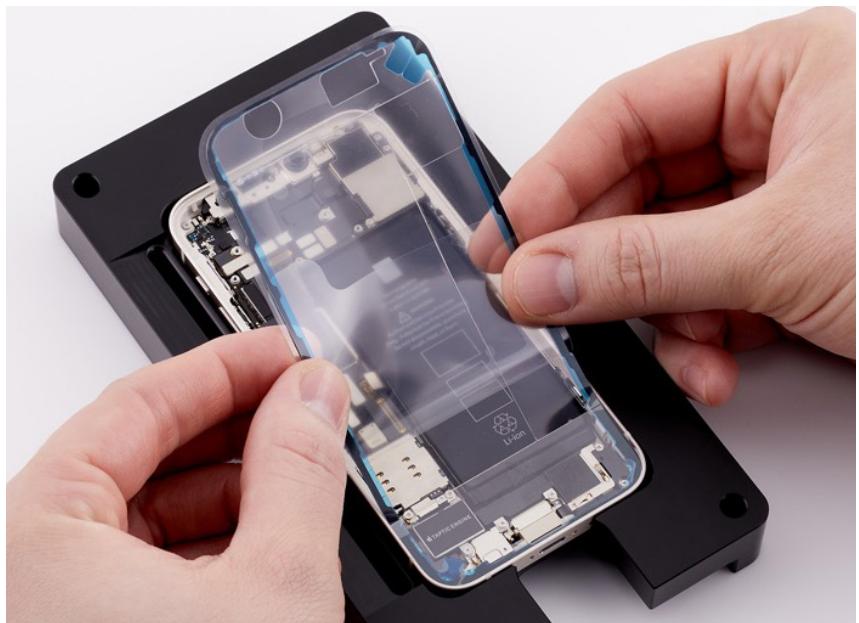
- The replacement display adhesive has a top release liner, a middle release liner, and a bottom release liner. Grasp the tab from the bottom release liner. Then slowly pull the bottom release liner (1) out from under the adhesive (2) while pressing the adhesive onto the enclosure.
Important
Don't remove the top release liner yet.
natural_image
Stacked diagram of a container with three numbered layers (1, 2, and an unlabeled top layer), no text or symbols present.
Bottom release liner

Adhesive
Note: The replacement display adhesive for your model may look different from the illustration, but the steps are the same.
natural_image
Close-up of hands installing or adjusting an open smartphone into a black case (no visible text or symbols)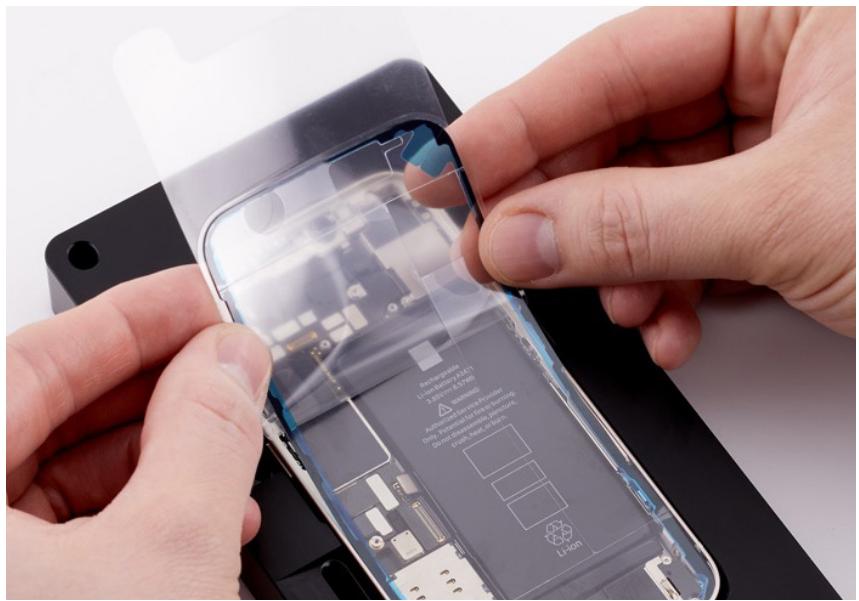
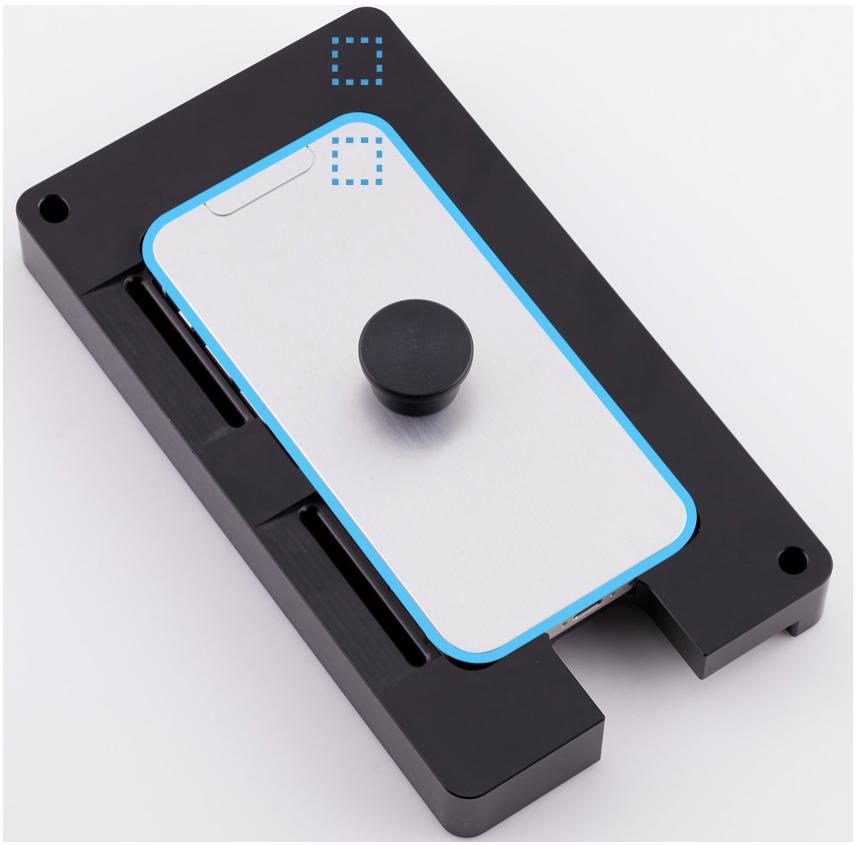
- Place the display adhesive press plate on top of the enclosure with the icon in the top right corner as shown.
natural_image
Close-up of a black plastic electronic device casing with a blue-lit central component and mounting holes (no text or symbols visible)- Position the repair tray with the iPhone in the display press. Pull down the lever until the display press locks.
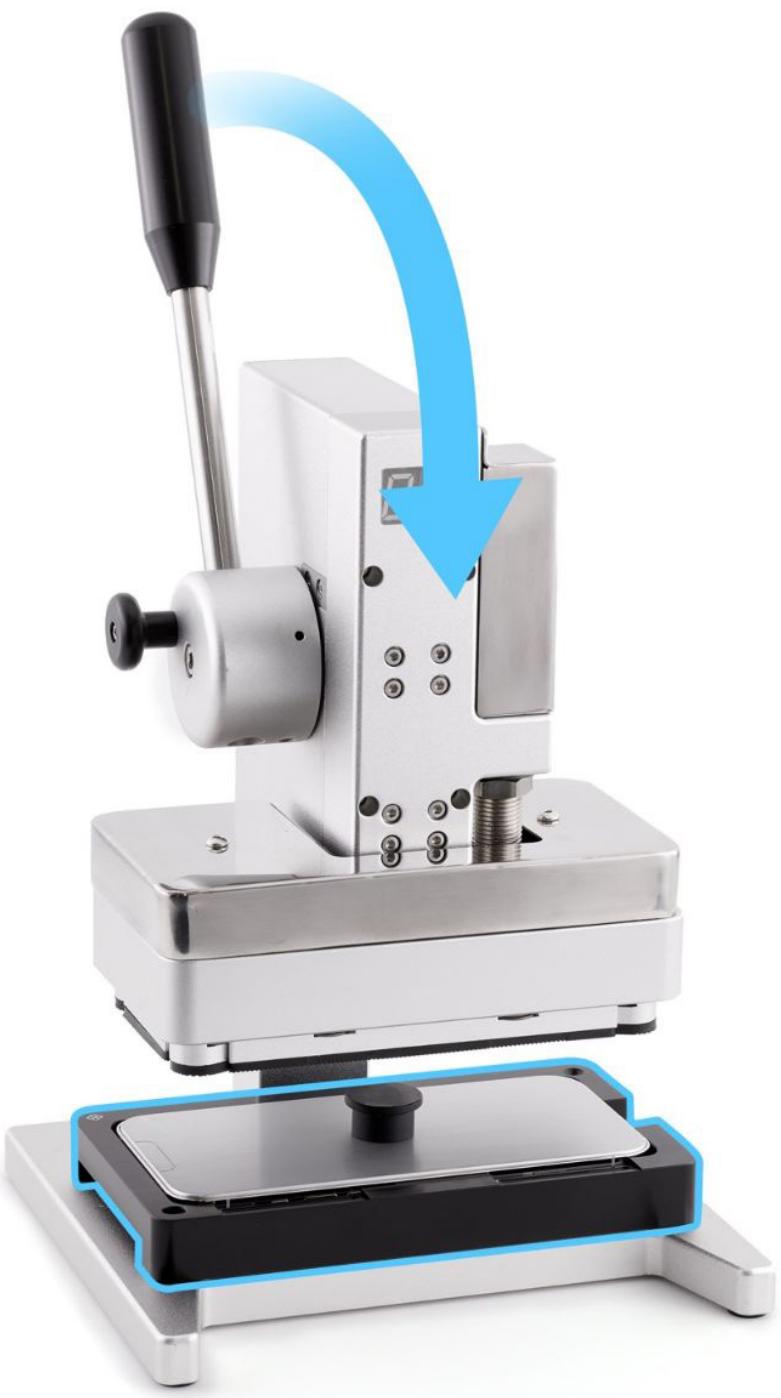
natural_image
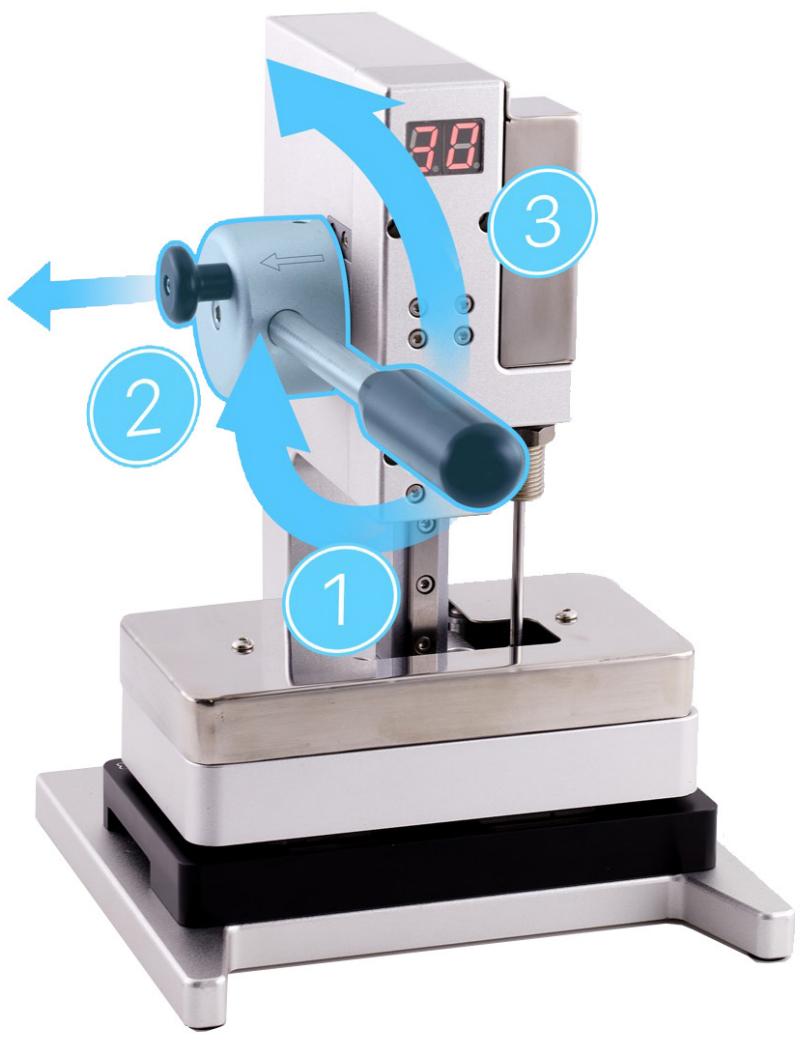
Mechanical pressor device with a blue arrow indicating compression or disassembly process (no text or symbols visible)- Wait until the timer on the display press beeps. Pull down the lever (1) and pull out the release knob (2). Then lift the lever (3).
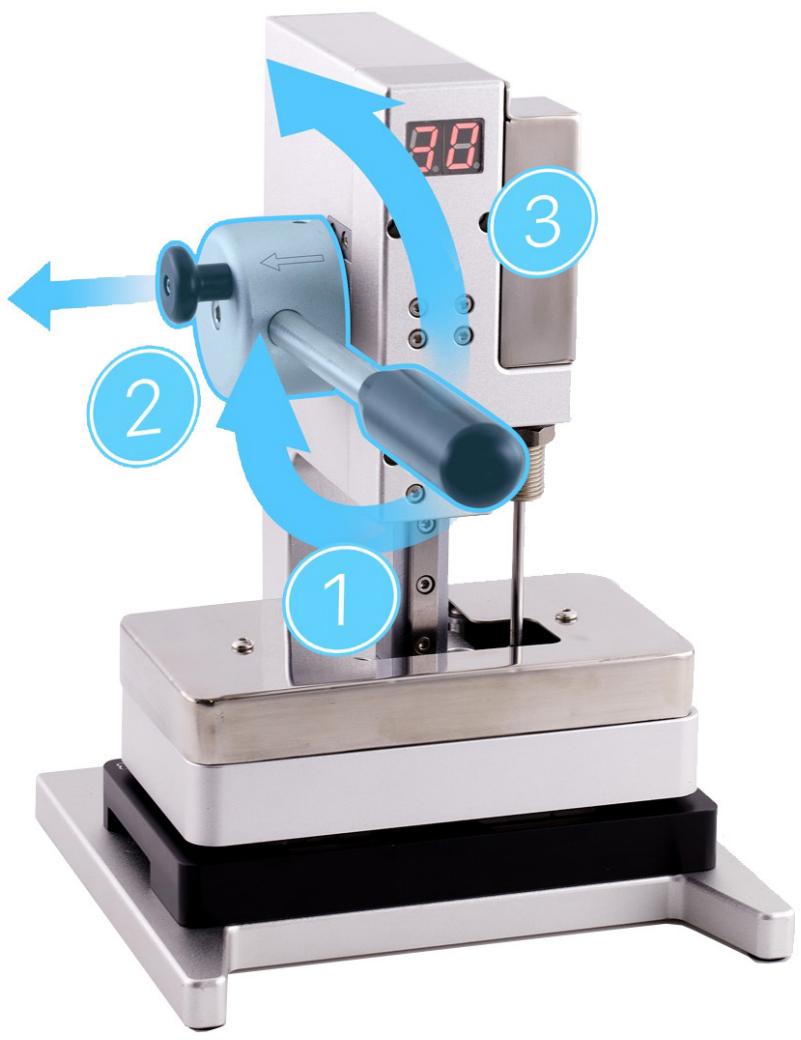
-
Remove the repair tray from the display press and remove the press plate.
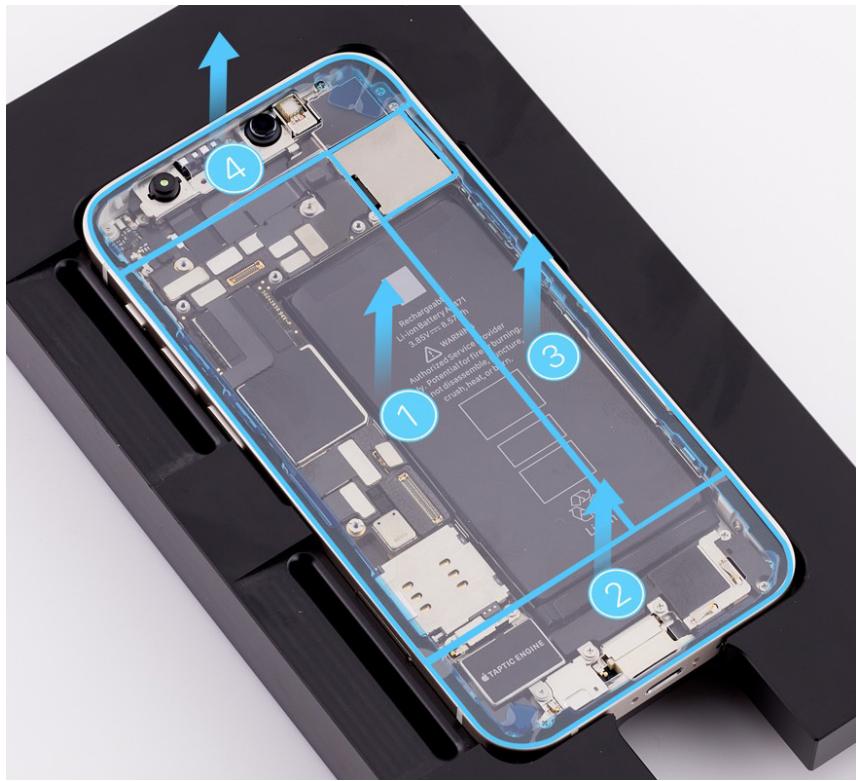
-
Remove the center section of the top release liner first (1). Then remove the three sections running along the bottom (2), right (3), and top (4).
Important
Don't remove the middle release liner strips yet.
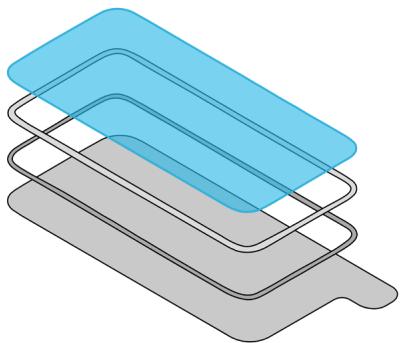
natural_image
Stacked rectangular shapes in blue and gray, no text or symbols presentTop release liner
- Insert the suction cups into the repair tray.
- Align the left edge of the display with the left edge of the enclosure as shown. Gently press along the edges of the display to secure it to the suction cups.
- Press the ends of the receiver flex cable (1) and display flex cable (2) to the connectors. Press evenly along the length of each connector.
- Press the end of the battery flex cable to the connector (3). Press evenly along the length of the connector.
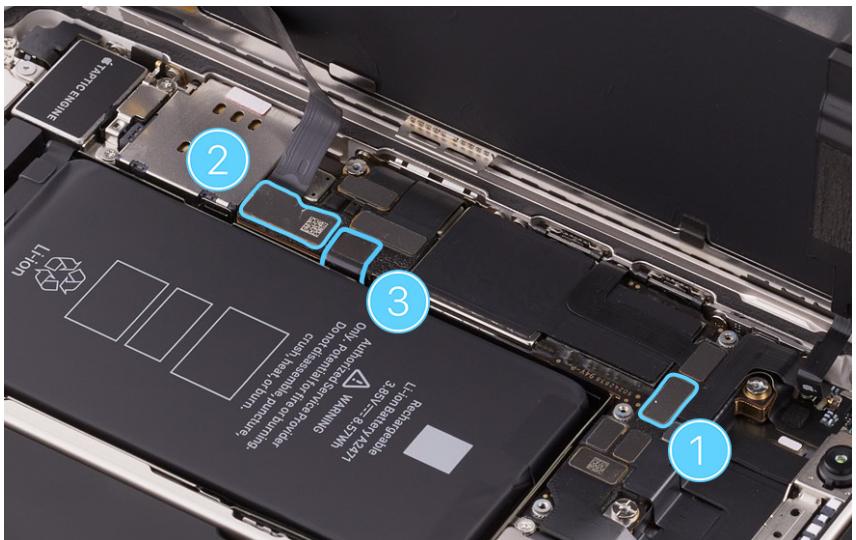
- Use ESD-safe tweezers to position the lower cowling over the ends of the display and battery flex cables.
- Use the black torque driver and Micro stix bit to install one new trilobe screw into the lower cowling.
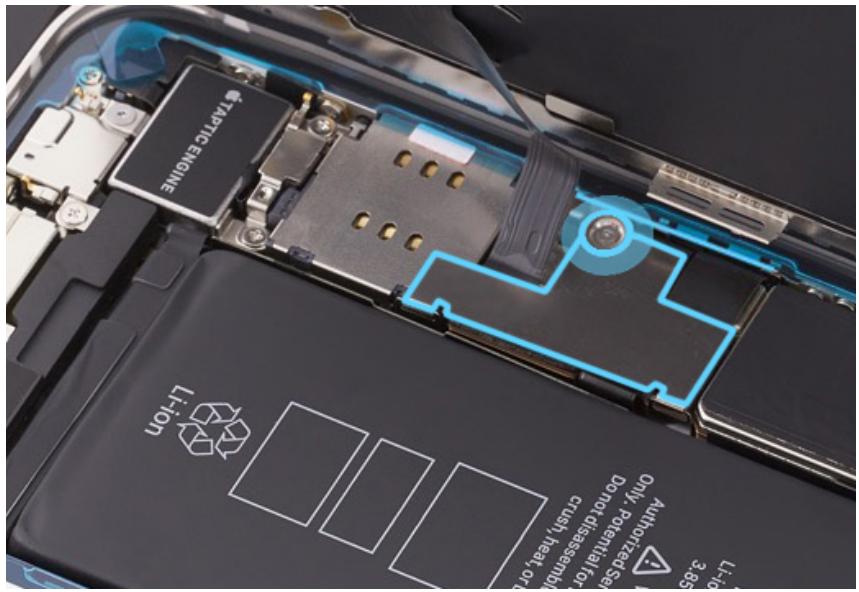
-
Use ESD-safe tweezers to position the upper cowling over the end of the receiver flex cable.
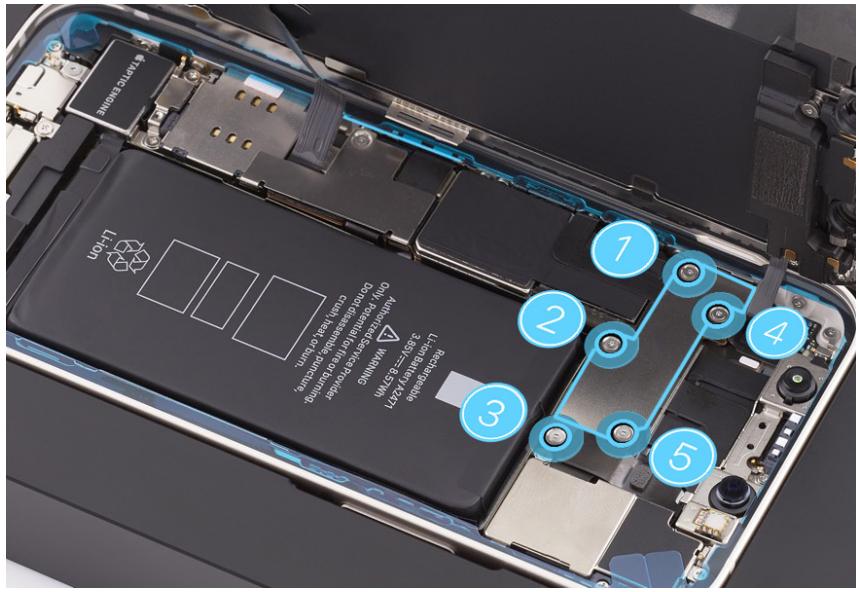
-
Use the black torque driver and Micro stix bit to install five new trilobe screws into the upper cowling in the order shown.
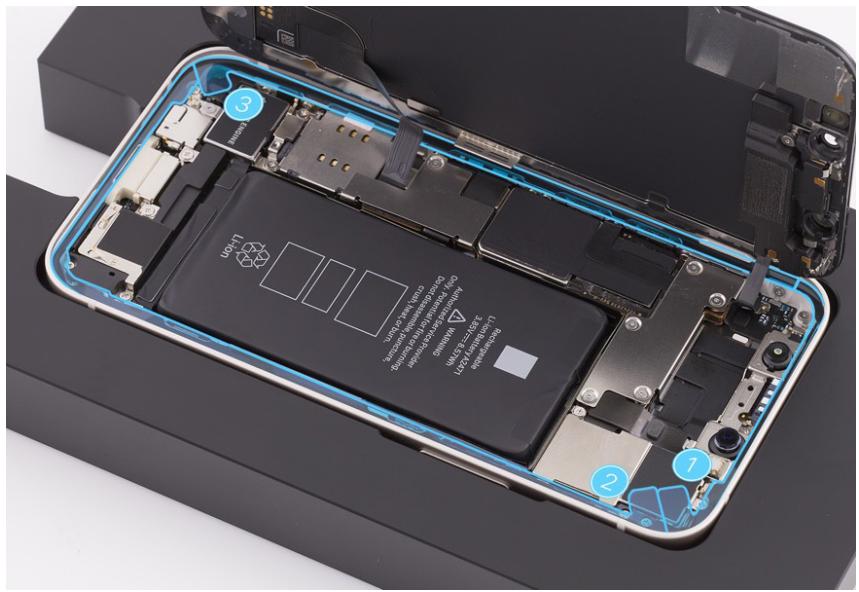
- Peel the first strip from the middle release liner (1) counterclockwise, starting at the top right of the enclosure. Peel the second strip (2) clockwise, starting at the top right of the enclosure. Peel the third strip (3) clockwise, starting at the bottom left of the enclosure.
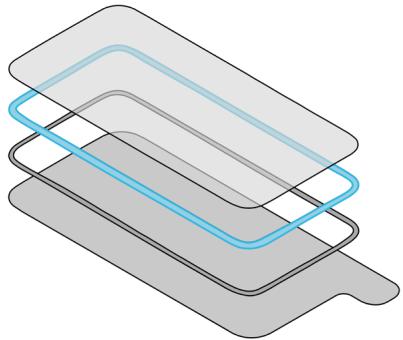
natural_image
Stacked rectangular panels with blue and gray outlines, no text or symbols presentMiddle release liner
natural_image
Internal view of a smartphone showing battery pack, circuit board, and internal components (no text or symbols visible)- Inspect the display adhesive to ensure that it's in the correct position and not damaged or wrinkled. If the adhesive is damaged, remove it and apply replacement adhesive.
- Repeat step 3 to ensure that the TrueDepth camera is in the correct position. Then continue to step 22.

Warning
Inspect the enclosure for loose or extra screws and small parts, which can damage the battery and cause safety issues.
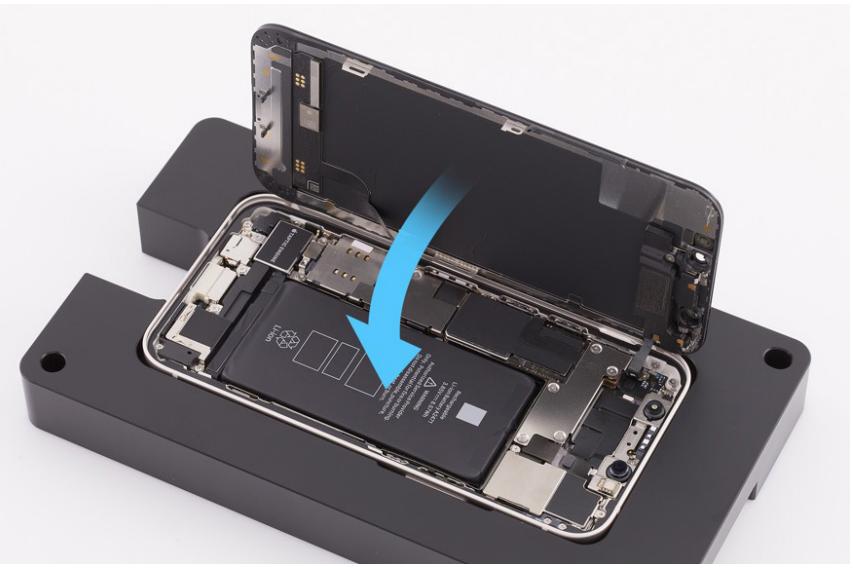
- Pull the tabs on the suction cups to release them from the display. Tilt down the display to rest on the enclosure.
natural_image
Interior view of an open black electronic device with exposed internal components and a blue arrow indicating the process (no text or symbols visible)-
Remove the suction cups from the repair tray.
-
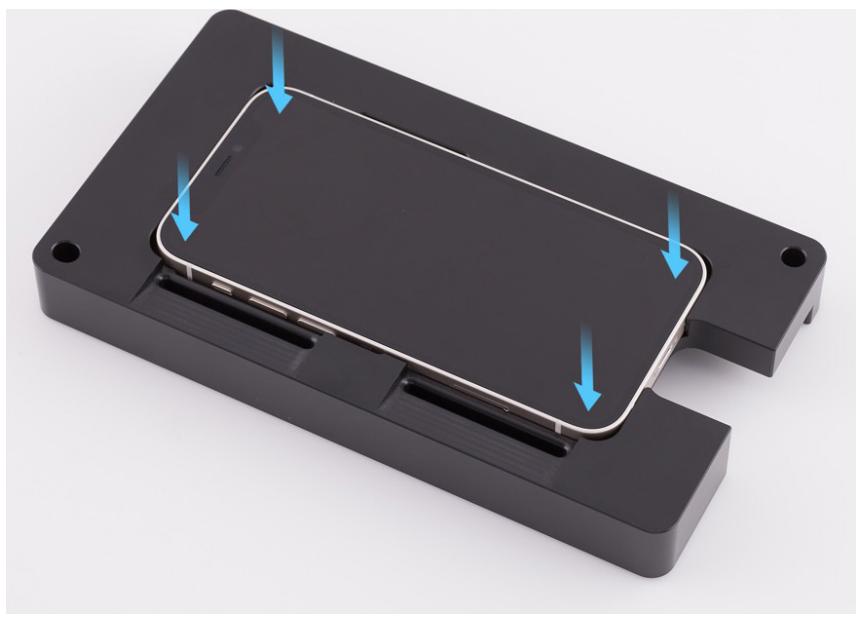
Press all four corners of the display simultaneously. Then press along the edges of the display until you hear a click and the display is flush with the enclosure.
natural_image
3D rendering of a black plastic electronic device casing with blue arrows indicating internal components (no text or symbols)
Caution
Ensure that the flex cables aren't trapped between the display and the enclosure. Feel the edges of the display for variations or gaps. If the display isn't flush, repeat all removal steps and check the flex cables for damage. Then repeat reassembly steps 1 through 24.
Raised edges

natural_image
Close-up of a computer monitor rear panel showing status LEDs and control buttons (no text or symbols visible)Edges in correct position

natural_image
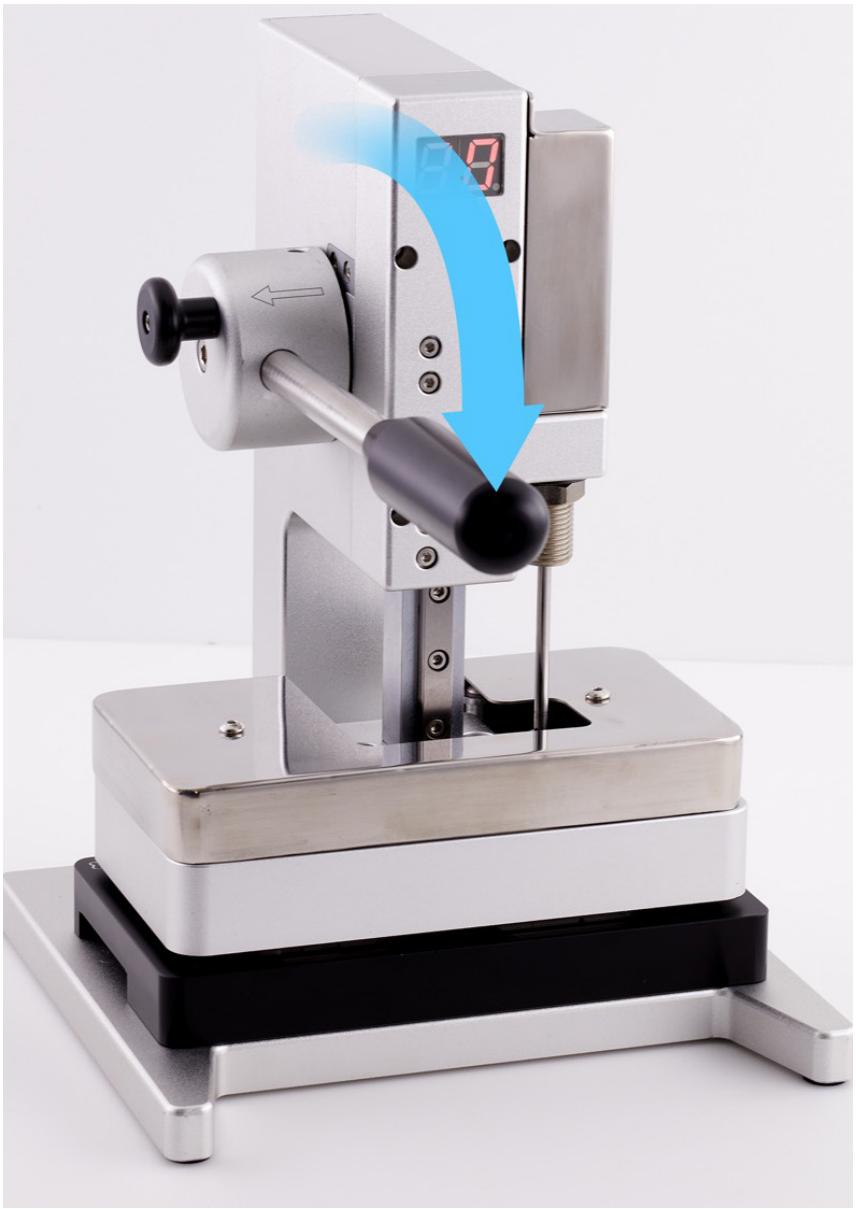
Close-up of a computer drive casing with indicator lights and a green highlight (no text or symbols visible)- Position the repair tray with the iPhone in the display press. Pull down the lever until the display press locks.
natural_image
Laboratory instrument with blue arrow indicating motion, no visible text or symbols- Wait until the timer on the display press beeps. Pull down the lever (1) and pull out the release knob (2). Then lift the lever (3).
-
Remove the repair tray from the display press.
-
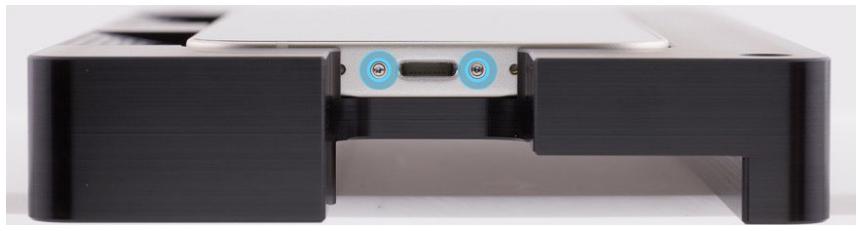
Use the gray torque driver and Torx security bit to install two new security screws, one on each side of the Lightning connector. As you install the screws, press lightly on the display near the Lightning connector.
natural_image
Close-up of a black electronic device with two blue circular buttons on its side (no text or symbols visible)Caution
If the screws aren't flush, remove and discard the screws. Repeat step 28 to install another new set of screws. If the new screws still aren't flush, repeat all removal and reassembly steps.
Important
- System Configuration is required if you've installed a replacement display, battery, or camera. Disregard notifications about iPhone features on the Lock Screen until you complete System Configuration.
- After you've completed all removal and reassembly steps, learn how to initiate the System Configuration process at support.apple.com/self-service-repair.
Battery
Before You Begin

Warning
- A battery should be replaced only by individual technicians with the knowledge and experience to repair electronic devices. Improper battery replacement, improper handling of parts, or failure to follow the provided instructions could result in fire, injury, data loss, or damage to the device, parts, or other property.
- Read Battery Safety and follow workspace and battery handling guidelines before you begin.
Remove the following part before you begin:
- Display
Tools
• 5.4-inch repair tray
- Battery press
• ESD-safe cleaning solution
• ESD-safe tweezers
- Ethanol wipes or isopropyl alcohol (IPA) wipes
- Heat-resistant gloves
• Nitrile or lint-free gloves
• Nylon probe (black stick)
• Safety glasses with side shields
- Sand
- Sand container
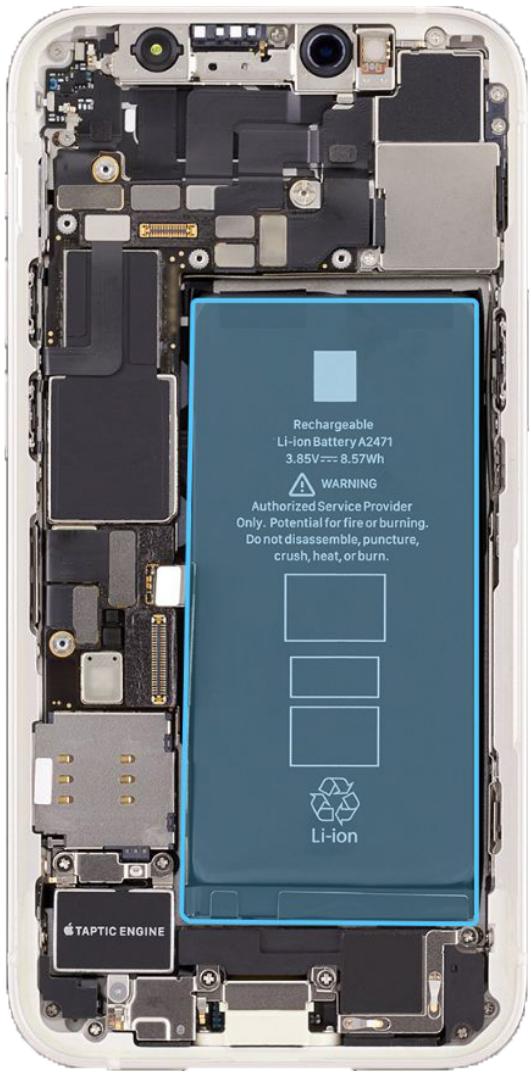

Caution
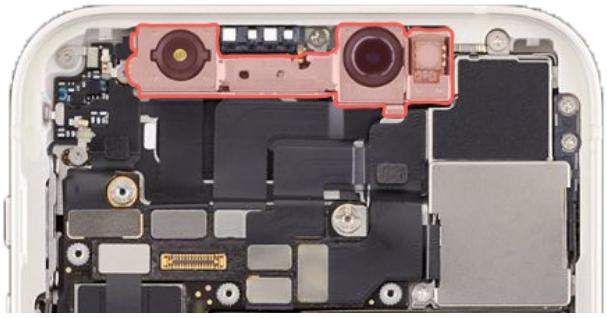
To avoid damaging the lenses, don't touch the TrueDepth camera assembly or nearby parts.
natural_image
Internal view of an iPhone showing the circuit board with visible components and a red highlight on the top (no text or symbols present)Important
This procedure requires System Configuration. After you've completed all removal and reassembly steps, learn how to initiate the System Configuration process at support.apple.com/self-service-repair.
Removal
-
Place the enclosure in the repair tray with the Lightning connector facing the cutout.
-
Use ESD-safe tweezers to grasp the bottom right battery adhesive tab and gently peel it from the battery.

Warning
Don't scrape or puncture the battery with the tweezers.
Important
Peel the adhesive tab completely away from the battery before continuing to step 3.
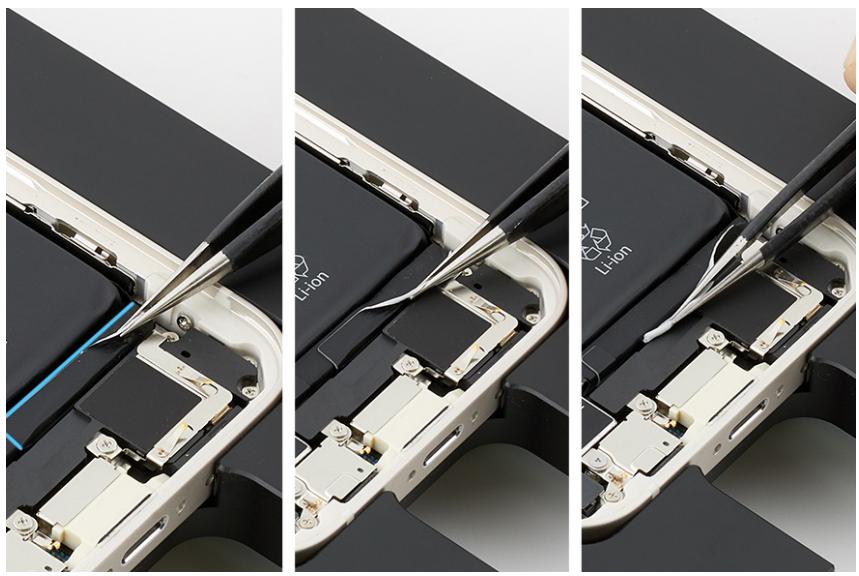
natural_image
Three-panel photo showing a battery assembly with exposed internal components and soldering tools (no text or symbols visible)- Hold down the iPhone. Use ESD-safe tweezers to grasp the battery adhesive tab. As the strip stretches, twist the tweezers to wrap the battery adhesive around them.
Important
- Hold the tweezers close and parallel to the battery as you twist.
- Ensure that the white adhesive is wrapped around the tweezers before you start to pull the adhesive strip.
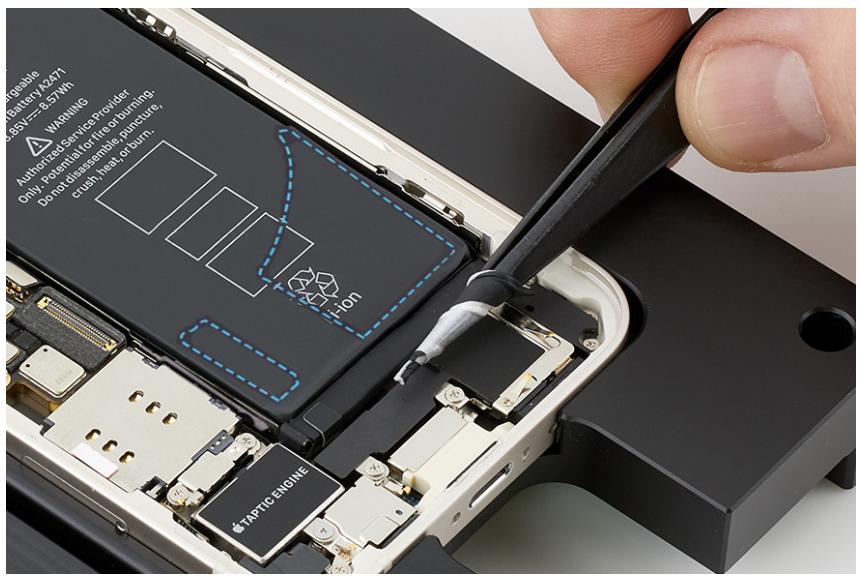
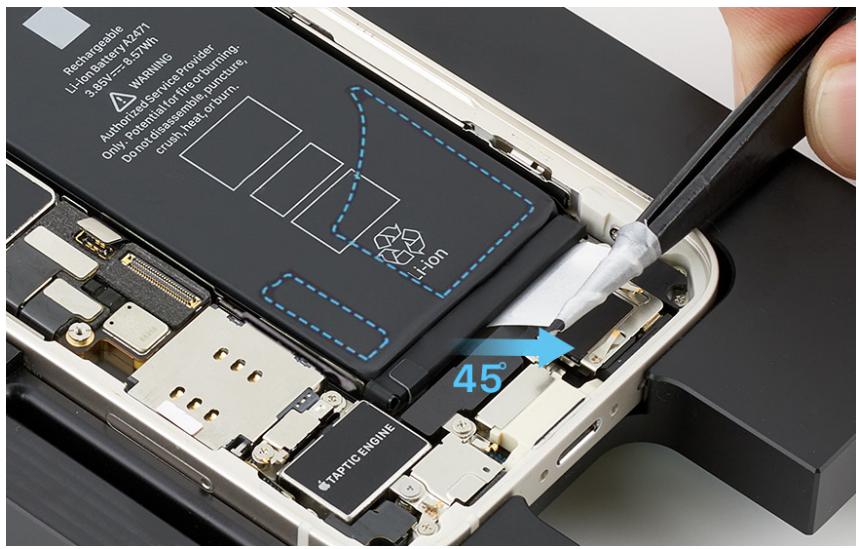
- Pull the tweezers outward at a 45-degree angle and continue to twist the adhesive strip until you've removed the entire strip.

Caution
Don't pull the adhesive strip against parts or screws.
Important
If the battery adhesive tab or strip breaks off and you can still see it, attempt to retrieve it with the tweezers. Wrap the tab or strip around the tweezers and repeat steps 3 and 4. If you can't see the tab or strip, continue to step 5.
- Use ESD-safe tweezers to grasp the bottom left battery adhesive tab and gently peel it away from the battery.
Important
Peel the adhesive tab completely away from the battery before continuing to step 6.
- Repeat steps 3 and 4 to remove the bottom left adhesive strip from the battery. If you remove the entire strip, continue to step 7.
Important
If the battery adhesive tab or strip breaks off and you can still see it, attempt to retrieve it with the tweezers. Wrap the tab or strip around the tweezers and repeat steps 3 and 4. If you can't see the tab or strip, continue to step 7.
-
Rotate the repair tray and put on the nitrile or lint-free gloves.
-
Use ESD-safe tweezers to gently peel the two battery adhesive tabs from the top of the battery.
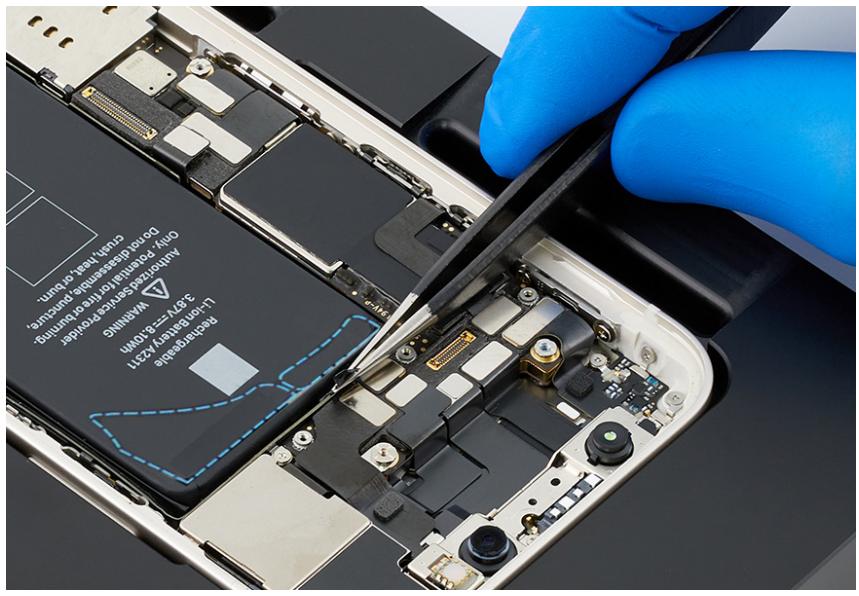
- Hold down the iPhone. Use ESD-safe tweezers to grasp one battery adhesive tab and slowly pull it outward. Twist the tweezers to wrap the battery adhesive strip around them.
Important
- Hold the tweezers close and parallel to the battery as you twist.
- Don't pull the tweezers until the white adhesive is wrapped around them.
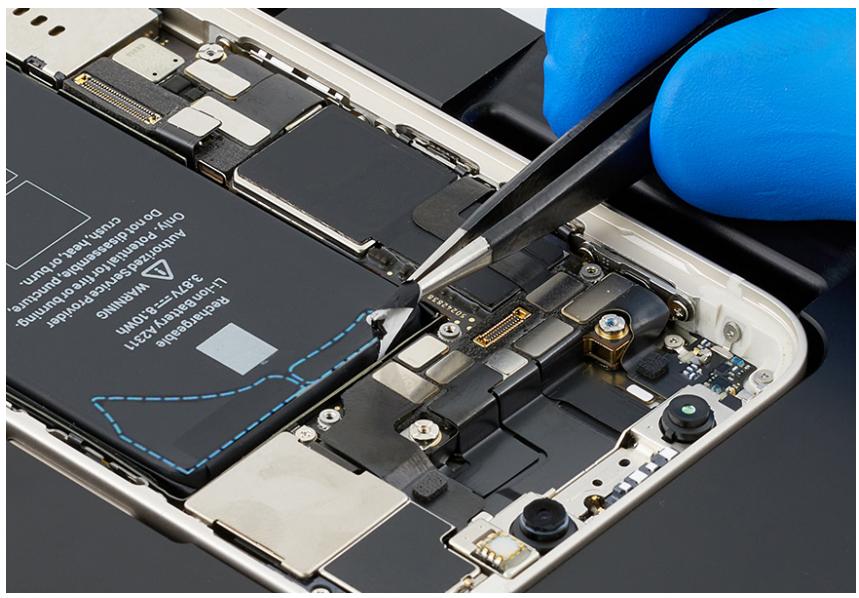
- As the adhesive strip stretches, continue to slowly pull and twist the tweezers until you've removed the entire strip.
Important
If the battery adhesive tab or strip breaks off and you can still see it, attempt to retrieve it with the tweezers. Wrap the tab or strip around the tweezers and repeat step 10. If you can't see the tab or strip, continue to step 11.
- Repeat steps 9 and 10 to remove the remaining battery adhesive strip from the top of the battery. If you remove the entire strip, continue to step 12.
Important
If the battery adhesive tab or strip breaks off and you can still see it, attempt to retrieve it with the tweezers. Wrap the tab or strip around the tweezers and repeat step 10. If you can't see the tab or strip, continue to step 12.
- If all four battery adhesive strips were fully removed, continue to step 14. If at least one strip was fully removed, continue to step 13.

Warning
If all four strips were broken and can't be retrieved, don't forcibly pry the battery. Stop the repair. You can find a service option at support.apple.com/repair.

Caution
When using the black stick to remove the battery from the enclosure, don't damage the flex cables. Don't scrape, rip, tear, or otherwise damage the polyester film or other areas. If damage occurs, replace the iPhone.
natural_image
Interior view of a smartphone showing internal circuitry and a red circular overlay (no text or symbols)- Insert the flat end of the black stick into one of the insertion points as shown. Ensure that the black stick is inserted into a point where the battery strip has been fully removed. Don't insert the black stick into a point where the battery tab or strip is broken.
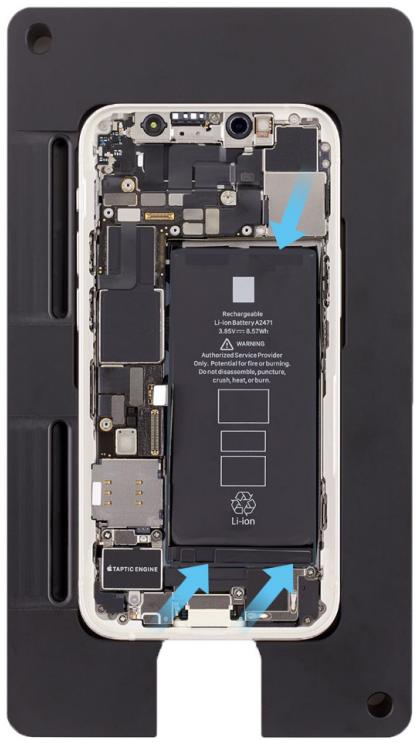
- Slightly lift the battery with the black stick just enough to grasp underneath the battery.

Caution
To avoid damage, don't press the black stick on the edge of the enclosure as you lift the battery.
- Remove the battery from the enclosure. Then inspect the enclosure for damage. If the enclosure is damaged, replace the iPhone.

Warning
If you can't remove the battery, stop the repair. You can find a service option at support.apple.com/repair.
Reassembly
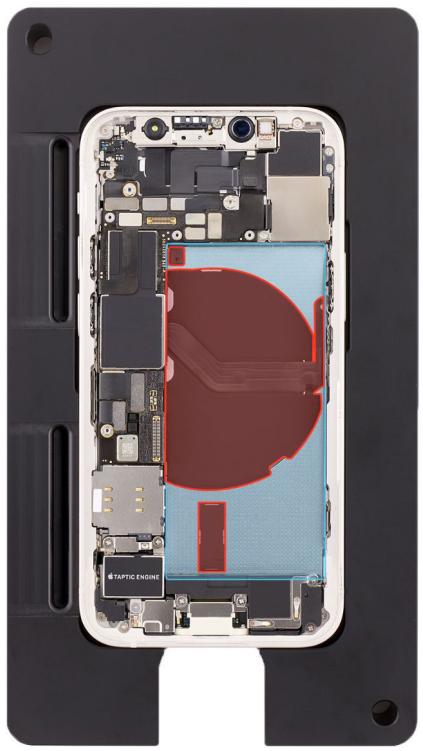
- Use ethanol wipes or IPA wipes on the area shown in blue to remove any remaining adhesive from the enclosure.

Caution
Don't use ethanol wipes or IPA wipes on the areas shown in red. Ethanol or isopropyl alcohol may damage the polyester film and wireless charging unit.

Warning
Inspect the enclosure for loose or extra screws and small parts, which can damage the battery and cause safety issues.
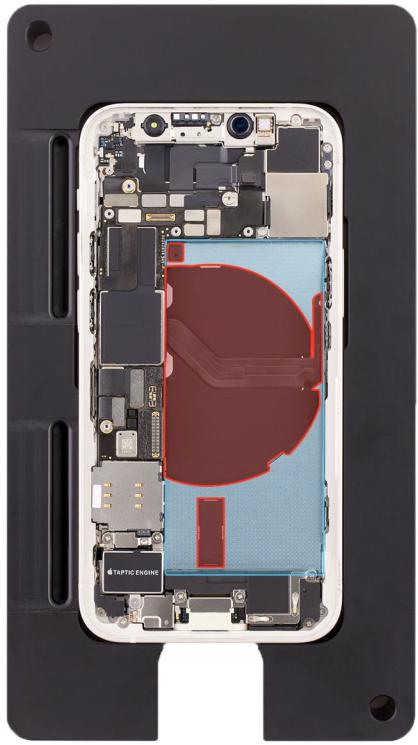
- Peel the pink release liner from the underside of the replacement battery.
Important
Don't remove the battery protective cover from the top of the battery yet.
natural_image
Internal view of a smartphone showing internal circuitry and components (no text or symbols visible)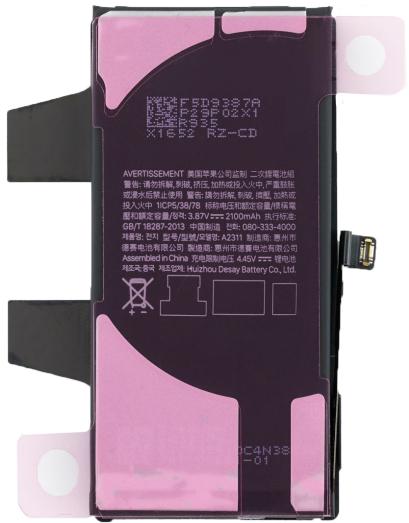
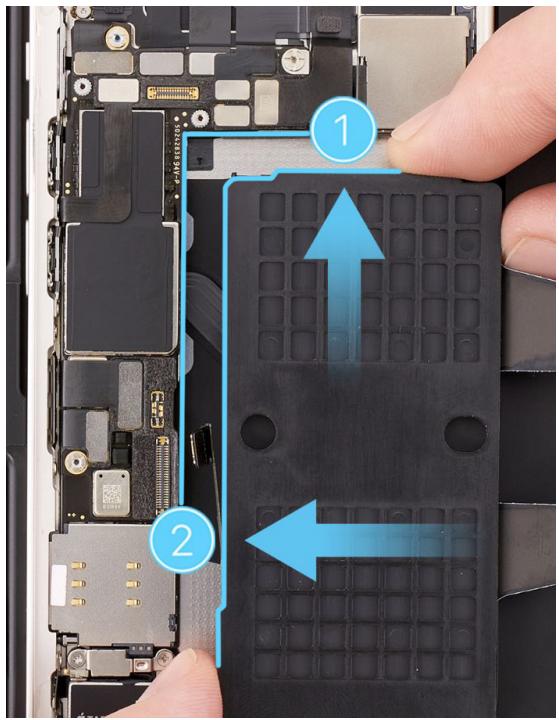
- Hold the battery over the enclosure with the protective cover faceup. Align the top of the battery with the cameras (1) and the left edge with the logic board (2). Then lower the battery into the enclosure.
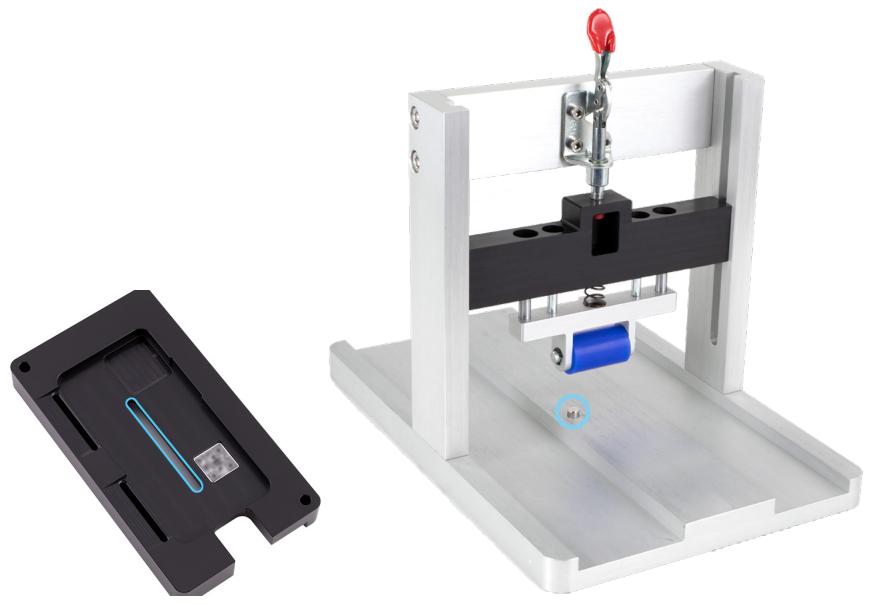
- The center of the repair tray has a slot. Position the repair tray and enclosure onto the battery press with the slot over the pin.
natural_image
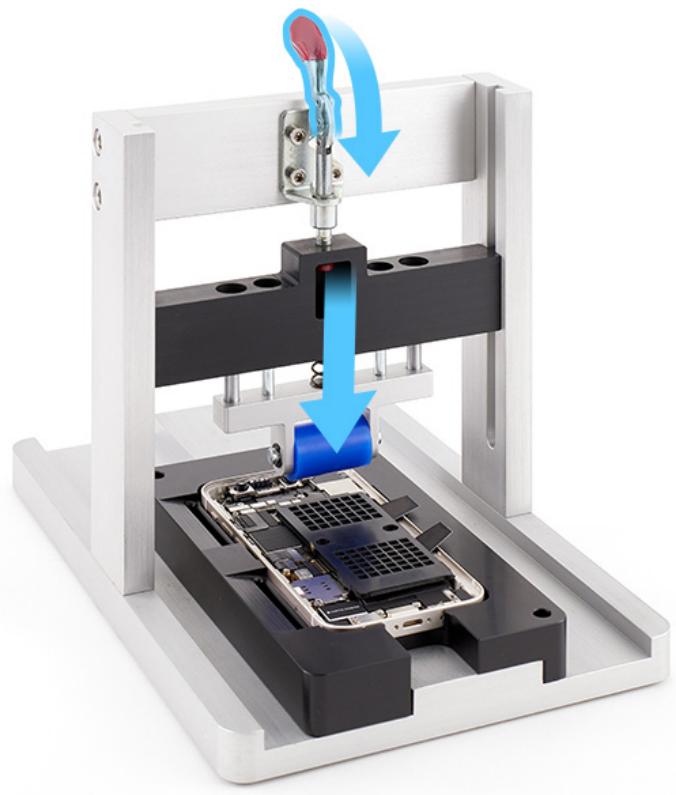
3D rendering of a mechanical testing device with a blue spring and red lever, shown alongside an open black plastic housing (no text or symbols visible)- Flip down the red lever to lower the roller onto the battery.
natural_image
Mechanical testing setup with blue arrows indicating compression or disassembly process (no text or symbols visible)- Slide the repair tray back and forth through the battery press three times to adhere the battery to the enclosure.
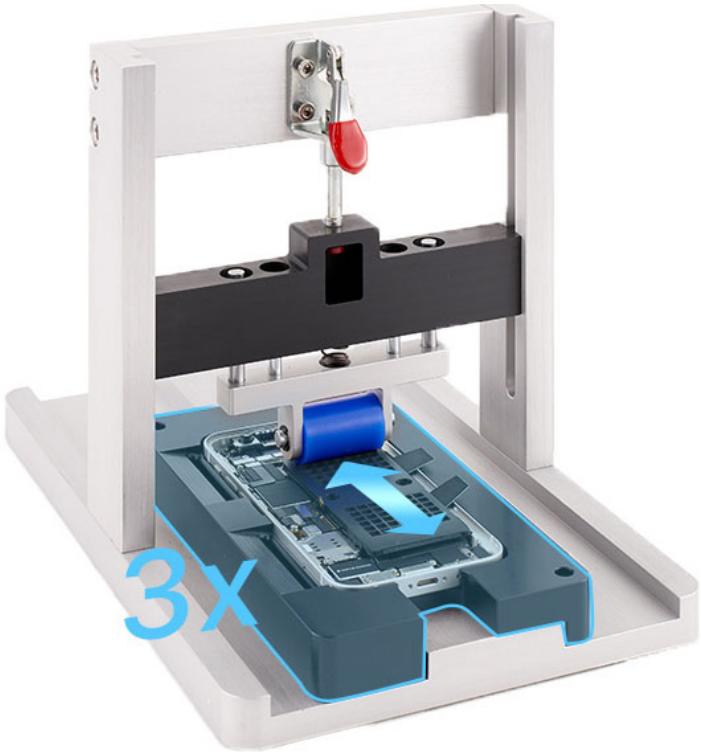
natural_image
3D rendering of a mechanical testing machine with internal components and a blue arrow indicating motion (no text or symbols)- Flip up the red lever.

natural_image
Mechanical assembly diagram showing a device with a blue arrow indicating motion, no text or symbols present- Remove the repair tray from the battery press.
- Hold the edges of the protective cover. Pull the release tabs on the protective cover to remove the cover from the battery.
Important
Don't press the area over the tab you're releasing.
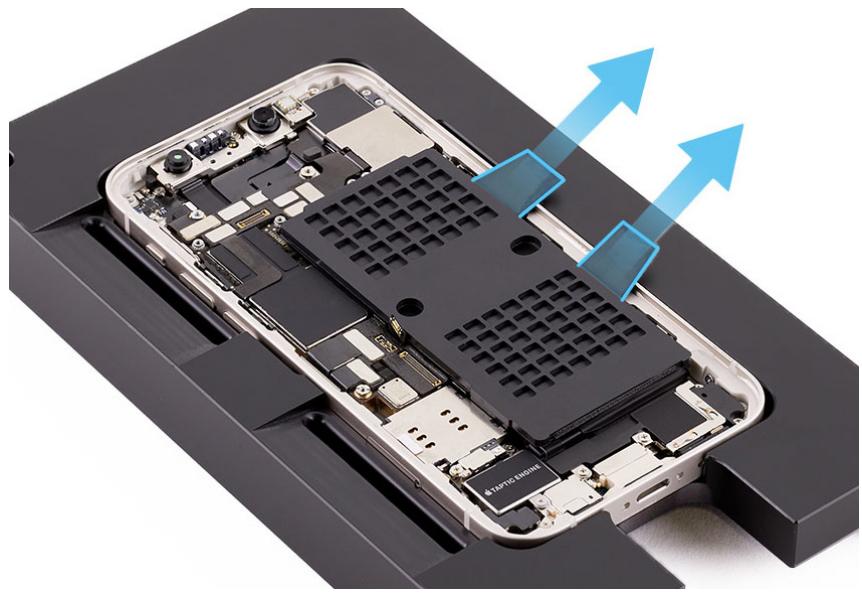
natural_image
Internal view of a smartphone internal structure showing exposed circuit boards and memory components, with blue arrows indicating upward motion (no text or symbols)Reinstall the following part to complete reassembly:
- Display

Warning
Gently shake the iPhone. If the battery sounds loose, remove the display and the battery. Then complete battery reassembly with another replacement battery.
Important
After you've completed all removal and reassembly steps, learn how to initiate the System Configuration process at support.apple.com/self-service-repair.
Camera
Before You Begin

Warning
Read Battery Safety and follow workspace and battery handling guidelines before you begin.
Remove the following part before you begin:
- Display
Tools
• 5.4-inch repair tray
• ESD-safe tweezers
- JCIS bit
• Nitrile or lint-free gloves
- Nylon probe (black stick)
• Torque driver (gray, 0.55 kgf cm)
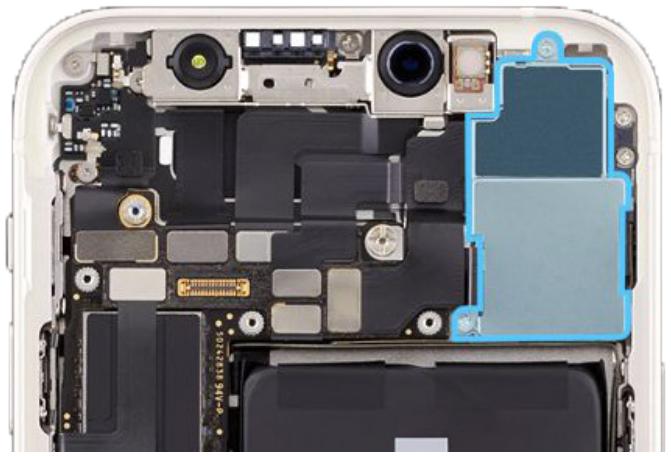
natural_image
Internal view of a smartphone showing circuit board, camera, and display components (no text or symbols visible)
Caution
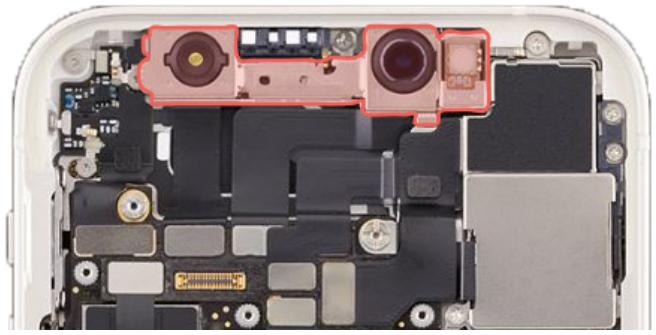
- To avoid damaging the lenses, don't touch the TrueDepth camera assembly or nearby parts.
- Avoid the grounding springs on the camera cowling and enclosure.
natural_image
Close-up of an open iPhone showing internal components and a red highlighted camera (no text or symbols visible)Important
This procedure requires System Configuration. After you've completed all removal and reassembly steps, learn how to initiate the System Configuration process at support.apple.com/self-service-repair.
Removal
-
Place the enclosure in the repair tray with the Lightning connector facing the cutout.
-
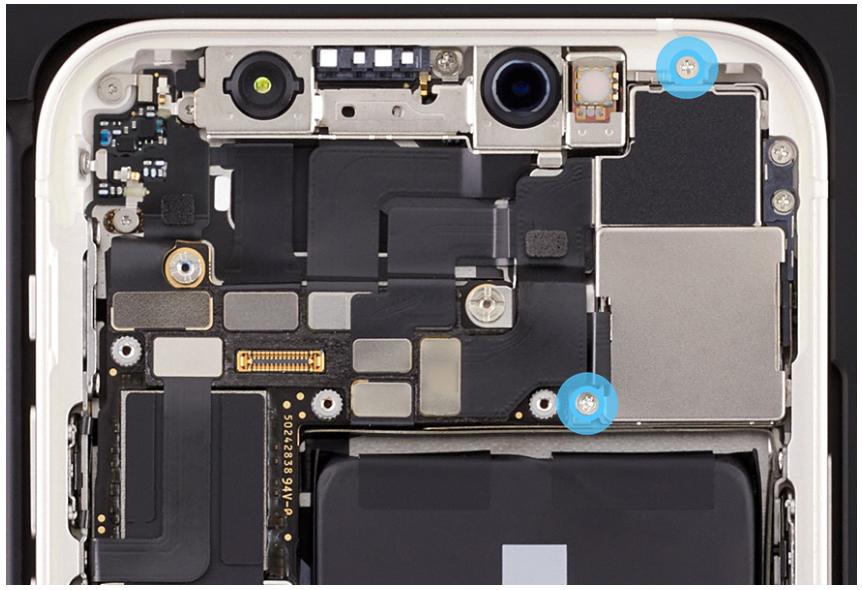
Use a torque driver and the JCIS bit to remove the two crosshead screws from the camera cowling. Set aside the screws.
natural_image
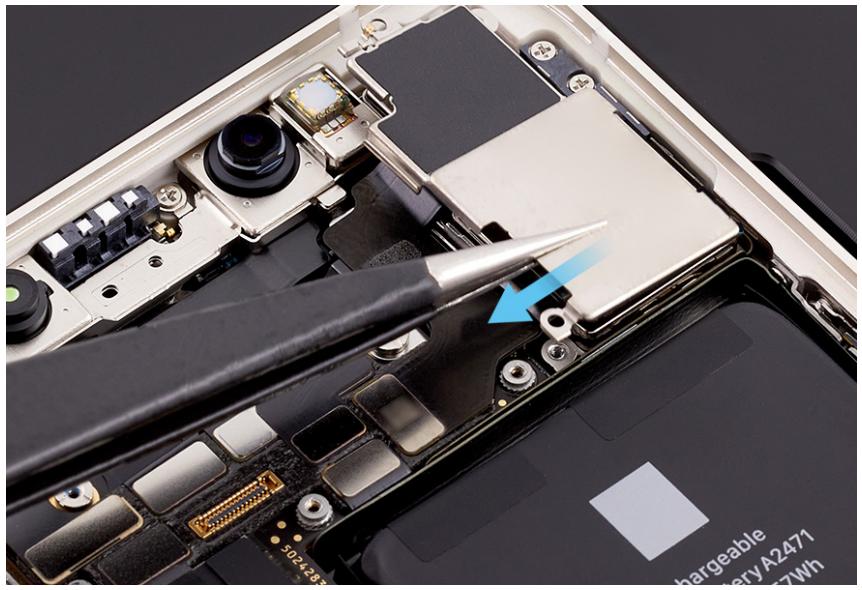
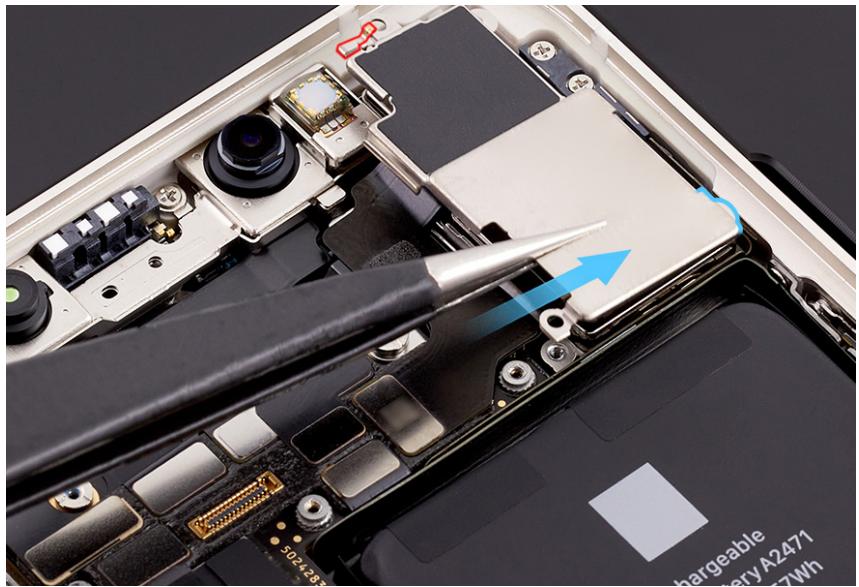
Internal view of a smartphone showing internal circuit board and camera (no text or symbols visible)- Use ESD-safe tweezers to tilt up the left side of the camera cowling as shown. Then slide the camera cowling out of the enclosure. Save the cowling for reassembly.
natural_image
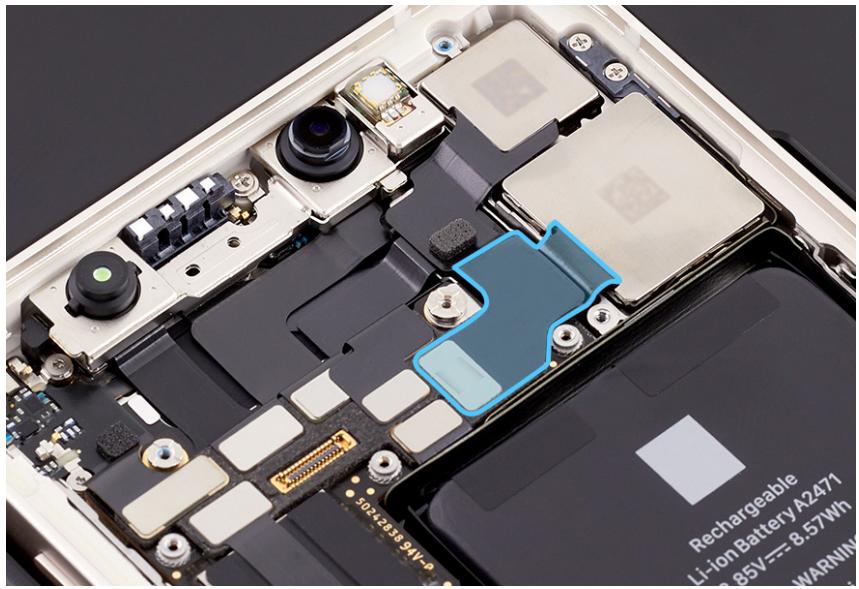
Close-up of an open smartphone motherboard showing internal components and a blue arrow pointing to a component (no readable text or symbols)- Lift the end of the top camera flex cable off the connector.
Note: One camera flex cable covers the other.
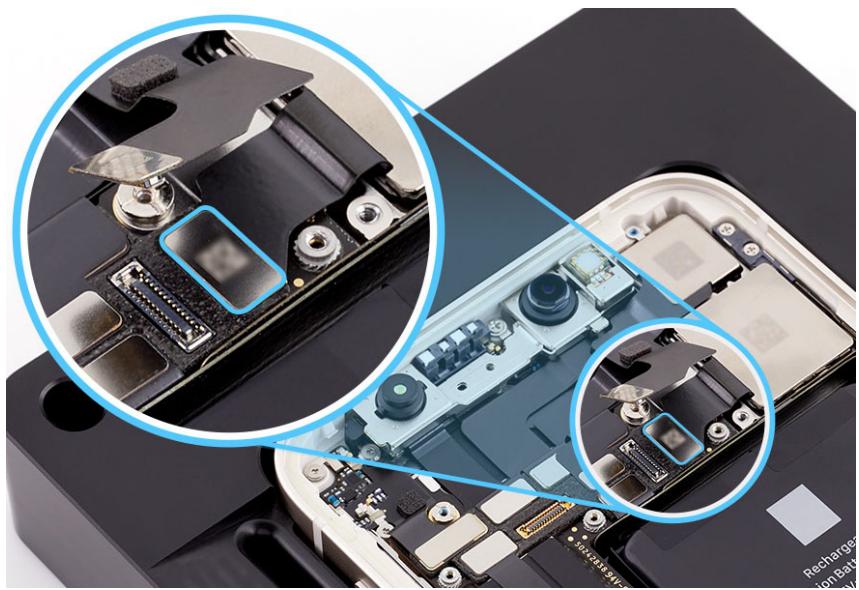
- Lift the end of the bottom camera flex cable off the connector.
natural_image
Close-up of an electronic device showing internal components and a close-up of a camera module (no text or symbols visible)- Remove the cameras from the enclosure.
Reassembly
- Put on the gloves to prevent contamination of the camera lenses. Then hold the replacement cameras with the lenses facedown and remove the protective cover from the camera lenses.
- Position the cameras in the enclosure.
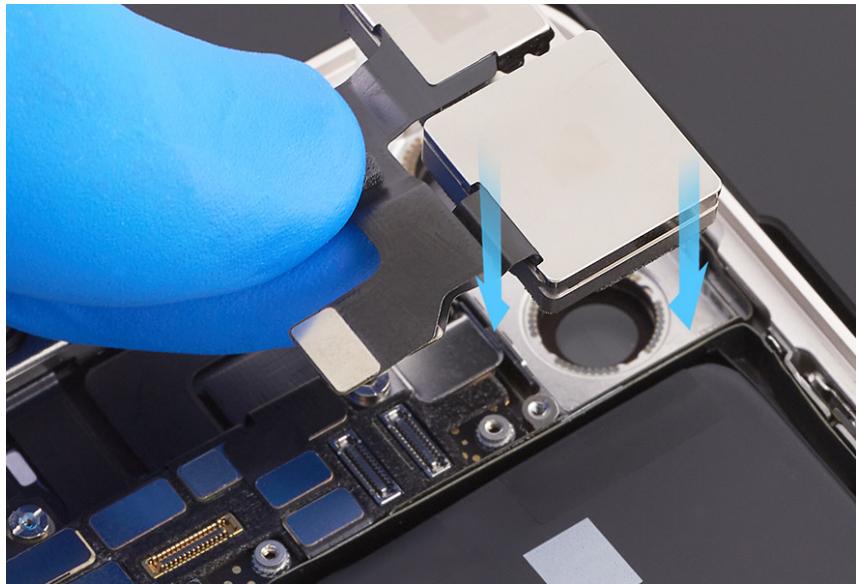
natural_image
Close-up of a blue-handled gloved hand inserting a component into an Apple motherboard (no visible text or symbols)- Press the end of the bottom camera flex cable to the connector.
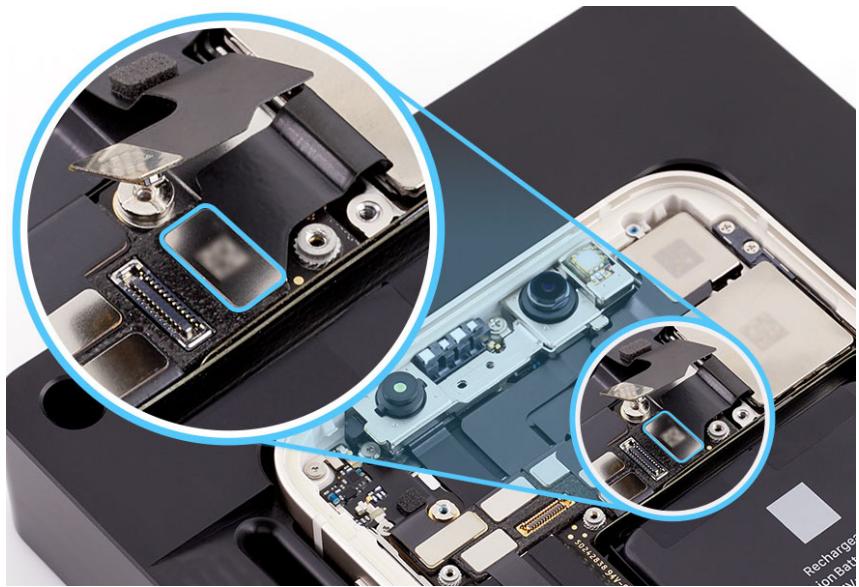
natural_image
Close-up of an electronic device showing internal components and a close-up of a camera module (no text or symbols visible)- Press the end of the top camera flex cable to the connector.
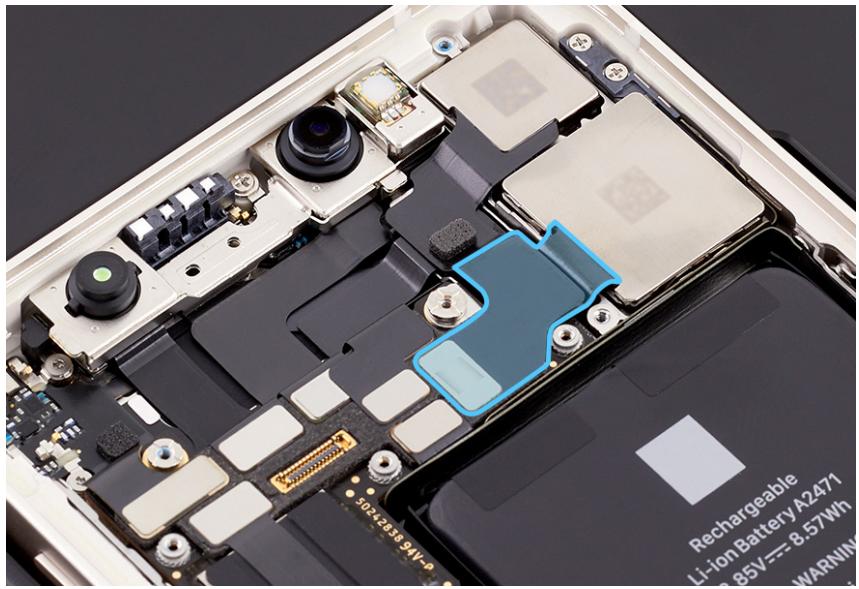
- Lightly press the cameras into the enclosure.
- The camera cowling has tabs that fit into slots under the lip on the right side of the enclosure. Inspect the tabs and grounding spring on the cowling for damage before reassembly.
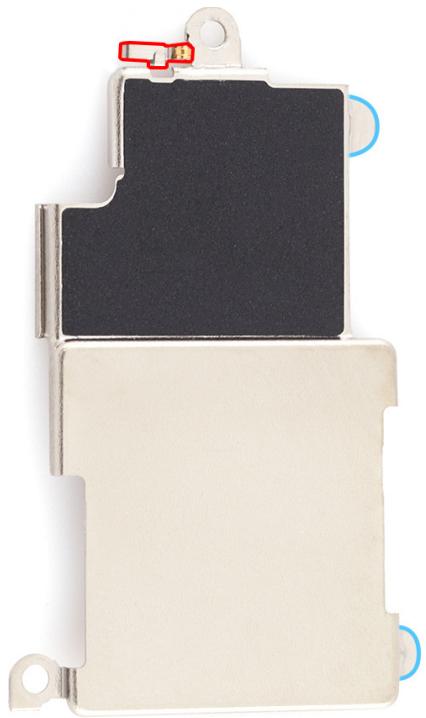
natural_image
Close-up of a metallic electronic device with black and beige panels, showing mounting holes and a small red icon (no text or symbols)- Hold the cowling with ESD-safe tweezers and slide the cowling tabs into the slots. Then lower the cowling onto the cameras.

Caution
- Avoid touching the grounding spring as you reinstall the camera cowling.
- Ensure that the screw cutouts in the camera cowling align with the screw holes in the enclosure. A misaligned camera cowling may affect display image quality.
natural_image
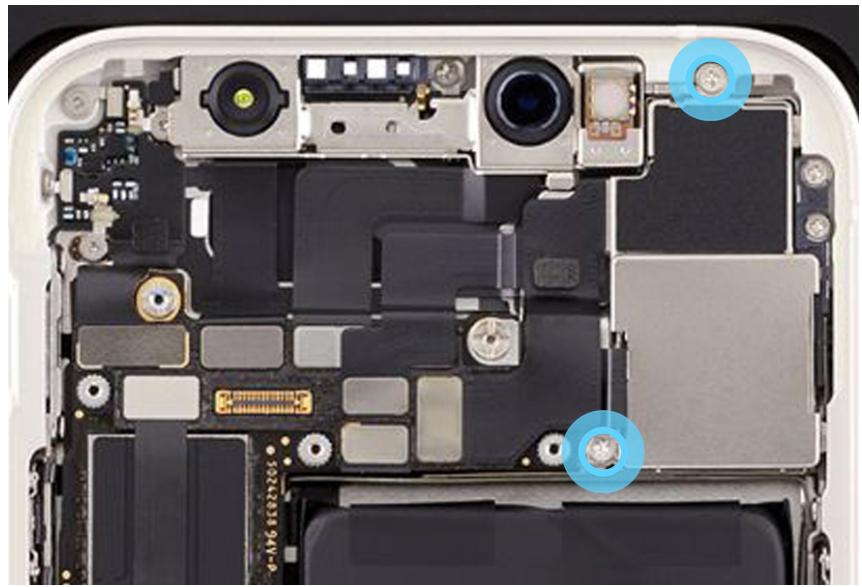
Close-up of an open iPhone's internal circuit board with visible components and a blue arrow indicating a component (no readable text or symbols)- Use the gray torque driver and JCIS bit to install two new crosshead screws into the camera cowling.
natural_image
Close-up of an open smartphone motherboard showing exposed components and a camera (no text or symbols visible)Reinstall the following part to complete reassembly:
- Display
Important
After you've completed all removal and reassembly steps, learn how to initiate the System Configuration process at support.apple.com/self-service-repair.
Speaker
Before You Begin

Warning
Read Battery Safety and follow workspace and battery handling guidelines before you begin.
Remove the following part before you begin:
- Display
Tools
• 5.4-inch repair tray
• ESD-safe tweezers
- JCIS bit
- Nylon probe (black stick)
• Torque driver (green, 0.45 kgf cm)

Removal
-
Place the enclosure in the repair tray with the Lightning connector facing the cutout.
-
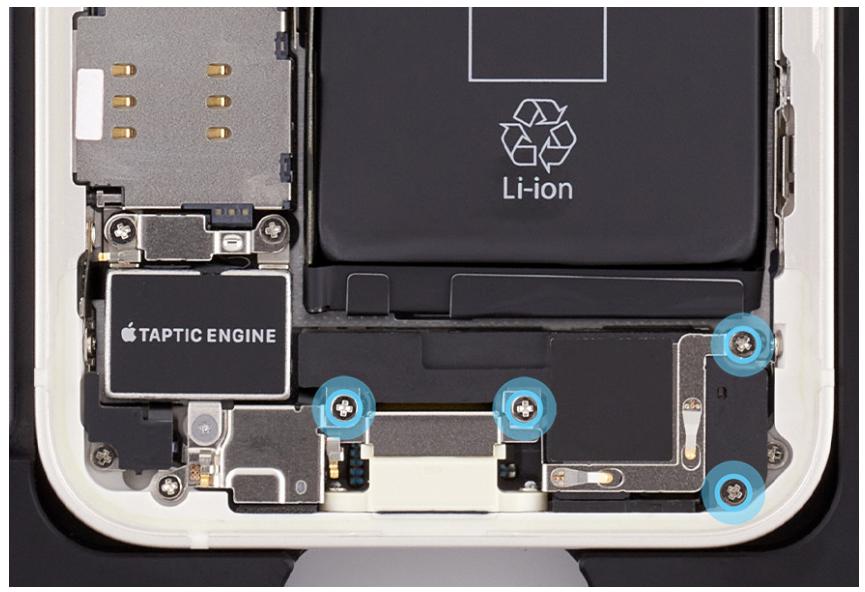
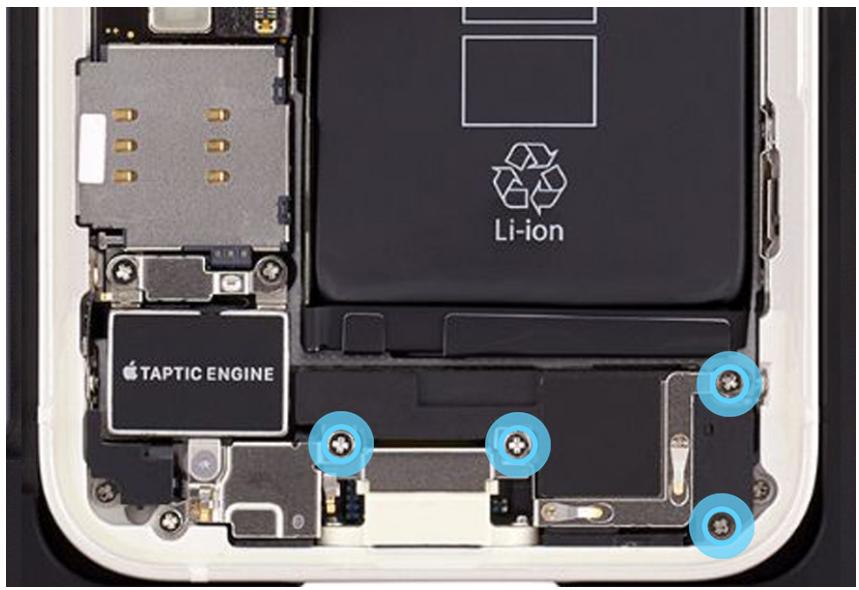
Use a torque driver and the JCIS bit to remove the four crosshead screws from the speaker. Set aside the screws.
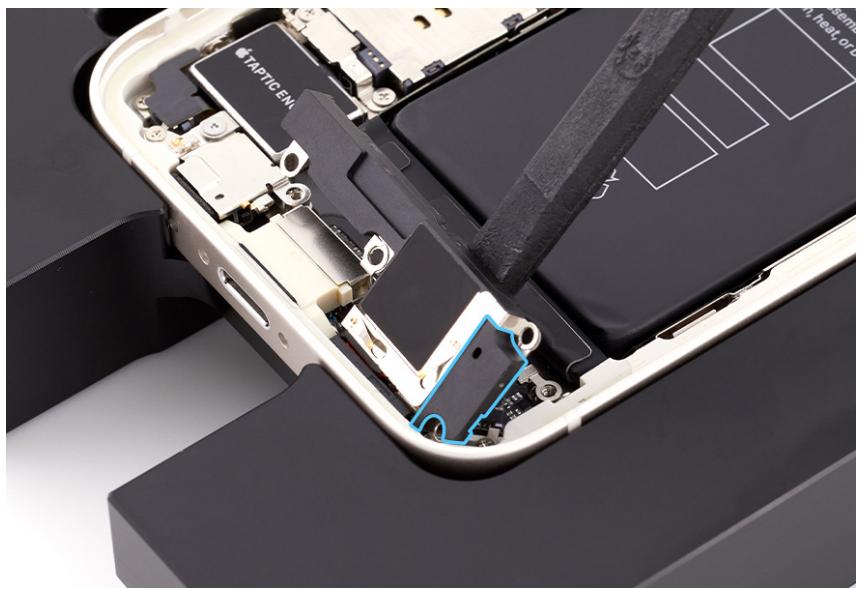
- Use the black stick to tilt up the speaker. Then grasp the area outlined in blue and remove the speaker from the enclosure.
natural_image
Interior view of a smartphone showing internal components and a hand tool interacting with the battery (no visible text or symbols)Reassembly
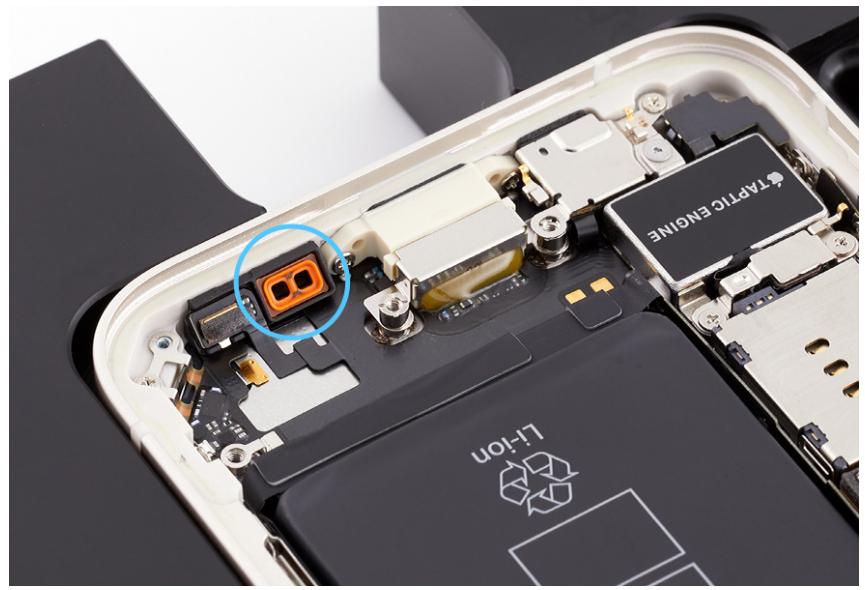
- Rotate the repair tray. Ensure that the rubber gasket is positioned as shown. If the gasket is out of position, use ESD-safe tweezers to reposition it.
natural_image
Internal view of a smartphone showing the internal circuit board with an orange connector and a 'TRACTIC ENGINE' chip (no readable text beyond label)- Insert the speaker into the enclosure.

Caution
Don't damage the grounding springs on the speaker.
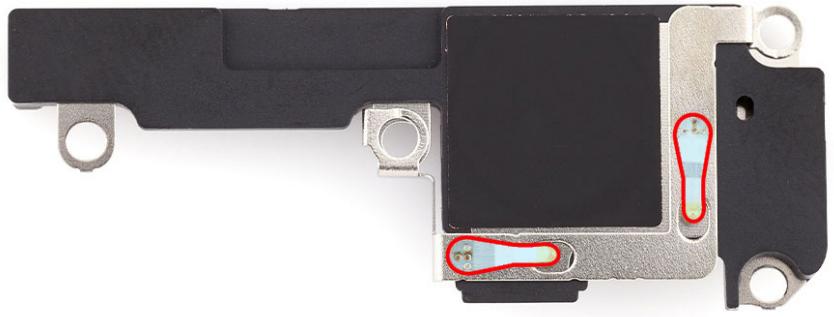
natural_image
Close-up of a black electronic device with metallic components and red-labeled features (no text or symbols visible)- Rotate the repair tray. Use the green torque driver and JCIS bit to install four new crosshead screws into the speaker.
Reinstall the following part to complete reassembly:
- Display
Taptic Engine
Before You Begin

Warning
Read Battery Safety and follow workspace and battery handling guidelines before you begin.
Remove the following part before you begin:
- Display
Tools
• 5.4-inch repair tray
• ESD-safe tweezers
- JCIS bit
- Micro stix bit
- Nylon probe (black stick)
- Super screw bit
• Torque driver (black, 0.35 kgf cm)
• Torque driver (gray, 0.55 kgf cm)
• Torque driver (green, 0.45 kgf cm)
Removal
-
Place the enclosure in the repair tray with the Lightning connector facing the cutout.
-
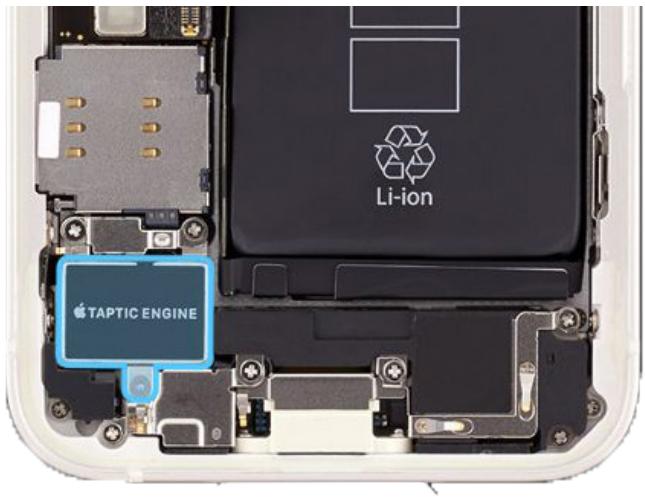
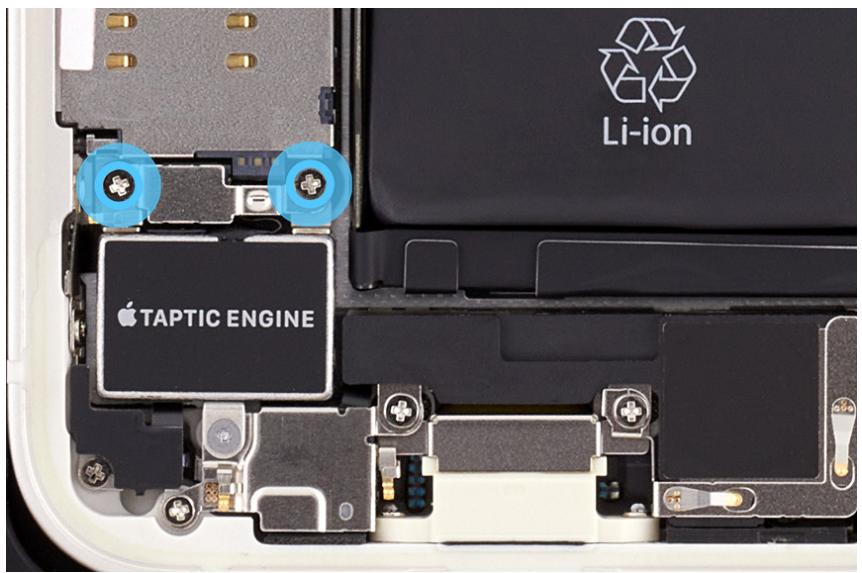
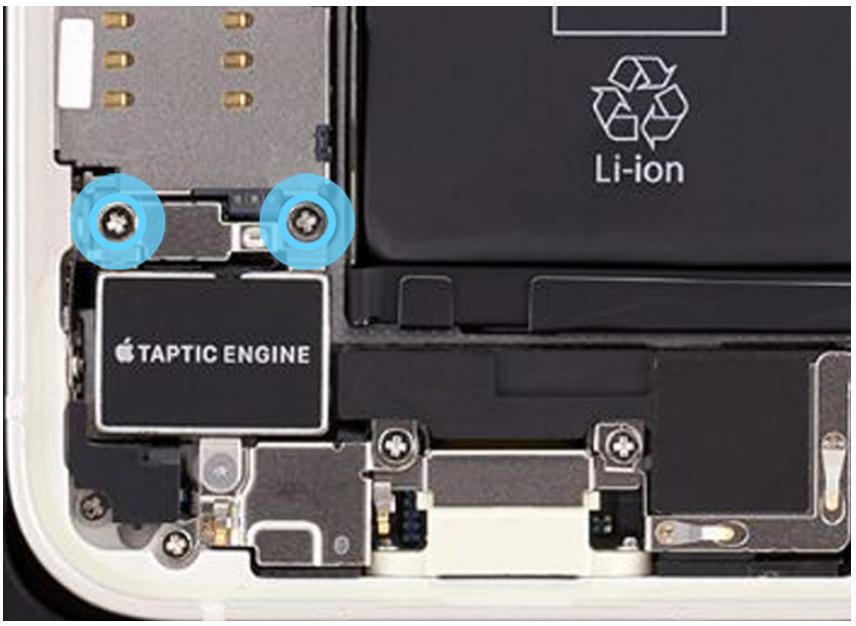
Use a torque driver and the JCIS bit to remove the two crosshead screws from the Taptic Engine connector cowling. Set aside the screws.
-
Use ESD-safe tweezers to remove the Taptic Engine connector cowling. Save the cowling for reassembly.
-
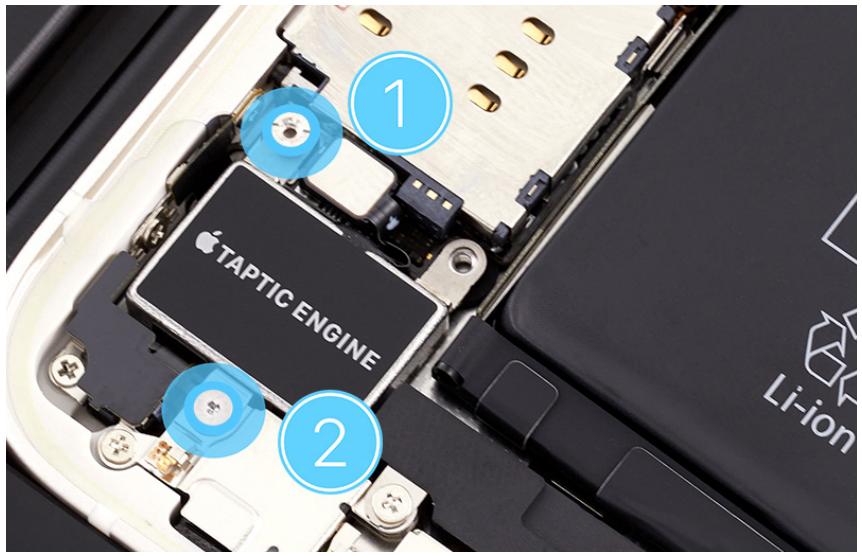
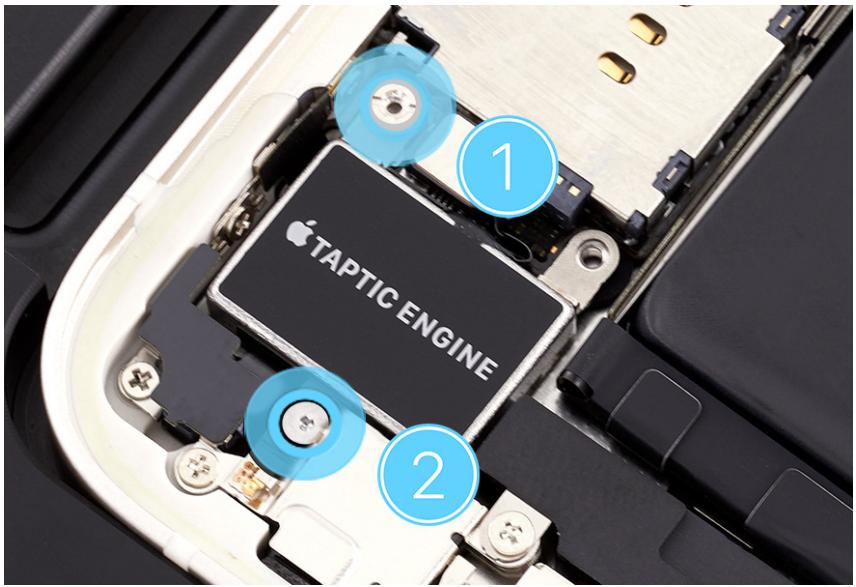
Use a torque driver and the super screw bit to remove the super screw (1) from the top of the Taptic Engine. Set aside the screw.
-
Use a torque driver and the Micro stix bit to remove the trilobe screw (2) from the bottom of the Taptic Engine. Set aside the screw.
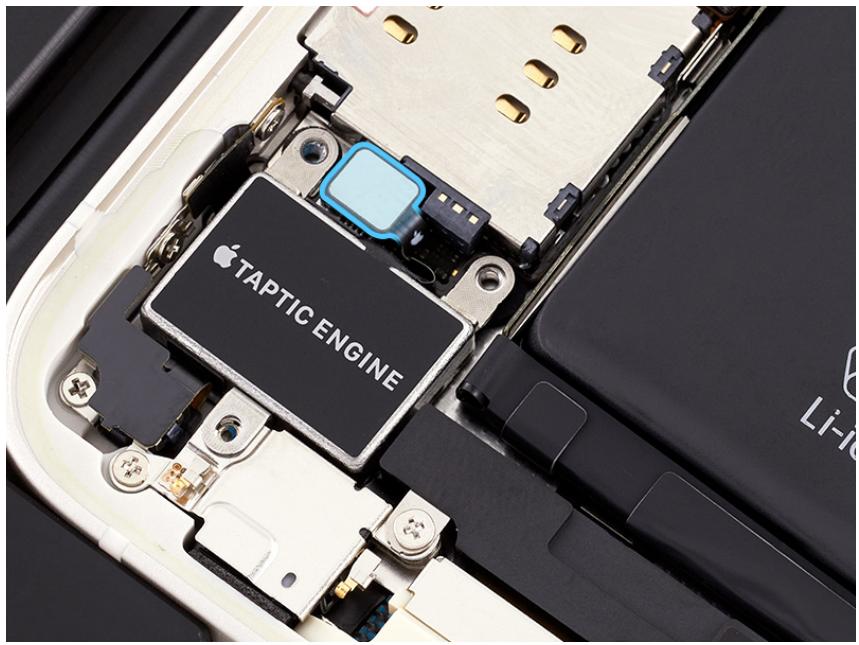
- Use the black stick to lift the end of the Taptic Engine flex cable off the connector.
- Use ESD-safe tweezers to remove the Taptic Engine.
Reassembly
- Position the Taptic Engine in the enclosure.
- Press the end of the Taptic Engine flex cable to the connector.
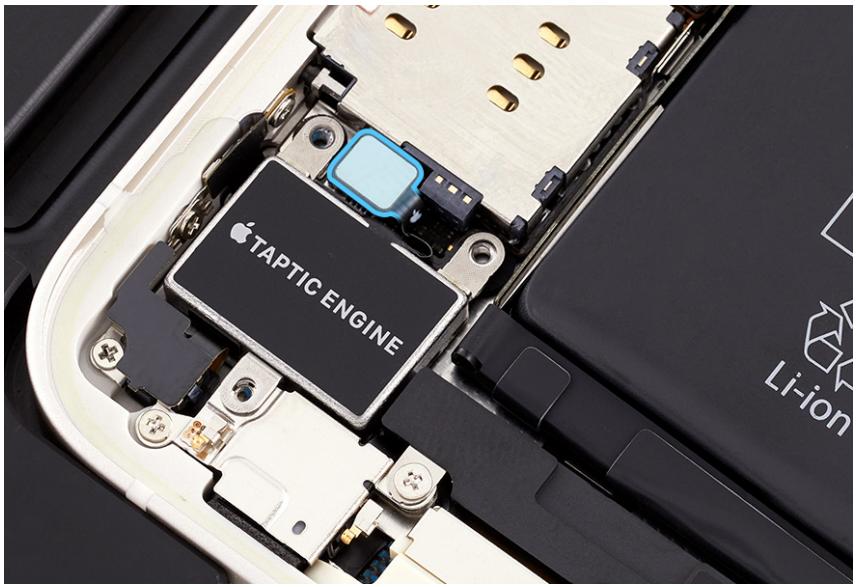
- Use the gray torque driver and super screw bit to install one new super screw (1) into the top of the Taptic Engine.
- Use the black torque driver and Micro stix bit to install one new trilobe screw (2) into the bottom of the Taptic Engine.
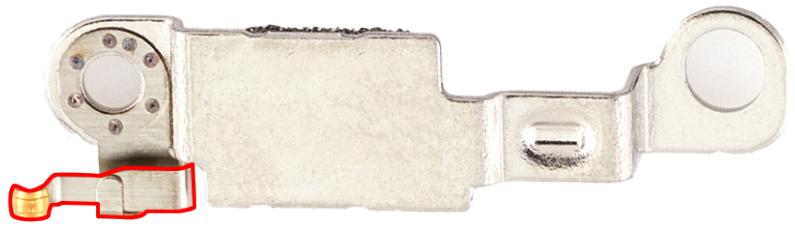
- Position the Taptic Engine connector cowling over the end of the flex cable.

Caution
Avoid touching the grounding spring on the Taptic Engine connector cowling.
natural_image
Metal mechanical component with mounting holes and a highlighted section (no text or symbols visible)- Use the green torque driver and JCIS bit to install two new crosshead screws into the Taptic Engine connector cowling.
Reinstall the following part to complete reassembly:
- Display
Micro stix ^® is a registered trademark of OSG CORPORATION. Torx ^® is a registered trademark of Acument Intellectual Properties, LLC.